
PT-FW300NTU PT-FW300U
|
|
|
- Julie Julien
- il y a 10 ans
- Total affichages :
Transcription
1 Operating Instructions Model No. LCD Projector Commercial Use PT-FW300NTU PT-FW300U (PT-FW300NTU) Before operating this product, please read the instructions carefully and save this manual for future use. TQBJ ENGLISH

2 Important Information Important Safety Notice Dear Panasonic Customer: The following information should be read and understood as it provides details, which will enable you to operate the projector in a manner which is both safe to you and your environment, and conforms to legal requirements regarding the use of projectors. Before connecting, operating or adjusting this projector, please read these instructions completely and save this booklet with the projector for future reference. We hope it will help you to get the most out of your new product, and that you will be pleased with your Panasonic LCD projector. The serial number of your product may be found on its bottom. You should note it in the space provided below and retain this booklet in case service is required. Model number: PT-FW300NTU/PT-FW300U Serial number: WARNING: TO REDUCE THE RISK OF FIRE OR ELECTRIC SHOCK, DONOT EXPOSE THIS PRODUCT TO RAIN OR MOISTURE. Power Supply: This LCD Projector is designed to operate on 100 V V, 50 Hz/60 Hz AC, house current only. CAUTION: The AC power cord which is supplied with the projector as an accessory can only be used for power supplies up to 125 V, 7 A. If you need to use higher voltages or currents than this, you will need to obtain a separate 250 V power cord. If you use the accessory cord in such situations, fire may result. The lightning flash with arrowhead symbol, within an equilateral triangle, is intended to alert the user to the presence of uninsulated dangerous voltage within the product s enclosure that may be of sufficient magnitude to constitute a risk of electric shock to persons. The exclamation point within an equilateral triangle is intended to alert the user to the presence of important operating and maintenance (servicing) instructions in the literature accompanying the product. CAUTION: This equipment is equipped with a three-pin grounding-type power plug. Do not remove the grounding pin on the power plug. This plug will only fit a grounding-type power outlet. This is a safety feature. If you are unable to insert the plug into the outlet, contact an electrician. Do not defeat the purpose of the grounding plug. Do not remove Pursuant to at the directive 2004/108/EC, article 9(2) Panasonic Testing Center Panasonic Service Europe, a division of Panasonic Marketing Europe GmbH Winsbergring 15, Hamburg, F.R. Germany NOTICE: A This product has a High Intensity Discharge (HID) lamp that contains mercury. Disposal may be regulated in your community due to environmental considerations. For disposal or recycling information, please contact your local authorities, or the Electronic Industries Alliance: ENGLISH - 2

3 Important Safety Notice WARNING: This equipment has been tested and found to comply with the limits for a Class B digital device, pursuant to Part 15 of the FCC Rules. These limits are designed to provide reasonable protection against harmful interference in a residential installation. This equipment generates, uses and can radiate radio frequency energy and, if not installed and used in accordance with the instructions, may cause harmful interference to radio communications. However, there is no guarantee that interference will not occur in a particular installation. If this equipment does cause harmful interference to radio or television reception, which can be determined by turning the equipment off and on, the user is encouraged to try to correct the interference by one or more of the following measures: - Reorient or relocate the receiving antenna. - Increase the separation between the equipment and receiver. - Connect the equipment into an outlet on a circuit different from that to which the receiver is connected. - Consult the dealer or an experienced radio/tv technician for help. FCC CAUTION: To assure continued compliance, follow the attached installation instructions and use only shielded interface cables when connecting to computer and/or peripheral devices. Any changes or modifications not expressly approved by Panasonic Corp. of North America could void the user's authority to operate this device. FCC RF Exposure Warning: (if provided with wireless device) - This equipment complied with FCC radiation exposure limits set forth for an uncontrolled environment. - This equipment has been approved for mobile operation and requires minimum 20 cm spacing be provided between antenna(s) and all person s body (excluding extremities of hands, wrist and feet) during wireless modes of operation. - This equipment may not be used with other installed transmitters, which may be capable of simultaneous transmission. Important Information WARNING: A Not for use in a computer room as defined in the Standard for the Protection of Electronic Computer/Data Processing Equipment, ANSI/NFPA 75. A For permanently connected equipment, a readily accessible disconnect device shall be incorporated in the building installation wiring. A For pluggable equipment, the socket-outlet shall be installed near the equipment and shall be easily accessible. Declaration of Conformity Model Number: PT-FW300NTU/PT-FW300U Trade Name: Panasonic Responsible party: Panasonic Corporation of North America Address: One Panasonic Way, Secaucus, New Jersey Telephone number: (888) [email protected] This device complies with Part 15 of the FCC Rules. Operation is subject to the following two conditions: (1) This device may not cause harmful interference, and (2) this device must accept any interference received, including interference that may cause undesired operation. Information on Disposal in other Countries outside the European These symbols are only valid in the European Union. If you wish to discard this product, please contact your local authorities or dealer and ask for the correct method of disposal. ENGLISH - 3

4 Contents Quick steps 1. Set up your projector See Setting up on page Connect with other devices See Connections on page Prepare the Remote control See Remote control on page Start projecting See Switching the projector on/off on page Adjust the image See Menu Navigation on page 30. B When you start the projection for the first time, the minimum required setting screen for projection will be displayed. See Minimum required setting screen on page 11. Important Information Important Safety Notice... 2 Precautions with regard to safety... 6 WARNINGS...6 CAUTIONS...7 Cautions when transporting...8 Cautions when installing...8 Cautions on use...9 Security...9 Accessories...10 Preparation Read this first Minimum required setting screen...11 About Your Projector Projector body...12 Remote control...14 Getting Started Setting up Screen size and throw distance...15 Projection method...16 Front leg adjusters and throwing angle...16 Lens shift and positioning...17 Connections Before connection to the projector...19 Connecting example: Computers...19 Connecting example: AV equipment...20 Basic Operation Switching the projector on/off Power cord...21 Power indicator...22 Switching on the projector...23 Switching off the projector...23 Projecting an image Selecting the input signal...24 Positioning the image...24 Remote control operation Operating range...25 Setting up the image position automatically...25 Switching the input signal...26 Enlarging the centered area...26 Capturing an image...27 Stopping the projection...27 Resetting to the factory default settings...27 Projecting an image in INDEX-WINDOW mode...27 Using an assigned function...28 Projecting 2 different source image at a time...28 Using the laser pointer...29 Controlling the volume of the speaker...29 ENGLISH - 4

5 Contents Settings Menu Navigation...30 Main menu and Sub-menu Navigating through the menu PICTURE menu...33 PICTURE MODE CONTRAST BRIGHTNESS COLOR TINT SHARPNESS WHITE BALANCE RED WHITE BALANCE GREEN WHITE BALANCE BLUE COLOR TEMPERATURE DAYLIGHT VIEW DIGITAL CINEMA REALITY NOISE REDUCTION TV-SYSTEM RGB/YPBPR POSITION menu...35 KEYSTONE SHIFT SHIFT V DOT CLOCK CLOCK PHASE OVER SCAN ASPECT FRAME LOCK DISPLAY OPTION menu...38 ON-SCREEN DISPLAY DVI-D IN CLOSED CAPTION SETTING SCREEN SETTING STARTUP LOGO AUTO SETUP SIGNAL SEARCH BACK COLOR WIDE MODE SXGA MODE OTHER FUNCTIONS PROJECTOR SETUP menu...41 STATUS COMPUTER2 SELECT NO SIGNAL SHUT-OFF INITIAL START UP INSTALLATION HIGH ALTITUDE MODE EMULATE FUNCTION BUTTON AUDIO SETTING TEST PATTERN INITIALIZE ALL FILTER COUNTER RESET SECURITY menu...44 PASSWORD PASSWORD CHANGE TEXT DISPLAY TEXT CHANGE MENU LOCK MENU LOCK PASSWORD CONTROL DEVICE SETUP NETWORK menu...46 Items in NETWORK menu Maintenance TEMP, LAMP and FILTER Indicators Managing the indicated problems Care and Replacement Cleaning the projector Replacing the Lamp unit Replacing the Auto Cleaning Filter (ACF) Troubleshooting Appendix Technical Information List of compatible signals Serial terminal Computer connection guidance REMOTE terminal DVI-D IN terminal Ceiling mount bracket safeguards Screen size and throw distance for 16:9 aspect ratio Screen size and throw distance for 4:3 aspect ratio Specifications Dimensions Trademark acknowledgements Index Avis important concernant la sécurité Précautions de sécurité AVERTISSEMENT MISES EN GARDE Précautions lors du transport Précautions lors de l'installation Précautions lors de l'utilisation Sécurité Remplacement de l'unité de la lampe Protections du support de montage au plafond Important Information Preparation Getting Started Basic Operation Settings Maintenance Appendix ENGLISH - 5

6 Important Information Precautions with regard to safety WARNINGS If you notice smoke, strange smells or noise coming from the projector, disconnect the power plug from the wall outlet. Do not continue to use the projector in such cases, otherwise fire or electric shocks could result. Check that no more smoke is coming out, and then contact an Authorized Service Center for repairs. Do not attempt to repair the projector yourself, as this can be dangerous. Do not install this projector in a place which is not strong enough to take the full weight of the projector. If the installation location is not strong enough, it may fall down or tip over, and severe injury or damage could result. Installation work (such as ceiling suspension) should only be carried out by a qualified technician. If installation is not carried out correctly, there is the danger that injury or electric shocks may occur. Do not use other than an authorized ceiling mount bracket. If foreign objects or water get inside the projector, or if the projector is dropped or the cabinet is broken, disconnect the power plug from the wall outlet. Continued use of the projector in this condition may result in fire or electric shocks. Contact an Authorized Service Center for repairs. The wall outlet shall be installed near the equipment and shall be easily accessible. Unplug the power plug from the wall outlet immediately when problem occurred. Do not overload the wall outlet. If the power supply is overloaded (for example, by using too many adapters), overheating may occur and fire may result. Insert the power plug securely into the wall outlet. Do not use other than the provided power cord. If the plug is not inserted correctly, electric shocks or overheating could result. Do not use plugs which are damaged or wall outlets which are coming loose from the wall. Do not place the projector on top of surfaces which are unstable. If the projector is placed on top of a surface which is sloped or unstable, it may fall down or tip over, and injury or damage could result. Do not place the projector into water or let it become wet. Failure to observe this may result in fire or electric shocks. Do not do anything that might damage the power cord or the power plug. Do not damage the power cord, make any modifications to it, place it near any hot objects, bend it excessively, twist it, pull it, place heavy objects on top of it or wrap it into a bundle. If the power cord is used while damaged, electric shocks, short-circuits or fire may result. Ask an Authorized Service Center to carry out any repairs to the power cord that might be necessary. Do not place the projector on soft materials such as carpets or sponge mats. Doing so may cause the projector to overheat, which can cause burns, fire or damage to the projector. Do not place liquid containers on top of the projector. If water spills onto the projector or gets inside it, fire or electric shocks could result. If any water gets inside the projector, contact an Authorized Service Center. Never attempt to modify or disassemble the projector. High voltages can cause fire or electric shocks. For any inspection, adjustment and repair work, please contact an Authorized Service Center. Clean the power plug regularly to prevent it from becoming covered in dust. If dust builds up on the power plug, the resulting humidity can damage the insulation, which could result in fire. Pull the power plug out from the wall outlet and wipe it with a dry cloth. If not using the projector for an extended period of time, pull the power plug out from the wall outlet. Do not insert any foreign objects into the projector. Do not insert any metal objects or flammable objects into the projector or drop them onto the projector, as doing so can result in fire or electric shocks. Do not allow the + and - terminals of the batteries to come into contact with metallic objects such as necklaces or hairpins. Failure to observe this may cause the batteries to leak, overheat, explode or catch fire. Store the batteries in a plastic bag and keep them away from metallic objects. Do not handle the power plug with wet hands. Failure to observe this may result in electric shocks. ENGLISH - 6

7 Do not touch the leaked liquid from the batteries. If you touch the leaked liquid, it may hurt your skin. Immediately wash away the liquid with water and seek medical advice. If you get the leaked liquid in your eye, it may cause blindness or damage. Never rub your eye, and immediately wash away the liquid with water and seek medical advice. During a thunderstorm, do not touch the projector or the cable. Electric shocks can result. Do not use the projector in a bath or shower. Fire or electric shocks can result. Do not place your skin into the light beam while the projector is being used. Strong light is emitted from the projector s lens. If you place directly into this light, it can hurt or damage your skin. Do not look into the lens while the projector is being used. Strong light is emitted from the projector s lens. If you look directly into this light, it can hurt and damage your eyes. Be especially careful not to let young children look into the lens. In addition, turn off the power and disconnect the power plug when you are away from the projector. Precautions with regard to safety Do not place your hands or other objects close to the air outlet port. Heated air comes out of the air outlet port. Do not place your hands or face, or objects which cannot withstand heat close to this port [allow at least 50 cm (20") of space], otherwise burns or damage could result. Replacement of the lamp is recommended to be carried out by a qualified technician. The lamp has high internal pressure. If improperly handled, explosion might result. The lamp can easily become damaged if struck against hard objects or dropped, and injury or malfunctions may result. When replacing the lamp, allow it to cool for at least one hour before handling it. The lamp cover gets very hot, and touching it can cause burns. Before replacing the lamp, be sure to disconnect the power plug from the wall outlet. Electric shocks or explosions can result if this is not done. Do not allow infants or pets to touch the remote control unit. Keep the remote control unit out of the reach of infants and pets after using it. Important Information CAUTIONS Do not cover the air inlet port or the air outlet port. Doing so may cause the projector to overheat, which can cause fire or damage to the projector. Do not place the projector in narrow, badly ventilated places such as closets or bookshelves. Do not place the projector on cloth or papers, as these materials could be drawn into the air inlet port. Do not set up the projector in humid or dusty places or in places where the projector may come into contact with oily smoke or steam. Using the projector under such conditions may result in fire, electric shocks or plastic deterioration. The plastic deterioration may cause the falling down of the projector which is mounted on the ceiling. Do not set up the projector in a high temperature environment, such as near a heater or in direct sunlight. Failure to observe this may result in fire, malfunction or plastic deterioration. Do not set up the projector outdoors. The projector is designed for indoor use only. When disconnecting the power cord, hold the plug, not the cord. If the power cord itself is pulled, the cord will become damaged, and fire, short-circuits or serious electric shocks may result. Always disconnect all cables before moving the projector. Moving the projector with cables still attached can damage the cables, which could cause fire or electric shocks to occur. Do not place any heavy objects on top of the projector. Failure to observe this may cause the projector to become unbalanced and fall, which could result in damage or injury. Do not short-circuit, heat or disassemble the batteries or place them into water or fire. Failure to observe this may cause the batteries to overheat, leak, explode or catch fire, and burns or other injury may result. ENGLISH - 7

8 Important Information Precautions with regard to safety When inserting the batteries, make sure the polarities (+ and -) are correct. If the batteries are inserted incorrectly, they may explode or leak, and fire, injury or contamination of the battery compartment and surrounding area may result. Use only the specified batteries. If incorrect or different kind of batteries are used, they may explode or leak, and fire, injury or contamination of the battery compartment and surrounding area may result. Do not mix old and new batteries. If the batteries are used mixing old and new, they may explode or leak, and fire, injury or contamination of the battery compartment and surrounding area may result. Remove the used batteries from the remote control promptly. If you leave used batteries in the remote control for an extended period of time, it may cause liquid leaking, abnormal internal temperature rising or explosion. If not using the projector for an extended period of time, disconnect the power plug from the wall outlet and remove the batteries from the remote control. If dust builds up on the power plug, the resulting humidity may damage the insulation, which could result in fire. Keeping or leaving the remote control with batteries inside may cause insulation deterioration, electrical leakage or explosion which could result in fire. Do not put your weight on this projector. You could fall or the projector could break, and injury may result. Be especially careful not to let young children stand or sit on the projector. Disconnect the power plug from the wall outlet as a safety precaution before carrying out any cleaning. Electric shocks can result if this is not done. If the lamp has broken, ventilate the room immediately. Do not touch or bring your face close to the broken pieces. Failure to observe this may cause the user to absorb the gas which was released when the lamp broke and which contains nearly the same amount of mercury as fluorescent lamps, and the broken pieces may cause injury. If you believe that you have absorbed the gas or that the gas has got into your eyes or mouth, seek medical advice immediately. Ask your dealer about the replacement of the lamp unit and check the inside of the projector. Ask an Authorized Service Center to clean inside the projector at least once a year. If dust is left to build up inside the projector without being cleaned out, it can result in fire or problems with operation. It is a good idea to clean the inside of the projector before the season for humid weather arrives. Ask your nearest Authorized Service Center to clean the projector when required. Please discuss with the Authorized Service Center regarding cleaning costs. Do not use chemical treated wipes when cleaning. Using chemical treated wipes may result in plastic distortion or deterioration. We are constantly making efforts to preserve and maintain a clean environment. Please take non repairable units back to your dealer or a recycling company. Cautions when transporting Do not subject the projector to excessive vibration or shocks. The projector lens need to be handled with care. Cover the lens with the lens cover when transporting the projector. When transporting the projector, hold the body at the bottom securely. Do not hold the adjuster legs or the top cover to move the projector, as this may damage the projector. Cautions when installing Avoid setting up in places which are subject to vibration or shocks. The internal parts can be damaged, which may cause malfunctions or accidents. Avoid setting up in places which are subject to sudden temperature changes, such as near an air conditioner or lighting equipment. The life of the lamp may be shortened or the projector may be turned off. See TEMP indicator on page 47. ENGLISH - 8

9 Do not set up the projector near high-voltage power lines or near motors. The projector may be subject to electromagnetic interference. If installing the projector to the ceiling, ask a qualified technician to carry out all installation work. You will need to purchase the separate installation kit (Model No. ET-PKF100H, ET-PKF100S). Furthermore, all installation work is should only be carried out by a qualified technician. See Ceiling mount bracket safeguards on page 56 for the safety cable installation. Precautions with regard to safety If using this projector at high elevations m ( ft) sea level, set the HIGH ALTITUDE MODE to ON. See HIGH ALTITUDE MODE on page 42. Failure to observe this may result in malfunctions or the life of the lamp or the other components may be shortened. Important Information Cautions on use In order to get the best picture quality Draw curtains or blinds over any windows and turn off any lights near the screen to prevent outside light or light from indoor lamps from shining onto the screen. Do not touch the surfaces of the lens or the front glass with your bare hands. If the surface of the lens becomes dirty from fingerprints or anything else, this will be magnified and projected onto the screen. Moreover, when not using the projector, close the front panel cover. Liquid crystal panel Do not project the same image for long periods of time, as this may remain as an afterimage on the liquid crystal panel. Display the white screen test pattern for more than an hour to remove it. See TEST PATTERN on page 43. The liquid crystal panel of the projector is built with very high precision technology to provide fine picture details. Occasionally, a few stuck pixels may appear on the screen as fixed points of blue, green or red. It is recommended to switch off the projector once and try after 1 hour later again. Please note that this does not affect the performance of your LCD. The projector has a high pressure mercury lamp and that is characterized as follows. The brightness of the lamp depends on the duration of use. The lamp may explode or shorten the lamp life by shocks or chipping damage. The lamp may explode only occasionally after using the projector. The lamp may explode if using the projector after the instructed lamp replacement timing. When the lamp exploded, it emits internal smoke-like gas. The lamp life is depends on individual lamp characteristics, usage condition and the installation environment. Especially the consecutive use of the projector for more than 10 hours, or the frequent switching on or off may greatly affect on the lamp life even when lamp usage is less than 1 year. Optical components If you use the projector consecutively 12 hours every day, the optical components may need to be replaced in less than 1 year. Security Take the safety measures for use of the projector that should cover the following envisioned incidents. The leakage of your personal registered information. Dishonest operation by an untrusted third party. Locking out or prevent anyone else from using the projector by an untrusted third party. Security instruction The connecting network must be secured by firewall or others. Change your password regularly. Do not use password too simple to guess. The Authorized Service Center will never ask you for the password. Do not share your password with anyone else. Password the projector and restrict access to authorized users only. ENGLISH - 9

10 Important Information Precautions with regard to safety Accessories Make sure the following accessories are provided with your projector. Remote control for PT-FW300NTU (x1) N2QAYB Remote control for PT-FW300U (x1) N2QAYB AA batteries for remote control (x2) Safety cable TTRA0141 Attachment screw (x1) Safety cable (x1) Power cord (x1) K2CM3DH00016 CD-ROM (x1) TQBH9012 Power cord secure lock (x1) TTRA0182 * The protectors for enclosed products, such as a plug cover or foam cartons, must be treated properly. * Contact to an Authorized Service Center for lost accessories. ENGLISH - 10

11 Read this first Minimum required setting screen When you start the projection for the first time, the minimum required setting screen for projection will be displayed. INITIAL SETTING 1. Select the required language setting by pressing IH, then press the ENTER button. INITIAL SETTING ENGLISH INSTALLATION Select the required installation method. FRONT/DESK FRONT/CEILING REAR/DESK REAR/CEILING Setting on a desk/floor and projecting from front Mounting on the ceiling and projecting from front Setting on a desk/floor and projecting from rear Mounting on the ceiling and projecting from rear Preparation PLEASE SELECT LANGUAGE SELECT ENTER 2. Select the minimum required settings to start the projection. Press the RETURN button to return to the language setting menu. Press F G to move through the menu items. Press I H to select the required setting. Press the ENTER button to complete the setting and start the projection. INITIAL SETTING INSTALLATION FRONT/DESK SCREEN FORMAT 16:10 SCREEN POSITION CENTER HIGH ALTITUDE MODE OFF SWITCH TO HIGH ALTITUDE MODE "ON" IF OVER 1400m(4593Ft). SELECT RETURN ENTER SCREEN FORMAT Select the required screen format by pressing I H. 16:10 When project on a 16:10 or 4:3 16:9 screen. When project on a 16:9 screen. SCREEN POSITION When SCREEN FORMAT menu is set to 16:9, you can select the menu display position by pressing IH. LOW Displays the menu in the lower part of the screen. CENTER Displays the menu in the middle of the screen. HIGH Displays the menu in the upper part of the screen. HIGH ALTITUDE MODE If you use the projector at high elevation, the HIGH ALTITUDE MODE setting need to be ON to set the fan speed high. OFF ON The fan speed is low. The fan speed is high. At m ( ft) above sea level, the setting must be ON. The loudness of fan noise depends on the HIGH ALTITUDE MODE setting. Once you finish the minimum requirement setting, it will not be displayed again unless the projector is initialized. See INITIALIZE ALL on page 43. You can change the each setting from the main menu. See Menu Navigation on page 30. ENGLISH - 11

12 About Your Projector Preparation Projector body Top and front view Indicators Power indicator (page 22) LAMP indicator (page 47) TEMP indicator (page 47) FILTER indicator (page 47) Remote control signal receptor (page 25) Ambient Luminance Sensor (ALS) (page 34) Lens shift lever (page 17) Air intake port Speaker Projection lens Levers Focus lever (page 24) Zoom lever (page 24) Front panel cover Hold both sides of the top corner of the front panel cover to open or close. While not operating the controls panel, keep the front panel cover closed. Power button While the main power is on, switch between stand-by mode and projection mode. (page 23) Navigation buttons Navigate through the menu items with FGIH, and activate the menu item with the ENTER button. (page 32) Control panel INPUT SELECT button Switch to cycle through the input method. (page 24) COMPUTER1\COMPUTER2\S-VIDEO \VIDEO\NETWORK\DVI\ COMPUTER1 MENU button Display the main menu. (page 32) RETURN button Return to the previous menu. (page 32) Do not cover the ventilation openings or place anything within 50 cm (20") of them as this may cause damage or injury. While the projector is not in use, keep the front panel cover closed to protect the lens. ENGLISH - 12

13 About Your Projector Back and bottom view Security lock Attach the commercial shackle lock, manufactured by Kensington, to protect your projector. Compatible with the Kensington MicroSaver Security System. Lamp unit compartment (page 48) Air exhaust port Heated air comes out of this opening. MAIN POWER Switch the projector on/off. (page 23) Preparation Burglar hook port Attach a commercial burglar prevention cable. Auto cleaning filter (ACF) compartment (page 49) Front leg adjusters Screw up/down to adjust the projection angle. (page 16) AC IN Connect the power cord to supply electronic power to the projector. (page 21) LAN Connect a LAN cable for network connection. DVI-D IN Connect a DVI-D cable (Single). COMPUTER1 IN Connect an RGB or component signal cable. COMPUTER2 IN/1 OUT Connect an RGB or component signal cable. Selectable for input and output by menu operation. AUDIO IN Connect audio cables for inputting audio signal. S-VIDEO IN Connect a S-VIDEO signal cable. VIDEO IN Connect an RCA composite video cable. SERIAL See Serial terminal on page 53. REMOTE See REMOTE terminal on page 55. COMPUTER AUDIO IN Connect audio cables for inputting audio signals corresponding to COMPUTER1 IN, COMPUTER2 IN/1 OUT and/or DVI-D IN terminals. VARIABLE AUDIO OUT Connect an audio cable for outputting audio signals to the connected equipment. Do not cover the ventilation openings or place anything within 50 cm (20") of them as this may cause damage or injury. When a cable is connected to the VARIABLE AUDIO OUT, the built-in speaker will be disabled. ENGLISH - 13

14 About Your Projector Remote control Preparation Attaching a hand strap You can attach a favorite strap on to the remote control. Power button While the MAIN POWER is on, switch between standby mode and projection mode. (page 21) Project a laser pointer. (page 29) Display the main menu. (page 32) Top view Remote control signal emitters (page 25) Laser pointer beam emitter (page 29) Remote control indicator Pressing any button except the LASER button, the remote control indicator will flash. Pressing the LASER button, it will lit. Automatically adjust the setting of SHIFT, DOT CLOCK, CLOCK PHASE and SIGNAL SEARCH for the projected image of COMPUTER/ DVI signal. (page 25) Switch the required input signal button to select. Navigate through the menus with FGIH, and activate the menu item with the ENTER button. (page 32) Capture the projected image as a frozen picture. (page 27) Reset some of the settings to the factory default settings. (page 27) Assign the frequently use functions from the options for shortcut. (page 27) Control to change the scale by means of digital zoom. (page 26) (Shown as PT-FW300NTU) Return to the previous menu. (page 32) Turn off the projection temporarily. (page 27) Display the frozen image while the display of subsequent images continues. (page 27) Display 2 different source images at a time. (page 27) Control to adjust the volume of the speaker. (page 29) These buttons are for network control. See the contents of the provided CD-ROM for instructions. The COMPUTER SEARCH button is for PT-FW300NTU only. Battery compartment 1. Press the tab and lift up the cover. 2. Insert the batteries according to the polarity diagram indicated inside. Do not drop the remote control. Avoid contact with liquids or moisture. Use manganese batteries or alkaline batteries with the remote control. Do not attempt to modify or disassemble the remote control. Contact an Authorized Service Center for repairs. Do not keep pressing the remote control buttons as this may shorten battery life. Do not point the laser in other people s eyes or stare into beam. See Remote control operation on page 25. ENGLISH - 14

15 Setting up Screen size and throw distance You can adjust the projection size with 2.0x zoom lens. Calculate and define the throw distance as follows. Projected image Shown as 16:10 SH SD SW Screen All measurements and the calculation results below are approximate and may differ slightly from the actual measurements. Screen Diagonal (SD) Projection size (16 : 10) Screen height (SH) Calculation methods Screen width (SW) Minimum distance (LW) Throw distance (L) Maximum distance (LT) (0.84 m) 33" 0.44 m (1'5") 0.71 m (2'3") 1.8 m (5'10") (1.02 m) 40" 0.54 m (1'9") 0.86 m (2'9") 1.1 m (3'7") 2.3 m (7'6") (1.27 m) 50" 0.67 m (2'2") 1.08 m (3'6") 1.4 m (4'7") 2.8 m (9'2") (1.52 m) 60" 0.81 m (2'7") 1.29 m (4'2") 1.7 m (5'6") 3.4 m (11'1") (1.78 m) 70" 0.94 m (3'1") 1.51 m (4'11") 2.0 m (6'6") 4.0 m (13'1") (2.03 m) 80" 1.08 m (3'6") 1.72 m (5'7") 2.3 m (7'6") 4.6 m (15'1") (2.29 m) 90" 1.21 m (3'11") 1.94 m (6'4") 2.6 m (8'6") 5.1 m (16'8") (2.54 m) 100" 1.35 m (4'5") 2.15 m (7') 2.9 m (9'6") 5.7 m (18'8") (3.05 m) 120" 1.62 m (5'3") 2.58 m (8'5") 3.4 m (11'1") 6.9 m (22'7") (3.81 m) 150" 2.02 m (6'7") 3.23 m (10'7") 4.3 m (14'1") 8.6 m (28'2") (5.08 m) 200" 2.69 m (8'9") 4.31 m (14'1") 5.7 m (18'8") 11.5 m (37'8") (6.35 m) 250" 3.37 m (11') 5.38 m (17'7") 7.2 m (23'7") 14.3 m (46'10") (7.62 m) 300" 4.04 m (13'3") 6.46 m (21'2") 8.6 m (28'2") 17.2 m (56'5") Getting Started SW (m) = SD (") x SH (m) = SD (") x LW (m) = x SD (") LT (m) = x SD (") See page 57 for the screen size and throw distance of 4:3/16:9. Do not use the projector at a raised or a horizontally tilted position as it may cause malfunction of the projector. Make sure the projector lens surface is parallel with the screen. You can tilt the projector body approximately ± 30 vertically. Overtilting may result in shortening the component s life. For the best quality of the projection image, install a screen where sun light or room light does not shine directly onto the screen. Close window shades or curtains to block the lights. ENGLISH - 15

16 Setting up Projection method You can use the projector with any of the following 4 projection methods. To set the desired method in the projector, See INSTALLATION on page 42. Setting on a desk/floor and projecting from front Setting on a desk/floor and projecting from rear Getting Started INSTALLATION: FRONT/DESK Mounting on the ceiling and projecting from front INSTALLATION: REAR/DESK Mounting on the ceiling and projecting from rear INSTALLATION: FRONT/CEILING INSTALLATION: REAR/CEILING A translucent screen is required for rear projection. When mounting the projector on the ceiling, the optional ceiling mount bracket (ET-PKF100H, ET-PKF100S) is required. See Ceiling mount bracket safeguards on page 56. Front leg adjusters and throwing angle You can screw up/down the front leg adjusters to control the angle of the projector for adjusting the throwing angle. See Positioning the image on page 24. Heated air comes out of the air exhaust port. Do not touch the air exhaust port directly. If keystone distortion occurs, see KEYSTONE on page 35. Screw up the adjuster legs, and an audible click will be heard as the limit. ENGLISH - 16

17 Lens shift and positioning Setting up If the projector is not positioned right in front of the center of the screen, you can adjust the projected image position by moving the lens shift lever within the shift range of the lens. Adjusting the lens shift lever 1. Open the front panel cover. 2. Screw the lens shift lever counterclockwise to unlock. 3. Move the lens shift lever to adjust the projected image position. 4. Screw the lens shift lever clockwise to lock. Horizontal shift You can place the projector where the projector lens is up to 24% horizontally off-center from the screen and then adjust the image position with the lens shift lever. Up to about 24 % of the projection Up to about 24 % of the projection Getting Started Shifting the lever right: Image moves to the right Shifting the lever left: Image moves to the left Vertical shift You can place the projector where the projector lens is up to 51% vertically off-center from the screen and the adjust the image position with the lens shift lever. Up to about 51 % of the projection Up to about 51 % of the projection Shifting the lever down: Image moves to the bottom Shifting the lever up: Image moves to the top ENGLISH - 17

18 Setting up Projector location range You can determine where to locate the screen and the projector by considering the lens shift possibilities. See Positioning the image on page 24. When the screen position is fixed Projector H Placement Vertical center of screen V Getting Started SH Screen SW Center of lens When the projector position is fixed 51% Shift range 51% 24% 24% Projector When the projector is located right in front of the screen and the lens shift lever is centered, you will get the best quality of the projection image. When the lens shift lever is at the vertical limit of the shift range, you cannot move the lever to the horizontal limit, likewise when the lens shift lever is at the horizontal limit of the shift range, you cannot move the lever to the vertical limit. When the projector is tilted and you adjust KEYSTONE, the center of the screen and the lens need to be realigned. Do not attempt to pull the lens shift lever hard while adjusting. ENGLISH - 18

19 Connections Before connection to the projector Read and follow the operating and connecting instructions of each peripheral device. The peripheral devices must be turned off. Use cables that match each peripheral device to be connected. If the input signal is affected by signal jitter, the projected image may have poor image quality and timebase correction is effective. Confirm the type of video signals. See List of compatible signals on page 52. Connecting example: Computers Computers Monitor Getting Started Audio system Computer for controlling Use COMPUTER terminals to input YPBPR signals. When connecting to the COMPUTER terminals, you can switch the audio input terminal between COMPUTER AUDIO IN and AUDIO IN. See AUDIO SETTING on page 42. When COMPUTER2 SELECT in the OPTION menu is set to OUTPUT, do not connect any input signals. See CD-ROM contents for the LAN network connection. LAN terminal ACT lamp (Green) Flashes when transmit data. LINK lamp (Yellow) Illuminates when a LAN cable (10 Base-T/100 Base-TX) is connected. Do not touch the metal parts of the LAN terminal. Failure to observe this may cause malfunction by static electricity. ENGLISH - 19

20 Connections Connecting example: AV equipment Connecting with VIDEO IN/S-VIDEO IN To S-VIDEO output DVD player OR To video output or audio output Video player Getting Started When you connect more than one AV equipment, switch the audio connection manually. Connecting with DVI-D IN Audio system To computer output To HDMI output To audio output HDMI equipped DVD player (HDCP) Audio system DVI-D is single link. Prepare a HDMI - DVI-D cable for HDMI connection. You may need to change the setting of the DVI EDID in DISPLAY OPTION menu with some DVI-D IN connection. See DVI-D IN on page 38. Malfunction may occur or other problems could be encountered with some kind of HDMI or DVI equipment. When connecting to the DVI-D IN terminal, you can switch the audio input terminal between COMPUTER AUDIO IN 2 and AUDIO IN. See AUDIO SETTING on page 42. ENGLISH - 20

21 Switching the projector on/off Power cord Connecting 1. Make sure the shape of the power plug and the AC IN terminal on the back of the projector match, then push the plug all the way in. Disconnecting 1. Unplug the power cord from the wall outlet. 2. Depress the latch and slide the cover off. Latch 2. Align the side of the power cord secure lock with the side guide rail of the AC IN terminal of the projector and slide it in. 3. Slide the power cord secure lock up along the side guide rail and remove. Rail guide Rail guide 3. Place the latch to the latch catcher and press until it clicks. Latch 4. Connect the power cord to a wall outlet. 4. Hold the plug and unplug the power cord from the AC IN terminal on the back of the projector. Power indicator lights in orange if the internal cooling fan is still operating by internal power supply. Basic Operation Do not use other than the provided power cord. Ensure all the input devices are connected and turned off before connecting the power cord. Do not force the connector as this may damage the projector and/or the power cord. Dirt or dust build-up around plugs may cause fire or electrical hazards. Switch off the power to the projector when not in use. If the projector is switched on again while the internal cooling fan is still operating by the internal power supply, it may take a while to start the projection. Direct power on function You can start the projection with only supplying the electric power. See INITIAL START UP on page 41. Direct power off function You can switch off the electric power supply any time by unplugging the power plug from the wall outlet or by switching off the main power. The internal lamp cooling fan keeps operating by the internal power supply, and stops automatically when cooled enough. ENGLISH - 21
22 Switching the projector on/off Power indicator The power indicator informs you the status of the power. When the LAMP or TEMP indicator is flashing, you cannot switch on the power. See TEMP, LAMP and FILTER Indicators on page 47. Power indicator Indicator status Status No illumination or flashing The MAIN POWER is switched off. Basic Operation RED GREEN ORANGE Lit Flashing Flashing Lit Lit Flashing The MAIN POWER is switched on and the projector is in standby mode. When the LAMP or TEMP indicator is flashing, not available to switch on the power. The power is switched off. (When NETWORK STANDBY in NETWORK menu or IN STANDBY MODE of AUDIO SETTING in PROJECTOR SETUP menu is set to ON). Press the power button to start the projection. The power is switched on and the projector is getting ready to project. Projecting. The power is switched off and the projector is cooling the lamp. The indicator will light or flash, and start the projection after a short time. The power is switched on again when cooling the lamp and recovering to projection mode. If the projector is switched on again while the internal cooling fan is still operating by the internal power supply, it may take a while to start the projection. The electric consumption in standby mode is 4 W. ENGLISH - 22
23 Switching the projector on/off Switching on the projector 1. Switch the MAIN POWER on. The power indicator lights up in red. 2. Open the front panel cover. This is not necessary in remote control operation. 3. Press the power button. The power indicator lights up in green after flashing for a while. The STARTUP LOGO will be displayed on the screen. See STARTUP LOGO on page 39. When starting up the projector, some small rattling or tinkling sound may be heard, or the display may flicker for the characteristics of the lamp. Those are normal and will not affect the performance of the projector. When the internal cooling fan is operating, some operational sound may be heard. The loudness of the operational sound depends on the external temperature. If you disconnected the power cord or switched off the MAIN POWER while on projecting mode, the projection will start with connecting the power cord or switching on the MAIN POWER. See INITIAL START UP on page 41. Switching off the projector Basic Operation 1. Open the front panel cover. This is not necessary in remote control operation. 2. Press the power button. The confirmation screen is displayed. It will disappear and return to the projection after 10 seconds without any operation. To return to the projection, press any button except the power button. 3. Press the power button. The power indicator lights up in orange while cooling the lamp, then illuminates red when is ready to switch off the MAIN POWER. 4. Switch off the MAIN POWER on the back of the projector. You can disconnect the power cord or switch off the MAIN POWER instead of following this procedure. See INITIAL START UP on page 41. ENGLISH - 23
24 Projecting an image Selecting the input signal 1. Switch on the connected devices. Press the play button of the required device. 2. Press the INPUT SELECT buttons to select the required input method if needed. See Switching the input signal on page 26. The image will be projected on the screen. Positioning the image 1. Open the front panel cover. 2. Adjust the projected image with the lens shift lever. See Lens shift and positioning on page 17. SIGNAL SEARCH is ON as default and the signal from the connected devices is detected automatically. See SIGNAL SEARCH on page Adjust the focus and the projected image size. Turn the focus lever and zoom lever to adjust the image. You can confirm the adjusted effect with the TEST PATTERN in OPTION menu. See TEST PATTERN on page 43. Focus lever Zoom lever Basic Operation 3. Adjust the angle of the projector. Screw down the front leg adjusters and adjust the angle vertically. See Front leg adjusters and throwing angle on page 16. Do not touch the air exhaust port as this may cause burns or injury. If keystone distortion occurs, see KEYSTONE on page 35. If you adjust the focus, you may need to adjust the size of the image by moving the zoom lever again. ENGLISH - 24
25 Remote control operation Operating range You can operate the projector with the remote control within the remote range 15 m (49'2"), approximately ± 30 vertically and horizontally. Facing to the projector Ensure the remote control emitter is facing to the remote control signal receptor on front/back of the projector and press the required buttons to operate. Facing to the screen Ensure the remote control emitter is facing to the screen and press the required buttons to operate the projector. The signal will be reflected off the screen. The operating range may differ due to the screen material. This function may not be effective with a translucent screen. (Shown as PT-FW300NTU) Setting up the image position automatically You can adjust the setting of SHIFT, DOT CLOCK and CLOCK PHASE in the POSITION menu automatically for the projected COMPUTER signal image. With DVI signal, adjust SHIFT setting only. Do not let strong light shine onto the signal receptor. The remote control may malfunction under strong light such as fluorescent. If there are any obstacles between the remote control and the remote control signal receptor, the remote control may not operate correctly. Basic Operation If the dot clock frequency is 150 MHz or higher, AUTO SETUP is not effective. If the projected image is dark or blurred around the edge, AUTO SETUP may stop the processing before complete. Project a much clearer or lighter image and press the AUTO SETUP button again. When there is no signal input and SIGNAL SEARCH in DISPLAY OPTION menu is ON, the auto signal detecting system will start. Screen Projected image ENGLISH - 25
26 Remote control operation Switching the input signal You can switch the input method manually by pressing the COMPUTER, NETWORK and VIDEO buttons. Press the required button several times or I H to cycle through the input methods as follows. The actual projected image will be changed in a while. The graphical guidance will be displayed on the upper right of the projected image and you can confirm the selected input method which is highlighted in yellow. See INPUT GUIDE on page 38. If you select an unplugged input method, the guidance will blink on and off several times. See List of compatible signals on page 52. See Connections on page 19. Pressing the COMPUTER button COMPUTER1 H COMPUTER2 F G DVI Only when the COMPUTER2 SELECT is set to INPUT, the COMPUTER2 is selectable. Pressing the NETWORK button Only for the network connection operation. See CD- ROM contents for more detailed information. Pressing the VIDEO button VIDEO IH S-VIDEO Pressing the INPUT SELECT button on the projector Basic Operation Enlarging the centered area COMPUTER1 H COMPUTER2 F G DVI S-VIDEO F G NETWORK I VIDEO You can enlarge the projected image down to a centered area for emphasizing within the range of 1x to 2x. Enlarging the image 1. Press the DIGITAL ZOOM +/- button once. The centered area of the image will then be enlarged to 1.5x. Shifting the center point Press F G I H to shift the center point. 2. Adjust the image size by pressing the DIGITAL ZOOM +/- button. The image size will be changed in steps of 0.1. When the COMPUTER signal is projected, the enlargement range will be changed to 1x to 3x. When the FRAME LOCK in POSITION menu is set to ON, the enlargement range is 1x to 2x. See FRAME LOCK on page 37. When the input signal is changed while the DIGITAL ZOOM is activated, the DIGITAL ZOOM will be cancelled. While DIGITAL ZOOM is activated, FREEZE is not available. ENGLISH - 26
27 Remote control operation Capturing an image Press the FREEZE button to capture the image and stop the audio, and you can see it as a still picture while the AV equipment are continuing. Press the FREEZE button again to escape and return to the continuing image. Stopping the projection You can stop the projection and audio sound through the projector for saving electrical power. Press the AV MUTE button again to escape. Resetting to the factory default settings You can reset most of the customized settings to the factory defaults by pressing the DEFAULT button of the remote control. Display the required sub menu or the menu items, and press the DEFAULT button again. See Main menu and Sub-menu on page 30. Some menu items are not available to reset by pressing the DEFAULT button. Adjust each menu items manually. To reset all the settings to the factory defaults, see INITIAL START UP on page 41. Projecting an image in INDEX-WINDOW mode You can project an image in split 2 windows as an INDEX-WINDOW, one is frozen, stored in memory and displayed on the screen s left side, while the display of subsequent images continues on the right. To escape from the INDEX-WINDOW, press the MENU or RETURN button. Projected image Frozen image Changing the image size Press F G to capture a new image and change the size in 2 ways. Continuing image Basic Operation Switching the position In default, the frozen image is displayed on the left and the subsequent image is displayed on the right. Press I H to switch the position. Frozen image Continuing image Continuing image Continuing image Frozen image Frozen image If you change the window size, the aspect ratio of the image is changed and becomes vertically elongated. When vertically enlarged, some signals image with THROUGH aspect ratio setting will not be displayed correctly. Capturing a new image While in INDEX-WINDOW mode, press the ENTER button to capture a new image and the frozen image window will be updated in a while. When capturing a quick moving picture, perform several times to get a stabled image. ENGLISH - 27
28 Remote control operation Using an assigned function You can assign a selected function to the FUNCTION button. Following functions are assignable. Options Functions Refer DISABLE Deactivate the FUNCTION button. - ASPECT Display the ASPECT menu. 36 PICTURE MODE DAYLIGHT VIEW CLOSED CAPTION Display the PICTURE MODE menu. Display the DAYLIGHT VIEW menu. Press to turn on/off the CLOSED CAPTION See FUNCTION BUTTON on page 42. Basic Operation Projecting 2 different source image at a time You can project the image and another source of image at the same time in double window style. Press any button of RETURN, MENU, SIDE BY SIDE or INPUT SELECT buttons to return to the normal projection style. COMPUTER1 IH COMPUTER2 FG FG DVI S-VIDEO FG FG NETWORK IH VIDEO Side by Side function signal combination table Switching the signal In default, the first image is displayed on the left and the second image is displayed on the right. You can switch and cycle through the signals of the second image by pressing F G Image 1 Image 1 Image 1 Image 2 Image 2 COMPUTER1 COMPUTER2 DVI-D COMPUTER1 COMPUTER2 DVI-D VIDEO IN S-VIDEO IN Still Movie Still Movie Still Movie NETWORK connection Still N/A N/A OK OK OK OK OK OK OK Movie N/A N/A OK N/A N/A N/A OK N/A OK Still OK OK N/A N/A OK OK OK OK OK Movie OK N/A N/A N/A N/A N/A OK N/A OK VIDEO IN OK N/A OK N/A N/A N/A OK N/A OK S-VIDEO IN OK N/A OK N/A N/A N/A OK N/A OK Still OK OK OK OK OK OK N/A N/A OK Movie OK N/A OK N/A N/A N/A N/A N/A OK NETWORK connection OK OK OK OK OK OK OK OK N/A FREEZE and VOLUME controls are available with the first image only. While SIDE BY SIDE is activated, DIGITAL ZOOM, INDEX-WINDOW and AUTO SETUP are not available. While SIDE BY SIDE is activated, the main menu will not be displayed. The second image will apply to the value of the PICTURE settings of the first image except CONTRAST and BRIGHTNESS. COMPUTER and NETWORK signals will not keep the adjusted aspect ratio. ENGLISH - 28
29 Remote control operation Using the laser pointer You can highlight items on the screen with the red laser pointer while projecting the image in presentations or visual demonstrations as an eye-catching pointing device. Hold down the LASER button to go on the laser pointer and release to go off. Disable the LASER button You can disable the LASER button for an accidental operation. 1. Open the battery compartment cover of the remote control. 2. Slide the switch tab. 3. Close the battery compartment cover of the remote control. See Battery compartment on page 14. Top view Laser pointer beam emitter Cautions Deactivating switch On Off If you press the disabled LASER button, the alert "LASER POINTER IS DISABLED." will be displayed on the screen. While the menu is displaying, the alert will not be displayed. The laser pointer should never be projected directly into the eyes of a person or animal. Do not aim the laser at reflective surfaces. Do not allow children to use laser pointer. Never look directly into the laser beam. The laser pointer is not effective with translucent screens. Please read the cautions on the remote control. This is a Class 2 laser product. (Shown as PT-FW300NTU) CAUTION: Use of controls of adjustments or performance of procedures other than those specified herein may result in hazardous radiation exposure. Basic Operation Controlling the volume of the speaker You can control the volume of the built-in speakers and output sound. Press "+" side of the VOLUME button to increase and "-" to decrease. Power consumption can be reduced if the volume level is lowered. ENGLISH - 29
30 Menu Navigation Settings Main menu and Sub-menu The menu options are structured and categorized. You can navigate through the menu with F G I H buttons. See Menu Navigation on page 30. The underlined items are factory default settings. Some default settings vary by the selected input signal. Sub-menu items vary according to the selected input signal. Some settings are adjustable without any signals. PICTURE PICTURE MODE page 33 NATURAL DYNAMIC STANDARD BLACKBOARD CINEMA CONTRAST page 33 (Default: 0) BRIGHTNESS page 33 (Default: 0) COLOR page 33 (Not available with NETWORK connection) (Default: 0) TINT page 33 (Not available with NETWORK connection) (Default: 0) SHARPNESS page 33 (Default: 0) WHITE BALANCE RED *1 page 33 (Default: 0) WHITE BALANCE GREEN *1 page 33 (Default: 0) WHITE BALANCE BLUE *1 page 33 (Default: 0) COLOR TEMPERATURE page 34 DEFAULT LOW HIGH DAYLIGHT VIEW page 34 AUTO OFF ON DIGITAL CINEMA REALITY page 34 ON OFF NOISE REDUCTION page 34 OFF ON TV-SYSTEM page 34 AUTO NTSC NTSC 4.43 PAL PAL-M PAL-N SECAM RGB/YPBPR page 34 AUTO RGB YPBPR *1. Available with still image of COMPUTER/DVI signals only POSITION KEYSTONE page 35 (Default: 0) SHIFT page 35 (Not available with NETWORK connection) H (Default: 0) V (Default: 0) SHIFT V page 35 (Available with NETWORK connection only) (Default: 0) DOT CLOCK page 35 (Signals from COMPUTER only) (Default: 0) CLOCK PHASE page 35 (Signals from COMPUTER only) (Default: 0) OVER SCAN page 35 (Not available with NETWORK connection) ASPECT page 36 AUTO 4:3 16:9 H-FIT V-FIT HV-FIT THROUGH FRAME LOCK page 37 (Signals from COMPUTER only) OFF ON LANGUAGE DISPLAY OPTION ON-SCREEN DISPLAY page 38 INPUT GUIDE DETAILED SIMPLE OFF OSD DESIGN TYPE1 TYPE2 TYPE3 WARNING MESSAGE ON OFF ENGLISH - 30
31 Menu Navigation DVI-D IN page 38 DVI EDID EDID1 EDID2(PC) DVI SIGNAL LEVEL 0-255:PC CLOSED CAPTION SETTING page 38 CLOSED CAPTION OFF ON MODE CC1 CC2 CC3 CC4 SCREEN SETTING page 38 SCREEN FORMAT 16:10 16:9 SCREEN POSITION CENTER LOW HIGH STARTUP LOGO page 39 ON OFF USER AUTO SETUP page 39 AUTO BUTTON SIGNAL SEARCH page 39 ON OFF BACK COLOR page 39 BLUE BLACK WIDE MODE page 39 AUTO ON OFF SXGA MODE page 39 SXGA SXGA+ OTHER FUNCTIONS page 40 AUTO SETUP AV MUTE INDEX-WINDOW PROJECTOR SETUP FREEZE SIDE BY SIDE DIGITAL ZOOM STATUS page 41 SIGNAL NAME RUNTIME PROJECTOR REMAINING FILTER QUANTITY FREQUENCY LAMP APPROX.TIME COMPUTER2 SELECT page 41 INPUT OUTPUT NO SIGNAL SHUT-OFF page 41 DISABLE 15 MIN. 20 MIN. 25 MIN. 30 MIN. 35 MIN. 40 MIN. 45 MIN. 50 MIN. 55 MIN. 60 MIN. INITIAL START UP page 41 LAST MEMORY ON STANDBY INSTALLATION page 42 FRONT/DESK REAR/DESK FRONT/CEILING REAR/CEILING HIGH ALTITUDE MODE page 42 OFF ON EMULATE page 42 DEFAULT D3500 D4000 D/W5K series L730 L780 L735 L785 LB/W80 FUNCTION BUTTON page 42 DISABLE PICTURE MODE SECURITY NETWORK ASPECT DAYLIGHT VIEW CLOSED CAPTION AUDIO SETTING page 42 VOLUME (Default: 20) BALANCE (Default: 0) IN STANDBY MODE OFF ON AUDIO IN SELECT DVI COM.AUDIO IN 2 AUDIO IN COMPUTER1 COM.AUDIO IN 1 AUDIO IN COMPUTER2 COM.AUDIO IN 2 AUDIO IN TEST PATTERN page 43 INITIALIZE ALL page 43 FILTER COUNTER RESET page 43 PASSWORD page 44 OFF ON PASSWORD CHANGE page 44 TEXT DISPLAY page 44 OFF ON TEXT CHANGE page 44 MENU LOCK page 45 OFF ON MENU LOCK PASSWORD page 45 CONTROL DEVICE SETUP page 45 CONTROL PANEL ENABLE DISABLE REMOTE CONTROLLER ENABLE DISABLE page 46 WIRED LAN WIRELESS LAN (PT-FW300NTU only) NAME CHANGE PASSWORD PASSWORD CHANGE NETWORK STANDBY NETWORK CONTROL LIVE MODE CUT IN COMPUTER SEARCH MULTI-LIVE STATUS INITIALIZE See CD-ROM contents for more detailed information. Settings ENGLISH - 31
32 Menu Navigation Settings Navigating through the menu Displaying the Main menu Press the MENU button to display the main menu and the operating guidance. Main menu PICTURE POSITION LANGUAGE DISPLAY OPTION PROJECTOR SETUP SECURITY NETWORK SELECT RETURN ENTER Sub-menu PICTURE MODE CONTRAST BRIGHTNESS COLOR TINT SHARPNESS COLOR TEMPERATURE DAYLIGHT VIEW DIGITAL CINEMA REALITY NOISE REDUCTION TV-SYSTEM Current settings STANDARD DEFAULT AUTO ON OFF AUTO Operating guidance Contains the required buttons to adjust the settings. Adjusting with the bar scale items The triangle mark under the bar indicates factory default setting and the square indicates the current setting. Current setting KEYSTONE Default Returning to the previous menu Press the MENU or RETURN button to return to the previous menu. Press repeatedly to escape from the menu mode and return to the projection. Operating procedure 1. Press F G to scroll to the required main menu item and press the ENTER button to select. The selected item is highlighted in orange and the sub-menu is displayed on the right. See Main menu and Sub-menu on page 30. PICTURE POSITION LANGUAGE DISPLAY OPTION PROJECTOR SETUP SECURITY NETWORK SELECT RETURN ENTER KEYSTONE SHIFT OVER SCAN ASPECT 16:9 2. Press F G to scroll to the required sub-menu item and press I H or the ENTER button to adjust. The selected item is called up and the other menu items disappear from the screen. Called up item will be disappear after 5 seconds and return to the menu mode. If there is a lower level, the next level will be displayed. PICTURE POSITION LANGUAGE DISPLAY OPTION PROJECTOR SETUP SECURITY NETWORK SELECT RETURN ENTER KEYSTONE SHIFT OVER SCAN ASPECT 16:9 3. Press I H to adjust or set the selected item. For items using a bar scale, the current settings are displayed on the left of the bar scale. You can cycle through the options of an item by pressing I H. KEYSTONE 4. Press the MENU or RETURN button to return to the previous menu. See Resetting to the factory default settings on page 27 to reset each menu item. See INITIALIZE ALL on page 43 to reset all the settings. ENGLISH - 32
33 PICTURE menu Remote control Control panel COLOR You can adjust the color saturation of the projected image. (Available with VIDEO/S-VIDEO/YPBPR/RGB movie/dvi movie signals only) See Navigating through the menu on page 32. See Main menu and Sub-menu on page 30. Lighter Darker PICTURE MODE Depending on the projection environment, you can use these preset parameter settings to optimise image projection. Press I H to cycle through the options. STANDARD DYNAMIC BLACKBOARD NATURAL *1 CINEMA *2 Setting for a general image Bright and sharp setting Setting for when projecting on a blackboard Reproduces the original color of the image Setting for a cinema type movie *1. Selectable when sill image is displayed. *2. Selectable when moving image is displayed. It may take for a while until the image stabilized in the selected mode. TINT You can adjust the skin tone in the projected image. (Available with VIDEO/S-VIDEO/YPBPR/RGB movie/ DVI movie signals only) More reddish SHARPNESS You can adjust the sharpness of the projected image. Less sharp More greenish More sharp CONTRAST You can adjust the contrast of the projected image. Adjust the BRIGHTNESS in advance if necessary. Lower BRIGHTNESS Higher You can adjust the brightness of the projected image. Darker Brighter WHITE BALANCE RED You can adjust the white balance more properly in red color temperature by pressing I H. (Available with RGB/DVI still signals only) WHITE BALANCE GREEN You can adjust the white balance more properly in green color temperature by pressing I H. (Available with RGB/DVI still signals only) WHITE BALANCE BLUE You can adjust the white balance more properly in blue color temperature by pressing I H. (Available with RGB/DVI still signals only) Settings ENGLISH - 33
34 PICTURE menu Settings COLOR TEMPERATURE You can adjust the white balance of the projected image. LOW More bluish DEFAULT Balanced white HIGH More reddish DAYLIGHT VIEW You can keep the projected image bright and vivid even in well-lit rooms where the ambient light sources cannot be controlled, such as when a door opens or when window coverings fail to block out sunlight. AUTO: Automatic adjustment ON: Active OFF: Deactive Do not cover the Ambient Luminance Sensor (ALS) of the projector. See Ambient Luminance Sensor (ALS) on page 12. AUTO is not available when INSTALLATION setting in OPTION menu is set to REAR/DESK or REAR/CEILING. DIGITAL CINEMA REALITY You can improve the vertical resolution of a 2-2 or 2-3 pulldown movie. Press I H to select the required setting. (Not available with NETWORK signals) OFF Deactive ON Active Available with 480i, 576i, 1 080/60i and 1 080/50i only. NOISE REDUCTION You can switch the automatic noise reduction system on/ off. Press I H to select the required setting. ON: Automatic noise reduction OFF: No noise reduction TV-SYSTEM When the video signal is changed, the setting switches automatically. You can switch the setting manually to match the video data. Press I H to cycle through the options. (Available with S-VIDEO/VIDEO only) AUTO FG FG NTSC SECAM FG FG NTSC 4.43 PAL-N FG FG PAL IH PAL-M AUTO setting will select from NTSC/NTSC 4.43/PAL/ PAL60/PAL-M/PAL-N/SECAM. RGB/YPBPR The projector will detect the signal from the COMPUTER terminals if the signal is RGB or YPBPR. You can turn off the automatic detecting system and switch between RGB and YPBPR manually. AUTO: Automatic detecting system RGB: Project as RGB signal YPBPR: Project as YPBPR signal Available with VGA60, 480i, 576i, 480p, 576p, 1 080/60i, 1 080/50i, 720/60p, 720/50p, 1 080/60p, 1 080/50p only. When the input signal is not selected correctly with AUTO setting, select RGB or YPBPR manually. Applying noise reduction may affect image quality. ENGLISH - 34
35 POSITION menu Remote control KEYSTONE If the projector is aligned non-perpendicularly to the screen, or if the projection screen has an angled surface, you can correct keystone. Image Control panel See Navigating through the menu on page 32. See Main menu and Sub-menu on page 30. Operation SHIFT V When H-FIT setting in ASPECT menu is selected, you can move the projected image vertically for fine adjustment by pressing I H. (Available with signals from NETWORK only) DOT CLOCK If you have interference patterns of the projected image, which is sometimes referred to as moire or noise, you can minimize it by pressing I H to adjust the clock frequency. (Available with signals of RGB/DVI still only) If the projecting signal s dot clock frequency is higher than 150 MHz, the adjustment may not make a difference. DOT CLOCK needs to be adjusted before adjusting the CLOCK PHASE. You can correct the distortion ± 30 degrees from the plane. For a better quality image, installing the projector with a minimum of distortion is recommended. Some distortion may be retained for lens shift adjustment. The distortion of the main menu screen is not correctable. The result of the keystone correction will affect the aspect ratio and the size of the image. SHIFT You can move the projected image for fine adjustment. Press I H to move horizontally and F G vertically. (Not available with NETWORK signals) SHIFT H V CLOCK PHASE If you require further adjustment for the same reason as the DOT CLOCK adjustment, you can fine adjust the timing of the clock. Press I H to adjust. (Available with signals of RGB/DVI still only) If the projecting signal s dot clock frequency is higher than 150 MHz, the adjustment may not make a difference. OVER SCAN If the 4 edges of an image is partly dropped, you can use this function to adjust and project it properly. (Not available with signals of NETWORK) I Shrink H Enlarge Settings ENGLISH - 35
36 POSITION menu ASPECT You can switch the aspect ratio manually when needed. Press I H to cycle through the options. Aspect ratio options AUTO Signals which contains an identifying aspect signal will be detected and automatically project the image in proper ratio. (NTSC and 525i (480i) signals only) 4:3 When a 4:3 or 5:4 signal is detected, the image will be projected without any change, and other signals will be adjusted to 4:3 with preserving original ratio. H-FIT The 4:3/5:4 image will be stretched to the horizontal limit of the SCREEN FORMAT setting size with preserving original ratio and the vertical edge will be cropped. V-FIT The 16:9 (16:10)/15:9 image will be stretched to the vertical limit of the SCREEN FORMAT setting size with preserving original ratio and the horizontal edge will be cropped. 16:9 When a 16:10, 16:9 or 15:9 signal is detected, the image will be projected without any change, and other signals will be adjusted to 16:9. HV-FIT The image will be stretched to the vertical and horizontal limit of the SCREEN FORMAT setting size without preserving original ratio and the vertical and horizontal edge will not be cropped. Settings THROUGH The image will be projected without any size adjustment. ENGLISH - 36
37 POSITION menu Menu items displaying pattern depends on signals Signals VIDEO/S-VIDEO/YPBPR NTSC 1 080/50i, 1 080/60i, 720/50p, 720/60p, 1 080/60p, 1 080/50p COMPUTER COMPUTER WXGA768, WIDE720, 1 080/60p, 1 080/50p WIDE signals except WXGA768, WIDE720, 1 080/60p, 1 080/50p SCREEN FORMAT menu setting (See page 38) 16:10 16:9 4:3 IH 16:9 IH H-FIT IH HV-FIT IH THROUGH AUTO IH 4:3 IH 16:9 IH H-FIT IH HV-FIT IH THROUGH 16:9 IH V-FIT IH HV-FIT IH 4:3 Not available 4:3 IH 16:9 IH H-FIT IH HV-FIT IH THROUGH 4:3 IH H-FIT IH HV-FIT IH THROUGH AUTO IH 4:3 IH H-FIT IH HV-FIT IH THROUGH 4:3 IH H-FIT IH HV-FIT 16:9 IH V-FIT IH HV-FIT IH 4:3 4:3 IH HV-FIT 16:9 IH 4:3 4:3 IH HV-FIT If you project an image with an unmatched aspect ratio, the image may distort or some portions may be cropped. Select an aspect ratio which preserves the intention of the image creator. The order of ASPECT types is defined not only by the input method but also by the input signals. See List of compatible signals on page 52. If you project a copyrighted image enlarged or distorted by using ASPECT function in commercial use in a public place, such as a restaurant or hotel, you might infringe on the copyright of the creator which is protected by copyright law. Selectable aspect ratio options vary according to input signals. FRAME LOCK If the projected image is degraded, you can activate FRAME LOCK for synchronisation. Press I H to select the required option. (Available with RGB/DVI signals only) OFF Deactive ON Active Settings ENGLISH - 37
38 DISPLAY OPTION menu Remote control Control panel DVI-D IN Settings See Navigating through the menu on page 32. See Main menu and Sub-menu on page 30. ON-SCREEN DISPLAY INPUT GUIDE When you change the input method, the guidance appears in the upper right corner of the screen. The following display methods are available. Press I H to cycle through the options. Options DETAILED SIMPLE OFF OSD DESIGN You can change the background color of the menu. Press I H to select the required option. TYPE1 TYPE2 TYPE3 Function Display the input method by graphic. The INPUT GUIDE will go out after 3 seconds without any operation. If you select any COMPUTER or DVI terminal which has no signal, the computer connection guidance will be displayed. See Computer connection guidance on page 54. Display the input method by text. The INPUT GUIDE will go out after 3 seconds without any operation. Turn off the guidance. Semi transparent black Solid blue WARNING MESSAGE Semi transparent dark blue You can let display only the minimum warning messages and hide others. ON All of the warning messages will be displayed. OFF Only the minimum warning messages will be displayed. The DVI-D IN setting for the best quality depends on the output equipment. Refer the instructions of the connected equipment. DVI signal is very sensitive, and malfunction may occur or other problems could be encountered with some DVI equipment. DVI EDID You can switch the EDID setting and signal level for variable DVI signals. EDID1 480p, 576p, 1 080/60i, 1 080/50i, 720/60p, 720/50p, 1 080/60p, 1 080/50p EDID2(PC) VGA60, SVGA60, XGA60, XGA70, XGA75, WXGA768/60, SXGA60, SXGA60+, WXGA800/60 DVI SIGNAL LEVEL 0-255:PC CLOSED CAPTION SETTING (PC scale) For connecting to a computer via DVI-D IN terminal. (TV scale) For connecting to AV equipment via DVI-D IN terminal, such as DVI - HDMI connection. If the input signal contains closed captions, you can turn on the feature and switch the channels. CLOSED CAPTION OFF Deactive ON Active MODE CC1-4 Change the channels CC1-4 VCR with TBC (Time Base Corrector) function is recommended for video cassette tapes. SCREEN SETTING SCREEN FORMAT Select the required screen format by pressing IH. 16:10 When project on a 16:10 or 4:3 screen. 16:9 When project on a 16:9 screen. When the WARNING MESSAGE is set to OFF, use the projector with utmost care due to the most of warning messages will not be displayed. ENGLISH - 38
39 DISPLAY OPTION menu SCREEN POSITION You can change the displaying position of the menu. When SCREEN FORMAT is set to 16:10, you can change the displaying position of the menu. Press I H to select the required option. LOW Displays the menu in the lower part of the screen. CENTER Displays the menu in the middle of the screen. HIGH Displays the menu in the upper part of the screen. STARTUP LOGO You can switch the logo on/off that is displayed when starting up the projector. Press I H to select the required option. STARTUP LOGO will be displayed for 30 seconds. ON Active OFF Deactive USER Display the original text Editing the original text If you select USER, you can display the 2 lines of original text up to 40 characters in 1 line instead of the logo. TEXT CHANGE ALL DELETE AUTO SETUP You can turn off the AUTO SETUP button function for when the COMPUTER signal is detected. AUTO When the projector detects a COMPUTER or DVI signal, adjust the projected image position automatically for SHIFT, SIGNAL SEARCH, DOT CLOCK and CLOCK PHASE. BUTTON Only when the AUTO SETUP button is pressed, the projected image position will be adjusted for DOT CLOCK and CLOCK PHASE. See Remote control on page 14. Usually the recommended setting is AUTO. SIGNAL SEARCH You can turn off the auto signal detecting system. ON Detect the input signal from the terminals and project the image. OFF Deactive SIGNAL SEARCH is not available when any input signal is projecting. Usually the recommended setting is ON. OK CANCEL 1. Select USER and press ENTER. 2. Select the required line to enter or edit the original text, and press the ENTER button. 3. Enter the characters and repeat until finish the line. Use F G I H to specify the location of the required character, and press the ENTER button. Move the cursor to ALL DELETE and press the ENTER button to delete all the entered text line. Press the DEFAULT button to delete the last entered character or indicated with the cursor in the text line. To insert a character in the entered text line, move the cursor to the text box to select the required place and press G to select a character. 4. Select OK and press the ENTER button to set the entered text in a box. Press G and edit the TEXT2 if you need to, and repeat the step 3. BACK COLOR You can choose a BLUE or BLACK screen for when the projector is idle. Press I H to select the required option. WIDE MODE When projecting WIDE signals, switch to ON to display the image in well adjusted size. AUTO Automatic detective system OFF For 4:3 signals ON For WIDE signals (16:9, 16:10 and 15:9) SXGA MODE You can switch the projection mode between SXGA+ and SXGA for SXGA signals. Press I H to select the required option. SXGA Smaller setting SXGA+ Larger setting Settings ENGLISH - 39
40 DISPLAY OPTION menu OTHER FUNCTIONS From menu operation, you can apply to the functions, which are only for the remote control. Menu items Refer AUTO SETUP See page 25. FREEZE See page 27. AV MUTE See page 27. SIDE BY SIDE See page 28. INDEX-WINDOW See page 27. You can enlarge the projected image. Press I H to adjust the size, and press the ENTER DIGITAL ZOOM button. Press the RETURN button to return to the normal projection. Settings ENGLISH - 40
41 PROJECTOR SETUP menu STATUS You can see the status of the projector about the following items. Items SIGNAL NAME FREQUENCY RUNTIME PROJECTOR LAMP Remote control REMAINING FILTER QUANTITY Control panel See Navigating through the menu on page 32. See Main menu and Sub-menu on page 30. Description Projecting signal name Projecting signal frequency Duration of projector used time Duration of lamp used time Quantity of filter remaining COMPUTER2 SELECT You can switch the function of the COMPUTER2 IN/ 1OUT terminal. INPUT COMPUTER2 IN OUTPUT COMPUTER1 OUT NO SIGNAL SHUT-OFF You can set the timer to switch off the power of the projector after a certain period of time automatically when no signal is detected. Press I H to select the required period from 15 to 60 minutes at intervals of 5 minutes. DISABLE FG FG 15 MIN. 60 MIN. FG FG 20 MIN. 55 MIN. FG FG 25 MIN. 50 MIN. FG FG 30 MIN. 45 MIN. FG FG 35 MIN. IH 40 MIN. INITIAL START UP You can select how the projector start when the power cord is connected. Options LAST MEMORY STANDBY ON Description Start as the same mode as the last switched off. Always start in standby mode. Always start in projecting mode. Settings ENGLISH - 41
42 PROJECTOR SETUP menu Settings INSTALLATION When installing the projector, select the projection method according to the projector position. Press I H to cycle through the options. See Projection method on page 16. FRONT/DESK FRONT/CEILING REAR/DESK REAR/CEILING Setting on a desk/floor and projecting from front Mounting on the ceiling and projecting from front Setting on a desk/floor and projecting from rear Mounting on the ceiling and projecting from rear HIGH ALTITUDE MODE If you use the projector at high elevation, the HIGH ALTITUDE MODE setting needs to be ON to set the fan speed high. Press I H to select the required option. OFF The fan speed is low. ON The fan speed is high. At m (4 593 ft) above sea level, the setting must be ON. The loudness of fan noise depends on the HIGH ALTITUDE MODE setting. EMULATE You can switch to the Panasonic past model's control commands for COMPUTER connection. DEFAULT D3500 D4000 D/W5K series L730 L780 L735 L785 LB/W80 F100, FW100, F200, F300, FW300 models D3500 models D4000 models D5500, DW5000, D5600, DW5100, D5700 models L520, L720 models L750, L780 models L735 models L785 models LB75, LB80, LW80 models FUNCTION BUTTON You can assign a certain menu function to the FUNCTION button as shortcut. Press I H to select the required menu option, and the ENTER button. VOLUME You can adjust the volume of the built-in monaural speaker and VARIABLE AUDIO OUT terminal. I Decrease H Increase BALANCE You can adjust to hear the sound played equally through both right and left from VARIABLE AUDIO OUT, or shift the balance so more sound plays through the left or right side. I More sound plays through the left side H More sound plays through the right side IN STANDBY MODE You can switch on/off the sound output in standby mode. OFF No sound in standby mode. ON Output audio in standby mode. AUDIO IN SELECT Options Functions Refer DISABLE Deactivate the FUNCTION button. - ASPECT Display the ASPECT menu. 36 PICTURE MODE DAYLIGHT VIEW CLOSED CAPTION You can switch the audio output method for COMPUTER1 IN, COMPUTER2 IN and DVI-D IN terminals. DVI COM.AUDIO IN 2 Output audio that is input to the COMPUTER AUDIO 2. AUDIO IN Output audio that is input to the AUDIO IN. COMPUTER1 Display the PICTURE MODE menu. Display the DAYLIGHT VIEW menu. Press to turn on/off the CLOSED CAPTION. Without any operation for 5 seconds, the displayed menu will be disappeared. AUDIO SETTING COM.AUDIO IN 1 Output audio that is input to the COMPUTER AUDIO 1. AUDIO IN Output audio that is input to the AUDIO IN ENGLISH - 42
43 PROJECTOR SETUP menu COMPUTER2 COM.AUDIO IN 2 Output audio that is input to the COMPUTER AUDIO 2. AUDIO IN Output audio that is input to the AUDIO IN. TEST PATTERN You can use the 7 different test patterns to adjust the focus of the image. See Lens shift and positioning on page Press the ENTER button to display the test pattern Press I H to select the required test pattern. 3. Adjust the focus with the focus lever. 4. Press the MENU or RETURN button to return to the previous menu, or press repeatedly to escape from the menu mode. FILTER COUNTER RESET After you replaced the Auto Cleaning Filter (ACF), REMAINING FILTER of STATUS in PROJECTOR SETUP need to be reset to "0". 1. Press the ENTER button for more than 3 seconds. The confirmation screen will be displayed. 2. Select OK by pressing I, then press the ENTER button. 3. Display the STATUS and confirm the figure. When the projector and/or the screen is tilted, adjust the focus at the center of the image. The upper and lower edge might be out of focus. When the image is distorted in keystone, adjust the KEYSTONE in POSITION menu. INITIALIZE ALL You can reset all of the customized settings to the factory defaults except NETWORK, RUNTIME and REMAINING FILTER of STATUS in PROJECTOR SETUP menu. 1. Press the ENTER button. 2. Select OK by pressing I, then press the ENTER button. 3. Turn off the power by pressing the power button. 4. Switch off the MAIN POWER button to reset the projector. 5. Switch on the MAIN POWER button. 6. Press the power button. 7. The minimum required setting screen will be displayed. See Minimum required setting screen on page 11. Settings The security system is deactivated by default and when initialized. When the projector is initialized, it will be reset to the factory default password operation. ENGLISH - 43
44 SECURITY menu Settings Entering the SECURITY menu Every time when you apply to the SECURITY menu, you will be asked to perform the password operation. When you apply to the SECURITY menu before you change the password to your original, perform to input the following factory default password operation. Press F H G I F H G I and the ENTER button. Remote control After you change the password When you apply to the SECURITY menu after you change the password to your original in the PASSWORD CHANGE menu, input the original password operation. The factory default password is valid until you change the password in PASSWORD CHANGE menu. The entered password operations will appear as asterisks in the box. PASSWORD Control panel See Navigating through the menu on page 32. See Main menu and Sub-menu on page 30. PICTURE POSITION LANGUAGE DISPLAY OPTION PROJECTOR SETUP SECURITY NETWORK RETURN ENTER PASSWORD PASSWORD CHANGE TEXT DISPLAY TEXT CHANGE MENU LOCK MENU LOCK PASSWORD CONTROL DEVICE SETUP PASSWORD You can activate the security system and the password operation will be asked to perform when the projecting mode started. Unless you perform the correct password operation, all of the button controls will be disabled except the power button. OFF Deactive ON Active When you activated the security system, make sure to change the password to your original for safety. The factory default password is valid until you change the password in PASSWORD CHANGE menu. OFF OFF OFF PASSWORD CHANGE You can change the password operation to your original. 1. Press a series of button operation up to 8 as a password by using F G I and H. 2. Press the ENTER button. 3. Press the exact same series of button operation you entered in the NEW password box for confirmation. If a series of button operation is incorrect, you will be asked to perform again. 4. Press the ENTER button. The entered password operations will appear as asterisks in the box. TEXT DISPLAY You can set your original text, such as company name or URL information, to display regularly at the bottom of the projected image while projecting. OFF Deactive ON Active TEXT CHANGE You can enter your original text up to 22 characters for TEXT DISPLAY. TEXT CHANGE OK SPACE CANCEL ALL DELETE 1. Enter your original text. Use F G I H to specify the location of the required character. Move the cursor to ALL DELETE and press the ENTER button to delete all the entered text line. Press the DEFAULT button to delete the last entered character or indicated with the cursor in the text line. To insert a character in the entered text line, move the cursor to the text box to select the required place and press G then perform step Press the ENTER button. The selected character will be displayed in the TEXT CHANGE box. 3. Repeat until finish your original text. 4. Select OK and press the ENTER button to set the entered text. Select CANCEL or press the MENU/RETURN buttons to return to the previous menu. ENGLISH - 44
45 SECURITY menu MENU LOCK You can lock the MENU button function and the password will be asked to display the menu every time. OFF Deactivate the MENU LOCK system. ON Activate the MENU LOCK system. The factory default password is AAAA. The factory default password is valid until you change the password in MENU LOCK PASSWORD menu. When the projector is initialized, the password will be changed to the factory default setting, "AAAA". MENU LOCK PASSWORD You can change the password for MENU LOCK system to your original. 1. Press the ENTER button. 2. Enter the original password. Use F G I H to specify the location of the required character, and press the ENTER button. MENU LOCK PASSWORD OK SPACE CANCEL ALL DELETE 3. Repeat step 2 until you finish the text line. You can enter up to 16 characters. Move the cursor to ALL DELETE and press the ENTER button to delete all the entered text line. Press the DEFAULT button to delete the last entered character or indicated with the cursor in the text line. To insert a character in the entered text line, move the cursor to the text box to select the required place and press G then perform step Select OK and press the ENTER button to set the password. CONTROL DEVICE SETUP If you disable both of the control panel and remote control buttons, you cannot return to the standby mode. Use this function with utmost care. If you press a disabled button, you will be asked to perform the security password operation. The password screen will disappear after 10 seconds without any operation. CONTROL PANEL You can disable the control panel buttons on the projector body. Press I or H to switch the option. ENABLE Enable the control panel buttons. DISABLE Disable the control panel buttons. The confirmation screen will be displayed. Select OK by pressing the I, and the ENTER button. You can enable the disabled control panel buttons by performing the control panel button operation. While pressing the ENTER button, press the MENU button for 2 seconds. REMOTE CONTROLLER You can disable the remote control buttons. Press I or H to switch the option. ENABLE Enable the remote control buttons. DISABLE Disable the remote control buttons. The confirmation screen will be displayed. Select OK by pressing the I, and the ENTER button. Settings If you need to restore the factory default password, contact to an Authorized Service Center. ENGLISH - 45
46 NETWORK menu Remote control Control panel See Navigating through the menu on page 32. See Main menu and Sub-menu on page 30. See more detailed instructions in the contents of the CD-ROM which is provided with the projector. Items in NETWORK menu In NETWORK menu, the following items are available. WIRED LAN WIRELESS LAN (PT-FW300NTU only) NAME CHANGE PASSWORD PASSWORD CHANGE NETWORK STANDBY NETWORK CONTROL LIVE MODE CUT IN COMPUTER SEARCH MULTI-LIVE STATUS INITIALIZE When you activated the security system in SECURITY menu, you need to perform the security password operation to initialize network settings. Settings ENGLISH - 46
47 TEMP, LAMP and FILTER Indicators Managing the indicated problems If a problem should occur with the projector, the TEMP, LAMP and/or FILTER indicators will inform you. Manage the indicated problems as follow. 1. Confirm the status of all indicators and projector, and switch off the projector in proper way. 2. Find out the cause of the problem by status of the TEMP, LAMP and/or FILTER indicators. 3. Follow the instruction for each indication below and solve the problem. 4. Turn on the projector in the correct way and confirm the indicator is not indicating a problem any longer. LAMP TEMP FILTER If no problem is found or the problem remains, do not turn on the projector. Instead contact an Authorized Service Center. LAMP indicator Indicator Illuminating red Flashing red Problem Cause Remedy RUNTIME of STATUS in the PROJECTOR SETUP menu has reached hours. Lamp unit will run out soon and needs to be replaced. TEMP indicator Indicator Problem Cause Remedy See Replacing the Lamp unit on page 48. FILTER indicator LAMP circuit failure, abnormal function or lamp unit is damaged. The MAIN POWER is switched on again before the lamp unit is cooled enough. Let the lamp unit cool down and turn on the MAIN POWER after 90 seconds. Lamp circuit failure, abnormal function. Illuminating red while projecting and the alert will be displayed. Flashing red and power is turned off Contact an Authorized Service Center. The temperature inside and/or outside the projector is abnormally high. The ventilation openings are covered. Remove the object(s) from the ventilation openings or clear around the projector. The room temperature is too high. Reinstall the projector in temperature controlled place. See page 58. *1. The projector will perform only 2 minutes with OFF setting at high elevation. Lamp unit is damaged. See Replacing the Lamp unit on page 48. The projector is located at high elevations (above m). Turn on the projector *1 and set the HIGH ALTITUDE MODE to ON. See page 42. When the FILTER indicator is flashing green, the Auto Cleaning Filter (ACF) is normally rolling up. Indicator Illuminating red Flashing red Flashing orange Illuminating orange Problem Cause Remedy REMAINING FILTER has turned red. See page 41. ACF has been run out. See Replacing the Auto Cleaning Filter (ACF) on page 49. Detect no ACF or abnormal ACF. ACF is not attached or the attached ACF is dysfunctional. Attach the ACF or replace to new ACF. The ACF cannot operate properly. Foreign object is blocking the ACF operation. Remove the foreign object or contact an Authorized Service Center. REMAINING FILTER has turned yellow. See page 41. ACF is running out. Prepare the ACF for replacement. Maintenance ENGLISH - 47
48 Care and Replacement Cleaning the projector Before cleaning the projector Switch off the MAIN POWER and disconnect the power plug from the wall outlet. Unplug all the cables from the projector. Cleaning the outer surface of the projector Wipe off dirt and dust gently with a soft cloth. If it is difficult to remove the dirt, soak a cloth with water, wring the cloth well and then wipe the projector. Dry off the projector with dry cloth. If you use a chemical treated wipe, follow the instructions supplied with it. Cleaning the lens and front glass surface Wipe off dirt and dust gently with a lint-free cloth. Make sure no dirt or dust remains on the surface of the lens. It will be enlarged and projected onto a screen. Replacing the Lamp unit Before replacing the Lamp unit Switch off the MAIN POWER and disconnect the power plug from the wall outlet. Wait for more than 1 hour and make sure the lamp unit and the surroundings are cooled enough. Prepare a Phillips-head screwdriver. Contact an Authorized Service Center to purchase a replacement lamp unit (ET-LAF100). When the projector is mounted on the ceiling, do not work directly under the projector or put your face closer to the projector. Prior to replacing the lamp unit, allow it to cool down to prevent the risk of burns, damage and other hazards. Do not attempt replacement with an unauthorized lamp unit. When to replace the lamp unit The lamp unit is consumable and the brightness decreases by duration of usage. The LAMP indicator will inform you of the replacement timing at hours, and at hours, the projector will be turned off. Those figures are rough guidance and might be shortened by the usage conditions, characteristics of the lamp unit, environmental conditions, and so on. You can check the duration of usage time using RUNTIME of STATUS in the PROJECTOR SETUP menu. On screen LAMP indicator Indication REPLACE LAMP Maintenance Over hours Over hours REPLACE LAMP is displayed on the upper left of the screen for 10 minutes. REPLACE LAMP is displayed on the upper left of the screen, and it will stay until you respond. To clear the screen, press any button. Illuminates red. The guide times, and hours, are rough estimates based on certain conditions and are not a guaranteed time. For more information about the lamp unit, such as guaranteed time, see the instructions which is provided with the lamp unit. ENGLISH - 48
49 Care and Replacement Replacement procedure Removing and replacing the lamp unit 1. Use a Phillips-head screwdriver to loosen the 2 lamp unit cover fixing screws on the back of the projector until the screws turn freely, and remove the lamp unit cover. Lamp unit cover 5. Replace the new lamp unit in correct direction. RUNTIME of STATUS in the PROJECTOR SETUP menu will be reset to 0 automatically. 2. Use a Phillips-head screwdriver to loosen the 2 lamp unit fixing screws. 3. Hold the handles of the lamp unit and release the lamp unit lock. 4. Pull the used lamp unit gently from the projector. Lamp unit fixing screws Lamp unit cover fixing screws Before replacing the ACF Handles 6. Press in the lamp unit until it clicks and make sure the unit is installed securely. 7. Tighten the 2 lamp unit fixing screws securely with a Phillips-head screwdriver. Lamp unit fixing screws Replacing the Auto Cleaning Filter (ACF) 8. Attach the lamp unit cover and tighten the 2 lamp unit cover fixing screws securely with a Phillipshead screwdriver. Wait until the cooling fan stops and the power indicator turn to red. Disconnect the power cord from the wall outlet. Prepare a Phillips-head screwdriver. Contact an Authorized Service Center to purchase a replacement ACF (ET-ACF100). When to replace the ACF Press here ACF is consumable product and effects on ventilation. The FILTER indicator will inform you of the replacement timing. You can check the remaining amount of the ACF in REMAINING FILTER of STATUS in PROJECTOR SETUP menu. See WARNING MESSAGE on page 38. See REMAINING FILTER on page 41. See FILTER indicator on page 47. The ACF operational sound may be heard. While the ACF is operating, the FILTER indicator will flash in green. When the FILTER indicator illuminate in orange, the remaining time of the ACF is less than 200 hours. This is rough estimated time and it depends on environment of usage. Contact an Authorized Service Center to purchase a replacement ACF. If you use the projector at m (4 593 ft) above sea level, it may cause malfunction of the ACF. If you keep using the projector after the FILTER indicator illuminating in red, the indicator will start to flash in red for 10 minutes and the projector will be switched off. Maintenance ENGLISH - 49
50 Care and Replacement Replacement procedure 1. Turn the projector upside down and place it gently on a soft cloth. 2. Use a Phillips-head screwdriver to loosen 3 ACF cover fixing screws until the screws turn freely and remove the ACF cover. ACF cover fixing screw Resetting the REMAINING FILTER 1. Turn on the projector and display the FILTER COUNTER RESET in PROJECTOR SETUP. 2. Press the ENTER button for more than 3 seconds. The confirmation screen will be displayed. 3. Select OK by pressing I, then press the ENTER button. 4. Display the STATUS and confirm the figure. Soft cloth ACF cover 3. Release the lock by pushing in the lock clamp to inside, and slide out the ACF unit from the projector slowly. 4. Insert the new ACF unit into the compartment in correct direction and slightly push down until it clicks. Tighten an ACF fixing screw securely with a Phillips-head screwdriver. 5. Attach the ACF cover and tighten the ACF cover fixing screws securely with a Phillips-head screwdriver. FILTER COUNTER RESET RESET FILTER COUNTER? OK CANCEL RETURN SELECT ENTER Push in ACF Push in Clamp Maintenance If the ACF and/or ACF cover are attached incorrectly, the projector may not be turned on. Do not switch the power on while the ACF cover removed. When you replace the ACF unit, clean the compartment and/or the air exhaust port if you need to. The replacement timing of the ACF is hours of use at maximum and it depends on environment of usage. ENGLISH - 50
51 Troubleshooting Should any problem persist, contact your dealer. Problem Cause Reference page Power does not turn on. The power cord may not be connected. The MAIN POWER switch is turned off. No electric supply is at the wall outlet. TEMP indicator is lit or flashes. LAMP indicator is lit or flashes. The lamp unit cover has not been securely installed. The circuit breakers have tripped. The video signal input source may not be connected to a terminal properly. The input selection setting may not be correct. The BRIGHTNESS adjustment setting may be at the minimum setting. The AV MUTE function may be in use. The lens focus may not have been set correctly. The projector may not be at the correct distance from the screen. The lens may be dirty. The projector may be tilted too much. COLOR or TINT adjustment may be incorrect. The input source which is connected to the projector may not be adjusted correctly. The audio signal source may not be connected properly. A cable may be connected to the VARIABLE AUDIO OUT terminal. The volume adjustment may be at the lowest possible setting No picture appears The picture is fuzzy The color is pale or grayish No sound can be heard from the internal speaker The control buttons of the projector do not operate. CONTROL PANEL of CONTROL DEVICE SETUP in SECURITY menu is disabled. If you have a loss of the remote control while the CONTROL PANEL is disabled, press and hold the MENU button for 2 seconds with pressing the ENTER button. 45 The remote control does not operate. REMOTE CONTROLLER of CONTROL DEVICE SETUP in SECURITY menu is disabled. The batteries may be weak. The batteries may not have been inserted correctly. The remote control signal receptor on the projector may be obstructed. The remote control unit may be out of the operation range. The signal format (TV-SYSTEM) may not have been set correctly. There may be a problem with the VCR or other signal source. A signal which is not compatible with the projector is being input. The cable may be longer than the optional cable. The external video output from a laptop computer may not be correct. (You may be able to change the external output settings by pressing the [Fn] + [F3] or [Fn] + [F10] keys simultaneously. The actual method varies depending on the type of computer; refer to the documentation provided with your computer for further details.) COMPUTER2 SELECT setting in PROJECTOR SETUP menu is not correct. The graphic board driver of the computer needs to be updated to the latest version. DVI-D IN setting in DISPLAY OPTION menu may be incorrect setting. The computer may need to be restarted after switching DVI-D IN setting in DISPLAY OPTION menu of the projector correctly The picture does not display correctly Picture from a computer does not appear. Picture from a computer DVI-D graphic board does not appear Maintenance ENGLISH - 51
52 Technical Information List of compatible signals Appendix Mode Display resolution (dots) *1 Scanning frequency Dot clock frequency Picture H (khz) V (Hz) (MHz) quality *2 RGB2 WXGA800 *4 NTSC/NTSC 4.43/ 720 x 480i A PAL-M/PAL60 V/S PAL/PAL-N/SECAM 720 x 576i A 525i (480i) 720 x 480i A 625i (576i) 720 x 576i A C/Y 525p (480p) 720 x A D 625p (576p) 720 x A D (1 080)/60i x 1 080i A D (1 080)/50i x 1 080i A D (1 080)/60p x A (1 080)/50p x A D/C/Y (1 080)/60p x 1 080p A D (1 080)/50p x 1 080p A D 750 (720)/60p x AA D 750 (720)/50p x AA D VESA 640 x A 640 x A C 640 x A D D D/C 640 x A D VGA 640 x A D 640 x A D C 640 x A 800 x A D 800 x A D D D/C SVGA 800 x A D 800 x A D 800 x A C MAC 832 x A D x A x A D D XGA x A D D D/C x A D D x A x A D MXGA x A x A C MAC x A D MSXGA x A D x A D D/C SXGA x A D x B C SXGA x A x A D D D/C UXGA x B D WIDE750 (720) x AA D C x AA WXGA768 * x AA x AA D D D/C x AA C x AA x AA D D D/C WXGA x A D WSXGA x A D C WUXGA x B *1. The i appearing after the resolution indicates an interlaced signal. *2. The following symbols are used to indicate picture quality. AA Maximum picture quality can be obtained. A Signals are converted by the image processing circuit before picture is projected. B Some loss of data occurs to make projection easier. *3. The following symbols are used to indicate the format. V = VIDEO, S = S-VIDEO, D = DVI, C = COMPUTER, Y = YPBPR *4. The best signal for 16:10 is WXGA800, 16:9 is WXGA768. PnP DVI-D EIDI1 DVI-D EIDI2 Format *3 ENGLISH - 52
53 Serial terminal Technical Information The serial connector which is on the connector panel of the projector conforms to the RS-232C interface specification, so that the projector can be controlled by a personal computer which is connected to this connecter. Connection D-sub 9 pin (male) Computer Pin assignments and signal names Serial terminal (female) F G H I Communication settings Pin No. Signal name Contents A B TXD Transmitted data C RXD Received data D NC NC E GND Earth NC RTS Connected internally CTS NC Signal level RS-232C Character length 8bits Sync. method Asynchronous Stop bit 1bit Baud rate bps X parameter None Parity None S parameter None Basic format STX Command : Parameter ETX Start byte (02h) 3bytes 1byte 1byte - 4bytes End (03h) The data streaming from the computer will start with STX, and proceed to Command, Parameter and end with ETX. You can add the required parameter. The projector can not receive any command for 10 seconds after the lamp is switched on. Wait 10 seconds before sending the command. If sending multiple commands, check that a response has been received from the projector for one command before sending the next command. When a command which does not require parameters to be sent, the colon (:) is not required. If an incorrect command is sent from the personal computer, the ER401 command will be sent from the projector to the personal computer. Appendix ENGLISH - 53
54 Technical Information Cable specifications (When connected to a personal computer) NC NC Projector NC NC PC (DTE) NC NC NC NC Control commands Command Control contents Remarks PON POF AVL IIS Q$S OSH Power ON Power OFF Volume INPUT Lamp condition query AV MUTE In standby mode, all commands other than the PON command are ignored. The PON command is ignored during lamp ON control. If a PON command is received while the cooling fan is operating after the lamp has switched off, the lamp is not turned back on again straight away in order to protect the lamp. Parameter (Adjustment value 0-63) Parameter: VID = VIDEO RG1 = COMPUTER1 DVI = DVI Call back 0 = Standby 1 = Lamp ON control active Turning off the projection and sound temporarily. Send the command to switch between ON and OFF. Do not send the command consecutively. SVD = S-VIDEO RG2 = COMPUTER2 NWP = NETWORK 2 = Lamp ON 3 = Lamp OFF control active Computer connection guidance You can switch the signals which to output from the COMPUTER1 OUT terminal by pressing the computer key command. The key commands are depend on the manufactures. If you select the computer terminals which has no signals while the INPUT GUIDE is set to DETAILED, the computer connection guidance will be displayed. Manufacturer Key command Manufacturer Key command Manufacturer Key command Panasonic NEC + TOSHIBA SHARP HP + IBM SONY Apple + FUJITSU + EPSON DELL + Others + The computer connection guidance will disappear after 5 minutes. Please refer the instructions which provided with the computers for more detailed information. Appendix ENGLISH - 54
55 REMOTE terminal Technical Information You can remotely operate the projector from the outside the remote control range by connecting to the REMOTE terminal. Pin assignments and signal names LAMP switching Pin No. Signal name Contents A GND Ground B POWER POWER ON C INPUT SEL3 Select input signal 3 D NC E INPUT SEL1 Select input signal 1 F INPUT SEL2 Select input signal 2 G H Connect internally I ENABLE Control by external contact Switching input signals Pin No. Pin No. Settings B - A Short Open Operation On Off Settings C - A Open Open Open Short Short Open E - A Open Short Open Open Short Short F - A Open Open Short Open Open Short Input signal COMPUTER1 COMPUTER2 DVI VIDEO S-VIDEO NETWORK When pin A and pin I are short-circulated, the buttons on the projector s control panel, power and INPUT SELECT buttons on the remote control cannot be used. In addition, the RS-232C commands and network functions that correspond to these functions cannot be used either. While pin I is Open, do not short-circuit pin A, B, C, E and F. The projector would reject all the signals from the remote control. Appendix ENGLISH - 55
56 Technical Information DVI-D IN terminal Pin assignments and signal names Ceiling mount bracket safeguards The projector and the ceiling mount bracket are designed sufficiently safety though, make sure the safety cable provided with the projector is installed and attached to the bottom of the projector when mounting on the ceiling for safety and security. Installing the safety cable Pin No. Signal name Pin No. Signal name 1 TMDS Data TMDS Data V 3 TMDS Data 2/4 shield 15 GND 4 16 Hot Plug Detect 5 17 TMDS Data 0-6 DDC clock 18 TMDS Data 0+ 7 DDC data 19 TMDS Data 0/5 shield TMDS Data TMDS Data TMDS clock shield 11 TMDS Data 1/3 shield 23 TMDS clock TMDS clock- Even if it is guarantee period, the manufacturer is not responsible for any hazard or damage caused by using a ceiling mount bracket which is not purchased from an authorized distributors, or environmental conditions. Make sure to use a torque driver and do not use an electrical screwdriver or an impact screwdriver. Installation work of the ceiling mount bracket should only be carried by a qualified technician. Remove an unused ceiling mount bracket promptly. 1. Install the ceiling mount bracket according to the installation instructions. 2. Loop the security cable around the ceiling mount bracket with less slack. Lace the cable of the end with a latch through the loop on the other end of the cable. 3. Attach the latch on to the bottom of the projector with a provided screw. Torque: 1.25±0.2 N m Appendix * Indicated sample above is ET-PKF100S. ENGLISH - 56
57 Technical Information Screen size and throw distance for 16:9 aspect ratio All measurements and the calculation results below are approximate and may differ slightly from the actual measurements. Projection size (16 : 9) Screen diagonal (SD) Screen height (SH) Screen width (SW) Calculation methods Minimum distance (LW) SW (m) = SD (") x SH (m) = SD (") x LW (m) = x SD (") LT (m) = x SD (") Throw distance (L) Maximum distance (LT) 33" (0.84 m) 0.41 m (1'4") 0.73 m (2'4") 1.9 m (6'2") 40" (1.02 m) 0.50 m (1'7") 0.89 m (2'11") 1.2 m (3'11") 2.3 m (7'6") 50" (1.27 m) 0.62 m (2') 1.11 m (3'7") 1.5 m (4'11") 2.9 m (9'6") 60" (1.52 m) 0.75 m (2'5") 1.33 m (4'4") 1.7 m (5'6") 3.5 m (11'5") 70" (1.78 m) 0.87 m (2'10") 1.55 m (5'1") 2.0 m (6'6") 4.1 m (13'5") 80" (2.03 m) 1.00 m (3'3") 1.77 m (5'9") 2.3 m (7'6") 4.7 m (15'5") 90" (2.29 m) 1.12 m (3'8") 1.99 m (6'6") 2.6 m (8'6") 5.3 m (17'4") 100" (2.54 m) 1.25 m (4'1") 2.21 m (7'3") 2.9 m (9'6") 5.9 m (19'4") 120" (3.05 m) 1.49 m (4'10") 2.66 m (8'8") 3.5 m (11'5") 7.1 m (23'3") 150" (3.81 m) 1.87 m (6'1") 3.32 m (10'10") 4.4 m (14'5") 8.8 m (28'10") 200" (5.08 m) 2.49 m (8'2") 4.43 m (14'6") 5.9 m (19'4") 11.8 m (38'8") 250" (6.35 m) 3.11 m (10'2") 5.53 m (18'1") 7.4 m (24'3") 14.7 m (48'2") 300" (7.62 m) 3.74 m (12'3") 6.64 m (21'9") 8.9 m (29'2") 17.7 m (58') Screen size and throw distance for 4:3 aspect ratio All measurements and the calculation results bellow are approximate and may differ slightly from the actual measurements. Projection size (4 : 3) Screen diagonal (SD) Screen height (SH) Screen width (SW) Calculation methods Minimum distance (LW) SW (m) = SD (") x SH (m) = SD (") x LW (m) = x SD (") LT (m) = x SD (") Throw distance (L) Maximum distance (LT) 33" (0.84 m) 0.50 m (1'7") 0.67 m (2'2") 2.1 m (6'10") 40" (1.02 m) 0.61 m (2') 0.81 m (2'7") 1.3 m (4'3") 2.6 m (8'6") 50" (1.27 m) 0.76 m (2'5") 1.02 m (3'4") 1.6 m (5'2") 3.2 m (10'5") 60" (1.52 m) 0.91 m (2'11") 1.22 m (4') 1.9 m (6'2") 3.9 m (12'9") 70" (1.78 m) 1.07 m (3'06") 1.42 m (4'7") 2.3 m (7'6") 4.5 m (14'9") 80" (2.03 m) 1.22 m (4') 1.63 m (5'4") 2.6 m (8'6") 5.2 m (17') 90" (2.29 m) 1.37 m (4'5") 1.83 m (6') 2.9 m (9'6") 5.8 m (19') 100" (2.54 m) 1.52 m (4'11") 2.03 m (6'7") 3.2 m (10'5") 6.5 m (21'3") 120" (3.05 m) 1.83 m (6') 2.44 m (8') 3.9 m (12'9") 7.8 m (25'7") 150" (3.81 m) 2.29 m (7'6") 3.05 m (10') 4.9 m (16') 9.8 m (32'1") 200" (5.08 m) 3.05 m (10') 4.06 m (13'3") 6.5 m (21'3") 13.0 m (42'7") 250" (6.35 m) 3.81 m (12'6") 5.08 m (16'8") 8.2 m (26'10") 16.3 m (53'5") 300" (7.62 m) 4.57 m (14'11") 6.10 m (20') 9.8 m (32'1") 19.5 m (63'11") Appendix ENGLISH - 57
58 Technical Information Specifications Power supply Power consumption Amps Panel size (diagonal) AC V 50 Hz/60 Hz 350 W During standby (when fan is stopped): Approx. 4 W *1 4.1 A A 0.74 type LCD panel Lens Aspect ratio 16 : 10 Display method Drive method Pixels 3 transparent LCD panels (RGB) Active matrix method (1 280 x 800) x 3 panels Manual zoom (2x)/Manual focus F , f 21.6 mm mm Lamp UHM lamp (250 W) Luminosity *2 Operating environment Scanning frequency *3 (for RGB signal) Horizontal scanning frequency Vertical scanning frequency Dot clock frequency COMPONENT (YPBPR) signals Color system Projection size Throw distance lm Temperature Humidity 15 khz - 91 khz 50 Hz - 85 Hz Less than 150 MHz 0 C - 40 C (32 F F) When the HIGH ALTITUDE MODE (page 42) is set to ON: 0 C - 35 C (32 F - 95 F) 20% - 80% (no condensation) 525i (480i), 525p (480p), 625i (576i), 625p (576p), 750 (720)/60p, 750 (720)/50p, (1 080)/60i, (1 080)/50i, (1 080)/60p, (1 080)/50p 7 (NTSC/NTSC 4.43/PAL/PAL-M/PAL-N/PAL60/SECAM) 33" - 300" (838.2 mm mm) 1.1 m m (3'7" - 64'0") Screen aspect ratio 16 : 10 Installation FRONT/DESK, FRONT/CEILING, REAR/DESK, REAR/CEILING (Menu selection method) Speaker 1 piece (Monaural) 4 cm (Round) Max. useable volume output 5.0 W *1. When NETWORK STANDBY in NETWORK menu is ON: Approx. 25 W When IN STANDBY MODE of AUDIO SETTING in PROJECTOR SETUP menu is ON: Approx. 35 W The maximum power consumption during standby: Approx. 35 W. *2. Measurement, measuring conditions and method of notation all comply with ISO21118 international standards. *3. See List of compatible signals on page 52 for available signals. Appendix ENGLISH - 58
59 Technical Information Terminals S-VIDEO IN VIDEO IN COMPUTER1 IN COMPUTER2 IN/ 1OUT DVI-D IN Single - line, Mini DIN 4p Y: 1.0 V [p-p], C: V [p-p], 75 Ω Single - line, RCA pin jack 1.0 V [p-p], 75Ω Single - line, D - sub HD 15-pin (female) R.G.B. 0.7 V [p-p], 75 Ω TTL high impedance, automatic HD, VD/SYNC positive/negative polarity compatible Single - line, D - sub HD 15-pin (female) Selectable for input and output by menu operation. R.G.B. 0.7 V [p-p], 75 Ω HD, VD/SYNC Single - line, DVI-D 24-pin (Single link) TTL high impedance, automatic positive/negative polarity compatible DVI 1.0 compatible HDCP compatible AUDIO IN Single - line, 0.5V [rms], RCA pin jack x 2 (L - R) COMPUTER AUDIO IN VARIABLE AUDIO OUT SERIAL Dual - line, 0.5V [rms], M3 jack (Stereo MINI) Single - line, 0.5V [rms], M3 jack (Stereo MINI) Monitor output/stereo compatible 0 V [rms] V [rms] (variable) D-sub 9-pin RS-232C compatible REMOTE D-sub 9-pin For external control Wireless LAN (PT-FW300NTU only) Cabinet Dimensions LAN (RJ-45) Compatible Wireless channel Distance Single - line, For network connection 10 Base-T/100Base-TX IEEE802.11b/IEEE802.11g (Wireless LAN standard protocol) IEEE802.11b/IEEE802.11g: 1-13 channels 30 m (98'5") Depends on the usage environment Moulded plastic (PC+ABS) Width 432 mm (17") Height mm (5-1/32") Length 323 mm (12-11/16") Weight Approx. 6.2 kg (13.7 lbs.) *1 Certifications UL FCC Class B Power supply 3 V DC (AA battery x 2) C-UL ICES-003 Remote control Operating range Weight Dimensions Approx. 15 m (49'2") (when operated directly in front of signal receptor) 117 g (4.2 ozs.) (including batteries) Width 48 mm (1-7/8") Length 163 mm (6-13/32") Height 24.5 mm (-15/16") (not including surface projection parts) Options Ceiling bracket ET-PKF100H/ET-PKF100S *1. Average value. Each product has an individual variable in weight. Appendix ENGLISH - 59
60 Technical Information Dimensions Unit: mm 64.5 (2-17/32") 323 (12-11/16") 9.5 (-11/32") (5-1/32") 53 (2-1/16") 432 (17") 85.4 (3-11/32") Trademark acknowledgements VGA and XGA are trademarks of International Business Machines Corporation. S-VGA is a registered trademark of the Video Electronics Standards Association. HDMI, the HDMI logo and High-Definition Multimedia Interface are trademarks or registered trademarks of HDMI Licensing LLC. The font used in the on-screen displays is a Ricoh bitmap font, which is manufactured and sold by Ricoh Company, Ltd. All other trademarks are the property of the various trademark owners. Appendix ENGLISH - 60
61 Index A B C D AC IN Accessories Air exhaust port Air intake port Ambient Luminance Sensor (ALS) ASPECT AUDIO IN AUDIO SETTING Auto Cleaning Filter (ACF) Compartment FILTER indicator FILTER indicator status Replacing AUTO SETUP Menu Remote control button Remote control function AV MUTE Remote control button Remote control function BACK COLOR BALANCE Battery compartment BRIGHTNESS Calculation methods 16: : : CD-ROM CINEMA Cleaning CLOCK PHASE CLOSED CAPTION SETTING COLOR COLOR TEMPERATURE COMPUTER Connection guidance Remote control button Remote control function COMPUTER AUDIO IN COMPUTER1 IN COMPUTER2 IN/1 OUT COMPUTER2 SELECT Connections CONTRAST CONTROL DEVICE SETUP DAYLIGHT VIEW DEFAULT Remote control button Remote control function DIGITAL CINEMA REALITY DIGITAL ZOOM Remote control button Remote control function Dimensions Direct power off Direct power on DISPLAY OPTION menu DOT CLOCK DOUBLE-WINDOW DVI EDID E F H I K L M DVI SIGNAL LEVEL DVI-D IN...13, 38 Pin assignments EMULATE ENTER Control panel button Remote control button FILTER COUNTER RESET Focus lever...12, 24 FRAME LOCK FREEZE Remote control button Remote control function Front leg adjusters... 13, 16, 24 Front panel cover FUNCTION Remote control button Remote control function FUNCTION BUTTON Hand strap HIGH ALTITUDE MODE INDEX-WINDOW Remote control button Remote control function INITIAL STARTUP INITIALIZE ALL INPUT SELECT Control panel button Function...24, 26 INSTALLATION Menu Projection method KEYSTONE LAMP Indicator Indicator status Lamp unit compartment Replacing LAN LASER Remote control button Remote control function Lens shift lever... 12, 17, 24 Lever Focus lever Lens shift lever Zoom lever MENU Control panel button Navigation Remote control button Structure MENU LOCK MENU LOCK PASSWORD Appendix ENGLISH - 61
62 Index Appendix N O P R S Navigation buttons Control panel button Navigating Remote control button NETWORK Remote control button Remote control function NO SIGNAL SHUT-OFF NOISE REDUCTION ON-SCREEN DISPLAY OTHER FUNCTIONS PASSWORD PASSWORD CHANGE PICTURE menu PICTURE MODE POSITION menu Power Control panel button Indicator Indicator status Remote control button Power cord Accessories Connecting Power cord secure lock Accessories Attaching Projection lens PROJECTOR SETUP menu REMAINING FILTER REMOTE LAMP switching Pin assignments Switching input signals Remote control Accessories Indicator Signal emitter Signal receptor RETURN Control panel button Remote control button RGB/YPBPR RUNTIME Safety cable Accessories Safeguards SCREEN FORMAT SCREEN POSITION SCREEN SETTING Screen size 16: : : Security lock SECURITY menu T V W Z SERIAL...13 Basic format...53 Cable specifications...54 Communication settings...53 Connection...53 Control commands...54 Pin assignments...53 SHARPNESS...33 SHIFT...35 SHIFT V...35 SIDE BY SIDE Remote control button...14 Remote control function...28 SIGNAL...41 SIGNAL SEARCH...39 Speaker...12 Specifications...58 STARTUP LOGO...39 STATUS...41 S-VIDEO IN...13 SXGA MODE...39 TEMP Indicator...12 Indicator status...47 TEST PATTERN...43 TEXT CHANGE...44 TEXT DISPLAY...44 Throw distance 16: : : Throwing angle...16 TINT...33 Troubleshooting...51 TV-SYSTEM...34 VARIABLE AUDIO OUT...13 VIDEO Remote control button...14 Remote control function...26 VIDEO IN...13 VOLUME Controlling...42 Remote control button...14 Remote control function...29 WHITE BALANCE BLUE...33 WHITE BALANCE GREEN...33 WHITE BALANCE RED...33 WIDE MODE...39 Zoom lever... 12, 24 ENGLISH - 62
63 Avis important concernant la sécurité Cher client Panasonic: Ce mode d'emploi vous donne toutes les informations concernant l'utilisation de ce projecteur. Nous espérons qu'il vous aidera à utiliser au mieux votre nouvel appareil, et que votre projecteur à cristaux liquides Panasonic vous donnera entière satisfaction. Le numéro de série du produit se trouve au bas du produit. Le noter dans l'espace prévu ci-dessous et conserver ce manuel pour le cas où des réparations seraient nécessaires à l'avenir. Numéro de modèle: PT-FW300NTU/PT-FW300U Information Importante Numéro de série: ADVERTENCIA: POUR REDUIRE LES RISQUES DE FEU OU DE CHOC ÉLECTRIQUE, NE PAS EXPOSER CE PRODUIT À L'EAU OU À L'HUMIDITÉ. Alimentation: Ce projecteur LCD est conçu pour fonctionner sur secteur de 100 V V, 50 Hz/60 Hz seulement. CAUTION: Le cordon d'alimentation secteur fourni avec le projecteur peut être utilisé uniquement pour une alimentation électrique de 125 V, 7 A maximum. Si on veut l'utiliser avec une tension ou un courant plus forts, on doit se procurer un autre cordon d'alimentation de 250 V. Si on utilise le cordon fourni sous ces conditions, risque de provoquer un incendie. Le symbole de la flèche en forme d'éclair, dans un triangle, avertit l'usager de la présence de «tensions dangereuses» à l'intérieur du produit qui peuvent être de force suffisante pour constituer un risque de choc électrique aux personnes. Le point d'exclamation dans un triangle avertit l'usager de la présence d'instructions importantes concernant l'utilisation et l'entretien (réparation) dans la littérature accompagnant le produit. CAUTION: Cet appareil est équipé d'une fiche de courant à trois broches avec mise à la terre. Ne pas retirer la broche de mise à la masse de la fiche. Cette fiche ne pourra être utilisée que dans une prise avec mise à la terre. Ceci est une précaution sécuritaire. S'il est impossible d'insérer la fiche dans la prise, s'adresser à un électricien. Ne pas annuler la protection de la fiche à mise à la terre. Ne pas retirer Pursuant to at the directive 2004/108/EC, article 9(2) Panasonic Testing Centre Panasonic Service Europe, a division of Panasonic Marketing Europe GmbH Winsbergring 15, Hamburg, F.R. Germany NOTICE: A Ce produit possède une lampe à décharge haute intensité (DHI) qui contient du mercure. Son élimination peut être réglementée dans votre s à cause de considérations environnementales. Pour d'amples informations sur la mise au rebut ou le recyclage, veuillez contacter vos autorités locales ou aller au site Web de l'electronics Industries Alliance: FRANÇAIS - 63
64 Information Importante Avis important concernant la sécurité AVERTISSEMENT: Cet équipement a été soumis à des tests qui ont démontré que celui-ci respectait les limites spécifiées pour les appareils numériques de la classe B aux termes de la partie 15 des règles de la FCC (Federal Communications Commission U.S.A.). Ces limites ont pour objet de fournir une protection raisonnable contre les interférences nuisibles dans le cas d'une installation en milieu résidentiel. Cet équipement produit, utilise et peut rayonner de l'énergie de haute fréquence, et s'il n'est pas installé et utilisé conformément aux instructions fournies avec celuici, peut provoquer des interférences nuisibles aux communications radio. En outre, même en cas d'utilisation conforme, il n'est pas garanti qu'aucune interférence ne saurait survenir avec certaines installations. Si cet équipement s'avère nuire à la bonne réception d'émissions de radiophonie ou de télévision, ce que l'on pourra déterminer en mettant l'équipement successivement hors tension puis sous tension, il est conseillé de tenter de remédier au problème par l'une des méthodes suivantes: - Réorientez ou déplacez l'antenne du récepteur; - Éloignez l'équipement du récepteur; - Branchez l'équipement dans une prise de courant située sur un circuit autre que celui qui alimente la prise de courant du récepteur; - Demandez conseil à votre distributeur ou à un technicien de radio/télévision expérimenté. FCC CAUTION: Pour assurer la bonne conformité, utilisez uniquement des câbles d'interface blindés lorsque vous connectez des ordinateurs ou des périphériques. Toute modification non autorisée de cet équipement annulera le droit de l'utilisateur à utiliser cet équipement. Si le port sériel est utilisé pour connecter un ordinateur personnel afin de commander le projecteur depuis l'extérieur, il faut utiliser le câble d'interface sériel en option RS-232C avec une âme en ferrite. Tout changement ou modification non autorisé à cet équipement annule l'autorité de faire fonctionner cet appareil. Avertissement de la FCC relative à l'exposition RF : (si fourni avec un appareil sans fil) - Cet équipement est conforme aux limitations concernant l'exposition aux radiations établies par la FCC dans un environnement non contrôlé. - Cet équipement a été approuvé pour un fonctionnement mobile et requiert de respecter une distance minimum de 20 cm entre l'antenne(s) et toutes les parties de votre corps (sauf les extrémités des mains, poignets et pieds) durant les modes de fonctionnement sans fil. - Cet équipement ne peut pas être utilisé avec d'autres transmetteurs installés, qui peuvent être capable de transmission simultanée. ADVERTENCIA: A Ne peut être utilisé dans une salle d'ordinateurs telle que définie dans la norme ANSI/NFPA 75 Standard for Protection of Electronic Computer/Data Processing Equipment. A Pour l'équipement branché en permanence, un dispositif de dis connexion d'accès facile doit être incorporé dans le câble d'installation du bâtiment; A Pour l'équipement bran chable, une prise secteur d'accès facile doit être installée près de l'équipement. Déclaration de conformité Modèle n : PT-FW300NTU/PT-FW300U Désignation commerciale:panasonic Fabricant responsable: Panasonic Corporation of North America Adresse: One Panasonic Way, Secaucus, New Jersey Téléphone: (888) [email protected] Cet appareil est conforme à la partie 15 des règles de la FCC (Federal Communicaitions Commission U.S.A.) ce qui signifie: (1) que l'appareil ne produit pas d'interférences nuisibles, et (2) que l'appareil est capable de supporter sans danger les interférences reçues, y compris celles susceptibles de perturber son fonctionnement. Information relative àl élimination des déchets dans les pays extérieurs àl Union européenne Ce pictogramme n est valide qu àl intérieur de l Union européenne. Pour connaître la procédure applicable dans les pays hors Union Européenne, veuillez vous renseigner auprès des autorités locales compétentes ou de votre distributeur. FRANÇAIS - 64
65 Précautions de sécurité AVERTISSEMENT Si l'on remarque une émission de fumée, d'odeurs suspectes ou de bruits provenant du projecteur, débrancher la fiche du cordon d'alimentation de la prise de courant. Ne pas continuer d'utiliser le projecteur dans ces cas-là, autrement cela peut entraîner un incendie ou des chocs électriques. Après s'être assuré que de la fumée ne se dégage plus, s'adresser à un centre technique agréé et de-mander que les réparations nécessaires soient faites. Le fait de réparer le projecteur soi-même est très dangereux, et ne doit jamais être fait. Ne pas installer ce projecteur dans un endroit qui n'est pas assez résistant pour supporter le poids du projecteur. Si l'emplacement d'installation n'est pas assez résis-tant, le projecteur risque de tomber et causer de gra-ves blessures et (ou) des dommages. Demander à un technicien qualifié d'installer le projecteur par exemple s'il est installé au plafond. Si l'installation n'est pas faite correctement, cela peut entraîner des blessures ou des chocs électriques. Ne pas utiliser un support de montage au plafond qui n'est pas agréé. Si de l'eau ou des objets étrangers pénètrent dans le projecteur, si le projecteur tombe, ou si le boîtier est endommagé, débrancher immédiatement la fiche du cordon d'alimentation de la prise de courant. Si l'on continue d'utiliser le projecteur dans cette condition, cela peut entraîner un incendie ou des chocs électriques. S'adresser à un centre technique agréé pour que les réparations nécessaires puissent être faites. La prise doit être montée à proximité de l'appareil et doit être facilement accessible. Débranchez immédiatement le cordon d'alimentation de la prise si un problème survient. Ne pas surcharger la prise de courant. Si l'alimentation est surchargée (par exemple, par l'utilisation de trop d'adaptateurs), cela risque de faire surchauffer le projecteur et peut entraîner un incendie. Ne jamais entreprendre toute modification quelcon-que ou démontage du projecteur. Des hautes tensions qui peuvent causer de graves blessures sont présentes à l'intérieur du projecteur. Pour toute inspection, réglage ou réparation, s'adresser à un centre technique agréé. Nettoyer la fiche du cordon d'alimentation régulièrement afin d'éviter toute accumulation de poussière. Si de la poussière s'accumule sur la fiche du cordon d'alimentation, l'humidité peut endommager l'isolant et entraîner un incendie. Débrancher la fiche du cordon d'alimentation de la prise de courant et l'essuyer avec un tissu sec. Si le projecteur n'est pas utilisé pendant une période prolongée, débrancher la fiche du cordon d'alimentation de la prise de courant. Ne pas manipuler le cordon d'alimentation avec les mains mouillées. Cela peut entraîner des chocs électriques. Brancher la fiche du cordon d'alimentation fermement dans la prise de courant. Ne pas utiliser de cordon d'alimentation autre que celui foumi. Si la fiche n'est pas complètement insérée, cela peut entraîner des chocs électriques ou la faire surchauffer. Si la fiche est endommagée ou la plaque de la prise desserrée, celles-ci ne devraient pas être utilisées. Ne pas placer le projecteur sur des surfaces instables. Si le projecteur est placé sur une surface qui est inclinée ou instable, il risque de tomber ou de se renverser et cela peut causer des blessures ou des dommages. Ne pas placer le projecteur dans l'eau ou ne pas le aisser se mouiller. Sinon cela peut causer un incendie ou des chocs électriques. Faire attention à ne pas endommager le cordon d'alimentation. Ne pas endommager le cordon d'alimentation, ne pas le modifier, ne pas le placer sous des objets lourds, ne pas le chauffer, ne pas le placer près d'objets chauffants, ne pas le tordre, ne pas le plier ou le tirer excessivement et ne pas le rouler en boule. Si le cordon d'alimentation est endommagé, cela peut entraîner un incendie et des chocs électriques. Si le cordon d'alimentation est endommagé, le faire réparer par un centre technique agréé. Ne pas placer le projecteur sur des matériaux comme du tapis ou du tissu éponge. Cela peut provoquer une surchauffe du projecteur, pouvant entraîner des brûlures, un incendie ou endommager le projecteur. Ne pas placer des récipients de liquide sur le projecteur. Si de l'eau se renverse sur le projecteur ou pénètre dans celui-ci, il y aura risque d'incendie ou d'électrocution. Si de l'eau entre à l'intérieur du projecteur, entrer en contact avec un centre technique agréé. Ne pas mettre d'objets étrangers dans le projecteur. Ne pas insérer d'objets métalliques ou inflammables dans les orifices de ventilation ou les faire tomber sur le projecteur, car cela peut causer un incendie ou des chocs électriques. Veiller à ce que les bornes + et des piles n'entrent pas en contact avec des objets métalliques tels que colliers ou épingles à cheveux. Sinon, les piles risquent de fuir, de surchauffer, d'exploser ou de prendre feu. Ranger les piles dans un sac en plastique, et ne pas les ranger à proximité d'objets métalliques. Information Importante FRANÇAIS - 65
66 Information Importante Précautions de sécurité Ne jamais entrer en contact direct avec le liquide des piles. Le liquide risquerait en effet de causer de sérieuses blessures cutanées. Rincer immédiatement à l'eau courante toute trace du liquide des piles puis consulter au plus vite un médecin. Toute pénétration du liquide dans l'oeil risque de même de causer la cécité ou d'autres lésions graves. Eviter dans ce cas à tout prix de vous frotter les yeux, et rincez-les immédiatement à l'eau courante avant de consulter au plus vite un médecin. Pendant un orage, ne pas toucher le projecteur ou le câble. Il y a risque d'électrocution. Ne pas utiliser l'appareil dans un bain ou une douche. Il y a risque d'incendie ou d'électrocution. Veillez à ce que le faisceau lumineux n'éclaire pas directement votre peau pendant que vous utilisez le projecteur. Une lumière intense est émise par l'objectif du projecteur. Si vous vous placez dans ce faisceau lumineux, celui-ci risquera de vous blesser ou de vous abîmer la peau. Ne pas regarder directement dans l'objectif pendant que le projecteur fonctionne. Une lumière intense est émise par l'objectif du projecteur. Si l'on regarde directement dans cette lumière, elle risque de causer des blessures et de graves lésions aux yeux. Veiller particulièrement à ce que les enfants ne regardent pas dans l'objectif. En outre, éteindre le projecteur si on le laisse sans surveillance. MISES EN GARDE Ne pas placer les mains ou autres objets près de l'orifice de sortie d'air. De l'air chaud sort par l'orifice de sortie d'air. Ne pas placer les mains, le visage ou d'autres objets qui ne peuvent résister à la chaleur près de cette sortie d'air [laisser un espace d'au moins 50 cm], sinon des brûlures ou des dommages risqueraient de s'ensuivre. Le remplacement de la lampe ne doit être effectué que par un technicien qualifié. La lampe a une pression interne élevée. Si elle est manipulée incorrectement, une explosion peut s'ensuivre. La lampe peut être facilement endommagée si elle est heurtée contre des objets durs ou si on la laisse tomber et des blessures et des mauvais fonctionnements peuvent s'ensuivre. Lors du remplacement de la lampe, la laisser refroidir pendant au moins une heure avant de la manipuler. Le couvercle de la lampe devient très chaud, et on risque de se brûler si on le touche. Avant de remplacer la lampe, veiller à débrancher la fiche du cordon d'alimentation de la prise de courant. Il y a risque d'électrocution ou d'explosion. Ne pas laisser des enfants ou des animaux domestiques toucher la télécommande. Après avoir utilisé la télécommande, la ranger hors de portée des enfants ou des animaux domestiques. Ne pas obstruer les orifices d'entrée et de sortie d'air. Cela risque de faire surchauffer le projecteur, et causer un incendie ou endommager le projecteur. Ne pas installer le projecteur dans des endroits étroits, mal ventilés tels que des placards ou des étagères. Ne pas placer le projecteur sur des tissus ou du papier, ces matériaux peuvent être aspirés dans l'orifice d'entrée d'air. Ne pas installer le projecteur dans des endroits humides ou poussiéreux ou dans des endroits où le projecteur peut entrer en contact avec des fumées grasses ou de la vapeur. L'utilisation du projecteur dans de telles conditions peut causer un incendie, des chocs électriques ou une détérioration du boîtier en plastique. Une détérioration du plastique risquerait en effet d'entraîner une chute du projecteur en cas d'installation au plafond. Ne jamais utiliser le projecteur dans un environnement à hautes température, par exemple à proximité d'un radiateur ou directement soumis aux rayons du soleil. Le non-respect de cette mise en garde riquerait de causer un incendie, un dyfonctionnement ou une détérioration du plastique. Ne pas utiliser le projecteur à l'air libre. Ce projecteur a été conçu pour une utilisation en intérieurs. Pour débrancher le cordon d'alimentation, tenir la fiche et non pas le cordon. Si le cordon d'alimentation est tiré, le cordon sera endommagé et cela peut causer un incendie, des courts-circuits ou des chocs électriques sérieux. Débrancher toujours tous les câbles avant de déplacer le projecteur. Le fait de déplacer le projecteur avec des câbles branchés peut endommager les câbles, ce qui pourrait causer un incendie ou des chocs électriques. Ne pas placer d'objets lourds sur le projecteur. Cela peut déséquilibrer le projecteur et le faire tomber, ce qui peut entraîner des dommages ou des blessures. Ne pas court-circuiter, chauffer ou démonter les piles, et ne pas les mettre dans l'eau ou dans le feu. Si l'on insère des piles d'un type différent, elles risqueront d'exploser ou de fuir, ce qui peut causer un incendie, des blessures ou une contamination du logement des piles et de la zone environnante. Lorsqu'on insère les piles, veiller à ce que les polarités (+ et ) soient bien respectées. Si l'on insère les piles incorrectement, elles risqueront d'exploser ou de fuir, ce qui peut causer un incendie, des blessures ou une contamination du logement des piles et de la zone environnante. Utiliser uniquement les piles spécifiées. Si l'on insère des piles d'un type différent, elles risqueront d'exploser ou de fuir, ce qui peut causer un incendie, des blessures ou une contamination du logement des piles et de la zone environnante. Ne jamais mélanger des piles neuves et usagées. Si des piles usagées et neuves sont mélangées, elles risquent d'exploser ou de fuir, ce qui peut causer un incendie, des blessures ou une contamination du longement des piles et de la zone environnante. FRANÇAIS - 66
67 Retirer rapidement les piles de la télécommande. Si vous laissez des pile usagées dans la télécommande pendant une longue période, cela risque de provoquer des fuites, une hausse anormale de la température interne ou une explosion. Si le projecteur ne doit pas être utilisé pendant une longue durée débrancher la fiche électrique de la prise de courant et ôter les piles de la télécommande. Si de la poussière s'accumule sur la fiche du cordon d'alimentation, l'humidité ainsi créée risquera d'endommager l'isolation, ce qui peut provoquer un incendie. Si les piles restent dans la télécommande, il existe un risque de détérioration par insulation et de fuite électrique ou d'explosion pouvant causer un incendie. Ne pas peser de tout son poids sur ce projecteur. On risque de tomber ou de casser l'appareil, ce qui peut causer des blessures. Veiller tout particulièrement à ce que les enfants ne se tiennent pas debout ou ne s'asseyent pas sur le projecteur. Débrancher la fiche du cordon d'alimentation de la prise de courant comme mesure de sécurité avant d'effectuer tout nettoyage. Sinon cela peut causer des chocs électriques. Précautions de sécurité Si la lampe s'est cassée, ventiler immédiatement la pièce. Ne pas toucher ni approcher le visage des morceaux cassés. Le non respect de cette consigne peut entraîner l'absorption du gaz par l'utilisateur. Ce gaz se dégage lorsque la lampe est cassée et il contient presque autant de mercure qu'une lampe fluorescente, de plus les morceaux cassés peuvent provoquer des blessures. Si vous pensez avoir inhalé du gaz ou que du gaz a pénétré dans votre bouche ou dans vos yeux, contactez un médecin immédiatement. S'adresser au revendeur pour le remplacement de la lampe et l'inspection de l'intérieur du projecteur. Demander à un centre technique agréé de nettoyer l'intérieur du projecteur au moins une fois par an. S'il n'est pas nettoyé et que de la poussière s'accumule à l'intérieur du projecteur, cela peut causer un incendie ou des problèmes de fonctionnement. Il est recommandé de nettoyer l'intérieur du projecteur avant l'arrivée de la saison humide. Demander au centre technique agréé le plus proche de nettoyer le projecteur lorsque cela est requis. Se renseigner auprès du centre technique agréé pour le coût du nettoyage. Ne pas utiliser de chiffons traités chimiquement pour le nettoyage. L'utilisation de chiffons traités chimiquement peut provoquer la déformation ou la détérioration du plastique. Information Importante Nous faisons tous les efforts possibles afin de préserver l'environnement. Prière de rapporter l'appareil, s'il n'est pas réparable, à votre revendeur ou à un centre de recyclage. Précautions lors du transport Ne pas soumettre le projecteur à des vibrations ou des chocs excessifs. L'objectif du projecteur doit être manipulé avec soin. Placer le couvercle sur l'objectif lors du transport du projecteur. Précautions lors de l'installation Éviter de l'installer dans les endroits sujets à des vibrations ou à des chocs. Les pièces internes peuvent être endommagées, ce qui peut causer des pannes ou des accidents. Éviter d'installer le projecteur à des endroits sujets à des changements de température brusques, à proximité d'un climatiseur ou d'un matériel d'éclairage. La durée de vie de la lampe risquerait d'être réduite, ou le projecteur risquerait de s'éteindre. «Indicateur TEMP» à la page 41. Ne pas installer le projecteur près de lignes d'alimentation électrique à haute tension ou de moteurs. Le projecteur peut être soumis à des interférences électromagnétiques. Précautions lors de l'utilisation Lors du transport du projecteur, bien le tenir par le bas. Ne pas tenir le projecteur par les pieds de réglage ou le couvercle supérieur pour le déplacer car cela pourrait l'endommager. Si le projecteur est installé au plafond, demander a un technicien qualifié de faire tous les travaux d'installation. Il faut acheter le kit d'installation séparé (numéro de modèle: ET-PKF100H, ET-PKF100S). En outre, tous les travaux d'installation doivent être exécutés uniquement par un technicien qualifié. Voir «Protections du support de montage au plafond» à la page 56 pour plus de détails à propos de l'installation du câble de sécurité. Si l'on utilise ce projecteur à un endroit élevé m ( ft), régles MODE HAUTEALTITUDE sur HAUT. Voir «MODE HAUTE ALTITUDE» à la page 42. Le non-respect de ces consignes peut entraîner un dysfonctionnement ou peut raccourcir la durée de vie de la lampe ou d'autres composants. Afin d'obtenir la meilleure qualité d'image Fermer les rideaux ou les volets de toutes les fenêtres et éteindre les lampes fluorescentes situées à proximité de l'écran afin que la lumière extérieure ou la lumière des lampes intérieures n'éclaire pas l'écran. FRANÇAIS - 67
68 Information Importante Précautions de sécurité Ne pas toucher aux surfaces de l'objectif ou du verre avant avec les mains nues. Si la surface de l'objectif est salie par des empreintes digitales ou autre, celles-ci seraient agrandies et projetées sur l'écran. De plus, refermer le Couvercle du panneau avant lorsque le projecteur n'est pas utilisé. Affichage à cristaux liquides Ne pas projeter la même image pendant une longue durée, car elle risquerait de former une après-image sur l'affichage à cristaux liquides. Affichez l'écran blanc de la mire pendant plus d'une heure pour la supprimer. Voir«MIRE DE TEST» à la page 43. L'affichage à cristaux liquides du projecteur a été fabriqué en utilisant une technologie de haute précision afin d'offrir une image très détaillée. Il est possible que parfois quelques pixels figés apparaissent sur l'écran sous forme de points fixes bleus, verts ou rouges. Il est alors recommandé d'éteindre le projecteur puis de le rallumer environ 1 heure après. Bien noter que ceci n'affecte pas le bon fonctionnement de votre LCD. Sécurité Ce projecteur est équipé d'une lampe au mercure sous haute pression, dont les principales caractéristiques ont: La luminosité de la lampe dépend de la durée d'utilisation. Les chocs et éclats risquent d'endommager ou de réduire la durée de vie de la lampe. Un risque d'explosion réduit existe pendant la durée d'utilisation du projecteur. La lampe risque d'exploser si son utilisation dépasse la durée recommandée de remplacement de la lampe. Si la lampe explose, elle émet un gaz interne semblable à de la fumée. La durée de vie de la lampe dépend de ses caractéristiques, des conditions d utilisation et de l'environnement d'installation. Par exemple, une utilisation en continu du projecteur pendant plus de 10 heures, ou des fréquen-tes mises en marche/arrêt risquent d avoir un effet particulièrement négatif sur la durée de vie de la lampe même si la durée d'utilisation de la lampe est inférieure à 1 an. Composants optiques En cas d'utilisation quotidienne du projecteur pendant 12 heures ou plus, les composants optiques devront être remplacés en moins d'1 an. Suivez les mesures de sécurité lors de l utilisation du projecteur pour prévenir les éventuels incidents suivants. La fuite d informations enregistrées personnelles. Les activités malhonnêtes accomplies par une tierce partie non digne de confiance. L utilisation du projecteur par une tierce partie non de confiance (pour éviter une telle situation, vous pouvez verrouiller le projecteur). Instructions de sécurité Le réseau de connexion doit être sécurisé par un pare-feu et autres. Modifiez fréquemment votre mot de passe. Ne pas utiliser de mot de passe trop facile à deviner. Le mot de passe ne vous sera jamais demandé par le Centre de dépannage agréé. Ne révélez jamais votre mot de passe. Attribuer un mot de passe au projecteur et restreindre son accès uniquement aux utilisateurs autorisés. FRANÇAIS - 68
69 Remplacement de l'unité de la lampe Avant de remplacer le l'unité de la lampe Eteindre l'main POWER puis débrancher le cordon principal de la prise du secteur. Attendez au moins 1 heure que la lampe et les composants contigus soient suffisamment froids. Préparer un tournevis cruciforme. Contacter un centre de service après-vente agréé pour acheter une unité de la lampe (ET-LAF100) de rechange. Lorsque le projecteur est fixé au plafond, ne pas travailler directement sous le projecteur, ni placer sa tête trop près du projecteur. Information Importante REMARQUE: Avant de remplacer la lampe, la laisser refroidir pour éviter les risques de brûlures, les dommages et autres dangers. Ne pas essayer de la remplacer par une lampe non autorisée. Délai de remplacement de l'unité de la lampe L unité de la lampe est un consommable et sa luminosité diminue avec la durée d utilisation. L indicateur LAMP vous informera des délais de remplacement de 5000 heures, et coupera le projecteur à 6000 heures. Ces valeurs sont fournies avant tout àtitre indicatif et peuvent être réduites en fonction des conditions d utilisation réelles, des caractéristiques de l unité de la lampe, de la température ambiante, etc. Vous pouvez vérifier la durée d utilisation à l aide de DUREE D UTILISATION dans le menu RÉGLAGE PROJECTEUR. A l'écran Indicateur LAMP Indication REMPLACER LA LAMPE Plus de 5000 heures Plus de 6000 heures «REMPLACER LA LAMPE» s'affiche en haut à gauche de l'écran pendant 10 minutes. «REMPLACER LA LAMPE» s'affiche en haut à gauche de l'écran, et attend votre réponse. Pour le supprimer immédiatement, appuyer sur n importe quelle touche. S'allume en rouge. REMARQUE: Les durées indiquées, de 5000 et 6000 heures, sont des estimations basé sur certaines conditions et ne représentent en aucun cas des durées garanties. Pour plus d'informations à propos des caractéristiques de l'unité de la lampe, telles que la durée de garantie, se reporter aux instructions fournies avec l'unité de la lampe. FRANÇAIS - 69
70 Information Importante Remplacement de l'unité de la lampe Procédure de remplacement Retirer et remplacer la lampe 1. Dévisser à l'aide d'un tournevis cruciforme les 2 vis de fixation du couvercle de la lampe à l'arrière du projecteur jusqu'à ce qu'elles tournent librement, puis retirer le couvercle de la lampe. Couvercle de la l'unité de la lampe 5. Remettre la nouvelle unité de la lampe à son emplacement. DUREE D UTILISATION sera automatiquement réinitialisée à 0 Vis de fixation du couvercle de l'unité de la lampe 2. Dévisser les 2 vis de fixation de l'unité de la lampe à l'aide du tournevis cruciforme. 3. Tenir l'unité de la lampe par la poignée puis débloquer le verrou de la lampe. 4. Extraire doucement l'unité de la lampe du projecteur. 6. Appuyer sur l'unité de la lampe jusqu'à ce qu'elle s'encliquète et s'assurer qu'elle soit bien fixée en place. 7. Resserrer les 2 vis de fixation de l'unité de la lampe à l'aide du tournevis cruciforme. Vis de fixation de l'unité de la lampe Poignées Vis de fixation de l'unité de la lampe Appuyer ici 8. Fixer le couvercle de la lampe puis resserrer les 2 vis du couvercle de la lampe à l'aide du tournevis cruciforme. Protections du support de montage au plafond Bien que le projecteur et le support de fixation au plafond soient de conception suffisamment solide, veillez à fixer le câble de sûreté fourni au projecteur en cas de fixation au plafond. REMARQUE: Pendant toute la durée de la garantie, le fabricant ne pourrait en aucun cas être tenu pour responsable de tout danger ou dommages causés soit par l'utilisation d'un support au plafond non conforme, acheté auprès de distributeurs non autorisés, soit par ses conditions d'utilisation. N'utiliser qu'un tournevis dynamométrique durant l'installation, et ne jamais utiliser un tournevis électrique ou un tournevis à frapper. Les travaux d'installation du support au plafond ne devront être effectués que par un technicien qualifié. Démonter au plus vite tout support au plafond qui ne sera plus utilisé. Installation du câble de sécurité 1. Installer le support de montage au plafond en suivant les consignes d'installation. 2. Faire passer la boucle du câble à l'aide d'un verrou en le bouclant par l'autre extrémité. Attacher une des extrémités du câble à l'aide d'un verrou en le bouclant par l'autre extrémité. 3. Fixer le verrou au bas du projecteur à l'aide de la vis fournie. Couple: 1.25±0.2 N m *L'échantillon indiqué ci-dessus est ET-PKF100S FRANÇAIS - 70
71
72 This product contains a CR Coin Cell Lithium Battery which contains Perchlorate Material - special handling may apply. See Printed in Japan S D
Notice Technique / Technical Manual
 Contrôle d accès Access control Encodeur USB Mifare ENCOD-USB-AI Notice Technique / Technical Manual SOMMAIRE p.2/10 Sommaire Remerciements... 3 Informations et recommandations... 4 Caractéristiques techniques...
Paxton. ins-20605. Net2 desktop reader USB
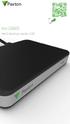 Paxton ins-20605 Net2 desktop reader USB 1 3 2 4 1 2 Desktop Reader The desktop reader is designed to sit next to the PC. It is used for adding tokens to a Net2 system and also for identifying lost cards.
Garage Door Monitor Model 829LM
 Garage Door Monitor Model 829LM To prevent possible SERIOUS INJURY or DEATH from a closing garage door: NEVER permit children to operate or play with door control push buttons or remote control transmitters.
Guide d'installation rapide TFM-560X YO.13
 Guide d'installation rapide TFM-560X YO.13 Table of Contents Français 1 1. Avant de commencer 1 2. Procéder à l'installation 2 Troubleshooting 6 Version 06.08.2011 16. Select Install the software automatically
GIGABIT PCI DESKTOP ADAPTER DGE-530T. Quick Installation Guide+ Guide d installation+
 GIGABIT PCI DESKTOP ADAPTER Quick Installation Guide+ Guide d installation+ Check Your Package Contents Quick Installation Guide Gigabit Ethernet PCI Adapter CD with Manual and Drivers DO NOT insert the
Instructions Mozilla Thunderbird Page 1
 Instructions Mozilla Thunderbird Page 1 Instructions Mozilla Thunderbird Ce manuel est écrit pour les utilisateurs qui font déjà configurer un compte de courrier électronique dans Mozilla Thunderbird et
PRESENTATION REMOTE TÉLÉCOMMANDE DE PRÉSENTATION. User Guide Manuel de l utilisateur
 PRESENTATION REMOTE TÉLÉCOMMANDE DE PRÉSENTATION User Guide Manuel de l utilisateur Targus Presentation Remote Introduction Thank you for your purchase of the Targus Presentation Remote. This cordless
Thank you for choosing the Mobile Broadband USB Stick. With your USB Stick, you can access a wireless network at high speed.
 Thank you for choosing the Mobile Broadband USB Stick. With your USB Stick, you can access a wireless network at high speed. Note: This manual describes the appearance of the USB Stick, as well as the
Folio Case User s Guide
 Fujitsu America, Inc. Folio Case User s Guide I N S T R U C T I O N S This Folio Case is a stylish, lightweight case for protecting your Tablet PC. Elastic Strap Pen Holder Card Holders/ Easel Stops Figure
Thank you for choosing the Mobile Broadband USB Stick. With your USB Stick, you can access a wireless network at high speed.
 Thank you for choosing the Mobile Broadband USB Stick. With your USB Stick, you can access a wireless network at high speed. Note: This manual describes the appearance of the USB Stick, as well as the
Contrôle d'accès Access control. Notice technique / Technical Manual
 p.1/18 Contrôle d'accès Access control INFX V2-AI Notice technique / Technical Manual p.2/18 Sommaire / Contents Remerciements... 3 Informations et recommandations... 4 Caractéristiques techniques... 5
Package Contents. System Requirements. Before You Begin
 Package Contents DWA-125 Wireless 150 USB Adapter CD-ROM (contains software, drivers, and manual) Cradle If any of the above items are missing, please contact your reseller. System Requirements A computer
Contents Windows 8.1... 2
 Workaround: Installation of IRIS Devices on Windows 8 Contents Windows 8.1... 2 English Français Windows 8... 13 English Français Windows 8.1 1. English Before installing an I.R.I.S. Device, we need to
03/2013. Mod: WOKI-60IP/TR. Production code: DTWIC 6000
 03/2013 Mod: WOKI-60IP/TR Production code: DTWIC 6000 ENCASTRABLE INDUCTION DROP IN INDUCTION 11/2011 TECHNICAL FEATURES DOCUMENTATION S.A.V. Notice d utilisation : FX00326-A Guide d intervention : ---
ASSEMBLY INSTRUCTIONS DIRECTIVES POUR L'ASSEMBLAGE ombre pendant lamp lampe suspendue à tons dégradés, chocolat
 ASSEMBLY INSTRUCTIONS DIRECTIVES POUR L'ASSEMBLAGE ombre pendant lamp lampe suspendue à tons dégradés, chocolat SKU 2728089 INSTRUCTIONAL MANUAL MANUEL D'INSTRUCTIONS 270/2707 COMPONENT LIST LISTE DES
ASSEMBLY INSTRUCTIONS DIRECTIVES POUR L'ASSEMBLAGE luster chandelier lamp chandelier à trois branches en verre lustré
 ASSEMBLY INSTRUCTIONS DIRECTIVES POUR L'ASSEMBLAGE luster chandelier lamp chandelier à trois branches en verre lustré SKU 2711592 INSTRUCTIONAL MANUAL MANUEL D'INSTRUCTIONS 270/2707 COMPONENT LIST LISTE
Stainless Steel Solar Wall Light
 V 2.9 Stainless Steel Solar Wall Light User Manual Please read and understand all instructions before use.retain this manual for future reference. V 2.9 Stainless Steel Solar Wall Light SPECIFICATIONS
TABLE DES MATIERES A OBJET PROCEDURE DE CONNEXION
 1 12 rue Denis Papin 37300 JOUE LES TOURS Tel: 02.47.68.34.00 Fax: 02.47.68.35.48 www.herve consultants.net contacts@herve consultants.net TABLE DES MATIERES A Objet...1 B Les équipements et pré-requis...2
Fabricant. 2 terminals
 Specifications Fabricant Nominal torque (Nm) 65 Minimal torque (Nm) 0,63 Coil resistance - 20 C (ohms) 20 Rated current DC (A) 1 Rotor inertia (kg.m 2 ) 2.10-3 Weight (kg) 7,20 Heat dissipation continuous
Quick Setup Guide Guide de configuration rapide. Tablet Device SGPT12 Series Tablette électronique Série SGPT12
 Quick Setup Guide Guide de configuration rapide Tablet Device SGPT12 Series Tablette électronique Série SGPT12 Welcome / Bienvenue Congratulations on your purchase of this Xperia Tablet S. This Quick Setup
Sécurité relative aux sièges auto et aux rehausseurs
 Sécurité relative aux sièges auto et aux rehausseurs Safety with Car Seats and Booster Seats Car crashes are the main cause of accidental death and serious injury of children. Correctly using a car or
Contrôle d accès Access control MOD-TCPIP-AI. Notice technique / Technical Manual
 Contrôle d accès Access control MOD-TCPIP-AI Notice technique / Technical Manual Notice technique Mod-TCPIP-AI 9 septembre 2008 v.1.0 p.2/16 Sommaire / Contents Sommaire / Contents...2 Remerciements...3
WiFi Security Camera Quick Start Guide. Guide de départ rapide Caméra de surveillance Wi-Fi (P5)
 #45 #46 WiFi Security Camera Quick Start Guide Guide de départ rapide Caméra de surveillance Wi-Fi (P5) #47 Start Here 1 Is this you? TECH SUPPORT CTRL ALT DEL 2 If yes, turn to page three 1 3 If not,
WINTER BOAT STORAGE SYSTEM SYSTÈME DE REMISAGE HIVERNAL POUR BATEAU
 MANUAL / MANUEL VIDEO WINTER BOAT STORAGE SYSTEM SYSTÈME DE REMISAGE HIVERNAL POUR BATEAU ASSEMBLY INSTRUCTIONS GUIDE D ASSEMBLAGE NAVIGLOO 14-18½ ft/pi FISHING BOAT! RUNABOUT! PONTOON BOAT! SAILBOAT (SAILBOAT
WEB page builder and server for SCADA applications usable from a WEB navigator
 Générateur de pages WEB et serveur pour supervision accessible à partir d un navigateur WEB WEB page builder and server for SCADA applications usable from a WEB navigator opyright 2007 IRAI Manual Manuel
R.V. Table Mounting Instructions
 PTSS165 ACCESSORY MOUNTING INSTRUCTIONS Use these instructions in conjunction with your main manual to properly assemble your gas grill. Refer to the main manual for safety, operating, cleaning and maintenance
Quick Installation Guide TEW-P21G
 Quick Installation Guide TEW-P21G Table of of Contents Contents... 1. Avant de commencer... 2. Comment effectuer les connexions... 3. Utilisation du serveur d'impression... 1 1 2 3 Troubleshooting... 7
LOGICIEL D'ADMINISTRATION POUR E4000 & G4000 MANAGEMENT SOFTWARE FOR E4000 & G4000
 LOGICIEL D'ADMINISTRATION POUR E4000 & G4000 MANAGEMENT SOFTWARE FOR E4000 & G4000 TABLE DES MATIÈRES TITRE PAGE Présentation - - - - - - - - - - - - - - - - - - - - - - - - - - - - - - - - - - - -4 Le
SA-32 / SA-62 INSTRUCTION MANUAL - MANUEL D INSTRUCTIONS
 SA-32 / SA-62 INSTRUCTION MANUAL - MANUEL D INSTRUCTIONS 4 5 6 7 4 5 6 7 1. Telephone Paging Volume Control 1. Contrôle de volume Paging Téléphone 2. Microphone Volume Control 2. Contrôle volume du microphone
DOCUMENTATION - FRANCAIS... 2
 DOCUMENTATION MODULE SHOPDECORATION MODULE PRESTASHOP CREE PAR PRESTACREA INDEX : DOCUMENTATION - FRANCAIS... 2 INSTALLATION... 2 Installation automatique... 2 Installation manuelle... 2 Résolution des
How to Login to Career Page
 How to Login to Career Page BASF Canada July 2013 To view this instruction manual in French, please scroll down to page 16 1 Job Postings How to Login/Create your Profile/Sign Up for Job Posting Notifications
Principe de TrueCrypt. Créer un volume pour TrueCrypt
 Sommaire : Principe de TrueCrypt...1 Créer un volume pour TrueCrypt...1 Premier montage...6 Réglages...8 Save Currently Mounted Volumes as Favorite...8 Settings > Preferences...9 TrueCrypt Traveller pour
Logitech Tablet Keyboard for Windows 8, Windows RT and Android 3.0+ Setup Guide Guide d installation
 Logitech Tablet Keyboard for Windows 8, Windows RT and Android 3.0+ Setup Guide Guide d installation English.......................................... 3 Français.........................................
3615 SELFIE. http://graffitiresearchlab.fr HOW-TO / GUIDE D'UTILISATION
 3615 SELFIE http://graffitiresearchlab.fr HOW-TO / GUIDE D'UTILISATION Hardware : Minitel Computer DIN FM545 45 connector (http://www.gotronic.fr/art-fiche-din-fm545-4747.htm) Cable Arduino compatible
Instructions pour mettre à jour un HFFv2 v1.x.yy v2.0.00
 Instructions pour mettre à jour un HFFv2 v1.x.yy v2.0.00 HFFv2 1. OBJET L accroissement de la taille de code sur la version 2.0.00 a nécessité une évolution du mapping de la flash. La conséquence de ce
Once the installation is complete, you can delete the temporary Zip files..
 Sommaire Installation... 2 After the download... 2 From a CD... 2 Access codes... 2 DirectX Compatibility... 2 Using the program... 2 Structure... 4 Lier une structure à une autre... 4 Personnaliser une
POLICY: FREE MILK PROGRAM CODE: CS-4
 POLICY: FREE MILK PROGRAM CODE: CS-4 Origin: Authority: Reference(s): Community Services Department Cafeteria Services and Nutrition Education Division Resolution #86-02-26-15B.1 POLICY STATEMENT All elementary
Lavatory Faucet. Instruction Manual. Questions? 1-866-661-9606 [email protected]
 Lavatory Faucet Instruction Manual rev. 19-01-2015 Installation Manual You will need Adjustable Wrench Adjustable Pliers Plumber s Tape Hardware list (included) Allen Key Socket wrench tool Important Follow
MODE D EMPLOI USER MANUAL
 notice_cd 853:notice 9/01/08 15:08 Page 1 CAFETIÈRE À DOSETTES Coffee pad machine CD 853 GIACOMO MODE D EMPLOI USER MANUAL notice_cd 853:notice 9/01/08 15:08 Page 2 FRANÇAIS WHITE & BROWN vous félicite
Mesure chimique. Chemical measurement. Sonde de température Pt 1000 Inox Pt 1000 stainless steel. Ref : 703 262. Français p 1.
 Mesure chimique Chemical measurement Français p 1 English p 3 Sonde de température Pt 1000 Inox Pt 1000 stainless steel Version : 6010 Mesure chimique Sonde de température Pt 1000 Inox 1 Description La
Nouveautés printemps 2013
 » English Se désinscrire de la liste Nouveautés printemps 2013 19 mars 2013 Dans ce Flash Info, vous trouverez une description des nouveautés et mises à jour des produits La Capitale pour le printemps
APPENDIX 6 BONUS RING FORMAT
 #4 EN FRANÇAIS CI-DESSOUS Preamble and Justification This motion is being presented to the membership as an alternative format for clubs to use to encourage increased entries, both in areas where the exhibitor
Logitech Speaker System Z553 Setup Guide Guide d installation
 Logitech Speaker System Z553 Setup Guide Guide d installation Logitech Speaker System Z553 English................. 3 Français................ 10 www.logitech.com/support...19 2 Package contents Logitech
PXL2780MW LED LCD Monitor
 PXL2780MW LED LCD Monitor USER'S GUIDE www.planar.com Content Operation Instructions...1 Unpacking Instructions...3 Safety Precautions...3 Package Overview...5 First Setup...6 Front View of the Product...7
Quick Installation Guide TEW-AO12O
 Quick Installation Guide TEW-AO12O Table of of Contents Contents Français... 1 1. Avant de commencer... 1 2. Installation du matériel... 2 3. Montage... 4 Troubleshooting... 6 Version 10.04.2007 1. Avant
DOCUMENTATION - FRANCAIS... 2
 DOCUMENTATION MODULE CATEGORIESTOPMENU MODULE CREE PAR PRESTACREA INDEX : DOCUMENTATION - FRANCAIS... 2 INSTALLATION... 2 CONFIGURATION... 2 LICENCE ET COPYRIGHT... 3 SUPPORT TECHNIQUE ET MISES A JOUR...
Utiliser une WebCam. Micro-ordinateurs, informations, idées, trucs et astuces
 Micro-ordinateurs, informations, idées, trucs et astuces Utiliser une WebCam Auteur : François CHAUSSON Date : 8 février 2008 Référence : utiliser une WebCam.doc Préambule Voici quelques informations utiles
Using a Walker. 2. Move your injured or weak leg toward the walker first. If you have had surgery on both legs, use either leg to begin walking.
 Using a Walker Walking with a Walker 1. Lift the walker and place it at a comfortable distance in front of you with all four of its legs on the floor. This distance is often equal to an arm s length. 2.
Règlement sur le télémarketing et les centres d'appel. Call Centres Telemarketing Sales Regulation
 THE CONSUMER PROTECTION ACT (C.C.S.M. c. C200) Call Centres Telemarketing Sales Regulation LOI SUR LA PROTECTION DU CONSOMMATEUR (c. C200 de la C.P.L.M.) Règlement sur le télémarketing et les centres d'appel
USB 598. Quick Start Guide (Windows) Guide de démarrage rapide (Windows) USB Modem. Modem USB. www.sierrawireless.com
 USB 598 With Avec USB Modem Quick Start Guide (Windows) Modem USB Guide de démarrage rapide (Windows) www.sierrawireless.com This guide provides installation instructions for users of: Windows Vista Windows
Display keypad. Notice d emploi User manual. Part. U3908A - 11/09-01 PC
 Display keypad Notice d emploi User manual 675 07 Part. U3908A - 11/09-01 PC FR UK Français 3 English 25 Index FR 1. Introduction 5 L activateur à clavier et moniteur 6 Le clavier 7 Les touches de navigation
First Nations Assessment Inspection Regulations. Règlement sur l inspection aux fins d évaluation foncière des premières nations CONSOLIDATION
 CANADA CONSOLIDATION CODIFICATION First Nations Assessment Inspection Regulations Règlement sur l inspection aux fins d évaluation foncière des premières nations SOR/2007-242 DORS/2007-242 Current to September
AIR CONDITIONER OWNER S MANUAL. Please read this manual carefully before operating your unit and retain it for future reference.
 ENGLISH FRANCAIS ESPAÑOL OWNER S MANUAL AIR CONDITIONER Please read this manual carefully before operating your unit and retain it for future reference. TYPE : WALL MOUNTED MODEL : LS240HSV3 LS307HV3 LS360HV3
PT-D5500UL. Operating Instructions. DLP TM Based Projector Commercial Use. Read these instructions completely before operating this unit.
 Operating Instructions DLP TM Based Projector Commercial Use Model No. PT-D5500U PT-D5500UL Read these instructions completely before operating this unit. TQBJ 0148-1 Dear Panasonic Customer: This instruction
Cheque Holding Policy Disclosure (Banks) Regulations. Règlement sur la communication de la politique de retenue de chèques (banques) CONSOLIDATION
 CANADA CONSOLIDATION CODIFICATION Cheque Holding Policy Disclosure (Banks) Regulations Règlement sur la communication de la politique de retenue de chèques (banques) SOR/2002-39 DORS/2002-39 Current to
Quick Installation Guide TBW-106UB H/W: V1
 Quick Installation Guide TBW-106UB H/W: V1 Table of Contents... 1. Avant de commencer... 2. Procéder à l'installation... 3. Configuration de l'adaptateur Bluetooth... Troubleshooting... 1 1 2 5 7 Version
VTP. LAN Switching and Wireless Chapitre 4
 VTP LAN Switching and Wireless Chapitre 4 ITE I Chapter 6 2006 Cisco Systems, Inc. All rights reserved. Cisco Public 1 Pourquoi VTP? Le défi de la gestion VLAN La complexité de gestion des VLANs et des
User guide Conference phone Konftel 100
 User guide Conference phone Konftel 100 English I Español I Conference phones for every situation Cet emballage contient: 1 x Guide de l utilisateur 1 x Téléphone pour conférences 1 x Transformateur secteur
Guide d installation Deco Drain inc. DD200
 Guide d installation Deco Drain inc. DD200 Pour plus informations et pour télécharger les guides d installation en couleur, visitez notre site web. www.decodrain.com Soutien technique : Composez le : 514-946-8901
SAP SNC Portal. User Guide for Suppliers. M1, M2b Modules - Edition 3. Direction des Achats/Ph.Longuet Date: 4/11/11
 SAP SNC Portal User Guide for Suppliers M1, M2b Modules - Edition 3 Direction des Achats/Ph.Longuet Date: 4/11/11 SAP SNC How to get started with Sagemcom SNC 1 - SNC Portal, what are features? SNC is
Quick Start Guide This guide is intended to get you started with Rational ClearCase or Rational ClearCase MultiSite.
 Rational ClearCase or ClearCase MultiSite Version 7.0.1 Quick Start Guide This guide is intended to get you started with Rational ClearCase or Rational ClearCase MultiSite. Product Overview IBM Rational
DOCUMENTATION - FRANCAIS... 2
 DOCUMENTATION MODULE PRETTYSLIDER MODULE PRESTASHOP CREE PAR PRESTACREA INDEX : DOCUMENTATION - FRANCAIS... 2 INSTALLATION... 2 Installation automatique... 2 Installation manuelle... 2 Résolution des problèmes...
APPENDIX 2. Provisions to be included in the contract between the Provider and the. Holder
 Page 1 APPENDIX 2 Provisions to be included in the contract between the Provider and the Obligations and rights of the Applicant / Holder Holder 1. The Applicant or Licensee acknowledges that it has read
Quick Installation Guide TW100-BRV304
 Quick Installation Guide TW100-BRV304 Table of of Contents Contents Français... 1. Avant de commencer... 2. Installation du matériel... 3. Configuration du routeur... 1 1 2 3 Troubleshooting... 5 Version
RULE 5 - SERVICE OF DOCUMENTS RÈGLE 5 SIGNIFICATION DE DOCUMENTS. Rule 5 / Règle 5
 RULE 5 - SERVICE OF DOCUMENTS General Rules for Manner of Service Notices of Application and Other Documents 5.01 (1) A notice of application or other document may be served personally, or by an alternative
SERVEUR DÉDIÉ DOCUMENTATION
 SERVEUR DÉDIÉ DOCUMENTATION Release 5.0.6.0 19 Juillet 2013 Copyright 2013 GIANTS Software GmbH, All Rights Reserved. 1/9 CHANGE LOG Correction de bug divers (5.0.6.0) Ajout d une option de relance automatique
INSTITUT MARITIME DE PREVENTION. For improvement in health and security at work. Created in 1992 Under the aegis of State and the ENIM
 INSTITUT MARITIME DE PREVENTION For improvement in health and security at work Created in 1992 Under the aegis of State and the ENIM Maritime fishing Shellfish-farming Sea transport 2005 Le pilier social
MA Remote Controller PAR-21MAAU Instruction Book
 WT0605X0 English CITY MULTI Control System and Mitsubishi Mr. SLIM Air Conditioners MA Remote Controller PAR-2MAAU Instruction Book Français Contents TEMP. Please read these instructions carefully and
SAP SNC Portal. User Guide for Suppliers. M1, M2b Modules - Edition 1. Direction des Achats/Ph.Longuet Date: 5/08/10
 SAP SNC Portal User Guide for Suppliers M1, M2b Modules - Edition 1 Direction des Achats/Ph.Longuet Date: 5/08/10 SAP SNC How to get started with Sagemcom SNC 1 - SNC Portal, what are features? SNC is
Software and Hardware Datasheet / Fiche technique du logiciel et du matériel
 Software and Hardware Datasheet / Fiche technique du logiciel et du matériel 1 System requirements Windows Windows 98, ME, 2000, XP, Vista 32/64, Seven 1 Ghz CPU 512 MB RAM 150 MB free disk space 1 CD
Warning: Failure to follow these warnings could result in property damage, or personal injury.
 Western Steel & Tube 1 Storage Locker Extended Storage Locker Storage Cabinet Assembly And Use Instructions Warning: Failure to follow these warnings could result in property damage, or personal injury.
RAPID 3.34 - Prenez le contrôle sur vos données
 RAPID 3.34 - Prenez le contrôle sur vos données Parmi les fonctions les plus demandées par nos utilisateurs, la navigation au clavier et la possibilité de disposer de champs supplémentaires arrivent aux
IX2850 LED LCD Monitor
 IX2850 LED LCD Monitor USER'S GUIDE www.planar.com Content Operation Instructions...1 Unpacking Instructions...3 Safety Precautions...3 Package Overview...5 First Setup...6 Front View of the Product...7
Harmony Smart Keyboard Add-on. Setup Guide Guide d installation
 Harmony Smart Keyboard Add-on Setup Guide Guide d installation Contents / Sommaire English................. 3 Français................. 9 support.myharmony.com/smart-keyboard-add-on 2 E Ch Pg Package contents
Quick Installation Guide TV-IP400 TV-IP400W
 Quick Installation Guide TV-IP400 TV-IP400W Table of of Contents Contents Français... 1. Avant de commencer... 2. Installation du matériel... 3. Configuration de la Webcam... Troubleshooting... 1 1 2 3
Start Here Point de départ
 Start Here Point de départ Epson Stylus C88+ Please read these instructions before using the printer. Lisez ces instructions avant d utiliser l imprimante. Install Ink Cartridges Installez les cartouches
Support Orders and Support Provisions (Banks and Authorized Foreign Banks) Regulations
 CANADA CONSOLIDATION CODIFICATION Support Orders and Support Provisions (Banks and Authorized Foreign Banks) Regulations Règlement sur les ordonnances alimentaires et les dispositions alimentaires (banques
that the child(ren) was/were in need of protection under Part III of the Child and Family Services Act, and the court made an order on
 ONTARIO Court File Number at (Name of court) Court office address Applicant(s) (In most cases, the applicant will be a children s aid society.) Full legal name & address for service street & number, municipality,
Logitech Wireless Performance Combo MX800 Setup Guide Guide d installation
 Logitech Wireless Performance Combo MX800 Setup Guide Guide d installation Logitech Wireless Performance Combo MX800 Setup Guide Guide d installation Important information Safety, compliance, and warranty
AMENDMENT TO BILL 32 AMENDEMENT AU PROJET DE LOI 32
 THAT the proposed clause 6(1), as set out in Clause 6(1) of the Bill, be replaced with the following: Trustee to respond promptly 6(1) A trustee shall respond to a request as promptly as required in the
Editing and managing Systems engineering processes at Snecma
 Editing and managing Systems engineering processes at Snecma Atego workshop 2014-04-03 Ce document et les informations qu il contient sont la propriété de Ils ne doivent pas être copiés ni communiqués
Adeunis-RF Softwares. Stand-Alone configuration Manager V2. User guide version V1 FRANCAIS ENGLISH
 Adeunis-RF Softwares Stand-Alone configuration Manager V2 User guide version V1 FRANCAIS ENGLISH Adeunis RF 283 rue Louis Néel Parc Technologique Pré Roux 38920 Crolles - France Tel : +33 0)4 76 92 07
MONITEUR LCD MONITOR LCD OPERATION MANUAL MODE D EMPLOI MANUAL DE INSTRUCCIONES
 PN-E471 PN-E421 LCD MONITOR MONITEUR LCD MONITOR LCD ENGLISH FRANÇAIS ESPAÑOL OPERATION MANUAL MODE D EMPLOI MANUAL DE INSTRUCCIONES ENGLISH... E1 FRANÇAIS... F1 ESPAÑOL... S1 IMPORTANT: To aid reporting
The new consumables catalogue from Medisoft is now updated. Please discover this full overview of all our consumables available to you.
 General information 120426_CCD_EN_FR Dear Partner, The new consumables catalogue from Medisoft is now updated. Please discover this full overview of all our consumables available to you. To assist navigation
Free filter reminders! Sign up online at: santevia.com/filterease. need help? Contact Santevia! 1-866-943-9220 [email protected].
 Free filter reminders! Sign up online at: need help? Contact Santevia! -866-9-90 [email protected] Shower Filter English about our santevia Shower Filter Prevent leaks This shower filter employs NMC leading
AND / ET USER GUIDE UK HARDWIRED CONTROL PANEL UK GUIDE UTILISATEUR CENTRALE D ALARME FILAIRE F 496572 1
 AND / ET UK USER GUIDE HARDWIRED CONTROL PANEL UK F GUIDE UTILISATEUR CENTRALE D ALARME FILAIRE 496572 1 English UK Operator Controls and Displays On both control panel and remote keypad the LEDs display
Sujet de l'identification d'empreinte digitale et de la capteur d'empreinte digitale
 Sujet de l'identification d'empreinte digitale et de la capteur d'empreinte digitale L'identification d'empreinte digitale est un dispositif qui s'inscrit votre information d'empreinte digitale dans l'ordinateur
Application Form/ Formulaire de demande
 Application Form/ Formulaire de demande Ecosystem Approaches to Health: Summer Workshop and Field school Approches écosystémiques de la santé: Atelier intensif et stage d été Please submit your application
NOTICE INSTALLATION. ARCHANGE Email Simplex Office N&B/Couleur KONICA MINOLTA BUSINESS SOLUTIONS FRANCE
 NOTICE INSTALLATION ARCHANGE Email Simplex Office N&B/Couleur KONICA MINOLTA BUSINESS SOLUTIONS FRANCE Date Version Marque de révision Rédaction 31/07/2012 1 - Nicolas AUBLIN 1) PRINCIPE DE FONCTIONNEMENT...
Quick Installation Guide
 Quick Installation Guide PowerLine AV+ Wireless N Mini Extender Version 1.10(NA) February 18, 2013 Wi-Fi Configuration Note Package Contents PowerLine AV+ Wireless N Mini Extender ENGLISH CAT5 Ethernet
Quick Installation Guide TV-IP212/TV-IP212W TV-IP312/TV-IP312W H/W: A1.0R
 Quick Installation Guide TV-IP212/TV-IP212W TV-IP312/TV-IP312W H/W: A1.0R Table Table of Contents of Contents... 1. Avant de commencer... 2. Installation du matériel... 3. Installation du serveur de caméra
Instruction Manual. HS-636-4GBBK MP3 Player
 Instruction Manual HS-636-4GBBK MP3 Player Thank you for your purchase of this Hip Street MP3 player and we hope you enjoy using it. Please visit our website at www.hipstreetonline.com. The display screen
accidents and repairs:
 accidents and repairs: putting the pieces together accidents et réparations : réunir le tout nobody can repair your Toyota like Toyota Unfortunately, accidents do happen. And the best way to restore your
ARP-090G / ARP-090K NOTICE D'EMPLOI INSTRUCTION MANUAL
 2 7 NOTICE D'EMPLOI INSTRUCTION MANUAL ARP-090G / ARP-090K Lire attentivement la notice avant d utiliser l appareil Before operating this product, please read user manual completely FRANCAIS EMPLACEMENT
THE LAW SOCIETY OF UPPER CANADA BY-LAW 19 [HANDLING OF MONEY AND OTHER PROPERTY] MOTION TO BE MOVED AT THE MEETING OF CONVOCATION ON JANUARY 24, 2002
![THE LAW SOCIETY OF UPPER CANADA BY-LAW 19 [HANDLING OF MONEY AND OTHER PROPERTY] MOTION TO BE MOVED AT THE MEETING OF CONVOCATION ON JANUARY 24, 2002](/thumbs/19/276456.jpg "THE LAW SOCIETY OF UPPER CANADA BY-LAW 19 [HANDLING OF MONEY AND OTHER PROPERTY] MOTION TO BE MOVED AT THE MEETING OF CONVOCATION ON JANUARY 24, 2002") 2-aes THE LAW SOCIETY OF UPPER CANADA BY-LAW 19 [HANDLING OF MONEY AND OTHER PROPERTY] MOTION TO BE MOVED AT THE MEETING OF CONVOCATION ON JANUARY 24, 2002 MOVED BY SECONDED BY THAT By-Law 19 [Handling
2-aes THE LAW SOCIETY OF UPPER CANADA BY-LAW 19 [HANDLING OF MONEY AND OTHER PROPERTY] MOTION TO BE MOVED AT THE MEETING OF CONVOCATION ON JANUARY 24, 2002 MOVED BY SECONDED BY THAT By-Law 19 [Handling
BILL 203 PROJET DE LOI 203
 Bill 203 Private Member's Bill Projet de loi 203 Projet de loi d'un député 4 th Session, 40 th Legislature, Manitoba, 63 Elizabeth II, 2014 4 e session, 40 e législature, Manitoba, 63 Elizabeth II, 2014
Monitor LRD. Table des matières
 Folio :1/6 Table des matières 1.Installation du logiciel... 3 2.Utilisation du logiciel... 3 2.1.Description de la fenêtre de commande... 3 2.1.1.Réglage des paramètres de communication... 4 2.1.2.Boutons
Frequently Asked Questions
 Frequently Asked Questions GENERAL Q: Can I connect an external hard drive, USB stick or MP3 player to copy files to the device? A: Yes, you can. The device supports USB HOST function, which can read USB
Restaurant Application Quick Reference Guide
 Restaurant Application Quick Reference Guide Ingenico Telium Canada English Color key Required Merchant Input on Point of Sale Required Customer Input on Internal or External PIN-pad Optional Merchant