
USB 3.0 HDMI Display Adapter
|
|
|
- Anne Albert
- il y a 10 ans
- Total affichages :
Transcription
1 USB 3.0 HDMI Display Adapter User Manual Manual del usuario Benutzerhandbuch Manuel de l'utilisateur Türkçe Tanıtım ve Kullanma JUA350 Manual
2 Table of Contents User Manual... 3 TECHNICAL SUPPORT WARRANTY OF j5 create Manual del usuario SOPORTE TÉCNICO GARANTÍA DE j5 create Benutzerhandbuch TECHNISCHE HILFE GARANTIE VON j5 create Manuel de l'utilisateur SUPPORT TECHNIQUE GARANTIE DE j5 create j5 create j5 create Türkçe Tanıtım ve Kullanma TEKNİK DESTEK j5 create Garanti
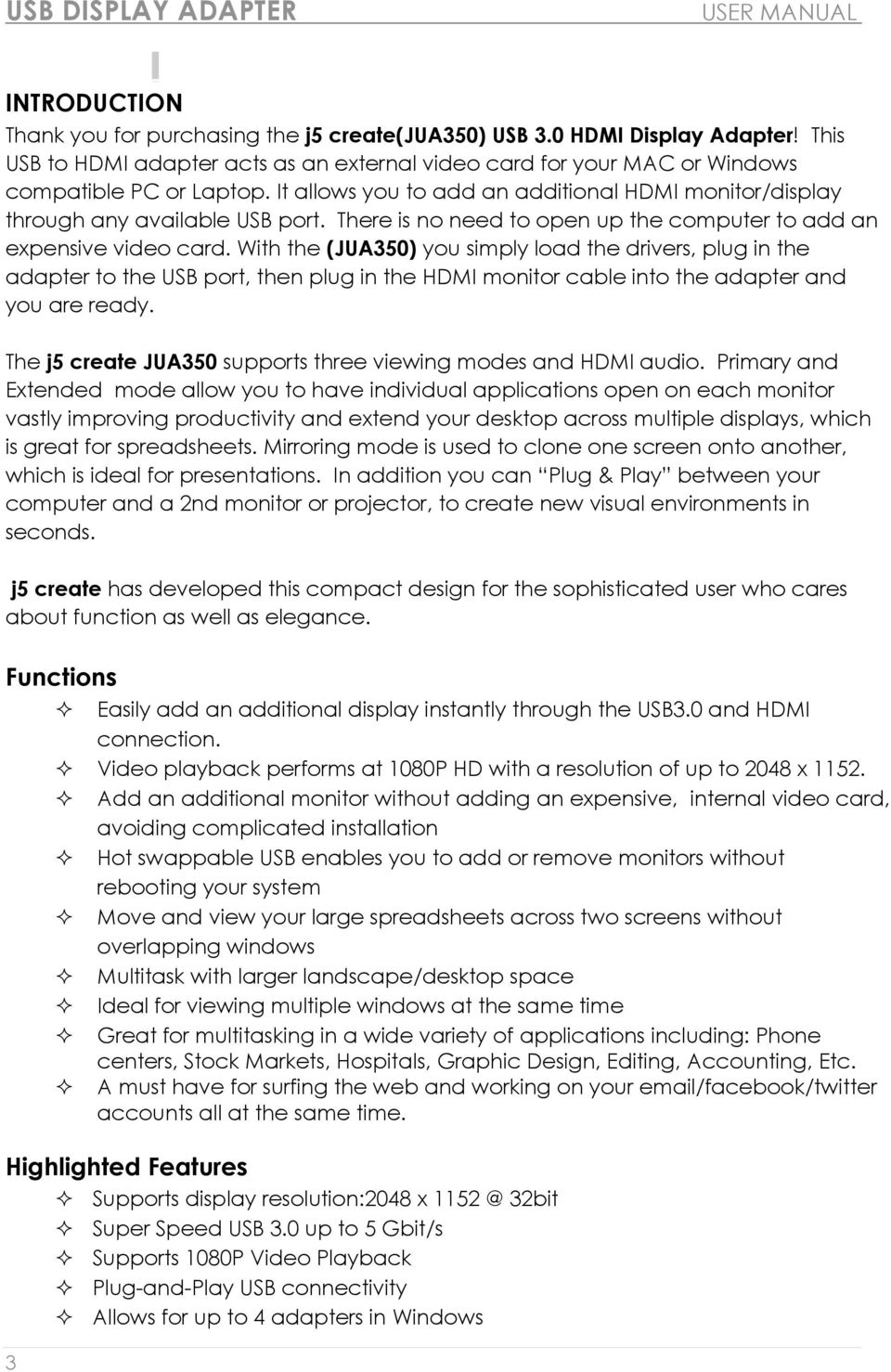
3 USB DISPLAY ADAPTER USER MANUAL User Manual INTRODUCTION Thank you for purchasing the j5 create(jua350) USB 3.0 HDMI Display Adapter! This USB to HDMI adapter acts as an external video card for your MAC or Windows compatible PC or Laptop. It allows you to add an additional HDMI monitor/display through any available USB port. There is no need to open up the computer to add an expensive video card. With the (JUA350) you simply load the drivers, plug in the adapter to the USB port, then plug in the HDMI monitor cable into the adapter and you are ready. The j5 create JUA350 supports three viewing modes and HDMI audio. Primary and Extended mode allow you to have individual applications open on each monitor vastly improving productivity and extend your desktop across multiple displays, which is great for spreadsheets. Mirroring mode is used to clone one screen onto another, which is ideal for presentations. In addition you can Plug & Play between your computer and a 2nd monitor or projector, to create new visual environments in seconds. j5 create has developed this compact design for the sophisticated user who cares about function as well as elegance. Functions 3 Easily add an additional display instantly through the USB3.0 and HDMI connection. Video playback performs at 1080P HD with a resolution of up to 2048 x Add an additional monitor without adding an expensive, internal video card, avoiding complicated installation Hot swappable USB enables you to add or remove monitors without rebooting your system Move and view your large spreadsheets across two screens without overlapping windows Multitask with larger landscape/desktop space Ideal for viewing multiple windows at the same time Great for multitasking in a wide variety of applications including: Phone centers, Stock Markets, Hospitals, Graphic Design, Editing, Accounting, Etc. A must have for surfing the web and working on your /facebook/twitter accounts all at the same time. Highlighted Features Supports display resolution:2048 x 32bit Super Speed USB 3.0 up to 5 Gbit/s Supports 1080P Video Playback Plug-and-Play USB connectivity Allows for up to 4 adapters in Windows
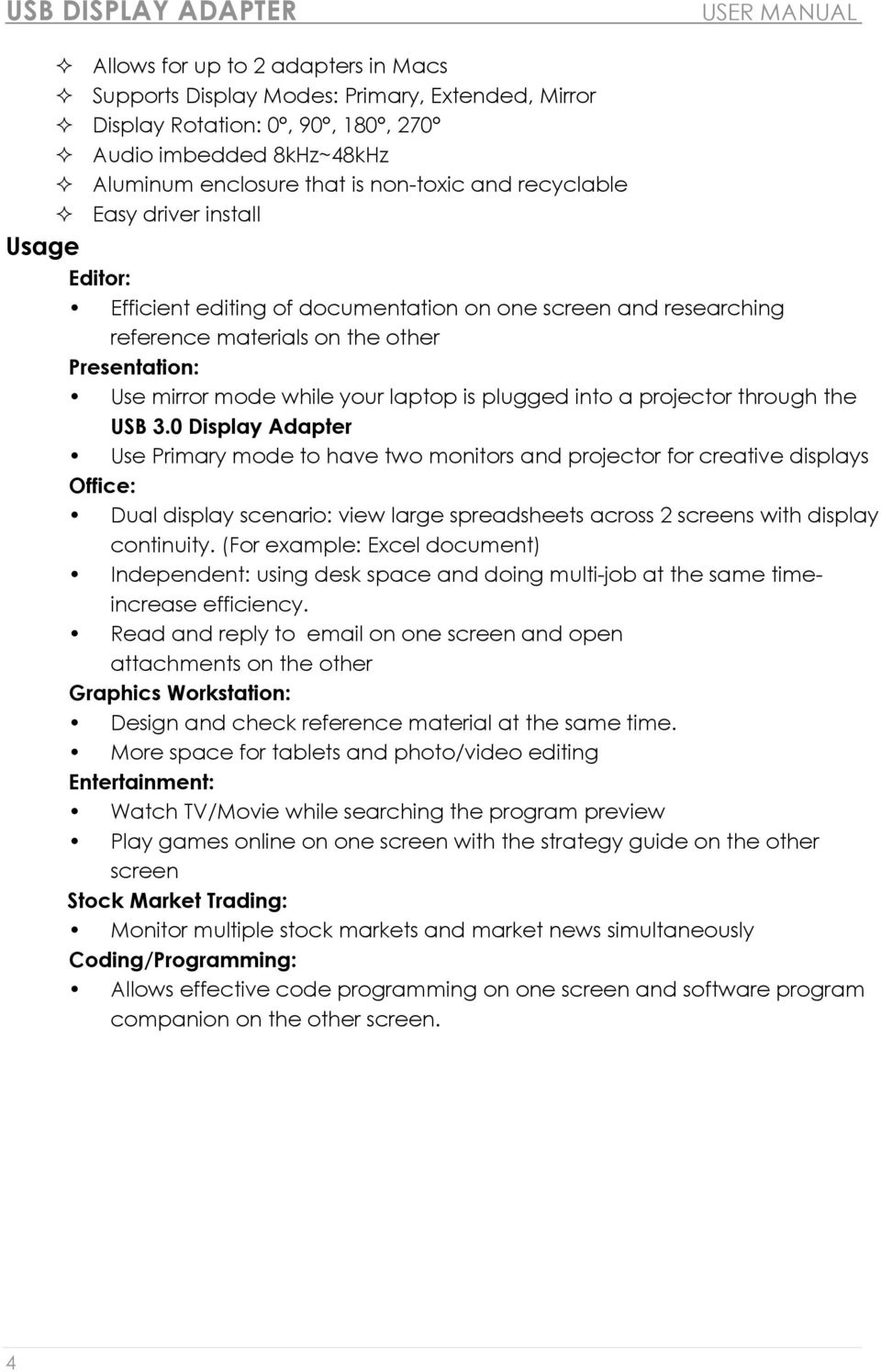
4 USB DISPLAY ADAPTER USER MANUAL Allows for up to 2 adapters in Macs Supports Display Modes: Primary, Extended, Mirror Display Rotation: 0, 90, 180, 270 Audio imbedded 8kHz~48kHz Aluminum enclosure that is non-toxic and recyclable Easy driver install Usage Editor: Efficient editing of documentation on one screen and researching reference materials on the other Presentation: Use mirror mode while your laptop is plugged into a projector through the USB 3.0 Display Adapter Use Primary mode to have two monitors and projector for creative displays Office: Dual display scenario: view large spreadsheets across 2 screens with display continuity. (For example: Excel document) Independent: using desk space and doing multi-job at the same timeincrease efficiency. Read and reply to on one screen and open attachments on the other Graphics Workstation: Design and check reference material at the same time. More space for tablets and photo/video editing Entertainment: Watch TV/Movie while searching the program preview Play games online on one screen with the strategy guide on the other screen Stock Market Trading: Monitor multiple stock markets and market news simultaneously Coding/Programming: Allows effective code programming on one screen and software program companion on the other screen. 4
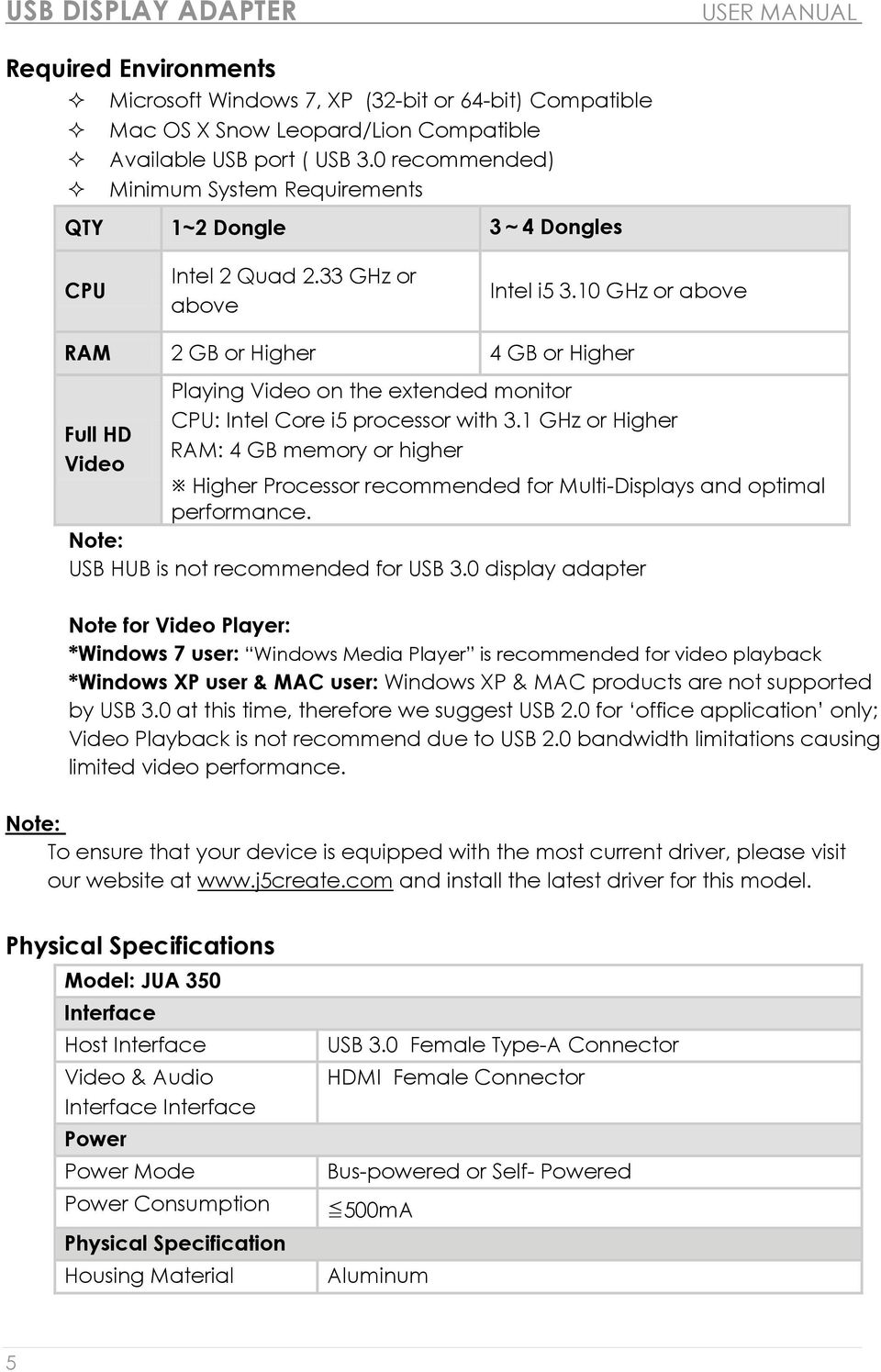
5 USB DISPLAY ADAPTER USER MANUAL Required Environments Microsoft Windows 7, XP (32-bit or 64-bit) Compatible Mac OS X Snow Leopard/Lion Compatible Available USB port ( USB 3.0 recommended) Minimum System Requirements QTY 1~2 Dongle 3~4 Dongles CPU Intel 2 Quad 2.33 GHz or above Intel i GHz or above RAM 2 GB or Higher 4 GB or Higher Full HD Video Playing Video on the extended monitor CPU: Intel Core i5 processor with 3.1 GHz or Higher RAM: 4 GB memory or higher Higher Processor recommended for Multi-Displays and optimal performance. Note: USB HUB is not recommended for USB 3.0 display adapter Note for Video Player: *Windows 7 user: Windows Media Player is recommended for video playback *Windows XP user & MAC user: Windows XP & MAC products are not supported by USB 3.0 at this time, therefore we suggest USB 2.0 for office application only; Video Playback is not recommend due to USB 2.0 bandwidth limitations causing limited video performance. Note: To ensure that your device is equipped with the most current driver, please visit our website at and install the latest driver for this model. Physical Specifications Model: JUA 350 Interface Host Interface Video & Audio Interface Interface Power Power Mode Power Consumption Physical Specification Housing Material USB 3.0 Female Type-A Connector HDMI Female Connector Bus-powered or Self- Powered 500mA Aluminum 5
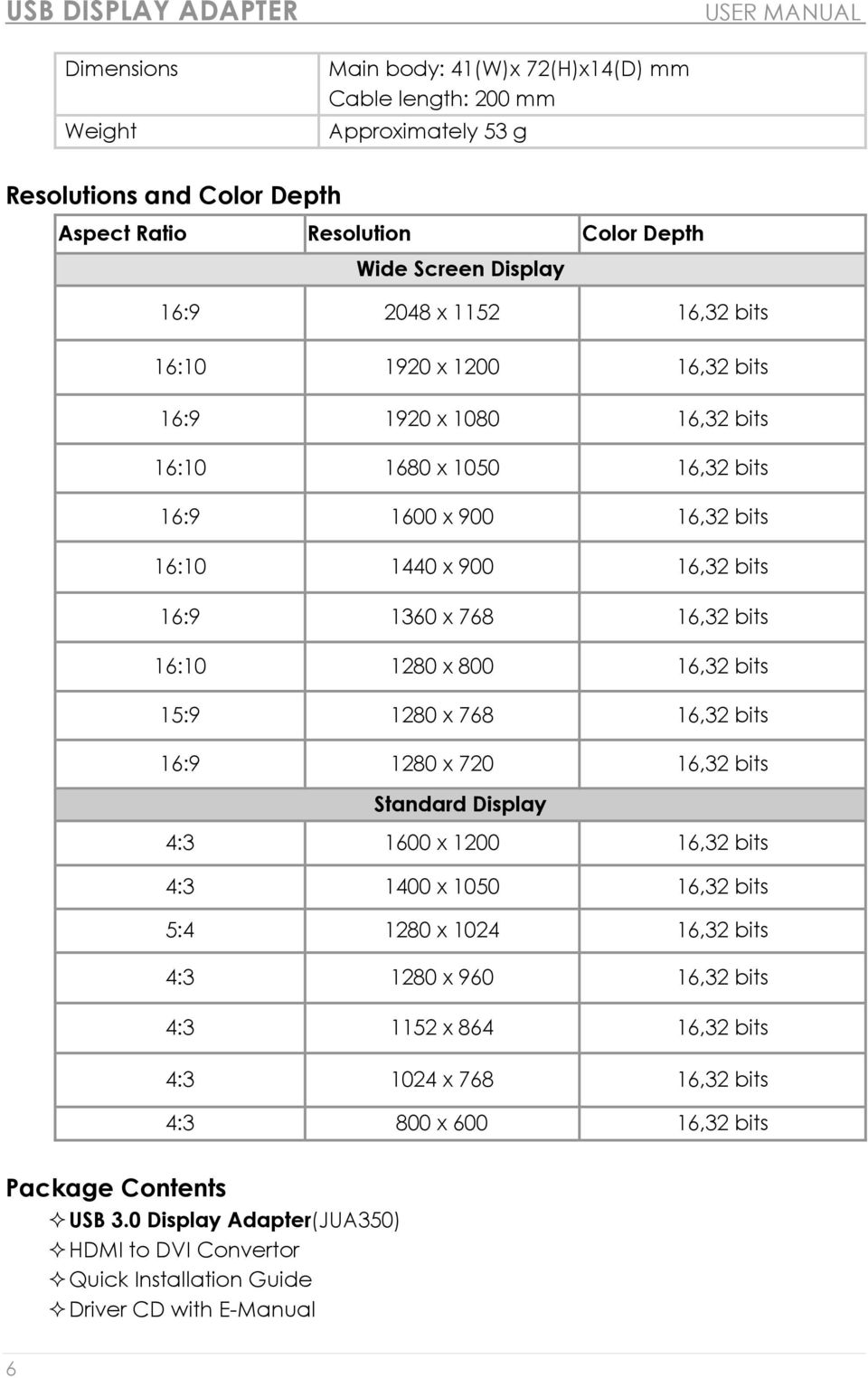
6 USB DISPLAY ADAPTER USER MANUAL Dimensions Weight Main body: 41(W)x 72(H)x14(D) mm Cable length: 200 mm Approximately 53 g Resolutions and Color Depth Aspect Ratio Resolution Color Depth Wide Screen Display 16: x ,32 bits 16: x ,32 bits 16: x ,32 bits 16: x ,32 bits 16: x ,32 bits 16: x ,32 bits 16: x ,32 bits 16: x ,32 bits 15: x ,32 bits 16: x ,32 bits Standard Display 4: x ,32 bits 4: x ,32 bits 5: x ,32 bits 4: x ,32 bits 4: x ,32 bits 4: x ,32 bits 4:3 800 x ,32 bits Package Contents USB 3.0 Display Adapter(JUA350) HDMI to DVI Convertor Quick Installation Guide Driver CD with E-Manual 6
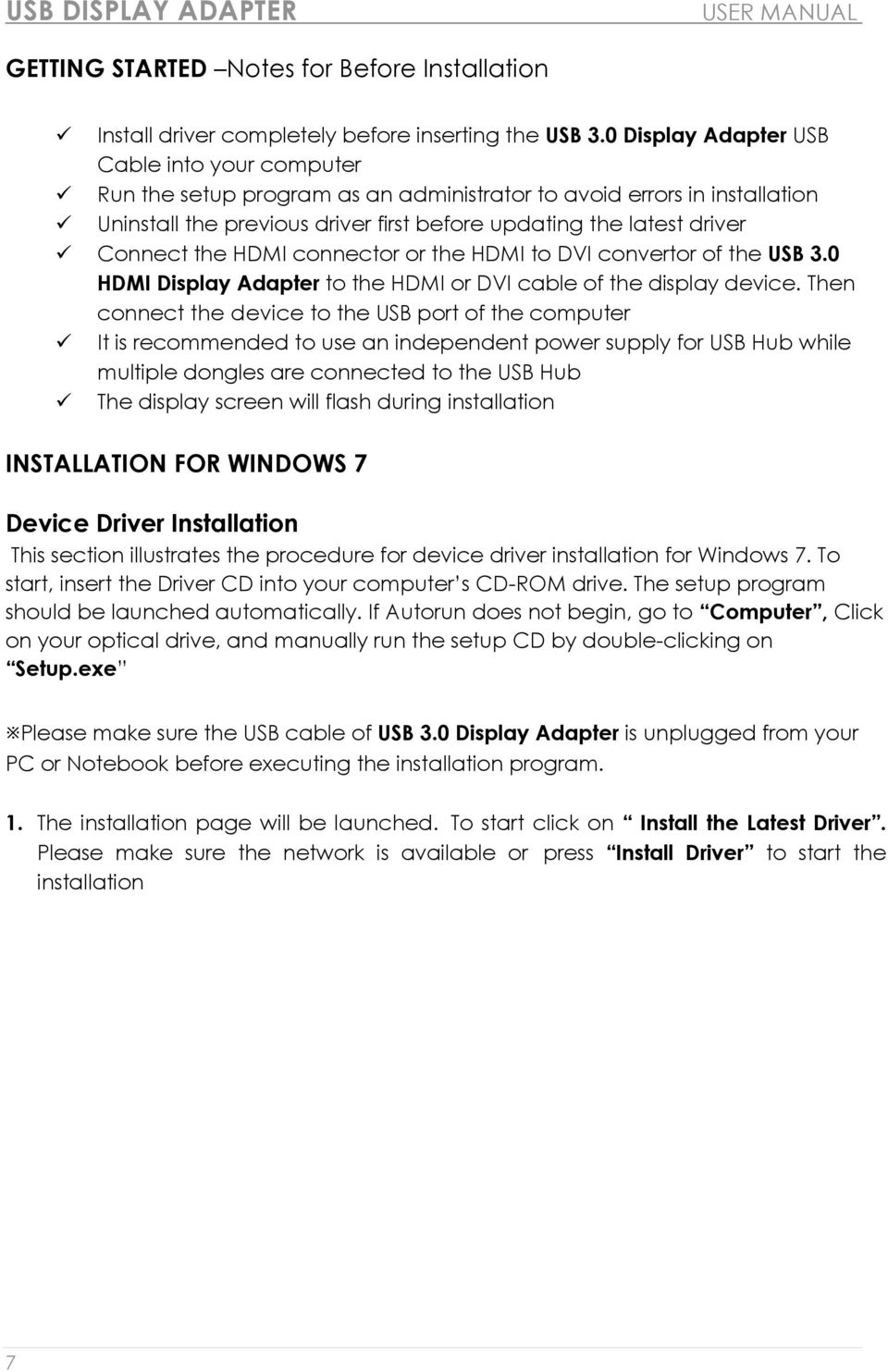
7 USB DISPLAY ADAPTER USER MANUAL GETTING STARTED Notes for Before Installation Install driver completely before inserting the USB 3.0 Display Adapter USB Cable into your computer Run the setup program as an administrator to avoid errors in installation Uninstall the previous driver first before updating the latest driver Connect the HDMI connector or the HDMI to DVI convertor of the USB 3.0 HDMI Display Adapter to the HDMI or DVI cable of the display device. Then connect the device to the USB port of the computer It is recommended to use an independent power supply for USB Hub while multiple dongles are connected to the USB Hub The display screen will flash during installation INSTALLATION FOR WINDOWS 7 Device Driver Installation This section illustrates the procedure for device driver installation for Windows 7. To start, insert the Driver CD into your computer s CD-ROM drive. The setup program should be launched automatically. If Autorun does not begin, go to Computer, Click on your optical drive, and manually run the setup CD by double-clicking on Setup.exe Please make sure the USB cable of USB 3.0 Display Adapter is unplugged from your PC or Notebook before executing the installation program. 1. The installation page will be launched. To start click on Install the Latest Driver. Please make sure the network is available or press Install Driver to start the installation 7
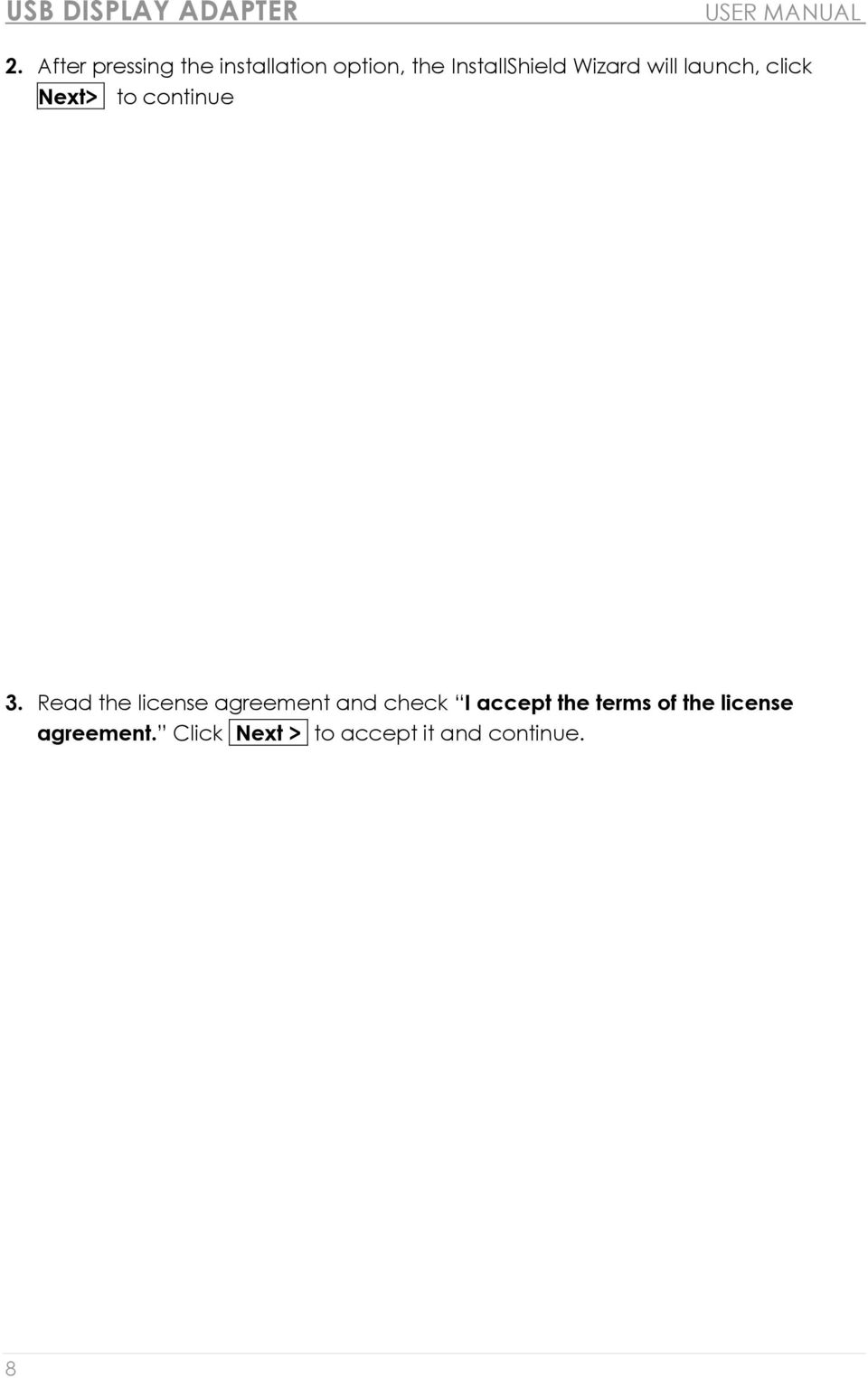
8 USB DISPLAY ADAPTER USER MANUAL 2. After pressing the installation option, the InstallShield Wizard will launch, click Next> to continue 3. Read the license agreement and check I accept the terms of the license agreement. Click Next > to accept it and continue. 8
9 USB DISPLAY ADAPTER USER MANUAL 4. Driver installation proceeding.. 5. When Install Shield Wizard is complete, select Yes, I want to restart my computer now. Click Finish to restart. 9
10 USB DISPLAY ADAPTER USER MANUAL 6. After rebooting connect the external display device (monitor/ projector) to the HDMI connector or the DVI connector of USB Display Adapter and turn on the display device. 7. Connect the USB 3.0 Display Adapter into an available USB port of a PC or Notebook, After Inserting the USB 3.0 Display Adapter into an USB port, the Installing device driver software message will pop up. If the Driver software was installed successfully the following message should appear: If you re not going to install another USB 3.0 Display Adapter, restart your PC. The functions of the USB 3.0 Display Adapter will be activated after the computer restarted. Multi USB 3.0 Display Adapter Installation For installation of multiple USB 3.0 Display Adapters, during the Install Shield Wizard complete step, select No, I will restart my computer later. and click Finish to continue next step below 10
11 USB DISPLAY ADAPTER USER MANUAL A. Connect all external display devices (monitor/ projector) to the HDMI /DVI connector of USB 3.0 Display Adapters and switch power on. B. Connect the USB 3.0 Display Adapter into an available USB port of a PC or Notebook. After Inserting an USB 3.0 Display Adapter into a USB port, the systems will automatically start the installation procedure and the prompt message will pop-up on the task bar. The Device driver software was installed properly, if you are going to install more USB 3.0 Display Adapters, repeat step A& B or restart computer. The functions of the USB 3.0 Display Adapter will be activated after the computer restarted. You might see the extend display shown on the display device. You can modify the corresponding position of each extend display via display settings. Go to START Control Panel Appearance and Personalization Adjust screen resolution Right-click on the desktop and go to Screen Resolution 11
12 USB DISPLAY ADAPTER USER MANUAL When the Screen Resolution window appears, each monitor s number can be identified by clicking Identify. Drag the monitor to the location you want. Setup The Sound Microsoft s audio system restricts the audio function to one output at a time; therefore, when using the USB HDMI multi-display adapter only one output will receive audio. The following explains how to set-up and change the default sound output from the display device connected with the USB 3.0 HDMI Display Adapter. 1. Go to Control Panel> Hardware and Sound and select Changes system sounds 12
13 USB DISPLAY ADAPTER USER MANUAL 2. The speaker options, for single and Multi- USB 3.0 HDMI Display Adapters, are shown below. Single USB 3.0 HDMI Display Adapter Multi-USB 3.0 HDMI Display Adapter Note: 1. The speakers are numbered according to the number if USB ports detected by your computer system. 2. The Default sound will output from the USB 3.0 HDMI Display Adapter with the greatest number of USB ports. 3. To change the default sound output, use your mouse to right click in the sound options box on your desktop, then select Test to choose which speaker you want to use as your default. 13
14 USB DISPLAY ADAPTER USER MANUAL 4. Select the Speaker you want and then click Set Default Verify Device Driver Installation The following procedure helps you to verify the driver installation status of the USB 3.0 Display Adapter. Right-click My Computer Manager Device Manager click + sign of Sound, video and game controllers & Universal Serial Bus controllers The picture below shows the installation process for a Single USB 3.0 Display Adapter 14
15 USB DISPLAY ADAPTER USER MANUAL The picture below shows the installation process for a Multiple USB 3.0 Display Adapter Device Driver Un-installation Unplug the USB 3.0 Display Adapter before un-installing the driver. 1. Click Start Control Panel Programs and Feature Uninstall or Change a Program Select j5 HDMI DISPLAY ADAPTER... Click Uninstall 2. A message will appear asking if you want to remove the selected application. Click ok to continue. 15
16 USB DISPLAY ADAPTER USER MANUAL 3. Driver un-installation proceeding. 4. When the driver uninstall is completed select Yes, I want to restart my computer now. Click Finish to restart. 16
17 USB DISPLAY ADAPTER USER MANUAL INSTALLATION FOR WINDOWS XP Device Driver Installation This section illustrates the procedure for device driver installation for Windows XP. To start, insert the Driver CD into your computer s CD-ROM drive. The setup program should be launched automatically. If Autorun does not begin, go to Computer, Click on your optical drive, and manually run the setup CD by double-clicking on Setup.exe Please make sure the USB 3.0 Display Adapter USB cable is unplugged from your PC or Notebook before executing the installation program. 1. The installation page will be launched. To begin installation click on Install the Latest Driver, please make sure the network is available or press Install Driver to start the installation 2. After pressing the installation option, the InstallShield Wizard will launch, click Next> to continue 17
18 USB DISPLAY ADAPTER USER MANUAL 3. Read the license agreement and check I accept the terms of the license agreement. Click Next > to accept it and continue. 4. Driver installation proceeding.. 5. When Install Shield Wizard is complete, select Yes, I want to restart my computer now. Click Finish to restart. 18
19 USB DISPLAY ADAPTER USER MANUAL 6. After your computer is rebooted, connect the external display device (monitor/ projector) to the HDMI/DVI connector of USB 3.0 Display Adapters and turn it on. 7. Connect the USB 3.0 Display Adapter into an available USB port of a PC or Notebook, After Inserting the USB 3.0 Display Adapter into an USB port, the Installing device driver software message will pop up. An icon ( ) will be seen on the lower right toolbar. The message pictures below shows Driver software is installed successfully. If you re not going to install another USB 3.0 Display Adapter, restart your PC. The functions of the USB 3.0 Display Adapter will be activated after the computer restarted. Multi-USB 3.0 Display Adapter Installation For installation of multiple USB 3.0 Display Adapters, during the Install Shield Wizard complete step, select No, I will restart my computer later. and click Finish to continue next step below 19
20 USB DISPLAY ADAPTER USER MANUAL A. Connect all external display devices (monitor/ projector) to the HDMI/DVI connector of USB 3.0 Display Adapters and switch power on. B. Connect the USB 3.0 Display Adapter into available USB port of PC or Notebook. After Inserting an USB 3.0 Display Adapter into a USB port, the systems will automatically start the installation procedure and the prompt message will popup on the task bar. The Device driver software was installed properly, if you are going to install more USB 3.0 Display Adapters, repeat step A & B or restart computer The functions of the USB 3.0 Display Adapter will be activated after the computer restarted. You might see the mirror display shown on the display device. You can modify the corresponding position of each extend display via display settings. Go to START Control Panel Appearance and Personalization Display Properties Settings When Display Properties windows appears, each monitor s number can be identified by clicking identify Drag the monitor to the location you want. 20
21 USB DISPLAY ADAPTER USER MANUAL Note: If your internal graphics card is Dual Display Ports.. 1. When using one USB 3.0 Display Adapter The display device which connected to the 2 nd HDMI port will be numbered 3 rd monitor, the display device which connected to the USB 3.0 Display Adapter will be numbered 2 nd monitor. 2. When using two USB 3.0 Display Adapter The display device which a port to the 2 nd HDMI port will be numbered 4 th monitor, the display device which connected to the USB 3.0 Display Adapter will be numbered 2 nd and 3 rd monitor and so on Setup The Sound Microsoft s audio system restricts the audio function to one output at a time; therefore, when using the USB HDMI multi-display adapter only one output will receive audio. The following explains how to set-up and change the default sound output from the display device connected with the USB 3.0 HDMI Display Adapter. 1. Go to Control Panel> Sounds, Speech, and Audio Devices and select Changes the speaker settings. 21
22 USB DISPLAY ADAPTER USER MANUAL 2. The speaker options, for single and Multi- USB 3.0 HDMI Display Adapters, are shown below. Single USB 3.0 HDMI Display Adapter Multi-USB 3.0 HDMI Display Adapters Note: 1. The speakers are numbered according to the number if USB ports detected by your computer system. 2. The Default sound will output from the USB 3.0 HDMI Display Adapter with the greatest number of USB ports. 3. Select the Default device you want, and click apply. then click Volume to choose which speaker you want to use as your default. 22
23 USB DISPLAY ADAPTER USER MANUAL Verify Device Driver Installation The following procedure helps you to verify the driver installation status of USB 3.0 Display Adapter Right-click My Computer Manager Device Manager click + sign of Display Adapter & Sound,video, and game controller Universal Serial Bus controllers The picture below shows the installation process for a Single USB 3.0 Display Adapter 23
24 USB DISPLAY ADAPTER USER MANUAL The picture below shows the installation process for a Multiple USB 3.0 Display Adapter 24
25 USB DISPLAY ADAPTER USER MANUAL Device Driver Un-installation Unplug the USB 3.0 Display Adapter before un-installing the driver 1. Click Start Control Panel Programs and Feature Uninstall or change a program Select j5 DISPLAY ADAPTER... Click Uninstall 2. Confirm windows will pop out, Click to continue. 3. Driver un-installation proceeding. 25
26 USB DISPLAY ADAPTER USER MANUAL 4. When the driver uninstall is completed select Yes, I want to restart my computer now. Click Finish to restart. INSTALLATION FOR MAC Device Driver Installation Installing the device driver enables your computer s operating system to recognize the USB 3.0 Display Adapter. Be sure that you are referring to the appropriate installation procedure before you begin installing. Make sure the USB cable of USB 3.0 Display Adapter is unplugged from your Mac Desktop or Mac Notebook before executing the setup program. 1. Insert the Driver CD into the CD-ROM drive 2. The installation page will be launched; To begin installation click on start Get Last Driver online, please make sure the networking is available or Choose the OS version you are using and press Install Driver to start the installation 26
27 USB DISPLAY ADAPTER USER MANUAL 3. Click Continue to proceed 4. Click Continue to proceed 5. Type in your password and click OK 6. Click Continue Installation 27
28 USB DISPLAY ADAPTER USER MANUAL 7. Installation is processing This will take a few moments 8. Click Restart to complete the software installation 9. Connect the external display device (monitor/projector) to the HDMI/DVI connector of USB 3.0 Display Adapter and turn on the display device 28
29 USB DISPLAY ADAPTER USER MANUAL 10. Plug the USB 3.0 Display Adapter into the USB port of your Mac Desktop or Mac Notebook. The screen will turn on automatically, and be in Mirror Mode To change your screen preferences choose the System Preference -> Displays -> Arrangement tab to set up the monitor position. * please refer to the section : Function Instructions: Mac Setup The Sound Mac audio system restricts the audio function to one output at a time; therefore, when using the USB HDMI multi-display adapter only one output will receive audio. 1. GO, and then System Preferences 2. Go to the System Preferences and select Sound 29
30 USB DISPLAY ADAPTER USER MANUAL 3. The speaker Output options, for single and Multi- USB 3.0 HDMI Display Adapters, are shown below. You can select a device for sound output by clicking it. Single USB 3.0 HDMI Display Adapter Multi-USB 3.0 HDMI Display Adapter Verify Device Driver Installation The following procedure helps you to verify the driver installation status of USB 3.0 Display Adapter 1. GO, select About This Mac and select More Info 30
31 USB DISPLAY ADAPTER USER MANUAL The picture below shows the installation process for a Single USB 3.0 Display Adapter The picture below shows the installation process for Multiple USB 3.0 Display Adapter 31
32 USB DISPLAY ADAPTER USER MANUAL Device Driver Un-installation 1. Unplug the USB 3.0 Display Adapter from the USB port 2. To un-installation, please press the Uninstall Driver icon 3. Click Open to proceed 4. Click Uninstall and restart to proceed 32
33 USB DISPLAY ADAPTER USER MANUAL 5. Type in your password to allow un-installation and click OK to proceed 6. Restart your system 33
34 USB DISPLAY ADAPTER USER MANUAL FUNCTIONS INSTRUCTIONS: WINDOWS 7 This section describes the many functions provided by the USB 3.0 Display Adapter. Display device here means any number of things such as CRT,LCD monitor, TV display, or projector. Display ID Smart Display Device ID Detection Window 7 OS supports VESA defined DDC/EDID. It will be shown as the Display device ID whenever it is attached to the USB 3.0 Display Adapter. Display Resolution Fast Access to Display Resolution setting The resolution list will show when moving the cursor on Display Resolution. Select the resolution you want for the USB 3.0 Display Adapter. Default resolution: 1024 x 768 x 32 bit 34
35 USB DISPLAY ADAPTER USER MANUAL Display Orientation The Orientation allows you to turn the display device, which is connected to USB 3.0 Display Adapter Display Mode Extended mode (Default) This feature allows the display device attached to the USB 3.0 Display Adapter to work as an extended display of the on-board screen. You can adjust the position by clicking number of the display first and select Extend these displays and click Apply 35
36 USB DISPLAY ADAPTER USER MANUAL Mirror mode-duplicate This feature allows the same contents of the on-board screen to be displayed to the screen of the USB 3.0 Display Adapter You can select Duplicate these displays and click Apply Note: The resolution for the secondary and primary displays must be the same when using Mirror Mode (This may be lower than the preferred resolution for the display). Only 2 displays can be mirrored at the same time. Windows 7 OS may have other limitations. 36
37 USB DISPLAY ADAPTER USER MANUAL Primary mode When you want to switch the enabled monitor as main display and extend view to onboard screen. Please choose the Number of the main display you want it to be and check on Make this my main display. Off mode To turn one of the displays off: Select Show desktop only on 1 and the 2 nd display will be off Select Show desktop only on 2 and the 1 st display will be off Super Utility A super utility provides more options, you can find the icon on the lower right task bar 37
38 USB DISPLAY ADAPTER USER MANUAL Identify Monitors When Identify Monitors is selected, a serial number will be shown at the upper right corner of the display devices. You can see the serial number of each display when using the Hotkey function. Multi-Display Control Panel This unique feature provides a simpler working experience for the multi-display environments. A series of Hotkey setting helps move quickly between desired display devices. 38
39 USB DISPLAY ADAPTER USER MANUAL Using Hotkeys Default setting is Ctrl + Display No. Click the window you want to move at the task bar to become active, and then press Hotkey. Setting Hotkeys For example: Move window to Display03, and automatically enlarge it to full screen. Choose Move Active Window to Display03, check Move Window and Full screen, and click Apply Display Setting Fast access to the system Display Setting Fix Position This function helps you arrange the positions of all the display locations you have set in Display > Screen Resolution. After Display Location Setting, make a Check multi-displayer user. in this function. All display location will be fixed. It is great for 39
40 USB DISPLAY ADAPTER USER MANUAL FUNCTIONS INSTRUCTIONS: WINDOWS XP You can choose all the functions simply and directly only by clicking on this icon ( ) seen on the lower right toolbar. Display ID Smart Display Device ID Detection The USB 3.0 Display Adapter supports VESA defined DDC/EDID. The utility should show the display device ID whenever it is attached to the USB 3.0 Display Adapter. If there is no display device attached to the USB 3.0 Display Adapter the ID will show up as Unknown Monitor. If the attached display device does not support EDID, the ID will also be defined as Unknown Monitor. 40
41 USB DISPLAY ADAPTER USER MANUAL Display Resolution Default Resolution: 1024 x 768x 32 bit The resolution list will show up when you move the cursor over Display Resolution. Select the resolution you want. Display Rotation The Display Rotation allows you to turn the display device, which is connected to USB 3.0 Display Adapter. It is a useful function for some rotatable display device. There are 4 options available: 0 degree/ 90 degrees/180 degrees/ 270 degrees under the Extended or Primary display mode. 41
42 USB DISPLAY ADAPTER USER MANUAL Display Mode Extended (Default Mode) A default display mode allows the attached USB 3.0 Display Adapter enabled display device to work as Extended display of the on-board screen. This extended working space feature improves work efficiency. Mirror Mode When Mirror selected, the screen of display device, which is connected to USB 3.0 Display Adapter, will be the same as the main display, and Display Rotation will be disabled automatically. You can select either Horizontal Flip, or Vertical Flip. 42
43 USB DISPLAY ADAPTER USER MANUAL Primary Mode When Primary is selected, the display device, which is connected to USB 3.0 Display Adapter, will become the main display, the display of the internal graphics card will automatically switch to be the extended display and act as an extension desktop. Off When Off selected, it will disable the display of the USB 3.0 Display Adapter. 43
44 USB DISPLAY ADAPTER USER MANUAL Identify Monitor When Identify Monitors is selected, a serial number will be shown at the upper right corner of attached display device. You can use the Hotkey function to find out the serial number of each display. Multi-Display Control Panel When Multi-Display Control Panel is selected, the Multi-Display Control Panel window will pop-up to enable the modification of the Hotkeys. 44
45 USB DISPLAY ADAPTER USER MANUAL Using Hotkey Default setting is Ctrl + Display No. Click the window you want to move on task bar to become active, and then press Hotkey. Setting Hotkey For example: Move window to Display03, and automatically enlarge it to full screen. Choose Move Active Window to Display03, check Move Window and Full screen, and click Apply to make it active. Display Setting Fast access to the system Display Setting 45
46 USB DISPLAY ADAPTER USER MANUAL FUNCTIONS INSTRUTIONS: MAC Display Resolution Go to, and then System Preferences From System Preferences click on the Display tab. You should see this screen. On this screen, you can adjust the resolution, display mode and color range. Display Mode Click on the Arrangement tab, and uncheck mirror display to un-mirror the screen. You will automatically see another window appear on the screen that represents the USB 3.0 Display Adapter. 46
47 USB DISPLAY ADAPTER USER MANUAL You can move the menu bar to any display to assign any display to Primary. If you cannot see the Display window to adjust your secondary monitor resolution, click on the Gather Windows button. TIP: To simplify using the USB 3.0 Display Adapter, click show display in menu bar. You will see the display icon that you can double-click on at any time. Windows Arrangement You can arrange Windows on display by Expose & Spaces Go to, and then System Preferences From System Preferences click on Exposé & Spaces. You should see this screen. 47
48 USB DISPLAY ADAPTER USER MANUAL Space Click Show Spaces in menu bar. You should see the space number on the menu bar that you can choose any space on the list at any time. F8: you will see the Space Layout with a single keystroke. You can draw any window to other space. 48
49 USB DISPLAY ADAPTER USER MANUAL Exposé View different windows with a single keystroke. F9 : view all open windows F10: view windows of the current application only F11: show desktop *For more windows arrangement functions, please see Apple s computer user manual. 49
50 USB DISPLAY ADAPTER USER MANUAL TROUBLE SHOOTING If you have any questions about using this device, follow the instructions below. If any further assistance is needed, please visit our website or call j5 create support hotline. Known Issues 50 - The print screen function in the extend display currently is not supported under MAC OS General Recommendations - Incompatibilities exist when using other Video over USB Devices on a single system. Please ensure that all other Video over USB drivers are uninstalled before continuing with j5 create installation. - Check to make sure that the device is plugged in correctly to the host system. - Make sure that the USB port that you are using is USB Display Adapter. - Unplug the USB cable of USB Display device and re-insert it. - Check to see that the monitor is connected correctly and is powered ON. - Make sure to restart your computer after the driver installation. - Try a different USB port and/or computer. - Unplug all other USB devices from the system. - Try connecting the USB cable of USB Display device directly to the computer instead of through a hub. - Reset/refresh/resynchronize your monitor. Media Playback - During video playback on all platforms, please do not change the display mode, position or arrangement of the video player window (such as dragging the video player window between the main display and attached display). This may cause the video player to stop playing. We suggest stopping the video playback, moving the window to the USB graphics device attached display and then selecting the video clip to start playing. - Cursor movement is slower when the mouse hovers on the video region of the Flash player, - Downsizing your screen landscape lower than 50 % will help smooth out Jerky video playback for videos running in Full Screen Mode,. - You may experience poor video performance on USB graphics devices with low spec PC systems. - Video rendering using hardware overlays is supported. - Some DVD playback software packages do not support playing on a second display adapter of any kind. You may try to open the media player in the secondary display first before you start playing the DVD. - Your PC may lack certain media codec to support the playback of certain video formats. Please use the link below to install license free media codec. K- Lite:
51 USB DISPLAY ADAPTER USER MANUAL - Video/Media players have different decoding capabilities under different display modes. For better performance watching DVDs or certain video formats on the attached USB graphics display attached, it is recommended to use the following license free software: Media Player Classic: Others - Some graphics card, i.e. Intel, prevents other secondary graphics chipset from being set as the primary card. As the result of this, primary mode might not work or the display maybe disabled. - If you have problems during the boot up process, start your computer in Safe Mode and uninstall the driver. Hold the CTRL key until the Windows startup menu appears and select Safe Mode. - To verify the driver version that you installed, please click Control Panel Add or Remove Programs to check the program: USB Display Device (j5create) 9.xx.xxxx.0159 (the number means the driver version). - Some limitation exists in different media player on file format support. We enclose our compliance test result in the tables according to different operating system, main system graphics card/chipset, media players, and the supported media format. It will be updated periodically with new version of media players or our latest driver. 51
52 USB DISPLAY ADAPTER USER MANUAL TECHNICAL SUPPORT If you have any issue using this product please follow instruction below before returning this product to the store. 1. The User Manual It contains the detail instruction and troubleshooting section. Many common issues can be easily resolved by reading the user manual. 2. Online Support Please visit the j5 create website ( to find the latest software for your device. If you are still experiencing the same issue, you can submit a description of your problem via [email protected]. Our j5 create technical service support team will reply to you within the next 24 business hours. 3. Telephone Support Please feel free to call us at and one of our support technicians will be happy to assist you Customer Service: Toll free number: Technical Support: Toll free number: [email protected] Please contact Technical Support during business hours. 10:00AM-6:00PM E.S.T Monday- Friday for further assistance. 52
53 USB DISPLAY ADAPTER USER MANUAL REGULATORY COMPLIANCE FCC This equipment has been tested and found to comply with FCC Part 15 Subpart B / Class B. Operation is subject to the following two conditions: This device may not cause harmful interference This device must accept any interference, including interference that may cause undesired operation of the device. CE This equipment is in compliance with the requirements of the following regulations: EN Class B (2006), EN (1998+A1:2001+ A2:2003), (IEC/EN (1995+A1:1998+A2:2001)/-3(2006) C-Tick This equipment is in compliance with the requirements of the following regulations: EN (2006) Class B, AS/NZS CISPR22 IEC: VCCI This equipment is in compliance with the requirements of the following regulations: CISPR22 IEC: 2005 Disclaimer Information in this document is subject to change without notice. The manufacturer does not make any representations or warranties (implied or otherwise) regarding the accuracy and completeness of this document and shall in no event be liable for any loss of profit or any commercial damage, including but not limited to special, incidental, consequential, or other damage. No part of this document may be reproduced or transmitted in any form by any means, electronic or mechanical, including photocopying, recording or information recording and retrieval systems without the expressed written permission of the manufacturer. 53
54 USB DISPLAY ADAPTER USER MANUAL WARRANTY OF j5 create j5 create offers a limited 2-year warranty. User s wear & tear damage is not included. The user shall call or j5 create customer service with defect information of the product and obtain a return authorization number. Users are responsible for one way return freight cost and we will take care of one way freight back. In order to obtain a return authorization, user should have the following information handy when calling or ing the service team: (i) (ii) (iii) (iv) (v) a copy of original purchase invoice to verify your warranty a product serial number a description of the problem a return Material authorization number customer s Name, address, and telephone number j5 create does not warrant that the operation of the product will be uninterrupted or error-free. j5 create is not responsible for damage arising from failure to follow instructions relating to the product s use. This warranty does not apply to:(a) consumable parts, unless damage has occurred due to a defect in materials or workmanship; (b) cosmetic damage, including but not limited to scratches, dents,and broken plastic on ports; (c) damage caused by use with non-j5 create products; (d) damage cause by natural disasters ( flood, fire, earthquake, lighting strike, typhoon etc.,)(e) damage caused by human misuse( lost, accident, abuse, misuse or other external causes) (f) damage caused by operating the product outside the permitted or intended uses described by j5 create ; (g) damage caused by service (including upgrades and expansions) performed by anyone who is not a representative of j5 create or a j5 create Authorized Service Provider; (h) a product or part that has been modified to alter functionality or capability without the written permission of j5 create; or (i) if any j5 create serial number on the product has been removed or defaced. If such a situation occurs, j5 create will calculate the cost of materials and repair for your reference. This warranty is given by j5 create in lieu of any other warranties express or implied. Copyright 2011 j5 create. All rights reserved. All trade names are registered trademarks of their respective owners. Features and specifications are subject to change without notice. Product may not be exactly as shown in the diagram 54
55 j5 create PRODUCTS Model Name Model Brief Description USB 2.0 Display adapter Series JUA210/230/250 This video over USB 2.0 adapter works as an external video card, instantly allowing additional displays, without the hassle of opening the computer casing and installing an external graphic card. You'll be able to extend your desktop across multiple displays or select mirror mode to clone one screen onto another. USB 3.0 Display adapter Series JUA310/350 USB 3.0 Display Adapter works as external video allowing you to add an additional display instantly through any available USB 3.0 port. Supporting 10 times faster than USB 2.0 stander speed & also widescreen resolution. Newport Station JUD200 Newport Station is a universal docking station for all laptop computers. Simply connect your monitor, keyboard, mouse, Ethernet, speakers, microphone and any other USB peripheral to your laptop with one USB Cable. It is the perfect solution to expand your device with limited ports like the Macbook Air and EeePC into a full size workstation with an additional monitor. Wormhole Switch JUH320/320V2 Wormhole Station is a multifunction device designed to increase speed for users who frequently work between two computers. It enables keyboard/mouse drag & drop applications simultaneously between PC, Laptop or Tablet. It also has two powerful USB 3.0 ports and 3 kinds of card readers (SD/MMC, Mini SD, and Memory Stick) built in. Great for file sharing, fast storage and mouse/keyboard switching. Wormhole Switch Series JUC100/200/400 Wormhole Switch series allows you to connect and work/share on two PCs, Laptops or Tablets for different operation systems only with one USB cable. While connected you can drag/drop and copy/paste files, photos, music, or other documents from one computer to the other instantly. You can also use on keyboard and one mouse to work on both computers. Great for sharing information and for working on a small tablet or laptop while connected to a full sized keyboard and mouse. For more information, please visit our website 55
56 ADAPTADOR DE PANTALLA USB HDMI MANUAL DEL USUARIO Manual del usuario INTRODUCCIÓ N Gracias por comprar el j5 create(jua350) USB 3.0 HDMI Display Adapter! Este adaptador USB a HDMI actúa como tarjeta de vídeo externa para su PC o portá til compatible con MAC o Windows. Le permite añadir un monitor o pantalla HDMI adicional atravé s de cualquier puerto USB disponible. No neceesita abrir el ordenador para añadir una tarjeta de vídeo cara. Con el (JUA350), simplemente cargue los controladores, enchufe el adaptador al puerto USB, luego enchufe el cable del monitor HDMI en el adaptador y estará listo. El j5 create JUA350 soporta tres modos de visualizació n y audio HDMI. El modo primario le permite tener aplicaciones individuales abiertas en cada monitor, mejorando enormemente la productividad y extendiendo su escritorio por múltiples pantallas, excelente para hojas de cá lculo. El modo mirror se utiliza para clonar una pantalla en otra, lo que resulta ideal para presentaciones. Ademá s, puede hacer uso de la conexión Plug & Play entre el ordenador y un 2º monitor o proyector, para crear nuevos entornos visuales en segundos. j5 create ha desarrollado este diseño compacto para el usuario sofisticado que se preocupa por la funcionalidad y la elegancia. Funciones 56 Fá cil de añadir una pantalla instantá neamente a travé s de un USB 3.0 y conexió n HDMI. Reproducció n de video se desempeña a 1080P HD con resolució n de hasta 2048 x 1152 Añada un monitor sin añadir una tarjeta de vídeo interna y cara, evitando una instalació n complicada El USB de conexió n en caliente le permite añadir o quitar monitor sin reiniciar el sistema Desplace y visualice hojas de cá lculo grandes en dos pantallas sin solapar las ventanas Multitarea con un espacio mayor de visió n/escritorio Ideal para la visualizació n en varias pantallas al mismo tiempo Excelente para multitarea en una amplia variedad de aplicaciones, incluyendo: Centralitas telefó nicas, mercados de valores, hospitales, diseño grá fico, edició n, contabilidad, etc. Una herramienta imprescindible para navegar por la web y trabajar con sus cuentas de correo electró nico, facebook o twitter al mismo tiempo. Características destacadas Soporta la resolució n de pantalla: 2048 x 1152 a 32bits Super Speed USB 3.0 hasta 5 Gbit/s
57 ADAPTADOR DE PANTALLA USB HDMI MANUAL DEL USUARIO Permite 1080P para 2 Reproducció n de Video Conectividad USB Plug-and-Play Permite 4 adaptadores en Windows Permite 2 adaptadores en Mac Soporta los modos de pantalla: Primario, Extendido, Mirror Rotació n de pantalla: 0, 90, 180, 270 Audio incrustado 8kHz~48kHz Carcasa de aluminio no tó xica y reciclable Instalació n fá cil del controlador Uso Editor: Edició n fá cil de documentos en una pantalla mientras se busca material de referencia en la otra Presentaciones: USB HDMI Display Adapter Utilice el modo Primario para que los dos monitor y el proyector sirvan de pantallas creativas Oficina: Escenario de pantalla dual: visualice hojas de cá lculo grandes en 2 pantallas con una imagen continuada. (Por ejemplo: un documento en Excel) Independiente: se utiliza el espacio del escritorio y se realizan múltiples tareas al mismo tiempo aumentando asíla eficiencia. Lea y responta al correo electró nico en una pantalla y abra los documentos adjuntos en la otra Estació n de trabajo de grá ficos: Diseñe y compruebe material de referencia al mismo tiempo. Má s espacio para edició n de foto y vídeo en tabletas Entretenimiento: Vea televisió n o películas mientras busca la vista previa de programas Juegue online en una pantalla con la guía de estrategias en la otra pantalla Comercio en el mercado de valores: Controle varios mercados de valores y noticias al mismo tiempo Codificació n y programació n: Permite una programació n efectiva de có digo en una pantalla y un software de acompañamiento en la otra. Requisitos del entorno 57 Compatible con Microsoft Windows 7, Vista, XP (32 bits o 64 bits) Compatible Compatible con Mac OS X Snow Leopard/Lion
58 ADAPTADOR DE PANTALLA USB HDMI MANUAL DEL USUARIO Un puerto USB disponible( USB 3.0 recomendado) Requisitos mínimos del sistema CTD 1-2 Dispositivos 3-4 Dispositivos CPU Intel 2 Quad 2.33 GHz o superior Intel i GHz o superior RAM 2 GB o má s 4 GB o má s Reproducir vídeo Reproducir vídeo en el monitor extendido CPU: Intel Core i GHz o superior RAM: 4 GB memory o má s Procesador superior recomendado para obtener un rendimiento ó ptimo con pantallas múltiples. Nota: No recomendamos el "Hub USB" para el ADAPTADOR DE PANTALLA USB 3.0 Nota para el Reproductor de Video: *Usuario Windows 7: Windows Media Player es recomendado para reproducció n de video Atenció n * Usuario Windows XP& Usuario MAC: productos Windows XP& MAC no son compatibles con USB 3.0 por el momento, por lo tanto sugerimos el uso de USB 2.0 para aplicación de oficina únicamente; Reproducción de Video no se recomienda debido a que las limitaciones del ancho de banda del USB 2.0 resultan en un imperfecto desempeño del video. Nota:Para asegurarse que su dispositivo está equipado con el controlador má s reciente, por favor visite nuestro sitio web e instale los últimos controladores para este modelo. Especificaciones físicas Modelo: JUA 350 Interfaz Interfaz host Interfaz de vídeo y audio Corriente Modo de energía Consumo de energía Conector USB 3.0 tipo A Conector hembra HDMI Alimentado por bus o autoalimentado 500mA Especificaciones físicas Material de la carcasa Dimensiones Peso Aluminio Cuerpo principal: 41(An)x72(Al)x14(F) mm Longitud del cable: 200 mm Aproximadamente 53 g 58
59 ADAPTADOR DE PANTALLA USB HDMI MANUAL DEL USUARIO Resoluciones y profundidad del color Relació n de aspecto Resolució n Profundidad del color Pantalla ancha 16: x ,32 bits 16: x ,32 bits 16: x ,32 bits 16: x ,32 bits 16: x ,32 bits 16: x ,32 bits 16: x ,32 bits 16: x ,32 bits 15: x ,32 bits 16: x ,32 bits Pantalla está ndar 4: x ,32 bits 4: x ,32 bits 5: x ,32 bits 4: x ,32 bits 4: x ,32 bits 4: x ,32 bits 4:3 800 x ,32 bits Contenido del paquete USB HDMI Display Adapter(JUA350) Conversor HDMI a DVI Guía de instalació n rá pida CD de controladores con manual electró nico 59
60 ADAPTADOR DE PANTALLA USB HDMI MANUAL DEL USUARIO PRIMEROS PASOS Notas para antes de la instalació n Instale el controlador por completo antes de insertar el cable USB del USB HDMI Display Adapter en el ordenador Ejecute el programa de instalació n como administrador para evitar errores durante el transcurso de la misma Desinstale el controlador anterior antes de actualizar el último controlador Conecte el conector HDMI o el conversor HDMI a DVI del adaptador de pantalla USB 3.0 HDMI al cable HDMI o DVI del dispositivo de pantalla. Luego conecte el dispositivo al puerto USB del ordenador Se recomienda usar una fuente de alimentació n independiente para el USB Hub cuando conecte varios dispositivos en é l La pantalla parpadeará durante la instalació n INSTALACIÓ N PARA WINDOWS 7 Instalació n del controlador de dispositivo Esta secció n ilustra el procedimiento para la instalació n del dispositivo para Windows 7. Para comenzar, inserte el CD de controladores en la unidad CD-ROM de su ordenador. El programa de instalació n debería arrancar automá ticamente. Si el Autoarranque no comienza, vaya a Equipo, haga clic en la unidad ó ptica y ejecute el CD de instalació n manualmente haciendo doble clic en Setup.exe Asegúrese de que el cable USB del USB 3.0 HDMI Display Adapter esté desenchufado del PC o portá til antes de ejecutar el programa de instalació n. 1. La página de instalación se abrirá. Para iniciar la instalación haga clic en Instalar el último controlador. Asegúrese de que la red esté disponible o presione Instalar controlador para iniciar la instalación 60
61 ADAPTADOR DE PANTALLA USB HDMI MANUAL DEL USUARIO 2. Tras presionar la opció n de instalació n, el Asistente InstallShield se abrirá, haga clic en Siguiente> para continuar 3. Lea el acuerdo de licencia y marque Acepto los té rminos del acuerdo de licencia. Haga clic en Siguiente > para aceptarlo y continuar. 4. Instalación del controlador en progreso.. 61
62 ADAPTADOR DE PANTALLA USB HDMI MANUAL DEL USUARIO 5. Cuando el Asistente para la instalació n Shield Wizard haya finalizado, seleccione Sí, deseo reiniciar el equipo ahora. Haga clic en Finalizar para reiniciar. 6. Tras reiniciar el ordenador, conecte el dispositivo de pantalla externo (monitor/ proyector) al conector HDMI/ conector DVI del USB Display Adapter y encienda el dispositivo de pantalla. 7. Conecte el USB Display Adapter en un puerto USB disponible en el PC o portá til; tras insertar el USB Display Adapter en un puerto USB, aparecerá el mensaje Instalando software de controlador de dispositivo. 62
63 ADAPTADOR DE PANTALLA USB HDMI MANUAL DEL USUARIO Si el software de controlador se ha instalado con é xito, aparecerá el mensaje siguiente: Si no va a instalar otro USB3.0 Display Adapter, reinicie el PC. Las funciones del USB3.0 Display Adapter será n activadas tras reiniciar el ordenador. Instalació n de varios adaptadores USB 3.0 Display Adapter Para la instalació n de varios adaptadores USB 3.0 Display Adapters, en el paso La instalación con Install Shield Wizard se ha completado, seleccione No, reiniciaré el equipo má s tarde. y haga clic en Finalizar para continuar con el paso siguiente A. Conecte todos los dispositivos de pantalla externos (monitor o proyector) al conector HDMI de los USB Display Adapters y encienda la alimentació n. B. Conecte el USB Display Adapter en un puerto USB disponible de un PC o portá til. Tras insertar un USB Display Adapter en un puerto USB, los sistemas arrancará n automá ticamente la instalació n y el mensaje siguiente aparecerá en la barra de tareas. El controlador del dispositivo se ha instalado correctamente 63
64 ADAPTADOR DE PANTALLA USB HDMI MANUAL DEL USUARIO Si va a instalar má s adaptadores USB Display Adapters, repita los pasos A y B o reinicie el ordenador. Las funciones del USB Display Adapter será n activadas tras reiniciar el ordenador. Puede que vea una pantalla extendida en el dispositivo de pantalla. Puede modificar la posició n de cada pantalla extendida en la configuració n de la pantalla. Vaya a INICIO Panel de control Apariencia y personalizació n Ajustar la resolució n de pantalla haga clic con el botón derecho en el escritorio y vaya a Resolució n de la pantalla Cuando aparezca la ventana Resolución de la pantalla, cada número de monitor podrá ser identificado haciendo clic en Identificar. Arrastre el monitor hasta la ubicació n deseada. 64
65 ADAPTADOR DE PANTALLA USB HDMI MANUAL DEL USUARIO Ajustar el sonido El sistema de audio de Microsoft restringe la funció n del audio a una salida al mismo tiempo; por tanto, cuando utiliza el adaptador de multipantalla USB HDMI só lo una salida recibirá el audio. A continuació n se explica có mo configurar y cambiar la salida predeterminada del sonido del dispositivo de pantalla conectado al USB HDMI Display Adapter. 1. Vaya a Panel de control > Hardware y sonidos y seleccione Cambiar sonidos del sistema 2. Las opciones de altavoces, para uno o múltiples USB HDMI Display Adapters se muestran a continuació n. Un adaptador de pantalla USB HDMI Varios adaptadores de pantalla USB HDMI Nota: 65
66 ADAPTADOR DE PANTALLA USB HDMI MANUAL DEL USUARIO 1. Los altavoces está n numerados según el número de puertos USB detectados en el sistema. 2. El sonido predeterminado saldrá por el adaptador de pantalla USB HDMI con el mayor número de puertos USB. 3. Para cambiar la salida de sonido predeterminada, utilice el rató n y haga clic con el botó n derecho en la casilla de opciones de sonidos en el escritorio, luego seleccione Probar para elegir el altavoz desea utilizar como predeterminado. 4. Seleccione el altavoz deseado y haga clic en Ajustar predeterminados 66
67 ADAPTADOR DE PANTALLA USB HDMI MANUAL DEL USUARIO Verificar la instalació n del controlador del dispositivo El procedimiento siguiente le ayudará a verificar el estado de la instalació n del controlador del USB HDMI Display Adapter. Haga clic con el botón derecho en Mi PC Administrador Administrador de dispositivos" haga clic en el signo + de Dispositivos de sonido, vídeo y juegos y Controladores de Bus Serie Universal La imagen siguiente mostrará el proceso de instalació n para un Ú nico adaptador de pantalla USB HDMI La imagen siguiente mostrará el proceso de instalació n para Múltiples adaptadores de pantalla USB HDMI 67
68 ADAPTADOR DE PANTALLA USB HDMI MANUAL DEL USUARIO Desinstalació n del controlador de dispositivo Desenchufe el USB HDMI Display Adapter antes de desinstalar el controlador. 1. Haga clic en Inicio Panel de control Programas y características Desinstalar o cambiar un programa Seleccione j5 HDMI DISPLAY ADAPTER... Haga clic en Desinstalar 2. Aparecerá un mensaje preguntando si desea quitar la aplicació n seleccionada. Haga clic en ok para continuar. 3. Desinstalación del controlador en proceso. 4. Cuando el controlador haya sido desinstalado por completo, seleccione Sí, deseo reiniciar mi ordenador ahora. Haga clic en Finalizar para reiniciar. 68
69 ADAPTADOR DE PANTALLA USB HDMI MANUAL DEL USUARIO INSTALACIÓ N PARA WINDOWS XP Instalació n del controlador de dispositivo Esta secció n muestra el proceso de instalació n del controlador del dispositivo para Windows XP. Para comenzar, inserte el CD de controladores en la unidad CD-ROM de su ordenador. El programa de instalació n debería arrancar automá ticamente. Si el Autoarranque no comienza, vaya a Equipo, haga clic en la unidad ó ptica y ejecute el CD de instalació n manualmente haciendo doble clic en Setup.exe Asegúrese de que el USB Display Adapter esté desenchufado del PC o portá til antes de ejecutar el programa de instalació n. 1. La página de instalación se abrirá. Para iniciar la instalación haga clic en Instalar el último controlador. Asegúrese de que la red esté disponible o presione Instalar controlador para iniciar la instalación 69
70 ADAPTADOR DE PANTALLA USB HDMI MANUAL DEL USUARIO 2. Tras presionar la opció n de instalació n, el Asistente InstallShield se abrirá, haga clic en Siguiente> para continuar 3. Lea el acuerdo de licencia y marque Acepto los té rminos del acuerdo de licencia. Haga clic en Siguiente > para aceptarlo y continuar. 70
71 ADAPTADOR DE PANTALLA USB HDMI MANUAL DEL USUARIO 4. Instalación del controlador en progreso.. 5. Cuando el Asistente para la instalació n Shield Wizard haya finalizado, seleccione Sí, deseo reiniciar el equipo ahora. Haga clic en Finalizar para reiniciar. 71
72 ADAPTADOR DE PANTALLA USB HDMI MANUAL DEL USUARIO 6. Tras reiniciar el ordenador, conecte el dispositivo de pantalla externo (monitor/ proyector) al conector HDMI/conector DVI de los adaptadores USB Display Adapter y encié ndalo. 7. Conecte el USB Display Adapter en un puerto USB disponible en el PC o portá til; tras insertar el USB Display Adapter en un puerto USB, aparecerá el mensaje Instalando software de controlador de dispositivo. Verá el icono ( ) en la barra de tareas en la esquina inferior derecha. La imá genes de los mensajes siguientes muestran que el software del controlador ha sido instalado con é xito. Si no va a instalar otro USB Display Adapter, reinicie el PC. Las funciones del USB Display Adapter será n activadas tras reiniciar el ordenador. Instalació n de varios adaptadores USB Display Adapter Para la instalació n de varios adaptadores USB Display Adapters, en el paso La instalación con Install Shield Wizard se ha completado, seleccione No, reiniciaré el equipo má s tarde. y haga clic en Finalizar para continuar con el paso siguiente 72
73 ADAPTADOR DE PANTALLA USB HDMI MANUAL DEL USUARIO A. Conecte todos los dispositivos de pantalla externos (HDMI) al conector HDMI/ conector DVI de los USB Display Adapters y encienda la alimentació n. B. Conecte el USB Display Adapter en un puerto USB disponible de un PC o portá til. Tras insertar un USB Display Adapter en un puerto USB, los sistemas arrancará n automá ticamente la instalació n y el mensaje siguiente aparecerá en la barra de tareas. Tras instalar el software del controlador del dispositivo correctamente, si va a instalar má s adaptadores USB Display Adapter, repita los pasos A y B. o reinicie el equipo Las funciones del USB Display Adapter será n activadas tras reiniciar el ordenador. Puede que vea una pantalla mirror en el dispositivo de pantalla. Puede modificar la posició n de cada pantalla extendida en la configuració n de la pantalla. Vaya a INICIO Panel de control Apariencia y personalizació n Propiedades de pantalla Configuració n" Cuando aparezca la ventana Propiedades de pantalla, cada número de monitor podrá ser identificado haciendo clic en identificar Arrastre el monitor hasta la ubicació n deseada. 73
74 ADAPTADOR DE PANTALLA USB HDMI MANUAL DEL USUARIO Nota: Si su tarjeta grá fica interna tiene puertos de pantalla duales.. 1. Cuando utilice un USB Display Adapter El dispositivo de pantalla que esté conectado al 2 o puerto HDMI será numerado como monitor 3 o, el dispositivo de pantalla conectado al USB HDMI Display Adapter será numerado como 2 o monitor. 2. Cuando utilice dos USB Display Adapter El dispositivo de pantalla con un puerto al 2 o puerto HDMI será numerado como 4 o monitor, el dispositivo de pantalla conectado al USB Display Adapter será numerado como 2 o y 3 er monitor y asísucesivamente... Ajustar el sonido El sistema de audio de Microsoft restringe la funció n del audio a una salida al mismo tiempo; por tanto, cuando utiliza el adaptador de multipantalla USB HDMI só lo una salida recibirá el audio. A continuació n se explica có mo configurar y cambiar la salida predeterminada del sonido del dispositivo de pantalla conectado al USB HDMI Display Adapter. 1. Vaya a Panel de control > Dispositivos de sonido, voz y audio u seleccione Cambiar la configuració n del altavoz. 2. Las opciones de altavoces, para uno o múltiples USB HDMI Display Adapters se muestran a continuació n. Un adaptador de pantalla USB HDMI Varios adaptadores de pantalla USB HDMI 74
75 ADAPTADOR DE PANTALLA USB HDMI MANUAL DEL USUARIO Nota: 1. Los altavoces está n numerados según el número de puertos USB detectados en el sistema. 2. El sonido predeterminado saldrá por el adaptador de pantalla USB HDMI con el mayor número de puertos USB. 3. Seleccione el dispositivo predeterminado que desee y haga clic en aplicar. Luego, haga clic en Volumen para elegir el altavoz que desea usar como predeterminado. 75
76 ADAPTADOR DE PANTALLA USB HDMI MANUAL DEL USUARIO Verificar la instalació n del controlador del dispositivo El procedimiento siguiente le ayudará a verificar el estado de la instalació n del controlador del USB Display Adapter Haga clic con el botón derecho en Mi PC Administrador Administrador de dispositivos haga clic en el signo + de Adaptadores de pantalla y Controladores de sonido, vídeo y juegos Controladores de Bus Serie Universal La imagen siguiente mostrará el proceso de instalació n para un Ú nico adaptador de pantalla USB HDMI 76
77 ADAPTADOR DE PANTALLA USB HDMI MANUAL DEL USUARIO La imagen siguiente mostrará el proceso de instalació n para Múltiples adaptadores de pantalla USB HDMI 77
78 ADAPTADOR DE PANTALLA USB HDMI MANUAL DEL USUARIO Desinstalació n del controlador de dispositivo Desenchufe el USB Display Adapter antes de desinstalar el controlador 1. Haga clic en Inicio Panel de control Programas y características Desinstalar o cambiar un programa Seleccione j5 DISPLAY ADAPTER... Haga clic en Desinstalar 2. Confirme la ventana que se abra y haga clic para continuar. 3. Desinstalación del controlador en proceso. 4. Cuando el controlador haya sido desinstalado por completo, seleccione Sí, deseo reiniciar mi ordenador ahora. Haga clic en Finalizar para reiniciar. 78
79 ADAPTADOR DE PANTALLA USB HDMI MANUAL DEL USUARIO INSTALACIÓ N PARA MAC Instalació n del controlador de dispositivo Si instala el controlador del dispositivo, el sistema operativo podrá reconocer el USB HDMI Display Adapter. Asegúrese de consultar la instalació n apropiada antes de comenzar la instalació n. Asegúrese de que el cable USB del USB HDMI Display Adapter esté desenchufado de su Mac de sobremesa o Mac portá til antes de ejecutar el programa de instalació n.. Esta secció n ilustra el proceso de instalació n del controlador para un ordenador con Snow Leopard. 1. Inserte el CD de controladores en la unidad de CD-ROM 2. La pá gina de instalació n se abrirá. Para iniciar la instalació n haga clic en Instalar el último controlador. Asegúrese de que la red esté disponible o (elija laversión del SO que utiliza&)presione Instalar controlador para iniciar la instalació n 79
80 ADAPTADOR DE PANTALLA USB HDMI MANUAL DEL USUARIO 3. Haga clic en Continuar para proceder 4. Haga clic en Continuar para proceder 80
81 ADAPTADOR DE PANTALLA USB HDMI MANUAL DEL USUARIO 5. Escriba su contraseña y haga clic en OK 6. Haga clic en Continuar instalación 7. La instalación está procesándose Tardará unos momentos 81
82 ADAPTADOR DE PANTALLA USB HDMI MANUAL DEL USUARIO 8. Haga clic en Reiniciar para completar la instalación del software 9. Conecte el dispositivo de pantalla externo (monitor/ proyector) al conector HDMI del USB HDMI Display Adapter y encienda el dispositivo de pantalla 10. Enchufe el USB HDMI Display Adapter en el puerto USB de su Mac de sobremesa o Mac portá til. La pantalla se encenderá automá ticamente y estará en Modo Mirror Para cambiar las preferencias de su pantalla, elija Preferencias del sistema - > Pantallas -> Organización para configurar la posició n del monitor. consulte la secció n : Instrucciones de las funciones: Mac Ajustar el sonido El sistema de sonido de Mac restringe la funció n del audio a una salida a la vez; por tanto, cuando utilice el adaptador multipantalla USB HDMI só lo una salida recibirá el audio. 1. VAYA A, y luego a Preferencias del sistema 82
83 ADAPTADOR DE PANTALLA USB HDMI MANUAL DEL USUARIO 2. Vaya a Preferencias del sistema y seleccione Sonidos 3. Las opciones de Salida de altavoces, para uno o múltiples USB HDMI Display Adapters, se muestran a continuació n. Puede seleccionar una salida de sonido haciendo clic en ella. Un adaptador de pantalla USB HDMI Varios adaptadores de pantalla USB HDMI Verificar la instalació n del controlador del dispositivo El procedimiento siguiente le ayudará a verificar el estado de la instalació n del controlador del USB HDMI Display Adapter 1. VAYA A, seleccione Acerca de este Mac y seleccione Más información 83
84 ADAPTADOR DE PANTALLA USB HDMI MANUAL DEL USUARIO La imagen siguiente mostrará el proceso de instalació n para un Ú nico adaptador de pantalla USB HDMI La imagen siguiente mostrará el proceso de instalació n para Múltiples adaptadores de pantalla USB HDMI 84
85 ADAPTADOR DE PANTALLA USB HDMI MANUAL DEL USUARIO Desinstalació n del controlador de dispositivo 1. Desenchufe el USB HDMI Display Adapter del puerto USB 2. Para desinstalar, presione el icono Desinstalar controlador 3. Haga clic en Abrir para continuar 4. Haga clic en Desinstalar y reiniciar para proceder 85
86 ADAPTADOR DE PANTALLA USB HDMI MANUAL DEL USUARIO 5. Escriba la contraseña para permitir la desinstalació n y haga clic en Aceptar para continuar. 6. Reinicie el sistema 86
87 ADAPTADOR DE PANTALLA USB HDMI MANUAL DEL USUARIO INSTRUCCIONES DE LAS FUNCIONES: WINDOWS 7 Esta secció n describe las muchas funciones ofrecidas por el USB HDMI Display Adapter. Controlador del dispositivo aquí significa cualquier cosa entre monitor CRT, LCD, pantalla TV o proyector. ID de pantalla Smart Display Device ID Detection El SO Windows 7 soporta la especificació n DDC/EDID definida por VESA. Aparecerá como ID de dispositivo de pantalla siempre que se conecte al USB Display Adapter. Resolució n de la pantalla Acceso rá pido a la configuració n de Resolució n de la pantalla La lista de resoluciones aparecerá cuando mueva el cursor en Resolució n de la pantalla. Seleccione la resolució n deseada para el USB Display Adapter. Resolució n predeterminada: 1024 x 768 x 32 bits 87
88 ADAPTADOR DE PANTALLA USB HDMI MANUAL DEL USUARIO Orientació n de pantalla La Orientació n le permite girar el dispositivo de pantalla, conectado al USB Display Adapter 88
89 ADAPTADOR DE PANTALLA USB HDMI MANUAL DEL USUARIO Modo de pantalla Modo Extendido (Predeterminado) Esta característica permite al dispositivo de pantalla conectado al USB Display Adapter funcionar como pantalla en modo extendido de la pantalla incorporada. Puede ajustar la posició n haciendo clic en el número de la pantalla primero y seleccionando Extender estas pantallas y haciendo clic en Aplicar Modo Mirror - Duplicar Esta característica permite que los mismos contenidos de la pantalla incorporada aparezcan en la pantalla del USB Display Adapter Puede seleccionar Duplicar estas pantallas y hacer clic en Aplicar Nota: La resolució n de las pantallas primaria y secundaria debe ser la misma que en Modo Mirror (é sta puede ser inferior a la resolució n preferida para la pantalla). Só lo 2 89
90 ADAPTADOR DE PANTALLA USB HDMI MANUAL DEL USUARIO pantallas pueden actuar como espejo al mismo tiempo. El SO Windows 7 puede tener otras limitaciones. Modo primario Cuando desee convertir el monitor activado como pantalla principal y extender la vista en la pantalla incorporada. Elija el Número de la pantalla que desea que sea la principal y marque la casilla Convertir en pantalla principal. Modo Apagado Para apagar una de las pantallas: Seleccione Mostrar escritorio sólo en 1 y la 2 a pantalla se apagará Seleccione Mostrar escritorio sólo en 2 y la 1 a pantalla se apagará 90
91 ADAPTADOR DE PANTALLA USB HDMI MANUAL DEL USUARIO Súper utilidad Una súper utilidad ofrece má s opciones, puede encontrar el icono en la barra de tareas en la esquina inferior derecha Identificar monitor Cuando seleccione Identificar monitor, aparecerá un número de serie en la esquina superior derecha de los dispositivos de pantalla. Puede ver el número de serie de cada pantalla cuando utilice la funció n de teclado de acceso directo. Control Panel con multi-pantalla Esta característica única ofrece una experiencia de trabajo má s simple para entornos multipantalla. Una serie de teclados de acceso directo ayuda a moverse rá pidamente entre los dispositivos deseados. 91
92 ADAPTADOR DE PANTALLA USB HDMI MANUAL DEL USUARIO Usar teclado de acceso directo La configuració n predeterminada es Ctrl + Nº de pantalla. Haga clic en la ventana que desee mover en la barra de tareas para que se active y luego presione Teclado de acceso directo. Configuració n de los teclados de acceso directo Por ejemplo: Mover la ventana para mostrar03, y ampliarla automá ticamente a pantalla completa. Elija Mover la ventana activa para mostrar03, marque Mover ventana y Pantalla completa y haga clic en Aplicar Configuració n de la pantalla Acceso rá pido a la Configuración de la pantalla 92
93 ADAPTADOR DE PANTALLA USB HDMI MANUAL DEL USUARIO Ajustar posició n Esta funció n le ayuda a ordenar la posició n de todas las pantallas ajustadas en Pantalla > Resolución de la pantalla. Tras la Configuració n de la ubicació n de pantalla, marque en esta funció n. Se ajustará la ubicació n de todas las pantallas. Es excelente para el usuario de pantallas múltiples. INSTRUCCIONES DE LAS FUNCIONES: WINDOWS XP Puede elegir todas las funciones simplemente y directamente só lo haciendo clic en este icono ( ) de la barra de tareas en la esquina inferior derecha. ID de pantalla Detecció n del ID del dispositivo de pantalla inteligente El USB Display Adapter soporta DDC/EDID definido por VESA. La utilidad debería mostrar el ID de dispositivo de pantalla cuando se conecte al USB Display Adapter. Si no hay ningún dispositivo de pantalla conectado al USB Display Adapter, el ID aparecerá como Monitor desconocido. Si el dispositivo de pantalla conectado no soporta EDID, el ID también aparecerá como Monitor desconocido. 93
94 ADAPTADOR DE PANTALLA USB HDMI MANUAL DEL USUARIO Resolució n de la pantalla Resolució n predeterminada: 1024 x 768 x 32 bits La lista de resoluciones aparecerá cuando mueva el cursor por Resolució n de la pantalla. Seleccione la resolució n deseada. 94
95 ADAPTADOR DE PANTALLA USB HDMI MANUAL DEL USUARIO Rotació n de pantalla La Rotació n de pantalla le permite girar el dispositivo de pantalla, conectado al USB Display Adapter. Es una funció n útil para algunos dispositivos de pantalla con funció n de giro. Hay 4 opciones disponibles: 0 grados/ 90 grados/ 180 grados/ 270 grados bajo el modo de pantalla Extendido o Primario. Modo de pantalla Extendido (modo predeterminado) Un modo de pantalla predeterminado permite que el dispositivo de pantalla activado en el USB Display Adapter funcione como pantalla en modo Extendido de la pantalla incorporada. Esta característica de espacio de trabajo extendido mejora la eficacia del trabajo. 95
96 ADAPTADOR DE PANTALLA USB HDMI MANUAL DEL USUARIO Modo Mirror Cuando selecciona Mirror, la pantalla del dispositivo de pantalla, conectada al USB Display Adapter, será la misma que la pantalla principal y Rotació n de pantalla será deshabilitada automá ticamente. Puede seleccionar Voltear Horizontalmente o Voltear Verticalmente. Modo primario Cuando selecciona Primario, el dispositivo de pantalla, conectado al USB Display Adapter, se convertirá en la pantalla principal, la pantalla de la tarjeta grá fica interna cambiará automá ticamente para ser la pantalla extendida y actuar como escritorio extendido. 96
97 ADAPTADOR DE PANTALLA USB HDMI MANUAL DEL USUARIO Apagado Cuando seleccione Apagado, se desactivará la pantalla del USB Display Adapter. Identificar monitor Cuando seleccione Identificar monitor, aparecerá un número de serie en la esquina superior derecha del dispositivo de pantalla conectado. Puede usar la funció n de Teclado de acceso directo para averiguar el número de cada pantalla. 97
98 ADAPTADOR DE PANTALLA USB HDMI MANUAL DEL USUARIO Control Panel con multi-pantalla Cuando seleccione Control Panel con multi-pantalla, aparecerá la ventana Control Panel con multi-pantalla para permitir la modificació n del teclado de acceso directo. Usar teclado de acceso directo La configuració n predeterminada es Ctrl + Nº de pantalla. Haga clic en la ventana que desee mover en la barra de tareas para que se active y luego presione Teclado de acceso directo. Configuració n de los teclados de acceso directo Por ejemplo: Mover la ventana para mostrar03, y ampliarla automá ticamente a pantalla completa. Elija Mover la ventana para mostrar03, marque Mover ventana y Pantalla completa y haga clic en Aplicar para activarla. 98
99 ADAPTADOR DE PANTALLA USB HDMI MANUAL DEL USUARIO Configuració n de la pantalla Acceso rá pido a la Configuración de la pantalla 99
100 ADAPTADOR DE PANTALLA USB HDMI MANUAL DEL USUARIO INSTRUCCIONES DE LAS FUNCIONES: MAC Resolució n de la pantalla Vaya a y luego a Preferencias del sistema En Preferencias del sistema haga clic en la ficha Pantalla. Debería ver esta pantalla. En esta pantalla puede ajustar la resolució n, el modo de pantalla y el rango del color. Modo de pantalla Haga clic en la ficha organización y quite la marca a pantalla mirror" para quitar el modo mirror de la pantalla. Automá ticamente verá aparecer otra ventana en la pantalla que representa el Adaptador de pantalla USB. 100
101 ADAPTADOR DE PANTALLA USB HDMI MANUAL DEL USUARIO Puede mover la barra del menú a cualquier pantalla para asignar cualquier pantalla como modo Primario. Si no puede ver la ventana Pantalla para ajustar la resolució n del monitor secundario, haga clic en el botó n "Unir ventanas". CONSEJO: Para simplificar el uso deladaptador de pantalla USB, haga clic en mostrar pantalla en la barra de menús. Verá el icono de la pantalla y podrá hacer doble clic en é l en cualquier momento. 101
102 ADAPTADOR DE PANTALLA USB HDMI MANUAL DEL USUARIO Organizació n de Windows Puede organizar las ventanas en la pantalla con Exposé & Spaces Vaya a y luego a Preferencias del sistema" En Preferencias del sistema haga clic en Exposé & Spaces". Debería ver esta pantalla. Espacio Haga clic en Mostrar Spaces en la barra de menús. Debería ver el número del espacio en la barra de menús pudiendo elegir cualquier espacio de la lista en cualquier momento. F8: verá Diseño de espacios con só lo pulsar una tecla. Puede arrastrar una ventana a otro espacio. 102
103 ADAPTADOR DE PANTALLA USB HDMI MANUAL DEL USUARIO Exposé Ver diferentes ventanas con só lo pulsar una tecla. F9 : ver todas las ventanas abiertas F10: ver só lo las ventanas de la aplicació n actual F11: mostrar escritorio *Para má s funciones de organizació n, consulte el manual del usuario del ordenador Apple. 103
104 ADAPTADOR DE PANTALLA USB HDMI MANUAL DEL USUARIO SOLUCIÓ N DE PROBLEMAS Si tiene preguntas acerca del uso de este dispositivo, siga las instrucciones siguientes. Si necesita má s ayuda, visite nuestra pá gina web o llame a la línea directa de soporte de j5 create. Problemas conocidos - La funció n de impresió n de pantalla en la pantalla extendida no es soportada actualmente por MAC OS Recomendaciones generales - Existen incompatibilidades al usar otros dispositivos Video over USB en un mismo sistema. Asegúrese de que todos los controladores de Video over USB está n instalados antes de continuar con la instalació n de j5 create. - Compruebe si el dispositivo está enchufado correctamente en el sistema anfitrió n. - Asegúrese de que el puerto USB que está usando sea el del USB Display Adapter. - Desenchufe el cable USB del dispositivo de pantalla USB y vuelva a insertarlo. - Compruebe si el monitor está conectado correctamente y encendido. - Asegúrese de reiniciar el ordenador tras la instalació n del controlador. - Pruebe en un puerto USB y/u ordenador diferente. - Desenchufe todos los demá s dispositivos USB del sistema. - Intente conectar el cable USB del dispositivo de pantalla USB directamente al ordenador en lugar de a travé s de un hub. - Reinicie o refresque o resincronice su monitor. Reproducció n multimedia Durante la reproducció n de vídeo en todas las plataformas, no cambie el modo de pantalla, ni coloque ni cambie la ventana del reproductor de vídeo (como arrastrar la ventana del reproductor de vídeo entre la pantalla principal y la pantalla conectada). Esto puede hacer que el reproductor de vídeo detenga la reproducció n. Aconsejamos detener la reproducció n de vídeo, mover la ventana a la pantalla del dispositivo grá fico USB conectado y luego seleccionar el clic de vídeo para iniciar la reproducció n. - El movimiento del cursor es má s lento cuando el rató n se mueve por la regió n de vídeo del reproductor Flash, - Si baja la visualizació n de su pantalla a menos del 50 % ayudará a suavizar la reproducció n de vídeo entrecortado para vídeos en modo pantalla completa. - Puede que experimente un rendimiento de vídeo pobre en dispositivos grá ficos USB con sistemas PC de especificaciones bajas. - Se soporta el renderizado de vídeo con superposiciones por hardware.
105 ADAPTADOR DE PANTALLA USB HDMI MANUAL DEL USUARIO - Algunos paquetes reproductores de DVD no soportan la reproducció n en un segundo adaptador de pantalla de ningún tipo. Puede intentar abrir el reproductor multimedia en la pantalla secundaria antes de comenzar a reproducir el DVD. - Puede que su PC no tenga ciertos có decs multimedia para soportar la reproducció n de ciertos formatos de vídeo. Utilice el enlace siguiente para instalar el có dec multimedia gratuito con licencia. K- Lite: - Los reproductores de vídeo/multimedia tienen diferentes capacidades bajo distintos modos de pantalla. Para un mejor rendimiento viendo DVDs en ciertos formatos de vídeo en la pantalla grá fica USB conectada, se recomienda que utilice el siguiente software gratuito con licencia: Media Player Classic: Otros - Algunas tarjetas grá ficas, como Intel, no permiten que chipset de grá ficos secundarios sean ajustados como tarjetas primarias. Como resultado, el modo primario podría no funcionar o la pantalla quedar deshabilitada. - Si experimenta problemas durante el proceso de arranque, inicie su ordenador en Modo Seguro y desinstale el controlador. Mantenga la tecla CTRL hasta que aparezca el menú de arranque de Windows y seleccione el Modo seguro. - Para verificar la versión del controlador instalado, haga clic en Panel de control Agregar o quitar programas para comprobar el programa: USB Display Device (j5create) 9.xx.xxxx.0159 (el número significa la versió n del controlador). - Existen algunas limitaciones en diferentes reproductores multimedia por su soporte de archivos. Acompañamos nuestros resultados de la prueba de compatibilidad en las tablas según los diferentes sistemas operativos, tarjeta o chipset grá fico del sistema principal, reproductores multimedia y el formato multimedia soportado. Se actualizará perió dicamente con la nueva versió n de reproductores multimedia o nuestro último controlador. 105
106 ADAPTADOR DE PANTALLA USB HDMI MANUAL DEL USUARIO SOPORTE TÉCNICO Si surge algún problema al usar este producto, siga las instrucciones siguientes antes de devolver el producto a la tienda. 1. Manual del usuario Contiene instrucciones detalladas y una secció n para la solució n de problemas; muchos problemas comunes pueden resolverse fá cilmente leyendo el manual del usuario. 2. Soporte en línea Visite el sitio web j5 create ( para encontrar el último software para su dispositivo. Si el mismo problema persiste, puede enviar una descripció n de é ste por correo electró nico a [email protected]. El equipo de soporte té cnico de j5 create le contestará en las 24 horas siguientes. 3. Soporte telefó nico Llá menos al y uno de nuestros té cnicos de soporte le atenderá con sumo gusto. Servicio al cliente: Número gratuito: Soporte té cnico: Número gratuito: Correo electró nico: [email protected] Contacte con el Servicio té cnico en horario de oficina. 09:00-18:00 U.S.A E.S.T. Lunes a viernes para mayor asistencia. 106
107 ADAPTADOR DE PANTALLA USB HDMI MANUAL DEL USUARIO CUMPLIMIENTO DE LA REGULACIÓ N FCC Este equipo ha sido probado y cumple con el Apartado 15 de la FCC Subapartado B / Clase B. Su utilizació n está sujeta a estas dos condiciones: Este dispositivo no puede causar interferencias dañinas Este dispositivo debe aceptar cualquier interferencia, incluyendo interferencias que puedan causar un funcionamiento no deseado en el dispositivo CE Este equipo cumple los requisitos de las regulaciones siguientes: EN Clase B (2006), EN (1998+A1:2001+ A2:2003), (IEC/EN (1995+A1:1998+A2:2001)/-3(2006) C-Tick Este equipo cumple los requisitos de las regulaciones siguientes: EN (2006) Clase B, AS/NZS CISPR22 IEC: VCCI Este equipo cumple los requisitos de las regulaciones siguientes: CISPR22 IEC: 2005 Renuncias La informació n de este documento está sujeta a cambios sin previo aviso. El fabricante no hace representaciones o garantías (implícitas o no) en lo concerniente a la precisió n e integridad de este documento y en ningún caso se hará responsable por la pé rdida de beneficios o cualquier daño comercial, incluyendo, pero no limitá ndose a, daños especiales, incidentales, consecuentes u otros. Ninguna parte de este documento puede ser reproducida o transmitida en modo alguno o por ningún medio, ya sea electró nico o mecá nico, incluyendo fotocopias, grabació n o grabació n de informació n y sistemas de recuperació n de datos sin el permiso expreso por escrito del fabricante. 107
108 ADAPTADOR DE PANTALLA USB HDMI MANUAL DEL USUARIO GARANTÍA DE j5 create j5 create ofrece una garantía limitada de 2 años. Los daños por desgaste y roturas no está n incluidos. El usuario deberá llamar o enviar un correo electró nico al servicio al cliente de j5 create con informació n sobre el defecto del producto y obtendrá un número de autorizació n de devolució n. Los usuarios se hacen responsables del coste de la devolució n y nosotros nos ocuparemos del envío posterior. Para obtener una autorizació n de devolució n, el usuario deberá tener la informació n siguiente a mano cuando llame o envíe correo electró nico al equipo de servicio: (i) (ii) (iii) (iv) (v) una copia de la factura de compra original para verificar la garantía el número de serie del producto una descripció n del problema el número de autorizació n de material devuelto el nombre, direcció n y número de telé fono del cliente j5 create no garantiza que la funcionalidad del producto será continua y estará libre de errores. j5 create no se hace responsable por los daños por no seguir las instrucciones relativas al uso del producto. Esta garantía no se aplica a: (a) partes consumibles, a menos que el daño haya ocurrido debido a un defecto en materiales o mano de obra; (b) daños esté ticos, incluyendo, pero no limitá ndose a rayas, roturas y plá stico roto en los puertos; (c) daños causados por el uso con productos que no son j5 create; (d) daños causados por fuerzas mayores (desastres naturales, inundaciones, fuego, terremotos, rayos, tifones, etc.); (e) daños causados por un mal uso (f) daños usados por una utilizació n del producto fuera de los usos permitidos o normales descritos por j5 create ; (g) daños causados por reparaciones (incluyendo actualizaciones y ampliaciones) realizadas por cualquier persona que no sea representante de j5 create o del Servicio Autorizado de j5 create; (h) un producto o parte de é l ha sido modificado para alterar la funcionalidad o capacidad sin el permiso por escrito de j5 create; o (i) si el número de serie de j5 create ha sido quitado o deformado en el producto. Si se da alguna de las situaciones anteriores, j5 create calculará el coste de los materiales y reparació n para comunicá rselo. Esta garantía es ofrecida por j5 create sustituyendo cualquier otra garantía expresa o implícita. Copyright 2011 j5 create. Todos los derechos reservados. Todos los nombres de marcas son marcas registradas de sus respectivos propietarios. Las características y especificaciones está n sujetas a cambios sin previo aviso. El producto puede no ser exactamente como aparece en las imá genes. 108
109 PRODUCTOS j5 create Model Name Model Brief Description USB Display adapter Series JUA210/230/250 El adaptador j5 Video over USB to HDMI/DVI/HDMI permite añadir una pantalla adicional al instante a travé s de cualquier puerto USB de su portá til u ordenador de sobremesa sin la necesidad de abrir el chasis del ordenador para instalar una tarjeta grá fica interna. Amplíe su ordenador de sobremesa con múltiples pantallas o seleccione el modo espejo para clonar una pantalla en otra. USB 3.0 Display adapter Series JUA310/350 El Adaptador de Pantalla USB 3.0 funciona como video externo permitié ndole agregar una pantalla adicional instantá neamente a travé s de cualquier puerto USB 3.0 disponible. Permitiendo velocidades 10 veces mayores que la velocidad está ndar del USB y tambié n mayor resolució n de pantalla ancha. Newport Station JUD200 La Newport Station es una estació n de soporte universal para todos los ordenadores portá tiles. (Compatible con MAC y PC) simplemente conecte su monitor, teclado, rató n, Ethernet, altavoces, micró fono y cualquier otro perifé rico USB a su portá til con un cable USB. Es la solució n perfecta para ampliar su dispositivo con puertos limitados como el Macbook Air y el EeePC en una estació n a tamaño completo con un monitor adicional. Wormhole Switch JUH320/JUH320 v2 La estació n Wormhole Station es un dispositivo multifunció n diseñado para aumentar la velocidad del usuario que trabaja frecuentemente con dos ordenadores. Permite aplicaciones simultá neas para arrastrar y soltar con teclado y rató n entre PC, portá til o tableta y tambié n incorpora dos potentes puertos USB 3.0 y 3 tipos de lectores de tarjetas: SD/MMC, Mini SD, Memory Stick. Perfecto para compartir archivos, almacenamiento rá pido y cambio de teclado y rató n. Wormhole Switch Series JUC100/200/400 El j5 Wormhole Switch le permite conectar y trabajar o compartir dos ordenadores, portá tiles o tabletas con un cable USB. Mientras está conectado puede arrastrar y soltar y copiar y pegar archivos, fotos, música u otros documentos de un ordenador a otro al instante. Tambié n puede usar un teclado y rató n para trabajar en ambos ordenadores. Perfecto para compartir informació n y para trabajar en pequeñas tabletas o portá tiles conectado a un teclado y rató n de tamaño completo. Para má s informació n, visite nuestra pá gina web en 109
110 USB-HDMI-MONITORADAPTER BENUTZERHANDBUCH Benutzerhandbuch EINFÜ HRUNG Danke, dass Sie sich für den j5 create(jua350) USB-HDMI-Monitoradapter entschieden haben! Dieser USB-auf-HDMI-Adapter kann für Ihren MAC- oder Windows-kompatiblen PC oder Laptop als externe Grafikkarte verwendet werden. Der Adapter ermö glicht es, einen zusä tzlichen HDMI-Monitor oder ein zusä tzliches HDMI-Anzeigegerä t an einen freien USB -Anschluss anzuschließen. Und das, ohne den Computer ö ffnen und eine mö glicherweise teure Grafikkarte einsetzen zu müssen. Beim JUA350 müssen Sie nur die Treiber installieren, den Adapter an den USB- Anschluss und das HDMI-Monitorkabel an den Adapter anschließen - fertig. Der j5 create JUA350 unterstü tzt drei Wiedergabemodi und HDMI-Audio. Im Primä r- Modus kö nnen auf jedem Bildschirm unterschiedliche Anwendungen laufen, wodurch sich Ihre Produktivitä t stark erhö hen kann. Im erweiterten Modus kö nnen Sie Ihren Arbeitsplatz auf mehrere Bildschirme erweitern, was sehr nützlich ist bei großen Tabellen. Im Spiegel-Modus wird der Inhalt eines Bildschirms auf alle anderen Monitore gespiegelt - ideal fü r Prä sentationen. Schließen Sie das Plug-and-Playkompatible Gerä t einfach an Ihren Computer und einen zweiten Monitor oder Projektor an. Innerhalb weniger Sekunden kö nnen Sie eine neue visuelle Umgebung schaffen. j5 create hat dieses kompakte Design für den anspruchsvollen Benutzer entwickelt, der sowohl auf Funktion als auch auf Eleganz Wert legt. Funktionen 110 Einfach einen Bildschirm via USB 3.0 und HDMI-Verbindung einfügen. Videowiedergabe mit 1.080P HD bei einer Auflö sung von bis zu x Sie kö nnen einen zusä tzlichen Monitor anschließen, ohne dass Sie dazu eine interne Grafikkarte installieren müssen. Durch das Hot-Swap-fä hige USB kö nnen Sie Monitore anschließen und abtrennen, ohne das System dazu neu starten zu müssen. Breiten Sie Ihre großen Kalkulationstabellen ohne überlappende Fenster über zwei Bildschirme aus. Arbeiten Sie auf grö ßeren Formaten und auf einem vergrö ßerten Desktopraum Ideal für die gleichzeitige Wiedergabe mehrerer Fenster. Hervorragendes Multitasking mit einer Vielfalt von Anwendungsmö glichkeiten: in Telefonzentralen, im Bö rsengeschehen, in Krankenhä usern, für Grafikdesign, beim Editieren, im Rechnungswesen usw. Ein Muss für das Surfen im Internet, wenn Sie Ihre -, Facebook- und Twitter-Konten gleichzeitig verwenden mö chten. Besondere Merkmale Unterstützte Anzeigeauflö sung: 2048 x 1152 mit 32bit
111 USB-HDMI-MONITORADAPTER BENUTZERHANDBUCH Super Speed USB 3.0 mit bis zu 5 Gbit/s Unterstützt 1.080P für zweifache Videowiedergabe Plug-and-Play-kompatibler USB-Anschluss Bis zu 4 Adapter bei Windows Bis zu 2 Adapter bei Mac Unterstützte Anzeigemodi: Primary (Hauptmonitor), Extended (Erweitert), Mirror (Spiegel) Anzeige drehen: 0, 90, 180, 270 Audio inbegriffen 8kHz~48kHz Aluminiumgehä use (ungiftig und wiederverwertbar) Einfache Treiberinstallation Verwendung Bearbeiten: Effizientes Bearbeiten von Dokumentationen auf einem Monitor, wä hrend Sie auf dem anderen Monitor nach Referenzmaterial suchen kö nnen. Prä sentieren: USB3.0-HDMI-Monitoradapter verbunden ist, verwenden Sie den Spiegel- Modus. Wenn Sie zwei Monitore und/oder Projektoren haben, verwenden Sie den Primä r-modus. Büroanwendungen: Anwendungsmö glichkeit: Sie sehen sich große Kalkulationstabellen an, die sich über 2 Bildschirme erstrecken. (Beispiel: Excel-Dokument) Arbeitseffizienz: Ihre Arbeitseffizienz steigt deutlich, wenn Sie mehr Platz auf dem Bildschirm haben und mehrere Aufgaben gleichzeitig erledigen kö nnen. Sie kö nnen z. B. auf dem einen Bildschirm Ihre s lesen und auf dem anderen Bildschirm die Anhä nge ö ffnen. Grafische Workstation: Sie kö nnen Ihre Arbeiten entwerfen und gleichzeitig im Referenzmaterial suchen. Sie haben mehr Platz für Tablets und Foto-/Videobearbeitung. Unterhaltung: Sie kö nnen fernsehen oder sich einen Film ansehen, wä hrend Sie gleichzeitig die Programmvorschau durchblä ttern. Oder Sie spielen Online-Spiele auf einem Bildschirm, wä hrend Sie sich die Strategieanleitung auf dem anderen Bildschirm durchlesen. Aktienhandel: Sie kö nnen mehrere Aktienmä rkte und Marktnachrichten gleichzeitig beobachten. Codieren/Programmieren: 111
112 USB-HDMI-MONITORADAPTER BENUTZERHANDBUCH Sie kö nnen effektiv auf dem einen Bildschirm codieren, wä hrend Sie auf dem anderen Bildschirm die Software programmieren. Systemvoraussetzungen Microsoft Windows 7, XP (32-bit oder 64-bit) Mac OS X Snow Leopard/Lion Freier USB-Anschluss(USB 3.0 empfohlen) Systemvoraussetzungen (mindestens) Anzahl 1-2 Dongles 3~4 Dongles CPU Intel 2 Quad 2.33 GHz oder hö her Intel i GHz oder hö her RAM 2 GB oder mehr 4 GB oder mehr Videowiedergabe Wiedergabe von Videoinhalten auf dem erweiterten Monitor CPU: Intel Core i GHz oder hö her RAM: 4 GB memory oder mehr Bei mehreren Monitoren wird ein schnellerer Prozessor empfohlen, um eine optimale Leistung zu erreichen. Anmerkunng: Für die USB-auf-VGA/DVI-Monitoradapter,, USB HUB wird nicht empfohlen Anmerkunng für Video-Player: *Windows 7-Nutzer: Empfohlen Windows Media Player für Videowiedergabe *Windows XP-Nutzer&MAC-Nutzer: Windows XP& MAC-Produkte unterstützen derzeit USB 3.0, deswegen ist USB 2.0 nur für den Bürogebrauch ; Videowiedergabe wird nicht empfohlen, auf Grund der begrenzten Bandbreite USB 2.0, welche nur unzureichende Videoqualitä t liefert. Zusatzanmerkung: Um sicherzugehen, dass Ihr Gerä t mit dem aktuellsten Treiber ausgestattet ist, besuchen Sie bitte unsere Webseite unter und installieren Sie den neuesten Treiber für dieses Modell. Physikalische Spezifikationen 112 Modell: JUA 350 Schnittstelle Host-Schnittstelle Video- und Audio- Schnittstelle Strom Stromversorgung USB 3.0 Typ-A-Anschluss HDMI-Buchse Ü ber den USB-Bus versorgt/selbst versorgt
113 USB-HDMI-MONITORADAPTER BENUTZERHANDBUCH Stromverbrauch Physikalische Spezifikationen Gehä usematerial Abmessungen Gewicht 500 ma Aluminium Hauptgehä use: 41(B) x 72 (H) x14 (T) mm Kabellä nge: 200 mm ca. 53 g Auflö sung und Farbtiefe Seitenverhä ltnis Auflö sung Farbtiefe Breitbildanzeige 16: x ,32 bits 16: x ,32 Bits 16: x ,32 Bits 16: x ,32 Bits 16: x ,32 Bits 16: x ,32 Bits 16: x ,32 Bits 16: x ,32 Bits 15: x ,32 Bits 16: x ,32 Bits Standardanzeige 4: x ,32 Bits 4: x ,32 Bits 5: x ,32 Bits 4: x ,32 Bits 4: x ,32 Bits 4: x ,32 Bits 4:3 800 x ,32 Bits Packungsinhalt 113
114 USB-HDMI-MONITORADAPTER BENUTZERHANDBUCH USB-HDMI-Monitoradapter (JUA350) HDMI-auf- DVI-Konvertor Kurzanleitung Treiber-CD mit elektronischem Benutzerhandbuch ERSTE SCHRITTE Hinweise vor der Installation Installieren Sie zuerst den Treiber erst vollstä ndig, bevor Sie das USB-Kabel des USB-HDMI-Monitoradapters an den Computer anschließen. Starten Sie das Setup-Programm als Administrator, um Fehler bei der Installation zu vermeiden. Deinstallieren Sie alle alten Treiber, bevor Sie den aktuellsten Treiber installieren. Schließen Sie den HDMI-Stecker oder den HDMI-auf-DVI-Konverter des USB 3.0 HDMI-Anzeigeadapters an das HDMI- oder DVI-Kabel des Anzeigegerä ts an. Schließen Sie dann das Gerä t an den USB-Anschluss des Computers an. Wenn mehrere Dongles am USB-Hub angeschlossen sind, wird empfohlen, den USB unabhä ngig mit Strom zu versorgen. Der Anzeigebildschirm blinkt wä hrend der Installation. INSTALLIEREN BEI WINDOWS 7 Installieren des Gerä tetreibers In diesem Abschnitt wird die Treiberinstallation unter Windows 7 beschrieben. Legen Sie zunä chst die Treiber-CD in das CD-ROM-Laufwerk des Computers ein. Das Setup- Programm wird jetzt automatisch gestartet. Wenn die Anwendung nicht automatisch gestartet wird, gehen Sie zu Computer, klicken Sie auf das Symbol für das optische Laufwerk, in dem sich die CD befindet, und starten Sie das Setup-Programm manuell, indem Sie doppelt auf Setup.exe klicken. Stellen Sie sicher, dass das USB-Kabel des USB Monitoradapters noch nicht am PC oder Notebook angeschlossen ist, wenn das Installationsprogramm ausgeführt wird. 1. Die Installationsseite wird gestartet. Um die Installation zu starten, klicken Sie auf Den neuesten Treiber installieren. Stellen Sie sicher, dass das Netzwerk verfügbar ist, oder klicken sie auf Treiber installieren, um die Installation zu starten 114
115 USB-HDMI-MONITORADAPTER BENUTZERHANDBUCH 2. Jetzt wird der InstallShield Wizard (Installationsassistent) gestartet. Klicken Sie zum Fortfahren auf Next> (Weiter). 3. Lesen Sie sich die Lizenzvereingarung durch, und markieren Sie die Option Ich stimme den Bedingungen des Lizenzvertrags zu. Klicken Sie zum Fortfahren auf Weiter >. 115
116 USB-HDMI-MONITORADAPTER BENUTZERHANDBUCH 4. Der Treiber wird installiert Wenn der InstallShield-Assistent abgeschlossen ist, wä hlen Sie Ja, ich möchte meinen Computer jetzt neu starten. Klicken Sie auf Fertig stellen, um den Computer neu zu starten. 6. Wenn der Computer wieder hochgefahren ist, schließen Sie das externe Anzeigegerä t (Monitor/Projektor) an den HDMI-Anschluss des USB-Monitoradapters an, und schalten Sie das Anzeigegerä t ein. 7. Schließen Sie den USB-HDMI-Monitoradapter an einen freien USB-Anschluss des PC oder Notebooks an. Sobald Sie den USB-HDMI-Monitoradapter an den USB- 116
117 USB-HDMI-MONITORADAPTER BENUTZERHANDBUCH Anschluss angeschlossen haben, erscheint die Meldung Installieren von Gerä tetreibersoftware. Wenn die Treibersoftware erfolgreich installiert wurde, erscheint die folgende Meldung: Wenn Sie keinen weiteren USB Monitoradapter anschließen, starten Sie den PC neu. Nach dem Neustart des Computers werden die Funktionen des USB Monitoradapters aktiviert. Installation von mehreren USB-HDMI-Monitoradaptern Wenn Sie mehrere USB Monitoradapter installieren, wählen Sie bei InstallShield- Assistent abgeschlossen" die Option Nein, ich starte meinen Computer später neu, und klicken Sie auf Fertig stellen. Fahren Sie dann mit den folgenden Schritten fort. A. Schließen Sie alle externen Anzeigegerä te (Monitor/Projektor) an den HDMI des USB-Monitoradapters an, und schalten Sie das Gerä t ein. B. Schließen Sie den USB-HDMI-Monitoradapter an einen freien USB-Anschluss eines PC oder Notebooks an. Sobald der USB-HDMI-Monitoradapter an einen USB-Anschluss angeschlossen wurde, starten die Systeme automatisch die Installation. In der Taskleiste erscheint eine Meldung. 117
118 USB-HDMI-MONITORADAPTER BENUTZERHANDBUCH Die Gerä tetreibersoftware wurde erfolgreich installiert. Wenn Sie weitere USB-HDMI-Monitoradapter installieren, müssen Sie die Schritte A und B wiederholen oder den Computer neu starten. Nach dem Neustart des Computers werden die Funktionen des USB-HDMI- Monitoradapters aktiviert. Mö glicherweise wird der erweiterte Monitor auf dem Anzeigegerä t gezeigt. Sie kö nnen die jeweilige Position jedes Anzeigegerä ts über die Anzeigeeinstellungen ändern. Gehen Sie zu START Systemsteuerung Darstellung und Anpassung Bildschirmauflö sung anpassen klicken Sie mit der rechten Maustaste auf den Bildschirm, und wä hlen Sie die Option Bildschirmauflösung. Im Fenster Bildschirmauflösung können Sie die Nummer der jeweiligen Monitore ermitteln, indem Sie auf Identifizieren klicken. Verschieben Sie den Monitor an die gewünschte Position. 118
119 USB-HDMI-MONITORADAPTER BENUTZERHANDBUCH Einrichten des Klangs Das Audiosystem von Microsoft beschrä nkt die Audiofunktion auf jeweils nur einen Ausgang. Wenn Sie den USB-HDMI-Mehrmonitoradapter verwenden, kann daher nur ein Ausgang Audio empfangen. Nachfolgend wird beschrieben, wie Sie die Standard-Klangausgabe des an den USB- HDMI-Monitoradpater angeschlossenen Anzeigegerä ts einrichten müssen. 1. Gehen Sie zu Systemsteuerung> Hardware und Sound, und wählen Sie Systemsounds ä ndern. 119
120 USB-HDMI-MONITORADAPTER BENUTZERHANDBUCH 2. Die Lautsprecheroptionen bei einzelnen und mehreren USB-HDMI- Monitoradaptern werden unten gezeigt. Ein USB-HDMI-Monitoradapter Mehrere USB-HDMI-Monitoradapter Hinweis: 1. Die Lautsprecher sind mit der Nummer des vom Computersystem ermittelten USB-Anschlusses bezeichnet. 2. Standardmä ßig wird der Ton vom USB-HDMI-Monitoradapter mit der grö ßten Anzahl USB-Anschlüssen ausgegeben. 3. Um die Standardausgabe zu ä ndern, klicken Sie auf dem Desktop mit der rechten Maustaste in das Fenster Soundoptionen. Wählen Sie dann Test, und wählen Sie einen Lautsprecher für die Standardausgabe aus. 4. Klicken Sie den Lautsprecher an, und klicken Sie auf Standard 120
121 USB-HDMI-MONITORADAPTER BENUTZERHANDBUCH Prüfen der Gerä tetreiberinstallation Führen Sie die folgenden Schritte aus, um den Installationsstatus des Treibers für den USB-HDMI-Monitoradapter zu prüfen. Klicken Sie mit der rechten Maustaste auf Arbeitsplatz Manager Gerätemanager klicken Sie auf das + -Zeichen neben Audio-, Video- und Gamecontroller und USB-Controller. Die Abbildung unten zeigt die Installation eines einzelnen USB-HDMI-Monitoradapters. 121
122 USB-HDMI-MONITORADAPTER BENUTZERHANDBUCH Die Abbildung unten zeigt die Installation von mehreren USB-HDMI-Monitoradaptern. Deinstallieren des Gerä tetreibers Trennen Sie zuerst den USB-HDMI-Monitoradapter ab, bevor Sie den Treiber deinstallieren. 1. Klicken Sie auf Start Systemsteuerung Programme und Funktionen Programm deinstallieren oder ä ndern Wä hlen Sie j5 DISPLAY ADAPTER XXX. Klicken Sie auf Deinstallieren. 2. In der nä chsten Meldung werden Sie gefragt, ob die ausgewä hlte Anwendung entfernt werden soll. Klicken Sie zum Fortfahren auf ok. 122
123 USB-HDMI-MONITORADAPTER BENUTZERHANDBUCH 3. Der Treiber wird deinstalliert. 4. Wenn die Deinstallation abgeschlossen ist, wählen Sie Ja, ich mö chte meinen Computer jetzt neu starten. Klicken Sie auf Fertig stellen, um den Computer neu zu starten. 123
124 USB-HDMI-MONITORADAPTER BENUTZERHANDBUCH INSTALLIEREN BEI WINDOWS XP Installieren des Gerä tetreibers In diesem Abschnitt wird die Treiberinstallation unter Windows XP beschrieben. Legen Sie zunä chst die Treiber-CD in das CD-ROM-Laufwerk des Computers ein. Das Setup- Programm wird jetzt automatisch gestartet. Wenn die Anwendung nicht automatisch gestartet wird, gehen Sie zu Computer, klicken Sie auf das Symbol für das optische Laufwerk, in dem sich die CD befindet, und starten Sie das Setup-Programm manuell, indem Sie doppelt auf Setup.exe klicken. Stellen Sie sicher, dass das USB-Kabel des USB-HDMI-Monitoradapters noch nicht am PC oder Notebook angeschlossen ist, wenn das Installationsprogramm ausgeführt wird. 1. Die Installationsseite wird gestartet. Um die Installation zu starten, klicken Sie auf Den neuesten Treiber installieren. Stellen Sie sicher, dass das Netzwerk verfügbar ist, oder klicken sie auf Treiber installieren, um die Installation zu starten 2. Jetzt wird der InstallShield Wizard (Installationsassistent) gestartet. Klicken Sie zum Fortfahren auf Next> (Weiter). 124
125 USB-HDMI-MONITORADAPTER BENUTZERHANDBUCH 3. Lesen Sie sich die Lizenzvereingarung durch, und markieren Sie die Option Ich stimme den Bedingungen des Lizenzvertrags zu. Klicken Sie zum Fortfahren auf Weiter >. 125
126 USB-HDMI-MONITORADAPTER BENUTZERHANDBUCH 4. Der Treiber wird installiert Wenn der InstallShield-Assistent abgeschlossen ist, wä hlen Sie Ja, ich mö chte meinen Computer jetzt neu starten. Klicken Sie auf Fertig stellen, um den Computer neu zu starten. 126
127 USB-HDMI-MONITORADAPTER BENUTZERHANDBUCH 6. Wenn der Computer wieder hochgefahren ist, schließen Sie das externe Anzeigegerä t (Monitor/Projektor) an den HDMI-Anschluss des USB-HDMI- Monitoradapters an, und schalten Sie das Anzeigegerä t ein. 7. Schließen Sie den USB-HDMI-Monitoradapter an einen freien USB-Anschluss des PC oder Notebooks an. Sobald Sie den USB-HDMI-Monitoradapter an den USB- Anschluss angeschlossen haben, erscheint die Meldung Installieren von Gerä tetreibersoftware. In der rechten unteren Ecke des Bildschirms erscheint in der Taskleiste das Symbol. Die folgende Meldung zeigt, dass die Treibersoftware erfolgreich installiert wurde. Wenn Sie keinen weiteren USB-HDMI-Monitoradapter anschließen, starten Sie den PC neu. Nach dem Neustart des Computers werden die Funktionen des USB-HDMI- Monitoradapters aktiviert. Installation von mehreren USB-HDMI-Monitoradaptern Wenn Sie mehrere USB-HDMI-Monitoradapter installieren, wä hlen Sie bei InstallShield-Assistent abgeschlossen" die Option Nein, ich starte meinen Computer spä ter neu, und klicken Sie auf Fertig stellen. Fahren Sie dann mit den folgenden Schritten fort. 127
128 USB-HDMI-MONITORADAPTER BENUTZERHANDBUCH A. Schließen Sie alle externen Anzeigegerä te (Monitor/Projektor) an den HDMI- Anschluss des USB-Monitoradapters an, und schalten Sie das Gerä t ein. B. Schließen Sie den USB-HDMI-Monitoradapter an einen freien USB-Anschluss eines PC oder Notebooks an. Sobald der USB-HDMI-Monitoradapter an einen USB-Anschluss angeschlossen wurde, starten die Systeme automatisch die Installation. In der Taskleiste erscheint eine Meldung. Die Gerä tetreibersoftware wurde erfolgreich installiert. Wenn Sie weitere USB-HDMI- Monitoradapter installieren mö chten, wiederholen Sie die Schritte A und B, und starten Sie den Computer neu. Nach dem Neustart des Computers werden die Funktionen des USB-HDMI- Monitoradapters aktiviert. Mö glicherweise wird der Inhalt auf dem Anzeigegerä t gespiegelt. Sie kö nnen die jeweilige Position jedes Anzeigegerä ts über die Anzeigeeinstellungen ä ndern. Gehen Sie zu START Systemsteuerung Darstellung und Anpassung Anzeigeeigenschaften Einstellungen 128
129 USB-HDMI-MONITORADAPTER BENUTZERHANDBUCH Wenn das Fenster Anzeigeeigenschaften erscheint, kö nnen Sie die Nummer jedes Monitors ermitteln. Klicken Sie dazu auf Identifizieren Verschieben Sie den Monitor an die gewünschte Position. Hinweis: Wenn die interne Grafikkarte zwei Monitore unterstützt.. 1. Wenn Sie einen USB-HDMI-Monitoradapter verwenden Das Anzeigegerä t, das am 2. HDMI-Anschluss angeschlossen ist, ist Monitor 3, und das Anzeigegerä t, das am USB-HDMI-Monitoradapter angeschlossen ist, wird als Monitor 2 bezeichnet. 2. Wenn Sie einen USB-HDMI-Monitoradapter verwenden Das Anzeigegerä t, das am 2. HDMI-Anschluss angeschlossen ist, ist Monitor 4, und das Anzeigegerä t, das am USB-HDMI-Monitoradapter angeschlossen ist, wird als Monitor 2, 3, usw. bezeichnet. 129
130 USB-HDMI-MONITORADAPTER BENUTZERHANDBUCH Einrichten des Klangs Das Audiosystem von Microsoft beschrä nkt die Audiofunktion auf jeweils nur einen Ausgang. Wenn Sie den USB-HDMI-Mehrmonitoradapter verwenden, kann daher nur ein Ausgang Audio empfangen. Nachfolgend wird beschrieben, wie Sie die Standard-Klangausgabe des an den USB- HDMI-Monitoradpater angeschlossenen Anzeigegerä ts einrichten müssen. 1. Gehen Sie zu Systemsteuerung> Sounds, Sprache und Audiogerä te, und wählen Sie Lautsprechereinstellungen ä ndern. 2. Die Lautsprecheroptionen bei einzelnen und mehreren USB-HDMI- Monitoradaptern werden unten gezeigt. Ein USB-HDMI-Monitoradapter Mehrere USB-HDMI-Monitoradapter 130
131 USB-HDMI-MONITORADAPTER BENUTZERHANDBUCH Hinweis: 1. Die Lautsprecher sind mit der Nummer des vom Computersystem ermittelten USB- Anschlusses bezeichnet. 2. Standardmä ßig wird der Ton vom USB-HDMI-Monitoradapter mit der grö ßten Anzahl USB-Anschlüssen ausgegeben. 3. Wä hlen sie das gewünschte "Standardgerä t, und klicken Sie auf Ü bernehmen. Klicken Sie dann auf Lautstä rke, um den Standardlautsprecher auszuwählen. 131
132 USB-HDMI-MONITORADAPTER BENUTZERHANDBUCH Prüfen der Gerä tetreiberinstallation Führen Sie die folgenden Schritte aus, um den Installationsstatus des Treibers für den USB-HDMI-Monitoradapter zu prüfen. Klicken Sie mit der rechten Maustaste auf Arbeitsplatz Manager Gerä temanager klicken Sie auf das + -Zeichen neben Netzwerkadapter, Audio-, Video- und Gamecontroller und USB-Controller. Die Abbildung unten zeigt die Installation eines einzelnen USB-HDMI-Monitoradapters. Die Abbildung unten zeigt die Installation von mehreren USB-HDMI-Monitoradaptern. 132
133 USB-HDMI-MONITORADAPTER BENUTZERHANDBUCH 133
134 USB-HDMI-MONITORADAPTER BENUTZERHANDBUCH Deinstallieren des Gerä tetreibers Trennen Sie zuerst den USB-HDMI-Monitoradapter ab, bevor Sie den Treiber deinstallieren. 1. Klicken Sie auf Start Systemsteuerung Programme und Funktionen Programm deinstallieren oder ä ndern. Wä hlen Sie j5 DISPLAY ADAPTER... Klicken Sie auf Deinstallieren. 2. Ein Bestä tigungsfenster erscheint. Klicken Sie darauf, um die Deinstallation fortzusetzen. 3. Der Treiber wird deinstalliert. 134
135 USB-HDMI-MONITORADAPTER BENUTZERHANDBUCH 4. Wenn die Deinstallation abgeschlossen ist, wählen Sie Ja, ich mö chte meinen Computer jetzt neu starten. Klicken Sie auf Fertig stellen, um den Computer neu zu starten. INSTALLIEREN BEI MAC Installieren des Gerä tetreibers Durch die Installation des Gerä tetreibers kann das Betriebssystem des Computers den USB-Monitoradapter erkennen. Achten Sie darauf, dass Sie die Beschreibung für das von Ihnen verwendete Betriebssystem befolgen. Stellen Sie sicher, dass das USB-Kabel des USB-Monitoradapters noch nicht am Mac Desktop oder Mac Notebook angeschlossen ist, wenn das Installationsprogramm ausgeführt wird. In diesem Abschnitt wird beschrieben, wie der Gerä tetreiber bei einem mit Snow Leopard laufenden Computer installiert wird. 1. Legen Sie die Treiber-CD in das CD-ROM-Laufwerk ein 2. Die Installationsseite wird gestartet. Um die Installation zu starten, klicken Sie auf Den neuesten Treiber installieren. Stellen Sie sicher, dass das Netzwerk verfügbar ist, oder klicken sie auf Treiber installieren, um die Installation zu starten (wä hlen Sie die Betriebssystemversion, die Sie verwenden&). 135
136 USB-HDMI-MONITORADAPTER BENUTZERHANDBUCH 3. Klicken Sie zum Fortfahren auf Fortfahren. 4. Klicken Sie zum Fortfahren auf Fortfahren 136
137 USB-HDMI-MONITORADAPTER BENUTZERHANDBUCH 5. Geben Sie Ihr Passwort ein, und klicken Sie auf OK. 6. Klicken Sie auf Installation fortsetzen 137
138 USB-HDMI-MONITORADAPTER BENUTZERHANDBUCH 7. Die Installation wird ausgeführt, was einen Moment lang dauern kann. 8. Klicken Sie auf Neustart, um die Softwareinstallation abzuschließen. 9. Schließen Sie das externe Anzeigegerä t (Monitor/Projektor) an den HDMI- Anschluss des USB-HDMI-Monitoradapters an, und schalten Sie das Anzeigegerä t ein. 10. Schließen Sie den USB-HDMI-Monitoradapter an den USB-Anschluss des Mac Desktop oder Mac Notebooks an. Der Bildschirm schaltet sich automatisch im Spiegel-Modus ein. Um die Bildschirmeinstellungen zu ä ndern, wä hlen Sie Systemeinstellungen - > Anzeigen -> Registerkarte Anordnung. Nun kö nnen Sie die Monitorposition einrichten. * Lesen Sie dazu den Abschnitt: Funktionen: Mac 138
139 USB-HDMI-MONITORADAPTER BENUTZERHANDBUCH Einrichten des Klangs Das Mac-Audiosystem beschrä nkt die Audiofunktion auf jeweils nur einen Ausgang. Wenn Sie den USB-HDMI-Mehrmonitoradapter verwenden, kann daher nur ein Ausgang Audio empfangen. 1. Gehen Sie zu, und wä hlen Sie dann Systemeinstellungen 2. Gehen Sie zu den Systemeinstellungen, und wä hlen Sie Sound. 139
140 USB-HDMI-MONITORADAPTER BENUTZERHANDBUCH 3. Die Optionen fü r die Ausgabe des Lautsprechers bei einem oder mehreren USB- HDMI-Monitoradaptern werden unten beschrieben. Wä hlen Sie ein Gerä t für die Soundausgabe durch Anklicken aus. Ein USB-HDMI-Monitoradapter Mehrere USB-HDMI-Monitoradapter Prüfen der Gerä tetreiberinstallation Führen Sie die folgenden Schritte aus, um den Installationsstatus des Treibers für den USB Monitoradapter zu prüfen. 1. Gehen Sie zu, wä hlen Sie About This Mac und dann More Info. Die Abbildung unten zeigt die Installation eines einzelnen USB Monitoradapters. 140
141 USB-HDMI-MONITORADAPTER BENUTZERHANDBUCH Die Abbildung unten zeigt die Installation von mehreren USB Monitoradaptern. Deinstallieren des Gerä tetreibers 1. Trennen Sie den USB Monitoradapter vom USB-Anschluss ab. 141
142 USB-HDMI-MONITORADAPTER BENUTZERHANDBUCH 2. Um den Treiber zu deinstallieren, klicken Sie auf das Symbol Treiber deinstallieren 3. Klicken Sie zum Fortfahren auf Öffnen. 4. Klicken Sie auf Deinstallieren und neu starten. 142
143 USB-HDMI-MONITORADAPTER BENUTZERHANDBUCH 5. Geben Sie Ihr Passwort ein, um die Deinstallation zuzulassen, und klicken Sie auf OK. 6. Starten Sie das System neu. INSTRUCTIONS SUR LES FONCTIONS: WINDOWS 7 Cette section dé crit les nombreuses fonctions fournies par l'adaptateur d affichage USB3.0. «Dispositif d'affichage» signifie ici un certain nombre de choses telles que CRT, é cran LCD, é cran de té lé viseur ou projecteur. ID de l'affichage Dé tection intelligente de l'id du dispositif d'affichage Le SE Windows 7 prend en charge DDC/EDID VESA. Il sera affiché comme l'id du dispositif d'affichage chaque fois qu'il est raccordé à l'adaptateur d affichage USB
144 USB-HDMI-MONITORADAPTER BENUTZERHANDBUCH Ré solution d'affichage Accè s rapide au paramé trage de Ré solution d'affichage La liste des ré solutions s'affichera lorsque vous dé placez le curseur sur Ré solution d'affichage. Sé lectionnez la ré solution souhaité e pour l'adaptateur d affichage USB3.0. Ré solution par dé faut: 1024 x 768 x 32 bits 144
145 USB-HDMI-MONITORADAPTER BENUTZERHANDBUCH Orientation de l'affichage L'Orientation vous permet d'activer le dispositif d'affichage, qui est connecté à l'adaptateur d affichage USB3.0 Mode d'affichage Mode Etendu (Par dé faut) Cette fonctionnalité permet au dispositif d'affichage connecté à l'adaptateur d affichage USB3.0 de fonctionner comme un affichage «é tendue» de l'é cran de bord. Vous pouvez ajuster la position en cliquant d'abord sur «numé ro» de l'affichage et sé lectionnez «Etendre ces affichages» et cliquez sur «Appliquer» 145
146 USB-HDMI-MONITORADAPTER BENUTZERHANDBUCH Mode miroir-dupliquer Cette fonctionnalité permet d'afficher le contenu de l'é cran de bord sur l'é cran de l'adaptateur d affichage USB3.0 Vous pouvez sé lectionner «Dupliquer ces é crans» et cliquez sur «Appliquer» Remarque pour le système d exploitation Windows 7 (en mode Miroir): La ré solution des affichages secondaire et principal doit ê tre la mê me lorsque vous utilisez le mode Miroir (Celle-ci peut ê tre infé rieure à la ré solution pré fé ré e pour l'affichage). Seuls 2 affichages peuvent ê tre mis en miroir simultané ment. Le systè me d exploitation Windows 7 peut avoir d autres limites. 146
147 USB-HDMI-MONITORADAPTER BENUTZERHANDBUCH Mode principal Lorsque vous voulez basculer le moniteur activé comme affichage principal et é tendre la visualisation à l'é cran de bord. Choisissez le «Numé ro» de l'affichage principal que vous voulez voir attribuer et cochez «En faire mon affichage principal». Mode Dé sactivé Pour dé sactiver l'un des affichages: Sé lectionnez «Afficher le bureau seulement sur 1» et le 2 è me affichage sera dé sactivé Sé lectionnez «Afficher le bureau seulement sur 2» et le 1 er affichage sera dé sactivé 147
148 USB-HDMI-MONITORADAPTER BENUTZERHANDBUCH Super Utilitaire Un super utilitaire offre davantage d'options, l'icô ne se trouve sur la barre des tâ ches en bas à droite Identifier les Moniteurs Lorsque «Identifier les moniteurs» est sé lectionné, un numé ro de sé rie s'affiche dans le coin supé rieur droit des dispositifs d'affichage. Vous pouvez voir le numé ro de sé rie de chaque affichage lorsque vous utilisez la fonction de raccourci clavier. Panneau de contrô le multi-affichages Cette caracté ristique unique offre une expé rience de travail plus simple pour les environnements multi-é cran. Une sé rie de ré glage de raccourcis clavier aide à se dé placer rapidement entre les dispositifs d'affichage souhaité s. 148
149 USB-HDMI-MONITORADAPTER BENUTZERHANDBUCH Utilisation des raccourcis clavier Le ré glage par dé faut est Ctrl + N d'affichage. Cliquez sur la fenê tre que vous souhaitez dé placer sur la barre des tâ ches pour la rendre active et appuyez sur Raccourci clavier Paramé trer les Raccourcis clavier Par exemple: Dé placez la fenê tre sur Affichage03, et agrandissez-la automatiquement en plein é cran. Choisissez «Dé placez la fenê tre active sur Affichage03», cochez «Dé placer la fenê tre et plein é cran», et cliquez sur Appliquer Paramé trage de l'affichage Accè s rapide au systè me «Paramè tres d'affichage» Position fixe Cette fonction vous aide à organiser les positions de tous les emplacements d'affichage que vous avez dé finis dans Affichage > Ré solution de l'é cran Aprè s «Paramé trage de l'emplacement de l'affichage», Cochez dans cette fonction. Tous les emplacements d'affichage seront fixé s. C'est l'idé al pour l'utilisateur de multi-affichages. 149
150 USB-HDMI-MONITORADAPTER BENUTZERHANDBUCH INSTRUCTIONS SUR LES FONCTIONS: WINDOWS XP Vous pouvez choisir toutes les fonctions simplement et directement en cliquant sur cette icô ne ( ) visible sur la barre d'outils dans le coin infé rieur droit. ID de l'affichage Dé tection intelligente de l'id du dispositif d'affichage L'Adaptateur d affichage USB3.0 prend en charge DDC/EDID dé fini par VESA. L'utilitaire affichera l'id du dispositif d'affichage chaque fois qu'il est connecté à l'adaptateur d affichage USB3.0. S'il n'y a pas de pé riphé rique d'affichage connecté à l'adaptateur d affichage USB3.0, l'id s'affichera comme «Moniteur inconnu.» Si le dispositif d'affichage ne prend pas en charge EDID, l'id sera é galement dé finie en tant que «Moniteur inconnu». 150
151 USB-HDMI-MONITORADAPTER BENUTZERHANDBUCH Ré solution d'affichage Ré solution par dé faut: 1024 x 768 x 32 bits La liste des ré solutions apparaîtra lorsque vous dé placez le curseur sur Ré solution d'affichage. Sé lectionnez la ré solution souhaité e. 151
152 USB-HDMI-MONITORADAPTER BENUTZERHANDBUCH Rotation de l'affichage La Rotation de l'affichage vous permet de tourner le dispositif d'affichage, qui est connecté à l'adaptateur d affichage USB3.0. C'est une fonction utile pour certains dispositifs d'affichage rotatifs. Il y a 4 options disponibles: 0 degré / 90 degré s / 180 degré s / 270 degré s sous le mode d'affichage Etendu ou Principal. Mode d'affichage Etendu (Mode par dé faut) Le mode d'affichage par dé faut permet au dispositif d'affichage connecté de l'adaptateur d affichage USB3.0 de fonctionner en tant qu'affichage «Etendu» de l'é cran de bord. Cette fonctionnalité d'espace de travail é tendu amé liore l'efficacité de travail. 152
153 USB-HDMI-MONITORADAPTER BENUTZERHANDBUCH Mode Miroir Lorsque Miroir est sé lectionné, l'é cran du dispositif d'affichage, qui est connecté à l'adaptateur d affichage USB3.0, est le mê me que l'é cran principal, et Rotation de l'affichage est automatiquement dé sactivé. Vous pouvez sé lectionner «Retournement Horizontal», ou «Retournement Vertical». Mode Principal Lorsque Principal est sé lectionné, le dispositif d'affichage, qui est connecté à l'adaptateur d affichage USB3.0, deviendra l'affichage principal, l'affichage de la carte graphique interne passera automatiquement à l'affichage é tendu et agira comme un bureau d'extension. 153
154 USB-HDMI-MONITORADAPTER BENUTZERHANDBUCH Dé sactivé Lorsque Dé sactivé est sé lectionné, cela dé sactive l'affichage de l'adaptateur d affichage USB3.0 Identifier le moniteur Quand Identifier les moniteurs est sé lectionné, un numé ro de sé rie s'affiche dans le coin supé rieur droit du dispositif d'affichage connecté. Vous pouvez utiliser la fonction de Raccourci clavier pour trouver le numé ro de sé rie de chaque affichage. 154
155 USB-HDMI-MONITORADAPTER BENUTZERHANDBUCH Panneau de contrô le multi-affichages Lorsque Panneau de contrô le multiaffichages est sé lectionné, la fenê tre du panneau de contrô le multi-affichages apparaît afin de permettre la modification des raccourcis clavier. Utilisation des raccourcis clavier Le ré glage par dé faut est Ctrl + N d'affichage. Cliquez sur la fenê tre que vous souhaitez dé placer sur la barre des tâ ches pour la rendre active et appuyez sur Raccourci clavier. Paramé trer les raccourcis clavier Par exemple: Dé placez la fenê tre sur Affichage03, et agrandissez-la automatiquement en plein é cran. Choisissez «Dé placez la fenê tre active sur Affichage03», cochez «Dé placer la fenê tre et plein é cran», et cliquez sur Appliquer pour la rendre active. Paramé trage de l'affichage Accè s rapide au systè me «Paramé trage de l'affichage» 155
156 USB-HDMI-MONITORADAPTER BENUTZERHANDBUCH INSTRUTIONS SUR LES FONCTIONS: MAC Ré solution d'affichage Aller à, puis «Pré fé rences systè me» Dans «Pré fé rences Systè me», cliquez sur l'onglet «Affichage». Vous devriez voir cet é cran. 156
157 USB-HDMI-MONITORADAPTER BENUTZERHANDBUCH Sur cet é cran, vous pouvez ré gler la ré solution, le mode d'affichage et la gamme des couleurs. Mode d'affichage Cliquez sur l'onglet «organisation», et dé cochez «Affichage miroir» pour dé sactiver la mise en miroir de l'é cran. Vous verrez automatiquement une autre fenê tre apparaître à l'é cran qui repré sente l'adaptateur d affichage USB3.0. Vous pouvez dé placer la barre de menu sur n'importe quel affichage pour attribuer n'importe quel affichage au Principal. Si vous ne pouvez pas voir la Fenê tre d'affichage pour ré gler la ré solution de votre moniteur secondaire, cliquez sur le bouton «Rassembler les fenê tres». 157 ASTUCE: Pour simplifier l'utilisation de l'adaptateur d affichage USB3.0, cliquez sur «Faire apparaître l'affichage dans la barre de
158 USB-HDMI-MONITORADAPTER BENUTZERHANDBUCH menu.» Vous verrez l'icô ne d'affichage sur laquelle vous pouvez double-cliquer à tout moment. Organisation des fenê tres Vous pouvez organiser les fenê tres sur l'é cran par «Exposé et Spaces» Aller à, puis «Pré fé rences systè me» Dans Pré fé rences systè me cliquez sur «Exposé et Spaces.» Vous devriez voir cet é cran. Space Cliquez sur «Afficher Spaces dans la barre de menu.» Vous devriez voir le numé ro d'espace sur la barre de menu et vous pouvez choisir n'importe quel espace dans la liste à tout moment. 158
159 USB-HDMI-MONITORADAPTER BENUTZERHANDBUCH F8: vous pourrez voir la Disposition des espaces avec une seule touche. Vous pouvez dé placer n'importe quelle fenê tre sur un autre espace. Exposé Afficher diffé rentes fenê tres avec une seule touche. F9: afficher toutes les fenê tres ouvertes F10: afficher les fenê tres de l'application en cours seulement F11: afficher le bureau *Pour plus de fonctions d'organisation des fenê tres, veuillez consulter le manuel de l'utilisateur d Apple. 159
160 USB-HDMI-MONITORADAPTER BENUTZERHANDBUCH FEHLERBEHEBUNG Wenn Sie Fragen zur Verwendung dieses Gerä ts haben, gehen Sie folgendermaßen vor. Hilfe finden Sie auf unserer Website, aber Sie kö nnen auch die Support-Hotline von j5 create anrufen. Bekannte Probleme - Die Bildschirmdruckfunktion wird derzeit bei MAC OS 10.6 im erweiterten Bildschirm nicht unterstützt. Allgemeine Empfehlungen - Kompatibilitä tsprobleme treten auf, wenn mehrere Video-über-USB- Gerä te an einem System angeschlossen sind. Stellen Sie sicher, dass alle anderen Video-über-USB-Treiber deinstalliert wurden, bevor Sie j5 create installieren. - Prüfen Sie, ob das Gerä t richtig an das Host-System angeschlossen wurde. - Stellen Sie sicher, dass Sie den USB-Anschluss des USB- Monitoradapters verwenden. - Trennen Sie das USB-Kabel des USB-Anzeigegerä ts ab, und schließen Sie es wieder an. - Prüfen Sie, ob der Monitor richtig angeschlossen und eingeschaltet wurde. - Stellen Sie sicher, dass der Computer nach der Treiberinstallation neu gestartet wurde. - Verwenden Sie einen anderen USB 2.0-Anschluss und/oder Computer. - Trennen Sie alle anderen USB-Gerä te vom System ab. - Schließen Sie das USB-Kabel des USB-Anzeigegerä ts ohne den Umweg über einen Hub direkt an den Computer an. - Führen Sie ein Reset/eine Aktualisierung/Synchronisierung Ihres Monitors durch. Medienwiedergabe Wechseln Sie unabhä ngig von der Plattform wä hrend der Videowiedergabe niemals den Anzeigemodus oder die Position oder die Anordnung des Videoplayer-Fensters (z. B. darf das
161 USB-HDMI-MONITORADAPTER BENUTZERHANDBUCH Videoplayerfenster nicht zwischen die Hauptanzeige und das angeschlossene Anzeigegerä t verschoben werden). Anderenfalls kann der Videoplayer dadurch gestoppt werden. Es wird empfohlen, zunä chst die Videowiedergabe zu stoppen, dann das Fenster in das an das USB-Grafikgerä t angeschlossene Anzeigegerä t zu verschieben und dann den Videoclip zu starten. - Die Cursorbewegung ist langsamer, als wenn sich die Maus über den Videobereich des Flash Players bewegt. - Wenn Sie das Videofenster auf unter 50 % verkleinern, ist die Videoübertragung glatter und ruckelfreier als im Vollbildmodus. - Auch bei PC-Systemen mit unzureichenden Spezifikationen kann die Wiedergabequalitä t auf USB-Grafikgerä ten sehr schlecht sein. - Die Videoaufnahme mit Hardware-Overlays wird unterstützt. - Einige Softwarepakete für DVD-Wiedergabe unterstützen nicht die Wiedergabe auf einer zweiten Grafikkarte. Versuchen Sie, zuerst auf dem zweiten Anzeigegerä t den Mediaplayer zu starten und dann die DVD wiederzugeben. - Mö glicherweise fehlen dem PC Mediencodecs, um die Wiedergabe bestimmter Videoformate zu unterstützen. Auf den folgenden Links kö nnen Sie sich lizenzfreie Mediencodecs herunterladen. K- Lite: - Video-/Medienplayer haben bei verschiedenen Anzeigemodi verschiedene Decodierungsmö glichkeiten. Für eine bessere Wiedergabe von DVDs und bestimmter Videoformate auf dem angeschlossenen USB-Grafikanzeigegerä t wird die Verwendung der folgenden lizenzfreien Programme empfohlen: Media Player Classic: Sonstiges Manche Grafikkarten (z. B. Intel) verhindern es, dass ein zweiter Grafik-Chipsatz als Primä rkarte eingestellt werden kann. Daher ist es mö glich, dass der primä re Bildschirmmodus nicht funktioniert oder das Anzeigegerä t deaktiviert wird. - Wenn wä hrend des Bootvorgangs Probleme auftreten, starten Sie den Computer im abgesicherten Modus, und deinstallieren Sie den Treiber. Halten Sie die STRG-Taste gedrü ckt, bis das Windows-
162 USB-HDMI-MONITORADAPTER BENUTZERHANDBUCH Startmenü erscheint. Wä hlen Sie den abgesicherten Modus. - Um die Version des installierten Treibers zu ermitteln, klicken Sie auf Systemsteuerung Programme hinzufügen oder entfernen : USB Display Device (j5create 2) 9.xx.xxxx.0159 (die Zahl steht für die Treiberversion). - Manche Mediaplayer unterstützen nur eine beschrä nkte Anzahl an Dateiformaten. Die Ergebnisse der Kompatibilitä tstests finden Sie in den Tabellen. Dort werden die unterschiedlichen Betriebssysteme, die Haupt-Grafikkarte/der Haupt-Chipsatz, die Mediaplayer und die unterstützten Medienformate aufgeführt. Sie werden regelmä ßig aktualisiert, wenn eine neue Version von Mediaplayern oder ein neuer Treiber auf den Markt kommen. 162
163 USB-HDMI-MONITORADAPTER BENUTZERHANDBUCH TECHNISCHE HILFE Sollten Sie Probleme bei der Verwendung dieses Produkts haben, führen Sie die folgenden Schritte aus, bevor Sie mit dem Produkt wieder zu Ihrem Hä ndler gehen. 1. Das Benutzerhandbuch Das Benutzerhandbuch enthä lt ausführliche Anleitungen und Vorschlä ge zur Problembehebung. Viele Probleme kö nnen ganz einfach gelö st werden, wenn Sie sich zunä chst sorgfä ltig das Benutzerhandbuch durchlesen. 2. Online-Hilfe Auf der Website von j5 create ( finden Sie die neueste Software für Ihr Gerä t. Wenn das Problem weiterhin bestehen bleibt, kö nnen Sie eine an senden, in der Sie Ihr Problem beschreiben. Das Support-Team von j5 create wird Ihnen auf diese innerhalb von 24 Geschä ftsstunden antworten. 3. Telefonische Hilfe Rufen Sie uns unter der Telefonnummer an. Einer unserer Techniker wird dann versuchen, Ihr Problem mit Ihnen zusammen telefonisch zu beheben. Kundendienst: Kostenlose Rufnummer: Technische Hilfe: Kostenlose Rufnummer: Kontaktieren Sie unsere Technische Hilfe Montags Freitags wä hrend der Geschä ftszeiten. 10:00-18:00 U.S.A EST (Eastern Standard Time = Mitteleuropä ische Sommerzeit -6 Stunden 163
164 USB-HDMI-MONITORADAPTER BENUTZERHANDBUCH EINHALTUNG GESETZLICHER VORSCHRIFTEN FCC Dieses Gerä t wurde geprüft, und es entspricht gemä ß Abschnitt 15, Unterabschnitt B, 15,109/15,107 der FCC einem Gerä t der Klasse B. Der Betrieb unterliegt den folgenden zwei Bedingungen: Dieses Gerä t darf keine Stö rungen verursachen. Dieses Gerä t muss alle Stö rungen aufnehmen kö nnen, auch solche, die einen unerwünschten Betrieb zur Folge haben. CE Dieses Gerä t entspricht den Anforderungen der folgenden Verordnungen: EN Klasse B (2006), EN (1998+A1:2001+ A2:2003), (IEC/EN (1995+A1:1998+A2:2001)/-3 (2006) C-Tick Dieses Gerä t entspricht den Anforderungen der folgenden Verordnungen: EN (2006) Klasse B, AS/NZS CISPR22 IEC: VCCI Dieses Gerä t entspricht den Anforderungen der folgenden Verordnungen: CISPR22 IEC: 2005 Haftungsausschlusserklä rung Die in diesem Dokument enthaltenen Informationen kö nnen ohne Ankündigung geä ndert werden. Der Hersteller macht keine Zusicherungen und gibt keine Garantien (weder implizit noch anderweitig) hinsichtlich der Genauigkeit und Vollstä ndigkeit dieses Dokuments. Er ist in keinem Fall haftbar für Gewinnverluste und sonstige wirtschaftliche Schä den, einschließlich, aber nicht beschrä nkt auf direkte und indirekte Schä den, Folgeschä den und sonstige Schä den. Dieses Dokument darf ohne die ausdrückliche schriftliche Genehmigung des Herstellers weder als Ganzes noch in Teilen, in keiner Form und mit keinen Mitteln, weder elektronisch noch mechanisch (darunter fä llt auch das Fotokopieren, Aufnehmen oder Datenaufzeichnung und das Nutzen von Abrufsystems) reproduziert oder übertragen werden. 164
165 USB-HDMI-MONITORADAPTER BENUTZERHANDBUCH GARANTIE VON j5 create j5 create gibt eine beschrä nkte zweijä hrige Garantie. Schä den aus natürlicher Abnutzung fallen nicht unter die Garantie. Im Garantiefall muss der Nutzer den Kundendienst von j5 create per Telefon oder E- Mail kontaktieren und den Defekt schildern. Vom Kundendienst erhä lt der Nutzer eine Rücksendenummer (RMA). Der Nutzer trä gt die Kosten für den Versand zur Reparatur, j5 create trä gt die Kosten für den Rückversand zum Kunden. Um eine Rücksendenummer zu erhalten, muss der Nutzer dem Kundendienst folgende Dokumente vorlegen und Daten angeben: (i) (ii) (iii) (iv) (v) eine Kopie der Originalrechnung, um die Garantieansprüche zu belegen die Produktseriennummer eine Beschreibung des Problems eine RMA-Nummer (Rücksendenummer) Name, Adresse und Telefonnummer des Kunden j5 create garantiert nicht für einen ununterbrochenen und fehlerfreien Betrieb des Produkts. j5 create ist nicht haftbar für Schä den, die aus der Nichtbeachtung der Anweisungen zur Verwendung des Produkts resultieren. Diese Garantie umfasst nicht: (a) Verschleißteile, wenn der Schaden nicht auf Material- und Herstellungsfehler zurückzuführen ist; (b) kosmetische Schä den, einschließlich, aber nicht beschrä nkt auf Schä den wie Kratzer, Dellen und gebrochene Kunststoffteile an Anschlüssen; (c) Schä den, die aus der Verwendung mit Produkten resultieren, die nicht von j5 create sind; (d) Schä den, die auf hö here Gewalt (Naturkatastrophen, Ü berflutungen, Brä nde, Erdbeben, Blitzschlag, Tornados usw.) zurückzuführen sind; (e) Schä den, die auf Missbrauch (Verluste, Unfä lle, Missbrauch, Fehlgebrauch und andere externe Ursachen) zurückzuführen sind; (f) Schä den, die durch eine unerlaubten oder nicht von j5 create vorgesehenen Betrieb, entstanden sind; (g) Schä den, die auf nicht zulä ssige Reparaturen (einschließlich Aktualisierungen und Erweiterungen) zurückzuführen sind, oder die von Personen durchgeführt wurden, die nicht von j5 create autorisiert oder keine autorisierten j5 create Reparaturfachbetriebe sind; (h) Produkte oder Teile, die ohne die schriftliche Genehmigung von j5 create geä ndert wurden, um den Funktionsumfang zu ä ndern und (i) Produkte, bei denen die j5 create-seriennummer entfernt oder unkenntlich gemacht wurde. In einem solchen Fall berechnet j5 create für Sie die Kosten für Material und Reparatur. j5 create gibt diese Garantie anstatt anderer sonstiger ausdrücklicher oder stillschweigender Garantien. 165
166 PRODUKTE VON j5 create Model Name Model Brief Description USB Display adapter Series JUA210/230/250 Mit dem j5 Video-über-USB-auf- HDMI/DVI/HDMI Adapter (JUA210/230/250) kann ein zusä tzliches Anzeigegerä t direkt ü ber einen USB- Anschluss an Ihr Laptop/Ihren Desktop- Computer angeschlossen werden. Sie müssen dazu kein Computergehä use ö ffnen, um eine interne Grafikkarte einzusetzen. Sie kö nnen Ihren Desktop- PC über mehrere Anzeigegerä te erweitern oder auf allen Gerä ten Spiegelmodus denselben Inhalt anzeigen lassen. USB 3.0 Display adapter Series JUA310/350 Der USB 3.0-Anzeigeadapter arbeitet als ein externes Video, mit dem man einen zusä tzlichen Anzeigebildschirm sofort durch jeden verfügbaren USB 3.0-Port schicken kann. Die Unterstützung erfolgt zehn Mal schneller als bei USB- Standardgeschwindigkeit und ermö glicht zudem Breitbildauflö sung. Newport Station JUD200 Die j5 Newport Station (JUD200) ist eine universelle Dockingstation für alle Laptops. (Kompatibel für MAC und PC) Schließen Sie Ihren Monitor, die Tastatur, die Maus, Ethernet, die Lautsprecher, das Mikrofon und andere USB- Peripheriegerä te mit einem USB-Kabel an Ihr Laptop an. Sie ist die perfekte Lö sung, um ein Gerä t wie ein Macbook Air oder EeePC mit einem zusä tzlichen Monitor in eine umfassende Workstation umzuwandeln. Wormhole Switch JUH320/JUH320 V2 Die j5 Wormhole Station ist ein Multifunktionsgerä t, mit dem die Arbeitsgeschwindigkeit erhö ht werden kann, wenn ein Nutzer hä ufig auf zwei Computern gleichzeitig arbeiten muss. Sie ermö glicht das gleichzeitige Arbeiten an Dateien auf einem PC/Laptop und Tablet. Es arbeitet mit zwei leistungsstarken USB 3.0-Anschlüssen und 3 unterschiedlichen Kartenlesern: SD/MMC, Mini SD, Memory Stick. Das Gerä t ist ideal zum gleichzeitigen Arbeiten an Dateien, schnellem Speichern und wechseln der Tastaturund Maussteuerung auf ein anderes Gerä t. Wormhole Switch Series JUC100/200/400 Mit dem j5 Wormhole Switch kö nnen Sie 166
167 an zwei PCs/Laptops und Tablets gleichzeitig arbeiten, die mit einem USB- Kabel miteinander verbunden sind. Solange das Gerä t angeschlossen ist, kö nnen Sie Dokumente/Fotos/Musik und andere Dateien von einem Computer direkt auf einen anderen Computer verschieben. Sie kö nnen auch mit einer Tastatur und einer Maus an beiden Computern arbeiten. Es ist ideal für eine Datenfreigabe an andere Computer und zum Arbeiten an einem kleinen Tablet oder Laptop mit einer normalgroßen Tastatur/Maus. Weitere Informationen finden Sie auf unserer Website Copyright 2011 j5 create. Alle Rechte vorbehalten. Alle Markennamen und sind eingetragene Marken der jeweiligen Eigentümer. Funktionen und Spezifikationen kö nnen ohne Ankündigung geä ndert werden. Das Produkt kann von den Abbildungen abweichen. 167
168 ADAPTATEUR D'AFFICHAGE USB HDMI MANUEL DE L'UTILISATEUR Manuel de l'utilisateur INTRODUCTION Merci d'avoir acheté l'adaptateur d affichage USB3.0 HDMI j5 create (JUA350)!Cet adaptateur USB vers HDMI agit comme une carte vidé o externe pour votre MAC ou PC compatible Windows ou ordinateur portable. Il vous permet d'ajouter un moniteur/affichage HDMI supplé mentaire via tout port USB disponible. Il n'est pas né cessaire d'ouvrir l'ordinateur pour ajouter une carte vidé o coûteuse. Avec le (JUA350) il vous suffit de charger les pilotes, de brancher l'adaptateur sur le port USB, puis de rebrancher le câ ble du moniteur HDMI dans l'adaptateur et vous ê tes prê t. Le j5 create JUA350 prend en charge trois modes de visualisation et audio HDMI. Les modes Principal et Etendu vous permettent d'avoir des applications sé paré es ouvertes sur chaque moniteur amé liorant considé rablement la productivité et é tendant votre bureau sur plusieurs é crans, ce qui est idé al pour les tableaux. Le mode Miroir est utilisé pour cloner un é cran sur un autre, ce qui est idé al pour les pré sentations. En outre, vous pouvez «Plug & Play» entre votre ordinateur et un deuxiè me moniteur ou projecteur, pour cré er de nouveaux environnements visuels en quelques secondes. j5 create a dé veloppé ce design compact pour l'utilisateur averti qui se soucie des fonctions ainsi que de l'é lé gance. Fonctions 168 Il est facile d'ajouter un é cran instantané ment grâ ce à la connexion USB3.0 et HDMIL. La lecture vidéo HD 1080p s effectue avec une résolution allant jusqu'à 2048 x 1152 Ajouter un moniteur supplé mentaire sans l'ajout d'une carte vidé o interne coûteuse, é vitant ainsi une installation compliqué e L'USB é changeable à chaud vous permet d'ajouter ou de supprimer des moniteurs sans avoir à redé marrer votre systè me Dé placez et consultez vos grandes feuilles de calcul sur deux é crans sans fenê tres superposé es Multitâ che avec paysage/espace de bureau plus grand Idé al pour l'affichage de plusieurs fenê tres simultané ment Idé al pour le multitâ che dans une grande varié té d'applications, notamment: Centres de té lé phone, marché s boursiers, hô pitaux, conception graphique, é dition, comptabilité, etc. Un must pour surfer sur le web et travailler sur vos comptes de messagerie/facebook/twitter simultané ment. Principales caracté ristiques Prend en charge la ré solution d'affichage: 32 bits USB 3.0 Super Speed jusqu'à 5 Gbit/s
169 ADAPTATEUR D'AFFICHAGE USB HDMI MANUEL DE L'UTILISATEUR Supporte 1080p Lecture Vidé o Connectivité USB Plug & Play Permet jusqu'à 4 adaptateurs sur Windows Permet jusqu'à 2 adaptateurs sur Windows Prend en charge les modes d'affichage: Principal, Etendu, Miroir Rotation de l'affichage: 0, 90, 180, 270 Audio ancré e 8kHz ~ 48kHz Boîtier en aluminium non-toxique et recyclable Installation aisé e des pilotes Utilisation Editeur: Edition efficace de la documentation sur un é cran et recherche de maté riels de ré fé rence sur l'autre Pré sentation: Utilisez le mode Miroir quand votre ordinateur portable est branché sur un projecteur via l'adaptateur d affichage USB3.0 Utilisez le mode Principal pour avoir deux moniteurs et projecteurs pour des affichages cré atifs Bureau: Scé nario à double affichage: Afficher de grandes feuilles de calcul sur 2 é crans avec continuité d'affichage. (Par exemple: Document Excel) Indé pendant: le fait d'utiliser l'espace du bureau et de faire plusieurs travaux simultané ment, permet d'accroître l'efficacité. Lisez et ré pondez aux s sur un é cran et ouvrez les piè ces jointes sur l'autre Station de travail graphique: Dessinez et consultez le maté riel de ré fé rence en mê me temps. Plus d'espace pour les tablettes et l'é dition de photo/vidé o Loisirs: Regarder la TV/film tout en cherchant sur le programme Jouez en ligne sur un é cran avec le guide de straté gie sur l'autre é cran Opé rations boursiè res: Surveillez plusieurs marché s boursiers et les nouvelles des marché s simultané ment Codage/Programmation: Permet la programmation efficace de code sur un é cran et un logiciel compagnon sur l'autre é cran. Environnements requis Compatible Microsoft Windows 7, XP (32 bits ou 64 bits) Compatible Mac OS X Snow Leopard /Lion Port USB disponible ( USB 3.0 est recommandé ) 169
170 ADAPTATEUR D'AFFICHAGE USB HDMI MANUEL DE L'UTILISATEUR Configuration minimale requise QTE 1~2 Dongle 3~4 Dongles CPU Intel 2 Quad 2.33 GHz ou supé rieur Intel i GHz ou supé rieur RAM 2 Go ou plus 4 Go ou plus Regarder des vidé os Regarder des vidé os sur l'é cran é tendu CPU: Intel Core i GHz ou supé rieur RAM: 4 GB memory ou plus Processeur supé rieur recommandé pour le multi-affichage et offrir des performances optimales. Note : «concentrateur USB» n est pas recommandé pour la ADAPTATEUR D'AFFICHAGE USB Note pour Lecteur vidé o: *Windows 7 utilisateur : Windows Media Player est recommandé pour lire la vidé o * Windows XP utilisateur& MAC utilisateur: produits MAC & Windows XP ne prend pas en charge l'usb 3.0 en ce moment, donc nous vous suggé rons USB 2.0 pour «l application de bureau» seulement. Le Jeu Vidé o Retour n'est pas recommandé à cause de la bande passante USB 2.0 qui limite la vidé o. Note subsidiaire: Afin de s'assurer que votre appareil est é quipé du pilote le plus ré cent, s'il vous plaît visitez notre site Web sur et installer le dernier pilote pour ce modè le. Caracté ristiques physiques Modè le: JUA 350 Interface Interface hô te Interface Vidé o et Audio Alimentation Mode d'alimentation Consommation Caracté ristiques physiques Maté riau du boîtier Dimensions Poids Connecteur USB 3.0 Type A Connecteur femelle HDMI Alimenté par bus ou auto-alimenté 500mA Aluminium Corps: 41(l)x 72(H)x14(P) mm Longueur du câ ble: 200 mm Environ 53 g 170
171 ADAPTATEUR D'AFFICHAGE USB HDMI MANUEL DE L'UTILISATEUR Ré solutions et profondeur des couleurs Format de l'image Ré solution Profondeur des couleurs Écran large 16: x ,32 bits 16: x , 32 bits 16: x , 32 bits 16: x , 32 bits 16: x , 32 bits 16: x , 32 bits 16: x , 32 bits 16: x , 32 bits 15: x , 32 bits 16: x , 32 bits Affichage standard 4: x , 32 bits 4: x , 32 bits 5: x , 32 bits 4: x , 32 bits 4: x , 32 bits 4: x , 32 bits 4:3 800 x , 32 bits Contenu de l'emballage Adaptateur d affichage USB3.0 HDMI (JUA350) Convertisseur HDMI vers DVI Guide d'installation rapide CD de pilotes avec E-manuel 171
172 ADAPTATEUR D'AFFICHAGE USB HDMI MANUEL DE L'UTILISATEUR MISE EN ROUTE Remarques Avant l'installation Installez entiè rement le pilote avant d'insé rer le câ ble USB de l'adaptateur d affichage USB3.0 HDMI dans votre ordinateur Exé cutez le programme d'installation en tant qu'administrateur pour é viter des erreurs d'installation Dé sinstallez le pilote pré cé dent avant de mettre à jour le dernier pilote Branchez le connecteur HDMI ou le convertisseur HDMI vers DVI de l'adaptateur d'affichage HDMI USB 3.0 au câ ble HDMI ou DVI du pé riphé rique d'affichage. Connectez ensuite le pé riphé rique au port USB de l'ordinateur Il est recommandé d'utiliser une alimentation indé pendante pour le concentrateur USB lorsque plusieurs dongles sont connecté s au concentrateur USB L'é cran clignote lors de l'installation INSTALLATION POUR WINDOWS 7 Installation du pilote Cette section illustre la procé dure d'installation du pilote pour Windows 7. Pour commencer, insé rez le CD de pilotes dans le lecteur de CD-ROM de votre ordinateur. Le programme d'installation devrait se lancer automatiquement. Si l'exé cution automatique ne dé marre pas, allez à «Poste de travail», cliquez sur votre lecteur optique, et lancez manuellement le CD d'installation en double-cliquant sur «Setup.exe» Assurez-vous que le câ ble USB 3.0 de l'adaptateur d affichage USB3.0 HDMI est dé branché de votre PC ou de votre ordinateur portable avant d'exé cuter le programme d'installation. 1. La page d'installation sera lancé e. Pour commencer installation, cliquez sur Installer le dernier pilote. Assurez-vous que le ré seau est disponible appuyez sur Installer le pilote pour démarrer l'installation 172
173 ADAPTATEUR D'AFFICHAGE USB HDMI MANUEL DE L'UTILISATEUR 2. Aprè s avoir appuyé sur l'option d'installation, l'assistant d'installation va se lancer, cliquez sur Suivant> pour continuer 3. Lisez le contrat de licence et cochez la case «J'accepte les termes du contrat de licence.» Cliquez sur Suivant > pour l'accepter et continuer. 173
174 ADAPTATEUR D'AFFICHAGE USB HDMI MANUEL DE L'UTILISATEUR 4. procédure d'installation du pilote.. 5. Lorsque l'assistant d'installation est terminé, sé lectionnez «Oui, je veux redé marrer mon ordinateur maintenant.» Cliquez sur Terminer pour redé marrer. 6. Aprè s le redé marrage de votre ordinateur, connectez le dispositif d'affichage 174
175 ADAPTATEUR D'AFFICHAGE USB HDMI MANUEL DE L'UTILISATEUR externe (moniteur / projecteur) au connecteur HDMI de l'adaptateur d affichage USB3.0 HDMI et allumez le dispositif d'affichage. 7. Connectez l'adaptateur d affichage USB3.0 HDMI dans un port USB disponible d'un PC ou d'un ordinateur portable, aprè s avoir insé ré l'adaptateur d affichage USB3.0 HDMI dans un port USB, le message «Installation du pilote» apparaît. Si le pilote a é té installé avec succè s le message suivant doit apparaître: Si vous ne dé sirez pas installer un autre Adaptateur d'affichage USB 3.0 HDMI, redé marrez votre PC. Les fonctions de l'adaptateur d'affichage USB 3.0 HDMI seront activé es aprè s le redé marrage de l'ordinateur. Installation de plusieurs Adaptateurs d'affichage USB 3.0 HDMI Pour l'installation de plusieurs Adaptateurs d'affichage USB 3.0 HDMI, au cours de l'é tape «Installation de l'assistant d'installation terminé e», sé lectionnez «Non, je redé marrerai mon ordinateur plus tard.» et cliquez sur Terminer pour continuer par l'é tape suivante cidessous A. Connectez tous les pé riphé riques d'affichage externes (moniteur / projecteur) au connecteur HDMI des Adaptateurs d'affichage USB 3.0 HDMI et mettez sous tension. B. Connectez l'adaptateur d'affichage USB 3.0 HDMIdans un port USB disponible d'un PC ou d'un ordinateur portable. Aprè s avoir insé ré un Adaptateur d'affichage USB 3.0 HDMI dans un port USB, les 175
176 ADAPTATEUR D'AFFICHAGE USB HDMI MANUEL DE L'UTILISATEUR systè mes lanceront automatiquement la procé dure d'installation et le message d'invite apparaîtra sur la barre des tâ ches. Le pilote a é té correctement installé, si vous comptez installer plus d'adaptateurs d'affichage USB 3.0 HDMI ré pé tez les é tapes A et B ou redé marrez l'ordinateur. Les fonctions de l'adaptateur d'affichage USB 3.0 HDMI seront activé es aprè s le redé marrage de l'ordinateur. L'affichage é tendu devrait apparaître sur le dispositif d'affichage. Vous pouvez modifier la position correspondante de chaque extension d'affichage via les paramè tres d'affichage. Allez à «DEMARRER» «Panneau de configuration» «Apparence et personnalisation» «Modifier la ré solution de l'é cran» Faites un clic droit sur le bureau et allez à «Ré solution de l'é cran» Lorsque la fenê tre «Ré solution de l'é cran» apparaît, chaque numé ro de moniteur peut ê tre identifié en cliquant sur «Identifier.» Faites glisser le moniteur à la position dé siré e. 176
177 ADAPTATEUR D'AFFICHAGE USB HDMI MANUEL DE L'UTILISATEUR Ré gler le son Le systè me audio de Microsoft restreint la fonction audio à une sortie à la fois; donc, lorsque vous utilisez l'adaptateur USB HDMI multi-affichage, seule une sortie recevra l'audio. Ce qui suit explique comment installer et changer la sortie audio par dé faut du dispositif d'affichage connecté à l'adaptateur d affichage USB3.0 HDMI. 1. Allez à «Panneau de configuration> Sons et pé riphé riques audio» et sé lectionnez «Modifier les sons du systè me» 177
178 ADAPTATEUR D'AFFICHAGE USB HDMI MANUEL DE L'UTILISATEUR 2. Les options de haut-parleur, pour les Adaptateurs d'affichage USB HDMI uniques et multiples, sont indiqué es ci-dessous. Adaptateur d affichage USB3.0 HDMI unique Plusieurs adaptateurs d'affichage USB HDMI Remarque: 1. Les haut-parleurs sont numé roté s en fonction du nombre de ports USB dé tecté s par votre ordinateur. 2. Le son par dé faut sera é mis par l'adaptateur d affichage USB3.0 HDMI avec le plus grand nombre de ports USB. 3. Pour changer la sortie son par dé faut, avec votre souris faites un clic droit dans les boîtes d'options de sons sur votre bureau, puis sé lectionnez «Test» pour choisir le haut-parleur que vous souhaitez utiliser par dé faut. 4. Sé lectionnez le haut-parleur dé siré et cliquez sur «Par dé faut» 178
179 ADAPTATEUR D'AFFICHAGE USB HDMI MANUEL DE L'UTILISATEUR Vé rification de l'installation du pilote La procé dure suivante vous permet de vé rifier l'é tat de l'installation du pilote de l'adaptateur d affichage USB3.0 HDMI. Faites un clic droit sur «Poste de travail» «Gé rer» «Gestionnaire de pé riphé riques» cliquez sur le signe «+» «Contrô leurs de bus USB» L'image ci-dessous montre le processus d'installation pour un Adaptateur d affichage USB3.0 HDMI unique 179
180 ADAPTATEUR D'AFFICHAGE USB HDMI MANUEL DE L'UTILISATEUR L'image ci-dessous montre le processus d'installation pour plusieurs Adaptateurs d'affichage USB Dé sinstallation du pilote Dé branchez l'adaptateur d affichage USB3.0 avant de dé sinstaller le pilote. 1. quez sur «Dé marrer» Panneau de configuration Programmes et fonctionnalités Désinstaller ou modifier un programme Sé lectionnez ADAPTATEUR D'AFFICHAGE j5... Cliquez sur Dé sinstaller 180
181 ADAPTATEUR D'AFFICHAGE USB HDMI MANUEL DE L'UTILISATEUR 2. Un message apparaîtra demandant si vous souhaitez supprimer l'application sé lectionné e. Cliquez sur «OK» pour continuer. 3. Désinstallation du pilote en cours. 4. Quand l'installation du pilote est terminé e, sé lectionnez «Oui, je veux redé marrer mon ordinateur maintenant». Cliquez sur Terminer pour redé marrer. 181
182 ADAPTATEUR D'AFFICHAGE USB HDMI MANUEL DE L'UTILISATEUR INSTALLATION POUR WINDOWS XP Installation du pilote Cette section illustre la procé dure d'installation du pilote pour Windows XP. Pour commencer, insé rez le CD de pilotes dans le lecteur de CD-ROM de votre ordinateur. Le programme d'installation devrait se lancer automatiquement. Si l'exé cution automatique ne dé marre pas, allez à «Poste de travail», cliquez sur votre lecteur optique, et lancez manuellement le CD d'installation en double-cliquant sur «Setup.exe» Assurez-vous que le câ ble USB de l'adaptateur d'affichage USB 3.0 est dé branché de votre PC ou de l'ordinateur portable avant d'exé cuter le programme d'installation. 1. La page d'installation sera lancé e. Pour commencer installation, cliquez sur Installer le dernier pilote. Assurez-vous que le ré seau est disponible appuyez sur Installer le pilote pour démarrer l'installation 2. Aprè s avoir appuyé sur l'option d'installation, l'assistant d'installation va se lancer, cliquez sur Suivant> pour continuer 182
183 ADAPTATEUR D'AFFICHAGE USB HDMI MANUEL DE L'UTILISATEUR 3. Lisez le contrat de licence et cochez la case «J'accepte les termes du contrat de licence.» Cliquez sur Suivant > pour l'accepter et continuer. 4. Procédure d'installation du pilote.. 183
184 ADAPTATEUR D'AFFICHAGE USB HDMI MANUEL DE L'UTILISATEUR 5. Lorsque l'assistant d'installation est terminé, sé lectionnez «Oui, je veux redé marrer mon ordinateur maintenant.» Cliquez sur Terminer pour redé marrer. 6. Aprè s le redé marrage de votre ordinateur, connectez le dispositif d'affichage externe (moniteur/projecteur) au connecteur HDMI de l'adaptateur d'affichage USB 184
185 ADAPTATEUR D'AFFICHAGE USB HDMI MANUEL DE L'UTILISATEUR 3.0 et allumez-le. 7. Connectez l'adaptateur d'affichage USB 3.0 HDMI dans un port USB disponible d'un PC ou d'un ordinateur portable, aprè s avoir insé ré l'adaptateur d affichage USB3.0 HDMI dans un port USB, le message «Installation du pilote» apparaît. Une icô ne ( ) apparaîtra sur la barre d'outils infé rieure droite. Les images du message ci-dessous montrent que le pilote est correctement installé. Si vous ne dé sirez pas installer un autre Adaptateur d'affichage USB 3.0, redé marrez votre PC. Les fonctions de l'adaptateur d'affichage USB 3.0 seront activé es aprè s le redé marrage de l'ordinateur. Installation de plusieurs Adaptateurs d'affichage USB 3.0 Pour l'installation de plusieurs Adaptateurs d'affichage USB, au cours de l'é tape «Installation de l'assistant d'installation terminé e», sé lectionnez «Non, je redé marrerai mon ordinateur plus tard.» et cliquez sur Terminer pour continuer par l'é tape suivante cidessous 185
186 ADAPTATEUR D'AFFICHAGE USB HDMI MANUEL DE L'UTILISATEUR A. Connectez tous les pé riphé riques d'affichage externes (moniteur / projecteur) au connecteur HDMI des Adaptateurs d'affichage USB 3.0 et mettez sous tension. B. Connectez l'adaptateur d'affichage USB 3.0 dans un port USB disponible d'un PC ou d'un ordinateur portable. Aprè s avoir insé ré un Adaptateur d'affichage USB 3.0 dans un port USB, les systè mes lanceront automatiquement la procé dure d'installation et le message d'invite apparaîtra sur la barre des tâ ches. Le pilote a é té correctement installé, si vous dé sirez installer d'autres Adaptateurs d'affichage USB, ré pé tez les é tapes A et B ou redé marrez l'ordinateur Les fonctions de l'adaptateur d'affichage USB 3.0 seront activé es aprè s le redé marrage de l'ordinateur. L'affichage miroir devrait apparaître sur le dispositif d'affichage. Vous pouvez modifier la position correspondante de chaque extension d'affichage via les paramè tres d'affichage. Allez à «DEMARRER» «Panneau de configuration» «Apparence et personnalisation» «Proprié té s d'affichage» «Paramè tres» 186
187 ADAPTATEUR D'AFFICHAGE USB HDMI MANUEL DE L'UTILISATEUR Lorsque la fenê tre Proprié té s d'affichage apparaît, chaque numé ro de moniteur peut ê tre identifié en cliquant sur «Identifier» Faites glisser le moniteur à la position dé siré e. Remarque: Si votre carte graphique interne est à double ports d'affichage.. 1. Lors de l'utilisation d'un Adaptateur d'affichage USB 3.0 HDMI Le dispositif d'affichage connecté au 2 è me port HDMI sera numé roté 3 è me moniteur, le dispositif d'affichage connecté à l'adaptateur d affichage USB3.0 HDMI sera numé roté 2 è me moniteur. 2. Lors de l'utilisation de deux Adaptateurs d'affichage USB3.0 HDMI Le dispositif d'affichage connecté au 2 è me port HDMI sera numé roté 4 è me moniteur, le dispositif d'affichage connecté à l'adaptateur d affichage USB3.0 HDMI sera numé roté 2 è me et 3 è me moniteur, et ainsi de suite... Ré gler le son Le systè me audio de Microsoft restreint la fonction audio à une sortie à la fois; donc, lorsque vous utilisez l'adaptateur USB HDMI multi-affichage, seule une sortie recevra l'audio. Ce qui suit explique comment installer et changer la sortie audio par dé faut du dispositif d'affichage connecté à l'adaptateur d affichage USB3.0 HDMI. 1. Allez à «Panneau de configuration> Sons et pé riphé riques audio» et sé lectionnez «Modifier les paramè tres des haut-parleurs». 187
188 ADAPTATEUR D'AFFICHAGE USB HDMI MANUEL DE L'UTILISATEUR 2. Les options de haut-parleur, pour les Adaptateurs d'affichage USB HDMI uniques et multiples, sont indiqué es ci-dessous. Adaptateur d affichage USB3.0 HDMI unique Plusieurs Adaptateurs d'affichage USB HDMI Remarque: 1. Les haut-parleurs sont numé roté s en fonction du nombre de ports USB dé tecté s par votre ordinateur. 2. Le son par défaut sera émis par l'adaptateur d affichage USB 3.0 HDMI avec le plus grand nombre de ports USB. 3. Sé lectionnez «le Pé riphé rique par dé faut» dé siré, et cliquez sur «Appliquer». puis cliquez sur «Volume» pour choisir le haut-parleur que vous souhaitez utiliser par dé faut. 188
189 ADAPTATEUR D'AFFICHAGE USB HDMI MANUEL DE L'UTILISATEUR Vé rification de l'installation du pilote La procé dure suivante vous permet de vé rifier l'é tat de l'installation du pilote de l'adaptateur d affichage USB3.0 HDMI Faites un clic droit sur «Poste de travail» «Gé rer» «Gestionnaire de pé riphé riques» cliquez sur le signe «+» de «Cartes graphiques» et «Contrô leurs audio, vidé o et jeu» et «Contrô leurs de bus USB» L'image ci-dessous montre le processus d'installation pour un Adaptateur d affichage USB3.0 HDMI unique 189
190 ADAPTATEUR D'AFFICHAGE USB HDMI MANUEL DE L'UTILISATEUR L'image ci-dessous montre le processus d'installation pour plusieurs Adaptateurs d'affichage USB3.0 HDMI 190
191 ADAPTATEUR D'AFFICHAGE USB HDMI MANUEL DE L'UTILISATEUR Dé sinstallation du pilote Dé branchez l'adaptateur d affichage USB3.0 HDMI avant de dé sinstaller le pilote 1. Cliquez sur «Dé marrer» Panneau de configuration Programmes et fonctionnalités Désinstaller ou modifier un programme Sé lectionnez ADAPTATEUR D'AFFICHAGE j5... Cliquez sur Dé sinstaller 2. La fenê tre Confirmer apparaîtra, cliquez pour continuer. 191
192 ADAPTATEUR D'AFFICHAGE USB HDMI MANUEL DE L'UTILISATEUR 3. Désinstallation du pilote en cours. 4. Quand l'installation du pilote est terminé e, sé lectionnez «Oui, je veux redé marrer mon ordinateur maintenant». Cliquez sur Terminer pour redé marrer. 192
193 ADAPTATEUR D'AFFICHAGE USB HDMI MANUEL DE L'UTILISATEUR INSTALLATION POUR MAC Installation du pilote L'installation du pilote permet au systè me d'exploitation de votre ordinateur de reconnaître l'adaptateur d affichage USB3.0 HDMI. Assurez-vous que vous utilisez la procé dure d'installation approprié e avant de commencer l'installation. Assurez-vous que le câble USB de l'adaptateur d affichage USB3.0 HDMI est dé branché de votre ordinateur de bureau Mac ou votre ordinateur portable Mac avant d'exé cuter le programme d'installation. Cette section illustre la procé dure d'installation du pilote pour un ordinateur fonctionnant sous Snow Leopard. 1. Insé rez le CD de pilotes dans le lecteur de CD-ROM; 2. La page d'installation sera lancé e. Pour commencer installation, cliquez sur Installer le dernier pilote. Assurez-vous que le ré seau est disponible ou Choisissez la version OS que vous utilisez appuyez sur Installer le pilote pour démarrer l'installation 3. Cliquez sur «Continuer» pour continuer 193
194 ADAPTATEUR D'AFFICHAGE USB HDMI MANUEL DE L'UTILISATEUR 4. Cliquez sur «Continuer» pour continuer 5. Tapez votre mot de passe et cliquez sur «OK» 194
195 ADAPTATEUR D'AFFICHAGE USB HDMI MANUEL DE L'UTILISATEUR 6. Cliquez sur «Continuer l'installation» 7. Installation en cours Cela va prendre quelques instants 8. Cliquez sur «Redé marrer» pour terminer l'installation du logiciel 195
196 ADAPTATEUR D'AFFICHAGE USB HDMI MANUEL DE L'UTILISATEUR 9. Connectez le dispositif d'affichage externe (moniteur/projecteur) au connecteur HDMI de l'adaptateur d affichage USB3.0 HDMI et allumez le dispositif d'affichage. 10. Branchez l'adaptateur d affichage USB3.0 HDMI au port USB de votre ordinateur de bureau Mac ou votre ordinateur portable Mac. L'é cran s'allumera automatiquement, et sera en «Mode Miroir» Pour modifier vos pré fé rences d'é cran choisissez l'onglet «Pré fé rences systè me»- >«Affichages»-> «Organisation» pour dé finir la position du moniteur. reportez-vous à la section : Instructions sur les fonctions : Mac Ré gler le son Le systè me audio de Mac restreint la fonction audio à une sortie à la fois; donc, lorsque vous utilisez l'adaptateur USB HDMI multi-affichage, seule une sortie recevra l'audio. 1. Aller à, puis «Pré fé rences systè me» 2. Allez à «Pré fé rences systè me» et sé lectionnez «Son» 196
197 ADAPTATEUR D'AFFICHAGE USB HDMI MANUEL DE L'UTILISATEUR 3. Les options de «Sortie» de haut-parleur, pour les Adaptateurs d'affichage USB HDMI uniques et multiples, sont indiqué es ci-dessous.vous pouvez sé lectionner un pé riphé rique de sortie audio en cliquant dessus. Adaptateur d affichage USB3.0 HDMI unique Plusieurs adaptateurs d'affichage USB HDMI Vé rification de l'installation du pilote La procé dure suivante vous permet de vé rifier l'é tat de l'installation du pilote de l'adaptateur d affichage USB3.0 HDMI Aller à, sé lectionnez «À propos de ce Mac» et sé lectionnez «Plus d'infos...» L'image ci-dessous montre le processus d'installation pour un Adaptateur d affichage USB3.0 HDMI unique 197
198 ADAPTATEUR D'AFFICHAGE USB HDMI MANUEL DE L'UTILISATEUR L'image ci-dessous montre le processus d'installation pour plusieurs Adaptateurs d'affichage USB HDMI Dé sinstallation du pilote 1. Dé branchez l'adaptateur d affichage USB3.0 HDMI du port USB 198
199 ADAPTATEUR D'AFFICHAGE USB HDMI MANUEL DE L'UTILISATEUR 2. Pour la dé sinstallation, appuyez sur l'icô ne "Dé sinstaller le pilote" 3. Cliquez sur «Ouvrir» pour continuer 4. Cliquez sur «Dé sinstaller et redé marrer» pour continuer 5. Tapez votre mot de passe afin de permettre la dé sinstallation et cliquez sur «OK» pour continuer. 199
200 ADAPTATEUR D'AFFICHAGE USB HDMI MANUEL DE L'UTILISATEUR 6. Redé marrez votre systè me INSTRUCTIONS SUR LES FONCTIONS: WINDOWS 7 Cette section dé crit les nombreuses fonctions fournies par l'adaptateur d affichage USB3.0 HDMI. «Dispositif d'affichage» signifie ici un certain nombre de choses telles que CRT, é cran LCD, é cran de té lé viseur ou projecteur. ID de l'affichage Dé tection intelligente de l'id du dispositif d'affichage Le SE Windows 7 prend en charge DDC/EDID VESA. Il sera affiché comme l'id du dispositif d'affichage chaque fois qu'il est raccordé à l'adaptateur d affichage USB3.0 HDMI. 200
201 ADAPTATEUR D'AFFICHAGE USB HDMI MANUEL DE L'UTILISATEUR Ré solution d'affichage Accè s rapide au paramé trage de Ré solution d'affichage La liste des ré solutions s'affichera lorsque vous dé placez le curseur sur Ré solution d'affichage. Sé lectionnez la ré solution souhaité e pour l'adaptateur d affichage USB3.0 HDMI. Ré solution par dé faut: 1024 x 768 x 32 bits 201
202 ADAPTATEUR D'AFFICHAGE USB HDMI MANUEL DE L'UTILISATEUR Orientation de l'affichage L'Orientation vous permet d'activer le dispositif d'affichage, qui est connecté à l'adaptateur d affichage USB3.0 HDMI 202
203 ADAPTATEUR D'AFFICHAGE USB HDMI MANUEL DE L'UTILISATEUR Mode d'affichage Mode Etendu (Par dé faut) Cette fonctionnalité permet au dispositif d'affichage connecté à l'adaptateur d affichage USB3.0 HDMI de fonctionner comme un affichage «é tendue» de l'é cran de bord. Vous pouvez ajuster la position en cliquant d'abord sur «numé ro» de l'affichage et sé lectionnez «Etendre ces affichages» et cliquez sur «Appliquer» 203
204 ADAPTATEUR D'AFFICHAGE USB HDMI MANUEL DE L'UTILISATEUR Mode miroir-dupliquer Cette fonctionnalité permet d'afficher le contenu de l'é cran de bord sur l'é cran de l'adaptateur d affichage USB3.0 HDMI Vous pouvez sé lectionner «Dupliquer ces é crans» et cliquez sur «Appliquer» Remarque pour le système d exploitation Windows 7 (en mode Miroir): La ré solution des affichages secondaire et principal doit ê tre la mê me lorsque vous utilisez le mode Miroir (Celle-ci peut ê tre infé rieure à la ré solution pré fé ré e pour l'affichage). Seuls 2 affichages peuvent ê tre mis en miroir simultané ment. Le systè me d exploitation Windows 7 peut avoir d autres limites. 204
205 ADAPTATEUR D'AFFICHAGE USB HDMI MANUEL DE L'UTILISATEUR Mode principal Lorsque vous voulez basculer le moniteur activé comme affichage principal et é tendre la visualisation à l'é cran de bord. Choisissez le «Numé ro» de l'affichage principal que vous voulez voir attribuer et cochez «En faire mon affichage principal». 205
206 ADAPTATEUR D'AFFICHAGE USB HDMI MANUEL DE L'UTILISATEUR Mode Dé sactivé Pour dé sactiver l'un des affichages: Sé lectionnez «Afficher le bureau seulement sur 1» et le 2 è me affichage sera dé sactivé Sé lectionnez «Afficher le bureau seulement sur 2» et le 1 er affichage sera dé sactivé Super Utilitaire Un super utilitaire offre davantage d'options, l'icô ne se trouve sur la barre des tâ ches en bas à droite Identifier les Moniteurs Lorsque «Identifier les moniteurs» est sé lectionné, un numé ro de sé rie s'affiche dans le coin supé rieur droit des dispositifs d'affichage. Vous pouvez voir le numé ro de sé rie de chaque affichage lorsque vous utilisez la fonction de raccourci clavier. 206
207 ADAPTATEUR D'AFFICHAGE USB HDMI MANUEL DE L'UTILISATEUR Panneau de contrô le multi-affichages Cette caracté ristique unique offre une expé rience de travail plus simple pour les environnements multi-é cran. Une sé rie de ré glage de raccourcis clavier aide à se dé placer rapidement entre les dispositifs d'affichage souhaité s. is clavier Le ré glage par dé faut est Ctrl + N d'affichage. Utilisati on des raccourc Cliquez sur la fenê tre que vous souhaitez dé placer sur la barre des tâ ches pour la rendre active et appuyez sur Raccourci clavier Paramé trer les Raccourcis clavier Par exemple: Dé placez la fenê tre sur Affichage03, et agrandissez-la automatiquement en plein é cran. Choisissez «Dé placez la fenê tre active sur Affichage03», cochez «Dé placer la fenê tre et plein é cran», et cliquez sur Appliquer Paramé trage de l'affichage 207
208 ADAPTATEUR D'AFFICHAGE USB HDMI MANUEL DE L'UTILISATEUR Accè s rapide au systè me «Paramè tres d'affichage» Position fixe Cette fonction vous aide à organiser les positions de tous les emplacements d'affichage que vous avez dé finis dans Affichage > Ré solution de l'é cran Aprè s «Paramé trage de l'emplacement de l'affichage», Cochez dans cette fonction. Tous les emplacements d'affichage seront fixé s. C'est l'idé al pour l'utilisateur de multi-affichages. 208
209 ADAPTATEUR D'AFFICHAGE USB HDMI MANUEL DE L'UTILISATEUR INSTRUCTIONS SUR LES FONCTIONS: WINDOWS XP Vous pouvez choisir toutes les fonctions simplement et directement en cliquant sur cette icô ne ( ) visible sur la barre d'outils dans le coin infé rieur droit. ID de l'affichage Dé tection intelligente de l'id du dispositif d'affichage L'Adaptateur d affichage USB3.0 prend en charge DDC/EDID dé fini par VESA. L'utilitaire affichera l'id du dispositif d'affichage chaque fois qu'il est connecté à l'adaptateur d affichage USB3.0. S'il n'y a pas de pé riphé rique d'affichage connecté à l'adaptateur d affichage USB3.0, l'id s'affichera comme «Moniteur inconnu.» Si le dispositif d'affichage ne prend pas en charge EDID, l'id sera é galement dé finie en tant que «Moniteur inconnu». 209
210 ADAPTATEUR D'AFFICHAGE USB HDMI MANUEL DE L'UTILISATEUR Ré solution d'affichage Ré solution par dé faut: 1024 x 768 x 32 bits La liste des ré solutions apparaîtra lorsque vous dé placez le curseur sur Ré solution d'affichage. Sé lectionnez la ré solution souhaité e. 210
211 ADAPTATEUR D'AFFICHAGE USB HDMI MANUEL DE L'UTILISATEUR Rotation de l'affichage La Rotation de l'affichage vous permet de tourner le dispositif d'affichage, qui est connecté à l'adaptateur d affichage USB3.0. C'est une fonction utile pour certains dispositifs d'affichage rotatifs. Il y a 4 options disponibles: 0 degré / 90 degré s / 180 degré s / 270 degré s sous le mode d'affichage Etendu ou Principal. Mode d'affichage Etendu (Mode par dé faut) Le mode d'affichage par dé faut permet au dispositif d'affichage connecté de l'adaptateur d affichage USB3.0 de fonctionner en tant qu'affichage «Etendu» de l'é cran de bord. Cette fonctionnalité d'espace de travail é tendu amé liore l'efficacité de travail. 211
212 ADAPTATEUR D'AFFICHAGE USB HDMI MANUEL DE L'UTILISATEUR Mode Miroir Lorsque Miroir est sé lectionné, l'é cran du dispositif d'affichage, qui est connecté à l'adaptateur d affichage USB3.0, est le mê me que l'é cran principal, et Rotation de l'affichage est automatiquement dé sactivé. Vous pouvez sé lectionner «Retournement Horizontal», ou «Retournement Vertical». Mode Principal Lorsque Principal est sé lectionné, le dispositif d'affichage, qui est connecté à l'adaptateur d affichage USB3.0, deviendra l'affichage principal, l'affichage de la carte graphique interne passera automatiquement à l'affichage é tendu et agira comme un bureau d'extension. 212
213 ADAPTATEUR D'AFFICHAGE USB HDMI MANUEL DE L'UTILISATEUR Dé sactivé Lorsque Dé sactivé est sé lectionné, cela dé sactive l'affichage de l'adaptateur d affichage USB3.0. Identifier le moniteur Quand Identifier les moniteurs est sé lectionné, un numé ro de sé rie s'affiche dans le coin supé rieur droit du dispositif d'affichage connecté. Vous pouvez utiliser la fonction de Raccourci clavier pour trouver le numé ro de sé rie de chaque affichage. 213
214 ADAPTATEUR D'AFFICHAGE USB HDMI MANUEL DE L'UTILISATEUR Panneau de contrô le multi-affichages Lorsque Panneau de contrô le multiaffichages est sé lectionné, la fenê tre du panneau de contrô le multi-affichages apparaît afin de permettre la modification des raccourcis clavier. Utilisation des raccourcis clavier Le ré glage par dé faut est Ctrl + N d'affichage. Cliquez sur la fenê tre que vous souhaitez dé placer sur la barre des tâ ches pour la rendre active et appuyez sur Raccourci clavier. Paramé trer les raccourcis clavier Par exemple: Dé placez la fenê tre sur Affichage03, et agrandissez-la automatiquement en plein é cran. Choisissez «Dé placez la fenê tre active sur Affichage03», cochez «Dé placer la fenê tre et plein é cran», et cliquez sur Appliquer pour la rendre active. Paramé trage de l'affichage Accè s rapide au systè me «Paramé trage de l'affichage» 214
215 ADAPTATEUR D'AFFICHAGE USB HDMI MANUEL DE L'UTILISATEUR 215
216 ADAPTATEUR D'AFFICHAGE USB HDMI MANUEL DE L'UTILISATEUR INSTRUTIONS SUR LES FONCTIONS: MAC Ré solution d'affichage Aller à, puis «Pré fé rences systè me» Dans «Pré fé rences Systè me», cliquez sur l'onglet «Affichage». Vous devriez voir cet é cran. Sur cet é cran, vous pouvez ré gler la ré solution, le mode d'affichage et la gamme des couleurs. Mode d'affichage Cliquez sur l'onglet «organisation», et dé cochez «Affichage miroir» pour dé sactiver la mise en miroir de l'é cran. Vous verrez automatiquement une autre fenê tre apparaître à l'é cran qui repré sente l'adaptateur d affichage USB3.0 HDMI. 216
217 ADAPTATEUR D'AFFICHAGE USB HDMI MANUEL DE L'UTILISATEUR Vous pouvez dé placer la barre de menu sur n'importe quel affichage pour attribuer n'importe quel affichage au Principal. Si vous ne pouvez pas voir la Fenê tre d'affichage pour ré gler la ré solution de votre moniteur secondaire, cliquez sur le bouton «Rassembler les fenê tres». ASTUCE: Pour simplifier l'utilisation de l'adaptateur d affichage USB3.0 HDMI, cliquez sur «Faire apparaître l'affichage dans la barre de menu.» Vous verrez l'icô ne d'affichage sur laquelle vous pouvez double-cliquer à tout moment. Organisation des fenê tres Vous pouvez organiser les fenê tres sur l'é cran par «Exposé et Spaces» Aller à, puis «Pré fé rences systè me» Dans Pré fé rences systè me cliquez sur «Exposé et Spaces.» Vous devriez voir cet é cran. 217
218 ADAPTATEUR D'AFFICHAGE USB HDMI MANUEL DE L'UTILISATEUR Space Cliquez sur «Afficher Spaces dans la barre de menu.» Vous devriez voir le numé ro d'espace sur la barre de menu et vous pouvez choisir n'importe quel espace dans la liste à tout moment. F8: vous pourrez voir la Disposition des espaces avec une seule touche. Vous pouvez dé placer n'importe quelle fenê tre sur un autre espace. 218
219 ADAPTATEUR D'AFFICHAGE USB HDMI MANUEL DE L'UTILISATEUR Exposé Afficher diffé rentes fenê tres avec une seule touche. F9: afficher toutes les fenê tres ouvertes F10: afficher les fenê tres de l'application en cours seulement F11: afficher le bureau *Pour plus de fonctions d'organisation des fenê tres, veuillez consulter le manuel de l'utilisateur d Apple. 219
220 ADAPTATEUR D'AFFICHAGE USB HDMI MANUEL DE L'UTILISATEUR DEPANNAGE Si vous avez des questions sur l'utilisation de cet appareil, suivez les instructions cidessous. Si une aide supplé mentaire est né cessaire, visitez notre site Web ou appelez l'assistance en ligne de j5 create. Problè mes connus - La fonction impression d'é cran dans l'affichage é tendu n'est actuellement pas prise en charge sous MAC OS Recommandations gé né rales - Il existe des incompatibilité s lors de l'utilisation d'autres pé riphé riques de Vidé o par USB sur un seul systè me. Veuillez faire en sorte que tous les autres pilotes de Vidé o par USB soient dé sinstallé s avant de poursuivre l'installation de j5 create. - Assurez-vous que le pé riphé rique est correctement branché au systè me hô te. - Assurez-vous que le port USB que vous utilisez est l'adaptateur d'affichage USB. - Dé branchez le câ ble USB du dispositif d'affichage USB et ré insé rez-le. - Vé rifiez que le moniteur est connecté correctement et qu'il est sous tension. - Prenez soin de redé marrer votre ordinateur aprè s l'installation du pilote. - Essayez un autre port USB et/ou ordinateur. - Dé branchez tous les autres pé riphé riques USB du systè me. - Essayez de brancher le câ ble USB du dispositif d'affichage USB directement à l'ordinateur et non via un concentrateur. - Ré initialiser/rafraîchir/resynchroniser votre moniteur. Lecture des mé dias Pendant la lecture vidé o sur toutes les plates-formes, ne pas changer le mode d'affichage, la position ou l'emplacement de la fenê tre du lecteur vidé o (tels que de glisser la fenê tre du lecteur vidé o entre l'é cran principal et l'affichage connecté ). Cela peut entraîner le lecteur vidé o d'arrê ter la lecture. Nous vous proposons d'arrê ter la lecture vidé o, dé placer la fenê tre sur l'affichage du dispositif graphique USB connecté, puis de sé lectionner le clip vidé o pour commencer la lecture. - Le mouvement du curseur est plus lent lorsque la souris passe sur la ré gion de la vidé o du lecteur Flash, - La ré duction de votre paysage d'é cran à moins de 50 % aidera à atté nuer la lecture saccadé e de la vidé o pour les vidé os en cours d'exé cution en mode Plein é cran. - Vous pouvez rencontrer de mauvaises performances vidé o sur les dispositifs graphiques USB avec les systè mes à faible PC spec. - Le rendu vidé o utilisant les superpositions maté rielles est pris en charge. - Certains logiciels de lecture de DVD ne supportent pas la lecture sur une seconde
221 ADAPTATEUR D'AFFICHAGE USB HDMI MANUEL DE L'UTILISATEUR carte graphique d'aucune sorte. Vous pouvez essayer d'ouvrir le lecteur multimé dia sur l'é cran secondaire avant de commencer la lecture du DVD. - Votre PC peut manquer de certains codecs mé dia pour prendre en charge la lecture de certains formats vidé o. Utilisez le lien ci-dessous pour installer le codec mé dia gratuit. K- Lite: - Les lecteurs Vidé o/mé dia ont diffé rentes capacité s de dé codage sous diffé rents modes d'affichage. Pour une meilleure performance de visualisation des DVD ou de certains formats vidé o sur l'affichage graphique USB connecté, il est recommandé d'utiliser le logiciel libre suivant: Media Player Classic: Autres - Certaines cartes graphiques, comme Intel, empê chent les autres chipsets graphiques secondaires d'ê tre dé fini comme la carte principale. À la suite de cela, le mode principal peut ne pas fonctionner ou l'affichage peut ê tre dé sactivé. - Si vous rencontrez des problè mes lors du processus de dé marrage, dé marrez votre ordinateur en mode sans é chec et dé sinstallez le pilote. Maintenez la touche CTRL jusqu'à ce que le menu de dé marrage de Windows s'affiche, puis sé lectionnez Mode sans é chec. - Pour vé rifier la version du pilote que vous avez installé, cliquez sur «Panneau de configuration» «Ajouter ou supprimer des programmes» pour vérifier le programme: USB Display Device (j5create) 9.xx.xxxx.0159 (le nombre repré sente la version du pilote). - Certaines limitations existent dans diffé rents lecteurs multimé dias pour la prise en charge du format de fichier. Nous joignons notre ré sultat de test de conformité dans les tableaux en fonction des diffé rents systè mes d'exploitation, des cartes graphiques/chipset des principaux systè mes, des lecteurs multimé dias, et des formats de mé dia pris en charge. Il sera mis à jour pé riodiquement avec la nouvelle version de lecteurs multimé dias ou de notre derniè re version du pilote. 221
222 ADAPTATEUR D'AFFICHAGE USB HDMI MANUEL DE L'UTILISATEUR SUPPORT TECHNIQUE Si vous rencontrez des problè mes lors de l'utilisation de ce produit, suivez les instructions ci-dessous avant de retourner ce produit au magasin. 1. Le Manuel de l'utilisateur Il contient les instructions dé taillé es et la section de dé pannage; de nombreux problè mes courants peuvent ê tre facilement ré solus en lisant le manuel de l'utilisateur. 2. Support en ligne Visitez le site Web de j5 create ( pour trouver la derniè re version du logiciel pour votre appareil. Si vous rencontrez toujours le mê me problè me, vous pouvez soumettre une description du problè me par à quipe de l'assistance technique de j5 create vous ré pondra sous 24 heures. 3. Assistance té lé phonique Veuillez nous appeler au et un de nos techniciens sera trè s heureux de vous aider. Service clientè le: Numé ro gratuit: Assistance technique: Numé ro gratuit: [email protected] Veuillez contacter l'assistance technique pendant les heures ouvrables. 10:00-18:00 U.S.A E.S.T. Du lundi au vendredi pour une assistance supplé mentaire. 222
223 ADAPTATEUR D'AFFICHAGE USB HDMI MANUEL DE L'UTILISATEUR CONFORMITÉ RÉGLEMENTAIRE FCC Cet é quipement a é té testé et dé claré conforme aux normes FCC Partie 15 Sous-partie B / Classe B. Son fonctionnement est soumis aux deux conditions suivantes: Cet appareil ne peut causer des interférences nuisibles Cet appareil doit accepter toute interfé rence, y compris les interfé rences qui peuvent causer un mauvais fonctionnement de l'appareil. CE Cet é quipement est conforme aux exigences des rè glements suivants: EN Classe B (2006), EN (1998+A1:2001+ A2:2003), (IEC/EN (1995+A1:1998+A2:2001)/-3(2006) C-Tick Cet é quipement est conforme aux exigences des rè glements suivants: EN (2006) Classe B, AS/NZS CISPR22 IEC: VCCI Cet é quipement est conforme aux exigences des rè glements suivants: CISPR22 IEC: 2005 Avis de non responsabilité Les informations contenues dans ce document sont sujettes à changement sans pré avis. Le fabricant ne fait aucune repré sentation ou garantie (expresse ou implicite) quant à l'exactitude et l'exhaustivité de ce document et ne doit en aucun cas ê tre tenu responsable de toute perte de profits ou de tout pré judice commercial, y compris mais sans s'y limiter des dommages spé ciaux, indirects, accessoires, ou autres. Aucune partie de ce document ne peut ê tre reproduite ou transmise sous quelque forme et par quelque moyen, é lectronique ou mé canique, y compris la photocopie, l'enregistrement ou l'enregistrement des informations et les systè mes de ré cupé ration, sans la permission é crite expresse du fabricant. 223
224 ADAPTATEUR D'AFFICHAGE USB HDMI MANUEL DE L'UTILISATEUR GARANTIE DE j5 create j5 create offre une garantie limité e de 2 ans. L'usure due à l'utilisation n'est pas incluse. L'utilisateur doit appeler ou envoyer un au service clientè le de j5 create pour donner des informations sur le dé faut du produit et obtenir un numé ro d'autorisation de retour. Les utilisateurs sont responsables du coût d'expé dition de retour et nous prendrons en charge le renvoi de l'appareil. Afin d'obtenir une autorisation de retour, l'utilisateur doit avoir les informations suivantes à porté e de main lors de l'appel ou de l'envoi d' à l'é quipe de l'assistance: (i) (ii) (iii) (iv) (v) une copie de la facture d'achat originale pour vé rifier votre garantie un numé ro de sé rie du produit une description du problem un numé ro d'autorisation de retour du maté riel Nom, adresse et numé ro de té lé phone du client j5 create ne garantit pas que le fonctionnement du produit sera ininterrompu ou sans erreur. j5 create n'est pas responsable des dommages ré sultant du non-respect des instructions d'utilisation du produit. Cette garantie ne s'applique pas : (a) à des piè ces consommables, à moins que le dommage ne soit dû à un dé faut de maté riaux ou de fabrication; (b) aux dommages cosmé tiques, y compris mais non limité aux rayures, entailles, et plastique cassé sur les ports; (c) les dommages causé s par l'utilisation de produits non-j5 create; (d) les dommages causé s par les catastrophes naturelles (inondations, incendie, tremblement de terre, foudre, typhon etc.,) (e) les dommages causé s par une mauvaise utilisation (perte, accident, abus, mauvais usage ou d'autres causes externes) (f) les dommages causé s par l'utilisation du produit en dehors des utilisations auxquelles il est destiné dé crites par j5 create ; (g) les dommages causé s par l'entretien (y compris les mises à niveau et extensions) effectué par une personne autre qu'un repré sentant de j5 create ou un fournisseur de services autorisé de j5 create; (h) un produit ou une piè ce qui a é té modifié afin d'alté rer la fonctionnalité ou les capacité s sans l'autorisation é crite de j5 create; ou (i) le cas é ché ant le numé ro de sé rie de j5 create du produit a é té retiré ou effacé. Si une telle situation se produit, j5 create va calculer le coût des maté riaux et de la ré paration pour ré fé rence. Cette garantie est donné e par j5 create en lieu et place de toute autre garantie expresse ou implicite. 224
225 PRODUITS j5 create Nom du modè le Modè le Brè ve description USB Display adapter Series JUA210/230/250 La j5 Video via USB vers adaptateur VGA (JUA210) /DVI (JUA230)/ HDMI (JUA250) permet d'ajouter un affichage supplé mentaire instantané ment via un port USB sur votre ordinateur portable/de bureau sans avoir à ouvrir le châ ssis de l'ordinateur pour installer une carte graphique interne. Étendez votre bureau sur plusieurs é crans ou sé lectionnez le mode Miroir pour cloner un é cran sur un autre avec une ré solution allant jusqu'à 1920 X USB 3.0 Display adapter Series JUA310/350 Adaptateur USB Display 3.0 fonctionne comme vidé o externe vous permettant d'ajouter un é cran supplé mentaire instantané ment via un port USB disponible 3.0. Supporte un travail 10 fois plus vite que la vitesse USB & Standard é galement la ré solution widescreen jusqu'à 2048 x 32bit Newport Station JUD200 La j5 Newport Station est une station d'accueil universelle pour tous les ordinateurs portables. (Compatible MAC et PC) Il suffit de connecter votre moniteur, clavier, souris, Ethernet, hautparleurs, microphone et tout autre pé riphé rique USB à votre ordinateur portable avec un câ ble USB. C'est la solution idé ale pour é tendre votre appareil avec les ports limité s comme le Macbook Air et EeePC en un poste de travail complet avec un moniteur supplé mentaire. Wormhole Switch JUH320/JUH320 V2 La j5 Wormhole Station est un dispositif multifonctions conç u pour augmenter la vitesse pour l'utilisateur qui travaille souvent entre deux ordinateurs. Elle permet les applications glisser & dé placer du clavier/souris simultané ment entre PC/ordinateur portable ou tablette, et comporte aussi deux puissants ports USB 3.0 et 3 sortes de lecteurs de cartes: SD/MMC, Mini SD, Memory Stick. Idé al pour le partage de fichiers, le stockage rapide, et la commutation KM.
226 Wormhole Switch Series JUC100/200/400 Pour plus d'informations, visitez notre site Le J5 Wormhole Switch vous permet de communiquer et de travailler/partager sur deux PC/ordinateurs portables ou tablettes avec un câ ble USB. Une fois connecté, vous pouvez glisser/dé placer et copier/coller des fichiers/photos/musiques/ ou d'autres documents d'un ordinateur à l'autre instantané ment. Vous pouvez é galement utiliser un clavier et souris pour travailler sur les deux ordinateurs. Idé al pour le partage d'informations et pour travailler sur une petite tablette ou un ordinateur portable lorsqu'il est branché à un clavier pleine taille/souris. Copyright 2011 j5 create. Tous droits ré servé s. Tous les noms commerciaux sont des marques dé posé es de leurs proprié taires respectifs. Les caracté ristiques et spé cifications peuvent ê tre modifié es sans avis pré alable. Le produit peut ne pas ê tre exactement comme indiqué dans les sché mas
227 USB HDMI j5 create (JUA350) USB HDMI! MAC Windows USB, 3 - :, :, : USB, j5 create,, 2048 x 32bit USB Gbit/s, 1080P USB Windows, 4 USB MAC, 2 USB : HDMI 8kHz~48kHz, o o o
228 USB HDMI o :,,, : USB,, : ( EXCEL ),,, :,,,,, :,,, :,,,, :
229 USB HDMI,, Microsoft Windows 7, XP (32-bit or 64-bit) Mac OS 10.6 Snow Leopard /Lion USB ( USB 3.0) CPU 1~2 USB Intel 2 Quad 2.33 GHz 3~4 USB Intel i5 3.10GHz RAM 2 GB 4 GB HD CPU: Intel i GHz RAM: 4 GB USB,, : USB 3.0 USB HUB., : *Windows 7 : Windows Media Player *Windows XP & MAC : Windows XP & MAC USB2.0 USB3.0, USB, : *, j5 create, j5 create
230 USB HDMI : JUA 350 Host Video & Audio USB Type-A HDMI Power Mode Bus-powered or Self- Powered 500mA : 41( )x 72( )x14( ) mm : 200 mm 55g 16: x ,32 bits 16: x ,32 bits 16: x ,32 bits 16: x ,32 bits 16: x ,32 bits 16: x ,32 bits 16: x ,32 bits 16: x ,32 bits
231 USB HDMI 15: x ,32 bits 16: x ,32 bits 4: x ,32 bits 4: x ,32 bits 5: x ,32 bits 4: x ,32 bits 4: x ,32 bits 4: x ,32 bits 4:3 800 x ,32 bits USB (JUA350) HDMI to DVI
232 USB HDMI GETTING STARTED,, USB USB,, USB HDMI, HDMI, USB USB USB, USB HUB, HUB,,, Windows 7 Windows 7,,,, Setup.exe, USB USB 1.,,.,
233 USB HDMI 2.,, > 3., >
234 USB HDMI ,,, 6., ( / ) HDMI USB HDMI 7. USB USB,, Windows.
235 USB HDMI,..,,USB USB USB,,, A. ( / ) HDMI USB HDMI, B. USB USB,Windows.
236 USB HDMI USB, A& B USB,, ( ), :,
237 USB HDMI, ; USB HDMI, USB HDMI, 1. >
238 USB HDMI 2. USB HDMI HDMI USB HDMI HDMI : 1. USB HDMI USB 2. USB USB HDMI, 3.,
239 USB HDMI 4., USB,, &, + USB
240 USB HDMI USB USB, USB USB, : 1. j5 DIAPLAY ADAPTER... 2.?,
241 USB HDMI 3. USB,. 4.,, WINDOWS XP
242 USB HDMI Windows XP,,,, Setup.exe, USB USB 1.,,., 2.,, > 3., >
243 USB HDMI ,,,
244 USB HDMI 6., ( / ) HDMI USB HDMI 7. USB USB,, Windows ( ),,,USB USB
245 USB HDMI USB,,, A. ( / ) HDMI USB HDMI, B. USB USB,Windows " " ( ),,
246 USB HDMI USB, A& B USB,,USB, (I),,
247 USB HDMI :.. 1. USB,, USB 2 2. USB 3 USB, 1 5, USB 2.3.4, ; USB HDMI, USB HDMI 1. >
248 USB HDMI 2. USB HDMI HDMI USB HDMI USB HDMI : 1. USB HDMI USB 2. USB USB HDMI, 3., MCT USB3.0 Audio (2)
249 USB HDMI USB,, &, + USB,
250 USB HDMI USB, USB, USB USB, :
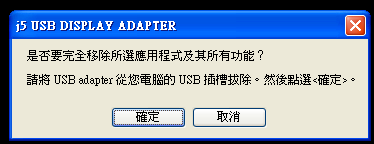
251 USB HDMI 1. " j5 DIAPLAY ADAPTER... 2.?, 3. USB,. 4.,,
252 USB HDMI MAC USB MAC, USB USB 1., 2.,,.,
253 USB HDMI 3., 4., 5.,
254 USB HDMI ,
255 USB HDMI 9., ( / ) HDMI USB HDMI 10. USB MAC MAC USB, Mac, USB HDMI, 1.,
256 USB HDMI 2. 3., USB HDMI USB HDMI
257 USB HDMI USB HDMI 1., Mac USB HDMI,
258 USB HDMI USB HDMI, 1. USB, USB USB, :
259 USB HDMI 2. uninstaller 3. Uninstall and restart 4. 5.,,
260 USB HDMI : WINDOWS 7 - Display ID Window 7, EDID USB,EDID ( ), USB USB, : 1024 x 768 x 32 bit
261 USB HDMI,USB ( ) ( ) Extended( ),USB ( ), (M):,
262 USB HDMI USB ( ),, :,, windows 7,
263 USB HDMI,USB ( ),, (K).
264 USB HDMI 1, 2 2, 1 Super Utility Super utility,
265 USB HDMI,,,,,, Ctrl +
266 USB HDMI,. 2 : 02 Apply Fix Position,,,,, ;
267 USB HDMI : WINDOWS XP XP, ( ), USB (VESA) DDC/EDID, EDID USB,EDID ( ), USB USB,, DDC/EDID
268 USB HDMI : : 1024 x 768x 32 bit :,,, USB ( ),
269 USB HDMI Display Rotation,,USB ( ), : 0 degree : ( ) 90 degrees : 180 degrees: 270 degrees:
270 USB HDMI ( ) Extended( ), USB ( ) Mirror Mirror ( ),USB ( ) (clone),,,usb
271 USB HDMI Primary Primary( ), USB ( ),, Off,USB ( )
272 USB HDMI,,,,,,
273 USB HDMI Ctrl +, 2 : 02 Apply
274 USB HDMI : MAC,,,,,
275 USB HDMI,,, USB,,, :,
276 USB HDMI Expose Spaces, -> Exposé Spaces.. Space Spaces, space, space
277 USB HDMI F8 :,, space, Exposé F9 : F10: F11:
278 USB HDMI *,,,, j5 create j5 create - XP Direct 3D Windows 7 Aero - MAC OS USB, j 5 create, USB -, - USB USB USB -, USB USB USB - -, - USB USB - USB HUB, USB -, - ( )
279 USB HDMI -,,, -, 50 % - USB, - (Video output rendering), USB overlays - DVD, -,, K-lite K- Lite: - Media Player Classic: : -, i.e. Intel,, - windows 7 Starter,, - Windows,, -,, : USB Display Adapter 9.xx.xxxx.0159 ( ).
280 USB HDMI j5 create,, 1. The User Manual, 2. Online Support j5 create ( " " create 3. Telephone Support j5 create # 19, : : : #19 : 9:30 AM -6:00 PM ( ) [email protected]
281 USB HDMI FCC This equipment has been tested and found to comply with FCC Part 15 Subpart B / Class B. Operation is subject to the following two conditions: This device may not cause harmful interference This device must accept any interference, including interference that may cause undesired operation of the device. CE This equipment is in compliance with the requirements of the following regulations: EN Class B (2006), EN (1998+A1:2001+ A2:2003), (IEC/EN (1995+A1:1998+A2:2001)/-3(2006) C-Tick This equipment is in compliance with the requirements of the following regulations: EN (2006) Class B, AS/NZS CISPR22 IEC: VCCI This equipment is in compliance with the requirements of the following regulations: CISPR22 IEC: 2005 Disclaimer Information in this document is subject to change without notice. The manufacturer does not make any representations or warranties (implied or otherwise) regarding the accuracy and completeness of this document and shall in no event be liable for any loss of profit or any commercial damage, including but not limited to special, incidental, consequential, or other damage. No part of this document may be reproduced or transmitted in any form by any means, electronic or mechanical, including photocopying, recording or information recording and retrieval systems without the express written permission of the manufacturer.
282 USB HDMI j5 create j5 create, j5 create,, j5 create : (1) : : # 19 ( 2 ) ->Contact 3. (i) (ii) & (iii) (iv) ( ) 4. ( 1 ) ( 2 ) j5 j5 create, ;, ; : ( j5 create ); ( ) ( ) : j5 ;,,j5 create,,, j5 create, j5 create,j5 create,
283 USB HDMI DISPLAY ADAPTER j5 create USB JUA210/230/250 USB MAC Windows USB, 1920 x 1200 HDMI DVI HDMI, - / / / / / USB 3.0 JUA310/350 USB 3.0, USB 2.0,USB 3.0 USB2.0 10, Newport Station Wormhole Station JUD200 JUH320/JUH320V2 JUD200 : USB HubLAN HDMI,, USB to HDMI, ; USB,, ;, USB, ;,,, ; j5 LED,, JUH320 ; USB 3.0 HubUSB
284 USB HDMI DISPLAY ADAPTER, USB Wormhole Switch, ( / / ) USB,, ; USB, ;,,, ; j5 LED,, Wormhole Switch JUC100/200/400,, USB,,,,, For more information, please visit our website Copyright 2011 j5 create. All rights reserved. All trade names are registered trademarks of their respective owners. Features and specifications are subject to change without notice. Product may not be exactly as shown in the diagrams
285 USB HDMI DISPLAY ADAPTER j5 create (JUA350) USB HDMI Display Adapter! HDMI USB Mac Windows PC PC HDMI USB j5 create (JUA350) USB HDMI Display Adapter USB HDMI j5 create JUA350 3 HDMI () 2 & j5 create USB3.0 HDMI 1080PHD 2048X1152
286 USB HDMI DISPLAY ADAPTER USB USB 2 : /Facebook/Twitter 5Gbit/s US B x 1152 (32 ) 1080P & USB Windows 4 j5 create USB Display Adapter Mac 2 j5 create USB Display Adapter : : kHz~48kHz
287 USB HDMI DISPLAY ADAPTER : : PC USB HDMI Display Adapter 2 1 : :2 ( :Excel ) : E : PC : : / 1 Microsoft Windows 7XP (32 64 ) Mac OS X Snow Leopard/Lion USB ( USB 3.0 )
288 USB HDMI DISPLAY ADAPTER 1 ~ 2 3 ~ 4 CPU Intel 2 Quad 2.33 GHz Intel i GHz 2 GB 4 GB CPU: Intel Core i GHz : 4 GB : USB USB 3.0 display adapter Windows7 :Windows Media Player Windows XP & MAC : Windows XP & MAC USB3.0 USB2.0 USB2.0 : j5create :JUA 350 USB 3.0 (A ) HDMI-DB 15 () 500mA
289 USB HDMI DISPLAY ADAPTER :41(W) x 72 (H) x 14 (D) mm :200 mm 53 g 16: x : x : x : x : x : x : x : x : x : x : x : x : x : x : x : x :3 800 x
290 USB HDMI DISPLAY ADAPTER USB HDMI Display Adapter (JUA350) HDMI - DVI CD
291 USB HDMI DISPLAY ADAPTER USB HDMI Display Adapter USB USB 3.0 HDMI Display Adapter HDMI HDMI - DVI HDMI DVI USB USB USB
292 USB HDMI DISPLAY ADAPTER Windows 7 Windows 7 CD-ROM CD Setup.exe CD USB Display Adapter USB PC PC 1. [ ] [ ]
293 USB HDMI DISPLAY ADAPTER 2. InstallShield > 3. > 4.
294 USB HDMI DISPLAY ADAPTER 5. InstallShield 6. (/) USB Display Adapter HDMI
295 USB HDMI DISPLAY ADAPTER 7. USB Display Adapter PC PC USB USB Display Adapter USB USB Display Adapter USB Display Adapter USB Display Adapter USB HDMI Display Adapters Install Shield
296 USB HDMI DISPLAY ADAPTER A. (/) USB HDMI Display Adapters HDMI B. USB Display Adapter PC PC USB USB Display Adapter USB USB HDMI Display Adapters A B USB Display Adapter
297 USB HDMI DISPLAY ADAPTER
298 USB HDMI DISPLAY ADAPTER 1 USB HDMI 1 USB HDMI Display Adapter 1. > 2. USB HDMI Display Adapter USB HDMI Display Adapter USB HDMI Display Adapter
299 USB HDMI DISPLAY ADAPTER : 1. USB 2. USB USB HDMI Display adapter 3. 4.
300 USB HDMI DISPLAY ADAPTER USB Display Adapter 2 + : USB Display Adapter
301 USB HDMI DISPLAY ADAPTER USB Display Adapter
302 USB HDMI DISPLAY ADAPTER USB Display Adapter 1. j5 DISPLAY ADAPTER ( ) ok
303 USB HDMI DISPLAY ADAPTER 3. 4.
304 USB HDMI DISPLAY ADAPTER Windows XP Windows XP CD-ROM CD Setup.exe CD USB HDMI Display Adapter USB PC PC 1. [ ] [ ]
305 USB HDMI DISPLAY ADAPTER 2. InstallShield > 3. >
306 USB HDMI DISPLAY ADAPTER InstallShield
307 USB HDMI DISPLAY ADAPTER 6. (/) USB Display Adapters HDMI 7. USB Display Adapter PC PC USB USB Display Adapter USB ( ) USB Display Adapter USB Display Adapter USB Display Adapter USB Display Adapters Install Shield
308 USB HDMI DISPLAY ADAPTER A. (/) USB Display Adapters HDMI B. USB Display Adapter PC PC USB USB Display Adapter USB USB Display Adapters A B USB Display Adapter
309 USB HDMI DISPLAY ADAPTER : PC 1. USB Display Adapter 2 HDMI 3 USB Display Adapter USB Display Adapter 2 HDMI 4 USB Display Adapter 2 3
310 USB HDMI DISPLAY ADAPTER 1 USB HDMI 1 USB HDMI Display Adapter 1. > 2. USB HDMI Display Adapter USB HDMI Display Adapter USB HDMI Display Adapter
311 USB HDMI DISPLAY ADAPTER : 1. USB 2. USB USB HDMI Display adapter 3.
312 USB HDMI DISPLAY ADAPTER USB Display Adapter 3 + : USB HDMI Display Adapter
313 USB HDMI DISPLAY ADAPTER USB HDMI Display Adapter
314 USB HDMI DISPLAY ADAPTER USB HDMI Display Adapter 1. j5 DISPLAY ADAPTER
315 USB HDMI DISPLAY ADAPTER 4. MAC Snow Leopard USB Display Adapter USB Display Adapter USB Mac PC PC Snow Leopard 1. CD-ROM CD
316 USB HDMI DISPLAY ADAPTER 2. [ ] ( OS )[] 3. 4.
317 USB HDMI DISPLAY ADAPTER 5. OK 6.
318 USB HDMI DISPLAY ADAPTER (/) USB Display Adapter HDMI 10. USB Display Adapter Mac PC PC USB -> -> * : : Mac
319 USB HDMI DISPLAY ADAPTER Mac 1 USB HDMI
320 USB HDMI DISPLAY ADAPTER 3. USB HDMI Display Adapter USB HDMI Display Adapter USB HDMI Display Adapter USB Display Adapter 1. Mac USB Display Adapter
321 USB HDMI DISPLAY ADAPTER USB Display Adapter
322 USB HDMI DISPLAY ADAPTER 1. USB HDMI Display Adapter USB 2. [] 3. 4.
323 USB HDMI DISPLAY ADAPTER 5. OK 6. :Windows 7 USB Display Adapter CRT ( ) LCD ID ID Window 7 OS VESA DDC (EDID) USB HDMI Display Adapter ID
324 USB HDMI DISPLAY ADAPTER USB Display Adapter :1024 x 768 x 32
325 USB HDMI DISPLAY ADAPTER USB Display Adapter ( ) USB Display Adapter PC ( )
326 USB HDMI DISPLAY ADAPTER - PC USB Display Adapter
327 USB HDMI DISPLAY ADAPTER : ( ) 2 Windows 7 OS PC
328 USB HDMI DISPLAY ADAPTER
329 USB HDMI DISPLAY ADAPTER Ctrl +
330 USB HDMI DISPLAY ADAPTER : 3 03 > ( )
331 USB HDMI DISPLAY ADAPTER :Windows XP ( ) ID ID USB HDMI Display Adapter VESA DDC (EDID) USB HDMI Display Adapter ID 1 USB HDMI Display Adapter ID EDID ID
332 USB HDMI DISPLAY ADAPTER :1024 x 768x 32
333 USB HDMI DISPLAY ADAPTER USB HDMI Display Adapter 4 : 0 / 90 / 180 / 270 ( ) USB HDMI Display Adapter PC ( )
334 USB HDMI DISPLAY ADAPTER USB HDMI Display Adapter PC ( ) USB HDMI Display Adapter
335 USB HDMI DISPLAY ADAPTER USB HDMI Display Adapter
336 USB HDMI DISPLAY ADAPTER Ctrl + Display No. : 3 03
337 USB HDMI DISPLAY ADAPTER
338 USB HDMI DISPLAY ADAPTER :MAC Snow Leopard
339 USB HDMI DISPLAY ADAPTER 1 USB HDMI Display Adapter 2 : USB HDMI Display Adapter
340 USB HDMI DISPLAY ADAPTER Exposé Spaces Exposé Spaces
341 USB HDMI DISPLAY ADAPTER Spaces F8 :1 Spaces Exposé 1
342 USB HDMI DISPLAY ADAPTER F9 : F10 :1 F11 : *
343 USB HDMI DISPLAY ADAPTER j5 create - MAC OS USB j5 create USB - - USB USB Display Adapter - USB USB USB - USB - USB USB - // - ( ) USB - Flash Player - 50% - PC USB
344 USB HDMI DISPLAY ADAPTER - - DVD 2 DVD 2 - PC K- Lite: - / PC USB DVD Media Player Classic: - - Windows Ctrl - :USB Display Device ( j5create) 9.xx.xxxx.0159 ( ) - OS /
345 USB HDMI DISPLAY ADAPTER j5 create ( j5 create : : : : :[email protected] : ~ 9:00 ~ 18:00 E.S.T. ( )
346 USB HDMI DISPLAY ADAPTER FCC ( ) FCC 15 B / B 2 CE EN B (2006) EN (1998+A1:2001+ A2:2003)(IEC/EN (1995+A1:1998+A2:2001)/-3 (2006) C-Tick EN (2006) BAS/NZS CISPR22 IEC:2005. VCCI CISPR22 IEC:2005 ( )
347 USB HDMI DISPLAY ADAPTER j5 create j5 create 2 j5 create E (RMA) (i) (ii) (iii) (iv) (v) j5 create j5 create (a) (b) (c) j5 create (d) ( ) (e) ( ) (f) j5 create (g) j5 create j5 create ( ) (h) j5 create (i) j5 create j5 create j5 create
348 USB DISPLAY ADAPTER USER MANUAL j5 create USB Display adapter Series JUA210/230/250 j5 create USB display adapters PC PC USB () USB 3.0 Display adapter Series JUA310/350 USB3.0 USB3.0 USB x1152(32) Newport Station JUD200 j5 create Newport Station PC (Mac Windows ) USB 1 PC USB Macbook Air EeePC Wormhole Switch JUH320/JUH320 v2 j5 create Wormhole Station
349 USB DISPLAY ADAPTER USER MANUAL 2 a PC PC PC & 2 USB (SD/MMCMini SD ) Wormhole Switch Wormhole Switch Series JUC100/200/400 j5 create Wormhole Switch USB 1 PC PC PC & & PC : Copyright 2011 j5 create.
350 USB DISPLAY ADAPTER USER MANUAL Türkçe Tanıtım ve Kullanma GİRİŞ j5 create(jua350) USB 3.0 HDMI Ekran Kartı satın aldığınız için teşekkür ederiz! Bu USB - HDMI adaptö rü MAC ve Windows uyumlu masaüstü PC ya da dizüstü bilgisayarlar iç in harici bir ekran kartı gibi kullanılır. Cihaz size herhangi bir USB portu üzerinden ilave bir HDMI monitor ekleyip görüntülemenize olanak sağlar. JU350 sayesinde pahalı bir ekran kartı satın almak ve bilgisayarınızı açıp teknik müdahalede bulunmanıza gerek kalmaz. (JUA350) basit bir sürücü kurulum ile yapılandırılan bir adaptördür, USB ve HDMI kablolarıyla bir araya getireceğiniz cihaz hızlı ve kolay kurulumuyla kullanıma hazır olur. j5 create JUA350 üç ayrı görüntüleme tipine ve HDMI ses desteğine sahiptir. Birincil ve genişletilmiş görüntüleme tipi, her bir monitörde ayrı ayrı uygulamaları çalıştırmanıza olanak sağlar. Bu sayede üretkenlik program ve özellikle e-tablolarda (Excel vs) büyük bir verimlilik artışı sağlar. Yinelenen görüntüleme tipinde, aynı ekran görüntüsünü birden fazla görüntüleme aygıtına vererek, bu da özellikle sunumlar, sınıf içi eğitimler vs. için en uygun çözümdür. Tak & Çalıştır özelliği ile 2. Monitör yada Projeksiyon cihazınıza saniyeler içerisinde eş zamanlı görüntü aktarabilirsiniz. İşlevler USB3.0 (USB 2.0) ve HDMI DVI bağlantıları üzerinden kolayca yeni görüntü aygıtı ekleyebilme. 1080P Full HD video oynatma, 2048 x 1152 çözünürlüğe kadar gerçekleştirebilme. Pahalı bir dahili video kartı satın almadan, bilgisayarınızda karmaşık kurulumlar yapmadan, ilave monitö r ekleyebilme. Sahip olduğu Hot swap USB özelliği sayesinde sisteminizi yeniden başlatmadan monitör ekleme ve çıkarma. Uygulama pencerelerini üstü üste yerleştirmeden, her ekranda ayrı uygulama ile çalışarak hareket edebilme, büyük tablolarda çok daha fazla sütun ve satır üzerinde çalışabilme imkânı. Çoklu görev ile büyük yatay / masaüstü alanı ile çalışabilme. Aynı anda birden fazla pencere gö rüntülemek iç in ideal. Büyük Telekom merkezleri, borsalar, hastaneler, grafik tasarımı, proje düzenleme, muhasebe ve tablo işlemleri, vb dâhil olmak üzere çoklu görevler için çok geniş bir uygulama alanı. İnternet üzerindeki çalışmalar esnasında, eş zamanlı olarak facebook, twitter gibi hesaplara aynı zamanda birden fazla monitör ile erişebilme. Öne çıkan özellikler
351 USB DISPLAY ADAPTER USER MANUAL 2048 x 32bit görüntüleme desteği Super Speed USB Gbit/saniyeye kadar 1080P Video görüntüleme desteği Tak & Çalıştır USB bağlantı desteği Windows ile 4 bağdaştırıcıya kadar Mac ile 2 bağdaştırıcıya kadar Desteklenen görüntüleme tipleri: Birincil, Genişletilmiş, Yansıtma (Yinelenen) Ekran açısı (Görüntüyü Döndürme) : 0, 90, 180, 270 Dahili 8kHz~48kHz ses Zehir içermeyen, geri dönüştürülebilir alüminyum kasa Kolay sürücü yükleyebilme Kullanım alanı Editö r: Bir ekranda düzenleme yapıp çalışırken diğer ekranda çalışmayla ilgili araştırmaları, referans ve kaynakları görüntüleyebilir ve düzenleyebilirsiniz. Eş zamanlı bu operasyonun verim artışı sağladığını hissedeceksiniz. Sunum: Dizüstü bilgisayarınız USB 3.0 Ekran Bağdaştırıcısı üzerinden bir projektö re takılıyken Yansıtma (yinelenen) görüntüleme tipini kullanın. Yaratıcı görüntüler için iki monitör ve bir projeksiyonu Birincil görüntüleme tipinde kullanabilirsiniz. Ofis: Çift ekran senaryosu; 2 ekranda birden büyük bir çalışma alanını bölünmüş olarak görüntüleyeblirsiniz. Örneğin bir excel belgesinin tek monitöre sığmayan diğer kolon ve satırları gibi. Bağımsız masa üzerindeki alanı daha verimli kullanarak daha çok iş yapabilirsiniz. Tek bir ekranda e-postanızı okuyun ve cevaplayabilir, eklerini açabilirsiniz. Grafik iş istasyonu: Tasarım yaparken aynı zamanda referans materyallerini ayrı bir ekranda görüntülemenizi sağlar. Tabletler ve resim / video düzenlemesi için daha fazla alan sağlamış olur. Eğlence: TV/Film izlerken programların ön izlemesini yapabilir ya da program arayabilirsiniz. Oyun oynarken, bir ekranda oyunu sürdürürken diğer ekranda strateji planları yapmanıza olanak tanır. Hisse senetleri işlemleri: Aynı anda birden fazla hisse senedi piyasasını izleme olanağı sağlar. Kodlama / Programlama: Etkin kodlama ve programlama yapılan ekranın yanısıra diğer ekranda program için kaynakları ve programın çalışma şekli gö rüntülenebilir.
352 USB DISPLAY ADAPTER USER MANUAL Ortam Gereksinimleri Microsoft Windows 7, XP (32-bit yada 64-bit) uyumlu Mac OS X Snow Leopard/Lion uyumlu Kullanılabilir USB bağlantı noktası ( USB 3.0 önerilir) Minimum Sistem gereksinimleri Adet 1~2 Ü nite 3~4 Ü nite CPU Intel 2 Quad 2.33 GHz veya üzeri Intel i GHz veya üzeri RAM 2 GB veya daha yüksek 4 GB veya daha yüksek Full HD Video Genişletilmiş monitörde video oynatma için İşlemci: Intel Core i5 işlemci 3.1 GHz veya üzeri RAM: 4 GB Bellek veya üzeri Ç oklu gö rüntüleme ve optimum performans iç in yüksek işlemciler önerilir. Not: USB HUB USB 3.0 görüntü bağdaştırıcı ile kullanım için önerilmez. Video oynatıcı için not: *Windows 7 kullanıcısı: Video oynatmak için Windows Media Player önerilir. *Windows XP & MAC kullanıcıları: Windows XP & MAC ürünlerinin USB 3.0 desteği sınırlı performans oranında olduğundan bant genişliği sınırlamaları açısından Windows XP ve MAC üzerinden video oynatma tavsiye edilmez. Windows XP ve MAC şu an ürünleri şu an için USB 3.0 desteklememektedir. Bu nedenle bu işletim sistemlerinde yalnızca ofis uygulamaları USB 2.0 üzerinden çalıştırılması ö nerilmektedir. Not : Satın almış olduğunuz cihazın en son donanım sürücüsünü kullandığınızdan emin olunuz. Mevcut donanım sürücüsünden daha yeni bir veriyon olup olmadığını kontrol iç in lütfen sitesinden en son sürücü modelini tedarik ediniz. Fiziksel Ö zellikler Model: JUA 350 Arabirim Host Arayüzü Video & Ses Arayüzü Güç Güç Tipi Güç Tüketimi USB 3.0 Dişi Tip-A konektö r HDMI Dişi Konnektör Bus-powered veya Self- Powered 500mA
353 USB DISPLAY ADAPTER USER MANUAL Fiziksel Ö zellik Gö vde Malzemesi Ö lç üler Ağırlık Aluminyum Ana Gö vde : 40(W)x 70(H)x14(D) mm Kablo Uzunluğu: 200 mm Yaklaşık olarak 53 gr Çözünürlük ve Renk derinliği Boy Oranı Ç ö zünürlük Renk Derinliği Geniş Ekran 16: x ,32 bits 16: x ,32 bits 16: x ,32 bits 16: x ,32 bits 16: x ,32 bits 16: x ,32 bits 16: x ,32 bits 16: x ,32 bits 15: x ,32 bits 16: x ,32 bits Standard Ekran 4: x ,32 bits 4: x ,32 bits 5: x ,32 bits 4: x ,32 bits 4: x ,32 bits 4: x ,32 bits 4:3 800 x ,32 bits Ambalaj İçeriği USB 3.0 Görüntü Bağdaştırıcı (JUA350) HDMI dan DVI a Çevirici Hızlı Kurulum kılavuzu
354 USB DISPLAY ADAPTER USER MANUAL Donanım Sürücü CD si ve kullanma kılavuzu
355 USB DISPLAY ADAPTER USER MANUAL BAŞLARKEN Kurulum ö ncesi iç in notlar USB 3.0 Görüntü Bağdaştırıcıyı bilgisayarınıza takmadan önce sürücü kurulumunu tamamlayın. Yükleme hatalarını engellemek için kurulum programını yönetici hesabıyla çalıştırın. Yeni bir sürücü versiyonuna yükseltme yapmadan ö nce eski sürücüyü bilgisayarınızdan tamamen kaldırın. HDMI konnektö rünü veya HDMI dan DVI ç eviriciyi USB 3.0 HDMI Gö rüntü Bağdaştırıcısına HDMI veya DVI kablo ile bağlayın. Daha sonra cihazı bilgisayarın USB portuna bağlayın. Birden fazla dangıl ı USB HUB a bağlamanız için USB HUB ın bağımsız bir güç kaynağı tarafından desteklenen bir model olması önerilir. Kurulum sırasında ekran yanıp sönmeye başlayacaktır. WINDOWS 7 İÇİN KURULUM Aygıt Sürücüsünün Yüklenmesi Bu bölümde Windows 7 sürücüsünün yükleme prosedürü gösterilmektedir. Başlamak için ürünle birlikte gelen kurulum CD sini bilgisayarınızın CD-ROM sürücüne yerleştirin. Kurulum programı otomatik olarak başlayacaktır. Bilgisayar ayarlarınıza bağlı olarak Otomatik kurulum başlamadıysa Bilgisayarım a gidin ve CD-ROM sürücüsünü tıklayın. Manual olarak Setup.Exe dosyasını çift tıklayarak kurulumu başlatabilirsiniz. Kuruluma başlamadan önce USB 3.0 Görüntü Bağdaştırıcısı kablosunu Bilgisayarınızın USB portuna takmadığınızdan emin olun. 1. Kurulum programı başlatılacaktır. Başlatmak için Install the Latest Driver tıklayın. İnternet ve network erişiminizden emin olun. Yüklemeyi başlatmak için Driver
356 USB DISPLAY ADAPTER USER MANUAL Install düğmesine tıklayın. 2. Yükleme seçeneğini tıkladıktan sonra InstallShield sihirbazı açılacaktır. Devam etmek iç in Next> tuşuna basın. 3. Devam etmek için Lisans sözleşmesini okudum ve kabul ediyorum I accept the terms of the license agreement. tıklayın Next > tuşu ile devam edin.
357 USB DISPLAY ADAPTER USER MANUAL 4. Sürücü kurulumu devam edecektir. 5. Install Shield sihirbazı tamamlandığında, bilgisayarınızı yeniden başlatmak için Evet, bilgisayarımı şimdi yeniden başlatmak istiyorum. Seçin ve Finish tıklayın
358 USB DISPLAY ADAPTER USER MANUAL 6. Bilgisayarınızı yeniden başlattıktan sonra, harici görüntüleme aygıtı (monitor/ projektör) açın. HDMI konnektörü yada DVI konnektörü ile USB Görüntü bağdaştırıcısına bağlayın ve cihazı açın. 7. Bilgisayarınızın yada dizüstünüzün kullanılabilir durumdaki bir USB portuna USB HDMI Görüntü Bağdaştırıcısını bağlayın. Aygıt sürücüsü yükleniyor mesajı gö rüntülenecektir. Sürücü yazılımı başarıyla yüklendiğinde aşağıdaki gibi bir mesaj görüntülenecektir: Şayet başka bir USB 3.0 Görüntü Bağdaştırıcısı eklemeyecekseniz, PC yi yeniden başlatın. Bilgisayar yeniden başladıktan sonra USB 3.0 Görüntü Bağdaştırıcısı işlevleri aktif edilecektir. Çoklu USB 3.0 Görüntü Bağdaştırıcısı kurulumu
359 USB DISPLAY ADAPTER USER MANUAL Ç oklu USB 3.0 Görüntü Bağdaştırıcısı kurulumu gerçekleştirmek için Install Shield Sihirbazı tamamlandı adımında, Hayır, bilgisayarı daha sonra yeniden başlatacağım. Seçin ve Finish tıklayarak bir sonraki adıma geçin. A. Tüm harici görüntüleme cihazlarını (monitör/ projektör ) HDMI /DVI konnektö rü ile USB 3.0 Gö rüntü Bağdaştırıcısı na bağlayın ve cihazı açın. B. USB 3.0 Görüntü Bağdaştırıcısı nı PC yada Dizüstüne kullanılabilir bir USB portuna takın. USB 3.0 Görüntü Bağdaştırıcısı nı USB portuna bağladıktan sonra, Sistemlerin otomatik olarak başlattığı bir tanıma rutini gö rüntülenecektir. Aygıt sürücü yazılımı düzgün bir şekilde kurulmuşsa, Eğer daha fazla USB 3.0 Görüntü Bağdaştırıcısı kurulumu yapacaksanız A ve B adımlarını tekrarlayınız ve sistemi yeniden başlatınız. USB 3.0 Görüntü Bağdaştırıcısı bilgisayar yeniden başlatıldıktan sonra aktif edilecektir. Genişletilmiş ekran görüntüsünü görüntü biriminde izleyebilirsiniz. BAŞLANGIÇ Denetim Masası Görüntü ve Kişiselleştirme Ekran
360 USB DISPLAY ADAPTER USER MANUAL Çözünürlüğünü Ayarla seçenekleri yardımyla Ekran ayarları ile her genişletilmiş görüntü birimine karşılık gelen konumu değiştrebilirsiniz. Masaüstünde sağ tılayarak da Ekran Çözünürlüğü sekmesine ulaşabilirsiniz Ekran Çözünürlüğü penceresi Screen Resolution göründüğünde, her monitörün numarasına tıklayarak hangi ekrana ait olduğunu tespit edip tanımlayabilirsiniz. Monitörü istediğiniz konuma (Birinci monitör, uzatılmış monitör)sürükleyebilirsiniz Ses Ayarı Microsoft ses sistemi ses çıkışını belli oranda kısıtlar. Bu nedenle, USB HDMI çoklu ekran adaptörü kullanarak sadece bir çıkış için ses alabilirsiniz. Aşağıdaki kurulum USB 3.0 Görüntü Bağdaştırıcısı ile bağlantılı görüntü aygıtının varsayılan ses çıkışını ve nasıl değiştirileceğini açıklamaktadır.
361 USB DISPLAY ADAPTER USER MANUAL 1. Denetim Masası > Donanım ve Ses e gidin ve Sistem seslerini değiştir e tıklayın. 2. Hoparlör seçenekleri çoklu ve tekli USB 3.0 HDMI Ekran bağdaştırıcıları için aşağıda gösterilmiştir. Tekli USB 3.0 HDMI Görüntü bağdaştırıcı Çoklu USB 3.0 HDMI Görüntü bağdaştırıcı Note: A. Hoparlör numaraları bilgisayar sistemi tarafından tespit edilen USB Bağlantı noktaları sayısına göre numaralandırılır. B. Varsayılan ses çıkışı USB 3.0 HDMI Görüntü bağdaştırıcısı üzerindeki en büyük sayıdaki hoparlörden çıkacaktır. 3. Varsayılan ses çıkışını değiştirmek için, varsayılan olarak seçmek istediğiniz hoparlörün simgesine Mouse sağ butonu ile ve Test seçeneğini seçin. Daha sonraki
362 USB DISPLAY ADAPTER USER MANUAL soruda hoparlörü varsayılan olarak işaretleyin. 4. İstediğiniz hoparlörü seçin ve varsayılan butonuna tıklayın. Aygıt sürücü kurulumunu doğrulama Aşağıdaki yordam USB 3.0 Görüntü Bağdaştırıcısı yükleme durumunu doğrulamak için yardımcı olur. Bilgisayarım sağ tıklayın Yö net Aygıt yöneticisi iç inden Ses video ve oyun kontrollerini seç in & Evrensel Seri yolu denetleyicileri seçin
363 USB DISPLAY ADAPTER USER MANUAL Aşağıdaki resim tek bir USB 3.0 Görüntü Bağdaştırıcısı için yükleme işlemlerinin doğruluğunu gösterir. Aşağıdaki resim Çoklu USB 3.0 Görüntü Bağdaştırıcısı için yükleme işlemlerinin doğruluğunu gösterir.
364 USB DISPLAY ADAPTER USER MANUAL Aygıt sürücüsünün kaldırılması USB 3.0 Görüntü Bağdaştırıcısı sürücüsünü kaldırmaya başlamadan ö nce cihazla bilgisayarınız arasındaki bağlantıyı kesin. 1. Başlat Kontrol Paneli Programlar ve Ö zellikler Program kaldır yada değiştir tıklayın j5 HDMI DISPLAY ADAPTER... seç in ve Uninstall tıklayın. 2. Seç ilen uygulamayı kaldırmak isteyip istemediğinizi doğrulamak için bir mesaj çıkacaktır. OK butonuna tıklayın. 3. Sürücü kaldırma işlemi devam ediyor. 4. Sürücü kaldırma işlemi tamamlandığında Evet, bilgisayarımı şimdi yeniden
365 USB DISPLAY ADAPTER USER MANUAL başlatmak istiyorum. Seçeneğini şaretleyin ve yeniden başlatmak için Finish tıklayın. WINDOWS XP İÇİN KURULUM Aygıt Sürücüsünün Yüklenmesi Bu bö lümde Windows XP sürücüsünün yükleme prosedürü gösterilmektedir. Başlamak için ürünle birlikte gelen kurulum CD sini bilgisayarınızın CD-ROM sürücüne yerleştirin. Kurulum programı otomatik olarak başlayacaktır. Bilgisayar ayarlarınıza bağlı olarak Otomatik kurulum başlamadıysa Bilgisayarım a gidin ve CD-ROM sürücüsünü tıklayın. Manual olarak Setup.Exe dosyasını çift tıklayarak kurulumu başlatabilirsiniz. Kuruluma başlamadan önce USB 3.0 Görüntü Bağdaştırıcısı kablosunu USB portuna takmadığınızdan emin olun. 1. Kurulum programı sayfası başlatılacaktır. Başlatmak için Install the Latest Driver tıklayın. İnternet ve network erişiminizden emin olun. Yüklemeyi başlatmak için Driver Install düğmesine tıklayın.
366 USB DISPLAY ADAPTER USER MANUAL 2. Yükleme seçeneğini tıkladıktan sonra InstallShield sihirbazı açılacaktır. Devam etmek iç in Next> tuşuna basın. 3. Devam etmek için Lisans sözleşmesini okudum ve kabul ediyorum I accept the terms of the license agreement. tıklayın Next > tuşu ile devam edin. 4. Sürücü kurulumu devam edecektir
367 USB DISPLAY ADAPTER USER MANUAL 5. Install Shield sihirbazı tamamlandığında, bilgisayarınızı yeniden başlatmak için Evet, bilgisayarımı şimdi yeniden başlatmak istiyorum. Seçin ve Finish tıklayın 6. Bilgisayarınızı yeniden başlattıktan sonra, harici görüntüleme aygıtı (monitor/ projektör) açın. HDMI konnektörü veya DVI konnektö rü ile USB Gö rüntü bağdaştırıcısına bağlayın ve cihazı açın. 7. Bilgisayarınızın veya dizüstünüzün kullanılabilir durumdaki bir USB portuna USB 3.0 Görüntü Bağdaştırıcısını bağlayın. Aygıt sürücüsü yükleniyor mesajı gö rüntülenecektir. Sağ alt araç çubuğunda bir simge görülecektir. ( ) Aşağıdaki mesaj resimleri sürücü yazılımının başarıyla yüklendiğini göstermektedir.
368 USB DISPLAY ADAPTER USER MANUAL Şayet başka bir USB 3.0 Görüntü Bağdaştırıcısı eklemeyecekseniz, PC yi yeniden başlatın. Bilgisayar yeniden başladıktan sonra USB 3.0 Görüntü Bağdaştırıcısı işlevleri aktif edilecektir. Çoklu USB 3.0 Görüntü Bağdaştırıcısı kurulumu Ç oklu USB 3.0 Görüntü Bağdaştırıcısı kurulumu gerçekleştirmek için Install Shield Sihirbazı tamamlandı adımında, Hayır, bilgisayarı daha sonra yeniden başlatacağım. Seçin ve Finish tıklayarak bir sonraki adıma geçin. A. Tüm harici görüntüleme cihazlarını (monitö r/ projektö r ) HDMI /DVI konnektö rü ile USB 3.0 Görüntü Bağdaştırıcısı na bağlayın ve cihazı açın. B. USB 3.0 Görüntü Bağdaştırıcısı nı PC yada Dizüstüne kullanılabilir bir USB portuna takın. USB 3.0 Görüntü Bağdaştırıcısı nı USB portuna bağladıktan sonra, Sistemlerin otomatik olarak başlattığı bir tanıma rutini görüntülenecektir.
369 USB DISPLAY ADAPTER USER MANUAL Eğer daha fazla USB 3.0 Görüntü Bağdaştırıcısı kurulumu yapacaksanız A ve B adımlarını tekrarlayınız ve sistemi yeniden başlatınız. USB 3.0 Görüntü Bağdaştırıcısı bilgisayar yeniden başlatıldıktan sonra aktif edilecektir. Genişletilmiş ekran görüntüsünü görüntü biriminde izleyebilirsiniz. BAŞLANGIÇ Kontrol Panelİ Görüntü ve Kişiselleştirme Ekran Çözünürlüğünü Ayarla seçenekleri yardımyla Ekran ayarları ile her genişletilmiş görüntü birimine karşılık gelen konumu değiştrebilirsiniz. Masaüstünde sağ tılayarak da Ekran Çözünürlüğü sekmesine ulaşabilirsiniz Gö rüntü ö zellikleri penceresi görüntülendiğinde her monitörün numarasına tıklayarak Tanımla butonuna basarak hangi ekrana ait olduğunu belirleyebilirsiniz. Monitörü istediğiniz konuma sürükleyiniz. Not: Dahili ekran kartınız çift porta sahipse 1. Tek bir USB 3.0 Görüntü Bağdaştırıcısı bağlandığında cihaz 2. HDMI bağlantı noktasına bağlı olarak görüntülenecektir. Görüntü aygıtı 2. Monitör olarak görüntülenecektir. Diğerleri ise dahili ekran kartına ait olacaktır. 2. İki adet USB 3.0 Görüntü Bağdaştırıcısı bağlandığında Görüntü aygıtı 2. HDMI portu üzerinde 4 ekran olarak görünecektir. USB 3.0 Görüntü bağdaştırıcısının görüntü aygıtı 2. Ve 3. Olacak diğerleri dahili grafik kartına ait ekran görüntüleri olacaktır.
370 USB DISPLAY ADAPTER USER MANUAL Ses Ayarı Microsoft ses sistemi ses çıkışını belli oranda kısıtlar. Bu nedenle, USB HDMI çoklu ekran adaptörü kullanarak sadece bir çıkış için ses alabilirsiniz. Aşağıdaki kurulum USB 3.0 Görüntü Bağdaştırıcısı ile bağlantılı görüntü aygıtının varsayılan ses çıkışını ve nasıl değiştirileceğini açıklamaktadır. 1. Denetim Masası> Sesler, Konuşma ve ses aygıtları na gidin Hoparlör ayarlarını değiştir seçin. 2. Tekli ve çoklu USB 3.0 HDMI görüntü bağdaştırıcısı için hoparlör ayarları aşağıda gösterilmiştir. Tekli USB 3.0 HDMI Görüntü Bağdaştırıcısı Çoklu USB 3.0 HDMI Görüntü Bağdaştırıcısı
371 USB DISPLAY ADAPTER USER MANUAL Not: 1. Hoparlör numaraları bilgisayar sistemi tarafından tespit edilen USB Bağlantı noktaları sayısına göre numaralandırılır. 2. Varsayılan ses çıkışı USB 3.0 HDMI Görüntü bağdaştırıcısı üzerindeki en büyük sayıdaki hoparlörden çıkacaktır. 3. İstediğiniz varsayılan aygıt seçin ve uygula butonuna tıklayın. Daha sonra varsayılan aygıtı seçmek ve test etmek için Ses düğmesine tıklayın. Aygıt sürücü kurulumunu doğrulama Aşağıdaki yordam USB 3.0 Görüntü Bağdaştırıcısı yükleme durumunu doğrulamak için yardımcı olur.
372 USB DISPLAY ADAPTER USER MANUAL Bilgisayarım Simgesine sağ tılayın Yö net Aygıt Yöneticisi iç inden Ekran Bağdaştırıları & Ses Video ve Oyun kontrolleri Evrensel Seri you denetleyicileri altında n tüm sürücülerin kurulduğunu görüntüleyebilirsiniz. Aşağıdaki resim tek bir USB 3.0 Görüntü Bağdaştırıcısı için yükleme işlemlerinin doğruluğunu gösterir. Aşağıdaki resim çoklu USB 3.0 Görüntü Bağdaştırıcısı için yükleme işlemlerinin doğruluğunu gösterir.
373 USB DISPLAY ADAPTER USER MANUAL
374 USB DISPLAY ADAPTER USER MANUAL Aygıt sürücüsünün kaldırılması 1. USB 3.0 Görüntü Bağdaştırıcısı sürücüsünü kaldırmadan önce cihazla bilgisayarınız arasındaki bağlantıyı kesin. 2. Başlat Denetim Masası Programlar Programı değiştir yada kaldır Seç in j5 Görüntü Bağdaştırıcısını seç in ve kaldır tıklayın 3. Seçilen uygulamayı kaldırmak isteyip istemediğinizi doğrulamak için bir mesaj çıkacaktır, onaylayın. 4. Sürücü kaldırma işlemi devam ediyor.
375 USB DISPLAY ADAPTER USER MANUAL 5. Sürücü kaldırma işlemi tamamlandığında Evet, bilgisayarımı şimdi yeniden başlatmak istiyorum. Seçeneğini şaretleyin ve yeniden başlatmak için Finish tıklayın. MAC İÇİN KURULUM Aygıt Sürücüsünün Yüklenmesi Aygıt sürücüsünün yüklenmesi bilgisayarınızın işletim sistemi tarafından USB 3.0 Gö rüntü Bağdaştırıcısı tarafından tanınmasını sağlar. Kuruluma başlamadna önce uygun yükleme yordamına sahip olduğunuzdan emin olun. Kuruluma başlamadan önce USB 3.0 Gö rüntü Bağdaştırıcısı kablosunu USB portuna takmadığınızdan emin olun. 1. Kurulum CD sini bilgisayarınızın CD-ROM sürücüne yerleştirin 2. Kurulum programı sayfası başlatılacaktır. Başlatmak için Install the Latest Driver tıklayın. İnternet ve network erişiminizden emin olun. Yüklemeyi başlatmak için Driver Install düğmesine tıklayın.
376 USB DISPLAY ADAPTER USER MANUAL 3. İşleme devam etmek için Continue tıklayın. 4. İşleme devam etmek için Continue tıklayın. 5. Kullanıcı parolanızı girin ve OK tuşuna basın 6. Continue Installation a tıklayın
377 USB DISPLAY ADAPTER USER MANUAL 7. Kurulum başlayacak ve birkaç dakika boyunca devam edecektir. 8. Yazılım kurulumu tamamlandığında Restart a basarak sistemi yeniden başlatın. 9. Bilgisayarınızı yeniden başlattıktan sonra, harici görüntüleme aygıtı (monitor/ projektör) açın. HDMI konnektörü yada DVI konnektörü ile USB Görüntü bağdaştırıcısına bağlayın ve cihazı açın.
378 USB DISPLAY ADAPTER USER MANUAL 10. USB 3.0 Görüntü Bağdaştırıcısını Mac Masaüstü yada MAC Dizüstü bilgisayarınızın USB Portuna takın. Ekranınız otomatik olarak Yansıtma tipinde açılacaktır. Ekran ayarlarınızı ve monitör pozisyonunuzu değiştirmek için Sistem ayarları - > Ekranlar -> Düzenle sekmelerine tıklayın. * Daha fazla bilgi iç in : Komut işlevleri kitabına bakın : Mac Ses Ayarı Mac ses sistemi ses çıkışını belli oranda kısıtlar. Bu nedenle, USB Newport ç oklu ekran adaptörü kullanarak sadece bir çıkış için ses alabilirsiniz. 1. Elma simgesine tıklayın Sistem Ayarlarını seç in 4. Sistem Ayarları ndan Ses seç in 2. Tekli ve çoklu USB 3.0 Görüntü Bağdaştırıcısı için Ses Çıkış ayarları aşağıda gösterilmiştir. Buna tıklayarak ses çıkışı için bir cihaz seçebilirsiniz. Tekli USB 3.0 HDMI Gö rüntü Bağdaştırıcısı Çoklu USB 3.0 HDMI Görüntü Bağdaştırıcısı
379 USB DISPLAY ADAPTER USER MANUAL Aygıt sürücüsü kurulumunu doğrulama Aşağıdaki yordam USB 3.0 Görüntü Bağdaştırıcısı yükleme durumunu doğrulamak için yardımcı olur. 1. Elma simgesine tıklayın Mac Hakkında ve Faha fazla bilgi seç in Aşağıdaki resim tek bir USB 3.0 Görüntü Bağdaştırıcısı için yükleme işlemlerinin doğruluğunu gösterir.
380 USB DISPLAY ADAPTER USER MANUAL Aşağıdaki resim çoklu USB 3.0 Görüntü Bağdaştırıcısı için yükleme işlemlerinin doğruluğunu gösterir.
381 USB DISPLAY ADAPTER USER MANUAL Aygıt sürücüsünün kaldırılması 1. USB 3.0 Görüntü Bağdaştırıcısı ile bilgisayarınız arasındaki bağlantıyı kesin. 2. Kaldırma işlemini başlatmak için Sürücüyü kaldır simgesine tıklayın 3. Devam etmek için Aç tıklayın 4. Sürücüyü kaldır ve yeniden başlat seçeneğine tıklayın
382 USB DISPLAY ADAPTER USER MANUAL 5. Sürücü Kaldırma işlemine devam etmek için kullanıcı parolanızı yazın ve OK Tuşuna basın. 6. Sistemi yeniden başlatın
383 USB DISPLAY ADAPTER USER MANUAL WİNDOWS 7 İÇİN İŞLEV VE TALİMATLAR Bu bö lümde USB 3.0 Görüntü Bağdaştırıcısı tarafından sağlanan pek çok özellik ve işlevleri anlatılmaktadır. Burada Görüntü Bağdaştırıcı CRT, LCD monitör, TV ekranı yada projektör için alınan bir sayı anlmına gelmektedir. Ekran Aygıt kimliği Akıllı ekran tespiti Window 7 işletim sistemi VESA ve DDC/EDID ekran tanımlamayı destekler. USB 3.0 Görüntü Bağdaştırıcısı cihazına bağladığınız herhangi bir görüntüleme aygıtı bu sayede otomatik olarak tanımlanacak ve hem ekranlar bölümünde hem de görüntü listesinde yer alacaktır. Ç ö zünürlük Ç ö zünürlük ayarlarına hızlı erişim İmleci Ekran çözünürlüğü üzerinde hareket ettirerek desteklenen ç ö zünürlükleri gö rüntüleyebilirsiniz. USB 3.0 Görüntü Bağdaştırıcısı için görüntülemek istediğiniz çözünürlüğü seçiniz. Varsayılan Ç ö zünürlük: 1024 x 768 x 32 bit
384 USB DISPLAY ADAPTER USER MANUAL Ekran Yö nlendirmesi (Gö rüntüyü ç evirne) Yö nlendirme, USB 3.0 Görüntü Bağdaştırıcısı na bağlı görüntü aygıtına aktarılan görüntünün döndürülmesine olanak sağlar, Ekran tipi Genişletilmiş görüntüleme (Varsayılan) Bu özellik dâhili ekranınıza yansıyan görüntüyü genişleterek USB 3.0 Gö rüntü Bağdaştırıcısı na bağlı olan bir ekrana genişlemiş görüntü bölümünü yansıtarak genişletilmiş ekran tipinde çalışmasını sağlar. Öncelikle algılanan monitör ve ekranlar listesinden aygıtın numarasını seçip ç oklu ekran menüsünden Bu ekranı genişlet Seçeneğini tıklayıp Uygula seç iniz.
385 USB DISPLAY ADAPTER USER MANUAL Yansıtma - Çoğaltma Bu özellik dahili ekran kartınızdaki görüntündeki aynı içeriği USB 3.0 Gö rüntü Bağdaştırıcısı na bağlı olan görüntüleme aygıtına aktarmanızı sağlar. Söz konusu işlemi yapmak için Bu Ekranı Çoğalt seçip Uygula tıklayın. Not: Yansıtma/Çoğaltma türü görüntüleme seçeneğini kullanırken birincil ve ikincil ekranlar için çözünürlük aynı değerde olmalıdır (Tercih edilen görüntü çözünürlüğü ekranın desteklediğinden daha küçük olabilir). Sadece 2 monitör ile yansıtma/çoğaltma işlemi yapabilirsiniz. Windows 7 İşletim sisteminin başka bir sınırlaması olabilir.
386 USB DISPLAY ADAPTER USER MANUAL Birincil gö rüntüleme tipi Eğer dahili ekran kartınıza takılı olan ekrandaki görüntüyü, harici olarak bağladığınız ekran için varsayıllan hale getirmek isterseniz; Harici ekranınızın Numara sını seçin ve Bunu benim ana ekranım yap kutucuğunu işaretleyin. Kapatma seç imi Ekranlardan birini kapatmak iç in; Sadece birinci masaüstünü görüntüle seçiniz. Böylece ikinci ekran kapanacaktır. Sadece ikinci masaüstünü görüntüle seçiniz. Böylece birinci ekran kapanacaktır. Super Utility Super Utility programı daha fazla uygulama seçeneği sağlar. Uygulama kısayolunu araç çubuğunda görebilirsiniz.
387 USB DISPLAY ADAPTER USER MANUAL Monitörleri Tanımla Monitörleri tanımla seçeneğini tıkladığınızda, ekranlarınızın üst kısmında bir tanımlama numarası görüntülenecektir. Kısayol tuş işlevini kullanırken her ekrandaki tanımlama numarasını görebilirsiniz. Ç oklu Ekran Kontrol Paneli Bu benzersiz özellik, çoklu ekran ortamları için basit bir çalışma deneyimi sağlar. Kısayol tuşları görüntüleme cihazları arasında hızla hareket etmenize yardımcı olur. Kısay ol
388 USB DISPLAY ADAPTER USER MANUAL tuşlarını kullanma Varsayılan Tuş kombinasyonu Ctrl + Ekran No. Aktif etmek istediğiniz pencereyi tıklayın ve görev çubuğuna taşıyıp kısayol tuşuna basın. Kısayol tuşlarını ayarlama Örneğin: Ekran03 penceresini taşıyın, ve otomatik olarak tam ekrana büyütün. Ekran03 Etkin penceresini taşı seçin, Pencereyi taşı ve Tam Ekran gö rüntüle seç in, Uygula tıklayın. Ekran Ayarları Ekran Ayarları na hızlı erişim Ekran konumu ve pozisyon düzeltmesi Bu seç im size ekran çözünürlüğü pozisyon ve ekran konumlarını ayarlamada yardımcı olur. Daha sonra Ekran konumunu ayarla ile onaylayıp bu işlevi sabit konuma alır. Tüm ekranların konumları sabitlenecektir. Bu işlev çoklu ekran kullanıcıları için mükemmeldir.
389 USB DISPLAY ADAPTER USER MANUAL WİNDOWS XP İÇİN İŞLEV VE TALİMATLAR Basit bir kullanım için sağ altta araç çubuğunda gö rünen ( tüm işlevlere doğrudan erişebilirsiniz. ) simgeye tıklayarak Ekran Aygı Kimliği Akıllı ekran kimliği tespiti USB 3.0 Görüntü Bağdaştırıcısı VESA ve DDC/EDID ekran tanımlamayı destekler. Uygulama, USB 3.0 Görüntü Bağdaştırıcısı na bağlı olan görüntü aygıt kimliklerini gö sterecektir. USB 3.0 Görüntü Bağdaştırıcısı bağlı herhangi bir görüntüleme aygıtı yoksa ekran kimliklerinde Bilinmeyen Monitö r Olarak görüntülenecektir. Eklenmiş olan ekran EDID desteklemiyorsa, ekran kimliği yine Bilinmeyen Monitö r olarak tanımlanır.
390 USB DISPLAY ADAPTER USER MANUAL Ekran Çözünürlüğü Varsayılan Çözünürlük: 1024 x 768x 32 bit İmleci Ekran çözünürlüğü sekmesi üzerinde hareket ettirerek desteklenen ç ö zünürlükleri gö rüntüleyebilirsiniz. USB 3.0 Görüntü Bağdaştırıcısı iç in görüntülemek istediğiniz çözünürlüğü seç iniz. Ekran Yö nlendirmesi (Gö rüntüyü ç evirne) Yö nlendirme, USB 3.0 Gö rüntü Bağdaştırıcısı na bağlı görüntü aygıtına aktarılan görüntünün döndürülmesine olanak sağlar, 4 Ayar seçeneği kullanılabilir: 0 derece / 90 derece / 180 derece / Genişletilmiş yada birincil ekran tipi altında 270 Gö rüntüleme Türü
391 USB DISPLAY ADAPTER USER MANUAL Genişletilmiş görüntüleme (Varsayılan) Bu özellik dahili ekranınıza yansıyan görüntüyü genişleterek USB 3.0 Gö rüntü Bağdaştırıcısı na bağlı olan bir ekrana genişlemiş görüntü bölümünü yansutarak genişletilmiş ekran tipinde çalışmasını sağlar. Yansıtma - Çoğaltma Bu özellik dâhili ekran kartınızdaki görüntündeki aynı içeriği USB 3.0 Görüntü Bağdaştırıcısı na bağlı olan gö rüntüleme aygıtına aktaracak, ekron döndürme otomatik olarak devre dışı bırakılacaktır. Yatay, ya da Dikey görüntü seç imleri yapabilirsiniz.
392 USB DISPLAY ADAPTER USER MANUAL Birincil gö rüntüleme tipi Birincil görüntüleme tipi seçildiğinde, USB 3.0 Görüntü Bağdaştırıcısı ana ekran olarak çalışacak, dahili ekran kartından gelen gö rüntü otomatik olarak genişletilmiş ekran olarak çalışmaya geç ecektir. Kapalı Kapalı konumu seçildiğinde USB 3.0 Görüntü Bağdaştırıcısı na bağlı ekran devre dışı kalacaktır.
393 USB DISPLAY ADAPTER USER MANUAL Monitö r Tanımlama Monitör Tanımlama seçildiğinde ekranların sağ üst köşesinde bir tanımlama numarası görünecektir. Her bir ekranın tanımlama numarasını öğrenmek için kısayol işlevini kullanabilirsiniz. Ç oklu Ekran Kontrol Paneli Ç oklu Ekran Kontrol Paneli seçildiğinde, Denetim masası panelinde kısyaol tuşlarında değişiklik yapmak için bir popup pencere açılacaktır.
394 USB DISPLAY ADAPTER USER MANUAL Kısayol tuşlarını kullanma Varsayılan Tuş kombinasyonu Ctrl + Ekran No. Aktif etmek istediğiniz pencereyi tıklayın ve görev çubuğuna taşıyıp kısayol tuşuna basın. Kısayol tuşlarını ayarlama Örneğin: Ekran03 penceresini taşıyın, ve otomatik olarak tam ekrana büyütün. Ekran03 Etkin penceresini taşı seçin, Pencereyi taşı ve Tam Ekran görüntüle seç in, Uygula tıklayın. Ekran Ayarları Ekran Ayarları na hızlı erişim
395 USB DISPLAY ADAPTER USER MANUAL MAC İÇİN İŞLEV VE TALİMATLAR Ekran Çözünürlüğü Elma Tuşuna tıklayın ve Sistem Tercihleri ne gidin Sistem tercihleri nden Gö rüntü sekmesine tıklayın. Bu ekranı gö receksiniz. Bu ekranda çözünürlük ayarlarını ve renk aralıklarını görüntüleyebilirsiniz. Gö rüntüleme Türü Düzenle sekmesine tıklayın, Ekran Yansıtma-çoğaltma tıklayın. Otomatik olarak başka bir pencerede USB 3.0 Görüntü Bağdaştırıcısı nı gö rebileceksiniz.
396 USB DISPLAY ADAPTER USER MANUAL Birincil herhangi bir görüntüyü, herhangi bir ekrana atamak için menü çubuğuna sürükleyebilirsiniz. Eğer ikincil monitör çözünürlüğünü ayarlamak için ekran penceresini göremiyorsanız, Mirror Display butonuna basınız. İPUCU: USB 3.0 Görüntü Bağdaştırıcısı kullanımını kolaylaştırmak için Show Display in Menü bar ı tıklayın. Ekran Simgesini çift tıklayarak istediğiniz zaman görebilirsiniz. Pencereleri Düzenleme Pencereleri düzenlemek için Expose & Spaces menüsünü kullanabilirsiniz. Elma Simgesine tıklayın, ve System Preferences i seçin Exposé & Spaces. Tercihlerini bu ekranda görebilirsiniz.
397 USB DISPLAY ADAPTER USER MANUAL Space Show Spaces in menu bar. a tıklayın Menü çubuğunda yer alan listeden herhangi bir alanı seçebilirsiniz. Ekran numarası menü bar da görünecektir. F8: Tek bir tuş ile Space Layout kısmını görebilirsiniz. Başka bir space alanı çizebilirsiniz.
398 USB DISPLAY ADAPTER USER MANUAL Expose Tek bir tuş ile farklı pencereleri görüntüleyebilirsiniz. F9 : Tüm açık pencereleri görüntüle. F10: Sadece mevcut uygulama penceresini gö ster. F11: Masaüstünü gö ster. *Daha fazla pencere düzenleme işlevi için Apple Computer kullanım kılavuzuna bakınız.
399 USB DISPLAY ADAPTER USER MANUAL SORUN GİDERME Bu cihazın kullanımı hakkında herhangi bir sorunuz varsa, aşağıdaki yönergeleri izleyin. Daha fazla yardım gerekirse j5create destek hattını arayablir yada web sitemizi ziyaret edebilirsiniz. Bilinen Sorunlar - Genişletilmiş ekran kullanımında Print Screen fonksiyonu MAC OS altındaki sürümlerce desteklenmemektedir. Ö neriler - Tek bir sistemde USB üzerinden diğer video aygıtlarını kullanırken uyumluluk sorunları yaşanabilir. Lütfen j5create sürücülerini kurmadan önce diğer USB video aygıtlarının sürücülerini kaldırdığınızdan emin olunuz. - Cihazınızın ana sisteme doğru bir şekilde takıldığından emin olun. - USB görüntü aygıtını uyumulu bir USB bağlantı noktasına taktığınızdan emin olun. - USB görüntü aygıtının kablosunu çıkartın ve yeniden takın. - Monitörün doğru takılmış ve AÇIK olduğundan emin olun. - Sürücü kurulumundan sonra bilgisayarınızı yeniden başlattığınızdan emin olun. - Başka bir USB Bağlantı noktası / Bilgisayar üzerinde çalıştırmayı deneyin. - Tüm diğer USB aygıtlarını çıkarın. - USB görüntü aygıtını bir USB HUB ile bağlıyorsanız, doğrudan USB kablosuyla bağlantı noktasına bağlamayı deneyin - Monitörünüzü kapatıp açın / görüntüyü yenileyin / yeniden eşitleyin. Medya Oynatma - Tüm platformlarda Video oynatma esnasında görüntüleme tipi, video pozisyonu veya video oynatıcı penceresinin konumu (Örneğin ana ekrandan genişletilmiş ekrana sürükleme gibi) gibi düzenlemeler yapılamaz. Bu görüntülediğiniz videonun durmasına neden olur. Vu tür bir seçimin video oynatma öncesinde yapılması ve daha sonra videonun oynatılmaya başlaması gereklidir. - Flash oynatırken oynatıcının ekranı üzerinde fare imlecini gezdirmeniz durumunda imleç yavaş hareket eder. - Düşük özelliklere sahip PC Sistemlerin ile USB Grafig cihazınızdan düşük performans alabilirsiniz. - Donanım detekli Video rendering kullanımı desteklenmektedir. - Bazı DVD oynatma yazılımları herhangi bir ikinci ekran bağdaştırıcısı tarafından görüntülemeyi desteklemez. DVD oynatmayı başlamadan önce medyayı ikincil ekran olarak ayarlaıp, medya oynatıcıyı daha sonra çalıştırmayı deneybilirsiniz. - Bilgisayarınız bazı medya formatlarını oynatmayı desteklemeyebilir. Kodekleri yüklü olmayan bilgisayarınız için sebest lisanslı kodec paketlerini aşağıdaki bağlantıdan indirebilirsiniz. - K- Lite:
400 USB DISPLAY ADAPTER USER MANUAL - Video/Media oynatıcılarının farklı görüntüleme türleri altında farklı kodek çözme yetenekleri vardır. USB Görüntü bağdaştırıcısı üzerinden daha iyi performans ile gösterebileceği belirli formatları veya DVD izlemek için aşağıdaki bağlantıdan verilen uygulamayı indirebilirsiniz. Media Player Classic: Diğer - Bazı ekran kartları (i.e. Intel, )birincil ekran kartı olarak kurulum yapılabildiğinden ikincil ekran kartlarından görüntü almayı engeller. Bunun sonucunda birincil ekran kartı çalılmaz veya ekran devre dışı bırakılabilir. - Eğer yeniden başlatma süreci esnasında sorun varsa, bilgisayarınızı güvenli modda başlatın ve sürücüyü kaldırın. Windows başlangıç menüsünü görünceye kadar CTRL tuşuna basılı tutun ve Güvenli Mod u seçin. - Yüklediğiniz sürücü versiyonunu kontrol etmek için Denetim Masası Program Ekle/Kaldır tıklayın. USB Display Device (j5create) programını bulun, 9.xx.xxxx.0159 (bu rakamlar sürücü versiyonu gö stermektedir). - Bazı medya oynatıcılarda dosya formatı desteği sınırlıdır. Bu nedenle j5create medya oynatıcıların yeni sürümü veya en son sürücü versiyonlarını periyodik olarak uyumluluk testleri ile test ederek günceller.
401 USB DISPLAY ADAPTER USER MANUAL TEKNİK DESTEK Bu ürünü kullanırken herhangi sorunla karşılaşırsanız teknik destek için aşağıdaki talimatları takip einiz. 1. Kullanım Kılavuzu Bu kullanım kılavuzu detaylı talimat ve sorun giderme bölümü içerir. Bir çok ortak sorun kullanım kılavuzu okunarak kolayca çözülebilir. 2. Online Destek Cihazınızın en son yazılımını bulmak için lütfen ( web sitesini ziyaret ediniz. Sorun yazılım güncellemesinden sonra da devam ederse adresine sorunu anlatan bir mail ile başvurabilirsiniz. Teknik destek ekibi sonraki 24 saat içinde sorununuzla alakalı cevap verecektir. 3. Telefon Desteği Telefonla teknik destek almak üzere numaralı telefondan teknisyenlerimizle görüşebilirsiniz. Size hizmet vermekten mutlukuk duyacağız. Müşteri Hizmetleri: Çağrı Merkezi Ücretsiz Telefon Numarası: (Dikkat, bu telefon numarası A.B.D. Georgia Eyaletindeki firma merkezine aittir. Ücretsiz aramalar uluslar arası aramaları kapsamamaktadır) Teknik Destek: Ücretsiz Telefon Numarası : [email protected] Teknik destek için iş günleri (Pazartesi/Cuma) 10:00 / 18:00 arası (Yerel saatle) başvurunuz.
402 USB DISPLAY ADAPTER USER MANUAL REGULATORY COMPLIANCE FCC This equipment has been tested and found to comply with FCC Part 15 Subpart B / Class B. Operation is subject to the following two conditions: This device may not cause harmful interference This device must accept any interference, including interference that may cause undesired operation of the device. CE This equipment is in compliance with the requirements of the following regulations: EN Class B (2006), EN (1998+A1:2001+ A2:2003), (IEC/EN (1995+A1:1998+A2:2001)/-3(2006) C-Tick This equipment is in compliance with the requirements of the following regulations: EN (2006) Class B, AS/NZS CISPR22 IEC: VCCI This equipment is in compliance with the requirements of the following regulations: CISPR22 IEC: 2005 Disclaimer Information in this document is subject to change without notice. The manufacturer does not make any representations or warranties (implied or otherwise) regarding the accuracy and completeness of this document and shall in no event be liable for any loss of profit or any commercial damage, including but not limited to special, incidental, consequential, or other damage. No part of this document may be reproduced or transmitted in any form by any means, electronic or mechanical, including photocopying, recording or information recording and retrieval systems without the expressed written permission of the manufacturer.
403 USB DISPLAY ADAPTER USER MANUAL j5 create Garanti j5 create ürünleri kullanıcı hataları ve kullanımdan doğan yıpranmalar haricinde 2 yıl garantilidir. Kullanıcı, Servis ekibini ararken veya e-posta ile bildirimde bulunurken daha hızlı dönüş sağlanabilmesi açısından aşağıdaki bilgilere sahip olmalıdır: (i) (ii) (iii) (iv) Garantinin devam ettiğini doğrulamak için satın alma faturası Ürüne ait seri numarası Üründeki sorunun açıklaması Müşteri adı, adresi ve telefon numarası j5 create ürünün kullanımı ile ilgili talimatlara uyulmamasından doğan hasarlardan sorumlu tutulamaz. Böyle bir durum oluşursa servis noktası ürünün onarımı için ücret talep edecektir. Copyright 2011 j5 create. Tüm Hakları saklıdır. Tüm ticari isimler kendi sahiplerinin tescilli markasıdır. Ö zellikler ve teknik ö zellikler haber verilmeksizin değiştirebilir. Ürün tam olarak şemada gösterildiği gibi olmayabilir.
404 j5 create Ü RÜ NLER Model Adı Model Özet Açıklama USB 2.0 Görüntü Bağdaştırıcısı Serisi JUA210/230/250 Cihaz, USB 2.0 üzerinden herhangi bir kasa sökme takma işlemi yapmadan İlave ekranlar kullanmanıza olanak veren harici ekran kartı şeklinde çalışır. Birden fazla uygulamayı başka bir monitöre genişletebilir yada klonlayabilirsiniz. USB 3.0 Gö rüntü Bağdaştırıcısı Serisi JUA310/350 USB 3.0 Görüntü Bağdaştırıcısı herhangi bir USB 3.0 bağlantı noktası üzerinden harici ekran kartı olarak çalışır. USB 2.0 dan 10 kat hızlı ve geniş ç ö zünürlüklerde yüksek performans sağlar. Newport Station JUD200 Newport Station tüm dizüstü bilgisayarlar iç in evrensel bir ç evre birimi yerleştirme istasyonudur. Basitçe monitö r, klavye, fare, Ethernet, hoparlö r, mikrofon ve USB ç evre bileşenlerini tek bir USB kablo ile dizüstü bilgisayarınıza bağlamanızı sağlar. Ö zellikle Macbook Air ve EeePC gibi sınırlı bağlantı noktasınsa sahip cihazların genişletilmesi için mükemmel bir ç ö zümdür. Wormhole Switch JUH320/320V2 Wormhole Switch istasyonu iki bilgisayar arasında çalışan kullanıcıların hızını arttırmak için tasarlanmış çok işlevli bir cihazdır. PC, Dizüstü veya tablet arasında aynı anda klavye, fare işlevi sağladığı gibi, iki bilgisayar arasında dosya kopyalama işlemini, sürükle bırak fonksiyonunu ile kolayca uygulamanızı sağlar. Station is a multifunction device designed to increase speed for users who frequently work between two computers. It enables keyboard/mouse drag & drop applications simultaneously between PC, Laptop or Tablet. Ayrıca iki adet güçlü USB 3.0 bağlantı noktası ve 3 tip Kart Okuyucu yuvasına (SD/MMC, Mini SD, and Memory Stick) sahiptir. Dosya paylaşımı, depolama ve klavye Mouse kullanımı iç in mükemmel ç ö zümdür. Wormhole Switch Serisi JUC100/200/400 Wormhole Switch serisi tek bir USB
405 kablosu ile farklı işletim sistemlerine sahip iki bilgisayar arasında çalışma ve dosya paylaşımı olanağı sağlar. Bağlıyken bir bilgisayardan diğerine anında kopyala/yapıştır, sürükle/bırak yö ntemleriyle fotoğraf, müzik yada diğer dosya türlerini aktarabilirsiniz. Ayrıca her iki bilgisayarı teknir klavye mouse üzerinde kullanabilirsiniz. Dizüstü ve Tablet gibi bilgisayarlarda bir masa üstü klavye ve Mouse bağlayıp bilgi paylaşımını ideal bir şekilde sağlayabilirsiniz. Daha fazla bilgi iç in web sitemizi ziyaret ediniz
GIGABIT PCI DESKTOP ADAPTER DGE-530T. Quick Installation Guide+ Guide d installation+
 GIGABIT PCI DESKTOP ADAPTER Quick Installation Guide+ Guide d installation+ Check Your Package Contents Quick Installation Guide Gigabit Ethernet PCI Adapter CD with Manual and Drivers DO NOT insert the
Package Contents. System Requirements. Before You Begin
 Package Contents DWA-125 Wireless 150 USB Adapter CD-ROM (contains software, drivers, and manual) Cradle If any of the above items are missing, please contact your reseller. System Requirements A computer
Guide d'installation rapide TFM-560X YO.13
 Guide d'installation rapide TFM-560X YO.13 Table of Contents Français 1 1. Avant de commencer 1 2. Procéder à l'installation 2 Troubleshooting 6 Version 06.08.2011 16. Select Install the software automatically
Thank you for choosing the Mobile Broadband USB Stick. With your USB Stick, you can access a wireless network at high speed.
 Thank you for choosing the Mobile Broadband USB Stick. With your USB Stick, you can access a wireless network at high speed. Note: This manual describes the appearance of the USB Stick, as well as the
Thank you for choosing the Mobile Broadband USB Stick. With your USB Stick, you can access a wireless network at high speed.
 Thank you for choosing the Mobile Broadband USB Stick. With your USB Stick, you can access a wireless network at high speed. Note: This manual describes the appearance of the USB Stick, as well as the
Instructions Mozilla Thunderbird Page 1
 Instructions Mozilla Thunderbird Page 1 Instructions Mozilla Thunderbird Ce manuel est écrit pour les utilisateurs qui font déjà configurer un compte de courrier électronique dans Mozilla Thunderbird et
Notice Technique / Technical Manual
 Contrôle d accès Access control Encodeur USB Mifare ENCOD-USB-AI Notice Technique / Technical Manual SOMMAIRE p.2/10 Sommaire Remerciements... 3 Informations et recommandations... 4 Caractéristiques techniques...
Paxton. ins-20605. Net2 desktop reader USB
 Paxton ins-20605 Net2 desktop reader USB 1 3 2 4 1 2 Desktop Reader The desktop reader is designed to sit next to the PC. It is used for adding tokens to a Net2 system and also for identifying lost cards.
TABLE DES MATIERES A OBJET PROCEDURE DE CONNEXION
 1 12 rue Denis Papin 37300 JOUE LES TOURS Tel: 02.47.68.34.00 Fax: 02.47.68.35.48 www.herve consultants.net contacts@herve consultants.net TABLE DES MATIERES A Objet...1 B Les équipements et pré-requis...2
Contents Windows 8.1... 2
 Workaround: Installation of IRIS Devices on Windows 8 Contents Windows 8.1... 2 English Français Windows 8... 13 English Français Windows 8.1 1. English Before installing an I.R.I.S. Device, we need to
Quick Installation Guide TBW-106UB H/W: V1
 Quick Installation Guide TBW-106UB H/W: V1 Table of Contents... 1. Avant de commencer... 2. Procéder à l'installation... 3. Configuration de l'adaptateur Bluetooth... Troubleshooting... 1 1 2 5 7 Version
Quick Installation Guide TW100-BRV304
 Quick Installation Guide TW100-BRV304 Table of of Contents Contents Français... 1. Avant de commencer... 2. Installation du matériel... 3. Configuration du routeur... 1 1 2 3 Troubleshooting... 5 Version
Contrôle d'accès Access control. Notice technique / Technical Manual
 p.1/18 Contrôle d'accès Access control INFX V2-AI Notice technique / Technical Manual p.2/18 Sommaire / Contents Remerciements... 3 Informations et recommandations... 4 Caractéristiques techniques... 5
USB 598. Quick Start Guide (Windows) Guide de démarrage rapide (Windows) USB Modem. Modem USB. www.sierrawireless.com
 USB 598 With Avec USB Modem Quick Start Guide (Windows) Modem USB Guide de démarrage rapide (Windows) www.sierrawireless.com This guide provides installation instructions for users of: Windows Vista Windows
Quick Installation Guide TV-IP400 TV-IP400W
 Quick Installation Guide TV-IP400 TV-IP400W Table of of Contents Contents Français... 1. Avant de commencer... 2. Installation du matériel... 3. Configuration de la Webcam... Troubleshooting... 1 1 2 3
How to Login to Career Page
 How to Login to Career Page BASF Canada July 2013 To view this instruction manual in French, please scroll down to page 16 1 Job Postings How to Login/Create your Profile/Sign Up for Job Posting Notifications
WiFi Security Camera Quick Start Guide. Guide de départ rapide Caméra de surveillance Wi-Fi (P5)
 #45 #46 WiFi Security Camera Quick Start Guide Guide de départ rapide Caméra de surveillance Wi-Fi (P5) #47 Start Here 1 Is this you? TECH SUPPORT CTRL ALT DEL 2 If yes, turn to page three 1 3 If not,
Quick Installation Guide TE100-P1P
 Quick Installation Guide TE100-P1P Table of of Contents Contents... 1 1. Avant de commencer... 1 2. Procéder à l'installation... 2 3. Configuration du serveur d'impression... 3 4. Ajout de l'imprimante
Instructions pour mettre à jour un HFFv2 v1.x.yy v2.0.00
 Instructions pour mettre à jour un HFFv2 v1.x.yy v2.0.00 HFFv2 1. OBJET L accroissement de la taille de code sur la version 2.0.00 a nécessité une évolution du mapping de la flash. La conséquence de ce
Quick Installation Guide TEW-P21G
 Quick Installation Guide TEW-P21G Table of of Contents Contents... 1. Avant de commencer... 2. Comment effectuer les connexions... 3. Utilisation du serveur d'impression... 1 1 2 3 Troubleshooting... 7
WEB page builder and server for SCADA applications usable from a WEB navigator
 Générateur de pages WEB et serveur pour supervision accessible à partir d un navigateur WEB WEB page builder and server for SCADA applications usable from a WEB navigator opyright 2007 IRAI Manual Manuel
LOGICIEL D'ADMINISTRATION POUR E4000 & G4000 MANAGEMENT SOFTWARE FOR E4000 & G4000
 LOGICIEL D'ADMINISTRATION POUR E4000 & G4000 MANAGEMENT SOFTWARE FOR E4000 & G4000 TABLE DES MATIÈRES TITRE PAGE Présentation - - - - - - - - - - - - - - - - - - - - - - - - - - - - - - - - - - - -4 Le
Logitech Speaker System Z553 Setup Guide Guide d installation
 Logitech Speaker System Z553 Setup Guide Guide d installation Logitech Speaker System Z553 English................. 3 Français................ 10 www.logitech.com/support...19 2 Package contents Logitech
Utiliser une WebCam. Micro-ordinateurs, informations, idées, trucs et astuces
 Micro-ordinateurs, informations, idées, trucs et astuces Utiliser une WebCam Auteur : François CHAUSSON Date : 8 février 2008 Référence : utiliser une WebCam.doc Préambule Voici quelques informations utiles
Quick start guide. www.philips.com/support HTL1170B
 For product support, visit Para obtener asistencia técnica, visite Pour en savoir plus sur l assistance sur les produits, visitez le site www.philips.com/support HTL1170B Quick start guide P&F USA, Inc.
Wireless G USB Network Adapter Adaptateur réseau G sans fil USB Adaptador de red USB Wireless G
 Wireless G USB Network Adapter Adaptateur réseau G sans fil USB Adaptador de red USB Wireless G www.ativasupport.com Ativa Tech Support US: 1-866-91-ATIVA (1-866-912-8482) 2006 Ativa. All rights reserved.
lundi 3 août 2009 Choose your language What is Document Connection for Mac? Communautés Numériques L informatique à la portée du Grand Public
 Communautés Numériques L informatique à la portée du Grand Public Initiation et perfectionnement à l utilisation de la micro-informatique Microsoft Document Connection pour Mac. Microsoft Document Connection
Contrôle d accès Access control MOD-TCPIP-AI. Notice technique / Technical Manual
 Contrôle d accès Access control MOD-TCPIP-AI Notice technique / Technical Manual Notice technique Mod-TCPIP-AI 9 septembre 2008 v.1.0 p.2/16 Sommaire / Contents Sommaire / Contents...2 Remerciements...3
Quick Installation Guide TEW-AO12O
 Quick Installation Guide TEW-AO12O Table of of Contents Contents Français... 1 1. Avant de commencer... 1 2. Installation du matériel... 2 3. Montage... 4 Troubleshooting... 6 Version 10.04.2007 1. Avant
Quick Installation Guide TEW-421PC TEW-423PI
 Quick Installation Guide TEW-421PC TEW-423PI Table of of Contents Contents Français... 1 1. Avant de commencer... 1 2. Procéder à l'installation... 2 3. Utilisation de l adaptateur sans fil... 4 Troubleshooting...
Quick Setup Guide Guide de configuration rapide. Tablet Device SGPT12 Series Tablette électronique Série SGPT12
 Quick Setup Guide Guide de configuration rapide Tablet Device SGPT12 Series Tablette électronique Série SGPT12 Welcome / Bienvenue Congratulations on your purchase of this Xperia Tablet S. This Quick Setup
PRESENTATION REMOTE TÉLÉCOMMANDE DE PRÉSENTATION. User Guide Manuel de l utilisateur
 PRESENTATION REMOTE TÉLÉCOMMANDE DE PRÉSENTATION User Guide Manuel de l utilisateur Targus Presentation Remote Introduction Thank you for your purchase of the Targus Presentation Remote. This cordless
Principe de TrueCrypt. Créer un volume pour TrueCrypt
 Sommaire : Principe de TrueCrypt...1 Créer un volume pour TrueCrypt...1 Premier montage...6 Réglages...8 Save Currently Mounted Volumes as Favorite...8 Settings > Preferences...9 TrueCrypt Traveller pour
VTP. LAN Switching and Wireless Chapitre 4
 VTP LAN Switching and Wireless Chapitre 4 ITE I Chapter 6 2006 Cisco Systems, Inc. All rights reserved. Cisco Public 1 Pourquoi VTP? Le défi de la gestion VLAN La complexité de gestion des VLANs et des
Quick Installation Guide TV-IP212/TV-IP212W TV-IP312/TV-IP312W H/W: A1.0R
 Quick Installation Guide TV-IP212/TV-IP212W TV-IP312/TV-IP312W H/W: A1.0R Table Table of Contents of Contents... 1. Avant de commencer... 2. Installation du matériel... 3. Installation du serveur de caméra
calls.paris-neuroscience.fr Tutoriel pour Candidatures en ligne *** Online Applications Tutorial
 calls.paris-neuroscience.fr Tutoriel pour Candidatures en ligne Online Applications Tutorial 1/4 Pour postuler aux Appels d Offres de l ENP, vous devez aller sur la plateforme : calls.parisneuroscience.fr.
Logitech Tablet Keyboard for Windows 8, Windows RT and Android 3.0+ Setup Guide Guide d installation
 Logitech Tablet Keyboard for Windows 8, Windows RT and Android 3.0+ Setup Guide Guide d installation English.......................................... 3 Français.........................................
DELL E6500 : Remplacement du disque dur d origine par un disque dur chiffrant
 DELL E6500 : Remplacement du disque dur d origine par un disque dur chiffrant Table des matières Objectif du document... 2 Contexte... 2 Réflexion sur l utilisation... 2 Ordre des actions... 2 Comment
DOCUMENTATION - FRANCAIS... 2
 DOCUMENTATION MODULE SHOPDECORATION MODULE PRESTASHOP CREE PAR PRESTACREA INDEX : DOCUMENTATION - FRANCAIS... 2 INSTALLATION... 2 Installation automatique... 2 Installation manuelle... 2 Résolution des
SERVEUR DÉDIÉ DOCUMENTATION
 SERVEUR DÉDIÉ DOCUMENTATION Release 5.0.6.0 19 Juillet 2013 Copyright 2013 GIANTS Software GmbH, All Rights Reserved. 1/9 CHANGE LOG Correction de bug divers (5.0.6.0) Ajout d une option de relance automatique
DOCUMENTATION - FRANCAIS... 2
 DOCUMENTATION MODULE CATEGORIESTOPMENU MODULE CREE PAR PRESTACREA INDEX : DOCUMENTATION - FRANCAIS... 2 INSTALLATION... 2 CONFIGURATION... 2 LICENCE ET COPYRIGHT... 3 SUPPORT TECHNIQUE ET MISES A JOUR...
RAPID 3.34 - Prenez le contrôle sur vos données
 RAPID 3.34 - Prenez le contrôle sur vos données Parmi les fonctions les plus demandées par nos utilisateurs, la navigation au clavier et la possibilité de disposer de champs supplémentaires arrivent aux
3615 SELFIE. http://graffitiresearchlab.fr HOW-TO / GUIDE D'UTILISATION
 3615 SELFIE http://graffitiresearchlab.fr HOW-TO / GUIDE D'UTILISATION Hardware : Minitel Computer DIN FM545 45 connector (http://www.gotronic.fr/art-fiche-din-fm545-4747.htm) Cable Arduino compatible
Garage Door Monitor Model 829LM
 Garage Door Monitor Model 829LM To prevent possible SERIOUS INJURY or DEATH from a closing garage door: NEVER permit children to operate or play with door control push buttons or remote control transmitters.
Once the installation is complete, you can delete the temporary Zip files..
 Sommaire Installation... 2 After the download... 2 From a CD... 2 Access codes... 2 DirectX Compatibility... 2 Using the program... 2 Structure... 4 Lier une structure à une autre... 4 Personnaliser une
Quick Installation Guide TEW-MP1U
 Quick Installation Guide TEW-MP1U Table of Contents...... 1. Avant de commencer... 2. Procéder à l'installation... 3. Configuration du serveur d'impression... 4. Impression... 5. Faxer... 6. Scannage...
APPENDIX 2. Provisions to be included in the contract between the Provider and the. Holder
 Page 1 APPENDIX 2 Provisions to be included in the contract between the Provider and the Obligations and rights of the Applicant / Holder Holder 1. The Applicant or Licensee acknowledges that it has read
Harmony Smart Keyboard Add-on. Setup Guide Guide d installation
 Harmony Smart Keyboard Add-on Setup Guide Guide d installation Contents / Sommaire English................. 3 Français................. 9 support.myharmony.com/smart-keyboard-add-on 2 E Ch Pg Package contents
Quick Start Guide This guide is intended to get you started with Rational ClearCase or Rational ClearCase MultiSite.
 Rational ClearCase or ClearCase MultiSite Version 7.0.1 Quick Start Guide This guide is intended to get you started with Rational ClearCase or Rational ClearCase MultiSite. Product Overview IBM Rational
AirCard 503 MODEM QUICK START GUIDE GUIDE DE DÉMARRAGE RAPIDE GUÍA DE INICIO RÁPIDO. www.sierrawireless.com
 AirCard 503 MODEM QUICK START GUIDE GUIDE DE DÉMARRAGE RAPIDE GUÍA DE INICIO RÁPIDO www.sierrawireless.com 1 English Windows Operating Systems This modem is TRU -Install enabled and does not require a
DOCUMENTATION MODULE BLOCKCATEGORIESCUSTOM Module crée par Prestacrea - Version : 2.0
 DOCUMENTATION MODULE BLOCKCATEGORIESCUSTOM Module crée par Prestacrea - Version : 2.0 INDEX : DOCUMENTATION - FRANCAIS... 2 1. INSTALLATION... 2 2. CONFIGURATION... 2 3. LICENCE ET COPYRIGHT... 3 4. MISES
Software and Hardware Datasheet / Fiche technique du logiciel et du matériel
 Software and Hardware Datasheet / Fiche technique du logiciel et du matériel 1 System requirements Windows Windows 98, ME, 2000, XP, Vista 32/64, Seven 1 Ghz CPU 512 MB RAM 150 MB free disk space 1 CD
Frequently Asked Questions
 Frequently Asked Questions GENERAL Q: Can I connect an external hard drive, USB stick or MP3 player to copy files to the device? A: Yes, you can. The device supports USB HOST function, which can read USB
Editing and managing Systems engineering processes at Snecma
 Editing and managing Systems engineering processes at Snecma Atego workshop 2014-04-03 Ce document et les informations qu il contient sont la propriété de Ils ne doivent pas être copiés ni communiqués
Folio Case User s Guide
 Fujitsu America, Inc. Folio Case User s Guide I N S T R U C T I O N S This Folio Case is a stylish, lightweight case for protecting your Tablet PC. Elastic Strap Pen Holder Card Holders/ Easel Stops Figure
Lavatory Faucet. Instruction Manual. Questions? 1-866-661-9606 [email protected]
 Lavatory Faucet Instruction Manual rev. 19-01-2015 Installation Manual You will need Adjustable Wrench Adjustable Pliers Plumber s Tape Hardware list (included) Allen Key Socket wrench tool Important Follow
Critères à l attention des fabricants et des fournisseurs de biens ou de services : dispositifs mécaniques pour bingo
 Alcohol and Gaming Commission des alcools Commission of Ontario et des jeux de l'ontario Gaming Registration & Lotteries Inscription pour les jeux et loteries 90 Sheppard Avenue East 90, avenue Sheppard
Règlement sur le télémarketing et les centres d'appel. Call Centres Telemarketing Sales Regulation
 THE CONSUMER PROTECTION ACT (C.C.S.M. c. C200) Call Centres Telemarketing Sales Regulation LOI SUR LA PROTECTION DU CONSOMMATEUR (c. C200 de la C.P.L.M.) Règlement sur le télémarketing et les centres d'appel
Nouveautés printemps 2013
 » English Se désinscrire de la liste Nouveautés printemps 2013 19 mars 2013 Dans ce Flash Info, vous trouverez une description des nouveautés et mises à jour des produits La Capitale pour le printemps
GXV3615WP_HD IP CAMERA
 GXV3615WP_HD IP CAMERA Grandstream Networks, Inc. 1297 Beacon Street, 2nd Floor Brookline, MA 02446, USA Tel : +1 (617) 566 9300 Fax: +1 (617) 247 1987 www.grandstream.com 深 圳 市 南 山 高 新 科 技 园 中 区 科 发 路
Tutoriel de formation SurveyMonkey
 Tutoriel de formation SurveyMonkey SurveyMonkey est un service de sondage en ligne. SurveyMonkey vous permet de créer vos sondages rapidement et facilement. SurveyMonkey est disponible à l adresse suivante
Comfort Duett. TV-kit. www.comfortaudio.com. USA: English/Français/Español. Comfort Duett
 Comfort Duett TV-kit USA: English/Français/Español www.comfortaudio.com Comfort Duett 1 English The television kit makes it possible to amplify the sound from the TV via the charger unit. As soon as Comfort
MELTING POTES, LA SECTION INTERNATIONALE DU BELLASSO (Association étudiante de lʼensaparis-belleville) PRESENTE :
 MELTING POTES, LA SECTION INTERNATIONALE DU BELLASSO (Association étudiante de lʼensaparis-belleville) PRESENTE : Housing system est un service gratuit, qui vous propose de vous mettre en relation avec
The new consumables catalogue from Medisoft is now updated. Please discover this full overview of all our consumables available to you.
 General information 120426_CCD_EN_FR Dear Partner, The new consumables catalogue from Medisoft is now updated. Please discover this full overview of all our consumables available to you. To assist navigation
Gestion des prestations Volontaire
 Gestion des prestations Volontaire Qu estce que l Income Management (Gestion des prestations)? La gestion des prestations est un moyen de vous aider à gérer votre argent pour couvrir vos nécessités et
Oracle FS Data Protection Manager. Release Notes. Part Number E50336-01 Oracle FS Data Protection Manager release 3.5.
 Oracle FS Data Protection Manager Release Notes Part Number E50336-01 Oracle FS Data Protection Manager release 3.5.0 2014 December Copyright 2005, 2014, Oracle and/or its affiliates. All rights reserved.
Quick Installation Guide TV-IP110 TV-IP110W H/W: A1.0R
 Quick Installation Guide TV-IP110 TV-IP110W H/W: A1.0R Table Table of Contents of Contents... 1. Avant de commencer... 2. Installation du matériel... 3. Configuration de la Webcam... Troubleshooting...
Guide d'installation rapide Quick Installation Guide TEW-421PC TEW-423PI C1.2
 Guide d'installation rapide Quick Installation Guide TEW-421PC TEW-423PI C1.2 Table des matières Français 1 1. Avant de commencer 1 2. Procéder à l'installation 2 3. Utilisation de l adaptateur sans fil
4-441-095-22 (1) Network Camera
 4-441-095-22 (1) Network Camera Guide de l outil SNC easy IP setup Logiciel version 1.0 Avant d utiliser cet appareil, lisez attentivement ce manuel et conservez-le pour vous y reporter ultérieurement.
Support Orders and Support Provisions (Banks and Authorized Foreign Banks) Regulations
 CANADA CONSOLIDATION CODIFICATION Support Orders and Support Provisions (Banks and Authorized Foreign Banks) Regulations Règlement sur les ordonnances alimentaires et les dispositions alimentaires (banques
Creating a Backup of Bootable Disk and Recovery Image
 Appendix Appendix Image Backup and Recovery Procedures Thank you for purchasing a Fujitsu computer. Fujitsu is committed to bringing you the best computing experience with your new system. It is very important
Simply Share, Save & Stream
 3-year warranty garantie de 3 ans mediashare TM Simply Share, Save & Stream Quick Start Guide Guide de démarrage rapide home network storage unité de stockage pour réseau à domicile share your photos!
Restaurant Application Quick Reference Guide
 Restaurant Application Quick Reference Guide Ingenico Telium Canada English Color key Required Merchant Input on Point of Sale Required Customer Input on Internal or External PIN-pad Optional Merchant
Acce s aux applications informatiques Supply Chain Fournisseurs
 Acce s aux applications informatiques Supply Chain Fournisseurs Toujours plus de service pour vous ; rapide, pratique, sécurisé, écologique et gratuit! Vous vous connectez à notre site MESSIER BUGATTI
Guide pour l Installation des Disques Durs SATA et Configuration RAID
 Guide pour l Installation des Disques Durs SATA et Configuration RAID 1. Guide pour l Installation des Disques Durs SATA.. 2 1.1 Installation de disques durs Série ATA (SATA).. 2 1.2 Créer une disquette
Compléter le formulaire «Demande de participation» et l envoyer aux bureaux de SGC* à l adresse suivante :
 FOIRE AUX QUESTIONS COMMENT ADHÉRER? Compléter le formulaire «Demande de participation» et l envoyer aux bureaux de SGC* à l adresse suivante : 275, boul des Braves Bureau 310 Terrebonne (Qc) J6W 3H6 La
Adeunis-RF Softwares. Stand-Alone configuration Manager V2. User guide version V1 FRANCAIS ENGLISH
 Adeunis-RF Softwares Stand-Alone configuration Manager V2 User guide version V1 FRANCAIS ENGLISH Adeunis RF 283 rue Louis Néel Parc Technologique Pré Roux 38920 Crolles - France Tel : +33 0)4 76 92 07
PAR RINOX INC BY RINOX INC PROGRAMME D INSTALLATEUR INSTALLER PROGRAM
 PAR RINOX INC BY RINOX INC PROGRAMME D INSTALLATEUR INSTALLER PROGRAM DEVENEZ UN RINOXPERT DÈS AUJOURD HUI! BECOME A RINOXPERT NOW OPTIMISER VOS VENTES INCREASE YOUR SALES VISIBILITÉ & AVANTAGES VISIBILITY
Quick Installation Guide TV-IP422 TV-IP422W H/W: A1.0R
 Quick Installation Guide TV-IP422 TV-IP422W H/W: A1.0R Table Table of Contents of Contents... 1. Avant de commencer... 2. Installation du matériel... 3. Configuration de la Webcam... Troubleshooting...
Application Form/ Formulaire de demande
 Application Form/ Formulaire de demande Ecosystem Approaches to Health: Summer Workshop and Field school Approches écosystémiques de la santé: Atelier intensif et stage d été Please submit your application
Quick Installation Guide TV-IP410 TV-IP410W H/W: A1.0R
 Quick Installation Guide TV-IP410 TV-IP410W H/W: A1.0R Table Table of Contents of Contents... 1. Avant de commencer... 2. Installation du matériel... 3. Configuration de la Webcam... Troubleshooting...
Summary / Sommaire. 1 Install DRIVER SR2 USB01 Windows seven 64 bits / Installation du DRIVER SR2 USB01 Windows seven 64 bits 2
 Summary / Sommaire 1 Install DRIVER SR2 USB01 Windows seven 64 bits / Installation du DRIVER SR2 USB01 Windows seven 64 bits 2 1.1 Driver Installation SR2 USB01 Windows Seven 64 bits (english) 2 1.1.1
INSTRUMENTS DE MESURE SOFTWARE. Management software for remote and/or local monitoring networks
 INSTRUMENTS DE MESURE SOFTWARE SOFTWARE Logiciel de supervision des réseaux locaux et/ou distants Management software for remote and/or local monitoring networks MIDAs EVO 4 niveaux de fonctionnalités
Caractéristiques principales:
 Powered by AndoridTM4.1 Jelly Bean Archos introduit sa nouvelle tablette ChildPad: l ARCHOS 80 CHILDPAD. Equipée de la dernière version d Android Jelly Bean, cette tablette de 8 a spécialement été conçue
Practice Direction. Class Proceedings
 Effective Date: 2010/07/01 Number: PD - 5 Title: Practice Direction Class Proceedings Summary: This Practice Direction describes the procedure for requesting the assignment of a judge in a proceeding under
SunVTS 7.0 Software Quick Reference
 SunVTS 7.0 Software Quick Reference Sun Microsystems, Inc. www.sun.com Part No. 820-1419-11 April 2008, Revision A Submit comments about this document at: http://www.sun.com/hwdocs/feedback Copyright 2008
Sun Blade G2 RAID 0/1 Expansion Module Installation Guide
 Sun Blade G2 RAID 0/1 Expansion Module Installation Guide Copyright 2008 Sun Microsystems, Inc., 4150 Network Circle, Santa Clara, California 95054, U.S.A. All rights reserved. Sun Microsystems, Inc. has
Quick Installation Guide TK-IP101
 Quick Installation Guide TK-IP101 Table of of Contents Contents... 1 1. Avant de commencer... 1 2. Installation du matériel... 3 3. Configuration du TK-IP101... 6 4. Operation... 9 Troubleshooting... 12
that the child(ren) was/were in need of protection under Part III of the Child and Family Services Act, and the court made an order on
 ONTARIO Court File Number at (Name of court) Court office address Applicant(s) (In most cases, the applicant will be a children s aid society.) Full legal name & address for service street & number, municipality,
Quick Installation Guide
 Quick Installation Guide PowerLine AV+ Wireless N Mini Extender Version 1.10(NA) February 18, 2013 Wi-Fi Configuration Note Package Contents PowerLine AV+ Wireless N Mini Extender ENGLISH CAT5 Ethernet
Monitor LRD. Table des matières
 Folio :1/6 Table des matières 1.Installation du logiciel... 3 2.Utilisation du logiciel... 3 2.1.Description de la fenêtre de commande... 3 2.1.1.Réglage des paramètres de communication... 4 2.1.2.Boutons
Sun StorEdge PCI Dual Ultra3 SCSI Host Adapter Release NotesM
 Sun StorEdge PCI Dual Ultra3 SCSI Host Adapter Release NotesM Sun Microsystems, Inc. 4150 Network Circle Santa Clara, CA 95054 U.S.A. 650-960-1300 Part No. 816-2157-14 November 2002, Revision A Send comments
First Nations Assessment Inspection Regulations. Règlement sur l inspection aux fins d évaluation foncière des premières nations CONSOLIDATION
 CANADA CONSOLIDATION CODIFICATION First Nations Assessment Inspection Regulations Règlement sur l inspection aux fins d évaluation foncière des premières nations SOR/2007-242 DORS/2007-242 Current to September
PACKZ System Requirements. Version: 2015-05-27. Version: 2015-05-27 Copyright 2015, PACKZ Software GmbH. 1
 PACKZ System Requirements Version: 2015-05-27 Copyright 2015, PACKZ Software GmbH. All rights reserved.this manual may not be copied, photocopied, reproduced, translated, or converted to any electronic
Cheque Holding Policy Disclosure (Banks) Regulations. Règlement sur la communication de la politique de retenue de chèques (banques) CONSOLIDATION
 CANADA CONSOLIDATION CODIFICATION Cheque Holding Policy Disclosure (Banks) Regulations Règlement sur la communication de la politique de retenue de chèques (banques) SOR/2002-39 DORS/2002-39 Current to
LG Electronics, Inc. Display Limited Warranty - USA
 LG Electronics, Inc. Display Limited Warranty - USA Your LG Display will be repaired or replaced in accordance with the terms of this warranty, at LGE s option, if it proves to be defective in material
Start. Quick. Best Better Good. Installation. Installation. Instalación
 If you have any questions, please visit our website at www. magnavox.com/support Quick Start Need help connecting this LCD? Call us at 1-866-341-3738 Vous avez besoin d aide pour connecter ce téléviseur
Our recommendation engine has come up with some personalized suggestions for you.
 Purchase flow 1. 1. Product preview I want this! You'll get 10 files. Attribute Value 2. 2. Payment form Optimize for conversion (?) Require shipping information More information: Required Enter placeholder
ArcScan Tutorial. Copyright 1995-2012 Esri All rights reserved.
 Copyright 1995-2012 Esri All rights reserved. Table of Contents Exercise 1: Interactive vectorization........................... 3 Exercice 2 : Vectorisation automatique.......................... 12 Copyright
RULE 5 - SERVICE OF DOCUMENTS RÈGLE 5 SIGNIFICATION DE DOCUMENTS. Rule 5 / Règle 5
 RULE 5 - SERVICE OF DOCUMENTS General Rules for Manner of Service Notices of Application and Other Documents 5.01 (1) A notice of application or other document may be served personally, or by an alternative