
Getting Started Einführung Prise en Main
|
|
|
- Denis Boutin
- il y a 10 ans
- Total affichages :
Transcription
1 Getting Started Einführung Prise en Main
2 Tutorials by Steve Kostrey Revision and Quality Control: Cristina Bachmann, Heiko Bischoff, Marion Bröer, Sabine Pfeifer Thanks to: Georg Bruns The information in this document is subject to change without notice and does not represent a commitment on the part of Steinberg Media Technologies GmbH. The software described by this document is subject to a License Agreement and may not be copied to other media except as specifically allowed in the License Agreement. No part of this publication may be copied, reproduced or otherwise transmitted or recorded, for any purpose, without prior written permission by Steinberg Media Technologies GmbH. All product and company names are or trademarks of their respective owners. Windows XP is a trademark of Microsoft Corporation. Windows Vista is either a registered trademark or trademark of Microsoft Corporation in the United States and/or other countries. The Mac logo is a trademark used under license. Macintosh and Power Macintosh are registered trademarks. Release Date: October 19, 2007 Steinberg Media Technologies GmbH, All rights reserved.

3 Table of Contents

4 5 Introduction 6 Welcome 6 About the manuals and the help 7 About the program versions 7 Key command conventions 7 How you can reach us 8 System requirements and installation 9 About this chapter 9 Minimum requirements 10 Hardware installation 12 Installing Cubasew 12 Defragmenting the hard disk (Windows only) 12 Register your software 13 Setting up your system 14 Setting up audio 18 Setting up MIDI 20 Connecting a synchronizer 20 Setting up video 21 Optimizing audio performance 23 Tutorial 1: Recording audio 24 Creating a new project 25 Setting up the VST Connections 26 Level settings and recording 29 Playback 30 Recording modes with cycle off 30 Cycle recording 31 Stacked recording 33 Tutorial 2: Editing audio 34 Event operations 39 Event envelopes 40 Processing audio 42 Tutorial 3: Recording and editing MIDI 43 Introduction 43 Creating an Instrument Track 44 Browsing sounds 45 MIDI recording 46 MIDI playback 46 Recording modes with cycle off 47 Cycle recording 48 The Key Editor 50 The Controller lane 51 Tutorial 4: Working with loops 52 Loop Browser 52 Adding loops 53 Making copies 53 Insert into Project 54 Tutorial 5: External MIDI instruments 55 Introduction 55 Setting up MIDI devices 55 Setting up VST connections for external instruments (Cubase only) 56 Monitoring external MIDI instruments (Cubase only) 57 Recording MIDI and external instruments (Cubase only) 58 Tutorial 6: Mixing and effects 59 Introduction 59 Setting levels 60 Setting pan 60 Mute and solo 61 Adding EQ 63 Audio effects 64 About automation 65 Exporting 68 Tutorial 7: Surround production (Cubase only) 69 Surround busses 71 Setting up a surround mix 72 Recording in surround 73 Exporting a surround file 75 Tutorial 8: Editing audio II - tempo and groove 76 Background 76 Example 1: Drum loop, tempo known 77 Example 2: Drum loop, Auto Adjust 78 Example 3: Drum loop, Manual Adjust 80 Example 4: Working with selections 81 Tutorial 9: Media management 82 Background 82 MediaBay, Loop Browser and Sound Browser 84 Scanning with the browser 86 Searching for media 87 Auditioning media with the Scope 88 Tagging 89 Index 4 Table of Contents

5 1 Introduction
6 Welcome Congratulations and thank you for your purchase of Steinberg Cubase. You have now become a member of the world's largest community of music production software users. Looking back at more than 20 years of innovation in computer-based music production, Steinberg has always been the driving force behind software technology and Cubase is the benchmark for this development. With Version 4, Cubase is taking the next evolutionary step towards a totally integrated software and hardware system. As a composer, musician or producer, you want to be working with sounds instead of isolated instruments or effects. In Cubase and Cubase Studio, this is accommodated with the introduction of SoundFrame, a unique combination of a database, track presets and an integrated synth engine. From now on, you will be able to manage all your sounds from all your instruments (software or hardware) within a single environment. You can create, manage and access your sounds faster and more intuitively than ever. If your music is heavily based on loops or prefabricated audio clips, you can use the new MediaBay database in a similar fashion to browse and preview your loops. A brand-new effects plug-in set and a powerful synth engine provide you with thousands of new instruments, sounds and effects. Cubase and Cubase Studio also introduce Steinberg's latest-generation plug-in technology, VST3. It makes plug-ins more flexible, more efficient and easier to use. As a professional producer, you will enjoy the flexibility of Cubase's new control room section. If your are a composer or songwriter, you will be impressed with Cubase Studio's powerful yet easy-to-use new score layout and printing features. Combine this with unique Cubase features such as the Arranger Track for pattern-based arranging or the powerful and now enhanced AudioWarp technology, which frees your static audio files from being locked to time or pitch. All this has been designed to make your life easier, no matter if you make music for a living or as a hobby. Take some time to find your way around in this new version of Cubase. If you are a first-time user, you will find a lot of help in the tutorial section, which is included in this manual. It comes with matching Cubase project files and even short training videos, which you will find on your program DVD. Even if you are already familiar with Cubase, it makes sense to study these tutorials in order to learn about some of the new features in Cubase and Cubase Studio, and how they are integrated. Last but not least, we strongly recommend to register your software! It gives you access to special offers from Steinberg and ensures that you are always up-to-date on the latest news about tips and tricks, updates or special events. Finally, you are also invited to join our Cubase user forum at which is the best way to communicate directly with us and other Cubase users around the world. See you around! The Steinberg Cubase Team About the manuals and the help The Cubase documentation is divided into several sections, as listed below. Some of the documents are in Adobe Acrobat format (extension.pdf ) these can be accessed in the following ways: You can open the pdf documents from the Documentation submenu on the Help menu in the program. Under Windows you can also open these documents from the Cubase Documentation subfolder on the Windows Start menu. Under Mac OS X the pdf documents are located in the folder /Library/Documentation/Steinberg/Cubase 4. To read the pdf documents, you need to have a suitable pdf reader application installed on your computer. An installer for Adobe Reader is provided on the program DVD. The Getting Started book This is the book you are reading now. The Getting Started book covers the following areas: Computer requirements. Installation issues. Setting up your system for audio, MIDI and/or video work. Tutorials describing the most common procedures for recording, playing back, mixing and editing in Cubase. In other words, this book does not go into detail on any Cubase windows, functions or procedures. 6 Introduction

7 The Operation Manual The Operation Manual is the main Cubase reference documentation, with detailed descriptions of Cubase operations, parameters, functions and techniques. It also includes detailed information about the Score Editor. You should be familiar with the concepts and methods described in the Getting Started book before moving on to the Operation Manual. MIDI Devices This pdf document contains descriptions of how to manage MIDI Devices and device panels. Plug-in Reference This manual describes the features and parameters of the included VST plug-ins, real-time audio effects and VST Instruments and the MIDI effects. Remote Control Devices This pdf document lists the supported MIDI remote control devices and describes how to set them up and use them with Cubase. Mackie Control This pdf document describes the supported features for the Mackie Control remote device. Menu Reference This pdf document provides a list of all menus and their options with a brief description, for quick reference. The dialog help To get information about the active dialog, click its Help button. About the program versions The documentation covers two program versions; Cubase and Cubase Studio, for two different operating systems or platforms ; Windows and Mac OS X. Some features described in the documentation are only applicable to the Cubase version. Whenever this is the case this will be clearly indicated in the heading of the related subject. Similarly, some features and settings are specific to one of the platforms, Windows or Mac OS X. This is clearly stated in the applicable cases. In other words: If nothing else is said, all descriptions and procedures in the documentation are valid for both Cubase and Cubase Studio, under Windows and Mac OS X. The screenshots are taken from the Windows version of Cubase. Key command conventions Many of the default key commands in Cubase use modifier keys, some of which are different depending on the operating system. For example, the default key command for Undo is [Ctrl]+[Z] under Windows and [Command]+[Z] under Mac OS X. When key commands with modifier keys are described in this manual, they are shown with the Windows modifier key first, in the following way: [Win modifier key]/[mac modifier key]+[key] For example, [Ctrl]/[Command]+[Z] means press [Ctrl] under Windows or [Command] under Mac OS X, then press [Z]. Similarly, [Alt]/[Option]+[X] means press [Alt] under Windows or [Option] under Mac OS X, then press [X]. Please note that this manual often refers to rightclicking, e.g. to open context menus, etc. If you are using a Macintosh computer with a single-button mouse, hold down [Ctrl] and click. How you can reach us On the Help menu in Cubase you will find items for getting additional information and help: On the Steinberg on the Web submenu, you can find links to various Steinberg web sites. Selecting one will automatically launch your browser application and open the page. You can find support and compatibility information, answers to frequently asked questions, links for downloading new drivers, etc. This requires that you have a web browser application installed on your computer, and a working Internet connection. 7 Introduction

8 2 System requirements and installation
9 About this chapter This chapter describes the requirements and installation procedures for the Windows version and the Mac version of Cubase. Minimum requirements To use Cubase, your computer must meet the following minimum requirements: Windows Windows XP (Home or Professional), or Windows Vista (32-bit and 64-bit see below) Intel Pentium or AMD Athlon 1.4 GHz processor 512 MB RAM Windows DirectX compatible audio hardware; ASIO compatible audio hardware recommended for low latency performance. Display resolution of 1024x768 pixels Steinberg Key and USB component connector DVD ROM drive required for installation Internet connection required for license activation Macintosh Mac OS X 10.4 Power Mac G4 1 GHz or Core Solo 1.5 GHz 512 MB RAM Display resolution of 1024x768 pixels CoreAudio compatible audio hardware Steinberg Key and USB component connector DVD ROM drive required for installation Internet connection required for license activation If you want to install the 64-bit version of Cubase, make sure you read the ReadMe document on this topic before proceeding. You will find this document, called Windows_Vista_64bit_[language].rtf, on the installation DVD, in the ReadMe Files folder. General notes on how to set up your system! On the Steinberg web site, under Support DAW Components, you can find detailed information on what to consider when setting up a computer system dedicated to audio work. RAM There is a direct relation between the amount of available RAM and the number of audio channels that you can have running. The amount of RAM specified above is the minimum requirement, but as a general rule the more the better applies. Hard disk size The size of the hard disk determines how many minutes of audio you will be able to record. Recording one minute of stereo CD quality audio requires 10 MB of hard disk space. That is, eight stereo tracks in Cubase use up at least 80 MB of disk space per recording minute. Hard disk speed The speed of the hard drive also determines the number of audio tracks you can run. That is the quantity of information that the disk can read, usually expressed as sustained transfer rate. Again, the more the better applies. Wheel mouse Although a regular mouse will work fine with Cubase, we recommend that you use a wheel mouse. This will speed up value editing and scrolling considerably. MIDI requirements If you intend to use the MIDI features of Cubase, you need the following: A MIDI interface to connect external MIDI equipment to your computer. A MIDI instrument. Any audio equipment required to listen to the sound from your MIDI devices. Audio hardware Cubase will run with audio hardware that meets the following specifications: Stereo. 16 bit. Support of at least the 44.1kHz sampling rate. Windows The audio hardware must be supplied with a special ASIO driver, or a DirectX compatible driver, see below. Mac The audio hardware must be supplied with Mac OS X- compatible drivers (CoreAudio or ASIO). 9 System requirements and installation

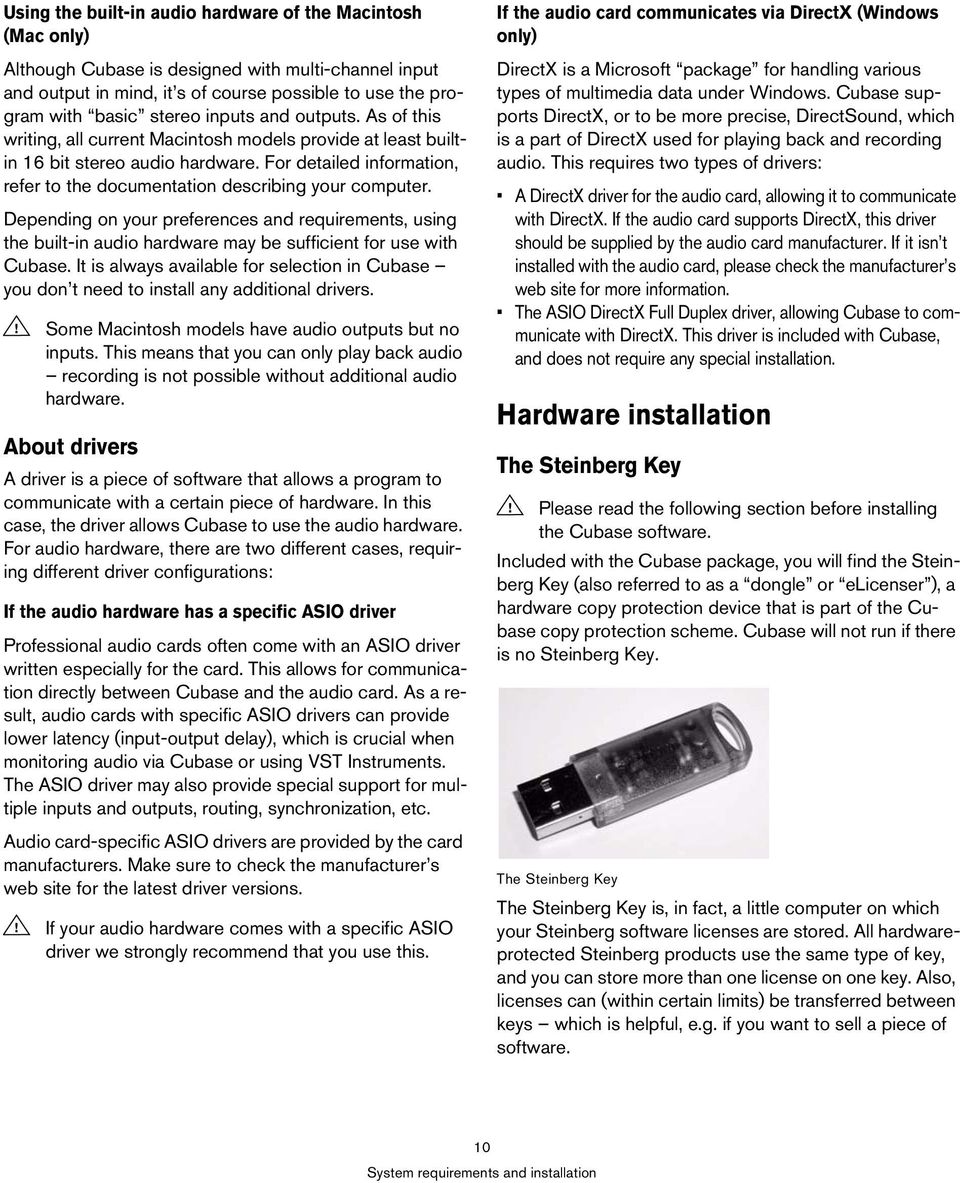
10 Using the built-in audio hardware of the Macintosh (Mac only) Although Cubase is designed with multi-channel input and output in mind, it s of course possible to use the program with basic stereo inputs and outputs. As of this writing, all current Macintosh models provide at least builtin 16 bit stereo audio hardware. For detailed information, refer to the documentation describing your computer. Depending on your preferences and requirements, using the built-in audio hardware may be sufficient for use with Cubase. It is always available for selection in Cubase you don t need to install any additional drivers.! Some Macintosh models have audio outputs but no inputs. This means that you can only play back audio recording is not possible without additional audio hardware. About drivers A driver is a piece of software that allows a program to communicate with a certain piece of hardware. In this case, the driver allows Cubase to use the audio hardware. For audio hardware, there are two different cases, requiring different driver configurations: If the audio hardware has a specific ASIO driver Professional audio cards often come with an ASIO driver written especially for the card. This allows for communication directly between Cubase and the audio card. As a result, audio cards with specific ASIO drivers can provide lower latency (input-output delay), which is crucial when monitoring audio via Cubase or using VST Instruments. The ASIO driver may also provide special support for multiple inputs and outputs, routing, synchronization, etc. Audio card-specific ASIO drivers are provided by the card manufacturers. Make sure to check the manufacturer s web site for the latest driver versions.! If your audio hardware comes with a specific ASIO driver we strongly recommend that you use this. If the audio card communicates via DirectX (Windows only) DirectX is a Microsoft package for handling various types of multimedia data under Windows. Cubase supports DirectX, or to be more precise, DirectSound, which is a part of DirectX used for playing back and recording audio. This requires two types of drivers: A DirectX driver for the audio card, allowing it to communicate with DirectX. If the audio card supports DirectX, this driver should be supplied by the audio card manufacturer. If it isn t installed with the audio card, please check the manufacturer s web site for more information. The ASIO DirectX Full Duplex driver, allowing Cubase to communicate with DirectX. This driver is included with Cubase, and does not require any special installation. Hardware installation The Steinberg Key! Please read the following section before installing the Cubase software. Included with the Cubase package, you will find the Steinberg Key (also referred to as a dongle or elicenser ), a hardware copy protection device that is part of the Cubase copy protection scheme. Cubase will not run if there is no Steinberg Key. The Steinberg Key The Steinberg Key is, in fact, a little computer on which your Steinberg software licenses are stored. All hardwareprotected Steinberg products use the same type of key, and you can store more than one license on one key. Also, licenses can (within certain limits) be transferred between keys which is helpful, e.g. if you want to sell a piece of software. 10 System requirements and installation
11 The Syncrosoft License Control Center (which can be found in the Start/Programs menu under Windows or the Applications folder on a Mac) is the place where you can check the licenses installed on your Steinberg Key. If you are using other copy-protected Steinberg products, you may want to transfer all licenses for your applications to only one Steinberg Key, thus using only one USB port of your computer. To transfer licenses between keys, launch the License Transfer wizard of the Syncrosoft License Control Center and follow the instructions. Steinberg software products always come with a license activation code, but not always with a Steinberg Key if you want to activate a license for such a Steinberg software (e.g. a VSTi) on the Steinberg Key you received with Cubase, launch the License Download wizard of the Syncrosoft License Control Center and follow the instructions. More information on the transfer or activation of licenses can be found in the help for the Syncrosoft License Control Center. Installing the audio hardware and its driver 1. Install the audio card and related equipment in the computer, as described in the card s documentation. 2. Install the driver for the card. Depending on the operating system of your computer, there are different types of drivers that could apply: card-specific ASIO drivers, DirectX drivers (Windows) or Mac OS X (Mac) drivers: Specific ASIO driver If your audio card has a specific ASIO driver, it may be included with the audio card, but you should always make sure to check the audio card manufacturer s web site for the most recent drivers. For details on how to install the driver, refer to the manufacturer s instructions. Mac OS X drivers (Mac only) If you are using a Macintosh computer, make sure you are using the latest Mac OS X drivers for your audio hardware. Follow the manufacturer s instructions to install the driver. Testing the card To make sure the audio card will work as expected, perform the following two tests: Use any software included with the audio card to make sure you can record and play back audio without problems. If the card is accessed via a standard operating system driver, try playing back audio using the computer s standard audio application (e.g. Windows Media Player or Apple itunes). Installing a MIDI interface/synthesizer card Installation instructions for a MIDI interface should be included with the product. However, here s an outline of the necessary steps: 1. Install the interface (or MIDI synthesizer card) inside your computer or connect it to a port (connector) on the computer. Which is right for you depends on which type of interface you have. 2. If the interface has a power supply and/or a power switch, turn it on. 3. Install the driver for the interface, as described in the documentation that comes with the interface. You should also make sure to check the manufacturer s web site for the latest driver updates. DirectX driver (Windows only) If your audio card is DirectX compatible, its DirectX drivers will most likely be installed when you install the card. If you have downloaded special DirectX drivers for the audio card, you should follow the manufacturer s installation instructions. 11 System requirements and installation
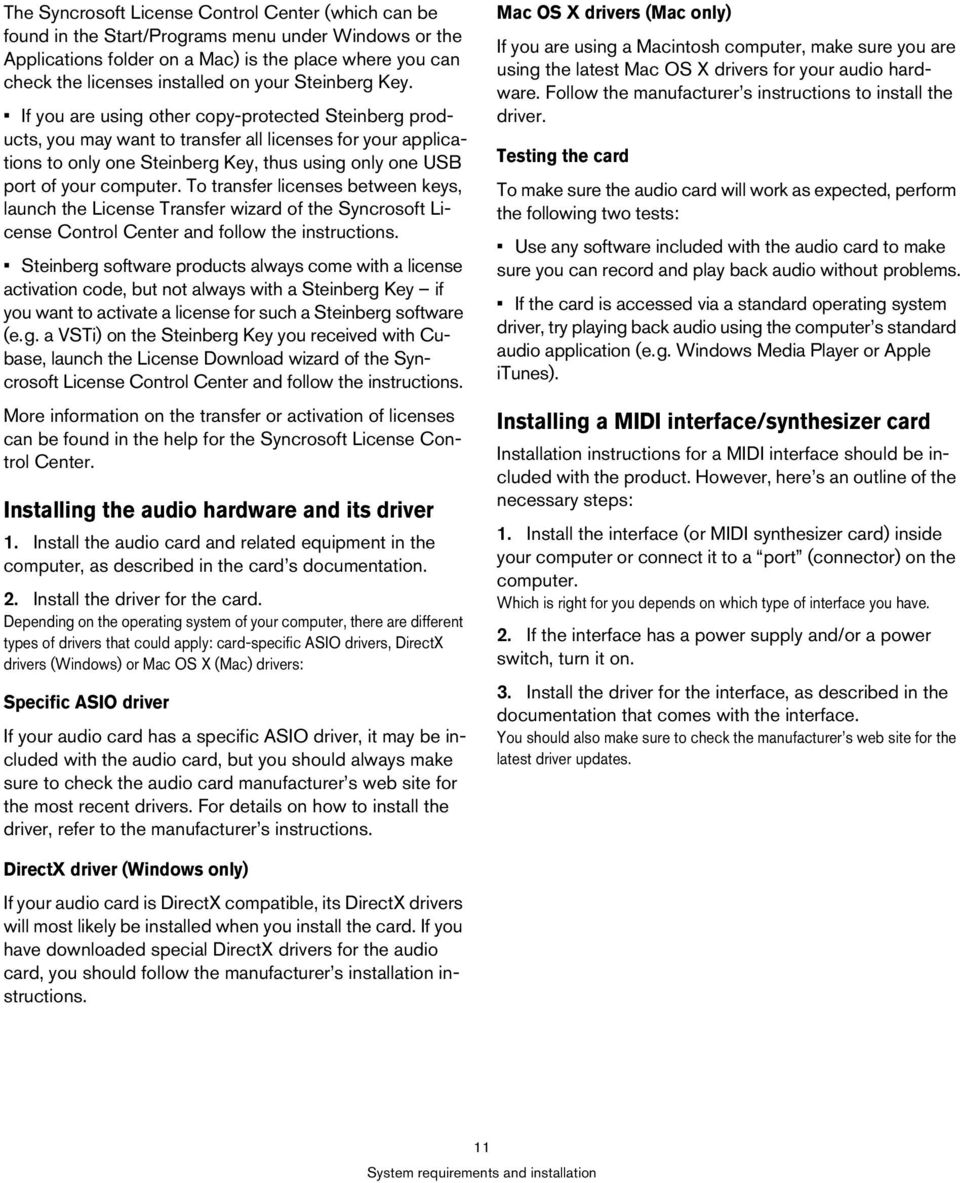
12 Installing Cubasew The installation procedure puts all files in the right places, automatically. Windows 1. Double-click the file called Cubase4.msi or CubaseStudio4.msi. 2. Follow the instructions on screen. Macintosh 1. Double-click the file called Cubase4.mpkg or Cubase Studio 4.mpkg. 2. Follow the instructions on screen. About the tutorials The program DVD also contains several tutorial project files and videos. These are not installed during the installation, but can be added manually from the DVD. The tutorial chapters in this manual all refer to these tutorial projects. So, to be able to follow the instructions in this manual, you have to drag the files to your computer. You find the Tutorial Projects in the folder Additional Content. Register your software We encourage you to register your software! By doing so you are entitled to technical support and kept aware of updates and other news regarding Cubase. There are two ways to register: In Cubase, open the Help menu and select the Registration option. This option is an Internet link that will open the Registration page of the Steinberg web site. To register, simply follow the instructions on screen. When you launch Cubase, you will also be prompted to launch the registration process. Included on the Cubase installation DVD, you can find a registration form in pdf format. To register, print out the form, enter all required information and send it to Steinberg. Defragmenting the hard disk (Windows only) If you plan to record audio on a hard disk where you have already stored other files, now is the time to defragment it. Defragmentation reorganizes the physical allocation of space on the hard disk in order to optimize its performance. It is done with a special defragmentation program.! It is crucial to the audio recording performance that your hard disk is optimized (defragmented). You should make sure to defragment regularly. 12 System requirements and installation
13 3 Setting up your system
14 Setting up audio! Make sure that all equipment is turned off before making any connections! Connecting audio Exactly how to set up your system depends on many different factors, e.g. the kind of project you wish to create, the external equipment you want to use, the computer hardware available to you, etc. Therefore, the following sections can only serve as examples. How you connect your equipment, i.e. whether you use digital or analog connections, also depends on your individual setup. Stereo input and output the simplest connection If you only use a stereo input and output from Cubase, you can connect your audio hardware, e.g. the inputs of your audio card or your audio interface, directly to the input source and the outputs to a power amplifier and speaker. A simple stereo audio setup. This is probably the simplest of all setups once you have set up the internal input and output busses, you can connect your audio source, e.g. a microphone, to your audio interface and start recording. Multi-channel input and output Most likely however, you will have other audio equipment that you want to integrate with Cubase, using several input and output channels. Depending on the equipment available to you, there are two ways to go: either mixing using an external mixing desk, or mixing using the mixer inside Cubase. External mixing means having a hardware mixing device with a group or bus system that can be used for feeding inputs on your audio hardware. In the example below, four busses are used for feeding signals to the audio hardware s inputs. The four outputs are connected back to the mixer for monitoring and playback. Remaining mixer inputs can be used for connecting audio sources like microphones, instruments, etc. A multi-channel audio setup using an external mixer. When connecting an input source (like a mixer) to the audio hardware, you should use output busses, sends or similar that are separate from the mixer s master output to avoid recording what you are playing back. You may also have mixing hardware that can be connected via FireWire. When using the Mixer inside Cubase, you can use the inputs on your audio hardware to connect microphones and/or external devices. Use the outputs to connect your monitoring equipment. Cubase only: You can create very complex setups using external instruments and external effects, and integrate Cubase seamlessly with all your external equipment using the Control Room feature (see the chapters VST Connections: setting up input and output busses and The Control Room in the Operation Manual for details). Mixing inside Cubase 14 Setting up your system

15 Connecting for surround sound (Cubase only) If you plan to mix for surround sound, you can connect the audio outputs to a multi-channel power amplifier, driving a set of surround channels. A surround sound playback configuration. Cubase supports surround formats with up to 6 speaker channels. The figure above shows a 5.1 surround setup. Recording from a CD player Most computers come with a CD-ROM drive that can also be used as a regular CD player. In some cases the CD player is internally connected to the audio hardware so that you can record the output of the CD player directly into Cubase (consult the audio hardware documentation if you are uncertain). All routing and level adjustments for recording from a CD (if available) are done in the audio hardware setup application (see Making settings for the audio hardware on page 15). You can also grab audio tracks directly from a CD in Cubase (see the chapter File Handling in the Operation Manual). Word Clock connections If you are using a digital audio connection, you may also need a word clock connection between the audio hardware and external devices. Please refer to the documentation that came with the audio hardware for details. About recording levels and inputs When you connect your equipment, you should make sure that the impedance and levels of the audio sources and inputs are matched. Typically, different inputs may be designed for use with microphones, consumer line level (-10dBV) or professional line level (+4dBV), or you may be able to adjust input characteristics on the audio interface or in its control panel. Please check the audio hardware documentation for details. Using the correct types of input is important to avoid distortion or noisy recordings.! Cubase does not provide any input level adjustments for the signals coming in to your audio hardware, since these are handled differently for each card. Adjusting input levels is either done in a special application included with the hardware or from its control panel (see below). Making settings for the audio hardware Most audio cards come with one or more small applications that allow you to configure the inputs of the hardware to your liking. This includes: Selecting which inputs/outputs are active. Setting up word clock synchronization (if available). Turning monitoring via the hardware on/off (see About monitoring on page 18). Setting levels for each input. This is very important! Setting levels for the outputs, so that they match the equipment you use for monitoring. Selecting digital input and output formats. Making settings for the audio buffers. In many cases all available settings for the audio hardware are gathered in a control panel, which can be opened from within Cubase as described below (or opened separately, when Cubase isn t running). In some cases, there may be several different applications and panels please refer to the audio hardware documentation for details.! It is very important that word clock synchronization is done correctly or there might be clicks and crackles in recordings that you make! 15 Setting up your system

16 Selecting a driver and making audio settings in Cubase The first thing you need to do is select the correct driver in Cubase to make sure that the program can communicate with the audio hardware: 1. Launch Cubase, select Device Setup from the Devices menu and click on VST Audio System in the Devices list to the left. The VST Audio System page in the Device Setup dialog. 2. Select your audio hardware driver from the ASIO Driver menu. There may be several options here that all refer to the same audio hardware. When you have selected a driver, it is added to the Devices list.! Under Windows, we strongly recommend that you access your hardware via an ASIO driver written specifically for the hardware, if available. If no ASIO driver is installed, we recommend that you check with your audio hardware manufacturer if they have an ASIO driver available, for example for download via the Internet. 3. Select the driver in the Devices list to open the Driver settings for your audio hardware. 4. Bring up the control panel for the audio hardware and adjust the settings as recommended by the audio hardware manufacturer. Under Windows, you open the control panel by clicking the Control Panel button. The control panel that appears when you click this button is provided by the audio hardware manufacturer and not Cubase (unless you use DirectX, see below). Hence it will be different for each audio card brand and model. The Control panel for the ASIO DirectX driver is an exception, as it is provided by Steinberg, and is described in the dialog help, opened by clicking the Help button in the dialog. See also the notes below. Under Mac OS X, you will find the control panel for your audio hardware in the System Preferences ( Other section), opened from the Apple menu or from the Dock. If you are using the built-in audio hardware of the Macintosh, you use the Sound control panel in the System Preferences to set levels, balance, etc. If you are using ASIO audio hardware, you can click the Control Panel button to bring up its panel. 5. If you plan to use several audio applications simultaneously, you may want to activate the option Release Driver when Application is in Background on the VST Audio System page. This will allow another application to play back via your audio hardware even though Cubase is running. The application that is currently active (i.e. the top window on the desktop) will get access to the audio hardware. Make sure that any other audio application accessing the audio hardware is also set to release the ASIO (or Mac OS X) driver so Cubase can use it when it becomes the active application again. 6. If your audio hardware and its driver support ASIO Direct Monitoring, you may want to activate the Direct Monitoring checkbox on the page for the driver. Read more about monitoring later in this chapter and in the chapter Recording in the Operation Manual. 7. Click Apply and then OK to close the dialog. 16 Setting up your system

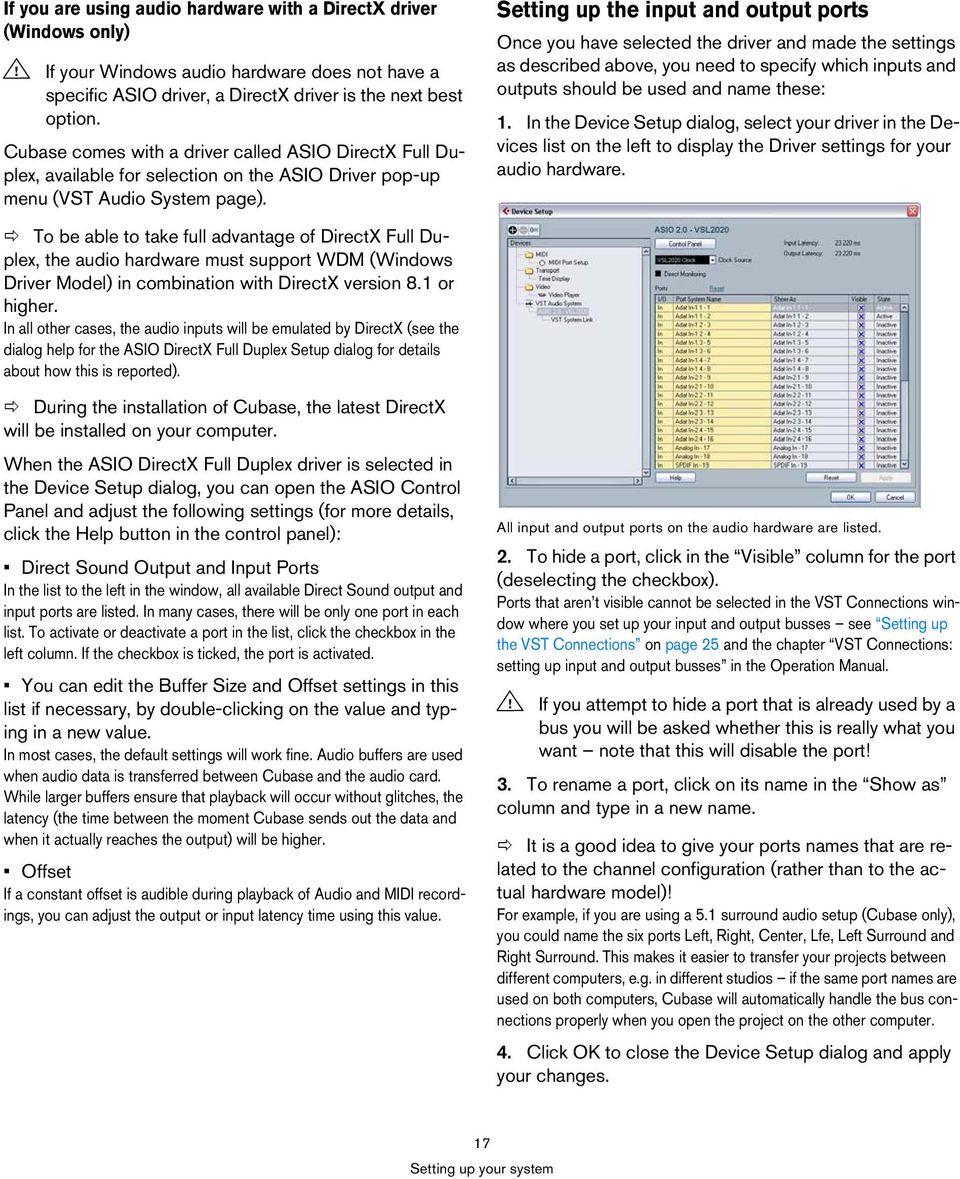
17 If you are using audio hardware with a DirectX driver (Windows only)! If your Windows audio hardware does not have a specific ASIO driver, a DirectX driver is the next best option. Cubase comes with a driver called ASIO DirectX Full Duplex, available for selection on the ASIO Driver pop-up menu (VST Audio System page). Setting up the input and output ports Once you have selected the driver and made the settings as described above, you need to specify which inputs and outputs should be used and name these: 1. In the Device Setup dialog, select your driver in the Devices list on the left to display the Driver settings for your audio hardware. To be able to take full advantage of DirectX Full Duplex, the audio hardware must support WDM (Windows Driver Model) in combination with DirectX version 8.1 or higher. In all other cases, the audio inputs will be emulated by DirectX (see the dialog help for the ASIO DirectX Full Duplex Setup dialog for details about how this is reported). During the installation of Cubase, the latest DirectX will be installed on your computer. When the ASIO DirectX Full Duplex driver is selected in the Device Setup dialog, you can open the ASIO Control Panel and adjust the following settings (for more details, click the Help button in the control panel): Direct Sound Output and Input Ports In the list to the left in the window, all available Direct Sound output and input ports are listed. In many cases, there will be only one port in each list. To activate or deactivate a port in the list, click the checkbox in the left column. If the checkbox is ticked, the port is activated. You can edit the Buffer Size and Offset settings in this list if necessary, by double-clicking on the value and typing in a new value. In most cases, the default settings will work fine. Audio buffers are used when audio data is transferred between Cubase and the audio card. While larger buffers ensure that playback will occur without glitches, the latency (the time between the moment Cubase sends out the data and when it actually reaches the output) will be higher. Offset If a constant offset is audible during playback of Audio and MIDI recordings, you can adjust the output or input latency time using this value. All input and output ports on the audio hardware are listed. 2. To hide a port, click in the Visible column for the port (deselecting the checkbox). Ports that aren t visible cannot be selected in the VST Connections window where you set up your input and output busses see Setting up the VST Connections on page 25 and the chapter VST Connections: setting up input and output busses in the Operation Manual.! If you attempt to hide a port that is already used by a bus you will be asked whether this is really what you want note that this will disable the port! 3. To rename a port, click on its name in the Show as column and type in a new name. It is a good idea to give your ports names that are related to the channel configuration (rather than to the actual hardware model)! For example, if you are using a 5.1 surround audio setup (Cubase only), you could name the six ports Left, Right, Center, Lfe, Left Surround and Right Surround. This makes it easier to transfer your projects between different computers, e.g. in different studios if the same port names are used on both computers, Cubase will automatically handle the bus connections properly when you open the project on the other computer. 4. Click OK to close the Device Setup dialog and apply your changes. 17 Setting up your system
18 About monitoring In Cubase, monitoring means listening to the input signal while preparing to record or while recording. There are three ways to monitor: External monitoring External monitoring (listening to the input signal before it goes into Cubase) requires an external mixer for mixing the audio playback with the input signal. This can be a classic mixing desk or a mixer application for your audio hardware, if this has a mode in which the input audio is sent back out again (usually called Thru, Direct Thru or similar). Via Cubase In this case, the audio passes from the input into Cubase, possibly through Cubase effects and EQ and then back to the output. You control monitoring via settings in Cubase. This allows you to control the monitoring level from Cubase and add effects to the monitored signal only. ASIO Direct Monitoring If your audio hardware is ASIO 2.0 compatible, it may support ASIO Direct Monitoring (this feature may also be available for audio hardware with Mac OS X drivers). In this mode, the actual monitoring is done in the audio hardware, by sending the input signal back out again. However, monitoring is controlled from Cubase. This means that the audio hardware s direct monitoring feature can be turned on or off automatically by Cubase. Monitoring is described in detail in the chapter Recording in the Operation Manual. However, when setting up, there s one thing to note: If you want to use the external monitoring via your audio hardware, make sure the corresponding functions are activated in the card s mixer application. If you are using RME Audio Hammerfall DSP audio hardware, make sure that the pan law is set to -3dB in the card s preferences. Setting up MIDI! Make sure that all equipment is turned off before making any connections! This section describes how to connect and set up MIDI equipment. If you have no MIDI equipment, you can skip this section. Note that this is only an example you might need or want to hook things up differently! Connecting the MIDI equipment In this example we assume that you have a MIDI keyboard and an external MIDI sound module. The keyboard is used both for feeding the computer with MIDI messages for recording and for playing back MIDI tracks. The sound module is used for playback only. Using Cubase s MIDI Thru feature (described later) you will be able to hear the correct sound from the sound module while playing the keyboard or recording. A typical MIDI Setup. 18 Setting up your system

19 You might want to use even more instruments for playback. If you do, simply connect MIDI Thru on the sound module to MIDI In on the next instrument, and so on. In this hook-up, you will always play the first keyboard when recording. But you can still use all your devices for providing sounds on playback.! If you plan to use more than three sound sources, we recommend that you either use an interface with more than one output, or a separate MIDI Thru box instead of the Thru jacks on each unit. Setting MIDI Thru and Local On/Off In the MIDI section in the Preferences dialog (located on the File menu under Windows and on the Cubase menu under Mac OS X), you will find a setting called MIDI Thru Active. This is related to a setting in your instrument called Local On/Off or Local Control On/Off. If you use a MIDI keyboard instrument, as described earlier in this chapter, MIDI Thru should be activated and that instrument should be set to Local Off (sometimes called Local Control Off see the instrument s operation manual for details). The MIDI signal from the keyboard will be recorded in Cubase and at the same time be re-routed back to the instrument so that you hear what you are playing, without the keyboard triggering its own sounds. When you press a key, it is sent out via MIDI to Cubase. When MIDI Thru is active in Cubase, MIDI data received is immediately echoed back out. MIDI data coming in to the instrument is played by the Synth inside it. Synth When Local Control is turned on in the instrument, the keys you press will be played by the Synth inside the Instrument. When Local Control is turned off, this connection is cut off. If you use a separate MIDI keyboard one that does not produce any sounds itself MIDI Thru in Cubase should also be activated, but you don t need to look for any Local On/Off setting in your instruments. The only case where MIDI Thru should be deactivated is if you use Cubase with only one keyboard instrument and that instrument cannot be set to Local Off mode. Note that MIDI Thru will be active only for those MIDI tracks that are record enabled and/or have the Monitor button activated. See the chapter Recording in the Operation Manual for more information. 19 Setting up your system

20 Setting up MIDI ports in Cubase The Device Setup dialog lets you set up your MIDI system in the following ways: Note: When you change MIDI port settings in the Device Setup dialog, these are automatically applied in the program. Showing or hiding MIDI Ports The MIDI ports are listed in the Device Setup dialog on the MIDI Port Setup page. By clicking in the Visible column for a MIDI input or output, you can specify whether or not it should be listed on the MIDI pop-up menus in the program. If you are trying to hide a MIDI port which is already selected for a track or a MIDI device, a warning message will appear, allowing you to hide and disconnect the port or to cancel the operation and keep the MIDI port visible. Setting up the All MIDI Inputs option When you record MIDI in Cubase, you can specify which MIDI input each recording MIDI track should use. However, you can also select the In All Inputs option for an input port, which causes any MIDI data from any MIDI input to be recorded. The In All Inputs option on the MIDI Port Setup page allows you to specify which inputs should be included when you select All MIDI Inputs for a MIDI track. This can be especially useful if your system provides several instances of the same physical MIDI input by deactivating the duplicates you make sure only the desired MIDI data is recorded. If you have a MIDI remote control unit connected, you should also make sure to deactivate the In All Inputs option for that MIDI input. This will avoid accidentally recording the data from the remote control when the All MIDI Inputs option is selected as input for a MIDI track. Connecting a synchronizer! Make sure that all equipment is turned off before making any connections! When using Cubase with external tape transports, you will most likely need to add a synchronizer to your system. All connections and setup procedures for synchronization are described in the chapter Synchronization in the Operation Manual. Setting up video! Always make all connections with all equipment turned off! Cubase plays back video films in AVI, Quicktime or MPEG formats. Under Windows, video can be played back using one of the following playback engines: Video for Windows, DirectShow or Quicktime. This ensures compatibility with as wide a range of video files as possible. Under Mac OS X, Quicktime is always used as playback engine. Generally there are two ways to play back video: Without any special hardware at all, using the computer CPU. In this case, the codec is in software. While this will be fine in many situations it does put a limit on the size of the video window as well as the quality of the image. Using video hardware that for example connects to an external monitor. Mac OS X: Using a FireWire port, you can play back video on an external monitor using a DV-to-analog converter or a DV camera (see also the chapter Video in the Operation Manual). This is valid for DV video and QuickTime is used for playback. Windows: Multi-head graphics cards which support overlay functionality can be used to display the video picture on an external monitor. The following manufacturers have working (and tested) solutions available: nvidia and Matrox. If you plan to use special video hardware, install it and set it up as recommended by the manufacturer. Before you use the video hardware with Cubase, we recommend that you test the hardware installation with the utility applications that came with the hardware and/or the Windows Media Player or Quicktime Player (Mac OS X) applications. 20 Setting up your system

21 Optimizing audio performance This section gives you some hints and tips on how to get the most out of your Cubase system, performance-wise. Some of this text refers to hardware properties and can be used as a guide when upgrading your system. This text is very brief. Look for details and current information on the Cubase web site (see How you can reach us on page 7)! Two aspects of performance There are two distinct aspects of performance in respect to Cubase: Tracks and effects Simply put: the faster your computer, the more tracks, effects and EQ you will be able to play. Exactly what constitutes a fast computer is almost a science in itself, but some hints are given below. Short response times (latency) Another aspect of performance is response time. The term latency refers to the buffering, i.e. the temporary storing, of small chunks of audio data during various steps of the recording and playback process on a computer. The more and larger those chunks, the higher the latency. High latency is most irritating when playing VST Instruments and when monitoring through the computer, i.e. when listening to a live audio source via the Cubase mixer and effects. However, very long latency times (several hundred milliseconds) can also affect other processes like mixing, e.g. when the effect of a fader movement is heard only after a noticeable delay. While Direct Monitoring and other techniques reduce the problems associated with very long latency times, a system that responds fast will always be more convenient to work with. Depending on your audio hardware, it may be possible to trim your latency times, usually by lowering the size and the number of buffers. For details, refer to the audio hardware documentation, or, if you are using a DirectX driver under Windows, the dialog help. System factors that affect performance CPU and processor cache It goes without saying that the faster the computer processor, the better. But there are a number of factors that affect the apparent speed of a computer: the bus speed and type (PCI is strongly recommended), the processor cache size and of course, the processor type and brand. Cubase relies heavily on floating point calculations. When shopping for a processor, please make sure you get one that is powerful in calculating floating point arithmetics. Note also that Cubase features full support for multi-processor systems. So, if you own a computer system with more than one processor, Cubase can take advantage of the total capacity and evenly distribute the processing load to all available processors. See The advanced options on page 22. Hard disk and controller The number of hard disk tracks you can record and play back at the same time also depends on the speed of your hard disk and hard disk controller. If you use E-IDE disks and controllers, make sure that the transfer mode is DMA Busmaster. Under Windows, you can check the current mode by launching the Windows Device Manager and looking for properties of the IDE ATA/ATAPI Controller s primary and secondary channel. DMA transfer mode is enabled by default, but may be turned off by the system should hardware problems occur. Audio hardware and driver The hardware and its driver can have some effect on regular performance. A badly written driver can reduce the performance of your computer. But where the hardware driver design makes the most difference is with latency.! Again, we strongly recommend that you use audio hardware for which there is a specific ASIO driver! This is especially true when using Cubase for Windows: Under Windows, ASIO drivers written specifically for the hardware are more efficient than a DirectX driver and produce shorter latency times. 21 Setting up your system
22 Under Mac OS X, audio hardware with properly written Mac OS X (Core Audio) drivers can be very efficient and produce very low latency times. However, there are additional features currently only available with ASIO drivers, such as the ASIO Positioning Protocol. Making settings that affect performance Choosing a driver for your audio hardware As described in the section Selecting a driver and making audio settings in Cubase on page 16, it is recommended to install and use a standard ASIO driver if available for your specific hardware. Check the manufacturer s web site for the latest drivers, etc. Making audio buffer settings Audio buffers affect how audio is sent to and from the audio hardware. The size of the audio buffers affects both the latency and the audio performance. Generally, the smaller the buffer size, the lower the latency. On the other hand, working with small buffers can be demanding for the computer. If the audio buffers are too small, you may get clicks, pops or other audio playback problems. Under Mac OS X, you can adjust the size of the buffers on the VST Audio System page in the Device Setup dialog. You may also find buffer settings in the control panel for the audio hardware. Under Windows, you adjust the buffer size settings in the control panel for the audio hardware (opened by clicking the Control Panel button on the driver page in the Device Setup dialog). Optimizing processor scheduling (Windows only) To get the lowest possible latencies when using ASIO under Windows XP (on a single-cpu system), the system performance has to be optimized for background tasks: 1. Open the Windows Control Panel from the Start menu and select System. 2. Select the Advanced tab and click the Settings button in the Performance section. The Performance Options dialog appears. 3. Select the Advanced tab. 4. In the Processor Scheduling section, select Adjust for best performance of: Background services. 5. Click OK to close the dialogs. The advanced options On the VST Audio System page you will find the Advanced options section. Here you find advanced settings for the VST Engine, including a Multi Processing option. When this is activated (default setting if you have a hyper-threading or multiple-cpu system) and there is more than one CPU in your system, the processing load is distributed evenly to all available CPUs, allowing Cubase to make full use of the combined power of the multiple processors. See the dialog help for details. Activating the Lower Latency option will basically disable the CPU overload protection, but allow for lower latencies. See the dialog help for details. 22 Setting up your system
23 4 Tutorial 1: Recording audio
24 Creating a new project In this section we are going to explain how to create a new project, save a project and open a saved project. When you first open Cubase an empty screen appears before you. You need to either create a new project or open an existing one. 8. Give your new folder a name. If your are going to name your project My First Project then you could call this folder My First Project or First Project. What s important here is that you are creating a folder on the hard drive to store your project into it. This folder should have a unique name that is different than any other Cubase project you have created before. To create a new project 1. Let s create a new project by selecting New Project from the File Menu. 2. The Templates dialog box will open up. Templates are discussed in the File Handling section of the Operation Manual. 3. Choose Empty. This will create a new project with nothing in it. 4. Click OK. 5. Cubase now wants to create a folder on the hard drive so that your Cubase project file and all of its related files are stored in one safe place. It is important that every project gets stored in its own folder. Having many different projects stored in the same folder only leads to confusion later on. 6. Navigate to where you would like this project to be created. NOTE: You are not saving the project at this point! You are creating a folder on the hard drive that your project will get saved into later. This will be explained very shortly. 7. Click Create on the PC or New Folder on the Mac to create a new folder for your project. 9. Click OK on the PC or Create on the Mac. Your project folder is now created on the hard drive! 10. Now click OK on the PC or Choose on the Mac. 11. You should be looking at your very first project in Cubase now, Congratulations! If you look at the top of the window in Cubase (called the Project window) you ll see the name of this project is Untitled1. Proceed further to learn how to save your first project. The name of the project! You re not done yet! So far we ve created a blank Cubase project. We have a folder sitting on the hard drive but we haven t saved the actual Cubase project yet. 24 Tutorial 1: Recording audio
25 To save a project 1. Select Save As from the File menu. The difference between Save and Save As are discussed in the chapter File Handling in the Operation Manual. 2. You will notice that Cubase is in the My First Project folder that you created earlier. This is where you want to save your project. Type in a name for your Project you can use My First Cubase Project for example. 3. Click Save and that s it! To close a project 1. Make sure the Project window is selected. The Project window is the main window that you work in. See the chapter The Project window in the Operation Manual. 2. Select Close from the File Menu. If you have made any changes to the project since you last saved it, you will be prompted to Save, Don t Save or Cancel. Click Save if you want your changes saved. To open a project Now that we have saved and closed your project, let s show you how to open it. Open a project using the Open command 1. Select Open from the File Menu. Here you can navigate to the folder that has the project you wish to open. 2. Once you have found the project click Open and the project will load. Open a project using the Recent Projects submenu Cubase remembers recently open projects and lists them in the Recent Projects submenu under the File menu. 1. Select Recent Projects from the File Menu. 2. Choose the project you wish to open by clicking once on it. Setting up the VST Connections The VST Connections window allows you to set up the input and output signals of Cubase to your audio card. Cubase calls these busses. This section will show you how to set the busses up so that you can get playback and recording working. Make sure you read the chapters System requirements and installation on page 8 and Setting up your system on page 13, so that your audio hardware is properly setup before proceeding.! Load the project called VST Connections found in the Tutorial 1 folder. Note that the Tutorial projects are not installed by default during the installation of Cubase. You will find the Tutorial Projects on the program DVD, in the folder Additional Content. Adding outputs 1. Open the Devices menu and choose VST Connections. The default key command for this is [F4]. You ll see several tabs at the top of the window. We re only going to cover Input and Output right now. See the chapter VST Connections in the Operation Manual for more details. 2. Let s choose Output first. We want to start from scratch and remove anything that is currently there, just in case it s set up incorrectly. If you see anything in the Bus Name column, right-click with the mouse and choose Remove Bus. 25 Tutorial 1: Recording audio
26 3. Now click the Add Bus button. Choose Stereo for configuration and 1 for count and click OK. This has now added a new stereo bus (Left and Right) allowing us to have audio in Cubase route to our audio hardware. 4. Since we mainly listen to our music as a stereo mix, all we need is a stereo output. We can listen to our music with more than 2 channels. If we for example had a surround sound setup. 5. Depending on your audio hardware, your outputs should be setup now. You can however select the outputs of your choice from the Device Port pull down menu. Normally you ll want to choose Out 1 and Out 2 or Left 1 and Right 2 as these are the main stereo outputs of your audio card. More sophisticated setups may require you to choose different outputs and even add more busses. 2. Next, click in the Device Port column to select the audio inputs of your audio card for the stereo and mono inputs. In our case we have the MI4 interface so we are selecting MI4 Channel A and MI4 Channel B for our inputs. That s it! You should now be ready to record audio in Cubase and then play it back. Level settings and recording Adding Inputs Now let s open the Input tab and set up the inputs we are going to use for recording into Cubase. 1. Do the same as mentioned above for the outputs. Right-click and select Remove Bus. 2. Click the Add Bus button. Choose Stereo for configuration and 1 for count and click OK. This has now added a new stereo bus (Left and Right) allowing us to have audio from our audio card s input route to Cubase for recording. Having a stereo input is useful for recording audio with two channels. An example of this is recording a keyboard with a left and right audio channel. If we wanted to record in mono or with one channel we can make separate busses. Let s do this now. 1. Click the Add Bus button. Choose Mono for configuration and 2 for count and click OK. This has now added two new mono busses allowing us to have audio from our audio card s input route to Cubase for recording. For this section, we are going to record a bass guitar in mono from the input Mono In. Make sure you have your audio card set up and you have read through the section Setting up the VST Connections on page 25.! Load the project called Recording found in the Tutorial 1 folder. Adding a mono track 1. Now let s add an audio track to record to. Open the Project menu and choose Audio from the Add Track submenu. 2. Choose Mono for Configuration and 1 for Count. Click OK. This adds a mono audio track to our Project window. 26 Tutorial 1: Recording audio
27 3. Click on the new track you ve created and make sure the Inspector is shown. The Inspector allows us to see and manipulate a lot of information for the selected track. Click to open the Inspector Turning on the metronome click We ll want to have a click or metronome play in the background as we record the bass guitar so that what we record aligns with the bars and beats in Cubase. 1. Activate the Metronome/Click button on the Transport panel. 2. If you would like a two bar count in before you record, also activate the Precount/Click button. The Inspector 4. Make sure that Mono In is selected for the audio track s input and that Stereo Out is selected for the audio tracks output. You may have different inputs and outputs based on your audio hardware. See the chapter VST Connections in the Operation Manual for more detailed information. By setting Mono In, we will be able to record the audio from the left input of our audio card into a track in Cubase. Setting the output to Stereo Out allows us to hear what we are recording. 3. We now need to set the speed or the tempo of our project. This will directly affect how fast the click plays. You can set the tempo just below the click. In this picture, we have a setting of 125, which means 125bpm (beats per minute). Setting levels We have a bass guitar playing through an amplifier with a microphone in front of the amplifier s speaker. This microphone is plugged directly into the Steinberg MI 4 microphone input. We have set the level on the MI 4 so that we have enough volume without clipping. 1. Clicking the Monitor button will allow us to hear the bass guitar. You should see and hear the audio coming in to the right of the track. Audio coming into this track 27 Tutorial 1: Recording audio
28 2. Now click the Record Enable button on the track. Setting the track to Record Enable lets Cubase know that you want to record on this track and no other one. You can have many tracks Record Enabled at a time. Do not allow the audio level to go past this line! This is the safe area for recording 3. In the Inspector, open the Channel tab. This will display the channel fader for the selected track. Click here to display the channel fader. Once the level is set, you are ready to record! Recording bass guitar 1. Position the cursor at the beginning of the project. This will make sure we start recording on bar Click the Record button to record the bass guitar. Since the Precount/Click button is activated, we ll hear two bars of click before recording begins. 3. Click Stop when you are finished. 4. Turn off the Monitor and Record Enable buttons on the track so that we don t hear the input or record on the track any more. Congratulations! You have just recorded your first piece of audio in Cubase. Move ahead to the next section to learn how to play back audio. Do the best you can to send the maximum amount of volume to the audio inputs of your audio card before you hear any distortion. Most audio cards show some kind of level or volume indication. If yours doesn t, don t worry, we can change the amount here. 4. Move the fader up or down so that the volume is loud enough without going into the red on the channel meter. If you go into the red you may cause clipping or distortion. You will see a line near the top of the channel meter make sure the level does not go over this line! 28 Tutorial 1: Recording audio
29 Playback We are going to learn how to play back audio in Cubase. You might think this is very simple just hit Play. It is actually this simple but there are a few tricks to learn so that you ll be playing back what you want with precision.! Load the project called Playback found in the Tutorial 1 folder. To start playback There are a few ways you can play back in Cubase. Click the Start button on the Transport panel. Press the space bar on your computer keyboard. This toggles between start and stop. Press the [Enter] key of the numerical computer keypad. Double-click in the lower half of the ruler. Select the audio event called Audio 01_01 and choose Loop Selection from the Transport menu.! The default key command for this is [Shift]+[G]. This is the quickest way to loop an audio event and start playback! To stop playback Click the Stop button on the Transport panel. Clicking the Stop button twice moves the cursor to the position in the project where you started playback. Press the space bar on your computer keyboard. This toggles between stop and start. Press the 0 key of the numerical computer keypad. Cycle playback Cubase has the ability to loop or cycle a section of your project. To set the cycle location you need to use the left and right locator. 1. On the Transport panel, set the left locator to 1 and the right locator to 5. This tells Cubase that we want to loop or cycle between bars 1 and 5. Meaning we will have a 4 bar loop since the end of bar 4 is the beginning of bar 5. The left locator set to 1. Double-click in the lower half of the ruler The right locator set to 5. Cycle activated. 2. Make sure that the Cycle button is activated. 3. Click the Start button on the Transport panel and Cubase will play looping over and over until you click Stop. to start playback! Don t forget you can set the locators to encompass the selected event, turn on Cycle and begin playback all by the key command [Shift]+[G]. 29 Tutorial 1: Recording audio
30 Recording modes with cycle off There are three different modes for recording when the cycle is turned off. This is called linear recording. The three modes are: Normal Merge Replace When recording audio, Normal and Merge are the same. Selecting either of these will allow you to record over the top of another audio event and it will appear as an overlap. You can then select between the overlapping events and determine which one will play. This is discussed in the section Cycle recording on page 30. Recording electric guitar 1. Let s add another Mono audio track. 2. You can see now that we have a track called Audio 01 and Audio 02. Up to now we haven t been concerned about naming the tracks but let s do this now. Replace mode when used will not overlap the audio if there is already some on the track. It will split or cut the audio where the recording takes place replacing what was there previously. Keep in mind though that the audio being replaced is not permanently deleted. It is only cut or trimmed away allowing you to recover it later. Cycle recording You can record audio while cycle is on.! Load the project called Cycle Recording found in the Tutorial 1 folder. So far we ve shown you how to add tracks, record and playback. Now we are going to add an electric guitar to our bass guitar using cycle recording. Recording with cycle on allows us to make multiple passes of our recording and then pick the best take. If you haven t reviewed the previous sections in this tutorial, please do as we are going to move a little faster now. 3. Double-click on Audio 01 and re-name it Bass. 4. Double-click on Audio 02 and re-name it Elec Guitar. That looks a lot better now. It s always good to name your tracks before you start to record. This way the audio event will take the name of the track. Since Audio 01 was the name of our first track the audio event is named Audio 01_01. The suffix _01 being the first event recorded on the Audio 01 track. We ll show you how to re-name your audio files in the chapter Tutorial 2: Editing audio on page Tutorial 1: Recording audio
31 5. Make sure Cycle is activated, set the left locator to 2 and the right locator to 18. This will loop or cycle between bars 2 and On the Transport panel, make sure Mix (MIDI) is selected for the Cycle Record Mode. This will allow us to record the electric guitar, and as each cycle repeats a new take will be created. We will then choose the best take to keep as our guitar line. Selecting different takes 1. Right-click on the new guitar audio event that we just recorded and choose a take from the Set to Region submenu. Cubase has recorded all of the passes we made when we were recording in loop mode (Cycle Recording). These passes are called Takes. In our example we have three different guitar takes. We can pick between them and choose which one sounds best. Current take Available takes Cycle Record Mode 7. Activate the Record Enable and Monitor buttons on the Elec Guitar track. 8. Click the L button on the Transport panel once. This will make sure we start recording at the left locator. 9. Click the Record button on the Transport panel. As you record the guitar, let the cycle repeat three times so we have three different guitar takes. 10. Click Stop when you re finished. We ve just recorded three different guitar takes. Now let s figure out how to select the best sounding one. 2. Listen to the different takes and when you are done, choose Take 1. Stacked recording Stacked recording is very similar to cycle recording but with one difference you can see the Takes that you record all the time instead of them being hidden underneath. 1. Create a new Mono track. 2. Re-name the track Guitar On the Transport panel, select the Cycle Record Mode Stacked.! Load the tutorial called Cycle Recording 2 found in the Tutorial 1 folder. The Cycle Record Mode pop-up menu. 4. Activate the Record Enable and Monitor buttons on the track Guitar Click the Record button on the Transport panel. 31 Tutorial 1: Recording audio
32 6. When you are done recording, click Stop. You should see the recorded audio events appearing below each other as separate takes. 11. You will see three takes. The bottom two are muted and the top one that is green colored (Take 1) is the one that will currently play. 7. Click the lower border of the Guitar 2 track and drag downwards to resize it larger. This allows you to see the audio takes much better. 12. Mute Take 1 and un-mute Take 2. This allows Take 2 to be heard. Notice that Take 2 is now colored green. 8. Deactivate the Record Enable and Monitor buttons.! Load the tutorial called Stacked Recording found in the Tutorial 1 folder. 9. Open the Preferences dialog (Editing Audio page) and make sure that the option Treat Muted Audio Events like Deleted is activated. 10. On the toolbar, select the Mute tool. This will allow us to switch between our stacked recorded takes. 13. You can do the same for Take 3. Continue to the following chapter, as we will show you how to edit what we ve recorded using some of the tools. 32 Tutorial 1: Recording audio
33 5 Tutorial 2: Editing audio
34 Event operations 5. Notice that our audio event now says Bass. In this section we ll learn how to edit events or parts. This includes rename, resize, split, glue, move, copy, repeat, mute, erase and adding a fade.! Load the project called Event Operations found in the Tutorial 2 folder. Renaming If we look at the audio events that we recorded earlier, we notice that the bass track has an audio event on it called Audio 01_01. This is because the name of the track was originally Audio 01 and the suffix _01 means that it is the 1st audio file to be recorded on the track. The second audio file would be called Audio 01_02. Naming your audio files keeps your project clean and easy to understand. Let s rename Audio 01_01 to Bass : 1. Choose the Object Selection tool. The name has changed from Audio 01_01 to Bass. Resizing You resize an event by adjusting the start and/or end of the event. Used in combination with the split tool this is usually all the editing you ll need. 1. Choose the Object Selection tool. 2. Click on the event you wish to resize. In our case let s change the Bass event. There is extra space on either side of the Bass audio event that we don t want. 2. Click on the event Audio 01_ Make sure Show Event Infoline is activated on the toolbar. White squares appear on the bottom left and bottom right of the event. Resize the event with these. The Event Infoline gives us detailed information about an object or objects that are currently selected in the event display. 4. Change Audio 01_01 to Bass underneath the word File. This changes the audio file s name directly on the hard drive easy! 3. Position the cursor over one of the squares at the bottom right or bottom left of the event. Click and adjust the Bass event so that it lines up with Elec Guitar_ Tutorial 2: Editing audio
35 Splitting Splitting is used to cut events. You can split or cut an event wherever you want or split them evenly to bars and beats. Splitting with Snap off Splitting with Snap off allows you to cut anywhere without locking to any kind of reference like bars and beats. 1. Choose the Split tool. Splitting with Snap on Having Snap on allows you to split or cut to a time reference. For example, if you want to cut the Elec Guitar track to bars or beats. 1. Choose the Split tool. 2. Make sure Snap is on. Snap allows you to edit to various time frames. The most common one is bars and beats. Meaning you can cut exactly to the bar with Snap turned on. With it turned off you can cut anywhere. See more about Snap in the chapter The Project window in the Operation Manual. 2. Make sure Snap is off (not highlighted). Snap allows you to edit to various time frames. The most common one is bars and beats. Meaning you can cut exactly to the bar with Snap turned on. With it turned off you can cut anywhere. See more about Snap in the chapter The Project window in the Operation Manual. 3. If you are having trouble seeing anything beyond the Tool Buttons, right-click in the toolbar (the top bar that the Tool Buttons are on). This allows you to change what you see at the top of the Project window. Customization is in the heart of Cubase. 3. You can now split or cut the audio anywhere by clicking on the event. Right-click in the toolbar. There is more to see but your screen resolution may prevent you from seeing everything. Here are the splits that were made to the Bass event. 4. Undo your actions by choosing Undo Split from the Edit menu as many times as you used the Split tool. Make sure there are no splits in the Bass event any more. 4. Choose Default so that if you changed anything it will return to the default settings. 35 Tutorial 2: Editing audio
36 5. Next, right click again and choose Automation Mode so that the automation tools are hidden from view. Now we can see enough for us to continue on with the Split tool. 6. With most of the snap features in view, choose Grid from the Snap mode pop-up menu to the right of the Snap button. Splitting with [Alt]/[Option] 1. Choose the Split tool. 2. Hold down [Alt]/[Option] and click on the bass event at bar 3 and the length of the split will be repeated until the end of the event. You can try this with Snap on or off. 3. Select Undo Split from the Edit menu and return the bass to the way it was. This means we ll be snapping to a grid. 7. Next choose Bar as the Grid Type. Gluing or joining events Using the Glue tool allows you to join events together that have been cut using the Split tool. 1. Choose the Glue tool. This means you will split to bars. 8. You can now split the Elec Guitar_01 event precisely to the bar. Cut on bars 6, 10 and Glue together the split events in the Elec Guitar track by clicking just before each split. Let s make sure we glue all of them. 36 Tutorial 2: Editing audio
37 Moving events 1. Choose the Object Selection tool. 2. Move all the events in the Project window from bar 2 to bar 1. Click and hold the mouse on an empty area of the Project window. Drag to create a selection of all the events. When you release the mouse button, all the events will be selected. Copying events Copying can be used to copy an event to another area in the Project window. If you want to make several copies in one go, see Repeating on page 38. Using Copy and Paste 1. To copy an audio event, click on the desired event and choose Copy from the Edit menu. In our case let s choose the Elec Guitar_01 event. 2. Position the cursor at the point in the project that you wish the copy to be made. We ll put our cursor at bar Make sure you click on the track that you want the copied event to be copied to. Choose Paste from the Edit menu. It is possible that you may have another track selected. If so the Paste command would paste it to a different track. Always note the track you have selected before choosing Paste. 3. With all the events selected, click and drag them to bar Now we have two guitar events. Note that we also copied the takes that were on the guitar track. We can use these later. Using the [Alt]/[Option] key 1. Choose the Object Selection tool and hold down [Alt]/ [Option]. 2. We are going to copy the Guitar 2 events. Remember that there are three events since we used stacked recording to record them. Select all of the Guitar 2 events by clicking and dragging as described above. 4. Click on an empty area of the Project window so that no event is selected. 37 Tutorial 2: Editing audio
38 3. Click and hold the selected events and drag to the position you wish the copy to be made. Then release the mouse button. Don t worry about the Scissor icon that appears. As soon as you click and hold on the event you are copying it switches to an arrow with a + sign indicating that you are copying. 3. In the dialog that opens, choose how many copies you wish to make by increasing the Count field. Repeating Repeats are great for repeating something over and over directly after the event you want to repeat. 1. Click the bass event with the Object Selection tool. 2. Choose Repeat from the Edit menu. You can choose to select Shared Copies if you want. Shared copies allow you to make aliases to the original event. This means that if you make changes to the original event (such as processing or editing), the copies will reflect those changes. This is a big time saver! 4. Click OK and the repeat will be placed directly after the Bass event. Muting Muting an event stops you from hearing just that event. You may want to mute events on a track so that the track continues to play except for the events you mute. Note that this is different from muting a track. 1. Choose the Mute tool. 2. Click on the event you wish to mute. 38 Tutorial 2: Editing audio
39 3. To un-mute an event, click on the muted event with the Mute tool again and it returns to normal. If you drag with the Mute tool you can mute a number of events at a time. Equally this will un-mute events that are muted. 3. Click on one of the blue triangles and move it so that a fade appears. Erasing 1. Choose the Erase tool. 2. Click on the events you wish to erase. Adding a fade You can add a fade to an event to give the effect that the event is fading in or fading out. 1. Choose the Object Selection tool. 4. For more advanced fades you can double-click on the fade area to open up the fade dialog. See the chapter Fades and Crossfades in the Operation Manual for more information. 2. Click on the event you wish to add a fade to. Double-click here to open the fade dialog. Event envelopes Notice the blue triangles that appear at the top left and top right of the event. An envelope is a volume curve for an audio event. This allows you to adjust the volume of the event over time. 1. Select the Pencil tool. When you move the Pencil tool over an audio event, a small volume curve symbol is shown next to the tool. 2. Click on the Elec Guitar_01 event and notice that an envelope point appears. Clicking either high or low on the event will change the event volume to either loud of soft. 39 Tutorial 2: Editing audio
40 3. Clicking further on will create more points. As you create more and more envelope points, you are adjusting the volume of the event over time. The waveform reflects the changes you make. 1. With the Object Selection tool, click on the audio event you wish to change. You can also use the Range Selection tool and select the section of audio you want.! Load the project called Event Operations 2 found in the Tutorial 2 folder. This project has all the event operation changes you ve learned so far. Processing audio Cubase has the ability to make changes to the audio in more ways than splitting and resizing. You can normalize, reverse, pitch shift and time stretch, to name a few. For a full explanation on processing audio, see the chapter Audio processing and Functions in the Operation Manual. 2. On the Audio menu Process submenu, select Normalize.! Load the project called Processing Audio found in the Tutorial 2 folder. You can process the whole audio event or use the Range Selection tool and select just the section of audio you want. Let s show you how to Normalize and Reverse an audio event. Normalize Normalize raises the volume of the audio to the desired amount. Usually you adjust the slider to 0 db or -1 db so that you get the maximum volume without clipping your audio. A common use for Normalizing is to raise the level of audio that was recorded at too low an input level. Please note that in some situations, this function may lead to distortion. Therefore, you should use it carefully and listen to the audio material afterwards, to make sure it sounds as intended. 3. Adjust the slider to the amount you desire. A setting of 0 db or -1 db is common. 4. Click the Process button and your audio is now normalized. For a description of the More and Preview buttons, see the chapter Audio Processing and Functions in the Operation Manual. 40 Tutorial 2: Editing audio
41 Reverse The Reverse command reverses the audio selection. This will sound as if you were playing a tape backwards. 1. With the Object Selection tool, click on the audio event you wish to change. In our case, let s pick the bass audio event. You can also use the Range Selection tool and select the section of audio you want. 2. On the Audio menu Process submenu, select Reverse. 3. If you have copied events in the Project window, this dialog box will open. It asks if you want all the copied events changed (Continue) or if a new version is to be created so that only your selection is affected (New Version). 4. Clicking either Continue or New Version will reverse your audio.! Audio processing in Cubase is non-destructive, in the sense that you can always undo changes or revert to the original versions. See the chapter Audio Processing and Functions in the Operation Manual. 41 Tutorial 2: Editing audio
42 6 Tutorial 3: Recording and editing MIDI
43 Introduction In this chapter, we are going to add some more instruments to our song. In the previous tutorials, we have recorded audio. Now we are going to record using MIDI. There are two ways in which we can have MIDI sounds appear in Cubase: via virtual instruments, that is a synthesizer inside your computer or through the use of a traditional hardware keyboard. This tutorial will focus on virtual instruments, while the chapter Tutorial 5: External MIDI instruments on page 54 will show you how to record via a hardware synthesizer. Creating an Instrument Track 2. From the Instrument pop-up menu, choose HALion- One, then click OK. An instrument track is created below the selected track in the Project window. 3. Make sure the Inspector is shown.! Load the project called Recording MIDI 1 found in the Tutorial 3 folder. 1. Let s start by adding a string part to our song. From the Project menu Add Track submenu, select Instrument. In previous versions of Cubase, you needed a MIDI track routed to a virtual instrument found in the VST Instruments window. You can still use this method but instrument tracks are far more convenient. 4. Click in the name field of the instrument track. It should be the only instrument track you created, so the name should be HALionOne 01. We can double-click on this and change it to Strings. 43 Tutorial 3: Recording and editing MIDI
44 5. Click on the Edit Instrument button to open the control panel for HALionOne. Browsing sounds We are now going to load sounds into our virtual instrument HALionOne.! Load the project called Recording MIDI 2 found in the Tutorial 3 folder. 1. Click the Preset button in HALionOne and choose Load Preset from the pop-up menu. 6. If you want HALionOne to stay always on top while you are working you can right click on the bar near the top of the instrument and select Always on Top. Right-click here to select Always on Top. 2. In the Category section, make sure only Strings is selected by deselecting anything else and clicking on Strings. In the Sub Category click on Synth. You have filtered the list to only show synth strings. Choose a string sound from the list on the right. Then click OK. Category Sub Category Filtered List 44 Tutorial 3: Recording and editing MIDI
45 MIDI recording Now that we have our sound, let s record something. Recording MIDI is very similar to recording audio, see the chapter Tutorial 1: Recording audio on page 23. Setting MIDI input 1. Make sure you have a MIDI keyboard connected to your computer either directly through USB or a MIDI interface. See the chapter Setting up your system on page 13 for information on setting up MIDI in your computer. 2. We want to have our MIDI keyboard routed to this track and play HALionOne. Make sure the Inspector is shown so we can see our MIDI input and output routing. 3. Next, on the input routing pop-up menu, choose the MIDI input you wish to use. Most people leave this on All MIDI Inputs since you don t have to worry about which input is which. All MIDI Inputs takes the MIDI signal from all your inputs and routes it to this track. There are some cases where you wouldn t want this but for 99% of the time you ll be safe with this option selected. 5. Activate the Record Enable and Monitor buttons on the track and play some notes on your MIDI keyboard. You should see and hear the MIDI signals coming in to the right of the track. Monitor Record Enable Setting the track to Record Enable lets Cubase know that you want to record on this track. You can have many tracks Record Enabled at a time. 6. Set the left locator to bar 1 and the right locator to bar Make sure Cycle is turned off. We are going to record without looping. We ll cover MIDI cycle recording in the section Cycle recording on page Press [1] on the numeric keypad of your computer keyboard. This will move the cursor to the left locator. 9. Click the Record button and record a few bars of music. 10. Click the Stop button when you are finished. 11. Turn off the Monitor and Record Enable buttons on the track so that we don t hear the input or record on the track any more. The MIDI input routing pop-up menu. Congratulations! You have just created your first MIDI recording in Cubase. Move ahead to the next section to learn how to play back MIDI. 4. Below the MIDI input routing pop-up menu, you can set the MIDI output. This is set to our virtual instrument HALionOne. If for any reason you need to change this to another instrument you can do this here. 45 Tutorial 3: Recording and editing MIDI
46 MIDI playback We are now going to learn how to play back MIDI in Cubase. You might think this is very simple just hit Play. It is actually this simple, but there are a few tricks to learn so that you ll be playing back what you want with precision.! For this section, make sure you load the project MIDI Playback found in the Tutorial 3 folder. To start playback Click the Start button on the Transport panel. Cycle playback Cubase has the ability to loop or cycle a section of your project. To set the cycle location you need to use the left and right locator. 1. On the Transport panel, set the left locator to 1 and the right locator to 5. This tells Cubase that we want to loop or cycle between bars 1 and 5. Meaning we will have a 4 bar loop since the end of bar 4 is the beginning of bar 5. The left locator set to 1. The right locator set to 5. Cycle activated Press the space bar on your computer keyboard. This toggles between start and stop. Press the [Enter] key of the numerical computer keypad. Double-click in the lower half of the ruler. Select the MIDI event called Strings and choose Loop Selection from the Transport menu.! The default key command for this is [Shift]+[G]. This is the quickest way to loop the selected MIDI event and start playback! To stop playback Click the Stop button on the Transport panel. Clicking the Stop button twice moves the cursor to the position in the project, where you started playback. Press the space bar on your computer keyboard. This toggles between stop and start. Press the 0 key of the numerical computer keypad. 2. Make sure that the Cycle button is activated. 3. Click the Start button on the Transport panel and Cubase will play looping over and over until you click Stop. Recording modes with cycle off There are three different modes for recording when the cycle is turned off. This is called linear recording. Normal Normal allows you to record on top of previously recorded MIDI. You will be able to see both MIDI parts on the screen overlapping each other. Merge Merge joins or merges any MIDI data previously recorded on the track. An example of this is when recording drums adding the kick drum on one pass and then the snare drum on another pass. The MIDI data is then joined together as one MIDI part. Replace Replace mode will replace or overwrite any previous MIDI recording that was on the track. 46 Tutorial 3: Recording and editing MIDI
47 Cycle recording You can record MIDI while the Cycle is activated. 6. Activate the AUTO Q button. This is the automatic quantize function which will lock our MIDI to the beat as we record it. Great if we play off time a bit.! Load the project called Cycle Recording MIDI found in the Tutorial 3 folder. Recording MIDI drums 1. Let s add another Instrument track and choose HALionOne as our instrument. 7. Next we have to set the value of our quantize. This is so Cubase knows what to lock our MIDI notes to. Choose 1/8 notes from the Quantize Type pop-up menu. 2. Click in the program field in the Inspector and load a drum sound of your choice found under the category Drums&Perc, sub-category Drumset. 3. Rename this new track to Drums. 4. Make sure the Cycle button is activated and set the left locator to 9 and the right locator to 13. This will loop or cycle between bars 9 and On the Transport panel, make sure Mix (MIDI) is selected for the Cycle Record Mode. This will allow us to record the drums, and as each cycle repeats, the MIDI will mix together into one part. This makes it easy to create complex drum rhythms. 8. Activate the Record Enable and Monitor buttons on the Drums track. 9. Click the L button on the Transport panel once. This will make sure we start recording at the left locator. 10. Activate the Record button on the Transport panel and let s record hi-hat on the first pass, kick on the second pass and then finally snare on the third. 11. Hit Stop when you re finished. Cycle Record Mode 47 Tutorial 3: Recording and editing MIDI
48 12. Now move and copy this drum part so that the rest of the song has a drum beat. Move and copy were discussed in the chapter Tutorial 2: Editing audio on page 33. Erasing MIDI notes 1. Double-click on the Drums part so that the Key Editor opens. Here we can see our drum notes lined up with a keyboard on the left. At the bottom we have the velocity of each of the MIDI notes and at the top we can see the time ruler. Keyboard notes Time ruler 13. Glue all the parts together as one. The Glue tool was discussed in the chapter Tutorial 2: Editing audio on page 33. The Key Editor The Key Editor is where we can make changes to our MIDI data.! Load the project called Key Editor found in the Tutorial 3 folder. The Drum MIDI velocities The Drum MIDI notes 2. We want the song to start off with hi-hat and kick drum. Erase the snare by clicking once and holding the mouse while dragging a selection over the snare drum. Make your selection from bars 1 through 8. A common term for this is to lasso the notes. 3. Press the [Delete] key to delete the snare notes. 4. Zoom in on the bar 1 and delete all the hit-hat notes with the Erase tool of the Key Editor so that you only hear 1/4 notes. 48 Tutorial 3: Recording and editing MIDI
49 5. Now erase all the other hi-hat notes from bar 2 through 8 using any method you like. Creating or drawing in MIDI notes Now we need to draw in a cymbal crash in bar Scroll over to bar 25 and click on the piano roll on the left hand side of the Key Editor. Click on the notes until you hear a crash cymbal that you like. There is a good one at C#2. Copying MIDI notes Let s copy the MIDI notes in bar 1 to bars 2 through Lasso the hi-hat notes in bar 1. Hold down [Alt]/[Option] and drag the notes in bar 1 to bar 2. This copies them. 2. Select the Pencil tool of the Key Editor and draw in the crash cymbal note at bar 25 by clicking and dragging for a full bar. Click and drag with the Pencil tool 2. Continue copying until bar Tutorial 3: Recording and editing MIDI
50 The Controller lane The Controller Lane allows us to add in or modify MIDI data such as velocity and controller information. The most common use for this is to edit velocity, pitch bend and controller numbers for things like filter etc. If you find that the MIDI velocity is too loud or quiet on certain notes, you can view and edit them at the bottom of the Key Editor. 1. Make sure you can see the Controller Lane by clicking on the Controller Lane Presets button at the bottom left of the Key Editor. 5. Use the Pencil tool of the Key Editor to draw in new velocities for the notes. You can even draw in curves and ramps. 2. Choose Velocity Only to view the velocity. 3. You can choose the MIDI information you wish view or change from the pop-up menu. 4. You can also select Setup to view more controllers. Pick one from the list or choose setup for more controllers. 50 Tutorial 3: Recording and editing MIDI
51 7 Tutorial 4: Working with loops
52 Loop Browser The Loop Browser allows you to have a single window that gives you quick and easy access to all your loops. In the Loop Browser you can search for audio files, use tags to categorize, audition the audio in the open project s tempo and a whole lot more.! Load the project called Loops found in the Tutorial 4 folder. 4. Click the Start button to listen to the loop. The Play in Project context option allows you to audition the loop in the project s tempo. This is handy if the loop you are auditioning has a tempo that is different from the one you are using in your project. Auto Play this automatically starts playback for the selected file. Audition controls (Start, Stop, Pause, Cycle and level slider) Adding loops 1. Select Open Loop Browser from the Media menu. Search for sounds here Play in Project context button 5. If you have many loops you can search for them using the Filter options at the top of the Viewer section. Audition loops Your Loops 6. Once you have found the loop you like, drag and drop it into your project. If you haven t made an extra audio track for the loop, one will be created automatically for you. 2. Once the Loop Browser has finished scanning your hard disk(s) for loop files, they will be displayed in the Viewer section. 3. Selecting a loop file in the Viewer section will display it graphically below in the Scope section. Drag from the Loop Browser into your project 7. Rename the new track to Loop Tutorial 4: Working with loops
53 Making copies Now that we have our loop let s copy it using the Repeat function. 1. Click on the loop event in the Project window to select it. 2. Choose Repeat from the Edit menu. 3. In the dialog that opens, set the Count field to Click OK. The loop will be copied 13 times and all repeats will be placed one after the other. 5. Use the Repeat command to repeat the loop out until the end of the project. Make sure you read up on the Loop Browser in the chapter The MediaBay in the Operation Manual. Insert into Project We are now going to add one more loop. This time we ll use the Insert into Project command. 1. Create a new stereo audio track. 2. Rename the track to Loop 2 and make sure it is selected, as Insert into Project works using a selected track. 3. Position your cursor where you would like the loop to be inserted. In our case, let s choose bar In the Loop Browser right-click on the loop you want and choose Insert into Project at cursor. This will drop the loop into the Project window at bar 9 on the Loop 2 track. 53 Tutorial 4: Working with loops
54 8 Tutorial 5: External MIDI instruments
55 Introduction In this tutorial we are going to show you how to set up your MIDI devices and how to record them into Cubase. You may have a MIDI keyboard that is playing back MIDI data from Cubase and you want the data recorded as audio for further processing for the final mix. Learning to use the right tools will make these steps easy. By adding External instruments (Cubase only) you can have a MIDI keyboard s audio outputs plugged directly into your audio card s inputs so that Cubase can monitor and record the signal in realtime. 3. We can then add a MIDI output to the K2000. Select it in the Output pop-up menu. This will make things very handy later on! Setting up MIDI devices First let s set up the MIDI devices that you have connected to your computer. Please note that every setup is different and that you ll have to do some further reading in the Operation Manual to get everything 100% the way you want it. This tutorial covers a basic setup with the Steinberg MI4 interface and the Kurzweil K2000 keyboard.! Load the project called External MIDI 1 found in the Tutorial 5 folder. 1. Start off by first opening the MIDI Device Manager from the Devices menu. 2. Next click the Install Device button, so we can add the K2000. Select it in the list and then click OK. You may have another keyboard other than the Kurzweil K2000 in this list. Feel free to select it now. 4. Close the MIDI Device Manager when you are done. MIDI devices contain all the necessary information to select patches on the MIDI device that you are using. If your device is in the list, make sure you have it set up. If your MIDI device is not in the list, you can choose Define New to create it. Make sure you read the separate pdf document MIDI Devices for more detailed information. Setting up VST connections for external instruments (Cubase only) Now we have our MIDI device all set up. We are now going to set up our inputs so that we can listen to the audio output of our keyboard play into the Steinberg MI4 s audio inputs. This is what is meant by external instruments : having your external MIDI instruments play into Cubase.! Load the project called External MIDI 2 found in the Tutorial 5 folder. 1. On the Devices menu, choose VST Connections. The default key command for this is [F4]. 2. Open the External Instruments tab. 3. Click on the Add External Instrument button and type in K2000 into the Name field. You can use any name you choose if you have a different setup than what we are using in this tutorial. 55 Tutorial 5: External MIDI instruments
56 4. We want the audio from the K2000 to be in stereo. This means we are going to physically plug audio cables from the K2000 s output into the MI4 input. Since the MI4 has 4 inputs we are going to plug them into the Line In 3 and 4. Choose 1 for Stereo Return(s) since the K2000 has a left and right output. 5. We created a MIDI device earlier, so let s click on Associate MIDI Device and choose the K For instrument, choose the external instrument that we created. In our case it s the K2000. For count choose Click OK to close the dialog. Now let s go to the next section and monitor our external instrument. We ll also choose a sound and record some MIDI. To create a new MIDI Device (e.g. if you didn t find yours on the list), select Create Device. 6. Click OK to close the dialog. 7. Make sure you set the correct inputs and outputs for your new external instrument bus in the Device Port column. This is what our external instrument bus should look like. Monitoring external MIDI instruments (Cubase only)! Load the project called External MIDI 3 found in the Tutorial 5 folder. 1. Activate the Record Enable and Monitor buttons on the K2000 track. 2. Play some notes on the actual K2000 keyboard. You ll see the MIDI indicators on the Transport panel light up and you ll be able to hear the K2000 playing through Cubase. Play whichever keyboard you have created in the MIDI Device Manager for this tutorial. K2000 s audio playing through Cubase 8. Close the VST Connections window and select the Loop 2 track. We are going to add a new track. By selecting the Loop 2 track, the new track will be added below this. MIDI in and MIDI out indicators 9. Open the Project menu and, on the Add Track submenu, select Instrument. 3. Let s rename the track K2000 to Piano since it s piano that we ll be recording on this track. This doesn t rename the external instrument name in the VST Connections window, but only in the Project window. 56 Tutorial 5: External MIDI instruments
57 4. Remember that we created a MIDI device in the MIDI Device Manager. MIDI Devices contain valuable information about patch names, bank selections and a few other things. This helps us in that we already have all the program names for the K2000 at our disposal. Click on the Programs button in the inspector and choose the Stereo Grand piano sound. If your MIDI device is different from the one in this tutorial choose a piano sound from your device. Click the Programs button to select a piano sound. Recording MIDI and external instruments (Cubase only)! Load the project called External MIDI 4 found in the Tutorial 5 folder. Now let s record some MIDI on our instrument track. 1. Activate the Record Enable and Monitor buttons on the Piano track if they aren t already on. 2. If you find the levels low, you can click on the Edit Instrument button and move the Return Gain slider so that you hear more of the external instrument. That s it. We are now monitoring and playing our external instrument. You can add effects and EQ to the external instrument just like a virtual instrument or an audio track. We ll do this in the next tutorial. For now let s record some MIDI. 3. Click the Record button on the Transport panel and record a piano line. 4. Click the Stop button when you are finished. 5. Turn off the Record Enable and Monitor buttons on the Piano track so that you don t hear the input any more and that you won t accidentally record on it. Congratulations! You ve just recorded your first external MIDI instrument. Move on to the next tutorial as we will discuss mixing, EQs, effects, automation and exporting.! Load the project called External MIDI 5 found in the Tutorial 5 folder to hear all the changes we ve made so far. 57 Tutorial 5: External MIDI instruments
58 9 Tutorial 6: Mixing and effects
59 Introduction In this section we ll draw from the last 5 tutorials and finally get a mix ready with proper levels, EQs and effects. Automation will be added and then we ll export the audio. 4. Move the faders for each track so that you can hear all of the mix the way you like it.! Load the project called Mixing 1 found in the Tutorial 6 folder. Setting levels The first thing we want to do is to set the levels for our project. This helps us get a preliminary balance of the mix so we can add EQ and effects later. 1. Select the Mixer from the Devices menu. The default key command for this is [F3]. 2. Cubase only: Hide the input channels from view (we won t be using them any more), by clicking the Hide Input Channels button in the common panel to the left of the Mixer. 5. If for any reason you need to get the fader back to 0dB (the default setting), you can [Ctrl]/[Command]-click directly in the fader area. Channel fader Channel meters Peak Meter Value Channel Level 3. Click the Start button on the Transport panel and listen to your mix. 6. You can also change the fader by double-clicking in the Channel Level area and entering the level manually. 7. Be careful when it comes to how loud you raise the faders. Make sure you keep levels at a good volume so that they are as loud as possible without clipping. You will always know when you are clipping: when the CLIP indicator lights up on the output channel. If it does, lower your levels and click on CLIP. This will reset the warning light. That s it for setting the levels. Let s look at pan next. 59 Tutorial 6: Mixing and effects
60 Setting pan! Load the project called Mixing 2 found in the Tutorial 6 folder. 1. Setting the pan for each track moves its position in the stereo mix. It will either keep the signal balanced in the middle of the left and right speaker, lean to the left or lean to the right or be completely in the left or right speaker. 4. Keep the Drums track in the middle but let s move Loop 1 a bit to the left and Loop 2 a bit to the right. This will give our rhythm section a larger, more spacious sound. Panner Pan amount 2. Right-clicking in the panner for certain track types presents you with three different types of pan options. The different pan options are described in detail in the chapter The Mixer in the Operation Manual. Right click the pan area to open the pan mode pop-up menu. To get the panner back to the middle (the default position), [Ctrl]/[Command]-click anywhere in the panner area. 3. Let s pan our two guitars slightly left and slightly right. This will spread them out a bit. That s it for pan, let s move on to Mute and Solo. Mute and solo! Load the project called Mixing 3 found in the Tutorial 6 folder. For each track there is an M for mute and S for solo button. Mute will prevent you from hearing the track and solo will only play that track or tracks which have S highlighted. Mute Solo You can have several tracks muted or soloed at a time. When you solo a track, the other tracks become muted. 60 Tutorial 6: Mixing and effects
61 If you want to clear or deactivate all the mutes or solos, click on the Deactivate all Mute or Deactivate all Solo buttons in the common panel to the left of the Mixer. 1. Solo the Drums track and click the Edit Instrument Channel Settings button. Deactivate all Mute Deactivate all Solo There may be times when you want certain tracks to always play even if another track has solo active. If you [Alt]/ [Option]-click on the S button, this will place the track in Solo Defeat mode. This allows the track to always play even if you solo another track. To take a track out of Solo Defeat mode simply [Alt]/ [Option]-click it again. That s it for mute and solo, let s move on to adding EQ. 2. This will open the Channel settings window, where you can e.g. make EQ settings. Make sure you have a section of music looping so that you can hear the EQ changes you are making. There are four bands of EQ on each track. 3. Click the EQ Band Active button for each of the EQs to turn them on. You can also click in the EQ curve area to turn on an EQ. Click in the EQ curve area to turn on an EQ. Adding EQ! Load the project called Mixing 4 found in the Tutorial 6 folder. EQ or equalization amplifies or attenuates frequencies so that we can place each instrument correctly in the mix. EQ is subjective and can be influenced greatly by the style of music that you are mixing. We re going to run through the EQ features that Cubase has to offer, but feel free to experiment and try out the different presets on your mix. Click the EQ Band Active button to turn on an EQ. 61 Tutorial 6: Mixing and effects
62 4. Click and move the EQ point up, down, right or left. Moving the EQ point up or down raises or lowers the gain of the EQ. The gain makes that particular EQ louder or softer. The EQ Band Gain at the bottom of the EQ window gives you the value of gain. If you hold down [Ctrl]/[Command], you can restrict the movement of the EQ to just up and down. 6. Holding down [Shift] while moving the EQ point up or down changes the quality of the EQ. Many people refer to this as the width of the EQ. The EQ Band Q setting at the bottom of the EQ window gives you the value of the quality. Moving the EQ up or down while holding down [Shift] changes the Q Move the EQ up or down to raise or lower the gain. EQ Band Q amount EQ Band Gain amount 7. The Preset Management button allows you to recall and store presets. Choose from the list to get a sound that s close to what you want and then adjust it slightly. You can then store it as a new preset. 5. Moving the EQ point right or left changes the frequency of the EQ. The EQ Band Freq setting at the bottom of the EQ window gives you the value of the frequency. If you hold down [Alt]/[Option], you can restrict the movement of the EQ to just right or left. Move the EQ left or right to change the frequency EQ Band Freq amount 62 Tutorial 6: Mixing and effects
63 8. You can bypass the EQs by clicking on the Bypass Equalizers button. If you [Alt]/[Option]-click, you can reset the EQ. A dialog window will open to confirm if you are sure you want to reset the EQs. If you are sure, click Yes. 4. Let s add compression to the Bass track to smooth it out. Click on the Select Insert Type 1 slot and choose Compressor from the Dynamics submenu. Experiment with the EQs on all your tracks in this tutorial. A good tip when using EQ is that it s usually better to take away EQ (lower the gain) than to add it.! We ve made a whole bunch of EQ changes to this tutorial. Listen and see the changes by loading the project Mixing 5 found in the Tutorial 6 folder. Now let s move on to effects. Audio effects 5. Make changes to the compression. At the end of this section, you can load the next tutorial that will contain all of the changes we have made.! Load the project called Mixing 6 found in the Tutorial 6 folder. Now let s start using some effects. We can add effects by inserting the effect directly on a track or we can create an FX channel and use the auxiliary sends of each track to send to that FX channel. Insert effects 1. Make sure the Mixer is open. You can open the Mixer from the Devices menu or by pressing [F3]. 2. Begin playback and loop or cycle a section of music so that you can hear everything. The tutorial project has its locators and cycle already set for this. Feel free to change this if you like. 3. Click on the Edit Audio Channels Settings button on the Bass track to open the VST Audio Channel Settings window. FX channels Now let s show you how to create and use FX channels. 1. Close the Mixer and choose FX Channel from the Add Track submenu of the Project menu. 63 Tutorial 6: Mixing and effects
64 2. Choose Stereo for Configuration, select the StereoDelay effect and click OK. 3. We are going to put delay on the Elec Guitar track. Let s set the delay so that the left side and right side have different delay settings and make sure the Mix is set to Giving the stereo delay different left and right settings creates a more dynamic effect. 7. Move the slider to the right to raise the level of the send to the StereoDelay effect. You will begin to hear the guitar being delayed. Clicking the S (solo) button on the track will allow you to hear this more clearly. 4. With the delay set, click the Edit Channels Settings button of the Elec Guitar track. 8. The great thing about FX Channels is that the channel looks and feels just like a regular audio channel. When you set an EQ for an FX Channel, only this effect will be changed by the EQ. In our case changing the EQ on the FX 1 StereoDelay FX channel will only change the EQ of the delay. 5. Select FX 1-StereoDelay from the Select Send Destination pop-up menu. About automation 6. Click the Activate Send 1 button to turn on the send. This will allow you to send the guitar to the StereoDelay. Automation allows us to make objects such as faders and knobs move by themselves. This is very handy in that we can tell Cubase to make changes over a period of time and those changes will be remembered and will occur again without our attention.! Load the project called Mixing 7 found in the Tutorial 6 folder. 64 Tutorial 6: Mixing and effects
65 1. We created a fade in on the Elec Guitar track earlier. Let s remove the fade on this audio event and create some automation instead. Zoom in so that you can see the first audio event more clearly. 6. You can also use the Line tool to draw in automation in a straight line. Perfect for fade in automation. 2. Select the event and choose Remove Fades from the Audio menu. 3. Click the Show/Hide Automation button at the far left of the track. You may need to hover your mouse over the far left bottom area until you see the button appear as this is only shown when you need it. 7. Listen to the fade in automation we created. You may have noticed that when we used the Pencil tool to place in automation, the R button (Read Enable) for the track became highlighted. This means that the automation on this track is being read or played back. You can turn this off and the automation will not be read. In our case we drew in volume automation, and so in turning it off the volume will not fade in but stay at one level. 4. Select the Pencil tool. 5. In the subtrack that appears below the audio event use the Draw tool to draw in automation so that it resembles a fade in. There are so many examples to show when it comes to automation. For example we could have automated our effects or our send levels. We could have even automated objects while Cubase was playing back. The automation can be placed into write mode and moving almost any thing will create automation that we can edit for fine tuning later! Make sure you read the chapter Automation in the Operation Manual to fully realize how exciting automation can be. Exporting Now that we have our project mixed we will want to export it so that we can import it into another program such as a CD burning application like WaveLab.! Load the project Mixing 8 found in the Tutorial 6 folder. Before we can export our mix we need to tell Cubase how many bars to export. We accomplish this by setting the locators. 65 Tutorial 6: Mixing and effects
66 1. Set the left locator to bar 1 and the right locator to bar 65 on the Transport panel. This will make sure we have all the music for export. 7. You can choose whether you want the main stereo outputs Stereo Out (Stereo) to be exported. This means the exported file will be generated through the main stereo outputs that we see in the Mixer. You can also choose the individual outs of each audio channel for flexibility in your export. Let s choose Stereo Out (Stereo). 2. On the File menu Export submenu, select Audio Mixdown. 3. The Export Audio Mixdown dialog opens. This dialog is described in detail in the chapter Export Audio Mixdown in the Operation Manual. Please refer to this for more complete information. 8. Choose the Sample Rate and Bit Depth that will be required for your export khz and 16 bit are common for CD burning. 9. Activate the three options at the bottom of the dialog, as these will import the audio back into Cubase after you export it and automatically create an audio track. The Export Audio Mixdown window will also close after export.! Important Feature Real-Time Export! 4. File Name is for naming the file for export. Let s name our s Mixing Mixdown. 5. The Path is where you wish to save the exported file on your computer. Use the Choose button to navigate to the folder you wish to save to. For convenience there is the option Use Project Audio Folder which will store the exported file in your project s audio folder. This is one of the best places to keep it so it won t accidentally become erased or lost. Make sure Use Project Audio Folder is activated for this export. 6. Normally you ll want to save your exported file as a Wave File under File Format. This of course chiefly depends on what file format the other application such as a CD burning program requires. 10. Before we finish, there is one very important feature that we must select. This is Real-Time Export. Since we have an external MIDI instrument that is playing a physical keyboard and its audio is coming back into Cubase, we need the audio mixdown to happen in real-time. This ensures that the MIDI data is properly sent to the external MIDI instrument and recorded back in. Don t forget this step! 66 Tutorial 6: Mixing and effects
67 11. When you are done making all the settings, click the Export button. 12. You will now see the exported stereo mix on a new stereo track. 13. You can check to see if the audio mixdown sounds the way you want it by soloing the mixdown track! Load the project called Mixing 9 found in the Tutorial 6 folder to see the results of this export. 67 Tutorial 6: Mixing and effects
68 10 Tutorial 7: Surround production (Cubase only)
69 Surround busses Using surround sound in Cubase is effortless. Surround becomes an extension of what we ve already learned - just with a few more channels added. Let s set up our inputs and outputs so that we are surround-ready. To fully use surround sound on your computer, you will need an audio card that has 6 or more inputs and outputs. If your audio card only has between 2-5 inputs or outputs, there may be sections of this tutorial that will not apply to your configuration. To learn more about surround beyond this tutorial, consult the chapter Surround Sound in the Operation Manual.! Load the project called Surround 1 found in the Tutorial 7 folder. Setting up surround outputs 1. Go to the Devices menu and choose VST Connections. The default key command for this is [F4]. 2. Let s choose the Output tab first. We want to start from scratch and remove anything that is currently there, just in case it s set up incorrectly. If you see anything in the Bus Name column, right-click with the mouse and choose Remove Bus. 4. Click in the Device Port column for the channels in the bus and select the desired outputs (those connected to your speakers) from the context menu. Since 5.1 surround requires 6 speakers (or 6 individual outputs), make sure you select 6 separate outputs in the Device Port column. Setting up surround inputs Now let s open the Input tab and set up the inputs we are going to use for recording surround sound into Cubase. 1. Do the same as mentioned above for the outputs. Right-click and select Remove Bus. 2. Now click the Add Bus button. Choose 5.1 for configuration and 1 for count and click OK. This has now added a new surround sound 5.1 bus (Left, Right, Center, LFE, Left Surround and Right Surround), allowing us to record audio into Cubase in 5.1 surround. 3. Click the Add Bus button. Choose 5.1 for configuration and 1 for count and click OK. This will add a new surround sound 5.1 bus (Left, Right, Center, LFE, Left Surround and Right Surround) allowing us to have audio in Cubase route to our audio hardware. 3. Click in the Device Port column for the channels in the bus and select the desired inputs on your audio card from the context menu. Since 5.1 surround requires 6 individual inputs, make sure you select 6 separate inputs in the Device Port column. 69 Tutorial 7: Surround production (Cubase only)
70 Recording with a 5.1 input bus Having a 5.1 bus allows you to record surround as one multi-channel audio file on one audio track. This is very convenient and keeps the files aligned so they don t go out of phase. Below is an example of recording with a 5.1 bus. 2. Click the Add Bus button. Choose Mono for configuration and 6 for count and click OK. This will add 6 separate mono busses that we will configure as a surround input setup. Recording with 6 mono input busses You can however create separate mono busses for your 5.1 inputs. This allows for greater flexibility in terms of routing, EQ, effects, etc. Below is an example of recording with 6 separate mono busses. 3. Click in the Device Port column for the busses and select the desired inputs on your audio card from the context menu. Since 5.1 surround requires 6 individual inputs, make sure you select 6 separate inputs in the Device Port column. Let s show you how to record in surround sound using separate mono busses. 1. Right-click on our 5.1 In bus and select Remove Bus. 4. Rename the inputs Left, Right, Center, LFE, Left Surround and Right Surround. That s it for the VST Connections window. You are now ready to set up your tracks. 70 Tutorial 7: Surround production (Cubase only)
71 Setting up a surround mix Step 1 - Select the track. We have our inputs and outputs set up in the VST Connections window, now we need to set up the tracks in Cubase so that they ll be properly named, have the right inputs and will output the audio correctly to our audio card.! Load the project called Surround 2 found in the Tutorial 7 folder. Setting up the track inputs 1. Close the VST Connections window and create 6 mono audio tracks. Step 2 - Open the Input Routing pop-up menu and select the input for the track. 2. Rename the tracks Left, Right, Center, LFE, Left Surround and Right Surround. Remember that naming your tracks before you record is the recommended way of recording. This allows your audio files to have proper names like Left Surround_01 and LFE_01 instead of Audio 07_09 which can lead to confusion. At this point we ve made a lot of changes to our tracks. Feel free to load the project called Surround 3 found in the Tutorial 7 folder. This will make sure your project corresponds to this tutorial. Setting up the track outputs! Load the project called Surround 3 found in the Tutorial 7 folder. 1. Open the Output Routing pop-up menu for each of the tracks and assign them to their corresponding outputs. Left to the Left output, Right to the Right output, etc. Step 1 - Select the track. 3. We now need to give each track its proper input. Set the track named Left to the Left input on the Input Routing pop-up menu. Set the track Right to the Right input and so on. Step 2 - Open the Output Routing pop-up menu and select the output for the track. 71 Tutorial 7: Surround production (Cubase only)
72 Alternatively you can select the 5.1 output for each of the tracks. In this case you could have a surround panner for each track. Make sure you look up the chapter Surround Sound in the Operation Manual for more detailed information on the surround panner. Recording in surround We are now ready to record in surround sound. This means we are going to record 6 channels at a time. These channels are routed to the 5.1 output we ve set up in the VST Connections window. We have 6 mono inputs as the inputs. We could have used one audio track that is configured as a 5.1 track as discussed previously, but using 6 mono tracks allows us flexibility for future changes and edits.! Load the project called Surround 4 found in the Tutorial 7 folder. The basic recording procedures are described in the chapter Tutorial 1: Recording audio on page 23. For more detailed information see the Recording chapter in the Operation Manual. Behind the scenes we have 6 channels of audio (a surround sound mix) coming in our 6 mono inputs. You ll be able to hear this once you load the next project. 1. Activate the Record Enable and Monitor buttons for the tracks. Record Enable Monitor We now have all the inputs and outputs set up. Move on to the next section for information on surround recording. 72 Tutorial 7: Surround production (Cubase only)
73 2. Make sure Cycle is turned off (not highlighted) and that you are starting recording at bar Set the left locator to bar 1 and the right locator to bar 26 on the Transport panel. This will make sure we have all the music for export. Left Locator 3. Click the Record button to record. 4. Click the Stop button when you are finished recording. Right Locator 2. Next, open the File menu, and on the Export submenu, select Audio Mixdown. 5. Turn off the Record Enable and Monitor buttons for all the tracks so that we don t hear the inputs or record on the tracks any more. Congratulations! You have just recorded a 5.1 mix in Cubase. Move ahead to the next section to learn how to export a surround file. Exporting a surround file Now that we have a surround mix recorded, we will want to export it so that we can import it into another program such as a DVD authoring application.! Load the project called Surround 5 found in the Tutorial 7 folder. Before we can export the surround mix to another program, we need to tell Cubase how many bars to export. We accomplish this by setting the locators. 73 Tutorial 7: Surround production (Cubase only)
74 3. The Export Audio Mixdown dialog opens. This is described in detail in the chapter Export Audio Mixdown in the Operation Manual. Please refer to this for more complete information. 7. You can choose whether you want a complete 5.1 exported mix by selecting 5.1 Out (5.1). This means the exported file will be generated through the main 5.1 outputs that we see in the Mixer. You can also choose the individual outs of each audio channel for flexibility in your export. Let s choose 5.1 Out (5.1). 5.1 main output export Individual audio channel export 4. File Name is for naming the file for export. Let s name ours Surround Tutorial Export. 5. The Path is where you wish to save the exported file on your computer. Use the Choose button to navigate to the folder you wish to save to. For convenience, there is the option Use Project Audio Folder which stores the exported file in your project s audio folder. This is one of the best places to keep it, so it won t accidentally become erased or lost. Make sure Use Project Audio Folder is activated for this export. 6. Normally you ll want to save your exported file as a Wave File under File Format. This of course chiefly depends on what file format the other application such as a DVD authoring program requires. 8. Choose the Sample Rate and Bit Depth that will be required for your export. 9. Select the three options in the bottom left corner as these will import the audio back into Cubase after you export it and automatically create an audio track. The Export Audio Mixdown window will also close after export. 10. When you are done making all your settings, click the Export button. 11. You will now see your newly exported surround mix on one audio track as a 5.1 multiple channel audio file.! Load the project called Surround 6 found in the Tutorial 7 folder to see the results of this export. 74 Tutorial 7: Surround production (Cubase only)
75 11 Tutorial 8: Editing audio II - tempo and groove
76 Background In this section we ll walk you through various examples of audio files that have no tempo information and will show you how they can follow the project tempo of Cubase in a few simple steps. 2. Activate Stop on the Transport panel and deactivate the Click. 3. Double-click on the drum loop and the Sample Editor will open.! Load the project called Tempo and Groove 1 found in the Tutorial 8 folder. Example 1: Drum loop, tempo known In this example we have imported a drum loop and we know its tempo. This is one of the quickest ways to match the tempo of the drum loop with the project tempo. Here we have a drum loop and we know its tempo, 100 beats per minute. 4. Click on the Definition tab, and in the tempo field, enter 100. This way Cubase knows that the tempo of this audio file is 100bpm. With this information Cubase can then time stretch the audio properly. In addition to typing in the tempo, you can type in the number of bars - whatever is known. In both cases, the audio will be stretched properly. Definition tab The project tempo of Cubase is 120bpm, different from the drum loop. Number of bars Enter the tempo of the drum loop 120bpm We are going to set the tempo of the drum loop to match the project tempo. 1. Activate Start on the Transport panel. You will hear that the drum loop is off time with the click. 76 Tutorial 8: Editing audio II - tempo and groove
77 5. Activate Preview. The drum loop is now matched to the tempo of the project. Activate Preview 6. Close the Sample Editor. 7. Select the drum loop in the project window and select Loop Selection from the Transport menu. You can also use the corresponding key command [Shift]+[G]. Example 2: Drum loop, Auto Adjust! Load the project called Tempo and Groove 2 found in the Tutorial 8 folder. In this example we have imported a drum loop and we do not know the tempo. This is one of the quickest ways to match the tempo of the drum loop with the project tempo. 1. Activate Start on the Transport panel. You will hear that the drum loop is off time with the click. 2. Activate Stop and deactivate the Click. 3. Double-click on the drum loop. The Sample Editor will open. 4. Click on the Definition tab and activate Preview. Activating Preview allows you to hear any tempo changes directly. Definition tab Activate Preview 5. Zoom in on the first bar. You can use the zoom slider on the bottom right. Zoom in so that you can see about 18 waveform shaker hits You can now hear that the drum loop is in perfect time with the project tempo. Feel free to change the tempo on the Transport panel by deactivating the Tempo Track. The drum loop will follow. Zoom slider 77 Tutorial 8: Editing audio II - tempo and groove
78 6. Select the first bar of the loop (the first 16 hits, up to the 17th). Activate Audition Loop and click the Audition button. Audition Loop Audition 7. As you listen back you may need to tweak the end of the loop to get it to loop smoothly. Example 3: Drum loop, Manual Adjust! Load the project called Tempo and Groove 3 found in the Tutorial 8 folder. This builds on what we have learned already in the previous examples. In this example we have a drum loop of unknown tempo and with timing issues that need to be corrected. You will learn how to manually correct this by adjusting the Timing Grid in the Sample Editor. 1. Activate Start on the Transport panel. You will hear that the drum loop is off time with the click. 2. Activate Stop. 3. Double-click on the drum loop. The Sample Editor will open. 4. Open the Definition tab and activate Preview. Activating Preview allows you to hear any tempo changes directly. 8. Zoom out and click Auto Adjust on the Definition tab. Activate Preview Auto Adjust 9. Close the Sample Editor and listen to the loop play in time! 5. Enter the number of bars the drum loop s length equals. In our case it s 4. The drum loop is now matched to the project tempo. 6. Activate Playback on the Transport panel. You will hear that the drum loop doesn t exactly match with the Click. It s close, but not exact. This is because the loop has timing variations. Let s correct them. 78 Tutorial 8: Editing audio II - tempo and groove
79 7. Activate Manual Adjust. This allows us to manually adjust the Timing Grid to correct any timing variations. Manual Adjust 9. Hold down [Alt]/[Option] and move the bar Grid lines close to the beginning of the attacks of the waveform display. Make sure you are only moving the Grid lines that are on Bars 2, 3 and 4. You should see the flag Stretch Previous - Move Next appear. Holding down [Alt]/[Option] and moving the Grid lines at bar positions allows us to change the tempo of the previous bar while the following bars will be moved. 8. Zoom in to the bars of the drum loop. In our case it will be bars 2, 3 and 4.! Load the project called Tempo and Groove 4 found in the Tutorial 8 folder to see the bar grid line adjustments. Click on the Definition Tab in the Sample Editor and activate Manual Adjust. 10. Now hold down [Ctrl]/[Command] to move the beat grid lines close to the beginning of the attacks of the waveform display. Zoom in to line up the beat grid lines exactly. Do this for the entire drum loop in all the locations that appear to be off time.! Load the project called Tempo and Groove 5 found in the Tutorial 8 folder to see the beat grid line adjustments. Click on the Definition Tab in the Sample Editor and activate Manual Adjust. 11. Close the Sample Editor. 79 Tutorial 8: Editing audio II - tempo and groove
80 12. Click on the drum loop and select Loop Selection from the Transport menu. You can now hear that the drum loop is in perfect time with the project s tempo. Feel free to change the tempo on the Transport by first deactivating the Tempo Track and notice that the drum loop will follow. To get the selection to match our example click on the Range tab and enter in the Start field and in the End Field. Example 4: Working with selections! Load the project called Tempo and Groove 6 found in the Tutorial 8 folder. In this example we have an audio file with unknown tempo. We only want to use a small section of the audio file to create a drum loop. 1. Activate Start on the Transport panel and hear that the drum loop is off time with the click. 2. Activate Stop and deactivate the Click. 3. Double-click on the drum loop. The Sample Editor will open. 4. We are going to create a 2-bar loop from this audio file. Make sure the Range Selection tool is selected. Click and drag to make a selection to a portion of the audio file that you will use as a drum loop. Somewhere just after bar 5 and just after bar 7. Range tab 5. Click on the Hitpoints tab and choose Slice & Close. You now have a loop that is cut to the selection you made and can now loop to the project tempo. The Sample Editor will close and you will be returned to the Project window. Range Selection tool Hitpoints tab Slice & Close 6. Click on the drum loop and select Loop Selection from the Transport menu. You can now hear that the drum loop is in perfect time with the project s tempo. Feel free to change the tempo on the Transport by first deactivating the Tempo Track and notice that the drum loop will follow. 80 Tutorial 8: Editing audio II - tempo and groove
81 12 Tutorial 9: Media management
82 Background The MediaBay is an area in Cubase that helps to find, identify, tag and organize your sounds (VST 3 Presets and track presets), audio/midi loops, video and project files. You ll hear and read about two different terms associated with the MediaBay: SoundFrame and MediaBay. SoundFrame is the overall concept of managing the evergrowing number of plug-ins, instruments, presets, etc. The tool that links all of the plug-ins, instruments and presets together is the MediaBay. Why is the MediaBay important to me? The MediaBay: Provides different views allowing you to find and tag media files, quickly import media files into projects. Media files include: audio files, MIDI files, MIDI loops and video. Allows you to find sounds easily so that you can begin working on your music quickly without endlessly searching for the right instrument. Allows you to find and apply audio, MIDI and instrument presets quickly to your tracks. Shows you all of the Cubase project files that are on your computer to quickly load them. MediaBay frees you from thinking in a folder structure or by instrument. Just think about the sound you are looking for and find it across your entire library. MediaBay, Loop Browser and Sound Browser There are three menu options on the Media menu that allow you to call up the various MediaBay views. MediaBay, Loop Browser, Sound Browser It really doesn t matter which one you pick as they all provide the same functionality. The reason you would pick one from the other is that they have various buttons and features turned on or off so that you can easily find what you are looking for. For example, if you are looking for loops you would select the Loop Browser as this has been pre-configured for searching specifically for loops. Or if you were looking for Track Presets or VST Plug-in Presets, the Sound Browser would suit you best.! Load the project Media Management found in the Tutorial 9 folder. To open the MediaBay We are going to use the MediaBay view as this view has been pre-configured to allow all of the controls by default to be visible. Everything we learn in the MediaBay can be applied to the Loop or Sound Browser. 82 Tutorial 9: Media management
83 1. On the Media menu, select Open MediaBay and click on the Category tab or press [F5] on your computer keyboard. The MediaBay by default opens with the Details tab activated. For the purpose of this tutorial, the Category tab will be needed. 1. Hide the Browser, Scope and Tag Editor sections. We are left with the Viewer display and Filter section. These two sections allow us to view and find files. Filter section Category tab Viewer display Making visible the different sections of the MediaBay At the bottom left hand side of the MediaBay window there are 3 buttons allowing you to show/hide the different MediaBay sections. These are: Browser Scope Tag Editor Browser, Scope and Tag Editor 2. Show the Browser section. This is where you can specify locations on your computer so that the MediaBay can find all of your media files. Browser section Click here to show/hide the Browser section 83 Tutorial 9: Media management
84 3. Show the Scope section. The Scope section allows you to view and play back files selected in the Viewer section. Scope section Physical and virtual scanning locations There are 2 different locations that you can scan for media files on your computer. The File system location and the Sound Frame location. Click here to show/hide the Scope section 4. Show the Tag Editor section (Cubase only). When a file is selected in the Viewer section, you can view and/or assign tags to the file to make organizing and searching for the file easier. Tag Editor section File System The File system locations are the physical or actual locations on your computer. These locations include local and removable disks such as hard drives, external drives, CD or DVD-ROM drives, etc. By default File system is checked, however, it contains many locations you would not want scanned. Be sure to check which areas/folders you want MediaBay to manage. The areas/folders that you pick will automatically be scanned and the result of that scan can be seen in the Viewer section. Sound Frame The Sound Frame locations are the virtual locations on your computer to any factory content or user presets created for plug-ins, instruments or MIDI-loops. Make sure that this is not turned off. Scanning with the browser When you open the MediaBay, the Loop Browser or the Sound Browser, a scan for the media files is performed. Specify which folders or directories should be included in the scan by activating their check boxes to the left of the name. The result of the scan is saved in the MediaBay database. Choosing scanning locations Generally you ll want to make sure that SoundFrame is always checked since this is the factory content or content that either came with Cubase or other compatible product such as Steinberg s Sequel. This is also the location of any user presets that were created. 84 Tutorial 9: Media management
85 1. Click the plus symbol on File system to reveal its scanning locations. These are the physical locations on your computer that you can specify so that MediaBay will search for media content. Be sure to check the areas/folders that you want the MediaBay to scan. Deep Results Before we begin the scan of all our media on the computer, make sure the Deep Results button is activated. Deep Results 2. Click the plus symbol on SoundFrame to reveal the scanning locations found there. Activating Deep Results will show any files inside the currently selected folder, as well as any sub folder in a flat view - as if they were inside the same folder. This allows you to look at your media files sorted by attributes, even if they reside in a complex folder structure. There are many locations that do not need to be checked. Spend the time un-checking the locations you feel do not need to be searched. By doing this the MediaBay is kept clean of any useless information which speeds up searches and general handling. If you are in doubt about any of the locations, don t worry just leave them checked. Selecting a location (folder) automatically initiates a scan and updates the database. 1. Right-click on Media and select Refresh from the context menu to begin scanning. This starts the scanning process and now the MediaBay is looking for media on your computer within the locations you have specified. 85 Tutorial 9: Media management
86 Scanning indicator and status When the MediaBay is scanning for media on your computer, a visual indicator in the upper right hand corner of the Viewer section will be displayed. We are now going to shift our attention to the Viewer section. The Viewer section consists of two panes: the filter section at the top and below it, the Viewer display. Filter section Scanning indicator The scanning status for the individual folders in the Browser section is indicated by the color of the icons: A red icon means that this folder is currently being scanned. A light blue icon means this folder has been scanned. Orange folder icons are displayed when a scanning process was interrupted. Yellow icons are displayed for folders that have not been scanned. Searching for media Now that we have selected the folders on our computer and scanned for media we can now search for an audio file and drop it into our project. Viewer display 1. Choose a main category from the filter section (like Drum/Perc ). This will show us any files that have been tagged with the category Drum & Perc. See Tagging on page 88.! You should still have the project called Media Management loaded for this tutorial. 86 Tutorial 9: Media management
87 2. Choose a sub category if appropriate (like Beats ). This allows us to narrow down our search even more. You can start, stop, pause and cycle the audio file to hear what it sounds like. You can also set the preview level. Start, stop, pause and cycle Preview level (Volume) It s a good idea to hear our project playing while we audition our audio loop. 2. Activate Play in Project context. The loop will now play along with our project in the project tempo. Text Search field There is a list of drum loops that are now available to us in the Viewer display with our filter criteria. We can simply drag and drop any of these audio files into our project. Alternatively we could use the Text Search field and search for a media file by name. Auditioning media with the Scope We have narrowed down our search to just drum beats and now we want to audition our results before we drop it into our project. 1. Show the Scope section and select an audio file from the Viewer display. You will see the Scope display the audio file as a waveform. The Scope section displaying an audio file. Play in Project context 3. Activate Auto Play. With Auto Play activated we can click on many different audio files in the Viewer display and audition them quickly. Auto Play 4. Click Start on the Transport panel. The project will begin to play and the audio files you have selected in the Viewer display will play along in time with the project. 5. Click on different audio files to find the one that works best with the project. You can use the up and down arrow keys on your computer keyboard to quickly audition many files. 6. When you have selected the file you wish to use, drag and drop it right into the project. You don t have to click Stop, the project will continue to play and the MediaBay will stop auditioning the file automatically. Click here to show/hide the Scope section. 87 Tutorial 9: Media management
88 Tagging You are able to add musical tags to your media files so that you are able to quickly organize and find your media files for later use. Tagging also helps you to group large amounts of media into a more usable and searchable format. 1. Show the Tag Editor section and select one or multiple files in the Viewer section. For even greater search capabilities and organization you can open the Manage Tags window and define even more tags for your media files. 2. Select the Managed tab. Click here to show/hide the Tag Editor section. Select the Managed tab Click here to open the Manage Tags window. For further details refer to the MediaBay chapter in the Operation manual. Attribute name You can apply tags by clicking (double-clicking for Character) in the field next to the attribute name. The next time you search for media using the search filters (category, sub category, style, etc.) you ll see the media you have tagged appear in the viewer section along with the other similar tagged media. 88 Tutorial 9: Media management
89 Index
90 A Adding EQ 61 Loops 52 Mono Track 26 Adding a fade 39 Advanced settings 22 All MIDI Inputs 20 ASIO ASIO Direct Monitoring 18 ASIO driver About 10 DirectX 10 DirectX Setup 10, 17 Installing 11 Audio Editing 33 Processing 40 Recording 23 Audio buffer size 22 Audio hardware Connections 14 Setup application 15 Automation About 64 B Browser Scanning 84 Bus Surround 69 C Click Activating 27 Close Project 25 Connecting Audio 14 MIDI 18 Controller lane 50 Copying 37 Events 53 MIDI notes 49 Cycle Playback 29 Recording 30 Recording (MIDI) 47 D Defragmenting Windows 12 E Editing Adding a fade 39 Audio 33 Copying 37 Erasing 39 Gluing 36 MIDI 42 Moving 37 Mute 38 Renaming 34 Repeating 38 Resizing 34 Splitting 35 Effects 63 About 58 FX channels 63 Insert 63 EQ 61 Equalization 61 Erasing 39 Event envelopes 39 Event operations About 34 Adding a fade 39 Copying 37 Erasing 39 Gluing 36 Moving 37 Muting 38 Renaming 34 Repeating 38 Resizing 34 Splitting 35 Volume changes 39 Export 73 Mixdown 65 Surround 73 External instruments About 54 Monitoring 56 Recording 57 Setting up 55 F FX channels 63 G Gluing 36 H Hard disk Considerations 21 I Input Adding 26 Level 15 Ports 17 Setup Surround 69 Insert effects 63 Instrument Track Creating 43 J Joining 36 K Key command conventions 7 Key Editor About 48 L Latency 21 Levels 59 Setting 26, 27 Loading Sounds 44 Local On/Off 19 Loop Browser 82 About 52 Insert into Project 53 Loops Adding 52 Working with Index
91 M Media Management Background 82 MediaBay 82 Auditioning media 87 Open 82 Physical and virtual scanning locations 84 Scanning 84 Searching for media 86 Tagging 88 Metronome click Activating 27 MIDI Copying notes 49 Cycle Playback 46 Cycle recording 47 Editing 42 Erasing notes 48 External Instruments 54 Playback 46 Quantizing 47 Recording 42, 45 Recording modes (cycle off) 46 MIDI Devices Setting up 55 MIDI Input Setting 45 MIDI Interface Connecting 18 Installing 11 MIDI notes Creating 49 Drawing 49 MIDI ports Setting up 20 MIDI Thru Active 19 Mixing About 58 Modifier keys 7 Monitoring About 18 Moving 37 Mute 38, 60 N New Project Create 24 Save 25 Normalize 40 O Open Project 25 Recent Projects 25 Optimizing the Hard Disk Windows 12 Output Adding 25 Ports 17 Setup Surround 69 P Pan Setting 60 Playback About 29 Cycle 29 MIDI 46 Start 29 Processing Audio 40 Normalize 40 Reverse 41 Project Close 25 Open 25 Q Quantizing 47 R Recent Projects 25 Recording 70 Audio 23 Cycle 30 External Instruments 57 Level Settings 26 MIDI 42, 45 Modes 30 Stacked 31 Surround 72 Recording levels 15 Release Driver when Application is in Background 16 Rename 34 Repeating 38 Resizing 34 Reverse 41 S Save New Project 25 Setting 59 Setting levels 27, 59 Setting Pan 60 Setup MIDI Devices 55 Surround Inputs 69 Surround Mix 71 Surround Outputs 69 VST connections for external instruments 55 Solo 60 Sound Browser 82 Splitting 35 Stacked recording 31 Steinberg Key About 10 License Activation 11 License Transfer 11 Surround 70, 73 Busses 69 Inputs 69 Outputs 69 Recording 70, 72 Setup 15 Setup a Mix 71 Syncrosoft LCC 11 T Track Adding 26 V VST Audio System 16 VST Connections 25 VST input ports 17 VST output ports Index
92 Cubase 4 Einführung
93 Lehrgänge von Steve Kostrey Überarbeitung, Qualitätssicherung und Übersetzung: Cristina Bachmann, Heiko Bischoff, Marion Bröer, Sabine Pfeifer Dank an: Georg Bruns Die in diesem Dokument enthaltenen Informationen können ohne Vorankündigung geändert werden und stellen keine Verpflichtung seitens der Steinberg Media Technologies GmbH dar. Die Software, die in diesem Dokument beschrieben ist, wird unter einer Lizenzvereinbarung zur Verfügung gestellt und darf ausschließlich nach Maßgabe der Bedingungen der Vereinbarung (Sicherheitskopie) kopiert werden. Ohne ausdrückliche schriftliche Erlaubnis durch die Steinberg Media Technologies GmbH darf kein Teil dieses Handbuchs für irgendwelche Zwecke oder in irgendeiner Form mit irgendwelchen Mitteln reproduziert oder übertragen werden. Alle Produkt- und Firmennamen sind oder Warenzeichen oder Kennzeichnungen der entsprechenden Firmen. Windows XP ist ein Warenzeichen der Microsoft Corporation. Windows Vista ist ein eingetragenes Warenzeichen oder ein Warenzeichen der Microsoft Corporation in den USA und/oder anderen Staaten. Das Mac-Logo ist eine Marke, die in Lizenz verwendet wird. Macintosh ist ein eingetragenes Warenzeichen. Power Macintosh ist eine eingetragene Marke. Stand: 19. Oktober 2007 Steinberg Media Technologies GmbH, Alle Rechte vorbehalten.
94 Inhaltsverzeichnis
95 97 Einleitung 98 Willkommen 98 Die Handbücher und die Hilfe 99 Die Programmversionen 99 Die Tastaturbefehle 100 So können Sie uns erreichen 101 Systemanforderungen und Installation 102 Einleitung 102 Systemanforderungen 104 Installieren der Hardware 105 Installieren von Cubase 105 Defragmentieren der Festplatte (nur Windows) 106 Registrieren Sie Ihre Software! 107 Einrichten des Systems 108 Vorbereitungen für Audioaufnahmen 113 Vorbereitungen für MIDI-Aufnahmen 115 Anschließen eines Synchronisierers 115 Vorbereitungen für Videoaufnahmen 115 Optimieren der Audioleistung 118 Lehrgang 1: Aufnehmen von Audiomaterial 119 Erstellen eines neuen Projekts 120 Einrichten der VST-Verbindungen 122 Einstellen der Pegel und Aufnahme 124 Wiedergabe 125 Aufnehmen ohne Cycle-Modus 125 Aufnehmen im Cycle-Modus 127 Aufnahme im Stacked-Modus 128 Lehrgang 2: Bearbeiten von Audiomaterial 129 Arbeiten mit Events 135 Event-Hüllkurven 135 Audiobearbeitung und -funktionen 137 Lehrgang 3: Aufnehmen und Bearbeiten von MIDI 138 Einleitung 138 Einfügen einer Instrumentenspur 139 Einstellen des Instrumentensounds 139 Aufnehmen von MIDI 140 Wiedergeben von MIDI 141 Aufnahmemodi (ohne Cycle) 141 Cycle-Aufnahmen 143 Der Key-Editor 144 Die Controller-Spur 145 Lehrgang 4: Arbeiten mit Loops 146 Der Loop-Browser 146 Hinzufügen von Loops 147 Erstellen von Kopien 147 Einfügen von Loops in das Projekt 148 Lehrgang 5: Externe MIDI-Instrumente 149 Einleitung 149 Einrichten von MIDI-Geräten 149 Einrichten der VST-Verbindungen für externe Instrumente (nur Cubase) 150 Abhören von externen MIDI-Instrumenten (nur Cubase) 151 MIDI-Aufnahmen von externen Instrumenten (nur Cubase) 152 Lehrgang 6: Anwenden von Effekten und Erstellen eines Mixdowns 153 Einleitung 153 Einstellen der Pegel 154 Panoramaeinstellungen 155 Stummschalten und Solo 155 Vornehmen von EQ-Einstellungen 157 Audio-Effekte 159 Automation 160 Exportieren 162 Lehrgang 7: Surround-Sound (nur Cubase) 163 Surround-Busse 165 Einrichten eines Surround-Mix 166 Surround-Aufnahmen 167 Exportieren einer Surround-Datei 95 Inhaltsverzeichnis
96 170 Lehrgang 8: Bearbeiten von Audiomaterial II Tempo und Groove 171 Einleitung 171 Beispiel 1: Schlagzeug-Loop, Tempo bekannt 172 Beispiel 2: Schlagzeug-Loop, Auto-Anpassen 173 Beispiel 3: Schlagzeug-Loop, manuelle Anpassung 176 Beispiel 4: Schlagzeug-Loop aus Auswahlbereich 177 Lehrgang 9: Medienverwaltung 178 Einleitung 178 MediaBay, Loop-Browser und Sound-Browser 180 Mediensuche mit dem Browser 182 Mediensuche 183 Medienwiedergabe im Scope-Bereich 184 Tags 185 Index 96 Inhaltsverzeichnis
97 1 Einleitung
98 Willkommen Herzlichen Glückwunsch und vielen Dank, dass Sie sich für Cubase/Cubase Studio von Steinberg entschieden haben. Sie sind damit Teil der weltweit größten Gemeinschaft von Musik-Software-Benutzern geworden. Blickt man auf die letzten 20 Jahre computergestütze Musikproduktion zurück, dann war Steinberg immer die treibende Kraft hinter der Software-Technologie Cubase ist das Markenzeichen dieser Entwicklung. Mit Version 4 macht Cubase den nächsten logischen Schritt in Richtung eines vollständig integrierten Soft- und Hardwaresystems. Als Komponist, Musiker oder Produzent arbeiten Sie lieber mit Sounds als mit einzelnen Instrumenten oder Effekten. In Cubase und Cubase Studio ist dies dank der Einführung von SoundFrame, einer einzigartigen Kombination aus Datenbank, Spur-Presets und einer integrierten Synth-Engine möglich. Von nun an können Sie die Sounds all Ihrer Instrumente (Soft- oder Hardware) aus einer einzigen Arbeitsumgebung heraus verwalten und so Ihre Sounds schneller und intuitiver erstellen, verwalten und verwenden. Basiert Ihre Musik hauptsächlich auf Loops oder fertigen Audio-Clips, sollten Sie die neue MediaBay-Datenbank zum Durchsuchen und Vorhören nutzen. Ein völlig neues PlugIn-Set und eine leistungsstarke Synth-Engine stellen Ihnen tausende von neuen Instrumenten, Sounds und Effekten zur Verfügung. Cubase und Cubase Studio führen mit VST 3 Steinbergs neueste PlugIn-Technologie ein, mit der Sie PlugIns flexibler, effizienter und leichter benutzen können. Als professioneller Produzent werden Sie die Vielseitigkeit des neuen Control Room in Cubase zu schätzen wissen. Wenn Sie ein Komponist oder Songschreiber sind, werden Sie von den neuen leistungsfähigen und einfach zu verwendenden Funktionen des Noten-Editors in Cubase Studio begeistert sein. Nicht zu vergessen die einzigartigen Cubase-Funktionen wie die Arranger-Spur für das Pattern-basierte Arrangieren oder die leistungsfähige und verbesserte AudioWarp-Technologie, mit der statische Audiodateien nicht mehr an Zeit oder Tonhöhe gebunden sind. All diese neuen Funktionen wurden eingeführt, um Ihnen das Musikmachen zu erleichtern, egal ob Sie mit Musik Ihren Lebensunterhalt verdienen oder sie eher als Hobby sehen. Nehmen Sie sich die Zeit, sich in diese neue Version von Cubase einzuarbeiten. Wenn Sie ein Neuling sind, werden die in diesem Handbuch enthaltenen Lehrgänge Ihnen weiterhelfen. Diese bauen auf entsprechenden Cubase-Projektdateien auf und werden sogar in kurzen Trainings- Videos gezeigt, die Sie auf der Programm-DVD finden. Selbst wenn Sie schon ein erfahrener Cubase-Benutzer sind sollten Sie die Lehrgänge einmal durchgehen. So können Sie die neuen Funktionen und ihre Einbindung in Cubase und Cubase Studio schnell kennenlernen. Zu guter Letzt möchten wir Ihnen empfehlen, Ihre Software zu registrieren! Sie erhalten dadurch Zugang zu Angeboten von Steinberg und stellen sicher, dass Sie immer auf dem letzten Stand sind, was Tipps und Tricks, Updates oder Veranstaltungen angeht. Schließlich sind Sie auch herzlich dazu eingeladen an unserem Cubase-Benutzerforum unter teilzuhaben. Hier können Sie direkt mit uns und anderen Cubase-Benutzern in aller Welt kommunizieren. Wir freuen uns auf Sie! Ihr Steinberg Cubase-Team Die Handbücher und die Hilfe Die verschiedenen Bestandteile der Dokumentation von Cubase sind im Folgenden aufgelistet. Die meisten dieser Dokumente liegen als Adobe Acrobat-Dateien (mit der Dateinamenerweiterung».pdf«) vor. Sie können auf diese Informationen folgendermaßen zugreifen: Im Programm können Sie alle PDF-Dokumente über das Hilfe- Menü öffnen. Unter Windows können Sie diese Dokumente auch über das Start-Menü öffnen. Wählen Sie unter»steinberg Cubase«den Dokumentation-Eintrag. Unter Mac OS X befinden sich die PDF-Dokumente im Ordner /Library/Documentation/Steinberg/Cubase 4. Damit Sie die PDF-Dokumente lesen können, muss ein PDF-Reader auf Ihrem Computer installiert sein. Den Reader-Installer finden Sie auf der Programm-DVD. 98 Einleitung
99 Das Einführung-Handbuch Das Buch, das Sie vor sich haben, deckt die folgenden Bereiche ab: Systemanforderungen Fragen zur Installation Einrichten des Systems für die Audio-, MIDI- und/oder Videobearbeitung Lehrgänge (Tutorials), in denen die wichtigsten Verfahren zum Aufnehmen, Wiedergeben, Mischen und Bearbeiten in Cubase beschrieben werden. Sie erhalten hier also keine detaillierten Informationen zu den Fenstern, Funktionen und Verfahren von Cubase. Das Benutzerhandbuch Das Benutzerhandbuch ist die wichtigste Informationsquelle mit ausführlichen Beschreibungen aller Verfahren, Parameter und Funktionen. Es beinhaltet auch ausführliche Informationen über den Noten-Editor. Die Inhalte des Einführung-Handbuchs sollten Ihnen vertraut sein, bevor Sie mit dem Lesen des Benutzerhandbuchs beginnen. MIDI-Geräte Dieses Dokument enthält Informationen zum Verwalten von MIDI-Geräten und Bedienfeldern. PlugIn-Referenz Dieses Dokument beschreibt die Funktionen und Parameter der mitgelieferten VST-PlugIns (Echtzeit-Audioeffekte und VST-Instrumente) und MIDI-Effekte. Fernbedienungsgeräte Hier wird das Einrichten und Verwenden der unterstützten MIDI-Fernbedienungsgeräte für die Arbeit mit Cubase beschrieben. Mackie Control Dieses Dokument beschreibt die Verwendung des Fernbedienungsgerätes Mackie Control zusammen mit Cubase. Menübeschreibungen In diesem Dokument sind alle Menüs und Optionen mit einer kurzen Beschreibung aufgeführt. Die Dialog-Hilfe Wenn Sie Informationen über den aktiven Dialog erhalten möchten, klicken Sie auf den Hilfe-Schalter. Die Programmversionen Die Dokumentation beschreibt die Programmversionen Cubase und Cubase Studio für die Betriebssysteme Windows und Mac OS X. Einige Funktionen und Einstellungen gelten nur für Cubase. Darauf wird in der Überschrift deutlich hingewiesen. Einige Funktionen und Einstellungen gelten nur für eines der Betriebssysteme Windows oder Mac OS X. Darauf wird an den entsprechenden Stellen deutlich hingewiesen. Mit anderen Worten: Wenn nichts anderes erwähnt wird, gelten alle Beschreibungen und Einstellungen für Cubase und Cubase Studio, sowohl unter Windows als auch unter Mac OS X. Die Abbildungen der Programmoberfläche wurden mit Cubase unter Windows aufgenommen. Die Tastaturbefehle Für viele Standardtastaturbefehle in Cubase werden Sondertasten verwendet, die sich je nach Betriebssystem unterscheiden. Der Standardtastaturbefehl für»rückgängig«ist z.b. unter Windows [Strg]+[Z] und unter Mac OS X [Befehlstaste]+[Z]. Wenn in diesem Handbuch Tastaturbefehle mit Sondertasten beschrieben werden, stehen die Windows-Sondertasten an erster Stelle: [Windows-Sondertaste]/[Mac-Sondertaste]+[Taste] So bedeutet z.b. [Strg]-Taste/[Befehlstaste]-[Z]:»Drücken Sie die [Strg]+Taste unter Windows bzw. die [Befehlstaste] unter Mac OS X und dann die Taste [Z]«. Sie werden in diesem Handbuch oft dazu aufgefordert, mit der rechten Maustaste zu klicken, um beispielsweise ein Kontextmenü zu öffnen. Wenn Sie auf dem Macintosh mit einer Eintastenmaus arbeiten, müssen Sie dafür beim Klicken die [Ctrl]-Taste gedrückt halten. 99 Einleitung
100 So können Sie uns erreichen Im Hilfe-Menü von Cubase finden Sie Optionen, über die Sie weitere Informationen und Hilfe erhalten können: Im Untermenü»Steinberg im Internet«finden Sie eine Reihe von Links auf verschiedene Web-Seiten von Steinberg. Wenn Sie eine dieser Optionen auswählen, wird Ihr Internet-Browser gestartet und die entsprechende Web- Seite geöffnet. Hier erhalten Sie technische Unterstützung und Informationen zur Kompatibilität, Antworten auf häufig gestellte Fragen, Adressen zum Herunterladen neuer Treiber aus dem Internet usw. Dazu muss auf Ihrem Computer ein Web-Browser installiert und eine Verbindung zum Internet hergestellt sein. 100 Einleitung
101 2 Systemanforderungen und Installation
102 Einleitung In diesem Kapitel werden die Systemanforderungen und Installationsvorgänge von Cubase für Windows und Mac OS X beschrieben. Systemanforderungen Um mit Cubase arbeiten zu können, benötigen Sie Folgendes: Windows Windows XP (Home oder Professional) oder Windows Vista (32 Bit und 64 Bit siehe unten) Einen 1,4 GHz Intel Pentium oder AMD Athlon-Prozessor 512 MB RAM Eine Audio-Hardware, die mit Windows DirectX kompatibel ist; für geringe Latenz wird eine ASIO-kompatible Audio- Hardware empfohlen. Bildschirmauflösung von 1024x768 Pixeln Einen Steinberg Key und einen freien USB-Anschluss Ein DVD ROM-Laufwerk für die Installation Eine Internet-Verbindung für die Aktivierung der Lizenz Macintosh Mac OS X 10.4 Ein Power Mac G4 1 GHz oder Core Solo 1,5 GHz 512 MB RAM Bildschirmauflösung von 1024x768 Pixeln Eine CoreAudio-kompatible Audio-Hardware Einen Steinberg Key und einen freien USB-Anschluss Ein DVD ROM-Laufwerk für die Installation Eine Internet-Verbindung für die Aktivierung der Lizenz Wenn Sie die 64-Bit-Version von Cubase installieren möchten, sollten Sie zuvor das dazugehörige ReadMe- Dokument lesen. Sie finden dieses Dokument (namens»windows_vista_64bit_[sprache].rtf«) auf der Installations-DVD im Ordner»ReadMe files«. Allgemeines zur Einrichtung des Systems! Auf den Webseiten von Steinberg finden Sie unter»support DAW-Konfiguration«detaillierte Informationen darüber, was Sie beachten müssen, wenn Sie ein neues Computer-System zum Arbeiten mit Audio einrichten. RAM Die Anzahl der Audiokanäle, mit denen Sie arbeiten können, hängt unmittelbar von der Größe Ihres Arbeitsspeichers ab. Die oben angegebene Anforderung an den Arbeitsspeicher ist eine Mindestanforderung. Generell gilt»je mehr, desto besser«. Festplattengröße Die Größe der Festplatte legt fest, wie viele Minuten Audiomaterial Sie aufnehmen können. Wenn Sie eine Minute Audiomaterial in CD-Qualität in Stereo aufnehmen möchten, benötigen Sie 10MB Speicherplatz auf der Festplatte. Für acht Stereospuren in Cubase werden also mindestens 80MB Speicherplatz je aufgenommene Minute benötigt. Festplattengeschwindigkeit Die Geschwindigkeit der Festplatte hat ebenfalls Einfluss darauf, wie viele Audiospuren aufgenommen werden können. Dieser Festplattenparameter wird auch als»dauertransferrate«bezeichnet. Auch hier gilt die Regel»je mehr, desto besser«. Tastenradmaus Obwohl Sie mit einer normalen Maus gut in Cubase arbeiten können, wird die Verwendung einer Tastenrad-Maus empfohlen. Dadurch können Sie die Wertebearbeitung und den Bildlauf sehr viel schneller durchführen. Anforderungen zum Arbeiten mit MIDI Wenn Sie die MIDI-Funktionen von Cubase nutzen möchten, benötigen Sie Folgendes: Eine MIDI-Schnittstelle zum Anschließen von externen MIDI- Geräten an Ihren Computer. Ein MIDI-Instrument. Das für die Wiedergabe der Sounds Ihrer MIDI-Geräte erforderliche Audio-Equipment 102 Systemanforderungen und Installation
103 Audio-Hardware Wenn Sie Cubase verwenden möchten, müssen die folgenden grundlegenden Anforderungen an die Audio- Hardware erfüllt sein: Stereo. 16 Bit. Eine Samplerate von 44,1kHz muss mindestens unterstützt werden. Windows Ein eigener ASIO-Treiber oder ein DirectX- oder Windows Multimedia-kompatibler Treiber muss vorhanden sein (siehe unten). Mac Ein eigener Mac OS X-Treiber (Core Audio oder ASIO) muss zur Verfügung stehen. Verwenden der integrierten Audio-Hardware des Macintosh (nur Mac) Cubase wurde zwar für die Arbeit mit mehreren Ein- und Ausgangskanälen entwickelt, aber natürlich können Sie auch»normale«stereoeingänge und -ausgänge benutzen. Zum Zeitpunkt der Erstellung dieses Handbuchs enthalten alle aktuellen Macintosh-Modelle integrierte Audio- Hardware, die für 16 Bit Stereo ausgelegt ist. Detaillierte Informationen entnehmen Sie bitte der Dokumentation zu Ihrem Computer. Je nach Ihren Wünschen und Ansprüchen reicht das zum Arbeiten mit Cubase aus. Die integrierte Audio-Hardware können Sie in Cubase immer auswählen Sie müssen dafür keine zusätzlichen Treiber installieren.! Einige Macintosh-Modelle haben zwar Audio-Ausgänge, aber keine Eingänge. Das bedeutet, dass Sie ohne zusätzliche Audio-Hardware Audiomaterial nur wiedergeben, aber nicht aufnehmen können. Treiber Ein Treiber ist eine spezielle Art von Software, mit dessen Hilfe das Programm mit einer bestimmten Hardware kommunizieren kann. In diesem Fall ermöglicht der Treiber Cubase, die Audio-Hardware zu verwenden. Es gibt verschiedene Arten von Audio-Hardware, die verschiedene Treiberkonfigurationen benötigen: Audio-Hardware mit einem eigenen ASIO-Treiber Professionelle Audiokarten werden oft mit einem ASIO- Treiber geliefert, der speziell für diese Karte ausgelegt ist. So kann Cubase direkt mit der Audiokarte kommunizieren. Audiokarten mit eigenen ASIO-Treibern können daher die Latenzzeiten (Eingangs-/Ausgangsverzögerung) verkürzen, was beim Mithören von Audiomaterial über Cubase oder beim Verwenden von VST-Instrumenten entscheidend ist. Der ASIO-Treiber unterstützt eventuell auch mehrere Einund Ausgänge, Routing, Synchronisation usw. ASIO-Treiber, die speziell für bestimmte Audiokarten ausgelegt sind, werden vom Hersteller der Audiokarten geliefert. Informieren Sie sich auf der Website des Herstellers über die neuesten Treiber-Versionen.! Wenn es für Ihre Audio-Hardware einen eigenen ASIO-Treiber gibt, sollten Sie diesen verwenden. Audiokarten, die über DirectX kommunizieren (nur Windows) DirectX ist ein Microsoft-Paket zur Verarbeitung verschiedener Multimedia-Datenformate unter Windows. Cubase unterstützt DirectX, genauer gesagt DirectSound, ein Bestandteil von DirectX, der für die Wiedergabe und Aufnahme von Audiomaterial verwendet wird. Dafür sind zwei Treiberarten erforderlich: Ein DirectX-Treiber, der es der Audiokarte ermöglicht, mit DirectX zu kommunizieren. Wenn die Audiokarte DirectX unterstützt, sollte dieser Treiber vom Hersteller der Audiokarte mitgeliefert werden. Wenn der Treiber beim Installieren der Audiokarte nicht mitinstalliert wurde, informieren Sie sich auf der Website des Herstellers. Der ASIO DirectX Full Duplex-Treiber, der es Cubase ermöglicht, mit DirectX zu kommunizieren. Dieser Treiber wird mit Cubase geliefert und muss nicht extra installiert werden. 103 Systemanforderungen und Installation
104 Installieren der Hardware Der Steinberg Key! Bitte lesen Sie den folgenden Abschnitt, bevor Sie die Software für Cubase installieren. Im Lieferumfang von Cubase ist der so genannte»aktivierungskode«für den Steinberg Key enthalten. Der Steinberg Key ist ein Kopierschutzstecker (auch»dongle«genannt), durch den unerlaubtes Vervielfältigen der Software verhindert wird. Cubase kann nur zusammen mit dem Steinberg Key gestartet werden. Der Steinberg Key Der Steinberg Key ist eigentlich ein kleiner Computer, auf dem Ihre Steinberg-Software-Lizenzen gespeichert sind. Alle Steinberg-Produkte, die mit Steinberg Keys geschützt sind, verwenden dieselbe Art von Dongle und es ist möglich, mehr als eine Lizenz auf einem Key zu speichern. Außerdem können Lizenzen (innerhalb bestimmter Grenzen) zwischen Keys übertragen werden. Dies ist sinnvoll, wenn Sie z.b. eine Software verkaufen möchten. Im Lizenz Kontroll Center von Syncrosoft (das Sie unter Windows im Programme-Untermenü des Start-Menüs und auf dem Mac im Applications-Ordner finden) können Sie überprüfen, welche Lizenzen sich auf Ihrem Steinberg Key befinden. Wenn Sie andere kopiergeschützte Steinberg-Produkte besitzen, können Sie die Lizenzen für Ihre Anwendungen auf einen Steinberg Key übertragen und so nur einen USB-Anschluss des Computers verwenden. Starten Sie dazu einfach den Assistenten des Syncrosoft Lizenz Kontroll Centers und befolgen Sie die Anweisungen. Im Lieferumfang der Steinberg-Software ist immer ein Aktivierungscode für die Lizent enthalten, aber nicht in allen Fällen wird der Steinberg Key mitgeliefert. Wenn Sie eine Lizenz für diese Steinberg-Software (z.b. ein VSTi) auf dem mit Cubase gelieferten Steinberg Key aktivieren möchten, starten Sie den Assistenten zum Herunterladen von Lizenzen von Syncrosoft und befolgen Sie die Anweisungen. Weitere Informationen zur Übertragung oder Aktivierung von Lizenzen finden Sie in der Hilfe des Lizenz Kontroll Centers. Installieren der Audio-Hardware und des Treibers 1. Installieren Sie die Audiokarte und die dazugehörige Software, wie es in der Bedienungsanleitung für die Karte beschrieben wird. 2. Installieren Sie den Treiber für die Karte. Je nach Art des Betriebssystems gibt es unterschiedliche Treiber, die Sie verwenden können: eigene ASIO-Treiber oder DirectX-Treiber (Windows) und Mac OS X-Treiber (Mac). Eigene ASIO-Treiber Wenn für Ihre Audiokarte ein eigener ASIO-Treiber zur Verfügung steht, sollte dieser mit der Audiokarte mitgeliefert werden. Informieren Sie sich auf der Website des Herstellers über die neusten Treiber-Versionen. Lesen Sie in der Anleitung des Herstellers nach, wie Sie den Treiber installieren. DirectX-Treiber (nur Windows) Wenn Ihre Audiokarte mit DirectX kompatibel ist, werden die entsprechenden DirectX-Treiber beim Installieren der Karte meist mitinstalliert. Wenn Sie spezielle DirectX-Treiber für die Audiokarte heruntergeladen haben, beachten Sie die Anleitungen des Herstellers. Mac OS X-Treiber (nur Mac) Wenn Sie einen Macintosh-Computer verwenden, stellen Sie sicher, dass Sie den aktuellen Mac OS X-Treiber für Ihre Audio-Hardware verwenden. Beachten Sie die Anleitungen des Hersteller zur Treiber-Installation. 104 Systemanforderungen und Installation
105 Testen der Audiokarte Führen Sie folgende Tests durch, um sicherzustellen, dass Ihre Audiokarte wie gewünscht funktioniert: Verwenden Sie die mit der Audiokarte gelieferte Software, um zu überprüfen, ob Sie problemlos Audiomaterial aufnehmen und wiedergeben können. Wenn Sie auf die Karte mit einem Betriebssystem-Treiber zugreifen, verwenden Sie für die Wiedergabe von Audiomaterial die standardmäßige Audio-Anwendung (z.b. Windows Media Player oder Apple itunes). Installieren einer MIDI-Schnittstelle/ Synthesizer-Karte Die Installationsanleitung für die MIDI-Schnittstelle wird mit dem Produkt mitgeliefert. Im Folgenden werden die grundlegenden Schritte jedoch kurz beschrieben: 1. Installieren Sie die Schnittstelle (oder die MIDI-Synthesizer-Karte) in Ihrem Computer oder verbinden Sie sie mit einem Anschluss am Computer. Die Art der Installation hängt dabei von der jeweiligen Schnittstelle ab. 2. Wenn die Schnittstelle über einen eigenen Stromanschluss und/oder einen Ein/Aus-Schalter verfügt, schalten Sie diesen ein. 3. Installieren Sie den Treiber für die Schnittstelle, wie es in der Bedienungsanleitung der Schnittstelle beschrieben ist. Informieren Sie sich auch auf der Website des Herstellers über die neuesten Treiberversionen. Die Lehrgänge Auf der Installations-DVD finden Sie eine Reihe von Projektdateien und Videos. Diese Dateien werden bei der Installation nicht mitinstalliert, Sie können sie aber natürlich manuell auf Ihrem System ablegen. Die Lehrgänge in diesem Einführung-Handbuch beziehen auf diese Lehrgangsprojekte. Wenn Sie die in den Lehrgängen beschriebenen Abläufe nachvollziehen möchten, sollten Sie die Projektdateien auf Ihren Computer ziehen. Die Lehrgangsprojekte befinden sich auf der Installations- DVD im Ordner»Additional Content Tutorial Projects«. Defragmentieren der Festplatte (nur Windows) Wenn Sie Audiomaterial auf eine Festplatte aufnehmen möchten, auf der sich bereits andere Dateien befinden, sollten Sie sie erst defragmentieren. Beim Defragmentieren wird den auf der Festplatte gespeicherten Daten neuer Speicherplatz zugewiesen, um so eine effizientere Ausnutzung des vorhandenen Speicherplatzes zu erreichen. Dies wird mit einem Defragmentierungsprogramm erreicht.! Für die Leistung der Festplatte beim Aufnehmen von Audiomaterial ist es sehr wichtig, dass die Festplatte optimiert (defragmentiert) ist. Eine solche Optimierung sollte in regelmäßigen Abständen wiederholt werden. Installieren von Cubase Beim Installationsvorgang werden alle Dateien automatisch an den richtigen Stellen abgelegt. Windows 1. Doppelklicken Sie auf die Datei»Cubase4.msi«oder»CubaseStudio4.msi«. 2. Befolgen Sie die Anweisungen auf dem Bildschirm. Macintosh 1. Doppelklicken Sie auf die Datei»Cubase 4.mpkg«oder»Cubase Studio 4.mpkg«. 2. Befolgen Sie die Anweisungen auf dem Bildschirm. 105 Systemanforderungen und Installation
106 Registrieren Sie Ihre Software! Durch das Registrieren Ihrer Software stellen Sie sicher, dass Sie Anspruch auf technische Unterstützung haben und stets über Programm-Updates und andere Neuigkeiten über Cubase informiert werden. Sie haben folgende Möglichkeiten Ihre Software zu registrieren: Öffnen Sie das Hilfe-Menü in Cubase und wählen Sie»Registrierung«. Die Internet-Seite bei Steinberg zum Registrieren Ihrer Software wird geöffnet. Befolgen Sie einfach die Anweisungen auf dem Bildschirm. Wenn Sie Cubase starten, werden Sie ebenfalls aufgefordert sich zu registrieren. Auf der Installations-DVD von Cubase finden Sie ein PDF-Dokument zur Registrierung. Drucken Sie dieses Formular aus, geben Sie alle erforderlichen Informationen an und senden Sie es an Steinberg. 106 Systemanforderungen und Installation
107 3 Einrichten des Systems
108 Vorbereitungen für Audioaufnahmen! Vergewissern Sie sich, dass alle Geräte ausgeschaltet sind, bevor Sie Änderungen an den Anschlüssen vornehmen! Einrichten des Audiosystems Wie Sie Ihr System genau einrichten, hängt von Ihren persönlichen Anforderungen ab, z.b. welche Art von Projekten Sie erstellen möchten, welches externe Equipment Sie verwenden möchten, welche Computer-Hardware Ihnen zur Verfügung steht usw. Die folgenden Schaltbilder sollten daher nur als Anregung verstanden werden. Die unten dargestellten Anschlüsse können entweder digital oder analog sein. Mehrkanaleingang und -ausgang In den meisten Fällen werden Sie über eine komplexere Arbeitsumgebung mit verschiedenen Eingangs- und Ausgangskanälen verfügen, in die Cubase integriert werden muss. Je nachdem, mit welchem Equipment Sie arbeiten, können Sie entweder extern oder mit dem Mixer in Cubase mischen. Extern mischen bedeutet, dass Sie ein externes Mischpult haben, das über ein Gruppen- oder Bussystem an die Eingänge der Audio-Hardware angeschlossen ist. Im unteren Beispiel werden die Signale über vier Busse an die Eingänge der Audiokarte geleitet. Die vier Ausgänge werden zum Mithören und zur Wiedergabe an das Mischpult angeschlossen. Weitere Eingänge Ihres Mischpults können Sie zum Anschließen von Audioquellen wie Mikrofonen oder Instrumenten verwenden. Stereoeingang und -ausgang das einfachste Audiosystem Wenn Sie nur einen Stereoeingang und -ausgang von Cubase verwenden, können Sie die Eingänge Ihrer Audio- Hardware direkt an die Eingangsquelle (z.b. ein Mischpult) und die Ausgänge an den Verstärker und die Lautsprecher anschließen. Ein Mehrkanal-Audioaufbau mit externem Mischpult. Ein einfacher Stereo-Audioaufbau Dies ist vermutlich der einfachste Aufbau. Wenn Sie Ihre internen Eingangs- und Ausgangsbusse einmal eingerichtet haben, können Sie Ihre Audioquelle, z.b. ein Mikrofon, an Ihre Audio-Schnittstelle anschließen und mit der Aufnahme beginnen. Wenn Sie eine Eingangsquelle (z.b. ein Mischpult) an die Audio-Hardware anschließen, sollten Sie nicht den Master-Ausgang, sondern einen separaten Ausgangsbus, Send, o. Ä. verwenden, damit Sie nicht aufnehmen, was Sie wiedergeben. Sie können Ihr Mischpult auch über FireWire anschließen. 108 Einrichten des Systems
109 Wenn Sie den Mixer in Cubase verwenden, können Sie die Eingänge Ihrer Audio-Hardware verwenden, um Mikrofone und/oder externe Geräte anzuschließen. Verwenden Sie die Ausgänge, um Ihr Monitoring-Equipment anzuschließen. Nur Cubase: Sie können sehr komplexe Systeme mit externen Instrumenten und Effekten verwenden und Cubase nahtlos mit all Ihrem externen Equipment integrieren. Verwenden Sie dazu den Control Room (siehe die Kapitel»VST-Verbindungen: Einrichten von Eingangs- und Ausgangsbussen«und»Der Control Room«im Benutzerhandbuch). Mischen mit Cubase Anschließen für Surround-Sound (nur Cubases) Wenn Sie für Surround-Sound mischen, können Sie die Ausgänge der Audiokarte an einen Mehrkanal-Verstärker mit mehreren Surround-Kanälen anschließen. Aufnehmen von einem CD-Player Die meisten Computer enthalten ein CD-ROM-Laufwerk, das Sie wie einen herkömmlichen CD-Player verwenden können. Manchmal ist der CD-Player intern an die Hardware angeschlossen, so dass Sie direkt vom Ausgang des CD-Players in Cubase aufnehmen können. (Wenn Sie sich nicht sicher sind, lesen Sie in der Dokumentation zu Ihrer Audio-Hardware nach.) Das Routing und die Pegeländerungen für das Aufnehmen von einer CD (falls diese Funktion verfügbar ist) werden in einer speziellen Anwendung vorgenommen (siehe»die Konfiguration Ihrer Audio-Hardware«auf Seite 110). Sie können in Cubase Titel von Audio-CDs direkt einlesen (siehe das Kapitel»Arbeiten mit Dateien«im Benutzerhandbuch). Word-Clock-Anschlüsse Wenn Sie einen digitalen Audioanschluss verwenden, benötigen Sie auch eine Word-Clock-Verbindung zwischen der Audio-Hardware und den externen Geräten. Weitere Informationen finden Sie in der Dokumentation zu Ihrer Audio-Hardware.! Die Word-Clock-Synchronisation muss unbedingt genau erfolgen, andernfalls kann es zu Störgeräuschen in Ihren Aufnahmen kommen. Aufnahmepegel und Eingänge Beachten Sie beim Anschließen der Geräte unbedingt, dass die absoluten Betriebspegel der verschiedenen Eingänge zueinander passen müssen. Normalerweise gibt es verschiedene Eingänge z.b. für Mikrofone, Line-Pegel für den semiprofessionellen (-10 dbv) bzw. für den professionellen Bereich (+4 dbv). Manchmal können Sie auch die Eingangscharakteristik über die Audio-Schnittstelle bzw. deren Bedienfeld anpassen. Weitere Informationen entnehmen Sie bitte der Dokumentation zu Ihrer Audio-Hardware. Ein Surround-Wiedergabe-Aufbau Cubase unterstützt Surround-Formate mit bis zu 6 Lautsprecherkanälen. Die Abbildung zeigt einen 5.1-Surround-Aufbau. 109 Einrichten des Systems
110 Die Auswahl der richtigen Eingänge ist sehr wichtig, um Verzerrungen und Rauschen in den Aufnahmen zu vermeiden.! In Cubase können Sie die Eingangspegel nicht anpassen, da diese Anpassung je nach Audiokarte unterschiedlich erfolgt. Sie können die Eingangspegel aber über eine spezielle, mit der Hardware gelieferte Anwendung oder über das dazugehörige Bedienfeld anpassen (siehe unten). Die Konfiguration Ihrer Audio-Hardware Mit der Audio-Hardware sollten Sie mindestens ein Hilfsprogramm erhalten haben, mit dem Sie die Eingänge der Hardware entsprechend Ihren Anforderungen konfigurieren können. Dazu gehört: Auswählen der aktiven Ein-/Ausgänge. Einrichten der Word-Clock-Synchronisation (falls vorhanden). Ein- und Ausschalten der Mithörfunktion über die Hardware (siehe»mithören (Monitoring)«auf Seite 112). Einstellen der Pegel für jeden Eingang. Dies ist sehr wichtig! Einstellen der Pegel für die Ausgänge, so dass diese mit den Geräten übereinstimmen, die Sie zum Mithören verwenden. Auswählen der digitalen Eingangs- und Ausgangsformate. Vornehmen von Einstellungen für die Audiopuffer. In vielen Fällen finden Sie die verfügbaren Einstellungen für die Audio-Hardware in einem Bedienfeld, das wie weiter unten beschrieben über Cubase geöffnet werden kann (oder eigenständig aufgerufen werden kann, wenn Cubase nicht läuft). In manchen Fällen stehen mehrere unterschiedliche Anwendungen und Bedienfelder zur Verfügung weitere Informationen entnehmen Sie bitte der Dokumentation zu Ihrer Audiokarte. Auswählen eines Treibers und Audioeinstellungen in Cubase Zuerst müssen Sie den richtigen Treiber in Cubase auswählen, damit das Programm mit der Audio-Hardware kommunizieren kann: 1. Starten Sie Cubase, wählen Sie im Geräte-Menü den Befehl»Geräte konfigurieren «und klicken Sie in der Liste links auf»vst-audiosystem«. Die Seite»VST-Audiosystem«im Dialog»Geräte konfigurieren«. 2. Wählen Sie im Einblendmenü»ASIO-Treiber«Ihre Audio-Hardware aus. In diesem Einblendmenü stehen unter Umständen mehrere Treiber für dieselbe Audio-Hardware zur Verfügung. Wenn Sie einen Treiber ausgewählt haben, wird dieser zur Geräteliste hinzugefügt.! Verwenden Sie unter Windows einen ASIO-Treiber, der speziell für Ihre Hardware geschrieben wurde. Wenn Sie keinen ASIO-Treiber installiert haben, überprüfen Sie, ob der Hersteller Ihrer Audio-Hardware einen ASIO-Treiber, z.b. zum Herunterladen im Internet, zur Verfügung stellt. 3. Wählen Sie Ihren Treiber in der Geräteliste aus, um die Treibereinstellungen für Ihre Audio-Hardware vorzunehmen. 110 Einrichten des Systems
111 4. Öffnen Sie das Bedienfeld für die Audio-Hardware und passen Sie die Einstellungen gemäß den Empfehlungen des Herstellers Ihrer Audio-Hardware an. Unter Windows öffnen Sie das Bedienfeld über den Dialog»Geräte konfigurieren«durch Klicken auf den Schalter»Einstellungen «. Der angezeigte Dialog wird durch den Hersteller Ihrer Audio-Hardware und nicht durch Cubase bestimmt (außer wenn Sie einen DirectX- oder MME-Treiber verwenden, siehe unten). Daher stehen je nach Marke und Typ der Audiokarte unterschiedliche Optionen zur Verfügung. Der Dialog für den ASIO DirectX-Treiber bildet eine Ausnahme, da er von Steinberg zur Verfügung gestellt werden. Diese Dialoge werden in der Dialog-Hilfe beschrieben. Unter Mac OS X finden Sie das Bedienfeld für Ihre Audio-Hardware in den Systemeinstellungen, die Sie über das Apfel-Menü oder das Dock öffnen. Wenn Sie mit der im Macintosh integrierten Audio-Hardware arbeiten, verwenden Sie das Ton-Bedienfeld in den Systemeinstellungen, um Gesamtlautstärke, Balance usw. einzustellen. Wenn Sie mit einer ASIO-fähigen Audio-Hardware arbeiten, klicken Sie auf den Schalter»Einstellungen «, um das Bedienfeld zu öffnen. 5. Wenn Sie verschiedene Audioanwendungen gleichzeitig verwenden möchten, ist es sinnvoll, die Option»ASIO-Treiber deaktivieren, wenn Programm im Hintergrund läuft«auf der Seite»VST-Audiosystem«einzuschalten. Auf diese Weise können Sie aus einer anderen Anwendung über Ihre Audio-Hardware wiedergeben, auch wenn Cubase gerade läuft. Die aktive Anwendung (das»oberste Fenster«auf Ihrem Desktop) greift dann auf Ihre Audio-Hardware zu. Stellen Sie sicher, dass auch die andere Anwendung den ASIO-Treiber (bzw. Mac OS X-Treiber) wieder deaktiviert, so dass er von Cubase verwendet werden kann, wenn es wieder die aktive Anwendung ist. 6. Wenn Ihre Audio-Hardware und der dazugehörige Treiber das direkte Mithören über ASIO unterstützen, können Sie auf der Seite für den Treiber die Option»Direktes Mithören«einschalten. Weitere Informationen zum Mithören finden Sie weiter hinten in diesem Kapitel und im Kapitel»Aufnahme«im Benutzerhandbuch. 7. Klicken Sie auf»übernehmen«und anschließend auf»ok«, um den Dialog zu schließen. Wenn Sie Audio-Hardware mit einem DirectX-Treiber verwenden (nur Windows)! Wenn Ihre Windows-Audio-Hardware nicht über einen eigenen ASIO-Treiber verfügt, sollten Sie einen DirectX-Treiber verwenden. Cubase wird mit einem Treiber namens»asio DirectX Full Duplex«ausgeliefert, den Sie im Einblendmenü»ASIO-Treiber«(auf der Seite»VST-Audiosystem«) auswählen können. Die Funktionen von DirectX Full Duplex können nur vollständig genutzt werden, wenn die Audio-Hardware WDM (Windows Driver Model) in Kombination mit DirectX 8.1 oder höher unterstützt. Andernfalls werden die Audioeingänge von DirectX emuliert. (In der Dialog-Hilfe finden Sie weitere Informationen über den Einstellungen-Dialog für ASIO DirectX Full Duplex.) Bei der Installation von Cubase wurde bereits die neueste Version von DirectX auf Ihrem Computer installiert. Wenn der ASIO DirectX Full Duplex-Treiber im Dialog»Geräte konfigurieren«ausgewählt ist, können Sie über den Schalter»Einstellungen «das ASIO-Bedienfeld öffnen und folgende Einstellungen vornehmen (weitere Informationen erhalten Sie über die Hilfe im Bedienfeld): Direct Sound Ausgangs- und Eingangsanschlüsse In der Liste links im Dialog werden die verfügbaren Ein- und Ausgänge angezeigt. In vielen Fällen wird nur ein Anschluss pro Liste angezeigt. Über die Felder links in der Liste können Sie die einzelnen Anschlüsse ein- bzw. ausschalten. Gegebenenfalls können Sie die Blockgröße der Puffer und den Versatz einstellen, indem Sie im Wertefeld doppelklicken und einen neuen Wert eingeben. In der Regel sollte es mit den Standardeinstellungen jedoch gut funktionieren. Audiopuffer werden verwendet, wenn Audiomaterial zwischen der Audio-Hardware und Cubase ausgetauscht wird. Mit einem großen Audiopuffer stellen Sie sicher, dass bei der Wiedergabe keine Störgeräusche auftreten. Jedoch wird auf diese Weise die»latenz«erhöht, d.h. die Verzögerung zwischen dem Zeitpunkt, an dem das Audiomaterial vom Programm»gesendet«wird, und dem Zeitpunkt, an dem Sie es wirklich hören. Offset (Versatz) Wenn bei der Wiedergabe von MIDI- und Audiomaterial ein konstanter Versatz zu hören ist, können Sie mit diesem Wert die Eingangs- oder Ausgangs-Latenz anpassen. 111 Einrichten des Systems
112 Einstellen der Eingangs- und Ausgangs- Anschlüsse Wenn Sie die Treiber ausgewählt und die Einstellungen wie oben beschrieben vorgenommen haben, müssen Sie einstellen, welche Eingänge und Ausgänge verwendet werden sollen und diese benennen: 1. Wählen Sie im Dialog»Geräte konfigurieren«ihren Treiber aus der Liste links aus, um die Treibereinstellungen für Ihre Audio-Hardware anzuzeigen. Sie sollten den Anschlüsse Namen geben, die auf die Kanal-Konfiguration verweisen (und nicht auf das jeweilige Hardware-Modell)! In einem 5.1-Surround-Audioaufbau (nur Cubase) beispielsweise könnten Sie die sechs Anschlüsse folgendermaßen benennen: Links, Rechts, Center, LFE, Links-Surround und Rechts-Surround. Auf diese Weise ist es einfacher, Projekte zwischen mehreren Computern zu übertragen, z.b. in unterschiedlichen Studios. Wenn auf beiden Computern dieselben Anschluss-Namen verwendet werden, weist Cubase die Bus-Verbindungen automatisch richtig zu, egal auf welchem Computer Sie das Projekt öffnen. 4. Klicken Sie auf»ok«, um den Dialog»Geräte konfigurieren«zu schließen und Ihre Einstellungen anzuwenden. Mithören (Monitoring) In Cubase bedeutet Mithören das Anhören des Eingangssignals, während die Aufnahme vorbereitet bzw. während aufgenommen wird. Grundsätzlich gibt es drei Möglichkeiten zum Mithören: Alle Ausgangs-Anschlüsse der Audio-Hardware werden aufgelistet. 2. Wenn Sie einen Ausgang ausblenden möchten, klicken Sie in die Sichtbar-Spalte für den Ausgang (so dass er nicht markiert ist). Nicht sichtbare Anschlüsse können im Dialog»VST-Verbindungen«, in dem Sie Ihre Eingangs- und Ausgangsbusse einstellen, nicht gesehen und daher auch nicht ausgewählt werden (siehe»einrichten der VST- Verbindungen«auf Seite 120 und das Kapitel»VST-Verbindungen: Einrichten von Eingangs- und Ausgangsbussen«im Benutzerhandbuch).! Wenn Sie einen Anschluss ausblenden, der bereits von einem Bus verwendet wird, werden Sie gefragt, ob Sie diesen Schritt wirklich durchführen möchten. Beachten Sie, dass dabei der Ausgangs-Anschluss deaktiviert wird! 3. Wenn Sie einen Anschluss umbenennen möchten, klicken Sie in der Liste auf den Namen in der Spalte»Anzeigen als«und geben Sie einen neuen Namen ein. Externes Mithören Zum externen Mithören (d.h. zum Anhören des Eingangssignals, bevor es Cubase erreicht) benötigen Sie ein externes Mischpult, um die Audiowiedergabe mit dem Eingangssignal zu mischen. Dies kann ein selbständiges Mischpult sein oder eine Mixer-Anwendung für Ihre Audio- Hardware, sofern diese über einen Modus verfügt, mit dem das Audioeingangssignal wieder aus der Anwendung herausgeleitet werden kann (der üblicherweise mit»thru«,»direct Thru«oder ähnlich bezeichnet wird). Über Cubase In diesem Fall wird das Audiosignal vom Eingang in Cubase geleitet, eventuell über Cubase-Effekte und EQ und zurück zum Ausgang. Sie können die Mithörfunktion dann über Einstellungen in Cubase steuern. Auf diese Weise können Sie den Pegel für das Mithören über Cubase steuern und Effekte nur zum mitgehörten Signal hinzufügen. 112 Einrichten des Systems
113 Direktes Mithören über ASIO Wenn Ihre Audio-Hardware ASIO-2.0-kompatibel ist, unterstützt sie vermutlich das direkte Mithören über ASIO. (Dies ist ggf. auch bei Audio-Hardware mit Mac OS X- Treibern der Fall.) Bei dieser Methode geschieht das eigentliche Mithören über die Audio-Hardware, indem das Eingangssignal wieder nach außen geleitet wird. Gesteuert wird das Mithören jedoch über Cubase. Das bedeutet, dass die Funktion der Audio-Hardware zum direkten Mithören von Cubase automatisch ein-/ausgeschaltet werden kann. Weitere Informationen zum Mithören finden Sie im Kapitel»Aufnahme«im Benutzerhandbuch. Beachten Sie jedoch Folgendes: Zum externen Mithören über Ihre Audio-Hardware müssen die entsprechenden Optionen in der Mixer-Anwendung Ihrer Audio-Hardware eingeschaltet sein. Wenn Sie eine Audiokarte vom Typ»RME Audio Hammerfall DSP«benutzen, müssen Sie in den Voreinstellungen der Karte als Pan-Law»-3dB«einstellen. Vorbereitungen für MIDI-Aufnahmen! Vergewissern Sie sich, dass alle Geräte ausgeschaltet sind, bevor Sie Änderungen an den Anschlüssen vornehmen! In diesem Abschnitt wird das Anschließen und Einrichten von MIDI-Geräten beschrieben. Wenn Sie keine MIDI- Geräte verwenden, können Sie diesen Abschnitt überspringen. Anschließen der MIDI-Geräte In diesem Beispiel wird davon ausgegangen, dass Sie über ein MIDI-Keyboard und einen externen MIDI-Klangerzeuger verfügen. Das Keyboard liefert dem Computer dabei einerseits MIDI-Informationen für die Aufnahme und gibt andererseits MIDI-Spuren wieder. Der Klangerzeuger wird nur zur Wiedergabe verwendet. Wenn Sie die Option»MIDI- Thru aktiv«von Cubase verwenden (siehe weiter hinten), können Sie den richtigen Sound über den Klangerzeuger hören, während Sie auf dem Keyboard spielen oder aufnehmen. Ein typischer MIDI-Systemaufbau Wenn Sie mehr Instrumente für die Wiedergabe verwenden möchten, verbinden Sie den MIDI-Thru-Anschluss des Klangerzeugers mit dem MIDI-In des nächsten Instruments usw. Bei diesem Aufbau wird während der Aufnahme immer das erste Keyboard gespielt. Sie können jedoch alle Geräte verwenden, um die Klänge wiederzugeben.! Wenn Sie mehr als drei Klangquellen benutzen möchten, verwenden Sie eine Schnittstelle mit mehr als einem Ausgang oder eine separate MIDI-Thru-Box an Stelle der Thru-Buchsen an den einzelnen Geräten. Einstellen von MIDI-Thru und Local On/Off Im Programmeinstellungen-Dialog (unter Windows im Datei-Menü und unter Mac OS X im Cubase-Menü) finden Sie auf der MIDI-Seite die Option»MIDI-Thru aktiv«, die Sie ein- oder ausschalten können. Diese Funktion steht im Zusammenhang mit der Funktion»Local On/Off«bzw.»Local Control On/Off«des MIDI-Instruments. Wenn Sie mit einem MIDI-Keyboard arbeiten, wie oben beschrieben, sollte die Option»MIDI-Thru aktiv«eingeschaltet und das Instrument auf»local Off«eingestellt sein (oder auch»local Control Off«Details entnehmen Sie bitte der Dokumentation Ihres Instruments). Das vom Keyboard gesendete MIDI-Signal wird in Cubase aufgenommen und gleichzeitig in das Instrument zurückgeleitet, so dass Sie wirklich hören, was Sie spielen, ohne dass das Keyboard seine eigenen Klänge ansteuern kann. 113 Einrichten des Systems
114 Jede gespielte Taste wird in Form von MIDI-Daten an Cubase gesendet. Wenn die Option»MIDI- Thru aktiv«in Cubase eingeschaltet ist, werden eingehende MIDI-Daten sofort nach außen weitergegeben. Von außen kommende MIDI-Daten werden von der Klangerzeugung im Instrument umgesetzt.»synth«wenn»local Control«am Instrument eingeschaltet ist, wird jede gespielte Note direkt von der internen Klangerzeugung des Instruments umgesetzt. Wenn»Local Control«ausgeschaltet ist, wird die Verbindung unterbrochen. Wenn Sie ein MIDI-Keyboard verwenden, das selbst keine Töne erzeugt, sollte die Option»MIDI-Thru aktiv«in Cubase ebenfalls eingeschaltet sein. Die Einstellungen für»local On/ Off«müssen Sie hier nicht beachten. Die Option»MIDI-Thru aktiv«sollte nur dann ausgeschaltet sein, wenn Sie Cubase nur mit einem Keyboard verwenden und dieses Instrument nicht über den Modus»Local Off«verfügt. Beachten Sie, dass MIDI-Thru nur für MIDI-Spuren aktiv ist, die sich im Aufnahmemodus befinden oder deren Monitor- Schalter eingeschaltet ist. Weitere Informationen dazu finden Sie im Kapitel»Aufnahme«im Benutzerhandbuch. Einrichten von MIDI-Anschlüssen in Cubase Im Dialog»Geräte konfigurieren«können Sie Ihr MIDI-System wie folgt einstellen: Wenn Sie die Einstellungen für MIDI-Anschlüsse im Dialog»Geräte konfigurieren«ändern, wird dies automatisch vom Programm übernommen. Ein- und Ausblenden von MIDI-Anschlüssen Die MIDI-Anschlüsse werden im Dialog»Geräte konfigurieren«auf der Seite»MIDI-Anschluss-Einstellungen«aufgelistet. Klicken Sie in die Sichtbar-Spalte für einen MIDI- Eingang bzw. -Ausgang, um festzulegen ob der Anschluss in den MIDI-Einblendmenüs des Programms angezeigt werden soll. Beachten Sie, dass wenn Sie einen bereits für eine Spur oder ein MIDI-Gerät ausgewählten MIDI-Anschluss ausblenden möchten, der Anschluss dadurch ausgeschaltet wird. In diesem Fall wird ein Dialog angezeigt, in dem Sie entweder den Anschluss ausblenden und dadurch auch ausschalten oder den Vorgang abbrechen können. Einstellen der Option»All MIDI Inputs«Wenn Sie MIDI-Aufnahmen in Cubase machen, können Sie festlegen, welchen MIDI-Eingang jede aufgenommene MIDI-Spur verwenden soll. Wenn Sie die Option»All MIDI Inputs«verwenden, werden alle MIDI-Daten von allen MIDI-Eingängen aufgenommen. In der Spalte»All MIDI Inputs«im Dialog»Geräte konfigurieren«können Sie genau festlegen, welche Eingänge berücksichtigt werden sollen, wenn Sie die Option»In All MIDI Inputs«für eine MIDI-Spur auswählen. Dies ist besonders sinnvoll, wenn Ihr System mehrere Instanzen eines physikalischen MIDI-Eingangs unterstützt. In diesem Fall können Sie die Duplikate ausschalten, um sicher zu gehen, dass nur die gewünschten MIDI-Daten aufgenommen werden. Wenn Sie ein MIDI-Fernbedienungsgerät an Ihren Computer angeschlossen haben, schalten Sie diesen MIDI-Eingang auf der Seite»All MIDI Inputs«aus. So stellen Sie sicher, dass Sie die Daten des Fernbedienungsgeräts nicht versehentlich aufnehmen, wenn die Option»All MIDI Inputs«als Eingang für eine MIDI-Spur ausgewählt ist. 114 Einrichten des Systems
115 Anschließen eines Synchronisierers! Vergewissern Sie sich, dass alle Geräte ausgeschaltet sind, bevor Sie Änderungen an den Anschlüssen vornehmen! Wenn Sie Cubase zusammen mit externen Bandmaschinen verwenden möchten, werden Sie vermutlich einen Synchronisierer in Ihr System integrieren müssen. Das Anschließen und Einrichten für die Synchronisation wird im Kapitel»Synchronisation«im Benutzerhandbuch beschrieben. Vorbereitungen für Videoaufnahmen! Vergewissern Sie sich, dass alle Geräte ausgeschaltet sind, bevor Sie Änderungen an den Anschlüssen vornehmen! Unter Windows können Sie in Cubase Videodateien mit DirectShow, QuickTime oder Video für Windows wiedergeben. Dadurch wird die Kompatibilität mit der größtmöglichen Palette an Videoformaten gewährleistet. Unter Mac OS X wird QuickTime für die Videowiedergabe in Cubase verwendet. Grundsätzlich gibt es zwei Möglichkeiten für die Videowiedergabe: Ohne besondere Hardware. Obwohl dies in vielen Situationen ausreicht, schränkt es die Größe des Videofensters sowie die Bildqualität ein. Über Video-Hardware, die z.b. an einen externen Monitor angeschlossen ist. Mac OS X: Über den FireWire-Anschluss können Sie Videos auf einem externen Monitor wiedergeben, mit Hilfe eines DV-zu-Video-Konverters oder einer DV-Kamera (siehe auch das Kapitel»Video«im Benutzerhandbuch). Dies gilt für DV-Videos. Für die Wiedergabe wird QuickTime verwendet. Windows: Sie können Multihead-Grafikkarten mit Overlay-Unterstützung verwenden, um das Videobild auf einem externen Monitor darzustellen. Zum Zeitpunkt der Erstellung dieses Handbuchs bieten die Hersteller nvidia und Matrox derartige Lösungen an. Wenn Sie spezielle Video-Hardware verwenden, beachten Sie bei der Installation und der Einrichtung die Empfehlungen des Herstellers. Bevor Sie die Video-Hardware mit Cubase verwenden, sollten Sie die Hardware-Installation mit den Dienstprogrammen, die mit der Hardware mitgeliefert wurden und/ oder dem Windows Media Player oder dem Quicktime Player (Mac OS X) testen. Optimieren der Audioleistung In diesem Abschnitt erhalten Sie nützliche Hinweise und Tipps zur Leistungsoptimierung Ihres Cubase-Systems. Ein Teil dieses Abschnitts nimmt Bezug auf die Hardware-Eigenschaften und kann beim Aufrüsten Ihres Systems als Leitfaden verwendet werden. Dabei handelt es sich jedoch nur um eine kurze Beschreibung. Details sowie aktuelle Informationen erhalten Sie auf der Cubase-Website (siehe»so können Sie uns erreichen«auf Seite 100). Leistungsmerkmale Es gibt zwei wesentliche Systemeigenschaften, die Einfluss auf die Leistungsfähigkeit Ihres Cubase-Systems haben: Spuren und Effekte Kurz gesagt: Je schneller Ihr Computer ist, desto mehr Spuren, Effekte und EQ können Sie wiedergeben. Was genau einen»schnellen Computer«ausmacht, ist schon fast eine Wissenschaft für sich. Weiter unten erhalten Sie einige Tipps. Kurze Ansprechzeiten (Latenz) Ein weiteres wichtiges Leistungsmerkmal ist die Ansprechzeit (Latenz). Diese tritt auf, weil das Audiomaterial in Ihrem Computer in kleinen Einheiten in verschiedenen Phasen des Aufnahme- und Wiedergabeprozesses zwischengespeichert werden muss. Je zahlreicher und größer diese Einheiten sind, desto höher ist der Latenzwert. Ein hoher Latenzwert ist besonders nachteilig beim Verwenden von VST-Instrumenten und beim Mithören über den Computer (d.h. wenn Sie eine Live-Audioquelle über den Cubase-Mixer und die Effekte anhören). Sehr lange Latenzzeiten (mehrere hundert Millisekunden) können bei anderen Vorgängen, wie dem Mischen, hinderlich sein, da sich z.b. das Verschieben eines Reglers erst deutlich später auf das Audiomaterial auswirkt. 115 Einrichten des Systems
116 Selbst wenn durch direktes Mithören und andere Verfahren die durch sehr lange Latenzzeiten entstehenden Probleme verringert werden können, ist es praktischer und besser, mit einem System zu arbeiten, das schnell anspricht. Je nach Audio-Hardware können Sie die Latenzzeiten verkürzen, indem Sie die Größe und die Anzahl der Puffer verringern. Weitere Informationen finden Sie in der Dokumentation Ihrer Audio-Hardware oder, wenn Sie einen DirectX-Treiber verwenden, in der Dialog-Hilfe. Systemeigenschaften, die die Leistung beeinflussen CPU und Prozessor-Cache Es versteht sich von selbst: Je schneller der Prozessor, um so besser. Es gibt jedoch einige Faktoren, die die Leistung Ihres Computers beeinflussen. Dazu gehören die Geschwindigkeit und die Art des Busses (wir empfehlen dringend einen PCI-Bus), die Größe des Prozessor-Caches und natürlich Marke und Typ des Prozessors. Cubase arbeitet mit Fließkommaberechnungen. Achten Sie daher beim Kauf eines neuen Prozessors darauf, dass dieser für Fließkommaberechnungen gut geeignet ist. Beachten Sie außerdem, dass Cubase volle Unterstützung für Multi-Prozessor-Systeme bietet. Wenn Sie also ein Computersystem mit mehreren Prozessoren verwenden, kann Cubase alle vorhandenen Kapazitäten nutzen und die Aufgaben gleichmäßig auf die verfügbaren Prozessoren verteilen (siehe»erweiterte Optionen«auf Seite 117). Festplatte und Festplatten-Controller Die Anzahl der Spuren, die Sie gleichzeitig auf Ihrer Festplatte aufnehmen und wiedergeben können, ist auch von der Geschwindigkeit der Festplatte und vom Festplatten- Controller abhängig. Wenn Sie eine Kombination von E- IDE-Festplatte und Controller verwenden, sollte der DMA- Übertragungsmodus eingestellt sein. Unter Windows können Sie den verwendeten Modus überprüfen, indem Sie den Windows Geräte-Manager öffnen und die Eigenschaften der primären und sekundären Kanäle des IDE ATA/ATAPI-Controllers anzeigen lassen. Standardmäßig ist der DMA-Modus eingeschaltet. Das System kann diese Option allerdings automatisch ausschalten, z.b. wenn Hardware-Probleme auftreten. Audio-Hardware und Treiber Die Audio-Hardware und ihr Treiber können sich auf die normale Leistung auswirken. Eine schlecht geschriebene Treiber-Software kann die Leistung Ihres Computers herabsetzen. Die Eigenschaften Ihres Hardware-Treibers wirken sich jedoch am deutlichsten auf die Latenz aus.! Es wird dringend empfohlen, Audio-Hardware zu verwenden, für die ein spezieller ASIO-Treiber erhältlich ist. Dies gilt besonders für die Verwendung von Cubase unter Windows: Unter Windows sind eigens für die Hardware konzipierte ASIO-Treiber leistungsfähiger als MME- oder DirectX-Treiber. Sie führen auch zu kürzeren Latenzzeiten. Unter Mac OS X kann Audio-Hardware mit speziellen Mac OS X-Treibern (Core Audio) sehr leistungsfähig sein. Die Latenzzeiten sind sehr kurz. Dennoch gibt es bestimmte Zusatzfunktionen, die zurzeit nur von ASIO- Treibern zur Verfügung gestellt werden, z.b. das ASIO-Positionierungsprotokoll. Einstellungen, die die Leistung beeinflussen Auswählen eines Treibers für Ihre Audio-Hardware Wie unter»auswählen eines Treibers und Audioeinstellungen in Cubase«auf Seite 110 beschrieben, empfiehlt es sich, einen speziell für Ihre Audio-Hardware konzipierten Standard-ASIO-Treiber zu installieren und zu verwenden. Überprüfen Sie auf der Website des Herstellers, ob Sie über die aktuelle Version des Treibers verfügen usw. Einstellen des Audioblocks (Puffers) Der Audioblock bestimmt, wie Audiomaterial an die bzw. von der Audio-Hardware gesendet wird. Die Größe des Audioblocks beeinflusst die Latenz und die Audioleistung. Generell gilt: Je geringer die Audioblockgröße, desto geringer die Latenz. Andererseits beanspruchen kleinere Audioblöcke den Computer sehr stark. Wenn die Audioblockgröße zu gering ist, kann dies Störgeräusche und Aussetzer bzw. anderen Probleme bei der Audiowiedergabe verursachen. 116 Einrichten des Systems
117 Unter Mac OS X können Sie die Audioblockgröße auf der Seite»VST-Audiosystem«im Dialog»Geräte konfigurieren«anpassen. Einstellungen für die Puffer befinden sich manchmal auch im Bedienfeld der Audio-Hardware. Unter Windows können Sie die Audioblockgröße im Bedienfeld für die Audio-Hardware einstellen. Klicken Sie im Dialog»Geräte konfigurieren«auf der Treiber-Seite auf den Schalter»Einstellungen «. Erweiterte Optionen Auf der Seite»VST-Audiosystem«finden Sie im Bereich»Erweiterte Optionen«erweiterte Einstellungen für die VST-Engine und die Option»Multi-Prozessor-Modus«. Wenn der Multi-Prozessor-Modus eingeschaltet ist (Standardeinstellung bei einem Hyper-Threading- oder Multi- Prozessor-System in einem System mit einer einzelnen CPU ist diese Option nicht verfügbar) und mehr als eine CPU in Ihrem System vorliegen, wird die Prozessorauslastung gleichmäßig auf die verfügbaren CPUs verteilt, so dass Cubase den vollen Nutzen aus der kombinierten Leistung mehrerer Prozessoren ziehen kann. Weitere Informationen finden Sie in der Dialog-Hilfe. Wenn Sie die Option»Niedrigere Latenz«einschalten, wird die Schutzfunktion vor Überlastung des Computers deaktiviert. Auf diese Weise können geringere Latenzzeiten erzielt werden. Weitere Informationen finden Sie in der Hilfe. Optimieren der Prozessorleistung (nur Windows) Damit Sie beim Verwenden von ASIO unter Windows XP (in einem System mit einer einzelnen CPU) die geringstmögliche Latenz erhalten, muss die Systemleistung für die Hintergrunddienste optimiert werden: 1. Öffnen Sie über das Start-Menü den Systemsteuerung- Dialog und doppelklicken Sie auf»system«. 2. Öffnen Sie die Erweitert-Registerkarte und klicken Sie im Systemleistung-Bereich auf den Einstellungen-Schalter. Der Leistungsoptionen-Dialog wird geöffnet. 3. Wählen Sie die Erweitert-Registerkarte aus. 4. Wählen Sie im Prozessorzeitplanung-Bereich unter»optimale Leistung anpassen für:«die Option»Hintergrunddienste«aus. 5. Klicken Sie auf»ok«, um die Dialoge zu schließen. 117 Einrichten des Systems
118 4 Lehrgang 1: Aufnehmen von Audiomaterial
119 Erstellen eines neuen Projekts Im folgenden Abschnitt wird beschrieben, wie Sie ein neues Projekt erstellen, ein Projekt speichern und ein gespeichertes Projekt öffnen. Wenn Sie Cubase zum ersten Mal starten, wird zunächst ein leeres Programmfenster angezeigt. Nun müssen Sie entweder ein neues Projekt erstellen oder ein bestehendes Projekt öffnen. 7. Klicken Sie auf den Erzeugen-Schalter (Win) bzw. auf den Schalter»Neuer Ordner«(Mac), um einen Ordner für Ihr Projekt zu erzeugen. 8. Geben Sie im angezeigten Dialog den gewünschten Namen ein. Wenn Sie Ihr Projekt z.b.»mein neues Projekt«nennen möchten, könnten Sie diesen Ordner»Mein neues Projekt«oder»Neues Projekt«nennen. Wichtig ist hier vor allem, dass Sie auf der Festplatte einen Ordner erzeugen, in dem das neue Projekt gespeichert werden soll. Der Name dieses Ordners sollte so gewählt sein, dass Sie ihn direkt mit diesem Projekt assoziieren und nicht z.b. mit dem Speicherort für ein anderes Cubase-Projekt verwechseln. Erzeugen eines Projekts 1. Wählen Sie im Datei-Menü den Befehl»Neues Projekt«. 2. Ein Fenster wird geöffnet, in dem Sie eine Vorlage für das neue Projekt auswählen können. Vorlagen werden im Kapitel»Arbeiten mit Dateien«im Benutzerhandbuch beschrieben. 3. Wählen Sie den Eintrag»Leer«in der Liste aus. So weisen Sie das Programm an, ein neues leeres Projekt zu erzeugen. 4. Klicken Sie auf»ok«. 5. Sie werden nun aufgefordert, einen Ordner auf Ihrer Festplatte zu erstellen, in dem das Projekt und die dazugehörigen Dateien gespeichert werden. Es ist sinnvoll, unterschiedliche Projekte in unterschiedlichen Ordnern zu speichern. Wenn Sie mehrere Projekte in demselben Ordner speichern, kann dieser leicht zu unübersichtlich werden. 6. Suchen Sie auf Ihrer Festplatte den gewünschten Speicherort für das Projekt. Achtung: Dadurch wird das Projekt noch nicht gespeichert! In diesem Schritt legen Sie lediglich einen Ordner fest, in dem das Projekt zu einem späteren Zeitpunkt gespeichert werden wird. (Dies wird im Folgenden genauer beschrieben.) 9. Klicken Sie auf»ok«(win) bzw. auf»erzeugen«(mac). Der Projektordner wird auf der Festplatte erzeugt. 10. Klicken Sie auf»ok«(win) bzw.»auswählen«(mac). 11. Nun sollten Sie Ihr allererstes Cubase-Projekt vor sich sehen. Herzlichen Glückwunsch! Oben im Fenster in Cubase (Projekt-Fenster genannt) wird der Name des Projekts angezeigt, in diesem Fall»Unbenannt1«. In den folgenden Abschnitten wird beschrieben, wie Sie Ihr erstes Projekt speichern. Der Name des Projekts.! Achtung! Bis jetzt haben Sie ein leeres Cubase-Projekt erzeugt und einen Speicherordner auf der Festplatte erstellt. Das Projekt selber wurde jedoch noch nicht gespeichert. 119 Lehrgang 1: Aufnehmen von Audiomaterial
120 Speichern eines Projekts 1. Wählen Sie im Datei-Menü den Befehl»Speichern unter «. Der Unterschied zwischen»speichern«und»speichern unter «wird im Kapitel»Arbeiten mit Dateien«im Benutzerhandbuch beschrieben. 2. Wie Sie sehen, wählt Cubase automatisch den Ordner»Mein neues Projekt«, den Sie im vorigen Abschnitt erzeugt haben, als Speicherort aus. Geben Sie den Namen ein, unter dem Sie Ihr Projekt speichern möchten, z.b.»mein erstes Cubase-Projekt«. 3. Klicken Sie auf»speichern«. Schließen eines Projekts 1. Stellen Sie sicher, dass das Projekt-Fenster ausgewählt ist. Das Projekt-Fenster ist das Hauptfenster in Cubase. Ausführliche Informationen hierzu finden Sie im Kapitel»Das Projekt-Fenster«im Benutzerhandbuch. 2. Wählen Sie im Datei-Menü den Schließen-Befehl. Wenn Sie seit dem letzten Speichern Änderungen am Projekt vorgenommen haben, werden Sie gefragt, ob Sie diese speichern oder nicht speichern oder ob Sie den Vorgang abbrechen möchten. Klicken Sie auf den Speichern-Schalter, wenn Sie Ihre Änderungen beibehalten möchten. Öffnen eines Projekts Nachdem Sie jetzt wissen, wie ein Projekt gespeichert und geschlossen wird, möchten wir Ihnen zeigen, wie Sie es wieder öffnen können. Mit dem Öffnen-Befehl 1. Wählen Sie im Datei-Menü den Befehl»Öffnen «. Suchen Sie im angezeigten Dialog den Ordner, in dem das Projekt gespeichert ist, und wählen Sie es aus. 2. Klicken Sie auf»öffnen«, um das Projekt zu laden. Einrichten der VST-Verbindungen Im Fenster»VST-Verbindungen«können Sie Einstellungen für das Weiterleiten von Audiosignalen zwischen Cubase und Ihrer Audiokarte vornehmen. In Cubase werden dafür so genannte»busse«eingerichtet. Im folgenden Abschnitt sollen die Busse so eingerichtet werden, dass Sie die Möglichkeit haben, Audiomaterial wiederzugeben und aufzunehmen. Bevor Sie fortfahren, sollten Sie die Kapitel»Systemanforderungen und Installation«auf Seite 101 und»einrichten des Systems«auf Seite 107 lesen, so dass sichergestellt ist, dass Ihre Audiokarte richtig eingerichtet ist.! Laden Sie das Projekt»VST Connections«, das sich im Ordner»Tutorial 1«befindet. Beachten Sie, dass die Lehrgangsprojekte nicht mit dem Programm installiert werden, sondern manuell auf Ihrem Computer abgelegt werden müssen. Sie finden diese Projekte auf der Installations-DVD im Ordner»Additional Content«. Hinzufügen von Ausgängen 1. Wählen Sie im Geräte-Menü den Befehl»VST-Verbindungen«. Der Standard-Tastaturbefehl hierfür ist [F4]. Oben im Fenster werden mehrere Registerkarten angezeigt. Im Folgenden werden nur die Eingänge- und die Ausgänge-Registerkarten beschrieben. Weitere Informationen über dieses Fenster finden Sie im Kapitel»VST-Verbindungen: Einrichten von Eingangs- und Ausgangsbussen«im Benutzerhandbuch. Über das Projekte-Untermenü Cubase»merkt«sich die zuletzt verwendeten Projekte und listet sie im Projekte-Untermenü des Datei-Menüs auf. 1. Wählen Sie im Datei-Menü das Projekte-Untermenü. 2. Wählen Sie das Projekt, das Sie öffnen möchten, in der Liste aus. 120 Lehrgang 1: Aufnehmen von Audiomaterial
121 2. Fangen Sie mit den Ausgängen an. Um ganz sicherzustellen, dass alles richtig eingerichtet ist, sollten Sie bei Null anfangen, d.h alle ggf. vorhandenen Busse entfernen. Wenn in der Spalte»Bus-Name«ein Bus angezeigt wird, klicken Sie mit der rechten Maustaste darauf und wählen Sie im Kontextmenü den Befehl»Bus entfernen«. 3. Klicken Sie auf den Schalter»Bus hinzufügen«. Wählen Sie im angezeigten Dialog eine Stereo-Konfiguration und im Anzahl-Feld»1«aus und klicken Sie auf»ok«. Ein Stereo-Bus (mit den Kanälen Links und Rechts) wird hinzugefügt. Nun können Sie Audiomaterial aus Cubase an Ihre Audiokarte leiten. 4. Da die Musik in der Regel als Stereo-Mix abgehört wird, benötigen Sie zunächst nur einen Stereo-Bus. Sie können natürlich auch Musik hören, die mehrere Kanäle beinhaltet, z.b einen Surround-Mix. 5. Je nach Ihrer Audio-Hardware sollten bereits Ausgänge für den Bus zugewiesen sein und in der Spalte»Geräte-Port«angezeigt werden. Sie können die gewünschten Ausgänge auch manuell einstellen, indem Sie in die Spalte»Geräte-Port«für den jeweiligen Kanal klicken und einen Ausgang aus der Liste auswählen. Normalerweise sollten Sie hier die Ausgänge»Out 1«und»Out 2«oder»Left 1«und»Right 2«auswählen, da dies die Haupt-Stereoausgänge Ihrer Audiokarte sind. Für komplexere Systeme müssen Sie unterschiedliche Ausgänge auswählen und ggf. weitere Busse einrichten. Hinzufügen von Eingängen Öffnen Sie nun die Eingänge-Registerkarte, um die Eingänge einzurichten, die Sie für die Aufnahme in Cubase benötigen. 1. Stellen Sie auch hier sicher, dass Sie bei Null anfangen, d.h. entfernen Sie ggf. vorhandene Busse. 2. Klicken Sie auf den Schalter»Bus hinzufügen«. Wählen Sie im angezeigten Dialog eine Stereo-Konfiguration und im Anzahl-Feld»1«aus und klicken Sie auf»ok«. Ein Stereo-Bus (mit den Kanälen Links und Rechts) wird hinzugefügt. Nun können Sie Audiomaterial vom Eingang der Audiokarte an Cubase weiterleiten und dort aufnehmen. Ein Stereobus ist nützlich, um zweikanaliges Audiomaterial (links und rechts) aufzunehmen, z.b. von einem externen Keyboard. Wenn Sie eine Monoaufnahme machen möchten, können Sie dafür separate Busse einrichten. Gehen Sie folgendermaßen vor: 1. Klicken Sie auf den Schalter»Bus hinzufügen«. Wählen Sie im angezeigten Dialog eine Mono-Konfiguration aus, stellen Sie im Anzahl-Feld»2«ein und klicken Sie auf»ok«. Zwei neue Mono-Busse werden erzeugt. Nun können Sie Audiomaterial vom Eingang der Audiokarte an Cubase weiterleiten und dort aufnehmen. 2. Klicken Sie nun in die Spalte»Geräte-Port«und wählen Sie die Eingänge Ihrer Audiokarte für die Stereo- und Mono-Eingangsbusse aus. Das war s! Sie sind nun in der Lage, in Cubase Audiomaterial aufzunehmen und wiederzugeben. 121 Lehrgang 1: Aufnehmen von Audiomaterial
122 Einstellen der Pegel und Aufnahme Im folgenden Abschnitt werden wir eine Mono-Bassgitarre vom Eingang»Mono In«aufnehmen. Stellen Sie sicher, dass Ihre Audiokarte richtig eingerichtet ist und lesen Sie ggf. den Abschnitt»Einrichten der VST-Verbindungen«auf Seite 120.! Laden Sie das Projekt»Recording«, das sich im Ordner»Tutorial 1«befindet. 4. Stellen Sie sicher, das für die Spur der Eingang»Mono In«und der Ausgang»Stereo Out«ausgewählt ist. Je nach Ihrer Audio-Hardware können verschiedene Eingänge und/oder Ausgänge verfügbar sein. Detaillierte Informationen hierzu finden Sie im Kapitel»VST-Verbindungen: Einrichten von Ein- und Ausgangsbussen«im Benutzerhandbuch. Wenn Sie»Mono In«als Eingang wählen, können Sie das Audiomaterial über den linken Eingang der Audiokarte auf eine Spur in Cubase aufnehmen. Wenn Sie den Ausgang auf»stereo Out«einstellen, können Sie Ihre Aufnahme anhören. Hinzufügen einer Monospur 1. Im Folgenden soll eine Monospur für die Aufnahme hinzugefügt werden. Wählen Sie dazu im Projekt-Menü aus dem Untermenü»Spur hinzufügen«die Option»Audio«. 2. Wählen Sie im Dialog eine Mono-Konfiguration, stellen Sie im Anzahl-Feld»1«ein und klicken Sie auf»ok«. Im Projekt-Fenster wird nun eine Monospur angezeigt. Einstellen des Metronom-Clicks Im Hintergrund soll für die Aufnahme der Bassgitarre ein Metronom-Click zu hören sein, so dass die Aufnahme mit den Takten und Zählzeiten in Cubase übereinstimmt. 1. Schalten Sie im Transportfeld den Click-Schalter ein. 3. Klicken Sie auf die hinzugefügte Spur, um sie auszuwählen und stellen Sie sicher, dass der Inspector angezeigt wird. Im Inspector können Sie viele Einstellungen für die ausgewählte Spur ansehen und bearbeiten. Klicken Sie hier um den Inspector zu öffnen. 2. Wenn Sie einen Vorzähler vor dem Aufnahmebeginn hören möchten, schalten Sie ebenfalls den Schalter»Precount/Click«ein. 3. Nun muss noch das Tempo für das Projekt eingestellt werden. Dadurch wird die Geschwindigkeit für den Metronom-Click festgelegt. Das Tempo wird direkt unterhalb vom Metronom-Click im Transportfeld eingestellt. Das Tempo ist auf 125 BPM (Beats per minute) eingestellt. 122 Lehrgang 1: Aufnehmen von Audiomaterial
123 Einstellen der Pegel Die Bassgitarre wird über einen Verstärker gespielt, vor dessen Lautsprechern das Mikrofon platziert ist. Dieses Mikrofon ist direkt an den Mikrofoneingang der Audiokarte angeschlossen. Die Lautstärke wurde an der Audiokarte so hoch wie möglich eingestellt, ohne dass dabei Clipping (Übersteuerung) auftritt. 1. Schalten Sie den Monitor-Schalter für die Spur ein, so dass Sie die Bassgitarre abhören können. Rechts in der Spurliste können Sie sehen, dass die Spur Audiodaten empfängt. Die Spur empfängt Audiodaten. Versuchen Sie, die maximale Lautstärke einzustellen, ohne dass Übersteuerung auftritt. Die meisten Audiokarten haben eine Pegel- oder Lautstärkeanzeige. Wenn das für Ihre Karte nicht der Fall ist, können Sie den Pegel hier regeln. 4. Bewegen Sie den Schieberegler nach oben bzw. unten, so dass die Lautstärke hoch genug ist, die Pegelanzeige jedoch nicht den roten Bereich erreicht. Wenn die Pegelanzeige bis in diesen Bereich ausschlägt, kann Clipping (Übersteuerung) auftreten. Oben im Kanalzug wird eine Begrenzungslinie angezeigt die Pegelanzeige darf diese Linie nicht überschreitet! Diese Linie sollte nicht überschritten werden. 2. Versetzen Sie nun die Spur in Aufnahmebereitschaft, indem Sie auf den Schalter»Aufnahme aktivieren«klicken, so dass dieser rot aufleuchtet. Auf diese Weise teilen Sie dem Programm mit, dass Sie auf dieser und keiner anderen Spur aufnehmen möchten. Sie können auch mehrere Spuren gleichzeitig in Aufnahmebereitschaft versetzen. Dies ist der sichere Pegelbereich für die Aufnahme. 3. Öffnen Sie im Inspector die Kanal-Registerkarte. Auf dieser Registerkarte wird der Kanalzug für die jeweilige Spur angezeigt. Klicken Sie hier, um die Kanal-Registerkarte für die Spur zu öffnen. Wenn der Pegel eingestellt ist, können Sie mit der Aufnahme beginnen. Aufnehmen der Bassgitarre 1. Setzen Sie den Positionszeiger an den Projektanfang. Dadurch stellen Sie sicher, dass die Aufnahme beim ersten Takt beginnt. 2. Klicken Sie auf den Aufnahme-Schalter, um die Bassgitarre aufzunehmen. Da der Schalter»Precount/Click«eingeschaltet ist, hören Sie zwei Takte mit einem Metronom-Click, bevor die Aufnahme beginnt. 3. Klicken Sie auf den Stop-Schalter, wenn Sie die Aufnahme beenden möchten. 4. Deaktivieren Sie die Schalter»Aufnahme aktivieren«und»monitor«für die Spur, so dass der Eingang nicht mehr gehört wird und auf der Spur nicht mehr aufgenommen wird. 123 Lehrgang 1: Aufnehmen von Audiomaterial
124 Glückwunsch! Sie haben Ihre erste Audiodatei in Cubase aufgenommen. In den folgenden Abschnitten wird beschrieben, wie Sie Audiomaterial in Cubase wiedergeben. um die Wiedergabe zu starten. Wiedergabe Im Folgenden soll die Wiedergabe in Cubase beschrieben werden. Sie werden denken, dass man dazu doch nur auf den Start-Schalter klicken muss, aber es gibt noch ein paar Besonderheiten, die Sie beachten sollten, um genau das wiederzugeben, was Sie auch hören möchten.! Laden Sie das Projekt»Playback«, das sich im Ordner»Tutorial 1«befindet. Starten der Wiedergabe Sie haben in Cubase mehrere Möglichkeiten, die Wiedergabe zu starten: Klicken Sie im Transportfeld auf den Start-Schalter. Drücken Sie die [Leertaste] Ihrer Computertastatur. Durch Betätigen der Leertaste wird die Wiedergabe gestartet bzw. die laufende Wiedergabe gestoppt. Drücken Sie die [Enter]-Taste auf dem Zahlenblock der Computertastatur. Doppelklicken Sie im unteren Bereich des Lineals im Projekt-Fenster. Wählen Sie das Audio-Event aus und wählen Sie im Transport-Menü den Befehl»Auswahl geloopt wiedergeben«.! Der Standard-Tastaturbefehl für»auswahl geloopt wiedergeben«ist [Umschalttaste]+[G]. Dies ist der schnellste Weg, die Loop-Wiedergabe für ein Audio- Event zu starten. Beenden der Wiedergabe Wenn Sie die Wiedergabe stoppen möchten, haben Sie folgende Möglichkeiten: Klicken Sie auf den Stop-Schalter im Transportfeld. Wenn Sie zweimal auf den Stop-Schalter klicken, wird der Positionszeiger an die Position im Projekt verschoben, an der Sie die Wiedergabe gestartet haben. Drücken Sie die Leertaste auf Ihrer Computertastatur. Durch Betätigen der Leertaste wird die Wiedergabe gestartet bzw. die laufende Wiedergabe gestoppt. Drücken Sie die Taste [0] auf dem Zahlenblock Ihrer Computertastatur. Wiedergabe im Cycle-Modus Mit Cubase können Sie einen bestimmten Bereich Ihres Projekts in einer Loop (auch Cycle genannt) wiedergeben. Den Loop-Bereich legen Sie mit dem linken und dem rechten Locator fest. 1. Stellen Sie auf dem Transportfeld die Position des linken Locators auf»1«und die des rechten auf»5«ein. Dadurch teilen Sie Cubase mit, dass der Bereich zwischen dem ersten und dem fünften Takt geloopt werden soll. Sie haben nun eine Loop festgelegt, die sich über vier Takte erstreckt: vom Beginn des ersten bis zum Beginn des fünften (d.h. dem Ende des vierten) Takts. Doppelklicken Sie hier 124 Lehrgang 1: Aufnehmen von Audiomaterial
125 Der linke Locator ist auf»1«eingestellt. Der rechte Locator ist auf»5«eingestellt. Cycle eingeschaltet Wenn Sie hier»ersetzen«wählen, werden die vorliegenden Events (oder Teile dieser Events), die mit den neu erzeugten Events überlappen, entfernt. Wenn Sie also einen Bereich in der Mitte einer längeren Aufnahme aufnehmen, wird das ursprüngliche Event in zwei Events geteilt und in der Mitte wird das neue Event eingefügt. Beachten Sie, dass das ersetzte Audiomaterial nicht gelöscht wird. Es kann zu einem späteren Zeitpunkt wiederhergestellt werden. Aufnehmen im Cycle-Modus 2. Vergewissern Sie sich, dass der Cycle-Schalter eingeschaltet ist. 3. Wenn Sie nun im Transportfeld auf den Start-Schalter klicken, wird der Loop-Bereich in Cubase so lange wiedergegeben, bis Sie die Wiedergabe beenden.! Mit dem Tastaturbefehl [Umschalttaste]+[G] können Sie in einem einzigen Schritt die Locatoren am Anfang und am Ende des augewählten Events positionieren, den Cycle-Modus einschalten und die Wiedergabe starten. Aufnehmen ohne Cycle-Modus Wenn der Cycle ausgeschaltet ist, stehen Ihnen drei so genannte»lineare«aufnahmemodi zur Verfügung. Die folgenden Modi sind verfügbar: Normal Mischen Ersetzen Wenn Sie Audiomaterial aufnehmen, besteht zwischen den Modi»Normal«und»Mischen«kein Unterschied. Wenn Sie in einem dieser Modi aufnehmen, wo bereits Events vorhanden sind, wird ein neues Audio-Event erzeugt, das die vorhandenen Events überlappt. Sie können dann zwischen den überlappenden Events wählen und festlegen, welches wiedergegeben werden soll, siehe»aufnehmen im Cycle-Modus«auf Seite 125. Sie können Audiomaterial im Cycle-Modus aufnehmen.! Laden Sie das Projekt»Cycle Recording«, das sich im Ordner»Tutorial 1«befindet. Bisher wurde beschrieben, wie Sie Spuren hinzufügen, aufnehmen und wiedergeben. Im Folgenden soll zur Bassgitarre noch eine elektrische Gitarre aufgenommen werden. Der Cycle-Modus gibt Ihnen die Möglichkeit, mehrere Durchgänge der Aufnahmen zu machen und dann den besten davon auszuwählen. Aufnehmen der elektrischen Gitarre 1. Fügen Sie nun eine weitere Mono-Audiospur zu Ihrem Projekt hinzu. 2. Die Spuren, die Sie bisher hinzugefügt haben, haben die automatisch generierten Namen»Audio 01«und»Audio 02«. Diese Namen sollen nun angepasst werden. 3. Doppelklicken Sie in der Spurliste auf den Spurnamen für die erste Spur und geben Sie»Bass«ein. 125 Lehrgang 1: Aufnehmen von Audiomaterial
126 4. Doppelklicken Sie auf den Spurnamen der Spur»Audio 02«und benennen Sie diese in»elec Guitar«um. Das sieht doch schon besser aus! Sie sollten Ihre Spuren benennen, bevor Sie mit der Aufnahme beginnen, denn neu aufgenommene Audio-Events erhalten den Namen der Spur. Da der Name der ersten Audiospur»Audio 01«war, heißt das erste Event auf dieser Spur»Audio 01_01«. Das Suffix»_01«steht hier für das erste Event, das auf der Spur»Audio 01«aufgenommen wurde. Wie Sie Audiodateien umbenennen, wird im Kapitel»Lehrgang 2: Bearbeiten von Audiomaterial«auf Seite 128 beschrieben. 7. Schalten Sie die Schalter»Aufnahme aktivieren«und»monitor«für die Spur»Elec Guitar«ein. 8. Klicken Sie im Transportfeld auf den L-Schalter. Auf diese Weise stellen Sie sicher, dass die Aufnahme am linken Locator beginnt. 9. Klicken Sie im Transportfeld auf den Aufnahme- Schalter. Nehmen Sie die Gitarre auf und lassen Sie dabei den Cycle dreimal durchlaufen, so dass drei unterschiedliche Gitarren-Takes erzeugt werden. 10. Klicken Sie auf den Stop-Schalter, wenn Sie die Aufnahme beenden möchten. Im Folgenden Abschnitt sollen Sie aus den drei unterschiedlichen Gitarren-Takes das beste auswählen.! Laden Sie das Projekt»Cycle Recording 2«aus dem Ordner»Tutorial 1«. 5. Stellen Sie sicher, dass der Cycle-Schalter eingeschaltet ist, und stellen Sie den linken Locator auf»2«und den rechten Locator auf»18«ein. Auf diese Weise wird der Bereich zwischen dem Beginn des zweiten und dem Ende des 17ten Takts geloopt. Auswählen unterschiedlicher Takes 1. Klicken Sie mit der rechten Maustaste auf das Gitarren- Event, das Sie gerade aufgenommen haben, und wählen Sie im Kontextmenü aus dem Untermenü»Region zuweisen«einen anderen Take aus. Cubase hat alle Durchgänge aufgenommen, die Sie im Cycle-Modus aufgenommen haben. Diese Durchgänge werden in Cubase»Takes«genannt. In unserem Beispiel sind drei Takes verfügbar, unter denen das beste ausgewählt werden soll. 6. Wählen Sie im Transportfeld im Einblendmenü für den Cycle-Aufnahmemodus die Option»Mix (MIDI)«aus. Wenn Sie nun die elektrische Gitarre aufnehmen, wird für jeden neuen Aufnahmedurchgang ein neues Event erzeugt. Aus diesen können Sie dann nach der Aufnahme das beste für Ihr Projekt auswählen. Aktueller Take Verfügbare Takes 2. Hören Sie sich die verschiedenen Takes an und wählen Sie dann»take 1«aus. Cycle-Aufnahmemodus 126 Lehrgang 1: Aufnehmen von Audiomaterial
127 Aufnahme im Stacked-Modus Der Stacked-Modus ist dem Cycle-Modus sehr ähnlich, mit einem Unterschied: Sie können die Takes, die Sie aufnehmen, im Projekt-Fenster sehen, d.h. die Takes werden nicht übereinander eingefügt und verdecken einander nicht. 1. Erzeugen Sie eine neue Mono-Audiospur. 2. Benennen Sie die Spur um in»guitar 2«. 3. Wählen Sie im Transportfeld den Cycle-Aufnahmemodus»Stacked«. 8. Schalten Sie die Schalter»Aufnahme aktivieren«und»monitor«für die Spur aus.! Laden Sie das Projekt»Stacked Recording«aus dem Ordner»Tutorial 1«. 9. Öffnen Sie den Programmeinstellungen-Dialog (Bearbeitungsoptionen Audio) und schalten Sie die Option»Stummgeschaltetes Audio wie gelöschtes behandeln«ein. 10. Wählen Sie in der Werkzeugzeile das Stummschalten- Werkzeug aus. So können Sie zwischen den einzelnen aufgenommenen Takes besser wechseln. Das Einblendmenü für den Cycle-Aufnahmemodus. 4. Schalten Sie die Schalter»Aufnahmen aktivieren«und»monitor«für die Spur»Guitar 2«ein. 5. Klicken Sie im Transportfeld auf»aufnahme«. 6. Wenn Sie die Aufnahme beenden möchten, klicken Sie auf den Stop-Schalter. Nun sollten Sie die aufgenommenen Audio-Takes übereinander angeordnet (jedoch auf derselben Spur) im Projekt-Fenster sehen können. 11. Im Projekt-Fenster werden drei Takes angezeigt. Die unteren beiden sind stummgeschaltet. Der obere (grüne) Take wird wiedergegeben. 7. Klicken Sie auf den unteren Rand der Spur»Guitar 2«und ziehen Sie nach unten, um die Spur zu vergrößern. So können Sie die einzelnen Takes besser sehen. 12. Schalten Sie»Take 1«stumm und klicken Sie mit dem Stummschalten-Werkzeug auf den zweiten Take, um die Stummschaltung für diesen Take aufzuheben. Nun hören Sie den zweiten Take bei der Wiedergabe. Beachten Sie, dass dieser Take nun in grün dargestellt wird. 13. Gehen Sie wie oben beschrieben vor, um auch den dritten Take anzuhören. Im nächsten Kapitel erfahren Sie, wie Sie das aufgenommene Audiomaterial mit einigen der Werkzeuge in Cubase bearbeiten können. 127 Lehrgang 1: Aufnehmen von Audiomaterial
128 5 Lehrgang 2: Bearbeiten von Audiomaterial
129 Arbeiten mit Events Im folgenden Abschnitt wird beschrieben, wie Sie Events oder Parts bearbeiten. Dazu gehört: umbenennen, vergrößern/verkleinern, teilen, zusammenkleben, verschieben, kopieren, wiederholen, stummschalten, löschen und das Erstellen von Fades. 4. Klicken Sie in der Infozeile unter»datei«auf den Namen»Audio 01_01«und ändern Sie ihn in»bass«. Der Name der Audiodatei wird direkt auf der Festplatte geändert. So einfach geht das!! Laden Sie das Projekt»Event Operations«aus dem Ordner»Tutorial 2«. Umbenennen von Events Unter den im letzten Lehrgang aufgenommenen Audio- Events befindet sich auf der Bassspur ein Event namens»audio 01_01«. Das liegt daran, dass der Spurname ursprünglich»audio 01«lautete. Das Suffix»_01«bedeutet, dass es sich um die erste Audiodatei handelt, die auf dieser Spur aufgenommen wurde. Die zweite aufgenommene Audiodatei wird entsprechend»audio 01_02«benannt usw. Das Umbenennen von Audiodateien kann Ihnen die Arbeit mit Ihren Projekten deutlich erleichtern. Benennen Sie daher in diesem Fall das Event»Audio 01_01«in»Bass«um: 1. Wählen Sie das Objektauswahl-Werkzeug aus. 2. Klicken Sie auf das Event»Audio 01_01«. 3. Stellen Sie sicher, dass der Schalter»Infozeile anzeigen«in der Werkzeugzeile eingeschaltet ist. 5. Der Name»Bass«wird nun auch im Audio-Event angezeigt. Der Event-Name wurde von»audio 01_01«in»Bass«geändert. Verkleinern/vergrößern von Events Sie können die Größe (Länge) eines Events ändern, indem Sie den Anfang und/oder das Ende des Events anpassen. 1. Wählen Sie das Objektauswahl-Werkzeug aus. 2. Klicken Sie auf das Event, dessen Größe Sie verändern möchten. Klicken Sie für dieses Beispiel auf das Bass-Event. An beiden Enden des Bass-Events befindet sich zusätzlicher Platz, der entfernt werden soll. In der Infozeile werden detaillierte Informationen über das Objekt bzw. die Objekte angezeigt, die in der Event- Anzeige ausgewählt sind. Weiße Vierecke werden unten links und rechts im Event angezeigt. Verwenden Sie sie, um die Größe des Events anzupassen. 129 Lehrgang 2: Bearbeiten von Audiomaterial
130 3. Fahren Sie mit dem Positionszeiger über eines der Vierecke unten rechts bzw. links im Event. Klicken und ziehen Sie und passen Sie das Bass-Event an die Größe des Events»Elec Guitar_01«an. An diesen Stellen wurde das Bass-Event geteilt. Teilen (Zerschneiden) von Events Mit dem Trennen-Werkzeug können Sie Events teilen. Sie können ein Event an einer beliebigen Stelle oder an zeitbezogenen Positionen (z.b. Takten und Zählzeiten) trennen. Trennen ohne Raster (an beliebigen Positionen) Wenn Sie die Rasterfunktion beim Trennen ausschalten, können Sie Events an einer beliebigen Stelle trennen, ohne dabei auf Rasterpunkte wie z.b. Takte und Zählzeiten achten zu müssen. 1. Wählen Sie das Trennen-Werkzeug aus. 2. Stellen Sie sicher, dass die Rasterfunktion ausgeschaltet ist (d.h. der Raster-Schalter nicht aufleuchtet). Mit der Rasterfunktion haben Sie die Möglichkeit, die Bearbeitung an bestimmten zeitlichen Positionen im Projekt auszuführen. Am häufigsten wird die Einheit»Takte und Zählzeiten«verwendet, d.h. dass Sie Events exakt an Takten bzw. Zählzeiten teilen können. Wenn die Rasterfunktion nicht eingeschaltet ist, können Sie ein Event an einer beliebigen Stelle trennen. Detaillierte Informationen über die Rasterfunktion finden Sie im Kapitel»Das Projekt-Fenster«im Benutzerhandbuch. 3. Sie können nun das Audio-Event an beliebigen Stellen trennen, indem Sie mit dem Trennen-Werkzeug darauf klicken. 4. Machen Sie nun alle Trennen-Aktionen rückgängig, indem Sie im Bearbeiten-Menü so oft den Rückgängig-Befehl wählen, wie Sie das Trennen-Werkzeug verwendet haben. Stellen Sie sicher, dass wieder das ganze Bass-Event vorliegt, bevor Sie weiterlesen. Trennen mit eingeschalteter Rasterfunktion Wenn die Rasterfunktion eingeschaltet ist, können Sie Events an bestimmten Zeitpositionen trennen. Sie können z.b. die Spur»Elec Guitar«an Takten und Zählzeiten teilen. 1. Wählen Sie das Trennen-Werkzeug aus. 2. Stellen Sie sicher, dass der Raster-Schalter eingeschaltet ist. Mit der Rasterfunktion haben Sie die Möglichkeit, die Bearbeitung an bestimmten zeitlichen Positionen im Projekt auszuführen. Am häufigsten wird die Einheit»Takte und Zählzeiten«verwendet, d.h. dass Sie Events exakt an Takten bzw. Zählzeiten teilen können. Wenn die Rasterfunktion nicht eingeschaltet ist, können Sie ein Event an einer beliebigen Stelle trennen. Detaillierte Informationen über die Rasterfunktion finden Sie im Kapitel»Das Projekt-Fenster«im Benutzerhandbuch. 3. Wenn Sie die Optionen, die sich auf der Werkzeugzeile rechts neben den Werkzeugen befinden, nicht erkennen können (weil diese nicht oder nur zur Hälfte angezeigt werden), klicken Sie mit der rechten Maustaste in die Werkzeugzeile. Dadurch haben Sie die Möglichkeit, festzulegen, was auf der Werkzeugzeile angezeigt werden soll. Cubase ermöglicht Ihnen, an den meisten Stellen im Programm benutzerdefinierte Einstellungen vorzunehmen. 130 Lehrgang 2: Bearbeiten von Audiomaterial
131 Klicken Sie mit der rechten Maustaste in die Werkzeugzeile, um das Kontextmenü zu öffnen. Die Werkzeugzeile beinhaltet mehr Funktionen, die aber (aufgrund der Fenstergröße und/oder der Bildschirmauflösung) nicht angezeigt werden. 8. Teilen Sie nun das Event»Elec Guitar_01«genau an den Takten 6, 10 und Wählen Sie im Kontextmenü die Option»Standard«, um ggf. erfolgte Änderungen rückgängig zu machen. 5. Klicken Sie erneut mit der rechten Maustaste in die Werkzeugzeile und wählen Sie die Option»Automationsmodus«, so dass die Automationsmodus-Einstellungen nicht mehr in der Werkzeugzeile angezeigt werden. Nun sollten Sie genug sehen, um mit dem Trennen-Werkzeug arbeiten zu können. 6. Wählen Sie im Rastermodus-Einblendmenü (rechts neben dem Raster-Schalter) die Raster-Option aus. Trennen mit der [Alt]-Taste/[Wahltaste] 1. Wählen Sie das Trennen-Werkzeug aus. 2. Halten Sie die [Alt]-Taste/[Wahltaste] gedrückt und klicken Sie am dritten Takt auf das Event. Dadurch wird das Event in gleich große Teile (die dem Bereich zwischen dem Beginn des Events und dem dritten Takt entsprechen) geteilt. Diese Funktion funktioniert auch ohne Raster. 3. Wählen Sie nun im Bearbeiten-Menü den Rückgängig- Befehl, so dass das Event wieder in seinen vorherigen Zustand zurückversetzt wird. Zusammenkleben von Events Mit dem Kleben-Werkzeug können Sie Events miteinander verbinden, z.b. wenn Sie sie vorher mit dem Trennen- Werkzeug geteilt haben. 1. Wählen Sie das Kleben-Werkzeug aus. 7. Wählen Sie im Rastertyp-Einblendmenü»Takt«aus. Nun können Sie Events an Taktgrenzen trennen. 131 Lehrgang 2: Bearbeiten von Audiomaterial
132 2. Kleben Sie die Events auf der Spur»Elec Guitar«zusammen, indem Sie mit dem Kleben-Werkzeug vor den einzelnen Trennlinien klicken. Stellen Sie sicher, dass alle Einzelteile wieder zusammengeklebt sind. Verschieben von Events 1. Wählen Sie das Objektauswahl-Werkzeug aus. 2. Verschieben Sie alle Events im Projekt-Fenster von Takt 2 an Takt 1. Klicken Sie dazu in einen leeren Bereich im Projekt-Fenster und ziehen Sie ein Auswahlrechteck um alle Events auf. Wenn Sie die Maustaste loslasssen, sind alle Events ausgewählt. 3. Klicken Sie auf eins der ausgewählten Events, halten Sie die Maustaste gedrückt und ziehen Sie die Events an den ersten Takt. 4. Klicken Sie in einen leeren Bereich im Projekt-Fenster, so dass kein Event mehr ausgewählt ist. Kopieren von Events Sie können Events im Projekt-Fenster kopieren. Wenn Sie in einem Schritt mehrere Kopien gleichzeitig machen möchten, lesen Sie den Abschnitt»Wiederholen von Events«auf Seite 133. Verwenden der Kopieren- und Einfügen-Befehle 1. Wenn Sie ein Event kopieren möchten, wählen Sie es aus und wählen Sie im Bearbeiten-Menü den Kopieren- Befehl. Wählen Sie für dieses Beispiel das Event»Elec Guitar_01«aus. 2. Setzen Sie den Positionszeiger an die Position im Projekt, an der Sie die Kopie einfügen möchten. Setzen Sie in diesem Fall den Positionszeiger an Takt Stellen Sie sicher, dass die Spur, auf der Sie die Kopie einfügen möchten, ausgewählt ist und wählen Sie im Bearbeiten-Menü den Einfügen-Befehl. Wenn eine andere Spur ausgewählt ist, wird mit dem Einfügen-Befehl das Event auf dieser Spur eingefügt. Stellen Sie daher immer sicher, dass die gewünschte Spur ausgewählt ist, bevor Sie den Einfügen-Befehl verwenden. 132 Lehrgang 2: Bearbeiten von Audiomaterial
133 Wiederholen von Events Mit dieser Funktion können Sie Events so oft Sie möchten wiederholen. Die neuen Events werden dabei direkt hinter dem Original-Event angeordnet. 1. Klicken Sie mit dem Objektauswahl-Werkzeug auf das Bass-Event. 2. Wählen Sie im Bearbeiten-Menü den Befehl»Wiederholen «. 4. Nun enthält die Spur zwei Gitarren-Events. Beachten Sie, dass Sie dabei auch die einzelnen Takes»unter«diesem Event mitkopiert haben. Diese sollen weiter unten verwendet werden. Kopieren mit der [Alt]-Taste/[Wahltaste] 1. Wählen Sie das Objektauswahl-Werkzeug aus und halten Sie die [Alt]-Taste/[Wahltaste] gedrückt. 2. Die Events auf der Spur»Guitar 2«sollen kopiert werden. Beachten Sie, dass es sich um drei Events handelt, die im Stacked-Modus aufgenommen wurden. Wählen Sie die Events aus, indem Sie ein Auswahlrechteck darum aufziehen, wie weiter oben beschrieben. 3. Klicken Sie auf eins der ausgewählten Events, halten Sie die Maustaste gedrückt und ziehen Sie die Events an die Position, an die Sie sie kopieren möchten. Lassen Sie sich nicht davon irritieren, dass zunächst ein Schere-Symbol angezeigt wird. Sobald Sie klicken und die Maustaste gedrückt halten, wird daraus ein Kopieren-Symbol (siehe unten). 3. Legen Sie im angezeigten Dialog fest, wie oft Sie die Auswahl wiederholen möchten, indem Sie die Pfeilschalter im Anzahl-Feld verwenden oder den gewünschten Wert direkt im Wertefeld eingeben. Wenn Sie die Option»Virtuelle Kopien«einschalten, werden virtuelle Kopien erzeugt und hinter der Auswahl eingefügt. Wenn Sie dann das ursprüngliche Event (von dem Sie die virtuellen Kopien gemacht haben) bearbeiten, werden diese Änderungen ebenfalls in den Kopien übernommen. So können Sie eine Menge Zeit sparen! 133 Lehrgang 2: Bearbeiten von Audiomaterial
134 4. Klicken Sie auf»ok«. Die Kopien werden direkt hinter dem Bass-Event eingefügt. Erstellen eines Fades Sie können Fades für Events erzeugen, d.h. die Lautstärke des Events langsam ein- bzw. ausblenden. 1. Wählen Sie das Objektauswahl-Werkzeug aus. Stummschalten von Events Wenn Sie ein Event stummschalten, ist dieses Event bei der Wiedergabe nicht zu hören. Im Gegensatz zum Stummschalten der gesamten Spur haben Sie so die Möglichkeit, bestimmte Events einer Spur stummzuschalten, die Spur jedoch wie gewohnt wiederzugeben. 1. Wählen Sie das Stummschalten-Werkzeug aus. 2. Wählen Sie das Event, für das Sie ein Fade erzeugen möchten, aus, indem Sie darauf klicken. 2. Klicken Sie auf das Event, das Sie stummschalten möchten. Das ausgewählte Event hat in den oberen Ecken blaue Dreiecke. 3. Klicken Sie auf das rechte blaue Dreieck und ziehen Sie nach links. 3. Wenn Sie die Stummschaltung für ein Event wieder aufheben möchten, klicken Sie erneut mit dem Stummschalten-Werkzeug darauf. Sie können auch mehrere Events gleichzeitig stummschalten (bzw. die Stummschaltung für diese Events aufheben), indem Sie mit dem Stummschalten-Werkzeug ein Auswahlrechteck um die Events aufziehen. Löschen von Events 1. Wählen Sie das Löschen-Werkzeug aus. 2. Klicken Sie auf die Events, die Sie löschen möchten. 134 Lehrgang 2: Bearbeiten von Audiomaterial
135 4. Wenn Sie komplexere Fades erstellen möchten, doppelklicken Sie in den Fade-Bereich, um den Fade-Dialog zu öffnen. Weitere Informationen erhalten Sie im Kapitel»Fades, Crossfades und Hüllkurven«im Benutzerhandbuch. Doppelklicken Sie hier, um den Fade-Dialog zu öffnen. Event-Hüllkurven Sie können sogenannte Hüllkurven erzeugen, d.h. Kurven zur Darstellung des Lautstärkeverlaufs eines Events. 1. Wählen Sie das Stift-Werkzeug aus. Wenn Sie das Stift-Werkzeug über ein Audio-Event bewegen, wird neben dem Tool ein kleines Kurven-Symbol angezeigt. 2. Wenn Sie auf das Event»Elec Guitar_01«klicken, wird ein Hüllkurvenpunkt angezeigt. Je nachdem, ob Sie weiter oben oder unten im Event klicken, stellen Sie die Lautstärke hoch bzw. niedrig ein. 3. Wenn Sie erneut klicken, wird ein neuer Kurvenpunkt eingefügt. Indem Sie Kurvenpunkte einfügen, legen Sie den zeitlichen Lautstärkeverlauf für das Event fest. Die Einstellungen, die Sie so vornehmen, spiegeln sich auch in der Wellenform wieder. Audiobearbeitung und -funktionen Sie können in Cubase Audiomaterial auf viel komplexere Arten verändern als einfaches Trennen oder Anpassen der Länge. Sie haben z.b. die Möglichkeit, Audiomaterial zu normalisieren, umzukehren, Tonhöhenanpassungen vorzunehmen oder Time-Stretch anzuwenden. Detaillierte Informationen zu den einzelnen Bearbeitungsfunktionen finden Sie im Kapitel»Audiobearbeitung und Audiofunktionen«im Benutzerhandbuch.! Laden Sie das Projekt»Processing Audio«, das sich im Ordner»Tutorial 2«befindet. Sie können das gesamt Audio-Event oder auch nur einen Auswahlbereich bearbeiten, den Sie mit dem Auswahlbereich-Werkzeug festlegen. Im Folgenden werden»normalisieren«und»umkehren«beschrieben. Normalisieren Mit der Normalisieren-Funktion können Sie den gewünschten Maximalpegel für Audiomaterial einstellen. Normalerweise ist das 0 oder -1dB, d.h. der höchstmögliche Pegel, ohne dass Clipping (Übersteuerung) auftritt. Die Normalisieren-Funktion wird meist verwendet, um den Pegel von Audiomaterial anzuheben, das mit einem zu niedrigen Eingangspegel aufgenommen wurde. Beachten Sie, dass diese Funktion Verzerrungen erzeugen kann. Sie sollten nach dem Normalisieren überprüfen, ob sich das Material wie gewünscht anhört. 1. Klicken Sie mit dem Objektauswahl-Werkzeug auf das Audio-Event, das Sie anpassen möchten. Sie können auch mit dem Auswahlbereich-Werkzeug den Bereich festlegen, auf den die Bearbeitungsfunktion angewendet werden soll.! Laden Sie das Projekt»Event Operations 2«, das sich im Ordner»Tutorial 2«befindet. Dieses Projekt enthält alle Einstellungen und Bearbeitungen, die bisher beschrieben wurden. 135 Lehrgang 2: Bearbeiten von Audiomaterial
136 2. Öffnen Sie das Audio-Menü und wählen Sie im Effekte- Untermenü»Normalisieren«. Umkehren Mit diesem Befehl können Sie den ausgewählten Audiobereich umkehren, so als würden Sie ein Band auf einem Spulentonbandgerät rückwärts wiedergeben. 1. Klicken Sie mit dem Objektauswahl-Werkzeug auf das Event, das Sie bearbeiten möchten, um es auszuwählen. In diesem Fall das Bass-Event. Sie können auch das Auswahlbereich-Werkzeug verwenden, um einen bestimmten Bereich im Audio-Event auszuwählen, den Sie bearbeiten möchten. 2. Öffnen Sie das Audio-Menü und wählen Sie im Effekte- Untermenü den Umkehren-Befehl. 3. Wenn Sie im Projekt-Fenster Events kopiert haben, wird eine Warnmeldung angezeigt, in der Sie gefragt werden, ob die Änderungen alle Events betreffen sollen (»Weiter«) oder ob eine neue Version des Events erzeugt werden soll und die Änderungen nur diese Version betreffen sollen (»Neue Version«). 3. Stellen Sie den Schieberegler auf den gewünschten Wert ein. 0 oder -1dB sind gebräuchliche Werte. 4. Klicken Sie auf»weiter«oder auf»neue Version«, um das gewünschte Audiomaterial umzukehren. 4. Klicken Sie auf den Ausführen-Schalter, um den Normalisieren-Vorgang zu starten. Weitere Informationen über die einzelnen Schalter und Optionen im Dialog finden Sie im Kapitel»Audiobearbeitung und Audiofunktionen«im Benutzerhandbuch.! Die Bearbeitung von Audiomaterial in Cubase ist nicht destruktiv, d.h. Sie können alle Änderungen jederzeit rückgängig machen bzw. zum Original zurückkehren. Detaillierte Informationen dazu finden Sie im Kapitel»Audiobearbeitung und Audiofunktionen«im Benutzerhandbuch. 136 Lehrgang 2: Bearbeiten von Audiomaterial
137 6 Lehrgang 3: Aufnehmen und Bearbeiten von MIDI
138 Einleitung In diesem Kapitel sollen weitere Instrumente zum Projekt hinzugefügt werden. Während im vorhergehenden Lehrgang Audioaufnahmen behandelt wurden, sollen nun MIDI- Daten aufgenommen werden. MIDI-Klänge können auf zwei Arten in Cubase zum Einsatz kommen: durch virtuelle Instrumente, (z.b. einen auf Ihrem Computer laufenden Synthesizer) oder mittels eines herkömmlichen Hardware-Keyboards. In diesem Kapitel wird die Verwendung von VST-Instrumenten beschrieben. Die Arbeit mit einem externen Hardware-Synthesizer wird im Kapitel»Lehrgang 5: Externe MIDI-Instrumente«auf Seite 148 behandelt. 2. Wählen Sie aus dem Instrument-Einblendmenü die Option»HALionOne«und klicken Sie auf»ok«. Unter der ausgewählten Spur wird eine Instrumentenspur eingerichtet. 3. Stellen Sie sicher, dass der Inspector angezeigt wird. Einfügen einer Instrumentenspur! Laden Sie das Projekt»Recording MIDI 1«, das sich im Ordner»Tutorial 3«befindet. 1. Zunächst soll ein Strings-Part zum Projekt hinzugefügt werden. Wählen Sie im Projekt-Menü aus dem Untermenü»Spur hinzufügen«die Instrument-Option. In früheren Versionen von Cubase musste eine MIDI-Spur eingerichtet und an ein VST-Instrument geleitet werden, das wiederum im Fenster»VST-Instrumente«eingefügt werden musste. Das können Sie immer noch tun, aber Instrumentenspuren sind praktischer. 4. Im Namensfeld der Instrumentenspur wird der automatisch vergebene Name für die Instrumentenspur angezeigt. Da dies die erste Instrumentenspur im Projekt ist, ist dies»halionone 01«. Doppelklicken Sie auf den Namen und ändern Sie Ihn in»strings«. 5. Klicken Sie auf den Schalter»Instrument bearbeiten«, um das Bedienfeld von»halionone«zu öffnen. 138 Lehrgang 3: Aufnehmen und Bearbeiten von MIDI
139 6. Wenn Sie möchten, dass»halionone«während der Arbeit immer im Vordergrund angezeigt wird, klicken Sie mit der rechten Maustaste auf den oberen Rand des Bedienfelds und wählen Sie»Immer im Vordergrund«. Klicken Sie hier mit der rechten Maustaste und wählen Sie»Immer im Vordergrund«. Category Sub Category Gefilterte Liste Einstellen des Instrumentensounds Für das virtuelle Instrument»HalionOne«sollen jetzt Sounds geladen werden.! Laden Sie das Projekt»Recording MIDI 2«, das sich im Ordner»Tutorial 3«befindet. 1. Klicken Sie oben im Bedienfeld von»halionone«auf den Presets-Schalter und wählen Sie»Preset laden«. 2. Stellen Sie sicher, dass im Filter-Bereich unter»category«nur die Option»Strings«ausgewählt ist. Unter»Sub Category«sollte nur»synth«ausgewählt sein. Damit werden in der Liste der verfügbaren Sounds nur noch Synth- Strings angezeigt. Wählen Sie in der Liste einen Streicher-Sound aus und klicken Sie auf»ok«. Aufnehmen von MIDI Da jetzt ein Klang eingestellt ist, können wir mit der Aufnahme beginnen. Das Aufnehmen von MIDI-Daten unterscheidet sich dabei nicht sehr vom Aufnehmen von Audiomaterial (siehe das Kapitel»Lehrgang 1: Aufnehmen von Audiomaterial«auf Seite 118). Einstellen des MIDI-Eingangs 1. Schließen Sie ein MIDI-Keyboard an Ihrem Computer an (z.b. über USB oder über ein geeignetes MIDI-Interface). Weitere Informationen dazu finden Sie im Kapitel»Einrichten des Systems«auf Seite Das angeschlossene MIDI-Keyboard soll an die Instrumentenspur geleitet werden, um»halionone«zu spielen. Der Inspector muss angezeigt werden, damit die Einstellungen für das Eingangs- und Ausgangs-Routing sichtbar sind. 3. Im Einblendmenü für das Eingangs-Routing muss jetzt der zu verwendende MIDI-Eingang eingestellt werden. Sie können hier»all MIDI Inputs«verwenden, wenn Sie keine weiteren MIDI-Eingänge verwenden.»all MIDI Inputs«lei- 139 Lehrgang 3: Aufnehmen und Bearbeiten von MIDI
140 tet alle an den vorhandenen MIDI-Eingängen gefundenen MIDI-Signale an die Spur weiter. In einigen Fällen müssen Sie hier etwas anderes einstellen, aber meistens können Sie diese Option verwenden. 11. Schalten Sie die Schalter»Aufnahme aktivieren«und»monitor«aus, damit Eingangssignale nicht mehr zu hören sind und nicht mehr aufgenommen werden können. Glückwunsch! Sie haben gerade Ihre erste MIDI-Aufnahme in Cubase angefertigt. Im nächsten Abschnitt erfahren Sie, wie Sie Ihre Aufnahme wiedergeben können. Wiedergeben von MIDI Das Einblendmenü für das Eingangs-Routing 4. Unter dem Einblendmenü für den MIDI-Eingang finden Sie auch das Einblendmenü für das Ausgangs-Routing. Wählen Sie hier»halionone«aus. 5. Schalten Sie die Schalter»Aufnahme aktivieren«und»monitor«der Spur ein und spielen Sie einige Noten auf Ihrem MIDI-Keyboard. Sie können hören und sehen, dass MIDI-Signale eingehen. Monitor Dieser Abschnitt behandelt die MIDI-Wiedergabe in Cubase. Sie werden denken, dass man dazu doch nur auf den Start-Schalter klicken muss, aber es gibt noch ein paar Besonderheiten, die Sie beachten sollten, um genau das wiederzugeben, was Sie auch hören möchten.! Laden Sie das Projekt»MIDI Playback«, das sich im Ordner»Tutorial 3«befindet. Starten der Wiedergabe Klicken Sie im Transportfeld auf den Start-Schalter. Aufnahme aktivieren Eingehende Signale können nur auf in Aufnahmebereitschaft versetzten Spuren aufgezeichnet werden. Sie können mehrere Spuren gleichzeitig in Aufnahmebereitschaft versetzen. 6. Setzen Sie den linken Locator auf Takt 1 und den rechten Locator auf Takt Stellen Sie sicher, dass der Cycle-Schalter im Transportfeld ausgeschaltet ist (nicht aufleuchtet). Wir werden zunächst nur einen Take aufnehmen. Cycle-Aufnahmen werden im Abschnitt»Cycle-Aufnahmen«auf Seite 141 beschrieben. 8. Drücken Sie auf dem Zahlenblock Ihrer Computertastatur die Taste [1]. Der Positionszeiger wird zum linken Locator bewegt. 9. Klicken Sie auf den Aufnahme-Schalter und nehmen Sie einige Takte Musik auf. 10. Klicken Sie anschließend auf»stop«. Drücken Sie die [Leertaste] Ihrer Computertastatur. Durch Betätigen der Leertaste wird die Wiedergabe gestartet bzw. die laufende Wiedergabe gestoppt. Drücken Sie die [Enter]-Taste auf dem Zahlenblock der Computertastatur. Doppelklicken Sie in der unteren Hälfte des Lineals. Wählen Sie das MIDI-Event aus und wählen Sie im Transport-Menü»Auswahl geloopt wiedergeben«.! Der Standardtastaturbefehl für diese Funktion ist [Umschalttaste]+[G]. Dies ist der schnellste Weg, um ein ausgewähltes Event als Loop wiederzugeben! 140 Lehrgang 3: Aufnehmen und Bearbeiten von MIDI
141 Stoppen der Wiedergabe Klicken Sie im Transportfeld auf den Stop-Schalter. Wenn Sie zweimal auf den Stop-Schalter klicken, wird der Positionszeiger an die Position im Projekt verschoben, an der Sie die Wiedergabe gestartet haben. Drücken Sie die [Leertaste] auf Ihrer Computertastatur. Durch Betätigen der Leertaste wird die Wiedergabe gestartet bzw. die laufende Wiedergabe gestoppt. Drücken Sie die Taste [0] auf dem Zahlenblock Ihrer Computertastatur. Cycle-Wiedergabe Cubase kann ein Projekt oder Teile dieses Projekts als Loop (auch»cycle«genannt) wiedergeben. Die Länge der Loop wird über die Locatoren eingestellt. 1. Stellen Sie auf dem Transportfeld die Position des linken Locators auf»1«und die des rechten auf»5«ein. Dadurch teilen Sie Cubase mit, dass der Bereich zwischen dem ersten und dem fünften Takt geloopt werden soll. Sie haben nun eine Loop festgelegt, die sich über vier Takte erstreckt: vom Beginn des ersten bis zum Beginn des fünften (d.h. dem Ende des vierten) Takts. Der linke Locator steht auf Takt 1. Mischen»Mischen«führt eine neue MIDI-Aufnahme mit bereits vorhandenen MIDI- Daten zusammen. Damit können Sie z.b. Schlagzeug-Parts leicht aufnehmen: Nehmen Sie im ersten Durchgang nur die Bass-Drum auf und fügen Sie die Snare-Beats in einem zweiten Durchgang hinzu. Die MIDI-Daten beider Durchgänge werden im gleichen MIDI-Part zusammengeführt. Ersetzen Im Ersetzen-Modus wird ein auf einer Spur bereits vorhandener MIDI- Part durch den neu aufgenommenen überschrieben. Cycle-Aufnahmen Sie können MIDI-Daten auch aufnehmen, wenn der Cycle- Schalter aktiviert ist.! Öffnen Sie das Projekt»Cycle Recording MIDI«. Sie finden dieses Projekt im Ordner»Tutorial 3«. Aufnehmen von MIDI-Drums 1. Fügen Sie dem Projekt eine Instrumentenspur mit»halionone«als Instrument hinzu. Der rechte Locator steht auf Takt 5. Cycle ist aktiviert. 2. Schalten Sie den Cycle-Schalter ein. 3. Klicken Sie im Transportfeld auf»start«. Die Loop wird solange wiedergegeben, bis Sie auf»stop«klicken. Aufnahmemodi (ohne Cycle) Wenn der Cycle ausgeschaltet ist, stehen Ihnen drei so genannte»lineare«aufnahmemodi zur Verfügung: Normal Mit dem Normal-Modus können Sie MIDI-Parts aufnehmen, die auf der Spur bereits vorhandene MIDI-Parts ganz oder teilweise überlappen können. 2. Klicken Sie in das Programme-Feld und wählen Sie einen Sound Ihrer Wahl aus der Kategorie»Drums&Perc«, Unterkategorie»Drumset«. 3. Ändern Sie den Namen dieser Spur in»drums«. 4. Schalten Sie den Cycle-Schalter ein und stellen Sie die Locatoren auf die Takte 9 und 13 ein. Die Loop beginnt am Takt 9 und endet am Takt Lehrgang 3: Aufnehmen und Bearbeiten von MIDI
142 5. Stellen Sie im Transportfeld als Cycle-Aufnahmemodus»Mix (MIDI)«ein. Wenn Sie die Drum-Parts aufnehmen, können Sie bei jedem Cycle- Durchgang ein anderes Schlaginstrument spielen die MIDI-Daten aller Durchgänge werden in einem MIDI-Part zusammengefasst. 11. Klicken Sie anschließend auf den Stop-Schalter, um die Aufnahme zu beenden. 12. Kopieren und verschieben Sie diesen Drum-Part, so dass er im gesamten Projekt verwendet wird. Die Verschieben- und Kopieren-Funktionen werden im Kapitel»Lehrgang 2: Bearbeiten von Audiomaterial«auf Seite 128 behandelt. Cycle-Aufnahmemodus 6. Schalten Sie»AUTO Q«ein. Diese Funktion für das automatische Quantisieren stellt sicher, dass die MIDI- Noten während der Aufnahme immer genau auf dem rhythmischen Muster abgelegt werden, so dass rhythmisch ungenaues Spiel automatisch korrigiert wird. 7. Die Quantisieren-Funktion benötigt jetzt einen Quantisierungswert, um die genauen Notenpositionen festlegen zu können. Wählen Sie im Quantisierungstyp-Einblendmenü die Option»1/8«. 13. Fügen Sie mit dem Klebetube-Werkzeug alle Parts in einem einzigen Part zusammen. Das Klebetube-Werkzeug wird im Kapitel»Lehrgang 2: Bearbeiten von Audiomaterial«auf Seite 128 beschrieben. 8. Schalten Sie die Schalter»Aufnahme aktivieren«und»monitor«für die Drums-Spur ein. 9. Klicken Sie im Transportfeld auf den L-Schalter. Dadurch wird die Aufnahme am linken Locator gestartet. 10. Klicken Sie auf den Aufnahme-Schalter. Nehmen Sie im ersten Durchgang Hi-Hat auf, die Bass-Drum im zweiten und schließlich die Snare im dritten. 142 Lehrgang 3: Aufnehmen und Bearbeiten von MIDI
143 Der Key-Editor MIDI-Daten können im Key-Editor bearbeitet werden.! Laden Sie das Projekt»Key Editor«, das sich im Ordner»Tutorial 3«befindet. 4. Zoomen Sie zum ersten Takt und klicken Sie mit dem Löschen-Werkzeug auf alle Hi-Hat-Noten, die nicht auf den Zählzeiten liegen, um sie zu entfernen. 5. Löschen Sie auch die Hi-Hat-Noten der Takte 2 bis 8. Löschen von MIDI-Noten 1. Doppelklicken Sie auf den Drums-Part, um den Key- Editor zu öffnen. Im Key-Editor werden die aufgenommenen Drum-Noten an einer Klaviatur auf der linken Seite ausgerichtet dargestellt. Unten im Fenster wird die Anschlagstärke der einzelnen Noten angezeigt, oben das Zeitlineal. Klaviatur Zeitlineal Kopieren von MIDI-Noten Kopieren Sie die MIDI-Noten des ersten Takts in die Takte 2 bis Ziehen Sie um die Hi-Hat-Noten des ersten Takts einen Auswahlbereich auf. Drücken Sie die [Alt]-Taste/ [Wahltaste] und ziehen Sie die Noten des ersten Takts zum zweiten Takt. Dadurch werden sie kopiert. Anschlagstärkewerte der MIDI-Noten MIDI-Noten von»drums«2. Am Anfang des Projekts sollen nur Hi-Hat und Bass- Drum zu hören sein. Löschen Sie die Snare, indem Sie einen Auswahlbereich um alle Snare-Noten aufziehen (von Takt 1 bis 8). 2. Gehen Sie für die weiteren Takte genauso vor, bis Sie den neunten Takt erreicht haben. 3. Drücken Sie die [Entf]-Taste, um die Snare-Noten zu löschen. 143 Lehrgang 3: Aufnehmen und Bearbeiten von MIDI
144 Erzeugen oder Zeichnen von MIDI-Noten Im Takt 25 soll ein Beckenschlag erfolgen. 1. Bewegen Sie sich zum Takt 25 und klicken Sie auf der Klaviatur auf der linken Seite, bis Sie ein Crash-Becken hören, das Ihnen gefällt. Ein guter Crash-Sound befindet sich z.b. auf C#2. 1. Wenn keine Controller-Spur angezeigt wird, klicken Sie unten links im Key-Editor auf den Schalter»Controller- Spur-Presets«. 2. Wählen Sie das Stift-Werkzeug des Key-Editors aus und zeichnen Sie durch Klicken und Ziehen über die gesamte Taktlänge eine MIDI-Note ein. Klicken und ziehen Sie mit dem Stift-Werkzeug. 2. Wählen Sie die Option»Nur Anschlagstärke«, um die Anschlagstärkedaten anzuzeigen. 3. Um andere MIDI-Informationen anzuzeigen, können Sie eine andere Option aus dem Controller-Einblendmenü auswählen. 4. Wenn Sie auf»einstellungen «klicken, können Sie weitere Controller auswählen. Wählen Sie einen Controller aus der Liste oder wählen Sie»Einstellungen «, wenn Sie weitere Controller anzeigen möchten. Die Controller-Spur Auf der Controller-Spur können Sie MIDI-Daten bearbeiten oder einfügen. Meist werden hier die Anschlagstärke, Pitchbend und Controller für Filter usw. bearbeitet. Wenn Ihnen die Anschlagstärke einiger Noten zu hoch oder zu niedrig erscheint, können Sie diese hier verändern. 5. Zeichnen Sie mit dem Stift-Werkzeug neue Anschlagstärkewerte für die Noten ein. Beachten Sie, dass Sie den Stift auch über die Werte ziehen und verschiedene Verlaufsformen erstellen können. 144 Lehrgang 3: Aufnehmen und Bearbeiten von MIDI
145 7 Lehrgang 4: Arbeiten mit Loops
146 Der Loop-Browser Mit dem Loop-Browser haben Sie die Möglichkeit, Ihre Loops schnell aufzufinden und auszuwählen. In diesem Fenster können Sie nach Audiodateien suchen, Tags anwenden, um die Loops zu kategorisieren, das Audiomaterial im Projekttempo vorhören und vieles mehr. 3. Wenn Sie eine Datei im Viewer auswählen, wird die dazugehörige Wellenform im Scope-Bereich angezeigt.! Laden Sie das Projekt»Loops«, das sich im Ordner»Tutorial 4«befindet. Hinzufügen von Loops 1. Wählen Sie im Medien-Menü den Befehl»Loop-Browser öffnen«. Hier können Sie nach Sounds suchen. 4. Klicken Sie auf den Start-Schalter, um die Loop anzuhören. Wenn Sie den Schalter»Im Projekt-Kontext wiedergeben«einschalten, wird die Datei an das Projekttempo angepasst wiedergegeben. Dies ist nützlich, wenn Sie eine Loop vorhören möchten, die in einem Tempo aufgenommen wurde, das sich vom Tempo Ihres Projekts unterscheidet. Wenn die»automatische Wiedergabe«eingeschaltet ist, werden die in der Liste ausgewählten Loops automatisch wiedergegeben. Vorhör-Optionen (Start, Stop, Pause, Cycle und Pegelregler) Der Schalter»Im Projekt-Kontext wiedergeben«vorhör-optionen Die Loops auf Ihrer Festplatte 5. Wenn Sie sehr viele Loops haben, können Sie die Suche nach Dateien mit den Optionen oben im Viewer-Bereich eingrenzen. 2. Wenn der Loop-Browser Ihre Festplatte(n) nach Loop-Dateien durchsucht hat, werden diese im Viewer- Bereich angezeigt. 146 Lehrgang 4: Arbeiten mit Loops
147 6. Wenn Sie eine Loop gefunden haben, können Sie sie in Ihr Projekt ziehen. Wenn Sie die Loop in einen Bereich im Projekt ziehen, in dem noch keine Spuren sind, wird automatisch eine neue Spur eingefügt. Ziehen Sie eine Loop aus dem Loop-Browser in Ihr Projekt. 7. Benennen Sie die Spur um in»loop 1«. Erstellen von Kopien Nun soll die eingefügte Loop wiederholt werden. 1. Wählen Sie das Loop-Event im Projekt-Fenster aus. 2. Wählen Sie im Bearbeiten-Menü den Befehl»Wiederholen «. 3. Stellen Sie im angezeigten Dialog den Anzahl-Wert auf»13«ein. 4. Klicken Sie auf»ok«. Die Loop wird 13 mal kopiert und die einzelnen Kopien werden direkt hintereinander angeordnet. Einfügen von Loops in das Projekt Nun soll eine weitere Loop zum Projekt hinzugefügt werden. Diesmal über das Kontextmenü im Loop-Browser. 1. Erzeugen Sie eine neue Stereo-Audiospur. 2. Benennen Sie die Spur um in»loop 2«und stellen Sie sicher, dass die Spur ausgewählt ist, da der Befehl»In das Projekt einfügen«auf die ausgewählte Spur angewendet wird. 3. Setzen Sie den Positionszeiger an die Stelle im Projekt, an der Sie die Loop einfügen möchten: für dieses Beispiel an den Takt Klicken Sie im Loop-Browser mit der rechten Maustaste auf die gewünschte Loop und wählen Sie im Untermenü»In das Projekt einfügen«die Option»Einfügen in das Projekt ab Positionszeiger«. Die Loop wird auf der ausgewählten Spur am neunten Takt eingefügt. 5. Verwenden Sie den Befehl»Wiederholen «, so dass die Loop bis zum Ende des Projekts wiederholt wird. Lesen Sie auch das Kapitel»MediaBay«im Benutzerhandbuch für detaillierte Informationen zum Loop-Browser. 147 Lehrgang 4: Arbeiten mit Loops
148 8 Lehrgang 5: Externe MIDI-Instrumente
149 Einleitung In diesem Lehrgang soll beschrieben werden, wie Sie Ihre MIDI-Geräte einrichten und in Cubase aufnehmen können. Dabei kann es sich z.b. um ein MIDI-Keyboard handeln, das MIDI-Daten von Cubase empfängt und wiedergibt und dessen Daten Sie für die weitere Bearbeitung als Audiodatei aufnehmen möchten. In diesem Kapitel finden Sie viele hilfreiche Tipps für das Arbeiten mit externen MIDI-Geräten. Nur Cubase: Mit»externen Instrumenten«sind z.b. MIDI- Keyboards gemeint, deren Audio-Ausgänge direkt an die Eingänge Ihrer Audiokarte angeschlossen sind. Sie können die Signale in Cubase in Echtzeit abhören und aufnehmen. Einrichten von MIDI-Geräten Zunächst sollen die MIDI-Geräte eingerichtet werden, die an Ihren Computer angeschlossen sind. Beachten Sie, dass natürlich eine Vielzahl unterschiedlicher Aufbauten und Systeme möglich ist. Lesen Sie auch das Kapitel»Einrichten des Systems«auf Seite 107, um sicherzustellen, dass Ihr System richtig eingerichtet ist. In diesem Lehrgang wird ein einfacher Aufbau mit einem MI4-Interface von Steinberg und einem Kurzweil K2000-Keyboard beschrieben.! Laden Sie das Projekt»External MIDI 1«, das sich im Ordner»Tutorial 5«befindet. 1. Wählen Sie im Geräte-Menü den Befehl»MIDI-Geräte-Verwaltung«. 2. Klicken Sie auf den Schalter»Gerät installieren«. Wählen Sie im angezeigten Dialog den Eintrag»K2000«aus und klicken Sie auf»ok«. Wenn Sie in Ihrem Aufbau ein anderes MIDI-Keyboard verwenden, wählen Sie dies aus der Liste aus. 3. Wählen Sie nun einen MIDI-Ausgang für das K2000 im Ausgang-Einblendmenü aus. Dadurch vereinfachen Sie sich das weitere Vorgehen enorm! 4. Schließen Sie das Fenster»MIDI-Geräte-Verwaltung«. MIDI-Geräte beinhalten alle notwendigen Informationen für die Patch-Auswahl in Ihrem MIDI-Gerät. Wenn Ihr MIDI- Gerät in der Liste aufgeführt ist, richten Sie es wie oben beschrieben ein. Wenn Ihr Gerät nicht in der Liste aufgeführt ist, wählen Sie»Neues definieren «, um Ihr Gerät einzurichten. Detaillierte Informationen zu MIDI-Geräten erhalten Sie im separaten PDF-Dokument»MIDI-Geräte«. Einrichten der VST-Verbindungen für externe Instrumente (nur Cubase) Nachdem Sie das MIDI-Gerät eingerichtet haben, müssen nun die Eingänge eingestellt werden, damit Sie die Audio- Ausgänge des Keyboards, die an Ihr Audio-Interface geleitet werden, auch hören.! Laden Sie das Projekt»External MIDI 2«, das sich im Ordner»Tutorial 5«befindet. 1. Wählen Sie im Geräte-Menü»VST-Verbindungen«. Der Standard-Tastaturbefehl hierfür ist [F4]. 2. Öffnen Sie die Registerkarte»Externe Instrumente«. 3. Klicken Sie auf den Schalter»Externes Instrument hinzufügen«und geben Sie im angezeigten Dialog im Name- Feld»K2000«ein. Wenn Ihr Aufbau nicht dem in diesem Kapitel beschriebenen entspricht, geben Sie den Namen Ihres externen Instruments ein. 149 Lehrgang 5: Externe MIDI-Instrumente
150 4. Vom K2000 soll Stereo-Audiomaterial empfangen werden, d.h. Sie müssen Audiokabel von den Ausgängen des K2000 mit den Eingängen auf dem Audio-Interface verbinden. Das MI4 verfügt über 4 Eingänge. In diesem Fall sollen die Eingänge Line-In 3 und 4 verwendet werden. Wählen Sie unter Stereo-Return(s)»1«aus. 5. Da Sie bereits ein MIDI-Gerät erzeugt haben, klicken Sie auf den Schalter»Mit MIDI-Gerät verknüpfen«und wählen Sie das Gerät»K2000«aus. 10. Wählen Sie im instrument-einblendmenü»k2000«(das externe Instrument, das Sie erzeugt haben) aus und stellen Sie im anzahl-feld»1«ein. 11. Klicken Sie auf»ok«, um den Dialog zu schließen. Im folgenden Abschnitt soll das Instrument abgehört werden. Dann soll ein Sound ausgewählt und MIDI-Material aufgenommen werden. Wenn Sie ein neues MIDI-Gerät erzeugen möchten (wenn Ihres nicht in der Liste aufgeführt wird), wählen Sie»Gerät erzeugen«. 6. Klicken Sie auf»ok«, um den Dialog zu schließen. 7. Wählen Sie die Ein- und Ausgänge für Ihr externes Instrument in der Spalte»Geräte-Port«aus. Der Bus für das externe Instrument sollte nun folgendermaßen aussehen: Abhören von externen MIDI- Instrumenten (nur Cubase)! Laden Sie das Projekt»External MIDI 3«, das sich im Ordner»Tutorial 5«befindet. 1. Schalten Sie die Schalter»Aufnahme aktivieren«und»monitor«für die Spur»K2000«ein. 2. Spielen Sie einige Noten auf Ihrem K2000-Keyboard. Sie sehen, dass die MIDI-Aktivitätsanzeige im Transportfeld aufleuchtet und Sie können Ihr Keyboard über Cubase hören. Die eingehenden Daten vom K2000- Keyboard. 8. Schließen Sie das Fenster»VST-Verbindungen«und wählen Sie im Projekt-Fenster die Spur»Loop 2«aus. Nun soll eine neue Spur erzeugt werden. Indem Sie die Spur»Loop 2«auswählen, legen Sie fest, dass die neue Spur unterhalb dieser Spur eingefügt wird. 9. Wählen Sie im Projekt-Menü aus dem Untermenü»Spur hinzufügen«die Option»Instrument«. Anzeigen für MIDI- Eingangs- und MIDI- Ausgangsaktivität. 3. Benennen Sie die Spur»K2000«um in»piano«. Dadurch benennen Sie nicht das externe Instrument im Fenster»VST- Verbindungen«um, sondern nur die Spur im Projekt-Fenster. 4. Nun erweist es sich als sehr hilfreich, dass Sie in der MIDI-Geräte-Verwaltung ein MIDI-Gerät erzeugt haben. MIDI-Geräte beinhalten Informationen über Patch-Namen, Bank-Zuweisungen usw., d.h. Ihnen stehen bereits alle Programmnamen für das»k2000«zur Verfügung. Klicken 150 Lehrgang 5: Externe MIDI-Instrumente
151 Sie im Inspector auf den Programm-Schalter und wählen Sie im angezeigten Einblendmenü»Stereo Grand«aus. Wenn Sie ein anderes MIDI-Keyboard in Ihrem Aufbau verwenden und dieses in der MIDI-Geräte-Verwaltung eingerichtet haben, wählen Sie einen Klavier-Sound für dieses Gerät aus dem Einblendmenü aus. 2. Wenn die Pegel nicht hoch genug eingestellt sind, klicken Sie auf den Schalter»Instrument bearbeiten«und stellen Sie den Regler»Return-Gain«so ein, dass Sie mehr von Ihrem externen Instrument hören. Klicken Sie auf den Programm-Schalter, um einen Klavier- Sound auszuwählen. Nun können Sie Ihr externes Instrument spielen und abhören. Sie können dem Instrument Effekte und EQ hinzufügen, wie bei einem VST-Instrument oder einer Audiospur. Dies wird im Kapitel»Lehrgang 6: Anwenden von Effekten und Erstellen eines Mixdowns«auf Seite 152 beschrieben. Im Folgenden soll MIDI-Material aufgenommen werden. MIDI-Aufnahmen von externen Instrumenten (nur Cubase)! Laden Sie das Projekt»External MIDI 4«, das sich im Ordner»Tutorial 5«befindet. Nun soll MIDI-Material auf die Instrumentenspur aufgenommen weden. 1. Schalten Sie die Schalter»Aufnahme aktivieren«und»monitor«für die Spur»Piano«ein. 3. Klicken Sie im Transportfeld auf den Aufnahme-Schalter und spielen Sie eine Klavier-Notenfolge ein. 4. Klicken Sie auf den Stop-Schalter, um die Aufnahme zu beenden. 5. Schalten Sie die Schalter»Aufnahme aktivieren«und»monitor«für die Spur»Piano«aus, so dass der Eingang nicht mehr gehört und auf der Spur nicht mehr aufgenommen wird. Glückwunsch! Sie haben soeben Ihr externes MIDI-Instrument aufgenommen. Im nächsten Kapitel wird beschrieben, wie Sie einen Mix erstellen, EQ und Effekte hinzufügen, das Projekt automatisieren und einen Audio-Mixdown durchführen.! Laden Sie das Projekt»External MIDI 5«, das sich im Ordner»Tutorial 5«befindet, um alle Änderungen zu hören, die bisher vorgenommen wurden. 151 Lehrgang 5: Externe MIDI-Instrumente
152 9 Lehrgang 6: Anwenden von Effekten und Erstellen eines Mixdowns
153 Einleitung In diesem Kapitel werden wir auf den bisher gelernten Inhalten aufbauen und einen finalen Mix mit den richtigen Pegeln, EQ-Einstellungen und Effekten erstellen. Dann wird das Projekt automatisiert und schließlich als Mix exportiert.! Laden Sie das Projekt»Mixing 1«, das sich im Ordner»Tutorial 6«befindet. Einstellen der Pegel Zunächst sollen die Pegel für das Projekt eingestellt werden. Im Anschluss können dann EQ-Einstellungen vorgenommen und Effekte hinzugefügt werden. 1. Wählen Sie im Geräte-Menü den Mixer-Befehl. Der Standard-Tastaturbefehl zum Öffnen des Mixers ist [F3]. 2. Nur Cubase: Blenden Sie die Eingangskanäle aus (diese werden hier nicht benötigt), indem Sie auf den Schalter»Eingangskanäle ausblenden«im allgemeinen Bedienfeld links im Mixer klicken. 5. Wenn Sie einen Regler wieder auf die Standardeinstellung von 0dB zurücksetzen möchten, klicken Sie mit gedrückter [Strg]-Taste/[Befehlstaste] in den Reglerbereich. Pegelregler Pegelanzeige Spitzenpegel-Anzeige Aktuelle Pegeleinstellung 3. Klicken Sie im Transportfeld auf den Start-Schalter und hören Sie sich Ihren Mix an. 4. Bewegen Sie die Pegelregler für die einzelnen Kanäle im Mixer, bis das gesamte Projekt wie gewünscht wiedergegeben wird. 6. Sie können den Pegel auch verändern, indem Sie im Feld unten im Kanalzug, in dem der aktuelle Pegel angezeigt wird, doppelklicken und einen neuen Wert eingeben. 7. Lassen Sie beim Einstellen der Pegel Vorsicht walten! Die Pegel sollten so hoch wie möglich eingestellt werden, jedoch ohne dass Clipping (Übersteuerung) auftritt. Bei Übersteuerung leuchtet die CLIP-Anzeige unten im Ausgangskanal auf. Verringern Sie in diesem Fall den Pegel und klicken Sie in die CLIP-Anzeige, um diese zurückzusetzen. So viel zu den Pegeln. Im folgenden Schritt sollen nun die Panoramaeinstellungen vorgenommen werden. 153 Lehrgang 6: Anwenden von Effekten und Erstellen eines Mixdowns
154 Panoramaeinstellungen! Laden Sie das Projekt»Mixing 2«, das sich im Ordner»Tutorial 6«befindet. 1. Mit dem Panorama stellen Sie für die einzelnen Spuren im Projekt deren Position im Stereo-Klangbild ein. Sie können das Signal entweder in der Mitte zwischen dem rechten und dem linken Lautsprecher einstellen, leicht in die eine oder andere Richtung oder vollständig auf einen Lautsprecher einstellen. Panoramaregler Aktuelle Panoramaeinstellung 4. Lassen Sie die Drums-Spur auf der mittleren Einstellungen, aber stellen Sie das Panorama für»loop 1«ein bisschen weiter links und für»loop 2«weiter rechts ein. So erhält der rhythmische Part mehr räumlichen Klang. 2. Für einige Spurarten können Sie mit der rechten Maustaste in den Panoramareglerbereich klicken, um ein Kontextmenü mit drei Panoramamodi zu öffnen. Die Panoramamodi werden im Kapitel»Der Mixer«im Benutzerhandbuch beschrieben. Klicken Sie mit der rechten Maustaste in den Panoramareglerbereich, um einen Panoramamodus zu wählen. Wenn Sie für den Panoramaregler die mittlere Position (Standardposition) wiederherstellen möchten, klicken Sie mit gedrückter [Strg]-Taste/[Befehlstaste] im Reglerbereich. 3. Stellen Sie die beiden Gitarren in Ihrem Projekt leicht nach links bzw. leicht nach rechts im Stereobild ein, um einen räumlichen Eindruck zu erzeugen. So viel zum Panorama. Nun sollen die Solo- und die Stummschalten-Funktionen beschrieben werden. 154 Lehrgang 6: Anwenden von Effekten und Erstellen eines Mixdowns
155 Stummschalten und Solo! Laden Sie das Projekt»Mixing 3«, das sich im Ordner»Tutorial 6«befindet. Jede Spur verfügt über einen M-Schalter zum Stummschalten der Spur. Wenn Sie diesen Schalter einschalten, wird die Spur nicht wiedergegeben. Außerdem steht Ihnen noch für jede Spur ein S-Schalter zur Verfügung, mit der Sie nur diese Spur (bzw. mehrere Spuren, für die dieser Schalter eingeschaltet ist) wiedergeben können. Stummschalten Solo Sie können mehrere Spuren gleichzeitig stummschalten bzw. in den Solo-Modus versetzen. Wenn Sie den Solo-Schalter für eine Spur einschalten, werden alle anderen Spuren stummgeschaltet. Wenn Sie die Stummschalten- oder die Solo-Funktion für alle Spuren wieder ausschalten möchten, klicken Sie auf die globalen M- bzw. S-Schalter im allgemeinen Bedienfeld des Mixers. Der Schalter»Stummschaltung für alle ausschalten«. Für diesen Kanal ist»solo ablehnen«eingeschaltet. Wenn Sie den Modus»Solo ablehnen«für einen Kanal wieder ausschalten möchten, klicken Sie erneut mit gedrückter [Alt]-Taste/[Wahltaste] darauf. So viel zu Stummschalten und Solo. Nun sollen EQ-Einstellungen vorgenommen werden. Vornehmen von EQ-Einstellungen! Laden Sie das Projekt»Mixing 4«, das sich im Ordner»Tutorial 6«befindet. Mit einem Equalizer (EQ) können Sie bestimmte Frequenzen eines Signals verstärken oder dämpfen. Auf diese Weise können Sie die einzelnen Instrumente richtig im Mix anordnen. EQ-Einstellungen sind sehr subjektiv und in hohem Maße von der Art der Musik abhängig. Im Folgenden werden die EQ-Möglichkeiten in Cubase kurz beschrieben. Sie sollten aber auch mit den verschiedenen Presets experimentieren, um ein Gefühl dafür zu bekommen, was mit EQ alles machbar ist. 1. Schalten Sie den Solo-Schalter für die Drums-Spur ein und klicken Sie auf den Schalter»Instrumentkanaleinstellungen bearbeiten«. Der Schalter»Solo-Funktion für alle ausschalten«. Wenn Sie Spuren in Ihrem Projekt haben, die immer wiedergegeben werden sollen, auch wenn für andere Spuren der Solo-Schalter eingeschaltet ist, klicken Sie mit gedrückter [Alt]-Taste/[Wahltaste] auf den Solo-Schalter für die Spur. Dadurch schalten Sie für diese Spur den Modus»Solo ablehnen«ein. In diesem Modus wird diese Spur immer wiedergegeben, unabhängig davon, ob für andere Spuren der Solo-Schalter eingeschaltet ist. 155 Lehrgang 6: Anwenden von Effekten und Erstellen eines Mixdowns
156 2. Dadurch wird das Kanaleinstellungen-Fenster für diese Spur geöffnet, in dem Sie z.b. EQ-Einstellungen vornehmen können. Stellen Sie sicher, dass ein Bereich Ihrer Musik geloopt wiedergegeben wird, damit Sie die EQ-Einstellungen, die Sie vornehmen, auch hören können. Jede Spur verfügt über einen EQ mit bis zu 4 Frequenzbändern. 3. Klicken Sie auf den Ein/Aus-Schalter für die EQs, um sie einzuschalten. Sie können auch direkt in die Anzeige klicken, um ein EQ-Modul einzuschalten. Klicken Sie hier, um das EQ-Modul einzuschalten. 4. Klicken Sie auf einen EQ-Kurvenpunkt und ziehen Sie ihn in eine beliebige Richtung. Wenn Sie einen Kurvenpunkt nach oben bzw. unten ziehen, verändern Sie damit die Verstärkung (Gain). Dadurch wird dieser EQ leiser bzw. lauter. Unten im Kanaleinstellungen-Fenster wird der aktuelle Verstärkung-Wert angezeigt. Wenn Sie beim Ziehen die [Strg]-Taste/[Befehlstaste] gedrückt halten, können Sie den Kurvenpunkt nur in vertikaler Richtung verschieben. Ziehen Sie den Kurvenpunkt nach oben/unten, um die Verstärkung für den EQ einzustellen»verstärkung EQ Band«. Hier wird der aktuelle Verstärkung- Wert für den EQ angezeigt. Klicken Sie hier, um das EQ-Modul einzuschalten. 5. Wenn Sie einen EQ-Kurvenpunkt nach rechts oder links verschieben, stellen Sie damit die Frequenz für den EQ ein. Unten im Kanaleinstellungen-Fenster wird der aktuelle Wert für die Frequenz angezeigt. Wenn Sie beim Ziehen die [Alt]-Taste/[Wahltaste] gedrückt halten, können Sie den Kurvenpunkt nur in horizontaler Richtung verschieben. Ziehen Sie den Kurvenpunkt nach links bzw. rechts, um die Frequenz zu ändern. Hier wird der Frequenz- Wert für dieses EQ-Modul angezeigt. 156 Lehrgang 6: Anwenden von Effekten und Erstellen eines Mixdowns
157 6. Wenn Sie beim Ziehen die [Umschalttaste] gedrückt halten, stellen Sie die»qualität«(den Q-Wert) für den EQ ein. Oft wird dies auch als die»breite«des Frequenzbands bezeichnet. Unten im Kanaleinstellungen-Fenster wird der aktuelle Wert für den Q-Parameter angezeigt. 8. Sie können die Equalizer umgehen (Bypass), indem Sie auf den Bypass-Schalter klicken. Wenn Sie mit gedrückter [Alt]-Taste/[Wahltaste] auf diesen Schalter klicken, wird der EQ auf die Standardwerte zurückgesetzt. Eine Warnmeldung wird angezeigt, in der Sie gefragt werden, ob Sie die EQ-Einstellungen wirklich zurücksetzen möchten. Wenn Sie sich sicher sind, klicken Sie»Ja«. Ziehen Sie den Kurvenpunkt mit gedrückter [Umschalttaste] nach oben/unten, um den Q-Parameter einzustellen. Experimentieren Sie mit den EQ-Einstellungen für alle Spuren in Ihrem Projekt. Normalerweise ist es ratsam, den Q-Wert eher zu verringern als zu erhöhen. Hier wird der aktuelle Q-Wert angezeigt. 7. Über den Schalter»Preset-Verwaltung«oben im Equalizer-Bereich können Sie Presets laden und speichern. Sie können auch in der Liste einen Sound auswählen, der Ihren Anforderungen nahe kommt, diesen anpassen und dann als neues Preset speichern.! In diesem Kapitel wurden viele EQ-Einstellungen vorgenommen. Laden Sie das Projekt»Mixing 5«aus dem Ordner»Tutorial 6«, um all diese Einstellungen zu sehen und anzuhören. Und nun: Auf zu den Effekten! Audio-Effekte! Laden Sie das Projekt»Mixing 6«, das sich im Ordner»Tutorial 6«befindet. Im Folgenden sollen einige Effekte verwendet werden. Sie können Effekte hinzufügen, indem Sie sie entweder direkt für eine Spur anwenden oder indem Sie eine Effektkanalspur erzeugen und die Sends der einzelnen Spuren an diesen Effektkanal leiten. Insert-Effekte 1. Öffnen Sie den Mixer. Wählen Sie dazu im Geräte-Menü den Mixer-Befehl oder drücken Sie [F3]. 2. Geben Sie einen Bereich Ihres Projekts geloopt wieder, so dass Sie die Änderungen auch hören können. Im Projekt»Tutorial 6«sind die Locatoren und der Cycle bereits eingestellt, so dass Sie nur die Wiedergabe starten müssen. Sie können aber natürlich auch die Einstellungen ändern, wenn Sie möchten. 157 Lehrgang 6: Anwenden von Effekten und Erstellen eines Mixdowns
158 3. Klicken Sie für die Bass-Spur auf den Schalter»Audiokanaleinstellungen bearbeiten«, um das Kanaleinstellungen- Fenster zu öffnen. Arbeiten mit Effektkanalspuren Im Folgenden soll beschrieben werden, wie Sie eine Effektkanalspur erzeugen und mit Effektkanälen arbeiten. 1. Schließen Sie den Mixer und wählen Sie im Projekt- Menü aus dem Untermenü»Spur hinzufügen«die Option»Effektkanal«. 4. Auf die Bass-Spur soll nun ein Compressor angewendet werden. Klicken Sie in die erste Insert-Schnittstelle und wählen Sie im Effekte-Einblendmenü aus dem Dynamics-Untermenü»Compressor«. 2. Stellen Sie eine Stereo-Konfiguration ein, wählen Sie im Effekt-Einblendmenü aus dem Delay-Untermenü den Effekt»StereoDelay«und klicken Sie auf»ok«. 3. Der Spur»Elec Guitar«soll ein Delay-Effekt hinzugefügt werden. Nehmen Sie für den rechten und den linken Kanal unterschiedliche Delay-Einstellungen vor und stellen Sie den Mix-Parameter auf»100.0«ein. Wenn Sie für einen Stereo-Delay unterschiedliche Einstellungen für die beiden Kanäle vornehmen, erhalten Sie einen dynamischeren Effekt. 5. Nehmen Sie die gewünschten Effekt-Einstellungen vor. Am Ende dieses Lehrgangs können Sie das nächste Tutorial-Projekt laden, in dem alle Änderungen enthalten sind. 4. Wenn Sie die gewünschten Effekteinstellungen vorgenommen haben, klicken Sie auf den Schalter»Kanaleinstellungen bearbeiten«für die Spur»Elec Guitar«. 158 Lehrgang 6: Anwenden von Effekten und Erstellen eines Mixdowns
159 5. Klicken Sie im Bereich»Send-Effekte«in die erste Schnittstelle und wählen Sie im Effekte-Einblendmenü»FX 1-StereoDelay«aus. 6. Klicken Sie auf den Schalter»Send 1 aktivieren«. Nun können Sie die Gitarre an den Effekt»StereoDelay«leiten. Automation Sie können die Schiebe- und Drehregler sowie die Panoramaeinstellungen auch automatisieren, so dass diese sich bei der Wiedergabe von selber bewegen. Dies ist sehr praktisch, da Sie so einmalig Einstellungen für einen bestimmten zeitlichen Verlauf festlegen können und das Programm diese automatisch reproduziert.! Laden Sie das Projekt»Mixing 7«, das sich im Ordner»Tutorial 6«befindet. 1. Für die Spur»Elec Guitar«wurden bereits Fades erstellt. Diese sollen nun entfernt und stattdessen soll die Lautstärke automatisiert werden. Erhöhen Sie ggf. die Vergrößerung im Projekt-Fenster, so dass Sie das erste Event auf der Spur gut sehen können. 7. Klicken Sie mit der Maus auf den Schieberegler und ziehen Sie nach rechts, um den an den Effekt gesendeten Pegel zu erhöhen. Sie werden hören, wie die Gitarre verzögert wiedergegeben wird. Klicken Sie ggf. auf den Solo-Schalter um den Effekt genau hören zu können. 8. Effektkanalspuren können genau wie Audiospuren im Kanaleinstellungen-Fenster bearbeitet werden. Die Einstellungen, die Sie vornehmen, gelten nur für diesen Effektkanal. Wenn Sie z.b. EQ-Einstellungen für den Effektkanal»FX 1 - StereoDelay«vornehmen, wird nur der EQ für den Delay-Effekt geändert. 2. Wählen Sie das Event aus und wählen Sie im Audio- Menü den Befehl»Fades entfernen«. 3. Klicken Sie auf den Schalter»Automation anzeigen/ ausblenden«links unten in der Spurliste. Beachten Sie, dass dieser Schalter nur angezeigt wird, wenn Sie mit der Maus darüberfahren. 4. Wählen Sie das Stift-Werkzeug aus. 159 Lehrgang 6: Anwenden von Effekten und Erstellen eines Mixdowns
160 5. Im Projekt-Fenster wird eine Automationsspur unterhalb der Spur angezeigt. Zeichnen Sie mit dem Stift- Werkzeug ein manuelles Fade-In ein. Lesen Sie dazu das Kapitel»Automation«im Benutzerhandbuch, um einen Überblick über die Möglichkeiten zu bekommen, die die Automation in Cubase Ihnen bietet. Exportieren Wenn Sie einen fertigen Mix erstellt haben, können Sie das Cubase-Projekt exportieren, um es z.b. in ein CD- Brennprogramm wie WaveLab zu importieren. 6. Sie können auch das Linien-Werkzeug verwenden, um eine gerade Linie einzuzeichnen. Dies eignet sich besonders für das Einzeichnen von Fades.! Laden Sie das Projekt»Mixing 8«, das sich im Ordner»Tutorial 6«befindet. Bevor Sie den Mix exportieren, müssen Sie die Locatoren so einstellen, dass sie den zu exportierenden Bereich umschließen. So teilen Sie Cubase mit, wie viele Takte exportiert werden sollen. 1. Stellen Sie den linken Locator auf Takt 1 und den rechten auf Takt 65 ein, um die gesamte Musik zu exportieren. 7. Hören Sie sich die Fade-Automation an. Sie werden vielleicht bemerkt haben, dass der R-Schalter (»Automationsdaten lesen«) eingeschaltet wurde, als Sie mit dem Stift-Werkzeug Automationsdaten eingezeichnet haben. Dies zeigt an, dass die Automation für diese Spur gelesen oder wiedergegeben wird. Wenn Sie den R-Schalter für die Spur ausschalten, werden die Automationsdaten nicht gelesen. Im obigen Beispiel wird in diesem Fall die Lautstärke-Automation nicht wiedergegeben, d.h. der Pegel bleibt für das gesamte Projekt gleich. 2. Wählen Sie im Datei-Menü aus dem Exportieren-Untermenü den Befehl»Audio-Mixdown «. 3. Der Dialog»Audio-Mixdown exportieren«wird geöffnet. Eine detaillierte Beschreibung dieses Dialogs finden Sie im Kapitel»Exportieren eines Audio-Mixdowns«im Benutzerhandbuch. Die Automation ist ein sehr umfangreiches Thema. Sie können z.b. auch Effekte oder Send-Pegel automatisieren. Sie können Objekte während der Wiedergabe in Cubase automatisieren. Sie können auch den Write-Modus (Automationsdaten schreiben) verwenden, so dass Sie die Automation aufnehmen und später detaillierter bearbeiten können! 160 Lehrgang 6: Anwenden von Effekten und Erstellen eines Mixdowns
161 4. Geben Sie unter»dateiname«den Namen ein, unter dem Sie den Mixdown speichern möchten. 5. Unter»Pfad«können Sie den Speicherort für die Datei festlegen. Sie können den gesamten Pfad entweder manuell eingeben, oder auf den Auswählen-Schalter klicken und den gewünschten Ordner auf Ihrer Festplatte suchen. Schalten Sie für dieses Beispiel die Option»Audio-Ordner des Projekts verwenden«ein. Wenn diese Option eingeschaltet ist, kann der Pfad nicht mehr manuell eingegeben werden. Stattdessen wird die Datei im Audio-Ordner des Projekts gespeichert. Es ist sehr sinnvoll, die Dateien in diesem Ordner zu speichern, da Sie so das Risiko minimieren, Dateien aus Versehen zu löschen oder zu verschieben. 6. Ein häufig verwendetes Dateiformat für den Export ist»wave-datei«. Es kommt jedoch natürlich darauf an, in welche Anwendung Sie die Datei später importieren möchten. Stellen Sie sicher, dass Sie ein Format wählen, das von dieser Anwendung (z.b. einem CD-Brennprogramm) unterstützt wird. 7. Sie können festlegen, über welchen»ausgang der Audio-Engine«der Mix exportiert werden soll. Wenn Sie hier»stereo Out (Stereo)«einstellen, wird der Mix über die Haupt-Stereoausgänge generiert. Sie können jedoch auch die einzelnen Audiokanäle im Einblendmenü auswählen, was den Export flexibler gestaltet. Wählen Sie für dieses Beispiel»Stereo Out (Stereo)«. 10. Eine wichtige Einstellung muss noch vorgenommen werden: der Echtzeit-Export. Da Sie ein externes MIDI-Instrument eingerichtet haben, das Audiomaterial an Cubase sendet, muss der Audio-Mixdown in Echtzeit vonstatten gehen. Dadurch stellen Sie sicher, dass die MIDI-Daten richtig an das externe MIDI-Instrument gesendet und wieder aufgenommen werden. Dies ist ein sehr wichtiger Schritt! 11. Wenn Sie die gewünschten Einstellungen vorgenommen haben, klicken Sie auf den Exportieren-Schalter. 12. Der fertige Mix wird auf einer neuen Stereospur in Ihrem Projekt angezeigt. 13. Schalten Sie den Solo-Schalter für die Spur ein und hören Sie sich den Mix an, um sicherzustellen, dass der Mixdown so klingt, wie Sie wollten! Laden Sie das Projekt»Mixing 9«, das sich im Ordner»Tutorial 6«befindet, um sich das Ergebnis des Exports anzusehen. 8. Wählen Sie die Samplerate und die Bittiefe aus, die Sie für den Export benötigen. Für das Brennen von CDs sollten Sie» khz«und»16 Bit«einstellen. 9. Schalten Sie die drei Optionen ganz unten im Dialog ein. Dadurch wird das exportierte Audiomaterial nach dem Import wieder in Cubase importiert, im Pool und auf einer neuen Audiospur eingefügt und der Dialog nach dem Export-Vorgang geschlossen.! Wichtige Einstellung»Echtzeit-Export«! 161 Lehrgang 6: Anwenden von Effekten und Erstellen eines Mixdowns
162 10 Lehrgang 7: Surround-Sound (nur Cubase)
163 Surround-Busse Surround-Sound lässt sich mühelos in Cubase integrieren. Der Lehrgang»Surround-Sound«baut auf dem auf, was Sie bereits in den Lehrgängen des Einführung-Handbuchs gelernt haben nur mit mehr Kanälen. Zunächst müssen die Ein- und Ausgänge für die Arbeit mit Surround-Material eingerichtet werden. Um den vollen Umfang der Surround-Möglichkeiten auf Ihrem Computer nutzen zu können, benötigen Sie eine Audiokarte mit 6 oder mehr Ein- und Ausgängen. Wenn Ihre Audiokarte nur über 2 bis 5 Ein-/Ausgänge verfügt, können Sie nicht alle Abschnitte in diesem Lehrgang auf Ihrem System nachvollziehen. Detaillierte Informationen über Surround-Sound finden Sie im Kapitel»Surround-Sound«im Benutzerhandbuch.! Laden Sie das Projekt»Surround 1«, das sich im Ordner»Tutorial 7«befindet. Einrichten von Surround-Ausgängen 1. Wählen Sie im Geräte-Menü»VST-Verbindungen«. Der Standard-Tastaturbefehl hierfür ist [F4]. 2. Wählen Sie zunächst die Ausgang-Registerkarte aus. Um sicherzustellen, dass alles richtig eingerichtet ist, sollten Sie bei Null anfangen, d.h alle ggf. vorhandenen Busse entfernen. Wenn in der Spalte»Bus Name«ein Bus angezeigt wird, klicken Sie mit der rechten Maustaste darauf und wählen Sie im Kontextmenü den Befehl»Bus entfernen«. 4. Klicken Sie in die Spalte»Geräte-Port«für die einzelnen Kanäle im Bus und wählen Sie die gewünschten Ausgänge (die mit Ihren Lautsprechern verbunden sind) im Kontextmenü aus. Da 5.1-Surround 6 Lautsprecher (bzw. 6 einzelne Ausgänge) benötigt, müssen Sie 6 unterschiedliche Ausgänge in der Spalte»Geräte-Port«auswählen. Einrichten von Surround-Eingängen Öffnen Sie nun die Eingänge-Registerkarte, um die Eingänge einzurichten, die Sie für die Surround-Aufnahme in Cubase benötigen 1. Stellen Sie auch hier sicher, dass Sie bei Null anfangen, d.h. entfernen Sie ggf. vorhandene Busse. 2. Klicken Sie auf den Schalter»Bus hinzufügen«. Wählen Sie im angezeigten Dialog die Konfiguration»5.1«und im Anzahl-Feld»1«aus und klicken Sie auf»ok«. Ein 5.1-Surround-Bus (mit den Kanälen Links, Rechts, Mitte, LFE, Surround Links und Surround Rechts) wird hinzugefügt. Nun können Sie Surround-Audiomaterial vom Eingang der Audiokarte an Cubase leiten und dort aufnehmen. 3. Klicken Sie auf den Schalter»Bus hinzufügen«. Wählen Sie im angezeigten Dialog die Konfiguration»5.1«und im Anzahl-Feld»1«aus und klicken Sie auf»ok«. Ein 5.1-Surround-Bus (mit den Kanälen Links, Rechts, Mitte, LFE, Surround Links und Surround Rechts) wird hinzugefügt. Nun können Sie Audiomaterial aus Cubase an Ihre Audiokarte leiten. 3. Klicken Sie in die Spalte»Geräte-Port«für die Kanäle im Bus und wählen Sie die gewünschten Eingänge Ihrer Audiokarte im Kontextmenü aus. Da 5.1-Surround 6 Lautsprecher (bzw. 6 einzelne Ausgänge) benötigt, müssen Sie 6 unterschiedliche Ausgänge in der Spalte»Geräte-Port«auswählen. 163 Lehrgang 7: Surround-Sound (nur Cubase)
164 Aufnehmen mit einem 5.1-Eingangsbus Mit einem 5.1-Eingangsbus können Sie Surround-Audiomaterial als Mehrkanal-Audiodatei auf eine einzelne Spur in Cubase aufnehmen. Dies ist sehr praktisch, da so z.b. vermieden werden kann, dass Phasenverschiebungen zwischen den unterschiedlichen Kanälen auftreten. Im folgenden Bild sehen Sie eine solche 5.1-Aufnahme. 2. Klicken Sie auf den Schalter»Bus hinzufügen«. Wählen Sie im angezeigten Dialog eine Mono-Konfiguration und im Anzahl-Feld»6«aus und klicken Sie auf»ok«. Es werden 6 separate Mono-Busse hinzugefügt. Diese sollen nun als Ihre Surround-Eingänge eingerichtet werden. Aufnehmen mit 6 Mono-Eingangsbussen Sie können auch separate Mono-Busse für Ihre 5.1-Eingänge erzeugen. Dadurch sind Sie z.b. beim Routing, den EQ-Einstellungen und Effekten flexibler. Im folgenden Bild sehen Sie eine Aufnahme mit 6 separaten Mono-Bussen. 3. Klicken Sie in die Spalte»Geräte-Port«für die Busse und wählen Sie die gewünschten Eingänge Ihrer Audiokarte im Kontextmenü aus. Da 5.1-Surround 6 separate Eingänge benötigt, müssen Sie in 6 unterschiedliche Eingänge in der Spalte»Geräte-Port«auswählen. Im Folgenden soll beschrieben werden, wie Sie Surround- Audiomaterial mit separaten Mono-Bussen aufnehmen. 1. Klicken Sie mit der rechten Maustaste auf den 5.1-Eingangsbus und wählen Sie im Kontextmenü den Befehl»Bus entfernen«. 4. Benennen Sie die Eingänge entsprechend den Kanälen, d.h.»links«,»rechts«,»mitte«,»lfe«,»surround Links«und»Surround Rechts«. Damit sind alle notwendigen Einstellungen im Fenster»VST-Verbindungen«vorgenommen. Nun müssen die Spuren in Cubase noch entsprechend eingerichtet werden. 164 Lehrgang 7: Surround-Sound (nur Cubase)
165 Einrichten eines Surround-Mix Schritt 1 - Wählen Sie die Spur aus. Nachdem Sie die Einstellungen im Fenster»VST-Verbindungen«vorgenommen haben, müssen nun die Spuren in Cubase so eingerichtet werden, dass sie die richtigen Namen haben, die richtigen Eingänge zugewiesen sind und die Ausgänge so eingestellt sind, dass das Audiomaterial wie gewünscht an Ihre Audiokarte geleitet wird.! Laden Sie das Projekt»Surround 2«, das sich im Ordner»Tutorial 7«befindet. Einrichten der Eingänge für die Spuren 1. Schließen Sie das Fenster»VST-Verbindungen«und erstellen Sie 6 Mono-Audiospuren. Schritt 2 - Öffnen Sie das Einblendmenü für das Eingangs- Routing und wählen Sie den Eingang für die Spur aus. Bisher haben wir eine Menge Änderungen an den Spuren vorgenommen. Wenn Sie sich nicht sicher sind, ob Ihr Projekt diese Änderungen alle beinhaltet, laden Sie das Projekt»Surround 3«, das sich im Ordner»Tutorial 7«befindet. So stellen Sie sicher, dass Ihr Projekt und die im Lehrgang beschriebenen Einstellungen übereinstimmen. 2. Geben Sie den Spuren Namen, die den Kanälen entsprechen, d.h.»links«,»rechts«,»mitte«,»lfe«,»surround Links«und»Surround Rechts«. Wie bereits erwähnt, ist es sehr sinnvoll und zeitsparend, wenn Sie die Spuren umbenennen, bevor Sie mit der Aufnahme beginnen. Namen wie»surround Links_01«oder»LFE_01«sind eindeutiger und übersichtlicher als die automatisch vergebenen Namen, z.b.»audio 07_09«. Einstellen der Ausgänge für die Spuren! Laden Sie das Projekt»Surround 3«, das sich im Ordner»Tutorial 7«befindet. 1. Öffnen Sie das Einblendmenü für das Ausgangs-Routing für die einzelnen Spuren und weisen Sie ihnen die gewünschten Ausgänge zu: für die Spur»Links«den linken Ausgang usw. Schritt 1 - Wählen Sie die Spur aus. 3. Nun muss für jede Spur der richtige Eingang eingestellt werden. Wählen Sie für die Spur»Links«entsprechend den linken Eingang im Einblendmenü für das Eingangs-Routing aus, für die Spur»Rechts«den rechten Eingang usw. Schritt 2 - Öffnen Sie das Einblendmenü für das Ausgangs- Routing und wählen Sie den Ausgang für die Spur aus. 165 Lehrgang 7: Surround-Sound (nur Cubase)
166 Sie haben auch die Möglichkeit, den gesamten 5.1- Ausgangsbus für die einzelnen Spuren auszuwählen. 2. In diesem Fall erhalten Sie einen Surround-Panner für jede der Spuren. Informationen über den Surround Panner finden Sie im Kapitel»Surround Sound«im Benutzerhandbuch. Surround-Aufnahmen Nun können Sie Surround-Material aufnehmen. In diesem Lehrgang sollen 6 Kanäle gleichzeitig aufgenommen werden. Diese Kanäle werden an den 5.1-Ausgang geleitet, den Sie im Fenster»VST-Verbindungen«eingerichtet haben. Für das folgende Beispiel soll mit 6 Mono-Eingängen gearbeitet werden und nicht mit einem 5.1-Eingang. Dadurch erhalten Sie (auch in Hinsicht auf zukünftige Bearbeitungen und/oder Anpassungen) die größtmögliche Flexibilität.! Laden Sie das Projekt»Surround 4«, das sich im Ordner»Tutorial 7«befindet. Die grundlegenden Aufnahmeverfahren werden im»lehrgang 1: Aufnehmen von Audiomaterial«des Einführung-Handbuchs beschrieben. Detaillierte Informationen finden Sie im Kapitel»Aufnehmen«im Benutzerhandbuch. In Cubase werden nun im Hintergrund 6 Audiokanäle (ein Surround-Mix) an Ihre 6 Mono-Eingänge geleitet. Im nächsten Projekt werden Sie dies auch hören können. 1. Versetzen Sie die Spuren in Aufnahmebereitschaft (mit dem Schalter»Aufnahme aktivieren«) und schalten Sie die Monitor-Schalter für die Spuren ein. Die Spuren sind in Aufnahmebereitschaft. Nun sind die Ein- und Ausgänge eingerichtet. Im nächsten Abschnitt wird beschrieben, wie Sie Surround-Aufnahmen machen. Die Monitor-Schalter sind für alle Spuren aktiviert. 166 Lehrgang 7: Surround-Sound (nur Cubase)
167 2. Vergewissern Sie sich, dass der Cycle-Schalter auf dem Transportfeld ausgeschaltet ist (nicht aufleuchtet) und dass der linke Locator auf den ersten Takt eingestellt ist. 3. Klicken Sie auf den Aufnahme-Schalter, um mit der Aufnahme zu beginnen. 4. Wenn Sie die Aufnahme beenden möchten, klicken Sie auf den Stop-Schalter. Exportieren einer Surround-Datei Nun, da Sie einen Surround-Mix aufgenommen haben, soll dieser exportiert werden, so dass er z.b. in eine DVD- Authoring-Anwendung importiert werden kann.! Laden Sie das Projekt»Surround 5«, das sich im Ordner»Tutorial 7«befindet. Bevor Sie den Surround-Mix exportieren können, müssen Sie festlegen, wie viele Takte Cubase exportieren soll. Stellen Sie dazu den linken und rechten Locator so ein, dass sie das zu exportierende Audiomaterial umschließen. 1. Stellen Sie im Transportfeld den linken Locator auf Takt 1 und den rechten Locator auf Takt 26 ein. So stellen Sie sicher, dass das gesamte Audiomaterial exportiert wird. Linker Locator 5. Schalten Sie die Schalter»Aufnahme aktivieren«und»monitor«für die Spuren wieder aus, so dass der Eingang nicht mehr abgehört wird und auf den Spuren nicht mehr aufgenommen wird. Glückwunsch! Sie haben gerade einen 5.1-Surround-Mix in Cubase aufgenommen. Im nächsten Abschnitt wird beschrieben, wie Sie eine Surround-Datei exportieren können. Rechter Locator 2. Wählen Sie im Datei-Menü aus dem Exportieren-Untermenü den Befehl»Audio-Mixdown «. 167 Lehrgang 7: Surround-Sound (nur Cubase)
168 Audio-Ordner des Projekts gespeichert. Es ist sehr sinnvoll, die Dateien in diesem Ordner zu speichern, da Sie so das Risiko minimieren, Dateien aus Versehen zu löschen oder zu verschieben. 6. Am gebräuchlichsten für den Export ist das Dateiformat»Wave-Datei«. Wichtig ist natürlich auch, in welche Anwendung Sie die Datei später importieren möchten. Stellen Sie sicher, dass Sie ein Format wählen, das diese Anwendung (z.b. eine DVD-Authoring-Anwendung) unterstützt. 3. Der Dialog»Audio-Mixdown exportieren«wird geöffnet. Detaillierte Informationen zu diesem Dialog finden Sie im Kapitel»Exportieren eines Audio-Mixdowns«im Benutzerhandbuch. 7. Sie können den 5.1-Mix in einer einzelnen Datei speichern, indem Sie unter»ausgang der Audio-Engine«die Option»5.1 Out (5.1)«wählen. Dadurch wird die exportierte Datei über den 5.1-Ausgang generiert, den Sie im Mixer sehen. Sie können auch unterschiedliche Ausgänge für die einzelnen Audiokanäle wählen, was den Export flexibler gestaltet. Wählen Sie für dieses Beispiel den Surround-Bus»5.1 Out (5.1)«. Export des gesamten 5.1-Busses 4. Geben Sie unter»dateiname«den Namen an, unter dem Sie die Datei exportieren möchten. Wählen Sie für dieses Beispiel den Namen»Surround Tutorial Export«. 5. Unter»Pfad«können Sie den Speicherort für die Datei festlegen. Sie können den gesamten Pfad entweder manuell im Feld eingeben oder auf den Auswählen-Schalter klicken und den gewünschten Ordner auf Ihrer Festplatte suchen. Schalten Sie für dieses Beispiel die Option»Audio-Ordner des Projekts verwenden«ein. Wenn diese Option eingeschaltet ist, kann der Pfad nicht mehr manuell eingegeben werden. Stattdessen wird die Datei im Individuelle Kanäle für den Export 8. Stellen Sie Werte für»samplerate«und»bittiefe«ein, die Sie für den Export benötigen. 168 Lehrgang 7: Surround-Sound (nur Cubase)
169 9. Schalten Sie die drei Optionen ganz unten im Dialog ein. Dadurch wird das Audiomaterial nach dem Export wieder in Cubase importiert und im Pool und auf einer neuen Audiospur eingefügt. Der Dialog wird nach dem Export-Vorgang geschlossen. 10. Wenn Sie die gewünschten Einstellungen vorgenommen haben, klicken Sie auf den Exportieren-Schalter. 11. Der Surround-Mix wird exportiert und dann im Projekt- Fenster auf einer neuen Audiospur als 5.1-Mehrkanal-Audiodatei eingefügt.! Laden Sie das Projekt»Surround 6«, das sich im Ordner»Tutorial 7«befindet, um zu sehen, wie das Projekt nach dem Exportieren des Audio-Mixdowns aussehen soll. 169 Lehrgang 7: Surround-Sound (nur Cubase)
170 11 Lehrgang 8: Bearbeiten von Audiomaterial II Tempo und Groove
171 Einleitung In diesem Abschnitt finden Sie verschiedene Beispiele für die Bearbeitung von Audiodateien ohne Tempoangaben. Die Beispiele zeigen, wie Sie sie in wenigen einfachen Schritten an das Projekttempo in Cubase anpassen können. 2. Klicken Sie im Transportfeld auf den Stop-Schalter, um die Wiedergabe zu beenden. Deaktivieren Sie den Click. 3. Doppelklicken Sie auf die Schlagzeug-Loop. Der Sample-Editor wird geöffnet.! Laden Sie das Projekt»Tempo and Groove 1«, das sich im Ordner»Tutorial 8«befindet. Beispiel 1: Schlagzeug-Loop, Tempo bekannt In diesem Beispiel wurde eine Schlagzeug-Loop importiert, deren Tempo bekannt ist. In diesem Fall ist es sehr einfach, das Tempo der Schlagzeug-Loop an das Projekttempo anzupassen. Die folgende Abbildung zeigt die Schlagzeug-Loop. Das Tempo der Loop ist 100bpm (»Beats per Minute«). 4. Öffnen Sie die Definition-Registerkarte und geben Sie im Tempo-Feld»100«ein. Auf diese Weise teilen Sie Cubase mit, dass das Tempo dieser Audiodatei 100bpm beträgt, damit Cubase sie an das Projekttempo anpassen kann. Anstelle des Tempowerts können Sie auch die Anzahl der Takte eingeben, je nachdem, was Ihnen bekannt ist. In beiden Fällen wird das Tempo der Audiodatei von Cubase richtig angepasst. Definition- Registerkarte Das Projekttempo in Cubase beträgt jedoch 120bpm. Taktanzahl Geben Sie hier das Tempo der Schlagzeug-Loop ein. 120bpm Das Tempo der Schlagzeug-Loop soll nun an das Projekttempo angepasst werden. 1. Klicken Sie im Transportfeld auf den Start-Schalter. Das Timing des Metronom-Clicks und der Schlagzeug-Loop stimmen nicht überein. 171 Lehrgang 8: Bearbeiten von Audiomaterial II Tempo und Groove
172 5. Schalten Sie die Vorschau ein. Das Tempo der Schlagzeug-Loop ist jetzt an das Projekttempo angepasst. Beispiel 2: Schlagzeug-Loop, Auto- Anpassen! Laden Sie das Projekt»Tempo and Groove 2«. das sich im Ordner»Tutorial 8«befindet. Vorschau 6. Schließen Sie den Sample-Editor. 7. Wählen Sie die Schlagzeug-Loop im Projekt-Fenster aus und anschließend im Transport-Menü die Option»Auswahl geloopt wiedergeben«. Sie können auch den Tastaturbefehl [Umschalttaste]+[G] verwenden. In diesem Beispiel wurde eine Schlagzeug-Loop mit unbekanntem Tempo importiert. Auch in diesem Fall können Sie das Tempo Ihrer Audiodatei schnell an das Projekttempo anpassen. 1. Klicken Sie im Transportfeld auf den Start-Schalter. Das Timing des Metronom-Clicks und der Schlagzeug-Loop stimmen nicht überein. 2. Klicken Sie im Transportfeld auf den Stop-Schalter, um die Wiedergabe zu beenden. Deaktivieren Sie den Click. 3. Doppelklicken Sie auf die Schlagzeug-Loop. Der Sample-Editor wird geöffnet. 4. Öffnen Sie die Definition-Registerkarte und schalten Sie die Vorschau ein. Bei aktivierter Vorschau können Sie Tempoänderungen direkt hören. Definition- Registerkarte Vorschau Die Schlagzeug-Loop folgt jetzt immer dem Projekttempo, auch wenn Sie im Transportfeld ein anderes Projekttempo einstellen. 172 Lehrgang 8: Bearbeiten von Audiomaterial II Tempo und Groove
173 5. Vergrößern Sie die Ansicht des ersten Takts. Sie können zum Vergrößern den Schieberegler unten rechts verwenden. Vergrößern Sie die Wellenform so weit, dass Sie etwa 18 Shaker- Schläge sehen. 7. Möglicherweise müssen Sie das Ende des Loop-Bereichs anpassen, damit beim Übergang von einem Loop- Durchgang zum nächsten keine Sprünge auftreten Zoom-Schieberegler 6. Wählen Sie den ersten Takt der Loop aus (die ersten 16 Anschläge). Aktivieren Sie die Option»Auswahl als Loop wiedergeben«und klicken Sie auf den Wiedergabe- Schalter. 8. Verkleinern Sie die Darstellung und klicken Sie in der Definition-Registerkarte auf»auto-anpassen«. Auto-Anpassen Auswahl als Loop wiedergeben 9. Schließen Sie den Sample-Editor und hören Sie sich an, wie die Loop im Projekttempo wiedergegeben wird! Wiedergabe Beispiel 3: Schlagzeug-Loop, manuelle Anpassung! Laden Sie das Projekt»Tempo and Groove 3«, das sich im Ordner»Tutorial 8«befindet. Dieses Beispiel baut auf den vorangegangenen zwei Beispielen auf. In diesem Beispiel liegt eine Schlagzeug- Loop mit unbekanntem Tempo und Timing-Problemen vor, die behoben werden müssen. Sie lernen, wie Sie diese durch Anpassen des Timing-Rasters im Sample-Editor manuell korrigieren. 1. Klicken Sie im Transportfeld auf den Start-Schalter. Das Timing des Metronom-Clicks und der Schlagzeug-Loop stimmen nicht überein. 173 Lehrgang 8: Bearbeiten von Audiomaterial II Tempo und Groove
174 2. Klicken Sie im Transportfeld auf den Stop-Schalter, um die Wiedergabe zu beenden. 3. Doppelklicken Sie auf die Schlagzeug-Loop. Der Sample-Editor wird geöffnet. 4. Öffnen Sie die die Definition-Registerkarte und schalten Sie die Vorschau ein. Bei aktivierter Vorschau können Sie Tempoänderungen direkt hören. 7. Aktivieren Sie die Option»Manuell anpassen«. Mit dieser Option können Sie das Timing-Raster manuell anpassen, um Timing-Abweichungen zu beheben. Manuell anpassen Vorschau 8. Benutzen Sie die Zoom-Regler, um die Takte 2, 3 und 4 größer darzustellen. 5. Geben Sie die Anzahl der Takte der Schlagzeug-Loop ein. In diesem Fall sind dies 4 Takte. Das Tempo der Schlagzeug-Loop stimmt jetzt mit dem Projekttempo überein. 6. Klicken Sie im Transportfeld auf den Start-Schalter. Wie Sie hören können, weist die Schlagzeug-Loop Timing-Probleme auf, so dass sie nicht genau mit dem Click übereinstimmt. Diese Abweichungen sollen im Folgenden behoben werden. 174 Lehrgang 8: Bearbeiten von Audiomaterial II Tempo und Groove
175 9. Halten Sie die [Alt]-Taste/[Wahltaste] gedrückt und verschieben Sie die Rasterlinien der Takte nah an den Anfang der prägnanten Anschläge der Wellenform. Verschieben Sie ausschließlich die Rasterlinien der Takte 2, 3 und 4. Der Text»Vorherigen Takt anpassen - Nächsten verschieben«wird angezeigt. Wenn Sie die [Alt]-Taste/[Wahltaste] gedrückt halten und die Rasterlinien der Takte verschieben, wird das Tempo des vorherigen Takts durch Timestretch angepasst, während die nachfolgenden Takte verschoben werden. 10. Halten Sie jetzt die [Strg]-Taste/[Befehlstaste] gedrückt, um die Rasterlinien der Zählzeiten nah an den Anfang der prägnanten Anschläge der Wellenform zu verschieben. Vergrößern Sie die Ansicht, um die Rasterlinien der Zählzeiten genau anpassen zu können. Passen Sie die Rasterlinien aller Zählzeiten der Loop an, deren Timing nicht stimmt.! Laden Sie das Projekt»Tempo and Groove 4«, das sich im Ordner»Tutorial 8«befindet, um sich die Anpassungen der Rasterlinien anzusehen. Öffnen Sie im Sample-Editor die Definition-Registerkarte und aktivieren Sie die Option»Manuell anpassen«.! Laden Sie das Projekt»Tempo and Groove 5«, das sich im Ordner»Tutorial 8«befindet, um sich die Anpassung der Rasterlinien der Zählzeiten anzusehen. Öffnen Sie im Sample-Editor die Definition-Registerkarte und aktivieren Sie die Option»Manuell anpassen«. 11. Schließen Sie den Sample-Editor. 12. Klicken Sie auf die Schlagzeug-Loop und wählen Sie im Transport-Menü die Option»Auswahl geloopt wiedergeben«. Die Schlagzeug-Loop folgt jetzt immer dem Projekttempo, auch wenn Sie im Transportfeld ein anderes Projekttempo einstellen. 175 Lehrgang 8: Bearbeiten von Audiomaterial II Tempo und Groove
176 Beispiel 4: Schlagzeug-Loop aus Auswahlbereich! Laden Sie das Projekt»Tempo and Groove 6«, das sich im Ordner»Tutorial 8«befindet. Aus der in diesem Beispiel verwendeten Audiodatei mit unbekanntem Tempo soll lediglich ein kleiner Teil zum Erstellen einer Schlagzeug-Loop verwendet werden. 1. Klicken Sie im Transportfeld auf den Start-Schalter. Das Timing des Metronom-Clicks und der Schlagzeug- Loop stimmen nicht überein. 2. Klicken Sie im Transportfeld auf den Stop-Schalter, um die Wiedergabe zu beenden. Deaktivieren Sie den Click. 3. Doppelklicken Sie auf die Schlagzeug-Loop. Der Sample-Editor wird geöffnet. 4. Aus der Audiodatei soll eine Loop mit 2 Takten erstellt werden. Aktivieren Sie das Auswahlbereich-Werkzeug. Klicken und ziehen Sie den Auswahlbereich um den Teil der Audiodatei, den Sie als Schlagzeug-Loop verwenden möchten. Lassen Sie den Bereich kurz nach Takt 5 beginnen und kurz nach Takt 7 enden. Auswahlbereich-Werkzeug Damit der Auswahlbereich diesem Beispiel entspricht, öffnen Sie die Bereich-Registerkarte und geben Sie im Start-Feld den Wert sowie im Ende-Feld den Wert ein. 6. Klicken Sie auf die Schlagzeug-Loop und wählen Sie im Transport-Menü die Option»Auswahl geloopt wiedergeben«. Die Schlagzeug-Loop folgt jetzt immer dem Projekttempo, auch wenn Sie im Transportfeld ein anderes Projekttempo einstellen. Bereich- Registerkarte 5. Öffnen Sie die Hitpoints-Registerkarte und wählen Sie die Option»Slices & Schließen«. Sie erhalten jetzt eine Loop, die dem Auswahlbereich entspricht und im Projekttempo geloopt wiedergegeben werden kann. Der Sample-Editor wird geschlossen, so dass Sie sich wieder im Projekt-Fenster befinden. Hitpoints- Registerkarte 176 Lehrgang 8: Bearbeiten von Audiomaterial II Tempo und Groove
177 12 Lehrgang 9: Medienverwaltung
178 Einleitung In der MediaBay von Cubase können Sie nach Sounds (VST 3-Presets und Spur-Presets), Audio- und MIDI- Loops sowie Video- und Projektdateien suchen, diese identifizieren, mit Tags versehen und verwalten. Im Zusammenhang mit der Medienverwaltung werden Ihnen die Begriffe SoundFrame und MediaBay begegnen. SoundFrame ist das übergreifende Konzept zur Verwaltung der stets wachsenden Anzahl an PlugIns, Instrumenten, Presets usw. All diese PlugIns, Instrumente und Presets werden gemeinsam die MediaBay verwaltet. Welche Bedeutung hat die MediaBay? Eigenschaften der MediaBay: Verschiedene Ansichten zum Suchen und Taggen von Mediendateien sowie zum schnellen Importieren von Mediendateien in Projekte. Dazu gehören Audiodateien, MIDI-Dateien, MIDI-Loops und Videodateien. Einfache Suche nach Sounds, damit Sie schnell mit der Arbeit an Ihrer Musik beginnen können, ohne lange nach dem»richtigen«instrument suchen zu müssen. Suchen von Audio-, MIDI- und Instrumenten-Presets, die Sie dann schnell auf die gewünschten Spuren anwenden können. Anzeige aller Cubase-Projektdateien auf dem Computer, damit diese schnell geladen werden können. Die MediaBay befreit Sie davon, in herkömmlichen Ordnerstrukturen oder Instrumentenkategorien zu denken. Denken Sie einfach an den gesuchten Sound und durchsuchen Sie die gesamte Medienbibliothek nach ihm. MediaBay, Loop-Browser und Sound-Browser Das Medien-Menü enthält drei Optionen zum Aufrufen der verschiedenen MediaBay-Ansichten. MediaBay, Loop Browser, Sound Browser Es spielt keine große Rolle, welche der Optionen Sie wählen, da alle Ansichten dieselbe Funktionalität bereitstellen. In den verschiedenen Ansichten sind jedoch unterschiedliche Bereiche und Funktionen ein- oder ausgeschaltet, um die Arbeit für bestimmte Situationen besonders effektiv zu gestalten. Wenn Sie beispielsweise nach Loops suchen, eignet sich der Loop-Browser, da er für die Suche nach Loops vorkonfiguriert wurde. Spur-Presets oder VST-PlugIn-Presets lassen sich dagegen am besten mit dem Sound- Browser suchen.! Laden Sie das Projekt»Media Management«, das sich im Ordner»Tutorial 9«befindet. 178 Lehrgang 9: Medienverwaltung
179 So öffnen Sie die MediaBay Dieser Lehrgang bezieht sich auf die MediaBay, da in dieser Ansicht alle Steuerelemente standardmäßig sichtbar sind. Alles, was Sie über die MediaBay lernen, lässt sich auf den Loop-Browser oder den Sound-Browser übertragen. 1. Wählen Sie im Medien-Menü die Option»MediaBay öffnen«oder drücken Sie die [F5]-Taste. 1. Blenden Sie den Browser, den Scope-Bereich und den Tag-Editor aus. Jetzt werden nur noch der Viewer und der Filter-Bereich angezeigt. In diesen zwei Bereichen werden Dateien aufgelistet und können gesucht werden. Filter-Bereich Viewer Einblenden der verschiedenen Bereiche der MediaBay Links unten im MediaBay-Fenster gibt es 3 Schalter, mit denen Sie die verschiedenen MediaBay-Bereiche einoder ausblenden können. Dabei handelt es sich um die folgenden Optionen: Browser Scope Tag-Editor Browser, Scope-Bereich und Tag-Editor 2. Zeigen Sie den Browser an. Hier geben Sie an, wo die MediaBay auf Ihrem Computer nach Mediendateien suchen soll. Browser Klicken Sie hier, um den Browser ein-/ auszublenden. 179 Lehrgang 9: Medienverwaltung
180 3. Zeigen Sie den Scope-Bereich an. Im Scope-Bereich werden die im Viewer ausgewählten Dateien angezeigt und wiedergegeben. Mediensuche mit dem Browser Wenn Sie die MediaBay, den Loop-Browser oder den Sound-Browser öffnen, wird Ihr Rechner nach Mediendateien durchsucht. Aktivieren Sie die Kontrollkästchen neben den Namen der zu durchsuchenden Ordner oder Verzeichnisse. Das Suchergebnis wird in der MediaBay-Datenbank gespeichert. Klicken Sie hier, um den Scope- Bereich ein-/auszublenden Scope-Bereich Physische und virtuelle Speicherorte Die MediaBay bietet zwei verschiedene übergeordnete Verzeichnisse für die Suche nach Mediendateien an: das Dateisystem und den SoundFrame-Ordner. 4. Zeigen Sie den Tag-Editor (nur Cubase) an. Wenn im Viewer eine Datei ausgewählt ist, können Sie dieser Tags zuweisen und/oder bereits vorhandene Tags anzeigen, um die Suche nach Dateien und ihre Verwaltung zu erleichtern. Tag-Editor Dateisystem Der Dateisystem-Ordner umfasst alle Ordner auf Ihrem Computer. Dazu gehören lokale Laufwerke und Wechsellaufwerke, z.b. Festplatten, Wechselplatten und CD- oder DVD-Laufwerke. Das Dateisystem ist standardmäßig zwar ausgewählt, es enthält jedoch viele Verzeichnisse, die Sie wahrscheinlich gar nicht durchsuchen möchten. Aktivieren Sie daher alle Bereiche/Ordner, die Sie mit der MediaBay verwalten möchten. Die ausgewählten Speicherorte werden automatisch durchsucht und das Suchergebnis wird im Viewer angezeigt. Sound Frame Unter»Sound Frame«finden Sie die virtuellen Speicherorte Ihres Computers für mitgelieferte Mediendaten oder Benutzer-Presets, die für PlugIns, Instrumente oder MIDI- Loops erstellt wurden. Stellen Sie sicher, dass diese Option nicht deaktiviert ist. 180 Lehrgang 9: Medienverwaltung
181 Auswahl der Suchorte»Sound Frame«sollte immer aktiviert sein, da sich hier die mitgelieferten Mediendaten, d.h. die mit Cubase oder anderen kompatiblen Produkten wie Sequel von Steinberg ausgelieferten Daten, befinden. Hier finden Sie außerdem alle Benutzer-Presets. 1. Klicken Sie auf das Pluszeichen vor»dateisystem«, um die verfügbaren Speicherorte für die Suche einzublenden. Dabei handelt es sich um die Verzeichnisse auf Ihrem Computer, in denen die MediaBay nach Mediendaten suchen kann. Überprüfen Sie, ob unter»dateisystem«alle Speicherorte aktiviert sind, an denen sich Mediendateien befinden. Wenn Sie einen Speicherort (Ordner) auswählen, wird automatisch eine Suche gestartet und die Datenbank wird aktualisiert. Inhalt untergeordneter Ordner anzeigen Bevor Sie die Mediensuche auf dem Computer starten, aktivieren Sie den Schalter»Inhalt der untergeordneten Ordner ebenfalls anzeigen«. Inhalt der untergeordneten Ordner ebenfalls anzeigen 2. Klicken Sie auf das Pluszeichen vor»sound Frame«, um die verfügbaren Speicherorte für die Suche einzublenden. Wenn diese Option aktiviert ist, werden alle Dateien innerhalb des ausgewählten Ordners sowie aller Unterordner in einer»flachen«ansicht angezeigt, als ob sie aus demselben Ordner stammen würden. Auf diese Weise können Sie die Ansicht Ihrer Mediendateien auch dann nach Attributen sortieren, wenn diese in einer komplexen Ordnerstruktur abgelegt sind. Es gibt viele Speicherorte, an denen eine Suche überflüssig ist. Deaktivieren Sie alle Speicherorte, die nicht nach Mediendaten durchsucht werden müssen. Auf diese Weise werden in die MediaBay keine unnötigen Daten aufgenommen, was die Suche beschleunigt und die Verwaltbarkeit erhöht. Wenn Sie sich bei einem Speicherort nicht sicher sind, lassen Sie diesen einfach aktiviert. 181 Lehrgang 9: Medienverwaltung
182 1. Klicken Sie mit der rechten Maustaste auf»medien«und wählen Sie im Kontextmenü»Aktualisieren«, um die Suche zu starten. Die Suche wird gestartet. Die MediaBay sucht jetzt an allen ausgewählten Speicherorten nach Mediendaten. Mediensuche Nachdem Sie Ordner auf dem Computer ausgewählt und nach Mediendaten durchsucht haben, können Sie nach einer einzelnen Audiodatei suchen und diese im Projekt ablegen.! Für diese Schritte sollte weiterhin das Projekt»Media Management«geladen sein. Wenden wir uns jetzt dem Viewer zu. Dieser Bereich setzt sich aus zwei Unterbereichen zusammen: dem Filter-Bereich (oben) und der Viewer-Anzeige (unten). Scan-Anzeige und Suchstatus Während die MediaBay auf Ihrem Computer nach Mediendaten sucht, wird im Viewer oben rechts ein entsprechendes Symbol angezeigt. Scan-Anzeige Der Suchstatus der einzelnen Ordner lässt sich im Browser anhand der Symbolfarbe erkennen: Ein rotes Symbol bedeutet, dass der Ordner gerade durchsucht wird. Ein hellblaues Symbol bedeutet, dass der Ordner durchsucht wurde. Ein orangefarbenes Ordnersymbol bedeutet, dass der Suchvorgang unterbrochen wurde. Ein gelbes Ordnersymbol bedeutet, dass dieser Ordner noch nicht durchsucht wurde. Viewer-Anzeige Filter-Bereich 182 Lehrgang 9: Medienverwaltung
183 1. Wählen Sie im Filter-Bereich eine Category aus (z.b.»drum/perc«). Jetzt werden alle Dateien angezeigt, denen als Tag die Category»Drum & Perc«zugewiesen wurde. Weitere Informationen finden Sie unter»tags«auf Seite 184. Medienwiedergabe im Scope- Bereich Das Suchergebnis ist jetzt auf Schlagzeug-Loops eingeschränkt. Sie können die gefundenen Dateien jetzt vorhören, um die passende Datei für das Projekt zu finden. 1. Zeigen Sie den Scope-Bereich an und wählen Sie im Viewer eine Audiodatei aus. Im Scope-Bereich wird die Audiodatei in Wellenform angezeigt. Klicken Sie hier, um den Scope- Bereich ein-/auszublenden. Scope-Bereich mit einer Audiodatei 2. Wählen Sie bei Bedarf eine Sub Category aus (z.b.»beats«). So können Sie die Suche weiter eingrenzen. Zu den Transportfunktionen der Vorschau gehören Start, Stop, Loop-Wiedergabe und Lautstärke. Start, Stop, Pause und Cycle Vorschau- Lautstärke Hier können Sie anhand des Namens nach Dateien suchen. In der Viewer-Anzeige erscheint jetzt eine Liste der Schlagzeug-Loops, die den gewählten Filterkriterien entsprechen. Diese Audiodateien lassen sich jetzt einfach in das Projekt-Fenster ziehen. Alternativ können Sie auch mit Hilfe des Felds»Suchen nach«anhand des Namens nach einer Mediendatei suchen. Es empfiehlt sich, die Audio-Loop im Kontext des Projekts wiederzugeben. 2. Aktivieren Sie die Wiedergabe im Projektkontext. Die Loop wird jetzt gemeinsam mit dem Projekt im Projekttempo wiedergegeben. Wiedergabe im Projektkontext 183 Lehrgang 9: Medienverwaltung
184 3. Aktivieren Sie die automatische Wiedergabe. Wenn die automatische Wiedergabe aktiviert ist, können Sie im Viewer auf viele verschiedene Audiodateien klicken und diese schnell vorhören. 2. Wählen Sie die Verwaltet-Registerkarte aus. Die Verwaltet-Registerkarte Attributname Automatische Wiedergabe 4. Klicken Sie im Transportfeld auf den Start-Schalter. Die Wiedergabe wird gestartet und die im Viewer ausgewählte Audiodatei wird gemeinsam mit dem übrigen Projekt im richtigen Tempo wiedergegeben. 5. Klicken Sie auf verschiedene andere Audiodateien, um diejenige auszusuchen, die am besten ins Projekt passt. Sie können mit Hilfe der Pfeil-Nach-Oben- und der Pfeil-Nach-Unten- Taste schnell zwischen Dateien wechseln, um diese anzuhören. 6. Wenn Sie die gewünschte Datei gefunden haben, ziehen Sie diese mit der Maus direkt in das Projekt. Sie müssen nicht auf den Stop-Schalter klicken. Die Projektwiedergabe wird fortgesetzt und das Vorhören der Datei in der MediaBay wird automatisch beendet. Tags Sie können Ihren Mediendateien zusätzliche Informationen (so genannte»tags«) hinzufügen. Vor allem, wenn Sie mit einer sehr großen MediaBay-Datenbank arbeiten, werden das Suchen und Verwalten der Dateien wesentlich beschleunigt. 1. Zeigen Sie den Tag-Editor an und wählen Sie im Viewer eine oder mehrere Dateien aus. Sie können Tags zuweisen, indem Sie in das Feld neben dem Attributnamen klicken (doppelklicken bei Character). Wenn Sie das nächste Mal mit aktivierten Suchfiltern (Category, Sub Category, Style usw.) nach Medien suchen, werden die Medien mit den neuen Tags im Viewer gemeinsam mit den Dateien angezeigt, die über ähnliche Tags verfügen. Zusätzliche Such- und Verwaltungsfunktionen finden Sie im Fenster»Tags verwalten«. Hier können Sie noch weitere Tags für Ihre Mediendateien definieren. Klicken Sie hier, um das Fenster»Tags verwalten«zu öffnen. Klicken Sie hier, um den Tag-Editor ein- oder auszublenden. Weitere Informationen finden Sie im MediaBay-Kapitel im Benutzerhandbuch. 184 Lehrgang 9: Medienverwaltung
185 Index
186 A All MIDI Inputs (Option) 114 Alt-Taste/Wahltaste 99 Anschließen MIDI-Geräte 113 ASIO ASIO-DirectX-Treiber Beschreibung 103 Einstellungen 111 ASIO-Treiber Beschreibung 103 Einstellungen 111 Im Hintergrund deaktivieren 111 Installation 104 Audio Aufnehmen 118 Bearbeitungsfunktionen 135 Audioblockgröße 117 Audio-Effekte Beschreibung 157 Audio-Hardware Anschlüsse 108 Installation 104 Konfiguration 110 Audiomaterial Bearbeiten 128 Audio-Mixdown Erstellen 152 Audiosystem Einrichten 108 Aufnahme Audiomaterial 118 Aufnahmemodi 125 Cycle-Modus 125 Einstellen der Pegel 122 Externe Instrumente 151 MIDI 137, 139 Stacked-Modus 127 Surround 164, 166 Aufnahmepegel 109 Ausgang Einrichten 163 Hinzufügen 120 Automation 159 B Bearbeitungsfunktion Normalisieren 135 Umkehren 136 Befehlstaste/Strg-Taste 99 Browser Mediensuche 180 Bus Surround 163 C Click Einstellen 122 Controller-Spur Beschreibung 144 Core Audio-Treiber 103 Cycle-Aufnahme MIDI 141 Cycle-Modus Aufnahme 125 Wiedergabe 124 D Defragmentierung Windows 105 DirectX Treiber 103 Direktes Mithören über ASIO 113 E Effekte Anwenden 152 Beschreibung 157 Effektkanalspuren 158 Inserts 157 Effekte-Menü 135 Eingang Einrichten 163 Hinzufügen 121 Eingangspegel 109 Einrichten Audiosystem 108 EQ (Equalizer) Einstellungen 155 Erweiterte Optionen 117 Event-Hüllkurven 135 Events Bearbeitungsfunktionen 129 Fades erstellen 134 Kopieren 132 Löschen 134 Stummschalten 134 Trennen 130 Umbenennen 129 Verkleinern/Vergrößern 129 Verschieben 132 Wiederholen 133 Zusammenkleben 131 Export 167 Surround 167 Exportieren Audio-Mixdown 160 Externe Instrumente Aufnehmen 151 Monitoring (Abhören) 150 VST-Verbindungen 149 F Fade Erstellen 134 Festplatte 116 Festplatten-Controller 116 G Größenänderung Events 129 H HALionOne Sounds laden 139 Hinzufügen Monospur 122 Hüllkurven Event 135 I In das Projekt einfügen (Befehl) 147 Insert-Effekte 157 Installation 105 Instrumentenspur Erzeugen Index
187 K Key-Editor Beschreibung 143 Klebetube-Werkzeug 131 Kopieren Events 132 Loops 147 MIDI-Noten 143 L Latenz 115 Local On/Off 113 Loop-Browser 178 Beschreibung 146 Loops in das Projekt einfügen 147 Loops Kopieren 147 Zum Projekt hinzufügen 146 Löschen Events 134 M Mac OS X-Treiber 103 Media Management Einleitung 178 MediaBay 177, 178 Mediensuche 180, 182 Medienwiedergabe 183 Öffnen 179 Physische und virtuelle Speicherorte 180 Tags 184 Mediensuche mit dem Browser 180 Medienverwaltung 177 Metronom-Click Einstellen 122 MIDI Aufnahmemodi 141 Aufnehmen 137, 139 Cycle-Aufnahme 141 Cycle-Wiedergabe 141 Löschen von Noten 143 Noten kopieren 143 Quantisieren 142 Wiedergabe 140 MIDI-Anschlüsse Einrichten 114 MIDI-Bearbeitung 137 MIDI-Eingang Einstellen 139 MIDI-Geräte Einrichten 149 MIDI-Instrumente Externe 148 MIDI-Noten Einzeichnen 144 Erzeugen 144 MIDI-Schnittstelle Anschließen 113 Installation 105 MIDI-Thru aktiv 113 Mithören 112 Monitoring 112 N Neues Projekt Erstellen 119 Normalisieren 135 O Öffnen Projekt 120 Zuletzt verwendetes Projekt 120 Optimieren der Festplatte Windows 105 P Panorama-Einstellungen 154 Pegel Einstellen 122, 123, 153 Projekt Neu 119 Öffnen 120 Schließen 120 Speichern 120 Q Quantisieren 142 S Schließen Projekt 120 Solo 155 Sondertasten 99 Sound-Browser 178 Sounds Laden 139 Speichern Neues Projekt 120 Spuren Hinzufügen 122 Instrumentenspur 138 Stacked-Modus Aufnahme 127 Steinberg Key Beschreibung 104 Lizenzaktivierung 104 Lizenzübertragung 104 Strg-Taste/Befehlstaste 99 Stummschalten 155 Events 134 Surround 167 Aufnehmen 164, 166 Busse 163 Eingänge 163 Einrichten 163 Surround-Ausgänge Einrichten 163 Surround-Eingänge Einrichten 163 Surround-Mix Einrichten 165 Surround-Sound-Aufbau 109 Syncrosoft Lizenz Kontroll Center 104 T Tastaturbefehle Konventionen 99 Trennen Events 130 U Umbenennen 129 Umkehren Index
188 V Vergrößern 129 Verkleinern 129 Verschieben Events 132 VST-Audiosystem 110 VST-Verbindungen Beschreibung 120 Externe Instrumente einrichten 149 W Wahltaste/Alt-Taste 99 Wiedergabe Beschreibung 124 MIDI 140 Starten 124 Wiederholen Events 133 Z Zuletzt verwendete Projekte Öffnen 120 Zusammenkleben Events Index
189 Cubase 4 Prise en Main
190 Didacticiels de Steve Kostrey Révision et Contrôle Qualité : Cristina Bachmann, Marion Bröer, Heiko Bischoff, Sabine Pfeifer Remerciements : George Bruns, Mert Egün Traduction : C.I.N.C Les informations contenues dans ce document sont sujettes à modification sans préavis et n engagent aucunement la responsabilité de Steinberg Media Technologies GmbH. Le logiciel décrit dans ce document fait l objet d une Licence d Agrément et ne peut être copié sur un autre support sauf si cela est autorisé spécifiquement par la Licence d Agrément. Aucune partie de cette publication ne peut en aucun cas être copiée, reproduite ni même transmise ou enregistrée, sans la permission écrite préalable de Steinberg Media Technologies GmbH. Tous les noms de produits et de sociétés sont des marques déposées ou de leurs propriétaires respectifs. Windows XP est une marque déposée de Microsoft Corporation. Windows Vista est une marquée déposée ou un marque commerciale de Microsoft Corporation aux USA et/ou dans les autres pays. Le logo Mac est une marque déposée utilisée sous licence. Macintosh et Power Macintosh sont des marques déposées. Date de publication : 19 Octobre 2007 Steinberg Media Technologies GmbH, Tous droits réservés.
191 Table des Matières
192 194 Introduction 195 Bienvenue 195 À propos des manuels et de l aide 196 À propos des versions du programme 196 Conventions appliquées aux raccourcis clavier 197 Comment nous joindre 198 Système requis et installation 199 À propos de ce chapitre 201 Installation du matériel 202 Installer Cubase 202 Défragmenter le disque dur (Windows uniquement) 202 Enregistrez votre logiciel 203 Configuration de votre système 204 Configuration de l audio 209 Configuration MIDI 210 Connexion d un synchroniseur 211 Configuration de la partie vidéo 211 Optimisation des performances audio 214 Didacticiel 1 : Enregistrement audio 215 Création d un nouveau projet 216 Configuration des Connexions VST 217 Réglage des niveaux et enregistrement 220 Lecture 221 Modes d enregistrement avec la boucle désactivée 221 Enregistrement en boucle 223 Enregistrement audio en mode Empilé 225 Didacticiel 2 : Édition Audio 226 Opérations sur les événements 232 Enveloppes d événements 232 Traitement de l audio 234 Didacticiel 3 : Enregistrement et édition MIDI 235 Introduction 235 Créer une piste Instrument 236 Explorer les sons 236 Enregistrement MIDI 237 Lecture MIDI 238 Modes d enregistrement avec la boucle désactivé 238 Enregistrement en boucle 240 L éditeur Clavier 242 La piste de contrôleur 243 Didacticiel 4 : Travailler avec des boucles 244 Loop Browser 244 Ajouter des boucles 245 Faire des copies 245 Insérer dans le Projet 246 Didacticiel 5 : Instruments MIDI Externes 247 Introduction 247 Configuration des appareils MIDI 248 Effectuer les connexions VST des instruments externes (Cubase uniquement) 249 Monitoring des Instruments MIDI Externes (Cubase uniquement) 250 Enregistrer des données MIDI des instruments externes (Cubase uniquement) 251 Didacticiel 6 : Mixage et Effets 252 Introduction 252 Réglage des niveaux 253 Réglage du panoramique 253 Muet et Solo 254 Ajouter de l EQ 256 Effets Audio 258 À propos de l automatisation 259 Exporter le mix 261 Didacticiel 7 : Production Surround (Cubase uniquement) 262 Bus Surround 264 Configurer un mixage Surround 265 Enregistrement en Surround 266 Exporter un fichier Surround 269 Didacticiel 8 : Édition Audio II - Tempo et Groove 270 Présentation 270 Exemple 1 : Boucle de batterie, tempo connu 271 Exemple 2 : Boucle de batterie, réglage Auto 272 Exemple 3 : Boucle de batterie, Réglage Manuel 275 Exemple 4: Jouer de la batterie 192 Table des Matières
193 276 Didacticiel 9 : Organisation des fichiers de media 277 Présentation 277 MediaBay, Loop Browser et Sound Browser 279 Analyse avec l Explorateur 281 Recherche de media 282 Audition des media avec le Scope 283 Classement 284 Index 193 Table des Matières
194 1 Introduction
195 Bienvenue Félicitations! et merci d avoir choisi Cubase de Steinberg. Vous êtes maintenant devenu un des membres de la plus grande communauté mondiale d utilisateurs de logiciels de production musicale. Regardez plus de 20 ans en arrière et constatez l innovation dans la production musicale sur ordinateur, Steinberg a toujours été une force motrice suivant de près l évolution de la technologie informatique et Cubase est le témoin de ce développement. Avec la version 4, Cubase est au rendez-vous de cette nouvelle étape de l évolution vers un système intégrant totalement logiciel et matériel. Comme tout compositeur, musicien ou producteur, vous préférez travailler avec des sons plutôt qu avec des instruments isolés ou des effets. C est devenu possible dans Cubase et Cubase Studio, grâce à l introduction de SoundFrame, une combinaison unique de base de données, de préréglages de piste et d un moteur de synthèse intégré. Dorénavant, vous pourrez contrôler tous les sons de vos instruments (logiciels ou matériels) dans un environnement simple. Vous pourrez créer, contrôler et accéder à vos sons plus rapidement et plus intuitivement que jamais. Si votre musique est principalement basée sur des boucles ou des clips audio préprogrammés, vous pourrez employer la nouvelle base de données MediaBay de la même manière pour passer en revue et visionner vos boucles. Un ensemble de plug-ins d effets tout neufs et un puissant moteur de synthèse vous fourniront des milliers d instruments, sons et effets nouveaux. Cubase et Cubase Studio présentent également la technologie plug-in de dernière génération de Steinberg, le VST3. Il rend les connexions plus souples, plus efficaces et plus faciles à employer. En tant que producteur professionnel, vous apprécierez la flexibilité de la nouvelle section de Cabine de Contrôle de Cubase. Si vous êtes compositeur ou parolier, vous serez impressionné par les puissantes fonctions de mise en page et d impression des partitions de Cubase Studio qui savent pourtant rester simples à utiliser. Combinez tout ceci avec les autres fonctions uniques de Cubase telles que la Piste Arrangeur permettant un arrangement basé sur des motifs ou les dernières améliorations de la puissante technologie AudioWarp, qui libère vos fichiers audio statiques des contraintes de temps ou de hauteur. Tout ceci a été conçu pour vous faciliter la vie, que vous fassiez de la musique pour gagner votre vie ou comme passe-temps. Prenez le temps de vous repérer dans cette nouvelle version de Cubase. Si vous êtes un nouvel utilisateur, les didacticiels inclus dans ce manuel vous seront une aide efficace. Ils sont accompagnés de fichiers de projets Cubase et même de cours de formation vidéo, que vous trouverez sur le DVD du programme. Même si vous êtes déjà un familier de Cubase, il sera intéressant pour vous d étudier ces didacticiels afin d apprendre à utiliser les nouvelles fonctions de Cubase ou Cubase Studio, et comprendre comment ils sont intégrés. Enfin, nous vous recommandons vivement d enregistrer votre logiciel! Ceci vous donnera accès aux offres spéciales de Steinberg et vous assurera d être toujours au courant des dernières nouveautés concernant les conseils et astuces d utilisation, les mises à jour ou les événements spéciaux. En conclusion, vous êtes également invité à rejoindre notre forum des utilisateurs de Cubase sur qui est la meilleure manière de communiquer directement avec nous et avec les autres utilisateurs de Cubase du monde entier. À bientôt! L équipe Cubase de Steinberg À propos des manuels et de l aide La documentation Cubase est composée de plusieurs sections (voir ci-dessous). Une partie des documents est au format Adobe Acrobat (extension.pdf ) et vous pouvez y accéder de différentes manières : Vous pouvez ouvrir les documents pdf à partir sous-menu Documentation du menu Aide. Sous Windows, vous pouvez aussi ouvrir ces documents à partir du sous-dossier Documentation Cubase dans le menu Démarrer de Windows. Sous Mac OS X les documents pdf se trouvent dans le dossier /Library/Documentation/Steinberg/Cubase 4. Pour lire les documents pdf il faut qu une application de lecture de documents pdf soit installée sur votre ordinateur. Un installeur Adobe Reader est fourni sur le DVD du programme. 195 Introduction
196 Le manuel Prise en Main C est le manuel qui est entre vos mains, il traite des domaines suivants : Configuration de l ordinateur. Installation. Configuration de votre système pour le traitement de l audio, du MIDI et/ou de la vidéo. Didacticiels présentant des procédures de base pour l enregistrement, la lecture, le mixage et l édition dans Cubase. En d autres termes, ce manuel ne décrit pas en détails les différentes fenêtres, fonctions et procédures de Cubase. Le mode d emploi Ce document est le mode d emploi principal de Cubase, il comprend les descriptions des opérations, paramètres, fonctions et techniques de Cubase. Il comporte également des informations détaillées sur l Éditeur de Partition. Vous devez être familiarisé avec les concepts et les méthodes décrits dans le manuel Prise en Main avant de passer au Mode d Emploi. Périphériques MIDI Ce document pdf contient des descriptions concernant l usage d appareils et de pupitres MIDI. Référence des Plug-ins Ce document pdf décrit les fonctions et paramètres des plug-ins VST, des effets audio temps réel, des Instruments VST et des effets MIDI fournis. Pupitres de télécommande Ce document pdf liste les périphériques MIDI de télécommande et décrit comment les configurer et les utiliser dans Cubase. Mackie Control Ce document pdf décrit les fonctions gérées par la télécommande Mackie Control. Récapitulatif des Menus Ce document pdf dresse la liste de tous les menus et de leurs options avec de brèves descriptions, servant de guide de référence. Aide des dialogues Pour obtenir des informations sur le dialogue affiché, cliquez sur son bouton Aide. À propos des versions du programme La documentation concerne deux versions du programme; Cubase et Cubase Studio, pour deux systèmes d exploitation ou plates-formes différents; Windows et Mac OS X. Certaines caractéristiques décrites dans la documentation ne s appliquent qu à la version Cubase. Dans ce cas, cela sera clairement indiqué dans le titre du paragraphe. Certaines caractéristiques et réglages sont spécifiques à une seule plate-forme, Windows ou Mac OS X. Cela sera clairement indiqué lorsque ce sera le cas. En d autres termes : Si rien d autre n est stipulé, toutes les descriptions et procédures de la documentation sont valables à la fois pour Cubase et Cubase Studio, sous Windows et Mac OS X. Les recopies d écran ont été effectuées avec la version Windows de Cubase. Conventions appliquées aux raccourcis clavier La plupart des raccourcis clavier par défaut de Cubase utilisent des touches mortes, certaines sont différentes en fonction du système d exploitation. Par exemple, le raccourcis clavier par défaut pour Annuler est [Ctrl]+[Z] sous Windows et [Commande]+[Z] sous Mac OS X. Lorsque des raccourcis clavier employant des touches mortes sont mentionnés dans ce manuel, ils indiquent d abord la touche morte Windows, selon la formule suivante : [Touche morte Win]/[Touche morte Mac]+[Touche] [Ctrl]/[Commande]+[Z] signifie enfoncez la touche [Ctrl] sous Windows ou [Commande] sous Mac OS X, puis pressez [Z]. De même, [Alt]/[Option]+[X] signifie enfoncez la touche [Alt] sous Windows ou [Option] sous Mac OS X, puis pressez [X]. 196 Introduction
197 Si vous êtes demandé de faire un clic droit dans ce manuel, par ex. pour ouvrir un menu contextuel, sur un Macintosh avec une souris d une seule touche vous devez maintenir la touche [Ctrl] et cliquer. Comment nous joindre Dans le menu Aide de Cubase, se trouve plusieurs options permettant d obtenir des informations et de l aide : Dans le sous-menu Steinberg sur le Web se trouvent des liens vers les sites Web Steinberg. En sélectionner un lancera automatiquement votre navigateur et ouvrira la page. Vous y trouverez une assistance technique et des informations sur la compatibilité, des réponses aux questions les plus fréquentes, des liens pour télécharger de nouveaux pilotes, etc. Cette option nécessite que vous ayez un navigateur installé sur votre ordinateur, et une connexion Internet en état de marche. 197 Introduction
198 2 Système requis et installation
199 À propos de ce chapitre Ce chapitre décrit l équipement nécessaire et les procédures d installation pour les versions Windows et Mac de Cubase. Système minimum requis Pour utiliser Cubase, vous aurez besoin des équipements suivants : Windows Windows XP (version Familiale ou Professionnelle) or Windows Vista (32 bits et 64 bits voir ci-dessous) Processeur Intel Pentium ou AMD Athlon 1.4 GHz 512 Mo de RAM Carte audio compatible Windows DirectX ; Une carte audio compatible ASIO est recommandée du fait de son faible temps de latence. Résolution d affichage de 1024x768 pixels Une clé Steinberg et un connecteur USB Lecteur de DVD ROM nécessaire pour l installation Connexion Internet nécessaire pour l activation de la licence Macintosh Mac OS X 10.4 Power Mac G4 1 GHz ou Core Solo 1.5 GHz 512 Mo de RAM Résolution d affichage de 1024x768 pixels Carte audio compatible CoreAudio Une clé Steinberg et un connecteur USB Lecteur de DVD ROM nécessaire pour l installation Connexion Internet nécessaire pour l activation de la licence Avant de procéder à l installation de la version 64 bits de Cubase, veuillez lire le document ReadMe à ce sujet. Vous trouverez ce document, intitulé Windows_Vista_64bit_[language].rtf, sur le DVD d installation, dans le dossier ReadMe Files. Remarques générales sur les équipements! Sur le site web de Steinberg, dans la rubrique Support DAW Components, vous trouverez des informations détaillées sur les configurations adaptées au travail avec de l audio sur ordinateur. RAM Il existe une relation directe entre la quantité de RAM disponible et le nombre de voies audio que vous pouvez gérer simultanément. La quantité de RAM spécifiée ci-dessus est un minimum, mais de manière générale, plus il y en a mieux c est. Taille du disque dur La taille du disque dur détermine combien de minutes d audio vous pouvez enregistrer. Enregistrer 1 minute en qualité audio CD stéréo nécessite 10 Mo d espace mémoire sur le disque dur, ce qui signifie que 8 voies stéréo sur Cubase utiliseront au moins 80 Mo d espace sur le disque dur par minute enregistrée. Rapidité du disque dur La rapidité du disque dur détermine également le nombre de pistes audio que vous pourrez faire fonctionner. La rapidité correspond à la quantité d informations que le disque peut lire dans un temps donné, usuellement appelée vitesse de transfert à flux constant. Là aussi, plus le chiffre est élevé, mieux c est. Souris à molette Bien qu une souris normale fonctionnera parfaitement avec Cubase, nous vous recommandons d utiliser une souris à molette. Ceci permet d accélérer considérablement les opérations d édition et de défilement. Équipement MIDI Si vous avez l intention d utiliser les fonctions MIDI de Cubase, vous aurez besoin de ce qui suit : Une interface MIDI, pour connecter des équipements MIDI externes à votre ordinateur. Au moins un instrument MIDI. Tout équipement audio nécessaire pour écouter le son de vos appareils MIDI. 199 Système requis et installation
200 Carte audio Cubase fonctionnera avec une carte audio présentant les spécifications suivantes : Stéréo. 16 bits. Support d une fréquence d échantillonnage d au moins 44,1 khz. Windows La carte audio devra comporter un pilote ASIO spécifique ou un pilote compatible DirectX (voir ci-dessous). Mac La carte audio devra comporter des pilotes compatibles Mac OS X (CoreAudio ou ASIO). Utilisation de l équipement audio interne du Macintosh Bien que Cubase ait été conçu pour gérer une entrée et sortie multicanal, il est bien sûr possible de l utiliser avec des entrées/sorties stéréo de base. Au moment où nous écrivons ces lignes, tous les modèles Macintosh actuels sont équipés d une carte audio stéréo 16 bits. Pour des informations plus détaillées, reportez-vous à la documentation de votre ordinateur. En fonction de vos préférences et exigences, l équipement audio interne peut être suffisante pour être utilisée avec Cubase. L équipement audio interne est toujours disponible pour être sélectionné dans Cubase vous n avez pas besoin d installer d autres pilotes.! Certains modèles de Macintosh disposent de sorties audio mais n ont pas d entrées. Cela signifie qu ils ne peuvent que relire de l audio l enregistrement ne sera pas possible sans rajouter une carte audio supplémentaire. À propos des pilotes Un pilote est un élément logiciel permettant au programme de communiquer avec certains matériels. Ici, le pilote permet à Cubase d utiliser la carte audio. Pour la carte audio, des cas différents peuvent se présenter, requérant une configuration de pilote différente : Si la carte audio dispose d un pilote ASIO spécifique Les cartes audio professionnelles sont souvent livrées avec un pilote ASIO écrit spécialement pour la carte. Ceci permet une communication directe entre Cubase et la carte audio. Résultat : ces cartes audio avec pilotes ASIO spécifiques ont une latence moindre (délai d entrée-sortie), ce qui est très important pour écouter l audio via Cubase ou lors de l utilisation d Instruments VST. Le pilote ASIO peut également comporter un développement spécial pour supporter plusieurs entrées et sorties, le routage, la synchronisation, etc. Les pilotes ASIO dédiés sont fournis par les fabricants de carte audio. Vérifiez sur le site web du fabricant que vous possédez bien la dernière version du pilote.! Si votre carte audio est livrée avec un pilote ASIO spécifique, nous vous recommandons fortement d utiliser celui-ci. Si la carte audio communique via DirectX (Windows uniquement) DirectX est un produit Microsoft qui permet d utiliser différents types d accessoires Multimedia sous Windows. Cubase supporte DirectX, ou, pour être plus précis, DirectSound, qui est une partie de DirectX utilisée pour la lecture et l enregistrement audio. Ceci nécessite deux types de pilotes : Un pilote DirectX qui assure la communication de la carte audio avec DirectX. Si la carte audio est compatible DirectX, ce pilote sera fourni par le fabricant de la carte audio. S il n est pas installé avec la carte audio, consultez le site web du fabricant pour de plus amples informations. Le pilote ASIO DirectX Full Duplex, qui assure la communication de Cubase avec DirectX. Ce pilote est fourni avec Cubase et ne nécessite aucune installation spéciale. 200 Système requis et installation
201 Installation du matériel La clé Steinberg! Veuillez lire la section suivante avant d installer le logiciel Cubase. Fournie avec Cubase, vous trouverez la clé Steinberg (appelée aussi dongle ou elicenser ), qui fait partie du système de protection contre la copie de Cubase. Cubase ne fonctionnera pas sans la clé Steinberg. La clé Steinberg La clé Steinberg est en fait un petit ordinateur, sur lequel vos licences logicielles Steinberg sont mémorisées. Tous les produits Steinberg protégés de cette manière utilisent la même clé, et les licences peuvent (dans certaines limites) être transférées d une clé de protection à une autre ce qui est pratique lorsque vous désirez revendre un des logiciels. Le Centre de Contrôle des Licences Syncrosoft (se trouvant dans le menu Démarrer/Programmes sous Windows ou dans le dossier Applications du Mac) est l endroit où vous pouvez vérifier les licences installées sur votre clé Steinberg. Si vous utilisez d autres produits Steinberg protégés contre la copie, vous pourrez transférer toutes les licences de vos applications sur une même clé Steinberg, et ainsi employer un seul port USB sur votre ordinateur. Pour transférer des licences d une clé à une autre, lancez l Assistant Transfert de Licence du Centre de Contrôle des Licences Syncrosoft et suivez les instructions. Les produits logiciels Steinberg sont toujours livrés avec un code d activation de licence, mais pas toujours avec une clé Steinberg si vous désirez activer une licence pour un logiciel Steinberg (ex. un VSTi) sur la clé Steinberg que vous avez reçue avec Cubase, lancez l Assistant Téléchargement de Licence du Centre de Contrôle des Licences Syncrosoft et suivez les instructions. Vous trouverez d autres informations sur le transfert et l activation des licences dans l aide du Centre de Contrôle des Licences Syncrosoft. Installation de la carte audio et de son pilote 1. Installez la carte audio et ses accessoires dans l ordinateur, comme indiqué dans la documentation de la carte. 2. Installez le pilote requis pour la carte audio. En fonction du système d exploitation de votre ordinateur, différents types de pilotes peuvent être employés : des pilotes ASIO spécifiques à chaque carte, des pilotes DirectX (Windows) ou encore des pilotes Mac OS X (Mac). Pilote ASIO spécifique Si votre carte audio dispose d un pilote ASIO spécifique, celui-ci est normalement fourni avec la carte audio, mais vous devriez aussi consulter le site web du fabricant pour vérifier qu il n y a pas de version plus récente. Pour les détails concernant l installation du pilote, reportez-vous aux instructions du fabricant. Pilote DirectX (Windows uniquement) Si votre carte audio est compatible DirectX, ses pilotes DirectX seront probablement installés lors de l installation de la carte. Si vous avez téléchargé des pilotes DirectX spéciaux pour la carte audio, vous devez suivre les instructions d installation du fabricant. Pilotes Mac OS X (Mac uniquement) Si vous utilisez un ordinateur Macintosh, vérifiez que vous utilisez les tout derniers pilotes Mac OS X pour votre carte audio. Suivez les instructions d installation du fabricant pour installer le pilote. Vérifier la carte Pour vous assurer que la carte fonctionne correctement, réalisez les deux tests suivants : Utilisez n importe quel logiciel fourni avec la carte audio pour vérifier que vous pouvez enregistrer et lire des données audio sans problème. Si l accès à la carte se fait via un pilote du système d exploitation standard, essayez de relire de l audio en utilisant l application audio standard dy système (par ex. Windows Media Player ou Apple itunes). 201 Système requis et installation
202 Installation d une carte interface/synthétiseur MIDI Les instructions pour l installation d une interface MIDI devraient être fournies avec le matériel. Cependant, voici un résumé des étapes principales : 1. Installez l interface (ou la carte synthétiseur MIDI) dans votre ordinateur ou connectez-la à un port (connecteur) de celui-ci. 2. Si l interface a un interrupteur de mise sous tension, allumez-le. 3. Installez le pilote correspondant à l interface, comme décrit dans la documentation fournie avec l interface. Veuillez aussi vérifier sur le site web du fabricant que vous disposez bien de la dernière version du pilote. Installer Cubase La procédure d installation placera automatiquement tous les fichiers aux bons endroits. Windows 1. Double-cliquez sur le fichier nommé Cubase4.msi ou CubaseStudio4.msi. 2. Suivez les instructions à l écran. Macintosh 1. Double-cliquez sur le fichier nommé Cubase4.mpkg ou CubaseStudio4.mpkg. 2. Suivez les instructions à l écran. Défragmenter le disque dur (Windows uniquement) Si vous avez l intention d enregistrer de l audio sur un disque dur où vous stockez déjà d autres données, il est temps de le défragmenter. La défragmentation réorganise l allocation de l espace mémoire sur le disque dur de manière à en optimiser les performances. Ceci s effectue avec un programme de défragmentation.! Il est crucial pour la qualité de vos enregistrements audio que votre disque dur soit optimisé (défragmenté). Veillez à le défragmenter régulièrement. Enregistrez votre logiciel Nous vous encourageons vivement à enregistrer votre logiciel! Vous aurez ainsi droit à l assistance technique et serez tenu informé des mises à jour et autres nouveautés concernant Cubase. Il existe deux moyens de s enregistrer : Dans Cubase, ouvrez le menu Aide et sélectionnez l option Registration. Cette option est un lien Internet qui ouvrira la page Registration du site web de Steinberg. Pour vous enregistrer, il suffit de suivre les instructions à l écran. Lorsque vous lancez Cubase pour la première fois, un message d enregistrement sera aussi affiché. Sur le DVD d installation de Cubase, se trouve un formulaire d inscription au format pdf. Pour vous inscrire, imprimez le formulaire, remplissez-le et renvoyez-le nous. À propos des didacticiels Le DVD du programme contient également plusieurs fichier de projet didacticiels et vidéos. Ceux-ci ne sont pas installés pendant la procédure d installation, mais doivent être ajoutés manuellement à partir du DVD. Les chapitres didacticiels de ce manuel ce réfèrent tous à ces projets. Donc pour pouvoir suivre les instructions de ce manuel, ils vous suffit de faire glisser ces fichiers sur votre ordinateur. Les projets didacticiels (intitulés Tutorial se trouvent dans le dossier Additional Content. 202 Système requis et installation
203 3 Configuration de votre système
204 Configuration de l audio! Vérifiez que tous les appareils sont éteints avant d effectuer les connexions! Branchements audio La configuration exacte de votre système dépend de nombreux facteurs différents, par ex. le type de projet que vous désirez créer, l équipement externe que vous allez utiliser, les particularités de la carte audio équipant l ordinateur, etc. C est pourquoi les paragraphes suivants sont uniquement des exemples. La façon de brancher vos équipements (en numérique ou en analogique), dépend également de votre configuration. Entrées et sorties stéréo les branchements les plus simples Si vous n utilisez qu une entrée stéréo et une sortie stéréo de Cubase, vous pouvez relier votre carte audio, c est-àdire les entrées de votre carte ou de votre interface audio, directement à la source d entrée, et les sorties à un amplificateur ou des enceintes amplifiées. Entrée et sortie multicanal Le plus souvent, il y aura davantage d appareils audio à intégrer avec Cubase, utilisant plusieurs voies d entrée et de sortie. En fonction de l équipement disponible il y a deux façons de procéder pour le mélange des voies : soit utiliser une console de mixage externe, soit utiliser la console interne de Cubase. Un mixage externe implique de disposer d une console hardware équipée de bus d enregistrement ou de groupes, afin de pouvoir alimenter les différentes entrées de la carte audio. Dans l exemple ci-après, quatre bus sont utilisés pour envoyer les signaux aux entrées de la carte audio. Les quatre sorties repartent vers la console, pour écoute de contrôle ou lecture. Les entrées de console restées libres peuvent accueillir des sources audio telles que microphones, instruments, etc. Exemple de configuration audio multicanal avec console externe. Une configuration audio stéréo simple. C est probablement la plus simple de toutes les configurations après avoir configuré les bus d entrée et de sortie internes, vous pouvez brancher votre source audio, par exemple un microphone, sur votre interface audio et commencer à enregistrer. Lors de la connexion de la source d entrée (par exemple une console) à la carte audio, il faut utiliser un bus de sortie ou une autre sortie séparée de la sortie générale de la console afin d éviter d enregistrer ce qui est relu. Vous pouvez aussi employer une console de mixage connectée via Firewire. 204 Configuration de votre système
205 Si vous utilisez la Console interne de Cubase, vous pouvez employer les entrées de votre carte audio pour brancher les microphones et/ou les divers appareils externes. Les sorties serviront à brancher votre équipement de monitoring. Cubase uniquement : Vous pouvez créer des configurations très complexes employant des instruments et des effets externes, et intégrer Cubase de manière transparente à tout votre équipement grâce à la fonction Control Room (voir les Chapitres Connexions VST : Configurer les bus d entrée et de sortie et Control Room dans le Mode d Emploi). Mixage intégré dans Cubase Branchement d une Configuration Surround (Cubase uniquement) Si vous voulez mixer au format Surround, vous pouvez relier les sorties audio à un amplificateur de puissance multicanal, permettant d alimenter une configuration d écoute Surround. Enregistrement depuis un lecteur CD La plupart des ordinateurs comportent un lecteur de CD- ROM, qui peut aussi servir de lecteur de CD audio. Dans certains cas, le lecteur CD est connecté en interne à la carte audio, afin que vous puissiez enregistrer directement la sortie du lecteur CD dans Cubase (consultez la documentation du matériel audio, si vous n êtes pas sûr de quel modèle de lecteur vous disposez). Tous les réglages de routage et de niveau (si disponibles) sont effectués dans l application de configuration de la carte audio, voir Configuration de la carte audio à la page 206). Vous pouvez également récupérer des pistes audio directement d un CD dans Cubase (voir le chapitre Gestion des Fichiers du Mode d Emploi). Branchements Wordclock Si vous effectuez les connexions en numérique, il est souvent nécessaire de connecter le Wordclock, signal de référence entre la carte audio et les appareils externes. Pour plus de détails, veuillez vous référer à la documentation fournie avec votre carte audio.! Il est très important que cette référence via Wordclock s effectue correctement. Dans le cas contraire, des clics et des craquements peuvent survenir dans vos enregistrements! À propos des niveaux d enregistrement et d entrée Lorsque vous reliez vos différents appareils entre eux, faites attention à adapter l impédance et les niveaux des sources audio à ceux des entrées. Habituellement de différentes entrées peuvent être utilisées avec des microphones, comme entrée ligne consommateur (-10 dbv) ou professionnel (+4 dbv). Peut-être, pouvez-vous aussi régler les caractéristiques d entrée dans l interface audio ou dans son panneau de contrôle. Pour plus d informations, reportez-vous à la documentation du matériel audio. Une configuration de lecture du son Surround. Cubase est compatible avec les formats Surround ayant un maximum de 6 canaux haut-parleurs. L exemple de connexion ci-dessus illustre une configuration Surround Configuration de votre système
206 Utilisez les bons types d entrées pour éviter de réaliser des enregistrements distordus ou avec un bruit de fond indésirable.! Cubase ne permet aucun réglage du niveau d entrée pour les signaux arrivant sur la carte audio, puisque cet aspect est géré différemment pour chaque carte. Le réglage du niveau d entrée s effectue donc soit via une application spécifique, fournie avec la carte, soit depuis son panneau de configuration (voir ci-après). Configuration de la carte audio La plupart des cartes audio sont normalement livrées avec une ou plusieurs petites applications destinées à configurer leurs entrées selon vos désirs, et à assurer, entre autres, les fonctions suivantes : Sélectionner quelles entrées/sorties sont actives. Configurer la synchronisation via Wordclock (si elle est disponible). Activer/désactiver l écoute de contrôle via la carte (voir À propos de l écoute de contrôle (Monitoring) à la page 208). Régler les niveaux pour chaque entrée. Cette fonction est très importante! Régler les niveaux pour chaque sortie, de façon à les adapter aux appareils que vous utilisez pour l écoute de contrôle. Sélectionner les formats d entrée et de sortie numérique. Faire les réglages des buffers audio. Dans la plupart des cas, tous les réglages disponibles pour une carte audio sont rassemblés dans un tableau de bord, pouvant être ouvert depuis Cubase comme décrit ci-après (ou ouvert séparément, lorsque Cubase n a pas été lancé). Il peut aussi y avoir plusieurs applications et panneaux différents pour les détails concernant l application de configuration de votre carte audio, veuillez vous référer à la documentation de celle-ci. Sélection d un pilote et réglages audio dans Cubase La première chose à faire est de sélectionner le pilote correct dans Cubase pour être sûr que le programme peut communiquer avec la carte audio : 1. Lancez Cubase, sélectionnez Configuration des Périphériques dans le menu Périphériques et cliquez sur Système Audio VST dans la liste des Périphériques à gauche. La page Système Audio VST dans le dialogue Configuration des Périphériques. 2. Sélectionnez votre carte audio dans le menu local Pilote ASIO. Il est possible d avoir ici plusieurs options se référant toutes à la même carte audio. Après avoir choisi un pilote, celui-ci est ajouté à la liste des Périphériques.! Sous Windows, nous vous recommandons fortement, si disponible, d utiliser le pilote ASIO spécifique à votre carte. Si vous n en disposez pas encore, vérifiez auprès de son constructeur si un pilote ASIO est disponible, par exemple en téléchargement sur Internet. 3. Sélectionnez le pilote dans la liste des Périphériques pour ouvrir les réglages du pilote de votre carte audio. 4. Ouvrez le tableau de bord pour votre carte audio et procédez aux réglages recommandés par le fabricant de la carte audio. 206 Configuration de votre système
207 Sous Windows, vous pouvez ouvrir le tableau de bord en cliquant sur le bouton Tableau de Bord. Le tableau de bord qui apparaît après avoir cliqué sur ce bouton est celui programmé par le fabricant de la carte audio, non celui de Cubase (à moins que vous n utilisiez des pilotes DirectX, voir ci-après). Par conséquent, il sera différent pour chaque marque et modèle de carte audio. Le panneau de contrôle du pilote ASIO DirectX est une exception, car il est fourni par Steinberg et décrit dans l aide du dialogue, qui s ouvre en cliquant sur le bouton Aide. Voir aussi les remarques ci-dessous. Sous Mac OS X, vous trouverez le tableau de bord de votre matériel audio dans les Préférences Système, accessibles depuis le menu Pomme ou le Dock. Si vous utilisez le matériel audio interne du Macintosh, vous pouvez régler les niveaux, la balance, etc. dans le tableau de bord Son des Préférences Système. Si vous utilisez du matériel audio ASIO, vous pouvez cliquer sur le bouton Tableau de Bord pour ouvrir le panneau de contrôle. 5. Si vous avez l intention d utiliser plusieurs applications audio simultanément, il peut être indiqué d activer l option Libérer le Pilote ASIO si l application est en Tâche de Fond. Ceci autorisera une autre application à utiliser votre carte audio en lecture, même si Cubase est lancé. L application active (c.-à-d. celle qui se trouve sur la fenêtre supérieure du bureau) aura alors accès à la carte audio. Vérifiez que toute autre application audio accédant aussi à la carte est également réglée pour libérer le pilote ASIO (ou Mac OS X) afin que Cubase puisse l utiliser lorsqu il redeviendra l application active. 6. Si votre carte audio et son pilote sont compatibles avec l ASIO Direct Monitoring, vous pouvez cocher la case Monitoring Direct dans la page du pilote. Vous trouverez des informations supplémentaires concernant cette écoute de contrôle plus loin dans ce chapitre, ainsi que dans le chapitre Enregistrement du Mode d Emploi. 7. Cliquez sur Appliquer, puis sur OK afin de refermer le dialogue. Si vous utilisez une carte audio munie d un pilote DirectX (Windows uniquement)! Si votre carte audio Windows ne dispose pas d un pilote ASIO spécifique, un pilote DirectX est la meilleure option suivante. Cubase est livré avec un pilote appelé ASIO DirectX Full Duplex pouvant être sélectionné dans le menu local du pilote ASIO (page Système Audio VST). Pour pouvoir tirer parti au mieux du Full Duplex DirectX, la carte audio doit être compatible WDM (Windows Driver Model) en association à la version DirectX 8.1 ou plus récente. Dans tous les autres cas, les entrées audio seront simulées par DirectX (voir l aide du dialogue ASIO DirectX Full Duplex Setup pour les détails). Pendant l installation de Cubase, la dernière version de DirectX a été installé sur votre ordinateur. Lorsque le pilote ASIO DirectX Full Duplex est sélectionné dans le dialogue Configuration des Périphériques vous pouvez ouvrir le Panneau de Configuration ASIO et effectuer les réglages suivants (pour plus d informations, cliquez sur le bouton Aide du panneau de contrôle): Ports d Entrée et de Sortie Direct Sound (Direct Sound Output/Input Ports). Dans la liste de gauche de la fenêtre, figurent tous les ports d entrée/de sortie Direct Sound disponibles. Dans la plupart des cas, il n y a qu un seul dans chaque liste. Pour activer ou désactiver un port de la liste, cliquez dans la case de la colonne de gauche. Si la case est cochée, le port est activé. Vous pouvez modifier les réglages de Taille du Buffer (Size) et de Décalage (Offset) dans cette liste, en doublecliquant sur la valeur et en entrant une nouvelle. Dans la plupart des cas, les réglages par défaut fonctionnent parfaitement. Le buffer audio est utilisé lors du transfert des données audio entre Cubase et la carte audio. Un buffer suffisamment grand assure une lecture sans interruptions. Cependant, le temps de latence, entre le moment où Cubase envoie les données et celui où elles atteignent réellement la sortie, sera plus long. Décalage (Offset). Si un retard constant est audible pendant la lecture des enregistrements audio et MIDI, vous pouvez régler le temps de latence en entrée ou en sortie grâce à cette valeur. 207 Configuration de votre système
208 Configuration des ports d entrée et de sortie Après avoir sélectionné le pilote et effectué les réglages comme décrit précédemment, vous devez indiquer quelles entrées et sorties seront utilisées et les nommer : 1. Dans le dialogue Configuration des Périphériques, sélectionnez votre pilote dans la liste des Périphériques à gauche pour ouvrir les réglages du Pilote de la carte audio. 4. Cliquez sur OK pour refermer le dialogue Configuration des Périphériques et appliquer les changements effectués. À propos de l écoute de contrôle (Monitoring) Dans Cubase, le terme Monitoring signifie écoute du signal à enregistrer soit en préparation, soit en cours d enregistrement. Il existe, à la base, trois façons de pratiquer cette écoute de contrôle : Monitoring externe Le Monitoring externe (écoute de contrôle du signal avant son passage dans Cubase) nécessite le recours à une console externe, afin de pouvoir mélanger la lecture audio au signal d entrée. Cette console peut être soit une table de mixage physique indépendante, soit une application de console virtuelle prévue pour votre matériel audio, s il possède un mode permettant de renvoyer le signal audio d entrée (mode habituellement appelé Thru, Direct Thru ou terme similaire). Tous les ports de sortie de la carte audio sont listés. 2. Pour cacher un port de sortie, cliquez dans la colonne Visible de ce port (pour que la case ne soit pas cochée). Les ports invisibles ne peuvent pas être sélectionnés dans la fenêtre des Connexions VST où sont configurés les bus d entrée et de sortie voir Configuration des Connexions VST à la page 216 et le chapitre Connexions VST : Configurer les bus d entrée et de sortie du Mode d Emploi.! Si vous tentez de cacher un port qui est déjà utilisé par un bus, vous serez demandé si c est réellement ce que vous désirez notez que cela désactivera le port! 3. Pour renommer un port, cliquez sur son nom dans la colonne Afficher comme et tapez un nouveau nom. Il vaut mieux donner des noms ayant un rapport avec la configuration des voies (plutôt que le nom du modèle de la carte)! Par exemple, si vous utilisez une configuration audio Surround 5.1 (Cubase uniquement), vous pouvez nommer les six ports Gauche, Droit, Centre, LFE, Surround Gauche et Surround Droit. Ceci facilitera le transfert de vos projets d un ordinateur à un autre, ou entre différent studios si les mêmes noms de ports sont utilisés sur les divers ordinateurs, Cubase gérera automatiquement les connexions de bus de manière adéquate lorsque vous ouvrirez le projet sur un autre ordinateur. Via Cubase Dans ce cas, le signal audio passe de l entrée dans Cubase, éventuellement à travers les effets et égaliseurs avant de retourner à la sortie. Vous pouvez alors contrôler le Monitoring via les réglages effectués dans Cubase. Vous pouvez ainsi contrôler le niveau d écoute depuis Cubase et ajouter des effets uniquement au signal de l écoute de contrôle. ASIO Direct Monitoring Si votre carte audio est compatible avec le standard ASIO 2.0, elle peut gérer l ASIO Direct Monitoring (cette fonction peut aussi être disponible pour du matériel audio avec des pilotes Mac OS X). Dans ce mode particulier, l écoute de contrôle s effectue par l intermédiaire de la carte audio elle-même, en renvoyant en sortie le signal d entrée. Toutefois, le Monitoring est contrôlé depuis Cubase. Autrement dit, la fonction Monitoring de la carte audio peut être automatiquement activée/désactivée par Cubase. Le concept de Monitoring est décrit en détail dans le chapitre Enregistrement du Mode d Emploi. Toutefois, lors de la configuration, voici une particularité à noter: 208 Configuration de votre système
209 Si vous désirez utiliser le Monitoring externe via votre matériel audio, vérifiez que les fonctions correspondantes sont activées dans l application console de la carte. Si vous utilisez une carte audio RME Audio Hammerfall DSP, vérifiez que la pondération du panoramique est réglée sur -3dB dans les préférences de la carte. Configuration MIDI! Vérifiez que tous les appareils sont éteints avant d effectuer les connexions! Cette section décrit comment connecter et configurer des appareils MIDI. S il n y a aucun appareil MIDI dans votre configuration, vous pouvez sauter cette section. Notez qu il ne s agit que d un exemple vous pouvez très bien brancher vos appareils différemment! Branchement des appareils MIDI Dans cet exemple, nous supposons que vous disposez d un clavier MIDI et d un module de sons (expandeur) MIDI externe. Le clavier sert à la fois à fournir à l ordinateur les messages MIDI nécessaires à l enregistrement/la lecture des pistes MIDI. L expandeur ne sert qu en lecture. En utilisant la fonction MIDI Thru de Cubase (voir ci-dessous), vous pourrez écouter le son correct, provenant de l expandeur, lorsque vous jouez ou enregistrez depuis le clavier. Si vous désirez utiliser davantage d instruments en lecture, il suffit de relier la prise MIDI Thru de l expandeur à l instrument suivant de la configuration, et ainsi de suite. Dans cette configuration, vous jouerez toujours le premier clavier lors de l enregistrement. Mais vous pourrez par la suite, en lecture, utiliser tous vos appareils pour produire des sons.! Si vous désirez utiliser plus de trois sources sonores, nous vous recommandons de prévoir soit une interface MIDI pourvue de plusieurs sorties, soit un boîtier MIDI Thru au lieu des prises Thru de chaque appareil. Configuration des fonctions MIDI Thru et Local On/Off Vous trouverez dans la section MIDI du dialogue Préférences (qui peut être ouvert depuis le menu Fichier sous Windows et le menu Cubase sous Mac OS X) un réglage appelé MIDI Thru Actif. Il fait appel à un réglage de votre instrument, appelé Local On/Off ou Local Control On/ Off. Si vous utilisez un clavier MIDI, comme décrit précédemment dans ce chapitre, le mode MIDI Thru devrait être activé et cet instrument réglé en mode Local Off (parfois aussi appelé Local Control Off reportez-vous au mode d emploi de l instrument pour plus de détails). De cette façon, le signal MIDI issu du clavier sera enregistré dans Cubase, et en même temps renvoyé vers l instrument, de façon à pouvoir entendre en direct ce que vous enregistrez, sans que le clavier ne déclenche ses propres sons. Une configuration MIDI typique 209 Configuration de votre système
210 Lorsque vous appuyez sur une touche, les données correspondantes sont envoyées dans Cubase via MIDI. Lorsque la fonction MIDI Thru Actif est activée dans Cubase, les données MIDI reçues sont immédiatement renvoyées. Les données MIDI revenant dans l instrument sont jouées par sa section de synthèse. synthé Si Local Control est activé (On) sur l instrument, appuyer sur les touches déclenchera la synthèse des sons correspondants. Régler Local Control sur Off permet de désactiver la partie synthèse. Si vous utilisez un clavier maître MIDI dédié, ne produisant aucun son par lui-même, il faut aussi activer le mode MIDI Thru Actif de Cubase, mais il n est pas nécessaire de vérifier les modes Local On/Off de vos instruments. La seule situation où la fonction MIDI Thru Actif devrait être désactivée est lorsque vous utilisez Cubase avec un seul instrument, qu il est impossible de configurer en mode Local Off. Veuillez noter que le mode MIDI Thru ne sera actif que pour les pistes MIDI préparées en enregistrement. Pour plus d informations, veuillez vous référer au chapitre Enregistrement du Mode d Emploi. Configuration des ports MIDI dans Cubase Dans le dialogue Configuration des Périphériques vous pouvez configurer votre système MIDI de diverses façons : Note: Si vous changez un réglage de port MIDI dans le dialogue, ces changements seront automatiquement appliqués dans le programme. Afficher/Cacher des ports MIDI Les ports MIDI sont listés dans le dialogue Configuration des Périphériques, à la page Configurations des Ports MIDI. En cliquant dans la colonne Visible d une entrée ou d une sortie MIDI, vous pouvez spécifier si elle sera listée dans les menus locaux MIDI du programme. Si vous tentez de cacher un port MIDI qui est déjà sélectionné pour une piste ou un périphérique MIDI, un avertissement apparaîtra pour vous permettre de cacher et déconnecter ce port ou pour annuler cette opération et conserver le port MIDI visible. Réglage de l option All MIDI Inputs Lorsque vous enregistrez du MIDI dans Cubase, vous pouvez spécifier pour chaque piste MIDI quelle entrée MIDI sera utilisée. Vous pouvez cependant aussi utiliser l option All MIDI Inputs, ainsi assurant que toutes les données MIDI de toutes les entrées MIDI seront enregistrées. L option Dans All MIDI Inputs de la page Configurations des Ports MIDI vous permet de spécifier quelles entrées seront prises en compte lorsque vous sélectionnez All MIDI Inputs pour une piste MIDI. Ceci est utile si votre système offre plusieurs instances d une même entrée MIDI physique. En désactivant les duplicata, vous pouvez assurer que seuls les données MIDI désirées seront enregistrées. Si vous avez un pupitre de télécommande MIDI connecté il faut aussi veiller à désactiver l option All MIDI Inputs de cette entrée MIDI. Ainsi vous éviterez d enregistrer accidentellement des données provenant de la télécommande lorsque l option All MIDI Inputs est sélectionnée comme entrée d une piste MIDI. Connexion d un synchroniseur! Vérifiez que tous les appareils sont éteints avant d effectuer les connexions! Si vous utilisez Cubase conjointement avec des magnétophones externes, il vous faudra certainement ajouter un synchroniseur à votre système. Toutes les connexions et procédures de configuration concernant la synchronisation sont décrites dans le chapitre Synchronisation du Mode d Emploi. 210 Configuration de votre système
211 Configuration de la partie vidéo! Vérifiez que tous les appareils sont éteints avant d effectuer les connexions! Cubase peut lire des vidéos aux formats AVI, Quicktime ou MPEG. Sous Windows, la lecture peut être effectuée en utilisant un des moteurs de lecture suivants : Vidéo pour Windows, DirectShow ou Quicktime. Ceci assure une compatibilité avec un grand nombre de fichiers vidéo. Sous Mac OS X, Quicktime est toujours utilisé comme moteur de lecture. Il y a généralement deux moyens de relire une vidéo : Sans aucune carte vidéo dédiée, en faisant appel au microprocesseur de l ordinateur. Dans ce cas, le codec est réalisé de façon logicielle. Cette méthode convient dans la plupart des cas, mais impose des limites tant en termes de taille de la fenêtre et de qualité de l image visualisée. En utilisant une carte vidéo dédiée, par exemple reliée à un moniteur externe. Mac OS X: En utilisant un port FireWire, vous pouvez relire de la vidéo sur un moniteur externe équipé d un convertisseur DV-analogique ou une caméra DV (voir aussi le chapitre Vidéo du Mode d Emploi). C est valable pour la vidéo DV et QuickTime est utilisé pour la lecture. Windows: Les cartes graphiques multi-têtes pouvant gérer la fonction d Overlay peuvent être employées pour afficher la vidéo sur un écran externe. Les fabricants suivants ont travaillé (et testé) des solutions valables : nvidia et Matrox. Si vous avez l intention d utiliser une carte vidéo spécifique, installez-la et configurez-la en suivant les recommandations du fabricant. Avant d utiliser la carte vidéo avec Cubase, nous vous recommandons de tester l installation matérielle à l aide des applications utilitaires fournies avec la carte et/ou l application Windows Media Player ou Quicktime Player (Mac OS X). Optimisation des performances audio Ce paragraphe fournit quelques trucs et astuces afin de tirer le meilleur parti des performances de votre système Cubase. Certaines parties du texte se réfèrent à des particularités de la carte, et peuvent être utilisées comme guides lors d une mise à jour de votre système. Ce texte est très bref. Pour plus de détails et des informations plus récentes, consultez le site internet Cubase (voir Comment nous joindre à la page 197)! Deux aspects des performances Il existe deux aspects bien distincts des performances dans Cubase : Pistes et effets En deux mots : plus votre ordinateur est rapide, plus vous pourrez lire de pistes, utiliser d effets et d égaliseurs. La définition d un ordinateur rapide est une discipline scientifique à part, mais voici quand même quelques remarques : Temps de réponse réduit (Latence) Un autre aspect du terme performances est le temps de réponse. La latence est un phénomène basé sur le fait que, dans un ordinateur, les données audio sont souvent stockées dans des mémoires tampons (Buffer) en diverses phases des processus d enregistrement et de reproduction. Plus ces Buffers sont nombreux et gros, plus le temps de latence augmente. Des temps de latence trop élevés sont très gênant lorsqu on joue des Instruments VST ou que l on désire écouter le signal via l ordinateur (Monitoring), autrement dit écouter une source audio jouée en direct après passage dans la console et les effets de Cubase. Des latences très importantes (plusieurs centaines de millisecondes) peuvent également gêner d autres processus, comme le mixage : un simple mouvement de fader sera pris en compte avec un retard notable. Le mode Direct Monitoring et d autres astuces permettent de réduire les problèmes provoqués par des temps de latence élevés : il n en reste pas moins qu un système doté d un temps de réponse rapide sera toujours beaucoup plus agréable à utiliser. 211 Configuration de votre système
212 Selon votre carte audio, il peut être possible de réduire par paliers les temps de latence, généralement en diminuant le nombre et la taille des Buffers. Pour les détails, veuillez vous référer à la documentation de votre carte audio, ou, si vous utilisez un pilote au standard DirectX sous Windows, à l aide du dialogue. Facteurs du système ayant une influence sur les performances Unité centrale et cache du processeur Cela va sans dire : plus le processeur de l ordinateur est rapide, mieux c est! Il n en reste pas moins que plusieurs facteurs déterminent la rapidité apparente d un ordinateur : la fréquence du bus de données, son type (le format PCI est fortement recommandé), la taille du cache processeur ainsi, bien entendu, que la marque et la référence du processeur lui-même. Cubase fait intensivement appel aux calculs en virgule flottante. Au moment de choisir votre processeur, vérifiez que le vôtre est performant en matière de calculs arithmétiques en virgule flottante. Notez également que Cubase est entièrement compatible avec les systèmes multiprocesseurs. Donc si vous disposez d un système informatique à plusieurs processeurs, Cubase saura tirer parti de la capacité totale et répartir équitablement la charge de travail entre tous les processeurs disponibles. Voir Les options avancées à la page 213. Disque dur et contrôleur Le nombre de pistes disponibles en enregistrement/lecture simultanés dépend également de la rapidité de réaction de l ensemble disque dur/contrôleur de disque dur. Si vous utilisez un ensemble disque/contrôleur au format E- IDE, vérifiez que le mode de transfert est réglé sur DMA Busmaster. Sous Windows, vous pouvez vérifier le mode choisi en lançant le Gestionnaire de Périphériques Windows et en regardant les propriétés des canaux primaire et secondaire du contrôleur IDE ATA/ATAPI. Le mode de transfert DMA est activé par défaut, mais peut être désactivé par le système si un problème matériel survient. Carte audio et pilote Le choix de la carte et de son pilote peuvent avoir un effet sur les performances. Un pilote mal conçu suffit à ralentir tout l ordinateur, mais la différence la plus sensible réside dans le temps de latence obtenu.! Une fois encore, nous vous recommandons fortement d utiliser une carte audio pour laquelle il existe un pilote ASIO spécifique! C est surtout le cas si vous utilisez Cubase pour Windows. Sous Windows, les pilotes ASIO, écrits spécialement pour une carte donnée, sont bien plus efficaces que les pilotes DirectX, et produisent normalement des temps de latence nettement réduits. Sous Mac OS X cependant, les cartes audio avec des pilotes Mac OS X (Core Audio) écrits correctement peuvent se révérer très efficaces et produisent des temps de latence très faibles. Pourtant, il existe des fonctions supplémentaires qui sont pour le moment uniquement disponibles avec des pilotes ASIO, comme par ex. le protocole de positionnement ASIO. Réglages ayant une influence sur les performances Choix d un pilote pour votre carte audio Comme décrit dans Sélection d un pilote et réglages audio dans Cubase à la page 206, il est recommandé d installer et d utiliser un pilote au standard ASIO, s il est disponible pour votre carte audio. Pour plus de détails consultez le site internet du fabricant. Réglages des Buffers audio Les buffers audio affectent comment l audio est envoyé par et à la carte audio. La taille des buffers audio affecte la latence ainsi que la performance audio. De façon générale, plus leur taille est petite, plus le temps de latence sera réduit. D un autre côté, travailler avec de petits Buffers augmentera la charge de calcul de l ordinateur. Si les Buffers de la carte audio sont trop petits, le son restitué peut par ex. être confus ou distordu ou d autres problèmes audio peuvent apparaître. 212 Configuration de votre système
213 Sous Mac OS X, vous pouvez régler la taille des buffers dans page Système Audio VST du dialogue de Configuration des Périphériques. Vous trouverez peut-être aussi des réglages des buffers sur le panneau de contrôle de la carte audio. Sous Windows, vous pouvez régler la taille des buffers dans le panneau de contrôle de la carte audio (ouvert en cliquant sur le bouton Tableau de Bord dans la page du Pilote du dialogue Configuration des Périphériques). Les options avancées Dans la page Système Audio VST se trouve la section Options Avancées. Vous y trouverez des réglages plus poussés du moteur VST, dont un sélecteur Multi-Processeur. Lorsque celui-ci est activé (réglage par défaut si vous possédez un système à plusieurs CPU dans un système à une seule CPU, cette option apparaît en gris) et que votre système comporte plusieurs CPU, la charge de calcul est répartie équitablement entre toutes les CPU disponibles, ce qui permet à Cubase d utiliser efficacement la puissance combinée de l ensemble des processeurs. Voir l aide du dialogue pour les détails. Le fait d activer l option Faible Temps de Latence, désactive par principe la protection contre la surcharge de la CPU, mais donne des latences moindres. Voir l aide du dialogue pour les détails. Optimiser le rendement du processeur (Windows uniquement) Pour obtenir les temps de latence les plus courts possibles en utilisant ASIO sous Windows XP (sur un système à une seule CPU), les performances du système doivent être optimisées pour le travail en tâche de fond : 1. Ouvrez le Panneau de Configuration depuis le menu Démarrer puis sélectionnez Performances et maintenance. 2. Dans l onglet Avancé des Propriétés Système, cliquez sur le bouton Paramètres dans la section Performances. Le dialogue des Options de Performance apparaît. 3. Sélectionnez l onglet Avancé. 4. Dans la section Performances des applications, sélectionnez Ajuster pour obtenir les meilleures performances pour : Les services d arrière-plan. 5. Cliquez sur OK pour refermer les dialogues. 213 Configuration de votre système
214 4 Didacticiel 1 : Enregistrement audio
215 Création d un nouveau projet Dans ce chapitre, nous allons vous expliquer comment créer un nouveau projet, sauvegarder un projet et ouvrir un projet sauvegardé. Lorsque vous ouvrez Cubase pour la première fois, un écran vide apparaît. Vous pouvez alors soit créer un nouveau projet soit en ouvrir un. 8. Donnez un nom à ce nouveau dossier. Si vous souhaitez nommer votre projet Mon premier Projet vous pouvez appeler ce dossier Mon premier Projet ou Premier Projet. L important ici est de créer un dossier sur votre disque dur dans lequel le projet sera sauvegardé. Ce dossier doit avoir un nom unique, différent de tous les autres projets Cubase que vous avez pu créer avant. Pour créer un nouveau projet 1. Créons un nouveau projet en sélectionnant Nouveau Projet dans le menu Fichier. 2. Le dialogue Modèles s ouvre. Les Modèles seront abordés dans le chapitre Gestion des Fichiers du Mode d Emploi. 3. Choisissez Vide. Ceci créera un nouveau projet ne contenant rien. 4. Cliquez sur OK. 5. Cubase veut maintenant créer un dossier sur votre disque dur afin que le projet Cubase et l ensemble de ses fichiers soient stockés dans un lieu sûr. Il est important que chaque projet soit stocké dans un dossier spécifique. Ranger différents projets dans un même dossier finirait pas entraîner beaucoup de confusion par la suite 6. Allez jusqu à l endroit où vous désirez créer ce projet. NOTE: Vous n êtes pas en train de sauvegarder le projet! Vous êtes juste en train de créer un dossier sur votre disque dur dans lequel votre projet sera ultérieurement sauvegardé. C est tout. 7. Cliquez sur Créer (PC) ou sur Nouveau Dossier (Mac) afin de créer un nouveau dossier pour le projet. 9. Cliquez sur OK (PC) ou sur Créer (Mac). Votre dossier de projet est alors créé sur le disque dur! 10. Ensuite cliquez sur OK (PC) ou sur Choisir (Mac). 11. Vous êtes maintenant en face de votre tout premier projet dans Cubase, félicitations! Si vous observez la barre titre de la fenêtre dans Cubase (appelée la fenêtre Projet) vous verrez qu il s appelle Sans Titre1. Lisez la suite pour savoir comment sauvegarder votre projet. Le nom du projet! Ce n est pas fini! Pour le moment, nous avons créé un projet Cubase vierge. Nous avons un dossier résidant sur le disque dur mais nous n avons pas encore sauvegardé le projet Cubase lui-même Didacticiel 1 : Enregistrement audio
216 Pour sauvegarder un projet 1. Sélectionnez Enregistrer sous dans le menu Fichier. La différence entre Enregistrer et Enregistrer sous sera abordée dans le chapitre Gestion des Fichiers du Mode d Emploi. 2. Vous remarquerez que Cubase se trouve dans le dossier Mon premier Projet que vous venez de créer. C est là que vous allez sauvegarder votre projet. Tapez un nom vous pouvez par exemple utiliser Mon premier Projet. 3. Cliquez sur Enregistrer et c est fait! Pour refermer un projet 1. Vérifiez que la fenêtre du Projet est sélectionnée. La fenêtre Projet est la fenêtre principale dans laquelle vous travaillez. Voir le chapitre La fenêtre Projet dans le Mode d Emploi. 2. Sélectionnez Fermer dans le menu Fichier. Si vous avez fait des modifications depuis la dernière sauvegarde, il vous sera demandé de confirmer si vous souhaitez fermer le projet en le sauvegardant ou pas : Enregistrer, Non, Annuler. Pour ouvrir un Projet Après avoir sauvegardé et fermé le projet, voyons comment l ouvrir. Ouvrir un projet à l aide de la commande Ouvrir 1. Sélectionnez Ouvrir dans le menu Fichier. Vous pouvez naviguer jusqu au dossier contenant le projet que vous désirez ouvrir. 2. Une fois que vous trouvé le projet cliquez sur Ouvrir et le projet sera chargé. Ouvrir un projet à l aide du sous-menu Projets récents Cubase se souvient des derniers projets que vous avez ouverts et les regroupe dans une liste se trouvant dans le sous-menu Projets récents du menu Fichier. 1. Sélectionnez Projets récents dans le menu Fichier. 2. Choisissez le projet que vous désirez ouvrir en cliquant dessus une fois. Configuration des Connexions VST La fenêtre des Connexions VST vous permet de configurer les signaux d entrée et de sortie de Cubase vers votre carte audio. Cubase les appelle des bus. Ce paragraphe explique comment configurer ces bus afin que vous puissiez lire et enregistrer. Vérifiez que vous avez lu les chapitres Système requis et installation à la page 198 et Configuration de votre système à la page 203, afin que votre matériel audio soit correctement configuré avant d aller plus loin.! Chargez le projet intitulé VST Connections se trouvant dans le dossier Tutorial 1. Notez que les projets didacticiels ne sont pas installés pendant la procédure d installation de Cubase. Vous trouverez ces projets sur le DVD du programme, dans le dossier Additional Content. Ajouter des sorties 1. Ouvrez le menu Périphériques et choisissez VST Connexions Le raccourci clavier par défaut est [F4]. Vous verrez plusieurs onglets en haut de cette fenêtre. Pour le moment nous allons nous intéresser uniquement aux onglets Entrées et Sorties. Voir le chapitre Connexions VST du Mode d Emploi pour de plus amples informations. 2. Commençons par les Sorties. Nous voulons commencer à zéro et nous allons donc commencer par supprimer tout ce qui se trouve déjà ici, juste pour éviter d avoir de mauvais réglages. Si vous voyez quoique ce soit dans la colonne Nom de Bus, faites un clic droit dessus et choisissez Supprimer Bus. 216 Didacticiel 1 : Enregistrement audio
217 3. Cliquez ensuite sur le bouton Ajouter Bus. Choisissez Stéréo comme configuration et 1 comme nombre puis cliquez sur OK. Ceci a ajouté un nouveau bus stéréo (Gauche et Droit) afin que l audio dans Cubase soit dirigé vers votre carte audio. 4. Comme nous écoutons surtout de la musique en stéréo, nous avons essentiellement besoin d une sortie stéréo. Il est possible d écouter la musique sur davantage de canaux, si par exemple nous disposons d une configuration Surround. 5. En fonction de votre carte audio, les sorties doivent maintenant être configurées. Toutefois, vous pouvez aussi sélectionner les sorties de votre choix dans le menu contextuel de la colonne Port Périphérique. Normalement vous devez choisir Sortie 1 et Sortie 2 ou Gauche 1 et Droite 2 puisque ce sont les sorties stéréo principales de votre carte audio. Des configurations plus sophistiquées peuvent vous amener à choisir des sorties différentes et même à ajouter d autres bus. Ajouter des entrées Ouvrons l onglet Entrées afin de configurer les entrées que nous utiliserons pour enregistrer dans Cubase. 1. Faites la même chose que pour les sorties. Clic droit et sélectionner Supprimer Bus. 2. Cliquez sur le bouton Ajouter Bus. Choisissez Stéréo comme configuration et 1 comme nombre puis cliquez sur OK. Ceci a ajouté un nouveau bus stéréo (Gauche et Droit) afin que l audio de votre carte audio soit dirigé vers Cubase pour son enregistrement. 3. Puis cliquez dans la colonne Port Périphérique pour sélectionner les entrées audio de votre carte comme entrées stéréo et mono. Comme nous avons une interface MI4 nous avons sélectionné MI4 Channel A et MI4 Channel B comme entrées. C est tout! Vous êtes maintenant prêt à enregistrer et à écouter de l audio dans Cubase. Réglage des niveaux et enregistrement Dans ce paragraphe, nous allons enregistrer une guitare basse en mono depuis l entrée Mono In. Vérifiez que votre carte audio est configurée et que vous avez lu la section Configuration des Connexions VST à la page 216.! Chargez le projet appelé Recording se trouvant dans le dossier Tutorial 1. Ajouter une piste mono 1. Nous allons maintenant ajouter une piste audio pour enregistrer dessus. Ouvrez le menu Projet et choisissez Audio dans le sous-menu Ajouter piste. 2. Choisissez Mono comme Configuration et 1 comme nombre. Cliquez sur OK. Ceci ajoute une piste audio mono à votre fenêtre Projet. 217 Didacticiel 1 : Enregistrement audio
218 3. Cliquez sur la nouvelle piste que vous venez de créer et vérifiez que l Inspecteur est visible. L Inspecteur permet de voir et de manipuler un grand nombre d informations pour la piste sélectionnée. Cliquer ici pour ouvrir l Inspecteur Activer le clic du métronome Nous désirons avoir un clic ou un métronome jouant en fond sonore pendant que nous enregistrons la guitare basse afin d être bien aligné sur les mesures et les temps dans Cubase. 1. Activez le bouton Métronome/Clic de la palette Transport. 2. Si vous désirez entendre un décompte de deux mesures avant de commencer, activez aussi le bouton Précompte/Click. L Inspecteur 4. Vérifiez que Mono In est sélectionnée comme entrée de la piste audio et que Stereo Out est sélectionnée comme sortie des pistes audio. Vous pouvez avoir des entrées et des sorties différentes en fonction de votre carte audio. Voir le chapitre Connexions VST dans le Mode d Emploi pour de plus amples informations. En choisissant Mono In, nous pourrons enregistrer l audio depuis l entrée gauche de notre carte audio dans une piste de Cubase. Régler la sortie sur Stereo Out nous permet d écouter ce que nous avons enregistré. 3. Nous devons maintenant régler la vitesse ou le tempo de notre projet. Ceci affectera directement la vitesse du clic. Le tempo se règle juste en dessous du clic. Sur cette illustration, nous avons un réglage de 125 ce qui signifie 125 bpm (battements par minute). Réglage des niveaux La basse joue via un amplificateur, avec un microphone placé devant le haut-parleur de l amplificateur. Ce microphone est branché directement sur l entrée microphone de l interface MI4 de Steinberg. Nous avons réglé le niveau sur la MI4 afin d avoir suffisamment de volume mais sans avoir d écrêtage. 1. Cliquez sur le bouton Monitor afin d entendre la basse. Sur la droite de la piste, vous devez voir et entendre l audio reçu. Audio arrivant sur cette piste 218 Didacticiel 1 : Enregistrement audio
219 2. Maintenant, cliquez sur le bouton Activer l Enregistrement de la piste. Le fait de régler la piste sur Activer l Enregistrement indique à Cubase que vous désirez enregistrer sur cette piste et pas sur une autre. Plusieurs pistes peuvent être Prêtes à Enregistrer en même temps. 4. Faites glisser le fader vers le haut ou le bas afin que le volume soit assez fort, mais sans aller dans la partie rouge du vu-mètre. Si vous tapez dans le rouge, vous risquez de provoquer un écrêtage ou de la distorsion. Vous verrez une ligne presque en haut du vu-mètre veillez à ce que le niveau ne dépasse jamais cette ligne! Ne pas laisser le niveau audio dépasser cette ligne! 3. Dans l Inspecteur, ouvrez l onglet Voie. Ceci affiche le fader de voie de la piste sélectionnée. Zone de sécurité de l enregistrement Une fois le niveau réglé, vous êtes prêt à enregistrer! Cliquer ici pour afficher le fader de voie. Enregistrement de la guitare basse 1. Amenez le curseur de position tout au début du projet. Nus voulons être sûr de commencer l enregistrement à la mesure Vérifiez que le bouton Boucler est désactivé (pas allumé). Faites de votre mieux pour envoyer un volume maximum sur les entrées audio de votre carte mais sans qu il y ait de distorsion. La plupart des cartes audio donnent une indication de ce niveau ou volume. Si la vôtre ne le fait, ne vous inquiétez pas, nous allons régler le volume ici. 3. Cliquez sur Enregistrement pour enregistrer la basse. Comme le bouton Précompte/Click a été activé, nous allons entendre deux mesures de click avant que l enregistrement ne commence. 4. Cliquez sur Stop lorsque vous aurez fini. 5. Désactivez les boutons Monitor et Activer l Enregistrement de la piste afin de ne plus entendre l entrée ni enregistrer d autre chose sur la piste. 219 Didacticiel 1 : Enregistrement audio
220 Félicitations! Vous venez d enregistrer votre premier morceau audio dans Cubase. Continuez avec le paragraphe suivant pour savoir comment relire l audio. Double-cliquer dans la moitié inférieure de la règle. Double-cliquez dans la moitié inférieure de la règle Lecture pour démarrer la lecture. Nous allons apprendre maintenant à relire l audio dans Cubase. Vous devez penser que c est très simple il suffit d appuyer sur Démarrer. En effet c est très simple mais il y a quelques astuces à connaître afin de pouvoir relire ce que vous voulez avec précision.! Chargez le projet intitulé Playback se trouvant dans le dossier Tutorial 1. Pour démarrer la lecture Il existe plusieurs méthodes pour relire dans Cubase. Cliquer sur le bouton Démarrer dans la palette Transport. Presser la barre Espace du clavier de l ordinateur. Ceci déclenche la lecture ou arrête la lecture en cours, respectivement. Presser la touche [Entrée] du pavé numérique du clavier de l ordinateur. Sélectionnez l événement audio appelé Audio 01_01 et choisissez Jouer en Boucle la Sélection dans le menu Transport.! Le raccourci clavier pour cela est [Maj]+[G]. C est le moyen le plus rapide de boucler un événement audio et de démarrer sa lecture! Pour arrêter la lecture Cliquer sur le bouton Stop dans la palette Transport. Cliquer deux fois sur le bouton Stop ramène le curseur à la position où vous avez déclenché la lecture. Presser la barre Espace du clavier de l ordinateur. Ceci arrête la lecture en cours ou déclenche la lecture, respectivement. Presser la touche [0] du pavé numérique du clavier de l ordinateur. 220 Didacticiel 1 : Enregistrement audio
221 Lecture en boucle Cubase a la possibilité de boucler une section de votre projet afin de la lire de façon répétitive ou en cycle. Pour définir l emplacement du cycle vous allez utiliser les délimiteurs gauche et droit. 1. Dans la palette Transport, réglez le délimiteur gauche sur 1 et le délimiteur droit sur 5. Ceci indique à Cubase que nous voulons relire en boucle de la mesure 1 à la 5. Nous aurons ainsi une boucle de 4 mesures puisque la fin de la mesure 4 est le début de la mesure 5. En enregistrement audio, Normal et Fusion sont identiques. Sélectionner l un ou l autre vous permettra d enregistrer par dessus l audio déjà enregistré par superposition. Vous pouvez ensuite choisir parmi les événements superposés pour déterminer celui qui sera joué. Ceci est abordé dans la section Enregistrement en boucle à la page 221. Le délimiteur gauche réglé sur 1. Le délimiteur droit réglé sur 5. Boucle activé. En mode Remplacer il n y a pas de superposition de l audio s il y en a déjà sur la piste. Cette méthode scinde ou découpe l audio là où l enregistrement a lieu, remplaçant ce qui s y trouvait avant. N oubliez pas toutefois que l audio remplacé n est pas définitivement supprimé. Il est seulement découpé ou tronqué, ce qui vous permet de le retrouver par la suite. 2. Vérifiez que le bouton Boucler est activé. Cliquez sur le bouton Démarrer de la palette Transport afin que Cubase joue cette boucle indéfiniment, jusqu à ce que vous cliquiez sur Stop.! Rappel Vous pouvez régler les délimiteurs pour englober l événement sélectionné, activer la boucle et lancer la lecture rien qu avec le raccourci clavier [Maj]+[G]. Modes d enregistrement avec la boucle désactivée Il existe trois modes d enregistrement différents lorsque la boucle est désactivée. C est ce que l on appelle l enregistrement linéaire. Ces trois modes sont : Normal Fusion Remplacer Enregistrement en boucle Vous pouvez enregistrer de l audio en boucle (cycle).! Chargez le projet nommé Cycle Recording se trouvant dans le dossier Tutorial 1. Jusque là nous vous avons montré comment ajouter des pistes, enregistrer et relire. Nous allons maintenant ajouter une guitare électrique à notre basse à l aide de l enregistrement en cycle. Ce type d enregistrement nous permet de faire plusieurs essais de notre enregistrement puis de choisir le meilleur. Si vous n avez pas révisé les sections précédentes de ce didacticiel, veuillez le faire car nous allons progresser un peu plus vite désormais. Enregistrement de la guitare électrique 1. Ajoutons une autre piste audio Mono. 221 Didacticiel 1 : Enregistrement audio
222 2. Vous pouvez voir que nous avons maintenant une piste nommée Audio 01 et une Audio 02. Jusqu à maintenant nous ne nous étions pas préoccupés du nom des pistes, mais nous allons le faire tout de suite. 6. Dans la palette Transport, vérifiez que Mélanger (MIDI) est sélectionné comme Mode d Enregistrement en Boucle. Vous pourrez ainsi enregistrer plusieurs fois la guitare électrique, et à chaque répétition de la boucle, une nouvelle prise sera créée. Vous pourrez ensuite choisir de garder la meilleure pour votre ligne de guitare. 3. Double-cliquez sur Audio 01 et renommez la piste Bass. 4. Double-cliquez sur Audio 02 et renommez la piste Elec Guitar. C est beaucoup mieux comme ça. C est toujours une bonne habitude de nommer les pistes avant de commencer à enregistrer. Ainsi l événement audio prend le nom de la piste. Comme Audio 01 était le nom de notre première piste, l audio a été nommé Audio 01_01. Le suffixe _01 indique que c est le premier événement enregistré sur la piste Audio 01. Vous apprendrez à renommer vos fichiers audio dans le chapitre Didacticiel 2 : Édition Audio à la page 225. Mode d Enregistrement en Boucle 7. Activez les boutons Activer l Enregistrement et Monitor dans la piste Elec Guitar. 8. Cliquez une fois sur le bouton L de la palette Transport. Ainsi vous êtes sûr de démarrer l enregistrement au délimiteur gauche. 9. Cliquez sur le bouton Enregistrement de la palette Transport. Tout en enregistrant la guitare, laissez la boucle se répéter trois fois afin que nous ayons trois prises de guitare différentes. Cliquez sur Stop lorsque vous avez terminé. Nous venons d enregistrer trois prises de guitare différentes. Voyons maintenant comment choisir celle qui sonne le mieux.! Chargez le projet appelé Cycle Recording 2 se trouvant dans le dossier Tutorial Vérifiez que le bouton Boucler est activé, réglez le délimiteur gauche sur 2 et le délimiteur droit sur 18. La boucle sera placée sur les mesures 2 à Didacticiel 1 : Enregistrement audio
223 Sélectionner différentes prises 1. Faites un clic droit sur le nouvel événement audio de guitare que nous venons d enregistrer et choisissez une prise dans le sous-menu Caler sur la Région. Cubase a enregistré toutes les passes que nous avons jouées en mode Cycle. Ces passes sont appelées des prises ou Takes. Dans notre exemple, nous avons trois prises de guitare différentes. Nous pouvons choisir parmi celles-ci la prise qui va le mieux. 5. Cliquez sur le bouton Enregistrer de la palette Transport. 6. Lorsque vous avez terminé l enregistrement, cliquez sur Stop. Vous devez voir les événements audio enregistrés qui apparaissent les uns sous les autres comme des prises séparées. Prise en avant-plan Prises disponibles 7. Cliquez sur le bord inférieur de la piste Guitar 2 et faites glisser vers le bas pour l élargir. Ainsi vous verrez mieux les prises audio. 2. Ecoutons les différentes prises puis choisissons la prise Take 1. Enregistrement audio en mode Empilé L enregistrement en mode Empilé est très semblable à l enregistrement en cycle, mais à une différence près : vous pouvez voir les prises à tout moment au lieu qu elles soient cachées les unes sous les autres. 1. Créez une nouvelle piste audio Mono. 2. Renommez-la Guitar Dans la palette Transport, sélectionnez le Mode d Enregistrement en Boucle Empilé. 8. Désactivez les boutons Activer l Enregistrement et Monitor.! Chargez le projet appelé Stacked Recording se trouvant dans le dossier Tutorial Ouvrez le dialogue des Préférences (page Édition Audio) et vérifiez que l option Traiter les événements Audio muets comme s ils étaient effacés est activée. 10. Dans la barre d outils, sélectionnez l outil Muet. Vous pouvez rendre muette chacune des prises enregistrées pour les écouter l une après l autre. Le menu local du Mode d Enregistrement en Boucle. 4. Activez les boutons Activer l Enregistrement et Monitor pour la piste Guitar Didacticiel 1 : Enregistrement audio
224 11. Vous voyez les trois prises. Les deux du bas sont muettes et celle du haut, colorée en vert (Take 3) est celle qui est jouée actuellement. 12. Rendez muette la prise Take 1 et non-muette la Take 2. Vous pouvez alors écouter Take 2. Notez que la prise Take 2 est à son tour coloriée en vert. 13. Vous pouvez faire de même pour la prise Take 3. Continuez avec le chapitre suivant, nous allons vous montrer comment modifier ce que vous avez enregistré à l aide de quelques outils. 224 Didacticiel 1 : Enregistrement audio
225 5 Didacticiel 2 : Édition Audio
226 Opérations sur les événements Dans cette section nous apprendrons comment éditer des événements ou des conteneurs. Ceci inclut renommer, changer la taille, scinder, coller, déplacer, copier, répéter, rendre muet, effacer et ajouter un fondu. 4. Remplacez Audio 01_01 par Bass sous le mot Fichier. Ceci modifie directement le nom du fichier audio sur votre disque dur, facile!! Chargez le projet appelé Event Operations se trouvant dans le dossier Tutorial 2. Renommer Si nous regardons les événements audio que nous avons enregistrés plus tôt, nous notons que la voie Bass comporte un événement audio appelé Audio 01_01. C'est parce que le nom de la voie était à l'origine Audio 01 et le suffixe _01 signifie que c'est le premier fichier audio enregistré sur cette piste. Le deuxième fichier audio devrait s appeler Audio 01_02 et ainsi de suite. Nommer vos fichiers audio garde votre projet clair et facile à comprendre. Renommons Audio 01_01 en Bass : 1. Choisissez l outil de Sélection (la flèche). 5. Notez que notre événement audio s appelle maintenant Bass. 2. Cliquez sur l événement Audio 01_ Vérifiez que l option Afficher Ligne d Infos est activée dans la barre d outils. Le nom Audio 01_01 est devenu Bass. Modifier la taille Vous redimensionnez un événement en réglant le début et/ou la fin de cet événement. Associée à l outil Ciseaux c est généralement la modification la plus courante. La Ligne d Infos donne des informations détaillées sur un ou plusieurs événements qui sont actuellement sélectionnés dans l affichage des événements. 226 Didacticiel 2 : Édition Audio
227 1. Choisissez l outil de Sélection. 2. Cliquez sur l événement à redimensionner. Ici nous allons modifier l événement Bass. Il y a un petit espace à chaque bout de l événement audio Bass dont nous ne voulons pas. 2. Vérifiez que le Calage est désactivé (pas allumé). Le calage vous permet des éditions selon diverses échelles de temps. La plus commune est basée sur la mesure et les temps. Vous pouvez ainsi découper exactement sur une mesure avec le Calage activé. S il est désactivé, vous pouvez découper n importe où. Vous en saurez plus sur le Calage au chapitre La fenêtre Projet dans le Mode d Emploi. Des carrés blancs apparaissent en bas à gauche et à droite de l événement. Utilisez-les pour le redimensionner. 3. Vous pouvez maintenant scinder l audio n importe où en cliquant sur l événement. 3. Placez le curseur sur un des carrés, en bas à droite ou à gauche de l événement. Cliquez et réglez l événement Bass afin qu il soit aligné sur Elec Guitar_01. Voici les découpes effectuées sur l événement Bass. 4. Annulez vos actions en choisissant Annuler Scinder dans le menu Édition autant de fois que vous avez employé l outil Scinder. Vérifiez qu il n y a plus de découpes dans l événement Bass. Scinder Les Ciseaux servent à scinder des événements. Vous pouvez scinder un événement à des positions sélectionnées librement ou aux mesures et temps, voir ci-dessous. Scinder sans Calage Scinder avec le Calage désactivé permet de découper n importe où sans en être empêché par aucune référence telles que mesures et temps. 1. Choisissez l outil Ciseaux (Scinder). Scinder avec le Calage activé Avec un Calage, vous pouvez scinder ou découper selon une référence temporelle. Par exemple, si vous désirez découper la piste Elec Guitar selon des mesures ou des temps. 1. Choisissez l outil Ciseaux (Scinder). 2. Vérifiez que le Calage est activé. Le calage vous permet des éditions selon diverses échelles de temps. La plus commune est basée sur la mesure et les temps. Vous pouvez ainsi découper exactement sur une mesure avec le Calage activé. S il est désactivé, vous pouvez découper n importe où. Vous en saurez plus sur le Calage au chapitre La fenêtre Projet dans le Mode d Emploi. 227 Didacticiel 2 : Édition Audio
228 3. Si vous avez des problèmes pour voir ce qu il y a audelà des Boutons d Outils, faites un clic droit dans la barre d outils (la barre où se trouvent les boutons d outils). Vous pouvez alors modifier ce qui est visible en haut de la fenêtre Projet. La personnalisation est au coeur même de Cubase. 7. Puis choisissez Mesure comme Type de grille. Clic droit dans la barre d outils. Il y a plus de choses à voir, mais votre résolution d écran peut vous empêcher de tout voir. Cela signifie une découpe selon les mesures. 8. Vous pouvez maintenant scinder avec précision l événement Elec Guitar_01 sur la mesure. Coupez aux mesures 6, 10 et Choisissez Défaut pour revenir aux réglages par défaut si vous aviez modifié quoique ce soit. 5. Puis, faites à nouveau un clic droit et choisissez Mode Automatisation afin qu il soit caché. Maintenant nous en voyons assez pour continuer avec l outil Scinder. 6. Avec la plupart des fonctions de calage visibles, choisissez Grille dans le menu local de Calage situé à droite du bouton Calage. Scinder avec [Alt]/[Option] 1. Choisissez l outil Ciseaux (Scinder). 2. Maintenez [Alt]/[Option] et cliquez sur l événement Bass à la mesure 3 et la longueur découpée sera répétée jusqu à la fin de l événement. Vous pouvez essayer cela avec le Calage activé et désactivé. 3. Sélectionnez Annuler Scinder dans le menu Édition pour revenir à l événement Bass tel qu il était. Cela signifie un calage sur une grille. 228 Didacticiel 2 : Édition Audio
229 Coller ou joindre des événements L usage du Tube de Colle permet de joindre des événements ayant été découpés avec l outil Scinder. 1. Choisissez le Tube de Colle. 2. Recollez les événements scindés dans la piste Elec Guitar en cliquant juste avant chaque découpe. Vérifiez qu ils sont tous recollés. Déplacer des événements 1. Choisissez l outil de Sélection. 2. Déplacez tous les événements de la fenêtre Projet de la mesure 2 à la mesure 1. Cliquez et maintenez le bouton de la souris sur une zone vide de la fenêtre Projet. Faites glisser pour avoir une sélection de tous les événements. Lorsque vous relâchez le bouton de la souris, tous les événements sont sélectionnés. 4. Cliquez sur une zone vide de la fenêtre Projet afin qu aucun événement ne soit plus sélectionné. Copier des événements La copie peut servir à copier un événement dans un autre endroit de la fenêtre Projet. Pour faire plusieurs copies en une seule fois, voir Répéter à la page 230. Usage du Copier/Coller 1. Pour copier un événement audio, cliquez sur l événement voulu et choisissez Copier dans le menu Édition. Ici, choisissez l événement Elec Guitar_ Placez le curseur à l endroit du projet où la copie doit se faire. Plaçons notre curseur à la mesure Veillez à cliquer sur la piste sur laquelle vous voulez placer l événement copié. Choisissez Coller dans le menu Édition. Il est possible qu une autre piste soit sélectionnée. Dans ce cas, la commande Coller agirait sur une piste différente. Vérifiez toujours la piste que vous avez sélectionnée avant de choisir Coller. 3. Avec tous les événements sélectionnés, cliquez et faites-les glisser sur la mesure Didacticiel 2 : Édition Audio
230 4. Nous avons maintenant deux événements Guitar. Notez que nous avons aussi copié les prises qui étaient dans la piste Guitar. Nous pourrons les utiliser ultérieurement. Usage de la touche [Alt]/[Option] 1. Choisissez l outil de Sélection et maintenez [Alt]/[Option]. 2. Nous allons copier les événements Guitar 2. Souvenez-vous qu il y a trois événements puisque nous avons utilisé le mode d enregistrement Empilé pour les enregistrer. Sélectionnez tous les événements Guitar 2 en cliquant et en faisant glisser comme décrit ci-dessus. 3. Cliquez et maintenez les événements sélectionnés et faites glisser à l endroit où vous voulez faire la copie. Puis relâchez le bouton de la souris. Ne vous occupez pas de l icône des Ciseaux qui apparaît. Dès que vous cliquez et maintenez sur l événement que vous voulez copier, elle devient une flèche avec un signe + indiquant que vous être en train de faire une copie. 3. Dans le dialogue qui s ouvre, choisissez le nombre de copies que vous désirez faire en augmentant le champ Nombre. Répéter Les répétitions peuvent être utilisées pour répéter à l infini, directement après l événement choisi. 1. Cliquez sur l événement Bass avec l outil de Sélection. 2. Choisissez Répéter dans le menu Édition. Vous pouvez choisir de sélectionner Copies partagées si nécessaire. Les copies partagées permettent de faire des alias de l événement d origine. Cela signifie que si vous apportez des changements à l événement d origine (traitement ou modification), les copies refléteront ces changements. Beaucoup de temps de gagné! 4. Cliquez sur OK et le duplicata sera placé juste après l événement Bass. 230 Didacticiel 2 : Édition Audio
231 Rendre muet Rendre muet un événement vous empêche d entendre cet événement. Vous pouvez rendre muets des événements d une piste afin que celle-ci continue à jouer sans les événements rendus muets. Notez que c est différent de rendre muette toute une piste. 1. Choisissez l outil Muet. Ajouter un fondu Vous pouvez ajouter un fondu d entrée ou de sortie à un événement. 1. Choisissez l outil de Sélection. 2. Cliquez sur l événement auquel vous désirez ajouter un fondu. 2. Cliquez sur l événement que vous désirez rendre muet. 3. Pour rendre à nouveau audible un événement, cliquez à nouveau sur l événement muet avec l outil Muet et il reviendra à la normale. Si vous faites glisser avec l outil Muet vous pouvez rendre muets plusieurs événements en même temps. Faites la même chose pour rendre audibles des événements muets. Effacer 1. Choisissez l outil Effacer (la Gomme). Notez les triangles bleus qui apparaissent en haut, à gauche et à droite de l événement. 3. Cliquez sur un des triangles bleus et déplacez-le afin qu un fondu apparaisse. 2. Cliquez sur l événement à effacer. 231 Didacticiel 2 : Édition Audio
232 4. Pour obtenir des fondus plus élaborés, vous pouvez double-cliquer sur la zone de fondu afin d ouvrir le dialogue de Fondu. Voir le chapitre Fondus, fondus-enchaînés et enveloppes dans le Mode d Emploi pour de plus amples informations. 3. Cliquez encore pour créer d autres points. En créant davantage de points d automatisation du volume, vous réglez le volume de l événement dans le temps. Notez que la forme d onde reflète les changements que vous effectuez.! Chargez le projet appelé Event Operations 2 se trouvant dans le dossier Tutorial 2. Ce projet rassemble toutes les opérations sur les événements que vous avez apprises jusqu ici. Double-cliquez sur la zone de fondu pour ouvrir le dialogue de Fondu. Enveloppes d événements Une enveloppe est la courbe volume d un événement audio, qui permet de régler la puissance sonore de l événement dans le temps. 1. Choisissez l outil Crayon. Lorsque vous déplacez le Crayon sur un événement audio, un petit symbole de courbe de volume apparaît près de l outil. 2. Cliquez sur l événement Elec Guitar_01 et vous remarquerez qu un point d automatisation du volume apparaît. Cliquer en haut ou en bas dans l événement augmentera ou baissera le volume de l événement. Traitement de l audio Cubase a la possibilité de changer l audio de façon autre qu en le scindant ou en modifiant sa taille. Vous pouvez le normaliser, l inverser, modifier sa hauteur et sa durée pour n en nommer que quelques-unes. Pour une explication complète des traitements audio, voir le chapitre Traitements et fonctions audio dans le Mode d Emploi.! Chargez le projet appelé Processing Audio se trouvant dans le dossier Tutorial 2. Vous pouvez traiter un événement audio complet ou utiliser l outil Sélection d Intervalle pour sélectionner juste la section d audio désirée. Voyons comment Normaliser et Inverser un événement audio. Normaliser Normaliser pousse le volume de l audio au niveau désiré. Normalement vous réglez le curseur à 0 db ou -1 db afin d obtenir un volume maximum sans écrêter l audio. Normaliser sert habituellement à remonter le niveau si l audio a été enregistré avec un niveau d entrée trop faible. 232 Didacticiel 2 : Édition Audio
233 Notez que dans quelques situations cette fonction peut causer une distorsion. Utilisez-la avec précaution et écoutez l audio après pour vous rassurer que tout sonne bien. 1. À l aide de l outil de Sélection, cliquez sur l événement audio que vous désirez modifier. Vous pouvez aussi utiliser l outil de Sélection d Intervalle afin de sélectionner la portion d audio désirée. Inversion La commande Inversion inverse la sélection audio. Elle jouera alors comme si la bande défilait à l envers. 1. À l aide de l outil de Sélection, cliquez sur l événement audio que vous désirez modifier. Ici, nous allons agir sur l événement audio Bass. Vous pouvez aussi utiliser l outil Sélection d Intervalle afin de sélectionner la portion d audio désirée. 2. Dans le menu Audio, sous-menu Traitement, sélectionnez Inversion. 3. Si vous avez copié des événements dans la fenêtre Projet, ce dialogue s ouvrira. Il vous demande si vous désirez que toutes les copies soient changées (Continuer) ou si une nouvelle version doit être créée afin que seule votre sélection soit affectée (Nouvelle Version). 2. Dans le menu Audio, sous-menu Traitement, sélectionnez Normaliser. 4. Cliquez soit sur Continuer soit sur Nouvelle Version pour inverser l audio. 3. Réglez le curseur sur la quantité désirée. Un réglage de 0 db ou -1 db est le plus commun.! Le traitement audio dans Cubase est non-destructif, au sens que vous pouvez toujours annuler vos changements ou revenir aux versions antérieures. Voir le chapitre Traitements et fonctions audio dans le Mode d Emploi. 4. Appuyez sur le bouton Calculer et l audio sera normalisé. Pour une description des boutons Plus et Pré-écoute, voir le chapitre Traitements et fonctions audio du Mode d Emploi. 233 Didacticiel 2 : Édition Audio
234 6 Didacticiel 3 : Enregistrement et édition MIDI
235 Introduction Dans ce chapitre, nous allons ajouter quelques instruments à notre morceau. Dans les précédents didacticiels, nous avons enregistré de l audio. Nous allons maintenant enregistrer en MIDI. Les sons MIDI peuvent apparaître de deux manières dans Cubase: via des instruments virtuels, c est-à-dire un synthétiseur intégré à votre ordinateur ou en utilisant un clavier MIDI traditionnel. Ce didacticiel met l accent sur les instruments virtuels, alors que dans le chapitre Didacticiel 5 : Instruments MIDI Externes à la page 246 vous verrez comment enregistrer via un synthétiseur hardware. 2. Dans le menu local Instrument, choisissez HALion- One puis cliquez sur OK. Une piste Instrument est créée sous la piste sélectionnée. 3. Vérifiez que l Inspecteur est visible. Créer une piste Instrument! Chargez le projet appelé Recording MIDI 1 se trouvant dans le dossier Tutorial Commençons par ajouter une partie de cordes à notre morceau. Dans le menu Projet, sous-menu Ajouter Piste, sélectionnez Instrument. Dans les précédentes versions de Cubase, vous aviez besoin d une piste MIDI assignée à un instrument virtuel se trouvant dans la fenêtre VST Instruments. Vous pouvez toujours utiliser cette méthode mais les pistes Instruments sont beaucoup plus pratiques. 4. Cliquez dans le champ de nom de la piste Instrument. C est la seule piste Instrument que vous avez créée, alors elle s appelle HALionOne 01. Vous pouvez double-cliquer sur ce nom et le remplacer par Strings. 5. Cliquez sur le bouton Éditer Instrument pour ouvrir le tableau de bord HALionOne. 235 Didacticiel 3 : Enregistrement et édition MIDI
236 6. Si vous voulez que HALionOne reste toujours au premier plan pendant que vous travaillez, faites un clic droit dans la barre située en haut de l instrument et sélectionnez Toujours devant. Clic droit ici pour sélectionner Toujours devant. 2. Dans la section Catégorie, vérifiez que seul Strings est sélectionné en désélectionnant le reste et en cliquant sur Strings. Dans la Sous-Catégorie cliquez sur Synth. Vous avez alors filtré la liste pour n afficher que les cordes synthé. Choisissez un son de corde dans la liste à droite. Puis cliquez sur OK. Explorer les sons Nous allons maintenant charger des sons dans notre instrument virtuel HALionOne.! Chargez le projet appelé Recording MIDI 2 se trouvant dans le dossier Tutorial Cliquez sur le bouton des Préréglages dans HALion- One et choisissez Charger Préréglages dans le menu local. Catégorie Sous-Catégorie Liste filtrée Enregistrement MIDI Maintenant que nous avons notre son, enregistrons quelque chose. L enregistrement MIDI ressemble beaucoup à l enregistrement audio, voir le chapitre Didacticiel 1 : Enregistrement audio à la page 214. Réglage de l entrée MIDI 1. Vérifiez qu un clavier MIDI est connecté à votre ordinateur directement en USB ou par une interface MIDI. Voir le chapitre Configuration de votre système à la page 203 pour de plus amples informations sur la configuration MIDI dans votre ordinateur. 2. Nous voulons que notre clavier MIDI soit assigné à cette piste et joue HALionOne. Vérifiez que l Inspecteur est visible afin de voir l entrée MIDI et l assignation de la sortie. 236 Didacticiel 3 : Enregistrement et édition MIDI
237 3. Puis, dans le menu local de routage des entrées, choisissez l entrée MIDI à utiliser. La plupart du temps All MIDI Inputs convient très bien car il n y a pas à se soucier des entrées. All MIDI Inputs prend le signal MIDI de toutes les entrées et les affecte à cette piste. Parfois ce n est pas souhaitable, mais dans 99% des cas, il est plus sûr de laisser cette option sélectionnée. 9. Cliquez sur le bouton Enregistrement et enregistrez quelques mesures de musique. 10. Cliquez sur le bouton Stop lorsque vous avez terminé. 11. Éteignez les boutons Monitor et Activer l Enregistrement de la piste afin de ne plus entendre l entrée ni d enregistrer sur cette piste. Félicitations! Vous venez de réaliser votre premier enregistrement MIDI dans Cubase. Nous allons maintenant voir comment relire les données MIDI. Lecture MIDI Le menu local de routage des entrées MIDI. 4. Sous le menu local de routage des entrées MIDI, vous pouvez régler la sortie MIDI. Celle-ci est réglée pour notre instrument virtuel HALionOne. Si vous désirez la changer pour un autre instrument, faites-le ici. 5. Activez les boutons Activer l Enregistrement et Monitor de la piste et jouez quelques notes sur le clavier MIDI. À droite de la piste, vous devez voir et entendre les signaux MIDI entrant. Monitor Nous allons apprendre maintenant à relire les données MIDI dans Cubase. Vous devez penser que c est très simple il suffit d appuyer sur le bouton de lecture. En effet c est très simple mais il y a quelques astuces à connaître afin de pouvoir relire ce que vous voulez avec précision.! Pour cette section, vérifiez que vous avez chargé le projet MIDI Playback se trouvant dans le dossier Tutorial 3. Pour démarrer la lecture Cliquer sur le bouton Démarrer de la palette Transport. Activer l Enregistrement Régler la piste sur Activer l Enregistrement permet à Cubase de savoir que vous désirez enregistrer sur cette piste. Plusieurs pistes peuvent être prêtes à enregistrer en même temps. 6. Réglez le délimiteur gauche sur la mesure 1 et le droit sur la mesure Vérifiez que le bouton Boucler est désactivé. Nous allons enregistrer sans bouclage. Nous parlerons de l enregistrement MIDI en boucle dans la section Enregistrement en boucle à la page Pressez [1] sur le pavé numérique du clavier de l ordinateur. Ceci déplace le curseur sur le délimiteur gauche. Presser la barre Espace du clavier de l ordinateur. Ceci déclenche la lecture ou arrête la lecture en cours, respectivement. Presser la touche [Entrée] du pavé numérique du clavier de l ordinateur. Double-cliquer dans la moitié inférieure de la règle. 237 Didacticiel 3 : Enregistrement et édition MIDI
238 Sélectionner l événement MIDI puis choisir Jouer en Boucle la Sélection dans le menu Transport.! Le raccourci clavier pour cela est [Maj]+[G]. C est le moyen le plus rapide de boucler un événement MIDI et de démarrer sa lecture! Pour arrêter la lecture Cliquer sur le bouton Stop de la palette Transport. Cliquer deux fois sur le bouton Stop ramène le curseur à la position où vous avez démarré la lecture. Presser la barre Espace du clavier de l ordinateur. Ceci arrête la lecture en cours ou déclenche la lecture, respectivement. Presser la touche [0] du pavé numérique du clavier de l ordinateur. Lecture en boucle Cubase a la possibilité de boucler une section de votre projet afin de la lire en boucle. Pour définir l emplacement de la boucle, vous allez utiliser les délimiteurs gauche et droit. 1. Dans la palette Transport, réglez le délimiteur gauche sur 1 et le délimiteur droit sur 5. Ceci indique à Cubase que nous voulons relire en boucle de la mesure 1 à la 5. Nous aurons ainsi une boucle de 4 mesures. Le délimiteur gauche réglé sur 1. Modes d enregistrement avec la boucle désactivé Il existe trois modes d enregistrement différents lorsque le bouton Boucler est désactivé. C est ce que l on appelle l enregistrement linéaire. Normal Normal permet d enregistrer par-dessus les précédents enregistrements MIDI. Vous pourrez voir les conteneurs MIDI se superposer. Fusion Fusion mélange les données MIDI précédemment enregistrées sur la piste. Par exemple pour enregistrer une batterie enregistrer d abord le pied de grosse caisse puis la caisse claire. Les données MIDI sont alors mélangées en un seul conteneur MIDI. Remplacer En mode Remplacer, les précédents enregistrements MIDI qui étaient sur cette piste seront remplacés. Enregistrement en boucle Vous pouvez enregistrer en MIDI avec le bouton Boucler activé.! Chargez le projet appelé Cycle Recording MIDI se trouvant dans le dossier Tutorial 3. Le délimiteur droit réglé sur 5. Cycle activé 2. Vérifiez que le bouton Boucler est activé. 3. Cliquez sur le bouton Démarrer de la palette Transport afin que Cubase joue cette boucle indéfiniment, jusqu à ce que vous cliquiez sur Stop. Enregistrer une batterie MIDI 1. Ajoutez une autre piste Instrument et choisissez HALionOne comme instrument. 2. Cliquez dans le champs des programmes dans l Inspecteur et sélectionnez un préréglage de votre choix dans la catégorie Drums&Perc, sous-catégorie Drumset. 238 Didacticiel 3 : Enregistrement et édition MIDI
239 3. Renommez cette nouvelle piste en Drums. 4. Vérifiez que le bouton Boucler est activé et réglez le délimiteur gauche sur 9 et le droit sur Ensuite nous allons régler la valeur de quantification. C est grâce à elle que Cubase sait comment caler nos notes MIDI. Choisissez 1/8 (croches) dans le menu local Type de Quantification. Ceci fera une boucle sur les mesures 9 à Dans la palette Transport, sélectionnez Mélanger (MIDI) comme mode d enregistrement en boucle. Ceci nous permettra d enregistrer la batterie, et à chaque répétition du cycle, les données MIDI seront mélangées en un seul conteneur. Il est ainsi très simple de créer des rythmes de batterie complexes. Mode d Enregistrement en Boucle 6. Activez le bouton AUTO Q. C est la fonction de quantification automatique qui va caler les données MIDI sur le temps lors de leur enregistrement. Ingénieux, si vous avez tendance à ne pas jouer en mesure. 8. Activez les boutons Activer l Enregistrement et Monitor pour la piste Drums. 9. Cliquez une fois sur le bouton L de la palette Transport. Afin d être sûr de commencer l enregistrement au délimiteur gauche. 10. Activez le bouton Enregistrement de la palette Transport et enregistrez la pédale charleston au premier passage, la grosse caisse au second et pour finir la caisse claire au troisième. 11. Cliquez sur Stop lorsque vous avez fini. 239 Didacticiel 3 : Enregistrement et édition MIDI
240 12. Puis déplacez et copiez ce conteneur afin que le reste du morceau bénéficie de cette ligne de batterie. Le déplacement et la copie ont été abordés au chapitre Didacticiel 2 : Édition Audio à la page 225. Touches du clavier Règle de temps Vélocité des notes de batterie Les notes de batterie MIDI 13. Rassemblez (collez) tous les conteneurs en un seul. Le Tube de Colle a été abordé au chapitre Didacticiel 2 : Édition Audio à la page 225. L éditeur Clavier C est dans l éditeur Clavier que vous pouvez modifier vos données MIDI. 2. Nous voulons que le morceau commence par la charleston (hi-hat) et le pied de grosse caisse (kick drum). Effaçons la caisse claire : cliquez une fois, maintenez le bouton de la souris et faites glisser pour sélectionner la caisse claire sur les mesures 1 à 8. Technique communément appelée le lasso.! Chargez le projet appelé Key Editor se trouvant dans le dossier Tutorial 3. Effacer des notes MIDI 1. Double-cliquez sur le conteneur Drums afin d ouvrir l éditeur Clavier. Nous pouvons voir ici nos notes de batterie alignées avec un clavier à gauche. En bas, nous avons les indications de vélocité de chaque note MIDI et en haut la règle de temps. 3. Pressez la touche [Suppr] pour effacer les notes de la caisse claire. 4. Faites un zoom avant sur la mesure 1 et effacez toutes les notes de la Charley à l aide de l outil Effacer de l éditeur Clavier afin de n entendre que les noires. 240 Didacticiel 3 : Enregistrement et édition MIDI
241 5. Puis effacez toutes les autres notes de la Charley dans les mesures 2 à 8 en employant la méthode que vous voulez. Créer ou dessiner des notes MIDI Nous allons maintenant ajouter un crash de cymbale dans la mesure Faites défiler jusqu à la mesure 25 et cliquez dans le rouleau de piano situé à gauche de l éditeur Clavier. Cliquez sur les notes jusqu à ce que vous entendiez un crash de cymbale que vous aimez. Il y en a un bon sur C#2. Copier des notes MIDI Nous allons copier les notes MIDI de la mesure1 dans les mesures 2 à Faites un lasso autour des notes de charley dans la mesure 1. Maintenez [Alt]/[Option] et faites glisser les notes de la mesure 1 dans la 2. Cela va les copier. 2. Sélectionnez l outil Crayon de l éditeur Clavier et dessinez la note de crash de cymbale à la mesure 25 en cliquant et en faisant glisser sur toute la mesure. Cliquer et faire glisser avec l outil Crayon 2. Continuez la copie jusqu à la mesure Didacticiel 3 : Enregistrement et édition MIDI
242 La piste de contrôleur La piste de contrôleur permet d ajouter ou de modifier des données MIDI telles que la vélocité et des informations de contrôleur. Son usage le plus habituel est l édition de la vélocité, de la hauteur et des numéros de contrôleur, tels que pour les filtres, etc. Si vous trouvez que la vélocité MIDI est trop forte ou trop faible sur certaines notes, vous pouvez la voir et l éditer en bas de l éditeur Clavier. 1. Vérifiez que vous voyez la piste de contrôleur en cliquant sur le bouton des Préréglages de Piste de Contrôleur en bas de l éditeur Clavier. 5. Utilisez l outil Crayon de l éditeur Clavier pour dessiner les nouvelles vélocités des notes. Vous pouvez même dessiner des courbes et des pentes. 2. Choisissez Vélocité seule pour ne voir que la vélocité. 3. Vous pouvez choisir les informations MIDI que vous désirez voir ou changer dans ce menu local. 4. Vous pouvez aussi sélectionner Configurer pour voir davantage de contrôleurs. Choisissez-en un dans la liste ou Configuration pour voir davantage de contrôleurs. 242 Didacticiel 3 : Enregistrement et édition MIDI
243 7 Didacticiel 4 : Travailler avec des boucles
244 Loop Browser Le Loop Browser ou Explorateur de Boucle permet avec une seule fenêtre d avoir un accès rapide et simple à toutes vos boucles. Dans le Loop Browser vous pouvez rechercher des fichiers audio, utiliser des tags pour les classer et écouter l audio au tempo du projet ouvert entre autres.! Chargez le projet appelé Loops se trouvant dans le dossier Tutorial 4. Ajouter des boucles 1. Sélectionnez Ouvrir Loop Browser dans le menu Média. Rechercher des sons, ici 4. Cliquez sur le bouton Démarrer pour écouter la boucle. L option Jouer dans contexte du Projet permet d écouter la boucle au tempo du projet. C est pratique si la boucle que vous écoutez a un tempo différent de celui utilisé dans le projet. Lecture Automatique : démarre automatiquement la lecture du titre sélectionné. Commandes d écoute Départ, Stop, Pause, Boucler et curseur de niveau Bouton Jouer dans contexte du Projet 5. S il y a beaucoup de boucles, vous pouvez les rechercher en utilisant les options de Filtre en haut de la section Viewer (Visualiseur). Contrôles de l écoute Vos boucles 6. Une fois que vous avez trouvé la boucle désirée, faites un glisser-déposer dans votre projet. Si vous n avez pas ajouté de piste audio pour cette boucle, il en sera créé une automatiquement pour vous. 2. Une fois que le Loop Browser a fini d examiner vos disques durs pour y chercher des fichiers de boucle, celles-ci sont affichées dans la section Viewer. 3. Sélectionner un fichier de boucle dans la section Viewer l affichera graphiquement dans la section Scope. Faire glisser du Loop Browser dans le projet 7. Renommez la nouvelle piste Loop Didacticiel 4 : Travailler avec des boucles
245 Faire des copies Maintenant que nous avons notre boucle, nous allons la copier à l aide de la fonction Répéter. 1. Cliquez sur l événement boucle dans la fenêtre Projet pour le sélectionner. 2. Choisissez Répéter dans le menu Édition. 3. Dans le dialogue qui s ouvre, réglez le champ Nombre sur Cliquez sur OK. La boucle sera copiée 13 fois et toutes les répétitions seront placées l une après l autre. 4. Dans le Loop Browser faites un clic droit sur la boucle désirée et choisissez Insérer dans le Projet au curseur. Ceci déposera la boucle dans la fenêtre Projet à la mesure 9 sur la piste Loop Utilisez la commande Répéter pour répéter la boucle jusqu à la fin du projet. Veuillez lire tout ce qui concerne le Loop Browser au chapitre La MediaBay dans le Mode d Emploi. Insérer dans le Projet Nous allons maintenant ajouter une boucle de plus. Cette fois en utilisant la commande Insérer dans le Projet. 1. Créez une nouvelle piste audio stéréo. 2. Renommez la piste Loop 2 et vérifiez qu elle est bien sélectionnée, car Insérer dans le Projet fonctionne sur la piste sélectionnée. 3. Placez le curseur là où vous désirez que la boucle soit insérée. Dans notre cas, nous allons choisir la mesure Didacticiel 4 : Travailler avec des boucles
246 8 Didacticiel 5 : Instruments MIDI Externes
247 Introduction Dans ce didacticiel, nous allons vous montrer comment installer vos appareils MIDI et comment les enregistrer dans Cubase. Supposons que vous ayez un clavier MIDI rejouant des données MIDI provenant de Cubase et que vous vouliez que ces données soient enregistrées en audio pour subir d'autres traitements en vue du mixage final. Apprendre à utiliser les bons outils facilitera ces étapes. Cubase seulement : En ajoutant des Instruments externes dans Cubase, les sorties audio du clavier MIDI peuvent être branchées directement sur les entrées audio de la carte audio de sorte que Cubase puisse contrôler et enregistrer le signal en temps réel. Configuration des appareils MIDI Configurons d'abord les appareils MIDI que vous avez reliés à votre ordinateur. Veuillez noter que chaque configuration est différente et que vous devrez aussi lire le Mode d Emploi pour connaître ce sujet à 100%. Ce cours d'instruction décrit une installation de base avec une interface Steinberg MI4 et un clavier K2000 Kurzweil.! Chargez le projet appelé External MIDI 1 se trouvant dans le dossier Tutorial Commencez par ouvrir le Manageur des Appareils MI- DI depuis le menu Périphériques. 2. Puis cliquez sur le bouton Installer Appareil, afin d ajouter le K2000. Sélectionnez-le dans la liste puis cliquez sur OK. Vous pouvez avoir un autre clavier que le K2000 Kurzweil mentionné dans la liste. Dans ce cas, sélectionnez-le maintenant. 3. Vous pouvez ensuite ajouter une sortie MIDI pour le K2000. Sélectionnez-la dans le menu local Sortie. Ceci va nous simplifier la vie par la suite! 4. Fermez le Manageur des Appareils MIDI lorsque vous avez terminé. Les appareils MIDI contiennent toutes les informations nécessaires pour sélectionner des patches sur l appareil MIDI que vous utilisez. Si votre appareil figure dans la liste, vérifiez que vous l avez bien configuré. Si votre appareil MIDI n est pas dans la liste vous pouvez choisir Définir Nouveau afin d en créer un. Veuillez lire le document pdf séparé Appareils MIDI pour de plus amples informations. 247 Didacticiel 5 : Instruments MIDI Externes
248 Effectuer les connexions VST des instruments externes (Cubase uniquement) 7. Vérifiez que vous avez choisi les bonnes entrées et sorties pour notre nouveau bus Instrument Externe. Voici à quoi notre bus Instrument Externe doit ressembler. Maintenant que notre appareil MIDI est bien installé, nous allons configurer nos entrées afin de pouvoir écouter la sortie audio de notre clavier jouant via les entrées audio de la MI4 Steinberg. C est ce que nous entendons par instruments externes ; que vos Instruments MIDI Externes jouent dans Cubase.! Chargez le projet appelé External MIDI 2 se trouvant dans le dossier Tutorial 5 1. Dans le menu Périphériques, choisissez VST Connexions. Le raccourci clavier équivalent est [F4]. 2. Ouvrez l onglet Instruments Externes. 3. Cliquez sur le bouton Ajouter Instrument Externe et tapez K2000 dans le champ Nom. Vous pouvez choisir n importe quel nom, si vous avez une configuration différente de celle utilisée dans ce didacticiel. 4. Nous voulons que l audio provenant du K2000 soit en stéréo. Cela signifie que nous allons brancher physiquement des câbles audio depuis la sortie du K2000 dans l entrée de l interface MI4. Comme la MI4 dispose de 4 entrées nous allons brancher ces câbles dans Line In 3 et 4. Choisissez 1 comme Return(s) Stéréo puisque le K2000 a une sortie gauche et droite. 5. Nous avons déjà créé un appareil MIDI précédemment, donc cliquez sur Associer appareil MIDI et choisissez le K Fermez la fenêtre VST Connexions et sélectionnez la piste Loop 2. Nous allons ajouter une nouvelle piste. En sélectionnant la piste Loop 2, la nouvelle piste sera ajoutée en-dessous celle-ci. 9. Ouvrez le menu Projet et dans le sous-menu Ajouter piste, sélectionnez Instrument. 10. Comme instrument, choisissez l instrument externe que vous avez créé, le K2000. Comme nombre choisissez 1. Pour créer un nouvel appareil MIDI (ex. si vous n aviez pas trouvé le vôtre dans la liste), sélectionnez Créer Appareil. 11. Cliquez sur OK pour refermer le dialogue. Passons maintenant à la section suivante pour faire une écoute de contrôle (monitor) de notre instrument externe. Nous allons aussi choisir un son et enregistrer quelques données MIDI. 6. Cliquez sur OK pour refermer le dialogue. 248 Didacticiel 5 : Instruments MIDI Externes
249 Monitoring des Instruments MIDI Externes (Cubase uniquement)! Chargez le projet appelé External MIDI 3 se trouvant dans le dossier Tutorial Activez les boutons Activer l Enregistrement et Monitor de la piste K Jouez quelques notes sur le clavier du K2000. Vous verrez les témoins MIDI de la palette Transport s allumer et vous pourrez entendre le K2000 jouer via Cubase. Jouez sur le clavier que vous avez créé dans le Manageur des Appareils MIDI de ce didacticiel. nous aider, car nous avons déjà tous les noms de programmes du K2000 à notre disposition. Cliquez sur le bouton Programmes dans l Inspecteur et choisissez le son de piano Stereo Grand. Si votre appareil MIDI est différent de celui employé dans ce didacticiel, choisissez un son de piano parmi ceux proposés par votre appareil. Cliquez sur le bouton Programmes pour sélectionner un son de piano. Le son du K2000 joué via Cubase Témoins MIDI In et MIDI Out 3. Nous allons renommer la piste K2000 en Piano puisque c est du piano que nous allons enregistrer sur cette piste. Ceci ne changera pas le nom de l instrument externe dans la fenêtre VST Connexions, mais seulement le nom de la piste dans la fenêtre Projet. 4. Souvenez-vous que nous avons créé un appareil MIDI dans le Manageur des Appareils MIDI. Les appareils MIDI contiennent des informations sur les noms de patch, les sélections de banque et plein d autres choses. Ceci va Voilà. Nous allons maintenant écouter et faire jouer notre instrument externe. Vous pouvez ajouter des effets et de l égalisation à cet instrument externe comme pour un instrument virtuel ou une piste audio. Nous ferons cela dans le didacticiel suivant. Pour le moment, enregistrons quelques notes MIDI. 249 Didacticiel 5 : Instruments MIDI Externes
250 Enregistrer des données MIDI des instruments externes (Cubase uniquement)! Chargez le projet appelé External MIDI 4 se trouvant dans le dossier Tutorial 5. Enregistrons maintenant quelques notes MIDI sur notre piste Instrument. 1. Activez les boutons Activer l Enregistrement et Monitor de la piste Piano, si ce n est pas déjà fait. Félicitations! Vous avez enregistré votre premier instrument MIDI externe. Passons au didacticiel suivant pour parler mixage, EQ, effets, automatisation et exportation.! Chargez le projet appelé External MIDI 5 se trouvant dans le dossier Tutorial 5 pour entendre toutes les modifications effectuées jusqu ici. 2. Si vous trouvez que le niveau est trop bas, vous pouvez cliquer sur le bouton Éditer Instrument et bouger le curseur Return Gain afin de mieux entendre l instrument externe. 3. Cliquez sur le bouton Enregistrement de la palette Transport et enregistrez une ligne de piano. 4. Cliquez sur le bouton Stop lorsque vous avez fini. 5. Désactivez les boutons Activer l Enregistrement et Monitor de la piste Piano afin de ne plus entendre cette entrée et de ne pas enregistrer accidentellement dessus. 250 Didacticiel 5 : Instruments MIDI Externes
251 9 Didacticiel 6 : Mixage et Effets
252 Introduction Dans cette section, nous allons reprendre les 5 derniers didacticiels pour obtenir à la fin un mixage correct avec des niveaux appropriés, de l'égalisation et des effets. Une automatisation sera ajoutée et nous pourrons alors exporter l'audio. 4. Bougez les faders de chaque piste afin d entendre tout le mixage à votre convenance.! Chargez le projet appelé Mixing 1 se trouvant dans le dossier Tutorial 6. Réglage des niveaux La première chose à faire est de régler les niveaux du projet. Ceci va nous aider à faire une balance préliminaire du mixage, auquel nous pourrons ensuite ajouter de l'égalisation et des effets. 1. Sélectionnez la Console dans le menu Périphériques. Le raccourci clavier équivalent est [F3]. 2. Cubase seulement : Cachez les voies d entrée (nous n allons plus les utiliser), en cliquant sur le bouton Cacher Voies d Entrée dans le panneau commun situé à gauche de la Console. 5. Si pour une raison ou une autre vous avez besoin de remettre un fader à 0dB (réglage par défaut), faites un [Ctrl]/[Commande]-clic dans la zone du fader. Fader de voie Vu-mètres Valeur de crête Niveau de la voie 6. Vous pouvez aussi régler le fader en faisant un double clic dans la case Niveau de la voie et en entrant le niveau à la main. 7. Attention aux réglages trop élevés des faders. Veillez à ce que les niveaux restent à un bon volume, aussi fort que possible sans écrêtage. Vous saurez toujours quand il se produit un écrêtage : le témoin CLIP s allumera dans la voie de sortie. Si c est le cas, baissez les niveaux et cliquez sur CLIP. Ceci réinitialisera le témoin lumineux. 3. Cliquez sur le bouton Démarrer de la palette Transport et écoutez votre mixage. Voilà pour le réglage des niveaux. Voyons maintenant le panoramique. 252 Didacticiel 6 : Mixage et Effets
253 Réglage du panoramique! Chargez le projet appelé Mixing 2 se trouvant dans le dossier Tutorial Régler le panoramique de chaque piste déplace sa position dans l image stéréo. Vous pouvez soit garder le signal bien centré entre les haut-parleurs gauche et droit, l envoyer davantage à droite ou à gauche ou complètement sur le haut-parleur gauche ou droit. 4. Laissons la piste Drums au milieu mais déplaçons légèrement Loop 1 à gauche et Loop 2 à droite. Notre section rythmique sera ainsi un son plus large et plus spacieux. Panner Valeur du Panoramique 2. Faites un clic droit dans le Panner d un certain type de piste pour afficher trois types d options de panoramique. Les différentes options de panoramique sont décrites en détails dans le chapitre La Console du Mode d Emploi. Pour que le réglage du panoramique revienne au milieu (position par défaut), faites un [Ctrl]/[Commande]-clic n importe où dans le Panner. 3. Réglons le panoramique de nos deux guitares légèrement à gauche et légèrement à droite. Ceci va leur donner plus d ampleur. C est tout pour le panoramique, voyons maintenant les fonction Rendre Muet et Solo. Muet et Solo Un clic droit dans la zone de Pan ouvre le menu du mode Pan.! Chargez le projet appelé Mixing 3 se trouvant dans le dossier Tutorial 6. Pour chaque piste, il y a un bouton M pour Muet et S pour Solo. Muet vous empêche d entendre la piste et Solo ne joue que cette piste ou celles dont le S est allumé. Muet Solo Plusieurs pistes peuvent être muettes ou isolées (en mode Solo) en même temps. Lorsque vous isolez une piste, les autres deviennent muettes. 253 Didacticiel 6 : Mixage et Effets
254 Si vous voulez enlever ou désactiver tous les muets ou solos, cliquez sur les boutons M ou S du panneau commun situé à gauche de la Console. 1. Isolez la piste Drums et cliquez sur le bouton Editer Configurations de Voie Instrument. Désactive tous les Muets Désactive tous les Solo Vous aurez parfois besoin que certaines pistes jouent toujours même si une autre piste à son bouton Solo actif. Un [Alt]/[Option]-clic sur le bouton S, placera cette piste en mode Solo Inactif. Et cette piste jouera toujours même si vous isolez une autre piste. Pour annuler le mode Solo Inactif d une piste, il suffit de refaire un [Alt]/[Option]-clic dessus. Voilà pour muet et solo, nous allons maintenant ajouter une égalisation. 2. Ceci ouvre la fenêtre des Configurations de Voie, dans laquelle vous pouvez par exemple faire les réglages d EQ. Vérifiez qu une partie de la musique est lue en boucle afin de pouvoir entendre les changements d égalisation pendant que vous faites les réglages. Il y a quatre bandes d égalisation pour chaque piste. 3. Cliquez sur le bouton Etat des EQs pour activer chacun des EQ. Vous pouvez aussi cliquer sur la courbe d égalisation pour activer un EQ. Cliquez dans la zone de courbe pour activer un EQ. Ajouter de l EQ! Chargez le projet appelé Mixing 4 se trouvant dans le dossier Tutorial 6. L EQ ou égalisation amplifie ou atténue des fréquences afin de pouvoir placer chaque instrument correctement dans le mixage. L EQ est une affaire subjective pouvant être grandement influencée par le style de musique faisant l objet du mixage. Nous allons explorer les fonctions d EQ dont dispose Cubase. Libre à vous de les essayer et de faire des expériences avec différents préréglages sur votre mixage. Cliquez sur le bouton Etat des EQs pour activer un EQ. 254 Didacticiel 6 : Mixage et Effets
255 4. Cliquez et faites glisser le point d EQ vers le haut, le bas à gauche ou à droite. Déplacer le point d EQ vers le haut ou le bas augmente ou réduit le gain de l EQ. Le gain rend cet EQ particulier plus fort ou plus doux. Le réglage Gain Bande EQ en bas de la fenêtre d EQ vous donne la valeur du gain. Si vous maintenez [Ctrl]/[Commande], vous pouvez restreindre le mouvement de l EQ vers le haut ou vers le bas. 6. Si vous maintenez [Maj] tout en déplaçant le point d EQ vers le haut ou le bas ceci changera la qualité de l égalisation. On appelle souvent cela la largeur de l égalisation. Le réglage Q Bande EQ en bas de la fenêtre d EQ vous donne la valeur de cette qualité. Déplacer le point d EQ vers le haut ou le bas tout en maintenant la touche [Maj] change le facteur Q. Déplacer le point d EQ vers le haut ou le bas augmente ou réduit le gain. Valeur Q Bande EQ Valeur du Gain Bande EQ 5. Déplacer le point d EQ vers la droite ou la gauche change la fréquence de l EQ. Le réglage Fréq. Bande EQ en bas de la fenêtre d EQ vous donne la valeur de la fréquence. Si vous maintenez [Alt]/[Option], vous pouvez restreindre le mouvement de l EQ vers la droite ou la gauche. 7. Le bouton Organiser Préréglages permet de rappeler et de mémoriser des préréglages. Choisissez dans la liste pour avoir un son proche de celui que vous désirez puis faites quelques réglages. Vous pourrez ensuite mémoriser ce nouveau préréglage. Déplacer le point d EQ vers la droite ou la gauche change la fréquence Valeur Fréq. Bande EQ 255 Didacticiel 6 : Mixage et Effets
256 8. Vous pouvez contourner les EQs en cliquant sur le bouton Contourner égaliseurs. Avec un [Alt]/[Option]- clic, vous réinitialisez l EQ. Un dialogue vous demandera de confirmer cette action. Si vous êtes sûr de ce que vous faites, cliquez sur Oui. 3. Cliquez sur le bouton Editer Configuration de Voie Audio de la piste Bass afin d ouvrir la fenêtre de Configuration de Voie Audio VST. Essayez les EQs sur toutes les pistes de ce didacticiel. Un bon conseil pour utiliser les EQs, c est toujours mieux avec moins d EQ (baisser le gain) qu avec trop.! Nous avons fait pas mal de changements d EQ dans ce didacticiel. Ecoutez et observez ces changements en chargeant le projet Mixing 5 se trouvant dans le dossier Tutorial 6. Voyons maintenant les effets. 4. Nous allons ajouter de la compression à la piste Bass pour l adoucir un peu. Cliquez dans la case Sélectionner Type d Insert 1 et choisissez Compressor dans le sousmenu Dynamics. Effets Audio! Chargez le projet appelé Mixing 6 se trouvant dans le dossier Tutorial 6. Nous allons commencer par utiliser quelques effets. Nous pouvons ajouter des effets en les insérant directement dans une piste ou en créant une voie FX et en utilisant les départs auxiliaires (Aux Sends) de chaque piste pour l envoyer vers cette voie d effets. 5. Réglez la compression. À la fin de cette section, vous pourrez charger le didacticiel suivant qui contient tous les changements que nous allons faire. Effets Insert 1. Vérifiez que la console est ouverte. Vous pouvez ouvrir la Console à partir du menu Périphériques ou en pressant [F3]. 2. Démarrez la lecture et bouclez une section de musique afin de tout entendre. Le projet du didacticiel a ses délimiteurs et un cycle déjà prêts pour cela. Vous pouvez le changer comme bon vous semble. 256 Didacticiel 6 : Mixage et Effets
257 Voies FX Voyons maintenant comment créer et utiliser les Voies FX (ou voies d effets). 1. Fermez la Console et choisissez Voie FX dans le sous-menu Ajouter Piste du menu Projet. 6. Cliquez sur le bouton Activer Effet Send 1 pour activer ce départ. Ceci permet d envoyer la guitare vers l effet StereoDelay. 2. Choisissez Stéréo pour la Configuration, sélectionnez l effet StereoDelay et cliquez sur OK. 3. Nous allons placer ce retard sur la piste Elec Guitar. Réglez le délai afin que les côtés gauche et droit aient des réglages de délai différents et vérifiez que Mix est réglé sur Réglez l effet de délai stéréo différemment à gauche et à droite afin de créer un effet plus dynamique. 7. Déplacez le curseur vers la droite pour augmenter le niveau d envoi vers l effet StereoDelay. Vous commencez à entendre la guitare retardée. Appuyez sur le bouton S (solo) de la piste pour l entendre plus clairement. 8. Ce qui est magnifique avec les voies FX c est qu elles ressemblent et se comportent comme des voies audio normales. Vous pouvez appliquer un EQ à une voie FX juste sur l effet. Dans notre cas, changer l EQ sur la voie d effet FX 1 - StereoDelay ne changera que l EQ du délai. 4. Le délai étant réglé, cliquez sur le bouton Editer Configurations de Canal de la piste Elec Guitar. 5. Sélectionnez FX 1-StereoDelay dans le menu local Sélectionner Destination Send. 257 Didacticiel 6 : Mixage et Effets
258 À propos de l automatisation L automatisation permet que des objets, tels que faders et potentiomètres, se déplacent par eux-mêmes. C est très pratique lorsque Cubase doit exécuter des changements sur une certaine période et que ces changements doivent être mémorisés afin de pouvoir se reproduire à nouveau sans avoir à s en occuper.! Chargez le projet appelé Mixing 7 se trouvant dans le dossier Tutorial Nous avions précédemment créé un fondu sur la piste Elec Guitar. Nous allons le supprimer de cet événement audio et créer une automatisation à la place. Faites un zoom afin de voir plus clairement le premier événement audio. 5. Dans la piste qui apparaît sous l événement audio utilisez l outil Crayon pour dessiner l automatisation afin que ça ressemble à un fondu d entrée. 6. Vous pouvez aussi utiliser l outil Ligne pour dessiner l automatisation en faisant une ligne droite. Parfait pour une automatisation de fondu d entrée. 2. Sélectionnez l événement et choisissez Supprimer Fondus dans le menu Audio. 3. Cliquez sur le bouton Montrer/Cacher l Automatisation dans le coin inférieur gauche de la piste. Vous devez maintenir le bouton de la souris sur cette zone pour voir ce bouton apparaître car il n est visible que lorsque vous en avez besoin. 7. Ecoutez l automatisation du fondu d entrée que vous venez de créer. Vous avez peut-être remarqué que lorsque vous avez utilisé l outil Crayon pour placer l automatisation, le bouton R (Lire l Automatisation) de la piste s est allumé. Cela signifie que l automatisation de cette piste peut être relue. Vous pouvez l éteindre afin que l automatisation ne soit pas lue. Dans notre exemple, nous avions dessiné une automatisation de volume, et donc en la désactivant, le volume ne variera pas selon nos réglages, mais restera au même niveau. 4. Sélectionnez l outil Crayon. Il y aurait beaucoup d autres exemples de l usage de l automatisation à montrer. Par exemple nous aurions pu automatiser nos effets ou les niveaux de départ effets. Nous aurions même pu automatiser des objets alors que 258 Didacticiel 6 : Mixage et Effets
259 Cubase était en train de relire la musique. Il suffit de régler l automatisation en mode Ecriture et d actionner n importe quel objet pour créer une automatisation qui peut ensuite être modifiée pour obtenir quelque chose de plus précis! Veuillez lire le chapitre Automatisation dans le Mode d Emploi afin de réaliser complètement combien l automatisation peut être une fonction excitante. 3. Le dialogue Exporter Mixage Audio s ouvre. Ce dialogue est décrit en détails dans le chapitre Exporter Mixage Audio du Mode d Emploi. Veuillez le lire pour avoir des informations complètes sur ce dialogue. Exporter le mix Maintenant que nous avons mixé notre projet, nous désirons l exporter afin de pouvoir le réimporter dans un autre programme telle qu une application de gravure de CD comme WaveLab.! Chargez le projet appelé Mixing 8 se trouvant dans le dossier Tutorial 6. Avant de pouvoir exporter notre mixage, il faut indiquer à Cubase combien de mesures exporter. Nous allons faire cela en réglant les délimiteurs. 1. Réglez le délimiteur gauche sur la mesure 1 et le droit sur la mesure 65 dans la palette Transport. Ainsi nous sommes sûrs que toute la musique sera exportée. 2. Dans le menu Fichier, sous-menu Exporter, sélectionnez Mixage Audio. 4. Nom de fichier sert à nommer le fichier exporté. Nous allons appeler le nôtre Mixing Mixdown. 5. Le Chemin est l endroit où vous désirez sauvegarder le fichier exporté sur votre ordinateur. Utilisez le bouton Sélectionner pour naviguer jusqu au dossier dans lequel vous désirez le sauvegarder. L option Utiliser dossier Audio du Projet est très pratique, car elle va sauvegarder le fichier exporté dans le dossier Audio du Projet. C est sûrement le meilleur endroit pour le conserver afin qu il ne soit pas effacé accidentellement ou perdu. Vérifiez que l option Utiliser dossier Audio du Projet est activée pour cette exportation. 6. Normalement nous voulons exporter ce fichier sous la forme d un fichier Wave comme Format de fichier. Ceci dépend bien sûr du format de fichier utilisé par l autre application, ici c est un programme de gravure de CD. 259 Didacticiel 6 : Mixage et Effets
260 7. Vous pouvez choisir d exporter les sorties stéréo générales Stereo Out (Stéréo). Cela signifie que le fichier exporté sera généré via les sorties stéréo générales de la Console. Vous pouvez aussi choisir les sorties séparées de chacune des voies audio, ce qui permet toutes sortes d exportations. Choisissons Stereo Out (Stéréo). 11. Lorsque vous avez terminé les réglages, cliquez sur le bouton Exporter. 8. Choisissez la Fréquence d échantillonnage et la Résolution en Bits nécessaires à votre exportation khz et 16 bits sont les réglages habituels pour la gravure de CD. 9. Activez les trois options situées en bas du dialogue, car elles concernent la réimportation de l audio dans Cubase après l avoir exporté; ce qui créera automatiquement une piste audio. La fenêtre Exporter Mixage Audio sera aussi fermée après l exportation. 12. Vous verrez ensuite le mixage stéréo exporté sur une nouvelle piste stéréo.! Fonction importante Export temps réel! 10. Avant de terminer, il y a une caractéristique importante que vous devez sélectionner. Il s agit de l Export temps réel. Comme nous avons un instrument MIDI externe qui joue depuis un clavier réel et que l audio revient dans Cubase, il faut que notre mixage audio se produise en temps réel. Ceci afin que les données MIDI soient correctement envoyées à l instrument MIDI externe et enregistrées dans Cubase. N oubliez pas cette étape! 13. Vous pouvez ainsi vérifier que le mixage audio sonne comme vous le souhaitez en isolant cette piste.! Chargez le projet appelé Mixing 9 se trouvant dans le dossier Tutorial 6 pour voir les résultats de cette exportation. 260 Didacticiel 6 : Mixage et Effets
261 10 Didacticiel 7 : Production Surround (Cubase uniquement)
262 Bus Surround L'emploi du son Surround dans Cubase est très simple. Le son Surround est une simple extension de ce que nous avons déjà appris - il suffit de quelques canaux supplémentaires. Installons nos entrées et sorties de sorte que nous soyons prêts pour le Surround. Pour employer entièrement le son Surround sur votre ordinateur, vous aurez besoin d'une carte audio équipée d au moins 6 entrées/sorties. Si votre carte audio dispose de seulement 2 à 5 entrées/sorties, il se peut que certaines sections de ce didacticiel ne s'appliquent pas à votre configuration. Pour en savoir plus sur le son Surround au-delà de ce didacticiel, consultez le chapitre Son Surround du Mode d Emploi.! Chargez le projet appelé Surround 1 se trouvant dans le dossier Tutorial 7. Configuration des sorties Surround 1. Dans le menu Périphériques, sélectionnez VST Connexions. Le raccourci clavier équivalent est [F4]. 2. Choisissez d abord l onglet Sorties. Nous allons partir de zéro et donc supprimer tout ce qui pourrait se trouver ici, juste au cas où ça ne serait pas correctement réglé. Si vous voyez quoique ce soit dans la colonne Nom de Bus, faites un clic droit et choisissez Supprimer Bus. 4. Cliquez dans la colonne Port Périphérique des voies du bus et sélectionnez les sorties désirées (celles connectées à vos haut-parleurs) dans le menu contextuel. Comme le Surround 5.1 nécessite 6 haut-parleurs (ou 6 sorties séparées), vérifiez que vous avez sélectionné 6 sorties séparées dans la colonne Port Périphérique. Configuration des entrées Surround Nous allons maintenant ouvrir l onglet Entrées afin de configurer les entrées que nous allons utiliser pour l enregistrement Surround dans Cubase. 1. Faites la même chose que pour les sorties. Clic droit puis sélectionner Supprimer Bus. 2. Ensuite cliquez sur le bouton Ajouter Bus. Choisissez 5.1 pour la configuration et 1 pour le nombre puis cliquez sur OK. Ceci ajoutera un nouveau bus 5.1 (Gauche, Droite, Centre, LFE, Surround Gauche et Surround Droit), permettant d enregistrer de l audio dans Cubase au format Surround Cliquez sur le bouton Ajouter Bus. Choisissez 5.1 pour la configuration et 1 pour le nombre puis cliquez sur OK. Ceci ajoutera un nouveau bus Surround 5.1 (Gauche, Droite, Centre, LFE, Surround Gauche et Surround Droit) permettant d assigner l audio de Cubase à la carte audio. 3. Cliquez dans la colonne Port Périphérique des voies du bus et sélectionnez les entrées désirées sur votre carte audio dans le menu contextuel. Comme le Surround 5.1 nécessite 6 entrées séparées, vérifiez que vous avez sélectionné 6 sorties séparées dans la colonne Port Périphérique. 262 Didacticiel 7 : Production Surround (Cubase uniquement)
263 Enregistrement avec un bus d entrée 5.1 Le fait d avoir un bus 5.1 vous permet d enregistrer le son Surround sous la forme d un fichier audio multicanal sur une seule piste audio. C est très pratique et permet de conserver les fichiers bien alignés afin qu ils ne soient pas hors phase. Voici un exemple d enregistrement avec un bus Cliquez sur le bouton Ajouter Bus. Choisissez Mono pour la configuration et 6 pour le nombre puis cliquez sur OK. Ceci ajoutera 6 bus mono séparés que nous allons régler pour avoir une configuration d entrée Surround. Enregistrement avec 6 bus d entrée mono Vous pouvez toutefois créer des bus mono séparés pour vos entrées 5.1. Ceci permet une plus grande flexibilité en terme de routage, d EQ, d effets, etc. Voici un exemple d enregistrement avec 6 bus mono séparés. 3. Cliquez dans la colonne Port Périphérique des bus et sélectionnez les entrées désirées sur votre carte audio dans le menu contextuel. Comme le Surround 5.1 nécessite 6 entrées séparées, vérifiez que vous avez sélectionné 6 sorties séparées dans la colonne Port Périphérique. 4. Renommez les entrées Gauche, Droite, Centre, LFE, Surround Gauche et Surround Droit. Voyons comment enregistrer en Surround en utilisant des bus mono séparés. 1. Faites un clic droit sur le bus 5.1 In et sélectionnez Supprimer Bus. Voici pour la fenêtre VST Connexions. Maintenant vous êtes prêt pour définir vos pistes. 263 Didacticiel 7 : Production Surround (Cubase uniquement)
264 Configurer un mixage Surround Nos entrées et sorties ont été configurées dans la fenêtre VST Connexions, nous allons maintenant définir les pistes dans Cubase afin qu elles soient bien nommées, aient les bonnes entrées et restituent l audio correctement à notre carte audio. 3. Chaque piste doit avoir son entrée correcte. Réglez la piste nommée Gauche sur l entrée Gauche dans le menu local de routage des entrées. Réglez la piste nommée Droite sur l entrée Droite et ainsi de suite. Etape 1 - Sélectionnez la piste.! Chargez le projet appelé Surround 2 se trouvant dans le dossier Tutorial 7. Configurer les entrées des pistes 1. Fermez la fenêtre VST Connexions et créez 6 pistes audio mono. 2. Renommez les pistes Gauche, Droite, Centre, LFE, Surround Gauche et Surround Droite. N oubliez pas qu il est recommandé de renommer vos pistes avant d enregistrer. Ainsi vos fichiers audio auront des noms corrects comme GaucheSurround_01 et LFE_01 au lieu de Audio 07_09 qui peut prêter à confusion. Etape 2 - Ouvrez le menu local de routage des entrées et sélectionnez l entrée de la piste. Nous avons réalisé pas mal de changements sur nos pistes. Vous pouvez charger le projet intitulé Surround 3 se trouvant dans le dossier Tutorial 7. Ainsi vous serez sûr que votre projet correspond à ce didacticiel. 264 Didacticiel 7 : Production Surround (Cubase uniquement)
265 Configurer les sorties des pistes! Chargez le projet appelé Surround 3 se trouvant dans le dossier Tutorial Ouvrez le menu local de routage des sorties pour chacune des pistes et assignez-les à leur sortie correspondante. Gauche pour la sortie Gauche, Droite pour la sortie Droite, etc. Dans ce cas vous aurez un Surround Panner pour chacune des pistes. Veuillez lire le chapitre Surround Sound du Mode d Emploi pour de plus amples informations sur le Surround Panner. Etape 1 - Sélectionnez la piste. Etape 2 - Ouvrez le menu local de routage des sorties et sélectionnez la sortie de la piste. Vous pouvez aussi sélectionner la sortie 5.1 pour chacune des pistes. Nos entrées et nos sorties sont maintenant configurées. Passons à la section suivante pour avoir des informations sur l enregistrement Surround. Enregistrement en Surround Nous sommes maintenant prêts à enregistrer en son Surround. Cela signifie que nous allons enregistrer 6 canaux en même temps. Ces canaux sont assignés à la sortie 5.1 qui nous avons configurée dans la fenêtre VST Connexions. Nous avons 6 entrées mono. Nous aurions pu utiliser une seule piste audio configurée en piste 5.1 comme mentionné précédemment, mais en utilisant 6 pistes mono nous aurons davantage de flexibilité pour de futurs changements et modifications.! Chargez le projet appelé Surround 4 se trouvant dans le dossier Tutorial 7. Les procédures d enregistrement de base sont décrits dans le chapitre Didacticiel 1 : Enregistrement audio à la page 214. Pour de plus amples informations, voir le chapitre Enregistrement du Mode d Emploi. 265 Didacticiel 7 : Production Surround (Cubase uniquement)
266 Nous avons donc 6 voies audio (un mixage de son Surround) qui arrivent sur nos 6 entrées mono. Nous pourrons entendre tout cela dès que nous aurons chargé le projet suivant. 1. Activez les boutons Activer l Enregistrement et Monitor des pistes. 4. Cliquez sur le bouton Stop lorsque vous avez fini l enregistrement. Activer l Enregistrement Monitor 5. Désactivez les boutons Activer l Enregistrement et Monitor de toutes les pistes afin de ne plus entendre les entrées ni enregistrer sur ces pistes. Félicitations! Vous venez d enregistrer un mixage 5.1 dans Cubase. Continuez avec la section suivante pour apprendre comment exporter un fichier Surround. 2. Vérifiez que le bouton Boucler est désactivé (éteint) et que l enregistrement commence bien à la mesure Cliquez sur le bouton Enregistrement pour commencer à enregistrer. Exporter un fichier Surround Maintenant que nous avons un mixage Surround enregistré, nous souhaitons l exporter afin de pouvoir le réimporter dans un autre programme telle qu une application d authoring DVD.! Chargez le projet appelé Surround 5 se trouvant dans le dossier Tutorial 7. Avant de pouvoir exporter notre mixage Surround, il faut indiquer à Cubase combien de mesures exporter. Nous allons faire cela en réglant les délimiteurs. 266 Didacticiel 7 : Production Surround (Cubase uniquement)
267 1. Réglez le délimiteur gauche sur la mesure 1 et le droit sur la mesure 26 dans la palette Transport. Ainsi nous sommes sûrs que toute la musique sera exportée. Délimiteur gauche 3. Le dialogue Exporter Mixage Audio s ouvre. Ce dialogue est décrit en détails dans le chapitre Exporter Mixage Audio du Mode d Emploi. Veuillez le lire pour avoir des informations complètes sur ce dialogue. Délimiteur droit 2. Puis dans le menu Fichier, sous-menu Exporter, sélectionnez Mixage Audio. 4. Nom de fichier sert à nommer le fichier exporté. Nous allons appeler le nôtre Surround Tutorial Export. 5. Le Chemin est l endroit où vous désirez sauvegarder le fichier exporté sur votre ordinateur. Utiliser le bouton Sélectionner pour naviguer jusqu au dossier dans lequel vous désirez le sauvegarder. L option Utiliser dossier Audio du Projet est très pratique, car elle va sauvegarder le fichier exporté dans le dossier Audio du Projet. C est sûrement le meilleur endroit pour le conserver afin qu il ne soit pas effacé accidentellement ou perdu. Vérifiez que l option Utiliser dossier Audio du Projet est activée pour cette exportation. 6. Normalement nous voulons exporter ce fichier sous la forme d un fichier Wave comme Format de fichier. Ceci dépend bien sûr du format de fichier utilisé par l autre application, ici c est un programme d authoring DVD. 267 Didacticiel 7 : Production Surround (Cubase uniquement)
268 7. Vous pouvez choisir d exporter le mixage 5.1 complet en sélectionnant 5.1 Out (5.1). Cela signifie que le fichier exporté sera généré via la sortie 5.1 générale de la Console. Vous pouvez aussi choisir les sorties séparées de chacune des voies audio, ce qui permet toutes sortes d exportations. Choisissons 5.1 Out (5.1). 11. Vous verrez ensuite le mixage Surround exporté sur une nouvelle piste audio sous la forme d un fichier audio 5.1 multicanal. Exportation de la sortie générale 5.1! Chargez le projet appelé Surround 6 se trouvant dans le dossier Tutorial 7 pour voir les résultats de cette exportation. Exportation des voies audio séparées 8. Choisissez la Fréquence d échantillonnage et la Résolution en Bits nécessaires à votre exportation. 9. Activez les trois options situées en bas à gauche du dialogue, car elles concernent la réimportation de l audio dans Cubase après l avoir exporté; ce qui créera automatiquement une piste audio. La fenêtre Exporter Mixage Audio sera aussi fermée après l exportation. 10. Lorsque vous avez terminé les réglages, cliquez sur le bouton Exporter. 268 Didacticiel 7 : Production Surround (Cubase uniquement)
269 11 Didacticiel 8 : Édition Audio II - Tempo et Groove
270 Présentation Dans cette section nous allons voir divers exemples de fichiers audio n ayant pas d informations de tempo et vous montrer comment ils peuvent suivre le tempo du projet Cubase avec quelques manipulations simples. 2. Activez Arrêter sur la palette Transport et désactivez le Clic. 3. Double-cliquez sur la boucle de batterie, l éditeur d Échantillons s ouvre.! Chargez le projet appelé Tempo and Groove 1 se trouvant dans le dossier Tutorial 8. Exemple 1 : Boucle de batterie, tempo connu Dans cet exemple nous avons importé une boucle de batterie (drum loop) dont nous connaissons le tempo. C est un des moyens les plus rapides de faire correspondre le tempo d une boucle de batterie avec celui du projet. Nous avons ici une boucle de batterie dont nous connaissons le tempo, qui est de 100 battements par minute. 4. Cliquez sur l onglet Définition et entrez 100 dans le champ Tempo. Ainsi Cubase saura que le tempo de ce fichier audio est de 100bpm. Grâce à cette information Cubase pourra adapter correctement l audio. En plus d indiquer le tempo, vous pouvez aussi taper le nombre de mesures - s il est connu. Dans les deux cas, l audio sera correctement étiré. Onglet Définition Le tempo du projet Cubase est de 120 bpm, donc différent de celui de la boucle de batterie. Nombre de mesures Entrer le tempo de la boucle de batterie 120bpm Nous allons régler le tempo de la boucle de batterie afin qu il corresponde à celui du projet. 1. Activez Démarrer sur la palette Transport. Vous entendrez que la boucle de batterie est à contre-temps avec le clic. 270 Didacticiel 8 : Édition Audio II - Tempo et Groove
271 5. Activez la pré-écoute. La boucle de batterie est désormais adaptée au tempo du projet. Exemple 2 : Boucle de batterie, réglage Auto! Chargez le projet appelé Tempo and Groove 2 se trouvant dans le dossier Tutorial 8. Pré-écoute activée 6. Refermez l éditeur d Échantillons. 7. Sélectionnez la boucle de batterie dans la fenêtre de projet puis choisissez Sélection de Boucle dans le menu Transport. Vous pouvez aussi employer le raccourci clavier correspondant [Maj]+[G]. Pour cet exemple nous avons importé une boucle de batterie dont nous ne connaissons pas le tempo. C est un des moyens les plus rapides de faire correspondre le tempo d une boucle de batterie avec celui du projet. 1. Activez Démarrer sur la palette Transport. Vous entendrez que la boucle de batterie est à contre-temps avec le clic. 2. Activez Arrêter sur la palette Transport et désactivez le Clic. 3. Double-cliquez sur la boucle de batterie, l éditeur d Échantillons s ouvre. 4. Cliquez sur l onglet Définition et activez la pré-écoute. La pré-écoute permet d entendre directement tout changement de tempo. Onglet Définition Pré-écoute activée Vous pouvez alors entendre que la boucle de batterie est parfaitement en rythme avec le tempo du projet. Essayez de changer le tempo sur la palette Transport en désactivant la piste de Tempo. La boucle de batterie suivra. 271 Didacticiel 8 : Édition Audio II - Tempo et Groove
272 5. Faites un zoom avant sur la première mesure. Vous pouvez employer le curseur de zoom, en bas à droite. Zoomez afin de voir environ 18 frappes rythmiques de la forme d onde Faites un zoom arrière et cliquez sur Réglage Auto dans l onglet Définition. Réglage Auto Curseur de Zoom 6. Sélectionnez la première mesure de la boucle (les 16 premières frappes, jusqu à la17è). Activez Audition de la Boucle puis cliquez sur le bouton Audition. Audition de la Boucle Audition 7. Tout en écoutant, vous aurez peut-être besoin de régler la fin de la boucle pour qu elle soit sans raccord. 9. Refermez l Éditeur d Échantillons et écoutez la boucle jouer en rythme! Exemple 3 : Boucle de batterie, Réglage Manuel! Chargez le projet appelé Tempo and Groove 3 se trouvant dans le dossier Tutorial 8. C est la suite de ce que nous avons appris dans les précédents exemples. Ici, nous avons une boucle de batterie de tempo inconnu ayant des problèmes de timing qui doivent être corrigés. Vous allez apprendre comment les corriger manuellement en réglant la Grille de Timing dans l Éditeur d Échantillons. 1. Activez Démarrer sur la palette Transport. Vous entendrez que la boucle de batterie est à contre-temps avec le clic. 2. Activez Arrêter. 3. Double-cliquez sur la boucle de batterie. L Éditeur d Échantillons s ouvre. 272 Didacticiel 8 : Édition Audio II - Tempo et Groove
273 4. Ouvrez l onglet Définition et activez la pré-écoute. La pré-écoute permet d entendre directement tout changement de tempo. 7. Activez Réglage Manuel. Ceci permet de régler manuellement la Grille de Timing afin de corriger les variations de timing. Réglage Manuel Pré-écoute activée 5. Entrez le nombre de mesure de longueur égale de la boucle de batterie. Ici 4. La boucle de batterie correspond alors au tempo du projet. 6. Activez la Lecture sur la palette Transport. Vous entendrez que la boucle de batterie ne correspond pas exactement au clic. Ceci est dû au fait que la boucle a des variations de timing. Nous allons les corriger. 8. Faites un zoom avant sur les mesures de la boucle de batterie. Ici les mesures 2, 3 et Didacticiel 8 : Édition Audio II - Tempo et Groove
274 9. Maintenez la touche [Alt]/[Option] et déplacez les barres de mesure de la Grille près du début des attaques affichées sur la forme d onde. Vérifiez que vous déplacez seulement les barres des mesures 2, 3 et 4. Vous devez voir le fanion Étirer Précédente - Passer à la suivante apparaître. Maintenir [Alt]/[Option] et déplacer les lignes de la Grille sur les positions des mesures permet de changer le tempo sur la mesure précédente tout en déplaçant les suivantes. 10. Maintenez la touche [Ctrl]/[Commande] pour déplacer les lignes de battement de la Grille près du début des attaques affichées sur la forme d onde. Faites un zoom avant afin d aligner les lignes de battement avec précision. Faites cela pour toute la boucle de batterie à tous les endroits qui semblent être hors tempo.! Chargez le projet appelé Tempo and Groove 4 se trouvant dans le dossier Tutorial 8 afin de voir les réglages des lignes de mesure la Grille de Timing. Cliquez sur l onglet Définition dans l éditeur d échantillon et activez Réglage Manuel.! Chargez le projet appelé Tempo and Groove 5 se trouvant dans le dossier Tutorial 8 afin de voir les réglages des lignes de battement la Grille de Timing. Cliquez sur l onglet Définition dans l Éditeur d Échantillons et activez Réglage Manuel. 11. Refermez l Éditeur d Échantillons. 12. Cliquez sur la boucle de batterie et choisissez Sélectionner Boucle dans le menu Transport. Vous entendez alors la boucle de batterie, parfaitement en rythme avec le tempo du projet. Faites des changements de tempo dans la palette Transport après avoir désactivé la piste Tempo et notez que la boucle de batterie les suit parfaitement. 274 Didacticiel 8 : Édition Audio II - Tempo et Groove
275 Exemple 4: Jouer de la batterie! Chargez le projet appelé Tempo and Groove 6 se trouvant dans le dossier Tutorial 8. Dans cet exemple nous avons un fichier audio au tempo inconnu. Nous voulons seulement utiliser une petite section de ce fichier audio pour créer une boucle de batterie. 1. Activez Démarrer sur la palette Transport. Vous entendrez que la boucle de batterie est à contre-temps avec le clic. 2. Activez Arrêter et désactivez le Click. 3. Double-cliquez sur la boucle de batterie. L Éditeur d Échantillons s ouvre. 4. Nous allons créer une boucle de 2 mesures à partir de ce fichier audio. Vérifiez que l outil Sélectionner un Intervalle est activé. Cliquez et faites glisser pour sélectionner la portion du fichier audio qui servira à créer la boucle de batterie : juste après la mesure 5 et juste à la fin de la mesure 7. Outil Sélection d Intervalle Onglet Intervalle 5. Cliquez sur l onglet Repères et choisissez Trancher & Fermer. Vous avez maintenant une boucle découpée selon votre sélection et que vous pouvez boucler selon le tempo du projet. L Éditeur d Échantillons se referme et vous revenez à la fenêtre Projet. Onglet Repères Trancher & Fermer Pour que la sélection corresponde à notre exemple cliquez sur l onglet Intervalle et entrez dans le champ Démarrer et dans le champ Fin. 6. Cliquez sur la boucle de batterie et choisissez Sélectionner Boucle dans le menu Transport. Vous entendez alors la boucle de batterie, parfaitement en rythme avec le tempo du projet. Faites des changements de tempo dans la palette Transport après avoir désactivé la piste Tempo et notez que la boucle de batterie les suit parfaitement. 275 Didacticiel 8 : Édition Audio II - Tempo et Groove
276 12 Didacticiel 9 : Organisation des fichiers de media
277 Présentation La MediaBay est un élément de Cubase qui vous aide à trouver, identifier, marquer et organiser vos sons (Préréglages et préréglages de piste VST 3), boucles audio/ MIDI, vidéo, fichiers de projet. Vous entendrez parler de deux autres termes associés à la MediaBay : SoundFrame et MediaBay. SoundFrame est un concept global de gestion du nombre toujours croissant de plug-ins, instruments, préréglages, etc. L outil qui relie tous les plug-ins, instruments et préréglages est la MediaBay. En quoi la MediaBay est-elle importante pour moi? La MediaBay : Fournit différents vues pour rechercher et marquer (tag) les fichiers de media, et importer rapidement ces fichiers dans les projets. Les fichiers de media incluent : les fichiers audio, MIDI, boucles MIDI et vidéo. Vous permet de rechercher facilement des sons afin que vous puissiez commencer à travailler sur votre musique sans perdre de temps à chercher le bon instrument. Vous permet de rechercher et d appliquer rapidement des préréglages audio, MIDI et instrument à vos pistes. Rassemble tous les fichiers de projet Cubase présents sur votre ordinateur pour que vous puissiez les charger rapidement. MediaBay libère votre esprit de l arborescence des dossiers ou du classement par instrument. Vous n avez plus qu à penser au son que vous recherchez et à le trouver dans toute votre librairie sonore. MediaBay, Loop Browser et Sound Browser Trois options de menu se trouvent dans le menu Média, elles vous permettent de faire apparaître diverses vues de la MediaBay. MediaBay, Loop Browser, Sound Browser Peu importe quelle vue vous utilisez car elles proposent toutes les mêmes fonctionnalités. Le choix de l une plutôt l autre est induit par le fait que certains boutons et fonctions sont actifs ou pas afin de faciliter la recherche. Par exemple, si vous recherchez des boucles vous choisirez plutôt le Loop Browser car il a été pré-configuré pour chercher plus particulièrement les boucles. Mais si vous recherchez des préréglages de piste ou de Plug-in VST, c est le Sound Browser qui sera le mieux adapté.! Chargez le projet appelé Media Management se trouvant dans le dossier Tutorial Didacticiel 9 : Organisation des fichiers de media
278 Pour ouvrir la MediaBay Nous allons utiliser la vue MediaBay car elle a été préconfigurée de manière à ce que tous les contrôles soient visibles par défaut. Tout ce que vous allez apprendre dans la MediaBay peut être appliqué au Loop ou au Sound Browser (Explorateurs de Sons et de Boucles). 1. Dans le menu Media, sélectionnez Ouvrir MediaBay ou pressez [F5] sur votre clavier d ordinateur. La MediaBay est ouverte avec l onglet Détails activé. Pour ce didacticiel nous ouvrirons l onglet Catégorie. 1. Cachez les sections Explorateur, Scope et Tag Editor. Il nous reste les sections Viewer et Filtre. Ces deux sections permettent de visualiser et de chercher les fichiers. Section Filtre Viewer 2. Affichez la section Explorateur. C est là que vous indiquez les emplacements de votre ordinateur dans lesquels la MediaBay peut trouver vos fichiers de media. Rendre visibles les différentes sections de la MediaBay En bas à gauche de la fenêtre de la MediaBay se trouvent 3 boutons permettant d afficher ou de cacher les différentes sections de la MediaBay. Il s agit de : Explorateur Scope Tag Editor Section Explorateur Explorateur, Scope et Tag Editor Cliquer ici pour afficher/cacher la section Explorateur 278 Didacticiel 9 : Organisation des fichiers de media
279 3. Affichez la section Scope. La section Scope permet de voir et de relire les fichiers sélectionnés dans la section Viewer. Section Scope Cliquer ici pour afficher/ cacher la section Scope 4. Affichez la section Tag Editor (Cubase uniquement). Lorsqu un fichier est sélectionné dans la section Viewer, vous pouvez voir et/ou assigner des marquages (tags) à ce fichier afin de faciliter l organisation et la recherche de fichiers. Analyse avec l Explorateur Lorsque vous ouvrez la MediaBay, l Explorateur de Boucles (Loop Browser) ou l Explorateur de Sons (Sound Browser), une analyse des fichiers de media est effectuée. Vous pouvez spécifier quels dossiers ou répertoires seront inclus dans cette analyse en cochant les cases situées à gauche de leur nom. Le résultat de l analyse est sauvegardé dans la base de données de la MediaBay. Emplacements d analyse physiques et virtuels Il existe 2 emplacements différents que vous pouvez analyser pour la recherche des fichiers de media sur votre ordinateur. L emplacement Système des fichiers et l emplacement SoundFrame. Section Tag Editor Système des fichiers Les emplacements Système des fichiers sont des emplacements physiques c est-à-dire réels sur votre ordinateur. Ces emplacements incluent les disques locaux et amovibles tels que disques durs, disques externes, lecteurs de CD ou de DVD-ROM, etc. Par défaut, l option Système des fichiers est cochée, toutefois cela correspond à de nombreux emplacements que vous ne souhaitez pas forcément analyser. Veillez à bien cocher les zones/dossiers qui doivent être gérés par la MediaBay. Les zones/dossiers que vous cochez seront automatiquement analysés et le résultat de cette analyse sera visible dans la section Viewer. Sound Frame Les emplacements Sound Frame sont des emplacements virtuels de votre ordinateur se référant à des sons d usine ou des préréglages utilisateur créés pour des plug-ins, des instruments ou des boucles MIDI. Veillez à ce que cette option ne soit pas désactivée. 279 Didacticiel 9 : Organisation des fichiers de media
280 Choisir les emplacements d analyse Généralement, il est souhaitable que l option SoundFrame soit toujours cochée car il s agit des sons d usine ou de contenus provenant soit de Cubase soit d autres produits compatibles tels que Sequel de Steinberg. C est aussi l emplacement des nombreux préréglages utilisateur que vous avez créés. 1. Cliquez sur le symbole plus devant Système des fichiers afin de révéler ses emplacements d analyse. Il s agit d emplacements physiques réels sur votre ordinateur et vous pouvez choisir ceux dans lesquels la MediaBay recherchera des fichiers de media. N oubliez pas de cocher les zones/dossiers que vous voulez laisser analyser par la MediaBay. Si vous avez un doute sur l utilité de certains emplacements, vous pouvez les ignorer pour le moment. Le fait de sélectionner un emplacement (dossier) déclenche automatiquement une analyse et met à jour la base de données. Résultats approfondis Avant de lancer l analyse de tous les media présents sur votre ordinateur, vérifiez que le bouton Résultats approfondis est bien activé. Résultats approfondis 2. Cliquez sur le symbole plus devant SoundFrame afin de révéler les emplacements d analyse qui se trouvent là. Lorsque cette option est activée, vous voyez tous les fichiers se trouvant à l intérieur des dossiers sélectionnés, ainsi que dans les sous-dossiers, dans une vue à plat, comme s ils se trouvaient dans un même dossier. Ceci vous permet de voir vos fichiers de media triés par attribut, même s ils résident dans une structure de dossier complexe. Il existe de nombreux emplacements qui n ont pas besoin d être inspectés. Prenez le temps d enlever les emplacements qui vous semblent inutiles. Cela accélérera les temps de recherche et sa gestion globale. 280 Didacticiel 9 : Organisation des fichiers de media
281 1. Faites un clic droit sur Media et sélectionnez Rafraîchir dans le menu contextuel pour lancer l analyse. Les processus d analyse commence et la MediaBay recherche les media sur votre ordinateur dans les emplacements que vous avez spécifiés. Recherche de media Après avoir choisi les dossiers de votre ordinateur et analysé les fichiers de media nous pouvons rechercher un fichier audio et le déposer dans notre projet.! Le projet intitulé Media Management doit toujours être chargé pour la suite de ce didacticiel. Nous allons maintenant porter notre attention à la section Viewer. Cette section comprend deux parties : la section filtre en haut, et la section Viewer en bas. Section de filtre Témoin et état de l analyse Pendant que la MediaBay recherche les media sur votre ordinateur, un indicateur visuel situé en haut à droite de la section Viewer est affiché. Témoin d analyse Section Viewer L état d analyse de chaque dossier présent dans la section Browser est indiqué par la couleur des icônes : Une icône rouge signifie que ce dossier est en train d être analysé. Une icône bleue signifie que ce dossier a été analysé. Des icônes de dossier orange apparaissent lorsque le processus d analyse a été interrompu. Des icônes jaunes sont affichées pour les dossiers qui n ont pas été analysés. 1. Choisissez une catégorie générale dans la section filtre (comme Drum/Perc ). Nous pouvons ainsi voir tous les fichiers ayant été classés (tag) dans la catégorie Drum & Perc. Voir Classement à la page Didacticiel 9 : Organisation des fichiers de media
282 2. Choisissez une sous-catégorie si nécessaire (comme Beats ). Nous pouvons ainsi affiner notre recherche. Champ Rechercher Vous pouvez lire, arrêter, mettre en pause et en boucle le fichier audio afin de l écouter. Vous pouvez aussi régler le niveau d écoute. Lire, stop, pause et boucle Niveau d écoute (Volume) Il peut être intéressant d entendre jouer notre projet tout en écoutant la boucle audio. 2. Activez Jouer dans le contexte du Projet. La boucle sera lue avec notre projet, et au tempo du projet. Nous avons maintenant une liste des boucles de batterie (drum loops) actuellement disponibles dans la section Viewer selon nos critères de filtrage. Il suffit de glisser/déposer un de ces fichiers audio dans notre projet. Nous aurions pu utiliser le champ Rechercher pour la recherche d un fichier de media directement par son nom. Audition des media avec le Scope Nous avons affiné notre recherche aux drum beats et nous pouvons maintenant écouter les résultats avant de déposer le fichier dans notre projet. 1. Affichez la section Scope et sélectionnez un fichier audio dans la section Viewer. Le fichier audio sera affiché dans la section Scope par une forme d onde. La section Scope avec un fichier audio. Jouer dans le contexte du Projet 3. Activez Lecture Auto. Lorsque Lecture Auto est activée, vous pouvez cliquer sur différents fichiers audio dans la section Viewer afin de la écouter rapidement. Lecture Auto 4. Activez Démarrer sur la palette Transport. Le projet commencera à jouer et les fichiers audio que vous avez sélectionnés dans la section Viewer joueront en synchro avec le projet. 5. Cliquez sur différents fichiers audio afin de trouver celui qui convient le mieux au projet. Vous pouvez utiliser les touches fléchées Haut et Bas de votre clavier d ordinateur pour écouter plus rapidement de nombreux fichiers. 6. Une fois que vous avez trouvé le fichier qui convient, faites-le glisser et déposez-le dans le projet. Vous n avez pas besoin de cliquer sur Stop, le projet continuera à jouer et la MediaBay arrêtera automatiquement l écoute du fichier. Cliquer ici pour afficher/cacher la section Scope. 282 Didacticiel 9 : Organisation des fichiers de media
283 Classement Vous avez la possibilité d ajouter des tags ou marquages musicaux à vos fichiers de media afin de pouvoir les classer pour les trouver plus facilement. Ce marquage vous aidera aussi à regrouper les grandes quantités de media en un format plus utilisable. 1. Affichez la section Tag Editor et sélectionnez un ou plusieurs fichiers dans la section Viewer. Si vous désirez disposer de davantage de possibilités d organisation vous pouvez ouvrir la fenêtre Organiser Tags afin de définir encore plus de tags pour vos fichiers de media. Cliquer ici pour afficher/cacher la section Tag Editor. 2. Sélectionnez l onglet Organisé. Cliquer ici pour ouvrir la fenêtre Organiser Tags Pour en savoir plus à ce sujet, reportez-vous au chapitre MediaBay du Mode d Emploi. Onglet Organisé Attributs Vous pouvez appliquer des marquages ou tags en cliquant (double clic pour Character) dans le champ situé à droite du nom d attribut. La prochaine fois que vous rechercherez un media utilisant des filtres de recherche (catégorie, sous-catégorie, style, etc.) vous verrez apparaître le media que vous avez marqué dans la section Viewer avec les autres media ayant les mêmes marquages. 283 Didacticiel 9 : Organisation des fichiers de media
284 Index
285 A Ajouter Boucles 244 Piste mono 217 Ajouter de l égalisation 254 Ajouter un fondu 231 All MIDI Inputs (Option) 210 Alt/Option (Touche) 196 Analyse avec l Explorateur (Browser) 279 ASIO ASIO Direct Monitoring 208 Audio Configuration du matériel audio 206 Édition 225 Enregistrement 214 Traitement 232 Automatisation 258 B Boucle Ajouter 244 Enregistrement 221 Travailler avec 243 Browser Loop 244 Buffers audio Taille 212 Bus Surround 262 C Centre de Contrôle des Licences Syncrosoft 201 Clé de protection contre la copie 201 Clic Activer 218 Coller 229 Configuration Appareils MIDI 247 Connexions VST des instruments externes 248 Entrées Surround 262 Mixage Surround 264 Sorties Surround 262 Connexion Audio 204 Connexions VST 216 Contrôleurs MIDI Piste de Contrôleur 242 Copier 229, 245 Notes MIDI 241 Ctrl/Commande (Touche) 196 Cycle Lecture 221 D Déplacer 229 DirectX 200 Configuration du pilote ASIO 207 Disque dur Considérations 212 E Ecoute de contrôle (Monitoring) 208 Éditeur Clavier À propos 240 Édition Ajouter un fondu 231 Audio 225 Audio, Tempo et Groove 269 Coller 229 Copier 229 Déplacer 229 Effacer 231 MIDI 234 Rendre muet 231 Renommer 226 Répéter 230 Scinder 227 Effacer 231 Effets 256 Insert 256 Voies FX 257 Égalisation 254 Empilé Enregistrement 223 Enregistrement 263 Audio 214 Empilé 223 En boucle 221, 238 Instruments externes 250 MIDI 234, 236 Modes 221 Réglage des niveaux 217 Surround 265 Entrée Configuration Surround 262 Entrée MIDI Réglage 236 Entrées Ajouter 217 Enveloppes d événements 232 EQ 254 Événement À propos des opérations sur 226 Ajouter un fondu 231 Coller 229 Copier 229 Déplacer 229 Effacer 231 Rendre muet 231 Renommer 226 Répéter 230 Scinder 227 Explorateur Analyse 279 Explorer les sons 236 Exportation 259, 266 Surround 266 F Fondu Ajouter 231 FX (voies) Index
286 I Insert Effets 256 Installation Windows 202 Instruments externes Connexions VST 248 Enregistrement 250 Monitoring 249 Instruments MIDI externes 246 Interface MIDI Installation (Win) 202 Inversion 233 J Joindre 229 L Latence 211 Lecture À propos 220 Démarrer 220 MIDI 237 Libérer le Pilote ASIO si l application est en Tâche de Fond 207 Local On/Off 209 Loop Browser 244, 277 Insérer des boucles dans le projet 245 M MediaBay 276, 277 Analyse 279 Audition des media 282 Emplacements d analyse physiques et virtuels 279 Marquage (Tag) 283 Ouvrir 278 Recherche de media 281 Métronome Activer 218 MIDI Configuration des appareils MIDI 247 Copier des notes 241 Créer des notes 241 Dessiner des notes 241 Édition 234 Effacer des notes 240 Enregistrement 234, 236 Enregistrement en boucle 238 Instruments MIDI externes 246 Lecture 237 Lecture en boucle 238 Modes d enregistrement avec la boucle désactivé 238 Quantification 239 MIDI Thru actif 209 Mixage et Effets 251 Monitoring 208 Muet 231, 253 N Niveau Enregistrement 205 Entrée 205 Niveaux Réglage 252 Normaliser 232 Nouveau projet 215 Création 215 Sauvegarder 216 O Opérations sur les événements Changements de volume 232 Option/Alt (Touche) 196 Organisation des fichiers de media 276 Présentation 277 Ouvrir Projets récents 216 P Panoramique Réglage 253 Pilote ASIO À propos 200 Installation 201 Piste Ajouter 217 Piste de Contrôleur 242 Piste Instrument Créer 235 Ports MIDI Configuration 210 Projet Fermer 216 Ouvrir 216 Projets récents 216 Q Quantification 239 R Raccourcis Clavier Conventions 196 Réglage Niveaux 252 Panoramique 253 Régler les niveaux 218 Renommer 226 Répéter 230 S Sauvegarder Nouveau projet 216 Scinder 227 Solo 253 Sortie Configuration Surround 262 Sorties Ajouter 216 Sound Browser 277 Surround 263, 266 Bus 262 Configuration 205 Configurer du mixage 264 Enregistrement 263, 265 Entrées 262 Sorties 262 T Touches mortes 196 Traitement Audio 232 Inversion 233 Normaliser Index
Getting Started Einführung Prise en Main
 Getting Started Einführung Prise en Main Tutorials by Steve Kostrey Working with Video and Audio Editing to Picture by Ashley Shepherd Revision and Quality Control: Cristina Bachmann, Heiko Bischoff, Marion
Instructions Mozilla Thunderbird Page 1
 Instructions Mozilla Thunderbird Page 1 Instructions Mozilla Thunderbird Ce manuel est écrit pour les utilisateurs qui font déjà configurer un compte de courrier électronique dans Mozilla Thunderbird et
Contents Windows 8.1... 2
 Workaround: Installation of IRIS Devices on Windows 8 Contents Windows 8.1... 2 English Français Windows 8... 13 English Français Windows 8.1 1. English Before installing an I.R.I.S. Device, we need to
Package Contents. System Requirements. Before You Begin
 Package Contents DWA-125 Wireless 150 USB Adapter CD-ROM (contains software, drivers, and manual) Cradle If any of the above items are missing, please contact your reseller. System Requirements A computer
Guide d'installation rapide TFM-560X YO.13
 Guide d'installation rapide TFM-560X YO.13 Table of Contents Français 1 1. Avant de commencer 1 2. Procéder à l'installation 2 Troubleshooting 6 Version 06.08.2011 16. Select Install the software automatically
TABLE DES MATIERES A OBJET PROCEDURE DE CONNEXION
 1 12 rue Denis Papin 37300 JOUE LES TOURS Tel: 02.47.68.34.00 Fax: 02.47.68.35.48 www.herve consultants.net contacts@herve consultants.net TABLE DES MATIERES A Objet...1 B Les équipements et pré-requis...2
WEB page builder and server for SCADA applications usable from a WEB navigator
 Générateur de pages WEB et serveur pour supervision accessible à partir d un navigateur WEB WEB page builder and server for SCADA applications usable from a WEB navigator opyright 2007 IRAI Manual Manuel
GIGABIT PCI DESKTOP ADAPTER DGE-530T. Quick Installation Guide+ Guide d installation+
 GIGABIT PCI DESKTOP ADAPTER Quick Installation Guide+ Guide d installation+ Check Your Package Contents Quick Installation Guide Gigabit Ethernet PCI Adapter CD with Manual and Drivers DO NOT insert the
How to Login to Career Page
 How to Login to Career Page BASF Canada July 2013 To view this instruction manual in French, please scroll down to page 16 1 Job Postings How to Login/Create your Profile/Sign Up for Job Posting Notifications
Notice Technique / Technical Manual
 Contrôle d accès Access control Encodeur USB Mifare ENCOD-USB-AI Notice Technique / Technical Manual SOMMAIRE p.2/10 Sommaire Remerciements... 3 Informations et recommandations... 4 Caractéristiques techniques...
USB 598. Quick Start Guide (Windows) Guide de démarrage rapide (Windows) USB Modem. Modem USB. www.sierrawireless.com
 USB 598 With Avec USB Modem Quick Start Guide (Windows) Modem USB Guide de démarrage rapide (Windows) www.sierrawireless.com This guide provides installation instructions for users of: Windows Vista Windows
Utiliser une WebCam. Micro-ordinateurs, informations, idées, trucs et astuces
 Micro-ordinateurs, informations, idées, trucs et astuces Utiliser une WebCam Auteur : François CHAUSSON Date : 8 février 2008 Référence : utiliser une WebCam.doc Préambule Voici quelques informations utiles
Quick Start Guide This guide is intended to get you started with Rational ClearCase or Rational ClearCase MultiSite.
 Rational ClearCase or ClearCase MultiSite Version 7.0.1 Quick Start Guide This guide is intended to get you started with Rational ClearCase or Rational ClearCase MultiSite. Product Overview IBM Rational
Contrôle d'accès Access control. Notice technique / Technical Manual
 p.1/18 Contrôle d'accès Access control INFX V2-AI Notice technique / Technical Manual p.2/18 Sommaire / Contents Remerciements... 3 Informations et recommandations... 4 Caractéristiques techniques... 5
Thank you for choosing the Mobile Broadband USB Stick. With your USB Stick, you can access a wireless network at high speed.
 Thank you for choosing the Mobile Broadband USB Stick. With your USB Stick, you can access a wireless network at high speed. Note: This manual describes the appearance of the USB Stick, as well as the
Instructions pour mettre à jour un HFFv2 v1.x.yy v2.0.00
 Instructions pour mettre à jour un HFFv2 v1.x.yy v2.0.00 HFFv2 1. OBJET L accroissement de la taille de code sur la version 2.0.00 a nécessité une évolution du mapping de la flash. La conséquence de ce
WiFi Security Camera Quick Start Guide. Guide de départ rapide Caméra de surveillance Wi-Fi (P5)
 #45 #46 WiFi Security Camera Quick Start Guide Guide de départ rapide Caméra de surveillance Wi-Fi (P5) #47 Start Here 1 Is this you? TECH SUPPORT CTRL ALT DEL 2 If yes, turn to page three 1 3 If not,
Logitech Tablet Keyboard for Windows 8, Windows RT and Android 3.0+ Setup Guide Guide d installation
 Logitech Tablet Keyboard for Windows 8, Windows RT and Android 3.0+ Setup Guide Guide d installation English.......................................... 3 Français.........................................
Paxton. ins-20605. Net2 desktop reader USB
 Paxton ins-20605 Net2 desktop reader USB 1 3 2 4 1 2 Desktop Reader The desktop reader is designed to sit next to the PC. It is used for adding tokens to a Net2 system and also for identifying lost cards.
LOGICIEL D'ADMINISTRATION POUR E4000 & G4000 MANAGEMENT SOFTWARE FOR E4000 & G4000
 LOGICIEL D'ADMINISTRATION POUR E4000 & G4000 MANAGEMENT SOFTWARE FOR E4000 & G4000 TABLE DES MATIÈRES TITRE PAGE Présentation - - - - - - - - - - - - - - - - - - - - - - - - - - - - - - - - - - - -4 Le
Thank you for choosing the Mobile Broadband USB Stick. With your USB Stick, you can access a wireless network at high speed.
 Thank you for choosing the Mobile Broadband USB Stick. With your USB Stick, you can access a wireless network at high speed. Note: This manual describes the appearance of the USB Stick, as well as the
Logitech Speaker System Z553 Setup Guide Guide d installation
 Logitech Speaker System Z553 Setup Guide Guide d installation Logitech Speaker System Z553 English................. 3 Français................ 10 www.logitech.com/support...19 2 Package contents Logitech
lundi 3 août 2009 Choose your language What is Document Connection for Mac? Communautés Numériques L informatique à la portée du Grand Public
 Communautés Numériques L informatique à la portée du Grand Public Initiation et perfectionnement à l utilisation de la micro-informatique Microsoft Document Connection pour Mac. Microsoft Document Connection
DOCUMENTATION - FRANCAIS... 2
 DOCUMENTATION MODULE SHOPDECORATION MODULE PRESTASHOP CREE PAR PRESTACREA INDEX : DOCUMENTATION - FRANCAIS... 2 INSTALLATION... 2 Installation automatique... 2 Installation manuelle... 2 Résolution des
Principe de TrueCrypt. Créer un volume pour TrueCrypt
 Sommaire : Principe de TrueCrypt...1 Créer un volume pour TrueCrypt...1 Premier montage...6 Réglages...8 Save Currently Mounted Volumes as Favorite...8 Settings > Preferences...9 TrueCrypt Traveller pour
Once the installation is complete, you can delete the temporary Zip files..
 Sommaire Installation... 2 After the download... 2 From a CD... 2 Access codes... 2 DirectX Compatibility... 2 Using the program... 2 Structure... 4 Lier une structure à une autre... 4 Personnaliser une
DOCUMENTATION - FRANCAIS... 2
 DOCUMENTATION MODULE CATEGORIESTOPMENU MODULE CREE PAR PRESTACREA INDEX : DOCUMENTATION - FRANCAIS... 2 INSTALLATION... 2 CONFIGURATION... 2 LICENCE ET COPYRIGHT... 3 SUPPORT TECHNIQUE ET MISES A JOUR...
Quick Setup Guide Guide de configuration rapide. Tablet Device SGPT12 Series Tablette électronique Série SGPT12
 Quick Setup Guide Guide de configuration rapide Tablet Device SGPT12 Series Tablette électronique Série SGPT12 Welcome / Bienvenue Congratulations on your purchase of this Xperia Tablet S. This Quick Setup
Lesson Plan Physical Descriptions. belle vieille grande petite grosse laide mignonne jolie. beau vieux grand petit gros laid mignon
 Lesson Plan Physical Descriptions Objective: Students will comprehend and describe the physical appearance of others. Vocabulary: Elle est Il est Elle/Il est Elle/Il a les cheveux belle vieille grande
calls.paris-neuroscience.fr Tutoriel pour Candidatures en ligne *** Online Applications Tutorial
 calls.paris-neuroscience.fr Tutoriel pour Candidatures en ligne Online Applications Tutorial 1/4 Pour postuler aux Appels d Offres de l ENP, vous devez aller sur la plateforme : calls.parisneuroscience.fr.
Règlement sur le télémarketing et les centres d'appel. Call Centres Telemarketing Sales Regulation
 THE CONSUMER PROTECTION ACT (C.C.S.M. c. C200) Call Centres Telemarketing Sales Regulation LOI SUR LA PROTECTION DU CONSOMMATEUR (c. C200 de la C.P.L.M.) Règlement sur le télémarketing et les centres d'appel
Exemple PLS avec SAS
 Exemple PLS avec SAS This example, from Umetrics (1995), demonstrates different ways to examine a PLS model. The data come from the field of drug discovery. New drugs are developed from chemicals that
Gestion des prestations Volontaire
 Gestion des prestations Volontaire Qu estce que l Income Management (Gestion des prestations)? La gestion des prestations est un moyen de vous aider à gérer votre argent pour couvrir vos nécessités et
RAPID 3.34 - Prenez le contrôle sur vos données
 RAPID 3.34 - Prenez le contrôle sur vos données Parmi les fonctions les plus demandées par nos utilisateurs, la navigation au clavier et la possibilité de disposer de champs supplémentaires arrivent aux
INSTRUMENTS DE MESURE SOFTWARE. Management software for remote and/or local monitoring networks
 INSTRUMENTS DE MESURE SOFTWARE SOFTWARE Logiciel de supervision des réseaux locaux et/ou distants Management software for remote and/or local monitoring networks MIDAs EVO 4 niveaux de fonctionnalités
Editing and managing Systems engineering processes at Snecma
 Editing and managing Systems engineering processes at Snecma Atego workshop 2014-04-03 Ce document et les informations qu il contient sont la propriété de Ils ne doivent pas être copiés ni communiqués
APPENDIX 6 BONUS RING FORMAT
 #4 EN FRANÇAIS CI-DESSOUS Preamble and Justification This motion is being presented to the membership as an alternative format for clubs to use to encourage increased entries, both in areas where the exhibitor
Deadline(s): Assignment: in week 8 of block C Exam: in week 7 (oral exam) and in the exam week (written exam) of block D
 ICM STUDENT MANUAL French 2 JIC-FRE2.2V-12 Module Change Management and Media Research Study Year 2 1. Course overview Books: Français.com, niveau intermédiaire, livre d élève+ dvd- rom, 2ième édition,
Application Form/ Formulaire de demande
 Application Form/ Formulaire de demande Ecosystem Approaches to Health: Summer Workshop and Field school Approches écosystémiques de la santé: Atelier intensif et stage d été Please submit your application
Adeunis-RF Softwares. Stand-Alone configuration Manager V2. User guide version V1 FRANCAIS ENGLISH
 Adeunis-RF Softwares Stand-Alone configuration Manager V2 User guide version V1 FRANCAIS ENGLISH Adeunis RF 283 rue Louis Néel Parc Technologique Pré Roux 38920 Crolles - France Tel : +33 0)4 76 92 07
PACKZ System Requirements. Version: 2015-05-27. Version: 2015-05-27 Copyright 2015, PACKZ Software GmbH. 1
 PACKZ System Requirements Version: 2015-05-27 Copyright 2015, PACKZ Software GmbH. All rights reserved.this manual may not be copied, photocopied, reproduced, translated, or converted to any electronic
Get Instant Access to ebook Cest Maintenant PDF at Our Huge Library CEST MAINTENANT PDF. ==> Download: CEST MAINTENANT PDF
 CEST MAINTENANT PDF ==> Download: CEST MAINTENANT PDF CEST MAINTENANT PDF - Are you searching for Cest Maintenant Books? Now, you will be happy that at this time Cest Maintenant PDF is available at our
Harmony Smart Keyboard Add-on. Setup Guide Guide d installation
 Harmony Smart Keyboard Add-on Setup Guide Guide d installation Contents / Sommaire English................. 3 Français................. 9 support.myharmony.com/smart-keyboard-add-on 2 E Ch Pg Package contents
Cheque Holding Policy Disclosure (Banks) Regulations. Règlement sur la communication de la politique de retenue de chèques (banques) CONSOLIDATION
 CANADA CONSOLIDATION CODIFICATION Cheque Holding Policy Disclosure (Banks) Regulations Règlement sur la communication de la politique de retenue de chèques (banques) SOR/2002-39 DORS/2002-39 Current to
UML : Unified Modeling Language
 UML : Unified Modeling Language Recommended: UML distilled A brief guide to the standard Object Modeling Language Addison Wesley based on Frank Maurer lecture, Univ. of Calgary in french : uml.free.fr/index.html
RULE 5 - SERVICE OF DOCUMENTS RÈGLE 5 SIGNIFICATION DE DOCUMENTS. Rule 5 / Règle 5
 RULE 5 - SERVICE OF DOCUMENTS General Rules for Manner of Service Notices of Application and Other Documents 5.01 (1) A notice of application or other document may be served personally, or by an alternative
The new consumables catalogue from Medisoft is now updated. Please discover this full overview of all our consumables available to you.
 General information 120426_CCD_EN_FR Dear Partner, The new consumables catalogue from Medisoft is now updated. Please discover this full overview of all our consumables available to you. To assist navigation
DOCUMENTATION MODULE BLOCKCATEGORIESCUSTOM Module crée par Prestacrea - Version : 2.0
 DOCUMENTATION MODULE BLOCKCATEGORIESCUSTOM Module crée par Prestacrea - Version : 2.0 INDEX : DOCUMENTATION - FRANCAIS... 2 1. INSTALLATION... 2 2. CONFIGURATION... 2 3. LICENCE ET COPYRIGHT... 3 4. MISES
Quick Installation Guide TEW-P21G
 Quick Installation Guide TEW-P21G Table of of Contents Contents... 1. Avant de commencer... 2. Comment effectuer les connexions... 3. Utilisation du serveur d'impression... 1 1 2 3 Troubleshooting... 7
APPENDIX 2. Provisions to be included in the contract between the Provider and the. Holder
 Page 1 APPENDIX 2 Provisions to be included in the contract between the Provider and the Obligations and rights of the Applicant / Holder Holder 1. The Applicant or Licensee acknowledges that it has read
Garage Door Monitor Model 829LM
 Garage Door Monitor Model 829LM To prevent possible SERIOUS INJURY or DEATH from a closing garage door: NEVER permit children to operate or play with door control push buttons or remote control transmitters.
CEST POUR MIEUX PLACER MES PDF
 CEST POUR MIEUX PLACER MES PDF ==> Download: CEST POUR MIEUX PLACER MES PDF CEST POUR MIEUX PLACER MES PDF - Are you searching for Cest Pour Mieux Placer Mes Books? Now, you will be happy that at this
Our recommendation engine has come up with some personalized suggestions for you.
 Purchase flow 1. 1. Product preview I want this! You'll get 10 files. Attribute Value 2. 2. Payment form Optimize for conversion (?) Require shipping information More information: Required Enter placeholder
Developing an alternative scenario in a case study for a single country. Mise en œuvre un scénario alternatif pour une étude de cas pour un seul pays
 Developing an alternative scenario in a case study for a single country Mise en œuvre un scénario alternatif pour une étude de cas pour un seul pays 1. Creating a new scenario based on an existing scenario
Contrôle d accès Access control MOD-TCPIP-AI. Notice technique / Technical Manual
 Contrôle d accès Access control MOD-TCPIP-AI Notice technique / Technical Manual Notice technique Mod-TCPIP-AI 9 septembre 2008 v.1.0 p.2/16 Sommaire / Contents Sommaire / Contents...2 Remerciements...3
Dans une agence de location immobilière...
 > Dans une agence de location immobilière... In a property rental agency... dans, pour et depuis vocabulaire: «une location» et «une situation» Si vous voulez séjourner à Lyon, vous pouvez louer un appartement.
CETTE FOIS CEST DIFFERENT PDF
 CETTE FOIS CEST DIFFERENT PDF ==> Download: CETTE FOIS CEST DIFFERENT PDF CETTE FOIS CEST DIFFERENT PDF - Are you searching for Cette Fois Cest Different Books? Now, you will be happy that at this time
Vanilla : Virtual Box
 Vanilla : Virtual Box Installation Guide for Virtual Box appliance Guide d'installation de l'application VirtualBox Vanilla Charles Martin et Patrick Beaucamp BPM Conseil Contact : [email protected],
Support Orders and Support Provisions (Banks and Authorized Foreign Banks) Regulations
 CANADA CONSOLIDATION CODIFICATION Support Orders and Support Provisions (Banks and Authorized Foreign Banks) Regulations Règlement sur les ordonnances alimentaires et les dispositions alimentaires (banques
Institut français des sciences et technologies des transports, de l aménagement
 Institut français des sciences et technologies des transports, de l aménagement et des réseaux Session 3 Big Data and IT in Transport: Applications, Implications, Limitations Jacques Ehrlich/IFSTTAR h/ifsttar
Creating a Backup of Bootable Disk and Recovery Image
 Appendix Appendix Image Backup and Recovery Procedures Thank you for purchasing a Fujitsu computer. Fujitsu is committed to bringing you the best computing experience with your new system. It is very important
This is a preview - click here to buy the full publication NORME INTERNATIONALE INTERNATIONAL STAN DARD. Telecontrol equipment and systems
 NORME INTERNATIONALE INTERNATIONAL STAN DARD CEI IEC 870-3 Première édition First edition 1989-03 Matériels et systèmes de téléconduite Troisième partie: Interfaces (caractéristiques électriques) Telecontrol
Compléter le formulaire «Demande de participation» et l envoyer aux bureaux de SGC* à l adresse suivante :
 FOIRE AUX QUESTIONS COMMENT ADHÉRER? Compléter le formulaire «Demande de participation» et l envoyer aux bureaux de SGC* à l adresse suivante : 275, boul des Braves Bureau 310 Terrebonne (Qc) J6W 3H6 La
Critères à l attention des fabricants et des fournisseurs de biens ou de services : dispositifs mécaniques pour bingo
 Alcohol and Gaming Commission des alcools Commission of Ontario et des jeux de l'ontario Gaming Registration & Lotteries Inscription pour les jeux et loteries 90 Sheppard Avenue East 90, avenue Sheppard
Quick Installation Guide TBW-106UB H/W: V1
 Quick Installation Guide TBW-106UB H/W: V1 Table of Contents... 1. Avant de commencer... 2. Procéder à l'installation... 3. Configuration de l'adaptateur Bluetooth... Troubleshooting... 1 1 2 5 7 Version
that the child(ren) was/were in need of protection under Part III of the Child and Family Services Act, and the court made an order on
 ONTARIO Court File Number at (Name of court) Court office address Applicant(s) (In most cases, the applicant will be a children s aid society.) Full legal name & address for service street & number, municipality,
MELTING POTES, LA SECTION INTERNATIONALE DU BELLASSO (Association étudiante de lʼensaparis-belleville) PRESENTE :
 MELTING POTES, LA SECTION INTERNATIONALE DU BELLASSO (Association étudiante de lʼensaparis-belleville) PRESENTE : Housing system est un service gratuit, qui vous propose de vous mettre en relation avec
Folio Case User s Guide
 Fujitsu America, Inc. Folio Case User s Guide I N S T R U C T I O N S This Folio Case is a stylish, lightweight case for protecting your Tablet PC. Elastic Strap Pen Holder Card Holders/ Easel Stops Figure
MANUEL MARKETING ET SURVIE PDF
 MANUEL MARKETING ET SURVIE PDF ==> Download: MANUEL MARKETING ET SURVIE PDF MANUEL MARKETING ET SURVIE PDF - Are you searching for Manuel Marketing Et Survie Books? Now, you will be happy that at this
Quick Installation Guide
 Quick Installation Guide PowerLine AV+ Wireless N Mini Extender Version 1.10(NA) February 18, 2013 Wi-Fi Configuration Note Package Contents PowerLine AV+ Wireless N Mini Extender ENGLISH CAT5 Ethernet
CLIM/GTP/27/8 ANNEX III/ANNEXE III. Category 1 New indications/ 1 re catégorie Nouvelles indications
 ANNEX III/ANNEXE III PROPOSALS FOR CHANGES TO THE NINTH EDITION OF THE NICE CLASSIFICATION CONCERNING AMUSEMENT APPARATUS OR APPARATUS FOR GAMES/ PROPOSITIONS DE CHANGEMENTS À APPORTER À LA NEUVIÈME ÉDITION
SAP SNC Portal. User Guide for Suppliers. M1, M2b Modules - Edition 3. Direction des Achats/Ph.Longuet Date: 4/11/11
 SAP SNC Portal User Guide for Suppliers M1, M2b Modules - Edition 3 Direction des Achats/Ph.Longuet Date: 4/11/11 SAP SNC How to get started with Sagemcom SNC 1 - SNC Portal, what are features? SNC is
First Nations Assessment Inspection Regulations. Règlement sur l inspection aux fins d évaluation foncière des premières nations CONSOLIDATION
 CANADA CONSOLIDATION CODIFICATION First Nations Assessment Inspection Regulations Règlement sur l inspection aux fins d évaluation foncière des premières nations SOR/2007-242 DORS/2007-242 Current to September
MANAGEMENT SOFTWARE FOR STEEL CONSTRUCTION
 Ficep Group Company MANAGEMENT SOFTWARE FOR STEEL CONSTRUCTION KEEP ADVANCING " Reach your expectations " ABOUT US For 25 years, Steel Projects has developed software for the steel fabrication industry.
3615 SELFIE. http://graffitiresearchlab.fr HOW-TO / GUIDE D'UTILISATION
 3615 SELFIE http://graffitiresearchlab.fr HOW-TO / GUIDE D'UTILISATION Hardware : Minitel Computer DIN FM545 45 connector (http://www.gotronic.fr/art-fiche-din-fm545-4747.htm) Cable Arduino compatible
SA-32 / SA-62 INSTRUCTION MANUAL - MANUEL D INSTRUCTIONS
 SA-32 / SA-62 INSTRUCTION MANUAL - MANUEL D INSTRUCTIONS 4 5 6 7 4 5 6 7 1. Telephone Paging Volume Control 1. Contrôle de volume Paging Téléphone 2. Microphone Volume Control 2. Contrôle volume du microphone
Le passé composé. C'est le passé! Tout ça c'est du passé! That's the past! All that's in the past!
 > Le passé composé le passé composé C'est le passé! Tout ça c'est du passé! That's the past! All that's in the past! «Je suis vieux maintenant, et ma femme est vieille aussi. Nous n'avons pas eu d'enfants.
SERVEUR DÉDIÉ DOCUMENTATION
 SERVEUR DÉDIÉ DOCUMENTATION Release 5.0.6.0 19 Juillet 2013 Copyright 2013 GIANTS Software GmbH, All Rights Reserved. 1/9 CHANGE LOG Correction de bug divers (5.0.6.0) Ajout d une option de relance automatique
Academic Project. B2- Web Development. Resit Project. Version 1.0 Last update: 24/05/2013 Use: Students Author: Samuel CUELLA
 SUPINFO Academic Dept. Resit Project Academic Project B2- Web Development 2012-2013 Version 1.0 Last update: 24/05/2013 Use: Students Author: Samuel CUELLA Conditions d utilisations : SUPINFO International
Nouveautés printemps 2013
 » English Se désinscrire de la liste Nouveautés printemps 2013 19 mars 2013 Dans ce Flash Info, vous trouverez une description des nouveautés et mises à jour des produits La Capitale pour le printemps
Software and Hardware Datasheet / Fiche technique du logiciel et du matériel
 Software and Hardware Datasheet / Fiche technique du logiciel et du matériel 1 System requirements Windows Windows 98, ME, 2000, XP, Vista 32/64, Seven 1 Ghz CPU 512 MB RAM 150 MB free disk space 1 CD
INDIVIDUALS AND LEGAL ENTITIES: If the dividends have not been paid yet, you may be eligible for the simplified procedure.
 Recipient s name 5001-EN For use by the foreign tax authority CALCULATION OF WITHHOLDING TAX ON DIVIDENDS Attachment to Form 5000 12816*01 INDIVIDUALS AND LEGAL ENTITIES: If the dividends have not been
DOCUMENTATION - FRANCAIS... 2
 DOCUMENTATION MODULE PRETTYSLIDER MODULE PRESTASHOP CREE PAR PRESTACREA INDEX : DOCUMENTATION - FRANCAIS... 2 INSTALLATION... 2 Installation automatique... 2 Installation manuelle... 2 Résolution des problèmes...
valentin labelstar office Made-to-measure label design. Conception des étiquettes sur mesure. Quality. Tradition. Innovation DRUCKSYSTEME
 valentin DRUCKSYSTEME labelstar office Made-to-measure label design. Conception des étiquettes sur mesure. Quality. Tradition. Innovation labelstar office individual. flexible. individuel. flexible > Simple
Table des matières ENGLISH VERSION NEAR BOTTOM OF PAGE. Transferts sécurisés de fichiers Système MFT (Managed File Transfer) Guide de l utilisateur
 ENGLISH VERSION NEAR BOTTOM OF PAGE Transferts sécurisés de fichiers Système MFT (Managed File Transfer) Guide de l utilisateur Table des matières Survol...2 Considérations en matière de conformité des
COUNCIL OF THE EUROPEAN UNION. Brussels, 18 September 2008 (19.09) (OR. fr) 13156/08 LIMITE PI 53
 COUNCIL OF THE EUROPEAN UNION Brussels, 18 September 2008 (19.09) (OR. fr) 13156/08 LIMITE PI 53 WORKING DOCUMENT from : Presidency to : delegations No prev. doc.: 12621/08 PI 44 Subject : Revised draft
AMENDMENT TO BILL 32 AMENDEMENT AU PROJET DE LOI 32
 THAT the proposed clause 6(1), as set out in Clause 6(1) of the Bill, be replaced with the following: Trustee to respond promptly 6(1) A trustee shall respond to a request as promptly as required in the
SAP SNC Portal. User Guide for Suppliers. M1, M2b Modules - Edition 1. Direction des Achats/Ph.Longuet Date: 5/08/10
 SAP SNC Portal User Guide for Suppliers M1, M2b Modules - Edition 1 Direction des Achats/Ph.Longuet Date: 5/08/10 SAP SNC How to get started with Sagemcom SNC 1 - SNC Portal, what are features? SNC is
Exercices sur SQL server 2000
 Exercices sur SQL server 2000 La diagramme de classe : Exercices sur SQL server 2000 Le modèle relationnel correspondant : 1 Créer les tables Clic-droit on Tables et choisir «New Table» Créer la table
Sun Blade G2 RAID 0/1 Expansion Module Installation Guide
 Sun Blade G2 RAID 0/1 Expansion Module Installation Guide Copyright 2008 Sun Microsystems, Inc., 4150 Network Circle, Santa Clara, California 95054, U.S.A. All rights reserved. Sun Microsystems, Inc. has
Acce s aux applications informatiques Supply Chain Fournisseurs
 Acce s aux applications informatiques Supply Chain Fournisseurs Toujours plus de service pour vous ; rapide, pratique, sécurisé, écologique et gratuit! Vous vous connectez à notre site MESSIER BUGATTI
GAME CONTENTS CONTENU DU JEU OBJECT OF THE GAME BUT DU JEU
 GAME CONTENTS 3 wooden animals: an elephant, a Polar bear and an African lion 1 Playing Board with two tree stumps, one red and one blue 1 Command Board double sided for two game levels (Green for normal
AND / ET USER GUIDE UK HARDWIRED CONTROL PANEL UK GUIDE UTILISATEUR CENTRALE D ALARME FILAIRE F 496572 1
 AND / ET UK USER GUIDE HARDWIRED CONTROL PANEL UK F GUIDE UTILISATEUR CENTRALE D ALARME FILAIRE 496572 1 English UK Operator Controls and Displays On both control panel and remote keypad the LEDs display
FCM 2015 ANNUAL CONFERENCE AND TRADE SHOW Terms and Conditions for Delegates and Companions Shaw Convention Centre, Edmonton, AB June 5 8, 2015
 FCM 2015 ANNUAL CONFERENCE AND TRADE SHOW Terms and Conditions for Delegates and Companions Shaw Convention Centre, Edmonton, AB June 5 8, 2015 Early-bird registration Early-bird registration ends April
If you understand the roles nouns (and their accompanying baggage) play in a sentence...
 If you understand the roles nouns (and their accompanying baggage) play in a sentence...... you can use pronouns with ease (words like lui, leur, le/la/les, eux and elles)...... understand complicated
Practice Direction. Class Proceedings
 Effective Date: 2010/07/01 Number: PD - 5 Title: Practice Direction Class Proceedings Summary: This Practice Direction describes the procedure for requesting the assignment of a judge in a proceeding under
THE LAW SOCIETY OF UPPER CANADA BY-LAW 19 [HANDLING OF MONEY AND OTHER PROPERTY] MOTION TO BE MOVED AT THE MEETING OF CONVOCATION ON JANUARY 24, 2002
![THE LAW SOCIETY OF UPPER CANADA BY-LAW 19 [HANDLING OF MONEY AND OTHER PROPERTY] MOTION TO BE MOVED AT THE MEETING OF CONVOCATION ON JANUARY 24, 2002](/thumbs/19/276456.jpg "THE LAW SOCIETY OF UPPER CANADA BY-LAW 19 [HANDLING OF MONEY AND OTHER PROPERTY] MOTION TO BE MOVED AT THE MEETING OF CONVOCATION ON JANUARY 24, 2002") 2-aes THE LAW SOCIETY OF UPPER CANADA BY-LAW 19 [HANDLING OF MONEY AND OTHER PROPERTY] MOTION TO BE MOVED AT THE MEETING OF CONVOCATION ON JANUARY 24, 2002 MOVED BY SECONDED BY THAT By-Law 19 [Handling
2-aes THE LAW SOCIETY OF UPPER CANADA BY-LAW 19 [HANDLING OF MONEY AND OTHER PROPERTY] MOTION TO BE MOVED AT THE MEETING OF CONVOCATION ON JANUARY 24, 2002 MOVED BY SECONDED BY THAT By-Law 19 [Handling
Plan. Department of Informatics
 Plan 1. Application Servers 2. Servlets, JSP, JDBC 3. J2EE: Vue d ensemble 4. Distributed Programming 5. Enterprise JavaBeans 6. Enterprise JavaBeans: Special Topics 7. Prise de recul critique Enterprise
Surveillance de Scripts LUA et de réception d EVENT. avec LoriotPro Extended & Broadcast Edition
 Surveillance de Scripts LUA et de réception d EVENT avec LoriotPro Extended & Broadcast Edition L objectif de ce document est de présenter une solution de surveillance de processus LUA au sein de la solution
POLICY: FREE MILK PROGRAM CODE: CS-4
 POLICY: FREE MILK PROGRAM CODE: CS-4 Origin: Authority: Reference(s): Community Services Department Cafeteria Services and Nutrition Education Division Resolution #86-02-26-15B.1 POLICY STATEMENT All elementary