
Draadloze USB-hub Hub USB sans fil Kabelloser USB-Hub
|
|
|
- Marie-Agnès Pellerin
- il y a 10 ans
- Total affichages :
Transcription
1 Draadloze USB-hub Hub USB sans fil Kabelloser USB-Hub MEDION E89030 (MD 86097) Gebruiksaanwijzing Mode d emploi Bedienungsanleitung
2 Sommaire FR Sommaire... 1 Vue d'ensemble de l'appareil... 3 À propos de cet appareil... 5 Contenu de la livraison... 5 Utilisation conforme... 6 Consignes de sécurité... 6 Sécurité de fonctionnement... 7 Installation du logiciel Hub USB Mise en service Raccordement au secteur Connexion WiFi (mode Point d'accès) Intégration du hub USB dans un réseau existant (mode Station) Utilisation du logiciel Hub USB La barre de menu Connexion et déconnexion d'appareils USB Utilisation de la fonction Remote Audio Demande d'utilisation d'un port et déconnexion d'un port pour d'autres utilisateurs Configuration du hub USB Affichage du menu de configuration
3 Menu Wireless Menu System Configuration du WPS Réinitialisation de l'appareil Service après-vente Première aide en cas de dysfonctionnement Données techniques Nettoyage Recyclage
4 Vue d'ensemble de l'appareil FR 1. Antenne WiFi 2. LINE OUT (A) : branchement d'un appareil pour la lecture audio à distance (p. ex. amplificateur ou hautparleurs actifs) - 3 -
5 3. ETHERNET : port LAN 4. RESET : bouton de reset 5. USB 1,2,3 : ports USB 6. DC POWER : prise pour adaptateur secteur 7. Pied 8. Antenne WiFi 9. Témoin WPS : allumé si fonction WPS activée 10. Témoin LAN : allumé en cas de connexion LAN, clignote en cas de transfert de données 11. Témoin de fonctionnement : allumé en cas d'alimentation en courant 12. Témoin WiFi : allumé lorsque le système est prêt, clignote en cas de transfert de données 13. Touche WPS : pour l'établissement d'une connexion WPS 14. USB (F) : port USB - 4 -
6 À propos de cet appareil FR Contenu de la livraison Veuillez vérifier si la livraison est complète et nous informer dans un délai de quinze jours à compter de la date d'achat si ce n'est pas le cas. Avec le produit que vous venez d'acheter, vous recevez : Hub USB sans fil Adaptateur secteur (Ktec KSAD W1EU) Pied CD avec logiciel Le présent mode d'emploi Documents relatifs à la garantie Reproduction du présent mode d'emploi Ce document contient des informations protégées par la loi. Tous droits réservés. La reproduction sous forme mécanique, électronique ou sous toute autre forme que ce soit est interdite sans l'autorisation préalable écrite du fabricant
7 Utilisation conforme Le hub USB sans fil sert au branchement d'appareils USB 1 (mémoires de masse USB telles que disques durs externes ou clés USB ainsi qu'imprimantes USB et scanners USB) et transmet les signaux USB via une connexion WiFi à des ordinateurs qui sont reliés au hub USB via WiFi ou LAN. Les appareils USB peuvent ainsi être raccordés sans fil à un ordinateur. L'appareil comporte en outre une sortie audio par laquelle le signal audio d'un ordinateur enregistré peut être émis, à condition d'avoir procédé au réglage correspondant. Cet appareil est conçu uniquement pour un usage privé et non pour une utilisation à des fins professionnelles. Consignes de sécurité Veuillez lire attentivement ce chapitre ainsi que le mode d'emploi complet et respecter toutes les consignes indiquées. Vous garantirez ainsi un fonctionnement fiable et une longue durée de vie de votre hub USB. Ayez toujours ce mode d'emploi à portée de main à proximité de votre appareil et conservez-le soigneusement afin de pouvoir le remettre au nouveau propriétaire si vous donnez ou vendez l'appareil. En cas de problème avec l'appareil, veuillez vous adresser uniquement à nos partenaires de service agréés. 1 La compatibilité d'autres appareils USB n'est pas garantie
8 Sécurité de fonctionnement FR Cet appareil n'est pas destiné à être utilisé par des personnes (y compris les enfants) dont les capacités physiques, sensorielles ou mentales sont limitées ou qui manquent d'expérience et/ou de connaissances, sauf si elles sont surveillées par une personne responsable de leur sécurité ou ont reçu de cette personne les instructions pour utiliser l'appareil. Surveillez les enfants afin de garantir qu'ils ne jouent pas avec l'appareil. Respectez également les instructions d'utilisation des appareils que vous raccordez au hub USB. Ne posez aucun récipient contenant du liquide (p. ex. un vase) sur ou à proximité de l'appareil. Le récipient pourrait se renverser et le liquide porter atteinte à la sécurité électrique. Conservez l'appareil à l'abri de l'humidité, des gouttes d'eau et éclaboussures. Protégez l'appareil des secousses, de la poussière, de la chaleur et du rayonnement direct du soleil afin d'éviter tout dysfonctionnement. L'appareil peut fonctionner à une température de 5 à 40 C. N'ouvrez jamais le boîtier de l'appareil. La garantie serait annulée et vous risqueriez en outre de détruire l'appareil. Après avoir transporté l'appareil, attendez qu'il soit à température ambiante pour le mettre en marche. En cas de fortes variations de température ou d'humidité, il est possible que de l'humidité se - 7 -
9 forme dans l'appareil par condensation, ce qui peut provoquer un court-circuit. L'appareil est prévu pour être raccordé à des ordinateurs respectant les exigences de la norme EN60950 (sources de courant à puissance limitée). Utilisez uniquement l'adaptateur secteur de type Ktec KSAD W1EU fourni. La prise de courant doit se trouver à proximité de l'appareil et être facilement accessible. Disposez les câbles de manière à ce que personne ne puisse marcher ou trébucher dessus. Ne posez aucun objet sur les câbles, ils pourraient être endommagés. Pour éviter les charges statiques, ne pas utiliser l'appareil dans des conditions extrêmement sèches. Dans des conditions avec décharge électrostatique, des dysfonctionnements de l'appareil peuvent se produire. Dans ce cas, il est nécessaire de restaurer les réglages d'usine sur l'appareil. Sauvegarde des données Toute demande de dommages et intérêts en cas de perte de données et de dommages consécutifs en résultant est exclue. Après chaque actualisation de vos données, faites des copies de sauvegarde sur des supports de stockage externes tels que CD-R
10 Compatibilité électromagnétique Lors du branchement, vous devez respecter les directives relatives à la compatibilité électromagnétique (CEM). Prévoyez au moins un mètre de distance par rapport aux sources de brouillage haute fréquence et magnétiques éventuelles (téléviseur, haut-parleurs, téléphone portable, etc.) afin d'éviter tout dysfonctionnement et toute perte de données. FR - 9 -
11 Installation du logiciel Hub USB Avant que vous puissiez capter des signaux USB via le réseau, le logiciel doit être installé sur tous les ordinateurs qui doivent utiliser le hub USB. 1. Insérez le CD d'installation fourni. L'écran de démarrage s'affiche. 2. Démarrez l'application d'installation en cliquant sur Install. La fenêtre Contrôle de compte utilisateur de Windows s'ouvre, où vous devez confirmer l'installation. Cliquez sur Oui. 3. Sélectionnez votre langue nationale dans la fenêtre Choisissez la langue d installation et cliquez sur Suivant
12 4. La fenêtre de bienvenue s'ouvre. Cliquez sur Next. FR 5. Reprenez le chemin d'installation proposé en cliquant sur Next. Si vous voulez modifier le dossier pour l'installation, cliquez sur Change

13 6. Sélectionnez le dossier dans lequel le logiciel doit être installé et cliquez sur OK. 7. Le logiciel peut maintenant être installé. Cliquez pour cela sur Install. 8. Attendez que l'installation soit terminée puis cliquez sur Finish. Une fois l'installation finalisée, vous voyez apparaître une icône de programme sur le Bureau et une icône dans la barre des tâches : 9. Vous pouvez alors démarrer le logiciel en double-cliquant sur une de ces icônes
14 Mise en service FR Raccordement au secteur 1. Branchez le connecteur creux de l'adaptateur secteur dans la prise DC POWER de l'appareil. 2. Branchez l'adaptateur secteur dans une prise de courant (230 VAC ~ 50/60 Hz) facilement accessible. L'appareil est alors prêt à fonctionner et le témoin POWER vert reste allumé en permanence
15 Connexion WiFi (mode Point d'accès) La connexion WiFi simple est judicieuse si votre ordinateur est relié à un routeur avec un câble (p. ex. pour l'accès à Internet) et que votre ordinateur dispose en outre d'un adaptateur réseau sans fil non utilisé. 1. Allumez le hub USB en raccordant l'adaptateur secteur comme décrit à la page Installez le logiciel Hub USB comme décrit à la page Cliquez sur l'icône des réseaux sans fil dans la barre des tâches de votre système d'exploitation
16 4. La fenêtre pour les connexions réseau s'ouvre. Cliquez sur l'option W-LAN USB HUB. FR 5. À la livraison, aucun cryptage n'est réglé. Windows affiche donc cette connexion comme étant insécurisée. Cliquez sur Connect. Le cryptage d'une connexion est expliqué à la page
17 6. Attendez que la connexion soit établie. L'état de la connexion vous est ensuite affiché. 7. Pour régler les ports USB, démarrez le logiciel Hub USB (voir page 20)
18 Intégration du hub USB dans un réseau existant (mode Station) FR L'intégration dans un réseau existant est judicieuse si votre ordinateur accède déjà au routeur Internet via une connexion réseau sans fil (WiFi) et que le hub USB doit être relié en plus via WiFi. Réglage du mode Station Si votre ordinateur est relié à un routeur réseau qui utilise le Dynamic Host Configuration Protocol (DHCP), comme la
19 plupart des réseaux, aucun réglage sur le routeur n'est nécessaire. Suivez les instructions suivantes : 1. Raccordez le hub avec l'adaptateur secteur. 2. Attendez que le témoin POWER s'allume en vert. 3. Raccordez le hub USB avec un câble réseau (cette liaison est nécessaire uniquement pour la configuration du hub USB). 4. Raccordez le câble réseau à la prise réseau de votre ordinateur. 5. Ouvrez votre navigateur Internet standard et saisissez l'adresse IP du hub USB dans la barre d'adresse. Appuyez sur la touche ENTER de l'ordinateur. Remarque : l'adresse IP du hub USB est indiquée dans le logiciel Hub USB (voir page 20)
20 6. Saisissez un identifiant et un mot de passe puis cliquez sur OK pour accéder au menu de configuration. À la livraison, l'identifiant et le mot de passe sont : admin. 7. Vérifiez si le témoin LAN est allumé, indiquant que la connexion LAN fonctionne. 8. Dans le menu de configuration, sélectionnez l'option Wireless -> Wireless Operation Mode puis Station. FR 9. Une fois Station sélectionné, cliquez sur Apply : un message à l'écran vous signale que le hub USB est redémarré. 10. Attendez que l'appareil ait redémarré. Le mode Station est maintenant réglé sur le hub USB
21 Recherche de réseaux sans fil disponibles 11. Une fois le hub USB redémarré, ouvrez le menu de configuration et sélectionnez l'option Wireless -> Basic. Cliquez sur Scan Wireless Network pour afficher tous les points d'accès ou signaux de routeur trouvés à portée du hub USB. Rescan : une nouvelle recherche de signaux est lancée. Join : entrer dans le réseau sélectionné. Close : fermer cette fenêtre d'affichage. 12. Sélectionnez le réseau WiFi dans lequel le hub USB doit être intégré et cliquez sur Connect. La connexion sans fil entre le hub USB et le routeur du réseau WiFi est établie et le hub USB est intégré dans le réseau WiFi. Attention : certains réseaux peuvent être cryptés et exiger la saisie d'une clé. 13. Retirez le câble réseau du hub USB
22 Utilisation du logiciel Hub USB FR Après l'installation, vous pouvez démarrer le logiciel avec le menu de démarrage ou en double-cliquant sur l'icône correspondante sur le Bureau ou dans la barre des tâches. Avec le logiciel, vous pouvez connecter/déconnecter un appareil USB, afficher l'état de la connexion ou demander l'accès à un appareil USB, si celui-ci est utilisé par un autre ordinateur. Le logiciel Hub USB (voir illustration ci-dessous) vous affiche un aperçu de la configuration de la connexion

23 La barre de menu Hub Avec le logiciel USB Hub, vous pouvez rechercher d'autres hubs USB en cliquant sur Hub > Scan ou sur l'icône Scan dans la barre d'outils

24 Advanced Cliquez sur Advanced > Option dans la barre de menu pour effectuer les réglages suivants : FR La fenêtre Option s'ouvre. Déterminez si le logiciel Hub USB doit être démarré au démarrage de Windows ou si une remarque doit apparaître lorsque la fonction Remote Audio est utilisée

25 Help Pour afficher la signification des icônes pour les ports USB, cliquez sur Help > Status instruction. La fenêtre Status instruction s'ouvre. Il existe 4 icônes caractérisant l'état des ports USB : Une icône blanche signale un port non utilisé qui est donc encore disponible. Une icône verte signale un port que vous utilisez vous-même. Une icône rouge signale un port qui est utilisé par un autre ordinateur. Si vous souhaitez utiliser ce port, vous pouvez envoyer une demande à l'utilisateur correspondant afin qu'il libère l'accès à ce port. Une icône grise signale un appareil ne fonctionnant pas sur le port USB correspondant. Adressez-vous dans ce cas au fabricant de l'appareil
26 Connexion et déconnexion d'appareils USB FR Pour connecter un appareil raccordé au hub USB, cochez la case devant l'appareil USB concerné en cliquant dessus. Cliquez sur la case devant l'option «W- LAN USB Hub» pour connecter tous les appareils USB affichés. Vous pouvez afficher les propriétés d'un appareil raccordé en cliquant sur l'icône Properties dans la barre d'outils
27 La fenêtre Device Properties s'ouvre : Pour déconnecter un appareil USB, décochez la case devant l'entrée de l'appareil USB concerné
28 Utilisation de la fonction Remote Audio Le hub USB peut être utilisé comme un appareil audio à distance. Cochez la case «Remote Audio» en cliquant dessus pour restituer des signaux audio de l'ordinateur via la prise LINE OUT du hub USB sur un casque ou des hautparleurs. FR Dès que l'option «Remote Audio» est activée, une remarque vous signale que le hub USB est maintenant utilisé pour la sortie audio. Vous pouvez désactiver l'affichage de cette remarque dans le menu Advanced > Option. Remarque : tant que la fonction Remote Audio est activée, le son de la sortie audio de l'ordinateur est coupé
29 Demande d'utilisation d'un port et déconnexion d'un port pour d'autres utilisateurs Si vous souhaitez utiliser un port USB qui est déjà utilisé par un autre ordinateur, vous pouvez envoyer une demande à l'utilisateur concerné afin qu'il se déconnecte de ce port pour que vous puissiez vous en servir. Cliquez pour cela sur l'icône Request dans la barre d'outils
30 L'utilisateur de l'autre ordinateur voit apparaître une fenêtre dans laquelle il peut déconnecter le port USB. FR Si cet utilisateur clique sur Yes, sa connexion avec le hub USB est coupée et établie avec votre ordinateur
31 Configuration du hub USB Affichage du menu de configuration 1. Ouvrez votre navigateur Internet standard et saisissez l'adresse IP du hub USB dans la barre d'adresse. Appuyez sur la touche ENTER de l'ordinateur. Remarque : l'adresse IP du hub USB est indiquée dans le logiciel Hub USB (voir page 20). 2. Mais vous pouvez aussi ouvrir le menu de configuration par un clic de souris droit sur l'entrée du hub USB dans le logiciel Hub USB puis en sélectionnant l'option Configure W-LAN USB Remote Hub
32 3. Saisissez un identifiant et un mot de passe puis cliquez sur OK pour accéder au menu de configuration. À la livraison, l'identifiant et le mot de passe sont : admin. Le menu de configuration s'ouvre (voir page suivante). Ce menu comprend deux sections : Wireless et System. FR
33 Menu Wireless Le menu Wireless contient 4 sous-menus. Operation Mode Dans le premier sous-menu Operation Mode, vous pouvez déterminer le mode de fonctionnement pour la connexion sans fil. Si le hub USB doit représenter un réseau sans fil autonome avec lequel des ordinateurs établissent une connexion, sélectionnez Access Point (standardindstilling). Si vous souhaitez intégrer le hub USB comme client dans un réseau existant, sélectionnez Station. Vous trouverez d'autres remarques sur la configuration comme client sous «Intégration du hub USB dans un réseau existant (mode Station)» à la page
34 Basic Setting Dans le deuxième sous-menu Basic setting, vous déterminez le SSID (nom du réseau), le Channel (1-13) et l'encryption Type. Effectuez les réglages correspondants et cliquez sur Apply. FR
35 Si vous avez réglé le cryptage sur WEP ou WPA-PSK, vous devez en outre saisir une clé de sécurité


36 WPS Le hub USB sans fil supporte le protocole de sécurisation WPS le plus récent. À la livraison, la fonction WPS est désactivée. (Pour savoir comment utiliser la fonction WPS, voir page 42). FR Vous pouvez activer la fonction dans les paramètres WPS en cliquant sur le champ Enabled puis sur Apply. Pour modifier la clé WPS, cliquez sur Generate New PIN. Si vous souhaitez ajouter un autre appareil WPS pour la connexion rapide, cliquez sur Apply. Saisissez un code PIN dans la fenêtre PIN ID et cliquez sur Apply
37 Advanced Dans le sous-menu Advanced, vous pouvez activer ou désactiver la transmission de WiFi et SSID et procéder à d'autres réglages pour la transmission
38 Menu System Le menu System contient 4 sous-menus. FR LAN La première option concerne le réglage LAN. Vous pouvez ici déterminer comment le hub USB sans fil doit attribuer les adresses IP. À la livraison, Static IP est réglé et aucune autre configuration n'est nécessaire. Vous pouvez aussi activer ou désactiver le serveur DHCP intégré et définir le domaine pour l'adresse IP
39 Admin Dans le domaine «Admin» (administrateur), vous pouvez saisir le nom du hub USB sans fil qui apparaît dans le logiciel Hub USB. Vous pouvez ici également modifier le mot de passe en en saisissant un nouveau dans les champs New Password et Retype Password puis en cliquant sur Apply. Firmware Sous cette option, vous pouvez charger une mise à jour du firmware sur le hub USB sans fil afin de réinitialiser tous les réglages et de redémarrer le hub USB. Consultez le site Web de MEDION pour obtenir des informations sur les mises à jour disponibles ou adressezvous au service après-vente Medion


40 FR 1. Pour actualiser le firmware, cliquez tout d'abord sur Browse afin d'indiquer l'emplacement de stockage où se trouvent les fichiers de mise à jour. Cliquez ensuite sur Upgrade pour installer la mise à jour. 2. La mise à jour est chargée. Attendez que l'opération soit terminée
41 ATTENTION : n'éteignez pas le hub USB sans fil pendant la mise à jour du firmware! Le système risquerait d'être irrévocablement supprimé. 3. Une fois la mise à jour terminée, le hub USB sans fil redémarre automatiquement
42 Languages Vous pouvez ici régler la langue devant être affichée dans les menus. Sélectionnez une langue et cliquez sur Apply. FR
43 Configuration du WPS Le Wi-Fi Protected Setup (WPS) est un standard développé par la Wi-Fi Alliance pour la mise en place simple et sécurisée d'un réseau domestique sans fil. Les appareils avec fonction WPS peuvent ainsi se connecter automatiquement sans qu'un code PIN doive être saisi. Avant de pouvoir utiliser la fonction WPS, vous devez l'activer dans le menu Setup du hub USB ou de l'autre appareil compatible WPS (voir page 35). La connexion WPS peut être par principe établie de deux manières. L'avantage est que les appareils les plus divers de fabricants différents peuvent ainsi être connectés sans grands efforts, à condition qu'ils supportent le standard WPS. Push Button Configuration (PBC) Pour régler la configuration PBC : 1. Appuyez sur la touche WPS du hub USB sans fil. 2. Appuyez sur la touche WPS correspondante de l'autre appareil WPS. 3. L'appareil est reconnu et configuré automatiquement
44 Personal Identification Number (PIN) Vous pouvez régler la connexion WPS via la saisie d'un code PIN de deux manières : 1. En saisissant le code PIN du hub USB sans fil dans la fenêtre de saisie correspondante de l'ordinateur. Vous trouverez le code PIN pour le hub USB sans fil sous WPS dans le menu de configuration du hub USB sans fil. FR 2. Ou en saisissant le code PIN de l'autre appareil WPS sur le hub USB sans fil en cliquant sur Add Wireless Station dans le menu de configuration
45 3. Les deux appareils sont reconnus et établissent une connexion si le code PIN correct a été saisi. Pour pouvoir utiliser le standard WPS sur votre ordinateur, vous devez utiliser le système d'exploitation Windows Vista ou Windows 7. L'adaptateur réseau, la station de réseau, le routeur ou le point d'accès doivent aussi supporter le standard WPS
46 Réinitialisation de l'appareil FR Si l'appareil ne réagit plus ou qu'il présente d'autres dysfonctionnements, vous pouvez restaurer les réglages à la livraison. Appuyez pour cela pendant plus de 5 secondes sur la touche RESET avec un objet pointu (p. ex. un stylo à bille). Au bout de 10 secondes, le témoin WiFi s'éteint tout d'abord, puis le témoin POWER, et les deux se rallument
47 Service après-vente Première aide en cas de dysfonctionnement J'ai raccordé un appareil USB au hub USB, mais il n'est pas visible sur l'ordinateur Le logiciel Control Utility n'est pas installé. Installez le logiciel et démarrez-le. Le port du hub USB sur lequel vous avez raccordé l'appareil USB est utilisé par un autre ordinateur. Démarrez le logiciel Control-Utility et libérez l'accès à ce port pour votre ordinateur (voir page 24). Votre ordinateur n'est pas raccordé au hub USB. La connexion sans fil avec le hub USB a été coupée. Reconnectez-vous sur le réseau sans fil du hub USB. Vérifiez si l'adaptateur WiFi de votre ordinateur n'est pas désactivé et réactivez-le le cas échéant. Le réseau dans lequel je souhaite intégrer le hub USB n'est pas visible Le SSID du réseau est invisible et n'apparaît donc pas non plus lors de la recherche des réseaux sans fil disponibles
48 Réglez la transmission du SSID sur «Visible» sur le routeur du réseau dans lequel le hub USB doit être intégré. FR Le hub USB n'est pas reconnu par l'ordinateur Le hub USB n'est pas alimenté en courant. Allumez le hub USB en branchant le connecteur de l'adaptateur secteur et en raccordant l'adaptateur secteur au réseau électrique. Aucun son n'est restitué via la prise LINE OUT La fonction Remote Audio n'est pas activée dans votre système d'exploitation. Activez-la. Impossible d'établir une connexion avec un réseau sélectionné Le réseau avec lequel une connexion doit être établie est crypté et exige la saisie d'un mot de passe et/ou d'un identifiant. Renseignez-vous auprès de l'administrateur du réseau pour connaître les données d'accès de la connexion cryptée
49 Données techniques Modèle : MD Audio Sortie : Prise jack stéréo 3,5 mm LAN 10/100 Ethernet : 1 port RJ45 Ethernet 10/100 USB USB : WiFi Standard : Mode : Portée : Puissance RF : Cryptage : Fréquence : Antenne : 4 ports USB 1.1/2.0 type A IEEE n/g/b Infrastructure À l'extérieur : 100 m (selon bâtiments alentours et environnement) 11g/n:13 dbm (+1,0 / -1,0 dbm) 11b : 16 dbm (+1,0 / -1,0 dbm) WEP 64 bits et 128 bits WPA-PSK / WPA2-PSK Bande de fréquence 2.4 GHz ISM (2.412~2.472 GHz) 2 antennes dipôles 1,8 dbi
50 Adaptateur secteur Modèle : Fabricant : Entrée : Sortie : Dimensions Boîtier : KSAD W1EU Ktec 100~240 VAC, 0,4 A 12 VDC/1,5 A 12 x 18 x 3,3 cm FR Sous réserve de modifications techniques! Informations relatives à la conformité selon R&TTE En raison de la puissance de la solution WiFi intégrée (>100 mw), en France, l'utilisation est autorisée uniquement à l'intérieur de bâtiments. Dans tous les autres pays de l'union européenne, il n'existe actuellement aucune restriction. Pour l'utilisation dans d'autres pays, informez-vous sur place des prescriptions légales respectives en vigueur. Par la présente, la société MEDION AG déclare que le présent appareil est conforme aux exigences essentielles et autres dispositions pertinentes de la directive 1999/5/CE. Vous pouvez obtenir les déclarations de conformité complètes sur
51 Nettoyage Attention! Cet appareil ne contient aucune pièce devant être entretenue ou nettoyée. Veillez à ne pas salir le hub USB. N'utilisez ni solvants ni détergents corrosifs ou gazeux. Nettoyez si nécessaire le boîtier avec un chiffon humide. Recyclage Emballage Votre appareil se trouve dans un emballage de protection afin d'éviter qu'il ne soit endommagé au cours du transport. Les emballages sont fabriqués à partir de matériaux qui peuvent être recyclés écologiquement et remis à un service de recyclage approprié. Appareil Une fois l'appareil arrivé en fin de vie, ne le jetez en aucun cas avec les déchets domestiques, mais renseignez-vous auprès de votre municipalité pour savoir où se trouvent les points de collecte des déchets électriques et électroniques afin de garantir un recyclage réglementaire
52 Inhoud NL NL Inhoud... 1 Overzicht... 3 Over dit apparaat... 5 Inhoud... 5 Beoogd gebruik... 6 Veiligheidsadviezen... 6 Veiligheid... 7 Software USB-hub installeren Ingebruikname Aansluiting op de netspanning WLAN-verbinding (modus Access Point)) De USB-hub aan een bestaand netwerk toevoegen (modus Station) De USB-hub-software gebruiken De menubalk USB-apparaten aansluiten en afkoppelen Gebruik van de Remote Audio-functie Een aansluiting voor de toepassing aanvragen en voor andere verbreken De USB-hub configureren Het configuratiemenu weergeven
53 Menu Wireless Menu Systeem WPS-configuratie Het apparaat terugzetten Klantenservice Eerste hulp bij storingen Technische gegevens Reinigen Recycling
54 Overzicht NL NL 1. WLAN-antenne 2. LINE OUT (A): Voor het aansluiten van een apparaat voor de Remote Audio-weergave (bijv. versterker of actieve luidsprekers) - 3 -
55 3. ETHERNET: LAN-aansluiting 4. RESET: Reset-schakelaar 5. USB 1,2,3: USB-aansluitingen 6. DC POWER: Aansluiting voor netadapter 7. Standaard 8. WLAN-antenne 9. WPS LED: Brandt bij WPS-functie 10. LAN LED: Brandt bij LAN-verbinding, knippert bij gegevensoverdracht 11. Bedrijfs-led: Brandt bij voeding 12. WLAN LED: Brandt als het systeem klaar is, knippert bij gegevensoverdracht 13. WPS-toets: Voor het opbouwen van een WPSverbinding 14. USB (F): USB-aansluiting - 4 -
56 Over dit apparaat Inhoud Controleer de verpakking op volledigheid en stel ons binnen 14 dagen na de aanschaf op de hoogte van eventuele ontbrekende onderdelen. Het door u gekochte pakket moet het volgende bevatten: Draadloze USB-hub Netadapter (Ktec KSAD W1EU) Standaard Cd met software Deze gebruiksaanwijzing Garantiepapieren NL NL Vermenigvuldiging van dit handboek Dit document bevat wettelijk beschermde informatie. Alle rechten voorbehouden. Vermenigvuldiging in mechanische, elektronische of elke andere vorm zonder de schriftelijke toestemming van de fabrikant is verboden
57 Beoogd gebruik De draadloze USB-hub dient voor het aansluiten van USBapparatuur 1 (USB-massaopslagapparaten zoals externe harde schijven of USB-sticks, USB-printers of USB-scanners) en geeft de USB-signalen via een WLAN-verbinding door aan computers die met de USB-hub verbonden zijn via WLAN of LAN. USB-apparaten kunnen zo draadloos op een computer worden aangesloten. Bovendien heeft het apparaat een audiouitgang via welke, bij de juiste instelling, het audiosignaal van een aangemelde computer weergegeven kan worden. Dit apparaat is uitsluitend bedoeld voor privégebruik en is niet bedoeld voor zakelijke doeleinden. Veiligheidsadviezen Lees dit hoofdstuk en de hele handleiding zorgvuldig door en volg alle gegeven aanwijzingen op. Zo bent u verzekerd van een betrouwbare werking en een lange levensduur van uw USB-hub. Hou deze gebruiksaanwijzing steeds binnen handbereik bij uw apparaat en bewaar hem goed zodat u hem bij verkoop kunt doorgeven aan de nieuwe eigenaar. Neem bij problemen met het apparaat uitsluitend contact op met onze erkende servicepartners. 1 De compatibiliteit met andere USB-apparaten is niet gegarandeerd
58 Veiligheid NL Dit apparaat mag niet worden gebruikt door personen (inclusief kinderen) met een beperkt lichamelijk, zintuiglijk of intellectueel vermogen en/of een tekort aan ervaring en/of kennis, tenzij onder toezicht van een voor hun veiligheid verantwoordelijke persoon, of tenzij die personen aanwijzingen hebben gekregen over het juiste gebruik van het apparaat. Kinderen dienen onder toezicht te staan om er zeker van te zijn dat zij niet met het apparaat gaan spelen. Houd u ook aan gebruiksaanwijzingen van de apparatuur die u op de USB-hub aansluit. Zet geen met vloeistof gevulde voorwerpen, zoals vazen, op het apparaat of in de onmiddellijke omgeving ervan. Het voorwerp kan omvallen, en de combinatie van vloeistof en elektriciteit is gevaarlijk. Stel het apparaat niet bloot aan vocht en druip- en spatwater. Vermijd schokken, stof, hitte en rechtstreeks zonlicht om functiestoringen te vermijden. De gebruikstemperatuur is 5 tot 40 C. Open nooit de behuizing. Daardoor vervalt de garantie en het kan leiden tot onherstelbare schade aan het apparaat. Wacht na vervoer zo lang met de ingebruikname tot het apparaat de omgevingstemperatuur heeft aangenomen. Bij grote schommelingen in de temperatuur of luchtvochtigheid kan er door NL - 7 -
59 condensatie vochtvorming optreden waardoor er kortsluiting kan ontstaan. Voor de aansluiting op computers is het apparaat voorzien van een laagspanningsvoeding (Limited Power Source volgens EN60950). Gebruik uitsluitend de meegeleverde netadapter type Ktec KSAD W1EU. Het stopcontact moet zich in de buurt van het apparaat bevinden en moet gemakkelijk bereikbaar zijn. Leg de kabels zo dat niemand erop kan trappen of erover kan struikelen. Zet geen voorwerpen op de kabels omdat deze anders beschadigd kunnen raken. Om statische elektriciteit te voorkomen moet u het apparaat niet gebruiken in een erg droge atmosfeer. Elektrostatische ontladingen kunnen storingen van het apparaat veroorzaken. In dat geval moet het apparaat op de fabrieksinstellingen worden teruggezet. Back-ups van gegevens In geen geval kan aanspraak gemaakt worden op schadevergoeding vanwege verlies van gegevens en daardoor ontstane schade. Maak na elke keer bijwerken van uw gegevens backups op externe opslagmedia (bijv. cd-r)
60 Elektromagnetische compatibiliteit Bij het aansluiten moeten de richtlijnen voor elektromagnetische compatibiliteit (EMC) aangehouden worden. Zorg voor een afstand van minimaal één meter tussen het toestel en hoogfrequente en magnetische storingsbronnen (televisietoestel, luidsprekerboxen, mobiele telefoon, enz.) om functiestoringen en gegevensverlies te vermijden. NL NL - 9 -
61 Software USB-hub installeren Voordat u USB-signalen via het netwerk kunt ontvangen moet op alle computers die de USB-hub gebruiken de software geïnstalleerd worden. 1. Plaats de meegeleverde installatie-cd. Het beginscherm wordt weergegeven. 2. Start de installatietoepassing door op Installeren te klikken. Het venster Gebruikersaccountbeheer van Windows wordt weergegeven om de installatie te bevestigen. Klik op Ja. 3. Kies in het venster Taal selecteren uw taal en klik op Doorgaan

62 4. Het welkomstscherm wordt weergegeven. Klik op Doorgaan. NL NL 5. Neem het voorgestelde installatiepad over door op Doorgaan te klikken. Als u de map voor de installatie wilt wijzigen klikt u op Wijzigen

63 6. Kies de map waarin de software geïnstalleerd moet worden en klik op OK. 7. De software kan nu geïnstalleerd worden. Klik daarvoor op Installeren. 8. Wacht, tot de installatie klaar is en klik op Voltooien. Na afsluiting van de installatie worden op de desktop en in de taakbalk pictogrammen weergegeven. 9. Vervolgens kunt u de software starten door te dubbelklikken op van een de pictogrammen
64 Ingebruikname Aansluiting op de netspanning 1. Sluit de holle stekker van de netadapter aan op de connector DC POWER op het apparaat. 2. Steek de netadapter in een goed bereikbaar stopcontact 230 V 50/60 Hz. Het apparaat is nu klaar voor gebruik en de groene POWER LED brandt continu. NL NL
65 WLAN-verbinding (modus Access Point)) De eenvoudige WLAN-verbinding is gemakkelijk als uw pc via een kabel is aangesloten op een router (bijv. voor de toegang tot internet) en uw pc daarnaast een ongebruikte draadloze netwerkadapter heeft. 1. Schakel de USB-hub in door de netadapter aan te sluiten zoals beschreven op pagina Installeer de USB-hub-software zoals beschreven op pagina Klik op het symbool voor draadloze netwerken in de taakbalk van uw besturingssysteem

66 4. Het venster voor netwerkverbindingen wordt weergegeven. Klik op het item W-LAN USB Hub. NL NL 5. Bij aflevering is er geen versleuteling ingesteld. Windows toont deze verbinding daarom als onveilig. Klik op Verbinden. Het instellen van een versleuteling staat beschreven op pagina

67 6. Wacht tot de verbinding gemaakt is. Vervolgens wordt de verbindingsstatus weergegeven. 7. Om de USB-aansluitingen in te stellen, start u de USBsoftware (zie pagina 22)
68 De USB-hub aan een bestaand netwerk toevoegen (modus Station) NL NL Het toevoegen aan een bestaand netwerk is gemakkelijk als uw pc al via een draadloze netwerkverbinding (WLAN) toegang heeft tot de internetrouter en de USB-hub extra via WLAN verbonden moet worden
69 De modus Station instellen Als uw pc is aangesloten op een netwerkrouter die het Dynamic Host Configuration Protocol (DHCP) gebruikt, zoals de meeste netwerken, dan hoeft er niets te worden ingesteld op de router. Voer de volgende instructies uit: 1. Sluit de hub aan op de netadapter. 2. Wacht tot de powerled groen brandt. 3. Sluit de USB-hub aan met een netwerkkabel (Deze verbinding is alleen nodig voor de configuratie van de USB-hub). 4. Sluit de netwerkkabel aan op de netwerkconnector van uw pc. 5. Open uw standaard internetbrowser en voer in de adresbalk het IP-adres van de USB-hub in. Druk op de toets ENTER op de pc. Tip: Het IP-adres van de USB-hub wordt in de USBsoftware weergegeven (zie pagina 22)
70 6. Voer een gebruikernaam en een wachtwoord in en klik op OK, om naar het configuratiemenu te gaan. Bij aflevering zijn de gebruikernaam en het wachtwoord beide admin. 7. Controleer of de LAN-led, die de werking van de LANverbinding aangeeft, brandt. 8. Kies in het configuratiemenu het item Wireless -> Bedrijfsmodus en vervolgens Station. NL NL 9. Nadat u Station hebt gekozen klikt u op Toepassen en wordt er een mededeling weergegeven dat de USBhub opnieuw gestart wordt. 10. Wacht tot het apparaat opnieuw gestart is. Op de USB-hub is nu de modus Station ingesteld
71 Zoeken naar beschikbare draadloze netwerken. 11. Nadat de USB-hub opnieuw gestart is, opent u het configuratiemenu en kiest u het item Wireless -> Basis. Klik op Netwerken zoeken om alle gevonden Access Point- of router-signalen weer te geven die binnen het bereik van de USB-hub beschikbaar zijn. Opnieuw zoeken: Het opnieuw zoeken naar signalen starten. Verbinden: Aanmelden bij het gekozen netwerk. Sluiten: Dit venster sluiten. 12. Kies het WLAN-netwerk waarin de USB-hub opgenomen moet worden en klik op Verbinden. Er wordt een draadloze verbinding gemaakt tussen de USB-hub en de router van het WLAN-netwerk en de USB-hub wordt in het WLAN-netwerk opgenomen
72 Sommige netwerken kunnen gecodeerd zijn, en voor deze moet een wachtwoord worden ingevoerd. 13. Verwijder de netwerkkabel van de USB-hub. NL NL
73 De USB-hub-software gebruiken Na de installatie kunt u de software via het startmenu of via dubbelklikken op een van de pictogrammen op de desktop of de taakbalk starten. Met de software kunt u een USB-apparaat verbinden/afkoppelen, de verbindingsstatus weergeven of toegang tot een USB-apparaat vragen als dit door een andere pc gebruikt wordt. De software van de USB-hub (zie onderstaande afbeelding) toont een overzicht van de verbindingsconfiguratie

74 De menubalk Hub Via de software van de USB-hub kunt u zoeken naar andere USB-hubs door te klikken op Hub > Zoeken of op het Zoeksymbool op de werkbalk. NL NL

75 Geavanceerd Klik op het item Geavanceerd > Voorkeuren in de menubalk om volgende instellingen uit te voeren: Het venster Voorkeuren wordt weergegeven. Stel in of de software van de USBhub bij het starten van Windows moet starten resp. of een bericht moet worden weergegeven als Remote Audio gebruikt wordt. Stel in of de USB-aansluiting resp. de USB-apparaten automatisch worden verbonden

76 Help Om de betekenis van de symbolen voor USBaansluitingen weer te geven klikt u op Help > Statusinformatie. Het venster Statusinformatie wordt weergegeven. Er zijn 4 symbolen voor de status van de USB-aansluitingen: Een wit symbool toont een ongebruikte aansluiting die nog beschikbaar is. Een groen symbool toont een aansluiting die door u gebruikt wordt. Een rood symbool toont een aansluiting, die door een andere pc gebruikt wordt. Als u deze aansluiting wilt gebruiken kunt u een verzoek naar de betreffende deelnemer sturen om de aansluiting vrij te geven. Een grijs symbool toont een niet-werkend apparaat op de betreffende USB-aansluiting. Neem in dat geval contact op met de fabrikant van dit apparaat. NL NL
77 USB-apparaten aansluiten en afkoppelen Om een op de USB-hub aangesloten apparaat te verbinden zet u een vinkje in het vakje voor het USBapparaat, door op het vakje te klikken. Als u op het vakje voor het item W-LAN USB Hub klikt worden alle weergegeven USBapparaten verbonden. U kunt de eigenschappen voor een aangesloten apparaat weergeven door op het symbool Eigenschappen in de werkbalk te klikken
78 Het venster Apparaateigenschappen wordt weergegeven: NL NL Om de verbinding van een USB-apparaat te verbreken verwijdert u het vinkje in het vakje voor de invoer van het USB-apparaat
79 Gebruik van de Remote Audiofunctie De USB-hub kan gebruikt worden als een Remote Audioapparaat. Zet een vinkje in het vakje Remote Audio door er op te klikken om audiosignalen van de pc via de aansluiting Line Out op de USB-hub naar een hoofdtelefoon of luidspreker door te geven. Als de Remote Audio-optie is ingeschakeld wordt er in een bericht aangegeven dat de USB-hub nu voor audioweergave gebruikt wordt. U kunt het weergegeven van dit bericht uitschakelen in het menu Geavanceerd > Voorkeuren. Tip: Als de Remote Audio-functie actief is, is de audiouitgang van de pc uitgeschakeld
80 Een aansluiting voor de toepassing aanvragen en voor andere verbreken Als u een USB-aansluiting wilt gebruiken die al door een ander gebruikt wordt, kunt u een verzoek naar de andere deelnemer sturen zodat deze de verbinding kan verbreken en voor uw toepassing vrij kan geven. NL NL Klik daarvoor op het symbool Verbinding verbreken op de werkbalk

81 De gebruiker van de andere pc krijgt een berichtvenster waarin hij de USB-verbinding kan verbreken. Als de andere gebruiker op Ja klikt wordt zijn verbinding met de USB-hub verbroken en met uw pc verbonden
82 De USB-hub configureren Het configuratiemenu weergeven 1. Open uw standaard internetbrowser en voer in de adresbalk het IP-adres van de USB-hub in. Druk op de toets ENTER op de pc. NL NL Tip: Het IP-adres van de USB-hub wordt in de USBsoftware weergegeven (zie pagina 22). 2. Als alternatief kunt u ook het configuratiemenu openen door in de USB-hubsoftware met de rechtermuisknop op de optie USB-hub te klikken en vervolgens de optie Configure W-LAN USB Remote Hub te selectere
83 3. Voer een gebruikernaam en een wachtwoord in en klik op OK, om naar het configuratiemenu te gaan. Bij aflevering zijn de gebruikernaam en het wachtwoord beide admin. Het configuratiemenu wordt weergegeven (zie volgende bladzijde). Het menu bestaat uit twee delen: Wireless en Systeem
84 Menu Wireless Het menu Wireless heeft 4 submenu's. NL NL Bedrijfsmodus In het eerste submenu Bedrijfsmodus kunt u de modus voor de draadloze verbinding instellen. Als de USB-hub een zelfstandig draadloos netwerk moet vormen waarmee computers een verbinding kunnen opbouwen kiest u Access Point (standaardinstelling). Als u de USB-hub als cliënt in een bestaand netwerk wilt opnemen kiest u Station. Meer aanwijzingen voor de client-configuratie staan onder De USB-hub aan een bestaand netwerk toevoegen (modus Station op pagina
85 Basis In het tweede menu Basis stelt u de SSID (netwerknaam), het Kanaal (1-13) en de Soort versleuteling in. Voer de betreffende instellingen uit en klik op Toepassen. Als u de versleuteling hebt ingesteld op WEP of WPA- PSK moet u daarnaast een beveiligingssleutel invoeren
86 WPS De WLAN-USB-hub ondersteunt de meest actuele WPSversleuteling. De WPS-functie is bij aflevering uitgeschakeld. (Hoe u de WPS-functie gebruikt: Zie pagina 41). U kunt de functie in de WPS-instellingen inschakelen door te klikken op het veld Ingeschakeld en vervolgens op Toepassen. NL NL U kunt de WPS-sleutel wijzigen door op Nieuwe PIN genereren te klikken. Als u nog een WPS-apparaat voor de snelle verbinding wilt toevoegen klikt u op Toevoegen. Voer in het venster PIN ID een PIN een en klik op Toepassen
87 Geavanceerd In het submenu Geavanceerd kunt u het uitzenden van WLAN en SSID in- of uitschakelen en nog andere instellingen voor de overdracht invoeren
88 Menu Systeem Het menu Setting heeft 4 submenu's. NL NL LAN Het eerste item is de LAN-instelling. Hier kunt u instellen hoe de WLAN-USB-hub IP-adressen moet toekennen. Bij aflevering is Vaste IP ingesteld, en dan is er geen verdere configuratie nodig. U kunt ook de ingebouwde DHCP-server in- of uitschakelen en het bereik voor het IP-adres instellen
89 Administrator In het Administrator-deel kunt u de naam voor de WLAN- USB-hub invoeren die in de USB-hub-software wordt weergegeven. Daarnaast kunt u hier het wachtwoord wijzigen door in de velden Nieuw wachtwoord en Wachtwoord bevestigen een nieuw wachtwoord in te voeren en op Toepassen te klikken. Firmware Bij dit item kunt u een firmware-update voor de WLAN-USBhub uitvoeren om alle instellingen terug te zetten en de WLAN-USB-hub opnieuw te starten. Lees op de MEDIONinternetpagina meer informatie over beschikbare updates of neem contact op met de Medion Service
90 1. Om de firmware bij te werken klikt u eerst op Zoeken om de opslaglocatie aan te geven waar de update-bestanden staan. Klik vervolgens op Bijwerken om de update te installeren. 2. De update wordt geladen. Wacht tot dit proces is voltooid. LET OP: Schakel de WLAN-USB-hub tijdens de firmware update niet uit! Daardoor kan het systeem onherstelbaar worden gewist. NL NL 3. Na het voltooien van de update-procedure start de WLAN-USB-hub automatisch opnieuw
91 Talen Hier kunt u taal instellen waarin de menu's worden weergegeven. Kies een taal en klik op Toepassen
92 WPS-configuratie De Wi-Fi Protected Setup (WPS) is een door de Wi-Fi Alliance ontwikkelde standaard voor het eenvoudig en veilig opzetten van een draadloos thuisnetwerk. Apparaten met een WPS-functie kunnen zo automatisch verbinding maken zonder dat er een PIN ingevoerd moet worden. Voordat u de WPS-functie kunt gebruiken moet in het setup-menu van de USB-hub resp. van het andere WPS-compatibele apparaat de WPS-functie ingeschakeld zijn (zie pagina 35). In principe kan de WPS-verbinding op twee manieren gemaakt worden. Het voordeel is dat zo de meest uiteenlopende apparaten van verschillende producenten met weinig moeite verbonden kunnen worden zolang ze de WPS-standaard ondersteunen. NL NL Push Button Configuration (PBC) Zo stelt u de PBC-configuratie in: 1. Druk op de toets WPS op de WLAN-USB-hub. 2. Druk op de betreffende WPS-toets op het andere WPS-apparaat. 3. Het apparaat wordt herkend en automatisch geconfigureerd
93 Personal Identification Number (PIN) U kunt de WPS-verbinding via PIN-invoer op twee manieren instellen: 1. Voer ofwel de PIN-code van de WLAN-USB-hub in het betreffende invoervenster op de computer in. De PIN voor de WLAN-USB-hub staat onder WPS in het configuratiemenu van de WLAN-USB-hub. 2. Of u voert de PIN-code van het andere WPS-apparaat in op de WLAN-USB-hub door in het configuratiemenu op WLAN-station toevoegen te klikken. 3. De beide apparaten worden herkend en bouwen, als de juiste PIN is ingevoerd, een verbinding op. Om de WPS-standaard op uw computer te kunnen gebruiken moet u Windows Vista of Windows 7 als besturingssysteem gebruiken. Daarnaast moeten de netwerkadapter, het netwerkstation en de router of het Access Point de WPS-standaard ondersteunen. Het apparaat terugzetten Als het apparaat niet meer bediend kan worden of er fouten optreden kunt u het apparaat terugzetten naar de toestand zoals afgeleverd
94 Druk daarvoor minimaal 5 seconden met een spits voorwerp (bijv. een balpen) de knop RESET in. Na 10 seconden gaat eerst de WLAN-led uit en daarna de power-led, en deze schakelen daarna weer in. NL NL
95 Klantenservice Eerste hulp bij storingen Ik heb een USB-apparaat op de USB-hub aangesloten maar het is niet zichtbaar op de pc. De Control Utility-software is niet geïnstalleerd. Installeer de software en start de software op. De aansluiting op de USB-hub waarop u het USBapparaat hebt aangesloten wordt door een andere pc gebruikt. Start de Control-Utility-software en geef de aansluiting voor uw pc vrij (zie pagina 26). Uw pc is niet met de USB-hub verbonden. De draadloze verbinding naar de USB-hub is verbroken. Maak opnieuw verbinding met het draadloze netwerk van de USB-hub. Controleer of de WLAN-adapter van uw pc mogelijk uitgeschakeld is en schakel hem in. Het netwerk waarin ik de USB-hub wil opnemen is niet te zien De SSID van het netwerk is onzichtbaar en wordt daarom bij het zoeken naar beschikbare draadloze netwerken niet gevonden
96 Stel in de router van het netwerk, waarin de USB-hub moet worden opgenomen, de overdracht van de SSID in op zichtbaar. NL NL De USB-hub wordt door de pc niet herkend De USB-hub krijgt geen stroom Schakel de USB-hub in door de stekker van de netadapter aan te sluiten en de stekker van de netadapter in het stopcontact te steken. Er wordt geen geluid weergegeven via de aansluiting Line Out Op uw besturingssysteem is de functie Remote Audio niet ingeschakeld. Schakel de functie Remote Audio op uw besturingssysteem in. Er kan geen verbinding gemaakt worden met een gekozen netwerk. Het netwerk waarmee een verbinding gemaakt moet worden, is versleuteld en er moet een wachtwoord en/of een gebruikernaam voor worden ingevoerd. Informeer bij de administrator van het netwerk naar de toegangsgegevens voor de versleutelde verbinding
97 Technische gegevens Model: MD Audio Uitgang: 3,5 mm stereo aansluitbus LAN 10/100 Ethernet 1 x 10/100 RJ45 ethernetaansluiting USB USB 4 x USB-aansluitingen type A 1.1/2.0 WLAN Standaard Bedrijfsmodus Bereik RF-prestaties Codering Frequentie Antenne Netadapter Model: IEEE n/g/b Infrastructuur In de open lucht: 100 m (afhankelijk van bebouwing en omgeving) 11g/n:13 dbm (+1.0 / -1.0 dbm) 11b: 16 dbm (+1.0 / -1.0 dbm) WEP 64 bit en 128 bit WPA-PSK / WPA2-PSK 2,4 GHz ISM frequentieband (2,412 ~ 2,472 GHz) 2 x 1,8 dbi dipool-antenne KSAD W1EU
98 Fabrikant: Netvoeding: Uitgang: Afmetingen Behuizing Ktec 100 ~ 240 V AC, 0,4 A 12 V/1,5 A DC 12 x 18 x 3,3 cm NL NL Technische wijzigingen voorbehouden. Conformiteitsgegevens volgens R&TTE Vanwege het vermogen van de ingebouwde Wireless LANoplossing (>100 mw) is het gebruik in Frankrijk alleen toegestaan binnen gebouwen. In alle andere EU-landen zijn er op dit moment geen beperkingen. Voor het gebruik in andere landen kunt u ter plaatse informeren naar de geldende wettelijke voorschriften. Hiermee verklaart MEDION AG dat deze apparaten voldoen aan de basisvoorwaarden en andere relevante voorschriften van richtlijn 1999/5/EG. De complete conformiteitsverklaringen zijn verkrijgbaar op
99 Reinigen Let op! Dit apparaat bevat geen onderdelen die moeten worden gereinigd of onderhouden. Zorg dat de USB-hub niet vuil wordt. Gebruik geen oplosmiddelen, bijtende of gasvormige schoonmaakmiddelen. Reinig de buitenkant eventueel met een vochtig doekje. Recycling Verpakking Uw apparaat bevindt zich in een verpakking ter bescherming tegen schade bij het transport. De verpakking bestaat uit materialen die op milieuvriendelijke wijze kunnen worden afgevoerd en op vakkundige wijze kunnen worden gerecycled. Apparaat Verwijder het apparaat aan het einde van de levensduur in geen geval als gewoon huisvuil, maar informeer bij uw gemeente naar een milieuvriendelijke recycling via inzamelpunten voor elektrische en elektronische apparatuur
100 Inhalt Inhalt... 1 Übersicht... 3 Über dieses Gerät... 5 Lieferumfang... 5 Bestimmungsgemäßer Gebrauch... 6 Sicherheitshinweise... 6 Betriebssicherheit... 7 USB-Hub Software installieren Inbetriebnahme Netzanschluss WLAN-Verbindung (Zugangspunkt Betrieb) USB-Hub in ein bestehendes Netzwerk einbinden (Station Betrieb) Die USB-Hub Software verwenden Die Menüleiste USB-Geräte verbinden und trennen Verwenden der Remote Audio Funktion Einen Anschluss zur Verwendung anfordern und für andere trennen DE DE - 1 -
101 Den USB-Hub konfigurieren Das Konfigurationsmenü aufrufen Menü Wireless Menü System WPS Konfiguration Das Gerät zurücksetzen Kundendienst Erste Hilfe bei Fehlfunktionen Technische Daten Reinigung Entsorgung
102 Übersicht DE DE 1. WLAN Antenne 2. LINE OUT (A): Zum Anschluss eines Gerätes für die Remote-Audiowiedergabe (z. B. Verstärker oder aktive Lautsprecher) - 3 -
103 3. ETHERNET: LAN-Anschluss 4. RESET: Resetschalter 5. USB 1,2,3: USB-Anschlüsse 6. DC POWER: Anschluss für Netzadapter 7. Standfuss 8. WLAN Antenne 9. WPS LED: Leuchtet bei WPS Funktion 10. LAN LED: Leuchtet bei LAN Verbindung, blinkt bei Datenübertragung 11. Betriebs LED: Leuchtet bei Stromversorgung 12. WLAN LED: Leuchtet wenn das System bereit ist, blinkt bei Datenübertragung 13. WPS-Taste: Zum Aufbau einer WPS-Verbindung 14. USB (F): USB-Anschluss - 4 -
104 Über dieses Gerät Lieferumfang Bitte überprüfen Sie die Vollständigkeit der Lieferung und benachrichtigen Sie uns bitte innerhalb von 14 Tagen nach dem Kauf, falls die Lieferung nicht komplett ist. Mit dem von Ihnen erworbenen Paket haben Sie erhalten: Kabelloser USB-Hub Netzadapter (Ktec KSAD W1EU) Standfuss CD mit Software Diese Bedienungsanleitung Garantieunterlagen DE DE Vervielfältigung dieses Handbuchs Dieses Dokument enthält gesetzlich geschützte Informationen. Alle Rechte vorbehalten. Vervielfältigung in mechanischer, elektronischer und jeder anderen Form ohne die schriftliche Genehmigung des Herstellers ist verboten
105 Bestimmungsgemäßer Gebrauch Der kabellose USB-Hub dient dem Anschluss von USB-Geräten 1 (USB-Massenspeicher wie externe Festplatten oder USB-Sticks sowie USB-Druckern und USB-Scannern) und überträgt die USB- Signale über eine WLAN Verbindung an Rechner, die mit dem USB-Hub über WLAN oder LAN verbunden sind. USB Geräte können so kabellos an einen Rechner angeschlossen werden. Außerdem verfügt das Gerät über einen Audioausgang über den bei entsprechender Einstellung das Audiosignal eines angemeldeten Rechners ausgegeben werden kann. Dieses Gerät ist ausschließlich für den privaten Gebrauch und nicht für gewerbliche Zwecke bestimmt. Sicherheitshinweise Bitte lesen Sie dieses Kapitel und die ganze Anleitung aufmerksam durch und befolgen Sie alle aufgeführten Hinweise. So gewährleisten Sie einen zuverlässigen Betrieb und eine lange Lebenserwartung Ihres USB- Hubs. Halten Sie diese Bedienungsanleitung stets griffbereit in der Nähe Ihres Gerätes und bewahren diese gut auf, um sie bei einer Veräußerung dem neuen Besitzer weitergeben zu können. Wenden Sie sich bitte ausschließlich an unsere autorisierten Servicepartner, falls Sie Probleme mit dem Gerät haben. 1 Die Kompatibilität anderer USB-Geräte ist nicht gewährleistet
106 Betriebssicherheit DE Das Gerät ist nicht dafür bestimmt, durch Personen (einschließlich Kinder) mit eingeschränkten physischen, sensorischen oder geistigen Fähigkeiten oder mangels Erfahrung und/oder mangels Wissen benutzt zu werden, es sei denn, sie werden durch eine für ihre Sicherheit zuständige Person beaufsichtigt oder erhielten von ihr Anweisungen, wie das Gerät zu benutzen ist. Kinder sollten beaufsichtigt werden, um sicherzustellen, dass sie nicht mit dem Gerät spielen. Befolgen Sie auch die Gebrauchsanweisungen der Geräte, die Sie mit dem USB-Hub verbinden. Stellen Sie keine mit Flüssigkeit gefüllten Gefäße, wie z.b. Vasen, auf das Gerät oder in die nähere Umgebung. Das Gefäß kann umkippen und die Flüssigkeit kann die elektrische Sicherheit beeinträchtigen. Halten Sie das Gerät von Feuchtigkeit, Tropf- und Spritzwasser fern. Vermeiden Sie Erschütterungen, Staub, Hitze und direkte Sonneneinstrahlung, um Betriebsstörungen zu verhindern. Die Betriebstemperatur beträgt 5 bis 40 C. Öffnen Sie niemals das Gehäuse. Dies würde den Garantieanspruch beenden und möglicherweise zur Zerstörung des Gerätes führen. Warten Sie nach einem Transport solange mit der Inbetriebnahme, bis das Gerät die Umgebungstemperatur angenommen hat. Bei DE - 7 -
107 großen Temperatur- oder Feuchtigkeitsschwankungen kann es durch Kondensation zur Feuchtigkeitsbildung kommen, die einen elektrischen Kurzschluss verursachen kann. Das Gerät ist für den Anschluss an Computern mit Anschlussabsicherung (Limited Power Source im Sinn der EN60950) vorgesehen. Verwenden Sie nur den mitgelieferten Netzadapter Typ Ktec KSAD W1EU. Die Steckdose muss sich in der Nähe des Gerätes befinden und leicht erreichbar sein. Verlegen Sie die Kabel so, dass niemand darauf treten, oder darüber stolpern kann. Stellen Sie keine Gegenstände auf die Kabel, da diese sonst beschädigt werden könnten. Um statische Aufladungen zu vermeiden, sollten Sie das Gerät nicht unter extrem trockenen Bedingungen betreiben. Unter Bedingungen mit elektrostatischer Entladung, kann es zu Fehlfunktionen des Gerätes kommen. In diesem Fall ist es erforderlich das Gerät auf die Werkseinstellungen zurückzusetzen. Datensicherung Die Geltendmachung von Schadenersatzansprüchen für Datenverlust und dadurch entstandene Folgeschäden ist ausgeschlossen. Machen Sie nach jeder Aktualisierung Ihrer Daten Sicherungskopien auf externe Speichermedien (z. B. CD-R)
108 Elektromagnetische Verträglichkeit Beim Anschluss müssen die Richtlinien für elektromagnetische Verträglichkeit (EMV) eingehalten werden. Halten Sie mindestens einen Meter Abstand von hochfrequenten und magnetischen Störquellen (TV-Gerät, Lautsprecherboxen, Mobiltelefon usw.) ein, um Funktionsstörungen und Datenverlust zu vermeiden. DE DE - 9 -
109 USB-Hub Software installieren Bevor Sie USB-Signale über das Netzwerk empfangen können, muss die Software auf allen Rechnern installiert sein, die den USB-Hub nutzen sollen. 1. Legen Sie die mitgelieferte Installations-CD ein. Der Startbildschirm erscheint

110 2. Starten Sie die Installationsanwendung, indem Sie auf Installieren klicken. Das Fenster Benutzerkontensteuerung von Windows erscheint, um die Installation zu bestätigen. DE DE Klicken Sie auf Ja. 3. Wählen Sie im Fenster Sprache wählen Ihre Landessprache aus und klicken Sie auf Weiter
111 4. Das Begrüßungsfenster erscheint. Klicken Sie auf Weiter. 5. Übernehmen Sie den vorgeschlagenen Installationspfad, indem Sie auf Weiter klicken. Wenn Sie den Ordner für die Installation ändern wollen, klicken Sie auf Ändern
112 6. Wählen Sie den Ordner aus, in dem die Software installiert werden soll und klicken Sie auf OK. DE DE 7. Die Software kann nun installiert werden. Klicken Sie dazu auf Installieren

113 8. Warten Sie, bis die Installation beendet ist und klicken Sie auf Fertig stellen. Nach Abschluss der Installation erscheinen ein Programm-Symbol auf dem Desktop und ein Symbol in der Taskleiste: 9. Nun können Sie die Software mit einem Doppelklick auf eines der Symbole starten
114 Inbetriebnahme Netzanschluss 1. Verbinden Sie den Hohlstecker des Netzadapters mit der Buchse DC POWER am Gerät. 2. Stecken Sie den Netzadapter in eine gut erreichbare Steckdose AC 230 V 50/60 Hz. Das Gerät ist nun betriebsbereit und die grüne POWER LED leuchtet dauerhaft. DE DE

115 WLAN-Verbindung (Zugangspunkt Betrieb) Die einfache WLAN-Verbindung ist sinnvoll, wenn Ihr PC über ein Kabel an einen Router (z. B. für den Zugang zum Internet) angeschlossen ist und Ihr PC außerdem über einen ungenutzten Drahtlosnetzwerkadapter verfügt. 1. Schalten Sie den USB-Hub ein, indem Sie den Netzadapter anschließen, wie auf Seite 15 beschrieben. 2. Installieren Sie die USB-Hub Software, wie auf Seite 10 beschrieben. 3. Klicken Sie auf das Symbol für Drahtlosnetzwerke in der Taskleiste Ihres Betriebssystems

116 4. Das Fenster für Netzwerkverbindungen erscheint. Klicken Sie auf den Eintrag W-LAN USB HUB. DE DE 5. Im Auslieferungszustand ist keine Verschlüsselung eingestellt. Windows zeigt diese Verbindung daher als unsicher an. Klicken Sie auf Verbinden. Wie Sie eine Verschlüsselung einstellen ist auf Seite 35 beschrieben

117 6. Warten Sie, bis die Verbindung hergestellt ist. Danach wird Ihnen der Verbindungsstatus angezeigt. 7. Um die USB-Anschlüsse einzustellen, starten Sie die USB- Software (Siehe Seite 23)

118 USB-Hub in ein bestehendes Netzwerk einbinden (Station Betrieb) DE DE Die Einbindung in ein bestehendes Netzwerk ist dann sinnvoll, wenn Ihr PC bereits über eine drahtlose Netzwerkverbindung (WLAN) den Zugang zum Internetrouter erhält und der USB-Hub zusätzlich über WLAN verbunden werden soll

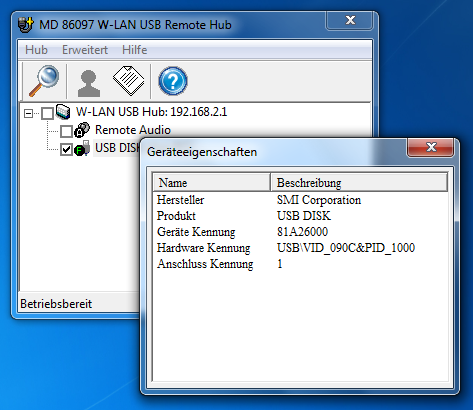
119 Den Station Betrieb einstellen Wenn Ihr PC mit einem Netzwerk-Router verbunden ist, der das Dynamic Host Configuration Protocol (DHCP) verwendet, wie die meisten Netzwerke, müssen keine Einstellungen am Router vorgenommen werden. Führen Sie folgende Anweisungen aus: 1. Verbinden Sie den Hub mit dem Netzadapter. 2. Warten Sie, bis die Power LED grün leuchtet. 3. Verbinden Sie den USB-Hub mit einem Netzwerkkabel (Diese Verbindung wird nur für die Konfiguration des USB-Hubs benötigt). 4. Verbinden Sie das Netzwerkkabel mit der Netzwerkbuchse Ihres PCs. 5. Öffnen Sie Ihren Standard-Internet Browser und geben Sie in der Adressleiste die IP-Adresse des USB-Hubs ein. Drücken Sie die Taste ENTER am PC. Hinweis: Die IP-Adresse des USB-Hubs wird in der USB- Software angezeigt (Siehe Seite 23)

120 6. Geben Sie einen Benutzernamen und ein Passwort ein und klicken Sie auf OK, um in das Konfigurations-menü zu gelangen. Im Auslieferungszustand lauten Benutzername und Passwort admin. 7. Überprüfen Sie, ob die LAN LED leuchtet, um die Funktion der LAN-Verbindung anzuzeigen. 8. Wählen Sie im Konfigurationsmenü den Eintrag Wireless -> Betriebsmodus und dann Station. DE DE 9. Nachdem Sie Station ausgewählt haben, klicken Sie auf Übernehmen und es erscheint eine Meldung, dass der USB-Hub neu gestartet wird. 10. Warten Sie, bis das Gerät neu gestartet ist. Der Station Betrieb ist nun am USB-Hub eingestellt

121 Nach verfügbaren Drahtlosnetzwerken suchen 11. Nachdem der USB-Hub neu gestartet ist, rufen Sie das Konfigurationsmenü auf und wählen Sie den Eintrag Wireless -> Basis. Klicken Sie auf Nach Netzwerken suchen, um alle gefundenen Access Point oder Router-Signale anzuzeigen, die in der Reichweite des USB-Hubs verfügbar sind. Erneut suchen: Eine erneute Suche nach Signalen starten. Verbinden: Dem ausgewählten Netzwerk beitreten. Schliessen : Dieses Anzeigefenster schließen. 12. Wählen Sie das WLAN-Netzwerk aus, in das der USB- Hub eingebunden werden soll und klicken Sie auf Verbinden. Die Drahtlosverbindung zwischen USB-Hub und dem Router des WLAN-Netzwerks wird hergestellt und der USB-Hub in das WLAN Netzwerk eingebunden. Beachten Sie, dass einige Netzwerke verschlüsselt sein können und die Eingabe eines Schlüssels erfordern. 13. Entfernen Sie das Netzwerkkabel vom USB-Hub

122 Die USB-Hub Software verwenden Nach der Installation können Sie die Software über das Startmenü oder mit einem Doppelklick auf eines der Symbole auf dem Desktop oder der Taskleiste starten. Mit der Software können Sie ein USB-Gerät verbinden/trennen, den Verbindungsstatus anzeigen oder den Zugriff auf ein USB- Gerät anfordern, falls dieses von einem anderen PC verwendet wird. Die USB-Hub Software (siehe nachfolgendes Bild) zeigt Ihnen eine Übersicht der Verbindungskonfiguration an. DE DE
123 Die Menüleiste Hub Über die USB-Hub Software können Sie nach weiteren USB- Hubs suchen, indem Sie auf Hub > Suchen klicken oder auf das Suchen Symbol in der Werkzeugleiste

124 Erweitert Klicken Sie auf den Eintrag Erweitert > Voreinstellungen in der Menüleiste um folgende Einstellungen vorzunehmen: DE DE Das Fenster Voreinstellungen erscheint. Stellen Sie ein, ob die USB- Hub Software beim Starten von Windows starten soll bzw. ob ein Hinweis erscheinen soll, wenn Remote-Audio verwendet wird

125 Hilfe Ein weißes Symbol zeigt einen unbenutzten Anschluss, der noch verfügbar ist. Ein grünes Symbol zeigt einen Anschluss, der von Ihnen verwendet wird. Um die Bedeutung der Symbole für USB- Anschlüsse anzuzeigen, klicken Sie auf Hilfe > Statusinformationen. Das Statusinformationen Fenster erscheint. Es gibt 4 Symbole für den Status der USB-Anschlüsse: Ein rotes Symbol zeigt einen Anschluss, der von einem anderen PC verwendet wird. Wenn Sie diesen Anschluss verwenden wollen, können Sie eine Anfrage an den entsprechenden Teilnehmer senden, damit er den Anschluss freigibt. Ein graues Symbol zeigt ein nicht funktionierendes Gerät am entsprechenden USB-Anschluss. Wenden Sie sich in diesem Fall an den Hersteller dieses Gerätes
126 USB-Geräte verbinden und trennen Um ein an den USB- Hub angeschlossenes Gerät zu verbinden, setzen Sie einen Haken in dem Kästchen vor dem USB-Gerät, indem Sie auf das Kästchen klicken. DE DE Wenn Sie auf das Kästchen vor dem Eintrag W-LAN USB Hub klicken, werden alle angezeigten USB-Geräte verbunden. Sie können die Eigenschaften zu einem angeschlossenen Gerät anzeigen, indem Sie auf das Symbol Eigenschaften in der Werkzeugleiste klicken
127 Das Fenster Geräteeigenschaften erscheint: Um die Verbindung eines USB-Gerätes zu trennen, entfernen Sie den Haken im Kästchen vor dem Eintrag des USB-Gerätes

128 Verwenden der Remote Audio Funktion Der USB-Hub kann als ein Remote Audio Gerät verwendet werden. Setzen Sie einen Haken in das Kästchen Remote Audio, indem Sie darauf klicken, um Audiosignale des PCs über die Buchse LINE OUT am USB-Hub an Kopfhörer oder Lautsprecher auszugeben. Sobald der Remote Audio Eintrag aktiviert ist, erscheint ein Hinweis darüber, dass nun der USB-Hub zur Audioausgabe verwendet wird. Sie können das Erscheinen dieses Hinweises im Menü Erweitert > Voreinstellungen ausschalten. DE DE Hinweis: Während die Remote Audio Funktion aktiv ist, ist der Audioausgang des PCs stumm geschaltet
129 Einen Anschluss zur Verwendung anfordern und für andere trennen Wenn Sie einen USB- Anschluss verwenden wollen, der bereits von anderen genutzt wird, können Sie eine Anfrage zum anderen Teilnehmer senden damit diese den Anschluss trennen und für Ihre Verwendung freigeben kann. Klicken Sie dazu auf das Symbol Verbindung trennen in der Werkzeugleiste

130 Der Benutzer des anderen PCs erhält ein Hinweisfenster, in dem er den USB-Anschluss trennen kann. DE DE Wenn der andere Benutzer auf Ja klickt, wird seine Verbindung zum USB-Hub getrennt und mit Ihrem PC verbunden

131 Den USB-Hub konfigurieren Das Konfigurationsmenü aufrufen 1. Öffnen Sie Ihren Standard-Internet Browser und geben Sie in der Adressleiste die IP-Adresse des USB-Hubs ein. Drücken Sie die Taste ENTER am PC. Hinweis: Die IP-Adresse des USB-Hubs wird in der USB- Software angezeigt (Siehe Seite 23). 2. Alternativ können Sie das Konfigurationsmenü auch aufrufen, indem Sie in der USB-Hub Software mit der rechten Maustaste auf den Eintrag des USB-Hubs klicken und anschließend den Eintrag Configure W-LAN USB Remote Hub wählen
132 3. Geben Sie einen Benutzernamen und ein Passwort ein und klicken Sie auf OK, um in das Konfigurationsmenü zu gelangen. Im Auslieferungs-zustand lauten Benutzername und Passwort admin. Das Konfigurationsmenü erscheint (Siehe nächste Seite). Das Menü umfasst zwei Abschnitte: Wireless und System. DE DE Menü Wireless Das Menü Wireless umfasst 4 Untermenüs. Betriebsmodus Im ersten Untermenü Betriebsmodus können Sie die Betriebsart für die drahtlose Verbindung einstellen
133 Wenn der USB-Hub ein eigenständiges, drahtloses Netzwerk darstellen soll, zu dem Rechner eine Verbindung aufbauen, wählen Sie Zugangspunkt (Standardeinstellung). Wenn Sie den USB-Hub als Client in ein bestehendes Netzwerk einbinden wollen, wählen Sie Station. Weitere Hinweise zur Client-Konfiguration finden Sie unter USB-Hub in ein bestehendes Netzwerk einbinden (Station Betrieb) auf Seite

134 Basis Im zweiten Menü Basis stellen die SSID (Netzwerkname), den Kanal (1-13) und die Verschlüsselungsart ein. DE DE Nehmen Sie die entsprechenden Einstellungen vor und klicken Sie auf Übernehmen

135 Wenn Sie die Verschlüsselung auf WEP oder WPA-PSK eingestellt haben, müssen Sie außerdem einen Sicherheitsschlüssel eingeben

136 WPS Der WLAN-USB Hub unterstützt die aktuellste WPS Verschlüsselung. Die WPS-Funktion ist im Auslieferungszustand ausgeschaltet. (Wie Sie die WPS- Funktion verwenden: Siehe Seite 44). Sie können die Funktion in den WPS-Einstellungen einschalten, indem Sie auf das Feld Aktiviert und danach auf Übernehmen klicken. DE DE Sie können den WPS-Schlüssel ändern, indem Sie auf Neue PIN generieren klicken. Wenn Sie ein weiteres WPS-Gerät für die schnelle Verbindung hinzufügen wollen, klicken Sie auf Hinzufügen. Geben Sie im Fenster PIN ID einen PIN ein und klicken Sie auf Übernehmen
137 Erweitert Im Untermenü Erweitert können Sie die Übertragung von WLAN und SSID ein- oder ausschalten und weitere Einstellungen zur Übertragung vornehmen
138 Menü System Das Menü Setting umfasst 4 Untermenüs. LAN Der erste Eintrag ist die LAN-Einstellung. Hier können Sie einstellen, wie der WLAN-USB Hub IP-Adressen vergeben soll. Im Auslieferungszustand ist Feste IP eingestellt und es ist keine weitere Konfiguration erforderlich. DE DE Sie können auch den eingebauten DHCP-Server ein- oder ausschalten und den Bereich für die IP-Adresse festlegen
139 Administrator Im Administrator-Bereich können Sie den Namen für den WLAN-USB Hub eingeben, der in der USB-Hub Software erscheint. Außerdem können Sie hier das Password ändern, indem Sie in den Feldern Neues Passwort und Passwort bestätigen ein neues eingeben und auf Übernehmen klicken. Firmware In diesem Eintrag können Sie ein Firmware Update auf den WLAN-USB-Hub laden, um sämtliche Einstellungen zurückzusetzen und den WLAN-USB-Hub neu zu starten. Sehen Sie auf der MEDION-Webseite nach, um Informationen über verfügbare Updates zu erhalten oder wenden Sie sich an den Medion Service

140 DE DE 1. Um die Firmware zu aktualisieren, klicken Sie zunächst auf Durchsuchen, um den Speicherort anzugeben, an dem sich die Update-Dateien befinden. Klicken Sie danach auf Aktualisierung, um das Update aufzuspielen. 2. Das Update wird geladen. Warten Sie, bis dieser Prozess abgeschlossen ist
141 ACHTUNG: Schalten Sie den WLAN-USB Hub nicht während des Firmware Updates aus! Dabei könnte das System unwiederbringlich gelöscht werden. 3. Nach abgeschlossenem Update-Vorgang startet der WLAN-USB-Hub automatisch neu
142 Sprachen Hier können Sie die Sprache einstellen, in der die Menüs angezeigt werden sollen. Wählen Sie eine Sprache aus und klicken Sie auf Übernehmen. DE DE
143 WPS Konfiguration Das Wi-Fi Protected Setup (WPS) ist ein von der Wi-Fi Alliance entwickelter Standard zum einfachen und sicheren Aufbau eines drahtlosen Heimnetzwerks. Geräte mit einer WPS-Funktion können sich so automatisch verbinden ohne dass ein PIN eingegeben werden muss. Bevor Sie die WPS-Funktion benutzen können, muss im Setup-Menü des USB-Hubs bzw. des anderen WPSfähigen Gerätes die WPS-Funktion aktiviert sein (siehe Seite 37). Grundsätzlich kann die WPS Verbindung auf zwei Arten hergestellt werden. Der Vorteil liegt darin, dass so verschiedenste Geräte unterschiedlicher Hersteller mit geringstem Aufwand verbunden werden können, solange sie den WPS-Standard unterstützen. Push Button Configuration (PBC) So stellen Sie die PBC-Konfiguration ein: 1. Drücken Sie die Taste WPS am WLAN-USB Hub. 2. Drücken Sie die entsprechende WPS-Taste am anderen WPS-Gerät. 3. Das Gerät wird erkannt und automatisch konfiguriert

144 Personal Identification Number (PIN) Sie können die WPS-Verbindung über PIN-Eingabe auf zwei Arten einstellen: 1. Entweder geben Sie den PIN Code des WLAN-USB Hubs im entsprechenden Eingabefenster am Computer ein. Den PIN für den WLAN-USB Hub finden Sie unter WPS im Konfigurationsmenü des WLAN-USB Hubs. DE DE 2. Oder Sie geben den PIN Code des anderen WPS-Gerätes am WLAN-USB Hub ein, indem Sie im Konfigurationsmenü auf WLAN Station hinzufügen klicken
145 3. Die beiden Geräte werden erkannt und bauen eine Verbindung auf, wenn der richtige PIN eingegeben wurde. Um den WPS-Standard an Ihrem Computer nutzen zu können, müssen Sie Windows Vista oder Windows 7 als Betriebssystem verwenden. Ebenso müssen der Netzwerkadapter, die Netzwerkstation, der Router oder Access Point den WPS-Standard unterstützen. Das Gerät zurücksetzen Sollte sich das Gerät nicht mehr bedienen lassen oder es zu Fehlern kommen, können Sie das Gerät auf den Auslieferungszustand zurücksetzen. Drücken Sie dazu für länger als 5 Sekunden die Taste RESET mit einem spitzen Gegenstand (z. B. einem Kugelschreiber) ein. Nach 10 Sekunden erlischt zunächst die WLAN-LED und dann die Power-LED, um sich dann wieder einzuschalten
146 Kundendienst Erste Hilfe bei Fehlfunktionen DE DE Ich habe ein USB-Gerät an den USB-Hub angeschlossen, es ist jedoch nicht am PC sichtbar. Die Control Utility-Software ist nicht installiert. Installieren Sie die Software und starten Sie sie. Der Anschluss am USB-Hub, an den Sie USB-Gerät angeschlossen haben, wird von einem anderen PC verwendet. Starten Sie die Control-Utility-Software und geben Sie den Anschluss für Ihren PC frei (Siehe Seite 27). Ihr PC ist nicht mit dem USB-Hub verbunden. Die drahtlose Verbindung zum USB-Hub wurde getrennt. Verbinden Sie sich erneut mit dem Drahtlosnetzwerk des USB-Hubs. Überprüfen Sie, ob der WLAN-Adapter Ihres PCs evtl. ausgeschaltet ist und schalten Sie ihn ein. Das Netzwerk, in das ich den USB-Hub integrieren will, ist nicht zu sehen Die SSID des Netzwerks ist unsichtbar und es taucht daher auch nicht bei der Suche nach verfügbaren Drahtlosnetzwerken auf
147 Stellen Sie die im Router des Netzwerkes, in das der USB-Hub integriert werden soll, die Übermittelung der SSID auf sichtbar ein. Der USB-Hub wird vom PC nicht erkannt Der USB-Hub wird nicht mit Strom versorgt Schalten Sie den USB-Hub ein, indem Sie den Stecker des Netzadapters anschließen und den Netzadapter mit dem Stromnetz verbinden. Es wird kein Ton über den Anschluss LINE OUT ausgegeben Die Remote Audio Funktion ist in Ihrem Betriebssystem nicht aktiviert. Schalten Sie die Remote-Audio Funktion in Ihrem Betriebssystem ein. Es kann keine Verbindung zu einem ausgewählten Netzwerk hergestellt werden Das Netzwerk, zu dem eine Verbindung hergestellt werden soll, ist verschlüsselt und erfordert die Eingabe eines Passworts und/oder eines Benutzernamens. Erkundigen Sie sich beim Administrator des Netzwerks nach den Zugangsdaten für die verschlüsselte Verbindung
148 Technische Daten Modell: MD Audio Ausgang: 3.5 mm Stereo-Klinkenbuchse DE DE LAN 10/100 Ethernet 1x 10/100 RJ45 Ethernet Anschluss USB USB WLAN Standard Betriebsmodus Reichweite RF Leistung Verschlüsselung Frequenz Antenne Netzadapter Modell: 4x Typ A USB 1.1/2.0 Anschlüsse IEEE n/g/b Infrastruktur Im Freien: 100m (je nach Bebauung und Umgebung) 11g/n:13 dbm ( +1.0 / -1.0 dbm) 11b: 16 dbm ( +1.0 / -1.0 dbm) WEP 64-bit und 128-bit WPA-PSK / WPA2-PSK 2.4 GHz ISM Frequenzband (2.412~2.472 GHz) 2x 1.8 dbi Dipol-Antenne KSAD W1EU
149 Hersteller: Eingang: Ausgang: Abmessungen Gehäuse Ktec 100~240 V AC, 0.4 A 12 V/1.5 A DC 12 x 18 x 3.3 cm Technische Änderungen vorbehalten! Konformitätsinformation nach R&TTE Bedingt durch die Leistung der eingebauten Wireless LAN Lösung (>100mW) ist der Gebrauch in Frankreich nur innerhalb von Gebäuden gestattet. In allen anderen EU-Ländern gibt es zurzeit keine Einschränkungen. Für den Gebrauch in anderen Ländern informieren Sie sich vor Ort über die jeweils gültigen gesetzlichen Vorschriften. Hiermit erklärt die MEDION AG, dass sich diese Geräte in Übereinstimmung mit den grundlegenden Anforderungen und den übrigen einschlägigen Bestimmungen der Richtlinie 1999/5/EG befinden. Vollständige Konformitätserklärungen sind erhältlich unter
150 Reinigung Achtung! Dieses Gerät beinhaltet keine zu wartenden oder zu reinigenden Teile. DE DE Achten Sie darauf, dass der USB-Hub nicht verunreinigt wird. Verwenden Sie keine Lösungsmittel, ätzende oder gasförmige Reinigungsmittel. Reinigen Sie das Gehäuse ggf. mit einem angefeuchteten Tuch. Entsorgung Verpackung Ihr Gerät befindet sich zum Schutz vor Transportschäden in einer Verpackung. Verpackungen sind aus Materialien hergestellt, die umweltschonend entsorgt und einem fachgerechten Recycling zugeführt werden können. Gerät Entsorgen Sie das Gerät am Ende seiner Lebenszeit keinesfalls über den normalen Hausmüll, sondern erkundigen Sie sich bei Ihrer örtlichen Verwaltung über Wege einer umweltgerechten Entsorgung an Sammelstellen für Elektro- und Elektronikschrott
151 - 52 -
152 Licence GPL/LGPL Chère Cliente, Cher Client, Pour des raisons juridiques, la licence GPL/LGPL est reproduite ici dans la version originale anglaise. Les traductions dans d'autres langues ne sont pas des versions de la GPL autorisées par la FSF (Free Software Foundation). La prise de connaissance de la licence GPL/LGPL n'est pas importante pour l'utilisation de l'appareil, mais sert à l'obligation de publication en cas d'utilisation de logiciels Open Source. Si cela vous intéresse, vous pouvez télécharger le texte source de la GPL/LGPL utilisée sous le lien suivant : Veuillez indiquer le numéro MD ou MSN correspondant dans le centre de téléchargement. Vous trouverez ces numéros sur l'appareil respectif. Mais nous pouvons aussi vous faire parvenir gratuitement par la poste un support de données contenant le texte source. Veuillez alors envoyer un à [email protected] ou nous appeler au numéro de téléphone payant (appel non surtaxé). Vous trouverez d'autres informations sur les licences GPL/LGPL sur DE DE GPL - 1 -
153 GPL/LGPL-licentie Geachte klant, Om juridische redenen wordt hier de oorspronkelijke Engelse versie van de GPL/LGPL-licentie weergegeven. Vertalingen in andere talen zijn niet geautoriseerd door de FSF (Free Software Foundation). Kennisneming van de GPL/LGPL-licentie is niet van belang voor het gebruik van het apparaat, maar dient om te voldoen aan de publicatieverplichting bij gebruik van open source-software. Geïnteresseerden kunnen de broncode van de gebruikte GPL/LGPL downloaden via de volgende koppeling: Gelieve in het Download Center het passende MD-nummer of MSN-nummer in te voeren. Die nummers zijn terug te vinden op het desbetreffende apparaat. Als alternatief kunnen wij u ook kosteloos via de post een opslagmedium met de broncode toesturen. Gelieve ons daartoe een te sturen op [email protected] of ons te bellen op het betaalnummer (0,15 EUR/Min). Meer informatie over GPL/LGPL-licenties is terug te vinden op
154 GPL/LGPL-Lizenzinformation Sehr geehrte Kundin, sehr geehrter Kunde, Im Folgenden wird hier aus juristischen Gründen die GPL/LGPL-Lizenz in der englischen Originalfassung abgebildet. Übersetzungen in andere Sprachen stellen keine von der FSF (Free Software Foundation) autorisierte Versionen der GPL dar. Die Kenntnisnahme der GPL/LGPL-Lizenz ist für den Gebrauch des Gerätes unerheblich, sondern dient der Verpflichtung zur Veröffentlichung bei der Verwendung von Open-Source Software. Bei Interesse können Sie den Quelltext der verwendeten GPL/LGPL unter folgendem Link herunterladen: Bitte geben Sie im Download Center die entsprechende MD Nummer oder MSN Nummer an. Diese Nummern finden Sie auf dem jeweiligen Gerät. Alternativ können wir Ihnen einen Datenträger mit dem Quelltextinhalt kostenfrei per Post zusenden. Bitte senden Sie zu diesem Zweck eine an oder rufen Sie uns an unter der kostenpflichtigen Rufnummer / (0,14 /Min. aus dem deutschen Festnetz, Mobilfunk max. 0,42 /Min.). Weitere Informationen über die GPL/LGPL-Lizenzen finden Sie unter DE DE GPL - 3 -
155 GNU General Public Licence Version 2, June 1991 Copyright (C) 1989, 1991 Free Software Foundation, Inc. 51 Franklin Street, Fifth Floor, Boston, MA , USA Everyone is permitted to copy and distribute verbatim copies of this license document, but changing it is not allowed. Preamble The licenses for most software are designed to take away your freedom to share and change it. By contrast, the GNU General Public License is intended to guarantee your freedom to share and change free software--to make sure the software is free for all its users. This General Public License applies to most of the Free Software Foundation s software and to any other program whose authors commit to using it. (Some other Free Software Foundation software is covered by the GNU Lesser General Public License instead.) You can apply it to your programs, too. When we speak of free software, we are referring to freedom, not price. Our General Public Licenses are designed to make sure that you have the freedom to distribute copies of free software (and charge for this service if you wish), that you receive source code or can get it if you want it, that you can change the software or use pieces of it in new free programs; and that you know you can do these things. To protect your rights, we need to make restrictions that forbid anyone to deny you these rights or to ask you to surrender the - 4 -
156 rights. These restrictions translate to certain responsibilities for you if you distribute copies of the software, or if you modify it. For example, if you distribute copies of such a program, whether gratis or for a fee, you must give the recipients all the rights that you have. You must make sure that they, too, receive or can get the source code. And you must show them these terms so they know their rights. We protect your rights with two steps: (1) copyright the software, and (2) offer you this license which gives you legal permission to copy, distribute and/or modify the software. Also, for each author s protection and ours, we want to make certain that everyone understands that there is no warranty for this free software. If the software is modified by someone else and passed on, we want its recipients to know that what they have is not the original, so that any problems introduced by others will not reflect on the original authors reputations. Finally, any free program is threatened constantly by software patents. We wish to avoid the danger that redistributors of a free program will individually obtain patent licenses, in effect making the program proprietary. To prevent this, we have made it clear that any patent must be licensed for everyone s free use or not licensed at all. The precise terms and conditions for copying, distribution and modification follow. TERMS AND CONDITIONS FOR COPYING, DISTRIBUTION AND MODIFICATION 0. This License applies to any program or other work which contains a notice placed by the copyright holder saying it may be distributed under the terms of this General Public License. The Program, below, refers to any such program or work, and a work based on the Program means either the Program or any derivative work under copyright law: that is to say, a work containing the DE DE GPL - 5 -
157 Program or a portion of it, either verbatim or with modifications and/or translated into another language. (Hereinafter, translation is included without limitation in the term modification.) Each licensee is addressed as you. Activities other than copying, distribution and modification are not covered by this License; they are outside its scope. The act of running the Program is not restricted, and the output from the Program is covered only if its contents constitute a work based on the Program (independent of having been made by running the Program). Whether that is true depends on what the Program does. 1. You may copy and distribute verbatim copies of the Program s source code as you receive it, in any medium, provided that you conspicuously and appropriately publish on each copy an appropriate copyright notice and disclaimer of warranty; keep intact all the notices that refer to this License and to the absence of any warranty; and give any other recipients of the Program a copy of this License along with the Program. You may charge a fee for the physical act of transferring a copy, and you may at your option offer warranty protection in exchange for a fee. 2. You may modify your copy or copies of the Program or any portion of it, thus forming a work based on the Program, and copy and distribute such modifications or work under the terms of Section 1 above, provided that you also meet all of these conditions: a) You must cause the modified files to carry prominent notices stating that you changed the files and the date of any change. b) You must cause any work that you distribute or publish, that in whole or in part contains or is derived from the Program or any part thereof, to be licensed as a whole at no charge to all third parties under the terms of this License. c) If the modified program normally reads commands interactively when run, you must cause it, when started running for such - 6 -
158 interactive use in the most ordinary way, to print or display an announcement including an appropriate copyright notice and a notice that there is no warranty (or else, saying that you provide a warranty) and that users may redistribute the program under these conditions, and telling the user how to view a copy of this License. (Exception: if the Program itself is interactive but does not normally print such an announcement, your work based on the Program is not required to print an announcement.) These requirements apply to the modified work as a whole. If identifiable sections of that work are not derived from the Program, and can be reasonably considered independent and separate works in themselves, then this License, and its terms, do not apply to those sections when you distribute them as separate works. But when you distribute the same sections as part of a whole which is a work based on the Program, the distribution of the whole must be on the terms of this License, whose permissions for other licensees extend to the entire whole, and thus to each and every part regardless of who wrote it. Thus, it is not the intent of this section to claim rights or contest your rights to work written entirely by you; rather, the intent is to exercise the right to control the distribution of derivative or collective works based on the Program. In addition, mere aggregation of another work not based on the Program with the Program (or with a work based on the Program) on a volume of a storage or distribution medium does not bring the other work under the scope of this License. 3. You may copy and distribute the Program (or a work based on it, under Section 2) in object code or executable form under the terms of Sections 1 and 2 above provided that you also do one of the following: a) Accompany it with the complete corresponding machinereadable source code, which must be distributed under the terms of DE DE GPL - 7 -
159 Sections 1 and 2 above on a medium customarily used for software interchange; or, b) Accompany it with a written offer, valid for at least three years, to give any third party, for a charge no more than your cost of physically performing source distribution, a complete machinereadable copy of the corresponding source code, to be distributed under the terms of Sections 1 and 2 above on a medium customarily used for software interchange; or, c) Accompany it with the information you received as to the offer to distribute corresponding source code. (This alternative is allowed only for noncommercial distribution and only if you received the program in object code or executable form with such an offer, in accord with Subsection b above.) The source code for a work means the preferred form of the work for making modifications to it. For an executable work, complete source code means all the source code for all modules it contains, plus any associated interface definition files, plus the scripts used to control compilation and installation of the executable. However, as a special exception, the source code distributed need not include anything that is normally distributed (in either source or binary form) with the major components (compiler, kernel, and so on) of the operating system on which the executable runs, unless that component itself accompanies the executable. If distribution of executable or object code is made by offering access to copy from a designated place, then offering equivalent access to copy the source code from the same place counts as distribution of the source code, even though third parties are not compelled to copy the source along with the object code. 4. You may not copy, modify, sublicense, or distribute the Program except as expressly provided under this License. Any attempt otherwise to copy, modify, sublicense or distribute the Program is void, and will automatically terminate your rights under this License
160 However, parties who have received copies, or rights, from you under this License will not have their licenses terminated so long as such parties remain in full compliance. 5. You are not required to accept this License, since you have not signed it. However, nothing else grants you permission to modify or distribute the Program or its derivative works. These actions are prohibited by law if you do not accept this License. Therefore, by modifying or distributing the Program (or any work based on the Program), you indicate your acceptance of this License to do so, and all its terms and conditions for copying, distributing or modifying the Program or works based on it. 6. Each time you redistribute the Program (or any work based on the Program), the recipient automatically receives a license from the original licensor to copy, distribute or modify the Program subject to these terms and conditions. You may not impose any further restrictions on the recipients exercise of the rights granted herein. You are not responsible for enforcing compliance by third parties to this License. 7. If, as a consequence of a court judgment or allegation of patent infringement or for any other reason (not limited to patent issues), conditions are imposed on you (whether by court order, agreement or otherwise) that contradict the conditions of this License, they do not excuse you from the conditions of this License. If you cannot distribute so as to satisfy simultaneously your obligations under this License and any other pertinent obligations, then as a consequence you may not distribute the Program at all. For example, if a patent license would not permit royalty-free redistribution of the Program by all those who receive copies directly or indirectly through you, then the only way you could satisfy both it and this License would be to refrain entirely from distribution of the Program. DE DE GPL - 9 -
161 If any portion of this section is held invalid or unenforceable under any particular circumstance, the balance of the section is intended to apply and the section as a whole is intended to apply in other circumstances. It is not the purpose of this section to induce you to infringe any patents or other property right claims or to contest validity of any such claims; this section has the sole purpose of protecting the integrity of the free software distribution system, which is implemented by public license practices. Many people have made generous contributions to the wide range of software distributed through that system in reliance on consistent application of that system; it is up to the author/donor to decide if he or she is willing to distribute software through any other system and a licensee cannot impose that choice. This section is intended to make thoroughly clear what is believed to be a consequence of the rest of this License. 8. If the distribution and/or use of the Program is restricted in certain countries either by patents or by copyrighted interfaces, the original copyright holder who places the Program under this License may add an explicit geographical distribution limitation excluding those countries, so that distribution is permitted only in or among countries not thus excluded. In such case, this License incorporates the limitation as if written in the body of this License. 9. The Free Software Foundation may publish revised and/or new versions of the General Public License from time to time. Such new versions will be similar in spirit to the present version, but may differ in detail to address new problems or concerns. Each version is given a distinguishing version number. If the Program specifies a version number of this License which applies to it and any later version, you have the option of following the terms and conditions either of that version or of any later version published by the Free Software Foundation. If the Program does
162 not specify a version number of this License, you may choose any version ever published by the Free Software Foundation. 10. If you wish to incorporate parts of the Program into other free programs whose distribution conditions are different, write to the author to ask for permission. For software which is copyrighted by the Free Software Foundation, write to the Free Software Foundation; we sometimes make exceptions for this. Our decision will be guided by the two goals of preserving the free status of all derivatives of our free software and of promoting the sharing and reuse of software generally. NO WARRANTY 11. BECAUSE THE PROGRAM IS LICENSED FREE OF CHARGE, THERE IS NO WARRANTY FOR THE PROGRAM, TO THE EXTENT PERMITTED BY APPLICABLE LAW. EXCEPT WHEN OTHERWISE STATED IN WRITING THE COPYRIGHT HOLDERS AND/OR OTHER PARTIES PROVIDE THE PROGRAM AS IS WITHOUT WARRANTY OF ANY KIND, EITHER EXPRESSED OR IMPLIED, INCLUDING, BUT NOT LIMITED TO, THE IMPLIED WARRANTIES OF MERCHANTABILITY AND FITNESS FOR A PARTICULAR PURPOSE. THE ENTIRE RISK AS TO THE QUALITY AND PERFORMANCE OF THE PROGRAM IS WITH YOU. SHOULD THE PROGRAM PROVE DEFECTIVE, YOU ASSUME THE COST OF ALL NECESSARY SERVICING, REPAIR OR CORRECTION. 12. IN NO EVENT UNLESS REQUIRED BY APPLICABLE LAW OR AGREED TO IN WRITING WILL ANY COPYRIGHT HOLDER, OR ANY OTHER PARTY WHO MAY MODIFY AND/OR REDISTRIBUTE THE PROGRAM AS PERMITTED ABOVE, BE LIABLE TO YOU FOR DAMAGES, INCLUDING ANY GENERAL, SPECIAL, INCIDENTAL OR CONSEQUENTIAL DAMAGES ARISING OUT OF THE USE OR INABILITY TO USE THE PROGRAM (INCLUDING BUT NOT LIMITED TO LOSS OF DATA DE DE GPL
163 OR DATA BEING RENDERED INACCURATE OR LOSSES SUSTAINED BY YOU OR THIRD PARTIES OR A FAILURE OF THE PROGRAM TO OPERATE WITH ANY OTHER PROGRAMS), EVEN IF SUCH HOLDER OR OTHER PARTY HAS BEEN ADVISED OF THE POSSIBILITY OF SUCH DAMAGES. END OF TERMS AND CONDITIONS LGPL VERSION 2.1 GNU LESSER GENERAL PUBLIC LICENSE Version 2.1, February 1999 Copyright (C) 1991, 1999 Free Software Foundation, Inc. 51 Franklin Street, Fifth Floor, Boston, MA USA Everyone is permitted to copy and distribute verbatim copies of this license document, but changing it is not allowed. [This is the first released version of the Lesser GPL. It also counts as the successor of the GNU Library Public License, version 2, hence the version number 2.1.] Preamble The licenses for most software are designed to take away your freedom to share and change it. By contrast, the GNU General Public Licenses are intended to guarantee your freedom to share and change free software--to make sure the software is free for all its users. This license, the Lesser General Public License, applies to some specially designated software packages--typically libraries--of the Free Software Foundation and other authors who decide to use it. You can use it too, but we suggest you first think carefully about whether this license or the ordinary General Public License is the better strategy to use in any particular case, based on the explanations below
164 When we speak of free software, we are referring to freedom of use, not price. Our General Public Licenses are designed to make sure that you have the freedom to distribute copies of free software (and charge for this service if you wish); that you receive source code or can get it if you want it; that you can change the software and use pieces of it in new free programs; and that you are informed that you can do these things. To protect your rights, we need to make restrictions that forbid distributors to deny you these rights or to ask you to surrender these rights. These restrictions translate to certain responsibilities for you if you distribute copies of the library or if you modify it. For example, if you distribute copies of the library, whether gratis or for a fee, you must give the recipients all the rights that we gave you. You must make sure that they, too, receive or can get the source code. If you link other code with the library, you must provide complete object files to the recipients, so that they can relink them with the library after making changes to the library and recompiling it. And you must show them these terms so they know their rights. We protect your rights with a two-step method: (1) we copyright the library, and (2) we offer you this license, which gives you legal permission to copy, distribute and/or modify the library. To protect each distributor, we want to make it very clear that there is no warranty for the free library. Also, if the library is modified by someone else and passed on, the recipients should know that what they have is not the original version, so that the original author s reputation will not be affected by problems that might be introduced by others. Finally, software patents pose a constant threat to the existence of any free program. We wish to make sure that a company cannot effectively restrict the users of a free program by obtaining a restrictive license from a patent holder. Therefore, we insist that any DE DE GPL
165 patent license obtained for a version of the library must be consistent with the full freedom of use specified in this license. Most GNU software, including some libraries, is covered by the ordinary GNU General Public License. This license, the GNU Lesser General Public License, applies to certain designated libraries, and is quite different from the ordinary General Public License. We use this license for certain libraries in order to permit linking those libraries into non-free programs. When a program is linked with a library, whether statically or using a shared library, the combination of the two is legally speaking a combined work, a derivative of the original library. The ordinary General Public License therefore permits such linking only if the entire combination fits its criteria of freedom. The Lesser General Public License permits more lax criteria for linking other code with the library. We call this license the Lesser General Public License because it does Less to protect the user s freedom than the ordinary General Public License. It also provides other free software developers Less of an advantage over competing non-free programs. These disadvantages are the reason we use the ordinary General Public License for many libraries. However, the Lesser license provides advantages in certain special circumstances. For example, on rare occasions, there may be a special need to encourage the widest possible use of a certain library, so that it becomes a de-facto standard. To achieve this, non-free programs must be allowed to use the library. A more frequent case is that a free library does the same job as widely used non-free libraries. In this case, there is little to gain by limiting the free library to free software only, so we use the Lesser General Public License. In other cases, permission to use a particular library in non-free programs enables a greater number of people to use a large body of free software. For example, permission to use the GNU C Library
166 in non-free programs enables many more people to use the whole GNU operating system, as well as its variant, the GNU/Linux operating system. Although the Lesser General Public License is Less protective of the users freedom, it does ensure that the user of a program that is linked with the Library has the freedom and the wherewithal to run that program using a modified version of the Library. The precise terms and conditions for copying, distribution and modification follow. Pay close attention to the difference between a work based on the library and a work that uses the library. The former contains code derived from the library, whereas the latter must be combined with the library in order to run. TERMS AND CONDITIONS FOR COPYING, DISTRIBUTION AND MODIFICATION 0. This License Agreement applies to any software library or other program which contains a notice placed by the copyright holder or other authorized party saying it may be distributed under the terms of this Lesser General Public License (also called this License ). Each licensee is addressed as you. A library means a collection of software functions and/or data prepared so as to be conveniently linked with application programs (which use some of those functions and data) to form executables. The Library, below, refers to any such software library or work which has been distributed under these terms. A work based on the Library means either the Library or any derivative work under copyright law: that is to say, a work containing the Library or a portion of it, either verbatim or with modifications and/or translated straightforwardly into another language. (Hereinafter, translation is included without limitation in the term modification.) Source code for a work means the preferred form of the work for making modifications to it. For a library, complete source code means all the source code for all modules it contains, plus any DE DE GPL
167 associated interface definition files, plus the scripts used to control compilation and installation of the library. Activities other than copying, distribution and modification are not covered by this License; they are outside its scope. The act of running a program using the Library is not restricted, and output from such a program is covered only if its contents constitute a work based on the Library (independent of the use of the Library in a tool for writing it). Whether that is true depends on what the Library does and what the program that uses the Library does. 1. You may copy and distribute verbatim copies of the Library s complete source code as you receive it, in any medium, provided that you conspicuously and appropriately publish on each copy an appropriate copyright notice and disclaimer of warranty; keep intact all the notices that refer to this License and to the absence of any warranty; and distribute a copy of this License along with the Library. You may charge a fee for the physical act of transferring a copy, and you may at your option offer warranty protection in exchange for a fee. 2. You may modify your copy or copies of the Library or any portion of it, thus forming a work based on the Library, and copy and distribute such modifications or work under the terms of Section 1 above, provided that you also meet all of these conditions: a) The modified work must itself be a software library. b) You must cause the files modified to carry prominent notices stating that you changed the files and the date of any change. c) You must cause the whole of the work to be licensed at no charge to all third parties under the terms of this License. d) If a facility in the modified Library refers to a function or a table of data to be supplied by an application program that uses the facility, other than as an argument passed when the facility is invoked, then you must make a good faith effort to ensure that, in the event an
168 application does not supply such function or table, the facility still operates, and performs whatever part of its purpose remains meaningful. (For example, a function in a library to compute square roots has a purpose that is entirely well-defined independent of the application. Therefore, Subsection 2d requires that any application-supplied function or table used by this function must be optional: if the application does not supply it, the square root function must still compute square roots.) These requirements apply to the modified work as a whole. If identifiable sections of that work are not derived from the Library, and can be reasonably considered independent and separate works in themselves, then this License, and its terms, do not apply to those sections when you distribute them as separate works. But when you distribute the same sections as part of a whole which is a work based on the Library, the distribution of the whole must be on the terms of this License, whose permissions for other licensees extend to the entire whole, and thus to each and every part regardless of who wrote it. Thus, it is not the intent of this section to claim rights or contest your rights to work written entirely by you; rather, the intent is to exercise the right to control the distribution of derivative or collective works based on the Library. In addition, mere aggregation of another work not based on the Library with the Library (or with a work based on the Library) on a volume of a storage or distribution medium does not bring the other work under the scope of this License. 3. You may opt to apply the terms of the ordinary GNU General Public License instead of this License to a given copy of the Library. To do this, you must alter all the notices that refer to this License, so that they refer to the ordinary GNU General Public License, version 2, instead of to this License. (If a newer version than DE DE GPL
169 version 2 of the ordinary GNU General Public License has appeared, then you can specify that version instead if you wish.) Do not make any other change in these notices. Once this change is made in a given copy, it is irreversible for that copy, so the ordinary GNU General Public License applies to all subsequent copies and derivative works made from that copy. This option is useful when you wish to copy part of the code of the Library into a program that is not a library. 4. You may copy and distribute the Library (or a portion or derivative of it, under Section 2) in object code or executable form under the terms of Sections 1 and 2 above provided that you accompany it with the complete corresponding machine-readable source code, which must be distributed under the terms of Sections 1 and 2 above on a medium customarily used for software interchange. If distribution of object code is made by offering access to copy from a designated place, then offering equivalent access to copy the source code from the same place satisfies the requirement to distribute the source code, even though third parties are not compelled to copy the source along with the object code. 5. A program that contains no derivative of any portion of the Library, but is designed to work with the Library by being compiled or linked with it, is called a work that uses the Library. Such a work, in isolation, is not a derivative work of the Library, and therefore falls outside the scope of this License. However, linking a work that uses the Library with the Library creates an executable that is a derivative of the Library (because it contains portions of the Library), rather than a work that uses the library. The executable is therefore covered by this License. Section 6 states terms for distribution of such executables. When a work that uses the Library uses material from a header file that is part of the Library, the object code for the work may be a
170 derivative work of the Library even though the source code is not. Whether this is true is especially significant if the work can be linked without the Library, or if the work is itself a library. The threshold for this to be true is not precisely defined by law. If such an object file uses only numerical parameters, data structure layouts and accessors, and small macros and small inline functions (ten lines or less in length), then the use of the object file is unrestricted, regardless of whether it is legally a derivative work. (Executables containing this object code plus portions of the Library will still fall under Section 6.) Otherwise, if the work is a derivative of the Library, you may distribute the object code for the work under the terms of Section 6. Any executables containing that work also fall under Section 6, whether or not they are linked directly with the Library itself. 6. As an exception to the Sections above, you may also combine or link a work that uses the Library with the Library to produce a work containing portions of the Library, and distribute that work under terms of your choice, provided that the terms permit modification of the work for the customer s own use and reverse engineering for debugging such modifications. You must give prominent notice with each copy of the work that the Library is used in it and that the Library and its use are covered by this License. You must supply a copy of this License. If the work during execution displays copyright notices, you must include the copyright notice for the Library among them, as well as a reference directing the user to the copy of this License. Also, you must do one of these things: a) Accompany the work with the complete corresponding machinereadable source code for the Library including whatever changes were used in the work (which must be distributed under Sections 1 and 2 above); and, if the work is an executable linked with the Library, with the complete machine-readable work that uses the DE DE GPL
171 Library, as object code and/or source code, so that the user can modify the Library and then relink to produce a modified executable containing the modified Library. (It is understood that the user who changes the contents of definitions files in the Library will not necessarily be able to recompile the application to use the modified definitions.) b) Use a suitable shared library mechanism for linking with the Library. A suitable mechanism is one that (1) uses at run time a copy of the library already present on the user s computer system, rather than copying library functions into the executable, and (2) will operate properly with a modified version of the library, if the user installs one, as long as the modified version is interface-compatible with the version that the work was made with. c) Accompany the work with a written offer, valid for at least three years, to give the same user the materials specified in Subsection 6a, above, for a charge no more than the cost of performing this distribution. d) If distribution of the work is made by offering access to copy from a designated place, offer equivalent access to copy the above specified materials from the same place. e) Verify that the user has already received a copy of these materials or that you have already sent this user a copy. For an executable, the required form of the work that uses the Library must include any data and utility programs needed for reproducing the executable from it. However, as a special exception, the materials to be distributed need not include anything that is normally distributed (in either source or binary form) with the major components (compiler, kernel, and so on) of the operating system on which the executable runs, unless that component itself accompanies the executable. It may happen that this requirement contradicts the license restrictions of other proprietary libraries that do not normally
172 accompany the operating system. Such a contradiction means you cannot use both them and the Library together in an executable that you distribute. 7. You may place library facilities that are a work based on the Library side-by-side in a single library together with other library facilities not covered by this License, and distribute such a combined library, provided that the separate distribution of the work based on the Library and of the other library facilities is otherwise permitted, and provided that you do these two things: a) Accompany the combined library with a copy of the same work based on the Library, uncombined with any other library facilities. This must be distributed under the terms of the Sections above. b) Give prominent notice with the combined library of the fact that part of it is a work based on the Library, and explaining where to find the accompanying uncombined form of the same work. 8. You may not copy, modify, sublicense, link with, or distribute the Library except as expressly provided under this License. Any attempt otherwise to copy, modify, sublicense, link with, or distribute the Library is void, and will automatically terminate your rights under this License. However, parties who have received copies, or rights, from you under this License will not have their licenses terminated so long as such parties remain in full compliance. 9. You are not required to accept this License, since you have not signed it. However, nothing else grants you permission to modify or distribute the Library or its derivative works. These actions are prohibited by law if you do not accept this License. Therefore, by modifying or distributing the Library (or any work based on the Library), you indicate your acceptance of this License to do so, and all its terms and conditions for copying, distributing or modifying the Library or works based on it. 10. Each time you redistribute the Library (or any work based on the Library), the recipient automatically receives a license from the DE DE GPL
173 original licensor to copy, distribute, link with or modify the Library subject to these terms and conditions. You may not impose any further restrictions on the recipients exercise of the rights granted herein. You are not responsible for enforcing compliance by third parties with this License. 11. If, as a consequence of a court judgment or allegation of patent infringement or for any other reason (not limited to patent issues), conditions are imposed on you (whether by court order, agreement or otherwise) that contradict the conditions of this License, they do not excuse you from the conditions of this License. If you cannot distribute so as to satisfy simultaneously your obligations under this License and any other pertinent obligations, then as a consequence you may not distribute the Library at all. For example, if a patent license would not permit royalty-free redistribution of the Library by all those who receive copies directly or indirectly through you, then the only way you could satisfy both it and this License would be to refrain entirely from distribution of the Library. If any portion of this section is held invalid or unenforceable under any particular circumstance, the balance of the section is intended to apply, and the section as a whole is intended to apply in other circumstances. It is not the purpose of this section to induce you to infringe any patents or other property right claims or to contest validity of any such claims; this section has the sole purpose of protecting the integrity of the free software distribution system which is implemented by public license practices. Many people have made generous contributions to the wide range of software distributed through that system in reliance on consistent application of that system; it is up to the author/donor to decide if he or she is willing to distribute software through any other system and a licensee cannot impose that choice
174 This section is intended to make thoroughly clear what is believed to be a consequence of the rest of this License. 12. If the distribution and/or use of the Library is restricted in certain countries either by patents or by copyrighted interfaces, the original copyright holder who places the Library under this License may add an explicit geographical distribution limitation excluding those countries, so that distribution is permitted only in or among countries not thus excluded. In such case, this License incorporates the limitation as if written in the body of this License. 13. The Free Software Foundation may publish revised and/or new versions of the Lesser General Public License from time to time. Such new versions will be similar in spirit to the present version, but may differ in detail to address new problems or concerns. Each version is given a distinguishing version number. If the Library specifies a version number of this License which applies to it and any later version, you have the option of following the terms and conditions either of that version or of any later version published by the Free Software Foundation. If the Library does not specify a license version number, you may choose any version ever published by the Free Software Foundation. 14. If you wish to incorporate parts of the Library into other free programs whose distribution conditions are incompatible with these, write to the author to ask for permission. For software which is copyrighted by the Free Software Foundation, write to the Free Software Foundation; we sometimes make exceptions for this. Our decision will be guided by the two goals of preserving the free status of all derivatives of our free software and of promoting the sharing and reuse of software generally. NO WARRANTY 15. BECAUSE THE LIBRARY IS LICENSED FREE OF CHARGE, THERE IS NO WARRANTY FOR THE LIBRARY, TO THE EXTENT PERMITTED BY APPLICABLE LAW. EXCEPT WHEN DE DE GPL
175 OTHERWISE STATED IN WRITING THE COPYRIGHT HOLDERS AND/OR OTHER PARTIES PROVIDE THE LIBRARY AS IS WITHOUT WARRANTY OF ANY KIND, EITHER EXPRESSED OR IMPLIED, INCLUDING, BUT NOT LIMITED TO, THE IMPLIED WARRANTIES OF MERCHANTABILITY AND FITNESS FOR A PARTICULAR PURPOSE. THE ENTIRE RISK AS TO THE QUALITY AND PERFORMANCE OF THE LIBRARY IS WITH YOU. SHOULD THE LIBRARY PROVE DEFECTIVE, YOU ASSUME THE COST OF ALL NECESSARY SERVICING, REPAIR OR CORRECTION. 16. IN NO EVENT UNLESS REQUIRED BY APPLICABLE LAW OR AGREED TO IN WRITING WILL ANY COPYRIGHT HOLDER, OR ANY OTHER PARTY WHO MAY MODIFY AND/OR REDISTRIBUTE THE LIBRARY AS PERMITTED ABOVE, BE LIABLE TO YOU FOR DAMAGES, INCLUDING ANY GENERAL, SPECIAL, INCIDENTAL OR CONSEQUENTIAL DAMAGES ARISING OUT OF THE USE OR INABILITY TO USE THE LIBRARY (INCLUDING BUT NOT LIMITED TO LOSS OF DATA OR DATA BEING RENDERED INACCURATE OR LOSSES SUSTAINED BY YOU OR THIRD PARTIES OR A FAILURE OF THE LIBRARY TO OPERATE WITH ANY OTHER SOFTWARE), EVEN IF SUCH HOLDER OR OTHER PARTY HAS BEEN ADVISED OF THE POSSIBILITY OF SUCH DAMAGES. END OF TERMS AND CONDITIONS
176 BE LU Medion B.V. John F.Kennedylaan 16a 5981 XC Panningen Nederland België Hotline: Fax: Luxemburg Hotline: Fax: Internet AA 09/12 A Support BE: Gebruikt u a.u.b. het contactformulier op onze website onder service en contact. Bitte benutzen Sie das Kontaktformular unter unter service und contact. Pour nous contacter, merci de vous diriger sur notre site internet rubrique service et contact. LU: Bitte benutzen Sie das Kontaktformular unter Pour nous contacter, merci de vous diriger sur notre site internet
REPETEUR SANS FIL N 300MBPS
 REPETEUR SANS FIL N 300MBPS Guide d installation rapide DN-70181 Introduction : Le DN-70181 est un répéteur Wi-Fi permettant une connexion réseau filaire/sans fil conçu spécialement pour les besoins des
Mediacast Setup. Mediacasting from UPnP compatible devices
 Models: dgimd13 Mediacast Setup Mediacasting from UPnP compatible devices Please read these instructions carefully prior to installation Important Note: This procedure was written in conjunction with an
INSTALLING THE DRIVER (WINDOWS 7)
 INSTALLING THE DRIVER (WINDOWS 7) Download the CubeAnimator 1.0 for Windows packet here: http://www.velleman.eu/support/downloads/?code=mk193 Unpack the download and install the software. The driver for
MODE D EMPLOI. PX-8266-675 Dongle USB Wi-Fi 300 Mbps USB 2.0, Wi-Fi
 PX-8266-675 Dongle USB Wi-Fi 300 Mbps USB 2.0, Wi-Fi 1 CONTENU Votre nouveau dongle USB... 3 Contenu... 3 Consignes de sécurité... 3 Conseils importants concernant le traitement des déchets... 3 Déclaration
Home center. Interface Server / Serveur d interface
 Home center Interface Server / Serveur d interface 2 VMBHIS installation guide Package contents The VMBHIS server module, a power cable + optional power plug, network cable, short user guide and USB cable.
INSTALLING THE DRIVER (WINDOWS 7)
 INSTALLING THE DRIVER (WINDOWS 7) Download the K8101_setup file here: http://www.velleman.eu/downloads/files/downloads/k8101_setup.zip Unpack the download and install the software. The driver for the K8101
Répéteur Wi-Fi GUIDE D'INSTALLATION
 Répéteur Wi-Fi GUIDE D'INSTALLATION TABLE DES MATIÈRES REMARQUE IMPORTANTE... 3 CARACTÉRISTIQUES PRINCIPALES... 6 DÉPLOIEMENT... 6 CREATION D'UN RESEAU D'INFRASTRUCTURE SANS FIL... 6 REPETEUR :... 7 POINT
Guide de démarrage rapide
 Guide de démarrage rapide Merci d'avoir choisi la clé USB HUAWEI LTE E8372. La clé USB LTE E8372 fournit un accès haute vitesse au réseau sans fil. Remarque : Ce guide décrit brièvement la clé USB LTE
USER GUIDE. Interface Web
 USER GUIDE Interface Web 1. Vue d ensemble... 4 2. Installation et démarrage... 4 2.1. Recharger la batterie de votre Wi-Fi HDD... 4 2.2. Pour les utilisateurs Mac... 5 2.1. Connecter votre Wi-Fi HDD à
Guide de l'utilisateur. Linksys AE1000 Adaptateur USB sans fil - N hautes performances
 Guide de l'utilisateur Linksys AE1000 Adaptateur USB sans fil - N hautes performances Table des matières Table des matières Chapitre 1 : Présentation du produit 1 Voyant 1 Chapitre 2 : Installation 2 Installation
MANUEL PROGRAMME DE GESTION DU CPL WI-FI
 MANUEL PROGRAMME DE GESTION DU CPL WI-FI Le programme de gestion du CPL Wi-Fi sert à régler tous les paramètres de l'adaptateur. En effet, le CPL Wi-Fi possède une interface de configuration. Cette interface
Mini Répéteur WIFI NOTICE D UTILISATION
 Mini Répéteur WIFI NOTICE D UTILISATION Référence : ACCHRW150M 1 Ce produit est un répéteur de signal WIFI capable d'éclairer les zones mortes du réseau sans-fil. Compact, il s'alimente via la prise USB,
L'univers simple des appareils intelligents
 L'univers simple des appareils intelligents Merci d'avoir choisi le HUAWEI Mobile WiFi Les fonctions prises en charge et l'apparence dépendent du modèle que vous avez acheté. Les illustrations suivantes
Répéteur WiFi 108216 V1. www.avidsen.com
 Répéteur WiFi 108216 V1 www.avidsen.com Important Avant de mettre votre produit en service, veuillez lire attentivement cette notice pour vous familiariser avec son fonctionnement. Dans le souci d une
Hotspot Mobile 3G+ HUAWEI E587. Guide de démarrage rapide
 Hotspot Mobile 3G+ HUAWEI E587 Guide de démarrage rapide 1 Merci d'avoir choisi le Hotspot Mobile 3G+ Huawei E587 Ce guide décrit brièvement les fonctions de votre Hotspot Mobile 3G+.Pour obtenir des informations
Hotspot Mobile 4G HUAWEI E5776. Guide de démarrage rapide
 Hotspot Mobile 4G HUAWEI E5776 Guide de démarrage rapide Merci d'avoir choisi le Hotspot Mobile 4G Huawei E5776 Ce guide décrit brièvement les fonctions de votre Hotspot Mobile 4G. Pour obtenir des informations
Augmenter la portée de votre WiFi avec un répéteur
 Augmenter la portée de votre WiFi avec un répéteur Vous utilisez le réseau sans fil Wifi de votre box pour vous connecter à Internet mais vous avez du mal à capter le signal à certains endroits de votre
WIFI À BORD WIFI aan BOORD WLan an BORD WIFI On BOaRD
 WIFI À BORD WiFi aan boord WLAN an Bord WIFI on Board Avec Thalys, surfez sans frontières FR Première étape de la métamorphose de Thalys, le WiFi à bord vous permet de rester connecté, selon vos besoins
Configuration de routeur D-Link Par G225
 Configuration de routeur D-Link Par G225 Modèle : DIR-625 et DIR-628 Adresse du routeur par le navigateur internet : http://192.168.0.1/ Changer le mot de passe utilisateur du routeur Sans fil L'accès
Movie Cube. Manuel utilisateur pour la fonction sans fil WiFi
 Movie Cube Manuel utilisateur pour la fonction sans fil WiFi Table des matières 1. Connexion de l'adaptateur USB sans fil WiFi...3 2. Paramétrage sans fil...4 2.1 Infrastructure (AP)...5 2.2 Peer to Peer
Ik zie, ik zie SPELREGELS. Inhoud: 50 Kaarten
 Ik zie, ik zie Inhoud: 50 Kaarten SPELREGELS Doel van het spel: Zoveel mogelijk kaarten verzamelen door als eerste de voorwerpen te zien of te raden die op de kaarten staan afgebeeld. Het spel voor onderweg:
Soutien technique. Contenu de la boîte. Guide d installation du routeur-modem sans fil ADSL2+ N300 DGN2200v4
 Soutien technique Nous vous remercions d'avoir choisi les produits NETGEAR. NETGEAR vous recommande de n'utiliser que les ressources de soutien officielles de NETGEAR. Après l'installation de votre appareil,
Digta W/LAN-Adapter. Mode d emploi. L'adaptateur Digta W/LAN. Contenu
 Digta W/LAN-Adapter Mode d emploi L'adaptateur Digta W/LAN Contenu Introduction...2 Préparation...2 Indicateur à DEL...2 Configuration de base...2 Administration des adaptateurs Digta W/LAN sur d'autres
TABLE DES MATIERES. Remarque... 2
 TABLE DES MATIERES Remarque... 2 1.0 Introduction... 2 2.0 Aperçu du produit... 4 3.0 Comment commencer... 7 3.1 Accueil... 7 3.1.1 Accueil > Widgets (Rechercher, RSS, Temps)... 8 3.1.2 Accueil > Widgets,
Guide d'utilisation du Serveur USB
 Guide d'utilisation du Serveur USB Copyright 20-1 - Informations de copyright Copyright 2010. Tous droits réservés. Avis de non responsabilité Incorporated ne peut être tenu responsable des erreurs techniques
WLAN einrichten Installer WLAN Installare WLAN Install WLAN
 Swisscom (Schweiz) AG Contact Center CH-3050 Bern 10010868 01/2013 www.swisscom.ch WLAN einrichten Installer WLAN Installare WLAN Install WLAN Centro grande Inhaltsverzeichnis Table des matières Indice
Présentation du SC101
 Présentation du SC101 True SAN (Storage Area Network) Boîtier intégrant la technologie Z-SAN 2 emplacements IDE 3,5" (jusqu'à 2 disques durs) 1 port Ethernet RJ45 10/100 Logiciel SmartSync Pro Backup Stockage
Mode d Emploi du Module d ASRock WiFi-802.11g
 Mode d Emploi du Module d ASRock WiFi-802.11g 1 1. Introduction Le module d'asrock WiFi-802.11g est un adapteur facile à utiliser du réseau local (WLAN) sans fil pour soutenir la fonction de WiFi+AP. Avec
SAGEM Wi-Fi 11g USB ADAPTER Guide de mise en route rapide
 SAGEM Wi-Fi 11g USB ADAPTER Guide de mise en route rapide But de ce guide Ce guide décrit la méthode d'installation et de configuration de votre SAGEM Wi-Fi 11g USB ADAPTER pour réseau sans fil. Lisez-le
Configuration du modem D-Link ADSL2+
 Configuration du modem D-Link ADSL2+ Commençons par une présentation de votre modem routeur D-Link Les voyants (vue de face) Power : Modem mis sous tension Status : C est le voyant de l état du modem,
Routeur Wi-Fi N300 (N300R)
 Easy, Reliable & Secure Guide d'installation Routeur Wi-Fi N300 (N300R) Marques commerciales Les marques et noms de produits sont des marques commerciales ou des marques déposées de leurs détenteurs respectifs.
Clé USB Wi-Fi TP-Link TL-WN721N (150 Mbps) Manuel d installation
 Clé USB Wi-Fi TP-Link TL-WN721N (150 Mbps) Manuel d installation Pour Windows XP 1. Installation du pilote Insérez l adaptateur dans la fente USB de votre ordinateur portable. Vous allez voir apparaitre
LED LENSER * SEO 5 手 册
 Operating instructions Bedienungsanleitung Instrucciones de uso Mode d emploi Gebruiksaanwijzing Istruzioni per l uso Руководство по эксплуатации 取 扱 明 書 手 册 English... 02-05 Deutsch... 06-10 Español...
16-700 / 16-701 / 16-702 / 16-703 Système de distribution audio A44/A88 Logiciel PC
 Système de distribution audio A44/A88 Logiciel PC 1. Configuration requise 2. Installation du logiciel 3. Liaison avec le PC 4. Utilisation du logiciel en mode standard 4.1. Connexion 4.2. Adapter les
box Modem Internet et téléphone avec routeur WiFi Mode d'emploi
 box Modem Internet et téléphone avec routeur WiFi Mode d'emploi 1. Avant de commencer HOT Telecom vous remercie pour votre adhésion à ses services et votre choix du produit avancé HOTBOX F@ST 3284. Ce
Afspelen... 58 Opname... 70 Time Shift... 75 Timer-opname... 76 DivX VOD... 82 Kopiëren... 83 In geval van storingen... 84 Technische gegevens...
 INHOUDSOPGAVE Veiligheidsadviezen.......................................................4 Algemeen............................................................... 6 Voorbereiding..........................................................
Gebruiksaanwijzing (NL/B) Installationsanleitung (D/A/CH) Manuel d utilisation (FR/B/CH) Installation guide (UK/INT) tiptel 112 USB handset
 Gebruiksaanwijzing (NL/B) Installationsanleitung (D/A/CH) Manuel d utilisation (FR/B/CH) Installation guide (UK/INT) tiptel 112 USB handset ...nl...4...d...6...f...8.eng...10 3 nl 1 2 Bedieningselementen
Démarrage rapide. Contenu de l'emballage. Modem/routeur WiFi VDSL/ADSL Nighthawk AC1900 Modèle D7000
 Assistance Nous vous remercions pour l'achat de ce produit NETGEAR. Après l'installation de votre appareil, notez le numéro de série inscrit sur l'étiquette. Il vous sera nécessaire pour enregistrer votre
>> Lisez-moi d abord... Connecter le ZyXEL Prestige 650HW/HW-I
 >> Lisez-moi d abord... Connecter le ZyXEL Prestige 650HW/HW-I Étendue de la livraison * Mise en exploitation 1 Câble de raccordement Ethernet (patchcable) pour connexion à l ordinateur ou connexion au
Sommaire 1. Aperçu du Produit
 Sommaire 1. Aperçu du Produit... 1 2. Caractéristiques du Produit... 2 3. Contenu du Pack... 3 4. Données techniques... 3 5. Configuration Matérielle Minimum... 3 6. Description du Produit... 4 6.1 Affichage
Partager sa connexion Internet via le WiFi avec Windows 8
 Partager sa connexion Internet via le WiFi avec Windows 8 Dans certains cas, vous pouvez avoir besoin de créer un point d'accès WiFi afin que vos ordinateurs ou mobiles WiFi puissent utiliser une unique
Elle supporte entièrement la gestion de réseau sans fil sous Windows 98SE/ME/2000/XP.
 SAGEM Wi-Fi 11g USB ADAPTER Guide de mise en route rapide But de ce guide Ce guide décrit la méthode d'installation et de configuration de votre SAGEM Wi-Fi 11g USB ADAPTER pour réseau sans fil. Lisez-le
SAGEM Wi-Fi 11g USB ADAPTER Guide de mise en route rapide pour Mac OS X
 SAGEM Wi-Fi 11g USB ADAPTER Guide de mise en route rapide pour Mac OS X But de ce guide Ce guide décrit la méthode d'installation et de configuration de votre SAGEM Wi-Fi 11g USB ADAPTER pour réseau sans
MANUEL D UTILISATION POUR APPAREILS ANDROID
 MANUEL D UTILISATION POUR APPAREILS ANDROID Compatibilité : Android 2.3 ou supérieur 1. Vue d ensemble... 4 2. Installation et démarrage... 4 2.1. Télécharger l application Emtec Connect... 4 2.2. Connecter
DOCUMENTATION VISUALISATION UNIT
 DOCUMENTATION VISUALISATION UNIT Table des matières 1)Documentation Utilisateur CamTrace VU...2 1)Premiers pas:...3 a)le mode Client CamTrace...4 b)le mode VU Standalone...6 2)F.A.Q...9 1)Vérifier la connectivité
Point de connexion Internet Fibe Guide de référence
 Point de connexion Internet Fibe Guide de référence FibeInternet_ConnectionHub_ReferenceGuide_Fre_V3 1 Convention de service Bell Internet L utilisation du service Bell Internet est assujettie aux modalités
Boîtier pour disque dur externe 3,5" (8,89cm) USB 2.0
 Boîtier pour disque dur externe 3,5" (8,89cm) USB 2.0 Guide d'utilisation DA-71051 Avant-propos Nous tenons à vous féliciter d'avoir choisi l'un de nos produits! Nous allons vous montrer un nouveau concept
Adaptateur de présentation sans fil Manuel de l utilisateur
 Adaptateur de présentation sans fil Manuel de l utilisateur (Nom du modèle : Adaptateur WiFi WPS-II) Version : 2.0 Date : Avr. 28, 2011 1 Table des matières 1. Vue générale... 4 2. Guide de démarrage...
CENTRALE TELESURVEILLANCE VIA INTERNET WEB
 CENTRALE TELESURVEILLANCE VIA INTERNET WEB Votre colis standard de base contient : Centrale de mesure Une sonde de température avec câble 1 M longueur (Tête ronde enrobée) Adaptateur alimentation 220 V
GUIDE D UTILISATION ADSL ASSISTANCE
 GUIDE D UTILISATION ADSL ASSISTANCE Sommaire I. Vérifications à faire avant d entamer les étapes de diagnostic complexe II. Les étapes du diagnostic après les vérifications A. La synchronisation est KO
But de cette présentation
 Réseaux poste à poste ou égal à égal (peer to peer) sous Windows But de cette présentation Vous permettre de configurer un petit réseau domestique (ou de tpe), sans serveur dédié, sous Windows (c est prévu
Thomson ST 2030 guide de configuration et d utilisation
 Thomson ST 2030 guide de configuration et d utilisation 1 Thomson_ST2030_V_1.52_guide de configuration_fr_v1.doc Ce document vous permettra d effectuer la configuration du service VTX VoiceIP sur le téléphone
Manuel de configuration du Wi-Fi
 Manuel de configuration du Wi-Fi uu Introduction Il existe deux modes LAN sans fil : le mode infrastructure pour la coexion via un point d'accès et le mode ad hoc pour établir une coexion directe avec
Partager sa connexion Internet via le WiFi avec Windows 8
 Partager sa connexion Internet via le WiFi avec Windows 8 Par Clément JOATHON Dernière mise à jour : 19/12/2014 Dans certains cas, vous pouvez avoir besoin de créer un point d'accès WiFi afin que vos ordinateurs
Version 4.0 29 janvier 2012. Manuel d'utilisation. Adaptateur Ethernet rapide 10/100 USB 2.0
 Version 4.0 29 janvier 2012 Manuel d'utilisation Adaptateur Ethernet rapide 10/100 USB 2.0 Table des matières Présentation du manuel D-Link se réserve le droit de réviser ce document et d en modifier le
Un peu de vocabulaire
 Un peu de vocabulaire Le SSID Service set identifier C est l identifiant de votre réseau. Votre réseau doit en principe porter un nom. Personnalisez-le. Attention si vous cochez «réseau masqué», il ne
Boîtier disque dur SATA 3,5 pouces Fonction économie d énergie
 Boîtier disque dur SATA 3,5 pouces Fonction économie d énergie PX-1106 Chère cliente, Cher client, Nous vous remercions pour l achat de ce boîtier de disque dur. Faites de votre disque dur une mémoire
TeamViewer 9 Manuel Wake-on-LAN
 TeamViewer 9 Manuel Wake-on-LAN Rév 9.2-12/2013 TeamViewer GmbH Jahnstraße 30 D-73037 Göppingen www.teamviewer.com Table des matières 1 A propos du Wake-on-LAN... 3 2 Prérequis... 4 3 Configurer Windows...
Répéteur WiFi Netgear WN1000RP pour appareils mobiles
 Conrad sur INTERNET www.conrad.fr N O T I C E Version 02/14 Répéteur WiFi Netgear WN1000RP pour appareils mobiles Code : 000615460 Les appareils électriques et électroniques usagés (DEEE) doivent être
Utiliser le Notebook GIGABYTE pour la première fois
 Félicitations pour l'achat de votre Notebook GIGABYTE Ce manuel vous aidera à démarrer avec l'installation de votre notebook. La configuration du produit final dépend du modèle acheté. GIGABYTE se réserve
Dongle WiFi de QUMI Manuel de l utilisateur
 Dongle WiFi de QUMI Manuel de l utilisateur (Nom du modèle : QW-Wifi10) Version : 1.1 Date : 6 décembre 2011 **Avant d'utiliser la dongle WiFi, vérifiez en premier la version du logiciel QUMI.** Comment
1 Gestionnaire de Données WORD A4 F - USB / 2014-04-05 / 6020 Alco-Connect
 1 Gestionnaire de Données WORD A4 F - USB / 2014-04-05 / 6020 Alco-Connect Introduction... 4 Comment décrire le logiciel Cosmos?... 4 Quelles sont les fonctions de ce logiciel PC?... 4 Est-il possible
2. Activation du WIFI sur la FREEBOX et de sa fonction Routeur
 1. Procédure d'installation de la caméra avec le WiFi L'installation d'une Caméra Ip doit se faire en plusieurs étapes, comme suit : 1. Configuration de la Box pour le WiFi et de sa fonction Routeur 2.
GUIDE D'INSTALLATION DU LOGICIEL
 GUIDE D'INSTALLATION DU LOGICIEL SYSTEME MULTIFONCTIONS NUMERIQUE (pour imprimante réseau) Page INTRODUCTION Dos de couverture INSTALLATION DANS UN ENVIRONNEMENT WINDOWS INSTALLATION DANS UN ENVIRONNEMENT
Your Pirelli VDSL router has been preconfigured with the following settings:
 Important Information & Installation Instructions VDSL (Analog) Dear Netstream customer Your Pirelli VDSL router has been preconfigured with the following settings: LAN IP Adress of the Pirelli router:
WLAN Magic-Box einrichten S. 2 Installer WLAN Magic-Box p. 10 Installare WLAN Magic-Box p. 18 WLAN Magic-Box setup p. 26
 Swisscom (Schweiz) AG Contact Center CH-3050 Bern 07/2012 www.swisscom.ch WLAN einrichten S. 2 Installer WLAN p. 10 Installare WLAN p. 18 WLAN setup p. 26 YM.AP.4742.UM.SW.D00 WLAN On/Off WLAN On/Off Nous
Manuel d'installation du routeur Wireless-N
 Manuel d'installation du routeur Wireless-N NETGEAR, Inc. 350 East Plumeria Drive San Jose, CA 95134 USA Mai 2008 208-10268-01 v1.0 2008 de NETGEAR, Inc. Tous droits réservés. Marques commerciales NETGEAR
Guide d'utilisation de Wireless Image Utility
 Pour Wireless Image Utility Ver. 1,1 Application Android pour projecteurs NEC Guide d'utilisation de Wireless Image Utility NEC's Image Table des matières 1. Description de Wireless Image Utility... 2
Chapitre 3 Configuration et maintenance
 Chapitre 3 Configuration et maintenance Ce chapitre est consacré aux fonctionnalités pouvant être configurées ou affichées sous Setup (Configuration) et Maintenance dans le menu principal de votre WiFiBox
Installation des caméras IP
 Installation des caméras IP 1 Configurer la caméra La première étape consiste à connecter votre caméra sur votre réseau local. Branchez l'alimentation sur le secteur, puis branchez le connecteur sur la
Installation Guide Serveur d impression et de stockage multifonctions à 2 ports USB 2.0 haute vitesse Manuel de l utilisateur
 Installation Guide Serveur d impression et de stockage multifonctions à 2 ports USB 2.0 haute vitesse Manuel de l utilisateur GMFPSU22W6 PART NO. M0389F Introduction Merci d avoir acheté le serveur d
Modem LG LDU-1900D. Guide d utilisateur. LG Electronics
 Modem LG LDU-1900D Guide d utilisateur LG Electronics >> Consignes de sécurité 1. N'utilisez pas le Modem LG LDU-1900D lorsque des opérations de dynamitage sont en cours ou dans des zones à atmosphère
Center Monitoring Software
 Center Monitoring Software Bedienungsanleitung User manual Manuel utilisateur Gebruikershandleiding Brugerhåndbog Version 1.0 Remarques sur les instructions de service Deutsch Diese Bedienungsanleitung
L51W Guide de l application
 Projecteur L51W Guide de l application Applications prises en charge MirrorOp Lite (Pour Windows) MirrorOp Sender Lite (Pour Mac) MirrorOp Receiver (Pour ios et Android) MobiShow Lite (Pour ios) / MobiShow
GUIDE UTILISATEUR - RÉSEAU
 Serveur d'impression multifonction et multiprotocole Ethernet intégré et serveur d'impression multifonction Ethernet sans fil GUIDE UTILISATEUR - RÉSEAU Ce Guide utilisateur - Réseau fournit des informations
CC400020 Routeur/Modem ADSL sans fil Sweex
 CC400020 Routeur/Modem ADSL sans fil Sweex Introduction Nous tenons tout d abord à vous remercier pour l achat de votre routeur modem ADSL sans fil Sweex. Pour un bon fonctionnement de ce routeur modem
Messages d'erreurs. Redémarrez votre PC en cliquant sur Démarrer, en sélectionnant ensuite Arrêter puis en cochant Redémarrer
 Messages d'erreurs Erreur 602 Vous essayez de vous connecter à Internet. L'erreur n 602 apparaît et il vous est impossible de vous connecter. L'erreur 602 est souvent issue de l'utilisation de l'accès
GUIDE D INSTALLATION
 .NETWORK Système Wifi 12 db Internet GUIDE D INSTALLATION Avertissement de marque CE Cet équipement est conforme aux exigences relatives à la compatibilité électromagnétique, la norme EN 55022 Classe B
USB LANPORT 400. Manuel
 US LNPORT 400 Manuel Table des matières 1. Caractéristiques 2. Pièces et accessoires 3. Description du dispositif 4. Démarrage 4.1 Installation du matériel 4.2 Installation du logiciel (Windows par exemple)
USB-Server mit Hubfunktion
 B E D I E N U N G S A N L E I T U N G www.conrad.com USB-Server mit Hubfunktion Version 04/10 Best.-Nr. 97 38 19 Bestimmungsgemäße Verwendung Das Produkt dient zum Anschluss von bis zu vier USB-Geräten
FAQ pour tablette Windows 8 (NS-15MS0832 et NS-15MS0832B) Avril 2015
 FAQ pour tablette Windows 8 (NS-15MS0832 et NS-15MS0832B) Avril 2015 Navigation... 2 Question 1 : À quoi servent les icônes?... 2 Question 2 : Comment naviguer à l'aide d'une souris ou d'un pavé tactile?...
Connexion de Votre Imprimante Multifonction à votre Réseau pour la Première Fois
 Suivant >> Connexion de Votre Imprimante Multifonction à votre Réseau pour la Première Fois PIXMA MX350 / PIXMA MX870 Mac OS 1 > Conseils de Navigation pour des utilisateurs de Macintosh
Capture Pro Software. Démarrage. A-61640_fr
 Capture Pro Software Démarrage A-61640_fr Prise en main de Kodak Capture Pro Software et de Capture Pro Limited Edition Installation du logiciel : Kodak Capture Pro Software et Network Edition... 1 Installation
Routeur TP-Link Lite-N sans fil 4 Port 150Mbps WiFi (TL-WR741ND) Manuel de l utilisateur
 Routeur TP-Link Lite-N sans fil 4 Port 150Mbps WiFi (TL-WR741ND) Manuel de l utilisateur Il est recommandé de lire attentivement la notice d utilisation avant d utiliser l appareil. FR Contenu de l emballage
IP sans fil / caméra avec fil. Guide d'installation Rapide (Pour Windows OS)
 V44.01 IP sans fil / caméra avec fil Guide d'installation Rapide (Pour Windows OS) ShenZhen Foscam Intelligent Technology Co., Ltd Guide d installation rapide Liste de colisage 1) CAMERA IP X 1 2) Alimentation
NOTICE D UTILISATION FACILE
 NS-555100-FACILE-1312 NOTICE D UTILISATION FACILE 1 Sommaire Recommandations de sécurité... 3 Composition du kit... 4 Description du système...6 et 7 Branchement de la caméra...8 et 9 Chapître 1 : Utilisation
Premier démarrage de votre portable GIGABYTE
 Félicitations pour l'achat de votre portable GIGABYTE. Ce manuel vous aidera à installer et commencer à utiliser votre nouvel ordinateur portable. Pour plus d informations, visitez notre site Web :http://www.gigabyte.fr.
HP Data Protector Express Software - Tutoriel 4. Utilisation de Quick Access Control (Windows uniquement)
 HP Data Protector Express Software - Tutoriel 4 Utilisation de Quick Access Control (Windows uniquement) Que contient ce tutoriel? Quick Access Control est une application qui s'exécute indépendamment
Connexion de votre lecteur Blu-ray Disc / DVD à votre réseau Wi-Fi
 4-151-270-21(1) Connexion de votre lecteur Blu-ray Disc / DVD à votre réseau Wi-Fi 2009 Sony Corporation Bienvenue Le présent guide illustre comment connecter le lecteur à votre réseau Wi-Fi (réseau sans
Se connecter en WiFi à une Freebox
 Se connecter en WiFi à une Freebox L opération décrite se décompose en 3 parties : - La vérification des pré-requis : disposition des matériels, paramétrage et configuration des éléments réseaux - Récupération
RX3041. Guide d'installation rapide
 RX3041 Guide d'installation rapide Guide d'installation rapide du routeur RX3041 1 Introduction Félicitations pour votre achat d'un routeur RX3041 ASUS. Ce routeur, est un dispositif fiable et de haute
PROJECTEUR DE DONNEES XJ-A135/XJ-A145/XJ-A155/ XJ-A245/XJ-A255
 PROJECTEUR DE DONNEES XJ-A135/XJ-A145/XJ-A155/ XJ-A245/XJ-A255 F Projecteur de données Guide des fonctions sans fil Veillez à lire les précautions dans le Mode d emploi (Opérations de base) fourni avec
1. Généralités... 3 1.1 Certifications... 3 1.2 Ouverture du carton... 3. 1.2.1 Contenu de la boîte... 3
 DS1093-105B FRANÇAIS INDEX 1. Généralités... 3 1.1 Certifications... 3 1.2 Ouverture du carton... 3 1.2.1 Contenu de la boîte... 3 2 Installation... 4 2.1 Installation des matériels Réf. 1093/184M11 Réf.
BASE internet box. guide d'installation home pack. Catherine, cliente home pack. www.base.be
 BASE internet box guide d'installation home pack Catherine, cliente home pack www.base.be table des matières installez vous-même votre BASE internet box 5 à propos de ce guide d'installation home pack
Dispositions relatives à l'installation :
 Dispositions relatives à l'installation : Consultez le Guide d'installation pour obtenir des informations détaillées sur les opérations décrites dans ce guide, notamment sur l'alimentation, le montage
Storebox User Guide. Swisscom (Suisse) SA
 Storebox User Guide Swisscom (Suisse) SA Table des matières. Généralités/Configuration 3. Qu'est-ce que Storebox? 4. Structure de dossier 5.3 Connexion au portail de l'équipe 6.4 Déconnexion du portail
How To? Sécurité des réseaux sans fils
 Retrouvez les meilleurs prix informatiques How To? Sécurité des réseaux sans fils Notre magasin Rue Albert 1er, 7 B-6810 Pin - Chiny Route Arlon - Florenville (/fax: 061/32.00.15 FORMATIONS Le MAGASIN
MANUEL D'INSTALLATION
 MANUEL D'INSTALLATION (v. 2.1) ATTENTION: N'utiliser que le modem officiellement supporté par cette unité de supervision. La Dixell
Notice succincte pour ordinateurs Windows - IPC-10 AC
 Notice succincte pour ordinateurs Windows - IPC-10 AC Déballer Déballez la caméra de surveillance avec précaution et vérifiez si toutes les pièces mentionnées ci-après s y trouvent : 1. MAGINON IPC-10
Connected to the FP World
 Connected to the FP World Guide d utilisateur 2 Guide d utilisateur mailcredit A propos du présent manuel Groupe cible Objet mailcredit.exe [Personnaliser] Le guide de l utilisateur mailcredit s adresse