
Getting Started. Notifications & Features & Accessories
|
|
|
- Philippe Chrétien
- il y a 10 ans
- Total affichages :
Transcription
1

2 Getting Started Notifications & Features & Accessories Environmental Information This television is designed to consume less energy to help save the environment. To reduce energy consumption, you should take the following steps: You can use the Power Save Mode setting, located in the Picture menu. If you set the Power Save Mode as Eco, the TV will switch to energy-saving mode and the luminance level of TV set will be decreased to the optimum level. Note that some picture settings will be unavailable to be changed when the TV is in Power Save Mode. If pressed Right button, Screen will be off in 15 seconds. message will be displayed on the screen. Select PROCEED and press OK to turn the screen off immediately. If you don t press any button, the screen will be off in 15 seconds. Press any button on the remote or on the TV to turn the screen on again. If you disable Power Save Mode, picture mode will be automatically set to Dynamic. When the TV is not in use, please switch off or disconnect the TV from the mains plug. This will also reduce energy consumption. Standby Notifications 1) If the TV does not receive any input signal (e.g. from an aerial or HDMI source) for 5 minutes, the TV will go into standby. When you next switch-on, the following message will be displayed: TV switched to stand-by mode automatically because there was no signal for a long time. Press OK to continue. 2) If the TV has been left on and not been operated for a while, the TV will go into standby. When you next switch-on, the following message will be displayed. TV switched to stand-by mode automatically because no operation was made for a long time Press OK to continue. Automatic programming system Manual tuning Automatic power down after up to six hours Sleep timer Child lock Automatic sound mute when no transmission. NTSC playback AVL (Automatic Volume Limiting) PLL (Frequency Search) PC input Plug&Play for Windows 98, ME, 2000, XP, Vista, Windows 7 Game Mode (Optional) Programme recording Programme timeshifting Ethernet (LAN) for Internet connectivity and service n built in WIFI Support. DLNA Accessories Included Remote Control Batteries: 2 x AAA Instruction Book Quick Start Guide Side AV Connection Cable Features Remote controlled colour TV Fully integrated digital terrestrial/cable TV (DVB-T/C) HDMI inputs to connect other devices with HDMI sockets USB input OSD menu system Scart socket for external devices (such as DVD Players, PVR, video games, etc.) Stereo sound system Teletext Headphone connection English

3 TV Control Switch & Operation 1.Up direction 2. Down direction 3. Volume / Info / Sources List selection and Standby- On switch The Control button allows you to control the Volume / Programme / Source and Standby-On functions of the TV. To change volume: Increase the volume by pushing the button up. Decrease the volume by pushing the button down. To change channel: Press the middle of the button, the information banner will appear on the screen. Scroll through the stored channels by pushing the button up or down. To change source: Press the middle of the button twice (for the second time in total), the source list will appear on the screen. Scroll through the available sources by pushing the button up or down. To turn the TV off: Press the middle of the button down and hold it down for a few seconds, the TV will turn into standby mode. Notes: If you turn the TV off, this circle starts again beginning with the volume setting. Main menu OSD cannot be displayed via control buttons. Operation with the Remote Control Press the Menu button on your remote control to display the main menu screen. Use the Left or Right button to select a menu tab and press the OK to enter. Use Left / Right / Up / Down buttons to select or set an item. Press Return/Back or Menu button to quit a menu screen. Input Selection Once you have connected external systems to your TV, you can switch to different input sources. Press the Source button on your remote control consecutively to select the different inputs. Changing Channels and Volume You can change the channel and adjust the volume by using the Volume +/- and Programme +/- buttons on the remote. Inserting the Batteries into the Remote Lift the cover on the back of the remote gently. Insert two AAA batteries. Make sure the (+) and (-) signs match (observe correct polarity). Place the cover back on. Connect Power IMPORTANT: The TV set is designed to operate on V AC, 50 Hz socket. After unpacking, allow the TV set to reach the ambient room temperature before you connect the set to the mains. Plug the power cable to the mains socket outlet. Antenna/Cable Connection Connect the aerial or cable TV plug to AERIAL INPUT (ANT-TV) socket located on the rear bottom side of the TV. SPDIF HDMI2 VGA Aerial or Cable English

4 Notification TRADEMARK ACKNOWLEDGMENT Manufactured under license from Dolby Laboratories. Dolby and the double-d symbol are trademarks of Dolby Laboratories. The terms HDMI and High-Definition Multimedia Interface, and the HDMI Logo are trademarks or registered trademarks of HDMI Licensing LLC in the United States and other countries. DLNA, the DLNA Logo and DLNA CERTIFIED are trademarks, service marks, or certification marks of the Digital Living Network Alliance. Specification TV Broadcasting Receiving Channels Digital Reception Number of Preset Channels Channel Indicator RF Aerial Input Operating Voltage Audio Audio Output Power (WRMS.) (10% THD) PAL SECAM BG/I/DK/LL VHF (BAND I/III) - UHF (BAND U) - HYPERBAND Fully integrated digital terrestrial-cable TV(DVB- T-C) 1000 On Screen Display 75 Ohm (unbalanced) V AC, 50Hz. German+Nicam Stereo 2x8 YouTube and the YouTube logo are trademarks of Google Inc. Information for Users on Disposal of Old Equipment and Batteries [European Union only] These symbols indicate that equipment with these symbols should not be disposed of as general household waste. If you want to dispose of the product or battery, please consider the collection systems or facilities for appropriate recycling. Notice: The sign Pb below the symbol for batteries indicates that this battery contains lead. Products Battery Power Consumption 75W Weight 11,00 TV Dimensions DxLxH (with foot) TV Dimensions DxLxH (without foot) Operation temperature and operation humidity Teletext 220 x 965 x /98 x 965 x 568 0ºC up to 40ºC, 85% humidity max Press the Text button to enter. Press again to activate mix mode, which allows you to see the teletext page and the TV broadcast at the same time. Press once more to exit. If available, sections in the teletext pages will become colour-coded and can be selected by pressing the coloured buttons. Follow the instructions displayed on digital teletext screen. Digital Teletext Press the Text button to view digital teletext information. Operate it with the coloured buttons, cursor buttons and the OK button. The operation method may differ depending on the contents of the digital teletext. Follow the instructions displayed on the digital teletext screen. When the Text button is pressed again, the TV returns to television broadcast. English

5 Getting Started Remote Control Source 2. Launches Netflix Application 3. Internet Portal 4. Play ( in media browser mode ) SOURCE 5. Programme recording 6. Rapid reverse ( in media browser mode ) 7. Mono/Stereo - Dual I-II / Current language (in DVB channels) LANG ,/@ 8. Green button 9. Red button 10. Numeric buttons 11. Channel List/TV source 12. Menu Volume up / down 14. Back (Return) / Index (in TXT mode) Q.MENU V+ 15. Favourite channel list P+ 16. Expand (in TXT mode) / Screen size 17. My button 1 / Youtube (*) OK V- 18. My button 2 (**) 19. Teletext / Mix P- 20. Electronic programme guide EXIT BACK 21. Mute 22. Info / Reveal (in TXT mode) 1 / 2 / 23. Exit 24. Ok / Select / Hold (in TXT mode) 25. Programme up / down 26. Navigation buttons 27. Quick menu NOTE: The Remote Control range is approximately 7m / 23ft. Using My button 1 (*) This button s main function is to run Youtube link. However, if you want to change this function, you can press MY BUTTON 1 for five seconds when on a desired source, channel or link, until the MY BUTTON IS SET message is displayed on the screen. This confirms that the selected MY BUTTON is now associated with the selected function. Note that if you perform first time installation, MY BUTTON 1 will return to its default function. Using My Button 2 (**) Press MY BUTTON 2 for five seconds when on a desired source, channel or link, until the MY BUTTON IS SET message is displayed on the screen. This confirms that the selected MY BUTTON is now associated with the selected function. 28. Previous programme 29. Blue button 30. Yellow button 31. Subtitle on / off 32. Rapid advance ( in media browser mode ) 33. Stop ( in media browser mode ) 34. Pause (in media browser mode) / Timeshift recording 35. Media browser 36. Launches Youtube 37. Standby button 38. Function LED English

6 Getting Started Connections Connector Type Cables Device Scart Connection (back) VGA Connection (back) SIDE AV PC/YPbPr Audio Connection (side) Side Audio/Video Connection Cable (Supplied) PC Audio Cable (Not supplied) HDMI Connection (back) SPDIFF (Coaxial Out) Connection (back) SIDE AV Side AV (Audio/Video) Connection (side) HEADPHONE Side AV Connection Cable (supplied) If you want to connect a device to the TV, make sure that both the TV and the device are turned off before making any connection. After the connection is done, you can turn on the units and use them. Headphone Connection (side) YPbPr Video YPBPR Connection (side) YPbPr Connection Cable USB Connection (side) CI Connection (side) LAN Ethernet Connection (back) NOTE: When connecting a device via the YPbPr or S i d e AV i n p u t, y o u m u s t use connection cables to enable connection. See the illustrations on the left side. To enable PC audio, you will need to use SIDE AV CONNECTION cable s WHITE & RED inputs. If an external device is connected via the SCART socket, the TV will automatically switch to AV mode. When receiving DTV channels (Mpeg4 H.264) or while in Media Browser mode, output will not be available via the scart socket. When using the wall mounting kit (optional), we recommend that you plug all your cables into the back of the TV before mounting on the wall. Insert or remove the CI module only when the TV is SWITCHED OFF. You should refer to the module instruction manual for details of the settings. Each USB input of your TV supports devices up to 500mA. Connecting devices that have current value above 500mA may damage your TV. CAM module LAN / Ethernet Cable English

7 Getting Started First Time Installation - USB Connections Switching On/Off To Switch the TV On Connect the power cord to a power source such as a wall socket ( V AC, 50 Hz). To switch on the TV from standby mode either: Press the Standby button, Programme +/- or a numeric button on the remote control. Press the side function switch on the TV until the TV comes on from standby. To Switch the TV Off Press the Standby button on the remote control or press the side function switch on the TV until the TV switches into standby mode. To power down the TV completely, unplug the power cord from the mains socket. Note: When the TV is switched into standby mode, the standby LED can blink to indicate that features such as Standby Search, Over Air Download or Timer is active. The LED can also blink when you switch on the TV from standby mode. First Time Installation When turned on for the first time, the language selection screen is displayed. Select the desired language and press OK. On the next screen, set your preferences using the navigation buttons and when finished, press OK to continue. Note: Depending on the Country selection you may be asked to set and confirm a PIN at this point. The selected PIN cannot be You have to enter it if you are asked to enter a PIN for any menu operation later. You can activate Store Mode option at this point. This option is intended only for store use. It is recommended to select Home Mode for home use. If Store Mode is selected, a confirmation screen will be displayed. Select YES to proceed. This option will be available in Other Settings menu and can be turned off/on later. If Home Mode is selected, Store Mode will not be available after the First Time Installation. Press OK button to continue. Aerial Installation If you select Aerial option from the search type selection screen, the television will search for digital terrestrial TV broadcasts. After all the available stations are stored, the Channel List will be displayed on the screen. While the search continues a message will appear, asking whether you want to sort channels according to the LCN(*). Select Yes and press OK to confirm. English (*) LCN is the Logical Channel Number system that organizes available broadcasts in accordance with a recognizable channel sequence (if available). Press Menu button to quit channel list and watch TV. Cable Installation If you select Cable option and press OK button on the remote control, a confirmation screen will be displayed. Select YES and press OK to proceed. To cancel operation, select NO and press OK. You can select frequency ranges from next screen. Enter the frequency range manually by using the numeric buttons. When finished, press OK button to start automatic search. Note: Searching duration will change depending on the selected search step. Media Playback via USB Input You can connect a 2.5 and 3.5 inch (hdd with external power supply) external hard disk drives or USB memory stick to your TV by using the USB inputs of the TV. IMPORTANT! Back up the files on your storage devices before connecting them to the TV. Manufacturer will not be responsible for any file damage or data loss. Certain types of USB devices (e.g. MP3 Players) or USB hard disk drives/memory sticks may not be compatible with this TV. The TV supports FAT32 and NTFS disk formatting but recording will not be available with NTFS formatted disks. While formatting USB hard drives which have more than 1TB (Tera Byte) storage space you may experience some problems in the formatting process. Wait a little while before each plugging and unplugging as the player may still be reading files. Failure to do so may cause physical damage to the USB player and the USB device itself. Do not pull out your drive while playing a file. You can use USB hubs with your TV s USB inputs. External power supplied USB hubs are recommended in such a case. It is recommended to use the TV s USB input(s) directly, if you are going to connect a USB hard disk. Note: When viewing image files the media browser menu can only display 1000 image files stored on the connected USB device.

8 Recording a Programme IMPORTANT: When using a new USB hard disk drive, it is recommended that you first format the disk using your TV s Format Disk option. To record a programme, you should first connect a USB disk to your TV while the TV is switched off. You should then switch on the TV to enable the recording feature. To use recording your USB drive should have 1 GB free space and be USB 2.0 compatible. If the USB drive is not compatible an error message will be displayed. Recorded programmes are saved into the connected USB disk. If desired, you can store/copy recordings onto a computer; however, these files will not be available to be played on a computer. You can play the recordings only via your TV. Lip Sync delay may occur during the timeshifting. Radio record is supported. The TV can record programmes up to ten hours. Recorded programmes are split into 4GB partitions. If the writing speed of the connected USB disk is not sufficient, the recording may fail and the timeshifting feature may not be available. It is recommended to use USB hard disk drives for recording HD programmes. Do not plug out the USB/HDD during a recording. This may harm the connected USB/HDD. Multipartition support is available. A maximum of two different partitions are supported. The first partition of the USB disk is used for PVR ready features. It also must be formatted as the primary partition to be used for the PVR ready features. Some stream packets may not be recorded because of signal problems, as a result sometimes videos may freeze during playback. Record, Play, Pause, Display (for PlayListDialog) keys can not be used when teletext is ON. If a recording starts from timer when teletext is ON, teletext is automatically turned off. Also teletext usage is disabled when there is an ongoing recording or playback. Timeshift Recording Press Pause button while watching a broadcast to activate timeshifting mode. In timeshifting mode, the programme is paused and simultaneously recorded to the connected USB disk. Press Play button again to resume the paused programme from where you stopped. Press the Stop button to stop timeshift recording and return to the live broadcast. Timeshift cannot be used while in radio mode. You cannot use the timeshift fast reverse feature before advancing the playback with the fast forward option. Instant Recording Press Record button to start recording an event instantly while watching a programme. You can press Record button on the remote control again to record the next event on the EPG. In this case, an OSD will be displayed, indicating the programmed events for recording. Press Stop button to cancel instant recording. You can not switch broadcasts or view the Media Browser during the recording mode. While recording a programme or during the timeshifting, a warning message appears on the screen if your USB device speed is not sufficient. Watching Recorded Programmes Select the Recordings Library from the Media Browser menu. Select a recorded item from the list (if previously recorded). Press the OK button to view the Play Options. Select an option then press OK button. Note: Viewing main menu and menu items will not be available during the playback. Press the Stop button to stop a playback and return to the Recordings Library. Slow Forward If you press Pause button while watching recorded programmes, the slow forward feature will be available. You can use Rapid advance button to slow forward. Pressing Rapid advance button consecutively will change slow forwarding speed. Recording Configuration Select the Recording Configuration item in the Settings menu to configure the recording settings. Format Disk: You can use the Format Disk feature for formatting the connected USB disk. Your pin is required to use the Format Disk feature (default pin is 0000). Default PIN code can change depending on the selected country. If you are asked to enter a PIN code for viewing a menu option, use one of the following codes: 4725, 0000 or IMPORTANT: Formatting your USB drive will erase ALL the data on it and it s file system will be converted to FAT32. In most cases operation errors will be fixed after a format but you will lose ALL your data. If USB is too slow message is displayed on the screen while starting a recording, try restarting the recording. If you still get the same error, it is possible that your USB disk does not meet the speed requirements. Try connecting another USB disk. English

9 Media Browser Menu You can play photo, music and movie files stored on a USB disk by connecting it to your TV. Connect a USB disk to one of the USB inputs located on the side of the TV. Pressing the Menu button while in the Media Browser mode will access the Picture, Sound and Settings menu options. Pressing the Menu button again will exit from this screen. You can set your Media Browser preferences by using the Settings menu. Loop/Shuffle Mode Operation Start playback with the Play button and activate Start playback with OK and activate Start playback with OK/Play button and activate TV plays next file and loop the list. The same file will be played in a loop (repeat). The file will be played in a shuffle. Quick Menu The Quick Settings menu allows you to access some options quickly. This menu includes Power Save Mode, Picture Mode, Favourites, Sleep Timer, FollowMe TV, FollowMe TV to DMR, CEC RC Passthrough and Information booklet options. Press Quick Menu button on the remote control to view the quick menu. See the following chapters for details of the listed features. FollowMe TV With your mobile device you can stream the current broadcast from your smart TV using the FollowMe TV feature. Install the appropriate Smart Center application to your mobile device. Start the application. For further information on using this feature refer to the instructions of the application you use. Note: This application is not compatible with all mobile device. FollowMe TV to DMR This feature allows video streaming from your TV to another TV or mobile devices, using proper applications (e.g. UPnP - Universal Plug and Play - applications like BubbleUPnP). Activate FollowMe TV to DMR and timeshifting starts. Press the red button and device selection menu will be displayed. Choose your device and press OK. Note: FollowMeTV and FollowMe TV to DMR features work correlated with the PVR feature and requires a connected USB storage device with FAT32 format and enough space in it. HD channels are not supported and both of the devices must be connected to the same network. E-Manual You can find instructions for your TV s features in the E-Manual. To use E-Manual, press to the Info button while main menu is displayed on the screen. By using the navigation buttons select a desired category. Every category includes a different topics. Select a topic and press OK to read instructions. To close the E-Manual screen press the Exit button. Note: The contents of the E-Manual may vary according to the model. CEC and CEC RC Passthrough This function allows to control the CEC-enabled devices, that are connected through HDMI ports by using the remote control of the TV. The CEC option in the Other Settings menu under Settings menu should be set as Enabled at first. Press the Source button and select the HDMI input of the connected CEC device from the Source List menu. When new CEC source device is connected, it will be listed in source menu with its own name instead of the connected HDMI ports name(dvd Player, Recorder 1 etc.). The TV remote is automatically able to perform the main functions after the connected HDMI source has been selected. To terminate this operation and control the TV via the remote again, press and hold the 0-Zero button on the remote control for 3 seconds. Or press Q.Menu button on the remote, highlight the CEC RC Passthrough and set as Off by pressing Left or Right button. This feature can also be enabled or disabled under the Settings/Other Settings menu. The TV supports also ARC(Audio Return Channel) feature. This feature is an audio link meant to replace other cables between the TV and the audio system (A/V receiver or speaker system). When ARC is active, TV does not mute its other audio outputs automatically. So you need to decrease TV volume to zero manually, if you want to hear audio from connected audio device only (same as other optical or co-axial digital audio outputs). If you want to change connected device s volume level, you should select that device from the source list. In that case volume control keys are directed to connected audio device. English

10 TV Menu Features and Functions Picture Menu Contents Mode Contrast Brightness Sharpness Colour Power Save Mode Backlight (Optional) Noise Reduction Advanced Settings Dynamic Contrast Colour Temp Picture Zoom Film Mode You can change the picture mode to suit your preference or requirements. Picture mode can be set to one of these options: Cinema, Game, Sports, Dynamic and Natural. Adjusts the light and dark values on the screen. Adjusts the brightness values on the screen. Sets the sharpness value for the objects displayed on the screen. Sets the colour value, adjusting the colors. For setting the Power Save Mode to Eco, Picture Off or Disabled. (When the Mode is Dynamic, Power Save mode is automatically set as disabled.) This setting controls the backlight level. The backlight function will be inactive if the Power Save Mode is set to Eco. The backlight cannot be activated in VGA, Media Browser mode or while the picture mode is set to Game. If the broadcast signal is weak and the picture is noisy, use the Noise Reduction setting to reduce the amount of noise. You can change the Dynamic Contrast ratio to desired value. Sets the desired colour tone. Sets the desired picture size from picture zoom menu. Note: Auto option is only available in Scart mode with SCART PIN8 high voltage/low voltage switching. Films are recorded at a different number of frames per second to normal television programmes. Turn this feature on when you are watching films to see the fast motion scenes clearly. Skin Tone Skin tone can be changed between -5 and 5. Colour Shift RGB Gain HDMI True Black PC Position Reset Autoposition H Position V Position Dot Clock Phase Adjust the desired colour tone. You can configure the colour temperature values using the RGB Gain feature. While watching from a HDMI source, this feature will be visible in the Picture Settings menu. You can use this feature to enhance blackness in the picture. Appears only when the input source is set to VGA/PC. Automatically optimizes the display. Press OK to optimize. This item shifts the image horizontally to the right hand side or left hand side of the screen. This item shifts the image vertically towards the top or bottom of the screen. Dot Clock adjustments correct the interference that appear as vertical banding in dot intensive presentations like spreadsheets or paragraphs or text in smaller fonts. Depending on the input source(computer etc.) you may see a hazy or noisy picture on the screen. You can use phase to get a clearer picture by trial and error. Resets the picture settings to factory default settings (except Game Mode). While in VGA (PC) mode, some items in Picture menu will be unavailable. Instead, VGA mode settings will be added to the Picture Settings while in PC mode. English

11 Sound Menu Contents Volume Equalizer Balance Headphone Sound Mode AVL (Automatic Volume Limiting) Headphone/Lineout Dynamic Bass Digital Out Settings Menu Contents Conditional Access Language Parental(*) Timers Recording Configuration Date/Time Sources Network Settings Other Settings Menu Timeout Scan Encrypted Channels Blue Background Software Upgrade Application Version Hard of Hearing Adjusts the volume level. Selects the equalizer mode. Custom settings can be made only when in user mode. Adjusts whether the sound comes from the left or right speaker. Sets headphone volume. You can select a sound mode (If the viewed channel supports). Function sets the sound to obtain fixed output level between programmes. When you connect an external amplifier to your TV using the headphone jack, you can select this option as Lineout. If you have connected headphones to the TV, set this option as Headphone. Enables or disables the Dynamic Bass. Sets digital out audio type. Controls conditional access modules when available. You may set a different language depending on the broadcaster and the country. Enter correct password to change parental settings. You can easily adjust menu lock, maturity lock(may change depending on the country selected) and child lock in this menu. You can also set new pin number. Note: Default PIN can be set to 0000 or If you have defined the PIN(is requested depending on the country selection) during the First Time Installation use the PIN that you have defined. Sets sleep timer to turn off the TV after a certain time. Sets timers for selected programmes. Displays the recording configuration menu (USB connection required). Sets date and time. Enables or disables selected source options. Displays network settings. Displays other setting options of the TV. Changes timeout duration for menu screens. When this setting is on, the search process will locate the encrypted channels as well. Activates or deactivates the blue background system when the signal is weak or absent. Ensures that your TV has the latest firmware. Displays application version. Enables any special feature sent from the broadcaster. English

12 Audio Description Auto TV Off Standby Search (Optional) Store Mode Media Renderer Power Up Mode Virtual Remote CEC FollowMe TV FollowMe TV to DMR Netflix Install and Retune Menu Contents Automatic Channel Scan (Retune) Manual Channel Scan Network Channel Scan Analogue Fine Tune First Time Installation Clear Service List A norration track will be played for the blind or visually impaired audience. This feature is available only if the broadcaster supports it. Note: Audio description sound feature is not available in recording or time shifting mode. Sets the desired time for the TV to automatically go into standby mode when not being operated. Your TV will search for new or missing channels while in standby. Any new found broadcasts will be shown. Select this mode for store display purposes. Whilst Store Mode is enabled, some items in the TV menu may not be available. Media renderer feature allows you to share files stored on your smartphone or tablet pc. If you have a DLNA compatible smartphone or tablet pc and the appropriate software is installed, you can share/play photos on your TV. See instructions of your sharing software for more information. Media renderer mode will not be available with internet portal feature. This setting configures the power up mode preference. Enable or disable the virtual remote feature. With this setting you can enable and disable CEC functionality completely. Press Left or Right button to enable or disable the feature. Enable or disable this feature. Enable or disable this feature. You can view your ESN(*) number and deactivate Netflix. (*) ESN number is an unique ID number for Netflix, created especially to identify your TV. Displays automatic tuning options. Digital Aerial: Searches and stores aerial DVB stations. Digital Cable: Searches and stores cable DVB stations. Analogue: Searches and stores analogue stations. Digital Aerial & Analogue: Searches and stores aerial DVB and analogue stations. Digital Cable & Analogue: Searches and stores cable DVB and analogue stations. This feature can be used for direct broadcast entry. Searches for the linked channels in the broadcast system. You can use this setting for fine tuning analogue channels. This feature is not available if no analogue channels are stored. Deletes all stored channels and settings, resets TV to factory settings. (*) This setting is visible only when the Country option is set to Denmark, Sweden, Norway or Finland. Use this setting to clear channels stored. English

13 General TV Operation Using the Channel List The TV sorts all stored stations in the Channel List. You can edit this channel list, set favourites or set active stations to be listed by using the Channel List options. Configuring Parental Settings To prohibit viewing of certain programmes, channels and menus can be locked by using the parental control system. To display parental lock menu options, the PIN number should be entered. After coding the correct PIN number, parental settings menu will be displayed. Menu Lock: Menu lock setting enables or disables the menu access. Maturity Lock: When set, this option gets the maturity information from the broadcast and if this maturity level is disabled, disables access to the broadcast. Child Lock: When Child Lock is set, the TV can only be controlled by the remote control. In this case the control panel buttons will not work. Set PIN: Defines a new PIN number. The open browser application in the portal, may become disabled due to changes made in the parental settings. This can be done in 3 different ways according to the country selection made in the first time installation. If the selected country is England; turning child lock on will disable open browser. If the selected country is France; adjusting the maturity lock for users aged 15 and younger will disable open browser. If another country is selected except the two above; turning any of the maturity lock settings on will disable open browser. Note: Default PIN can be set to 0000 or If you have defined the PIN(is requested depending on the country selection) during the First Time Installation use the PIN that you have defined. Some options may not be available depending on the country. Electronic Programme Guide (EPG) Some channels send information about their broadcast schedules. Press the Epg button to view the EPG menu. Red button (Prev Day): Displays the programmes of previous day. Green button (Next day): Displays the programmes of the next day. Yellow button (Zoom): Press the Yellow button to see events in a wider time interval. Blue button (Filter): Views filtering options. SUBTTL: Press Subtitles button to view Select Genre menu. Using this feature, you can search the programme guide database in accordance with the genre. Info available in the programme guide will be searched and results matching your criteria will be highlighted. Info button: Displays detailed information about selected programmes. Numeric Buttons (Jump): Jumps to the preferred channel directly via numeric buttons. OK: Displays programme options. Text button (Search): Displays Guide Search menu. Swap button (Now): Displays current event of the highlighted channel. Record button: The TV will start to record the selected programme. You can press again to stop the recording. IMPORTANT: Connect a USB disk to your TV while the TV is switched off. You should then switch on the TV to enable the recording feature. Note: Switching to a different broadcast or source is not available during a recording. Programme Options In EPG menu, press the OK button to enter the Event Options menu. Select Channel In EPG menu, using this option, you can switch to the selected channel. Record / Delete Record Timer After you have selected a programme in the EPG menu, press the OK button. Select the Record option and press the OK button. After this operation, a recording will be scheduled for the selected programme. To cancel an already set recording, highlight that programme and press the OK button and select the option Delete Rec. Timer. The recording will be cancelled. Set Timer / Delete Timer After you have selected a programme in the EPG menu, press the OK button. Select the Set Timer on Event option and press the OK button. You can set a timer for future programmes. To cancel an already set timer, highlight that programme and press the OK button. Then select Delete Timer option. The timer will be cancelled. Note: It is not possible to record two channels at the same time. English

14 Software Upgrade Your TV is capable of finding and updating automatically via the broadcast signal. Software upgrade search via user interface On the main menu select Settings and then Other Settings. Navigate to Software Upgrade and press OK button. In Upgrade Options menu select Scan for upgrade and press OK button to check for a new software upgrade. If a new upgrade is found, it starts to download the upgrade. Press OK to continue with the reboot operation. 3 AM search and upgrade mode Your TV will search for new upgrades at 3:00 o clock if Automatic scanning in the Upgrade Options menu is Enabled and if the TV is connected to an aerial signal. Note: If the TV fails to come on after the upgrade, unplug, wait for two minutes then plug it back in. Input sources - can not be selected If you cannot select an input source, it is possible that no device is connected. If not; Check the AV cables and connections if you have tried to connect a device. Recording unavailable To record a programme, you should first connect a USB disk to your TV while the TV is switched off. You should then switch on the TV to enable recording feature. If you cannot record, try switching off the TV and then re-inserting the USB device. USB is too slow If a USB is too slow message is displayed on the screen while starting a recording, try restarting the recording. If you still get the same error, it is possible that your USB disk does not meet the speed requirements. Try connecting another USB disk. Troubleshooting & Tips Tv will not turn on Make sure the power cord is plugged in securely to wall outlet. Check if batteries are exhausted. Press the Power button on the TV. Poor picture Check if you have selected the correct TV system. Low signal level can cause picture distortion. Please check antenna access. Check if you have entered the correct channel frequency if you have done manual tuning. The picture quality may degrade when two devices are connected to the TV at the same time. In such a case, disconnect one of the devices. No picture This means your TV is not receiving any transmission. Make sure the correct source has been selected. Is the antenna connected properly? Is the antenna cable damaged? Are suitable plugs used to connect the antenna? If you are in doubt, consult your dealer. No sound Check if the TV is muted. Press the Mute button or increase the volume to check. Sound may be coming from only one speaker. Check the balance settings from sound menu. Remote control - no operation The batteries may be exhausted. Replace the batteries. English

15 PC Input Typical Display Modes The following table is an illustration of some of the typical video display modes. Your TV may not support all resolutions. Index Resolution Frequency 1 640x350 85Hz 2 640x400 70Hz 3 640x400 85Hz 4 640x480 60Hz 5 640x480 66Hz 6 640x480 72Hz 7 640x480 75Hz 8 640x480 85Hz 9 800x600 56Hz x600 60Hz x600 70Hz x600 72Hz x600 75Hz x600 85Hz x624 75Hz x768 60Hz x768 66Hz x768 70Hz x768 72Hz x768 75Hz x768 85Hz x864 60Hz x864 70Hz x864 75Hz x864 85Hz x870 75Hz x768 60Hz x768 60Hz x768 75Hz x768 85Hz x960 60Hz x960 75Hz x960 85Hz x Hz x Hz x Hz x Hz x Hz x Hz x900 60Hz x900 75Hz x Hz x Hz x Hz x Hz AV and HDMI Signal Compatibility Source Supported Signals Available EXT (SCART) Side AV YPbPr HDMI 1 HDMI 2 PAL NTSC 60 RGB 50/60 SECAM PAL 50/60 NTSC 60 SECAM O O O O O O 480i, 480p 60Hz O 576i, 576p 50Hz O 720p 50Hz,60Hz O 1080i 50Hz,60Hz O 480i 60Hz O 480p 60Hz O 576i, 576p 50Hz O 720p 50Hz,60Hz O 1080i 50Hz,60Hz O 24Hz, 25Hz, 1080p 30Hz, O 50Hz, 60Hz (X: Not Available, O: Available) In some cases a signal on the LCD TV may not be displayed properly. The problem may be an inconsistency with standards from the source equipment (DVD, Set-top box, etc. ). If you do experience such a problem please contact your dealer and also the manufacturer of the source equipment. English

16 Supported File Formats for USB Mode Media Extension Format Notes Video.dat,.mpg,.mpeg.ts,.trp,.tp,.m2ts Mpeg1-2 MPEG2, H.264, VC1, AVS, MVC 50Mbit/sec.vob MPEG2 50Mbit/sec.mkv.mp4.avi.fla,.flv MPEG1-2-4, H.264 MPEG4, XviD, H.264 MPEG2-4, Xvid, H.264 H.264, Sorenson H fps Other: - 50Mbit/sec 1080P@ 50fps, 50Mbit/sec 1080P@ 50fps, 50Mbit/sec 1080P@ 50fps, 50Mbit/sec 1080P@50fps, 40Mbit/sec.3gp MPEG4, H Mbit/sec.asf,.wmv VC1 50Mbit/sec Audio.mp3 MPEG1/2 Layer 1/2/3 (MP3) Picture.wav.WMA/ ASF LPCM WMA, WMA Pro Layer1: 32Kbps ~ 448Kbps (Bit rate) / 16KHz ~ 48KHz (Sampling rate) Layer2: 8Kbps ~ 384Kbps (Bit rate) / 16KHz ~ 48KHz (Sampling rate) Layer3: 8Kbps ~ 320Kbps (Bit rate) / 16KHz ~ 48KHz (Sampling rate) WMA: 128bps ~ 320Kbps (Bit rate) / 8KHz ~ 48Khz (Sampling rate) WMA Pro: < 768kbps (Bit rate) / ~ 96KHz (Sampling rate).m4a/.aac AAC, HEAAC Free Format (Bit rate) / 8KHz ~ 48KHz (Sampling rate).pcm PCM 8Kbps ~ 320Kbps (Bit rate) / 16KHz ~ 48KHz (Sampling rate) (works only with video files).jpeg.png.bmp AC3 EAC3 LPCM IMA-ADPCM/ MS-ADPCM G711 A/mu-law Baseline Progressive non-interlace interlace Subtitle.sub - Sub1, Sub2, Sub3.srt - 32Kbps ~ 640Kbps (Bit rate) / 32KHz, 44.1KHz, 48KHz (Sampling rate) 32Kbps ~ 6 Mbps (Bit rate) / 32KHz, 44.1KHz, 48KHz (Sampling rate) 64Kbps ~ 1.5Mbps (Bit rate) / 8KHz ~ 48Khz (Sampling rate) 384Kbps (Bit rate) / 8KHz ~ 48Khz (Sampling rate) 64~128Kbps (Bit rate) / 8KHz (Sampling rate) Resolution(WxH): 15360x8640, bytes Resolution(WxH): 1024x768, bytes Resolution(WxH): 9600x6400, bytes Resolution(WxH): 1200x800, bytes Resolution(WxH): 9600x6400, bytes English

17 Supported DVI Resolutions When connecting devices to your TV s connectors by using DVI converter cable(dvi to HDMI cable - not supplied), you can refer to the following resolution information. 56Hz 60Hz 66Hz 70Hz 72Hz 75Hz 640x400 þ 640x480 þ þ þ þ 800x600 þ þ þ þ þ 832x624 þ 1024x768 þ þ þ þ þ 1152x864 þ þ þ 1152x870 þ 1280x768 þ þ 1360x768 þ 1280x960 þ þ 1280x1024 þ þ 1400x1050 þ þ 1440x900 þ þ 1600x1200 þ 1680x1050 þ 1920x1080 þ 1920x1200 þ English

18 Configuring Wired Device Settings Connectivity Network Type Wired Connectivity To Connect to a Wired Network You must have a modem/router connected to an active broadband connection. Ensure that Nero Media Home software is installed to your PC (for DLNA function). See Nero Media Home Installation section. Connect your PC to your modem/router. This can be a wired or wireless connection. Connect your TV to your modem/router via an ethernet cable. There is a LAN port at the rear (back) of your TV. The Network type can be selected as Wired or Wireless Device, in accordance with the active connection to the TV set. Select this as Wired Device if you are connecting via an ethernet. Configuration Status This section displays the status of the connection. IP Address If an active connection is available, the IP address will be displayed on this section. If you want to configure an IP address preferences, press the Green button and switch to the advanced mode. Configuring Wired Network Settings in Advanced Mode After pressing the Green button, the advanced mode will be available. While in advanced mode, press the Red button to edit settings. When finished, press OK to save, Press Return/Back to exit. Broadband ISP connection Wireless Connectivity LAN (ethernet) cable To Connect to a Wireless Network The TV cannot connect to the networks with a hidden SSID. To make your modem s SSID visible, you should change your SSID settings via the modem s software. LAN input on the rear side of the TV To access and play shared files, you must select the Media Browser. Press the Menu button and select Media Browser. Press OK to continue. Select the desired file type and press OK. You must always use the Media Browser screen to access and play shared network files. To Connect to a wireless LAN, you should perform the following steps: 1. Ensure that Nero Media Home software is installed to your PC (for DLNA function). 2. To configure your wireless settings please refer to the Network settings section in this manual. PC/HDD/Media Player or any other devices that are DLNA 1.5 compatible should be used with a wired connection for higher playback quality. Broadband ISP connection To configure wired settings please refer to the Network Settings section in the Settings menu. You might be able to connect your TV to your LAN depending on your network s configuration. In such a case, use an ethernet cable to connect your TV directly to the network wall outlet. network wall socket A Wireless-N router (IEEE a/b/g/n) with simultaneous 2.4 and 5 GHz bands is designed to increase bandwidth. These are optimized for smoother and faster HD video streaming, file transfers and Wirele adapto wireless gaming. Use a LAN connection for quicker file sharing USB inputs between other devices like computers. on the rear left The frequency and channel differ depending onthe the TV area. side of LAN input on the rear side of the TV English

19 The transmission speed differs depending on the distance and number of obstructions between the transmission products, the configuration of these products, the radio wave conditions, the line traffic and the products that you use. The transmission may also be cut off or may get disconnected depending on the radio wave conditions, DECT phones or any other WiFi 11b appliances. The standard values of the transmission speed are the theoretical maximum values for the wireless standards. They are not the actual speeds of data transmission. The location where the transmission is most effective differs depending on the usage environment. The Wireless feature of TV supports a,b,g & n type modems. It is highly recommended that you should use the IEEE n communication protocol in order to avoid any possible problems while watching videos. You must change your modem s SSID when there are any other modems around with the same SSID. You can encounter connection problems otherwise. Use a wired connection if you experience problems with a wireless connection. Configuring Wireless Device Settings Open the Network Settings menu and select Network Type as Wireless Device to start connection process. Press the Yellow button to scan the wireless networks. A list of available networks will be displayed. Please select your desired network from the list. Note: If the modem supports N mode, you should set N mode settings. If the selected network is protected with a password, please enter the correct key by using the virtual keyboard. You can use this keyboard via the navigation buttons and the OK button on the remote control. Wait until the IP address is shown on the screen. This means that the connection is now established. To disconnect from a wireless network, highlight Network Type and press OK. You can navigate between menu tabs by pressing left/ right buttons. The help bar on the bottom of the dialog shows features that you may use. Press the Blue button to check your internet connection speed. Press the Green button to switch to advanced mode and then press the OK button to edit settings. Other Information Configuration Status: Displays Wi-Fi status as Connected or Not Connected. IP Address: Displays the current IP address. Network Name: Connected networks name will be displayed. Delete Saved Wi-Fi Profiles Saved profiles will be deleted if you press the Red button while the wireless device selection OSD is on the screen. Connecting to your mobile device via WiFi If your mobile device has WiFi feature, you can connect it to your TV via a router, in order to access the content in your device. For this, your mobile device must have an appropriate sharing software. Connect to your router following the steps stated above in the Wireless Connectivity section. Afterwards, engage your mobile device with the router and then activate the sharing software on your mobile device. Then, select files that you want to share with your TV. If the connection is established correctly, you will be able to access the shared files from your mobile device via the Media Browser of your TV. Enter the Media Browser menu and the playback device selection OSD will be displayed. Select your mobile device and press the OK button to continue. If available, you can download a virtual remote controller application from the server of your mobile device application provider. Note: This feature may not be supported on all mobile devices. WIRELESS DISPLAY Wireless Display is a standard for streaming video and sound content by Wi-Fi Alliance. This feature provides the ability to use your TV as wireless display device. Using Miracast Miracast is a wireless display standard which enables sharing of screens including graphical, video and audio content between your mobile device and TV. Plug the wireless USB dongle to TV first, if the TV doesn t have internal WiFi feature. Then press the Source button on the remote and switch to Wireless Display source. A screen appears stating that the TV is ready for connection. Open the sharing application on your mobile device. These applications are named differently for each brand, please refer to the instruction manual of your mobile device for detailed information. Scan for devices. After you select your TV and connect, the screen of your device will be displayed on your TV. Note: This feature can be used only if the mobile device supports Miracast. Scanning and connecting processes differ according to the programme you use. Android based mobile devices should have the software version V4.1.2 and above. English

20 Connectivity Troubleshooting Wireless Network Not Available Ensure that any firewalls of your network allow the TV wireless connection. Try searching for wireless networks again, using the Network Settings menu screen. If the wireless network does not function properly, try using the wired network in your home. Refer to the Wired Connectivity section for more information on the process. If the TV does not function using the wired connection, check the modem (router). If the router does not have a problem, check the internet connection of your modem. Connection is Slow See the instruction book of your wireless modem to get information on the internal service area, connection speed, signal quality and other settings. You need to have a high speed connection for your modem. Distruption during playback or slow reactions You could try the following in such a case: Keep at least three meters distance from microwave ovens, mobile telephones, bluetooth devices or any other Wi-Fi compatible devices. Try changing the active channel on the WLAN router. Using DLNA Network Service DLNA (Digital Living Network Alliance) is a standard that eases the viewing process of digital electronics and makes them more convenient to use on a home network. For further information, visit The DLNA standard allows you to view and play photos, music and videos stored in the DLNA media server connected to your home network. 1. Nero Media Home Installation The DLNA function cannot be used if the server programme is not installed onto your PC. Please prepare your PC with the provided Nero Media Home programme. For more information about the installation, please refer to the Nero Media Home Installation section. 2. Connect to a Wired or Wireless Network See the chapter Network Settings for detailed configuration information. 3. Play Shared Files via Media Browser Select Media Browser by using the Left or Right buttons from the main menu and press OK. The Media browser will then be displayed. DLNA DLNA support is only available in the Media Browser folder mode. To enable folder mode, go to the Settings tab in the main media browser screen and press OK. In the settings options, highlight View Style and change to English Folder using the Left or Right buttons. Select the desired media type and press OK. If sharing configurations are set properly, Device Selection screen will be displayed after selecting the desired media type. Select the desired one and press OK to display the content of the selected network or USB memory. If you want to refresh the device list, press the Green button. You can press Menu to exit. If available networks are found, they will be listed on this screen. Select media server or network that you want to connect to using the Up or Down buttons and press OK. If you select the media type as Videos and choose a device from the selection menu, a new menu screen will appear on the screen. Select Videos from this screen again to list all the available video files from the selected network. To play other media types from this screen, you must go back to main Media Browser screen and select the media type as desired and then perform the network selection again. Refer to the Media Browser Menu section for further information on file playback. Subtitle files do not work if you watch videos from your network through DLNA. You can connect only one television with DLNA to the same network. If a problem occurs with the DLNA network, please switch your television off at the wall socket and back on again. Trick mode and jump are not supported with the DLNA function. Note: There may be some PC s which may not be able to utilize the DLNA function due to administrator and security settings (such as business PC s). For best home network streaming with this TV, the supplied Nero software should be installed. Nero MediaHome Installation To install Nero MediaHome, please proceed as follows: Note: To use DLNA function, this software should be installed to your PC. 1. Enter the link below completely in the adressbar of your web browser Click the Download button on the opening page. The installation file will be downloaded onto your PC. 3. After the download is completed, double click on the installation file to start the installation. The installation wizard will guide you through the installation process. 4. The prerequisites screen will be displayed first. The installation wizard checks the availability of required third-party software on your PC.

21 If applications are missing they are listed and must be installed before continuing installation. 5. Click the Install button. The integrated serial will be displayed. Please do not change the displayed serial. 6. Click the Next button. The License Conditions (EULA) screen will be displayed. Please read the license agreement carefully and select the appropriate check box if you agree to the terms of the agreement. Installation is not possible without this agreement. 7. Click the Next button. On the next screen you can set your installation preferences. 8. Click the Install button. The installation begins and finishes automatically. A progress bar will indicate the state of the installation process. 9. Click the Finish button. The installation is completed. You will be directed to the web site of the nero software. 10. A shortcut is now placed on your desktop. Congratulations! You successfully installed Nero MediaHome on your PC. Run Nero MediaHome by double clicking on the shortcut icon. Current source content will be displayed on the PIP window, if you switch to portal mode while on any source. If you switch to portal mode while watching TV channels, current programme will be displayed on the PIP window. You can change channels using Programme +/- buttons. Use the Left or Right, Up or Down buttons to navigate between the items on Portal screen. Press the OK button to confirm your selection. Press the Return/ Back button to go to the previous screen. Press the Exit button to quit the Internet portal mode. Note: Possible application dependent problems may be caused by the content service provider. Some applications might become disabled due to changes made in the Parental Settings. Internet Portal(OEM) HINT: A Broadband internet connection is required for high quality viewing. You must set the Country and Language data correctly in the First Time Installation for proper operation of the internet portal. Ensure the TV is connected to a Wired/Wireless(if available) network. After the connection is established, you can view portal options. Press Internet button on your remote control and the portal application options will be displayed in a manner similar to the template below. Note on PIP Window English


22 Internet Browser To use the internet browser, please select the internet browser logo from the portal section. To navigate the web browser, use the arrow buttons on the remote control. Press OK to continue. After First time installation, predefined web sites and logos will be displayed on the browser s access page (see image above). To add a desired web page to the quick access page, whilst on the website you wish to add, select the Add menu and select Quick Access button. If you want to add bookmarks, select this item while the desired web page is on the screen. You can navigate the web browser in three ways. First, enter any URL in the address bar. pages and these will take you to the appropriate pages. When you scroll the pointer down to the middle of the screen, the remote control s shortcuts will be shown. Use the zoom shortcut buttons or the zoom menu to zoom in or zoom out. You can clear cookies or clear all browser data from the settings menu. Your TV is compatible with USB mice. Plug your mouse or wireless mouse adaptor to the USB input of your TV. To view your browsing history, click the history button. You can also clear your browsing history from here. You can search keywords by clicking the search button in the address dialog box or another way to navigate to pages is by clicking on links on web The browser does not support multiple tabs. Some internet pages include flash content. These are not supported by the browser. Your TV does not support any download processes from the web browser. English
23 Contenu Contenu Consignes de sécurité Mise en route Notifications, Fonctions et Accessoires Télécommande Connexions Installation initiale- Connections USB Options et fonctions du menu TV Fonctionnement général de la TV Mise à jour du logiciel Résolution des problèmes et astuces Modes d affichage typiques d une entrée de PC.. 65 Compatibilité des signaux AV et HDMI Résolutions DVI prises en charge Navigateur Internet Français
24 Consignes de sécurité ATTENTION RISQUE D'ÉLECTROCUTION NE PAS OUVRIR ATTENTION : POUR ÉVITER TOUT RISQUE D ÉLECTROCUTION, NE RETIREZ PAS LE COUVERCLE (OU L'ARRIÈRE). L ENTRETIEN DES PIÈCES INTERNES EST INTERDIT AUX UTILISATEURS. VEUILLEZ CONFIER L'ENTRETIEN A UN PERSONNEL QUALIFIE. Le fait de faire fonctionner votre téléviseur dans des conditions ambiantes extrêmes peut l endommager. Pendant des phénomènes météorologiques extrêmes (tempêtes, foudre) et de longues périodes d'inactivité (aller en vacances), débranchez le téléviseur du secteur. La prise d alimentation est utilisée pour débrancher le téléviseur de l alimentation secteur et doit donc rester facilement opérable. Ce signal apparaît chaque fois que vous avez besoin d'importantes informations concernant le fonctionnement et l'entretien de l'appareil, contenues dans le manuel fourni. Remarque : Respectez les consignes à l'écran afin d'utiliser les fonctions y relatives. IMPORTANT - Veuillez lire attentivement ces instructions avant d'installer ou de faire fonctionner votre appareil AVERTISSEMENT : Ne jamais permettre aux personnes (y compris les enfants) souffrant de déficiences physiques, sensorielles ou mentales et/ou manquant de connaissances appropriées, d utiliser un appareil électrique sans être encadrées par une autre personne responsable de leur sécurité. Pour la ventilation, laissez un espace d au moins 10 cm autour du poste. N'obstruez pas les trous de ventilation. Évitez d'installer le téléviseur en surface en pente ou instable, le téléviseur se renverser Utilisez cet appareil sous des climats modérés. Le cordon d'alimentation doit être facilement accessible. Évitez de placer le téléviseur ou le coffre, etc. sur le cordon d'alimentation. Un cordon ou une prise de raccordement endommagé(e) peut causer un incendie ou vous infliger une décharge électrique. Tenez le cordon d alimentation par sa fiche, ne pas débrancher le téléviseur en tirant sur le cordon d'alimentation. Ne touchez jamais le cordon/ la prise d alimentation avec des mains humides, car cela pourrait causer un court-circuit ou une commotion électrique. Ne faites jamais de nœud sur le cordon et ne l'attachez pas à d'autres cordons. Lorsqu il est endommagé, il doit être remplacé, cette opération doit uniquement être effectuée par un personnel qualifié. Évitez d utiliser le téléviseur à un endroit humide ou mouillé. N'exposez pas le téléviseur aux liquides. Si un liquide se déverse à l'intérieur du poste, débranchez immédiatement le téléviseur et faites-le vérifier par un personnel qualifié avant de continuer à l utiliser. N'exposez pas le téléviseur à la lumière directe du soleil, aux flammes nues ou évitez de le placer à proximité des sources de chaleur, comme des radiateurs électriques. Écouter du son à des volumes excessifs à partir d'écouteurs et des casques peut entraîner une perte auditive. Assurez-vous qu'aucune source de flammes nues, notamment des bougies, ne soit placée au dessus du téléviseur. Pour éviter toutes blessures, ce téléviseur doit être solidement fixé à un mur, tout en suivant attentivement les instructions (si cette option est disponible). Occasionnellement, quelques pixels non actifs peuvent apparaître à l'écran, comme un point bleu, vert ou rouge fixe. Veuillez noter que cela n'affecte en aucun cas les performances de votre produit. Assurez-vous de ne pas rayer l'écran avec les ongles ou des objets solides. Avant le nettoyage, débranchez le téléviseur de la prise murale. Utilisez uniquement un chiffon doux et sec pour nettoyer l'appareil. Avertissement Risque d'électrocution Attention Important Remarque Blessures graves ou risque de mort Risque de tension dangereuse Risque de blessures ou de dommages matériels Fonctionnement correct du système Remarques supplémentaires Français
25 Mise en route Notifications, Fonctions et Accessoires Informations sur l'environnement Ce téléviseur est conçu pour consommer moins d'énergie aux fins écologiques. Pour réduire effectivement votre consommation électrique, vous devez suivre les étapes ci-après: Vous pouvez utiliser le Mode Économie d'énergie, du menu Image. Si vous définissez le Mode économie d'énergie sur Eco, le téléviseur basculera sur ce mode et la luminosité de l'appareil sera réduite au niveau optimal. Notez que certains paramètres d'image ne peuvent pas être modifiés lorsque le téléviseur est en mode Économie d'énergie. Si vous appuyez sur le bouton Droit, le message, «L'écran s'éteint dans 15 secondes.» s'affichera à l'écran. Sélectionnez CONTINUER puis appuyez sur OK pour éteindre immédiatement l'écran. Si vous n'appuyez sur aucun bouton, l'écran s'éteindra au bout de 15 secondes. Appuyez sur n'importe quelle touche de la télécommande ou sur le téléviseur pour allumer l'écran à nouveau. Si vous désactivez le mode Économie d'énergie, le mode Image sera automatiquement défini sur Dynamique. Lorsque le téléviseur n'est pas utilisé, veuillez l'éteindre ou le débrancher du secteur. Cela permettra également de réduire la consommation d'énergie. Mise en veille 1) Si le téléviseur ne reçoit aucun signal d'entrée (par exemple à partir d'une antenne ou d'une source HDMI) pendant 5 minutes, le téléviseur passe en mode veille. Lors de la prochaine mise en marche, le message suivant s'affiche à l'écran : «TV commuté en mode veille automatiquement en raison de l'absence de signal pendant une longue période». Appuyez sur OK pour continuer. 2) Si le téléviseur reste allumé et non utilisé pendant un moment, il se met en veille. Lors de la prochaine mise en marche, le message suivant s'affiche à l'écran. «TV commuté en mode veille automatiquement en raison de la non utilisation pendant une longue période» Appuyez sur OK pour continuer. Prise péritel pour appareils externes (appareil vidéo, jeu vidéo, appareil audio, etc.) Système de son stéréo Télétexte Connexion de casque Système de programmation automatique Réglage manuel Arrêt automatique après six heures Minuterie Verrouillage parental Coupure automatique du son en l'absence de transmission. Lecture NTSC AVL (Limitation automatique du volume) PLL (Recherche de fréquences) Entrée PC Plug & Play pour Windows 98, ME, 2000, XP, Vista, Windows 7 Mode Jeu (en option) Enregistrement de programme Décalage de programme Ethernet (LAN) pour connexion et services Internet Support WIFI n intégré DLNA Accessoires inclus Télécommande Piles : 2 x AAA Manuel d'instructions Guide de démarrage rapide Câble de connexion AV latéral Fonctions TV couleur avec télécommande TV numérique avec antenne/par câble entièrement intégré (DVB-T/C) Entrées HDMI pour connecter d'autres appareils aux prises HDMI Entrée USB Système de menu OSD Français
26 Commutateur de commande et fonctionnement de la TV 1.Direction précédente 2. Direction suivante 3. Volume/Info/Sélection de la liste de sources et Commutateur de mise en veille Le bouton de commande vous permet de contrôler le volume, le programme, la source et la mise en veille de votre TV. Pour régler le volume : Augmentez le volume en appuyant sur le bouton Haut. Diminuez le volume en appuyant sur le bouton Bas. Pour changer de chaîne : Une fois que vous appuyez sur le milieu du bouton, la barre d'informations s'affiche à l'écran. Parcourrez les chaînes mémorisées en appuyant sur le bouton Haut ou Bas. Pour changer la source : Une fois que vous appuyez deux fois sur le milieu du bouton (pour la seconde fois au total), la liste des sources s'affiche à l'écran. Parcourrez les sources disponibles en appuyant sur le bouton Haut ou Bas. Pour éteindre la TV : Appuyez sur le centre du bouton vers le bas et maintenez-le enfoncé pendant quelques secondes, le téléviseur passe alors en mode veille. Remarques : Si vous éteignez le téléviseur, la procédure recommence par le réglage du volume. Il est impossible d'afficher le menu principal OSD via les boutons de commande. Fonctionnement de la TV à l'aide de la télécommande Appuyez sur la touche Menu de votre télécommande pour afficher le menu pincipal. Utilisez les boutons Gauche ou Droite pour sélectionner un onglet de menu, puis appuyez sur OK pour entrer. Utilisez les boutons Gauche / Droite / Haut / Bas pour sélectionner ou définir une option. Appuyez sur les boutons Return/Back ou Menu pour quitter un menu. Sélection d'entrée Une fois que vous avez connecté des systèmes externes à votre téléviseur, vous pouvez passer à différentes sources d'entrée. Appuyez sur la touche Source de votre télécommande pour sélectionner successivement les différentes entrées. Changer les chaînes et régler le volume Vous pouvez changer de chaîne et régler le volume à l'aide des touches Volume +/- et Programme +/- de la télécommande. Insertion des piles dans la télécommande Soulevez doucement le couvercle situé à l'arrière de la télécommande. Insérez deux piles AAA. Assurez-vous que les signes (+) et (-) correspondent (respectez la polarité). Replacez le couvercle. Branchement à l'alimentation IMPORTANT : Le téléviseur a été conçu uniquement pour fonctionner en V AC, 50 Hz. Après déballage, laissez le téléviseur atteindre la température ambiante de la pièce avant de le brancher sur la prise secteur. Branchez le câble d alimentation à la prise secteur. Branchement de l'antenne/câble Branchez le câble de l'antenne ou la prise TV à la prise d'entrée DE L'ANTENNE (ANT-TV) située à l'arrière en bas du téléviseur. SPDIF HDMI2 VGA Aerial or Cable Français
27 Notification RECONNAISSANCE DE MARQUE COMMERCIALE Fabriqué sous licence de Dolby Laboratories. «Dolby» et le symbole du double D sont des marques commerciales de Dolby Laboratoires. HDMI, l'interface multimédia de haute définition ainsi que le logo de HDMI sont des marques déposées de HDMI Licensing LLC aux États Unis d Amérique et dans d autres pays. DLNA, le logo DLNA et DLNA CERTIFIED sont des marques déposées, des marques de service, ou des marques de certification du Digital Living Network Alliance. YouTube et le logo de YouTube sont des marques déposées de Google Inc. Informations pour les utilisateurs en matière de mise au rebut des appareils et des piles désuets [Union européenne uniquement] Ces symboles indiquent que cet appareil ne doit pas être éliminé avec les déchets ménagers. Si vous devez éliminer le poste ou les piles, veuillez considérer les systèmes ou infrastructures de collecte pour un recyclage approprié. Remarque : La marque Pb en dessous du symbole des piles indique que cette pile contient du plomb. Produits Batterie Spécifications Diffusion TV Réception des chaînes Réception numérique Nombre de chaînes prédéfinies Indicateur de chaîne Entrée d'antenne RF Tension de fonctionnement Audio Puissance de sortie audio (WRMS.) (10% THD) Consommation d'énergie PAL SECAM BG/I/DK/LL VHF (BAND I/III) - UHF (BAND U) - HYPERBAND TV avec antenne-câble numérique entièrement intégré (DVB-T-C) 1000 Affichage à l'écran 75 Ohm (déséquilibrée) V AC, 50Hz. Allemand+Nicam Stéréo 2x8 75W Poids 11,00 Dimensions de la TV P x L x H (avec pied) Dimensions de la TV P x L x H (sans pied) Température de fonctionnement et humidité Télétexte 220 x 965 x /98 x 965 x ºC à 40 ºC, soit 85 % d'humidité max. Appuyez sur le bouton Text pour entrer. Appuyez à nouveau sur ce bouton pour activer le mode de mélange, ce qui vous permet de voir la page télétexte et la diffusion télévisée simultanément. Appuyez de nouveau sur ce bouton pour quitter. Si disponible, des sections contenues dans une page de télétexte présenteront un code coloré et peuvent être sélectionnées en appuyant sur les touches colorées. Suivre les instructions affichées à l écran télétexte numérique. Télétexte numérique Appuyez sur le bouton Text pour afficher les informations relatives au télétexte numérique. Utilisez les touches colorées, les touches du curseur et la touche OK. La méthode de fonctionnement peut différer en fonction du contenu du télétexte numérique. Suivez les instructions qui s'affichent à l'écran du télétexte numérique. Lorsque vous appuyez à nouveau sur le bouton Text, la télévision revient en mode diffusion télévisée. Français
28 Mise en route Télécommande Source 2. Lance l'application Netflix 3. Portail Internet SOURCE 4. Lecture (en mode du Navigateur média) 5. Enregistrement de programme 6. Retour rapide (en mode du Navigateur média) LANG Mono/Stéréo - Dual I-II / Langue en cours (dans les chaînes DVB) Bouton vert Bouton rouge.,/@ Liste de chaînes/tv source Q.MENU V+ P+ PEXIT BACK 12. Menu 13. Volume haut/bas 14. Précédent (Retour) / Page d index (en mode TXT) OK V- 10. Touches numériques 15. Liste de préférences de chaînes 16. Agrandir (en mode texte) / Taille de l écran 17. Mon bouton 1/Youtube(**) 1 / 2 / 18. Mon bouton 2(**) 19. Télétexte / Mélange 20. Guide Programme électronique 21. Sourdine 22. Info/Afficher (en mode TXT) 23. Quitter REMARQUE : La portée de la télécommande est d'environ 7 m/23 pieds. 24. OK / Sélectionner / Pause (en mode TXT) 25. Programme vers le haut/bas Utilisation de Mon bouton 1 (*) 26. Boutons de navigation La principale fonction de ce bouton est d'exécuter le 27. Menu principal lien Youtube. Toutefois, si vous souhaitez l utiliser à d autres fins, vous pouvez appuyer sur la touche MON 28. Programme précédent BOUTON 1 pendant cinq secondes lorsque vous êtes 29. Bouton bleu sur une source, un canal ou un lien de votre choix, 30. Bouton jaune jusqu à ce que le message «MON BOUTON EST RÉGLÉ» s affiche à l écran. Ce message affirme 31. Sous-titre Marche-Arrêt que la fonction MON BOUTON est alors associée à la 32. Lecture avant rapide (en mode du Navigateur média) fonction sélectionnée. Remarque: si vous procédez à une première installation, MON BOUTON 1 retournera 33. Arrêter (en mode du Navigateur média) à sa fonction par défaut 34. Pause (en mode du Navigateur média)/ Utilisation de Mon Bouton 2 (**) Enregistrement décalé Une fois sur une source, une chaîne, ou un lien 35. Navigateur média souhaité, appuyez sur MON BOUTON 2 pendant cinq secondes, jusqu à ce que le message «MON 36. Lance Youtube BOUTON EST REGLÉ» s affiche à l écran. Ce 37. Bouton de mise en veille message confirme que l option MON BOUTON 38. Fonction LED sélectionnée est à présent associée à la fonction sélectionnée. Français
29 Mise en route Connexions Connecteur Type Câbles Dispositif Péritel Connexion (derrière) VGA Connexion (derrière) AV LATÉRAL PC/YPbPr Audio Connexion (latéral) Câble de Connexion Latérale Audio/Vidéo (fourni) Câble audio du PC (Non fourni) HDMI Connexion (derrière) SPDIFF (Sortie coaxiale) Connexion (derrière) AV LATÉRAL AV latéral (Audio/ Vidéo) Connexion (latéral) CASQUE Câble de connexion latérale AV (fourni) Connexion de casque (latéral) YPbPr Vidéo YPBPR Si vous souhaitez connecter un appareil au téléviseur, assurezvous que le téléviseur et l'appareil sont hors tension avant de les relier. Une fois la connexion établie, vous pouvez activer les unités et les utiliser. Branchement (côté) Connexion USB (latéral) Connexion CI (latéral) LAN Connexion Ethernet (derrière) REMARQUE : Lorsque vous branchez un périphérique via l entrée YPbPr ou AV latérale, vous devez utiliser les câbles de branchement fournis pour activer la connexion. Voir les illustrations sur le côté gauche. Pour activer la fonction audio du PC, vous devrez utiliser les entrées BLANCHES et ROUGES du câble de CONNEXION AV LATÉRAL. Si un périphérique externe est branché à l aide des prises PÉRITEL, le téléviseur passe automatiquement en mode AV. Pendant la réception des chaînes DTV (Mpeg 4 H. 264) ou en mode Navigateur multimédia, la sortie ne sera pas disponible à travers la prise péritel. Lorsque vous utilisez le kit de montage mural fourni, Il est recommandé de brancher tous vos câbles à l arrière du téléviseur avant tout montage mural. Insérez ou effacez le module CI uniquement lorsque le téléviseur est ÉTEINT. Veuillez consulter le manuel d'instruction de module pour plus de détails sur les réglages. Chaque entrée USB de votre téléviseur prend en charge les périphériques atteignant jusqu'à 500mA. En branchant les appareils dont la valeur actuelle dépasse 500mA, vous courez le risque d'endommager votre téléviseur. CAM module Câble LAN / Ethernet Français
Guide d'installation rapide TFM-560X YO.13
 Guide d'installation rapide TFM-560X YO.13 Table of Contents Français 1 1. Avant de commencer 1 2. Procéder à l'installation 2 Troubleshooting 6 Version 06.08.2011 16. Select Install the software automatically
LOGICIEL D'ADMINISTRATION POUR E4000 & G4000 MANAGEMENT SOFTWARE FOR E4000 & G4000
 LOGICIEL D'ADMINISTRATION POUR E4000 & G4000 MANAGEMENT SOFTWARE FOR E4000 & G4000 TABLE DES MATIÈRES TITRE PAGE Présentation - - - - - - - - - - - - - - - - - - - - - - - - - - - - - - - - - - - -4 Le
Package Contents. System Requirements. Before You Begin
 Package Contents DWA-125 Wireless 150 USB Adapter CD-ROM (contains software, drivers, and manual) Cradle If any of the above items are missing, please contact your reseller. System Requirements A computer
Thank you for choosing the Mobile Broadband USB Stick. With your USB Stick, you can access a wireless network at high speed.
 Thank you for choosing the Mobile Broadband USB Stick. With your USB Stick, you can access a wireless network at high speed. Note: This manual describes the appearance of the USB Stick, as well as the
Instructions Mozilla Thunderbird Page 1
 Instructions Mozilla Thunderbird Page 1 Instructions Mozilla Thunderbird Ce manuel est écrit pour les utilisateurs qui font déjà configurer un compte de courrier électronique dans Mozilla Thunderbird et
WiFi Security Camera Quick Start Guide. Guide de départ rapide Caméra de surveillance Wi-Fi (P5)
 #45 #46 WiFi Security Camera Quick Start Guide Guide de départ rapide Caméra de surveillance Wi-Fi (P5) #47 Start Here 1 Is this you? TECH SUPPORT CTRL ALT DEL 2 If yes, turn to page three 1 3 If not,
Thank you for choosing the Mobile Broadband USB Stick. With your USB Stick, you can access a wireless network at high speed.
 Thank you for choosing the Mobile Broadband USB Stick. With your USB Stick, you can access a wireless network at high speed. Note: This manual describes the appearance of the USB Stick, as well as the
TABLE DES MATIERES A OBJET PROCEDURE DE CONNEXION
 1 12 rue Denis Papin 37300 JOUE LES TOURS Tel: 02.47.68.34.00 Fax: 02.47.68.35.48 www.herve consultants.net contacts@herve consultants.net TABLE DES MATIERES A Objet...1 B Les équipements et pré-requis...2
GIGABIT PCI DESKTOP ADAPTER DGE-530T. Quick Installation Guide+ Guide d installation+
 GIGABIT PCI DESKTOP ADAPTER Quick Installation Guide+ Guide d installation+ Check Your Package Contents Quick Installation Guide Gigabit Ethernet PCI Adapter CD with Manual and Drivers DO NOT insert the
Logitech Tablet Keyboard for Windows 8, Windows RT and Android 3.0+ Setup Guide Guide d installation
 Logitech Tablet Keyboard for Windows 8, Windows RT and Android 3.0+ Setup Guide Guide d installation English.......................................... 3 Français.........................................
USB 598. Quick Start Guide (Windows) Guide de démarrage rapide (Windows) USB Modem. Modem USB. www.sierrawireless.com
 USB 598 With Avec USB Modem Quick Start Guide (Windows) Modem USB Guide de démarrage rapide (Windows) www.sierrawireless.com This guide provides installation instructions for users of: Windows Vista Windows
Quick Setup Guide Guide de configuration rapide. Tablet Device SGPT12 Series Tablette électronique Série SGPT12
 Quick Setup Guide Guide de configuration rapide Tablet Device SGPT12 Series Tablette électronique Série SGPT12 Welcome / Bienvenue Congratulations on your purchase of this Xperia Tablet S. This Quick Setup
How to Login to Career Page
 How to Login to Career Page BASF Canada July 2013 To view this instruction manual in French, please scroll down to page 16 1 Job Postings How to Login/Create your Profile/Sign Up for Job Posting Notifications
Notice Technique / Technical Manual
 Contrôle d accès Access control Encodeur USB Mifare ENCOD-USB-AI Notice Technique / Technical Manual SOMMAIRE p.2/10 Sommaire Remerciements... 3 Informations et recommandations... 4 Caractéristiques techniques...
Contents Windows 8.1... 2
 Workaround: Installation of IRIS Devices on Windows 8 Contents Windows 8.1... 2 English Français Windows 8... 13 English Français Windows 8.1 1. English Before installing an I.R.I.S. Device, we need to
Instructions pour mettre à jour un HFFv2 v1.x.yy v2.0.00
 Instructions pour mettre à jour un HFFv2 v1.x.yy v2.0.00 HFFv2 1. OBJET L accroissement de la taille de code sur la version 2.0.00 a nécessité une évolution du mapping de la flash. La conséquence de ce
WEB page builder and server for SCADA applications usable from a WEB navigator
 Générateur de pages WEB et serveur pour supervision accessible à partir d un navigateur WEB WEB page builder and server for SCADA applications usable from a WEB navigator opyright 2007 IRAI Manual Manuel
Utiliser une WebCam. Micro-ordinateurs, informations, idées, trucs et astuces
 Micro-ordinateurs, informations, idées, trucs et astuces Utiliser une WebCam Auteur : François CHAUSSON Date : 8 février 2008 Référence : utiliser une WebCam.doc Préambule Voici quelques informations utiles
Contents. English - 1 -
 Contents Package Contents... 2 Features... 2 Introduction... 2 Preparation... 3 Safety Precautions... 3 Power Source... 3 Power Cord... 3 Moisture and Water... 3 Cleaning... 3 Ventilation... 3 Heat and
Logitech Speaker System Z553 Setup Guide Guide d installation
 Logitech Speaker System Z553 Setup Guide Guide d installation Logitech Speaker System Z553 English................. 3 Français................ 10 www.logitech.com/support...19 2 Package contents Logitech
Harmony Smart Keyboard Add-on. Setup Guide Guide d installation
 Harmony Smart Keyboard Add-on Setup Guide Guide d installation Contents / Sommaire English................. 3 Français................. 9 support.myharmony.com/smart-keyboard-add-on 2 E Ch Pg Package contents
Paxton. ins-20605. Net2 desktop reader USB
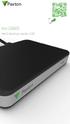 Paxton ins-20605 Net2 desktop reader USB 1 3 2 4 1 2 Desktop Reader The desktop reader is designed to sit next to the PC. It is used for adding tokens to a Net2 system and also for identifying lost cards.
LC-32LE350E-BK LC-32LE350E-WH LC-39LE350E-BK LC-39LE350E-WH
 LCD COLOUR TELEVISION LCD-FARB-TV TELEVISIONE A COLORI LCD TÉLÉVISEUR LCD COULEUR OPERATION MANUAL BEDIENUNGSANLEITUNG MANUALE DI FUNZIONAMENTO MODE D'EMPLOI 50231102 ENGLISH LC-32LE350E-BK LC-32LE350E-WH
Adeunis-RF Softwares. Stand-Alone configuration Manager V2. User guide version V1 FRANCAIS ENGLISH
 Adeunis-RF Softwares Stand-Alone configuration Manager V2 User guide version V1 FRANCAIS ENGLISH Adeunis RF 283 rue Louis Néel Parc Technologique Pré Roux 38920 Crolles - France Tel : +33 0)4 76 92 07
Quick Installation Guide TEW-P21G
 Quick Installation Guide TEW-P21G Table of of Contents Contents... 1. Avant de commencer... 2. Comment effectuer les connexions... 3. Utilisation du serveur d'impression... 1 1 2 3 Troubleshooting... 7
Contrôle d'accès Access control. Notice technique / Technical Manual
 p.1/18 Contrôle d'accès Access control INFX V2-AI Notice technique / Technical Manual p.2/18 Sommaire / Contents Remerciements... 3 Informations et recommandations... 4 Caractéristiques techniques... 5
SA-32 / SA-62 INSTRUCTION MANUAL - MANUEL D INSTRUCTIONS
 SA-32 / SA-62 INSTRUCTION MANUAL - MANUEL D INSTRUCTIONS 4 5 6 7 4 5 6 7 1. Telephone Paging Volume Control 1. Contrôle de volume Paging Téléphone 2. Microphone Volume Control 2. Contrôle volume du microphone
3615 SELFIE. http://graffitiresearchlab.fr HOW-TO / GUIDE D'UTILISATION
 3615 SELFIE http://graffitiresearchlab.fr HOW-TO / GUIDE D'UTILISATION Hardware : Minitel Computer DIN FM545 45 connector (http://www.gotronic.fr/art-fiche-din-fm545-4747.htm) Cable Arduino compatible
Garage Door Monitor Model 829LM
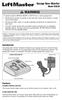 Garage Door Monitor Model 829LM To prevent possible SERIOUS INJURY or DEATH from a closing garage door: NEVER permit children to operate or play with door control push buttons or remote control transmitters.
Creating a Backup of Bootable Disk and Recovery Image
 Appendix Appendix Image Backup and Recovery Procedures Thank you for purchasing a Fujitsu computer. Fujitsu is committed to bringing you the best computing experience with your new system. It is very important
Instruction Manual. HS-636-4GBBK MP3 Player
 Instruction Manual HS-636-4GBBK MP3 Player Thank you for your purchase of this Hip Street MP3 player and we hope you enjoy using it. Please visit our website at www.hipstreetonline.com. The display screen
Principe de TrueCrypt. Créer un volume pour TrueCrypt
 Sommaire : Principe de TrueCrypt...1 Créer un volume pour TrueCrypt...1 Premier montage...6 Réglages...8 Save Currently Mounted Volumes as Favorite...8 Settings > Preferences...9 TrueCrypt Traveller pour
Contents. English - 1 -
 Contents Features... 3 Dear SHARP customer... 3 Introduction... 3 Preparation... 3 Important safety precautions... 4 Safety Precautions... 5 Package Contents... 7 Environmental Information... 7 Repair
Frequently Asked Questions
 Frequently Asked Questions GENERAL Q: Can I connect an external hard drive, USB stick or MP3 player to copy files to the device? A: Yes, you can. The device supports USB HOST function, which can read USB
Contrôle d accès Access control MOD-TCPIP-AI. Notice technique / Technical Manual
 Contrôle d accès Access control MOD-TCPIP-AI Notice technique / Technical Manual Notice technique Mod-TCPIP-AI 9 septembre 2008 v.1.0 p.2/16 Sommaire / Contents Sommaire / Contents...2 Remerciements...3
Logitech Wireless Performance Combo MX800 Setup Guide Guide d installation
 Logitech Wireless Performance Combo MX800 Setup Guide Guide d installation Logitech Wireless Performance Combo MX800 Setup Guide Guide d installation Important information Safety, compliance, and warranty
VTP. LAN Switching and Wireless Chapitre 4
 VTP LAN Switching and Wireless Chapitre 4 ITE I Chapter 6 2006 Cisco Systems, Inc. All rights reserved. Cisco Public 1 Pourquoi VTP? Le défi de la gestion VLAN La complexité de gestion des VLANs et des
Table of Contents. Product Overview. Troubleshooting. Setting Up Your EA-Series Router. Specifications. Linksys EA-Series.
 User Guide EA6350 Linksys EA-Series Table of Contents Table of Contents Product Overview EA6350.....................................1 Setting Up Your EA-Series Router Where to find more help.........................
lundi 3 août 2009 Choose your language What is Document Connection for Mac? Communautés Numériques L informatique à la portée du Grand Public
 Communautés Numériques L informatique à la portée du Grand Public Initiation et perfectionnement à l utilisation de la micro-informatique Microsoft Document Connection pour Mac. Microsoft Document Connection
Once the installation is complete, you can delete the temporary Zip files..
 Sommaire Installation... 2 After the download... 2 From a CD... 2 Access codes... 2 DirectX Compatibility... 2 Using the program... 2 Structure... 4 Lier une structure à une autre... 4 Personnaliser une
Wireless IP Camera 75790, 75790WH, 75791 Quick Start Guide Guide de départ rapide
 Wireless IP Camera 75790, 75790WH, 75791 Quick Start Guide Guide de départ rapide 1 Is this you? Start Here TECH SUPPORT CTRL ALT DEL 2 If yes, skip to advanced setup. 3 If not, write down the following:
Règlement sur le télémarketing et les centres d'appel. Call Centres Telemarketing Sales Regulation
 THE CONSUMER PROTECTION ACT (C.C.S.M. c. C200) Call Centres Telemarketing Sales Regulation LOI SUR LA PROTECTION DU CONSOMMATEUR (c. C200 de la C.P.L.M.) Règlement sur le télémarketing et les centres d'appel
Quick Start Guide This guide is intended to get you started with Rational ClearCase or Rational ClearCase MultiSite.
 Rational ClearCase or ClearCase MultiSite Version 7.0.1 Quick Start Guide This guide is intended to get you started with Rational ClearCase or Rational ClearCase MultiSite. Product Overview IBM Rational
INSTRUMENTS DE MESURE SOFTWARE. Management software for remote and/or local monitoring networks
 INSTRUMENTS DE MESURE SOFTWARE SOFTWARE Logiciel de supervision des réseaux locaux et/ou distants Management software for remote and/or local monitoring networks MIDAs EVO 4 niveaux de fonctionnalités
DOCUMENTATION - FRANCAIS... 2
 DOCUMENTATION MODULE SHOPDECORATION MODULE PRESTASHOP CREE PAR PRESTACREA INDEX : DOCUMENTATION - FRANCAIS... 2 INSTALLATION... 2 Installation automatique... 2 Installation manuelle... 2 Résolution des
Folio Case User s Guide
 Fujitsu America, Inc. Folio Case User s Guide I N S T R U C T I O N S This Folio Case is a stylish, lightweight case for protecting your Tablet PC. Elastic Strap Pen Holder Card Holders/ Easel Stops Figure
Software and Hardware Datasheet / Fiche technique du logiciel et du matériel
 Software and Hardware Datasheet / Fiche technique du logiciel et du matériel 1 System requirements Windows Windows 98, ME, 2000, XP, Vista 32/64, Seven 1 Ghz CPU 512 MB RAM 150 MB free disk space 1 CD
Quick Installation Guide TW100-BRV304
 Quick Installation Guide TW100-BRV304 Table of of Contents Contents Français... 1. Avant de commencer... 2. Installation du matériel... 3. Configuration du routeur... 1 1 2 3 Troubleshooting... 5 Version
Nouveautés printemps 2013
 » English Se désinscrire de la liste Nouveautés printemps 2013 19 mars 2013 Dans ce Flash Info, vous trouverez une description des nouveautés et mises à jour des produits La Capitale pour le printemps
AND / ET USER GUIDE UK HARDWIRED CONTROL PANEL UK GUIDE UTILISATEUR CENTRALE D ALARME FILAIRE F 496572 1
 AND / ET UK USER GUIDE HARDWIRED CONTROL PANEL UK F GUIDE UTILISATEUR CENTRALE D ALARME FILAIRE 496572 1 English UK Operator Controls and Displays On both control panel and remote keypad the LEDs display
DELL E6500 : Remplacement du disque dur d origine par un disque dur chiffrant
 DELL E6500 : Remplacement du disque dur d origine par un disque dur chiffrant Table des matières Objectif du document... 2 Contexte... 2 Réflexion sur l utilisation... 2 Ordre des actions... 2 Comment
GAME CONTENTS CONTENU DU JEU OBJECT OF THE GAME BUT DU JEU
 GAME CONTENTS 3 wooden animals: an elephant, a Polar bear and an African lion 1 Playing Board with two tree stumps, one red and one blue 1 Command Board double sided for two game levels (Green for normal
GUIDE UTILISATEUR SYSTEMES CCTV
 GUIDE UTILISATEUR SYSTEMES CCTV 2SECURE 3 chemin des mules 13124 PEYPIN www.2secure.fr - 1 - SOMMAIRE : 1 ACCEDER / SORTIR D UN MENU :...3 2 VISUALISER UN ENREGISTREMENT SUR LE DVR :...3 3 SAUVEGARDER
Quick Installation Guide
 Quick Installation Guide PowerLine AV+ Wireless N Mini Extender Version 1.10(NA) February 18, 2013 Wi-Fi Configuration Note Package Contents PowerLine AV+ Wireless N Mini Extender ENGLISH CAT5 Ethernet
DOCUMENTATION - FRANCAIS... 2
 DOCUMENTATION MODULE CATEGORIESTOPMENU MODULE CREE PAR PRESTACREA INDEX : DOCUMENTATION - FRANCAIS... 2 INSTALLATION... 2 CONFIGURATION... 2 LICENCE ET COPYRIGHT... 3 SUPPORT TECHNIQUE ET MISES A JOUR...
Quick Installation Guide TBW-106UB H/W: V1
 Quick Installation Guide TBW-106UB H/W: V1 Table of Contents... 1. Avant de commencer... 2. Procéder à l'installation... 3. Configuration de l'adaptateur Bluetooth... Troubleshooting... 1 1 2 5 7 Version
Exercices sur SQL server 2000
 Exercices sur SQL server 2000 La diagramme de classe : Exercices sur SQL server 2000 Le modèle relationnel correspondant : 1 Créer les tables Clic-droit on Tables et choisir «New Table» Créer la table
Application Form/ Formulaire de demande
 Application Form/ Formulaire de demande Ecosystem Approaches to Health: Summer Workshop and Field school Approches écosystémiques de la santé: Atelier intensif et stage d été Please submit your application
HT-R693. Basic Manual AV RECEIVER. Advanced Manual found here. http://www.onkyo.com/manual/htr693/adv/en.html
 HT-R693 AV RECEIVER En Fr Es Basic Manual Advanced Manual found here http://www.onkyo.com/manual/htr693/adv/en.html En Before Start About the Basic Manual The Basic Manual leads you through the fundamental
Manuel de l utilisateur
 TENVIS Technology Co,.LTD Manuel de l utilisateur Pour Caméras MJPEG JPT3815W M319W IPROBOT2 IP391W IP60xW Version 1.0.1 Index Configuration de Base... 3 Installation Matériel... 3 Pour Windows... 3 Mode
Vanilla : Virtual Box
 Vanilla : Virtual Box Installation Guide for Virtual Box appliance Guide d'installation de l'application VirtualBox Vanilla Charles Martin et Patrick Beaucamp BPM Conseil Contact : [email protected],
Gestion des prestations Volontaire
 Gestion des prestations Volontaire Qu estce que l Income Management (Gestion des prestations)? La gestion des prestations est un moyen de vous aider à gérer votre argent pour couvrir vos nécessités et
Restaurant Application Quick Reference Guide
 Restaurant Application Quick Reference Guide Ingenico Telium Canada English Color key Required Merchant Input on Point of Sale Required Customer Input on Internal or External PIN-pad Optional Merchant
RAPID 3.34 - Prenez le contrôle sur vos données
 RAPID 3.34 - Prenez le contrôle sur vos données Parmi les fonctions les plus demandées par nos utilisateurs, la navigation au clavier et la possibilité de disposer de champs supplémentaires arrivent aux
Display keypad. Notice d emploi User manual. Part. U3908A - 11/09-01 PC
 Display keypad Notice d emploi User manual 675 07 Part. U3908A - 11/09-01 PC FR UK Français 3 English 25 Index FR 1. Introduction 5 L activateur à clavier et moniteur 6 Le clavier 7 Les touches de navigation
Caractéristiques principales:
 Powered by AndoridTM4.1 Jelly Bean Archos introduit sa nouvelle tablette ChildPad: l ARCHOS 80 CHILDPAD. Equipée de la dernière version d Android Jelly Bean, cette tablette de 8 a spécialement été conçue
Critères à l attention des fabricants et des fournisseurs de biens ou de services : dispositifs mécaniques pour bingo
 Alcohol and Gaming Commission des alcools Commission of Ontario et des jeux de l'ontario Gaming Registration & Lotteries Inscription pour les jeux et loteries 90 Sheppard Avenue East 90, avenue Sheppard
SERVEUR DÉDIÉ DOCUMENTATION
 SERVEUR DÉDIÉ DOCUMENTATION Release 5.0.6.0 19 Juillet 2013 Copyright 2013 GIANTS Software GmbH, All Rights Reserved. 1/9 CHANGE LOG Correction de bug divers (5.0.6.0) Ajout d une option de relance automatique
APPENDIX 6 BONUS RING FORMAT
 #4 EN FRANÇAIS CI-DESSOUS Preamble and Justification This motion is being presented to the membership as an alternative format for clubs to use to encourage increased entries, both in areas where the exhibitor
Fabricant. 2 terminals
 Specifications Fabricant Nominal torque (Nm) 65 Minimal torque (Nm) 0,63 Coil resistance - 20 C (ohms) 20 Rated current DC (A) 1 Rotor inertia (kg.m 2 ) 2.10-3 Weight (kg) 7,20 Heat dissipation continuous
calls.paris-neuroscience.fr Tutoriel pour Candidatures en ligne *** Online Applications Tutorial
 calls.paris-neuroscience.fr Tutoriel pour Candidatures en ligne Online Applications Tutorial 1/4 Pour postuler aux Appels d Offres de l ENP, vous devez aller sur la plateforme : calls.parisneuroscience.fr.
Cheque Holding Policy Disclosure (Banks) Regulations. Règlement sur la communication de la politique de retenue de chèques (banques) CONSOLIDATION
 CANADA CONSOLIDATION CODIFICATION Cheque Holding Policy Disclosure (Banks) Regulations Règlement sur la communication de la politique de retenue de chèques (banques) SOR/2002-39 DORS/2002-39 Current to
Quick Installation Guide TV-IP400 TV-IP400W
 Quick Installation Guide TV-IP400 TV-IP400W Table of of Contents Contents Français... 1. Avant de commencer... 2. Installation du matériel... 3. Configuration de la Webcam... Troubleshooting... 1 1 2 3
Editing and managing Systems engineering processes at Snecma
 Editing and managing Systems engineering processes at Snecma Atego workshop 2014-04-03 Ce document et les informations qu il contient sont la propriété de Ils ne doivent pas être copiés ni communiqués
CLIM/GTP/27/8 ANNEX III/ANNEXE III. Category 1 New indications/ 1 re catégorie Nouvelles indications
 ANNEX III/ANNEXE III PROPOSALS FOR CHANGES TO THE NINTH EDITION OF THE NICE CLASSIFICATION CONCERNING AMUSEMENT APPARATUS OR APPARATUS FOR GAMES/ PROPOSITIONS DE CHANGEMENTS À APPORTER À LA NEUVIÈME ÉDITION
Summary / Sommaire. 1 Install DRIVER SR2 USB01 Windows seven 64 bits / Installation du DRIVER SR2 USB01 Windows seven 64 bits 2
 Summary / Sommaire 1 Install DRIVER SR2 USB01 Windows seven 64 bits / Installation du DRIVER SR2 USB01 Windows seven 64 bits 2 1.1 Driver Installation SR2 USB01 Windows Seven 64 bits (english) 2 1.1.1
SAP SNC Portal. User Guide for Suppliers. M1, M2b Modules - Edition 3. Direction des Achats/Ph.Longuet Date: 4/11/11
 SAP SNC Portal User Guide for Suppliers M1, M2b Modules - Edition 3 Direction des Achats/Ph.Longuet Date: 4/11/11 SAP SNC How to get started with Sagemcom SNC 1 - SNC Portal, what are features? SNC is
NOTICE INSTALLATION. ARCHANGE Email Simplex Office N&B/Couleur KONICA MINOLTA BUSINESS SOLUTIONS FRANCE
 NOTICE INSTALLATION ARCHANGE Email Simplex Office N&B/Couleur KONICA MINOLTA BUSINESS SOLUTIONS FRANCE Date Version Marque de révision Rédaction 31/07/2012 1 - Nicolas AUBLIN 1) PRINCIPE DE FONCTIONNEMENT...
LIFTMASTER INTERNET GATEWAY USER S GUIDE CONNECT & CREATE. Featuring MyQ Technology
 LIFTMASTER INTERNET GATEWAY USER S GUIDE Featuring MyQ Technology This User s Guide will help you get the most from your LiftMaster MyQ enabled products when using a smartphone, tablet, or computer to
Table des matières ENGLISH VERSION NEAR BOTTOM OF PAGE. Transferts sécurisés de fichiers Système MFT (Managed File Transfer) Guide de l utilisateur
 ENGLISH VERSION NEAR BOTTOM OF PAGE Transferts sécurisés de fichiers Système MFT (Managed File Transfer) Guide de l utilisateur Table des matières Survol...2 Considérations en matière de conformité des
English Français Deutsch Nederlands
 Network CD Receiver / Ampli-Tuner CD Réseau OWNER S MANUAL MODE D EMPLOI BEDIENUNGSANLEITUNG GEBRUIKSAANWIJZING English Français Deutsch Nederlands Read the supplied booklet Safety Brochure before using
PRESENTATION REMOTE TÉLÉCOMMANDE DE PRÉSENTATION. User Guide Manuel de l utilisateur
 PRESENTATION REMOTE TÉLÉCOMMANDE DE PRÉSENTATION User Guide Manuel de l utilisateur Targus Presentation Remote Introduction Thank you for your purchase of the Targus Presentation Remote. This cordless
THE EVOLUTION OF CONTENT CONSUMPTION ON MOBILE AND TABLETS
 THE EVOLUTION OF CONTENT CONSUMPTION ON MOBILE AND TABLETS OPPA investigated in March 2013 its members, in order to design a clear picture of the traffic on all devices, browsers and apps. One year later
that the child(ren) was/were in need of protection under Part III of the Child and Family Services Act, and the court made an order on
 ONTARIO Court File Number at (Name of court) Court office address Applicant(s) (In most cases, the applicant will be a children s aid society.) Full legal name & address for service street & number, municipality,
Simply Share, Save & Stream
 3-year warranty garantie de 3 ans mediashare TM Simply Share, Save & Stream Quick Start Guide Guide de démarrage rapide home network storage unité de stockage pour réseau à domicile share your photos!
Support Orders and Support Provisions (Banks and Authorized Foreign Banks) Regulations
 CANADA CONSOLIDATION CODIFICATION Support Orders and Support Provisions (Banks and Authorized Foreign Banks) Regulations Règlement sur les ordonnances alimentaires et les dispositions alimentaires (banques
03/2013. Mod: WOKI-60IP/TR. Production code: DTWIC 6000
 03/2013 Mod: WOKI-60IP/TR Production code: DTWIC 6000 ENCASTRABLE INDUCTION DROP IN INDUCTION 11/2011 TECHNICAL FEATURES DOCUMENTATION S.A.V. Notice d utilisation : FX00326-A Guide d intervention : ---
Tutoriel de formation SurveyMonkey
 Tutoriel de formation SurveyMonkey SurveyMonkey est un service de sondage en ligne. SurveyMonkey vous permet de créer vos sondages rapidement et facilement. SurveyMonkey est disponible à l adresse suivante
Acce s aux applications informatiques Supply Chain Fournisseurs
 Acce s aux applications informatiques Supply Chain Fournisseurs Toujours plus de service pour vous ; rapide, pratique, sécurisé, écologique et gratuit! Vous vous connectez à notre site MESSIER BUGATTI
SAP SNC Portal. User Guide for Suppliers. M1, M2b Modules - Edition 1. Direction des Achats/Ph.Longuet Date: 5/08/10
 SAP SNC Portal User Guide for Suppliers M1, M2b Modules - Edition 1 Direction des Achats/Ph.Longuet Date: 5/08/10 SAP SNC How to get started with Sagemcom SNC 1 - SNC Portal, what are features? SNC is
15 Digital Photo Frame model ADMPF315F. Instructional Manual mnl M10054
 15 Digital Photo Frame model ADMPF315F Instructional Manual mnl M10054 Table of Contents Introduction... Features... Package Contents... Product Highlights... Remote Control Close-up... Application...
Surveillance de Scripts LUA et de réception d EVENT. avec LoriotPro Extended & Broadcast Edition
 Surveillance de Scripts LUA et de réception d EVENT avec LoriotPro Extended & Broadcast Edition L objectif de ce document est de présenter une solution de surveillance de processus LUA au sein de la solution
DOCUMENTATION - FRANCAIS... 2
 DOCUMENTATION MODULE PRETTYSLIDER MODULE PRESTASHOP CREE PAR PRESTACREA INDEX : DOCUMENTATION - FRANCAIS... 2 INSTALLATION... 2 Installation automatique... 2 Installation manuelle... 2 Résolution des problèmes...
Setup Guide Guide d installation
 Setup Guide Guide d installation Languages English................. 3 Français.................15 2 English Package contents 1 2 3 4 5 1. Home Control remote 2. Home Hub Controls devices via IR, Bluetooth,
ASSEMBLY INSTRUCTIONS DIRECTIVES POUR L'ASSEMBLAGE ombre pendant lamp lampe suspendue à tons dégradés, chocolat
 ASSEMBLY INSTRUCTIONS DIRECTIVES POUR L'ASSEMBLAGE ombre pendant lamp lampe suspendue à tons dégradés, chocolat SKU 2728089 INSTRUCTIONAL MANUAL MANUEL D'INSTRUCTIONS 270/2707 COMPONENT LIST LISTE DES
UML : Unified Modeling Language
 UML : Unified Modeling Language Recommended: UML distilled A brief guide to the standard Object Modeling Language Addison Wesley based on Frank Maurer lecture, Univ. of Calgary in french : uml.free.fr/index.html
Operating Instructions <Setup Instructions>
 Operating Instructions Center Module Model No. WX-CC411 WX-CC412 English Français ENGLISH VERSION Contents Before use... 3 Preface... 3 Features... 3 System diagram... 3 Operation...
TV / DVD à écran rabattable pour cuisine VSKTV102 Mk II
 TV / DVD à écran rabattable pour cuisine VSKTV102 Mk II Manuel de l Utilisateur Accessoires Les accessoires suivant devraient être dans la boîte : TV Bloc d alimentation Télécommande Schéma de montage
CEPF FINAL PROJECT COMPLETION REPORT
 CEPF FINAL PROJECT COMPLETION REPORT I. BASIC DATA Organization Legal Name: Conservation International Madagascar Project Title (as stated in the grant agreement): Knowledge Management: Information & Monitoring.
Quick Installation Guide
 TP-LINK TECHNOLOGIES CO., LTD. Specifications are subject to change without notice. TP-LINK is a registered trademark of TP-LINK TECHNOLOGIES CO., LTD. Other brands and product names are trademarks or