
DDJ-WEGO2. DJ Controller Contrôleur pour DJ DJ Controller DJ Controller DJ Controller
|
|
|
- Marie-Thérèse Chartier
- il y a 10 ans
- Total affichages :
Transcription
1 English DJ Controller Contrôleur pour DJ DJ Controller DJ Controller DJ Controller DDJ-WEGO2 Français Deutsch Italiano Nederlands The Pioneer DJ support site shown above offers FAQs, information on software and various other types of information and services to allow you to use your product in greater comfort. The contents of the warranty for the United States and Canada are provided on the last pages of the instructions in English and French. Le site de support DJ de Pioneer indiqué ci-dessus propose une FAQ, des informations sur le logiciel et divers types d informations et de services qui permettent une utilisation plus confortable de ce produit. Le contenu de la garantie pour les États-Unis et le Canada se trouvent aux dernières pages des modes d emploi anglais et français. Die oben gezeigte Pioneer DJ-Support-Website enthält häufig gestellte Fragen, Informationen über Software und andere wichtige Informationen und Dienste, die Ihnen helfen, Ihr Produkt optimal zu verwenden. Il sito di supporto DJ Pioneer indicato qui sopra offre una sezione FAQ, informazioni sul software ed informazioni e servizi di vario tipo, per permettere un uso più confortevole dei nostri prodotti. De bovengenoemde Pioneer DJ ondersteuningswebsite biedt een overzicht van de vaak gestelde vragen, informatie over software en allerlei andere soorten informatie en diensten die u in staat stellen dit product met meer gemak te gebruiken. Read Before Use (Important)/Quick Start Guide A lire avant l utilisation (Important)/Guide de démarrage rapide Vor Gebrauch lesen (wichtig)/kurzanleitung Da leggere prima dell uso (Importante)/Guida di avvio veloce Lees dit voor gebruik (Belangrijk)/Snelstartgids
2 Read Before Use (Important) WARNING This equipment is not waterproof. To prevent a fire or shock hazard, do not place any container filled with liquid near this equipment (such as a vase or flower pot) or expose it to dripping, splashing, rain or moisture. D _A1_En WARNING To prevent a fire hazard, do not place any naked flame sources (such as a lighted candle) on the equipment. D a_A1_En Operating Environment Operating environment temperature and humidity: +5 C to +35 C (+41 F to +95 F); less than 85 %RH (cooling vents not blocked) Do not install this unit in a poorly ventilated area, or in locations exposed to high humidity or direct sunlight (or strong artificial light). D c*_A2_En When using this product, confirm the safety information shown on the bottom of the unit. D _B1_En WARNING Store small parts out of the reach of children and infants. If accidentally swallowed, contact a doctor immediately. D41-6-4_A1_En This product is for general household purposes. Any failure due to use for other than household purposes (such as long-term use for business purposes in a restaurant or use in a car or ship) and which requires repair will be charged for even during the warranty period. K041_A1_En For Europe For U.S.A. 1) 2) 3) 4) 5) 6) 7) 8) 9) 10) 11) Read these instructions. Keep these instructions. Heed all warnings. Follow all instructions. Do not use this apparatus near water. Clean only with dry cloth. Do not block any ventilation openings. Install in accordance with the manufacturer s instructions. Do not install near any heat sources such as radiators, heat registers, stoves, or other apparatus (including amplifiers) that produce heat. Do not defeat the safety purpose of the polarized or grounding-type plug. A polarized plug has two blades with one wider than the other. A grounding type plug has two blades and a third grounding prong. The wide blade or the third prong are provided for your safety. If the provided plug does not fit into your outlet, consult an electrician for replacement of the obsolete outlet. Protect the power cord from being walked on or pinched particularly at plugs, convenience receptacles, and the point where they exit from the apparatus. Only use attachments/accessories specified by the manufacturer. 12) Use only with the cart, stand, tripod, bracket, or table specified by the manufacturer, or sold with the apparatus. When a cart is used, use caution when moving the cart/apparatus combination to avoid injury from tip-over. If you want to dispose this product, do not mix it with general household waste. There is a separate collection system for used electronic products in accordance with legislation that requires proper treatment, recovery and recycling. Private households in the member states of the EU, in Switzerland and Norway may return their used electronic products free of charge to designated collection facilities or to a retailer (if you purchase a similar new one). For countries not mentioned above, please contact your local authorities for the correct method of disposal. By doing so you will ensure that your disposed product undergoes the necessary treatment, recovery and recycling and thus prevent potential negative effects on the environment and human health. K058b_A1_En 13) Unplug this apparatus during lightning storms or when unused for long periods of time. 14) Refer all servicing to qualified service personnel. Servicing is required when the apparatus has been damaged in any way, such as power-supply cord or plug is damaged, liquid has been spilled or objects have fallen into the apparatus, the apparatus has been exposed to rain or moisture, does not operate normally, or has been dropped. D _En 2 En

3 NOTE: This equipment has been tested and found to comply with the limits for a Class B digital device, pursuant to Part 15 of the FCC Rules. These limits are designed to provide reasonable protection against harmful interference in a residential installation. This equipment generates, uses, and can radiate radio frequency energy and, if not installed and used in accordance with the instructions, may cause harmful interference to radio communications. However, there is no guarantee that interference will not occur in a particular installation. If this equipment does cause harmful interference to radio or television reception, which can be determined by turning the equipment off and on, the user is encouraged to try to correct the interference by one or more of the following measures: Reorient or relocate the receiving antenna. Increase the separation between the equipment and receiver. Connect the equipment into an outlet on a circuit different from that to which the receiver is connected. Consult the dealer or an experienced radio/tv technician for help. D _A1_En Information to User Alterations or modifications carried out without appropriate authorization may invalidate the user s right to operate the equipment. D8-10-2_A1_En CAUTION This product satisfies FCC regulations when shielded cables (with Ferrite-cores attached) and connectors are used to connect the unit to other equipment. To prevent electromagnetic interference with electric appliances such as radios and televisions, use shielded cables (with Ferrite-cores attached) and connectors for connections. D8-10-3b_A1_En FEDERAL COMMUNICATIONS COMMISSION DECLARATION OF CONFORMITY This device complies with part 15 of the FCC Rules. Operation is subject to the following two conditions: (1) This device may not cause harmful interference, and (2) this device must accept any interference received, including interference that may cause undesired operation. Product Name: DJ Controller Model Number: DDJ-WEGO2-W,DDJ-WEGO2-K,DDJ-WEGO2-R Responsible Party Name: PIONEER ELECTRONICS (USA) INC. SERVICE SUPPORT DIVISION Address: 1925 E. DOMINGUEZ ST. LONG BEACH, CA , U.S.A. Phone: URL: D8-10-4*_C1_En IMPORTANT NOTICE THE MODEL NUMBER AND SERIAL NUMBER OF THIS EQUIPMENT ARE ON THE REAR OR BOTTOM. RECORD THESE NUMBERS ON PAGE 13 FOR FUTURE REFERENCE. D36-AP9-3*_A1_En WARNING: Handling the cord on this product or cords associated with accessories sold with the product may expose you to chemicals listed on proposition 65 known to the State of California and other governmental entities to cause cancer and birth defect or other reproductive harm. For U.S.A. and Canada D36-P5_B1_En The Safety of Your Ears is in Your Hands Get the most out of your equipment by playing it at a safe level a level that lets the sound come through clearly without annoying blaring or distortion and, most importantly, without affecting your sensitive hearing. Sound can be deceiving. Over time, your hearing comfort level adapts to higher volumes of sound, so what sounds normal can actually be loud and harmful to your hearing. Guard against this by setting your equipment at a safe level BEFORE your hearing adapts. ESTABLISH A SAFE LEVEL: Set your volume control at a low setting. Slowly increase the sound until you can hear it comfortably and clearly, without distortion. Once you have established a comfortable sound level, set the dial and leave it there. BE SURE TO OBSERVE THE FOLLOWING GUIDELINES: Do not turn up the volume so high that you can t hear what s around you. Use caution or temporarily discontinue use in potentially hazardous situations. Do not use headphones while operating a motorized vehicle; the use of headphones may create a traffic hazard and is illegal in many areas. S001a_A1_En English En 3

4 For other areas NOTE: This equipment has been tested and found to comply with the limits for a Class B digital device, pursuant to Part 15 of the FCC Rules. These limits are designed to provide reasonable protection against harmful interference in a residential installation. This equipment generates, uses, and can radiate radio frequency energy and, if not installed and used in accordance with the instructions, may cause harmful interference to radio communications. However, there is no guarantee that interference will not occur in a particular installation. If this equipment does cause harmful interference to radio or television reception, which can be determined by turning the equipment off and on, the user is encouraged to try to correct the interference by one or more of the following measures: Reorient or relocate the receiving antenna. Increase the separation between the equipment and receiver. Connect the equipment into an outlet on a circuit different from that to which the receiver is connected. Consult the dealer or an experienced radio/tv technician for help. D _A1_En Information to User Alterations or modifications carried out without appropriate authorization may invalidate the user s right to operate the equipment. D8-10-2_A1_En CAUTION This product satisfies FCC regulations when shielded cables (with Ferrite-cores attached) and connectors are used to connect the unit to other equipment. To prevent electromagnetic interference with electric appliances such as radios and televisions, use shielded cables (with Ferrite-cores attached) and connectors for connections. D8-10-3b_A1_En FEDERAL COMMUNICATIONS COMMISSION DECLARATION OF CONFORMITY This device complies with part 15 of the FCC Rules. Operation is subject to the following two conditions: (1) This device may not cause harmful interference, and (2) this device must accept any interference received, including interference that may cause undesired operation. Product Name: DJ Controller Model Number: DDJ-WEGO2-W,DDJ-WEGO2-K,DDJ-WEGO2-R Responsible Party Name: PIONEER ELECTRONICS (USA) INC. SERVICE SUPPORT DIVISION Address: 1925 E. DOMINGUEZ ST. LONG BEACH, CA , U.S.A. Phone: URL: D8-10-4*_C1_En 4 En
5 Before start How to read this manual! Thank you for buying this Pioneer product. Be sure to read both this leaflet and the Operating Instructions contained on the CD-ROM accompanying this product! Both documents include important information that you must understand before using this product. After you have finished reading the instructions, put them away in a safe place for future reference.! In this manual, names of screens and menus displayed on the computer screen, as well as names of buttons and terminals on the product, etc., are indicated within brackets. (e.g.: [RECORD] panel, [CONFIG] menu, [CUE] button, [VINYL] mode, [AUX IN] terminals) Supported operating systems Windows Vista Home Basic/Home Premium/Business/ 32-bit version 1 Ultimate 64-bit version 1 1 Windows XP Home Edition/Professional (SP2 or later) 32-bit version 1 1 When using a 64-bit version of Windows, the driver software can only be used for 32-bit applications. Checking the latest information on the driver software For detailed information on this unit s designated driver software, see the Pioneer DJ support site below. English About trademarks and registered trademarks! Pioneer is a registered trademark of PIONEER CORPORATION.! The other names of companies, products, and technologies mentioned herein are the registered trademarks or trademarks of their respective owners. What s in the box! VIRTUAL DJ LE software/driver software/operating instructions CD-ROM! USB cable! Read Before Use (Important)/Quick Start Guide! Warranty (for some regions) 1! iphone/ipad connection cable (Lightning)! iphone/ipad stand! Stand fixing screws x 3! VIRTUAL DJ LE license key (indicated on this unit s bottom panel) 1 The included warranty is for the European region. For the North American region, the corresponding information is provided on the last page of both the English and French versions of the Read Before Use (Important)/Quick Start Guide. For the Japanese region, the corresponding information is provided on the last page of the Japanese version of the Read Before Use (Important)/Quick Start Guide. Cautions The license key cannot be reissued. Be careful not to lose it. Installing the software! Be sure to read the end-user license agreements that appear when installing the software below. The software can only be used if you accept the terms of the agreements. VIRTUAL DJ End-User License Agreement Pioneer DDJ_WeGO2 ASIO driver software Software end user license agreement About the driver software (Windows) This driver software is an exclusive ASIO driver for outputting audio signals from the computer.! There is no need to install the driver software when using Mac OS X. Operating environment Supported operating systems Windows 8/Windows 8 Pro Windows 7 Home Premium/Professional/Ultimate 32-bit version 1 64-bit version bit version 1 64-bit version 1 1 Before installing the software! Turn off this unit s power switch, then disconnect the USB cable connecting this unit and the computer.! If any other programs are running on the computer, quit them. About the VIRTUAL DJ LE software VIRTUAL DJ LE is a DJ software application by Atomix productions. DJ performances are possible by connecting the computer on which this software is installed to this unit.! If VIRTUAL DJ is already installed on your computer, VIRTUAL DJ LE will not operate properly. Uninstall all versions of VIRTUAL DJ already installed on your computer before installing VIRTUAL DJ LE for this unit. For instructions on uninstalling VIRTUAL DJ, see the Pioneer DJ support site below. When using Windows, the ASIO driver must be installed. Minimum operating environment Supported operating systems Mac OS X 10.5.x Windows XP Home Edition/ Professional (SP3 or later) Others Hard disk Optical drive USB port Display resolution CPU and required memory Intel processor 1 GB or more of RAM Intel Pentium 4 or AMD Athlon XP processor 512 MB or more of RAM Free space of 50 MB or greater Optical disc drive on which the CD-ROM can be read A USB 2.0 port is required to connect the computer with this unit. Resolution of x 768 or greater Recommended operating environment Supported operating systems CPU and required memory Mac OS X 10.6.x Windows 7 Professional Others Hard disk Display resolution 32-bit version Intel processor 2 GB or more of RAM Intel Core 2 or AMD Athlon X2 processor 1 GB or more of RAM Free space of 200 MB or greater Resolution of x or greater (Windows) Resolution of x 900 or greater (Mac) The conditions below must be satisfied in order to conduct video mixing.! Mac ATI or NVIDIA video chipset with 256 MB of dedicated DDR3 RAM Video card must support dual-screen output. En 5

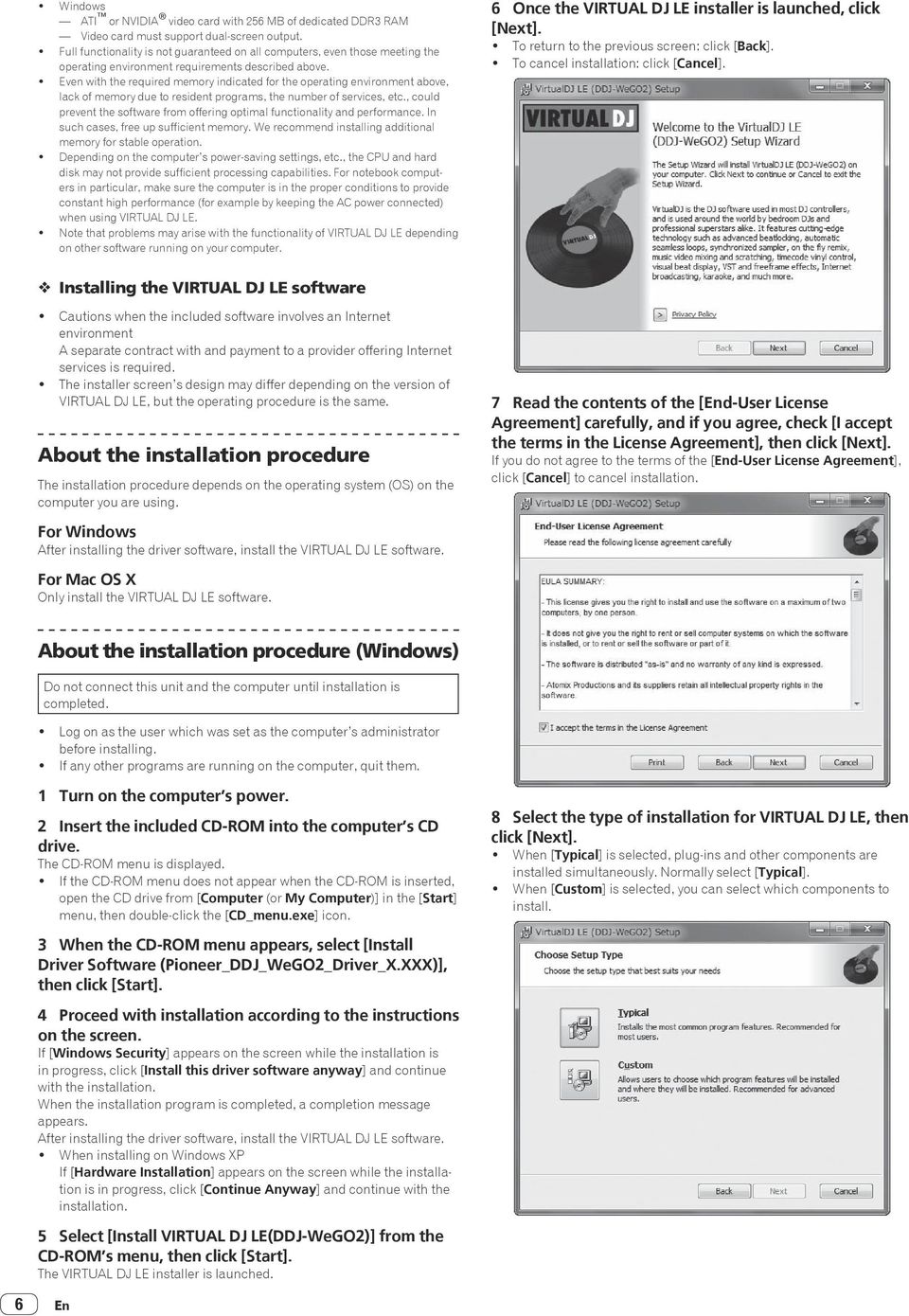
6 ! Windows ATI or NVIDIA video card with 256 MB of dedicated DDR3 RAM Video card must support dual-screen output.! Full functionality is not guaranteed on all computers, even those meeting the operating environment requirements described above.! Even with the required memory indicated for the operating environment above, lack of memory due to resident programs, the number of services, etc., could prevent the software from offering optimal functionality and performance. In such cases, free up sufficient memory. We recommend installing additional memory for stable operation.! Depending on the computer s power-saving settings, etc., the CPU and hard disk may not provide sufficient processing capabilities. For notebook computers in particular, make sure the computer is in the proper conditions to provide constant high performance (for example by keeping the AC power connected) when using VIRTUAL DJ LE.! Note that problems may arise with the functionality of VIRTUAL DJ LE depending on other software running on your computer. 6 Once the VIRTUAL DJ LE installer is launched, click [Next].! To return to the previous screen: click [Back].! To cancel installation: click [Cancel]. Installing the VIRTUAL DJ LE software! Cautions when the included software involves an Internet environment A separate contract with and payment to a provider offering Internet services is required.! The installer screen s design may differ depending on the version of VIRTUAL DJ LE, but the operating procedure is the same. About the installation procedure The installation procedure depends on the operating system (OS) on the computer you are using. For Windows After installing the driver software, install the VIRTUAL DJ LE software. For Mac OS X Only install the VIRTUAL DJ LE software. 7 Read the contents of the [End-User License Agreement] carefully, and if you agree, check [I accept the terms in the License Agreement], then click [Next]. If you do not agree to the terms of the [End-User License Agreement], click [Cancel] to cancel installation. 6 About the installation procedure (Windows) Do not connect this unit and the computer until installation is completed.! Log on as the user which was set as the computer s administrator before installing.! If any other programs are running on the computer, quit them. 1 Turn on the computer s power. 2 Insert the included CD-ROM into the computer s CD drive. The CD-ROM menu is displayed.! If the CD-ROM menu does not appear when the CD-ROM is inserted, open the CD drive from [Computer (or My Computer)] in the [Start] menu, then double-click the [CD_menu.exe] icon. 3 When the CD-ROM menu appears, select [Install Driver Software (Pioneer_DDJ_WeGO2_Driver_X.XXX)], then click [Start]. 4 Proceed with installation according to the instructions on the screen. If [Windows Security] appears on the screen while the installation is in progress, click [Install this driver software anyway] and continue with the installation. When the installation program is completed, a completion message appears. After installing the driver software, install the VIRTUAL DJ LE software.! When installing on Windows XP If [Hardware Installation] appears on the screen while the installation is in progress, click [Continue Anyway] and continue with the installation. 5 Select [Install VIRTUAL DJ LE(DDJ-WeGO2)] from the CD-ROM s menu, then click [Start]. The VIRTUAL DJ LE installer is launched. En 8 Select the type of installation for VIRTUAL DJ LE, then click [Next].! When [Typical] is selected, plug-ins and other components are installed simultaneously. Normally select [Typical].! When [Custom] is selected, you can select which components to install.
7 9 When the screen below is displayed, click [Install]. Installation begins. The message of successful installation appears once installation is completed. About the installation procedure (Mac OS X) 1 Insert the included CD-ROM into the computer s CD drive. The [CD_menu] icon appears on the screen. Double-click it. English 10 Click [Finish]. This completes the installation procedure. VIRTUAL DJ LE is launched if [Launch VirtualDJ] on the screen is checked when [Finish] is clicked. 2 When the CD-ROM s menu is displayed, select [Install VIRTUAL DJ LE(DDJ-WeGO2)], then click [Start]. The VIRTUAL DJ LE installer is launched. 3 Once the VIRTUAL DJ LE installer is launched, click [Continue]. 4 Read the contents of the license agreement carefully, click [Continue] and then click [Agree] to accept the license agreement. If you do not agree to the license agreement, click [Disagree] to cancel installation. 5 Select the type of installation for VIRTUAL DJ LE, then click [Install]. To select standard installation, click [Install]. To install in a different location, click [Change Install Location...] and choose the place of installation. Installation begins. The message of successful installation appears once installation is completed. 6 Click [Close]. This completes the installation procedure. Checking the latest information on the VIRTUAL DJ LE software For the latest information on the operating environment and compatibility, and to acquire the latest operating system, please visit the following Atomix productions website: To obtain the latest version of the VIRTUAL DJ LE software, you must register your user account on the Atomix productions website Input the serial number printed on this unit s bottom panel (XXXX-XXXX-XXXXX/WEGO2), then click [OK]. Mounting the iphone/ipad stand To use an iphone/ipad, mount the included iphone/ipad stand. WARNING Keep the included screws and the screw covers that have been removed from the unit out of the reach of children. If they should be swallowed, contact a physician immediately. 1 Remove the three screw covers. This unit s bottom panel VIRTUAL DJ LE Serial number 2 Fasten the included screws in the order shown on the diagram below.! Do not use any screws other than the included ones. En 7
![This completes the installation procedure. VIRTUAL DJ LE is launched if [Launch VirtualDJ] on the screen is checked when [Finish] is clicked.](/docs-images/41/782751/images/page_7.jpg "2 When the CD-ROM s menu is displayed, select [Install VIRTUAL DJ LE(DDJ-WeGO2)], then click [Start]. The VIRTUAL DJ LE installer is launched.")
8 Cautions on using the iphone/ipad stand! This stand is exclusively for use with an iphone/ipad. Do not place tablets other than ipads or large devices on the stand.! Set the iphone/ipad on the stand in the horizontal direction. It may be unstable if set in the vertical direction.! Do not apply excessive force to the stand. Doing so may damage this unit.! Please note that Pioneer will accept no responsibility whatsoever for damage to or malfunction of the device, injury, etc., due to the device falling, etc.! Do not move with an iphone/ipad placed on the stand. The iphone/ ipad could fall off.! If there is a cover on the iphone/ipad, remove the cover before placing the iphone/ipad on the stand. If the cover is left on, the iphone/ ipad could be unstable. ios devices that can be used with this unit and placed on the stand! ios ios 6! Devices supporting the iphone/ipad connection cable (Lightning) ipad (4th generation), ipad mini, iphone 5, ipod touch (5th generation) For the latest information on ios devices, see [DDJ-WeGO2] on the Pioneer DJ support site below. Connecting with an iphone/ipad Connect with the triangle mark at the top. DJ software iphone/ipad ON/OFF switch ON OFF For checking the output sound Headphones For power supply USB mobile battery/ USB power adapter iphone/ipad connection cable (Lightning) For audio input Microphone MIC MASTER OUT R L R For audio output Component, amplifier, powered speaker, etc. L Connections Be sure the power is off when connecting equipment and changing connections. Be sure to use the USB cable included with this product. Refer to the operating instructions for the component to be connected. Connecting with a computer! The iphone/ipad connection has priority, so do not connect an iphone/ipad when using a computer.! VIRTUAL DJ LE for DDJ-WEGO2 is customized to output the audio only from the unit not from the computer. Please connect headphones, an amplifier or powered speakers as shown in the figure below to hear the output sound. Audio output from your computer will be available if a paid upgrade to VIRTUALDJ PRO FULL is completed. With this unit, the power is supplied by USB bus power. The unit can be used simply by connecting it to a computer using the USB cable.! Connect this unit and the computer directly using the included USB cable.! Connect the computer to which this unit is to be connected to an AC power supply.! A USB hub cannot be used. ON/OFF switch ON OFF MIC MASTER OUT! An iphone/ipad cannot be charged with the iphone/ipad connection cable (Lightning). Starting the system When using a computer 1 Connect this unit to your computer via a USB cable. 2 Boot up the connected computer. 3 Slide this unit s [ON/OFF] switch to the [ON] position. Turn on the power of this unit. Launching VIRTUAL DJ LE About the order of operations when launching VIRTUAL DJ LE Always first turn on this unit s power, wait for the startup illumination to finish, check that this unit s [CTRL A], [FX1], [FX2], [FX3] and [CTRL B] buttons are all lit dimly, then launch VIRTUAL DJ LE. R L R L Launching VIRTUAL DJ LE (Windows) DJ software Computer For checking the output sound Headphones For audio input Microphone For audio output Component, amplifier, powered speaker, etc. From the Windows [Start] menu, click the [All Programs] > [VirtualDJ] > [VirtualDJ LE (DDJ-WeGO2)] icon. Launching VIRTUAL DJ LE (Mac OS X) In Finder, open the [Application] folder, then doubleclick the [VirtualDJ LE] icon. When VIRTUAL DJ LE is launched the first time, a screen for entering the serial number appears. Input the serial number printed on this unit s bottom panel (XXXX- XXXX-XXXXX/WEGO2), then click [OK]. 8 En

9 When using an iphone/ipad Audio disorders (beeping) may occur in this unit when calling or sending/receiving data on the mobile phone. This problem can arise when the mobile phone s communications protocol is GSM, and is due to interference caused by GSM. If this happens, change the iphone/ipad s setting to flight mode. This problem does not occur with the 3G or LTE communications protocols.! The curve characteristics can be switched using the crossfader curve setting button on the [MIXER] panel at the center of the computer s screen. [ ]: Select this when you do not want to use the crossfader. [ ]: Set here for a curve that rises gradually. [ ]: Sets an abruptly rising curve. 3 Turn the [MASTER VOL] control to adjust the audio level of the speakers. English 1 Connect the iphone/ipad with this unit using the iphone/ipad connection cable (Lightning). 2 Connect this unit with the USB mobile battery or USB power adapter. 3 Slide this unit s [ON/OFF] switch to the [ON] position. 4 Launch the DJ application on the iphone/ipad. Basic Operation D C C A B D Monitoring sound with headphones (rc) 1 Connect headphones to the [PHONES] terminal. 2 Press the [CUE ] button for the deck you want to monitor. 3 Turn the [HEADPHONES MIX] control.! Turn counterclockwise: The volume of the deck whose [CUE ] button is pressed increases relatively.! Turn clockwise: The [MASTER OUT] volume increases relatively. 4 Turn the [HEADPHONES VOL] control.! The sound of the deck whose [CUE ] button is pressed is output from the headphones.! When the [CUE ] button is pressed again, monitoring is canceled. Quitting the system B 1 Quit VIRTUAL DJ LE. 2 Slide this unit s [ON/OFF] switch to the [OFF] position. 3 Disconnect the USB cable from your computer. Loading tracks and playing them (ra) 1 Turn the rotary selector while pressing the [SHIFT] button to select a folder or item.! When a folder or item with the [+] mark is selected and the rotary selector is pressed while pressing the [SHIFT] button, that folder or item is opened or closed. 2 Release the [SHIFT] button then turn the rotary selector to select the track. 3 Press the [LOAD] button to load the selected track onto the deck. 4 Press the [f] button to play the track.! When this button is pressed again during playback, playback pauses. Using the mixer functions (rb)! Adjust the volume of the powered speakers, etc., connected to the [MASTER OUT] terminals to an appropriate level. Note that if the volume is set too high, the output sound could be very loud. 1 Operate the channel faders to adjust the audio level output from the respective decks. 2 Operate the crossfader to switch the deck whose sound is output from the speakers. Left edge: Sound is output from deck [A] or [C]. Center: The sound of all the decks is mixed and output. Right edge: Sound is output from deck [B] or [D]. En 9
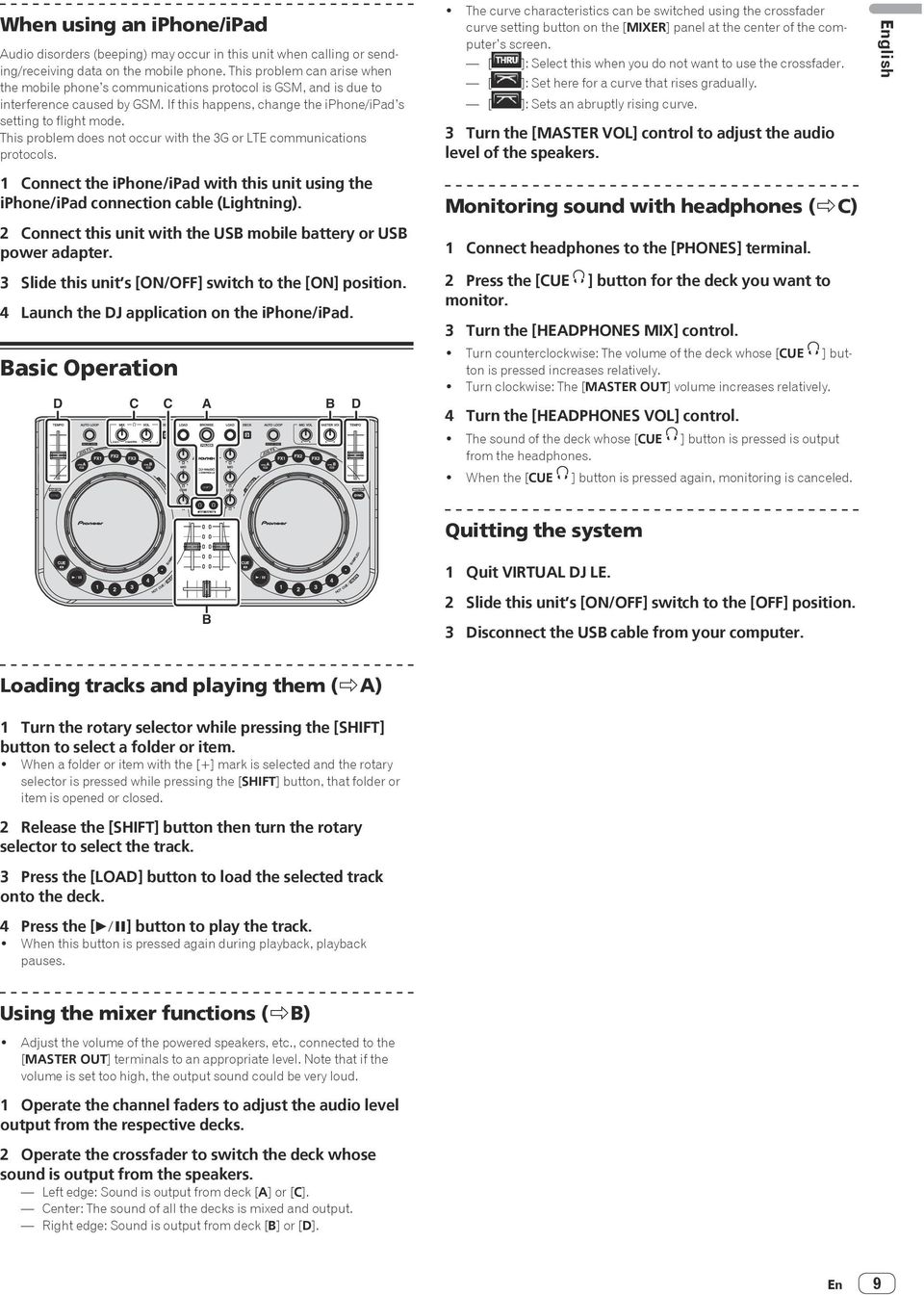
10 Part names and functions 2 Deck 3 Mixer 2 Deck B 1 Browser A 6 c 3 Mixer 1 Browser 2 Deck 3 Mixer k l d 21 2 d c i j a b 8 m e m 7 9 a b 8 5 n o n 5 q p 4 3 h g f 4 3 h g f 2 Deck 3 Mixer 2 Deck The screen above shows an example of 2-deck layout. The contents displayed on the screen differ according to the VIRTUAL DJ LE settings.! The deck layout can be switched by clicking the [ ] button on the computer s screen. 1 Browser 1 Rotary selector! Turn: The cursor moves in section A of the above diagram.! [SHIFT] + turn: The cursor moves in section B of the above diagram.! [SHIFT] + press: Folders in section B of the above diagram open and close. * If a panel other than the [BROWSE] panel is displayed, turn the rotary selector to display the [BROWSE] panel. 2 LOAD button Loads the track selected with the cursor in each of the decks. 10 En
![! The deck layout can be switched by clicking the [ ] button on the computer s screen. 1 Browser 1 Rotary selector! Turn: The cursor moves in section A of the above diagram.](/docs-images/41/782751/images/page_10.jpg "! [SHIFT] + turn: The cursor moves in section B of the above diagram.! [SHIFT] + press: Folders in section B of the above diagram open and close.")
11 2 Deck 3 f button Use this to play/pause tracks. 4 CUE button! Press: Sets a cue point or moves the cue point.! [SHIFT] + press: The playing position moves to the beginning of the track. 5 SYNC (MASTER) button! Press: Synchronizes to the master deck s tempo.! [SHIFT] + press: Sets the master deck for synchronization. 6 TEMPO slider Adjusts the playing speed. 7 CTRL A button! Press: Turns key control on and off.! [SHIFT] + press: Turns key control, the filter and effects 1 to 3 all off at once. 8 CTRL B button! Press: Turns the filter on and off.! [SHIFT] + press: Turns key control, the filter and effects 1 to 3 all off at once. 9 FX1 button! Press: Turns effect 1 on and off.! [SHIFT] + press: Switches the effect types of FX1. a FX2 button! Press: Turns effect 2 on and off.! [SHIFT] + press: Switches the effect types of FX2. b FX3 button! Press: Turns effect 3 on and off.! [SHIFT] + press: Switches the effect types of FX3. c AUTO LOOP (MOVE GRID) control! Turn: Changes the loop length for playback.! Press: Turns loop playback on and off.! [SHIFT] + turn: Moves the beat grid position. * This function can be used when you upgrade to VIRTUALDJ PRO FULL.! [SHIFT] + press: Sets the manual loop s in and out points. Turns manual loop playback on and off. d DECK button Switches the deck to be operated. e SHIFT button When another button is pressed while pressing the [SHIFT] button, a different function is called out. f SAMPLER button! Press: Turns the sampler mode on and off. g HOT CUE (DELETE)/SAMPLER button! Press: When the sampler mode is off, sets or calls out the hot cue point. When the sampler mode is on, plays/stops playback of the sample sound.! [SHIFT] + press: When the sampler mode is off, cancels the hot cue set at the button that is pressed. When the sampler mode is on, if a sample sound is playing, playback returns to the beginning of the sample sound and continues from there. h Jog dial 0 When the JOG FX mode is off Scratch When turned while touching a metallic part of the top of the jog dial, the sound is played according to the direction and speed at which the jog dial is turned. Pitch bend The playing speed can be adjusted by turning the outer part of the jog dial during playback. Manual search When the jog dial is spun while pressing [SHIFT] button during playback, the track is fast-forwarded/fast-reversed. 0 When the JOG FX mode is on JOG FX control Effect parameters can be adjusted by turning the jog dial. English 3 Mixer i MIC VOL control Adjusts the audio level input to the [MIC] terminal. j MASTER VOL control Adjusts the sound level output from the master.! The adjustment made here does not affect the [MASTER] control on the computer s screen. k HEADPHONES MIX control Adjusts the balance of the monitor volume between the sound of the deck whose [ ] button is pressed and the master sound.! The sampler sound is output regardless of the position of the [HEADPHONES MIX] control. l HEADPHONES VOL control Adjusts the audio level output from the [PHONES] terminal.! The adjustment made here does not affect the [VOL] control (headphones volume control) on the computer s screen.! The sound of the microphone connected to the [MIC] jack is not output from the headphones. m EQ (HI, MID, LOW) controls These adjust the sound quality input to the various decks. [HI] (treble range), [MID] (middle range), [LOW] (low range) n CUE (Headphones cue button) Use this to monitor the sound of the respective decks over the headphones. o Channel Level Indicator Indicates the level of the sound before it passes through the channel faders of the respective decks. p Channel fader Adjusts the sound level output from the various decks. q Crossfader Switches the sound of the decks assigned to the left and right sides of the crossfader for output. En 11
![Press: Turns key control on and off.! [SHIFT] + press: Turns key control, the filter and effects 1 to 3 all off at once. 8 CTRL B button! Press: Turns the filter on and off.](/docs-images/41/782751/images/page_11.jpg "! [SHIFT] + press: Turns key control, the filter and effects 1 to 3 all off at once. 9 FX1 button! Press: Turns effect 1 on and off.! [SHIFT] + press: Switches the effect types of FX1. a FX2 button!")
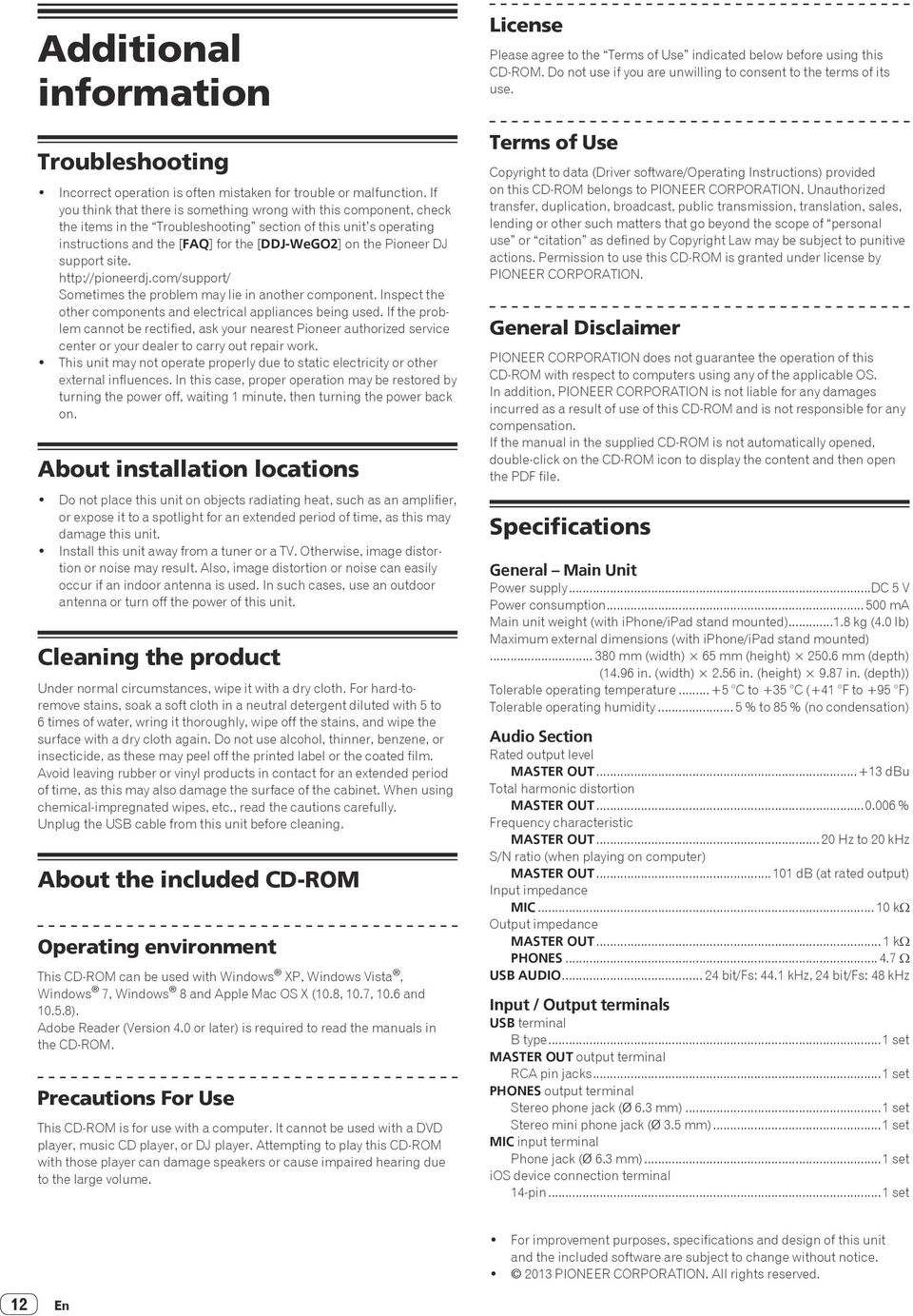
12 Additional information Troubleshooting! Incorrect operation is often mistaken for trouble or malfunction. If you think that there is something wrong with this component, check the items in the Troubleshooting section of this unit s operating instructions and the [FAQ] for the [DDJ-WeGO2] on the Pioneer DJ support site. Sometimes the problem may lie in another component. Inspect the other components and electrical appliances being used. If the problem cannot be rectified, ask your nearest Pioneer authorized service center or your dealer to carry out repair work.! This unit may not operate properly due to static electricity or other external influences. In this case, proper operation may be restored by turning the power off, waiting 1 minute, then turning the power back on. About installation locations! Do not place this unit on objects radiating heat, such as an amplifier, or expose it to a spotlight for an extended period of time, as this may damage this unit.! Install this unit away from a tuner or a TV. Otherwise, image distortion or noise may result. Also, image distortion or noise can easily occur if an indoor antenna is used. In such cases, use an outdoor antenna or turn off the power of this unit. Cleaning the product Under normal circumstances, wipe it with a dry cloth. For hard-toremove stains, soak a soft cloth in a neutral detergent diluted with 5 to 6 times of water, wring it thoroughly, wipe off the stains, and wipe the surface with a dry cloth again. Do not use alcohol, thinner, benzene, or insecticide, as these may peel off the printed label or the coated film. Avoid leaving rubber or vinyl products in contact for an extended period of time, as this may also damage the surface of the cabinet. When using chemical-impregnated wipes, etc., read the cautions carefully. Unplug the USB cable from this unit before cleaning. About the included CD-ROM Operating environment This CD-ROM can be used with Windows XP, Windows Vista, Windows 7, Windows 8 and Apple Mac OS X (10.8, 10.7, 10.6 and ). Adobe Reader (Version 4.0 or later) is required to read the manuals in the CD-ROM. Precautions For Use This CD-ROM is for use with a computer. It cannot be used with a DVD player, music CD player, or DJ player. Attempting to play this CD-ROM with those player can damage speakers or cause impaired hearing due to the large volume. License Please agree to the Terms of Use indicated below before using this CD-ROM. Do not use if you are unwilling to consent to the terms of its use. Terms of Use Copyright to data (Driver software/operating Instructions) provided on this CD-ROM belongs to PIONEER CORPORATION. Unauthorized transfer, duplication, broadcast, public transmission, translation, sales, lending or other such matters that go beyond the scope of personal use or citation as defined by Copyright Law may be subject to punitive actions. Permission to use this CD-ROM is granted under license by PIONEER CORPORATION. General Disclaimer PIONEER CORPORATION does not guarantee the operation of this CD-ROM with respect to computers using any of the applicable OS. In addition, PIONEER CORPORATION is not liable for any damages incurred as a result of use of this CD-ROM and is not responsible for any compensation. If the manual in the supplied CD-ROM is not automatically opened, double-click on the CD-ROM icon to display the content and then open the PDF file. Specifications General Main Unit Power supply...dc 5 V Power consumption ma Main unit weight (with iphone/ipad stand mounted) kg (4.0 lb) Maximum external dimensions (with iphone/ipad stand mounted) mm (width) 65 mm (height) mm (depth) (14.96 in. (width) 2.56 in. (height) 9.87 in. (depth)) Tolerable operating temperature...+5 C to +35 C (+41 F to +95 F) Tolerable operating humidity... 5 % to 85 % (no condensation) Audio Section Rated output level MASTER OUT dbu Total harmonic distortion MASTER OUT % Frequency characteristic MASTER OUT Hz to 20 khz S/N ratio (when playing on computer) MASTER OUT db (at rated output) Input impedance MIC kw Output impedance MASTER OUT... 1 kw PHONES W USB AUDIO bit/fs: 44.1 khz, 24 bit/fs: 48 khz Input / Output terminals USB terminal B type...1 set MASTER OUT output terminal RCA pin jacks...1 set PHONES output terminal Stereo phone jack (Ø 6.3 mm)...1 set Stereo mini phone jack (Ø 3.5 mm)...1 set MIC input terminal Phone jack (Ø 6.3 mm)...1 set ios device connection terminal 14-pin...1 set! For improvement purposes, specifications and design of this unit and the included software are subject to change without notice.! 2013 PIONEER CORPORATION. All rights reserved. 12 En
13 English PIONEER ELECTRONICS (USA) INC. LIMITED WARRANTY WARRANTY VALID ONLY IN THE U.S.A. AND CANADA WARRANTY Pioneer Electronics (USA) Inc. (PUSA) warrants that products distributed by PUSA in the U.S.A. and Canada that fail to function properly under normal use due to a manufacturing defect when installed and operated according to the owner s manual enclosed with the unit will be repaired or replaced with a unit of comparable value, at the option of PUSA, without charge to you for parts or actual repair work. Parts supplied under this warranty may be new or rebuilt at the option of PUSA. THIS LIMITED WARRANTY APPLIES TO THE ORIGINAL OR ANY SUBSEQUENT OWNER OF THIS PIONEER PRODUCT DURING THE WARRANTY PERIOD PROVIDED THE PRODUCT WAS PURCHASED FROM AN AUTHORIZED PIONEER DISTRIBUTOR/DEALER IN THE U.S.A. OR CANADA. YOU WILL BE REQUIRED TO PROVIDE A SALES RECEIPT OR OTHER VALID PROOF OF PURCHASE SHOWING THE DATE OF ORIGINAL PURCHASE OR, IF RENTED, YOUR RENTAL CONTRACT SHOWING THE PLACE AND DATE OF FIRST RENTAL. IN THE EVENT SERVICE IS REQUIRED, THE PRODUCT MUST BE DELIVERED WITHIN THE WARRANTY PERIOD, TRANSPORTATION PREPAID, ONLY FROM WITHIN THE U.S.A. AS EXPLAINED IN THIS DOCUMENT. YOU WILL BE RESPONSIBLE FOR REMOVAL AND INSTALLATION OF THE PRODUCT. PUSA WILL PAY TO RETURN THE REPAIRED OR REPLACEMENT PRODUCT TO YOU WITHIN THE U.S.A. PRODUCT WARRANTY PERIOD Parts Labor DJ Audio and Video... 1 Year 1 Year The warranty period for retail customers who rent the product commences upon the date product is first put into use (a) during the rental period or (b) retail sale, whichever occurs first. WHAT IS NOT COVERED IF THIS PRODUCT WAS PURCHASED FROM AN UNAUTHORIZED DISTRIBUTOR, THERE ARE NO WARRANTIES, EXPRESS OR IMPLIED, INCLUDING THE IMPLIED WARRANTY OF MERCHANTABILITY AND THE IMPLIED WARRANTY OF FITNESS FOR A PARTICULAR PURPOSE AND THIS PRODUCT IS SOLD STRICTLY AS IS AND WITH ALL FAULTS". PIONEER SHALL NOT BE LIABLE FOR ANY CONSEQUENTIAL AND/OR INCIDENTAL DAMAGES. THIS WARRANTY DOES NOT APPLY IF THE PRODUCT HAS BEEN SUBJECTED TO POWER IN EXCESS OF ITS PUBLISHED POWER RATING. THIS WARRANTY DOES NOT COVER THE CABINET OR ANY APPEARANCE ITEM, USER ATTACHED ANTENNA, ANY DAMAGE TO RECORDS OR RECORDING TAPES OR DISCS, ANY DAMAGE TO THE PRODUCT RESULTING FROM ALTERATIONS, MODIFICATIONS NOT AUTHORIZED IN WRITING BY PIONEER, ACCIDENT, MISUSE OR ABUSE, DAMAGE DUE TO LIGHTNING OR TO POWER SURGES, SUBSEQUENT DAMAGE FROM LEAKING, DAMAGE FROM INOPERATIVE BATTERIES, OR THE USE OF BATTERIES NOT CONFORMING TO THOSE SPECIFIED IN THE OWNER S MANUAL. THIS WARRANTY DOES NOT COVER THE COST OF PARTS OR LABOR WHICH WOULD BE OTHERWISE PROVIDED WITHOUT CHARGE UNDER THIS WARRANTY OBTAINED FROM ANY SOURCE OTHER THAN A PIONEER AUTHORIZED SERVICE COMPANY OR OTHER DESIGNATED LOCATION. THIS WARRANTY DOES NOT COVER DEFECTS OR DAMAGE CAUSED BY THE USE OF UNAUTHORIZED PARTS OR LABOR OR FROM IMPROPER MAINTENANCE. ALTERED, DEFACED, OR REMOVED SERIAL NUMBERS VOID THIS ENTIRE WARRANTY NO OTHER WARRANTIES PIONEER LIMITS ITS OBLIGATIONS UNDER ANY IMPLIED WARRANTIES INCLUDING, BUT NOT LIMITED TO, THE IMPLIED WARRANTIES OF MERCHANTABILITY AND FITNESS FOR A PARTICULAR PURPOSE, TO A PERIOD NOT TO EXCEED THE WARRANTY PERIOD. NO WARRANTIES SHALL APPLY AFTER THE WARRANTY PERIOD. SOME STATES DO NOT ALLOW LIMITATIONS ON HOW LONG AN IMPLIED WARRANTY LASTS AND SOME STATES DO NOT ALLOW THE EXCLUSIONS OR LIMITATIONS OF INCIDENTAL OR CONSEQUENTIAL DAMAGES, SO THE ABOVE LIMITATIONS OR EXCLUSIONS MAY NOT APPLY TO YOU. THIS WARRANTY GIVES YOU SPECIFIC LEGAL RIGHTS AND YOU MAY HAVE OTHER RIGHTS WHICH MAY VARY FROM STATE TO STATE. TO OBTAIN SERVICE PUSA has appointed a number of Authorized Service Companies throughout the U.S.A. and Canada should your product require service. To receive warranty service you need to present your sales receipt or, if rented, your rental contract showing place and date of original owner s transaction. If shipping the unit you will need to package it carefully and send it, transportation prepaid by a traceable, insured method, to an Authorized Service Company. Package the product using adequate padding material to prevent damage in transit. The original container is ideal for this purpose. Include your name, address and telephone number where you can be reached during business hours. On all complaints and concerns in the U.S.A. and Canada call Customer Support at For hook-up and operation of your unit or to locate an Authorized Service Company, please call or write: CUSTOMER SUPPORT PIONEER ELECTRONICS (USA) INC. P.O. BOX 1720 LONG BEACH, CALIFORNIA DISPUTE RESOLUTION Following our response to any initial request to Customer Support, should a dispute arise between you and Pioneer, Pioneer makes available its Complaint Resolution Program to resolve the dispute. The Complaint Resolution Program is available to you without charge. You are required to use the Complaint Resolution Program before you exercise any rights under, or seek any remedies, created by Title I of the Magnuson-Moss Warranty-Federal Trade Commission Improvement Act, 15 U.S.C et seq. To use the Complaint Resolution Program call and explain to the customer service representative the problem you are experiencing, steps you have taken to have the product repaired during the warranty period and the name of the authorized Distributor/Dealer from whom the Pioneer product was purchased. After the complaint has been explained to the representative, a resolution number will be issued. Within 40 days of receiving your complaint, Pioneer will investigate the dispute and will either: (1) respond to your complaint in writing informing you what action Pioneer will take, and in what time period, to resolve the dispute; or (2) respond to your complaint in writing informing you why it will not take any action. RECORD THE PLACE AND DATE OF PURCHASE FOR FUTURE REFERENCE Model No. Serial No. Purchase Date Purchased From KEEP THIS INFORMATION AND YOUR SALES RECEIPT IN A SAFE PLACE UCP0212 En 13

14 A lire avant l utilisation (Important) AVERTISSEMENT Cet appareil n est pas étanche. Pour éviter les risques d incendie et de décharge électrique, ne placez près de lui un récipient rempli d eau, tel qu un vase ou un pot de fleurs, et ne l exposez pas à des gouttes d eau, des éclaboussures, de la pluie ou de l humidité. D _A1_Fr AVERTISSEMENT Pour éviter les risques d incendie, ne placez aucune flamme nue (telle qu une bougie allumée) sur l appareil. D a_A1_Fr Milieu de fonctionnement Température et humidité du milieu de fonctionnement : De +5 C à +35 C (de +41 F à +95 F) ; Humidité relative inférieure à 85 % (orifices de ventilation non obstrués) N installez pas l appareil dans un endroit mal ventilé ou un lieu soumis à une forte humidité ou en plein soleil (ou à une forte lumière artificielle). D c*_A1_Fr Lorsque vous utilisez ce produit, vérifiez les informations concernant la sécurité sous l appareil. D _B1_Fr AVERTISSEMENT Gardez les pièces de petite taille hors de la portée des bébés et des enfants. En cas d ingestion accidentelle, veuillez contacter immédiatement un médecin. D41-6-4_A1_Fr Ce produit est destiné à une utilisation domestique générale. Toute panne due à une utilisation autre qu'à des fins privées (comme une utilisation à des fins commerciales dans un restaurant, dans un autocar ou sur un bateau) et qui nécessite une réparation sera aux frais du client, même pendant la période de garantie. K041_A1_Fr Pour l Europe Si vous souhaitez vous débarrasser de cet appareil, ne le mettez pas à la poubelle avec vos ordures ménagères. Il existe un système de collecte séparé pour les appareils électroniques usagés, qui doivent être récupérés, traités et recyclés conformément à la législation. Pour le Canada REMARQUE IMPORTANTE LE NUMÉRO DE MODÈLE ET LE NUMÉRO DE SÉRIE SE TROUVENT À L ARRIÈRE OU SUR LE FOND DE CET APPAREIL. NOTEZ CES NUMÉROS À LA PAGE 11 POUR VOUS Y RÉFÉRER ULTÉRIEUREMENT. D36-AP9-3*_A1_Fr La protection de votre ouïe est entre vos mains Pour assurer le rendement optimal de votre matériel et plus important encore la protection de votre ouïe, réglez le volume à un niveau raisonnable. Pour ne pas altérer votre sens de la perception, le son doit être clair mais ne produire aucun vacarme et être exempt de toute distorsion. Votre ouïe peut vous jouer des tours. Avec le temps, votre système auditif peut en effet s adapter à des volumes supérieurs, et ce qui vous semble un «niveau de confort normal» pourrait au contraire être excessif et contribuer à endommager votre ouïe de façon permanente. Le réglage de votre matériel à un volume sécuritaire AVANT que votre ouïe s adapte vous permettra de mieux vous protéger. CHOISISSEZ UN VOLUME SÉCURITAIRE: Réglez d abord le volume à un niveau inférieur. Montez progressivement le volume jusqu à un niveau d écoute confortable ; le son doit être clair et exempt de distorsions. Une fois que le son est à un niveau confortable, ne touchez plus au bouton du volume. N OUBLIEZ PAS DE RESPECTER LES DIRECTIVES SUIVANTES: Lorsque vous montez le volume, assurez-vous de pouvoir quand même entendre ce qui se passe autour de vous. Faites très attention ou cessez temporairement l utilisation dans les situations pouvant s avérer dangereuses. N utilisez pas des écouteurs ou un casque d écoute lorsque vous opérez un véhicule motorisé ; une telle utilisation peut créer des dangers sur la route et est illégale à de nombreux endroits. S001a_A1_Fr Les habitants des états membres de l UE, de Suisse et de Norvège peuvent retourner gratuitement leurs appareils électroniques usagés aux centres de collecte agréés ou à un détaillant (si vous rachetez un appareil similaire neuf). Dans les pays qui ne sont pas mentionnés ci-dessus, veuillez contacter les autorités locales pour savoir comment vous pouvez vous débarrasser de vos appareils. Vous garantirez ainsi que les appareils dont vous vous débarrassez sont correctement récupérés, traités et recyclés et préviendrez de cette façon les impacts néfastes possibles sur l environnement et la santé humaine. K058b_A1_Fr 2 Fr
15 Informations préliminaires Comment lire ce manuel! Merci pour l achat de ce produit Pioneer. Veillez à lire cette brochure et le mode d emploi sur le CD-ROM livré avec ce produit. Les deux documents contiennent des informations importantes qui doivent être comprises avant d utiliser ce produit. Cela fait, conservez le mode d emploi de façon à pouvoir vous y référer en cas de nécessité.! Dans ce manuel, les noms d écrans et de menus s affichant sur l écran de l ordinateur, de même que les noms de touches, boutons et de prises sur le produit, etc. sont indiqués entre parenthèses. (ex. : Panneau [RECORD], Menu [CONFIG], Touche [CUE], Mode [VINYL], Prises [AUX IN]) À propos des marques commerciales et des marques déposées! Pioneer est une marque déposée de PIONEER CORPORATION.! Les noms d autres sociétés, produits et technologies mentionnés ici sont des marques déposées ou des marques commerciales de leurs détenteurs respectifs. Contenu du carton d emballage! CD-ROM avec logiciel/pilote/mode d emploi de VIRTUAL DJ LE! Câble USB! A lire avant l utilisation (Important)/Guide de démarrage rapide! Garantie (pour certaines régions) 1! Câble de raccordement d iphone/ipad (Lightning)! Support d iphone/ipad! Vis de fixation de support x 3! Clé de licence de VIRTUAL DJ LE (indiquée sous cet appareil) 1 La garantie incluse est destinée à la région européenne. Pour la région nord-américaine, les informations correspondantes se trouvent à la dernière page des versions anglaises et françaises des A lire avant l utilisation (Important)/Guide de démarrage rapide. Pour la région japonaise, les informations correspondantes se trouvent à la dernière page de la version japonaise des A lire avant l utilisation (Important)/Guide de démarrage rapide. Attention La clé de licence ne peut pas être redélivrée. Veillez à ne pas la perdre. Installation du logiciel! Veuillez lire les contrats de licence d utilisation qui apparaissent lors de l installation du logiciel suivant. Le logiciel peut être utilisé si vous acceptez les termes des contrats. VIRTUAL DJ End-User License Agreement Logiciel pilote ASIO DDJ_WeGO2 de Pioneer Accord de licence du logiciel À propos du pilote (Windows) Ce logiciel est un pilote ASIO prévu exclusivement pour transmettre des signaux audio de l ordinateur.! Il n est pas nécessaire d installer le pilote dans le cas de Mac OS X. Environnement opérationnel Systèmes d exploitation pris en charge Windows 8/Windows 8 Professionnel Windows 7 Édition Familiale Premium/Professionnel/ Édition Intégrale Windows Vista Familiale Basique/Familiale Premium/ Professionnel/Intégrale Windows XP Édition Familiale/Édition Professionnelle (SP2 ou ultérieur) Version à 32 bits Version à 64 bits Version à 32 bits Version à 64 bits Version à 32 bits Version à 64 bits Version à 32 bits 1 Si une version de Windows à 64 bits est utilisée, le pilote ne pourra être utilisé que pour les applications à 32 bits. Vérification des toutes dernières informations concernant le pilote Pour de plus amples informations sur le pilote prévu pour cet appareil, reportez-vous au site de support DJ de Pioneer ci-dessous. Avant d installer le pilote! Éteignez cet appareil, puis débranchez le câble USB raccordé à cet appareil et à l ordinateur.! Si des programmes sont ouverts sur l ordinateur, fermez-les. À propos du logiciel VIRTUAL DJ LE VIRTUAL DJ LE est une application logicielle DJ de Atomix productions. En reliant l ordinateur sur lequel ce logiciel est installé à cet appareil, il est possible d effectuer des performances DJ.! Si VIRTUAL DJ est déjà installé sur votre ordinateur, VIRTUAL DJ LE ne fonctionnera pas correctement. Désinstallez toutes les versions de VIRTUAL DJ installées sur votre ordinateur avant d installer VIRTUAL DJ LE pour cet appareil. Pour les instructions sur la désinstallation de VIRTUAL DJ, reportez-vous au site de support DJ de Pioneer suivant. Lorsque Windows est utilisé, le pilote ASIO doit être installé. Environnement fonctionnel minimal Systèmes d exploitation pris en charge Mac OS X 10.5.x Windows XP Édition Familiale/ Édition Professionnelle (SP3 ou ultérieur) Divers Disque dur Lecteur optique Port USB Résolution de l écran Processeur et mémoire requise Processeur Intel 1 Go ou plus de RAM Processeur Intel Pentium 4 ou AMD Athlon XP 512 Mo ou plus de RAM Espace disponible de 50 Mo ou plus Lecteur de disque optique pouvant lire le CD-ROM Un port USB 2.0 est indispensable pour raccorder cet ordinateur à cet appareil. Résolution de x 768 ou plus 1 Français Fr 3
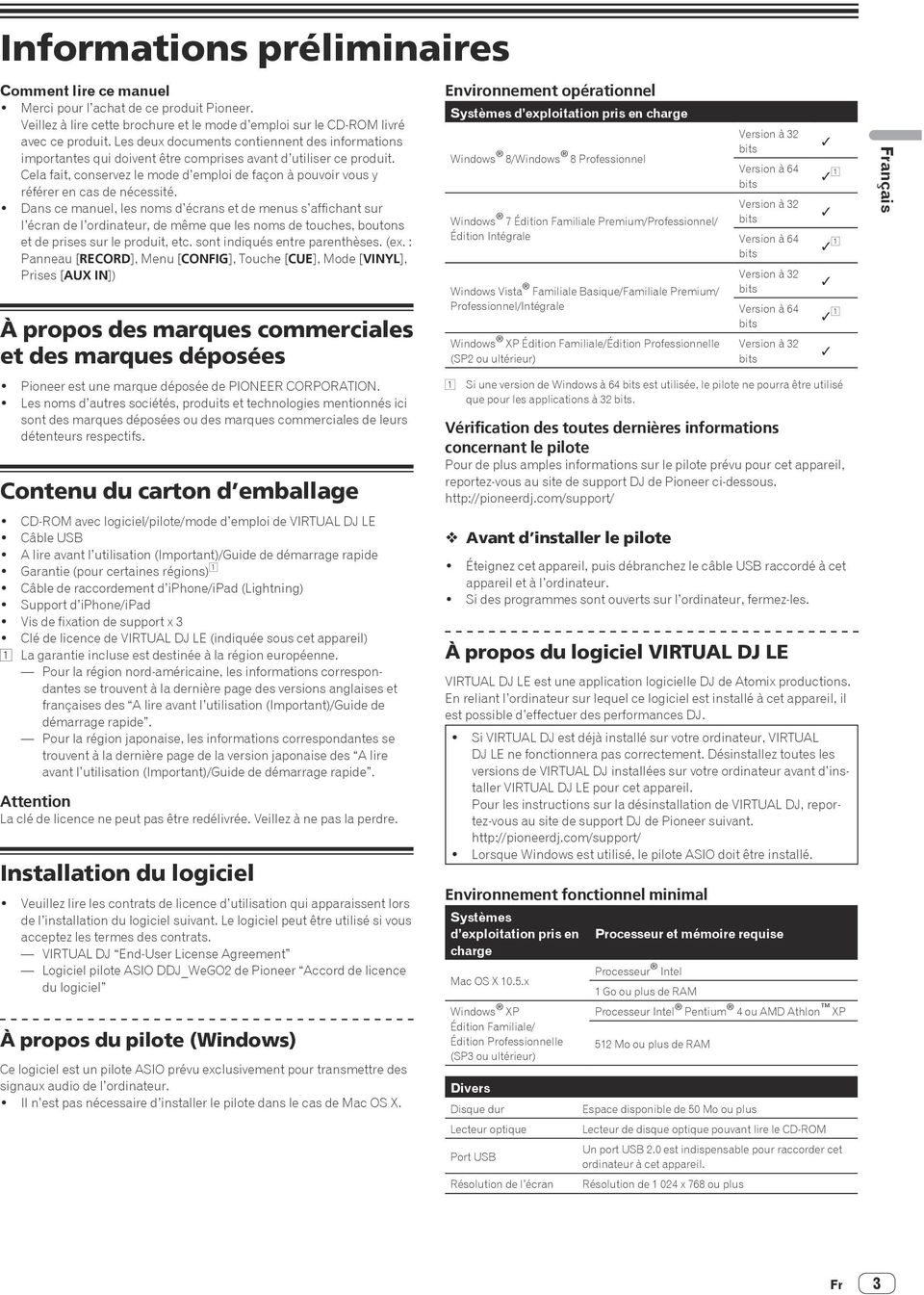
16 Environnement opérationnel recommandé Systèmes d exploitation pris en charge Mac OS X 10.6.x Windows 7 Professionnel Divers Disque dur Résolution de l écran Version à 32 bits Processeur et mémoire requise Processeur Intel 2 Go ou plus de RAM Processeur Intel Core 2 ou AMD Athlon X2 1 Go ou plus de RAM Espace disponible de 200 Mo ou plus Résolution de x ou plus (Windows) Résolution de x 900 ou plus (Mac) Les conditions suivantes doivent être remplies pour la réalisation de mixages vidéo.! Mac Jeu de puces vidéo ATI ou NVIDIA avec 256 Mo de RAM DDR3 spécialisée La carte vidéo doit prendre en charge une sortie double écran.! Windows Carte vidéo ATI ou NVIDIA avec 256 Mo de RAM DDR3 spécialisée La carte vidéo doit prendre en charge une sortie double écran.! Toutes les fonctionnalités ne sont pas garanties sur tous les ordinateurs, même si ceux-ci remplissent les conditions décrites ci-dessus.! Même si la mémoire indiquée ci-dessus, requise pour le fonctionnement, est présente, une insuffisance de mémoire due aux programmes résidents, aux nombres de services, etc. peut empêcher le logiciel de fonctionner de manière optimale. Dans ce cas, libérez de la mémoire. Un ajout de mémoire permettra un fonctionnement plus stable.! Selon les réglages d économie d énergie de l ordinateur, etc. la capacité de traitement du processeur et du disque dur peut être insuffisante. Lorsque vous utilisez VIRTUAL DJ LE, assurez-vous que l ordinateur est en état de fournir sa performance optimale (par exemple en laissant le cordon d alimentation raccordé), surtout s il s agit d un ordinateur portable.! Notez que des problèmes peuvent apparaître dans le fonctionnement de VIRTUAL DJ LE si un autre logiciel est ouvert sur votre ordinateur. 3 Lorsque le menu du CD-ROM apparaît, sélectionnez [Installer le Logiciel de pilotage (Pioneer_DDJ_WeGO2_ Driver_X.XXX)], puis cliquez sur [Demarrer]. 4 Procédez à l installation en suivant les instructions qui apparaissent à l écran. Si [Sécurité de Windows] apparaît à l écran au cours de l installation, cliquez sur [Installer ce pilote quand même] et continuez l installation. Lorsque le programme d installation est terminé, le message Installation terminée apparaît. Après avoir installé le pilote, installez le logiciel VIRTUAL DJ LE.! Installation sur Windows XP Si [Installation matérielle] apparaît à l écran au cours de l installation, cliquez sur [Continuer] et continuez l installation. 5 Sélectionnez [Installation de VIRTUAL DJ LE(DDJ- WeGO2)] dans le menu du CD-ROM, puis cliquez sur [Demarrer]. L installateur de VIRTUAL DJ LE est lancé. 6 Lorsque l installateur de VIRTUAL DJ LE a été lancé, cliquez sur [Next].! Pour revenir à l écran précédent : cliquez sur [Back].! Pour annuler l installation : cliquez sur [Cancel]. Installation du logiciel VIRTUAL DJ LE! Précautions à prendre lorsqu une connexion Internet est nécessaire Il est nécessaire de contracter un abonnement auprès d un fournisseur de services Internet.! La présentation de l écran de l installateur peut être différente selon la version de VIRTUAL DJ LE, mais la marche à suivre est la même. À propos de l installation La marche à suivre pour l installation dépend du système d exploitation (OS) de l ordinateur utilisé. Pour Windows Après avoir installé le pilote, installez le logiciel VIRTUAL DJ LE. Pour Mac OS X Installez seulement le logiciel VIRTUAL DJ LE. 7 Lisez attentivement le contenu de [End-User License Agreement] et, si vous acceptez, cochez [I accept the terms in the License Agreement] puis cliquez sur [Next]. Si vous n acceptez pas les termes de [End-User License Agreement], cliquez sur [Cancel] pour annuler l installation. À propos de l installation (Windows) Ne raccordez cet appareil et l ordinateur que lorsque l installation est terminée.! Connectez-vous sous le nom de l utilisateur spécifié comme administrateur de l ordinateur avant l installation.! Si des programmes sont ouverts sur l ordinateur, fermez-les. 1 Allumez l ordinateur. 2 Insérez le CD-ROM fourni dans le lecteur CD de l ordinateur. Le menu du CD-ROM apparaît.! Si le menu du CD-ROM n apparaît pas après l insertion du CD-ROM, ouvrez le lecteur CD dans [Ordinateur (ou Poste de travail)] à partir du menu [Démarrer], puis double-cliquez sur l icône [CD_menu.exe]. 8 Sélectionnez le type d installation de VIRTUAL DJ LE, puis cliquez sur [Next].! Lorsque [Typical] est sélectionné, les plugins et autres composants sont également installés. Normalement sélectionnez [Typical].! Lorsque [Custom] est sélectionné, vous pouvez sélectionner les composants qui doivent être installés. 4 Fr
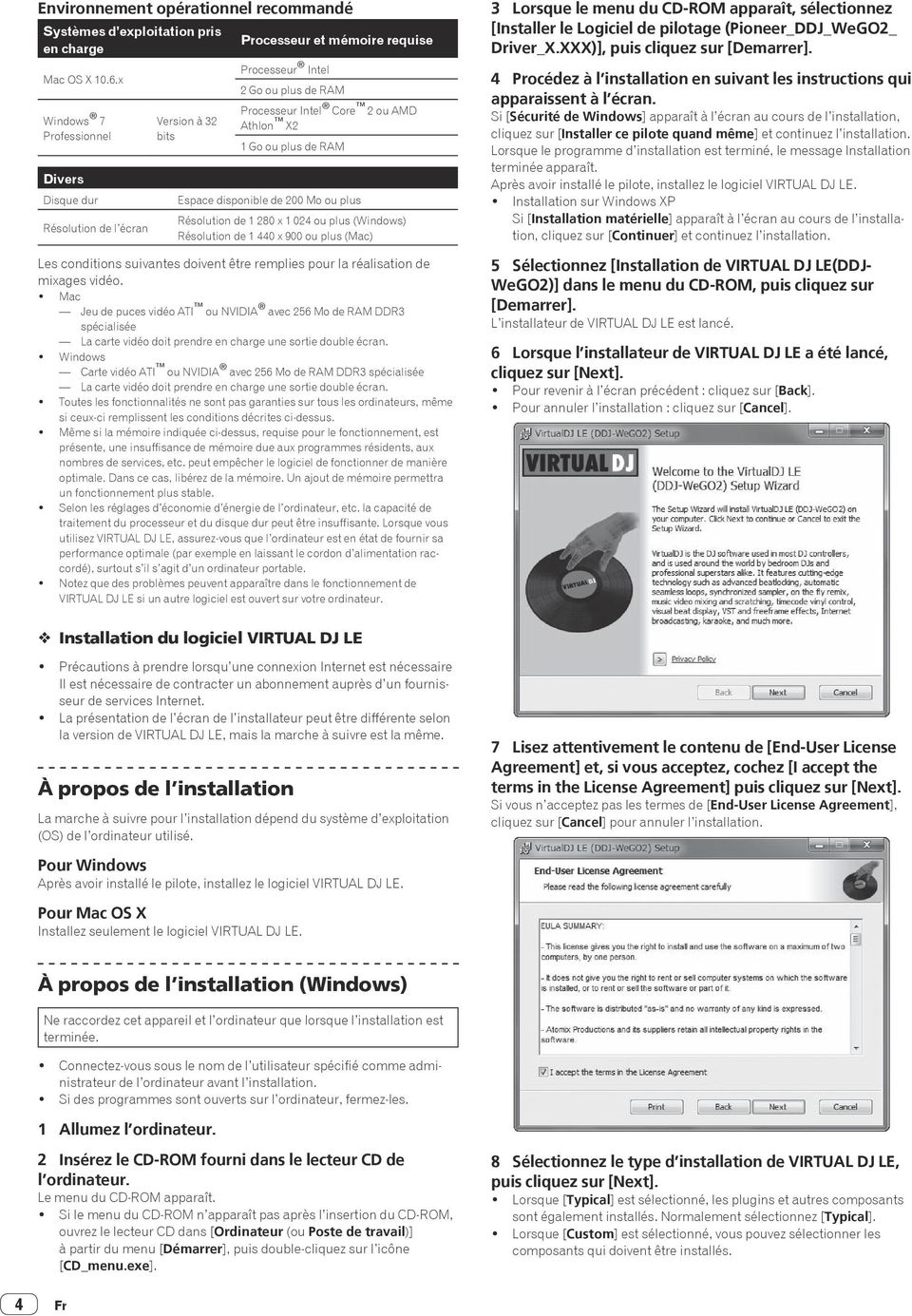
17 Panneau inférieur de cet appareil Numéro de série VIRTUAL DJ LE À propos de l installation (Mac OS X) Français 1 Insérez le CD-ROM fourni dans le lecteur CD de l ordinateur. L icône [CD_menu] apparaît à l écran. Double-cliquez dessus. 9 Lorsque l écran suivant apparaît, cliquez sur [Install]. L installation commence. Lorsqu elle est terminée, le message d installation réussie apparaît. 10 Cliquez sur [Finish]. La procédure est alors terminée. VIRTUAL DJ LE est lancé si [Launch VirtualDJ] est coché sur l écran quand [Finish] est cliqué. 2 Lorsque le menu du CD-ROM apparaît, sélectionnez [Installation de VIRTUAL DJ LE(DDJ-WeGO2)], puis cliquez sur [Demarrer]. L installateur de VIRTUAL DJ LE est lancé. 3 Lorsque l installateur de VIRTUAL DJ LE a été lancé, cliquez sur [Continuer]. 4 Lisez attentivement le contenu du contrat de licence, cliquez sur [Continuer] puis sur [Accepter] pour accepter le contrat de licence. Si vous n acceptez pas le contrat de licence, cliquez sur [Refuser] pour annuler l installation. 5 Sélectionnez le type d installation de VIRTUAL DJ LE, puis cliquez sur [Installer]. Pour sélectionner l installation standard, cliquez sur [Installer]. Pour l installer à un autre emplacement, cliquez sur [Changer l'emplacement de l'installation...] et choisissez l emplacement. L installation commence. Lorsqu elle est terminée, le message d installation réussie apparaît. 6 Cliquez sur [Fermer]. La procédure est alors terminée. Vérification des toutes dernières informations sur le logiciel VIRTUAL DJ LE Pour les toutes dernières informations sur l environnement opérationnel et la compatibilité ainsi que pour acquérir le tout dernier système d exploitation, veuillez consulter le site Atomix productions suivant : Pour obtenir la toute dernière version du logiciel VIRTUAL DJ LE, vous devez enregistrer votre compte utilisateur sur le site Atomix productions. Montage du support d iphone/ipad Pour utiliser un iphone/ipad, montez le support d iphone/ipad fourni. AVERTISSEMENT Rangez les vis fournies et les caches de vis déposés de l appareil hors de portée des enfants. S ils devaient être avalés accidentellement, contactez immédiatement un médecin. 11 Entrez le numéro de série indiqué sous cet appareil (XXXX-XXXX-XXXXX/WEGO2), puis cliquez sur [OK]. 1 Déposez les trois caches de vis. Fr 5
![Lorsqu elle est terminée, le message d installation réussie apparaît. 10 Cliquez sur [Finish]. La procédure est alors terminée.](/docs-images/41/782751/images/page_17.jpg "VIRTUAL DJ LE est lancé si [Launch VirtualDJ] est coché sur l écran quand [Finish] est cliqué.")
18 2 Vissez les vis fournies dans l ordre indiqué dans le schéma suivant.! N utilisez que les vis fournies, à l exclusion de toute autre. Commutateur ON/OFF ON OFF MIC MASTER OUT R L R L Pour contrôler le son Casque Pour l entrée audio Microphone Précautions à prendre quand le support d iphone/ipad est utilisé! Ce support doit être utilisé exclusivement avec un iphone/ipad. Ne pas poser de tablettes ou d autres ipad, ni des dispositifs plus gros, sur le support.! Posez l iphone/ipad sur le support à l horizontale. Il peut être instable s il est posé à la verticale.! N exercez pas de force excessive sur le support. Cet appareil pourrait être endommagé.! Veuillez noter que Pioneer décline toute responsabilité quant au dommage ou dysfonctionnement de cet appareil, aux blessures ou autres problèmes pouvant résulter, entre autre, d une chute du dispositif.! Ne déplacez pas le support avec un iphone/ipad. L iphone/ipad pourrait tomber.! Si un couvercle protège l iphone/ipad, enlevez-le avant de mettre l iphone/ipad sur le support. Si vous laissez le couvercle dessus, l iphone/ipad pourrait être instable. Dispositifs ios pouvant être utilisés avec cet appareil et posés sur le support! ios ios 6! Appareil pouvant être raccordé par un câble de raccordement d iphone/ipad (Lightning) ipad (4e génération), ipad mini, iphone 5, ipod touch (5e génération) Pour les toutes dernières informations sur les appareils ios, reportez-vous à [DDJ-WeGO2] sur le site de support DJ de Pioneer ci-dessous. Raccordements Les appareils doivent être hors tension lors du raccordement ou du changement de câbles. Seul le câble USB fourni avec ce produit doit être utilisé. Reportez-vous au mode d emploi de l appareil devant être raccordé. Raccordement à un ordinateur! La connexion iphone/ipad est prioritaire, ne raccordez pas d iphone/ipad lorsqu un ordinateur est utilisé.! VIRTUAL DJ LE pour DDJ-WEGO2 est préréglé pour restituer le son de l appareil seulement mais pas de l ordinateur. Raccordez un casque, un amplificateur ou des enceintes amplifiées, comme indiqué sur la figure suivante, pour écouter le son. Le son en provenance de l ordinateur sera disponible après une mise à jour à VIRTUALDJ PRO FULL payante. Logiciel DJ Ordinateur Pour la sortie audio Composants, amplificateurs, enceintes alimentées, etc. Raccordement à un iphone/ipad Raccordez avec le repère en triangle orienté vers le haut. Logiciel DJ iphone/ipad Commutateur ON/OFF ON OFF Pour contrôler le son Casque Pour l alimentation électrique Batterie portable USB/ Adaptateur d alimentation USB Câble de raccordement d iphone/ipad (Lightning) Pour l entrée audio Microphone MIC MASTER OUT R L Pour la sortie audio Composants, amplificateurs, enceintes alimentées, etc.! Un iphone/ipad ne peut pas être chargé avec le câble de raccordement d iphone/ipad fourni (Lightning). R L L alimentation de cet appareil est fournie par le bus USB. Cet appareil peut être utilisé simplement après l avoir raccordé à un ordinateur par le câble USB.! Raccordez cet appareil et l ordinateur directement avec le câble USB fourni.! Raccordez l ordinateur auquel cet appareil doit être raccordé à une source d alimentation secteur.! Un concentrateur USB ne peut pas être utilisé. 6 Fr

19 Ouverture du système Chargement et lecture de morceaux (ra) Lorsqu un ordinateur est utilisé 1 Raccordez cet appareil à votre ordinateur avec un câble USB. 2 Allumez l ordinateur raccordé. 3 Faites glisser le commutateur [ON/OFF] de cet appareil vers [ON]. Allumez cet appareil. Lancement de VIRTUAL DJ LE À propos de l ordre des opérations lors du lancement de VIRTUAL DJ LE Allumez toujours d abord cet appareil, attendez la fin de l éclairage de la mise en route, vérifiez que les touches [CTRL A], [FX1], [FX2], [FX3] et [CTRL B] de cet appareil sont allumées et lancez VIRTUAL DJ LE. Lancement de VIRTUAL DJ LE (Windows) Depuis le menu [Démarrer] de Windows, cliquez sur l icône [Tous les programmes] > [VirtualDJ] > [VirtualDJ LE (DDJ-WeGO2)]. Lancement de VIRTUAL DJ LE (Mac OS X) Dans le Finder, ouvrez le dossier [Application], puis double-cliquez sur l icône [VirtualDJ LE]. La première fois que vous lancez VIRTUAL DJ LE, l écran d entrée du numéro de série apparaît. Entrez le numéro de série indiqué sous cet appareil (XXXX-XXXX- XXXXX/WEGO2), puis cliquez sur [OK]. Lorsqu un iphone/ipad est utilisé Des troubles audio (beeps) peuvent se produire dans cet appareil lors de l appel ou de l envoi et de la réception de données sur le téléphone portable. Ce problème peut surgir lorsque le protocole de communications du téléphone portable est le GSM, et il est dû aux interférences causées par le GSM. Si le cas se présente, changez le réglage de l iphone/ipad et sélectionnez le mode Vol. Ce problème ne se présente pas avec les protocoles de communications 3G et LTE. 1 Raccordez l iphone/ipad à cet appareil avec le câble de raccordement d iphone/ipad (Lightning). 2 Raccordez cet appareil avec la batterie portable USB ou l adaptateur secteur USB. 3 Faites glisser le commutateur [ON/OFF] de cet appareil vers [ON]. 4 Lancement de l application DJ sur l iphone/ipad. Opérations de base D C C A B D 1 Tournez le sélecteur rotatif tout en appuyant sur la touche [SHIFT] pour sélectionner un dossier ou un élément.! Lorsqu un dossier ou élément accompagné du signe [+] est sélectionné et le sélecteur rotatif est pressé en même temps que la touche [SHIFT], le dossier ou l élément s ouvre ou se ferme. 2 Relâchez la touche [SHIFT] et tournez le sélecteur rotatif pour sélectionner le morceau. 3 Pression sur la touche [LOAD] pour charger le morceau sélectionné sur la platine. 4 Pression sur la touche [f] pour jouer le morceau.! Une pression sur cette touche pendant la lecture interrompt la lecture. Utilisation des fonctions du mixeur (rb)! Réglez le volume des enceintes amplifiées, etc. raccordées aux prises [MASTER OUT] au niveau approprié. Notez que si le volume est réglé trop haut, le son peut être très fort. 1 Actionnez les faders de canaux pour régler le niveau sonore à la sortie des platines respectives. 2 Actionnez le crossfader pour changer la platine dont le son est restitué par les enceintes. Côté gauche : Le son provient de la platine [A] ou [C]. Centre : Le son de toutes les platines est mixé avant sa sortie. Côté droit : Le son provient de la platine [B] ou [D].! Les caractéristiques de la courbe peuvent être changées à l aide d une des touches de réglage de courbe du crossfader sur le panneau [MIXER] au centre de l écran de l ordinateur. [ ] : Sélectionnez cette touche si vous ne voulez pas utiliser le crossfader. [ ] : Sélectionnez cette option si vous voulez une courbe ascendante douce. [ ] : Définit une courbe brusquement ascendante. 3 Tournez la commande [MASTER VOL] pour régler le niveau sonore des enceintes. Contrôle du son par un casque (rc) 1 Raccordez le casque à la prise [PHONES]. 2 Appuyez sur la touche [CUE ] de la platine que vous voulez contrôler. 3 Tournez la commande [HEADPHONES MIX].! Rotation antihoraire : Le volume de la platine dont la touche [CUE ] est pressée augmente relativement.! Rotation horaire : Le volume de [MASTER OUT] augmente relativement. 4 Tournez la commande [HEADPHONES VOL].! Le son de la platine dont la touche [CUE ] est pressée sort par le casque d écoute.! Le contrôle s annule par une nouvelle pression sur la touche [CUE ]. Français Fermeture du système 1 Fermez VIRTUAL DJ LE. 2 Faites glisser le commutateur [ON/OFF] de cet appareil vers [OFF]. B 3 Débranchez le câble USB de l ordinateur. Fr 7
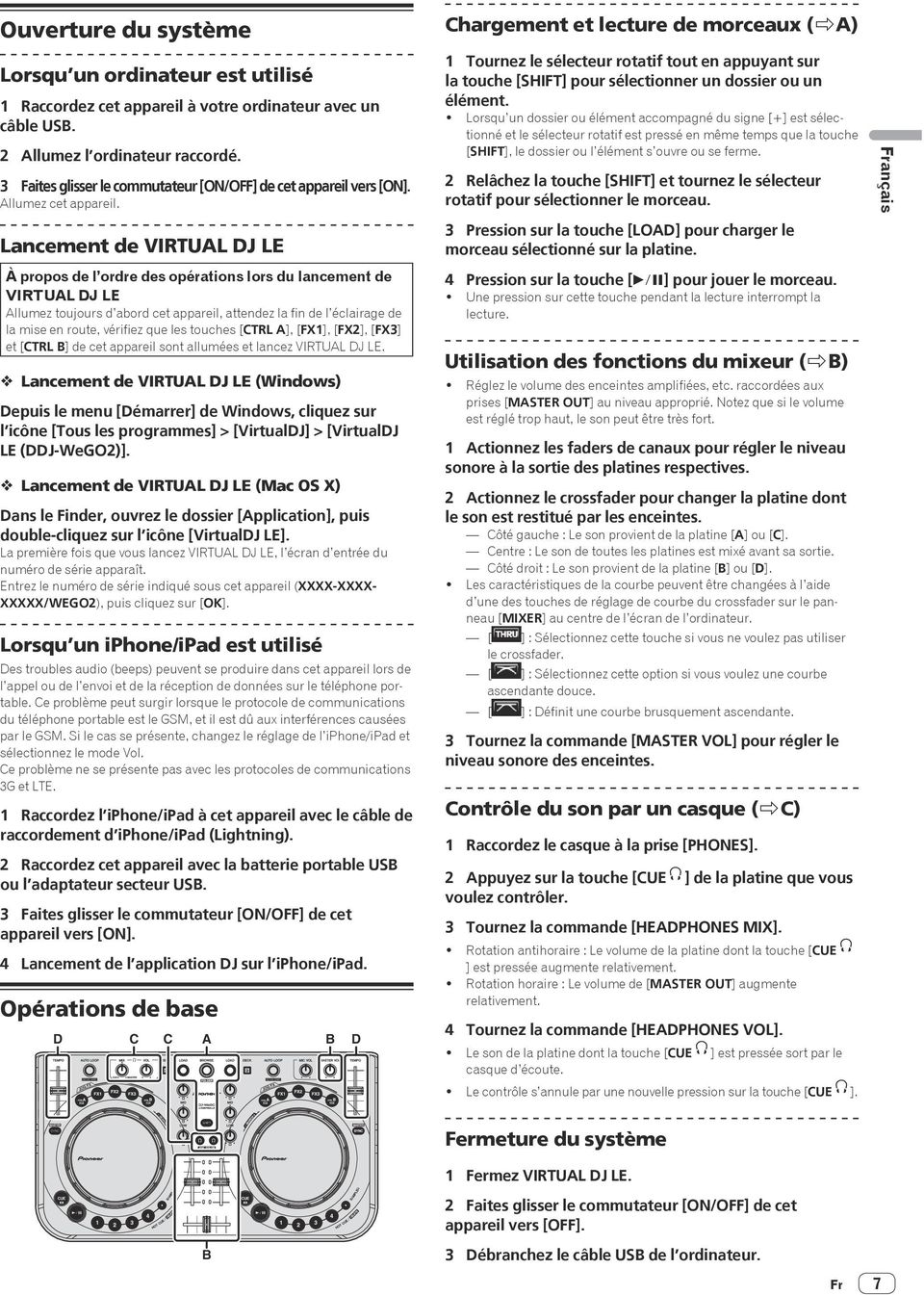
20 Noms et fonctions des éléments 2 Platine 3 Mixeur 2 Platine B 1 Navigateur A 6 c 3 Mixeur 1 Navigateur 2 Platine 3 Mixeur k l d 21 2 d c i j a b 8 m e m 7 9 a b 8 5 n o n 5 q p 4 3 h g f 4 3 h g f 2 Platine 3 Mixeur 2 Platine L écran ci-dessus montre en exemple l affichage de 2 platines. Ce qui apparaît sur l écran dépend des réglages de VIRTUAL DJ LE.! Le nombre de platines affichées peut être changé par un clic sur le bouton [ ] sur l écran de l ordinateur. 1 Navigateur 1 Sélecteur rotatif! Tournez : Le curseur se déplace dans la section A de l illustration ci-dessus.! [SHIFT] + rotation : Le curseur se déplace dans la section B de l illustration ci-dessus.! [SHIFT] + pression : Les dossiers dans la section B de l illustration ci-dessus s ouvrent et se ferment. * Si un autre panneau que le panneau [BROWSE] apparaît, tournez le sélecteur rotatif pour afficher le panneau [BROWSE]. 2 Touche LOAD Charge le morceau sélectionné avec le curseur dans chacune des platines. 8 Fr
![! Le nombre de platines affichées peut être changé par un clic sur le bouton [ ] sur l écran de l ordinateur. 1 Navigateur 1 Sélecteur rotatif!](/docs-images/41/782751/images/page_20.jpg "Tournez : Le curseur se déplace dans la section A de l illustration ci-dessus.! [SHIFT] + rotation : Le curseur se déplace dans la section B de l illustration ci-dessus.")
21 2 Platine 3 Touche f Sert à lire/interrompre la lecture de morceaux. 4 Touche CUE! Pression : Pose un point de repère ou déplace le point de repère.! [SHIFT] + pression : La position de lecture va au début du morceau. 5 Touche SYNC (MASTER)! Pression : Synchronise sur le tempo de la platine maître.! [SHIFT] + pression : Définit la platine maître pour la synchronisation. 6 Curseur TEMPO Change la vitesse de lecture. 7 Touche CTRL A! Pression : Active et désactive le contrôle de tonalité.! [SHIFT] + pression : Désactive tout à la fois le contrôle de tonalité, le filtre et les effets 1 à 3. 8 Touche CTRL B! Pression : Active et désactive le filtre.! [SHIFT] + pression : Désactive tout à la fois le contrôle de tonalité, le filtre et les effets 1 à 3. 9 Touche FX1! Pression : Active et désactive l effet 1.! [SHIFT] + pression : Sélectionne les types d effet de FX1. a Touche FX2! Pression : Active et désactive l effet 2.! [SHIFT] + pression : Sélectionne les types d effet de FX2. b Touche FX3! Pression : Active et désactive l effet 3.! [SHIFT] + pression : Sélectionne les types d effet de FX3. c Commande AUTO LOOP (MOVE GRID)! Tournez : Change la longueur de la boucle pour la lecture.! Pression : Active/désactive la lecture en boucle.! [SHIFT] + rotation : Déplace la position de la grille des temps. * Cette fonction peut être utilisée si la mise à jour à VIRTUALDJ PRO FULL a été effectuée.! [SHIFT] + pression : Pose les points d entrée et de sortie pour une boucle manuelle. Active et désactive la lecture en boucle manuelle. d Touche DECK Bascule sur la platine devant fonctionner. e Touche SHIFT Lorsqu une autre touche est pressée en même temps que la touche [SHIFT], une autre fonction est appelée. f Touche SAMPLER! Pression : Active et désactive le mode d échantillonnage. g Touche HOT CUE (DELETE)/SAMPLER! Pression : Lorsque le mode échantillonneur est désactivé, pose ou rappelle le point d un repère instantané. Lorsque le mode échantillonneur est activé, active/arrête la lecture de l échantillon.! [SHIFT] + pression : Lorsque le mode échantillonneur est désactivé, annule le repère instantané enregistré sur la touche pressée. Lorsque le mode échantillonneur est activé, si un échantillon est en cours de lecture, la lecture revient au début de l échantillon et se poursuit. h Molette jog 0 Lorsque le mode JOG FX est désactivé Scratching Le son est reproduit en fonction de la direction et de la vitesse de rotation de la molette jog quand la rotation est effectuée en même temps qu une partie métallique du haut de la molette jog est touchée. Pitch bend La vitesse de lecture peut être réglée par une rotation de la partie externe de la molette jog pendant la lecture. Recherche manuelle Lorsque vous tournez la molette jog en maintenant la touche [SHIFT] enfoncée, vous pouvez explorer le morceau rapidement vers l avant ou l arrière. 0 Lorsque le mode JOG FX est activé Commande JOG FX Il est possible d ajuster les paramètres des effets en tournant la molette jog. Français 3 Mixeur i Commande MIC VOL Ajuste le niveau sonore à l entrée de la prise [MIC]. j Commande MASTER VOL Ajuste le niveau sonore provenant de l appareil maître.! Le réglage effectué ici n a aucun effet sur la commande [MASTER] sur l écran de l ordinateur. k Commande HEADPHONES MIX Ajuste la balance du volume de contrôle entre le son de la platine dont la touche [ ] est pressée et le son maître.! Le son de l échantillonneur est restitué quelle que soit la position de la commande [HEADPHONES MIX]. l Commande HEADPHONES VOL Ajuste le niveau du son provenant de la prise [PHONES].! Le réglage effectué ici n a aucun effet sur la commande [VOL] (réglage du volume du casque d écoute) sur l écran de l ordinateur.! Le son du microphone raccordé à la prise [MIC] ne sort pas par le casque d écoute. m Commandes EQ (HI, MID, LOW) Ajuste la qualité du son fourni aux différentes platines. [HI] (aigu), [MID] (médium), [LOW] (grave) n CUE (Touche de repérage par le casque d écoute) Sert à écouter le son des platines respectives par le casque d écoute. o Indicateur de niveau de canal Indique le niveau du son avant qu il ne passe par les faders de canaux des platines respectives. p Fader de canal Ajuste le niveau sonore provenant des diverses platines. q Crossfader Commute le son des platines attribuées aux côtés gauche et droit du crossfader. Fr 9
22 10 Informations supplémentaires En cas de panne! Une erreur de commande est souvent prise pour une anomalie de fonctionnement ou une panne. S il vous semble que quelque chose est anormal avec cet appareil, vérifiez les différents points dans la section En cas de panne dans le mode d emploi de cet appareil et les [FAQ] du [DDJ-WeGO2] sur le site de support DJ de Pioneer. Parfois, le problème peut provenir d un autre composant. Examinez les autres composants et les appareils électriques utilisés. Si le problème ne peut pas être résolu, contactez votre service après-vente agréé Pioneer ou votre revendeur pour une réparation.! De l électricité statique ou des influences externes ont peut être déréglé cet appareil. Dans ce cas, il est possible de faire fonctionner à nouveau l appareil en l éteignant, puis rallumant 1 minute plus tard. À propos des lieux d installation! Ne pas placer cet appareil sur des objets dégageant de la chaleur, par exemple sur un amplificateur, et ne pas l exposer trop longtempas à un projecteur, sous peine de l endommager.! Installer cet appareil à l écart d un tuner ou d un téléviseur. Sinon, l image présentera de la distorsion ou des parasites. De la distorsion ou des parasites se produisent facilement lorsqu une antenne intérieure est utilisée. Le cas échéant, utiliser une antenne extérieure ou éteindre cet appareil. Nettoyage du produit En règle général, essuyer cet appareil avec un chiffon sec. Mais s il est très sale, tremper un chiffon doux dans un détergent neutre dilué dans 5 à 6 fois plus d eau, essorez-le bien, enlevez la saleté et essuyez de nouveau la surface avec un chiffon sec. Ne pas utiliser d alcool, de diluant, de benzène ni insecticite, qui risquent de détacher l étiquette imprimée ou la pellicule de protection. Éviter de laisser des produits en caoutchouc ou vinyle très longtemps au contact de cet appareil sous peine d endommager la surface du coffret. Si des lavettes imprégnées de produit chimique, etc. sont utilisées, lire attentivement les précautions à prendre. Débranchez le câble USB de cet appareil avant de le nettoyer. À propos du CD-ROM fourni Environnement opérationnel Ce CD-ROM peut être utilisé avec Windows XP, Windows Vista, Windows 7, Windows 8 et Apple Mac OS X (10.8, 10.7, 10.6 et ). Adobe Reader (Version 4.0 ou ultérieure) doit être installé pour pouvoir lire les manuels sur le CD-ROM. Précautions d emploi Ce CD-ROM doit être utilisé avec un ordinateur. Il ne peut pas être utilisé avec un lecteur DVD, un lecteur CD audio ou un lecteur DJ. Lire ce CD-ROM avec ce type de lecteurs peut endommager les haut-parleurs ou causer des lésions auditives à cause des sons aigus. Fr Licence Vous devez accepter les Conditions d emploi suivantes avant d utiliser ce CD-ROM. Ne l utilisez pas si vous n acceptez pas les conditions d emploi. Conditions d emploi Les données (Pilote/Mode d emploi) de ce CD-ROM sont la propriété intellectuelle de PIONEER CORPORATION. Le transfert, la copie, la diffusion, la transmission publique, la traduction, la vente, le prêt ou tout autre emploi non autorisé hors un emploi personnel ou les autorisations citées tels que définis par la loi sur la propriété intellectuelle peuvent entraîner des actions en justice. La permission d utiliser ce CD-ROM est accordée sous licence par PIONEER CORPORATION. Avis de non-responsabilité PIONEER CORPORATION ne garantit pas le fonctionnement de ce CD-ROM même si le système d exploitation de l ordinateur utilisé est compatible. En outre, PIONEER CORPORATION décline toute responsabilité quant aux dommages résultant de l utilisation de ce CD-ROM et n accorde aucun dédommagement. Si le manuel présent sur le CD-ROM fourni ne s ouvre pas automatiquement, double-cliquez sur l icône du CD-ROM pour afficher le contenu et ouvrez le fichier PDF. Spécifications Caractéristiques générales Appareil principal Alimentation...CC 5 V Consommation ma Poids de l appareil principal (avec le support d iphone/ipad)...1,8 kg Dimensions externes maximales (avec le support d iphone/ipad) mm (largeur) x 65 mm (hauteur) x 250,6 mm (profondeur) Température de fonctionnement tolérée C à +35 C Humidité de fonctionnement tolérée...5 % à 85 % (sans condensation) Section audio Niveau de sortie nominale MASTER OUT dbu Distorsion harmonique totale MASTER OUT...0,006 % Caractéristiques des fréquences MASTER OUT Hz à 20 khz Rapport S/B (lors de la lecture sur ordinateur) MASTER OUT db (à la sortie nominale) Impédance d entrée MIC kw Impédance de sortie MASTER OUT... 1 kw PHONES...4,7 W USB AUDIO...24 bits/fs : 44,1 khz, 24 bits/fs : 48 khz Prises d entrée/sortie Prise USB Type B...1 jeu Prise de sortie MASTER OUT Prises RCA...1 jeu Prise de sortie PHONES Jack stéréo (Ø 6,3 mm)...1 jeu Minijack stéréo (Ø 3,5 mm)...1 jeu Prise d entrée MIC Jack (Ø 6,3 mm)...1 jeu Prise pour le raccordement d un dispositif ios 14 broches...1 jeu! En vue de l amélioration du produit, les caractéristiques et la configuration de cet appareil ainsi que le logiciel inclus sont susceptibles d être modifiés sans avis préalable.! 2013 PIONEER CORPORATION. Tous droits de reproduction et de traduction réservés.
23 PIONEER ELECTRONICS (USA) INC. GARANTIE LIMITÉE GARANTIE VALABLE UNIQUEMENT AUX ÉTATS-UNIS ET AU CANADA GARANTIE Pioneer Electronics (USA) Inc. (PUSA) garantie que les produits distribués par PUSA aux États-Unis ou au Canada qui, bien qu étant installés et utilisés conformément au Manuel de l utilisateur fourni avec le produit, ne fonctionneraient pas correctement dans le cadre d une utilisation normale en raison d un défaut de fabrication seront réparés ou remplacés par un produit de valeur équivalente, au choix de PUSA, sans frais à votre charge pour les pièces et/ou la main d œuvre de réparation. Les pièces incluses en vertu de la présente garantie peuvent être neuves ou remises à neuf, au choix de PUSA. LA PRÉSENTE GARANTIE LIMITÉE S APPLIQUE AU PROPRIÉTAIRE ORIGINAL AINSI QU À TOUT PROPRIÉTAIRE SUCCESSIF DE CE PRODUIT PIONEER PENDANT LA PÉRIODE DE GARANTIE À CONDITION QUE LE PRODUIT AIT ÉTÉ ACHETÉ AUPRÈS D UN DISTRIBUTEUR/DÉTAILLANT PIONEER AGRÉÉ AUX ÉTATS-UNIS OU AU CANADA. VOUS DEVREZ FOURNIR UN RELEVÉ DE CAISSE OU UNE AUTRE PREUVE D ACHAT VALIDE INDIQUANT LA DATE DE L ACHAT INITIAL OU, SI VOUS LOUEZ LE PRODUIT, VOTRE CONTRAT DE LOCATION INDIQUANT L ENDROIT ET LA DATE DE LA PREMIÈRE LOCATION. EN CAS DE BESOIN DE RÉPARATION, LE PRODUIT DOIT ÊTRE RENVOYÉ ET LIVRÉ AU COURS DE LA PÉRIODE DE GARANTIE, FRAIS DE PORT PAYÉS ET UNIQUEMENT DEPUIS L INTÉRIEUR DES ÉTATS-UNIS. COMME EXPLIQUÉ DANS LE PRÉSENT DOCUMENT. VOUS ÊTES RESPONSABLE DU DÉMONTAGE ET DE L INSTALLATION DU PRODUIT. PUSA PREND À SA CHARGE LES FRAIS D EXPÉDITION DU PRODUIT RÉPARÉ OU REMPLACÉ JUSQU À VOTRE ADRESSE À L INTÉRIEUR DES ÉTATS-UNIS. Français PÉRIODE DE GARANTIE DES PRODUITS Pièces Main-d oeuvre DJ Audio et Vidéo... 1 an 1 an La période de garantie pour les clients qui louent le produit commence le jour où le produit est utilisé pour la première fois (a) pendant la période de location ou (b) après la vente au détail, selon ce qui se produit en premier. ÉLÉMENTS NON COUVERTS PAR LA GARANTIE UN PRODUIT ACHETÉ CHEZ UN DISTRIBUTEUR NON AUTORISÉ N EST COUVERT PAR AUCUNE GARANTIE EXPRESSE OU IMPLICITE, Y COMPRIS QUELQUE GARANTIE IMPLICITE DE QUALITÉ MARCHANDE OU D ADAPTATION À UN USAGE PARTICULIER QUE CE SOIT. DE PLUS, CE PRODUIT EST STRICTEMENT VENDU «TEL QUEL» ET «AVEC TOUS SES DÉFAUTS ÉVENTUELS». PIONEER NE PEUT PAS ÊTRE TENU RESPONSABLE DES DOMMAGES INDIRECTS ET/OU ACCESSOIRES ÉVENTUELS. LA PRÉSENTE GARANTIE NE S APPLIQUE PAS SI LE PRODUIT A ÉTÉ SOUMIS À UNE PUISSANCE NOMINALE EXCÉDANT LA PUISSANCE INDIQUÉE DANS LES SPÉCIFICATIONS FOURNIES. LA PRÉSENTE GARANTIE NE COUVRE PAS LE BOÎTIER OU LES ÉLÉMENTS ESTHÉTIQUES, LES ANTENNES INSTALLÉES PAR L UTILISATEUR, LES DOMMAGES AUX DISQUES OU AUX RUBANS OU DISQUES D ENREGISTREMENT, LES DOMMAGES AU PRODUIT DÉCOULANT D UNE RETOUCHE, D UNE MODIFICATION NON AUTORISÉE PAR ÉCRIT PAR PIONEER, D UN ACCIDENT, D UN USAGE INAPPROPRIÉ OU D UN USAGE ABUSIF, LES DOMMAGES PRODUITS PAR LA FOUDRE OU LA SURTENSION, LES DOMMAGES SUBSÉQUENTS DÉCOULANT DE FUITES, LES DOMMAGES DÉCOULANT DE PILES DÉFECTUEUSES OU DE L UTILISATION DE PILES NON CONFORMES À CELLES QUI SONT SPÉCIFIÉES DANS LE MANUEL DE L UTILISATEUR. LA PRÉSENTE GARANTIE NE COUVRE PAS LE COÛT DES PIÈCES OU DE LA MAIN-D OEUVRE QUI SERAIENT AUTREMENT OFFERTES SANS FRAIS EN VERTU DE LA PRÉSENTE GARANTIE, SI ELLES SONT OBTENUES AUPRÈS D UNE SOURCE AUTRE QU UNE SOCIÉTÉ DE SERVICE OU AUTRE AUTORISÉE OU DÉSIGNÉE PAR PIONEER. LA PRÉSENTE GARANTIE NE COUVRE PAS LES DÉFECTUOSITÉS OU LES DOMMAGES CAUSÉS PAR L UTILISATION D UNE MAIN-D OEUVRE OU DE PIÈCES NON AUTORISÉES, ET/ OU D UN ENTRETIEN INADÉQUAT. LES NUMÉROS DE SÉRIE MODIFIÉS, OBLITÉRÉS OU ENLEVÉS ANNULENT LA PRÉSENTE GARANTIE DANS SA TOTALITÉ. EXCLUSION DE TOUTE AUTRE GARANTIE PIONEER LIMITE SES OBLIGATIONS EN VERTU DE TOUTE GARANTIE IMPLICITE QUE CE SOIT, Y COMPRIS ENTRE AUTRES LES GARANTIES IMPLICITES DE QUALITÉ MARCHANDE OU D ADAPTATION À UN USAGE PARTICULIER, À UNE PÉRIODE N EXCÉDANT PAS LA PÉRIODE DE GARANTIE. AUCUNE GARANTIE NE S APPLIQUE APRÈS LA PÉRIODE DE GARANTIE. CERTAINS ÉTATS NE PERMETTENT PAS LA LIMITATION DE LA DURÉE D UNE GARANTIE IMPLICITE, ET CERTAINS NE PERMETTENT PAS L EXCLUSION OU LA LIMITATION DES DOMMAGES CONSÉCUTIFS OU INDIRECTS. LES LIMITATIONS ET EXCLUSIONS ÉTABLIES CI-DESSUS PEUVENT DONC NE PAS S APPLIQUER À VOUS. LA PRÉSENTE GARANTIE VOUS DONNE DES DROITS LÉGAUX SPÉCIFIQUES. VOUS POUVEZ JOUIR D AUTRES DROITS, QUI PEUVENT VARIER D UN ÉTAT À L AUTRE. SERVICE APRÈS-VENTE PUSA a autorisé un certain nombre de sociétés de service après-vente agréées à travers les États-Unis et le Canada pour le cas où votre produit aurait besoin d être réparé. Pour profiter d un tel service en vertu de la garantie, vous devez présenter votre ticket de caisse ou, si vous louez le produit, votre contrat de location indiquant l endroit et la date de la transaction par le premier propriétaire. Si vous expédiez le produit, vous devez l emballer soigneusement et l envoyer à une société de service autorisée, en port prépayé et selon une méthode de transport incluant un suivi et une assurance. Emballez le produit au moyen de matériaux de rembourrage appropriés pour éviter tout dommage pendant le transport. L emballage d origine est idéal pour cela. Indiquez votre nom, votre adresse et un numéro de téléphone où nous pouvons vous joindre pendant les heures de bureau. Pour toute réclamation et/ou question à l intérieur des États-Unis ou du Canada, appelez le Service Consommateurs au Pour toute question concernant la mise en service ou l utilisation de votre produit, ou pour trouver une société de service autorisée, appelez ou écrivez à : CUSTOMER SUPPORT PIONEER ELECTRONICS (USA) INC. P.O. BOX 1720 LONG BEACH, CALIFORNIA RÉSOLUTION DES LITIGES Si un litige se produit entre vous et Pioneer après la réponse à une demande initiale faite au Service Consommateurs, vous pouvez avoir recours au Programme de résolution des plaintes de Pioneer pour résoudre le litige. Le Programme de résolution des plaintes vous est offert gratuitement. Vous devez avoir recours au Programme de résolution des plaintes avant de vous prévaloir de vos droits ou de chercher réparation en vertu du Titre I de la loi Magnuson-Moss Warranty-Federal Trade Commission Improvement Act, 15 U.S.C et seq. P our utiliser le Programme de résolution des plaintes, appelez le et expliquez au r eprésentant du Service Consommateurs le problème que vous r encontrez ainsi que les démarches que v ous avez eff ectuées pour faire réparer le produit pendant la pério de de garantie, puis communiquez-lui le nom du distributeur / détaillant autorisé auprès d uquel vous avez acheté le produit Pioneer. Une fois que votre plainte a été expliquée au représentant, un numéro de résolution vous sera communiqué. Pioneer étudiera votre plainte et, dans un délai de quarante (40) jours après la réception de votre plainte, (1) répondra à votre plainte par écrit pour vous aviser des démarches qui seront entreprises pour résoudre le conflit, et indiquera combien de temps ces démarches prendront ; ou (2) répondra à votre plainte par écrit pour vous indiquer les raisons pour lesquelles aucune démarche ne sera entreprise. NOTEZ ET CONSERVER LE LIEU ET LA DATE D ACHAT POUR RÉFÉRENCE ULTÉRIEURE N de modèle : N de Série : Date d achat : Nom du distributeur/détaillant PRENEZ SOIN DE CONSERVER CES INFORMATIONS ET VOTRE REÇU D ACHAT EN LIEU SÛR POUR RÉFÉRENCE ULTÉRIEURE UCP0212 Fr 11
24 Vor Gebrauch lesen (wichtig) Mischen Sie dieses Produkt, wenn Sie es entsorgen wollen, nicht mit gewöhnlichen Haushaltsabfällen. Es gibt ein getrenntes Sammelsystem für gebrauchte elektronische Produkte, über das die richtige Behandlung, Rückgewinnung und Wiederverwertung gemäß der bestehenden Gesetzgebung gewährleistet wird. Privathaushalte in den Mitgliedsstaaten der EU, in der Schweiz und in Norwegen können ihre gebrauchten elektronischen Produkte an vorgesehenen Sammeleinrichtungen kostenfrei zurückgeben oder aber an einen Händler zurückgeben (wenn sie ein ähnliches neues Produkt kaufen). Dieses Gerät ist für den Heimgebrauch vorgesehen. Falls bei Einsatz zu einem anderem Zweck (z.b. Langzeitgebrauch zu gewerblichen Zwecken in einem Restaurant oder Betrieb in einem Fahrzeug bzw. Schiff) eine Funktionsstörung auftritt, die eine Reparatur des Gerätes erforderlich macht, werden die Reparaturkosten dem Kunden selbst dann in Rechnung gestellt, wenn die Garantiefrist noch nicht abgelaufen ist. K041_A1_De Bitte wenden Sie sich in den Ländern, die oben nicht aufgeführt sind, hinsichtlich der korrekten Verfahrensweise der Entsorgung an die örtliche Kommunalverwaltung. Auf diese Weise stellen Sie sicher, dass das zu entsorgende Produkt der notwendigen Behandlung, Rückgewinnung und Wiederverwertung unterzogen wird, und so mögliche negative Einflüsse auf die Umwelt und die menschliche Gesundheit vermieden werden. K058b_A1_De WARNUNG Dieses Gerät ist nicht wasserdicht. Zur Vermeidung der Gefahr von Brand und Stromschlag keine Behälter mit Flüssigkeiten (z.b. Blumenvasen und -töpfe) in die Nähe des Gerätes bringen und dieses vor Tropfwasser, Spritzwasser, Regen und Nässe schützen. D _A1_De WARNUNG Keine Quellen offener Flammen (z.b. eine brennende Kerze) auf dieses Gerät stellen. D a_A1_De Betriebsumgebung Betriebstemperatur und Betriebsluftfeuchtigkeit: +5 C bis +35 C, 85 % rel. Feuchte max. (Ventilationsschlitze nicht blockiert) Eine Aufstellung dieses Gerät an einem unzureichend belüfteten, sehr feuchten oder heißen Ort ist zu vermeiden, und das Gerät darf weder direkter Sonneneinstrahlung noch starken Kunstlichtquellen ausgesetzt werden. D c*_A1_De Bei Verwendung dieses Produktes machen Sie sich bitte mit der Sicherheitsinformationen auf der Unterseite des Gerätes vertraut. D _B1_De WARNUNG Kleine Teile außerhalb der Reichweite von Kleinkindern und Kindern aufbewahren. Bei unbeabsichtigtem Verschlucken ist unverzüglich ein Arzt aufzusuchen. D41-6-4_A1_De 2 De
25 Vor der Inbetriebnahme Zum Lesen dieser Anleitung! Vielen Dank, dass Sie sich für dieses Pioneer-Produkt entschieden haben. Lesen Sie immer sowohl dieses Infoblatt als auch die Bedienungsanleitung auf der dem Produkt beiliegenden CD-ROM durch! Beide Dokumente enthalten wichtige Informationen, mit denen Sie sich vor dem Gebrauch dieses Produktes vertraut machen müssen. Nachdem Sie die Bedienungsanleitung gelesen haben, legen Sie sie griffbereit zum Nachschlagen ab.! In dieser Anleitung werden die Namen von auf dem Computerbildschirm angezeigten Bildschirmen und Menüs, ebenso wie die Namen von Tasten und Buchsen auf dem Produkt usw. in Klammern angegeben. (z.b.: [RECORD]-Feld, [CONFIG]-Menü, [CUE]-Taste, [VINYL]-Modus, [AUX IN]-Buchsen) Über Markenzeichen und eingetragene Markenzeichen! Pioneer ist ein eingetragenes Markenzeichen der PIONEER CORPORATION.! Andere hier erwähnte Firmennamen, Produktnamen und Technologien sind eingetragene Markenzeichen oder Markenzeichen der jeweiligen Eigentümer. Betriebsumgebung Unterstützte Betriebssysteme Windows 8/Windows 8 Pro 32-Bit-Version 1 64-Bit-Version 1 1 Windows 7 Home Premium/Professional/Ultimate 32-Bit-Version 1 64-Bit-Version 1 1 Windows Vista Home Basic/Home Premium/Business/ 32-Bit-Version 1 Ultimate 64-Bit-Version 1 1 Windows XP Home Edition/Professional (SP2 oder höher) 32-Bit-Version 1 1 Bei Verwendung einer 64-Bit-Version von Windows kann die Treibersoftware nur für 32-Bit Anwendungen verwendet werden. Prüfen der neuesten Informationen über die Treibersoftware Detaillierte Informationen über die spezielle Treibersoftware finden Sie auf der Pioneer DJ-Support-Website unten. Vor dem Installieren der Software! Schalten Sie den Netzschalter des Geräts aus, und trennen Sie das USB-Kabel ab, das dieses Gerät mit dem Computer verbindet.! Falls andere Programme auf dem Computer laufen, beenden Sie diese. Deutsch Lieferumfang! VIRTUAL DJ LE Software/Treibersoftware/Bedienungsanleitung CD-ROM! USB-Kabel! Vor Gebrauch lesen (wichtig)/kurzanleitung! Garantie (für bestimmte Regionen) 1! iphone/ipad-verbindungskabel (Lightning)! iphone/ipad-ständer! Ständerbefestigungsschrauben x 3! VIRTUAL DJ LE Lizenzschlüssel (angezeigt auf der Unterseite dieses Geräts) 1 Die mitgelieferte Garantie gilt für die Region Europa. Für die Region Nordamerika sind die entsprechenden Informationen auf der letzten Seite sowohl der englischen als auch der französischen Versionen der Vor Gebrauch lesen (wichtig)/kurzanleitung enthalten. Für die Region Japan sind die entsprechenden Informationen auf der letzten Seite der japanischen Version der Vor Gebrauch lesen (wichtig)/kurzanleitung enthalten. Vorsichtshinweise Der Lizenzschlüssel kann nicht erneut ausgestellt werden. Achten Sie darauf, ihn nicht zu verlieren. Installieren der Software! Lesen Sie unbedingt die Software-Lizenzvereinbarungen für den Endbenutzer, die beim Installieren der untenstehenden Software erscheinen. Die Software darf nur Verwendung werden, wenn Sie den Bedingungen der Vereinbarung zustimmen. VIRTUAL DJ End-User License Agreement Pioneer DDJ_WeGO2 ASIO Treiber-Software Software-Lizenzvereinbarung Über die Treibersoftware (Windows) Diese Treiber-Software ist ein exklusiver ASIO-Treiber für die Ausgabe von Audio-Signalen vom Computer.! Bei Verwendung von Mac OS X ist es nicht nötig, die Treiber- Software zu installieren. Über die VIRTUAL DJ LE-Software VIRTUAL DJ LE ist eine DJ-Software-Anwendung von Atomix productions. DJ-Auftritte sind möglich, indem ein Computer an dieses Gerät angeschlossen wird, auf dem diese Software installiert ist.! Wenn VIRTUAL DJ bereits auf Ihrem Computer installiert ist, arbeitet VIRTUAL DJ LE nicht richtig. Deinstallieren Sie alle Versionen von VIRTUAL DJ, die bereits auf Ihrem Computer installiert sind, bevor Sie VIRTUAL DJ LE für diese Einheit installieren. Bezüglich Anweisungen zur Deinstallation von VIRTUAL DJ siehe die Pioneer DJ Support-Website unten. Bei Verwendung von Windows muss der ASIO-Treiber installiert werden. Minimale Betriebsumgebung Unterstützte CPU und erforderlicher Arbeitsspeicher Betriebssysteme Mac OS X 10.5.x Windows XP Home Edition/ Professional (SP3 oder höher) Sonstiges Festplatte Optisches Laufwerk USB-Anschluss Display-Auflösung Intel Prozessor Mindestens 1 GB RAM Intel Pentium 4 oder AMD Athlon XP Prozessor 512 MB RAM oder mehr Freier Speicherplatz von mindestens 50 MB Optisches Disc-Laufwerk, auf dem die CD-ROM gelesen werden kann Ein USB 2.0-Port ist zum Anschluss des Computers an dieses Gerät erforderlich. Auflösung von x 768 oder höher Empfohlene Betriebsumgebung CPU und erforderlicher Unterstützte Betriebssysteme Arbeitsspeicher Mac OS X 10.6.x Windows 7 Professional Intel Prozessor Mindestens 2 GB RAM Intel Core 2 oder AMD Athlon X2 32-Bit-Version Prozessor Mindestens 1 GB RAM De 3
26 Sonstiges Festplatte Display-Auflösung Freier Speicherplatz von mindestens 200 MB Auflösung von x oder höher (Windows) Auflösung von x 900 oder höher (Mac) Die folgenden Bedingungen müssen erfüllt werden, um Videomischen auszuführen.! Mac ATI oder NVIDIA Video-Chipset mit 256 MB dediziertem DDR3 RAM Die Videokarte muss Doppelbildschirm-Ausgabe unterstützen.! Windows ATI oder NVIDIA Videokarte mit 256 MB dediziertem DDR3 RAM Die Videokarte muss Doppelbildschirm-Ausgabe unterstützen.! Volle Funktionalität kann nicht auf allen Computern garantiert werden, auch wenn diese mit den oben beschriebenen Betriebsanforderungen übereinstimmen.! Auch wenn der erforderliche Speicherplatz für die oben beschriebene Betriebsumgebung vorhanden ist, kann es wegen Mangel an Speicherplatz aufgrund von residenten Programmen, anzahl von Diensten usw. sein, dass die Software nicht die volle Funktionalität und Leistung erzielt. Schaffen Sie in solchen Fällen ausreichend Speicherplatz. Wir empfehlen, zusätzlichen Speicher für stabilen Betrieb zu installieren.! Je nach den Energieeinstellungen des Computers, usw. kann die CPU und Festplatten nicht ausreichende Verarbeitungs-Kapazität bieten. Besonders bei Notebook-Computern müssen Sie sicherstellen, dass der Computer im richtigen Zustand ist, um konstante hohe Leistung zu bieten (zum Beispiel indem die Netzstromversorgung angeschlossen bleibt), wenn Sie VIRTUAL DJ LE verwenden.! Beachten Sie, dass Probleme mit der Funktionalität von VIRTUAL DJ LE auftreten können, je nach anderer auf dem Computer laufender Software. 4 Fahren Sie mit der Installation entsprechend den Anweisungen auf dem Bildschirm fort. Wenn während der Installation [Windows-Sicherheit] auf dem Bildschirm erscheint, klicken Sie auf [Diese Treibersoftware trotzdem installieren] und fahren mit der Installation fort. Wenn das Installationsprogramm fertiggestellt wird, erscheint eine Fertigstellungsmeldung. Nach dem Installieren der Treiber-Software installieren Sie die VIRTUAL DJ LE-Software.! Bei Installation unter Windows XP Wenn während der Installation [Hardwareinstallation] auf dem Bildschirm erscheint, klicken Sie auf [Installation fortsetzen] und fahren mit der Installation fort. 5 Wählen Sie [Installieren von VIRTUAL DJ LE(DDJ- WeGO2)] aus dem CD-ROM-Menü, und klicken Sie dann auf [Start]. Das Installationsprogramm VIRTUAL DJ LE wird gestartet. 6 Wenn das Installationsprogramm VIRTUAL DJ LE gestartet ist, klicken Sie auf [Next].! Zum Zurückkehren zum vorherigen Bildschirm: Klicken Sie auf [Back].! Zum Abbrechen der Installation: Klicken Sie auf [Cancel]. Installieren der VIRTUAL DJ LE Software! Vorsichtsmaßregeln, wenn die mitgelieferte Software eine Internet- Umgebung erfordert Ein separater Vertrag mit und Bezahlung an einen Internet-Provider ist erforderlich.! Das Bildschirmdesign des Installationsprogramms kann je nach der Version von VIRTUAL DJ LE unterschiedlich sein, aber die Bedienung ist gleich. Hinweise zum Installationsverfahren Das Installationsverfahren hängt von dem Betriebssystem (OS) des verwendeten Computers ab. Bei Windows Nach dem Installieren der Treiber-Software installieren Sie die VIRTUAL DJ LE-Software. Für Mac OS X Installieren Sie nur die VIRTUAL DJ LE-Software. 7 Lesen Sie die Inhalte von [End-User License Agreement] sorgfältig durch, und wenn Sie zustimmen markieren Sie [I accept the terms in the License Agreement] und klicken dann auf [Next]. Wenn Sie den Bedingungen der [End-User License Agreement] nicht zustimmen, klicken Sie auf [Cancel], um die Installation abzubrechen. 4 Hinweise zum Installationsverfahren (Windows) Verbinden Sie dieses Gerät und den Computer nicht, bevor die Installation abgeschlossen ist.! Melden Sie sich vor der Installation als der als Benutzer an, der als Administrator des Computers registriert war.! Falls andere Programme auf dem Computer laufen, beenden Sie diese. 1 Schalten Sie den Computer ein. 2 Setzen Sie die mitgelieferte CD-ROM in das CD- Laufwerk Ihres Computers ein. Die CD-ROM-Menü wird angezeigt.! Wenn das CD-ROM-Menü nicht angezeigt wird, wenn die CD-ROM eingesetzt wird, öffnen Sie das CD-Laufwerk von [Computer (oder Arbeitsplatz)] im Menü [Start], und doppelklicken Sie auf das [CD_menu.exe]-Icon. 3 Wenn das CD-ROM-Menü erscheint, wählen Sie [Treiber-Software (Pioneer_DDJ_WeGO2_Driver_X.XXX) installieren] und klicken dann auf [Start]. De 8 Wählen Sie den Typ der Installation für VIRTUAL DJ LE, und klicken Sie dann auf [Next].! Wenn [Typical] gewählt ist, werden Plug-ins und andere Komponenten gleichzeitig installiert. Normalerweise sollte [Typical] gewählt werden.! Wenn [Custom] gewählt ist, können Sie wählen, welche Komponenten installiert werden.
27 Unterseite dieser Einheit VIRTUAL DJ LE Seriennummer Hinweise zum Installationsverfahren (Mac OS X) 1 Setzen Sie die mitgelieferte CD-ROM in das CD- Laufwerk Ihres Computers ein. Das Icon [CD_menu] erscheint auf dem Bildschirm. Doppelklicken Sie darauf. 9 Wenn der unten gezeigte Bildschirm angezeigt wird, klicken Sie auf [Install]. Die Installation beginnt. Die Meldung über die erfolgreiche Installation erscheint, wenn die Installation fertig gestellt ist. 2 Wenn das CD-ROM-Menü angezeigt wird, wählen Sie [Installieren von VIRTUAL DJ LE(DDJ-WeGO2)] und klicken dann auf [Start]. Das Installationsprogramm VIRTUAL DJ LE wird gestartet. 3 Wenn das Installationsprogramm VIRTUAL DJ LE gestartet ist, klicken Sie auf [Fortfahren]. Deutsch 10 Klicken Sie auf [Finish]. Damit ist das Installationsverfahren fertig gestellt. VIRTUAL DJ LE wird gestartet, wenn [Launch VirtualDJ] auf dem Bildschirm markiert ist, wenn [Finish] geklickt wird. 11 Geben Sie die Seriennummer ein, die auf dem Bodenpult dieser Einheit (XXXX-XXXX-XXXXX/WEGO2) aufgedruckt ist, und klicken Sie auf [OK]. 4 Lesen Sie die Inhalte der Lizenzvereinbarung sorgfältig durch, klicken Sie auf [Fortfahren], klicken Sie dann auf [Akzeptieren], um die Lizenzvereinbarung zu akzeptieren. Wenn Sie den Bedingungen der Lizenzvereinbarung nicht zustimmen, klicken Sie auf [Ablehnen], um die Installation abzubrechen. 5 Wählen Sie den Typ der Installation für VIRTUAL DJ LE, und klicken Sie dann auf [Installieren]. Zum Wählen der Standardinstallation klicken Sie auf [Installieren]. Zum Installieren an einem anderen Ort klicken Sie auf [Ort für die Installation ändern...] und wählen den Installationsort. Die Installation beginnt. Die Meldung über die erfolgreiche Installation erscheint, wenn die Installation fertig gestellt ist. 6 Klicken Sie auf [Beenden]. Damit ist das Installationsverfahren fertig gestellt. Prüfen der neuesten Informationen über die Software VIRTUAL DJ LE Für die neuesten Informationen über die Betriebsumgebung und Kompatibilität und zum Übernehmen des neuesten Betriebssystems gehen Sie bitter zur folgenden Website von Atomix productions: Um die neueste Version der VIRTUAL DJ LE-Software zu erhalten, müssen Sie Ihr Benutzerkonto auf der Atomix productions-website registrieren. Anbringen des iphone/ipad-ständers Zum Verwenden eines iphone/ipad bringen Sie den mitgelieferten iphone/ipad-ständer an. WARNUNG Halten Sie die mitgelieferten Schrauben und die von der Einheit abgenommenen Schraubenabdeckungen außer Reichweite von Kindern. Falls ein Kind versehentlich solch ein Teil verschluckt, sofort einen Arzt aufsuchen. 1 Entfernen Sie die drei Schraubenabdeckungen. De 5
28 2 Befestigen Sie die mitgelieferten Schrauben in der Reihenfolge, wie im Diagramm unten gezeigt.! Verwenden Sie keine anderen als die mitgelieferten Schrauben. ON/OFF Schalter ON OFF MIC MASTER OUT R L R L Zum Prüfen des Ausgangssounds Kopfhörer Für Audio-Eingang Mikrofon Vorsichtshinweise zur Verwendung des iphone/ ipad-ständers! Dieser Ständer ist ausschließlich zur Verwendung mit einem iphone/ ipad gedacht. Stellen Sie keine anderen Tablets als ipads oder große Geräte auf den Ständer.! Setzen Sie das iphone/ipad in horizontaler Richtung auf den Ständer. Es kann instabil sein, wenn es in vertikaler Richtung aufgesetzt wird.! Wenden Sie keine große Kraft auf den Ständer an. Dadurch könnte die Einheit beschädigt werden.! Bitte beachten Sie, dass Pioneer keine Verantwortung für Schäden oder Fehlfunktionen am Gerät, ebenso für Verletzungen usw. übernehmen kann, die durch Herunterfallen des Geräts o.ä. verursacht werden.! Transportieren Sie den Ständer nicht mit einem darauf platzierten iphone/ipad. Das iphone/ipad könnte herunterfallen.! Wenn sich eine Abdeckung auf dem iphone/ipad befindet, entfernen Sie die Abdeckung, bevor Sie das iphone/ipad auf den Ständer stellen. Wenn die Abdeckung angebracht belassen bleibt, könnte das iphone/ipad instabil werden. ios-geräte, die mit dieser Einheit und auf dem Ständer platziert verwendet werden können! ios ios 6! Geräte, die das iphone/ipad-verbindungskabel (Lightning) unterstützen ipad (4. Generation), ipad mini, iphone 5, ipod touch (5. Generation) Angaben über die neuesten Informationen über ios-geräte finden Sie unter [DDJ-WeGO2] auf der Pioneer DJ Support-Website unten. Anschlüsse Stellen Sie sicher, dass das Gerät ausgeschaltet ist, wenn Geräte angeschlossen und Verbindungen hergestellt werden. Verwenden Sie immer das mit diesem Produkt mitgelieferte USB-Kabel. Beachten Sie die Bedienungsanleitung der angeschlossenen Komponente. Verbinden mit einem Computer! Die iphone/ipad-verbindung hat Priorität hat; schließen Sie deshalb nicht ein iphone/ipad bei Verwendung eines Computers an.! VIRTUAL DJ LE für DDJ-WEGO2 ist benutzerangepasst, um Ton nur von der Einheit und nicht vom Computer auszugeben. Bitte schließen Sie Kopfhörer, einen Verstärker oder Aktivlautsprecher an, wie in der Abbildung unten gezeigt gezeigt, um den Ausgabesound zu hören. Tonausgabe von Ihrem Computer ist verfügbar, wenn ein bezahlter Upgrade für VIRTUALDJ PRO FULL fertiggestellt ist. DJ-Software Computer Für Audio-Ausgang Komponenten, Verstärker, aktive Lautsprecher usw. Verbinden mit einem iphone/ipad Stellen Sie die Verbindung so her, dass das Dreieck oben ist. DJ-Software iphone/ipad ON/OFF Schalter ON OFF Zum Prüfen des Ausgangssounds Kopfhörer Für Stromversorgung Mobile USB-Batterie/ USB-Stromadapter iphone/ipad-verbindungskabel (Lightning) Für Audio-Eingang Mikrofon MIC MASTER OUT R L Für Audio-Ausgang Komponenten, Verstärker, aktive Lautsprecher usw.! Ein iphone/ipad kann nicht mittels des iphone/ipad-verbindungskabels (Lightning) geladen werden. R L 6 Bei diesem Gerät wird der Betriebsstrom über USB-Bus zugeführt. Das Gerät kann durch einfaches Anschließen an einen Computer über das USB-Kabel verwendet werden.! Verbinden Sie dieses Gerät und den Computer direkt mit dem mitgelieferten USB-Kabel.! Schließen Sie den Computer, an den dieses Gerät angeschlossen wird, an eine Netzstromversorgung an.! Ein USB-Hub kann nicht verwendet werden. De
29 Starten des Systems Bei Verwendung eines Computers 1 Schließen Sie dieses Gerät über ein USB-Kabel an Ihren Computer an. 2 Starten Sie den angeschlossenen Computer. 3 Schieben Sie den Schalter [ON/OFF] dieses Geräts in die Position [ON]. Schalten Sie die Stromversorgung dieses Geräts ein. Starten von VIRTUAL DJ LE Über die Reihenfolge der Vorgänge beim Starten von VIRTUAL DJ LE Schalten Sie immer diese Einheit zuerst ein, warten Sie, bis die Start- Beleuchtung aufleuchtet, prüfen Sie, ob die [CTRL A]-, [FX1]-, [FX2]-, [FX3]- und [CTRL B]-Tasten alle schwach leuchten, und starten Sie dann VIRTUAL DJ LE. Starten von VIRTUAL DJ LE (Windows) Klicken Sie aus dem Windows [Start]-Menü auf das Icon [Alle Programme] > [VirtualDJ] > [VirtualDJ LE (DDJ-WeGO2)]. Starten von VIRTUAL DJ LE (Mac OS X) Im Finder öffnen Sie den Ordner [Anwendung], und doppelklicken Sie dann auf das Icon [VirtualDJ LE]. Wenn VIRTUAL DJ LE zum ersten Mal gestartet wird, erscheint ein Bildschirm zur Eingabe der Seriennummer. Geben Sie die Seriennummer ein, die auf dem Bodenpult dieser Einheit (XXXX-XXXX-XXXXX/WEGO2) aufgedruckt ist, und klicken Sie auf [OK]. Bei Verwendung eines iphone/ipad Störtöne (Piepen) können in dieser Einheit auftreten, wenn auf dem Mobiltelefon Anrufe getätigt werden oder Daten gesendet/ empfangen werden. Dieses Problem kann auftreten, wenn das Kommunikationsprotokoll des Mobiltelefons GSM ist, und es wird durch von GSM erzeugte Störungen verursacht. In diesem Fall schalten Sie das iphone/ipad auf Flugmodus. Dieses Problem tritt nicht mit den Kommunikationsprotokollen 3G oder LTE auf. 1 Verbinden Sie das iphone/ipad mit dieser Einheit über das iphone/ipad-verbindungskabel (Lightning). 2 Verbinden Sie diese Einheit mit der mobilen USB- Batterie oder einem USB-Stromadapter. 3 Schieben Sie den Schalter [ON/OFF] dieses Geräts in die Position [ON]. 4 Starten Sie die DJ-Anwendung auf dem iphone/ipad. Grundlegender Betrieb D C C A B D Laden und Abspielen von Tracks (ra) 1 Drehen Sie den Drehregler, während Sie die Taste [SHIFT] drücken, um einen Ordner oder ein Element zu wählen.! Wenn ein Ordner oder Element mit der Markierung [+] gewählt ist und der Drehregler gedrückt wird, während die Taste [SHIFT] gedrückt gehalten wird, wird der Ordner bzw. das Element geöffnet oder geschlossen. 2 Lassen Sie die Taste [SHIFT] los und drehen Sie den Drehregler zum Wählen des Tracks. 3 Drücken Sie die Taste [LOAD] zum Laden des gewählten Tracks in das Deck. 4 Drücken Sie die Taste [f] zum Abspielen des Tracks.! Wenn diese Taste erneut während der Wiedergabe gedrückt wird, pausiert die Wiedergabe. Verwendung der Mixer-Funktionen (rb)! Justieren Sie die Lautstärke von Aktivlautsprechern usw., die an die [MASTER OUT]-Buchsen angeschlossen sind, auf einen geeigneten Pegel ein. Beachten Sie dass bei zu hoch eingestellter Lautstärke der Ausgabesound extrem laut sein kann. 1 Bedienen Sie die Kanalfader zum Einstellen der Audiopegelausgabe von den betreffenden Decks. 2 Bedienen Sie den Crossfader zum Umschalten des Decks, dessen Sound von den Lautsprechern ausgegeben wird. Linker Rand: Sound wird von dem Deck [A] oder [C] ausgegeben. Center: Der Sound von allen Decks wird gemischt und ausgegeben. Rechter Rand: Sound wird von dem Deck [B] oder [D] ausgegeben.! Die Kurvencharakteristika können mit der Crossfaderkurve- Einstelltaste am [MIXER]-Feld in der Mitte des Computerbildschirms umgeschaltet werden. [ ]: Wählen Sie diese Option, wenn Sie den Crossfader nicht verwenden möchten. [ ]: Stellen Sie hier für eine allmählich ansteigende Kurve ein. [ ]: Stellt eine abrupt ansteigende Kurve ein. 3 Drehen Sie Regler [MASTER VOL] zum Einstellen des Audiopegels der Lautsprecher. Mithören von Ton mit Kopfhörern (rc) 1 Schließen Sie Kopfhörer an die Buchse [PHONES] an. 2 Drücken Sie die Taste [CUE ] für das Deck, das Sie mithören wollen. 3 Drehen Sie den Regler [HEADPHONES MIX].! Gegen den Uhrzeigersinn drehen: Die Lautstärke von dem Deck, dessen [CUE ]-Taste gedrückt wird, nimmt relativ zu.! Im Uhrzeigersinn drehen: Die [MASTER OUT]-Lautstärke nimmt relativ zu. 4 Drehen Sie den Regler [HEADPHONES VOL].! Der Sound von dem Deck, dessen [CUE ]-Taste gedrückt ist, wird von den Kopfhörern ausgegeben.! Wenn die Taste [CUE ] erneut gedrückt wird, wird die Mithörfunktion aufgehoben. Deutsch B Beenden des Systems 1 Beenden Sie VIRTUAL DJ LE. 2 Schieben Sie den Schalter [ON/OFF] dieses Geräts in die Position [OFF]. 3 Trennen Sie das USB-Kabel von Ihrem Computer ab. De 7
30 Bezeichnungen und Funktionen der Komponenten 2 Deck 3 Mixer 2 Deck B 1 Browser A 6 c 3 Mixer 1 Browser 2 Deck 3 Mixer k l d 21 2 d c i j a b 8 m e m 7 9 a b 8 5 n o n 5 q p 4 3 h g f 4 3 h g f 2 Deck 3 Mixer 2 Deck Der Bildschirm oben zeigt ein Beispiel für ein 2-Deck-Layout. Die auf dem Bildschirm angezeigten Inhalte sind je nach den Einstellungen von VIRTUAL DJ LE unterschiedlich.! Das Deck-Layout kann umgeschaltet werden, indem Sie auf die Schaltfläche [ ] auf dem Computerbildschirm klicken. 1 Browser 1 Drehregler! Drehen: Der Cursor bewegt sich in Sektion A der obigen Zeichnung.! [SHIFT] + drehen: Der Cursor bewegt sich in Sektion B der obigen Zeichnung.! [SHIFT] + drücken: Ordner in Sektion B der obigen Zeichnung öffnen und schließen. * Wenn ein anderes Feld als das [BROWSE]-Feld angezeigt wird, drehen Sie den Drehwähler, um das [BROWSE]-Feld anzuzeigen. 2 LOAD-Taste Lädt den mit dem Cursor gewählten Track in jedem der Decks. 8 De
31 2 Deck 3 f-taste Verwenden Sie dies, um Tracks auf Wiedergabe/Pause zu schalten. 4 CUE-Taste! Drücken Sie: Stellt einen Cue-Punkt ein oder bewegt den Cue-Punkt.! [SHIFT] + drücken: Die Wiedergabeposition bewegt sich zum Anfang des Tracks. 5 SYNC (MASTER)-Taste! Drücken Sie: Synchronisiert zum Tempo des Master-Decks.! [SHIFT] + drücken: Stellt das Master-Deck zur Synchronisation ein. 6 TEMPO-Schieber Stellt die Wiedergabegeschwindigkeit ein. 7 CTRL A-Taste! Drücken Sie: Schaltet die Schlüsselsteuerung ein und aus.! [SHIFT] + drücken: Schaltet die Schlüsselsteuerung, den Filter und die Effekte 1 bis 3 gleichzeitig aus. 8 CTRL B-Taste! Drücken Sie: Schaltet den Filter ein und aus.! [SHIFT] + drücken: Schaltet die Schlüsselsteuerung, den Filter und die Effekte 1 bis 3 gleichzeitig aus. 9 FX1-Taste! Drücken Sie: Schaltet den Effekt 1 ein und aus.! [SHIFT] + drücken: Schaltet die Effekttypen von FX1 um. a FX2-Taste! Drücken Sie: Schaltet den Effekt 2 ein und aus.! [SHIFT] + drücken: Schaltet die Effekttypen von FX2 um. b FX3-Taste! Drücken Sie: Schaltet den Effekt 3 ein und aus.! [SHIFT] + drücken: Schaltet die Effekttypen von FX3 um. c AUTO LOOP (MOVE GRID)-Regler! Drehen: Ändert die Loop-Länge für Wiedergabe.! Drücken Sie: Schaltet die Loop-Wiedergabe ein und aus.! [SHIFT] + drehen: Bewegt die Beatgrid-Position. * Diese Funktion kann verwendet werden, wenn Sie einen Upgrade auf VIRTUALDJ PRO FULL vornehmen.! [SHIFT] + drücken: Stellt die manuellen Loop-In- und -Out-Punkte ein. Schaltet die manuelle Loop-Wiedergabe ein und aus. d DECK-Taste Schaltet das zu bedienende Deck um. e SHIFT-Taste Wenn eine andere Taste gedrückt wird, während die Taste [SHIFT] gedrückt wird, wird eine andere Funktion aufgerufen. f SAMPLER-Taste! Drücken Sie: Schaltet den Sampler-Modus ein und aus. g HOT CUE (DELETE)/SAMPLER-Taste! Drücken Sie: Setzt den Hot Cue Point oder ruft ihn auf, wenn der Sampler- Modus ausgeschaltet ist. Wenn der Sampler-Modus aktiviert ist, beginnt/stoppt die Wiedergabe des Sample-Sounds.! [SHIFT] + drücken: Wenn der Sampler-Modus deaktiviert ist, wird der Hot Cue aufgehoben, der bei der gedrückten Taste gesetzt ist. Wenn der Sampler-Modus aktiviert ist, wenn ein Sample-Sound spielt, schaltet die Wiedergabe zum Anfang des Sample-Sounds zurück und wird dort fortgesetzt. h Jog-Scheibe 0 Wenn der JOG FX-Modus ausgeschaltet ist Scratch Wenn eingeschaltet wird, während ein Metallteil oben auf der Jog- Scheibe gedreht wird, wird der Sound entsprechend der Richtung und Geschwindigkeit der Drehung der Jog-Scheibe abgespielt. Pitch bend Die Wiedergabegeschwindigkeit kann durch Drehen des Außenteils der Jog-Scheibe während der Wiedergabe justiert werden. Manuelle Suche Wenn die Jog-Scheibe gewirbelt wird, während die Taste [SHIFT] bei der Wiedergabe gedrückt wird, wird der Track schnell vor-/zurückgespielt. 0 Wenn der JOG FX-Modus eingeschaltet ist JOG FX-Regler Effekt-Parameter können durch Drehen der Jog-Scheibe eingestellt werden. Deutsch 3 Mixer i MIC VOL-Regler Stellen Sie den Audiopegel ein, der an die Buchse [MIC] angelegt wird. j MASTER VOL Regler Stellt den Audiopegelausgang vom Master ein.! Die hier vorgenommene Anpassung hat keine Auswirkung auf den [MASTER]-Regler auf dem Computerbildschirm. k HEADPHONES MIX Regler Stellt die Balance der Monitorlautstärke zwischen dem Sound des Decks, für das die Taste [ ] gedrückt wird, und dem Master-Sound ein.! Der Sampler-Sound wird ungeachtet der Stellung des [HEADPHONES MIX]-Reglers ausgegeben. l HEADPHONES VOL Regler Stellt den Audiopegelausgang von der Buchse [PHONES] ein.! Die hier vorgenommene Anpassung hat keine Auswirkung auf den [VOL]-Regler (Kopfhörer-Lautstärkeregelung) auf dem Computerbildschirm.! Der Ton vom an die [MIC]-Buchse angeschlossenen Mikrofon wird nicht vom Kopfhörer ausgegeben. m EQ (HI, MID, LOW)-Regler Diese stellen die Soundqualität ein, die für die verschiedenen Decks eingegeben wird. [HI] (Höhenbereich), [MID] (Mittenbereich), [LOW] (Tiefenbereich) n CUE (Kopfhörer Cue-Taste) Verwenden Sie dies zum Mithören des Sounds von den betreffenden Decks über Kopfhörer. o Kanalpegelanzeige Zeigt den Soundpegel an, bevor der Sound durch die Kanalfader der einzelnen Decks läuft. p Kanalfader Stellt den Audiopegelausgang von den verschiedenen Decks ein. q Crossfader Schaltet den Sound der Decks um, die den linken und rechten Seiten des Crossfaders zur Ausgabe angeschlossen sind. De 9
32 10 Zusätzliche Informationen Störungssuche! Bedienungsfehler werden oft irrtümlich für Störungen oder Ausfälle gehalten. Wenn Sie den Eindruck haben, dass diese Komponente nicht ordnungsgemäß funktioniert, überprüfen Sie bitte die Punkte im Abschnitt Störungssuche in der Bedienungsanleitung dieser Einheit und [FAQ] für [DDJ-WeGO2] auf der Pioneer DJ-Support-Website. Manchmal wird das Problem auch durch ein externes Gerät verursacht. Überprüfen Sie die anderen verwendeten Komponenten und elektrischen Geräte. Wenn Sie das Problem nicht beheben können, wenden Sie sich an die nächste Pioneer-Kundendienststelle oder an Ihren Händler zum Ausführen der Reparaturarbeit.! Dieses Gerät kann möglicherweise aufgrund von statischer Elektrizität oder anderen externen Faktoren nicht richtig arbeiten. In diesem Fall kann richtiger Betrieb durch Ausschalten, mindestens 1 Minute Warten und dann erneutes Einschalten wieder hergestellt werden. Über Aufstellungsorte! Stellen Sie dieses Gerät nicht auf Gegenständen auf, die Hitze erzeugen, wie etwa Verstärkern, und setzen Sie es nicht längere Zeit einem Spotlight aus, da es dadurch beschädigt werden kann.! Stellen Sie dieses Gerät von einem Tuner oder Fernseher entfernt auf. Andernfalls können Bild- oder Tonverzerrungen auftreten. Außerdem können Bildverzerrungen oder Rauschen leicht auftreten, wenn eine Innenantenne verwendet wird. In solchen Fällen muss eine Außenantenne verwendet werden oder dieses Gerät ausgeschaltet werden. Reinigen des Produkts Unter normalen Umständen mit einem trockenen Lappen abwischen. Tragen Sie bei hartnäckigen Verschmutzungen ein wenig in 5 bis 6 Teilen Wasser verdünnten Neutralreiniger auf ein weiches Tuch auf. Wringen Sie das Tuch sorgfältig aus, wischen Sie den Schmutz ab, und wischen Sie mit einem trockenen Tuch nach. Verwenden Sie nicht Alkohol, Verdünner, Benzin oder Insektizide, da dies dazu führen kann, dass sich Beschriftungen und Beschichtungen ablösen. Vermeiden Sie, dass Gummi- oder Vinylprodukte längere Zeit in Kontakt mit dem Gerät geraten, da dies das Gehäuse beschädigen könnte. Wenn Sie chemisch imprägnierte Wischtücher usw. verwenden, lesen Sie sich die Vorsichtshinweise zu den Produkten sorgfältig durch. Ziehen Sie das USB-Kabel vor der Reinigung von diesem Gerät ab. Hinweise zur mitgelieferten CD-ROM Betriebsumgebung Diese CD-ROM kann mit Windows XP, Windows Vista, Windows 7, Windows 8 und Apple Mac OS X (10.8, 10.7, 10.6 und ) verwendet werden. Adobe Reader (Version 4.0 oder höher) ist zum Lesen der Handbücher auf der CD-ROM erforderlich. Vorsichtsmaßregeln zur Verwendung Diese CD-ROM ist zur Verwendung mit einem Computer gedacht. Sie kann nicht mit einem DVD-Player, Musik-CD-Player oder DJ-Player verwendet werden. Wenn versucht wird, diese CD-ROM mit solchen Playern abzuspielen, besteht die Gefahr von Schäden an Lautsprechern oder Gehörschäden durch abrupte Lautstärkespitzen. De Lizenz Sie müssen den unten aufgeführten Benutzungsbedingungen zustimmen, bevor Sie diese CD-ROM verwenden können. Verwenden Sie sie nicht, wenn Sie den Benutzungsbedingungen nicht zustimmen. Benutzungsbedingungen Das Urheberrecht für die Daten (Treiber-Software/Bedienungsanleitung) auf dieser CD-ROM gehört der PIONEER CORPORATION. Die unerlaubte Übertragung, Duplizierung, Versendung, öffentliche Übertragung, Übersetzung sowie der unerlaubte Verkauf, Verleih und dergleichen, die den Rahmen von persönlichem Gebrauch oder Zitieren, wie im Urheberrechtsgesetz definiert, überschreiten, können strafrechtlich verfolgt werden. Die Erlaubnis zur Verwendung dieser CD-ROM erfolgt unter Lizenz der PIONEER CORPORATION. Allgemeine Gegenerklärung Die PIONEER CORPORATION garantiert nicht, dass diese CD-ROM mit allen Computern und Betriebssystemen funktioniert. Außerdem haftet die PIONEER CORPORATION nicht für irgendwelche Schäden, die infolge des Gebrauchs dieser CD-ROM anfallen, und kann auch nicht für Entschädigungen irgendwelcher Art haftbar gemacht werden. Wenn das Handbuch auf der mitgelieferten CD-ROM nicht automatisch geöffnet wird, doppelklicken Sie auf das CD-ROM-Symbol zur Anzeige des Inhalts und öffnen Sie dann die PDF-Datei. Technische Daten Allgemein Haupteinheit Stromversorgung... Gleichstrom 5 V Leistungsaufnahme ma Gewicht der Haupteinheit (mit angebrachtem iphone/ipad-ständer)...1,8 kg Maximale Außenabmessungen (mit angebrachtem iphone/ipad-ständer) mm (Breite) 65 mm (Höhe) 250,6 mm (Tiefe) Betriebstemperatur C bis +35 C Betriebsluftfeuchtigkeit... 5 % bis 85 % (keine Kondensation) Audio-Sektion Nenn-Ausgangspegel MASTER OUT dbu Gesamtklirrfaktor MASTER OUT...0,006 % Frequenzeigenschaften MASTER OUT...20 Hz bis 20 khz Signalrauschabstand (bei Spielen auf Computer) MASTER OUT db (bei Nennausgang) Eingangsimpedanz MIC kw Ausgangsimpedanz MASTER OUT... 1 kw PHONES...4,7 W USB AUDIO Bit/Fs: 44,1 khz, 24 Bit/Fs: 48 khz Eingangs- / Ausgangsbuchsen USB-Buchse B-Typ...1 Satz MASTER OUT Ausgangsbuchse Cinch-Buchsen...1 Satz PHONES Ausgangsbuchse Stereo-Klinkenbuchse (Ø 6,3 mm)...1 Satz Stereo-Miniklinkenbuchse (Ø 3,5 mm)...1 Satz MIC Eingangsbuchse Klinkenbuchse (Ø 6,3 mm)...1 Satz ios-gerät-buchseklemme 14-polig...1 Satz! Änderungen der technischen Daten und des Designs dieses Geräts sowie der mitgelieferten Software im Sinne der technischen Verbesserung ohne vorherige Ankündigung bleiben vorbehalten.! 2013 PIONEER CORPORATION. Alle Rechte vorbehalten.
33
34 Da leggere prima dell uso (Importante) Se si vuole eliminare questo prodotto, non gettarlo insieme ai rifiuti domestici. Esiste un sistema di raccolta differenziata in conformità alle leggi che richiedono appositi trattamenti, recupero e riciclo. I privati cittadini dei paesi membri dell UE, di Svizzera e Norvegia, possono restituire senza alcun costo i loro prodotti elettronici usati ad appositi servizi di raccolta o a un rivenditore (se si desidera acquistarne uno simile). Questo prodotto è destinato esclusivamente all'uso domestico. Eventuali disfunzioni dovute ad usi diversi (quali uso prolungato a scopi commerciali, in ristoranti, o uso in auto o su navi) e che richiedano particolari riparazioni, saranno a carico dell'utente, anche se nel corso del periodo di garanzia. K041_A1_It Per i paesi non citati qui sopra, si prega di prendere contatto con le autorità locali per il corretto metodo di smaltimento. In questo modo, si è sicuri che il proprio prodotto eliminato subirà il trattamento, il recupero e il riciclo necessari per prevenire gli effetti potenzialmente negativi sull ambiente e sulla vita dell uomo. K058b_A1_It ATTENZIONE Questo apparecchio non è impermeabile. Per prevenire pericoli di incendi o folgorazioni, non posizionare nelle vicinanze di questo apparecchio contenitori pieni di liquidi (quali vasi da fiori, o simili), e non esporre l apparecchio a sgocciolii, schizzi, pioggia o umidità. D _A1_It ATTENZIONE Per evitare il pericolo di incendi, non posizionare sull apparecchio dispositivi con fiamme vive (ad esempio una candela accesa, o simili). D a_A1_It Condizioni ambientali di funzionamento Gamma ideale della temperatura ed umidità dell ambiente di funzionamento: da +5 C a +35 C, umidità relativa inferiore all 85 % (fessure di ventilazione non bloccate) Non installare l apparecchio in luoghi poco ventilati, o in luoghi esposti ad alte umidità o alla diretta luce del sole (o a sorgenti di luce artificiale molto forti). D c*_A1_It Prima di usare il prodotto, controllare le norme sulla sicurezza stampate sul suo fondo. D _B1_It ATTENZIONE Conservare i piccoli ricambi fuori dalla portata dei bambini e dei bebé. Se inghiottiti accidentalmente, recarsi immediatemente dal medico. D41-6-4_A1_It 2 It
35 Prima di cominciare Come leggere questo manuale! Vi ringraziamo per avere acquistato questo prodotto Pioneer. Non mancare di leggere sia questo volantino sia le Istruzioni per l uso contenute nel CD-ROM che accompagna questo prodotto. I due documenti includono informazioni importanti che devono venire comprese prima di usare questo prodotto. Dopo aver letto queste istruzioni, riporle in un luogo sicuro per poterle consultare di nuovo al momento del bisogno.! In questo manuale, il nome delle schermate e dei menu visualizzati dal prodotto, oltre ai nomi dei pulsanti e terminali e così via, sono fra parentesi. (ad es.: pannello [RECORD], menu [CONFIG], pulsante [CUE], modalità [VINYL], terminali [AUX IN]) A proposito del marchi di fabbrica o marchi di fabbrica depositati! Pioneer è un marchio di fabbrica depositato della PIONEER CORPORATION.! Gli altri nomi di aziende, prodotti e tecnologie menzionati sono marchi di fabbrica o marchi di fabbrica depositati dei rispettivi proprietari. Contenuto della confezione! CD-ROM del software VIRTUAL DJ LE/driver/istruzioni per l uso! Cavo USB! Da leggere prima dell uso (Importante)/Guida di avvio veloce! Garanzia (per alcune regioni) 1! Cavo di collegamento per iphone/ipad (Lightning)! Stand per iphone/ipad! Viti di fissaggio dello stand x 3! Chiave di licenza di VIRTUAL DJ LE (scritta sul fondo di questa unità) 1 La garanzia acclusa vale per l Europa. Le informazioni corrispondenti per l America Settentrionale sono fornite nell ultima pagina delle versioni inglese e francese di Da leggere prima dell uso (Importante)/Guida di avvio veloce. Le informazioni corrispondenti per il Giappone sono fornite nell ultima pagina della versione giapponese delle Da leggere prima dell uso (Importante)/Guida di avvio veloce. Attenzione La chiave di licenza non può venire rilasciata una seconda volta. Fare attenzione a non perderla. Installazione del software! Non mancare di leggere l accordo di licenza del software che appare all atto di installazione del seguente software. Il software è utilizzabile solo dopo avere accettato i termini dell accordo. VIRTUAL DJ End-User License Agreement Driver ASIO per DDJ_WeGO2 Pioneer Contratto di licenza d uso del software Informazioni sul driver (Windows) Questo software è un esclusivo driver ASIO per la produzione di segnali audio da parte del computer.! Non è necessario installare un driver se si usa Mac OS X. Ambiente operativo Sistemi operativi supportati Windows 8/Windows 8 Pro Versione a 32 bit Versione a 64 bit Sistemi operativi supportati Windows 7 Home Premium/Professional/Ultimate Windows Vista Home Basic/Home Premium/Business/ Ultimate Windows XP Home Edition/Professional (SP2 o successivo) Versione a 32 bit Versione a 64 bit Versione a 32 bit Versione a 64 bit Versione a 32 bit 1 Se si usa una versione a 64 bit di Windows, il driver è utilizzabile solo per applicativi a 32 bit. Controllo dell ultima versione del driver Per dettagli sul driver apposito di questa unità, consultare il sito di supporto DJ Pioneer riportato di seguito. Prima di installare il software! Spegnere questa unità e scollegare il cavo USB che collega questa unità ed il computer.! Se altri programmi sono avviati nel computer, chiuderli. Il software VIRTUAL DJ LE VIRTUAL DJ LE è un software DJ di Atomix productions. Le prestazioni DJ sono possibili collegando il computer che contiene questo software a questa unità.! Se VIRTUAL DJ è già installato nel computer, VIRTUAL DJ LE non funzionerà correttamente. Prima di installare VIRTUAL DJ LE per questa unità, rimuoverne tutte le versioni già installate nel computer. Per istruzioni sulla disinstallazione di VIRTUAL DJ, vedere il seguente sito di supporto DJ di Pioneer. Se si utilizza Windows, il driver ASIO deve essere installato. Ambiente operativo minimo richiesto Sistemi operativi supportati Mac OS X 10.5.x Windows XP Home Edition/ Professional (SP3 o successivo) Altri Disco fisso Unità disco ottica Porta USB Risoluzione del display CPU e memoria richiesti Processore Intel 1 GB o più di RAM Processore Intel Pentium 4 o AMD Athlon XP 512 MB o più di RAM Almeno 50 MB di spazio libero Unità disco ottica sulla quale è possibile la lettura del CD-ROM Il collegamento del computer a questa unità richiede una porta USB 2.0. Risoluzione da x 768 pixel o più Ambiente operativo raccomandato Sistemi operativi supportati CPU e memoria richiesti Mac OS X 10.6.x Windows 7 Professional Versione a 32 bit Processore Intel 2 GB o più di RAM Processore Intel Core 2 o AMD Athlon X2 1 GB o più di RAM 1 Italiano It 3
36 Altri Disco fisso Risoluzione del display Almeno 200 MB di spazio libero Risoluzione da x pixel o più (Windows) Risoluzione da x 900 pixel o più (Mac) Il missaggio video richiede che le condizioni seguenti siano soddisfatte.! Mac Chipset video ATI o NVIDIA con 256 MB di RAM DDR3 dedicata Scheda video che supporta l uscita su due schermi.! Windows Scheda video ATI o NVIDIA con 256 MB di RAM DDR3 dedicata Scheda video che supporta l uscita su due schermi.! Il funzionamento completo non viene garantito per tutti i computer, anche per quelli con un ambiente operativo come quello sopradescritto.! Anche in presenza della quantità di memoria indicata qui sopra, la mancanza di memoria dovuta a programmi in essa residenti, al numero di servizi attivi ecc. potrebbe impedire al software di garantire funzionalità e prestazioni ottimali. In tal caso, liberare memoria sufficiente. Raccomandiamo di installare memoria sufficiente ad un funzionamento stabile.! Con certe impostazioni di risparmio energetico del computer, ecc., la capacità di elaborazione della CPU e del disco fisso potrebbe essere insufficiente. In particolare con i notebook, controllare che siano in grado di fornire prestazioni sufficienti e costanti (ad esempio tenendoli collegati ad una presa di corrente) durante l uso di VIRTUAL DJ LE.! Tenere presente che le funzionalità di VIRTUAL DJ LE possono venire diminuite da conflitti con altro software presente nel vostro computer. Installazione del software VIRTUAL DJ LE! Avvertenze per quando l uso del software accluso richiede una connessione ad Internet Si richiede un contratto separato a proprie spese con un Internet service provider.! Il design della schermata del programma di installazione può cambiare con la versione di VIRTUAL DJ LE, ma la procedura è la stessa. 5 Scegliere [Installazione di VIRTUAL DJ LE(DDJ- WeGO2)] dal menu del CD-ROM, poi fare clic su [Avvio]. Il programma di installazione di VIRTUAL DJ LE si avvia. 6 Una volta avviatosi il programma di installazione di VIRTUAL DJ LE, fare clic su [Next].! Per tornare alla schermata precedente: fare clic su [Back].! Per cancellare l installazione: fare clic su [Cancel]. 7 Leggere attentamente [End-User License Agreement] e, se si è d accordo, fare clic su [I accept the terms in the License Agreement], poi su [Next]. Se non si è d accordo con il contenuto dell [End-User License Agreement], fare clic su [Cancel] e fermare l installazione. Procedura di installazione La procedura di installazione dipende dal sistema operativo (OS) del computer che usate. In Windows Installato il driver, installare anche VIRTUAL DJ LE. In Mac OS X Installare solo VIRTUAL DJ LE. 4 Procedura di installazione (Windows) Non collegare questa unità ed il computer se non ad installazione terminata.! Prima dell installazione, eseguire il log on come l utente amministratore del computer.! Se altri programmi sono avviati nel computer, chiuderli. 1 Accendere il computer. 2 Inserire il CD-ROM accluso nell unità disco del computer. Viene visualizzato il menu del CD-ROM.! Se il menu del CD-ROM non appare quando viene inserito il CD-ROM, aprire il CD da [Computer (o Risorse del computer)] nel menu [Start] e quindi fare clic due volte sull icona [CD_menu.exe]. 3 Quando viene visualizzato il menu del CD-ROM, selezionare [Installare il driver (Pioneer_DDJ_WeGO2_ Driver_X.XXX)] e quindi fare clic su [Avvio]. 4 Procedere con l installazione seguendo le istruzioni sullo schermo. Se [Protezione di Windows] appare sullo schermo durante l installazione, far clic su [Installa il software del driver] e continuare l installazione. Ad installazione completa, appare un messaggio di conferma. Installato il driver, installare anche VIRTUAL DJ LE.! Installazione in Windows XP Se [Installazione hardware] appare sullo schermo durante l installazione, far clic su [Continua] e continuare l installazione. It 8 Scegliere il tipo di installazione di VIRTUAL DJ LE e fare clic su [Next].! Se [Typical] viene scelto, i plug-in e gli altri componenti vengono immediatamente installati. Scegliere normalmente [Typical].! Se [Custom] è stato scelto, potete scegliere quali componenti installare.
37 9 Quando appare la schermata che segue, fare clic su [Install]. L installazione ha inizio. Il messaggio di installazione avvenuta appare una volta che questa è terminata. 10 Fare clic su [Finish]. Questo completa la procedura di installazione. Se [Launch VirtualDJ] sullo schermo è spuntato quando [Finish] viene cliccato, VIRTUAL DJ LE viene lanciato. Procedura di installazione (Mac OS X) 1 Inserire il CD-ROM accluso nell unità disco del computer. L icona [CD_menu] appare sullo schermo. Farvi doppio clic. 2 Quando viene visualizzato il menu del CD-ROM, selezionare [Installazione di VIRTUAL DJ LE(DDJ- WeGO2)] e quindi fare clic su [Avvio]. Il programma di installazione di VIRTUAL DJ LE si avvia. 3 Una volta avviatosi il programma di installazione di VIRTUAL DJ LE, fare clic su [Continua]. 4 Leggere attentamente l accordo di licenza, fare clic su [Continua] e quindi su [Accetta] per accettare l accordo di licenza. Se non si è d accordo con i termini dell accordo di licenza, fare clic su [Rifiuta] per fermare l installazione. 5 Scegliere il tipo di installazione di VIRTUAL DJ LE e fare clic su [Installa]. Per scegliere l installazione standard, fare clic su [Installa]. Per installare in una posizione differente, fare clic su [Cambia posizione di installazione...] e scegliere la posizione di installazione. L installazione ha inizio. Il messaggio di installazione avvenuta appare una volta che questa è terminata. 6 Fare clic su [Fine]. Questo completa la procedura di installazione. Italiano Controllo dell ultima versione del software VIRTUAL DJ LE Per ottenere informazioni recenti sull ambiente operativo e sulla compatibilità ed ottenere il sistema operativo più recente, visitare il sito Atomix productions seguente: Per ottenere la versione più recente del software VIRTUAL DJ LE, si deve aprire un account utente presso il sito Atomix productions Digitare il numero di serie stampato sul fondo di questa unità (XXXX-XXXX-XXXXX/WEGO2), poi fare clic su [OK]. Installazione dello stand per iphone/ ipad L uso di iphone/ipad richiede l installazione dello stand per iphone/ipad accluso. AVVERTENZA Tenere lontane dalla portata dei bambini le viti accluse e le relative coperture tolte dall unità. Se venissero inghiottite, chiamare subito un medico. Il pannello inferiore di questa unità 1 Rimuovere le coperture delle tre viti. Numero di serie di VIRTUAL DJ LE It 5
38 2 Fissare le viti accluse nell ordine visto nel diagramma seguente.! Non usare viti che non siano quelle accluse. Interruttore ON/OFF ON OFF MIC MASTER OUT R L R L Per controllare il suono emesso Cuffia Per l ingresso audio Microfono Avvertenze riguardanti lo stand per iphone/ipad! Questo stand va usato solo con iphone/ipad. Non posare sullo stand dispositivi molto grandi o tablet che non siano ipad.! Inserire l iphone/ipad nel supporto in direzione orizzontale. Se inserito in direzione verticale, potrebbe non essere stabile.! Non applicare allo stand forza eccessiva. Facendolo potreste danneggiare questa unità.! Tenere presente che Pioneer non accetta alcuna responsabilità per danni o malfunzionamenti del dispositivo, ferimenti, ecc. dovuti alla caduta, ecc. del dispositivo.! Non muovere un iphone/ipad posato sullo stand. Esso potrebbe cadere.! Se l iphone/ipad è protetto da una custodia, toglierla prima di posarlo sullo stand. Se la copertura bon viene tolta, l iphone/ipad potrebbe non essere stabile. Dispositivi ios che possono essere usati con quest unità e posati sullo stand! ios ios 6! Dispositivi che supportano il cavo di collegamento per iphone/ipad (Lightning) ipad (4a generazione), ipad mini, iphone 5, ipod touch (5a generazione) Per le informazioni più recenti sui dispositivi ios, vedere [DDJ-WeGO2] del sito di supporto per DJ di Pioneer che segue. Software DJ Computer Per l uscita audio Componenti, amplificatori, diffusori attivi, ecc. Collegamento di iphone/ipad Il collegamento va fatto col triangolo in alto. Software DJ iphone/ipad Interruttore ON/OFF ON OFF Per controllare il suono emesso Cuffia Cavo di collegamento per iphone/ipad (Lightning) Per l ingresso audio Microfono MIC MASTER OUT R L R L Collegamenti Prima di collegare componenti e modificare i collegamenti, controllare che l alimentazione sia interrotta. Usare solo il cavo USB accluso a questo prodotto. Consultare le istruzioni per l uso del componente da collegare. Collegamento ad un computer! Dato che l iphone/ipad ha sempre la priorità, non collegarlo se si intende usare un computer.! VIRTUAL DJ LE per DDJ-WEGO2 è fatto in modo da emettere audio solo dall unità e non dal computer. Per ascoltare l audio emesso, collegare le cuffie, un amplificatore o casse attive nel modo visto nella figura seguente. L audio emesso dal computer sarà disponibile dopo un aggiornamento a pagamento a VIRTUALDJ PRO FULL. Per l alimentazione Batteria per dispositivi mobili USB/ Adattatore di corrente USB Per l uscita audio Componenti, amplificatori, diffusori attivi, ecc.! Un iphone/ipad non può venire caricato attraverso il cavo di collegamento per iphone/ipad (Lightning). Questa unità viene alimentata dal bus USB. Questa unità è pronta per l uso semplicemente collegandola col cavo USB ad un computer.! Collegare questa unità ed il computer direttamente col cavo USB accluso.! Il computer cui va collegata questa unità deve essere collegato ad una presa di CA.! Gli hub USB non possono essere utilizzati. 6 It
39 Avvio del sistema Per caricare e riprodurre brani (ra) Se si usa un computer 1 Collegare questa unità al computer via cavi USB. 2 Avviare il computer collegato. 3 Portare l interruttore [ON/OFF] di questa unità sulla posizione [ON]. Accendere questa unità. Avvio di VIRTUAL DJ LE Ordine delle operazioni per lanciare VIRTUAL DJ LE Per prima cosa sempre accendere quest unità, attendere che l illuminazione iniziale finisca e controllare che i pulsanti [CTRL A], [FX1], [FX2], [FX3] e [CTRL B] siano accesi debolmente, quindi lanciare VIRTUAL DJ LE. Lancio di VIRTUAL DJ LE (Windows) Dal menu [Start] di Windows, fare sulle icone [Tutti i programmi] > [VirtualDJ] > [VirtualDJ LE (DDJ-WeGO2)]. Lancio di VIRTUAL DJ LE (Mac OS X) Nel Finder, aprire la cartella [Applicativo], poi fare doppio clic sull icona [VirtualDJ LE]. Quando VIRTUAL DJ LE viene lanciato per la prima volta, appare la schermata di digitazione del numero di serie. Digitare il numero di serie stampato sul fondo di questa unità (XXXX- XXXX-XXXXX/WEGO2), poi fare clic su [OK]. Se si usa un iphone/ipad Quando questa unità sta chiamando o inviando/ricevendo dati attraverso il telefono mobile, si possono avere dei disturbi audio (bip). Il problema potrebbe presentarsi quando il telefono mobile usa GSM come protocollo di comunicazione ed è dovuto ad interferenze causate appunto da GSM. Se questo accade, portare l iphone/ipad in modalità per aereo. Questo problema non si verifica usando i protocolli di comunicazione 3G o LTE. 1 Collegare l iphone/ipad a quest unità usando il cavo di collegamento per iphone/ipad (Lightning) accluso. 2 Collegare questa unità ad una batteria mobile USB o ad un adattatore di corrente USB. 3 Portare l interruttore [ON/OFF] di questa unità sulla posizione [ON]. 4 Lanciare l applicativo per DJ sull iphone/ipad. Uso di base D C C A B D 1 Girare la manopola selettrice mentre si tiene premuto il pulsante [SHIFT] per scegliere una cartella o voce.! Se si sceglie una cartella o voce col marchio [+] e la manopola selettrice viene premuta mentre si preme il pulsante [SHIFT], la cartella o voce viene aperta o chiusa. 2 Per scegliere un brano, lasciare andare il pulsante [SHIFT] e girare la manopola selettrice. 3 Premere il pulsante [LOAD] per caricare il brano scelto nel deck. 4 Premere il pulsante [f] per riprodurre il brano.! Se questo pulsante viene premuto di nuovo durante la riproduzione, questa si porta in pausa. Uso delle funzioni del mixer (rb)! Impostare il volume dei diffusori attivi ecc. collegati ai terminali [MASTER OUT] ad un livello appropriato. Notare che, a volume molto alto, il suono prodotto potrebbe essere fortissimo. 1 Azionare i fader dei canali per regolare il volume audio prodotto da ciascuno dei deck. 2 Azionare il crossfader per passare al deck il cui audio viene riprodotto dai diffusori. Bordo sinistro: Il suono viene emesso da [A] o [C]. Centrale: Il suono di tutti i deck viene missato ed emesso. Bordo destro: Il suono viene emesso da [B] o [D].! Le caratteristiche di curva possono venire modificate usando il pulsante di impostazione della curva del crossfader del pannello [MIXER] al centro della schermata del computer. [ ]: Scegliere questa opzione per non fare uso del crossfader. [ ]: Impostare qui una curva che aumenta gradualmente. [ ]: Imposta una curva che sale improvvisamente. 3 Per regolare il livello audio dei diffusori, girare il comando [MASTER VOL]. Monitoraggio audio in cuffia (rc) 1 Collegare una cuffia al terminale [PHONES]. 2 Premere il pulsante [CUE ] del deck desiderato. 3 Girare il controllo [HEADPHONES MIX].! Girando in senso antiorario: Il volume del deck il cui pulsante [CUE ] è premuto aumenta in proporzione.! Girando in senso orario: Il volume [MASTER OUT] aumenta in proporzione. 4 Girare il controllo [HEADPHONES VOL].! L audio del deck il cui pulsante [CUE ] era stato premuto viene riprodotto in cuffia.! Se il pulsante [CUE ] viene premuto di nuovo, il monitoraggio viene cancellato. Italiano B Spegnimento del sistema 1 Chiudere VIRTUAL DJ LE. 2 Portare l interruttore [ON/OFF] di questa unità sulla posizione [OFF]. 3 Scollegare il cavo USB dal computer. It 7
40 Nome delle varie parti e funzioni 2 Deck 3 Mixer 2 Deck B 1 Browser A 6 c 3 Mixer 1 Browser 2 Deck 3 Mixer k l d 21 2 d c i j a b 8 m e m 7 9 a b 8 5 n o n 5 q p 4 3 h g f 4 3 h g f 2 Deck 3 Mixer 2 Deck La schermata qui sopra mostra un esempio di layout a 2 deck. Quanto visualizzato sullo schermo dipende dalle impostazioni VIRTUAL DJ LE.! Il layout dei deck può venire cambiato facendo clic sul pulsante [ ] sullo schermo del computer. 1 Browser 1 Manopola selettrice! Ruotare: Il cursore si porta nella sezione A del diagramma qui sopra.! [SHIFT] + ruotare: Il cursore si porta nella sezione B del diagramma qui sopra.! [SHIFT] + premere: Le cartelle nella sezione B del diagramma qui sopra si aprono e chiudono. * Se si visualizza un pannello diverso da [BROWSE], girare la manopola selettrice per fare apparire il pannello [BROWSE]. 2 Pulsante LOAD Carica i brani scelti con il cursore in ciascuno dei deck. 8 It
41 2 Deck 3 Pulsante f Usare questo per riprodurre/portare in pausa dei brani. 4 Pulsante CUE! Premere: Imposta o muove un cue point.! [SHIFT] + premere: La posizione di riproduzione si porta all inizio del brano. 5 Pulsante SYNC (MASTER)! Premere: Sincronizza il tempo del deck principale.! [SHIFT] + premere: Imposta il deck principale per la sincronizzazione. 6 Cursore TEMPO Regola la velocità di riproduzione. 7 Pulsante CTRL A! Premere: Attiva e disattiva il controllo della chiave.! [SHIFT] + premere: Disattiva il controllo della chiave, il filtro e gli effetti da 1 a 3 in una sola volta. 8 Pulsante CTRL B! Premere: Attiva/disattiva il filtro.! [SHIFT] + premere: Disattiva il controllo della chiave, il filtro e gli effetti da 1 a 3 in una sola volta. 9 Pulsante FX1! Premere: Attiva/disattiva l effetto 1.! [SHIFT] + premere: Cambia i tipi di effetto di FX1. a Pulsante FX2! Premere: Attiva/disattiva l effetto 2.! [SHIFT] + premere: Cambia i tipi di effetto di FX2. b Pulsante FX3! Premere: Attiva/disattiva l effetto 3.! [SHIFT] + premere: Cambia i tipi di effetto di FX3. c Comando AUTO LOOP (MOVE GRID)! Ruotare: Cambia la lunghezza del loop per la riproduzione.! Premere: La riproduzione loop viene attivata o disattivata.! [SHIFT] + ruotare: Sposta la posizione della griglia delle battute. * Questa funzione è utilizzabile per aggiornarsi a VIRTUALDJ PRO FULL.! [SHIFT] + premere: Imposta i punti di inizio e fine di un loop manuale. La riproduzione manuale loop viene attivata o disattivata. d Pulsante DECK Attiva il deck da usare. e Pulsante SHIFT Premendo un altro pulsante mentre si preme quello [SHIFT], si chiama una funzione differente. f Pulsante SAMPLER! Premere: Attiva/disattiva la modalità del campionatore. g Pulsante HOT CUE (DELETE)/SAMPLER! Premere: A modalità del campionatore spenta, imposta o richiama un hot cue point. A modalità del campionatore accesa, riproduce/interrompe la riproduzione del suono campionato.! [SHIFT] + premere: A modalità del campionatore disattivata, cancella l hot cue memorizzato nel pulsante premuto. A modalità del campionatore attivata, se viene riprodotto un suono campionato, la riproduzione torna all inizio del suono campionato e di lì riprende. h Jog dial 0 A modalità JOG FX disattivata Scratching Se viene girata mentre si tocca una parte metallica della cima della jog dial, il suono viene riprodotto nella direzione e velocità di rotazione della jog dial. Pitch bend La velocità di riproduzione è regolabile girando la parte esterna della jog dial durante la riproduzione. Ricerca manuale Se la jog dial viene girata mentre si preme [SHIFT] durante la riproduzione, il brano viene fatto avanzare/indietreggiare rapidamente. 0 A modalità JOG FX attivata Comando JOG FX I parametri di effetto possono essere regolati girando la jog dial. Italiano 3 Mixer i Comando MIC VOL Regola il livello dell audio che arriva al terminale [MIC]. j Controllo MASTER VOL Regola il volume del suono emesso dal master.! La regolazione qui fatta non influenza il comando [MASTER] sullo schermo del computer. k Controllo HEADPHONES MIX Regola il bilanciamento del volume di monitoraggio fra suono del deck il cui pulsante [ ] è stato premuto ed il suono principale.! Il suono campionato viene emesso a prescindere dalla posizione del comando [HEADPHONES MIX]. l Controllo HEADPHONES VOL Regola il livello di uscita audio del terminale [PHONES].! La regolazione qui fatta non influenza il comando [VOL] (controllo del volume in cuffia) sullo schermo del computer.! Il segnale del microfono collegato alla presa [MIC] non viene emesso dalla cuffia. m Controlli EQ (HI, MID, LOW) Regolano la qualità dell audio che arriva ai vari deck. [HI] (gamma degli acuti), [MID] (gamma dei medi), [LOW] (gamma dei bassi) n CUE (Pulsante di monitoraggio in cuffia) Da usare per il monitoraggio in cuffia dell audio dei vari deck. o Indicatore del livello del canali Indica il livello audio prima che passi attraverso i fader dei canali dei rispettivi deck. p Fader canali Regola il volume del suono emesso dai vari deck. q Crossfader Cambia il suono dei deck assegnati come uscita ai lati sinistro e destro del crossfader. It 9
42 Informazioni aggiuntive Diagnostica! L uso scorretto dell apparecchio viene spesso scambiato per un guasto. Se si ritiene il componente sia guasto, controllare la voci della sezione Diagnostica delle istruzioni per l uso di questa unità e le [FAQ] del [DDJ-WeGO2] del sito di supporto per DJ di Pioneer. A volte il problema risiede in un altro componente. Controllare tutti i componenti ed apparecchi elettronici usati. Se il problema non può venire eliminato, chiedere assistenza tecnica al più vicino centro assistenza o rivenditore autorizzato Pioneer.! Questa unità può non funzionare a causa di elettricità statica o altre influenze esterne. In questo caso, il funzionamento corretto dovrebbe tornare spegnendo questa unità, attendendo un minuto e riaccende. Le posizioni di installazione! Non installare questa unità su oggetti che irradiano calore, ad esempio amplificatori, e non esporla a luci artificiali intense per molto tempo, dato che questo potrebbe danneggiare quest unità.! Installare quest unità lontano da un sintonizzatore o televisore. Si potrebbero altrimenti avere distorsioni dell immagine e altri disturbi. Le distorsioni dell immagine ed il rumore si possono verificare anche nel caso si usi un antenna interna. In tal caso, usare un antenna esterna o spegnere questa unità. Pulizia del prodotto In circostanze normali, passare con un panno pulito e asciutto. Per sporco tenace, inumidire un panno morbido in detergente neutro diluito di 5 o 6 volte in acqua, strizzarlo bene, togliere lo sporco e ripassare con un panno pulito. Non usare alcool, diluente, benzene o insetticida, dato che possono far staccare le etichette o le finiture. Evitare di lasciare prodotti in gomma o vinile in contatto per periodi prolungati con il prodotto, dato che danneggiano la superficie del cabinet. Se si usano panni trattati chimicamente o altri prodotti simili, leggerne attentamente le istruzioni. Prima della pulizia, scollegare il cavo USB da questa unità. Il CD-ROM accluso Ambiente operativo Questo CD-ROM è utilizzabile con Windows XP, Windows Vista, Windows 7, Windows 8 e Mac OS X (10.8, 10.7, 10.6 e ) di Apple. Adobe Reader (versione 4.0 o successiva) è necessario per leggere i manuali del CD-ROM. Precauzioni per l uso Questo CD-ROM va usato con un computer. Non è utilizzabile con lettori DVD, lettori CD o lettori DJ. Tentandone la riproduzione con simili lettori si possono causare danni ai diffusori o danneggiare il proprio udito a causa dell alto volume prodotto. Termini di uso I diritti d autore dei dati (driver/istruzioni per l uso) sul CD-ROM sono di proprietà della PIONEER CORPORATION. Il trasferimento, duplicazione, trasmissione, trasmissione in pubblico, traduzione, vendita, prestito o simili azioni non incluse nell uso personale o nella citazione concessi dalla legge sui diritti d autore possono essere puniti. Il permesso di usare questo CD-ROM è garantito dietro licenza dalla PIONEER CORPORATION. Disclaimer generale PIONEER CORPORATION non garantisce il funzionamento del CD-ROM con computer che impieghino i seguenti sistemi operativi. Inoltre, PIONEER CORPORATION non è responsabile di danni dovuti all uso di questo CD-ROM e non deve alcun compenso. Se il manuale del CD-ROM allegato non si apre automaticamente, fare doppio clic sull icona del CD-ROM stesso per visualizzarne il contenuto ed aprire il file PDF. Dati tecnici Dati generali Unità principale Alimentazione...DC 5 V Consumo ma Peso dell unità principale (con supporto per iphone/ipad installato)...1,8 kg Dimensioni esterne massime (con supporto per iphone/ipad installato) mm (larghezza) 65 mm (altezza) 250,6 mm (profondità) Temperature di funzionamento tollerabili...da +5 C a +35 C Umidità di funzionamento tollerabile...da 5 % a 85 % (senza condensa) Sezione audio Livello di uscita dichiarato MASTER OUT dbu Distorsione armonica totale MASTER OUT...0,006 % Caratteristiche di frequenza MASTER OUT Hz a 20 khz Rapporto S/R (durante la riproduzione con il computer) MASTER OUT db (all uscita dichiarata) Impedenza di ingresso MIC kw Impedenza di uscita MASTER OUT... 1 kw PHONES...4,7 W USB AUDIO bit/fs: 44,1 khz, 24 bit/fs: 48 khz Terminali di ingresso/uscita Terminale USB Tipo B...1 set Terminale di uscita MASTER OUT Prese a spinotto RCA...1 set Terminale di uscita PHONES Presa fono stereo (Ø 6,3 mm)...1 set Presa fono stereo mini (Ø 3,5 mm)...1 set Terminale di ingresso MIC Presa fono (Ø 6,3 mm)...1 set Terminale di collegamento a dispositivi ios 14 piedini...1 set! A cause dei continui miglioramenti, i dati tecnici ed il design di questa unità e del software che la accompagna sono soggetti a modifiche senza preavviso.! 2013 PIONEER CORPORATION. Tutti i diritti riservati. Licenza Prima di fare uso del CD-ROM, l utente deve dichiararsi d accordo con i Termini di uso che seguono. Non farne uso se non si è d accordo con i termini di uso. 10 It
43
44 Lees dit voor gebruik (Belangrijk) Deponeer dit product niet bij het gewone huishoudelijk afval wanneer u het wilt verwijderen. Er bestaat een speciaal wettelijk voorgeschreven verzamelsysteem voor de juiste behandeling, het opnieuw bruikbaar maken en de recycling van gebruikte elektronische producten. In de lidstaten van de EU, Zwitserland en Noorwegen kunnen particulieren hun gebruikte elektronische producten gratis bij de daarvoor bestemde verzamelplaatsen of een verkooppunt (indien u aldaar een gelijkwaardig nieuw product koopt) inleveren. Indien u zich in een ander dan bovengenoemd land bevindt kunt u contact opnemen met de plaatselijke overheid voor informatie over de juiste verwijdering van het product. Dit apparaat is bestemd voor normaal huishoudelijk gebruik. Indien het apparaat voor andere doeleinden of op andere plaatsen wordt gebruikt (bijvoorbeeld langdurig gebruik in een restaurant voor zakelijke doeleinden, of gebruik in een auto of boot) en als gevolg hiervan defect zou raken, zullen de reparaties in rekening gebracht worden, ook als het apparaat nog in de garantieperiode is. K041_A1_Nl Zodoende zorgt u ervoor dat het verwijderde product op de juiste wijze wordt behandeld, opnieuw bruikbaar wordt gemaakt, t gerecycleerd en het niet schadelijk is voor de gezondheid en het milieu. K058b_A1_Nl WAARSCHUWING Dit apparaat is niet waterdicht. Om brand of een elektrische schok te voorkomen, mag u geen voorwerp dat vloeistof bevat in de buurt van het apparaat zetten (bijvoorbeeld een bloemenvaas) of het apparaat op andere wijze blootstellen aan waterdruppels, opspattend water, regen of vocht. D _A1_Nl WAARSCHUWING Om brand te voorkomen, mag u geen open vuur (zoals een brandende kaars) op de apparatuur zetten. D a_A1_Nl Gebruiksomgeving Temperatuur en vochtigheidsgraad op de plaats van gebruik: +5 C tot +35 C, minder dan 85 % RH (ventilatieopeningen niet afgedekt) Zet het apparaat niet op een slecht geventileerde plaats en stel het apparaat ook niet bloot aan hoge vochtigheid of direct zonlicht (of sterke kunstmatige verlichting). D c*_A1_Nl Controleer voor gebruik van het product de veiligheidsinformatie aan de onderkant van het apparaat. D _B1_Nl WAARSCHUWING Berg kleine onderdelen op buiten het bereik van kinderen en peuters. Raadpleeg onmiddellijk een arts indien kleine onderdelen per ongeluk worden ingeslikt. D41-6-4_A1_Nl 2 Nl
45 Alvorens te beginnen Opmerkingen over deze handleiding! Hartelijk dank voor uw aankoop van dit Pioneer product. U moet zowel dit document als de handleiding die op de met dit product meegeleverde CD-ROM staat lezen! Beide documenten bevatten belangrijke informatie die u moet begrijpen voor u dit product gaat gebruiken. Na het doorlezen van de gebruiksaanwijzing dient u deze te bewaren op een veilige plaats, voor latere naslag.! In deze handleiding worden de namen van schermen en menu s op het computerscherm en de namen van toetsen en aansluitingen op het product enz. aangegeven tussen haakjes. (bijv.: [RECORD]- paneel, [CONFIG]-menu, [CUE]-toets, [VINYL]-stand, [AUX IN]-aansluitingen) Over handelsmerken en gedeponeerde handelsmerken! Pioneer is een gedeponeerd handelsmerk van PIONEER CORPORATION.! De overige hierin vermelde namen van bedrijven, producten en technologieën zijn de gedeponeerde handelsmerken of handelsmerken van hun respectieve eigenaars. Inhoud van de doos! VIRTUAL DJ LE software/driversoftware/handleiding CD-ROM! USB-kabel! Lees dit voor gebruik (Belangrijk)/Snelstartgids! Garantie (voor bepaalde regio s) 1! iphone/ipad-verbindingskabel (Lightning)! iphone/ipad-standaard! Bevestigingsschroeven voor standaard x 3! VIRTUAL DJ LE licentiecode (aangegeven op het onderpaneel van dit toestel) 1 De meegeleverde garantie is geldig voor de Europese regio. Voor de Noord-Amerikaanse regio wordt de corresponderende informatie geleverd op de laatste bladzijde van zowel de Engelse als de Franse versie van het boekje Lees dit voor gebruik (Belangrijk)/Snelstartgids. Voor de Japanse regio wordt de corresponderende informatie geleverd op de laatste bladzijde van de Japanse versie van het boekje Lees dit voor gebruik (Belangrijk)/Snelstartgids. Waarschuwingen De licentiecode kan niet opnieuw worden uitgegeven. Let op dat u de code niet kwijt raakt. Installeren van de software! U moet de licentie-overeenkomsten voor eindgebruikers lezen die verschijnen wanneer u de onderstaande software installeert. De software kan alleen worden gebruikt als u akkoord gat met de voorwaarden van deze overeenkomsten. VIRTUAL DJ End-User License Agreement Pioneer DDJ_WeGO2 ASIO stuurprogramma Licentieovereenkomst voor deze Software Omtrent het stuurprogramma (Windows) Dit stuurprogramma is een exclusief ASIO-stuurprogramma voor het weergeven van geluidssignalen via de computer.! Het installeren van een stuurprogramma is niet nodig wanneer u Mac OS X gebruikt. Bedrijfsomgeving Geschikte besturingssystemen Windows 8/Windows 32-bit versie 1 8 Pro 64-bit versie 1 1 Windows 7 Home Premium/Professional/Ultimate 32-bit versie 1 64-bit versie 1 1 Geschikte besturingssystemen Windows Vista Home Basic/Home Premium/Business/ Ultimate Windows XP Home Edition/Professional Edition (SP2 of recenter) 32-bit versie 1 64-bit versie bit versie 1 1 Bij gebruik van een 64-bit versie van Windows kan het stuurprogramma alleen worden gebruikt voor 32-bit applicaties. Controleren van de meest recente informatie over het stuurprogramma Voor meer gedetailleerde informatie over de voor dit toestel bedoelde stuurprogrammatuur (driver), verwijzen we u naar de Pioneer DJ-ondersteuningssite hieronder. Voor het installeren van de software! Schakel dit apparaat uit met de aan/uit-schakelaar en maak de USBkabel tussen dit apparaat en de computer los.! Als er andere programma s geopend zijn op de computer, sluit u die dan. Over de VIRTUAL DJ LE-software VIRTUAL DJ LE is een DJ-applicatie van Atomix productions. DJ-optredens zijn mogelijk door de computer waarop deze software is geïnstalleerd te verbinden met dit toestel.! Als VIRTUAL DJ al geïnstalleerd is op uw computer, zal VIRTUAL DJ LE niet correct functioneren. Verwijder alle versies van VIRTUAL DJ die op uw computer geïnstalleerd zijn voor u VIRTUAL DJ LE voor dit toestel installeert. Zie voor instructies voor het verwijderen van VIRTUAL DJ de Pioneer DJ ondersteuningssite, die hieronder wordt vermeld. Bij gebruik van Windows moet de ASIO-stuurprogrammatuur (driver) zijn geïnstalleerd. Minimum eisen gebruiksomgeving Geschikte CPU en vereist geheugen besturingssystemen Mac OS X 10.5.x Windows XP Home Edition/ Professional Edition (SP3 of recenter) Overige Vaste schijf Optisch station USB-aansluiting Schermresolutie Intel processor 1 GB of meer aan RAM-geheugen Intel Pentium 4 of AMD Athlon XP processor 512 MB of meer aan RAM-geheugen Vrije ruimte van 50 MB of meer Optisch disc-station waarop de CD-ROM gelezen kan worden Er is een USB 2.0-aansluiting vereist om dit toestel aan te kunnen sluiten op de computer. Resolutie van x 768 of meer Aanbevolen gebruiksomgeving Geschikte CPU en vereist geheugen besturingssystemen Mac OS X 10.6.x Windows 7 Professional Overige Vaste schijf Schermresolutie 32-bit versie Intel processor 2 GB of meer aan RAM-geheugen Intel Core 2 of AMD Athlon X2 processor 1 GB of meer aan RAM-geheugen Vrije ruimte van 200 MB of meer Resolutie van x of meer (Windows) Resolutie van x 900 of meer (Mac) Nederlands Nl 3
46 Er moet worden voldaan aan de onderstaande voorwaarden om video s te kunnen mengen.! Mac ATI of NVIDIA video chipset met 256 MB eigen DDR3 RAM Videokaart met ondersteuning voor gescheiden weergave op twee beeldschermen.! Windows ATI of NVIDIA videokaart met 256 MB eigen DDR3 RAM Videokaart met ondersteuning voor gescheiden weergave op twee beeldschermen.! De juiste werking kan niet worden gegarandeerd voor alle computers, zelfs niet voor die met een werkomgeving zoals hierboven beschreven.! Ook met de vereiste hoeveelheid geheugen voor de hierboven geschetste gebruiksomgeving is het mogelijk dat er te weinig geheugen beschikbaar is vanwege programma s, services enz. op de achtergrond om de software optimaal te laten functioneren. Maak in een dergelijk geval voldoende werkgeheugen vrij. Voor een betrouwbare werking raden we u aan meer werkgeheugen te installeren.! Afhankelijk van de instellingen voor stroombesparing e.d. van de computer bestaat de kans dat de CPU en de vaste schijf niet volledig toereikend zijn. Vooral bij laptops moet u ervoor zorgen dat de computer in de juiste toestand verkeert om doorlopend hoge prestaties te kunnen leveren (door bijvoorbeeld de netstroomadapter aangesloten te houden) wanneer u VIRTUAL DJ LE gebruikt.! Wij wijzen u erop dat er problemen kunnen optreden met de werking van VIRTUAL DJ LE vanwege andere software op uw computer. Wanneer het installatieproces voltooid is, verschijnt er een mededeling ter afsluiting. Nadat u de stuurprogrammatuur (driver) hebt geïnstalleerd, moet u de VIRTUAL DJ LE-software installeren.! Bij installeren onder Windows XP Als er [Hardware-installatie] op het scherm verschijnt tijdens het installationproces, klikt u op [Toch doorgaan] om door te gaan met installeren. 5 Selecteer [Installeren van VIRTUAL DJ LE(DDJ- WeGO2)] van het menu van de CD-ROM en klik op [Beginnen]. Het VIRTUAL DJ LE-installatieprogramma wordt opgestart. 6 Wanneer het VIRTUAL DJ LE-installatieprogramma is opgestart, moet u op [Next] drukken.! Om terug te keren naar het vorige scherm: klik op [Back].! Om de installatie te annuleren: klik op [Cancel]. Installeren van de VIRTUAL DJ LE-software! Let op wanneer de meegeleverde software gebruikt wordt met toegang tot het Internet Er is een apart contract met, en aparte betaling aan, een provider die Internetdiensten levert vereist.! Hoewel het installatiescherm per versie van VIRTUAL DJ LE kan verschillen, blijft de bedieningsprocedure gelijk. Omtrent de installatieprocedure De installatieprocedure hangt af van het besturingssysteem (OS) van de gebruikte computer. Voor Windows Nadat u de stuurprogrammatuur (driver) hebt geïnstalleerd, moet u de VIRTUAL DJ LE-software installeren. Voor Mac OS X Installeer alleen de VIRTUAL DJ LE-software. 7 Lees de [End-User License Agreement] zorgvuldig door en vink [I accept the terms in the License Agreement] aan en klik dan op [Next] als u ermee akkoord gaat. Als u niet akkoord gaat met de voorwaarden in de [End-User License Agreement], klikt u op [Cancel] om de installatie te annuleren. Omtrent de installatieprocedure (Windows) Sluit dit toestel niet op de computer aan voor de installatie voltooid is.! Meld u aan als gebruiker met de rechten van computerbeheerder voordat u met installeren begint.! Als er andere programma s geopend zijn op de computer, sluit u die dan. 1 Zet de computer aan. 2 Plaats de bijgeleverde CD-ROM in het CD-station van de computer. Dan verschijnt het menu van de CD-ROM.! Als na het laden van de CD-ROM het menu van de CD-ROM niet verschijnt, opent u het CD-station via [Computer (of Deze computer)] in het [Starten]-menu, en dubbelklikt u vervolgens op het [CD_menu.exe]-pictogram. 3 Wanneer het CD-ROM-menu verschijnt, kiest u [Stuurprogramma (Pioneer_DDJ_WeGO2_Driver_X.XXX) installeren] en klikt u op [Beginnen]. 4 Volg voor de installatieprocedure de aanwijzingen die op uw scherm verschijnen. Als er [Windows-beveiliging] op het scherm verschijnt tijdens het installationproces, klikt u op [Dit stuurprogramma toch installeren] om door te gaan met installeren. 8 Selecteer het soort installatie voor VIRTUAL DJ LE en klik dan op [Next].! Wanneer [Typical] wordt geselecteerd, worden plug-ins en andere componenten tegelijk geïnstalleerd. Normaal gesproken kiest u [Typical].! Wanneer [Custom] wordt geselecteerd, kunt u zelf kiezen welke componenten er geïnstalleerd moeten worden. 4 Nl
47 Onderpaneel van dit toestel VIRTUAL DJ LE serienummer Omtrent de installatieprocedure (Mac OS X) 1 Plaats de bijgeleverde CD-ROM in het CD-station van de computer. Het [CD_menu]-pictogram verschijnt op het scherm. Dubbelklik daarop. 9 Klik op [Install] wanneer het scherm hieronder verschijnt. De installatie zal nu beginnen. Wanneer de installatie met succes is voltooid, zal er een melding van die strekking verschijnen. 2 Wanneer het menu van de CD-ROM verschijnt, selecteert u [Installeren van VIRTUAL DJ LE(DDJ-WeGO2)] en klikt u op [Beginnen]. Het VIRTUAL DJ LE-installatieprogramma wordt opgestart. 3 Wanneer het VIRTUAL DJ LE-installatieprogramma is opgestart, moet u op [Ga door] drukken. 4 Lees de licentie-overeenkomst goed door, klik op [Ga door] en vervolgens op [Akkoord] om akkoord te gaan met de licentie-overeenkomst. Als u niet akkoord gaat met de licentie-overeenkomst, klikt u op [Niet akkoord] om de installatie te annuleren. 5 Selecteer het soort installatie voor VIRTUAL DJ LE en klik dan op [Installeer]. Klik voor de standaardinstallatie op [Installeer]. Als u de software wilt installeren in een andere locatie, klikt u op [Wijzig locatie voor installatie...] en kiest u de gewenste locatie. De installatie zal nu beginnen. Wanneer de installatie met succes is voltooid, zal er een melding van die strekking verschijnen. Nederlands 10 Klik op [Finish]. Hiermee is de installatieprocedure afgesloten. VIRTUAL DJ LE wordt opgestart als [Launch VirtualDJ] is aangekruist op het scherm wanneer er op [Finish] wordt geklikt. 11 Voer het serienummer in dat vermeld staat op het onderpaneel van dit toestel (XXXX-XXXX-XXXXX/ WEGO2) en klik dan op [OK]. 6 Klik op [Afsluiten]. Hiermee is de installatieprocedure afgesloten. Controleren van de meest recente informatie over de VIRTUAL DJ LE software Voor de nieuwste informatie over het besturingssysteem en compatibiliteit, en om de nieuwste versie van het besturingssysteem te verkrijgen, moet u naar de volgende Atomix productions-website gaan: Voor het verkrijgen van de nieuwste versie van de VIRTUAL DJ LE-software, moet u uw gebruikersaccount op de website van Atomix productions registreren. Bevestigen van de iphone/ipad-standaard Om een iphone/ipad te kunnen gebruiken, moet u de meegeleverde iphone/ipad-standaard bevestigen. WAARSCHUWING Houd de meegeleverde schroeven en de afdekkingen van de schroeven die van het toestel verwijderd zijn buiten bereik van kinderen. Mochten deze onverhoopt worden ingeslikt, dan moet u onmiddellijk een arts raadplegen. 1 Verwijder de drie afdekkingen van de schroeven. Nl 5
48 2 Maak de meegeleverde schroeven vast in de volgorde zoals getoond op de afbeelding hieronder.! Gebruik geen andere schroeven dan de meegeleverde schroeven. ON/OFF-schakelaar ON OFF MIC MASTER OUT R L R L Voor het controleren van de geluidsweergave Hoofdtelefoon Voor ontvangst van geluidssignalen Microfoon Waarschuwingen bij het gebruiken van de iphone/ ipad-standaard! Deze standaard is uitsluitend bedoeld voor gebruik met een iphone/ ipad. Plaats geen andere grote apparatuur of tablets dan een ipad op de standaard.! Plaats de iphone/ipad horizontaal op de standaard. Het toestel kan uit zijn evenwicht raken als het verticaal wordt geplaatst.! Oefen niet teveel kracht uit op de standaard. Hierdoor kan dit toestel beschadigd raken.! Let op, want Pioneer aanvaardt geen aansprakelijkheid voor schade of storingen aan het toestel, of voor letsel enz. omdat het toestel ten val komt o.i.d.! Verplaats het toestel niet met een iphone/ipad op de standaard. Hierdoor zou de iphone/ipad ervan af kunnen vallen.! Als de iphone/ipad in een hoesje zit, moet u dit er eerst vanaf halen voor u de iphone/ipad op de standaard plaatst. Als u het hoesje laat zitten, kan de iphone/ipad los kunnen komen. DJ-software Computer Voor productie van geluidssignalen Apparatuur, versterkers, luidsprekers met eigen stroomvoorziening enz. Aansluiten van een iphone/ipad Maak de aansluiting met de driehoeksmarkering bovenaan. DJ-software iphone/ipad ON/OFF-schakelaar iphone/ipad-verbindingskabel (Lightning) ios-apparatuur die kan worden gebruikt met dit toestel en op de standaard kan worden geplaatst! ios ios 6! Apparatuur die de iphone/ipad-verbindingskabel (Lightning) ondersteunt ipad (4e generatie), ipad mini, iphone 5, ipod touch (5e generatie) Zie voor de nieuwste informatie over ios-apparatuur [DDJ-WeGO2] op de Pioneer DJ-ondersteuningssite hieronder. ON OFF Voor For checking het controleren the output sound van de geluidsweergave Hoofdtelefoon MIC MASTER OUT R L R L Voor For audio ontvangst input van geluidssignalen Microfoon Aansluitingen De stroom moet uitgeschakeld zijn wanneer er apparatuur wordt aangesloten of verbindingen worden veranderd. Gebruik uitsluitend de USB-kabel die wordt meegeleverd met dit product. Zie tevens de gebruiksaanwijzingen van de aan te sluiten apparatuur. Aansluiten van een computer! De iphone/ipad-aansluiting heeft prioriteit, dus mag u geen iphone/ipad aansluiten wanneer u een computer wilt gebruiken.! VIRTUAL DJ LE voor DDJ-WEGO2 is zo aangepast dat het geluid alleen via het toestel kan worden weergegeven en niet via de computer. Sluit net als in de onderstaande afbeelding een hoofdtelefoon, een versterker of luidsprekers met ingebouwde versterker aan om het geluid te kunnen horen. Geluidsweergave via uw computer is alleen mogelijk nadat u daarvoor de betaalde upgrade naar VIRTUALDJ PRO FULL heeft geïnstalleerd. Voor de stroomvoorziening Mobiele USB-accu/ USB-stroomadapter For Voor audio productie output van van geluidssignalen Apparatuur, versterkers, luidsprekers met eigen stroomvoorziening enz.! Een iphone/ipad kan niet worden opgeladen met de iphone/ipad-verbindingskabel (Lightning). Dit toestel wordt van stroom voorzien via de USB-aansluiting. Het toestel kan gewoon worden gebruikt door het met de USB-kabel aan te sluiten op een computer.! Sluit dit toestel en de computer direct op elkaar aan met behulp van de meegeleverde USB-kabel.! Sluit de computer waarmee dit toestel is verbonden aan op netstroom.! Een USB-verdeelstekker (hub) kan niet worden gebruikt. 6 Nl
49 Opstarten van het systeem Wanneer er een computer wordt gebruikt 1 Sluit dit apparaat aan op uw computer via een USB-kabel. 2 Start de aangesloten computer op. 3 Schuif de [ON/OFF]-schakelaar van dit toestel naar de [ON]-stand. Schakel dit apparaat in. Starten van de VIRTUAL DJ LE Over de volgorde van de handelingen bij het opstarten van VIRTUAL DJ LE Schakel altijd eerst dit toestel in, wacht tot de opstartverlichting klaar is, controleer of dit de [CTRL A], [FX1], [FX2], [FX3] en [CTRL B]-toetsen van dit toestel allemaal gedimd verlicht zijn en start dan pas VIRTUAL DJ LE op. Opstarten van VIRTUAL DJ LE (Windows) Ga naar het Windows [Starten] menu en klik op [Alle programma's] > [VirtualDJ] > [VirtualDJ LE (DDJ-WeGO2)]. Opstarten van VIRTUAL DJ LE (Mac OS X) Ga naar het bestandsbeheer, open eerst the [Applicatie] map en dubbelklik dan op [VirtualDJ LE]. Wanneer VIRTUAL DJ LE voor het eerst wordt opgestart, zal er een scherm verschijnen waarop het serienummer moet worden ingevoerd. Voer het serienummer in dat vermeld staat op het onderpaneel van dit toestel (XXXX-XXXX-XXXXX/WEGO2) en klik dan op [OK]. Wanneer er een iphone/ipad wordt gebruikt Er kunnen problemen met de audio (piepen) optreden met dit toestel bij verzenden/ontvangen van gegevens met de mobiele telefoon. Dit probleem kan zich voordoen wanneer de mobiele telefoon GSM gebruikt als communicatieprotocol en wordt veroorzaakt door interferentie van de GSM-signalen. Zet de iphone/ipad in de vliegtuigstand wanneer dit gebeurt. Dit probleem doet zich niet voor bij 3G of LTE-communicatieprotocollen. 1 Verbind de iphone/ipad met dit toestel via de iphone/ ipad verbindingskabel (Lightning). 2 Verbind dit toestel met de mobiele USB-batterij of USB-netstroomadapter. 3 Schuif de [ON/OFF]-schakelaar van dit toestel naar de [ON]-stand. 4 Start de DJ-applicatie op de iphone/ipad op. Basisbediening D C C A B D Muziekstukken laden en afspelen (ra) 1 Draai aan de draaiknop terwijl u de [SHIFT]-toets ingedrukt houdt en selecteer een map of item.! Wanneer er een map of item met een [+] teken wordt geselecteerd en de draaiknop wordt ingedrukt terwijl de [SHIFT]-toets ingedrukt wordt gehouden, zal die map of dat item worden geopend of gesloten. 2 Laat de [SHIFT]-toets los en verdraai de draaiknop om het muziekstuk te selecteren. 3 Druk op de [LOAD]-toets om het geselecteerde muziekstuk in het deck te laden. 4 Druk op de [f]-toets om het muziekstuk af te spelen.! Wanneer er tijdens het afspelen opnieuw op deze toets wordt gedrukt, zal de weergave pauzeren. Gebruik van de mengpaneelfuncties (rb)! Stel het volume van de luidsprekers met versterker enz., die aangesloten zijn op de [MASTER OUT]-aansluitingen in op een gepast niveau. Let op, want als het volume te hoog staat, kan de geluidsweergave zeer luid zijn. 1 Bedien de kanaalfaders om het audioniveau dat wordt geproduceerd door de respectievelijke decks te reguleren. 2 Bedien de crossfader om het deck dat via de luidsprekers wordt weergegeven om te schakelen. Linkerkant: Het geluid wordt weergegeven via deck [A] of [C]. Midden: Het geluid van alle decks wordt gemengd en weergegeven. Rechterkant: Het geluid wordt weergegeven via deck [B] of [D].! De curvekarakteristieken kunnen worden omgeschakeld met de crossfadercurve-insteltoets op het [MIXER]-paneel in het midden van het computerscherm. [ ]: Selecteer deze stand wanneer u de crossfader niet wilt gebruiken. [ ]: Kies deze stand voor een geleidelijk stijgende curve. [ ]: Stelt een steil stijgende curve in. 3 Draai aan de [MASTER VOL]-instelling om het audioniveau van de luidsprekers in te stellen. Meeluisteren via een hoofdtelefoon (rc) 1 Sluit een hoofdtelefoon aan op de [PHONES]-aansluiting. 2 Druk op de [CUE ]-toets voor het deck dat u wilt monitoren. 3 Draai aan de [HEADPHONES MIX] instelling.! Tegen de klok in draaien: Het volume van het deck waarvan de [CUE ]-toets is ingedrukt zal relatief toenemen.! Met de klok mee draaien: Het [MASTER OUT]-volume neemt relatief toe. 4 Draai aan de [HEADPHONES VOL] instelling.! Het geluid van het deck waarvan de [CUE ]-toets is ingedrukt, wordt via de hoofdtelefoon weergegeven.! Wanneer de [CUE ]-toets opnieuw wordt ingedrukt, wordt het monitoren beëindigd. Nederlands B Afsluiten van het systeem 1 Sluit VIRTUAL DJ LE af. 2 Schuif de [ON/OFF]-schakelaar van dit toestel naar de [OFF]-stand. 3 Koppel de USB-kabel los van uw computer. Nl 7
50 Overzicht van de bedieningstoetsen 2 Deck 3 Mengpaneel 2 Deck B 1 Browser A 6 c 3 Mengpaneel 1 Browser 2 Deck 3 Mengpaneel k l d 21 2 d c i j a b 8 m e m 7 9 a b 8 5 n o n 5 q p 4 3 h g f 4 3 h g f 2 Deck 3 Mengpaneel 2 Deck Het bovenstaande scherm toont een voorbeeld van een lay-out met 2 decks. De inhoud op het scherm hangt mede af van de VIRTUAL DJ LE-instellingen.! De deck-layout kan worden veranderd door op de [ ]-toets op het computerscherm te klikken. 1 Browser 1 Draaiknop! Draaien: De cursor wordt verplaatst in het A-gedeelte op de bovenstaande afbeelding.! [SHIFT] + draaien: De cursor wordt verplaatst in het B-gedeelte op de bovenstaande afbeelding.! [SHIFT] + indrukken: Mappen in het B-gedeelte van de bovenstaande afbeelding openen en sluiten. * Als er een ander paneel wordt getoond dan het [BROWSE]- paneel, draai dan aan de draaiknop om het [BROWSE]-paneel te laten verschijnen. 2 LOAD knop Laadt het met de cursor geselecteerde fragment in elk van de decks. 8 Nl
51 2 Deck 3 f-toets Hiermee kunt u muziekstukken weergeven/pauzeren. 4 CUE knop! Druk op: Stelt een cue-punt in of verplaatst het cue-punt.! [SHIFT] + indrukken: De weergavepositie verplaatst naar het begin van het muziekstuk. 5 SYNC (MASTER) knop! Druk op: Synchroniseert met het tempo van het masterdeck.! [SHIFT] + indrukken: Stelt het masterdeck voor synchronisatie in. 6 TEMPO schuifregelaar Wijzigt de weergavesnelheid. 7 CTRL A-toets! Druk op: Hiermee wordt de toetsbediening aan- of uit gezet.! [SHIFT] + indrukken: Hiermee worden de toetsbediening, filter en de effecten 1 t/m 3 in één keer tegelijkertijd uit gezet. 8 CTRL B-toets! Druk op: Hiermee wordt het filter aan of uit gezet.! [SHIFT] + indrukken: Hiermee worden de toetsbediening, filter en de effecten 1 t/m 3 in één keer tegelijkertijd uit gezet. 9 FX1-toets! Druk op: Hiermee wordt effect 1 aan of uit gezet.! [SHIFT] + indrukken: Hiermee worden de FX1-effecttypen omgeschakeld. a FX2-toets! Druk op: Hiermee wordt effect 2 aan of uit gezet.! [SHIFT] + indrukken: Hiermee worden de FX2-effecttypen omgeschakeld. b FX3-toets! Druk op: Hiermee wordt effect 3 aan of uit gezet.! [SHIFT] + indrukken: Hiermee worden de FX3-effecttypen omgeschakeld. c AUTO LOOP (MOVE GRID) instelling! Draaien: Hiermee wordt de lengte van de weer te geven lus gewijzigd.! Druk op: Schakelt lusweergave in en uit.! [SHIFT] + draaien: Verplaatst de positie van het beatpatroon. * Deze functie kan worden gebruikt wanneer u een upgrade naar VIRTUALDJ PRO FULL uitvoert.! [SHIFT] + indrukken: Hiermee worden de handmatige lus-begin en -eindpunten ingesteld. Hiermee wordt de handmatige lusweergave aan of uit gezet. d DECK knop Schakelt het te bedienen deck om. e SHIFT-toets Wanneer er op een andere knop wordt gedrukt terwijl de [SHIFT] wordt ingedrukt, wordt er een andere functie opgeroepen. f SAMPLER-toets! Druk op: Hiermee wordt de samplerstand aan of uit gezet. g HOT CUE (DELETE)/SAMPLER-toets! Druk op: Wanneer de samplerstand uit staat, wordt hiermee het hot-cuepunt ingesteld of opgeroepen. Wanneer de samplerstand aan staat, wordt hiermee het samplegeluid afgespeeld/gestopt.! [SHIFT] + indrukken: Wanneer de samplerstand uit staat, wordt de hot-cue die is ingesteld voor de toets die ingedrukt wordt geannuleerd. Wanneer de samplerstand aan staat en er een samplegeluid wordt afgespeeld, wordt het samplegeluid vanaf het beginpunt opnieuw afgespeeld. h Jog-draaiknop 0 Wanneer de JOG FX-stand uit staat Scratch-afspelen Wanneer hier aan gedraaid wordt terwijl er een metalen deel aan de bovenkant van de jog-draaiknop wordt aangeraakt, zal er worden afgespeeld in de richting en met de snelheid waarmee er aan de jog-draaiknop wordt gedraaid. Toonhoogte verbuigen De weergavesnelheid kan worden geregeld door tijdens weergave aan het buitenste deel van de jog-draaiknop te draaien. Handmatig zoeken Wanneer er snel aan de jog-draaiknop wordt gedraaid terwijl de [SHIFT]-toets wordt ingedrukt tijdens het afspelen, dan wordt het muziekstuk versneld vooruit of achteruit afgespeeld. 0 Wanneer de JOG FX-stand aan staat JOG FX-instelling Effectparameters kunnen worden aangepast door aan de jog-draaiknop te draaien. Nederlands 3 Mengpaneel i MIC VOL-instelling Regelt het niveau van de geluidssignalen die binnenkomen via de [MIC]-aansluiting. j MASTER VOL instelling Regel het uitgangsniveau van de geluidsweergave via de master.! De aanpassing hier heeft geen invloed op de [MASTER]-instelling op het computerscherm. k HEADPHONES MIX instelling Regelt de balans van het meeluistervolume tussen het geluid van het deck waarvoor de [ ]-toets wordt ingedrukt en het mastergeluid.! Het samplergeluid wordt weergegeven ongeacht de positie van de [HEADPHONES MIX]-instelling. l HEADPHONES VOL instelling Regelt de geluidssterkte van de weergave via de [PHONES]-aansluiting.! De aanpassing hier heeft geen invloed op de [VOL]-instelling (volumeregeling hoofdtelefoon) op het computerscherm.! Het geluid van de microfoon die op de [MIC]-aansluiting is aangesloten, wordt niet via de hoofdtelefoon weergegeven. m EQ (HI, MID, LOW) instellingen Deze regelen geluidskwaliteit van de signalen die binnenkomen bij de diverse decks. [HI] (bereik hoge tonen), [MID] (bereik middentonen), [LOW] (bereik lage tonen) n CUE (Hoofdtelefoon cue-toets) Gebruik dit om via de hoofdtelefoon mee te luisteren met de respectievelijke decks. o Kanaalniveau-aanduiding Hiermee wordt het niveau van het geluid aangegeven voordat het door de kanaalfaders van de betreffende decks gaat. p Kanaal-fader Regel het uitgangsniveau van de geluidsweergave van de diverse decks. q Crossfader-regelaar Schakelt het geluid voor weergave van de decks om die zijn toegewezen naar de linker- en rechterkant van de crossfader. Nl 9
52 10 Aanvullende informatie Verhelpen van storingen! Verkeerde bediening kan vaak de oorzaak zijn van een schijnbare storing of foutieve werking. Als u denkt dat er iets mis is met deze apparatuur, moet u de punten in het hoofdstuk Verhelpen van storingen in de handleiding van dit toestel controleren en de [FAQ] voor de [DDJ-WeGO2] op de Pioneer DJ-ondersteuningssite. Soms ligt de oorzaak van het probleem bij een ander apparaat. Controleer daarom ook de andere componenten en elektrische apparatuur die gebruikt wordt. Als u het probleem niet kunt verhelpen, verzoekt u dan uw dichtstbijzijnde officiële Pioneer onderhoudsdienst of uw vakhandelaar om het apparaat te laten repareren.! Dit apparaat kan soms niet goed werken vanwege statische elektriciteit of andere externe invloeden. In dat geval kunt u de juiste werking herstellen door de stroom uit te schakelen, 1 minuut te wachten en dan de stroom weer in te schakelen. Plaats voor opstelling! Plaats dit apparaat niet bovenop toestellen die warmte produceren, zoals een versterker, en zorg dat het niet lang achtereen onder een spotlight staat, want daardoor kan het beschadigd raken.! Plaats dit apparaat niet te dicht bij een tuner of tv-toestel. Dat zou storing in beeld of geluid kunnen veroorzaken. Bovendien kan er storing in beeld of geluid zijn als u een binnenantenne gebruikt. In dat geval sluit u een buitenantenne aan of schakelt u dit apparaat uit. Reinigen van dit toestel Gewoonlijk kunt u het apparaat schoonvegen met een zachte droge doek. Voor hardnekkig vuil maakt u een zachte doek nat met wat neutraal wasmiddel in 5 tot 6 delen water, wringt u de doek grondig uit, veegt u het vuil weg en dan droogt u het oppervlak zorgvuldig na met een droge doek. Gebruik geen alcohol, thinner, benzeen of insektenspray, aangezien dergelijk middelen de labels of de beschermlaag kunnen doen loslaten. Laat geen rubber of plastic voorwerpen langdurig in contact komen met het apparaat, want ook dat kan de afwerking van het apparaat aantasten. Bij gebruik van een chemisch reinigingsdoekje e.d. dient u de voorzorgsmaatregelen daarvan zorgvuldig te lezen. Koppel de USB-kabel los van dit toestel voor u het gaat schoonmaken. Omtrent de bijgeleverde CD-ROM Bedrijfsomgeving Deze CD-ROM kan worden gebruikt met Windows XP, Windows Vista, Windows 7, Windows 8 en Apple Mac OS X (10.8, 10.7, 10.6 en ). Adobe Reader (versie 4.0 of nieuwer) is vereist om de handleidingen op de CD-ROM te kunnen lezen. Voorzorgen voor het gebruik Deze CD-ROM is bedoeld voor gebruik met een computer. Hij kan niet worden gebruikt met een DVD-speler, muziek CD-speler of DJ-speler. Als u toch probeert deze CD-ROM met een dergelijke speler af te spelen, kunnen de luidsprekers beschadigd raken, of kunt u gehoorschade oplopen vanwege het hoge geproduceerde volume. Nl Licentie U dient akkoord te gaan met de Voorwaarden voor gebruik zoals hieronder aangegeven voor u deze CD-ROM gaat gebruiken. Gebruik de schijf niet als u niet akkoord gaat met de voorwaarden voor gebruik van de schijf. Voorwaarden voor gebruik Het auteursrecht op de gegevens (stuurprogramma/handleiding) op deze CD-ROM is eigendom van PIONEER CORPORATION. Zonder toestemming overbrengen, dupliceren, uitzenden, openbaar maken, vertalen, verkopen, verhuren of het uitvoeren van andere handelingen die buiten het bestek van persoonlijk gebruik of citaat vallen, zoals bepaald onder de relevante auteursrechtelijke regelingen, kan aanleiding zijn voor vervolging. Toestemming voor het gebruiken van deze CD-ROM wordt verleend onder licentie door PIONEER CORPORATION. Algemene afwijzing van aansprakelijkheid PIONEER CORPORATION geeft geen garantie voor de werking van deze CD-ROM met computers die gebruik maken van één van de toepasselijke besturingssystemen. Bovendien aanvaardt PIONEER CORPORATION geen enkele aansprakelijkheid voor wat voor schade dan ook als gevolg van het gebruiken van deze CD-ROM en ook geen enkele aansprakelijkheid voor wat voor schadevergoeding of compensatie dan ook. Als de handleiding op de meegeleverde CD-ROM niet automatisch wordt geopend, moet u dubbelklikken op het pictogram van de CD-ROM om de inhoud weer te laten geven en dan het PDF-bestand openen. Specificaties Algemeen Hoofdtoestel Stroomvoorziening...5 V gelijkstroom Stroomverbruik ma Gewicht hoofdtoestel (met iphone/ipad-standaard bevestigd)...1,8 kg Maximale externe afmetingen (met iphone/ipad-standaard bevestigd) mm (breedte) 65 mm (hoogte) 250,6 mm (diepte) Toegestane bedrijfstemperatuur...+5 C tot +35 C Toegestane luchtvochtigheid... 5 % tot 85 % (zonder condensatie) Audiogedeelte Opgegeven uitgangsniveau MASTER OUT dbu Totale harmonische vervorming MASTER OUT...0,006 % Frequentiekarakteristiek MASTER OUT Hz tot 20 khz S/r verhouding (bij weergave via computer) MASTER OUT db (bij opgegeven uitgangsvermogen) Ingangsimpedantie MIC kw Uitgangsimpedantie MASTER OUT... 1 kw PHONES...4,7 W USB AUDIO bit/fs : 44,1 khz, 24 bit/fs: 48 khz In / uitgangsaansluitingen USB-aansluiting B type...1 st. MASTER OUT uitgangsaansluiting Tulpstekkerbussen...1 st. PHONES-uitgangsaansluiting Stereo-klinkstekkerbus (Ø 6,3 mm)...1 st. Stereo-miniklinkstekkerbus (Ø 3,5 mm)...1 st. MIC ingangsaansluiting Klinkstekkerbus (Ø 6,3 mm)...1 st. Aansluiting voor ios-apparatuur 14-pins...1 st.! Met het oog op verbeteringen kunnen specificaties en ontwerp van dit toestel en de meegeleverde software zonder kennisgeving gewijzigd worden.! 2013 PIONEER CORPORATION. Alle rechten voorbehouden.
53
54
55
56 To register your product, find the nearest authorized service location, to purchase replacement parts, operating instructions, or accessories, please go to one of following URLs : Pour enregistrer votre produit, trouver le service après-vente agréé le plus proche et pour acheter des pièces de rechange, des modes d emploi ou des accessoires, reportez-vous aux URL suivantes : In the USA & Canada/Aux Etats-Unis & Canada S018_B1_EnFr_PSV PIONEER CORPORATION 1-1, Shin-ogura, Saiwai-ku, Kawasaki-shi, Kanagawa , Japan Корпорация Пайонир 1-1, Син-Огура, Сайвай-ку, г. Кавасаки, префектура Канагава, , Япония Импортер: ООО "ПИОНЕР РУС" , Россия, г. Москва, ул. Правды, д.26 Тел.: +7(495) PIONEER EUROPE NV Haven 1087, Keetberglaan 1, B-9120 Melsele, Belgium TEL: 03/ PIONEER ELECTRONICS (USA) INC. P.O. BOX 1720, Long Beach, California , U.S.A. TEL: (800) PIONEER ELECTRONICS ASIACENTRE PTE. LTD. 253 Alexandra Road, #04-01, Singapore TEL: PIONEER ELECTRONICS AUSTRALIA PTY. LTD. 5 Arco Lane, Heatherton, Victoria, 3202, Australia, TEL: (03) PIONEER ELECTRONICS (THAILAND) CO., LTD. 17th Fl., KPN Tower, 719 Rama 9 Road, Bangkapi, Huaykwang, Bangkok TEL: PIONEER TECHNOLOGY (MALAYSIA) SDN. BHD 16th Floor, Menara Uni. Asia 1008 Jalan Sultan Ismail Kuala Lumpur TEL: PIONEER CORPORATION. All rights reserved PIONEER CORPORATION. Tous droits de reproduction et de traduction réservés. TEL: 886-(0) TEL: PIONEER GULF FZE Lob , Jebel Ali Free Zone P.O. Box 61226, Jebel Ali Dubai TEL: PIONEER ELECTRONICS DE MEXICO S.A. DE C.V. Blvd.Manuel Avila Camacho piso Col.Lomas de Chapultepec, Mexico, D.F TEL: PIONEER INTERNATIONAL LATIN AMERICA S.A. Plaza Credicorp Bank, 14th Floor, Calle 50, No.120 Panama City Republic of Panama TEL: PIONEER KOREA CORPORATION (PKC) TEL: Printed in China / Imprimé en Chine <DRH1236-A> <502-WG2A-3328>
GIGABIT PCI DESKTOP ADAPTER DGE-530T. Quick Installation Guide+ Guide d installation+
 GIGABIT PCI DESKTOP ADAPTER Quick Installation Guide+ Guide d installation+ Check Your Package Contents Quick Installation Guide Gigabit Ethernet PCI Adapter CD with Manual and Drivers DO NOT insert the
Paxton. ins-20605. Net2 desktop reader USB
 Paxton ins-20605 Net2 desktop reader USB 1 3 2 4 1 2 Desktop Reader The desktop reader is designed to sit next to the PC. It is used for adding tokens to a Net2 system and also for identifying lost cards.
Guide d'installation rapide TFM-560X YO.13
 Guide d'installation rapide TFM-560X YO.13 Table of Contents Français 1 1. Avant de commencer 1 2. Procéder à l'installation 2 Troubleshooting 6 Version 06.08.2011 16. Select Install the software automatically
Package Contents. System Requirements. Before You Begin
 Package Contents DWA-125 Wireless 150 USB Adapter CD-ROM (contains software, drivers, and manual) Cradle If any of the above items are missing, please contact your reseller. System Requirements A computer
Thank you for choosing the Mobile Broadband USB Stick. With your USB Stick, you can access a wireless network at high speed.
 Thank you for choosing the Mobile Broadband USB Stick. With your USB Stick, you can access a wireless network at high speed. Note: This manual describes the appearance of the USB Stick, as well as the
Notice Technique / Technical Manual
 Contrôle d accès Access control Encodeur USB Mifare ENCOD-USB-AI Notice Technique / Technical Manual SOMMAIRE p.2/10 Sommaire Remerciements... 3 Informations et recommandations... 4 Caractéristiques techniques...
PRESENTATION REMOTE TÉLÉCOMMANDE DE PRÉSENTATION. User Guide Manuel de l utilisateur
 PRESENTATION REMOTE TÉLÉCOMMANDE DE PRÉSENTATION User Guide Manuel de l utilisateur Targus Presentation Remote Introduction Thank you for your purchase of the Targus Presentation Remote. This cordless
Thank you for choosing the Mobile Broadband USB Stick. With your USB Stick, you can access a wireless network at high speed.
 Thank you for choosing the Mobile Broadband USB Stick. With your USB Stick, you can access a wireless network at high speed. Note: This manual describes the appearance of the USB Stick, as well as the
Instructions Mozilla Thunderbird Page 1
 Instructions Mozilla Thunderbird Page 1 Instructions Mozilla Thunderbird Ce manuel est écrit pour les utilisateurs qui font déjà configurer un compte de courrier électronique dans Mozilla Thunderbird et
Contrôle d'accès Access control. Notice technique / Technical Manual
 p.1/18 Contrôle d'accès Access control INFX V2-AI Notice technique / Technical Manual p.2/18 Sommaire / Contents Remerciements... 3 Informations et recommandations... 4 Caractéristiques techniques... 5
Contents Windows 8.1... 2
 Workaround: Installation of IRIS Devices on Windows 8 Contents Windows 8.1... 2 English Français Windows 8... 13 English Français Windows 8.1 1. English Before installing an I.R.I.S. Device, we need to
Instructions pour mettre à jour un HFFv2 v1.x.yy v2.0.00
 Instructions pour mettre à jour un HFFv2 v1.x.yy v2.0.00 HFFv2 1. OBJET L accroissement de la taille de code sur la version 2.0.00 a nécessité une évolution du mapping de la flash. La conséquence de ce
TABLE DES MATIERES A OBJET PROCEDURE DE CONNEXION
 1 12 rue Denis Papin 37300 JOUE LES TOURS Tel: 02.47.68.34.00 Fax: 02.47.68.35.48 www.herve consultants.net contacts@herve consultants.net TABLE DES MATIERES A Objet...1 B Les équipements et pré-requis...2
Logitech Speaker System Z553 Setup Guide Guide d installation
 Logitech Speaker System Z553 Setup Guide Guide d installation Logitech Speaker System Z553 English................. 3 Français................ 10 www.logitech.com/support...19 2 Package contents Logitech
How to Login to Career Page
 How to Login to Career Page BASF Canada July 2013 To view this instruction manual in French, please scroll down to page 16 1 Job Postings How to Login/Create your Profile/Sign Up for Job Posting Notifications
WiFi Security Camera Quick Start Guide. Guide de départ rapide Caméra de surveillance Wi-Fi (P5)
 #45 #46 WiFi Security Camera Quick Start Guide Guide de départ rapide Caméra de surveillance Wi-Fi (P5) #47 Start Here 1 Is this you? TECH SUPPORT CTRL ALT DEL 2 If yes, turn to page three 1 3 If not,
Quick Installation Guide TBW-106UB H/W: V1
 Quick Installation Guide TBW-106UB H/W: V1 Table of Contents... 1. Avant de commencer... 2. Procéder à l'installation... 3. Configuration de l'adaptateur Bluetooth... Troubleshooting... 1 1 2 5 7 Version
Lavatory Faucet. Instruction Manual. Questions? 1-866-661-9606 [email protected]
 Lavatory Faucet Instruction Manual rev. 19-01-2015 Installation Manual You will need Adjustable Wrench Adjustable Pliers Plumber s Tape Hardware list (included) Allen Key Socket wrench tool Important Follow
SERVEUR DÉDIÉ DOCUMENTATION
 SERVEUR DÉDIÉ DOCUMENTATION Release 5.0.6.0 19 Juillet 2013 Copyright 2013 GIANTS Software GmbH, All Rights Reserved. 1/9 CHANGE LOG Correction de bug divers (5.0.6.0) Ajout d une option de relance automatique
Logitech Tablet Keyboard for Windows 8, Windows RT and Android 3.0+ Setup Guide Guide d installation
 Logitech Tablet Keyboard for Windows 8, Windows RT and Android 3.0+ Setup Guide Guide d installation English.......................................... 3 Français.........................................
DOCUMENTATION - FRANCAIS... 2
 DOCUMENTATION MODULE SHOPDECORATION MODULE PRESTASHOP CREE PAR PRESTACREA INDEX : DOCUMENTATION - FRANCAIS... 2 INSTALLATION... 2 Installation automatique... 2 Installation manuelle... 2 Résolution des
SA-32 / SA-62 INSTRUCTION MANUAL - MANUEL D INSTRUCTIONS
 SA-32 / SA-62 INSTRUCTION MANUAL - MANUEL D INSTRUCTIONS 4 5 6 7 4 5 6 7 1. Telephone Paging Volume Control 1. Contrôle de volume Paging Téléphone 2. Microphone Volume Control 2. Contrôle volume du microphone
Utiliser une WebCam. Micro-ordinateurs, informations, idées, trucs et astuces
 Micro-ordinateurs, informations, idées, trucs et astuces Utiliser une WebCam Auteur : François CHAUSSON Date : 8 février 2008 Référence : utiliser une WebCam.doc Préambule Voici quelques informations utiles
Quick Installation Guide TEW-P21G
 Quick Installation Guide TEW-P21G Table of of Contents Contents... 1. Avant de commencer... 2. Comment effectuer les connexions... 3. Utilisation du serveur d'impression... 1 1 2 3 Troubleshooting... 7
DOCUMENTATION - FRANCAIS... 2
 DOCUMENTATION MODULE CATEGORIESTOPMENU MODULE CREE PAR PRESTACREA INDEX : DOCUMENTATION - FRANCAIS... 2 INSTALLATION... 2 CONFIGURATION... 2 LICENCE ET COPYRIGHT... 3 SUPPORT TECHNIQUE ET MISES A JOUR...
LOGICIEL D'ADMINISTRATION POUR E4000 & G4000 MANAGEMENT SOFTWARE FOR E4000 & G4000
 LOGICIEL D'ADMINISTRATION POUR E4000 & G4000 MANAGEMENT SOFTWARE FOR E4000 & G4000 TABLE DES MATIÈRES TITRE PAGE Présentation - - - - - - - - - - - - - - - - - - - - - - - - - - - - - - - - - - - -4 Le
Règlement sur le télémarketing et les centres d'appel. Call Centres Telemarketing Sales Regulation
 THE CONSUMER PROTECTION ACT (C.C.S.M. c. C200) Call Centres Telemarketing Sales Regulation LOI SUR LA PROTECTION DU CONSOMMATEUR (c. C200 de la C.P.L.M.) Règlement sur le télémarketing et les centres d'appel
Quick Installation Guide TW100-BRV304
 Quick Installation Guide TW100-BRV304 Table of of Contents Contents Français... 1. Avant de commencer... 2. Installation du matériel... 3. Configuration du routeur... 1 1 2 3 Troubleshooting... 5 Version
Quick Setup Guide Guide de configuration rapide. Tablet Device SGPT12 Series Tablette électronique Série SGPT12
 Quick Setup Guide Guide de configuration rapide Tablet Device SGPT12 Series Tablette électronique Série SGPT12 Welcome / Bienvenue Congratulations on your purchase of this Xperia Tablet S. This Quick Setup
Quick Installation Guide TEW-AO12O
 Quick Installation Guide TEW-AO12O Table of of Contents Contents Français... 1 1. Avant de commencer... 1 2. Installation du matériel... 2 3. Montage... 4 Troubleshooting... 6 Version 10.04.2007 1. Avant
INSTRUMENTS DE MESURE SOFTWARE. Management software for remote and/or local monitoring networks
 INSTRUMENTS DE MESURE SOFTWARE SOFTWARE Logiciel de supervision des réseaux locaux et/ou distants Management software for remote and/or local monitoring networks MIDAs EVO 4 niveaux de fonctionnalités
Garage Door Monitor Model 829LM
 Garage Door Monitor Model 829LM To prevent possible SERIOUS INJURY or DEATH from a closing garage door: NEVER permit children to operate or play with door control push buttons or remote control transmitters.
Compléter le formulaire «Demande de participation» et l envoyer aux bureaux de SGC* à l adresse suivante :
 FOIRE AUX QUESTIONS COMMENT ADHÉRER? Compléter le formulaire «Demande de participation» et l envoyer aux bureaux de SGC* à l adresse suivante : 275, boul des Braves Bureau 310 Terrebonne (Qc) J6W 3H6 La
Warning: Failure to follow these warnings could result in property damage, or personal injury.
 Western Steel & Tube 1 Storage Locker Extended Storage Locker Storage Cabinet Assembly And Use Instructions Warning: Failure to follow these warnings could result in property damage, or personal injury.
APPENDIX 2. Provisions to be included in the contract between the Provider and the. Holder
 Page 1 APPENDIX 2 Provisions to be included in the contract between the Provider and the Obligations and rights of the Applicant / Holder Holder 1. The Applicant or Licensee acknowledges that it has read
APPENDIX 6 BONUS RING FORMAT
 #4 EN FRANÇAIS CI-DESSOUS Preamble and Justification This motion is being presented to the membership as an alternative format for clubs to use to encourage increased entries, both in areas where the exhibitor
Monitor LRD. Table des matières
 Folio :1/6 Table des matières 1.Installation du logiciel... 3 2.Utilisation du logiciel... 3 2.1.Description de la fenêtre de commande... 3 2.1.1.Réglage des paramètres de communication... 4 2.1.2.Boutons
USB 598. Quick Start Guide (Windows) Guide de démarrage rapide (Windows) USB Modem. Modem USB. www.sierrawireless.com
 USB 598 With Avec USB Modem Quick Start Guide (Windows) Modem USB Guide de démarrage rapide (Windows) www.sierrawireless.com This guide provides installation instructions for users of: Windows Vista Windows
Application Form/ Formulaire de demande
 Application Form/ Formulaire de demande Ecosystem Approaches to Health: Summer Workshop and Field school Approches écosystémiques de la santé: Atelier intensif et stage d été Please submit your application
Quick Start Guide This guide is intended to get you started with Rational ClearCase or Rational ClearCase MultiSite.
 Rational ClearCase or ClearCase MultiSite Version 7.0.1 Quick Start Guide This guide is intended to get you started with Rational ClearCase or Rational ClearCase MultiSite. Product Overview IBM Rational
DOCUMENTATION MODULE BLOCKCATEGORIESCUSTOM Module crée par Prestacrea - Version : 2.0
 DOCUMENTATION MODULE BLOCKCATEGORIESCUSTOM Module crée par Prestacrea - Version : 2.0 INDEX : DOCUMENTATION - FRANCAIS... 2 1. INSTALLATION... 2 2. CONFIGURATION... 2 3. LICENCE ET COPYRIGHT... 3 4. MISES
WEB page builder and server for SCADA applications usable from a WEB navigator
 Générateur de pages WEB et serveur pour supervision accessible à partir d un navigateur WEB WEB page builder and server for SCADA applications usable from a WEB navigator opyright 2007 IRAI Manual Manuel
Guide pour l Installation des Disques Durs SATA et Configuration RAID
 Guide pour l Installation des Disques Durs SATA et Configuration RAID 1. Guide pour l Installation des Disques Durs SATA.. 2 1.1 Installation de disques durs Série ATA (SATA).. 2 1.2 Créer une disquette
Folio Case User s Guide
 Fujitsu America, Inc. Folio Case User s Guide I N S T R U C T I O N S This Folio Case is a stylish, lightweight case for protecting your Tablet PC. Elastic Strap Pen Holder Card Holders/ Easel Stops Figure
Gestion des prestations Volontaire
 Gestion des prestations Volontaire Qu estce que l Income Management (Gestion des prestations)? La gestion des prestations est un moyen de vous aider à gérer votre argent pour couvrir vos nécessités et
Software and Hardware Datasheet / Fiche technique du logiciel et du matériel
 Software and Hardware Datasheet / Fiche technique du logiciel et du matériel 1 System requirements Windows Windows 98, ME, 2000, XP, Vista 32/64, Seven 1 Ghz CPU 512 MB RAM 150 MB free disk space 1 CD
Fabricant. 2 terminals
 Specifications Fabricant Nominal torque (Nm) 65 Minimal torque (Nm) 0,63 Coil resistance - 20 C (ohms) 20 Rated current DC (A) 1 Rotor inertia (kg.m 2 ) 2.10-3 Weight (kg) 7,20 Heat dissipation continuous
Contrôle d accès Access control MOD-TCPIP-AI. Notice technique / Technical Manual
 Contrôle d accès Access control MOD-TCPIP-AI Notice technique / Technical Manual Notice technique Mod-TCPIP-AI 9 septembre 2008 v.1.0 p.2/16 Sommaire / Contents Sommaire / Contents...2 Remerciements...3
AMENDMENT TO BILL 32 AMENDEMENT AU PROJET DE LOI 32
 THAT the proposed clause 6(1), as set out in Clause 6(1) of the Bill, be replaced with the following: Trustee to respond promptly 6(1) A trustee shall respond to a request as promptly as required in the
LG Electronics, Inc. Display Limited Warranty - USA
 LG Electronics, Inc. Display Limited Warranty - USA Your LG Display will be repaired or replaced in accordance with the terms of this warranty, at LGE s option, if it proves to be defective in material
RULE 5 - SERVICE OF DOCUMENTS RÈGLE 5 SIGNIFICATION DE DOCUMENTS. Rule 5 / Règle 5
 RULE 5 - SERVICE OF DOCUMENTS General Rules for Manner of Service Notices of Application and Other Documents 5.01 (1) A notice of application or other document may be served personally, or by an alternative
Nouveautés printemps 2013
 » English Se désinscrire de la liste Nouveautés printemps 2013 19 mars 2013 Dans ce Flash Info, vous trouverez une description des nouveautés et mises à jour des produits La Capitale pour le printemps
Principe de TrueCrypt. Créer un volume pour TrueCrypt
 Sommaire : Principe de TrueCrypt...1 Créer un volume pour TrueCrypt...1 Premier montage...6 Réglages...8 Save Currently Mounted Volumes as Favorite...8 Settings > Preferences...9 TrueCrypt Traveller pour
that the child(ren) was/were in need of protection under Part III of the Child and Family Services Act, and the court made an order on
 ONTARIO Court File Number at (Name of court) Court office address Applicant(s) (In most cases, the applicant will be a children s aid society.) Full legal name & address for service street & number, municipality,
Quick Installation Guide TV-IP400 TV-IP400W
 Quick Installation Guide TV-IP400 TV-IP400W Table of of Contents Contents Français... 1. Avant de commencer... 2. Installation du matériel... 3. Configuration de la Webcam... Troubleshooting... 1 1 2 3
PAR RINOX INC BY RINOX INC PROGRAMME D INSTALLATEUR INSTALLER PROGRAM
 PAR RINOX INC BY RINOX INC PROGRAMME D INSTALLATEUR INSTALLER PROGRAM DEVENEZ UN RINOXPERT DÈS AUJOURD HUI! BECOME A RINOXPERT NOW OPTIMISER VOS VENTES INCREASE YOUR SALES VISIBILITÉ & AVANTAGES VISIBILITY
ARP-090G / ARP-090K NOTICE D'EMPLOI INSTRUCTION MANUAL
 2 7 NOTICE D'EMPLOI INSTRUCTION MANUAL ARP-090G / ARP-090K Lire attentivement la notice avant d utiliser l appareil Before operating this product, please read user manual completely FRANCAIS EMPLACEMENT
Support Orders and Support Provisions (Banks and Authorized Foreign Banks) Regulations
 CANADA CONSOLIDATION CODIFICATION Support Orders and Support Provisions (Banks and Authorized Foreign Banks) Regulations Règlement sur les ordonnances alimentaires et les dispositions alimentaires (banques
ASSEMBLY INSTRUCTIONS DIRECTIVES POUR L'ASSEMBLAGE ombre pendant lamp lampe suspendue à tons dégradés, chocolat
 ASSEMBLY INSTRUCTIONS DIRECTIVES POUR L'ASSEMBLAGE ombre pendant lamp lampe suspendue à tons dégradés, chocolat SKU 2728089 INSTRUCTIONAL MANUAL MANUEL D'INSTRUCTIONS 270/2707 COMPONENT LIST LISTE DES
ASSEMBLY INSTRUCTIONS DIRECTIVES POUR L'ASSEMBLAGE luster chandelier lamp chandelier à trois branches en verre lustré
 ASSEMBLY INSTRUCTIONS DIRECTIVES POUR L'ASSEMBLAGE luster chandelier lamp chandelier à trois branches en verre lustré SKU 2711592 INSTRUCTIONAL MANUAL MANUEL D'INSTRUCTIONS 270/2707 COMPONENT LIST LISTE
accidents and repairs:
 accidents and repairs: putting the pieces together accidents et réparations : réunir le tout nobody can repair your Toyota like Toyota Unfortunately, accidents do happen. And the best way to restore your
03/2013. Mod: WOKI-60IP/TR. Production code: DTWIC 6000
 03/2013 Mod: WOKI-60IP/TR Production code: DTWIC 6000 ENCASTRABLE INDUCTION DROP IN INDUCTION 11/2011 TECHNICAL FEATURES DOCUMENTATION S.A.V. Notice d utilisation : FX00326-A Guide d intervention : ---
First Nations Assessment Inspection Regulations. Règlement sur l inspection aux fins d évaluation foncière des premières nations CONSOLIDATION
 CANADA CONSOLIDATION CODIFICATION First Nations Assessment Inspection Regulations Règlement sur l inspection aux fins d évaluation foncière des premières nations SOR/2007-242 DORS/2007-242 Current to September
POLICY: FREE MILK PROGRAM CODE: CS-4
 POLICY: FREE MILK PROGRAM CODE: CS-4 Origin: Authority: Reference(s): Community Services Department Cafeteria Services and Nutrition Education Division Resolution #86-02-26-15B.1 POLICY STATEMENT All elementary
FCM 2015 ANNUAL CONFERENCE AND TRADE SHOW Terms and Conditions for Delegates and Companions Shaw Convention Centre, Edmonton, AB June 5 8, 2015
 FCM 2015 ANNUAL CONFERENCE AND TRADE SHOW Terms and Conditions for Delegates and Companions Shaw Convention Centre, Edmonton, AB June 5 8, 2015 Early-bird registration Early-bird registration ends April
Le Cloud Computing est-il l ennemi de la Sécurité?
 Le Cloud Computing est-il l ennemi de la Sécurité? Eric DOMAGE Program manager IDC WE Security products & Solutions Copyright IDC. Reproduction is forbidden unless authorized. All rights reserved. Quelques
Quick Installation Guide TE100-P1P
 Quick Installation Guide TE100-P1P Table of of Contents Contents... 1 1. Avant de commencer... 1 2. Procéder à l'installation... 2 3. Configuration du serveur d'impression... 3 4. Ajout de l'imprimante
Guide d installation Deco Drain inc. DD200
 Guide d installation Deco Drain inc. DD200 Pour plus informations et pour télécharger les guides d installation en couleur, visitez notre site web. www.decodrain.com Soutien technique : Composez le : 514-946-8901
Mesure chimique. Chemical measurement. Sonde de température Pt 1000 Inox Pt 1000 stainless steel. Ref : 703 262. Français p 1.
 Mesure chimique Chemical measurement Français p 1 English p 3 Sonde de température Pt 1000 Inox Pt 1000 stainless steel Version : 6010 Mesure chimique Sonde de température Pt 1000 Inox 1 Description La
Le No.1 de l économie d énergie pour patinoires.
 Le No.1 de l économie d énergie pour patinoires. Partner of REALice system Economie d énergie et une meilleure qualité de glace La 2ème génération améliorée du système REALice bien connu, est livré en
Cheque Holding Policy Disclosure (Banks) Regulations. Règlement sur la communication de la politique de retenue de chèques (banques) CONSOLIDATION
 CANADA CONSOLIDATION CODIFICATION Cheque Holding Policy Disclosure (Banks) Regulations Règlement sur la communication de la politique de retenue de chèques (banques) SOR/2002-39 DORS/2002-39 Current to
SunATM 4.0 Release Notes
 SunATM 4.0 Release Notes Sun Microsystems, Inc. 901 San Antonio Road Palo Alto, CA 94303-4900 USA 650 960-1300 Fax 650 969-9131 Part No.: 805-6553-10 March 1999, Revision A Copyright 1999 Sun Microsystems,
LECTEUR DE COMPACT DISC CDJ-400
 LECTEUR DE COMPACT DISC CDJ-400 Guide de contrôle DJS Guide de contrôle DJS Raccordez votre CDJ-400 (lecteur de compact disc) à votre ordinateur pour pouvoir commander les programmes sur votre, notamment
WINTER BOAT STORAGE SYSTEM SYSTÈME DE REMISAGE HIVERNAL POUR BATEAU
 MANUAL / MANUEL VIDEO WINTER BOAT STORAGE SYSTEM SYSTÈME DE REMISAGE HIVERNAL POUR BATEAU ASSEMBLY INSTRUCTIONS GUIDE D ASSEMBLAGE NAVIGLOO 14-18½ ft/pi FISHING BOAT! RUNABOUT! PONTOON BOAT! SAILBOAT (SAILBOAT
Instruction Manual. HS-636-4GBBK MP3 Player
 Instruction Manual HS-636-4GBBK MP3 Player Thank you for your purchase of this Hip Street MP3 player and we hope you enjoy using it. Please visit our website at www.hipstreetonline.com. The display screen
Table des matières. Ce manuel a été traduit par Cantalien, membre du forum VirtualDJ.
 1 Table des matières Bienvenue sur VirtualDJ 8... 3 Installation... 4 WINDOWS... 4 MAC... 5 Ouvrir VirtualDJ 8 pour la première fois... 7 Remarques d installation... 9 Chemin de l application... 9 Mise
DDJ-SZ. Contrôleur pour DJ. Mode d emploi (Édition de base)
 Contrôleur pour DJ DDJ-SZ http://pioneerdj.com/support/ Le site de support DJ de Pioneer indiqué ci-dessus propose une FAQ, des informations sur le logiciel et divers types d informations et de services
English Q&A #1 Braille Services Requirement PPTC 144918. Q1. Would you like our proposal to be shipped or do you prefer an electronic submission?
 English Q&A #1 Braille Services Requirement PPTC 144918 Q1. Would you like our proposal to be shipped or do you prefer an electronic submission? A1. Passport Canada requests that bidders provide their
Access Point AP-010BT/AP-100BT Guide de démarrage rapide
 Access Point AP-010BT/AP-100BT Guide de démarrage rapide Acc-Pt-FR-QS Rév E 1/15 Connexion du point d accès 1. Faites glisser le joint torique dans le sillon dans le connecteur. Remarque : Si vous choisissez
Summary / Sommaire. 1 Install DRIVER SR2 USB01 Windows seven 64 bits / Installation du DRIVER SR2 USB01 Windows seven 64 bits 2
 Summary / Sommaire 1 Install DRIVER SR2 USB01 Windows seven 64 bits / Installation du DRIVER SR2 USB01 Windows seven 64 bits 2 1.1 Driver Installation SR2 USB01 Windows Seven 64 bits (english) 2 1.1.1
INDIVIDUALS AND LEGAL ENTITIES: If the dividends have not been paid yet, you may be eligible for the simplified procedure.
 Recipient s name 5001-EN For use by the foreign tax authority CALCULATION OF WITHHOLDING TAX ON DIVIDENDS Attachment to Form 5000 12816*01 INDIVIDUALS AND LEGAL ENTITIES: If the dividends have not been
3615 SELFIE. http://graffitiresearchlab.fr HOW-TO / GUIDE D'UTILISATION
 3615 SELFIE http://graffitiresearchlab.fr HOW-TO / GUIDE D'UTILISATION Hardware : Minitel Computer DIN FM545 45 connector (http://www.gotronic.fr/art-fiche-din-fm545-4747.htm) Cable Arduino compatible
worldwide limited warranty and technical support
 worldwide limited warranty and technical support English...1 Canadien-français...6 Warranty Documentation Team Saved date: 11/15/02 11:57 AM Part Number: 311681-121 File name: InsideFrontCover.doc HP NOTEBOOK
Critères à l attention des fabricants et des fournisseurs de biens ou de services : dispositifs mécaniques pour bingo
 Alcohol and Gaming Commission des alcools Commission of Ontario et des jeux de l'ontario Gaming Registration & Lotteries Inscription pour les jeux et loteries 90 Sheppard Avenue East 90, avenue Sheppard
MiniBrute SE Connection logiciel de configuration 1.0.3
 MANUEL DE L'UTILISATEUR MiniBrute SE Connection logiciel de configuration 1.0.3 1 ére édition: Mai 2014 Les informations contenues dans ce mode d emploi sont sujettes à changements sans préavis et ne représentent
THE LAW SOCIETY OF UPPER CANADA BY-LAW 19 [HANDLING OF MONEY AND OTHER PROPERTY] MOTION TO BE MOVED AT THE MEETING OF CONVOCATION ON JANUARY 24, 2002
![THE LAW SOCIETY OF UPPER CANADA BY-LAW 19 [HANDLING OF MONEY AND OTHER PROPERTY] MOTION TO BE MOVED AT THE MEETING OF CONVOCATION ON JANUARY 24, 2002](/thumbs/19/276456.jpg "THE LAW SOCIETY OF UPPER CANADA BY-LAW 19 [HANDLING OF MONEY AND OTHER PROPERTY] MOTION TO BE MOVED AT THE MEETING OF CONVOCATION ON JANUARY 24, 2002") 2-aes THE LAW SOCIETY OF UPPER CANADA BY-LAW 19 [HANDLING OF MONEY AND OTHER PROPERTY] MOTION TO BE MOVED AT THE MEETING OF CONVOCATION ON JANUARY 24, 2002 MOVED BY SECONDED BY THAT By-Law 19 [Handling
2-aes THE LAW SOCIETY OF UPPER CANADA BY-LAW 19 [HANDLING OF MONEY AND OTHER PROPERTY] MOTION TO BE MOVED AT THE MEETING OF CONVOCATION ON JANUARY 24, 2002 MOVED BY SECONDED BY THAT By-Law 19 [Handling
lundi 3 août 2009 Choose your language What is Document Connection for Mac? Communautés Numériques L informatique à la portée du Grand Public
 Communautés Numériques L informatique à la portée du Grand Public Initiation et perfectionnement à l utilisation de la micro-informatique Microsoft Document Connection pour Mac. Microsoft Document Connection
Sun Blade G2 RAID 0/1 Expansion Module Installation Guide
 Sun Blade G2 RAID 0/1 Expansion Module Installation Guide Copyright 2008 Sun Microsystems, Inc., 4150 Network Circle, Santa Clara, California 95054, U.S.A. All rights reserved. Sun Microsystems, Inc. has
Once the installation is complete, you can delete the temporary Zip files..
 Sommaire Installation... 2 After the download... 2 From a CD... 2 Access codes... 2 DirectX Compatibility... 2 Using the program... 2 Structure... 4 Lier une structure à une autre... 4 Personnaliser une
Harmony Smart Keyboard Add-on. Setup Guide Guide d installation
 Harmony Smart Keyboard Add-on Setup Guide Guide d installation Contents / Sommaire English................. 3 Français................. 9 support.myharmony.com/smart-keyboard-add-on 2 E Ch Pg Package contents
R.V. Table Mounting Instructions
 PTSS165 ACCESSORY MOUNTING INSTRUCTIONS Use these instructions in conjunction with your main manual to properly assemble your gas grill. Refer to the main manual for safety, operating, cleaning and maintenance
Fédération Internationale de Handball. b) Règlement du but
 Fédération Internationale de Handball b) Règlement du but Edition: Septembre 2007 Table des matières Page 1. Généralités 3 2. Caractéristiques techniques des buts de handball 3 3. Dimensions et schéma
AND / ET USER GUIDE UK HARDWIRED CONTROL PANEL UK GUIDE UTILISATEUR CENTRALE D ALARME FILAIRE F 496572 1
 AND / ET UK USER GUIDE HARDWIRED CONTROL PANEL UK F GUIDE UTILISATEUR CENTRALE D ALARME FILAIRE 496572 1 English UK Operator Controls and Displays On both control panel and remote keypad the LEDs display
Start Here Point de départ
 Start Here Point de départ Epson Stylus C88+ Please read these instructions before using the printer. Lisez ces instructions avant d utiliser l imprimante. Install Ink Cartridges Installez les cartouches
CLIM/GTP/27/8 ANNEX III/ANNEXE III. Category 1 New indications/ 1 re catégorie Nouvelles indications
 ANNEX III/ANNEXE III PROPOSALS FOR CHANGES TO THE NINTH EDITION OF THE NICE CLASSIFICATION CONCERNING AMUSEMENT APPARATUS OR APPARATUS FOR GAMES/ PROPOSITIONS DE CHANGEMENTS À APPORTER À LA NEUVIÈME ÉDITION
Export Permit (Steel Monitoring) Regulations. Règlement sur les licences d exportation (surveillance de l acier) CONSOLIDATION CODIFICATION
 CANADA CONSOLIDATION CODIFICATION Export Permit (Steel Monitoring) Regulations Règlement sur les licences d exportation (surveillance de l acier) SOR/87-321 DORS/87-321 Current to August 4, 2015 À jour
If the corporation is or intends to become a registered charity as defined in the Income Tax Act, a copy of these documents must be sent to:
 2014-10-07 Corporations Canada 9th Floor, Jean Edmonds Towers South 365 Laurier Avenue West Ottawa, Ontario K1A 0C8 Corporations Canada 9e étage, Tour Jean-Edmonds sud 365 avenue Laurier ouest Ottawa (Ontario)
PARIS ROISSY CHARLES DE GAULLE
 GPS 2 34 1 E 49 0 46 N GPS* 2 56 56 E 49 0 12 N Votre contact / Your contact: et / and: Accueil : Cabines téléphoniques publiques Reception: Public telephone kiosks Navette Shuttle AÉROPORT DE TT CAR TRANSIT
Logitech Wireless Performance Combo MX800 Setup Guide Guide d installation
 Logitech Wireless Performance Combo MX800 Setup Guide Guide d installation Logitech Wireless Performance Combo MX800 Setup Guide Guide d installation Important information Safety, compliance, and warranty