
5.1CH Blu-ray Home Entertainment System
|
|
|
- Paule Lévesque
- il y a 10 ans
- Total affichages :
Transcription
1 HT-D5500 HT-D5530 HT-D CH Blu-ray Home Entertainment System user manual imagine the possibilities Thank you for purchasing this Samsung product. To receive more complete service, please register your product at HT-D5500_ELS_0314.indd :40:41
2 Safety Information Safety Warnings TO REDUCE THE RISK OF ELECTRIC SHOCK, DO NOT REMOVE THE COVER(OR BACK). NO USER-SERVICEABLE PARTS ARE INSIDE. REFER SERVICING TO QUALIFIED SERVICE PERSONNEL. CAUTION RISK OF ELECTRIC SHOCK DO NOT OPEN This symbol indicates dangerous voltage inside the product that presents a risk of electric shock or personal injury. CAUTION : TO PREVENT ELECTRIC SHOCK, MATCH WIDE BLADE OF PLUG TO WIDE SLOT, FULLY INSERT. This symbol indicates important instructions accompanying the product. WARNING To reduce the risk of fi re or electric shock, do not expose this appliance to rain or moisture. CAUTION Apparatus shall not be exposed to dripping or splashing and no objects fi lled with liquids, such as vases, shall be placed on the apparatus. The Mains plug is used as a disconnect device and shall stay readily operable at any time. This apparatus shall always be connected to an AC outlet with a protective grounding connection. To disconnect the apparatus from the mains, the plug must be pulled out from the mains socket, therefore the mains plug shall be readily operable. CLASS 1 LASER PRODUCT KLASSE 1 LASER PRODUKT LUOKAN 1 LASER LAITE KLASS 1 LASER APPARAT PRODUCTO LÁSER CLASE 1 CLASS 1 LASER PRODUCT This Compact Disc player is classifi ed as a CLASS 1 LASER product. Use of controls, adjustments or performance of procedures other than those specifi ed herein may result in hazardous radiation exposure. CAUTION INVISIBLE LASER RADIATION WHEN OPEN AND INTERLOCKS DEFEATED, AVOID EXPOSURE TO BEAM. Wiring the Main Power Supply Plug (UK Only) IMPORTANT NOTICE The mains lead on this equipment is supplied with a moulded plug incorporating a fuse. The value of the fuse is indicated on the pin face of the plug and if it requires replacing, a fuse approved to BS1362 of the same rating must be used. Never use the plug with the fuse cover removed. If the cover is detachable and a replacement is required, it must be of the same colour as the fuse fitted in the plug. Replacement covers are available from your dealer. If the fitted plug is not suitable for the power points in your house or the cable is not long enough to reach a power point, you should obtain a suitable safety approved extension lead or consult your dealer for assistance. However, if there is no alternative to cutting off the plug, remove the fuse and then safely dispose of the plug. Do not connect the plug to a mains socket as there is a risk of shock hazard from the bared flexible cord. Never attempt to insert bare wires directly into a mains socket. A plug and fuse must be used at all times. IMPORTANT The wires in the mains lead are coloured in accordance with the following code: BLUE = NEUTRAL BROWN = LIVE As these colours may not correspond to the coloured markings identifying the terminals in your plug, proceed as follows: The wire coloured BLUE must be connected to the terminal marked with the letter N or coloured BLUE or BLACK. The wire coloured BROWN must be connected to the terminal marked with the letter L or coloured BROWN or RED. WARNING : DO NOT CONNECT EITHER WIRE TO THE EARTH TERMINAL WHICH IS MARKED WITH LETTER E OR BY THE EARTH SYMBOL, OR COLOURED GREEN OR GREEN AND YELLOW. 2 English HT-D5500_ELS_0314.indd :40:46

3 Precautions Ensure that the AC power supply in your house complies with the identifi cation sticker located on the back of your product. Install your product horizontally, on a suitable base (furniture), with enough space around it for ventilation (7.5~10cm). Do not place the product on amplifi ers or other equipment which may become hot. Make sure the ventilation slots are not covered. Do not stack anything on top of the product. Before moving the product, ensure the Disc Insert Hole is empty. To disconnect the product completely from the power supply, remove the mains plug from the wall outlet. - If you leave the product unused for a long period of time, disconnect the plug from the wall outlet. During thunderstorms, disconnect the AC plug from the wall outlet. Voltage peaks due to lightning could damage the product. Do not expose the product to direct sunlight or other heat sources. This could lead to overheating and malfunction of the product. Protect the product from moisture, excess heat, and equipment creating strong magnetic or electric fi elds (i.e. speakers.). Disconnect the power cable from the AC supply if the product malfunctions. Your product is not intended for industrial use. Use of this product is for personal use only. Condensation may occur if you store your product or a disc in cold temperatures. If transporting the product during the winter, wait approximately 2 hours until the product has reached room temperature before using. The batteries used with this product contain chemicals that are harmful to the environment. Do not dispose of batteries in the general household trash. Viewing TV using the 3D function IMPORTANT HEALTH AND SAFETY INFORMATION FOR 3D PICTURES. Read and understand the following safety information before using the TV s 3D function. WARNING Some viewers may experience discomfort while viewing 3D TV such as dizziness, nausea and headaches. If you experience any such symptom, stop viewing 3D TV, remove the 3D Active Glasses, and rest. Watching 3D images for an extended period of time may cause eye strain. If you feel eye strain, stop viewing 3D TV, remove your 3D Active Glasses, and rest. A responsible adult should frequently check on children who are using the 3D function. If there are any reports of tired eyes, headaches, dizziness, or nausea, have the child stop viewing 3D TV and rest. Do not use the 3D Active Glasses for other purposes (such as general eyeglasses, sunglasses, protective goggles, etc.) Do not use the 3D function or 3D Active Glasses while walking or moving around. Using the 3D function or 3D Active Glasses while moving around may result in injuries caused by running into objects, tripping, and/or falling. English 3 HT-D5500_ELS_0314.indd :40:47

4 Safety Information Cautions on Handling and Storing Discs Small scratches on the disc may reduce sound and picture quality or cause skipping. Be especially careful not to scratch discs when handling them. Holding discs Do not touch the playback side of the disc. Hold the disc by the edges so that fi ngerprints will not get on the surface. Do not stick paper or tape on the disc. Disc Storage Do not keep in direct sunlight Keep in a cool ventilated area Keep in a clean Protection jacket. Store vertically. NOTE Do not allow the discs to become contaminated with dirt. Do not load cracked or scratched discs. Handling and Storing Discs If you get fingerprints or dirt on the disc, clean it with a mild detergent diluted in water and wipe with a soft cloth. When cleaning, wipe gently from the inside to the outside of the disc NOTE Condensation may form if warm air comes into contact with cold parts inside the product. When condensation forms inside the product, it may not operate correctly. If this occurs, remove the disc and let the product stand for 1 or 2 hours with the power on. Licence Dolby and the double-d symbol are registered trademarks of Dolby Laboratories. "ABOUT DIVX VIDEO: DivX is a digital video format created by DivX, Inc. This is an offi cial DivX Certifi ed device that plays DivX video. Visit for more information and software tools to convert your fi les into DivX video. ABOUT DIVX VIDEO-ON-DEMAND: This DivX Certifi ed device must be registered in order to play purchased DivX Video-on-Demand (VOD) movies. To obtain your registration code, locate the DivX VOD section in your device setup menu. Go to vod.divx.com for more information on how to complete your registration. DivX Certifi ed to play DivX video up to HD 1080p, including premium content. DivX, DivX Certifi ed and associated logos are trademarks of DivX, Inc. and are used under licence." Covered by one or more of the following U.S. patents : 7,295,673; 7,460,668; 7,515,710; 7,519,274 HDMI, the HDMI Logo, and High-Defi nition Multimedia Interface are trademarks or registered trademarks of HDMI Licensing LLC in the United States and other countries. Oracle and Java are registered trademarks of Oracle and/or its affi liates. Other names may be trademarks of their respective owners. This item incorporates copy protection technology that is protected by U.S. patents and other intellectual property rights of Rovi Corporation. Reverse engineering and disassembly are prohibited. Blu-ray Disc, Blu-ray, and the logos are trademarks of Blu-ray Disc Association. ipod is a trademark of Apple Inc., registered in the U.S. and other countries. iphone is a trademark of Apple Inc. < Open Source Licence Notice > In the case of using open source software, Open Source Licenses are available on the product menu. Copyright 2011 Samsung Electronics Co., Ltd. All rights reserved. 4 English HT-D5500_ELS_0314.indd :40:47

5 Contents SAFETY INFORMATION 2 GETTING STARTED 7 CONNECTIONS 17 SETUP 28 2 Safety Warnings 3 Precautions 4 Cautions on Handling and Storing Discs 4 Licence 4 Copyright 7 Icons that will be used in manual 8 Disc Types and Characteristics 12 Accessories 13 Description 13 Front Panel 14 Rear Panel 15 Remote Control 17 Connecting the Speakers 20 Connecting the Optional Wireless Receiver Module 21 Attaching the Toroidal Ferrite Core to the Power Cord of the Main Unit 22 Connecting External Devices/your TV via HDMI 25 Connecting Audio from External Components 26 Connecting to the Network 27 Connecting the FM Antenna 28 Initial Settings 29 Accessing the Settings Menu 30 Display 30 3D Settings 31 TV Aspect 31 Smart Hub Screen Size 31 BD Wise (Samsung Products only) 31 Resolution 33 HDMI Color Format 33 Movie Frame (24 Fs) 33 HDMI Deep Color 33 Still Mode 33 Progressive Mode 34 Audio 34 Speaker Settings 35 Musical Auto Calibration 35 User EQ 36 HDMI Audio 36 Audio Return Channel 36 Digital Output 37 Dynamic Range Control 38 Audio Sync 38 Network 38 Network Settings 41 Network Status 41 BD-LIVE Internet Connection 42 System 42 Initial Settings 42 Anynet+ (HDMI-CEC) 42 BD Data Management 42 Time Zone 42 DivX Video On Demand 42 Reset 43 Language ENGLISH English 5 HT-D5500_ELS_0314.indd :40:47

6 Contents SETUP 43 BASIC FUNCTIONS 46 NETWORK SERVICES 62 OTHER INFORMATION Security 43 BD Parental Rating 43 DVD Parental Rating 43 Change Password 43 General 43 Front Display 43 Network Remote Control 44 Support 44 Software Upgrade 45 Contact Samsung 46 Playing a Disc 46 Using the Disc menu / Title menu / Popup menu 47 Using the Search and Skip Functions 48 Slow Motion Play/Step Motion Play 48 Repeat Playback 49 Using the TOOLS button 51 Listening to Music 53 Sound Mode 54 Playing back a Picture 55 Playing back a USB Storage Device 56 Listening to Radio 58 Connecting ipod/iphone Using the USB Cable 58 Connecting ipod/iphone Using the Dock 59 Use ipod/iphone with a Wireless Dock Cradle (sold separately) for ipod/iphone 60 ipod/iphone Models You Can Use with This Product 61 How to Link the Wireless Transmitter with the Main Unit 62 Using Smart Hub 69 Samsung Apps 71 Using vtuner Function 71 BD-LIVE 71 Using the AllShare Function 72 Troubleshooting 75 Specifi cations Figures and illustrations in this User Manual are provided for reference only and may differ from actual product appearance. An administration fee may be charged if either a. an engineer is called out at your request and there is no defect in the product (i.e. where you have failed to read this user manual) b. you bring the unit to a repair centre and there is no defect in the product (i.e. where you have failed to read this user manual). The amount of such administration charge will be advised to you before any work or home visit is carried out. 6 English HT-D5500_ELS_0314.indd :40:48

7 Getting Started Icons that will be used in manual Make sure to check the following terms before reading the user manual. Term Logo Icon Definition BD-ROM BD-RE/-R DVD-VIDEO DVD-RW(V) h z Z This involves a function available on a BD-ROM. This involves a function available on a BD-RE/-R disc recorded in the BD-RE format. This involves a function available on a DVD-VIDEO. 01 Getting Started DVD-R DVD+RW DVD+R y This involves a function available on recorded DVD+RW or DVD-RW(V)/ DVD-R/+R discs that have been recorded and fi nalized. Audio CD o MP3 WMA - w JPEG - G DivX MKV MP4 DivX x USB storage device - F CAUTION -! NOTE - Shortcut Key - This involves a function available on an audio CD-RW/-R (CD-DA format). This involves a function available in a CD-RW/-R, DVD-RW/-R disc or a USB storage media containing MP3 or WMA contents. This involves a function available in a CD-RW/-R, DVD-RW/-R disc or a USB storage media containing JPEG contents. This involves a function available in a CD-RW/-R, DVD-RW/-R disc or a USB storage media containing DivX contents. This involves a function available on a USB storage device. This involves a situation where a function does not operate or settings may be cancelled. This involves tips or instructions on the page that help each function operate. This function provides direct and easy access pressing the button on the remote control. This product is compatible with the PAL colour system only. NTSC discs will not play. English 7 HT-D5500_ELS_0314.indd :40:48

8 Getting Started Disc Types and Characteristics Logos of Discs that can be played Blu-ray Disc Compatibility Blu-ray is a new and evolving format. Accordingly, disc compatibility issues are possible. Not all discs are compatible and not every disc will play back. For additional information, refer to the Disc Types and Characteristics section of this Manual. NOTE Playback may not work for some types of discs, or when specifi c operations, such as angle change and aspect ratio adjustment, are being performed. Information about the discs is written in detail on the box. Please refer to this if necessary. Do not allow the disc to become dirty or scratched. Fingerprints, dirt, dust, scratches or deposits of cigarette smoke on the recording surface may make it impossible to use the disc for playback. When a BD-Java title is played, loading may take longer than a normal title, or some functions may perform slowly. Discs that cannot be played HD DVD Disc DVD-RAM 3.9 GB DVD-R Disc for Authoring. DVD-RW(VR mode) Super Audio CD(except CD layer) DVD-ROM/PD/MV-Disc, etc CVD/CD-ROM/ CDV/CD-G/CD-I/LD CDGs play audio only, not graphics. NOTE Some commercial discs and DVD discs purchased outside your region may not be playable with this product. If a DVD-R/-RW disc has not been recorded properly in DVD video format, it will not be playable. Blu-ray Disc Dolby Digital Plus Dolby TrueHD Java BD-LIVE 3D Blu-ray Disc PAL broadcast system in U.K, France, Germany, etc. DTS-HD High Resolution Audio DTS-HD Master Audio Essential 8 English HT-D5500_ELS_0314.indd :40:49

9 Region Code Both the product and the discs are coded by region. These regional codes must match in order to play the disc. If the codes do not match, the disc will not play. Disc Type Blu-ray DVD-VIDEO Disc Types BD-ROM Region Code A B C China Area North America, Central America, South America, Korea, Japan, Taiwan, Hong Kong and South East Asia. Europe, Greenland, French territories, Middle East, Africa, Australia and New Zealand. India, China, Russia, Central and South Asia. The U.S., U.S. territories and Canada Europe, Japan, the Middle East, Egypt, South Africa, Greenland Taiwan, Korea, the Philippines, Indonesia, Hong Kong Mexico, South America, Central America, Australia, New Zealand, Pacifi c Islands, Caribbean Russia, Eastern Europe, India, most of Africa, North Korea, Mongolia This Blu-ray disc can only be played back. This product can play back pre-recorded commercial BD-ROM discs. BD-RE/-R This Blu-ray disc can be recorded and played back. This product can play back a BD-RE/-R disc recorded by other compatible Blu-ray disc recorders. DVD-VIDEO This product can play back pre-recorded commercial DVD discs (DVD-VIDEO discs) with movies. When switching from the fi rst layer to the second layer of a dual-layered DVD-VIDEO disc, there may be momentary distortion in the image and sound. This is not a malfunction of the product. DVD-RW/-R/+R This product can play back a DVD-RW/-R/+R disc recorded and fi nalized with a DVD video recorder. Ability to play back may depend on recording conditions. DVD+RW This product can play back a DVD+RW disc recorded with a DVD Video recorder. Ability to play back may depend on recording conditions. Audio CD (CD-DA) This product can play back CD-DA format audio CD-RW/-R discs. The product may not be able to play some CD- RW/-R discs due to the condition of the recording. CD-RW/-R Use a 700MB(80 minutes) CD-RW/-R disc. If possible, do not use a 800MB(90 minutes) or above disc, as the disc may not play back. If the CD-RW/-R disc was not recorded as a closed session, you may experience delays when playing back the beginning of the disc or all recorded fi les may not play. Some CD-RW/-R discs may not be playable with this product, depending on the device which was used to burn them. For contents recorded on CD- RW/-R media from CDs for your personal use, playability may vary depending on contents and discs. English 9 01 Getting Started HT-D5500_ELS_0314.indd :40:50

10 Getting Started Disc Format Using JPEG disc CD-R/-RW, DVD-RW/-R recorded with UDF or JOLIET format can be played back. Only JPEG fi les with the ".jpg", ".JPG", ".jpeg" or "JPEG" extension can be displayed. Progressive JPEG is supported. DVD-RW/-R (V) This is a format that is used for recording data on a DVD-RW or DVD-R disc. The disc can be played by this product once it has been fi nalized. If a disc that has been recorded in Video Mode by a different maker s recorder but has not been fi nalized, it cannot be played by this product. Supported File Formats Video File Support File Extension Container Video Codec Audio Codec Resolution DivX 3.11/4.x/5.1/6.0 MP3 1920x1080 XviD AC3 1920x1080 *.avi AVI H.264 BP/MP/HP LPCM 1920x1080 MPEG4 SP/ASP ADPCM 1920x1080 Motion JPEG DTS Core 1920x1080 DivX 3.11/4.x/5.1/6.0 MP3 1920x1080 XviD AC3 1920x1080 *.mkv MKV H.264 BP/MP/HP LPCM 1920x1080 MPEG4 SP/ASP ADPCM 1920x1080 Motion JPEG DTS Core 1920x1080 DivX 3.11/4.x/5.1/6.0 MP3 1920x1080 XviD AC3 1920x1080 *.asf ASF H.264 BP/MP/HP LPCM 1920x1080 MPEG4 SP/ASP ADPCM 1920x1080 Motion JPEG WMA 1920x1080 *.wmv ASF Window Media Video v9 WMA 1920x1080 H.264 BP/MP/HP MP3 1920x1080 *.mp4 MP4 MPEG4 SP/ASP ADPCM 1920x1080 XVID AAC 1920x1080 H.264 BP/MP/HP ADPCM 1920x1080 *.3gp 3GPP MPEG4 SP/ASP AAC HE-AAC 1920x English HT-D5500_ELS_0314.indd :40:51

11 File Extension Container Video Codec Audio Codec Resolution *.vro *.mpg *.mpeg *.ts *.tp *.trp VRO VOB PS TS MPEG2 AC3 1920x1080 MPEG1 MPEG LPCM 352x288 MPEG1 AC3 352x288 MPEG2 MPEG 1920x1080 LPCM H.264 AAC 1920x1080 MPEG2 AC3 1920x1080 H.264 AAC 1920x1080 MP3 VC1 DD+ 1920x1080 HE-AAC 01 Getting Started Restrictions Some of the Codecs above listed are not supported if having a problem with the contents. Video source with incorrect container information or if corrupt will not be played properly. AV source with more than the standard bit rate or frame rate may not be played properly. If the index table is corrupt, the Seek (Jump) function will not be supported. If you play a video via the network, it may not be played properly depending on the network status. Video decoder Up to H.264 Level 4.1 supported. H.264 FMO/ASO/RS, VC1 SP/MP/AP L4, AVCHD not supported. XVID, MPEG4 SP, ASP : - Below 1280 x 720: 60 frame max - Above 1280 x 720: 30 frame max GMC 2 or higher not supported. Audio decoder Up to WMA 7,8,9 supported. WMA 9 PRO with more than two channels (multi-channel) not supported. WMA 9 Lossless, Voice not supported. WMA sampling rate at 22050Hz mono not supported. Music File Support File Extension Container Audio Codec Support Range *.mp3 MP3 MP3 - *.wma WMA WMA Compliant with WMA version 10 * Sampling rates (in khz) - 8, 11, 16, 22, 32, 44.1, 48 * Bit rates - All bit-rates in the range 5kbps to 384kbps English 11 HT-D5500_ELS_0314.indd :40:51

12 POWER VOL MUTE SFE MODE FUNCTION TV SOURCE RECEIVER SLEEP BD TV RDS DISPLAY TA PTY- PTY SEARCH PTY FULL SCREEN 0 TUNING /CH DISC MENU MENU TITLE MENU TOOLS RETURN A SMART HUB D SOUND TUNER ipod SYNC MEMORY B C INFO EXIT MO/ST D SEARCH S/W LEVEL DD PL DSP 9 REPEAT POPUP vtuner LINK STANDBY CHARGE Getting Started Notes on USB connection Supported devices: USB storage media, MP3 player, digital camera, USB card reader 1) 2) 3) 4) 5) Does not support if a folder or fi le name is longer than 125 characters. A subtitle fi le bigger than 300 KB may not be properly displayed. A certain USB/digital camera device may not be compatible with the product. FAT16 and FAT32 fi le systems are supported. Photo (JPEG), music (MP3) and video fi le should have their names in Korean or English. Otherwise, the fi le may not played. 6) Connect directly to the product's USB port. Connecting through another cable may raise problems with USB compatibility. 7) Inserting more than one memory device to a multi-card reader may not operate properly. 8) PTP protocol for digital camera is not supported. 9) Do not disconnect USB device during a "loading" process. 10) Bigger the image resolution, the longer the delay to displaying. 11) DRM applied MP3 fi les downloaded from a commercial site are not played back. Accessories Check for the supplied accessories below. Video Cable FM Antenna ipod Dock User's Manual (For Power cord) Remote Control/ Batteries (AAA size) Toroidal Ferrite Core ASC Microphone Soft Cloth Wireless Dock Cradle for ipod/iphone : HT-WDC10 (sold separately) Wireless Transmitter Charging Cradle DC Power Cord DC Power Adapter 12 English HT-D5500_ELS_0314.indd :40:51

13 Description Front Panel Getting Started 5V 500mA ASC IN 1 POWER BUTTON ( ) Turns the product on and off. 2 FUNCTION BUTTON The mode switches as follows : BD/DVD D. IN AUX R. IPOD W. IPOD H. IN1 H. IN2 FM 3 DISPLAY Displays the playing status, time, etc. 4 STOP BUTTON Stops disc playback. 5 PLAY/PAUSE BUTTON Plays a disc or pauses playback. 6 ENTER BUTTON Selects menu items or starts a Blu-ray disc. (It will not start a DVD disc.) 7 EJECT BUTTON Ejects a Disc. 8 DISC SLOT Insert disc here. 9 REMOTE CONTROL SENSOR Detects signals from the remote control. 10 ASC IN JACK Used to connect the ASC Microphone for setting up MAC (Musical Auto Calibration). 11 VOLUME CONTROL Volume adjustment. 12 USB PORT You can connect a USB memory fl ash stick here and use it as storage when the product is connected to BD-LIVE. You can also use the USB Host for software upgrades and MP3/JPEG/ DivX/MKV/MP4 playback. And also it is possible to use R. IPOD when ipod is connected. NOTE You can perform software upgrades using the USB Host jack with a USB memory fl ash stick only. When the product displays the Blu-ray disc menu, you cannot start the movie by pressing the PLAY button on the product or the remote. To play the movie, you must select Play Movie or Start in the disc menu, and then press the ENTER button. English 13 HT-D5500_ELS_0314.indd :40:53

14 Getting Started Rear Panel FM ANT COMPONENT OUT SPEAKERS OUT CENTER FRONT SURROUND LAN ipod DIGITAL AUDIO IN HDMI OUT HDMI IN OPTICAL WIRELESS LAN WIRELESS AUX IN VIDEO OUT SUBWOOFER FRONT SURROUND SPEAKER IMPEDANCE : 3 1 WIRELESS LAN JACK 2 LAN TERMINAL Can be used for network based services (see pages 62~71), BD-LIVE and software upgrade with a wireless LAN adapter. Can be used for network based services (see pages 62~71), BD-LIVE and software upgrade under the network connection. 3 ipod JACK Connect the ipod dock connector here. 4 EXTERNAL DIGITAL AUDIO IN JACK (OPTICAL) 5 HDMI OUT JACK 6 HDMI IN JACKS 7 FM ANTENNA JACK Connect the FM antenna. 8 TX CARD CONNECTION (WIRELESS) 9 AUX IN JACKS Use this to connect external equipment capable of digital output. Use an HDMI cable, connect this HDMI output terminal to the HDMI input terminal on your TV for the best quality picture. Receives digital video and audio signals simultaneously using an HDMI cable. The TX card enables communication between the product and the optional wireless receiver module. Connect to the 2CH analogue output of an external device (such as a VCR) 10 COMPONENT VIDEO OUT JACKS Connect a TV with Component video inputs to these jacks. 11 VIDEO OUT JACK CHANNEL SPEAKER OUTPUT CONNECTORS 13 COOLING FAN! Connect your TV's Video Input jack (VIDEO IN) to the VIDEO OUT Jack on this product. Connect the front, centre, surround, subwoofer speakers. The cooling fan supplies cool air to the product to prevent overheating and always revolves when the power is on. CAUTION Ensure a minimum of 10 cm of clear space on all sides of the cooling fan when installing the product. Do not obstruct the cooling fan or ventilation holes. 14 English HT-D5500_ELS_0314.indd :40:53

15 Tour of the Remote Control Remote Control 01 Getting Started Turn the product on and off. If you want to change to TV mode, press the TV button. If you want to change to Home Cinema, press the BD button. Press numeric buttons to operate options. POWER RECEIVER BD TV RDS DISPLAY FUNCTION TV SOURCE 1 2 PTY- PTY SEARCH SLEEP TA PTY This is mode selection button. or Press to select TV's video mode. Set a Sleep time to shut off the product. To eject the disc. Use the RDS function to receive FM stations. Press this to see the full screen on a TV. 7 8 FULL SCREEN 0 9 REPEAT Allows you to repeat a title, chapter, track or disc. Press to skip backwards or forwards. Press to search backwards or forwards. Press to stop/play a disc. Press to pause a disc. Cut off the sound temporarily. MUTE Adjust the volume. Press this to move to the home menu. Press to view the disc menu. Press this to use the Tools menu. Select on-screen menu items and change menu value. Return to the previous menu. Correct the audio synchronization when playing the ipod video content. These buttons are used both for menus on the product and also several Blu-ray Disc functions. Press this to use the Smart Hub. Press to apply 3D Sound effect. Press this to search a contents. Select the desired Dolby Pro Logic II audio mode. VOL SFE MODE TUNING /CH DISC MENU MENU TITLE MENU POPUP TOOLS RETURN A SMART HUB D SOUND INFO EXIT TUNER ipod SYNC MEMORY MO/ST B C D SEARCH S/W LEVEL DD DSP vtuner Search for active FM stations and change channels. You can set the SFE(Sound Field Effect) mode best suited for the type of music you are listening to. Use this to enter the popup menu/title menu. Use this to display the playback information when playing a Blu-ray/DVD disc. Press this to exit the menu. Used to set a preset radio frequency. Select MONO or STEREO for radio broadcasting. Press to enjoy an ordinary 2D video in 3D mode. Press this to use the vtuner. Used to adjust the level of the subwoofer. Regulate and stabilize the volume level. (Digital Signal Processor) English 15 HT-D5500_ELS_0314.indd :40:54

16 Getting Started Installing batteries in the Remote Control TV Brand Code List * Battery size: AAA Brand Code NOTE Make sure to match the + and ends of the batteries with the diagram inside the compartment. Assuming typical TV usage, the batteries last for about one year. The remote control can be used up to approximately 7 meters in a straight line. Setting the Remote Control You can control certain functions of your TV with this remote control. When operating a TV with the remote control Press the TV button to set the remote control to TV mode. Press the POWER button to turn on the TV. While holding down the POWER button, enter the code corresponding to your brand of TV. If there is more than one code listed for your TV in the table, enter one at a time to determine which code works. Example : For a Samsung TV While holding down the POWER button, use the number buttons to enter 00, 15, 16, 17 and If the TV turns off, the setting is complete. You can use the TV POWER, VOLUME, CHANNEL, and Numeric buttons (0~9). NOTE The remote control may not work on some brands of TV's. Also, some operations may not be possible, depending on your brand of TV. The remote control will work with Samsung TVs by default. Admiral (M.Wards) 56, 57, 58 A Mark 01, 15 01, 02, 03, 04, 05, Anam 06, 07, 08, 09, 10, 11, 12, 13, 14 AOC 01, 18, 40, 48 Bell & Howell 57, 58, 81 (M.Wards) Brocsonic 59, 60 Candle 18 Cetronic 03 Citizen 03, 18, 25 Cinema 97 Classic 03 Concerto 18 Contec 46 Coronado 15 Craig 03, 05, 61, 82, 83, 84 Croslex 62 Crown 03 Curtis Mates 59, 61, 63 CXC 03 02, 03, 04, 15, 16, 17, 18, 19, 20, 21, Daewoo 22, 23, 24, 25, 26, 27, 28, 29, 30, 32, 34, 35, 36, 48, 59, 90 Daytron 40 Dynasty 03 Emerson 03, 15, 40, 46, 59, 61, 64, 82, 83, 84, 85 Fisher 19, 65 Funai 03 Futuretech 03 General Electric (GE) 06, 40, 56, 59, 66, 67, 68 Hall Mark 40 Hitachi 15, 18, 50, 59, 69 Inkel 45 JC Penny 56, 59, 67, 86 JVC 70 KTV 59, 61, 87, 88 KEC 03, 15, 40 KMC 15 LG (Goldstar) 01, 15, 16, 17, 37, 38, 39, 40, 41, 42, 43, 44 Luxman 18 LXI (Sears) Magnavox 19, 54, 56, 59, 60, 62, 63, 65, 71 15, 17, 18, 48, 54, 59, 60, 62, 72, 89 Marantz 40, 54 Matsui 54 MGA 18, 40 Brand Code Mitsubishi/ MGA 18, 40, 59, 60, 75 MTC 18 NEC 18, 19, 20, 40, 59, 60 Nikei 03 Onking 03 Onwa 03 Panasonic 06, 07, 08, 09, 54, 66, 67, 73, 74 Penney 18 Philco 03, 15, 17, 18, 48, 54, 59, 62, 69, 90 Philips 15, 17, 18, 40, 48, 54, 62, 72 Pioneer 63, 66, 80, 91 Portland 15, 18, 59 Proton 40 Quasar 06, 66, 67 Radio Shack RCA/ Proscan 17, 48, 56, 60, 61, 75 18, 59, 67, 76, 77, 78, 92, 93, 94 Realistic 03, 19 Sampo 40 00, 15, 16, 17, 40, Samsung 43, 46, 47, 48, 49, 59, 60, 98 Sanyo 19, 61, 65 Scott 03, 40, 60, 61 Sears 15, 18, 19 Sharp 15, 57, 64 Signature , 58 (M.Wards) Sony 50, 51, 52, 53, 55 Soundesign 03, 40 Spectricon 01 SSS 18 Sylvania 18, 40, 48, 54, 59, 60, 62 Symphonic 61, 95, 96 Tatung 06 Techwood 18 Teknika 03, 15, 18, 25 TMK 18, 40 Toshiba 19, 57, 63, 71 Vidtech 18 Videch 59, 60, 69 Wards 15, 17, 18, 40, 48, 54, 60, 64 Yamaha 18 York 40 Yupiteru 03 Zenith 58, 79 Zonda 01 Dongyang 03, English HT-D5500_ELS_0314.indd :40:54

17 Connections This section involves various methods of connecting the product to other external components. Before moving or installing the product, be sure to turn off the power and disconnect the power cord. Connecting the Speakers 02 Connections SW Position of the product Place it on a stand or cabinet shelf, or under the TV stand. Selecting the Listening Position The listening position should be located about 5 to 3 times the distance of the TV's screen size away from the TV. Example : For 32" TV's 2~4m For 55" TV's 3.5~4m Front Speakers ei Centre Speaker f Surround Speakershj Subwoofer g Place these speakers in front of your listening position, facing inwards (about 45 ) toward you. Place the speakers so that their tweeters will be at the same height as your ear. Align the front face of the front speakers with the front face of the centre speaker or place them slightly in front of the centre speakers. It is best to install it at the same height as the front speakers. You can also install it directly over or under the TV. Place these speakers to the side of your listening position. If there isn't enough room, place these speakers so they face each other. Place them about 60 to 90cm above your ear, facing slightly downward. Unlike the front and centre speakers, the surround speakers are used to * handle mainly sound effects and sound will not come from them all the time. The position of the subwoofer is not so critical. Place it anywhere you like.! CAUTION Do not let children play with or near the speakers. They could get hurt if a speaker falls. When connecting the speaker wires to the speakers, make sure that the polarity (+/ ) is correct. Keep the subwoofer speaker out of reach of children so as to prevent children from inserting their hands or alien substances into the duct (hole) of the subwoofer speaker. Do not hang the subwoofer on the wall through the duct (hole). NOTE If you place a speaker near your TV set, screen colour may be distorted because of the magnetic fi eld generated by the speaker. If this occurs, place the speaker away from your TV set. English 17 HT-D5500_ELS_0314.indd :40:55

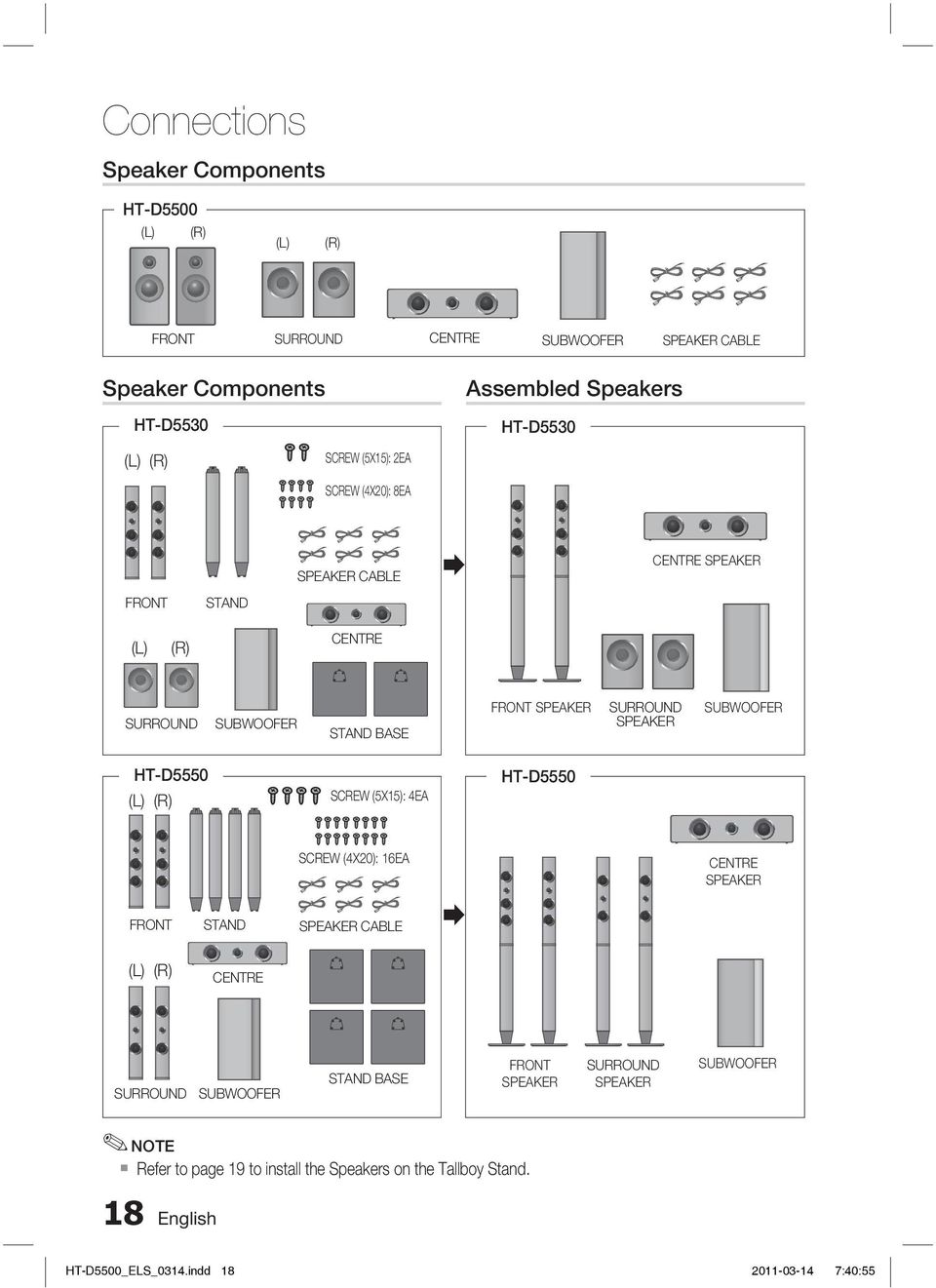
18 Connections Speaker Components HT-D5500 (L) (R) (L) (R) FRONT SURROUND CENTRE SUBWOOFER SPEAKER CABLE Speaker Components HT-D5530 Assembled Speakers HT-D5530 (L) (R) SCREW (5X15): 2EA SCREW (4X20): 8EA SPEAKER CABLE CENTRE SPEAKER FRONT STAND (L) (R) CENTRE SURROUND SUBWOOFER STAND BASE FRONT SPEAKER SURROUND SPEAKER SUBWOOFER HT-D5550 (L) (R) SCREW (5X15): 4EA HT-D5550 SCREW (4X20): 16EA CENTRE SPEAKER FRONT STAND SPEAKER CABLE (L) (R) CENTRE SURROUND SUBWOOFER STAND BASE FRONT SPEAKER SURROUND SPEAKER SUBWOOFER NOTE Refer to page 19 to install the Speakers on the Tallboy Stand. 18 English HT-D5500_ELS_0314.indd :40:55
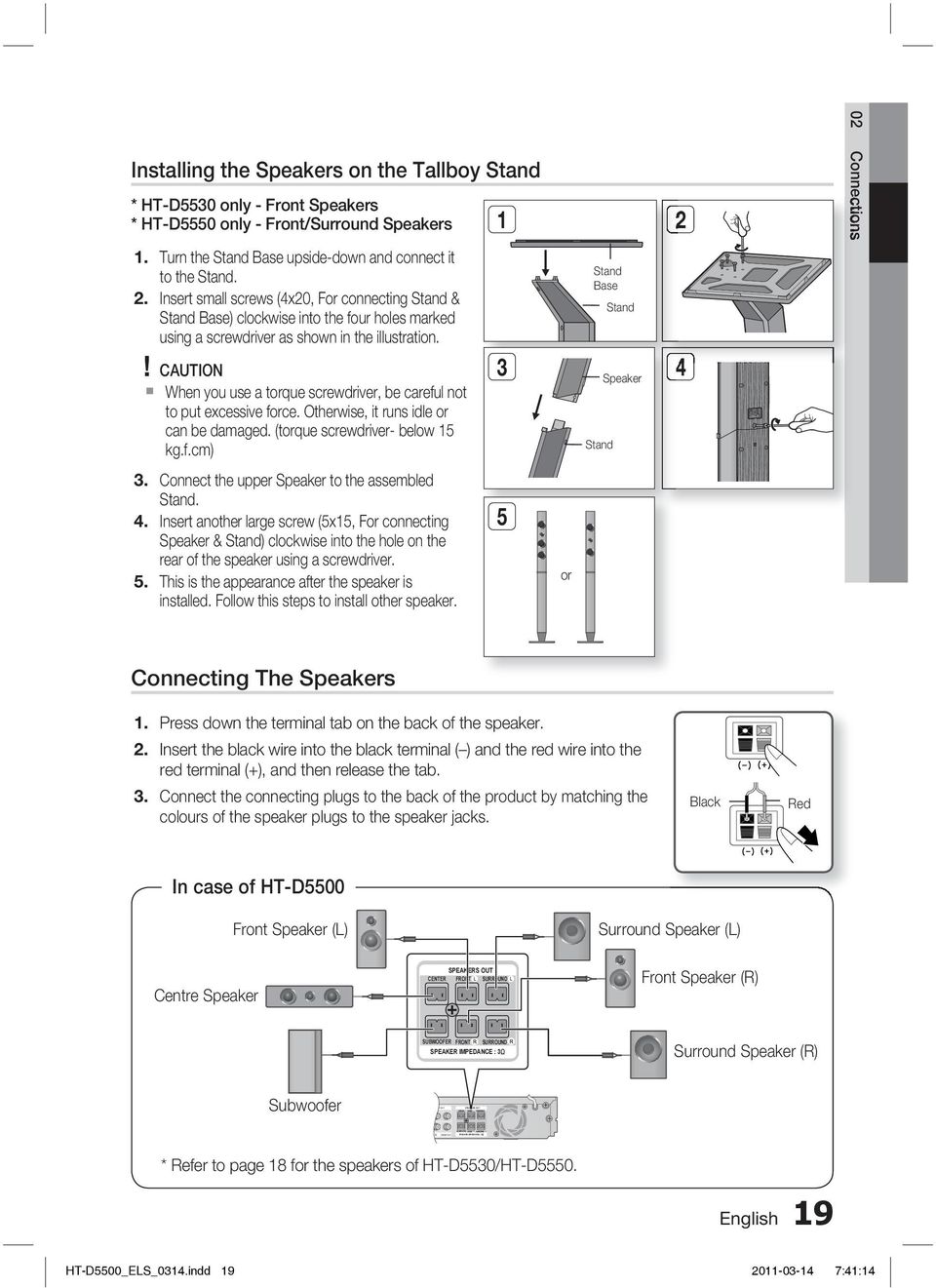
19 ONENT NT OUT VIDEO OUT SPEAKERS OUT CENTER FRONT SURROUND SUBWOOFER FRONT SURROUND SPEAKER IMPEDANCE : 3 Installing the Speakers on the Tallboy Stand * HT-D5530 only - Front Speakers * HT-D5550 only - Front/Surround Speakers Connections 1.! Turn the Stand Base upside-down and connect it to the Stand. Insert small screws (4x20, For connecting Stand & Stand Base) clockwise into the four holes marked using a screwdriver as shown in the illustration. CAUTION When you use a torque screwdriver, be careful not to put excessive force. Otherwise, it runs idle or can be damaged. (torque screwdriver- below 15 kg.f.cm) 3 Stand Base Stand Stand Speaker Connect the upper Speaker to the assembled Stand. Insert another large screw (5x15, For connecting Speaker & Stand) clockwise into the hole on the rear of the speaker using a screwdriver. This is the appearance after the speaker is installed. Follow this steps to install other speaker. 5 or Connecting The Speakers 1. Press down the terminal tab on the back of the speaker. Insert the black wire into the black terminal ( ) and the red wire into the red terminal (+), and then release the tab. 3. Connect the connecting plugs to the back of the product by matching the colours of the speaker plugs to the speaker jacks. Black Red In case of HT-D5500 Front Speaker (L) Surround Speaker (L) Centre Speaker SPEAKERS OUT CENTER FRONT SURROUND Front Speaker (R) SUBWOOFER FRONT SURROUND SPEAKER IMPEDANCE : 3 Surround Speaker (R) Subwoofer * Refer to page 18 for the speakers of HT-D5530/HT-D5550. English 19 HT-D5500_ELS_0314.indd :41:14
20 PONENT NT OUT N VIDEO OUT SPEAKERS OUT CENTER FRONT SURROUND SUBWOOFER FRONT SURROUND SPEAKER IMPEDANCE : 3 Connections Connecting the Optional Wireless Receiver Module To connect the surround speakers wirelessly, you have to purchase the wireless receiver module and TX card from your Samsung retailer. This product should be connected with the SWA-5000 only. In Case of HT-D5500 Centre Speaker SPEAKERS OUT CENTER FRONT SURROUND Front Speaker (L) Subwoofer SUBWOOFER FRONT SURROUND SPEAKER IMPEDANCE : 3 Front Speaker (R) Surround Speaker (L) Surround Speaker (R) Wireless Receiver Module * Refer to page 18 for the speakers of HT-D5530/HT-D5550. Wireless Receiver Module (SWA-5000) 1. Press down the terminal tab on the back of the speaker. Insert the black wire into the black terminal ( ) and the red wire into the red terminal (+), and then release the tab. 3. Connect the connecting plugs to the back of the product by matching the colours of the speaker plugs to the speaker jacks With the product turned off, insert the TX card into the TX Card Connection (WIRELESS) on the back of the product. Hold the TX card so that the label "WIRELESS" faces upward and insert the card into the port. The TX card enables communication between the product and the wireless receiver module. Connect the left and right surround speakers to the wireless Receiver module. Plug the power cord of the wireless Receiver module in the wall outlet. FM ANT Black WIRELESS Red COMPONENT OUT AUX IN VIDE TX card 20 English HT-D5500_ELS_0314.indd :41:18

21 HDMI IN FM ANT WIRELESS COMPONENT OUT AUX IN VIDEO OUT SPEAKERS OUT CENTER FRONT SURROUND SUBWOOFER FRONT SURROUND SPEAKER IMPEDANCE : 3! CAUTION Do not insert any other card except the TX card dedicated to the product. If a different TX card is used, the product may be damaged or the card may not be removed easily. Do not insert the TX card upside down or in the reverse direction. Insert the TX card when the product is turned off. Inserting the card when it is turned on may cause a problem. The wireless receiving antenna is built into the wireless receiver module. Keep it away from water and moisture. For optimal listening performance, make sure that the area around the wireless receiver module location is clear of any obstructions. If no sound is heard from the wireless surround speakers, switch the mode to Dolby Pro Logic II. In 2-CH mode, no sound will be heard from the wireless surround speakers. NOTE Place the wireless receiver module at the rear of the listening position. If the wireless receiver module is too close to the product, some sound interruption may be heard due to interference. If you use a device such as a microwave oven, wireless LAN Card or any other device that uses the same frequency (4/5.8GHz) near the product, some sound interruption may be heard due to interference. The transmission distance from the product to the wireless receiver module is about 10m, but may vary depending on your operating environment. If a steel-concrete wall or metallic wall is between the product and the wireless receiver module, the system may not operate at all, because the radio wave cannot penetrate metal. If the product doesn't make wireless connection, the system needs ID Setting between the product and wireless receiver module. With the main unit turned off, press the remote control's "0""1""3""5" number buttons and then turn on the unit. With the wireless receiver module turned on, press "ID SET" button on the back of the wireless receiver module for 5 seconds. And then power on the product (HT-D5500/HT-D5530/HT-D5550). 02 Connections Attaching the Toroidal Ferrite Core to the Power Cord of the Main Unit If you attach a Toroidal ferrite core to the power cord of the man unit, it will help to prevent RF interference from radio signals Pull the fi xing tab of the Toroidal ferrite core to open it. Make a loop twice in the main unit power cord. Attach the Toroidal ferrite core to the main unit power cord as the fi gure shows and press it until it clicks. English 21 HT-D5500_ELS_0314.indd :41:19
22 Connections Connecting External Devices/your TV via HDMI HDMI is the standard digital interface for connecting to devices such as a TV, projector, DVD player, Blu-ray player, set top box, and more. Because HDMI is all digital, you'll enjoy digital quality video and sound as it was originally created, without the distortions that can be caused when digital content is converted to analogue. DVD or Blu-ray Player SAT(Satellite/Set top box) HDMI IN FM ANT COMPONENT OUT SPEAKERS OUT CENTER FRONT SURROUND LAN ipod DIGITAL AUDIO IN HDMI OUT HDMI IN OPTICAL WIRELESS LAN WIRELESS AUX IN VIDEO OUT SUBWOOFER FRONT SURROUND SPEAKER IMPEDANCE : 3 HDMI OUT HDMI OUT : Connecting to a TV with an HDMI Cable (BEST QUALITY) Connect an HDMI cable (not supplied) from the HDMI OUT jack on the back of the product to the HDMI IN jack on your TV. NOTE Certain HDMI output resolutions may not work, depending on your TV. After making the video connection, set the Video input source on your TV to match the corresponding Video output (HDMI, Component or Composite) on your product. See your TV owner's manual for more information on how to select the TV's Video Input source. If you have set the product's remote control to operate your TV, press the TV SOURCE button on the remote control and select HDMI as the external source of the TV. You must have an HDMI connection to enjoy videos with 3D technology. A long HDMI cable may cause a screen noise. If this is the case, set Deep Colour to Off in the menu. 22 English HT-D5500_ELS_0314.indd :41:24
23 HDMI IN : Connecting to an External Component with an HDMI Cable 1. Connect an HDMI cable (not supplied) from the HDMI IN jack on the back of the product to the HDMI OUT jack on your digital device. Press the FUNCTION button to select H. IN1 or H. IN2 input. The mode switches as follows : BD/DVD D. IN AUX R. IPOD W. IPOD H. IN1 H. IN2 FM 02 Connections HDMI Auto Detection Function If you have connected your home cinema by HDMI cable, the home cinema's video output automatically switches to the HDMI mode when you turn it on. For available HDMI video resolutions, see page 3 This function is not available if the HDMI cable does not support CEC. HDMI connection description - HDMI outputs only a pure digital signal to the TV. - If your TV does not support HDCP, random noise appears on the screen. What is the HDCP? HDCP (High-band width Digital Content Protection) is a system for preventing BD/DVD content outputted via HDMI from being copied. It provides a secure digital link between a video source (PC, DVD. etc) and a display device (TV, projector. etc). Content is encrypted at the source device to prevent unauthorized copies from being made.! CAUTION The Anynet+ function is supported only when an HDMI Cable is connected to the HDMI OUT of the product. English 23 HT-D5500_ELS_0314.indd :41:25
24 Connections Red Blue Green COMPONENT OUT SPEAKERS OUT CENTER FRONT SURROUND METHOD 1 SS AUX IN VIDEO OUT Yellow METHOD 2 SUBWOOFER FRONT SURROUND SPEAKER IMPEDANCE : 3 METHOD 1 : Component Video (BETTER QUALITY) If your television is equipped with Component Video inputs, connect a Component video cable (not supplied) from the Component Video Output (Pr, Pb and Y) Jacks on the back of the product to the Component Video Input Jacks on your TV. NOTE You can select from a variety of resolution settings such as 1080i, 720p, 576p/480p and 576i/480i, depending on the disc type. (See page 31) The actual resolution may differ from the setting in the Setup menu if both Component and HDMI cables are connected. The resolution may also be different depending on the disc. (See page 31) After making the video connection, set the Video input source on your TV to match the corresponding Video output (HDMI, Component or Composite) on your product. See your TV owner's manual for more information on how to select the TV's Video Input source. If you have set the product's remote control to operate your TV, press the TV SOURCE button on the remote control and select COMPONENT as the external source of the TV. In DVD playback, if both HDMI and Component jacks are connected and you select the Component 1080p, 1080i, 720p or 576p/480p mode, the Display Setup menu will show the output resolution as 1080p, 1080i, 720p or 576p/480p in the menu. The resolution is actually 576i/480i. METHOD 2 : Composite Video (GOOD QUALITY) Connect the supplied Video cable from the VIDEO OUT jack on the back of the product to the VIDEO IN jack on your TV.! NOTE The VIDEO source is always output in 576i/480i resolution regardless of the resolution set in the Setup menu. (See page 31) After making the video connection, set the Video input source on your TV to match the corresponding Video output (HDMI, Component or Composite) on your product. See your TV owner's manual for more information on how to select the TV's Video Input source. If you have set the product's remote control to operate your TV, press the TV SOURCE button on the remote control and select VIDEO as the external source of the TV. CAUTION Do not connect the unit through a VCR. Video signals fed through VCRs may be affected by copyright protection systems and the picture will be distorted on the television. 24 English HT-D5500_ELS_0314.indd :41:25
25 Connecting Audio from External Components FM ANT COMPONENT OUT 02 Connections DIGITAL AUDIO IN OPTICAL HDMI OUT HDMI IN WIRELESS AUX IN VIDEO OU Optical Cable (not supplied) Set-Top Box OPTICAL OPTICAL : Connecting an External Digital Component Digital signal components such as a Cable Box/Satellite receiver (Set-Top Box). 1. Connect the Digital Input (OPTICAL) on the product to the Digital Output of the external digital component. Press the FUNCTION button to select D.IN input. The mode switches as follows : BD/DVD D. IN AUX R. IPOD W. IPOD H. IN1 H. IN2 FM NOTE To see video from your Cable Box/Satellite receiver, you must connect it's video output to a TV. This system supports Digital sampling frequencies of 32 khz of higher from external digital components. This system supports only DTS and Dolby Digital audio, MPEG audio which is bitstream cannot be supported. AUX : Connecting an External Analogue Component Analogue signal components such as a VCR. Audio Cable (not supplied) If the external analogue component has only one Audio Out, connect either left or right. VCR White 1. Connect AUX IN (Audio) on the product to the Audio Out of the external analogue component. Be sure to match connector colours. Press the FUNCTION button to select AUX input. The mode switches as follows : BD/DVD D. IN AUX R. IPOD W. IPOD H. IN1 H. IN2 FM NOTE You can connect the Video Output jack of your VCR to the TV, and connect the Audio Output jacks of the VCR to this product. Red AUX English 25 HT-D5500_ELS_0314.indd :41:25
26 Connections Connecting to the Network This product enables you to view network based services (See pages 62~71) such as Smart Hub and BD-LIVE, as well as receive software upgrades when a network connection is made. We recommend using an Wireless router or IP router for the connection. For more information on router connection, refer to the user manual of the router or contact the router manufacturer for technical assistance. Cable Network 1. Using the Direct LAN Cable (UTP cable), connect the LAN terminal of the product to the LAN terminal of your modem. Set the network options. (See page 38) LAN ipod DIGITAL AUDIO IN HDMI OUT OPTICAL WIRELESS LAN Router Broadband modem (with integrated router) Broadband service Or Broadband modem Broadband service Networking with PC for AllShare function (See page 71) NOTE Internet access to Samsung s software update server may not be allowed, depending on the router you use or the ISP s policy. For more information, contact your ISP (Internet Service Provider). For DSL users, please use a router to make a network connection. For the AllShare function, a PC must be connected in the network as shown in the fi gure. 26 English HT-D5500_ELS_0314.indd :41:26
27 Wireless Network You can connect to the network with a Wireless IP sharer. 1. A wireless AP/IP router is required to make a wireless network connection. Connect the wireless LAN adapter to the Wireless LAN Adapter on the rear panel of the product. Set the network options. (See page 38) 02 Connections Broadband service Wireless IP sharer LAN WIRELESS LAN ipod DIGITAL AUDIO IN OPTICAL NOTE This product is compatible with only Samsung's Wireless LAN Adapter. (not supplied) (Model name: WIS09ABGN). - The Samsung Wireless LAN Adapter is sold separately. Contact a Samsung Electronics retailer for purchasing. You must use a wireless IP sharer that supports IEEE 8011 a/b/g/n. (n is recommended for stable operation of the wireless network.) Wireless LAN, by its nature, may cause interference, depending on the use condition (AP performance, distance, obstacles, interference by other radio devices, etc). Set the wireless IP sharer to Infrastructure mode. Ad-hoc mode is not supported. When applying the security key for the AP (wireless IP sharer), only the following is supported. 1) 2) PC Networking with PC for AllShare function (See page 71) Authentication Mode : WEP, WPAPSK, WPA2PSK Encryption Type : WEP, AES Wireless LAN Adapter (not supplied) For the AllShare function, a PC must be connected in the network as shown in the fi gure. Connecting the FM Antenna FM ANT FM Antenna (supplied) 1. Connect the FM antenna supplied to the FM ANTENNA Jack. Slowly move the antenna wire around until you fi nd a location where reception is good, then fasten it to a wall or other rigid surface. NOTE This product does not receive AM broadcasts. WIR English 27 HT-D5500_ELS_0314.indd :41:28
28 Setup 1. Initial Settings Turn on your TV after connecting the product. When you connect and turn on the product to a TV for the fi rst time, the Initial Settings screen appears. Home Menu My Contents Videos Photos Music Initial Settings On-Screen Language Select a language for the on-screen displays. Български Hrvatski Čeština Dansk Nederlands English Function My Devices Internet Settings d WPS(PBC) Eesti Suomi Français Deutsch Ελληνικά Magyar Indonesia Italiano m Move " Enter Press the buttons to select the desired language, and then press the ENTER button. Press the ENTER button to select Start. Press the buttons to select the desired TV Aspect Ratio, and then press the ENTER button. (See page 31) Musical Auto Calibration screen will be displayed. Plug the ASC microphone into the ASC IN jack on the product. (See page 35) Press the ENTER button to select Start button. Setting the Musical Auto Calibration function takes about 3 minutes. Press the buttons to select the desired Network Settings : Wired, Wireless (General), WPS(PBC) or One Foot Connection, and then press the ENTER button. If you do not know the details of your Network Settings, press the BLUE (D) button on your remote instead to skip Network Settings here, fi nish the Initial Settings, and go to the Home menu. If you selected a Network Settings, go to pages 38~41 for more information about the Network settings. When done, go to Step 8. NOTE The Home menu will not appear if you do not confi gure the initial settings except as noted below. If you press the BLUE (D) button during the Musical Auto Calibration/network setup, you can access the Home menu even if the network setup is not completed yet. If you want to display the Initial Setting screen again to make changes, select the Reset option. (See page 42) If you use an HDMI cable to connect the product to an Anynet+(HDMI-CEC)- compliant Samsung TV and 1.) You have set the Anynet+(HDMI-CEC) feature to On in both the TV and the product and ) You have set the TV to a language supported by the product, the product will select that language as the preferred language automatically. If you leave the product in the stop mode for more than 5 minutes without using it, a screen saver will appear on your TV. If the product is left in the screen saver mode for more than 20 minutes, the power will automatically turn off. 8. The Home menu appears. (For more information about the Home menu, please see page 29.) 28 English HT-D5500_ELS_0314.indd :41:29
29 1 Accessing the Settings Menu DISC MENU MENU TITLE MENU TOOLS INFO RETURN 2 EXIT 4 TUNER POPUP 1 MENU Button : Press to move to the Home menu. 2 RETURN Button : Return to the previous menu. 3 ENTER / DIRECTION Button : Move the cursor or select an item. Activate the currently selected item. Confi rm a setting. 4 EXIT Button : Press to exit the current menu Press the buttons to select Settings, and then press the ENTER button. Press the buttons to select the desired submenu, and then press the ENTER button. Press the buttons to select the desired item, and then press the ENTER button. Press the EXIT button to exit the menu. NOTE When the product is connected to a network, select Internet from the Home menu. Download the desired content from Samsung Apps. (See pages 69~71) The access steps may differ depending on the menu you selected. The OSD (On Screen Display) may change in this product after you upgrade the software version. 03 Setup To access the Settings menu and sub-menus, follow these steps: 1. Press the POWER button. The Home Menu appears. Home Menu My Contents Videos 1 Function Photos Music My Devices Internet Settings d WPS(PBC) 6 1 Selects My Devices. 2 Selects Function. 3 Selects My Contents. 4 Selects Internet. 5 Selects Settings. 6 Displays the buttons available. English 29 HT-D5500_ELS_0314.indd :41:31
30 Setup Display You can confi gure various display options such as the TV Aspect Ratio, Resolution, etc. 3D Settings Select whether to play a Blu-ray Disc with 3D contents in 3D Mode. Settings Display Audio 3D Settings 3D Settings Network System 3D Blu-ray Playback Mode : Auto Language Security General Screen Size : 55 inch > Move " Enter ' Return Support HDMI Deep Color : Auto 3D Blu-ray Playback Mode 3D Blu-ray Discs are available in two formats: Blu-ray 3D and 3D only. You can choose to watch a Blu-ray 3D disc in 3D or 2D mode before playing the disc. Auto : Automatically detect if a connected TV has 3D capability and play a Blu-ray 3D disc in 3D or 2D accordingly or a 3D only disc in 3D if the TV supports 3D.3D only discs will not be played if your TV does not support 3D. 3D 3D : Play 3D only and Blu-ray 3D discs in 3D mode at all times. 3D 2D : Play Blu-ray 3D discs in 2D mode at all times. 3D only discs will not be played. NOTE To stop a movie during 3D playback, press the STOP() button once. The movie stops and the 3D mode option is de-activated. To change a 3D option selection when you are playing a 3D movie, press the STOP() button once. The Blu-ray menu appears. Press the STOP() button again, then select 3D Settings in the Blu-ray menu. Depending on the content and the position of the picture on your TV screen, you may see vertical black bars on the left side, right side, or both sides. Screen Size Lets you enter the actual screen size of your TV so that the product can adjust the image according to the screen size and display an optimal 3D image. (The maximum allowed screen size is 116 inches for this product.)! CAUTION If you want to enjoy 3D content, connect a 3D device (3D compliant AV receiver or TV) to the product s HDMI OUT port using a high-speed HDMI cable. Put on 3D glasses before playing the 3D content. The product outputs 3D signals only through HDMI cable connected to the HDMI OUT port. As the video resolution in 3D play mode is fi xed according to the resolution of the original 3D video, you can not change the resolution to your preference. Some functions such as BD Wise, screen size adjustment, and resolution adjustment may not operate properly in 3D play mode. Stay at least three times the width of the screen from the TV when watching 3D images. For example, if you have a 46 inch screen, stay 138 inches (3.5 meters) from the screen. - Place the 3D video screen at eye level for the best 3D picture. When the product is connected to some 3D devices, the 3D effect may not function properly. 30 English HT-D5500_ELS_0314.indd :41:33
31 TV Aspect Depending on the type of television you have, you may want to adjust the screen size setting. 16:9 Original : Select when you connect the product to a 16:9 TV screen. The product will display all content in its original aspect ratio. Content formatted in 4:3 will be displayed with black bars on the left and right. 16:9 Full : Select when you connect the product to a 16:9 TV screen. All content will fi ll the full screen. Content formatted in 4:3 will be stretched. 4:3 Letter Box : Select when you connect the product to a 4:3 TV screen. The product will display all content in its original aspect ratio. Content formatted in 16:9 will be displayed with black bars on the top and bottom. 4:3 Pan-Scan : Select when you connect the product to a 4:3 TV screen. 16:9 content will have the extreme left and right portions cut off. NOTE Depending on the disc type, some aspect ratios may not be available. If you select an aspect ratio and option which is different than the aspect ratio of your TV screen, then the picture might appear to be distorted. If you select the 16:9 Original, your TV may display 4:3 Pillarbox (black bars on sides of picture). Smart Hub Screen Size Set the Smart Hub Screen to the optimal size. Size 1 : Smart Hub screen size will be smaller than default. You may see some black on sides of screen. Size 2 : This is the default setting for Smart Hub. The product displays the normal Smart Hub screen size. Size 3 : This will display a larger Smart Hub screen size. The image may be too large for your TV screen. BD Wise (Samsung Products only) BD Wise is Samsung s latest inter-connectivity feature. When you connect a Samsung product and a Samsung TV with BD Wise to each other via HDMI, and BD Wise is on in both the product and TV, the product outputs video at the video resolution and frame rate of the BD/DVD disc. Off : The output resolution stays fi xed at the resolution you set previously in the Resolution menu, regardless of the resolution of the disc. See Resolution below. On : The product outputs video at the original resolution and frame rate of the BD/DVD disc. NOTE When BD Wise is on, the Resolution setting automatically defaults to BD Wise and BD Wise appears in the Resolution menu. If the product is connected to a device that does not support BD Wise, you can not use the BD Wise function. For proper operation of BD Wise, set the BD Wise menu of both the product and the TV to On. Resolution Lets you set the output resolution of the Component and HDMI video signal to Auto, 1080p, 1080i, 720p, 576p/480p, or 576i/480i. The number indicates the number of lines of video per frame. The i and p indicate interlaced and progressive scan, respectively. The more lines, the higher the quality. Auto : Automatically sets the output resolution to the connected TV s maximum resolution. BD Wise : Automatically sets the resolution to the resolution of the BD/DVD disc if you have connected the product via HDMI to a TV with the BD Wise feature. (The BD Wise menu item appears only if BD Wise is set to On. See BD Wise above.) 1080p : Outputs 1080 lines of progressive video. (HDMI only) 1080i : Outputs 1080 lines of interlaced video. 720p : Outputs 720 lines of progressive video. 576p/480p : Outputs 576/480 lines of progressive video. 576i/480i : Outputs 576/480 lines of interlaced video. (VIDEO only) 03 Setup English 31 HT-D5500_ELS_0314.indd :41:34
32 Setup Resolution according to the output mode Blu-ray Disc/E-contents/Digital Contents playback Setup Output BD Wise Auto Blu-ray Disc Resolution of Blu-ray Disc Max. Resolution of TV input HDMI / connected HDMI Mode E-contents/ Digital contents Component/ VIDEO Mode HDMI / not connected Component Mode Blu-ray Disc E-contents/ Digital contents VIDEO Mode 1080p@60F 576i/480i Max. Resolution of TV input 576i/480i p@60F 1080p@60F 1080p@60F 576i/480i Movie Frame : Auto (24Fs) 1080p@24F 1080p@24F 576i/480i i 1080i 1080i 576i/480i 576i/480i 1080i 576i/480i 720p 720p 720p 576i/480i 576i/480i 720p 576i/480i 576p/480p 576p/480p 576p/480p 576i/480i 576i/480i 576p/480p 576i/480i 576i/480i i/480i 576i/480i 576i/480i DVD playback Setup Output HDMI Mode HDMI / connected Component/VIDEO Mode Component Mode HDMI / not connected VIDEO Mode BD Wise 576i/480i 576i/480i - - Auto Max. Resolution of TV input 576i/480i p@60F 1080p@60F 576i/480i i 1080i 576i/480i 576p/480p 576i/480i 720p 720p 576i/480i 576p/480p 576i/480i 576p/480p 576p/480p 576i/480i 576p/480p 576i/480i 576i/480i i/480i 576i/480i 32 English HT-D5500_ELS_0314.indd :41:34
33 NOTE If the TV you connected to the product does not support Movie Frame or the resolution you selected, the message If no pictures are shown after the selection, please wait for 15 seconds. And then, the resolution will be reverted to the previous value automatically. Would you like to make a selection? appears. If you select Yes, the TV s screen will go blank for 15 seconds, and then the resolution will revert to the previous resolution automatically. If the screen stays blank after you have changed the resolution, remove all discs, and then press and hold the STOP () button on the front of the product for more than 5 seconds. All settings are restored to the factory default. Follow the steps on the previous page to access each mode and select the Display Setup that your TV will support. When the factory default settings are restored, all stored user BD data is deleted. The Blu-ray Disc must have the 24 frame feature for the product to use the Movie Frame (24Fs) mode. If both HDMI and Component jacks are connected and you are currently viewing Component output, the resolution is fi xed to 576i/480i. HDMI Color Format Lets you set the colour space format for HDMI output to match the capabilities of the connected device (TV, monitor, etc). Auto : Automatically sets the product to the optimum format supported by your device. YCbCr (4:4:4) : If your TV supports the YCbCr colour space via HDMI, select this to output the normal YCbCr colour gamut. RGB (Standard) : Select this to output the normal RGB colour gamut. RGB (Enhanced) : If you have connected the product to a DVI display device such as a monitor, select this to output the enhanced RGB colour gamut. Movie Frame (24 Fs) Setting the Movie Frame (24Fs) feature to Auto allows you to adjust the product s HDMI output to 24 frames per second for improved picture quality. You can enjoy the Movie Frame (24Fs) feature only on a TV supporting this frame rate. You can select Movie Frame only when the product is in the HDMI 1080i or 1080p output resolution modes. Auto : Movie Frame (24Fs) functions work. Off : Movie Frame (24Fs) functions are off. HDMI Deep Color Lets you output video from the HDMI OUT jack with Deep Colour. Deep Colour provides more accurate colour reproduction with greater colour depth. Auto: The product outputs video with Deep Colour to a connected TV which supports HDMI Deep Colour. Off : The picture is output without Deep Colour. Still Mode Lets you set the type of picture the product displays when you pause DVD playback. Auto: Automatically shows the best still picture depending on the content. Frame : Select when pausing a scene with a little action. Field : Select when pausing a scene with a lot of action. Progressive Mode Lets you improve picture quality when viewing DVDs. Auto : Select to have the product automatically select the best picture quality for the DVD you re watching. Video : Select for the best picture quality from concert or TV show DVDs. 03 Setup English 33 HT-D5500_ELS_0314.indd :41:34
34 Setup Speaker Settings Level Settings Display Audio Network System Language Security General Support Audio Speaker Settings Level Distance Test Tone : Off > Move " Enter ' Return You can adjust the balance and level for each speaker. Adjusting Front/Centre/Surround/Subwoofer Speaker Level The volume level can be adjusted in steps from +6dB to -6dB. The sound gets louder as you move closer to +6dB and quieter as you get closer to -6dB. Settings Display Audio Network System Language Security General Support Level Front L 0 db Front R : 0 db Center : 0 db Surround L : 0 db Surround R : 0 db Subwoofer : 0 db Test Tone : Off > Move < Change ' Return Distance If the speakers cannot be placed at equal distances from the listening position, you can adjust the delay time of the audio signals from the front, centre, surround and subwoofer speakers. You can set the Speaker Distance between 1ft(0.3m) and 30ft(9.2m). Settings Display Audio Front L Distance 10(ft) 3.0(m) Network Front R : 10(ft) 3.0(m) System Center : 10(ft) 3.0(m) Language Surround L : 10(ft) 3.0(m) Surround R : 10(ft) 3.0(m) Security Subwoofer : 10(ft) 3.0(m) General Support Test Tone : Off > Move < Change ' Return Test Tone Use the Test Tone feature to check the speaker connections. Press the, buttons to select ON. A test tone will be sent to Front L Center Front R Surround R Surround L Subwoofer in order so you can make sure the speakers are set up correctly. To stop the test tone, press the, buttons to select Off. Settings Display Speaker Settings Audio Level Network Distance System Test Tone On Language Security General Support > Move " Enter ' Return NOTE When HDMI Audio is ON (audio is produced through TV speakers), the Test Tone function is not available. 34 English HT-D5500_ELS_0314.indd :41:35
35 ASC IN 50 ASC IN 500mA Musical Auto Calibration By setting the Musical Auto Calibration (MAC) function just once when you relocate or install the product, you can have the product automatically recognize the distance between speakers, levels between channels, and frequency characteristics to create a 5.1-channel sound fi eld optimized for your environment. ASC microphone Musical Auto Calibration Mode You will hear either the Musical Auto Calibration mode or the User Speaker Settings. Off: You will hear sound in the the Speaker Setting value. On: You will hear sound in the Musical Auto Calibration mode. Measurement 1. Plug the ASC microphone into the ASC IN jack. Place the ASC microphone at the listening position. Musical Auto Calibration will be automatically set up in the following sequence: Front L Center Front R Surround R Surround L Subwoofer Press the RETURN button to cancel the Musical Auto Calibration Setting. NOTE Setting the Musical Auto Calibration function takes about 3 minutes. The Musical Auto Calibration setup can be made when there is no disc in the product. If the ASC microphone is disconnected during the Musical Auto Calibration setup, the setup will be cancelled. When the Musical Auto Calibration function is activated, the DSP, Dolby Pro Logic ll and SFE Mode will not work. If the product is connected to external devices or other components (such as an ipod, AUX, D.IN), the Musical Auto Calibration Setup may not work properly. Noise may result in wrong measurement. So please proceed with the measurement in a quiet room to obtain proper calibration. Place the microphone on the main listening position. Nothing should get in the way between speakers and microphone. Note that the test tone of the speaker may be loud when conducting the test. Do not place the microphone behind the furniture or too close to the wall. Otherwise, it can produce an incorrect test result. User EQ You can confi gure the equalizer settings manually to your preference. Settings Display Audio Network System Language Security General Support User EQ Hz 600Hz 1kHz 3kHz 6kHz 10kHz 15kHz A Reset > Adjust < Move ' Return Setup English 35 HT-D5500_ELS_0314.indd :41:37
36 Setup HDMI Audio The audio signals transmitted over the HDMI Cable can be toggled On/Off. Off : Video is transmitted over the HDMI connection cable only, and audio is output through your product speakers only. On : Both video and audio signals are transmitted over the HDMI connection cable, and audio is output through your TV speakers only. NOTE HDMI Audio is automatically down-mixed to 2ch for TV speakers. Audio Return Channel You can enjoy TV sound from the Home Cinema speakers by using just one HDMI cable. Auto : Listen to TV sound from the Home Cinema speakers if your TV is compatible with the Audio Return Channel function. Off : Turn the Audio Return Channel function off. NOTE When Anynet+(HDMI-CEC) is Off, the Audio Return Channel function is not available. Using an ARC (Audio Return Channel)- uncertifi ed HDMI cable may cause a problem in compatibility. ARC function is only available if an ARCcompliant TV is connected. Digital Output You set the Digital Output to match the capabilities of the AV receiver you ve connected to the product : PCM : Choose if you have connected an HDMI supported AV receiver. Bitstream (Unprocessed) : Select if you have connected an HDMI supported AV receiver with Dolby TrueHD and DTS-HD Master Audio decoding capabilities. Bitstream (Re-encoded DTS) : Choose if you have connected an AV receiver using a Digital Optical input that can decode DTS. Bitstream (Re-encoded Dolby D) : Select if you don t have an HDMI supported AV receiver, but have an AV receiver with Dolby Digital decoding capabilities. For more details, please refer to the digital output selection table. (See page 37) Blu-ray Discs may include three audio streams : - Main Feature Audio : The audio soundtrack of the main feature. - BONUSVIEW audio : An additional soundtrack such as the director or actor s commentary. - Navigation Sound Effects : When you choose some menu navigation, Navigation Sound Effects may sound. Navigation Sound Effects are different on each Blu-ray Disc. NOTE It can be activated when HDMI Audio is ON. Be sure to select the correct Digital Output or you will hear no sound or just loud noise. If the HDMI device (AV receiver, TV) is not compatible with compressed formats (Dolby digital, DTS), the audio signal outputs as PCM. Regular DVDs do not have BONUSVIEW audio and Navigation Sound Effects. Some Blu-ray Discs do not have BONUSVIEW audio and Navigation Sound Effects. This Digital Output setup does not effect the analogue (L/R) audio or HDMI audio output to your TV. It effects the optical and HDMI audio output when your product is connected to an AV receiver. If you play MPEG audio soundtracks, the audio signal outputs as PCM regardless of your Digital Output selections (PCM or Bitstream). 36 English HT-D5500_ELS_0314.indd :41:39
37 Digital Output Selection 03 Setup Audio Stream on Blu-ray Disc Audio Stream on DVD Defi nition for Blu-ray Disc Setup Connection PCM HDMI supported AV receiver Bitstream (Unprocessed) HDMI supported AV receiver Bitstream (Re-encoded DTS) HDMI supported AV receiver PCM Up to 7.1ch PCM DTS re-encoded Dolby Digital Up to 7.1ch Dolby Digital DTS re-encoded Dolby Digital Plus Up to 7.1ch Dolby Digital Plus DTS re-encoded Dolby TrueHD Up to 7.1ch Dolby TrueHD DTS re-encoded DTS Up to 6.1ch DTS DTS re-encoded DTS-HD HRA Up to 7.1ch DTS-HD HRA DTS re-encoded DTS-HD MA Up to 7.1ch DTS-HD MA DTS re-encoded Bitstream (Re-encoded Dolby D) HDMI supported AV receiver Re-encoded Dolby Digital * Re-encoded Dolby Digital * Re-encoded Dolby Digital * Re-encoded Dolby Digital * Re-encoded Dolby Digital * Re-encoded Dolby Digital * Re-encoded Dolby Digital * PCM PCM 2ch PCM 2ch PCM 2ch PCM 2ch Dolby Digital Up to 5.1ch Dolby Digital Dolby Digital Dolby Digital DTS Up to 6.1ch DTS DTS DTS Any Decodes the main feature audio and BONUSVIEW audio stream together into PCM audio and adds Navigation Sound Effects. Outputs only the main feature audio stream so that your AV receiver can decode the audio bitstream. You will not hear BONUSVIEW audio or Navigation Sound Effects. Decodes the main feature audio and BONUSVIEW audio stream together into PCM audio and adds Navigation Sound Effects, then re-encodes the PCM audio into DTS bitstream. Decodes the main feature audio and BONUSVIEW audio stream together into PCM audio and adds Navigation Sound Effects, then reencodes the PCM audio into Dolby digital bitstream or PCM. * If the Source Stream is 2ch, Re-encoded Dolby D Setting are not applied. Ouput will be LPCM 2ch. Dynamic Range Control You can listen at low volumes, but still hear dialog clearly. This is only active if your product detects a Dolby Digital signal. Auto : The Dynamic Range Control will be set automatically based on the information provided by the Dolby TrueHD Soundtrack. Off : You can enjoy the movie with the standard Dynamic Range. On : When Movie soundtracks are played at low volume or through smaller speakers, the system can apply appropriate compression to make low-level content more intelligible and prevent dramatic passages from getting too loud. English 37 HT-D5500_ELS_0314.indd :41:39
38 Setup Audio Sync Video may look slower than the audio when the product is connected to a digital TV. If this occurs, adjust the audio delay time to match the video. You can set the audio delay time between 0 msec and 300 msec. Set it to the optimal status. Network Before you begin, contact your ISP to fi nd out if your IP address is static or dynamic. If it is dynamic, and you are using a wired or wireless connection, we recommend using the Auto procedures. If you are using a wireless connection and your router has the capability, you can use WPS(PBC) or One Foot Connection. If your IP address is static, you must use the manual set up procedure for both wired and wireless connections. Network Settings To begin setting up the network connection for your product, follow these steps: 1. In the Home menu, press the buttons to select Settings, and then press the ENTER button. Press the buttons to select Network, and then press the ENTER button. 3. Press the buttons to select Network Settings, and then press the ENTER button. 4. Press the buttons to select Wired, Wireless (General), WPS(PBC) or One Foot Connection, and then press the ENTER button. 5. If you have a wired network, go to Wired Network below. If you have a wireless network, go to Wireless Network on pages 39~41. Wired Network Setting Up a Wired Connection - Auto 1. Press the buttons to select Wired. Settings Display Audio Network System Language Network Settings Select a network connection type. Wired Wireless (general) Security General Support WPS(PBC) One Foot Connection Connect to the network using LAN cable. Please make sure that the LAN cable is connected. > Move " Enter ' Return Press the ENTER button. The Network Status screen appears. The product connects to the network after the network connection is verifi ed. Setting Up a Wired Connection - Manual If you have a static IP address or the Auto Setting does not work, you ll need to set the Network Settings values manually. To view your Network Settings values on most Windows computers, follow these steps: 1. Right click the Network icon on the bottom right of the Windows desktop. In the pop-up menu, click Status. 3. On the dialog that appears, click the Support tab. 4. On the Support tab, click the Details button. The Network settings are displayed. 38 English HT-D5500_ELS_0314.indd :41:40
39 To enter the Network settings into your product, follow these steps: 1. Press the buttons to select Wired, and then press the ENTER button. Press the buttons to select IP Settings, and then press the ENTER button. Settings Display IP Settings Audio IP Mode Manual Network IP Address System Subnet Mask Language Gateway Security DNS Mode Manual DNS Server General OK Support > Move " Enter ' Return 3. Press the ENTER button to select IP Mode. 4. Press the buttons to select Manual, and then press the ENTER button. 5. Press the button to go to the fi rst entry fi eld (IP Address). 6. Use the number buttons on your remote to enter numbers. 7. When done with each fi eld, press the button to move successively to the next fi eld. You can also use the other arrow buttons to move up, down, and back. 8. Enter the IP Address, Subnet Mask, and Gateway values. 9. Press the button to go to DNS Mode. 10. Press the button to go to the fi rst DNS entry fi eld. Enter the numbers as above. 11. Press the ENTER button to select OK. The Network Status screen appears. The product connects to the network after the network connection is verifi ed. Wireless Network You can setup a wireless network three ways: Wireless (General) Using WPS(PBC). One Foot Connection Wireless (General) includes both Automatic and Manual setup procedures. Setting Up the Wireless Network Connection - Auto Most wireless networks have an optional security system that requires devices that access the network to transmit an encrypted security code called an Access or Security Key. The Security Key is based on a Pass Phrase, typically a word or a series of letters and numbers of a specifi ed length you were asked to enter when you set up security for your wireless network. If you use this method of setting up the network connection, and have a Security Key for your wireless network, you will have to enter the Pass Phrase during the Auto setup process. 1. Press the buttons to select Wireless (General). 3. Settings Network Settings Display Select a network connection type. Audio Network Wired System Wireless Language(general) Set up wireless network by selecting your Wireless Security Router. You may need to enter security key depending WPS(PBC) on the setting of the Wireless Router. General One Foot Support Connection > Move " Enter ' Return Press the ENTER button. When done, it displays a list of the available networks. Press the buttons to select the desired network, and then press the ENTER button. The Security screen appears. 03 Setup English 39 HT-D5500_ELS_0314.indd :41:41
40 Setup On the Security screen, enter your network s Pass Phrase. Enter numbers directly using your remote control. To select a letter, press the buttons to move the cursor, then press the ENTER button. Settings Display Network Settings Audio Network Enter security key. a b c 0 entered 2 3 d e f 1 System g h i j k l Language m n o p q r Security s t u v w x y z 0 General a/a * Delete Space Done Support a Previous m Move " Enter ' Return NOTE You should be able to fi nd the Pass Phrase on one of the set up screens you used to set up your router or modem. When done, press the buttons to move the cursor to Done, and then press the ENTER button. The Network Status screen appears. The product connects to the network after the network connection is verifi ed. Setting Up the Wireless Network Connection - Manual If the Auto Setting does not work, you need to enter the Network settings values manually. To view the Network Settings values on most Windows computers, follow these steps: 1. Right click the Network icon on the bottom right of the screen. In the pop-up menu, click Status. 3. On the dialog that appears, click the Support tab. 4. On the Support tab, click the Details button. The Network settings are displayed. To enter the Network settings into your product, follow these steps: Follow Steps 1 through 5 in the Setting Up the Wireless Network Connection - Auto procedure. When done, press the buttons to move the cursor to Done, and then press the ENTER button. The Network Status screen appears. Settings Display IP Settings Audio IP Mode Manual Network IP Address System Subnet Mask Language Gateway Security DNS Mode Manual DNS Server General OK Support > Move " Enter ' Return On the Network Status screen, select Cancel, and then press Enter. Press the buttons to select IP Settings, and then press the ENTER button. Press the ENTER button to select IP Mode. Press the buttons to select Manual, and then press the ENTER button. Press the button to go to the fi rst entry fi eld (IP Address). Use the number buttons to enter numbers. When done with each fi eld, press the button to move successively to the next fi eld. You can also use the other arrow buttons to move up, down, and back. Enter the IP Address, Subnet Mask, and Gateway values. Press the to go to DNS Mode. Press the button to go to the fi rst DNS entry fi eld. Enter the numbers as above. The Network Status screen appears. The product connects to the network after the network connection is verifi ed. 40 English HT-D5500_ELS_0314.indd :41:42
41 WPS(PBC) The easiest way to set up the wireless network connection is using the WPS(PBC) function or the One Foot Connection function. If your wireless router has a WPS(PBC) button, follow these steps: 1. Press the buttons to select WPS(PBC). Settings Network Settings Display Select a network connection type. Audio Network Wired System Wireless Language(general) Connect to the Wireless Router easily by pressing the Security WPS(PBC) WPS(PBC) button. Choose this if your Wireless Router supports Push Button Configuration(PBC). General One Foot Support Connection > Move " Enter ' Return Press the ENTER button. 3. Press the WPS(PBC) button on your router within two minutes. Your product displays the Network Selection Screen, and automatically acquires all the network settings values it needs and connects to your network. When it is done, it displays an OK button. Press the ENTER button on your remote. One Foot Connection You can set up the wireless connection automatically if you have a Samsung Wireless Router which supports One Foot Connection. To connect using the One Foot Connection function, follow these steps: 1. Press the buttons to select One Foot Connection. Settings Network Settings Display Select a network connection type. Audio Network Wired System Wireless Language(general) Connect to your wireless network automatically if your Security WPS(PBC) Wireless Router supports One Foot Connection. Select General this connection type after placing the Wireless Router One Foot within 10 inches(25cm) of product. Support Connection > Move " Enter ' Return Press the ENTER button. 3. Place the Samsung Wireless Router within 25 cm (10 inches) of your product to connect. 4. Wait until the connection is automatically established. Network Status Check whether a connection to the network and the Internet have been established. Settings Network Status Display MAC Address XX:XX:XX:XX:XX:XX Audio IP Address Subnet Mask Network KT_WLAN Gateway System DNS Server Language Cannot connect to the Wireless Router. Try the following. - Ensure the Wireless Router is powered on and try re-setting the power of the Security Wireless Router. - Check the security key if the Wireless Router has a security key. General SupportNetwork Settings IP Settings Retry OK < Move " Enter ' Return BD-LIVE Internet Connection Set to allow or prohibit an Internet connection when you use the BD-LIVE service. Allow (All) : The Internet connection is allowed for all BD-LIVE contents. Allow (Valid Only) : The Internet connection is allowed only for BD-LIVE contents containing a valid certifi cate. Prohibit : No Internet connection is allowed for any BD-LIVE content. NOTE What is a valid certificate? When the product uses BD-LIVE to send the disc data and a request to the server to certify the disc, the server uses the transmitted data to check if the disc is valid and sends the certifi cate back to the product. The Internet connection may be restricted while you are using BD-LIVE contents. 03 Setup English 41 HT-D5500_ELS_0314.indd :41:43
42 Setup Initial Settings System By using the Initial Settings function, you can set the language, Musical Auto Calibration, Network Settings, etc. For more information about the Initial Settings function, refer to the Initial Settings section of this user manual. (See page 28) Anynet+(HDMI-CEC) Anynet+ is a convenient function that offers linked operations with other Samsung products that have the Anynet+ feature. To operate this function, connect this product to a Samsung TV with an HDMI cable. With Anynet+ on, you can operate this product using a Samsung TV remote control and start disc playback simply by pressing the PLAY ( ) button on the TV s remote control. For more information, please see the TV user manual. Off : Anynet+ functions will not work. On : Anynet+ functions will work. NOTE This function is not available if the HDMI cable does not support CEC. If your Samsung TV has an Anynet+ logo, then it supports the Anynet+ function. Depending on your TV, certain HDMI output resolutions may not work. Please refer to the user manual of your TV. BD Data Management Lets you manage the downloaded contents you accessed through a Blu-ray Disc that supports the BD-LIVE service and stored on an attached Flash memory device. You can check the device s information including the storage size, delete the BD data, or change the Flash memory device. BD Data Management Screen Information : Total Size : Total memory size of the device. Available Size : Available memory in the device. Delete BD Data : Delete all BD data in the storage. Select Device : Change location of desired memory to store BD data. NOTE In the external memory mode, disc playback may be stopped if you disconnect the USB device in the middle of playback. Only those USB devices formatted in FAT fi le system (DOS 8.3 volume label) are supported. We recommend you use USB devices that support USB 0 protocol with 4 MB/sec or faster read/write speed. The Resume Play function may not work after you format the storage device. The total memory available to BD Data Management may differ, depending on the conditions. Time Zone You can specify the time zone that is applicable to your area. Settings Display Audio Network System Language Security General Support Time Zone GMT + 00:00 London, Lisbon, Casablanca < Change " Save ' Return DivX Video On Demand View DivX VOD Registration Codes to purchase and play DivX VOD contents or view the deregistratiion code to degregister this product. Reset All settings will revert to the default except for the network and Smart Hub settings. 42 English HT-D5500_ELS_0314.indd :41:46
43 Language You can select the language you prefer for the Home menu, disc menu, etc. On-Screen Menu : Select the language for the on-screen displays. Disc Menu : Select the language for the disc menu displays. Audio : Select the language for disc audio. Subtitle : Select the language for disc subtitles. NOTE The selected language will only appear if it is supported on the disc. Change Password Change the 4-digit password used to access security functions. If you forgot your password 1. Remove the disc. Press and hold the STOP () button on the front panel for 5 seconds or more. All settings will revert to the factory settings. NOTE When the factory default settings are restored, all the user stored BD data will be deleted. 03 Setup Security This function works in conjunction with Blu-ray and DVD discs that have been assigned an age rating or numeric rating that indicates the maturity level of the content. These numbers help you control the types of Blu-ray and/dvd discs that your family can watch. When you access this function for the fi rst time, the password setup screen appears. Enter a desired 4-digit password using the number buttons. (The default password is 0000.) After you have set your password, select an age rating you want to set for the BD Parental Rating and a rating level you want to set for the DVD Parental Rating. The product will only play Blu-ray discs rated at or below the age rating and DVD discs rated below the numeric rating unless the password is entered. Larger numbers indicate more mature content. BD Parental Rating This will prohibit playback of Blu-ray disc rated above Parental Rating. DVD Parental Rating Prevent playback of DVD discs with specifi c numerical ratings unless a password is entered. Front Display General Change the brightness of the front panel. Auto : Dim during playback. Dim : Dim the display window. Bright : Brighten the display window. NOTE The Power button and the Function button are not possible to change the Brightness. Network Remote Control The Network Remote Control function lets you control your Blu-ray Home Cinema from a remote device such as a smart phone through a wireless connection to your local area network. To use the Network Remote Control function, follow these steps: 1. Select On in the Network Remote Control menu. Install the Samsung network remote control application to control your product on your compatible portable device. 3. Make sure your portable device and your product are connected to the same wireless router. 4. Start the application on your portable device. The application should fi nd your product and display it on a list. 5. Select the product. English 43 HT-D5500_ELS_0314.indd :41:47
44 Setup If this is the fi rst time you are using the function, it will ask you to allow or deny remote control of the product. Select Allow. Follow the instructions that came with the application to control the product. Software Upgrade Support The Software Upgrade menu allows you to upgrade the product s software for performance improvements or additional services. You can upgrade in four ways: By Internet By USB By Disc Via download (File) The four methods are explained below. By Internet To upgrade by Internet, follow these steps: Select By Internet, and then press the ENTER button. The Connecting to Server message appears. If there is a download available, the Download pop-up appears with a progress bar and the download starts. When the download is complete, the Upgrade Query window appears with three choices: Upgrade Now, Upgrade Later, or Don t Upgrade. If you select Upgrade Now, the product upgrades the software, turns off, and then turns on automatically. If you do not make a selection in one minute or select Upgrade Later, the product stores the new upgrade software. You can upgrade the software later using the Via download function. If you select Don t Upgrade, the product cancels the upgrade. NOTE Your product must be connected to the Internet to use the By Internet function. The upgrade is complete when the product turns off, and then turns on again by itself. Never turn the product off or back on manually during the update process. Samsung Electronics shall take no legal responsibility for product malfunction caused by an unstable Internet connection or consumer negligence during a software upgrade. If you want to cancel the upgrade while the upgrade software is downloading, press the ENTER button. By USB To upgrade by USB, follow these steps: 1. Visit Download the latest USB software upgrade zip archive to your computer. 3. Unzip the zip archive to your computer. You should have a single folder with the same name as the zip fi le. 4. Copy the folder to a USB fl ash drive. 5. Make sure the disc tray is empty, and then insert the USB fl ash drive into the USB port of the product. 6. In the product s menu, go to Settings > Support > Software Upgrade. 7. Select By USB. NOTE The disc tray must be empty when you upgrade the software using the USB Host jack. When the software upgrade is done, check the software details in the software Upgrade menu. Do not turn off the product during the software upgrade. It may cause the product to malfunction. Software upgrades using the USB Host jack must be performed with a USB memory fl ash stick only. 44 English HT-D5500_ELS_0314.indd :41:47
45 By Disc To upgrade by Disc, follow these steps: 1. Visit Download the latest disc software upgrade zip archive to your computer. 3. Unzip the zip archive to your computer. You should have a single folder with the same name as the zip fi le. 4. Write the folder onto a disc. We recommend a CD-R or DVD-R. 5. Finalise the disc before you remove it from your computer. 6. Insert the disc into product. 7. In the product s menu, go to Settings > Support > Software upgrade. 8. Select By Disc. NOTE When the system upgrade is done, check the software details in the software Upgrade menu. Do not turn off the product during the Software Upgrade. It may cause the product malfunction. Via download The Via download option lets you upgrade using a fi le the product downloaded earlier but you decided not to install immediately or a fi le downloaded by the product in Standby Mode (See Download in Standby Mode below). To upgrade Via download, follow these steps: 1. If upgrade software has been downloaded, you will see the software version number to the right of Via download. Select Via download, and then press the ENTER button. 3. The product displays a message asking if you want to upgrade. Select Yes. The product begins the upgrade. 4. When the update is complete, the product turns off automatically, and then turns on. NOTE When the system upgrade is done, check the software details in the software Upgrade menu. Do not turn off the product during the software Upgrade. It may cause the product to malfunction. To use the Via download function, your product must be connected to the Internet. Download in Standby Mode You can set the Download in Standby Mode function so that the product downloads new upgrade software when it is in Standby mode. In Standby mode, the product is off, but its Internet connection is active. This allows the product to download upgrade software automatically, when you are not using it. To set Download in Standby Mode, follow these steps: 1. Press the buttons to select Download in Standby Mode, and then press the ENTER button. Select On or Off. Off : If you select Off, the product will notify you with a pop up message when new upgrade software is available. On : If you select On, the product will automatically download new upgrade software when it is in Standby mode with the power off. If it downloads new upgrade software, the product will ask you if you want to install it when you turn the product on. NOTE To use the Download in Standby Mode function, your product must be connected to the Internet. Contact Samsung Provides contact information for assistance with your product. 03 Setup English 45 HT-D5500_ELS_0314.indd :41:47
46 Basic Functions Playback 1. Playing a Disc Insert a disc into the disc slot with the disc's label facing up. Press the PLAY ( ) button. Playback related buttons Audio CD (CD-DA) track 1 track 2 track 3 track 4 track 5 MP3, WMA, DivX, MKV and MP4 folder (group) 1 folder (group) 2 fi le 1 fi le 2 fi le 1 fi le 2 fi le 3 PLAY ( ) Starts playback. STOP ( ) PAUSE ( ) NOTE Stops playback. If you press the button once : The stop position is memorized. If you press the button twice : The stop position is not memorized. Pauses playback. For some discs, pressing the STOP ( ) button once may not memorize the stop position. Video fi les with high bit rates of 20Mbps or more strain the product s capabilities and may stop playing during play back. Disc Structure The content of discs are usually divided as shown below. Blu-ray Disc, DVD-VIDEO title 1 title 2 chapter 1 chapter 2 chapter 1 chapter 2 chapter 3 Playing a 2D video in 3D mode You can enjoy an ordinary 2D video in 3D mode. NOTE hz If you move to the Home or Smart Hub Home menu in 3D mode, it will switch to 2D automatically. Using the Disc menu/title menu/ Popup menu Using the Disc Menu 1. During playback, press the DISC MENU button on the remote control. Press the buttons to make a selection, and then press the ENTER button. hz DISC MENU NOTE Depending on the disc, the menu items may differ and this menu may not be available. 46 English HT-D5500_ELS_0314.indd :41:48
47 Using the Title Menu 1. During playback, press the TITLE MENU button on the remote control. Press the buttons to make the desired selection, then press the ENTER button. Z NOTE Depending on the disc, the menu items may differ and this menu may not be available. The Title Menu will only be displayed if there are at least two titles on the disc. Playing the Title List 1. During playback, press the DISC MENU or TITLE MENU button. Press the buttons to select an entry you want to play from Title List, then press the ENTER button. Using the Popup Menu 1. During playback, press the POPUP button on the remote control. Press the buttons or ENTER button to select the desired menu. TITLE MENU POPUP z DISC MENU TITLE MENU POPUP h TITLE MENU POPUP NOTE Depending on the disc, the menu items may differ and this menu may not be available. Using the Search and Skip Functions During playback, you can search quickly through a chapter or track, and use the skip function to jump to the next selection. Searching for a Desired Scene hzzyx During playback, press the SEARCH () button. Each time you press the SEARCH () button, the playback speed will change as follows. BD-ROM, BD-RE/-R, DVD-RW/-R, DVD+RW/+R, DVD-VIDEO ) 1 ) 2 ) 3 ) 4 ) 5 ) 6 ) 7 ( 1 ( 2 ( 3 ( 4 ( 5 ( 6 ( 7 DivX, MKV, MP4 ) 1 ) 2 ) 3 ( 1 ( 2 ( 3 To return to normal speed playback, press the PLAY ( ) button. NOTE No sound is heard during search mode. If you press the or button too quickly this product might think you are just holding the button down. This will lead to improper operation, be sure to not press these buttons too rapidly. Skipping Chapters hzzyx During playback, press the SKIP (#$) button. If you press the SKIP ($) button, it moves to the next chapter. If you press the SKIP (#) button, it moves to the beginning of the chapter. One more press makes it move to the beginning of the previous chapter. 04 Basic Functions English 47 HT-D5500_ELS_0314.indd :41:49
48 Basic Functions Slow Motion Play/Step Motion Play Slow Motion Play Repeat > Off hzzyx In pause ( ) mode, press the SEARCH () button. If you press the SEARCH () button, the playback speed is reduced to * 1/8 * 1/4 * 1/2 To return to normal speed playback, press the PLAY ( ) button. NOTE No sound is heard during slow mode. Slow motion operates only in the forward direction. Step Motion Play hzzyx In pause mode, press the PAUSE ( ) button. Each time the PAUSE ( ) button is pressed, a new frame will be appear. To return to normal speed playback, press the PLAY ( ) button. NOTE No sound is heard during step mode. Step motion operates only in the forward direction. Repeat Playback Repeat the Title or Chapter hzzy Repeat the disc title or chapter To return to normal play, press the REPEAT button again. Press the buttons to select Off, the press the ENTER button. NOTE Depending on the disc, the Repeat function may not be available. Repeat the Section hzzy During playback, press the REPEAT button on the remote control. Press the buttons to select REPEAT A-B. Repeat > Repeat A-B : Off " Mark A Press the ENTER button at the point where you want repeat play to start (A). Press the ENTER button at the point where you want repeat play to stop (B). To return to normal play, press the REPEAT button again. Press the ENTER button. NOTE REPEAT If you set point (B) before 5 seconds has lapsed, the prohibition message will appear. 1. During playback, press the REPEAT button on the remote control. Press the buttons to select Chapter or Title, then press the ENTER button. REPEAT 48 English HT-D5500_ELS_0314.indd :41:51
49 Using the TOOLS button During playback, you can operate disc menu by pressing the TOOLS button. TOOLS Menu Screen Tools Title Search 1/2 Chapter Search : 1/20 Time Search : 00:00:13/01:34:37 Picture Settings : Normal Audio : 1/4 ENG Multi CH User EQ Subtitle : 0/7 Off Angle : 1/1 < Change " Enter ' Return TOOLS Information about the primary / secondary mode will be also displayed if the Blu-ray Disc has a BONUSVIEW section. Use the button to switch between primary and secondary audio modes. This function depends on what audio languages are encoded on the disc and may not be available. Some Blu-ray Discs may allow you to select either the multi-channel LPCM or Dolby digital audio soundtrack in English. Selecting the Subtitle Language hzx 04 Basic Functions NOTE Depending on the disc, the TOOLS menu may differ. Moving to a Desired Scene Directly hzzy 1. During playback, press the TOOLS button. Press the buttons to select Title, Chapter or Playing Time. 3. Enter the desired Title, Chapter or Playing Time using the number buttons, then press the ENTER button. Selecting the Audio Language hzzx 1. During playback, press the TOOLS button. Press the buttons to select Audio. 3. Press the ENTER button. 4. Press the buttons to select the audio language you want. NOTE The indicator will not be displayed on the screen if the BONUSVIEW section does not contain any BONUSVIEW audio settings. 1. During playback, press the TOOLS button. Press the buttons to select Subtitle. 3. Press the buttons to select the desired subtitle language. NOTE Depending on the Blu-ray Disc / DVD, you may be able to change the desired subtitle in the Disc Menu. Press the DISC MENU button. This function depends on what subtitles are encoded on the disc and may not be available on all Blu-ray Discs/DVDs. Information about the primary / secondary mode will also be displayed if the Blu-ray Disc has a BONUSVIEW section. This function changes both the primary and secondary subtitles at the same time. The total number of subtitles is the sum of the primary and secondary ones. English 49 HT-D5500_ELS_0314.indd :41:55
50 Basic Functions Caption Function x You must have some experience with video extraction and editing in order to use this feature properly. To use the caption function, save the caption fi le (*.smi) in the same fi le name as that of the DivX media f le (*.avi) within the same folder. Example. Root Samsung_007CD1.avi Samsung_007CD1.smi Up to 60 alphanumeric characters or 30 East Asian characters (2 byte characters such as Korean and Chinese) for the fi le name. Changing the Camera Angle hz When a Blu-ray Disc/DVD contains multiple angles of a particular scene, you can use the ANGLE function. 1. During playback, press the TOOLS button. Press the buttons to select Angle. 3. Press the buttons to select the desired Angle. Selecting the Picture Settings hzzy This function enables you to adjust video quality. 1. During playback, press the TOOLS button. Press the buttons to select Picture Settings, then press the ENTER button. 3. Press the buttons to select the desired Mode. Dynamic : Choose this setting to increase Sharpness. Normal : Choose this setting for most viewing applications. Movie : This is the best setting for watching movies. User : The user can adjust the sharpness, noise reduction, Contrast, Brightness, Colour, Tint(G/R) function. NOTE If the system is connected to a BD Wisecompliant TV that has set BD Wise to On, the picture setting menu will not appear. Setting the BONUSVIEW h The BONUSVIEW feature allows you to view additional content (such as commentaries) in a small screen window while the movie is playing. This function is only available if the disc has the bonusview feature. Primary a audio/video Secondary a audio/video 1. During playback, press the TOOLS button. Press the buttons to select BONUSVIEW Video or BONUSVIEW Audio. 3. Press the buttons to select the desired bonusview. NOTE If you switch from BONUSVIEW Video, BONUSVIEW Audio will change automatically in accordance with BONUSVIEW Video. BONUSVIEW Video BONUSVIEW Audio : Picture Settings Tools Off 0/1 Off < Change " Enter 50 English HT-D5500_ELS_0314.indd :41:57
51 Listening to Music ow Buttons on the Remote Control used for Music RDS DISPLAY 1 2 PTY FULL SCREEN TOOLS RETURN PTY SEARCH 0 MUTE TA PTY+ 9 REPEAT INFO EXIT ENTER button : Plays the selected track. 8 button : During playback, moves to the next page in the Music List or moves to the next track in the Playlist. button : During playback, moves to the previous page in the Music List or moves to the previous track in the Playlist. 9 STOP button : Stops a track. 0 $ button : Plays the next # button : Plays the previous track. If you press this button after three seconds of playback in the Playlist, the current track will be replayed from the beginning. But, if you press this button within three seconds after playback starts in the Playlist, the previous track will be played. NUMBER button : During the Playlist playback, press the desired track number. The selected track will be played. (only Audio CD(CD-DA) 04 Basic Functions A SMART ipod SYNC MEMORY TUNER B C SEARCH S/W LEVEL MO/ST D 2DD 6 HUB 1 2 REPEAT button : Selects the play mode in the Playlist. SEARCH buttons : Audio CD (CD-DA) - Fast Play. MP3 - Jump Play. (10 seconds) 3 PAUSE button : Pauses playback. 4 PLAY button : Plays the currently selected track. 5 6 buttons : Selects a track in the Music List or Playlist. YELLOW(C) button : Select Edit Mode or Play Mode. English 51 HT-D5500_ELS_0314.indd :41:57
52 Basic Functions Playing an Audio CD (CD-DA)/MP3 1. Insert an Audio CD (CD-DA) or an MP3 Disc into the disc slot. For an Audio CD (CD-DA), the fi rst track will be played automatically. For an MP3 disc, press the buttons to select Music, then press the ENTER button. Audio CD (CD-DA)/MP3 Screen Elements 7 6 Music Audio CD TRACK :13 / 00:43 5 TRACK :43 TRACK :56 TRACK :41 TRACK :02 1 Displays the music information. 2 Displays the playlist. " Enter < Pages Tools ' Return 4 3 Shows the current track/total tracks. 4 Displays buttons available. 5 Shows the current play time/total play time. 6 Displays the current playback status. 7 Displays the repeated playback status. Press the buttons to select the track you want to play, and then press the ENTER button. 1/13 Repeat an Audio CD (CD-DA)/MP3 1. During the Playlist playback, press the REPEAT button. Select the desired play mode by pressing the REPEAT button repeatedly. Off ( ) One Song ( ) All NOTE Audio CD (CD-DA)/MP3 Audio CD (CD-DA)/MP3 Audio CD (CD-DA)/MP3 Tracks on a disc are played in the order in which they were recorded on the disc. Current track is repeated. All tracks are repeated. During playback, press the TOOLS button and set Shuffl e Mode to On. You can play the tracks in the random order. Playlist REPEAT Insert an Audio CD (CD-DA) or an MP3 Disc into the disc slot. For an Audio CD (CD-DA), the fi rst track will be played automatically. For an MP3 disc, press the buttons to select Music, then press the ENTER button. To move to the Music List, press the STOP () or RETURN button. The Music List screen is displayed. Press the YELLOW(C) button to switch to Edit Mode. Press to select a desired track. Then, press ENTER. Repeat this procedure to select additional tracks. The selected fi le will be checked. To cancel your selection, press ENTER again to uncheck the track. 52 English HT-D5500_ELS_0314.indd :41:58
53 5. 6. Audio CD Music TRACK :43 TRACK :41 TRACK :43 TRACK :06 Selected Items : 3 TRACK :56 TRACK :02 TRACK :40 TRACK :52 1/2 Page Close Edit Mode ( ) Page Tools " Select ' Return Select a desired track and press the TOOLS button. To play the selected track(s), select Play Selected in the Tools menu and press ENTER. SMART SOUND : This will regulate and stabilize the volume level against a drastic volume change when changing channels or during a scene transition. MP3 ENHANCER : This also helps enhance your sound experience (ex. mp3 music). You can upscale your MP3 level sound(24 khz, 8bit) to CD level sound(44.1 khz, 16bit). POWER BASS : This function stresses low tones providing thudding sound effects. VIRTUAL 7.1 : Applies the 7.1 CH sound effect using the 5.1 CH speaker system. USER EQ : You can confi gure the equalizer settings manually to your preference. SFE(Sound Field Effect) MODE 04 Basic Functions Music TRACK :13 / 00:43 TRACK :43 TRACK :56 TRACK :41 Audio CD " Enter Tools ' Return To return to the Edit Mode, press STOP or RETURN. To exit Edit Mode, press the YELLOW(C) button. NOTE You can create a playlist with up to 99 tracks on Audio CD (CD-DA). Sound Mode DSP(Digital Signal Processor) Function You can select mode to optimize the sound for sound based on your tastes. 1/3 You can set the SFE mode best suited for the type of music you are listening to. Press the SFE MODE button. Symphony Hall in Boston (Hall 1) Phillharmonic Hall in Bratislava (Hall 2) Jazz Club in Seoul B Church in Seoul Amphitheater (Rock) Off Provides a clear vocal as if listening in a concert hall. Provides also a clear vocal as if listening in a concert hall but, less powerful than HALL1. Recommended setting for Jazz. Gives the feel of being in a grand church. Recommended setting for Rock. SFE MODE Select this for normal listening. Press the DSP button. DSP SMART SOUND MP3 ENHANCER POWER BASS VIRTUAL 7.1 USER EQ DSPOFF English 53 HT-D5500_ELS_0314.indd :41:59
54 Basic Functions Dolby Pro Logic II Mode You can select the desired Dolby Pro Logic II audio mode. Press the PL II button. Music Movie Prologic Matrix Stereo When listening to music, you can experience sound effects as if you are listening to the actual performance. Adds realism to the movie soundtrack. You can listen to a 2CH sound source in 5.1CH surround sound with all speakers active. - A specifi c speaker(s) may not be output depending on the input signal. You will hear multi channel surround sound. Select this to listen to sound from the front left and right speakers and the subwoofer only. NOTE When selecting Dolby Pro Logic II mode, connect your external device to the AUDIO INPUT jacks (L and R) on the product. If you connect to only one of the inputs (L or R), you cannot listen to surround sound. ipod SYNC If you insert your ipod player in the ipod Dock that has already been connected B to the system, the video fi les in your ipod player can be played through the connected TV. If the video signal does not synchronize properly with the audio signal, press ipod SYNC on the remote control to correct the synchronization. NOTE Before you can play the video fi les in ipod player, the Audio/Video terminals of the TV should be connected using the Composite cable. Models below support lip sync settings. Press ipod SYNC on the remote control to change audio delay. Supported Models : classic/3g nano/4g nano/120gb classic/160gb Classic/5G nano 3D Sound You can enjoy much natural and vivid surround sound with enriched tones of sound. You can adjust the depth of sound using the level options. Off High Medium Low. NOTE It is not available in FM or W. IPOD mode. S/W LEVEL You can adjust the subwoofer's level. Playing back a Picture Viewing Photo Files G Connect a USB memory that contains JPEG fi les or insert a disc that contains JPEG fi les. Press the buttons to select the My Contents, and then press the ENTER button after press the buttons to select the Photos. Press the buttons to select the folder you want to play, and then press the ENTER button. Press the buttons to select the photo you want to play, and then press the ENTER button. NOTE S/W LEVEL You can't enlarge the subtitle and PG graphic in the full screen mode. 54 English HT-D5500_ELS_0314.indd :42:02
55 Using the TOOLS button During the slide show playback, you can use various function by pressing the TOOLS button. Tools Pause Slide Show Slide Show Speed : Normal Slide Show Effect : Blind Background Music : Off Background Music Setting Zoom Rotate Picture Setting Information TOOLS Playing back a USB Storage Device F You can use the USB connection to play multimedia fi les (MP3, JPEG, DivX, etc) downloaded from the USB storage device. 1. Move to the home menu. My Contents Videos Photos Music 04 Basic Functions " Enter ' Return Function My Devices Internet Settings Pause Slide Show : Select this if you want to pause the slide show. Slide Show Speed : Select to adjust the slide show speed. Slide Show Effect : Select set the slide show effect. Background Music : Select this if you want to listen to music while viewing a picture. Background Music Setting : Select this if you want to set the background music setting. Zoom : Select this if you want to enlarge the current picture. (Enlarged up to 4 times) Rotate : Select this if you to rotate the picture. (This will rotate the picture either clockwise or counter clockwise.) Picture Setting : Select this if you want to adjust the picture quality. Information : Shows the picture information including the name and size, etc. NOTE Before you can enable the background music function, the photo fi le should exist in the same storage media with the music fi le. However, the sound quality can be affected by the bit rate of the MP3 fi le, the size of the photo and the encoding method. High bit rate of 20Mbps or more video fi les can be stopped during the playback. Safely Remove USB d WPS(PBC) In Stop mode, connect the USB storage device to the USB port on the front panel of the product. My Contents Function Videos Connected Device Photos USB Music My Devices Internet Settings " Enter ' Return Safely Remove USB d WPS(PBC) 3. Press the ENTER button. 4. Press the buttons to select the desired Videos, Music or Photos, then press the ENTER button. 5. For playing back Video, Music or Photo fi les, refer to pages 46~55. NOTE You must remove the USB storage device safely (by performing the Safely Remove USB function) in order to prevent a possible damage to the USB memory. Press the MENU button to move to the home menu, and select the YELLOW(C) button and press the ENTER button. If you insert the disc when playing USB storage device, the device mode is changed to BD/DVD automatically. English 55 HT-D5500_ELS_0314.indd :42:04
56 Basic Functions Listening to Radio Using buttons on the Remote Control 1. Press the FUNCTION button to select FM. Tune in to the desired station. Preset Tuning 1 : You must fi rst add a desired frequency as a preset. Press the STOP () button to select PRESET and then press the TUNING/CH ( ) button to select the preset station. Manual Tuning : Press the STOP () button to select MANUAL and then press the TUNING/ CH ( ) button to tune in to a lower or higher frequency. Automatic Tuning : Press the STOP () button to select MANUAL and then press and hold the TUNING/CH ( ) button to automatically search the band. Setting Mono/Stereo Press the MO/ST button. Each time the button is pressed, the sound switches between STEREO and MONO. In a poor reception area, select MONO for a clear, interference-free broadcast. Presetting Stations Example : Presetting FM into memory 1. Press the FUNCTION button to select FM. Press the TUNING/CH ( ) button to select <89.10>. 3. Press the TUNER MEMORY button. TUNER MEMORY NUMBER fl ashes on the display. C 4. Press the TUNER MEMORY button again. Press the TUNER MEMORY button before NUMBER disappears from the display. NUMBER disappears from the display and the station is stored in memory. 5. To preset another station, repeat steps 2 to 4. To tune in to a preset station, press the TUNING/CH ( channel. ) button to select a About RDS broadcasting Using the RDS (Radio Data System) to receive FM stations RDS allows FM stations to send an additional signal along with their regular program signals. For example, the stations send their station names, as well as information about what type of program they broadcast, such as sports or music, etc. When tuned to an FM station which provides the RDS service, the RDS indicator lights up on the display. Description on RDS function PTY (Program Type) : Displays the type of program currently being broadcast. PS NAME (Program Service Name) : Indicates the name of broadcasting station and is composed of 8 characters. RT (Radio Text) : Decodes the text broadcast by a station (if any) and is composed of maximum 64 characters. CT (Clock Time) : Decodes the real time clock from the FM frequency. Some stations may not transmit PTY, RT or CT information therefore this may not be displayed in all cases. TA (Traffi c Announcement) : TA ON/OFF it shows that the traffi c announcement is in progress. NOTE RDS may not operate correctly if the station tuned is not transmitting RDS signal properly or if the signal strength is weak. 56 English HT-D5500_ELS_0314.indd :42:08
57 To show the RDS signals You can see the RDS signals the station sends on the display. Press the RDS DISPLAY button while listening to an FM station. Each time you press the button, the display change to show you the following information : PS NAME RT CT Frequency PS (Program Service) RT (RadioText) Frequency RDS DISPLAY 1 While searching, <PS NAME> appears and then the station names will be displayed. <NO PS> appears if no signal is sent. While searching, <RT> appears and then text messages the station sends will be displayed. <NO RT> appears if no signal is sent. Station frequency (non-rds service) To search for a program using the PTY codes Before you start! The PTY Search is only applicable to preset stations. To stop searching any time during the process, press STOP () button while searching. There is a time limit in doing the following steps. If the setting is cancelled before you fi nish, start from step 1 again. When pressing the buttons on the primary remote control, make sure that you have selected the FM station using the primary remote control. RDS DISPLAY TA PTY- PTY SEARCH PTY+ 04 Basic Functions About characters shown in the display When the display shows PS,or RT signals,the following characters are used. The display window cannot differentiate upper case and lower case letters and always uses upper case letters. The display window cannot show accented letters, <A,> for instance, may stands for accented <A s> like <À, Â, Ä, Á, Å and Ã.> PTY (Program Type) indication and PTY-SEARCH function One of the advantages of the RDS service is that you can locate a particular kind of program from the preset channels by specifying the PTY codes Press the PTY SEARCH button while listening to an FM station. Press the PTY- or PTY+ button until the PTY code you want appears on the display. The display gives you the PTY codes described to the right. Press the PTY SEARCH button again, while the PTY code selected in the previous step is still on the display. The centre unit searches 15 preset FM stations, stops when it fi nds the one you have selected, and tunes in that station. English 57 HT-D5500_ELS_0314.indd :42:09
58 ASC IN LAN WIRELESS LAN ipod DIGITAL AUDIO IN OPTICAL HDMI OUT HDMI IN FM ANT WIRELESS Basic Functions Connecting ipod/iphone Using the USB Cable If the system is connected to ipod/iphone using the provided USB cable, you can play music in ipod/iphone using the system. Connecting ipod/iphone Using the Dock If the system is connected to the ipod/iphone specifi c dock, you can play videos or music in ipod/iphone using the system. 5V 500mA ipod Connect ipod/iphone using the USB cable to the front USB port. Your ipod is automatically turned on. ipod message appears on the TV screen. Press the ENTER button. Select the music fi le to play. - You can use the remote control or the product to control simple playback functions such as the PLAY, PAUSE, STOP, # /$ and /buttons. (See page 15.) NOTE Playing a video is possible only when the ipod Dock is used. If you want to return to the ipod menus with ipod player connected using the USB cable, press FUNCTION on the remote control or press on the front panel of the system and select R. IPOD. The FUNCTION mode switches as follows: BD/DVD D. IN AUX R. IPOD W. IPOD H. IN1 H. IN2 FM My Contents Function Videos Connected Device Photos ipod Music My Devices Internet Settings " Enter ' Return d WPS(PBC) 1. Connect the ipod dock connector to the ipod Jack on the rear panel of the product. Place the ipod in the supplied ipod Dock. Your ipod is automatically turned on. ipod message appears on the TV screen Press the ENTER button. Press the buttons to select Music, then press the ENTER button. Select the music fi le to play. - You can use the remote control or product to control simple playback functions such as the PLAY, PAUSE, STOP, #/ $, / and REPEAT buttons. See page 15. NOTE Adjust the volume to a moderate level before you connect your ipod and product. When the product is powered on and you connect an ipod, the product will charge your ipod's battery. Make sure to connect the dock connector so that the label faces upward. 58 English HT-D5500_ELS_0314.indd :42:11
59 LINK Watching a Movie You can play video fi les stored in the ipod player by connecting it to the product. 1. Connect the ipod dock connector to the ipod Jack on the rear panel of the product. In the ipod screen, move to Videos > Settings, then set the TV Out option and the TV signal. 3. Place the ipod in the supplied ipod Dock. ipod message appears on the TV screen Press the ENTER button. Press the buttons to select Video, then press the ENTER button. 6. Select the video fi le to play. - You can use the remote control or the product to control simple playback functions such as the PLAY, PAUSE, STOP, # /$ and /buttons. (See page 15.) NOTE You must have the VIDEO output (Composite) connected to your TV to view ipod video (See page 24). If you want to ipod video via VIDEO output, set Anynet+(HDMI-CEC) to off. No other screen than the playback one will appear on the TV screen. Check other screens on the ipod player. If the connected ipod does not support video playback, the "Playing video fi les is not supported on this ipod model." message appears when you select the Video menu. If you want to return to the ipod menus with ipod player connected using the dock, press FUNCTION on the remote control or press on the front panel of the system and select R. IPOD. The FUNCTION mode switches as follows : BD/DVD D. IN AUX R. IPOD W. IPOD H. IN1 H. IN2 FM Use ipod/iphone with a Wireless Dock Cradle (sold separately) for ipod/iphone You can enjoy fi ner quality music through the speakers by transmitting an ipod/iphone s audio signal using a Wireless Transmitter. To connect the main unit when the product is used for the fi rst time, you have to set the Linking ID manually. (see page 61) After fi rst setting of the main unit, it will be connected to Wireless Transmitter automtically when turn on. Turn on the main unit and connect the ipod/ iphone to the Wireless transmitter. Then, press the button on the product to select "W. IPOD" mode. The FUNCTION mode of the main unit switches as follows : BD/DVD D. IN AUX R. IPOD W. IPOD H. IN1 H. IN2 FM ( See page 13) How to charge the Wireless Transmitter 1. CHARGE STANDBY CHARGE STANDBY Connect the Wireless Transmitter to the Charging Cradle. Connect the DC power adapter to a wall socket. The charging indicator lights and charging starts. After the battery is fully charged, the charging indicator turns Green. 04 Basic Functions English 59 HT-D5500_ELS_0314.indd :42:13
60 Basic Functions Operation status of the charging cradle's LED Display GREEN LED ON! RED LED ON Function Power on /Charging completed Charging. NOTE The LED indicates the charging state of the built-in battery in the wireless ipod transmitter. Check the charging state of ipod/iphone by checking the charging indication of its battery. CAUTION It links to Wireless Dock Cradle when SWA-5000 is used. Only Samsung wireless transmitter that is compliant with the system can be recharged. ipod/iphone Models You Can Use with This Product ipod touch (3rd generation) ipod touch (2nd generation) ipod touch (1st generation) ipod classic ipod with video ipod with dock connector ipod with Click Wheel ipod nano (5th generation) ipod nano (4th generation) ipod nano (3rd generation) ipod nano (2nd generation) ipod nano (1st generation) iphone 4 iphone 3GS iphone 3G iphone NOTE Made for ipod means that an electronic accessory has been designed to connect specifi cally to ipod and has been certifi ed by the developer to meet Apple performance standards. Made for iphone means that an electronic accessory has been designed to connect specifi cally to iphone and has been certifi ed by the developer to meet Apple performance standards. Apple is not responsible for the operation of this device or its compliance with safety and regulatory standards. The volume control may not operated normally with ipod and iphone models not listed above. If you have a problem with any of the models listed above, please update the software of the ipod/iphone to the lastest version. Depending on the software version of the ipod, control problems may occur. This is not a malfunction of the Home Cinema. Depending on the software version or the type of the ipod, some operations may differ. Install the latest ipod software. (recommended) Some actions like ipod SYNC may depend on video sources or the ipod model you have. You can enjoy music or videos through the BD/DVD function and enjoy music, videos or photos through the Remote ipod function. You need to use ipod Dock to enjoy videos or photos. Playback of applications' contents through the product may not be guaranteed. We recommend playing contents downloaded on the ipod. If you have a problem using ipod, please visit 60 English HT-D5500_ELS_0314.indd :42:15
61 LINK CHARGE STANDBY How to Link the Wireless Transmitter with the Main Unit 1. Turn off your Home Cinema. Press the 4, 7, 6, 3 buttons on the remote control in order. The Power LED blinks once. 3. Connect the ipod/iphone to the Wireless transmitter. Operation status of the wireless transmitter's LED LINK STANDBY 04 Basic Functions Turn on the ipod/iphone. Press the "ID SET" button on the back of the Wireless transmitter for 5 seconds. The link light on the wireless transmitter blinks rapidly. Turn on your product. To listen to music from ipod/iphone over the product, press the button to select "W. IPOD" mode. After you select "W. IPOD" mode, turn the volume of the product down to avoid hearing damage. You can control the speaker volume of ipod/ iphone with a volume wheel or a volume bar. When ipod/iphone is stopped or in a power saving mode, the Wireless transmitter enters Sleep Mode. When ipod/iphone is set to Deep Sleep Mode, the Wireless transmitter turns off. LINK CHARGE STANDBY Display LED ON LED BLINK (Long blink) LED BLINK (Short blink)! CAUTION LINK (Blue LED) Pairing successfully completed Processing ipod/ iphone Processing pairing Function STANDBY (Red LED) STANDBY LOW BATTERY Pairing failed If you use the main unit near a wireless device such as a laptop computer, an AP, or Wifi, an unstable operation error can occur. Do not pair the SWA-5000 and ipod/iphone at the same time. If you pair them at the same time, the ipod/iphone and SWA-5000 may not connect to the product. The transmission distance from the product to the wireless transmitter is about 5 meters, but may vary depending on your operation environment. The audio signal may be weakened or even lost where there is an obstacle such as a wall or partition between the product and wireless transmitter. You can also weaken or lose signal if you move the wireless transmitter around. English 61 HT-D5500_ELS_0314.indd :42:15
62 Network Services You can enjoy various network services such as Smart Hub or BD-LIVE by connecting the product to your network. Read the following instructions before using any network service. 1. Connect the product to the network. (see pages 26~27) Confi gure the network settings. (see pages 38~41) Using Smart Hub Using Smart Hub, you can stream movies, videos, and music from the Internet, access various for pay or free-of-charge applications and view them on your TV. Application content includes news, sports, weather forecasts, stock market quotes, maps, photos, and games. You can also start this function by pressing the SMART HUB button on the remote control. Starting Smart Hub the First Time To start Smart Hub for the fi rst time, follow these steps : The Smart Hub screen appears. NOTE Certain applications are available only in certain countries. The Terms of Service Agreement screen appears. If you want to agree, press the buttons to select Agree, then press the ENTER button. NOTE Screens can take a few seconds to appear. The Service Update screen appears and installs a number of services and applications. When done, it closes. The applications and services downloaded are displayed on the Smart Hub screen. This may take some time. NOTE Smart Hub may close momentarily during the installation process. A number of screens may appear after installation. You can press the ENTER button to close them or let them close on their own. To start an application, press the buttons to highlight a widget, then press the ENTER button. 1. Go to the Home menu. My Contents Videos Photos Music Function My Devices Internet Settings Safely Remove USB d WPS(PBC) Press the buttons to select Internet, and press the ENTER button. 62 English HT-D5500_ELS_0314.indd :42:19
63 Smart Hub at a Glance Search Your Video Samsung Apps Contents 1 Contents 2 Contents 3 Contents 4 Recommended Contents 1 Contents 2 Contents 3 Contents 4 Contents 5 Contents 6 6 Navigation Help : Displays the remote control buttons you can use to navigate in Smart Hub. RED (A) : To log in to Smart Hub. GREEN (B) : To sort the applications. YELLOW (C) : To edit the applications. BLUE (D) : To change the settings of Smart Hub. 05 Network Services xxxxxxxx xxxxxxxx xxxxxxxx xxxxxxxx xxxxxxxx xxxxxxxx Contents 1 Contents 2 Contents 3 Contents 4 Contents 5 Contents 6 xxxxxxxx xxxxxxxx xxxxxxxx xxxxxxxx xxxxxxxx xxxxxxxx Contents 7 Contents 8 Contents 9 Contents 10 Contents 11 Contents 12 Contents 13 7 My Applications : Displays your personal gallery of applications which you can add to, modify, and delete xxxxxxxx xxxxxxxx xxxxxxxx xxxxxxxx 7 6 xxxxxxxx xxxxxxxx xxxxxxxx a Login b Sort by Edit d Settings Commercial : Displays the Smart Hub Guide, an introduction to the product, and new application introductions. Your Video : Provides recommendations for videos based on your tastes. Lets you see movie recommendations based on your previous preferences. Lets you select a movie, displays a list of VOD (Video on Demand) providers that have the movie, and then lets you choose a provider for streaming. (Streaming is unavailable in some areas.) For instructions to use Your Video, please visit This feature is limited to certain regions. Search : Provides an integrated search of your video providers and connected AllShare devices. Usable while using Smart Hub (except when you are watching a Blu-ray Disc). For easy access, use the SEARCH button on the remote control. For instructions to use search function, please visit Samsung Apps : You can download various for pay or free-of-charge application services. NOTE Samsung Electronics takes no legal responsibility for any interruption of the Smart Hub service caused by the service provider for any reason. The Smart Hub service downloads and processes data via the Internet so that you can enjoy the Internet contents on your TV screen. If the Internet connection is unstable, the service may be delayed or interrupted. Furthermore, the product may turn off automatically in response to conditions on the Internet. If this occurs, check the Internet connection and try again. Application services may be provided in English only and the contents available may vary, depending on your area. For more information about a Smart Hub service, visit the web site of the applicable service provider. The services provided are subject to change by the Smart Hub service provider without notice. The Smart Hub service contents may differ depending on the product s fi rmware version. For pay DivX contents with copy protection can only be played through a composite, a component or an HDMI cable. 5 Recommended : Displays recommended contents managed by Samsung. English 63 HT-D5500_ELS_0314.indd :42:20
64 Network Services Using the Keypad Through your remote, you can use the On- Screen Keypad to enter letters, numbers, and symbols. Creating an Account To establish your own, exclusive, confi guration of Smart Hub, create your own Smart TV Account. To create an account, follow these steps: , abc def ghi jkl mno pqrs tuv wxyz 0 Shift Delete T9 ab Ab AB 1 b Input Method / Language: English 1. Press the RED (A) button on your remote control. The Login screen appears. Contents 1 xxxxxxxx Search Your Video Samsung Apps Contents 1 Contents 2 Contents 3 Contents 4 Login Recommended Smart TV ID Press [ENTER] % Contents 1 Contents 2 Contents 3 Contents 4 Contents 5 Password xxxxxxxx Press xxxxxxxx [ENTER] xxxxxxxx xxxxxxxx xxxxxxxx Remember Smart TV Account Password Contents 2 Contents 3 Contents 4 Contents 5 Contents 6 Login Cancel xxxxxxxx xxxxxxxx xxxxxxxx xxxxxxxx xxxxxxxx Create Account Find Password Contents 7 Contents 8 Contents 9 Contents 10 Contents 11 Contents 12 xxxxxxxx xxxxxxxx xxxxxxxx xxxxxxxx xxxxxxxx xxxxxxxx The current keypad. Use to enter letters, numbers, and symbols. Press the FULL SCREEN button on the remote control to shift the input mode. : ab, Ab, AB, numbers or icons. 3 Displays the current input mode Press the GREEN (B) button on the remote control to change the input method. (T9 or ABC) Press the TOOLS button on the remote control to change the language. Press the REPEAT button on the remote control to delete a character. Entering Text, Numbers and Symbols To enter text, press the number button on the remote that corresponds to the letter you want to enter. Press the button rapidly to enter a letter that is not the fi rst letter listed on the On-Screen keypad button. For example, if you want to enter the letter b, press the 2 button on your remote rapidly twice. To enter the fi rst letter listed on a button, press, release, and then wait. To move within the text, use the Arrow buttons. To delete text, move the cursor to the right of the character you want to delete, and then press the REPEAT button. To change case or enter numbers or punctuation, press the FULL SCREEN button a Login b Sort by Edit Mode d Settings Press the buttons to select Smart TV ID, and then press the ENTER button. On the next screen, select Smart TV Account, and then press the ENTER button. An entry screen and keypad appear. Use the keypad to enter your address. This will serve as your ID. NOTE The keypad works like the keypad on a cell phone. When done, press the ENTER button to select OK, and then press the ENTER button again. The Create Account screen reappears. Select Password, and then press the ENTER button. The Password screen and a keypad appear. Use the keypad to enter a password. The password can be any combination of letters, numbers, and symbols. NOTE Press the RED (A) button on your remote to show or hide the password as you enter it. 64 English HT-D5500_ELS_0314.indd :42:21
65 8. When done, press the ENTER button to select OK, and then press the ENTER button again. The Create Account screen reappears. 9. Select Confirm password, and then press the ENTER button. 10. Repeat Steps 7 and When the Create Account screen reappears, select Create Account, and then press the ENTER button. The Confi rmation window appears. 1 Select OK, and then press the ENTER button. The Continue to Register Service window appears. 13. Select Connect Service, and then press the ENTER button. 14. The Register Service Account Window appears. If you have existing accounts with any of the listed providers, you can associate the provider account and the provider account password with your Smart TV Account. Registration makes it easier to access the providers web site. For registration instructions, go to Step 2 in Account Management under the Settings Menu. If you don t have existing provider accounts or do not want to register existing accounts at this time, select OK, and then press the ENTER button. You can also let the window close on its own in about a minute. NOTE You must use an address as an ID. You can register up to 10 User Accounts. You do not need an account to use Smart Hub. Account Log In To log in to your Smart TV Account, follow these steps: 1. With the Smart Hub main screen displayed on your TV, press the RED (A) button on your remote. The Login screen appears Select the Down Arrow next to the Smart TV ID field, and then press the ENTER button. Select your ID from the list that appears, and then press the ENTER button. The Login screen re-appears. Select Password, and then press the ENTER button. The Password window and a keypad appears. Using the keypad and your remote, enter your password. When done, press the ENTER button, select OK, and then press the ENTER button again. NOTE If you want Smart Hub to enter your password automatically, select Remember my Smart TV ID and password after you have entered your password, and then press the ENTER button. A check appears. Smart Hub will now enter your password automatically when you select or enter your ID. The Settings Menu - BLUE (D) The Settings Menu Screen gives you access to account management, account reset, and account properties functions. To access the Settings Menu, and then select a menu item, follow these steps: 1. Press the BLUE (D) button on your remote. Press the to select a menu item, and then press the ENTER button. The functions on the Settings Menu screen are described below. NOTE The Service Manager item listed in the Settings Menu is not available for Blu-ray Home Theaters. Account Management The Account Management Menu contains functions that let you register your service provider accounts, change your Smart Hub password, and delete or deactivate your Smart TV Account. English Network Services HT-D5500_ELS_0314.indd :42:23
66 Network Services Register Service Account If you have existing accounts with any of the providers listed by the Register Service Account function, you can associate the provider account and the provider account password with your Smart TV Account. If you associate the account, you will be able to log onto the account through Smart Hub easily, without entering your account name or password. To use the Account Management function, follow these steps: 1. In the Account Management menu, select Register Service Account, and then press the ENTER button. The Register Service Account Window appears. Press the arrow buttons to select a Service Provider you want to associate with your Smart TV Account, and then press the ENTER button NOTE If you have a Samsung account and you want to use the Samsung Apps function in Smart Hub, you must register your Samsung Apps account here. See page 69 for more information. Using your remote and the on-screen Keypad, enter your site ID and password. When done, press the ENTER button. NOTE This is the ID and password you normally use to access your account on this site. If you have entered the ID and password correctly, the Registered Successfully message appears. If you pressed OK, repeat Steps 2 through 4 to associate another Service Provider. When you are done, press the RETURN button. Change Password The Change Password function lets you change your Smart Hub password. To change the password, follow these steps: 1. Select Change Password, and then press the ENTER button. Enter your current password. The next screen appears. 3. On the next screen, enter a new password on the fi rst line. Enter it again on the second line to confi rm. 4. The Changing Password Complete message screen appears. Press the ENTER button or wait for the screen to close - about 5 seconds. Remove Service Accounts The Remove Service Accounts function cancels all your current registered Service Accounts that you registered on the Register Service Account screen. Deactivate Account The Deactivate Account function deactivates your Smart TV Account and deletes it and all your account settings entirely from Smart Hub. Reset The Reset function initializes all downloaded widgets, erases all user accounts and settings from the product, and resets all Smart Hub settings to the factory default settings. It then restarts Smart Hub as if it were starting for the fi rst time. Your account, however, remains on the Smart Hub server. To log into your account, enter your ID and password on the Create Account screen. To use the Reset function, follow these steps: 1. In the Account Management menu, select Reset, and then press the ENTER button. The Reset screen appears. Enter the your Security password. This is the password you entered if you set up a BD or DVD Parental rating (See page 43). If you did not, enter English HT-D5500_ELS_0314.indd :42:24
67 3. 4. After a few moments, Smart Hub automatically resets. The screen may go black, then Smart Hub re-appears. In a few moments, it starts the re-initialization procedure. To complete the re-initialization, go to Step 4 in Starting Smart Hub for the First Time. (See page 62) NOTE If you forgot your password, press the STOP ( ) button on the front panel of the product for more than 5 seconds with no disc inserted. Press the to select a menu item, and then press the ENTER button. The functions in the Edit Mode Menu bar are described below. NOTE Some menu items may not appear on the screen. To see these items, press the to move to the screen edge, and then press one more time to reveal the items. You can close the bar by highlighting the X on the bottom right side, and then pressing the ENTER button. 05 Network Services Properties The Properties menu item lists three functions that display information about Smart Hub : More Lists information about Smart Hub including version number, the number of services installed, memory usage, and the unique product ID. Check the speed of your internet connection Runs a test which shows how fast your connection to the Samsung's server is in Mbps (Megabits per second). Speeds lower than 1.5 Mbps can limit your enjoyment of Smart Hub. Terms of Service Agreement Displays the Terms of Service Agreement. The Edit Mode Menu - YELLOW (C) The functions in the Edit Mode menu let you manipulate the widgets in the My Applications section of the Smart Hub screen. Using these functions, you can lock and unlock access to some widgets, New Folder and move widgets to them, rename folders, delete widgets, and change the position of widgets on the screen. To access the Edit Mode Menu, and then select a menu item, follow these steps: 1. Press the YELLOW (C) button on your remote. The Edit Mode menu bar appears on the bottom of the screen. Move The Move function lets you change the screen position of a widget. To use the Move function, follow these steps: 1. Press the YELLOW (C) button on your remote. Select a widget, and then press the ENTER button. A check appears above the widget. 3. Press the to select Move, and then press the ENTER button. The Move window opens. 4. Press the to move the icon. Press the ENTER button when the icon is in the position of your choice. The widget moves to its new location. New Folder The New Folder function lets you create and name new folders. Once you have created a folder, you can move widgets into it. To use the New Folder function, follow these steps: 1. Press the YELLOW (C) button on your remote. Press the to move the cursor to New Folder, and then press the ENTER button. The New Folder window and a keypad appear. 3. Use the keypad to enter the name of the folder, and then press the ENTER button. The New Folder screen closes and the New Folder appears on the Smart Hub screen. English 67 HT-D5500_ELS_0314.indd :42:24
68 Network Services Move to Folder The Move to Folder function lets you move a widget to a folder. To use the Move to Folder function, follow these steps: 1. Press the YELLOW (C) button on your remote. Select a widget, and then press the ENTER button. 3. Press the to select Move to Folder, and then press the ENTER button. The Move to Folder window opens. 4. Press the to select a folder, and then press the ENTER button. The Moved to Folder message appears, and then closes. The widget has been moved to the folder. To Access Widgets in a Folder 1. Close the Edit Mode menu. In My Applications, press the to select a folder, and then press the ENTER button. The folder opens. 3. Select a widget, and then press the ENTER button. The widget s application or service starts. To Edit Items in a Folder Select a folder, and then press the ENTER button. The folder opens. Press the YELLOW (C) button on your remote. The Edit buttons appear at the bottom of the screen. These buttons work the same as the Edit Mode menu buttons on the main screen. For example, to move a widget back to the My Applications main screen: 1. Select the widget. Select Move to Folder, and then press the ENTER button. The Move to Folder window appears. 3. Select My Applications, and then press the ENTER button. The Move to Folder window closes and the widget returns to the main My Applications screen. Rename Folder The Rename Folder function lets you rename folders. To use the Rename Folder function, follow these steps: 1. Press the YELLOW (C) button on your remote. Press the to select a folder, and then press the ENTER button. 3. Press the to select Rename a Folder, and then press the ENTER button. The Folder Rename window and a keyboard appears. 4. Use the key board to enter a new name, and then press the ENTER button. The Rename window closes and the new name appears below the folder. Lock The Lock function lets you lock some widgets in My Applications so they can not be opened without entering the Parental Security Code. To use the Lock function, follow these steps: 1. Press the YELLOW (C) button on your remote. Press the to select a widget, and then press the ENTER button. If the widget can be locked, the Lock menu item is enabled. 3. Press the to select Lock, and then press the ENTER button. The Security window appears. 4. Enter your Parental Security Code (See page 43). If you have not created a Parental Security Code, enter Press the ENTER button. The Lock Service window appears confi rming the lock, and then closes. A lock symbol appears next to the widget. 68 English HT-D5500_ELS_0314.indd :42:24
69 Unlock Press the YELLOW (C) button on your remote. Press the to select a locked widget, and then press the ENTER button. Press the to select Unlock, and then press the ENTER button. The Security window appears. Enter the Parental Security Code (See page 43). If you have not created a Parental Security Code, enter Press the ENTER button. The Lock Service Released window appears confi rming the lock has been release, and then closes. Delete The Delete function lets you delete widgets from My Applications. To use the Delete function, follow these steps: 1. Press the YELLOW (C) button on your remote. Press the to select a widget, and then press the ENTER button. 3. Press the to select Delete, and then press the ENTER button. The message, "Do you want to delete the selected item(s)?" appears. 4. Select Yes, and then press the ENTER button. The widget is deleted. The Sort Menu - GREEN (B) The functions in the Sort Menu let you sort the widgets in My Applications by Name, Date, Frequency (of use), and Category. If you manually change the position of a widget, the Sort Menu automatically highlights User Defi ned when you start it. To sort the widgets in My Applications, follow these steps: 1. Press the GREEN (B) button on your remote. Press the to select a sorting method, and then press the ENTER button. Smart Hub sorts the widgets by the method you have chosen. Samsung Apps Samsung Apps lets you download for pay or free-of-charge applications and services to your Blu-ray Home Cinema and view or use them on your TV. These applications and services include videos, music, photos, games, news, sports, etc. Widgets for the new apps appear in My Applications. Additional applications and services are added regularly. For Pay Apps To download for pay apps, you need to create a Samsung Account and add a credit card to the account. To create a Samsung account, please visit www. samsung.com NOTE This service may not provided in some countries. Accessing the Samsung Apps Screen To access Samsung Apps, press the buttons to navigate to the Samsung Apps area on the Smart Hub main screen, and then press the ENTER button. The Samsung Apps screen appears. NOTE If this is the fi rst time you are accessing this screen, the terms of service window appears. Select Agree, and then press the ENTER button. English Network Services HT-D5500_ELS_0314.indd :42:24
70 Network Services Using the Samsung Apps Screen To use the Samsung Apps screen, follow these steps: 1. Press the buttons to move to the category list on the left. Press the to highlight a category. In a few seconds, the Samsung Apps screen displays the applications in that category. The Sort tabs appear across the top. 3. Press the button to move to the displayed applications or services. 4. Press the buttons to select an application or service, and then press the ENTER button. The Application Details screen appears describing the service or application. 5. Select Download Now, and then press the ENTER button. If the application or service is free, it downloads and runs. If not, and there is a fee, follow the directions on the screen to complete the download. NOTE Some apps are free to download, but require registration with the provider or a paid account with the provider to use. Widgets for applications and services you have downloaded from Samsung Apps appear in My Applications. Sort By Tabs You can access the Sort By tabs on the top of the screen using the buttons. Each tab displays the services or applications in the category you chose, sorted by the criteria on the tab (Recommended, Most Downloaded, Most Recent, Name). You can also use the BLUE (D) button on your remote to access the Sort By tabs. Each time you press the BLUE (D) button, you change the display from one sort tab to the next. Samsung Apps by category The following categories are available: What s New? : Displays newly registered applications. Video : Displays various video media such as movies, TV shows, and short length videos. Game : Displays various games such as sudoku and chess. Sports : Displays various sports media services such as match information, images, and short length videos. Lifestyle : Includes various lifestyle media services such as music, personal photo management tools, and social networking such as Facebook and Twitter. Information : Includes various information services such as news, stocks, and weather. Other : Includes other miscellaneous services. My Account My Account gives you access to your Samsung Apps order and download history, and to the My Apps Cash screen. You must have a Samsung account to access this information. Help If you have questions about Samsung Apps, check Help fi rst. If none of the tips apply, please visit To use the Help function, follow these steps: 1. Press the buttons to select Help, and then press the ENTER button. Press the to enter Help after it appears. 3. Press the to scroll the Help text. 4. Press the to exit Help. 70 English HT-D5500_ELS_0314.indd :42:24
71 Using the coloured buttons on your remote with Samsung Apps RED (A) (Login) : To log into your Smart TV Account. GREEN (B) (Thumbnail/List View) : To toggle applications between Thumbnail and List view. BLUE (D) (Sort By) : To sort the applications in a category by Recommended, Most Downloaded, Most Recent, or Name. Return : To return to the previous menu. NOTE The Internet contents services may be added or deleted by providers without notice. For instructions to use Your Video or Search Function, please visit Using the AllShare Function AllShare lets you play music, video, and photo fi les located in your PC or your DLNA compatible mobile phone or NAS on the product. To use AllShare with your product, you must connect the product to your network (See pages 26~27). To use AllShare with your PC, you must install AllShare software on your PC. If you have a DLNA compatible mobile phone or NAS, you can use AllShare without any additional software. You can download the PC software and get detailed instructions for using AllShare from the Samsung. com web site. 05 Network Services Using vtuner Function vtuner is the fuction of the listening a radio. If you press the vtuner button, you can move to vtuner widget. Press the vtuner button. BD-LIVE Once the product is connected to the network, you can enjoy various movie-related service contents using a BD-LIVE compliant disc. 1. Attach a USB memory stick to the USB jack on the front of the product, and then check its remaining memory. The memory device must have at least 1GB of free space to accommodate the BD-LIVE services. Insert a Blu-ray disc that supports BD-LIVE. 3. Select an item from various BD-LIVE service contents provided by the disc manufacturer. NOTE The way you use BD-LIVE and the provided contents may differ, depending on the disc manufacturer. English 71 HT-D5500_ELS_0314.indd :42:25
72 Other information Troubleshooting Refer to the chart below when this product does not function properly. If the problem you are experiencing is not listed below or if the instruction below does not help, turn off the product, disconnect the power cord and contact the nearest authorized dealer or Samsung Electronics Service Centre. Symptom I cannot eject the disc. The ipod fails to connect. Playback does not start. Playback does not start immediately when the Play/Pause button is pressed. Sound is not produced. Sound can be heard only from a few speakers and not all 6. Dolby Digital 5.1 CH Surround Sound is not produced. The remote control does not work. Disc is rotating but no picture is produced. Picture quality is poor and picture is shaking. Audio language and subtitles do not work. Menu screen does not appear even when the menu function is selected. Check/Remedy Is the power cord plugged securely into the outlet? Turn off the power and then turn it back on. Check the condition of the ipod connector and Dock. Keep the ipod S/W version up to date. Check the region number of the BD/DVD. BD/DVD discs purchased from abroad may not be playable. CD-ROMs and DVD-ROMs cannot be played on this Product. Make sure that the rating level is correct. Are you using a deformed disc or a disc with scratches on the surface? Wipe the disc clean. No sound is heard during fast playback, slow playback, and step motion playback. Are the speakers connected properly? Is the speaker setup correctly customized? Is the disc severely damaged? On certain BD/DVD discs, sound is output from the front speakers only. Check if the speakers are connected properly. Adjust the volume. When listening to a CD, radio or TV, sound is output to the front speakers only. Select "PRO LOGIC II" by pressing PL II (Dolby Pro Logic II) on the remote control to use all six speakers. Is there "Dolby Digital 5.1 CH" mark on the disc? Dolby Digital 5.1 CH Surround Sound is produced only if the disc is recorded with 5.1 channel sound. Is the audio language correctly set to Dolby Digital 5.1-CH in the information display? Is the remote control being operated within its operation range of angle and distance? Are the batteries drained? Have you selected the mode(tv/bd) functions of the remote control (TV or BD) correctly? Is the TV power on? Are the video cables connected properly? Is the disc dirty or damaged? A poorly manufactured disc may not be playable. Audio language and subtitles will not work if the disc does not contain them. Are you using a disc that does not contain menus? 72 English HT-D5500_ELS_0314.indd :42:25
73 Symptom Check/Remedy Aspect ratio cannot be changed. You can play 16:9 BD/DVDs in 16:9 Wide mode, 4:3 Letter Box mode, or 4:3 Pan - Scan mode, but 4:3 BD/DVDs can be seen in 4:3 ratio only. Refer to the Blu-ray Disc jacket and then select the appropriate function. 06 Other information The product is not working. (Example: The power goes out or a strange noise is heard.) The Product is not working normally. The rating level password has been forgotten. Can't receive radio broadcasts. Press and hold the romote control's STOP ( ) button for 5 seconds in STANDBY mode. - Using the RESET function will erase all stored settings. Do not use this unless necessary. With no disc in the product, press and hold the product's STOP ( ) button for longer than 5 seconds. INIT appears on the display and all settings will return to the default values. And then press the POWER button. - Using the RESET function will erase all stored settings. Do not use this unless necessary. Is the antenna connected properly? If the antenna's input signal is weak, install an external FM antenna in an area with good reception. While listening to TV audio through the Product, no sound is heard. If the EJECT ( ) button is pressed while listening to TV audio using the D.IN or AUX functions, the BD/DVD functions are turned on and the TV audio is muted. "Not Available" appears on screen. If the HDMI output is set to a resolution your TV cannot support (for example, 1080p), you may not see a picture on your TV. No HDMI output. Abnormal HDMI output screen. The features or action cannot be completed at this time because: 1. The BD/DVD s software restricts it. The BD/DVD s software doesn t support the feature (e.g., angles) 3. The feature is not available at the moment. 4. You ve requested a title or chapter number or search time that is out of range. Press and hold the STOP ( ) button on front panel for more than 5 seconds with no disc inserted. All settings will revert to the factory settings. Check the connection between the TV and the HDMI jack of the Product. Check if your TV supports 576p/480p/720p/1080i/1080p HDMI input resolution. If random noise appears on the screen, it means that TV does not support HDCP (High-bandwidth Digital Content Protection). English 73 HT-D5500_ELS_0314.indd :42:25
74 Other information Symptom PC Share Manager function I can see folders shared through the PC Share Manager, but I cannot see the files. AllShare function Video is played intermittently. AllShare connection between TV and PC is unstable. BD-LIVE I cannot connect to the BD-LIVE server. When using the BD-LIVE service, an error occurs. Check/Remedy Since it shows only fi les corresponding to the Image, Music, and Movie categories, fi les that do not correspond to these categories may not be displayed. Check if the network is stable. Check if the network cable is properly connected and if the network is not overloaded. Wireless connection between the server and the product is unstable. Check the connection. IP address under the same subnetwork should be unique, otherwise IP collision can results in such a phenomenon. Check if you have a fi rewall enabled. If so, disable the fi rewall function. Check whether the network connection is successful or not by using Network Test menu. Check whether the USB memory device is connected with product or not. The memory device must have at least 1GB of free space to accommodate the BD-LIVE service. You can check the available size in BD Data Management. (See page 42) Please check whether the BD-LIVE Internet Connection menu is set to Allow(All). If all above fails, contact the contents provider or update the latest fi rmware. The memory device must have at least 1GB of free space to accommodate the BD-LIVE service. You can check the available size in BD Data Management. (See page 42) NOTE When the factory default settings are restored, all the user data stored in the BD data will be deleted. 74 English HT-D5500_ELS_0314.indd :42:25
75 General FM Tuner Disc Video Output Video/Audio Amplifier Weight Dimensions Specifications 3.5 kg (W) x 58.4 (H) x (D) mm Operating Temperature Range +5 C to +35 C Operating Humidity Range 10 % to 75 % Signal/noise ratio 55 db Usable sensitivity 12 db Total harmonic distortion 0.5 % BD (Blu-ray Disc) Reading Speed : m/sec DVD (Digital Versatile Disc) Reading Speed : 6.98 ~ 7.68 m/sec. Approx. Play Time (Single Sided, Single Layer Disc) : 135 min. CD : 12cm (COMPACT DISC) Reading Speed : 4.8 ~ 5.6 m/sec. Maximum Play Time : 74 min. CD : 8cm (COMPACT DISC) Reading Speed : 4.8 ~ 5.6 m/sec. Maximum Play Time : 20 min. Composite Video 1 channel : 1.0 Vp-p (75 Ω load) Blu-ray Disc : 576i/480i DVD : 576i/480i Y : 1.0 Vp-p (75 Ω load) Pr : 0.70 Vp-p (75 Ω load) Component Video Pb : 0.70 Vp-p (75 Ω load) BD : 576i/480i DVD : 576p/480p, 576i/480i HDMI 1080p, 1080i, 720p, 576p/480p PCM multichannel audio, Bitstream audio, PCM audio Front speaker output 165W x 2(3Ω) Centre speaker output 170W(3Ω) Surround speaker output 165W x 2(3Ω) Subwoofer speaker output 170W(3Ω) Frequency response Analogue input 20Hz~20kHz (±3dB) Digital input 20Hz~40kHz (±-4dB) S/N Ratio 70dB Channel separation 60dB Input sensitivity (AUX)500mV 06 Other information English 75 HT-D5500_ELS_0314.indd :42:25
76 Other information HT-D5500 Speaker HT-D5530 Speaker HT-D5550 Speaker 76 English Speaker system 5.1ch speaker system Front Surround Centre Subwoofer Impedance 3 Ω 3 Ω 3 Ω 3 Ω Frequency range 140Hz~20kHz 140Hz~20kHz 140Hz~20kHz 40Hz ~ 160Hz Output sound pressure level 86dB/W/M 86dB/W/M 86dB/W/M 88dB/W/M Rated input 165W 165W 170W 170W Maximum input 330W 330W 340W 340W Front : 90 x x 68.5 mm Dimensions (W x H x D) Surround : 90 x x 68.5 mm Centre : 360 x 74.5 x 68.5 mm Subwoofer : 168 x 350 x 285 mm Weights Front : 0.69 kg, Surround : 0.58 kg Centre : 0.98 kg, Subwoofer : 3.60 kg Speaker system 5.1ch speaker system Front Surround Centre Subwoofer Impedance 3 Ω 3 Ω 3 Ω 3 Ω Frequency range 140Hz~20kHz 140Hz~20kHz 140Hz~20kHz 40Hz ~ 160Hz Output sound pressure level 86dB/W/M 86dB/W/M 86dB/W/M 88dB/W/M Rated input 165W 165W 170W 170W Maximum input 330W 330W 340W 340W Front : 90 x 1300 x 119 mm (Stand base : 250 x 250 mm) Dimensions (W x H x D) Surround : 90 x x 68.5 mm Centre : 360 x 74.5 x 68.5 mm Subwoofer : 168 x 350 x 285 mm Weights Front : 4.19 kg, Surround : 0.58 kg Centre : 0.98 kg, Subwoofer : 3.60 kg Speaker system 5.1ch speaker system Front Surround Centre Subwoofer Impedance 3 Ω 3 Ω 3 Ω 3 Ω Frequency range 140Hz~20kHz 140Hz~20kHz 140Hz~20kHz 40Hz ~ 160Hz Output sound pressure level 86dB/W/M 86dB/W/M 86dB/W/M 88dB/W/M Rated input 165W 165W 170W 170W Maximum input 330W 330W 340W 340W Front : 90 x 1300 x 119 mm (Stand base : 250 x 250 mm) Surround : 90 x 1300 x 119 mm (Stand base : 250 x 250 mm) Dimensions (W x H x D) Centre : 360 x 74.5 x 68.5 mm Subwoofer : 168 x 350 x 285 mm Front : 4.19 kg, Surround : 3.80 kg Weights Centre : 0.98 kg, Subwoofer : 3.60 kg *: Nominal specifi cation - Samsung Electronics Co., Ltd reserves the right to change the specifi cations without notice. - Weight and dimensions are approximate. - Design and specifi cations are subject to change without prior notice. - For the power supply and Power Consumption, refer to the label attached to the product. HT-D5500_ELS_0314.indd :42:26
77 Contact SAMSUNG WORLD WIDE If you have any questions or comments relating to Samsung products, please contact the SAMSUNG customer care centre. Area Contact Centre Web Site ` North America Canada SAMSUNG ( ) Mexico SAMSUNG ( ) U.S.A SAMSUNG ( ) ` Latin America Argentine Brazil / Chile 800-SAMSUNG ( ) Colombia Costa Rica Dominica Ecuador El Salvador Guatemala Honduras Jamaica Nicaragua Panama Peru Puerto Rico Trinidad & Tobago SAMSUNG ( ) Venezuela ` Europe Albania Austria SAMSUNG ( , 0.07/min) Belgium be (Dutch) be_fr (French) Bosnia Bulgaria Croatia 062 SAMSUNG ( ) SAMSUNG ( ) Czech Samsung Zrt., česká organizační složka, Oasis Florenc, Sokolovská394/17, , Praha 8 Denmark Finland France Germany SAMSUNG ( ,14/Min) Hungary SAMSUNG ( ) Italia 800-SAMSUNG ( ) Kosovo Luxemburg Macedonia Montenegro Netherlands 0900-SAMSUNG ( ) ( 0,10/Min) Norway Poland SAMSUNG (172678) / Portugal SAMSUNG ( ) Rumania SAMSUNG (72678) - doar din reţeaua Romtelecom, tarif local din orice reţea, tarif normal Area Contact Centre Web Site Serbia 0700 Samsung ( ) Slovakia 0800-SAMSUNG ( ) Spain SAMSUNG ( ) Sweden (SAMSUNG) Switzerland SAMSUNG ( , CHF 0.08/min) ch_fr/(french) U.K 0330 SAMSUNG ( ) Eire Lithuania Latvia Estonia ` CIS Russia Georgia Armenia Azerbaijan Kazakhstan (GSM: 7799) Uzbekistan Kyrgyzstan Tadjikistan Ukraine ua_ru Belarus Moldova ` Asia Pacific Australia New Zealand 0800 SAMSUNG ( ) China / Hong Kong (852) hk_en/ India / / / Indonesia / Japan Malaysia Philippines SAMSUNG( ) / SAMSUNG( ) / SAMSUNG( ) / Singapore 1800-SAMSUNG ( ) Thailand / Taiwan Vietnam ` Middle East Bahrain Egypt Jordan Morocco Oman 800-SAMSUNG ( ) Saudi Arabia Turkey U.A.E 800-SAMSUNG ( ) ` Africa Nigeria 0800-SAMSUNG ( ) South Africa 0860-SAMSUNG ( ) HT-D5500_ELS_0314.indd :42:26
78 Correct disposal of batteries in this product (Applicable in the European Union and other European countries with separate battery return systems.) This marking on the battery, manual or packaging indicates that the batteries in this product should not be disposed of with other household waste at the end of their working life. Where marked, the chemical symbols Hg, Cd or Pb indicate that the battery contains mercury, cadmium or lead above the reference levels in EC Directive 2006/66. If batteries are not properly disposed of, these substances can cause harm to human health or the environment. To protect natural resources and to promote material reuse, please separate batteries from other types of waste and recycle them through your local, free battery return system. Correct Disposal of This Product (Waste Electrical & Electronic Equipment) (Applicable in the European Union and other European countries with separate collection systems) This marking on the product, accessories or literature indicates that the product and its electronic accessories (e.g. charger, headset, USB cable) should not be disposed of with other household waste at the end of their working life. To prevent possible harm to the environment or human health from uncontrolled waste disposal, please separate these items from other types of waste and recycle them responsibly to promote the sustainable reuse of material resources. Household users should contact either the retailer where they purchased this product, or their local government office, for details of where and how they can take these items for environmentally safe recycling. Business users should contact their supplier and check the terms and conditions of the purchase contract. This product and its electronic accessories should not be mixed with other commercial wastes for disposal. HT-D5500_ELS_0314.indd :42:26
79 HT-D5500 HT-D5530 HT-D5550 Système Home Entertainment Blu-ray 5,1 canaux Manuel d'utilisation imaginez les possibilités Merci d'avoir acheté ce produit Samsung. Pour obtenir notre service complet, veuillez enregistrer votre produit sur HT-D5500_FRA_0314.indd :42:46
80 Consignes de sécurité Avertissements de sécurité POUR RÉDUIRE LES RISQUES D ÉLECTROCUTION, NE RETIREZ JAMAIS LE CAPOT (NI L ARRIÈRE). LES PIÈCES DE CE PRODUIT NE SONT PAS RÉPARABLES PAR L UTILISATEUR. VEUILLEZ CONTACTER UN TECHNICIEN QUALIFIÉ POUR TOUTE RÉPARATION. ATTENTION RISQUE D ÉLECTROCUTION NE PAS OUVRIR Ce symbole indique la présence d une tension dangereuse dans l appareil, présentant un risque d électrocution ou de blessures. ATTENTION : POUR ÉVITER TOUT RISQUE D ÉLECTROCUTION, LA BROCHE LA PLUS LARGE DE LA FICHE DOIT ÊTRE TOTALEMENT INSÉRÉE DANS LE TROU PLUS LARGE. Ce symbole indique les directives importantes qui accompagnent le produit. AVERTISSEMENT Afi n de réduire tout risque d incendie ou d électrocution, n exposez jamais cet appareil à la pluie ou à l humidité. ATTENTION Évitez toute projection d eau sur l appareil et ne posez jamais d objet contenant un liquide dessus (ex : un vase). La fi che permet de débrancher l appareil et doit toujours être facilement accessible. Cet appareil doit toujours être branché à une prise de courant alternatif reliée à la terre. Pour débrancher l'appareil, il convient de retirer la fi che de la prise murale, il faut donc que cette dernière soit facilement accessible. CLASS 1 LASER PRODUCT KLASSE 1 LASER PRODUKT LUOKAN 1 LASER LAITE KLASS 1 LASER APPARAT PRODUCTO LÁSER CLASE 1 PRODUIT LASER DE CLASSE 1 Le lecteur de disque compact est homologué comme produit LASER DE CLASSE 1. L'utilisation des commandes, les réglages ou l'exécution de procédures autres que celles spécifi ées ci-dessus peuvent conduire à une exposition à des radiations dangereuses. ATTENTION DES RAYONS LASER INVISIBLES SONT PRÉSENTS LORSQUE L'APPAREIL EST OUVERT OU QUE LES DISPOSITIFS DE VERROUILLAGE SONT CIRCONVENUS. ÉVITEZ L'EXPOSITION AUX RAYONS. 2 Français HT-D5500_FRA_0314.indd :42:51
81 Précautions Assurez-vous que l'alimentation en c.a. de votre habitation est conforme à la plaque d'identifi cation située au dos de votre appareil. Posez votre appareil à plat sur un meuble stable en veillant à laisser un espace de 7,5 à 10 cm autour de l'appareil afi n d assurer sa ventilation correcte. Ne le posez pas sur des amplifi cateurs ou autre appareil qui risque de chauffer. Veillez à ne pas obstruer les orifi ces de ventilation. Ne posez rien sur l appareil. Avant de déplacer l appareil, assurez-vous que le compartiment du disque est vide. Pour couper complètement l alimentation, débranchez la fi che du produit de la prise murale. - Si vous n avez pas l intention d utiliser le produit sur une période prolongée, débranchez sa fi che de la prise murale. Pendant les orages, retirez la fi che principale alimentée par le c.a. de la prise murale. Les pointes de tension dues aux éclairs pourraient endommager l appareil. N exposez pas l appareil à la lumière directe du soleil ni à d autres sources de chaleur. L appareil pourrait surchauffer et mal fonctionner. N exposez pas l appareil à l humidité ni à aucune source de chaleur excessive et éloignez-le des appareils générant des ondes magnétiques ou des champs électriques intenses (ex. : haut-parleurs). Débranchez le câble d alimentation de l alimentation en c.a. en cas de dysfonctionnement. Cet appareil n est pas conçu pour un usage industriel. Il est uniquement réservé à un usage privé. De la condensation peut se former si votre appareil ou votre disque a été entreposé dans un endroit exposé à des températures basses. Si l appareil doit être transporté pendant l hiver, attendez environ 2 heures pour qu il s adapte à la température de la pièce avant de l utiliser. Les piles utilisées avec cet appareil contiennent des produits chimiques dangereux pour l environnement. Ne les jetez pas avec les ordures ménagères. Regarder la télévision en 3D INFORMATIONS DE SECURITE ET DE SANTE IMPORTANTES CONCERNANT LES IMAGES 3D Lisez et assurez-vous de comprendre les informations de sécurité suivantes avant d'utiliser la fonction 3D de votre téléviseur. AVERTISSEMENT Certaines personnes peuvent être victimes de vertiges, nausées et maux de tête lorsqu'elles regardent la télévision en 3D. Si vous présentez des symptômes de ce type, arrêtez de regarder la télévision en 3D, retirez les lunettes 3D actives et reposez-vous. Le fait de regarder des images 3D pendant une période prolongée peut causer une fatigue oculaire. Si vous présentez ce type de symptôme, arrêtez de regarder la télévision en 3D, retirez les lunettes 3D actives et reposez-vous. Un adulte responsable est censé vérifi er régulièrement que tout se passe bien pour les enfants qui utilisent la fonction 3D. Si un enfant vous dit qu'il a les yeux fatigués ou qu'il est victime de maux de tête, de vertiges ou de nausées, demandez-lui d'arrêter de regarder la télévision en 3D et dites-lui de se reposer. N'utilisez pas les lunettes 3D actives à d'autres fi ns (p. ex. comme lunettes de vue, de soleil ou de protection). N'utilisez pas la fonction 3D ou les lunettes 3D actives lorsque vous marchez ou vous déplacez. Si vous utilisez la fonction 3D ou les lunettes 3D actives lorsque vous vous déplacez, vous pouvez vous occasionner des blessures en trébuchant, en chutant et/ou en percutant des objets. Français 3 HT-D5500_FRA_0314.indd :42:52
82 Consignes de sécurité Manipulation et rangement des disques - Précautions De petites érafl ures sur un disque risquent de réduire la qualité du son et de l image ou de les faire sauter. Prenez garde à ne pas rayer les disques lorsque vous les manipulez. Manipulation des disques Ne touchez pas la face de lecture du disque. Tenez le disque par les tranches afi n de ne pas laisser de traces de doigts sur la surface. Ne collez pas de papier ou de ruban adhésif sur le disque. Rangement des disques N exposez pas les disques à la lumière directe du soleil. Rangez-les dans un endroit frais et aéré. Rangez-les dans des pochettes propres. Positionnez-les verticalement. REMARQUE Évitez les salissures sur les disques. N insérez jamais de disques fendus ou rayés. Manipulation et rangement des disques Si un disque présente des traces de doigts, nettoyez-le à l aide d un peu de nettoyant doux dilué dans de l eau et essuyez avec un chiffon doux. Lors du nettoyage, essuyez doucement de l intérieur vers l extérieur du disque. REMARQUE De la condensation peut de former lorsque de l air chaud entre en contact avec des parties froides situées à l intérieur de l appareil. En cas de condensation à l intérieur de l appareil, celui-ci risque de ne pas fonctionner correctement. Si cela se produit, retirez le disque et attendez une à deux heures en laissant l appareil sous tension. Licence Dolby et le symbole du double «D» sont des marques déposées de Dolby Laboratories. «À PROPOS DE VIDÉO DIVX : DivX est un format vidéo numérique créé par DivX, Inc. Ceci est un appareil DivX Certifi ed qui lit les vidéos au format DivX. Reportezvous au site Web à l'adresse pour obtenir plus d informations et consulter les outils logiciels permettant de convertir les fi chiers au format de vidéo DivX. À PROPOS DE LA VIDÉO À LA DEMANDE DIVX : Cet appareil DivX Certifi ed doit être enregistré pour lire les fi lms vidéo à la demande (VOD) DivX disponibles dans le commerce. Pour générer le code d enregistrement, il faut accéder à la section DivX VOD dans le menu de confi guration de l appareil. Consultez le site Web vod.divx.com afi n d obtenir de plus amples informations sur les étapes à suivre pour terminer la procédure. Le format DivX Certifi ed permet de lire des vidéos DivX dans une résolution HD allant jusqu'à 1080p, y compris en ce qui concerne les programmes d'appel. DivX, DivX Certifi ed et les logos qui y sont associés sont des marques commerciales de DivX, Inc. exploitées sous licence.» Ce format est couvert par un ou plusieurs des brevets américains suivants : 7,295,673 ; 7,460,668 ; 7,515,710 ; 7,519,274 HDMI, le logo HDMI Logo et High-Defi nition Multimedia Interface sont des marques commerciales ou déposées de HDMI Licensing LLC aux États-Unis et dans d'autres pays. Oracle et Java sont des marques déposées d'oracle et/ou de ses sociétés affi liées. D'autres noms cités peuvent être des marques commerciales de leurs propriétaires respectifs. Ce produit intègre la technologie de protection contre la copie qui est protégée par les brevets américains et d autres droits de la propriété intellectuelle détenus par Rovi Corporation. Il est interdit de procéder à l ingénierie inverse ou au désassemblage de l appareil. Blu-ray Disc, Blu-ray et les logos qui y sont associés sont des marques commerciales de Blu-ray Disc Association. ipod est une marque de commerce d Apple Inc., déposée aux États-Unis et dans d autres pays. iphone est une marque de commerce d Apple Inc. < Avis de licence libre > En cas d'utilisation de logiciels libres, les licences libres sont disponibles dans le menu du produit. Droit d auteur 2011 Samsung Electronics Co., Ltd. Tous droits réservés. 4 Français HT-D5500_FRA_0314.indd :42:52
83 Table des matières CONSIGNES DE SÉCURITÉ 2 PRISE EN MAIN 7 BRANCHEMENTS 17 CONFIGURATION 28 2 Avertissements de sécurité 3 Précautions 4 Manipulation et rangement des disques - Précautions 4 Licence 4 Droit d auteur 7 Icônes utilisées dans ce guide 8 Types de disques et caractéristiques 12 Accessoires 13 Description 13 Panneau avant 14 Panneau arrière 15 Télécommande 17 Connexion des enceintes 20 Connexion du module récepteur sans fi l proposé en option 21 Fixation du noyau torique en ferrite au cordon d alimentation de l unité principale. 22 Connexion de périphériques externes et du téléviseur via l interface HDMI 25 Connexion audio de composants externes 26 Connexion au réseau 27 Connexion de l antenne FM 28 Paramètre initial 29 Pour accéder au menu Paramètres 30 Affi chage 30 Paramètres 3D 31 Format écran 31 Taille écran Smart Hub 31 BD Wise (Produits Samsung uniquement) 31 Résolution 33 Format couleurs HDMI 33 Trame vidéo (24Fs) 33 HDMI Deep Color 33 Mode image fi xe 33 Mode progressif 34 Audio 34 Param. haut-parleur 35 Étalonnage auto pour la musique 35 Eg. util 36 Audi o HDMI 36 Fonct. Retour Audio 36 Sortie numérique 37 Contrôle de la dynamique 38 Sync. audio 38 Réseau 38 Paramètres réseau 41 État du réseau 41 Connexion internet BD-Live 42 Système 42 Paramètre initial 42 Anynet+ (HDMI CEC) 42 Gestion données BD 42 Fuseau Horaire 42 DivX Vidéo à la demande 42 Réinitialisation 43 Langue Français 5 FRANÇAIS HT-D5500_FRA_0314.indd :42:52
84 Table des matières CONFIGURATION 43 FONCTIONS DE BASE 46 SERVICES RÉSEAU 62 AUTRES INFORMATIONS Sécurité 43 Contrôle parent. BD 43 Contrôle parent. DVD 43 Modif. mot de passe 43 Général 43 Affi chage du lecture 43 Télécommande réseau 44 Assistance 44 Mise à jour du logiciel 45 Contacter Samsung 46 Lecture d une vidéo 46 Utilisation du Menu du disque/menu de titres/menu contextuel 47 Utilisation des fonctions Recherche et Saut 48 Lecture au ralenti / Lecture pas à pas 48 Répétition de la lecture 49 Utilisation du bouton TOOLS 51 Écouter de la musique 53 Mode Son 54 Lecture d image 55 Lecture de contenu à partir d un périphérique de stockage USB 56 Écoute de la radio 58 Connexion d un ipod/iphone à l aide d un câble USB 58 Connexion d un ipod/iphone via la station d accueil dock 59 Utilisation de l ipod/iphone avec une station d accueil dock sans fi l (vendue séparément) pour ipod/iphone 60 Modèles ipod/iphone susceptibles d être utilisés avec ce produit 61 Liaison de l émetteur sans fi l avec l unité principale 62 Utilisation de Smart Hub 69 Applications Samsung 71 Utilisation de la fonction vtuner 71 BD-LIVE 71 Utilisation de la fonction AllShare 72 Dépannage 75 Caractéristiques Les fi gures et illustrations de ce manuel d utilisation sont fournies à titre de référence et peuvent différer de l apparence réelle de l appareil. Des frais d'administration peuvent vous être facturés si a. un technicien intervient à votre demande et que le produit ne comporte aucun défaut (c.-à-d; si vous n'avez pas pris la peine de lire le présent manuel d'utilisation) b. vous amenez le produit dans un centre de réparation alors qu'il ne comporte aucun défaut (c.-à-d; si vous n'avez pas pris la peine de lire le présent manuel d'utilisation). Le montant de ces frais d'administration vous sera signifi é avant la réalisation de toute prestation ou visite à domicile. 6 Français HT-D5500_FRA_0314.indd :42:53
85 Prise en main Icônes utilisées dans ce guide Assurez-vous de consulter les défi nitions des termes suivants avant de lire le guide d utilisation. Terme Logo Icône Définition BD-ROM BD-RE/-R DVD-VIDEO DVD-RW(V) h z Z Indique une fonction disponible sur les BD-ROM. Indique une fonction disponible sur les BD-RE/-R enregistrés au format BD-RE. Indique une fonction disponible sur les DVD vidéo. 01 Prise en main DVD-R DVD+RW DVD+R y Indique une fonction disponible sur les DVD+RW ou DVD-R/DVD-RW(V)/ DVD-R/+R enregistrés et fi nalisés. Audio CD o MP3 WMA - w JPEG - G DivX MKV MP4 DivX x Périphérique de stockage USB - F ATTENTION -! REMARQUE - Indique une fonction disponible sur un CD-RW/CD-R audio (format CD-DA). Indique une fonction disponible sur les CD-RW/-R, les DVD-RW/-R et les périphériques de stockage USB avec des contenus MP3 ou WMA. Indique une fonction disponible sur les CD-RW/-R, les DVD-RW/-R et les périphériques de stockage USB avec des contenus JPEG. Indique une fonction disponible sur les CD-RW/-R, les DVD-RW/-R et les périphériques de stockage USB avec des contenus DivX. Ceci implique une fonction disponible sur un périphérique de stockage USB. Ceci indique une situation où une fonction ne peut pas être exécutée ou des réglages pourraient être annulés. Conseils ou instructions fournis pour vous aider à exécuter chaque fonction. Touche de raccourci - Permet d accéder directement et facilement à une fonction via la simple pression du bouton de la télécommande spécifi é. Cet appareil est compatible uniquement avec le système de couleurs PAL. Les disques NTSC ne sont pas lus. Français 7 HT-D5500_FRA_0314.indd :42:53
86 Prise en main Types de disques et caractéristiques Logos des disques pouvant être lus Compatibilité des disques Blu-ray Le disque Blu-ray est un nouveau format, en constante évolution. Par conséquent, il existe des problèmes de compatibilité qui y sont associés. Tous les disques ne sont pas uniformément compatibles et la lecture de certains de ces supports peut s avérer être impossible. Pour obtenir de plus amples renseignements à ce sujet, reportez-vous aux détails fournis dans la présente section «Types et caractéristiques des disques». REMARQUE La lecture de certains types de disques peut ne pas fonctionner, ou lorsque des opérations spécifi ques sont effectuées, telles qu'un changement d'angle et un ajustement du format d écran. Les informations concernant les disques sont mentionnées sur l emballage. Veuillez vous y référer si nécessaire. Évitez les salissures ou les rayures sur les disques. Les empreintes digitales, les salissures, la poussière, les rayures ou les dépôts de fumée de cigarettes sur la surface d'enregistrement peuvent rendre le disque illisible. Lorsqu'un titre de BD-Java est lu, le chargement peut prendre plus de temps qu'un titre normal, ou certaines fonctions peuvent s'exécuter lentement. Les disques qui ne peuvent pas être lus Disque DVD HD DVD-RAM Disque DVD-R 3,9 Go pour Système auteur. DVD-RW (mode VR) CD super audio (à l exception de la couche CD) Disques DVD-ROM/PD/MV, etc CVD/ CD-ROM/CDV/CD-G/CD-I/LD Disques CDG audio uniquement, non graphiques. REMARQUE Il se peut que certains disques et DVD commerciaux achetés en dehors de votre région ne puissent pas être reproduits sur cet appareil. Si un disque DVD-R/-RW n'a pas été enregistré correctement au format vidéo DVD, il ne pourra pas être lu. Disque Blu-ray Système Dolby Digital Plus Système Dolby TrueHD Java BD-LIVE Disque Blu-ray 3D Système d émission PAL au Royaume-Uni, en France, Allemagne, etc. Disque DTS-HD haute résolution audio DTS-HD Master Audio Essential 8 Français HT-D5500_FRA_0314.indd :42:54
87 Code régional L appareil et les disques possèdent des codes régionaux. Ces codes régionaux doivent correspondre pour pouvoir lire un disque. S ils sont différents, le disque ne peut pas être lu. Type de disque Blu-ray DVD Vidéo Code régional A B C Type de disque BD-ROM 6 Chine Zone Amérique du Nord, Amérique centrale, Amérique du Sud, Corée, Japon, Taïwan, Hong Kong et Asie du Sud-Est. Europe, Groenland, Territoires français, Moyen-Orient, Afrique, Australie et Nouvelle- Zélande. Inde, Chine, Russie, Asie centrale et du Sud. États-Unis, territoires américains et Canada Europe, Japon, Moyen-Orient, Égypte, Afrique du Sud, Groenland Taïwan, Corée, Philippines, Indonésie, Hong Kong Mexique, Amérique du Sud, Amérique centrale, Australie, Nouvelle-Zélande, Îles du Pacifi que, Caraïbe Russie, Europe de l Est, Inde, majorité de l Afrique, Corée du Nord, Mongolie Les disques Blu-ray ROM peuvent être uniquement lus. Ce produit peut lire des disques BD-ROM préenregistrés disponibles dans le commerce. BD-RE/-R Les disques Blu-ray RE/-R peuvent être lus et enregistrés. Ce produit peut lire un disque BD-RE/-R enregistré sur d'autres enregistreurs de disques Blu-ray compatibles. DVD-VIDEO Ce produit peut lire des DVD préenregistrés disponibles dans le commerce (disques DVD VIDÉO) comportant des fi lms. Lorsque vous passez de la première à la deuxième couche d un DVD VIDÉO double couche, des déformations visuelles et sonores peuvent se produire. Il ne s agit pas d un dysfonctionnement. DVD-RW/-R/+R Ce produit peut lire des disques DVD-RW/-R/+R enregistrés et fi nalisés à l'aide d'un enregistreur de DVD vidéo. La capacité à lire un disque peut dépendre des conditions d'enregistrement de ce dernier. DVD+RW Ce produit peut lire un disque DVD+RW enregistré sur un enregistreur de DVD vidéo. La capacité à lire un disque peut dépendre des conditions d'enregistrement de ce dernier. CD Audio (CD-DA) Ce produit peut lire les disques CD-RW/-R au format audio CD-DA. Il se peut que cet appareil ne lise pas certains disques CD-RW/-R pour des raisons liées aux conditions d enregistrement. CD-RW/-R Optez pour les disques CD-RW/-R de 700 Mo (80 minutes). Dans la mesure du possible, évitez d'utiliser des disques de 800 Mo (90 minutes) ou de capacité supérieure car le lecteur pourrait ne pas les lire. Si le disque CD-RW/-R n a pas été enregistré en session fermée, vous pourrez rencontrer des retards en début de lecture ou ne pas pouvoir lire la totalité des fi chiers enregistrés. Il se peut que certains CD-RW/-R ne puissent pas être lus sur ce produit ; cela dépend de l appareil avec lequel ils ont été gravés. Concernant les contenus enregistrés sur un support CD-RW/-R à partir d'un CD et destinés à un usage personnel, la capacité à lire le disque peut varier selon le disque et le contenu. 01 Prise en main Français 9 HT-D5500_FRA_0314.indd :42:55
88 Prise en main Format du disque Utilisation d'un disque JPEG Les CD-R/-RW, DVD-RW/-R enregistrés au format UDF ou JOLIET peuvent être lus. Seuls les fi chiers ayant les extensions «.jpg», «.JPG», «.jpeg» ou «JPEG» peuvent être affi chés. Le JPEG progressif est pris en charge. DVD-RW/-R (V) Il s agit d un format utilisé pour l enregistrement de données sur un disque DVD-RW ou DVD-R ; une fois fi nalisé, le disque peut être lu par l'appareil. Si un disque a été enregistré en mode Video (Vidéo) par un enregistreur d un autre fabricant mais n a pas été fi nalisé, il ne pourra pas être lu par cet appareil. Formats de fichiers pris en charge Prise en charge des fichiers vidéo Extension de fichier Conteneur Codec vidéo Codec audio Résolution DivX 3.11/4.x/5.1/6.0 MP3 1920x1080 XviD AC3 1920x1080 *.avi AVI H.264 BP/MP/HP LPCM 1920x1080 MPEG4 SP/ASP ADPCM 1920x1080 Motion JPEG Noyau DTS 1920x1080 DivX 3.11/4.x/5.1/6.0 MP3 1920x1080 XviD AC3 1920x1080 *.mkv MKV H.264 BP/MP/HP LPCM 1920x1080 MPEG4 SP/ASP ADPCM 1920x1080 Motion JPEG Noyau DTS 1920x1080 DivX 3.11/4.x/5.1/6.0 MP3 1920x1080 XviD AC3 1920x1080 *.asf ASF H.264 BP/MP/HP LPCM 1920x1080 MPEG4 SP/ASP ADPCM 1920x1080 Motion JPEG WMA 1920x1080 *.wmv ASF Window Media Video v9 WMA 1920x1080 H.264 BP/MP/HP MP3 1920x1080 *.mp4 MP4 MPEG4 SP/ASP ADPCM 1920x1080 XVID AAC 1920x1080 H.264 BP/MP/HP ADPCM 1920x1080 *.3gp 3GPP MPEG4 SP/ASP AAC HE-AAC 1920x Français HT-D5500_FRA_0314.indd :42:56
89 Extension de fichier Conteneur Codec vidéo Codec audio Résolution *.vro *.mpg *.mpeg *.ts *.tp *.trp VRO VOB PS TS MPEG2 AC3 1920x1080 MPEG1 MPEG LPCM 352x288 MPEG1 AC3 352x288 MPEG2 MPEG 1920x1080 LPCM H.264 AAC 1920x1080 MPEG2 AC3 1920x1080 H.264 AAC 1920x1080 MP3 VC1 DD+ 1920x1080 HE-AAC 01 Prise en main Restrictions Certains codecs répertoriés ci-dessus ne sont pas pris en charge en cas de problème liés aux contenus. Les sources vidéo contenant des informations incorrectes ou corrompues ne sont pas lues correctement. Les sources AV dotées d un débit binaire ou d une vitesse de défi lement supérieur(e) à la normale peuvent ne pas être lues correctement. Si la table d indexation est corrompue, la fonction Positionner (Saut) ne sera pas prise en charge. Si vous lisez une vidéo via le réseau, celle-ci risque de ne pas s exécuter correctement, selon l état du réseau. Décodeur vidéo Norme H.264 Level 4.1 prise en charge. Formats H.264 FMO/ASO/RS, VC1 SP/MP/AP L4, AVCHD non pris en charge. XVID, MPEG4 SP, ASP : - Résolution inférieure à 1280 x 720 : 60 images maxi - Résolution supérieure à 1280 x 720 : 30 images maxi Format GMC 2 ou supérieur non pris en charge. Décodeur audio Formats WMA 7, 8, 9 pris en charge. Format WMA 9 PRO avec plus de deux canaux (multicanaux) non pris en charge. Format WMA 9 Lossless et voix non pris en charge. Taux d échantillonnage WMA Hz mono non pris en charge. Prise en charge des fichiers musicaux Extension de fichier Conteneur Codec audio Plage de prise en charge *.mp3 MP3 MP3 - *.wma WMA WMA Compatibilité avec le format WMA version 10 * Taux d'échantillonnage (en khz) - 8, 11, 16, 22, 32, 44,1, 48 * Débits binaires - Tous les débits binaires dans la plage allant de 5 kbps à 384 kbps Français 11 HT-D5500_FRA_0314.indd :42:56
90 FUNCTION POWER TV SOURCE RECEIVER SLEEP BD TV RDS DISPLAY TA PTY- PTY SEARCH PTY FULL SCREEN REPEAT 0 MUTE TUNING VOL SFE MODE /CH DISC MENU MENU TITLE MENU POPUP TOOLS INFO RETURN EXIT TUNER ipod SYNC MEMORY MO/ST A B C D SMART SEARCH S/W LEVEL DD HUB D SOUND PL DSP vtuner LINK STANDBY CHARGE Prise en main Notes sur la connexion USB Périphériques pris en charge: Support de stockage USB, lecteur MP3, caméra numérique, lecteur de carte USB 1) Prise en charge non assurée pour les dossiers ou fi chiers dont le nom excède 125 caractères. 2) Un fi chier de sous-titre supérieur à 300 Ko ne peut pas s affi cher correctement. 3) Le produit n est pas compatible avec tous les périphériques de caméra numérique / USB. 4) Les systèmes de fi chiers FAT16 et FAT32 ne sont pas pris en charge. 5) Les fi chiers photo (JPEG), musique (MP3) et vidéo doivent porter des noms en coréen ou en anglais. Autrement, le fi chier risque de ne pas être lu. 6) Effectuez la connexion directement au port USB du produit. La connexion via un autre câble peut provoquer des problèmes de compatibilité USB. 7) L insertion de plusieurs périphériques de mémoire dans un lecteur multicarte peut entraîner un dysfonctionnement. 8) Le protocole PTP pour caméras numériques n est pas pris en charge. 9) Ne déconnectez pas le périphérique USB durant un processus de «chargement». 10) Plus la résolution de l image est élevée, plus lent le délai d'affi chage de l'image. 11) Les fi chiers MP3 de type DRM téléchargés depuis un site commercial ne sont pas lus par l appareil. Accessoires Vérifi ez que vous disposez bien des accessoires suivants. Câble vidéo Antenne FM Station d accueil dock pour ipod Guide de l utilisateur ( Pour le cordon d alimentation) Télécommande/ Piles (AAA) Noyau torique en ferrite Microphone ASC Chiffon doux Socle de dock sans fil pour ipod/iphone : HT-WDC10 (vendu séparément) Transmetteur sans fi l Socle de chargement Code alimentation CC Adaptateur alimentation CC 12 Français HT-D5500_FRA_0314.indd :42:56
91 Panneau avant Description 01 Prise en main V 500mA ASC IN 1 TOUCHE DE MISE EN MARCHE/ARRÊT ( ) Pour allumer ou éteindre le produit. 2 TOUCHES DE FONCTION Le mode change dans l ordre suivant : BD/DVD D. IN AUX R. IPOD W. IPOD H. IN1 H. IN2 FM 3 ÉCRAN D AFFICHAGE Permet d affi cher l état de la lecture, l heure, etc. 4 BOUTON ARRÊT Permet d interrompre la lecture du disque. 5 BOUTON LECTURE/PAUSE Permet de lire un disque ou de suspendre la lecture. 6 BOUTON ENTRÉE 7 BOUTON ÉJECTER Permet d éjecter un disque. 8 LOGEMENT DE DISQUE Permet d'insérer le disque. Permet de sélectionner les éléments de menu ou de lancer un disque Blu-ray (mais pas un disque DVD). 9 CAPTEUR DE LA TÉLÉCOMMANDE Détecte les signaux provenant de la télécommande. 10 PRISE ENTRÉE ASC Permet de connecter le microphone ASC afi n de confi gurer la fonctionnalité MAC (Étalonnage auto pour la musique). 11 COMMANDE DE VOLUME Réglage du volume. Vous pouvez connecter une carte mémoire fl ash USB et l'utiliser comme un support de stockage lorsque le produit est connecté au service BD-LIVE. Vous 12 PORT USB avez également la possibilité d'utiliser l'hôte USB pour les mises à niveau logicielles et la lecture des fi chiers MP3/JPEG/DivX/MKV/MP4. Il est également possible d utiliser R. IPOD lorsque l ipod est connecté. REMARQUE Les mises à niveau logicielles à l aide du Port USB doivent être effectuées uniquement à l aide d une mémoire fl ash USB. Lorsque le produit affi che le menu du disque Blu-ray, vous ne pouvez pas lancer la vidéo en appuyant sur le bouton LECTURE situé sur le produit ou sur la télécommande. Pour lire la vidéo, sélectionnez Lire la vidéo ou (Démarrer dans le menu du disque puis appuyez sur le bouton ENTRÉE. Français 13 HT-D5500_FRA_0314.indd :42:58
92 Prise en main Panneau arrière FM ANT COMPONENT OUT SPEAKERS OUT CENTER FRONT SURROUND LAN ipod DIGITAL AUDIO IN HDMI OUT HDMI IN OPTICAL WIRELESS LAN WIRELESS AUX IN VIDEO OUT SUBWOOFER FRONT SURROUND SPEAKER IMPEDANCE : 3 1 BORNE LAN 2 PRISE LAN SANS FIL Permet d'accéder aux services réseau (voir pages 62~71), à la fonctionnalité BD-LIVE et aux mises à niveau logicielles via la connexion réseau. Permet d'accéder aux services réseau (voir pages 62~71), à la fonctionnalité BD-LIVE et aux mises à niveau logicielles via un adaptateur LAN sans fi l. 3 PRISE ipod Permet de connecter la station d'accueil dock de l'ipod. 4 PRISE EXTERNE ENTRÉE AUDIO NUMÉRIQUE (OPTIQUE) 5 PRISE SORTIE HDMI 6 PRISES ENTRÉE HDMI 7 PRISE ANTENNE FM Permet de connecter l'antenne FM. 8 CONNEXION DE CARTE DE TRANSMISSION (SANS FIL) 9 PRISES ENTRÉE AUX 10 PRISES SORTIE COMPOSANTE et SORTIE VIDÉO 11 PRISE SORTIE VIDÉO 12 CONNECTEURS DE SORTIE D'ENCEINTE 5,1 CANAUX 13 VENTILATEUR! Permet de connecter un équipement externe capable d émettre une sortie numérique. À l'aide du câble HDMI, reliez cette borne de sortie HDMI à la borne d'entrée HDMI du téléviseur pour obtenir une qualité d'image optimale. Reçoivent les signaux vidéo et audio numériques simultanément au moyen d un câble HDMI. La carte de transmission autorise la communication entre le produit et le module récepteur sans fi l. Permettent la connexion à la sortie analogique 2 canaux d'un appareil externe (un magnétoscope par exemple). Permettent la connexion d un téléviseur muni d entrées vidéo en composante. Reliez la prise ENTRÉE VIDÉO du téléviseur à la prise SORTIE VIDÉO de ce produit. Permettent de connecter les enceintes avant, centrale, ambiophoniques et le caisson de graves. Le ventilateur fournit de l air frais au produit pour empêcher sa surchauffe et s active dès que l alimentation est branchée. ATTENTION Prévoyez un espace libre de 10 cm au minimum tout autour du ventilateur lorsque vous installez le produit. N'obstruez pas le ventilateur ou les orifi ces de ventilation. 14 Français HT-D5500_FRA_0314.indd :42:58
93 Boîtier de la télécommande Permet de mettre l appareil sous et hors tension. Si vous souhaitez passer en mode TV, appuyez sur le bouton TV. Si vous souhaitez passer au Home cinéma, appuyez sur le bouton BD. Appuyez sur les touches numériques pour activer les options. Appuyez ici pour un affichage plein écran sur un téléviseur. Permet de revenir à la piste précédente ou de passer à la suivante. Permet d'arrêter/de démarrer la lecture d'un disque. Permet de couper momentanément le son. Télécommande POWER RECEIVER BD TV RDS DISPLAY FULL SCREEN MUTE FUNCTION TV SOURCE 1 2 PTY- PTY SEARCH SLEEP TA PTY+ 9 REPEAT Il s agit d une touche de sélection de mode. ou Appuyez pour sélectionner le mode vidéo du téléviseur. Permet d'éjecter le disque. Permet de régler l'heure de mise en veille de l'appareil. Utilisez la fonction RDS pour la réception des stations FM. Permet de répéter la lecture d un titre, d un chapitre, d une plage ou d un disque. Permet de revenir en arrière ou d avancer. Permet d interrompre momentanément la lecture d'un disque. 01 Prise en main Permet de régler le volume. Appuyez sur ce bouton pour accéder au menu d accueil. Permet d accéder à l'écran de menu d'accueil. Permet d utiliser le menu Outils. Permet de sélectionner les options de menu affichées à l écran et de changer les valeurs de menu. Permet de revenir au menu précédent. Permet de corriger la synchronisation audio en cours de lecture de contenu vidéo ipod. Ces touches permettent l accès aux menus de l'appareil ainsi qu à plusieurs fonctions des disques Blu-ray. Appuyez sur ce bouton pour utiliser Smart Hub. Appuyez sur ce bouton pour appliquer l effet sonore 3D. Ce bouton n est pas disponible. Permet de sélectionner le mode Dolby Pro Logic II audio souhaité. VOL SFE MODE TUNING /CH DISC MENU MENU TITLE MENU POPUP TOOLS RETURN A SMART HUB D SOUND INFO EXIT TUNER ipod SYNC MEMORY MO/ST B C D SEARCH S/W LEVEL DD DSP vtuner Permet de rechercher les stations FM actives et de changer de canaux. Vous pouvez régler l'effet du champ acoustique SFE le plus approprié pour le genre de musique que vous écoutez. Permet d accéder au menu incrusté ou au menu de titre. Permet d afficher les informations de lecture lors de la lecture d'un disque Blu-ray/DVD. Permet de quitter le menu. Permet de définir une fréquence radio prédéfinie. Permet de sélectionner MONO ou STÉRÉO pour la diffusion de la radio. Appuyez sur ce bouton pour bénéficier du visionnage d une vidéo 2D en mode 3D. Appuyez sur ce bouton pour utiliser vtuner. Permet de régler le niveau du caisson de graves. Régulez et stabilisez le niveau de volume. (Processeur de signal numérique) Français 15 HT-D5500_FRA_0314.indd :42:59
94 Prise en main Installation des piles dans la télécommande Liste des codes par marque de téléviseur * Type de piles : AAA Marque Code REMARQUE Assurez-vous que la position des extrémités «+» et des piles correspond à la position illustrée dans le compartiment. Pour une utilisation normale du téléviseur, les piles devraient durer environ un an. La portée de la télécommande est d'environ 7 mètres en ligne droite. Réglage de la télécommande Vous pouvez contrôler certaines fonctions de votre téléviseur à l aide de cette télécommande. Pour contrôler un téléviseur à l aide de la télécommande 1. Appuyez sur la touche TV pour régler la télécommande sur le mode TV. Appuyez sur la touche de MARCHE/ARRÊT pour allumer le téléviseur. 3. Tout en maintenant la touche MARCHE/ ARRÊT enfoncée, saisissez le code correspondant à la marque de votre téléviseur. Si plusieurs codes correspondant à votre téléviseur fi gurent dans le tableau, saisissez-les les uns après les autres pour trouver le code approprié. Exemple : Pour un téléviseur Samsung Tout en maintenant le bouton MARCHE/ARRÊT enfoncé, utilisez les touches numériques pour entrer 00, 15, 16, 17 et Si le téléviseur s éteint, cela signifi e que le réglage est terminé. Vous pouvez utiliser les touches MARCHE/ ARRÊT TV, VOLUME, CHAÎNE, ainsi que les touches numériques (0 à 9). REMARQUE Il est possible que la télécommande ne fonctionne pas avec certaines marques de téléviseur. Il se peut également que certaines fonctions ne soient pas disponibles en fonction de la marque de votre téléviseur. Par défaut, la télécommande fonctionne avec les téléviseurs Samsung. Admiral (M.Wards) 56, 57, 58 A Mark 01, 15 01, 02, 03, 04, 05, Anam 06, 07, 08, 09, 10, 11, 12, 13, 14 AOC 01, 18, 40, 48 Bell & Howell 57, 58, 81 (M.Wards) Brocsonic 59, 60 Candle 18 Cetronic 03 Citizen 03, 18, 25 Cinema 97 Classic 03 Concerto 18 Contec 46 Coronado 15 Craig 03, 05, 61, 82, 83, 84 Croslex 62 Crown 03 Curtis Mates 59, 61, 63 CXC 03 02, 03, 04, 15, 16, 17, 18, 19, 20, 21, Daewoo 22, 23, 24, 25, 26, 27, 28, 29, 30, 32, 34, 35, 36, 48, 59, 90 Daytron 40 Dynasty 03 Emerson 03, 15, 40, 46, 59, 61, 64, 82, 83, 84, 85 Fisher 19, 65 Funai 03 Futuretech 03 General Electric (GE) 06, 40, 56, 59, 66, 67, 68 Hall Mark 40 Hitachi 15, 18, 50, 59, 69 Inkel 45 JC Penny 56, 59, 67, 86 JVC 70 KTV 59, 61, 87, 88 KEC 03, 15, 40 KMC 15 LG (Goldstar) 01, 15, 16, 17, 37, 38, 39, 40, 41, 42, 43, 44 Luxman 18 LXI (Sears) Magnavox 19, 54, 56, 59, 60, 62, 63, 65, 71 15, 17, 18, 48, 54, 59, 60, 62, 72, 89 Marantz 40, 54 Matsui 54 MGA 18, 40 Marque Code Mitsubishi/ MGA 18, 40, 59, 60, 75 MTC 18 NEC 18, 19, 20, 40, 59, 60 Nikei 03 Onking 03 Onwa 03 Panasonic 06, 07, 08, 09, 54, 66, 67, 73, 74 Penney 18 Philco 03, 15, 17, 18, 48, 54, 59, 62, 69, 90 Philips 15, 17, 18, 40, 48, 54, 62, 72 Pioneer 63, 66, 80, 91 Portland 15, 18, 59 Proton 40 Quasar 06, 66, 67 Radio Shack RCA/ Proscan 17, 48, 56, 60, 61, 75 18, 59, 67, 76, 77, 78, 92, 93, 94 Realistic 03, 19 Sampo 40 00, 15, 16, 17, 40, Samsung 43, 46, 47, 48, 49, 59, 60, 98 Sanyo 19, 61, 65 Scott 03, 40, 60, 61 Sears 15, 18, 19 Sharp 15, 57, 64 Signature , 58 (M.Wards) Sony 50, 51, 52, 53, 55 Soundesign 03, 40 Spectricon 01 SSS 18 Sylvania 18, 40, 48, 54, 59, 60, 62 Symphonic 61, 95, 96 Tatung 06 Techwood 18 Teknika 03, 15, 18, 25 TMK 18, 40 Toshiba 19, 57, 63, 71 Vidtech 18 Videch 59, 60, 69 Wards 15, 17, 18, 40, 48, 54, 60, 64 Yamaha 18 York 40 Yupiteru 03 Zenith 58, 79 Zonda 01 Dongyang 03, Français HT-D5500_FRA_0314.indd :43:00
95 Branchements Cette section décrit différentes méthodes de connexion de l appareil aux autres périphériques externes. Avant de déplacer ou d'installer l'appareil, assurez-vous de le mettre hors tension et de débrancher le cordon d'alimentation. Connexion des enceintes 02 Branchements SW 2,5 à 3 fois la taille de l écran du téléviseur Position de l appareil Placez-le sur un pied, sur la tablette d'un meuble, ou sous le support du téléviseur. Choix de la position d'écoute La position d'écoute (distance entre l'utilisateur et le téléviseur) doit être située à environ 2,5 à 3 fois la taille de l'écran du téléviseur. Exemple : Téléviseurs 32" : 2 à 2,4 m Téléviseurs 55" : 3,5 à 4 m Enceintes avant ei Enceinte centrale f Enceintes ambiophoniqueshj Caisson de graves g Disposez ces enceintes face à votre position d écoute, orientées vers vous selon un angle de 45 environ. Placez les enceintes de sorte que les haut-parleurs d aigus se trouvent à hauteur de vos oreilles. Alignez la face avant des enceintes avant sur la face avant de l'enceinte centrale ou placez-les légèrement à l'avant de l enceinte centrale. Il est préférable de l'installer à la même hauteur que les enceintes avant/avant supérieure. Vous pouvez aussi l'installer directement sur ou sous le téléviseur. Placez ces enceintes de part et d autre de votre position d'écoute. Si vous manquez d espace, placez-les face à face. Placez-les à environ 60 à 90 cm au dessus de la hauteur des oreilles, face légèrement orientée vers le bas. * Contrairement aux enceintes avant/avant supérieure et centrale, les * enceintes ambiophoniques sont utilisées essentiellement pour les effets sonores; elles ne reproduisent pas de son en permanence. Son emplacement n est pas d une importance cruciale. Vous pouvez le placer où vous voulez.! ATTENTION Ne laissez pas les enfants jouer avec les enceintes ou à proximité. Ils pourraient se blesser si une enceinte venait à tomber. Lorsque vous connectez les fi ls aux enceintes, assurez-vous de respecter le sens de la polarité (+/-). Conservez le caisson de graves hors de portée des enfants afi n d'éviter qu'ils ne mettent les mains ou n insèrent des substances étrangères dans l évent (orifi ce) du caisson. Ne suspendez pas le caisson de basses au mur par l évent (orifi ce). REMARQUE Si vous placez une enceinte près du téléviseur, la couleur de l écran pourrait s altérer en raison du champ magnétique généré par l enceinte. Dans ce cas, éloignez l enceinte du téléviseur. Français 17 HT-D5500_FRA_0314.indd :43:01
96 Branchements Composants des enceintes HT-D5500 (G) (D) (G) (D) AVANT AMBIOPHONIQUE CENTRALE CAISSON DE GRAVES CÂBLE D ENCEINTE Composants des enceintes Enceintes assemblées HT-D5530 (G) (D) VIS (5X15) : X2 VIS (4X20) : X8 HT-D5530 AVANT SOCLE CÂBLE D ENCEINTE ENCEINTE CENTRALE (G) (D) CENTRALE AMBIOPHONIQUE CAISSON DE GRAVES BASE DU SOCLE ENCEINTE AVANT ENCEINTE AMBIOPHONIQUE CAISSON DE GRAVES HT-D5550 (G) (D) VIS (5X15) : X4 HT-D5550 VIS (4X20) : X16 ENCEINTE CENTRALE AVANT SOCLE CÂBLE D ENCEINTE (G) (D) CENTRALE AMBIOPHONIQUE CAISSON DE GRAVES BASE DU SOCLE ENCEINTE AVANT ENCEINTE AMBIOPHONIQUE CAISSON DE GRAVES REMARQUE Reportez-vous en page 19 pour installer les enceintes sur le pied Tallboy. 18 Français HT-D5500_FRA_0314.indd :43:01
97 ONENT NT OUT VIDEO OUT SPEAKERS OUT CENTER FRONT SURROUND SUBWOOFER FRONT SURROUND SPEAKER IMPEDANCE : 3 Installations des enceintes sur le socle Tallboy * HT-D5530 uniquement Enceintes avant * HT-D5550 uniquement Enceintes avant/arrière 1. Retournez la base du socle et fi xez-la au socle. Servez-vous d'un tournevis et insérez de petites vis (4x20, pour la connexion du pied et de la base du pied) dans le sens des aiguilles d'une montre dans les quatre trous marqués, tel qu'indiqué dans l'illustration.! ATTENTION Lorsque vous utilisez un tournevis dynamométrique, veillez à ne pas appliquer de force excessive. Vous risqueriez de le faire tourner à vide et de l'endommager. (tournevis dynamométrique - sous les 15 kgp/cm) 3. Installez l enceinte supérieure sur le support assemblé. 4. À l aide d un tournevis, insérez une autre grosse vis (5*15, pour le raccordement de l'enceinte et du pied) dans le trou situé à l arrière de l enceinte et vissez-la dans le sens des aiguilles d une montre. 5. Voici comment se présente le dispositif après l installation de l'enceinte. Suivez ces étapes pour installer d'autres enceintes ou Base du socle Socle Socle Enceinte Branchements Connexion des enceintes 1. Appuyez sur la languette de la borne située à l arrière de l'enceinte. Insérez le fi l noir dans la borne noire ( ) et le fi l rouge dans la borne rouge 3. (+), puis relâchez la languette. Branchez les fi ches de connexion situées à l arrière du produit en faisant concorder les couleurs des fi ches et des prises d enceinte. Noir Rouge In case of HT-D5500 Enceinte avant (G) Enceinte ambiophonique (G) Enceinte centrale SPEAKERS OUT CENTER FRONT SURROUND Enceinte avant (D) SUBWOOFER FRONT SURROUND SPEAKER IMPEDANCE : 3 Caisson de graves Enceinte ambiophonique (D) * Reportez-vous en page 18 pour les enceintes des modèles HT-D5530/HT-D5550. Français 19 HT-D5500_FRA_0314.indd :43:20
98 PONENT NT OUT N VIDEO OUT SPEAKERS OUT CENTER FRONT SURROUND SUBWOOFER FRONT SURROUND SPEAKER IMPEDANCE : 3 Branchements Connexion du module récepteur sans fil proposé en option Pour raccorder les enceintes ambiophoniques sans fi l, vous devez vous procurer le module récepteur sans fi l et la carte émettrice auprès de votre revendeur Samsung. Ce produit devrait être uniquement connecté au système SWA Pour le modèle HT-D5500 Enceinte avant (G) Enceinte centrale Caisson de graves SPEAKERS OUT CENTER FRONT SURROUND SUBWOOFER FRONT SURROUND SPEAKER IMPEDANCE : 3 Enceinte avant (D) Enceinte ambiophonique (G) Module récepteur sans fil * Reportez-vous en page 18 pour les enceintes des modèles HT-D5530/HT-D5550. Module récepteur sans fil (SWA-5000) Enceinte ambiophonique (D) 1. Appuyez sur la languette de la borne située à l arrière de l'enceinte. Insérez le fi l noir dans la borne noire ( ) et le fi l rouge dans la borne rouge (+), puis relâchez la languette. 3. Branchez les fi ches de connexion situées à l arrière du produit en faisant concorder les couleurs des fi ches et des prises d enceinte Tandis que le produit est hors tension, insérez la carte émettrice dans le port de connexion de la carte émettrice (WIRELESS) (SANS FIL) situé à l arrière du produit. Tenez la carte émettrice de façon à ce que l étiquette «WIRELESS» soit dirigée vers le haut et insérez la carte dans le port. La carte émettrice autorise la communication entre le produit et le module récepteur sans fi l. Raccordez les enceintes ambiophoniques gauche et droite au module récepteur sans fi l. Branchez le cordon d alimentation du module récepteur sans fi l dans la prise murale. FM ANT Noir WIRELESS Rouge COMPONENT OUT AUX IN Carte émettrice VIDE 20 Français HT-D5500_FRA_0314.indd :43:23
99 HDMI IN FM ANT WIRELESS COMPONENT OUT AUX IN VIDEO OUT SPEAKERS OUT CENTER FRONT SURROUND SUBWOOFER FRONT SURROUND SPEAKER IMPEDANCE : 3! ATTENTION N insérez jamais d autre carte de transmission que celle qui a été spécifi quement conçue pour le produit. Toute autre carte de transmission que celle qui vous a été fournie pourrait endommager le produit ou s avérer diffi cile à retirer. N insérez pas la carte de transmission à l envers ou en sens inverse. Insérez la carte de transmission tandis que le produit est éteint. L insertion de la carte alors qu il est allumé pourrait causer des problèmes. L antenne de réception sans fi l est intégrée au module récepteur sans fi l. N exposez pas l appareil à l eau ou à l humidité. Pour une performance d écoute optimale, assurez-vous que la zone autour du module récepteur sans fi l n est pas obstruée. Si aucun son n est émis à partir des enceintes ambiophoniques sans fi l, faites basculer le produit en mode Dolby Pro Logic II. En mode 2-CH (2 canaux), les enceintes ambiophoniques sans fi l ne génèrent pas de son. 02 Branchements REMARQUE Placez le module récepteur sans fi l à l arrière de la position d écoute. Si le module récepteur sans fi l est trop proche du produit, du brouillage pourrait se produire et entraîner des interruptions de son. Si vous utilisez un appareil tel qu un four micro-onde ou une carte LAN sans fi l ou tout autre dispositif utilisant la même fréquence (2,4/5,8 GHz) à proximité du système, des interférences pourraient se produire et entraîner des interruptions de son. La distance de transmission des ondes radio entre le produit et le module récepteur sans fi l est d environ 10 m ; toutefois, elle varie en fonction de votre environnement d'exploitation. Un mur métallique ou en béton armé situé entre l'unité principale et le module récepteur sans fi l peut provoquer un arrêt complet du système en raison des ondes radio qui ne peuvent pas pénétrer le métal. Si le produit n établit pas la connexion sans fi l, il sera nécessaire de paramétrer l'id du système entre le produit et le module récepteur sans fi l. Éteignez l unité principale, appuyez sur les boutons numériques «0»«1»«3»«5» de la télécommande, puis allumez l unité. Tandis que le module récepteur sans fi l est sous tension, appuyez pendant 5 secondes sur le bouton «ID SET» situé à l arrière du module. Mettez ensuite le produit (HT-D5500/HT-D5530/HT-D5550) sous tension. Fixation du noyau torique en ferrite au cordon d alimentation de l unité principale. Pour empêcher les interférences de radiofréquence générées par les signaux radio, vous pouvez fixer un noyau torique en ferrite au cordon d alimentation de l unité principale Tirez sur la languette de fi xation du noyau torique en ferrite pour l ouvrir. Enroulez le cordon d alimentation de l unité principale en deux boucles. Fixez le noyau torique en ferrite au cordon d alimentation de l unité principale tel qu illustré et appuyez sur le noyau jusqu à ce qu il s encliquette. Français 21 HT-D5500_FRA_0314.indd :43:25
100 Branchements Connexion de périphériques externes et du téléviseur via l interface HDMI HDMI est une interface numérique standard qui permet de connecter des appareils tels qu un téléviseur, un projecteur, un lecteur de DVD, un lecteur Blu-ray, un boîtier décodeur et bien plus encore. L interface HDMI étant tout-numérique, vous pouvez bénéfi cier d une qualité vidéo et audio identique à celle du support d origine, sans aucun distorsion causée par la conversion du contenu numérique en analogique. Lecteur de DVD ou Blu-ray SAT (Satellite/Boîtier décodeur) SORTIE HDMI FM ANT COMPONENT OUT SPEAKERS OUT CENTER FRONT SURROUND LAN ipod DIGITAL AUDIO IN OPTICAL HDMI OUT HDMI IN WIRELESS LAN WIRELESS AUX IN VIDEO OUT SUBWOOFER FRONT SURROUND SPEAKER IMPEDANCE : 3 ENTRÉE HDMI HDMI OUT (SORTIE HDMI) : Connexion d un téléviseur via un câble HDMI (QUALITÉ OPTIMALE) Utilisez un câble HDMI (non fourni) pour connecter la prise HDMI OUT (SORTIE HDMI) située à l'arrière du produit à la prise HDMI IN (ENTRÉE HDMI) du téléviseur. REMARQUE Selon votre téléviseur, il est possible que certaines résolutions de sortie HDMI soient inopérantes. Après avoir terminé la connexion vidéo, réglez la source d entrée vidéo de votre téléviseur de sorte qu elle corresponde à la sortie vidéo (HDMI, composante ou composite) du produit. Reportez-vous au manuel d utilisation du téléviseur pour de plus amples informations sur la méthode de sélection de la source d entrée vidéo du téléviseur. Si vous avez réglé la télécommande du produit de manière à ce qu'elle fonctionne avec le téléviseur, appuyez sur le bouton TV SOURCE de la télécommande et sélectionnez HDMI comme source externe du téléviseur. Vous devez disposer d une connexion HDMI pour visionner les vidéos en 3D. Un câble HDMI trop long peut causer du bruit à l écran. Si tel est le cas, réglez l option Deep Colour (Couleurs profondes) sur Off (Désact.) dans le menu. 22 Français HT-D5500_FRA_0314.indd :43:29
101 HDMI IN (ENTRÉE HDMI) : Connexion à un composant externe via un câble HDMI 1. Servez-vous d un câble HDMI (non fourni) pour relier la prise HDMI IN (ENTRÉE HDMI) située à l arrière du produit à la prise HDMI OUT (SORTIE HDMI) de l appareil numérique. Appuyez sur le bouton FUNCTION pour sélectionner l entrée H. IN1 ou H. IN Le mode change dans l ordre suivant : BD/DVD D. IN AUX R. IPOD W. IPOD H. IN1 H. IN2 FM 02 Branchements Fonction Détection auto HDMI Si vous avez connecté le Home cinéma via un câble HDMI, la sortie vidéo du Home cinéma basculera automatiquement en mode HDMI à la mise sous tension du produit. Reportez-vous à la page 32 pour la liste des résolutions HDMI vidéo disponibles. Cette fonction sera indisponible si le câble HDMI ne prend pas en charge le format CEC. Description de la connexion HDMI - La sortie HDMI ne transmet qu'un signal numérique pur au téléviseur. - Si votre téléviseur ne prend pas en charge la protection HDCP (Système de protection des contenus numériques en haute défi nition), un bruit aléatoire sera transmis à l'écran. Qu'est-ce que le système HDCP? Le système HDCP (Système de protection des contenus numériques en haute défi nition) vise à protéger les données BD/DVD émises par le biais de la technologie HDMI contre la copie. Il assure une liaison numérique sûre entre une source vidéo (ordinateur, DVD, etc.) et un dispositif d écran (téléviseur, projecteur, etc.). Les données sont codées au niveau de la source afi n d empêcher les copies non autorisées.! ATTENTION La fonction Anynet+ sera prise en charge seulement si un câble HDMI est connecté à la sortie HDMI OUT du produit. Français 23 HT-D5500_FRA_0314.indd :43:30
102 Branchements Rouge Bleu Vert COMPONENT OUT SPEAKERS OUT CENTER FRONT SURROUND MÉTHODE 1 Jaune SS AUX IN VIDEO OUT SUBWOOFER FRONT SURROUND SPEAKER IMPEDANCE : 3 MÉTHODE 2 MÉTHODE 1 : Vidéo en composante (BONNE QUALITÉ) Si votre téléviseur est doté de prises d'entrée vidéo en composante, branchez les fi ches d une des extrémités d un câble vidéo en composante (non compris) aux prises de sortie vidéo en composante (Pr, Pb et Y) situées à l arrière du produit, puis branchez les fi ches de l autre extrémité aux prises d'entrée vidéo en composante de votre téléviseur. REMARQUE Selon le type de disque, vous avez le choix entre une variété de réglages de résolution, comme 720p, 576p/480p et 576i/480i. (Voir page 31) La résolution actuelle peut varier de celle qui est confi gurée dans le menu de confi guration si vous avez raccordé à la fois les câbles composante et HDMI. La résolution peut varier selon le type de disque. (Voir page 31) Après avoir effectué la connexion vidéo, réglez la source d entrée vidéo du téléviseur de sorte qu elle corresponde à la sortie vidéo (HDMI, composante ou composite) du produit. Reportez-vous au guide d'utilisation de votre téléviseur pour plus de détails concernant le choix de la source d'entrée vidéo du téléviseur. Si vous avez réglé la télécommande de sorte qu elle commande le téléviseur, appuyez sur le bouton TV SOURCE (SOURCE TV) de la télécommande et sélectionnez COMPONENT (Composant) comme source externe du téléviseur. Pour la lecture de DVD, si les prises HDMI et Composant sont connectées et que vous sélectionnez le composant 1080p, 1080i, 720p ou le mode 576p/480p, le menu Display Setup (Confi guration de l affi chage) affi chera la résolution de sortie 1080p, 1080i, 720p. ou 576p/480p dans le menu. En fait, la résolution est de 576i/480i. MÉTHODE 2 : Vidéo composite (BONNE QUALITÉ) Branchez le câble vidéo fourni pour relier la prise VIDEO OUT (SORTIE VIDÉO) située à l arrière du produit à la prise d entrée vidéo VIDEO IN (ENTRÉE VIDÉO) de votre téléviseur.! REMARQUE La source VIDEO est toujours émise en une résolution de 576i/480i, quelle que soit la valeur de la résolution réglée dans le menu de confi guration. (Voir page 31) Après avoir effectué la connexion vidéo, réglez la source d entrée vidéo du téléviseur de sorte qu elle corresponde à la sortie vidéo (HDMI, composante ou composite) du produit. Reportez-vous au manuel d utilisation du téléviseur pour de plus amples informations sur la méthode de sélection de la source d entrée vidéo du téléviseur. Si vous avez réglé la télécommande du produit de manière à ce qu'elle fonctionne avec le téléviseur, appuyez sur le bouton TV SOURCE de la télécommande et sélectionnez VIDEO (VIDÉO) comme source externe du téléviseur. ATTENTION Ne connectez pas l unité via un magnétoscope. Les signaux vidéo alimentés via les magnétoscopes peuvent être soumis à des systèmes de protection du droit d'auteur, et l'image pourra de ce fait paraître déformée sur le téléviseur. 24 Français HT-D5500_FRA_0314.indd :43:30
103 Connexion audio de composants externes FM ANT COMPONENT OUT 02 Branchements DIGITAL AUDIO IN OPTICAL HDMI OUT HDMI IN WIRELESS AUX IN VIDEO OU Câble optique (non fourni) Boîtier décodeur OPTIQUE Câble audio (non fourni) Si le composant analogique externe ne possède qu'une prise Audio Out (Sortie audio), branchez le câble à gauche ou à droite. Rouge MAGNÉTOSCOPE AUX Blanc OPTIQUE : Connexion d un composant numérique externe Il s agit de composants des signaux numériques tels qu une boîte de raccordement de câble ou un récepteur satellitaire (Boîtier décodeur). 1. Connectez l entrée numérique Digital Input (OPTIQUE) du produit à la sortie numérique Digital Output du composant numérique externe. Appuyez sur le bouton FUNCTION pour sélectionner l entrée numérique D. IN. Le changement de mode s effectue de la manière suivante : BD/DVD D. IN AUX R. IPOD W. IPOD H. IN1 H. IN2 FM REMARQUE Pour visionner le signal vidéo du boîtier de raccordement de câble ou du récepteur satellitaire, vous devez relier la sortie vidéo du périphérique à un téléviseur. Ce système prend en charge les fréquences d échantillonnage numériques supérieures ou égales à 32 khz à partir des composants numériques externes. Ce système ne prend en charge que les modes DTS audio et Dolby Digital audio ; le format MPEG audio, en trains de bits, n est pas géré. AUX : Connexion d un composant analogique externe Composants de signaux analogiques tels qu un magnétoscope. 1. Raccordez l'entrée audio AUX IN du produit à la prise de sortie audio Audio Out du composant analogique externe. Assurez-vous de faire correspondre les couleurs des connecteurs. Appuyez sur le bouton FUNCTION pour sélectionner l entrée AUX. Le mode change dans l ordre suivant : BD/DVD D. IN AUX R. IPOD W. IPOD H. IN1 H. IN2 FM REMARQUE Vous pouvez aussi raccorder la prise Video Output (Sortie vidéo) du magnétoscope au téléviseur et relier les prises Audio Output (Sortie audio) du magnétoscope à cet appareil. Français 25 HT-D5500_FRA_0314.indd :43:31
104 Branchements Connexion au réseau Ce produit vous permet de visionner les services basés sur le réseau (voir pages 62~71) tels que Smart Hub ou BD-LIVE, et de recevoir les mises à niveau logicielles lorsque la connexion au réseau est établie. Nous vous recommandons d utiliser un routeur sans fi l ou un routeur IP pour les besoins de la connexion. Pour plus d'informations sur la connexion du routeur, reportez-vous au guide d'utilisation du routeur ou contactez le fabricant du routeur pour bénéfi cier de son service d'assistance technique. Réseau câblé 1. À l'aide du câble LAN direct (câble UTP), connectez la borne LAN du produit à la borne LAN de votre modem. Réglez les options de réseau. (Voir page 38) LAN ipod DIGITAL AUDIO IN HDMI OUT OPTICAL WIRELESS LAN Routeur Modem large bande (avec routeur intégré) Service large bande Ou Modem large bande Service large bande Mise en réseau avec l'ordinateur pour la fonction AllShare (Voir page 71) REMARQUE Il est possible que l'accès Internet au serveur de mise à jour des logiciels de Samsung ne soit pas autorisé, selon le routeur que vous utilisez ou le contrat conclu avec votre fournisseur d'accès. Pour de plus amples informations, contactez votre fournisseur d'accès Internet. Les utilisateurs DSL doivent passer par un routeur pour la connexion au réseau. Pour la fonction AllShare, il est nécessaire de connecter un ordinateur au réseau, tel qu'indiqué sur le schéma. 26 Français HT-D5500_FRA_0314.indd :43:32
105 Réseau sans fil Vous pouvez établir la connexion au réseau au moyen d un dispositif de partage IP sans fi l. 1. Un routeur sans fi l AP/IP est nécessaire pour la connexion au réseau sans fi l. Connectez l adaptateur LAN sans fi l à la prise de l adaptateur LAN sans fi l situé sur le panneau arrière du produit. Pour régler les options de confi guration de réseau, reportez-vous à la page Branchements Service large bande Dispositif de partage IP sans fil LAN WIRELESS LAN ipod DIGITAL AUDIO IN OPTICAL REMARQUE Ce produit est compatible avec l adaptateur LAN sans fi l de Samsung uniquement. (non fourni) (Nom de modèle : WIS09ABGN). - L adaptateur LAN sans fi l de Samsung est vendu séparément. Contactez un revendeur Samsung Electronics pour vous le procurer. Vous devez utiliser un dispositif de partage IP sans fi l prenant en charge la norme IEEE 8011 a/b/g/n. (n est recommandé pour la stabilité de fonctionnement du réseau sans fi l.) Par nature, le réseau LAN sans fi l peut provoquer des interférences, selon les conditions de fonctionnement. (Performance du point d accès, distance, obstacles, interférences avec d'autres appareils radio, etc.). Réglez le dispositif de partage IP sans fi l en mode Infrastructure. Le mode Ad-hoc n'est pas pris en charge. Lors de l application de la clé de sécurité au point d'accès sans (fi l ou dispositif de partage IP sans fi l), seuls les protocoles de sécurité suivants sont pris en charge. 1) Ordinateur Mise en réseau avec l'ordinateur pour la fonction AllShare (Voir page 71) Mode d authentifi cation : WEP, WPAPSK, WPA2PSK Type de cryptage : WEP, AES Adaptateur LAN sans fil (non fourni) 2) Pour la fonction AllShare, il est nécessaire de connecter un ordinateur au réseau, tel qu'indiqué sur le schéma. FM ANT Antenne FM (fournie) WIR Connexion de l antenne FM 1. Branchez l antenne FM fournie à la prise ANTENNE FM. Déplacez progressivement le fi l de l antenne jusqu à trouver une position dans laquelle la réception est acceptable, ensuite fi xez le fi l solidement à un mur ou une autre surface rigide. REMARQUE Ce produit ne reçoit pas les émissions AM. Français 27 HT-D5500_FRA_0314.indd :43:33
106 Confi guration 1. Paramètre initial Allumez le téléviseur après avoir branché le produit. Lors de sa première connexion au téléviseur, le produit s'allume automatiquement et l'écran Paramètres initiaux apparaît. Menu Accueil Mon contenu Vidéos Photos Musique Initial Settings On-Screen Language Select a language for the on-screen displays. Български Hrvatski Čeština Dansk Nederlands English Fonction Mon périph. Internet Paramètres d WPS(PBC) Eesti Suomi Français Deutsch Ελληνικά Magyar Indonesia Italiano m Move " Enter Appuyez sur les boutons pour sélectionner la langue souhaitée, puis appuyez sur le bouton ENTRÉE. Appuyez sur le bouton ENTRÉE pour sélectionner Démarrer. Appuyez sur les boutons pour sélectionner le format d'image du téléviseur, puis appuyez sur le bouton ENTRÉE. (Voir page 31) L écran Étalonnage auto pour la musique apparaît. Branchez le microphone ASC à la prise d'entrée ENTRÉE ASC du produit. (Voir page 35) Appuyez sur le bouton ENTRÉE pour sélectionner le bouton Démarrer. Le réglage de la fonction Étalonnage auto pour la musique prend environ 3 minutes. Appuyez sur les boutons pour sélectionner les Paramètres réseau souhaités : Câble, Sans fil (Général), WPS(PBC) ou One Foot Connection, puis appuyez sur le bouton ENTRÉE. Si vous ne connaissez pas les détails relatifs aux Paramètres réseau de l'appareil, appuyez sur le bouton BLEU (D) de votre télécommande afi n de sauter les Paramètres réseau à ce stade, terminez les réglages de Paramètres initiaux, puis accédez au menu Accueil. Si vous sélectionnez un paramètre réseau, reportez-vous aux pages 38~41 pour obtenir plus d'informations sur les Paramètres réseau. Lorsque vous avez terminé, passez à l'étape 8. Le menu Accueil apparaît. (Pour obtenir de plus amples informations sur le menu Accueil, reportez-vous à la page 29.) REMARQUE Le menu Accueil n'apparaîtra pas si vous ne confi gurez pas les paramètres initiaux, sauf dans le cas décrit ci-dessous. Si vous appuyez sur le bouton BLEU (D) durant l exécution de la fonction Étalonnage auto pour la musique ou la confi guration réseau, vous pourrez accéder au menu Accueil même lorsque la confi guration réseau n'est pas tout à faire terminée. Si vous souhaitez affi cher à nouveau l'écran Paramètres initiaux pour procéder à des modifi cations, sélectionnez l'option Réinitialisation. (Voir page 42) Si vous utilisez un câble HDMI pour connecter le produit à un téléviseur Samsung conforme à la fonctionnalité Anynet+(HDMI-CEC) et que : 1.) Vous avez réglé la fonction Anynet+(HDMI-CEC) sur Activé à la fois sur le téléviseur et le produit ; ) Vous avez réglé le téléviseur sur une langue prise en charge par le produit, ce dernier sélectionne alors automatiquement cette langue comme langue préférée. Si le produit reste en mode Arrêt pendant plus de 5 minutes sans intervention de l utilisateur, un économiseur d'écran s'affi chera sur le téléviseur. Si le produit reste en mode Économiseur d'écran pendant plus de 20 minutes, il s'éteindra automatiquement. 28 Français HT-D5500_FRA_0314.indd :43:35
107 1 Pour accéder au menu Paramètres DISC MENU MENU TITLE MENU TOOLS INFO RETURN 2 EXIT 4 1 TUNER POPUP 3 Bouton MENU : Appuyez sur ce bouton pour accéder au menu Accueil. 2 Bouton RETURN : Permet de revenir au menu précédent. 3 4 Bouton ENTRÉE / DIRECTION : Permet de déplacer le curseur ou de sélectionner un élément. Permet d'activer l'élément actuellement sélectionné. Permet de confi rmer un réglage. Bouton EXIT : Appuyez sur ce bouton pour quitter le menu actuellement sélectionné. Pour accéder au menu Paramètres et aux sousmenus, suivez les étapes suivantes : 1. Appuyez sur le bouton POWER. Le menu Accueil apparaît. Menu Accueil Appuyez sur les boutons pour sélectionner Paramètres, puis appuyez sur le bouton ENTRÉE. Appuyez sur les boutons pour sélectionner le sous-menu souhaité, puis appuyez sur le bouton ENTRÉE. Appuyez sur les boutons pour sélectionner l'élément souhaité, puis appuyez sur le bouton ENTRÉE. Appuyez sur le bouton EXIT pour quitter le menu. REMARQUE Lorsque le produit est connecté à un réseau, sélectionnez Internet depuis le menu Accueil. Téléchargez le contenu souhaité depuis Samsung Apps. (Voir pages 69~71) Les étapes d'accès peuvent varier selon le menu sélectionné. L'affi chage à l'écran (OSD) peut changer sur ce produit après la mise à niveau de la version du logiciel. 03 Configuration Mon contenu Vidéos 1 Fonction Photos Musique Mon périph. Internet Paramètres d WPS(PBC) 6 1 Permet de sélectionner Mon périph.. 2 Permet de sélectionner Fonction. 3 Permet de sélectionner Mon contenu. 4 Permet de sélectionner Internet. 5 Permet de sélectionner Paramètres. 6 Permet d'affi cher les boutons disponibles. Français 29 HT-D5500_FRA_0314.indd :43:37
108 Confi guration Affichage Vous pouvez confi gurer les diverses options d'affi chage telles que Format image, Défi nition, etc. Paramètres 3D Vous pouvez choisir de lire ou non un disque Bluray comportant des contenus 3D en mode 3D. Paramètres Affichage Audio Réglages 3D Paramètres 3D Réseau Système Mode lecture 3D Blu-ray : Auto. Langue Sécurité Taille écran : 55 pouces Général > Déplacer " Entrer ' Retour Assistance Couleurs profondes HDMI : Auto. Mode lecture 3D Blu-ray Vous pouvez choisir de visionner un disque Bluray compatible 2D/3D en mode 2D ou 3D avant de lancer sa lecture. Il sera automatiquement lu en mode 2D si votre téléviseur ne prend pas en charge le format 3D. Auto. : Détecte automatiquement la fonctionnalité 3D sur le téléviseur branché et lit en conséquence le disque Blu-ray compatible 2D/3D en mode 2D ou 3D. Les disques Blu-ray 3D pourront ne pas être exécutés si votre téléviseur ne prend pas en charge les contenus 3D. 3D 3D : Les disques Blu-ray compatibles 2D/3D sont lus en mode 3D dans tous les cas. 3D 2D : Les disques Blu-ray compatibles 2D/3D sont lus en mode 2D dans tous les cas. Il est possible que les disques Blu-ray 3D ne soient pas lus. REMARQUE Pour arrêter un fi lm en cours de lecture en mode 3D, appuyez sur le bouton ARRÊT () une seule fois. La lecture du fi lm est alors interrompue et l'option du mode 3D désactivée. Pour changer la sélection de l'option 3D lorsque vous lisez un fi lm en 3D, appuyez sur le bouton ARRÊT () une seule fois. Le menu Blu-ray apparaît. Appuyez à nouveau sur le bouton ARRÊT (), puis sélectionnez Réglages 3D dans le menu Blu-ray. Selon le contenu et le positionnement de l'image sur l'écran de votre téléviseur, vous pouvez voir apparaître des barres verticales noires à droite ou à gauche de l'écran ou sur les deux côtés à la fois. Taille écran Cette option vous permet d'entrer la taille réelle de l'écran du téléviseur de sorte que le produit adapte l'image à la taille de l'écran et puisse affi cher une image optimale en 3D. (Ce produit autorise une taille d'écran maximale de 116 pouces.)! ATTENTION Pour bénéfi cier du visionnage de contenus en 3D, connectez un appareil 3D (récepteur AV ou téléviseur compatible 3D) au port de sortie SORTIE HDMI du produit à l'aide d'un câble HDMI haut débit. Veillez à porter des lunettes 3D avant de visionner le contenu 3D. Le produit émet des signaux 3D uniquement via le câble HDMI connecté au port de sortie SORTIE HDMI. La résolution de l'image vidéo en mode de lecture 3D étant déterminée par la défi nition de l'image vidéo 3D d'origine, vous ne pourrez pas modifi er la résolution de l'image selon vos préférences. Des fonctions telles que BD Wise, l'adaptation de la taille de l'écran ou le réglage de la résolution peuvent ne pas fonctionner correctement en mode de lecture 3D. Lorsque vous visionnez des images en 3D, assurez-vous de vous tenir éloigné du téléviseur à une distance équivalente à au moins trois fois la taille de l'écran. Par exemple, si vous avez un écran 46 pouces, vous devrez rester à une distance de 35 mètres (138 pouces) du téléviseur. - Positionnez l'écran à hauteur des yeux pour mieux apprécier l'image en 3D. Lorsque le produit est connecté à plusieurs appareils 3D, l'effet 3D peut ne pas fonctionner correctement. 30 Français HT-D5500_FRA_0314.indd :43:38
109 Format écran Selon le type de téléviseur que vous possédez, vous pouvez ajuster le réglage de la taille de l'écran. 16:9 Original : Sélectionnez cette option lorsque vous connectez le produit à un téléviseur au format d'écran 16:9. Tous les contenus s'affi cheront selon leur format d'origine. Le contenu formaté en 4:3 apparaîtra avec des barres noires en droite et à gauche de l'écran. 16:9 Entier : Sélectionnez cette option lorsque vous connectez le produit à un téléviseur au format d'écran 16:9. Tous les contenus s'affi cheront en mode plein écran. Le contenu formaté en 4:3 apparaîtra étiré. 4:3 Letter Box : Sélectionnez cette option lorsque vous connectez le produit à un téléviseur au format d'écran 4:3. Tous les contenus s'affi cheront selon leur format d'origine. Le contenu formaté en 16:9 apparaîtra avec des barres noires en haut et en bas de l'écran. 4:3 Pan-Scan : Sélectionnez cette option lorsque vous connectez le produit à un téléviseur au format d'écran 4:3. Le contenu en 16:9 apparaîtra tronqué des portions à l'extrême gauche et droite de l'image. REMARQUE Selon le type de disque utilisé, certains formats d'image peuvent être indisponibles. Si vous sélectionnez un format d image différent de celui de votre téléviseur, il est possible que l image affi chée soit déformée. Si vous sélectionnez l'option 16:9 original, le téléviseur pourra affi cher l'image dans un encadrement horizontal au format 4:3 (bandes noires sur les côtés de l image). Taille écran Smart Hub Réglez l'écran Smart Hub au format d'image optimal. Taille 1 : La taille de l'écran Smart Hub est plus réduite que celle du format par défaut. Vous pouvez voir apparaître des bandes noires sur les deux côtés de l'écran. Taille 2 : Ceci est le réglage par défaut pour Smart Hub. L appareil affi che le format d écran normal de la fonctionnalité Smart Hub. Taille 3 : Cette option affi che une taille d'écran supérieure au format normalement spécifi é pour Smart Hub. L'image peut être trop large pour l'écran de votre téléviseur. BD Wise (Produits Samsung uniquement) BD Wise est la fonctionnalité d interconnectivité de Samsung la plus récente. Lorsque vous connectez un produit Samsung et un téléviseur Samsung doté de la fonction BD Wise via l'interface HDMI et que le produit et le téléviseur disposent tous deux de la fonctionnalité BD Wise, le produit émet des images dont la résolution vidéo et la vitesse de défi lement sont identiques à celles du disque BD/DVD. Arrêt : La résolution en sortie reste équivalente à la valeur que vous aviez précédemment réglée dans le menu Défi nition, indépendamment de la résolution du disque. Reportez-vous à la section Défi nition ci-dessous. Activé : Le produit émet la vidéo en sortie selon la résolution d'origine et la vitesse de défi lement de l'image sur le disque BD/DVD. REMARQUE Lorsque la fonction BD Wise est activée, le paramètre Défi nition est automatiquement spécifi é sur BD Wise et BD Wise apparaît dans le menu Défi nition. Si le produit est connecté à un appareil ne prenant pas en charge BD Wise, vous ne pourrez pas utiliser la fonction BD Wise. Pour garantir le bon fonctionnement de BD Wise, réglez le menu BD Wise du produit et du téléviseur sur Activé. Résolution Cette option vous permet de régler la défi nition du signal vidéo composante et HDMI respectivement sur les valeurs Auto, 1080p, 1080i, 720p, 576p/480p ou 576i/480i. Ces valeurs sont indicatives du nombre de lignes vidéo par image. Les lettres i et p signifi ent respectivement balayage entrelacé (i) et balayage progressif (p). Plus il y a de lignes, plus la qualité de l'image est supérieure. Auto : Cette option règle automatiquement la résolution de la sortie sur la résolution maximale prise en charge par le téléviseur connecté. BD Wise : Cette option règle automatiquement la résolution de l'image sur celle du disque BD/DVD, à condition toutefois que vous ayez connecté le produit via l'interface HDMI à un téléviseur doté de la fonctionnalité BD Wise. (L élément de menu BD Wise apparaîtra seulement si le réglage de BD Wise est spécifi é sur Activ. Reportez-vous à la section relative à BD Wise ci-dessus.) 1080p : Émet 1080 lignes vidéo en balayage progressif. (HDMI uniquement) 1080i : Émet 1080 lignes vidéo en balayage entrelacé. 720p : Émet 720 lignes vidéo en balayage progressif. 576p/480p : Émet 576/480 lignes vidéo en balayage progressif. 576i/480i : Émet 576/480 lignes vidéo en balayage entrelacé. (VIDÉO uniquement) Français Configuration HT-D5500_FRA_0314.indd :43:39
110 Confi guration Résolution selon le mode de sortie Lecture du disque Blu-ray/des e-contenus/des contenus numériques Confi guration BD Wise Auto Sortie Disque Blu-ray Résolution du disque Blu-ray Résolution optimale de l'entrée du téléviseur Mode HDMI HDMI / connecté E-content/ Contenus numériques Mode Composante/ VIDÉO HDMI / non connecté Mode Composante Disque Blu-ray E-content/ Contenus numériques Mode VIDÉO 1080p/60F 576i/480i Résolution optimale de l'entrée du téléviseur 576i/480i p/60F 1080p/60F 1080p/60F 576i/480i Fréquence cinéma : Auto (24 ips) 1080p/24F 1080p/24F 576i/480i i 1080i 1080i 576i/480i 576i/480i 1080i 576i/480i 720p 720p 720p 576i/480i 576i/480i 720p 576i/480i 576p/480p 576p/480p 576p/480p 576i/480i 576i/480i 576p/480p 576i/480i 576i/480i i/480i 576i/480i 576i/480i Lecture DVD Confi guration Sortie Mode HDMI HDMI / connecté Mode Composante/ VIDÉO Mode Composante HDMI / non connecté Mode VIDÉO BD Wise 576i/480i 576i/480i - - Auto Résolution optimale de l'entrée du téléviseur 576i/480i p@60F 1080p/60F 576i/480i i 1080i 576i/480i 576p/480p 576i/480i 720p 720p 576i/480i 576p/480p 576i/480i 576p/480p 576p/480p 576i/480i 576p/480p 576i/480i 576i/480i i/480i 576i/480i 32 Français HT-D5500_FRA_0314.indd :43:40
111 REMARQUE Si le téléviseur connecté au produit ne prend pas en charge la fonction Fréquence cinéma ou la résolution sélectionnée, le message suivant apparaîtra : «Si aucune image ne s'affi che après la sélection, veuillez patienter 15 secondes. La résolution reprend ensuite automatiquement la valeur précédente. Souhaitez-vous faire une sélection?». Si vous sélectionnez Oui, l écran du téléviseur s'affi chera en blanc pendant 15 secondes, puis la résolution sera ramenée automatiquement à la valeur précédente. Si l'écran est toujours blanc après que la résolution ait été changée, éjectez le disque inséré, puis appuyez sur le bouton ARRÊT () situé à l'avant du produit et maintenez-le enfoncé pendant plus de 5 secondes. Tous les réglages d'usine seront alors rétablis. Suivez les étapes de la page précédente pour accéder aux différents modes et sélectionner la Confi guration de l'affi chage prise en charge par votre téléviseur. Lorsque les réglages d'usine par défaut sont rétablis, toutes les données Blu-ray de l'utilisateur sont supprimées. Pour que l'utilisateur puisse utiliser le mode Fréquence cinéma (24 ips), le disque Blu-ray doit être doté d'une fonction 24 images. Si les prises HDMI et Composante sont connectйes et que vous кtes en train de visionner la sortie Composante, la rйsolution sera fi xйe sur 576i/480i. Format couleurs HDMI Permet de régler le format de l'espace colorimétrique applicable à la sortie HDMI en réponse aux capacités de l'appareil connecté (téléviseur, moniteur, etc.) Auto. : Permet de régler automatiquement le produit sur le format optimal pris en charge par votre appareil. YCbCr (4:4:4) : Si votre téléviseur prend en charge l'espace colorimétrique YCbCr via HDMI, sélectionnez cette option pour émettre en sortie la gamme normale des couleurs YCbCr. RGB (Standard) : Sélectionnez cette option pour émettre en sortie la gamme de couleurs RVB normale. RGB (avancé) : Si vous avez connecté le produit à un dispositif d'affi chage DVI tel qu'un moniteur, sélectionnez cette option pour émettre en sortie la gamme de couleurs RVB améliorée. Trame vidéo (24Fs) Le réglage de la fonction Fréquence cinéma (24 ips) sur Auto. vous permet de spécifi er la sortie HDMI du produit sur 24 images par seconde pour une qualité d image améliorée. Vous ne pouvez bénéfi cier de la fonction Fréquence cinéma (24 ips) que sur un téléviseur prenant en charge cette vitesse de défi lement. Vous ne pouvez sélectionner l option Fréquence cinéma (24 ips) que lorsque le produit est en mode de résolution de sortie HDMI 1080i ou 1080p. Auto. : Fréquence cinéma (24 ips) est activée. Arrêt : La fonction Fréquence cinéma (24 ips) est désactivée. HDMI Deep Color Cette option vous permet d'émettre des données vidéo en sortie avec la fonctionnalité Couleurs profondes via la prise SORTIE HDMI. La fonctionnalité Couleurs profondes permet une reproduction plus fi dèle des couleurs, notamment en termes de profondeur. Auto. : Le produit émet la vidéo en sortie avec la fonctionnalité Couleurs profondes sur un téléviseur connecté prenant en charge l option Couleurs profondes HDMI. Arrêt : L'image est émise sans activation de l'option Couleurs profondes. Mode image fixe Cette option permet de défi nir le type d'image affi chée par le produit lors de la mise en pause de la lecture du DVD. Auto. : Permet d'affi cher automatiquement la meilleure image fi xe en fonction du contenu. Image : Sélectionnez cette option lors de la mise en pause d'une scène comportant peu d'action. Champ : Sélectionnez cette option lors de la mise en pause d'une scène comportant beaucoup d'action. Mode progressif Cette option permet d'améliorer la qualité de l'image lors de la lecture d'un DVD. Auto. : Sélectionnez ce réglage afi n que le produit choisisse automatiquement la meilleure qualité d image pour la diffusion du DVD en cours de lecture. Vidéo : Sélectionnez ce réglage pour obtenir la meilleure qualité d'image disponible pour le visionnage de concerts ou de programmes télévisés en DVD. Français Configuration HT-D5500_FRA_0314.indd :43:40
112 Confi guration Audio Param. haut-parleur Paramètres Affichage Param. haut-parleur Audio Niveau Réseau Distance Système Test tonalité : Arrêt Langue Sécurité Général Assistance > Déplacer " Entrer ' Retour Niveau Vous pouvez régler la balance et le niveau de chaque enceinte séparément. Réglage du niveau des enceintes avant/centrale/ ambiophonique et du caisson de graves Le niveau de volume peut être réglé par pas de +6 db à -6 db. Le volume sonore s élève à mesure que le réglage se rapproche de +6 db et s estompe à mesure que le réglage se rapproche de -6 db. Paramètres Affichage Audio Réseau Système Language Sécurité Général Assistance Niveau Avant G 0 db Avant D : 0 db Centre : 0 db Surround G : 0 db Surround D : 0 db Caisson basses : 0 db Test tonalité : Arrêt > Déplacer < Changer ' Retour Distance Si les enceintes ne peuvent être positionnées à égale distance du point d écoute, vous pourrez régler le délai d attente des signaux audio émis depuis les enceintes avant, avant supérieure, ambiophonique et le caisson de graves. La distance entre les enceintes peut varier entre 0,3 m et 9,2 m. Paramètres Affichage Distance Audio Avant G 10(ft) 3.0(m) Réseau Avant D : 10(ft) 3.0(m) Système Centre : 10(ft) 3.0(m) Language Sécurité Caisson basses : 10(ft) 3.0(m) Surround G : 10(ft) 3.0(m) Surround D : 10(ft) 3.0(m) Général Assistance Test tonalité : Arrêt > Déplacer < Changer ' Retour Test tonalité Utilisez la fonction de tonalité d'essai pour vérifi er les connexions des enceintes. Appuyez sur les boutons, pour sélectionner Activé. Une tonalité d essai est transmise aux enceintes Avant G Centre Avant D Surround D Surround G Caisson basses afi n de vous assurer que les enceintes sont confi gurées correctement. Pour arrêter la tonalité d essai, appuyez sur les boutons, afi n de sélectionner Arrêt. Paramètres Affichage Param. haut-parleur Audio Niveau Réseau Distance Système Test tonalité Activé Language Sécurité Général Assistance > Déplacer " Entrer ' Retour REMARQUE Si la fonction AUDIO HDMI est activée (le son est émis depuis les enceintes du téléviseur), la fonction Tonalité d'essai ne sera pas disponible. 34 Français HT-D5500_FRA_0314.indd :43:40
113 ASC IN 50 ASC IN 500mA Étalonnage auto pour la musique Il suffi t de régler une seule fois la fonction Musical Auto Calibration (Étalonnage auto pour la musique) (MAC) lorsque vous déplacez ou installez le produit ; ce dernier reconnaîtra automatiquement la distance entre les enceintes, les différents niveaux de puissance entre les canaux et les caractéristiques de fréquence afi n de reproduire un champ sonore 5,1 canaux optimisé pour votre environnement d écoute. Étalonnage auto pour la musique Microphone ASC Vous entendrez le son en mode Étalonnage auto pour la musique ou selon les réglages des enceintes de l utilisateur. Arrêt: Vous entendez le son selon la valeur de l option Régl. haut-parleurs. Activé: Vous entendez le son en mode Étalonnage auto pour la musique. Mesure 1. Branchez le microphone ASC à la prise ASC IN (ENTRÉE ASC). Installez le microphone ASC à la position d écoute. La fonction Étalonnage auto pour la musique se règle dans l ordre suivant : Avant G Centre Avant D Surround D Surround G Caisson basses Appuyez sur bouton RETURN pour annuler le réglage de la fonction Étalonnage auto pour la musique. REMARQUE Le réglage de la fonction Étalonnage auto pour la musique prend environ 3 minutes. La confi guration de la fonction Étalonnage auto pour la musique doit s effectuer en l'absence de disque inséré dans le produit. Si vous débranchez le microphone ASC pendant la confi guration de la fonction Étalonnage auto pour la musique, la confi guration sera annulée. Lorsque la fonction Étalonnage auto pour la musique est activée, les fonctions DSP, Dolby Pro Logic ll et Mode Eff. son. sont inopérantes. Si le produit est connecté à des périphériques externes ou à d autres composants (ipod, AUX, D.IN), la confi guration de la fonction Étalonnage auto pour la musique pourra ne pas s effectuer correctement. Le bruit généré pourrait entraîner des erreurs de mesure. Par conséquent, veuillez procéder aux mesures dans une pièce calme afi n d obtenir un étalonnage correct. Placez le microphone sur la position d écoute principale. Aucun objet ne devrait s interposer entre les enceintes et le microphone. Notez que le signal d essai de l enceinte peut être élevé lorsque vous effectuez le test. Ne placez pas le microphone derrière un meuble ou trop près d un mur. Autrement, le test risque d'être faussé. Eg. util Vous pouvez confi gurer les paramètres de l égaliseur manuellement selon vos préférences. Paramètres Affichage Eg. util Audio Réseau 6 Système Langue 0 Sécurité -6 Général 250Hz 600Hz 1kHz 3kHz 6kHz 10kHz 15kHz Assistance A Réinitialisation > Régler < Déplacer ' Retour 03 Configuration Français 35 HT-D5500_FRA_0314.indd :43:43
114 Confi guration Audio HDMI Il est possible de basculer les signaux audio transmis via le câble HDMI entre les états Activ./Désact.. Arrêt : La vidéo est transmise via le câble de connexion HDMI uniquement, alors que le signal audio est émis par les enceintes du produit uniquement. Activé : Les signaux audio et vidéo sont transmis via le câble de connexion HDMI, alors que le signal audio est émis par les enceintes du téléviseur uniquement. REMARQUE Les données audio HDMI font automatiquement l objet d un sous-mixage en 2 canaux pour les enceintes du téléviseur. Fonct. Retour Audio Vous pouvez apprécier le son du téléviseur via les enceintes du système Home cinéma en utilisant un seul câble HDMI. Auto. : Cette option vous permet d'écouter le son du téléviseur à partir des enceintes du Home cinéma à condition toutefois que votre téléviseur soit compatible avec la fonction Canal retour audio. Arrêt : Permet de désactiver la fonction Canal retour audio. REMARQUE Lorsque la fonction Anynet+(HDMI-CEC) est désactivée, la fonction Canal retour audio est indisponible. Lorsque la fonction Anynet+(HDMI-CEC) est désactivée, la fonction Canal retour audio est indisponible. La fonction ARC est uniquement disponible en cas de connexion d un téléviseur compatible ARC. Sortie numérique Vous pouvez défi nir l'option Sortie numérique de manière à ce qu'elle corresponde aux capacités du récepteur AV que vous avez connecté au produit : PCM : Choisissez ce réglage lors de la connexion d'un récepteur AV prenant en charge la technologie HDMI. Bitstream (non traités) : Sélectionnez ce réglage lors de la connexion d'un récepteur AV prenant en charge la technologie HDMI et le format de décodage Dolby TrueHD ou DTS-HD Master Audio. Bitstream (DTS Ré-encodé) : Choisissez ce réglage lors de la connexion d'un récepteur AV muni d'une entrée optique numérique capable de décoder le format DTS. Bitstream (Dolby D. Ré-encodé) : Sélectionnez ce réglage lors de la connexion d'un récepteur AV ne prenant pas en charge la technologie HDMI mais doté de fonctions de décodage Dolby Digital. Pour les détails, reportez-vous au tableau de sélection des sorties numériques. (Voir page 37) Les disques Blu-ray peuvent contenir trois types de fl ux de données audio : - Principale fonction audio : Bande son de la fonction principale. - Fonctionnalité audio BONUSVIEW : Bande son supplémentaire, comportant, par exemple, le commentaire du réalisateur ou de l acteur. - Effets sonores de navigation : Lorsque vous choisissez une navigation via un quelconque menu, les effets sonores de navigation peuvent retentir. Les effets sonores de navigation sont différents sur chaque disque Blu-ray. REMARQUE Vous pouvez défi nir l'option Sortie numérique de manière à ce qu'elle corresponde aux capacités du récepteur AV que vous avez connecté au produit : Assurez-vous de sélectionner l option Sortie numérique appropriée, sinon vous n'entendrez aucun son ou un son très fort. Si l'appareil HDMI (récepteur AV, téléviseur) n'est pas compatible avec les formats compressés (Dolby Digital, DTS), le signal audio sera émis en sortie au format PCM. Les DVD n ont pas habituellement de fonctionnalité audio BONUSVIEW ni d effet sonore de navigation. Certains disques Blu-ray ne sont pas dotés de fonctionnalité audio BONUSVIEW ni d effet sonore de navigation. Le réglage de l option Sortie numérique n affecte pas la sortie audio analogique (G/D) ou la sortie audio HDMI de votre téléviseur. Cette option affecte les sorties optique et HDMI audio lorsque le produit est connecté à un récepteur AV. Si vous lisez des pistes de son audio MPEG, le signal audio sera émis en sortie au format PCM indépendamment des sélections de l option Sortie numérique (PCM ou Bitstream). 36 Français HT-D5500_FRA_0314.indd :43:45
115 Sélections de l option Sortie numérique Configuration Connexion PCM Récepteur AV prenant en charge l'interface HDMI Bitstream (non traité) Récepteur AV prenant en charge l'interface HDMI Bitstream (DTS réencodé) Récepteur AV prenant en charge l'interface HDMI Bitstream (Dolby D. réencodé) Récepteur AV prenant en charge l'interface HDMI 03 Configuration PCM Jusqu'à 7,1 ca PCM DTS réencodé Dolby D. réencodé * Flux de données audio sur disque Blu-ray Flux de données audio sur DVD Résolution pour disque Blu-ray Dolby Digital Jusqu'à 7,1 ca Dolby Digital DTS réencodé Dolby D. réencodé * Dolby Digital Plus Jusqu'à 7,1 ca Dolby Digital Plus DTS réencodé Dolby D. réencodé * Dolby TrueHD Jusqu'à 7,1 ca Dolby TrueHD DTS réencodé Dolby D. réencodé * DTS Jusqu'à 6,1 ca DTS DTS réencodé Dolby D. réencodé * DTS-HD HRA Jusqu'à 7,1 ca DTS-HD HRA DTS réencodé Dolby D. réencodé * DTS-HD MA Jusqu'à 7,1 ca DTS-HD MA DTS réencodé Dolby D. réencodé * PCM PCM 2ch PCM 2ch PCM 2ch PCM 2ch Dolby Digital Jusqu'à 5,1 ca Dolby Digital Dolby Digital Dolby Digital DTS Jusqu'à 6,1 ca DTS DTS DTS Aucune Décode la principale fonction audio et le fl ux de données audio BONUSVIEW en données PCM et ajoute des effets sonores de navigation. Émet uniquement le fl ux de données audio de la fonction principale, de sorte que votre récepteur AV puisse décoder les trains de bits audio. Vous n entendrez pas de données audio BONUSVIEW ni d'effets sonores de navigation. Décode la principale fonction audio et le fl ux de données audio BONUSVIEW en données PCM et ajoute des effets sonores de navigation, puis réencode les données audio PCM en trains de bits DTS. Décode la principale fonction audio et le fl ux de données audio BONUSVIEW en données PCM et ajoute des effets sonores de navigation, puis réencode les données audio PCM en trains de bits Dolby Digital ou PCM. * Si le fl ux de données source est 2 ca, le réglage «Dolby D. réencodé» ne sera pas appliqué. La sortie sera émise sur LPCM 2 ca. Contrôle de la dynamique Vous pouvez écouter le son à de faibles volumes mais vous entendrez toujours les dialogues avec clarté. Cette option est activée dès que le produit détecte un signal Dolby Digital. Auto. : Le Réglage de la plage dynamique sera automatiquement défi ni selon les informations fournies par la piste audio Dolby TrueHD. Arrêt : Vous pouvez visionner le fi lm avec une plage dynamique standard. Activé : Lorsque la bande son d'un fi lm est émise à faible volume ou via des enceintes plus petites, le système peut appliquer la compression appropriée pour que le son de faible volume soit plus intelligible et les temps forts moins bruyants. Français 37 HT-D5500_FRA_0314.indd :43:45
116 Confi guration Sync. audio L image vidéo peut défi ler plus lentement que le son lorsque le produit est connecté à un téléviseur numérique. Lorsque cela se produit, il faut régler le temps de retard audio de manière à ce qu'il corresponde à l image vidéo. Vous pouvez régler le temps de retard audio sur une valeur comprise entre 0 msec et 300 msec. Veillez à le spécifi er sur l état optimal. Réseau Avant de commencer, contactez votre fournisseur de services Internet pour savoir si votre adresse IP est fi xe ou dynamique. Si vous avez une adresse IP dynamique et utilisez une connexion câblée ou sans fi l, nous vous recommandons de suivre les procédures Auto.. Si vous avez recours à une connexion sans fi l et que votre routeur en a la capacité, vous pourrez utiliser les options WPS(PBC) ou One Foot Connection. Si vous disposez d'une adresse IP fi xe, vous devrez opter pour la procédure de confi guration manuelle à la fois pour les connexions câblées et sans fi l. Paramètres réseau Pour commencer à confi gurer la connexion réseau sur le produit, suivez les étapes suivantes : 1. Dans le menu Accueil, appuyez sur les boutons pour sélectionner Paramètres, puis appuyez sur le bouton ENTRÉE. Appuyez sur les boutons pour sélectionner Réseau, puis appuyez sur le bouton ENTRÉE. 3. Appuyez sur les boutons pour sélectionner Paramètres réseau, puis appuyez sur le bouton ENTRÉE. 4. Appuyez sur les boutons pour sélectionner Câble, Sans fil (Général), WPS(PBC) ou One Foot Connection, puis appuyez sur le bouton ENTRÉE. 5. Si vous êtes raccordé à un réseau câble, passez à la section Réseau câble ci-dessous. Si vous avez un réseau sans fi l, allez à la section Réseau sans fi l aux pages 39~41. Réseau câble Configuration d'une connexion câblée - Auto. 1. Appuyez sur les boutons pour sélectionner Câble. Paramètres Affichage Paramètres réseau Audio Sélectionnez un type de connexion réseau. Réseau Câble Système Sans fil Langue (Général) Connectez-vous au réseau en utilisant un câble LAN. Sécurité WPS(PBC) Assurez-vous que le câble LAN est branché Général One Foot Connection Assistance > Déplacer " Entrer ' Retour Appuyez sur le bouton ENTRÉE. L'écran État du réseau apparaît. Le produit se connecte au réseau une fois que la connexion réseau a été confi rmée. Configuration d'une connexion câblée - Manuel Si vous disposez d'une adresse IP fi xe ou si l'option Réglage automatique est inopérante, vous devrez défi nir les valeurs de Paramètres réseau manuellement. Pour affi cher les valeurs Paramètres réseau sur la plupart des ordinateurs Windows, il faut suivre les étapes suivantes : Cliquez avec le bouton droit sur l'icône Réseau, située en bas à droite du bureau de Windows. Dans le menu contextuel, cliquez sur État. Cliquez sur l'onglet Assistance dans la boîte de dialogue qui s'affi che. Dans l'onglet Assistance, cliquez sur le bouton Détails. Les Paramètres réseau s'affi chent. 38 Français HT-D5500_FRA_0314.indd :43:45
117 Pour entrer les Paramètres réseau dans le produit, suivez les étapes suivantes : 1. Appuyez sur les boutons pour sélectionner Câble, puis appuyez sur le bouton ENTRÉE. Appuyez sur les boutons pour sélectionner Paramètres IP, puis appuyez sur le bouton ENTRÉE. Réseau sans fil Vous pouvez confi gurer un réseau sans fi l de trois manières : Sans fi l (Général) Utilisation de WPS(PBC) One Foot Connection La méthode Sans fi l (Général) inclut les procédures de confi guration automatique et manuelle. 03 Configuration Paramètres Affichage Paramètres IP Audio Mode IP Manuel Réseau Adresse IP Système Masque ss-réseau Langue Passerelle Sécurité Mode DNS Manuel Serveur DNS Général OK Assistance > Déplacer " Entrer ' Retour 3. Appuyez sur le bouton ENTRÉE pour sélectionner Mode IP. 4. Appuyez sur les boutons pour sélectionner Manuel, puis appuyez sur le bouton ENTRÉE. 5. Appuyez sur le bouton pour aller sur le premier champ de saisie (Adresse IP). 6. Utilisez les boutons numériques de la télécommande pour entrer les numéros. 7. Une fois la saisie terminée dans un champ, appuyez sur le bouton pour passer au champ suivant. Vous pouvez aussi utiliser les boutons de direction pour effectuer un déplacement vers le haut ou le bas ou opérer un retour en arrière. 8. Entrez les valeurs des options Adresse IP, Masque ss-réseau et Passerelle. 9. Appuyez sur le bouton pour aller sur Mode DNS. 10. Appuyez sur le bouton pour aller sur le premier champ de saisie DNS. Entrez les chiffres correspondant aux valeurs cidessus. 11. Appuyez sur le bouton ENTRÉE pour sélectionner OK. L'écran État du réseau au réseau apparaît. Le produit se connecte au réseau une fois que la connexion réseau a été confi rmée. Configuration d'une connexion au Réseau sans fil - Auto. La plupart des réseaux sans fi l disposent d'un système de sécurité facultatif qui nécessite de faire appel à des dispositifs qui accèdent au réseau pour transmettre un code de sécurité crypté appelé clé d'accès ou clé de sécurité. La clé de sécurité repose sur une phrase de passe, typiquement un mot ou une série de lettres et de chiffres d'une longueur spécifi que que l'on vous demande d'entrer lors de la confi guration de votre réseau sans fi l. Si vous utilisez cette méthode de confi guration de la connexion réseau et que vous avez une clé de sécurité spécifi que au réseau sans fi l, vous devrez entrer la phrase de passe durant le processus de confi guration automatique. 1. Appuyez sur les boutons pour sélectionner Sans fil (Général). 3. Paramètres Paramètre réseau Affichage Sélectionnez un type de connexion réseau. Audio Réseau Câble Système Sans fil Langue (généraux) Configurez le réseau sans fil en sélectionnant votre point Sécurité d'accès. En fonction de sa configuration, il vous WPS(PBC) sera peut-être demandé d'entrer une clé de sécurité. Général One Foot Assistance Connection > Déplacer " Entrer ' Retour Appuyez sur le bouton ENTRÉE. Une liste de réseaux disponibles s'affi che. Appuyez sur les boutons pour sélectionner le réseau souhaité, puis appuyez sur le bouton ENTRÉE. L'écran Sécurité apparaît. Français 39 HT-D5500_FRA_0314.indd :43:46
118 Confi guration 4. Sur l'écran Sécurité, entrez la phrase de passe correspondant à votre réseau. Entrez directement les numéros en utilisant la télécommande. Pour sélectionner une lettre, appuyez sur les boutons afi n de déplacer le curseur, puis appuyez sur le bouton ENTRÉE. Paramètres Affichage Audio Réseau Paramètres réseau Entrez le code de sécurité. a b c d e f 0 entré Système g h i j k l Langue m n o p q r Sécurité s t u v w x y z 0 Général a/a * Supprimer Espace Terminé Assistance aprécéd m Déplacer " Entrer ' Retour Pour entrer les Paramètres réseau dans le produit, suivez les étapes suivantes : 1. Suivez les étapes 1 à 5 de la procédure «Confi guration d'une connexion au Réseau sans fi l - Auto.» Une fois ceci effectué, appuyez sur les boutons pour déplacer le curseur sur Terminé, puis appuyez sur le bouton ENTRÉE. L'écran État du réseau apparaît. Paramètres Affichage Paramètres IP Audio Mode IP Manuel Réseau Adresse IP Système Masque ss-réseau Langue Passerelle Sécurité Mode DNS Manuel Serveur DNS Général OK Assistance > Déplacer " Entrer ' Retour 5. REMARQUE Vous devriez pouvoir trouver la phrase de passe sur l'un des écrans de confi guration servant à la confi guration du routeur ou du modem. Une fois ceci effectué, appuyez sur les boutons pour déplacer le curseur sur Terminé, puis appuyez sur le bouton ENTRÉE. L'écran État du réseau apparaît. Le lecteur se connecte au réseau une fois que la connexion réseau a été confi rmée. Configuration d'une connexion au Réseau sans fil - Manuel Si le paramétrage automatique ne fonctionne pas, vous devrez entrer manuellement les valeurs des Paramètres réseau. Pour affi cher les valeurs Paramètres réseau sur la plupart des ordinateurs Windows, il faut suivre les étapes suivantes : Cliquez avec le bouton droit sur l'icône Réseau, située en bas à droite de l'écran. Dans le menu contextuel, cliquez sur État. Cliquez sur l'onglet Assistance dans la boîte de dialogue qui s'affi che. Dans l'onglet Assistance, cliquez sur le bouton Détails. Les Paramètres réseau s'affi chent Sur l'écran État du réseau, sélectionnez Annuler, puis appuyez sur Entrée. Appuyez sur les boutons pour sélectionner Paramètres IP, puis appuyez sur le bouton ENTRÉE. Appuyez sur le bouton ENTRÉE pour sélectionner Mode IP. Appuyez sur les boutons pour sélectionner Manuel, puis appuyez sur le bouton ENTRÉE. Appuyez sur le bouton pour aller sur le premier champ de saisie (Adresse IP). Utilisez les boutons numériques pour entrer les chiffres. Une fois la saisie terminée dans un champ, appuyez sur le bouton pour passer au champ suivant. Vous pouvez aussi utiliser les boutons de direction pour effectuer un déplacement vers le haut ou le bas ou opérer un retour en arrière. Entrez les valeurs des options Adresse IP, Masque ss-réseau et Passerelle. Appuyez sur le bouton pour aller sur Mode DNS. Appuyez sur le bouton pour aller sur le premier champ de saisie DNS. Entrez les chiffres correspondant aux valeurs ci-dessus. L'écran État du réseau au réseau apparaît. Le produit se connecte au réseau une fois que la connexion réseau a été confi rmée. 40 Français HT-D5500_FRA_0314.indd :43:47
119 WPS(PBC) La méthode la plus simple pour confi gurer la connexion réseau sans fi l consiste à utiliser les fonctions WPS(PBC) ou One Foot Connection. Si votre routeur sans fi l dispose d'un bouton WPS(PBC), suivez les étapes suivantes : 1. Appuyez sur les boutons pour sélectionner WPS(PBC). 3. Paramètres Paramètres réseau Affichage Sélectionnez un type de connexion réseau. Audio Réseau Câble Système Sans fil Langue (Général) Connectez-vous au point d'accès en appuyant Sécurité WPS(PBC) Simplement sur le bouton WPS(PBC). Procedez de cette manière si votre point d'accès prend en charge la Général One Foot méthode PBC. Assistance Connection > Déplacer " Entrer ' Retour Appuyez sur le bouton ENTRÉE. Appuyez sur le bouton WPS(PBC) situé sur votre routeur dans les deux minutes qui suivent. Le produit affi che l'écran Sélection de réseau, et obtient automatiquement toutes les valeurs des paramètres réseau nécessaires pour la connexion au réseau. Une fois ceci effectué, un bouton OK s'affi che. Appuyez sur le bouton ENTRÉE de la télécommande. One Foot Connection Vous pourrez confi gurer automatiquement la connexion sans fi l si vous disposez d'un routeur sans fi l de Samsung prenant en charge la fonction One Foot Connection. Pour effectuer la connexion via la fonction One Foot Connection, suivez les étapes suivantes : 1. Appuyez sur les boutons pour sélectionner One Foot Connection. Paramètres Paramètres réseau Affichage Sélectionnez un type de connexion réseau. Audio Réseau Câble Système Sans fil Langue (Général) Connectez-vous automatiquement au réseau sans fil si Sécurité WPS(PBC) votre routeur sans fil prend en charge One Foot Général Connection, Pour Sélectionner ce type de connexion, One Foot positionnez le routeur sans fil à 25 cm de votre Assistance Connection adaptateur LAN sans fil Samsung. > Déplacer " Entrer ' Retour Appuyez sur le bouton ENTRÉE. 3. Placez le routeur sans fi l de Samsung à une distance de 25 cm du produit à connecter. 4. Attendez que la connexion soit automatiquement établie. État du réseau Vérifi ez si la connexion au réseau et à Internet a été établie. Paramètres État du réseau Affichage Adresse MAC XX:XX:XX:XX:XX:XX Audio Adresse IP Masque ss-réseau Réseau KT_WLAN Passerelle Système Serveur DNS LangueConnexion à Internet effectuée. Si vous renconttrez des problèmes lors de I'utilisation du service Internet, Sécurité contactez votre fournisseur d'accès Général Assistance Paramètres réseau Paramètres IP Réessayer OK < Déplacer " Entrer ' Retour Connexion internet BD-Live Réglez cette option pour autoriser ou bloquer la connexion Internet lors de l'utilisation du service BD-LIVE. Autoriser (Tout) : La connexion Internet est autorisée pour tous les contenus BD-LIVE. Autoriser(Valide uniquement) : La connexion Internet est autorisée uniquement pour les contenus BD-LIVE contenant un certifi cat valide. Interdire : Aucune connexion Internet n'est autorisée pour les contenus BD-LIVE. REMARQUE Qu'est-ce qu'un certificat valide? Lorsque le produit utilise le service BD-LIVE pour transmettre les données de disque ainsi qu'une demande de certifi cation du disque au serveur, celui-ci utilise les données transmises pour vérifi er la validité du disque avant de renvoyer le certifi cat vers le produit. Il est possible que la connexion Internet soit limitée lorsque vous utilisez des contenus BD-LIVE. 03 Configuration Français 41 HT-D5500_FRA_0314.indd :43:49
120 Confi guration Paramètre initial 42 Français Système Vous pouvez exécuter la fonction Paramètres initiaux pour régler les options de langue, les Paramètres réseau, etc. Pour obtenir de plus amples informations sur la fonction Paramètres initiaux, reportez-vous à la section y afférente dans le présent manuel d'utilisation. (Voir pages 28) Anynet+ (HDMI CEC) Anynet+ est une fonction pratique qui autorise des commandes liées entre plusieurs produits Samsung compatibles Aynet+. Pour exécuter cette fonction, connectez le produit à un téléviseur Samsung à l'aide d'un câble HDMI. En activant la fonction Anynet+, vous pouvez commander ce produit via la télécommande d un téléviseur Samsung et démarrer la lecture de disque en appuyant tout simplement sur le bouton LECTURE ( ) de la télécommande du téléviseur. Pour plus d'informations, reportez-vous au manuel d'utilisation du téléviseur. Arrêt : Les fonctions Anynet+ sont désactivées. Activé : Les fonctions Anynet+ sont activées. REMARQUE Cette fonction sera indisponible si le câble HDMI ne prend pas en charge le format CEC. Si votre téléviseur Samsung dispose d'un logo Anynet+, cela signifi e qu'il est compatible Anynet+. Selon le téléviseur utilisé, certaines résolutions de sortie HDMI peuvent être inopérantes. Reportez-vous au manuel d'utilisation de votre téléviseur. Gestion données BD Cette option vous permet de gérer les contenus téléchargés auxquels vous avez accédé via un disque Blu-ray prenant en charge le service BD- LIVE et que vous avez stockés sur un périphérique de mémoire fl ash connecté. Vous pouvez consulter les informations relatives au périphérique, notamment sa capacité de stockage, supprimer les données Blu-ray ou changer le périphérique de mémoire fl ash. Informations relatives à l'écran Gestion données Blu-ray : Espace total : Capacité totale de la mémoire du périphérique. Espace disponible : Mémoire disponible sur le périphérique. Suppr. données Blu-ray : Permet de supprimer toutes les données BD conservées dans le stockage. Sélect. appareil : Cette option permet de changer l emplacement de la mémoire souhaitée pour stocker les données BD. REMARQUE En mode mémoire externe, la lecture du disque pourra s arrêter si vous déconnectez le périphérique USB en cours d'exécution. Seuls les périphériques USB formatés selon le système de fi chiers FAT (label de volume DOS 8.3) sont pris en charge. Nous vous recommandons d'utiliser des périphériques USB prenant en charge le protocole USB 0 avec une vitesse de lecture/ d'écriture supérieure ou égale à 4 Mo/s. La fonction Reprise de la lecture peut être inopérante après le formatage du périphérique de stockage. La capacité totale de mémoire disponible pour l'option Gestion données Blu-ray peut varier selon les conditions. Fuseau Horaire Vous pouvez spécifi er le fuseau horaire applicable à votre région. Paramètres Affichage Audio Réseau Système Langue Sécurité Général Assistance Fuseau Horaire GMT + 00:00 Londres, Lisbonne, Casablanca < Changer " Enreg ' Retour DivX Vidéo à la demande Affi chez les codes d enregistrement VOD DivX pour acheter et exécuter les contenus VOD DivX ou affi cher le code de radiation de l enregistrement afi n d annuler l enregistrement du produit. Réinitialisation Tous les paramètres sont rétablis sur leur valeur d'origine par défaut sauf en ce qui concerne les paramètres réseau et Smart Hub. HT-D5500_FRA_0314.indd :43:52
121 Langue Vous pouvez sélectionner la langue de votre choix pour le menu Accueil, le menu du disque, etc. Menu À l'écran : Permet de sélectionner la langue de l'affi chage à l'écran. Menu du Disque : Permet de sélectionner la langue d'affi chage du menu de disque. Audio : Permet de sélectionner la langue pour les données audio du disque. Sous-titres : Permet de sélectionner la langue pour les sous-titres du disque. REMARQUE La langue sélectionnée n'apparaîtra que si elle est prise en charge par le disque. Modif. mot de passe Cette option permet de modifi er le mot de passe à 4 chiffres utilisé pour accéder aux fonctions de sécurité. Si vous avez oublié votre mot de passe 1. Retirez le disque. Appuyez sur le bouton ARRÊT () du panneau avant et maintenez-le enfoncé pendant au moins 5 secondes. Tous les paramètres seront réinitialisés sur leur valeur d'origine par défaut. REMARQUE Lorsque les réglages d'usine par défaut sont rétablis, toutes les données Blu-ray utilisateur stockées sur l'appareil seront effacées. 03 Configuration Sécurité Cette fonction opère en conjonction avec les disques Blu-ray et les DVD auxquels une classifi cation par catégorie d âge ou une classifi cation numérique a été attribuée indiquant le niveau de maturité du contenu. Ces numéros vous aident à contrôler les types de disques Blu-ray et/ou les DVD que vous pouvez regarder en famille sans souci. Lorsque vous accédez à cette fonction pour la première fois, l'écran de confi guration du mot de passe apparaît. Entrez le mot de passe à 4 chiffres souhaité à l aide des boutons numériques. (Le mot de passe par défaut est 0000.) Une fois que vous avez défi ni votre mot de passe, sélectionnez la classifi cation par tranche d'âge que vous souhaitez spécifi er pour la fonction de contrôle parental Blu-ray ainsi que le niveau de classifi cation que vous voulez appliquer pour le contrôle parental sur les DVD. Le produit lira uniquement les disques Blu-ray conformes ou de niveau inférieur à la classifi cation par tranche d âge spécifi ée ainsi que les disques DVD conformes ou de niveau inférieur à la classifi cation numérique indiquée, à moins d'entrer le mot de passe que vous avez défi ni. Les numéros aux valeurs élevées sont indicatifs de contenu pour adultes. Contrôle parent. BD Ceci empêche la lecture de disques Blu-ray non conformes à la classifi cation défi nie par le Contrôle parental. Contrôle parent. DVD Permet d'empêcher la lecture de DVD comportant une classifi cation numérique spécifi que à moins d'entrer un mot de passe. Général Affichage du lecture Permet de modifi er la luminosité du panneau avant. Auto. : Permet de réduire la luminosité en cours de lecture. Sombre : Permet de réduire la luminosité de la fenêtre d'affi chage. Lumineux : Permet d'augmenter la luminosité de la fenêtre d'affi chage. REMARQUE Le bouton Alimentation et le bouton Fonction ne peuvent pas servir à modifi er l option Luminosité. Télécommande réseau La fonction Télécommande réseau vous permet de contrôler votre lecteur Blu-ray depuis un appareil distant, tel qu'un smart phone, via une connexion sans fi l au réseau LAN. Pour utiliser la fonction Télécommande réseau, suivez les étapes suivantes : 1. Sélectionnez Activé dans le menu Télécommande réseau. Installez l'application de télécommande réseau de Samsung pour contrôler le produit à partir de l'appareil portable compatible. 3. Veillez à ce que l'appareil portable et le produit soient connectés au même routeur sans fi l. 4. Lancez l'application sur votre appareil portable. L'application devrait détecter le produit et l'affi cher au sein d'une liste. 5. Sélectionnez le produit. Français 43 HT-D5500_FRA_0314.indd :43:52
122 Confi guration Si vous utilisez cette fonction pour la première fois, le système vous demandera d'autoriser ou de refuser la télécommande du produit. Sélectionnez Autoriser. Suivez les instructions fournies avec l'application destinée à contrôler le produit. Assistance Mise à jour du logiciel Le menu Mise à niveau du logiciel vous permet de mettre à niveau le logiciel du produit pour améliorer ses performances ou obtenir des services supplémentaires. Vous pouvez procéder à la mise à niveau selon quatre méthodes : Via internet USB Via disque Par téléch. (Fichier) Ces quatre méthodes sont expliquées ci-après. Via Internet Pour effectuer la mise à niveau par Internet, suivez les étapes suivantes : Sélectionnez Via Internet, puis appuyez sur le bouton ENTRÉE. Le message Connexion au serveur en cours apparaît. Si un téléchargement est disponible, l'écran contextuel du téléchargement s'affi chera avec une barre de progression et le téléchargement démarrera. Lorsque le téléchargement est terminé, la fenêtre Demande de mise à niveau apparaît, proposant trois choix : Mettre à niveau maintenant, Mettre à niveau plus tard ou Ne pas mettre à niveau. Si vous sélectionnez Mettre à niveau maintenant, le produit procèdera à la mise à niveau du logiciel, puis s éteindra et se rallumera automatiquement. Si vous n effectuez pas de sélection au bout d une minute ou sélectionnez Mettre à niveau plus tard, le nouveau logiciel mis à jour sera stocké sur le produit. Vous pourrez mettre à niveau le logiciel par la suite en utilisant la fonction Par télécharg.. Si vous ne sélectionnez pas l option Ne pas mettre à niveau, la mise à niveau sera annulée par le produit. REMARQUE Votre produit doit être connecté à Internet pour exploiter la fonction Par Internet. La mise à niveau est terminée lorsque le produit s éteint et se rallume de lui-même. Évitez d éteindre et de rallumer le produit manuellement durant le processus de mise à jour. Samsung Electronics ne saurait être tenu responsable du dysfonctionnement du produit causé par une connexion Internet instable ou une négligence de la part de l utilisateur durant la mise à niveau du logiciel. Si vous souhaitez annuler la mise à niveau en cours de téléchargement du logiciel de mise à niveau, appuyez sur le bouton ENTRÉE. USB Pour effectuer la mise à niveau par USB, suivez les étapes suivantes : Visitez Téléchargez sur l'ordinateur le dossier. compressé de la mise à niveau la plus récente du logiciel USB. Dézippez le dossier compressé sur l'ordinateur. Vous devriez avoir un seul dossier dézippé portant le même nom que le fi chier compressé. Copiez le dossier sur un disque à mémoire fl ash USB. Vérifi ez que le tiroir disque est vide, puis introduisez la clé USB à mémoire fl ash dans le port USB du produit. Dans le menu du produit, allez à Paramètres > Assistance > Mise à jour du logiciel. Sélectionnez USB. REMARQUE Le tiroir disque doit être vide lors de la mise à niveau du logiciel via la prise USB hôte. Une fois la mise à niveau terminée, consultez les détails du logiciel dans le menu Mise à niveau du logiciel. N'éteignez pas le produit durant la mise à niveau du logiciel. Ceci peut provoquer le dysfonctionnement de l'appareil. Les mises à niveau logicielles à l aide de la prise USB hôte doivent être effectuées uniquement à l aide d une mémoire fl ash USB. 44 Français HT-D5500_FRA_0314.indd :43:53
123 Via disque Pour effectuer la mise à niveau par Disque, suivez les étapes suivantes : Visitez Téléchargez sur l'ordinateur le dossier compressé de la mise à niveau la plus récente du disque. Dézippez le dossier compressé sur l'ordinateur. Vous devriez avoir un seul dossier dézippé portant le même nom que le fi chier compressé. Gravez le dossier sur un disque, de préférence un CD-R inscriptible ou un DVD-R inscriptible. Finalisez le disque avant de le retirer de l'ordinateur. Insérez le disque dans le produit. Dans le menu du produit, allez à Paramètres > Assistance > Mise à jour du logiciel. Sélectionnez Via Disque. REMARQUE Une fois la mise à niveau du système terminée, consultez les détails du logiciel dans le menu Mise à niveau du logiciel. N'éteignez pas le produit lorsque l'option Mise à niveau du logiciel est en cours d'exécution. Ceci peut provoquer le dysfonctionnement du produit. Par téléch. L option Par télécharg. vous permet d effectuer la mise à niveau à l aide d un fi chier précédemment téléchargé sur le produit mais que vous n aviez pas souhaité installer immédiatement ou d un fi chier téléchargé par le produit en mode Veille (voir la section Télécharg. en mode veille ci-dessous). Pour effectuer la mise à niveau Par télécharg., suivez les étapes suivantes : Lorsque le logiciel de mise à niveau a été téléchargé, le numéro de version du logiciel s'affi che à droite de l'option Par télécharg. Sélectionnez Par télécharg., puis appuyez sur le bouton ENTRÉE. Le produit affi che un message vous demandant si vous souhaitez procéder à la mise à niveau. Sélectionnez Oui. Le produit démarre la mise à niveau. Une fois la mise à niveau terminée, le produit s éteint automatiquement puis se rallume. REMARQUE Une fois la mise à niveau du système terminée, consultez les détails du logiciel dans le menu Mise à niveau du logiciel. N'éteignez pas le produit durant la mise à niveau du logiciel. Ceci peut provoquer le dysfonctionnement de l'appareil. Pour utiliser la fonction Par télécharg., le produit doit être connecté à l Internet. Téléch. en mode veille Vous pouvez régler la fonction Télécharg. en mode veille de sorte que le produit télécharge de nouveaux logiciels de mise à niveau lorsqu'il est en mode Veille. En mode Veille, le produit est éteint mais sa connexion à Internet reste activée. Ceci permet au produit de télécharger automatiquement des logiciels de mise à niveau lorsque l appareil n est pas utilisé. Pour régler la fonction Téléch. en mode veille, suivez les étapes suivantes : 1. Appuyez sur les boutons pour sélectionner Téléch. en mode veille, puis appuyez sur le bouton ENTRÉE. Sélectionnez Activé ou Arrêt. Arrêt : Si vous sélectionnez Arrêt, le produit vous notifi era, par un message contextuel, de la disponibilité d un nouveau logiciel de mise à niveau. Activé : Si vous sélectionnez Activé, le produit procédera automatiquement au téléchargement du nouveau logiciel de mise à niveau lorsqu il sera en mode Veille et hors tension. Avant de télécharger le nouveau logiciel de mise à niveau, le système vous demandera si vous souhaitez l installer à la mise sous tension du produit. REMARQUE Pour utiliser la fonction Télécharg. en mode veille, le produit doit être connecté à Internet. Contacter Samsung Permet d obtenir les informations de contact pour les demandes d assistance portant sur le produit. 03 Configuration Français 45 HT-D5500_FRA_0314.indd :43:53
124 Fonctions de base Lecture 1. Lecture d une vidéo Insérez un disque dans le logement du disque, en ayant sa face imprimée orientée vers le haut. Appuyez sur le bouton LECTURE ( ). Boutons liés à la lecture CD Audio (CD-DA) piste 1 piste 2 piste 3 piste 4 piste 5 MP3, WMA, DivX, MKV et MP4 dossier (groupe) 1 dossier (groupe) 2 fi chier 1 fi chier 2 fi chier 1 fi chier 2 fi chier 3 LECTURE ( ) Permet de démarrer la lecture. ARRÊT ( ) PAUSE ( ) Permet d'arrêter la lecture. Si vous appuyez sur ce bouton une fois : La position d'arrêt sera mémorisée. Si vous appuyez sur ce bouton deux fois : La position d'arrêt ne sera pas mémorisée. Permet de suspendre la lecture. REMARQUE Pour certains disques, il ne suffi t pas toujours d appuyer sur le bouton ARRÊT ( ) une seule fois pour mettre en mémoire la position d'arrêt. La lecture des fi chiers vidéo d un débit binaire égal ou supérieur à 20 Mbps exerce une forte charge sur les capacités du lecteur et risque, de ce fait, de s interrompre en cours d exécution. Structure des disques Le contenu des disques est généralement réparti tel qu'indiqué ci-dessous. Disque Blu-ray, DVD VIDÉO titre 1 titre 2 chapitre 1 chapitre 2 chapitre 1 chapitre 2 chapitre 3 Lecture d une vidéo 2D en mode 3D Vous pouvez visionner une vidéo 2D ordinaire en mode 3D. REMARQUE hz Si vous accédez au menu Accueil ou au menu Accueil de Smart Hub en mode 3D, le système basculera automatiquement en 2D. Utilisation du Menu du disque/menu de titres/menu contextuel Utilisation du Menu du disque 1. Durant la lecture, appuyez sur le bouton DISC MENU de la télécommande. Appuyez sur les boutons pour effectuer une sélection, puis appuyez sur le bouton ENTRÉE. hz DISC MENU REMARQUE Les éléments de menu peuvent varier selon le disque et ce menu risque d'être indisponible. 46 Français HT-D5500_FRA_0314.indd :43:53
125 Utilisation de Menu Titre 1. Durant la lecture, appuyez sur le bouton TITLE MENU de la télécommande. Appuyez sur les boutons pour effectuer la sélection souhaitée, puis appuyez sur le bouton ENTRÉE. REMARQUE Les éléments de menu peuvent varier selon le disque et ce menu risque d'être indisponible. L option Menu Titre ne s'affi chera que si le disque contient au moins deux titres. Lecture de Liste de titres 1. Durant la lecture, appuyez sur le bouton DISC MENU ou TITLE MENU. Appuyez sur les boutons pour sélectionner l entrée à lire dans Liste de titres, puis appuyez sur le bouton ENTRÉE. Utilisation de Menu contextuel 1. En cours de lecture, appuyez sur le bouton POPUP de la télécommande. Appuyez sur les boutons ou ENTRÉE pour sélectionner le menu souhaité. Z TITLE MENU POPUP z DISC MENU TITLE MENU POPUP h TITLE MENU POPUP REMARQUE Les éléments de menu peuvent varier selon le disque et ce menu risque d'être indisponible. Utilisation des fonctions Recherche et Saut Au cours de la lecture, vous pouvez effectuer une recherche rapide dans un chapitre ou une piste donné(e) et utiliser la fonction de saut pour passer à la sélection suivante. Recherche d'une scène hzzyx Pendant la lecture, appuyez sur le bouton RECH. (). Chaque fois que vous appuyez sur le bouton RECH. (), la vitesse de lecture change comme suit : BD-ROM, BD-RE/-R, DVD-RW/-R, DVD+RW/+R, DVD-VIDEO ) 1 ) 2 ) 3 ) 4 ) 5 ) 6 ) 7 ( 1 ( 2 ( 3 ( 4 ( 5 ( 6 ( 7 DivX, MKV, MP4 ) 1 ) 2 ) 3 ( 1 ( 2 ( 3 Pour reprendre la lecture à une vitesse normale, appuyez sur le bouton LECTURE ( ). REMARQUE Aucun son n'est émis en mode recherche. Si vous appuyez sur le bouton ou trop rapidement, le produit pourra interpréter cette commande comme étant tout simplement un appui prolongé du bouton. Ceci peut entraîner l exécution d une opération inappropriée. Par conséquent prenez garde à ne pas appuyer sur ces boutons trop rapidement. Saut de chapitre hzzyx Pendant la lecture, appuyez sur le bouton SAUT (#$). Si vous appuyez sur le bouton SAUT ($), la lecture passera au chapitre suivant. Si vous appuyez sur le bouton SAUT (#), la lecture reprendra à partir du début du chapitre. Si vous appuyez une nouvelle fois, la lecture reviendra au début du chapitre précédent. 04 Fonctions de base Français 47 HT-D5500_FRA_0314.indd :43:54
126 Fonctions de base Lecture au ralenti / Lecture pas à pas Lecture au ralenti hzzyx En mode Pause (), appuyez sur le bouton RECH. (). Si vous appuyez sur le bouton RECH. () la vitesse de lecture sera réduite à * 1/8 * 1/4 * 1/2 Pour reprendre la lecture à une vitesse normale, appuyez sur le bouton LECTURE ( ). REMARQUE Aucun son n est émis en mode de lecture au ralenti. La lecture au ralenti fonctionne uniquement en lecture avant. Lecture pas à pas hzzyx En mode Pause, appuyez sur le bouton PAUSE ( ). Une nouvelle image s'affi che chaque fois que vous appuyez sur le bouton PAUSE ( ). Pour reprendre la lecture à une vitesse normale, appuyez sur le bouton LECTURE ( ). REMARQUE Aucun son n est émis en mode de lecture pas à pas. La lecture pas à pas fonctionne uniquement en lecture avant. Répétition de la lecture Répétition du titre ou Répétition du chapitre hzzy Cette option vous permet de répéter le titre du disque ou le chapitre. 1. Durant la lecture, appuyez sur le bouton REPEAT de la télécommande. Appuyez sur les boutons pour sélectionner Chapitre ou Titre, puis appuyez sur le bouton ENTRÉE. REPEAT Répétition > Arrêt Pour reprendre le cours normal de la lecture, appuyez à nouveau sur le bouton REPEAT. Appuyez sur les boutons pour sélectionner Arrêt, puis appuyez sur le bouton ENTRÉE. REMARQUE Selon les disques, il est possible que la fonction de répétition ne soit pas disponible. Répétition de la section hzzy Durant la lecture, appuyez sur le bouton REPEAT de la télécommande. Appuyez sur les boutons pour sélectionner RÉPÉTITION A-B. Répétition > Répétition A-B : Arrêt " Marq. A Appuyez sur le bouton ENTRÉE à l'emplacement sur lequel vous souhaitez démarrer la répétition (A). Appuyez sur le bouton ENTRÉE à l'emplacement sur lequel vous souhaitez arrêter la répétition (B). Pour reprendre le cours normal de la lecture, appuyez à nouveau sur le bouton REPEAT. Appuyez sur le bouton ENTRÉE. REMARQUE Si vous défi nissez le point (B) dans les cinq secondes qui suivent, le message d interdiction apparaîtra. REPEAT 48 Français HT-D5500_FRA_0314.indd :43:56
127 Utilisation du bouton TOOLS Pendant la lecture, vous pouvez commander le menu du disque en appuyant sur le bouton TOOLS. Écran du menu OUTILS Outils Recherche titre 1/2 Rech. chapitre : 1/20 Recher. temps : 00:00:13/01:34:37 Réglage de l image : Normal Audio : 1/4 ENG Multi CH Eg. util Sous-titres : 0/7 Arrêt Angle : 1/1 < Changer " Entrer ' Retour TOOLS Les informations relatives au mode primaire / secondaire seront aussi affi chées si le disque Blu-ray dispose d une section BONUSVIEW. Servez-vous des boutons pour basculer entre les modes audio primaire et secondaire. Cette fonction dépend des langues de la bande-son encodées sur le disque et peut ne pas être disponible. Certains disques Blu-ray vous autorisent à sélectionner la bande son LPCM multicanaux ou la bande son audio Dolby Digital en anglais. Sélection de la langue des sous-titres hzx 04 Fonctions de base REMARQUE Le menu OUTILS peut varier selon le disque. Accès direct à la scène souhaitée hzzy Pendant la lecture, appuyez sur le bouton TOOLS. Appuyez sur les boutons pour sélectionner Titre, Chapitre ou Durée de lecture. Entrez les options Titre, Chapitre ou Durée de lecture souhaitées à l aide des boutons numériques, puis appuyez sur le bouton ENTRÉE. Sélection de la langue audio hzzx Pendant la lecture, appuyez sur le bouton TOOLS. Appuyez sur les boutons pour sélectionner Audio. Appuyez sur le bouton ENTRÉE. Appuyez sur les boutons pour sélectionner la langue de l audio souhaitée. REMARQUE L indicateur ne s affi chera pas à l écran si la section BONUSVIEW ne contient aucun réglage audio BONUSVIEW. 1. Pendant la lecture, appuyez sur le bouton TOOLS. Appuyez sur les boutons pour sélectionner Sous-titres. 3. Appuyez sur les boutons pour sélectionner la langue des sous-titres de votre choix. REMARQUE Selon le disque Blu-ray ou le DVD utilisé, vous pouvez changer la langue des sous-titres depuis l option Menu du disque. Appuyez sur le bouton DISC MENU. Cette fonction dépend des sous-titres encodés sur le disque et peut ne pas être disponible sur tous les disques Blu-ray/DVD. Les informations concernant le mode principal / secondaire s affi cheront également si le disque Blu-ray dispose d'une section BONUSVIEW. Cette fonction modifi e à la fois les sous-titres principaux et secondaires. Le nombre total de sous-titres comprend la somme des sous-titres principaux et des sous-titres secondaires. Français 49 HT-D5500_FRA_0314.indd :44:00
128 Fonctions de base Fonction Légende aption Function x Cette fonction nécessite de posséder de bonnes connaissances dans le domaine de l extraction et du montage vidéo. Pour utiliser la fonction Caption (Légende), enregistrez le fi chier de légendes (*.smi) sous le même nom que le support DivX (*.avi) et dans le même dossier. Exemple : Root Samsung_007CD1.avi Samsung_007CD1.smi Jusqu à 60 caractères alphanumériques ou 30 caractères des langues de l Asie de l Est (langues avec caractères à 2 octets telles que le coréen et le chinois) pour le nom de fi chier. Changement d'angle de la caméra hz Lorsqu un disque Blu-ray/DVD propose plusieurs angles de vue pour une scène donnée, vous pouvez utiliser la fonction ANGLE Pendant la lecture, appuyez sur le bouton TOOLS. Appuyez sur les boutons pour sélectionner Angle. Appuyez sur les boutons pour sélectionner l'angle souhaité. Sélection des Paramètres de l'image hzzy Cette fonction vous permet de régler la qualité de l'image vidéo. 1. Pendant la lecture, appuyez sur le bouton TOOLS. Appuyez sur les boutons pour sélectionner Réglage de l image, puis appuyez sur le bouton ENTRÉE. 3. Appuyez sur les boutons pour sélectionner le mode de votre choix. Dynamique : Choisissez ce réglage pour accentuer l intensité de l option Netteté. Normal : Choisissez ce réglage pour la plupart des applications d'affi chage. Cinéma : Ceci est le réglage le mieux adapté au visionnage de fi lms. Utilisateur : L utilisateur peut régler les fonctions Netteté, Réduction bruit, Contraste, Brightness (Luminosité), Couleur, Tint(G/R) (Teinte (V/R)). REMARQUE Si le système est connecté à un téléviseur compatible BD Wise, dont la fonctionnalité BD Wise est activée, le menu des paramètres de l'image n'apparaîtra pas. Paramétrage de BONUSVIEW h La fonction BONUSVIEW vous permet d'affi cher du contenu supplémentaire (tels que des commentaires) dans une petite fenêtre d'écran alors que le fi lm est en cours de lecture. Cette fonction ne sera disponible que si le disque prend en charge la fonctionnalité BONUSVIEW Audio/vidéo principale Audio/vidéo secondaire Pendant la lecture, appuyez sur le bouton TOOLS. Appuyez sur les boutons pour sélectionner l option BONUSVIEW Video ou BONUSVIEW Audio. Appuyez sur les boutons pour sélectionner l'option Bonusview souhaitée. REMARQUE Si vous modifi ez le réglage de Vidéo BONUSVIEW, l'option Audio BONUSVIEW changera automatiquement en fonction du paramétrage de Vidéo BONUSVIEW. BONUSVIEW Vidéo BONUSVIEW Audio : Réglage de l image Outils Arrêt 0/1 Arrêt < Changer " Entrer 50 Français HT-D5500_FRA_0314.indd :44:01
129 Écouter de la musique ow Boutons de la télécommande servant à l'écoute de RDS DISPLAY 1 2 PTY FULL SCREEN TOOLS RETURN PTY SEARCH 0 MUTE TA PTY+ 9 REPEAT INFO EXIT Bouton ENTRÉE : Permet de lire la piste sélectionnée. Bouton : Durant la lecture, ce bouton permet de passer à la page suivante de la Liste musicale ou à la piste suivante de la Liste d'écoute. Bouton : Durant la lecture, ce bouton permet de revenir à la page précédente de la Liste musicale ou à la piste précédente de la Liste d'écoute. Bouton ARRÊT : Permet d'arrêter la lecture d'une piste. 0 Bouton $ : Permet de lire la piste Bouton # : Permet de lire la piste précédente. Si vous appuyez sur ce bouton au bout de trois secondes après le démarrage de la Liste d'écoute, la lecture de la piste en cours sera reprise depuis le début. Mais si vous appuyez sur ce bouton durant les trois premières secondes d exécution de la Liste d'écoute, la lecture sera lancée sur la piste précédente. Bouton NUMÉRIQUE : Durant l'exécution de la Liste d'écoute, appuyez sur le numéro de piste souhaité. La piste sélectionnée s exécute alors. (uniquement les CD audio (CD-DA)) 04 Fonctions de base A SMART ipod SYNC MEMORY TUNER B C SEARCH S/W LEVEL MO/ST D 2DD 6 HUB Bouton REPEAT : Permet de sélectionner le mode de lecture dans la Liste d écoute. Boutons RECH. : CD Audio (CD-DA) Lecture rapide MP3 - Saut de lecture. (10 secondes) Bouton PAUSE : Permet de suspendre la lecture. Bouton LECTURE : Permet de lire la piste actuellement sélectionnée. Boutons : Permettent de sélectionner une piste dans la Liste musicale ou la Liste d'écoute. Bouton JAUNE (C) : Sélectionnez Mode édit. ou Mode lecture. Français 51 HT-D5500_FRA_0314.indd :44:02
130 Fonctions de base Lecture d'un CD audio (CD-DA)/MP3 1. Insérez un CD audio (CD-DA) ou un disque MP3 dans le tiroir disque. Sur un CD audio (CD-DA), la première piste s'exécute automatiquement. Sur un disque MP3, appuyez sur les boutons et sélectionnez Musique, puis appuyez sur le bouton ENTRÉE. Éléments de l'écran CD audio (CD-DA)/MP3 7 6 Musique CD audio Piste :13 / 00:43 5 Piste :43 Piste :56 Piste :41 Piste :02 " Entrer < Pages Outils ' Retour 4 1 Affi che les informations relatives à la musique. 2 Affi che la liste d'écoute. 3 Affiche la piste actuellement sélectionnée/la totalité des pistes. 4 Affi che les boutons disponibles. 5 Affi che la durée de lecture actuelle/la durée de lecture totale. 6 Affi che l état actuel de la lecture. 7 Affi che l état de la répétition de la lecture. Appuyez sur les boutons pour sélectionner la piste que vous souhaitez écouter puis appuyez sur le bouton ENTRÉE. 1/13 Répétition d'un CD audio (CD-DA)/MP3 1. Durant la reproduction de la Liste d'écoute, appuyez sur le bouton REPEAT. Sélectionnez le mode de lecture souhaité en appuyant plusieurs fois sur le bouton REPEAT. Désact. ( ) 1 chanson ( ) Tout CD Audio (CD-DA)/MP3 CD Audio (CD-DA)/MP3 CD Audio (CD-DA)/MP3 Les pistes d'un disque sont lues selon l'ordre dans lequel elles ont été enregistrées sur le disque. Répétition de la piste actuelle. Répétition de toutes les pistes. REMARQUE Durant la lecture, appuyez sur le bouton TOOLS et réglez l option Mode aléatoire sur Activ.. Vous pouvez ainsi lire les pistes selon un ordre aléatoire. Liste d écoute REPEAT 1. Insérez un CD audio (CD-DA) ou un disque MP3 dans le tiroir disque. Dans le cas d un CD audio (CD-DA), la première piste est lue automatiquement. Pour un disque MP3, appuyez sur les boutons afi n de sélectionner Musique, puis appuyez sur le bouton ENTRÉE. Pour accéder à l option Liste musicale, appuyez sur le bouton ARRÊT () ou RETURN. L écran Liste musicale s affi che. 3. Appuyez sur le bouton JAUNE(C) pour basculer sur l option Mode édit.. 4. Appuyez sur les boutons pour sélectionner la piste souhaitée. Appuyez ensuite sur le bouton ENTRÉE. Répétez cette procédure pour sélectionner des pistes supplémentaires. Le fi chier sélectionné est coché. Pour annuler la sélection, appuyez à nouveau sur le bouton ENTRÉE afi n de désélectionner la piste. 52 Français HT-D5500_FRA_0314.indd :44:03
131 5. 6. CD audio Musique Piste :43 Piste :41 Piste :43 Piste :06 Eléments sélec. : 3 Piste :56 Piste :02 Piste :40 Piste :52 1/2 Page Fermer Mode édit. ( ) Page Outils " Choisir ' Retour Sélectionnez la piste souhaitée puis appuyez sur le bouton TOOLS. Pour lire la (les) piste(s) choisie(s), sélectionnez l option Lire sélection dans le menu Tools, puis appuyez sur ENTRÉE. Musique Piste :13 / 00:43 Piste :43 Piste :56 Piste :41 1/3 SMART SOUND : Cette option permet de régler et de stabiliser le niveau du volume sonore afi n d éviter les variations importantes lors d un changement de chaîne ou de scène. MP3 ENHANCER : Cette option vous permet également d améliorer votre expérience sonore (ex., musique MP3). Vous pouvez mettre à niveau le son MP3 (24 khz, 8 bits) au son de CD (44,1 khz, 16 bits). POWER BASS : Cette fonction renforce les graves pour créer des effets sonores de martèlement. VIRTUAL 7.1 : Applique l'effet du son 7,1 canaux via un système d'enceintes à 5,1 canaux. USER EQ : Vous pouvez confi gurer les réglages de l égaliseur manuellement selon vos préférences. SFE MODE (MODE EFF. SON.) Vous pouvez régler l option Mode Eff. Son sur le mode le mieux adapté au genre de musique que vous écoutez. Appuyez sur le bouton SFE MODE. SFE MODE 04 Fonctions de base CD audio " Entrer Outils ' Retour Pour retourner sur l'option Mode édit., appuyez sur ARRÊT ou RETURN. Pour quitter Mode édit., appuyez sur le bouton JAUNE (C). REMARQUE Vous pouvez créer une liste d écoute comprenant jusqu à 99 pistes extraites de CD audio (CD-DA). Mode Son Fonction DSP (Processeur de signal numérique) Vous pouvez sélectionner un mode pour optimiser le son à votre goût. Appuyez sur le bouton DSP. SMART SOUND MP3 ENHANCER POWER BASS VIRTUAL 7.1 USER EQ DSPOFF DSP Symphony Hall à Boston (Salle 1) Philharmonic Hall à Bratislava (Salle 2) Club jazz à Séoul B Eglise à Séoul Amphithéâtre (Rock) Non Produit un son vocal aussi net que dans une salle de concert. Produit un son vocal aussi claire que dans une salle de concert mais le son est ici moins puissant que dans le réglage précédent HALL 1. Réglage recommandé pour le jazz. Donne l impression de se trouver dans une cathédrale. Réglage recommandé pour le rock. Sélectionnez cette option pour une écoute normale. Français 53 HT-D5500_FRA_0314.indd :44:04
132 Fonctions de base Mode Dolby Pro Logic II Vous pouvez sélectionner le mode Dolby Pro Logic II audio que vous souhaitez. Appuyez sur le bouton Music Movie Prologic Matrix Stereo REMARQUE 54 Français PL II. Lorsque vous écoutez de la musique, vous bénéfi ciez des effets sonores que vous percevriez si vous assistiez en personne au concert. Ajoute du réalisme à la bande son du fi lm. Ceci vous permet d écouter une source sonore 2 canaux au format ambiophonique 5,1 canaux en ayant toutes les enceintes activées. - Une ou plusieurs enceintes spécifi ques peuvent ne pas émettre de signal en sortie, selon le signal d entrée. Ceci permet d émettre un son ambiophonique multicanaux. Sélectionnez ce mode pour entendre le son uniquement via les enceintes avant droite et gauche et le caisson de graves. Si vous sélectionnez le mode Dolby Pro Logic II, connectez votre périphérique externe aux prises d'entrée audio AUDIO INPUT (G et D) du produit. Si vous ne connectez qu'une seule entrée (G ou D), il ne vous sera pas possible d écouter le son ambiophonique. ipod SYNC Si vous insérez le lecteur ipod dans la station d accueil dock déjà connectée au système, vous pourrez lire les fi chiers vidéo stockés sur S/W LEVEL le lecteur ipod via le téléviseur connecté. Si le signal vidéo n est pas correctement synchronisé avec le signal audio, appuyez sur le bouton ipod SYNC de la télécommande pour corriger la synchronisation. REMARQUE Pour que vous puissiez lire les fi chiers vidéo sur le lecteur ipod, vous devez d abord connecter les bornes Audio/Vidéo du téléviseur à l aide du câble Composite. Les modèle ci-dessous prennent en charge les paramètres de synchronisation labiale. Appuyez sur le bouton ipod SYNC de la télécommande pour modifi er le délai d attente audio. Modèles pris en charge : classic/3g nano/4g nano/120gb classic/160gb Classic/5G nano 3D Sound Cette fonction vous permet de profi ter d un son ambiophonique plus naturel et vif, enrichi de nouvelles sonorités. Vous pouvez régler la profondeur du son à l aide des options liées au niveau sonore. Arrêt Elevé Moyen Bas. REMARQUE Ceci est indisponible en mode FM ou W. ipod. S/W LEVEL Cette option vous permet de régler le niveau du caisson de graves. Lecture d image Visionnage de fichiers photo G Connectez une mémoire USB contenant des fi chiers JPEG ou insérez un disque contenant des fi chiers JPEG. Appuyez sur les boutons pour sélectionner Mon contenu, puis appuyez sur le bouton ENTRÉE après avoir appuyé sur les boutons pour sélectionner les Photos. Appuyez sur les boutons pour sélectionner le dossier que vous souhaitez lire, puis appuyez sur le bouton ENTRÉE. Appuyez sur les boutons pour sélectionner la photo que vous souhaitez visionner, puis appuyez sur le bouton ENTRÉE. REMARQUE S/W LEVEL Vous ne pouvez pas agrandir les sous-titres ou les graphiques PG (Accord parental) pour les affi cher en mode plein écran. HT-D5500_FRA_0314.indd :44:07
133 Utilisation du bouton TOOLS Durant la lecture en mode diaporama, vous pouvez utiliser différentes fonctions en appuyant sur le bouton TOOLS. Outils Suspendre diaporama Vlt. diaporama : Normal Effet du diaporama : Fade Fond musical : Off Paramètres de musique de fond Zoom Pivoter Réglage de I image Information TOOLS Lecture de contenu à partir d'un périphérique de stockage USB F Vous pouvez utiliser la connexion USB pour lire différents types de fi chiers multimédia (MP3, JPEG, DivX, etc.) téléchargés depuis un périphérique de stockage USB. 1. Allez sur le menu d accueil. Mon contenu Vidéos Photos 04 Fonctions de base " Entrer ' Retour Musique Suspendre diaporama : Sélectionnez cette option pour introduire une pause dans le diaporama. Vlt. diaporama : Sélectionnez cette option pour régler la vitesse de défi lement du diaporama. Effet du diaporama : Sélectionnez cette option pour défi nir un effet pour le diaporama. Fond musical : Sélectionnez cette option si vous souhaitez écouter de la musique tout en visionnant une photo. Paramètres de musique de fond : Sélectionnez cette option pour défi nir le réglage de la musique d atmosphère. Zoom : Sélectionnez cette option pour agrandir l image actuellement sélectionnée. (Agrandissement jusqu à 4 fois la taille d origine) Pivoter : Sélectionnez cette option pour tourner l image. (La rotation peut se faire dans le sens des aiguilles d une montre ou dans le sens inverse.) Réglage de I image : Sélectionnez cette option pour régler la qualité de l image. Information : Affi che les informations relatives à l image, notamment le nom et la taille, etc. REMARQUE Pour activer la fonction Background Music (Musique d atmosphère), le fi chier photo concerné doit être stocké sur le même support de stockage que le fi chier de musique. Cependant, la qualité sonore peut être affectée par le débit binaire du fi cher MP3, la taille de la photo et la méthode de codage. Les fi chiers vidéo d une capacité égale ou supérieure à 20 Mbps peuvent être interrompus en cours de lecture. Fonction Mon périph. Internet Paramètres Retirer péri. USB d WPS(PBC) En mode Arrêt, connectez le périphérique de stockage USB au port USB situé sur le panneau avant du produit. Mon contenu Fonction Vidéos Périph. connecté Photos USB Music My Devices Internet Paramètres " Entrer ' Retour Retirer péri. USB d WPS(PBC) 3. Appuyez sur le bouton ENTRÉE. 4. Appuyez sur les boutons pour sélectionner les vidéos, la musique ou les photos de votre choix, puis appuyez sur le bouton ENTRÉE. 5. Pour reproduire les fi chiers vidéo, musique ou photo, reportez-vous aux pages 46~55. REMARQUE Vous devez retirer le périphérique de stockage USB en toute sécurité (en exécutant la fonction «Retirer p. USB sans risque» afi n d éviter d'endommager la mémoire USB. Appuyez sur le bouton MENU pour accéder au menu d accueil, puis sélectionnez le bouton JAUNE (C), et appuyez sur le bouton ENTRÉE. Si vous insérez le disque en cours d'exécution d'un contenu sur le périphérique de stockage USB, le mode de l'appareil passera automatiquement à «BD/DVD». Français 55 HT-D5500_FRA_0314.indd :44:08
134 Fonctions de base Écoute de la radio Utilisation des boutons de la télécommande 1. Appuyez sur le bouton FUNCTION pour sélectionner FM. Sélectionnez la station de votre choix. Syntonisation préréglée 1 : Vous devez d abord ajouter une fréquence de votre choix à titre de préréglage. Appuyez sur le bouton ARRÊT () pour sélectionner PRESET, puis appuyez sur le bouton TUNING/CH ( ) afi n de choisir une station préréglée. Syntonisation manuelle : Appuyez sur le bouton ARRÊT () pour sélectionner MANUAL, puis appuyez sur le bouton TUNING/CH ( ) afi n de syntoniser une fréquence supérieure ou inférieure. Syntonisation automatique : Appuyez sur le bouton ARRÊT () pour sélectionner MANUAL, puis maintenez le bouton TUNING/CH ( ) enfoncé afi n de rechercher la bande automatiquement. Réglage Mono/Stéréo Appuyez sur le bouton MO/ST. Chaque fois que vous appuyez sur ce bouton, le son bascule entre les modes STÉRÉO et MONO. Si la réception n est pas très satisfaisante là où vous vous trouvez, sélectionnez MONO pour obtenir une diffusion nette, sans interférence. Préréglage des stations radio Exemple : Préréglage de la fréquence FM en mémoire 1. Appuyez sur le bouton FUNCTION pour sélectionner FM. Appuyez sur le bouton TUNING/CH ( ) pour sélectionner <89.10>. 3. Appuyez sur le bouton TUNER MEMORY. La mention NUMÉRO correspondant à la station clignote à l écran. 4. Appuyez de nouveau sur le bouton TUNER MEMORY. TUNER MEMORY Appuyez sur le bouton TUNER MEMORY avant que la mention NUMÉRO ne disparaisse de l écran. La mention NUMÉRO disparaît de l écran et la station est mise en mémoire. Pour prérégler d'autres stations, répétez les étapes 2 à Pour sélectionner une station préréglée, appuyez sur le bouton TUNING/CH ( ) de la télécommande afi n de choisir un canal. C À propos de la radiodiffusion de données de service RDS Utilisation de la radiodiffusion de données de service (RDS) pour la réception de stations FM RDS permet aux stations FM d envoyer un signal supplémentaire en même temps que leurs signaux de programmes habituels. Les stations envoient ainsi leur nom et les informations sur le genre de programmes qu elles diffusent, comme par exemple, des programmes sportifs, musicaux, etc. Lorsque le produit est réglé sur une station FM offrant un service RDS, le témoin RDS s allume à l écran. Description relative à la fonction RDS PTY (Type de programme) : Affi che le type de programme actuellement en cours de diffusion. PS NAME (Nom de service de programme) : Indique le nom de la station de diffusion et comprend 8 caractères. RT (Texte radio) : Encode le texte diffusé par une station (s il y en a) et comprend 64 caractères au maximum. CT (Temps d horloge) : Décode l'horloge en temps réel à partir de la fréquence FM. Certaines stations ne transmettent pas systématiquement les informations liées à PTY, RT ou CT. Par conséquent, celles-ci pourraient ne pas s affi cher dans tous les cas de fi gure. TA (Annonce trafi c) : TA ACTIV./DÉSACT. AT permet d indiquer l état de progression du trafi c. REMARQUE RDS pourra présenter des dysfonctionnements si la station syntonisée ne transmet pas correctement le signal RDS ou si la puissance du signal est faible. 56 Français HT-D5500_FRA_0314.indd :44:13
135 Pour afficher les signaux RDS Vous pouvez voir les signaux RDS envoyés par la station à l écran. Appuyez sur le bouton RDS DISPLAY tout en écoutant une station FM. Chaque fois que vous appuyez sur ce bouton, l affi chage change d apparence pour vous apporter les informations suivantes : PS NAME RT CT Fréquence PS (Service de programme) RT (Texte radio) Fréquence RDS DISPLAY 1 Durant la recherche, la mention <PS NAME> apparaît à l écran suivie par les noms de station. La mention <NO PS> apparaîtra si aucun signal n est transmis. Durant la recherche la mention <RT> apparaît à l écran, suivie par les messages de texte envoyés par la station. La mention <NO RT> apparaîtra si aucun signal n est transmis. Il s agit de la fréquence de la station (service non RDS). À propos des caractères affichés à l écran Lorsque l écran affi che les signaux PS ou RT, les caractères suivants sont utilisés. La fenêtre d écran n'est pas sensible à la casse et affi che uniquement des majuscules. La fenêtre d écran n affi che pas les lettres accentuées, et la lettre <A,>, par exemple, peut représenter toutes les lettres identiques accentuées, telles que <À, Â, Ä, Á, Å et Ã.> Indication PTY (TYP) (Type de programme) et fonction PTY-SEARCH (RECH-TYP) Pour rechercher un programme à l aide des codes PTY (TYP) Avant de commencer! La fonction Rech. TYP ne s'applique qu'aux stations préréglées. Pour arrêter la recherche à tout moment durant le processus, appuyez sur le bouton ARRÊT () en cours d'exécution de la recherche. L exécution des étapes suivantes est soumise à un certain délai. Si le réglage est annulé avant la fi n de l opération, vous devrez redémarrer à nouveau à partir de l étape 1. Lorsque vous appuyez sur les boutons de la télécommande principale, assurez-vous d avoir sélectionné la station FM à l aide de la télécommande principale RDS DISPLAY TA PTY- PTY SEARCH PTY+ Appuyez sur le bouton PTY SEARCH tout en écoutant une station FM. Appuyez sur le bouton PTY- ou PTY+ jusqu à ce que le code PTY souhaité apparaisse à l écran. L écran affi che les codes PTY et leur description à droite. Appuyez à nouveau sur le bouton PTY SEARCH tandis que le code PTY sélectionné à l étape précédente est encore à l écran. L unité centrale lance une recherche sur les 15 stations FM préréglées, arrête la recherche lorsqu elle trouve la station souhaitée, et se règle sur celle-ci. 04 Fonctions de base L un des avantages du service RDS est qu il vous permet de localiser un programme spécifi que parmi les canaux préréglés en spécifi ant les codes PTY. Français 57 HT-D5500_FRA_0314.indd :44:14
136 ASC IN LAN WIRELESS LAN ipod DIGITAL AUDIO IN OPTICAL HDMI OUT HDMI IN FM ANT WIRELESS Fonctions de base Connexion d un ipod/iphone à l aide d un câble USB Si le système est connecté à un ipod/iphone à l aide du câble USB fourni, vous pourrez lire la musique de l ipod/iphone via le système. Connexion d un ipod/iphone via la station d accueil dock Si le système est connecté à une station d accueil dock ipod/iphone spécifi que, vous pourrez lire les vidéos et les fi chiers de musique de l ipod/iphone via le système. 5V 500mA 50 ipod Connectez l ipod/iphone au port USB situé à l avant de l appareil, à l aide du câble USB. Votre ipod se met automatiquement sous tension. Le message «ipod» apparaît à l'écran du téléviseur. Appuyez sur le bouton ENTRÉE. Sélectionnez le fi chier de musique que vous souhaitez écouter. - Vous pouvez utiliser les boutons de la télécommande ou du produit pour contrôler les fonctions de lecture de base telles que celles qui sont opérées via les boutons LECTURE, PAUSE, ARRÊT, # /$ et / (Voir page 15.) REMARQUE Si vous souhaitez retourner aux menus ipod en ayant le lecteur ipod connecté à l aide du câble USB, appuyez sur le bouton FUNCTION de la télécommande ou appuyez sur, sur le panneau avant du système, puis sélectionnez R. IPOD. Le mode FUNCTION bascule comme suit : BD/DVD D. IN AUX R. IPOD W. IPOD H. IN1 H. IN2 FM 58 Français Mon contenu Fonction Vidéos Périph. connecté Photos ipod Music My Devices Internet Paramètres " Entrer ' Retour d WPS(PBC) Branchez le connecteur de la station d accueil dock de l ipod à la prise ipod située sur le panneau arrière du produit. Placez l ipod sur la station d accueil dock de l ipod fournie. Votre ipod se met automatiquement sous tension. Le message «ipod» apparaît à l'écran du téléviseur. Appuyez sur le bouton ENTRÉE. Appuyez sur les boutons pour sélectionner Musique, puis appuyez sur le bouton ENTRÉE. Sélectionnez le fi chier de musique que vous souhaitez écouter. - Vous pouvez utiliser les boutons de la télécommande ou du produit pour contrôler les fonctions de lecture de base telles que celles qui sont opérées via les boutons LECTURE, PAUSE, ARRÊT, # /$, / et REPEAT. Voir page 15. REMARQUE Réglez le volume à un niveau modéré avant de connecter votre ipod au produit. Si vous connectez un ipod alors que le produit est sous tension, la pile de l ipod sera chargée par le produit. Assurez-vous de raccorder le connecteur de la station d accueil dock de sorte que l étiquette soit orientée vers le haut. HT-D5500_FRA_0314.indd :44:15
137 Lecture d un film Vous pouvez lire des fi chiers vidéo stockés sur votre ipod en connectant celui-ci au produit. 1. Branchez le connecteur de la station d accueil dock de l ipod à la prise ipod située sur le panneau arrière du produit. À l écran de l ipod, allez à Vidéos > Paramètres, et réglez l option Sortie TV ainsi que le signal du téléviseur. 3. Placez l ipod sur la station d accueil dock de l ipod fournie. Le message «ipod» apparaît à l'écran du téléviseur. 4. Appuyez sur le bouton ENTRÉE. 5. Appuyez sur les boutons pour sélectionner Vidéo, puis appuyez sur bouton ENTRÉE. 6. Sélectionnez le fi chier vidéo que vous souhaitez visionner. - Vous pouvez utiliser les boutons de la télécommande ou de l appareil pour contrôler les fonctions de lecture de base telles que celles qui sont opérées via les boutons LECTURE, PAUSE, ARRÊT, # /$ et /. (Voir page 15.) REMARQUE La sortie VIDEO (VIDÉO) (Composite) doit être connectée à votre téléviseur pour lire la vidéo sur l ipod (voir page 24). Si vous souhaitez lire la vidéo de l ipod via la sortie VIDÉO, vous devrez régler l option Anynet+(HDMI- CEC) sur désact.. Aucun écran autre que celui de la lecture n apparaîtra sur l écran du téléviseur. Vérifi ez les autres écrans du lecteur ipod. Si l ipod connecté ne prend pas en charge la lecture vidéo, le message «Playing video fi les is not supported on this ipod model.» (La lecture des fi chiers vidéo n est pas prise en charge sur ce modèle d ipod.) apparaît lorsque vous sélectionnez le menu Vidéo. Si vous souhaitez retourner aux menus ipod en ayant le lecteur ipod connecté via la station d accueil dock, appuyez sur le bouton FUNCTION de la télécommande ou appuyez sur, le panneau avant du système, et sélectionnez R. IPOD. Le mode FUNCTION bascule comme suit : BD/DVD D. IN AUX R. IPOD W. IPOD H. IN1 H. IN2 FM Utilisation de l ipod/iphone avec une station d accueil dock sans fil (vendue séparément) pour ipod/iphone Vous pourrez obtenir une qualité musicale plus raffi née via les enceintes si le signal audio de l ipod/ iphone est transmis à l aide d un émetteur sans fi l. Pour connecter l unité principale lors de la mise en service du produit, vous devez régler manuellement l option Linking ID (ID de liaison). (Voir page 61) Une fois le réglage initial de l unité principale effectué, celle-ci est automatiquement connectée à l émetteur sans fi l dès sa mise sous tension. Allumez l unité principale et connectez l ipod/iphone à l émetteur sans fi l. Appuyez ensuite sur le bouton situé sur le produit pour sélectionner le mode «W. IPOD». Le mode FUNCTION de l unité principale bascule comme suit : BD/DVD D. IN AUX R. IPOD W. IPOD H. IN1 H. IN2 FM ( Voir page 13) Chargement de l'émetteur sans fil 1. LINK CHARGE STANDBY CHARGE STANDBY Connectez l'émetteur sans fi l au socle de chargement. Branchez l'adaptateur d'alimentation CC dans une prise murale. Le témoin de charge s'allume et le chargement démarre. Une fois la pile complètement chargée, le témoin de charge s'allume en vert. 04 Fonctions de base Français 59 HT-D5500_FRA_0314.indd :44:18
138 Fonctions de base État de fonctionnement du témoin DEL du socle de chargement Écran d affichage TÉMOIN DEL VERT ALLUMÉ TÉMOIN DEL ROUGE ALLUMÉ Fonction Mise sous tension / Chargement terminé(e) Chargement en cours. REMARQUE Le témoin DEL indique l'état de chargement de la pile intégrée à l émetteur sans fi l de l'ipod. Vérifi ez l'état de chargement de l'ipod/ iphone en consultant l'indication de charge de sa pile. ATTENTION La liaison à la station d accueil dock sans fil s effectue lors de l utilisation du système SWA Seuls les émetteurs sans fil Samsung compatibles avec le système peuvent être rechargés. Modèles ipod/iphone susceptibles d être utilisés avec ce produit! ipod touch (3 ème génération) ipod touch (2 ème génération) ipod touch (1 ère génération) ipod classic ipod vidéo ipod avec connecteur dock ipod avec Click Wheel ipod nano (5 ème génération) ipod nano (4 ème génération) ipod nano (3 ème génération) ipod nano (3 ème génération) ipod nano (1 ère génération) iphone 4 iphone 3GS iphone 3G iphone REMARQUE «Made for ipod» signifi e que l accessoire électronique a été conçu pour être connecté spécialement à un ipod et a été certifi é conforme aux normes de performance Apple par le développeur. «Made for iphone» signifi e que l accessoire électronique a été conçu pour être connecté spécialement à un iphone et a été certifi é conforme aux normes de performance Apple par le développeur. Apple ne peut être tenu responsable du fonctionnement de cet appareil ou de sa conformité aux normes de sécurité et aux normes réglementaires. La commande de volume peut ne pas fonctionner normalement avec les modèles ipod et iphone non répertoriés dans la liste ci-dessus. Lorsqu'une erreur se produit sur un des modèles listés plus haut, veuillez mettre à jour l'ipod/iphone à l'aide de la version la plus récente du produit. Selon la version du logiciel de l ipod utilisée, certains problèmes peuvent survenir au niveau des commandes. Ceci n est pas un dysfonctionnement du Home cinéma. Selon la version du logiciel ou le type d ipod utlisé(e), certaines opérations peuvent varier. Installez le logiciel ipod le plus récent. (recommandé) Certaines actions telles qu ipod SYNC peuvent dépendre des sources vidéo ou du modèle d'ipod que vous utilisez. Vous pouvez profi ter de la lecture de musique ou de vidéos via la fonction BD/ DVD et apprécier l écoute de la musique ou le visionnage de vidéos et de photos grâce à la fonction Remote ipod (Remote ipod). Pour profi ter de la lecture de vidéos et de photos, vous devez utiliser la station d accueil dock La lecture des applications exécutées via le produit peut ne pas être garantie. Nous vous recommandons d exécuter le contenu téléchargé sur l ipod. Si vous rencontrez des diffi cultés dans l utilisation de l ipod, reportez-vous au site Web 60 Français HT-D5500_FRA_0314.indd :44:19
139 LINK CHARGE STANDBY Liaison de l émetteur sans fil avec l unité principale 1. Éteignez votre système Home cinéma. Appuyez sur les boutons numériques 4, 7, 6 et 3 de la télécommande, dans cet ordre. Le témoin DEL de l alimentation clignote une seule fois. 3. Connectez l'ipod/iphone à l émetteur sans fi l. État de fonctionnement du témoin DEL de l émetteur sans fil LINK STANDBY 04 Fonctions de base 4. Allumez l'ipod/iphone. Appuyez pendant 5 secondes sur la touche «ID SET» située à l arrière de l émetteur sans fi l. Le témoin de liaison de l émetteur sans fi l clignote alors rapidement. 5. Allumez le produit. Pour écouter la musique de l ipod/iphone via le produit, appuyez sur le bouton afi n de sélectionner le mode «W. IPOD». Une fois que vous avez sélectionné le mode «W. IPOD», baissez le volume du produit pour éviter d endommager votre ouïe. Vous pouvez régler le volume du haut-parleur de votre ipod/iphone avec la roulette ou la barre de réglage du volume. Si l ipod/iphone est arrêté ou réglé en mode d économie d énergie, l'émetteur sans fi l se mettra en mode Veille. Lorsque vous spécifi ez l ipod/iphone en mode Veille prolongée, l émetteur sans fi l s éteint. LINK CHARGE STANDBY Écran d affichage TÉMOIN DEL ALLUMÉ LED BLINK (Clignotement long) LED BLINK (Clignotement court)! LIAISON (Témoin DEL bleu) Appariement réussi Traitement de l'ipod/iphone Traitement de l'appariement Fonction STANDBY (Témoin DEL rouge) MISE EN VEILLE PILE FAIBLE Échec de l'appariement ATTENTION L'utilisation de l unité principale à proximité d un appareil sans fi l, tel qu'un ordinateur portable, un point d'accès ou une zone d'accès sans fi l peut entraîner des erreurs de dysfonctionnement. N appariez pas le système SWA-5000 et l ipod/iphone en même temps. En effet, s ils sont appariés de manière simultanée, l ipod/ iphone et SWA-5000 pourraient ne pas se connecter au produit. La distance de transmission entre le produit et l émetteur sans fi l est d environ 5 mètres, mais elle peut varier en fonction de l environnement d'exploitation. Le signal audio peut s affaiblir ou même se perdre lorsqu un obstacle, tel qu un mur ou une cloison, s interpose entre le produit et l émetteur sans fi l. Vous pourrez également affaiblir ou perdre le signal si vous déplacez l émetteur sans fi l. Français 61 HT-D5500_FRA_0314.indd :44:19
140 Services réseau Vous pouvez bénéfi cier de différents services réseau tel que Smart Hub ou BD-LIVE en connectant le produit au réseau. Lisez les instructions suivantes avant d utiliser un service réseau. 1. Connectez le produit au réseau. (voir pages 26~27) Confi gurez les paramètres réseau. (Voir pages 38~41) Utilisation de Smart Hub Smart Hub vous permet de télécharger des fi lms, des vidéos et de la musique depuis l'internet, et d'accéder à diverses applications gratuites ou payantes que vous pouvez ensuite visionner sur votre téléviseur. Ces applications incluent les actualités, les prévisions météorologiques, les cours de valeurs mobilières, les cartes, les photos et les jeux. Vous pouvez également lancer cette fonction en appuyant sur le bouton SMART HUB de la télécommande. Démarrage de Smart Hub pour la première fois Suivez les étapes ci-après afi n de lancer Smart Hub pour la première fois : 1. Allez sur le menu Accueil. Mon contenu L'écran Smart Hub apparaît. REMARQUE Certaines applications ne sont pas disponibles dans tous les pays. L'écran Conditions de l'accord de service apparaît. Pour accepter ces conditions, appuyez sur les boutons, sélectionnez J'accepte, puis appuyez sur le bouton ENTRÉE. REMARQUE L'affi chage des écrans peut nécessiter plusieurs secondes. L'écran Mise à jour des services apparaît et le système procède à l'installation d'un certain nombre de services et d'applications. Une fois l'opération terminée, l'écran se ferme. Les applications et services téléchargés s'affi chent dans l'écran Smart Hub. Ceci peut prendre un certain temps. REMARQUE Smart Hub peut fermer momentanément durant le processus d'installation. Plusieurs écrans peuvent apparaître après l'installation. Vous avez la possibilité soit d'appuyer sur le bouton ENTRÉE pour les fermer soit de les laisser se fermer d'euxmêmes. Pour lancer une application, appuyez sur les boutons afi n de mettre en surbrillance un widget, puis appuyez sur le bouton ENTRÉE. Vidéos Photos Musique Fonction Mon périph. Internet Paramètres Retirer péri. USB d WPS(PBC) Appuyez sur les boutons pour sélectionner Internet, puis appuyez sur le bouton ENTRÉE. 62 Français HT-D5500_FRA_0314.indd :44:23
141 Smart Hub d'un coup d'œil Search Your Video Samsung Apps Contents 1 Contents 2 Contents 3 Contents 4 Recommandé Contents 1 Contents 2 Contents 3 Contents 4 Contents 5 Contents 6 xxxxxxxx xxxxxxxx xxxxxxxx xxxxxxxx xxxxxxxx xxxxxxxx 6 Aide à la navigation : Affi che les boutons de la télécommande que vous pouvez utiliser pour naviguer dans Smart Hub. ROUGE (A) : Pour se connecter à Smart Hub. VERT (B) : Pour trier les applications. JAUNE (C) : Pour éditer les applications. BLEU (D) : Pour changer les paramètres de Smart Hub. 05 Services réseau Contents 1 Contents 2 Contents 3 Contents 4 Contents 5 Contents 6 xxxxxxxx xxxxxxxx xxxxxxxx xxxxxxxx xxxxxxxx xxxxxxxx Contents 7 Contents 8 Contents 9 Contents 10 Contents 11 Contents 12 Contents 13 xxxxxxxx xxxxxxxx xxxxxxxx xxxxxxxx xxxxxxxx xxxxxxxx xxxxxxxx 7 Mes applications : Affi che votre galerie personnelle d'applications au sein de laquelle vous pouvez ajouter, modifi er ou supprimer des éléments a Connexion b Trier par Mode édit. d Paramètres 7 6 Informations commerciales : Affi che le Guide Smart Hub, une présentation du lecteur et des introductions aux nouvelles applications. Your Video : Présente à votre intention des vidéos qui vous sont recommandées en fonction de vos goûts. Cette option vous permet de voir les recommandations de fi lms établies à votre intention sur la base de vos précédentes préférences. Cette option vous permet de sélectionner une vidéo, d'affi cher la liste des fournisseurs de contenus VOD (Vidéo à la demande) chez lesquels la vidéo est disponible, puis de choisir le fournisseur afi n de procéder au visionnage en continu. (Le visionnage de vidéos en continu est indisponible dans certaines régions.) Pour obtenir les instructions sur l'utilisation de l'option Votre Vidéo, consultez le site Web, à l'adresse Cette fonctionnalité est limitée à certaines régions. Search : Fournit une recherche intégrée de fournisseurs vidéos et d'appareils AllShare connectés. Cette option n'est disponible qu'en cas d'utilisation de Smart Hub (sauf lorsque vous visionnez un disque Blu-ray). Pour une plus grande facilité d'accès, utilisez le bouton SEARCH de la télécommande. Pour obtenir les instructions sur l'utilisation de l'option Recherche, consultez le site Web, à l'adresse Samsung Apps : Cette option vous permet de télécharger des services d'applications payants ou gratuits. Recommandé : Affi che les contenus recommandés gérés par Samsung. REMARQUE Samsung Electronics ne peut être tenu responsable des interruptions du service Smart Hub provoquées par le fournisseur de services quelle qu'en soit la raison. Le service Smart Hub télécharge et traite les données via Internet afi n que vous puissiez profi ter des contenus Internet directement sur votre écran de télévision. Si la connexion Internet est instable, le service pourra être retardé ou interrompu. En outre, le produit pourra être amené à s'éteindre automatiquement en réponse aux conditions liées à Internet. Dans ce cas, il vous faudra vérifi er la connexion Internet et réessayer. Les services d'applications peuvent être fournis en anglais seulement et les contenus disponibles varier selon les régions. Pour obtenir de plus amples informations sur le service Smart Hub, consultez le site Web de votre fournisseur de services. Les services fournis sont soumis à modifi cation par le fournisseur du service Smart Hub sans notifi cation préalable. Les contenus du service Smart Hub peuvent varier selon la version du micrologiciel du produit. Les contenus DivX payants, dotés d'une protection contre la copie ne peuvent être lus que via un câble composite, composante ou HDMI. Français 63 HT-D5500_FRA_0314.indd :44:25
142 Services réseau Utilisation du clavier numérique Grâce à votre télécommande, vous pouvez utiliser le clavier numérique à l'écran pour saisir les lettres, les chiffres et les symboles. Création d'un compte Pour établir votre confi guration Smart Hub exclusive, créez votre propre Compte Smart TV. Pour créer un compte, suivez les étapes suivantes : , abc def ghi jkl mno pqrs tuv wxyz 0 Maj. Supprimer T9 ab Ab AB 1 b Mode de saisie / Langue: English 1. Appuyez sur le bouton ROUGE (A) de votre télécommande. L'écran Créer compte apparaît. Contents 1 xxxxxxxx Search Your Video Samsung Apps Contents 1 Contents 2 Contents 3 Contents 4 Connexion Recommended ID Smart TV App. sur [Entrée] % Contents 1 Contents 2 Contents 3 Contents 4 Contents 5 Mot de passe xxxxxxxx App. xxxxxxxx sur [Entrée] xxxxxxxx xxxxxxxx xxxxxxxx Mémorisez l'id et le mot de passe Smart TV. Contents 2 Contents 3 Contents 4 Contents 5 Contents 6 Connexion Annuler xxxxxxxx xxxxxxxx xxxxxxxx xxxxxxxx xxxxxxxx Créer compte MDP oublié Contents 7 Contents 8 Contents 9 Contents 10 Contents 11 Contents xxxxxxxx xxxxxxxx xxxxxxxx xxxxxxxx xxxxxxxx xxxxxxxx a Ouvrir une session b Trier par Mode édit. d Paramètres 1 2 Le clavier numérique actuel. Permet de saisir des lettres, des chiffres et des symboles. Appuyez sur le bouton FULL SCREEN de la télécommande pour changer de mode de saisie. : ab, Ab, AB, chiffres ou icônes. 3 Affi che le mode de saisie actuellement sélectionné Appuyez sur le bouton VERT (B) de la télécommande pour changer de méthode de saisie. (T9 ou ABC) Appuyez sur le bouton TOOLS de la télécommande pour changer de langue. Appuyez sur le bouton REPEAT de la télécommande pour supprimer un caractère. Saisie de texte, de chiffres et de symboles Pour saisir du texte, appuyez sur le bouton numérique de la télécommande qui correspond à la lettre que vous souhaitez entrer. Appuyez sur le bouton rapidement pour saisir une lettre qui n'est pas la première indiquée sur le bouton du clavier numérique à l'écran. Par exemple, pour saisir la lettre b, appuyez rapidement à deux reprises sur le bouton 2 de la télécommande. Pour saisir la première lettre apparaissant sur le bouton, appuyez, relâchez puis patientez. Pour vous déplacer dans le texte, servez-vous des boutons de direction. Pour supprimer du texte, placez le curseur à droite du caractère que vous souhaitez supprimer, puis appuyez sur le bouton REPEAT. Pour changer la casse ou saisir des chiffres ou des signes de ponctuations, appuyez sur le bouton FULL SCREEN Appuyez sur le s boutons pour sélectionner Créer compte, puis appuyez sur le bouton ENTRÉE. Sur l'écran suivant, sélectionnez ID Smart TV, puis appuyez sur le bouton ENTRÉE. Un écran de saisie apparaît avec un clavier numérique. Utilisez le clavier numérique pour entrer votre adresse . Celle-ci vous servira d'id. REMARQUE Le clavier numérique fonctionne exactement comme un clavier de téléphone portable. Une fois l'opération terminée, appuyez sur le bouton ENTRÉE pour sélectionner OK, puis appuyez à nouveau sur le bouton ENTRÉE. L'écran Créer compte réapparaît. Sélectionnez Mot de passe, puis appuyez sur le bouton ENTRÉE. L'écran Mot de passe apparaît avec un clavier numérique. Entrez un mot de passe via le clavier numérique. Le mot de passe peut être une combinaison de lettres, de chiffres et de symboles. REMARQUE Appuyez sur le bouton ROUGE (A) sur la télécommande pour affi cher ou masquer le mot de passe que vous venez de saisir. 64 Français HT-D5500_FRA_0314.indd :44:26
143 8. Une fois l'opération terminée, appuyez sur le bouton ENTRÉE pour sélectionner OK, puis appuyez à nouveau sur le bouton ENTRÉE. L'écran Créer compte réapparaît. 9. Sélectionnez Confirmer le MDP., puis appuyez sur le bouton ENTRÉE. 10. Répétez les étapes 7 et Lorsque l'écran Créer compte réapparaît, sélectionnez Créer compte, puis appuyez sur le bouton ENTRÉE. La fenêtre de confi rmation s'affi che. 1 Sélectionnez OK, puis appuyez sur le bouton ENTRÉE. La fenêtre Continuer pour l'enregistrement au service apparaît. 13. Sélectionnez Connexion au service, puis appuyez sur le bouton ENTRÉE. 14. La fenêtre Enregistrer le compte de service apparaît. Si vous avez un compte auprès d'un fournisseur répertorié dans la liste, vous pourrez associer le compte de ce fournisseur et le mot de passe y afférent à votre compte Smart TV. L'enregistrement facilite l'accès au site Web des fournisseurs. Pour les instructions d'enregistrement, allez à l'étape 2 de l'élément Gestion du compte du menu Paramètres. Si vous n'avez pas de compte auprès d'un fournisseur ou ne souhaitez pas, à ce stade, enregistrer vos comptes existants, sélectionnez OK, puis appuyez sur le bouton ENTRÉE. Vous pouvez également laisser la fenêtre se refermer d'elle-même au bout d'une minute. REMARQUE Vous devez utiliser une adresse comme ID. Vous pouvez enregistrer jusqu'à 10 comptes utilisateur. Vous n'avez pas besoin de disposer d'un compte pour utiliser Smart Hub. Connexion au compte Pour vous connecter à votre compte Smart TV, suivez les étapes suivantes : 1. Faites affi cher l'écran principal de Smart Hub sur votre téléviseur puis appuyez sur le bouton ROUGE (A) de votre télécommande. L'écran Créer compte apparaît Sélectionnez Déplacement vers le bas à côté du champ ID Smart Hub, puis appuyez sur le bouton ENTRÉE. Sélectionnez votre ID dans la liste qui apparaît, puis appuyez sur le bouton ENTRÉE. L'écran Créer compte réapparaît. Sélectionnez Mot de passe, puis appuyez sur le bouton ENTRÉE. La fenêtre Mot de passe apparaît avec un clavier numérique. Entrez votre mot de passe à l'aide du clavier numérique et de la télécommande. Une fois l'opération terminée, appuyez sur le bouton ENTRÉE pour sélectionner OK, puis appuyez à nouveau sur le bouton ENTRÉE. REMARQUE Si vous voulez que votre mot de passe soit automatiquement saisi par Smart Hub, sélectionnez l'option Mémoriser mon ID Smart TV et mon mot de passe juste après avoir entré votre mot de passe, puis appuyez sur le bouton ENTRÉE. L'option est alors cochée. Smart Hub va désormais entrer votre mot de passe automatiquement lorsque vous sélectionnez ou saisissez votre ID. Menu Paramètres - BLEU (D) L'écran Menu Paramètres vous donne accès aux fonctions liées à la gestion du compte, à la réinitialisation du compte et aux propriétés du compte. Pour accéder à l'écran Menu Paramètres et sélectionner un élément de menu, suivez les étapes suivantes : 1. Appuyez sur le bouton BLEU (D) de la télécommande. Appuyez sur les boutons pour sélectionner un élément de menu, puis appuyez sur le bouton ENTRÉE. Les fonctions apparaissant sur l'écran Menu Paramètres sont décrites ci-dessous. REMARQUE L'élément Gestionnaire du service répertorié dans Menu Paramètres est indisponible sur les lecteurs Blu-ray. Gestion de compte Le menu Gestion de compte contient des fonctions qui vous permettent d'enregistrer un compte de fournisseur de service, de changer votre mot de passe Smart Hub et de supprimer ou de désactiver votre compte Smart TV. Français Services réseau HT-D5500_FRA_0314.indd :44:28
144 Services réseau Enreg. compte de service Si vous tenez un compte auprès d'un fournisseur répertorié dans la liste fournie par la fonction Inscr. compte de service, vous pourrez associer le compte de ce fournisseur et le mot de passe y afférent à votre compte Smart TV. En associant le compte, vous vous connectez aisément au compte via Smart Hub, sans devoir entrer ni le nom de compte ni le mot de passe. Pour utiliser la fonction Gestion de compte, suive z les étapes suivantes : 1. Dans le menu Gestion de compte, sélectionnez Inscr. compte de service, puis appuyez sur le bouton ENTRÉE. La fenêtre Inscr. compte de service apparaît. Appuyez sur les boutons pour sélectionner le fournisseur d'accès que vous souhaitez associer à votre compte Smart TV, puis appuyez sur le bouton ENTRÉE REMARQUE Si vous avez un compte Samsung et souhaitez utiliser la fonction Applications Samsung dans Smart Hub, vous devrez enregistrer ici le compte Applications Samsung. Reportez-vous à la page 69 pour en savoir plus. Servez-vous de la télécommande et du clavier numérique à l'écran pour entrer vos ID et mot de passe d'accès au site. Une fois l'opération terminée, appuyez sur le bouton ENTRÉE. REMARQUE Il s'agit de l'id et du mot de passe que vous saisissez normalement pour accéder à votre compte sur ce site. Si vous avez correctement entré l'id et le mot de passe, le message Enregistrement réussi s'affi chera. Si vous avez appuyé sur OK, répétez les étapes 2 à 4 pour associer un autre fournisseur d'accès. Une fois l'opération terminée, appuyez sur le bouton RETURN. Modif. MDP La fonction Modif. mot de p. vous permet de modifi er le mot de passe de Smart Hub. Pour changer le mot de passe, suivez les étapes suivantes : 1. Sélectionnez Modif. MDP, puis appuyez sur le bouton ENTRÉE. Entrez votre mot de passe actuel. L écran suivant apparaît. 3. Sur l'écran suivant, entrez un nouveau mot de passe à la première ligne. Réentrez le nouveau mot de passe à la deuxième ligne pour le confi rmer. 4. L'écran du message Changement de mot de passe terminé apparaît. Appuyez sur le bouton ENTRÉE ou attendez 5 secondes que l'écran se ferme. Suppr. de la liste comptes TV La fonction Retirer de liste du compte TV annule tous les comptes de service actuellement enregistrés sur l'écran Supprimer un compte de service. Désactiver le compte La fonction Désactiver le compte désactive votre compte Smart TV et le supprime de Smart Hub avec tous ses paramètres. Réinit La fonction Réin. réinitialise tous les widgets téléchargés, efface du produit tous les comptes et paramètres de l'utilisateur et rétablit l'ensemble des paramètres Smart Hub sur leur valeur par défaut. Elle entraîne le redémarrage de Smart Hub comme s'il s'agissait d'une première mise en service. Cependant, votre compte reste conservé sur le serveur Smart Hub. Pour accéder à votre compte, entrez vos ID et mot de passe dans l'écran Créer un compte. Pour utiliser la fonction Régler, suivez les étapes suivantes : 1. Dans le menu Gestion de compte, sélectionnez Régler, puis appuyez sur le bouton ENTRÉE. L'écran Régler apparaît. Entrez votre mot de passe de sécurité. Il s'agit du mot de passe que vous avez entré lors de la mise en place d'un contrôle parental sur les disques Blu-ray ou les DVD (Voir page 43). Si vous ne l'avez pas fait, entrez Français HT-D5500_FRA_0314.indd :44:28
145 3. 4. Au bout d'un moment, Smart Hub est automatiquement réinitialisé. L'écran peut devenir noir, puis Smart Hub réapparaît. La procédure de réinitialisation débutera dans un moment. Pour terminer la réinitialisation, allez à l'étape 4 de la section Démarrage de Smart Hub pour la première fois. (Voir page 62) REMARQUE Si vous avez oublié votre mot de passe, appuyez sur le bouton ARRÊT ( ) situé sur le panneau avant du produit et maintenez-le enfoncé pendant plus de 5 secondes, en ayant préalablement vérifi é qu'aucun disque n'était inséré dans le logement. Propriétés L'élément de menu Propriétés répertorie trois fonctions affi chant des informations sur Smart Hub : En savoir plus Répertorie les informations relatives à Smart Hub, notamment le numéro de version, le nombre de services installés, l'usage de la mémoire et l'id de produit unique. Vérifier la vitesse de votre connexion Internet Exécute un test qui montre la rapidité, en Mbps (mégabit par seconde), de votre connexion au serveur Samsung. Les vitesses inférieures à 1,5 Mbps peuvent limiter votre utilisation de Smart Hub. Conditions contrat de service Affi che les Conditions de l'accord de service. Le menu Mode édit. - JAUNE (C) Les fonction du menu Mode édit. vous permettent de manipuler les widgets dans la section My Applications (Mes applications) de l'écran Smart Hub. Utilisez ces fonctions pour verrouiller/ déverrouiller l'accès à certains widgets, créer un Nouveau dossier et y stocker des widgets, renommer les dossiers, supprimer des widgets, et changer la position des widgets à l'écran. Pour accéder au Menu Mode édit. et sélectionner un élément de menu, suivez les étapes suivantes : 1. Appuyez sur le bouton JAUNE (C) de la télécommande. La barre de menus Mode édit. apparaît dans le bas de l'écran. Appuyez sur les boutons pour sélectionner un élément de menu, puis appuyez sur le bouton ENTRÉE. Les fonctions de la barre de menus du Mode édit. sont décrits ci-après. Dépl. REMARQUE Certains éléments de menu n'apparaissent pas à l'écran. Pour affi cher ces éléments, appuyez sur et accédez au bord de l'écran, puis appuyez une nouvelle fois sur ces boutons afi n de faire apparaître les éléments. Vous pouvez fermer la barre en mettant en surbrillance l'élément X situé en bas à droite avant d'appuyer sur le bouton ENTRÉE. La fonction Déplacer vous permet de changer la position de l'écran d'un widget. Pour utiliser la fonction Déplacer, suivez les étapes suivantes : 1. Appuyez sur le bouton JAUNE (C) de la télécommande. Sélectionnez un widget, puis appuyez sur le bouton ENTRÉE. Un coche s'affi che audessus du widget. 3. Appuyez sur pour sélectionner Dépl., puis appuyez sur le bouton ENTRÉE. La fenêtre Déplacer s ouvre. 4. Appuyez sur pour déplacer l'icône. Appuyez sur le bouton ENTRÉE lorsque l'icône a atteint la position souhaitée. Le widget se déplace vers son nouvel emplacement. Nouv. dos. La fonction Nouv. dossier vos permet de créer et de nommer des dossiers. Une fois que vous avez créé un dossier, vous pouvez y déplacer des widgets. Pour utiliser la fonction Nouv. dossier, suivez les étapes suivantes : 1. Appuyez sur le bouton JAUNE (C) de la télécommande. Appuyez sur les boutons pour placer le curseur sur un Nouveau dossier, puis appuyez sur le bouton ENTRÉE. La fenêtre Nouv. dossier apparaît avec un clavier numérique. 3. Servez-vous du clavier numérique pour entrer le nom du dossier, puis appuyez sur le bouton ENTRÉE. L'écran Nouv. dossier se ferme et le Nouveau dossier apparaît sur l'écran Smart Hub. Français Services réseau HT-D5500_FRA_0314.indd :44:28
146 Services réseau Dépl. ds doss. La fonction Dép.versdoss. vous permet de déplacer un widget vers un dossier. Pour utiliser la fonction Dép.versdoss., suivez les étapes suivantes : 1. Appuyez sur le bouton JAUNE (C) de la télécommande. Sélectionnez un widget, puis appuyez sur le bouton ENTRÉE. 3. Appuyez sur les boutons pour sélectionner la fonction Dép.versdoss., puis appuyez sur le bouton ENTRÉE. La fenêtre Dép.versdoss. s'ouvre. 4. Appuyez sur pour sélectionner un dossier, puis appuyez sur le bouton ENTRÉE. Le message Dép.versdoss. s'affi che, puis se ferme. Le widget a été déplacé vers le dossier. Pour accéder à un widget dans un dossier 1. Fermez le menu Mode édit. Dans Mes applications appuyez sur les boutons pour sélectionner un dossier, puis appuyez sur le bouton ENTRÉE. Le dossier s'ouvre. 3. Sélectionnez un widget, puis appuyez sur le bouton ENTRÉE. L'application ou le service lié(e) au widget démarre. Pour éditer des éléments dans un dossier Sélectionnez un dossier, puis appuyez sur le bouton ENTRÉE. Le dossier s'ouvre. Appuyez sur le bouton JAUNE (C) de la télécommande. Les boutons d'édition apparaissent en bas de l'écran. Ces boutons opèrent de la même manière que les boutons du menu Mode édit. sur l'écran principal. Par exemple, pour renvoyer un widget vers l'écran principal Mes applications : 1. Sélectionnez le widget. Sélectionnez la fonction Dép.versdoss., puis appuyez sur le bouton ENTRÉE. La fenêtre Dép.versdoss. s'ouvre. 3. Sélectionnez Mes applications, puis appuyez sur le bouton ENTRÉE. La fenêtre Dép. versdoss. se ferme et le widget est renvoyé vers l'écran Mes applications. Renommer doss. La fonction Renomm. dossier vous permet de renommer des dossiers. Pour utiliser la fonction Renomm. dossier, suivez les étapes suivantes : 1. Appuyez sur le bouton JAUNE (C) de la télécommande. Appuyez sur pour sélectionner un dossier, puis appuyez sur le bouton ENTRÉE. 3. Appuyez sur les boutons pour sélectionner la fonction Renomm. dossier, puis appuyez sur le bouton ENTRÉE. La fenêtre Renomm. dossier apparaît avec un clavier numérique. 4. Servez-vous du clavier numérique pour entrer le nouveau nom de dossier, puis appuyez sur le bouton ENTRÉE. La fenêtre se ferme et le nouveau nom apparaît sous le dossier. Verrouil. La fonction Blocage vous permet de verrouiller certains widgets sous Mes applications afi n qu'ils ne puissent pas être ouverts sans la saisie du code de sécurité parental. Pour utiliser la fonction Blocage, suivez les étapes suivantes : 1. Appuyez sur le bouton JAUNE (C) de la télécommande. Appuyez sur pour sélectionner un widget, puis appuyez sur le bouton ENTRÉE. Si le widget peut être verrouillé, l'élément de menu Verrouiller sera activé. 3. Appuyez sur pour sélectionner Verrouiller, puis appuyez sur le bouton ENTRÉE. La fenêtre Sécurité apparaît. 4. Entrez votre code de sécurité parental (voir page 43). Si vous n'avez pas créé de code de sécurité parental, entrez Appuyez sur le bouton ENTRÉE. La fenêtre Verrouiller le service apparaît pour confi rmer le verrouillage puis se ferme. Un symbole de verrou apparaît à côté du widget. 68 Français HT-D5500_FRA_0314.indd :44:28
147 Déver Appuyez sur le bouton JAUNE (C) de la télécommande. Appuyez sur pour sélectionner un widget verrouillé, puis appuyez sur le bouton ENTRÉE. Appuyez sur pour sélectionner Déverrouiller, puis appuyez sur le bouton ENTRÉE. La fenêtre Sécurité apparaît. Entrez le code de sécurité parental (voir page 43). Si vous n'avez pas créé de code de sécurité parental, entrez Appuyez sur le bouton ENTRÉE. La fenêtre Verrouillage service désactivé apparaît pour confi rmer la désactivation du verrouillage, puis se ferme. Supprimer La fonction Supprimer vous permet de supprimer des widgets de Mes applications. Pour utiliser la fonction Supprimer, suivez les étapes suivantes : 1. Appuyez sur le bouton JAUNE (C) de la télécommande. Appuyez sur pour sélectionner un widget, puis appuyez sur le bouton ENTRÉE. 3. Appuyez sur pour sélectionner Supprimer, puis appuyez sur le bouton ENTRÉE. Le message, «Supprimer les élément(s) sélectionné(s)?» apparaît. 4. Sélectionnez Oui, puis appuyez sur le bouton ENTRÉE. Le widget est supprimé. Menu Trier - VERT (B) Les fonctions du menu Trier vous permettent de trier les widgets dans My Mes applications par Nom, Date, Fréquence (d'utilisation) et Catégorie. Si vous changez manuellement la position d'un widget, le menu Trier mettra automatiquement en surbrillance Défi ni par l'utilisateur lorsque vous démarrez le widget. Pour trier les widgets dans Mes applications, suivez le étapes suivantes : 1. Appuyez sur le bouton VERT (B) de la télécommande. Appuyez sur les boutons pour sélectionner une méthode de tri, puis appuyez sur le bouton ENTRÉE. Smart Hub trie les widgets selon la méthode que vous avez choisie. Applications Samsung La fonction Applications Samsung vous permet de télécharger des applications et des services payants ou gratuits sur votre lecteur Blu-ray et de les visionner sur votre téléviseur. Ces applications et services incluent des vidéos, de la musique, des photos, des jeux, des actualités, du sport, etc. Les widgets correspondant aux nouvelles applications apparaîtront dans Mes applications. Des applications et des services supplémentaires sont ajoutés régulièrement. Applications payantes Pour télécharger des applications payantes, vous devez créer un compte Samsung et lui adjoindre une carte de crédit. Pour créer un compte Samsung, consultez le site Web : REMARQUE Ce service n'est pas disponible dans tous les pays. Accès à l'écran Apps Samsung Pour accéder à l'écran Accès à l'écran Apps Samsung, appuyez sur afi n de naviguer vers la section Accès à l'écran Apps Samsung de l'écran principal de Smart Hub, puis appuyez sur le bouton ENTRÉE. L'écran Accès à l'écran Apps Samsung apparaît. REMARQUE Si c'est la première fois que vous accédez à cet écran, la fenêtre des conditions du service s'affi chera. Sélectionnez J'accepte, puis appuyez sur le bouton ENTRÉE. Français Services réseau HT-D5500_FRA_0314.indd :44:29
148 Services réseau Utilisation de l'écran Apps Samsung Pour utiliser l'écran Accès à l'écran Apps Samsung, suivez les étapes suivantes : 1. Appuyez sur boutons pour passer à la liste des catégories à gauche. Appuyez sur pour mettre en surbrillance une catégorie. Au bout de quelques secondes, l'écran Accès à l'écran Apps Samsung affi che les applications appartenant à cette catégorie. Les onglets Trier apparaissent en haut. 3. Appuyez sur le bouton pour passer aux applications ou aux services affi chés. 4. Appuyez sur les boutons pour sélectionner une application ou un service, puis appuyez sur le bouton ENTRÉE. L'écran Détails de l'application apparaît décrivant le service ou l'application. 5. Sélectionnez Télécharger maintenant, puis appuyez sur le bouton ENTRÉE. Si l'application ou le service est gratuit, il/elle sera téléchargé(e) et exécuté(e). Sinon, lorsque l'application ou le service sont payants, suivez les directions à l'écran pour compléter le téléchargement. REMARQUE Certaines applications sont gratuites au téléchargement mais leur exploitation exige un enregistrement auprès du fournisseur ou un acompte à payer à ce dernier. Les widgets des applications ou des services que vous avez téléchargés depuis Accès à l'écran Apps Samsung apparaissent dans Mes applications. Onglets Trier par Vous pouvez accéder aux onglets Trier par en haut de l'écran, à l'aide des boutons. Chaque onglet affi che les services ou les applications dans la catégorie que vous avez choisie, triés selon les critères de l'onglet (Recommandé, Le plus téléchargé, Le plus récent, Nom). Vous pouvez également utiliser le bouton BLEU (D) de la télécommande pour accéder aux onglets Trier par. À chaque fois que vous appuyez sur le bouton BLEU (D), l'écran affi ché passe d'un onglet de tri au suivant. Les applications Samsung par catégorie Les catégories suivantes sont disponibles : Nouveautés : Affi che les applications nouvellement enregistrées. Video : Affi che différents supports vidéo, tels que les fi lms, les programmes télévisés et les vidéos courtes. Jeux : Affi che différents jeux tels que le sudoku ou les échecs. Sports : Affi che différents services multimédia de sports tels que des informations sur les matchs, des images ou des vidéos courtes. Mode de vie : Inclut différents services multimédia relatifs au mode de vie, tels que la musique, les outils de gestion de photos personnelles ou les réseaux sociaux comme Facebook et Twitter. Information : Inclut différents services d'information tels que les actualités, les cours des valeurs mobilières ou la météo. Autre : Inclut d'autres services divers. Mon compte Mon compte vous permet d'accéder à vos commandes d'applications Samsung afi n d'en télécharger l'historique ainsi qu'à l'écran Mes applications Cash. Vous devez disposer d'un compte Applications Samsung pour accéder à ces informations. Aide Si vous avez des questions sur les Applications Samsung, reportez-vous d'abord à la rubrique Aide. Si aucune des astuces proposées ne s'applique à votre situation, veuillez consulter le site Web Pour utiliser la fonction Aide, suivez les étapes suivantes : 1. Appuyez sur les boutons pour sélectionner Aide, puis appuyez sur le bouton ENTRÉE. Appuyez sur pour accéder à la fonction Aide à son apparition à l'écran. 3. Appuyez sur pour faire défi ler le texte de la rubrique Aide. 4. Appuyez sur pour quitter l'option Aide. 70 Français HT-D5500_FRA_0314.indd :44:29
149 Utilisation des touches de couleur de votre télécommande avec Apps Samsung ROUGE (A) (Connexion) : Pour vous connecter à votre compte Smart TV. VERT (B) (Affichage Vignettes/Affichage Liste) : Pour faire basculer l'affi chage des applications entre l'affi chage de l'index des vignettes et l'affi chage de listes. BLEU (D) (Trier par) : Pour trier les applications au sein de la catégorie selon les options suivantes : (Recommandé, Le plus téléchargé, Le plus récent, Nom). Retour : Pour revenir au menu précédent. REMARQUE Les services de contenus sur Internet peuvent être ajoutés ou supprimés par les fournisseurs sans notifi cation préalable. Pour obtenir les instructions sur l'utilisation de l'option Votre Vidéo ou la fonction Recherche, consultez le site Web, à l'adresse Utilisation de la fonction AllShare AllShare vous permet de lire sur le produit des fi chiers de musique, de vidéo et de photo stockés sur votre ordinateur, votre téléphone portable compatible DLNA ou votre périphérique NAS. Pour utiliser AllShare sur votre produit, vous devez d abord connecter celui-ci au réseau (voir pages 26~27). Pour exécuter Allshare sur l'ordinateur, vous devez d'abord installer le logiciel AllShare sur l'ordinateur. Si vous disposez d'un téléphone portable compatible DLNA ou d'un périphérique de stockage NAS, vous pourrez utiliser AllShare sans recourir à un logiciel supplémentaire. Vous pouvez télécharger le logiciel de l'ordinateur et obtenir des instructions sur l'utilisation de la fonction AllShare depuis le site Web Samsung.com. 05 Services réseau Utilisation de la fonction vtuner vtuner est une fonction qui permet d écouter la radio. Si vous appuyez sur le bouton vtuner, vous accéderez au widget de vtuner. Appuyez sur le bouton vtuner BD-LIVE Une fois que le produit est connecté au réseau, vous pouvez profi ter de différents contenus de services liés aux fi lms en utilisant un disque compatible BD-LIVE Connectez une clé USB à mémoire fl ash à la prise USB située à l avant du produit, puis vérifi ez sa capacité de mémoire disponible. Le périphérique de mémoire doit avoir au moins 1 Go d'espace libre pour satisfaire aux exigences des services BD-LIVE. Insérez un disque Blu-ray prenant en charge la technologie BD-LIVE. Sélectionnez un élément dans les contenus de service BD-LIVE fournis par le fabricant de disque. REMARQUE L utilisation du service BD-LIVE ainsi que des contenus fournis peuvent varier selon le fabricant du disque. Français 71 HT-D5500_FRA_0314.indd :44:29
150 Autres informations Dépannage Reportez-vous au tableau ci-dessous lorsque le produit ne fonctionne pas correctement. Si le problème auquel vous êtes confronté n est pas répertorié dans la liste ou si les instructions fournies ne permettent pas de le résoudre, éteignez le produit, débranchez le cordon d alimentation et contactez le revendeur agréé le plus proche ou le centre de services Samsung Electronics. Problème Il est impossible d éjecter le disque. L ipod ne parvient pas à se connecter. La lecture ne démarre pas. La lecture ne commence pas dès que j appuie sur la touche de lecture/pause. Aucun son n est émis. Le son n'est généré que par certaines enceintes, pas par les six. Le son ambiophonique Dolby Digital 5,1 canaux n'est pas reproduit. La télécommande ne fonctionne pas. Le disque tourne mais l image n est pas générée. La qualité de l image est médiocre et l image tremble. La langue audio et les sous-titres ne fonctionnent pas. L écran de menu n apparaît pas, même lorsque la fonction de menu est sélectionnée. Vérification/Solution Le cordon d'alimentation est-il correctement branché dans la prise? Coupez l alimentation électrique, puis rétablissez-la. Vérifi ez l état du connecteur et du socle de l ipod. Veillez à procéder régulièrement à la mise à jour de la version logicielle de l ipod. Vérifi ez le code régional du disque Blu-ray/DVD. Les disques Blu-ray/DVD achetés à l étranger sont parfois incompatibles. Les CD-ROM et les DVD-ROM ne peuvent pas être lus sur ce produit. Assurez-vous que le niveau d'évaluation est correct. Utilisez-vous un disque déformé ou érafl é en surface? Nettoyez le disque en l essuyant. Aucun son n est émis pendant la lecture rapide, la lecture au ralenti ou la lecture image par image. Les enceintes sont-elles raccordées correctement? La confi guration des enceintes a-t-elle été correctement personnalisée? Le disque a-t-il été sérieusement endommagé? Sur certains disques Blu-ray/DVD, le son est uniquement généré via les enceintes avant. Vérifi ez si les enceintes sont correctement raccordées. Réglez le volume. En écoutant un CD, la radio ou le téléviseur, vous constatez que le son est uniquement généré par les enceintes avant. Sélectionnez «PRO LOGIC II» en appuyant sur le bouton PL II (Dolby Pro Logic II) de la télécommande afi n d utiliser les six enceintes. Le disque comporte-t-il la mention «Dolby Digital 5,1 CH»? Le son ambiophonique Dolby Digital 5,1 canaux ne sera reproduit que si le disque a été enregistré sur un son 5,1 canaux. La langue audio est-elle correctement réglée sur Dolby Digital 5,1-CH sur l affi chage des informations? La télécommande est-elle utilisée dans les limites de sa portée en matière d angle et de distance? Les piles sont-elles épuisées? Avez-vous correctement sélectionné les fonctions du mode TV/BD (Téléviseur/Blu-ray)? Le téléviseur est-il sous tension? Les câbles de la vidéo sont-ils correctement branchés? Le disque est-il sale ou endommagé? Si le disque est d une fabrication médiocre, il pourra être illisible. La langue audio et les sous-titres seront inopérants s ils ne sont pas contenus sur le disque. Utilisez-vous un disque qui ne comporte pas de menu? 72 Français HT-D5500_FRA_0314.indd :44:29
151 Problème Il est impossible de changer le format d écran. Le produit ne fonctionne pas. (Exemple : le courant se coupe ou l appareil produit un bruit étrange.) Le produit ne fonctionne pas normalement. Vérification/Solution Vous pouvez lire les disques Blu-ray/DVD au format 16:9 respectivement en mode 16:9 large, 4:3 panoramique, ou 4:3 plein écran, toutefois les disques Blu-ray/DVD au format 4:3 ne sont visionnés que selon leur format d origine. Reportez-vous à la pochette du disque Blu-ray avant de sélectionner la fonction appropriée. Appuyez sur le bouton ARRÊT ( ) pendant 5 secondes en mode VEILLE. - L'utilisation de la fonction RÉINIT. efface tous les réglages enregistrés. N'utilisez cette fonction qu en cas d extrême nécessité. 06 Autres informations Le mot de passe du niveau d évaluation a été oublié. La réception des émissions de radio est impossible. Le son du téléviseur émis via le produit est inaudible. La mention «Non disponible» s affiche à l écran. Si la sortie HDMI est réglée sur une résolution que votre téléviseur ne prend pas en charge (1080p par ex.), le téléviseur pourra ne pas afficher d image à l écran. Aucune sortie HDMI. Écran de sortie HDMI anormal. Vérifi ez qu aucun disque n est inséré dans le produit, puis appuyez sur le bouton ARRÊT ( ) et maintenez-la enfoncé pendant plus de 5 secondes. La mention «INIT» s affi che et tous les paramètres sont rétablis sur leur valeur par défaut. Appuyez alors sur le bouton POWER. - L'utilisation de la fonction RÉINIT. efface tous les réglages enregistrés. N'utilisez cette fonction qu en cas d extrême nécessité. L antenne est-elle correctement raccordée? Si la puissance d'entrée du signal d antenne est faible, installez l'antenne FM dans un emplacement où la réception sera de meilleure qualité. Si vous appuyez sur le bouton ÉJECTER ( ) en écoutant le signal audio du téléviseur via les fonctions D.IN ou AUX, les fonctions des disques Blu-ray/DVD seront activées et le son du téléviseur mis en sourdine. La fonction ou l action envisagée ne peut être exécutée à ce stade car : 1. Le logiciel du disque Blu-ray/DVD ne l autorise pas. Le logiciel du disque Blu-ray/DVD ne prend pas en charge cette fonctionnalité (par ex., les angles de vue) 3. La fonction n est pas disponible pour le moment. 4. Vous avez demandé un titre ou un numéro de chapitre ou une durée de recherche qui n existe pas. Appuyez sur le bouton ARRÊT ( ) sur le panneau avant et maintenez-le enfoncé pendant 5 secondes en ayant préalablement retiré tout disque inséré dans l appareil. Tous les paramètres sont alors réinitialisés sur leur valeur par défaut. Vérifi ez la connexion entre le téléviseur et la prise HDMI du produit. Vérifi ez que votre téléviseur prend en charge les résolutions 576p/480p/720p/ 1080i/1080p en sortie HDMI. Si du bruit apparaît de manière aléatoire à l écran, cela signifi e que le téléviseur ne prend pas en charge la norme HDCP (Système de protection des contenus numériques en haute défi nition). Français 73 HT-D5500_FRA_0314.indd :44:30
152 Autres informations Problème Fonction PC Share Manager Je peux afficher les dossiers partagés grâce à PC Share Manager mais pas les fichiers. Fonction AllShare La lecture vidéo est discontinue. La connexion AllShare entre le téléviseur et l ordinateur n est pas stable. BD-LIVE Je n arrive pas à me connecter au serveur BD-LIVE. Lorsque j utilise le service BD- LIVE, une erreur se produit. Vérification/Solution Normalement, seuls les fi chiers correspondant aux catégories Image, Musique et Cinéma s affi chent, les fi chiers n appartenant pas à ces catégories peuvent donc ne pas s affi cher. Vérifi ez si le réseau est stable. Vérifi ez que le câble réseau est correctement connecté et le réseau non surchargé. La connexion sans fi l entre le serveur et le produit est instable. Vérifi ez la connexion. Les adresses IP appartenant au même sous-réseau doivent être uniques, afi n d éviter la création de tout confl it d adresses. Vérifi ez que le pare-feu de votre ordinateur est activé. Si tel est le cas, désactivez-le. Vérifi ez si la connexion réseau a été correctement établie ou non en utilisant le menu Test réseau. Vérifi ez si le périphérique de mémoire USB est connecté au produit ou non. Le périphérique de mémoire doit avoir au moins 1 Go d espace disponible pour satisfaire aux exigences du service BD-LIVE. Vous pouvez vérifi er la capacité d espace disponible dans Gestion données Blu-ray. (Voir page 42) Vérifi ez si le menu Connexion Internet BD-Live est défi ni sur Permettre (tout). Si toutes les opérations précédentes échouent, contactez le fournisseur de contenus ou faites une mise à jour à l aide de la version du micrologiciel la plus récente. Le périphérique de mémoire doit avoir au mois 1 Go d espace disponible pour satisfaire aux exigences du service BD-LIVE. Vous pouvez vérifi er la capacité d espace disponible dans Gestion données Blu-ray. (Voir page 42) REMARQUE Lorsque les paramètres sont restaurés à leur valeur par défaut, toutes les données Blu-ray utilisateur enregistrées sur le produit seront effacées. 74 Français HT-D5500_FRA_0314.indd :44:30
153 Informations générales Syntoniseur FM Disque Sortie vidéo Vidéo/Audio Amplificateur Caractéristiques Poids 3,5 kg Dimensions 429,3 (L) x 58,4 (H) x 325,1 (P) mm Plage de températures de fonctionnement +5 C à +35 C Plage de taux d humidité de fonctionnement 10 % à 75 % Rapport signal/bruit 55 db Sensibilité utilisable 12 db Distorsion harmonique totale 0,5 % BD (disque Blu-ray) Vitesse de lecture : 9,834 m/s DVD (disque numérique polyvalent) Vitesse de lecture : 6,98 à 7,68 m/s Durée approximative de la lecture (disque monoface, à couche unique) : 135 min CD : 12 cm (DISQUE COMPACT) Vitesse de lecture : 4,8 à 5,6 m/s Durée maximum de lecture : 74 min CD : 8 cm (DISQUE COMPACT Vitesse de lecture : 4,8 à 5,6 m/s Durée maximum de lecture : 20 min Vidéo Composite 1 canal : 1,0 Vp-p (charge de 75 Ω) Disque Blu-ray : 576i/480i DVD : 576i/480i Y : 1,0 Vpp (charge de 75 Ω) Pr : 0,70 Vpp (charge de 75 Ω) Vidéo Composant Pb : 0,70 Vpp (charge de 75 Ω) BD : 576i/480i DVD : 576p/480p, 576i/480i HDMI 1080p, 1080i, 720p, 576p/480p Audio PCM multi-canaux, audio Bitstream, audio PCM Sortie enceinte avant 165W x 2(3Ω) Sortie enceinte du centre 170W(3Ω) Sortie enceinte ambiophonique 165W x 2(3Ω) Sortie caisson de graves 170W(3Ω) Courbe de résonance Entrée analogique 20 Hz à 20 khz (± 3 db) Entrée numérique 20 Hz à 40 khz (± 4 db) Rapport signal/bruit 70dB Séparation des canaux 60dB Sensibilité d'entrée (AUX) 500 mv 06 Autres informations Français 75 HT-D5500_FRA_0314.indd :44:30
154 Autres informations HT-D5500 Système d'enceintes Système d enceintes 5+1 canaux Avant Ambiophonique Centrale Caisson de graves Impédance 3 Ω 3 Ω 3 Ω 3 Ω Gamme de fréquences 140 Hz à 20 khz 140 Hz à 20 khz 140 Hz à 20 khz 140 Hz à 160 khz Niveau de pression acoustique de sortie 86 db/w/m 86 db/w/m 86 db/w/m 88 db/w/m Entrée nominale 165 W 165 W 170 W 170 W Enceinte Entrée maximale 330 W 330 W 340 W 340 W Avant : 90 x 207,5 x 68,5 mm Dimensions (L x H x P) Ambiophonique : 90 x 141,5 x 68,5 mm Centrale : 360 x 74,5 x 68,5 mm Caisson de graves : 168 x 350 x 285 mm Poids Avant : 0,69 kg, Ambiophonique : 0,58 kg Centrale : 0,98 kg, Caisson de graves : 3,60 kg HT-D5530 Système d'enceintes Système d enceintes 5+1 canaux Avant Ambiophonique Centrale Caisson de graves Impédance 3 Ω 3 Ω 3 Ω 3 Ω Gamme de fréquences 140 Hz à 20 khz 140 Hz à 20 khz 140 Hz à 20 khz 140 Hz à 160 khz Niveau de pression acoustique de sortie 86 db/w/m 86 db/w/m 86 db/w/m 88 db/w/m Entrée nominale 165 W 165 W 170 W 170 W Enceinte Entrée maximale 330 W 330 W 340 W 340 W Avant : 90 x 1300 x 119 mm (socle : 250 x 250 mm) Dimensions (L x H x P) Ambiophonique : 90 x 141,5 x 68,5 mm Centrale : 360 x 74,5 x 68,5 mm Caisson de graves : 168 x 350 x 285 mm Poids Avant : 4,19 kg, Ambiophonique : 0,58 kg Centrale : 0,98 kg, Caisson de graves : 3,60 kg HT-D5550 Système d'enceintes Système d enceintes 5+1 canaux Avant Ambiophonique Centrale Caisson de graves Impédance 3 Ω 3 Ω 3 Ω 3 Ω Gamme de fréquences 140 Hz à 20 khz 140 Hz à 20 khz 140 Hz à 20 khz 140 Hz à 160 khz Niveau de pression acoustique de sortie 86 db/w/m 86 db/w/m 86 db/w/m 88 db/w/m Entrée nominale 165 W 165 W 170 W 170 W Enceinte Entrée maximale 330 W 330 W 340 W 340 W Avant : 90 x 1300 x 119 mm (socle : 250 x 250 mm) Dimensions (L x H x P) Ambiophonique : 90 x 1300 x 119 mm (socle : 250 x 250 mm) Centrale : 360 x 74,5 x 68,5 mm Caisson de graves : 168 x 350 x 285 mm Poids Avant : 4,19 kg, Ambiophonique : 3,80 kg Centrale : 0,98 kg, Caisson de graves : 3,60 kg *: Caractéristiques nominales - Samsung Electronics Co., Ltd se réserve le droit de changer les caractéristiques sans préavis. - Le poids et les dimensions sont approximatifs. - La conception et les caractéristiques du produit sont soumises à changement sans préavis. - Pour les questions liées à l alimentation et la consommation d énergie, reportez-vous à l étiquette apposée sur le produit. 76 Français HT-D5500_FRA_0314.indd :44:30
155 Comment contacter Samsung dans le monde Si vous avez des suggestions ou des questions concernant les produits Samsung, veuillez contacter le Service Consommateurs Samsung. Area Contact Centre Web Site ` North America Canada SAMSUNG ( ) Mexico SAMSUNG ( ) U.S.A SAMSUNG ( ) ` Latin America Argentine Brazil / Chile 800-SAMSUNG ( ) Colombia Costa Rica Dominica Ecuador El Salvador Guatemala Honduras Jamaica Nicaragua Panama Peru Puerto Rico Trinidad & Tobago SAMSUNG ( ) Venezuela ` Europe Albania Austria SAMSUNG ( , 0.07/min) Belgium be (Dutch) be_fr (French) Bosnia Bulgaria Croatia 062 SAMSUNG ( ) SAMSUNG ( ) Czech Samsung Zrt., česká organizační složka, Oasis Florenc, Sokolovská394/17, , Praha 8 Denmark Finland France Germany SAMSUNG ( ,14/Min) Hungary SAMSUNG ( ) Italia 800-SAMSUNG ( ) Kosovo Luxemburg Macedonia Montenegro Netherlands 0900-SAMSUNG ( ) ( 0,10/Min) Norway Poland SAMSUNG (172678) / Portugal SAMSUNG ( ) Rumania SAMSUNG (72678) - doar din reţeaua Romtelecom, tarif local din orice reţea, tarif normal Area Contact Centre Web Site Serbia 0700 Samsung ( ) Slovakia 0800-SAMSUNG ( ) Spain SAMSUNG ( ) Sweden (SAMSUNG) Switzerland SAMSUNG ( , CHF 0.08/min) ch_fr/(french) U.K 0330 SAMSUNG ( ) Eire Lithuania Latvia Estonia ` CIS Russia Georgia Armenia Azerbaijan Kazakhstan (GSM: 7799) Uzbekistan Kyrgyzstan Tadjikistan Ukraine ua_ru Belarus Moldova ` Asia Pacific Australia New Zealand 0800 SAMSUNG ( ) China / Hong Kong (852) hk_en/ India / / / Indonesia / Japan Malaysia Philippines SAMSUNG( ) / SAMSUNG( ) / SAMSUNG( ) / Singapore 1800-SAMSUNG ( ) Thailand / Taiwan Vietnam ` Middle East Bahrain Egypt Jordan Morocco Oman 800-SAMSUNG ( ) Saudi Arabia Turkey U.A.E 800-SAMSUNG ( ) ` Africa Nigeria 0800-SAMSUNG ( ) South Africa 0860-SAMSUNG ( ) HT-D5500_FRA_0314.indd :44:30
156 Elimination des batteries de ce produit (Applicable aux pays de l Union européenne et aux autres pays européens dans lesquels des systèmes de collecte sélective sont mis en place.) Le symbole sur la batterie, le manuel ou l'emballage indique que les batteries de ce produit ne doivent pas être éliminées en fin de vie avec les autres déchets ménagers. L'indication éventuelle des symboles chimiques Hg, Cd ou Pb signifie que la batterie contient des quantités de mercure, de cadmium ou de plomb supérieures aux niveaux de référence stipulés dans la directive CE 2006/66. Si les batteries ne sont pas correctement éliminées, ces substances peuvent porter préjudice à la santé humaine ou à l'environnement. Afin de protéger les ressources naturelles et d'encourager la réutilisation du matériel, veillez à séparer les batteries des autres types de déchets et à les recycler via votre système local de collecte gratuite des batteries. Les bons gestes de mise au rebut de ce produit (Déchets d équipements électriques et électroniques) (Applicable dans les pays de l Union Européenne et dans d autres pays européens pratiquant le tri sélectif) Ce symbole sur le produit, ses accessoires ou sa documentation indique que ni le produit, ni ses accessoires électroniques usagés (chargeur, casque audio, câble USB, etc.) ne peuvent être jetés avec les autres déchets ménagers. La mise au rebut incontrôlée des déchets présentant des risques environnementaux et de santé publique, veuillez séparer vos produits et accessoires usagés des autres déchets. Vous favoriserez ainsi le recyclage de la matière qui les compose dans le cadre d un développement durable. Les particuliers sont invités à contacter le magasin leur ayant vendu le produit ou à se renseigner auprès des autorités locales pour connaître les procédures et les points de collecte de ces produits en vue de leur recyclage. Les entreprises et professionnels sont invités à contacter leurs fournisseurs et à consulter les conditions de leur contrat de vente. Ce produit et ses accessoires ne peuvent être jetés avec les autres déchets professionnels et commerciaux. HT-D5500_FRA_0314.indd :44:30
157 HT-D5500 HT-D5530 HT-D CH Blu-ray Heimkino-System Bedienungsanleitung Erleben Sie die Möglichkeiten Vielen Dank, dass Sie sich für dieses Produkt von Samsung entschieden haben. Um unseren umfassenden Service nutzen zu können, registrieren Sie Ihr Produkt unter HT-D5500_GER_0314.indd :38:30
158 Sicherheitsinformationen Sicherheitshinweise ZUR VERMEIDUNG VON STROMSCHLÄGEN DARF DIESES GERÄT NICHT GEÖFFNET WERDEN. ES ENTHÄLT KEINE BAUTEILE, DIE VOM BENUTZER GEWARTET WERDEN KÖNNEN. LASSEN SIE REPARATUREN NUR VON QUALIFIZIERTEM FACHPERSONAL DURCHFÜHREN. ACHTUNG STROMSCHLAGGEFAHR! NICHT ÖFFNEN! Dieses Symbol weist auf gefährliche Netzspannung im Inneren des Geräts hin. Es besteht somit die Gefahr von Stromschlägen und Verletzungen. ACHTUNG : UM STROMSCHLÄGE ZU VERMEIDEN, RICHTEN SIE DEN BREITEN KONTAKTSTIFT DES STECKERS VOLLIG AN DEM BREITEN STECKPLATZ AUS. Dieses Symbol weist auf wichtige Anweisungen im Begleitmaterial zum Produkt hin. WARNUNG Schützen Sie das Gerät vor Regen und Feuchtigkeit, um die Gefahr von Bränden oder Stromschlägen zu verringern. ACHTUNG Das Gerät darf keinen Tropfen oder Spritzern ausgesetzt werden. Außerdem dürfen keine mit Flüssigkeiten gefüllte Behälter, wie beispielsweise Vasen, darauf abgestellt werden. Um das Gerät vom Netz zu trennen, muss der Netzstecker aus der Steckdose gezogen werden. Stellen Sie deshalb sicher, dass Sie den Netzstecker stets leicht erreichen können. Dieses Gerät muss stets an geerdete Steckdosen angeschlossen werden. Entfernen Sie den Stecker aus der Steckdose, um das Gerät vollständig abzuschalten. Aus diesem Grund sollte sich der Netzstecker in Reichweite befi nden. CLASS 1 LASER PRODUCT KLASSE 1 LASER PRODUKT LUOKAN 1 LASER LAITE KLASS 1 LASER APPARAT PRODUCTO LÁSER CLASE 1 LASERPRODUKT DER KLASSE 1 Dieser CD-Player ist ein LASERPRODUKT DER KLASSE 1. Bei Verwendung von Bedienelementen bzw. Einstellungen und Vorgängen, die von den hier aufgeführten abweichen, kann ein Risiko durch gefährliche Strahlung entstehen. ACHTUNG UNSICHTBARER LASERSTRAHL BEI GEÖFFNETEM GERÄT ODER BESCHÄDIGTER VERRIEGELUNG, KONTAKT MIT LASERSTRAHL VERMEIDEN! 2 Deutsch HT-D5500_GER_0314.indd :38:36
159 Vorsichtsmaßnahmen Stellen Sie sicher, dass die Stromversorgung in Ihrem Haus den auf der Rückseite Ihres Produkts angegebenen Anforderungen entspricht. Stellen Sie den Player horizontal auf einer geeigneten Unterlage (Möbel) auf, so dass um ihn herum ausreichend Platz (7,5-10 cm) zur Belüftung bleibt. Stellen Sie das Gerät nicht auf Verstärker oder andere Geräte, die heiß werden können. Achten Sie darauf, dass die Belüftungsöffnungen nicht abgedeckt sind. Stellen Sie keine Gegenstände auf das Gerät. Stellen Sie sicher, dass keine Disk eingelegt ist, bevor Sie das Gerät bewegen Ziehen Sie den Netzstecker aus der Steckdose, um das Produkt vollständig von der Stromversorgung zu trennen. - Trennen Sie den Stecker von der Steckdose, wenn Sie das Produkt über einen längeren Zeitraum nicht benützen. Ziehen Sie bei Gewittern das Stromkabel aus der Steckdose. Durch Blitze verursachte Spannungsspitzen können zur Beschädigung des Geräts führen. Halten Sie das Gerät von direkter Sonneneinstrahlung oder anderen Wärmequellen fern. Andernfalls können Überhitzung und Fehlfunktionen der Anlage auftreten. Schützen Sie das Produkt vor Feuchtigkeit, übermäßiger Hitze oder Geräten die starke magnetische oder elektrische Felder erzeugen (z. B. Lautsprecher). Trennen Sie das Netzkabel bei Fehlfunktionen des Geräts von der Stromversorgung. Ihr Produkt ist nicht für den gewerblichen Einsatz vorgesehen. Verwenden Sie dieses Produkt nur für den privaten Bereich. Wenn Ihr Heimkino-System oder die CD bei kalten Temperaturen aufbewahrt wurden, kann Kondensation auftreten. Wenn Sie den Player bei kalten Temperaturen transportiert haben, warten Sie mit der Inbetriebnahme circa 2 Stunden, bis das Gerät Raumtemperatur erreicht hat. Die in diesem Produkt verwendeten Batterien enthalten umweltschädliche Chemikalien. Entsorgen Sie die Batterien nicht im Hausmüll. 3D-Funktionen für das Fernsehen verwenden WICHTIGE GESUNDHEITS- UND SICHERHEITSHINWEISE FÜR 3D-BILDER. Lesen Sie die folgenden Sicherheitshinweise, ehe Sie die 3D-Funktion des Fernshgeräts verwenden. WARNUNG Manche Fernsehzuschauer empfi nden Unwohlsein mit Schwindel, Übelkeit und Kopfschmerz, wenn sie 3D- Fernsehbilder ansehen. Wenn bei Ihnen solche Symptome auftreten, hören Sie auf, 3D-Fernsehbilder anzusehen, nehmen Sie die 3D-Aktivbrille ab und legen Sie eine Pause ein. Längeres Fernsehen mit 3D-Bildern kann zu Ermüdungserscheinungen der Augen führen. Wenn bei Ihnen Ermüdungserscheinungen der Augen auftreten, hören Sie auf, 3D-Fernsehbilder anzusehen, nehmen Sie Ihre 3D-Aktivbrille ab und legen Sie eine Pause ein. Der verantwortungsvolle Erwachsene kontrolliert Kinder, die die 3D-Funktion verwenden, in kürzeren Abständen. Wenn sich die Kinder über müde Augen, Kopfschmerzen, Schwindel oder Übelkeit beklagen, sollten sie aufhören, 3D-Fernsehbilder zu sehen, und stattdessen eine Pause einlegen. Verwenden Sie die 3D-Brille nicht für andere Zwecke (z. B.: als Brille, Sonnenbrille, Schutzbrille usw.) Verwenden Sie die 3D-Funktion oder die 3D-Aktivbrille nicht, während Sie umhergehen oder sich bewegen. Wenn Sie die 3D-Funktion oder die 3D-Aktivbrille verwenden, während Sie sich umherbewegen, kann es möglicherweise zu Verletzungen kommen, weil Sie gegen Gestände stoßen, stolpern oder hinfallen. Deutsch 3 HT-D5500_GER_0314.indd :38:36
160 Sicherheitsinformationen Vorsichtsmaßnahmen beim Verwenden und Lagern von Datenträgern Kratzer auf der Disk könnten die Ton- und Bildqualität verringern sowie eine sprunghafte Wiedergabe verursachen. Achten Sie besonders darauf, den Disks bei der Handhabung keine Kratzer zuzufügen. Halten der Disks Berühren Sie nicht die Wiedergabeseite einer Disk. Halten Sie die Disk mit den Fingerspitzen am Rand fest damit keine Fingerabdrücke auf der beschreibbaren Oberfl äche zurückbleiben. Kleben Sie kein Papier oder Klebeband auf die Disk Disk-Lagerung Setzen Sie die Disk nicht direkter Sonneneinstrahlung aus Bewahren Sie die Disk an einem kühlen, gut belüfteten Ort auf. Bewahren Sie die Disk in einer sauberen Schutzhülle auf. Stellen Sie die Disk vertikal auf. HINWEIS Achten Sie darauf, dass die Disk nicht verschmutzt wird. Legen Sie keine gesprungenen oder zerkratzten Disks ein. Verwenden und Lagern von Disks Wenn sich Fingerabdrücke oder Schmutz auf der Disk befinden, säubern Sie sie mit einem milden Reinigungsmittel und einem weichen Tuch. Säubern Sie die Disk von innen nach außen. HINWEIS Wenn kalte Teile des Heimkino-Systems mit warmer Luft in Kontakt kommen, kann Kondensation auftreten. Bei Kondensation innerhalb des Players funktioniert dieser ggf. nicht ordnungsgemäß. Entnehmen Sie in diesem Fall die Disk, und lassen Sie den Player mit eingeschalteter Stromversorgung für ein bis zwei Stunden trocknen. Lizenz Dolby sowie das Doppel-D-Symbol sind Handelsmarken der Dolby Laboratories. "INFOS ZU DIVX VIDEO: DivX ist ein digitales Videoformat, das von der Firma DivX, Inc. hergestellt wurde. Dieses Gerät ist offi ziell von DivX zertifi ziert und gibt DivX-Videodateien wieder. Nähere Informationen und Softwareanwendungen zum Konvertieren Ihrer Videodateien in DivX Videos fi nden Sie unter INFOS ZU DIVX VIDEO-ON-DEMAND: Dieses DivX -zertifi zierte Gerät muss registriert werden, damit gekaufte Video-On-Demand-Filme (VOD) wiedergegeben werden können. Um den Registrierungscode zu erhalten, gehen Sie auf den DivX VOD-Bereich im Setup-Menü Ihres Geräts. Besuchen Sie vod.divx.com, um mehr Informationen über die Vervollständigung Ihrer Registrierung zu erhalten. DivX -zertifi ziert für die Wiedergabe von DivX -Videos bis hin zu HD 1080p, einschließlich Premium-Inhalt. DivX, DivX Certifi ed und zugehörige Logos sind Marken der DivX Inc. und werden unter Lizenz verwendet." Durch eines oder mehrere der folgenden US-Patente geschützt: 7,295,673; 7,460,668; 7,515,710; 7,519,274 HDMI, das Logo HDMI und High-Defi nition Multimedia Interface sind Handelsmarken oder eingetragene Handelsmarken von HDMI Licensing LLC in den Vereinigten Staaten und in anderen Ländern. Oracle und Java sind eingetragene Handelsmarken von Oracle und/ oder seinen Tochtergesellschaften. Andere Namen können Handelsmarken ihrer jeweiligen Eigner sein. Bei diesem Gerät kommen Technologien zum Kopierschutz zum Einsatz, die durch US-Patente und sonstige Rechte zum Schutz geistigen Eigentums der Rovi Corporation geschützt sind. Reverse Engineering und Disassemblierung sind verboten. Blu-ray Disc, Blu-ray, und die Logos sind Handelsmarken der Bluray Disc Association. ipod ist eine Handelsmarke von Apple Inc. und ist in den USA und anderen Ländern registriert. iphone ist eine Handelsmarke von Apple Inc. < Open Source Lizenzhinweis > Bei der Nutzung von Open Source Software sind Open Source Lizenzen im Produktmenü erhältlich. Copyright 2011 Samsung Electronics Co., Ltd. Alle Rechte vorbehalten. 4 Deutsch HT-D5500_GER_0314.indd :38:36
161 Inhalt SICHERHEITSINFORMATIONEN 2 ERSTE SCHRITTE 7 ANSCHLÜSSE 17 EINSTELLUNG 28 2 Sicherheitshinweise 3 Vorsichtsmaßnahmen 4 Vorsichtsmaßnahmen beim Verwenden und Lagern von Datenträgern 4 Lizenz 4 Copyright 7 Symbole in dieser Bedienungsanleitung 8 Disk-Typen und Merkmale 12 Zubehör 13 Beschreibung 13 Vorderseite 14 Rückseite 15 Fernbedienung 17 Lautsprecher anschließen 20 Anschluss des optionalen drahtlosen Empfängermoduls einrichten 21 Anbringen des Ferritringkerns am Netzkabel Des Hausgeräts 22 Externe Geräte/Ihr TV über HDMI anschließen 25 Externe Audiokomponenten anschließen 26 Anschluss an das Netzwerk 27 Zum Anschließen der UKW-Antenne. 28 Ersteinstellung 29 Zugriff auf das Einstellungen Menü 30 Anzeige 30 3D-Einstell. 31 TV-Bildformat 31 Smart Hub-Bildschirmgröße 31 BD Wise (nur bei Samsung Produkten) 31 Aufl ösung 33 HDMI-Farbformat 33 Film-Bildfrequenz (24 fps) 33 HDMI-Deep Color 33 Standbild-Modus 33 Progressiver Modus 34 Audio 34 Lautsprechereinst. 35 Autom. Tonkalibrierung 35 Ben.-EQ 36 HDMI Audio 36 Audioausgabekanal 36 Digital-Ausgang 37 Dynamikumfangsteuerung 38 Audio-Sync 38 Netzwerk 38 Netzwerkeinstellungen 41 Netzwerkstatus 41 BD-Live Internet-Verbindung 42 Sicherheit 42 Ersteinstellung 42 Anynet+(HDMI-CEC) 42 BD-Datenmanagement 42 Zeitzone 42 DivX Video On Demand 42 Zurück 43 Sprache Deutsch 5 DEUTSCH HT-D5500_GER_0314.indd :38:37
162 Inhalt EINSTELLUNG 43 GRUNDFUNKTIONEN 46 NETZWERKDIENSTE 62 SONSTIGE INFORMATIONEN Sicherheit 43 BD-Sicherungsstufe 43 DVD-Sicherungsstufe 43 Passwort ändern. 43 Allgemein 43 Frontdisplay 43 Netzwerk-Fernbedienung 44 Unterstützung 44 Software-Update 45 Samsung kontaktieren 46 Ein Video wiedergeben 46 Verwenden des Diskmenüs/Titelmenüs/ Popup-Menüs 47 Such- und Überspringen-Funktionen verwenden 48 Wiedergabe in Zeitlupe/Einzelbildern 48 Wiedergabe wiederholen 49 Die Taste TOOLS verwenden 51 Musik hören 53 Tonmodus 54 Ein Bild wiedergeben 55 Wiedergabe eines USB-Speichergeräts 56 Radio hören 58 ipod/iphone mithilfe eines USB-Kabels anschließen 58 ipod/iphone über dem Dock verbinden 59 Benutzen Sie ipod/iphone mit einer drahtlosen Docking- Station (separat erhältlich) für ipod/iphone 60 ipod/iphone Modelle, die Sie mit Diesem Produkt Verwenden Können 61 So verbindet man den drahtlosen Sender mit der Haupteinheit 62 Smart Hub verwenden 69 Samsung Apps 71 Die vtuner-funktion benutzen 71 BD-LIVE 71 AllShare-Funktion verwenden 72 Troubleshooting 75 Technische Daten Abbildungen und Illustrationen in diesem Handbuch dienen nur als Beispiel und können vom Aussehen des Produkts abweichen. Verwaltungskosten werden abgerechnet, wenn a. Auf Ihren Wunsch ein Ingenieur zu Ihnen geschickt wird, und es liegt kein Defekt des Geräts vor (d.h. wenn Sie dieses Benutzerhandbuch nicht gelesen haben) b. Sie das Gerät in eine Reparaturwerkstatt bringen, und es liegt kein Defekt des Geräts vor (d.h. wenn Sie dieses Benutzerhandbuch nicht gelesen haben). Der abgerechnete Betrag wird Ihnen mitgeteilt, ehe irgendwelche Arbeiten oder Kundenbesuche ausgeführt werden. 6 Deutsch HT-D5500_GER_0314.indd :38:37
163 Erste Schritte Symbole in dieser Bedienungsanleitung Informieren Sie sich vor dem Lesen der Bedienungsanleitung über die nachstehenden Begriffe. Begriff Logo Symbol Erklärung BD-ROM BD-RE/-R DVD-VIDEO DVD-RW(V) h z Z Hier handelt es sich um eine Funktion, die bei BD-ROMs zur Verfügung steht. Hier handelt es sich um eine Funktion die bei BD-RE/-R Disk zur Verfügung steht, die im BD-RE-Format beschrieben wurden. Hier handelt es sich um eine Funktion, die bei DVD-VIDEO zur Verfügung steht. 01 Erste Schritte DVD-R DVD+RW DVD+R y Hier handelt es sich um eine Funktion, die bei beschriebenen und fi xierten Disks der Formate DVD+RW oder DVD-RW(V)/DVD-R/+R zur Verfügung steht. Audio-CD MP3 WMA o - w JPEG - G DivX MKV MP4 DivX x USB- Speichergerät - F ACHTUNG -! HINWEIS - Tastenkürzel - Hier handelt es sich um eine Funktion, die bei Daten-CD-RW/-R (CD-DA Format) zur Verfügung steht. Dies schließt eine Funktion mit ein, die nur bei CD-RW/-R, DVD-RW/-R- Disks, oder einem USB-Speichermedium mit MP3 oder WMA-Inhalten verfügbar ist. Dies schließt eine Funktion mit ein, die nur bei CD-RW/-R, DVD-RW/-R- Disks oder einem USB-Speichermedium mit JPEG-Inhalten verfügbar ist. Dies schließt eine Funktion mit ein, die nur bei CD-RW/-R, DVD-RW/-R- Disks oder einem USB-Speichermedium mit DivX-Inhalten verfügbar ist. Hier handelt es sich um eine Funktion, die bei USB-Speichergerät zur Verfügung steht. Es liegt ein Fall vor, in dem eine Funktion nicht ordnungsgemäß arbeitet oder in dem ein Einstellungsvorgang abgebrochen wurde. Hierbei handelt es sich um Tipps oder Anweisungen zu den jeweiligen Funktionen. Diese Funktion bietet direkten und einfachen Zugang durch Drücken der Taste auf der Fernbedienung. Dieser Player ist nur mit dem PAL-Farbsystem kompatibel. NTSC-Disks können nicht wiedergegeben werden. Deutsch 7 HT-D5500_GER_0314.indd :38:37
164 Erste Schritte Disk-Typen und Merkmale Logos von abspielbaren Disks Blu-ray-Disk-Kompatibilität Blu-ray ist ein neues, sich noch weiterentwickelndes Format. Infolgedessen können Kompatibilitätsprobleme auftreten. Nicht alle Disks sind kompatibel, und nicht jedes Format kann wiedergegeben werden. Weitere Informationen dazu fi nden Sie im Abschnitt Disktyp und Merkmale dieses Handbuchs. HINWEIS Bei bestimmten Disktypen funktioniert die Wiedergabe möglicherweise nicht. Gleiches gilt auch für bestimmte Funktionen, wie z. B. dem Anpassen des Bildwinkels und des Bildformats. Ausführlichere Informationen über die Disks fi nden Sie auf der jeweiligen Verpackung. Lesen Sie diese Informationen bei Bedarf durch. Schützen Sie die Disk vor Verunreinigungen oder Kratzern. Fingerabdrücke, Schmutz, Staub, Kratzer oder Ablagerungen von Zigarettenrauch auf der beschreibbaren Oberfl äche der Disk können dazu führen, dass die Wiedergabe nicht mehr möglich ist. Bei der Wiedergabe eines BD-Java-Titels kann der Ladevorgang länger dauern und bestimmte Funktionen können verzögert reagieren. Nicht abspielbare Disks HD DVD-Disk DVD-RAM 3.9 GB DVD-R Disks für Videoschnittarbeiten. DVD-RW (VR-Modus) Super Audio-CD (außer CD-Layer) DVD-ROM/PD/MV-Disk, usw. CVD/CD-ROM/ CDV/CD-G/CD-I/LD Bei CDGs nur Tonwiedergabe (kein Bild). HINWEIS Einige Kauf-DVDs sowie DVDs aus Ländern außerhalb Ihrer Region können unter Umständen mit diesem Player nicht abgespielt werden. Wenn eine DVD-R/-RW-Disk nicht ordnungsgemäß im DVD-Format bespielt wurde, kann sie nicht wiedergegeben werden. Blu-ray-Disc Dolby Digital Plus Dolby TrueHD Java BD-LIVE 3D Blu-ray Disc PAL-Fernsehsystem in Großbritannien, Frankreich, Deutschland usw. DTS-HD (Hochaufl ösender Audio) DTS-HD Master Audio Essential 8 Deutsch HT-D5500_GER_0314.indd :38:38
165 Regionalcode Das Produkt und die DVDs sind nach Regionen codiert. Diese Regionalcodes müssen übereinstimmen, damit die Disk wiedergegeben werden kann. Disktyp Regionalcode Region Blu-ray DVD-VIDEO Disktypen BD-ROM A B C China North America, Central America, South America, Korea, Japan, Taiwan, Hong Kong und Südostasien. Europa, Grönland, Französische Überseegebiete, Naher Osten, Afrika, Australien und Neuseeland Indien, China, Russland, Zentralund Südasien. USA, US-Territorien und Kanada Europa, Japan, Naher Osten, Ägypten, Südafrika, Grönland Taiwan, Korea, Philippinen, Indonesien, Hongkong Mexiko, Südamerika, Mittelamerika, Australien, Neuseeland, Pazifi sche Inseln, Karibik Russland, Osteuropa, Indien, die meisten afrikanischen Länder, Nordkorea, Mongolei Blu-ray ROM Disks können nur wiedergegeben werden. Dieses Gerät kann beschriebene, im Handel erhältliche, BD-ROMs wiedergeben. BD-RE/-R Blu-ray RE/-R Disks können aufgenommen und wiedergegeben werden. Dieses Produkt kann BD-RE/-R-Disks abspielen, die mit anderen kompatiblen Blu-ray-Disc-Rekordern beschrieben wurden. DVD-VIDEO Dieses Heimkino-System kann im Handel erhältliche, beschriebene DVD-Disks (DVD-VIDEO-Disks) mit Filmen wiedergeben. Beim Wechsel von der ersten zur zweiten Schicht einer doppelschichtigen Video-DVD können Ton und Bild kurzzeitig verzerrt sein. Dies ist keine Fehlfunktion des Produkts. DVD-RW/-R/+R Dieses Gerät kann mit einem DVD-RW/-R/+R- Aufnahmegerät beschriebene und mit einem DVD- Videorekorder fi xierte DVD+R-Disks wiedergeben. Die Wiedergabe kann von den Aufnahmebedingungen abhängen. DVD+RW Dieses Produkt kann mit einem DVD- Aufnahmegerät beschriebene und fi xierte DVD+RW-Disks wiedergeben. Ob die Wiedergabe möglich ist, hängt von den Aufnahmebedingungen ab. Audio-CD (CD-DA) Dieses Produkt kann Audio-CD-RW-Rs im CD-DA- Format wiedergeben. Je nach Disk und den Bedingungen beim Schreiben ist die Wiedergabe einiger CDRW/-R unter Umständen nicht möglich. CD-RW/-R Verwenden Sie CD-RW/-R Disks mit 700MB (80 Minuten). Verwenden Sie wenn möglich keine Disks mit 800MB (90 Minuten) oder mehr, da diese Disk eventuell nicht wiedergegeben werden können. Wenn die CD-RW/-R Disk nicht in einer abgeschlossenen Sitzung aufgenommen wurde, können Verzögerung bei der Wiedergabe am Anfang der Disk auftreten oder es können alle aufgenommenen Dateien nicht wiedergegeben werden. Je nach Gerät, mit dem sie beschrieben wurden, können bestimmte CD-RW/-Rs mit diesem Produkt nicht wiedergegeben werden. Bei für den persönlichen Bedarf von CDs auf CD-RW/-Rs aufgenommenen Medien, kann die Abspielbarkeit vom Inhalt und den Disks abhängen. 01 Erste Schritte Deutsch 9 HT-D5500_GER_0314.indd :38:39
166 Erste Schritte Disk-Format JPEG-Disks verwenden Es wird die Wiedergabe von CD-R/-RW, DVD-RW/-R aufgenommen in den Formaten UDF oder JOLIET unterstützt. Es können nur Dateien mit den Erweiterungen.jpg",.JPG",.jpeg" oder JPEG" angezeigt werden. Progressive JPEG wird unterstützt. DVD-RW/-R (V) Es handelt sich um ein Format, das für Aufnahmen auf DVD-RW oder DVD-R verwendet wird. Die Disk kann mit diesem Heimkino-System wiedergeben werden, sobald sie fi nalisiert wurde. Wenn eine Disk mit einem Recorder eines anderen Herstellers im Videomodus beschrieben, jedoch nicht fi nalisiert wurde, ist die Wiedergabe mit diesem Heimkino-System nicht möglich. Unterstützte Dateiformate Unterstützte Dateiformate Dateierweiterung Ballastbehälter Video Codec Audio Codec Auflösung DivX 3.11/4.x/5.1/6.0 MP3 1920x1080 XviD AC3 1920x1080 *.avi AVI H.264 BP/MP/HP LPCM 1920x1080 MPEG4 SP/ASP ADPCM 1920x1080 Motion JPEG DTS Core 1920x1080 DivX 3.11/4.x/5.1/6.0 MP3 1920x1080 XviD AC3 1920x1080 *.mkv MKV H.264 BP/MP/HP LPCM 1920x1080 MPEG4 SP/ASP ADPCM 1920x1080 Motion JPEG DTS Core 1920x1080 DivX 3.11/4.x/5.1/6.0 MP3 1920x1080 XviD AC3 1920x1080 *.asf ASF H.264 BP/MP/HP LPCM 1920x1080 MPEG4 SP/ASP ADPCM 1920x1080 Motion JPEG WMA 1920x1080 *.wmv ASF Window Media Video v9 WMA 1920x1080 H.264 BP/MP/HP MP3 1920x1080 *.mp4 MP4 MPEG4 SP/ASP ADPCM 1920x1080 XVID AAC 1920x1080 H.264 BP/MP/HP ADPCM 1920x1080 *.3gp 3GPP MPEG4 SP/ASP AAC HE-AAC 1920x Deutsch HT-D5500_GER_0314.indd :38:40
167 Dateierweiterung Ballastbehälter Video Codec Audio Codec Auflösung *.vro *.mpg *.mpeg *.ts *.tp *.trp VRO VOB PS TS MPEG2 AC3 1920x1080 MPEG1 MPEG LPCM 352x288 MPEG1 AC3 352x288 MPEG2 MPEG 1920x1080 LPCM H.264 AAC 1920x1080 MPEG2 AC3 1920x1080 H.264 AAC 1920x1080 MP3 VC1 DD+ 1920x1080 HE-AAC 01 Erste Schritte Beschränkungen Einige der oben aufgelisteten Codecs werden nicht unterstützt, wenn es ein Problem mit dem Inhalt gibt. Videoquellen mit unkorrekter Inhaltsbezeichnung oder Beschädigungen werden nicht ordnungsgemäß abgespielt. AV-Quellen mit mehr als der Standard-Bitrate oder -Bildfrequenz können nicht ordnungsgemäß abgespielt werden. Wenn das Indexverzeichnis beschädigt ist, arbeitet die Such- (Jump-)Funktion nicht. Wenn Sie ein Video über das Netzwerk abspielen, kann es passieren, dass es je nach Netzwerkstatus nicht ordnungsgemäß abgespielt wird. Videodecodierer Bis zu H.264 Level 4.1 wird unterstützt. H.264 FMO/ASO/RS, VC1 SP/MP/AP L4, AVCHD werden nicht unterstützt. XVID, MPEG4 SP, ASP : - Unter 1280 x 720: maximal 60 Einzelbilder - Über 1280 x 720: maximal 30 Einzelbilder GMC 2 oder höher werden nicht unterstützt. Audiodecodierer Bis zu WMA 7,8,9 wird unterstützt. WMA 9 PRO mit mehr als zwei Kanälen (Multi-Kanal) wird nicht unterstützt. WMA 9 Lossless, Voice wird nicht unterstützt. WMA Abtastrate bei 22050Hz Mono wird nicht unterstützt. Unterstützte Musikdatei Dateierweiterung Ballastbehälter Audio Codec Frequenzbereich *.mp3 MP3 MP3 - *.wma WMA WMA Kompatibel WMA Version 10 * Samplingraten sind (in khz) - 8, 11, 16, 22, 32, 44.1, 48 (im khz) * Bitraten - alle Bitraten im Bereich 5 kbps zu 384 kbps Deutsch 11 HT-D5500_GER_0314.indd :38:40
168 FUNCTION POWER TV SOURCE RECEIVER SLEEP BD TV RDS DISPLAY TA PTY- PTY SEARCH PTY FULL SCREEN REPEAT 0 MUTE TUNING VOL SFE MODE /CH DISC MENU MENU TITLE MENU POPUP TOOLS INFO RETURN EXIT TUNER ipod SYNC MEMORY MO/ST A B C D SMART SEARCH S/W LEVEL DD HUB D SOUND PL DSP vtuner LINK STANDBY CHARGE Erste Schritte Notizen zu USB-Anschluss Unterstützte Geräte: USB-Speichermedien, MP3-Spieler, digitale Kamera, USB Kartenleser 1) 2) 3) 4) 5) Werden nicht unterstützt wenn ein Ordner oder eine Datei mehr als 125 Zeichen enthält. Eine Untertiteldatei größer als 300 KB kann möglicherweise nicht ordnungsgemäß angezeigt werden. Ein bestimmtes USB/Digital-Kameragerät mag mit dem Produkt möglicherweise inkompatibel sein. FAT16 und FAT32 -Dateisysteme werden unterstützt. Foto (JPEG), Musik (MP3) und Video-Dateien sollten in Koreanisch oder Englisch benannt werden. Andernfalls kann die Datei möglicherweise nicht wiedergeben. 6) Schließen Sie direkt am USB-Anschluss des Produkts an. Ein zusätzliche Kabelanschluss kann USB-Kompatibilitätsprobleme verursachen. 7) Das Einlegen von mehreren Speichergeräten an Ihren Multi-Kartenleser mag möglicherweise nicht eiwandfrei funktionieren. 8) PTP-Protokoll für digitale Kamera wird nicht unterstützt. 9) Entfernen Sie das USB-Gerät während eines Lade -Vorgangs nicht. 10) Je größer die Bildaufl ösung, desto länger die Verzögerungszeit bei der Anzeige. 11) DRM- geschützte MP3-Dateien die auf kommerziellen Webseiten heruntergeladen sind, werden nicht abgespielt. Zubehör Überprüfen Sie das Vorhandensein der unten angeführten Zubehörteile. Videokabel UKW-Antenne ipod-docking-station Benutzerhandbuch (Für Netzkabel) Fernbedienung/ Typ-AAA-Batterien Ferritringkern ASC-Mikrofon Weich Reinigungstuch Drahtlose Docking-Station für IPod/iPhone HT-WDC10 (separat erhältlich) Drahtloser Sender Ladestation Stromversorgung Stromadapter 12 Deutsch HT-D5500_GER_0314.indd :38:40
169 Beschreibung Vorderseite Erste Schritte 5V 500mA ASC IN 1 TASTE EIN-/AUSSCHALTEN ( ) Schaltet das Produkt ein/aus. 2 TASTE FUNKTION Der Modus wechselt in folgender Reihenfolge: BD/DVD D. IN AUX R. IPOD W. IPOD H. IN1 H. IN2 FM 3 ANZEIGE Zeigt den Wiedergabestatus, die Uhrzeit usw. an. 4 TASTE STOPP Beendet die Wiedergabe einer Disk. 5 TASTE WIEDERGABE/PAUSE Spielt eine Disk ab oder hält die Wiedergabe an. 6 TASTE EINGABE Wählt Menüpunkte aus oder startet eine Blu-ray-Disk. (Startet keine DVD-Disks.) 7 TASTE AUSWERFEN Wirft eine Disk aus. 8 DISKFACH Legein Sie die Disk hier ein. 9 FERNBEDIENUNGSSENSOR Erkennt die Signale der Fernbedienung. 10 ASC MIKROFONBUCHSE Zur Verbindung des ASC-Mikrofons für MAC (Musical Auto Calibration) -Einstellung. 11 LAUTSTÄRKEREGLER Lautstärke einstellen 12 USB-EINGANG Hier können Sie einen USB- Flash-Datenspeicher anschließen und ihn als Speicher verwenden während das Produkt an BD-LIVE angeschlossen ist. Sie können für Softwareaktualisierungen und zur Wiedergabe von MP3/JPEG/DivX/MKV/MP4-Dateien auch den USB-Host verwenden. Es ist auch möglich R. IPOD zu benutzen, wenn ipod angeschlossen ist. HINWEIS Software-Aktualisierungen müssen mit einem USB-Stick über den USB-Eingang durchgeführt werden. Wenn das Produkt das Blu-ray-Disk-Menü anzeigt, können Sie den Film nicht durch Drücken der Taste WIEDERGABE auf dem Produkt oder der Fernbedienung starten. Um den Film abzuspielen, müssen Sie im Disk- Menü Film Abspielen oder Start wählen und dann die Taste EINGABE drücken. Deutsch 13 HT-D5500_GER_0314.indd :38:42
170 Erste Schritte Rückseite FM ANT COMPONENT OUT SPEAKERS OUT CENTER FRONT SURROUND LAN ipod DIGITAL AUDIO IN HDMI OUT HDMI IN OPTICAL WIRELESS LAN WIRELESS AUX IN VIDEO OUT SUBWOOFER FRONT SURROUND SPEAKER IMPEDANCE : 3 1 WLAN-ANSCHLUSS 2 NETZWERKANSCHLUSS Kann für netzwerkbasierte Dienste (siehe Seite 62-71), BD-LIVE und Aktualisierungen mit Hilfe eines WLAN-Adapters verwendet werden. Kann für netzwerkbasierte Dienste verwendet werden (siehe Seiten 62-71), BD-LIVE und Aktualisierungen mit Hilfe einer Netzwerkverbindung. 3 ipod-buchse ipod-buchse 4 EXTERNER DIGITALER AUDIOEINGANG (OPTISCH) 5 HDMI-AUSGANGSBUCHSE 6 HDM-EINGANGSBUCHSEN Dient dem Anschluss externer Geräte mit digitalem Ausgang Mithilfe eines HDMI-Kabels verbinden Sie diesen HDMI-Ausgang mit dem HDMI-Eingang an Ihrem Fernsehgerät, um die beste Bildqualität zu erreichen. zum gleichzeitigen Empfang von digitale Video- und Audiosignale mithilfe eines HDMI-Kabels. 7 UKW-ANTENNENEINGANG Zum Anschließen der UKW-Antenne. 8 TX-KARTEN-STECKPLATZ (WIRELESS) 9 AUX-BUCHSE 10 COMPONENT-VIDEO- AUSGANGSBUCHSEN 11 VIDEO-AUSGANGSBUCHSE KANAL-LAUTSPRECHER- AUSGANGSANSCHLÜSSE 13 LÜFTER! Die TX-Karte ermöglicht die Kommunikation zwischen dem Produkt und dem optionalen drahtlosen Empfängermodul. Verbindung zum 2-Kanal-Analog-Ausgang eines externen Geräts (z. B. Videorekorder) Zum Verbinden des Komponentenvideo-Eingangs eines Fernsehgeräts. Verbindung vom VIDEO IN des Fernsehgeräts zum VIDEO OUT des Produkts. Zum Anschließen der Front-, Center-, Surround-Lautsprecher und Subwoofer. Der Lüfter lässt kühle Luft durch das eingeschaltete Gerät zirkulieren und schützt es vor Überhitzung. ACHTUNG Beim Aufstellen des Geräts ist ein Abstand von mindestens 10 cm auf allen Seiten des Lüfters einzuhalten. Halten Sie den Lüfter und die Belüftungsöffnungen stets frei. 14 Deutsch HT-D5500_GER_0314.indd :38:42
171 Übersicht der Fernbedienung Schaltet das Heimkino-System ein/aus. Um zum TV-Modus zu wechseln, drücken Sie die Taste TV. Um zu Heimkino zu wechseln, drücken Sie die Taste BD. Drücken Sie die Nummerntasten, um die Optionen auszuführen. Drücken Sie diese Taste; um das Vollfernsehbildschirm anzuzeigen. Zum Vorwärts- oder Rückwärtsspringen. Fernbedienung POWER RECEIVER BD TV RDS DISPLAY FULL SCREEN FUNCTION TV SOURCE 1 2 PTY- PTY SEARCH SLEEP TA PTY+ 9 REPEAT 01 Erste Schritte Diese Taste dient als Auswahlmodus. oder Zum Auswählen des Fernsehvideomodus die Taste TV drücken. Zum Auswerfen der Disk. Legen Sie eine Zeit fest, zu der sich das Hauptgerät automatisch ausschalten soll. Verwenden Sie die RDS-Funktion für den UKW-Senderempfang. Ermöglicht Ihnen die Wiederholung eines Titels, eines Kapitels, eines Tracks oder einer Disk. Zum Vorwärts- oder Rückwärtsspringen. Zum Wiedergeben/Beenden einer Disk. Damit schalten Sie den Ton vorübergehend aus. Lautstärke regeln. Drücken, um Home-Menü aufzurufen. Zum ansehen des Diskmenüs diese Taste drücken. Mit dieser Taste wird das Tools-Menü geöffnet. Zum Auswählen der Bildschirmmenüpunkte und zum Ändern der Menüwerte. Zum vorherigen Menü zurückkehren. Passen Sie die Audiosynchronisation an, während Sie den IPod-Videoinhalt spielen. Diese Tasten werden zur Auswahl der verschiedenen Menüs auf dem Gerät und auch für mehrere Blu-ray-Disk-Funktionen verwendet. Zur Nutzung von Smart Hub. Zur Aktivierung des 3D-Sound-Effekts. Zur Inhaltssuche. Wählen Sie den gewünschten Dolby Pro Logic II-Audiomodus aus. Zum Regeln der Lautstärke des Subwoofers. VOL MUTE SFE MODE TUNING /CH DISC MENU MENU TITLE MENU POPUP TOOLS RETURN A SMART HUB D SOUND INFO EXIT TUNER ipod SYNC MEMORY MO/ST B C D SEARCH S/W LEVEL DD DSP vtuner Zum Anhalten der Wiedergabe einer Disk drücken. Automatisch nach verfügbaren UKW-Sendern suchen und Kanäle umschalten. Sie können den SFE (Klangfeldeffekt)- Modus einstellen, den am besten zu dem von Ihnen gehörten Musikstil passt. Mit dieser Taste wird das Popup- Menü/Titelmenü geöffnet. Mit dieser Taste wird die Wiedergabe Information einer Blu-ray/DVD-Disk angezeigt. Drücken Sie diese Taste um das Menü zu verlassen. Zur Voreinstellung einer Radiofrequenz. Auswahl von MONO- oder STEREOMODUS für Radiosendungen. Drücken Sie diese Taste, um ein gewöhnliches 2D-Video im 3D- Modus zu genießen. Drücken Sie diese Taste, um den vtuner zu nutzen. Regulieren und stabilisieren Sie die Lautstärke. (Digitaler Signalprozessor) Deutsch 15 HT-D5500_GER_0314.indd :38:42
172 Erste Schritte Sie können die Lautstärke anpassen und stabilisieren. (Digital-Signalprozessor) * Batteriegröße: AAA HINWEIS Achten Sie darauf, dass die Pole + und der Batterien wie im Batteriefach angezeigt ausgerichtet sind. Bei normaler Nutzung des Fernsehers halten die Batterien ungefähr ein Jahr. Die Fernbedienung hat eine Reichweite von bis zu ca. 7 Metern Luftlinie. Fernbedienung einrichten Sie können mit dieser Fernbedienung bestimmte Funktionen Ihres Fernsehgeräts steuern. Fernsehgerät mit der Fernbedienung steuern 1. Drücken Sie die Taste TV, um die Fernbedienung in den TV-Modus zu setzen. Drücken Sie die Taste EIN/AUSSCHALTEN um das Fernsehgerät einzuschalten. 3. Halten Sie die Taste EIN/AUS gedrückt, und geben Sie den Code für die Marke Ihres Fernsehgeräts ein. Wenn in der Tabelle mehr als ein Code für Ihr Fernsehgerät angegeben ist, müssen Sie die Codes nacheinander eingeben, um herauszufi nden, welcher passt. Beispiel: Für ein Samsung-Fernsehgerät Halten Sie die Taste EIN/AUS gedrückt und geben Sie mit den Nummerntasten 00, 15, 16, 17 und 40 ein. 4. Wenn das Fernsehgerät ausgeschaltet wird, ist die Einstellung komplett. Sie können nun zur Bedienung des Fernsehgeräts die Tasten TV POWER, VOLUME, CHANNEL und die Tastennummern (0-9) verwenden. HINWEIS Unter Umständen lassen sich manche Fernsehgerätemarken nicht mit der Fernbedienung bedienen. Standardmäßig ist die Fernbedienung für die Steuerung von Samsung-Fernsehgeräten programmiert. Markencodeliste des Fernsehgeräts Marke Code Admiral (M.Wards) 56, 57, 58 A Mark 01, 15 01, 02, 03, 04, 05, Anam 06, 07, 08, 09, 10, 11, 12, 13, 14 AOC 01, 18, 40, 48 Bell & Howell 57, 58, 81 (M.Wards) Brocsonic 59, 60 Candle 18 Cetronic 03 Citizen 03, 18, 25 Cinema 97 Classic 03 Concerto 18 Contec 46 Coronado 15 Craig 03, 05, 61, 82, 83, 84 Croslex 62 Crown 03 Curtis Mates 59, 61, 63 CXC 03 02, 03, 04, 15, 16, 17, 18, 19, 20, 21, Daewoo 22, 23, 24, 25, 26, 27, 28, 29, 30, 32, 34, 35, 36, 48, 59, 90 Daytron 40 Dynasty 03 Emerson 03, 15, 40, 46, 59, 61, 64, 82, 83, 84, 85 Fisher 19, 65 Funai 03 Futuretech 03 General Electric (GE) 06, 40, 56, 59, 66, 67, 68 Hall Mark 40 Hitachi 15, 18, 50, 59, 69 Inkel 45 JC Penny 56, 59, 67, 86 JVC 70 KTV 59, 61, 87, 88 KEC 03, 15, 40 KMC 15 LG (Goldstar) 01, 15, 16, 17, 37, 38, 39, 40, 41, 42, 43, 44 Luxman 18 LXI (Sears) Magnavox 19, 54, 56, 59, 60, 62, 63, 65, 71 15, 17, 18, 48, 54, 59, 60, 62, 72, 89 Marantz 40, 54 Matsui 54 MGA 18, 40 Marke Code Mitsubishi/ MGA 18, 40, 59, 60, 75 MTC 18 NEC 18, 19, 20, 40, 59, 60 Nikei 03 Onking 03 Onwa 03 Panasonic 06, 07, 08, 09, 54, 66, 67, 73, 74 Penney 18 Philco 03, 15, 17, 18, 48, 54, 59, 62, 69, 90 Philips 15, 17, 18, 40, 48, 54, 62, 72 Pioneer 63, 66, 80, 91 Portland 15, 18, 59 Proton 40 Quasar 06, 66, 67 Radio Shack RCA/ Proscan 17, 48, 56, 60, 61, 75 18, 59, 67, 76, 77, 78, 92, 93, 94 Realistic 03, 19 Sampo 40 00, 15, 16, 17, 40, Samsung 43, 46, 47, 48, 49, 59, 60, 98 Sanyo 19, 61, 65 Scott 03, 40, 60, 61 Sears 15, 18, 19 Sharp 15, 57, 64 Signature , 58 (M.Wards) Sony 50, 51, 52, 53, 55 Soundesign 03, 40 Spectricon 01 SSS 18 Sylvania 18, 40, 48, 54, 59, 60, 62 Symphonic 61, 95, 96 Tatung 06 Techwood 18 Teknika 03, 15, 18, 25 TMK 18, 40 Toshiba 19, 57, 63, 71 Vidtech 18 Videch 59, 60, 69 Wards 15, 17, 18, 40, 48, 54, 60, 64 Yamaha 18 York 40 Yupiteru 03 Zenith 58, 79 Zonda 01 Dongyang 03, Deutsch HT-D5500_GER_0314.indd :38:43
173 Anschlüsse In diesem Kapitel werden verschiedene Möglichkeiten erläutert, das Heimkino-System mit anderen externen Komponenten zu verbinden. Bevor Sie das Gerät installieren oder an einer anderen Stelle aufstellen, müssen Sie es ausschalten und den Netzstecker ziehen. Lautsprecher anschließen 02 Anschlüsse SW 2,5-3x Größe des Bildschirms Platzierung des Heimkino-Systems. Platzieren Sie das Gerät auf einem Regal, einer Kommode oder unter dem Fernsehtisch. Wahl der Sitzposition Wählen Sie Ihre Sitzposition in einem Abstand zum Fernsehgerät, welcher der 2,5-3-fachen Größe des Bildschirms entspricht. Beispiel: Bei einem 32-Zoll-Monitor etwa 2-2,4 Meter Bei einem 55-Zoll-Monitor etwa 3,5-4 Meter Front-Lautsprecher ei Center-Lautsprecher f Rückwärtige Surround- Lautsprecherhj Subwoofer g Platzieren Sie diese Lautsprecher vor Ihrer Hörposition, so dass sie nach innen zeigen (in einem Winkel von ca. 45 ) und auf Sie ausgerichtet sind. Platzieren Sie die Lautsprecher so, dass die Hochtöner sich auf einer Höhe mit Ihren Ohren befi nden. Richten Sie die Vorderseite der Front-Lautsprecher an der Vorderseite des Center-Lautsprechers aus, oder versetzen Sie sie etwas vor die Center- Lautsprecher. Dieser wird am besten auf gleicher Höhe wie die Front-Lautsprecher installiert. Sie können ihn aber auch direkt über oder unter dem Fernsehgerät platzieren. Platzieren Sie diese Lautsprecher seitlich von Ihrer Sitzposition. Falls dafür der Platz nicht ausreicht, platzieren Sie sie einander gegenüberliegend. Platzieren Sie sie cm über Ihrem Kopf, leicht nach unten ausgerichtet. Anders als die Front- und Center-Lautsprecher sorgen die Surround- * Lautsprecher hauptsächlich für Klangeffekte, so dass sie nicht fortwährend Töne wiedergeben. Die Position des Subwoofers ist nicht wichtig. Sie können ihn beliebig platzieren.! ACHTUNG Achten Sie darauf, dass Kinder nicht mit den Lautsprechern oder in deren Nähe spielen. Sie können durch umkippende Lautsprecher verletzt werden. Stellen Sie beim Anschluss der Lautsprecherkabel mit den Lautsprechern sicher, dass die Polarität (+/ -) korrekt ist. Halten Sie den Subwoofer außerhalb der Reichweite von Kindern. Verhindern Sie, dass Kinder ihre Hände oder Fremdkörper in die Schallöffnung des Subwoofers einführen. Hängen Sie den Subwoofer nicht an der Schallöffnung an der Wand auf. HINWEIS Wenn Sie einen Lautsprecher in der Nähe des Fernsehers aufstellen, können die Bildschirmfarben aufgrund des magnetischen Feldes, das der Lautsprecher erzeugt, gestört werden. In diesem Fall platzieren Sie den Lautsprecher weiter vom Fernsehgerät entfernt. Deutsch 17 HT-D5500_GER_0314.indd :38:43
174 Anschlüsse Lautsprecherkomponenten HT-D5500 (L) (R) (L) (R) FRONT SURROUND CENTER SUBWOOFER LAUTSPRECHERKABEL Lautsprecherkomponenten HT-D5530 Assembled Speakers HT-D5530 (L) (R) SCHRAUBE (5 X 15): 2 STK. SCHRAUBE (4 X 20): 8 STK. LAUTSPRECHERKABEL CENTER-LAUTSPRECHER FRONT STANDFUSS (L) (R) CENTER SURROUND SUBWOOFER BODENPLATTE FRONT-LAUTSPRECHER SURROUND- LAUTSPRECHER SUBWOOFER HT-D5550 (L) (R) SCHRAUBE (5 X 15): 4 STK. HT-D5550 SCHRAUBE (4 X 20): 16 STK. CENTER- LAUTSPRECHER FRONT STANDFUSS LAUTSPRECHERKABEL (L) (R) CENTER SURROUND SUBWOOFER BODENPLATTE FRONT- LAUTSPRECHER SURROUND- LAUTSPRECHER SUBWOOFER HINWEIS Weitere Informationen über die Tallboy-Stand-Installation fi nden Sie auf Seite Deutsch HT-D5500_GER_0314.indd :38:44
175 ONENT NT OUT VIDEO OUT SPEAKERS OUT CENTER FRONT SURROUND SUBWOOFER FRONT SURROUND SPEAKER IMPEDANCE : 3 Zum Installieren der Lautsprecher auf dem Tallboy-Stand. * Nur HT-D5530 Front-Lautsprecher * Nur HT-D5550 Front-/Surround-Lautsprecher Anschließen der Lautsprecher 1. 3.! Stellen Sie die Bodenplatte auf den Kopf, und befestigen Sie den Ständer. Drehen Sie mit Hilfe eines Schraubendrehers vier kleine Schrauben (4x20, für die Verbindung zwischen Bodenplatte und Ständerpfosten) im Uhrzeigersinn in die vier mit Pfeilen gekennzeichneten Löcher (siehe Abbildung). ACHTUNG Wenn Sie einen Drehmoment-Schraubendreher verwenden, vermeiden Sie übermäßigen Krafteinsatz. Anderenfalls kann er leer laufen oder beschädigt werden. (Drehmoment- Schraubendreher 15 Kg.pro Zentimeter) Befestigen Sie den zusammengesetzten Stand am oberen Lautsprecher. Drehen Sie mit einem Schraubendreher eine weitere große Schraube (5*15, für die Verbindung zwischen Bodenplatte und Ständerpfosten) im Uhrzeigersinn in das Loch auf der Rückseite des Lautsprechers. Dies ist das Aussehen nachdem die Lautsprecher installiert wurde Folgen Sie diesen Schritten, um zusätzliche Lautsprecher zu montieren. Stand Base Stand Drücken Sie die Anschlusslasche an der Rückseite des Lautsprechers herunter. Führen Sie das schwarze Kabel in den schwarzen Anschluss (-) und das rote Kabel in den roten Anschluss (+) ein. Lassen Sie die Lasche dann wieder los. Beachten Sie beim Anschließen der Lautsprecher an der Rückseite des Produkts, dass die Farben der Stecker denen der Buchsen entsprechen. Für das Modell HT-D or Stand Speaker 2 4 Schwarz Rot 02 Anschlüsse Front-Lautsprecher (L) Center-Lautsprecher SPEAKERS OUT CENTER FRONT SURROUND Surround-Lautsprecher (L) Front-Lautsprecher (R) SUBWOOFER FRONT SURROUND SPEAKER IMPEDANCE : 3 Subwoofer Surround-Lautsprecher (R) * Weitere Informationen zu den HT-D5530/HT-D5550-Lautsprechern fi nden Sie auf Seite 18. Deutsch 19 HT-D5500_GER_0314.indd :39:03
176 PONENT NT OUT N VIDEO OUT SPEAKERS OUT CENTER FRONT SURROUND SUBWOOFER FRONT SURROUND SPEAKER IMPEDANCE : 3 Anschlüsse Anschluss des optionalen drahtlosen Empfängermoduls einrichten Wenn Sie die Surround-Lautsprecher über eine Funkverbindung anschließen möchten, müssen Sie bei Ihrem Samsung-Händler ein drahtloses Empfängermodul und eine TX-Karte erwerben. Dieses Produkt sollte nur an einen SWA-5000 angeschlossen werden. Für das Modell HT-D5500 Center-Lautsprecher SPEAKERS OUT CENTER FRONT SURROUND Front-Lautsprecher (L) Subwoofer SUBWOOFER FRONT SURROUND SPEAKER IMPEDANCE : 3 Front-Lautsprecher (R) Surround- Lautsprecher (L) Surround- Lautsprecher (R) Kabelloser Funkempfänger * Weitere Informationen zu den HT-D5530/HT-D5550-Lautsprechern fi nden Sie auf Seite 18. Drahtloses Empfängermodul (SWA-5000) Drücken Sie die Anschlusslasche an der Rückseite des Lautsprechers herunter. Führen Sie das schwarze Kabel in den schwarzen Anschluss (-) bzw. das rote Kabel in den roten Anschluss (+) ein. Lassen Sie die Lasche dann wieder los. Beachten Sie beim Anschließen der Lautsprecher an der Rückseite des Produkts, dass die Farben der Stecker denen der Buchsen entsprechen. Schalten Sie das Hauptgerät aus, und stecken Sie die TX-Karte in den TX- Karten-Anschluss (WIRELESS), der sich an der Rückseite des Hauptgeräts befi ndet. Halten Sie die TX-Karte so, dass die Beschriftung WIRELESS nach oben zeigt, und stecken Sie die Karte in den Steckplatz ein. Die TX-Karte ermöglicht die Kommunikation zwischen dem Hauptgerät und dem optionalen drahtlosen Empfängermodul. Schließen Sie den linken und rechten Surround-Lautsprecher am drahtlosen Empfängermodul an. Stecken Sie das Netzteil des drahtlosen Empfängermoduls in die Netzsteckdose. FM ANT Schwarz WIRELESS Rot COMPONENT OUT AUX IN VIDE TX-Karte 20 Deutsch HT-D5500_GER_0314.indd :39:06
177 HDMI IN FM ANT WIRELESS COMPONENT OUT AUX IN VIDEO OUT SPEAKERS OUT CENTER FRONT SURROUND SUBWOOFER FRONT SURROUND SPEAKER IMPEDANCE : 3! ACHTUNG Verwenden Sie ausschließlich die für das Produkt vorgesehene Karte. Bei Verwendung einer anderen TX-Karte kann das Hauptgerät beschädigt werden oder die Karte lässt sich nicht mehr leicht entfernen. TX-Karte nicht umgedreht oder in verkehrter Richtung einstecken. TX-Karte nur bei ausgeschaltetem Hauptgerät anschließen. Wenn die Karte bei eingeschaltetem System eingelegt wird, können Probleme auftreten. Der drahtlose Funkempfänger verfügt über eine eingebaute Antenne. Schützen Sie ihn vor Wasser und Feuchtigkeit. Um eine optimale Wiedergabeleistung zu erzielen, achten Sie darauf, dass rund um den Funkempfänger keine Gegenstände stehen, die die Funkverbindung beeinträchtigen könnten. Wenn die drahtlosen Surround Lautsprecher nicht funktionieren, stellen Sie den Modus auf Dolby Pro Logic II um. Im 2-Kanal-Modus kann vom Funkempfänger kein Klang wahrgenommen werden. HINWEIS Stellen Sie das drahtlose Empfängermodul weit entfernt von der Hörerposition auf. Wenn das drahtlose Empfängermodul zu nah am Hauptgerät aufgestellt wird, können Klangbeeinträchtigungen aufgrund von Interferenzen auftreten. Sollten Sie eine Mikrowelle, WLAN-Karten, oder andere Geräte mit derselben Frequenz (2,4/5,8 GHz) wie der Subwoofer in der Nähe des Produkts einsetzen, können Klangbeeinträchtigungen aufgrund von Interferenzen auftreten. Die Funkreichweite vom Hauptgerät zum Funkempfänger beträgt etwa 10 m, ist aber von der Einsatzumgebung abhängig. Befi ndet sich zwischen Hauptgerät und drahtlosem Funkempfänger eine Wand aus Stahlbeton oder Metall, so funktioniert das System evtl. gar nicht, da die Funkwellen Metall nicht durchdringen können. Wenn mit dem Hauptgerät keine drahtlose Verbindung herstellt werden kann, müssen im System die ID-Einstellungen für die Verbindung zwischen Hauptgerät und Funkempfänger konfi guriert werden. Wenn die Haupteinheit ausgeschaltet ist, drücken Sie die Nummerntasten "0""1""3""5" auf der Fernbedienung. Halten Sie bei eingeschaltetem Funkempfänger die Taste ID SET an der Rückseite des kabellosen Funkempfängers 5 Sekunden lang gedrückt. Schalten Sie das Gerät aus und wieder ein (HT-D5500/HT-D5530/HT-D5550). 02 Anschlüsse Anbringen des Ferritringkerns am Netzkabel Des Hausgeräts Das Anbringen eines Ferritringkerns am Netzkabel des Hauptgeräts hilft dabei, Störungen durch Radiofunksignale zu unterbinden. 1. Öffnen Sie die Befestigungslaschen des Ferritkernrings, indem Sie daran ziehen. Machen Sie mit dem Netzkabel des Hauptgeräts zwei Schlingen. 3. Bringen Sie den Ferritringkern - wie abgebildet - am Netzkabel des Hauptgeräts an und drücken Sie solange, bis er einklickt. Deutsch 21 HT-D5500_GER_0314.indd :39:08
178 Anschlüsse Externe Geräte/Ihr TV über HDMI anschließen HDMI ist ein standardisiertes digitales Interface zur Verbindung von Geräten wie TV, Projektor, DVD- Player, Blu-ray-Player, Settopbox und anderen. Da HDMI völlig digital ist, werden Sie ein digitales Qualitätsvideo und den Klang so genießen wie sie im Original ohne Verzerrungen hergestellt wurden, die verursacht werden können, wenn ein digitaler Inhalt in einen Analogen umgewandelt wird. DVD- oder Blu-RAY-Player SAT(Satellite/Settop-Box) HDMI IN FM ANT COMPONENT OUT SPEAKERS OUT CENTER FRONT SURROUND LAN ipod DIGITAL AUDIO IN HDMI OUT HDMI IN OPTICAL WIRELESS LAN WIRELESS AUX IN VIDEO OUT SUBWOOFER FRONT SURROUND SPEAKER IMPEDANCE : 3 HDMI OUT HDMI OUT : Anschluss an ein Fernsehgerät mit dem HDMI-Kabel- (BESSERE QUALITÄT) Verbinden Sie ein HDMI-Kabel (nicht mitgeliefert) über die HDMI AUSGANGS-Buchse an der Rückseite des Produkts mit der HDMI Eingangsbuchse des Fernsehgeräts. HINWEIS Je nach Fernsehgerät stehen für den HDMI-Ausgang bestimmte Aufl ösungen möglicherweise nicht zur Verfügung. Nach dem Herstellen der Videoverbindung müssen Sie an Ihrem Fernsehgerät die Eingangsquelle entsprechend dem Videoausgang (HDMI, Component oder Composite) des Produkts einstellen. Informationen, wie Sie die Video-Eingangsquelle an Ihrem Fernsehgerät auswählen, fi nden Sie im Benutzerhandbuch des Fernsehgeräts. Wenn Sie die Einstellungen der Fernbedienung mit dem Fernsehgerät abgestimmt haben, drücken Sie auf der Fernbedienung die Taste TV SOURCE, und wählen Sie als externe Quelle für das Fernsehgerät VIDEO aus. Sie müssen eine HDMI-Verbindung verwenden, um Videos mit 3D-Technik zu genießen. Ein langes HDMI-Kabel kann ein Bildschirmgeräusch verursachen. Wenn dies der Fall ist, setzen Sie Tiefe Farbe im Menü auf Aus. 22 Deutsch HT-D5500_GER_0314.indd :39:12
179 HDMI IN: Anschluss an ein Externen Component mit dem HDMI-Kabel. 1. Verbinden Sie ein HDMI-Kabel (nicht mitgeliefert) über die HDMI IN (HDMI EINGANGS) -Buchse an der Rückseite des Produkts mit der HDMI OUT Ausgangsbuchse Ihres Geräts. Drücken Sie die Taste FUNCTION, um H. IN1 oder H. IN2 -Eingang auszuwählen. Der Modus wechselt in folgender Reihenfolge: BD/DVD D. IN AUX R. IPOD W. IPOD H. IN1 H. IN2 FM 02 Anschlüsse Funktion Automatische HDMI-Erkennung Wird das Heimkino im eingeschalteten Zustand mit dem HDMI-Kabel angeschlossen, so wechselt der Videoausgangsmodus automatisch in den HDMI-Modus. Welche Aufl ösungen für die HDMI-Ausgabe möglich sind, erfahren Sie auf Seite 3 Diese Funktion steht nicht zur Verfügung wenn die Funktion CED vom HDMI-Kabel nicht unterstützt wird. Beschreibung der HDMI-Verbindung - HDMI sendet ein rein digitales Signal an das Fernsehgerät. - Wenn das Fernsehgerät HDCP (High-bandwidth Digital Content Protection) nicht unterstützt, wird nur ein weißes Rauschen auf dem Bildschirm angezeigt. Was ist HDCP? HDCP (High-band width Digital Content Protection) ist ein Kopierschutzverfahren für BD/DVD-Inhalte, die über HDMI wiedergegeben werden. Es ermöglicht eine sichere digitale Verbindung zwischen einer Videoquelle (PC, DVD usw.) und einem Anzeigegerät (Fernsehgerät, Projektor usw.). Der Inhalt wird im Quellgerät verschlüsselt, um unberechtigtes Kopieren zu verhindern.! ACHTUNG Die Anynet+-Funktion wird nur unterstützt wenn ein HDMI-Kabel mit dem HDMI OUT-Anschluss des Produkts angeschlossen ist. Deutsch 23 HT-D5500_GER_0314.indd :39:13
180 Anschlüsse Rot Blau Grün COMPONENT OUT SPEAKERS OUT CENTER FRONT SURROUND METHODE 1 SS AUX IN VIDEO OUT Gelb METHODE 2 SUBWOOFER FRONT SURROUND SPEAKER IMPEDANCE : 3 METHODE 1: Component-Video (BESSERE QUALITÄT) Falls Ihr Fernsehgerät über einen Komponentenvideo-Eingang verfügt, verbinden Sie das Komponentenvideo-Kabeln (PR, PB und Y) an der Rückseite des Produkts über ein Komponentenvideo- Kabel (nicht mitgeliefert) mit den entsprechenden Video-Eingangsbuchsen des Fernsehgeräts. HINWEIS In Abhängigkeit vom Disktyp können Sie zwischen verschiedenen Aufl ösungen wählen: 1080i, 720p,576p/ 480p und 576i/480i. (Siehe Seite 31.) Wenn sowohl ein Komponent- als auch ein HDMI-Kabel angeschlossen sind, kann die tatsächliche Aufl ösung von den Einstellungen im Setup-Menü abweichen. Die Aufl ösung hängt außerdem vom Disktyp ab. (Siehe Seite 31) Nach dem Herstellen der Videoverbindung müssen Sie an Ihrem Fernsehgerät die Eingangsquelle entsprechend dem Videoausgang (HDMI, Component oder Composite) des Produkts einstellen. Informationen, wie Sie die Video-Eingangsquelle an Ihrem Fernsehgerät auswählen, fi nden Sie im Benutzerhandbuch des Fernsehgeräts. Wenn Sie die Einstellungen der Fernbedienung mit dem Fernsehgerät abgestimmt haben, drücken Sie auf der Fernbedienung die Taste TV SOURCE, und wählen Sie als externe Quelle für das Fernsehgerät COMPONENT aus. Wenn bei der DVD-Wiedergabe sowohl HDMI- als auch Component-Anschlüsse verbunden sind und Sie den Component-Modus 1080p, 1080i, 720p oder 576p/480p auswählen, so wird im Menü Anzeige Einstellung eine Ausgabeaufl ösung von 1080p, 1080i, 720p oder 576p/480p angezeigt. Die tatsächliche Aufl ösung beträgt 576i/480i. METHODE 2: Composite-Video (GUTE QUALITÄT) Nach dem Anschließen des mitgelieferten Videoadapters an den VIDEOAUSGANG auf der Rückseite des Players, verbinden Sie den Videoadapter und den VIDEOEINGANG des TV-Geräts mithilfe des Videokabels.! HINWEIS Die Wiedergabe erfolgt immer in der Aufl ösung 576i/480i, unabhängig von der gewählten Einstellung im Setup-Menü. (sehe Seite 31.) Nach dem Herstellen der Videoverbindung müssen Sie an Ihrem Fernsehgerät die Eingangsquelle entsprechend dem Videoausgang (HDMI oder Composite) des Produkts einstellen. Informationen, wie Sie die Video-Eingangsquelle an Ihrem Fernsehgerät auswählen, fi nden Sie im Benutzerhandbuch des Fernsehgeräts. Wenn Sie die Einstellungen der Fernbedienung mit dem Fernsehgerät abgestimmt haben, drücken Sie auf der Fernbedienung die Taste TV SOUCE, und wählen Sie als externe Quelle für das Fernsehgerät VIDEO aus. ACHTUNG Verbinden Sie die Einheit nicht über einen Videorekorder. Videosignale, die über Videorekorder empfangen werden, können durch Urheberschutzsysteme beeinträchtigt werden, wodurch das Bild am Fernsehgerät verzerrt erscheint. 24 Deutsch HT-D5500_GER_0314.indd :39:13
181 Externe Audiokomponenten anschließen FM ANT COMPONENT OUT 02 Anschlüsse DIGITAL AUDIO IN OPTICAL HDMI OUT HDMI IN OPTICAL (OPTISCH): Anschließen eines digitalen externen Geräts Digitale Geräte sind z. B. ein Kabelanschluss/Satellitenempfänger (Set-Top-Box). 1. Verbinden Sie den Digitaleingang (OPTISCH) des Produkts mit dem Digitalausgang der externen Digitalkomponente. Drücken Sie die Taste FUNCTION zur Auswahl des D. IN-Eingangs. Der Modus wechselt folgendermaßen: BD/DVD D. IN AUX R. IPOD W. IPOD H. IN1 H. IN2 FM HINWEIS Wenn Sie Videobilder über den Kabelanschluss oder den Satellitenempfänger sehen möchten, müssen Sie deren Videoausgang an das Fernsehgerät anschließen. Dieses System unterstützt eine digitale Sampling-Frequenz von 32 khz oder höher von externen digitalen Geräten. Dieses System unterstützt nur DTS und Dolby Digital Audio; MPEG-Audiosignale, die als Bitstream ausgegeben werden, werden nicht unterstützt. AUX : Anschließen eines analogen externen Geräts Ein Beispiel für ein analoges Gerät ist ein Videorekorder. 1. Verbinden Sie den Eingang AUX IN (Audio) am Produkt mit dem Audio-Ausgang des externen analogen Component. Achten Sie darauf, dass die Farben der Steckverbinder übereinstimmen. Drücken Sie die Taste FUNCTION zur Auswahl des AUX-Eingangs. Der Modus wechselt in folgender Reihenfolge: BD/DVD D. IN AUX R. IPOD W. IPOD H. IN1 H. IN2 FM Optisches Kabel (Nicht enthalten) Set-Top-Box OPTISCH Audiokabel (Nicht enthalten) Falls das externe, analoge Gerät nur über einen Audio-Ausgang verfügt, schließen Sie entweder den linken oder den rechten Kanal an. WIRELESS VCR VIDEO OU HINWEIS Sie können den Videoausgang des Videorekorders mit dem Fernsehgerät und die Audioausgänge des Videorekorders mit dem Produkt verbinden. Rot AUX AUX IN Weiß Deutsch 25 HT-D5500_GER_0314.indd :39:14
182 Anschlüsse Anschluss an das Netzwerk Dieses Produkt bietet die Verwendung von Netzwerkdienste (siehe Seiten 62-71) z.b. Smart Hub und BD-LIVE, so wie Softwareaktualisierung wenn eine Internetverbindung besteht. Wir empfehlen für die Verbindung einen Drahtlos- oder IP-Router. Für weitere Informationen über die Verbindung zu einem Router lesen Sie in der Bedienungsanleitung nach, für technische Hilfe kontaktieren Sie bitte den Hersteller des Routers. Kabel-Netzwerk 1. Verbinden Sie mit Hilfe des Netzwerkkabels (UTP-Kabel) den LAN-Anschluss am Produkt mit dem LAN-Anschluss Ihres Modems. Netzwerkoptionen einstellen. (sehe Seite 38.) LAN ipod DIGITAL AUDIO IN HDMI OUT OPTICAL WIRELESS LAN Router Breitbandmodem Breitband-Dienste Breitband-Dienste Breitbandmodem (mit integriertem Router) Oder Netzwerken mit einem PC mit AllShare-Funktion (sehe Seite 71.) HINWEIS Der Zugriff auf den Samsung Software-Aktualisierungsserver ist nicht in jedem Fall möglich. Dies hängt von Ihrem Router und dem ISP-Vertrag ab. Weitere Informationen erhalten Sie von Ihrem ISP (Internetdienstanbieter). Bei Verwendung von DSL muss die Netzwerkverbindung über einen Router hergestellt werden. Zur Nutzung der AllShare-Funktion muss - wie in der Abbildung dargestellt - ein PC an das Netzwerk angeschlossen sein. 26 Deutsch HT-D5500_GER_0314.indd :39:15
183 Wireless-Netzwerk Sie können die Verbindung zum Netzwerk mit einem drahtlosen IP-Sharer herstellen. 1. Zur Herstellung einer Funknetzwerkverbindung ist ein kabelloser AP/IP-Router erforderlich. Verbinden Sie den WLAN-Adapter auf der Rückseite des Heimkino-Systems an den WLAN-Adapter. Netzwerkoption einstellen. (Siehe Seite 38) Breitband-Dienste 02 Anschlüsse LAN ipod DIGITAL AUDIO IN OPTICAL HINWEIS Dieses Produkt ist nur mit einem WLAN-Adapter von Samsung kompatibel. (nicht im Lieferumfang enthalten) (Modellname: WIS09ABGN). - Der Samsung WLAN-Adapter kann separat erworben werden. Wenden Sie sich für den Kauf an einen Samsung Elektrohändler. Sie müssen einen drahtlosen IP-Sharer verwenden, der IEEE 8011 a/b/g/n unterstützt. (n wird für einen stabilen Betrieb des Funknetzwerks empfohlen.) Ein WLAN kann beschaffenheitsbedingt, je nach Gebrauchsbedingungen, Störungen verursachen. (AP-Leistung, Entfernung, Hindernisse, Störungen durch andere Funkgeräte usw.). Setzen Sie den drahtlosen IP-Sharer in den Infrastruktur-Modus. Der Modus Ad-hoc wird nicht unterstützt. Bei Verwendung des Sicherheitscodes für den AP (drahtloser IP-Sharer) wird nur Folgendes unterstützt. 1) Kabelloser IP-Sharer PC Authentifi zierung-modus: WEP, WPAPSK, WPA2PSK Verschlüsselungsart: WEP, AES 2) Zum Verwenden der AllShare-Funktion muss Ihr PC so an ein Netzwerk angeschlossen sein, wie es in Abbildung dargestellt wird. FM ANT Netzwerken mit einem PC mit AllShare-Funktion (sehe Seite 71.) UKW-Antenne (mitgeliefert) Zum Anschließen der UKW-Antenne. WIRELESS LAN WLAN-Adapter (Nicht mitgeliefert) 1. Verbinden Sie die mitgelieferte UKW-Antenne mit dem UKW-ANTENNE-Buchse. Bewegen Sie den Antennendraht langsam hin und her, bis Sie einen guten Empfang haben. Befestigen Sie den Draht an der Wand oder einer festen Fläche. HINWEIS Dieses Gerät empfängt keine MW-Übertragungen. WIR Deutsch 27 HT-D5500_GER_0314.indd :39:17
184 Einstellung 1. Ersteinstellung Schalten Sie Ihr Fernsehgerät ein, nachdem Sie das Produkt angeschlossen haben. Wenn Sie den Player zum ersten Mal an ein Fernsehgerät anschließen und es einschalten, erscheint die Bildschirmanzeige mit den Anfangseinstellungen. Home-Menü Eig. Inhalte Videos Fotos Musik Funktion Eig. Gerät Internet Einstell. Initial Settings On-Screen Language Select a language for the on-screen displays. Български Hrvatski Čeština Dansk Nederlands English Eesti Suomi Français Deutsch Ελληνικά Magyar Indonesia Italiano m Move " Enter Mit Hilfe der Tasten die gewünschte Sprache auswählen und anschließend die EINGABE Taste drücken. Die EINGABE Taste drücken, um Start auszuwählen. Wählen Sie mit den Tasten das gewünschte Bildformat des Fernsehgeräts aus, und drücken Sie anschließend die EINGABE Taste. (Siehe Seite 31.) Autom. Tonkalibrierung screen Scannen wird angezeigt. Stecken Sie das ASC-Mikrofon in die ASC IN Buchse des Geräts. (Siehe Seite 35.) Drücken Sie die Taste EINGABE, um die Taste Start auszuwählen. Das Einstellen der Automatische Musik Kalibrierung-Funktion dauert etwa 3 Minuten. Wählen Sie mit den Tasten die gewünschten Netzwerkeinstellungen aus: Kabel, WLAN (Allgemein), WPS(PBC) oder One Foot Connection, und anschließend die EINGABE Taste drücken. Falls Sie Einzelheiten Ihrer Netzwerkeinstellungen nicht kennen, drücken Sie die BLAUE Taste (D) auf der Fernbedienung, um die Netzwerkeinstellungen zu überspringen, schließen Sie die Ersteinstellungen ab und wechseln Sie zum Home-Menü. Wenn Sie eine Netzwerkeinstellung ausgewählt haben, schlagen Sie auf den Seiten 38~41 für weitere Informationen über die Netzwerkeinstellungen nach. Gehen Sie zu Schritt 8 über, wenn dies getan ist. Das Home-Menü wird angezeigt. (Weitere Informationen zum Home-Menü fi nden Sie auf Seite 29.) HINWEIS d WPS(PBC) Mit Ausnahme der weiter unten aufgeführten Fälle wird das Home-Menü nicht angezeigt, wenn die Ersteinstellungen nicht konfi guriert wurden. Wenn Sie während der automatischen Sound-Kalibrierung/Netzwerkeinstellung die Taste BLAU (D) drücken, können Sie auf das Home-Menü zugreifen, obwohl die Netzwerkeinstellung noch nicht abgeschlossen ist. Wenn Sie den Bildschirm mit den Ersteinstellungen erneut aufrufen wollen, um Änderungen vorzunehmen, müssen Sie die Zurücksetzen Option auswählen. (Siehe Seite 4) Wenn Sie ein HDMI-Kabel verwenden, um das Produkt an ein Anynet+(HDMI-CEC) - kompatibles Samsung-Fernsehgerät anzuschließen, und 1.) die Anynet+(HDMI- CEC)-Funktion sowohl am Fernsehgerät als auch am Produkt eingeschaltet Ein und ) das Fernsehgerät auf eine Sprache eingestellt haben, die vom Player unterstützt wird, wählt das Produkt diese Sprache automatisch als bevorzugte Sprache aus. Wenn Sie das Produkt länger als 5 Minuten im Stoppmodus lassen, ohne ihn zu benutzen, erscheint ein Bildschirmschoner auf Ihrem Fernsehgerät. Wenn sich das Produkt länger als 20 Minuten im Bildschirmschonermodus befi ndet, wird es automatisch ausgeschaltet. 28 Deutsch HT-D5500_GER_0314.indd :39:18
185 1 Zugriff auf das Einstellungen Menü DISC MENU MENU TITLE MENU TOOLS INFO RETURN 2 EXIT 4 TUNER POPUP 1 MENU Taste Wechseln zum Home-Menü. 2 RETURN Taste : Rückkehr zum vorherigen Menü. 3 EINGABE / AUSWAHL Taste : Cursor bewegen oder eine Position auswählen. Die aktuell ausgewählte Position aktivieren. Einstellung bestätigen. 4 EXIT Taste : Verlassen des Menüs. 3 Befolgen Sie die folgenden Schritte, um das Einstellungen Menü und die Untermenüs aufzurufen: 1. Die EIN/AUSSCHALTEN Taste drücken. Das Home Menü wird angezeigt. Home-Menü Die Tasten drücken um Einstell., auszuwählen und anschließend die EINGABE Taste drücken. Mit den Tasten das gewünschte Untermenü aus, und anschließend die EINGABE Taste drücken. Mit den Tasten die gewünschte Option auswählen und anschließend die EINGABE Taste drücken. Mit der EXIT Taste könne Sie das Menü verlassen. HINWEIS Wenn das Produkt mit einem Netzwerk verbunden ist, wählen Sie im Home-Menü Internet. Laden Sie die gewünschten Inhalte von Samsung Apps herunter. (siehe Seiten 69~71) Die Zugriffsschritte können je nach von Ihnen ausgewähltem Menü unterschiedlich sein. Die OSD (Bildschirmanzeige) dieses Produkts kann sich möglicherweise nach Aktualisierung der Softwareversion ändern. 03 Einstellung Eig. Inhalte Videos 1 Funktion Fotos Musik Eig. Gerät Internet Einstell d WPS(PBC) 6 1 Wechselt zu Eig. Inhalte. 2 Wechselt zu Funktion. 3 Wechselt zu Eig. Gerät. 4 Wechselt zu Internet. 5 Wechselt zu Einstell. 6 Zeigt die verfügbaren Tasten an. Deutsch 29 HT-D5500_GER_0314.indd :39:20
186 Einstellung Anzeige Sie können verschiedene Anzeigeoptionen, wie Bildseitenverhältnis, Aufl ösung, usw. konfi gurieren. 3D-Einstell. Sie können auswählen, ob eine Blu-ray Disk mit 3D-Inhalten im 3D-Modus wiedergeben soll. Einstell. Anzeige Audio 3D-Einstell. 3D-Einstell. Netzwerk System 3D Blu-ray-Wiedergabemod. : Auto Sprache Sicherheit Allgemein Bildgröße : 55 Zoll > Beweg. " Eingabe ' Zurück Unterstützung HDMI-Deep Color : Auto 3D Blu-ray-Wiedergabemod. Vor dem Abspielen einer 2D/3D kompatiblen Bluray-Disk können Sie auswählen, ob Sie die Disk im 2D oder 3D Modus wiedergeben möchten. Die Wiedergabe erfolgt automatisch im 2D Modus, wenn Ihr Fernsehgerät das 3D Format nicht unterstützt. Auto : Erkennt automatisch die 3D-Fähigkeit des angeschlossenen Fernsehgeräts und gibt eine 2D/3D kompatible Blu-ray Disk entsprechend in 3D oder 2D wieder. 3D Blu-ray Disks können nicht wiedergegeben werden, wenn Ihr Fernsehgerät 3D nicht unterstützt. 3D 3D : 2D/3D kompatible Blu-ray Disks werden immer im 3D-Modus wiedergegeben. 3D 2D : 2D/3D kompatible Blu-ray Disks werden immer im 2D-Modus wiedergegeben. 3D Blu-ray Disks können nicht wiedergegeben werden. HINWEIS Um einen Film während einer 3D Wiedergabe anzuhalten, die STOPP() Taste einmal drücken. Der Film wird angehalten und der 3D- Modus wird deaktiviert. Um während der Wiedergabe eines 3D-Films eine 3D-Einstellungsoption zu ändern, die STOPP() Taste einmal drücken. Das Blu-ray Menü wird angezeigt. Drücken Sie die STOPP() erneut und wählen Sei anschließend die 3D-Einstellungen im Blu-ray- Menü aus. 30 Deutsch Je nach Inhalt und Position des Bildes auf Ihrem Fernsehbildschirm, können senkrechte schwarze Balken auf der linken oder rechten Seite, bzw. auf beiden Seiten angezeigt werden. Bildgröße Ermöglicht das Eingeben der aktuellen Bildschirmgröße Ihres Fernsehgeräts, damit das Produkt das Bild entsprechend der Bildschirmgröße des Fernsehgerätes anpassen und ein optimales 3D- Bild anzeigen kann. (Die maximale zugelassene Bildschirmgröße für dieses Produkt beträgt 294,64 cm.)! ACHTUNG Wenn Sie 3D-Inhalte genießen möchten, schließen Sie mithilfe eines Hochgeschwindigkeits-HDMI-Kabels ein 3D-Gerät (3D-kompatibler AV-Receiver oder 3D-kompatibles Fernsehgerät) an die HDMI- AUSGANGS-Buchse (HDMI OUT) an. Setzen Sie vor Abspielen des 3D-Inhalts eine 3D-Brille auf. Das Produkt gibt 3D-Signale lediglich durch HDMI-Kabel aus, die mit dem HDMI- AUSGANGS-Port verbunden sind. Da die Videoaufl ösung im 3D- Wiedergabemodus fest auf die Aufl ösung des original 3D-Videos eingestellt ist, kann die Aufl ösung nicht an Ihre Vorlieben angepasst werden. Einige Funktionen, wie BD Wise, die Einstellung der Bildschirmgröße und Aufl ösung können im 3D-Wiedergabemodus eventuell nicht richtig funktionieren. Bei der Betrachtung von 3D-Bildern müssen Sie einen Abstand vom Fernsehgerät von mindestens dreimal die Bildschirmbreite einhalten. Wenn Sie z. B. einen 46 Zoll Bildschirm haben, müssen Sie einen Abstand von 138 Zoll (3,5 Meter) vom Bildschirm einhalten. - Um beste 3D-Bilder zu erhalten, müssen Sie den 3D-Videobildschirm in Augenhöhe aufstellen. Wenn das Produkt an mehrere 3D-Geräte angeschlossen ist, kann es passieren, dass der 3D-Effekt nicht funktioniert. HT-D5500_GER_0314.indd :39:22
187 TV-Bildformat Sie haben die Möglichkeit, das Bildformat je nach Art des verwendeten Fernsehgeräts entsprechend anzupassen. 16:9 Original : Wählen Sie dies aus, wenn Sie das Produkt an ein 16:9-Fernsehgerät anschließen. Das Produkt spielt alle Inhalte in ihrem Originalformat ab. Inhalte im 4:3-Format werden mit schwarzen Balken links und rechts abgespielt. 16:9 Voll : Wählen Sie dies aus, wenn Sie das Produkt an ein 16:9-Fernsehgerät anschließen. Alle Inhalte füllen den kompletten Bildschirm aus. Inhalte im 4:3-Format werden gestreckt. 4:3 Letterbox : Wählen Sie dies aus, wenn Sie das Produkt an ein 4:3-Fernsehgerät anschließen. Das Produkt spielt alle Inhalte in ihrem Originalformat ab. Inhalte im 16:9-Format werden mit schwarzen Balken oben und unten abgespielt. 4:3 Passend : Wählen Sie dies aus, wenn Sie das Produkt an ein 4:3-Fernsehgerät anschließen. 16:9-Inhalte werden am äußeren linken und rechten Bildrand abgeschnitten. HINWEIS Einige Bildformate sind nicht bei allen Disks verfügbar. Wenn Sie Bildformate und Optionen wählen, die vom Bildschirmformat Ihres Fernsehgeräts abweichen, kann das Bild verzerrt erscheinen. Wenn Sie 16:9 Original einstellen, kann Ihr Fernsehgerät das Format 4:3 Letterbox (schwarze Streifen an den Bildschirmrändern) anzeigen. Smart Hub-Bildschirmgröße Stellen Sie die Smart Hub Bildschirmgröße auf die optimale Größe ein. Größe 1 : Die Smart Hub Bildschirmgröße ist kleiner als die Standardgröße. Es sind möglicherweise schwarze Streifen an den Bildschirmrändern zu sehen. Größe 2 : Dies ist die Smart Hub Standardeinstellung. Das Produkt zeigt das Normale Smart Hub Bildformat. Größe 3 : Es wird eine größere Smart Hub Bildschirmgröße angezeigt. Das Bild kann eventuell zu groß für Ihren Fernsehbildschirm sein. BD Wise (nur bei Samsung Produkten) BD Wise ist Samsungs neueste Funktion für Interkonnektivität. Wenn Sie ein Samsung-Produkt und ein Samsung- Fernsehgerät mit BD Wise über HDMI miteinander verbinden und BD Wise sowohl beim Produkt als auch beim Fernsehgerät auf Ein gesetzt ist, spielt das Produkt das Video in Videoaufl ösung und Bildfrequenz der BD/DVD-Disk ab. Aus : Die Wiedergabe erfolgt immer, unabhängig von der Aufl ösung der Disk, mit der zuvor im Menü Aufl ösung eingestellten Aufl ösung. Siehe Aufl ösung weiter unten. Ein : Das Produkt spielt das Video in Originalaufl ösung und Bildfrequenz der BD/DVD-Disk ab. HINWEIS Wenn BD Wise auf Ein gesetzt ist, stellt sich die Aufl ösungseinstellung automatisch auf BD Wise ein, und BD Wise erscheint im Aufl ösungsmenü. Wenn das Produkt an ein Gerät angeschlossen ist, das BD Wise nicht unterstützt, können Sie die BD Wise- Funktion nicht verwenden. Für einen ordnungsgemäßen Betrieb von BD Wise setzen Sie das BD Wise-Menü im Produkt und jenes im Fernsehgerät auf Ein. Auflösung Erlaubt die Ausgangsaufl ösung des Componentund des HDMI-Videosignals fest auf Auto, 1080p, 1080i, 720p, 576p/480p, oder 576i/480i. Die Zahlenangaben beziehen sich auf die Anzahl der Zeilen in einem Videobild. Das i und das p stehen für Zeilensprungverfahren bzw. progressive Abtastung. Je mehr Zeilen, desto höher die Qualität. Auto : Wenn Sie den BD Wise-Modus deaktivieren, wird die Aufl ösung des angeschlossenen Fernsehgeräts automatisch auf den maximalen Wert eingestellt BD Wise : Bei Anschluss an ein Fernsehgerät mit der Funktion BD-Wise mittels HDMI wird automatisch die BD/DVD-Disk- Aufl ösung festgelegt. (Der Menüpunkt BD Wise erscheint nur, wenn BD Wise auf Ein gesetzt wurde. See BD Wise oben.) 1080p : Gibt Videobilder (progressive Abtastung) mit 1080 Zeilen aus. (Nur HDMI) 1080i : Gibt Videobilder mit 1080 Zeilen aus. 720p : Gibt Videobilder mit 720 Zeilen aus. 576p/480p : Gibt Videobilder mit 576/480 Zeilen aus. 576i/480i : Gibt Videobilder mit 576/480 Zeilen aus. (Nur VIDEO) 03 Einstellung Deutsch 31 HT-D5500_GER_0314.indd :39:22
188 Einstellung Auflösung entsprechend Ausgabegabemodus Wiedergabe Blu-ray-Disc/E-Inhalte/digitale Inhalte Ausgang Einstellung Blu-ray-Disc HDMI / Verbindung HDMI-Modus E-Inhalte/ digitale Inhalte Component/ VIDEO Modus HDMI / keine Verbindung Component-Modus Blu-ray-Disc E-Inhalte/ digitale Inhalte VIDEO-Modus BD Wise Automatisch Blu-ray Disc- Aufl ösung Maximale Aufl ösung des Fernsehgerät- Eingangs 1080p@60F 576i/480i Maximale Aufl ösung des Fernsehgerät- Eingangs 576i/480i p@60F 1080p@60F 1080p@60F 576i/480i Filmrahmen: Auto (24 B/Sek.) 1080p@24F 1080p@24F 576i/480i i 1080i 1080i 576i/480i 576i/480i 1080i 576i/480i 720p 720p 720p 576i/480i 576i/480i 720p 576i/480i 576p/480p 576p/480p 576p/480p 576i/480i 576i/480i 576p/480p 576i/480i 576i/480i i/480i 576i/480i 576i/480i DVD-Wiedergabe Einstellung Ausgang HDMI-Modus HDMI / Verbindung Component/VIDEO Modus HDMI / keine Verbindung Component-Modus VIDEO-Modus BD Wise 576i/480i 576i/480i - - Automatisch Maximale Aufl ösung des Fernsehgerät- Eingangs 576i/480i p@60F 1080p@60F 576i/480i i 1080i 576i/480i 576p/480p 576i/480i 720p 720p 576i/480i 576p/480p 576i/480i 576p/480p 576p/480p 576i/480i 576p/480p 576i/480i 576i/480i i/480i 576i/480i 32 Deutsch HT-D5500_GER_0314.indd :39:23
189 HINWEIS Falls das von Ihnen an das Produkt angeschlossene Fernsehgerät den Videorahmen oder die von Ihnen gewählte Aufl ösung nicht unterstützt, wird folgende Meldung angezeigt:,,wenn keine Bilder nach der Auswahl angezeigt werden, warten Sie 15 Sekunden. Und dann wird die Aufl ösung automatisch auf den vorherigen Wert zurückgesetzt. Möchten Sie eine Auswahl treffen? erscheint Wenn Sie Ja auswählen, bleibt der Bildschirm für 15 Sekunden leer, und dann setzt sich die Aufl ösung automatisch auf die vorherige Aufl ösung zurück. Wenn der Bildschirm nach dem Ändern der Aufl ösung leer bleibt, entnehmen Sie alle Disks und halten Sie dann die Taste STOPP () auf der Vorderseite des Produkts mindestens 5 Sekunden lang gedrückt. Alle Einstellungen werden auf die werksseitigen Standardeinstellungen zurückgesetzt. Folgen Sie den Anweisungen auf der vorherigen Seite, um auf die einzelnen Modi zuzugreifen, und wählen Sie die Anzeigeeinstellungen, die von Ihrem Fernsehgerät unterstützt werden. Wenn die Werkseinstellungen wieder hergestellt werden, werden alle gespeicherten BD-Daten gelöscht. Der Blu-ray Disk muss die 24-Bilder-Funktion für das Produkt unterstützen, um den Filmrahmen (24 B/Sek.)-Modus zu verwenden. Wenn sowohl HDMI- als auch Component- Anschlüsse verbunden sind und Sie sehen mit Hilfe des Komponent-Ausgangs, wird die Aufl ösung auf 576i/480i fi xiert. HDMI-Farbformat Hier kann das Farbraumformat für die HDMI- Wiedergabe an die Möglichkeiten des angeschlossenen Geräts (Fernsehgerät, Bildschirm, usw.) angepasst werden. Auto : Stellt Ihr Produkt automatisch auf das optimale Format ein, das Ihr Gerät unterstützt. YCbCr (4:4:4) : Wenn Ihr Fernsehgerät den YCbCr Farbraum über HDMI unterstützt, stellen Sie diese Option ein, um die normale YCbCr Farbskala wiederzugeben. RGB (Standard) : Wählen Sie diese Option, um die normale RGB Farbskala wiederzugeben. RGB (Erweitert) : Wenn Sie das Produkt an ein DVI-Anzeigegerät wie beispielsweise einen Monitor angeschlossen haben, wählen Sie dieses aus, um die erhöhte RGB-Farbskala auszugeben. Film-Bildfrequenz (24 fps) Das Einstellen des Videorahmens (24 B/Sek.) auf Auto, erlaubt Ihnen, die HDMI-Ausgabe des Produkts für eine verbesserte Bildqualität auf 24 Bilder pro Sekunde einzustellen. Voraussetzung für die Nutzung der Funktion Videorahmen (24 B/Sek.) ist ein Fernsehgerät, das diese Bildfrequenz unterstützt. Sie können Videorahmen nur auswählen, wenn sich das Produkt im HDMI 1080i- oder 1080p- Ausgabemodus befi ndet. Auto : Videorahmen (24 B/Sek.) -Funktionen sind aktiviert. Aus : Videorahmen (24 B/Sek.) -Funktionen sind deaktiviert. HDMI-Deep Color Erlaubt es Ihnen, Videos aus dem HDMI- AUSGANG mit Tiefer Farbe abzuspielen. Tiefe Farbe bietet genauere Farbwiedergabe mit größerer Farbtiefe. Auto : Das Produkt gibt Videos mit Tiefe Farbe an das angeschlossene Fernsehgerät aus, das HDMI- Deep Color unterstützt. Aus : Die Bildausgabe erfolgt ohne Tiefe Farbe. Standbild-Modus Erlaubt Ihnen, den Bildtyp, der während der Pausierung der DVD-Wiedergabe angezeigt werden soll, einzustellen. Auto : Zeigt je nach Inhalt automatisch das beste Standbild an. Frame : Wählt bei der Unterbrechung der Wiedergabe eine bewegungsarme Szene aus. Feld : Wählt bei der Unterbrechung der Wiedergabe eine aktionsreiche Szene aus. Progressiver Modus Erlaubt es Ihnen, die Bildqualität während des Ansehens von DVDs zu verbessern. Auto : Wählen Sie diese Option aus, damit das Produkt für die DVD, die Sie gerade ansehen, automatisch die beste Bildqualität festlegt. Video : Wählen Sie diese Option für die beste Bildqualität bei DVDs mit Konzerten oder TV- Shows aus. Deutsch Einstellung HT-D5500_GER_0314.indd :39:23
190 Einstellung Audio Lautsprechereinst. Pegel Einstell. Anzeige Audio Pegel Lautsprechereinst. Netzwerk System Entfernung Testton : Aus Sprache Sicherheit Allgemein Unterstützung > Beweg. " Eingabe ' Zurück Sie können die Lautsprecherbalance und den Lautsprecherpegel für jeden Lautsprecher einzeln anpassen. Einstellung der Lautstärke für den Front-/ Center-/Surround-/Subwoofer- Lautsprecherpegel. Die Lautstärke kann stufenweise von +6 db bis -6 db geregelt werden. Der Ton wird lauter, je weiter sich die Einstellung +6 db nähert und leiser, je weiter sie sich 6 db nähert. Einstell. Anzeige Audio Netzwerk System Sprache Sicherheit Allgemein Unterstützung Pegel Front L 0 db Front R : 0 db Center : 0 db Surround L : 0 db Surround R : 0 db Subwoofer : 0 db Testton : Off > Beweg. < Ändern ' Zurück Entfernung Für Fälle, in denen die Lautsprecher nicht im gleichen Abstand von der Hörposition aufgestellt werden können, können Sie für Front-, Center-, Surround-Lautsprecher und Subwoofer die Verzögerungszeit des Audiosignals einstellen. Sie können die Entfernung zwischen den Lautsprechern von 0.3m und 9.2m einstellen. Einstell. Anzeige Audio Front L Distance 10(ft) 3.0(m) Netzwerk Front R : 10(ft) 3.0(m) System Center : 10(ft) 3.0(m) Sprache Surround L : 10(ft) 3.0(m) Surround R : 10(ft) 3.0(m) Sicherheit Subwoofer : 10(ft) 3.0(m) Allgemein Unterstützung Testton : Aus > Beweg. < Ändern ' Zurück Testton Überprüfen Sie mit der Funktion Testton die Lautsprecheranschlüsse. Drücken Sie die Tasten,, um die Option Ein auszuwählen. Ein Testton wird in folgender Reihenfolge Front L Center Front R Surround R Surround L Subwoofer zu den Lautsprechern gesandt um sicherstellen zu können dass die Lautsprecher ordnungsgemäß eingestellt sind. Um den Testton zu beenden, drücken Sie die Tasten,, um Aus auszuwählen. Einstell. Anzeige Lautsprechereinst. Audio Pegel Netzwerk Entfernung System Testton Off Sprache Sicherheit Allgemein Unterstützung > Beweg. " Eingabe ' Zurück HINWEIS Die Funktion Testton steht nicht zur Verfügung wenn die Funktion HDMI-Video auf ON (die Übertragung der Audiosignale erfolgt über die TV-Lautsprecher), eingestellt ist. 34 Deutsch HT-D5500_GER_0314.indd :39:23
191 ASC IN 50 ASC IN 500mA Autom. Tonkalibrierung Bei der Installation oder einer Neuplatzierung des Hauptgeräts erfolgt einmalig die Einstellung der Funktion Automatische Sound-Kalibrierung (ASC). Dadurch kann das Hauptgerät automatisch die Entfernung zwischen den Lautsprechern, die Kanalstufen und die Frequenzeigenschaften ermitteln, die notwendig sind, um ein optimal an Ihre Umgebung angepasstes 5.1-Kanal-Klangfeld zu schaffen. ASC-Mikrofon Autom. Tonkalibrierungsmodus Die Audiowiedergabe erfolgt entweder im ASC- Modus oder gemäß den benutzerspezifi schen Lautsprechereinstellungen. Aus: Die Audiowiedergabe erfolgt gemäß dem Lautsprechereinstellungswert. Ein: Die Audiowiedergabe erfolgt im Auto Sound Calibration Modus. Messung 1. Schließen Sie das ASC-Mikrofon an die ASC IN Buchse an. Stellen Sie das ASC-Mikrofon in die Hörposition. Auto Sound Calibration wird automatisch in folgender Reihenfolge eingestellt: Front L Center Front R Surround R Surround L Subwoofer Drücken Sie die Taste RETURN, um die Auto Sound Calibration-Einstellung zu beenden. HINWEIS Das Einstellen der Automatische Musik Kalibrierung-Funktion dauert etwa drei Minuten. Das Automatische Musik Kalibrierung-Setup kann durchgeführt werden, wenn sich im Hauptgerät keine Disk befi ndet. Wenn die Verbindung zum Automatische Musik Kalibrierung-Mikrofon während des ASC-Setups unterbrochen wird, wird das Setup abgebrochen. Wenn die Automatische Musik Kalibrierung- Funktion aktiviert ist, sind DSP, Dolby Pro Logic ll und SFE-Modus nicht verfügbar. Bei Anschluss des Hauptgeräts an externe Geräte oder andere Komponenten (z.b. IPod, AUX, D.IN) könnte das Automatische Musik Kalibrierung- Setup nicht ordnungsgemäß funktionieren. Das Rauschen kann zu falscher Messung führen. Um die richtige Kalibrierung zu erhalten, stellen Sie Bitte die Messung in einem ruhigen Zimmer ein. Stellen Sie das Mikrofon in die Hörposition auf. Halten Sie daher kein Hindernis zwischen Gerät und Lautsprechern ein. Achten Sie darauf, dass während eines Testtons des Lautsprechers, kann der Tonausgabe sehr loud sein. Platzieren Sie die Lautsprecher weder hinter den Möbel noch zu nah an der Wand. Anderenfalls können Test- Fehlfunktionen auftreten. Ben.-EQ Sie können die Einstellungen des Equalizers nach Ihren Bedürfnissen manuell konfi gurieren. Einstell. Anzeige Audio Netzwerk System Sprache Sicherheit Allgemein Unterstützung Ben.-EQ Hz 600Hz 1kHz 3kHz 6kHz 10kHz 15kHz A Zurück > Einstellen < Beweg. ' Zurück 03 Einstellung Deutsch 35 HT-D5500_GER_0314.indd :39:26
192 Einstellung HDMI Audio Die über das HDMI-Kabel gesendeten Audiosignale können Ein-/Aus geschaltet werden. Aus : Das Videosignal wird nur über das HDMI- Verbindungskabel gesendet. Die Audioausgabe erfolgt ausschließlich über die Lautsprecher Ihres Hauptgeräts. Ein : Sowohl Video- als auch Audiosignale werden über das HDMI Verbindungskabel gesendet. Die Audioausgabe erfolgt nur über die Lautsprecher Ihres TV-Geräts. HINWEIS HDMI AUDIO wird automatisch als 2-Kanalton für die TV-Lautsprecher abgemischt. Audioausgabekanal Sie können den Ton des Fernsehgeräts über die Heimkino-Lautsprecher genießen, indem Sie nur ein HDMI-Kabel verwenden. Auto : Hören Sie den Ton des Fernsehgeräts über die Heimkino-Lautsprecher, wenn Ihr Fernsehgerät mit der Audiorückkanal-Funktion kompatibel ist. Aus : Schalten Sie die Audiorückkanal-Funktion aus. HINWEIS Wenn Anynet+(HDMI-CEC) ausgeschaltet ist, steht die Audiorückkanal-Funktion nicht zur Verfügung. Die Verwendung eines nicht für ARC (Audiorückkanal) zertifi zierten HDMI-Kabels kann möglicherweise ein Kompatibilitätsproblem verursachen. Die ARC-Funktion ist nur verfügbar, wenn ein ARC-kompatibles Fernsehgerät angeschlossen ist. Digital-Ausgang Stellen Sie den Digitalausgang so ein, dass er die Anforderungen des AV-Empfängers, den Sie an das Produkt angeschlossen haben, erfüllt. PCM : Wählen Sie diese Option, wenn Sie einen HDMI-fähigen AV-Receiver angeschlossen haben. Bitstream (Unverarbeitet) : Wählen Sie diese Option, wenn Sie einen HDMI-fähigen AV- Receiver Dolby TrueHD und DTS-HD Master Audio Decodierung angeschlossen haben. Bitstream (DTS Re-encoded) : Wählen Sie diese Option, wenn Sie einen AV-Receiver angeschlossen haben, der über einen Optischen Digitaleingang verfügt, der in der Lage ist, DTS zu decodieren. Bitstream (Dolby D. Re-encoded) : Wählen Sie diese Option, wenn Sie nicht über einen HDMI-fähigen AV-Receiver aber über einen AV- Receiver mit Dolby Digital Decodierung verfügen. Für weitere Einzelheiten, schlagen Sie bitte in der Auswahltabelle für den Digitalausgang nach. (Siehe Seite 37.) Blu-ray Discs können drei Audio-Ströme enthalten: - Audio der Hauptfunktion: Der Audio-Soundtrack des Hauptfi lms. - BONUSVIEW Audio: Zusätzlicher Tonkanal wie beispielsweise Kommentare des Regisseurs oder eines Darstellers. - Navigations-Soundeffekte: Wenn Sie eine Menünavigation auswählen, ertönen Navigations-Soundeffekte. Die Navigations- Soundeffekte sind bei jeder Blu-ray Disc unterschiedlich. HINWEIS Er kann aktiviert werden, wenn HDMI-Audio auf Ein gesetzt ist. Achten Sie darauf, den richtigen Digitalausgang auszuwählen, da andernfalls kein Ton oder nur ein Störgeräusch zu hören ist. Falls das HDMI-Gerät (AV-Empfänger, Fernsehgerät) komprimierte Formate (Dolby digital, DTS) nicht unterstützt, wird das Audiosignal als PCM wiedergegeben. Gewöhnliche DVDs besitzen keine BONUSVIEW-Audio- und Navigationston- Effekte. Einige Blu-ray Discs besitzen keine BONUSVIEW-Audio- und Navigationston- Effekte. Diese Digitalausgabe Einstellung hat keinen Einfl uss auf die analoge (L/R) Audio oder HDMI Audio Ausgabe an Ihren Fernseher. Die optische Ausgabe und die HDMI-Audio- Ausgabe sind betroffen, sofern Ihr Produkt an einen AV-Empfänger angeschlossen ist. Während der MPEG-Soundtrackwiedergabe wird ein PCM-Audiosignal ohne Rücksicht auf die Auswahl Ihrer digitalen Ausgabe (PCM oder Bitstrom) wiedergeben. 36 Deutsch HT-D5500_GER_0314.indd :39:27
193 Auswahl des Digitalausgangs Audiostrom auf der Blu-ray Disc Audiostrom auf DVD Audiostrom auf DVD Einstellung Verbindung PCM HDMI-unterstützender AV-Empfänger Bitstrom (unverarbeitet) HDMI-unterstützender AV-Empfänger PCM Bis zu 7.1-Kanalton PCM Dolby Digital Bis zu 7.1-Kanalton Dolby Digital Dolby Digital Plus Bis zu 7.1-Kanalton Dolby Digital Plus Dolby TrueHD Bis zu 7.1-Kanalton Dolby TrueHD DTS Bis zu 6.1-Kanalton DTS DTS-HD HRA Bis zu 7.1-Kanalton DTS-HD HRA DTS-HD MA Bis zu 7.1-Kanalton DTS-HD MA Bitstrom (neue DTS- Encodierung) HDMI-unterstützender AV-Empfänger DTS Neue Encodierung DTS Neue Encodierung DTS Neue Encodierung DTS Neue Encodierung DTS Neue Encodierung DTS Neue Encodierung DTS Neue Encodierung Bitstrom (neue Dolby D-Encodierung) HDMI-unterstützender AV-Empfänger Neu encodiert Dolby Digital * Neu encodiert Dolby Digital * Neu encodiert Dolby Digital * Neu encodiert Dolby Digital * Neu encodiert Dolby Digital * Neu encodiert Dolby Digital * Re-encoded Dolby Digital * PCM PCM 2-Kanalton PCM 2-Kanalton PCM 2-Kanalton PCM 2-Kanalton Dolby Digital Bis zu 5.1-Kanalton Dolby Digital Dolby Digital Dolby Digital DTS Bis zu 6.1-Kanalton DTS DTS DTS Jegliche Decodiert Audio des Hauptfi lms und Audio von BONUSVIEW zusammen in PCM Audio und fügt Navigations- Soundeffekte hinzu. Gibt nur Audiostream des Hauptfi lms aus, so dass Ihr AV- Empfänger den Audio-Bitstrom decodieren kann. Sie hören weder BONUSVIEW Audio noch Navigations- Soundeffekte. Decodiert Audio des Hauptfi lms und Audio von BONUSVIEW zusammen in PCM Audio, fügt Navigations- Soundeffekte hinzu und encodiert dann PCM Audio neu in DTS-Bitstrom. Decodiert Audio des Hauptfi lms und Audio von BONUSVIEW zusammen in PCM Audio, fügt Navigations- Soundeffekte hinzu und encodiert dann PCM Audio neu in Dolby Digital-Bitstrom oder PCM. 03 Einstellung * Wenn die Datenstromquelle 2ch ist, wird die "neu encodierte Dolby D"-Einstellung nicht angewendet. Das Ausgangssignal ist LPCM 2ch. Dynamikumfangsteuerung Sie können auf niedriger Lautstärke wiedergeben, aber dennoch die Dialoge deutlich hören. Dies ist nur aktiviert, wenn Ihr Produkt ein Dolby Digital- Signal ermittelt. Auto : Die Dynamikumfangsteuerung wird auf Grundlage der der vom Dolby TrueHD Soundtrack zur Verfügung gestellten Informationen automatisch eingestellt. Aus : Bei Auswahl dieser Option können Sie den Film im Standard-Dynamikumfang genießen. Ein : Wenn Film-Soundtracks mit niedriger Lautstärke oder über kleinere Lautsprecher wiedergegeben werden, wird die Kompression so angepasst, dass leise Passagen besser hörbar und dramatische Höhepunkte nicht zu laut werden. Deutsch 37 HT-D5500_GER_0314.indd :39:28
194 Einstellung Audio-Sync Wenn das Produkt mit einem digitalen Fernseher verbunden ist, erscheint das Bild möglicherweise dem Ton gegenüber verzögert. Passen Sie in diesem Fall die Audio-Verzögerungszeit dem Video an. Sie können eine Audio-Verzögerungszeit zwischen 0 msec und 300 msec einstellen. Stellen Sie sie auf den optimalen Status. Netzwerk Setzen Sie sich zuerst mit Ihrem Internetanbieter in Verbindung, um zu erfahren, ob Sie über eine statische oder dynamische IP-Adresse verfügen. Wenn Sie über eine dynamische IP-Adresse verfügen, empfehlen wir die Auto Einstellung. Wenn Sie eine WLAN-Verbindung nutzen und Ihr Router geeignet ist, können Sie die WPS(PBC) oder die One Foot Connection verwenden. Falls es sich um eine statische IP-Adresse handelt, müssen Sie die Einstellungen manuell für die WLAN und LAN Verbindung vornehmen. Netzwerkeinstellungen Um mit der Konfi guration Ihres Produkts zu beginnen, führen Sie die folgenden Schritte aus: 1. Wählen Sie im Home-Menü mit den Tasten die Option Einstell. aus, und drücken Sie anschließend die EINGABE Taste. Mit Hilfe der Tasten Netzwerk auswählen, und die EINGABE Taste drücken. 3. Mit Hilfe der Tasten Netzwerkeinstellungen auswählen, und die EINGABE Taste drücken. 4. Mit Hilfe der Tasten Kabel, WLAN (Allgemein), WPS(PBC) oder One Foot Connection auswählen und anschließend die EINGABE Taste drücken. 5. Wenn Sie über ein Kabelnetzwerk verfügen, gehen Sie zum Punkt Kabelnetzwerk weiter unten. Wenn Sie über ein WLAN-Netzwerk verfügen, gehen Sie zum Punkt WLAN-Netzwerk auf den Seiten 39~41. Kabelnetzwerk Einrichten einer Kabelverbindung - Auto 1. Mit Hilfe der Tasten Kabel auswählen. Einstell. Anzeige Netzwerkeinstellungen Audio Netzwerk System Sprache Netzwerkverbindungstyp wählen. Kabel WLAN (Allgemein) Sicherheit WPS(PBC) Stellen Sie die Netzwerkverbindung über ein LAN-Kabel her. Stellen Sie sicher, dass das LAN-Kabel Allgemein One Foot angeschlossen ist. Connection Unterstützung > Beweg. " Eingabe ' Zurück Drücken Sie die Taste EINGABE. Der Netzwerkstatus-Bildschirm erscheint. Das Produkt verbindet sich mit dem Netzwerk, nachdem die Netzwerkverbindung verifi ziert wurde. Einrichten einer Kabelverbindung Manuell Wenn Sie über eine statische IP-Adresse verfügen oder die automatische Einstellung nicht funktioniert, müssen Sie die Netzwerkeinstellung manuell durchführen. Um die Werte der Netzwerkeinstellung auf den meisten Windows-Computern anzuzeigen, müssen Sie die folgenden Schritte ausführen: Klicken Sie mit der rechten Maustaste auf das Netzwerk Symbol in der unteren rechten Ecke des Arbeitsplatzes. Klicken Sie auf Status im Pop-up-Menü. Im angezeigten Dialogfeld klicken Sie auf Support-Tab. Auf dem Support-Tab, die Schaltfl äche Details anklicken. Die Netzwerkeinstellungen werden angezeigt. 38 Deutsch HT-D5500_GER_0314.indd :39:28
195 Um die Netzwerkeinstellungen bei Ihrem Player einzugeben, unternehmen Sie folgende Schritte: 1. Mit Hilfe der Tasten Kabel auswählen, und die EINGABE Taste drücken. Die Tasten drücken, um IP-Einstell. auszuwählen und anschließend die EINGABE Taste drücken. Einstell. Anzeige IP-Einstell. Audio IP-Modus Manuell Netzwerk IP-Adresse System Teilnetzmaske Sprache Gateway Sicherheit DNS-Modus Manuell DNS-Server Allgemein OK Support > Beweg. " Eingabe ' Zurück 3. Drücken Sie die EINGABE, um IP-Modus auszuwählen. 4. Mit Hilfe der Tasten Manuell auswählen, und die EINGABE Taste drücken. 5. Drücken Sie Taste, um zum ersten Eingabefeld zu gelangen (IP-Adresse). 6. Benutzen Sie die Nummerntasten auf Ihrer Fernbedienung um die Nummern einzugeben. 7. Wenn sie mit dem jeweiligen Feld fertig sind, mit der Taste zum nächsten Feld wechseln. Sie können ebenfalls die anderen Pfeiltasten verwenden, um sich nach oben, unten oder zurück zu bewegen. 8. Geben Sie die Werte für IP-Adresse, Teilnetzmaske und Gateway ein. 9. Drücken Sie die Taste, um zu DNS- Modus zu gelangen. 10. Betätigen Sie die Taste, um zum ersten DNS Eingabefeld zu gelangen. Geben Sie die Nummern wie oben ein. 11. Drücken Sie die Taste EINGABE, um OK auszuwählen. Der Netzwerkstatus- Bildschirm erscheint. Das Produkt verbindet sich mit dem Netzwerk, nachdem die Netzwerkverbindung verifi ziert wurde. WLAN-Netzwerk Es gibt drei verschiedene Möglichkeiten das WLAN-Netzwerk zu konfi gurieren: WLAN (Allgemein) Verwendung von WPS(PBC). One Foot Connection WLAN (Allgemein) umfasst die automatischen und manuellen Einstellungsprozeduren. Einrichten der WLAN-Netzwerkverbindung - Auto Die meisten WLAN-Netzwerke verfügen über ein optionales Sicherheitssystem, welches von auf das Netzwerk zugreifenden Geräten die Übermittlung eines verschlüsselten Sicherheitscodes oder Sicherheitsschlüssels verlangt. Der Sicherheitscode basiert auf einem Passwort, typischerweise ein Wort oder eine Reihe von Buchstaben und Nummern mit bestimmter Länge, die beim Erstellen der Sicherheitsmaßnahmen eines Funknetzwerkes festgelegt werden. Wenn Sie diese Methode beim Einstellen der Netzwerkverbindung verwenden und einen Sicherheitsschlüssel für ihr WLAN-Netzwerk haben, ist die Eingabe der Passphrase während des Setup-Vorgangs erforderlich. 1. Mit Hilfe der Tasten WLAN (Allgemein) auswählen. 3. Einstell. Netzwerkeinstellungen Anzeige Netzwerkverbindungstyp wählen. Audio Netzwerk Kabel System WLAN Sprache (Allgemein) Richten Sie das Funknetzwerk durch Auswahl Ihres Sicherheit drahtlosen Routers ein. Abhängig von der Einstellung WPS(PBC) des drahtlosen Routers müssen Sie gegebenenfalls Allgemein One Foot einen Sicherheitsschlüssel eingeben. Support Connection > Beweg. " Eingabe ' Zurück Die EINGABE Taste drücken. Es wird eine Liste der verfügbaren Netzwerke angezeigt. Mit den Tasten das gewünschte Netzwerk auswählen und anschließend die EINGABE Taste drücken. Der Sicherheitsbildschirm wird angezeigt. 03 Einstellung Deutsch 39 HT-D5500_GER_0314.indd :39:29
196 Einstellung Geben Sie im Sicherheitsbildschirm Ihre Passphrase ein. Geben Sie die Nummern mit Hilfe Ihrer Fernbedienung ein. Um einen Buchstaben auszuwählen, die Tasten drücken um den Cursor zu bewegen und anschließend die EINGABE Taste drücken. Einstell. Anzeige Netzwerkeinstellungen Audio Sicherh.-Schl. eing. 0 einge. Netzwerk a b c d e f System g h i j k l Sprache m n o p q r Sicherheit s t u v w x y z 0 Allgemein a/a * Entfernen Leertaste Fertig Unterstützung a Zurück m Beweg. " Eingabe ' Zurück HINWEIS Die Passphrase sollte sich auf einer der Setup- Anzeigen, die Sie beim Konfi gurieren Ihres Modems benutzt haben, fi nden lassen. Wenn Sie dies erledigt haben, drücken Sie die Tasten, um den Cursor auf Fertig zu bewegen, und drücken Sie dann die Taste EINGABE. Der Netzwerkstatus-Bildschirm erscheint. Das Produkt verbindet sich mit dem Netzwerk, nachdem die Netzwerkverbindung verifi ziert wurde. Einrichten der WLAN-Netzwerkverbindung - Manuell Wenn die automatische Einstellung nicht funktioniert, müssen Sie die Netzwerk- Einstellungswerte manuell einstellen. Um die Werte der Netzwerkeinstellung auf den meisten Windows-Computern anzuzeigen, müssen Sie die folgenden Schritte ausführen: Klicken Sie rechts unten auf Ihrem Bildschirm auf das Netzwerk Symbol. Klicken Sie auf Status im Pop-up-Menü. Im angezeigten Dialogfeld klicken Sie auf Support-Tab. Auf dem Support-Tab, die Schaltfl äche Details anklicken. Die Netzwerkeinstellungen werden angezeigt. Um die Netzwerkeinstellungen bei Ihrem Player einzugeben, unternehmen Sie folgende Schritte: 1. Folgen Sie den Schritten 1 bis 5 der Prozedur 'Einrichten der WLAN- Netzwerkverbindung - Auto'. Mit Hilfe der Tasten den Cursor auf Fertig setzen und anschließend die EINGABE Taste drücken. Der Netzwerkstatus-Bildschirm erscheint. Einstell. Anzeige IP-Einstell. Audio IP-Modus Manuell Netzwerk IP-Adresse System Teilnetzmaske Sprache Gateway Sicherheit DNS-Modus Manuell DNS-Server Allgemein OK Unterstützung > Beweg. " Eingabe ' Zurück 3. Im Bildschirm Netzwerkstatus Abbrechen auswählen und anschließend Eingabe drücken. 4. Die Tasten drücken, um IP-Einstell. auszuwählen und anschließend die EINGABE Taste drücken. 5. Drücken Sie die EINGABE, um IP-Modus auszuwählen. 6. Mit Hilfe der Tasten Manuell auswählen, und die EINGABE Taste drücken. 7. Drücken Sie die Taste, um zum ersten Eingabefeld zu gelangen (IP-Adresse). 8. Verwenden Sie die Nummerntasten, um die Nummern einzugeben. 9. Wenn sie mit dem jeweiligen Feld fertig sind, mit der Taste zum nächsten Feld wechseln. Sie können ebenfalls die anderen Pfeiltasten verwenden, um sich nach oben, unten oder zurück zu bewegen. 10. Geben Sie die Werte für IP-Adresse, Teilnetzmaske und Gateway ein. 11. Drücken Sie die Taste, um zu DNS-Modus zu gelangen. 1 Betätigen Sie die Taste, um zum ersten DNS Eingabefeld zu wechseln. Geben Sie die Nummern wie oben ein. 13. Der Netzwerkstatus-Bildschirm erscheint. Das Produkt verbindet sich mit dem Netzwerk, nachdem die Netzwerkverbindung verifi ziert wurde. 40 Deutsch HT-D5500_GER_0314.indd :39:30
197 WPS(PBC) Der einfachste Weg die WLAN- Netzwerkverbindung einzurichten, besteht in der Verwendung der WPS(PBC) Funktion oder der One Foot Connection Funktion. Wenn Ihr Wireless Router über eine WPS(PBC) Taste verfügt, folgen Sie diesen Schritten: 1. Mit Hilfe der Tasten WPS(PBC) auswählen Drücken Sie die EINGABE Taste. Platzieren Sie den Samsung-Drahtlos-Router zum Verbinden innerhalb von 25cm Entfernung zu Ihrem Produkt. Warten Sie, bis die Verbindung automatisch hergestellt wurde. Netzwerkstatus Überprüfen ob eine Verbindung zum Netzwerk und Internet hergestellt wurde. 03 Einstellung Einstell. Netzwerkeinstellungen Anzeige Netzwerkverbindungstyp wählen. Audio Netzwerk Kabel System WLAN Sprache (Allgemein) Verbinden Sie d. drahtl. Router ganz einfach, indem Sie SicherheitWPS(PBC) WPS(PBC) drücken. Wählen Sie diese Funktion aus, wenn Ihr drahtloser Router Knopfdruck-Konfig. (Push Allgemein One Foot Button Configuration, PBC) unterstützt. Unterstützung Connection > Beweg. " Eingabe ' Zurück Einstell. Netzwerkstatus Anzeige MAC Address XX:XX:XX:XX:XX:XX Audio IP-Adresse Teilnetzmaske Netzwerk KT_WLAN Gateway System DNS-Modus Sprache WLAN-Verbindung fehlgeschlagen. Es kann keine Verb. zum drahtl. Router hergest. werden. Gehen Sie wie folgh vor: Sicherheit - Stellen Sie sicher, dass d. drahtl. Router eingeschaltet ist, trennen Sie d. drahtl. Router u. schließen Sie ihn wieder an. Allgemein -überprüfen Sie d. Sicherheitsschi üssel, sof. es einen Schiüssel f. d. drahtl. Router gibt. Unterstützung Netzwerkeinstellungen IP-Einstell. Erneut vers. OK < Beweg. " Eingabe ' Zurück 3. Drücken Sie die EINGABE Taste. Drücken Sie innerhalb von 2 Minuten auf Ihrem Router die Taste WPS(PBC). Ihr Produkt zeigt den Netzwerkauswahlbildschirm an, erwirbt automatisch die notwendigen Netzwerkeinstellungswerte und verbindet sich mit Ihrem Netzwerk. Wenn die Konfi guration fertiggestellt ist, erscheint die Taste OK. Drücken Sie auf der Fernbedienung die Taste EINGABE. One Foot Connection Wenn Sie über einen Samsung WLAN-Router verfügen, der die Funktion One Foot Connection unterstützt, können Sie die WLAN-Verbindung automatisch einrichten. Um eine Verbindung mit Hilfe der Funktion One Foot Connection herzustellen, folgen Sie den folgenden Schritten: 1. Mit Hilfe der Tasten One Foot Connection auswählen. Einstell. Netzwerkeinstellungen Anzeige Netzwerkverbindungstyp wählen. Audio Netzwerk Kabel System WLAN Sprache (Allgemein) Autom. Verb. z. Drahtlosnetzwerk, wenn Ihr drahtl. SicherheitWPS(PBC) Router One Foot Connection unterst. Wählen Sie d. General Verb.-Typ aus, nachd. Sie d. drahtl. Router nicht mehr One Foot als 25cm vom TV entfernt platziert haben. Unterstützung Connection > Beweg. " Eingabe ' Zurück BD-Live Internet-Verbindung Mit dieser Funktion können Sie eine Internetverbindung zulassen oder sperren, wenn Sie den BD-LIVE Dienst verwenden. Zulassen (alle) : Die Internetverbindung wird für alle BD-LIVE-Inhalte zugelassen. Zulassen (nur gültige) : Die Internetverbindung wird nur für BD-LIVE-Inhalte mit einem gültigen Zertifi kat zugelassen. Ablehnen : Für keine BD-LIVE-Inhalte wird eine Internetverbindung zugelassen. HINWEIS Was ist ein gültiges Zertifikat? Wenn das Produkt BD-LIVE dazu verwendet, Diskdaten zu senden und den Server zur Zertifi zierung der Disk kontaktiert, überprüft der Server anhand der übertragenen Daten die Gültigkeit der Disk und sendet die Zertifi zierung wieder an das Produkt zurück. Die Internetverbindung kann während der Nutzung der BD-LIVE-Inhalte eingeschränkt sein. Deutsch 41 HT-D5500_GER_0314.indd :39:32
198 Einstellung Ersteinstellung Sicherheit Mit der Hilfe der Funktion Ersteinstellungen können Sie die Sprache, Netzwerkeinstellung usw. einstellen. Für weitere Informationen über die Funktion Ersteinstellungen schlagen Sie im Abschnitt Ersteinstellungen in dieser Bedienungsanleitung nach. (Siehe Seite 28.) Anynet+(HDMI-CEC) Anynet+ ist eine komfortable Funktion, über die verschiedene Samsung-Geräte mit der Anynet+- Funktion gemeinsam operieren können. Zum Nutzen dieser Funktion, schließen Sie das Produkt mit einem HDMI-Kabel an ein Samsung- Fernsehgerät an. Wenn Anynet+ aktiviert ist, können Sie dieses Gerät mit einer Samsung-TV-Fernbedienung bedienen, und anschließend die Wiedergabe einer Disk starten, indem Sie einfach die Taste WIEDERGABE ( ) auf der Fernbedienung drücken. Für weitere Informationen, schlagen Sie bitte in der Bedienungsanleitung des Fernsehgeräts nach. Aus : Die Anynet+-Funktionen sind deaktiviert. Ein : Die Anynet+-Funktionen sind aktiviert. HINWEIS Für diese Funktion muss das HDMI-Kabel CEC unterstützen. Wenn sich ein Anynet+ Logo auf Ihrem Samsung-Fernsehgerät befi ndet, wird die Anynet+-Funktion unterstützt. Je nach Fernsehgerät stehen für den HDMI- Ausgang bestimmte Aufl ösungen möglicherweise nicht zur Verfügung. Schlagen Sie bitte in der Bedienungsanleitung Ihres Fernsehgeräts nach. BD-Datenmanagement Mit dieser Funktion können sie die heruntergeladenen Inhalte verwalten, die Sie über eine Blu-ray Disk bezogen haben, die den BD- LIVE Dienst unterstützt, und auf einem angeschlossenen Flash-Speichergerät gespeichert sind. Sie können Geräteinformationen einschließlich der Speicherkapazität einsehen, BD-Daten löschen oder das Flash Speichermedium wechseln. Bildschirminformation für BD Daten-Steuerung: Gesamtgröße : Gesamter Speicherplatz des Gerätes. Verfügbare Größe : Im Gerät verfügbarer Speicherplatz. BD Data Löschen : Alle BD-Daten im Speicher löschen. Geräteauswahl : Wechseln Sie den Speicherort des gewünschten Speichers, um BD-Daten zu speichern. HINWEIS Die Wiedergabe einer Disk kann im externen Speichermodus angehalten werden, wenn das USB-Gerät während der Wiedergabe entfernt wird. Es werden nur USB-Geräte mit einem FAT- Dateisystem (DOS 8.3 Datenträgerbezeichnung) unterstützt. Es wird die Verwendung eines USB- Geräts mit USB 0-Protokoll Unterstützung und einer Lese-/Schreibgeschwindigkeit von 4 MB/ Sek. oder mehr empfohlen. Nach dem Formatieren des Speichergeräts funktioniert die Funktion Wiedergabe fortsetzen möglicherweise nicht. Die gesamte für das BD-Datenmanagement zur Verfügung stehende Speicherkapazität kann je nach vorliegenden Bedingungen abweichen. Zeitzone Sie können die ihrer Region entsprechende Zeitzone auswählen. Einstell. Anzeige Audio Netzwerk System Sprache Sicherheit Allgemein Support Zeitzone GMT + 00:00 London, Lissabon, Casablanca < Ändern " Speichern ' Zurück DivX Video On Demand Anzeigen von DivX VOD Registrierungscodes für den Erwerb und die Wiedergabe von DivX VOD- Inhalten oder Anzeigen von Abmeldungscodes für die Abmeldung dieses Produkts. Zurück Alle Einstellungen mit Ausnahme der Netzwerkund Smart Hub-Einstellungen werden auf die Standardeinstellung zurückgesetzt. 42 Deutsch HT-D5500_GER_0314.indd :39:34
199 Sprache Sie können die Sprache auswählen, in der das Home- Menü, Diskmenü, usw. angezeigt werden soll. Bildschirmmenü : Einstellen der Sprache für das Bildschirmmenü. Diskmenü : Einstellen der Sprache für die Anzeige des Diskmenüs. Audio : Sprachauswahl für die Audiowiedergabe der Disk. Untertitel : Sprachauswahl für die Untertitel der Disk. HINWEIS Die ausgewählte Sprache wird nur dann angezeigt, wenn sie von der Disk unterstützt wird. Sicherheit Diese Funktion arbeitet mit Blu-ray-Disks und DVDs zusammen, denen eine Altersbeschränkung oder nummerische Beschränkung zugewiesen wurden, die die Freigabe des Inhalts angibt. Diese Zahlen helfen Ihnen, die Arten von Blu-ray-Disks und DVDs zu kontrollieren, die Ihre Familie ansehen darf. Wenn Sie diese Funktion zum ersten Mal verwenden, wird der Bildschirm für die Einrichtung des Passworts angezeigt. Geben Sie das 4-stellige Passwort mit Hilfe der Nummerntasten ein. (Das voreingestellte Passwort lautet (0000). Wählen Sie nach dem Festlegen Ihres Passworts den Alterswert aus, den Sie für die Klassifi zierung von Eltern-BD einstellen möchten, und einen Wert, den Sie für die Klassifi zierung von Eltern- DVD einstellen möchten. Das Produkt spielt nur Blue-ray Discs ab, die den festgelegten Alterswert nicht überschreiten, und DVD Disks, die unter dem numerischen Wert liegen, bis das Passwort eingegeben wird. Größere Zahlenwerte stehen für mehr für Erwachsene bestimmten Inhalt. BD-Sicherungsstufe Dies wird die Wiedergabe von Blu-ray Disks, die die Jugendschutz Regelungen überschreiten, verhindern. DVD-Sicherungsstufe Verhindert die Wiedergabe von DVDs mit festgelegter Altersbeschränkung, bis das Passwort eingegeben wurde. Passwort ändern. Ändern des 4-stelligen Passwortes für Zugriff auf Sicherheitsfunktionen. Falls Sie Ihr Passwort vergessen haben 1. Entfernen Sie die Disk. Drücken Sie die STOPP () Taste auf der Vorderseite des Geräts und halten Sie sie für mindestens 5 Sekunden gedrückt. Alle Einstellungen werden auf die Werkseinstellungen zurückgesetzt. HINWEIS Bei der Werkseinstellung der Werkseinstellungen werden alle vom Benutzer gespeicherten BD-Daten gelöscht. Frontdisplay Allgemein Regelt die Beleuchtung der Gerätevorderseite. Auto : Verdunkelt die Anzeige während der Wiedergabe. Dunkel : Verdunkelt das Anzeigefenster. Hell : Erhellt das Anzeigefenster. HINWEIS Die Helligkeit kann über der Ausschalt- und Funktionstasten nicht eingestellt werden. Netzwerk-Fernbedienung Die Funktion der Netzwerk Fernsteuerung ermöglicht die Steuerung Ihres Blu-ray-Disk Players mit Hilfe von Geräten wie einem Smart Phone über eine WLAN-Verbindung in ihrem lokalen Netzwerk. Um die Funktion Netzwerk Fernsteuerung nutzen zu können, folgen Sie diesen Schritten: 1. Im Menü Netzwerk Fernsteuerung Ein einstellen. Installieren Sie zur Steuerung Ihres Produkts mit Ihrem kompatiblen tragbaren Gerät die Samsung Netzwerk- Fernbedienungsanwendung. 3. Beachten Sie, dass Ihr tragbares Gerät und Ihr Produkt mit dem selben Drahtlos-Router verbunden sind. 4. Starten Sie die Anwendung auf Ihrem tragbaren Gerät. Die Anwendung fi ndet Ihr Produkt und zeigt es in einer Liste an. 5. Wählen Sie das Produkt aus. Deutsch Einstellung HT-D5500_GER_0314.indd :39:35
200 Einstellung Wenn Sie diese Funktion das erste Mal verwenden, werden Sie gefragt, ob Sie die Fernbedienung des Player zulassen oder ablehnen möchten. Zulassen auswählen. Folgen Sie den Anweisungen der Anwendung für die Steuerung des Players. Software-Update Unterstützung Mit diesem Menü für Software-Aktualisierungen können Sie Software-Aktualisierungen des Produkts herunterladen, die der Leistungsverbesserung oder zusätzlichen Diensten dienen. Ihnen stehen vier Optionen zur Aktualisierung zur Verfügung. Über Internet Per USB Über Disk Über Download (Datei) Diese vier Methoden werden im Folgenden erläutert. Über Internet Um das Update über das Internet durchzuführen, folgen Sie diesen Schritten: Über Internet auswählen, und die EINGABE Taste drücken. Die Mitteilung über den Verbindungsaufbau mit dem Server erscheint. Wenn ein Download zur Verfügung steht, wird das Download Popup-Fenster mit einem Fortschrittsbalken angezeigt und der Download beginnt. Wenn der Download abgeschlossen ist, wird das Upgrade Anfragefenster mit drei Auswahlmöglichkeiten angezeigt: Jetzt Upgraden, Später Upgraden, oder Nicht Upgraden. Wenn Sie Jetzt aktualisieren auswählen, aktualisiert das Produkt die Software, schaltet sich automatisch aus, und danach wieder ein. Wenn Sie innerhalb einer Minute keine Auswahl treffen oder Später aktualisieren auswählen, speichert das Produkt die neue Aktualisierungs-Software. Sie können die Software später aktualisieren, indem Sie die Funktion Von Download verwenden. Wenn Sie Nicht aktualisieren auswählen, bricht das Produkt die Aktualisierung ab. HINWEIS Ihr Produkt muss mit dem Internet verbunden sein, um die Funktion Aus Internet nutzen zu können. Die Aktualisierung ist abgeschlossen, wenn sich das Produkt automatisch ausschaltet und danach wieder einschaltet. Die Aktualisierung ist abgeschlossen, wenn sich das Produkt automatisch ausschaltet und danach wieder einschaltet. Samsung Electronics haftet nicht für Fehlfunktionen des Geräts, die durch eine instabile Internetverbindung oder fahrlässige Bedienung des Geräts während der Softwareaktualisierung verursacht werden. Wenn Sie das Upgrade während des Herunterladens der Software abbrechen möchten, müssen Sie die EINGABE Taste drücken. Per USB Um das Update über USB durchzuführen, folgen Sie diesen Schritten: Besuchen Sie bluraysupport. Laden Sie das letzte USB Software Upgrade Zip-Archiv auf Ihren Computer herunter. Entpacken Sie das Zip-Archiv auf Ihrem Computer. Sie sollten einen eigenen Ordner mit dem gleichen Namen wie die Zip-Datei anlegen. Den Ordner auf ein USB-Flash-Laufwerk kopieren. Achten Sie darauf, dass die Disk-Schublade leer ist und stecken Sie dann den USB-Stick in den USB-Eingang des Produkts. Gehen Sie im Produktmenü zu Einstell. > Unterstützung > Software-Update. Per USB auswählen. HINWEIS Disk-Lade muss leer sein, wenn Sie das Software-Upgrade über den USB-Anschluss durchführen. Überprüfen Sie nach Abschluss der Aktualisierung im Software-Upgrade-Menü die Firmware-Details. Schalten das Produkt während der Software-Aktualisierung nicht aus. Dies kann zu einer Fehlfunktion des Produkts führen. Software-Upgrades über den USB- Anschluss dürfen nur mit einem USB- Memorystick durchgeführt werden. 44 Deutsch HT-D5500_GER_0314.indd :39:35
201 Über Disk Um das Update über eine Disk durchzuführen, folgen Sie diesen Schritten: Besuchen Sie bluraysupport. Laden Sie das letzte Disk Software Upgrade Zip-Archiv auf Ihren Computer herunter. Entpacken Sie das Zip-Archiv auf Ihrem Computer. Sie sollten einen eigenen Ordner mit dem gleichen Namen wie die Zip-Datei anlegen. Schreiben Sie den Ordner auf eine Disk. Wir empfehlen eine CD-R oder DVD-R zu verwenden. Schließen Sie die Disk ab, bevor Sie sie aus dem Computer entfernen. Legen Sie die Disk in das Produkt ein. Gehen Sie im Produktmenü zu Einstell. > Unterstützung > Software-Update. Über Disk auswählen. HINWEIS Überprüfen Sie nach Abschluss der Aktualisierung im Software-Upgrade-Menü die Firmware-Details. Schalten das Produkt während der Software- Aktualisierung nicht aus. Dies kann zu einer Fehlfunktion des Produkts führen. Über Download Die Option Aus Download erlaubt Ihnen, eine Aktualisierung mittels einer zu einem früheren Zeitpunkt heruntergeladenen Datei durchzuführen, von der Sie sich dafür entschieden hatten, sie nicht direkt zu installieren, oder mittels einer Datei, die im Standby-Modus heruntergeladen wurde (siehe unten Download im Standby-Modus). Um das Update mit Über Download durchzuführen, folgen Sie diesen Schritten: Wenn eine Upgrade Software heruntergeladen wurden, erscheint die Nummer der Softwareversion auf der rechten Seite von Über Download. Über Download auswählen, und die EINGABE Taste drücken. Das Produkt zeigt eine Nachricht an, in der es Sie fragt, ob Sie aktualisieren möchten. Wählen Sie Ja. Das Produkt beginnt mit der Aktualisierung. Wenn die Aktualisierung abgeschlossen ist, schaltet sich das Produkt automatisch aus und danach wieder ein. HINWEIS Überprüfen Sie nach Abschluss der Aktualisierung im Software-Upgrade-Menü die Firmware-Details. Schalten das Produkt während der Software- Aktualisierung nicht aus. Dies kann zu einer Fehlfunktion des Produkts führen. Um die Funktion Aus Download zu verwenden zu können, muss Ihr Produkt mit dem Internet verbunden sein. Download im Standby-Modus Sie können die Funktion Download im Standby- Modus einstellen, damit das Produkt neue Aktualisierungs-Software herunterlädt, wenn es sich im Standby-Modus befi ndet. Im Standby- Modus ist das Produkt ausgeschaltet, aber die Internetverbindung ist aktiv. Dies ermöglicht es dem Produkt, automatisch Aktualisierungs- Software herunterzuladen, wenn Sie es nicht benutzen. Um den Download in den Standby-Modus zu setzen, folgen Sie den folgenden Schritten: 1. Mit Hilfe der Tasten Download im Standby-Modus auswählen, und die EINGABE Taste drücken. Wählen Sie Ein oder Aus. Aus : Wenn Sie Aus auswählen, benachrichtig Sie das Produkt Sie mit einer Pop-Up-Nachricht, wenn neue Aktualisierungs-Software verfügbar ist. Ein : Wenn Sie Ein wählen, lädt das Produkt neue Aktualisierungs-Software automatisch herunter, wenn es sich in ausgeschaltetem Zustand im Standby- Modus befi ndet. Wenn das Produkt neue Aktualisierungs-Software herunterlädt, fragt es sie, ob Sie sie beim Einschalten des Produkts installieren möchten. HINWEIS Um die Funktion Download im Standby-Modus zu verwenden zu können, muss Ihr Produkt mit dem Internet verbunden sein. Samsung kontaktieren Bietet Ihnen die nötigen Kontaktinformationen für Hilfestellungen mit ihrem Produkt. Deutsch Einstellung HT-D5500_GER_0314.indd :39:36
202 Grundfunktionen Wiedergabe 1. Ein Video wiedergeben Legen Sie die Disk in das Diskfach mit der bedruckten Seite nach vorne ein Drücken Sie die WIEDERGABE ( ) Taste. Tasten für die Wiedergabe: Audio-CD (CD-DA) Track 1 Track 2 Track 3 Track 4 Track 5 MP3, WMA, DivX, MKV und MP4 Ordner (Gruppe) 1 Ordner (Gruppe) 2 Datei 1 Datei 2 Datei 1 Datei 2 Datei 3 WIEDERGABE ( ) Startet die Wiedergabe. STOPP ( ) Beendet die Wiedergabe. Wenn die Taste einmal gedrückt wird: Die Stoppposition wird gespeichert. Wenn die Taste zweimal gedrückt wird : Die Stoppposition wird nicht gespeichert. ANHALTEN ( ) Unterbricht die Wiedergabe. HINWEIS Bei manchen Disks wird durch einmaliges Drücken der STOPP ( ) Taste die Stoppposition möglicherweise nicht gespeichert. Videodateien mit hohen Bitraten von 20Mbps oder mehr belasten die Kapazität des Produkts und können während der Wiedergabe stehen bleiben. Disk-Struktur Die Inhalte einer Disk sind üblicherweise wie folgt dargestellt unterteilt. Blu-ray Disk, DVD-VIDEO Titel 1 Titel 2 Kapitel 1 Kapitel 2 Kapitel 1 Kapitel 2 Kapitel 3 Abspielen eines 2D-Videos im 3D-Modus Sie können ein gewöhnliches 2D-Video im 3D-Modus genießen. HINWEIS hz Wenn Sie im 3D-Modus zum Grundmenü oder zum Smart Hub- Grundmenü gehen, schaltet es automatisch auf 2D um. Verwenden des Diskmenüs/Titelmenüs/ Popup-Menüs Diskmenü verwenden 1. Drücken Sie während der Wiedergabe die DISC MENU Taste auf der Fernbedienung. Mit Hilfe der Tasten eine Auswahl treffen und anschließend die EINGABE Taste drücken. hz DISC MENU HINWEIS Abhängig von der Disk können die Menüpunkte abweichen und dieses Menü ist möglicherweise nicht vorhanden. 46 Deutsch HT-D5500_GER_0314.indd :39:36
203 Titelmenü verwenden 1. Z Drücken Sie während der Wiedergabe die Taste TITLE POPUP MENU auf der Fernbedienung. Wählen Sie mit den Tasten die gewünschte Option aus, und drücken Sie die Taste EINGABE. HINWEIS Abhängig von der Disk können die Menüpunkte abweichen und dieses Menü ist möglicherweise nicht vorhanden. Das Titelmenü wird nur angezeigt wenn die Disk mindesten 2 Titel enthält. Titelliste abspielen 1. Drücken Sie während der Wiedergabe die Tasten DISC MENU oder TITLE MENU. Wählen Sie mit den Tasten aus der Titelliste einen Titel für die Wiedergabe und drücken Sie die Taste EINGABE. Popup-Menü verwenden 1. Drücken Sie während der Wiedergabe die Taste POPUP auf der Fernbedienung. Drücken Sie die Tasten oder EINGABE, um den gewünschte Menü auszuwählen. TITLE MENU z DISC MENU TITLE MENU POPUP h TITLE MENU POPUP HINWEIS Abhängig von der Disk können die Menüpunkte abweichen und dieses Menü ist möglicherweise nicht vorhanden. Such- und Überspringen-Funktionen verwenden Während der Wiedergabe haben Sie die Möglichkeit, einzelne Kapitel oder Tracks schnell zu durchsuchen sowie mit der Überspringen-Funktion zum nächsten Kapitel/Track zu wechseln. Nach gewünschter Szene suchen hzzyx Drücken Sie während der Wiedergabe die Taste SUCHE (). Mit jedem Drücken der Taste SUCHE (), ändert sich die Wiedergabegeschwindigkeit wie folgt: BD-ROM, BD-RE/-R, DVD-RW/-R, DVD+RW/+R, DVD-VIDEO ) 1 ) 2 ) 3 ) 4 ) 5 ) 6 ) 7 ( 1 ( 2 ( 3 ( 4 ( 5 ( 6 ( 7 DivX, MKV, MP4 ) 1 ) 2 ) 3 ( 1 ( 2 ( 3 Um zur normalen Wiedergabegeschwindigkeit zurückzukehren, drücken Sie die Taste WIEDERGABE ( ). HINWEIS Im Suchmodus erfolgt keine Tonwiedergabe. Wenn Sie die Taste oder zu schnell drücken, kann es passieren, dass das Produkt davon ausgeht, dass Sie die Taste gedrückt halten. Dies führt zu unsachgemäßem Betrieb; achten Sie also darauf, diese Tasten nicht zu schnell zu drücken. Kapitel überspringen hzzyx Drücken Sie während der Wiedergabe die Taste ÜBERSPRINGEN (#$). Wenn Sie die Taste ÜBERSPRINGEN ($) drücken, springt die Wiedergabe zum nächsten Indexkapitel. Wenn Sie die Taste ÜBERSPRINGEN (#) drücken, springt der Player zum Anfang des aktuellen Kapitels. Durch nochmaliges Drücken springt das Produkt zum Anfang des vorhergehenden Kapitels. Deutsch Grundfunktionen HT-D5500_GER_0314.indd :39:37
204 Grundfunktionen Wiedergabe in Zeitlupe/Einzelbildern Wiedergabe in Zeitlupe hzzyx Drücken Sie im pause ( ) -Modus die Taste SUCHE (). Wenn Sie die Taste SUCHE () drücken, reduziert sich die Wiedergabegeschwindigkeit auf * 1/8 * 1/4 * 1/2 Um zur normalen Wiedergabegeschwindigkeit zurückzukehren, drücken Sie die Taste WIEDERGABE ( ). HINWEIS Im Zeitlupenmodus erfolgt keine Tonwiedergabe. Die Zeitlupe funktioniert nur bei Vorwärtswiedergabe. Einzelbildwiedergabe hzzyx Drücken Sie im Pause-Modus die Taste ANHALTEN ( ). Bei jedem Tastendruck der Taste ANHALTEN ( ), wird ein neues Einzelbild angezeigt. Um zur normalen Wiedergabegeschwindigkeit zurückzukehren, drücken Sie die Taste WIEDERGABE ( ). HINWEIS Im Einzelbildwiedergabemodus erfolgt keine Tonwiedergabe. Die Einzelbildwiedergabe funktioniert nur bei Vorwärtswiedergabe. Wiedergabe wiederholen Wiederholung des aktuellen Kapitels oder Titels hzzy Wiederholung des aktuellen Kapitels oder Titels. 1. Drücken Sie während der Wiedergabe die Taste REPEAT auf der Fernbedienung. Drücken Sie die Tasten, um Kapitel oder Titel auszuwählen, und drücken Sie anschließend die Taste EINGABE. REPEAT Wiederh. > Aus Drücken Sie die Taste REPEAT, um in den normalen Wiedergabemodus zurückzukehren. Drücken sie die Tasten um Aus zu wählen und drücken Sie die Taste EINGABE. HINWEIS Die Wiederholfunktion ist unter Umständen nicht bei allen Disks verfügbar. Abschnittwiederholen hzzy Drücken Sie während der Wiedergabe die Taste REPEAT auf der Fernbedienung. Drücken Sie die Tasten, um Repeat A-B auszuwählen. Wiederh. > Wiederhol. A-B : Aus " A mark. Drücken Sie die Taste EINGABE, um den Punkt, an dem die Wiederholung starten soll (A). Drücken Sie die Taste EINGABE, um den Punkt, an dem die Wiederholung stoppen soll (B). Drücken Sie die Taste REPEAT, um in den normalen Wiedergabemodus zurückzukehren. Drücken Sie die Taste EINGABE. HINWEIS Wenn Sie die Stelle (B) vor Ablauf von 5 Sekunden festlegen, erscheint eine Verbotsmeldung. REPEAT 48 Deutsch HT-D5500_GER_0314.indd :39:39
205 Die Taste TOOLS verwenden Während der Wiedergabe können Sie das Diskmenü durch Betätigung der Taste TOOLS bedienen. EXTRAS Menüanzeige Extras Titelsuche 1/2 Kapitelsuche : 1/20 Zeitsuche : 00:00:13/01:34:37 Bildeinstellungen : Normal Audio : 1/4 ENG Multi CH Ben.-EQ Untertitel : 0/7 Aus Winkel : 1/1 < Ändern " Eingabe ' Zurück TOOLS Informationen über den ersten bzw. zweiten Modus werden auch dann angezeigt, wenn die Blu-ray-Disk über einen BONUSVIEW- Abschnitt verfügt. Verwenden Sie zum Wechseln zwischen dem ersten und zweiten Audiomodus die Taste. Die Verfügbarkeit dieser Funktion hängt von den auf der Disk gespeicherten Sprachen ab. Bei einigen Blu-ray-Disks können Sie auch Mehrkanal-LPCM oder englischsprachige Tonspuren in Dolby Digital Audio auswählen. Untertitelsprache wählen hzx 04 Grundfunktionen HINWEIS Abhängig von der Disk kann das Menü EXTRAS abweichend sein. Eine Gewünschte Szene Direkt Auswählen hzzy Drücken Sie während der Wiedergabe die Taste TOOLS. Wählen Sie mit den Tasten Titel, Kapitel oder Wiedergabezeit aus. Geben Sie mithilfe der Nummerntasten die gewünschte Auswahl wie Titel, Kapitel oder Playing Time ein, und drücken Sie anschließend EINGABE. Audiosprache wählen hzzx Drücken Sie während der Wiedergabe die Taste TOOLS. Drücken Sie die Tasten, um Audio auszuwählen. Drücken Sie die Taste EINGABE. Wählen Sie mit den Tasten die gewünschte Audiosprache aus. HINWEIS Der Indikator wird nicht auf dem Bildschirm angezeigt wenn den Bereich BONUSVIEW keine BONUSVIEWAudioeinstellungen enthält Drücken Sie während der Wiedergabe die Taste TOOLS. Drücken Sie die Tasten, um Subtitle auszuwählen. Wählen Sie mit den Tasten die gewünschte Untertitelsprache aus. HINWEIS Je nach Blu-ray-Disk / DVD sind Sie möglicherweise in der Lage den gewünschten Untertitel im Diskmenü einzustellen. Drücken Sie die Taste DISC MENU. Die Verfügbarkeit dieser Funktion hängt von den auf allen Blu-ray-Disks/DVDs gespeicherten Untertitelsprachen ab. Informationen über den ersten bzw. zweiten Modus werden auch dann angezeigt, wenn die Blu-ray-Disk über einen BONUSVIEW - Abschnitt verfügt. Diese Funktion wechselt gleichzeitig sowohl die primären als auch sekundären Untertitel. Die Gesamtzahl von Untertiteln ist die Summe der ersten und zweiten Untertitel. Deutsch 49 HT-D5500_GER_0314.indd :39:44
206 Grundfunktionen Untertitelfunktion x Für die ordnungsgemäße Verwendung dieser Funktion müssen Sie über Erfahrung in der Videoextraktion und -bearbeitung verfügen. Speichern Sie für die Verwendung der Untertitelfunktion die Untertiteldatei (*.smi) mit dem gleichen Dateinamen wie die DivX-Datei (*.avi) im gleichen Ordner ab. Beispiel: Root Samsung_007CD1.avi Samsung_007CD1.smi Der Dateiname für die Untertiteldatei kann aus bis zu 60 alphanumerischen oder 30 ostasiatischen Zeichen (2-Byte-Zeichen für Koreanisch und Chinesisch) bestehen. Kamerawinkel Ändern hz Wenn eine Blu-ray-Disk/DVD mehrere Winkel einer bestimmter Szene enthält, können Sie die Funktion WINKEL verwenden Drücken Sie während der Wiedergabe die Taste TOOLS. Wählen Sie mit den Tasten Angle aus. Wählen Sie mit den Tasten den gewünschten Winkel aus. Bildeinstellungen Wählen hzzy Diese Funktion ermöglicht es Ihnen, die Videoqualität anzupassen. 1. Drücken Sie während der Wiedergabe die Taste TOOLS. Wählen Sie mit den Tasten die Option Bildeinstellungen, und drücken Sie die Taste EINGABE. 3. Drücken Sie die Tasten, um den gewünschten Modus auszuwählen. Dynamisch : Wählen Sie diese Einstellung, um die Schärfe zu erhöhen. Normal : Wählen Sie diese Einstellung für die meisten Anwendungen. Film : Dies ist die beste Einstellung zum Ansehen von Filmen. Benutzer : Der Benutzer kann Bildschärfe, Rauschunterdrückung, Kontrast, Helligkeit, Farbe, Farbton (G/R) -Funktionen einstellen. HINWEIS Ist das System an BD Wise-kompatibles TV angeschlossen, bei dem BD Wise auf Ein gestellt ist, wird das Bildeinstellungsmenü nicht angezeigt. BONUSVIEW Einstellen h Mithilfe der BONUSVIEW-Funktion können Sie während der Filmwiedergabe zusätzliche Inhalte (z. B. Kommentare) in einem kleinen Bildschirmfenster anzeigen. Diese Funktion ist nur verfügbar, wenn die Disk die Bonusview-Funktion enthält Primary-Audio/Video Secondary Audio/Video Drücken Sie während der Wiedergabe die Taste TOOLS. Drücken Sie die Tasten, um BONUSVIEW Video oder BONUSVIEW Audio auszuwählen. Wählen Sie mit den Tasten den gewünschten Bonusview aus. HINWEIS Wenn Sie BONUSVIEW Video deaktivieren, ändert sich auch automatisch BONUSVIEW Audio in Übereinstimmung mit BONUSVIEW Video. BONUSVIEW Video BONUSVIEW Audio : Bildeinstellungen Extras Aus 0/1 Aus < Ändern " Eingabe 50 Deutsch HT-D5500_GER_0314.indd :39:45
207 Musik hören ow Tasten auf der Fernbedienung für die RDS DISPLAY 1 2 PTY FULL SCREEN TOOLS RETURN PTY SEARCH 0 MUTE TA PTY+ 9 REPEAT INFO EXIT Taste EINGABE: Wiedergabe des ausgewählten Musiktitels. Taste : Während der Wiedergabe gelangt man in der Musikliste zur nächsten Seite oder in der Wiedergabeliste zum nächsten Titel. Taste : Während der Wiedergabe gelangt man in der Musikliste zur nächsten Seite oder in der Wiedergabeliste zum nächsten Titel. Taste STOPP: Stoppt die Wiedergabe eines Musiktitels. 0 Taste $: Zum Abspielen des nächsten Taste #: Zum Abspielen des vorherigen Titels. Wenn Sie diese Taste drücken nachdem drei Sekunden lang aus der Wiedergabeliste abgespielt wurde, wird der aktuelle Titel erneut von Beginn an wiedergegeben. Wenn Sie diese Taste jedoch innerhalb von drei Sekunden nach dem Start des Abspielens der Wiedergabeliste drücken, wird der vorherige Titel abgespielt. Taste NUMMER: Drücken Sie während des Abspielens der Wiedergabeliste die gewünschte Titelnummer. Der ausgewählte Titel wird abgespielt. (ausschließlich Audio CD (CD-DA)) 04 Grundfunktionen A SMART ipod SYNC MEMORY TUNER B C SEARCH S/W LEVEL MO/ST D 2DD 6 HUB Tasten REPEAT: Zum Auswählen des Wiedergabemodus in der Wiedergabeliste. Tasten SUCHE: Audio CD (CD-DA) - Beschleunigte Wiedergabe. MP3 - Sprung-Wiedergabe. (10 Sekunden) Tasten ANHALTEN: Zum Anhalten der Wiedergabe. Tasten WIEDERGABE: Wiedergabe des ausgewählten Musiktitels. : Auswahl eines Titels in der Musikliste oder der Wiedergabeliste. Taste GELB (C): Wählen Sie Bearbeitung-Modus oder Wiedergabe-Modus aus. Deutsch 51 HT-D5500_GER_0314.indd :39:46
208 Grundfunktionen Audio CD (CD-DA)/MP3 wiedergeben 1. Legen Sie eine Audio-CD (CD-DA) oder eine MP3-Disk in die Disk-Lade ein. Von einer Audio-CD (CD-DA) wird der erste Titel automatisch abgespielt. Bei einer MP3-Disk wählen Sie mit den Tasten die Option Musik, dann drücken Sie die Taste EINGABE. Bildschirmelemente für Audio-CD (CD-DA)/MP3 7 6 Musik Audio-CD Track :13 / 00:43 5 Track :43 Track :56 Track :41 Track :02 " Eingabe < Seite Extras ' Zurück 4 1 Zeigt Informationen über das Musikstück an. 2 Zeigt die Wiedergabeliste an. 3 Zeigt den aktuellen Titel/die gesamten Titel an. 4 Zeigt die verfügbaren Tasten an. 5 Zeigt die aktuelle Wiedergabedauer und die Gesamtdauer an. 6 Zeigt den aktuellen Wiedergabestatus an. 7 Zeigt den Wiederholungsstatus an. Wählen Sie mit den Tasten den gewünschten Musiktitel für die Wiedergabe aus, und drücken Sie die Taste EINGABE. 1/13 Eine Audio-CD (CD-DA)/MP3 wiederholen 1. Drücken Sie während des Abspielens der Wiedergabeliste die Taste REPEAT. Wählen Sie den gewünschten Wiedergabemodus durch wiederholtes Drücken der Taste REPEAT. Aus ( ) Ein Lied ( ) Alle HINWEIS Audio-CD (CD-DA)/MP3 Audio-CD (CD-DA)/MP3 Audio-CD (CD-DA)/MP3 Die Titel werden in der Reihenfolge abgespielt, in der sie auf der Disk gespeichert wurden. Wiederholung des aktuellen Titels. Alle Titel werden wiederholt. Drücken Sie während der Wiedergabe die Taste TOOLS und stellen Sie den Zufallswiedergabemodus auf Ein. Sie können die Titel in zufälliger Reihenfolge wiedergeben. Wiedergabeliste REPEAT 1. Legen Sie eine Audio-CD (CD-DA) oder eine MP3-Disk in die Disk-Lade ein. Von einer Audio-CD (CD-DA) wird der erste Titel automatisch abgespielt. Bei einer MP3-Disk wählen Sie mit den Tasten die Option Musik, dann drücken Sie die Taste EINGABE. Um zur Musikliste zu gelangen, drücken Sie auf STOPP () oder RETURN. Der Bildschirm der Musikliste wird angezeigt. 3. Drücken Sie die Taste GELB (C), um in den Bearb.-Mod zu wechseln. 4. Drücken Sie, um den gewünschten Titel zu wählen. Drücken Sie danach EINGABE. Wiederholen Sie den Vorgang, um weitere Titel auszuwählen. Die gewählte Datei wird abgehakt. Drücken Sie erneut EINGABE, um Ihre Auswahl des Titels aufzuheben. 52 Deutsch HT-D5500_GER_0314.indd :39:47
209 5. 6. Audio-CD Musik Track :43 Track :41 Track :43 Track :06 Ausgew. Elemente : 3 Track :56 Track :02 Track :40 Track :52 1/2 Seite Bearb.-Mod. beend. ( ) Seite Extras " Wählen ' Zurück Wählen Sie einen gewünschten Titel und drücken Sie die Taste TOOLS. Um die (den) gewählten Titel abzuspielen, wählen Sie im Menü Extras Auswahl wiedergeben, und drücken Sie EINGABE. Musik 1/3 SMART SOUND : Durch diese Funktion wird die Lautstärke bei einer drastischen Lautstärkeänderung, z. B. durch das Umschalten auf einen anderen Kanal oder durch einen Szenenwechsel, geregelt und stabilisiert. MP3 ENHANCER : Dadurch werden die Sound-Effekte deutlich verbessert (z. B. mp3- Musikdateien). Sie können die Audioqualität vom MP3-Sound-Level (24 khz, 8 Bit) auf CD- Sound-Level (44,1 khz, 16 Bit) hochskalieren. POWER BASS : Diese Funktion verstärkt die tiefen Frequenzen und sorgt für satte Soundeffekte. VIRTUAL 7.1 : Obwohl ein 5.1-Kanal- Lautsprechersystem verwendet wird, entsteht ein 7.1-Kanal-Soundeffekt. USER EQ : Sie können die Equalizer- Einstellungen nach Ihren Bedürfnissen manuell konfi gurieren. 04 Grundfunktionen Track 001 Track :43 Track :56 Track : :13 / 00:43 Audio-CD " Eingabe Extras ' Zurück SFE (Klangfeldeffekt) -MODUS Wählen Sie für SFE die Einstellung, die am besten zu dem von Ihnen gehörten Musikstil passt. Drücken Sie die Taste SFE MODE. SFE MODE Drücken Sie STOPP oder RETURN, um zum Edit Mode zurückzukehren. Um den Bearb.-Mod zu verlassen, drücken Sie die Taste GELB (C). HINWEIS Sie können auf einer Audio CD (CD-DA) eine Wiedergabeliste mit maximal 99 Titeln erstellen. Tonmodus DSP (Digital Signal Processor)-Funktion Sie können Modus auswählen, um den Klang nach Ihren Wünschen zu optimieren. Drücken Sie die Taste DSP. SMART SOUND MP3 ENHANCER POWER BASS VIRTUAL 7.1 USER EQ DSPOFF DSP Symph.-Halle Boston (Halle 1) Philh.-Halle Bratislava (Halle2) Jazz-Club in Seoul B Kirche in Seoul Amphitheater (Rock) Aus Bietet eine helle Klangstimme wie in einer Konzerthalle. Bietet eine helle Klangstimme wie in einer Konzerthalle aber nicht so stark wie HALL 1. Empfohlene Einstellung für Jazz. Vermittelt den Eindruck, in einer großen Kirche zu sein. Empfohlene Einstellung für Rock. Auswahl für normalen Klang. Deutsch 53 HT-D5500_GER_0314.indd :39:48
210 Grundfunktionen Dolby Pro Logic II-Modus Sie können den gewünschten Dolby Pro Logic II-Audiomodus auswählen. Drücken Sie die Musik Film Prologic Matrix Stereo PL II Taste. Beim Musikhören können Sie Klangeffekte so erleben, als wären Sie bei einer Live Vorstellung. Für eine realistischere Klangwiedergabe bei Filmen. Sie können eine 2-Kanal-Tonquelle in 5.1CH Surround Sound mit allen aktivierten Lautsprechern zuhören. - Bestimmter Lautsprecher kann je nach dem Eingangssignal möglicherweise nicht ausgegeben werden. Liefert Mehrkanal-Surround-Sound. Dieser Modus dient der Wiedergabe über den vorderen linken und den vorderen rechten Lautsprecher sowie über den Subwoofer. HINWEIS Wenn Sie den Modus Pro Logic II auswählen, schließen Sie Ihr externes Gerät über die AUDIO INPUT (AUDIO EINGANG) -Buchse (L und R) des Produkts an. Wenn Sie die Verbindung nur über einen Eingang (L oder R) herstellen, hören Sie keinen Raumklang. ipod SYNC Wenn Sie Ihren IPod ins IPod-Dock einlegen, das schon mit dem System B verbunden worden ist, können die Videoakten in Ihrem IPod durch das angeschlossene Fernsehgerät wiedergegeben werden. Wenn das Videosignal nicht einwandfrei mit dem Audiosignal synchronisiert, drücken Sie ipod SYNC auf der Fernbedienung, um die Synchronisation zu korrigieren. HINWEIS Bevor Sie die Videodateien über dem IPod wiedergeben können, müssen die Audio- /Video- Ausgänge des Fernsehgeräts über dem Composite-Kabel angeschlossen sein. Die untenstehende Modelle unterstützen Lippensynchronisation-Einstellungen. Drücken Sie ipod SYNC auf der Fernbedienung, um die Audioverzögerung zu ändern. Unterstützte Modelle : Classic/3G Nano/4G Nano/120GB Classic/160GB Classic/5G Nano 3D Sound Sie können besonders natürlichen und plastischen Surround-Klang mit verbesserten Soundtönen genießen. Sie können die Soundtiefe unter Verwendung der Pegel-Optionen anpassen. Off High Medium Low. HINWEIS Es ist nicht im FM oder W. ipod Modus verfügbar. S/W LEVEL Hier können Sie den Pegel des Subwoofers anpassen. Ein Bild wiedergeben Fotodateien betrachten G Schließen Sie ein USB-Speichergerät mit JPEG-Dateien an oder legen Sie eine Disk mit JPEG-Dateien ein. Drücken Sie die Tasten, um Meine Inhalte, und drücken Sie die Taste EINGABE und danach die Tasten, um Fotos auszuwählen. Wählen Sie mit den Tasten den gewünschten Ordner für die Wiedergabe aus, und drücken Sie dann die Taste EINGABE. Wählen Sie mit den Tasten das gewünschte Bild für die Wiedergabe aus, und drücken Sie dann die Taste EINGABE. HINWEIS S/W LEVEL Sie können den Untertitel und die PG-Grafi k im Vollbildmodus nicht vergrößern. 54 Deutsch HT-D5500_GER_0314.indd :39:51
211 Die Taste EXTRAS verwenden Während der Diashowwiedergabe, können Sie verschiedene Funktion verwenden, indem Sie die Taste TOOLS drücken. Extras Slideshow anhalten Diashow-Geschw. : Normal Diashow-Effekt : Jalousie Hintergrundmusik : Aus Einstellung der Hintergrundmusik Zoom Drehen Bildeinstellungen Information " Eingabe ' Zurück TOOLS Wiedergabe eines USB-Speichergeräts F Sie können den USB-Anschluss verwenden, um auf das USB-Speichergerät heruntergeladene Multimediadateien (MP3, JPEG, DivX usw.) abzuspielen. 1. Gehen Sie zum Home-Menü. Eig. Inhalte Funktion Videos Fotos Musik Eig. Gerät Internet Einstell. 04 Grundfunktionen Slideshow anhalten : Wählen Sie diese Option, wenn Sie die Diashow anhalten möchten. Diashow-Geschw. : Wählen Sie diese Option, um die Diashow-Geschwindigkeit anzupassen. Diashow-Effekt : Wählen Sie diese Option, um den Diashow-Effekt einzustellen. Hintergrundmusik : Wählen Sie diese Option, wenn sie während der Diashow Musik hören möchten. Einstellung der Hintergrundmusik : Wählen Sie diese Option, wenn Sie die Hintergrundmusik- Einstellung festlegen möchten. Zoom : Wählen Sie diese Option, wenn Sie das aktuelle Bild vergrößern möchten. (Bis zu 4fache Vergrößerung) Drehen : Wählen Sie diese Option, wenn Sie das Bild drehen möchten. (Das Bild wird entweder im Uhrzeigersinn oder gegen den Uhrzeigersinn gedreht.) Bildeinstellungen : Wählen Sie diese Option, wenn Sie die Bildqualität anpassen möchten. Information : Zeigt die Bildinformation an, inklusive Name und Größe usw. HINWEIS Bevor Sie die Hintergrundmusik-Funktion aktivieren können, sollte die Fotodatei im selben Speichermedium wie die Musikdatei vorhanden sein. Die Audioqualität kann jedenfalls durch die Bitrate der MP3-Datei, die Bildgröße und die Kodierungsmethode beeinträchtigt werden. Eine hohe Bitrate von 20 Mbit/s oder darüber kann während der Wiedergabe einer Videodatei gestoppt werden USB sicher entfernen d WPS(PBC) Im Stoppmodus schließen Sie das USB- Speichergerät an den USB-Anschluss an der Vorderseite des Produkts an. Eig. Inhalte Funktion Videos Angeshl. Gerät Fotos USB Musik My Devices Internet Einstell. " Eingabe ' Zurück USB sicher entfernen d WPS(PBC) Drücken Sie die Taste EINGABE. Wählen Sie mit den Tasten die gewünschten Videos, Musikstücke oder Fotos, und drücken Sie dann die Taste EINGABE. Weitere Informationen über die Wiedergabe von Video-, Musik- oder Fotodateien fi nden Sie auf den Seiten 46~55. HINWEIS Sie müssen das USB-Speichergerät sicher entfernen (durch Ausführen der Funktion USB Sicher Entfernen ), um die gespeicherten Daten auf Ihrem USB-Stick nicht zu beschädigen. Drücken Sie die Taste MENU, um zum Home- Menü zu gelangen. Wählen Sie die Taste GELB(C), und drücken Sie die Taste EINGABE. Wenn Sie während der Wiedergabe eines USB- Speichergerätes eine Disk einlegen, wird der Gerätemodus automatisch auf BD/DVD gestellt. Deutsch 55 HT-D5500_GER_0314.indd :39:52
212 Grundfunktionen Radio hören Mithilfe der Tasten auf der Fernbedienung 1. Wählen Sie mit der Taste FUNCTION die Option FM aus. Stellen Sie den gewünschten Sender ein. Voreinstellen der Senderwahl 1: Zuerst müssen Sie eine gewünschte Frequenz als Voreinstellung hinzufügen. Drücken Sie die Taste STOPP (), um PRESET auszuwählen. Drücken Sie anschließend die Taste TUNING/CH ( ), um den voreingestellten Sender auszuwählen. Manuelle Senderwahl: Drücken Sie die Taste STOPP (), um MANUAL auszuwählen. Drücken Sie anschließend die Taste TUNING/CH ( ), um eine niedrigere oder höhere Frequenz einzustellen. Automatische Senderwahl: Drücken Sie die Taste STOPP (), um MANUAL auszuwählen. Halten Sie anschließend die Taste TUNING/CH ( ) gedrückt, um den Frequenzbereich automatisch abzusuchen. Einstellen des Mono-/Stereo-Modus Drücken die Taste MO/ST. Bei jedem Drücken der Taste wird der Klang zwischen STEREO und MONO umgeschaltet. An Orten mit geringer Empfangsleistung, wählen Sie MONO für einen klaren, rauschfreien Empfang. Sender voreinstellen Beispiel: Voreinstellen von UKW im Speicher. 1. Wählen Sie mit der Taste FUNCTION die Option FM aus. Drücken Sie die Taste TUNING/CH ( ), 3. um <89.10> auszuwählen. Drücken Sie die Taste TUNER MEMORY. TUNER MEMORY NUMMER leuchtet auf dem Display. 4. Drücken Sie die Taste TUNER MEMORY erneut. Drücken Sie die Taste TUNER MEMORY, ehe NUMMER am Display ausblendet wird. NUMMER erlischt am Bildschirm, und der Sender ist gespeichert. 5. Zur Voreinstellung eines anderen Senders wiederholen Sie bitte die Schritte 2 bis 4. Drücken Sie zur Auswahl eines voreingestellten Senders die Taste TUNING/ CH ( ), um einen Kanal auszuwählen. C Über RDS-Signale RDS (Radio Data System) für den UKW-Senderempfang verwenden RDS ermöglicht es UKW-Sendern, neben den regulären Programmsignalen ein zusätzliches Signal zu senden. Dazu gehören beispielsweise Informationen über den Sendernamen, Art des ausgestrahlten Radioprogramms wie etwa Sport oder Musik usw. Wenn Sie einen UKW-Sender mit RDS-Dienst eingestellt haben, leuchtet das RDS-Symbol auf der Anzeige. Beschreibung der RDS-Funktion PTY (Programm-Typ): Zeigt den Programmtyp an, der gerade ausgestrahlt wird. PS NAME (Programmdienstname): Zeigt den Namen der Radiostation an und besteht aus 8 Zeichen. RT (Radio Text): Dekodiert die vom Sender übertragenen Texte (wenn vorhanden) und besteht aus maximal 64 Zeichen. CT (Uhrzeit): Dekodiert die Echtzeit aus der UKW-Frequenz. Manche Sender mögen keine PTY-, RT oder CT-Informationen übertragen, weshalb diese möglicherweise nicht in allen Fällen verfügbar sind. TA (Verkehrsdurchsage): TA EIN/AUS zeigt an, dass die Verkehrsdurchsage gerade läuft. HINWEIS Wenn der eingestellte Sender kein einwandfreies RDS-Signal überträgt oder die Signalstärke zu schwach ist, funktioniert RDS möglicherweise nicht richtig. 56 Deutsch HT-D5500_GER_0314.indd :39:57
213 Zur Anzeige der RDS-Signale Sie können die von der Station gesendeten RDS- Signale auf der Anzeige sehen. Betätigen Sie die Taste RDS DISPLAY, während sie einen UKW-Sender hören. Bei jeder Betätigung der Taste ändert sich die Anzeige, um Ihnen folgende Informationen anzuzeigen: PS NAME RT CT Frequenz PS (Programmdienst) RT (RadioText) Frequenz RDS DISPLAY 1 Während des Suchvorgangs erscheint <PS NAME>, und danach werden die Sendernamen angezeigt. <NO PS> erscheint, wenn kein Signal gesendet wird. Während des Suchvorgangs erscheint <RT>, und dann werden die von der Radiostation gesendeten Textnachrichten angezeigt. <NO RT> erscheint, wenn kein Signal gesendet wird. Senderfrequenz (kein-rds- Service) Über im Bildschirm angezeigte Zeichen Wenn am Display PS-, oder RT-Signale angezeigt werden, werden folgende Zeichen verwendet. Am Display-Fenster kann nicht zwischen Groß- und Kleinbuchstaben unterschieden werden. Es werden immer nur Großbuchstaben verwendet. Am Display-Fenster können keine fett gedruckten Buchstaben angezeigt werden. <A,> mag beispielsweise für fett gedruckte <A s> wie <À, Â, Ä, Á, Å und Ã.> stehen. Programmsuche mithilfe der PTY-Codes Bevor Sie beginnen! Die PTY-Suche lässt sich nur auf voreingestellte Sender anwenden. Drücken Sie zum vorzeitigen Beenden des Suchlaufs die Taste STOPP (). Es gibt eine Zeitbegrenzung für die Ausführung der folgenden Schritte. Wenn die Einstellung vorzeitig unterbrochen wird, beginnen Sie nochmals mit Schritt 1. Wenn Sie die Tasten auf der Hauptfernbedienung drücken, vergewissern Sie sich, dass Sie den UKW-Sender mit Hilfe der Hauptfernbedienung ausgewählt haben RDS DISPLAY TA PTY- PTY SEARCH PTY+ Wählen Sie mit der Taste PTY SEARCH die Option UKW-Sender aus. Drücken Sie die Taste PTY- oder PTY+ bis der gewünschte PTY-Code auf dem Bildschirm angezeigt wird. Die beschriebenen PTY-Codes werden auf der rechten Seite des Displays angezeigt. Drücken Sie die Taste PTY SEARCH erneut, während der zuvor gewählte PTY-Code auf dem Bildschirm noch angezeigt wird. Die Center Einheit durchsucht 15 voreingestellte UKW-Sender, stoppt die Suche, wenn der ausgewählte Sender gefunden wird und stellt auf diesen Sender. 04 Grundfunktionen PTY (Programm-Typ) Anzeige und PTY-SUCH-Funktion Einer der Vorteile des RDS-Services ist, dass Sie durch das Angeben der PTY-Codes eine besondere Art vom Programm von den voreingestellten Kanälen ausfi ndig machen können. Deutsch 57 HT-D5500_GER_0314.indd :39:58
214 ASC IN LAN WIRELESS LAN ipod DIGITAL AUDIO IN OPTICAL HDMI OUT HDMI IN FM ANT WIRELESS Grundfunktionen ipod/iphone mithilfe eines USB-Kabels anschließen Ist das System an ipod/iphone unter Verwendung des mitgelieferten USB-Kabels angeschlossen, können Sie unter Verwendung des Systems mit ipod/iphone Musik abspielen. ipod/iphone über dem Dock verbinden Wenn das System mit dem bestimmten ipod/ iphone-dock verbindet ist, können Sie Videos oder Musik über das ipod/iphone System wiedergeben. ipod 5V 500mA Schließen Sie ipod/iphone unter Verwendung eines USB-Kabels an den vorderen USB-Port an. Ihr ipod wird nun automatisch eingeschaltet. Eine ipod -Meldung wird auf dem Bildschirm angezeigt. Drücken Sie die Taste EINGABE. Wählen Sie die Musikdatei, die abgespielt werden soll. - Sie können durch die Fernbedienung oder das Produkt einfache Wiedergabefunktionen, z. B. die Tasten WIEDERGABE, ANHALTEN, STOPP, # /$ und / ausführen. (Siehe Seite 15.) HINWEIS Wenn Sie bei mittels USB-Kabel angeschlossenem ipod-player zu den ipod Menüs zurückkehren möchten, drücken Sie auf der Fernbedienung FUNCTION oder drücken Sie auf das vordere Bedienfeld des Systems und wählen Sie R. IPOD. Der FUNCTION-Modus wechselt in folgender Reihenfolge: BD/DVD D. IN AUX R. IPOD W. IPOD H. IN1 H. IN2 FM 58 Deutsch Eig. Inhalte Funktion Videos Angeschl. Gerät Photos ipod Music My Devices Internet Einstell. " Eingabe ' Zurück d WPS(PBC) 1. Verbinden Sie der ipod-dock-anschluss mit der ipod-buchse auf der Rückseite des Produkts. Platzieren Sie den ipod im mitgelieferten ipod-dock. Ihr ipod wird automatisch eingeschaltet. Die ipod" Benachrichtigung erscheint auf dem Fernsehbildschirm Drücken Sie die Taste EINGABE. Wählen Sie mit den Tasten Musik und drücken Sie die Taste EINGABE. Wählen Sie die Musikdatei die abgespielt werden soll. - Sie können durch die Fernbedienung oder das Hauptgerät einfache Wiedergabefunktionen, z. B. WIEDERGABE, ANHALTEN, STOPP, #/ $, / und REPEAT, ausführen. (Siehe Seite 15.) HINWEIS Wählen Sie eine gemäßigte Lautstärke bevor Sie ipod und den Player verbinden. Wenn sich der Player in eingeschaltetem Zustand befi ndet und mit dem ipod verbunden ist, wird der Player den Akku des ipod laden. Stellen Sie sicher, dass der Stecker des Docks so eingesteckt wird, dass das - Label nach oben zeigt. HT-D5500_GER_0314.indd :40:00
215 LINK Einen Film schauen Sie können am ipod gespeicherte Videodateien abspielen, wenn Sie ihn mit dem Produkt verbinden. 1. Verbinden Sie den ipod Dock-Anschluss mit der ipod-buchse auf der Rückseite des Produkts. Am Bildschirm des ipod gehen sie zu Videos > Einstell. und aktivieren Sie die TV-Out Option und das TV-Signal. 3. Platzieren Sie den ipod im ipod-dock. Die ipod" Benachrichtigung erscheint auf dem Fernsehbildschirm. 4. Drücken Sie die Taste EINGABE. 5. Wählen Sie mit den Tasten Videos und drücken Sie die Taste EINGABE. 6. Wählen Sie die Videodatei für die Wiedergabe. - Sie können durch die Fernbedienung oder das Produkt einfache Wiedergabefunktionen, z. B. WIEDERGABE, ANHALTEN, STOPP, # /$ und / ausführen. (Siehe Seite 15.) HINWEIS Sie müssen den Video-Ausgang (Composite) mit ihrem Fernsehgerät verbunden haben um Videos vom ipod zu sehen (Siehe Seite 24). Wenn Sie ipod-videos über den VIDEO- Ausgang ansehen möchten, stellen Sie Anynet+ (HDMI CEC) auf Aus. Nur der Wiedergabebildschirm wird am Fernsehgerät erscheinen. Überprüfen Sie andere Anzeigen auf dem ipod. Wenn der angeschlossene ipod keine Videowiedergabe unterstützt, "Wiedergabe von auf diesem ipod gespeicherten Videodateien nicht möglich" erscheint bei Auswahl des Videomenüs diese Nachricht. Wenn Sie zu den IPod-Menü mit Hilfe des Docks verbundenem IPod zurückkehren wollen, drücken Sie FUNCTION auf der Fernbedienung oder drücken Sie auf der vorderen Seite des Systems und wählen Sie R. IPOD aus. Der FUNCTION -Modus schaltet wie folgt um : BD/DVD D. IN AUX R. IPOD W. IPOD H. IN1 H. IN2 FM Benutzen Sie ipod/iphone mit einer drahtlosen Docking-Station (separat erhältlich) für ipod/iphone Ihre Lautsprecher werden Sie mit Musik besserer Qualität verwöhnen, indem Sie unter Verwendung eines drahtlosen Senders ein ipod/iphone Audiosignal aussenden. Zum Anschließen der Haupteinheit beim ersten Gebrauch des Produkts müssen Sie die Verbindungs-ID manuell einstellen. (Siehe Seite 61) Nach der Ersteinstellung der Haupteinheit wird sie automatisch beim Einschalten mit dem drahtlosen Sender verbunden. Schalten Sie die Haupteinheit ein und verbinden Sie ipod/iphone mit dem drahtlosen Sender. Drücken Sie dann zum Auswählen des W. IPOD -Modus die Taste am Produkt. Der FUNCTION-Modus der Haupteinheit wechselt wie folgt. BD/DVD D. IN AUX R. IPOD W. IPOD H. IN1 H. IN2 FM (Siehe Seite 13) Wie man den Drahtlosen Sender auflädt 1. CHARGE STANDBY CHARGE STANDBY Schließen Sie den drahtlosen Sender an die Ladestation an. Verbinden Sie das Gleichstrom-Netzteil mit einer Steckdose. Die Ladeanzeige leuchtet, und der Ladevorgang beginnt. Wenn der Akku vollständig aufgeladen ist, leuchtet die Ladekontrollleuchte grün auf. 04 Grundfunktionen Deutsch 59 HT-D5500_GER_0314.indd :40:02
216 Grundfunktionen Ladezustand der LED-Ladestation Display GRÜNES LED EI NGESCHALTET ROTES LED EING ESCHALTET! Funktion Einschalten / Ladevorgang beendet Ladevorgang HINWEIS Das LED zeigt den Ladestatus des integrierten Akkus im drahtlosen ipod-sender an. Prüfen Sie den Ladestatus von ipod/iphone durch Überprüfen der Ladeanzeige dieses Akkus. ACHTUNG Wenn SWA-5000 verbraucht ist, verlinkt sie sich mit der drahtlosen Docking-Station. Nur ein drahtloser, mit dem System kompatibler Samsung-Sender kann wieder aufgeladen werden. ipod/iphone Modelle, die Sie mit Diesem Produkt Verwenden Können ipod touch (3. Generation) ipod touch ( Generation) ipod touch (1. Generation) ipod klassik ipod mit Video ipod mit Dock-Anschluss ipod mit Dock-Anschluss ipod nano (5. Generation) ipod nano (4. Generation) ipod nano (3. Generation) ipod nano ( Generation) ipod nano (1. Generation) iphone 4 iphone 3GS iphone 3G iphone HINWEIS Made for ipod bedeutet, dass ein elektronisches Zubehör speziell für das Anschließen an einen ipod entwickelt und vom Hersteller zertifi ziert wurde, dass dieses Gerät den Leistungsrichtlinien von Apple entspricht. Made for iphone bedeutet, dass ein elektronisches Zubehör speziell für das Anschließen an ein iphone entwickelt und vom Hersteller zertifi ziert wurde, dass dieses Gerät den Leistungsrichtlinien von Apple entspricht. Apple ist nicht für den Betrieb dieses Geräts oder die diesbezügliche Befolgung der Sicherheitsbestimmungen und behördlichen Vorschriften verantwortlich. Der Lautstärkeregler funktioniert bei ipod und iphone Modellen, die nicht oben aufgelistet sind, möglicherweise nicht ordnungsgemäß. Wenn Sie mit irgendeinem der oben aufgelisteten Modelle Probleme haben, aktualisieren Sie bitte die Software des ipod/iphone auf die neueste Version. Abhängig von der Software-Version des ipod können Probleme bei der Bedienung auftreten. Dies ist keine Fehlfunktion des Heimkinos. Abhängig von der Software-Version oder der ipod-version können einige Funktionen unterschiedlich sein. Installieren Sie die neueste Software. (empfohlen) Einige Optionen wie z.b. IPod SYNC können von Videoquellen oder Ihren IPod-Modell abhängig sein. Sie können Musik oder Videos durch die BD-/DVD-Funktion genießen und Musik, Videos oder Fotos über die Remote IPod- Funktion genießen. Die Wiedergabe von Inhalten der Anwendung über das Produkt kann möglicherweise nicht garantiert werden. Wir empfehlen die Wiedergabe von Inhalten, die auf das ipod heruntergeladen wurden. Wenn Sie bei der Verwendung von ipod Probleme haben, besuchen Sie bitte www. apple.com/support/ipod. 60 Deutsch HT-D5500_GER_0314.indd :40:03
217 LINK CHARGE STANDBY So verbindet man den drahtlosen Sender mit der Haupteinheit 1. Schalten Sie Ihr Heimkino aus. Drücken Sie auf der Fernbedienung nacheinander die Tasten 4, 7, 6, 3. Das Power LED blinkt einmal. 3. Schließen Sie ipod/iphone an den drahtlosen Sender an. Betriebszustand der LED des drahtlosen Senders LINK STANDBY 04 Grundfunktionen LINK CHARGE Schalten Sie ipod/iphone ein. Halten Sie dann die Taste ID SET auf der Rückseite des drahtlosen Senders 5 Sekunden lang gedrückt. Das Verbindungslicht des drahtlosen Senders blinkt schnell. Schalten Sie Ihr Produkt ein. Um über das Produkt Musik mit ipod/iphone zu hören, drücken Sie die Taste, um den W. IPOD -Modus auszuwählen. Nachdem Sie den W. IPOD -Modus ausgewählt haben, stellen Sie die Lautstärke des Produkts niedrig ein, um Hörschäden zu vermeiden. Sie können die Lautstärke von ipod/iphone mit einem Lautstärkerad oder -balken steuern. Wird ipod/iphone angehalten oder im Energiesparmodus betrieben, verfällt der drahtlose Sender in den Ruhemodus. Ist ipod/iphone auf Tiefschlafmodus eingestellt, schaltet sich der drahtlose Sender aus. STANDBY Display LED EIN LED- BLINKEN (LANGES BLINKEN) LED- BLINKEN (KURZES BLINKEN)! ACHTUNG VERBINDUNG (Blaue LED) Kopplung erfolgreich abgeschlossen ipod/iphone in Bearbeitung Kopplung in Bearbeitung Funktion STANDBY (Rote LED) STANDBY AKKU SCHWACH Kopplung fehlgeschlagen Wenn Sie die Haupteinheit in der Nähe eines drahtlosen Geräts, wie z. B. eines Laptops, einer Anwendung oder eines WiFi, verwenden, kann ein Betriebsausfall die Folge sein. Koppeln Sie das SWA-5000 und ipod/iphone nicht gleichzeitig. Wenn Sie die Geräte gleichzeitig koppeln, können ipod/iphone und SWA-5000 möglicherweise nicht ans Produkt angeschlossen werden. Die Funkreichweite vom Produkt zum drahtlosen Sender beträgt etwa 5 Meter, ist aber von der Einsatzumgebung abhängig. Das Audiosignal kann abgeschwächt sein oder sogar verloren gehen, wenn ein Hindernis wie eine Wand oder Trennwand zwischen dem Heimkino und dem drahtlosem Sender besteht. Auch wenn Sie den drahtlosen Sender herumstellen, können Sie das Signal abschwächen oder verlieren. Deutsch 61 HT-D5500_GER_0314.indd :40:04
218 Netzwerkdienste Sie können zahlreiche Netzwerkdienste wie Smart Hub oder BD-LIVE in Anspruch nehmen, wenn Sie das Produkt an Ihr Netzwerk anschließen. Lesen Sie sich die folgende Anleitung durch, bevor Sie irgendeinen Netzwerkdienst verwenden. 1. Schließen Sie das Produkt ans Netzwerk an. (Siehe Seite 26~27) Die Netzwerkeinstellungen konfi gurieren. (Siehe Seiten 38~41) Smart Hub verwenden Mit Hilfe von Smart Hub können Sie Filme, Videos und Musik direkt aus dem Internet wiedergeben, auf verschiedene gebührenpfl ichtige oder gebührenfreie Anwendungen zugreifen und diese auf Ihrem Fernsehgerät ansehen. Die Inhalte umfassen Nachrichten, Sport, Wetterberichte, Börsenkurse, Karten, Fotos und Spiele. Sie können diese Funktion auch durch Drücken der SMART HUB Taste auf der Fernbedienung auswählen. Erster Start von Smart Hub Um Smart Hub das erste Mal zu starten, befolgen Sie bitte die folgenden Anweisungen : 1. Gehen Sie zum Home-Menü. Eig. Inhalte Videos Der Smart Hub Bildschirm wird angezeigt. HINWEIS Manche Anwendungen sind nur in bestimmten Ländern verfügbar. Der Bildschirm mit den Dienstleistungsvereinbarungen wird angezeigt. Wenn Sie zustimmen möchten, mit den Tasten Agree auswählen und anschließend die EINGABE Taste drücken. HINWEIS Es kann einige Sekunden dauern, bis die Bildschirme angezeigt werden. Der Service Update Bildschirm wird angezeigt und es werden eine Reihe von Diensten und Anwendungen installiert. Nachdem der Installation wird er geschlossen. Die heruntergeladenen Anwendungen und Dienste werden auf dem Smart Hub Bildschirm angezeigt. Dies kann ein wenig Zeit in Anspruch nehmen. HINWEIS Smart Hub kann während des Installationsprozesses vorübergehend geschlossen werden. Nach der Installation erscheint eine Reihe von Bildschirmen. Sie können die EINGABE Taste drücken um diese zu schließen oder warten, bis sich selbst schließen. Um eine Anwendung zu starten, die Tasten drücken, um ein Widget zu markieren und anschließend die EINGABE Taste drücken. Fotos Musik Funktion Eig. Gerät Internet USB sicher entfernen d WPS(PBC) Mit Hilfe der Tasten Internet auswählen, und die EINGABE Taste drücken. 62 Deutsch HT-D5500_GER_0314.indd :40:08
219 Smart Hub auf einen Blick Search Your Video Samsung Apps Contents 1 Contents 2 Contents 3 Contents 4 Empfohlen Contents 1 Contents 2 Contents 3 Contents 4 Contents 5 Contents 6 xxxxxxxx xxxxxxxx xxxxxxxx xxxxxxxx xxxxxxxx xxxxxxxx 6 Navigationshilfe : Zeigt die Tasten auf der Fernbedienung an, die für die Navigieren in Smart Hub verwendet werden können. ROT (A) : Anmelden bei Smart Hub. GRÜN (B) : Anwendungen sortieren. GELB (C) : Anwendungen bearbeiten. BLAU (D) : Ändern der Smart Hub Einstellungen. 05 Netzwerkdienste Contents 7 xxxxxxxx Contents 1 xxxxxxxx Contents 8 xxxxxxxx Contents 2 xxxxxxxx Contents 9 xxxxxxxx Contents 3 xxxxxxxx Contents 10 xxxxxxxx Contents 4 xxxxxxxx 7 6 Contents 11 xxxxxxxx Contents 5 xxxxxxxx Contents 12 xxxxxxxx Contents 6 xxxxxxxx Contents 13 xxxxxxxx a Anmelden b Sortieren nach Bearb.-Modus d Einstell. Anleitung : Zeigt die Smart Hub Anleitung, eine Produkteinführung und Anwendungsneuerungen an. Mein Video : Stellt Empfehlungen für Videos auf der Grundlage Ihrer Vorlieben zur Verfügung. Zeigt Filmempfehlungen auf der Grundlage Ihrer bisherigen Vorlieben an. Sie können einen Film auswählen, sich eine Liste von VOD (Video on Demand) Anbietern anzeigen lassen, die den Film im Programm haben und den Anbieter für die Übertragung des Films auswählen. (In manchen Gebieten steht das Streaming nicht zur Verfügung) Für Anweisungen wie Sie Your Video (Mein Video) verwenden können, besuchen Sie bitte Diese Funktion ist auf bestimmte Regionen beschränkt. Suche : Führt eine integrierte Suche bei Ihren Video Anbietern und allen angeschlossenen AllShare-Geräten durch. Verwendung zusammen mit Smart Hub (außer wenn Sie eine Blu-ray-Disk wiedergeben). Für einen einfachen Zugriff die SUCHE Taste auf der Fernbedienung verwenden. Für Anweisungen wie Sie die Suchfunktion verwenden können, besuchen Sie bitte Samsung Apps : Sie können diverse kostenpfl ichtige oder kostenlose Anwendungen herunterladen. Empfehlungen : Zeigt empfohlene, von Samsung verwaltete Inhalte an. 7 Meine Anwendungen : Zeigt Ihre persönliche Sammlung von Anwendungen an, die Sie ergänzen, bearbeiten oder löschen können. HINWEIS Samsung Electronics haftet nicht für irgendwelche Unterbrechungen des Smart Hub-Dienstes die, aus welchen Gründen auch immer, vom Internetdienstanbieter verursacht werden. Der Smart Hub-Dienst lädt und verarbeitet Daten über das Internet, sodass Sie diese Internet-Inhalte auf dem TV-Bildschirm genießen können. Bei einer instabilen Verbindung kann der Dienst verlangsamt oder unterbrochen sein. Darüber hinaus kann sich das Produkt als Reaktion auf Internet-Bedingungen automatisch ausschalten. Überprüfen Sie in diesem Fall die Internet- Verbindung und versuchen Sie es erneut. Anwendungsdienste können eventuell nur in englischer Sprache zur Verfügung stehen und die Inhalte, können von Ihrer Region abhängig sein. Weitere Informationen über den Smart Hub- Dienst fi nden Sie auf der Website des entsprechenden Dienstanbieters. Die angebotenen Dienste können vom Anbieter des Smart Hub Dienstes ohne Ankündigung geändert werden. Die Smart Hub-Dienste mögen abhängig von der Firmwareversion des Produkts inhaltlich unterschiedlich sein. Kostenpfl ichtige DivX-Inhalte mit Urheberechtschutz können nur mithilfe eines HDMI-Kabels wiedergegeben werden. Deutsch 63 HT-D5500_GER_0314.indd :40:09
220 Netzwerkdienste Verwenden der Tastatur Mithilfe der Fernbedienung können Sie die Bildschirm-Tastatur benutzen, um Buchstaben, Zahlen und Symbole einzugeben Deutsch , abc def ghi jkl mno pqrs tuv wxyz 0 Umschalt. Entfernen T9 ab Ab AB 1 b Eingabemethode / Sprache: English 4 5 Die aktuelle Tastatur. Eingabe von Buchstaben, Zahlen und Symbolen. Drücken Sie FULL SCREEN Taste auf der Fernbedienung, um den Eingabemodus 2 umzuschalten. : ab, Ab, AB Zahlen oder Symbole. 3 Anzeige des aktuellen Eingabemodus. Drücken Sie die GRÜNE (B) Taste auf der 4 Fernbedienung, um die Eingabemethode zu ändern. (T9 oder ABC) Drücken Sie die TOOLS Taste auf der 5 Fernbedienung, um die Sprache zu ändern. Drücken Sie die REPEAT Taste auf der 6 Fernbedienung, um ein Zeichen zu löschen. Eingabe von Text, Zahlen und Symbolen Um Text einzugeben, die Nummerntaste auf der Fernbedienung drücken, die dem einzugebenden Buchstaben entspricht. Drücken Sie die Tasten mehrmals in kurzen Abständen, um einen Buchstaben auszuwählen, der sich hinter dem ersten Buchstaben auf der Bildschirm-Tastatur befi ndet. Wenn Sie zum Beispiel den Buchstaben b eingeben möchten, müssen Sie die Taste 2 kurz hintereinander zweimal drücken. Um den ersten auf einer Taste angegebenen Buchstaben einzugeben, die Taste drücken, loslassen und warten. Um sich innerhalb des Texts zu bewegen, verwenden Sie die Pfeiltasten. Um Text zu löschen, den Curser auf die rechte des zu löschenden Buchstaben bewegen und die REPEAT Taste drücken. Um die Groß- Kleinschreibung zu ändern oder Zahlen oder Interpunktionszeichen einzugeben, die FULL SCREEN Taste drücken. Erstellen eines Kontos Um Ihre eigene, exklusive Konfi guration von Smart Hub einzurichten, müssen Sie ihr eigenes Smart TV Konto erstellen. Um ein Konto zu erstellen, folgen Sie diesen Schritten: Drücken Sie die ROTE (A) Taste auf Ihrer Fernbedienung. Der Anmeldebildschirm wird angezeigt. Contents 7 xxxxxxxx Contents 1 xxxxxxxx Anmelden Recommended Smart TV-ID [Enter] drücken Contents 1 Contents 2 Contents 3 Kennwort xxxxxxxx [Enter] xxxxxxxx drücken xxxxxxxx Meine Smart TV-ID und das Kennwort merken. Contents 2 Contents 3 Contents 4 Contents 5 Anmelden Abbr. xxxxxxxx xxxxxxxx xxxxxxxx xxxxxxxx Konto erstellen Passw. vergess. Contents 8 Contents 9 Contents 10 Contents 11 xxxxxxxx Search Your Video xxxxxxxx xxxxxxxx Samsung Apps Contents 1 Contents 2 Contents 3 Contents 4 Contents 4 xxxxxxxx xxxxxxxx % Contents 5 xxxxxxxx Contents 6 xxxxxxxx Contents 12 xxxxxxxx a Anmelden b Sortieren nach Bearb.-Mod d Einstell. Die Tasten drücken, um Smart TV-ID auszuwählen und anschließend die EINGABE Taste drücken. Auf dem nächsten Bildschirm Smart TV- Konto auswählen und anschließend die EINGABE Taste drücken. Ein Eingabebildschirm und eine Tastatur werden angezeigt. Geben Sie mit Hilfe der Tastatur Ihre - Adresse ein. Diese dient Ihnen als Ihre ID. HINWEIS Die Tastatur funktioniert wie eine Handy-Tastatur. Wenn die Eingabe abgeschlossen ist, die EINGABE Taste drücken, um OK auszuwählen und anschließend die EINGABE Taste drücken. Der Konto erstellen Bildschirm wird geschlossen. Kennwork auswählen und anschließend die EINGABE Taste drücken. Ein Passwortbildschirm und eine Tastatur werden angezeigt. Geben Sie mit Hilfe der Tastatur das Passwort ein. Das Passwort kann aus einer beliebigen Kombination aus Buchstaben, Zahlen und Symbolen bestehen. HINWEIS Drücken Sie die ROTE (A) Taste auf Ihrer Fernbedienung um das Passwort bei der Eingabe anzuzeigen. HT-D5500_GER_0314.indd :40:10
221 8. Wenn die Eingabe abgeschlossen ist, die EINGABE Taste drücken, um OK auszuwählen und anschließend die EINGABE Taste drücken. Der Konto erstellen Bildschirm wird geschlossen. 9. Passwort bestätigen auswählen und anschließend die EINGABE Taste drücken. 10. Wiederholen Sie die Schritte 7 und Wenn der Konto erstellen Bildschirm geschlossen wird, Konto erstellen auszuwählen und anschließend die EINGABE Taste drücken. Das Bestätigungsfenster wird angezeigt. 1 OK auswählen und anschließend die EINGABE Taste drücken. Das Fenster Fortfahren um den Dienst zu registrieren wird angezeigt. 13. Mit Dienst verbinden auswählen und anschließend die EINGABE Taste drücken. 14. Das Fenster Dienst Konto registrieren erscheint. Wenn Sie über bestehende Konten bei irgendeinem der aufgelisteten Anbieter verfügen, können Sie das Anbieter-Konto und das Anbieter-Konto-Passwort mit Ihrem Smart TV Konto verknüpfen. Die Registrierung vereinfacht den Zugriff auf die Webseite des Anbieters. Für die Registrierungsanweisu ngen gehen Sie bitte zu Schritt zwei unter Kontenmanagement im Einstellungen Menü. Wenn Sie über keine Anbieterkonten verfügen oder Sie die bestehenden Konten jetzt nicht registrieren möchten, OK auswählen und anschließend die EINGABE Taste drücken. Das Fenster schließt sich nach ungefähr einer Minute selbst. HINWEIS Sie müssen eine -Adresse als ID verwenden. Sie können bis zu 10 Benutzerkontonamen registrieren. Sie benötigen kein Konto, um Smart Hub verwenden zu können. Beim Konto anmelden Um sich bei Ihrem Smart TV Konto anzumelden, folgen Sie diesen Schritten: 1. Wenn der Smart Hub Hauptbildschirm auf Ihrem Bildschirm angezeigt wird, die ROTE (A) Taste auf der Fernbedienung drücken. Der Anmeldebildschirm wird angezeigt Den Abwärtspfeil neben dem Smart TV-ID Feld auswählen und anschließend die EINGABE Taste drücken. Wählen Sie ihre ID aus der angezeigten Liste aus, und drücken Sie die EINGABE Taste. Der Anmeldebildschirm wird angezeigt. Kennwort auswählen und anschließend die EINGABE Taste drücken. Ein Passwortfenster und eine Tastatur werden angezeigt. Geben Sie mit Hilfe der Tastatur und Ihrer Fernbedienung das Passwort ein. Wenn die Eingabe abgeschlossen ist, die EINGABE Taste drücken, um OK auszuwählen und anschließend die EINGABE Taste drücken. HINWEIS Wenn Sie möchten, dass Smart Hub Ihr Passwort automatisch einträgt, wählen Sie bitte nachdem Sie ihr Passwort eingegeben haben Meine Smart TV ID und Passwort speichern und drücken Sie die EINGABE Taste. Ein Häkchen erscheint. Smart Hub wird nun das Passwort automatisch eintragen, wenn Sie Ihre ID auswählen oder eingeben. Das Einstellungen Menü - BLAUES (D) Der Bildschirm Einstellungen Menü ermöglicht Ihnen die Verwaltung des Kontos, das Zurücksetzten des Kontos und den Zugriff auf die Eigenschaften des Kontos. Um auf das Einstellungen Menü zuzugreifen und die Menüoptionen auszuwählen, befolgen Sie bitte die folgen Schritte: 1. Drücken Sie die BLAUE (D) Taste auf Ihrer Fernbedienung. Mit den Tasten eine Menüoption auswählen und anschließend die EINGABE Taste drücken. Die Funktionen im Einstellungen Menü werden im Folgenden beschrieben. HINWEIS Die im Einstellungen Menü aufgelistete Position Service Manager steht nicht für Blu-ray-Disk Player zur Verfügung. Kontenmanagement Das Kontenmanagement Menü enthält Funktionen, mit denen Sie Ihre Dienstanbieterkonten registrieren, Ihr Smart Hub Passwort ändern und Ihr Smart TV Konto löschen oder deaktivieren können. 05 Netzwerkdienste Deutsch 65 HT-D5500_GER_0314.indd :40:12
222 Netzwerkdienste Registrieren eines Dienst Kontos Wenn Sie über bestehende Konten bei irgendeinem der von der Funktion Dienst Konto registrieren aufgelisteten Anbieter verfügen, können Sie das Anbieter-Konto und das Anbieter-Konto-Passwort mit Ihrem Smart TV Konto verknüpfen. Wenn Sie das Konto verknüpfen, können Sie sich über Smart Hub bei dem Konto anmelden, ohne Ihren Kontonamen oder das Passwort eingeben zu müssen. Um die Funktion Kontenmanagement nutzen zu können, folgen Sie diesen Schritten: 1. Im Kontenmanagement Dienst Konto registrieren auswählen und anschließend die EINGABE Taste drücken. Das Fenster Dienst Konto registrieren erscheint. Mit den Tasten einen Dienstanbieter auswählen, mit dem Sie ihr Smart TV Konto verknüpfen möchten und anschließend die EINGABE Taste drücken HINWEIS Wenn Sie über ein Samsung Konto verfügen und Sie die Funktion Samsung Apps unter Smart Hub verwenden möchten, müssen Sie Ihr Samsung Apps Konto hier registrieren. Siehe weitere Informationen auf Seite 69. Mit der Hilfe der Fernbedienung und der Bildschirmtastatur Ihre ID und das Passwort eingeben. Nach Abschluss die EINGABE Taste betätigen. HINWEIS Hierbei handelt es sich um die ID und das Passwort, das Sie normalerweise bei der Anmeldung auf Ihrem Konto auf dieser Seite verwenden. Wenn Sie die ID und das Passwort richtig eingegeben haben, erscheint die Meldung 'Registrierung erfolgreich'. Wenn Sie OK gedrückt haben, die Schritte 2 bis 4 wiederholen, um einen weiteren Dienstanbieter zu verknüpfen. Wenn Sie den Vorgang abgeschlossen haben, die RETURN Taste drücken. Passwort ändern. Mit der Passwort ändern Funktion können Sie Ihr Smart Hub Passwort ändern. Zum Ändern des Passworts, befolgen Sie bitte die folgenden Schritte: 1. Passwort ändern. auswählen und anschließend die EINGABE Taste drücken. Geben Sie das aktuelle Passwort ein. Der nächste Bildschirm wird angezeigt. 3. Auf dem nächsten Bildschirm das neue Passwort in die erste Zeile eingeben. Zum Bestätigen das Passwort erneut in die zweite Zeile eingeben. 4. Die Meldung 'Passwortänderung abgeschlossen' erscheint. Drücken Sie die EINGABE Taste oder warten Sie, bis sich das Fenster schließt - ca. 5 Sekunden. Löschen von Dienst Konten Die Funktion Dienst Konten löschen löscht alle Ihren registrierten Dienst Konten, die Sie im Fenster Dienst Konto registrieren registriert haben. Konto deaktivieren Die Funktion Deactivate Account (Konto deaktivieren) deaktiviert Ihr Smart TV Konto und löscht das Konto und alle Ihre Kontoeinstellungen vollständig aus Smart Hub. Zurück Durch die Reset-Funktion werden alle heruntergeladenen Widgets initialisiert, alle Benutzerkonten und Einstellungen vom Produkt gelöscht und alle Smart Hub-Einstellungen auf die Werkseinstellungen zurückgesetzt. Danach wird Smart Hub neu gestartet, so als wäre es das erste Mal. Ihr Konto verbleibt jedoch auf dem Smart Hub Server. Um sich bei Ihrem Konto anzumelden, geben Sie Ihre ID und Ihr Kennwort auf dem Bildschirm zur Kontoerstellung ein. Um die Funktion Zurücksetzen nutzen zu können, folgen Sie diesen Schritten: 1. Im Kontenmanagement Zurücksetzen auswählen und anschließend die EINGABE Taste drücken. Das Fenster Zurücksetzen wird angezeigt. Geben Sie das Sicherheitspasswort ein. Hierbei handelt es sich um das Passwort, das Sie bei der Zugriffsbeschränkung für BDs oder DVDs eingerichtet haben (siehe Seite 43). Wenn Sie kein Passwort eingerichtet haben, 0000 eingeben. 66 Deutsch HT-D5500_GER_0314.indd :40:13
223 3. 4. Nach einigen Augenblicken wird Smart Hub automatisch zurückgesetzt. Der Bildschirm kann für einen Moment schwarz werden, danach erscheint Smart Hub erneut. Nach einigen Augenblicken wird die Reinitialisierun gsprozedur gestartet. Um die Reinitialisierung abzuschließen, gehen Sie zu Schritt 4 unter Erster Start von Smart Hub. (Siehe Seite 6) HINWEIS Wenn Sie Ihr Kennwort vergessen haben, nehmen Sie die Disk aus dem Gerät und halten Sie die Taste STOPP ( ) an der Vorderseite des Produkts mindestens 5 Sekunden lang gedrückt. Eigenschaften Das Eigenschaften Menü beinhaltet drei Funktionen für die Anzeige von Smart Hub Informationen. Mehr Hier werden Infos über Smart Hub, einschließlich Versionsnummer, die Anzahl der installierten Dienste, die Nutzung der Speicherkapazität und die einmalige Produkt-ID aufgelistet. Prüfen der Geschwindigkeit Ihrer Internetverbindung Führt einen Test durch, der die Geschwindigkeit Ihrer Verbindung zum Samsung Server in Mbps (Megabits pro Sekunde) anzeigt. Geschwindigkeiten unter 1,5 Mbps können die befriedigende Nutzung von Smart Hub einschränken. Dienstleistungsvereinbarungen Zeigt die Dienstleistungsvereinbarungen an. Das Bearbeiten Modus Menü - GELBES (C) Die Funktionen im Bearb. Mod. Menü ermöglicht die Bearbeitung von Widgets in dem Bereich Meine Anwendungen auf dem Smart Hub Bildschirm. Mit Hilfe dieser Funktion können Sie den Zugriff zu Widgets sperren oder freigeben, Neue Ordner erstellen und Widgets in diese Ordner verschieben, Ordner umbenennen, Widgets löschen, und die Position der Widgets auf dem Bildschirm ändern. Um auf das Bearb. Mod. Menü zuzugreifen und die Menüoptionen auszuwählen, befolgen Sie bitte die folgen Schritte: 1. Drücken Sie die GELBE (C) Taste auf Ihrer Fernbedienung. Der Bearb. Mod. Menü Balken erscheint am unteren Rand des Bildschirms. Mit den Tasten eine Menüoption auswählen und anschließend die EINGABE Taste drücken. Die Funktionen im Bearb. Mod. Menü werden im Folgenden beschrieben. HINWEIS Eventuell werden einige Positionen nicht auf dem Bildschirm angezeigt. Um diese Positionen anzuzeigen, die Tasten betätigen, um sich zum Bildschirmrand zu bewegen und anschließend noch einmal drücken, um die Positionen anzuzeigen. Der Balken kann durch Markieren des X auf der rechten unteren Seite und anschließendes Drücken der EINGABE Taste geschlossen werden. Verschieben Mit der Verschieben Funktion können Sie die Position eines Widgets auf dem Bildschirm verschieben. Um die Verschieben Funktion zu verwenden, folgen Sie diesen Schritten: 1. Drücken Sie die GELBE (C) Taste auf Ihrer Fernbedienung. Ein Widget auswählen, und die EINGABE Taste drücken. Es wird ein Häkchen über dem Widget angezeigt. 3. Drücken Sie, um Verschieben auszuwählen, und drücken Sie anschließend die Taste EINGABE. Das Fenster Verschieben wird geöffnet. 4. Mit Hilfe der Tasten das Symbol verschieben. Wenn sich das Symbol an der gewünschten Stelle befi nden, die EINGABE Taste drücken. Das Widget wird an die neue Position verschoben. Neuer Ordner Mit der Funktion Neuer Ordner können Sie neue Ordner erstellen und benennen. Wenn Sie einen Ordner erstellt haben, können Sie Widgets in diesen Ordner verschieben. Um die Funktion Neuer Ordner nutzen zu können, folgen Sie diesen Schritten: Drücken Sie die GELBE (C) Taste auf Ihrer Fernbedienung. Mit den Tasten den Cursor auf Neuen Ordner bewegen und anschließend die EINGABE Taste drücken. Das Fenster Neuer Ordner und eine Tastatur werden angezeigt. Mit Hilfe der Tastatur den Ordnernamen eingeben und anschließend die EINGABE Taste drücken. Das Fenster Neuer Ordner wird geschlossen und der neue Ordner erscheint auf dem Smart Hub Bildschirm. Deutsch Netzwerkdienste HT-D5500_GER_0314.indd :40:13
224 Netzwerkdienste In Ordner verschieben Mit der Funktion In Ordner verschieben können Sie Widgets in einen Ordner verschieben. Um die Funktion In Ordner verschieben nutzen zu können, folgen Sie diesen Schritten: 1. Drücken Sie die GELBE (C) Taste auf Ihrer Fernbedienung. Ein Widget auswählen, und die EINGABE Taste drücken. 3. Mit den Tasten In Ordner verschieben auswählen und anschließend die EINGABE Taste drücken. Das Fenster In Ordner verschieben wird geöffnet. 4. Mit den Tasten einen Ordner auswählen und anschließend die EINGABE Taste drücken. Die Nachricht In Ordner verschoben erschient und wird dann ausgeblendet. Das Widget wurde in den Ordner verschoben. Auf Widgets in einem Ordner zugreifen 1. Das Bearb. Mod. Menü schließen. In Meine Anwendungen die Tasten drücken, um einen Ordner auszuwählen und anschließend die EINGABE Taste drücken. Der Ordner wird geöffnet. 3. Wählen Sie ein Widget aus und drücken Sie die EINGABE Taste. Die Anwendung des Widgets oder der Dienst werden gestartet. Elemente in einem Ordner bearbeiten Wählen Sie ein Ordner aus und drücken Sie die EINGABE Taste. Der Ordner wird geöffnet. Drücken Sie die GELBE (C) Taste auf Ihrer Fernbedienung. Die Bearbeitungsschaltfl ächen erscheinen am unteren Bildschirmrand. Diese Schaltfl ächen funktionieren genauso, wie die Bearbeitungstasten im Bearb. Mod. auf dem Hauptbildschirm. Wenn Sie z. B. ein Widget zurück zu Meine Anwendungen auf dem Hauptbildschirm verschieben wollen: 1. Wählen Sie das Widget aus. In Ordner verschieben auswählen, und die EINGABE Taste drücken. Das Fenster In Ordner verschieben wird geöffnet. 3. Meine Anwendungen auswählen, und die EINGABE Taste drücken. Das Fenster In Ordner verschieben wird geschlossen und das Widget kehrt auf den Bildschirm Meine Anwendungen zurück. Ordner umbenennen Mit der Funktion Ordner umbenennen können Sie Ordner benennen. Um die Funktion Ordner umbenennen nutzen zu können, folgen Sie diesen Schritten: 1. Drücken Sie die GELBE (C) Taste auf Ihrer Fernbedienung. Mit den Tasten einen Ordner auswählen und anschließend die EINGABE Taste drücken. 3. Mit den Tasten Ordner umbenennen auswählen und anschließend die EINGABE Taste drücken. Das Fenster Ordner umbenennen und eine Tastatur werden angezeigt. 4. Mit Hilfe der Tastatur einen neuen Namen eingeben und anschließend die EINGABE Taste drücken. Das Fenster Ordner umbenennen wird geschlossen und der neue Name erscheint unter dem Ordner. Sperren Mit der Sperren Funktion können Sie einige Widgets in Meine Anwendungen sperren, sodass nicht ohne die Eingabe des Sicherheitscodes geöffnet werden können. Um die Funktion Sperren nutzen zu können, folgen Sie diesen Schritten: 1. Drücken Sie die GELBE (C) Taste auf Ihrer Fernbedienung. Mit den Tasten ein Widget auswählen und anschließend die EINGABE Taste drücken. Wenn ein Widget gesperrt werden kann, wird die Sperren Menüposition aktiviert. 3. Mit den Tasten Sperren auswählen und anschließend die EINGABE Taste drücken. Das Fenster Sicherheit wird angezeigt. 4. Geben Sie den Sicherheitscode ein (Siehe Seite 43). Wenn Sie keinen Sicherheitscode erstellt haben, geben Sie 0000 ein. 5. Drücken Sie die EINGABE Taste. Das Fenster Dienst sperren, das die Sperrung bestätigt, wird angezeigt und anschließend geschlossen. Es wird ein Sperrsymbol neben dem Widget angezeigt. 68 Deutsch HT-D5500_GER_0314.indd :40:13
225 Sperrung aufheben 1. Drücken Sie die GELBE (C) Taste auf Ihrer Fernbedienung. Drücken Sie die Tasten, um ein gesperrtes Widget auszuwählen, und drücken Sie die Taste EINGABE. 3. Mit den Tasten Freigeben auswählen und anschließend die EINGABE Taste drücken. Das Fenster Sicherheit wird angezeigt. 4. Geben Sie den Sicherheitscode ein (Siehe Seite 43). Wenn Sie keinen Sicherheitscode erstellt haben, geben Sie 0000 ein. 5. Drücken Sie die EINGABE Taste. Das Fenster Dienstsperrung aufgehoben, das die Freigabe bestätigt, wird angezeigt und anschließend geschlossen. Löschen Mit der Funktion Löschen können Sie Widgets aus Meine Anwendungen löschen. Um die Funktion Löschen nutzen zu können, folgen Sie diesen Schritten: 1. Drücken Sie die GELBE (C) Taste auf Ihrer Fernbedienung. Drücken Sie die Tasten, um ein Widget auszuwählen, und drücken Sie die Taste EINGABE. 3. Mit den Tasten Löschen auswählen und anschließend die EINGABE Taste drücken. Die Meldung Wollen Sie die gewählte Menüpunkte löschen?" wird angezeigt. 4. Ja auswählen und anschließend die EINGABE Taste drücken. Das Widget wird gelöscht. Das Sortieren Menü - GRÜN (B) Mit den Funktionen im Sortieren Menü können Sie die Widgets in Meine Anwendungen nach Name, Datum, Nutzungshäufi gkeit und Kategorie sortieren. Wenn Sie die Position eines Widgets manuell ändern, wird im Sortieren Menü automatisch Benutzerdefi niert angezeigt. Um die Widgets in Meine Anwendungen zu sortieren, folgen Sie diesen Schritten: 1. Drücken Sie die GRÜNE (B) Taste auf Ihrer Fernbedienung. Drücken Sie die Tasten, um eine Sortiermethode auszuwählen, und drücken Sie die Taste EINGABE. Smart Hub sortiert die Widgets nach der von Ihnen ausgewählten Methode. Samsung Apps Samsung Apps ermöglicht es Ihnen, gebührenpfl ichtige und gebührenfreie Anwendungen und Dienste auf Ihren Blu-ray-Disk Player herunterzuladen und diese auf Ihrem Fernsehgerät wiederzugeben. Diese Anwendungen und Dienste umfassen Videos, Musik, Fotos, Spiele, Nachrichten, Sport, usw.. Widgets für die neuen Anwendungen erscheinen unter Meine Anwendungen. Weitere Anwendungen und Dienste werden regelmäßig hinzugefügt. Gebührenpflichtige Anwendungen Wenn Sie gebührenpfl ichtige Anwendungen herunterladen möchten, müssen Sie ein Samsung Konto anlegen und eine Kreditkarte für dieses Konto angeben. Um ein Samsung Konto zu erstellen, besuchen Sie bitte HINWEIS Der Dienst kann in einigen Ländern nicht zur Verfügung stehen. Zugriff auf den Samsung Apps Bildschirm Um auf den Samsung Apps Bildschirm zuzugreifen, die Tasten drücken um zu dem Samsung Apps Bereich auf dem Smart Hub Hauptbildschirm zu navigieren und anschließend die EINGABE Taste drücken. Der Samsung Apps Bildschirm wird angezeigt. HINWEIS Wenn Sie diesen Bildschirm das erste Mal aufrufen, wird das Fenster mit den Nutzungsbedingungen angezeigt. Zustimmen auswählen und anschließend die EINGABE Taste drücken. Deutsch Netzwerkdienste HT-D5500_GER_0314.indd :40:13
226 Netzwerkdienste Verwenden des Samsung Apps Bildschirms Um den Samsung Apps Bildschirm nutzen zu können, folgen Sie diesen Schritten: 1. Drücken Sie die Tasten, um zu der Kategorieliste auf der linken Seite zu gelangen. Mit Hilfe der Tasten die Kategorie markieren. Nach ein paar Sekunden werden auf dem Samsung Apps Bildschirm die Anwendungen in dieser Kategorie angezeigt. Die Sortieren Tabs werden am oberen Rand angezeigt. 3. Mit Hilfe der Taste zu den angezeigten Anwendungen oder Diensten navigieren. 4. Mit den Tasten die Anwendung oder den Dienst auswählen und anschließend die EINGABE Taste drücken. Der Anwendungsdetails Bildschirm mit der Beschreibung der Anwendung oder des Dienstes wird angezeigt. 5. Jetzt herunterladen auswählen, und die EINGABE Taste drücken. Wenn die Anwendung oder der Dienst gebührenfrei ist, wird er heruntergeladen und ausgeführt. Wenn eine Gebühr entrichtet werden muss, folgen Sie den Anweisungen auf dem Bildschirm um den Download abzuschließen. HINWEIS Einige Anwendungen sind gebührenfrei, erfordern jedoch die Registrierung bei dem Anbieter oder ein Pay-Account mit dem zu verwendenden Anbieter. Widgets für Anwendungen und Dienste die Sie von Samsung Apps heruntergeladen haben, befi nden sich in Meine Anwendungen. Nach Tabs sortieren Mit Hilfe der Tasten können Sie auf Nach Tabs sortieren am oberen Bildschirmrand zugreifen. Jede dieser Tabs zeigt die Dienste oder Anwendungen in der ausgewählten Kategorie an, die nach den auf den Tabs angegebenen Kriterien sortiert sind (Empfohlen, Häufi gste Downloads, Neueste, Name). Sie können ebenfalls die BLAUEN (D) Taste auf Ihrer Fernbedienung verwenden, um auf Nach Tabs sortieren zuzugreifen. Durch wiederholtes Drücken der BLAUEN (D) Taste wechseln Sie von einem Tab zum nächsten. Samsung Apps nach Kategorien Die folgenden Kategorien stehen zur Verfügung: Neue : Zeigt die zuletzt registrierten Anwendungen an. Video : Zeigt verschiedene Video Medien wie Filme, TV-Shows und Kurzvideos an. Spiele : Zeigt verschiedene Spiele, wie Sudoku und Schach an. Sport : Zeigt verschiedene Sportdienste wie Match Informationen, Bilder und Kurzvideos an. Lifestyle : Umfasst verschiedene Lifestyle Mediendienste wie Musik, Foto Management Tools und soziale Netzwerke wie Facebook und Twitter. Information : Umfasst verschiedene Informationsdienste, wie Nachrichten, Börse und Wetter. Sonstige : Umfasst sonstige unterschiedliche Dienste. Mein Konto Mein Konto stellt Ihnen den Zugriff auf Samsung Apps Bestellung und den Download Verlauf und auf den My Apps Cash Bildschirm zur Verfügung. Sie müssen über ein Samsung Apps Konto verfügen, um auf diese Informationen zugreifen zu können. Hilfe Wenn Sie Fragen zu Samsung Apps haben, sehen Sie bitte zuerst in der Hilfe nach. Falls keiner der Ratschläge zutrifft, besuchen Sie bitte Um die Hilfe Funktion nutzen zu können, folgen Sie diesen Schritten: 1. Mit Hilfe der Tasten Hilfe auswählen, und die EINGABE Taste drücken. Die Tasten drücken um in die Hilfe zu wechseln, nachdem Sei angezeigt wird. 3. Mit Hilfe der Tasten den Hilfe Text scrollen. 4. Die Taste drücken, um die Hilfe zu verlassen. 70 Deutsch HT-D5500_GER_0314.indd :40:14
227 Verwenden der farbigen Tasten auf Ihrer Fernbedienung mit Samsung Apps ROT (A) (Anmelden) : Anmelden auf Ihrem Smart TV Konto. GRÜN (B) (Miniatur/Listenanzeige) : Umschalten der Anwendungen zwischen Miniatur und Listenansicht. BLAU (D) (Sortieren Nach) : Sortiert die Anwendungen in einer Kategorie nach Empfohlen, Häufi gste Downloads, Neueste, oder Name. Zurück : So kehren Sie zum vorherigen Menü zurück. HINWEIS Die Internet Dienste können vom Anbieter ohne vorherige Ankündigung hinzugefügt oder entfernt werden. Anweisungen für die Verwendung von Mein Video oder Suche Funktion finden Sie auf AllShare-Funktion verwenden AllShare ermöglicht Ihnen die Wiedergabe von Musik-, Video- und Fotodateien, die sich auf Ihrem PC oder DLNA-kompatiblen Mobiltelefon oder im Network Attached Storage (NAS) Ihres Produkts befi nden. Um AllShare mit Ihrem Produkt verwenden zu können, müssen Sie das Produkt an Ihr Netzwerk anschließen (Siehe Seite 26~27). Um AllShare mit Ihrem PC nutzen zu können, müssen Sie die AllShare Software auf Ihrem PC installieren. Wenn Sie über ein DLNA kompatibles Mobiltelefon oder NAS verfügen, können Sie AllShare ohne zusätzliche Software nutzen. Sie können die PC Software herunterladen und erhalten ausführliche Anweisungen für die Nutzung von AllShare auf der Webseite 05 Netzwerkdienste Die vtuner-funktion benutzen vtuner ist die Funktion zum Radiohören. Wenn Sie die Taste vtuner drücken, können Sie zum vtuner-widget wechseln. Drücken Sie die Taste vtuner. BD-LIVE Sobald das Produkt mit dem Netzwerk verbunden ist, können sie, unter Benutzung einer BD-LIVE konformen Disk, verschiedene fi lmbezogene Serviceinhalte genießen. 1. Stecken Sie einen USB-Stick in die USB- Buchse an der Vorderseite des Produkts. Überprüfen Sie dann den verbleibenden Speicherplatz. Das Speichergerät muss zumindest 1 GB freien Speicherplatz für die BD-LIVE-Services haben. Legen Sie eine Blue-ray Disk ein, die BD- LIVE unterstützt. 3. Wählen Sie die vom Disk-Hersteller zur Verfügung gestellten BD-LIVE-Inhalte. HINWEIS Wie Sie BD-LIVE und dessen Funktionen nutzen können, kann je nach Disk variieren. Deutsch 71 HT-D5500_GER_0314.indd :40:14
228 Sonstige Informationen Troubleshooting Konsultieren Sie untenstehende Liste, wenn das Produkt nicht ordnungsgemäß funktioniert. Wenn das bei Ihnen auftretende Problem nicht aufgeführt ist oder die Anweisungen zu keiner Lösung führen, schalten Sie das Gerät aus, ziehen Sie das Netzkabel aus der Steckdose, und wenden Sie sich an einen autorisierten Händler vor Ort oder an den Kundendienst von Samsung. Symptom Die Disk wird nicht ausgeworfen. ipod stellt keine Verbindung her. Disk wird nicht wiedergegeben. Wiedergabe startet nicht sofort, wenn die Taste Play/Pause betätigt wird. Kein Ton hörbar. Es wird nur über einige der 6 Lautsprecher ein Ton ausgegeben. Dolby Digital 5.1-Kanal-Raumklang wird nicht ausgegeben. Die Fernbedienung funktioniert nicht. Die Disk dreht sich, es wird jedoch kein Bild angezeigt. Die Bildqualität ist schlecht, und das Bild ist instabil. Die Audiosprache sowie die Untertitel funktionieren nicht. Der Menü-Bildschirm wird nicht angezeigt, auch wenn die Menü- Funktion ausgewählt wird. Überprüfen/Beheben Ist der Netzstecker sicher angeschlossen? Schalten Sie das Gerät aus und wieder ein. Überprüfen Sie den Zustand des ipod Anschlusskabels und des Docks. Halten Sie die Software des ipods am aktuellen Stand. Überprüfen Sie den Regionalcode der BD/DVD. Im Ausland gekaufte BDs/DVDs können möglicherweise nicht wiedergegeben werden. CD-ROMs und DVD-ROMs können mit diesem Produkt nicht wiedergegeben werden. Überprüfen Sie die Alterseinstufung der Disk. Verwenden Sie eine verformte oder zerkratzte Disk? Reinigen Sie die Disk. Bei der Einzelbildwiedergabe sowie schneller und langsamer Wiedergabe erfolgt keine Tonwiedergabe. Sind die Lautsprecher richtig angeschlossen? Sind die Lautsprechereinstellungen korrekt? Ist die Disk schwer beschädigt? Abhängig von der BD/DVD wird Ton nur aus den vorderen Lautsprechern ausgegeben. Überprüfen Sie, ob die Lautsprecher korrekt angeschlossen sind. Lautstärke regeln. Beim Hören von CDs, Radio oder Fernseher wird der Ton nur über die vorderen Lautsprecher ausgegeben. Wählen Sie PRO LOGIC II" durch drücken der Taste PL II (Dolby Pro Logic II) auf der Fernbedienung um alle 6 Lautsprecher zu nutzen. Ist ein Dolby Digital 5.1 CH Kennzeichen auf der Disk? Dolby Digital 5.1 CH Surround Sound wird nur wiedergegeben wenn die Disk über 5.1 Kanal aufgenommen wurde. Ist die Audio-Sprache in der Informationsanzeige korrekt als Dolby Digital 5.1-CH ausgewiesen? Wird die Fernbedienung innerhalb der Betriebsreichweite und mit dem richtigen Winkel zum Gerät verwendet? Überprüfen Sie, ob die Batterien leer sind. Haben Sie den Modus (TV/BD) entsprechend den Funktionen der Fernbedienung (TV oder BD) korrekt gewählt? Ist das Fernsehgerät eingeschaltet? Sind die Videokabel korrekt angeschlossen? Ist die Disk schmutzig oder beschädigt? Eine Disk mit Fabrikationsfehlern kann ggf. nicht korrekt wiedergegeben werden. Nicht alle Disks enthalten Audiosprache oder Untertitel. Verwenden Sie eine Disk, die keine Menüs enthält? 72 Deutsch HT-D5500_GER_0314.indd :40:14
229 Symptom Das Bildseitenformat kann nicht geändert werden. Das Produkt funktioniert nicht. (Beispiel: Das Gerät schaltet sich aus oder es sind ungewöhnliche Geräusche zu hören.) Das Gerät funktioniert nicht normal. Überprüfen/Beheben Sie können 16:9-BD/DVDs in den Formaten 16:9-Breitbild, 4:3-Letterbox oder 4:3-Pan-Scan wiedergeben. 4:3-BD/DVDs können nur im Format 4:3 wiedergegeben werden. Greifen Sie auf die Informationen an der Blu-ray- Diskhülle zurück, und wählen Sie die entsprechende Funktion. Halten Sie die Taste STOPP ( ) der Fernbedienung 5 Sekunden lang im STANDBY-Modus gedrückt. - Durch Verwendung der RESET-Funktion gehen alle gespeicherten Einstellungen verloren. Verwenden Sie diese Funktion nur wenn notwendig. 06 Sonstige Informationen Das Passwort für die Altersfreigabe wurde vergessen. Der Radioempfang funktioniert nicht Die Wiedergabe des Fernsehtons über das Gerät funktioniert nicht. Not Available (Nicht Verfügbar) erscheint auf dem Bildschirm. Wenn für die HDMI-Ausgabe eine Auflösung eingestellt ist, die Ihr Fernsehgerät nicht unterstützt (z. B p), wird möglicherweise kein Bild wiedergegeben. Keine HDMI-Ausgabe Ungewöhnliche HDMI-Ausgabe. Wenn sich im Produkt keine Disk befi ndet, halten Sie die Taste STOPP ( ) länger als 5 Sekunden gedrückt. Auf dem Bildschirm erscheint INIT, und alle Einstellungen werden auf die Werkseinstellungen zurückgesetzt. Drücken Sie dann die Taste EIN/AUSSCHALTEN. - Durch Verwendung der RESET-Funktion gehen alle gespeicherten Einstellungen verloren. Verwenden Sie diese Funktion nur wenn notwendig. Ist die Antenne richtig angeschlossen? Installieren Sie bei einem schwachen Antennensignal eine externe UKW- Antenne an einem Ort mit gutem Empfang. Wenn Sie die Taste EJECT ( ) drücken, während der Fernsehton über D.IN oder AUX wiedergegeben wird, so werden die BD-/DVD-Funktionen eingeschaltet und der Fernsehton ausgeschaltet. Die Funktionen oder Option ist zurzeit aus folgenden Gründen nicht verfügbar: 1. Die BD/DVD-Software verhindert die Ausführung. Die BD/DVD-Software unterstützt die Funktion (z. B. Kamerawinkel) nicht. 3. Die Funktion ist zurzeit nicht verfügbar. 4. Sie haben einen Titel, ein Kapitel oder eine Abtastzeit außerhalb des zulässigen Bereichs gewählt. Nehmen Sie die Disk aus dem Gerät, und halten Sie die Taste STOPP ( ) am vorderen Bedienfeld mindestens 5 Sekunden lang gedrückt. Alle Einstellungen werden auf die Werkseinstellungen zurückgesetzt. Prüfen Sie die Verbindung zwischen dem Fernsehgerät und der HDMI-Buchse des Produkts. Überprüfen Sie, ob Ihr Fernsehgerät die HDMI-Eingangsaufl ösungen 576p/480p/ 720p/1080i/1080p unterstützt. Wenn auf dem Bildschirm nur Rauschen erscheint, bedeutet dies, dass der Fernseher HDCP (High-bandwidth Digital Content Protection) nicht unterstützt. Deutsch 73 HT-D5500_GER_0314.indd :40:14
230 Sonstige Informationen Symptom PC Share Manager-Funktion Ich kann durch den PC Share Manager geteilte Ordner sehen, nicht aber die Dateien. AllShare-Funktion Unterbrechungen bei Videowiedergabe. AllShare-Verbindung zwischen TV und PC ist instabil. BD-LIVE Keine Verbindung zum BD-LIVE Server. Fehler während der Benutzung von BD-LIVE- Service. Überprüfen/Beheben Nachdem nur den Kategorien entsprechende Bild-, Musik- und Videodateien angezeigt werden, kann es sein, dass die nicht mit diesen Kategorien übereinstimmenden Dateien nicht sichtbar sind. Überprüfen Sie die Stabilität des Netzwerks. Anschluss des Netzwerkkabels überprüfen und ob das Netzwerk überlastet ist. Die Funknetzwerkverbindung zwischen dem Server und dem Produkt ist möglicherweise instabil. Verbindung überprüfen. IP-Adressen im selben Netzwerk sollten einzigartig sein, ansonsten können Adresskonfl ikte ein solches Phänomen verursachen. Überprüfen Sie, ob ein Firewall aktiv ist. Wenn ja, deaktivieren Sie die Firewall-Funktion. Überprüfen Sie ob eine Netzwerkverbindung besteht, indem sie das Netzwerktestmenü ausführen. Überprüfen Sie ob das USB-Speichergerät mit dem Produkt verbunden ist. Das Speichergerät benötigt mindestens 1 GB freien Speicher um BD-LIVE- Service zu ermöglichen. Die verfügbare Speichermenge ist in der BD- Datenverwaltung überprüfbar. (Siehe Seite 4) Bitte überprüfen Sie, ob das BD-LIVE Internetverbindungsmenü auf Zulassen (alle) gestellt ist. Wenn die obigen Maßnahmen scheitern, kontaktieren sie den Bereitsteller der Inhalte oder aktualisieren Sie auf die neueste Firmwareversion. Das Speichergerät benötigt mindestens 1 GB freien Speicher, um BD-LIVE- Service zu ermöglichen. Die verfügbare Speichermenge ist in der BD-Datenverwaltung überprüfbar. (Siehe Seite 4) HINWEIS Beim Zurücksetzen auf die Werkseinstellungen werden alle Benutzerdaten aus dem BD-Speicher gelöscht. 74 Deutsch HT-D5500_GER_0314.indd :40:15
231 Allgemein UKW-Tuner Disk Videoausgang Video/Audio Verstärker Gewicht Abmessungen Technische Daten 3,5 kg 429,3 (W) x 58,4 (H) x 325,1 (D) mm Betriebstemperaturbereich +5 C bis +35 C Zulässiger Luftfeuchtigkeitsbereich 10 % bis 75 % Signal/Rauschabstand 55 db Verwendbare Empfi ndlichkeit 12 db Klirrfaktor (Total Harmonic Distortion) 0.5 % BD (Blu-ray-Disk) Lesegeschwindigkeit: 9,834 m/s DVD (digitale vielseitige Scheibe) Lesegeschwindigkeit: 6,98 ~ 7,68 m/s Ungefähre Spieldauer (Einseitig, Single Layer Disc): 135 Min. CD: 12 cm (COMPACT DISK) Lesegeschwindigkeit: 4,8 ~ 5,6 m/s Maximale Spieldauer: 74 Min. CD: 8cm (COMPACT DISK) Lesegeschwindigkeit: 4,8 ~ 5,6 m/s Maximale Spieldauer: 20 Min. Composite Video 1 Kanal: 1,0 Vp-p (75 Ω/Ohm load) Blu-ray-Disk: 576i/480i DVD: 576i/480i Y : 1,0 Vp-p (75 Ω/Ohm load) Pr : 0,70 Vp-p (75 Ω/Ohm load) Komponent Video Pb : 0,70 Vp-p (75 Ω/Ohm load) BD : 576i/480i DVD : 576p/480p, 576i/480i HDMI 1080p, 1080i, 720p, 576p/480p PCM Mehrkanal-Audio, Audio-Bitstrom, PCM-Audio Ausgangsleistung der Front-Lautsprecher 165W x 2 (3Ω) Ausgangsleistung des Center-Lautsprechers 170W (3Ω) Ausgangsleistung der Surround-Lautsprecher 165W x 2 (3Ω) Ausgangsleistung des Subwoofers 170W (3Ω) Frequency Frequenzgangresponse Analog-Eingang 20Hz~20kHz (±3dB) Digitaleingang 20Hz~40kHz (±-4dB) Digitaleingang 70 db Kanaltrennung 60 db Eingangsempfindlichkeit (AUX) 500 mv 06 Sonstige Informationen Deutsch 75 HT-D5500_GER_0314.indd :40:15
232 Sonstige Informationen HT-D5500 Lautsprecher HT-D5530 Lautsprecher HT-D5550 Lautsprecher Lautsprecher-System 5.1-Kanal Lautsprechersystem Front Surround Center Subwoofer Impedanz 3 Ω 3 Ω 3 Ω 3 Ω Frequenzbereich 140 Hz bis 20 khz 140 Hz bis 20 khz 140 Hz bis 20 khz 40 Hz bis 160 Hz Schalldruck-Ausgabe 86 db/w/m 86 db/w/m 86 db/w/m 88 db/w/m Eingangs-Bewertung 165 W 165 W 170 W 170 W Maximale Eingansleistung 330 W 330 W 340 W 340 W Abmessungen (B x H x T) Gewicht Front : 90 x 207,5 x 68,5 mm Surround : 90 x 141,5 x 68,5 mm Center : 360 x 74,5 x 68,5 mm Subwoofer : 168 x 350 x 285 mm Front : 0,69 kg, Surround : 0,58 kg Center : 0,98 kg, Subwoofer : 3,60 kg Lautsprecher-System 5.1-Kanal Lautsprechersystem Front Surround Center Subwoofer Impedanz 3 Ω 3 Ω 3 Ω 3 Ω Frequenzbereich 140 Hz bis 20 khz 140 Hz bis 20 khz 140 Hz bis 20 khz 40 Hz bis 160 Hz Schalldruck-Ausgabe 86 db/w/m 86 db/w/m 86 db/w/m 88 db/w/m Eingangs-Bewertung 165 W 165 W 170 W 170 W Maximale Eingansleistung 330 W 330 W 340 W 340 W Front : 90 x 1300 x 119 mm (Ständerfuß : 250 x 250 mm) Abmessungen (B x H x T) Surround : 90 x 141,5 x 68,5 mm Center : 360 x 74,5 x 68,5 mm Subwoofer : 168 x 350 x 285 mm Gewicht Front : 4,19 kg, Surround : 0,58 kg Center : 0,98 kg, Subwoofer : 3,60 kg Lautsprecher-System 5.1-Kanal Lautsprechersystem Front Surround Center Subwoofer Impedanz 3 Ω 3 Ω 3 Ω 3 Ω Frequenzbereich 140 Hz bis 20 khz 140 Hz bis 20 khz 140 Hz bis 20 khz 40 Hz bis 160 Hz Schalldruck-Ausgabe 86 db/w/m 86 db/w/m 86 db/w/m 88 db/w/m Eingangs-Bewertung 165 W 165 W 170 W 170 W Maximale Eingansleistung 330 W 330 W 340 W 340 W Front : 90 x 1300 x 119 mm (Ständerfuß : 250 x 250 mm) Abmessungen (B x H x T) Surround : 90 x 1300 x 119 mm (Ständerfuß : 250 x 250 mm) Center : 360 x 74,5 x 68,5 mm Subwoofer : 168 x 350 x 285 mm Gewicht Front : 4,19 kg, Surround : 3,80 kg Center : 0,98 kg, Subwoofer : 3,60 kg *: Nominelle Spezifi kation - Samsung Electronics Co., Ltd behält sich das Recht auf unangekündigte Änderungen vor. - Gewicht und Abmessungen können von den Angaben abweichen. - Gestaltung und technische Daten können ohne vorherige Ankündigung geändert werden. - Informationen zur Stromversorgung und Stromverbrauch fi nden Sie im Aufkleber am Produkt. 76 Deutsch HT-D5500_GER_0314.indd :40:15
233 Kontakt zu Samsung Falls Sie Fragen oder Anregungen zu Samsung-Produkten haben, wenden Sie sich bitte an den Samsung- Kundendienst. Area Contact Centre Web Site ` North America Canada SAMSUNG ( ) Mexico SAMSUNG ( ) U.S.A SAMSUNG ( ) ` Latin America Argentine Brazil / Chile 800-SAMSUNG ( ) Colombia Costa Rica Dominica Ecuador El Salvador Guatemala Honduras Jamaica Nicaragua Panama Peru Puerto Rico Trinidad & Tobago SAMSUNG ( ) Venezuela ` Europe Albania Austria SAMSUNG ( , 0.07/min) Belgium be (Dutch) be_fr (French) Bosnia Bulgaria Croatia 062 SAMSUNG ( ) SAMSUNG ( ) Czech Samsung Zrt., česká organizační složka, Oasis Florenc, Sokolovská394/17, , Praha 8 Denmark Finland France Germany SAMSUNG ( ,14/Min) Hungary SAMSUNG ( ) Italia 800-SAMSUNG ( ) Kosovo Luxemburg Macedonia Montenegro Netherlands 0900-SAMSUNG ( ) ( 0,10/Min) Norway Poland SAMSUNG (172678) / Portugal SAMSUNG ( ) Rumania SAMSUNG (72678) - doar din reţeaua Romtelecom, tarif local din orice reţea, tarif normal Area Contact Centre Web Site Serbia 0700 Samsung ( ) Slovakia 0800-SAMSUNG ( ) Spain SAMSUNG ( ) Sweden (SAMSUNG) Switzerland SAMSUNG ( , CHF 0.08/min) ch_fr/(french) U.K 0330 SAMSUNG ( ) Eire Lithuania Latvia Estonia ` CIS Russia Georgia Armenia Azerbaijan Kazakhstan (GSM: 7799) Uzbekistan Kyrgyzstan Tadjikistan Ukraine ua_ru Belarus Moldova ` Asia Pacific Australia New Zealand 0800 SAMSUNG ( ) China / Hong Kong (852) hk_en/ India / / / Indonesia / Japan Malaysia Philippines SAMSUNG( ) / SAMSUNG( ) / SAMSUNG( ) / Singapore 1800-SAMSUNG ( ) Thailand / Taiwan Vietnam ` Middle East Bahrain Egypt Jordan Morocco Oman 800-SAMSUNG ( ) Saudi Arabia Turkey U.A.E 800-SAMSUNG ( ) ` Africa Nigeria 0800-SAMSUNG ( ) South Africa 0860-SAMSUNG ( ) HT-D5500_GER_0314.indd :40:15
234 Korrekte Entsorgung der Batterien dieses Produkts (In den Ländern der Europäischen Union und anderen europäischen Ländern mit einem separaten Altbatterie-Rücknahmesystem) Die Kennzeichnung auf der Batterie bzw. auf der dazugehörigen Dokumentation oder Verpackung gibt an, dass die Batterie zu diesem Produkt nach seiner Lebensdauer nicht zusammen mit dem normalen Haushaltsmüll entsorgt werden darf. Wenn die Batterie mit den chemischen Symbolen Hg, Cd oder Pb gekennzeichnet ist, liegt der Quecksilber-, Cadmium- oder Blei-Gehalt der Batterie über den in der EG- Richtlinie 2006/66 festgelegten Referenzwerten. Wenn Batterien nicht ordnungsgemäß entsorgt werden, können sie der menschlichen Gesundheit bzw. der Umwelt schaden. Bitte helfen Sie, die natürlichen Ressourcen zu schützen und die nachhaltige Wiederverwertung von stofflichen Ressourcen zu fördern, indem Sie die Batterien von anderen Abfällen getrennt über Ihr örtliches kostenloses Altbatterie-Rücknahmesystem entsorgen. Korrekte Entsorgung von Altgeräten (Elektroschrott) (In den Ländern der Europäischen Union und anderen europäischen Ländern mit einem separaten Sammelsystem) Die Kennzeichnung auf dem Produkt, Zubehörteilen bzw. auf der dazugehörigen Dokumentation gibt an, dass das Produkt und Zubehörteile (z. B. Ladegerät, Kopfhörer, USB-Kabel) nach ihrer Lebensdauer nicht zusammen mit dem normalen Haushaltsmüll entsorgt werden dürfen. Entsorgen Sie dieses Gerät und Zubehörteile bitte getrennt von anderen Abfällen, um der Umwelt bzw. der menschlichen Gesundheit nicht durch unkontrollierte Müllbeseitigung zu schaden. Helfen Sie mit, das Altgerät und Zubehörteile fachgerecht zu entsorgen, um die nachhaltige Wiederverwertung von stofflichen Ressourcen zu fördern. Private Nutzer wenden sich an den Händler, bei dem das Produkt gekauft wurde, oder kontaktieren die zuständigen Behörden, um in Erfahrung zu bringen, wo Sie das Altgerät bzw. Zubehörteile für eine umweltfreundliche Entsorgung abgeben können. Gewerbliche Nutzer wenden sich an ihren Lieferanten und gehen nach den Bedingungen des Verkaufsvertrags vor. Dieses Produkt und elektronische Zubehörteile dürfen nicht zusammen mit anderem Gewerbemüll entsorgt werden. HT-D5500_GER_0314.indd :40:16
235 HT-D5500 HT-D5530 HT-D5550 Sistema Home Entertainment Blu-ray 5.1 canali manuale utente immagina le possibilità Grazie per avere acquistato questo prodotto Samsung. Per ricevere un servizio più completo, registrare il prodotto all'indirizzo HT-D5500_ITA_0314.indd :44:51
236 Informazioni sulla sicurezza Avvertenze per la sicurezza PER RIDURRE IL RISCHIO DI SCOSSE ELETTRICHE, NON RIMUOVERE IL COPERCHIO (O LA PARTE POSTERIORE). ALL'INTERNO NON VI SONO PARTI RIPARABILI DALL'UTENTE. PER LA MANUTENZIONE RIVOLGERSI AL PERSONALE DI ASSISTENZA QUALIFICATO. ATTENZIONE RISCHIO DI SCOSSE ELETTRICHE NON APRIRE Questo simbolo indica la presenza di "tensione pericolosa" all'interno del prodotto, che comporta il rischio di scosse elettriche o lesioni. ATTENZIONE : PER EVITARE SCOSSE ELETTRICHE, INSERIRE A FONDO LO SPINOTTO PIÙ LARGO DELLA SPINA NELLA RELATIVA PRESA. Questo simbolo indica istruzioni importanti che accompagnano il prodotto. AVVERTENZA Per ridurre il rischio di incendio o di scosse elettriche, non esporre questo apparecchio alla pioggia o all'umidità. ATTENZIONE Non schizzare o sgocciolare liquidi sull'apparecchio e non porre su di esso oggetti contenenti liquidi, come ad esempio vasi. Poiché la presa di rete viene utilizzata per scollegare l'apparecchio, deve essere facilmente accessibile in qualsiasi momento. Questa apparecchiatura deve essere sempre collegata a una presa di rete con collegamento a terra. Per scollegare l'apparecchio dalla corrente è necessario estrarre la spina dalla presa; perciò la presa dovrà essere facilmente accessibile. CLASS 1 LASER PRODUCT KLASSE 1 LASER PRODUKT LUOKAN 1 LASER LAITE KLASS 1 LASER APPARAT PRODUCTO LÁSER CLASE 1 PRODOTTO LASER CLASSE 1 Questo lettore CD è classifi cato come prodotto LASER DI CLASSE 1. L'utilizzo di comandi, regolazioni o funzioni che si riferiscono a procedure diverse da quelle specifi cate può provocare l'esposizione a radiazioni pericolose. ATTENZIONE UN RAGGIO LASER INVISIBILE VIENE EMESSO NEL CASO IN CUI L'APPARECCHIO VENGA APERTO CON IL SISTEMA DI INTERBLOCCO NON FUNZIONANTE IN MODO CORRETTO, O ESCLUSO. EVITARE LA DIRETTA ESPOSIZIONE AL RAGGIO LASER. Questo apparecchio è fabbricato in conformità al D.M N. 548 ed in particolare a quanto specifi cato nell art. 2, comma 1 2 Italiano HT-D5500_ITA_0314.indd :44:56
237 Precauzioni Verifi care che le caratteristiche degli alimentatori CA presenti in casa corrispondano all'etichetta di identifi cazione posta sul retro del prodotto. Installare il prodotto orizzontalmente su un supporto adeguato (mobile), verifi cando che vi sia spazio suffi ciente per una corretta ventilazione (7,5-10 cm). Non sistemare il prodotto su amplifi catori o altri dispositivi che potrebbero diventare caldi. Assicurarsi che le aperture di ventilazione non siano coperte. Non appoggiare oggetti sopra il prodotto. Prima di spostare il prodotto, verifi care che non contenga nessun disco. Per scollegare completamente il prodotto dall'alimentazione, scollegare il connettore di rete dalla presa di rete. - Se non si utilizza il prodotto per un periodo prolungato, scollegare il connettore dalla presa di rete. Durante i temporali, scollegare la spina di alimentazione dalla presa. I picchi di alta tensione provocati dai fulmini potrebbero danneggiare il prodotto. Non esporre il prodotto alla luce diretta del sole o altre fonti di calore. Questo potrebbe portare al surriscaldamento e al malfunzionamento del prodotto. Tenere il prodotto lontano da fonti di umidità e calore eccessivo e da apparecchi che generano un forte campo magnetico o elettrico (ad es. diffusori). In caso di malfunzionamento del prodotto, scollegare il cavo di alimentazione dalla presa di corrente. Il prodotto non è destinato all'uso industriale. Questo prodotto è destinato esclusivamente all'uso personale. Se il prodotto o il disco vengono conservati a basse temperature, potrebbe formarsi condensa. In inverno, se si trasporta il prodotto, attendere circa 2 ore prima di utilizzarlo, in modo che ritorni a temperatura ambiente. Le batterie utilizzate con questo prodotto contengono sostanze chimiche dannose per l'ambiente. Non smaltirle con i comuni rifi uti domestici. Guardare la TV utilizzando la funzione 3D INFORMAZIONI IMPORTANTI PER LA SALUTE E LA SICUREZZA PER LA VISIONE 3D. Si prega di leggere e comprendere in ogni loro parte le seguenti informazioni per la sicurezza prima dell'uso della funzione 3D del televisore. AVVERTENZA Durante la visione di contenuti 3D sul televisore, alcuni spettatori potrebbero avvertire vertigini, nausea e mal di testa. In tal caso, interrompere immediatamente la visione del contenuto 3D, togliere gli occhiali 3D Active Glasses e riposare. La visione prolungata di contenuti 3D può causare affaticamento della vista. In tal caso, interrompere immediatamente la visione del contenuto 3D, togliere gli occhiali 3D Active Glasses e riposare. Un adulto dovrebbe controllare frequentemente i bambini che guardano contenuti 3D. In caso di stanchezza agli occhi, mal di testa, vertigini o nausea, interrompere la visione delle immagini 3D e lasciare riposare i bambini. Non utilizzare gli occhiali 3D Active Glasses per uno scopo diverso da quello indicato (per es. come occhiali generici, da sole, protettivi, ecc.) Non utilizzare la funzione 3D o gli occhiali 3D Active Glasses in movimento o mentre si cammina. L'uso della funzione 3D o degi occhiali 3D Active Glasses in movimento può provocare lesioni dovute a caduta, inciampo o urto. Italiano 3 HT-D5500_ITA_0314.indd :44:57
238 Informazioni sulla sicurezza Precauzioni per la manipolazione e la conservazione dei dischi I graffi sui dischi, anche piccoli, possono ridurre la qualità dell'audio e dell'immagine o far "saltare" i dischi. Prestare particolare attenzione a non graffi are i dischi. Manipolazione dei dischi Non toccare il lato di riproduzione dei dischi. Tenere i dischi per i bordi, senza toccare la superfi cie con le dita. Non incollare carta o nastro adesivo sui dischi. Conservazione dei dischi Non esporre alla luce diretta del sole. Conservare in un luogo fresco e ventilato. Conservare in una custodia di protezione pulita. Conservare in posizione verticale. NOTA Fare in modo che i dischi non si sporchino. Non caricare dischi crepati o graffi ati. Manipolazione e conservazione dei dischi Se sui dischi sono presenti impronte o sporcizia, pulirli con un detergente delicato diluito in acqua e asciugarli con un panno morbido. Pulire i dischi strofi nando delicatamente dall'interno all'esterno. NOTA Il contatto di aria calda con le parti fredde all'interno del prodotto può provocare condensa. Se si forma condensa all'interno, il prodotto potrebbe non funzionare correttamente. In questo caso, rimuovere il disco e lasciare il prodotto acceso per una o due ore, senza eseguire alcuna operazione. Licenza Dolby e il simbolo della doppia D sono marchi registrati di Dolby Laboratories. " INFORMAZIONI SUI VIDEO DIVX: DivX è un formato video digitale creato da DivX, Inc. Questo è un dispositivo uffi ciale certifi cato DivX che riproduce video DivX. Per ulteriori informazioni e per gli strumenti software per la conversione dei fi le in video DivX, visitare il sito INFORMAZIONI SUI DIVX VIDEO ON DEMAND: Questo dispositivo certifi cato DivX deve essere registrato per consentire la riproduzione dei fi lm DivX video on demand (VOD) acquistati. Per ottenere il codice di registrazione, individuare la sezione DivX VOD nel menu di impostazione del dispositivo. Visitare il sito vod.divx.com per ulteriori informazioni su come completare la registrazione. Certifi cato DivX per riprodurre video DivX fi no a HD 1080p (1080p), compresi i contenuti premium. DivX, Certifi cato DivX e i logo ad essi associati sono marchi di DivX, Inc. e sono utilizzati su licenza." Protetto da uno o più dei seguenti brevetti USA: 7,295,673; 7,460,668; 7,515,710; 7,519,274 HDMI, il logo HDMI e High-Defi nition Multimedia Interface sono marchi o marchi registrati di HDMI Licensing LLC negli Stati Uniti e in altri Paesi. Oracle e Java sono marchi registrati di Oracle e/o delle sue fi liali. Altri nomi possono essere marchi dei rispettivi proprietari. Questo prodotto è dotato di una tecnologia di protezione dalla copia tutelata da alcuni brevetti U.S.A. e da altri diritti di proprietà intellettuale di Rovi Corporation. Sono vietati il reverse engineering o lo smontaggio. Blu-ray Disc, Blu-ray e i logo sono marchi registrati di Blu-ray Disc Association. ipod è un marchio di Apple Inc. registrato negli Stati Uniti e in altri Paesi. IPhone è un marchio di Apple Inc. < Avviso di licenza open source> In caso di utilizzo di software open source, sono disponibili licenze open source nel menu del prodotto. Copyright 2011 Samsung Electronics Co., Ltd. tutti i diritti riservati. 4 Italiano HT-D5500_ITA_0314.indd :44:57
239 Indice INFORMAZIONI SULLA SICUREZZA 2 OPERAZIONI PRELIMINARI 7 CONNESSIONI 17 2 Avvertenze per la sicurezza 3 Precauzioni 4 Precauzioni per la manipolazione e la conservazione dei dischi 4 Licenza 4 Copyright 7 Icone utilizzate nel manuale 8 Tipi di dischi e caratteristiche 12 Accessori 13 Descrizione 13 Pannello anteriore 14 Pannello posteriore 15 Telecomando 17 Collegamento degli altoparlanti 20 Collegamento del modulo di ricezione wireless opzionale 21 Collegamento del nucleo toroidale in ferrite al cavo di alimentazione dell'unità principale 22 Collegamento di dispositivi esterni/del televisore tramite HDMI 25 Collegamento di un componente digitale esterno 26 Connessione alla rete 27 Collegamento dell antenna FM IMPOSTAZIONE Impostazione iniziale 29 Impostazioni 30 Display 30 Impostazioni 3D 31 Aspetto TV 31 Dimensioni schermo Smart Hub 31 BD Wise (solo prodotti Samsung) 31 Risoluzione 33 Formato colore HDMI 33 Fotogramma Video(24Fs) 33 HDMI Profondità colori 33 Modalità pausa 33 Modo progressivo 34 Audio 34 Imposta altoparlanti 35 Calibrazione musicale auto 35 EQ Utente 36 HDMI Audio 36 Canale ritorno audio 36 Uscita Digitale 37 Controllo gamma dinamica 38 Sincronia audio 38 Rete 38 Impostazioni di rete 41 Stato rete 41 Connessione Internet BD-Live 42 Sistema 42 Impostazione iniziale 42 Anynet+(HDMI-CEC) 42 Gestione dei dati BD 42 Fuso orario 42 DivX Video On Demand 42 Reset 43 Lingua Italiano 5 ITALIANO HT-D5500_ITA_0314.indd :44:57
240 Indice IMPOSTAZIONE 43 FUNZIONI DI BASE 46 SERVIZI DI RETE 62 ALTRE INFORMAZIONI Sicurezza 43 Grado Blocco Can. BD 43 Grado Blocco Can. DVD 43 Cambia password 43 Generale 43 Display frontale 43 Telecomando di Rete 44 Supporto 44 Aggiornamento software 45 Contattare Samsung 46 Riproduzione di un video 46 Uso del menu del disco, dei titoli e popup 47 Utilizzo delle funzioni di ricerca e salto 48 Riproduzione al rallentatore/ fotogramma per fotogramma 48 Riproduzione ripetuta 49 Utilizzo del tasto TOOLS 51 Ascolto di musica 53 Modo audio 54 Riproduzione di un immagine 55 Riproduzione da un dispositivo di memorizzazione USB 56 Radio 58 Collegamento dell ipod/iphone utilizzando il cavo USB 58 Collegamento dell'ipod/iphone mediante basetta dock 59 Utilizzo di ipod/iphone con una basetta dock wireless per ipod/iphone (venduta separatamente) 60 Modelli ipod/iphone utilizzabili con questo prodotto 61 Collegamento del trasmettitore wireless all unità principale 62 Utilizzo di Smart Hub 69 Samsung Apps 71 Utilizzo della funzione vtuner 71 BD-LIVE 71 Utilizzo della funzione AllShare 72 Risoluzione dei problemi 75 Specifi che Le fi gure e le illustrazioni del presente Manuale utente sono fornite soltanto come riferimento. Possono differire rispetto all'aspetto effettivo del prodotto. Può essere richiesto un rimborso nel caso in cui a. l'uscita del tecnico in seguito a una chiamata non rileva difetti nel prodotto (per es. nel caso l'utente abbia omesso di leggere il presente manuale) b. l'utente ha portato l'unità presso un centro di riparazione che non rileva difetti nel prodotto (per es. nel caso l'utente abbia omesso di leggere il presente manuale). L'importo di tale rimborso verrà comunicato all'utente prima di eseguire una visita a domicilio o un eventuale intervento di manutenzione. 6 Italiano HT-D5500_ITA_0314.indd :44:58
241 Operazioni preliminari Icone utilizzate nel manuale Prima di leggere il manuale utente, tenere presente le seguenti indicazioni. Termine Logo Icona Definizione BD-ROM BD-RE/-R DVD-VIDEO DVD-RW(V) h z Z Indica una funzione disponibile per i dischi BD-ROM. Indica una funzione disponibile per i dischi BD-RE/-R registrati in formato BD-RE. Indica una funzione disponibile per i dischi DVD-VIDEO. 01 Operazioni preliminari DVD-R DVD+RW DVD+R y Indica una funzione disponibile per i dischi DVD+RW o DVD-RW(V)/ DVD-R/+R registrati e fi nalizzati. CD audio o MP3 WMA - w JPEG - G DivX MKV MP4 DivX x Dispositivo di memorizzazione USB - F ATTENZIONE -! NOTA - Tasto di scelta rapida - Indica una funzione disponibile per i CD-RW/-R audio (formato CD-DA). Indica una funzione disponibile per i dischi CD-RW/-R, DVD-RW/-R o supporti USB con contenuto MP3 o WMA. Indica una funzione disponibile per i dischi CD-RW/-R, DVD-RW/-R o supporti USB con contenuto JPEG. Indica una funzione disponibile per i dischi CD-RW/-R, DVD-RW/-R o supporti USB con contenuto DivX. Riguarda una funzione disponibile su un dispositivo di memorizzazione USB. Indica una situazione in cui una funzione non è attiva o in cui è possibile che le impostazioni vengano cancellate. Indica un suggerimento o un'istruzione nella pagina che aiutano a comprendere il funzionamento dell'unità. Consente un accesso diretto e facile alla funzione premendo l'apposito tasto sul telecomando. Questo prodotto è compatibile solo con il sistema di colori PAL. I dischi NTSC non vengono riprodotti. Italiano 7 HT-D5500_ITA_0314.indd :44:58
242 Operazioni preliminari Tipi di dischi e caratteristiche Loghi dei dischi riproducibili Compatibilità dei dischi Blu-ray Blu-ray è un formato nuovo e in evoluzione. Di conseguenza è possibile che si verifi chino problemi di compatibilità. Non tutti i dischi sono compatibili e non tutti i dischi verranno riprodotti. Per ulteriori informazioni, vedere la sezione Tipi di dischi e caratteristiche di questo manuale. NOTA La funzione di riproduzione potrebbe non essere disponibile con alcuni tipi di disco oppure quando si eseguono operazioni specifi che, come la modifi ca dell'angolo di visualizzazione o del formato. Informazioni dettagliate sui dischi sono stampate sulla custodia. Farvi riferimento, se necessario. Fare in modo che il disco non si sporchi e non si graffi. Impronte, sporco, polvere, graffi o depositi di fumo di sigaretta sulla superfi cie di registrazione potrebbero danneggiare il disco rendendone impossibile la riproduzione. Quando viene riprodotto un titolo BD-Java, il caricamento può richiedere più tempo rispetto a un titolo normale o alcune funzioni potrebbero essere rallentate. Dischi non riproducibili Disco HD DVD DVD-RAM Disco DVD-R for Authoring da 3,9 GB. DVD-RW(modo VR) Super Audio CD(eccetto CD layer) Disco DVD-ROM/PD/MV, ecc. CVD/CD-ROM/ CDV/CD-G/CD-I/LD Per i CDG viene riprodotto solo l'audio, non il video. NOTA Alcuni dischi commerciali e alcuni dischi DVD acquistati all'estero potrebbero non essere riproducibili con questo prodotto. I dischi DVD-R/-RW non registrati correttamente in formato DVD Video non possono essere riprodotti. Disco Blu-ray Dolby Digital Plus Dolby TrueHD Java BD-LIVE Disco Blu-ray 3D Sistema di trasmissione PAL in UK, Francia, Germania, ecc. Audio DTS-HD ad alta risoluzione Audio master DTS-HD Essential 8 Italiano HT-D5500_ITA_0314.indd :44:59
243 Codice regionale Sia il prodotto sia i dischi sono codifi cati in base alla regione. Per poter riprodurre un disco è necessario che i due codici corrispondano. Se i codici non corrispondono, il disco non viene riprodotto. Tipo di disco Blu-ray DVD-VIDEO Tipi di dischi BD-ROM Codice regionale A B C Cina Zona America del Nord, America centrale, America del Sud, Corea, Giappone, Taiwan, Hong Kong e Sud-est asiatico. Europa, Groenlandia, territori francesi, Medio Oriente, Africa, Australia e Nuova Zelanda. India, Cina, Russia, Asia centrale e meridionale. USA, territori USA e Canada Europa, Giappone, Medio Oriente, Egitto, Sudafrica, Groenlandia Taiwan, Corea, Filippine, Indonesia, Hong Kong Messico, America del Sud, America centrale, Australia, Nuova Zelanda, Isole del Pacifi co, Caraibi Russia, Europa orientale, India, maggior parte dei paesi africani, Corea del Nord, Mongolia Questi dischi Blu-ray possono essere solo riprodotti. Questo prodotto può riprodurre dischi BD-ROM commerciali preregistrati. BD-RE/-R Questi dischi Blu-ray possono essere registrati e riprodotti. Questo prodotto può riprodurre dischi BD-RE/-R registrati da altri registratori di dischi Blu-ray compatibili. DVD-VIDEO Questo prodotto può riprodurre dischi DVD commerciali pre-registrati (dischi DVD-VIDEO) con fi lmati. Passando dal primo al secondo strato di un disco DVD video a due strati, può verifi carsi una distorsione momentanea dell'immagine e dell'audio. Questo non è un malfunzionamento del prodotto. DVD-RW/-R/+R Questo prodotto può riprodurre dischi DVD-RW/- R/+R registrati e fi nalizzati con un registratore DVD. La riproducibilità può dipendere dalle condizioni di registrazione. DVD+RW Questo prodotto può riprodurre dischi DVD+RW registrati con un registratore DVD. La riproducibilità può dipendere dalle condizioni di registrazione. CD audio (CD-DA) Questo prodotto può riprodurre dischi CD-RW/-R audio in formato CD-DA. Il prodotto potrebbe non essere in grado di riprodurre alcuni dischi CD-RW/-R a causa delle condizioni di registrazione. CD-RW/-R Utilizzare dischi CD-RW/-R da 700 MB (80 minuti). Se possibile, non utilizzare dischi da 800 MB (90 minuti) o superiori: potrebbero non essere riproducibili. Se il disco CD-RW/-R non è stato chiuso, potrebbe verifi carsi un ritardo all'inizio della riproduzione del disco oppure i fi le registrati potrebbero non venire riprodotti. Alcuni dischi CD-RW/-R potrebbero non essere riproducibili con questo prodotto, a seconda del dispositivo utilizzato per masterizzarli. Per quanto riguarda i contenuti registrati su supporti CD-RW/- R da CD per uso personale, la riproducibilità potrebbe variare in funzione del contenuto e del disco. Italiano 9 01 Operazioni preliminari HT-D5500_ITA_0314.indd :45:00
244 Operazioni preliminari Formato del disco Utilizzo di dischi JPEG Possono essere riprodotti dischi CD-R/-RW, DVD-RW/-R registrati in formato UDF o JOLIET. Possono essere visualizzati solo fi le JPEG con estensione ".jpg", ".JPG", ".jpeg" o "JPEG". È supportato il formato JPEG progressivo. DVD-RW/-R (V) Formato usato per registrare dati su dischi DVD-RW o DVD-R. Il disco può essere riprodotto su questo lettore dopo essere stato fi nalizzato. Se un disco è stato registrato in modo video con un registratore di un altro produttore ma non è stato fi nalizzato, non può essere riprodotto con questo apparecchio. Formati file supportati File video supportati Estensione file Contenitore Codec video Codec audio Risoluzione DivX 3.11/4.x/5.1/6.0 MP3 1920x1080 Xvid AC3 1920x1080 *.avi AVI H.264 BP/MP/HP LPCM 1920x1080 MPEG4 SP/ASP ADPCM 1920x1080 Motion JPEG DTS Core 1920x1080 DivX 3.11/4.x/5.1/6.0 MP3 1920x1080 Xvid AC3 1920x1080 *.mkv MKV H.264 BP/MP/HP LPCM 1920x1080 MPEG4 SP/ASP ADPCM 1920x1080 Motion JPEG DTS Core 1920x1080 DivX 3.11/4.x/5.1/6.0 MP3 1920x1080 Xvid AC3 1920x1080 *.asf ASF H.264 BP/MP/HP LPCM 1920x1080 MPEG4 SP/ASP ADPCM 1920x1080 Motion JPEG WMA 1920x1080 *.wmv ASF Window Media Video v9 WMA 1920x1080 H.264 BP/MP/HP MP3 1920x1080 *.mp4 MP4 MPEG4 SP/ASP ADPCM 1920x1080 Xvid AAC 1920x1080 H.264 BP/MP/HP ADPCM 1920x1080 *.3gp 3GPP MPEG4 SP/ASP AAC HE-AAC 1920x Italiano HT-D5500_ITA_0314.indd :45:01
245 Estensione file Contenitore Codec video Codec audio Risoluzione *.vro *.mpg *.mpeg *.ts *.tp *.trp VRO VOB PS TS MPEG2 AC3 1920x1080 MPEG1 MPEG LPCM 352x288 MPEG1 AC3 352x288 MPEG2 MPEG 1920x1080 LPCM H.264 AAC 1920x1080 MPEG2 AC3 1920x1080 H.264 AAC 1920x1080 MP3 VC1 DD+ 1920x1080 HE-AAC 01 Operazioni preliminari Restrizioni Alcuni codec sopra riportati non sono supportati in caso di problemi di contenuti. Una sorgente video danneggiata o con informazioni errate sul contenitore non viene riprodotta correttamente. Una sorgente AV con bit rate o frequenza fotogrammi superiore allo standard potrebbe non essere riprodotta correttamente. Se la tabella degli indici è danneggiata, la funzione Cerca (Salta) non è supportata. Se si riproduce un video via rete, è possibile che non venga riprodotto correttamente a seconda dello stato della rete. Decoder video Supporta fi no a H.264 livello 4.1. H.264 FMO/ASO/RS, VC1 SP/MP/AP L4, AVCHD non supportati. XVID, MPEG4 SP, ASP : - Al di sotto di 1280 x 720: max 60 fotogrammi - Al di sopra di 1280 x 720: max 30 fotogrammi Non supporta GMC 2 o superiore. Decoder audio Supporta fi no a WMA 7,8,9. Non supporta WMA 9 PRO con più di due canali (multicanale). WMA 9 di tipo lossless, voce non supportata. Non supporta la frequenza di campionamento WMA a Hz mono. File musicali supportati Estensione file Contenitore Codec audio Intervallo supportato *.mp3 MP3 MP3 - *.wma WMA WMA Compatibile con WMA versione 10 * Frequenze di campionamento (in khz) - 8, 11, 16, 22, 32, 44.1, 48 * Bit rate - Tutti i bit rate compresi tra 5 kbps e 384 kbps Italiano 11 HT-D5500_ITA_0314.indd :45:01
246 FUNCTION POWER TV SOURCE RECEIVER SLEEP BD TV RDS DISPLAY TA PTY- PTY SEARCH PTY FULL SCREEN REPEAT 0 MUTE TUNING VOL SFE MODE /CH DISC MENU MENU TITLE MENU POPUP TOOLS INFO RETURN EXIT TUNER ipod SYNC MEMORY MO/ST A B C D SMART SEARCH S/W LEVEL DD HUB D SOUND PL DSP vtuner LINK STANDBY CHARGE Operazioni preliminari Appunti sui collegamenti USB Dispositivi supportati: Supporto di memorizzazione USB, lettore MP3, foto/videocamera digitale, lettore di schede USB 1) 2) 3) 4) 5) Nessun supporto se il nome di una cartella o di un fi le ha una lunghezza superiore a 125 caratteri. I fi le di sottotitoli più grandi di 300 KB non possono essere visualizzati correttamente. Certi dispositivi USB o foto/videocamere digitali possono non essere compatibili con il prodotto. I fi le system FAT16 e FAT32 sono supportati. I fi le di foto (JPEG), musica (MP3) e video devono avere un nome coreano o inglese. Altrimenti il fi le non può essere riprodotto. 6) Effettuare il collegamento direttamente alla porta USB del prodotto. Se si utilizza un altro cavo per il collegamento possono verifi carsi problemi di compatibilità USB. 7) Se si inserisce più di un dispositivo di memoria in un lettore multischeda, possono verifi carsi problemi di funzionamento. 8) Il protocollo PTP per la foto/videocamera digitale non è supportato. 9) Non scollegare il dispositivo USB durante il processo di "caricamento". 10) Più la risoluzione dell'immagine è elevata, più il ritardo nella visualizzazione è lungo. 11) I fi le MP3 con DRM scaricati da siti commerciali non sono riprodotti. Accessori Controllare di seguito gli accessori forniti. Cavo video Antenna FM dock per ipod Manuale utente ( Per cavo di alimentazione) Telecomando/ batterie (formato AAA) Nucleo toroidale in ferrite Microfono ASC Panno morbido Basetta dock wireless per ipod/iphone: HT-WDC10 (venduta separatamente) Trasmettitore wireless Basetta di carica Cavo di alimentazione CC Alimentatore CC 12 Italiano HT-D5500_ITA_0314.indd :45:01
247 Descrizione Pannello anteriore Operazioni preliminari 5V 500mA ASC IN 1 TASTO DI ACCENSIONE ( ) Accende e spegne il prodotto. 2 TASTO FUNZIONE Per selezionare i modi nella sequenza seguente: BD/DVD D. IN AUX R. IPOD W. IPOD H. IN1 H. IN2 FM 3 DISPLAY Mostra lo stato di riproduzione, l'ora, ecc. 4 TASTO DI ARRESTO Interrompe la riproduzione del disco. 5 TASTO di RIPRODUZIONE/PAUSA Riproduce un disco o mette in pausa la riproduzione. 6 TASTO INVIO Seleziona le voci di menu o avvia un disco Blu-ray. (Non avvia dischi DVD). 7 TASTO DI ESPULSIONE Espelle il disco. 8 VANO DEL DISCO Inserire il disco qui. 9 SENSORE TELECOMANDO Rileva i segnali del telecomando. 10 JACK ASC IN Per collegare il microfono ASC per impostare MAC (Calibrazione musicale auto). 11 REGOLAZIONE DEL VOLUME Regola il volume. 12 PORTA USB Qui è possibile collegare una chiavetta USB e utilizzarla come dispositivo di memorizzazione durante il collegamento a BD-LIVE. L'host USB può anche essere usato per gli aggiornamenti del software e per la riproduzione di MP3/JPEG/DivX/MKV/MP4. È inoltre possibile utilizzare R. IPOD quando l ipod è collegato. NOTA Gli aggiornamenti software tramite la porta USB devono essere effettuati esclusivamente con una chiavetta USB. Quando il prodotto visualizza il menu del disco Blu-ray, non è possibile avviare il fi lmato premendo il tasto di RIPRODUZIONE sul prodotto o sul telecomando. Per riprodurre il fi lmato, è necessario selezionare Riproduci fi lmato o Start (Avvio) nel menu del disco e quindi premere il tasto INVIO. Italiano 13 HT-D5500_ITA_0314.indd :45:03
248 Operazioni preliminari Pannello posteriore FM ANT COMPONENT OUT SPEAKERS OUT CENTER FRONT SURROUND LAN ipod DIGITAL AUDIO IN HDMI OUT HDMI IN OPTICAL WIRELESS LAN WIRELESS AUX IN VIDEO OUT SUBWOOFER FRONT SURROUND SPEAKER IMPEDANCE : 3 1 JACK LAN WIRELESS 2 TERMINALE LAN Può essere utilizzato per servizi di rete (vedere le pagine 62~71), BD-LIVE e aggiornamenti del software tramite un adattatore LAN wireless. Può essere utilizzato per servizi di rete (vedere le pagine 62~71), BD-LIVE e aggiornamenti del software tramite una connessione di rete. 3 CONNETTORE IPOD Per collegare il connettore dock per ipod. 4 CONNETTORE DI INGRESSO AUDIO DIGITALE ESTERNO (OTTICO) 5 Connettore HDMI OUT 6 JACK HDMI IN 14 Italiano Per collegare un dispositivo esterno con uscita digitale. 7 CONNETTORE ANTENNA FM Per collegare l'antenna FM. 8 COLLEGAMENTO PER SCHEDA TX (WIRELESS) 9 JACK AUX IN 10 JACK COMPONENT VIDEO OUT 11 CONNETTORE USCITA VIDEO 12 CONNETTORI DI USCITA DIFFUSORI 5.1 CANALI 13 VENTILATORE DI RAFFREDDAMENTO! Utilizzando un cavo HDMI, collegare questo terminale di uscita HDMI al terminale di ingresso HDMI del televisore per ottenere la migliore qualità dell'immagine. Riceve i segnali digitali video e audio contemporaneamente usando un cavo HDMI. La scheda TX consente la comunicazione tra il prodotto e il modulo ricevitore wireless. Per il collegamento all'uscita analogica 2CH di un dispositivo esterno (come ad esempio un videoregistratore) Per collegare un televisore con ingressi video Component a questi connettori. Per collegare il connettore di ingresso video del televisore VIDEO IN al connettore USCITA VIDEO di questo prodotto. Per collegare i diffusori anteriori, centrale, surround e subwoofer. Il ventilatore di raffreddamento fornisce aria fresca al prodotto per impedire che si surriscaldi e gira sempre quando l'apparecchio è acceso. ATTENZIONE Durante l'installazione del prodotto, verifi care che su tutti i lati della ventola ci siano almeno 10 centimetri di spazio libero. Non ostruire il ventilatore di raffreddamento e i fori di ventilazione. HT-D5500_ITA_0314.indd :45:03
249 Descrizione del telecomando Accende e spegne il prodotto. Per passare al modo TV, premere il tasto TV. Per passare all'home Cinema, premere il tasto BD. Premere i tasti numerici per attivare le opzioni. Per visualizzare l'immagine a schermo intero su un televisore. Per saltare in avanti o indietro. POWER RECEIVER BD TV RDS DISPLAY FULL SCREEN FUNCTION TV SOURCE 1 2 PTY- Telecomando PTY SEARCH SLEEP TA PTY+ 9 REPEAT Questo è il tasto di selezione del modo. o Per selezionare il modo video del televisore. Per far uscire il disco. Imposta un'ora di disattivazione per spegnere il prodotto. Usa la funzione RDS per ricevere le stazioni FM. Permette di ripetere un titolo, un capitolo, una traccia o un disco. Per eseguire la ricerca avanti o indietro. 01 Operazioni preliminari Per arrestare/riprodurre un disco. Per mettere in pausa un disco. Per disattivare temporaneamente l'audio. Per regolare il volume. Per passare al menu principale. Per visualizzare il menu del disco. Per utilizzare il menu Strumenti. Per selezionare e modificare le voci del menu a video. Per tornare al menu precedente. Correggere la sincronizzazione audio quando si riproduce il contenuto video dell'ipod. Questi tasti vengono usati sia per i menu del prodotto sia per varie funzioni dei dischi Blu-ray. Per utilizzare Smart Hub. Premere per applicare l'effetto audio 3D. Per cercare i contenuti. Selezionare il modo audio Dolby Pro Logic II desiderato. VOL MUTE SFE MODE TUNING /CH DISC MENU MENU TITLE MENU POPUP TOOLS RETURN A SMART HUB D SOUND INFO EXIT TUNER ipod SYNC MEMORY MO/ST B C D SEARCH S/W LEVEL DD DSP vtuner Cerca le stazioni FM attive e cambia canale. È possibile impostare il modo SFE (effetto campo audio) più adatto al tipo di musica che si sta ascoltando. Premere questo tasto per accedere al menu popup/titolo. Premere questo tasto per visualizzare le informazioni sulla riproduzione durante la visione di un disco Blu-ray/DVD. Premere questo tasto per uscire dal menu. Per impostare una frequenza radio. Seleziona MONO o STEREO per la trasmissione radio. Per vedere un normale video 2D in 3D. Per utilizzare il vtuner. Per regolare il livello del subwoofer. Regola e stabilizza il livello del volume. (processore di segnale digitale) Italiano 15 HT-D5500_ITA_0314.indd :45:04
250 Operazioni preliminari Inserimento delle batterie nel telecomando Elenco codici marche TV * Tipo di batterie: AAA Marca Codice NOTA Assicurarsi che le batterie vengano poste con i poli positivo e negativo in corrispondenza dei simboli "+" e "-" riportati nell'apposito vano. Se impiegate per la TV in modo standard, le batterie durano circa un anno. Il telecomando ha una portata di circa 7 metri in linea d'aria. Impostazione del telecomando Il telecomando consente di controllare determinate funzioni del televisore. Per comandare il televisore con il telecomando 1. Premere il tasto TV per impostare il telecomando sul modo TV. Premere il tasto di ACCENSIONE per accendere il televisore. 3. Tenendo premuto il tasto di ACCENSIONE, inserire il codice corrispondente alla marca del proprio televisore. Se nella tabella sono riportati più codici per il proprio televisore, inserirne uno per volta per individuare quello giusto. Esempio: Per un televisore Samsung Tenendo premuto il tasto di ACCENSIONE, usare i tasti numerici per inserire i codici 00, 15, 16, 17 e Se il televisore si spegne, l'impostazione è terminata. È possibile utilizzare i tasti di ACCENSIONE del televisore, VOLUME, CANALE e i tasti numerici (0-9). NOTA Il telecomando potrebbe non funzionare con i televisori di alcune marche. Inoltre, per alcune marche di televisore potrebbe non essere possibile eseguire alcune operazioni. Per impostazione predefi nita, il telecomando funziona con le TV Samsung. 16 Italiano Admiral (M.Wards) 56, 57, 58 A Mark 01, 15 01, 02, 03, 04, 05, Anam 06, 07, 08, 09, 10, 11, 12, 13, 14 AOC 01, 18, 40, 48 Bell & Howell 57, 58, 81 (M.Wards) Brocsonic 59, 60 Candle 18 Cetronic 03 Citizen 03, 18, 25 Cinema 97 Classic 03 Concerto 18 Contec 46 Coronado 15 Craig 03, 05, 61, 82, 83, 84 Croslex 62 Crown 03 Curtis Mates 59, 61, 63 CXC 03 02, 03, 04, 15, 16, 17, 18, 19, 20, 21, Daewoo 22, 23, 24, 25, 26, 27, 28, 29, 30, 32, 34, 35, 36, 48, 59, 90 Daytron 40 Dynasty 03 Emerson 03, 15, 40, 46, 59, 61, 64, 82, 83, 84, 85 Fisher 19, 65 Funai 03 Futuretech 03 General Electric (GE) 06, 40, 56, 59, 66, 67, 68 Hall Mark 40 Hitachi 15, 18, 50, 59, 69 Inkel 45 JC Penny 56, 59, 67, 86 JVC 70 KTV 59, 61, 87, 88 KEC 03, 15, 40 KMC 15 LG (Goldstar) 01, 15, 16, 17, 37, 38, 39, 40, 41, 42, 43, 44 Luxman 18 LXI (Sears) Magnavox 19, 54, 56, 59, 60, 62, 63, 65, 71 15, 17, 18, 48, 54, 59, 60, 62, 72, 89 Marantz 40, 54 Matsui 54 MGA 18, 40 Marca Codice Mitsubishi/ MGA 18, 40, 59, 60, 75 MTC 18 NEC 18, 19, 20, 40, 59, 60 Nikei 03 Onking 03 Onwa 03 Panasonic 06, 07, 08, 09, 54, 66, 67, 73, 74 Penney 18 Philco 03, 15, 17, 18, 48, 54, 59, 62, 69, 90 Philips 15, 17, 18, 40, 48, 54, 62, 72 Pioneer 63, 66, 80, 91 Portland 15, 18, 59 Proton 40 Quasar 06, 66, 67 Radio Shack RCA/ Proscan 17, 48, 56, 60, 61, 75 18, 59, 67, 76, 77, 78, 92, 93, 94 Realistic 03, 19 Sampo 40 00, 15, 16, 17, 40, Samsung 43, 46, 47, 48, 49, 59, 60, 98 Sanyo 19, 61, 65 Scott 03, 40, 60, 61 Sears 15, 18, 19 Sharp 15, 57, 64 Signature , 58 (M.Wards) Sony 50, 51, 52, 53, 55 Soundesign 03, 40 Spectricon 01 SSS 18 Sylvania 18, 40, 48, 54, 59, 60, 62 Symphonic 61, 95, 96 Tatung 06 Techwood 18 Teknika 03, 15, 18, 25 TMK 18, 40 Toshiba 19, 57, 63, 71 Vidtech 18 Videch 59, 60, 69 Wards 15, 17, 18, 40, 48, 54, 60, 64 Yamaha 18 York 40 Yupiteru 03 Zenith 58, 79 Zonda 01 Dongyang 03, 54 HT-D5500_ITA_0314.indd :45:05
251 Connessioni Questa sezione illustra vari metodi per collegare il prodotto ad altri componenti esterni. Prima di spostare o installare il prodotto, spegnere l'apparecchio e staccare il cavo di alimentazione. Collegamento degli altoparlanti 02 Connessioni SW 2,5-3 volte il formato del televisore Posizionamento del prodotto Sistemarlo su un supporto, sul ripiano di un mobile o nel mobile sotto la TV. Selezione della posizione di ascolto La posizione di ascolto deve essere situata, rispetto al televisore, ad una distanza pari a circa 2,5-3 volte il formato del televisore. Esempio: Per un televisore da 32", 2-2,4 m Per un televisore da 55", 3,5-4 m Diffusori anteriori ei Diffusore centrale f Diffusori surroundhj Subwoofer g Posizionare questi diffusori davanti alla posizione di ascolto; devono essere rivolti verso l'interno (di circa 45 ) in direzione dell'ascoltatore. Posizionare i diffusori in modo che i tweeter si trovino all'altezza dell'orecchio dell'ascoltatore. Allineare la parte frontale dei diffusori anteriori con la parte frontale del diffusore centrale o disporli leggermente più avanti rispetto al diffusore centrale. Si consiglia di posizionarlo alla stessa altezza dei diffusori anteriori. Può essere posizionato anche sopra o sotto il televisore. Posizionare questi diffusori ai lati della posizione di ascolto. Se non vi è spazio sufficiente, posizionare i diffusori in modo che siano rivolti l'uno verso l'altro. Posizionarli a circa cm sopra l'orecchio dell'ascoltatore, leggermente rivolti verso il basso. A differenza dei diffusori anteriori e centrale, i diffusori surround servono * principalmente per gestire gli effetti sonori; non emettono sempre suoni. La posizione del subwoofer non è molto rilevante. Posizionarlo dove si preferisce.! ATTENZIONE Non lasciar giocare i bambini con i diffusori o nelle loro vicinanze. La caduta di un diffusore potrebbe provocare lesioni. Per collegare i cavi dei diffusori ai diffusori, rispettare la polarità (+/ ). Tenere il subwoofer lontano dalla portata dei bambini per impedire che mettano le mani o introducano oggetti nel condotto (foro) dello stesso. Non appendere il subwoofer alla parete dal condotto (foro). NOTA Se si colloca un diffusore vicino al televisore, i colori dello schermo potrebbero apparire distorti a causa del campo magnetico generato dal diffusore. Se ciò si verifi ca, allontanare il diffusore dal televisore. Italiano 17 HT-D5500_ITA_0314.indd :45:06
252 Connessioni Componenti dei diffusori HT-D5500 (sx) (dx) (sx) (dx) ANTERIORI SURROUND CENTRALE SUBWOOFER CAVI DIFFUSORI Componenti dei diffusori HT-D5530 Diffusori montati HT-D5530 (SX) (dx) VITI (5X15): X 2 VITI (4X20): X 8 ANTERIORI SUPPORTI CAVI DIFFUSORI DIFFUSORE CENTRALE (SX) (dx) CENTRALE SURROUND SUBWOOFER BASI SUPPORTI DIFFUSORE ANTERIORE DIFFUSORI SURROUND SUBWOOFER HT-D5550 (SX) (dx) VITI (5X15): X 4 HT-D5550 VITI (4X20): X 16 DIFFUSORE CENTRALE ANTERIORI SUPPORTI CAVI DIFFUSORI (SX) (dx) CENTRALE SURROUND SUBWOOFER BASI SUPPORTI DIFFUSORE ANTERIORE DIFFUSORI SURROUND SUBWOOFER NOTA Vedere a pagina 19 per installare i diffusori sul supporto a colonna. 18 Italiano HT-D5500_ITA_0314.indd :45:06
253 ONENT NT OUT VIDEO OUT SPEAKERS OUT CENTER FRONT SURROUND SUBWOOFER FRONT SURROUND SPEAKER IMPEDANCE : 3 Installazione dei diffusori sul supporto a colonna * Solo HT-D Diffusori anteriori * Solo HT-D Diffusori anteriori/posteriori 1. Capovolgere la base del supporto e collegarla al supporto. Utilizzando un cacciavite, inserire le viti piccole (4x20, per fi ssare il supporto all'apposita base) in senso orario nei quattro fori marcati, come mostrato nella fi gura.! ATTENZIONE Quando si utilizza un cacciavite dinamometrico, prestare attenzione a non esercitare una forza eccessiva. Altrimenti, gira a vuoto o si rischia di danneggiarlo. (cacciavite dinamometrico inferiore a 15 kg.f.cm) 3. Collegare il diffusore superiore al supporto montato. 4. Servendosi di un cacciavite, inserire un altra vite grande (5x15, per collegare il diffusore al supporto) in senso orario nel foro sulla parte posteriore del diffusore. 5. Questo è il risultato, dopo aver installato il diffusore. Seguire questi passi per installare gli altri diffusori o Base del supporto Supporto Diffusore Supporto Connessioni Collegamento dei diffusori 1. Premere verso il basso la linguetta del terminale sul retro del diffusore. Inserire il fi lo nero nel terminale nero ( ) e il fi lo rosso nel terminale rosso 3. (+), quindi rilasciare la linguetta. Collegare le spine sul retro del prodotto facendo corrispondere i colori delle spine con quelli dei connettori. Nero Rosso Per HT-D5500 Diffusore anteriore (sx) Diffusore surround (SX) Diffusore centrale SPEAKERS OUT CENTER FRONT SURROUND Diffusore anteriore (dx) SUBWOOFER FRONT SURROUND SPEAKER IMPEDANCE : 3 Subwoofer Diffusore surround (dx) * Vedere a pagina 18 I diffusori di HT-D5530/HT-D5550. Italiano 19 HT-D5500_ITA_0314.indd :45:25
254 PONENT NT OUT N VIDEO OUT SPEAKERS OUT CENTER FRONT SURROUND SUBWOOFER FRONT SURROUND SPEAKER IMPEDANCE : 3 Connessioni Collegamento del modulo di ricezione wireless opzionale Per collegare i diffusori surround senza fi li, è necessario acquistare il modulo di ricezione wireless e la scheda TX presso il proprio rivenditore Samsung. Questo prodotto deve essere collegato solo con SWA Per HT-D5500 Diffusore centrale SPEAKERS OUT CENTER FRONT SURROUND Diffusore anteriore (L) SUBWOOFER FRONT SURROUND SPEAKER IMPEDANCE : 3 Subwoofer Diffusore anteriore (R) Diffusore surround (sx) Diffusore surround (dx) Modulo di ricezione wireless * Vedere a pagina 18 I diffusori di HT-D5530/HT-D5550. Modulo ricevitore wireless (SWA-5000) 1. Premere verso il basso la linguetta del terminale sul retro del diffusore. 3. Inserire il fi lo nero nel terminale nero ( ) e il fi lo rosso nel terminale rosso (+), quindi rilasciare la linguetta. Collegare le spine sul retro del prodotto facendo corrispondere i colori delle spine a quelli dei connettori. Nero Rosso Con il prodotto spento, inserire la scheda TX nel collegamento per scheda TX (WIRELESS) nella parte posteriore del prodotto. Tenere la scheda TX in modo che l'etichetta "WIRELESS" sia rivolta verso l'alto e inserire la scheda nella porta. La scheda TX consente la comunicazione tra il prodotto e il modulo di ricezione wireless. Collegare i diffusori posteriori sinistro e destro al modulo di ricezione wireless. Inserire la spina di alimentazione del modulo di ricezione wireless nella presa di rete. FM ANT WIRELESS COMPONENT OUT AUX IN VIDE Scheda TX 20 Italiano HT-D5500_ITA_0314.indd :45:28
255 HDMI IN FM ANT WIRELESS COMPONENT OUT AUX IN VIDEO OUT SPEAKERS OUT CENTER FRONT SURROUND SUBWOOFER FRONT SURROUND SPEAKER IMPEDANCE : 3! ATTENZIONE Non inserire altre schede eccetto la scheda TX dedicata al prodotto. L'uso di una scheda TX diversa può arrecare danno al prodotto o rendere diffi coltosa la rimozione della scheda. Non inserire la scheda TX al rovescio o nel senso sbagliato. Inserire la scheda TX quando il prodotto è spento. L'inserimento della scheda quando il sistema acceso pu provocare problemi. L'antenna di ricezione wireless è integrata nel modulo ricevitore wireless. Tenerla lontano da acqua e umidità. Per garantire prestazioni di ascolto ottimali, assicurarsi che l'area attorno a modulo ricevitore wireless sia libera da ostruzioni. Se gli altoparlanti surround wireless non emettono alcun suono, commutare il modo a Dolby Pro Logic II (Dolby Pro Logic II). Nel modo 2-CH dagli altoparlanti surround wireless non viene emesso nessun suono. NOTA Posizionare il modulo ricevitore wireless dietro la posizione di ascolto. Se il modulo ricevitore wireless è troppo vicino al prodotto, è possibile che si sentano alcune interruzioni dell'audio dovute a interferenze. Se vicino al prodotto si usano dispositivi come forni a microonde, schede LAN wireless o qualsiasi altro dispositivo che utilizza la stessa frequenza (2,4 / 5,8 GHz), è possibile che si sentano alcune interruzioni dell'audio dovute a interferenze. La distanza di trasmissione dal prodotto al trasmettitore wireless è circa 10m, ma può variare a seconda dell'ambiente di utilizzo. Se il prodotto e il modulo ricevitore wireless sono separati da un muro in cemento armato o da una parete metallica, il sistema potrebbe non funzionare affatto, perché le onde radio non sono in grado di penetrare nel metallo. Se il prodotto non riesce a stabilire il collegamento wireless, è necessario impostare l'id tra il prodotto e il modulo ricevitore wireless. Con l'unità principale spenta, premere i tasti numerici sul telecomando e quindi accendere l'unità. Con il modulo ricevitore wireless acceso, tenere premuto il tasto "ID SET" sul retro del modulo ricevitore wireless per 5 secondi. Accendere quindi il prodotto (HT-D5500/HT-D5530/HT-D5550). 02 Connessioni Collegamento del nucleo toroidale in ferrite al cavo di alimentazione dell'unità principale Se si collega un nucleo toroidale in ferrite al cavo di alimentazione dell unità principale, si può contribuire ad evitare le interferenze RF provenienti dai segnali radio. 1. Per aprire il nucleo toroidale in ferrite, tirare la linguetta di fi ssaggio. Avvolgere due volte il cavo di alimentazione dell unità principale.. 3. Collegare il nucleo toroidale in ferrite al cavo di alimentazione dell'unità principale come indicato in fi gura e premerlo fi nché non si aggancia.. Italiano 21 HT-D5500_ITA_0314.indd :45:30
256 Connessioni Collegamento di dispositivi esterni/del televisore tramite HDMI HDMI è l'interfaccia standard digitale per eseguire il collegamento a dispositivi quali televisori, proiettori, lettori DVD, lettori Blu-ray, set-top box e altro. Dal momento che HDMI è tutta in digitale, viene offerta la stessa qualità video e audio presente in originale, senza le distorsioni che possono essere provocate dalla conversione dei contenuti digitali in analogico. Lettore DVD o Blu-ray SAT(satellite/set-top box) USCITA HDMI FM ANT COMPONENT OUT SPEAKERS OUT CENTER FRONT SURROUND LAN ipod DIGITAL AUDIO IN HDMI OUT HDMI IN OPTICAL WIRELESS LAN WIRELESS AUX IN VIDEO OUT SUBWOOFER FRONT SURROUND SPEAKER IMPEDANCE : 3 INGRESSO HDMI HDMI OUT: Collegamento a un televisore con un cavo HDMI (QUALIT MASSIMA) Collegare un cavo HDMI (non fornito) tra il connettore HDMI OUT sulla parte posteriore del prodotto e il connettore HDMI IN sul televisore. NOTA A seconda del televisore, alcune risoluzioni di uscita HDMI potrebbero non essere utilizzabili. Dopo aver eseguito il collegamento video, impostare la sorgente di ingresso video del televisore in modo che corrisponda all'uscita video (HDMI, Component o composito) del prodotto. Per ulteriori informazioni su come selezionare la sorgente di ingresso video del televisore, consultare il manuale del televisore. Se il telecomando del prodotto è stato impostato per il funzionamento con il televisore, premere il tasto TV SOURCE sul telecomando e selezionare HDMI come sorgente esterna del televisore. Per vedere i video con tecnologia 3D è necessario avere una connessione HDMI. Un cavo HDMI lungo potrebbe provocare disturbi. In questo caso, impostare Deep Color (Profondità colori) su Off nel menu. 22 Italiano HT-D5500_ITA_0314.indd :45:35
257 HDMI IN: Collegamento a un componente esterno con cavo HDMI 1. Collegare un cavo HDMI (non fornito) tra il jack HDMI IN sulla parte posteriore del prodotto e il jack HDMI OUT sul dispositivo digitale. Premere il tasto FUNCTION per selezionare l'ingresso H. IN1 o H. IN I modi vengono selezionati nella sequenza seguente : BD/DVD D. IN AUX R. IPOD H. IN1 H. IN2 FM 02 Connessioni Funzione di rilevamento automatico HDMI Se si collega l'home Cinema con il cavo HDMI e si accende il prodotto, l'uscita video dell'home Cinema passa automaticamente al modo HDMI. Per le risoluzioni HDMI video disponibili vedere a pagina 3 Questa funzione non è disponibile se il cavo HDMI non supporta CEC. Descrizione del collegamento HDMI - HDMI trasmette al televisore solo un segnale digitale puro. - Se il televisore non supporta la funzione HDCP, l'immagine a video appare disturbata. Che cos'è l'hdcp? HDCP (High-band width Digital Content Protection) è un sistema di protezione da copia dei contenuti dei BD/DVD trasmessi attraverso HDMI. Fornisce un collegamento digitale sicuro tra una sorgente video (PC, DVD, ecc.) e un dispositivo di visualizzazione (TV, proiettore, ecc.). Il contenuto viene crittografato sul dispositivo di origine per impedire che vengano prodotte copie non autorizzate.! ATTENZIONE La funzione Anynet+ è supportata solo se al jack HDMI OUT del prodotto è collegato un cavo HDMI. Italiano 23 HT-D5500_ITA_0314.indd :45:36
258 Connessioni Rosso Blu Verde COMPONENT OUT SPEAKERS OUT CENTER FRONT SURROUND METODO 1 WIRELESS Giallo AUX IN VIDEO OUT SUBWOOFER FRONT SURROUND SPEAKER IMPEDANCE : 3 METODO 2 METODO 1: Video Component (QUALITÀ OTTIMA) Se il televisore è dotato di ingressi video Component, collegare un cavo video Component (non fornito) tra i jack di uscita video Component (Pr, Pb e Y) sul retro del prodotto e i jack di ingresso video Component sul televisore. NOTA È possibile scegliere tra diverse impostazioni per la risoluzione, come ad es. 1080i, 720p, 576p/480p e 576i/480i, a seconda del tipo di disco. (Vedere a pagina 31) Se sono collegati sia il cavo Component che quello HDMI, la risoluzione effettiva può variare da quella impostata nel menu di confi gurazione. La risoluzione può anche variare a seconda del disco. (Vedere a pagina 31) Dopo aver eseguito il collegamento video, impostare la sorgente di ingresso video del televisore in modo che corrisponda all'uscita video (HDMI, Component o composito) del prodotto. Per ulteriori informazioni su come selezionare la sorgente di ingresso video del televisore consultare il manuale del televisore. Se il telecomando del prodotto è stato impostato per il funzionamento con il televisore, premere il tasto TV SOURCE sul telecomando e selezionare COMPONENT (COMPONENT) come sorgente esterna del televisore. Per la riproduzione di DVD, se sono collegati sia il connettore HDMI sia quello Component e si seleziona il modo Component 1080p, 1080i, 720p o 576p/480p, il menu di impostazione del display mostra la risoluzione di uscita come 1080p, 1080i, 720p o 576p/480p nel menu. La risoluzione effettiva è 576i/480i. METODO 2: Video composito (BUONA QUALITÀ) Collegare il cavo video fornito tra il connettore VIDEO OUT nella parte posteriore del prodotto e il connettore VIDEO IN sul televisore.! NOTA La sorgente VIDEO ha sempre una risoluzione di uscita di 576i/480i, indipendentemente dalla risoluzione impostata nel menu di confi gurazione. (Vedere a pagina 31) Dopo aver eseguito il collegamento video, impostare la sorgente di ingresso video del televisore in modo che corrisponda all'uscita video (HDMI, Component o composito) del prodotto. Per ulteriori informazioni su come selezionare la sorgente di ingresso video del televisore, consultare il manuale del televisore. Se il telecomando del prodotto è stato impostato per il funzionamento con il televisore, premere il tasto TV SOURCE sul telecomando e selezionare VIDEO come fonte esterna del televisore. ATTENZIONE Non collegare l'unità tramite un videoregistratore. I segnali video inviati dai videoregistratori potrebbero essere infl uenzati da sistemi di protezione del copyright, facendo risultare distorta l'immagine sul televisore. 24 Italiano HT-D5500_ITA_0314.indd :45:36
259 Collegamento dell'audio da apparecchi esterni FM ANT COMPONENT OUT 02 Connessioni DIGITAL AUDIO IN OPTICAL HDMI OUT HDMI IN WIRELESS AUX IN VIDEO Cavo ottico (non fornito) Set-Top Box Cavo audio (non fornito) Se il componente analogico esterno ha una sola uscita audio, collegarlo a sinistra o a destra. Rosso VCR Bianco OTTICO : Collegamento di un componente digitale esterno Per apparecchi con segnale digitale come ad es. ricevitore per TV via cavo/ricevitore satellitare (Set-Top Box). 1. Collegare l'ingresso digitale (OTTICO) sul prodotto all'uscita digitale dell'apparecchio digitale esterno. Premere il tasto FUNCTION per selezionare l'ingresso D. IN. Per selezionare i modi nella sequenza seguente: BD/DVD D. IN AUX R. IPOD W. IPOD H. IN1 H. IN2 FM OTTICO NOTA Per vedere il video di un ricevitore per TV via cavo/ricevitore satellitare è necessario collegare la relativa uscita video a un televisore. Questo sistema supporta frequenze di campionamento digitale di 32 khz o superiori di apparecchi digitali esterni. Questo sistema supporta solo l'audio DTS e Dolby Digital; l'audio MPEG, di tipo bitstream, non può essere supportato. AUX: Collegamento di un componente analogico esterno AUX Per apparecchi con segnale analogico videoregistratore. 1. Collegare AUX IN (Audio) sul prodotto all'uscita audio dell'apparecchio analogico esterno. Prestare attenzione ai diversi colori. Premere il tasto FUNCTION per selezionare l'ingresso AUX. I modi vengono selezionati nella sequenza seguente : BD/DVD D. IN AUX R. IPOD W. IPOD H. IN1 H. IN2 FM NOTA È possibile collegare il connettore di uscita video del videoregistratore al televisore e collegare i connettori di uscita audio del videoregistratore a questo prodotto. Italiano 25 HT-D5500_ITA_0314.indd :45:37
260 Connessioni Connessione alla rete Questo prodotto consente di utilizzare servizi di rete (vedere le pagine 62~71) quali ad es. Smart Hub e BD-LIVE, e di ricevere aggiornamenti del software quando viene stabilita una connessione di rete. Si raccomanda di utilizzare un router wireless o un router IP per la connessione. Per ulteriori informazioni sul collegamento del router, consultare il manuale utente del router; per l'assistenza tecnica, contattare il produttore del router. Rete via cavo 1. Utilizzando il cavo LAN diretto (cavo UTP), collegare il terminale LAN del prodotto al terminale LAN del modem. Impostare le opzioni di rete. (Vedere a pagina 38) LAN ipod DIGITAL AUDIO IN HDMI OUT OPTICAL WIRELESS LAN router modem a banda larga (con router integrato) servizio a banda larga o modem a banda larga servizio a banda larga collegamento con PC per la funzione AllShare (Vedere a pagina 71) NOTA È possibile che, in base al router utilizzato o alla politica adottata dall'isp, l'accesso Internet al server di aggiornamento Samsung non sia permesso. Per ulteriori informazioni, contattare l'isp (provider di servizi Internet). Gli utenti DSL devono utilizzare un router per stabilire una connessione alla rete. Per la funzione AllShare, un PC deve essere collegato alla rete come indicato nella fi gura. 26 Italiano HT-D5500_ITA_0314.indd :45:38
261 Rete wireless È possibile collegarsi alla rete con un IP sharer wireless. 1. AÈ necessario un router IP/AP wireless per effettuare una connessione wireless alla rete. Collegare l'adattatore LAN wireless al jack dell'adattatore LAN wireless sul pannello posteriore del prodotto. Per impostare le opzioni di confi gurazione della rete. Vedere a pagina 38. Servizio a banda larga LAN ipod DIGITAL AUDIO IN OPTICAL 02 Connessioni PC IP sharer wireless Collegamento con PC per la funzione AllShare (Vedere a pagina 71) WIRELESS LAN Adattatore LAN wireless (non fornito) NOTA Questo prodotto è compatibile solo con l adattatore LAN wireless di Samsung. (non fornito) (nome del modello: WIS09ABGN). - L'adattatore LAN wireless di Samsung è venduto separatamente. Per l'acquisto, rivolgersi ad un rivenditore Samsung Electronics. È necessario utilizzare un IP sharer wireless che supporti IEEE 8011 a/b/g/n. (n è raccomandato per la stabilità della rete wireless). Una rete LAN wireless, a causa della sua natura, può provocare interferenze a seconda delle condizioni di utilizzo (prestazioni AP, distanza, ostacoli, interferenze dovute ad altri dispositivi radio, ecc.). Impostare l'ip Sharer wireless sul modo Infrastruttura. Il modo ad-hoc non è supportato. Quando si applica il codice di sicurezza per l'ap (IP sharer wireless), sono supportati solo i seguenti.rted. 1) 2) Modo Autenticazione: WEP, WPAPSK, WPA2PSK Tipo di crittografi a: WEP, AES Per la funzione AllShare, un PC deve essere collegato alla rete come indicato nella fi gura. FM ANT Antenna FM (fornita) WIR Collegamento dell'antenna FM 1. Collegare l'antenna FM fornita al relativo connettore. Muovere lentamente il fi lo dell'antenna fi nché non si trova una posizione con una buona ricezione, quindi fi ssarlo a un muro o a un'altra superfi cie rigida. NOTA Questo prodotto non riceve le trasmissioni AM. Italiano 27 HT-D5500_ITA_0314.indd :45:40
262 Impostazione 1. Impostazione iniziale Accendere il televisore dopo aver collegato il prodotto. Quando si collega il prodotto al televisore e lo si accende per la prima volta, appare la schermata delle impostazioni iniziali. Menu principale Cont. person. Video Foto Musica Initial Settings On-Screen Language Select a language for the on-screen displays. Български Hrvatski Čeština Dansk Nederlands English Funzione Dispos pers Internet Impostazioni d WPS(PBC) Eesti Suomi Français Deutsch Ελληνικά Magyar Indonesia Italiano m Move " Enter Premere i tasti per selezionare la lingua desiderata, quindi premere il tasto INVIO. Premere il tasto INVIO per selezionare Avvio. Premere i tasti per selezionare il formato del televisore desiderato, quindi premere il tasto INVIO. (Vedere a pagina 31) Viene visualizzata la schermata Calibrazione musicale auto. Collegare il microfono ASC al connettore ASC IN sul prodotto. (Vedere a pagina 35) Premere il tasto INVIO per selezionare il tasto Avvio. L'impostazione della funzione Calibrazione musicale auto richiede circa 3 minuti. Premere i tasti per selezionare le impostazioni di rete desiderate: Cavo, Wireless (Generale), WPS(PBC) o One Foot Connection, quindi premere il tasto INVIO. Se non si conoscono i dettagli delle impostazioni della rete, premere il tasto BLU (D) del telecomando per saltare l impostazione, terminare le impostazioni iniziali e tornare al menu principale. Se è stata selezionata un impostazione di rete, vedere le pagine 38~41 per ulteriori informazioni sulle impostazioni di rete. A operazione ultimata, andare al passo 8. NOTA Il menu principale non viene visualizzato se non si confi gurano le impostazioni iniziali, tranne che nei casi indicati di seguito. Se si preme il tasto BLU (D) durante la calibrazione musicale automatica/ confi gurazione di rete, è possibile accedere al menu principale anche se la confi gurazione di rete non è stata ancora completata. Per visualizzare nuovamente la schermata delle impostazioni iniziali per apportare modifi che, selezionare l opzione Ripristina. (Vedere a pagina 42) Utilizzare il cavo HDMI per collegare il prodotto a un televisore Samsung compatibile con Anynet+(HDMI-CEC) e 1). La funzione Anynet+(HDMI-CEC) è stata impostata su On sia nel televisore che nel prodotto e 2). Il televisore è stato impostato su una lingua supportata dal prodotto, che la seleziona automaticamente come lingua preferita. Se il prodotto viene lasciato in modo di arresto per oltre 5 minuti, si apre un salvaschermo sul televisore. Se il salvaschermo viene lasciato in funzione per oltre 20 minuti, l'unità si spegne automaticamente. 8. Si apre il menu principale. (Per ulteriori informazioni sul menu principale vedere a pagina 29). 28 Italiano HT-D5500_ITA_0314.indd :45:41
263 1 Impostazioni DISC MENU MENU TITLE MENU TOOLS INFO RETURN 2 EXIT 4 TUNER POPUP 1 Tasto MENU : Per passare al menu principale. 2 Tasto RETURN : Per tornare al menu precedente. 3 Tasto INVIO / DIREZIONE : Per spostare il cursore o selezionare una voce. Attivare la voce correntemente selezionata. Confermare un impostazione. 4 Tasto EXIT : Premere per uscire dal menu corrente Premere i tasti per selezionare Impostazioni, quindi premere il tasto INVIO. Premere i tasti per selezionare il sottomenu desiderato, quindi premere il tasto INVIO. Premere i tasti per selezionare la voce desiderata, quindi premere il tasto INVIO. Premere il tasto EXIT per uscire dal menu. NOTA Quando il prodotto è collegato a una rete, selezionare Internet dal menu principale. Scaricare il contenuto desiderato da Samsung Apps. (Vedere le pagine 69~71) I passi da eseguire per accedere possono variare a seconda del menu selezionato. L'OSD (On Screen Display) di questo prodotto potrebbe cambiare dopo l'aggiornamento della versione del software. 03 Impostazione Per accedere al menu Impostazioni e ai sottomenu, seguire i passi riportati di seguito: 1. Premere il tasto POWER. Si apre il menu principale. Menu principale Cont. person. Video 1 Funzione Foto Musica Dispos pers Internet Impostazioni d WPS(PBC) 6 1 Seleziona Cont. person. 2 Seleziona Funzione. 3 Seleziona Dispos pers. 4 Seleziona Internet. 5 Seleziona Impostazioni. 6 Visualizza i pulsanti disponibili. Italiano 29 HT-D5500_ITA_0314.indd :45:43
264 Impostazione Display È possibile confi gurare diverse opzioni di visualizzazione, quali il formato del televisore, la risoluzione, ecc. Impostazioni 3D Selezionare se riprodurre un disco Blu-ray con contenuti 3D in modo 3D. Impostazioni Display Audio Impostazioni 3D Impostazioni 3D Rete Sistema Riproduzione 3D Blu-ray : Auto Lingua Sicurezza Dim. schermo : 55 pollice Generale > Sposta " Conferma ' Ritorna Supporto HDMI Profondità colori : Auto Riproduzione 3D Blu-ray È possibile scegliere se vedere un disco Blu-ray 3D in modo 3D o 2D prima di riprodurre il disco 3D. Viene automaticamente riprodotto in 2D se il televisore non supporta i contenuti 3D. Auto : Rileva automaticamente se il televisore collegato supporta la riproduzione in 3D e riproduce un disco Blu-ray 3D conseguentemente in 3D o 2D. 3D 3D : I dischi Blu-ray 3D vengono sempre riprodotti in 3D. Se un televisore non supporta i dischi Blu-ray 3D, la schermata di riproduzione può essere vuota. 3D 2D : I dischi Blu-ray 3D vengono sempre riprodotti in 2D. Selezionare questa opzione per visualizzare un immagine senza effetti 3D o quando il televisore non supporta i dischi Blu-ray 3D. NOTA Per arrestare un fi lmato durante la riproduzione in 3D, premere una volta il tasto ARRESTO (). Il fi lmato si arresta e l opzione modo 3D si disattiva. Per cambiare la selezione di un opzione 3D durante la riproduzione di un fi lmato 3D, premere una volta il tasto ARRESTO (). Si apre il menu Blu-ray. Premere nuovamente il tasto ARRESTO (), quindi selezionare Impostaz. 3D nel menu Blu-ray. A seconda del contenuto e della posizione dell immagine sullo schermo del televisore, si possono vedere delle barre nere verticali sul lato sinistro, sul lato destro o su entrambi i lati. Dim. schermo Consente di inserire le dimensioni effettive dello schermo del televisore in modo che il prodotto possa regolare l'immagine in base alle dimensioni dello schermo e visualizzare un'immagine 3D ottimale. (Per questo prodotto, le dimensioni massime consentite per lo schermo sono di 116 pollici).! ATTENZIONE Per vedere un contenuto 3D, collegare un dispositivo 3D (ricevitore AV 3D o televisore 3D) alla porta USCITA HDMI del prodotto mediante un cavo HDMI ad alta velocità. Indossare occhiali 3D prima di riprodurre il contenuto 3D. Il prodotto emette segnali 3D solo attraverso il cavo HDMI collegato alla porta USCITA HDMI. Nel modo di riproduzione in 3D la risoluzione del video è fi ssa sulla risoluzione del video 3D originale, quindi non può essere impostata secondo le proprie preferenze. Alcune funzioni come BD Wise, la regolazione delle dimensioni dello schermo e la regolazione della risoluzione potrebbero non funzionare correttamente nel modo di riproduzione in 3D. Allontanarsi dal televisore di almeno tre volte la larghezza dello schermo quando si guardano delle immagini 3D. Ad esempio, se lo schermo è da 46 pollici, allontanarsi di 138 pollici (11,5 piedi) dallo schermo. - Per una visione migliore dell immagine 3D, posizionare lo schermo del video 3D a livello degli occhi. Se il prodotto è collegato ad alcuni dispositivi 3D, l'effetto 3D potrebbe non funzionare correttamente. 30 Italiano HT-D5500_ITA_0314.indd :45:45
265 Aspetto TV Per alcuni tipi di televisore, è possibile che si desideri regolare l'impostazione dello schermo. 16:9 originale : Selezionare per collegare il prodotto ad uno schermo TV 16:9. Il prodotto visualizza tutti i contenuti nel loro formato originale. I contenuti formattati in 4:3 vengono visualizzati con una barra nera a sinistra e una a destra. 16:9 Pieno : Selezionare per collegare il prodotto ad uno schermo TV 16:9. I contenuti vengono visualizzati a schermo intero. I contenuti formattati in 4:3 vengono stirati. 4:3 Letter Box : Selezionare per collegare il prodotto ad uno schermo TV 4:3. Il prodotto visualizza tutti i contenuti nel loro formato originale. I contenuti formattati in 16:9 vengono visualizzati con una barra nera in alto e una in basso. 4:3 Pan-Scan : Selezionare per collegare il prodotto ad uno schermo TV 4:3. I contenuti 16:9 vengono tagliati all'estremità sinistra e all'estremità destra. NOTA A seconda del tipo di disco, è possibile che alcuni formati non siano disponibili. Se si selezionano un formato e un opzione diversi dal formato del televisore, l immagine potrebbe apparire distorta. Selezionando 16:9 originale, è possibile che il televisore visualizzi il formato 4:3 Pillarbox (barre nere ai lati dell immagine). Dimensioni schermo Smart Hub Impostare le dimensioni ottimali per lo schermo Smart Hub. Dim. 1 : La dimensione dello schermo Smart Hub è più piccola di quella predefi nita. Si potrebbero vedere alcuni punti neri ai lati della schermata. Dim. 2 : Questa è l impostazione predefi nita per Smart Hub. Il prodotto visualizza la normali dimensioni della schermata Smart Hub. Dim. 3 : Viene visualizzata una dimensione più grande dello schermo Smart Hub. L immagine potrebbe essere troppo grande per il televisore. BD Wise (solo prodotti Samsung) BD Wise è la funzione di interconnettività Samsung di ultima generazione. Quando si collegano reciprocamente un prodotto Samsung e un televisore Samsung con BD Wise tramite HDMI, e BD Wise si trova sia sul prodotto che sul televisore, il prodotto trasmette il video nella risoluzione e alla frequenza fotogrammi del disco BD/DVD. Off : La risoluzione di uscita rimane fi ssa alla risoluzione impostata precedentemente nel menu Risoluzione, indipendentemente dalla risoluzione del disco. Vedere la sezione Risoluzione di seguito. On : Il prodotto trasmette il video nella risoluzione originale e alla frequenza fotogrammi del disco BD/DVD. NOTA Quando BD Wise è attivo, la risoluzione viene impostata automaticamente su BD Wise e BD Wise appare nel menu Risoluzione. Se il prodotto è collegato a un dispositivo che non supporta BD Wise, non è possibile utilizzare questa funzione. Per il corretto funzionamento di BD Wise, impostare il menu BD Wise sia del prodotto sia del televisore su On. Risoluzione Consente di impostare la risoluzione di uscita del segnale video Component e HDMI su Auto, 1080p, 1080i, 720p, 576p/480p o 576i/480i. Il numero indica il numero di linee del video per il frame. "I" e "p" indicano rispettivamente la scansione interlacciata e progressiva. Maggiore è il numero di linee, maggiore è la qualità. Auto : Imposta automaticamente la risoluzione di uscita alla risoluzione massima del televisore collegato. BD Wise : Imposta automaticamente la risoluzione alla risoluzione del BD/DVD collegato al prodotto tramite HDMI ad un televisore con la funzione BD Wise. (La voce di menu BD Wise viene visualizzata solo se BD Wise è impostato su On. Vedere BD Wise sopra). 1080p : 1080 linee a scansione progressiva. (solo HDMI) 1080i : 1080 linee a scansione interlacciata. 720p : 720 linee a scansione progressiva. 576p/480p : 576/480 linee a scansione progressiva. 576i/480i : 576/480 linee a scansione interlacciata. (solo VIDEO) 03 Impostazione Italiano 31 HT-D5500_ITA_0314.indd :45:46
266 Impostazione Risoluzione in base al modo di uscita Riproduzione disco Blu-ray/E-Contenuti/contenuti digitali Impostazione Uscita BD Wise Auto Disco Blu-ray Risoluzione del disco Blu-ray Risoluzione max. dell'ingresso TV Modo HDMI HDMI / collegato E-Contenuti/ contenuti digitali Modo Component/ VIDEO HDMI / non collegato Modo Component Disco Blu-ray E-Contenuti/ contenuti digitali Modo VIDEO 1080p@60F 576i/480i Risoluzione max. dell'ingresso TV 576i/480i p@60F 1080p@60F 1080p@60F 576i/480i Fotogramma video: Auto (24 fs) 1080p@24F 1080p@24F 576i/480i i 1080i 1080i 576i/480i 576i/480i 1080i 576i/480i 720p 720p 720p 576i/480i 576i/480i 720p 576i/480i 576p/480p 576p/480p 576p/480p 576i/480i 576i/480i 576p/480p 576i/480i 576i/480i i/480i 576i/480i 576i/480i Riproduzione DVD Impostazione Uscita Modo HDMI HDMI / collegato Modo Component/ VIDEO Modo Component HDMI / non collegato VIDEO Mode BD Wise 576i/480i 576i/480i - - Auto Risoluzione max. dell'ingresso TV 576i/480i p@60F 1080p@60F 576i/480i i 1080i 576i/480i 576p/480p 576i/480i 720p 720p 576i/480i 576p/480p 576i/480i 576p/480p 576p/480p 576i/480i 576p/480p 576i/480i 576i/480i i/480i 576i/480i 32 Italiano HT-D5500_ITA_0314.indd :45:46
267 NOTA Se il televisore collegato al prodotto non supporta il fotogramma video o la risoluzione selezionata, appare il messaggio "Se dopo la selezione le immagini non compaiono, attendere per circa 15 secondi. In seguito, la risoluzione sarà automaticamente riportata al valore precedente. Effettuare una selezione?". Se si seleziona Sì, lo schermo del televisore diventa nero per 15 secondi, quindi la risoluzione torna automaticamente a quella precedente. Se lo schermo rimane nero dopo aver cambiato la risoluzione, rimuovere tutti i dischi, quindi tenere premuto il tasto di ARRESTO () sulla parte anteriore del prodotto per più di 5 secondi. Vengono ripristinate tutte le impostazioni predefi nite. Seguire i passi della pagina precedente per accedere ai vari modi e selezionare il tipo di impostazione del display supportato dal televisore. Quando vengono ripristinate le impostazioni predefi nite, tutti i dati BD personalizzati vengono eliminati. Per utilizzare il modo fotogramma video (24 fs), il disco Blu-ray deve essere dotato della funzione 24 fotogrammi. Se entrambi i connettori HDMI e Component sono collegati e si stanno visualizzando le immagini dell'uscita Component, la risoluzione è fi ssa a 576i/480i. Formato colore HDMI Consente di impostare il formato dello spazio colore per l uscita HDMI in base alla capacità del dispositivo collegato (televisore, monitor, ecc.). Auto : Imposta automaticamente il prodotto sul formato massimo supportato dal dispositivo. YCbCr (4:4:4) : Se il televisore supporta lo spazio colore YCbCr tramite HDMI, selezionare questa opzione per trasmettere la normale gamut di colore YCbCr. RGB (standard) : Selezionare questa opzione per trasmettere la normale gamut di colore RGB. RGB (avanzato) : Se il prodotto è stato collegato ad un dispositivo di visualizzazione DVI come ad esempio un monitor, selezionare questa opzione per ottenere il gamut di colore RGB avanzato. Fotogramma Video(24Fs) Impostando la funzione Fotogramma Video (24Fs) su Auto è possibile regolare l'uscita HDMI del prodotto su 24 fotogrammi al secondo per una migliore qualità dell'immagine. Questa funzione può essere utilizzata soltanto sui televisori che supportano questa frequenza di fotogrammi. È possibile selezionare il fotogramma video solo se il prodotto è nei modi di risoluzione di uscita 1080i o 1080p dell'hdmi. Auto : Le funzioni del fotogramma video (24 fs) sono attive. Off : Le funzioni del fotogramma video (24 fs) sono disattivate. HDMI Profondità colori Consente di trasmettere il video con profondità colori dal connettore HDMI OUT. La profondità colori consente una riproduzione più fedele dei colori, con una maggiore profondità. Auto: Il prodotto trasmette il video con profondità colori al televisore collegato che supporta la funzione HDMI Profondità colori. Off : L'immagine viene trasmessa senza profondità colore. Modalità pausa Imposta il tipo di immagine visualizzata quando si mette in pausa la riproduzione di un DVD. Auto: Mostra automaticamente il fermo immagine migliore a seconda del contenuto. Cornice : Selezionare per mettere in pausa una scena in cui l azione è scarsa. Campo : Selezionare per mettere in pausa una scena ricca d azione. Modo progressivo Migliora la qualità dell'immagine durante la visualizzazione dei DVD. Auto : Selezionare questa opzione per far sì che il prodotto selezioni automaticamente la migliore qualità dell'immagine per il DVD che si sta guardando. Video : Selezionare per ottenere la qualità di immagine migliore per DVD di concerti o spettacoli TV. Italiano Impostazione HT-D5500_ITA_0314.indd :45:46
268 Impostazione Audio Imposta altoparlanti Impostazioni Display Audio Rete Sistema Lingua Sicurezza Generale Supporto Livello Imposta altoparlanti Livello Distanza Test tono : Off > Sposta " Conferma ' Ritorna È possibile regolare il bilanciamento e il livello di ogni altoparlante. Regolazione del livello dei diffusori anteriori/ centrale/surround/subwoofer Il livello del volume può essere regolato tra +6 db e -6 db. Il livello dell'audio aumenta più ci si avvicina a +6 db e si abbassa più ci si avvicina a -6 db. Impostazioni Display Audio Rete Sistema Lingua Sicurezza Generale Supporto Livello Anteriore S 0 db Anteriore D : 0 db Centrale : 0 db Surround S : 0 db Surround D : 0 db Subwoofer : 0 db Test tono : Off > Sposta < Cambia ' Ritorna Distanza Se non è possibile collegare i diffusori a uguale distanza dalla posizione di ascolto, è possibile regolare il ritardo dei segnali audio dei diffusori anteriori, centrale, surround e subwoofer. È possibile impostare la distanza degli altoparlanti tra 0,3 m e 9 m. Impostazioni Display Audio Anteriore S Distanza 10(ft) 3.0(m) Rete Anteriore D : 10(ft) 3.0(m) Sistema Centrale : 10(ft) 3.0(m) Lingua Surround S : 10(ft) 3.0(m) Surround D : 10(ft) 3.0(m) Sicurezza Subwoofer : 10(ft) 3.0(m) Generale Supporto Test tono : Off > Sposta < Cambia ' Ritorna Test tono Utilizzare la funzione Test tono per controllare i collegamenti dei diffusori. Premere i tasti, per selezionare On. Per assicurarsi che i diffusori siano impostati correttamente, viene inviato un tono di test ai diffusori Anteriore S Centrale Anteriore D Surround D Surround S Subwoofer. Per arrestare il Test tono, premere i tasti, per selezionare Off. Impostazioni Display Imposta altoparlanti Audio Livello Rete Distanza Sistema Test tono On Lingua Sicurezza Generale Supporto > Sposta " Conferma ' Ritorna NOTA Quando è attivo l'audio HDMI (l'audio viene emesso dagli altoparlanti del televisore), la funzione Test tono non è disponibile. 34 Italiano HT-D5500_ITA_0314.indd :45:46
269 ASC IN 50 ASC IN 500mA Calibrazione musicale auto Impostando la funzione Musical Auto Calibration (MAC, calibrazione musicale auto) solo una volta quando il prodotto viene riposizionato o installato, il prodotto può riconoscere automaticamente la distanza tra i diffusori, i livelli tra i canali e la caratteristica di frequenza per creare un campo audio a 5.1 canali ottimizzato per il proprio ambiente. Calibrazione musicale auto Microfono ASC Si potrà sentire o il modo Calibrazione musicale auto o le impostazioni per i diffusori dell'utente. Off : Si sentirà l'audio con i valori di impostazione per i diffusori. On : Si sentirà l'audio nel modo Calibrazione musicale auto. Impostazione Calibrazione musicale auto 1. Collegare il microfono ASC al jack ASC IN. Collocare il microfono ASC nella posizione di ascolto. La calibrazione musicale auto viene impostata automaticamente con la seguente sequenza Anteriore S Centrale Anteriore D Surround D Surround S Subwoofer Premere il tasto RETURN per annullare Impostazione Calibrazione musicale auto. NOTA L'impostazione della funzione Calibrazione musicale auto richiede circa 3 minuti. Calibrazione musicale auto può essere impostato solo se non sono presenti dischi nel prodotto. Se il microfono ASC viene scollegato durante l'impostazione di Calibrazione musicale auto, l'impostazione viene annullata. Attivando la funzione Calibrazione musicale auto, i modi DSP, Dolby Pro Logic II e SFE non sono attivi. Se il prodotto è collegato a dispositivi o ad altri apparecchi esterni (come ipod, AUX, D.IN), l'impostazione di Calibrazione musicale auto potrebbe non funzionare correttamente. Il rumore può dare luogo a una misurazione errata. Pertanto procedere alla misurazione in una stanza tranquilla per ottenere la giusta calibrazione. Mettere il microfono sulla posizione principale per ascoltare. Non devono esserci ostacoli tra gli altoparlanti e il microfono. Durante il test, il tono di test dell'altoparlante potrebbe essere di volume elevato. Non collocare il microfono dietro un mobile o troppo vicino alla parete, altrimenti potrebbe generarsi un risultato di test non corretto. EQ Utente È possibile confi gurare le impostazioni di equalizzazione manualmente in base alle proprie preferenze. Impostazioni Display EQ Utente Audio Rete 6 Sistema Lingua 0 Sicurezza -6 Generale 250Hz 600Hz 1kHz 3kHz 6kHz 10kHz 15kHz Supporto A Reset > Regola < Sposta ' Ritorna 03 Impostazione Italiano 35 HT-D5500_ITA_0314.indd :45:48
270 Impostazione HDMI Audio È possibile confi gurare le impostazioni di equalizzazione manualmente in base alle proprie preferenze. Off : Il video è trasmesso solo tramite il cavo di collegamento HDMI e l'audio viene emesso solo tramite gli altoparlanti del prodotto. On : I segnali sia video sia audio vengono trasmessi tramite il cavo di collegamento HDMI, e l'audio viene emesso solo tramite gli altoparlanti del televisore. NOTA HDMI Audio viene convertito automaticamente in 2 canali per gli altoparlanti del televisore. Canale ritorno audio HDMI Audio viene convertito automaticamente in 2 canali per gli altoparlanti del televisore. Auto : Ascoltare l'audio del televisore dagli altoparlanti dell'home Cinema se il televisore è compatibile con la funzione Canale ritorno audio. Off : Disattivare la funzione Canale ritorno audio. NOTA Quando Anynet+ (HDMI-CEC) è su Off, la funzione Canale ritorno audio non è disponibile. L'uso di un cavo HDMI non certifi cato ARC (Audio Return Channel) può causare problemi di compatibilità. La funzione ARC è disponibile solo se è collegato un televisore compatibile ARC. Uscita Digitale Impostare un'uscita digitale che corrisponda alle capacità del ricevitore AV collegato al prodotto: PCM : Selezionare se è collegato un ricevitore AV con supporto HDMI. Bitstream (non elaborato) : Selezionare se è collegato un ricevitore AV con supporto HDMI con capacità di decodifi ca Dolby TrueHD e audio master DTS-HD. Bitstream (DTS ricodificato) : Selezionare se è stato collegato un ricevitore AV tramite un ingresso ottico digitale in grado di decodifi care DTS. Bitstream (Dolby D. Ricodificato) : Selezionare se non si possiede un ricevitore AV con supporto HDMI, ma si possiede un ricevitore AV con capacità di decodifi ca Dolby Digital. Per ulteriori dettagli, fare riferimento alla tabella di selezione delle uscite digitali. (Vedere a pagina 37) I dischi Blu-ray possono comprendere tre fl ussi audio: - Audio principale: La traccia audio principale. - Audio BONUSVIEW: Traccia aggiuntiva, come ad esempio commenti del regista o degli attori. - Effetti sonori di navigazione: Durante la navigazione nei menu è possibile udire i relativi effetti sonori. Gli effetti sonori di navigazione sono differenti per ciascun disco Blu-ray. NOTA Può essere attivato quando HDMI Audio è su ON. Assicurarsi di selezionare l'opzione di uscita digitale corretta, altrimenti la traccia audio risulterà assente o molto disturbata. Se il dispositivo HDMI (ricevitore AV, televisore) non è compatibile con i formati compressi (Dolby Digital, DTS), il segnale audio viene emesso come PCM. I normali DVD non dispongono di audio BONUSVIEW ed effetti sonori di navigazione. Alcuni dischi Blu-ray non dispongono di audio BONUSVIEW ed effetti sonori di navigazione. Questa impostazione dell'uscita digitale non infl uisce sull'uscita audio analogica (S/D), né sull'uscita audio HDMI verso il televisore. Infl uisce, invece, sull'uscita audio ottica e HDMI se collegata a un ricevitore AV. Se vengono riprodotte tracce audio MPEG, il segnale audio viene emesso come PCM indipendentemente dalle selezioni di uscita digitale (PCM, Bitstream). 36 Italiano HT-D5500_ITA_0314.indd :45:50
271 Selezione dell'uscita digitale Streaming audio su disco Blu-ray Streaming audio su DVD Defi nizione di disco Blu-ray Impostazione Connessione PCM Ricevitore AV con supporto HDMI Bitstream (non elaborato) Ricevitore AV con supporto HDMI Bitstream (DTS ricodificato) Ricevitore AV con supporto HDMI PCM Fino a 7.1 canali PCM DTS ricodifi cato Dolby Digital Fino a 7.1 canali Dolby Digital DTS ricodifi cato Dolby Digital Plus Fino a 7.1 canali Dolby Digital Plus DTS ricodifi cato Dolby TrueHD Fino a 7.1 canali Dolby TrueHD DTS ricodifi cato DTS Fino a 6.1 canali DTS DTS ricodifi cato DTS-HD HRA Fino a 7.1 canali DTS-HD HRA DTS ricodifi cato DTS-HD MA Fino a 7.1 canali DTS-HD MA DTS ricodifi cato Bitstream (Dolby D ricodificato) Ricevitore AV con supporto HDMI Dolby Digital* ricodifi cato Dolby Digital* ricodifi cato Dolby Digital* ricodifi cato Dolby Digital* ricodifi cato Dolby Digital* ricodifi cato Dolby Digital* ricodifi cato Dolby Digital* ricodifi cato PCM PCM 2 canali PCM 2 canali PCM 2 canali PCM 2 canali Dolby Digital Fino a 5.1 canali Dolby Digital Dolby Digital Dolby Digital DTS Fino a 6.1 canali DTS DTS DTS Qualsiasi Decodifi ca il fl usso audio principale e il fl usso audio BONUSVIEW combinandoli nell'audio PCM ed aggiunge effetti sonori di navigazione. Emette solo il fl usso audio principale in modo che il ricevitore AV possa decodifi care il bitstream audio. Non si udiranno l'audio BONUSVIEW o gli effetti sonori di navigazione. Decodifi ca il fl usso audio principale e il fl usso audio BONUSVIEW combinandoli nell'audio PCM ed aggiunge effetti sonori di navigazione, quindi ricodifi ca l'audio PCM in bitstream DTS. Decodifi ca il fl usso audio principale e il fl usso audio BONUSVIEW combinandoli nell'audio PCM ed aggiunge effetti sonori di navigazione, quindi ricodifi ca l'audio PCM in bitstream o PCM Dolby Digital. 03 Impostazione * Se il fl usso sorgente è 2 canali, l'impostazione "Dolby D ricodifi cato" non viene applicata. L'uscita è LPCM 2 canali. Controllo gamma dinamica È possibile ascoltare a volumi bassi pur udendo il dialogo chiaramente. Questa funzione è attiva solo se il prodotto rileva un segnale Dolby Digital. Auto : Controllo gamma dinamica sarà impostato automaticamente in base alle informazioni fornite dalla colonna sonora Dolby TrueHD. Off : Consente di riprodurre l audio con la gamma dinamica standard. On : Quando la traccia audio di un fi lm viene riprodotta a basso volume o tramite diffusori più piccoli, il sistema applica la compressione appropriata per rendere più chiaro l audio ed evitare aumenti improvvisi del volume. Italiano 37 HT-D5500_ITA_0314.indd :45:50
272 Impostazione Sincronia audio Il video può sembrare in ritardo rispetto all'audio quando il prodotto è collegato a un televisore digitale. Se si verifi ca questo inconveniente, regolare il ritardo dell'audio per sincronizzarlo con il video. È possibile impostare un ritardo dell'audio compreso tra 0 ms e 300 ms. Impostarlo al livello ottimale. Rete Prima di iniziare, contattare l ISP per sapere se il proprio indirizzo IP è statico o dinamico. Se è dinamico e si usa una connessione via cavo o wireless, si consiglia di utilizzare la procedura automatica. Se si usa una connessione wireless e il router ne ha la capacità, è possibile utilizzare WPS(PBC) o One Foot Connection. Se l indirizzo IP è statico, si deve utilizzare la procedura di impostazione manuale per entrambe le connessioni, via cavo e wireless. Impostazioni di rete Per iniziare l'impostazione della connessione di rete per il prodotto, seguire i passi riportati di seguito: 1. Nel menu principale, premere i tasti per selezionare Impostazioni, quindi premere il tasto INVIO. Premere i tasti per selezionare Rete, quindi premere il tasto INVIO. 3. Premere i tasti per selezionare Impostazioni di rete, quindi premere il tasto INVIO. 4. Premere i tasti per selezionare Cavo, Wireless (Generale), WPS(PBC) o One Foot Connection, quindi premere il tasto INVIO. 5. Se si dispone di una rete via cavo, andare alla sezione Rete via cavo qui di seguito. Se si dispone di una rete wireless, andare alla sezione Rete wireless alle pagine 39~41. Rete via cavo Impostazione di una connessione via cavo - Auto 1. Premere i tasti per selezionare Cavo. Impostazioni Display Audio Rete Sistema Lingua Impostazioni di rete Consente di selezionare un tipo di connessione di rete. Cavo Wireless (Generale) Consente di eseguire la connessione alla rete tramite Sicurezza Generale Supporto WPS(PBC) One Foot Connection cavo LAN. Verificare che il cavo LAN sia collegato. > Sposta " Conferma ' Ritorna Premere il tasto INVIO. Si apre la schermata Stato della rete. Il prodotto si collega alla rete al termine della verifi ca della connessione di rete. Impostazione di una connessione via cavo - Manuale Se si dispone di un indirizzo IP statico o se l impostazione automatica non funziona, è necessario impostare manualmente i valori delle impostazioni di rete. Sulla maggior parte dei computer Windows, per visualizzare i valori delle impostazioni di rete, seguire i passi riportati di seguito: Fare clic con il tasto destro del mouse sull icona di rete in basso a destra nel desktop di Windows. Nel menu di scelta rapida, fare clic su Status. Nella fi nestra che appare, fare clic sulla scheda Supporto. Sulla scheda Supporto, fare clic sul pulsante Dettagli. Vengono visualizzate le impostazioni della rete. 38 Italiano HT-D5500_ITA_0314.indd :45:50
273 Per inserire le impostazioni di rete nel prodotto, seguire i passi riportati di seguito: 1. Premere i tasti per selezionare Cavo, quindi premere il tasto INVIO. Premere i tasti per selezionare Impostazioni IP, quindi premere il tasto INVIO. Impostazioni Display Impostazioni IP Audio Modalità IP Manuale Rete Indirizzo IP Sistema Masc sottorete Lingua Gateway Sicurezza Modalità DNS Manual Server DNS Generale OK Supporto > Sposta " Conferma ' Ritorna 3. Premere il tasto INVIO per selezionare Modalità IP. 4. Premere i tasti per selezionare Manuale, quindi premere il tasto INVIO. 5. Premere il tasto per andare al primo campo (Indirizzo IP). 6. Utilizzare i tasti numerici del telecomando per inserire i numeri. 7. Una volta terminato di completare un campo, premere il tasto per passare al campo successivo. È anche possibile utilizzare gli altri tasti con le frecce per spostarsi in su, in giù e indietro. 8. Inserire i valori per Indirizzo IP, Masc sottorete e Gateway. 9. Premere il tasto per andare a Modalità DNS. 10. Premere il tasto per andare al primo campo di DNS. Inserire i numeri come indicato sopra. 11. Premere il tasto INVIO per selezionare OK. Si apre la schermata Stato della rete. Il prodotto si collega alla rete al termine della verifi ca della connessione di rete. Rete wireless È possibile confi gurare una rete wireless in tre modi: Wireless (Generale) Utilizzando WPS(PBC). One Foot Connection Wireless (Generale) comprende sia le procedure di confi gurazione automatiche che quelle manuali. Impostazione di una connessione di rete wireless - Auto La maggior parte delle reti wireless è dotata di un sistema di sicurezza opzionale che richiede ai dispositivi che accedono alla rete di trasmettere un codice di sicurezza crittografato chiamato codice di accesso o di sicurezza. Il codice di sicurezza è basato su una passphrase, generalmente una parola o una serie di lettere e numeri di una determinata lunghezza da inserire al momento dell impostazione della sicurezza della rete wireless. Se si utilizza questo metodo per impostare la connessione di rete e si dispone di un codice di sicurezza per la rete wireless, sarà necessario inserire la passphrase durante il processo di impostazione automatico. 1. Premere i tasti per selezionare Wireless (Generale). 3. Impostazioni Impostazioni di rete Display Consente di selezionare un tipo di connessione di rete. Audio Rete Cavo Sistema Wireless Lingua (Generale) Per impostare la rete wireless selezionare il router Sicurezza wireless. A seconda delle impostazioni del router WPS(PBC) wireless può essere necessario immettere la chiave di Generale One Foot sicurezza. SupportoConnection > Spostav " Conferma ' Ritorna Premere il tasto INVIO. A operazione ultimata, viene visualizzato un elenco delle reti disponibili. Premere i tasti per selezionare l opzione Rete desiderata, quindi premere il tasto INVIO. Si apre la schermata Sicurezza. 03 Impostazione Italiano 39 HT-D5500_ITA_0314.indd :45:51
274 Impostazione Nella schermata Sicurezza, inserire la passphrase della rete. Inserire direttamente i numeri utilizzando il telecomando. Per selezionare una lettera, premere i tasti per spostare il cursore, quindi premere il tasto INVIO. Impostazioni Display Impostazioni iniziali Impostazioni di rete Audio Rete Immet. chiave sicur. a b c 0 imm. 3 d e f 1 2 Sistema g h i j k l Lingua m n o p q r Sicurezza s t u v w x y z 0 Generale a/a * Elimina Spazio Fatto Supporto a Preced. m Sposta " Conferma ' Ritorna NOTA La passphrase dovrebbe essere disponibile in una delle schermate di confi gurazione utilizzate per impostare il router o il modem. A operazione ultimata, premere i tasti per spostare il cursore su Fatto, quindi premere il tasto INVIO. Si apre la schermata Stato della rete. Il prodotto si collega alla rete al termine della verifi ca della connessione di rete. Impostazione di una connessione di rete wireless - Manuale Se l impostazione automatica non funziona, è necessario inserire i valori di confi gurazione della rete manualmente. Sulla maggior parte dei computer Windows, per visualizzare i valori delle impostazioni di rete, seguire i passi riportati di seguito: Fare clic con il tasto destro del mouse sull icona di rete nella parte inferiore destra dello schermo. Nel menu di scelta rapida, fare clic su Status. Nella fi nestra che appare, fare clic sulla scheda Supporto. Sulla scheda Supporto, fare clic sul pulsante Dettagli. Vengono visualizzate le impostazioni della rete. Per inserire le impostazioni di rete nel prodotto, seguire i passi riportati di seguito: Eseguire i passi da 1 a 5 della procedura Impostazione di una connessione di rete wireless - Auto. A operazione ultimata, premere i tasti per muovere il cursore su Fatto, quindi premere il tasto INVIO. Si apre la schermata Stato della rete. Impostazioni Display Impostazioni IP Audio Modalità IP Manuale Rete Indirizzo IP Sistema Masc sottorete Lingua Gateway Sicurezza Modalità DNS Manuale Server DNS Generale OK Supporto > Sposta " Conferma ' Ritorna Nella schermata Stato della rete, selezionare Annulla, quindi premere Conferma. Premere i tasti per selezionare Impostazioni IP, quindi premere il tasto INVIO. Premere il tasto INVIO per selezionare Modalità IP. Premere i tasti per selezionare Manuale, quindi premere il tasto INVIO. Premere il tasto per andare al primo campo (Indirizzo IP). Utilizzare i tasti numerici per inserire i numeri. Una volta terminato di completare un campo, premere il tasto per passare al campo successivo. È anche possibile utilizzare gli altri tasti con le frecce per spostarsi in su, in giù e indietro. Inserire i valori per Indirizzo IP, Masc sottorete e Gateway. Premere per andare a Modalità DNS. Premere il tasto per andare al primo campo di DNS. Inserire i numeri come indicato sopra. Si apre la schermata Stato della rete. Il prodotto si collega alla rete al termine della verifi ca della connessione di rete. 40 Italiano HT-D5500_ITA_0314.indd :45:52
275 WPS(PBC) Il modo più semplice per impostare la connessione di rete wireless è utilizzare la funzione WPS(PBC) o la funzione One Foot Connection. Se il router wireless è dotato di un tasto WPS(PBC), seguire i passi riportati di seguito: 1. Premere i tasti per selezionare WPS(PBC). Impostazioni Impostazioni di rete Display Consente di selezionare un tipo di connessione di rete. Audio Rete Cavo Sistema Wireless Lingua (Generale) Per connettersi facilmente al router wireless premere il SicurezzaWPS(PBC) pulsante WPS(PBC). Scegliere questa opzione se il router wireless supporta la configurazione PBC (Push Generale One Foot Button Configuration). SupportoConnection > Sposta " Conferma ' Ritorna Premere il tasto INVIO. 3. Premere il tasto WPS(PBC) sul router entro due minuti. Il prodotto visualizza la schermata di selezione dei dispositivi di rete e acquisisce automaticamente tutti i valori di impostazione della rete necessari, quindi si collega alla rete. Al termine, appare un tasto OK. Premere il tasto INVIO del telecomando. One Foot Connection È possibile confi gurare automaticamente la connessione wireless se si dispone di un router wireless Samsung che supporta One Foot Connection. Per collegarsi utilizzando la funzione One Foot Connection, seguire i passi riportati di seguito: 1. Premere i tasti per selezionare One Foot Connection. Impostazioni Impostazioni di rete Display Consente di selezionare un tipo di connessione di rete. Audio Rete Cavo Sistema Wireless Lingua (Generale) Consente la connes. automatica alla rete wireless se il SicurezzaWPS(PBC) router wireless supporta One Foot Connection. Selezionare questo tipo di connes. dopo aver collocato il Generale One Foot router wireless a una distanza massima di 25cm SupportoConnection dall'adattatore LAN wireless Samsung. > Sposta " Conferma ' Ritorna Premere il tasto INVIO. 3. Collocare il router wireless Samsung a 25 cm (10 pollici) dal prodotto da collegare. 4. Attendere fi no a quando la connessione non viene stabilita automaticamente. Stato rete Controllare se è stata stabilita una connessione alla rete e a Internet. Impostazioni Stato rete Display Indirizzo MAC XX:XX:XX:XX:XX:XX Audio Indirizzo IP Masc sottorete Rete KT_WLAN Gateway Sistema Server DNS LinguaConnession alla rete wireless non riuscita. Impost. autom. IP non riuscita. Provare quanto seque per impostare IP automatic. Sicurezza oppure impostare IP manualmente selezionando "Impostazioni IP". - Verificare che il server DHCP sia abilitato sul router e riavviare il router. Generale - Consultare il provider del servizi di rete per ulteriori informazioni. Supporto Impostazioni di rete Impostazioni IP Riprova OK < Sposta " Conferma ' Ritorna Connessione Internet BD-Live Consente di permettere o proibire una connessione Internet quando è in uso il servizio BD-LIVE. Consenti a tutti : La connessione a Internet è consentita per tutti i contenuti BD-LIVE. Consenti solo a valido : La connessione a Internet è consentita solo per i contenuti BD-LIVE che contengono un certifi cato valido. Blocca : Non è consentita nessuna connessione a Internet per nessun contenuto BD-LIVE. NOTA Che cos'è un certificato valido? Quando il prodotto usa BD-LIVE per inviare i dati del disco e richiedere al server la certifi cazione del disco, il server utilizza i dati trasmessi per verifi care la validità del disco e reinviare il certifi cato al prodotto. La connessione a Internet potrebbe essere limitata durante l utilizzo di contenuti BD-LIVE. 03 Impostazione Italiano 41 HT-D5500_ITA_0314.indd :45:53
276 Impostazione Sistema Impostazione iniziale Con la funzione Impostazione iniziale, è possibile impostare la lingua, le impostazioni di rete, ecc. Per ulteriori informazioni sulla funzione Impostazione iniziale, vedere la sezione Impostazione iniziale di questo manuale utente. (Vedere le pagine 28) Anynet+(HDMI-CEC) Anynet+ è una comoda funzione che permette di sintonizzare più prodotti Samsung dotati di Anynet+. Per attivare questa funzione, collegare questo prodotto a un televisore Samsung con un cavo HDMI. Con Anynet+ attivo, è possibile comandare questo prodotto usando un telecomando Samsung e avviare la riproduzione del disco semplicemente premendo il tasto di RIPRODUZIONE ( ) del telecomando del televisore. Per ulteriori informazioni consultare il manuale utente del televisore. Off : La funzione Anynet+ non è disponibile. On : La funzione Anynet+ sarà attiva. NOTA Questa funzione non è disponibile se il cavo HDMI non supporta CEC. Il logo Anynet+ sul televisore Samsung indica che viene supportata la funzione Anynet+. Su alcuni televisori, alcune risoluzioni di uscita HDMI potrebbero non essere utilizzabili. Consultare il manuale utente del televisore. Gestione dei dati BD Consente di gestire i contenuti scaricati da un disco Blu-ray che supporta il servizio BD-LIVE e memorizzati su un dispositivo di memoria fl ash collegato. È possibile controllare le informazioni del dispositivo compreso lo spazio di memoria, eliminare i dati BD o cambiare il dispositivo di memoria fl ash. Informazioni sulla schermata di gestione dati BD: Spazio totale : Spazio totale sul dispositivo. Spazio disponibile : Spazio disponibile sul dispositivo. Cancella i dati BD : Elimina tutti i dati BD in memoria. Scelta dispositivo : Cambia la posizione della memoria in cui si desidera memorizzare i dati BD. NOTA Nel modo memoria esterna, la riproduzione del disco può essere interrotta se si scollega il dispositivo USB durante la riproduzione. Sono supportati solo i dispositivi USB formattati con fi le system FAT (etichetta di volume DOS 8.3). Si consiglia di usare dispositivi USB che supportano il protocollo USB 0, con velocità di lettura/scrittura di 4 MB/sec o superiore. La funzione Riprendi Riproduzione potrebbe non funzionare dopo aver formattato il dispositivo di memorizzazione. La memoria totale disponibile per Gestione dei dati BD può differire, a seconda delle condizioni. Fuso orario È possibile specifi care il fuso orario in vigore nella propria area. Impostazioni Display Audio Rete Sistema Lingua Sicurezza Generale Supporto Fuso orario GMT + 00:00 Londra, Lisbona, Casablanca < Cambia " Salva ' Ritorna DivX Video On Demand Vedere i codici di registrazione DivX VOD per acquistare e riprodurre contenuti DivX VOD o vedere il codice di annullamento per annullare la registrazione di questo prodotto. Reset Tutte le impostazioni vengono ripristinate ad eccezione delle impostazioni di rete e di Smart Hub. 42 Italiano HT-D5500_ITA_0314.indd :45:56
277 Lingua È possibile selezionare la lingua preferita per il menu principale, il menu del disco, ecc. Menu su schermo : Seleziona la lingua dei menu a video. Menu del Disco : Seleziona la lingua del menu del disco. Audio : Seleziona la lingua per l audio del disco. Sottotitoli : Seleziona la lingua per i sottotitoli del disco. NOTA La lingua selezionata appare solo se è supportata dal disco. Cambia password Permette di modifi care la password a quattro cifre utilizzata per accedere alle funzioni di sicurezza. Se non si ricorda la password 1. Rimuovere il disco. Tenere premuto il tasto ARRESTO () sul pannello anteriore per almeno 5 secondi. Tutte le impostazioni vengono riportate ai valori predefi niti. NOTA Quando vengono ripristinate le impostazioni predefi nite, tutti i dati BD personalizzati vengono eliminati. 03 Impostazione Sicurezza Questa funzione è disponibile in combinazione con dischi DVD e Blu-ray ai quali è stata assegnata una classifi cazione per età o numerica che indica il livello di maturità del contenuto. Questi numeri aiutano a controllare i tipi di dischi DVD e Blu-ray che possono essere guardati dalla famiglia. Quando si accede a questa funzione per la prima volta, appare la schermata di impostazione della password. Inserire la password a 4 cifre desiderata usando i tasti numerici. (la password predefi nita è 0000). Dopo aver impostato la password, selezionare la fascia di età da impostare per la protezione minori BD e il livello di blocco per la protezione minori DVD. Se non si inserisce la password, il prodotto riproduce solo dischi Blu-ray dello stesso livello o di livello inferiore a quello impostato e dischi DVD di livello numerico inferiore. I valori numerici superiori indicano che si tratta di contenuti per un pubblico adulto. Grado Blocco Can. BD Questo impedisce la riproduzione di dischi Bluray classifi cati oltre il grado di blocco canali. Grado Blocco Can. DVD Impedisce la riproduzione dei dischi DVD con specifi che classifi cazioni numeriche, a meno che non venga inserita la password. Display frontale Generale Cambia la luminosità del pannello anteriore. Auto : Scuro durante la riproduzione. Scuro : Toglie l illuminazione alla fi nestra del display. Luminoso : Illumina la fi nestra del display. NOTA Non è possibile cambiare la luminosità con il tasto di accensione o Function. Telecomando di Rete La funzione Telecomando rete consente di comandare il lettore di dischi Blu-ray da un dispositivo remoto, come uno smartphone, mediante una connessione wireless alla rete LAN. Per utilizzare la funzione Telecomando rete, seguire i passi riportati di seguito: 1. Selezionare On nel menu Telecomando rete. Installare l'applicazione del telecomando di rete Samsung per controllare il prodotto sul dispositivo portatile compatibile. 3. Assicurarsi che il dispositivo portatile e il prodotto siano collegati allo stesso router wireless. 4. Avviare l'applicazione sul dispositivo portatile. L'applicazione deve trovare il prodotto e visualizzarlo in un elenco. 5. Selezionare il prodotto. Italiano 43 HT-D5500_ITA_0314.indd :45:56
278 Impostazione Se è la prima volta che si utilizza la funzione, viene richiesto di consentire o rifi utare il controllo da remoto del prodotto. Selezionare Consenti. Seguire le istruzioni fornite insieme all'applicazione per il comando del prodotto. Supporto Aggiornamento software Il menu Aggiornamento software consente di aggiornare il software del prodotto per migliorare le prestazioni o per avere servizi aggiuntivi. L'aggiornamento può essere effettuato in quattro modi: Via Internet Tramite USB Tramite disco Con fi le scaric (File) I quattro metodi sono spiegati qui di seguito. Via Internet Per eseguire l aggiornamento via Internet, seguire i passi riportati di seguito: Selezionare Via Internet, quindi premere il tasto INVIO. Viene visulizzato il messaggio di connessione al server. Se è disponibile un download, appare la fi nestra del download con una barra di avanzamento e il download si avvia. Al termine del download, viene visualizzata la fi nestra Richiesta aggiornamento, con tre possibilità di scelta: Aggiorna ora, Aggiorna dopo o Non aggionare. Se si seleziona Aggiorna ora, il prodotto aggiorna il software, quindi si spegne e si riaccende automaticamente. Se non si effettuano selezioni entro un minuto o si seleziona Aggiorna più tardi, il prodotto memorizza il nuovo software di aggiornamento. È possibile aggiornare successivamente il software mediante la funzione Con fi le scaric. Se si seleziona Non aggiornare, il prodotto annulla l'aggiornamento. NOTA Il prodotto deve essere collegato a Internet per utilizzare la funzione Via Internet. L'aggiornamento è completo quando il prodotto si spegne e poi si riattiva automaticamente. Non si deve mai spegnere o riaccendere manualmente il prodotto durante il processo di aggiornamento. Samsung Electronics non si assume nessuna responsabilità legale in caso di malfunzionamento del prodotto dovuto all'instabilità della connessione Internet o a negligenza del cliente durante un aggiornamento software. Per annullare l aggiornamento mentre si sta scaricando l aggiornamento del software, premere il tasto INVIO. Tramite USB Per eseguire l aggiornamento via USB, seguire i passi riportati di seguito: Andare al sito bluraysupport Scaricare sul computer l ultimo archivio zip dell aggiornamento software tramite USB. Decomprimere l archivio zip sul computer. Deve comparire una sola cartella con lo stesso nome del fi le zip. Copiare la cartella su un unità fl ash USB. Assicurarsi che il vano del disco sia vuoto, quindi inserire l'unità fl ash USB nella porta USB del prodotto. Nel menu del prodotto, andare a Impostazioni > Supporto > Aggiornamento software. Selezionare Tramite USB. NOTA Durante l aggiornamento del software tramite la presa USB host, il vano del disco deve essere vuoto. Dopo aver completato l aggiornamento software, controllare i dettagli del software nel menu di aggiornamento software. Non spegnere il prodotto durante l'aggiornamento software. Può causare malfunzionamenti al prodotto. Gli aggiornamenti software tramite presa USB host devono essere effettuati esclusivamente con una chiavetta USB. 44 Italiano HT-D5500_ITA_0314.indd :45:57
279 Tramite disco Per eseguire l aggiornamento via disco, seguire i passi riportati di seguito: Andare al sito bluraysupport. Scaricare sul computer l ultimo archivio zip dell aggiornamento software tramite disco. Decomprimere l archivio zip sul computer. Deve comparire una sola cartella con lo stesso nome del fi le zip. Scrivere la cartella su un disco. È consigliabile un CD-R o un DVD-R. Finalizzare il disco prima di rimuoverlo dal computer. Inserire il disco nel prodotto. Nel menu del prodotto, andare a Impostazioni > Supporto > Aggiornamento software. Selezionare Tramite disco. NOTA Al termine dell aggiornamento del sistema, controllare i dettagli del software nel menu di aggiornamento software. Non spegnere il prodotto durante l'aggiornamento software. Può causare malfunzionamenti al prodotto. Con file scaric L'opzione Con fi le scaric consente di effettuare l'aggiornamento mediante un fi le scaricato precedentemente dal prodotto, ma che si è deciso di non installare subito oppure un fi le scaricato dal prodotto in modo standby (vedere Download in Download in standby di seguito). Per eseguire l aggiornamento con la funzione Con fi le scaric, seguire i passi riportati di seguito: Se l aggiornamento del software è stato scaricato, il numero della versione del software appare a destra di Con fi le scaric. Selezionare Con fi le scaric, quindi premere il tasto INVIO. Il prodotto visualizza un messaggio che chiede se si desidera eseguire l'aggiornamento. Selezionare Sì. Il prodotto inizia l'aggiornamento. Quando l'aggiornamento è completo, il prodotto si spegne automaticamente, quindi si riaccende NOTA Al termine dell aggiornamento del sistema, controllare i dettagli del software nel menu di aggiornamento software. Non spegnere il prodotto durante l'aggiornamento software. Può causare malfunzionamenti al prodotto. Per utilizzare la funzione Con fi le scaric, il prodotto deve essere collegato a Internet. Download in standby È possibile impostare la funzione Download in standby in modo che il prodotto scarichi il nuovo software di aggiornamento quando è in standby. In modo standby, il prodotto è spento, ma la sua connessione Internet è attiva. Questo consente al prodotto di scaricare automaticamente il software di aggiornamento quando non è in uso. Per impostare Download in Download in standby, seguire i passi riportati di seguito: 1. Premere i tasti per selezionare Download in standby, quindi premere il tasto INVIO. Selezionare On o Off. Off : Se si seleziona Off, il prodotto comunica la disponibilità di un software di aggiornamento mediante un messaggio di popup. On : Se si seleziona On, il prodotto scarica automaticamente il nuovo software di aggiornamento quando è in standby con alimentazione scollegata. Se scarica il nuovo software di aggiornamento, il prodotto chiede se questo deve essere installato alla sua accensione. NOTA Per utilizzare la funzione Download in standby, il prodotto deve essere collegato a Internet. Contattare Samsung Fornisce le informazioni di contatto per l'assistenza sul prodotto. 03 Impostazione Italiano 45 HT-D5500_ITA_0314.indd :45:57
280 Funzioni di base Riproduzione 1. Riproduzione di un video Inserire un disco nell apposito vano con l etichetta rivolta verso l alto. Premere il tasto di RIPRODUZIONE ( ). Tasti relativi alla riproduzione CD audio (CD-DA) traccia 1 traccia 2 traccia 3 traccia 4 traccia 5 MP3, WMA, DivX, MKV e MP4 cartella (gruppo) 1 cartella (gruppo) 2 fi le 1 fi le 2 fi le 1 fi le 2 fi le 3 RIPRODUZIONE ( ) Avvia la riproduzione. ARRESTO ( ) PAUSA ( ) NOTA Arresta la riproduzione. Se si preme il tasto una volta : Viene memorizzato il punto di arresto. Se si preme il tasto due volte : Il punto di arresto non viene memorizzato. Mette in pausa la riproduzione. Per alcuni dischi, premendo una volta il tasto ARRESTO ( ), il punto di arresto potrebbe non essere memorizzato. I fi le video con bit rate elevati di 20 Mbps o superiori sollecitano le funzionalità del prodotto e possono causare un arresto della riproduzione. Struttura dei dischi I contenuti dei dischi sono solitamente suddivisi come indicato di seguito. Disco Blu-ray, VIDEO DVD titolo 1 titolo 2 capitolo 1 capitolo 2 capitolo 1 capitolo 2 capitolo 3 Riproduzione di video 2D in 3D È possibile vedere un normale video 2D in 3D. NOTA Se ci si sposta al menu Home o Home di Smart Hub in 3D, si passa automaticamente a 2D. hz Uso del menu del disco, dei titoli e popup Utilizzo del menu del disco 1. Durante la riproduzione, premere il tasto DISC MENU sul telecomando. Premere i tasti per fare una selezione, quindi premere il tasto INVIO. hz DISC MENU NOTA A seconda del disco, le voci del menu potrebbero variare e questo menu potrebbe non essere disponibile. 46 Italiano HT-D5500_ITA_0314.indd :45:57
281 Utilizzo del menu Titolo 1. Durante la riproduzione, premere il tasto TITLE MENU sul telecomando. Premere i tasti per effettuare la selezione desiderata, quindi premere il tasto INVIO. Z NOTA A seconda del disco, le voci del menu potrebbero variare e questo menu potrebbe non essere disponibile. Il menu dei titoli viene visualizzato soltanto se nel disco vi sono almeno due titoli. Riproduzione dell'elenco titoli 1. Durante la riproduzione, premere i tasti DISC MENU o TITLE MENU. Premere i tasti per selezionare una voce da riprodurre dall'elenco dei titoli, quindi premere il tasto INVIO. Utilizzo del menu popup 1. Durante la riproduzione, premere il tasto POPUP sul telecomando. Premere i tasti o il tasto INVIO per selezionare il menu desiderato. TITLE MENU POPUP z DISC MENU TITLE MENU POPUP h TITLE MENU POPUP NOTA A seconda del disco, le voci del menu potrebbero variare e questo menu potrebbe non essere disponibile. Utilizzo delle funzioni di ricerca e salto Durante la riproduzione, è possibile effettuare una ricerca rapida in un capitolo o in una traccia e utilizzare la funzione di salto per saltare alla selezione successiva. Ricerca della scena desiderata hzzyx Durante la riproduzione, premere il tasto di RICERCA (). Ogni volta che si preme il tasto di RICERCA (), la velocità di riproduzione cambia come segue. BD-ROM, BD-RE/-R, DVD-RW/-R, DVD+RW/+R, DVD-VIDEO ) 1 ) 2 ) 3 ) 4 ) 5 ) 6 ) 7 ( 1 ( 2 ( 3 ( 4 ( 5 ( 6 ( 7 DivX, MKV, MP4 ) 1 ) 2 ) 3 ( 1 ( 2 ( 3 Per tornare alla velocità di riproduzione normale, premere il tasto di RIPRODUZION ( ). NOTA L'audio non è attivo durante il modo di ricerca. Se si preme troppo rapidamente il tasto o, l'operazione potrebbe essere interpretata come se si stesse semplicemente tenendo premuto il tasto. Questo può provocare un funzionamento errato, per cui è necessario assicurarsi di non premere troppo rapidamente questi tasti. Salto di capitoli hzzyx Durante la riproduzione, premere il tasto di SALTO (#$). Premendo il tasto di SALTO ($), si passa al capitolo successivo. Premendo il tasto di SALTO (#), ci si sposta all'inizio del capitolo. Premendo nuovamente il tasto ci si sposta all'inizio del capitolo precedente. 04 Funzioni di base Italiano 47 HT-D5500_ITA_0314.indd :45:58
282 Funzioni di base Riproduzione al rallentatore/ fotogramma per fotogramma Riproduzione al rallentatore hzzyx In modo pausa ( ), premere il tasto di RICERCA (). Se si preme il tasto di RICERCA (), la velocità di riproduzione viene ridotta a * 1/8 * 1/4 * 1/2 Per tornare alla velocità di riproduzione normale, premere il tasto di RIPRODUZIONE ( ). NOTA Durante la riproduzione rallentata l'audio non è disponibile. La riproduzione rallentata funziona solo in avanti. Riproduzione fotogramma per fotogramma hzzyx In modo pausa, premere il tasto di PAUSA ( ). Ogni volta che si preme il tasto di PAUSA ( ), appare un nuovo fotogramma. Per tornare alla velocità di riproduzione normale, premere il tasto di RIPRODUZIONE ( ). NOTA Durante il modo di riproduzione fotogramma per fotogramma non c'è audio. La riproduzione fotogramma per fotogramma può essere eseguita solo in avanti. Riproduzione ripetuta Ripetizione di un titolo o di un capitolo hzzy Ripete il titolo o il capitolo di un disco. 1. Durante la riproduzione, premere il tasto REPEAT sul telecomando. Premere i tasti per selezionare Capitolo o Titolo, quindi premere il tasto INVIO. REPEAT Ripetizione > Off Per ritornare alla riproduzione normale, premere di nuovo il tasto REPEAT. Premere i tasti per selezionare Off, quindi premere il tasto INVIO. NOTA Su alcuni dischi la funzione di ripetizione potrebbe non essere disponibile. Ripetizione di una sezione hzzy Durante la riproduzione, premere il tasto REPEAT sul telecomando. Premere i tasti per selezionare RIPETI A-B. Ripetizione > Ripeti A-B : Off " Segno A Premere il tasto INVIO nel punto in cui si desidera iniziare la ripetizione della riproduzione (A). Premere il tasto INVIO nel punto in cui si desidera interrompere la ripetizione della riproduzione (B). Per ritornare alla riproduzione normale, premere di nuovo il tasto REPEAT. Premere il tasto INVIO. NOTA Se si imposta il punto (B) prima che siano trascorsi 5 secondi, viene visualizzato il messaggio di divieto. REPEAT 48 Italiano HT-D5500_ITA_0314.indd :45:59
283 Utilizzo del tasto TOOLS Durante la riproduzione è possibile attivare il menu del disco premendo il tasto TOOLS. Schermata del menu STRUMENTI Strumenti Ricerca titolo 1/2 Ricerca capitoli : 1/20 Ricerca durata : 00:00:13/01:34:37 Impostazioni immagine : Normale Audio : 1/4 ENG Multi CH EQ Utente Sottotitoli : 0/7 Off Angolo : 1/1 < Cambia " Conferma ' Ritorna NOTA A seconda del disco, il menu STRUMENTI può differire. Spostamento immediato alla scena desiderata hzzy Durante la riproduzione, premere il tasto TOOLS. Premere i tasti per selezionare Titolo, Capitolo o Tempo riproduz.. Inserire i valori desiderati per Titolo, Capitolo o Tempo riproduz.. usando i tasti numerici, quindi premere il tasto INVIO. Selezione della lingua dell'audio hzzx 1. Durante la riproduzione, premere il tasto TOOLS. Premere i tasti per selezionare Audio. 3. Premere il tasto INVIO. 4. Premere i tasti per selezionare la lingua dell'audio desiderata. TOOLS NOTA L'indicatore non sarà visualizzato sullo schermo se la sezione BONUSVIEW non contiene impostazioni audio BONUSVIEW. Se il disco Blu-ray ha una sezione BONUSVIEW, vengono visualizzate anche le informazioni sul modo principale/secondario. Utilizzare i tasti per passare dal modo audio principale a quello secondario e viceversa. Questa funzione dipende dalle lingue audio codifi cate sul disco, quindi potrebbe non essere disponibile. Con alcuni dischi Blu-ray è possibile selezionare tracce audio LPCM multicanale o Dolby digital in inglese. Selezione della lingua dei sottotitoli hzx 1. Durante la riproduzione, premere il tasto TOOLS. Premere i tasti per selezionare Sottotitoli. 3. Premere i tasti per selezionare la lingua desiderata per i sottotitoli. NOTA Su alcuni dischi Blu-ray/DVD è possibile cambiare la lingua desiderata per i sottotitoli nel menu del disco. Premere il tasto DISC MENU. Questa funzione dipende dai sottotitoli codifi cati sul disco, quindi potrebbe non essere disponibile su tutti i dischi Blu-ray/DVD. Se il disco Blu-ray ha una sezione BONUSVIEW, vengono visualizzate anche le informazioni sul modo principale/secondario. Questa funzione modifi ca contemporaneamente sottotitoli primari e secondari. Il numero totale di sottotitoli è dato dalla somma dei sottotitoli primari e di quelli secondari. 04 Funzioni di base Italiano 49 HT-D5500_ITA_0314.indd :46:04
284 Funzioni di base Funzione Didascalie x È necessario avere un po' di esperienza di estrazione e editing di video per usare questa funzione correttamente. Per utilizzare la funzione Didascalie, salvare il fi le con le didascalie (*.smi) con lo stesso nome del fi le DivX (*.avi) e nella stessa cartella. Esempio. Root Samsung_007CD1.avi Samsung_007CD1.smi Per il nome del fi le è possibile utilizzare fi no a 60 caratteri alfanumerici o 30 caratteri dell'asia orientale (caratteri a 2 byte come il coreano e il cinese). Modifica dell'angolo della videocamera hz È possibile utilizzare la funzione ANGOLO quando un disco Blu-ray/DVD contiene più angolazioni per una determinata scena Durante la riproduzione, premere il tasto TOOLS. Premere i tasti per selezionare Angolo. Premere i tasti per selezionare l'angolo desiderato. Selezione di Impostazioni immagine hzzy Questa funzione consente della qualità video di regolazione. 1. Durante la riproduzione, premere il tasto TOOLS. Premere i tasti per selezionare Impostazioni immagine, quindi premere il tasto INVIO. 3. Premere i tasti per selezionare il Modalità desiderato. Dinamica : Scegliere questa impostazione per aumentare la nitidezza. Normale : Scegliere questa impostazione per la maggior parte delle applicazioni. Film : Questa è l'impostazione migliore per guardare i fi lm. Utente : L utente può regolare le funzioni per la nitidezza, la riduzione del rumore, il contrasto, la luminosità, il colore, la tinta (V/ R). NOTA Se il sistema è collegato a un televisore compatibile con BD Wise con impostazione di BD Wise su On, non viene visualizzato il menu di impostazione immagine. Impostazione di BONUSVIEW h La funzione BONUSVIEW permette di visualizzare contenuti aggiuntivi (come i commenti) in una piccola fi nestra della schermata mentre il fi lmato viene riprodotto. Questa funzione è disponibile solo se il disco ha la funzione bonusview Primario: un audio/video Secondario: un audio/video Durante la riproduzione, premere il tasto TOOLS. Premere i tasti per selezionare Video BONUSVIEW o Audio BONUSVIEW. Premere i tasti per selezionare il tipo di bonusview desiderato. NOTA Nel passaggio da BONUSVIEW Video, BONUSVIEW Audio cambia automaticamente in base a BONUSVIEW Video. Strumenti Video BONUSVIEW Audio BONUSVIEW : Impostazioni immagine Off 0/1 Off < Cambia " Conferma 50 Italiano HT-D5500_ITA_0314.indd :46:05
285 Ascolto di musica ow Tasti del telecomando utilizzati per la riproduzione della RDS DISPLAY 1 2 PTY FULL SCREEN TOOLS RETURN PTY SEARCH 0 MUTE TA PTY+ 9 REPEAT INFO EXIT Tasto INVIO : Riproduce la traccia selezionata. 8 Tasto : Durante la riproduzione, si sposta alla pagina successiva dell'elenco dei fi le musicali o alla traccia successiva della playlist. Tasto : Durante la riproduzione, si sposta alla pagina precedente dell'elenco dei fi le musicali o alla traccia precedente della playlist. 9 Tasto ARRESTO : Arresta una traccia. 0 Tasto $ : Riproduce la traccia Tasto # : Riproduce la traccia precedente. Se si preme questo tasto dopo tre secondi di riproduzione in Playlist, la traccia corrente viene nuovamente riprodotta dall'inizio. Ma se si preme questo tasto entro tre secondi dall'inizio della riproduzione in Playlist, viene riprodotta la traccia precedente. Tasti NUMERICI : Durante la riproduzione di una playlist, premere il numero corrispondente alla traccia desiderata. La traccia selezionata viene riprodotta. (Solo CD audio (CD-DA)) 04 Funzioni di base A SMART ipod SYNC MEMORY TUNER B C SEARCH S/W LEVEL MO/ST D 2DD 6 HUB 1 2 Tasto REPEAT : Seleziona il modo di riproduzione nella playlist. Tasti RICERCA : CD audio (CD-DA) - Riproduzione veloce. MP3 - Riproduzione a salto. (10 secondi) 3 Tasto PAUSA : Mette in pausa la riproduzione Tasto RIPRODUZIONE : Riproduce la traccia attualmente selezionata. Tasti : Per selezionare una traccia dall'elenco dei fi le musicali o dalla playlist. Tasto GIALLO (C) : Selezionare il modo di modifi ca o di riproduzione. Italiano 51 HT-D5500_ITA_0314.indd :46:06
286 Funzioni di base Riproduzione di un CD audio (CD-DA)/MP3 1. Inserire un CD audio (CD-DA) o un disco MP3 nel vano del disco. Per i CD audio (CD-DA), viene riprodotta automaticamente la prima traccia. Per i dischi MP3, premere i tasti per selezionare Musica, quindi premere il tasto INVIO. Elementi della schermata CD audio (CD-DA)/MP3 7 6 Musica CD audio Traccia :13 / 00:43 5 Traccia :43 Traccia :56 Traccia :41 Traccia :02 " Conferma < Pagina Strumenti ' Ritorna 4 1 Visualizza informazioni sulla musica. 2 Mostra la playlist. 3 Mostra la traccia corrente/le tracce totali. 4 Visualizza i tasti disponibili. 5 Mostra il tempo di riproduzione corrente/totale. 6 Visualizza lo stato di riproduzione corrente. 7 Visualizza lo stato di riproduzione ripetuta. Premere i tasti per selezionare la traccia da riprodurre, quindi premere il tasto INVIO. 1/13 Ripetere un CD audio (CD-DA) /MP3 1. Durante la riproduzione di una playlist, premere il tasto REPEAT. Selezionare il modo di riproduzione desiderato premendo ripetutamente il tasto REPEAT. Off ( ) 1 canzone ( ) Tutto NOTA CD audio (CD-DA) /MP3 CD audio (CD-DA) /MP3 CD audio (CD-DA) /MP3 I brani di un disco vengono riprodotti nell'ordine in cui sono stati registrati sul disco. Viene ripetuta la traccia corrente. Vengono ripetute tutte le tracce. Durante la riproduzione, premere il tasto TOOLS e impostare mod. Casuale su On. È possibile riprodurre le tracce nell'ordine casuale. Playlist REPEAT 1. Inserire un CD audio (CD-DA) o un disco MP3 nel vano del disco. Per i CD audio (CD-DA), viene riprodotta automaticamente la prima traccia. Per i dischi MP3, premere i tasti per selezionare Musica, quindi premere il tasto INVIO. Per passare a Lista musica, premere i tasti di ARRESTO () o RETURN. Viene visualizzata la schermata con l'elenco dei fi le musicali. 3. Premere il tasto GIALLO (C) per passare a Mod. modif. 4. Premere per selezionare la traccia desiderata.quindi premere INVIO. Ripetere questa procedura per selezionare altre tracce. Il fi le selezionato viene controllato. Per annullare la selezione, premere di nuovo INVIO per deselezionare la traccia. 52 Italiano HT-D5500_ITA_0314.indd :46:06
287 5. 6. CD audio Musica Traccia :43 Traccia :41 Traccia :43 Traccia :06 Voci selezionate : 3 Traccia :56 Traccia :02 Traccia :40 Traccia :52 1/2 Pagina Chiudi mod Modif ( ) Pagina Strumenti " Seleziona ' Ritorna Selezionare una traccia desiderata e premere il tasto TOOLS. Per riprodurre la traccia/le tracce selezionata/ e, selezionare Ripr. selezione nel menu Strumenti e premere INVIO. SMART SOUND : Questa funzione regola e stabilizza il livello del volume in modo che non possa cambiare improvvisamente in caso di cambio di canale o di passaggio di scena. MP3 ENHANCER : Questa funzione migliora le prestazioni audio (es. musica mp3). È possibile effettuare l'upscaling audio da un livello MP3 ( 24 khz, 8bit) a un livello CD (44,1 khz, 16bit). POWER BASS : Questa funzione accentua i toni bassi creando suoni cupi. VIRTUAL 7.1 : Applica l'effetto audio 7.1 canali utilizzando il sistema di altoparlanti 5.1 canali. USER EQ : È possibile confi gurare le impostazioni di equalizzazione manualmente in base alle proprie preferenze. 04 Funzioni di base Musica Traccia :13 / 00:43 Traccia :43 Traccia :56 Traccia :41 CD audio " Conferma Strumenti ' Ritorna Per tornare a Mod. modif, premere ARRESTO o RETURN. Per uscire da Mod. modif, premere il tasto GIALLO (C). NOTA Su un CD audio (CD-DA), è possibile creare una playlist contenente fi no a 99 tracce. Modo audio Funzione DSP (Processore di segnale digitale) È possibile selezionare il modo per ottimizzare l audio in base alle preferenze DSP personali. Premere il tasto DSP. SMART SOUND MP3 ENHANCER POWER BASS VIRTUAL 7.1 USER EQ DSPOFF 1/3 SFE (Sound Field Effect) MODE (Mod. SFE Effetto campo audio) È possibile impostare il modo SFE più adatto al tipo di musica che si sta ascoltando. Premere il tasto SFE MODE. Symphony Hall a Boston (Padig. 1) Sala fil. Bratislava (Sala 2) Jazz Club Seul B Chiesa a Seoul Anfiteatro (Rock) Off SFE MODE Riproduce l'effetto di trovarsi in una sala concerti. Riproduce anch'essa l'effetto di trovarsi in una sala concerti, ma con potenza inferiore rispetto a SALA 1. Impostazione consigliata per la musica jazz. Dà la sensazione di trovarsi in una grande chiesa. Impostazione consigliata per la musica rock. Selezionare questa opzione per un ascolto normale. Italiano 53 HT-D5500_ITA_0314.indd :46:07
288 Funzioni di base Modo Dolby Pro Logic II È possibile selezionare il modo audio Dolby Pro Logic II desiderato. Premere il tasto PL II. Music Movie Prologic Matrix Stereo Durante l'ascolto di musica, è possibile sentire gli effetti sonori come se si stesse assistendo a un'esibizione dal vivo Conferisce maggiore realismo all'audio del fi lm. È possibile ascoltare una sorgente audio a 2 canali con audio surround a 5.1 canali con tutti i diffusori attivati. - Uno o più diffusori potrebbero non emettere l'audio a seconda del segnale d'ingresso. Permette di ascoltare un audio surround multicanale. Selezionare questa opzione per ascoltare l'audio soltanto dai diffusori anteriori destro e sinistro e dal subwoofer. NOTA Per la selezione del modo Dolby Pro Logic II (Dolby Pro Logic II), collegare il dispositivo esterno ai jack di INGRESSO AUDIO (sx. e dx.) sul prodotto. Se si collega un solo ingresso (sx o dx), non è possibile ascoltare l'audio surround. ipod SYNC Inserendo il lettore ipod nella basetta dock per ipod già collegata al sistema, i B fi le video nel lettore ipod possono essere riprodotti sul televisore collegato. Se il segnale video non sincronizza correttamente con il segnale audio, premere il tasto ipod SYNC sul telecomando per correggere la sincronizzazione. NOTA Prima di riprodurre i fi le video nel lettore ipod, è necessario collegare i terminali audio/video del televisore utilizzando il cavo Composito. I modelli indicati di seguito supportano delle impostazioni per la sincronizzazione labiale. Premere ipod SYNC sul telecomando per cambiare il ritardo dell'audio. Modelli supportati: classic/3g nano/4g nano/ 120GB classic/160gb Classic/5G nano 3D Sound È possibile ascoltare suoni di surround più naturali e vividi con toni arricchiti. È possibile regolare la profondità del suono utilizzando le opzioni livello. Off Alto Medio Basso. NOTA Non è disponibile in modo FM o W. ipod. S/W LEVEL È possibile regolare il livello del subwoofer. Riproduzione di un'immagine G Visualizzazione di file foto Collegare una memoria USB che contiene fi le JPEG o inserire un disco che contiene fi le JPEG. Premere i tasti per selezionare Cont. Person., quindi premere il tasto INVIO dopo i tasti per selezionare Foto. Premere i tasti per selezionare la cartella da riprodurre, quindi premere il tasto INVIO. Premere i tasti per selezionare la foto da riprodurre, quindi premere il tasto INVIO. NOTA S/W LEVEL Non è possibile ingrandire il campo di sottotitoli e PG nel modo a schermo intero. 54 Italiano HT-D5500_ITA_0314.indd :46:10
289 Utilizzo del tasto TOOLS Durante la presentazione, è possibile utilizzare varie funzioni premendo il tasto TOOLS. Strumen Pausa presentazione Velocità slide show : Normale Effetto slide show : Veneziana Musica di sottofondo : Off Impostazione musica di sottofondo Zoom Ruota Impostazioni immagine Informazioni TOOLS Riproduzione da un dispositivo di memorizzazione USB F È possibile utilizzare il collegamento USB per riprodurre fi le multimediali (MP3, JPEG, DivX, ecc.) scaricati dal dispositivo di memorizzazione USB. 1. Passare al menu principale. Cont. person. Video Foto Musica 04 Funzioni di base " Conferma ' Ritorna Funzione Dispos pers Internet Impostazioni Pausa presentazione : Selezionare questa opzione per sospendere la proiezione delle diapositive. Velocità slide show : Selezionare per regolare la velocità della proiezione delle diapositive. Effetto slide show : Selezionare per impostare l'effetto della presentazione. Musica di sottofondo : Selezionare questa opzione se si desidera ascoltare musica mentre vengono visualizzate le immagini. Impostazione musica di sottofondo : Selezionare questa opzione per impostare la musica di sottofondo. Zoom : Selezionare questa opzione per ingrandire l'immagine corrente. (Ingrandimento fi no a 4x) Ruota : Selezionare questa opzione per ruotare l'immagine. (l'immagine verrà fatta ruotare in senso orario o antiorario). Impostazioni immagine : Selezionare questa opzione per regolare la qualità dell'immagine. Informazioni : Mostra informazioni sull'immagine, quali il nome, le dimensioni, ecc. NOTA Prima di poter abilitare la funzione Musica di sottofondo, il fi le della foto deve essere presente con il fi le musicale, sullo stesso supporto di memorizzazione. Tuttavia, sulla qualità del suono possono infl uire il bit rate del fi le MP3, la dimensione della foto e il metodo di codifi ca. Bit rate elevati di 20 Mbps o più fi le video possono essere sospesi durante la riproduzione. Rimoz. sicura USB d WPS(PBC) In modo di arresto, collegare il dispositivo di memorizzazione USB alla porta USB sul pannello anteriore del prodotto. Cont. person. Funzione Video Dispositivo connesso Photos USB Music My Devices Internet Impostazioni " Conferma ' Ritorna Rimoz. sicura USB d WPS(PBC) 3. Premere il tasto INVIO. 4. Premere i tasti per selezionare i video, le musiche e le foto desiderati, quindi premere il tasto INVIO. 5. Per riprodurre fi le video, musicali o foto, vedere le pagine 46~55. NOTA È necessario rimuovere il dispositivo di memorizzazione USB in modo sicuro (eseguendo la funzione Rimoz. sicura USB ) per evitare possibili danni alla memoria USB. Premere il tasto MENU per passare al menu principale, selezionare il tasto GIALLO (C), quindi premere il tasto INVIO. Se si inserisce il disco durante la riproduzione da un dispositivo di memorizzazione USB, il modo del dispositivo cambia automaticamente in "BD/ DVD". Italiano 55 HT-D5500_ITA_0314.indd :46:11
290 Funzioni di base Radio Utilizzo dei tasti del telecomando 1. Premere il tasto FUNCTION per selezionare FM. Selezionare la stazione desiderata. Sintonizzazione preimpostata 1: È necessario innanzitutto aggiungere una frequenza preimpostata desiderata. Premere il tasto di ARRESTO () per selezionare PRESET e quindi premere il tasto TUNING/CH ( ) per selezionare la stazione preimpostata. Sintonizzazione manuale: Premere il tasto ARRESTO () per selezionare MANUAL e quindi premere il tasto TUNING/CH ( ) per selezionare una frequenza inferiore o superiore. Sintonizzazione automatica: Premere il tasto ARRESTO () per selezionare MANUAL e quindi tenere premuto il tasto TUNING/CH ( ) per cercare automaticamente la banda. Impostazione mono/stereo Premere il tasto MO/ST. Ogni volta che si preme il tasto, l'audio passa da STEREO a MONO e viceversa. Nelle zone con scarsa ricezione, selezionare MONO per una trasmissione chiara e priva di interferenze. Memorizzazione delle stazioni Esempio: Preimpostazione di FM nella memoria 1. Premere il tasto FUNCTION per selezionare FM. Premere il tasto TUNING/CH ( ) per selezionare <89.10>. TUNER Il numero lampeggia sul display. 3. Premere il tasto TUNER MEMORY. MEMORY C 4. Premere di nuovo il tasto TUNER MEMORY. Premere il tasto TUNER MEMORY prima che il numero scompaia dal display. Il numero scompare dal display e la stazione viene memorizzata nella memoria. 5. Per memorizzare un'altra stazione, ripetere i passi da 2 a 4. Per sintonizzarsi su una stazione preimpostata, premere il tasto TUNING/CH ( ) per selezionare un canale. Trasmissione RDS Utilizzo di RDS (Radio Data System) per ricevere le stazioni FM L'RDS consente alle stazioni FM di inviare un segnale aggiuntivo insieme ai normali segnali dei programmi. Ad esempio, le stazioni inviano i loro nomi e informazioni sul tipo di programma che stanno trasmettendo, ad es. sport, musica, ecc. Quando la radio si sintonizza su una stazione FM che offre il servizio RDS, sul display si accende la spia RDS. Descrizione della funzione RDS PTY (Tipo di programma): Visualizza il tipo di programma attualmente trasmesso. PS NAME (nome del servizio di programma): Indica il nome della stazione ed è composto da 8 caratteri. RT (testo radio): Decodifi ca l'eventuale testo trasmesso da una stazione, composto da un massimo di 64 caratteri. CT (orologio): Decodifi ca l'ora esatta dalla frequenza FM. Alcuni stazioni potrebbero non trasmettere le informazioni PTY, RT o CT, pertanto potrebbero non essere visualizzate in tutti i casi. TA (annuncio sul traffi co): TA ON/OFF mostra che l'annuncio sul traffi co è in corso. NOTA L'RDS potrebbe non funzionare correttamente se la stazione selezionata non trasmette il segnale RDS correttamente o se il segnale è debole. 56 Italiano HT-D5500_ITA_0314.indd :46:15
291 Per visualizzare i segnali RDS È possibile visualizzare sul display i segnali RDS inviati dalle stazioni. Premere il tasto RDS DISPLAY durante l'ascolto di una stazione FM. Ogni volta che si preme il tasto, il display mostra in sequenza le seguenti informazioni: PS NAME RT CT Frequenza PS (Servizio di programma) RT (RadioText) Frequenza Durante la ricerca, viene visualizzato <PS NAME>, quindi vengono visualizzati i nomi delle stazioni. Viene visualizzato <NO PS> se non viene inviato nessun segnale. Durante la ricerca, viene visualizzato <RT>, quindi vengono visualizzati i messaggi di testo inviati dalla stazione. Viene visualizzato <NO RT> se non viene inviato nessun segnale. Frequenza stazione (servizio non RDS) Caratteri utilizzati sul display Quando il display mostra i segnali PS o RT, vengono usati i caratteri seguenti. La fi nestra del display non è in grado di fare differenza tra maiuscole e minuscole, pertanto usa sempre le lettere maiuscole. La fi nestra del display non è in grado di visualizzare i caratteri accentati, <A,> ad esempio potrebbe indicare le lettere accentate <A s>, <À, Â, Ä, Á, Å e Ã.> Indicazione PTY (Tipo programma e funzione PTY-SEARCH RDS DISPLAY 1 Per ricercare un programma usando i codici PTY Prima di cominciare! La funzione di ricerca PTY è applicabile soltanto alle stazioni memorizzate. Per interrompere la ricerca in qualsiasi momento durante il processo, premere il tasto ARRESTO () durante la ricerca. È previsto un limite di tempo per eseguire le operazioni indicate di seguito. Se l'impostazione viene annullata prima di aver terminato, iniziare di nuovo dal passo 1. Prima di premere i tasti sul telecomando principale, assicurarsi di aver selezionato la stazione FM usando il telecomando principale RDS DISPLAY TA PTY- PTY SEARCH PTY+ Premere il tasto PTY SEARCH durante l'ascolto di una stazione FM. Premere il tasto PTY- o PTY+ fi nché sullo schermo viene visualizzato il codice PTY desiderato. Il display mostra i codici PTY descritti a destra. Premere di nuovo il tasto PTY SEARCH mentre il codice PTY selezionato al passo precedente si trova ancora sul display. L'unità centrale ricerca 15 stazioni memorizzate, si arresta quando trova quella selezionata, quindi si sintonizza su tale stazione. 04 Funzioni di base Uno dei vantaggi del servizio RDS è che è possibile individuare un particolare tipo di programma nei canali preimpostati specifi cando i codici PTY. Italiano 57 HT-D5500_ITA_0314.indd :46:17
292 ASC IN LAN WIRELESS LAN ipod DIGITAL AUDIO IN OPTICAL HDMI OUT HDMI IN FM ANT WIRELESS Funzioni di base Collegamento dell'ipod/iphone utilizzando il cavo USB Se il sistema è collegato all'ipod/iphone utilizzando il cavo USB fornito, è possibile riprodurre la musica nell'ipod/iphone utilizzando il prodotto. Collegamento dell'ipod/iphone mediante basetta dock Se il sistema collegato all'apposita basetta dock per ipod/iphone, è possibile riprodurre la musica nell'ipod/iphone utilizzando il sistema. 5V 500mA ipod Collegare l'ipod/iphone alla porta USB anteriore utilizzando il cavo USB. L'iPod si accende automaticamente. Sullo schermo del televisore appare il messaggio IPod. Premere il tasto INVIO. Selezionare il fi le musicale da riprodurre. - È possibile utilizzare il telecomando o il prodotto per controllare le funzioni di riproduzione semplici come quelle dei tasti RIPRODUZIONE, PAUSA, ARRESTO, # /$ e /. (vedere a pagina 15). NOTA Per ritornare ai menu ipod collegando il lettore ipod con il cavo USB, premere FUNCTION sul telecomando o premere sul pannello anteriore del sistema e selezionare R. IPOD. Il modo FUNCTION viene impostato nella sequenza seguente: BD/DVD D. IN AUX R. IPOD W. IPOD H. IN1 H. IN2 FM Cont. person. Funzione Video Dispositivo connesso Photos ipod Music My Devices Internet Impostazioni " Conferma ' Ritorna d WPS(PBC) 1. Collegare il connettore dock ipod al connettore ipod sul pannello posteriore del prodotto. Posizionare l'ipod nel dock per ipod fornito. L'iPod si accende automaticamente. Sullo schermo del televisore appare il messaggio "ipod" Premere il tasto INVIO. Premere i tasti per selezionare Musica, quindi premere il tasto INVIO. Selezionare il fi le musicale da riprodurre. - È possibile utilizzare il telecomando o il prodotto per controllare semplici funzioni di riproduzione come quelle dei tasti RIPRODUZIONE, PAUSA, ARRESTO, #/ $, / e REPEAT. Vedere a pagina 15. NOTA Regolare il volume a un livello moderato prima di collegare l'ipod e il prodotto. Quando il prodotto è alimentato e si collega un ipod, il prodotto carica la batteria dell'ipod. Assicurarsi di collegare il connettore del dock in modo che l'etichetta " " sia rivolta verso l'alto. 58 Italiano HT-D5500_ITA_0314.indd :46:18
293 Visione di un film È possibile riprodurre i fi le video salvati nel lettore ipod collegandoli al prodotto. 1. Collegare il connettore dock ipod al connettore ipod sul pannello posteriore del prodotto. Nella schermata dell'ipod, spostarsi su Video > Impostazioni, quindi impostare l'opzione uscita TV e il segnale TV. 3. Posizionare l'ipod nel dock per ipod fornito. Sullo schermo del televisore appare il messaggio "ipod". 4. Premere il tasto INVIO. 5. Premere i tasti per selezionare Video, quindi premere il tasto INVIO. 6. Selezionare il fi le video da riprodurre. - È possibile utilizzare il telecomando o il prodotto per controllare semplici funzioni di riproduzione come quelle dei tasti PLAY, PAUSE, STOP, # /$ e /. (vedere a pagina 15). NOTA Per poter visualizzare i video sull'ipod, l'uscita VIDEO (Composito) deve essere collegata al televisore (vedere a pagina 24). Se si desidera visualizzare i video sull'ipod attraverso l'uscita VIDEO, impostare Anynet+ (HDMI-CEC) su Off (Off). Sullo schermo del televisore verrà visualizzata soltanto la schermata di riproduzione. Controllare le altre schermate sul lettore ipod. Se l'ipod collegato non supporta la riproduzione video, viene visualizzato il messaggio "La riproduzione di fi le video non è supportata in questo modello ipod" quando si seleziona il menu video. Per ritornare ai menu ipod collegando il lettore ipod con la basetta dock, premere FUNCTION sul telecomando o premere sul pannello anteriore del sistema e selezionare R. IPOD. Il modo FUNCTION viene impostato in sequenza come segue : BD/DVD D. IN AUX R. IPOD H. IN1 H. IN2 FM Utilizzo di ipod/iphone con una basetta dock wireless per ipod/iphone (venduta separatamente) Per ottenere una migliore qualità musicale dagli altoparlanti, inviare il segnale audio dell'ipod/iphone utilizzando un trasmettitore wireless. Per collegare l'unità principale per il primo utilizzo del prodotto occorre impostare manualmente l'id di collegamento. (Vedere a pagina 61) Dopo la prima impostazione dell'unità principale, il prodotto si collega automaticamente al trasmettitore wireless quando viene acceso. Accendere l'unità principale e collegare l'ipod/ iphone al trasmettitore wireless. Premere quindi il tasto sul prodotto per selezionare il modo "W. IPOD". Il modo FUNCTION dell'unità principale viene impostato in sequenza come segue: BD/DVD D. IN AUX R. IPOD W. IPOD H. IN1 H. IN2 FM (Vedere a pagina 13) Caricamento del trasmettitore wireless 1. LINK CHARGE STANDBY CHARGE STANDBY Collegare il trasmettitore wireless alla basetta di carica. Collegare il trasmettitore wireless alla basetta di carica. L'indicatore di carica si accende e inizia il caricamento. Quando la batteria è completamente carica, l'indicatore di carica diventa verde. 04 Funzioni di base Italiano 59 HT-D5500_ITA_0314.indd :46:20
294 Funzioni di base Stato operativo del led della basetta di carica! Display LED VERDE ACCESO LED ROSSO ACCESO Funzione Sotto tensione / ricarica completata Ricarica in corso. NOTA Il LED indica lo stato di carica della batteria integrata nel trasmettitore di ipod wireless. Verifi care lo stato di carica dell'ipod/iphone controllando l'indicazione di carica della relativa batteria. ATTENZIONE Quando viene utilizzato SWA-5000, collega alla basetta dock wireless. Possono essere ricaricati solo trasmettitori wireless Samsung compatibili con il sistema. Modelli ipod/iphone utilizzabili con questo prodotto ipod touch (3ª generazione) ipod touch (2ª generazione) ipod touch (1ª generazione) ipod classic ipod con video ipod con connettore dock ipod con click wheel ipod nano (5ª generazione) ipod nano (4ª generazione) ipod nano (3ª generazione) ipod nano (2ª generazione) ipod nano (1ª generazione) iphone 4 iphone 3GS iphone 3G iphone NOTA "Made for ipod" signifi ca che un accessorio elettronico è stato progettato per essere collegato specifi catamente a un ipod ed è stato certifi cato conforme agli standard prestazionali Apple dallo sviluppatore. "Made for iphone" signifi ca che un accessorio elettronico è stato progettato per essere collegato specifi catamente a un iphone ed è stato certifi cato conforme agli standard prestazionali Apple dallo sviluppatore. Apple non è responsabile del funzionamento di questo dispositivo o della sua conformità alle norme di legge e sulla sicurezza. La regolazione del volume potrebbe non funzionare normalmente con i modelli ipod e iphone elencati di seguito. In caso di problemi con i modelli elencati, aggiornare il software dell'ipod/iphone all'ultima versione. A seconda della versione software dell'ipod, possono verifi carsi problemi di comando. Non si tratta di un malfunzionamento del sistema Home Cinema. A seconda della versione software o a seconda del tipo dell'ipod, alcune operazioni possono differire. Installare l'ultimo software ipod. (raccomandato) Alcune funzioni come ipod SYNC (ipod SYNC) possono variare a seconda delle sorgenti video o del modello ipod. È possibile ascoltare fi le musicali e guardare video con la funzione BD/DVD (BD/DVD) e utilizzare fi le musicali, video o foto con la funzione Remote ipod (Remote ipod). È necessario utilizzare la basetta dock per ipod per utilizzare video o foto. La riproduzione dei contenuti delle applicazioni con il prodotto potrebbe non essere garantita. Si raccomanda di riprodurre i contenuti scaricati sull'ipod. In caso di problemi di utilizzo dell'ipod, visitare il sito 60 Italiano HT-D5500_ITA_0314.indd :46:21
295 LINK CHARGE STANDBY Collegamento del trasmettitore wireless all'unità principale 1. Spegnere il sistema Home Cinema. Premere i tasti 4, 7, 6, 3 in sequenza sul telecomando. Il LED di alimentazione lampeggia una volta. 3. Collegare l'ipod/iphone al trasmettitore wireless. Stato operativo del led del trasmettitore wireless LINK STANDBY 04 Funzioni di base 4. Accendere l'ipod/iphone. Premere il tasto ID SET sul retro del trasmettitore wireless per 5 secondi. La spia del collegamento sul trasmettitore wireless lampeggia velocemente. 5. Accendere il prodotto. Per ascoltare la musica dell'ipod/iphone attraverso il prodotto, premere il tasto per selezionare il modo "W. IPOD". Dopo aver selezionato il modo W. IPOD, abbassare il volume del prodotto per evitare danni all'udito. Il volume dell'altoparlante dell'ipod/iphone può essere regolato dalla manopola o dalla barra del volume. Quando l'ipod/iphone viene disattivato o entra in modo risparmio energetico, il trasmettitore wireless inserisce il modo Sleep. Quando l'ipod/iphone è impostato sul modo Deep Sleep, il trasmettitore wireless si spegne. LINK CHARGE STANDBY Display LED ACCESO LED LAMPEGGIANTE (lampeggio lungo) LED LAMPEGGIANTE (lampeggio breve)! ATTENZIONE COLLEGAMENTO (LED blu) Accoppiamento completato con successo Elaborazione ipod/iphone Accoppiamento in corso Funzione STANDBY (LED rosso) STANDBY BATTERIA SCARICA Errore accoppiamento Se si utilizza l'unità principale in prossimità di un dispositivo wireless come un computer laptop o un dispositivo AP o Wifi, si può verifi care un errore di funzionamento instabile. Non eseguire l'accoppiamento di SWA-5000 e ipod/iphone contemporaneamente. In caso contrario, l'ipod/iphone e SWA-5000 potrebbero non collegarsi al prodotto. La distanza di trasmissione dal prodotto al trasmettitore wireless è di circa 5 metri, ma può variare a seconda dell'ambiente di utilizzo. Se ci sono ostacoli come una parete o un divisore tra il prodotto e il trasmettitore wireless, è possibile che il segnale audio si indebolisca o venga addirittura perso. È inoltre possibile che spostando il trasmettitore wireless il segnale si indebolisca o si perda. Italiano 61 HT-D5500_ITA_0314.indd :46:22
296 Servizi di rete È possibile usufruire di diversi servizi di rete come Smart Hub o BD-LIVE collegando il prodotto alla rete. Prima di utilizzare qualsiasi servizio di rete, leggere le seguenti istruzioni. 1. Collegare il prodotto alla rete. (Vedere le pagine 26~27) Confi gurare le impostazioni di rete. (Vedere le pagine 38~41) Utilizzo di Smart Hub Utilizzando Smart Hub, da Internet è possibile vedere fi lmati e video e ascoltare musica in streaming, accedere a diverse applicazioni gratuite e a pagamento e visualizzarle sul televisore. I contenuti delle applicazioni comprendono notizie, sport, previsioni del tempo, mercati azionari, mappe, foto e giochi. È anche possibile avviare questa funzione premendo il tasto SMART HUB sul telecomando. Primo avvio di Smart Hub Per effettuare il primo avvio di Smart Hub, seguire i passi riportati di seguito: 1. Andare al menu principale. Cont. person Si apre la schermata di Smart Hub. NOTA Alcune applicazioni sono disponibili solo in alcuni Paesi. Appare la schermata dei termini del contratto di fornitura del servizio. Per accettare, premere i tasti per selezionare Accetto, quindi premere il tasto INVIO. NOTA La visualizzazione delle schermate può richiedere alcuni secondi. Viene visualizzata la schermata di aggiornamento del servizio, che installa una serie di servizi e di applicazioni. A operazione ultimata, la schermata si chiude. Le applicazioni e i servizi scaricati sono visualizzati nella schermata di Smart Hub. Questa operazione può richiedere un po di tempo. NOTA Smart Hub potrebbe chiudersi provvisoriamente durante l installazione. Dopo l installazione può apparire una serie di schermate. Si può premere il tasto INVIO per chiuderle oppure si lascia che si chiudano da sé. Per avviare un applicazione, premere i tasti per selezionare un widget, quindi premere il tasto INVIO. Video Foto Musica Funzione Dispos pers Internet Impostazioni Rimoz. sicura USB d WPS(PBC) Premere i tasti per selezionare Internet, quindi premere il tasto INVIO. 62 Italiano HT-D5500_ITA_0314.indd :46:25
297 Smart Hub in breve Contents 7 xxxxxxxx Contents 1 xxxxxxxx Contents 8 xxxxxxxx Contents 2 xxxxxxxx Search Your Video Raccomandato Contents 1 xxxxxxxx Contents 9 xxxxxxxx Contents 3 xxxxxxxx Contents 2 xxxxxxxx Contents 10 xxxxxxxx Contents 3 xxxxxxxx Contents 4 xxxxxxxx 7 6 Contents 11 xxxxxxxx Samsung Apps Contents 1 Contents 2 Contents 3 Contents 4 Contents 4 xxxxxxxx Contents 5 xxxxxxxx Contents 5 Contents 12 xxxxxxxx xxxxxxxx Contents 6 xxxxxxxx Contents 6 xxxxxxxx Contents 13 xxxxxxxx a Login b Ordina per Mod modif d Impostazioni Commerciale : Visualizza la Guida di Smart Hub, un'introduzione al prodotto e l'introduzione alle nuove applicazioni. Your Video : Fornisce consigli sui video in base ai gusti personali. Consente di vedere consigli sui fi lmati in base alle preferenze precedenti. Consente di selezionare un fi lmato, visualizza un elenco di provider VOD (Video on Demand) che possiedono il fi lmato e permette di scegliere il provider per lo streaming. (Lo streaming non è disponibile in alcune regioni). Per istruzioni su come utilizzare Tuoi video, visitare il sito Questa funzione è limitata a alcune regioni. Search : Fornisce una ricerca integrata dei provider video e dei dispositivi AllShare collegati. Utilizzabile durante l uso di Smart Hub (tranne in caso di visione di un disco Blu-ray). Per facilità di accesso, utilizzare il tasto SEARCH sul telecomando. Per istruzioni su come utilizzare la funzione di ricerca, visitare il sito Samsung Apps : È possibile scaricare vari servizi applicativi, a pagamento o gratuiti. 6 7 Guida di navigazione : Visualizza i tasti del telecomando utilizzabili per navigare in Smart Hub. ROSSO (A) : Per effettuare il login a Smart Hub. VERDE (B) : Per ordinare le applicazioni. GIALLO (C) : Per modifi care le applicazioni. BLU (D) : Per cambiare le impostazioni di Smart Hub. Le mie applicazioni : Visualizza la galleria personale di applicazioni in cui è possibile aggiungere, modifi care ed eliminare. NOTA Samsung Electronics non si assume alcuna responsabilità legale per l eventuale interruzione del servizio Smart Hub causata per qualsivoglia motivo dal provider di servizi. Il servizio Smart Hub scarica ed elabora dati attraverso Internet permettendo di usufruire dei contenuti Internet sullo schermo del televisore. Se la connessione Internet è instabile, la manutenzione può essere ritardata o interrotta. Inoltre il prodotto può disattivarsi automaticamente in risposta alle condizioni di Internet. Se questo accade, controllare la connessione Internet e riprovare. È possibile che il servizio applicativo sia fornito solo in inglese e che i contenuti disponibili cambino a seconda della regione. Per ulteriori informazioni su un servizio Smart Hub, visitare il sito Web del provider di servizi interessato. I servizi forniti sono soggetti a modifi che senza preavviso da parte del provider di servizi Smart Hub. I contenuti del servizio Smart Hub possono differire a seconda della versione del fi rmware del prodotto. I contenuti a pagamento di un DivX con protezione da copia possono essere riprodotti solo utilizzando un cavo composite, component o HDMI. 05 Servizi di rete 5 Raccomandato : Mostra i contenuti raccomandati gestiti da Samsung. Italiano 63 HT-D5500_ITA_0314.indd :46:27
298 Servizi di rete Utilizzo del tastierino Attraverso il telecomando è possibile utilizzare il tastierino a video per inserire lettere, numeri e simboli , abc def ghi jkl mno pqrs tuv wxyz 0 Passa a Elimina T9 ab Ab AB 1 bmetodo di immissione / Lingua: English Creazione di un account Per stabilire una propria confi gurazione esclusiva di Smart Hub, creare il proprio account Smart TV. Per creare un account, seguire i passi riportati di seguito: 1. Premere il tasto ROSSO (A) sul telecomando. Si apre la schermata di accesso. Contents 1 xxxxxxxx Search Your Video Login Recommended ID Smart TV Premere [Enter] Contents 1 Contents 2 Contents 3 Password xxxxxxxx Premere xxxxxxxx[enter] xxxxxxxx Samsung Apps Ricordare ID e password Smart Hub. Contents 2 Contents 3 Contents 4 Contents 5 Login Canc. xxxxxxxx xxxxxxxx xxxxxxxx xxxxxxxx Crea Account Pwd dimenticata Contents 1 Contents 2 Contents 3 Contents 4 Contents 4 xxxxxxxx % Contents 5 xxxxxxxx Contents 6 xxxxxxxx Contents 7 Contents 8 Contents 9 Contents 10 Contents 11 Contents xxxxxxxx xxxxxxxx xxxxxxxx xxxxxxxx xxxxxxxx xxxxxxxx a Login b Ordina per Mod modif d Impostazioni 1 2 Il tastierino. Per inserire lettere, numeri e simboli. Premere il tasto FULL SCREEN sul telecomando per cambiare il modo di inserimento. : ab, Ab, AB, numeri o icone. 3 Visualizza il modo di inserimento corrente Premere il tasto VERDE (B) sul telecomando per cambiare il modo di inserimento. (T9 o ABC) Premere il tasto TOOLS sul telecomando per cambiare la lingua. Premere il tasto REPEAT sul telecomando per eliminare un carattere. Inserimento di testo, numeri e simboli Per inserire del testo, premere, sul telecomando, il tasto numerico corrispondente alla lettera da inserire. Premere rapidamente il tasto per inserire una lettera diversa dalla prima lettera che appare sul tastierino a video. Per inserire ad esempio la lettera b, premere rapidamente per due volte il tasto 2 del telecomando. Per inserire la prima lettera di un tasto, premere una volta il tasto, quindi rilasciarlo e attendere. Per spostarsi nel testo, utilizzare i tasti freccia. Per eliminare del testo, spostare il cursore a destra del carattere da eliminare, quindi premere il tasto REPEAT. Per cambiare maiuscole/ minuscole o per inserire numeri o punteggiature, premere il tasto FULL SCREEN Premere i tasti per selezionare Crea Account, quindi premere il tasto INVIO. Nella schermata successiva, selezionare ID Smart TV, quindi premere il tasto INVIO. Appaiono una schermata di inserimento e un tastierino. Utilizzare il tastierino per inserire l indirizzo e- mail. Questo sarà il vostro ID. NOTA Il tastierino funziona in modo analogo a quello di un telefono cellulare. A operazione ultimata, premere il tasto INVIO per selezionare OK, quindi premere nuovamente il tasto INVIO. Riappare la schermata Crea account. Selezionare Password, quindi premere il tasto INVIO. Appaiono la schermata Password e un tastierino. Utilizzare il tastierino per inserire una password. La password può essere una qualsiasi combinazione di lettere, numeri e simboli. NOTA Premere il tasto ROSSO (A) sul telecomando per mostrare o nascondere la password man mano che la si inserisce. 64 Italiano HT-D5500_ITA_0314.indd :46:28
299 8. A operazione ultimata, premere il tasto INVIO per selezionare OK, quindi premere nuovamente il tasto INVIO. Riappare la schermata Crea account. 9. Selezionare Conferm. password, quindi premere il tasto INVIO. 10. Ripetere i passi 7 e Quando riappare la schermata Crea account, selezionare Crea Account, quindi premere il tasto INVIO. Appare la fi nestra di conferma. 1 Selezionare OK, quindi premere il tasto INVIO. Si apre la fi nestra Continua al servizio di registrazione. 13. Selezionare Connetti servizio, quindi premere il tasto INVIO. 14. Si apre la fi nestra Account servizio di registrazione. Se esistono degli account con uno dei provider nell elenco, è possibile associare l account del provider e la relativa password all account Smart TV. La registrazione facilita l accesso al sito web del provider. Per istruzioni sulla registrazione, andare al passo 2 nella gestione account sotto il menu Impostazioni. In assenza di account provider o se in questo momento non si intendono registrare gli account esistenti, selezionare OK, quindi premere il tasto INVIO. È anche possibile lasciare che la fi nestra si chiuda da sola in un minuto circa. NOTA È necessario utilizzare un indirizzo come ID. È possibile registrare fi no a 10 account utente. Non è necessario un account per utilizzare Smart Hub. Login all account Per effettuare il login all account Smart TV, seguire i passi riportati di seguito: 1. Con la visualizzazione della schermata principale Smart Hub sul televisore, premere il tasto ROSSO (A) sul telecomando. Si apre la schermata di accesso Selezionare FrecciaGiù vicino al campo ID Smart TV, quindi premere il tasto INVIO. Selezionare l ID dall elenco che appare, quindipremere il tasto INVIO. Riappare la schermata di accesso. Selezionare Password, quindi premere il tasto INVIO. Appaiono la fi nestra Password e un tastierino. Utilizzando il tastierino e il telecomando, inserire la password. A operazione ultimata, premere il tasto INVIO, selezionare OK, quindi premere di nuovo il tasto INVIO. NOTA Per far sì che Smart Hub inserisca automaticamente la password, selezionare Ricordami l ID Smart TV e la password dopo aver inserito la password, quindi premere il tasto INVIO. Appare un segno di spunta. Smart Hub inserisce automaticamente la password quando si seleziona o si inserisce l ID. Impostazioni - BLU (D) La schermata di menu Impostazioni dà accesso alle funzioni di gestione account, reset account e proprietà dell account. Per accedere al menu Impostazioni e selezionare una voce di menu, seguire i passi riportati di seguito: 1. Premere il tasto BLU (D) sul telecomando. Premere per selezionare una voce di menu, quindi premere il tasto INVIO. Le funzioni della schermata di menu Impostazioni sono descritte di seguito. NOTA La voce Service Manager elencata nel menu Impostazioni non è disponibile per lettori di dischi Blu-ray. Gestione account Il menu Gestione account contiene funzioni che consentono di registrare gli account dei provider di servizi, di cambiare la password Smart Hub e di eliminare o disattivare l account Smart TV. 05 Servizi di rete Italiano 65 HT-D5500_ITA_0314.indd :46:30
300 Servizi di rete Registra account servizio Se esistono degli account con uno dei provider elencati dalla funzione Account servizio di registrazione, è possibile associare l account del provider e la relativa password all account Smart TV. Se l account viene associato, è possibile accedere facilmente all account attraverso Smart Hub, senza inserire il nome dell account o la password. Per utilizzare la funzione Gestione account, seguire i passi riportati di seguito: 1. Nel menu Gestione account, selezionare Account servizio di registrazione, quindi premere il tasto INVIO. Si apre la fi nestra Account servizio di registrazione. Premere i tasti freccia per selezionare il provider di servizi da associare all account Smart TV, quindi premere il tasto INVIO NOTA Se si dispone di un account Samsung e si desidera utilizzare la funzione Appl. Samsung in Smart Hub, registrare qui l account delle applicazioni Samsung. Per ulteriori informazioni vedere a pagina 69. Utilizzando il telecomando e il tastierino a video, inserire l ID del sito e la password. A operazione ultimata, premere il tasto INVIO. NOTA Questi sono l ID e la password solitamente utilizzati per accedere all account da questo sito. Se l ID e la password sono stati inseriti correttamente, viene visualizzato il messaggio Registrati correttamente. Se è stato premuto OK, ripetere i passi da 2 a 4 per effettuare l associazione ad un altro provider di servizi. A operazione terminata, premere il tasto RETURN. Cambia password La funzione Cambia password consente di cambiare la password Smart Hub. Per cambiare la password, seguire i passi riportati di seguito: 1. Selezionare Cambia password, quindi premere il tasto INVIO. Inserire la password corrente. Appare la schermata successiva. 3. Nella schermata successiva, inserire una nuova password sulla prima linea. Reinserirla sulla seconda linea per confermare. 4. Appare la schermata di messaggio Modifi ca password completato. Premere il tasto INVIO o attendere che la schermata si chiuda - circa 5 secondi. Rimuovi de elenco account TV La funzione Rimuovi account di servizio elimina tutti gli account di servizio correnti registrati nella schermata Account servizio di registrazione. Disattiva account La funzione Disattiva account disattiva l account Smart TV e lo elimina completamente da Smart Hub insieme a tutte le impostazioni dell account. Reset La funzione Reset (Reset) inizializza tutti i widget scaricati, cancella tutti gli account utente e le impostazioni dal prodotto e riporta tutte le impostazioni Smart Hub alle impostazioni predefi nite. Poi riavvia Smart Hub come se lo avviasse per la prima volta. L'account, tuttavia, rimane memorizzato sul server Smart Hub. Per effettuare il login al proprio account, inserire l'id e la password sulla schermata di creazione dell'account. Per utilizzare la funzione Ripristina, seguire i passi riportati di seguito: 1. Nel menu Gestione account, selezionare Ripristina, quindi premere il tasto INVIO. Si apre la schermata Ripristina. Inserire la password di sicurezza. Questa è la password inserita se è stato impostato un grado di blocco canale BD o DVD (vedere a pagina 43). In caso contrario, inserire Italiano HT-D5500_ITA_0314.indd :46:30
301 3. 4. Dopo alcuni istanti, Smart Hub viene ripristinato automaticamente. È possibile che appaia una schermata nera, dopodiché riappare Smart Hub. Dopo alcuni istanti si avvia la procedura di reinizializzazione. Per completare la reinizializzazione, andare al passo 4 in Primo avvio di Smart Hub. (Vedere a pagina 62) NOTA Se non si ricorda la password, premere il tasto di ARRESTO ( ) sul pannello anteriore del prodotto per più di 5 secondi in assenza di dischi. Proprietà La voce di menu Proprietà elenca tre funzioni che visualizzano informazioni su Smart Hub: Di più Produce un elenco delle informazioni su Smart Hub, tra cui il numero della versione, il numero dei servizi installati, lo spazio in memoria utilizzato e l'id univoco del prodotto. Controlla velecità connessione Intermet Esegue un test che mostra la velocità in Mbps (megabits al secondo) della connessione al server Samsung. Velocità inferiori a 1,5 Mbps possono costituire un limite all uso di Smart Hub. Condiz. Contratto assistenza Visualizza i termini del contratto di fornitura del servizio. Mod. modif - GIALLO (C) Le funzioni del menu Mod. modif consentono di manipolare i widget della sezione Le mie applicazioni della schermata Smart Hub. Utilizzando queste funzioni, è possibile bloccare e sbloccare l accesso ad alcuni widget, creare nuove cartelle e spostare al loro interno i widget, rinominare le cartelle, eliminare i widget e modifi care la posizione dei widget sulla schermata. Per accedere al menu Mod. modif e selezionare una voce di menu, seguire i passi riportati di seguito: 1. Premere il tasto GIALLO (C) sul telecomando. Nella parte inferiore della schermata viene visualizzata la barra dei menu Mod. modif. Premere per selezionare una voce di menu, quindi premere il tasto INVIO. Le funzioni della barra dei menu Mod. modif sono descritte di seguito. NOTA Alcune voci di menu potrebbero non essere visualizzate sullo schermo. Per vedere queste voci, premere per spostarsi sul bordo dello schermo, quindi premere questo tasto una seconda volta per scoprire le voci. Per chiudere la barra, evidenziare la X sul lato destro in basso, quindi premere il tasto INVIO. Sposta La funzione Sposta consente di cambiare la posizione di un widget sullo schermo. Per utilizzare la funzione Sposta, seguire i passi riportati di seguito: 1. Premere il tasto GIALLO (C) sul telecomando. Selezionare un widget, quindi premere il tasto INVIO. Sopra il widget appare un segno di spunta. 3. Premere per selezionare Sposta, quindi premere il tasto INVIO. Si apre la fi nestra Sposta. 4. Premere per spostare l icona. Premere il tasto INVIO quando l icona è nella posizione desiderata. Il widget si sposta nella nuova posizione. Nuova cart La funzione Nuova cartella consente di creare e rinominare nuove cartelle. Dopo aver creato una cartella, è possibile spostarvi all interno i widget. Per utilizzare la funzione Nuova cartella, seguire i passi riportati di seguito: 1. Premere il tasto GIALLO (C) sul telecomando. Premere per spostare il cursore su Nuova cartella e quindi premere il tasto INVIO. Appaiono la fi nestra Nuova cartella e un tastierino. 3. Utilizzare il tastierino per inserire il nome della cartella, quindi premere il tasto INVIO. La schermata Nuova cartella si chiude e appare Nuova cartella sulla schermata Smart Hub. 05 Servizi di rete Italiano 67 HT-D5500_ITA_0314.indd :46:30
302 Servizi di rete Sposta in cart. La funzione Sposta nella cartella consente di spostare un widget in una cartella. Per utilizzare la funzione Sposta nella cartella, seguire i passi riportati di seguito: 1. Premere il tasto GIALLO (C) sul telecomando. Selezionare un widget, quindi premere il tasto INVIO. 3. Premere per selezionare Sposta nella cartella, quindi premere il tasto INVIO. Si apre la fi nestra Sposta nella cartella. 4. Premere per selezionare una cartella, quindi premere il tasto INVIO. Appare il messaggio Spostato nella cartella e poi si chiude. Il widget è stato spostato nella cartella. Per accedere ai widget di una cartella 1. Chiudere il menu Mod. modif. In Le mie applicazioni, premere per selezionare una cartella, quindi premere il tasto INVIO. La cartella si apre. 3. Selezionare un widget, quindi premere il tasto INVIO. L applicazione del widget o il servizio si avvia. Per modificare le voci di una cartella Selezionare una cartella, quindi premere il tasto INVIO. La cartella si apre. Premere il tasto GIALLO (C) sul telecomando. I tasti Modifi ca appaiono nella parte inferiore dello schermo. Questi tasti funzionano in modo analogo ai tasti del menu Mod. modif della schermata principale. Ad esempio, per spostare nuovamente un widget alla schermata principale di Le mie applicazioni: 1. Selezionare il widget. Selezionare Sposta nella cartella, quindi premere il tasto INVIO. Si apre la fi nestra Sposta nella cartella. 3. Selezionare Le mie applicazioni, quindi premere il tasto INVIO. La fi nestra Sposta nella cartella si chiude e il widget ritorna alla schermata principale Le mie applicazioni. Rinomina cart. La funzione Rinomina cartella consente di rinominare le cartelle. Per utilizzare la funzione Rinomina cartella, seguire i passi riportati di seguito: 1. Premere il tasto GIALLO (C) sul telecomando. Premere per selezionare una cartella, quindi premere il tasto INVIO. 3. Premere per selezionare Rinomina cartella, quindi premere il tasto INVIO. Appaiono la fi nestra Rinomina cartella e un tastierino. 4. Utilizzare il tastierino per inserire un nuovo nome, quindi premere il tasto INVIO. La fi nestra Rinomina si chiude e sotto la cartella appare il nuovo nome. Blocco La funzione Blocca consente di bloccare alcuni widget di Le mie applicazioni in modo che possano essere aperti solo inserendo il codice di blocco minori. Per utilizzare la funzione Blocca, seguire i passi riportati di seguito: 1. Premere il tasto GIALLO (C) sul telecomando. Premere per selezionare un widget, quindi premere il tasto INVIO. Se il widget può essere bloccato, la voce di menu Blocca è abilitata. 3. Premere per selezionare Blocca, quindi premere il tasto INVIO. Si apre la fi nestra Sicurezza. 4. Inserire il codice di blocco minori (vedere a pagina 43). Se non è stato creato un codice di blocco minori, inserire Premere il tasto INVIO. La fi nestra Blocca servizio si apre per confermare il blocco, poi si chiude. Vicino al widget viene visualizzato un simbolo di bloccaggio. 68 Italiano HT-D5500_ITA_0314.indd :46:30
303 Sblocco Premere il tasto GIALLO (C) sul telecomando. Premere per selezionare un widget bloccato, quindi premere il tasto INVIO. Premere per selezionare Sblocca, quindi premere il tasto INVIO. Si apre la fi nestrasicurezza. Inserire il codice di blocco minori (vedere a pagina 43). Se non è stato creato un codice di blocco minori, inserire Premere il tasto INVIO. La fi nestra Blocca servizio rilasciato si apre per confermare che il blocco è stato rilasciato, poi si chiude. Samsung Apps Appl. Samsung consente di scaricare sul lettore di dischi Blu-ray applicazioni e servizi a pagamento e gratuiti e di visualizzarli o utilizzarli sul televisore. Queste applicazioni e servizi comprendono video, musica, foto, giochi, notizie, sport, ecc. I widget delle nuove applicazioni appaiono in Le mie applicazioni. Applicazioni e servizi aggiuntivi vengono aggiunti regolarmente. Applicazioni a pagamento 05 Servizi di rete Elimina La funzione Elimina consente di eliminare i widget da Le mie applicazioni. Per utilizzare la funzione Elimina, seguire i passi riportati di seguito: 1. Premere il tasto GIALLO (C) sul telecomando. Premere per selezionare un widget, quindi premere il tasto INVIO. 3. Premere per selezionare Elimina, quindi premere il tasto INVIO. Appare il messaggio Eliminare l elemento/i selezionato/ i?. 4. Selezionare Sì, quindi premere il tasto INVIO. Il widget viene eliminato. Ordina - VERDE (B) Le funzioni del menu Ordina consentono di ordinare i widget in Le mie applicazioni per nome, data, frequenza (di utilizzo) e categoria. Se si cambia manualmente la posizione di un widget, il menu Ordina seleziona automaticamente Defi nito dall utente quando lo si avvia. Per ordinare i widget in Le mie applicazioni, seguire i passi riportati di seguito: 1. Premere il tasto VERDE (B) sul telecomando. Premere per selezionare un tipo di ordinamento, quindi premere il tasto INVIO. Smart Hub ordina i widget in base al tipo di ordinamento scelto. Per scaricare le applicazioni a pagamento, è necessario creare un account Samsung e aggiungere una carta di credito all account. Per creare un account Samsung, visitare il sito NOTA Alcuni Paesi potrebbero non disporre di questo servizio. Accesso alla schermata delle applicazioni Samsung Per accedere alle applicazioni Samsung, premere i tasti per navigare nell area Appl. Samsung sulla schermata principale Smart Hub, quindi premere il tasto INVIO. Si apre la schermata Appl. Samsung. NOTA Se è la prima volta che si accede a questa schermata, appare la fi nestra dei termini di fornitura del servizio. Selezionare Accetto, quindi premere il tasto INVIO. Italiano 69 HT-D5500_ITA_0314.indd :46:31
304 Servizi di rete Uso della schermata Appl. Samsung Per utilizzare la schermata Appl. Samsung, seguire i passi riportati di seguito: 1. Premere i tasti per passare all elenco di categoria di sinistra. Premere per selezionare una categoria. In pochi secondi, la schermata Appl. Samsung visualizza le applicazioni di questa categoria. In cima appaiono le icone di ordinamento. 3. Premere il tasto per spostarsi sulle applicazioni o sui servizi visualizzati. 4. Premere i tasti per selezionare un applicazione o un servizio, quindi premere il tasto INVIO. Appare la schermata Dettagli applicazioni che descrive il servizio o l applicazione. 5. Selezionare Scarica ora, quindi premere il tasto INVIO. Se l applicazione o il servizio è gratuito, viene scaricato ed eseguito. Se invece è a pagamento, seguire le direttive a video per completare lo scaricamento. NOTA Alcune applicazioni vengono scaricate gratuitamente, ma richiedono la registrazione con il provider o un account a pagamento con il provider per poter essere utilizzate. I widget per le applicazioni e i servizi scaricati da Appl. Samsung vengono visualizzati in Le mie applicazioni. Icone Ordina per È possibile accedere alle icone Ordina per nella parte superiore dello schermo attraverso i tasti. Ogni icona visualizza i servizi o le applicazioni per la categoria selezionata, ordinati in base ai criteri sull icona (Raccomandati, Più scaricati, Più recenti, Nome). È anche possibile utilizzare il tasto BLU (D) sul telecomando per accedere alle icone Ordina per. Ogni volta che si preme il tasto BLU (D), il display cambia da un icona di ordinamento alla successiva. Applicazioni Samsung per categoria Sono disponibili le seguenti categorie: Novità? : Visualizza le applicazioni registrate di recente. Video : Visualizza diversi supporti video come fi lmati, spettacoli TV e video di breve lunghezza. Giochi : Visualizza diversi giochi, come sudoku e scacchi. Sport : Visualizza diversi servizi multimediali sugli sport, come informazioni, immagini e video brevi sulle partite. Lifestyle : Comprende diversi servizi informativi sugli stili di vita, come musica, tool di gestione delle foto personali e tool di social networking come Facebook e Twitter. Informazioni : Comprende vari servizi informativi come notizie, mercati azionari e previsioni del tempo. Altro : Comprende vari altri servizi. Account pers. Mio account dà accesso all elenco delle applicazioni Samsung e alla cronologia di scaricamento, nonché alla schermata Cash mie applicazioni. Per accedere a queste informazioni è necessario disporre di un account Samsung Apps. Guida In caso di domande su Appl. Samsung, consultare innanzitutto la Guida. Se nessuno dei consigli risulta essere d aiuto, visitare il sito www. samsung.com. Per utilizzare la funzione Guida, seguire i passi riportati di seguito: Premere i tasti per selezionare Guida, quindi premere il tasto INVIO. Premere per accedere alla Guida, una volta visualizzata. Premere per scorrere il testo della Guida. Premere per uscire dalla Guida. 70 Italiano HT-D5500_ITA_0314.indd :46:31
305 Uso dei tasti colorati del telecomando con le applicazioni Samsung ROSSO (A) (Login) : Per effettuare il login all account Smart TV. VERDE (B) (Vista miniature/vista elenco) : Per commutare le applicazioni tra Miniatura e Visualizzazione elenco. BLU (D) (Ordina per) : Per ordinare le applicazioni per categoria in base a Raccomandati, Più scaricati, Più recenti o Nome. Ritorna : Per tornare al menu precedente. NOTA I servizi relativi a contenuti Internet possono essere aggiunti o eliminati senza preavviso dai provider. Per istruzioni su come utilizzare la funzione Tuoi video o Ricerca, visitare il sito Utilizzo della funzione AllShare AllShare consente di riprodurre sul prodotto musica, video e fi le foto situati sul PC o sul telefono cellulare compatibile DLNA o sul NAS. Per utilizzare AllShare con il prodotto, è necessario collegare il prodotto alla rete (vedere le pagine 26~27). Per utilizzare AllShare con il PC, è necessario installare il software AllShare sul PC. Se si dispone di un telefono cellulare compatibile DLNA o di un NAS, è possibile utilizzare AllShare senza un software aggiuntivo. È possibile scaricare il software PC e ottenere istruzioni dettagliate per l utilizzo di AllShare dal sito Web Samsung.com. 05 Servizi di rete Utilizzo della funzione vtuner VTuner è la funzione che serve per ascoltare la radio. Premendo tasto vtuner, è possibile spostarsi al widget vtuner. Premere il tasto vtuner. BD-LIVE Quando il prodotto è collegato alla rete, è possibile fruire di diversi contenuti di servizi relativi ai fi lm utilizzando un disco compatibile con BD-LIVE. 1. Collegare una memory stick USB al connettore USB sulla parte anteriore del prodotto, quindi controllare la sua memoria restante. Il dispositivo di memoria deve avere almeno 1 GB di spazio libero per poter installare i servizi BD-LIVE. Inserire un disco Blu-ray che supporti BD-LIVE. 3. Selezionare una voce tra i diversi contenuti del servizio BD-LIVE forniti dal produttore del disco. NOTA La modalità di utilizzo di BD-LIVE e dei contenuti forniti può variare a seconda del produttore del disco. Italiano 71 HT-D5500_ITA_0314.indd :46:31
306 Altre informazioni Risoluzione dei problemi Se il prodotto non funziona correttamente, consultare la tabella che segue. Se il problema non è elencato nella tabella o se le istruzioni fornite non portano a una soluzione, spegnere il prodotto, scollegare il cavo di alimentazione e contattare il rivenditore autorizzato più vicino o il Centro di assistenza di Samsung Electronics. Sintomo Non si riesce ad estrarre il disco. L'iPod non si collega. La riproduzione non si avvia. La riproduzione non si avvia immediatamente quando viene premuto il tasto di riproduzione/pausa. L'audio non viene riprodotto. L'audio viene emesso soltanto da alcuni degli altoparlanti, non da tutti e 6. Non viene prodotto l'audio Dolby Digital 5.1 CH Surround. Il telecomando non funziona. Il disco gira, ma non viene riprodotta nessuna immagine. La qualità dell'immagine è scarsa e l'immagine è tremolante. La lingua dell'audio e i sottotitoli non funzionano. Il menu non appare neanche quando viene selezionata la funzione menu. Controlli/rimedi Il cavo di alimentazione è ben collegato alla presa? Spegnere l'unità, quindi riaccenderla. Controllare le condizioni del connettore dell'ipod e del dock. Tenere aggiornata la versione software dell'ipod. Controllare il codice regionale del BD/DVD. È possibile che i dischi BD/DVD acquistati all'estero non siano riproducibili. I CD-ROM e i DVD-ROM non possono essere riprodotti con questo prodotto. Assicurarsi che il livello di blocco sia corretto. Il disco è deformato o ha la superfi cie graffi ata? Pulire il disco. Non si sente l'audio durante la riproduzione veloce, la riproduzione rallentata e la riproduzione fotogramma per fotogramma. Gli altoparlanti sono collegati correttamente? La confi gurazione degli altoparlanti è personalizzata correttamente? Il disco è gravemente danneggiato? Per alcuni dischi BD/DVD, l'audio viene emesso soltanto dagli altoparlanti frontali. Controllare se gli altoparlanti sono collegati correttamente. Regolare il volume. Durante l'ascolto di un CD, della radio o della TV, l'audio viene emesso soltanto dagli altoparlanti anteriori. Selezionare "PRO LOGIC II" premendo PL II (Dolby Pro Logic II) sul telecomando per utilizzare tutti e sei gli altoparlanti. Il disco reca il marchio "Dolby Digital 5.1 CH"? Il suono Dolby Digital 5.1 CH Surround viene prodotto soltanto se il disco è registrato con un audio a 5.1 canali. La lingua audio è impostata correttamente su Dolby Digital 5.1-CH? Il telecomando viene utilizzato con un'angolazione e una distanza comprese nella sua portata? Le batterie sono scariche? Le funzioni del telecomando del modo (TV/BD) sono state selezionate correttamente (TV o BD)? Il televisore è acceso? I cavi video sono collegati correttamente? Il disco è sporco o danneggiato? I dischi di scarsa qualità potrebbero non essere riproducibili. La lingua dell'audio e i sottotitoli non funzionano se il disco non li contiene. Si sta usando un disco che non contiene menu? 72 Italiano HT-D5500_ITA_0314.indd :46:31
307 Sintomo Controlli/rimedi Il formato non può essere cambiato. È possibile riprodurre i BD/DVD 16:9 in modo 16:9 Wide, 4:3 Letter Box o 4:3 Pan - modo scansione, ma i BD/DVD 4:3 possono essere visti solo in formato 4:3. Selezionare la funzione appropriata in base alla copertina del disco Blue-ray. Il prodotto non funziona. (esempio: L'apparecchio si spegne o si sentono strani rumori). Il prodotto non funziona in modo normale. Non si ricorda la password del livello di protezione bambini. La radio non funziona. Premere il tasto di ARRESTO ( ) del telecomando per 5 secondi in modo STANDBY. - Utilizzando la funzione RESET vengono cancellate tutte le impostazioni memorizzate. Utilizzarla solo se strettamente necessario. Senza dischi inseriti nel prodotto, tenere premuto per più di 5 secondi il tasto di ARRESTO ( ) sul prodotto. Sullo schermo appare INIT e tutte le impostazioni ritornano ai valori predefi niti. Quindi premere il tasto POWER. - Utilizzando la funzione RESET vengono cancellate tutte le impostazioni memorizzate. Utilizzarla solo se strettamente necessario. L'antenna è collegata correttamente? Se il segnale d'ingresso dell'antenna è debole, installare un'antenna FM esterna in un'area con una buona ricezione. 06 Altre informazioni Se si ascolta l'audio del televisore attraverso il prodotto non viene emesso nessun suono. Appare sullo schermo il messaggio "Non disponibile". Se per l'uscita HDMI è impostata una risoluzione non supportata dal televisore (ad esempio 1080p), è possibile che l'immagine non venga riprodotta sul televisore. Nessuna uscita HDMI. Schermata di uscita HDMI anomala. Se si preme il tasto ESPULSIONE ( ) mentre si sta ascoltando l'audio del televisore usando le funzioni D.IN o AUX, le funzioni BD/DVD vengono attivate e l'audio del televisore viene disattivato. Non è stato possibile completare le funzioni o le azioni in questo momento perché: L'operazione non è consentita dal software del BD/DVD. La funzione non è supportata dal software del BD/DVD (ad es. le angolature) 3. La funzione al momento non è disponibile. 4. Sono stati richiesti un numero di titolo o di capitolo o un tempo di ricerca fuori gamma. Tenere premuto il tasto di ARRESTO ( ) sul pannello anteriore per più di 5 secondi in assenza di dischi. Tutte le impostazioni vengono riportate ai valori predefi niti. Controllare il collegamento tra il televisore e il connettore HDMI del prodotto. Verifi care che il televisore supporti le risoluzioni di ingresso HDMI 576p/480p/ 720p/1080i/1080p. Se l'immagine appare disturbata, signifi ca che il televisore non supporta la funzione HDCP (High-bandwidth Digital Content Protection). Italiano 73 HT-D5500_ITA_0314.indd :46:31
308 Altre informazioni Sintomo Funzione PC Share Manager Si vedono le cartelle condivise in PC Share Manager, ma non i file. Funzione AllShare Il video viene riprodotto in modo intermittente. La connessione AllShare tra il televisore e il PC è instabile. BD-LIVE Non è possibile collegarsi al server BD-LIVE. Quando si utilizza il servizio BD-LIVE, si verifica un errore. Controlli/rimedi Poiché vengono visualizzati soltanto i fi le che corrispondono alle categorie Immagine, Musica e Filmato, i fi le che non corrispondono a queste categorie potrebbero non essere visualizzati. Verifi care che la rete sia stabile. Verifi care che il cavo di rete sia collegato correttamente e che la rete non sia sovraccarica. La connessione wireless tra il server e il prodotto è instabile. Verifi care la connessione. L'indirizzo IP sotto la stessa subnetwork deve essere univoco, in caso contrario la collisione degli IP può provocare un fenomeno di questo tipo. Verifi care che il fi rewall sia abilitato. In questo caso, disabilitare la funzione fi rewall. Verifi care che la connessione di rete sia stata stabilita utilizzando il menu Test di rete. Verifi care che il dispositivo di memoria USB sia collegato al prodotto. Il dispositivo di memoria deve avere almeno 1 GB di spazio libero per poter installare il servizio BD-LIVE. È possibile controllare lo spazio disponibile nella gestione dei dati BD. (Vedere a pagina 42) Verifi care che il menu della connessione Internet BD-LIVE sia impostato su Consenti (Tutto). Se la procedura precedente non riesce, contattare il fornitore dei contenuti oppure aggiornare il fi rmware. Il dispositivo di memoria deve avere almeno 1 GB di spazio libero per poter installare il servizio BD-LIVE. È possibile controllare lo spazio disponibile nella gestione dei dati BD. (Vedere a pagina 42) NOTA Quando vengono ripristinate le impostazioni predefi nite, tutti i dati utente memorizzati nei dati BD vengono eliminati. 74 Italiano HT-D5500_ITA_0314.indd :46:31
309 Generale Sintonizzatore FM Dischi Uscita video Video/Audio Amplificatore Peso Dimensioni Specifiche 3.5 kg (L) x 58.4 (A) x (P) mm Temperatura di esercizio da +5 C a +35 C Umidità di esercizio da 10 % a 75 % Rapporto segnale/rumore 55 db Sensibilità utile 12 db Distorsione armonica totale 0,5 % BD (disco Blu-ray) Velocità di lettura: 9,834 m/sec DVD (Digital Versatile Disc) Velocità di lettura: 6,98 ~ 7,68 m/sec. Tempo approssimativo di riproduzione (Lato singolo, strato singolo): 135 min. 12cm (COMPACT DISC) Velocità di lettura: 4,8 ~ 5,6 m/sec. Tempo massimo di riproduzione: 74 min. CD: 8 cm (COMPACT DISC) Velocità di lettura: 4,8 ~ 5,6 m/sec. Tempo massimo di riproduzione: 20 min. Video composito 1 canale: 1,0 Vp-p (carico 75 Ω) Disco Blu-ray: 576i/480i DVD : 576i/480i Y: 1.0 Vp-p (carico 75 Ω) Pr: 0.70 Vp-p (carico 75 Ω) Video Component Pb: 0.70 Vp-p (carico 75 Ω) BD : 576i/480i DVD : 576p/480p, 576i/480i HDMI 1080p, 1080i, 720p, 576p/480p Audio multicanale PCM, bitstream audio, audio PCM Uscita diffusore anteriore 165W x 2(3Ω) Uscita diffusore centrale 170W(3Ω) Uscita diffusore surround 165W x 2(3Ω) Uscita diffusore subwoofer 170W(3Ω) Risposta in frequenza Ingresso analogico 20Hz~20kHz (±3dB) Ingresso digitale 20Hz~40kHz (±4dB) Rapporto S/N 70 db Separazione canali 60 db Sensibilità di ingresso (AUX) 500mV 06 Altre informazioni Italiano 75 HT-D5500_ITA_0314.indd :46:32
310 Altre informazioni HT-D5500 Diffusori HT-D5530 Diffusori HT-D5550 Diffusori Sistema di diffusori Sistema di diffusori 5,1 canali Anteriori Surround Centrale Subwoofer Impedenza 3 Ω 3 Ω 3 Ω 3 Ω Gamma di frequenze 140Hz~20kHz 140Hz~20kHz 140Hz~20kHz 40Hz ~ 160Hz Livello di pressione sonora di uscita 86dB/W/M 86dB/W/M 86dB/W/M 88dB/W/M Ingresso nominale 165W 165W 170W 170W Ingresso massimo 330W 330W 340W 340W Anteriori : 90 x 207,5 x 68,5 mm Dimensioni (L x A x P) Surround : 90 x 141,5 x 68,5 mm Centrale : 360 x 74,5 x 68,5 mm Subwoofer : 168 x 350 x 285 mm Peso Anteriori : 0,69 kg, Surround : 0,58 kg Centrale : 0,98 kg, Subwoofer : 3,60 kg Sistema di diffusori Sistema di diffusori 5,1 canali Anteriori Surround Centrale Subwoofer Impedenza 3 Ω 3 Ω 3 Ω 3 Ω Gamma di frequenze 140Hz~20kHz 140Hz~20kHz 140Hz~20kHz 40Hz ~ 160Hz Livello di pressione sonora di uscita 86dB/W/M 86dB/W/M 86dB/W/M 88dB/W/M Ingresso nominale 165W 165W 170W 170W Ingresso massimo 330W 330W 340W 340W Anteriori : 90 x 1300 x 119 mm (base del supporto : 250 x 250 mm) Dimensioni (L x A x P) Surround : 90 x 141,5 x 68,5 mm Centrale : 360 x 74,5 x 68,5 mm Subwoofer : 168 x 350 x 285 mm Peso Anteriori : 4,19 kg, Surround : 0,58 kg Centrale : 0,98 kg, Subwoofer : 3,60 kg Sistema di diffusori Sistema di diffusori 5,1 canali Anteriori Surround Centrale Subwoofer Impedenza 3 Ω 3 Ω 3 Ω 3 Ω Gamma di frequenze 140Hz~20kHz 140Hz~20kHz 140Hz~20kHz 40Hz ~ 160Hz Livello di pressione sonora di uscita 86dB/W/M 86dB/W/M 86dB/W/M 88dB/W/M Ingresso nominale 165W 165W 170W 170W Ingresso massimo 330W 330W 340W 340W Anteriori : 90 x 1300 x 119 mm (base del supporto : 250 x 250 mm) Dimensioni (L x A x P) Surround : 90 x 1300 x 119 mm (base del supporto : 250 x 250 mm) Centrale : 360 x 74,5 x 68,5 mm Subwoofer : 168 x 350 x 285 mm Peso Anteriori : 4,19 kg, Surround : 3,80 kg Centrale : 0,98 kg, Subwoofer : 3,60 kg *: Specifi ca nominale - Samsung Electronics Co., Ltd si riserva il diritto di modifi care le specifi che senza preavviso. - Peso e dimensioni sono approssimativi. - Design e specifi che sono soggetti a modifi che senza preavviso. - Per l alimentazione elettrica e il consumo di corrente, consultare l etichetta apposta al prodotto. 76 Italiano HT-D5500_ITA_0314.indd :46:32
311 Contatta SAMSUNG WORLD WIDE Se avete commenti o domande sui prodotti Samsung, contattate il Servizio Clienti Samsung. Area Contact Centre Web Site ` North America Canada SAMSUNG ( ) Mexico SAMSUNG ( ) U.S.A SAMSUNG ( ) ` Latin America Argentine Brazil / Chile 800-SAMSUNG ( ) Colombia Costa Rica Dominica Ecuador El Salvador Guatemala Honduras Jamaica Nicaragua Panama Peru Puerto Rico Trinidad & Tobago SAMSUNG ( ) Venezuela ` Europe Albania Austria SAMSUNG ( , 0.07/min) Belgium be (Dutch) be_fr (French) Bosnia Bulgaria Croatia 062 SAMSUNG ( ) SAMSUNG ( ) Czech Samsung Zrt., česká organizační složka, Oasis Florenc, Sokolovská394/17, , Praha 8 Denmark Finland France Germany SAMSUNG ( ,14/Min) Hungary SAMSUNG ( ) Italia 800-SAMSUNG ( ) Kosovo Luxemburg Macedonia Montenegro Netherlands 0900-SAMSUNG ( ) ( 0,10/Min) Norway Poland SAMSUNG (172678) / Portugal SAMSUNG ( ) Rumania SAMSUNG (72678) - doar din reţeaua Romtelecom, tarif local din orice reţea, tarif normal Area Contact Centre Web Site Serbia 0700 Samsung ( ) Slovakia 0800-SAMSUNG ( ) Spain SAMSUNG ( ) Sweden (SAMSUNG) Switzerland SAMSUNG ( , CHF 0.08/min) ch_fr/(french) U.K 0330 SAMSUNG ( ) Eire Lithuania Latvia Estonia ` CIS Russia Georgia Armenia Azerbaijan Kazakhstan (GSM: 7799) Uzbekistan Kyrgyzstan Tadjikistan Ukraine ua_ru Belarus Moldova ` Asia Pacific Australia New Zealand 0800 SAMSUNG ( ) China / Hong Kong (852) hk_en/ India / / / Indonesia / Japan Malaysia Philippines SAMSUNG( ) / SAMSUNG( ) / SAMSUNG( ) / Singapore 1800-SAMSUNG ( ) Thailand / Taiwan Vietnam ` Middle East Bahrain Egypt Jordan Morocco Oman 800-SAMSUNG ( ) Saudi Arabia Turkey U.A.E 800-SAMSUNG ( ) ` Africa Nigeria 0800-SAMSUNG ( ) South Africa 0860-SAMSUNG ( ) HT-D5500_ITA_0314.indd :46:32
312 Corretto smaltimento delle batterie del prodotto (Applicabile nei paesi dell Unione Europea e in altri paesi europei con sistemi di conferimento differenziato delle batterie.) Il marchio riportato sulla batteria o sulla sua documentazione o confezione indica che le batterie di questo prodotto non devono essere smaltite con altri rifiuti domestici al termine del ciclo di vita. Dove raffigurati, i simboli chimici Hg, Cd o Pb indicano che la batteria contiene mercurio, cadmio o piombo in quantità superiori ai livelli di riferimento della direttiva UE 2006/66. Se le batterie non vengono smaltite correttamente, queste sostanze possono causare danni alla salute umana o all'ambiente. Per proteggere le risorse naturali e favorire il riutilizzo dei materiali, separare le batterie dagli altri tipi di rifiuti e riciclarle utilizzando il sistema di conferimento gratuito previsto nella propria area di residenza. Corretto smaltimento del prodotto (rifiuti elettrici ed elettronici) (Applicabile nell Unione Europea e in altri paesi europei con sistema di raccolta differenziata) Il marchio riportato sul prodotto, sugli accessori o sulla documentazione indica che il prodotto e i relativi accessori elettronici (quali caricabatterie, cuffia e cavo USB) non devono essere smaltiti con altri rifiuti domestici al termine del ciclo di vita. Per evitare eventuali danni all'ambiente o alla salute causati dall'inopportuno smaltimento dei rifiuti, si invita l'utente a separare il prodotto e i suddetti accessori da altri tipi di rifiuti e di riciclarli in maniera responsabile per favorire il riutilizzo sostenibile delle risorse materiali. Gli utenti domestici sono invitati a contattare il rivenditore presso il quale è stato acquistato il prodotto o l'ufficio locale preposto per tutte le informazioni relative alla raccolta differenziata e al riciclaggio per questo tipo di materiali. Gli utenti aziendali sono invitati a contattare il proprio fornitore e verificare i termini e le condizioni del contratto di acquisto. Questo prodotto e i relativi accessori elettronici non devono essere smaltiti unitamente ad altri rifiuti commerciali. Code no. AH F (00) HT-D5500_ITA_0314.indd :46:32
Package Contents. System Requirements. Before You Begin
 Package Contents DWA-125 Wireless 150 USB Adapter CD-ROM (contains software, drivers, and manual) Cradle If any of the above items are missing, please contact your reseller. System Requirements A computer
Guide d'installation rapide TFM-560X YO.13
 Guide d'installation rapide TFM-560X YO.13 Table of Contents Français 1 1. Avant de commencer 1 2. Procéder à l'installation 2 Troubleshooting 6 Version 06.08.2011 16. Select Install the software automatically
GIGABIT PCI DESKTOP ADAPTER DGE-530T. Quick Installation Guide+ Guide d installation+
 GIGABIT PCI DESKTOP ADAPTER Quick Installation Guide+ Guide d installation+ Check Your Package Contents Quick Installation Guide Gigabit Ethernet PCI Adapter CD with Manual and Drivers DO NOT insert the
Notice Technique / Technical Manual
 Contrôle d accès Access control Encodeur USB Mifare ENCOD-USB-AI Notice Technique / Technical Manual SOMMAIRE p.2/10 Sommaire Remerciements... 3 Informations et recommandations... 4 Caractéristiques techniques...
Thank you for choosing the Mobile Broadband USB Stick. With your USB Stick, you can access a wireless network at high speed.
 Thank you for choosing the Mobile Broadband USB Stick. With your USB Stick, you can access a wireless network at high speed. Note: This manual describes the appearance of the USB Stick, as well as the
Logitech Tablet Keyboard for Windows 8, Windows RT and Android 3.0+ Setup Guide Guide d installation
 Logitech Tablet Keyboard for Windows 8, Windows RT and Android 3.0+ Setup Guide Guide d installation English.......................................... 3 Français.........................................
Instructions Mozilla Thunderbird Page 1
 Instructions Mozilla Thunderbird Page 1 Instructions Mozilla Thunderbird Ce manuel est écrit pour les utilisateurs qui font déjà configurer un compte de courrier électronique dans Mozilla Thunderbird et
Thank you for choosing the Mobile Broadband USB Stick. With your USB Stick, you can access a wireless network at high speed.
 Thank you for choosing the Mobile Broadband USB Stick. With your USB Stick, you can access a wireless network at high speed. Note: This manual describes the appearance of the USB Stick, as well as the
2.1CH Blu-ray Home Entertainment System
 HT-E5200 2.1CH Blu-ray Home Entertainment System user manual imagine the possibilities Thank you for purchasing this Samsung product. To receive more complete service, please register your product at www.samsung.com/register
Paxton. ins-20605. Net2 desktop reader USB
 Paxton ins-20605 Net2 desktop reader USB 1 3 2 4 1 2 Desktop Reader The desktop reader is designed to sit next to the PC. It is used for adding tokens to a Net2 system and also for identifying lost cards.
2.1CH Blu-ray Home Entertainment System
 HT-ES6200 HT-ES6600 2.1CH Blu-ray Home Entertainment System user manual imagine the possibilities Thank you for purchasing this Samsung product. To receive more complete service, please register your product
Quick Setup Guide Guide de configuration rapide. Tablet Device SGPT12 Series Tablette électronique Série SGPT12
 Quick Setup Guide Guide de configuration rapide Tablet Device SGPT12 Series Tablette électronique Série SGPT12 Welcome / Bienvenue Congratulations on your purchase of this Xperia Tablet S. This Quick Setup
How to Login to Career Page
 How to Login to Career Page BASF Canada July 2013 To view this instruction manual in French, please scroll down to page 16 1 Job Postings How to Login/Create your Profile/Sign Up for Job Posting Notifications
5.1CH Blu-ray Home Entertainment System
 HT-F4500 HT-F4550 5.1CH Blu-ray Home Entertainment System user manual imagine the possibilities Thank you for purchasing this Samsung product. To receive more complete service, please register your product
2.1CH Blu-ray Home Entertainment System
 HT-F4200 2.1CH Blu-ray Home Entertainment System user manual imagine the possibilities Thank you for purchasing this Samsung product. To receive more complete service, please register your product at www.samsung.com/register
7.1CH Blu-ray Home Entertainment System
 HT-E6730W 7.1CH Blu-ray Home Entertainment System user manual imagine the possibilities Thank you for purchasing this Samsung product. To receive more complete service, please register your product at
Logitech Speaker System Z553 Setup Guide Guide d installation
 Logitech Speaker System Z553 Setup Guide Guide d installation Logitech Speaker System Z553 English................. 3 Français................ 10 www.logitech.com/support...19 2 Package contents Logitech
Contents Windows 8.1... 2
 Workaround: Installation of IRIS Devices on Windows 8 Contents Windows 8.1... 2 English Français Windows 8... 13 English Français Windows 8.1 1. English Before installing an I.R.I.S. Device, we need to
user manual imagine the possibilities
 BD-D5500 BD-D5490 Blu-ray Disc Player user manual imagine the possibilities Thank you for purchasing this Samsung product. To receive more complete service, please register your product at www.samsung.com/register
Folio Case User s Guide
 Fujitsu America, Inc. Folio Case User s Guide I N S T R U C T I O N S This Folio Case is a stylish, lightweight case for protecting your Tablet PC. Elastic Strap Pen Holder Card Holders/ Easel Stops Figure
WiFi Security Camera Quick Start Guide. Guide de départ rapide Caméra de surveillance Wi-Fi (P5)
 #45 #46 WiFi Security Camera Quick Start Guide Guide de départ rapide Caméra de surveillance Wi-Fi (P5) #47 Start Here 1 Is this you? TECH SUPPORT CTRL ALT DEL 2 If yes, turn to page three 1 3 If not,
TABLE DES MATIERES A OBJET PROCEDURE DE CONNEXION
 1 12 rue Denis Papin 37300 JOUE LES TOURS Tel: 02.47.68.34.00 Fax: 02.47.68.35.48 www.herve consultants.net contacts@herve consultants.net TABLE DES MATIERES A Objet...1 B Les équipements et pré-requis...2
Blu-ray Home Entertainment System
 HT-J7500W HT-J7750W User manual Blu-ray Home Entertainment System imagine the possibilities Thank you for purchasing this Samsung product. To receive more complete service, please register your product
Contrôle d'accès Access control. Notice technique / Technical Manual
 p.1/18 Contrôle d'accès Access control INFX V2-AI Notice technique / Technical Manual p.2/18 Sommaire / Contents Remerciements... 3 Informations et recommandations... 4 Caractéristiques techniques... 5
DOCUMENTATION - FRANCAIS... 2
 DOCUMENTATION MODULE SHOPDECORATION MODULE PRESTASHOP CREE PAR PRESTACREA INDEX : DOCUMENTATION - FRANCAIS... 2 INSTALLATION... 2 Installation automatique... 2 Installation manuelle... 2 Résolution des
user manual imagine the possibilities
 BD-F5100 Blu-ray Disc Player user manual imagine the possibilities Thank you for purchasing this Samsung product. To receive more complete service, please register your product at www.samsung.com/register
user manual imagine the possibilities
 BD-ES6000 BD-ES6000E Blu-ray Disc Player user manual imagine the possibilities Thank you for purchasing this Samsung product. To receive more complete service, please register your product at www.samsung.com/register
Garage Door Monitor Model 829LM
 Garage Door Monitor Model 829LM To prevent possible SERIOUS INJURY or DEATH from a closing garage door: NEVER permit children to operate or play with door control push buttons or remote control transmitters.
7.1CH Blu-ray Home Entertainment System
 HT-F9750W 7.1CH Blu-ray Home Entertainment System user manual imagine the possibilities Thank you for purchasing this Samsung product. To receive more complete service, please register your product at
WEB page builder and server for SCADA applications usable from a WEB navigator
 Générateur de pages WEB et serveur pour supervision accessible à partir d un navigateur WEB WEB page builder and server for SCADA applications usable from a WEB navigator opyright 2007 IRAI Manual Manuel
Instructions pour mettre à jour un HFFv2 v1.x.yy v2.0.00
 Instructions pour mettre à jour un HFFv2 v1.x.yy v2.0.00 HFFv2 1. OBJET L accroissement de la taille de code sur la version 2.0.00 a nécessité une évolution du mapping de la flash. La conséquence de ce
DOCUMENTATION - FRANCAIS... 2
 DOCUMENTATION MODULE CATEGORIESTOPMENU MODULE CREE PAR PRESTACREA INDEX : DOCUMENTATION - FRANCAIS... 2 INSTALLATION... 2 CONFIGURATION... 2 LICENCE ET COPYRIGHT... 3 SUPPORT TECHNIQUE ET MISES A JOUR...
user manual imagine the possibilities
 BD-E5400 Blu-ray Disc Player user manual imagine the possibilities Thank you for purchasing this Samsung product. To receive more complete service, please register your product at www.samsung.com/register
Instruction Manual. HS-636-4GBBK MP3 Player
 Instruction Manual HS-636-4GBBK MP3 Player Thank you for your purchase of this Hip Street MP3 player and we hope you enjoy using it. Please visit our website at www.hipstreetonline.com. The display screen
SA-32 / SA-62 INSTRUCTION MANUAL - MANUEL D INSTRUCTIONS
 SA-32 / SA-62 INSTRUCTION MANUAL - MANUEL D INSTRUCTIONS 4 5 6 7 4 5 6 7 1. Telephone Paging Volume Control 1. Contrôle de volume Paging Téléphone 2. Microphone Volume Control 2. Contrôle volume du microphone
Harmony Smart Keyboard Add-on. Setup Guide Guide d installation
 Harmony Smart Keyboard Add-on Setup Guide Guide d installation Contents / Sommaire English................. 3 Français................. 9 support.myharmony.com/smart-keyboard-add-on 2 E Ch Pg Package contents
ASSEMBLY INSTRUCTIONS DIRECTIVES POUR L'ASSEMBLAGE ombre pendant lamp lampe suspendue à tons dégradés, chocolat
 ASSEMBLY INSTRUCTIONS DIRECTIVES POUR L'ASSEMBLAGE ombre pendant lamp lampe suspendue à tons dégradés, chocolat SKU 2728089 INSTRUCTIONAL MANUAL MANUEL D'INSTRUCTIONS 270/2707 COMPONENT LIST LISTE DES
ASSEMBLY INSTRUCTIONS DIRECTIVES POUR L'ASSEMBLAGE luster chandelier lamp chandelier à trois branches en verre lustré
 ASSEMBLY INSTRUCTIONS DIRECTIVES POUR L'ASSEMBLAGE luster chandelier lamp chandelier à trois branches en verre lustré SKU 2711592 INSTRUCTIONAL MANUAL MANUEL D'INSTRUCTIONS 270/2707 COMPONENT LIST LISTE
Contrôle d accès Access control MOD-TCPIP-AI. Notice technique / Technical Manual
 Contrôle d accès Access control MOD-TCPIP-AI Notice technique / Technical Manual Notice technique Mod-TCPIP-AI 9 septembre 2008 v.1.0 p.2/16 Sommaire / Contents Sommaire / Contents...2 Remerciements...3
Quick Start Guide This guide is intended to get you started with Rational ClearCase or Rational ClearCase MultiSite.
 Rational ClearCase or ClearCase MultiSite Version 7.0.1 Quick Start Guide This guide is intended to get you started with Rational ClearCase or Rational ClearCase MultiSite. Product Overview IBM Rational
Quick Installation Guide TEW-P21G
 Quick Installation Guide TEW-P21G Table of of Contents Contents... 1. Avant de commencer... 2. Comment effectuer les connexions... 3. Utilisation du serveur d'impression... 1 1 2 3 Troubleshooting... 7
LOGICIEL D'ADMINISTRATION POUR E4000 & G4000 MANAGEMENT SOFTWARE FOR E4000 & G4000
 LOGICIEL D'ADMINISTRATION POUR E4000 & G4000 MANAGEMENT SOFTWARE FOR E4000 & G4000 TABLE DES MATIÈRES TITRE PAGE Présentation - - - - - - - - - - - - - - - - - - - - - - - - - - - - - - - - - - - -4 Le
Utiliser une WebCam. Micro-ordinateurs, informations, idées, trucs et astuces
 Micro-ordinateurs, informations, idées, trucs et astuces Utiliser une WebCam Auteur : François CHAUSSON Date : 8 février 2008 Référence : utiliser une WebCam.doc Préambule Voici quelques informations utiles
Application Form/ Formulaire de demande
 Application Form/ Formulaire de demande Ecosystem Approaches to Health: Summer Workshop and Field school Approches écosystémiques de la santé: Atelier intensif et stage d été Please submit your application
Software and Hardware Datasheet / Fiche technique du logiciel et du matériel
 Software and Hardware Datasheet / Fiche technique du logiciel et du matériel 1 System requirements Windows Windows 98, ME, 2000, XP, Vista 32/64, Seven 1 Ghz CPU 512 MB RAM 150 MB free disk space 1 CD
lundi 3 août 2009 Choose your language What is Document Connection for Mac? Communautés Numériques L informatique à la portée du Grand Public
 Communautés Numériques L informatique à la portée du Grand Public Initiation et perfectionnement à l utilisation de la micro-informatique Microsoft Document Connection pour Mac. Microsoft Document Connection
03/2013. Mod: WOKI-60IP/TR. Production code: DTWIC 6000
 03/2013 Mod: WOKI-60IP/TR Production code: DTWIC 6000 ENCASTRABLE INDUCTION DROP IN INDUCTION 11/2011 TECHNICAL FEATURES DOCUMENTATION S.A.V. Notice d utilisation : FX00326-A Guide d intervention : ---
R.V. Table Mounting Instructions
 PTSS165 ACCESSORY MOUNTING INSTRUCTIONS Use these instructions in conjunction with your main manual to properly assemble your gas grill. Refer to the main manual for safety, operating, cleaning and maintenance
SERVEUR DÉDIÉ DOCUMENTATION
 SERVEUR DÉDIÉ DOCUMENTATION Release 5.0.6.0 19 Juillet 2013 Copyright 2013 GIANTS Software GmbH, All Rights Reserved. 1/9 CHANGE LOG Correction de bug divers (5.0.6.0) Ajout d une option de relance automatique
APPENDIX 6 BONUS RING FORMAT
 #4 EN FRANÇAIS CI-DESSOUS Preamble and Justification This motion is being presented to the membership as an alternative format for clubs to use to encourage increased entries, both in areas where the exhibitor
Système Home Entertainment Blu-ray 2,1 canaux
 HT-ES6200 HT-ES6600 Système Home Entertainment Blu-ray 2,1 canaux Manuel d'utilisation imaginez les possibilités Merci d'avoir acheté ce produit Samsung. Pour obtenir notre service complet, veuillez enregistrer
Fabricant. 2 terminals
 Specifications Fabricant Nominal torque (Nm) 65 Minimal torque (Nm) 0,63 Coil resistance - 20 C (ohms) 20 Rated current DC (A) 1 Rotor inertia (kg.m 2 ) 2.10-3 Weight (kg) 7,20 Heat dissipation continuous
3615 SELFIE. http://graffitiresearchlab.fr HOW-TO / GUIDE D'UTILISATION
 3615 SELFIE http://graffitiresearchlab.fr HOW-TO / GUIDE D'UTILISATION Hardware : Minitel Computer DIN FM545 45 connector (http://www.gotronic.fr/art-fiche-din-fm545-4747.htm) Cable Arduino compatible
INSTRUMENTS DE MESURE SOFTWARE. Management software for remote and/or local monitoring networks
 INSTRUMENTS DE MESURE SOFTWARE SOFTWARE Logiciel de supervision des réseaux locaux et/ou distants Management software for remote and/or local monitoring networks MIDAs EVO 4 niveaux de fonctionnalités
PRESENTATION REMOTE TÉLÉCOMMANDE DE PRÉSENTATION. User Guide Manuel de l utilisateur
 PRESENTATION REMOTE TÉLÉCOMMANDE DE PRÉSENTATION User Guide Manuel de l utilisateur Targus Presentation Remote Introduction Thank you for your purchase of the Targus Presentation Remote. This cordless
USB 598. Quick Start Guide (Windows) Guide de démarrage rapide (Windows) USB Modem. Modem USB. www.sierrawireless.com
 USB 598 With Avec USB Modem Quick Start Guide (Windows) Modem USB Guide de démarrage rapide (Windows) www.sierrawireless.com This guide provides installation instructions for users of: Windows Vista Windows
Lavatory Faucet. Instruction Manual. Questions? 1-866-661-9606 [email protected]
 Lavatory Faucet Instruction Manual rev. 19-01-2015 Installation Manual You will need Adjustable Wrench Adjustable Pliers Plumber s Tape Hardware list (included) Allen Key Socket wrench tool Important Follow
PARIS ROISSY CHARLES DE GAULLE
 GPS 2 34 1 E 49 0 46 N GPS* 2 56 56 E 49 0 12 N Votre contact / Your contact: et / and: Accueil : Cabines téléphoniques publiques Reception: Public telephone kiosks Navette Shuttle AÉROPORT DE TT CAR TRANSIT
VTP. LAN Switching and Wireless Chapitre 4
 VTP LAN Switching and Wireless Chapitre 4 ITE I Chapter 6 2006 Cisco Systems, Inc. All rights reserved. Cisco Public 1 Pourquoi VTP? Le défi de la gestion VLAN La complexité de gestion des VLANs et des
Once the installation is complete, you can delete the temporary Zip files..
 Sommaire Installation... 2 After the download... 2 From a CD... 2 Access codes... 2 DirectX Compatibility... 2 Using the program... 2 Structure... 4 Lier une structure à une autre... 4 Personnaliser une
Warning: Failure to follow these warnings could result in property damage, or personal injury.
 Western Steel & Tube 1 Storage Locker Extended Storage Locker Storage Cabinet Assembly And Use Instructions Warning: Failure to follow these warnings could result in property damage, or personal injury.
Principe de TrueCrypt. Créer un volume pour TrueCrypt
 Sommaire : Principe de TrueCrypt...1 Créer un volume pour TrueCrypt...1 Premier montage...6 Réglages...8 Save Currently Mounted Volumes as Favorite...8 Settings > Preferences...9 TrueCrypt Traveller pour
HT-R693. Basic Manual AV RECEIVER. Advanced Manual found here. http://www.onkyo.com/manual/htr693/adv/en.html
 HT-R693 AV RECEIVER En Fr Es Basic Manual Advanced Manual found here http://www.onkyo.com/manual/htr693/adv/en.html En Before Start About the Basic Manual The Basic Manual leads you through the fundamental
Nouveautés printemps 2013
 » English Se désinscrire de la liste Nouveautés printemps 2013 19 mars 2013 Dans ce Flash Info, vous trouverez une description des nouveautés et mises à jour des produits La Capitale pour le printemps
Frequently Asked Questions
 Frequently Asked Questions GENERAL Q: Can I connect an external hard drive, USB stick or MP3 player to copy files to the device? A: Yes, you can. The device supports USB HOST function, which can read USB
Gestion des prestations Volontaire
 Gestion des prestations Volontaire Qu estce que l Income Management (Gestion des prestations)? La gestion des prestations est un moyen de vous aider à gérer votre argent pour couvrir vos nécessités et
calls.paris-neuroscience.fr Tutoriel pour Candidatures en ligne *** Online Applications Tutorial
 calls.paris-neuroscience.fr Tutoriel pour Candidatures en ligne Online Applications Tutorial 1/4 Pour postuler aux Appels d Offres de l ENP, vous devez aller sur la plateforme : calls.parisneuroscience.fr.
RAPID 3.34 - Prenez le contrôle sur vos données
 RAPID 3.34 - Prenez le contrôle sur vos données Parmi les fonctions les plus demandées par nos utilisateurs, la navigation au clavier et la possibilité de disposer de champs supplémentaires arrivent aux
Stainless Steel Solar Wall Light
 V 2.9 Stainless Steel Solar Wall Light User Manual Please read and understand all instructions before use.retain this manual for future reference. V 2.9 Stainless Steel Solar Wall Light SPECIFICATIONS
THE EVOLUTION OF CONTENT CONSUMPTION ON MOBILE AND TABLETS
 THE EVOLUTION OF CONTENT CONSUMPTION ON MOBILE AND TABLETS OPPA investigated in March 2013 its members, in order to design a clear picture of the traffic on all devices, browsers and apps. One year later
RULE 5 - SERVICE OF DOCUMENTS RÈGLE 5 SIGNIFICATION DE DOCUMENTS. Rule 5 / Règle 5
 RULE 5 - SERVICE OF DOCUMENTS General Rules for Manner of Service Notices of Application and Other Documents 5.01 (1) A notice of application or other document may be served personally, or by an alternative
Quick Reference Aide-mémoire Referencia rápida
 Quick Reference Aide-mémoire Referencia rápida CECHP01 4-126-895-11(1) About the PS3 system documentation The PS3 system documentation includes the following: Safety and Support Before using the product,
Compléter le formulaire «Demande de participation» et l envoyer aux bureaux de SGC* à l adresse suivante :
 FOIRE AUX QUESTIONS COMMENT ADHÉRER? Compléter le formulaire «Demande de participation» et l envoyer aux bureaux de SGC* à l adresse suivante : 275, boul des Braves Bureau 310 Terrebonne (Qc) J6W 3H6 La
Wireless IP Camera 75790, 75790WH, 75791 Quick Start Guide Guide de départ rapide
 Wireless IP Camera 75790, 75790WH, 75791 Quick Start Guide Guide de départ rapide 1 Is this you? Start Here TECH SUPPORT CTRL ALT DEL 2 If yes, skip to advanced setup. 3 If not, write down the following:
Cheque Holding Policy Disclosure (Banks) Regulations. Règlement sur la communication de la politique de retenue de chèques (banques) CONSOLIDATION
 CANADA CONSOLIDATION CODIFICATION Cheque Holding Policy Disclosure (Banks) Regulations Règlement sur la communication de la politique de retenue de chèques (banques) SOR/2002-39 DORS/2002-39 Current to
WINTER BOAT STORAGE SYSTEM SYSTÈME DE REMISAGE HIVERNAL POUR BATEAU
 MANUAL / MANUEL VIDEO WINTER BOAT STORAGE SYSTEM SYSTÈME DE REMISAGE HIVERNAL POUR BATEAU ASSEMBLY INSTRUCTIONS GUIDE D ASSEMBLAGE NAVIGLOO 14-18½ ft/pi FISHING BOAT! RUNABOUT! PONTOON BOAT! SAILBOAT (SAILBOAT
Quick Installation Guide TEW-AO12O
 Quick Installation Guide TEW-AO12O Table of of Contents Contents Français... 1 1. Avant de commencer... 1 2. Installation du matériel... 2 3. Montage... 4 Troubleshooting... 6 Version 10.04.2007 1. Avant
Restaurant Application Quick Reference Guide
 Restaurant Application Quick Reference Guide Ingenico Telium Canada English Color key Required Merchant Input on Point of Sale Required Customer Input on Internal or External PIN-pad Optional Merchant
Quick Installation Guide
 Quick Installation Guide PowerLine AV+ Wireless N Mini Extender Version 1.10(NA) February 18, 2013 Wi-Fi Configuration Note Package Contents PowerLine AV+ Wireless N Mini Extender ENGLISH CAT5 Ethernet
Quick Installation Guide TV-IP400 TV-IP400W
 Quick Installation Guide TV-IP400 TV-IP400W Table of of Contents Contents Français... 1. Avant de commencer... 2. Installation du matériel... 3. Configuration de la Webcam... Troubleshooting... 1 1 2 3
Mesure chimique. Chemical measurement. Sonde de température Pt 1000 Inox Pt 1000 stainless steel. Ref : 703 262. Français p 1.
 Mesure chimique Chemical measurement Français p 1 English p 3 Sonde de température Pt 1000 Inox Pt 1000 stainless steel Version : 6010 Mesure chimique Sonde de température Pt 1000 Inox 1 Description La
Règlement sur le télémarketing et les centres d'appel. Call Centres Telemarketing Sales Regulation
 THE CONSUMER PROTECTION ACT (C.C.S.M. c. C200) Call Centres Telemarketing Sales Regulation LOI SUR LA PROTECTION DU CONSOMMATEUR (c. C200 de la C.P.L.M.) Règlement sur le télémarketing et les centres d'appel
DOCUMENTATION - FRANCAIS... 2
 DOCUMENTATION MODULE PRETTYSLIDER MODULE PRESTASHOP CREE PAR PRESTACREA INDEX : DOCUMENTATION - FRANCAIS... 2 INSTALLATION... 2 Installation automatique... 2 Installation manuelle... 2 Résolution des problèmes...
Logitech Wireless Performance Combo MX800 Setup Guide Guide d installation
 Logitech Wireless Performance Combo MX800 Setup Guide Guide d installation Logitech Wireless Performance Combo MX800 Setup Guide Guide d installation Important information Safety, compliance, and warranty
ETABLISSEMENT D ENSEIGNEMENT OU ORGANISME DE FORMATION / UNIVERSITY OR COLLEGE:
 8. Tripartite internship agreement La présente convention a pour objet de définir les conditions dans lesquelles le stagiaire ci-après nommé sera accueilli dans l entreprise. This contract defines the
POLICY: FREE MILK PROGRAM CODE: CS-4
 POLICY: FREE MILK PROGRAM CODE: CS-4 Origin: Authority: Reference(s): Community Services Department Cafeteria Services and Nutrition Education Division Resolution #86-02-26-15B.1 POLICY STATEMENT All elementary
Sécurité relative aux sièges auto et aux rehausseurs
 Sécurité relative aux sièges auto et aux rehausseurs Safety with Car Seats and Booster Seats Car crashes are the main cause of accidental death and serious injury of children. Correctly using a car or
Operating Instructions Mode d emploi N-50. Network Audio Player Gestion des médias réseau N-30
 Operating Instructions Mode d emploi Network Audio Player Gestion des médias réseau N-50 N-30 IMPORTANT The lightning flash with arrowhead symbol, within an equilateral triangle, is intended to alert the
Technical File. La Péniche Opéra
 Technical File Summary : Presentation Pictures of the Hall Sketch of the Hall and scenic layout possibilities Technical equipment avaible Contact is moored on the Villette s pond, facing n 46 quai de la
Guide d installation Deco Drain inc. DD200
 Guide d installation Deco Drain inc. DD200 Pour plus informations et pour télécharger les guides d installation en couleur, visitez notre site web. www.decodrain.com Soutien technique : Composez le : 514-946-8901
Quick start guide. www.philips.com/support HTL1170B
 For product support, visit Para obtener asistencia técnica, visite Pour en savoir plus sur l assistance sur les produits, visitez le site www.philips.com/support HTL1170B Quick start guide P&F USA, Inc.
English Français Deutsch Nederlands
 Network CD Receiver / Ampli-Tuner CD Réseau OWNER S MANUAL MODE D EMPLOI BEDIENUNGSANLEITUNG GEBRUIKSAANWIJZING English Français Deutsch Nederlands Read the supplied booklet Safety Brochure before using
GAME CONTENTS CONTENU DU JEU OBJECT OF THE GAME BUT DU JEU
 GAME CONTENTS 3 wooden animals: an elephant, a Polar bear and an African lion 1 Playing Board with two tree stumps, one red and one blue 1 Command Board double sided for two game levels (Green for normal
that the child(ren) was/were in need of protection under Part III of the Child and Family Services Act, and the court made an order on
 ONTARIO Court File Number at (Name of court) Court office address Applicant(s) (In most cases, the applicant will be a children s aid society.) Full legal name & address for service street & number, municipality,
Adeunis-RF Softwares. Stand-Alone configuration Manager V2. User guide version V1 FRANCAIS ENGLISH
 Adeunis-RF Softwares Stand-Alone configuration Manager V2 User guide version V1 FRANCAIS ENGLISH Adeunis RF 283 rue Louis Néel Parc Technologique Pré Roux 38920 Crolles - France Tel : +33 0)4 76 92 07
3 2 1 GSX DVD HOME ENTERTAINMENT SYSTEM
 3 2 1 GSX DVD HOME ENTERTAINMENT SYSTEM Français English SAFETY INFORMATION Please read this owner s guide Please take the time to follow this owner s guide carefully. It will help you set up and operate
Caractéristiques principales:
 Powered by AndoridTM4.1 Jelly Bean Archos introduit sa nouvelle tablette ChildPad: l ARCHOS 80 CHILDPAD. Equipée de la dernière version d Android Jelly Bean, cette tablette de 8 a spécialement été conçue
GUIDE UTILISATEUR SYSTEMES CCTV
 GUIDE UTILISATEUR SYSTEMES CCTV 2SECURE 3 chemin des mules 13124 PEYPIN www.2secure.fr - 1 - SOMMAIRE : 1 ACCEDER / SORTIR D UN MENU :...3 2 VISUALISER UN ENREGISTREMENT SUR LE DVR :...3 3 SAUVEGARDER
Using a Walker. 2. Move your injured or weak leg toward the walker first. If you have had surgery on both legs, use either leg to begin walking.
 Using a Walker Walking with a Walker 1. Lift the walker and place it at a comfortable distance in front of you with all four of its legs on the floor. This distance is often equal to an arm s length. 2.
www.sierrawireless.com Sierra Wireless AirCard 763S Mobile Hotspot QUICK START GUIDE GUIDE DE DÉMARRAGE RAPIDE
 Sierra Wireless AirCard 763S Mobile Hotspot QUICK START GUIDE GUIDE DE DÉMARRAGE RAPIDE www.sierrawireless.com Get to Know Your Device Power key Navigation key WPS button LCD screen External RF antenna