
Contents. English - 1 -
|
|
|
- Côme Déry
- il y a 10 ans
- Total affichages :
Transcription
1
2 Contents Features... 3 Dear SHARP customer... 3 Introduction... 3 Preparation... 3 Important safety precautions... 4 Safety Precautions... 5 Package Contents... 7 Environmental Information... 7 Repair Information... 7 Remote Control Buttons... 8 LCD TV and Operating Buttons... 9 Viewing the Connections - Back Connectors... 9 Viewing the Connections - Side Connectors Power Connection Aerial Connection Using USB Inputs...11 Connecting to a DVD Player via HDMI Connecting to a DVD Player via Component Sockets (YPbPr) or Scart Cable Connecting the LCD TV to a PC Using Side AV Connectors Remote Control Handset Inserting Batteries Switching On/Off To Switch the TV On To Switch the TV to Standby To Switch the TV Off Input Selection Basic Operations Operation with the Buttons on the TV Operation with the Remote Control Viewing Electronic Programme Guide (EPG) Analogue Teletext Recording via EPG Screen Programme Options First Time Installation Installation Auto Channel Scan (Retune) Menu Operation Manual Tuning Digital Aerial Manual Search Digital Cable Manual Search* Analogue Manual Search Analogue Fine Tune Managing Stations: Channel List Operating the Channel List Moving a Channel Deleting a Channel Renaming a Channel Locking a Channel Managing Stations: Favourites Button Functions Managing Stations: Sorting Channel List On-Screen Information Media Playback Using Media Browser Timeshift Recording Instant Recording Watching Recorded Programmes Changing Image Size: Picture Formats Confi guring Picture Settings Operating Picture Settings Menu Items Picture Settings Menu Items PC Picture Settings Confi guring Sound Settings Operating Sound Settings Menu Items Sound Settings Menu Items Confi guring Your TV s Settings Operating Settings Menu Items Settings Menu Items Using a Conditional Access Module Viewing Conditional Access Menu (*) Confi guring Language Preferences Language Settings Parental Control Parental Settings Menu Operation Timers Setting Sleep Timer Setting Programme Timers Recording Confi guration Confi guring Date/Time Settings Confi guring Source Settings Confi guring Other Settings Operation Other Features Teletext Tips Appendix A: PC Input Typical Display Modes Appendix B: AV and HDMI Signal Compatibility (Input Signal Types) Appendix C: Supported DVI Resolutions Appendix D: Supported File Formats for USB Mode Appendix E: Software Upgrade Specifi cations Digital Reception (DVB-C) Dimensional Drawings End of life disposal Installing the Stand Uninstalling the Stand Screw Dimensions English A01_MB62_[GB]_1910UK_IDTV_TC_PVR_NICKEL17_32942LED_ROCKER_ZIGGO_ _ indd :04:36
3 SPECIAL NOTE FOR USERS IN THE U.K. The mains lead of this product is fi tted with a non-rewireable (moulded) plug incorporating a 5A fuse. Should the fuse need to be replaced, a BSI or ASTA approved BS 1362 fuse marked or and of the same rating as above, which is also indicated on the pin face of the plug, must be used. Always refi t the fuse cover after replacing the fuse. Never use the plug without the fuse cover fi tted. In the unlikely event of the socket outlet in your home not being compatible with the plug supplied, cut off the mains plug and fi t an appropriate type. DANGER: The fuse from the cut-off plug should be removed and the cut-off plug destroyed immediately and disposed of in a safe manner. Under no circumstances should the cut-off plug be inserted elsewhere into a 5A socket outlet, as a serious electric shock may occur. To fi t an appropriate plug to the mains lead, follow the instructions below: IMPORTANT: The wires in the mains lead are coloured in accordance with the following code: Blue: Neutral Brown: Live As the colours of the wires in the mains lead of this product may not correspond with the coloured markings identifying the terminals in your plug, proceed as follows: The wire which is coloured blue must be connected to the plug terminal which is marked N or coloured black. The wire which is coloured brown must be connected to the plug terminal which is marked L or coloured red. Ensure that neither the brown nor the blue wire is connected to the earth terminal in your three pin plug. Before replacing the plug cover make sure that: If the new fi tted plug contains a fuse, its value is the same as that removed from the cut-off plug. The cord grip is clamped over the sheath of the mains lead, and not simply over the lead wires. IF YOU HAVE ANY DOUBT, CONSULT A QUALIFIED ELECTRICIAN. English A01_MB62_[GB]_1910UK_IDTV_TC_PVR_NICKEL17_32942LED_ROCKER_ZIGGO_ _ indd :04:37
4 Features Remote controlled colour LCD TV. Fully integrated Terrestrial digital-cable TV (DVB- T-C- MPEG2) (DVB-T-C MPEG4). HDMI connectors for digital video and audio. This connection is also designed to accept high definition signals. USB input. Programme recording Programme timeshifting 1000 programmes (analogue+digital). OSD menu system. Integrated tuner DVB-T-C HD, MPEG 2 / MPEG 4 compatible. Scart socket for external devices (such as video, video games, audio set, etc.). Stereo sound system. (German+Nicam) Teletext, fastext, TOP text. Headphone connection. Automatic programming system. Forward or backward manual tuning. Sleep timer / Child lock. Automatic sound mute when no transmission. NTSC playback. AVL (Automatic Volume Limiting). Auto power down. PLL (Frequency Search). PC input. Plug&Play for Windows 98, ME, 2000, XP, Vista, Windows 7. Game Mode Dear SHARP customer Thank you for your purchase of the SHARP LCD colour TV product. To ensure safety and many years of trouble-free operation of your product, please read Important safety precautions carefully before using this product. Introduction Please read the corresponding instructions of this handbook prior to the fi rst usage of the device, even when the usage of electronic devices is familiar to you. Notice especially the chapter SAFETY PRECAUTIONS. Carefully keep the handbook as future reference. When selling the device or giving it away, absolutely give these direction for use. Thank you for choosing this product. This manual will guide you for the proper operation of your TV. Before operating the TV, please read this manual thoroughly. Please do keep this manual in a safe place for future references. This device is intended to receive and display TV programs. The different connection options make an additional expansion of the reception and display sources possible (receiver, DVD player, DVD recorder, VCR, PC etc.). This device is only suitable for the operation in dry interiors. This appliance is intended solely for private domestic use and may not be used for industrial and commercial purposes. We exclude liability in principle, if the device is not used as intended, or unauthorized modifi cations have been made. To operate your LCD TV in extreme ambient conditions may cause the damage of the device. Preparation For ventilation, leave a free space of at least 10 cm all around the set. To prevent any fault and unsafe situations, please do not place any objects on top of the set. Use this device in moderate climates. The illustrations and the OSD in this operation manual are for explanation purposes and may vary slightly from the actual operations. The examples used throughout this manual are based on the LC-32LE140E model. English A01_MB62_[GB]_1910UK_IDTV_TC_PVR_NICKEL17_32942LED_ROCKER_ZIGGO_ _ indd :04:38
5 Important safety precautions Cleaning Unplug the AC cord from the AC outlet before cleaning the product. Use a damp cloth to clean the product. Do not use liquid cleaners or aerosol cleaners. Use a soft damp cloth to gently wipe the panel when it is dirty. To protect the panel, do not use a chemical cloth to clean it. Chemicals may cause damage or cracks in the cabinet of the TV. Water and moisture Do not use the product near water, such as bathtub, washbasin, kitchen sink, laundry tub, swimming pool and in a wet basement. Do not place vases or any other water-fi lled containers on this product. The water may spill onto the product causing fi re or electric shock. Stand Do not place the product on an unstable cart, stand, tripod or table. Doing so can cause the product to fall, resulting in serious personal injuries as well as damage to the product. Use only a cart, stand, tripod, bracket or table recommended by the manufacturer or sold with the product. When mounting the product on a wall, be sure to follow the manufacturer s instructions. Use only the mounting hardware recommended by the manufacturer. When relocating the product placed on a cart, it must be moved with utmost care. Sudden stops, excessive force and uneven fl oor surface can cause the product to fall from the cart. Ventilation The vents and other openings in the cabinet are designed for ventilation. Do not cover or block these vents and openings since insuffi cient ventilation can cause overheating and/or shorten the life of the product. Do not place the product on a bed, sofa, rug or other similar surface, since they can block ventilation openings. This product is not designed for built-in installation; do not place the product in an enclosed place such as a bookcase or rack, unless proper ventilation is provided or the manufacturer s instructions are followed. The LCD panel used in this product is made of glass. Therefore, it can break when the product is dropped or impact applied. If the LCD panel is broken, be careful not to be injured by broken glass. Heat sources Keep the product away from heat sources such as radiators, heaters, stoves and other heat-generating products (including amplifi ers). To prevent fi re, never place any type of candle or naked fl ames on the top or near the TV set. To prevent fi re or shock hazard, do not place the AC cord under the TV set or other heavy items. Headphones Do not set the volume at a high level. Hearing experts advise against extended listening at high volume levels. Do not display a still picture for a long time, as this could cause an afterimage to remain. There is power consumption always if main plug is connected. Servicing Do not attempt to service the product yourself. Removing covers can expose you to high voltage and other dangerous conditions. Request a qualifi ed person to perform servicing. The LCD panel is a very high technology product, giving you fi ne picture details. Due to the very large number of pixels, occasionally a few non-active pixels may appear on the screen as a fi xed point of blue, green or red. This is within product specifi cations and does not constitute a fault. Precautions when transporting the TV When transporting the TV, never carry it by holding onto the speakers. Be sure to always carry the TV by two people holding it with two hands one hand on each side of the TV. WARNING To prevent the spread of fi re, keep candles or other open fl ames away from this product at all times. English A01_MB62_[GB]_1910UK_IDTV_TC_PVR_NICKEL17_32942LED_ROCKER_ZIGGO_ _ indd :04:38
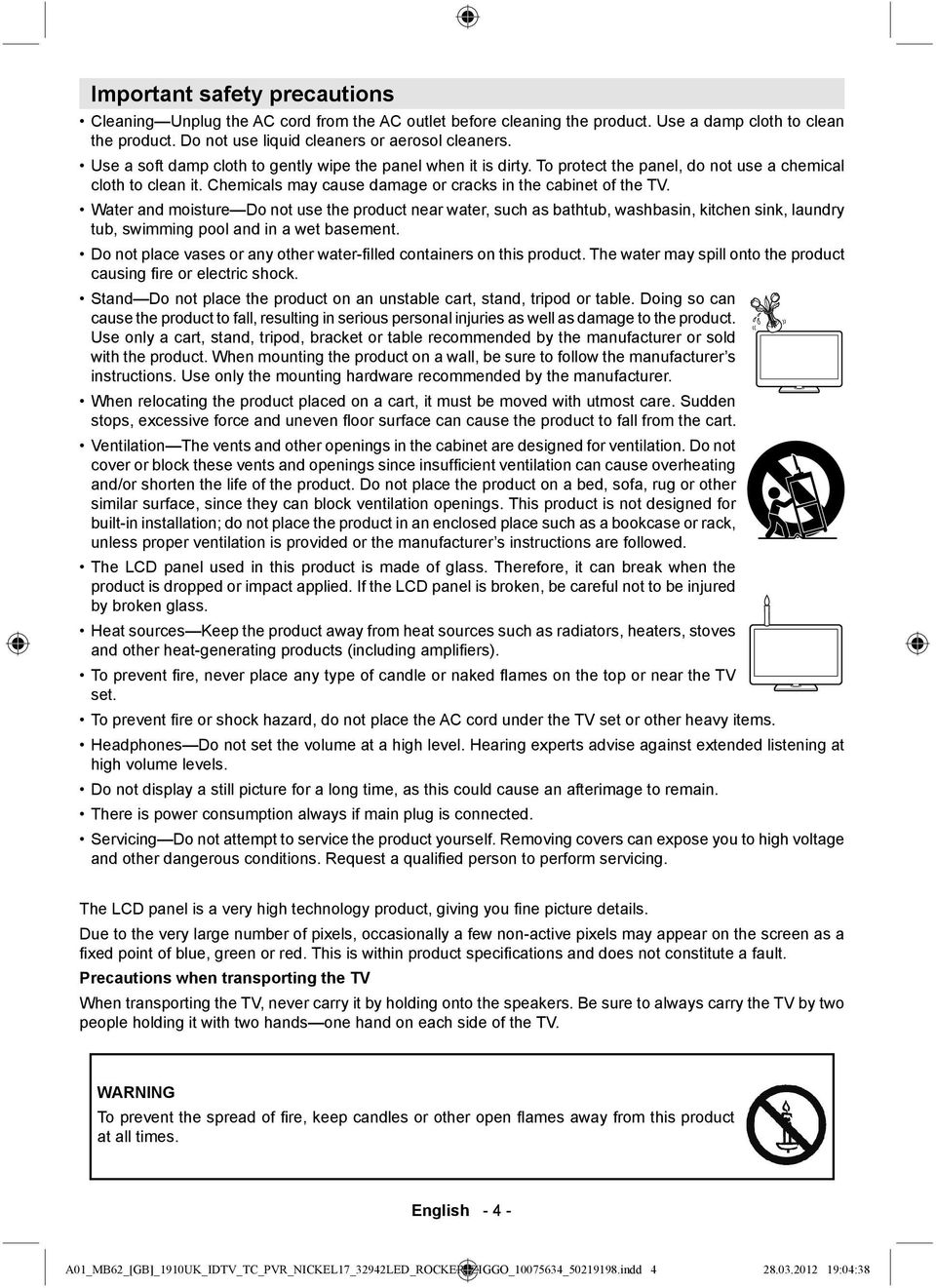
6 Safety Precautions Read the following recommended safety precautions carefully for your safety. Power Source The TV set should be operated only from a V AC, 50Hz outlet. Ensure that you select the correct voltage setting for your convenience. Power Cord Do not place the set, a piece of furniture, etc. on the power cord (mains lead) or pinch the cord. Handle the power cord by the plug. Do not unplug the appliance by pulling from the power cord and never touch the power cord with wet hands as this could cause a short circuit or electric shock. Never make a knot in the cord or tie it with other cords. The power cords should be placed in such a way that they are not likely to be stepped on. A damaged power cord can cause fi re or give you an electric shock. When it is damaged and needs to be replaced, it should be done by qualifi ed personnel. Moisture and Water Do not use this device in a humid and damp place (avoid the bathroom, the sink in the kitchen, and near the washing machine). Do not expose this device to rain or water, as this may be dangerous and do not place objects filled with liquids, such as fl ower vases, on top. Avoid from dripping or splashing. If any solid object or liquid falls into the cabinet, unplug the TV and have it checked by qualifi ed personnel before operating it any further. Cleaning Before cleaning, unplug the TV set from the wall outlet. Do not use liquid or aerosol cleaners. Use soft and dry cloth. Ventilation The slots and openings on the TV set are intended for ventilation and to ensure reliable operation. To prevent overheating, these openings must not be blocked or covered in anyway. Heat and Flames The set should not be placed near to open fl ames and sources of intense heat such as an electric heater. Ensure that no open fl ame sources, such as lighted candles, are placed on top of the TV. Batteries should not be exposed to excessive heat such as sunshine, fi re or the like. Lightning In case of storm and lightning or when going on holiday, disconnect the power cord from the wall outlet. Replacement Parts When replacement parts are required, make sure that the service technician has used replacement parts, which are specifi ed by the manufacturer or have the same specifications as the original one. Unauthorized substitutions may result in fi re, electrical shock or other hazards. Servicing Please refer all servicing to qualifi ed personnel. Do not remove the cover yourself as this may result in an electric shock. Waste Disposal Packaging and packaging aids are recyclable and should principally be recycled. Packaging materials, such as a foil bag should be kept away from children Batteries, including those which are heavy metal free, should not be disposed of with household waste. Please dispose of used batteries in an environmentally friendly manner. Find out about the legal regulations which apply in your area. Do not try to recharge batteries, there is a danger of explosion. Replace batteries only with the same or equivalent type. This symbol on the product or on its packaging means that your electrical and electronic device should be disposed at the end of its service life separately from your household wastes. There are separate collection systems for recycling in the EU. For more information, please contact the local authority or the dealer where you purchased the product. Disconnecting the Device The mains plug is used to disconnect the TV set from the mains and therefore it must remain readily operable. Headphone Volume Excessive sound pressure from earphones and headphones can cause hearing loss. Installation To prevent injury, this device must be securely attached to the wall in accordance with the installation instructions when mounted to the wall (if the option is available). English A01_MB62_[GB]_1910UK_IDTV_TC_PVR_NICKEL17_32942LED_ROCKER_ZIGGO_ _ indd :04:38
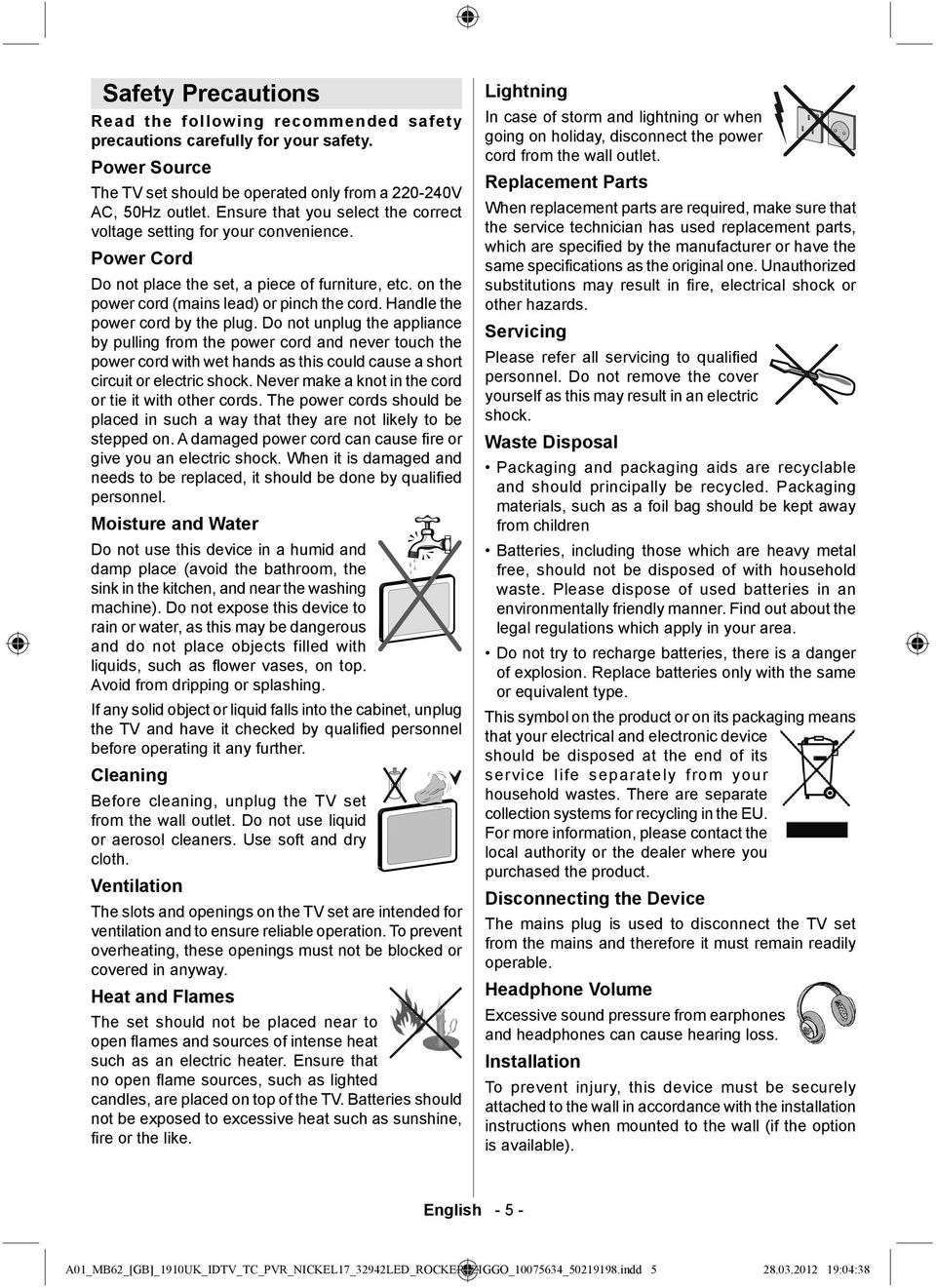
7 LCD Screen The LCD panel is a very high technology product with about a million thin fi lm transistors, giving you fi ne picture details. Occasionally, a few non-active pixels may appear on the screen as a fi xed blue, green or red point. Please note that this does not affect the performance of your product. Warning! Do not leave your TV in standby or operating mode when you leave your house. Connection to a Television Distribution System (Cable TV etc.) from Tuner Device connected to the protective earthing of the building installation through the mains connection or through other apparatus with a connection to protective earthing-and to a television distribution system using coaxial cable, may in some circumstances create a fi re hazard. Connection to a cable distribution system has therefore to be provided through a device providing electrical isolation below a certain frequency range (galvanic isolator, see EN ). Note:The HDMI connection between PC and TV may cause radio interference in which case it is recommended to use VGA(DSUB-15) connection. The Standby Off/On button doesn t separate this device completely from mains. Moreover the device consumes power in the standby operation. In order to separate the device completely from mains, the mains plug has to be pulled from the mains socket. Because of that the device should be set up in a way, that an unobstructed access to mains socket is guaranteed, so that in case of emergency the mains plug can be pulled immediately. To exclude the danger of fi re, the power cord should principally be separated from the mains socket prior to a longer period of non-usage, i.e. during vacations. Manufactured under license from Dolby Laboratories. The HD TV Logo is a trademark of EICTA. The DVB logo is the registered trademark of the Digital Video Broadcasting DVB project. Electrical device not in the hands of children Never let children use any electrical device unsupervised. Children cannot always recognise possible dangers. Batteries / accumulators can be life threatening when swallowed. Store batteries out of the reach of small children. In case of swallowing a battery medical aid has to be sought immediately. Also keep the packaging foils away from children as there is danger of suffocation. Licence Notification DivX, DivX Certified and associated logos are trade-marks of DivX, Inc. and are used under license. ABOUT DIVX VIDEO: DivX is a digital video format created by DivX, LLC, a subsidiary of Rovi Corporation. This is an official DivX Certified device that plays DivX video. Visit divx.com for more information and software tools to convert your files into DivX video. ABOUT DIVX VIDEO-ON-DEMAND: This DivX Certified device must be registered in order to play purchased DivX Video-on-Demand (VOD) movies. To obtain your registration code, locate the DivX VOD sec-tion in your device setup menu. Go to vod.divx.com for more information on how to complete your registration. DivX Certified to play DivX video, including premium content. HDMI, the HDMI logo and High-Definition Multimedia Interface are trademarks or registered trademarks of HDMI Licensing LLC. English A01_MB62_[GB]_1910UK_IDTV_TC_PVR_NICKEL17_32942LED_ROCKER_ZIGGO_ _ indd :04:39
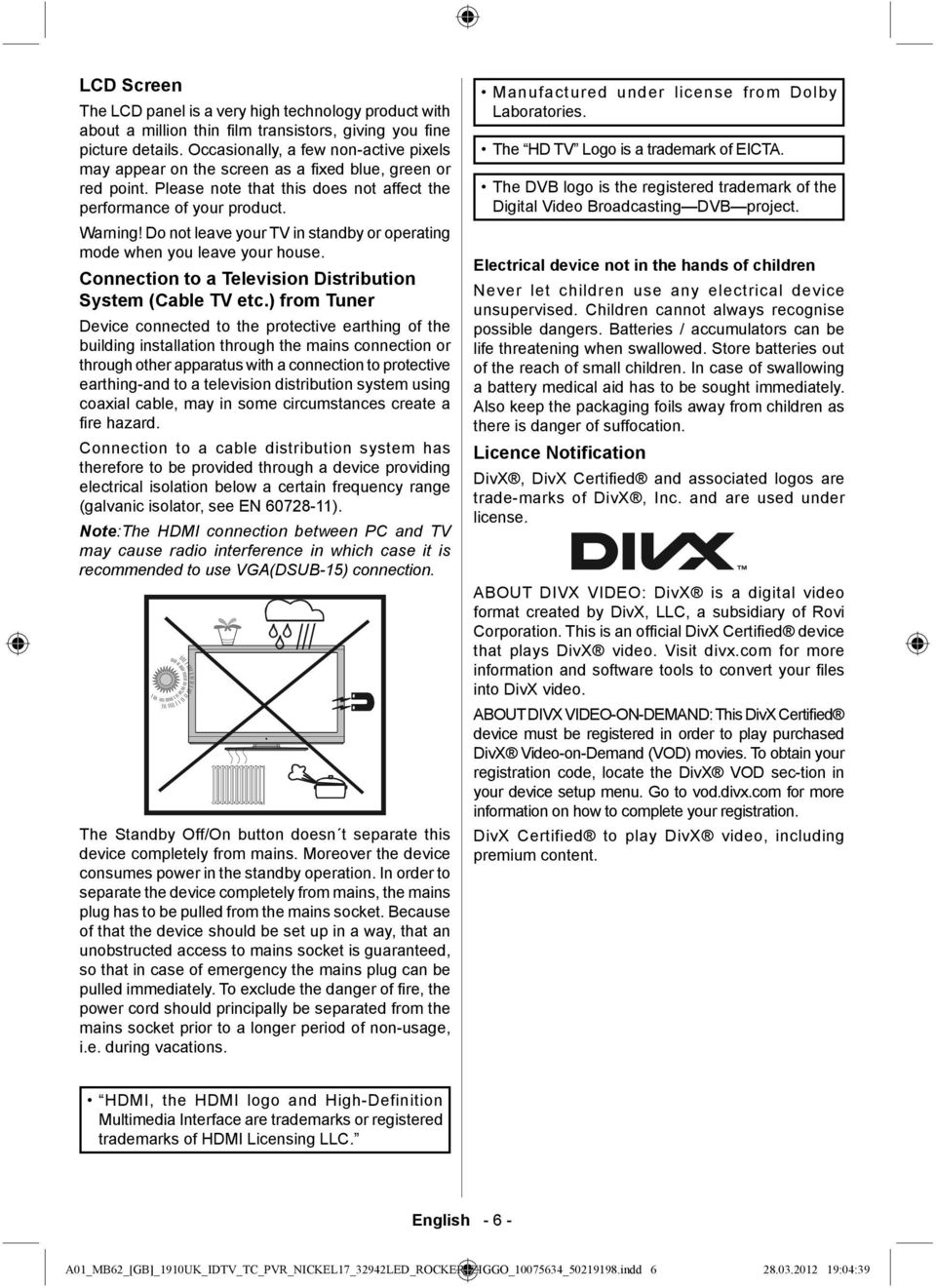
8 Package Contents LCD TV Batteries: 2 X AAA Environmental Information This television is designed to consume less energy to save environment. You not only help to save the environment but also you can save money by reducing electricity bills thanks to the energy effi ciency feauture of this TV. To reduce energy consumption, you should take the following steps: You can use Power Save Mode setting, located in the Other Settings menu. If you set Power Save Mode as On, the TV will switch to energy-saving mode and luminance level of TV set will be decreased to optimum level. Note that some picture settings will be unavailable to be changed when the TV is in Power Save Mode. Remote Control Instruction Book Quick Guide When the TV is not used, please switch off at the rear rocker switch to further reduce power consumption. Disconnect the TV from the mains socket when it will not be used for prolonged periods. When the TV is left in stand-by it consumes a small amount of power switching off at the rear rocker switch or disconnect the TV from the mains will make further energy savings. Note activating the Power Save Mode saves on an annual bases more energy than switching off the mains when the TV is not used, to save most energy it is highly recommended that Power Save Mode is switch on. Repair Information Please refer all servicing to qualifi ed personnel. Only qualified personnel must repair the TV. Please contact your local dealer, where you have purchased this TV for further information. 1 X Video & Audio Connection Cable 1 X Component Video Connection Cable Note: You should check the accessories after purchasing. Make sure that each accessory is included. As the manufacturer s specification supports communication on cable lengths shall be smaller than 3m. English A01_MB62_[GB]_1910UK_IDTV_TC_PVR_NICKEL17_32942LED_ROCKER_ZIGGO_ _ indd :04:39
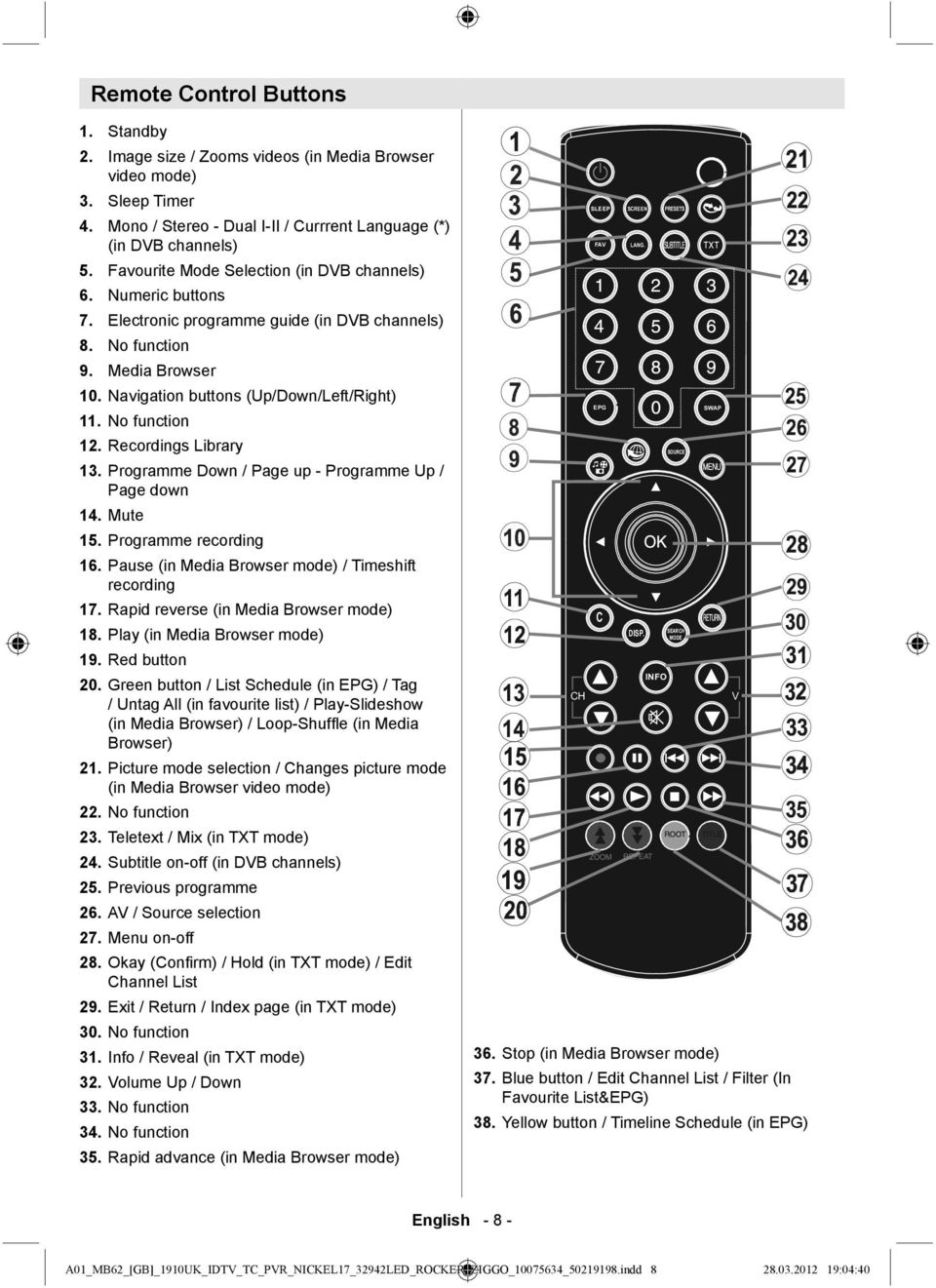
9 Remote Control Buttons Standby Image size / Zooms videos (in Media Browser video mode) Sleep Timer Mono / Stereo - Dual I-II / Currrent Language (*) (in DVB channels) Favourite Mode Selection (in DVB channels) Numeric buttons Electronic programme guide (in DVB channels) No function Media Browser 10. Navigation buttons (Up/Down/Left/Right) 11. No function 12. Recordings Library 13. Programme Down / Page up - Programme Up / Page down 14. Mute 15. Programme recording 16. Pause (in Media Browser mode) / Timeshift recording 17. Rapid reverse (in Media Browser mode) 18. Play (in Media Browser mode) 19. Red button 20. Green button / List Schedule (in EPG) / Tag / Untag All (in favourite list) / Play-Slideshow (in Media Browser) / Loop-Shuffl e (in Media Browser) 21. Picture mode selection / Changes picture mode (in Media Browser video mode) 22. No function 23. Teletext / Mix (in TXT mode) 24. Subtitle on-off (in DVB channels) 25. Previous programme 26. AV / Source selection 27. Menu on-off 28. Okay (Confi rm) / Hold (in TXT mode) / Edit Channel List 29. Exit / Return / Index page (in TXT mode) 30. No function 31. Info / Reveal (in TXT mode) 32. Volume Up / Down 33. No function 34. No function 35. Rapid advance (in Media Browser mode) 36. Stop (in Media Browser mode) 37. Blue button / Edit Channel List / Filter (In Favourite List&EPG) 38. Yellow button / Timeline Schedule (in EPG) English A01_MB62_[GB]_1910UK_IDTV_TC_PVR_NICKEL17_32942LED_ROCKER_ZIGGO_ _ indd :04:40
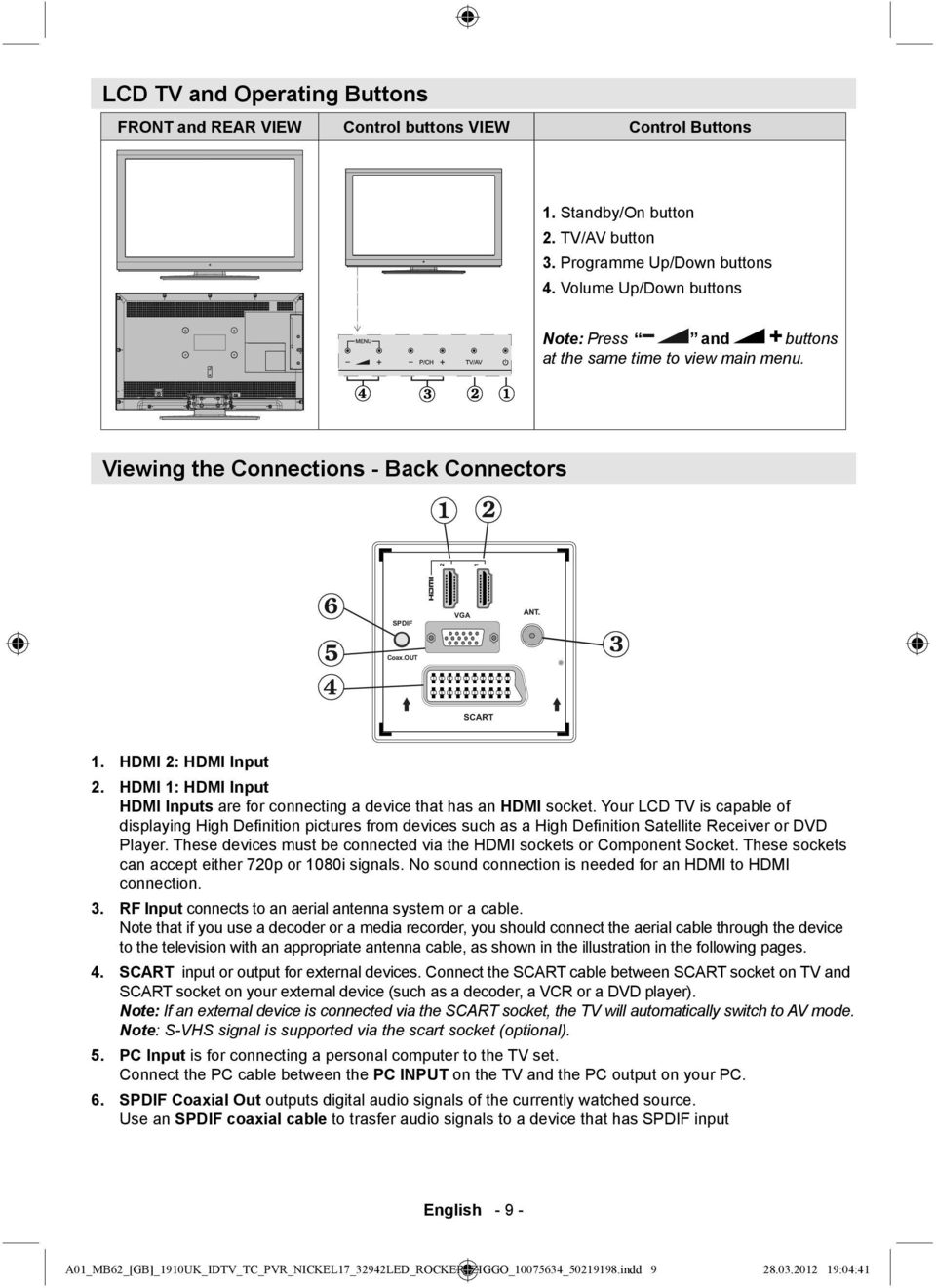
10 LCD TV and Operating Buttons FRONT and REAR VIEW Control buttons VIEW Control Buttons 1. Standby/On button 2. TV/AV button 3. Programme Up/Down buttons 4. Volume Up/Down buttons Note: Press and buttons at the same time to view main menu. Viewing the Connections - Back Connectors 1. HDMI 2: HDMI Input 2. HDMI 1: HDMI Input HDMI Inputs are for connecting a device that has an HDMI socket. Your LCD TV is capable of displaying High Defi nition pictures from devices such as a High Defi nition Satellite Receiver or DVD Player. These devices must be connected via the HDMI sockets or Component Socket. These sockets can accept either 720p or 1080i signals. No sound connection is needed for an HDMI to HDMI connection. 3. RF Input connects to an aerial antenna system or a cable. Note that if you use a decoder or a media recorder, you should connect the aerial cable through the device to the television with an appropriate antenna cable, as shown in the illustration in the following pages. 4. SCART input or output for external devices. Connect the SCART cable between SCART socket on TV and SCART socket on your external device (such as a decoder, a VCR or a DVD player). Note: If an external device is connected via the SCART socket, the TV will automatically switch to AV mode. Note: S-VHS signal is supported via the scart socket (optional). 5. PC Input is for connecting a personal computer to the TV set. Connect the PC cable between the PC INPUT on the TV and the PC output on your PC. 6. SPDIF Coaxial Out outputs digital audio signals of the currently watched source. Use an SPDIF coaxial cable to trasfer audio signals to a device that has SPDIF input English A01_MB62_[GB]_1910UK_IDTV_TC_PVR_NICKEL17_32942LED_ROCKER_ZIGGO_ _ indd :04:41
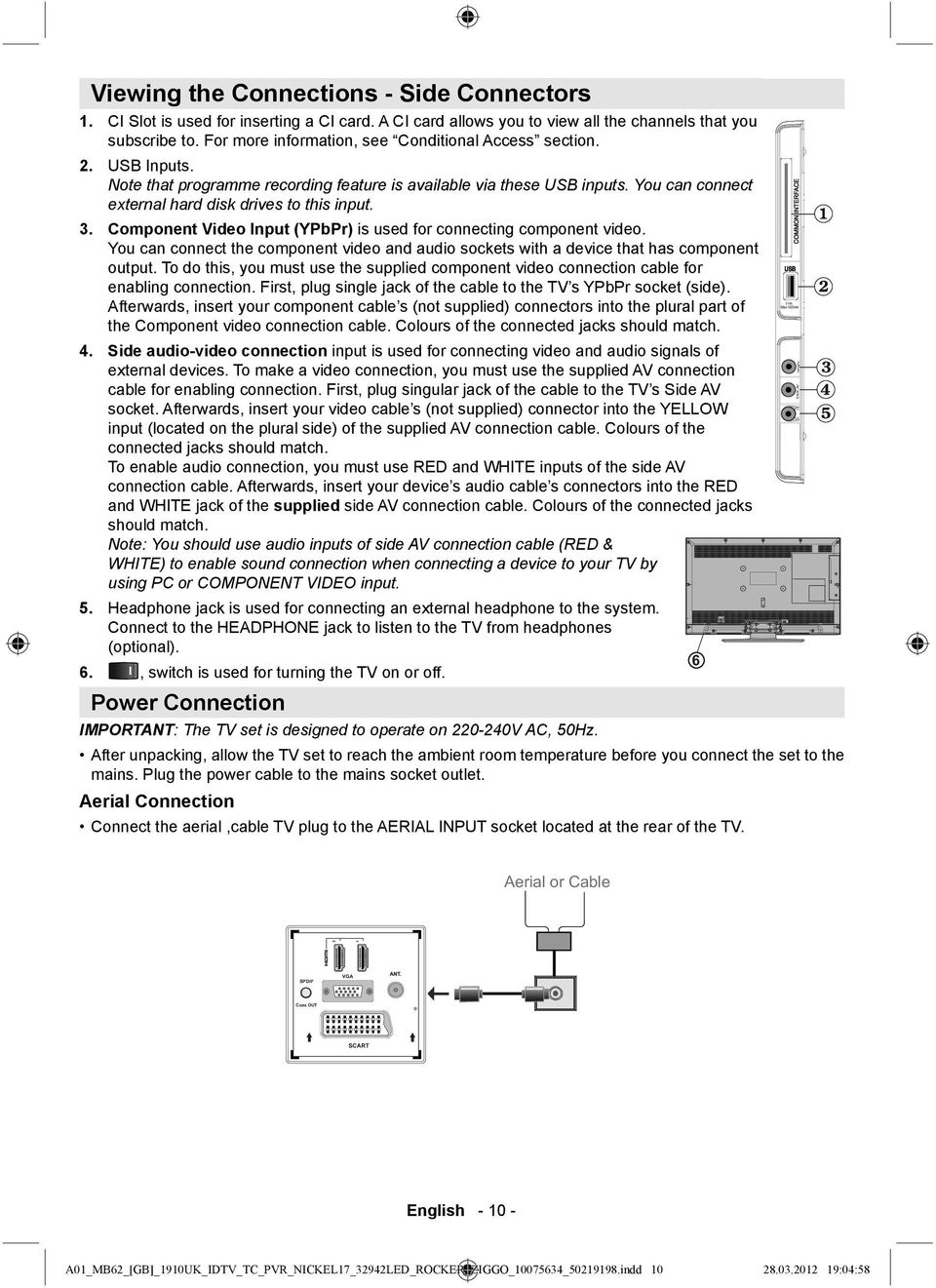
11 Viewing the Connections - Side Connectors 1. CI Slot is used for inserting a CI card. A CI card allows you to view all the channels that you subscribe to. For more information, see Conditional Access section. 2. USB Inputs. Note that programme recording feature is available via these USB inputs. You can connect external hard disk drives to this input. 3. Component Video Input (YPbPr) is used for connecting component video. You can connect the component video and audio sockets with a device that has component output. To do this, you must use the supplied component video connection cable for enabling connection. First, plug single jack of the cable to the TV s YPbPr socket (side). Afterwards, insert your component cable s (not supplied) connectors into the plural part of the Component video connection cable. Colours of the connected jacks should match. 4. Side audio-video connection input is used for connecting video and audio signals of external devices. To make a video connection, you must use the supplied AV connection cable for enabling connection. First, plug singular jack of the cable to the TV s Side AV socket. Afterwards, insert your video cable s (not supplied) connector into the YELLOW input (located on the plural side) of the supplied AV connection cable. Colours of the connected jacks should match. To enable audio connection, you must use RED and WHITE inputs of the side AV connection cable. Afterwards, insert your device s audio cable s connectors into the RED and WHITE jack of the supplied side AV connection cable. Colours of the connected jacks should match. Note: You should use audio inputs of side AV connection cable (RED & WHITE) to enable sound connection when connecting a device to your TV by using PC or COMPONENT VIDEO input. 5. Headphone jack is used for connecting an external headphone to the system. Connect to the HEADPHONE jack to listen to the TV from headphones (optional). 6., switch is used for turning the TV on or off. Power Connection IMPORTANT: The TV set is designed to operate on V AC, 50Hz. After unpacking, allow the TV set to reach the ambient room temperature before you connect the set to the mains. Plug the power cable to the mains socket outlet. Aerial Connection Connect the aerial,cable TV plug to the AERIAL INPUT socket located at the rear of the TV. English A01_MB62_[GB]_1910UK_IDTV_TC_PVR_NICKEL17_32942LED_ROCKER_ZIGGO_ _ indd :04:58
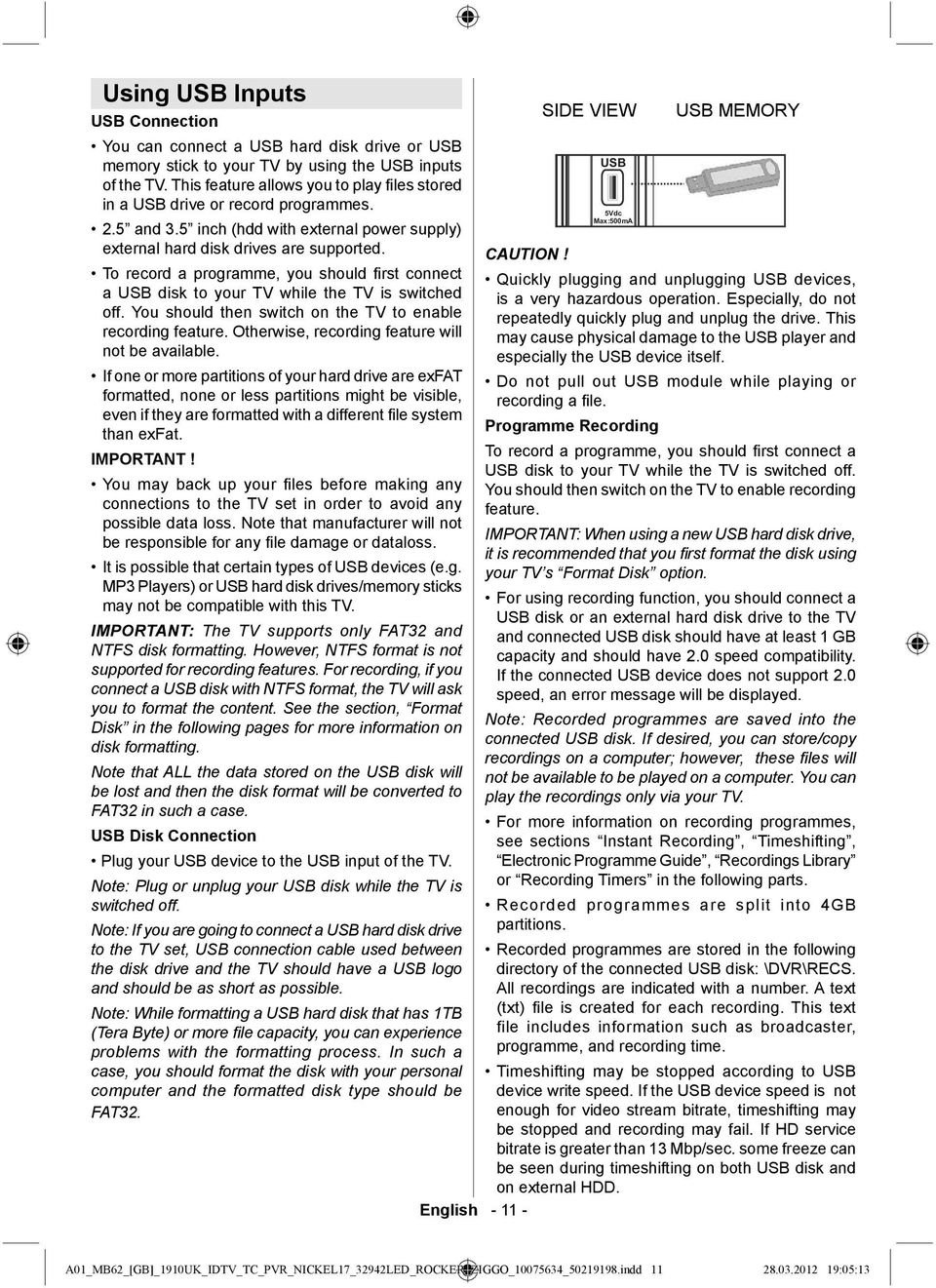
12 Using USB Inputs USB Connection You can connect a USB hard disk drive or USB memory stick to your TV by using the USB inputs of the TV. This feature allows you to play files stored in a USB drive or record programmes. 2.5 and 3.5 inch (hdd with external power supply) external hard disk drives are supported. To record a programme, you should fi rst connect a USB disk to your TV while the TV is switched off. You should then switch on the TV to enable recording feature. Otherwise, recording feature will not be available. If one or more partitions of your hard drive are exfat formatted, none or less partitions might be visible, even if they are formatted with a different file system than exfat. IMPORTANT! You may back up your fi les before making any connections to the TV set in order to avoid any possible data loss. Note that manufacturer will not be responsible for any fi le damage or dataloss. It is possible that certain types of USB devices (e.g. MP3 Players) or USB hard disk drives/memory sticks may not be compatible with this TV. IMPORTANT: The TV supports only FAT32 and NTFS disk formatting. However, NTFS format is not supported for recording features. For recording, if you connect a USB disk with NTFS format, the TV will ask you to format the content. See the section, Format Disk in the following pages for more information on disk formatting. Note that ALL the data stored on the USB disk will be lost and then the disk format will be converted to FAT32 in such a case. USB Disk Connection Plug your USB device to the USB input of the TV. Note: Plug or unplug your USB disk while the TV is switched off. Note: If you are going to connect a USB hard disk drive to the TV set, USB connection cable used between the disk drive and the TV should have a USB logo and should be as short as possible. Note: While formatting a USB hard disk that has 1TB (Tera Byte) or more fi le capacity, you can experience problems with the formatting process. In such a case, you should format the disk with your personal computer and the formatted disk type should be FAT32. CAUTION! English SIDE VIEW USB 5Vdc Max:500mA USB MEMORY Quickly plugging and unplugging USB devices, is a very hazardous operation. Especially, do not repeatedly quickly plug and unplug the drive. This may cause physical damage to the USB player and especially the USB device itself. Do not pull out USB module while playing or recording a fi le. Programme Recording To record a programme, you should fi rst connect a USB disk to your TV while the TV is switched off. You should then switch on the TV to enable recording feature. IMPORTANT: When using a new USB hard disk drive, it is recommended that you fi rst format the disk using your TV s Format Disk option. For using recording function, you should connect a USB disk or an external hard disk drive to the TV and connected USB disk should have at least 1 GB capacity and should have 2.0 speed compatibility. If the connected USB device does not support 2.0 speed, an error message will be displayed. Note: Recorded programmes are saved into the connected USB disk. If desired, you can store/copy recordings on a computer; however, these fi les will not be available to be played on a computer. You can play the recordings only via your TV. For more information on recording programmes, see sections Instant Recording, Timeshifting, Electronic Programme Guide, Recordings Library or Recording Timers in the following parts. Recorded programmes are split into 4GB partitions. Recorded programmes are stored in the following directory of the connected USB disk: \DVR\RECS. All recordings are indicated with a number. A text (txt) fi le is created for each recording. This text file includes information such as broadcaster, programme, and recording time. Timeshifting may be stopped according to USB device write speed. If the USB device speed is not enough for video stream bitrate, timeshifting may be stopped and recording may fail. If HD service bitrate is greater than 13 Mbp/sec. some freeze can be seen during timeshifting on both USB disk and on external HDD. A01_MB62_[GB]_1910UK_IDTV_TC_PVR_NICKEL17_32942LED_ROCKER_ZIGGO_ _ indd :05:13
13 Recordings of HD programmes can occupy bigger size on the USB disk depending on the broadcast s resolution. For this reason it is recommended to use USB hard disk drives for recording HD programmes. Do not plug out the USB/HDD during the recording. This may harm the connected USB/HDD. Multipartiton support is available. Maximum two different partitions are supported. If the disk have more than two partitions, crash may occur. First partition of the usb disk is used for PVR ready features. It also must be formatted as primary partition to be used for PVR ready features. Some stream packets may not be recorded because of signal problems, so sometimes video may freezes during playback. Record, Play, Pause, Display (for PlayListDialog) keys could not be used when teletext is ON. If a recording starts from timer when teletext is ON, teletext is automatically turned off. Also teletext usage is disabled when there is ongoing recording or playback. Radio record is not supported. The TV can record programmes up to ten hours. For USB-recording function (when HD broadcast is being recorded), please use a USB-harddisk. A USB-stick cannot be used for this function. Connecting to a DVD Player via HDMI Please refer to your DVD player s instruction book for additional information. Power off both the TV and the device before making any connections. Note: Not all cables shown in the illustration are supplied. If your DVD player has an HDMI socket, you can connect via HDMI for better video and audio quality. Connecting to a DVD Player via Component Sockets (YPbPr) or Scart Cable Some DVD players are connected through COMPONENT SOCKETS (YPbPr). In this case, you must use the supplied Component video connection cable for enabling connection. First, plug single jack of the cable to the TV s YPbPr socket (side). Afterwards, insert your component cable s (not supplied) connectors into the socket part of the Component video connection cable (see illustration below). Colours of the connected jacks should match. To enable audio connection, use the VGA/Component Audio cable. First, plug single jack of the cable to the TV. Afterwards, insert your DVD player s audio cable s connectors into the socket part of the VGA/Component audio connection cable (see illustration below). Colours of the connected jacks should match. When the connection is made, switch to YPbPr source. See, Input selection section. Note: To connect YPb Pr device, you should use supplied component (YPbPr) connection cable You may also connect through the SCART input. HDMI Cable (not supplied) External device When you connect to DVD player as illustrated above, switch to the connected HDMI source. See, Input Selection section for more information on changing sources. Scart Cable (not supplied) External device Note: These three methods of connection perform the same function but in different levels of quality. It is not necessary to connect by all three methods. English A01_MB62_[GB]_1910UK_IDTV_TC_PVR_NICKEL17_32942LED_ROCKER_ZIGGO_ _ indd :05:13
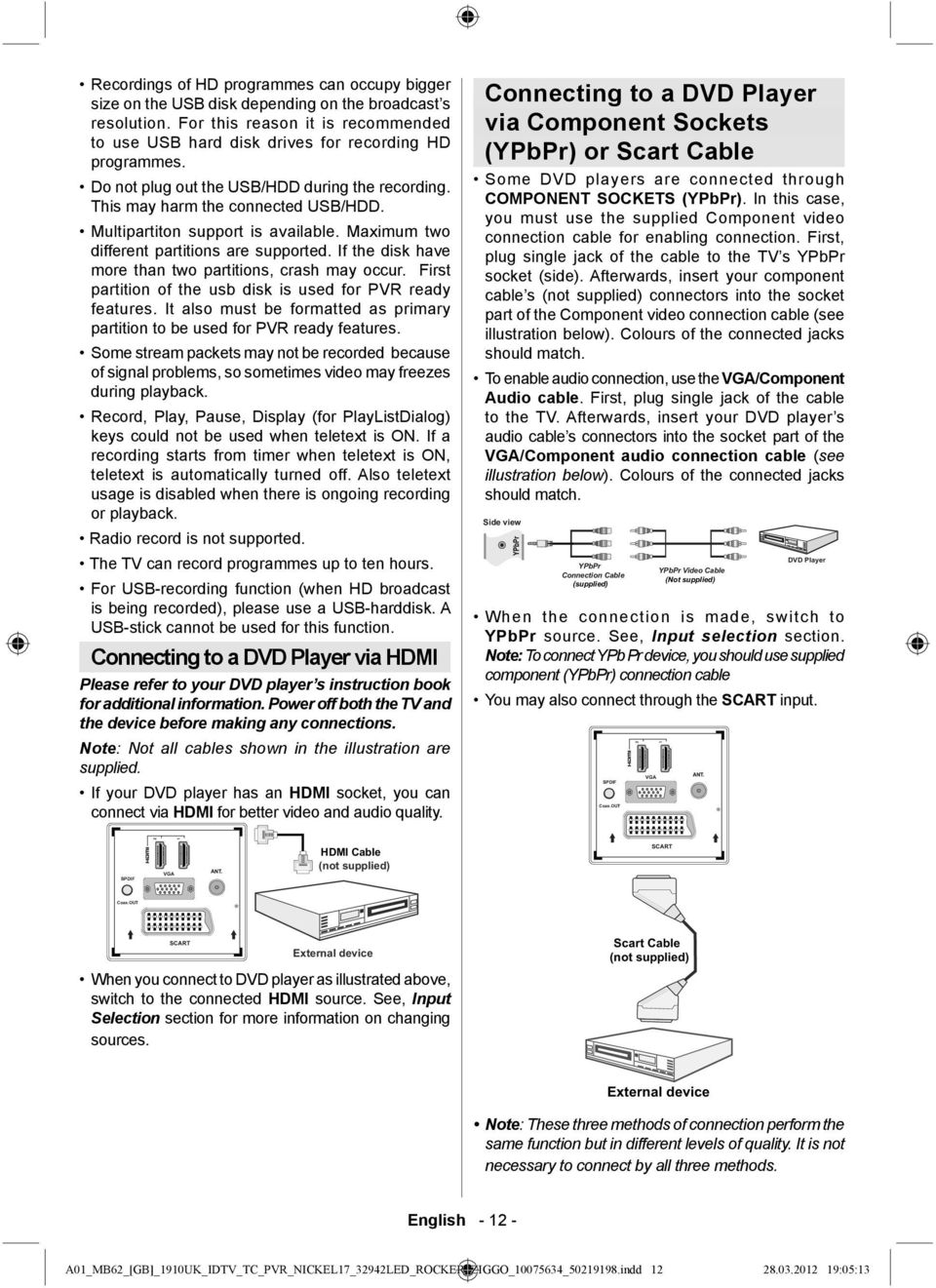
14 Connecting the LCD TV to a PC For displaying your computer s screen image on your LCD TV, you can connect your computer to the TV set. Power off both computer and display before making any connections. Use 15-pin D-sub display cable to connect a PC to the LCD TV. When the connection is made, switch to PC source. See Input selection section. Set the resolution that suits your viewing requirements. Resolution information can be found in the appendix parts Remote Control Handset Inserting Batteries Remove the battery cover located on the back of the handset by gently pulling backwards from the indicated part. Insert two AAA/R3 or equivalent type batteries inside. Observe the correct polarity (+/-) when inserting batteries and replace the battery cover.. Using Side AV Connectors You can connect a range of optional equipment to your LCD TV using side connectors of the TV. For connecting a camcorder or camera, you should use AV socket (side). To do this, you must use the supplied video/audio connection cable. First, plug single jack of the cable to the TV s AV IN socket (side). Afterwards, insert your camera cable s (not supplied) connectors into the plural part of the video/ audio connection cable. Colours of the connected jacks should match. See illustration below. Afterwards, you should switch to Side AV source. See the section Input selection in the following sections for more information. To listen the TV sound from headphones, you should connect headphones to your TV by using the HEADPHONE jack as illustrated above.. Note: Remove the battery from remote control handset when it is not to be used for a long period. Otherwise it can be damaged due to any leakage of batteries. Remote range is approximately 7m/23ft. Switching On/Off To Switch the TV On Connect the power cord to the V AC 50 Hz. Switch the button on the bottom right hand side under the screen to position so the TV will switch to standby mode. Then the standby LED lights up. To switch on the TV from standby mode either: Press the button, CH / CH or a numeric button on the remote control. Press the or +/- button on the TV. The TV will then switch on. Note : If you switch on your TV via CH / CH buttons on the remote control or on the TV set, the programme that you were watching last will be reselected. By either method the TV will switch on. To Switch the TV to Standby To switch the TV to low power stand by press the button on the remote control or right hand side of the TV. Note: When the TV is switched to standby mode, standby LED can blink to indicate that features such as Standby Search, Over Air Download or Timer is active. To Switch the TV Off Switch the button on the bottom right hand side under the screen to position 2 as illustrated, English to isolate the TV from the mains, the LED will go out. A01_MB62_[GB]_1910UK_IDTV_TC_PVR_NICKEL17_32942LED_ROCKER_ZIGGO_ _ indd :05:13
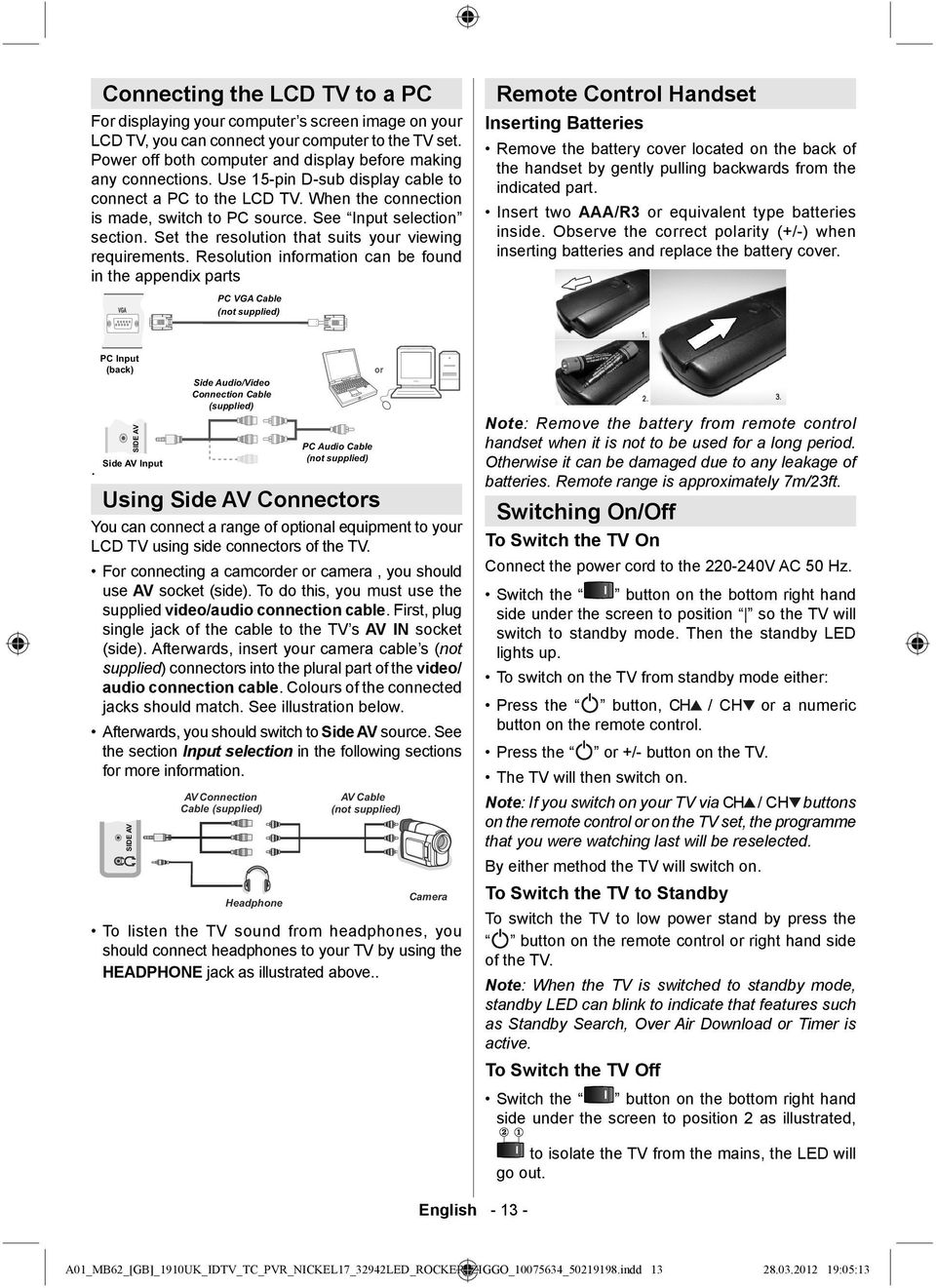
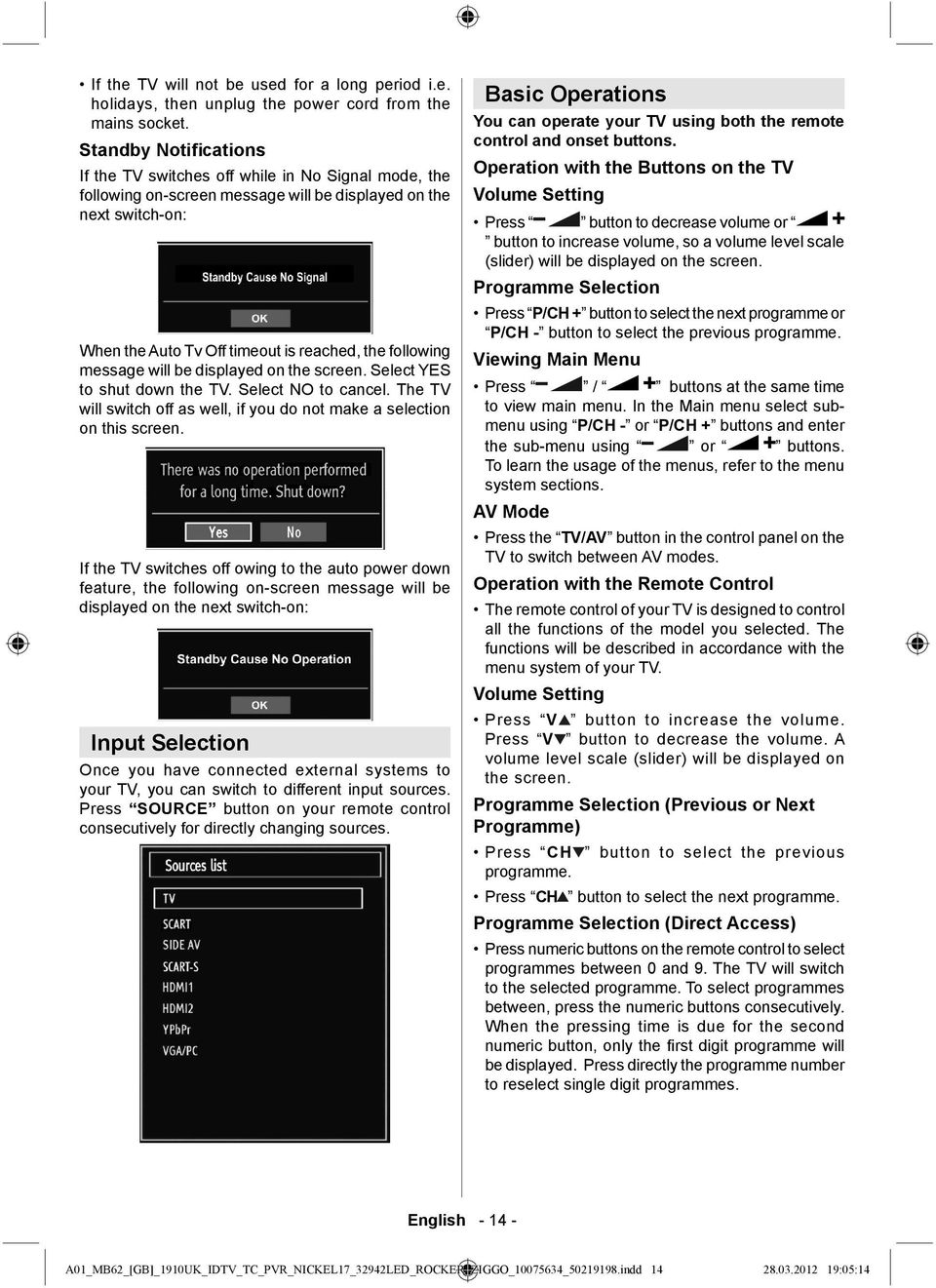
15 If the TV will not be used for a long period i.e. holidays, then unplug the power cord from the mains socket. Standby Notifications If the TV switches off while in No Signal mode, the following on-screen message will be displayed on the next switch-on: When the Auto Tv Off timeout is reached, the following message will be displayed on the screen. Select YES to shut down the TV. Select NO to cancel. The TV will switch off as well, if you do not make a selection on this screen. If the TV switches off owing to the auto power down feature, the following on-screen message will be displayed on the next switch-on: Input Selection Once you have connected external systems to your TV, you can switch to different input sources. Press SOURCE button on your remote control consecutively for directly changing sources. Basic Operations You can operate your TV using both the remote control and onset buttons. Operation with the Buttons on the TV Volume Setting Press button to decrease volume or button to increase volume, so a volume level scale (slider) will be displayed on the screen. Programme Selection Press P/CH + button to select the next programme or P/CH - button to select the previous programme. Viewing Main Menu Press / buttons at the same time to view main menu. In the Main menu select submenu using P/CH - or P/CH + buttons and enter the sub-menu using or buttons. To learn the usage of the menus, refer to the menu system sections. AV Mode Press the TV/AV button in the control panel on the TV to switch between AV modes. Operation with the Remote Control The remote control of your TV is designed to control all the functions of the model you selected. The functions will be described in accordance with the menu system of your TV. Volume Setting Press V button to increase the volume. Press V button to decrease the volume. A volume level scale (slider) will be displayed on the screen. Programme Selection (Previous or Next Programme) Press CH button to select the previous programme. Press CH button to select the next programme. Programme Selection (Direct Access) Press numeric buttons on the remote control to select programmes between 0 and 9. The TV will switch to the selected programme. To select programmes between, press the numeric buttons consecutively. When the pressing time is due for the second numeric button, only the fi rst digit programme will be displayed. Press directly the programme number to reselect single digit programmes. English A01_MB62_[GB]_1910UK_IDTV_TC_PVR_NICKEL17_32942LED_ROCKER_ZIGGO_ _ indd :05:14
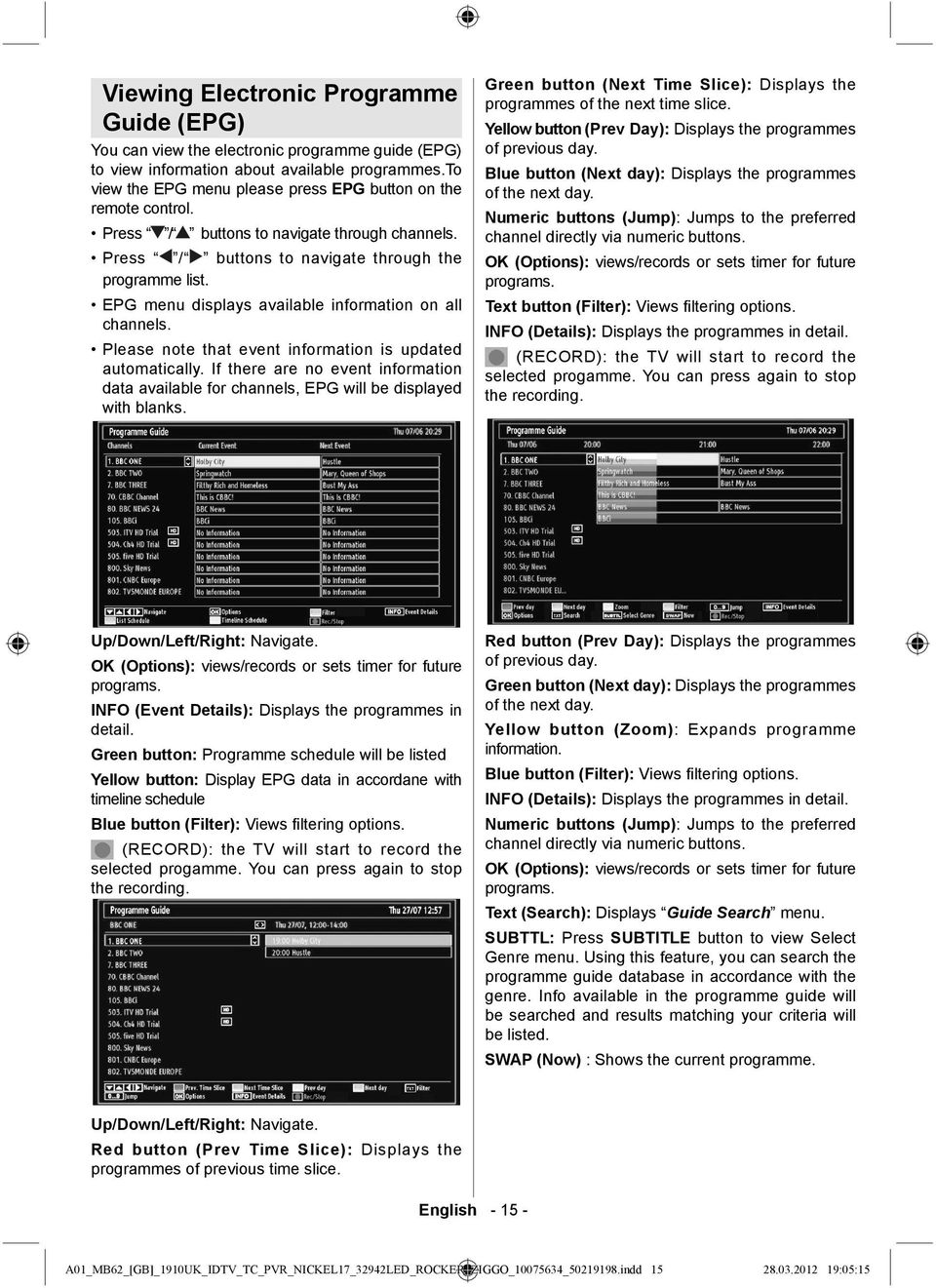
16 Viewing Electronic Programme Guide (EPG) You can view the electronic programme guide (EPG) to view information about available programmes.to view the EPG menu please press EPG button on the remote control. Press / buttons to navigate through channels. Press / buttons to navigate through the programme list. EPG menu displays available information on all channels. Please note that event information is updated automatically. If there are no event information data available for channels, EPG will be displayed with blanks. Green button (Next Time Slice): Displays the programmes of the next time slice. Yellow button (Prev Day): Displays the programmes of previous day. Blue button (Next day): Displays the programmes of the next day. Numeric buttons (Jump): Jumps to the preferred channel directly via numeric buttons. OK (Options): views/records or sets timer for future programs. Text button (Filter): Views fi ltering options. INFO (Details): Displays the programmes in detail. (RECORD): the TV will start to record the selected progamme. You can press again to stop the recording. Up/Down/Left/Right: Navigate. OK (Options): views/records or sets timer for future programs. INFO (Event Details): Displays the programmes in detail. Green button: Programme schedule will be listed Yellow button: Display EPG data in accordane with timeline schedule Blue button (Filter): Views fi ltering options. (RECORD): the TV will start to record the selected progamme. You can press again to stop the recording. Red button (Prev Day): Displays the programmes of previous day. Green button (Next day): Displays the programmes of the next day. Yellow button (Zoom): Expands programme information. Blue button (Filter): Views fi ltering options. INFO (Details): Displays the programmes in detail. Numeric buttons (Jump): Jumps to the preferred channel directly via numeric buttons. OK (Options): views/records or sets timer for future programs. Text (Search): Displays Guide Search menu. SUBTTL: Press SUBTITLE button to view Select Genre menu. Using this feature, you can search the programme guide database in accordance with the genre. Info available in the programme guide will be searched and results matching your criteria will be listed. SWAP (Now) : Shows the current programme. Up/Down/Left/Right: Navigate. Red button (Prev Time Slice): Displays the programmes of previous time slice. English A01_MB62_[GB]_1910UK_IDTV_TC_PVR_NICKEL17_32942LED_ROCKER_ZIGGO_ _ indd :05:15
17 Digital Teletext (*) (*) If available in your country Press the TXT button. The digital teletext information appears. Operate it with the coloured buttons, cursor buttons and OK button. The operation method may differ depending on the contents of the digital teletext. Follow the instructions displayed on digital teletext screen. When the TXT button is pressed, the TV returns to television broadcasting. With digital broadcasting (DVB-T-C), in addition to digital teletext broadcasting together with the normal broadcasting, there are also channels with just digital teletext broadcasting. The aspect ratio (picture shape) when watching a channel with just digital teletext broadcasting is the same as the aspect ratio of the picture viewed previously. When you press the TXT button again, the digital teletext screen will be displayed. Analogue Teletext Use of teletext and its functions are identical to the analogue text system. Please do refer to the TELETEXT explanations Recording via EPG Screen IMPORTANT: To record a programme, you should fi rst connect a USB disk to your TV while the TV is switched off. You should then switch on the TV to enable recording feature. Otherwise, recording feature will not be available. (RECORD): the TV will start to record the selected progamme. You can press again to stop the recording. Note: Switching to a different broadcast or source is not available during the recording. / : Page left / Page right. Programme Options In EPG menu, press the OK button to enter the Event Options menu. Record / Delete Record Timer IMPORTANT: To record a programme, you should first connect a USB disk to your TV while the TV is switched off. You should then switch on the TV to enable recording feature. Otherwise, recording feature will not be available. After you have selected a programme in EPG menu, press the OK button and and Options screen will be displayed. Select Record option and press the OK button. After this operation, a recording becomes set to the selected programme. To cancel an already set recording, highlight that programme and press the OK button and select the option Delete Rec. Timer. The recording will be cancelled. Note: You cannot switch to any other channel or source while there is an active recording on the current channel. Set Timer / Delete Timer After you have selected a programme in EPG menu, press the OK button and and Options screen will be displayed. Select Set Timer on Event option and press OK button. You can set a timer for future programmes. To cancel an already set reminder, highlight that programme and press the OK button. Then select Delete Timer option. The timer will be cancelled. Note: It is not possible to record or set timer for two or more individual events at the same time interval. First Time Installation IMPORTANT: Ensure that the aerial or cable is connected before switching on the TV for the first time installation. When the TV is operated for the first time, installation wizard will guide you through the process. First, language selection screen will be displayed: Select Channel In EPG menu, using this option, you can switch to the selected channel. Use or buttons to select your language and press OK button to set selected language and continue. After selecting the language, Welcome! screen will be displayed, requiring you to set Country, Search Type, Teletext Language,Store Mode and Scan Encrypted options. English A01_MB62_[GB]_1910UK_IDTV_TC_PVR_NICKEL17_32942LED_ROCKER_ZIGGO_ _ indd :05:15
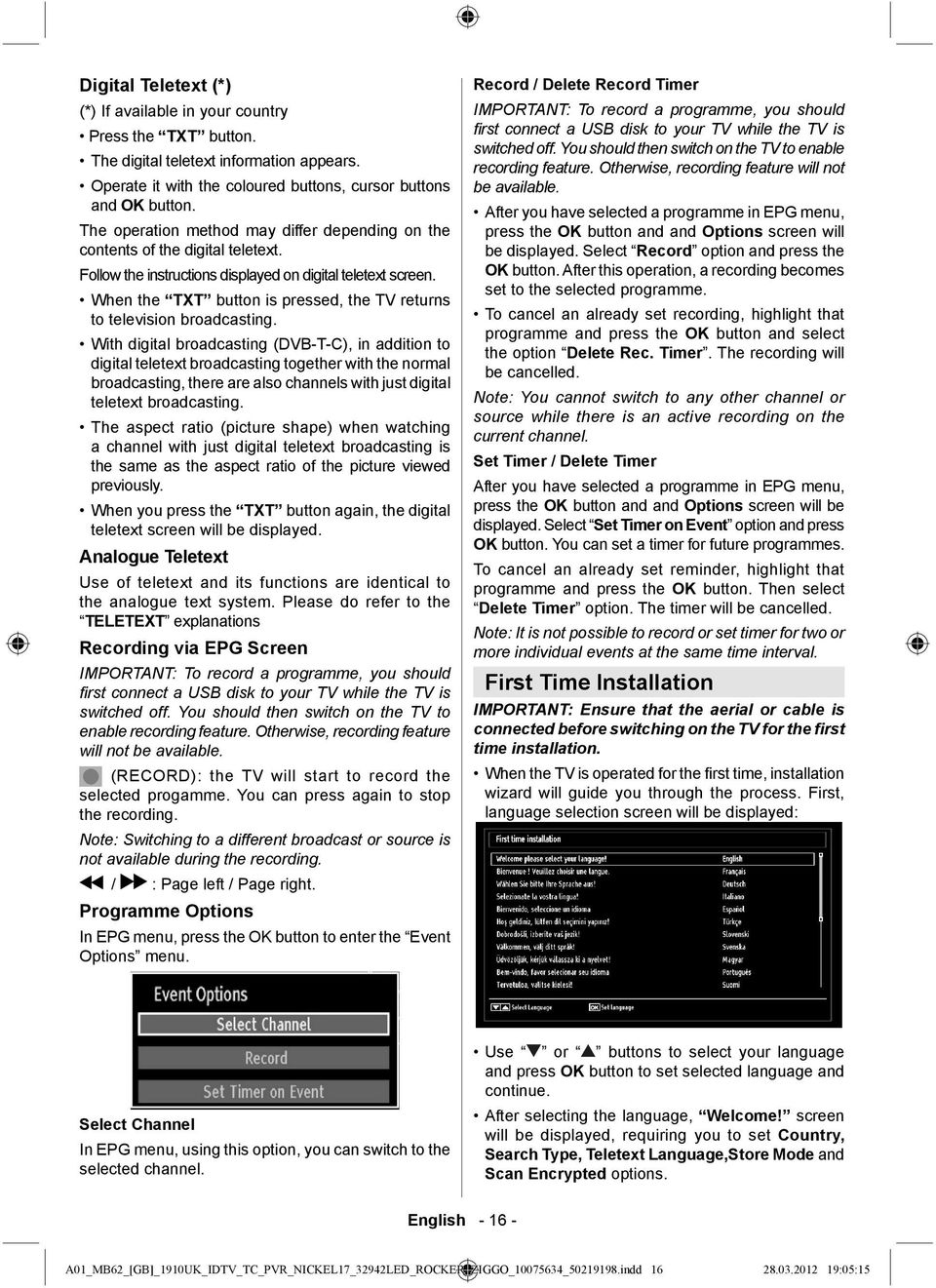
18 have selected the Country as Netherlands. Automatic Channel Scan will be displayed instead. ): By pressing or button, select the country you want to set and press button to highlight Search Type option. Use / to set the desired search type. Available search types are digital only, analog TV only and full. When set, press to select Teletext Language. Use or to select the desired Teletext Language. Press button after setting Teletext Language option. Scan Encrypted will be then highlighted. You can set Scan Encrypted as Yes if you want to scan coded stations.afterwards select the desired Teletext Language. You can activate Store Mode option by using or button. If the Store Mode is set to enabled, E-Pop option will be available in other settings menu. If it is set to disabled, Store Mode will not be available after the First Time Installation. Note: If Store Mode is enabled, some features may be affected. Press OK button on the remote control to continue and the following message will be displayed on the screen: You can select frequency ranges from this screen. For highlighting lines you see, use or button. You can enter the frequency range manually by using the numeric buttons on the remote control. Set Start and Stop Frequency as desired by using numeric buttons on the remote control. After this operation, you can set Search Step as 8000 KHz or 1000 KHz. If you select 1000 KHz, the Tv will perform search process in a detailed way. Searching duration will thus increase accordingly. Depending on your Country selection in the fi rst time installation, 250KHz search step option might be available on Network Channel Scan screen. Note that if you perform the search with 250KHz option, search process could take a longer time. Additionally, for some countries, Network ID option will be available. Network ID feature gets the Network Information Table. This table provides information on the selected network. It may change according to the operator and the region where that operator actively broadcasts. When fi nished, press OK button to start automatic search. If you select AERIAL option from the Search Type screen, the television will search for digital terrestrial TV broadcasts. To select the Yes or No option, highlight the item by using or buttons and press OK button. Afterwards, the following OSD will be displayed on the screen: If you select CABLE option, the following screen will be displayed (This screen will not be available if you Note: You can press MENU button to cancel. After all the available stations are stored, Channel List will be displayed on the screen. If you like the sort channels, according to the LCN,please select Yes and than press OK. English A01_MB62_[GB]_1910UK_IDTV_TC_PVR_NICKEL17_32942LED_ROCKER_ZIGGO_ _ indd :05:15
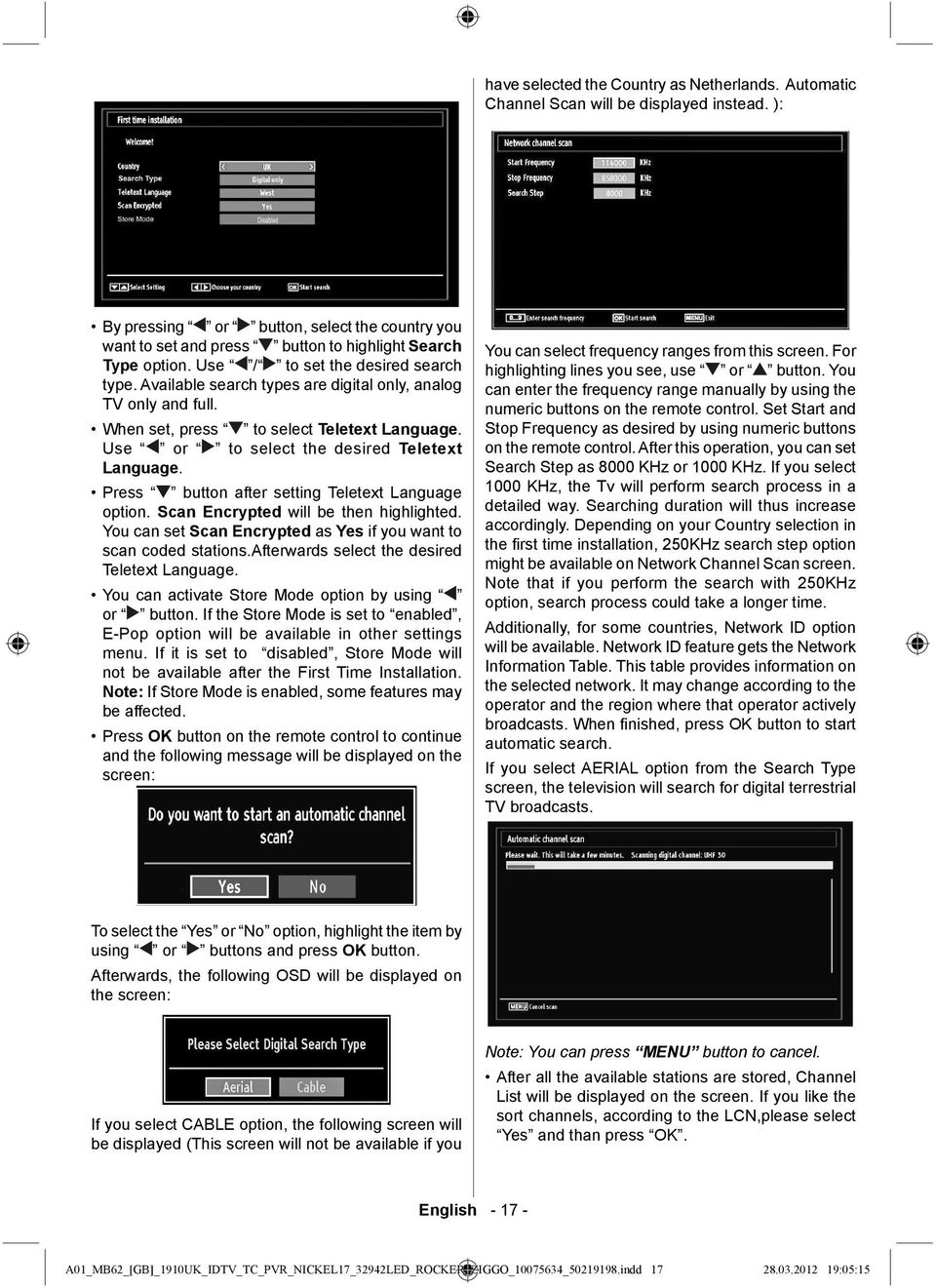
19 Press OK button to quit channel list and watch TV. If you have selected the Country option as Netherlands in First Time Installation,only OK and LOCK options will be displayed. Installation Press MENU button on the remote control and select Installation by using or button. Press OK button and the following menu screen will be displayed. Manual Tuning HINT: This feature can be used for direct broadcast entry. Select Manual Channel Scan from the Installation menu by using / and OK buttons. Manual Scan options screen will be displayed. Select the desired Search Type using or button. Manual search options will change accordingly. Use / button to highlight an item and then press or button to set an option. You can press MENU button to cancel. Digital Aerial Manual Search Select Automatic Channel Scan (Retune) by using / button and press OK button. Automatic Channel Scan (Retune) options will be displayed. You can select options by using / and OK buttons. Auto Channel Scan (Retune) Menu Operation Digital Aerial: Searches and stores aerial DVB stations. Digital Cable: Searches and stores cable DVB stations. Analogue: Searches and stores analogue stations. Digital Aerial & Analogue: Searches and stores both analogue and aerial DVB stations. Digital Cable & Analogue: Searches and stores both analogue and cable DVB stations. Whenever you select an automatic search type and press OK button, a confi rmation screen will appear on the screen. To start installation process, select Yes, to cancel select No by using. or and OK button. After auto channel scan type is set and selected and confi rmed, installation process will start and progress bar will move along. Press MENU button to cancel process. In such a case, located channels are not stored. In manual channel scan, the number of the multiplex or frequency are entered manually and only that multiplex or frequency are searched for the channels. After selecting search type as Digital Aerial, you must select the desired Band and then, you can enter the multiplex or frequency number using the numeric buttons and press OK button to search. Band Options: D_Band = VHF 9-24 S_Band = VHF 12-20, UHF K_Band = VHF 5-12, UHF Digital Cable Manual Search* In cable manual scan, you can enter frequency, modulation, symbol rate and network channel scan options. After selecting search type as Digital Cable, you can set the desired options and press OK button to search. English A01_MB62_[GB]_1910UK_IDTV_TC_PVR_NICKEL17_32942LED_ROCKER_ZIGGO_ _ indd :05:16
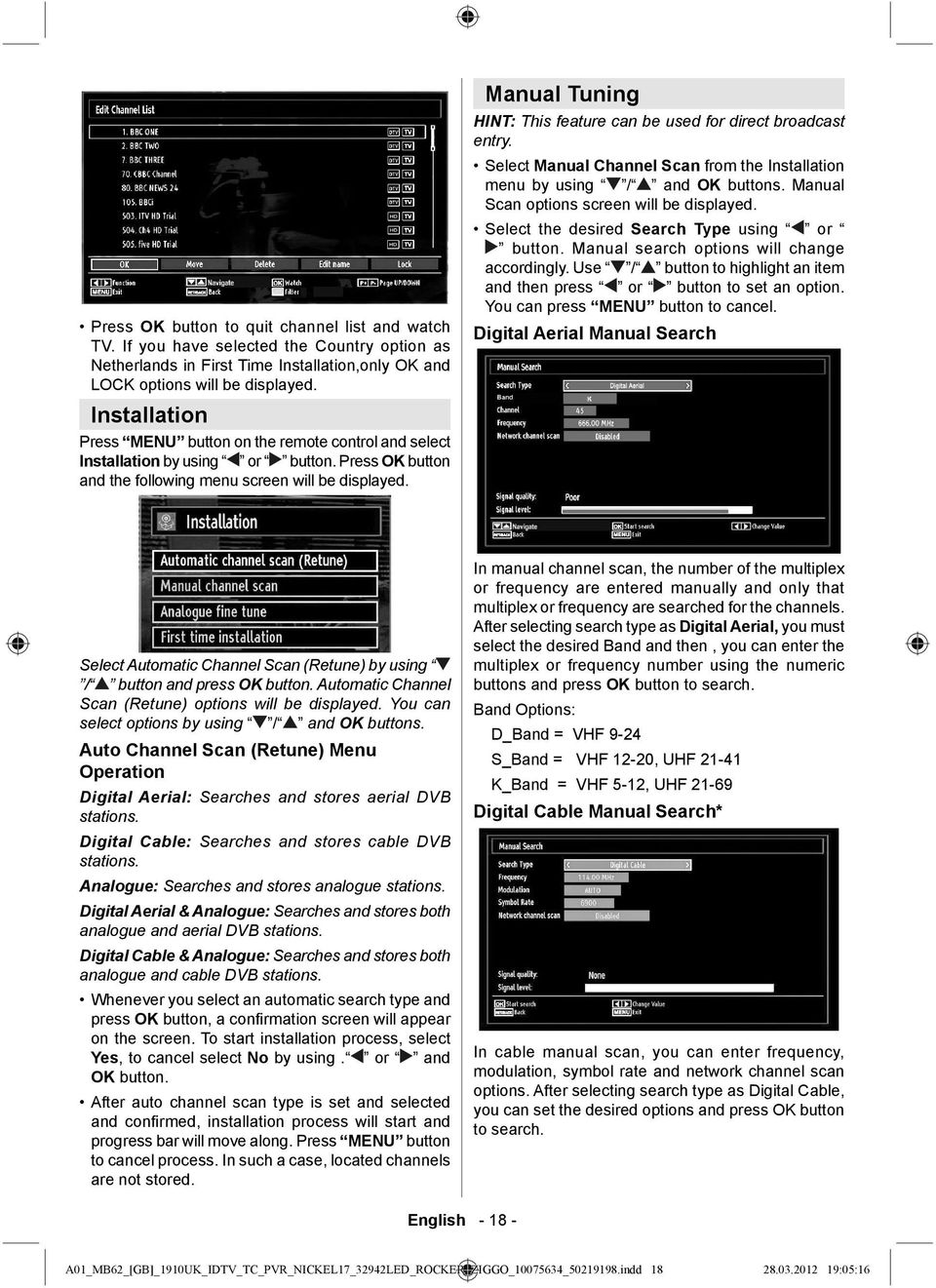
20 (*) If you have selected the Country option to Netherlands in First Time Installation, cable manual search option will not be available. Analogue Manual Search Operating the Channel List After selecting search type as analogue, you can use / button to highlight an item and then press or button to set an option. Enter the channel number or frequency using the numeric buttons. You can then press OK button to search. When the channel is located, any new channels that are not on the list will be stored. Analogue Fine Tune Select Analogue Fine Tune from the Installation menu by using or and OK buttons. Analogue fi ne tune screen will be displayed. Analogue Fine Tune feature will not be available if there are no analogue channels, digital channels and external sources stored. Press OK button to proceed. Use or button to set Fine Tune. When fi nished, press OK button again. Managing Stations: Channel List The TV sorts all stored stations in the Channel List. You can edit this channel list, set favourites or set active stations to be listed by using the Channel List options. Press MENU button to view main menu. Select Channel List item by using or button. Press OK to view menu contents. Select Active Network feature allows you to select only the broadcasts within the selected network. Select Edit Channel List to manage all stored channels. Use or and OK buttons to select Edit Channel List. English Press or button to select the channel that will be processed. Press or button to select a function on Channel List menu. Use CH /CH buttons to move page up or down. Press BLUE button to view fi ltering options. Press MENU button to exit. Note: The channels listed are mixed at the channel list. Channel types can be differentiated by the icons next to them: DTV (digital tv), HD (HD TV), ATV (Analogue TV),TV (TV), RD (Radio), encrypted, lock, and at the favourite list. Listed channels can also be sorted by using the active channel list fi lter. The last available channel number is 999. If you have selected the Country option as Netherlands in First Time Installation, performed Ziggo network search and stored Ziggo channels,only OK and LOCK options will be available. Moving a Channel First select the desired channel. Select Move option in the channel list and press OK button. Edit Number screen will be displayed. Enter the desired channel number by using the numeric buttons on the remote control. If there is a previously stored channel on that number, a warning screen will be displayed. Select Yes if you want to move the channel and press OK. Press OK button to process. Selected channel is now moved. Deleting a Channel You can press GREEN button to tag/untag all channels; YELLOW button to tag/untag channel. Select the channel that you want to delete and select Delete option. Press OK button to continue. A warning screen will appear. Select YES to delete, select No to cancel. Press OK button to continue. Renaming a Channel Select the channel that you want to rename and select Edit Name option. Press OK button to continue. A01_MB62_[GB]_1910UK_IDTV_TC_PVR_NICKEL17_32942LED_ROCKER_ZIGGO_ _ indd :05:17
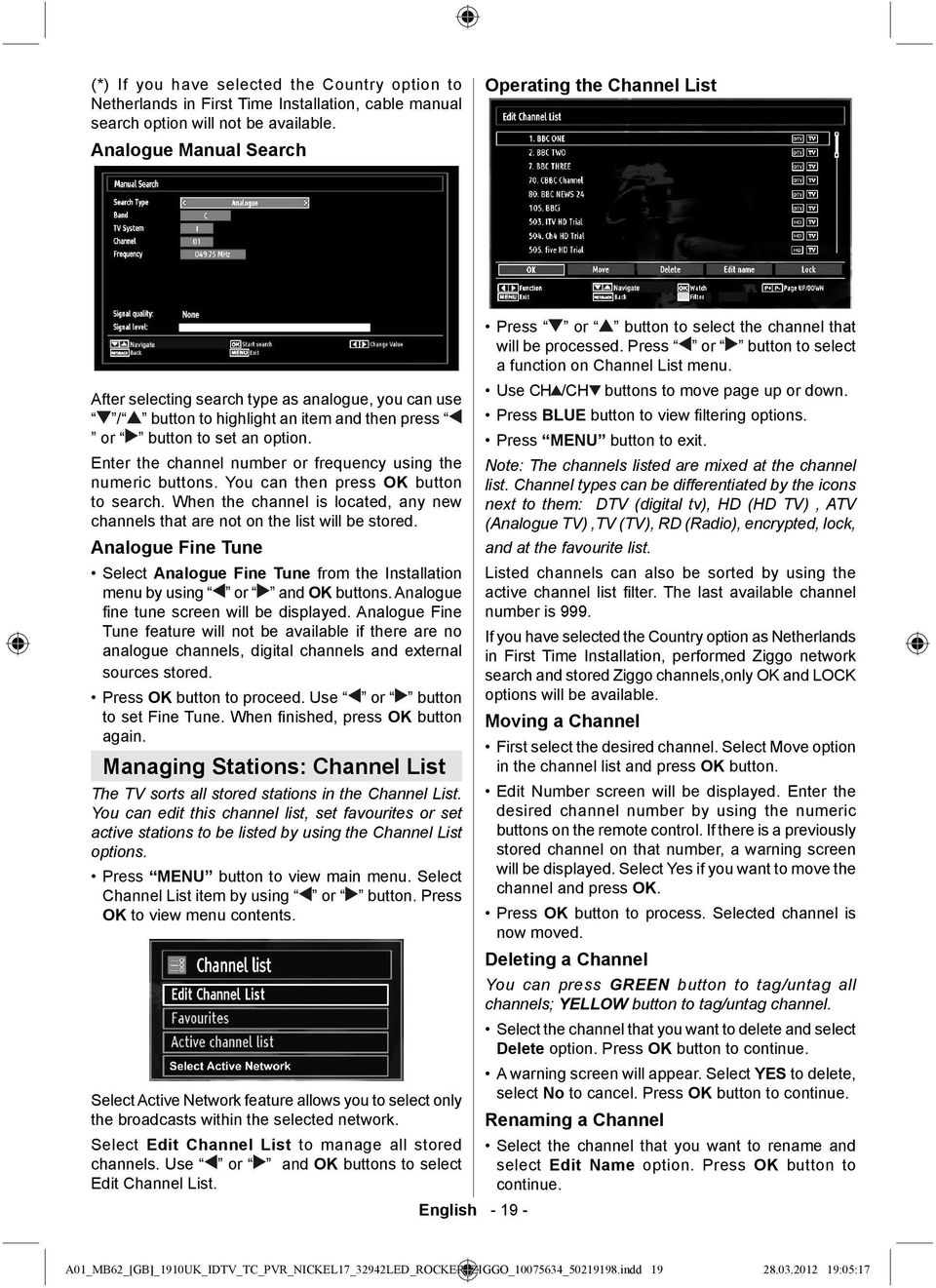
21 Pressing or button moves to the previous/ next character. Pressing or button toggles the current character, i.e., b character becomes a by and c by. Pressing the numeric buttons replaces the highlighted character with the characters printed above the button one by one as the button is pressed. When fi nished, press OK button to save. Press MENU to cancel. Locking a Channel You can press GREEN button to tag/untag all channels; YELLOW button to tag/untag a single channel. Select the channel that you want to lock and select Lock option. Press OK button to continue. You will be asked to enter parental control PIN. Default PIN is set as Enter the PIN number. Note: If the Country option is set to France, you can use 4725 as the default code. YELLOW: Tag/untag a channel. GREEN: Tag/untag all channels. BLUE: Displays fi ltering options. Managing Stations: Sorting Channel List You can select broadcasts to be listed in the channel list. To display specific types of broadcast, you should use Active channel list setting. Select Active channel list from the Channel list menu by using or button. Press OK button to continue. Press OK button when the desired channel is highlighted to lock/unlock the channel. Lock symbol will be displayed next to the selected channel. Managing Stations: Favourites You can create a list of favourite programmes. Press MENU button to view main menu. Select Channel List item by using or button. Press OK to view menu contents. Select Favourites to manage favourite list. Use / and OK buttons to select Favourites. You can set various channels as favourites so that only the favourite channels are navigated. Select a channel by using or button. Press OK button to add selected channel to favourites list. Press OK button again to remove. Button Functions OK: Add/remove a station. You can select a broadcast type option from the list by using / and OK buttons. On-Screen Information You can press INFO button to display on-screen information. Details of the station and current programme will be displayed on the information banner. The information banner gives information on the channel selected and the programmes on it. The name of the channel is displayed, along with its channel list number. Hint: Not all channels broadcast the programme data. If the name and time of the programme are not available, then information banner will be displayed with blanks. If the selected channel is locked, you must enter the correct four-digit numeric code to view the channel (default code is 0000). Enter PIN will be displayed on the screen. If you have searched and stored Ziggo channels, BER value of the cable channels will be displayed in the info banner. If there are more than one videos available on a Ziggo channel, press YELLOW button to view video selection menu, while info banner is displayed on the screen. English A01_MB62_[GB]_1910UK_IDTV_TC_PVR_NICKEL17_32942LED_ROCKER_ZIGGO_ _ indd :05:17
22 Note: If the Country option is set to France, you can use 4725 as the default code. Media Playback Using Media Browser If the USB stick is not recognized after power off/on or First Time Installation, fi rst, plug the USB device out and power off/on the TV set. Plug the USB device in again. To display Media Browser window, press either MENU button on the remote control and then select Media Browser by pressing or button. Press OK button to continue. Media Browser menu options will be displayed. Also, when you plug USB devices, media browser screen will be displayed automatically: Up/Down: Navigate. Play ( button) : Plays all media fi les starting with the selected one. Lang (Play Preview): Displays selected file in a small preview screen. RED button: Sorts fi les by name. YELLOW button: Toggles viewing style. GREEN button: Activates Loop/Shuffl e functions. BLUE button: Changes media type. Play ( button): Starts the video playback. Stop ( button): Stops the video playback. Pause ( button): Pause the video playback. Rewind ( button): Goes backward. Forward ( button): Goes forward. Subtitle/Audio (LANG. button): Sets subtitle/audio. Jump (GREEN button): Jumps to time. Use numeric buttons to type the desired time and press GREEN button again to proceed. You can play music, picture and video fi les from the connected USB memory stick. Use or button to select Videos, Photos, Music, Recording Library or Settings. Viewing Videos via USB Yellow: Opens subtitle time correction menu When you select Videos from the main options, available video fi les will be fi ltered and listed on this screen. You can use or button to select a video fi le and press OK button to play a video. If you select a subtitle fi le and press OK button, you can select or deselect that subtitle fi le. The following menu will be displayed while playing a video fi le: Jump (Numeric buttons):the TV will jump to the fi le starting with the letter you input via the numeric buttons on your remote control. Play This (OK button) : Plays the selected fi le. English Press SWAP button to switch back to previous menu. Viewing Photos via USB When you select Photos from the main options, available image fi les will be fi ltered and listed on this screen. A01_MB62_[GB]_1910UK_IDTV_TC_PVR_NICKEL17_32942LED_ROCKER_ZIGGO_ _ indd :05:18
23 Jump (Numeric buttons): Jump to selected file using the numeric buttons. OK: Views the selected picture in full screen. Up/Down: Navigate. Slideshow ( button): Starts the slideshow using all images. GREEN button: Views images in thumbnails. RED button: Sorts fi les by date. YELLOW button: Toggles viewing style. BLUE button: Changes media type. Slideshow Options Pause ( button): Pauses the slideshow. Continue ( button): Continues the slideshow. Loop/Shuffle (GREEN button): Press once to disable Loop. Press again to disable both Loop and Shuffl e. Press once more to enable only Shuffl e. Press again to enable all. You can follow the disabled functions with the change of the icons. Previous/Next (Left/Right buttons): Jumps to previous or next fi le on slideshow. Rotate (Up/Down buttons): Rotates the image using up/down buttons. RETURN: Back to fi le list. INFO: Displays help screen. Playing Music via USB When you select Music from the main options, available audio fi les will be fi ltered and listed on this screen. Press once more to enable only Shuffl e. Press again to enable all. You can follow the disabled functions with the change of the icons. Note: If you start the playback with the button and activate the symbol, the TV will play the next music/video fi le. The playback will proceed accordingly and when the end of the list is reached, it will be played again from the beginning (loop function). If you start the playback with the OK button and activate the symbol, the same music or video fi le will be played in a loop (repeat function). If you start the playback with or OK button and activate the symbol, music or video fi le will be played in a shuffl e. If you start the playback with or OK button and activate, symbols, music or video file playback will continue randomly and the random playback will continue (Numeric buttons): The TV will jump to the fi le starting with the letter you input via the numeric buttons on your remote control. Play This (OK button): Plays the selected fi le. Previous/Next (Left/Right buttons): Jumps to previous or next fi le to play. YELLOW: Toggles viewing style. BLUE: Changes media type. Recordings Library IMPORTANT: To view recordings library, you should fi rst connect a USB disk to your TV while the TV is switched off. You should then switch on the TV to enable recording feature. Otherwise, recording feature will not be available. To view the list of recordings, select Recordings Library and press the OK button. Recordings Library will then be displayed with available recordings. Up/Down: Navigate. Play ( button): Plays all media fi les starting with the selected one. Stop ( button): Stops playback. Pause ( button): Pauses the selected playback. RED: Sorts fi les by Title,Artist or Album. Loop/Shuffle (GREEN button): Press once to disable Loop. Press again to disable both Loop and Shuffl e. English All the recordings are kept in a list in the recordings library. RED button (Delete): Erases the selected recording. GREEN button (Edit): Makes changes on the selected recording. A01_MB62_[GB]_1910UK_IDTV_TC_PVR_NICKEL17_32942LED_ROCKER_ZIGGO_ _ indd :05:18
24 BLUE button (Sort): Changes the order of the recordings. You can select from a wide range of sorting options. OK button: Activates play options menu: Play from start: Plays the recording from the beginning. Resume: Recommences the recordings. Play from offset: Specifi es a playing point. Note: Viewing main menu and menu items will not ve available during the playback. (Resume): Recommences the recordings. INFO (Details): Displays the short extended programmes in detail. Media Browser Settings You can set your Media Browser preferences by using the Settings dialog. Press or button to highlight an item and use or button to set. View Style: Sets default browsing mode. Music FF/FR Speed: Sets forwarding/advancing speed. Slide Show Interval: Sets slide show interval time. Show Subtitle: Sets subtitle enabling preference. Subtitle Position: Sets subtitle position as up or down. Subtitle Font Size: Sets subtitle font size (max. 54pt). DivX Registration Code: Some DivX Video-On- Demand fi les require registration code, this code can be used for this purpose. Timeshift Recording IMPORTANT: To record a programme, you should fi rst connect a USB disk to your TV while the TV is switched off. You should then switch on the TV to enable recording feature. Otherwise, recording feature will not be available. This playback is performed in x1 playback speed. You will see the timeshift gap between the real and the timeshifted programme in the info bar. Use / (PREVIOUS/NEXT) buttons to move forward or backward on timeshift playback. When the timeshift is reached, timeshifting mode will be quitted and you will switch back to watching normal broadcast. Press (STOP) button to quit timeshifting mode. (*) Continuous time shift recording s duration depends on your connected USB disk s fi le size and defi ned Max. Timeshift in the Recordings Configuration menu. See the section, Recordings for more information on setting Max. Timeshift. Note: Switching to a different broadcast or source; and viewing main menu are not available during the timeshifting. Lip Sync delay may occur during the timeshifting. Standby button is ignored during the timeshifting. The TV will not switch to standby mode during the timeshifting. Instant Recording IMPORTANT: To record a programme, you should fi rst connect a USB disk to your TV while the TV is switched off. You should then switch on the TV to enable recording feature. Otherwise, recording feature will not be available. Press (RECORD) button to start recording an event instantly while watching a programme. The following OSD appears on the screen: Record OSD will then be displayed for a short time and the current event will be recorded. You can press (RECORD) button on the remote control again to record the next event on the EPG. In this case, OSD will display the programmed events for recording. Press (PAUSE) button while watching a broadcast for switching to timeshifting mode. In timeshifting mode, the programme is paused and Press (STOP) button to cancel instant recording. simultaneously recorded to the connected USB The following OSD will be displayed: disk (*). Press (PLAY) button again to watch the paused programme from the stopped moment. English A01_MB62_[GB]_1910UK_IDTV_TC_PVR_NICKEL17_32942LED_ROCKER_ZIGGO_ _ indd :05:19
25 Select Yes by using or / OK buttons to cancel instant recording. Note: Switching to a different broadcast or source; and viewing Media Browser are not available during the recording. Watching Recorded Programmes In the main menu, use or buttons to select Media Browser. Highlight Recordings Library item by using or button and press OK button to enter. Recordings Library will then be displayed. IMPORTANT: To view recordings library, you should fi rst connect a USB disk to your TV while the TV is switched off. You should then switch on the TV to enable recording feature. Otherwise, recording feature will not be available. Slow Forward If you press (PAUSE) button while watching recorded programmes, slow forward feature will be available. You can use button to slow forward. Pressing button consecutively will change slow forwarding speed. Changing Image Size: Picture Formats You can change the aspect ratio (image size) of the TV for viewing the picture in different zoom modes. Press SCREEN button repeatedly to change the image size. Available zoom modes are listed below. Auto When AUTO is selected, the aspect ratio of the screen is adjusted by the information provided by the selected source (if available). The format being displayed in AUTO mode is completely independent of WSS information which could be included in the broadcast signal or the signal from an external device. Note: Auto mode only will be available in HDMI, YPbPr and DTV sources. 16:9 This uniformly stretches the left and right sides of a normal picture (4:3 aspect ratio) to fi ll the wide TV screen. Select a recorded item from the list (if previously recorded) by using / button. Press OK button to view Play Options. Select an option by using / or OK buttons. Available playback options: Play from start: Plays the recording from the beginning. Resume: Recommences the recordings. Play from offset: Specifi es a playing point. Note: Viewing main menu and menu items will not be available during the playback. Press (STOP) button to stop a playback and return to return to Recordings Library. For 16:9 aspect ratio pictures that have been squeezed into a normal picture (4:3 aspect ratio), use the 16:9 mode to restore the picture to its original shape. Subtitle This zooms up the wide picture (16:9 aspect ratio) with subtitles to the full screen. English A01_MB62_[GB]_1910UK_IDTV_TC_PVR_NICKEL17_32942LED_ROCKER_ZIGGO_ _ indd :05:19
26 Note: You can shift to screen up or down by pressing / buttons while picture zoom is selected as panaromic, 14:9 Zoom, Cinema or Subtitle. 14:9 This zooms up the wide picture (14:9 aspect ratio) to the upper and lower limits of the screen. Configuring Picture Settings You can use different picture settings in detail. Press MENU button and select the Picture icon by using or button. Press OK button to view Picture Settings menu. 14:9 Zoom This option zooms to the 14:9 picture. 4:3 Use to view a normal picture (4:3 aspect ratio) as this is its original size. Cinema This zooms up the wide picture (16:9 aspect ratio) to the full screen. Operating Picture Settings Menu Items Press or button to highlight a menu item. Use or button to set an item. Press MENU button to exit. Picture Settings Menu Items Mode: For your viewing requirements, you can set various screen modes. The Picture mode can be set to one of these options: Cinema,Game,Dynamic and Natural. Contrast: Sets the lightness and darkness values of the screen. Brightness: Sets the brightness value for the screen. Sharpness: Sets the sharpness value for the objects displayed on the screen. Colour: Sets the colour value, adjusting the colors. Power Save Mode : Use or button to select Power Save Mode. Press or button to set Power Save Mode as Eco, Picture Off and Disabled. See the section, Environmental Information in this manual for further information on Power Save Mode. Backlight (optional): This setting controls the backlight level and it can be set to Auto, Maximum, Minimum and Medium. Note: Backlight can not be activate in VGA or Media Browser mode or while picture mode is set as Game. English A01_MB62_[GB]_1910UK_IDTV_TC_PVR_NICKEL17_32942LED_ROCKER_ZIGGO_ _ indd :05:20
27 Noise Reduction: If the broadcast signal is weak and the picture is noisy, use Noise Reduction setting to reduce the noise amount. Noise Reduction can be set to one of these options: Low, Medium, High or Off. Advanced Settings Colour Temp: Sets the desired colour tone. Setting Cool option gives white colours a slight blue stress. For normal colours, select Normal option. Setting Warm option gives white colours a slight red stress. Picture Zoom: Sets the picture size to Auto,16:9, Subtitle,14:9, 14:9 Zoom, 4:3, Panoramic or Cinema. HDMI True Black (optional): While watching from HDMI source, this feature will be visible in the Picture Settings menu. You can use this feature to enhance blackness in the picture. You can set this feature as On for activating HDMI True Black mode. Film Mode (optional): Films are recorded at a different number of frames per second to normal television programmes. Press or buttons to select Film mode. Press or buttons to set this feature Auto or Off. Turn this feature to Auto when you are watching fi lms to see the fast motion scenes clearly. Colour Shift: Adjust the desired colour tone. Reset: Resets the picture settings to factory default settings. While in VGA (PC) mode, some items in Picture menu will be unavailable. Instead, VGA mode settings will be added to the Picture Settings while in PC mode. PC Picture Settings For adjusting PC picture items, do the following: Press or button to select Picture icon. Picture menu appears on the screen. Contrast, Brightness, Colour, Colour Temp and Picture Zoom settings in this menu are identical to settings defi ned in TV picture menu under Main Menu System. Sound,Settings and Source settings are identical to the settings explained in main menu system. PC Position: Select this to display PC position menu items. Autoposition: Automatically optimizes the display. Press OK to optimize. H Position: This item shifts the image horizontally to right hand side or left hand side of the screen. V Position: This item shifts the image vertically towards the top or bottom of the screen. Dot Clock: Dot Clock adjustments correct the interference that appear as vertical banding in dot intensive presentations like spreadsheets or paragraphs or text in smaller fonts. Phase: Depending on the resolution and scan frequency that you input to the TV set, you may see a hazy or noisy picture on the screen. In such a case you can use this item to get a clear picture by trial and error method. Configuring Sound Settings Sound settings can be confi gured according to your personal preferences. Press MENU button and select the fi rst icon by using or button. Press OK button to view Sound Settings menu. Operating Sound Settings Menu Items Press or button to highlight a menu item. Use or button to set an item. Press MENU button to exit. English A01_MB62_[GB]_1910UK_IDTV_TC_PVR_NICKEL17_32942LED_ROCKER_ZIGGO_ _ indd :05:21
28 Sound Settings Menu Items Volume: Adjusts volume level. Equalizer: Press OK button to view equalizer submenu. Configuring Your TV s Settings Detailed settings can be configured to suit your personal preferences. Press MENU button and select Settings ikon by using or button. Press OK button to view Settings menu. In equalizer menu, the preset can be changed to Music, Movie, Speech, Flat, Classic and User. Press the MENU button to return to the previous menu. Note: Equalizer menu settings can be changed manually only when the Equalizer Mode is in User. Balance: This setting is used for emphasizing left or right speaker balance. Headphone: Sets headphone volume. Sound Mode: You can select Mono, Stereo, Dual I or Dual II mode, only if the selected channel supports that mode. AVL: Automatic Volume Limiting (AVL) function sets the sound to obtain fixed output level between programmes (For instance, volume level of advertisements tend to be louder than programmes). Headphone/Lineout: When you connect an external amplifier to your TV using the headphone jack, you can select this option as Lineout. If you have connected headphones to the TV, set this option as Headphone. Dynamic Bass: Dynamic Bass is used to increase bass effect of the TV set. Digital Out: Sets digital out audio type. Operating Settings Menu Items Press or button to highlight a menu item. Press OK button to select an item. Press MENU button to exit. Settings Menu Items Conditional Access: Controls conditional access modules when available. Language: Confi gures language settings. Parental: Confi gures parental settings. Timers: Sets timers for selected programmes. Date/Time: Sets date and time. Sources: Enables or disables selected source options. Other Settings: Displays other setting options of the TV set. English A01_MB62_[GB]_1910UK_IDTV_TC_PVR_NICKEL17_32942LED_ROCKER_ZIGGO_ _ indd :05:21
29 Using a Conditional Access Module IMPORTANT: Insert or remove the CI module only when the TV is SWITCHED OFF. In order to watch certain digital channels, a conditional access module (CAM) can be necessary. This module must be inserted in the CI slot of your TV. Obtain the Conditional Access Module (CAM) and the viewing card by subscribing to a pay channel company, then insert those to the TV using the following procedure. Insert the CAM and then the viewing card to the slot that is located in the terminal cover at the rear side of the TV. The CAM should be correctly inserted, it is impossible to insert fully if reversed. The CAM or the TV terminal may be damaged if the CAM is forcefully inserted. Connect the TV to the mains supply, switch on and then wait for few moments until the card is activated. When no module is inserted, No Common Interface module detected message appears on the screen. Refer to the module instruction manual for details of the settings. Viewing Conditional Access Menu (*) (*) These menu settings may change depending on the service provider. Press MENU button and select the icon by using or button. Press OK button to view Settings menu. Use or button to highlight Conditional Access and press OK to view menu items. Configuring Language Preferences You can operate the TV s language settings using this menu. Press MENU button and select the fifth icon by using or button. Press OK button to view Settings menu. Use or button to highlight Language and press OK to continue: Use or button to set an item. Settings are stored automatically. Menu: displays the system language. Preferred These settings will be used if available. Otherwise the current settings will be used. Audio: Sets the preferred audio language. Subtitle: Sets the subtitle language. Selected language will be seen in subtitles. Teletext: Sets teletext language. Guide: Sets the preferred Guide language. Current (*) (*) These settings can be changed if only the broadcaster supports. Otherwise, settings will not be available to be changed. Audio: Changes the audio language for the current channel. Subtitle: Sets the subtitle language for the current channel. Note: If the Country option is set to Denmark, Sweden, Norway, Netherlands or Finland, the Language Settings menu will function as described below: English A01_MB62_[GB]_1910UK_IDTV_TC_PVR_NICKEL17_32942LED_ROCKER_ZIGGO_ _ indd :05:21
30 Language Settings Note: If the Country option is set to France, you can use 4725 as the default code. After coding the correct PIN number, parental settings menu will be displayed: In the confi guration menu, highlight the Language Settings item by pressing or buttons. Press OK and Language Settings submenu will be displayed on the screen: Use or buttons to highlight the menu item that will be adjusted and then press or button to set. Notes: System Language determines the on-screen menu language. Audio Language is used for selecting the soundtrack of a channels. Primary settings are the first priority when multiple choices are available on a broadcast. Secondary settings are the alternatives when the first options are not available. Subtitle Mode defi nes the current subtitle option. Parental Control To prohibit viewing of certain programmes, channels and menus can be locked by using the parental control system. This function enables or disables the menu protection system and allows the PIN code to be changed. Press MENU button and select the icon by using or button. Press OK button to view Settings menu. Use or button to highlight Parental and press OK to continue: Parental Settings Menu Operation Select an item by using or button. Use or button to set an item. Press OK button to view more options. Menu Lock: Menu lock setting enables or disables the menu access. You can disable access to the installation menu or the whole menu system. Maturity Lock (optional): When set, this option gets the maturity information from the broadcast and if this maturity level is disabled, disables access to the broadcast. Child Lock (optional): When Child Lock is set, the TV can only be controlled by the remote control. In this case the control panel buttons will not work, except for the Standby Off/On button. When Child Lock is activated you are able to switch the TV into Standby mode with the Standby Off/On button. To switch the TV on again, you need the remote control. Hence, if one of those buttons is pressed, Child Lock Is On will be displayed on the screen when the menu screen is not visible. Set PIN: Defi nes a new PIN number. Use numeric buttons to enter a new pin number. You will need to code your new pin a second time for verifi cation purposes. IMPORTANT: The factory default pin number is 0000, if you change the pin number make sure you write it down and keep it safe. Note: If the Country option is set to France, you can use 4725 as the default code. To display parental lock menu options, PIN number should be entered. Factory default PIN number is English A01_MB62_[GB]_1910UK_IDTV_TC_PVR_NICKEL17_32942LED_ROCKER_ZIGGO_ _ indd :05:22
31 Timers To view Timers menu, press MENU button and select Settings icon by using or button. Press OK button to view Channel List menu. Use or button to highlight Timers and press OK to continue: Setting Sleep Timer This setting is used for setting the TV to turn off after a certain time. Highlight Sleep Timer by using or button. Use or button to set. The timer can be programmed between Off and 2.00 hours (120 minutes) in steps of 30 minutes. Setting Programme Timers You can set programme timers for a particular programme using this feature. Press button to set timers on an event. Programme timer function buttons will be displayed on the screen. Adding a Timer Press YELLOW button on the remote control to add a timer. The following menu appears on the screen: Network Type: This feature is unavailable to be set. Timer Type: You can select timer type as Record or Timer. Channel: Changes channel by using or. Record Type: This item is unavailable to be set. Date: Enter a date using the numeric buttons. Start: Enter a starting time using the numeric buttons. End: Enter an ending time using the numeric buttons. Duration: Displays duration between the starting and ending time. Repeat: Sets a timer to be repeated as Once, Daily or Weekly. Use or buttons to select an option. Change/Delete: Sets the change/delete permission. Playback: Sets the playback permission and parental settings. Press GREEN button to save the timer. Press RED button to cancel. Editing a Timer Select the timer you want to edit by pressing or button. Press GREEN button. Edit Timer menu screen will be displayed. When fi nished with editing, press GREEN button to save. You can press MENU button to cancel. Deleting a Timer Select the timer you want to delete by pressing or button. Press RED button. Select YES by using or buttons to delete the timer. Select NO to cancel. Recording Configuration Select Recording Confi guration item in the Settings menu to confi gure recording settings. The following menu is displayed for recording confi guration. The following options are available for adjustments: Start Early (*) You set recording timer s starting time to start earlier by using this setting. (*) Available only for EU country options. End Late (*) You set recording timer s end time to end later by using this settings. (*) Available only for EU country options. Max Timeshift This setting allows you to set the maximum time allowed for timeshifting. Duration options are approximate and can change accordingly, depending on the broadcast received. Format Disk IMPORTANT: Note that ALL the data stored on the USB disk will be lost and then the disk format will be converted to FAT32 if you activate this feature. If you want to delete all fi les on the connected USB hard disk drive or memory stick, you can use Format Disk option. Also, if your USB disk malfunctions, you can try formatting the USB disk. In most cases formatting the USB disk will restore normal operation; however, ALL the data stored on the USB disk will be lost in such a case. Press OK button while the Format Disk option is highlighted. A menu will appear on the screen, requiring you to enter a pin number. If you have not changed the pin number, the factory default is English A01_MB62_[GB]_1910UK_IDTV_TC_PVR_NICKEL17_32942LED_ROCKER_ZIGGO_ _ indd :05:22
32 Note: If the Country option is set to France, you can use 4725 as the default code. After you enter the pin, a pop-up menu appears on the screen to ensure that the hard disk should be formatted, select YES and press OK to format the hard disk. Select NO and press OK to cancel. Ensure you back up important recordings before you format the USB disk unit. Hard Disk Info To view the details about the USB disk, highlight Hard Disk Info by using or key and press OK. USB disk information will be displayed: Configuring Date/Time Settings Select Date/Time in the Settings menu to confi gure Date/Time settings. Press OK button. Configuring Source Settings You can enables or disable selected source options. The TV will not switch to the disabled source options when SOURCE button is pressed. Use or buttons to highlight Date/Time. Date,Time,Time Settings Mode and Time Zone Setting will be available. Use or buttons to highlight the Time Settings Mode. Time Settings Mode is set using or buttons. It can be set to AUTO or MANUAL. When AUTO is selected, Date/Time and Time Zone options will not be available to be set. If MANUAL option is selected as the Time Zone can be altered: By pressing or buttons select Time Zone. Use or buttons to change the Time Zone between GMT-12 or GMT+12. Date/Time on the top of the menu list will then change according to the selected Time Zone. If you have selected Country option in the First Time Installation as Netherlands, Date/Time Settings will not be available to be changed. Changes are automatically stored. Press MENU to exit. Select Sources in the Settings menu and press OK button. Press or buttons to select a source. Use or button to enable or disable the selected source. Changes are automatically stored. Configuring Other Settings To view general configuration preferences, select Other Settings in the Settings menu and press OK button. Operation Press or buttons to select an item. Use or button to set an option. Press OK button to view a sub-menu. Menu Timeout: Changes timeout duration for menu screens. English A01_MB62_[GB]_1910UK_IDTV_TC_PVR_NICKEL17_32942LED_ROCKER_ZIGGO_ _ indd :05:23
33 Scan Encrypted Channels: When this setting is on, search process will locate the encrypted channels as well. If it is set as Off, encrypted channels will not be located in automatic search or manual search. If the country option in the First Time Installation/Other Settings is set to Netherlands, Scan Encrypted will always be YES and this cannot be modifi ed. Blue Background (Optional): Activates or deactivates blue background system when the signal is weak or absent. Software Upgrade: To ensure that your TV always has the most update information, you can use this setting. In order for the proper operation, please ensure that the TV is set to standby mode. You can enable or disable automatic upgrade by setting Automatic Scanning option. You can manually search for new software by selecting Scan for upgrade. Application version: Displays the current application version. Hard of Hearing: If the broadcaster enables any special signal concerning the audio, you can set this setting as On to receive such signals. If you have selected the Country option as Netherlands in First Time Installation, performed Ziggo network search and stored Ziggo channels, this option will be set to OFF and remain disabled. Audio Description: Audio description refers to an additional narration track for blind and visually impaired viewers of visual media, including television and movies. The description narrator talks through the presentation, describing what is happening on the screen during the natural pauses in the audio (and sometimes during dialogue, if deemed necessary). You can use this feature, only if the broadcaster supports that additional narration track. Auto TV Off: You can set the timeout value of auto off feature.after the timeout value is reached and the TV is not operated for selected time, the TV will go off. Broadcast Type (optional): When you set the desired broadcast type by using or button, the TV will display the related channel list. If the related source has does not include any stored channels, No channels for this type have been found. message will be displayed on the screen. Standby Search (optional): Use or button to select Standby Search and then press or button to set this setting as On or Off. If you change Standby Search to Off, this function will be unavailable.to use Standby search please make sure that you select Standby Search as On. If the Standby Search is set to On, when the TV is in standby mode, available broadcasts will be searched. If the TV locates any new or missing broadcasts, a menu screen will be displayed, asking you whether or not to execute these changes. If you have selected the Country option as Netherlands in First Time Installation, performed Ziggo network search and stored Ziggo channels, this option will be set to OFF and remain disabled. E-Pop: If you set E-Pop to enabled, your TV s features will be illustrated on the top of the screen. To deactivate this feature, please set to disabled. Other Features Displaying TV Information: Programme Number, Programme Name, Sound Indicator, time, teletext, channel type and resolution information is displayed on the screen when a new programme is entered or INFO button is pressed. Mute Function: Press button to disable sound. Mute indicator will be displayed in the upper side of the screen. To cancel mute, there are two alternatives; the first one is pressing the button and the second one is increasing the volume level. Picture Mode Selection: By pressing PRESETS button, you can change Picture Mode settings in accordance with your viewing requirements. Available options are Dynamic, Natural and Cinema. Displaying Subtitles: Press LANG button to select subtitle language and press SUBTITLE button to activate or deactivate subtitles. Selected subtitle language may not be stored when you change channels. To omit this, you should set the Preferred Subtitle Language option in the Language Settings menu to the desired language. This enables the TV to switch to the preferred subtitle language when the channel is changed. English A01_MB62_[GB]_1910UK_IDTV_TC_PVR_NICKEL17_32942LED_ROCKER_ZIGGO_ _ indd :05:23
34 Teletext The teletext system transmits information such as news, sports and weather on your TV. Note that if the signal degrades, for example in poor/adverse weather conditions, some text errors may occur or the teletext mode may be aborted. Teletext function buttons are listed below: Teletext / Mix : Activates teletext mode when pressed once. Press again to place the teletext screen over the programme (mix).pressing again will quit the teletext mode. RETURN Index: Selects the teletext index page. INFO Reveal: Shows hidden information (e.g. solutions of games). OK Hold: Holds a text page when convenient. Press again to resume. / Subcode Pages : Selects subcode pages if available when the teletext is activated. P+ / P- and numbers (0-9): Press to select a page. Note: Most TV stations use code 100 for their index pages. Coloured Buttons (RED/GREEN/YELLOW/ BLUE) Your TV supports both FASTEXT and TOP text systems. When these systems are available, the pages are divided into groups or topics. When FASTEXT system is available, sections in a teletext page will become colour-coded and can be selected by pressing the coloured buttons. Press a coloured button that corresponds to with your needs. The coloured writings will appear, showing you which coloured buttons to use when TOP text transmission is present. Pressing or commands will request the next or previous page respec tively. Tips Screen Care: Clean the screen with a slightly damp, soft cloth. Do not use abrasive solvents as they may damage the coating layer of the TV screen. For your safety, unplug the mains plug when cleaning the set. When moving the TV, hold it properly from the bottom part. Image Persistence: Please note that ghosting may occur while displaying a persistent image.lcd TVs image persistence may disappear after a short time. Try turning off the TV for a while. To avoid this, do not leave the screen in still picture for extended periods. No Power: If your TV system has no power, please check the main power cable and connection to the mains socket outlet. Poor Picture: Have you selected the correct TV system? Is your TV set or house aerial located too close to a non-earthed audio equipment or neon lights, etc.? Mountains or high buildings can cause double pictures or ghost images. Sometimes you can improve the picture quality by changing the direction of the aerial. Is the picture or teletext unrecognisable? Check if you have entered the correct frequency. Please retune the channels. The picture quality may degrade when two peripherals are connected to the TV at the same time. In such a case, disconnect one of the peripherals. No Picture: Is the aerial connected properly? Are the plugs connected tightly to the aerial socket? Is the aerial cable damaged? Are suitable plugs used to connect the aerial? If you are in doubt, consult your dealer. No Picture means that your TV is not receiving a transmission. Have you selected the correct button on the remote control? Try once more. Also make sure the correct input source has been selected. Sound: You can not hear any sound. Did you perhaps interrupt the sound, pressing the button? Sound is coming from only one of the speakers. Is the balance set to one extreme? See Sound Menu. Remote Control: Your TV no longer responds to the remote control. Perhaps the batteries are exhausted. If so you can still use the local buttons on the TV. Input Sources: If you cannot select an input source, it is possible that no device is connected. Check the AV cables and connections if you have tried to connect a device. Recording Unavailable: To record a programme, you should fi rst connect a USB disk to your TV while the TV is switched off. You should then switch on the TV to enable recording feature. Otherwise, recording feature will not be available. If you cannot perform recording, try switching off the TV and then re-inserting the USB device while the TV is switched off. USB Is too Slow: If USB is too slow message is displayed on the screen while starting a recording, try restarting the recording. If you still get the same error, it is possible that your USB disk does not meet the speed requirements. Try connecting another USB disk. English A01_MB62_[GB]_1910UK_IDTV_TC_PVR_NICKEL17_32942LED_ROCKER_ZIGGO_ _ indd :05:24
35 Appendix A: PC Input Typical Display Modes The display has a maximum resolution of 1366 x 768. The following table is an illustration of some of the typical video display modes. Your TV may not support different resolutions. Supported resolution modes are listed below. If you switch your PC to an unsupported mode, a warning OSD will appear on the screen. Index Resolution Frequency 1 640x Hz 2 640x Hz 3 640x480 60Hz-66Hz-72Hz -75Hz-85Hz 4 800x600 56Hz-60Hz-70Hz-72Hz -75Hz-85Hz 5 832x Hz x768 60Hz-66Hz-70Hz-72Hz -75Hz x864 60Hz-70Hz-75Hz -85 Hz x HzA x HzB x768 75Hz-85Hz x960 60Hz-75Hz-85Hz x Hz-75Hz-85Hz x Hz Appendix B: AV and HDMI Signal Compatibility (Input Signal Types) Source Supported Signals Available EXT (SCART) Side AV YPbPr HDMI1 HDMI2 PAL 50/60 NTSC 60 RGB 50 RGB 60 PAL 50/60 NTSC 60 O O O O O O 480I 60Hz O 480P 60Hz O 576I 50Hz O 576P 50Hz O 720P 50Hz O 720P 60Hz O 1080I 50Hz O 1080I 60Hz O 1080P 50Hz O 1080P 60Hz O 480I 60Hz O 480P 60Hz O 576I 50Hz O 576P 50Hz O 720P 50Hz O 720P 60Hz O 1080I 50Hz O 1080I 60Hz O 1080P 24Hz O 1080P 25Hz O 1080P 30Hz O 1080P 50Hz O 1080P 60Hz O (X: Not Available, O: Available) In some cases a signal on the LCD TV may not be displayed properly. The problem may be an inconsistency with standards from the source equipment (DVD, Set-top box, etc. ). If you do experience such a problem please contact your dealer and also the manufacturer of the source equipment. English A01_MB62_[GB]_1910UK_IDTV_TC_PVR_NICKEL17_32942LED_ROCKER_ZIGGO_ _ indd :05:24
36 Appendix C: Supported DVI Resolutions When connecting devices to your TV s connectors by using DVI to HDMI cables (not supplied), you can refer to the following resolution information. Index Resolution Frequency 1 640x400 70Hz 2 640x480 60Hz-66Hz-72Hz -75Hz 3 800x600 56Hz-60Hz-70Hz- 72Hz -75Hz 4 832x Hz x768 60Hz-66Hz-70Hz- 72Hz -75Hz x864 60Hz-70Hz-75Hz x870 75Hz x HzA x HzB x768 75Hz x960 60Hz-75Hz x Hz-75Hz x Hz x HzA x HzB x Hz x900 65Hz-75Hz x Hz x Hz x HzA x HzB i-480p 60Hz i-576p 50Hz English A01_MB62_[GB]_1910UK_IDTV_TC_PVR_NICKEL17_32942LED_ROCKER_ZIGGO_ _ indd :05:24
37 Appendix D: Supported File Formats for USB Mode Media Movie File Format Remarks Extension Video Audio (Maximum resolution/bit rate etc.).mpg,.mpeg MPEG1, 2 MPEG Layer 1/2/3.dat MPEG1, 2 MPEG2.vob MPEG2.mkv H.264, MPEG1,2,4 EAC3 / AC3.mp4.avi.avi,.dvix(optional) MPEG4, Xvid 1.00, Xvid 1.01, Xvid 1.02, Xvid 1.03, Xvid beta1/2 H.264 MPEG2, MPEG4 Xvid 1.00, Xvid 1.01, Xvid 1.02, Xvid 1.03, Xvid 1.10-beta1/2 H.264 Divx 3.11, Divx 4.Divx 5, Divx 6 Music.mp3 - Photo Subtitle PCM/MP3 PCM/MP3 PCM PCM/MP3/AC-3 MPEG 1 Layer 1 / 2 (MP3) MAX 30P 20Mbit/sec MAX 30P 20Mbit/sec (MAX 30P - 20Mbit/sec) (HD DivX is not supported.) 32Kbps ~ 320Kbps(Bit rate) 32KHz ~ 48KHz(Sampling rate) Baseline JPEG max WxH = 15360x bytes.jpg.jpeg Progressive JPEG max WxH = 1024x bytes.bmp - max WxH = 9600x bytes.sub.srt - - Note: It is not guaranteed that all DivX formats are supported. English A01_MB62_[GB]_1910UK_IDTV_TC_PVR_NICKEL17_32942LED_ROCKER_ZIGGO_ _ indd :05:24
38 Appendix E: Software Upgrade Your TV is capable of fi nding and updating new software upgrades over broadcast channels. For broadcast channels search, TV looks the available channels stored in your settings. So before software upgrade search, it is advised to auto search and update all available channels. 1) Software upgrade search via user interface It is possible manually to check if there is a new software upgrade for your TV set. Simply navigate on your main menu. Choose Settings and select Other Settings menu. In Other Settings menu navigate on to the Software Upgrade item and press OK button to open Upgrade Options menu. In Upgrade Options menu select Scan for upgrade and press OK button. If a new upgrade is found, it starts to download the upgrade. A progress bar indicates the remaining download progress. When download completes with success a message is displayed for reboot to activate new software. Press OK to continue with the reboot operation. 2) 3.AM search and upgrade mode If Automatic scanning in Upgrade Options menu is enabled, TV wakes up at 03:00 and searches broadcast channels for new software upgrade. If new software is found and downloaded successfully, with next power up TV opens with new software version. Note on reboot operation: Reboot is the last step in software upgrade operation if download of new software is finished successfully. During reboot TV makes final initializations. In reboot sequence panel power is closed and front led indicates the activity with blinking. Around 5 minutes later TV restarts with new software activated. If your TV fails to restart in 10 minutes, unplug power for 10 minutes and re-plug again. TV should open with new software safely. If you still can not get TV working, please kindly repeat unplug and plug sequence a few times more. If your set still can not operate, please call the service personnel to fi x the problem for you. Caution: While led is blinking during reboot do not unplug your TV s power. Doing this may cause your TV not to re-open again and can only be fixed by service personnel. Information for Users on Disposal of old Equipment and Batteries Products Battery [European Union only] These symbols indicate that equipment with these symbols should not be disposed of as general household waste. If you want to dispose of the product or battery, please consider the collection systems or facilities for appropriate recycling. Notice: The sign Pb below the symbol for batteries indicates that this battery contains lead. English A01_MB62_[GB]_1910UK_IDTV_TC_PVR_NICKEL17_32942LED_ROCKER_ZIGGO_ _ indd :05:24
39 Specifications TV BROADCASTING PAL/SECAM B/G D/K K I/I L/L RECEIVING CHANNELS VHF (BAND I/III) UHF (BAND U) HYPERBAND NUMBER OF PRESET CHANNELS 1000 CHANNEL INDICATOR On Screen Display RF AERIAL INPUT 75 Ohm (unbalanced) OPERATING VOLTAGE V AC, 50Hz. AUDIO German + Nicam Stereo AUDIO OUTPUT POWER (W RMS. ) (10% THD) 2 x 6 POWER CONSUMPTION (W) 135 W (max) < 0,5 W (Standby) PANEL 16:9 display, 32 (80 cm) Screen Size DIMENSIONS (mm) DxLxH (With Stand): 205,5 x 773 x 522 Weight (Kg): 10,70 DxLxH (Without Stand): 39 x 773 x 490 Weight (Kg): 9,15 Digital Reception (DVB-C) Transmission Standards: DVB-C, MPEG2, DVB-C, MPEG4 i. DEMODULATION -Symbolrate: 4.0 Msymbols/s to 7.2 Msymbols/s - Modulation: 16-QAM, 32-QAM,64-QAM, 128-QAM and 256-QAM ii. VIDEO - All MPEG2 MP@ML formats with up-conversion and fi ltering to CCIR601 format. -CVBS analogue output iii. AUDIO -All MPEG1 Layer 1 and 2 modes -Sampling frequencies supported are 32, 44.1 & 48 khz MHEG-5 ENGINE compliant with ISO/IEC UK engine Profi le 1 Object carousel support compliant with ISO/IEC and UK DTT profi le for UK Frequency range: MHz for UK models Digital Reception MHz for EU models Transmission standard: DVB-T. MPEG-2, MPEG-4 Demodulation: COFDM with 2K/8K FFT mode FEC: all DVB modes Video: MP@ML, PAL, 4:3/16:9 Audio: MPEG Layer I&II 32/44.148kHz. English A01_MB62_[GB]_1910UK_IDTV_TC_PVR_NICKEL17_32942LED_ROCKER_ZIGGO_ _ indd :05:24
40 Dimensional Drawings 490 English A01_MB62_[GB]_1910UK_IDTV_TC_PVR_NICKEL17_32942LED_ROCKER_ZIGGO_ _ indd :05:24
41 End of life disposal English A01_MB62_[GB]_1910UK_IDTV_TC_PVR_NICKEL17_32942LED_ROCKER_ZIGGO_ _ indd :05:32
42 Installing the Stand English A01_MB62_[GB]_1910UK_IDTV_TC_PVR_NICKEL17_32942LED_ROCKER_ZIGGO_ _ indd :05:33
43 Uninstalling the Stand English A01_MB62_[GB]_1910UK_IDTV_TC_PVR_NICKEL17_32942LED_ROCKER_ZIGGO_ _ indd :05:33
44 Screw Dimensions Model D L Item Number VESA Installation of the Screw LC-32LE140E Ø To the wall 200 x 100 (W x H) M To the product English A01_MB62_[GB]_1910UK_IDTV_TC_PVR_NICKEL17_32942LED_ROCKER_ZIGGO_ _ indd :05:58
45 Inhalt Funktionen Werter SHARP-Kunde Einleitung Vorbereitung Wichtige Sicherheitshinweise Sicherheitsvorkehrungen Inhalt der Verpackungseinheit Umweltinformationen Reparaturinformationen Tasten der Fernbedienung LCD-TV und Bedientasten Ansicht der Anschlüsse Anschlüsse an der Rückseite Ansicht der Anschlüsse Anschlüsse an der Seite Netzanschluss Antennenanschluss Verwendung der USB-Eingänge Anschluss eines DVD-Players über HDMI Anschluss eines DVD-Players über die Component- Anschlüsse (YPbPr) oder ein Scart-Kabel Anschließen des LCD-TVs an einen PC Verwendung der seitlichen Anschlüsse Fernbedienung Einsetzen der Batterien Ein-/Ausschalten Einschalten des TV-Geräts TV-Gerät ausschalten Eingangsauswahl Grundlegende Bedienung Bedienung mit den Tasten am TV-Gerät Bedienung mit den Tasten der Fernbedienung Elektronischer Programmführer (EPG) Digitaler Teletext (*) Analoger Teletext Aufnahme über den EPG-Bildschirm Programmoptionen Erste Installation Installation Steuerung des Menüs Automatische Sendersuche (Neue Sendersuche) Manuelle Einstellung Manuelle Antenne Digitale Suche Manuelle Digitale Kabel Suche* Manuelle Analoge Suche Analoge Feineinstellung Sender verwalten: Kanalliste Steuern der Kanalliste Kanäle verschieben Kanäle löschen Kanäle umbenennen Kanäle sperren Sender verwalten: Favoriten Tastenfunktionen Sender verwalten: Kanalliste sortieren OSD-Informationen Medienplayer benutzt Medienbrowser Timeshift-Aufnahme Sofort-Aufnahme Aufgenommene Programme ansehen Bildgröße ändern: Bildformate Bildeinstellungen konfi gurieren Steuerung des Menüs Bildeinstellungen Optionen des Menüs Bildeinstellungen PC-Bildeinstellungen Konfi guration der Klangeinstellungen Steuerung des Menüs Klangeinstellungen Optionen des Menüs Klangeinstellungen Konfi guration der Einstellungen Steuerung des Menüs Einstellungen Optionen des Menüs Einstellungen Verwendung eines Conditional Access-Moduls Anzeigen des Menüs Conditional Access (*) Konfi gurieren der Spracheinstellungen Spracheinstellungen (Language Settings) Jugendschutz Steuerung des Menüs Jugendschutz Timer Einstellen des Ausschalttimers Einstellen von Programmtimern Aufnahmeeinstellungen Einstellen von Datum und Uhrzeit Konfi guration der Quelleneinstellungen Andere Einstellungen konfi gurieren Steuerung Andere Funktionen Teletext Tipps Anhang A: PC-Eingang typische Anzeigemodi.. 80 Anhang B: AV- und HDMI-Signalkompatibilität (Eingangssignaltypen) Anhang C: Unterstützte DVI-Aufl ösungen Anhang D: Im USB-Modus unterstützte Dateiformate Anhang E: Softwareaktualisierung Technische Daten Digitaler Empfang (DVB-C) Maßzeichnungen Entsorgung am Ende der Lebensdauer Montage des Standfußes Demontage des Standfußes Schraubenabmessungen Deutsch A02_MB62_[DE]_1910UK_IDTV_TC_PVR_NICKEL17_32942LED_ROCKER_ZIGGO_ _ indd :02:42
46 SPEZIELLE HINWEISE FÜR BENUTZER IN GB/UK Das Netzkabel dieses Produkts ist mit einem nicht austauschbaren (angeformten) Netzstecker mit eingebauter 5A-Sicherung ausgestattet. Muss die Sicherung ausgetauscht werden, darf nur eine Sicherung vom Typ BS 1362 mit Zulassung durch BSI oder ASTA verwendet werden. Diese muss dieselben Nennwerte aufweisen, die auch auf der Kontaktseite des Steckers angeführt sind. Setzen Sie nach dem Austauschen der Sicherung stets die Abdeckung wieder ein. Benutzen Sie den Stecker niemals ohne Sicherungsabdeckung. Sollte der unwahrscheinliche Fall eintreten, dass die Steckdosen in Ihrem Heim nicht mit dem mitgelieferten Stecker kompatibel sind, trennen Sie den Netzstecker ab und ersetzen Sie ihn durch einen passenden Typ. VORSICHT! Entfernen Sie die Sicherung aus dem abgetrennten Netzstecker und zerstören und entsorgen Sie diesen dann sofort auf sichere Art und Weise. Stecken Sie den abgetrennten Netzstecker keinesfalls in eine andere 5A-Steckdose an, da dies zu schweren elektrischen Schlägen führen kann. Zum Anschließen eines geeigneten Netzsteckers beachten Sie bitte die folgenden Hinweise: WICHTIG: Die Leitungen im Netzkabel sind nach folgendem Code farbcodiert: Blau: Neutral Braun: Stromführend Da die Farben im Netzkabel dieses Produktes unter Umständen nicht mit den Anschlussmarkierungen des neuen Steckers übereinstimmen, gehen Sie wie folgt vor: Der blau markierte Draht muss an der Klemme angeschlossen werden, die entweder mit dem Buchstaben N gekennzeichnet ist oder schwarz gefärbt ist. Der braun markierte Draht muss an der Klemme angeschlossen werden, die entweder mit dem Buchstaben L gekennzeichnet ist oder rot gefärbt ist. Stellen Sie sicher, dass weder der braune noch der blaue Draht an die Erdungsklemme des Dreipol-Steckers angeschlossen sind. Bevor Sie die Abdeckung einsetzen, stellen Sie bitte sicher: Wenn der neu montierte Stecker eine Sicherung hat, muss deren Wert jenem des abgeschnittenen Steckers entsprechen. Die Kabelklemme muss über die Kunststoffi solierung des Netzkabels, nicht über blanke Drähte, geklemmt werden. WENN SIE ZWEIFEL HABEN, WENDEN SIE SICH AN EINEN QUALIFIZIERTEN ELEKTROFACHMANN!. Deutsch A02_MB62_[DE]_1910UK_IDTV_TC_PVR_NICKEL17_32942LED_ROCKER_ZIGGO_ _ indd :02:43
47 Funktionen LCD-Farbfernsehgerät mit Fernbedienung. Voll integriertes terrestrisches Digital-TV (DVB-T C - MPEG2) (DVB-T C- MPEG4). HDMI-Anschlüsse für Digital-Video und -Audio sind vorhanden. Dieser Anschluss kann außerdem HighDefi nition-signale empfangen. USB-Eingang Programm-Aufnahme Programmm-Timeshift-Aufnahme 1000 Programme (analog + digital). OSD-Menüsystem Integrierter Tuner DVB-T-C HD, MPEG 2- / MPEG 4-kompatibel. Scart-Anschluss für externe Geräte (wie Video, Videospiele, Stereoanlage etc.) Stereo-Audiosystem (Deutsch+Nicam) Teletext, FasText, TOPtext. Kopfhöreranschluss. Autoprogrammierung. Manuelle Sendersuche (vorwärts und rückwärts). Ausschalttimer / Kindersicherung Automatische Stummschaltung, wenn keine Übertragung stattfi ndet. NTSC-Wiedergabe. AVL (Automatische Tonbegrenzung) Automatische Abschaltung. PLL (Frequenzsuche) PC-Eingang. Plug&Play für Windows 98, ME, 2000, XP, Vista, Windows 7. Spielemodus Die Abbildungen und Menüdarstellungen in diesem Handbuch dienen nur der Erklärung; sie können leicht von den tatsächlichen Gegebenheiten Ihres Geräts abweichen. Die Beispiele in diesem Handbuch basieren auf dem Modell LC-32LE140E. Werter SHARP-Kunde Vielen Dank, dass Sie sich für dieses SHARP-LCD- Farb-TV-Gerät entschieden haben. Um einen sicheren und problemfreien Betrieb Ihres Geräts über viele Jahre sicherzustellen, lesen Sie bitte den Abschnitt Wichtige Sicherheitshinweise, bevor Sie das Produkt in Betrieb nehmen. Einleitung Bitte lesen Sie die entsprechenden Hinweise in diesem Handbuch, bevor Sie das Gerät in Betrieb nehmen, auch wenn Sie mit dem Gebrauch elektronischer Geräte bereits vertraut sind. Beachten Sie besonders das Kapitel SICHERHEITSHINWEISE. Bewahren Sie das Handbuch für die weitere Verwendung gut auf. Bitte geben Sie das Handbuch unbedingt auch weiter, wenn Sie das Gerät verkaufen oder weitergeben. Wir danken Ihnen für den Kauf dieses Produkts. Dieses Handbuch führt Sie in die richtige Bedienung Ihres TV-Geräts ein. Bitte lesen Sie dieses Handbuch sorgfältig durch, bevor Sie das TV-Gerät in Betrieb nehmen. Bewahren Sie dieses Handbuch zur künftigen Verwendung sicher auf. Dieses Gerät dient zum Empfang und zur Anzeige von TV-Programmen. Die verschiedenen Anschlussmöglichkeiten ermöglichen eine Erweiterung der Empfangs- und Anzeigequellen (Receiver, DVD- Player, DVD-Recorder, VCR, PC etc.) Dieses Gerät ist nur für den Betrieb in trockenen Innenräumen geeignet. Das Gerät dient ausschließlich für den privaten Gebrauch und darf nicht für industrielle oder gewerbliche Zwecke verwendet werden. Wir lehnen prinzipiell jegliche Haftung ab, wenn das Gerät nicht bestimmungsgemäß verwendet wird oder unerlaubte Änderungen daran vorgenommen wurden. Ein Betrieb des LCT-TV-Geräts unter extremen Umgebungsbedingungen kann zur Beschädigung des Geräts führen. Vorbereitung Halten Sie um das Fernsehgerät mindestens 10 cm Abstand zu Möbeln etc. ein, um eine ausreichende Luftzirkulation zu gewährleisten. Vermeiden Sie gefährliche Situationen und Defekte, indem Sie keine Gegenstände auf dem Gerät abstellen. Verwenden Sie dieses Gerät nur in gemäßigten Klimabedingungen. Deutsch A02_MB62_[DE]_1910UK_IDTV_TC_PVR_NICKEL17_32942LED_ROCKER_ZIGGO_ _ indd :02:43
48 Wichtige Sicherheitshinweise Reinigung Ziehen Sie den Netzstecker aus der Steckdose, bevor Sie das Gerät reinigen. Verwenden Sie zur Reinigung ein feuchtes Tuch. Verwenden Sie keine fl üssigen Reinigungsmittel oder Sprühreiniger. Verwenden Sie ein weiches, feuchtes Tuch, um den Bildschirm zu reinigen. Verwenden Sie keine chemischen Reinigungstücher, um den Bildschirm zu reinigen. Diese können zu Beschädigungen und Rissen im Gehäuse des TV-Geräts führen. Wasser und Feuchtigkeit Verwenden Sie das Gerät nicht in der Nähe von Wasser, Badewannen, Waschbecken, Küchenspülen, Waschbehältern, Swimming Pools oder in feuchten Kellerräumen. Stellen Sie keine Vasen oder wasserbefüllte Behälter auf das Gerät. Austretendes Wasser könnte zu Bränden oder elektrischen Schlägen führen. Aufstellung Stellen Sie das Gerät nicht auf instabile Wägen, Ständer, Gestelle oder Tische. Das Gerät könnte herunterfallen und zu Verletzungen oder Sachschäden am Gerät führen. Verwenden Sie nur vom Hersteller empfohlene oder mitgelieferte Wägen, Ständer, Halterungen oder Tische. Wenn Sie das Gerät an der Wand montieren, beachten Sie bitte die Hinweise des Herstellers. Verwenden Sie dazu nur die vom Hersteller empfohlenen Montagekits. Wenn Sie das Gerät auf einem verschiebbaren Wagen umstellen, gehen Sie mit äußerster Vorsicht vor. Vermeiden Sie ruckartiges Stehenbleiben, zu starkes Anschieben oder unebenen Boden. Das Gerät könnte sonst herunterfallen. Belüftung Im Gehäuse sind verschiedene Öffnungen zur Belüftung vorgesehen. Blockieren Sie diese nicht, da unzureichende Belüftung zu Überhitzung führen und/oder die Lebensdauer des Produkts beeinträchtigen könnte. Stellen Sie das Gerät nicht auf Betten, Sofas, Teppiche od. dgl., da sonst die Belüftungsöffnungen blockiert werden könnten. Dieses Produkt ist nicht für den Einbau geeignet. Stellen Sie es nicht in einem beengten Raum wie einem Bücherschrank od.dgl. auf, außer Sie sorgen für eine entsprechende Belüftung nach den Vorgaben des Herstellers. Das in diesem Gerät verwendete LCD-Panel ist aus Glas gefertigt. Es kann daher brechen, wenn das Gerät fallen gelassen oder Schlägen und Stößen ausgesetzt wird. Sollte das LCD- Panel zerbrechen, passen Sie auf, sich nicht durch Glasscherben zu verletzen. Hitzequellen Halten Sie das Produkt von Hitzequellen wie Heizstrahlern, Radiatoren, Öfen und anderen Wärme abgebenden Geräten (wie etwa Verstärkern) fern. Stellen Sie niemals brennende Kerzen oder andere offene Flammen auf oder neben dem TV-Gerät ab. Um Feuer oder Stromschläge zu verhindern, sollten Sie das Netzkabel nicht unter dem TV-Gerät oder anderen schweren Gegenständen verlegen. Kopfhörer Stellen Sie die Lautstärke nicht zu hoch ein. Fachleute empfehlen, Kopfhörer nicht über lange Zeit mit hohen Lautstärken zu verwenden. Lassen Sie stehende Bilder nicht über längere Zeit auf dem Bildschirm anzeigen, da das zu Restbildern auf dem Schirm führen kann. Solange der Netzstecker angesteckt ist, verbraucht das Gerät eine geringe Menge Strom. Servicearbeiten Versuchen Sie niemals selbst Wartungsarbeiten an dem Gerät auszuführen. Wenn Sie das Gerät öffnen, liegen Teile mit Hochspannung und andere gefährliche Teile frei. Lassen Sie alle Wartungsarbeiten von qualifi zierten Personen durchführen. Das LCD-Panel ist ein Produkt modernster Hochtechnologie, das selbst feine Bilddetails aufl ösen kann. Gelegentlich können einige inaktive Pixel als unveränderlich blaue, grüne oder rote Punkte erscheinen. Dies ist kein Fehler sondern Teil der technischen Spezifi kation. Vorsichtsmaßnahmen beim Transport des Geräts Halten Sie das Gerät beim Transport nicht an den Lautsprechern fest. Das Gerät sollte immer von zwei Personen getragen werden, die es mit beiden Händen (eine auf jeder Seite) halten. WARNUNG Um die Ausbreitung von Feuer zu verhindern, muss das Gerät von Kerzen und anderen offenen Feuerquellen getrennt gehalten werden. Deutsch A02_MB62_[DE]_1910UK_IDTV_TC_PVR_NICKEL17_32942LED_ROCKER_ZIGGO_ _ indd :02:43
49 Sicherheitsvorkehrungen Lesen Sie bitte zu Ihrer eigenen Sicherheit die folgenden Sicherheitshinweise sorgfältig durch. Stromquelle Das Gerät darf nur an einer Netzsteckdose mit V Wechselspannung und einer Frequenz von 50Hz betrieben werden. Stellen Sie sicher, dass Sie die richtige Spannung auswählen. Netzkabel Stellen Sie keine Gegenstände auf das Netzkabel (weder das Gerät selbst, noch Möbel usw.) und klemmen Sie das Kabel nicht ein. Das Netzkabel darf nur am Stecker gehandhabt werden Stecken Sie das Gerät niemals durch Ziehen am Kabel aus und berühren Sie das Netzkabel niemals mit nassen Händen, da dies zu einem Kurzschluss oder zu einem Stromschlag führen kann. Machen Sie niemals Knoten in das Kabel, und binden Sie es nie mit anderen Kabeln zusammen. Das Netzkabel muss so verlegt werden, dass niemand auf das Kabel treten kann. Beschädigungen am Netzkabel können zu Bränden oder Stromschlägen führen. Wenn das Netzkabel beschädigt ist und ausgetauscht werden muss, darf dies nur durch qualifi zierte Personen erfolgen. Feuchtigkeit und Wasser Verwenden Sie dieses Gerät nicht in feuchter oder dunstiger Umgebung (vermeiden Sie das Badezimmer, die Spüle in der Küche oder die Umgebung der Waschmaschine). Achten Sie darauf, dass dieses Gerät niemals Regen oder Wasser ausgesetzt ist, und stellen Sie keine mit Flüssigkeit gefüllten Gefäße, wie zum Beispiel Blumenvasen, auf dem Gerät ab. Meiden Sie Tropf- und Spritzwasser. Sollte ein harter Gegenstand auf das Gerät fallen oder Flüssigkeit in das Gerät eindringen, müssen Sie das Gerät ausstecken und durch eine qualifi zierte Fachkraft überprüfen lassen, bevor es wieder betrieben werden kann. Reinigung Ziehen Sie vor der Reinigung des Geräts den Netzstecker aus der Steckdose. Verwenden Sie keine fl üssigen oder Sprühreiniger. Benutzen Sie ein weiches und trockenes Tuch. Belüftung Die Schlitze und Öffnungen des Empfängers dienen der Belüftung und sollen einen reibungslosen Betrieb gewährleisten. Um eine Überhitzung zu vermeiden, sollten diese Öffnungen niemals blockiert oder abgedeckt werden. Hitze und offenes Feuer Das Gerät darf weder offenem Feuer noch anderen Quellen intensiver Hitzestrahlung, wie elektrischen Radiatoren, ausgesetzt werden. Stellen Sie sicher, dass keine offenen Flammen, wie z. B. brennende Kerzen, auf das Gerät gestellt werden. Batterien dürfen niemals zu großer Hitze wie direkter Sonneneinstrahlung, Feuer od. dgl. ausgesetzt werden. Gewitter Trennen Sie das Netzkabel von der Steckdose, falls es Sturm oder Gewitter gibt oder das Gerät längere Zeit nicht benutzt wird (z. B., wenn Sie in den Urlaub fahren). Ersatzteile Falls Ihr Gerät ein Ersatzteil benötigt, stellen Sie sicher, dass die Person, die die Reparatur vornimmt, Teile verwendet, die vom Hersteller spezifiziert wurden oder die gleiche Spezifi kation haben wie das Originalteil. Nicht zugelassene Ersatzteile könnten Brand, elektrische Schläge oder andere Gefahren verursachen. Servicearbeiten Überlassen Sie alle Wartungsarbeiten dem qualifi zierten Kundendienstpersonal. Öffnen Sie das Gehäuse nicht selbst, da dies einen elektrischen Schlag nach sich ziehen kann. Entsorgung Verpackung und Verpackungshilfen sind recyclebar und sollten grundsätzlich wiederverwertet werden. Verpackungsmaterial, wie z.b. Plastiktüten, darf nicht in die Reichweite von Kindern gelangen. Batterien, auch schwermetallfreie, dürfen nicht mit dem normalen Haushaltsmüll entsorgt werden. Bitte entsorgen Sie Ihre Batterien auf umweltgerechte Weise. Erkundigen Sie sich nach den gesetzlichen Vorschriften, die in Ihrem Gebiet gültig sind. Versuchen Sie niemals, normale Batterien wieder aufzuladen - Explosionsgefahr! Ersetzen Sie Batterien stets durch den gleichen oder einen gleichwertigen Typ. Dieses Symbol auf der Verpackung zeigt an, dass das elektrische oder elektronische Gerät am Ende seiner Lebensdauer getrennt vom normalen Haushaltsmüll entsorgt werden muss. Innerhalb der EU gibt es getrennte Sammel- und Recyclingsysteme. Für weitere Informationen wenden Sie sich bitte an die örtlichen Behörden oder an den Händler, bei dem Sie das Produkt gekauft haben. Deutsch A02_MB62_[DE]_1910UK_IDTV_TC_PVR_NICKEL17_32942LED_ROCKER_ZIGGO_ _ indd :02:43
50 Trennen des Geräts vom Netz Der Netzstecker wird verwendet, um das TV-Gerät vom Netz zu trennen und muss daher stets gut zugänglich sein. Kopfhörer-Lautstärke Zu hoher Schalldruck oder zu hohe Lautstärken von Kopf- oder Ohrhörern können zu Gehörschäden führen. Installation Um Verletzungen zu vermeiden, muss dieses Gerät in Übereinstimmung mit den Installationsanweisungen sicher an der Wand befestigt werden (wenn diese Option verfügbar ist). LCD-Bildschirm Das LCD-Panel ist ein Hochtechnologieprodukt mit etwa einer Million Dünnschicht-Transistoren, die selbst feine Bilddetails aufl ösen. Gelegentlich können einige inaktive Pixel als unveränderlich blaue, grüne oder rote Punkte erscheinen. Wir möchten ausdrücklich darauf hinweisen, dass dies die Leistung oder Funktionsfähigkeit Ihres Produkts aber in keiner Weise beeinträchtigt. Warnung! Lassen Sie das TV-Gerät nicht im Standbyoder aktiven Modus, wenn Sie weggehen. Anschluss an ein TV-Verteilersystem (Kabel-TV etc.) über den Tuner: Der Anschluss von Geräten, die über die Netzverbindung oder andere Geräte an die Schutzerdung des Gebäudes angeschlossen sind, über Koaxialkabel an ein TV-Verteilersystem kann unter Umständen eine mögliche Feuergefahr darstellen. Eine Verbindung über einen Kabelverteilersystem ist nur dann zulässig, wenn die Vorrichtung eine Isolierung unterhalb eines gewissen Frequenzbereichs liefert (Galvanische Isolation, siehe EN ) Hinweis: Die HDMI-Verbindung zwischen PC und TV-Gerät kann Funkstörungen verursachen. In diesem Fall empfehlen wir, den Anschluss über VGA (DSUB-15) vorzunehmen. Mit dem Standby-Aus-/Ein-Schalter kann das Gerät nicht vollständig vom Netz getrennt werden. Außerdem verbraucht das Gerät auch im Standby- Betrieb Strom. Um das Gerät vollständig vom Netz zu trennen, muss der Netzstecker aus der Steckdose Deutsch gezogen werden. Aus diesem Grund muss das Gerät so aufgestellt werden, dass der ungehinderte Zugang zur Steckdose garantiert ist, damit im Notfall der Netzstecker sofort gezogen werden kann. Um Brandgefahr auszuschließen, sollte das Netzkabel bei längerer Nichtverwendung des Geräts, zum Beispiel im Urlaub, unbedingt von der Steckdose getrennt werden. HDMI, das HDMI-Logo und High-Definition Multimedia Interface sind Markenzeichen oder eingetragene Markenzeichen der HDMI Licensing LLC. Hergestellt unter Lizenz der Dolby Laboratories. Das Logo HD TV ist ein Markenzeichen von EICTA.. Das DVB-Logo ist ein eingetragenes Markenzeichen des Digital Video Broadcasting DVB Project. Elektrische Geräte nicht in Kinderhand Lassen Sie Kinder niemals unbeaufsichtigt Elektrogeräte verwenden! Kinder können mögliche Gefahren nicht immer richtig erkennen. Das Verschlucken von Batterien oder Akkus kann lebensgefährlich sein. Halten Sie diese daher von Kindern fern. Wird eine Batterie verschluckt, müssen Sie sofort ärztliche Hilfe suchen. Halten Sie auch Verpackungsfolien von Kindern fern, da Erstickungsgefahr besteht. Lizenzhinweise DivX, DivX Certifi ed - und dazugehörige Logos stehen unter Markenschutz der DivX Inc. und werden unter Lizenz verwendet. ÜBER DIVX-VIDEO: DivX ist ein digitales Video- Format, das von DivX, LLC, eine Tochtergesellschaft der Rovi Corporation erstellt wurde. Dies ist ein offiziell DivX -zertifiziertes Wiedergabegerät, das DivX - Videos wiedergeben kann. Besuchen Sie für weitere Informationen divx.com. Dort finden Sie auch Software- Tools zum Umwandeln Ihrer eigenen Videodateien in DivX-Videos. ÜBER DIVX VIDEO-ON-DEMAND: Damit Sie erworbene DivX Video-on-Demand (VOD)-Filme wiedergeben können, müssen Sie dieses Gerät registrieren. Ihren Registrierungscode finden Sie im Setup-Menü des Geräts im Abschnitt DivX VOD. Gehen Sie auf divx. com für weitere Informationen zur Durchführung der Registrierung. DivX Certified zur Wiedergabe von DivX Video, einschließlich Premium-Inhalten. A02_MB62_[DE]_1910UK_IDTV_TC_PVR_NICKEL17_32942LED_ROCKER_ZIGGO_ _ indd :02:44
51 Inhalt der Verpackungseinheit LCD TV Umweltinformationen Dieses TV-Gerät wurde so konstruiert, dass es die Umwelt schützt und weniger Energie verbraucht. Sie können helfen, die Umwelt zu schonen, und gleichzeitig Geld sparen, indem Sie die Energiesparfunktion des TV-Geräts verwenden. Um den Energieverbrauch zu senken, gehen Sie wie folgt vor: Verwenden Sie die Einstellung Energiesparmodus im Menü Andere Einstellungen. Verwenden Sie die Einstellung Energiesparmodus im Menü Funktion. Beachten Sie bitte, dass einige Bildeinstellungen nicht verfügbar sind, wenn das TV-Gerät im Energiesparmodus ist. Fernbedienung Batterien : 2 X AAA Betriebsanleitung Kurzanleitung Schalten Sie das TV-Gerät am Kippschalter an der Rückseite aus, wenn Sie es nicht verwenden, um den Energieverbrauch weiter zu senken. Trennen Sie das TV-Gerät von der Steckdose, wenn Sie es längere Zeit nicht verwenden. Im Standby-Modus verbraucht das TV-Gerät eine kleine Menge Strom. Schalten Sie es am Kippschalter an der Rückseite aus oder trennen Sie das TV-Gerät vom Netz, um noch mehr Strom zu sparen. Hinweis: Die Aktivierung des Energiesparmodus speichert über das Jahr gesehen mehr Energie, als den Hauptschalter auszuschalten, wenn das TV-Gerät nicht verwendet wird. Daher wird empfohlen, den Energiesparmodus zu verwenden, um möglichst viel Energie zu sparen. Reparaturinformationen Überlassen Sie alle Wartungsarbeiten dem qualifi zierten Kundendienstpersonal. Das TV-Gerät darf nur von qualifizierten Personen repariert werden. Für weitere Informationen wenden Sie sich bitte an den Händler, bei dem Sie das Gerät gekauft haben. 1 X Video- & Audio- Anschlusskabel 1 X Component-Video- Anschlusskabel Hinweis: Bitte überprüfen Sie nach dem Kauf die Zubehörteile Stellen Sie sicher, dass alle Zubehörteile vorhanden sind. Laut Angaben des Herstellers wird die Kommunikation bei Kabellängen unter 3 m unterstützt. Deutsch A02_MB62_[DE]_1910UK_IDTV_TC_PVR_NICKEL17_32942LED_ROCKER_ZIGGO_ _ indd :02:44
52 Tasten der Fernbedienung Standby Bildgröße / Videozoom (im Medienbrowser- Videomodus) Ausschalttimer Mono/Stereo - Dual I-II / Aktuelle Sprache (*) (bei DVB-Kanälen) Auswahl Favoritenmodus (bei DVB-Kanälen) Zifferntasten Elektronischer Programmführer (bei DVB- Kanälen) Keine Funktion Medienbrowser 10. Navigationstasten (Up/Down/Links/Rechts) 11. Keine Funktion 12. Aufnahmebibliothek 13. Programm vorwärts / Seite nach oben - Programm vorwärts / Programm zurück 14. Stummschaltung 15. Programm-Aufnahme 16. Pause (im Medienbrowser-Modus) / Timeshift- Aufnahme 17. Schneller Rücklauf (im Medienbrowser-Modus) 18. Play (im Medienbrowser-Modus) 19. Taste Rot 20. Taste Grün / Listenmodus (im EPG)/ Alle selektieren/deselektieren (in Favoritenliste)/ Slideshow wiedergeben (im Medienbrowser) / Endlos-Zufallswiedergabe (im Medienbrowser) 21. Auswahl Bildmodus / Ändert den Bildmodus (im Medienbrowser-Videomodus) 22. Keine Funktion 23. Teletex/ Mix(im TXT-Modus) 24. Untertitel ein-aus (bei DVB-Kanälen) 25. Vorhergehendes Programm 26. AV / Quelle 27. Menü Ein/Aus 28. OK (Bestätigen) / Halten (im TXT-Modus) / Kanalliste bearbeiten 29. Return / Verlassen / Indexseite (im TXT-Modus) 30. Keine Funktion 31. Info / Anzeige (im TXT-Modus) 32. Lautstärke + / Keine Funktion 34. Keine Funktion 35. Schneller Vorlauf (im Medienbrowser-Modus) 36. Stop (im Medienbrowser-Modus) 37. Taste Blau / Kanalliste bearbeiten / Filter (in Favoritenliste& EPG) 38. Taste Gelb / Zeitleistenmodus (im EPG) Deutsch A02_MB62_[DE]_1910UK_IDTV_TC_PVR_NICKEL17_32942LED_ROCKER_ZIGGO_ _ indd :02:45
53 LCD-TV und Bedientasten VORDER- und RÜCKANSICHT Ansicht Steuertasten Steuertasten Hinweis: Drücken Sie die Tasten und gleichzeitig, um das Hauptmenü anzuzeigen. Ansicht der Anschlüsse Anschlüsse an der Rückseite 1. Standby- / Ein-Taste 2. TV/AV-Taste 3. Tasten Programm aufwärts/ abwärts 4. Tasten Lautstärke +/- 1. HDMI 2: HDMI-Eingang 2. HDMI 1: Der HDMI-Eingang dient zum Anschluss eines Geräts mit einer HDMI-Buchse. Ihr LCD TV-Gerät kann High-Defi nition-bilder von Geräten wie High-Defi nition-satellitenreceivern oder -DVD-Playern anzeigen. Diese Geräte müssen über die HDMI-Buchse oder die Component-Buchsen angeschlossen werden. Diese Buchsen können 720p- oder 1080i-Signale empfangen. Für einen Anschluss von HDMI zu HDMI ist keine Audioverbindung erforderlich 3. An den RF-Eingang wird ein Antennenkabel von der Antenne oder vom Kabelanschluss angeschlossen. Beachten Sie: Wenn Sie einen Decoder oder einen Medienrecorder verwenden, sollten Sie das Antennenkabel über diesen mit einem geeigneten Antennenkabel an das TV-Gerät anschließen, wie in der Abbildung gezeigt. 4. SCART-Anschluss für Eingabe und Ausgabe von Zusatzgeräten. Schließen Sie das SCART-Kabel zwischen der SCART-Buchse des TV-Geräts und der SCART-Buchse des Zusatzgeräts (z.b. Decoder, VCR, DVD-Player) an. Hinweis: Wenn ein externes Gerät über den SCART-Anschluss angeschlossen wird, schaltet das Gerät automatisch in den AV-Modus. Hinweis: Das S-VHS-Signal wird über den Scart-Anschluss unterstützt (optional). 5. Der PC-Eingang dient zum Anschluss eines PCs an das TV-Gerät. Schließen Sie das PC-Kabel zwischen dem PC-EINGANG am TV-Gerät und dem PC-Ausgang an Ihrem PC an. 6. Der Ausgang Koaxial-SPDIF OUT gibt die digitalen Audiosignale der gerade aktiven Quelle aus. Verwenden Sie ein koaxiales SPDIF-Kabel, um Audiosignale an ein Gerät mit einem S/PDIF-Eingang zu übertragen. Deutsch A02_MB62_[DE]_1910UK_IDTV_TC_PVR_NICKEL17_32942LED_ROCKER_ZIGGO_ _ indd :02:45
54 Ansicht der Anschlüsse Anschlüsse an der Seite 1. Der CI-Steckplatz dient zum Einsetzen einer CI-Karte. Mit einer CI-Karte können Sie alle Kanäle sehen, die Sie abonniert haben. Weitere Informationen fi nden Sie im Abschnitt Conditional Access. 2. Seitlicher USB-Eingang. 3. Die Component Video-Eingänge (YPbPr) werden zum Anschließen von Component Video verwendet. Sie können hier ein Gerät anschließen, das über Component-Ausgänge verfügt. Dazu müssen Sie das mitgelieferte Component-Video-Anschlusskabel verwenden. Stecken Sie zuerst den Einzelstecker des Kabels an die YPbPr-Buchse (Seite) des Fernsehgeräts an. Stecken Sie dann die Anschlüsse des Component-Kabels (nicht mitgeliefert) in den Mehrsteckerteil des Component-Video-Anschlusskabels. Achten Sie darauf, dass Sie die Anschlüsse gleicher Farbe miteinander verbinden. 4. Die seitlichen Audio- und Videoeingänge werden zum Anschließen der Audio- und Videosignale von Zusatzgeräten verwendet. Um die Videoverbindung herzustellen, müssen Sie das mitgelieferte AV-Anschlusskabel verwenden. Stecken Sie zuerst den Einzelstecker des Kabels an den seitlichen AV-Anschluss des Fernsehgeräts an. Stecken Sie dann den Anschluss des Videokabels (nicht mitgeliefert) in den GELBEN Eingang (auf der Seite mit mehreren Steckern) des mitgelieferten AV-Anschlusskabels. Achten Sie darauf, dass Sie die Anschlüsse gleicher Farbe miteinander verbinden. Um die Audioverbindung zu ermöglichen, müssen Sie die ROTEN und WEISSEN Eingänge des seitlichen AV-Anschlusskabels verwenden. Stecken Sie dann die Anschlüsse des Audiokabels von Ihrem Gerät in die ROTEN und WEISSEN Eingänge des mitgelieferten AV-Anschlusskabels. Achten Sie darauf, dass Sie die Anschlüsse gleicher Farbe miteinander verbinden. Hinweis: Sie sollten die Audioeingänge des seitlichen AV-Anschlusskabels (ROT & WEISS) verwenden, um eine Audioverbindung für ein Gerät zu ermöglichen, dass Sie über den PC- oder COMPONENT-VIDEO-Eingang an Ihr TV-Gerät anschließen. 5. Über die Kopfhörer-Buchse wird ein Kopfhörer an das System angeschlossen. Schließen Sie hier einen KOPFHÖRER an, um das TV-Audiosignal mit Kopfhörern zu hören (optional). 6. Der Schalter dient zum Ein- und Ausschalten des TV-Geräts. Netzanschluss WICHTIG: Das Gerät ist nur für den Betrieb mit V Wechselspannung mit 50 Hz ausgelegt. Geben Sie Ihrem Gerät nach dem Auspacken genug Zeit, sich der Raumtemperatur der Umgebung anzupassen, bevor Sie es einstecken. Stecken Sie das Netzkabel in eine Netzsteckdose. Antennenanschluss Schließen Sie den Antennen- oder Kabel-TV-Stecker an die Buchse ANTENNENEINGANG an der Rückseite des TV-Geräts an. Deutsch A02_MB62_[DE]_1910UK_IDTV_TC_PVR_NICKEL17_32942LED_ROCKER_ZIGGO_ _ indd :03:01
55 Verwendung der USB-Eingänge USB-Anschluss Über die USB-Eingänge am TV-Gerät können Sie eine USB-Festplatte oder einen USB-Speicherstick an das TV-Gerät anschließen. Mit dieser Funktion können Sie auf einem USB-Laufwerk gespeicherte Dateien wiedergeben oder Programme darauf aufnehmen. Es werden 2,5 - und 3,5 -Laufwerke (Festplatten mit eigener Stromversorgung) unterstützt. Um ein Programm aufzunehmen, sollten Sie zuerst eine USB-Festplatte an das TV-Gerät anschließen, wenn dieses ausgeschaltet ist. Schalten Sie dann das TV-Gerät ein, um die Aufnahmefunktion zu aktivieren. Andernfalls ist die Aufnahmefunktion nicht verfügbar. Wenn eine oder mehrere Partitionen auf Ihrer Festplatte exfat formatiert sind, können keine oder weniger Partitionen sichtbar sein, auch wenn sie mit einem anderen Dateisystem als exfat formatiert sind. WICHTIG! Machen Sie gegebenenfalls Kopien von Ihren Dateien, bevor Sie ein Gerät an das TV-Gerät anschließen, um mögliche Datenverluste zu vermeiden. Beachten Sie, dass der Hersteller keinerlei Haftung für beschädigte Dateien oder Datenverluste übernimmt. Unter Umständen sind bestimmte Arten von USB-Geräten (z. B. MP3-Player) oder USB- Festplattenlaufwerke/-Speichersticks mit diesem TV-Gerät nicht kompatibel. WICHTIG: Das TV-Gerät unterstützt nur die Festplattenformatierung mit FAT32 und NTFS. Für die Aufnahmefunktionalität wird NTFS jedoch nicht unterstützt. Wenn Sie für die Aufnahme eine USB- Festplatte im NTFS-Format anschließen, werden Sie aufgefordert, den Inhalt zu formatieren. Für weitere Informationen zum Formatieren von Festplatten lesen Sie bitte den Abschnitt Festplatte formatieren auf den folgenden Seiten. Beachten Sie, dass beim Formatieren alle auf dem USB-Laufwerk gespeicherten Daten verloren gehen und das Laufwerk neu mit FAT32 formatiert wird. Anschluss einer USB-Festplatte Stecken Sie das USB-Gerät in den USB-Eingang am TV-Gerät ein. Hinweis: Die USB-Festplatte sollte nur dann angeschlossen oder entfernt werden, wenn das TV- Gerät ausgeschaltet ist. Hinweis: Das verwendete Kabel für den Anschluss einer USB-Festplatte an das TV-Gerät muss das USB- Logo tragen und sollte so kurz wie möglich sein. Hinweis: Beim Formatieren von USB-Festplatten mit 1 TB (Terabyte) Speicher oder mehr können unter Umständen Probleme auftreten. Formatieren Sie die Festplatte in diesem Fall über einen PC. Das gewählte Format muss FAT32 sein SEITENANSICHT VORSICHT USB 5Vdc Max:500mA USB-SPEICHER Schnelles An- und Abstecken von USB-Geräten ist gefährlich. Sie sollten insbesondere nicht mehrmals schnell hintereinander das Laufwerk ein- und wieder abstecken. Dadurch könnten physische Schäden am USB-Player und besonders am USB-Gerät selbst entstehen. Ziehen Sie das USB-Modul nicht ab, während eine Datei wiedergegeben oder aufgenommen wird. Programm-Aufnahme Um ein Programm aufzunehmen, sollten Sie zuerst eine USB-Festplatte an das TV-Gerät anschließen, wenn dieses ausgeschaltet ist. Schalten Sie dann das TV-Gerät ein, um die Aufnahmefunktion zu aktivieren. WICHTIG: Wenn Sie ein neues USB- Festplattenlaufwerk verwenden, sollten Sie dieses zuerst mit der Option Disk formatieren des TV- Geräts formatieren. Um die Aufnahmefunktion verwenden zu können, müssen Sie eine USB-Festplatte oder ein externes Festplattenlaufwerk mit dem USB 2.0-Standard und einer Kapazität von mindestens 1 GB an das TV-Gerät anschließen. Unterstützt das angeschlossene Gerät nicht den 2.0-Standard, wird eine Fehlermeldung angezeigt. Hinweis: Aufgenommene Programme werden auf der angeschlossenen USB-Festplatte gespeichert. Falls gewünscht können Sie diese gespeicherten Aufnahmen mit einem PC kopieren oder sichern. Sie können Sie aber nicht auf einem Computer abspielen. Sie können diese Aufnahmen nur über Ihr TV-Gerät ansehen. Weitere Informationen zur Aufnahme von Programmen fi nden Sie in den Abschnitten Sofortaufnahme, Timeshift-Aufnahme, Elektronischer Programmführer, Aufnahmebibliothek und Aufnahmetimer. Aufgezeichnete Programme werden in Teile von je 4GB unterteilt. Deutsch A02_MB62_[DE]_1910UK_IDTV_TC_PVR_NICKEL17_32942LED_ROCKER_ZIGGO_ _ indd :03:15
56 Die aufgenommenen Programme werden im folgenden Verzeichnis der angeschlossenen USB-Festplatte gespeichert: \DVR\RECS. Alle Aufnahmen werden mit einer Nummer versehen. Für jede Aufnahme wird außerdem eine Textdatei (.txt) erzeugt. Für jede Aufnahme wird außerdem eine Textdatei (.txt) erzeugt. Unter Umständen kann die Timeshift-Aufnahme auf Grund der Schreibgeschwindigkeit des USB-Geräts gestoppt werden. Wenn die Schreibgeschwindigkeit des USB-Geräts für die Bitrate des Videostreams nicht ausreicht, wird die Timeshift-Aufnahme u. U. angehalten und kann nicht fortgesetzt werden. Wenn der HD-Service Bitrate größer als 13 Mbp / sek. ist, kann während des zeitversetzten Fernsehens das Bild einfrieren, auf USB-Festplatte und sowohl auch auf externes HDD. Aufnahmen von HD-Programmen benötigen je nach der Aufl ösung der Sendung mehr Speicherplatz auf der USB-Festplatte. Aus diesem Grund empfehlen wir, für die Aufnahme von HD-Programmen stets USB-Festplattenlaufwerke zu verwenden. Trennen Sie während der Aufnahme die USB-HDD nicht vom Gerät ab. Dies könnte die USB-HDD beschädigen. Auch mehrere Partitionen werden unterstützt. Maximal zwei Partitionen werden unterstützt. Wenn die Festplatte mehr als zwei Partitionen hat, kann es zu Systemabstürzen kommen. Für die PVR- Ready-Funktionen wird die erste Partition der USB- Festplatte verwendet. Sie muss als primäre Partition formatiert werden, damit die PVR-Ready-Funktionen verwendet werden können. Einige Streampakete werden u. U. auf Grund von Signalproblemen nicht aufgezeichnet, daher kann das Video bei der Wiedergabe an einigen Stellen einfrieren. Wenn der Teletext ein ist, können die Tasten Aufnahme, Wiedergabe, Pause, Anzeigen (für den Wiedergabelistendialog) nicht verwendet werden. Wenn eine Aufnahme beginnt und der Teletext eingeschaltet ist, wird der Teletext automatisch abgeschaltet. Ebenso wird bei einer laufenden Aufnahme oder Wiedergabe die Teletextfunktion deaktiviert. Die Aufnahme von Radioprogrammen wird nicht unterstützt. Das TV-Gerät kann bis zu zehn Stunden aufzeichnen. Für die USB-Aufnahmefunktion ( wenn HD-Sendung aufgenommen werden) benutzen Sie bitte eine USB-Festplatte. Ein USB-Stick kann nicht für diese Funktion verwendet werden. Anschluss eines DVD-Players über HDMI Bitte sehen Sie im Handbuch Ihres DVD-Players für weiterführende Informationen nach. Schalten Sie das TV-Gerät und das Zusatzgerät aus, bevor Sie die Anschlüsse vornehmen. Hinweis: Beachten Sie, dass nicht alle in der Abbildung gezeigten Kabel im Lieferumfang enthalten sind.. Hat Ihr DVD-Player eine HDMI-Buchse, können Sie ihn über HDMI anschließen, um eine bessere Video- und Audioqualität zu genießen. HDMI-Kabel (nicht mitgeliefert) Zusatzgerät Schalten Sie auf HDMI als Quelle, wenn Sie den DVD-Player wie unten abgebildet anschließen. Weitere Informationen dazu finden Sie im Abschnitt Eingangsauswahl. Anschluss eines DVD- Players über die Component- Anschlüsse (YPbPr) oder ein Scart-Kabel Einige DVD-Player werden über die COMPONENT- ANSCHLÜSSE (YPbPr) angeschlossen. Dazu müssen Sie das mitgelieferte Component-Video- Anschlusskabel verwenden. Stecken Sie zuerst den Einzelstecker des Kabels an die YPbPr-Buchse (Seite) des Fernsehgeräts an. Stecken Sie dann die Anschlüsse des Component-Kabels (nicht mitgeliefert) in den Mehrsteckerteil des Component- Video-Anschlusskabels (siehe Abbildung unten). Achten Sie darauf, dass Sie die Anschlüsse gleicher Farbe miteinander verbinden. Für das Audiosignal müssen Sie das mitgelieferte PC/Component-Audio-Kabel verwenden. Stecken Sie zuerst den Einzelstecker des Kabels an das TV-Gerät an. Stecken Sie dann die Audio-Kabelanschlüsse vom DVD-Player in den Mehrsteckerteil des mitgelieferten PC/Component- Audio-Anschlusskabels (siehe Abbildung unten). Achten Sie darauf, dass Sie die Anschlüsse gleicher Farbe miteinander verbinden. Deutsch A02_MB62_[DE]_1910UK_IDTV_TC_PVR_NICKEL17_32942LED_ROCKER_ZIGGO_ _ indd :03:15
57 Wenn der Anschluss hergestellt ist, schalten Sie auf die Quelle YPbPr. Siehe dazu den Abschnitt Eingangsauswahl. Hinweis: Zum Anschließen eines YPbPr-Geräts verwenden Sie bitte das mitgelieferte Component- (YPbPr)-Kabel. Sie können den Anschluss auch über den SCART- Eingang vornehmen. Scart-Kabel (nicht mitgeliefert) Verwendung der seitlichen Anschlüsse Mit den seitlichen Anschlüssen können Sie eine Reihe von Zusatzgeräten an Ihr LCD-TV anschließen. Verwenden Sie den seitlichen AV-Anschluss, wenn Sie einen Camcorder oder eine Camera anschließen wollen. Dazu müssen Sie das mitgelieferte Audio- Video-Anschlusskabel verwenden. Stecken Sie zuerst den Einzelstecker des Kabels an die AV IN-Buchse (Seite) des Fernsehgeräts an. Stecken Sie dann die Anschlüsse des Component-Kabels (nicht mitgeliefert) in den Mehrsteckerteil des Video- Audio-Anschlusskabels. Achten Sie darauf, dass Sie die Anschlüsse gleicher Farbe miteinander verbinden. Siehe dazu die Abbildung unten. Schalten Sie anschließend auf die Quelle Seiten- AV. Weitere Informationen finden Sie im Abschnitt Eingangsauswahl. SIDE AV AV-Anschlusskabel (mitgeliefert) AV-Kabel (nicht mitgeliefert) Zusatzgerät Hinweis: Diese drei Anschlussmethoden haben dieselbe Funktion, aber auf verschiedenen Qualitätsstufen. Sie müssen nicht alle drei Anschlussarten verwenden. Anschließen des LCD-TVs an einen PC Zur Anzeige des Computerbilds auf Ihrem LCD-TV können Sie dieses an einen Computer anschließen. Schalten Sie Computer und Display aus, bevor Sie die Anschlüsse vornehmen. Verwenden Sie ein 15-poliges D-Sub-Monitorkabel, um einen PC an das LCD-TV anzuschließen. Wenn der Anschluss hergestellt ist, schalten Sie auf die Quelle PC. Siehe dazu den Abschnitt Eingangsauswahl. Stellen Sie die von Ihnen bevorzugte Auflösung ein. Informationen zur Aufl ösung fi nden Sie im Anhang. PC-VGA-Kabel (nicht mitgeliefert) Kopfhörer Kamera Um den Ton des TV-Geräts über Kopfhörer zu hören, müssen Sie wie in der Abbildung unten gezeigt einen Kopfhörer an den Anschluss Kopfhörer des TV-Geräts anschließen. Fernbedienung Einsetzen der Batterien Entfernen Sie die Batteriefachabdeckung auf der Rückseite der Fernbedienung, indem Sie den angezeigten Teil leicht nach hinten ziehen. Setzen Sie zwei Batterien vom Typ AAA/R3 oder einem gleichwertigen Typ ein. Achten Sie beim Einsetzen der Batterien auf die richtige Polung (+/-) und schließen Sie die Batteriefachabdeckung. PC-Eingang (Hinten) SIDE AV AV Eingang seitlich Eingang Audio-Video- Anschlusskabel PC-Audio-Kabel (nicht mitgeliefert) Oder Hinweis: Nehmen Sie die Batterien aus der Fernbedienung heraus, wenn das Gerät längere Zeit nicht benutzt wird. Die Fernbedienung könnte andernfalls durch auslaufende Batterien beschädigt werden. Die Reichweite beträgt ca. 7 m / 23 ft. Deutsch A02_MB62_[DE]_1910UK_IDTV_TC_PVR_NICKEL17_32942LED_ROCKER_ZIGGO_ _ indd :03:16
58 Ein-/Ausschalten Einschalten des TV-Geräts Schließen Sie das Netzkabel an ein V AC- Netz mit 50 Hz an. Bringen Sie den Schalter rechts unter dem Bildschirm in die Position, und das Gerät schaltet automatisch in den Standby-Modus. Die Standby- LED leuchtet auf. Um das TV-Gerät aus dem Standby einzuschalten, Drücken Sie die Taste CH / CH oder eine Zifferntaste auf der Fernbedienung. Drücken Sie die Taste oder +/- am TV-Gerät Das TV-Gerät schaltet sich ein. Hinweis: Wenn Sie Ihr TV-Gerät über die Tasten CH / CH auf der Fernbedienung oder am TV-Gerät einschalten, wird das zuletzt gesehene Programm wieder ausgewählt. In beiden Fällen schaltet sich das TV-Gerät ein.. TV-Gerät in Standby schalten Drücken Sie die Taste auf der Fernbedienung oder auf der rechten Seite des TV-Geräts, um es in den Standby-Modus zu schalten. Hinweis: Wenn das TV-Gerät in den Standby- Modus geschaltet wird, kann die LED blinken, um anzuzeigen, dass bestimmte Funktionen wie die Standby-Suche, Download über Antenne oder ein Timer aktiv sind. TV-Gerät ausschalten Schalten Sie die Taste rechts unter dem Bildschirm wie abgebildet in Position 2, um das TV-Gerät from Netz zu trennen. Die LED erlischt. Ziehen Sie den Netzstecker, wenn Sie das Gerät für längere Zeit nicht verwenden, z. B. in den Ferien. Standby-Meldungen Wenn sich das TV-Gerät im Kein-Signal-Modus abschaltet, wird beim nächsten Einschalten die folgende Meldung angezeigt: Wenn das Auto TV Off-Timeout erreicht ist, wird die folgende Meldung auf dem Bildschirm angezeigt. Wählen Sie JA um das TV-Gerät auszuschalten und NEIN, um abzubrechen. Das TV-Gerät schaltet sich auch aus, wenn Sie keine Auswahl auf diesem Bildschirm treffen. Wenn sich das TV-Gerät im Kein-Signal-Modus abschaltet, wird beim nächsten Einschalten die folgende Meldung angezeigt: Eingangsauswahl Wenn Sie externe Geräte an Ihr TV angeschlossen haben, können Sie dieses auf unterschiedliche Eingabequellen schalten. Drücken Sie mehrmals die Taste SOURCE auf der Fernbedienung, um die Quelle direkt zu ändern. Grundlegende Bedienung Sie können Ihr TV-Gerät sowohl mit den Tasten auf der Fernbedienung als auch mit den Tasten am Gerät bedienen. Bedienung mit den Tasten am TV-Gerät Einstellung der Lautstärke Drücken Sie die Taste, um die Lautstärke zu verringern bzw. die Taste, um die Lautstärke zu erhöhen. In der Mitte des unteren Bildschirmrands wird daraufhin ein Lautstärkebalken (Schieberegler) eingeblendet. Programmauswahl Drücken Sie die Taste P/CH +, um das nächste Programm aufzurufen bzw. die Taste P/CH -, um das vorherige Programm einzuschalten. Deutsch A02_MB62_[DE]_1910UK_IDTV_TC_PVR_NICKEL17_32942LED_ROCKER_ZIGGO_ _ indd :03:17
59 Ansicht des Hauptmenüs Drücken Sie die Tasten / gleichzeitig, um das Hauptmenü anzuzeigen. Wählen Sie im Hauptmenü über die Taste AV ein Untermenü aus und öffnen Sie dieses Untermenü über die Tasten oder. Informationen über die Benutzung der Menüs fi nden Sie im Abschnitt Menüsystem. AV-Modus Drücken Sie mehrmals die Taste AV im Bedienfeld am TV-Gerät, um zwischen den AV- Modi umzuschalten. Bedienung mit den Tasten der Fernbedienung Über die Fernbedienung Ihres TV-Geräts können Sie sämtliche Funktionen Ihres gewählten Modells steuern. Die Funktionen werden in Übereinstimmung mit dem Menüsystem Ihres TV- Geräts beschrieben. Einstellung der Lautstärke Drücken Sie die Taste V, um die Lautstärke zu erhöhen. Drücken Sie die Taste V, um die Lautstärke zu verringern. Auf dem Bildschirm wird eine Lautstärkeskala (Schieberegler) eingeblendet. Programmauswahl (Vorheriges oder nächstes Programm) Drücken Sie die Taste CH, um das vorherige Programm auszuwählen. Drücken Sie die Taste CH, um das vorherige Programm auszuwählen Programmwahl (Direktzugriff) Drücken Sie die Zifferntasten auf der Fernbedienung, um Programme zwischen 0 und 9 auszuwählen. Das TV-Gerät schaltet dann auf das ausgewählte Programm. Um Programme dazwischen auszuwählen, drücken Sie der Reihe nach die Zifferntasten. Wenn die vorgegebene Zeit für die Eingabe überschritten wird, wird das der ersten Ziffer entsprechende Programm angezeigt. Drücken Sie die Programmnummer direkt, um erneut Programme mit einer einstelligen Ziffern auszuwählen. Elektronischer Programmführer (EPG) Mit dem elektronischen Programmführer (EPG) können Sie Informationen über verfügbare Programme anzeigen lassen. Drücken Sie die Taste EPG auf der Fernbedienung, um das EPG-Menü aufzurufen. Drücken Sie die Taste / um in den Kanälen zu navigieren. Drücken Sie die Taste / um in der Programmliste zu navigieren. Das EPG-Menü zeigt die verfügbaren Informationen zu allen Kanälen an. Beachten Sie, dass die Informationen zu Sendungen automatisch aktualisiert werden. Sind keine Sendungsinformationen auf den Kanälen vorhanden, bleibt die EPG-Anzeige leer. Auf/Ab/Links/Rechts: Navigieren OK (OPTIONEN) zeigt einen Timer für zukünftige Programme an oder stellt einen solchen ein. INFO (Sendungsdetails): Zeigt Details zu den Programmen an. Taste Grün Der Programmplan wird angezeigt. Taste Gelb: Zeigt die EPG-Daten nach der Zeitleiste an Taste Blau (Filter): Zeigt die Filteroptionen an. (AUFNAHME): das Gerät zeichnet das ausgewählte Programm auf. Drücken Sie die Taste nochmals, um die Aufnahme abzubrechen. Deutsch Auf/Ab/Links/Rechts: Navigieren A02_MB62_[DE]_1910UK_IDTV_TC_PVR_NICKEL17_32942LED_ROCKER_ZIGGO_ _ indd :03:17
60 Taste Rot (Vorherg.Zeitabschnitt): Zeigt die Programme des vorhergehenden Zeitabschnitts an. Taste Grün (Nächster Zeitabschnitt): Zeigt die Programme des nächsten Zeitabschnitts an. Taste Gelb (Vorherg. Tag): Zeigt die Programme des vorigen Tages an. Taste Blau (Nächster Tag): Zeigt die Programme des nächsten Tages an. Zifferntasten (Springen): Mit den Zifferntasten können Sie direkt zu den entsprechenden Kanälen springen. OK (OPTIONEN) zeigt einen Timer für zukünftige Programme an oder stellt einen solchen ein. Taste Text (Filter): Zeigt die Filteroptionen an. INFO (Details): Zeigt Details zu den Programmen an. (AUFNAHME): das Gerät zeichnet das ausgewählte Programm auf. Drücken Sie die Taste nochmals, um die Aufnahme abzubrechen. Taste Rot (Vorherg. Tag): Zeigt die Programme des vorigen Tages an. Taste Grün (Nächster Tag): Zeigt die Programme des nächsten Tages an. Taste Gelb (Zoom): Erweitert die Programminformation. Taste Blau (Filter): Zeigt die Filteroptionen an. INFO (Details): Zeigt Details zu den Programmen an. Zifferntasten (Springen): Mit den Zifferntasten können Sie direkt zu den entsprechenden Kanälen springen. OK (OPTIONEN) zeigt einen Timer für zukünftige Programme an oder stellt einen solchen ein. Text (Suche): Zeigt das Menü EPG-Suche an. SUBTTL: Drücken Sie die Taste SUBTITLE, um das Menü Genre auswählen anzuzeigen. Mit dieser Funktion können Sie die EPG-Datenbank nach einem bestimmten Genre durchsuchen. Die im EPG verfügbaren Informationen werden durchsucht und die Ergebnisse, die zu Ihren Suchkriterien passen, angezeigt. Deutsch SWAP (Jetzt): Zeigt das aktuelle Programm an. Digitaler Teletext (*) (*) falls in Ihrem Land verfügbar Drücken Sie die Taste TXT. Die Startseite des digitalen Teletext wird eingeblendet. Steuern Sie diese Information über die farbigen Tasten, die Cursortasten und die Taste OK. Die Bedienfunktion kann je nach Inhalt des digitalen Teletexts unterschiedlich sein. Folgen Sie den Anweisungen, die auf dem Bildschirm des digitalen Teletexts angezeigt werden. Wenn Sie die Taste TXT drücken, schaltet das TV- Gerät auf normalen Fernsehbetrieb zurück. Bei einer digitalen Sendung (DVB-T-C) verfügen Sie neben Kanälen, die digitalen Teletext und normales Fernsehbild beinhalten, auch solche, die nur digitalen Teletext ausstrahlen. Das Bildseitenverhältnis beim Ansehen eines Kanals, der nur über digitalen Teletext verfügt, entspricht dem Bildseitenverhältnis des zuletzt betrachteten Fernsehbilds. Wenn Sie erneut die Taste TXT drücken, wird der digitale Teletext-Bildschirm angezeigt. Analoger Teletext Die Verwendung des Teletexts und seine Funktionen entsprechen jenen des analogen Teletextsystems. Bitte beachten Sie die Hinweise zum TELETEXT. Aufnahme über den EPG-Bildschirm WICHTIG: Um ein Programm aufzunehmen, sollten Sie zuerst eine USB-Festplatte an das TV-Gerät anschließen, wenn dieses ausgeschaltet ist. Schalten Sie dann das TV-Gerät ein, um die Aufnahmefunktion zu aktivieren. Andernfalls ist die Aufnahmefunktion nicht verfügbar. (AUFNAHME): das Gerät zeichnet das ausgewählte Programm auf. Drücken Sie die Taste nochmals, um die Aufnahme abzubrechen. Hinweis: Während der Aufnahme ist ein Wechsel auf einen anderen Sender oder eine andere Quelle nicht möglich. / : Seite links / Seite rechts. Programmoptionen Drücken Sie im Menü EPG die Taste OK, um das Menü Ereignisoptionen auszuwählen. A02_MB62_[DE]_1910UK_IDTV_TC_PVR_NICKEL17_32942LED_ROCKER_ZIGGO_ _ indd :03:18
61 Kanal auswählen (Select Channel) Mit dieser Option können Sie im EPG-Menü zum gewählten Kanal umschalten. Aufnahmetimer einstellen / löschen WICHTIG: Um ein Programm aufzunehmen, sollten Sie zuerst eine USB-Festplatte an das TV-Gerät anschließen, wenn dieses ausgeschaltet ist. Schalten Sie dann das TV-Gerät ein, um die Aufnahmefunktion zu aktivieren. Andernfalls ist die Aufnahmefunktion nicht verfügbar. Drücken Sie die Taste OK, nachdem Sie ein Programm im EPG-Menü ausgewählt haben. Der Bildschirm Optionen wird dann angezeigt. Wählen Sie die Option Aufnahme und drücken Sie die Taste OK Für das ausgewählte Programm ist nun eine Aufnahme programmiert. Um eine programmierte Aufnahme zu löschen, markieren Sie das Programm und Drücken Sie die Taste OK. Wählen Sie die Option Aufn.Timer löschen. Zeitschalter Die Aufnahme wird gelöscht. Hinweis: Sie können nicht auf einen anderen Kanal oder eine andere Quelle schalten, während auf dem aktuellen Kanal eine Aufnahme aktiv ist. Timer einstellen / löschen Drücken Sie die Taste OK, nachdem Sie ein Programm im EPG-Menü ausgewählt haben. Der Bildschirm Optionen wird dann angezeigt. Wählen Sie die Option Timer für Ereignis einstellen und drücken Sie die Taste OK. Sie können einen Timer für zukünftige Programme einstellen. Um eine bereits eingestellte Erinnerung abzubrechen, markieren Sie das Programm und drücken Sie die Taste OK. Wählen Sie dann die Option Timer löschen. Der Timer wird gelöscht. Hinweis: Sie können nicht zwei Timer oder Aufnahmen für zwei gleichzeitige Sendungen programmieren. Deutsch Erste Installation WICHTIG: Stellen Sie sicher, dass die Antenne angeschlossen ist, bevor Sie das TV-Gerät für die erste Installation einschalten. Wird das TV-Gerät zum ersten Mal eingeschaltet, führt der Installationsassistent Sie durch den Vorgang. Zuerst wird der Bildschirm zur Länderauswahl angezeigt: Drücken Sie die Tasten oder, um Ihre Sprache auszuwählen und drücken Sie die Taste OK um die ausgewählte Sprache zu bestätigen und fortzufahren. Nach Auswahl der Sprache wird der Begrüßungsbildschirm eingeblendet, wo Sie die Optionen Land, Suchtyp, Teletextsprache,Speichermodus und Verschlüsselte Kanäle durchsuchen einstellen müssen. Wählen Sie durch Drücken der Taste oder das gewünschte Land und drücken Sie die Taste um die Option Suchtyp zu markieren. Stellen Sie den gewünschten Suchtyp mit oder ein. Verfügbare Suchtypen sind nur digital, nur Analog-TV und alle. Wenn Sie die Einstellung abgeschlossen haben, drücken Sie um die Option Teletextsprache auszuwählen. Wählen Sie die gewünschte Teletextsprache mit den Tasten oder tlačítko. Drücken Sie nach Einstellen der Option Teletextsprache die Taste Die Option Verschlüsselte Kanäle durchsuchen wird markiert. Wenn Sie verschlüsselte Kanäle ebenfalls durchsuchen möchten, stellen Sie die Option Verschlüsselte Kanäle durchsuchen auf Ja ein. A02_MB62_[DE]_1910UK_IDTV_TC_PVR_NICKEL17_32942LED_ROCKER_ZIGGO_ _ indd :03:18
62 Sie können den Speicher-Modus mit der Taste oder aktivieren. Ist der Speichermodus auf Aktivert eingestellt, wird im Menü Andere Einstellungen die Option E-Pop zur Verfügung gestellt. Wenn der Speicher-Modus auf Deaktiviert eingestellt wird, wird der Speicher-Modus nach der Erstinstallation nicht mehr verfügbar sein. Hinweis: Ist der Speicher -Modus aktiviert, können einige TV-Eigenschaften beeintächtigt werden. Drücken Sie die Taste OK auf der Fernbedienung, um fortzufahren. Die folgende Meldung wird auf dem Bildschirm eingeblendet: sich dementsprechend. Je nach Land Auswahl in der Erstinstallation könnte die 250 KHz Schrittsuchoption am Bildschirm Netzwerk-Kanalsuche verfügbar sein. Beachten Sie, dass, wenn Sie die Suche mit der 250 KHz Option ausführen, der Suchprozess eine längere Zeit in Anspruch nehmen kann. Zusätzlich kann für einige Länder, die Netzwerk-ID- Option verfügbar sein. Die Netzwerk-ID-Eigenschaft erhält die Netzwerk-Informationstabelle. Diese Tabelle enthält Informationen zum ausgewählten Netzwerk. Es kann sich je nach Betreiber und die Region, wo der Betreiber aktiv sendet, ändern. Wenn Sie fertig sind, drücken Sie OK, um die automatische Suche zu starten. Wenn Sie die Option ANTENNE aus dem Bildschirm Suchtyp auswählen, sucht das DTV nach digitalen terrestrischen TV-Sendern. Um eine Ja oder Nein -Option auszuwählen, markieren Sie die Option über die Tasten oder und drücken Sie die Taste OK. Danach auf dem Bildschirm erscheint die folgende OSD-Meldung: Wenn Sie die KABEL-Option wählen, wird der folgende Bildschirm angezeigt (Dieser Bildschirm wird nicht verfügbar sein, wenn Sie das Land als Niederlande ausgewählt haben. Stattdessen wird die automatische Kanalsuche angezeigt.): Hinweis: Sie können die Taste MENU drücken, um abzubrechen. Wenn alle Kanäle gespeichert sind, wird die Kanalliste auf dem Bildschirm angezeigt. Wenn Sie die Kanäle nach LCN sortieren wollen, wählen Sie Ja und drücken Sie dann OK. In diesem Bildschirm können Sie die Frequenzbereiche wählen. Zum Markieren der Zeilen verwenden Sie die Tasten oder Sie können auch manuell über die Zifferntasten auf der Fernbedienung einen Frequenzbereich eingeben. Stellen Sie die gewünschte Start- und Endfrequenz mit den Zifferntasten auf der Fernbedienung ein. Danach können Sie das Suchintervall (Search Step) auf 8000 khz oder 1000 khz einstellen. Wenn Sie 1000 khz wählen, führt das TV-Gerät den Suchvorgang detaillierter durch. Die Dauer der Suche verlängert Drücken Sie die Taste OK, um die Kanalliste zu schließen und fernzusehen. Wenn Sie in der Erstinstallation als Land die Niederlande gewählt haben, werden nur die Optionen OK und SPERRE angezeigt. Deutsch A02_MB62_[DE]_1910UK_IDTV_TC_PVR_NICKEL17_32942LED_ROCKER_ZIGGO_ _ indd :03:18
63 Installation Drücken Sie die Taste MENU auf der Fernbedienung und wählen Sie mit der Taste oder die Option Installation. Drücken Sie die Taste OK und der folgende Menübildschirm wird angezeigt. Wählen Sie die Option Automatische Kanalsuche (Retune) mit den Tasten / aus und drücken Sie die Taste OK. Die Optionen für die automatische Kanalsuche werden angezeigt. Sie können mit den den Tasten / und OK eine Option auswählen. Steuerung des Menüs Automatische Sendersuche (Neue Sendersuche) Sie Digital Antenne Sucht und speichert DVB-Sender von der Antenne. Digitalkabel Sucht und speichert DVB-Sender von der Kabel. Analog: Sucht und speichert analoge Sender. Sie Digital Antenne & Analog: Sucht und speichert DVB-Sender von der Antenne und analoge Sender. Sie Digital Kabel & Analog: Sucht und speichert DVB-Sender von das Kabel und analoge Sender. Wenn Sie den automatischen Suchtyp wählen und die Taste OK drücken, wird ein Bestätigungsbildschirm eingeblendet. Um den Installationsvorgang zu starten, wählen Sie Ja. Um abzubrechen, wählen Sie Nein. Verwenden Sie dazu die Tasten oder und OK. Nach der Einstellung und Bestätigung des Automatischen Sendersuchtyps wird der Installationsvorgang gestartet. Ein Fortschrittsbalken wird angezeigt. Zum Abbrechen drücken Sie die Taste MENU. In diesem Fall werden die gefundenen Kanäle nicht gespeichert. Manuelle Einstellung TIPP: Diese Funktion wird zur direkten Eingabe von Sendern verwendet. Wählen Sie mit den Tasten / und OK die Option Manuelle Kanalsuche aus dem Installationsmenü. Der Bildschirm mit den Optionen für die Manuelle Suche wird eingeblendet. Wählen Sie mit den Tasten oder den gewünschten Suchtyp aus. Die Optionen ändern sich je nach gewähltem Suchtyp. Verwenden Sie die Tasten / um eine Option zu markieren, und dann die Tasten oder, um diese Option festzulegen. Sie können die Taste MENU drücken, um abzubrechen. Manuelle Antenne Digitale Suche Bei der manuellen Suche wird die Nummer des Multiplexers manuell eingegeben und es wird nur dieser Multiplexer nach Kanälen durchsucht. Nach Auswahl des Suchtyps Digital Antenne, müssen Sie die gewünschte Band wählen, dann können Sie mit den Zifferntasten die Multiplexernummer oder die Frequenz eingeben und dann OK drücken, um die Suche zu starten. Band Optionen: D-Band = VHF 9-24 S_Band = VHF 12-20, UHF K_Band = VHF 5-12, UHF Manuelle Digitale Kabel Suche* Bei der Manuellen Suche im Kabel können Sie die Optionen Frequenz, Modulation, Symbolrate und Netzkanalsuche eingeben. Nach Auswahl des Deutsch A02_MB62_[DE]_1910UK_IDTV_TC_PVR_NICKEL17_32942LED_ROCKER_ZIGGO_ _ indd :03:19
64 Suchtyps Digital Kabel, können Sie die gewünschte Option einstellen und die OK-Taste drücken, um die Suche zu starten. (*) Wenn Sie in der Erstinstallation als Land die Niederlande gewählt haben, wird die Option manuelle Kabel Suche nicht verfügbar sein. Manuelle Analoge Suche Die Select Active Network Funktion gibt Ihnen die Möglichkeit, nur die Broadcast im gewählten Netzwerk zu wählen. Wählen Sie Kanalliste bearbeiten, um alle gespeicherten Kanäle zu verwalten. Verwenden Sie die Tasten oder und OK, um die Option Kanalliste bearbeiten auszuwählen. Steuern der Kanalliste Wird der Suchtyp Analog gewählt, können Sie die Tasten / verwenden, um eine Option zu markieren, und dann die Tasten oder drücken, um diese Option festzulegen. Geben Sie die Kanalnummer oder -Frequenz über die Zifferntasten ein. Drücken Sie die Taste OK, um die Suche durchzuführen. Wenn der Kanal gefunden wurde, werden alle neuen Kanäle, die noch nicht in der Liste sind, gespeichert. Analoge Feineinstellung Wählen Sie im Menü Installation mit den Tasten oder und OK die Option Analoge Feinabstimmung aus. Der Bildschirm Analoge Feineinstellung wird angezeigt. Diese Funktion ist nicht verfügbar, wenn keine analogen Kanäle, digitalen Kanäle oder externen Quellen gespeichert sind. Drücken Sie OK, um fortzusetzen. Wählen Sie die Option Feinabstimmung durch Drücken der Taste oder aus. Drücken Sie erneut OK, wenn Sie fertig sind. Sender verwalten: Kanalliste Das TV-Gerät sortiert alle gespeicherten Sender in der Kanalliste. Sie können mit Hilfe der Kanallistenoptionen diese Kanalliste bearbeiten, Favoriten festlegen oder aktive Sender festlegen. Drücken Sie die Taste MENU, um in das Hauptmenü zu gelangen. Wählen Sie die Option Kanalliste mit den Tasten oder aus. Drücken Sie OK, um den Menüinhalt anzuzeigen. Drücken Sie die Taste oder um den Kanal auszuwählen, der bearbeitet werden soll. Drücken Sie die Tasten oder um eine Funktion im Kanallisten-Menü auszuwählen. Verwenden Sie die Tasten CH/CH, um eine Seite nach oben oder unten zu blättern. Drücken Sie die TAste BLAU, um die Filteroptionen zu sehen. Drücken Sie die Taste MENU, um abzubrechen. Hinweis: In der Kanalliste sind die Kanäle gemischt dargestellt. Sie können die Kanaltypen durch die neben ihnen stehenden Symbole unterscheiden: DTV (Digital-TV), HD (HDTV), ATV (Analog-TV),TV (TV), RD (Radio), verschlüsselt, gesperrt und in der Favoritenliste. Die angeführten Kanäle können durch den aktiven Kanallistenfilter sortiert werden. Die letzte verfügbare Kanalnummer ist 999. Wenn Sie in der Erstinstallation als Land die Niederlande gewählt haben, durchgeführte Ziggo Netzwerksuche und gespeicherte Ziggo-Kanäle, nur die Optionen OK und SPERRE werden verfügbar sein. Deutsch A02_MB62_[DE]_1910UK_IDTV_TC_PVR_NICKEL17_32942LED_ROCKER_ZIGGO_ _ indd :03:19
65 Kanäle verschieben Wählen Sie zuerst den gewünschten Kanal. Wählen Sie die Option Verschieben in der Kanalliste und drücken Sie die Taste OK. Der Bildschirm Nummer bearbeiten wird angezeigt. Geben Sie die gewünschte Kanalnummer über die Zifferntasten der Fernbedienung ein. Ist bereits ein Kanal unter dieser Nummer gespeichert, wird eine Warnmeldung eingeblendet. Wählen Sie Ja, wenn Sie den Kanal verschieben wollen, und drücken Sie OK. Drücken Sie OK, um fortzusetzen. Der gewählte Kanal wird nun verschoben. Kanäle löschen Sie können die Taste GRÜN drücken, um alle Kanäle zu markieren oder die Markierung aufzuheben, und die Taste GELB für einzelne Kanäle. Wählen Sie den Kanal, den Sie löschen wollen, und wählen Sie dann die Option Löschen. Drücken Sie die Taste OK, um fortzusetzen. Eine Warnmeldung wird eingeblendet. Wählen Sie JA, um zu löschen, und Nein, um abzubrechen. Drücken Sie die Taste OK, um fortzusetzen.. Kanäle umbenennen Wählen Sie den Kanal, den Sie umbenennen wollen, und wählen Sie dann die Option Namen bearbeiten. Drücken Sie die Taste OK, um fortzusetzen. Mit den Tasten oder verschieben Sie den Eingabepunkt zum nächsten/vorhergehenden Zeichen. Über die Tasten oder können Sie das aktuelle Zeichen ändern. So wird zum Beispiel das Zeichen b durch Drücken von zu einem a und durch Drücken von zu einem c. Durch Drücken der Zifferntasten können Sie das markierte Zeichen durch das Zeichen, das über der Taste aufgedruckt ist, austauschen. Wenn Sie fertig sind, drücken Sie OK, um fortzusetzen: Drücken Sie MENU, um abzubrechen. Kanäle sperren Sie können die Taste GRÜN drücken, um alle Kanäle zu markieren oder die Markierung aufzuheben, und die Taste GELB für einzelne Kanäle. Wählen Sie den Kanal, den Sie löschen wollen, und wählen Sie dann die Option Sperren. Drücken Sie die Taste OK, um fortzusetzen. Sie müssen nun die Kindersicherungs-PIN eingeben. Die Standard-PIN ist Geben Sie die PIN-Zahl ein. Hinweis: Wenn die Option Land auf Frankreich eingestellt ist, können Sie 4725 als Standardcode verwenden.. Drücken Sie die Taste OK, wenn der gewünschte Kanal ausgewählt ist, um den Kanal zu sperren bzw. die Sperre aufzuheben. Das Sperrsymbol wird neben dem gewählten Kanal eingeblendet. Sender verwalten: Favoriten Sie können eine Liste mit Favoritenprogrammen erstellen. Drücken Sie die Taste MENU, um in das Hauptmenü zu gelangen. Wählen Sie die Option Kanalliste mit den Tasten oder aus. Drücken Sie OK, um den Menüinhalt anzuzeigen. Wählen Sie Favoriten, um die Favoritenliste zu verwalten. Wählen Sie mit den Tasten / und OK die Option Favoriten. Sie können verschiedene Kanäle als Favoriten markieren, so dass Sie nur noch durch die Favoriten- Kanäle navigieren. Wählen Sie einen Kanal mit den Tasten oder aus. Drücken Sie OK, um den gewählten Kanal zur Favoritenliste hinzuzufügen. Drücken Sie erneut die Taste OK, um ihn wieder zu entfernen. Tastenfunktionen OK: Fügt einen Sender hinzu oder entfernt ihn. GELB: Kanal selektieren/deselektieren GRÜN: Alle Kanal selektieren/deselektieren. BLAU: Zeigt die Filteroptionen an. Deutsch A02_MB62_[DE]_1910UK_IDTV_TC_PVR_NICKEL17_32942LED_ROCKER_ZIGGO_ _ indd :03:20
66 Sender verwalten: Kanalliste sortieren Sie können die Sender auswählen, die in der Kanalliste aufgelistet werden. Um bestimmte Sendertypen anzuzeigen, sollten Sie die Einstellung Aktive Kanalliste verwenden. Wählen Sie die Option Aktive Kanalliste mit den Tasten oder aus dem Kanallistenmenü. Drücken Sie die Taste OK, um fortzusetzen. Hinweis: Wenn die Option Land auf Frankreich eingestellt ist, können Sie 4725 als Standardcode verwenden. Medienplayer benutzt Medienbrowser Wenn der USB-Stick nach Ein-/Ausschalten oder nach der ersten Installation nicht erkannt wird, stecken Sie zuerst das USB-Gerät aus und schalten Sie die Box aus und wieder ein. Stecken Sie das USB-Gerät wieder an. Um das Medienbrowser-Fenster anzuzeigen, drücken Sie entweder die Taste MENU auf der Fernbedienung und wählen Sie dann die Option Medienbrowser durch Drücken der Taste oder Drücken Sie die Taste OK, um fortzusetzen. Die Menüoptionen des Medienbrowsers werden angezeigt. Außerdem wird der Medienbrowserbildschirm automatisch eingeblendet, wenn Sie ein USB-Gerät einstecken: Wählen Sie Option Sendertyp mit den Tasten / und OK aus der Liste. OSD-Informationen Sie können die Taste INFO drücken, um die OSD- Informationen anzuzeigen. Details zum Sender und zur aktuellen Sendung werden in der Informationszeile angezeigt. Die Informationszeile bietet eine Reihe von Informationen über den ausgewählten Kanal und die laufenden Programme. Der Name des Kanals wird zusammen mit der Kanallistennummer angezeigt. Hinweis: Nicht alle Kanäle strahlen die Programmdaten aus. Sind Name und Zeitdauer des Programms nicht verfügbar, bleibt die Informationszeile leer. Wenn Sie Ziggo Kanäle gesucht und gespeichert haben, wird das BER-Wert des Kabelkanals in der Infoleiste angezeigt. Wenn auf einem Ziggo-Kanal mehr als ein Video verfügbar ist, drücken Sie die Taste GELB um das Video Auswahlmenü zu sehen, wenn die Infoleiste auf dem Bildschirm angezeigt wird. Wenn der ausgewählte Kanal gesperrt ist, müssen Sie den richtigen vierstelligen Code eingeben, um den Kanal sehen zu können (der Standard-Code ist 0000). Auf dem Bildschirm wird PIN eingeben angezeigt. Deutsch Sie können die Musik-, Bild- und Video-Dateien von dem angeschlossenen USB-Speicherstick wiedergeben. Verwenden Sie die Tasten oder um Videos, Fotos, Musik, Aufnahmenbibliothek oder Einstellungen auszuwählen. Videos über den USB anschauen Wenn Sie Videos aus den Hauptoptionen wählen, werden die verfügbaren Videodateien gefiltert und am Bildschirm angezeigt. Sie können die Tasten oder verwenden, um eine Videodatei auszuwählen. Drücken Sie OK, um das Video abzuspielen. Wenn Sie eine Untertiteldatei wählen und die Taste OK drücken, können Sie diese Untertiteldatei wählen oder abwählen. Das folgende Menü wird beim Abspielen einer Videodatei angezeigt: A02_MB62_[DE]_1910UK_IDTV_TC_PVR_NICKEL17_32942LED_ROCKER_ZIGGO_ _ indd :03:20
67 Springen (Zifferntasten): Das TV-Gerät springt zur Datei, deren Namen mit dem über die Zifferntasten auf der Fernbedienung eingegebenen Buchstaben beginnt. Aktuelle Datei (Taste OK): Gibt die ausgewählte Datei wieder. Auf / Ab: Navigieren Wiedergabe ( Taste): gibt alle Mediendateien im Ordner beginnend mit der ausgewählten Datei wieder. Sprache (Wiedergabe Vorschau): Zeigt die gewählte Datei in einer kleinen Vorschau an. Taste ROT: Sortiert die Dateien nach Namen. Taste GELB: Wechselt den Anzeigestil. Taste GRÜN: Aktiviert die Endlos/ Zufallswiedergabe. Taste BLAU: Ändert den Medientyp. Wiedergabe( Taste): Startet die Videowiedergabe Stop ( Taste): Stoppt die Videowiedergabe.. Pause ( Taste): Pausiert die Videowiedergabe. Rücklauf ( Taste): Startet den Rücklauf. Vorlauf ( X-Taste): Startet den Vorlauf. Untertitel/Audio (SPRACHE): Stellt Untertitel/Audio ein. Springen (Taste Grün): Springt zu einem Zeitpunkt. Verwenden Sie die Zifferntasten, um die gewünschte Zeit einzugeben und dann nochmals die Taste GRÜN, um fortzusetzen. Gelb: Öffnet das Untertitel-Zeitkorrekturmenü Drücken Sie SWAP, um zum vorhergehenden Menü zurückzukehren. Videos über den USB anschauen Wenn Sie Fotos aus den Hauptoptionen wählen, werden die verfügbaren Bilddateien gefi ltert und am Bildschirm aufgelistet. Springen (Zifferntasten): Springt zur Datei, die über die Zifferntasten ausgewählt wird. OK: zeigt das ausgewählte Bild im Vollbildmodus an. Auf / Ab: Navigieren Diaschau ( Taste): Startet eine Slideshow mit allen Bildern Taste GRÜN: Zeigt alle Bilder als Thumbnails an. Taste ROT: Sortiert die Dateien nach Datum. Taste GELB: Wechselt den Anzeigestil. Taste BLAU: Ändert den Medientyp. Optionen für Slideshow Pause ( Taste): Pausiert die Slideshow. Fortsetzen ( Taste ) : Setzt die Slideshow fort. Endlos/Zufallswiedergabe (Taste GRÜN): Drücken Sie die Taste einmal, um die Endloswiedergabe zu deaktivieren. Drücken Sie sie nochmals, um Endlosund Zufallswiedergabe zu deaktivieren. Drücken Sie nochmals, um nur Zufallswiedergabe zu aktivieren. Drücken Sie nochmals, um alle zu deaktivieren. Sie sehen an der Änderung der Symbole, welche Funktionen deaktiviert sind. Vorige/Nächste (Tasten Links/Rechts) : springt zur vorherigen oder nächsten Datei der Slideshow. Drehen (Tasten Auf/Ab): Dreht das Bild mit den Tasten Auf/Ab. RETURN: Zurück zur Dateiliste INFO: Zeigt den Hilfebildschirm an. Deutsch A02_MB62_[DE]_1910UK_IDTV_TC_PVR_NICKEL17_32942LED_ROCKER_ZIGGO_ _ indd :03:21
68 Musik über USB wiedergeben Wenn Sie Musik aus den Hauptoptionen wählen, werden die verfügbaren Audiodateien gefi ltert und am Bildschirm aufgelistet. Auf / Ab: Navigieren. Wiedergabe ( Taste): gibt alle Mediendateien im Ordner beginnend mit der ausgewählten Datei wieder. Stop ( Taste): Stoppt die Wiedergabe. Pause ( Taste): Hält die ausgewählte Wiedergabe an. ROT: Sortiert Dateien nach Titel, Interpret oder Album. Endlos/Zufallswiedergabe (Taste GRÜN): Drücken Sie die Taste einmal, um die Endloswiedergabe zu deaktivieren. Drücken Sie sie nochmals, um Endlosund Zufallswiedergabe zu deaktivieren. Drücken Sie nochmals, um nur Zufallswiedergabe zu aktivieren. Drücken Sie nochmals, um alle zu deaktivieren. Sie sehen an der Änderung der Symbole, welche Funktionen deaktiviert sind. Hinweis: Wenn Sie die Wiedergabe mit der Taste starten und das Symbol aktivieren, gibt das TV-Gerät die nächste Musik-/Videodatei wieder. Die Wiedergabe wird fortgesetzt, und wenn das Ende der Liste erreicht ist, beginnt sie wieder am Anfang (Endlos- Wiedergabe). Wenn Sie die Wiedergabe mit der OK-Taste starten und das Symbol aktivieren, wird dieselbe Musikoder Videodatei in der Schleife wiedergegeben (Wiederholfunktion). Wenn Sie die Wiedergabe mit der oder OK-Taste starten und das Symbol aktivieren, werden die Musik- oder Videodateien in zufälliger Reihenfolge wiedergegeben. Wenn Sie die Wiedergabe mit der oder OK-Taste starten und das Symbol, aktivieren, werden die Musik- oder Videodateien in zufälliger Reihenfolge ohne Unterbrechung wiedergegeben (Zifferntasten): Das TV-Gerät springt zur Datei, deren Namen mit dem über die Zifferntasten auf der Fernbedienung eingegebenen Buchstaben beginnt. Aktuelle Datei (Taste OK): Gibt die ausgewählte Datei wieder. Vorige/Nächste (Tasten Links/Rechts) : Springt zur vorhergehenden oder nächsten Datei und gibt diese wieder. GELB: Wechselt den Anzeigestil. BLAU: Ändert den Medientyp Aufnahmebibliothek WICHTIG: Um die Aufnahmebibliothek zu sehen, sollten Sie zuerst eine USB-Festplatte an das TV- Gerät anschließen, wenn dieses ausgeschaltet ist. Schalten Sie dann das TV-Gerät ein, um die Aufnahmefunktion zu aktivieren. Andernfalls ist die Aufnahmefunktion nicht verfügbar. Um die Liste der Aufnahmen anzuzeigen, wählen Sie Aufnahmebibliothek und drücken Sie OK. Die Aufnahmebibliothek mit den verfügbaren Aufnahmen wird angezeigt. Alle Aufnahmen werden in der Aufnahmebibliothek in einer Liste geführt. Taste ROT (Löschen): Ausgewählte Aufnahme löschen. Taste GRÜN (Bearbeiten): Ausgewählte Aufnahme bearbeiten. Taste BLAU (Sortieren): Reihenfolge der Aufnahmen ändern. Sie können aus einer ganzen Reihe von Sortieroptionen wählen. Taste OK: Aktiviert das Menü Wiedergabeoptionen. Wiedergabe vom Beginn weg: Gibt die Aufnahme vom Beginn weg wieder. Fortsetzen: setzt die Aufnahme fort Wiedergabe ab Zeitpunkt: gibt einen bestimmten Wiedergabepunkt an. Hinweis: Während der Wiedergabe ist das Betrachten des Hauptmenüs und der Menüoptionen nicht möglich. (Fortsetzen): setzt die Aufnahme fort Deutsch A02_MB62_[DE]_1910UK_IDTV_TC_PVR_NICKEL17_32942LED_ROCKER_ZIGGO_ _ indd :03:21
69 INFO (Details): zeigt die erweiterte Kurzbeschreibung im Detail an. Medienbrowser-Einstellungen Sie können Ihre Einstellungen für den Medienbrowser mit dem Dialog Einstellungen anpassen. Drücken Sie die Tasten oder um eine Option zu markieren und stellen Sie sie mit den Tasten oder ein. Anzeigestil: Stellt den Standard-Browsermodus ein. Musik FF/FR-Geschwindigkeit: Stellt die Geschwindigkeit für den Vorlauf ein. Intervall f. Slideshow: Stellt die Intervallzeit für die Slideshow ein. Untertitel anzeigen: Legt die Untertitel-Voreinstellung fest. Untertitel-Position: Stellt die Untertitel-Position auf oben oder unten. Schriftgröße Untertitel: Stellt die Schriftgröße für die Untertitel ein (max. 54 pt.). DivX-Registrierungscode: Einige DivX Video-On- Demand-Dateien erfordern einen Registrierungscode. Dazu können Sie diesen Code verwenden. Timeshift-Aufnahme WICHTIG: Um ein Programm aufzunehmen, sollten Sie zuerst eine USB-Festplatte an das TV-Gerät anschließen, wenn dieses ausgeschaltet ist. Schalten Sie dann das TV-Gerät ein, um die Aufnahmefunktion zu aktivieren. Andernfalls ist die Aufnahmefunktion nicht verfügbar. Drücken Sie die Taste ((PAUSE), während Sie eine Sendung ansehen, um in den Timeshift-Modus zu schalten. Im Timeshift-Modus wird das Programm angehalten und gleichzeitig auf dem angeschlossenen USB- Laufwerk (*) gespeichert. Drücken Sie nochmals die Taste (PLAY), um das Programm vom Zeitpunkt der Unterbrechung an weiter anzusehen. Die Wiedergabe erfolgt in der normalen Wiedergabegeschwindigkeit x1. Die Zeitdifferenz zwischen Echtzeit und Timeshift-Programm wird in der Infozeile angezeigt. Verwenden Sie die Tasten / (PREVIOUS/ NEXT), um in der Timeshift-Wiedergabe nach vor oder zurück zu gehen. Ist das Ende der Timeshift- Wiedergabe erreicht, wird der Timeshift-Modus verlassen, und Sie kehren zur normalen Programmansicht zurück. Drücken Sie die Taste( (STOP), um den Timeshift- Modus zu verlassen. (*) Die Dauer der max. Timeshift-Aufnahme hängt von der Kapazität des angeschlossenen USB-Laufwerks und Ihrer Angabe in der Option Max. Timeshift-Zeit im Menü Aufnahmekonfiguration ab. Siehe den Abschnitt Aufnahmen für weitere Informationen zur Einstellung der Max. Timeshift-Zeit. Hinweis: Während des Timeshifting können Sie nicht auf einen anderen Sender oder eine andere Quelle umschalten oder das Hauptmenü aufrufen. Bei der Timeshift-Aufnahme können Fehlsynchronisationen von Bild und Ton auftreten. Während der zeitversetzten Aufnahme ist die Standby- Taste ohne Funktion. Während des Timeshifting schaltet das Gerät nicht in den Standby-Modus. Sofort-Aufnahme WICHTIG: Um ein Programm aufzunehmen, sollten Sie zuerst eine USB-Festplatte an das TV-Gerät anschließen, wenn dieses ausgeschaltet ist. Schalten Sie dann das TV-Gerät ein, um die Aufnahmefunktion zu aktivieren. Andernfalls ist die Aufnahmefunktion nicht verfügbar. Drücken Sie die Taste (RECORD), um die Aufnahme einer Sendung beim Ansehen sofort zu starten. Drücken Sie die Taste (RECORD), um die Aufnahme einer Sendung beim Ansehen sofort zu starten. Die Aufnahme-OSD wird dann für kurze Zeit eingeblendet und die aktuelle Sendung wird aufgezeichnet. Sie können die Taste (RECORD) auf der Fernbedienung nochmals drücken, um die nächste Sendung im EPG aufzuzeichnen. In diesem Fall zeigt die OSD-Anzeige die zur Aufnahme programmierten Sendungen an. Deutsch A02_MB62_[DE]_1910UK_IDTV_TC_PVR_NICKEL17_32942LED_ROCKER_ZIGGO_ _ indd :03:22
70 Drücken Sie die Taste (STOP), um die Sofortaufnahme zu stoppen. Die folgende OSD- Meldung wird eingeblendet Wählen Sie mit den Tasten oder / OK Ja aus, um die Sofortaufnahme abzubrechen. Hinweis: Während der Aufnahme können Sie nicht den Sender oder die Quelle wechseln oder den Medienbrowser aufrufen. Aufgenommene Programme ansehen Benutzen Sie im Hauptmenü die Tasten oder, um den Medienbrowser auszuwählen. Markieren Sie im Hauptmenü mit den Tasten oder die Option Aufnahmebibliothek und drücken Sie OK, um sie aufzurufen. Die Aufnahmebibliothek wird angezeigt. WICHTIG: Um die Aufnahmebibliothek zu sehen, sollten Sie zuerst eine USB-Festplatte an das TV- Gerät anschließen, wenn dieses ausgeschaltet ist. Schalten Sie dann das TV-Gerät ein, um die Aufnahmefunktion zu aktivieren. Andernfalls ist die Aufnahmefunktion nicht verfügbar. Wählen Sie mit den Tasten oder eine Aufnahme aus der Liste (sofern Sie schon eine Aufnahme durchgeführt haben). Drücken Sie OK, um die Wiedergabeoptionen zu sehen. Wählen Sie mit den Tasten / oder OK eine Option aus.. Fortsetzen: setzt die Aufnahme fort Wiedergabe ab Zeitpunkt: gibt einen bestimmten Wiedergabepunkt an. Hinweis: Während der Wiedergabe ist das Ansehen des Hauptmenüs und der Menüoptionen nicht möglich. Drücken Sie die Taste (STOP), um eine Wiedergabe anzuhalten und zur Aufnahmebibliothek zurückzukehren. Langsamer Vorlauf Wenn Sie beim Ansehen von aufgenommenen Programmen die Taste PAUSE) drücken, ist die Zeitlupenwiedergabe vorwärts möglich. Dazu können Sie die Taste verwenden. Durch wiederholtes Drücken der Taste können Sie die Zeitlupengeschwindigkeit ändern. Bildgröße ändern: Bildformate Sie können das Bildseitenverhältnis (Bildformat) des TV ändern, um das Bild in unterschiedlichen Zoommodi anzusehen. Drücken Sie mehrmals die Taste SCREEN, um die Bildgröße zu ändern. Die verfügbaren Zoommodi werden unten angeführt Auto Wird AUTO ausgewählt, so wird das Seitenverhältnis des Bildschirms automatisch durch die von der gewählten Quelle gelieferten Informationen (sofern verfügbar) eingestellt. Das im AUTO-Modus angezeigte Format ist völlig unabhängig von der WSS-Information, die eventuell mit dem Signal in der Übertragung oder vom externen Gerät geliefert wird. Hinweis: Der Auto-Modus ist nur bei HDMI-, YPbPrund DTV-Quellen verfügbar. 16:9 Hier kann man die linke und die rechte Seite eines normalen Bildes (Bildseitenformat 4:3) gleichmäßig ausdehnen, um die Breite des TV-Bildschirms auszufüllen. Verfügbare Wiedergabeoptionen: Wiedergabe vom Beginn weg: Gibt die Aufnahme vom Beginn weg wieder. Für Bilder mit einem Bildseitenverhältnis von 16:9, die zu einem normalen Bild (Bildseitenverhältnis von 4:3) verkleinert worden sind, verwenden Sie zur Wiederherstellung des ursprünglichen Formats den 16:9-Modus. Deutsch A02_MB62_[DE]_1910UK_IDTV_TC_PVR_NICKEL17_32942LED_ROCKER_ZIGGO_ _ indd :03:22
71 Untertitel Mit dieser Funktion wird ein breites Bild (Bildseitenformat von 16:9) mit Untertiteln auf volle Bildschirmgröße gezoomt. Kino Mit dieser Funktion wird ein breites Bild (Bildseitenformat von 16:9) auf volle Bildschirmgröße gezoomt. Hinweis: Sie können den Bildschirminhalt nach oben oder unten verschieben, indem Sie die Tasten / udrücken, während als Bildformat Panorama, 14:9, Kino oder Untertitel ausgewählt ist. 14:9 Mit dieser Funktion wird ein breites Bild (Bildseitenformat von 14:9) bis zu den oberen und unteren Grenzen des Bildschirms gezoomt. Bildeinstellungen konfigurieren Sie können im Detail unterschiedliche Bildeinstellungen verwenden. Drücken Sie die Taste MENU und wählen Sie das Bildsymbol mit den Tasten oder aus. Drücken Sie die Taste OK, um das Menü Bildeinstellungen anzuzeigen. 14:9 Zoom Diese Option stellt das 14:9-Bildformat ein. 4:3 Wird dazu verwendet, ein normales Bild (Bildseitenverhältnis von 4:3) zu betrachten, da dies sein ursprüngliches Format ist. Steuerung des Menüs Bildeinstellungen Drücken Sie die Tasten oder, um eine Menüoption zu markieren. Wählen Sie eine Option mit den Tasten oder aus. Drücken Sie die Taste MENU, um abzubrechen. Optionen des Menüs Bildeinstellungen Modus: Je nach Ihren Wünschen können Sie die verschiedenen Bildschirmmodi einstellen. Der Bildmodus kann auf eine der folgenden Optionen eingestellt werden: Kino, Spiel, Dynamisch und Natürlich. Kontrast: Stellt Helligkeits- und Dunkelheitswerte des Bildschirms ein. Helligkeit: Stellt die Helligkeit des Bildschirms ein. Schärfe: Stellt die Schärfe der am Bildschirm dargestellten Objekte ein. Farbe: Stellt die Farbwerte und damit die Farbe ein. Deutsch A02_MB62_[DE]_1910UK_IDTV_TC_PVR_NICKEL17_32942LED_ROCKER_ZIGGO_ _ indd :03:23
72 Energiesparmodus: Wählen Sie die Option Energiesparmodus mit den Tasten oder aus. Drücken Sie die Taste oder, um den Energiesparmodus auf Ökö, Bild-Aus oder Deaktiviert einzustellen. Weitere Informationen zum Energiesparmodus finden Sie im Abschnitt Umweltinformation in diesem Handbuch. Hintergrundbeleuchtung (optional) Diese Einstellung steuert die Hintergrundbeleuchtung. Sie kann auf Auto, Maximal, Minimal und Mittel eingestellt werden. Hinweis: Die Hintergrundbeleuchtung kann nicht aktiviert werden, wenn der VGA- oder Medienbrowser-Modus aktiv ist oder der Bildmodus auf Spiel eingestellt ist. Rauschreduktion: Wenn das Übertragungssignal schwach oder verrauscht ist, können Sie mit der Option Rauschreduktion das Bildrauschen verringern. Die Rauschreduktion kann auf eine von drei Optionen eingestellt werden. Niedrig, Mittel, Hoch oder Aus. Erweiterte Einstellungen Farbtemperatur: Stellt den gewünschten Farbton ein. Die Option Kühl ergibt ein Bild mit leichter Betonung von Blau. Wählen Sie Normal für normale Farben. Die Option Warm ergibt ein Bild mit leichter Betonung von Rot. Bildzoom: Stellt die Bildgröße auf Auto,16:9, Untertitel,14:9, 14:9 Zoom, 4:3, Panorama oder Kino. HDMI True Black (optional): Wenn Sie von der HDMI-Quelle aus fernseh schauen, ist diese Funktion im Bild-Einstellungs-Menü verfügbar. Sie können diese Funktion verwenden, um das Schwarz der Bilder zu verstärken. Sie können diese Funktion auf Ein einstellen, um den HDMI-True-Black-Modus zu aktivieren. Filmmodus (optional): Filme werden mit einer anderen Zahl von Einzelbildern pro Sekunde aufgenommen als normale Fernsehprogramme. Wählen Sie die Option Filmmodus mit den Tasten oder. Drücken Sie die Taste oder, um diese Funktion auf Auto bzw. Aus zu stellen. Schalten Sie diese Funktion ein, wenn Sie sich Filme ansehen, um Szenen mit schnellen Bewegungen besser sehen zu können. Farbverschiebung: Stellt den gewünschten Farbton ein. Rücksetzen: Setzt die Bildeinstellungen auf die Werksteinstellungen zurück. Im VGA- oder PC-Modus sind einige Optionen des Bildmenüs nicht verfügbar. Stattdessen werden die VGA-Modus-Einstellungen im PC-Modus zu den Bildeinstellungen hinzugefügt. PC-Bildeinstellungen Um die Optionen für das PC-Bild einzustellen, gehen Sie wie folgt vor: Wählen Sie das Bildsymbol mit den Tasten oder aus. Das Bildmenü erscheint auf dem Bildschirm. Die Optionen Kontrast, Helligkeit, Farbe, Farbtemperatur und Bildformat in diesem Menü entsprechen jenen im TV-Bildmenü im Abschnitt Hauptmenüsystem. Die Optionen Ton, Einstellungen und Quelle in diesem Menü entsprechen jenen im Abschnitt Hauptmenüsystem. PC-Position: Wählen Sie diese Option aus, um die Menüoptionen PC-Bildlage anzuzeigen. Auto-Position: Optimiert die Anzeige automatisch. Drücken Sie OK, um die Optimierung durchzuführen. Bildlage H: Mit dieser Option können Sie das Bild auf die rechte oder linke Seite des Bildschirms verschieben. Bildlage V: Mit dieser Option können Sie das Bild zum oberen oder unteren Rand des Bildschirms verschieben. Pixelfrequenz: Die Einstellung Pixelfrequenz korrigiert Störungen, die als vertikale Streifen bei pixelintensiven Darstellungen wie Tabellen oder Absätzen in kleinen Schriftarten auftreten. Deutsch A02_MB62_[DE]_1910UK_IDTV_TC_PVR_NICKEL17_32942LED_ROCKER_ZIGGO_ _ indd :03:23
73 Phase: Abhängig von der Auflösung und Abtastfrequenz, die Sie in das TV-Gerät einspeisen, kann es zu einem schmutzigen oder gestörten Bild auf dem Bildschirm kommen. In diesem Fall können Sie mit dieser Option durch mehrmalige Versuche ein klareres Bild erhalten. Konfiguration der Klangeinstellungen Sie können die Klangeinstellungen nach Ihren persönlichen Vorlieben festlegen. Drücken Sie die Taste MENU und wählen Sie das erste Symbol mit den Tasten oder aus. Drücken Sie die Taste OK, um das Menü Klangeinstellungen anzuzeigen. Steuerung des Menüs Klangeinstellungen Drücken Sie die Tasten oder, um eine Menüoption zu markieren. Wählen Sie eine Option mit den Tasten oder aus. Drücken Sie die Taste MENU, um abzubrechen. Optionen des Menüs Klangeinstellungen Lautstärke: Stellt die Lautstärke ein. Equalizer (Entzerrer): Drücken Sie die Taste OK, um das Equalizer-Untermenü anzuzeigen. Hinweis: Die Einstellungen des Menüs Equalizer können nur dann geändert werden, wenn Benutzer als der Equalizermodus eingestellt ist. Balance (Ausgleich): Mit dieser Einstellung wird die Balance zwischen rechtem und linkem Lautsprecher eingestellt. Headphone (Kopfhörer): Stellt die Lautstärke für den Kopfhörer ein. Ton-Modus: Sie können zwischen den Modi Mono, Stereo, Dual-I oder Dual-II wählen, jedoch nur, wenn der gewählte Kanal die Optionen unterstützt. AVL: Die Funktion Automatische Lautstärkebegrenzung (AVL) stellt den Klang so ein, dass beim Umschalten zwischen Kanälen mit unterschiedlicher Lautstärke die Lautstärke gleich bleibt (zum Beispiel ist die Lautstärke von Werbesendungen oft höher als die von anderen Programmen). Kopfhörer/Lineout: Wenn Sie mit dem Kopfhöreranschluss einen externen Verstärker an Ihren Fernseher anschließen, können Sie diese Option als Lineout wählen. Wenn Sie einen Kopfhörer an den Fernseher angeschlossen haben, stellen Sie diese Option als Kopfhörer ein. Dynamic Bass (Dynamischer Bass): Die Option Dynamischer Bass wird zum Erhöhen des Basseffekts des TV-Geräts benutzt. Digitaler Ausgang: Stellt den Audiotyp für den Digitalausgang ein. Konfiguration der Einstellungen Sie können die Einstellungen nach Ihren persönlichen Vorlieben festlegen. Drücken Sie die Taste MENU und wählen Sie das Symbol Einstellungen mit den Tasten oder aus. Drücken Sie die Taste OK, um das Menü Einstellungen anzuzeigen. Im Equalizer-Menü kann die Voreinstellung auf Musik, Film, Sprache, Flat, Klassik und Benutzer eingestellt werden. Drücken Sie die Taste MENU, um zum vorhergehenden Menü zurückzukehren. Steuerung des Menüs Einstellungen Drücken Sie die Tasten oder, um eine Menüoption zu markieren. Deutsch A02_MB62_[DE]_1910UK_IDTV_TC_PVR_NICKEL17_32942LED_ROCKER_ZIGGO_ _ indd :03:24
74 Drücken Sie die Taste OK, um eine Option auszuwählen. Drücken Sie die Taste MENU, um abzubrechen. Optionen des Menüs Einstellungen Conditional Access: Einstellen der CA-Module, sofern vorhanden. Sprache: Legt die Spracheinstellungen fest. Jugendschutz: Legt die Jugendschutzeinstellungen fest. Timer: Legt die Timer für gewählte Programme fest. Datum/Zeit: Stellt Datum und Zeit ein. Quellen: Aktiviert oder deaktiviert die gewünschten Quellenoptionen. Andere Einstellungen: Zeigt andere Einstellungsoptionen für das TV-Gerät an. Verwendung eines Conditional Access-Moduls WICHTIG: Sie dürfen nur dann das CI-Modul einsetzen oder herausnehmen, wenn das TV-Gerät ABGESCHALTET ist. Um bestimmte digitale Kanäle zu sehen, ist u. U. ein CA-Modul (CAM) notwendig. Dieses Modul muss in den CI-Steckplatz Ihres TV-Geräts eingesetzt werden. Besorgen Sie sich durch die Anmeldung bei einem Pay-TV-Anbieter das CAM-Modul und die Smartcard und setzen Sie sie wie folgt in das TV-Gerät ein: Stecken Sie das CAM-Modul und die SmartCard in den Steckplatz, der sich im Anschlussfach auf der Rückseite des TV-Geräts befindet. Die CAM-Module sollten korrekt eingesetzt werden. Sie können nicht vollständig eingesetzt werden, wenn sie falsch herum sind. Versuchen Sie nicht, das CAM-Modul mit Gewalt einzuführen, da dies sowohl das Modul als auch den Steckplatz am TV beschädigen kann. Schließen Sie das TV-Gerät wieder an die Stromversorgung an, schalten Sie ein und warten Sie einen Moment, bis die Karte aktiviert wurde. Wenn kein Modul eingesetzt ist, erscheint der Hinweis: Es konnte kein Common Interface- Modul gefunden werden ( No Common Interface module detected ). Weitere Informationen über die Einstellungen finden Sie in der Bedienungsanleitung des Moduls. Anzeigen des Menüs Conditional Access (*) (*) Diese Menüeinstellungen können sich je nach Diensteanbieter ändern. Drücken Sie die Taste MENU und wählen Sie das Symbol mit den Tasten oder aus. Drücken Sie die Taste OK, um das Menü Einstellungen anzuzeigen. Verwenden Sie die Tasten oder,um Conditional Access zu markieren, und drücken Sie die Taste OK, um die Menüoptionen anzuzeigen. Konfigurieren der Spracheinstellungen In diesem Menü können Sie die Spracheinstellungen des TV-Geräts steuern. Drücken Sie die Taste MENU und wählen Sie das Symbol mit den Tasten oder aus. Drücken Sie die Taste OK, um das Menü Einstellungen anzuzeigen. Verwenden Sie die Taste oder, um Sprache zu markieren, und drücken Sie OK, um fortzusetzen. Wählen Sie eine Option mit den Tasten oder,aus. Die Einstellungen werden automatisch gespeichert. Menü: zeigt die Systemsprache an. Bevorzugt Sofern verfügbar, werden diese Einstellungen verwendet. Andernfalls werden die aktuellen Einstellungen verwendet. Audio: Legt die bevorzugte Audio-Sprache fest. Untertitel: Legt die Untertitelsprache fest. Die gewählte Sprache wird für die Untertitel verwendet. Teletext: Legt die Teletext-Sprache fest. Guide: Stellt die bevorzugte EPG-Sprache aus. Aktuell (*) (*) Diese Einstellungen können nur geändert werden, wenn dies vom Sender unterstützt wird. Ist dies nicht der Fall, können die Einstellungen nicht geändert werden. Audio: Ändert die Audiosprache für den aktuellen Kanal. Untertitel: Legt die Untertitelsprache für den aktuellen Kanal fest. Deutsch A02_MB62_[DE]_1910UK_IDTV_TC_PVR_NICKEL17_32942LED_ROCKER_ZIGGO_ _ indd :03:24
75 Hinweis: Wenn die Option Land auf Dänemark, Schweden, Norwegen, Niederlande oder Finnland eingestellt ist, funktioniert das Menü Spracheinstellungen wie folgt: Spracheinstellungen (Language Settings) Jugendschutz Um das Ansehen bestimmter Programme zu verhindern, können Kanäle und Menüs mit der Jugendschutzoption gesperrt werden. Diese Funktion aktiviert bzw. deaktiviert das Menü- Schutzsystem und ermöglicht eine Änderung des PIN-Codes. Drücken Sie die Taste MENU und wählen Sie das Symbol mit den Tasten oder aus. Drücken Sie die Taste OK, um das Menü Einstellungen anzuzeigen. Verwenden Sie die Taste oder, um Jugendschutz zu markieren, und drücken Sie OK, um fortzusetzen. Markieren Sie im Menü Einstellungen (Configuration) die Option Spracheinstellungen (Language Settings) durch Drücken der Tasten oder. Drücken Sie OK. Daraufhin wird das Untermenü Spracheinstellungen (Language Settings) eingeblendet. Verwenden Sie die Tasten oder, um die Menüoptionen zu markieren, und drücken Sie dann die Tasten oder um sie einzustellen. Hinweise: Die Option Systemsprache (System Language) legt die Menüsprache auf dem Bildschirm fest. Die Option Audiosprache (Audio Language) wird zur Festlegung der Audiosprache des Kanals verwendet. Die primären Einstellungen haben die höchste Priorität, wenn mehrere Auswahlmöglichkeiten in einer Übertragung vorhanden sind. Die sekundären Einstellungen sind die Alternativen, wenn die primären Optionen nicht verfügbar sind. Der Untertitel-Modus definiert die aktuelle Untertitel- Option. Um die Jugendschutz-Menüoptionen anzuzeigen, muss die PIN-Zahl eingegeben. Die werksseitig eingestellte PIN ist Hinweis: Wenn die Option Land auf Frankreich eingestellt ist, können Sie 4725 als Standardcode verwenden. Nach Eingabe der korrekten PIN wird das Menü Jugendschutzeinstellungen angezeigt. Steuerung des Menüs Jugendschutz Wählen Sie eine Option mit den Tasten oder aus. Wählen Sie eine Option mit den Tasten oder aus. Drücken Sie OK, um weitere Optionen zu sehen Menüsperre: Die Einstellung Menüsperre aktiviert oder deaktiviert den Menüzugriff. Sie können den Zugriff auf das Installationsmenü oder auf das gesamte Menüsystem deaktivieren. Alterssperre (optional): Ist diese Option eingestellt, bezieht sie vom Sender Altersinformationen. Ist die entsprechende Altersstufe im Gerät deaktiviert, wird der Zugriff auf die Sendung gesperrt. Deutsch A02_MB62_[DE]_1910UK_IDTV_TC_PVR_NICKEL17_32942LED_ROCKER_ZIGGO_ _ indd :03:25
76 Kindersicherung (optional): Wenn Kindersicherung aktiviert wird, kann das TV-Gerät nur über die Fernbedienung gesteuert werden. In diesem Fall sind die Tasten am Bedienfeld des TV-Gerätes mit Ausnahme der Standby/Ein-Taste außer Funktion gesetzt. Ist die Kindersicherung aktiviert, können Sie das TV-Gerät mit der Taste Standby/Ein in den Standby-Modus schalten. Um das TV-Gerät wieder einzuschalten, benötigen Sie die Fernbedienung. Wenn eine Taste gedrückt wird, erscheint die Meldung Kindersicherung Ein auf dem Bildschirm, während das Menü ausgeblendet bleibt. PIN einstellen: Legt eine neue PIN-Zahl fest. Geben Sie über die Zifferntasten eine neue PIN-Zahl ein. Sie müssen den neuen Pin-Code zur Bestätigung nochmals eingeben. WICHTIG: Der werksseitig eingestellte PIN-Code lautet Wenn Sie einen neuen PIN einstellen, schreiben Sie diesen bitte auf und bewahren Sie ihn an einem sicheren Ort auf. Hinweis: Wenn die Option Land auf Frankreich eingestellt ist, können Sie 4725 als Standardcode verwenden Timer Um Timer-Menü anzuzeigen, drücken Sie Taste MENU und wählen Sie das Einstellungen- Symbol mit oder. Drücken Sie OK, um das Kanallistenmenü anzuzeigen. Verwenden Sie die Taste oder um die Option Timer zu markieren, und drücken Sie OK, um fortzusetzen. Einstellen des Ausschalttimers Diese Einstellung dient dazu, das TV-Gerät nach einer bestimmten Zeit abzuschalten. Markieren Sie Ausschalttimer mit den Tasten oder. Verwenden Sie die Taste oder zur Einstellung. Der Timer kann in 30-Minuten-Intervallen zwischen Aus (Off) und 2,00 Stunden (120 Minuten) eingestellt werden. Einstellen von Programmtimern Sie können mit dieser Funktion Programmtimer für bestimmte Programme festlegen. Drücken Sie die Taste, um für eine Sendung einen Timer festzulegen. Auf dem Bildschirm werden die Funktionstasten für Programmtimer eingeblendet. Einen Timer hinzufügen Um einen Timer hinzuzufügen, drücken Sie die Taste GELB auf der Fernbedienung. Auf dem Bildschirm wird das folgende Menü eingeblendet. Netzwerktyp: Diese Option kann nicht eingestellt werden. Timerart: Sie können die Timerart als Aufnahmeoder normalen Timer auswählen. Kanal: Ändert den Kanal mit den Tasten oder. Aufnahmetyp: Diese Option kann nicht eingestellt werden. Datum: Geben Sie über die Zifferntasten ein Datum ein. Start: Geben Sie über die Zifferntasten eine Startzeit ein. Ende: Geben Sie über die Zifferntasten eine Endzeit ein. Dauer: Zeigt die Dauer zwischen Start- und Endzeit an. Wiederholen: Sie können die Wiederholung für den Timer auf Einmal, Täglich oder Wöchentlich einstellen. Wählen Sie eine Option mit den Tasten oder aus. Ändern / Löschen: Legt die Berechtigung zum Ändern bzw. Löschen fest. Wiedergabe: Legt die Wiedergaberechte sowie die Jugendschutzeinstellungen fest. Drücken Sie die Taste GRÜN, um den Timer zu speichern. Zum Abbrechen drücken Sie die Taste ROT. Einen Timer bearbeiten Wählen Sie den Timer, den Sie bearbeiten wollen, durch Drücken der Taste oder aus. Drücken Sie die Taste GRÜN. Der Bildschirm Timer bearbeiten wird angezeigt. Wenn Sie fertig sind, drücken Sie GRÜN, um fortzusetzen: Sie können die Taste MENU drücken, um abzubrechen. Einen Timer löschen Wählen Sie den Timer, den Sie löschen wollen, durch Drücken der Taste oder aus. Drücken Sie die Taste ROT. Wählen Sie über die Tasten oder.ja aus, um den Timer zu löschen. Wählen Sie NEIN, um den Vorgang abzubrechen Deutsch A02_MB62_[DE]_1910UK_IDTV_TC_PVR_NICKEL17_32942LED_ROCKER_ZIGGO_ _ indd :03:25
77 Aufnahmeeinstellungen Um die Aufnahmeeinstellungen festzulegen, wählen Sie die Option Aufnahmeeinstellungen im Menü Einstellungen. Zur Konfiguration der Aufnahmen wird das folgende Menü eingeblendet. In diesem Menü fi nden Sie die folgenden Optionen: Früher starten (*) Hier legen Sie fest, dass die Aufnahme bereits vor der eingestellten Startzeit beginnen soll. (*) Nur als Option für EU-Länder verfügbar. Verspäterer (*) Mit dem Gebrauch dieses Settings, stellen Sie die Endzeit und die Verspäterung des Aufnahme Timers ein. (*) Nur als Option für EU-Länder verfügbar. Max. Timeshift-Zeit Hier können Sie die max. Timeshift-Zeit einstellen. Die Optionen für die Dauer sind nur Näherungswerte und können je nach der empfangenen Sendung variieren. Festplatte formatieren WICHTIG: Beachten Sie, dass beim Formatieren ALLE auf dem USB-Laufwerk gespeicherten Daten verloren gehen und das Laufwerk neu mit FAT32 formatiert wird. Wenn Sie alle Dateien auf dem angeschlossenen USB-Laufwerk oder Speicherstick löschen möchten, können Sie die Option Festplatte formatieren verwenden. Auch bei Störungen des USB-Laufwerks können Sie versuchen, dieses neu zu formatieren. In den meisten Fällen kann dadurch die normale Funktion der USB-Festplatte erreicht werden. Allerdings gehen dabei ALLE auf der USB-Festplatte gespeicherten Daten verloren. Drücken Sie die Taste OK, während die Option Festplatte formatieren markiert ist. Ein Menü wird eingeblendet und verlangt die Eingabe eines PIN- Codes. Wenn Sie den PIN nicht geändert haben, lautet die werksseitige Einstellung Hinweis: Wenn die Option Land auf Frankreich eingestellt ist, können Sie 4725 als Standardcode verwenden. Nach Eingabe des PINs erscheint ein Popup-Menü und fragt, ob die Festplatte wirklich formatiert werden soll. Um die Festplatte zu formatieren, wählen Sie JA und drücken Sie die Taste OK. Um abzubrechen, wählen Sie NEIN und drücken Sie die Taste OK. Achten Sie darauf, Sicherheitskopien von wichtigen Aufnahmen zu machen, bevor Sie das USB-Laufwerk formatieren. Festplatteninfo Um Details zur USB-Festplatte anzuzeigen, markieren Sie mit den Tasten oder. die Option Festplatteninfo und drücken Sie die Taste OK. Die Informationen zur USB-Festplatte werden angezeigt. Einstellen von Datum und Uhrzeit Wählen Sie im Menü Einstellungen die Option Datum/ Zeit, um diese einzustellen. Drücken Sie die Taste OK. Verwenden Sie die Tasten oder.um Datum/Zeit zu markieren. DIe Optionen Datum, Zeit, Zeiteinstellungsmodus und Zeitzoneneinstellung sind verfügbar. Verwenden Sie die Tasten oder., um Zeiteinstellungsmodus zu markieren. Der Zeiteinstellungsmodus wird mit den Tasten oder a eingestellt. Sie kann auf AUTO oder MANUELL (MANUAL) gestellt werden. Wenn AUTO gewählt wird, können die Optionen Datum/ Zeit und Zeitzone nicht eingestellt werden. Wenn MANUELL ausgewählt wird, kann die Zeitzone geändert werden. Wählen Sie die Option Zeitzone durch Drücken der Taste oder.aus. Verwenden Sie die Tasten oder aum die Zeitzone zwischen GMT-12 oder GMT+12 zu ändern. Die aktuelle Zeit oben im Menü ändert sich dann entsprechend der eingestellten Zeitzone. Deutsch A02_MB62_[DE]_1910UK_IDTV_TC_PVR_NICKEL17_32942LED_ROCKER_ZIGGO_ _ indd :03:26
78 Wenn Sie in der Erstinstallation als Land die Niederlande gewählt haben, können die Datum-/Zeit-Einstellungen nicht geändert werden. Die Einstellungen werden automatisch gespeichert. Drücken Sie MENU, um abzubrechen.. Konfiguration der Quelleneinstellungen Hier können Sie die gewählten Quellenoptionen aktivieren oder deaktivieren. Das TV kann durch Drücken der Taste QUELLE nicht auf deaktivierte Quellenoptionen geschaltet werden. Andere Einstellungen konfigurieren Um die allgemeinen Einstellungen anzuzeigen, wählen Sie im Menü Einstellungen die Option Andere Einstellungen und drücken Sie OK. Wählen Sie im Menü Einstellungen die Option Quellen und drücken Sie OK. Wählen Sie eine Quelle mit den Tasten oder.aus. Verwenden Sie die Tasten oder m die gewählte Quelle zu aktivieren oder deaktivieren. Die Einstellungen werden automatisch gespeichert. Steuerung Wählen Sie eine Option mit den Tasten oder aus. Stellen Sie eine Option mit den Tasten oder ein. Drücken Sie die Taste OK, um ein Untermenü anzuzeigen. Menü Zeitlimit: Ändert die Anzeigezeit für den Menübildschirm. Verschlüsselte Kanäle suchen: Wenn diese Einstellung gesetzt ist, werden beim Suchvorgang auch die verschlüsselten Kanäle gesucht. Wird die Funktion manuell auf Aus gesetzt, werden bei der automatischen oder manuellen Suche keine verschlüsselten Kanäle berücksichtigt. Wenn in der Erstinstallation/Andere Einstellungen als Land die Niederlande gesetzt ist, der Suchvorgang der verschlüsselten Kanäle wird immer als JA eingestellt und kann nicht geändert werden. Blauer Hintergrund (optional): Aktiviert oder deaktiviert den blauen Hintergrund bei schwachem oder fehlendem Signal. Softwareaktualisierung: Um sicherzustellen, dass Ihr TV-Gerät stets auf dem aktuellen Stand ist, müssen Sie diese Einstellung verwenden. Damit es richtig funktioniert, muss das TV-Gerät im Standby- Modus sein. Deutsch A02_MB62_[DE]_1910UK_IDTV_TC_PVR_NICKEL17_32942LED_ROCKER_ZIGGO_ _ indd :03:26
79 Sie können durch Einstellen der Option Automatische Suche die automatische Aktualisierung aktivieren oder deaktivieren. Mit Suche nach Upgrade können Sie manuell nach neuer Software suchen. Anwendungsversion: Zeigt die aktuelle Software- Version an. Hörgeschädigte: Wenn der Programmanbieter spezielle Audiosignale überträgt, können Sie diese Einstellung auf Ein setzen, um solche Signale zu empfangen. Wenn Sie in der Erstinstallation als Land die Niederlande gewählt haben, durchgeführte Ziggo Netzwerksuche und gespeicherte Ziggo-Kanäle, diese Option wird als AUS gesetzt und bleibt deaktiviert. Audiobeschreibung: Bei der Audiobeschreibung handelt es sich um eine zusätzliche Audiospur für blinde und sehbehinderte Konsumenten von visuellen Medien wie Filmen und Fernsehen. Ein Erzähler beschreibt die Darstellung und das Geschehen auf dem Bildschirm in den natürlichen Pausen im normalen Audiokanal (und manchmal falls erforderlich auch während der Dialoge). Sie können diese Funktion nur verwenden, wenn der Sender die zusätzliche Audiospur unterstützt. TV-Autoabschaltung: Hier können Sie den Zeitwert für die automatische Abschaltung einstellen. Ist dieser Wert erreicht und es wird kein Steuerbefehl an das TV-Gerät übertragen, schaltet sich dieses ab. Übertragungstyp (optional): Wenn Sie den gewünschten Sendetyp mit den Tasten oder wählen, wird im Fernseher die entsprechende Senderliste angezeigt. Wenn die jeweilige Quelle keine gespeicherten Sender enthält, wird die Meldung Keine Sender dieses Typs gefunden auf dem Bildschirm angezeigt. Standby-Suche (optional): Wählen Sie mit den Tasten oder die Einstellung Standby-Suche und drücken Sie die Taste oder um die Option auf Ein oder Aus zu setzen. Wenn Sie die Standby- Suche auf Aus stellen, steht diese Funktion nicht mehr zur Verfügung. Um die Standby-Suche zu verwenden, stellen Sie bitte sicher, dass die Standby-Suche auf Ein eingestellt ist. Ist die Standbysuche auf Ein eingestellt, werden verfügbare Sender gesucht, wenn das TV-Gerät auf Standbymodus geschaltet ist. Wenn das Gerät neue oder noch nicht vorhandene Sender fi ndet, wird ein Menü eingeblendet, in dem Sie die Änderungen annehmen oder verwerfen können. Wenn Sie in der Erstinstallation als Land die Niederlande gewählt haben, durchgeführte Ziggo Netzwerksuche und gespeicherte Ziggo-Kanäle, diese Option wird als AUS gesetzt und bleibt deaktiviert. Deutsch E-Pop : Wenn Sie den E-pop auf Aktiviert stellen, werden die TV-Funktionen oben auf dem Bildschirm dargestellt. Um diese Funktion zu deaktivieren, wählen Sie bitte Deaktiviert. Andere Funktionen Anzeige der TV-Information: Programmnummer, Programmname, Klanganzeige, Zeit, Teletext, Kanaltyp und Aufl ösungsinformationen werden am Bildschirm angezeigt, wenn ein neues Programm eingegeben wird oder die Taste INFO/ gedrückt wird. Stummschaltungsfunktion: Drücken Sie die Taste um den Ton abzuschalten. Die Stummschaltungsanzeige wird im oberen Teil des Bildschirms angezeigt. Um die Stummschaltung wieder auszuschalten, gibt es zwei Alternativen: Sie können die Taste drücken oder alternativ dazu einfach den Lautstärkepegel höher oder niedriger stellen. Auswahl Bildmodus: Durch Drücken der Taste PRESETS können Sie die Einstellungen für den Bildmodus je nach Wunsch vornehmen. Die verfügbaren Optionen sind Dynamisch, Natürlich und Kino. Anzeigen von Untertiteln: Drücken Sie die Taste LANG, um die Untertitelsprache auszuwählen, und dann die Taste SUBTITLE, um diese zu aktivieren oder deaktivieren. Die gewählte Untertitelsprache wird u.u. nicht gespeichert, wenn Sie den Kanal wechseln. Um dies zu vermeiden, sollten Sie die Option Bevorzugte Untertitelsprache im Menü Spracheinstellungen auf die bevorzugte Sprache einstellen. Dadurch kann das TV-Gerät automatisch auf die bevorzugte Untertitelsprache schalten, wenn der Kanal gewechselt wird. Teletext Das Teletext-System überträgt Informationen wie Nachrichten, Sport und Wetter auf Ihr TV-Gerät. Wenn das Signal schwächer wird, zum Beispiel bei schlechten Witterungsbedingungen, können Textfehler auftreten, oder der Textmodus insgesamt deaktiviert werden. Die Teletext-Funktionstasten werden unten angeführt: TXT Teletext / Mix : Aktiviert bei einmaligem Drücken den Teletext. Drücken Sie nochmals diese Taste, um den Teletext-Bildschirm über dem Programm anzuzeigen (Mix). Durch erneutes Drücken wird der Teletextmodus beendet. RETURN - Indexseite Dient zur Auswahl der Teletext-Indexseite. A02_MB62_[DE]_1910UK_IDTV_TC_PVR_NICKEL17_32942LED_ROCKER_ZIGGO_ _ indd :03:27
80 INFO - Anzeigen Zeigt verborgene Informationen an (z. B. Lösungen von Rätseln oder Spielen). OK Halten Hält falls gewünscht eine Seite an. Um die Haltefunktion aufzuheben, nochmals diese Taste drücken. / Unterseiten Wählt Unterseiten aus (sofern verfügbar), wenn der Teletext aktiv ist. P+ / P- und Ziffern (0-9) Zum Auswählen einer Seite drücken. Hinweis: Die meisten TV-Sender verwenden die Seitennummer 100 für die Indexseite. Farbtasten (ROT/GRÜN/GELB/BLAU) Ihr TV-Gerät unterstützt die Systeme FASTEXT und TOPtext. Wenn diese Systeme verfügbar sind, werden die Seiten in Gruppen oder Themen unterteilt. Ist das FASTEXT-System verfügbar, werden die Abschnitte einer Teletextseite farbcodiert und können dann durch Drücken der entsprechenden Farbtaste ausgewählt werden. Drücken Sie eine Farbtaste je nach Wunsch. Farbiger Text zeigt Ihnen an, welche Farbtasten Sie verwenden können, wenn eine Übertragung im TOPtext-System vorhanden ist. Durch Drücken der Tasten oder wird die jeweils nächste oder vorhergehende Seite angefordert. Tipps Pflege des Bildschirms: Reinigen Sie den Bildschirm mit einem leicht angefeuchteten, weichen Tuch. Verwenden Sie keine aggressiven Reinigungsmittel, da diese Mittel die Bildschirmbeschichtung angreifen können. Stecken Sie zu Ihrer Sicherheit vor der Reinigung den Netzstecker des Geräts aus. Wenn Sie das TV-Gerät bewegen oder transportieren, halten Sie es bitte richtig an der Unterseite. Zurückbleibendes Bild: Beachten Sie, dass bei der Anzeige von stehenden Bildern Geisterbilder auftreten können. Solche Bildstörungen auf LCD-TVs verschwinden meist nach einer Weile wieder. Schalten Sie das Gerät für eine Weile ab. Um solche Störungen von vornherein zu vermeiden, sollten Sie keine stehenden Bilder lange Zeit anzeigen lassen. Kein Strom: Wenn das Gerät keinen Strom hat, überprüfen Sie bitte das Netzkabel und dessen Anschluss an der Steckdose. Schlechte Bildqualität: Haben Sie die richtige Farbnorm ausgewählt? Ist Ihr TV-Gerät oder die Hausantenne zu nahe an nicht geerdeten Audiogeräten oder Neonlichtern, etc. aufgestellt? Berge oder hohe Gebäude können dazu führen, dass Bilder doppelt dargestellt werden oder Geisterbilder entstehen. Manchmal können Sie die Bildqualität verbessern, indem Sie die Antenne anders ausrichten. Kann das Bild bzw. der Text kaum erkannt werden? Überprüfen Sie, ob Sie die richtige Frequenz eingegeben haben. Deutsch Bitte stellen Sie die Kanäle neu ein. Die Bildqualität kann sich verschlechtern, wenn zwei Zusatzgeräte gleichzeitig an das TV-Gerät angeschlossen werden. Trennen Sie in diesem Fall eines der Zusatzgeräte wieder ab. Kein Bild: Ist die Antenne richtig angeschlossen? Sind die Stecker fest mit der Antennenbuchse verbunden? Ist das Antennenkabel beschädigt? Wurden geeignete Stecker verwendet, um die Antenne anzuschließen? Wenn Sie nicht sicher sind, fragen Sie Ihren Händler. Kein Bild bedeutet, dass Ihr TV-Gerät kein Signal empfängt. Haben Sie die richtigen Tasten auf der Fernbedienung betätigt? Versuchen Sie es noch einmal. Stellen Sie auch sicher, dass die richtige Eingangsquelle ausgewählt ist. Ton: Sie hören keinen Ton. Haben Sie den Ton eventuell durch das Betätigen der Taste unterbrochen? Es funktioniert nur ein Lautsprecher. Ist die Balance auf nur eine Seite eingestellt? Siehe Menü Ton. Fernbedienung: Das Gerät spricht nicht auf die Fernbedienung an. Möglicherweise sind die Batterien leer. In diesem Fall können Sie die Tasten direkt am TV-Gerät verwenden. Eingabequellen: Wenn Sie keine Eingabequelle wählen können, haben Sie wahrscheinlich kein Gerät angeschlossen. Wenn Sie ein Gerät angeschlossen haben, überprüfen Sie die AV-Kabel und deren Anschluss. Aufnahme nicht verfügbar: Um ein Programm aufzunehmen, sollten Sie zuerst eine USB- Festplatte an das TV-Gerät anschließen, wenn dieses ausgeschaltet ist. Schalten Sie dann das TV- Gerät ein, um die Aufnahmefunktion zu aktivieren. Andernfalls ist die Aufnahmefunktion nicht verfügbar. Wenn die Aufnahme nicht funktioniert, versuchen Sie, das TV-Gerät abzuschalten und das USB-Gerät nochmals anzuschließen, während das TV-Gerät abgeschaltet ist. USB ist zu langsam: Wird die Meldung USB ist zu langsam auf dem Bildschirm angezeigt, wenn Sie eine Aufnahme starten, versuchen Sie, die Aufnahme nochmals zu starten. Wenn Sie dieselbe Fehlermeldung erhalten, kann es sein, dass Ihre USB- Festplatte die Geschwindigkeitsanforderungen nicht erfüllt. Versuchen Sie, eine andere USB-Festplatte anzuschließen. A02_MB62_[DE]_1910UK_IDTV_TC_PVR_NICKEL17_32942LED_ROCKER_ZIGGO_ _ indd :03:27
81 Anhang A: PC-Eingang typische Anzeigemodi Das Anzeigegerät hat eine maximale Auflösung von 1366 x 768. Die folgende Tabelle stellt einige der üblichen Videoanzeigemodi dar. Abweichende Auflösungen werden eventuell nicht von Ihrem Fernsehgerät unterstützt. Die unterstützten Aufl ösungsmodi werden nachstehend aufgelistet. Wenn Ihr PC in einem nicht unterstützten Modus arbeitet, wird eine Warnmeldung auf dem Bildschirm angezeigt. Index Auflösung Frequenz x Hz x Hz x Hz / 66 Hz / 72 Hz / 75 Hz / 85 Hz x Hz / 60 Hz / 70 Hz / 72 Hz / 75 Hz / 85 Hz x Hz x Hz / 66 Hz / 70 Hz / 72 Hz / 75 Hz x Hz / 70 Hz / 75 Hz / 85 Hz x HzA x HzB x Hz / 85 Hz x Hz / 75 Hz / 85 Hz x Hz / 75 Hz / 85 Hz x Hz Anhang B: AV- und HDMI- Signalkompatibilität (Eingangssignaltypen) Quelle EXT (SCART) Side AV YPbPr HDMI1 HDMI2 Unterstützte Signale PAL 50/60 NTSC 60 RGB 50 RGB 60 PAL 50/60 NTSC 60 Verfügbar O O O O O O 480I 60 Hz O 480P 60 Hz O 576I 50 Hz O 576P 50 Hz O 720P 50 Hz O 720P 60 Hz O 1080I 50 Hz O 1080I 60 Hz O 1080P 50 Hz O 1080P 60 Hz O 480I 60 Hz O 480P 60 Hz O 576I 50 Hz O 576P 50 Hz O 720P 50 Hz O 720P 60 Hz O 1080I 50 Hz O 1080I 60 Hz O 1080P 24 Hz O 1080P 25 Hz O 1080P 30 Hz O 1080P 50 Hz O 1080P 60 Hz O Deutsch (X: Nicht verfügbar; O : Verfügbar) In bestimmten Fällen können Signale nicht richtig mit dem LED-Fernsehgerät wiedergegeben werden. Dies kann an der Nichteinhaltung von Normen seitens des Quellgerätes (DVD-Player, Digitalempfänger, etc.) liegen. Falls solche Probleme auftreten sollten, wenden Sie sie bitte an Ihren Händler und zusätzlich an den Hersteller des Quellgerätes. A02_MB62_[DE]_1910UK_IDTV_TC_PVR_NICKEL17_32942LED_ROCKER_ZIGGO_ _ indd :03:27
82 Anhang C: Unterstützte DVI-Auflösungen Wenn Sie Zusatzgeräte über DVI-zu-HDMI-Kabel (nicht mitgeliefert) mit den Anschlüssen Ihres Fernsehgerätes verbinden, können Sie sich an die folgenden Aufl ösungsinformationen halten: Index Auflösung Frequenz x Hz x Hz / 66 Hz / 72 Hz / 75 Hz x Hz / 60 Hz / 70 Hz / 72 Hz / 75 Hz x Hz x Hz / 66 Hz / 70 Hz / 72 Hz / 75 Hz x Hz / 70 Hz / 75 Hz x Hz x HzA x HzB x Hz x Hz / 75 Hz x Hz / 75 Hz x Hz x HzA x HzB x Hz x Hz / 75 Hz x Hz x Hz x HzA x HzB i / 480p 60 Hz i / 576p 50 Hz Deutsch A02_MB62_[DE]_1910UK_IDTV_TC_PVR_NICKEL17_32942LED_ROCKER_ZIGGO_ _ indd :03:27
83 Anhang D: Im USB-Modus unterstützte Dateiformate Medium Film Dateierweiterung Format Hinweise Video Audio (Max. Auflösung / Bitrate etc.).mpg,.mpeg MPEG1, 2 MPEG Layer 1/2/3.dat MPEG1, 2 MPEG2.vob MPEG2.mkv H.264, MPEG1,2,4 EAC3 / AC3.mp4.avi.avi,.dvix(optional) MPEG4, Xvid 1.00, Xvid 1.01, Xvid 1.02, Xvid 1.03, Xvid beta1/2 H.264 MPEG2, MPEG4 Xvid 1.00, Xvid 1.01, Xvid 1.02, Xvid 1.03, Xvid 1.10-beta1/2 H.264 Divx 3.11, Divx 4.Divx 5, Divx 6 Musik.mp3 - Foto Untertitel PCM/MP3 PCM/MP3 PCM PCM/MP3/AC-3 MPEG 1 Layer 1 / 2 (MP3) MAX 30P 20Mbit/sek. MAX 30P 20Mbit/sec (MAX 30P - 20Mbit/sek.) (HD-DivX wird nicht unterstützt). 32 Kbps ~ 320 Kbps (Bitrate) 32 KHz ~ 48 KHz (Samplingrate).jpg.jpeg Baseline JPEG max. B x H = x Bytes Progressive JPEG max. B x H = 1024 x Bytes.bmp - max. B x H = 9600 x Bytes.sub.srt - - Hinweis: Es kann nicht garantiert werden, dass alle DivX -Formate unterstützt werden. Deutsch A02_MB62_[DE]_1910UK_IDTV_TC_PVR_NICKEL17_32942LED_ROCKER_ZIGGO_ _ indd :03:28
84 Anhang E: Softwareaktualisierung Ihr TV-Gerät kann neue Software-Upgrades über das Internet oder über TV-Übertragungskanäle fi nden und installieren. Bei der Suche über TV-Übertragungskanäle durchsucht das TV-Gerät die in den Einstellungen gespeicherten Kanäle. Vor der Upgradesuche sollten daher alle verfügbaren Kanäle eingestellt und aktualisiert werden. 1) Softwareupgrade-Suche über Benutzerschnittstelle Sie können eine manuelle Suche nach neuen Softwareupgrades für Ihr TV-Gerät durchführen. Navigieren Sie dazu im Hauptmenü. Wählen Sie Einstellungen und dann Weitere Einstellungen. Wählen Sie im Menü Weitere Einstellungen die Option Softwareupgrade und drücken Sie die Taste OK, um das Menü Upgradeoptionen zu wählen. Wählen Sie im Menü Upgradeoptionen die Option Suche nach Upgrade und drücken Sie OK. Wird ein neues Upgrade gefunden, beginnt das Gerät mit dem Herunterladen. Ein Fortschrittsbalken zeigt die verbleibende Dauer an. Nach Abschluss des Herunterladens wird eine Meldung angezeigt, dass Sie zum Aktivieren der neuen Software das Gerät neu booten müssen. Drücken Sie OK, um den Bootvorgang fortzusetzen. 2) Upgrademodus Suche um 3 Uhr früh Wenn die Option Automatische Suche im Menü Upgradeoptionen aktiviert ist, schaltet sich das Gerät um 3:00 früh ein und sucht auf den Übertragungskanälen nach neuen Softwareupgrades. Wird eine neue Software gefunden und erfolgreich heruntergeladen, arbeitet das TV-Gerät ab dem nächsten Einschaltvorgang mit der neuen Softwareversion. Hinweis zum Rebootvorgang: Das Rebooten ist der letzte Schritt beim Upgradevorgang, wenn einen neue Software erfolgreich heruntergeladen wurde. Während des Reboots führt das TV-Gerät die letzten Initialisierungen durch. Dabei wird das Panel abgeschaltet und die Front-LED zeigt die Aktivität durch Blinken an. Nach etwa 5 Minuten startet das TV-Gerät neu mit der neu aktivierten Softwareversion. Wenn das TV-Gerät nach 10 Minuten noch immer nicht gestartet hat, ziehen Sie den Netzstecker, warten Sie 10 Minuten, und stecken Sie ihn wieder ein. Das TV-Gerät sollte nun mit der neuen Software starten. Funktioniert das Gerät noch immer nicht, wiederholen Sie den Ab-/Ansteckvorgang noch einige Male. Wenn auch dies nichts ändert, wenden Sie sich bitte an den Kundendienst, um das Problem beheben zu lassen. Vorsicht: Ziehen Sie auf keinen Fall den Netzstecker, solange beim Rebootvorgang die LED noch blinkt. Dies kann dazu führen, dass das TV-Gerät nicht mehr gestartet werden kann. Dies kann dann nur vom Kundendienst behoben werden. Informationen über die Entsorgung von Altgeräten und Batterien Produkte Batterie [nur für die Europäische Union] Diese Symbole zeigen an, dass das elektrische oder elektronische Gerät am Ende seiner Nutzungsdauer nicht als normaler Haushaltsmüll entsorgt werden darf. Wenn Sie dieses Produkt oder Batterien entsorgen wollen, beachten Sie bitte die Sammelsysteme und einrichtungen für die entsprechende Wiederverwertung. Hinweis: Das Zeichen Pb unter dem Batteriensymbol bedeutet, dass diese Batterie Blei enthält. Deutsch A02_MB62_[DE]_1910UK_IDTV_TC_PVR_NICKEL17_32942LED_ROCKER_ZIGGO_ _ indd :03:28
85 Technische Daten TV-ÜBERTRAGUNG PAL/SECAM B/G D/K K I/I L/L EMPFANGSKANÄLE VHF (BAND I/III) UHF (BAND U) HYPERBAND ANZAHL DER VOREINGESTELLTEN KANÄLE 1000 KANALANZEIGE Bildschirmanzeige RF-ANTENNENEINGANG 75 Ohm (nicht geregelt) BETRIEBSSPANNUNG V AC, 50 Hz. AUDIO Deutsch + Nicam Stereo AUDIO-AUSGANGSLEISTUNG (WRMS.) (10% THD) 2 x 6 LEISTUNGSAUFNAHME (W) 135 W (max.) < 0,5 W (Standby) PANEL 16:9-Display, 32 (80 cm) Bildschirmgröße ABMESSUNGEN (mm) TxLxB (Mit Standfuß): 205,5 x 773 x 522 Gewicht (kg): 10,70 TxLxB (Ohne Standfuß): 39 x 773 x 490 Gewicht (kg): 9,15 Digitaler Empfang (DVB-C) Übertragungsnormen: DVB-C, MPEG2, DVB-C, MPEG4 i. DEMODULATION -Symbolrate: 4.0 Msymbole/s bis 7.2 Msymbole/s -Modulation: 16-QAM, 32-QAM,64-QAM, 128-QAM und 256-QAM ii. VIDEO Alle MPEG2 MP@ML-Formate mit Aufwärtskonvertierung und Filterung auf CCIR601- Format. -Analoge CVBS-Ausgabe. iii. AUDIO Alle MPEG1 Layer 1- und 2-Modi -Unterstützte Abtastfrequenzen 32, 44,1 und 48 khz MHEG-5 Engine, erfüllt ISO / IEC UK Engine Profi le 1 Object carousel-support erfüllt ISO/IEC und UK DTT-Profi l. für UK Digitaler Empfang - DVB-T Frequenzbereich : MHz für UK-Modelle MHz für EU-Modelle Übertragungsstandards: DVB-T. MPEG-2, MPEG-4 Demodulation: COFDM mit 2K/8K FFT-Modus. FEC: alle DVB-Modi Video: MP@ML, PAL, 4:3/16:9 Audio: MPEG Layer I&II 32/44.148kHz. Deutsch A02_MB62_[DE]_1910UK_IDTV_TC_PVR_NICKEL17_32942LED_ROCKER_ZIGGO_ _ indd :03:28
86 Maßzeichnungen 490 Deutsch A02_MB62_[DE]_1910UK_IDTV_TC_PVR_NICKEL17_32942LED_ROCKER_ZIGGO_ _ indd :03:28
87 Entsorgung am Ende der Lebensdauer Deutsch A02_MB62_[DE]_1910UK_IDTV_TC_PVR_NICKEL17_32942LED_ROCKER_ZIGGO_ _ indd :03:35
88 Montage des Standfußes Deutsch A02_MB62_[DE]_1910UK_IDTV_TC_PVR_NICKEL17_32942LED_ROCKER_ZIGGO_ _ indd :03:35
89 Demontage des Standfußes Deutsch A02_MB62_[DE]_1910UK_IDTV_TC_PVR_NICKEL17_32942LED_ROCKER_ZIGGO_ _ indd :03:36
90 Schraubenabmessungen Modell D L Artikel-Nr. VESA Verwendung der Schraube LC-32LE140E Ø An der Wand 200 x 100 (W x H) M Am Produkt Deutsch A02_MB62_[DE]_1910UK_IDTV_TC_PVR_NICKEL17_32942LED_ROCKER_ZIGGO_ _ indd :03:57
91 Table des matières Fonctions Cher/Chère client(e) SHARP Introduction Préparation Précautions de sécurité importantes Précautions de sécurité Contenu du carton Informations à caractère environnemental Boutons de la télécommande TV LCD et boutons de commande Affi chage des branchements Connecteurs arrière Affi chage des branchements - Connecteurs latéraux Alimentation électrique Branchement de l antenne Utilisation des entrées USB Connexion du téléviseur à un lecteur de DVD via HDMI Connexion du téléviseur à un lecteur de DVD via les prises en composantes (YPbPr) ou via le câble péritel Connexion du téléviseur LCD à un PC Utilisation des connecteurs AV latéraux Télécommande Installation des piles Mise sous/hors tension Mise sous tension du téléviseur Pour faire basculer le téléviseur en mode veille Éteindre le téléviseur Sélection d entrée Opérations de Base Utilisation des boutons du téléviseur Utilisation des touches de la télécommande Affi chage du guide électronique de programmes (EPG) Première installation Installation Fonctionnement du menu (Nouveau réglage) Recherche automatique de chaînes Réglage manuel Recherche manuelle de l antenne numérique 108 Recherche manuelle du câble numérique* Recherche manuelle analogique Réglage fi n (analogique) Gestion des chaînes : Liste des chaînes Fonctionnement de la liste des chaînes Déplacer une chaîne Supprimer une chaîne Renommer une chaîne Verrouiller une chaîne Gestion des chaînes : Favoris Fonctions des boutons Gestion des chaînes : Trier une liste de chaînes Information à l écran Lecture de medias via navigateur média Enregistrement du décalage temporel Enregistrement instantané Regarder les programmes enregistrés Changement de la taille d une image : Formats d image Confi guration des paramètres d image Fonctionnement des éléments du menu Réglages d image Eléments du menu Réglages d image Réglages de l image du PC Confi guration des paramètres sonores Fonctionnement des éléments du menu Réglages sonores Eléments du menu Réglages sonores Confi guration des paramètres de votre téléviseur Fonctionnement des éléments du menu Réglages Eléments du menu Réglage Utilisation du module d accès conditionnel Affi chage du menu Accès conditionnel (*) Confi guration des préférences linguistiques Paramètres linguistiques Contrôle parental Fonctionnement du menu Réglage parental Minuteries Confi guration Enregistrements Confi gurer le réglage Date/Heure Confi guration des paramètres source Confi guration des autres réglages Fonctionnement Autres Fonctions Télétexte Conseils Annexe A : Modes d affi chage typiques d une entrée de PC Annexe B : Compatibilité des signaux AV et HDMI (types de signal d entrée) Annexe C: Résolutions DVI prises en charge Annexe D : Formats de fi chier pris en charge pour le mode USB Annexe E: Mise à jour du logiciel Spécifi cations Réception numérique (DVB-C) Dessins dimensionnels Mise au rebut Installation du support Désinstallation du support Dimensions des vis Français A03_MB62_[FR]_1910UK_IDTV_TC_PVR_NICKEL17_32942LED_ROCKER_ZIGGO_ _ indd :00:56
92 REMARQUE IMPORTANTE À L ATTENTION DES UTILISATEURS DU RU Le câble secteur du présent produit est doté d une fi che non démontable (moulée) intégrant un fusible de 5A. Si le fusible doit être remplacé, assurez-vous que le fusible neuf a la or même intensité nominale que celle indiquée ci-dessus et est approuvé par ASTA ou BSI (conforme à la norme BS1362). Toujours remonter le couvercle du fusible. N utilisez jamais le cordon indépendamment du fusible. Dans le cas peu probable où votre prise murale ne serait pas compatible avec la fiche fournie, coupez le câble secteur et remplacez-le par un autre plus approprié. DANGER: Le fusible de la fi che à coupure doit être enlevé et la fi che à coupure détruite immédiatement, puis mise au rebut en toute sécurité. La fi che à coupure ne doit jamais être insérée ailleurs dans une sortie de prise de 5A, au risque de provoquer une électrocution. Pour fi xer une prise appropriée au câble secteur, procédez comme suit : IMPORTANT: Les couleurs des fi ches de raccordement respectent le code suivant: Bleu : Neutre Marron: conducteur Les couleurs des câbles du conducteur de l appareil risquent de ne pas correspondre aux couleurs des repères des bornes de votre fi che. Procédez comme indiqué ci-après : Le fi l marqué en bleu doit être branché à la borne marquée de la lettre N ou de la couleur noire. Le fi l marqué en marron doit être branché à la borne marquée de la lettre L ou de la couleur rouge. Veillez à ce que ni le câble marron, ni le câble bleu ne soit raccordé à la borne terre de votre prise à trois broches. Avant de remplacer le couvercle, veillez à ce que : Si la nouvelle prise contient un fusible, sa valeur est la même que celle du fusible qui a été ôtée de fi che à coupure. Le serre-câble est pincé sur la gaine du câble d alimentation, et non simplement sur les fi ls conducteurs. EN CAS DE DOUTE, CONSULTEZ UN ELECTRICIEN QUALIFIE. Français A03_MB62_[FR]_1910UK_IDTV_TC_PVR_NICKEL17_32942LED_ROCKER_ZIGGO_ _ indd :00:57
93 Fonctions Télévision LCD couleur avec télécommande. Téléviseur câble numérique entièrement intégré (DVB-T-C - MPEG2) (DVB-T-C - MPEG4). Prise HDMI pour vidéo et audio numériques. Ce branchement est également conçu pour accepter des signaux haute défi nition. Entrée USB. Enregistrement de programmes Décalage de programmes 1000 programmes (analogiques+numériques). Menu de paramétrage OSD. Tuner DVB-T-C HD intégré, compatible avec MPEG 2 / MPEG 4. Prise péritel pour appareils externes (appareil vidéo, jeu vidéo, appareil audio, etc.) Système de son stéréo. (Allemand+Nicam) Télétexte, Fastext, TOP text. Branchement du casque Système d auto programmation. Réglage manuel vers l avant ou vers l arrière. Minuterie Sommeil / Verrouillage enfants Coupure du son automatique quand il n y a aucune transmission. Lecture NTSC. AVL (Limitation Automatique du Volume) Arrêt automatique. PLL (Recherche de Fréquence). Entrée PC. Plug&Play (branchement et utilisation instantanée) pour Windows 98, ME, 2000, XP, Vista. Mode jeu Les illustrations et les OSD contenues dans le présent manuel d utilisation sont indiquées uniquement à titre d explication et pourraient quelque peu être différentes de leurs fonctions réelles. Les exemples utilisées dans ce manuel ont été inspirés du modèle LC-32LE140E. Cher/Chère client(e) SHARP Nous vous remercions pour votre achat de ce téléviseur couleur à cristaux liquides SHARP. Pour en assurer la sécurité et le bon fonctionnement pendant de longues années, veuillez lire attentivement les Précautions de sécurité importantes avant de l utiliser. Introduction Veuillez lire les consignes correspondantes de ce manuel avant toute première utilisation de cet appareil, même lorsque vous êtes familier avec l utilisation des appareils électroniques. Veuillez surtout prêter attention au chapitre intitulé CONSIGNES DE SECURITE. Veuillez conserver ce manuel pour une utilisation ultérieure. Au moment de vendre ou de donner cet appareil à quelqu un, il est absolument important de l accompagner de ces consignes d utilisation. Merci d avoir choisi cet appareil. Ce manuel vous guidera pour une utilisation appropriée de votre téléviseur. Lisez-le minutieusement avant de procéder à l utilisation de votre appareil. Veuillez le conserver dans un endroit sûr car vous pourrez à nouveau en avoir besoin. Le présent appareil a été conçu pour recevoir et afficher les programmes de télévision. Les différentes options de connexion constituent une expansion complémentaire de la réception et des sources d affichage possibles (récepteur, lecteur de DVD, enregistreur DVD, magnétoscope, PC, etc.). Le fonctionnement de cet appareil doit se faire uniquement à l abri de l humidité. Il a été fabriqué exclusivement pour être utilisé à titre privé et ne peut par conséquent être utilisé ni à titre commercial, ni à titre industriel. Toute utilisation non prévue ou toute modifi cation non autorisée annule de fait la garantie. Le fait de faire fonctionner votre téléviseur LCD dans des conditions ambiantes extrêmes peut l endommager. Préparation Pour la ventilation, laissez un espace d au moins 10 cm autour du poste. Pour éviter toute panne ou situation périlleuse, ne placez aucun objet au-dessus du poste. Utilisez cet appareil sous des climats modérés. Français A03_MB62_[FR]_1910UK_IDTV_TC_PVR_NICKEL17_32942LED_ROCKER_ZIGGO_ _ indd :00:57
94 Précautions de sécurité importantes Nettoyage Débranchez le cordon secteur de la prise électrique avant de nettoyer l appareil. Utilisez un chiffon mouillé pour le nettoyer. N utilisez pas de produits nettoyant liquides ou en aérosols. Utilisez un chiffon doux et humide pour essuyer délicatement le panneau s il est sale. Pour préserver le panneau, n utilisez pas de chiffon abrasif pour le nettoyer. Les produits chimiques pourraient endommager ou fi ssurer le coffret du téléviseur. Eau et humidité N utilisez pas l appareil à proximité de l eau, près d une baignoire, d un lavabo, d un évier, d une machine à laver, d une piscine et dans un sous-sol humide. Ne placez pas de vases ou tout autre récipient rempli d eau sur cet appareil. L eau pourrait se renverser sur celui-ci et entraîner un incendie ou une électrocution. Support Ne placez pas l appareil sur un chariot, un support, un trépied ou une table instable. Ceci risquerait de causer la chute de l appareil et de provoquer par là des blessures graves et d endommager l appareil. Utilisez uniquement un chariot, un support, un trépied, une applique ou une table recommandés par le fabriquant ou vendus avec l appareil. Pour monter l appareil sur un mur, suivez les instructions du fabricant. N utilisez que du matériel recommandé par ce dernier. Pour déplacer l appareil placé sur un chariot, procédez au transport avec précaution. Des arrêts brusques, une force excessive ou des irrégularités de la surface du sol peuvent provoquer la chute de l appareil. Ventilation Les évents et autres ouvertures du coffret sont destinés à la ventilation. Ne les recouvrez pas et ne les bloquez pas car une ventilation insuffi sante risque de provoquer une surchauffe et/ou de réduire la durée de vie de l appareil. Ne placez pas l appareil sur un lit, un sofa, un tapis ou une autre surface similaire risquant de bloquer les ouvertures de ventilation. Ce produit n est pas conçu pour être encastré ; ne le placez pas dans des endroits clos comme une bibliothèque ou une étagère, sauf si une ventilation adéquate est prévue ou si les instructions du fabricant sont respectées. Le panneau LCD utilisé dans cet appareil est en verre. Il peut donc se briser s il tombe ou s il subit un choc. Veillez à ne pas vous blesser avec des éclats de verre si le panneau LCD vient à se briser. Sources de chaleur Éloignez l appareil des sources de chaleur comme les radiateurs, les chauffages et autres appareils produisant de la chaleur (y compris les amplifi cateurs). Pour éviter tout risque d incendie, ne jamais poser de bougie ni d objet à fl amme nue audessus ou à côté du téléviseur. Afin d empêcher tout incendie ou électrocution, ne placez pas le cordon secteur sous l ensemble du téléviseur ou autres objets volumineux. Casque Ne mettez pas le volume à un niveau élevé. Les spécialistes de l oreille déconseillent l écoute prolongée à des niveaux sonores élevés. N affi chez pas une image fi xe pendant une période prolongée, sous peine de laisser une image rémanente à l écran. Il y a toujours consommation d énergie si la prise principale est branchée. Entretien Ne tentez pas de procéder vous-même à l entretien de l appareil. La dépose des couvercles risque de vous exposer à de hautes tensions et d autres situations dangereuses. Faites appel à un technicien qualifi é pour l entretien. Le panneau LCD est un appareil de très haute technologie vous offrant des détails fi ns de l image. Dû au grand nombre de pixels, un certain nombre de pixels non actifs peuvent apparaître occasionnellement à l écran sous la forme de point fi xe bleu, vert ou rouge. Ceci rentre dans les spécifi cations du produit et ne constitue pas un défaut. Précautions à prendre lors du transport du téléviseur Lors du transport du téléviseur, ne le transportez pas en le tenant par les haut-parleurs. Veillez à toujours le transporter à deux, en le tenant à deux mains une main de chaque côté du téléviseur. ATTENTION Pour éviter d éventuels incendies, éloignez en permanence les bougies et d autres objets de nature similaire de cet appareil. Français A03_MB62_[FR]_1910UK_IDTV_TC_PVR_NICKEL17_32942LED_ROCKER_ZIGGO_ _ indd :00:57
95 Précautions de sécurité Lisez les consignes de sécurité recommandées ci-après pour votre sécurité. Source d alimentation Cet appareil fonctionne avec une prise V CA, 50 Hz. Assurez-vous de sélectionner la tension appropriée pour votre convenance. Cordon d alimentation Ne placez pas l appareil, ni une pièce de mobilier, etc. sur le cordon d alimentation (alimentation secteur); évitez tout pincement du cordon. Tenez le cordon d alimentation par sa fi che. Ne débranchez pas l appareil en tirant sur le cordon d alimentation et ne touchez jamais au cordon d alimentation avec des mains mouillées car ceci pourrait causer un court-circuit ou une décharge électrique. Ne nouez jamais le cordon ni ne l attachez à d autres cordons. Les cordons d alimentation doivent être placés de façon à ne pas risquer d être piétinés. Un cordon de raccordement endommagé peut causer un incendie ou vous infl iger une décharge électrique. Lorsqu il est endommagé, le cordon doit être remplacé, et cette opération doit être effectuée par un personnel qualifi é. Humidité et eau N utilisez pas cet appareil dans un endroit humide et moite (évitez la salle de bain, l évier de la cuisine, et la proximité de la machine à laver). N exposez pas cet équipement à la pluie ou à l eau, ceci pouvant s avérer dangereux, et ne placez aucun objet rempli de liquide, comme un vase par exemple, au dessus. Ne pas exposer à des suintements ou à des éclaboussures. Si un objet solide ou un liquide tombe à l intérieur du poste, débranchez-le et faites-le vérifi er par un personnel qualifi é avant de continuer à l utiliser. Nettoyage Avant de nettoyer, débranchez le poste TV de la prise murale. N utilisez pas de nettoyant en liquide ou en aérosol. Utilisez un chiffon doux et sec. Ventilation Les fentes et les orifi ces du téléviseur sont prévus pour la ventilation et pour assurer un fonctionnement fiable. Pour éviter la surchauffe, ces orifices ne doivent pas être obstrués ni couverts de quelque façon que ce soit. Chaleur et flammes L appareil ne doit pas être placé à côté de flammes nues ou de sources de chaleur, à l exemple d un radiateur. Assurez-vous qu aucune source de fl amme vive, telles que des bougies allumées, ne soit placée sur le téléviseur. Les piles ne doivent pas être exposées à une chaleur excessive comme le rayonnement solaire ou autre phénomène similaire. Foudre En cas d orage et de foudre ou lorsque vous partez en vacances, débranchez le cordon d alimentation de la prise murale. Pièces de rechange Lorsque des pièces de rechange sont requises, assurez-vous que le technicien utilise celles qui ont été préconisées par le fabricant ou celles qui ont les mêmes caractéristiques techniques que les pièces originales. Des substitutions non autorisées peuvent causer un incendie, une décharge électrique ou d autres risques. Maintenance Veuillez confi er toute la maintenance à un technicien qualifi é. Ne retirez pas le couvercle vous-même car ceci peut entraîner une décharge électrique. Mise au rebut L emballage et les éléments qui aident dans l emballage sont recyclables et doivent être recyclés. Les matériaux de l emballage, comme le sac en aluminium doivent être tenus hors de portée des enfants. Les piles, même celles ne contenant pas de métal lourd, ne doivent pas être jetées avec les déchets ménagers. Veuillez jetez les piles usagées de façon écologique. Consultez la réglementation applicable dans votre région. N essayez pas de recharger les batteries au risque de provoquer une explosion. Ne remplacez les piles qu avec celles de même type ou de type équivalent. Ce symbole sur l appareil ou sur son emballage indique que votre appareil électrique ou électronique doit être jeté à la fi n de sa durée de vie séparément de vos déchets ménagers. Il y a des systèmes de collecte séparés dans l UE pour effectuer le respectif recyclage. Pour plus d informations, veuillez contacter les autorités locales ou le distributeur chez qui vous avez acheté l article. Débranchement de l appareil La prise secteur d alimentation est utilisée comme un dispositif de coupure du téléviseur, raison pour laquelle elle doit être en bon état de marche. Français A03_MB62_[FR]_1910UK_IDTV_TC_PVR_NICKEL17_32942LED_ROCKER_ZIGGO_ _ indd :00:57
96 Volume du casque Une pression sonore excessive provenant des écouteurs et du casque peut provoquer une perte auditive. Installation Pour éviter toute blessure, cet appareil doit être solidement fixé au mur conformément aux instructions d installation lors d un montage mural (si l option est disponible). Écran LCD L écran LCD est un produit de très haute technologie avec un film fin d environ un million de transistors, vous offrant des détails d image raffinés. Occasionnellement, quelques pixels non actifs peuvent apparaître à l écran comme un point fi xe bleu, vert ou rouge. Veuillez noter que ceci n affecte pas les performances de votre appareil. Avertissement! Ne laissez pas votre téléviseur en veille ou en fonctionnement lorsque vous quittez votre domicile. Branchement à un système de distribution télévisé (TV Câblé etc.) avec tuner L appareil branché à une mise à la terre de protection du bâtiment par l alimentation secteur ou par d autres appareils avec un branchement à une mise à la terre de protection - et à un système de distribution télévisé en utilisant un câble coaxial, peut dans certaines circonstances comporter un risque d incendie. Le branchement à un système de distribution par câble doit donc être assuré à travers un dispositif présentant un isolant électrique inférieur à une certaine gamme de fréquence (isolateur galvanique, voir EN ). Remarque:la connexion HDMI entre le PC et le téléviseur peut entraîner une interférence radio. Dans ce cas, il est recommandé de recourir à une connexion VGA (DSUB-15). Le bouton Marche/Arrêt ne sépare pas complètement cet appareil du secteur. De plus, l appareil continue de consommer de l électricité en mode veille. Pour couper complètement l alimentation de l appareil du secteur, débranchez sa fi che de la prise secteur. Pour cette raison, l appareil doit être installé de manière à garantir un libre accès à la prise secteur, de sorte la fi che secteur puisse être débranchée en cas d urgence. Pour éviter un éventuel incendie, le cordon d alimentation doit absolument être débranché de la prise secteur avant une longue période de non utilisation comme pendant les vacances, par exemple. HDMI, le logo de HDMI et l Interface des médias multiples de haute définition sont des appellations ou des appellations registrées de HDMI Licensing LLC. Fabriqué sous licence de Dolby Laboratories. Le logo HD TV est une marque de commerce de EICTA. Le logo DVB est une marque déposée du projet DVB (Digital Video Broadcasting). Installez les appareils électriques hors de portée des enfants Ne laissez jamais les enfants utiliser les appareils électriques sans assistance. Les enfants n ont pas toujours la possibilité de reconnaître ce qui est dangereux pour eux. Les piles/accumulateurs peuvent être dangereux pour la santé si avalés. Conservez les piles hors de la portée de petits enfants. Consultez un médecin dans les plus brefs délais si quelqu un autour de vous avale une pile. Pour éviter tout risque de suffocation, mettez les emballages hors de portée des enfants. Notification de licence Les logos DivX, DivX Certifi és, et associés sont des appellations commerciales de DivX, Inc. et sont utilisé sous licence. À PROPOS DES VIDÉOS DIVX : DivX est un format vidéo numérique crée par DivX, LLC, une fi liale de Rovi Corporation. Il s agit ici d un appareil officiel DivX certifi é qui lit les vidéos DivX. Visitez divx.com si vous souhaitez davantage d informations et des outils logiciels pour convertir vos fi chiers en vidéos DivX. À PROPOS DES VIDÉOS À LA DEMANDE DIVX : Ce dispositif DivX Certifi ed doit être enregistré pour pouvoir lire le contenu d un DivX Vidéo à la demande (VOD). Pour générer le code d enregistrement, repérez la section DivX VOD dans le menu «CONFIGURATION DUCONTENU DES CD» de votre appareil. Pour en savoir plus sur la procédure à suivre pour terminer le processus d enregistrement, se rendre sur vod.divx.com. DivX Certified a été mis au point pour lire les formats DivX video, y compris les contenus premiums. Français A03_MB62_[FR]_1910UK_IDTV_TC_PVR_NICKEL17_32942LED_ROCKER_ZIGGO_ _ indd :00:58
97 Contenu du carton Téléviseur LCD Piles 2 x AAA Manuel d utilisation Informations à caractère environnemental Ce téléviseur a été fabriqué dans l intention de consommer moins d énergie afin de protéger l environnement. Grâce à l option d économie d énergie offerte par le présent téléviseur, vous avez la possibilité non seulement de préserver l environnement, mais aussi et surtout de réaliser des économies sur votre facture de consommation électrique. Pour réduire effectivement votre consommation électrique, vous devez suivre les étapes ci-après : Vous pouvez utiliser le réglage Mode économie d énergie qui se trouve dans le menu Autres Paramètres. Si vous défi nissez le Mode économie d énergie sur Activé, le téléviseur basculera en mode Économie d énergie et le niveau de luminosité de l appareil sera réduit au niveau le plus bas possible. Veuillez toutefois remarquer que certains paramètres d image ne seront pas disponibles pour modifi cation lorsque le téléviseur est en mode Économie d énergie. Télécommande 1 X Câble de connexion Vidéo & Audio Guide Rapide 1 X Câble de connexion du composant vidéo Lorsque vous n utilisez pas le téléviseur, veuillez l éteindre en appuyant sur l interrupteur arrière pour davantage réduire la consommation électrique. Débranchez le téléviseur de la prise secteur lorsque vous comptez ne pas vous en servir pendant de longues périodes. Lorsque le téléviseur est laissé en mode veille, celui-ci consomme un peu d énergie électrique. Pour économiser davantage sur vos factures d électricité, arrêtez complètement l appareil en appuyant sur l interrupteur qui se trouve à l arrière du téléviseur ou débranchez ce dernier du secteur. Veuillez remarquer qu en activant l option Mode économie d énergie (Power Save mode) chaque année, vous économisez plus d énergie qu en éteignant le téléviseur lorsque celui-ci n est pas en marche. Pour économiser le plus d économie possible, il est conseillé d activer l option Mode économie d énergie (Power Save mode). Remarque: Vous devez vérifier les accessoires après avoir acheté l appareil. Assurez-vous que chaque accessoire est inclus. Dans la mesure où la spécifi cation du fabricant prend en charge la communication par câble, les longueurs doivent être inférieures à 3m. Informations relatives aux travaux de réparation Veuillez confi er toute la maintenance à un technicien qualifié. Seuls les techniciens qualifiés sont autorisés à réparer le téléviseur. Veuillez pour cela rentrer en contact avec le revendeur chez qui vous avez acheté le présent appareil pour de plus amples informations. Français A03_MB62_[FR]_1910UK_IDTV_TC_PVR_NICKEL17_32942LED_ROCKER_ZIGGO_ _ indd :00:58
98 1. Boutons de la télécommande Veille 2. Taille de l image / Zooms vidéos (En mode vidéo du navigateur média) 3. Minuteur de mise en veille 4. Mono/Stéréo - Dual I-II / Langue en cours (*) (dans les chaînes DVB) 5. Les chaînes favorites 6. Touches numériques 7. Guide électronique de programme (dans les chaînes DVB) 8. Aucune fonction 9. Navigateur média 10. Touches de navigation (Haut/Bas/Gauche/Droite) 11. Aucune fonction 12. Bibliothèque des enregistrements 13. Programme vers le bas Page précédente / Programme vers le haut Page suivante 14. Muet 15. Enregistrement de programmes 16. Pause (en mode vidéo du Navigateur média) / Enregistrement décalé 17. Retour rapide (en mode vidéo du Navigateur média) 18. Lecture (en mode vidéo du Navigateur média) 19. Touche rouge / Arrêter (en mode vidéo du Navigateur média) 20. Touche verte Programme Liste (en mode EPG)/ Sélectionner/Désélectionner tout (dans la liste des Favoris)/Lecture-Diaporama (Dans le navigateur média) 21. Sélection du mode image / Change le mode Image (en mode vidéo du Navigateur média) 22. Aucune fonction 23. Télétexte /Mélanger (en mode texte) 24. Sous-titre Activé-Désactivé (dans les chaînes DVB) 25. Programme précédent 26. AV / Sélection de la Source 35. Avance rapide (en mode vidéo du Navigateur 27. Menu Marche-Arrêt média) 28. Ok (Confi rmer) / Retenir (en mode TXT)/ 36. Arrêter (en mode vidéo du Navigateur média) Modifi er la liste des chaînes 37. Touche bleue/modifi er/filtrer la liste des 29. Quitter / Retour / Page d index (en mode TXT) chaînes (Dans la liste des favoris et l EPG) / 30. Aucune fonction Boucle-Aléatoire (dans le navigateur média) 31. Info / Affi cher (en mode TXT) 38. Touche jaune/ Pause (en mode vidéo du Navigateur média)/programme linéaire (en 32. Augmenter/Diminuer le volume mode EPG) 33. Aucune fonction 34. Aucune fonction Français A03_MB62_[FR]_1910UK_IDTV_TC_PVR_NICKEL17_32942LED_ROCKER_ZIGGO_ _ indd :00:59
99 TV LCD et boutons de commande VUE AVANT et ARRIÈRE AFFICHAGE des boutons de commande Boutons de contrôle 1. Bouton de mise en veille (Standby) 2. Bouton TV/AV 3. Boutons programme haut/bas 4. Boutons de volume haut/bas Remarque : Pressez / les boutons simultanément pour affi cher le menu principal. Affichage des branchements Connecteurs arrière 1. HDMI 2: Entrée HDMI 2. HDMI 1: Entrée HDMI Les entrées HDMI (HDMI Inputs) servent à brancher un périphérique doté d une prise HDMI. Votre téléviseur à LCD peut visualiser des images de haute défi nition à partir de dispositifs comme un récepteur satellite de haute défi nition ou un lecteur DVD. Ces périphériques doivent être connectés via les prises HDMI ou les prises en composantes. Ces prises peuvent accepter les signaux 720p ou 1080i. Aucun branchement audio n est nécessaire pour une connexion HDMI à HDMI. 3. L entrée RF se branche à une antenne ou à un système de câble. Remarquez que si vous utilisez un décodeur ou un enregistreur média, vous devez brancher un câble aérien qui va de l appareil au téléviseur, avec un câble d antenne approprié, tel qu illustré ci-dessous. 4. Entrée ou sortie PÉRITEL pour périphériques externes. Connecter le câble Péritel entre la prise Péritel de la TV et la prise Péritel de votre appareil externe (comme un décodeur, un magnétoscope ou un lecteur DVD). Remarque: Si un dispositif externe est branché à l aide d une prise PERITEL, le téléviseur passera automatiquement au mode AV. Remarque: Le signal S-VHS est pris en charge par la prise péritel (en option). 5. L entrée PC sert à connecter un ordinateur personnel au poste TV. Branchez le câble de PC entre l ENTRÉE PC (PC INPUT) sur la TV et la sortie PC (PC output) sur votre ordinateur. 6. La Sortie coaxiale S/PDIF (SPDIF Coaxial Out) produit les signaux audio numériques de la source actuellement regardée. Utilisez un câble coaxial SPDIF pour transférer des signaux audio en direction d un périphérique disposant d une entrée S/PDIF. Français A03_MB62_[FR]_1910UK_IDTV_TC_PVR_NICKEL17_32942LED_ROCKER_ZIGGO_ _ indd :01:00
100 Affichage des branchements - Connecteurs latéraux 1. La fente CI sert à insérer une carte CI. Une carte CI vous permet de regarder toutes les chaînes auxquelles vous êtes abonné(e). Pour plus d informations, référez-vous à la section «Accès conditionnel». 2. Entrée USB latérale. 3. L entrée vidéo en composante (YPbPr) est utilisée pour connecter une vidéo en composante. Vous pouvez connecter les vidéos en composantes et les prises audio avec un périphérique disposant d une sortie en composantes. Pour ce faire, vous devez utiliser le câble de connexion vidéo en composante fourni pour activer la connexion. Tout d abord, branchez l unique jack du câble à la prise YPbPr (sur le côté) de l appareil. Ensuite, insérez vos connecteurs de câble du composant (non fourni) dans le câble de connexion de la vidéo en composante. Les couleurs des prises jack doivent correspondre les unes aux autres. 4. L entrée de branchement latéral audio-vidéo sert à connecter les signaux vidéo et audio de périphériques externes. Pour effectuer une connexion vidéo, vous devez utiliser le câble de branchement AV fourni pour activer la connexion. Pour commencer, branchez la seule fi che du câble à la prise AV située sur le côté de l appareil. Ensuite, insérez le connecteur de votre câble vidéo (non fourni) dans l entrée JAUNE (située sur le côté pluriel) du câble de connexion AV fourni. Les couleurs des prises jack doivent correspondre les unes aux autres. Pour activer la connexion audio, vous devez utiliser les entrées ROUGE et BLANCHE du câble de connexion latérale AV. Ensuite, insérez les connecteurs de câble audio du périphérique à l intérieur des jacks ROUGE et BLANC du câble de connexion AV fourni. Les couleurs des prises jack doivent correspondre les unes aux autres. Remarque: Vous devez utiliser les entrées audio du câble de connexion AV latéral (ROUGE&BLANC) pour activer la connexion sonore lors de la connexion d un périphérique à votre téléviseur au moyen d un PC ou d une entrée VIDEO EN COMPOSANTE. 5. La prise jack du casque s utilise pour brancher un casque externe au système. Raccordez au port du CASQUE pour écouter le son du téléviseur en provenance des casques (optionnel). 6., Sert à allumer ou à éteindre le téléviseur. Alimentation électrique IMPORTANT: La TV a été conçue pour fonctionner en V CA, 50 Hz. Après avoir retiré la TV de l emballage, attendez un moment pour que la TV atteigne la température ambiante avant de brancher la TV à la prise de courant. Branchez le câble d alimentation à la prise secteur. Branchement de l antenne Branchez l antenne ou le câble du téléviseur à la prise d ENTRÉE DE L ANTENNE située à l arrière du téléviseur. Français A03_MB62_[FR]_1910UK_IDTV_TC_PVR_NICKEL17_32942LED_ROCKER_ZIGGO_ _ indd :01:15
101 Utilisation des entrées USB Branchement de l USB Vous pouvez connecter un lecteur de disque dur USB ou une carte mémoire USB à votre téléviseur grâce aux entrées USB du téléviseur. Cette option vous donne la possibilité de lire des fichiers mémorisés dans un disque USB ou d enregistrer les programmes. Les disques durs externes de 2,5 et 3,5 pouces (hdd avec alimentation externe) sont pris en charge. Pour enregistrer un programme, vous devez d abord connecter votre lecteur USB à votre téléviseur que vous aurez auparavant pris le soin d éteindre. Allumez ensuite le téléviseur afin d activer la fonction d enregistrement. Dans le cas contraire, l option d enregistrement ne sera pas disponible. Si une ou plusieurs partitions de votre disque dur est formaté exfat, aucune ou moins de partitions pourraient être visibles, même si elles sont formatées avec un système de fi chier différent de exfat. IMPORTANT! Vous pouvez sauvegarder vos fichiers avant d effectuer tout branchement au téléviseur afin d éviter de probables pertes de données. Veuillez remarquer que la responsabilité du fabricant ne saurait être engagée en cas de dommage de fi chier ou de perte de données. Il est possible que certains types de périphériques USB (à l exemple des lecteurs MP3) ou des lecteurs de disque dur/cartes mémoires USB soient incompatibles avec ce téléviseur. IMPORTANT: Le téléviseur prend en charge uniquement le formatage des disques FAT32 et NTFS. Cependant, le format NTFS n est pas pris en charge pour les fonctionnalités d enregistrement. Pour l enregistrement, si vous branchez un disque USB au format NTFS, le téléviseur vous demandera d en formater le contenu. Se reporter à la section «Formater le disque» dans les pages suivantes pour de plus amples informations relatives au formatage du disque. Veuillez noter que TOUTES les données contenues dans le disque USB seront perdues et le format du disque sera converti à FAT32. Connexion du disque USB Branchez votre périphérique USB à l entrée USB du téléviseur. Remarque: Branchez ou débranchez votre disque USB au téléviseur éteint. Remarque: Si vous voulez connecter un lecteur de disque dur USB au téléviseur, le câble de connexion USB utilisé entre le lecteur de disque et le téléviseur doit être doté d un logo USB et doit être le plus court possible. Français Remarque: Pendant le formatage d un disque dur USB d une capacité de 1TO (Tera Octet), il peut arriver que vous soyez confronté à certains problèmes au cours du processus de formatage. En pareille situation, vous devez formater le disque de votre PC et le type de disque doit être FAT32. AFFICHAGE LATÉRAL MEMOIRE USB ATTENTION! USB 5Vdc Max:500mA Il est très dangereux de brancher et de débrancher les périphériques USB avec une certaine rapidité. Évitez surtout de brancher et de débrancher le lecteur avec une certaine rapidité. Ceci peut physiquement endommager le lecteur USB et surtout le périphérique USB lui-même. Ne jamais enlever l USB durant la lecture ou l enregistrement d un fi chier. Enregistrement de programmes. Pour enregistrer un programme, vous devez d abord connecter votre lecteur USB à votre téléviseur que vous aurez auparavant pris le soin d éteindre. Allumez ensuite le téléviseur afi n d activer la fonction d enregistrement. IMPORTANT: Au cours de l utilisation d un nouveau lecteur de disque dur USB, il est conseillé de procéder dans un premier temps au formatage du disque à l aide de l option Formater le disque de votre téléviseur. Pour utiliser la fonction d enregistrement, vous devez connecter un disque USB ou un lecteur de disque dur externe au téléviseur. Veillez ensuite à ce que le disque USB branché ait une capacité minimale de 1 Go et une compatibilité de vitesse de 2.0. Si le périphérique USB connecté ne prend pas en charge la vitesse 2.0, un message d erreur s affi chera. Remarque: Les programmes enregistrés sont mémorisés dans le disque USB. Si vous le souhaitez, vous pouvez enregistrer/copier les enregistrements sur un ordinateur; toutefois, ces fi chiers ne peuvent y être lus. Seul votre téléviseur peut vous permettre de lire les enregistrements. Pour de plus amples informations relatives aux programmes d enregistrement, veuillez vous reporter aux sections Enregistrement instantané, Décalage temporel, Guide de Programme Électronique, Bibliothèque des enregistrements, ou encore Minuteries d enregistrement ci-après. A03_MB62_[FR]_1910UK_IDTV_TC_PVR_NICKEL17_32942LED_ROCKER_ZIGGO_ _ indd :01:29
102 Les programmes enregistrés sont divisés en partitions de 4 Go. Les programmes enregistrés sont mémorisés dans le répertoire ci-après du disque USB connecté: \DVR\RECS. Tous les enregistrements sont renseignés par un numéro. Un fi chier texte (txt) est créé pour chaque enregistrement. Ce fi chier texte contient des informations relatives au diffuseur, au programme, et à la durée d enregistrement. Le décalage temporel peut être interrompu selon la vitesse d écriture du périphérique USB. Si la vitesse du périphérique USB n est pas suffi sante pour le bitrate du fl ux vidéo, le décalage temporel peut être interrompu et l enregistrement pourrait échouer. Si le bitrate du service HD est supérieur à 13 Mbp/sec, le phénomène de gel peut être enregistré pendant le décalage temporel aussi bien sur le disque USB que sur le disque dur externe. L enregistrement des programmes HD peut occuper un espace plus considérable sur le disque USB en fonction de la résolution de la diffusion. Pour cette raison, il est recommandé d utiliser les lecteurs de disques durs USB pour l enregistrement des programmes HD. Évitez de débrancher l USB/HDD pendant l enregistrement. Si vous le faites, vous courez le risque d endommager l USB/HDD connecté. Le support multipartition est disponible. Au trop deux partitions différentes sont prises en charge. Si le disque a plus de deux partitions, une panne peut survenir. La première partition du disque USB est utilisée pour les options PVR disponibles. Elle doit également être formatée comme partition primaire à utiliser pour les options PVR disponibles. Certains paquets de flux peuvent ne pas être enregistrés à cause des problèmes de signal. Par conséquent, il peut arriver que des vidéos soient gelées pendant la lecture. Les touches Enregistrement, Lecture, Pause, Affi chage (pour PlayListDialog) ne peuvent être utilisées lorsque l option Télétexte est sur ON (MARCHE). Si un enregistrement démarre à partir de la minuterie lorsque le télétexte est activé sur ON, le télétexte est automatiquement désactivé. L utilisation du télétexte est également désactivée pendant un enregistrement ou une lecture en cours. L enregistrement radio n est pas pris en charge. Le téléviseur peut enregistrer des programmes de plus de dix heures de temps. Pour la fonction Enregistrement USB (lorsqu une diffusion HD est en cours d enregistrement), veuillez utiliser un disque dur USB. Une clé USB ne peut être utilisée pour cette fonction. Connexion du téléviseur à un lecteur de DVD via HDMI Veuillez consulter le manuel d utilisation de votre lecteur de DVD pour plus d informations. Débranchez le téléviseur et l appareil avant d effectuer les branchements. Remarque: Notez que tous les câbles présentés dans l illustration ne sont pas fournis. Si votre lecteur de DVD est doté d une prise HDMI, vous pouvez le brancher via HDMI pour une meilleure qualité vidéo et audio. Lorsque vous vous branchez au lecteur de DVD tel qu illustré ci-dessus, passez à la source HDMI connectée. Reportez-vous à la section Sélection d entrée pour de plus amples informations relatives au changement de sources. Connexion du téléviseur à un lecteur de DVD via les prises en composantes (YPbPr) ou via le câble péritel Certains lecteurs de DVD sont branchés via des PRISES EN COMPOSANTES (YPbPr). Dans ce cas, vous devez utiliser le câble de connexion vidéo en composante fourni pour activer la connexion. Pour commencer, branchez la seule fiche du câble à la prise YPbPr (sur le côté) de l appareil. Ensuite, insérez vos connecteurs de câble du composant (non fourni) dans le câble de connexion du composant vidéo (Voir l illustration ci-dessous). Les couleurs des prises jack doivent correspondre les unes aux autres. Pour activer une connexion audio, utilisez le câble VGA/audio du composant. Tout d abord, branchez l unique jack du câble au téléviseur. Ensuite, insérez les connecteurs de câble audio du lecteur de DVD (non fourni) dans le câble de connexion du composant audio du PC (fourni)/vga (comme dans l illustration ci-après). Les couleurs des prises jack doivent correspondre les unes aux autres. Français A03_MB62_[FR]_1910UK_IDTV_TC_PVR_NICKEL17_32942LED_ROCKER_ZIGGO_ _ indd :01:29
103 Une fois le branchement effectué, passez en source YPbPr. Voir la section Sélection d entrée. Remarque: Pour brancher le périphérique YPbPr, vous devez utiliser le câble de connexion (YPbPr) du composant fourni. Vous pouvez également brancher à travers le PERITEL. Utilisation des connecteurs AV latéraux Vous avez la possibilité de brancher une série d appareils à votre téléviseur LCD à l aide de ses connecteurs latéraux. Pour brancher un caméscope, un appareil photo, ou une caméra, vous devez utiliser la prise AV (sur le côté). Pour y parvenir, vous devez utiliser le câble de connexion vidéo/audio. Pour commencer, branchez la seule fi che du câble à la prise AV IN (sur le côté) de l appareil. Ensuite, insérez le câble (non fourni) de votre appareil photo ou de votre caméra dans la partie Plural du câble de connexion Vidéo/Audio. Les couleurs des prises jack doivent correspondre les unes aux autres. Reportez-vous à l illustration ci-dessous. Ensuite, vous devez basculer vers la source AV latérale. Reportez-vous à la section Sélection d entrée dans les sections suivantes pour de plus amples informations. Le périphérique externe Remarque: Ces trois procédés de branchement réalisent la même fonction mais à des niveaux de qualité différents. Il n est pas nécessaire d effectuer la connexion en recourant à toutes les trois méthodes. Connexion du téléviseur LCD à un PC Afi n d affi cher l image de l écran de votre ordinateur sur votre téléviseur LCD, vous pouvez connecter votre ordinateur au poste de télévision. Débranchez l ordinateur et le téléviseur avant de faire les branchements. Utilisez le câble de 15 broches pour brancher le PC au téléviseur LCD. Une fois le branchement effectué, passez à la source du PC. Voir la section «Sélection d entrée». Réglez la résolution qui correspond à vos besoins d affi chage. Pour les informations relatives à la résolution, se reporter à l annexe. Pour écouter le son en provenance du téléviseur à partir du casque, vous devez brancher les casques à votre téléviseur en utilisant la prise jack CASQUE comme indiqué dans l illustration. Télécommande Installation des piles Retirez le couvercle du compartiment des piles situé au dos de la télécommande en poussant doucement vers l arrière à partir de la partie indiquée. Insérer à l intérieur deux piles de type AAA/R3 ou équivalent. Respectez la bonne polarité (+/-) pendant l insertion des piles et remettez le couvercle du compartiment des piles en place Français Remarque: Retirez les piles de la télécommande lorsqu elle n est pas utilisée durant une longue période. Sinon une fuite possible des piles peut l endommager. Le rayon d action est approximativement de 7 m / 23 pieds. A03_MB62_[FR]_1910UK_IDTV_TC_PVR_NICKEL17_32942LED_ROCKER_ZIGGO_ _ indd :01:30
104 Mise sous/hors tension Mise sous tension du téléviseur Branchez le cordon d alimentation à une prise de courant alternatif V AC 50 Hz. Faites basculer la touche du côté droit inférieur du bas de l écran vers la position de sorte que le téléviseur bascule en mode de veille. Le TÉMOIN de mise en veille s allume. Pour allumer le téléviseur à partir du mode veille, vous pouvez soit : Presser le bouton, CH / CH ou un bouton numérique sur la télécommande. Appuyez sur la touche ou +/- du téléviseur. Le téléviseur s allumera ensuite. Remarque: Si vous allumez votre TV via les boutons CH / CH de la télécommande ou du poste de télévision, le dernier programme que vous regardiez sera sélectionné à nouveau. Quelle que soit la méthode, le téléviseur s allumera. Pour faire basculer le téléviseur en mode veille Pour faire basculer le téléviseur en mode veille, appuyez sur la touche de la télécommande ou sur le côté droit du téléviseur. Remarque: Lorsque le téléviseur est en mode veille, le voyant lumineux du mode veille clignote pour signifier que des options comme Recherche en mode veille, téléchargement automatique ou Minuterie sont actives. Éteindre le téléviseur Faites basculer la touche qui se trouve sur le côté droit inférieur au bas de l écran, vers la position 2 comme indiqué à l image, pour isoler le téléviseur du secteur. La DEL s éteindra. Si vous ne comptez pas utiliser le téléviseur pendant longtemps comme pendant les vacances par exemple, débranchez son cordon d alimentation de la prise secteur. Notifications de veille Si le téléviseur bascule alors qu il se trouve en mode Aucun signal, le message ci-après s affi chera au prochain allumage : Après le délai d attente de désactivation automatique du téléviseur, le message suivant s affi che à l écran. Sélectionnez OUI pour mettre le téléviseur hors Français tension. Sélectionnez NON pour annuler. Le téléviseur s éteindra aussi si vous n effectuez aucune sélection sur cet écran. Si le téléviseur s éteint à cause de la fonctionnalité d arrêt automatique, le message ci-après s affi chera au prochain allumage : Sélection d entrée Une fois les équipements externes connectés à votre téléviseur, vous pouvez commuter entre différentes sources d entrée. Appuyez sur la touche «SOURCE» de la télécommande pour changer les sources en direct. Opérations de Base Vous pouvez faire fonctionner votre téléviseur en utilisant indifféremment les boutons de la télécommande et ceux du téléviseur. Utilisation des boutons du téléviseur Réglage du volume Appuyez sur le bouton pour diminuer le volume ou sur le bouton pour l augmenter. Lorsque vous procédez ainsi, une échelle indiquant le niveau du volume (curseur) s affi che à l écran. Sélection du programme Appuyez sur le bouton P/CH + pour sélectionner le programme suivant ou sur P/CH - pour sélectionner le programme précédent. A03_MB62_[FR]_1910UK_IDTV_TC_PVR_NICKEL17_32942LED_ROCKER_ZIGGO_ _ indd :01:31
105 Affichage du menu précédent Appuyez parallèlement sur les touches / pour affi cher le menu principal. Dans le menu principal, sélectionnez le sous-menu à l aide des touches P/CH - ou P/CH +, et ouvrez le sous-menu en utilisant les boutons ou. Pour en savoir davantage concernant l utilisation des menus, reportez-vous aux sections du système du menu. Mode AV Appuyez sur la touche TV/AV qui fi gure sur le panneau de contrôle du téléviseur pour passer aux modes AV. Utilisation des touches de la télécommande La télécommande de votre téléviseur est conçue pour contrôler toutes les fonctions du modèle sélectionné. Les fonctions seront décrites conformément au système de menu de votre téléviseur. Réglage du volume Appuyez sur le bouton V pour augmenter le volume. Appuyez sur la touche V pour diminuer le volume. Une échelle indiquant le niveau du volume (curseur) s affi che à l écran. Sélection de programme (programme précédent ou suivant) Appuyez sur le bouton CH pour sélectionner le programme précédent. Appuyez sur le bouton CH pour sélectionner le prochain programme. Sélection de programme (accès direct) Appuyez sur les touches numériques de la télécommande pour sélectionner les programmes compris entre 0 et 9. Le téléviseur basculera vers le programme sélectionné. Pour sélectionner les programmes à deux chiffres, appuyez consécutivement sur les touches numériques. Lorsque la durée d appui est expirée pour le deuxième numéro, seul le premier programme numérique s affi chera. Appuyez directement sur le numéro de programme pour sélectionner à nouveau les programmes à un chiffre. Affichage du guide électronique de programmes (EPG) Vous pouvez afficher le guide de programme électronique (EPG) pour lire les informations concernant les programmes disponibles. Pour afficher le menu EPG, veuillez appuyer sur la touche EPG de la télécommande. Appuyez sur les touches / pour parcourir les chaînes. Appuyez sur le bouton / pour parcourir la liste des chaînes. Le menu EPG affiche les informations disponibles concernant toutes les chaînes. Veuillez noter que les renseignements relatifs aux événements sont automatiquement mis à jour. Si les chaînes ne proposent pas d informations sur les événements, la page de l EPG sera vierge. HAUT/BAS/GAUCHE/DROIT: Parcourir OK (OPTIONS) Affiche/enregistre ou défini la minuterie des programmes à venir. INFO (Détails) : affiche les programmes dans les moindres détails. Touche verte La liste des programmes s affiche Touche jaune Affiche les informations de l EPG en fonction du programme linéaire Touche bleue (Filtre) : Affiche les options de filtre. (ENREGISTRER): le téléviseur commencera à enregistrer le programme sélectionné. Vous pouvez appuyer une nouvelle fois pour interrompre l enregistrement. Français A03_MB62_[FR]_1910UK_IDTV_TC_PVR_NICKEL17_32942LED_ROCKER_ZIGGO_ _ indd :01:31
106 HAUT/BAS/GAUCHE/DROIT: Parcourir Touche Rouge (Intervalle de temps précédent): affi che les programmes du jour précédent. Touche verte (Intervalle de temps suivant): Affiche les programmes de l intervalle de temps suivant. Bouton Jaune (Jour précédent): affiche les programmes du jour précédent. Bouton BLEU (jour suivant) : affiche les programmes du jour suivant. Boutons numériques (Sauter) : aller directement à la chaîne préférée via des boutons numériques. OK (OPTIONS) Affiche/enregistre ou défini la minuterie des programmes à venir. Touche Texte (Filtre) : Affi che les options de fi ltre. INFO (Détails): affi che les programmes dans les moindres détails. (ENREGISTRER): le téléviseur commencera à enregistrer le programme sélectionné. Vous pouvez appuyer une nouvelle fois pour interrompre l enregistrement. Touche rouge (Jour précédent) affiche les programmes du jour précédent. Touche verte (Jour suivant): affiche les programmes du jour suivant. Touche jaune (Zoom): Affiche davantage d informations concernant le programme. Touche bleue (Filtre) : Affi che les options de fi ltre. INFO (Détails): affi che les programmes dans les moindres détails. Boutons numériques (Sauter) : aller directement à la chaîne préférée via des boutons numériques. OK (OPTIONS) Affiche/enregistre ou défini la minuterie des programmes à venir. Texte (Chercher): Affi che le menu Guide Search (Recherche guide). SUBTTL: Appuyez sur la touche SUBTTLE pour voir le menu du genre sélectionné. En utilisant cette fonctionnalité vous pouvez interroger la base de données du guide de programme selon le genre sélectionné. Les informations disponibles dans le guide des programmes seront recherchées et les résultats correspondants à vos critères seront listés. Français ÉCHANGER (Maintenant) : Affi che le programme en cours. Télétexte numérique (*) (*) Si disponible dans votre pays Appuyez sur le bouton TXT L information du télétexte numérique apparaît. Utilisez les touches colorées, les touches du curseur et la touche OK. La méthode de fonctionnement peut différer selon le contenu du télétexte numérique. Suivez les instructions affi chées à l écran télétexte numérique. Quand le bouton TXT est pressé, la TV revient à la diffusion télévisée. Avec la diffusion numérique (DVB-T-C), en plus de la diffusion télétexte numérique ainsi que de la diffusion normale, il existe également des chaînes avec seulement de la diffusion télétexte numérique. Le rapport d aspect (la forme de l image) lorsqu on regarde une chaîne avec une seule diffusion télétexte numérique est le même que le format de l image visualisée précédemment. Lorsque vous pressez à nouveau le bouton TXT, l écran télétexte numérique s affi chera. Télétexte Analogique L utilisation du télétexte et de ses fonctions est identique au système de télétexte analogique. Veuillez vous reporter aux explications relatives au «TELETEXTE». Enregistrement à partir d un écran EPG IMPORTANT: Pour enregistrer un programme, vous devez d abord connecter votre lecteur USB à votre téléviseur que vous aurez auparavant pris le soin d éteindre. Allumez ensuite le téléviseur afin d activer la fonction d enregistrement. Dans le cas contraire, l option d enregistrement ne sera pas disponible. ENREGISTRER): le téléviseur commencera à enregistrer le programme sélectionné. Vous pouvez appuyer une nouvelle fois pour interrompre l enregistrement. Remarque: Pendant l enregistrement, il est impossible de basculer d une diffusion ou d une source différente. / : Page de gauche / Page de droite. Options du programme Dans le menu EPG, appuyez sur la touche OK pour accéder au menu «Options de l événement». A03_MB62_[FR]_1910UK_IDTV_TC_PVR_NICKEL17_32942LED_ROCKER_ZIGGO_ _ indd :01:32
107 Sélectionner une chaîne Dans le menu EPO, grâce à cette option, vous pouvez passer à la chaîne sélectionnée. Enregistrer / Supprimer le minuteur d enregistrement IMPORTANT: Pour enregistrer un programme, vous devez d abord connecter votre lecteur USB à votre téléviseur que vous aurez auparavant pris le soin d éteindre. Allumez ensuite le téléviseur afin d activer la fonction d enregistrement. Dans le cas contraire, l option d enregistrement ne sera pas disponible. Après avoir sélectionné un programme dans le menu EPG, appuyez sur la touche OK pour afficher l écran Options. Sélectionnez l option Enregistrement et appuyez sur la touche OK. À l issue de cette opération, un enregistrement est programmé pour l élément sélectionné. Pour annuler un enregistrement existant, sélectionnez le programme enregistré et appuyez sur la touche OK. Ensuite, sélectionnez l option Supprimer l enreg. (Delete Rec.) Minuteur. L enregistrement sera annulé Remarque: Il vous est impossible de passer à n importe quelle autre chaîne ou source pendant qu un enregistrement reste actif dans la chaîne en cours. Régler la minuterie / Supprimer la minuterie Après avoir sélectionné un programme dans le menu EPG, appuyez sur la touche OK pour affi cher l écran Options. Sélectionnez l option «Régler la minuterie sur Événement» et appuyez sur la touche OK. Vous avez la possibilité de défi nir une minuterie pour les programmes à venir Pour annuler une minuterie existante, sélectionnez le programme en question et appuyez sur la touche OK. Sélectionnez ensuite l option «Supprimer la minuterie». La minuterie sera annulée. Remarque: Il est impossible d enregistrer ou de définir une minuterie pour deux émissions distinctes ou plus au cours du même intervalle de temps. Français Première installation IMPORTANT: Assurez-vous que l antenne est branchée avant d allumer le téléviseur pour la première fois. Lorsque vous allumez votre téléviseur pour la première fois, un assistant d installation vous guidera tout au long du processus. Tout d abord, l écran de sélection de langue s affi chera : Utilisez les touches or pour sélectionner votre langue et appuyez sur le bouton OK pour choisir la langue et continuer. Après avoir sélectionné la langue de votre choix, «Bienvenue!» s affi che à l écran, vous invitant ainsi à régler les options Pays, Type de recherche, Langue du télétexte,modo Magasin et Balayage des chaînes cryptées. En appuyant sur le bouton ou le pays de votre choix et appuyez sur le bouton pour mettre l option Type de recherche en surbrillance. Utiliser l option ou pour défi nir le type de recherche souhaité. Les types de recherche disponibles sont: Numérique uniquement, TV analogique uniquement, et Plein. Une fois défi nie, appuyez sur la touche pour sélectionner l option Langue télétexte. Pressez le bouton ou pour sélectionner Langue télétexte. Appuyez sur la touche après avoir défini l option Langue télétexte. L option Scan Encrypted (Balayage des chaînes cryptées) sera alors sélectionnée. Vous pouvez défi nir l option Balayage des chaînes cryptées sur Oui si vous souhaitez rechercher les A03_MB62_[FR]_1910UK_IDTV_TC_PVR_NICKEL17_32942LED_ROCKER_ZIGGO_ _ indd :01:32
108 chaînes codées. Ensuite, sélectionnez la langue de télétexte de votre choix. Vous pouvez activer l option du mode magasin en vous servant du bouton ou. Si le mode magasin est défini sur Activé, l option E-Pop sera disponible dans le menu des autres réglages. S il est en revanche défini sur Désactivé, le mode magasin ne sera pas disponible après la première installation. Remarque: Si le mode magasin est activé, certaines fonctionnalités peuvent en être affectées. Pressez le bouton OK sur la télécommande pour continuer et le message suivant s affichera à l écran : Pour sélectionner l option Oui ou Non, placez l élément en surbrillance en utilisant les boutons ou, puis appuyez sur le bouton OK. Ensuite, l OSD suivant s affi chera à l écran : effectuera une recherche détaillée. La durée de recherche augmentera alors en conséquence. Selon le Pays choisi lors de la première installation, l option Étape de recherche sur 250KHz pourrait être disponible sur l écran Recherche des chaînes du réseau. N.B : si vous effectuez la recherche à l aide de l option 250KHz, le processus de recherche pourrait prendre plus de temps. Bien plus, pour certains pays, l option ID Réseau sera disponible. L option ID réseau permet d obtenir le tableau d informations relatives au réseau. Ce tableau présente des informations relatives au réseau sélectionné. Ce dernier pourrait changer suivant l opérateur et la région où ce dernier diffuse de manière active. Une fois terminé, appuyez sur le bouton OK pour lancer la recherche automatique. Si vous sélectionnez l option ANTENNE à partir de l écran Type de recherche, la télévision numérique recherchera les diffusions terrestres numériques. Si vous sélectionnez l option CÂBLE, l écran suivant s affi chera (Cet écran ne sera pas disponible si vous avez sélectionné un Pays comme la Hollande. La recherche automatique de chaînes s affi chera. ): Remarque: Vous pouvez appuyez sur la touche «MENU» pour annuler. Une fois toutes les stations disponibles enregistrées, la liste des chaînes s affi chera à l écran. Si les chaînes retrouvées vous intéressent, en fonction du LCN, veuillez sélectionner «Oui», puis appuyez sur «OK». Vous pouvez sélectionner des plages de fréquence à partir de cet écran. Pour sélectionner les lignes que vous voyez, utilisez la touche ou Vous pouvez procéder à une sélection manuelle de la plage de fréquences à l aide des touches numériques de la télécommande. Réglez la fréquence de démarrage et d arrêt à souhait à l aide des touches numériques de la télécommande. Après cette opération, vous pouvez défi nir l étape de recherche sur 8000 KHz ou 1000 KHz. Si vous sélectionnez 1000 KHz, le téléviseur Appuyez sur le bouton OK pour quitter la liste des chaînes et regarder la télé. Si l option de pays sélectionnée au cours de la première installation est Hollande, seules les options OK et LOCK (VERROUILLAGE) s affi cheront. Français A03_MB62_[FR]_1910UK_IDTV_TC_PVR_NICKEL17_32942LED_ROCKER_ZIGGO_ _ indd :01:32
109 Installation Appuyez sur la touche «MENU» de la télécommande et sélectionnez l option Installation à partir de la touche ou Appuyez sur la touche OK pour affi cher l écran de menu suivant: Sélectionnez l option «Automatic Channel Scan (Retune) (Balayage de chaînes automatique (nouveau réglage)) en appuyant sur la touche ou et sur OK. Les options de recherche automatique de chaînes (Nouveau réglage) s affi cheront. Vous pouvez sélectionner des options grâce aux touches / et OK. Fonctionnement du menu (Nouveau réglage) Recherche automatique de chaînes Antenne numérique : Recherche et enregistre les chaînes DVB. Câble numérique : Recherche et enregistre les chaînes câblées DVB. Analogique : Recherche et mémorise les stations analogiques. Antenne analogique et numérique : Recherche et enregistre à la fois les chaînes analogiques et les chaînes DVB. Câble analogique et numérique : Recherche et enregistre à la fois les câbles analogiques et les chaînes DVB. Chaque fois que vous sélectionnez une recherche automatique et appuyez sur la touche OK, un écran de confi rmation apparaît à l écran. Pour lancer le processus d installation, sélectionnez Yes (Oui); pour annuler, sélectionnez No (Non) ou en appuyant sur le bouton OK. Après avoir réglé, sélectionné et confirmé la recherche automatique de chaînes, le processus d installation commencera et la barre de progression commencera à évoluer. Appuyez sur la touche «MENU» pour annuler le processus. En pareille situation, les chaînes repérées ne sont pas mémorisées. Réglage manuel ASTUCE: Cette fonction peut être utilisée pour une entrée de diffusion directe. Sélectionnez l option Manual Channel Scan (Recherche manuelle de chaînes) à partir du menu d installation à l aide des boutons / et OK. L écran d options de recherche manuelle s affi chera. Sélectionnez l option Search Type (Type de Recherche) de votre choix à l aide de la touche ou. Les options de recherche manuelle changeront en conséquence. Appuyez sur la touche / pour mettre un élément en surbrillance, et appuyez sur la touche ou pour régler une option. Vous pouvez appuyez sur la touche «MENU» pour annuler. Recherche manuelle de l antenne numérique Au cours de la recherche manuelle des chaînes, le numéro du multiplex ou de la fréquence est entré manuellement et seul ce multiplex ou fréquence est recherché pour les chaînes. Après avoir sélectionné l option Antenne numérique, vous devez sélectionner la Bande de votre choix. Ensuite, vous pouvez saisir le numéro multiplex à l aide des touches numériques et appuyer sur le bouton OK pour lancer la recherche. Options de la bande : D_Band = VHF 9-24 S_Band = VHF 12-20, UHF S_Band = VHF 5-12, UHF Recherche manuelle du câble numérique* Français A03_MB62_[FR]_1910UK_IDTV_TC_PVR_NICKEL17_32942LED_ROCKER_ZIGGO_ _ indd :01:33
110 Dans la recherche manuelle de chaînes câblées, vous pouvez saisir une fréquence, une modulation, un débit symbole, et une recherche de chaînes réseau. Après avoir sélectionné l option Câble numérique comme type de recherche, vous pouvez défi nir les options souhaitées et appuyer sur la touche OK pour effectuer la recherche. (*) Si l option de pays sélectionnée au cours de la première installation est Hollande, l option de recherche manuelle du câble ne sera pas disponible. Recherche manuelle analogique Gestion des chaînes : Liste des chaînes Le téléviseur trie toutes les stations mémorisées dans la liste des chaînes. Vous pouvez modifier cette liste de chaînes, configurer les favoris ou les stations actives à inclure dans la liste en utilisant les options Liste de chaînes. Pressez le bouton «MENU» pour afficher le menu Principal. Sélectionnez la rubrique Channel List (Liste des chaînes) en utilisant le bouton ou. Appuyez sur OK pour afficher le contenu du menu. Après avoir sélectionné l option Analog (Analogique) comme type de recherche, vous pouvez utiliser la touche / pour mettre un élément en surbrillance, et appuyer sur la touche ou pour régler une option. Entrez le numéro ou la fréquence de la chaîne à l aide des touches numériques. Vous pouvez maintenant appuyer sur le bouton OK pour commencer la recherche. Une fois le multiplex repéré, toute nouvelle chaîne ne fi gurant pas sur la liste sera mémorisée. Réglage fin (analogique) Sélectionnez l option Analogue Fine Tune (Réglage fin analogique) à partir du menu d installation à l aide des boutons / et OK. L écran de réglage fi n s affichera. La fonction de réglage fin analogique ne sera pas disponible en cas d absence de chaînes analogiques, de chaînes numériques et de sources externes mémorisées. Appuyez sur la touche OK pour continuer. Utilisez le bouton ou pour régler l option Fine Tune (Réglage fin). Une fois terminé, appuyez à nouveau sur le bouton OK. Français La sélection de l option Réseau actif vous permet de sélectionner uniquement les diffusions présentes dans le réseau sélectionné. Sélectionnez l option Edit Channel List (Modifier la liste des chaînes) pour gérer toutes les chaînes mémorisées. Utilisez les boutons / et OK pour sélectionner l option Edit Channel List (Modifier la liste des chaînes). Fonctionnement de la liste des chaînes Appuyez sur le bouton ou pour sélectionner la chaîne à utiliser. Appuyez sur les touches ou pour sélectionner une fonction dans le menu Channel List (Tableau des programmes). Utilisez les touches CH /CH pour faire défi ler les pages. Appuyez sur la touche BLEUE pour affi cher les options de fi ltrage. Appuyez sur la touche MENU pour quitter. Remarque : Les chaînes présentes dans la liste ont été mélangées. La différence entre les types de chaîne peut être établie par les icônes qui se trouvent tout à côté: DTV (télévision numérique), HD (télévision haute définition), ATV (télévision analogique),tv (TV), RD (Radio), crypté, verrouillé, et dans la liste des favoris. A03_MB62_[FR]_1910UK_IDTV_TC_PVR_NICKEL17_32942LED_ROCKER_ZIGGO_ _ indd :01:34
111 Les chaînes présentées peuvent également être triées grâce au filtre de la liste des chaînes actives. Le numéro de la dernière chaîne disponible est 999. Si vous avez sélectionné l option de pays Hollande au cours de la première installation, effectué la recherche du réseau Ziggo et mémorisé les chaînes Ziggo, seules les options OK et LOCK (VERROUILLAGE) seront disponibles. Déplacer une chaîne Commencez par sélectionner la chaîne souhaitée. Sélectionnez l option Move (Déplacer) dans la liste de chaînes et appuyez sur le bouton OK. L écran Edit Number (Modifi er numéro) s affi chera. Saisissez le numéro de chaîne souhaité à l aide des touches numériques de la télécommande. S il existe une chaîne précédemment mémorisée à ce numéro, un écran d avertissement s affi chera. Sélectionnez Yes (Oui) si vous voulez déplacer la chaîne et appuyez sur OK. Appuyez sur la touche OK pour continuer. La chaîne sélectionnée est à présent déplacée. Supprimer une chaîne Vous pouvez appuyer sur le bouton GREEN (VERT) pour sélectionner/désélectionner toutes les chaînes; appuyer sur le bouton YELLOW (JAUNE) pour sélectionner/désélectionner une seule chaîne. Sélectionnez la chaîne à supprimer et sélectionnez l option Delete (Supprimer). Appuyez sur la touche OK pour continuer. Un écran d avertissement apparaîtra. Sélectionnez YES (OUI) pour supprimer, ou NO (NON) pour annuler la sélection. Appuyez sur la touche OK pour continuer. Renommer une chaîne Choisissez la chaîne à renommer et sélectionnez l option Edit Name (Modifi er Nom). Appuyez sur la touche OK pour continuer. Le fait d appuyer sur le bouton ou déplace vers le caractère précédent ou suivant. En appuyant sur les touches ou, vous changez le caractère en surbrillance : par exemple, le «b» devient un «a» ou un «c». Le fait d appuyer sur les touches numériques remplace un à un le caractère sélectionné par ceux imprimés au-dessus du bouton, à mesure que la touche est appuyée. Une fois terminé, appuyez sur le bouton OK pour mémoriser. Appuyez sur «MENU» pour annuler. Verrouiller une chaîne Vous pouvez appuyer sur le bouton GREEN (VERT) pour sélectionner/désélectionner toutes les chaînes; appuyer sur le bouton YELLOW (JAUNE) pour sélectionner/désélectionner une seule chaîne. Français Sélectionnez la chaîne à verrouiller et choisissez l option Lock (Verrouiller). Appuyez sur la touche OK pour continuer. Vous serez invité à saisir le code de contrôle parental. Le mot de passe par défaut est Saisissez le code PIN. Remarque: Si l option Pays est défi nie sur France, vous pouvez utiliser 4725 comme code par défaut. Appuyez sur le bouton OK une fois la chaîne souhaitée mise en surbrillance afi n de verrouiller/ déverrouiller la chaîne. Le symbole de verrouillage s affi chera tout près de la chaîne sélectionnée. Gestion des chaînes : Favoris Vous pouvez créer une liste de programmes favoris. Pressez le bouton «MENU» pour affi cher le menu Principal. Sélectionnez la rubrique Channel List (Liste des chaînes) en utilisant le bouton ou. Appuyez sur OK pour affi cher le contenu du menu. Sélectionnez l option Favourites (Favoris) pour gérer la liste des favoris. Utilisez les boutons / et OK pour sélectionner l option Favourites (Favoris). Vous pouvez définir plusieurs chaînes comme favorites de façon à ne naviguer que parmi ces dernières. Sélectionnez une chaîne à l aide de la touche ou. Appuyez sur le bouton OK pour ajouter une chaîne sélectionnée à la liste des favoris. Appuyez à nouveau sur le bouton OK pour enlever. Fonctions des boutons OK : Ajoute/supprime une station. JAUNE: Sélectionne/désélectionne une chaîne. VERT : Sélectionne/désélectionne toutes les chaînes. BLEU : Affi che les options de fi ltre. A03_MB62_[FR]_1910UK_IDTV_TC_PVR_NICKEL17_32942LED_ROCKER_ZIGGO_ _ indd :01:34
112 Gestion des chaînes : Trier une liste de chaînes Vous pouvez sélectionner les émissions à inclure dans la liste des chaînes. Pour affi cher les types de diffusions spécifi ques, vous devez utiliser l option Active channel list (Liste de chaîne active). Sélectionnez Active channel list (Liste de chaînes actives) à partir du menu Channel list (Liste de chaînes) en utilisant le bouton /. Appuyez sur la touche OK pour continuer. Remarque Si l option Pays est défi nie sur France, vous pouvez utiliser le code par défaut Lecture de medias via navigateur média Si la mémoire USB n est pas reconnue après mise hors tension / sous tension ou après une première installation, débranchez la mémoire USB et éteignez/rallumez le téléviseur. Branchez le périphérique USB à nouveau. Pour afficher la fenêtre du navigateur média, appuyez sur la touche MENU de la télécommande et sélectionnez Navigateur média en appuyant sur le bouton ou. Appuyez sur la touche OK pour continuer. Les options du menu Navigateur média s affiche. De même, lorsque vous branchez un périphérique USB, l écran du navigateur média s affiche automatiquement: Vous pouvez sélectionner un type de diffusion à partir de la liste en utilisant les boutons / et OK Information à l écran Vous pouvez appuyer sur le bouton «INFO» pour affi cher les informations à l écran. Les détails de la station et du programme en cours seront affichés dans le bandeau d informations. Le bandeau d informations donne des informations sur la chaîne sélectionnée ainsi que sur les programmes de cette dernière. Le nom de la chaîne s affi che, avec le numéro qui l accompagne. Astuce: Toutes les chaînes ne diffusent pas les données liées au programme. Si le nom et l heure ne sont pas disponibles, le bandeau d informations affi che une page vierge. Si vous avez recherché et mémorisé les chaînes Ziggo, la valeur BER des chaînes de câble sera affi chée dans le ruban d informations. S il y a plus d une vidéo disponible sur une chaîne Ziggo, appuyez sur le bouton JAUNE pour affi cher le menu de sélection vidéo pendant que le ruban d informations s affi che à l écran. Si la chaîne sélectionnée est verrouillée, vous devez saisir le bon mot de passe numérique à 4 chiffres pour voir la chaîne (le mot de passe par défaut est 0000). Saisir PIN apparaîtra sur l écran. Vous pouvez lire des fi chiers de musique, d image et de vidéo à partir de la carte mémoire USB connectée. Utilisez le bouton ou pour sélectionner les options Vidéos, Photos, Musiques, Bibliothèque d enregistrements ou Réglages. Affichage de vidéo via USB Lorsque vous sélectionnez Vidéos à partir des options principales, les fi chiers vidéos disponibles seront fi ltrés et présentés à l écran. Vous pouvez utiliser le bouton ou pour sélectionner un fi chier vidéo et appuyer sur le bouton OK pour lire une vidéo. Si vous sélectionnez un fi chier de sous-titre et appuyez sur le bouton OK, vous pouvez sélectionner ou désélectionner ce fi chier de sous-titre. Le menu suivant s affi chera pendant la lecture d un fi chier vidéo: Français A03_MB62_[FR]_1910UK_IDTV_TC_PVR_NICKEL17_32942LED_ROCKER_ZIGGO_ _ indd :01:35
113 Sauter (Touches numériques): le téléviseur sélectionnera les fi chiers en commençant par celui portant la lettre que vous avez saisie grâce aux touches numériques de la télécommande. Lire ceci (Touche OK) : Lit le fi chier sélectionné. Précédent / Suivant Parcourir Lecture ( Touche) : Lit tous les fi chiers multimédia à commencer par celui qui a été sélectionné. Lang (Aperçu Lecture): affiche le fichier sélectionné dans un petit écran d aperçu. Touche ROUGE: trie les fi chiers par nom. Touche JAUNE: Bascule le style d affi chage. Touche VERTE: Activer les fonctions de Boucle/ Lecture aléatoire Touche BLEUE: Modifi e le type de support. Lecture ( Touche) : Démarre la lecture vidéo. Stop ( touche) : Arrête la lecture vidéo. Pause ( Touche): Suspend la lecture vidéo. Rembobiner ( touche): Revient en arrière. Avancer ( Touche) : Avance. Sous-titre/Audio (Bouton LANG.): Règle le sous-titre/ Audio. Sauter (Touche VERTE): Passe à l heure. Utilisez les touches numériques pour saisir l heure souhaitée et appuyez à nouveau sur la touche VERTE pour continuer. Jaune: Ouvre le menu de correction de l heure du sous-titre Appuyez sur la touche ECHANGER pour revenir au menu précédent. Affichage de photos via USB Lorsque vous sélectionnez Photos à partir des options principales, les fi chiers d image disponibles seront fi ltrés et présentés à l écran. Sauter (Touches numériques) : saute le fi chier sélectionné en utilisant les touches numériques. OK : affi che l image sélectionnée en plein écran Précédent / Suivant Parcourir Diaporama ( touche): Démarre le diaporama en utilisant toutes les images. Touche VERTE: Affiche les images en mode Miniatures. Touche ROUGE: Trie les fi chiers par date. Touche JAUNE: Bascule le style d affi chage. Touche BLEUE: Modifi e le type de support. Options de diaporama Pause ( Touche): Met le diaporama en pause. Continuer (Touche ): Poursuit la lecture du diaporama. Boucle/Lecture aléatoire (touche VERTE): Appuyez une fois pour désactiver la boucle. Appuyez à nouveau pour désactiver la boucle et la lecture aléatoire. Appuyez une nouvelle fois pour activer uniquement la lecture aléatoire. Appuyez à nouveau pour activer tout. Vous pouvez suivre les fonctions désactivées avec le changement d icônes. Précédent/Suivant (Boutons Gauche/Droit) : Passe au fi chier du diaporama précédent ou suivant. Pivoter (Boutons Suivant/Précédent) : Pivote l image à l aide des touches directionnelles Haut/ Bas. RETOUR: Retourne à la liste des fi chiers. INFO: Affi che l écran d aide. Français A03_MB62_[FR]_1910UK_IDTV_TC_PVR_NICKEL17_32942LED_ROCKER_ZIGGO_ _ indd :01:35
114 Lire la musique via USB Lorsque vous sélectionnez Musique à partir des options principales, les fi chiers audio disponibles seront fi ltrés et présentés à l écran. Précédent / Suivant Parcourir Lecture ( Touche) : Lit tous les fi chiers multimédia à commencer par celui qui a été sélectionné. Stop ( touche) : Interrompt la lecture. Pause ( Touche): Marque un arrêt dans la lecture de l élément sélectionné. ROUGE: Tri les fi chiers par Titre, artiste, ou album. Boucle/Lecture aléatoire (touche VERTE): Appuyez une fois pour désactiver la boucle. Appuyez à nouveau pour désactiver la boucle et la lecture aléatoire. Appuyez une nouvelle fois pour activer uniquement la lecture aléatoire. Appuyez à nouveau pour activer tout. Vous pouvez suivre les fonctions désactivées avec le changement d icônes. Remarque: Si vous lancez la lecture à l aide de la touche et activez le symbole, le téléviseur lira le prochain fi chier musical/vidéo. La lecture se poursuivra en conséquence et une fois la fi n de la liste atteinte, elle recommencera depuis le début (fonction boucle). Si vous lancez la lecture à l aide de la touche OK et activez le symbole, le même fichier musical/vidéo sera lu en boucle (fonction répétitive). Si vous lancez la lecture à l aide de la touche ou OK et activez le symbole, le fi chier musical/vidéo sera lu de manière aléatoire. Si vous lancez la lecture à l aide de la touche ou OK et activez les symboles,, le fichier musical/ vidéo continuera à être lu de manière aléatoire et se poursuivra (Touches numériques): Le téléviseur passe au fichier commençant par la lettre que vous sélectionnez à travers les touches numériques de votre télécommande. Lire ceci (Touche OK) : Lit le fi chier sélectionné. Précédent/Suivant (Boutons Gauche/Droit) : Passe à la lecture du fi chier précédent ou suivant. JAUNE: Bascule le style d affi chage. BLEU : Modifi e le type de support. Bibliothèque des enregistrements IMPORTANT: Pour afficher la bibliothèque des enregistrements, vous devez d abord connecter votre lecteur USB à votre téléviseur que vous aurez auparavant pris le soin d éteindre. Allumez ensuite le téléviseur afi n d activer la fonction d enregistrement. Dans le cas contraire, l option d enregistrement ne sera pas disponible. Pour afficher la liste des enregistrements, sélectionnez l option «Bibliothèque des enregistrements» et appuyez sur le bouton OK. La bibliothèque des enregistrements s affi che avec les enregistrements disponibles. Tous les enregistrements sont conservés dans une liste prévue dans la bibliothèque des enregistrements. Touche ROUGE: Efface l enregistrement sélectionné. Bouton VERT (Modifier) : Apporte des modifications à l enregistrement sélectionné. Bouton BLEU (Trier): Change l ordre des enregistrements. Vous pouvez effectuer votre sélection à partir d une gamme variée d options de tri. Bouton OK: Active le menu des options de lecture : Lire à partir du début: Lit l enregistrement à partir du début. Reprendre: Recommence les enregistrements. Lire à partir d ici: Spécifi e un point de lecture. Remarque: L affichage du menu principal et les rubriques du menu seront indisponibles pendant la lecture. (Reprendre): Recommence les enregistrements. INFO (Détails): affi che en détail la description courte des programmes. Français A03_MB62_[FR]_1910UK_IDTV_TC_PVR_NICKEL17_32942LED_ROCKER_ZIGGO_ _ indd :01:36
115 Réglages du navigateur média Vous pouvez régler les préférences de votre navigateur média grâce à la boîte de dialogue Réglages. Appuyez sur la touche Précédent ou Suivant pour sélectionner un élément, puis utilisez les touches Gauche ou Droite pour régler. Afficher le style: Règle le mode de navigation par défaut. Vitesse Musique: Règle la vitesse d avance rapide. Intervalle du diaporama: Définit l intervalle de temps du diaporama. Afficher le sous-titre: Règle la préférence d activation du sous-titre. Position du sous-titre: Défi nit la position du soustitre en tant que Précédent ou Suivant. Taille de police du sous-titre: Défi nit la taille de police du sous-titre (max. 54pt). Code d enregistrement Divx : Certains fi chiers à la demande DivX exigent un code d enregistrement. Ce code peut être utilisé à cet effet. Enregistrement du décalage temporel IMPORTANT: Pour enregistrer un programme, vous devez d abord connecter votre lecteur USB à votre téléviseur que vous aurez auparavant pris le soin d éteindre. Allumez ensuite le téléviseur afin d activer la fonction d enregistrement. Dans le cas contraire, l option d enregistrement ne sera pas disponible. Appuyez sur la touche (PAUSE) pendant que vous regardez une diffusion pour basculer en mode de décalage temporel (timeshifting). En mode de décalage temporel, le programme marque une pause et est simultanément enregistré dans le disque USB connecté (*). Appuyez à nouveau sur la touche (PLAY) (LECTURE) pour regarder le programme en pause à partir du moment où il a été interrompu. Cette lecture se fait à la vitesse x1 lecture. La barre d informations affi chera l écart de décalage entre le programme réel et le programme décalé. Utilisez les touches / (PRÉCÉDENT/ SUIVANT) pour avancer ou reculer la lecture décalée. Une fois le décalage atteint, vous quittez automatiquement le mode Décalage temporel et basculez en diffusion normale. Appuyez sur la touche (STOP) pour quitter le mode de décalage temporel. (*) La durée d enregistrement du décalage simultané dépend de la taille des fi chiers contenus dans votre disque USB connecté et du Décalage Max. défi ni dans le menu de confi guration Enregistrements.. Reportez-vous à la section Enregistrements pour plus d informations relatives au réglage du décalage Max. Remarque: Au cours du décalage temporel, il est impossible de basculer d une diffusion ou d une source différente et d affi cher le menu principal. Un retard Lip Sync peut survenir pendant le décalage temporel. Le bouton Veille est ignoré pendant le décalage temporel. Le téléviseur ne basculera pas en mode Veille pendant le décalage temporel. Enregistrement instantané IMPORTANT: Pour enregistrer un programme, vous devez d abord connecter votre lecteur USB à votre téléviseur que vous aurez auparavant pris le soin d éteindre. Allumez ensuite le téléviseur afin d activer la fonction d enregistrement. Dans le cas contraire, l option d enregistrement ne sera pas disponible. Appuyez sur la touche (ENREGISTREMENT) (RECORD) pour lancer l enregistrement instantané d un programme pendant que vous le regardez. Le message suivant apparaît à l écran : Le message d enregistrement s affichera un moment et l émission en cours sera enregistrée. Vous pouvez appuyer à nouveau sur la touche (RECORD)/(ENREGISTREMENT) de la télécommande pour enregistrer l émission suivante sur l EPG. Dans ce cas, l écran affichera les émissions programmées pour l enregistrement. Français A03_MB62_[FR]_1910UK_IDTV_TC_PVR_NICKEL17_32942LED_ROCKER_ZIGGO_ _ indd :01:36
116 Appuyez sur la touche (STOP) pour annuler l enregistrement instantané. Le message ci-après s affi chera à l écran : Sélectionnez Oui en appuyant sur les touches ou / OK pour annuler l enregistrement instantané. Remarque: Au cours de l enregistrement, il est impossible de basculer d une diffusion ou d une source différente et d affi cher le navigateur média. Regarder les programmes enregistrés Dans le menu principal, utilisez les boutons ou pour sélectionner le navigateur multimédia. Sélectionnez l option Bibliothèque des enregistrements en appuyant sur la touche ou et validez à l aide du bouton OK pour entrer. La bibliothèque des enregistrements s affi che. IMPORTANT: Pour afficher la bibliothèque des enregistrements, vous devez d abord connecter votre lecteur USB à votre téléviseur que vous aurez auparavant pris le soin d éteindre. Allumez ensuite le téléviseur afi n d activer la fonction d enregistrement. Dans le cas contraire, l option d enregistrement ne sera pas disponible. Sélectionnez un élément enregistré dans la liste (s il a été précédemment enregistré) en vous servant de la touche ou. Appuyez sur la touche OK pour affi cher les options d affi chage. Sélectionnez une option grâce aux touches / ou OK. Lire à partir du début: Lit l enregistrement à partir du début. Reprendre: Recommence les enregistrements. Lire à partir d ici: Spécifi e un point de lecture. Remarque: L affichage du menu principal et les rubriques du menu seront indisponibles pendant la lecture. Appuyez sur la touche (STOP) pour mettre fi n à une lecture et retourner à la Bibliothèque des enregistrements. Ralenti avant Si vous appuyez sur la touche (PAUSE) pendant que vous regardez les programmes enregistrés, l option de ralenti avant sera disponible. Vous pouvez utiliser la touche pour le ralenti avant. Pour modifi er la vitesse du ralenti avant, appuyez sur la touché. Changement de la taille d une image : Formats d image Vous pouvez modifi er le format de l image (la taille de l image) du téléviseur pour affi cher l image dans des modes zoom différents. Appuyez sans interruption sur le bouton «SCREEN» (ECRAN) pour modifi er la taille de l image. Les modes zoom disponibles sont listés ci-dessous. Auto Lorsque l option AUTO est sélectionnée, le format d écran est ajusté grâce aux informations fournies par la source sélectionnée (si disponible) Le format affi ché en mode AUTO est complètement indépendant des informations WSS qui pourraient être incluses dans le signal de diffusion ou dans le signal en provenance d un appareil externe. Remarque: Seul le mode automatique sera disponible en sources HDMI, YPbPr et DTV. 16:9 Ceci étend uniformément les côtés gauche et droit d une image normale (format d image 4 :3) pour remplir l écran de télévision grand format. Options de lecture disponibles: Français Pour les images de format 16 :9 qui ont été pressées en une image normale (format d image 4 :3), utilisez le mode 16:9 pour restaurer l image à sa forme originale. A03_MB62_[FR]_1910UK_IDTV_TC_PVR_NICKEL17_32942LED_ROCKER_ZIGGO_ _ indd :01:36
117 Sous-titre Ce mode agrandit l image (format d image 16:9) avec les sous-titres en plein écran. Cinéma Ce mode agrandit l image (format d image 16:9 ) pour en faire un plein écran. Remarque: Vous pouvez passer à l option Ecran Haut ou Bas en appuyant sur les touches / tandis que Zoom d images est sélectionné ainsi qu il suit: Panoramique, Zoom 14:9, Cinéma ou Sous-titres. 14:9 Ce mode agrandit l image (format d image 14:9) vers les limites supérieure et inférieure de l écran. Configuration des paramètres d image Vous pouvez utiliser différentes confi gurations de paramètres d image dans les détails. Appuyez sur la touche «MENU» et sélectionnez l icône Image grâce à la touche ou. Appuyez sur OK pour affi cher le menu Paramètres d image. Zoom 14:9 Cette option augmente le zoom de l image 14:9. 4:3 Utilisez ce mode pour visualiser une image normale (format d image 4:3) puisqu il s agit ici de sa taille originale. Fonctionnement des éléments du menu Réglages d image Appuyez sur le bouton or pour sélectionner un élément du menu. Utilisez le bouton ou pour sélectionner une rubrique. Appuyez sur la touche MENU pour quitter. Français A03_MB62_[FR]_1910UK_IDTV_TC_PVR_NICKEL17_32942LED_ROCKER_ZIGGO_ _ indd :01:37
118 Eléments du menu Réglages d image Mode : Pour vos besoins en matière d affichage, vous pouvez régler divers modes d écran. Le mode Image peut être réglé sur l une de ces options: Cinéma, Jeu, Dynamique et Naturel. Contraste: Règle les valeurs de l éclairage et de l obscurité de l écran. Luminosité : Règle la valeur de luminosité de l écran. Définition : Défi nit la valeur de netteté des objets affi chés à l écran. Couleur: Règle la valeur de la couleur, règle les couleurs. Mode Économie d énergie: En appuyant sur le bouton or, sélectionnez l option Mode Économie d énergie. Appuyez sur le bouton ou pour défi nir le mode Economie d énergie sur Eco, Image Désactivée, et Désactivé. Reportez-vous à la section Informations à caractère environnemental dans le présent manuel pour de plus amples informations relatives au Mode Économie d énergie. Rétroéclairage (en option): Cette option contrôle le niveau de rétroéclairage qui peut être défi ni sur les modes Auto, Maximum, Minimum, Moyen. Remarque: Le mode Rétroéclairage ne peut être activé en mode VGA ou Navigateur multimédia ou lorsque le mode Image est défi ni sur Jeu. Réduction du bruit: Si le signal de diffusion est faible et que l image est bruyante, utilisez le réglage de Réduction de bruit pour réduire l intensité du bruit. Le mode Réduction de bruit peut être réglé sur l une de ces options: Faible, Moyen, Haut ou Désactivé. Paramètres avancés Température de couleur: Règle le ton de la couleur désirée. Le paramétrage sur l option Froid donne aux couleurs blanches une accentuation légèrement bleue. Pour des couleurs normales, sélectionnez l option Normal. Un réglage sur l option Chaud Warm donne aux couleurs un accent légèrement rouge. Zoom image: Cette option défini la taille de l image sur Auto,16:9, Sous-titre,14:9, 14:9 Zoom, 4:3, Panoramique ou Cinéma. HDMI True Black (en option): Lorsque vous regardez le téléviseur à partir de la source HDMI, cette option est visible dans le menu Paramètres de l image. Vous pouvez utiliser cette option pour renforcer la noirceur de l image. Vous pouvez définir cette option sur «Activer» pour activer le mode HDMI True Black. Mode Film (Facultatif): Les films sont enregistrés à un nombre d images par seconde différent des programmes de télévision normaux. Pressez le bouton ou pour sélectionner Mode Film. Appuyez sur le bouton ou pour définir cette option sur Auto ou Désactivé. Définissez cette fonction sur Auto lorsque vous regardez des films afin de mieux visualiser les images accélérées. Changer de couleur: Règle le ton de la couleur désirée. Réinitialisation : Réinitialise les paramètres d image aux valeurs par défaut. En mode VGA (PC), certains éléments du menu Image seront indisponibles. Au contraire, les paramètres du mode VGA seront ajoutés aux paramètres Image en mode PC. Réglages de l image du PC Pour ajuster les éléments de l image du PC, procédez comme suit : Appuyez sur la touche ou pour sélectionner l icône Image. Le menu image apparaît à l écran. Les options Contraste, Luminosité, Couleur, Temp Couleur et Zoom image de ce menu sont identiques à celles définies dans le menu Image TV sous Système de principal. Les paramètres Son, Réglages et Source sont identiques aux paramètres expliqués dans le système de menu principal. Position du PC: Sélectionnez cette option pour affi cher les éléments du menu Position du PC. Position automatique: Optimise automatiquement l affi chage. Appuyez sur OK pour optimiser. Position H : Cette rubrique change l image horizontalement vers le côté droit ou gauche de l écran. Position V : Cet élément déplace l image verticalement vers le haut ou le bas de l écran. Français A03_MB62_[FR]_1910UK_IDTV_TC_PVR_NICKEL17_32942LED_ROCKER_ZIGGO_ _ indd :01:38
119 Fréquence pilote: Les réglages de la fréquence pilote corrigent les interférences qui apparaissent comme des lignes verticales dans l image pour des présentations telles que les feuilles de calcul, les paragraphes ou les textes dans des polices plus petites. Phase : Selon la résolution et la fréquence de balayage que vous saisissez pour le téléviseur, vous pouvez voir une image voilée ou bruitée à l écran. Dans un tel cas vous pouvez utiliser cet élément pour obtenir une image claire par essais et erreurs. Configuration des paramètres sonores Les paramètres sonores peuvent être confi gurés en fonction de vos préférences personnelles. Appuyez sur le bouton «MENU» et sélectionnez la première icône en utilisant le bouton ou Appuyez sur OK pour affi cher le menu Paramètres du son. Fonctionnement des éléments du menu Réglages sonores Appuyez sur le bouton ou pour sélectionner un élément du menu. Utilisez le bouton ou pour sélectionner une rubrique. Appuyez sur la touche MENU pour quitter. Eléments du menu Réglages sonores Volume: Ajuste le niveau du volume: Égaliseur: Appuyez sur OK pour affi cher le sousmenu Égaliseur. Dans le menu égaliseur, le préréglage peut être changé pour Musique, Film, Voix, Plat, Classique et Utilisateur. Appuyez sur la touche «MENU» pour retourner au menu précédent. Remarque: Les réglages du menu Egaliseur (Equalizer) ne peuvent être modifi és manuellement que lorsque le mode Egaliseur (Equalizer) se trouve à Utilisateur (User). Balance: Ce paramètre s utilise pour accentuer la balance des haut-parleurs gauche ou droit. Casque d écoute : Règle le volume du casque. Mode Son : vous pouvez sélectionner le mode Mono, Stéréo, Dual I ou Dual II, seulement si la chaîne sélectionnée prend en charge ce mode. AVL: La fonction de limitation automatique de volume AVL règle le son dans le but d obtenir un niveau de sortie fi xe entre les programmes (par exemple, le niveau de volume des publicités tend à être plus élevé que celui des programmes). Casque d écoute/ Sortie de ligne: Lorsque vous connectez un amplifi cateur externe à votre téléviseur à l aide de la prise du casque d écoute, vous pouvez sélectionnez l option Sortie de ligne. Si vous avez connecté les casques d écoute au téléviseur, défi nir cette option sur Casque d écoute. Basse dynamique: La basse dynamique est utilisée pour augmenter l effet de la basse du téléviseur. Sortie Digitale: Règle le type de sortie audio numérique. Français A03_MB62_[FR]_1910UK_IDTV_TC_PVR_NICKEL17_32942LED_ROCKER_ZIGGO_ _ indd :01:38
120 Configuration des paramètres de votre téléviseur Les paramètres détaillés peuvent être confi gurés en fonction de vos préférences personnelles. Appuyez sur la touche «MENU» et sélectionnez l icône Paramètres à l aide de la touche ou Appuyez sur OK pour affi cher le menu Settings (Paramètres). Fonctionnement des éléments du menu Réglages Appuyez sur le bouton ou pour sélectionner un élément du menu. Appuyez sur le bouton OK pour sélectionner une option. Appuyez sur la touche MENU pour quitter. Eléments du menu Réglage Accès conditionnel : Contrôle les modules d accès conditionnel lorsqu ils sont disponibles. Langue : Confi gure les paramètres linguistiques. Parental: Confi gure les réglages parentaux. Minuteurs: Règles les minuteries des programmes sélectionnés. Date/Heure: Sélectionne la date et l heure. Sources: Active ou désactive les options sources sélectionnées. Autres réglages: Affiche les autres options de réglage du téléviseur. Utilisation du module d accès conditionnel IMPORTANT: Insérez ou effacez le module CI uniquement lorsque le téléviseur est ETEINT (SWITCHED OFF). Afi n de regarder certaines chaînes numériques, il peut s avérer nécessaire d avoir un module d accès conditionnel (CAM). Ce module doit être inséré dans la fente CI de votre téléviseur. Vous obtiendrez le module d accès conditionnel CAM (Conditional Access Module) et la carte de visualisation en vous abonnant à une société de chaîne payante, puis insérez ces derniers dans la TV en utilisant la procédure suivante. Insérez le module CAM puis la carte dans la fente située dans le couvercle du terminal à l arrière du téléviseur. Le CAM doit être correctement inséré; il est impossible de l insérer entièrement s il est inversé. Vous pouvez endommager le CAM ou le terminal TV si le premier est inséré avec une certaine pression. Branchez le téléviseur à la prise de courant, allumezla et attendez un moment jusqu à ce que la carte soit activée. Lorsqu aucun module n est inséré, le message Aucun module d interface commun détecté» (No Common Interface module detected) apparaît à l écran. Consultez le manuel d instructions du module pour plus d informations sur les réglages. Affichage du menu Accès conditionnel (*) (*) Ces réglages de menu peuvent varier en fonction du prestataire de services. Appuyez sur le bouton «MENU» et sélectionnez la deuxième icône en utilisant le bouton ou Appuyez sur OK pour affi cher le menu Settings (Paramètres). Utilisez le bouton ou pour sélectionner Conditional Access (Accès Conditionnel) et appuyez sur OK pour affi cher les éléments du menu. Français A03_MB62_[FR]_1910UK_IDTV_TC_PVR_NICKEL17_32942LED_ROCKER_ZIGGO_ _ indd :01:38
121 Configuration des préférences linguistiques Vous pouvez faire fonctionner les paramètres linguistiques du téléviseur grâce à ce menu. Appuyez sur le bouton «MENU» et sélectionnez la cinquième icône en utilisant le bouton ou Appuyez sur OK pour affi cher le menu Settings (Paramètres). Utilisez le bouton ou pour sélectionner Language (Langue) et appuyez sur OK pour continuer. Paramètres linguistiques Utilisez le bouton ou pour sélectionner une rubrique. Les modifi cations sont mémorisées automatiquement. Menu : affi che la langue du système. Préféré Ces réglages seront utilisés s ils sont disponibles. Sinon, les réglages courants seront utilisés. Audio: Sélectionne la langue audio préférée. Sous-titre: Règle la langue de sous-titre. La langue choisie sera vue dans les sous-titres. Télétexte: Règle la langue du télétexte. Guide: Défi nit la langue de guide préférée. En cours (*) (*) Ces réglages ne peuvent être modifi és que si le diffuseur les prend en charge. Dans le cas contraire, ils ne seront pas disponibles pour être modifi és. Audio: Change la langue audio de la chaîne en cours. Sous-titre: Règle la langue de sous-titre de la chaîne en cours. Remarque Si l option Pays est réglée sur l une des options Danemark, Suède, Norvège, Hollande ou Finlande, le Menu Paramètres linguistiques fonctionnera comme suit : Dans le Menu Confi guration (confi guration Menu), mettez en surbrillance la rubrique Paramètres linguistiques (Language Settings) en appuyant sur les boutons ou. Appuyez sur OK et le sous-menu «Paramètres linguistiques» (Language Settings ) sera affi ché à l écran. Utilisez les boutons ou pour mettre en surbrillance la rubrique de menu qui sera réglée et appuyez ensuite le bouton ou pour régler. Remarques: La langue du système détermine la langue du menu à l écran. «Langue Audio» (Audio Language) est utilisé pour sélectionner la bande de son des chaînes. Les réglages initiaux constituent la première priorité lorsque de nombreux choix sont disponibles. Lorsque les premières options sont disponibles, les réglages secondaires sont relégués au second plan. Le mode Sous-titre défi nit l option de sous-titre en cours. Contrôle parental Pour éviter que certains programmes soient regardés, des chaînes et des menus peuvent être verrouillés grâce au système de contrôle parental. Cette fonction active X ou X, désactive le système de protection de menu et permet le changement du mot de passe. Appuyez sur le bouton «MENU» et sélectionnez la deuxième icône en utilisant le bouton ou Appuyez sur OK pour affi cher le menu Settings (Paramètres). Utilisez le bouton ou pour sélectionner Parental et appuyez sur OK pour continuer. Français A03_MB62_[FR]_1910UK_IDTV_TC_PVR_NICKEL17_32942LED_ROCKER_ZIGGO_ _ indd :01:39
122 Pour affi cher les options du menu de verrouillage, saisissez le code PIN. Le code PIN par défaut est Remarque: Si l option Pays est défi nie sur France, vous pouvez utiliser 4725 comme code par défaut. Après avoir saisi le code PIN approprié, le menu Réglages parentaux s affi che: Fonctionnement du menu Réglage parental Sélectionnez une rubrique en utilisant le bouton ou. Utilisez le bouton ou pour sélectionner une rubrique. Appuyez sur la touche OK pour afficher plus options. Verrouillage Menu (Menu Lock) : L option Verrouillage Menu active ou désactive l accès au menu. Vous pouvez désactiver l accès au menu d installation ou tout le système de menu. Verrouillage maturité (en option) : Après installation, cette option recherche l information relative aux émissions parentales et si ce niveau parental a été inactivé, l accès à la diffusion n est pas activé. Verrouillage maturité (en option) : Lorsque l option Verrouillage Parental est sélectionnée, le téléviseur peut uniquement être contrôlé à l aide de la télécommande. Dans ce cas, les boutons du panneau de contrôle ne fonctionneront pas, en dehors du bouton Veille/Arrêt/Marche. Lorsque le verrouillage enfants est activé, vous pouvez faire passer le téléviseur en mode Veille en appuyant sur le bouton Veille/Arrêt/Marche. Pour allumer le téléviseur à nouveau, il vous faut utiliser la télécommande. Ainsi, si l un de ces boutons est pressé, Verrouillage parental activé s affi che à l écran lorsque la fenêtre de menu n est pas visible. Paramétrage du code PIN: Défi nit un nouveau code PIN. Utilisez les boutons numériques pour saisir un nouveau mot de passe. Vous aurez à saisir votre nouveau mot de passe pour une deuxième fois afi n de le confi rmer. IMPORTANT: Le code PIN d usine par défaut est Si vous le modifi ez, assurez-vous de le noter et de le conserver en lieu sûr. Remarque: Si l option Pays est défi nie sur France, vous pouvez utiliser 4725 comme code par défaut. Minuteries Pour affi cher le menu Minuteries, appuyez sur la touche MENU et sélectionnez l icône Paramètres à l aide de la touche ou. Appuyez sur OK pour affi cher le menu Liste des chaînes. Utilisez le bouton ou pour sélectionner l option Minuteries et appuyez sur OK pour continuer. Réglage de la minuterie sommeil Ce réglage sert à paramétrer le téléviseur de sorte qu il s éteigne après un certain temps. Sélectionnez l option Sleep Timer (Minuterie Sommeil) à l aide du bouton ou. Utilisez le bouton ou pour effectuer le réglage. Le minuteur peut être programmé entre Désactivé et 2,00 heures (120 minutes) par intervalle de 30 minutes. Réglages des minuteries de programmes Vous pouvez régler les minuteries de programme pour un programme précis à l aide de cette option. Appuyez sur le bouton pour régler les minuteries sur un événement. Les boutons de fonction de la minuterie du programme TV apparaîtront à l écran. Ajout d une minuterie Pour ajouter un minuteur, pressez le bouton JAUNE sur la télécommande. Le menu suivant apparaît à l écran : Type de réseau: Cette fonction n est pas disponible pour réglage. Type de minuterie: Vous pouvez sélectionner le type de minuterie en tant que Enregistrement ou Minuterie. Chaîne : Change la chaîne en utilisant ou. Type d enregistrement: Cet élément n est pas disponible pour réglage. Date: Saisissez une date en appuyant sur les touches numériques. Démarrage : Saisissez une heure de démarrage en appuyant sur les touches numériques. Fin: Saisissez une heure de fi n en appuyant sur les touches numériques. Français A03_MB62_[FR]_1910UK_IDTV_TC_PVR_NICKEL17_32942LED_ROCKER_ZIGGO_ _ indd :01:39
123 Durée: Affi che la durée entre l heure de démarrage et l heure de fi n. Répétition: Règle une minuterie suivant les options ci-après : Une fois, Quotidien, ou Hebdomadaire. Utilisez le bouton ou pour sélectionner une option. Modifier / Supprimer: Règle le changement/ supprime la permission. Lecture: Défi nit les permissions de lecture et les réglages parentaux. Appuyez sur le bouton VERT pour mémoriser la minuterie. Appuyez sur la touche ROUGE pour annuler. Modification d une minuterie Sélectionnez la minuterie à modifi er en appuyant sur le bouton ou Appuyez sur la touche VERTE. L écran Edit Timer (Modifi er minuterie) s affi chera. Une fois la modifi cation terminée, appuyez sur le bouton VERT pour mémoriser. Vous pouvez appuyez sur la touche «MENU» pour annuler. Suppression d une minuterie Sélectionnez la minuterie à supprimer en appuyant sur le bouton ou Appuyez sur le bouton ROUGE. Sélectionnez YES (OUI) en utilisant les boutons ou pour supprimer la minuterie. Sélectionnez NO (NON) pour annuler. Configuration Enregistrements Sélectionnez l option Configuration des Enregistrements dans le menu Réglages pour configurer les paramètres d enregistrement. Le menu ci-après s affi che pour vous permettre d enregistrer votre confi guration. Les options suivantes sont disponibles pour ajustements : Commencer tôt (*) Permet de définir l heure de démarrage de la minuterie pour qu elle commence plus tôt. (*) Disponible uniquement pour les options des pays de l UE. Terminer ultérieurement (*) Pour défi nir l heure de fi n ultérieure de la minuterie d enregistrement, utiliser ce paramètre. (*) Disponible uniquement pour les options des pays de l UE Décalage max. Cette option vous donne la possibilité de défi nir le temps maximum autorisé pour un décalage temporel. Les options relatives à la durée sont approximatives et peuvent varier en conséquence suivant la diffusion reçue. Formater le disque IMPORTANT: Veuillez noter que TOUTES les données contenues dans le disque USB seront perdues et le format du disque sera converti à FAT32 si vous activez cette option. Si vous souhaitez supprimer tous les fichiers contenus dans le lecteur ou la carte mémoire du disque dur USB connecté, vous pouvez recourir à l option Formater le disque. Par ailleurs, si votre disque USB connaît des dysfonctionnements, vous pouvez essayer de formater le disque USB. Dans la plupart des cas, le fait de formater le disque USB résout le problème; toutefois, TOUTES les données contenues dans le disque USB seront perdues en pareille situation. Appuyez sur le bouton OK une fois l option Formater le disque mise en surbrillance. Un menu apparaîtra à l écran, vous invitant à saisir un code PIN. Si vous n avez pas modifié le code PIN, utilisez celui qui a été prévu par défaut (0000). Remarque: Si l option Pays est défi nie sur France, vous pouvez utiliser 4725 comme code par défaut. Après l avoir saisi, une fenêtre d invite apparaît à l écran pour vous aider à veiller à ce que le disque dur soit formaté; sélectionnez OUI et appuyez sur OK pour valider le formatage du disque dur. Sélectionnez NON et appuyez sur OK pour annuler. Assurez-vous d avoir sauvegardé vos enregistrements importants avant de procéder au formatage du disque USB. Infos sur le disque dur Pour affi cher les détails relatives au disque USB, mettez l option Infos sur le disque dur en surbrillance en vous servant de la touche ou et appuyez sur OK. Les informations relatives au disque USB s affi cheront : Français A03_MB62_[FR]_1910UK_IDTV_TC_PVR_NICKEL17_32942LED_ROCKER_ZIGGO_ _ indd :01:40
124 Configurer le réglage Date/ Heure Sélectionnez Date/Time (Date/Heure) dans le menu Settings (Réglages) pour configurer les réglages Date/ Heure. Pressez le bouton OK. Configuration des paramètres source Vous pouvez activer ou désactiver les options source sélectionnées. Le téléviseur ne basculera pas vers les options de source désactivées quand vous appuyez sur le bouton «SOURCE». Utilisez le bouton ou pour sélectionner Date / Time (Heure). Les options Date, Heure, Mode de réglage heure et Fuseau horaire seront disponibles. Utilisez la touche ou pour mettre le mode Paramètre heure en surbrillance. Le mode Paramètre heure est défini à l aide de la touche ou Il peut être paramétré sur AUTO ou MANUEL. Lorsque AUTO est sélectionné, les options Heure et Fuseau horaire ne seront pas disponibles pour être réglées. Si l option MANUELLE est sélectionnée, le fuseau horaire peut en pâtir. En appuyant sur le bouton ou, vous sélectionnez l option «Fuseau horaire». Utilisez les boutons ou pour changer le fuseau horaire entre GMT-12 et GMT+12. L heure qui s affiche au-dessus de la liste de menu changera selon le fuseau horaire sélectionné. Si l option de pays sélectionnée au cours de la première installation est Hollande, les paramètres Date/Heure ne seront pas disponibles pour être modifiés. Les modifications sont mémorisées automatiquement. Appuyez sur «MENU» pour quitter. Sélectionnez Sources dans le menu Réglages et appuyez sur le bouton OK. Pressez le bouton ou pour sélectionner une source. Utilisez le bouton ou pour activer ou désactiver une source sélectionnée. Les modifications sont mémorisées automatiquement. Configuration des autres réglages Pour afficher les préférences de configuration générale, sélectionnez Autres réglages dans le menu Réglages et appuyez sur le bouton OK. Français A03_MB62_[FR]_1910UK_IDTV_TC_PVR_NICKEL17_32942LED_ROCKER_ZIGGO_ _ indd :01:40
125 Fonctionnement Appuyez sur le bouton ou pour sélectionner une option. Utilisez le bouton ou pour sélectionner une option. Appuyez sur OK pour affi cher un sous-menu. Temporisation du menu : Change la durée de temporisation des écrans de menu. Balayage des chaînes cryptées: Lorsque ce paramètre est activé, le processus de recherche localisera également les chaînes cryptées. Si le réglage est paramétré sur Désactivé, les chaînes cryptées ne seront pas localisées en recherche automatique ou manuelle. Si l option de pays sélectionnée au cours de la première installation/dans les autres paramètres est Hollande, l option de balayage des chaînes cryptées sera toujours défi nie sur YES (OUI) et ceci ne pourra faire l objet d aucune modifi cation. Fond bleu (En option): Active ou désactive le système du fond bleu quand le signal est faible ou absent. Mise à jour du logiciel : Pour vous assurer que votre téléviseur dispose en permanence des dernières informations de mise à niveau, vous pouvez utiliser ce réglage. Pour un bon fonctionnement, veuillez vous assurer que le téléviseur est réglé en mode de veille. Vous pouvez activer ou désactiver la mise à jour automatique en réglant l option Recherche automatique. Vous pouvez procéder à une recherche manuelle de nouveaux logiciels en sélectionnant l option Scan for upgrade (Recherche de mises à jour) Version de l application: Affiche la version de l application en cours. Faible Son: Si le diffuseur active un quelconque signal particulier concernant le son, vous pouvez activer ce paramètre afi n de recevoir de tels signaux. Si vous avez sélectionné l option de pays Hollande au cours de la première installation, effectué la recherche du réseau Ziggo et mémorisé les chaînes Ziggo, cette option sera défi nie sur OFF (DÉSACTIVÉ) et restera désactivée. Description Audio: La description audio renvoie à une piste de narration supplémentaire réservée aux défi cients visuels et malentendants. Le narrateur de la description accompagne la présentation, décrivant ainsi ce qui se passe à l écran pendant les pauses naturelles (et parfois pendant les dialogues, s il le juge nécessaire). Vous ne pouvez utiliser cette option que si le diffuseur la prend en charge. Mise hors tension automatique du téléviseur: Vous pouvez défi nir la valeur de délai d attente de la fonction de mise hors tension automatique. Une fois cette valeur de délai d attente atteinte et le téléviseur ne reçoit aucune commande relative à l heure sélectionnée, le téléviseur s arrête. Type de diffusion (en option) : Lorsque vous défi nissez le type de diffusion à l aide du bouton ou, le téléviseur affi che la liste des chaînes y afférentes. Si la source y relative n inclut aucune chaîne mémorisée, le message «Aucune chaîne pour ce type n a été trouvée» s affi che à l écran. Recherche en mode Veille (en option) : Utilisez les touches ou pour sélectionner «Recherche en mode de veille» et appuyez sur le bouton ou pour activer ou désactiver. Si vous passez de l option Recherche en mode de veille à l option Arrêt, cette fonction ne sera pas disponible. Pour utiliser la recherche en mode de Veille, veuillez vous assurer de l activer. Si l option Recherche en mode de veille est défi nie sur Activé, lorsque le téléviseur est en mode de veille, les chaînes disponibles seront recherchées. Si le téléviseur trouve des chaînes manquantes ou nouvelles, un écran de menu s affi chera, vous demandant si vous souhaitez appliquer ou non ces changements. Si vous avez sélectionné l option de pays Hollande au cours de la première installation, effectué la recherche du réseau Ziggo et mémorisé les chaînes Ziggo, cette option sera défi nie sur OFF (DÉSACTIVÉ) et restera désactivée. E-Pop : Si vous définissez l option E-Pop sur Activé, les fonctionnalités de votre téléviseur s affi cheront dans la partie supérieure de l écran. Pour désactiver cette fonctionnalité, veuillez défi nir l option sur «Désactivé». Français A03_MB62_[FR]_1910UK_IDTV_TC_PVR_NICKEL17_32942LED_ROCKER_ZIGGO_ _ indd :01:41
126 Autres Fonctions Affichage des informations TV: Les informations relatives au numéro du programme, nom du programme, indicateur de son, heure, télétexte, type de chaîne, et résolution sont affichées à l écran quand un nouveau programme est saisi ou lorsque le bouton INFO est pressé. Fonction Muet: Appuyez sur le bouton pour désactiver le son. L indicateur Muet s affi che dans la partie supérieure de l écran. Pour annuler la coupure du son, il existe deux alternatives ; la première consiste à appuyer sur le bouton et la seconde revient à augmenter le niveau de volume. Sélection du mode image: En pressant le bouton PRÉRÉGLAGES, vous pouvez modifier les paramètres du Mode Image selon vos besoins. Les options disponibles sont Dynamique, Naturel, et Cinéma. Affichage des sous-titres: Appuyez sur le bouton LANG pour sélectionner la langue du sous-titre et appuyez sur la touche SUBTITLE (SOUS-TITRE) pour activer ou désactiver les sous-titres. La langue du sous-titre sélectionnée peut ne pas être mémorisée lorsque vous changez de chaînes. Pour ignorer cette option, vous devez confi gurer l option Langue de sous-titre préférée dans le menu Paramètres des Langues sur la langue souhaitée. Ceci permet au téléviseur de passer à la langue de sous-titre préférée lorsque vous changez de chaîne. Télétexte Le télétexte transmet des informations portant sur l actualité, le sport et la météo sur votre téléviseur. Remarquez que le signal diminue, par exemple dans des climats modestes, certaines erreurs de texte peuvent apparaître ou le mode de télétexte peut être annulé. Les boutons de fonction télétexte sont listés cidessous : TXT Télétexte / Mix: Active le mode télétexte lorsque vous l appuyez une fois. Appuyez à nouveau pour installer l écran du télétexte au-dessus du programme (mix). Le fait d appuyer à nouveau vous amènera à quitter le mode télétexte. RETURN - Sommaire: Sélectionne la page d index du télétexte. Révéler «INFO» : Révèle les informations cachées (par ex. solutions de jeux). OK Retenir: Retient une page de texte au moment opportun. Appuyez à nouveau pour reprendre. / Pages de sous-code: Sélectionne les pages de signaux d affi chage quand le télétexte est activé. P+ / P- et numéros de 0 à 9 : Appuyez pour sélectionner une page. Remarque: La plupart des stations TV utilisent le code 100 pour leurs pages d index. Touches de couleur (ROUGE/VERTE/ JAUNE/BLEUE) Votre TV prend en charge les systèmes FASTEXT et TOP text. Lorsque ces systèmes sont disponibles, les pages sont divisées en groupes ou en sujets. Lorsque le système FASTEXT est disponible, certaines sections d une page de télétexte prennent un code de couleur et peuvent être sélectionnées en pressant les boutons colorés. Appuyez sur un bouton de couleur correspondant à vos besoins. Les textes colorés apparaîtront, indiquant quels boutons colorés utiliser lorsque la transmission TOP text est présente. Les touches ou solliciteront la page suivante et précédente respectivement. Français A03_MB62_[FR]_1910UK_IDTV_TC_PVR_NICKEL17_32942LED_ROCKER_ZIGGO_ _ indd :01:41
127 Conseils Entretien de l écran : Nettoyez l écran avec un chiffon doux légèrement humecté. N utilisez pas de solvants abrasifs parce qu ils peuvent endommager la couche de revêtement de l écran du téléviseur. Pour votre sécurité, débranchez la prise d alimentation lors du nettoyage du poste. Quand vous déplacez le téléviseur, tenez-le de façon appropriée par le bas. Persistance d image: Veuillez remarquer que des images fantômes peuvent s affi cher en même temps qu une image persistante. La persistance de l image du téléviseur LCD peut disparaître après quelque temps. Essayez d éteindre le téléviseur pendant un moment. Pour éviter qu une telle situation ne se produise, ne laissez pas l écran en image fixe pendant longtemps. Pas d alimentation: Si votre téléviseur n est pas alimenté, veuillez vérifier le câble d alimentation principal et le branchement du câble d alimentation à la prise secteur. Mauvaise image: Avez-vous sélectionné le système de TV approprié? Est-ce que votre téléviseur ou votre antenne sont très proches d un appareil audio qui n est pas branché à la terre ou d une lumière au néon, etc.? Des montagnes ou de hauts bâtiments peuvent être à l origine des images doubles et des images fantômes. Parfois, vous pouvez améliorer la qualité de l image en changeant la direction de l antenne. Est-ce que l image ou le télétexte sont méconnaissables? Vérifi ez si vous avez introduit la fréquence appropriée. Veuillez régler à nouveau les chaînes. La qualité d image peut se dégrader lorsque deux périphériques sont connectés au téléviseur en même temps. Dans un tel cas, déconnectez l un des périphériques. Pas d image: Est-ce que l antenne est correctement branchée? Est-ce que les prises sont correctement branchées à la prise d antenne? Est-ce que le câble d antenne est endommagé? Les fi ches appropriées sont-elles utilisées pour brancher l antenne? En cas d incertitudes, veuillez contacter votre fournisseur. Aucune image (No Picture) signifie que votre téléviseur ne reçoit aucune transmission. Avez-vous appuyé sur les boutons appropriés de la télécommande? Essayez une nouvelle fois. Assurez-vous également que la bonne source d entrée a été sélectionnée. Son: Vous ne pouvez entendre aucun son. Avezvous coupé le son en appuyant sur le bouton? Le son sort d un seul haut-parleur. Est-ce que la balance est à l extrémité d une direction? Consultez le menu Son. Télécommande: Votre téléviseur ne répond pas à la télécommande. Les piles sont probablement épuisées. Si oui, vous pouvez utiliser les boutons du téléviseur. Sources d entrée: Si vous ne pouvez sélectionner aucune source d entrée, il est possible qu aucun périphérique ne soit connecté. Vérifi ez les câbles AV et les branchements si vous avez essayé de brancher un appareil. Enregistrement non disponible Pour enregistrer un programme, vous devez d abord connecter votre lecteur USB à votre téléviseur que vous aurez auparavant pris le soin d éteindre. Allumez ensuite le téléviseur afi n d activer la fonction d enregistrement. Dans le cas contraire, l option d enregistrement ne sera pas disponible. Si vous ne parvenez pas à effectuer un enregistrement, essayez d éteindre le téléviseur et d insérer à nouveau le périphérique USB pendant que la télé reste éteinte. Le périphérique USB est trop lent Si le message USB trop lent s affiche à l écran au début d un enregistrement, essayez de recommencer l enregistrement. Si le même message d erreur s affi che, il est possible que votre disque USB n ait pas la vitesse requise. Essayez de connecter un autre disque USB. Français A03_MB62_[FR]_1910UK_IDTV_TC_PVR_NICKEL17_32942LED_ROCKER_ZIGGO_ _ indd :01:41
128 Annexe A : Modes d affichage typiques d une entrée de PC L écran dispose d une résolution maximale de 1366 x 768. Le tableau suivant illustre certains modes d affi chage vidéo typiques. Votre téléviseur ne peut pas prendre en charge différentes résolutions. Les modes de résolution pris en charge figurent sur la liste ci-dessous. Si vous faites passer votre PC à un mode non pris en charge, un message d avertissement apparaît à l écran. Index Résolution Fréquence 1 640x Hz 2 640x Hz 3 640x480 60Hz-66Hz-72Hz -75Hz-85Hz 4 800x600 56Hz-60Hz-70Hz-72Hz -75Hz-85Hz 5 832x Hz x768 60Hz-66Hz-70Hz-72Hz -75Hz x864 60Hz-70Hz-75Hz -85 Hz x HzA x HzB x768 75Hz-85Hz x960 60Hz-75Hz-85Hz x Hz-75Hz-85Hz x Hz Annexe B : Compatibilité des signaux AV et HDMI (types de signal d entrée) Source EXT (SCART ) Side AV YPbPr HDMI1 HDMI2 Signaux pris en charge PAL 50/60 NTSC 60 RGB 50 RGB 60 PAL 50/60 NTSC 60 Disponible O O O O O O 480I 60Hz O 480P 60Hz O 576I 50Hz O 576P 50Hz O 720P 50Hz O 720P 60Hz O 1080I 50Hz O 1080I 60Hz O 1080P 50Hz O 1080P 60Hz O 480I 60Hz O 480P 60Hz O 576I 50Hz O 576P 50Hz O 720P 50Hz O 720P 60Hz O 1080I 50Hz O 1080I 60Hz O 1080P 24Hz O 1080P 25Hz O 1080P 30Hz O 1080P 50Hz O 1080P 60Hz O (X: Non disponible, O: Disponible) Dans certains cas, un signal sur l écran du téléviseur LCD peut ne pas s affi cher correctement. Le problème peut être une incompatibilité avec les normes de l équipement source (DVD, décodeur, etc.). Si vous rencontrez un tel problème, veuillez contacter votre fournisseur et le fabricant de l appareil source. Français A03_MB62_[FR]_1910UK_IDTV_TC_PVR_NICKEL17_32942LED_ROCKER_ZIGGO_ _ indd :01:42
129 Annexe C: Résolutions DVI prises en charge Reportez-vous aux résolutions suivantes au moment de raccorder les connecteurs à votre téléviseur à l aide des câbles DVI à HDMI (non fournis). Index Résolution Fréquence 1 640x400 70Hz 2 640x480 60Hz-66Hz-72Hz -75Hz 3 800x600 56Hz-60Hz-70Hz- 72Hz -75Hz 4 832x Hz x768 60Hz-66Hz-70Hz- 72Hz -75Hz x864 60Hz-70Hz-75Hz x870 75Hz x HzA x HzB x768 75Hz x960 60Hz-75Hz x Hz-75Hz x Hz x HzA x HzB x Hz x900 65Hz-75Hz x Hz x Hz x HzA x HzB i-480p 60Hz i-576p 50Hz Français A03_MB62_[FR]_1910UK_IDTV_TC_PVR_NICKEL17_32942LED_ROCKER_ZIGGO_ _ indd :01:42
130 Annexe D : Formats de fichier pris en charge pour le mode USB Média Lecture Extension Format Remarques de fichier Vidéo Audio : (Résolution maximale/débit binaire, etc.).mpg,.mpeg MPEG1, 2 MPEG Layer 1/2/3.dat MPEG1, 2 MPEG2.vob MPEG2.mkv H.264, MPEG1,2,4 EAC3 / AC3.mp4.avi.avi,.dvix(en option) MPEG4, Xvid 1.00, Xvid 1.01, Xvid 1.02, Xvid 1.03, Xvid beta1/2 H.264 MPEG2, MPEG4 Xvid 1.00, Xvid 1.01, Xvid 1.02, Xvid 1.03, Xvid 1.10-beta1/2 H.264 Divx 3.11, Divx 4.Divx 5, Divx 6 Musique.mp3 - Photo Sous-titre PCM/MP3 PCM/MP3 PCM PCM/MP3/AC-3 MPEG 1 Layer 1 / 2 (MP3) MAX 30P 20Mbit/sec MAX 30P 20Mbit/sec (MAX 30P - 20Mbit/sec) (HD DivX n est pas pris en charge.) 32Kbps ~ 320Kbps(Débit binaire) 32KHz ~ 48KHz(Taux d échantillonnage).jpg.jpeg JPEG de base max WxH = 15360x octets JPEG Progressif max WxH = 1024x octets.bmp - max WxH = 9600x octets.sub.srt - - Remarque: Il n est pas garanti que tous les formats DivX soient pris en charge Français A03_MB62_[FR]_1910UK_IDTV_TC_PVR_NICKEL17_32942LED_ROCKER_ZIGGO_ _ indd :01:42
131 Annexe E: Mise à jour du logiciel Votre téléviseur a la possibilité de rechercher et d effectuer la mise à jour de nouveaux logiciels sur les chaînes de télévision. Pour rechercher les chaînes de diffusion, le téléviseur cherche les chaînes disponibles mémorisées dans vos paramètres. Avant toute recherche de mise à jour de logiciel donc, il est conseillé d effectuer une recherche automatique et d effectuer la mise à jour de toutes les chaînes disponibles. 1) Recherche de mise à jour de logiciels à travers l interface utilisateur Il est possible d effectuer une recherche manuelle pour vérifi er si une nouvelle mise à jour de logiciel est disponible pour votre téléviseur. Parcourrez simplement le menu principal. Choisissez Paramètres et sélectionnez le menu Autres paramètres. Dans le menu Autres paramètres, sélectionnez l élément Mise à jour de logiciel et appuyez sur le bouton OK pour ouvrir le menu Options de mise à jour. Dans le menu Options de mise à jour, sélectionnez l élément Rechercher les mises à jour et appuyez sur le bouton OK. Si une mise à jour est disponible, il commence à la télécharger. Une barre de progression indique le temps de téléchargement restant. Lorsque le téléchargement est effectué avec succès, un message s affi che et vous invite à redémarrer pour activer le nouveau logiciel. Appuyez sur OK pour poursuivre l opération de redémarrage. 2) Recherche à 3 :00 H et mode de mise à jour Si l option Recherche automatique du menu Options de mise à jour est active, le téléviseur se met automatiquement en marche à 3 heures du matin et lance la recherche de chaînes de diffusion pour la mise à jour du nouveau logiciel. Si un nouveau logiciel est trouvé et téléchargé avec succès, le téléviseur commence à fonctionner avec la nouvelle version du logiciel au prochain démarrage. Remarque relative au redémarrage : Le redémarrage est la dernière étape du processus de mise à jour d un logiciel lorsque le téléchargement de celui a été effectué avec succès. Pendant le redémarrage, le téléviseur réalise des initialisations fi nales. Pendant l opération de redémarrage, le panneau d alimentation se ferme et le DEL avant le signale par un clignotement. Environ 5 minutes plus tard, le téléviseur redémarre avec un nouveau logiciel activé. Si celui-ci ne démarre pas après 10 minutes, débranchez-le, patientez 10 autres minutes, puis branches à nouveau. Il devrait s ouvrir en toute sécurité, doté d un nouveau logiciel. Si le téléviseur ne se remet toujours pas en marche, veuillez encore débrancher et brancher un certain nombre de fois encore. Si votre appareil ne parvient toujours pas à fonctionner, veuillez contacter le service d assistance à la clientèle pour obtenir de l aide. Attention : Évitez de débrancher le téléviseur lorsque le voyant DEL clignote pendant le redémarrage. Si vous le faites, votre téléviseur peut ne plus fonctionner correctement et vous aurez à le confier à un technicien agréé uniquement. Informations applicables aux utilisateurs concernant la mise au rebut de l ancien appareil et des piles Produits Batterie [Seulement Union européenne] Ce symbole indique que l équipement ne doit pas être éliminé comme un déchet domestique. Si vous devez éliminer le poste ou les piles, veuillez considérer les systèmes ou infrastructures de collecte pour un recyclage approprié. Remarque: Le symbole Pb en dessous du symbole pour les piles indique que ces piles contiennent du plomb. Français A03_MB62_[FR]_1910UK_IDTV_TC_PVR_NICKEL17_32942LED_ROCKER_ZIGGO_ _ indd :01:42
132 Spécifications TÉLÉDIFFUSION PAL/SECAM B/G D/K K I/I L/L RÉCEPTION DE CANAUX VHF (BANDE I/III) UHF (BANDE U) HYPERBANDE NOMBRE DE CANAUX PRÉRÉGLÉS 1000 INDICATEUR DE CHAÎNE Affi chage à l écran ENTRÉE D ANTENNE RF 75 Ohms (Non équilibré) TENSION DE FONCTIONNEMENT CA V / 50Hz AUDIO German + Nicam Stéréo PUISSANCE DE SORTIE AUDIO (W RMS. ) (10% THD) 2 x 6 CONSOMMATION ÉLECTRIQUE (W) 135 W (max) < 0,5 W (Veille) PANNEAU Écran 16 :9, Taille de l écran 32 (80 cm) DIMENSIONS (mm) PxLxH (Avec support): 205,5 x 773 x 522 Poids (en Kg): 10,70 PxLxH (Sans support): 39 x 773 x 490 Poids (en Kg): 9,15 Réception numérique (DVB-C) Normes de transmission : DVB-C, MPEG2, DVB-C, MPEG4 i. DÉMODULATION -Débit symbole: 4.0 Msymbols/s à 7.2 Msymbols/s -Modulation: 16-QAM, 32-QAM,64-QAM, 128-QAM et 256-QAM ii. VIDÉO - Tous les formats MPEG2 MP à ML avec conversion ascendante et fi ltrage vers le format CCIR601. -Sortie analogique CVBS. iii. AUDIO -Tous modes MPEG couches 1 et 2 -Fréquences d échantillonnage prises en charge : 32, 44.1 & 48 khz. APPAREIL MHEG-5 conforme à l ISO / IEC UK engine Profi le 1 Support conforme à l ISO/IEC et au profi l UK DTT Pour le RU Gamme de fréquence : MHz pour les modèles du RU Réception numérique MHz pour les modèles de l UE. Normes de transmission : DVB-T. MPEG-2. MPEG-4 Démodulation COFDM avec mode 2K/8K FFT FEC: tous les modes DVB Vidéo: MP@ML, PAL, 4:3/16:9 Audio: MPEG Layer I&II 32/44.148kHz Français A03_MB62_[FR]_1910UK_IDTV_TC_PVR_NICKEL17_32942LED_ROCKER_ZIGGO_ _ indd :01:42
133 Dessins dimensionnels 490 Français A03_MB62_[FR]_1910UK_IDTV_TC_PVR_NICKEL17_32942LED_ROCKER_ZIGGO_ _ indd :01:42
134 Mise au rebut Français A03_MB62_[FR]_1910UK_IDTV_TC_PVR_NICKEL17_32942LED_ROCKER_ZIGGO_ _ indd :01:50
135 Installation du support Français A03_MB62_[FR]_1910UK_IDTV_TC_PVR_NICKEL17_32942LED_ROCKER_ZIGGO_ _ indd :01:50
136 Désinstallation du support Français A03_MB62_[FR]_1910UK_IDTV_TC_PVR_NICKEL17_32942LED_ROCKER_ZIGGO_ _ indd :01:50
137 Dimensions des vis Modèle D L Numéro de l article VESA Installation de la vis LC-32LE140E Ø Sur le mur 200 x 100 (W x H) M Sur le produit Français A03_MB62_[FR]_1910UK_IDTV_TC_PVR_NICKEL17_32942LED_ROCKER_ZIGGO_ _ indd :02:12
Thank you for choosing the Mobile Broadband USB Stick. With your USB Stick, you can access a wireless network at high speed.
 Thank you for choosing the Mobile Broadband USB Stick. With your USB Stick, you can access a wireless network at high speed. Note: This manual describes the appearance of the USB Stick, as well as the
Instructions Mozilla Thunderbird Page 1
 Instructions Mozilla Thunderbird Page 1 Instructions Mozilla Thunderbird Ce manuel est écrit pour les utilisateurs qui font déjà configurer un compte de courrier électronique dans Mozilla Thunderbird et
Thank you for choosing the Mobile Broadband USB Stick. With your USB Stick, you can access a wireless network at high speed.
 Thank you for choosing the Mobile Broadband USB Stick. With your USB Stick, you can access a wireless network at high speed. Note: This manual describes the appearance of the USB Stick, as well as the
GIGABIT PCI DESKTOP ADAPTER DGE-530T. Quick Installation Guide+ Guide d installation+
 GIGABIT PCI DESKTOP ADAPTER Quick Installation Guide+ Guide d installation+ Check Your Package Contents Quick Installation Guide Gigabit Ethernet PCI Adapter CD with Manual and Drivers DO NOT insert the
Guide d'installation rapide TFM-560X YO.13
 Guide d'installation rapide TFM-560X YO.13 Table of Contents Français 1 1. Avant de commencer 1 2. Procéder à l'installation 2 Troubleshooting 6 Version 06.08.2011 16. Select Install the software automatically
Paxton. ins-20605. Net2 desktop reader USB
 Paxton ins-20605 Net2 desktop reader USB 1 3 2 4 1 2 Desktop Reader The desktop reader is designed to sit next to the PC. It is used for adding tokens to a Net2 system and also for identifying lost cards.
Contents. English - 1 -
 Contents Package Contents... 2 Features... 2 Introduction... 2 Preparation... 3 Safety Precautions... 3 Power Source... 3 Power Cord... 3 Moisture and Water... 3 Cleaning... 3 Ventilation... 3 Heat and
WEB page builder and server for SCADA applications usable from a WEB navigator
 Générateur de pages WEB et serveur pour supervision accessible à partir d un navigateur WEB WEB page builder and server for SCADA applications usable from a WEB navigator opyright 2007 IRAI Manual Manuel
Utiliser une WebCam. Micro-ordinateurs, informations, idées, trucs et astuces
 Micro-ordinateurs, informations, idées, trucs et astuces Utiliser une WebCam Auteur : François CHAUSSON Date : 8 février 2008 Référence : utiliser une WebCam.doc Préambule Voici quelques informations utiles
Logitech Tablet Keyboard for Windows 8, Windows RT and Android 3.0+ Setup Guide Guide d installation
 Logitech Tablet Keyboard for Windows 8, Windows RT and Android 3.0+ Setup Guide Guide d installation English.......................................... 3 Français.........................................
Contents Windows 8.1... 2
 Workaround: Installation of IRIS Devices on Windows 8 Contents Windows 8.1... 2 English Français Windows 8... 13 English Français Windows 8.1 1. English Before installing an I.R.I.S. Device, we need to
Contrôle d'accès Access control. Notice technique / Technical Manual
 p.1/18 Contrôle d'accès Access control INFX V2-AI Notice technique / Technical Manual p.2/18 Sommaire / Contents Remerciements... 3 Informations et recommandations... 4 Caractéristiques techniques... 5
Notice Technique / Technical Manual
 Contrôle d accès Access control Encodeur USB Mifare ENCOD-USB-AI Notice Technique / Technical Manual SOMMAIRE p.2/10 Sommaire Remerciements... 3 Informations et recommandations... 4 Caractéristiques techniques...
Quick Setup Guide Guide de configuration rapide. Tablet Device SGPT12 Series Tablette électronique Série SGPT12
 Quick Setup Guide Guide de configuration rapide Tablet Device SGPT12 Series Tablette électronique Série SGPT12 Welcome / Bienvenue Congratulations on your purchase of this Xperia Tablet S. This Quick Setup
Instructions pour mettre à jour un HFFv2 v1.x.yy v2.0.00
 Instructions pour mettre à jour un HFFv2 v1.x.yy v2.0.00 HFFv2 1. OBJET L accroissement de la taille de code sur la version 2.0.00 a nécessité une évolution du mapping de la flash. La conséquence de ce
Package Contents. System Requirements. Before You Begin
 Package Contents DWA-125 Wireless 150 USB Adapter CD-ROM (contains software, drivers, and manual) Cradle If any of the above items are missing, please contact your reseller. System Requirements A computer
How to Login to Career Page
 How to Login to Career Page BASF Canada July 2013 To view this instruction manual in French, please scroll down to page 16 1 Job Postings How to Login/Create your Profile/Sign Up for Job Posting Notifications
Principe de TrueCrypt. Créer un volume pour TrueCrypt
 Sommaire : Principe de TrueCrypt...1 Créer un volume pour TrueCrypt...1 Premier montage...6 Réglages...8 Save Currently Mounted Volumes as Favorite...8 Settings > Preferences...9 TrueCrypt Traveller pour
LC-32LE350E-BK LC-32LE350E-WH LC-39LE350E-BK LC-39LE350E-WH
 LCD COLOUR TELEVISION LCD-FARB-TV TELEVISIONE A COLORI LCD TÉLÉVISEUR LCD COULEUR OPERATION MANUAL BEDIENUNGSANLEITUNG MANUALE DI FUNZIONAMENTO MODE D'EMPLOI 50231102 ENGLISH LC-32LE350E-BK LC-32LE350E-WH
TABLE DES MATIERES A OBJET PROCEDURE DE CONNEXION
 1 12 rue Denis Papin 37300 JOUE LES TOURS Tel: 02.47.68.34.00 Fax: 02.47.68.35.48 www.herve consultants.net contacts@herve consultants.net TABLE DES MATIERES A Objet...1 B Les équipements et pré-requis...2
LOGICIEL D'ADMINISTRATION POUR E4000 & G4000 MANAGEMENT SOFTWARE FOR E4000 & G4000
 LOGICIEL D'ADMINISTRATION POUR E4000 & G4000 MANAGEMENT SOFTWARE FOR E4000 & G4000 TABLE DES MATIÈRES TITRE PAGE Présentation - - - - - - - - - - - - - - - - - - - - - - - - - - - - - - - - - - - -4 Le
SA-32 / SA-62 INSTRUCTION MANUAL - MANUEL D INSTRUCTIONS
 SA-32 / SA-62 INSTRUCTION MANUAL - MANUEL D INSTRUCTIONS 4 5 6 7 4 5 6 7 1. Telephone Paging Volume Control 1. Contrôle de volume Paging Téléphone 2. Microphone Volume Control 2. Contrôle volume du microphone
Garage Door Monitor Model 829LM
 Garage Door Monitor Model 829LM To prevent possible SERIOUS INJURY or DEATH from a closing garage door: NEVER permit children to operate or play with door control push buttons or remote control transmitters.
Logitech Speaker System Z553 Setup Guide Guide d installation
 Logitech Speaker System Z553 Setup Guide Guide d installation Logitech Speaker System Z553 English................. 3 Français................ 10 www.logitech.com/support...19 2 Package contents Logitech
Harmony Smart Keyboard Add-on. Setup Guide Guide d installation
 Harmony Smart Keyboard Add-on Setup Guide Guide d installation Contents / Sommaire English................. 3 Français................. 9 support.myharmony.com/smart-keyboard-add-on 2 E Ch Pg Package contents
ASSEMBLY INSTRUCTIONS DIRECTIVES POUR L'ASSEMBLAGE ombre pendant lamp lampe suspendue à tons dégradés, chocolat
 ASSEMBLY INSTRUCTIONS DIRECTIVES POUR L'ASSEMBLAGE ombre pendant lamp lampe suspendue à tons dégradés, chocolat SKU 2728089 INSTRUCTIONAL MANUAL MANUEL D'INSTRUCTIONS 270/2707 COMPONENT LIST LISTE DES
ASSEMBLY INSTRUCTIONS DIRECTIVES POUR L'ASSEMBLAGE luster chandelier lamp chandelier à trois branches en verre lustré
 ASSEMBLY INSTRUCTIONS DIRECTIVES POUR L'ASSEMBLAGE luster chandelier lamp chandelier à trois branches en verre lustré SKU 2711592 INSTRUCTIONAL MANUAL MANUEL D'INSTRUCTIONS 270/2707 COMPONENT LIST LISTE
WiFi Security Camera Quick Start Guide. Guide de départ rapide Caméra de surveillance Wi-Fi (P5)
 #45 #46 WiFi Security Camera Quick Start Guide Guide de départ rapide Caméra de surveillance Wi-Fi (P5) #47 Start Here 1 Is this you? TECH SUPPORT CTRL ALT DEL 2 If yes, turn to page three 1 3 If not,
DOCUMENTATION - FRANCAIS... 2
 DOCUMENTATION MODULE SHOPDECORATION MODULE PRESTASHOP CREE PAR PRESTACREA INDEX : DOCUMENTATION - FRANCAIS... 2 INSTALLATION... 2 Installation automatique... 2 Installation manuelle... 2 Résolution des
Règlement sur le télémarketing et les centres d'appel. Call Centres Telemarketing Sales Regulation
 THE CONSUMER PROTECTION ACT (C.C.S.M. c. C200) Call Centres Telemarketing Sales Regulation LOI SUR LA PROTECTION DU CONSOMMATEUR (c. C200 de la C.P.L.M.) Règlement sur le télémarketing et les centres d'appel
03/2013. Mod: WOKI-60IP/TR. Production code: DTWIC 6000
 03/2013 Mod: WOKI-60IP/TR Production code: DTWIC 6000 ENCASTRABLE INDUCTION DROP IN INDUCTION 11/2011 TECHNICAL FEATURES DOCUMENTATION S.A.V. Notice d utilisation : FX00326-A Guide d intervention : ---
Getting Started. Notifications & Features & Accessories
 Getting Started Notifications & Features & Accessories Environmental Information This television is designed to consume less energy to help save the environment. To reduce energy consumption, you should
that the child(ren) was/were in need of protection under Part III of the Child and Family Services Act, and the court made an order on
 ONTARIO Court File Number at (Name of court) Court office address Applicant(s) (In most cases, the applicant will be a children s aid society.) Full legal name & address for service street & number, municipality,
USB 598. Quick Start Guide (Windows) Guide de démarrage rapide (Windows) USB Modem. Modem USB. www.sierrawireless.com
 USB 598 With Avec USB Modem Quick Start Guide (Windows) Modem USB Guide de démarrage rapide (Windows) www.sierrawireless.com This guide provides installation instructions for users of: Windows Vista Windows
3615 SELFIE. http://graffitiresearchlab.fr HOW-TO / GUIDE D'UTILISATION
 3615 SELFIE http://graffitiresearchlab.fr HOW-TO / GUIDE D'UTILISATION Hardware : Minitel Computer DIN FM545 45 connector (http://www.gotronic.fr/art-fiche-din-fm545-4747.htm) Cable Arduino compatible
Quick Start Guide This guide is intended to get you started with Rational ClearCase or Rational ClearCase MultiSite.
 Rational ClearCase or ClearCase MultiSite Version 7.0.1 Quick Start Guide This guide is intended to get you started with Rational ClearCase or Rational ClearCase MultiSite. Product Overview IBM Rational
MODE D EMPLOI USER MANUAL
 notice_cd 853:notice 9/01/08 15:08 Page 1 CAFETIÈRE À DOSETTES Coffee pad machine CD 853 GIACOMO MODE D EMPLOI USER MANUAL notice_cd 853:notice 9/01/08 15:08 Page 2 FRANÇAIS WHITE & BROWN vous félicite
SERVEUR DÉDIÉ DOCUMENTATION
 SERVEUR DÉDIÉ DOCUMENTATION Release 5.0.6.0 19 Juillet 2013 Copyright 2013 GIANTS Software GmbH, All Rights Reserved. 1/9 CHANGE LOG Correction de bug divers (5.0.6.0) Ajout d une option de relance automatique
Lavatory Faucet. Instruction Manual. Questions? 1-866-661-9606 [email protected]
 Lavatory Faucet Instruction Manual rev. 19-01-2015 Installation Manual You will need Adjustable Wrench Adjustable Pliers Plumber s Tape Hardware list (included) Allen Key Socket wrench tool Important Follow
Nouveautés printemps 2013
 » English Se désinscrire de la liste Nouveautés printemps 2013 19 mars 2013 Dans ce Flash Info, vous trouverez une description des nouveautés et mises à jour des produits La Capitale pour le printemps
The new consumables catalogue from Medisoft is now updated. Please discover this full overview of all our consumables available to you.
 General information 120426_CCD_EN_FR Dear Partner, The new consumables catalogue from Medisoft is now updated. Please discover this full overview of all our consumables available to you. To assist navigation
Folio Case User s Guide
 Fujitsu America, Inc. Folio Case User s Guide I N S T R U C T I O N S This Folio Case is a stylish, lightweight case for protecting your Tablet PC. Elastic Strap Pen Holder Card Holders/ Easel Stops Figure
APPENDIX 6 BONUS RING FORMAT
 #4 EN FRANÇAIS CI-DESSOUS Preamble and Justification This motion is being presented to the membership as an alternative format for clubs to use to encourage increased entries, both in areas where the exhibitor
Exercices sur SQL server 2000
 Exercices sur SQL server 2000 La diagramme de classe : Exercices sur SQL server 2000 Le modèle relationnel correspondant : 1 Créer les tables Clic-droit on Tables et choisir «New Table» Créer la table
Fabricant. 2 terminals
 Specifications Fabricant Nominal torque (Nm) 65 Minimal torque (Nm) 0,63 Coil resistance - 20 C (ohms) 20 Rated current DC (A) 1 Rotor inertia (kg.m 2 ) 2.10-3 Weight (kg) 7,20 Heat dissipation continuous
PRESENTATION REMOTE TÉLÉCOMMANDE DE PRÉSENTATION. User Guide Manuel de l utilisateur
 PRESENTATION REMOTE TÉLÉCOMMANDE DE PRÉSENTATION User Guide Manuel de l utilisateur Targus Presentation Remote Introduction Thank you for your purchase of the Targus Presentation Remote. This cordless
GAME CONTENTS CONTENU DU JEU OBJECT OF THE GAME BUT DU JEU
 GAME CONTENTS 3 wooden animals: an elephant, a Polar bear and an African lion 1 Playing Board with two tree stumps, one red and one blue 1 Command Board double sided for two game levels (Green for normal
Instruction Manual. HS-636-4GBBK MP3 Player
 Instruction Manual HS-636-4GBBK MP3 Player Thank you for your purchase of this Hip Street MP3 player and we hope you enjoy using it. Please visit our website at www.hipstreetonline.com. The display screen
Contrôle d accès Access control MOD-TCPIP-AI. Notice technique / Technical Manual
 Contrôle d accès Access control MOD-TCPIP-AI Notice technique / Technical Manual Notice technique Mod-TCPIP-AI 9 septembre 2008 v.1.0 p.2/16 Sommaire / Contents Sommaire / Contents...2 Remerciements...3
Once the installation is complete, you can delete the temporary Zip files..
 Sommaire Installation... 2 After the download... 2 From a CD... 2 Access codes... 2 DirectX Compatibility... 2 Using the program... 2 Structure... 4 Lier une structure à une autre... 4 Personnaliser une
Stainless Steel Solar Wall Light
 V 2.9 Stainless Steel Solar Wall Light User Manual Please read and understand all instructions before use.retain this manual for future reference. V 2.9 Stainless Steel Solar Wall Light SPECIFICATIONS
DOCUMENTATION - FRANCAIS... 2
 DOCUMENTATION MODULE CATEGORIESTOPMENU MODULE CREE PAR PRESTACREA INDEX : DOCUMENTATION - FRANCAIS... 2 INSTALLATION... 2 CONFIGURATION... 2 LICENCE ET COPYRIGHT... 3 SUPPORT TECHNIQUE ET MISES A JOUR...
Software and Hardware Datasheet / Fiche technique du logiciel et du matériel
 Software and Hardware Datasheet / Fiche technique du logiciel et du matériel 1 System requirements Windows Windows 98, ME, 2000, XP, Vista 32/64, Seven 1 Ghz CPU 512 MB RAM 150 MB free disk space 1 CD
Warning: Failure to follow these warnings could result in property damage, or personal injury.
 Western Steel & Tube 1 Storage Locker Extended Storage Locker Storage Cabinet Assembly And Use Instructions Warning: Failure to follow these warnings could result in property damage, or personal injury.
POLICY: FREE MILK PROGRAM CODE: CS-4
 POLICY: FREE MILK PROGRAM CODE: CS-4 Origin: Authority: Reference(s): Community Services Department Cafeteria Services and Nutrition Education Division Resolution #86-02-26-15B.1 POLICY STATEMENT All elementary
Gestion des prestations Volontaire
 Gestion des prestations Volontaire Qu estce que l Income Management (Gestion des prestations)? La gestion des prestations est un moyen de vous aider à gérer votre argent pour couvrir vos nécessités et
Critères à l attention des fabricants et des fournisseurs de biens ou de services : dispositifs mécaniques pour bingo
 Alcohol and Gaming Commission des alcools Commission of Ontario et des jeux de l'ontario Gaming Registration & Lotteries Inscription pour les jeux et loteries 90 Sheppard Avenue East 90, avenue Sheppard
ARP-090G / ARP-090K NOTICE D'EMPLOI INSTRUCTION MANUAL
 2 7 NOTICE D'EMPLOI INSTRUCTION MANUAL ARP-090G / ARP-090K Lire attentivement la notice avant d utiliser l appareil Before operating this product, please read user manual completely FRANCAIS EMPLACEMENT
Quick Installation Guide
 Quick Installation Guide PowerLine AV+ Wireless N Mini Extender Version 1.10(NA) February 18, 2013 Wi-Fi Configuration Note Package Contents PowerLine AV+ Wireless N Mini Extender ENGLISH CAT5 Ethernet
Editing and managing Systems engineering processes at Snecma
 Editing and managing Systems engineering processes at Snecma Atego workshop 2014-04-03 Ce document et les informations qu il contient sont la propriété de Ils ne doivent pas être copiés ni communiqués
CLIM/GTP/27/8 ANNEX III/ANNEXE III. Category 1 New indications/ 1 re catégorie Nouvelles indications
 ANNEX III/ANNEXE III PROPOSALS FOR CHANGES TO THE NINTH EDITION OF THE NICE CLASSIFICATION CONCERNING AMUSEMENT APPARATUS OR APPARATUS FOR GAMES/ PROPOSITIONS DE CHANGEMENTS À APPORTER À LA NEUVIÈME ÉDITION
INSTRUMENTS DE MESURE SOFTWARE. Management software for remote and/or local monitoring networks
 INSTRUMENTS DE MESURE SOFTWARE SOFTWARE Logiciel de supervision des réseaux locaux et/ou distants Management software for remote and/or local monitoring networks MIDAs EVO 4 niveaux de fonctionnalités
Guide d installation Deco Drain inc. DD200
 Guide d installation Deco Drain inc. DD200 Pour plus informations et pour télécharger les guides d installation en couleur, visitez notre site web. www.decodrain.com Soutien technique : Composez le : 514-946-8901
Cheque Holding Policy Disclosure (Banks) Regulations. Règlement sur la communication de la politique de retenue de chèques (banques) CONSOLIDATION
 CANADA CONSOLIDATION CODIFICATION Cheque Holding Policy Disclosure (Banks) Regulations Règlement sur la communication de la politique de retenue de chèques (banques) SOR/2002-39 DORS/2002-39 Current to
AND / ET USER GUIDE UK HARDWIRED CONTROL PANEL UK GUIDE UTILISATEUR CENTRALE D ALARME FILAIRE F 496572 1
 AND / ET UK USER GUIDE HARDWIRED CONTROL PANEL UK F GUIDE UTILISATEUR CENTRALE D ALARME FILAIRE 496572 1 English UK Operator Controls and Displays On both control panel and remote keypad the LEDs display
Compléter le formulaire «Demande de participation» et l envoyer aux bureaux de SGC* à l adresse suivante :
 FOIRE AUX QUESTIONS COMMENT ADHÉRER? Compléter le formulaire «Demande de participation» et l envoyer aux bureaux de SGC* à l adresse suivante : 275, boul des Braves Bureau 310 Terrebonne (Qc) J6W 3H6 La
Application Form/ Formulaire de demande
 Application Form/ Formulaire de demande Ecosystem Approaches to Health: Summer Workshop and Field school Approches écosystémiques de la santé: Atelier intensif et stage d été Please submit your application
lundi 3 août 2009 Choose your language What is Document Connection for Mac? Communautés Numériques L informatique à la portée du Grand Public
 Communautés Numériques L informatique à la portée du Grand Public Initiation et perfectionnement à l utilisation de la micro-informatique Microsoft Document Connection pour Mac. Microsoft Document Connection
SAP SNC (Supply Network Collaboration) Web Package. (Français / English) language. Edition 2013 Mars
 SAP SNC (Supply Network Collaboration) Web Package (Français / English) language Edition 2013 Mars Direction des Achats [email protected] Date: 28/03/13 Sagemcom portal Content of presentation
DOCUMENTATION - FRANCAIS... 2
 DOCUMENTATION MODULE PRETTYSLIDER MODULE PRESTASHOP CREE PAR PRESTACREA INDEX : DOCUMENTATION - FRANCAIS... 2 INSTALLATION... 2 Installation automatique... 2 Installation manuelle... 2 Résolution des problèmes...
Le passé composé. C'est le passé! Tout ça c'est du passé! That's the past! All that's in the past!
 > Le passé composé le passé composé C'est le passé! Tout ça c'est du passé! That's the past! All that's in the past! «Je suis vieux maintenant, et ma femme est vieille aussi. Nous n'avons pas eu d'enfants.
Logitech Wireless Performance Combo MX800 Setup Guide Guide d installation
 Logitech Wireless Performance Combo MX800 Setup Guide Guide d installation Logitech Wireless Performance Combo MX800 Setup Guide Guide d installation Important information Safety, compliance, and warranty
accidents and repairs:
 accidents and repairs: putting the pieces together accidents et réparations : réunir le tout nobody can repair your Toyota like Toyota Unfortunately, accidents do happen. And the best way to restore your
15 Digital Photo Frame model ADMPF315F. Instructional Manual mnl M10054
 15 Digital Photo Frame model ADMPF315F Instructional Manual mnl M10054 Table of Contents Introduction... Features... Package Contents... Product Highlights... Remote Control Close-up... Application...
FCM 2015 ANNUAL CONFERENCE AND TRADE SHOW Terms and Conditions for Delegates and Companions Shaw Convention Centre, Edmonton, AB June 5 8, 2015
 FCM 2015 ANNUAL CONFERENCE AND TRADE SHOW Terms and Conditions for Delegates and Companions Shaw Convention Centre, Edmonton, AB June 5 8, 2015 Early-bird registration Early-bird registration ends April
Quick Installation Guide TEW-P21G
 Quick Installation Guide TEW-P21G Table of of Contents Contents... 1. Avant de commencer... 2. Comment effectuer les connexions... 3. Utilisation du serveur d'impression... 1 1 2 3 Troubleshooting... 7
Sagemcom EDI with Suppliers
 Sagemcom EDI with Suppliers Edition 1 Direction des Achats/Ph.Longuet [email protected] Date: 28/03/13 Sagemcom portal Content of presentation Sagemcom presentation Foreword Turnover distribution,
calls.paris-neuroscience.fr Tutoriel pour Candidatures en ligne *** Online Applications Tutorial
 calls.paris-neuroscience.fr Tutoriel pour Candidatures en ligne Online Applications Tutorial 1/4 Pour postuler aux Appels d Offres de l ENP, vous devez aller sur la plateforme : calls.parisneuroscience.fr.
Academic Project. B2- Web Development. Resit Project. Version 1.0 Last update: 24/05/2013 Use: Students Author: Samuel CUELLA
 SUPINFO Academic Dept. Resit Project Academic Project B2- Web Development 2012-2013 Version 1.0 Last update: 24/05/2013 Use: Students Author: Samuel CUELLA Conditions d utilisations : SUPINFO International
Creating a Backup of Bootable Disk and Recovery Image
 Appendix Appendix Image Backup and Recovery Procedures Thank you for purchasing a Fujitsu computer. Fujitsu is committed to bringing you the best computing experience with your new system. It is very important
Deadline(s): Assignment: in week 8 of block C Exam: in week 7 (oral exam) and in the exam week (written exam) of block D
 ICM STUDENT MANUAL French 2 JIC-FRE2.2V-12 Module Change Management and Media Research Study Year 2 1. Course overview Books: Français.com, niveau intermédiaire, livre d élève+ dvd- rom, 2ième édition,
GUIDE UTILISATEUR SYSTEMES CCTV
 GUIDE UTILISATEUR SYSTEMES CCTV 2SECURE 3 chemin des mules 13124 PEYPIN www.2secure.fr - 1 - SOMMAIRE : 1 ACCEDER / SORTIR D UN MENU :...3 2 VISUALISER UN ENREGISTREMENT SUR LE DVR :...3 3 SAUVEGARDER
PARIS ROISSY CHARLES DE GAULLE
 GPS 2 34 1 E 49 0 46 N GPS* 2 56 56 E 49 0 12 N Votre contact / Your contact: et / and: Accueil : Cabines téléphoniques publiques Reception: Public telephone kiosks Navette Shuttle AÉROPORT DE TT CAR TRANSIT
APPENDIX 2. Provisions to be included in the contract between the Provider and the. Holder
 Page 1 APPENDIX 2 Provisions to be included in the contract between the Provider and the Obligations and rights of the Applicant / Holder Holder 1. The Applicant or Licensee acknowledges that it has read
First Nations Assessment Inspection Regulations. Règlement sur l inspection aux fins d évaluation foncière des premières nations CONSOLIDATION
 CANADA CONSOLIDATION CODIFICATION First Nations Assessment Inspection Regulations Règlement sur l inspection aux fins d évaluation foncière des premières nations SOR/2007-242 DORS/2007-242 Current to September
If you understand the roles nouns (and their accompanying baggage) play in a sentence...
 If you understand the roles nouns (and their accompanying baggage) play in a sentence...... you can use pronouns with ease (words like lui, leur, le/la/les, eux and elles)...... understand complicated
Adeunis-RF Softwares. Stand-Alone configuration Manager V2. User guide version V1 FRANCAIS ENGLISH
 Adeunis-RF Softwares Stand-Alone configuration Manager V2 User guide version V1 FRANCAIS ENGLISH Adeunis RF 283 rue Louis Néel Parc Technologique Pré Roux 38920 Crolles - France Tel : +33 0)4 76 92 07
DELL E6500 : Remplacement du disque dur d origine par un disque dur chiffrant
 DELL E6500 : Remplacement du disque dur d origine par un disque dur chiffrant Table des matières Objectif du document... 2 Contexte... 2 Réflexion sur l utilisation... 2 Ordre des actions... 2 Comment
AMENDMENT TO BILL 32 AMENDEMENT AU PROJET DE LOI 32
 THAT the proposed clause 6(1), as set out in Clause 6(1) of the Bill, be replaced with the following: Trustee to respond promptly 6(1) A trustee shall respond to a request as promptly as required in the
Sécurité relative aux sièges auto et aux rehausseurs
 Sécurité relative aux sièges auto et aux rehausseurs Safety with Car Seats and Booster Seats Car crashes are the main cause of accidental death and serious injury of children. Correctly using a car or
Lesson Plan Physical Descriptions. belle vieille grande petite grosse laide mignonne jolie. beau vieux grand petit gros laid mignon
 Lesson Plan Physical Descriptions Objective: Students will comprehend and describe the physical appearance of others. Vocabulary: Elle est Il est Elle/Il est Elle/Il a les cheveux belle vieille grande
B3225HD LED B4025FHD LED
 GB INSTRUCTION MANUAL FR MANUEL D UTILISATION NL HANDLEIDING ES MANUAL DE INSTRUCCIONES CZ NÁVOD K OBSLUZE SK NÁVOD NA POUŽITIE B3225HD LED B4025FHD LED Contents GB Warning...... 1 Assembling the stand......
Support Orders and Support Provisions (Banks and Authorized Foreign Banks) Regulations
 CANADA CONSOLIDATION CODIFICATION Support Orders and Support Provisions (Banks and Authorized Foreign Banks) Regulations Règlement sur les ordonnances alimentaires et les dispositions alimentaires (banques
Le No.1 de l économie d énergie pour patinoires.
 Le No.1 de l économie d énergie pour patinoires. Partner of REALice system Economie d énergie et une meilleure qualité de glace La 2ème génération améliorée du système REALice bien connu, est livré en
NORME INTERNATIONALE INTERNATIONAL STANDARD. Dispositifs à semiconducteurs Dispositifs discrets. Semiconductor devices Discrete devices
 NORME INTERNATIONALE INTERNATIONAL STANDARD CEI IEC 747-6-3 QC 750113 Première édition First edition 1993-11 Dispositifs à semiconducteurs Dispositifs discrets Partie 6: Thyristors Section trois Spécification
RULE 5 - SERVICE OF DOCUMENTS RÈGLE 5 SIGNIFICATION DE DOCUMENTS. Rule 5 / Règle 5
 RULE 5 - SERVICE OF DOCUMENTS General Rules for Manner of Service Notices of Application and Other Documents 5.01 (1) A notice of application or other document may be served personally, or by an alternative
Display keypad. Notice d emploi User manual. Part. U3908A - 11/09-01 PC
 Display keypad Notice d emploi User manual 675 07 Part. U3908A - 11/09-01 PC FR UK Français 3 English 25 Index FR 1. Introduction 5 L activateur à clavier et moniteur 6 Le clavier 7 Les touches de navigation
Restaurant Application Quick Reference Guide
 Restaurant Application Quick Reference Guide Ingenico Telium Canada English Color key Required Merchant Input on Point of Sale Required Customer Input on Internal or External PIN-pad Optional Merchant
ETABLISSEMENT D ENSEIGNEMENT OU ORGANISME DE FORMATION / UNIVERSITY OR COLLEGE:
 8. Tripartite internship agreement La présente convention a pour objet de définir les conditions dans lesquelles le stagiaire ci-après nommé sera accueilli dans l entreprise. This contract defines the
Export Permit (Steel Monitoring) Regulations. Règlement sur les licences d exportation (surveillance de l acier) CONSOLIDATION CODIFICATION
 CANADA CONSOLIDATION CODIFICATION Export Permit (Steel Monitoring) Regulations Règlement sur les licences d exportation (surveillance de l acier) SOR/87-321 DORS/87-321 Current to August 4, 2015 À jour