
TM-6902HD-T2 Super INTRODUCTION 2 EASY INSTALLATION GUIDE 4 SAFETY INFORMATION CHECK POINTS BEFORE USE CONTROLS/FUNCTIONS EQUIPMENT CONNECTION
|
|
|
- Sophie Raymond
- il y a 10 ans
- Total affichages :
Transcription
1

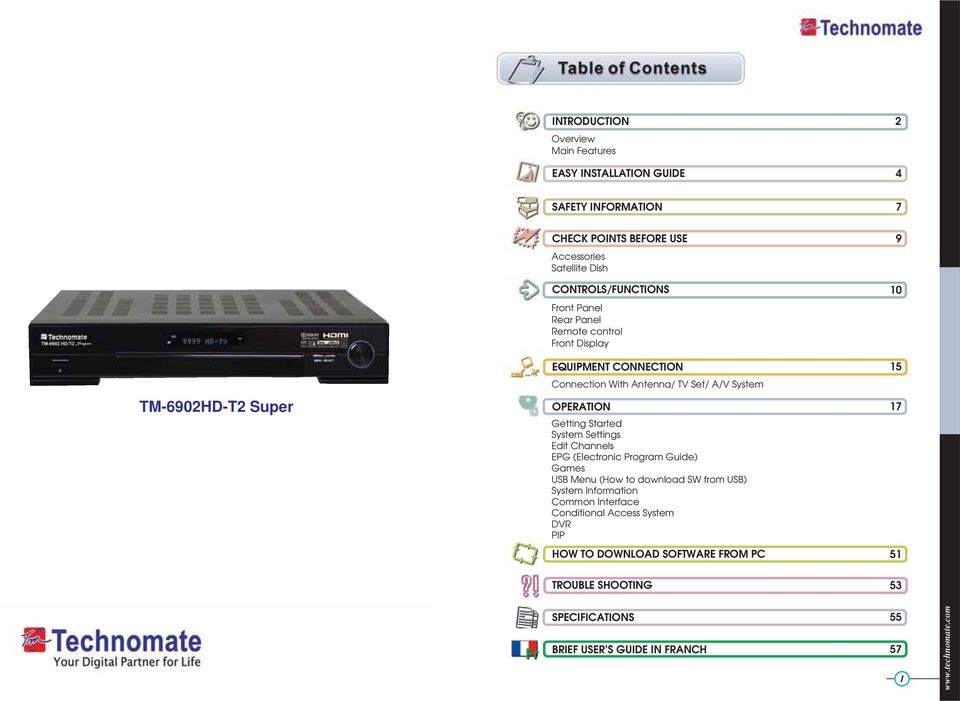
2 INTRODUCTION 2 Overview Main Features EASY INSTALLATION GUIDE 4 SAFETY INFORMATION 7 TM-6902HD-T2 Super CHECK POINTS BEFORE USE Accessories Satellite Dish CONTROLS/FUNCTIONS Front Panel Rear Panel Remote control Front Display EQUIPMENT CONNECTION Connection With Antenna/ TV Set/ A/V System OPERATION Getting Started System Settings Edit Channels EPG (Electronic Program Guide) Games USB Menu (How to download SW from USB) System Information Common Interface Conditional Access System DVR PIP HOW TO DOWNLOAD SOFTWARE FROM PC TROUBLE SHOOTING 53 SPECIFICATIONS BRIEF USER S GUIDE IN FRANCH
3 Parental, Installation & Receiver Lock Zoom function on Pause & Live channel OVERVIEW Multipicture display This satellite receiver is designed for using both free-to-air and encrypted channel Support for multiple language broadcasts reception. Enjoy the rich choice of more than 10,000 different channels, broadcasting a SCPC & MCPC receivable from C/Ku band satellites LNBs supported : Universal, Single, large range of culture, sports, cinema, news, events, etc. This receiver is a technical Single S & C band wideband LNBs masterpiece, assembled with the highest qualified electronic parts. AC 100~250V 50/60Hz LNB Short Circuit protection onboard MAIN FEATURES 2 Scarts, (CVBS, RGB / Loop-through RGB) & S-Video High-Definition Personal Video Recorder (HD PVR) Support e-sata (Only 7200rpm) 1x DVB-S/DVB-S2 Satellite Tuners (MPEG-2, MPEG-4 & H.264) 2xUSB 2.0 Ports: PVR function using external HDD, playback MP3, JPEG Photos & Software 1x DVB-T / DVB-T2 Terrestrial Tuner transfer RF modulator (CH 21 - CH 69 PAL G, I, K, M) Lan 10/100Mbps Ethernet Output resolution : 576p & 576i, 720p, 1080p & 1080i Blind Search 1 Smart Card Reader & 2 Common Interfaces (2CI) Manufactured under license from Dolby Laboratories. HDMI & Component Output (YPbPr) with Upscaler to Improve Picture Quality Dolby and the double-d Symbol are trademarks of Dloby Laboratories. 10,000 TV & Radio Channels DiSEqC is a trademark of EUTELSAT MP3 player and JPEG viewer via internal HDD or USB flash Drive (memory stick) Software & Channel List download via USB 2.0 Fully Featured VFD text Front Panel Display Sensitive Tuner Support 4:2:0 Less than 1 second channel change Dolby Digital Optical S / PDIF DiSEqC 1.0, 1.1, 1.2 & 1.3 (USALS) compatible Auto Navigation system select as many satellites as you want to search On-screen display with true full colour resolution Enhanced 16 Favourite channel groups Channel control by : Favourites, Lock, Skip, Move & Delete Channel sort by : All, Alphavet, Transponder & CAS Multilingual OSD Menu : English, Spanish, Portuguese, French, Dutch, German, Italian, Turkish, Arabic, Russian, Persian, Greek, Czech, Romanian Extended EPG and program reservation on EPG Teletext & Subtitle by OSD and VBI Last channel memory function Factory default channel list Various games Software & channel list upgrade via RS-232C : PC to STB, STB to PC, STB-STB and USB 2 3

4 How to Install a New Satellite (Fixed Non-Motorised System) Press the MENU button on the remote and press the OK button on Installation. Press OK on Satellite Setup and OK again to display a Satellite List. To add a Satellite, press the YELLOW ( )button on the remote. Press the EXIT button on the remote to exit the list. This receiver is preinstalled with 25 Satellite and 1500 default Channels and is fully configured. No settings need to be changed. After turning ON the receiver, select a language and Country. You will be taken to the Viewing mode. Press the SAT button on the Remote and select a satellite. To bring up the Channel List, press the OK button on the remote. To delete unwanted Satellites-press the MENU button on the remote and go to Installation. Press OK and OK on Satellite Setup. Press OK again and a Satellite List will appear. To delete a Satellite, press the BLUE( ) button on the remote. How to Motorise 25 Satellite & 1500 Channels with USALS in 60secs When the Quality Bar is at its highest level, press the RED( ) button on the remote to Scan the Satellite. To view a channel, press the OK button in the Viewing Mode (clear screen) and select any channel. To view $ (Scrambled) channels, a CAM (Decoder) and a viewing card are required. How to Setup a Monoblock or DiSEqC Switch (up to 4 LNBs / Dishes) Press the MENU button on the remote and press the OK button on Installation. Press OK on Satellite Setup and OK again to display a Satellite List. Select a Satellite (e.g. Hotbird 13E and Astra 19.2E) and press the YELLOW button on the remote for each Satellite to Save. Press the EXIT button on the remote to exit the list. This receiver is preinstalled with 25 Satellite and 1500 default Channels, and is fully configured.no settings need to be changed. Press the MENU button on the remote.press OK on Installation. Go to Motorised Setting and press OK. Go to the Third line (DiSEqC Motor) and use the Left/Right arrow buttons on the remote to select USALS. Then go to Position Setting and press OK. Then go to Longitude and Latitude and enter the coordinates of where you live (London s Longitude is West; South of UK s Latitude is 51.5 North).Press the EXIT button on the remote. Go to GOTO and press OK. Wait until the Signal Quality is more than 40% in the progress bar. When a Satellite is found, then all the selected 25 Satellites are fully configured for a Motorised system. Go to DiSEqC Switching and select a Satellite (e.g. Hotbird 13E as Number 1 and Astra 19.2E as Number 2). When the Quality Bar is at its highest level for each Satellite, press the RED ( ) button on the remote to Scan. To view a channel, press the OK button in the Viewing Mode (clear screen) and select any channel. To view $ (Scrambled) channels, a CAM (Decoder) and a viewing card are required. If the above installation was not successful, change the DiSEqC Switching number, e.g. Hotbird 13E as Number 2 and Astra 19E as Number 1. How to Setup DiSEqC 1.2 Motorised System If the Signal Quality is below 40%, then the settings are incorrect and the Longitude needs to be adjusted, for example: 000.2, 000.3, 000.4,5/6/7/8/9 West or East. The Latitude may also need to be adjusted. If you still have not got a signal, then the external installation (dish, etc) needs to be adjusted. Press the MENU button on the remote and press the OK button on Installation. Press OK on Satellite Setup and OK again to display a Satellite List. Select a Satellite (e.g. Hotbird 13E and Astra 19.2E) and press the YELLOW button on the remote for each Satellite to Save. Press the EXIT button on the remote to exit the list. How to Setup a DiSEqC 1.2 Motorised System Press the MENU button on the remote and go to Installation and press OK. Go to Motorised Setting and press OK. Press OK again to open the satellite list. Select a satellite from the list and press OK. Go to the Third line (DiSEqC Motor) and use the Left/Right buttons on the remote to select DiSEqC 1.2. Go to Move and press and hold the Left/Right buttons on the remote until you get a Signal Quality of more than 40%. Go to Save and press OK. Press the RED( )button on the remote to Scan. To scan extra satellites, repeat the above. How to do a Factory Reset to Delete the Preinstalled Satellites and Channels If you want to start the receiver without the preinstalled Satellites and Channels, press the MENU button on the remote and go to System Settings and press the OK button. Go to Factory Reset, press OK and enter Then select Factory Reset. Press OK and select Yes. 4 Press the EXIT button again. Press OK on Motorised Setting. Press OK again to display a Satellite List. Select a Satellite and press OK. Go to the Third line (DiSEqC Motor) and use the Left/Right buttons on the remote to select DiSEqC 1.2. Go to Move and press and hold the Left/Right buttons on the remote until you get a Signal Quality of more than 40%. Go to Save and press OK. Press the RED button on the remote to Scan. Repeat the above for more satellites. How to Setup a USALS Motorised System Press the MENU button on the remote and press the OK button on Installation. Press OK on Satellite Setup and OK again to display a Satellite List. Select a Satellite (e.g. Hotbird 13E and Astra 19.2E) and press the YELLOW ( ) button on the remote for each Satellite to Save. Press the EXIT button on the remote to exit the list. Press the EXIT button again. Go to Motorised Setting and press OK. Go to the Third line (DiSEqC Motor) and use the Left/Right arrow buttons on the remote to select USALS. Then go to Position Setting and press OK. Then go to Longitude and Latitude and enter the coordinates of where you live (London s Longitude is West; South of UK s Latitude is 51.5 North). Press the EXIT button on the remote. Go to GOTO and press OK. Wait until the Signal Quality is more than 40% in the progress bar. Press the RED ( ) button on the remote to Scan. 5

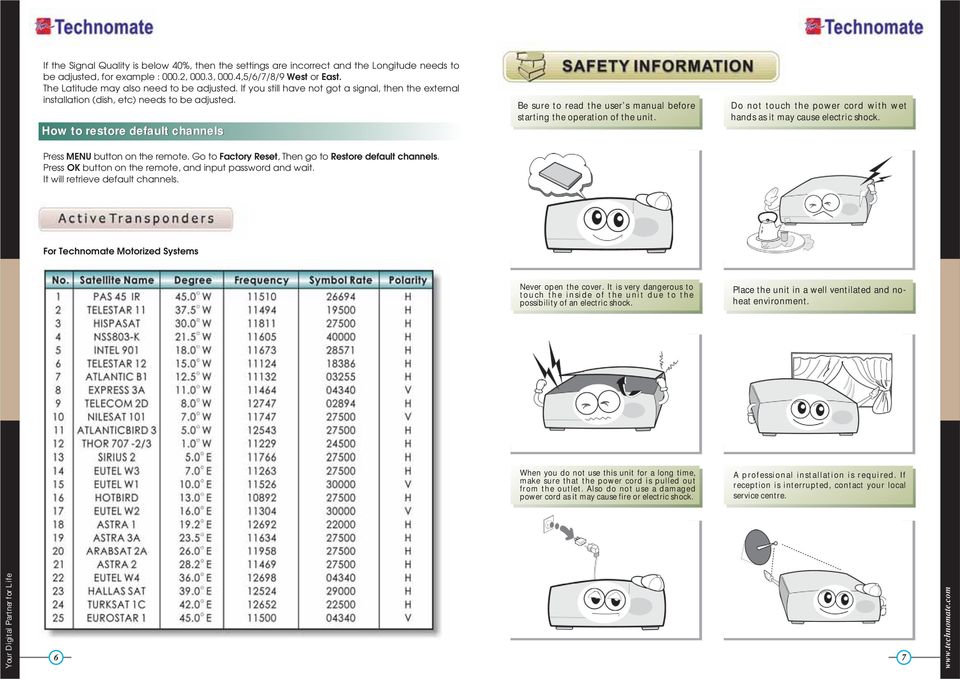
5 If the Signal Quality is below 40%, then the settings are incorrect and the Longitude needs to be adjusted, for example : 000.2, 000.3, 000.4,5/6/7/8/9 West or East. The Latitude may also need to be adjusted. If you still have not got a signal, then the external installation (dish, etc) needs to be adjusted. How to restore default channels Press MENU button on the remote. Go to Factory Reset, Then go to Restore default channels. Press OK button on the remote, and input password and wait. It will retrieve default channels. Be sure to read the user s manual before starting the operation of the unit. Do not touch the power cord with wet hands as it may cause electric shock. For Technomate Motorized Systems Never open the cover. It is very dangerous to touch the inside of the unit due to the possibility of an electric shock. Place the unit in a well ventilated and noheat environment. When you do not use this unit for a long time, make sure that the power cord is pulled out from the outlet. Also do not use a damaged power cord as it may cause fire or electric shock. A professional installation is required. If reception is interrupted, contact your local service centre. 6 7
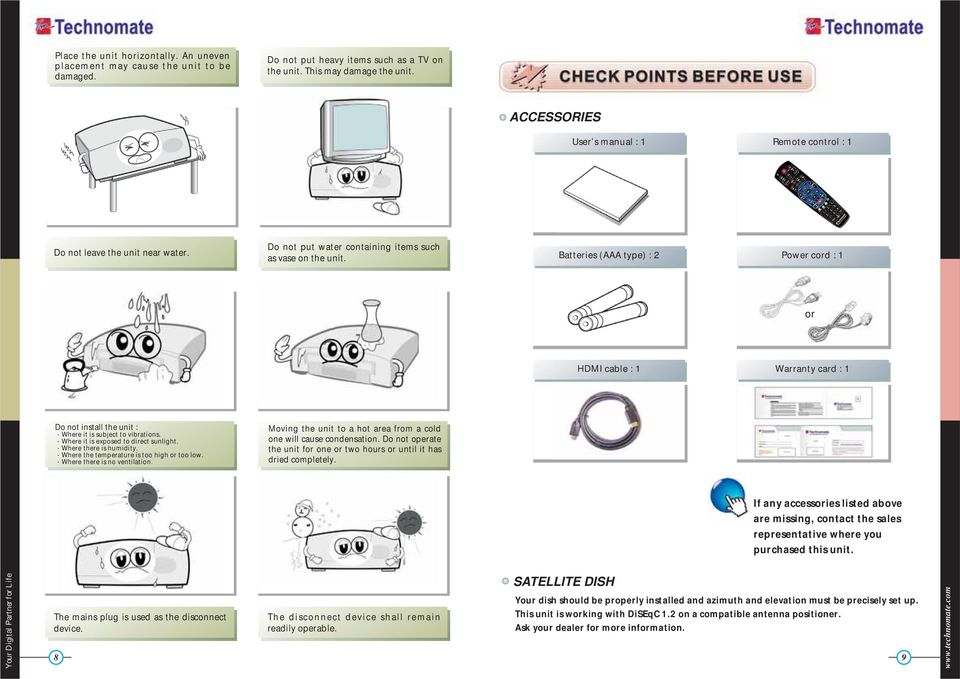
6 Place the unit horizontally. An uneven placement may cause the unit to be damaged. Do not put heavy items such as a TV on the unit. This may damage the unit. ACCESSORIES User s manual : 1 Remote control : 1 TM-6902 HD-T2 Do not leave the unit near water. Do not put water containing items such as vase on the unit. Batteries (AAA type) : 2 Power cord : 1 or HDMI cable : 1 Warranty card : 1 Do not install the unit : Where it is subject to vibrations. Where it is exposed to direct sunlight. Where there is humidity. Where the temperature is too high or too low. Where there is no ventilation. Moving the unit to a hot area from a cold one will cause condensation. Do not operate the unit for one or two hours or until it has dried completely. If any accessories listed above are missing, contact the sales representative where you purchased this unit. The mains plug is used as the disconnect device. The disconnect device shall remain readily operable. SATELLITE DISH Your dish should be properly installed and azimuth and elevation must be precisely set up. This unit is working with DiSEqC 1.2 on a compatible antenna positioner. Ask your dealer for more information. 8 9
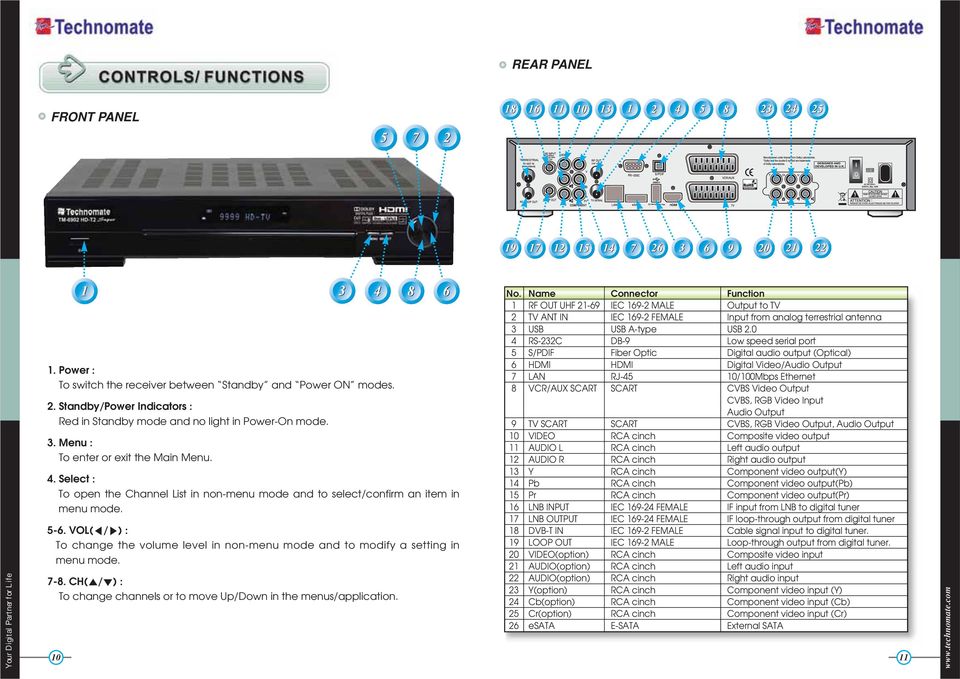
7 REAR PANEL FRONT PANEL 1. Power : To switch the receiver between Standby and Power ON modes. 2. Standby/Power Indicators : Red in Standby mode and no light in Power-On mode. 3. Menu : To enter or exit the Main Menu. 4. Select : To open the Channel List in non-menu mode and to select/confirm an item in menu mode VOL( / ) : To change the volume level in non-menu mode and to modify a setting in menu mode CH( / ) : To change channels or to move Up/Down in the menus/application. No. Name Connector Function 1 RF OUT UHF IEC MALE Output to TV 2 TV ANT IN IEC FEMALE Input from analog terrestrial antenna 3 USB USB A-type USB RS-232C DB-9 Low speed serial port 5 S/PDIF Fiber Optic Digital audio output (Optical) 6 HDMI HDMI Digital Video/Audio Output 7 LAN RJ-45 10/100Mbps Ethernet 8 VCR/AUX SCART SCART CVBS Video Output CVBS, RGB Video Input Audio Output 9 TV SCART SCART CVBS, RGB Video Output, Audio Output 10 VIDEO RCA cinch Composite video output 11 AUDIO L RCA cinch Left audio output 12 AUDIO R RCA cinch Right audio output 13 Y RCA cinch Component video output(y) 14 Pb RCA cinch Component video output(pb) 15 Pr RCA cinch Component video output(pr) 16 LNB INPUT IEC FEMALE IF input from LNB to digital tuner 17 LNB OUTPUT IEC FEMALE IF loop-through output from digital tuner 18 DVB-T IN IEC FEMALE Cable signal input to digital tuner. 19 LOOP OUT IEC MALE Loop-through output from digital tuner. 20 VIDEO(option) RCA cinch Composite video input 21 AUDIO(option) RCA cinch Left audio input 22 AUDIO(option) RCA cinch Right audio input 23 Y(option) RCA cinch Component video input (Y) 24 Cb(option) RCA cinch Component video input (Cb) 25 Cr(option) RCA cinch Component video input (Cr) 26 esata E-SATA External SATA 10 11
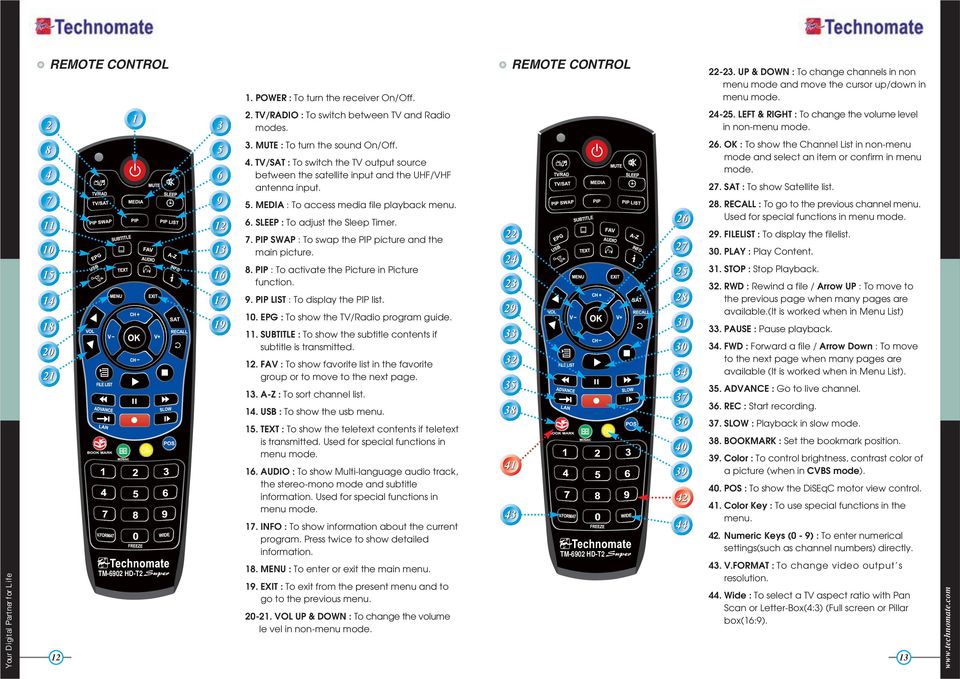
8 REMOTE CONTROL TM-6902 HD-T2 1. POWER : To turn the receiver On/Off. 2. TV/RADIO : To switch between TV and Radio modes. 3. MUTE : To turn the sound On/Off. 4. TV/SAT : To switch the TV output source between the satellite input and the UHF/VHF antenna input. 5. MEDIA : To access media file playback menu. 6. SLEEP : To adjust the Sleep Timer. 7. PIP SWAP : To swap the PIP picture and the main picture. 8. PIP : To activate the Picture in Picture function. 9. PIP LIST : To display the PIP list. 10. EPG : To show the TV/Radio program guide. 11. SUBTITLE : To show the subtitle contents if subtitle is transmitted. 12. FAV : To show favorite list in the favorite group or to move to the next page. 13. A-Z : To sort channel list. 14. USB : To show the usb menu. 15. TEXT : To show the teletext contents if teletext is transmitted. Used for special functions in menu mode. 16. AUDIO : To show Multi-language audio track, the stereo-mono mode and subtitle information. Used for special functions in menu mode. 17. INFO : To show information about the current program. Press twice to show detailed information. 18. MENU : To enter or exit the main menu. 19. EXIT : To exit from the present menu and to go to the previous menu VOL UP & DOWN : To change the volume le vel in non-menu mode. REMOTE CONTROL TM-6902 HD-T UP & DOWN : To change channels in non menu mode and move the cursor up/down in menu mode LEFT & RIGHT : To change the volume level in non-menu mode. 26. OK : To show the Channel List in non-menu mode and select an item or confirm in menu mode. 27. SAT : To show Satellite list. 28. RECALL : To go to the previous channel menu. Used for special functions in menu mode. 29. FILELIST : To display the filelist. 30. PLAY : Play Content. 31. STOP : Stop Playback. 32. RWD : Rewind a file / Arrow UP : To move to the previous page when many pages are available.(it is worked when in Menu List) 33. PAUSE : Pause playback. 34. FWD : Forward a file / Arrow Down : To move to the next page when many pages are available (It is worked when in Menu List). 35. ADVANCE : Go to live channel. 36. REC : Start recording. 37. SLOW : Playback in slow mode. 38. BOOKMARK : Set the bookmark position. 39. Color : To control brightness, contrast color of a picture (when in CVBS mode). 40. POS : To show the DiSEqC motor view control. 41. Color Key : To use special functions in the menu. 42. Numeric Keys (0-9) : To enter numerical settings(such as channel numbers) directly. 43. V.FORMAT : To change video output s resolution. 44. Wide : To select a TV aspect ratio with Pan Scan or Letter-Box(4:3) (Full screen or Pillar box(16:9)
9 FRONT DISPLAY CONNECTION WITH ANTENNA / TV SET / A/V SYSTEM Power On/Off mode. 2 It is displayed when a Satellite signal is present Connect the TV antenna to TV ANT IN. 2. Connect the Video and Audio of TV to the Video and Audio. Connect Red and White connector to Audio R and Audio L, and Yellow into Video port respectively. 3. Connect the Component Video of your TV to Component Video of best quality. Connect the Y, Pb and Pr of your TV to Y, Pb and Pr respectively It is displayed when a channel is recording. It is displayed when Time-Shift mode is enabled. It is displayed when Time-Shift mode is enabled. It is displayed when a Timer is set (in Standby mode). It is displayed when the channel is HD. It is displayed when a USB device is connected. It is displayed when a channel is locked. It is displayed when a channel is broadcasted in Dolby Digital Audio. It is displayed when the audio is muted. Feature not supported. Feature not supported. It is displayed when the MP3 player is enabled. It is displayed when Loop mode is selected in the MP3 player. It is displayed when you are in Radio mode. It is displayed when you are in TV mode. It is displayed when a Terrestrial signal is present. 4. Connect your satellite dish. RFIN It is displayed when in Playback mode in File List. It is displayed when during Playback. Displays the video output s resolution. It is displayed if the resolution Progressive or Interlaced. * Note : In some receivers TV scart is at the top or bottom of the rear of the receiver please follow the Writing of the TV then connect your scart cable for viewing

10 Satellite Setup GETTING STARTED Turn your receiver power on and proceed with system setup as follows : Menu Language Setting Country 1. Turn on your TV and receiver. 2. The language selection menu will be displayed, select a language and press the OK button on. 1. Select a country and press the OK button on. 1. Press the MENU button on the remote to display the main menu. 2. Use / and / button on the remote to move in the menu. 3. Select Satellite Setup, the Satellite Setup menu will appear. 4. Select each menu you want to edit/change. - Satellite : Select any satellite by pressing / buttons on the remote. - Transponder : Select the Transponder. - LNB Power : Select LNB Power ON/OFF / 13V / 18V. - LNB Type : Select your LNB Type Single / Universal / OCS. - LNB Freq : Select LNB oscillator frequency. - 22KHz : Select ON/OFF of 0/22 KHz. - DiSEqC 1.0 : Select DiSEqC 1.0 Port. - DiSEqC 1.1 : Select DiSEqC 1.1 Port. 5. Scan : Press Red ( ) button on the remote to begin satellite search. 6. Rename : Press Green ( ) button on the remote to rename the selected satellite. 7. Auto Navigation : Press Green ( ) button on the remote to begin auto navigation. 8. Save : Press Yellow ( ) button on the remote to save the selected satellite. 9. Delete : Press Blue ( ) button on the remote to de select the selected satellite
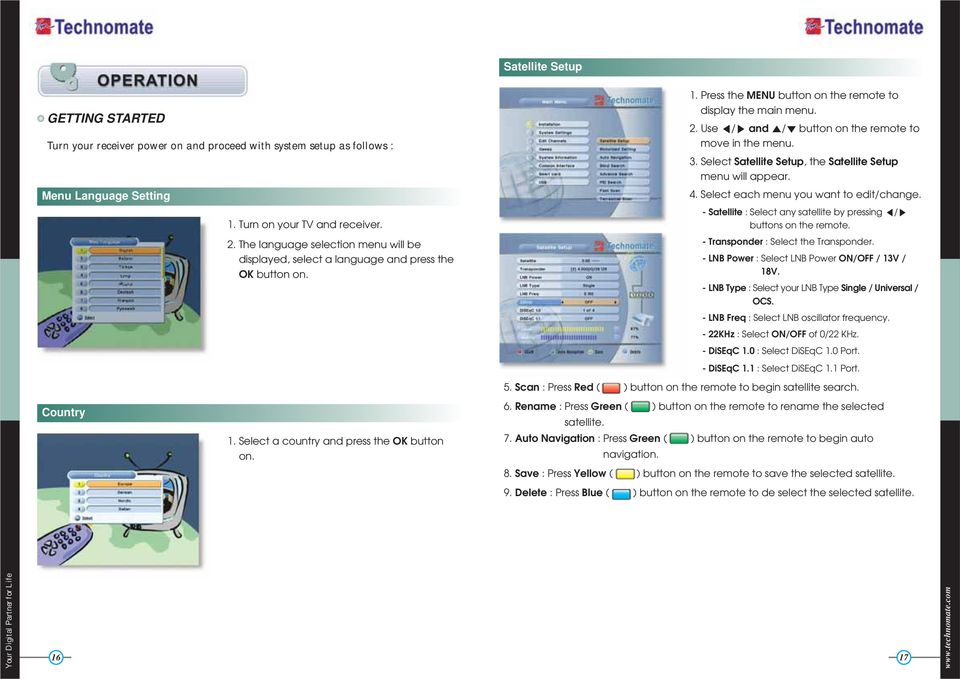
11 Motorized Setting 1. Press the MENU button on the remote to display the main menu. 2. Use the / and / buttons on the remote to move in the menu. 3. Select Motorized Setting, the Motorized Setting menu will appear. 4. Select each menu you want to edit / change. Delete Limit : Delete east and west limit. Enable Limit : Enable the saved east and west limit. Set East Limit : Edit & Save east limit by pressing / or OK buttons. Set West Limit : Edit & Save west limit by pressing / or OK buttons. - Go To : Go to the position of the saved satellite. - Save : Save the current setting of DiSEqC 1.2 system. 2. Scan : Press Red ( ) button on the remote to begin satellite search. - Satellite : Select any satellite by pressing / 3. Auto Navigation : Press Green ( ) button on the remote to begin auto buttons on the remote. navigation. - Transponder : Displays the current TP value of the selected satellite. - DiSEqC Motor : Select DiSEqC Motor type OFF/1.2/USALS. USALS System Setup - Save : Press OK button on the remote to save. 5. Scan : Press Red ( ) button on the remote to begin satellite search. 6. Auto Navigation : Press Green ( ) button on the remote to begin auto navigation. 1. Select USALS on DiSEqC Motor, the USALS menu will appear. - Satellite : Select any satellite by pressing / buttons. - Transponder : Display the current TP value of the selected satellite. DiSEqC 1.2 Setup - DiSEqC Motor : Select DiSEqC Motor USALS. - Move : Move the dish position to West/East by 1. Select DiSEqC 1.2 on DiSEqC Motor, the DiSEqC 1.2 menu will appear. pressing / buttons. - Motor Control : Control Motor by press OK button - Satellite : Select any satellite by pressing / buttons. - Transponder : Displays the current TP value of the selected satellite. - DiSEqC Motor : Selected DiSEqC Move : Move the dish position to west/east by pressing / buttons. - Move Fine : Move the dish position 1 step at a time to west/east by pressing / buttons. - Motor Control : Control motor by press OK button on the remote. on the remote. Goto Reference : Goto reference by pressing OK button. Delete Limit : Delete limit by pressing OK button. Enable Limit : Enable the saved east and west limit. Set East Limit : Edit & Save east limit by pressing / or OK buttons. Set West Limit : Edit & Save west limit by pressing / or OK buttons. Recalculate : Recalculate the position of all other saved satellites relative to the known position. Reset System : Reset the position of all saved satellites. Goto Reference : Move the dish to the 0 position Sat Degree : Displays the current degree of the selected satellite. Edit degree by pressing / buttons and numeric buttons. 19
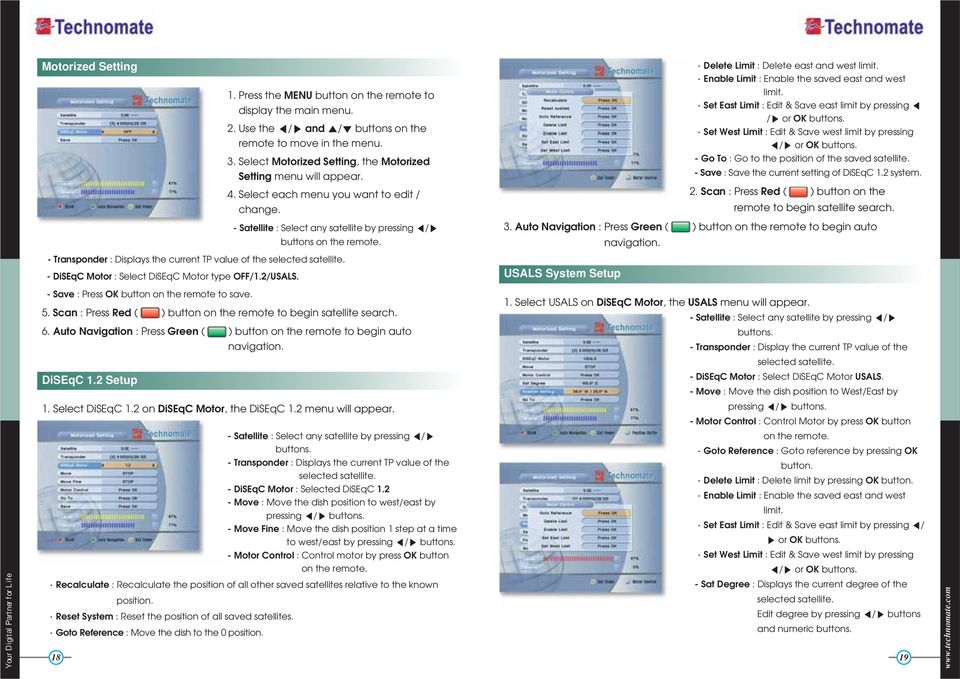
12 Goto Reference : Move the dish to the 0 position. Antenna Longitude : Edit antenna longitude by pressing / buttons and numeric buttons. Antenna Latitude : Edit antenna latitude by pressing / buttons and numeric buttons. - Go To : Save the current setting of USALS System. 2. Scan : Press Red ( ) button on the remote to begin satellite search. 3. Auto Navigation : Press Green ( ) button the remote to begin auto navigation. * Note : When you change each parameter, you need to know exact parameter of the LNB to modify L.O(local oscillator) frequency. DiSEqC Motor View Control Auto Navigation 1. Select DiSEqC 1.2 or USALS in the Motorized Setting menu. 2. In the viewing mode, Press POS button on the remote to display DiSEqC Motor View Control. 3. Press / buttons on the remote to move DiSEqC Motor to get the best singal. All the available channels/satellites can be searched in this menu. Select the satellite and save before Auto Search. 1. Press the MENU button on the remote to display the main menu. 2. Use the / and / buttons to move in the menu. 3. Select Auto Navigation, Auto Navigation menu will appear. 4. Select the satellites you want to search by pressing the OK button on the remote. You can select more satellites by pressing the / buttons and OK button on the remote. - Search Type : Select the type of channel search you want by pressing / buttons on the remote. All : To search all the Free To Air and scrambled channels, TV & Radio channels. Free : To search Free To Air channels only. TV : To search TV channels only. - Network Search : Select Network Search ON/OFF to find more transponders through NIT Search. - Scan : Begin channel search of the selected satellite. 5. Auto Navigation : Press Red ( ) button on the remote. 6. Auto Navigation Blind Search : Press Green( ) button on the remote and then begin Blind Search of the selected satellite. * Note : Make sure that the signal level of the selected satellites is high by the signal quality bar. If the signal quality is lower than 50%, go gack to satellite Setup and check LNB DiSEqC Switching, ect. Blind Search 1. Select the satellites you want to search by pressing the button on the remote. 2. For Polarization, choose from ALL, V or H. For Scan Mode choose either Fast or Detail. 3. Press the OK button to start scanning. 4. Auto Navigation Blind Search : Press Red( )button on the remote and then begin Blind Search of all selected satellite
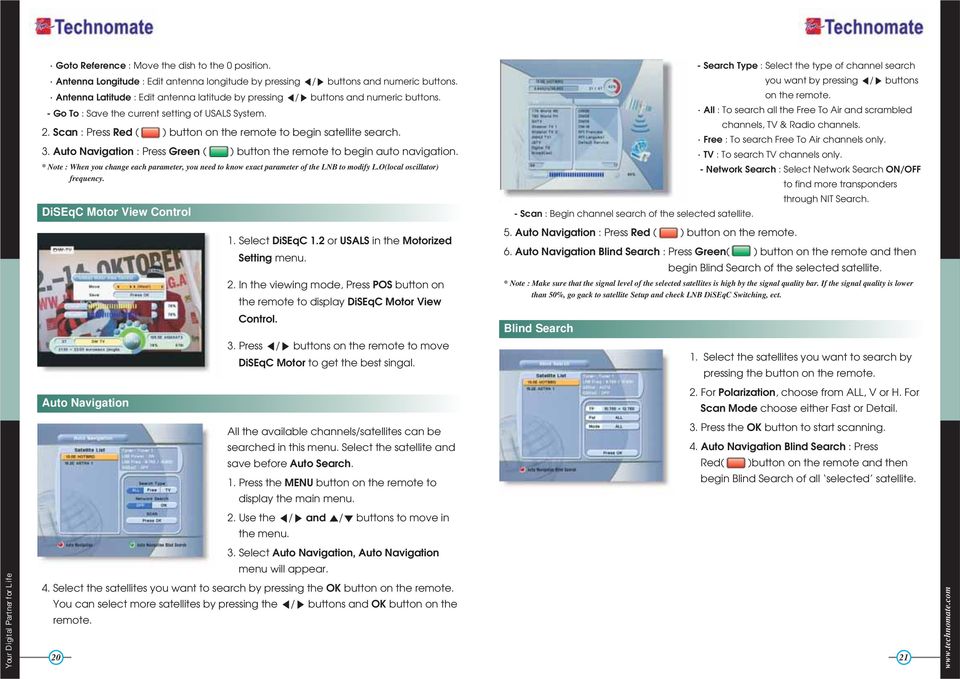
13 Advance Search - Manual Scan 1. Select the channel number or frequency Te edit and search channels on newly that you want to search by using the launched satellites or not preprogrammed UP/DOWN buttons on the remote control, satellites in the list. manually enter a frequency. 1. Press the MENU button to display the main 2. For Bandwidth, choose either 7 MHz or 8MHz memu. For Search Type, choose from : All Channel, 2. Use / and / buttons to move in the FTA Only or TV Only. menu. 3. For Network Search, select ON to find the 3. Select Advence Search, the Advence most channels available. The Strength and Search menu will appear. Quality of the signal from the selected 4. Select each menu you want to edit/ change. channel is shown by the Level and Quality - Satellite : Select a satellite by pressing / buttons on the remote. indicators at the bottom of the screen. - Transponder : Displays the current Transponder list of the selected satellite. 4. Antenna Supply 5V : Select antenna booster - Symbol Rate : Displays the current symbol rate list of the selected transponder. power ON / OFF. - Polarization : Select Horizontal/ Vertical. - Search Type : Select All Channel/ FTA Only/ TV Only. 5. Press the OK button to start scanning. - Network Search : Select Network Search ON/OFF. 5. Scan : Press Red ( ) button on the remote to begin satellite search. PID Search 6. Add TP : Press Green ( ) button on the remote to add new transponders by using numeric buttons 0~9 and / buttons on the remote. Edit the information of the current transponder 7. Delete TP : Press Yellow ( ) button on the remote to delete transponders. PID/Audio PID/PCR PID and search the satellite. 1. Press the MENU button on the remote to Terrestrial Scan display the main menu. 2. Use / and / buttons on the remote to Through this function, the receiver searches for move in the menu. all the available channels and saves them in 3. Select PID Search, then the PID Search menu memory. will be displayed. - Satellite : Select a transponder which you want to - Auto Scan search. 1. When the Quality is at its highest level, press - Transponder : Displays the Transponders of the selected satellite. the YELLOW( ) button on the remote - Symbol Rate : Displays the current symbol rate list of the selected transponder. control to start scanning for channels. - Polarization : Select Vertical/ Horizontal. - Video PID / Audio PID / PCR PID : Select and edit by using numeric buttons 0~9 and / buttons on the remote
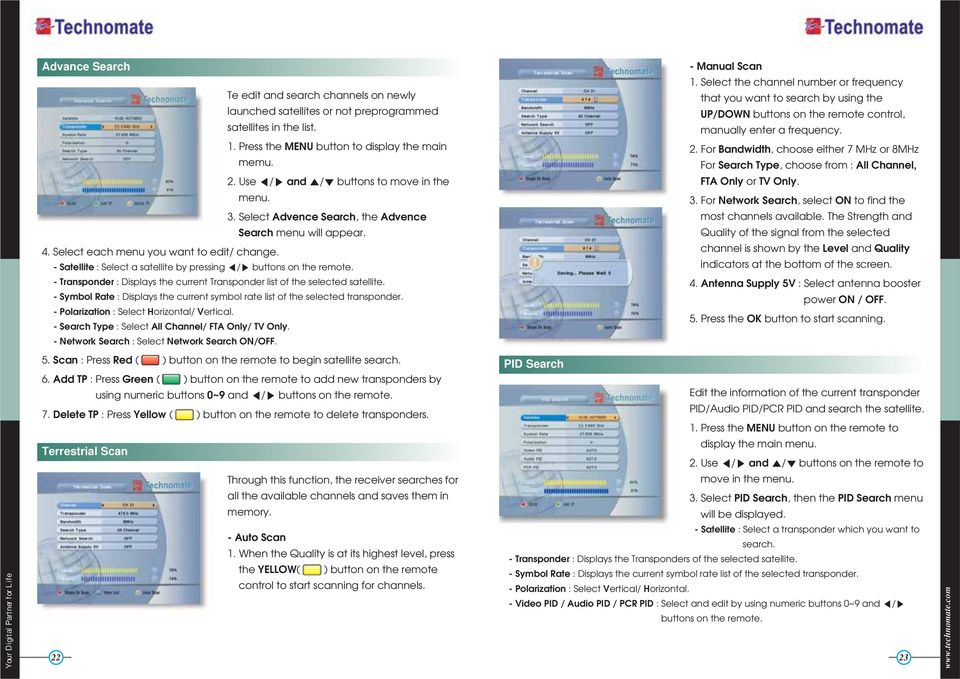
14 4. Scan : Press Red ( ) button on the remote to begin PID Search. 5. Add TP : Press Green ( ) button on the remote to edit transponder by using numeric buttons 0~9 and / buttons on the remote. 6. Delete TP : Press Yellow ( ) button on the remote to delete the selected transponder. * Note : Setup is now completed. If you cannot see programme after finishing these procedures, please contact your local dealer. - RED ( ) : Displays all channels in current satellite. - GREEN ( ) : Displays channels sorted by alphabetical order. - YELLOW ( ) : Displays channels sorted by transponder. - BLUE ( ) : Displays channels sorted by FTA/ FTA + Scrambled / CAS. 3. When the selection bar is positioned on the channel you want to see, press OK on the remote. Fast Scan Channel Selection 1. For Provider choose either Canal Digitaal or TV Vlaanderen. 2. For CHs Renumber select ON/OFF 3. Press the Red( ) button. Other Functions of the Remote Control Volume Control 1. While you are watching a program me, press / buttons on the remote to control volume. 2. Press the MUTE button to turn off the sound of the program me. Press MUTE button again to turn the sound On. Channel Information Displays the information of a program me by pressing INFO button on the remote. TV/ RADIO switching You can press this key to change from a TV channel to a Radio channel or vice versa. If you know the channel number, enter the RECALL channel number by using numeric buttons Press to return to the previous channel. on the remote and wait 2 seconds until the channel changes. Audio Press to adjust the subtitle and / or audio status of the current channel : If you know the channel name, press OK - Audio Mode : Select between, Stereo -> Mono-Left -> Mono-Right button on the remote, then the channel list - Audio Track : Select between tracks available in this program will be displayed. Select the channel you - Audio Level : Select between, High -> Medium -> Low want to watch by using /, OK buttons on the remote. * Note : These subtitle and audio paramenters are workable only when the desired channel supports these functions. 1. In the right side of screen, detailed information of the selected channel is TEXT displayed. (Satellite Name, TP and Channel Name) The Teletext service is a text data service sometimes available from the Service 2. You can navigate between channels with these buttons. Provider. - / : Moves up/ down SAT - / or / / : Moves page up / page down. Press the SAT button on the remote and select a satellite in the Satellite List
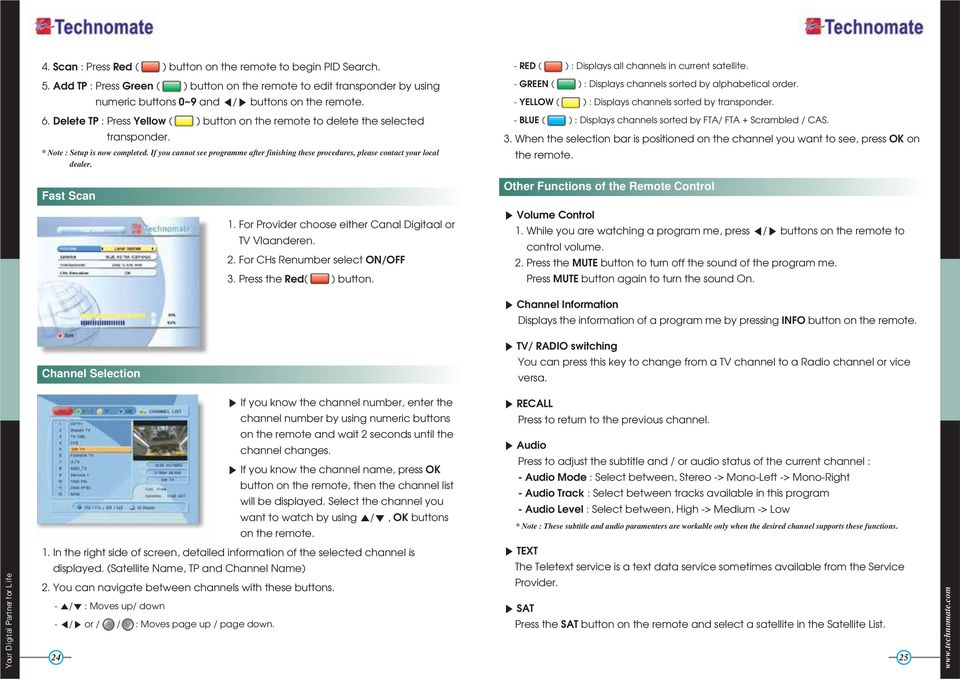
15 FAV Press FAV button on the remote to display a favorite channel list int the favorite group. FREEZE You can press this key to freeze the video. Press it again to resume the video. GROUP When watching TV or listening to Radio, you can press this button to view the list of satellite and / or favorite channel groups. Only registered satellites and favorite groups are displayed. SUBTITLE You can press select the subtitle language of current channel. SLEEP You can set the receiver to turn off after a few minutes. Press the SLEEP button to set a Sleep timer. - To cancel a Sleep Timer, press the SLEEP button until you set the time as 0 min. (Disable, 10, 20, 30, 60, 100, 120 Minutes) Multi Picture Display Press the MOSAIC button on the remote to display multi-picture mode. You can select the numbers of multipictures. eg. 1x2, 2x2, 2x3, 3x3 ZOOM You can press to zoom in the video. 1. Press the PAUSE button and press ZOOM button You can zoom in sections of Freezed Video. 2. While watching a program, press. You can zoom in sections of playing video. 3. To cancel the freeze status, please release the zoom status. V.FORMAT Press the V.FORMAT button to change the video resolution : 1080p > 1080i > 720p > 576p > 576i WIDE Press the WIDE button to change the TV s Aspect Ratio : - 4:3 : Pan-Scan or Letter-Box - 16:9 : Full-Screen or Pillar-Box 26 27
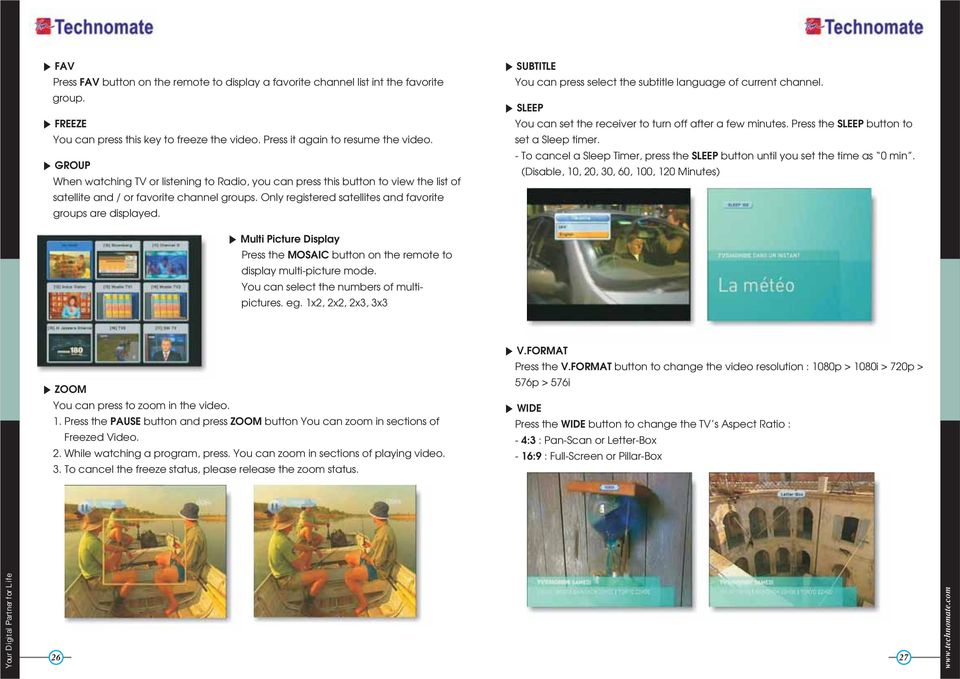
16 SYSTEM SETTINGS Time Setting COLOR Adjustment Press the COLOR button on the remote to select Color Adjustment menu. By using the / buttons on the remote, you can adjust the brightness, contrast and the color of picture. This sub-menu allows you to set your local time,wake up time, wake up channel and sleep time. - GMT Usage : If you turn it ON, local time is determined by adjusting the differences from GMT (Greenwich Meantime), according to your location. - Current Date : If GMT Usage is ON, this date is determined by GMT. If GMT Usage is OFF, you can modify this by pressing the OK button on the remote. If you set OFF, the receiver doesn t refer to GMT. Local time is determined by asjusting current date and current time. - Current Time : If GMT Usage is ON, this time is determined by GMT. If GMT Usage is OFF, you can modify this by pressing any NUMERIC button. - Local Offset : If GMT Usage is ON, the Local time is GMT time + Local Offset. - Summer Time : Select the period during which Summer Time is in force. - Wake Up Mode : You can set the cycle of the wake up mode Off/Once/Daily. - Wake Up Time : You can set wake up time by pressing any NUMERIC button. - Wake Up Channel : You can set wake up channel by pressing the OK button on the remote. - Sleep Mode : You can set the cycle of the sleep mode : Off/Once/Daily. - Sleep Time : You can set a sleep time by pressing any NUMERIC button. - Automatic Standby : Selects auto standby time (OFF/After 1~8Hour) After making your selection press (OK key) to confirm - Timer Lead Time : Press (OK key) to set the Timer Lead In And Lead Out Time. A/V Output Setting This submenu allows you to specify the audio/video output setting. - Audio Language : Set the default audio language when selecting a channel. - Subtitle Language : Set the default subtitle language. - SCART : Select the SCART output.(cvbs/rgb) - Screen Format : Select the screen format. (16:9 / 4:3) - Display Format : Select the TV aspect ratio (Letter Box/Pan Scan, Full Screen/Pillar Box) - RF Type : Select among supported PAL standards.(pal B/G, PAL I, PAL D/K). - RF Channel : Set the RF channel to which to display the audio and video signals on your TV set (21 to 69); if you select 40, they will be displayed at channel 40 on your TV set. - Video Format : Select the Scanning type (Interaced, Progressive) - Digital Audio : Select the Audio output type (Dolby SPDIF / PCM / DOLBY HDMI) - Radio Backpicture : Set the radio backpicture to On/Off OSD Setting This sub-menu allows you to set the menu language, OSD transparency, Information and volume timeout. - Menu Language : Select the desired language of the menu. - Transparency : Select OSD transparency of the menu. (1%~100%) - Information Timeout : Select the display duration of the information banner 1 sec / 2 sec / 3 sec / 5 sec / 10 sec. - Volume Timeout : Select the display duration of the volume box1 sec / 2 sec / 3 sec / 5 sec / 10 sec. - Moving Display Message : Turn the DiSEqC moving message ON/OFF. - Use Recall list : Store previous channels. If you press recall key on RCU then you will show recall list
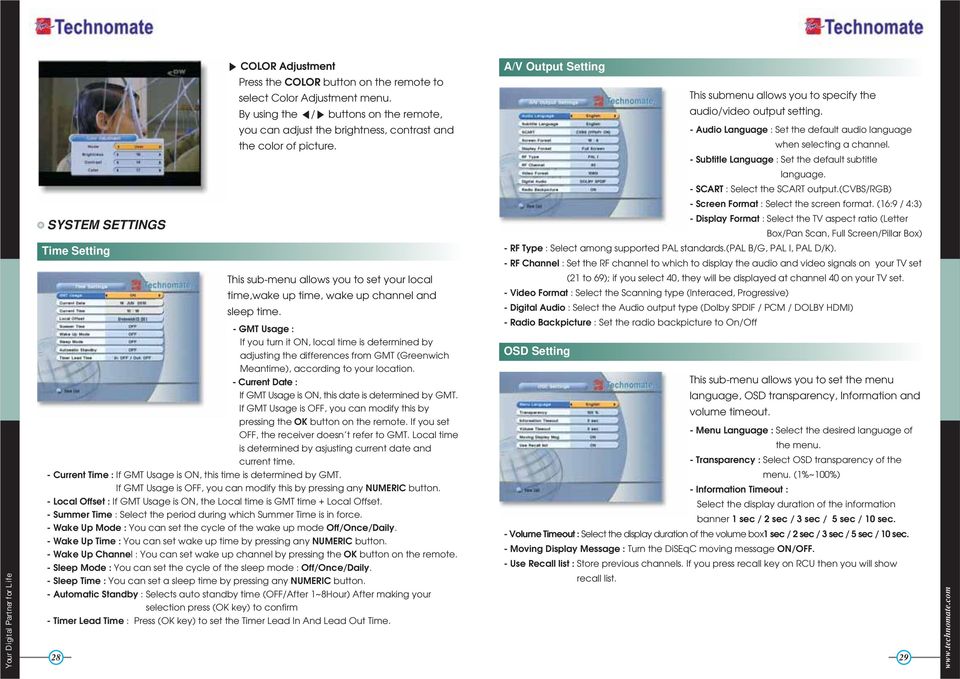
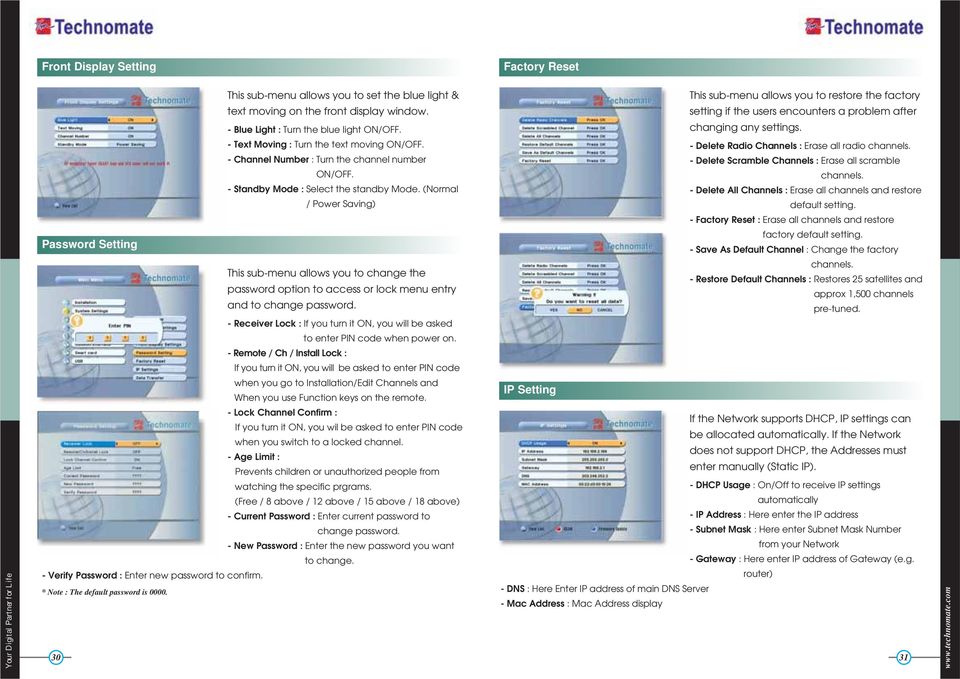
17 Front Display Setting Factory Reset This sub-menu allows you to set the blue light & This sub-menu allows you to restore the factory text moving on the front display window. setting if the users encounters a problem after - Blue Light : Turn the blue light ON/OFF. changing any settings. - Text Moving : Turn the text moving ON/OFF. - Delete Radio Channels : Erase all radio channels. - Channel Number : Turn the channel number - Delete Scramble Channels : Erase all scramble ON/OFF. channels. - Standby Mode : Select the standby Mode. (Normal - Delete All Channels : Erase all channels and restore / Power Saving) default setting. - Factory Reset : Erase all channels and restore factory default setting. Password Setting - Save As Default Channel : Change the factory channels. This sub-menu allows you to change the - Restore Default Channels : Restores 25 satellites and password option to access or lock menu entry approx 1,500 channels and to change password. pre-tuned. - Receiver Lock : If you turn it ON, you will be asked to enter PIN code when power on. - Remote / Ch / Install Lock : If you turn it ON, you will be asked to enter PIN code when you go to Installation/Edit Channels and IP Setting When you use Function keys on the remote. - Lock Channel Confirm : If the Network supports DHCP, IP settings can If you turn it ON, you wil be asked to enter PIN code be allocated automatically. If the Network when you switch to a locked channel. does not support DHCP, the Addresses must - Age Limit : enter manually (Static IP). Prevents children or unauthorized people from watching the specific prgrams. - DHCP Usage : On/Off to receive IP settings (Free / 8 above / 12 above / 15 above / 18 above) automatically - Current Password : Enter current password to - IP Address : Here enter the IP address change password. - Subnet Mask : Here enter Subnet Mask Number - New Password : Enter the new password you want from your Network to change. - Gateway : Here enter IP address of Gateway (e.g. - Verify Password : Enter new password to confirm. router) * Note : The default password is DNS : Here Enter IP address of main DNS Server - Mac Address : Mac Address display 30 31
18 Data Transfer - Firmware update : Support download from a LAN. 1) BLUE button, appear input target IP address. 2) button to connect after input a target IP. 3) Choose a update software and (OK)button for downloading. * Note : Have to run PC tool before connect PC. This sub-menu allows you to transfer the software of a receiver to another receiver. - Firmware : Transfer the firmware of a receiver to another receiver. - Games : Transfer the game data of a receiver to another receiver. - All : Transfer all data (Firmware + Channel Data + Games) to another receiver. EDIT CHANNELS Set Favorites This sub-menu allows you to set up favorite name and favorite lists. You can choose TV or Radio channels by pressing the TV/RADIO button. Supports is for 16 favorite groups. 1. Press the MENU button on the remote to display the main menu. 2. Use / and / button on the remote to move in the menu. 3. Select Set Favorites, Select Favorite Group will appear. 4. Select a favorite group by pressing the / and OK buttons on the remote. The TV/Radio channel list will appear. If you want to edit the favorite group name, press the RED ( ) button on the remote. A virtual keyboard will appear. 5. Set favorite channels by pressing the / and OK buttons on the remote. The selected channels will have a heart symbol on the right. Press the OK button on the remote again to remove the channel from a favorite group. 6. Press the EXIT button on the remote to return to the previous menu

19 Rename CH / Edit PIDs Lock Channels Move Channels This sub-menu allows you to rename the channels and input user PID. You can switch between TV or Radio channels by pressing the TV/RADIO button on the remote. 1. Select Rename CH / Edit Pids, the Rename CH / Edit PIDs menu will appear. 2. Press the OK button on the channel that you want to edit. 3. Press the OK button on Edit Name to rename a channel. A virtual keyboard will appear. Rename a channel by using the /, / and OK buttons on the remote. Press the EXIT button on the remote to exit. 4. You can edit a PID by using NUMERIC buttons on the remote. * Note : The VIDEO PID, AUDIO PID and PCR PID are very important for optimal satellite signal reception. This sub-menu allows you to move a channel in the list. You can switch between TV or Radio channels by pressing the TV/RADIO button. 1. Press the OK button on Move Channels, the Move Channels menu will appear. 2. Press the OK button to select the channel that you want to move, then arrow buttons will appear. 3. Use any NUMERIC buttons on the remote to move the selected channel or press /, OK buttons to move a channel. 4. Press the EXIT button on the remote to return to the previous menu. This sub-menu allows you to lock channels. Once the channel is locked, every time you want to watch the channel, you will have to enter the password. * Note : If you set Lock Channel Confirm OFF, you will not be asked to enter a password even if a channel is locked. 1. Press the OK button on Lock Channels, the Lock Channels menu will appear. 2. Press the OK button to select the channel that you want to lock. A lock symbol will appear next to the channel s name. 3. Press the OK button again to unlock a channel. The lock symbol will disappear. 4. Press the EXIT button on the remote to return to the previous menu. Skip Channels This sub-menu allows you to skip channels. Once a channel is skipped, every time you try to change the channel using / in the viewing mode, this channel will be skipped. * Note : If you try to change the channel using NUMERIC button in viewing mode, you can watch this channel. 1. Press the OK button on Skip Channels, the Skip Channels menu will appear. 2. Press the OK button on the remote to select the channel that you want to skip. A skip symbol will appear. 3. Press the OK button on the remote again to cancel skip. The skip symbol will disappear. 4. Press the EXIT button on the remote to return to the previous menu

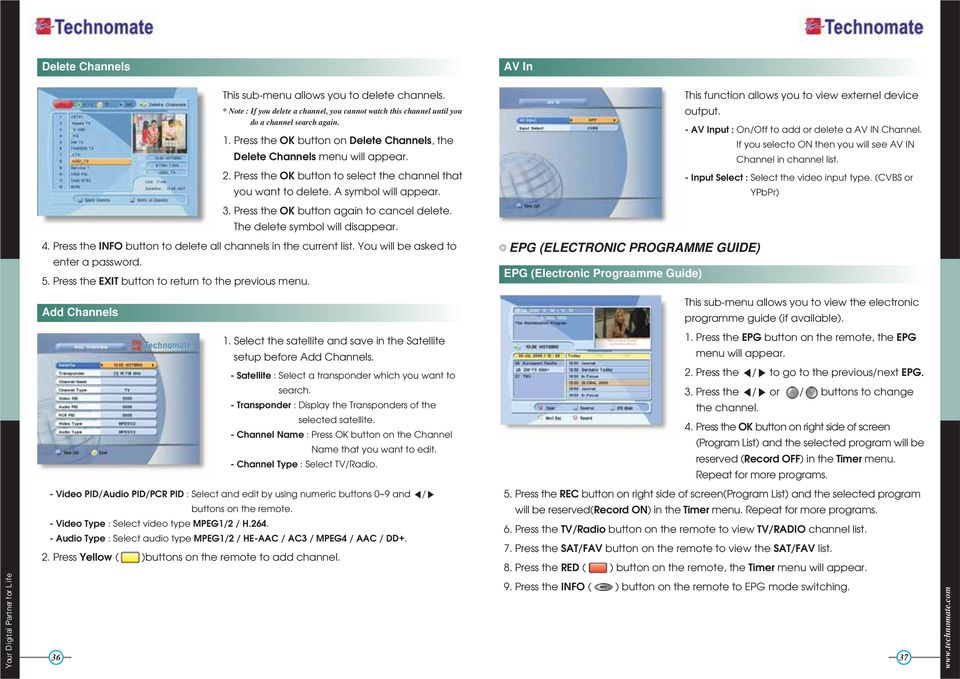
20 Delete Channels This sub-menu allows you to delete channels. * Note : If you delete a channel, you cannot watch this channel until you do a channel search again. 1. Press the OK button on Delete Channels, the Delete Channels menu will appear. 2. Press the OK button to select the channel that you want to delete. A symbol will appear. 3. Press the OK button again to cancel delete. The delete symbol will disappear. 4. Press the INFO button to delete all channels in the current list. You will be asked to enter a password. 5. Press the EXIT button to return to the previous menu. AV In This function allows you to view externel device output. - AV Input : On/Off to add or delete a AV IN Channel. If you selecto ON then you will see AV IN Channel in channel list. - Input Select : Select the video input type. (CVBS or YPbPr) EPG (ELECTRONIC PROGRAMME GUIDE) EPG (Electronic Prograamme Guide) Add Channels This sub-menu allows you to view the electronic programme guide (if available). 1. Select the satellite and save in the Satellite 1. Press the EPG button on the remote, the EPG setup before Add Channels. menu will appear. - Satellite : Select a transponder which you want to 2. Press the / to go to the previous/next EPG. search. 3. Press the / or / buttons to change - Transponder : Display the Transponders of the the channel. selected satellite. 4. Press the OK button on right side of screen - Channel Name : Press OK button on the Channel (Program List) and the selected program will be Name that you want to edit. reserved (Record OFF) in the Timer menu. - Channel Type : Select TV/Radio. Repeat for more programs. - Video PID/Audio PID/PCR PID : Select and edit by using numeric buttons 0~9 and / 5. Press the REC button on right side of screen(program List) and the selected program buttons on the remote. will be reserved(record ON) in the Timer menu. Repeat for more programs. - Video Type : Select video type MPEG1/2 / H Press the TV/Radio button on the remote to view TV/RADIO channel list. - Audio Type : Select audio type MPEG1/2 / HE-AAC / AC3 / MPEG4 / AAC / DD+. 2. Press Yellow ( )buttons on the remote to add channel. 7. Press the SAT/FAV button on the remote to view the SAT/FAV list. 8. Press the RED ( ) button on the remote, the Timer menu will appear. 9. Press the INFO ( ) button on the remote to EPG mode switching
21 Timer This sub-menu allows you to set the on/off time of your receiver. 1. Press the RED ( ) button in the EPG menu, the Timer menu will appear. 2. Press the / buttons to move to other menus. 3. Press the / buttons to change the selection. Sokoban 6. Press the button to drop the block. 7. In the top right window, you can see the next block. 8. Press the EXIT button to quit a game. - Timer No. 1-8 : Select the timer that you want to modify. To play Sokoban, you have to push the balls into - State : Select the timer : Off/Once/Daily/Weekly. their correct positions. The balls can only be - Date : Press the OK button to select the date. A virtual calendar will appear. pushed, not pulled. You have to be careful not - Start Time : Enter the time by using the NUMERIC buttons on the remote for your receiver to turn On. to push them into a corner where you cannot - End Time : Enter the time by using the NUMERIC buttons on the remote for your receiver to turn OFF. get them out again. You can only push one ball - Channel : To view the channel list, press OK button on the remote. at a time. - If you want to record a program in the right side of the screen, you can select a program by using 1. Press the OK button on Sokoban, the Game OK button. The selected program will be reserved. will load. - Record : Select the record ON / OFF. - You can also see change the timer menu. 2. Select a skill by using the / buttons on the remote. GAMES 3. Press the OK button to start a game or press Tetris the EXIT button to return to the previous menu. 1. Press the OK button on Tetris, the game will 4. Press the / or / buttons to move. load. 5. Press the RED ( ) button to undo previous 2. Select a skill by using the / buttons on the move.you can only undo a step once at a remote. time. 3. Press the OK button to start a game or press 6. Press the GREEN ( ) button to restart the the EXIT button to return to the previous game. menu. 7. Press the YELLOW ( ) / BLUE ( ) buttons to jump to the previous / next level. 4. Press the OK button to rotate the block. You can jump between completed levels. 5. Press the / buttons to move the block. 8. Press the EXIT button to quit a game
22 Snake USB Menu 1. Press the OK button on Snake, the game will load. 2. You can select a skill using the / buttons on the remote. This sub-menu allows you to playback MP3(music) and JPEG(picture) files and to download software and channel list by connecting your USB memory stick(usb flash drive) to the USB port in the receiver. MP3 Menu 3. Press the OK button to start a game or press the EXIT button the remote to return to the previous menu. 4. Press the / or / buttons to move. 5. If the snake takes BLUE blocks on the screen, the length will increase. 6. If the snake takes RED blocks on the screen, the length will decrease. 7. If the snake takes BLACK blocks, the game will 1. Select the MP3 file that you want to listen to by using the /, OK buttons in the file list. Press the OK button select a file. 2. Press the EXIT button to hide the file list. You can then select an option using /, OK buttons. 3. Use the VOL+/VOL- buttons to adjust the volume. end. 4. Press the OK button on. The MP3 file list 8. Press the EXIT button to quit a game. will be displayed. 5. Press the OK button on. The MP3 file information will be displayed. Calculator - FILELIST : Open/Close the MP3 file list. - INFO : Displays MP3 file information. This submenu allows you to use a calculator on the screen. - YELLOW ( ) : Choose:Hard Disk or USB device. - You can switch between Hex (Hexadecimal) and Dec (Decimal) basis for arithmetic with the RED ( ) button of the remote control unit. JPEG Menu - Use the Numerical and the / and / buttons 1. Use the / buttons to select a picture. on the remote control unit. 2. Press the OK button to dispay the picture. - RED ( ) : Set the time interval between slides (slideshow) - GREEN ( ) : Slideshow - YELLOW ( ) : Choose:Hard Disk or USB device - FILELIST : Open/Close the JPEG file list - BLUE ( ) : Rotate the picture
23 Data Transfer Menu (How to download Software from USB) 1. Select the software or channel list you want to download by using the / buttons in the list. 2. Press OK button to start the software download. - YELLOW ( ) : Choose:Hard Disk or USB device - RED : Upload the current CNDF(compressed dish and channel data file). * Warning : Do not turn off your receiver whilst downloading. SYSTEM INFORMATION You can check the current information about your receiver, such as the receiver model name, software version, hardware version, manufacturing date, etc. * Note : This information is necessary when you want to download a new software or you need to repair the receiver. COMMON INTERFACE CAM Initializing Management - Default Disk : Set the DVR disk. - Disk Information : Choose:Hard Disk or USB device. You can view the information of the USB device (used size, total size, free size). - Check Disk : Choose:Hard Disk or USB device. You can check the USB device. - Format Disk : Formats the USB device or HDD. - Testing USB Speed : USB speed test. - Timeshift Rec Time : You can change default timeshift recording time. - Auto Timeshift : Set automatic timeshift On/Off. - HDD Sleep Time : HDD is change sleep mode after selected time. Status of the CAM To watch scrambled channels, you will need a Conditional Access Module (CAM) and Smart card which is specific to that CAM from the service provider (broadcaster). * Note : Without a CAM and a smart card, you can watch only FreetoAir programmes. 1. Insert a CAM into a CAM slot in the receiver and a Smart card the CAM. 2. The message : CAM Initializing will appear. 1. Go to Common Interface. Press OK on the CAM to see further information of the CAM. 2. Proceed with further instructions displayed on the screen, then you can check further details depending on the CAM in use. * Note : Further detailed information is not mentioned in this manual since the information depends on the type of CAM
24 CONDITIONAL ACCESS SYSTEM Card Initializing To Enjoy CONAX CAS7 scrambled channels, you will need a Smart Card from the service provider (program distributor). If you are subscribing to services from more than one service provider, you will need a Smart Card from each one. Since a Smart Card is connected to a single service provider, a limited range of channels will be available via it. * Note : Without the Smart Card, you can watch only Free-To-Air programs. PVR Mode via Internal HDD or USB File List File Playback 1. Press the FILELIST button to open the file list. Select the file you want to playback by using UP/DOWN & OK buttons. 2. Press the OK button. On the left side of screen, detailed information about the selected file will be displayed. (Recorded Date/Time, Used size, Total Size) - For Full Screen, press the OK button once more and then following time-bar will appear. 1. Insert the Smart Card into the receiver s slot designed for it. 2. The message Smart Card Initializing will appear on the screen. 3. After the message Smart Card Initializing has disappeared, you will be able to watch the channels offered by the service provider. The Status of the Smart Card 1. You can access detailed information about the Smart Card using the / keys in the Main Menu to select CA and pressing /. 2. Proceed with further instructions displayed on the screen to check more detailed information depending on the Smart Card in use. * Note : Futher detailed information is not mentioned in this manual since the information depends on the Smart Card in use. Edit Menu Enter the password. Press the YELLOW button. A popup menu will appear. Select the file that you want to edit, and set its parameters as desired. 1. Normal Mode : Press the OK button on file that you want to see a preview. 2. Lock Mode : Press the OK button on the file that you want to lock/unlock. 3. Delete Mode : Press the OK button on the file that you want to delete. 4. Rename Mode : Press the OK button on the file that you want to rename. - RED : Choose from : File Mode <-> Dir Mode - GREEN : Displays all sorted files. Choose from : Sort by name Sort by time * If you set Channel Lock to OFF (refer to <Figure 6.2.4> security setting), you will not be asked to enter a password, even if the channel is locked
25 Trick Mode You can operate the Trick Mode while you are playing the files. This function is available in Playback mode and Time-Shift mode. PLAYBACK This button will display a time-banner. If you want to open the playlist while playing the file, press the PLAY button on the remote. In This Mode, press the INFO button to show the trick-operation. RWD (Rewind) When playing the file, press the RWD button to rewind the program (adjust the playing speed). - Choose from : x2, x4 and x8, x8 and x32 Slow (1/2x, 1/4x) When playing the file, press the SLOW button to slow the speed of the playback (adjust the playing speed) PAUSE This button will pause the file until you playback again (press the PLAY button or PAUSE button to resume watching). ADVANCE If Time-Shift mode is enabled, press the ADVANCE button to go to the real time live broadcast. Jump FF (Fast Forward) - Go to a desired position of the file by using the LEFT/RIGHT buttons. When playing the file, press the FF button to forward the program (adjust the - If you press this key continuously, you can go to the desired position faster. playing speed). Bookmark - Choose from : x2, x4 and x8, x8 and x32 To create a bookmard/chapter at a specific time/place of the file. - RED : Press the RED button and a red triangle will appear at that position. If you want to delete the bookmarked position, press the RED button once more and the red triangle will disappear. - GREEN : Press the GREEN button to go/jump to the previous bookmark position. Playback will start from this point. - YELLOW : Press the YELLOW button to return to the next bookmark position. Playback will start from this point. * Note : The maximum number of bookmarks is 20 for each file
26 File Edit - BLUE : Press this button and edit(copy, cut) the file. Press (OK key) button to select edit start position and one more (OK key) button to select edit end position. Select cut or copy. Record Stop 1. Press the STOP button on the remote to stop the recording then Record Stop will be displayed. 2. Select the recording file by OK / STOP button. 3. Press EXIT button then selected recording is stopped. Timer Recording Instant Recording 1. You can record the current channel you are watching instantly by using REC button. If you then press the PLAY button, a time-banner will be displayed. 2. Press the REC button once more. The following picture shows that you can select an item when you record the current channel. This function is available when a USB device is connected. You can choose a channel to record from the EPG Guide by using the REC button. (Refer to 6.4 EPG, 2) Timer) Divx Play Press (f1 key) button to display divx file list. Press (OK key) button to play the selected file. Time Shift 1. To pause and resume live TV channel, press the PASUSE button. The default time for Time-Shift is 30 minutes. 2. To resume live TV channel, press the PLAY button. 3. The trick-mode operations are available. To return to the live broadcast, press the ADVANCE button. - Channel : Displays the current channel - Name : Displays the current recording name - Duration : You can change the duration of a recording s time by using the LEFT/RIGHT button. Current recorded time will appear. * Note1 : DO NOT REMOVE the USB device while recording a program. * Note2 : You can t change to another channel while recording a program
27 PIP Start, Stop, Change PIP screen size Press (pip key) on the remote to start PIP and Sub Channel List will displayed. Select the channel using (OK key) Press Exit to hide Sub Channel List. Press (pip key) on the remote to change small PIP screen size. Press (pip key) on the remote to stop PIP. Sub channel list Press (pip channel list key) on the remote to display Sub Channel List. Press (exit key) on the remote to hide Sub Channel List. Swap to Channel. Press (swap key) on the remote to swap main with sub channel. 1. Connect the null model cable to the RS-232C connection on the back of the receiver and to your PC. 2. Download the latest version of the TM Loader from the Technomate web site (). 3. Download the latest software (.STB) of your receiver Ensure that the model number of the software is the same as the receiver you have. 4. Click on Browse in the TM Loader. 5. Select the file from where you saved it when you downloaded it from the Technomate website. 6. Turn ON the satellite receiver. 7. Click on Connect on TM Loader and then click Start to begin the software download. 8. The downloading status is displayed. 9. Once it displays 100% Finished (wait until it has completed erasing), the software download has finished. 10. When it completes the writing of the new software, disconnect the cable between the receiver and the PC. A Factory Reset is rezuired. 11. Go to System Information on the main menu and make sure that you have correct software version
28 Note. How to download / upload Channels If you want to download / upload Channels, Click on Channels in the TM loader, then select Download / Upload. There may be various reasons for the abnormal operation of a set-top box. If it does not work properly, check if according to the procedures shown in the table below. * Downloading Channels PC to TM-6900HD Series. 1. Click on Download, and then Click on Browse in the TM Loader. 2. Select the file from where you saved it. 3. Turn on the satellite receiver. 4. Click on Connect in the TM Loader and then click on Start to begin downloading Channels PC to TM-6900HD Series. 5. Once it displays 100% fifnished, the Channel downloading has finished. * Downloading Channels TM-6900HD Series to PC. 1. Click on Upload, and then Click on Browse in the TM Loader. 2. Select the file and folder where you want to save in your PC. 3. Turn on the satellite receiver. 4. Click on Connect in the TM Loader and then click on Start to begin uploading Channels TM-6900HD to PC. 5. Once it displays 100% finished, the Channel uploading has finished... * You can upload / download default channels maximu 1,500 TV & Radio channels. If you want to add more than 1,500 channels, you will have to do a channel search/scan
29 The receiver is on but I cannot get any Menu on the screen? 1) Check if the scart is connected, 2) Check the A/V settings on your television is correct, 3) Scart cable could be faulty there fore replace of in doubt. I get the message no signal displayed? 1) Check if the LNB cable is inserted into the IF INPUT, 2) Check if the LNB setup menu is correctly set. 3) Your satellite Dish may be out of alignment or your LNB may be is faulty. 4) Go to Easy installatin guide and start fresh, 5) Contact your dealer / installer. I cannot access a particular channel I require? You need to check the following : 1) Check if you a correct transponder. Go to advance search, Turn on the Network Search, press red button to tune. 2) Make sure you have correct PID numbers. b) if above dose not help go to Please contact your Supplier for further assistance. How can I find out what software version I have? Press Menu on the remote, Go to system information press ok, Full information is displayed. I have lost my personal Lock Code setting, what do I do? For security reason, please contact your dealer. System capabilities satellite LNB/Tuner input Demodulator TERRESTRIAL System capabilities Tuner & Channel Decoder System resource Video decoder Teletext MPEG Audio Serial data interface Fully DVB compliant Connector Frequency range Signal level LNB supply LNB switch control DiSEqC Front end Symbol rate SCPC and MCPC Capable Spectral inversion Input connector Loop-through out Frequency range Input impedance Signal level IF Bandwidth Waveform Carrier Mode Code Rate Guard Interval Processor DDR SDRAM FLASH EEPROM MPEG 2 Data Rate Resolution Video format Aspec Ratio DVB compliant MPEG 1 layer 1 &2 Type Sampling rates Connector IEC , female 950MHz ~ 2150MHz -65dBm ~ -25dBm DC 13/18V, max 400mA 22KHz Ver 1.0/1.1/1.2/USALS Compatible DVB-S/S2 QPSK, 8PSK DVB-S : 2~45Msps DVB-S2 : 10~30Msps(QPSK) 10~30Msps(8PSK) Auto conversion IEC 169-2, Female IEC 169-2, Male 149 ~ 426MHz, 434 ~ 858MHz 75 Ohms Nominal 7,8MHz(-78dBm~-25dBm) switchable by software 7,8MHz OFDM (DVB-T, DVB-T2) DVB-T : 2k, 8k / DVB-T2 : 1k, 2k, 4k, 8k, 16k, 32k DVB-T : 1/2, 2/3, 3/4, 5/6, 7/8 DVB-T2 : 1/2, 3/5, 2/3, 3/4, 4/5, 5/6 DVB-T : 1/4, 1/8, 1/16, 1/32 DVB-T2 : 1/4, 5/32, 1/8, 5/64, 1/16, 1/32, 1/64, 1/128 32bit processor (450MHz) 128Mbyte X 2 8Mbyte 256Kbit MPEG-2, MPEG-4, H.264 up to 15M bits/s 1920 X 1080p/i, 1280 X 720p, 720 X 576p/i PAL 4:3,16:9 Mono, Stereo, Joint Stereo 32, 44.1 and 48 KHz 9pin D-sub male, Max 115K bps 54 55
30 Remote control USB Power supply Rear Panel connectors Option Physical Specification Code Operating condition USB Supply(Front/Rear) Power consumption Supply voltage Supply frequency TV SCART VCR SCART Video Audio L/R Component(Y/Pb/Pr) Serial data Digital tuner input Loop-through Digital tuner Terrestrial ant input Terrestrial ant output RF modulator input RF modulator output S/PDIF HDMI USB LAN E-SATA Video input Audio L/R input Component input(y/pb/pr) Size (W X H X D) Weight (Net) NEC-IR up to 7 Meter DC 5V Max 500mA max 50W AC 100V ~ 250V 50Hz ~ 60Hz CVBS, RGB Video output, Loop-through RGB output Audio Out Video Output(CVBS) Video Input(CVBS, RGB) Audio Out(L, R) 1 X RCA cinch 2 X RCA cinch 3 X RCA cinch 9pin D-sub IEC IEC IEC IEC IEC IEC Fiber Optic 1 X HDMI USB A-type RJ-45 External SATA 1 X RCA cinch 2 X RCA cinch 3 X RCA cinch 390 X 73 X 283(mm) 3.5Kg 56 Disposal of Old Electrical & Electronic Equipment(Applicable in the European Union and other European Countries with separate collection systems) This symbol on the product or on its packaging indicates that this product shall not be treated as household waste. Instead it shall be handed over to the applicable collection point for the recycling of electrical and electronic equipnent. By ensuring this product is disposed of correctly, you will help prevent potential negative consequences for the environment and human health, which could otherwise be caused by inappropirate waste handling of this product. The recycling of materials will help to conserve natural resources. For more detailed information about recycling of this product, please contact your local city office, your household waste disposal service or the shop where you purchased the product.
31 INTRODUCTION CONSIGNES ELEMENTAIRES DE SECURITE Nous vous remercions de nous avoir fait confiance pour l acquisition de votre Terminal Numérique. Nous espérons qu il vous donnera entière satisfaction durant de nombreuses années. Ce produit étant un appareil de haute technologie, il est nécessaire d en prendre soin et de respecter les consignes élémentaires de sécurité que nous vous communiquons ci-dessous. POINTS DE CONTRÔLE AVANT L EMPLOI 61 CONTRÔLES/FUNCTIONS EQUIPMENT CONNEXION OPERATION EN CAS DE PROBLEME Avant de commencer toute opération, bien lire le manuel. Ne pas toucher le câble d alimentation avec les mains humides, il pourrait causer un choc électrique. Ne jamais ouvrir le récepteur. Ne pas toucher l intérieur du récepteur, ceci peut causer un choc électrique. Laisser libres tous les orifices de ventilation du récepteur. Ne surchargez pas une prise murale, un cordon prolongateur ou un adaptateur car cela pourrait entraîner un incendie ou un choc électrique. L installation par un personnel qualifié est recommandée. Si la réception estinterrompue, contactez votre centre de service local. Installez le récepteur horizontalement. Une installation non conforme peut endommager le système. Ne pas déposer un objet lourd comme une télévision sur le récepteur. Cela peut endommager le récepteur. Le récepteur ne doit pas être exposé à des gouttes ou à des éclaboussures. Aucun abjet contenant du liquide, comme une vase, ne doit être placé sur l appareil
32 Ne pas installez le récepteur : A un endroit sujet à des vibrations. A la lumière du soleil directe. A l humidité. A une température trop haute ou trop basse. ou il n y a aucune ventilation. Déplacer le récepteur d un endroit chaud à un endroit froid provoquerq de la condensation. N allumez pas le récepteur durant une ou deux heures, jusqu à qu il soit complètement sec. Accessoires Manuel d utilisation Télécommande Piles (type AAA) HDMI câble Si certains accessoires énumérés ci-dessus sont perdus, entrez en contact avec votre représentant afin d en obtenir de nouveaux. Antenne parabolique Votre antenne devrait être installée et orientée correctement et l élévation doit être ajustée avec précision. Ce récepteur est conçu pour être compatible avec DiSEqC 1.2. Demandez à votre revendeur pour plus d informations
33 Panneau Arrière Panneau Frontal 1. Power : To switch the receiver between Standby and Power ON modes. 2. Standby/Power Indicators : Red in Standby mode and no light in Power-On mode. 3. Menu : To enter or exit the Main Menu. 4. Select : To open the Channel List in non-menu mode and to select/confirm an item in menu mode VOL( / ) : To change the volume level in non-menu mode and to modify a setting in menu mode CH( / ) : To change channels or to move Up/Down in the menus/application. No. Name Connector Function 1 RF OUT UHF IEC MALE Output to TV 2 TV ANT IN IEC FEMALE Input from analog terrestrial antenna 3 USB USB A-type USB RS-232C DB-9 Low speed serial port 5 S/PDIF Fiber Optic Digital audio output (Optical) 6 HDMI HDMI Digital Video/Audio Output 7 LAN RJ-45 10/100Mbps Ethernet 8 VCR/AUX SCART SCART CVBS Video Output CVBS, RGB Video Input Audio Output 9 TV SCART SCART CVBS, RGB Video Output, Audio Output 10 VIDEO RCA cinch Composite video output 11 AUDIO L RCA cinch Left audio output 12 AUDIO R RCA cinch Right audio output 13 Y RCA cinch Component video output(y) 14 Pb RCA cinch Component video output(pb) 15 Pr RCA cinch Component video output(pr) 16 LNB INPUT IEC FEMALE IF input from LNB to digital tuner 17 LNB OUTPUT IEC FEMALE IF loop-through output from digital tuner 18 DVB-T IN IEC FEMALE Cable signal input to digital tuner. 19 LOOP OUT IEC MALE Loop-through output from digital tuner. 20 VIDEO(option) RCA cinch Composite video input 21 AUDIO(option) RCA cinch Left audio input 22 AUDIO(option) RCA cinch Right audio input 23 Y(option) RCA cinch Component video input (Y) 24 Cb(option) RCA cinch Component video input (Cb) 25 Cr(option) RCA cinch Component video input (Cr) 26 esata E-SATA External SATA 62 63
34 Télécommande TM-6902 HD-T2 1. POWER : To turn the receiver On/Off. 2. TV/RADIO : To switch between TV and Radio modes. 3. MUTE : To turn the sound On/Off. 4. TV/SAT : To switch the TV output source between the satellite input and the UHF/VHF antenna input. 5. MEDIA : To access media file playback menu. 6. SLEEP : To adjust the Sleep Timer. 7. PIP SWAP : To swap the PIP picture and the main picture. 8. PIP : To activate the Picture in Picture function. 9. PIP LIST : To display the PIP list. 10. EPG : To show the TV/Radio program guide. 11. SUBTITLE : To show the subtitle contents if subtitle is transmitted. 12. FAV : To show favorite list in the favorite group or to move to the next page. 13. A-Z : To sort channel list. 14. USB : To show the usb menu. 15. TEXT : To show the teletext contents if teletext is transmitted. Used for special functions in menu mode. 16. AUDIO : To show Multi-language audio track, the stereo-mono mode and subtitle information. Used for special functions in menu mode. 17. INFO : To show information about the current program. Press twice to show detailed information. 18. MENU : To enter or exit the main menu. 19. EXIT : To exit from the present menu and to go to the previous menu VOL UP & DOWN : To change the volume le vel in non-menu mode. Télécommande TM-6902 HD-T UP & DOWN : To change channels in non menu mode and move the cursor up/down in menu mode LEFT & RIGHT : To change the volume level in non-menu mode. 26. OK : To show the Channel List in non-menu mode and select an item or confirm in menu mode. 27. SAT : To show Satellite list. 28. RECALL : To go to the previous channel menu. Used for special functions in menu mode. 29. FILELIST : To display the filelist. 30. PLAY : Play Content. 31. STOP : Stop Playback. 32. RWD : Rewind a file / Arrow UP : To move to the previous page when many pages are available.(it is worked when in Menu List) 33. PAUSE : Pause playback. 34. FWD : Forward a file / Arrow Down : To move to the next page when many pages are available (It is worked when in Menu List). 35. ADVANCE : Go to live channel. 36. REC : Start recording. 37. SLOW : Playback in slow mode. 38. BOOKMARK : Set the bookmark position. 39. Color : To control brightness, contrast color of a picture (when in CVBS mode). 40. POS : To show the DiSEqC motor view control. 41. Color Key : To use special functions in the menu. 42. Numeric Keys (0-9) : To enter numerical settings(such as channel numbers) directly. 43. V.FORMAT : To change video output s resolution. 44. Wide : To select a TV aspect ratio with Pan Scan or Letter-Box(4:3) (Full screen or Pillar box(16:9)
35 Installation Satellite Raccordement avec le système A/V / antenne / TV set 1. Raccordez TV ant IN de l appareil à l antenne TV. 2. Raccordez vidéo et Audio de l appareil au TV et Vidéo de la TV. Raccordez le connecteur rouge et blanc à audio R et audio L, et le jaune dans le port vidéo respectivement. 3. Raccordez votre antenne satellite. Démarrage Démarrez le récepteur en appuyant sur Power et procédez à l installation du système comme suit : 4. Sélectionnez chaque menu que vous voulez éditer / changer. Satellite : Sélectionnez le satellite souhaité à l aide des touches / de la télécommande. Transpondeur : LNB Power : A l aide des touches sélectionnez sur ON/OFF / 13V/18V. LNB Type : Sélectionnez votre type de LNB sur soit Single/Universal/OCS. 22KHz : Sélectionnez sur ON/OFF ou 0/22 KHz. DiSEqC 1.0 : DiSEqC 1.1 : 5. Scan : Appuyez sur la touche rouge de la télécommande pour commencer les recherches satellite. 6. Rename=renommer : Appuyez sur la touche verte de la télécommande pour renommer le satellite sélectionné. 7. Save=sauvegarder : Appuyez sur la touche jaune de la télécommande pour sauvegarder. 8. Delete=supprimer : Appuyez sur la touche bleue de la télécommande pour supprimer le satellite sélectionné. Installation du menu langue Installation motorisée 1. Allumez votre récepteur et TV. 2. Le menu langage apparaître. Sélectionnez la langue et appuyez sur la touche OK de la télécommande pour procéder. Installation Satellite 1. Appuyez sur la touche menu de la télécommande pour faire apparaître le menu. 2. Utilisez les touches / et / de la télécommande pour se déplacer dans le menu. 3. Sélectionnez Satellite Setup = installation satellite, alors le menu installation satellite s affichera à l écran. Appuyez sur la touche MENU de la télécommande pour afficher le menu principal. 1. Appuyez sur la touche MENU de la télécommande pour afficher le menu principal. 2. Utilisez les touches / et / de la télécommande pour déplacer dans le menu. 3. Sélectionnez installation motorisée, la fenêtre suivante apparaîtra. 4. Sélectionnez chaque menu que vous voulez éditer ou changer. Satellite : Sélectionnez le satellite souhaité à l aide des touches / de la télécommande. Transpondeur : Montre la valeur courante de transpondeur du satellite choisi. DiSEqC Motor : A l aide des touches, sélectionnez OFF 1.2 USALS. Save=sauvegarder : Appuyez sur la touche OK de la télécommande pour sauvegarder. 5. Appuyez sur la touche rouge de le télécommande pour commencer les recherches. 6. Appuyez sur la touche verte de la télécommande pour renommer les satellites
36 Recherche avancée Recherche PID 1. Appuyez sur la touche menu pour faire apparaître le menu principal. 2. Utilisez les touches / et / pour sélectionnez dans le menu. 3.Sélectionnez recherche avancée, ensuite la fenêtre suivante apparaîtra. 4. Sélectionnez chaque menu que vous voulez éditer ou changer. Satellite : A l aide des touches / de la télécommande sélectionnez le satellite souhaité. Transpondeur : Montre la liste courante de transpondeur du satellite choisi. Symbole rate : Montre la liste courante de symbole rate du satellite choisi. Polarisation : Sélectionnez Horizontal ou Verticale. Type de recherche : Sélectionnez toutes les chaînes ou seulement FTA ou seulement TV. Recherche Network : Sélectionnez Network recherche sur ON ou OFF. 5. Scan : Appuyez sur la touche rouge de la télécommande pour commencer les recherches satellite. 6. Add TP : Appuyez sur la touche «verte» de la télécommande pour ajouter ua nouveau transpondeur à l aide des touches numériques 0-9 et les touches / de la télécommande. 1. Appuyez sur la touche MENU de la télécommande pour afficher le menu principal. 2. Utilisez lez touches de la télécommande pour déplacer dans le menu. 3. Sélectionnez PID recherche, ensuite la fenêtre suivante apparaîtra. Satellite : sélectionnez un transpondeur dans lequel vous souhaitez faire des recherches. Transpoondeur : il montre le transpondeur d un satellite sélectionné. Symbol Rate : il montre la liste courante de symbole rate du satellite choisi. Polarisation : Sélectionnez Vertical ou Horizontal. Video PID / Audio PID / PCR PID : sélectionnez et éditez à l aide des touches numériques 0-9 de la télécommande. Add TP : appuyez sur la touche verte de la télécommande pour éditer le transpondeur à l aide des touches numériques 0-9 et des touches / de la télécommande. Delete TP : appuyez sur la touche jaune de la télécommande pour supprimer le transpondeur sélectionné. 7. Delete TP : Appuyez sur la touche jaune de la télécommande pour supprimer le transpondeur
37 Sélection de programme Autre Fonction de ra télécommande Vous pouvez changer le programme courant par un autre programme. Dans le cas où vous voulez sélectionnez une chaîne au hasard sans savoir le nom de celle-ci, vous pouvez naviguer entre les chaînes jusqu à ce que vous trouviez ce que vous souhaitez. Si vous connaissez le numéro de chaîne souhaitée, entrez le numéro et attendez 2 secondes jusqu à ce que la chaîne change. Si vous connaissez le nom de la chaîne souhaitée, appuyez sur OK et la liste de chaîne apparaîtra. Contrôle du volume 1. Lorsque vous regardez un programme, à l aide des touches / vous pouvez contrôler le volume. 2. Lorsque c est nécessaire, appuyez sur la touche Mute pour couper le son. Appuyez à nouveau sur la touche mute pour remettre le son. Information L information à propos d un programme apparaîtra en utilisant la touche INFO de la télécommande. 1. Dans l écran droit, l information détaillée de la chaîne sélectionnée apparaîtra. 2. Vous pouvez naviguer entre les chaînes avec ces touches: / : Déplacer vers le haut et vers le bas / : Déplacer de page en page Rouge : Affichera toutes les chaînes Vert : Affichera toutes les sortes de chaînes par ordre alphabétique Jaune : Affichera toutes les chaînes par transpondeur Bleu : Affichera 3. Lorsque la chaîne souhaitée est sur surbrillance, appuyez sur OK pour confirmer
38 EDIT CHANNELS Installation des chaînes favorites Ce sous-menu vous permet d installer le nom préféré et les listes préférées comme vous le souhaitez. En utilisant la touche TV/Radio, vous pouvez alterner entre les modes TV et Radio. ll soutient 8 groupes favoris. 1. Appuyez sur la touche OK de pour installation favorite, ensuite «select Favorite Group» = «sélection de groupe favoris» apparaîtra. 2. Sélectionnez un groupe favoris en utilisant les touches / et OK de la télécommande, la liste de chaînes TV Radio apparaîtra. Si vous voluez changer le nom du groupe favoris, appuyez sur la touche Rouge et le tableau s affichera. Renommer ch / edit pids Se sous-memu vous permet de renommer les chaînes et entrer l utilisateur PID. En utilisant la toche TV/Radio, vous pouvez alterner entre les modes TV/Radil. Vous pouvez changer la liste de chaîne en utilisant les touches SAT/FAV de la télécommande. 1. Appuyez sur la touche OK pour renommer Ch/Edit Peds, le menu suivant apparaîtra. 2. Appuyez sur la touche OK pour la chaîne que vous voulez éditer. 3. Appuyez sur la touche OK pour renommer une chaîne, le tableau suivant s affichera. Renommer une chaîne en utilisant les touches / et /, OK de la télécommande. Appuyez sur la touche Exit de la télécommande pour quitter. 4. Vous pouvez éditer en utilisant les touches numériques de télécommande. 3. Réglez les chaînes préférées en utilisant les touches / et OK de la télécommande Appuyez à nouveau sur la touche OK de la télécommande pour enlever le groupes favoris. 4. Appuyez sur la touche Exit de la télécommande pour retourner au menu principal. Déplacer les chaînes Vous pouvez changer la liste de chaînes en utilisant lf touche GROUP. 1. Appuyez sur OK pour déplacer les chaînes. Le menu suivant apparaîtra. 2. Appuyez sur OK pour sélectionnez la chaîne que vous voulez changer. 3. Appuyez sur les touches numériques pour déplacer la chaîne sélectionnée ou appuyez sur les touches /, OK pour déplacer une chaîne. 4. Appuyez sur la touche Exit de la télécommende pour retourner au menu précédent
39 Chaîne verrouilée Ce sous-menu vous permet de verrouiller les chaînes. Une fois que la chaîne est verrouillée, lorsque vous essayez de la regarder ; vous devez entrer le mot de passe. En utilisant les touches TV/Radil vous pouvez alterner entre les modes TV ou Radio. En utilisant les touches SAT/FAV vous pouvez changer la liste de chaîne. * Note : si vous placez sur OFF la chaîne qui est verrouillée, alors vous ne devez plus entrer le mot de pass même si une chaîne est verrouillée. 1. Appuyez sur la touche OK pour la chaîne verrouillée. Le menu suivant apparaîtra. 2. Appuyez sur la touche OK pour sélectionner la chaîne que vous voulez verrouiller. L icône «verrouillé» s affichera. 3. Appuyez à nouveau sur la touche OK pour déverrouiller une chaîne. L icône «verrouillé» disparaîtra. 4. Appuyez sur la touche Exit = quitter de la télécommande pour revenir au menu précédent. Suppression de chaînes Ce sous-menu vous permet de supprimer les chaînes. En utilisant les touches TV/Radio, vous pouvez alterner entre les TV/Radio. Vous pouvez changer le groupe de liste de chaîne à I aide de la touche GROUP. * Note : Attention! Si vous supprimer une chaîne, vous ne pourrez la regarder que si vous la recherchez à nouveau. 1. Appuyez sur OK pour «Suppression de chaîne». Le menu suivant s affichera. 2. Appuyez sur la touche OK pour sélectionner la chaîne que vous souhaitez supprimer. L icône «suppression» s affichera. 3. Appuyez à nouveau sur la touche OK pour confirmer. L icône «suppression» disparaîtra. 4. Appuyez sur la touche INFO pour supprimer toutes les chaînes de la liste courante. Vous serez invité à entrer le mot de passe. 5. Appuyez sur la touche Exit = Quitter pour revenir au menu précédent
40 EPG (Electronic Program Guide) EPG (le guide électronique des programmes) Ce sous-menu vous permet de visualiser le guide électronique des programmes si il est disponible. Interface commune CAM (modules d accès conditionnel) Pour regarder les chaînes cryptées, vous avez besoin de modules d accès conditionnel (CAM) et/ou une carte à puce d abonnement. 1. Appuyez sur la touche EPG de la télémmande, le menu Guide Eléctronique des programmes s affichera. 2. Appuyez sur / pour voir le guide électronique des programmes précédent ou suivant. 3. Appuyez sur les touches / ou / pour vous faire passer verticalement d une chaîne à l autre. * Note : sans le module d accès conditionnel et/ou la carte à puce, vous ne pouvez regarder que les services libre d accès. 1. Insérez le module d accès conditionnel dans l une de fente du récepteur et une carte Smart dans le module. 2. Le message de «CAM Initializing» s affichera à l écran. 3. Après ce message, vous pouvez sélectionner la chaîne souhaitée. 4. Appuyez sur la touche OK sur côté droit de l écran (liste de programme) et le programme sélectionné sera réservé dans le menu Timer. Vous pouvez sélectionner autant de programmes que vous souhaitez. 5. Sélectionnez Programme TV/Radio à l aide des touches TV/Radio de la télécommaned. 6. Sélectionnez SAT, liste Favori à l aide des touches SAT, FAV de la télécommande. 7. Appuyez sur la touche Rouge de la télécommande, le menu Timer s affichera. Menu Minuterie Ce sous-menu vous permet de programmer la mise en veille de votre récepteur. 1. Appuyez sur la touche rouge dans le menu guide, le menu Timer s affichera. 2. Appuyez sur les touches / pour déplacer à d autre menu. 3. Appuyez sur les touches / pour changer la sélection
41 78 TM-6902HD-T2 Super TM-7102HD-T2 Super
Instructions Mozilla Thunderbird Page 1
 Instructions Mozilla Thunderbird Page 1 Instructions Mozilla Thunderbird Ce manuel est écrit pour les utilisateurs qui font déjà configurer un compte de courrier électronique dans Mozilla Thunderbird et
Guide d'installation rapide TFM-560X YO.13
 Guide d'installation rapide TFM-560X YO.13 Table of Contents Français 1 1. Avant de commencer 1 2. Procéder à l'installation 2 Troubleshooting 6 Version 06.08.2011 16. Select Install the software automatically
Instructions pour mettre à jour un HFFv2 v1.x.yy v2.0.00
 Instructions pour mettre à jour un HFFv2 v1.x.yy v2.0.00 HFFv2 1. OBJET L accroissement de la taille de code sur la version 2.0.00 a nécessité une évolution du mapping de la flash. La conséquence de ce
Thank you for choosing the Mobile Broadband USB Stick. With your USB Stick, you can access a wireless network at high speed.
 Thank you for choosing the Mobile Broadband USB Stick. With your USB Stick, you can access a wireless network at high speed. Note: This manual describes the appearance of the USB Stick, as well as the
Thank you for choosing the Mobile Broadband USB Stick. With your USB Stick, you can access a wireless network at high speed.
 Thank you for choosing the Mobile Broadband USB Stick. With your USB Stick, you can access a wireless network at high speed. Note: This manual describes the appearance of the USB Stick, as well as the
WiFi Security Camera Quick Start Guide. Guide de départ rapide Caméra de surveillance Wi-Fi (P5)
 #45 #46 WiFi Security Camera Quick Start Guide Guide de départ rapide Caméra de surveillance Wi-Fi (P5) #47 Start Here 1 Is this you? TECH SUPPORT CTRL ALT DEL 2 If yes, turn to page three 1 3 If not,
Contents Windows 8.1... 2
 Workaround: Installation of IRIS Devices on Windows 8 Contents Windows 8.1... 2 English Français Windows 8... 13 English Français Windows 8.1 1. English Before installing an I.R.I.S. Device, we need to
LOGICIEL D'ADMINISTRATION POUR E4000 & G4000 MANAGEMENT SOFTWARE FOR E4000 & G4000
 LOGICIEL D'ADMINISTRATION POUR E4000 & G4000 MANAGEMENT SOFTWARE FOR E4000 & G4000 TABLE DES MATIÈRES TITRE PAGE Présentation - - - - - - - - - - - - - - - - - - - - - - - - - - - - - - - - - - - -4 Le
WEB page builder and server for SCADA applications usable from a WEB navigator
 Générateur de pages WEB et serveur pour supervision accessible à partir d un navigateur WEB WEB page builder and server for SCADA applications usable from a WEB navigator opyright 2007 IRAI Manual Manuel
Contrôle d'accès Access control. Notice technique / Technical Manual
 p.1/18 Contrôle d'accès Access control INFX V2-AI Notice technique / Technical Manual p.2/18 Sommaire / Contents Remerciements... 3 Informations et recommandations... 4 Caractéristiques techniques... 5
Package Contents. System Requirements. Before You Begin
 Package Contents DWA-125 Wireless 150 USB Adapter CD-ROM (contains software, drivers, and manual) Cradle If any of the above items are missing, please contact your reseller. System Requirements A computer
Contrôle d accès Access control MOD-TCPIP-AI. Notice technique / Technical Manual
 Contrôle d accès Access control MOD-TCPIP-AI Notice technique / Technical Manual Notice technique Mod-TCPIP-AI 9 septembre 2008 v.1.0 p.2/16 Sommaire / Contents Sommaire / Contents...2 Remerciements...3
Quick Setup Guide Guide de configuration rapide. Tablet Device SGPT12 Series Tablette électronique Série SGPT12
 Quick Setup Guide Guide de configuration rapide Tablet Device SGPT12 Series Tablette électronique Série SGPT12 Welcome / Bienvenue Congratulations on your purchase of this Xperia Tablet S. This Quick Setup
TABLE DES MATIERES A OBJET PROCEDURE DE CONNEXION
 1 12 rue Denis Papin 37300 JOUE LES TOURS Tel: 02.47.68.34.00 Fax: 02.47.68.35.48 www.herve consultants.net contacts@herve consultants.net TABLE DES MATIERES A Objet...1 B Les équipements et pré-requis...2
How to Login to Career Page
 How to Login to Career Page BASF Canada July 2013 To view this instruction manual in French, please scroll down to page 16 1 Job Postings How to Login/Create your Profile/Sign Up for Job Posting Notifications
Utiliser une WebCam. Micro-ordinateurs, informations, idées, trucs et astuces
 Micro-ordinateurs, informations, idées, trucs et astuces Utiliser une WebCam Auteur : François CHAUSSON Date : 8 février 2008 Référence : utiliser une WebCam.doc Préambule Voici quelques informations utiles
GIGABIT PCI DESKTOP ADAPTER DGE-530T. Quick Installation Guide+ Guide d installation+
 GIGABIT PCI DESKTOP ADAPTER Quick Installation Guide+ Guide d installation+ Check Your Package Contents Quick Installation Guide Gigabit Ethernet PCI Adapter CD with Manual and Drivers DO NOT insert the
Logitech Tablet Keyboard for Windows 8, Windows RT and Android 3.0+ Setup Guide Guide d installation
 Logitech Tablet Keyboard for Windows 8, Windows RT and Android 3.0+ Setup Guide Guide d installation English.......................................... 3 Français.........................................
3615 SELFIE. http://graffitiresearchlab.fr HOW-TO / GUIDE D'UTILISATION
 3615 SELFIE http://graffitiresearchlab.fr HOW-TO / GUIDE D'UTILISATION Hardware : Minitel Computer DIN FM545 45 connector (http://www.gotronic.fr/art-fiche-din-fm545-4747.htm) Cable Arduino compatible
Table des matières. Français. 1. Introduction... 2 1.1 Désignation 1.2 Caractéristiques. 2. Conseil d utilisation... 3 2.1 Sécurité 2.
 Table des matières 1. Introduction... 2 1.1 Désignation 1.2 Caractéristiques 2. Conseil d utilisation... 3 2.1 Sécurité 2.2 Précautions 3. Vérification du Contenu... 5 3.1 Accessoires 3.2 L antenne satellite
Notice Technique / Technical Manual
 Contrôle d accès Access control Encodeur USB Mifare ENCOD-USB-AI Notice Technique / Technical Manual SOMMAIRE p.2/10 Sommaire Remerciements... 3 Informations et recommandations... 4 Caractéristiques techniques...
DOCUMENTATION - FRANCAIS... 2
 DOCUMENTATION MODULE SHOPDECORATION MODULE PRESTASHOP CREE PAR PRESTACREA INDEX : DOCUMENTATION - FRANCAIS... 2 INSTALLATION... 2 Installation automatique... 2 Installation manuelle... 2 Résolution des
Paxton. ins-20605. Net2 desktop reader USB
 Paxton ins-20605 Net2 desktop reader USB 1 3 2 4 1 2 Desktop Reader The desktop reader is designed to sit next to the PC. It is used for adding tokens to a Net2 system and also for identifying lost cards.
Instruction Manual. HS-636-4GBBK MP3 Player
 Instruction Manual HS-636-4GBBK MP3 Player Thank you for your purchase of this Hip Street MP3 player and we hope you enjoy using it. Please visit our website at www.hipstreetonline.com. The display screen
Nouveautés printemps 2013
 » English Se désinscrire de la liste Nouveautés printemps 2013 19 mars 2013 Dans ce Flash Info, vous trouverez une description des nouveautés et mises à jour des produits La Capitale pour le printemps
GUIDE UTILISATEUR SYSTEMES CCTV
 GUIDE UTILISATEUR SYSTEMES CCTV 2SECURE 3 chemin des mules 13124 PEYPIN www.2secure.fr - 1 - SOMMAIRE : 1 ACCEDER / SORTIR D UN MENU :...3 2 VISUALISER UN ENREGISTREMENT SUR LE DVR :...3 3 SAUVEGARDER
Harmony Smart Keyboard Add-on. Setup Guide Guide d installation
 Harmony Smart Keyboard Add-on Setup Guide Guide d installation Contents / Sommaire English................. 3 Français................. 9 support.myharmony.com/smart-keyboard-add-on 2 E Ch Pg Package contents
USB 598. Quick Start Guide (Windows) Guide de démarrage rapide (Windows) USB Modem. Modem USB. www.sierrawireless.com
 USB 598 With Avec USB Modem Quick Start Guide (Windows) Modem USB Guide de démarrage rapide (Windows) www.sierrawireless.com This guide provides installation instructions for users of: Windows Vista Windows
lundi 3 août 2009 Choose your language What is Document Connection for Mac? Communautés Numériques L informatique à la portée du Grand Public
 Communautés Numériques L informatique à la portée du Grand Public Initiation et perfectionnement à l utilisation de la micro-informatique Microsoft Document Connection pour Mac. Microsoft Document Connection
Logitech Speaker System Z553 Setup Guide Guide d installation
 Logitech Speaker System Z553 Setup Guide Guide d installation Logitech Speaker System Z553 English................. 3 Français................ 10 www.logitech.com/support...19 2 Package contents Logitech
Contents. English - 1 -
 Contents Package Contents... 2 Features... 2 Introduction... 2 Preparation... 3 Safety Precautions... 3 Power Source... 3 Power Cord... 3 Moisture and Water... 3 Cleaning... 3 Ventilation... 3 Heat and
Adeunis-RF Softwares. Stand-Alone configuration Manager V2. User guide version V1 FRANCAIS ENGLISH
 Adeunis-RF Softwares Stand-Alone configuration Manager V2 User guide version V1 FRANCAIS ENGLISH Adeunis RF 283 rue Louis Néel Parc Technologique Pré Roux 38920 Crolles - France Tel : +33 0)4 76 92 07
Quick Installation Guide TEW-P21G
 Quick Installation Guide TEW-P21G Table of of Contents Contents... 1. Avant de commencer... 2. Comment effectuer les connexions... 3. Utilisation du serveur d'impression... 1 1 2 3 Troubleshooting... 7
DOCUMENTATION - FRANCAIS... 2
 DOCUMENTATION MODULE CATEGORIESTOPMENU MODULE CREE PAR PRESTACREA INDEX : DOCUMENTATION - FRANCAIS... 2 INSTALLATION... 2 CONFIGURATION... 2 LICENCE ET COPYRIGHT... 3 SUPPORT TECHNIQUE ET MISES A JOUR...
Once the installation is complete, you can delete the temporary Zip files..
 Sommaire Installation... 2 After the download... 2 From a CD... 2 Access codes... 2 DirectX Compatibility... 2 Using the program... 2 Structure... 4 Lier une structure à une autre... 4 Personnaliser une
Garage Door Monitor Model 829LM
 Garage Door Monitor Model 829LM To prevent possible SERIOUS INJURY or DEATH from a closing garage door: NEVER permit children to operate or play with door control push buttons or remote control transmitters.
récepteurs et accessoires
 récepteurs et accessoires Adaptateurs TNT Récepteur Numérique Terrestre zas Hbb QR-A00120 Récepteur hybride TNT (SD et HD) qui permet à l utilisateur de se raccorder à internet à l aide du standard HbbTV
Restaurant Application Quick Reference Guide
 Restaurant Application Quick Reference Guide Ingenico Telium Canada English Color key Required Merchant Input on Point of Sale Required Customer Input on Internal or External PIN-pad Optional Merchant
Software and Hardware Datasheet / Fiche technique du logiciel et du matériel
 Software and Hardware Datasheet / Fiche technique du logiciel et du matériel 1 System requirements Windows Windows 98, ME, 2000, XP, Vista 32/64, Seven 1 Ghz CPU 512 MB RAM 150 MB free disk space 1 CD
DOCUMENTATION - FRANCAIS... 2
 DOCUMENTATION MODULE PRETTYSLIDER MODULE PRESTASHOP CREE PAR PRESTACREA INDEX : DOCUMENTATION - FRANCAIS... 2 INSTALLATION... 2 Installation automatique... 2 Installation manuelle... 2 Résolution des problèmes...
Frequently Asked Questions
 Frequently Asked Questions GENERAL Q: Can I connect an external hard drive, USB stick or MP3 player to copy files to the device? A: Yes, you can. The device supports USB HOST function, which can read USB
Wireless IP Camera 75790, 75790WH, 75791 Quick Start Guide Guide de départ rapide
 Wireless IP Camera 75790, 75790WH, 75791 Quick Start Guide Guide de départ rapide 1 Is this you? Start Here TECH SUPPORT CTRL ALT DEL 2 If yes, skip to advanced setup. 3 If not, write down the following:
Table des matières ENGLISH VERSION NEAR BOTTOM OF PAGE. Transferts sécurisés de fichiers Système MFT (Managed File Transfer) Guide de l utilisateur
 ENGLISH VERSION NEAR BOTTOM OF PAGE Transferts sécurisés de fichiers Système MFT (Managed File Transfer) Guide de l utilisateur Table des matières Survol...2 Considérations en matière de conformité des
4-441-095-22 (1) Network Camera
 4-441-095-22 (1) Network Camera Guide de l outil SNC easy IP setup Logiciel version 1.0 Avant d utiliser cet appareil, lisez attentivement ce manuel et conservez-le pour vous y reporter ultérieurement.
NOTICE INSTALLATION. ARCHANGE Email Simplex Office N&B/Couleur KONICA MINOLTA BUSINESS SOLUTIONS FRANCE
 NOTICE INSTALLATION ARCHANGE Email Simplex Office N&B/Couleur KONICA MINOLTA BUSINESS SOLUTIONS FRANCE Date Version Marque de révision Rédaction 31/07/2012 1 - Nicolas AUBLIN 1) PRINCIPE DE FONCTIONNEMENT...
Creating a Backup of Bootable Disk and Recovery Image
 Appendix Appendix Image Backup and Recovery Procedures Thank you for purchasing a Fujitsu computer. Fujitsu is committed to bringing you the best computing experience with your new system. It is very important
VTP. LAN Switching and Wireless Chapitre 4
 VTP LAN Switching and Wireless Chapitre 4 ITE I Chapter 6 2006 Cisco Systems, Inc. All rights reserved. Cisco Public 1 Pourquoi VTP? Le défi de la gestion VLAN La complexité de gestion des VLANs et des
Vanilla : Virtual Box
 Vanilla : Virtual Box Installation Guide for Virtual Box appliance Guide d'installation de l'application VirtualBox Vanilla Charles Martin et Patrick Beaucamp BPM Conseil Contact : [email protected],
AND / ET USER GUIDE UK HARDWIRED CONTROL PANEL UK GUIDE UTILISATEUR CENTRALE D ALARME FILAIRE F 496572 1
 AND / ET UK USER GUIDE HARDWIRED CONTROL PANEL UK F GUIDE UTILISATEUR CENTRALE D ALARME FILAIRE 496572 1 English UK Operator Controls and Displays On both control panel and remote keypad the LEDs display
15 Digital Photo Frame model ADMPF315F. Instructional Manual mnl M10054
 15 Digital Photo Frame model ADMPF315F Instructional Manual mnl M10054 Table of Contents Introduction... Features... Package Contents... Product Highlights... Remote Control Close-up... Application...
TV / DVD à écran rabattable pour cuisine VSKTV102 Mk II
 TV / DVD à écran rabattable pour cuisine VSKTV102 Mk II Manuel de l Utilisateur Accessoires Les accessoires suivant devraient être dans la boîte : TV Bloc d alimentation Télécommande Schéma de montage
INSTRUMENTS DE MESURE SOFTWARE. Management software for remote and/or local monitoring networks
 INSTRUMENTS DE MESURE SOFTWARE SOFTWARE Logiciel de supervision des réseaux locaux et/ou distants Management software for remote and/or local monitoring networks MIDAs EVO 4 niveaux de fonctionnalités
Quick Start Guide This guide is intended to get you started with Rational ClearCase or Rational ClearCase MultiSite.
 Rational ClearCase or ClearCase MultiSite Version 7.0.1 Quick Start Guide This guide is intended to get you started with Rational ClearCase or Rational ClearCase MultiSite. Product Overview IBM Rational
Tutoriel de formation SurveyMonkey
 Tutoriel de formation SurveyMonkey SurveyMonkey est un service de sondage en ligne. SurveyMonkey vous permet de créer vos sondages rapidement et facilement. SurveyMonkey est disponible à l adresse suivante
RAPID 3.34 - Prenez le contrôle sur vos données
 RAPID 3.34 - Prenez le contrôle sur vos données Parmi les fonctions les plus demandées par nos utilisateurs, la navigation au clavier et la possibilité de disposer de champs supplémentaires arrivent aux
Application Form/ Formulaire de demande
 Application Form/ Formulaire de demande Ecosystem Approaches to Health: Summer Workshop and Field school Approches écosystémiques de la santé: Atelier intensif et stage d été Please submit your application
Exercices sur SQL server 2000
 Exercices sur SQL server 2000 La diagramme de classe : Exercices sur SQL server 2000 Le modèle relationnel correspondant : 1 Créer les tables Clic-droit on Tables et choisir «New Table» Créer la table
Getting Started. Notifications & Features & Accessories
 Getting Started Notifications & Features & Accessories Environmental Information This television is designed to consume less energy to help save the environment. To reduce energy consumption, you should
Manuel de l utilisateur
 TENVIS Technology Co,.LTD Manuel de l utilisateur Pour Caméras MJPEG JPT3815W M319W IPROBOT2 IP391W IP60xW Version 1.0.1 Index Configuration de Base... 3 Installation Matériel... 3 Pour Windows... 3 Mode
DELL E6500 : Remplacement du disque dur d origine par un disque dur chiffrant
 DELL E6500 : Remplacement du disque dur d origine par un disque dur chiffrant Table des matières Objectif du document... 2 Contexte... 2 Réflexion sur l utilisation... 2 Ordre des actions... 2 Comment
Folio Case User s Guide
 Fujitsu America, Inc. Folio Case User s Guide I N S T R U C T I O N S This Folio Case is a stylish, lightweight case for protecting your Tablet PC. Elastic Strap Pen Holder Card Holders/ Easel Stops Figure
SA-32 / SA-62 INSTRUCTION MANUAL - MANUEL D INSTRUCTIONS
 SA-32 / SA-62 INSTRUCTION MANUAL - MANUEL D INSTRUCTIONS 4 5 6 7 4 5 6 7 1. Telephone Paging Volume Control 1. Contrôle de volume Paging Téléphone 2. Microphone Volume Control 2. Contrôle volume du microphone
IMS INTERNET /Paramétrage de l offre / Gateway Cisco IMS INTERNET. Paramétrage de l offre Gateway CISCO. Référence Edition Date de Diffusion Page
 IMS INTERNET Paramétrage de l offre Gateway CISCO DRS/DTS/DCRT/CID/04 078 05/04/04 Page 1 SOMMAIRE 1. Introduction 3 1.1 OBJECTIFS DU DOCUMENT 3 1.2 VERSIONS INSTALLÉES 3 2. Connectique physique 3 3. Configuration
Fabricant. 2 terminals
 Specifications Fabricant Nominal torque (Nm) 65 Minimal torque (Nm) 0,63 Coil resistance - 20 C (ohms) 20 Rated current DC (A) 1 Rotor inertia (kg.m 2 ) 2.10-3 Weight (kg) 7,20 Heat dissipation continuous
calls.paris-neuroscience.fr Tutoriel pour Candidatures en ligne *** Online Applications Tutorial
 calls.paris-neuroscience.fr Tutoriel pour Candidatures en ligne Online Applications Tutorial 1/4 Pour postuler aux Appels d Offres de l ENP, vous devez aller sur la plateforme : calls.parisneuroscience.fr.
Lesson Plan Physical Descriptions. belle vieille grande petite grosse laide mignonne jolie. beau vieux grand petit gros laid mignon
 Lesson Plan Physical Descriptions Objective: Students will comprehend and describe the physical appearance of others. Vocabulary: Elle est Il est Elle/Il est Elle/Il a les cheveux belle vieille grande
APPENDIX 2. Provisions to be included in the contract between the Provider and the. Holder
 Page 1 APPENDIX 2 Provisions to be included in the contract between the Provider and the Obligations and rights of the Applicant / Holder Holder 1. The Applicant or Licensee acknowledges that it has read
DOCUMENTATION - FRANCAIS... 2
 DOCUMENTATION MODULE FOOTERCUSTOM MODULE PRESTASHOP CREE PAR PRESTACREA INDEX : DOCUMENTATION - FRANCAIS... 2 INSTALLATION... 2 Installation automatique... 2 Installation manuelle... 2 Résolution des problèmes...
03/2013. Mod: WOKI-60IP/TR. Production code: DTWIC 6000
 03/2013 Mod: WOKI-60IP/TR Production code: DTWIC 6000 ENCASTRABLE INDUCTION DROP IN INDUCTION 11/2011 TECHNICAL FEATURES DOCUMENTATION S.A.V. Notice d utilisation : FX00326-A Guide d intervention : ---
Logitech Wireless Performance Combo MX800 Setup Guide Guide d installation
 Logitech Wireless Performance Combo MX800 Setup Guide Guide d installation Logitech Wireless Performance Combo MX800 Setup Guide Guide d installation Important information Safety, compliance, and warranty
GAME CONTENTS CONTENU DU JEU OBJECT OF THE GAME BUT DU JEU
 GAME CONTENTS 3 wooden animals: an elephant, a Polar bear and an African lion 1 Playing Board with two tree stumps, one red and one blue 1 Command Board double sided for two game levels (Green for normal
ArcScan Tutorial. Copyright 1995-2012 Esri All rights reserved.
 Copyright 1995-2012 Esri All rights reserved. Table of Contents Exercise 1: Interactive vectorization........................... 3 Exercice 2 : Vectorisation automatique.......................... 12 Copyright
Micro-ordinateurs, informations, idées, trucs et astuces utiliser le Bureau à distance
 Micro-ordinateurs, informations, idées, trucs et astuces utiliser le Bureau à distance Auteur : François CHAUSSON Date : 8 février 2008 Référence : utiliser le Bureau a distance.doc Préambule Voici quelques
HAUTE DISPONIBILITÉ DE MACHINE VIRTUELLE AVEC HYPER-V 2012 R2 PARTIE CONFIGURATION OPENVPN SUR PFSENSE
 HAUTE DISPONIBILITÉ DE MACHINE VIRTUELLE AVEC HYPER-V 2012 R2 PARTIE CONFIGURATION OPENVPN SUR PFSENSE Projet de semestre ITI soir 4ème année Résumé configuration OpenVpn sur pfsense 2.1 Etudiant :Tarek
Stock Management Suite
 Stock Management Suite User Guide V1.00 Goods Receipt module Transfer interstores or interstocks Inventory Picking List Goods movements www.westid.fr Stock Management Suite Contents Contents 1. Stock Management
APPENDIX 6 BONUS RING FORMAT
 #4 EN FRANÇAIS CI-DESSOUS Preamble and Justification This motion is being presented to the membership as an alternative format for clubs to use to encourage increased entries, both in areas where the exhibitor
SERVEUR DÉDIÉ DOCUMENTATION
 SERVEUR DÉDIÉ DOCUMENTATION Release 5.0.6.0 19 Juillet 2013 Copyright 2013 GIANTS Software GmbH, All Rights Reserved. 1/9 CHANGE LOG Correction de bug divers (5.0.6.0) Ajout d une option de relance automatique
The new consumables catalogue from Medisoft is now updated. Please discover this full overview of all our consumables available to you.
 General information 120426_CCD_EN_FR Dear Partner, The new consumables catalogue from Medisoft is now updated. Please discover this full overview of all our consumables available to you. To assist navigation
LIFTMASTER INTERNET GATEWAY USER S GUIDE CONNECT & CREATE. Featuring MyQ Technology
 LIFTMASTER INTERNET GATEWAY USER S GUIDE Featuring MyQ Technology This User s Guide will help you get the most from your LiftMaster MyQ enabled products when using a smartphone, tablet, or computer to
Quick Installation Guide TW100-BRV304
 Quick Installation Guide TW100-BRV304 Table of of Contents Contents Français... 1. Avant de commencer... 2. Installation du matériel... 3. Configuration du routeur... 1 1 2 3 Troubleshooting... 5 Version
Operating Instructions <Setup Instructions>
 Operating Instructions Center Module Model No. WX-CC411 WX-CC412 English Français ENGLISH VERSION Contents Before use... 3 Preface... 3 Features... 3 System diagram... 3 Operation...
Gestion des prestations Volontaire
 Gestion des prestations Volontaire Qu estce que l Income Management (Gestion des prestations)? La gestion des prestations est un moyen de vous aider à gérer votre argent pour couvrir vos nécessités et
Setup Guide Guide d installation
 Setup Guide Guide d installation Languages English................. 3 Français.................15 2 English Package contents 1 2 3 4 5 1. Home Control remote 2. Home Hub Controls devices via IR, Bluetooth,
PARIS ROISSY CHARLES DE GAULLE
 GPS 2 34 1 E 49 0 46 N GPS* 2 56 56 E 49 0 12 N Votre contact / Your contact: et / and: Accueil : Cabines téléphoniques publiques Reception: Public telephone kiosks Navette Shuttle AÉROPORT DE TT CAR TRANSIT
Contenu de l'emballage. Fonctions et spécifications
 Contenu de l'emballage (1) Unité d'enregistrement A AVerDigi EB1304NET SATA B AVerDigi EB1304NET SATA (2) Télécommande avec batteries (3) Guide d'installation rapide (4) Cordon d'alimentation (5) Adaptateur
Surveillance de Scripts LUA et de réception d EVENT. avec LoriotPro Extended & Broadcast Edition
 Surveillance de Scripts LUA et de réception d EVENT avec LoriotPro Extended & Broadcast Edition L objectif de ce document est de présenter une solution de surveillance de processus LUA au sein de la solution
DVR4-950. 4 Channel Digital Video Recorder. Operating Instructions. plug&playsecurity. www.swannsecurity.com SR341-DNF-60010-200709
 Advanced security made easy plug&playsecurity DVR4-950 4 Channel Digital Video Recorder Operating Instructions SW341-DNF / SW343-DP2 / SW343-DPM / SW344-DPS www.swannsecurity.com SR341-DNF-60010-200709
Critères à l attention des fabricants et des fournisseurs de biens ou de services : dispositifs mécaniques pour bingo
 Alcohol and Gaming Commission des alcools Commission of Ontario et des jeux de l'ontario Gaming Registration & Lotteries Inscription pour les jeux et loteries 90 Sheppard Avenue East 90, avenue Sheppard
NOTICE INSTALLATION. ARCHANGE WebDAV Office N&B/Couleur KONICA MINOLTA BUSINESS SOLUTIONS FRANCE
 NOTICE INSTALLATION ARCHANGE WebDAV Office N&B/Couleur KONICA MINOLTA BUSINESS SOLUTIONS FRANCE Date Version Marque de révision Rédaction 02/08/2012 3 - Benjamin VERGUET Nicolas AUBLIN 1) PRINCIPE DE FONCTIONNEMENT...
Display keypad. Notice d emploi User manual. Part. U3908A - 11/09-01 PC
 Display keypad Notice d emploi User manual 675 07 Part. U3908A - 11/09-01 PC FR UK Français 3 English 25 Index FR 1. Introduction 5 L activateur à clavier et moniteur 6 Le clavier 7 Les touches de navigation
HT-R693. Basic Manual AV RECEIVER. Advanced Manual found here. http://www.onkyo.com/manual/htr693/adv/en.html
 HT-R693 AV RECEIVER En Fr Es Basic Manual Advanced Manual found here http://www.onkyo.com/manual/htr693/adv/en.html En Before Start About the Basic Manual The Basic Manual leads you through the fundamental
VoD ( Video on Demand ) avec VLC
 VoD ( Video on Demand ) avec VLC I) Le protocole RTSP ( Real Time Streaming Protocol ) Présentation RTSP a été développé par Henning Schulzrinne qui a aussi fait SIP et SDP en Téléphonie sur IP. ( http://www.cs.columbia.edu/~hgs/rtsp/
POLICY: FREE MILK PROGRAM CODE: CS-4
 POLICY: FREE MILK PROGRAM CODE: CS-4 Origin: Authority: Reference(s): Community Services Department Cafeteria Services and Nutrition Education Division Resolution #86-02-26-15B.1 POLICY STATEMENT All elementary
English Français Deutsch Nederlands
 Network CD Receiver / Ampli-Tuner CD Réseau OWNER S MANUAL MODE D EMPLOI BEDIENUNGSANLEITUNG GEBRUIKSAANWIJZING English Français Deutsch Nederlands Read the supplied booklet Safety Brochure before using
Academic Project. B2- Web Development. Resit Project. Version 1.0 Last update: 24/05/2013 Use: Students Author: Samuel CUELLA
 SUPINFO Academic Dept. Resit Project Academic Project B2- Web Development 2012-2013 Version 1.0 Last update: 24/05/2013 Use: Students Author: Samuel CUELLA Conditions d utilisations : SUPINFO International
PRESENTATION REMOTE TÉLÉCOMMANDE DE PRÉSENTATION. User Guide Manuel de l utilisateur
 PRESENTATION REMOTE TÉLÉCOMMANDE DE PRÉSENTATION User Guide Manuel de l utilisateur Targus Presentation Remote Introduction Thank you for your purchase of the Targus Presentation Remote. This cordless
Warning: Failure to follow these warnings could result in property damage, or personal injury.
 Western Steel & Tube 1 Storage Locker Extended Storage Locker Storage Cabinet Assembly And Use Instructions Warning: Failure to follow these warnings could result in property damage, or personal injury.
Acce s aux applications informatiques Supply Chain Fournisseurs
 Acce s aux applications informatiques Supply Chain Fournisseurs Toujours plus de service pour vous ; rapide, pratique, sécurisé, écologique et gratuit! Vous vous connectez à notre site MESSIER BUGATTI
Scan System(C) Operation Guide <Set-up Edition>
 Scan System(C) Operation Guide ALWAYS read this Operation Guide thoroughly before use. After reading, maintain it in good condition and keep it together with the Operation Guide for your
ad notam Applications et Solutions
 ad notam Applications et Solutions RESIDENTIAL HOSPITALITY CORPORATE DIGITAL SYGNAGE ELEVATOR SALON & SPA ASCENT SMM 420 NAUTIC TECHNOLOGIES 2 ASCENT Collection Standard SMM 420 3 ASCENT Collection Standard