
Network Setup Guide Guide de mise en route du réseau Netzwerk- Aufstellungsanleitung
|
|
|
- Damien St-Amour
- il y a 10 ans
- Total affichages :
Transcription
1 Network Setup Guide Guide de mise en route du réseau Netzwerk- Aufstellungsanleitung
2 English EasyMP Network Setup Guide English
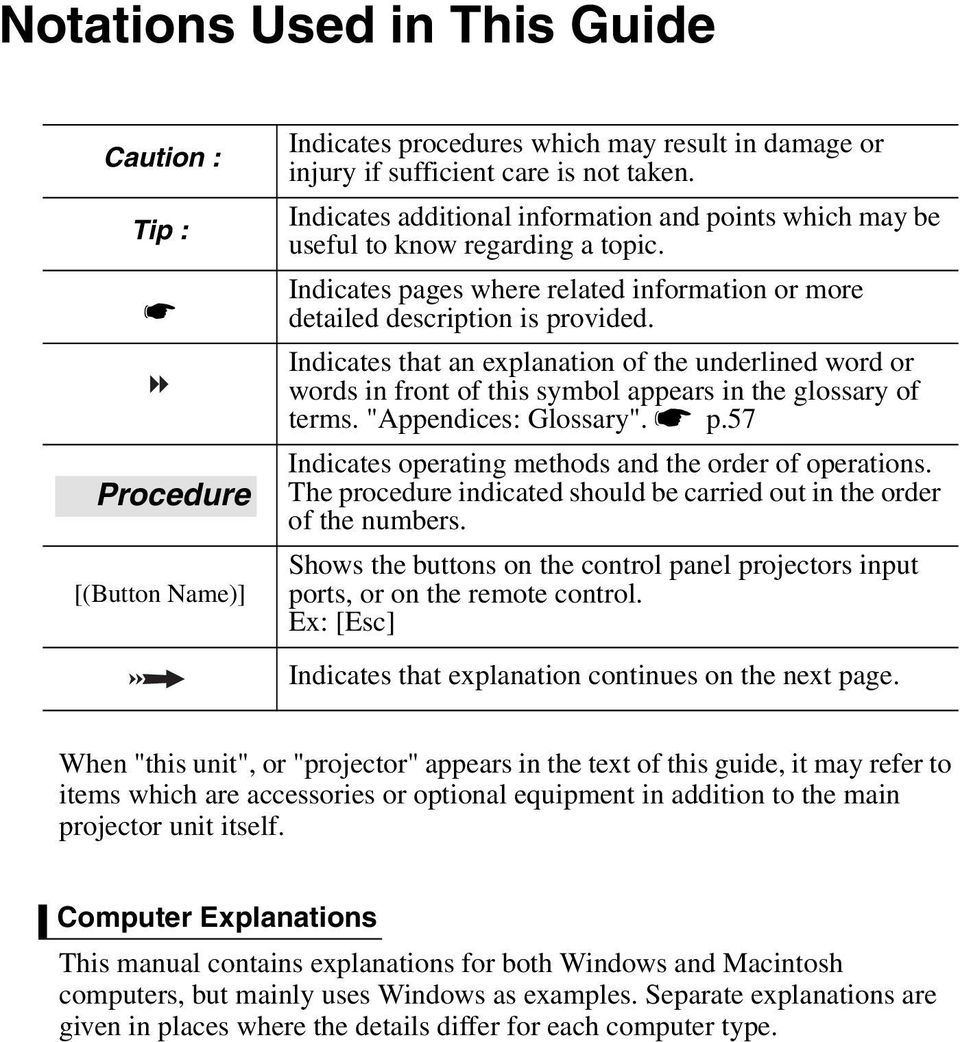
3 Notations Used in This Guide Caution : Tip : Procedure [(Button Name)] Indicates procedures which may result in damage or injury if sufficient care is not taken. Indicates additional information and points which may be useful to know regarding a topic. Indicates pages where related information or more detailed description is provided. Indicates that an explanation of the underlined word or words in front of this symbol appears in the glossary of terms. "Appendices: Glossary". s p.57 Indicates operating methods and the order of operations. The procedure indicated should be carried out in the order of the numbers. Shows the buttons on the control panel projectors input ports, or on the remote control. Ex: [Esc] Indicates that explanation continues on the next page. When "this unit", or "projector" appears in the text of this guide, it may refer to items which are accessories or optional equipment in addition to the main projector unit itself. Computer Explanations This manual contains explanations for both Windows and Macintosh computers, but mainly uses Windows as examples. Separate explanations are given in places where the details differ for each computer type.
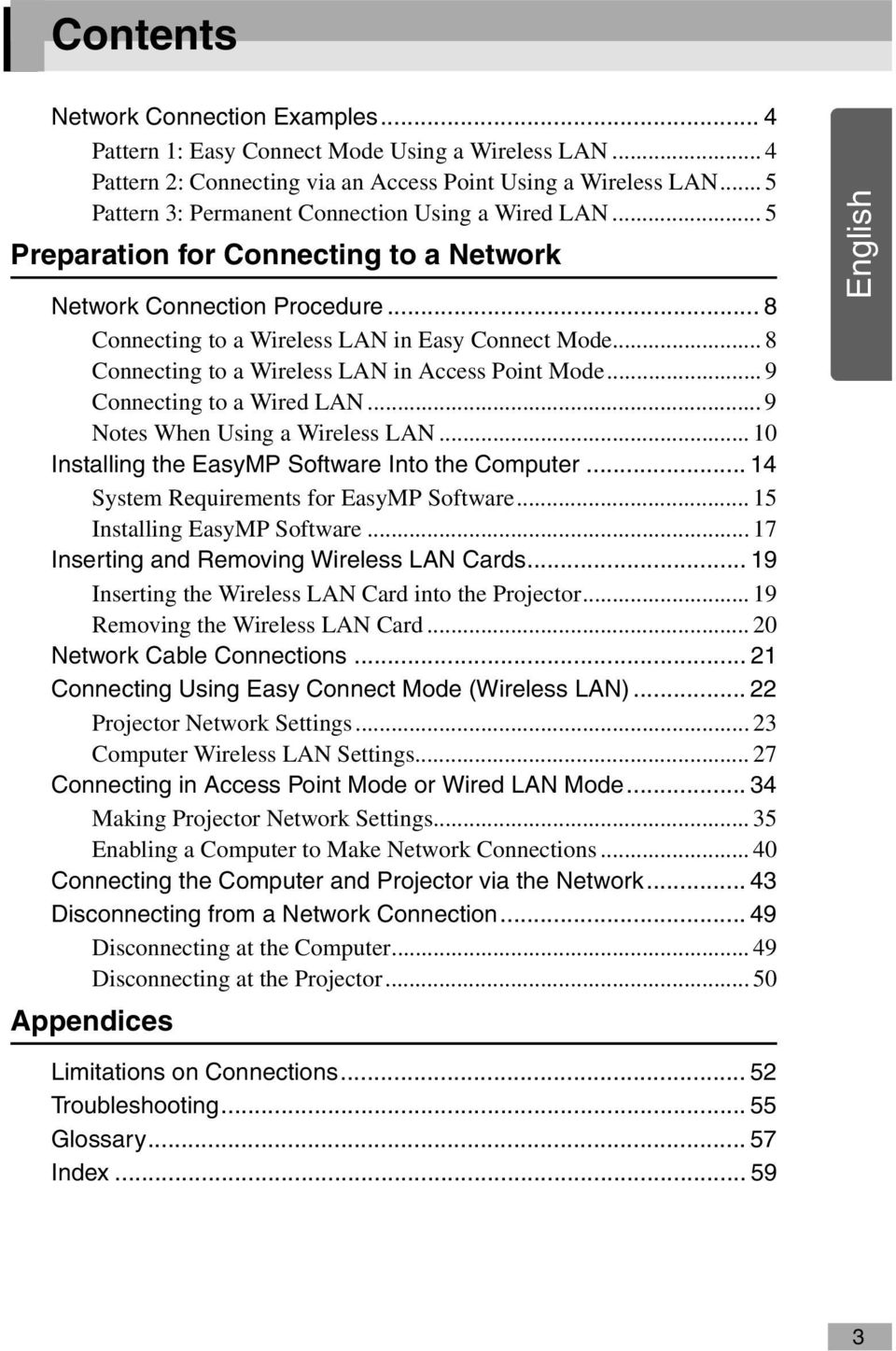
4 Contents Network Connection Examples... 4 Pattern 1: Easy Connect Mode Using a Wireless LAN... 4 Pattern 2: Connecting via an Access Point Using a Wireless LAN... 5 Pattern 3: Permanent Connection Using a Wired LAN... 5 Preparation for Connecting to a Network Network Connection Procedure... 8 Connecting to a Wireless LAN in Easy Connect Mode... 8 Connecting to a Wireless LAN in Access Point Mode... 9 Connecting to a Wired LAN... 9 Notes When Using a Wireless LAN Installing the EasyMP Software Into the Computer System Requirements for EasyMP Software Installing EasyMP Software Inserting and Removing Wireless LAN Cards Inserting the Wireless LAN Card into the Projector Removing the Wireless LAN Card Network Cable Connections Connecting Using Easy Connect Mode (Wireless LAN) Projector Network Settings Computer Wireless LAN Settings Connecting in Access Point Mode or Wired LAN Mode Making Projector Network Settings Enabling a Computer to Make Network Connections Connecting the Computer and Projector via the Network Disconnecting from a Network Connection Disconnecting at the Computer Disconnecting at the Projector Appendices English Limitations on Connections Troubleshooting Glossary Index
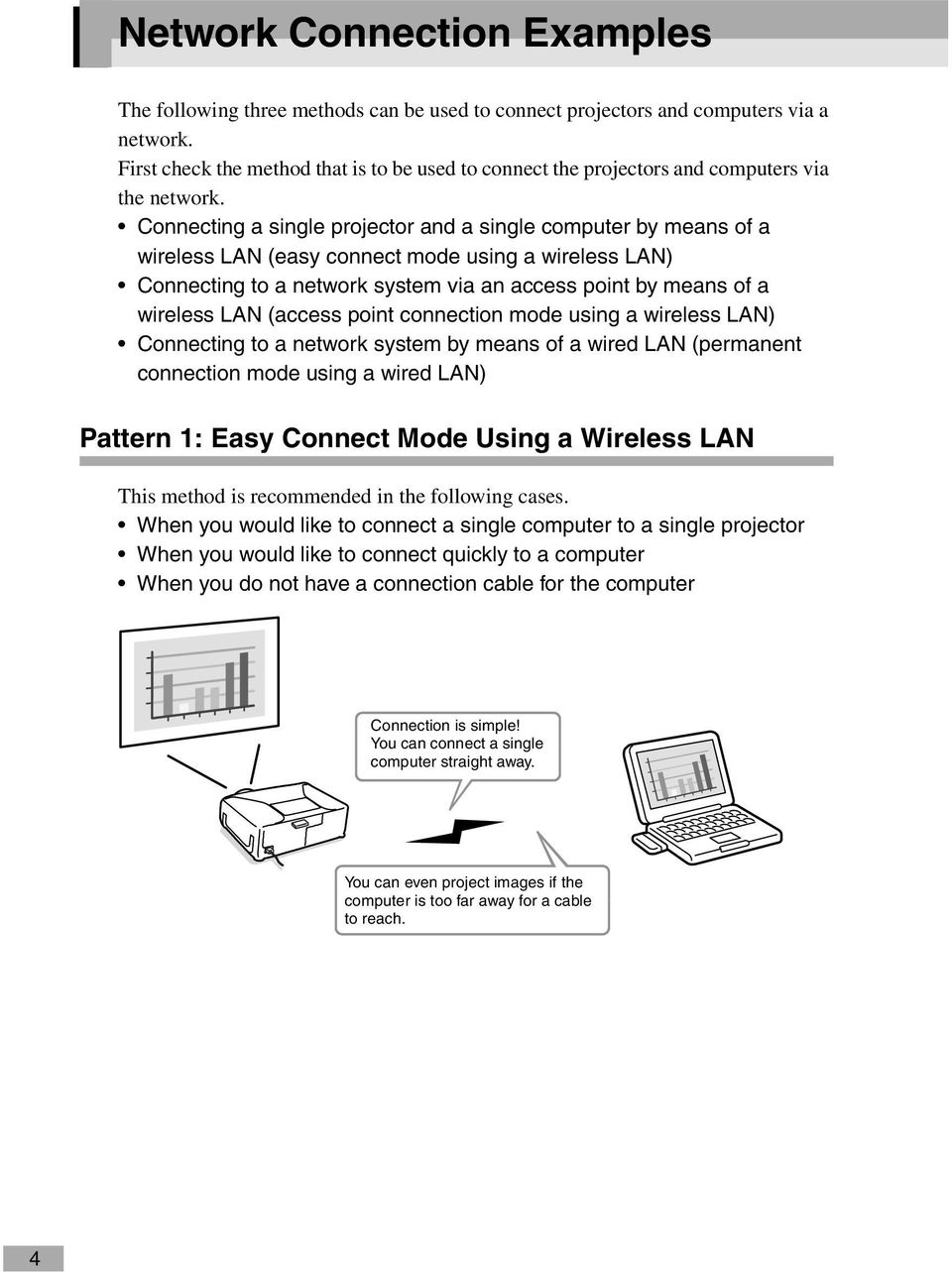
5 Network Connection Examples The following three methods can be used to connect projectors and computers via a network. First check the method that is to be used to connect the projectors and computers via the network. Connecting a single projector and a single computer by means of a wireless LAN (easy connect mode using a wireless LAN) Connecting to a network system via an access point by means of a wireless LAN (access point connection mode using a wireless LAN) Connecting to a network system by means of a wired LAN (permanent connection mode using a wired LAN) Pattern 1: Easy Connect Mode Using a Wireless LAN This method is recommended in the following cases. When you would like to connect a single computer to a single projector When you would like to connect quickly to a computer When you do not have a connection cable for the computer Connection is simple! You can connect a single computer straight away. You can even project images if the computer is too far away for a cable to reach. 4
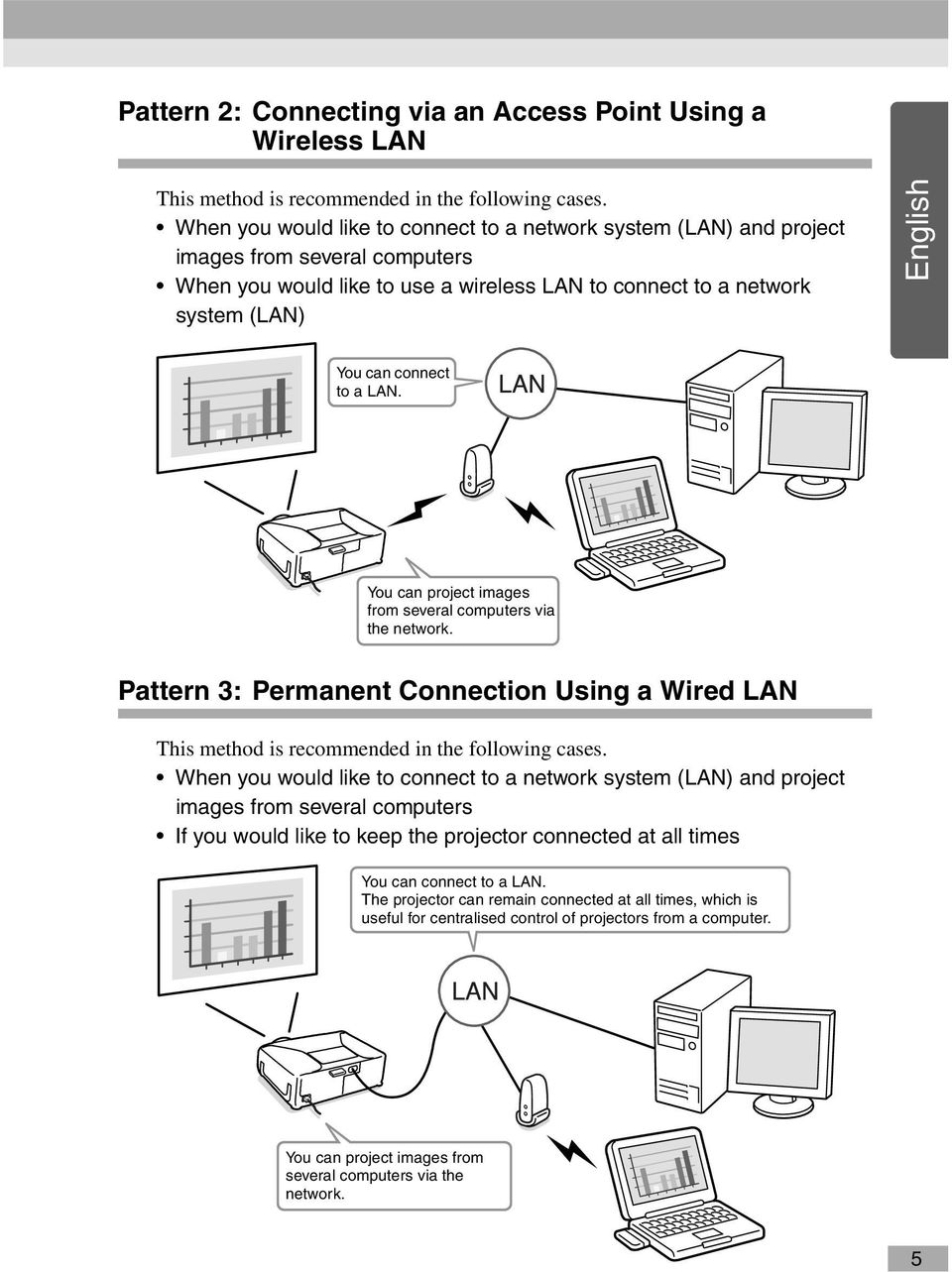
6 Pattern 2: Connecting via an Access Point Using a Wireless LAN This method is recommended in the following cases. When you would like to connect to a network system (LAN) and project images from several computers When you would like to use a wireless LAN to connect to a network system (LAN) English You can connect to a LAN. You can project images from several computers via the network. Pattern 3: Permanent Connection Using a Wired LAN This method is recommended in the following cases. When you would like to connect to a network system (LAN) and project images from several computers If you would like to keep the projector connected at all times You can connect to a LAN. The projector can remain connected at all times, which is useful for centralised control of projectors from a computer. You can project images from several computers via the network. 5
7

8 Preparation for Connecting to a Network This chapter describes the preparation for connecting the projector to a computer via network. Network Connection Procedure 8 Connecting to a Wireless LAN in Easy Connect Mode... 8 Connecting to a Wireless LAN in Access Point Mode... 9 Connecting to a Wired LAN... 9 Notes When Using a Wireless LAN Conditions for Connecting to Compatible Wireless LAN Cards and Access Points Precautions Regarding the Use of the Included Wireless LAN Card Electromagnetic Wave Safety Precautions Frequency Precautions International Travel Precautions Notes on Security when Using Wireless LANs Installing the EasyMP Software Into the Computer 14 Things to Prepare Installation Components System Requirements for EasyMP Software System Requirements for EMP SlideMaker System Requirements for EMP NS Connection System Requirements for EMP Monitor Installing EasyMP Software Inserting and Removing Wireless LAN Cards 19 Inserting the Wireless LAN Card into the Projector Removing the Wireless LAN Card Network Cable Connections 21 Connecting Using Easy Connect Mode (Wireless LAN) 22 Projector Network Settings Computer Wireless LAN Settings If Using Windows If Using a Macintosh Connecting in Access Point Mode or Wired LAN Mode 34 Making Projector Network Settings Basic Wireless LAN (Access Point Mode) or Wired LAN Settings Wireless LAN Security Monitoring and Controlling Projectors Enabling a Computer to Make Network Connections If Using Windows If Using a Macintosh Connecting the Computer and Projector via the Network 43 Setting the Projector to Connection Standby Mode Starting EMP NS Connection at the Computer Disconnecting from a Network Connection 49 Disconnecting at the Computer Disconnecting at the Projector... 50
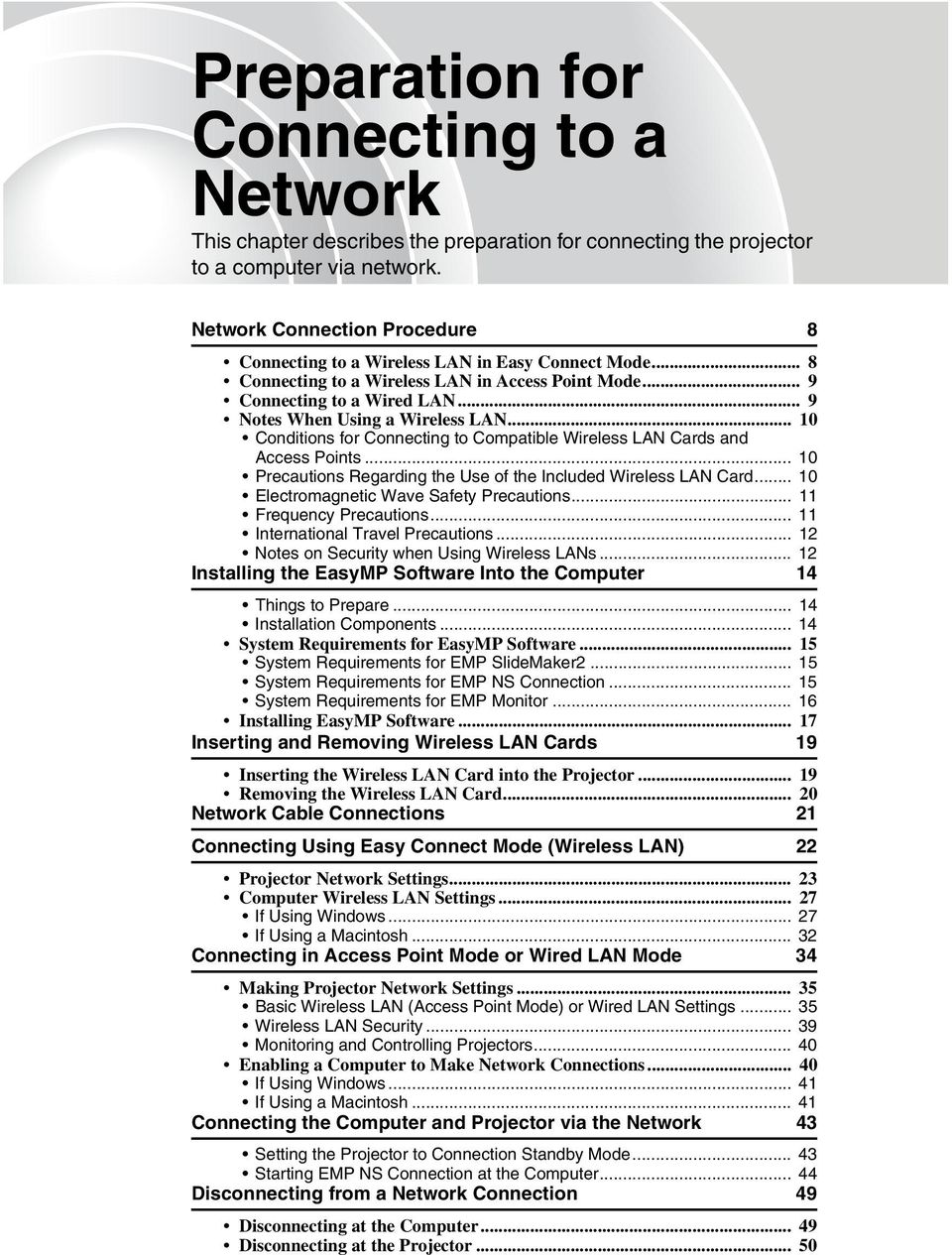
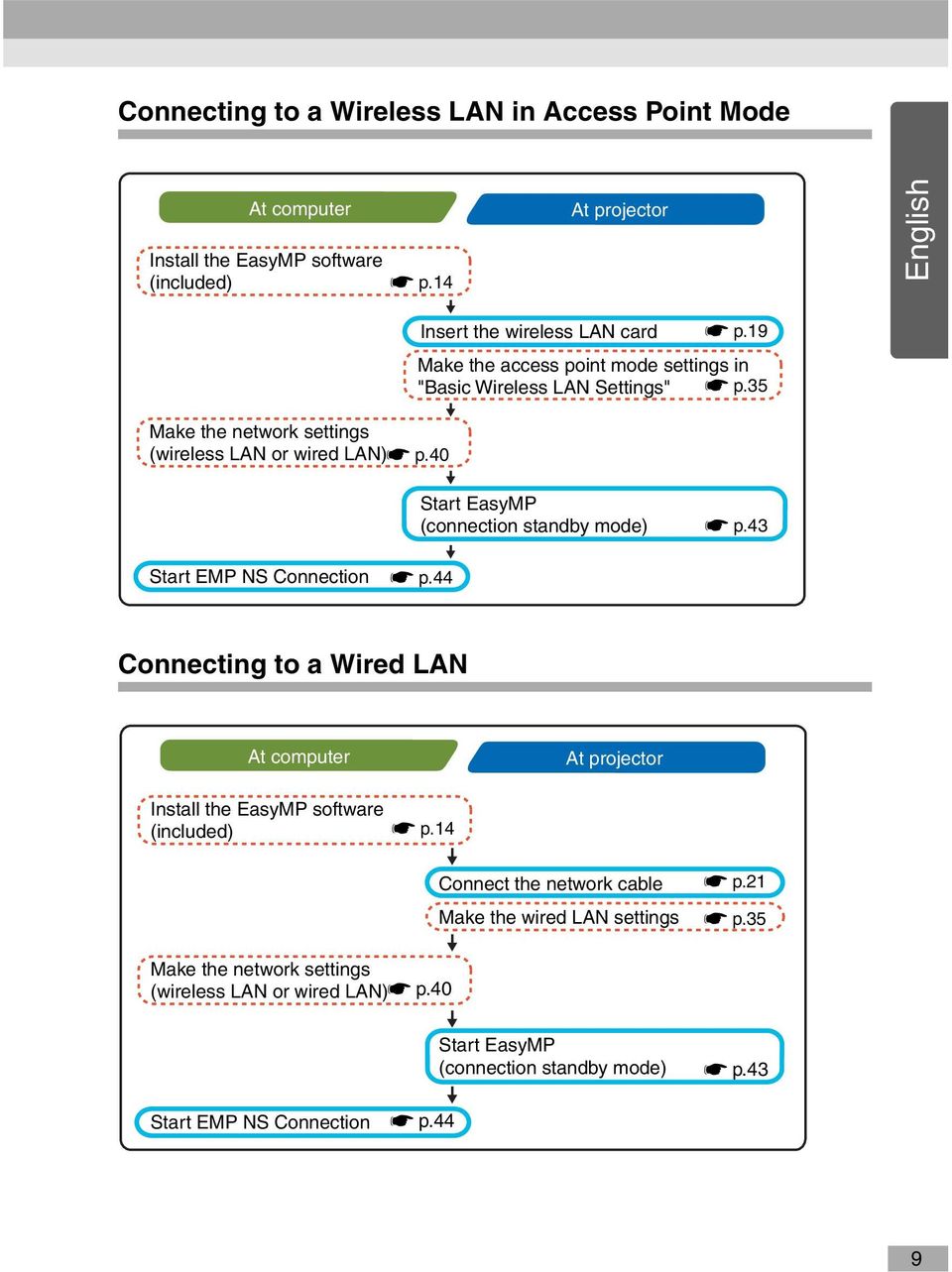
9 Network Connection Procedure Carried out first time only Carried out second and subsequent times Connecting to a Wireless LAN in Easy Connect Mode At computer At projector Install the EasyMP software (included) sp.14 Insert the wireless LAN card sp.19 Make the easy connect mode settings in "Basic Wireless LAN Settings" sp.22 Make the wireless LAN (ad hoc mode) connection settings sp.27 Start EasyMP (connection standby mode) sp.43 Start EMP NS Connection sp.44 8
10 Connecting to a Wireless LAN in Access Point Mode At computer Install the EasyMP software (included) sp.14 At projector English Insert the wireless LAN card sp.19 Make the access point mode settings in "Basic Wireless LAN Settings" sp.35 Make the network settings (wireless LAN or wired LAN) sp.40 Start EasyMP (connection standby mode) sp.43 Start EMP NS Connection sp.44 Connecting to a Wired LAN At computer At projector Install the EasyMP software (included) sp.14 Connect the network cable Make the wired LAN settings sp.21 sp.35 Make the network settings (wireless LAN or wired LAN) sp.40 Start EasyMP (connection standby mode) sp.43 Start EMP NS Connection sp.44 9
11 Network Connection Procedure Notes When Using a Wireless LAN Conditions for Connecting to Compatible Wireless LAN Cards and Access Points The wireless LAN card that is included with the projector can be connected to the following Wi-Fi (802.11g or b) compliant products. Wireless LAN cards Computers with internal wireless LAN functionality Access points The enclosed wireless LAN card is designed to be used exclusively with this projector. We are not responsible for any problems resulting from inserting the card into a device other than the projector. Precautions Regarding the Use of the Included Wireless LAN Card You cannot use any wireless LAN cards in this projector other than the wireless LAN card that is included with the projector. The specifications of the wireless LAN card that is included with the projector are as follows. Frequency Range Modulation Potential Interference Range Can/Can not change frequency 2.4GHz band b : DS-SS method g : OFDM method Less than 20m Uses all bands, and is capable of avoiding "licenced" as well as "unlicenced" bands. 10
12 Electromagnetic Wave Safety Precautions Be aware of the following points regarding the included wireless LAN card. May exert electromagnetic interference on, and cause malfunction of, cardiac pacemakers. Before use, ensure that electromagnetic interference does not occur. May exert electromagnetic interference on, and cause malfunction of, sensitive medical equipment. Before use, ensure that electromagnetic interference does not occur. Do not use near microwave ovens. Wireless communication may be interrupted by electromagnetic interference generated by microwave ovens. Use of this product on aircraft may be restricted in some countries. Be sure to follow the usage restrictions. English Frequency Precautions The frequency band for the wireless LAN card that is included with the projector is 2.4 GHz. This band is also used for industrial, scientific, and medical devices such as microwave ovens and mobile unit identification (RF-ID) systems (licenced premises radio stations and unlicenced specified low-power radio stations) used in factory production lines. Before using the wireless LAN card, check that there are not any radio stations for mobile unit identification or specified low-power radio station premises nearby. In the event that this wireless LAN card should interfere electromagnetically with the premises of a radio station used for mobile unit recognition, cease use immediately and stop generating the electromagnetic field. Contact your nearest dealer or the address provided under "International Warranty Conditions" in Safety Instructions/World-Wide Warranty Terms booklet if this wireless LAN card interferes electromagnetically with a special low-power radio station used for mobile unit identification or causes similar problems. 11
13 Network Connection Procedure International Travel Precautions The wireless LAN card configuration is based on the specifications of the country of purchase. Wireless LAN cards have limitations on the channelg numbers and frequencies that they can use, and so you may need to be aware of this if using the wireless LAN card that is included with the projector in countries other than the country of purchase. Notes on Security when Using Wireless LANs (Important information on customer rights (maintaining privacy)) Because wireless LANs use electromagnetic signals instead of a LAN cable to send and receive data, they have the advantage of allowing a device to connect to the network easily as long as they are within range to receive the signals. A disadvantage of this is that within a certain range, the electromagnetic signals can pass through barriers such as walls, so that if security countermeasures are not implemented in some way, problems such as the followings may occur. Communicated data can be intercepted A third party may be able to receive wireless transmissions without authorisation, and they could obtain personal information from these transmissions such as IDs, passwords or credit card numbers, or they could intercept the contents of personal messages. Unauthorised access to the network A third party could access an individual or intra-company network without permission and carry out any of the following activities. Retrieve personal data or other secret information (information leakage) Pose as another user and send inappropriate data (impersonation) Overwrite the contents of intercepted data and resend it (falsification) Introduce a computer virus which could cause data loss or system crashes (damage) Nowadays, wireless LAN cards and wireless access points are equipped with security measures that address such security problems, so that you can enable security-related settings for wireless LAN products in order to reduce the likelihood of problems occurring. 12
14 We recommend that you make yourself fully acquainted with the possible implications of what might happen if you do not use the security settings, and that you take responsibility to ensure that the appropriate settings are carried out. For details on security settings for the projector s"security Countermeasures for Wireless LAN" in the EasyMP Operation Guide English 13

15 Installing the EasyMP Software Into the Computer Things to Prepare EasyMP Software CD-ROM (included) Computer that can run EasyMP (See following page) Installation Components The following software programs are included on the EasyMP software CD-ROM. EMP NS Connection This program is used to send images from a computer to a projector via the network when using Network Screen. s "Connecting the Computer and Projector via the Network" p.43 EMP SlideMaker2 This program is used to convert PowerPoint files into a format that can be played directly by the projector. It does this by creating files called "scenarios". EMP SlideMaker2 lets you extract the required parts of a PowerPoint file into the scenario and change the order of these parts without changing the original PowerPoint file in any way, and it also lets you embed other image files and movie files into the scenario. You can transfer a scenario onto a memory card or USB storage device, and insert it into (or connect it to) the projector, so that you can give presentations without having to connect a computer to the projector. s"preparing a Presentation (Using EMP SlideMaker2)" in the EasyMP Operation Guide EMP Monitor This program is used to display the statuses of multiple projectors that are connected to the network on a computer screen, so that you can monitor the projectors and carry out control operations such as turning the power for all the projectors on or off at once. This allows all of the projectors to be monitored and controlled by a single operator at a computer. semp Monitor Operation Guide The specifications differ as follows for the computers that are required to run each of the above programs. 14
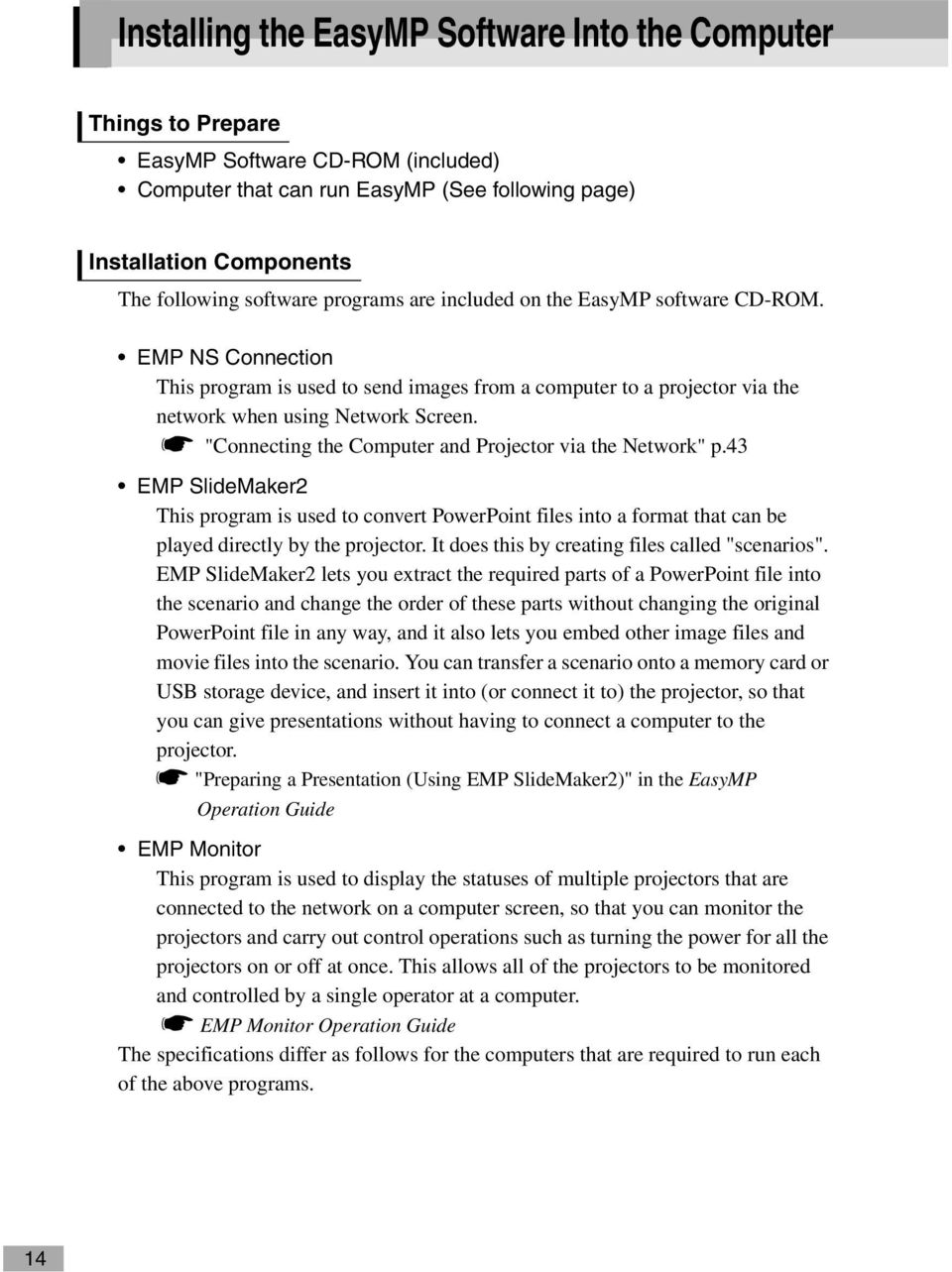
16 System Requirements for EasyMP Software System Requirements for EMP NS Connection OS CPU Memory capacity HDD space Display Windows 98/Me/2000/XP Mac OS X or later HDD: hard disc drive Windows: Pentium III 600 MHz or higher (Pentium 4 or Pentium M recommended) Macintosh:Power PC G3 or higher (500 MHz or higher recommended) Windows : 128 MB or more (256 MB or more recommended) Macintosh: 256 MB or more At least 20MB VGA (640x480) or higher resolution (Windows: XGA ( ) resolution and 32-bit colour are recommended. Macintiosh: XGA ( ) resolution is recommended. For the display colour setting, see the page 53 ) English System Requirements for EMP SlideMaker2 OS * CPU Memory capacity HDD space Display * Macintosh is not supported. Windows 98/Me/2000/XP Minimum: Celeron 300MHz (Recommended: Celeron 400MHz or higher) Minimum: 64MB (Recommended: 128MB or above) At least 12MB At least SVGA ( ) resolution (Recommended: XGA ( ) resolution or above) 15
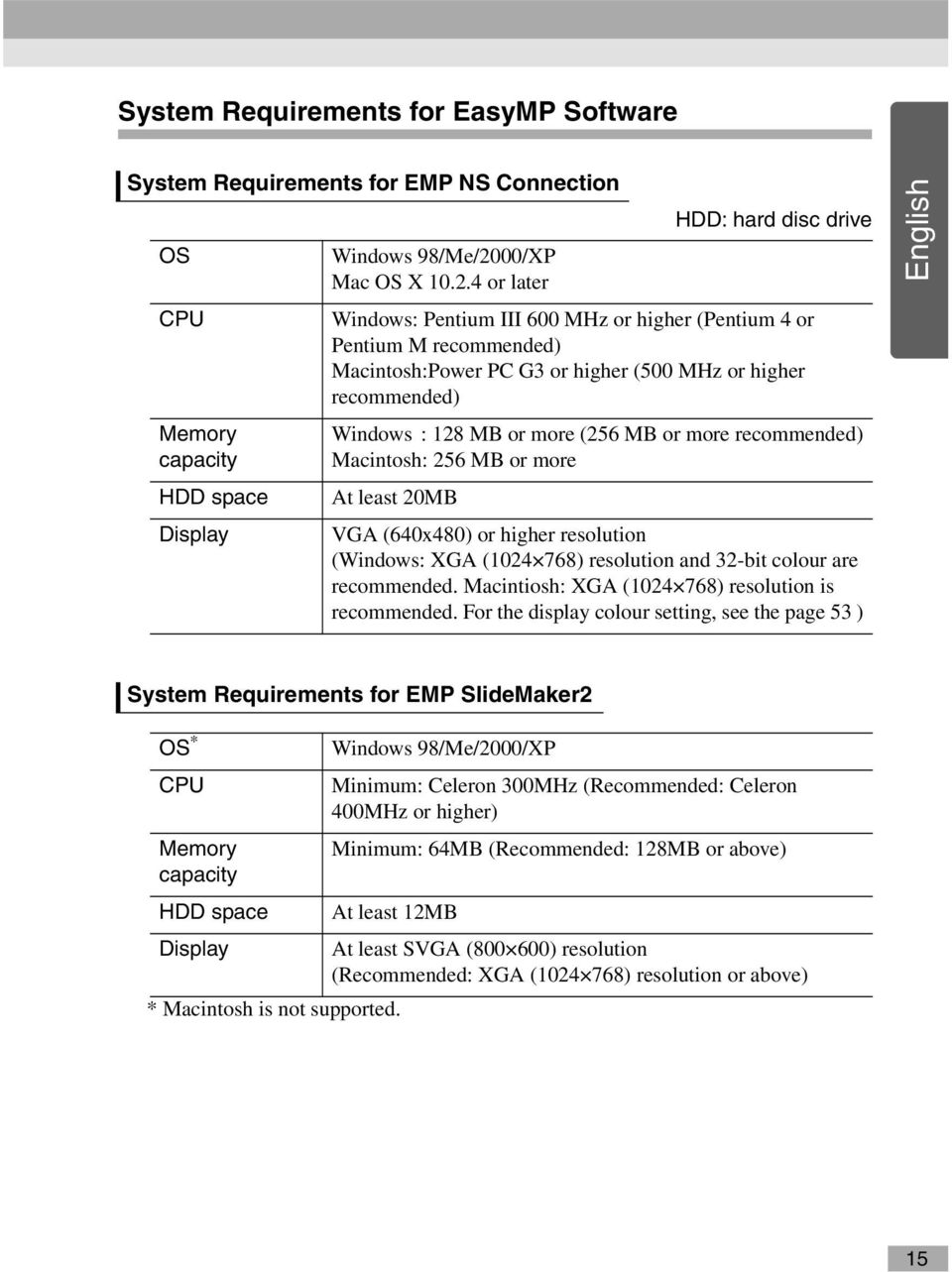
17 Installing the EasyMP Software Into the Computer System Requirements for EMP Monitor OS * CPU Memory capacity HDD space Display * Macintosh is not supported. Windows 98 Second Edition/Me/NT 4.0 Workstation/2000 Professional/XP Minimum: Pentium MMX 166MHz (Recommended: Pentium II 233MHz or higher) 64MB or more (128MB or more recommended) At least 6MB Minimum: XGA ( ) or higher resolution, 16-bit colour or higher 16
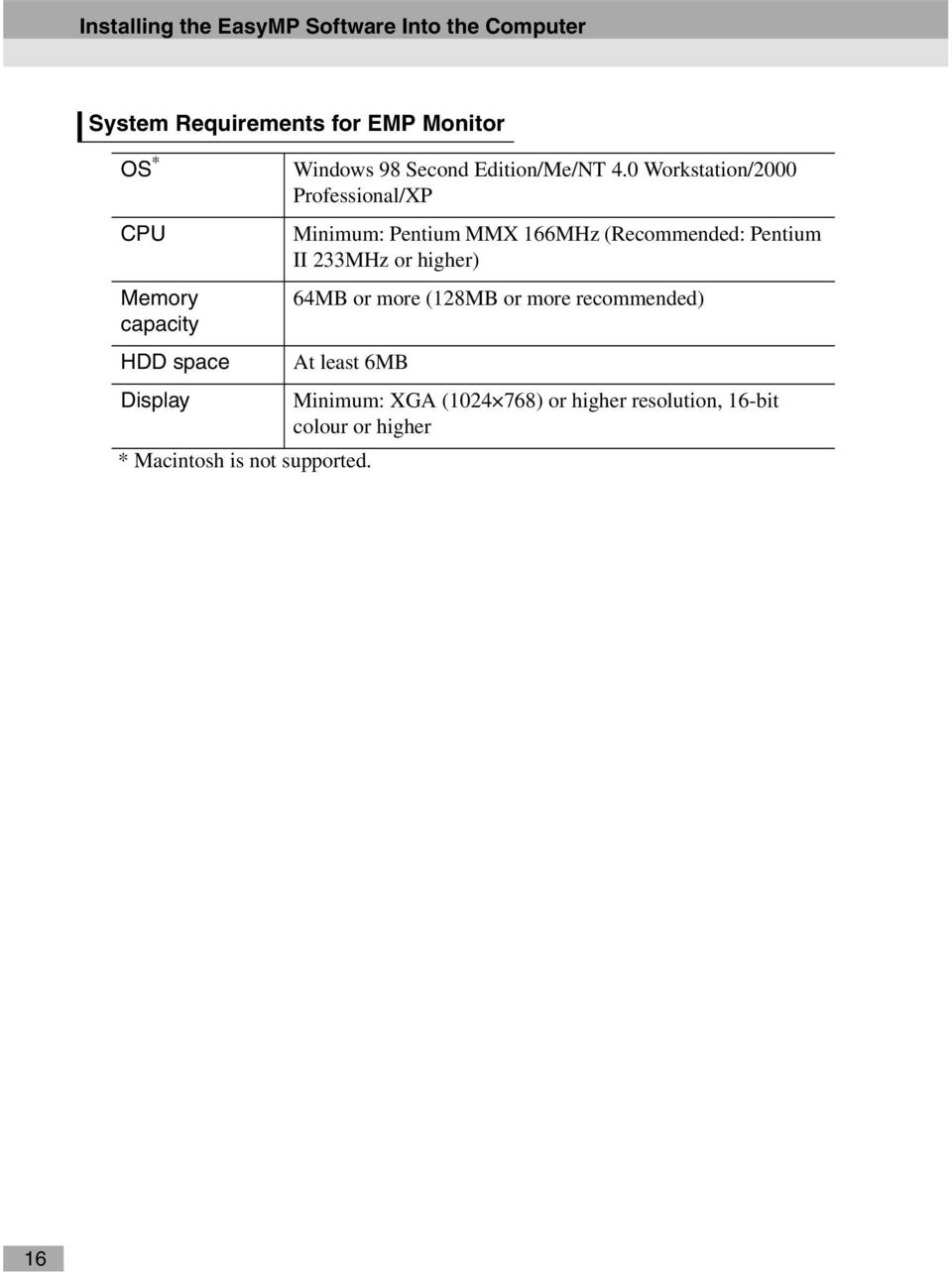
18 Installing EasyMP Software When using Windows 2000/NT4.0/XP, only a user with administrator privileges can install the software. Procedure 1 Turn the power on for the computer and close all applications that are currently running. English 2 Place the "EasyMP Software" CD-ROM that is included with the projector into the computer. If using Windows The installer will start automatically. If using a Macintosh In the "EPSON" window, double-click the "Installer for Mac OS X" icon. If the previous version of the EMP NS Connection has been installed, uninstall it before installing the newer version. sp.56 3 A virus checking program window will appear, so check the contents and then click "Next". A software confirmation window will appear. Tip : If using Windows If the setup program does not start running automatically, select "Run" from the "Start" menu, then type "R(CD drive letter):\setup.exe" in the dialog box and click the "OK" button. 17
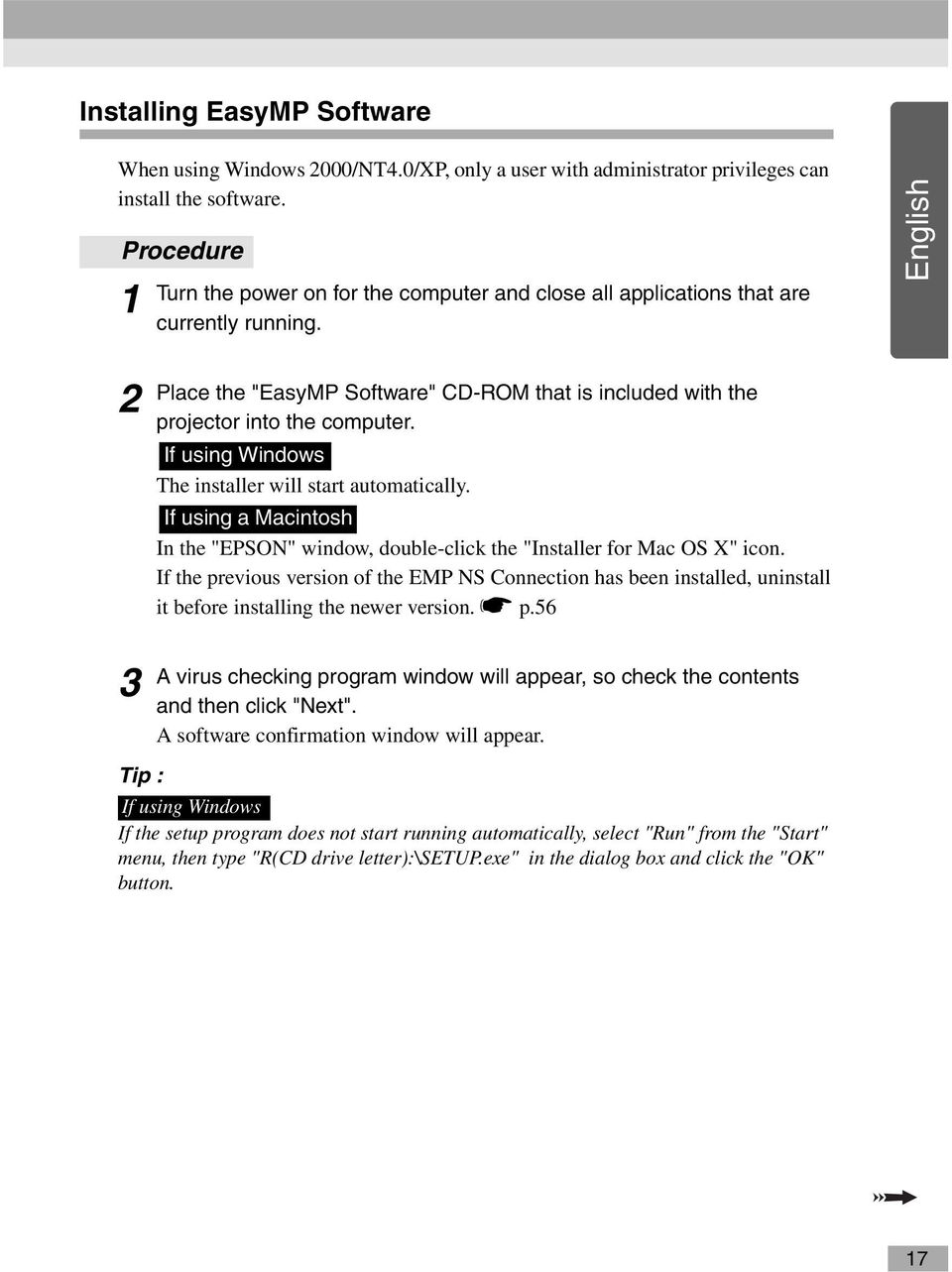
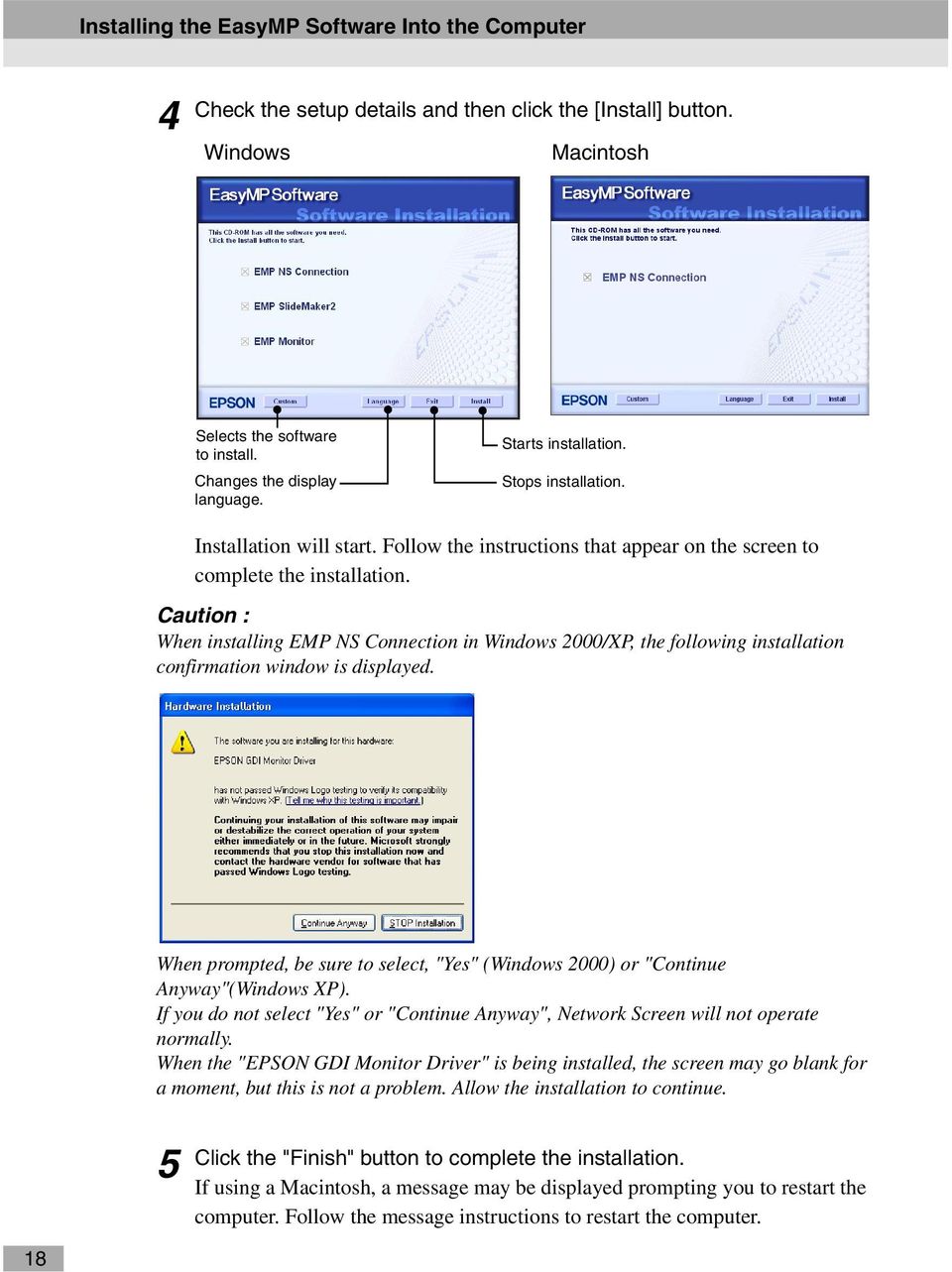
19 Installing the EasyMP Software Into the Computer 4 Check the setup details and then click the [Install] button. Windows Macintosh Selects the software to install. Changes the display language. Starts installation. Stops installation. Installation will start. Follow the instructions that appear on the screen to complete the installation. Caution : When installing EMP NS Connection in Windows 2000/XP, the following installation confirmation window is displayed. When prompted, be sure to select, "Yes" (Windows 2000) or "Continue Anyway"(Windows XP). If you do not select "Yes" or "Continue Anyway", Network Screen will not operate normally. When the "EPSON GDI Monitor Driver" is being installed, the screen may go blank for a moment, but this is not a problem. Allow the installation to continue. 5 Click the "Finish" button to complete the installation. If using a Macintosh, a message may be displayed prompting you to restart the computer. Follow the message instructions to restart the computer. 18
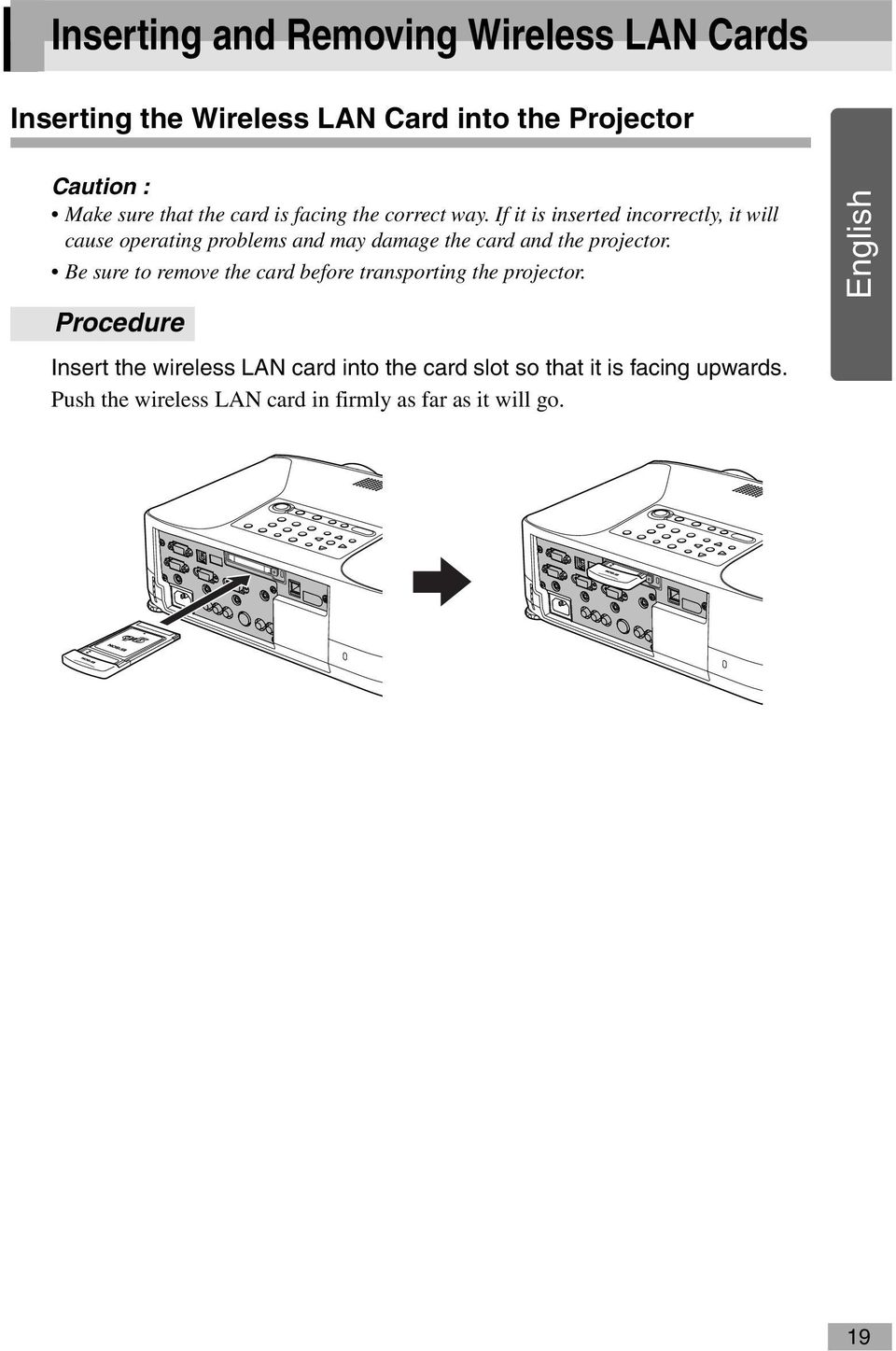
20 Inserting and Removing Wireless LAN Cards Inserting the Wireless LAN Card into the Projector Caution : Make sure that the card is facing the correct way. If it is inserted incorrectly, it will cause operating problems and may damage the card and the projector. Be sure to remove the card before transporting the projector. Procedure Insert the wireless LAN card into the card slot so that it is facing upwards. Push the wireless LAN card in firmly as far as it will go. English 19
21 Inserting and Removing Wireless LAN Cards Removing the Wireless LAN Card Caution : Do not remove the wireless LAN card while the access lamp of the wireless LAN card is flashing green, otherwise it may damage the wireless LAN card. The wireless LAN card gets hot during and after projector use. Please handle the card carefully to avoid personal injury or burns. Procedure 1 Press the eject button above of the card slot. The eject button will pop out. Eject button Card slot access lamp 2 Press the eject button again. Enough of the wireless LAN card will be ejected so that you can grasp the edge of the card and pull it straight out of the slot. Caution : Be sure to press the eject button back in to prevent it from being broken or damaged. 20
22 Network Cable Connections To connect the projector to a wired LAN, connect using a network cable as follows. Caution : The projector can be connected using a commercially-available 100baseTX or 10baseT network cable. To prevent the possibility of incorrect operation, you should use a category 5 shielded cable. English Procedure Insert the network cable into the Network port of the projector until it clicks into place. Network cable 21
23 Connecting Using Easy Connect Mode (Wireless LAN) This section describes the procedure for connecting a projector to a network and projecting images from a computer, and also how to disconnect the projector in easy connect mode. At computer At projector Install the EasyMP software (included) sp.14 Insert the wireless LAN card sp.19 Make the easy connect mode settings in "Basic Wireless LAN Settings" sp.22 Make the wireless LAN (ad hoc mode) connection settings sp.27 Start EasyMP (connection standby mode) sp.43 Start EMP NS Connection sp.44 Carried out first time only Carried out second and subsequent times Tip : The optimum performance can be obtained if the resolution of the computer being used is XGA or lower and the colour settings are for 16-bit colour (Windows) or Thousands (Macintosh). Caution : Do not remove the wireless LAN card while the access lamp of the wireless LAN card is flashing green, otherwise it may damage the wireless LAN card. 22
24 Projector Network Settings First, connect the projector to the network in easy connect mode. Use the remote control that is included with the projector to carry out these connection settings. English Tip : These settings only need to be made once, and will be kept from then on. Procedure 1 Insert the wireless LAN card into the card slot on this projector. s p Press the [Power] button to turn on the projector. Press the [EasyMP] button. EasyMP standby screen will be displayed. Ensure that the "Config" button at the lower right on the window is selected, and press the [Enter] button. 5 Tilt the [ ] button down to move the cursor to "Wireless LAN" - "Basic" button in the left portion of the screen, and then press the [Enter] button. 23
25 Connecting Using Easy Connect Mode (Wireless LAN) 6 Check that the cursor is at "Easy connect mode", and then press the [Enter] button. This selects "Easy connect mode". 7 Move the cursor to the item that you would like to set, and then press the [Enter] button and set the item. The settings of each of the items is shown below. Some menu items require characters or numerals to be entered. See "Entering Characters and Numerals" (s p.26 ) for details on entering characters and numerals. 24
26 Projector name Enter a name for the projector. This name is used to identify the projector when connected to the network. The default value is EMPxxxxxx (xxxxxx is the last 6 characters in the MAC address for the wired LAN). Up to 16 single-byte alphanumeric characters can be entered. ESSID g Enter the ESSID. The initial value is "EPSON." Up to 16 single-byte alphanumeric characters can be entered. Normally you should enter the same term (character string) as the ESSID for the computer being connected to. However, the projector is provided with an automatic ESSID search function, so that the projector can be connected even without setting the ESSID to the computer's ESSID. Automatic ESSID searching is a function that temporarily assigns the computer's ESSID to the projector (default setting). This lets the projector and computer connect easily without setting both names to match. For details on the automatic ESSID search function s"automatic ESSID Search" p.30 Password for WEB control Projector keyword MAC addressg If you set a password, entry of that password will be required when using EasyWeb, and when starting EMP Monitor. Up to 8 single-byte alphanumeric characters are available. If the projector keyword option is set to "ON", keyword entry will be required to connect to the projector over a wireless LAN. Use this function to prevent unintended or unauthorized access to the projector during presentations, from other points on the wireless LAN. This option should normally be "ON". Displays the wireless LAN card MAC address. If there is no wireless LAN card inserted, the MAC address will be displayed as "00:00:00:00:00:00". English * The item contents will be cleared if you select the "Clear" button on the selected item and press [Enter] on the remote control. 25
27 Connecting Using Easy Connect Mode (Wireless LAN) Entering Characters and Numerals Perform the following steps to enter characters and numbers using the remote control. 1. Move the cursor to the item to input, and press the [Enter] button. The cursor turns green to indicate you are in input mode. 2. To enter numbers, use the numeric keypad Remote control while holding down the [Num]. The [Num] button lights up and the remote control buttons change to numeric keypad mode so that you can enter numbers. To enter a period (.) press the [ ] button characters can be input. Tilt the [ ] button up to select individual Period Numeric characters or numbers in the following order: buttons A-Z 0-9 symbols a-z space. Tilt the [ ] button down to select them in The buttons inside the box will reverse order. switch to numeric keypad mode To set your target character quickly, press while the [Num] button is lit. and hold the [ ] button to rapidly advance through characters. 3. To input subsequent numbers or characters, tilt the [ ] button to the right. The first number or character is selected and the cursor moves to the second entry position. 4. After you have entered all the characters, press the [Enter] button to finalise the entry. The cursor will turn yellow. 26
28 8 Press the [ ] button to move the cursor to "OK" button displayed in the upper right of the screen, and press the [Enter] button. The display returns to the EasyMP standby screen. The ESSID that has been set will be displayed. If "Projector Keyword" has been set to "ON", the projector keyword will also be displayed. English The value is displayed here. Tip : When connecting to a computer, check the projector keyword displayed in the EasyMP standby screen and enter that keyword. Connection is not possible using a previous keyword. Computer Wireless LAN Settings If Using Windows This describes how to make the settings for the computer to be connected. The following settings should be made for wireless LAN communication. Ad hoc mode settings WEPg key settings The setting methods given on the following pages are for computers that use the Windows XP SP2 operating system. If using an operating system other than Windows XP SP2, refer to the instructions that are provided with the wireless LAN card for details on the setting operations. 27
29 Connecting Using Easy Connect Mode (Wireless LAN) Tip : These settings only need to be made once, and will be kept from then on. Depending on the driver for the wireless LAN card that you are using, the window display contents and button names that actually appear may differ from those given here. Procedure 1 While referring to the documentation for the wireless LAN card and computer that you are using, carry out the following steps so that the wireless LAN card can be used. Insert the wireless LAN card into the computer. Install the driver for the wireless LAN card. 2 3 Turn the power for the computer on, and select "Start" - "Connect" - "Connecting to a Wireless Network" in that order. When the window shown at left below is displayed, click the "Change advanced settings" button. When the window shown at right below is displayed, click the "View Wireless Networks" button. 28
30 4 Make the following settings in the wireless network connection properties window, and then click the "Advanced" button. English 5 Make the following settings in the advanced window, and then click the "Close" button. 29
31 Connecting Using Easy Connect Mode (Wireless LAN) 6 Click the "Add" button in the wireless network connection properties window. 7 Check that "Data encryption" is set to "Disabled" in the wireless network properties window, and then click the "OK" button. If using Windows 98/ME, set the name in the "Network name (SSID)" box to the same term (character string) as the ESSID of the connected projector (the default setting is "EPSON"). When using Windows XP or 2000, the automatic ESSID search can be used to make the connection without setting the ESSID. Select "Disabled". 30 Tip : Automatic ESSID Search The automatic ESSID search function can be used with the following computers. Operating system*: Windows 2000/XP When using a NDISg5.1 compatible wireless LAN driver If the ESSIDs of the computer and the projector are not the same, you cannot use easy connect mode to connect to a wireless LAN. However, it is difficult and complicated to change the ESSID. Because of this, the Windows edition of EMP NS Connection includes an automatic ESSID search function which uses the ESSID that has been set for the
32 projector (the default setting is "EPSON") and temporarily assigns it as the computer's ESSID when connecting in easy connect mode. Once the connection is finished, the computer's ESSID returns to its previous setting. The automatic ESSID search function can also be disabled. s "Disabling Automatic ESSID Search" in the EasyMP Operation Guide To use the automatic ESSID search function, a user with administrator privileges must login. Other users who do not have the privileges can not use the function. *Because an identical function to the automatic ESSID search function is included with Macintosh OS X, the automatic ESSID search function is not included in the Macintosh version of EMP NS Connection. sp.44 English Next, proceed to "Connecting the Computer and Projector via the Network". s p.43 31
33 Connecting Using Easy Connect Mode (Wireless LAN) If Using a Macintosh The following describes how to set the port to be used for the connection. Refer to the documentation for the computer and the AirPort card for details on port settings (network settings). Procedure 1 Select "System Preferences" - "Network" from the Apple menu. The network setting window will be displayed. 2 Select a single port to use in the "Port Configurations" box, and then click "Apply Now". Select a single port to use. Tip : If you set the "Location", you can select a target location and change all network settings at the same time. 32
34 3 Close the window. Tip : Make sure that you only select one port in "Network Port Configurations" and leave all other ports unselected. If you select more than one port, it may cause the computer to connect to the wrong network. English Next, proceed to "Connecting the Computer and Projector via the Network". s p.43 33
35 Connecting in Access Point Mode or Wired LAN Mode This section explains how to connect using either of the following two methods. Wireless LAN Access Point Mode This method is used for connecting to a computer via a wireless LAN access point that is connected to an existing network system. Wired LAN mode This method is used for connecting to an existing network system using a network cable. If you normally have the computer connected to a network system via an access point or a wired LAN, then you can keep the existing computer LAN settings as they are and only make the required network settings at the projector. If you use one of these connection methods, you can send images from the computer via the network so that they can be projected by the projector, and you can also monitor the projector's status from the computer. At computer At projector Install the EasyMP software (included) sp.14 For wireless LAN access point mode Insert the wireless LAN card sp.19 Basic Wireless LAN (Access Point Mode) Settings sp.35 For wired LAN mode Connect the network cable sp.21 Wired LAN settings sp.35 Make the network settings (wireless LAN or wired LAN) sp.40 Start EasyMP (connection standby mode) sp.43 Start EMP NS Connection sp.44 Carried out first time only Carried out second and subsequent times 34
36 Tip : The optimum performance can be obtained if the resolution of the computer being used is XGA or lower and the colour settings are for 32-bit colour (Windows) or Thousands (Macintosh). Caution : Do not remove the wireless LAN card while the access lamp of the wireless LAN card is flashing green, otherwise it may damage the wireless LAN card. English Making Projector Network Settings This describes the basic settings that are required in order to use a wireless LAN (access point mode) or a wired LAN. The connection settings described here can be made using the remote control that is included with the projector. Tip : This setting only needs to be made once, and will be kept from then on. The setting methods described here are carried out using the remote control, but once you have connected in easy connect mode, you can also use the computer's web browser to make the settings. This method allows you to use the computer's keyboard to make the settings more easily. s "Changing Settings Using a Web Browser (EasyWeb)" in the EasyMP Operation Guide Apply the following settings under the direction of the network systems administrator. Basic Wireless LAN (Access Point Mode) or Wired LAN Settings Procedure 1 For a wireless LAN Insert the wireless LAN card into the card slot of the projector. sp.19 For a wired LAN Connect the network cable to the projector. sp.21 2 Press the [Power] button to turn the projector on. 35
37 Connecting in Access Point Mode or Wired LAN Mode 3 4 Press the [EasyMP] button. EasyMP standby screen will be displayed. Ensure that the "Config" button at the lower right of the window is selected, and press the [Enter] button. 5 For a wireless LAN Tilt the [ ] button down to move the cursor to "Wireless LAN" - "Basic" button in the left portion of the screen, and then press the [Enter] button. For a wired LAN Check that the "wired LAN" - "Basic" button in the left portion of the screen is selected, and then press the [Enter] button. 6 Wireless LAN only Position the cursor on "Access point mode", and press the [Enter] button. This selects "Access point mode". 36
38 7 Move the cursor to the item that you would like to set, and then press the [Enter] button and set the item. English Establish settings enabling the projector to function on the network. Some menu items require characters or numerals to be entered. See "Entering Characters and Numerals" (s p.26 ) for details on entering characters and numerals. Projector name ESSID g Wireless LAN only Password for WEB control Enter a name for the projector. This name is used to identify the projector when connected to the network. The default value is EMPxxxxxx (xxxxxx is the last 6 characters in the MAC address for the wired LAN). Up to 16 single-byte alphanumeric characters can be entered. Enter the ESSID. If an ESSID has already been set by the wireless LAN system, enter that value. The initial value is "EPSON." Up to 16 single-byte alphanumeric characters can be entered. If you set a password, entry of that password will be required when using EasyWeb, and when starting EMP Monitor. Up to 8 single-byte alphanumeric characters are available. 37
39 Connecting in Access Point Mode or Wired LAN Mode Projector keyword DHCPg IP addressg Subnet maskg Gatewayg address If the projector keyword option is set to "ON", keyword entry will be required when connecting to the projector over a network. By using this method, you can prevent other unauthorised computers from connecting to the network and interfering with the presentation. This option should normally be "ON". Indicates DHCP use. "ON" : enables DHCP "OFF" : disables DHCP Enter the IP address assigned to the projector. Numbers between can be input for each of the fields of the address. However, the following IP addresses cannot be used , 127.x.x.x, (where x is a number between 0-255) Enter the subnet mask for the projector. Numbers between can be input for each of the fields of the address. However, the following subnet masks cannot be used. 0. x.x.x , (where x is a number between 0-255) Enter the gateway IP address for this projector. Numbers between can be input for each of the fields of the address. However, the following gateway addresses cannot be used , 127.x.x.x, (where x is a number between 0-255) MAC addressg For a wired LAN Displays the MAC address of the wired LAN. For a wireless LAN Displays the wireless LAN card MAC address. If there is no wireless LAN card inserted, the MAC address will be displayed as "00:00:00:00:00:00". * The item contents will be cleared if you select the "Clear" button on the selected item and press [Enter] on the remote control. 38
40 8 Press the [ ] button to move the cursor to "OK" button displayed in the upper right of the screen, and press the [Enter] button. The display returns to the EasyMP standby screen. If "Projector keyword" is "ON", the projector keyword is also displayed. English The value is displayed here. Tip : When connecting to a computer, check the projector keyword displayed in the EasyMP standby screen and enter that keyword. Connection is not possible using a previous keyword. Wireless LAN Security If you are using a wireless LAN, it is recommended that you carry out the "Security" settings. The radio signals that are used by wireless LANs can pass through barriers such as walls, so that if security countermeasures are not implemented in some way, problems such as interception of the contents of transmissions may occur. Hence you should make the "Security" settings at times such as the following: Select "Wireless LAN" - "Security" to make the security settings. s"projecting Computer Images via a Network (Network Screen)" and "Security Countermeasures for Wireless LAN" in the EasyMP Operation Guide 39
41 Connecting in Access Point Mode or Wired LAN Mode Monitoring and Controlling Projectors The following functions can be used to monitor and control projectors from a computer over a network (when using either a wireless LAN or a wired LAN). Mail Notification Function The mail notification function can be used to send notification messages to preset addresses when a problem occurs with a projector, in order to notify somebody of the problem. Select "Network" - "Mail" to make the mail notification function settings. s"using the Mail Notification Function to Report Problems" in the EasyMP Operation Guide SNMPg Function The SNMP function can be used to send warning notifications to preset computers when a problem occurs with a projector, in order to notify somebody of the problem. Select "Network" - "SNMP" to make the SNMP settings. s"management Using SNMP" in the EasyMP Operation Guide Tip : The SNMP function to monitor the projector requires SNMP Manager to be installed in the computer. Because of this, management using SNMP should always be carried out by somebody who is familiar with computer networks such as a network administrator. Monitoring and Control Functions Using EMP Monitor You can use the EMP Monitor program that is contained in the EasyMP Software CD-ROM that is included with the projector to monitor the statuses of up to a maximum of 64 projectors that are connected to the network. This lets you carry out centralised monitoring and control of multiple projectors using a single computer. Installing EMP Monitor sp.17 Using EMP Monitor semp Monitor Operation Guide Enabling a Computer to Make Network Connections These settings make it possible for a computer to be used to add projectors to a network (LAN). If these settings are already established, this step need not be performed. 40
42 If Using Windows To set up the computer connection, use the utility software provided with the LAN card. Refer to the documentation for the LAN card for instructions on how to use the utility software. English If Using a Macintosh The following describes how to set the port to be used for the connection. Refer to the documentation for the computer and the AirPort card for details on port settings (network settings). Procedure 1 Select "System Preferences" - "Network" from the Apple menu. The network setting window will be displayed. 2 Select a single port to use in the "Port Configurations" box, and then click "Apply Now". Select a single port to use. Tip : If you set the "Location", you can select a target location and change all network settings at the same time. 41
43 Connecting in Access Point Mode or Wired LAN Mode 3 Close the window. Tip : Make sure that you only select one port in "Network Port Configurations" and leave all other ports unselected. If you select more than one port, it may cause the computer to connect to the wrong network. Next, proceed to "Connecting the Computer and Projector via the Network". s p.43 42
44 Connecting the Computer and Projector via the Network Once the connection settings have been completed, start EMP NS Connection on the computer and connect to the projector. Once the network settings are made, you can go straight to this connection step each time you would like to connect to a projector. Tip : If using Windows, you can click one of the " " icons that are displayed in the EMP NS Connection windows to display help information so that you can see descriptions of various functions. English Setting the Projector to Connection Standby Mode Procedure 1 For a wireless LAN Insert the wireless LAN card into the card slot of the projector. s p.19 For a wired LAN Connect the network cable to the projector. s p Press the [Power] button on the remote control to turn on the projector. Press the [EasyMP] button on the remote control. EasyMP standby screen will be displayed. Check that the details displayed in the screen show that the projector is in connection standby mode using the desired connection method. If using a wired LAN, remove the wireless LAN card from the projector. Shows the projector's status. Check that the projector is in connection standby mode using the desired connection method. 43
45 Connecting the Computer and Projector via the Network Starting EMP NS Connection at the Computer The following explanations refer to the Windows operating system unless otherwise mentioned. The same basic windows are displayed when using Macintosh computers. Procedure 1 Check that the preparation for connecting to the LAN has been carried out at the computer. If using Windows in easy connect mode Check that the computer's wireless LAN settings are appropriate for ad hoc mode. s"computer Wireless LAN Settings" p.27 If using a Macintosh in easy connect mode (ad hoc mode) Click the icon that shows the communication status in the top-right corner of the computer screen, and select the projector's ESSID from the '"Computer to Computer Networks" drop-down list box. Select the projector's ESSID. If using a Macintosh in access point mode Click the icon that shows the communication status in the top-right corner of the computer screen, and check that it appears as follows. AirPort: On Connection to a wireless LAN is possible. 44
46 If using a Macintosh in wired LAN mode Be sure to click the icon that shows the communication status in the top-right corner of the computer screen, and check that the it appears as follows. If it does not appear as "AirPort: Off", the computer might accidentally connect to the wrong network. English AirPort: Off Connection to a wireless LAN is not possible. Tip : To change the setting, click the icon and select "Turn AirPort On" or "Turn AirPort Off". If using Windows 2 Select "Start" - "Programs" (or "All Programs") - "EPSON Projector" - "EMP NS Connection" in that order. If using a Macintosh Double-click the application folder of the hard disk volume where EMP NS Connection is installed, and then double-click the EMP NS Connection icon. EMP NS Connection starts. Tip : If using Windows The following window will be displayed after EMP NS Connection is installed and started for the first time. Select the network adapter that is being used to connect to the network and then click the "OK" button. 45
47 Connecting the Computer and Projector via the Network Once the network adapter to use has been selected in this switch network window, this window will not be displayed at subsequent EMP NS Connection startups. To change the current network adapter, click the "Extension" button in the projector selection window (window in Step 3). Click the "Switch LAN" button on the extended function window to display the switch network window. If the IP addressg has not been set in the projector's network settings, the message "Performing automatic network configuration..." may be displayed. This is because it takes some time for the IP address to be determined when the connection to a DHCPg server cannot be made. If the IP address still has not been determined after about 70 seconds have passed since the message appeared, an error message will be displayed. If this happens, repeat the procedure from step 2. If using automatic ESSID search, the message "Projector detection failed." may be displayed. Refer to the EMP NS Connection help for details on what to do if this message is displayed. If EMP NS Connection is started while PowerPoint is also starting, the message "Slideshow may not start without rebooting PowerPoint", will be displayed during startup. If this occurs, close PowerPoint and restart it once EMP NS Connection has finished starting. If the wireless LAN driver for the computer that you are using is not NDISg5.1 compatible, the message "Wireless LAN unit is not compatible with ESSID free access. Normal projector detection will be performed." may be displayed when EMP NS Connection is started while the automatic ESSID search function is enabled. If you click the "OK" button, the computer will search for the projector with ESSID disabled. If the computer cannot find a projector to connect to, manually set the ESSID for the computer. s p.30 46
48 3 Check the box for the projector name that you would like to connect, and then click the "Connect" button. The projector name is shown in the EasyMP standby screen. English The connection status is indicated by the icon's colour as follows. Grey : Not connected Red or : Connecting to yellow another computer If using WindowsXP/2000, the ESSID will appear after the projector name. If automatic ESSID search has been cancelled, the ESSID will not be displayed. The extended function window will be displayed. Windows :Click the "Switch LAN" button when you want to change the network to be used. Macintosh :Click the "Network Set" button when you want to check the computer's network setting. Tip : When you select a projector that has already connected to another computer, the other computer is automatically disconnected and your computer's images will be projected. If more than one projector with the same ESSID is selected, you can project images from a single computer to more than one projector. Up to a maximum of four projectors can be used to simultaneously project the images from a single computer. After the projectors have been connected, no additional projectors can be connected. If using Windows If the automatic ESSID search function is enabled, all of the projectors that can be used will be detected, but you cannot select and connect to several projectors if they have different ESSIDs from each other. If you select a single projector, all projectors with different ESSIDs to the selected projector will appear greyed out. If you select a greyed-out projector, the projector that was selected before will become unselected and the new projector will be selected instead. If using a Macintosh If you want to check the network being used, click the "Extension" button. If you click the "Network Set" button in the extended function window that is displayed, the computer's network setting window will be displayed. To change the network setting, close the EMP NS Connection before changing it. 47
49 Connecting the Computer and Projector via the Network 4 If the "Projector keyword" is set to "ON", enter the projector keyword displayed on the EasyMP standby screen on the projector, and click "OK". 5 A network connection is established between the computer and projector, and the computer screens are projected by the projector. If using Windows If using a Macintosh The EMP NS Connection toolbar is displayed on the computer screen. Use the toolbar to operate the projector, change options and settings, and disconnect from the network. s "Using the Toolbar" in the EasyMP Operation Guide for details on how to use the toolbar. 48 Tip : If you would prefer the toolbar to not appear during a presentation, you can minimise the toolbar. When this is done, you can use the remote control to operate and set the projector. s "Before Using the Projector" - "Using the Remote Control to Operate the Mouse Pointer (Wireless Mouse Function)" in the User's Guide When projecting a PowerPoint file, you can skip to the next slide by pressing the[ ] button or return to the previous slide by pressing the [ ] button. To switch between computers, such as when changing presenters, start EMP NS Connection on the other computer and connect. The connection with the current connected computer will be terminated automatically, and the latter computer will be connected. For details on limitations on the resolution and display colours when projecting computer images using Network Screen, see "Appendices - Limitations on Connections" sp.52
50 Disconnecting from a Network Connection The network connection between a computer and projector can be disconnected either from the computer or from the projector. Tip : The images from the computer that has been projected are not saved by or stored at the projector. When the connection is terminated by one of the following operations, all internal image data is lost. English Disconnecting at the Computer Click the "Disconnect" or "Exit" icons on the toolbar. If using Windows Exit Disconnect If using a Macintosh Exit Disconnect "Disconnect" icon "Exit" icon Only disconnects the network connection. Disconnects the network connection and closes EMP NS Connection. Tip : If a computer is connected to multiple projectors and performs the disconnect operation, the connections to all projectors will be broken. 49
51 Disconnecting from a Network Connection Disconnecting at the Projector Procedure 1 Press the [Esc] button on the remote control. The Exit menu is displayed. 2 Select the "Exit" button, and press the [Enter] button on the remote control. "Network Screen has been disconnected by the projector." is displayed on the screen of the disconnected computer. 50
52 Appendices This section explains the limitations and hints when using projectors over a network connection, and also describes how to uninstall the EasyMP software. There is also an index and a glossary of terms used in this guide. Limitations on Connections 52 Supported Resolutions Display Colours Number of Connections Other Troubleshooting 55 If You would like to Uninstall the EasyMP Software Glossary 57 Index 59
53 Limitations on Connections The following limitations apply when projecting computer images using Network Screen. Use the following as a guide. Supported Resolutions The following computer display resolutions can be projected. If the computer's display resolution corresponds to one of the following resolutions, then the computer images can be projected without any changes. Computers with display resolutions that are greater than UXGA cannot be connected. VGA ( ) SVGA ( ) XGA ( ) SXGA ( ) SXGA ( ) SXGA+ ( ) UXGA ( ) If the computer's display resolution exceeds XGA, the following message will be displayed. If using Windows Image transfer slows if PC resolution is higher than XGA ( pxl.). Do you want to continue? If using a Macintosh Image transfer performance will be reduced if your computer's display resolution is higher than XGA ( ) or its color depth is set to 32 bit or higher. Do you want to continue with the connection? If you click the "Yes" button or the "OK" button, the connection will be made, but performance will drop. Furthermore, if the following message is displayed, set the computer's resolution to SXGA or lower and then try the connection again. You are using one or more projectors that do not support resolutions higher than SXGA. Reduce the computer's resolution and retry. 52 Images from computers with special aspect ratios such as will be projected at whichever one of the above seven types of resolution has a matching number of horizontal pixels. The spaces that result at the top and bottom of the images will be projected as black bands.
54 Display Colours The number of computer screen colours that can be projected are as follows. Windows Macintosh 8-bit colour (256 colours) 16-bit colour Thousands (16-bit) 24-bit colour 32-bit colour Millions (32-bit) If the computer's display resolution is set to 24-bit or 32-bit colour and greater than XGA (Windows) or approximately 16.7 million colours (Macintosh), the following message will be displayed. English If using Windows Image transfer slows if screen color is more than 24 bits. NSConnection converts it to 16 bits. Do you want to continue? If you click the "Yes" button, the connection will be made, but the projected images will be converted to 16-bit colour. If using a Macintosh Image transfer performance will be reduced if your computer's display resolution is higher than XGA ( ) or its color depth is set to 32 bit or higher. Do you want to continue with the connection? Click the "OK" button to connect. If using a Macintosh, the image is transferred with 32-bit colours (without reduction to 16 bit). Depending on the software, such as the Keynote, 32-bit display provide better performance than 16-bit display. Check the performance of the two colour settings in advance to decide which to use. Number of Connections Up to a maximum of four projectors can be connected to a single computer for simultaneous projection of images. You cannot connect multiple computers to a single projector. 53
55 Limitations on Connections Other If the transmission speed of the wireless LAN becomes slow, disconnections may occur more readily and unexpected disconnections may occur. Sound cannot be transmitted via the network. When projecting movie files, they will not play back as smoothly on the projection screen as they do on the computer screen. If using Windows Applications which use only a part of the full range of DirectX functions may not play back files correctly. The MS-DOS prompt in full screen-mode cannot be projected. If using a Macintosh It may not be possible to project full-screen displays in some cases, due to limitations of the MAC OS X 10.2.x specifications. For example, when you play back slideshows in Keynote (presentation software), the screen will not display correctly. Under Mac OS X 10.3.x, the full-screen display of Keynote or other softwares can be projected. However, there is a difference in colour reproduction between the projector and the computer due to limitation of the OS. If you start the EMP NS Connection while a movie is being played back, or change the resolution and colour settings of the display after starting the movie, the movie will freeze. In such cases, do something to activate the window such as moving it, or minimizing and restoring it. The drawing system for slideshows of PowerPoint 2004 for Mac has changed significantly from PowerPoint X for Mac. Therefore, when projecting a slideshow in PowerPoint 2004 using the EMP NS Connection, the colour reproducibility may not be as good as in PowerPoint X. 54
56 Troubleshooting The projector you would like to connect to is not displayed s "Projecting Computer Images via a Network (Network Screen)" and "If No Connected Projectors Appear" in the EasyMP Operation Guide If a message relating to the computer screen, such as resolution, is displayed while connecting s "Limitations on Connections" p.52 If you would like to make network settings for several projectors all at once You can use the EMP NetworkManager software that is available on the EPSON website ( to save network setup files onto a memory card. You can then load these setup files from the memory card and use them to apply network settings easily to several projectors. If you would like to uninstall the EasyMP software Carry out the steps in "If You would like to Uninstall the EasyMP Software" on the following page. If you would like to disable automatic ESSID search when using Windows s"security Countermeasures for Wireless LAN " and "Disabling Automatic ESSID Search" in the EasyMP Operation Guide English Tip : The "Troubleshooting" section of the User's Guide also contains information on possible problems and their remedies, so refer to that also. 55
57 Troubleshooting If You would like to Uninstall the EasyMP Software If using Windows Select "Control Panel" from "My Computer", double-click "Add/Remove Programs", select the programs to be uninstalled, and then click [Add/Remove] (or [Change/Remove] if you are using Windows XP). Tip : You cannot uninstall EMP NS Connection, EMP SlideMaker2 and EMP Monitor all at once. Uninstall each application one by one. After uninstalling "EMP SlideMaker2", the EMP SlideMaker2 folder will remain. If the folder does not contain any necessary scenarios, it can be deleted. If using a Macintosh Start the installer. Follow the instructions that appear on the screen until the following window is displayed Select "Uninstall". Click the "Uninstall" button. Tip : If the EMP NS Connection ver.1.00 is installed on the computer, uninstall it by following the instructions below. 1. Select the hard disk volume on which EMP NS Connection was installed, and then click on "Applications". 2. Select and drag the EMP NS Connection icon to the Trash. 56
58 Glossary This is a glossary of terms used in this guide which were not explained within the text or which may be difficult to understand. Use other commercially available documentation for further details. Ad hoc mode Channel DHCP ESSID Gateway IP Address MAC address NDIS A method of wireless LAN connection that communicates with wireless LAN clients without using an access point. Communication speeds will drop if there are too many devices performing wireless communication using the same frequency. If this is the case, interference from other wireless LANs can be avoided by setting a different wireless channel for each wireless LAN network. Abbreviation of Dynamic Host Configuration Protocol. This protocol automatically assigns an IP address to a computer connected to a network. ESS is an abbreviation of Extended Service Set. The ESSID is an identification number for connecting with a counterpart on a wireless LAN. Wireless communication is possible between devices with corresponding ESSID numbers. With Macintosh computers, the ESSID is used as the network name that is displayed for "computer-to-computer" networks. A server (router) for communicating across a network divided according to subnet masks. A series of numbers that identifies a device that is connected to a network. MAC is an abbreviation of Media Access Control. The MAC address is an ID number unique to each network card. A unique number is assigned to each network card. Data is transmitted between cards (devices) based on this identification. Abbreviation for Network Driver Interface Specification. This is a standard specification for network drivers that was developed by several companies including Microsoft to enable utilisation of the functions of network cards such as wireless LAN cards. It specifies the protocols for communication between the driver and the operating system and application program, and for communication between the driver and the network card. English 57
59 Glossary SNMP Subnet mask WEP This is an abbreviation of Simple Network Management Protocol. It is a protocol in a TCP/IP network for monitoring and controlling communication devices on the network, such as routers, computers, and terminals across the network. This is a number which defines, from the IP address, the number of bits used in network addresses of assigned networks (subnets). This is an abbreviation of Wired Equivalent Privacy. This is a security method which encrypts data during transmission. Data communication cannot be performed unless the sending and receiving machines are registered with the same encryption key by the WEP. 58
60 Index A Access Point...10 Access Point Mode...34 Ad hoc mode...27 AirPort...44 Automatic ESSID Search...30,47 B Basic...23 C Card slot...19 Config...23 Connecting...43 Connection Standby Mode...43 D DHCP...38 Disconnecting...49 Display colours...53 E Easy Connect Mode...22 EasyMP Software CD-ROM...14,17 EasyMP standby screen...27,39 Electromagnetic interference...11 EMP Monitor...14 EMP NS Connection...14,44 EMP SlideMaker Entering Characters and Numerals...26 ESSID...25,37 F Frequency Range...10 G Gateway...38 I Inserting Wireless LAN Cards...19 Installing...14,17 IP address...38 K Keynote...54 M MAC address...25,38 Mail notification function...40 N NDIS Network adapter...46 Network Cable...21 Network Port Configurations...42 Number of connections...53 P Password for WEB control...25,37 PowerPoint...46 Projector keyword...25,38 Projector name...25,37 R Resolution...22,35 S Security...12,39 Set the port...32,41 SNMP function...40 Sound...54 Subnet mask...38 Supported resolutions...52 U Uninstall...56 W WEP key...27 Wi-Fi...10 Wired LAN Mode...34 Wireless LAN Card...10 X XGA...52 English 59
61 All rights reserved. No part of this publication may be reproduced, stored in a retrieval system, or transmitted in any form or by any means, electronic, mechanical, photocopying, recording, or otherwise, without the prior written permission of SEIKO EPSON CORPORATION. No patent liability is assumed with respect to the use of the information contained herein. Neither is any liability assumed for damages resulting from the use of the information contained herein. Neither SEIKO EPSON CORPORATION nor its affiliates shall be liable to the purchaser of this product or third parties for damages, losses, costs, or expenses incurred by purchaser or third parties as a result of: accident, misuse, or abuse of this product or unauthorized modifications, repairs, or alterations to this product, or (excluding the U.S.) failure to strictly comply with SEIKO EPSON CORPORATION s operating and maintenance instructions. SEIKO EPSON CORPORATION shall not be liable against any damages or problems arising from the use of any options or any consumable products other than those designated as Original EPSON Products or EPSON Approved Products by SEIKO EPSON CORPORATION. General Notice: EPSON is a registered trademark of SEIKO EPSON CORPORATION. EasyMP is a trademark of SEIKO EPSON CORPORATION. Macintosh, Mac, and imac are registered trademarks of Apple Computer, Inc. IBM is a registered trademark of International Business Machines Corporation. Windows, WindowsNT and VGA are trademarks or registered trademarks of Microsoft Corporation in the United States. Dolby is a registered trademark of Dolby Laboratories. Cisco Systems is a registered trademark of Cisco Systems Inc. in the United States of America and other countries. Pixelworks and DNX are trademarks of Pixelworks Inc. Portions of this software are based in part on the work of the Independent JPEG Group. Portions Copyright 2003 Instant802 Networks Inc. All rights reserved. Other product names used herein are also for identification purposes only and may be trademarks of their respective owners. EPSON disclaims any and all rights in those marks. This product uses open source software. SEIKO EPSON CORPORATION All rights reserved.
62 Guide de mise en route du réseau EasyMP Français Français
63 Notations utilisées dans ce guide Attention : N. B. : Procédure [(Nom de bouton)] Signale les procédures qui, si elles ne sont pas respectées, peuvent causer des blessures corporelles ou provoquer des dommages matériels. Informations supplémentaires qu'il peut être utile de connaître sur le sujet. Indique des pages qui contiennent des informations connexes ou des descriptions plus détaillées. Indique que l explication du ou des mots soulignés devant ce symbole se trouve dans le glossaire. Reportez-vous au "Glossaire" dans les "Annexes". sp.117 Indique les méthodes d'exploitation et l'ordre des opérations. La procédure indiquée doit être effectuée dans l'ordre numéraire. Illustre les boutons du panneau de commande ou de la télécommande. Ex : [Esc] Indique que l explication continue en page suivante. Dans ce guide, l expression "cet équipement" ou le "projecteur" peut occasionnellement faire référence à des accessoires ou équipements disponibles en option et vendus séparément. Explications relatives aux ordinateurs Ce manuel contient des explications relatives aux deux types d'ordinateurs Windows et Macintosh, mais prend principalement les ordinateurs Windows comme exemples. Des explications distinctes sont données pour les points qui diffèrent selon le type d'ordinateur.
64 Table des matières Exemples de connexions via un réseau Modèle 1: Mode de connexion facile utilisant un réseau sans fil Modèle 2: Connexion via un point d'accès utilisant un réseau sans fil 65 Modèle 3: Connexion permanente utilisant un réseau avec fil Préparatifs pour effectuer la connexion à un réseau Procédure de connexion au réseau Connexion à un réseau sans fil en mode de connexion facile Connexion à un réseau sans fil en mode de point d'accès Connexion à un réseau avec fil Remarques pour l'utilisation d'un réseau sans fil Installation du logiciel EasyMP sur l'ordinateur Configuration minimale pour le logiciel EasyMP Installation du logiciel EasyMP Software Insertion et retrait des cartes réseau sans fil Insertion de la carte réseau sans fil dans le projecteur Retrait de la carte réseau sans fil Connexions du câble de réseau Connexion en utilisant le mode de connexion facile (réseau sans fil) Réglages de réseau du projecteur Réglages du réseau sans fil sur l'ordinateur Connexion en mode de point d'accès ou en mode de réseau avec fil Réglages du réseau sur le projecteur Configuration d'un ordinateur pour effectuer les connexions de réseau Connexion de l'ordinateur au projecteur via le réseau Déconnexion d'une liaison réseau Déconnexion sur l'ordinateur Déconnexion sur le projecteur Annexes Français Limites relatives aux connexions Dépannage Glossaire Index
65 Exemples de connexions via un réseau Les trois méthodes suivantes peuvent être utilisées pour connecter des projecteurs à des ordinateurs via un réseau. Vérifiez tout d'abord la méthode qui doit être utilisée pour connecter les projecteurs aux ordinateurs via le réseau. Connexion d'un seul projecteur à un seul ordinateur au moyen d'un réseau sans fil (mode de connexion facile utilisant un réseau sans fil) Connexion à un système de réseau via un point d'accès au moyen d'un réseau sans fil (mode de connexion via un point d'accès utilisant un réseau sans fil) Connexion à un système de réseau au moyen d'un réseau avec fil (mode de connexion permanent utilisant un réseau avec fil) Modèle 1: Mode de connexion facile utilisant un réseau sans fil Cette méthode est recommandée dans les cas suivants. Lorsque vous voulez connecter un seul ordinateur à un seul projecteur Lorsque vous voulez effectuer une connexion rapide à un ordinateur Lorsque vous n'avez pas de câble de connexion pour l'ordinateur La connexion est effectuée simplement! Vous pouvez connecter immédiatement un seul ordinateur. Vous pouvez même projeter les images si le câble ne permet pas d'atteindre l'ordinateur. 64
66 Modèle 2: Connexion via un point d'accès utilisant un réseau sans fil Cette méthode est recommandée dans les cas suivants. Lorsque vous voulez effectuer la connexion à un système de réseau (Réseau local) et projeter les images de plusieurs ordinateurs Lorsque vous voulez utiliser un réseau sans fil pour effectuer la connexion à un système de réseau (Réseau local) Vous pouvez effectuer la connexion à un réseau. Réseau local Français Vous pouvez projeter les images de plusieurs ordinateurs via le réseau. 65
67 Exemples de connexions via un réseau Modèle 3: Connexion permanente utilisant un réseau avec fil Cette méthode est recommandée dans les cas suivants. Lorsque vous voulez effectuer la connexion à un système de réseau (Réseau local) et projeter les images de plusieurs ordinateurs Lorsque vous voulez laisser le projecteur connecté en permanence Vous pouvez effectuer la connexion à un réseau. Le projecteur peut rester connecté en permanence, ce qui est fort commode pour effectuer la commande centralisée des projecteurs à partir d'un ordinateur. Réseau local Vous pouvez projeter les images de plusieurs ordinateurs via le réseau. 66
68 Préparatifs pour effectuer la connexion à un réseau Ce chapitre décrit les préparatifs nécessaires pour connecter le projecteur à un ordinateur via un réseau. Procédure de connexion au réseau 68 Connexion à un réseau sans fil en mode de connexion facile Connexion à un réseau sans fil en mode de point d'accès Connexion à un réseau avec fil Remarques pour l'utilisation d'un réseau sans fil Conditions pour la connexion aux cartes réseau sans fil et aux points d'accès Précautions d'utilisation de la carte réseau sans fil fournie Précautions de sécurité relatives aux ondes électromagnétiques Précautions relatives aux fréquences Précautions relatives aux déplacements internationaux Remarques concernant la sécurité lors de l'utilisation des réseaux sans fil...72 Installation du logiciel EasyMP sur l'ordinateur 74 Éléments à préparer Composants pour l'installation Configuration minimale pour le logiciel EasyMP Configuration minimale pour EMP SlideMaker Configuration minimale pour EMP NS Connection Configuration minimale pour EMP Monitor Installation du logiciel EasyMP Software Insertion et retrait des cartes réseau sans fil 79 Insertion de la carte réseau sans fil dans le projecteur Retrait de la carte réseau sans fil Connexions du câble de réseau 81 Connexion en utilisant le mode de connexion facile (réseau sans fil) 82 Réglages de réseau du projecteur Réglages du réseau sans fil sur l'ordinateur Si vous utilisez Windows Si vous utilisez un Macintosh Connexion en mode de point d'accès ou en mode de réseau avec fil 93 Réglages du réseau sur le projecteur Réglages de base du réseau sans fil (en mode de point d'accès) ou du réseau avec fil Sécurité du réseau sans fil Surveillance et commande à distance de projecteurs Configuration d'un ordinateur pour effectuer les connexions de réseau 100 Si vous utilisez Windows Si vous utilisez un Macintosh Connexion de l'ordinateur au projecteur via le réseau 102 Réglage du projecteur en mode d'attente de connexion Démarrage de EMP NS Connection sur l'ordinateur Déconnexion d'une liaison réseau 109 Déconnexion sur l'ordinateur Déconnexion sur le projecteur
69 Procédure de connexion au réseau Effectué la première fois uniquement Effectué la deuxième fois et les fois suivantes Connexion à un réseau sans fil en mode de connexion facile Sur l'ordinateur Sur le projecteur Installez le logiciel EasyMP (fourni). sp.74 Insérez la carte réseau sans fil. sp.79 Effectuez les réglages du réseau sans fil (mode ad hoc). sp.87 Démarrez EMP NS Connection. sp.103 Effectuez les réglages du mode de connexion facile décrits dans la section "Réglages de base du réseau sans fil". sp.82 Démarrez EasyMP (mode d'attente de connexion). sp
70 Connexion à un réseau sans fil en mode de point d'accès Sur l'ordinateur Sur le projecteur Installez le logiciel EasyMP (fourni). sp.74 Insérez la carte réseau sans fil. sp.79 Effectuez les réglages du mode de point d'accès décrits dans la section "Réglages de base du réseau sans fil". sp.95 Effectuez les réglages du réseau (réseau sans fil ou réseau avec fil). sp.100 Démarrez EasyMP (mode d'attente de connexion). sp.102 Français Démarrez EMP NS Connection. sp.103 Connexion à un réseau avec fil Sur l'ordinateur Sur le projecteur Installez le logiciel EasyMP (fourni). sp.74 Insérez la carte réseau avec fil. Effectuez les réglages du réseau avec fil. sp.81 sp.95 Effectuez les réglages du réseau (réseau sans fil ou réseau avec fil). sp.100 Démarrez EMP NS Connection. sp.103 Démarrez EasyMP (mode d'attente de connexion). sp
71 Procédure de connexion au réseau Remarques pour l'utilisation d'un réseau sans fil Conditions pour la connexion aux cartes réseau sans fil et aux points d'accès La carte réseau sans fil fournie avec le projecteur peut être connectée aux produits conformes à Wi-Fi (802.11g ou b). Cartes réseau sans fil Ordinateurs avec fonction de réseau sans fil interne Points d'accès La carte réseau sans fil incluse a été conçue pour être utilisée exclusivement avec ce projecteur. Nous déclinons toute responsabilité en cas de problème résultant de l'insertion de la carte dans un appareil autre que le projecteur. Précautions d'utilisation de la carte réseau sans fil fournie Dans ce projecteur, il est impossible d'utiliser des cartes réseau sans fil autres que la carte réseau sans fil fournie avec le projecteur. Voici les spécifications de la carte réseau sans fil fournie avec le projecteur. Plage de fréquence Modulation Plage d'interférence potentielle Possibilité ou non de changer la fréquence Bande 2,4 GHz b : Méthode DS-SS g : Méthode OFDM Inférieure à 20m Utilise toutes les bandes, et peut éviter les bandes à "licence" aussi bien que les bandes "sans licence". 70
72 Précautions de sécurité relatives aux ondes électromagnétiques Ayez toujours présents à l'esprit les points suivants concernant la carte réseau sans fil fournie. Risque de provoquer des interférences électromagnétiques sur les stimulateurs cardiaques et d'entraîner leur mauvais fonctionnement. Avant utilisation, assurez-vous qu'il n'y a pas d'interférences. Risque de provoquer des interférences électromagnétiques sur des appareils médicaux et d'entraîner leur mauvais fonctionnement. Avant utilisation, assurez-vous qu'il n'y a pas d'interférences. N'utilisez pas ce projecteur à proximité de fours à micro-ondes. Les communications sans fil risquent d'être interrompues par les interférences électromagnétiques produites par les fours à micro-ondes. L'utilisation de ce projecteur dans les avions peut être interdite dans certains pays. Respectez rigoureusement les réglementations en vigueur. Précautions relatives aux fréquences La bande de fréquence pour la carte réseau sans fil fournie avec le projecteur est 2,4 GHz. Cette bande est aussi utilisée dans les appareils industriels, scientifiques et médicaux tels que les fours à micro-ondes ou les systèmes d'identification à distance d'équipements mobiles (RF-ID) (stations radio à installations sous licence et stations radio à basse alimentation spécifiée sans licence) utilisées dans les chaînes de production industrielle. Avant d'utiliser la carte réseau sans fil, assurez-vous qu'il n'y ait pas de stations radio pour l'identification d'équipements mobiles ou de stations radio à basse alimentation spécifiée à proximité. Si cette carte réseau sans fil entre en interférence électromagnétique avec une station radio utilisée pour l'identification d'équipements mobiles, cessez immédiatement de l'utiliser pour ne plus produire de champ électromagnétique. Contactez votre revendeur ou le centre le plus proche figurant à la rubrique "Conditions d'application de la garantie internationale" de la section Consignes de sécurité/conditions d'application de la garantie internationale si cette carte réseau entre en interférence électromagnétique avec une station radio à basse alimentation particulière utilisée pour l'identification des équipements mobiles, ou provoque des problèmes du même genre. Français 71
73 Procédure de connexion au réseau Précautions relatives aux déplacements internationaux La carte réseau sans fil est configurée en fonction des spécifications nationales du pays d'achat. Les cartes réseau sans fil comportant des limitations relatives aux numéros de canalg et aux fréquences qu'elles peuvent utiliser, vous devrez tenir compte de ceci si vous utilisez la carte réseau sans fil fournie avec le projecteur hors du pays d'achat. Remarques concernant la sécurité lors de l'utilisation des réseaux sans fil (Informations importantes sur les droits des clients (protection de la vie privée)) Comme les réseaux sans fil utilisent des signaux électromagnétiques pour envoyer et recevoir les données, ils ont l'avantage d'offrir une bonne facilité de connexion des appareils au réseau, du moment qu'ils se trouvent dans les limites de réception des signaux. Par contre, leur désavantage est que dans une certaine plage, les signaux électromagnétiques peuvent traverser des obstacles tels que des murs, et donc si des contre-mesures de sécurité ne sont pas prises, des problèmes tels que les suivants risqueront de se produire. Les données de communication peuvent être interceptées Un tiers pourra être en mesure de recevoir des transmissions sans fil sans autorisation, et obtenir les informations personnelles transmises telles que des identifiants, des mots de passe ou des numéros de carte de crédit, ou intercepter le contenu de messages personnels. Accès non autorisé au réseau Un tiers pourra être en mesure d'accéder à un réseau individuel ou à un réseau interne d'une société sans autorisation, et effectuer les opérations suivantes. Récupérer des données personnelles ou des informations secrètes (fuites d'informations) Se faire passer pour un autre utilisateur et envoyer des données inappropriées (usurpation d'identité) Remplacer les données interceptées par d'autres données et les renvoyer (falsification) Introduire un virus informatique susceptible de causer des pertes de données ou des blocages du système (dommages) 72
74 Aujourd'hui, les cartes réseau sans fil et les points d'accès sans fil possèdent des dispositifs de sécurité qui remédient à de tels problèmes de sécurité, de façon que vous puissiez activer les paramètres de sécurité pour les produits du réseau sans fil afin de réduire la probabilité d'apparition de tels problèmes. Nous vous recommandons de bien vous informer des conséquences possibles en cas de non utilisation des paramètres de sécurité, et de veiller absolument à ce que les réglages appropriés soient effectués. Pour plus de détails concernant les paramètres de sécurité du projecteur s"contre-mesures de sécurité pour le réseau sans fil" dans le Guide d'utilisation EasyMP Français 73
75 Installation du logiciel EasyMP sur l'ordinateur Éléments à préparer CD-ROM du EasyMP Software (fourni) Ordinateur pouvant exécuter EasyMP (Reportez-vous à la page suivante.) Composants pour l'installation Les programmes informatiques suivants sont inclus dans le CD-ROM du EasyMP Software. EMP NS Connection Ce programme est utilisé pour envoyer des images d'un ordinateur à un projecteur via le réseau lorsque vous utilisez Network Screen. s"connexion de l'ordinateur au projecteur via le réseau" p.102 EMP SlideMaker2 Ce programme est utilisé pour convertir les fichiers PowerPoint en un format pouvant être lu directement par le projecteur. Il effectue ceci en créant des fichiers appelés "scénarios". EMP SlideMaker2 vous permet d'extraire les parties voulues d'un fichier PowerPoint dans le scénario, et de changer l'ordre de ces parties sans changer le fichier PowerPoint d'origine en aucune façon; il vous permet aussi d'intégrer d'autres fichiers d'images et fichiers de films dans le scénario. Vous pouvez transférer un scénario sur une carte mémoire ou un matériel de stockage USB, et l'insérer dans (ou le connecter à) un projecteur, afin de pouvoir effectuer des présentations sans avoir à connecter un ordinateur au projecteur. s"préparation d'une présentation (En utilisant EMP SlideMaker2)" dans le Guide d'utilisation EasyMP EMP Monitor Ce programme est utilisé pour afficher l'état de plusieurs projecteurs connectés au réseau sur un écran d'ordinateur, afin que vous puissiez surveiller les projecteurs et effectuer des opérations de commande, par exemple allumer ou éteindre tous les projecteurs à la fois. Ceci permet à un seul opérateur de surveiller et de commander tous les projecteurs à l'aide d'un ordinateur. sguide d'utilisation EMP Monitor Les spécifications diffèrent selon les ordinateurs qui effectuent l'exécution des programmes ci-dessus, comme suit. 74
76 Configuration minimale pour le logiciel EasyMP Configuration minimale pour EMP NS Connection Système d'exploitation Processeur central Windows 98/Me/2000/XP Mac OS X ou plus récent HDD: disque dur Windows: Pentium III 600 MHz ou supérieur (Recommandé: Pentium 4 ou Pentium M) Macintosh: Power PC G3 ou supérieur (Recommandé: 500 MHz ou plus) Mémoire Windows: 128 Mo ou plus (Recommandé: 256 Mo ou plus ) Macintosh: 256 Mo ou plus Espace sur le HDD Affichage Au moins 20 Mo Résolution VGA ( ) ou supérieure (Windows : La résolution XGA ( ) et les couleurs 32-bit sont recommandées. Macintosh : La résolution XGA ( ) est recommandée. Pour plus de détails concernant la configuration des couleurs d'affichage, reportez-vous à la page 113.) Français Configuration minimale pour EMP SlideMaker2 Système d'exploitation* Processeur central Mémoire Espace sur le HDD * Macintosh n'est pas supporté. Windows 98/Me/2000/XP Minimum: Celeron 300 MHz (Recommandé: Celeron 400 MHz ou supérieur) Minimum: 64 Mo (Recommandé: 128 Mo ou plus) Au moins 12 Mo Affichage Au moins résolution SVGA ( ) (Recommandé: résolution XGA ( ) ou supérieure) 75
77 Installation du logiciel EasyMP sur l'ordinateur Configuration minimale pour EMP Monitor Système d'exploitation* Processeur central Mémoire Espace sur le HDD Affichage * Macintosh n'est pas supporté. Windows 98 Deuxième édition/me/nt 4.0 Workstation/2000 Professional/XP Minimum: Pentium MMX 166 MHz (Recommandé: Pentium II 233MHz ou supérieur) 64 Mo ou plus (Recommandé: 128 Mo ou plus) Au moins 6 Mo Minimum: résolution XGA ( ) ou supérieure, couleur 16-bit ou supérieur 76
78 Installation du logiciel EasyMP Software Lorsque Windows 2000/NT4.0/XP est utilisé, seul un utilisateur possédant les privilèges d'administrateur peut installer le logiciel. Procédure 1 Allumez l'ordinateur et fermez toutes les applications actuellement exécutées. 2 Placez le CD-ROM du EasyMP Software fourni avec le projecteur dans l'ordinateur. Si vous utilisez Windows Le programme d'installation démarre automatiquement. Si vous utilisez un Macintosh Dans la fenêtre "EPSON", cliquez deux fois sur l'icône "Installateur pour Mac OS X". Si la version précédente de EMP NS Connection a été installée, désinstallez-la avant d'installer la nouvelle version. sp.116 Français 3 Une fenêtre du programme de vérification de virus apparaît; vérifiez-en le contenu, puis cliquez sur "suivant". Un écran de confirmation du logiciel apparaît alors. N. B. : Si vous utilisez Windows Si le programme d'installation ne démarre pas automatiquement, sélectionnez "Exécuter" dans le menu "Démarrer", puis tapez "R:\SETUP.exe" ("R" est la lettre correspondant au lecteur de CD) dans la boîte de dialogue, puis cliquez sur la touche "OK". 77
79 Installation du logiciel EasyMP sur l'ordinateur 4 Vérifiez les détails de l'installation, puis cliquez sur la touche "Install". Windows Macintosh Sélectionne le logiciel à installer. Change la langue de l'affichage. Démarre l'installation. Arrête l'installation. L'installation démarre alors. Suivez les instructions apparaissant sur l'écran pour accomplir l'installation. Attention : Lorsque vous installez EMP NS Connection dans Windows 2000/XP, la fenêtre de confirmation d'installation suivante apparaît. 78 À l'invite, veillez à sélectionner "Oui" (Windows 2000) ou "Continuer" (Windows XP). Si vous ne sélectionnez pas "Oui" ou "Continuer", Network Screen ne fonctionnera pas normalement. Lorsque vous installez le pilote "EPSON GDI Monitor Driver", il est possible qu'aucune image n'apparaisse sur l'écran pendant un instant; ceci n'est pas une anomalie. L'installation continuera 5 Cliquez sur la touche "Quitter" pour terminer l'installation. Si vous utilisez un Macintosh, il est possible qu'un message vous demandant de redémarrer l'ordinateur apparaisse. Pour redémarrer l'ordinateur, suivez les instructions du message.
80 Insertion et retrait des cartes réseau sans fil Insertion de la carte réseau sans fil dans le projecteur Attention : Vérifiez que la carte est bien orientée dans le sens correct. Si elle est mal insérée, ceci causera des anomalies de fonctionnement et risquera d'endommager la carte et le projecteur. Veillez à retirer la carte avant de transporter le projecteur. Procédure Insérez la carte réseau sans fil dans le logement à carte de façon qu'elle soit tournée vers le haut. Poussez fermement la carte réseau sans fil bien à fond dans le logement. Français 79
81 Insertion et retrait des cartes réseau sans fil Retrait de la carte réseau sans fil Attention : Ne retirez pas la carte réseau sans fil pendant que le voyant d'accès de la carte réseau sans fil clignote en vert, sinon vous risqueriez d'abîmer la carte réseau sans fil. La carte réseau sans fil s'échauffe pendant l'utilisation du projecteur, et immédiatement après. Veuillez donc manipuler la carte avec précaution pour éviter de vous blesser ou de vous brûler. Procédure 1 Appuyez sur la touche d'éjection située au-dessus du logement à carte. La touche d'éjection sortira alors. Touche d'éjection Voyant d'accès du logement à carte 2 Appuyez à nouveau sur la touche d'éjection. La carte réseau sans fil sortira alors suffisamment pour que vous puissiez saisir le bord de la carte et la tirer hors de son logement. Attention : Veillez à enfoncer à nouveau la touche d'éjection pour éviter de la rompre ou de l'endommager. 80
82 Connexions du câble de réseau Pour connecter le projecteur à un réseau avec fil, utilisez un câble de réseau en procédant comme suit. Attention : Vous pouvez connecter le projecteur à l'aide d'un câble de réseau 100baseTX ou 10baseT en vente dans le commerce. Pour éviter toute opération incorrecte, utilisez un câble blindé de catégorie 5. Procédure Insérez le câble de réseau dans le Port de réseau du projecteur jusqu'à ce qu'il s'encliquète. Français Câble de réseau 81
83 Connexion en utilisant le mode de connexion facile (réseau sans fil) Cette section décrit la procédure utilisée pour connecter un projecteur à un réseau et pour projeter les images d'un ordinateur, ainsi que la procédure utilisée pour déconnecter le projecteur en mode de connexion facile. Sur l'ordinateur Sur le projecteur Installez le logiciel EasyMP (fourni). sp.74 Insérez la carte réseau sans fil. sp.79 Effectuez les réglages du réseau sans fil (mode ad hoc). sp.87 Démarrez EMP NS Connection. sp.103 Effectuez les réglages du mode de connexion facile décrits dans la section "Réglages de base du réseau sans fil". sp.82 Démarrez EasyMP (mode d'attente de connexion). sp.102 Effectué la première fois uniquement Effectué la deuxième fois et les fois suivantes N. B. : Vous obtiendrez les performances optimales si la résolution de l'ordinateur utilisé est XGA ou une résolution inférieure, et si les réglages de la couleur sont couleur 16-bit (Windows) ou Milliers (Macintosh). Attention : Ne retirez pas la carte réseau sans fil pendant que le voyant d'accès de la carte réseau sans fil clignote en vert, sinon vous risqueriez d'abîmer la carte réseau sans fil. 82
84 Réglages de réseau du projecteur Tout d'abord, connectez le projecteur au réseau en mode de connexion facile. Utilisez la télécommande fournie avec le projecteur pour effectuer ces réglages de la connexion. N. B. : Il suffit d'effectuer ces réglages une seule fois; ils seront conservés par la suite. Procédure 1 2 Insérez la carte réseau sans fil dans le logement à carte de ce projecteur. sp.79 Appuyez sur la touche [Power] pour allumer le projecteur. Français 3 4 Appuyez sur la touche [EasyMP]. L'écran d'attente EasyMP apparaît alors. Assurez-vous que la touche "Config" située dans le coin inférieur droit de l'écran est sélectionnée, puis appuyez sur la touche [Enter]. 83
85 Connexion en utilisant le mode de connexion facile (réseau sans fil) 5 Basculez la touche [ ] vers le bas pour placer le curseur sur "Réseau sans fil" - "Base" sur le côté gauche de l'écran, puis appuyez sur la touche [Enter]. 6 Vérifiez si le curseur est bien sur "Mode de connexion facile", puis appuyez sur la touche [Enter]. Ceci sélectionne "Mode de connexion facile". 7 Placez le curseur sur l'élément que vous voulez régler, puis appuyez sur la touche [Enter] et réglez l'élément. Les paramètres de chacun des éléments sont indiqués ci-dessous. Pour certains éléments de menu, il faut entrer des caractères ou des chiffres. Pour plus de détails concernant l'entrée des caractères et des chiffres, reportezvous à la section "Entrée des caractères et des chiffres" sp.86 84
86 Nom du projecteur ESSIDg Mot-clé WEB Mot-clé projecteur Adresse MACg Entrez un nom pour le projecteur. Ce nom est utilisé pour identifier le projecteur lors de la connexion au réseau. La valeur par défaut est EMPxxxxxx (xxxxxx représente les 6 derniers caractères de l'adresse MAC pour le réseau avec fil). Vous pouvez entrer jusqu'à 16 caractères alphanumériques d'un seul octet. Entrez l'essid. La valeur initiale est "EPSON." Vous pouvez entrer jusqu'à 16 caractères alphanumériques d'un seul octet. Normalement, vous devez entrer le même terme (chaîne de caractères) que l'essid pour l'ordinateur actuellement connecté. Toutefois, le projecteur est fourni avec une fonction de recherche automatique d'essid, de façon que le projecteur puisse être connecté même sans régler l'essid à l'essid de l'ordinateur. La fonction de recherche automatique d'essid permet d'assigner temporairement l'essid de l'ordinateur au projecteur (réglage par défaut). Ceci permet de connecter facilement le projecteur à l'ordinateur même si le réglage des deux noms ne correspond pas. Pour plus de détails concernant la fonction de recherche automatique d'essid s"recherche automatique d'essid" p.90 Si vous établissez un mot de passe, il faudra entrer ce mot de passe lorsque vous utiliserez EasyWeb, et lorsque vous démarrerez EMP Monitor. Vous pouvez utiliser jusqu'à 8 caractères alphanumériques d'un seul octet. Si l'option de mot clé du projecteur est réglée sur "ON", il faudra entrer le mot clé pour effectuer la connexion au projecteur via un réseau sans fil. Utilisez cette fonction pour empêcher tout accès accidentel ou non autorisé au projecteur pendant les présentations à partir d'autres points du réseau sans fil. Normalement, cette option doit être réglée sur "ON". Affiche l'adresse MAC de la carte réseau sans fil. Si aucune carte réseau sans fil n'est insérée, l'adresse MAC affichée sera "00:00:00:00:00:00". Français * Les données de l'élément seront supprimées si vous sélectionnez la touche "Effacer" sur l'élément sélectionné et que vous appuyez sur la touche [Enter] de la télécommande. 85
87 Connexion en utilisant le mode de connexion facile (réseau sans fil) Entrée des caractères et des chiffres Effectuez les étapes suivantes pour entrer des caractères et des chiffres à l'aide de la télécommande. 1. Placez le curseur sur l'élément à entrer, puis appuyez sur la touche [Enter]. Le curseur devient vert pour indiquer que vous êtes en mode d'entrée. 2. Pour entrer des chiffres, utilisez le pavé Télécommande numérique tout en maintenant la touche [Num] enfoncée. La touche [Num] s'allume et les touches de la télécommande passent en mode de pavé numérique afin que vous puissiez entrer des chiffres. Pour entrer un point (. ), appuyez sur la point Touches touche [ ] pour pouvoir entrer les numériques caractères. Faites basculer la touche [ ] vers le haut Les touches situées dans la boîte pour sélectionner des chiffres ou des passent en mode de pavé caractères individuels dans l'ordre suivant: numérique pendant que la touche [Num] est allumée. A-Z.0-9.symboles.a-z.espace. Faites basculer la touche [ ] vers le bas pour les sélectionner en ordre inverse. Pour régler rapidement vos caractères cibles, maintenez la touche [ ] enfoncée pour avancer rapidement parmi les caractères. 3. Pour entrer les autres chiffres ou caractères, faites basculer la touche [ ] vers la droite. Le premier chiffre ou la première caractère est sélectionné et le curseur vient se placer sur la deuxième position d'entrée. 4. Une fois l'entrée de tous les caractères accomplie, appuyez sur la touche [Enter] pour finaliser l'entrée. Le curseur devient alors jaune. 86
88 8 Appuyez sur la touche [ ] pour placer le curseur sur la touche "OK" affichée dans le coin supérieur droit de l'écran, puis appuyez sur la touche [Enter]. L'écran d'attente EasyMP réapparaît. L'ESSID qui a été réglé apparaît alors. Si "Mot-clé projecteur" a été réglé sur "ON", le mot-clé du projecteur apparaîtra aussi. Français La valeur apparaît ici. N. B. : Lorsque vous effectuez la connexion à un ordinateur, vérifiez le mot-clé du projecteur affiché sur l'écran d'attente EasyMP et entrez ce mot-clé. Il est impossible d'établir la connexion en utilisant un mot-clé ancien. Réglages du réseau sans fil sur l'ordinateur Si vous utilisez Windows Voici comment effectuer les réglages sur l'ordinateur à connecter. Les réglages suivants doivent être effectués pour la communication via le réseau sans fil. Réglages du mode ad hoc Réglages de la clé WEPg Les méthodes de réglage indiquées aux pages suivantes concernent les ordinateurs utilisant le système d'exploitation Windows XP SP2. Si vous utilisez un système d'exploitation autre que Windows XP SP2, reportez-vous aux instructions fournies avec la carte réseau sans fil pour plus de détails concernant les opérations de réglage. 87
89 Connexion en utilisant le mode de connexion facile (réseau sans fil) N. B. : Il suffit d'effectuer ces réglages une seule fois; ils seront conservés par la suite. Selon le pilote de la carte réseau sans fil que vous utilisez, il est possible que les données d'affichage de la fenêtre et les noms des touches qui apparaissent réellement diffèrent de ceux indiqués ici. Procédure 1 Tout en vous référant à la documentation de la carte réseau sans fil et de l'ordinateur que vous utilisez, effectuez les opérations suivantes pour pouvoir utiliser la carte réseau sans fil. Insérez la carte réseau sans fil dans l'ordinateur. Installez le pilote de la carte réseau sans fil. 2 3 Allumez l'ordinateur, puis sélectionnez "Démarrer" - "Connecter" - "Connexion à un réseau sans fil" dans cet ordre. Lorsque la fenêtre représentée ci-contre à gauche apparaît, cliquez sur la touche "Modifier les paramètres avancés". Lorsque la fenêtre représentée ci-contre à droite apparaît, cliquez sur la touche "Afficher les réseaux sans fil". 88
90 4 Effectuez les réglages suivants dans la fenêtre des propriétés de la connexion au réseau sans fil, puis cliquez sur la touche "Avancé". Français 5 Effectuez les réglages suivants dans la fenêtre Avancé, puis cliquez sur la touche "Fermer". 89
91 Connexion en utilisant le mode de connexion facile (réseau sans fil) 6 Cliquez sur la touche "Ajouter" dans la fenêtre des propriétés de la connexion au réseau sans fil. 7 Assurez-vous que "Cryptage des données" soit bien réglé sur "Désactivé" dans la fenêtre des propriétés du réseau sans fil, puis cliquez sur la touche "OK". Si vous utilisez Windows 98/ME, réglez le nom dans la boîte "Nom réseau (SSID)" au même terme (chaîne de caractères) que l'essid du projecteur connecté (le réglage par défaut est "EPSON"). Lorsque vous utilisez Windows XP ou 2000, la recherche automatique d'essid peut être utilisée pour effectuer la connexion sans configurer l'essid. Sélectionnez "Désactivé". 90 N. B. : Recherche automatique d'essid La fonction de recherche automatique d'essid peut être utilisée avec les ordinateurs suivants. Système d'exploitation*: Windows 2000/XP Lorsque vous utilisez un pilote de réseau sans fil compatible avec NDIS g5.1 Si l'essid de l'ordinateur est différent de celui du projecteur, il est impossible d'utiliser le mode de connexion facile pour effectuer la connexion à un réseau sans fil. Toutefois, il
92 est difficile et compliqué de changer l'essid. Pour cette raison, l'édition Windows d'emp NS Connection possède une fonction de recherche automatique d'essid qui utilise l'essid qui a été réglé pour le projecteur (le réglage par défaut est "EPSON") et l'affecte temporairement en tant qu'essid de l'ordinateur lorsque la connexion est établie en mode de connexion facile. Une fois la connexion terminée, l'essid de l'ordinateur revient à son réglage précédent. Vous pouvez aussi désactiver la fonction de recherche automatique d'essid s"désactivation de la recherche automatique d'essid" dans le Guide d'utilisation EasyMP Pour utiliser la fonction de recherche automatique ESSID, un utilisateur possédant les privilèges d'administrateur doit se connecter. Les autres utilisateurs qui ne possèdent pas les privilèges ne peuvent pas utiliser cette fonction. *Une fonction identique à la fonction de recherche automatique d'essid étant fournie avec Macintosh OS X, la fonction de recherche automatique d'essid n'est pas fournie dans la version Macintosh d'emp NS Connection. sp.103 Ensuite, passez à la section "Connexion de l'ordinateur au projecteur via le réseau". sp.102 Français 91
93 Connexion en utilisant le mode de connexion facile (réseau sans fil) Si vous utilisez un Macintosh Voici comment configurer le port à utiliser pour la connexion. Pour plus de détails concernant la configuration du port (réglages du réseau), reportez-vous à la documentation de l'ordinateur et de la carte AirPort. Procédure 1 Sélectionnez "Préférences système" - "Réseau" sur le menu Apple. La fenêtre de configuration du réseau apparaît alors. 2 Sélectionnez un seul port à utiliser dans la boîte "Configurations de port", puis cliquez sur "Appliquer". Sélectionnez un seul port à utiliser. N. B. : Si vous sélectionnez l'"configuration", vous pouvez sélectionner un emplacement cible et changer tous les réglages du réseau simultanément. 3 Fermez la fenêtre. 92 N. B. : Assurez-vous qu'un seul port soit sélectionné dans "Configuration des ports réseau" et que tous les autres ports ne soient pas sélectionnés. Si vous sélectionnez plus d'un seul port, l'ordinateur risquera de se connecter à un autre réseau. Ensuite, passez à "Connexion de l'ordinateur au projecteur via le réseau". sp.102
94 Connexion en mode de point d'accès ou en mode de réseau avec fil Cette section explique comment effectuer la connexion en utilisant l'une ou l'autre des deux méthodes suivantes. Mode de point d'accès au réseau sans fil Cette méthode est utilisée pour effectuer la connexion à un ordinateur via un point d'accès à un réseau sans fil, qui est est connecté à un système de réseau existant. Mode de réseau avec fil Cette méthode est utilisée pour effectuer la connexion à un système de réseau existant en utilisant un câble de réseau. Si votre ordinateur est normalement connecté à un système de réseau via un point d'accès ou un réseau avec fil, vous pouvez conserver tels quels les réglages du réseau de l'ordinateur et effectuer les réglages de réseau nécessaires sur le projecteur. Si vous utilisez l'une de ces méthodes de connexion, vous pouvez envoyer des images de l'ordinateur via le réseau, afin qu'elles puissent être projetées par le projecteur, et vous pouvez aussi surveiller l'état du projecteur à partir de l'ordinateur. Français Sur l'ordinateur Sur le projecteur Installez le logiciel EasyMP (fourni). sp.74 Pour le mode de point d'accès au réseau sans fil Insérez la carte réseau sans fil. sp.79 Réglages de base du réseau sans fil Réglages du mode de point d'accès sp.95 Pour le mode de réseau avec fil Insérez la carte réseau avec fil sp.81 Réglages du réseau avec fil sp.95 Effectuez les réglages du réseau sans fil (mode ad hoc). sp.100 Démarrez EasyMP (mode d'attente de connexion). sp.102 Démarrez EMP NS Connection. sp.103 Effectué la première fois uniquement Effectué la deuxième fois et les fois suivantes 93
95 Connexion en mode de point d'accès ou en mode de réseau avec fil N. B. : Les performances optimales pourront être obtenues si la résolution de l'ordinateur utilisé est XGA ou une résolution inférieure, et si les réglages de couleur sont couleur 32-bit (Windows) ou environ couleurs (Macintosh). Attention : Ne retirez pas la carte réseau sans fil pendant que le voyant d'accès de la carte réseau sans fil clignote en vert, sinon vous risqueriez d'abîmer la carte réseau sans fil. Réglages du réseau sur le projecteur Ceci décrit les réglages de base qui doivent être effectués pour utiliser un réseau sans fil (en mode de point d'accès) ou un réseau avec fil. Les réglages de la connexion décrits ici peuvent être effectués à l'aide de la télécommande fournie avec le projecteur. N. B. : Il suffit d'effectuer ce réglage une seule fois; il sera conservé par la suite. Les méthodes de réglage décrites ici sont réalisées à l'aide de la télécommande; toutefois, une fois que vous avez effectué la connexion en mode de connexion facile, vous pouvez aussi utiliser le navigateur Web de l'ordinateur pour effectuer les réglages. Cette méthode vous permet d'utiliser le clavier de l'ordinateur pour effectuer plus facilement les réglages. s"modification des paramètres avec en utilisant un navigateur Web (EasyWeb)" dans le Guide d'utilisation EasyMP Appliquez les réglages suivants sous la direction de l'administrateur des systèmes de réseau 94
96 Réglages de base du réseau sans fil (en mode de point d'accès) ou du réseau avec fil Procédure Pour un réseau sans fil 1 Insérez la carte réseau sans fil dans le logement à carte du projecteur. sp.79 Pour un réseau avec fil Connectez le câble de réseau au projecteur. sp Appuyez sur la touche [Power] pour allumer le projecteur. Appuyez sur la touche [EasyMP]. L'écran d'attente EasyMP apparaît alors. Français 4 Assurez-vous que la touche "Config" située dans le coin inférieur droit de l'écran soit sélectionnée, puis appuyez sur la touche [Enter]. 95
97 Connexion en mode de point d'accès ou en mode de réseau avec fil 5 Pour un réseau sans fil Basculez la touche [ ] vers le bas pour placer le curseur sur "Réseau sans fil" - "Base" sur le côté gauche de l'écran, puis appuyez sur la touche [Enter]. Pour un réseau avec fil Vérifiez que "Réseau avec fil" - "Base" soit bien sélectionné sur le côté gauche de l'écran, puis appuyez sur la touche [Enter] Réseau sans fil seulement Placez le curseur sur "Mode de point d'accès", puis appuyez sur la touche [Enter]. "Mode de point d'accès" est alors sélectionné. 7 Placez le curseur sur l'élément que vous voulez régler, puis appuyez sur la touche [Enter] et réglez l'élément. Établissez les réglages permettant au projecteur de fonctionner sur le réseau. Pour certains éléments de menu, il faut entrer des caractères ou des chiffres. Pour plus de détails concernant l'entrée des caractères et des chiffres, reportezvous à la section "Entrée des caractères et des chiffres". sp.86
98 Nom du projecteur ESSIDg Réseau sans fil seulement Mot-clé WEB Mot-clé projecteur DHCPg Adresse IPg Masque de sous-réseaug Entrez un nom pour le projecteur. Ce nom est utilisé pour identifier le projecteur lors de la connexion au réseau. La valeur par défaut est EMPxxxxxx (xxxxxx représente les 6 derniers caractères de l'adresse MAC pour le réseau avec fil). Vous pouvez entrer jusqu'à 16 caractères alphanumériques d'un seul octet. Entrez l'essid. Si un ESSID a déjà été réglé par le système de réseau sans fil, entrez cette valeur. La valeur initiale est "EPSON." Vous pouvez entrer jusqu'à 16 caractères alphanumériques d'un seul octet. Si vous établissez un mot de passe, vous devrez entrer ce mot de passe lorsque vous utiliserez EasyWeb, et lorsque vous démarrerez EMP Monitor. Vous pouvez utiliser jusqu'à 8 caractères alphanumériques d'un seul octet. Si l'option de mot-clé du projecteur est réglée sur "ON", vous devrez entrer le mot-clé lorsque vous connectez le projecteur sur un réseau. En utilisant cette méthode, vous pouvez empêcher d'autres ordinateurs non autorisés de se connecter au réseau et de gêner la présentation. Cette option doit normalement être "ON". Indique l'utilisation de DHCP. "ON" : active le DHCP "OFF" : désactive le DHCP Entrez l'adresse IP affectée au projecteur. Pour chacun des champs de l'adresse, vous pouvez entrer des nombres compris entre 0 et 255. Toutefois, il est impossible d'utiliser les adresses IP suivantes , 127.x.x.x, (où x est un nombre compris entre 0 et 255) Entrez le masque de sous-réseau pour le projecteur. Pour chacun des champs de l'adresse, vous pouvez entrer des nombres compris entre 0 et 255. Toutefois, il est impossible d'utiliser les masques de sous-réseau suivants. 0. x.x.x , (où x est un nombre compris entre 0 et 255) Français 97
99 Connexion en mode de point d'accès ou en mode de réseau avec fil Adresse passerelleg Entrez l'adresse IP passerelle pour ce projecteur. Pour chacun des champs de l'adresse, vous pouvez entrer des nombres compris entre 0 et 255. Toutefois, il est impossible d'utiliser les adresses passerelles suivantes , 127.x.x.x, (où x est un nombre compris entre 0 et 255) Adresse Pour un réseau sans fil MACg Affiche l'adresse MAC du réseau avec fil. Pour un réseau avec fil Affiche l'adresse MAC de la carte réseau sans fil. Si aucune carte réseau sans fil est insérée, l'adresse MAC affichée sera "00:00:00:00:00:00". * Les données de l'élément seront supprimées si vous sélectionnez la touche "Effacer" sur l'élément sélectionné et que vous appuyez sur la touche [Enter] de la télécommande. 8 Appuyez sur la touche [ ] pour placer le curseur sur la touche "OK" affichée dans le coin supérieur droit de l'écran, puis appuyez sur la touche [Enter]. L'écran d'attente EasyMP réapparaît et l'adresse IP réglée s'affiche. Si "Mot-clé projecteur" est sur "ON", le mot-clé du projecteur sera aussi affiché. La valeur apparaît ici. N. B. : Lorsque vous effectuez la connexion à un ordinateur, vérifiez le mot-clé du projecteur affiché sur l'écran d'attente EasyMP et entrez ce mot-clé. Il est impossible d'établir la connexion en utilisant un mot-clé ancien. 98
100 Sécurité du réseau sans fil Si vous utilisez un réseau sans fil, nous vous recommandons d'effectuer les réglages "Sécurité". Les signaux radio qui sont utilisés par les réseaux sans fil peuvent traverser des obstacles tels que des murs; par conséquent, si vous ne prenez pas de contremesures de sécurité, des problèmes tels qu'une interception des données transmises risqueront de se produire. Vous devez donc effectuer les règlements de "Sécurité" lorsque par exemple. Sélectionnez "Réseau sans fil" - "Sécurité" pour effectuer les réglages de la sécurité. s"projection d'images de l'ordinateur via un réseau (Network Screen)" et "Contre-mesures de sécurité pour le réseau sans fil" dans le Guide d'utilisation EasyMP Surveillance et commande à distance de projecteurs Vous pouvez utiliser les fonctions suivantes pour surveiller et commander des projecteurs à partir d'un ordinateur via un réseau (lorsque vous utilisez un réseau sans fil ou un réseau avec fil). Français Fonction de notification électronique Vous pouvez utiliser la fonction de notification électronique pour envoyer des messages d'avis à des adresses préréglées lorsqu'une anomalie se produit sur un projecteur, afin de signaler cette anomalie à la personne concernée. Sélectionnez "Réseau" - "Courrier" pour effectuer les réglages de la fonction de notification électronique. s"utilisation de la fonction de notification électronique pour signaler des anomalies de fonctionnement" dans le Guide d'utilisation EasyMP Fonction SNMPg Vous pouvez utiliser la fonction SNMP pour envoyer des messages d'avertissement à des ordinateurs préréglés lorsqu'une anomalie se produit sur un projecteur, afin de signaler cette anomalie à la personne concernée. Sélectionnez "Réseau" - "SNMP" pour effectuer les réglages de SNMP. s"gestion utilisant SNMP" dans le Guide d'utilisation EasyMP N. B. : Pour pouvoir utiliser la fonction SNMP permettant de surveiller le projecteur, il faut que SNMP Manager soit installé sur l'ordinateur. Pour cette raison, la gestion utilisant SNMP doit toujours être effectuée par une personne connaissant bien les réseaux informatiques, un administrateur de réseau par exemple. 99
101 Connexion en mode de point d'accès ou en mode de réseau avec fil Fonctions de surveillance et de commande à distance utilisant EMP Monitor Vous pouvez utiliser le programme EMP Monitor contenu dans le CD-ROM du logiciel EasyMP fourni avec le projecteur pour surveiller l'état de 64 projecteurs (au maximum) connectés au réseau. Ceci vous permet d'effectuer la surveillance et la commande à distance centralisées de plusieurs projecteurs à l'aide d'un seul ordinateur. Installation d'emp Monitor sp.77 Utilisation d'emp Monitor sguide d'utilisation EMP Monitor Configuration d'un ordinateur pour effectuer les connexions de réseau Ces réglages permettent d'utiliser un ordinateur pour ajouter des projecteurs à un réseau (Réseau local). Si ces réglages sont déjà établis, il est inutile d'effectuer cette étape. Si vous utilisez Windows Pour configurer la connexion de l'ordinateur, utilisez le logiciel utilitaire fourni avec la carte réseau. Pour plus de détails concernant l'utilisation du logiciel utilitaire, reportez-vous à la documentation de la carte réseau. Si vous utilisez un Macintosh Voici comment configurer le port à utiliser pour la connexion. Pour plus de détails concernant les réglages du port (réglages du réseau), reportezvous à la documentation de l'ordinateur et de la carte AirPort. Procédure 1 Sélectionnez "Préférences système" - "Réseau" sur le menu Apple. La fenêtre de configuration du réseau apparaît alors. 100
102 2 Sélectionnez un seul port à utiliser dans la boîte "Configurations de port", puis cliquez sur "Appliquer". Sélectionnez un seul port à utiliser. Français N. B. : Si vous réglez l'"configuration", vous pouvez sélectionner un emplacement cible et changer tous les réglages du réseau simultanément. 3 Fermez la fenêtre. N. B. : Assurez-vous qu'un seul port soit sélectionné dans "Configuration des ports réseau" et que tous les autres ports ne soient pas sélectionnés. Si vous sélectionnez plus d'un seul port, l'ordinateur risquera de se connecter à un autre réseau. Ensuite, passez à "Connexion de l'ordinateur au projecteur via le réseau". sp
103 Connexion de l'ordinateur au projecteur via le réseau Une fois que les réglages de la connexion terminés, démarrez EMP NS Connection sur l'ordinateur et effectuez la connexion au projecteur. Une fois les réglages de réseau accomplis, vous pouvez passer directement à cette opération de connexion à chaque fois que vous voulez vous connecter à un projecteur. N. B. : Si vous utilisez Windows, vous pouvez cliquer sur l'une des icônes " " affichées dans les fenêtres EMP NS Connection pour faire apparaître des informations d'aide décrivant les différentes fonctions. Réglage du projecteur en mode d'attente de connexion Procédure 1 Pour un réseau sans fil Insérez la carte réseau sans fil dans le logement à carte du projecteur. sp.79 Pour un réseau avec fil Connectez le câble de réseau au projecteur. sp Appuyez sur la touche [Power] de la télécommande pour allumer le projecteur. Appuyez sur la touche [EasyMP] de la télécommande. L'écran d'attente EasyMP apparaît alors. 102
104 4 Vérifiez que les détails affichés dans la fenêtre montrent bien que le projecteur est en mode d'attente de connexion en utilisant la méthode de connexion voulue. Si vous utilisez un réseau avec fil, retirez la carte réseau sans fil du projecteur. Montre l'état du projecteur. Vérifiez que le projecteur est en mode d'attente de connexion en utilisant la méthode de connexion voulue. Français Démarrage de EMP NS Connection sur l'ordinateur Les explications suivantes concernent le système d'exploitation Windows, sauf indication contraire. Les mêmes fenêtres de base apparaissent lorsque vous utilisez des ordinateurs Macintosh. Procédure 1 Vérifiez que les préparatifs pour effectuer la connexion au réseau ont bien été effectués sur l'ordinateur. Pour le mode de connexion facile si vous utilisez Windows Vérifiez que les réglages du réseau sans fil de l'ordinateur conviennent bien au mode ad hoc. s"réglages du réseau sans fil sur l'ordinateur" p
105 Connexion de l'ordinateur au projecteur via le réseau Si vous utilisez un Macintosh en mode de connexion facile (mode ad hoc) Cliquez sur l'icône qui indique l'état de la communication dans le coin supérieur droit de l'écran de l'ordinateur, et sélectionnez l'essid du projecteur dans la boîte de la liste déroulante "Réseaux d'ordinateur à ordinateur". Sélectionnez l'essid du projecteur. Si vous utilisez un Macintosh en mode de point d'accès Cliquez sur l'icône qui indique l'état de la communication dans le coin supérieur droit de l'écran de l'ordinateur, et vérifiez qu'il apparaît bien comme suit. AirPort: activé La connexion à un réseau sans fil est possible. Si vous utilisez un Macintosh en mode de réseau avec fil Veillez à cliquer sur l'icône qui indique l'état de la communication dans le coin supérieur droit de l'écran de l'ordinateur, et vérifiez qu'il apparaît bien comme suit. S'il n'apparaît pas comme "AirPort: désactivé", l'ordinateur risquera de se connecter par erreur à un autre réseau.s AirPort: désactivé La connexion à un réseau sans fil est impossible. N. B. : Pour changer le réglage, cliquez sur l'icône et sélectionnez "Activer AirPort" ou "Désactiver AirPort". 104
106 Si vous utilisez Windows 2 Sélectionnez "Démarrer" - "Programmes" (ou "Tous les programmes") - "Projecteur EPSON" - "EMP NS Connection" dans cet ordre. Si vous utilisez un Macintosh Cliquez deux fois sur le dossier d'application du volume du disque dur où EMP NS Connection est installé, puis cliquez deux fois sur l'icône d'emp NS Connection. EMP NS Connection démarre. N. B. : Si vous utilisez Windows La fenêtre suivante apparaît après qu'emp NS Connection ait été installé et démarré pour la première fois. Sélectionnez l'adaptateur de réseau qui est utilisé actuellement pour la connexion au réseau, puis cliquez sur la touche "OK". Français Une fois que l'adaptateur de réseau à utiliser a été sélectionné dans cet écran Commuter le réseau, cet écran ne sera plus affiché lors des démarrages suivants de EMP NS Connection. Pour changer l'adaptateur de réseau actuel, cliquez sur la touche "Extension" dans l'écran de sélection de projecteur (écran de l'étape 3). Cliquez sur la touche "Commutation LAN" dans l'écran Extension pour faire apparaître l'écran Commuter le réseau. Si l' adresse IPg n'a pas été configurée dans les paramètres de réseau du projecteur, le message "En cours de configuration automatique du réseau..." pourra apparaître. La raison en est qu'il faut un certain temps pour que l'adresse IP soit déterminée lorsqu'il est impossible d'établir une connexion à un serveur DHCP g. Si l'adresse IP n'a pas encore été déterminée après qu'un délai d'environ 70 secondes se soit écoulé après l'apparition du message, un message d'erreur s'affichera. Si ceci se produit, refaites la procédure à partir de l'étape 2. Si vous utilisez la recherche automatique d'essid, le message "Détection de projecteur échouée." pourra apparaître. Pour plus de détails concernant la marche à suivre si ce message apparaît, reportez-vous à l'aide d'emp NS Connection. 105
107 Connexion de l'ordinateur au projecteur via le réseau Si EMP NS Connection démarre pendant que PowerPoint est exécuté, le message "Le diaporama ne peut pas démarrer sans relancer" s'affichera lors du démarrage. Si ceci se produit, fermez PowerPoint et redémarrez-le une fois que EMP NS Connection a fini de démarrer. Si le pilote du réseau sans fil de l'ordinateur que vous utilisez n'est pas compatible avec NDIS g5.1, le message "L'unité de réseau sans fil n'est pas compatible avec l'accès libre ESSID. La recherche de projecteurs se fait de manière ordinaire." pourra apparaître lorsque EMP NS Connection démarre pendant que la fonction de recherche automatique d'essid est activée. Si vous cliquez sur la touche "OK", la recherche des projecteurs sera effectuée avec la recherche automatique d'essid désactivée. Si l'ordinateur ne peut pas trouver un projecteur auquel se connecter, réglez manuellement l'essid pour l'ordinateur. sp.90 3 Cochez la case correspondant au nom de projecteur auquel vous voulez vous connecter, puis cliquez sur la touche "Connecter". Le nom du projecteur apparaît dans l'écran d'attente EasyMP. La fenêtre des fonctions avancées apparaît. Windows L'état de connexion est indiqué par la couleur de l'icône, comme suit. Gris Rouge ou jaune Si vous utilisez WindowsXP/ 2000, l'essid apparaît après le nom du projecteur. Si la recherche automatique d'essid a été annulée, l'essid ne sera pas affiché. : Cliquez sur la touche "Commutation LAN" lorsque vous voulez changer le réseau à utiliser. Macintosh : Cliquez sur la touche "Commuter Réseau" lorsque vous voulez vérifier la configuration du réseau de l'ordinateur. : Non connecté : Connexion à un autre ordinateur en cours N. B. : Lorsque vous sélectionnez un projecteur qui est déjà connecté à un autre ordinateur, l'autre ordinateur sera déconnecté automatiquement et les images de votre ordinateur seront projetées. 106
108 Si vous sélectionnez plus d'un projecteur possédant le même ESSID, vous pourrez faire projeter les images d'un seul ordinateur par plusieurs projecteurs. Vous pouvez utiliser quatre projecteurs au maximum pour projeter simultanément les images d'un seul ordinateur. Une fois que les projecteurs ont été connectés, il est impossible de connecter d'autres projecteurs. Si vous utilisez Windows Si la fonction de recherche automatique d'essid est activée, tous les projecteurs qui peuvent être utilisés seront détectés, mais vous ne pouvez pas effectuer la sélection et la connexion à plusieurs projecteurs si leurs ESSID diffèrent les uns des autres. Si vous sélectionnez un seul projecteur, tous les projecteurs possédant un ESSID différent de celui du projecteur sélectionné apparaîtront grisés. Si vous sélectionnez un projecteur grisé, ceci annulera la sélection du projecteur qui avait été sélectionné auparavant, et le nouveau projecteur sera sélectionné à sa place. Si vous utilisez un Macintosh Si vous voulez vérifier le réseau utilisé, cliquez sur la touche "Extension". Si vous cliquez sur la touche "Commuter Réseau" dans la fenêtre des fonctions avancées qui apparaît, la fenêtre de réglage du réseau de l'ordinateur apparaîtra. Pour changer la configuration du réseau, fermez EMP NS Connection avant de procéder au changement. Français 4 Si le "Mot-clé du projecteur" est réglé sur "ON", entrez le mot-clé du projecteur affiché sur l'écran d'attente EasyMP du projecteur, puis cliquez sur "OK". 107
109 Connexion de l'ordinateur au projecteur via le réseau 5 Une connexion de réseau est établie entre l'ordinateur et le projecteur, et les écrans de l'ordinateur sont projetés par le projecteur. Si vous utilisez Windows Si vous utilisez un Macintosh La barre d'outils d'emp NS Connection apparaît sur l'écran de l'ordinateur. Utilisez la barre d'outils pour faire fonctionner le projecteur, changer les options et les réglages, et couper la connexion au réseau. Pour plus de détails concernant l'utilisation de la barre d'outils, reportez-vous à la section s"utilisation de la barre d'outils" "dans le Guide d'utilisation EasyMP. N. B. : Si vous préférez que la barre d'outils n'apparaisse pas pendant une présentation, vous pouvez minimiser la barre d'outils. Une fois ceci effectué, vous pouvez utiliser la télécommande pour faire fonctionner et régler le projecteur. s"avant d'utiliser le projecteur" - "Utilisation de la télécommande pour déplacer le pointeur de la souris (fonction souris sans fil)" dans le Guide de l'utilisateur Lorsque vous projetez un fichier PowerPoint, vous pouvez passer à la diapositive suivante en appuyant sur la touche [ ], ou revenir à la diapositive précédente en appuyant sur la touche [ ]. Pour passer d'un ordinateur à un autre, par exemple lors de changements de présentateurs, démarrez EMP NS Connection sur l'autre ordinateur et effectuez la connexion. La connexion avec l'ordinateur connecté actuellement sera terminée automatiquement, et l'autre ordinateur sera connecté. Pour plus de détails concernant les limites de la résolution et des couleurs d'affichage lors de la projection d'images d'ordinateur en utilisant Network Screen, reportez-vous à la section "Annexes-Limites relatives aux connexions" sp
110 Déconnexion d'une liaison réseau La liaison réseau entre un ordinateur et un projecteur peut être déconnectée depuis l'ordinateur ou le projecteur. N. B. : Les images de l'ordinateur qui ont été projetées ne sont ni sauvegardées par le projecteur, ni stockées dans celui-ci. Lorsque la connexion est interrompue par l'une des opérations suivantes, toutes les données d'images internes seront perdues. Déconnexion sur l'ordinateur Cliquez sur les icônes "Déconnecter" ou "Quitter" de la barre d'outils. Si vous utilisez Windows Si vous utilisez un Macintosh Déconnecter Quitter Français Quitter Déconnecter Icône "Déconnecter" Icône "Quitter" Déconnecte seulement la connexion au réseau. Déconnecte la liaison réseau et ferme EMP NS Connection. N. B. : Si un ordinateur est connecté à plusieurs projecteurs et effectue l'opération de déconnexion, les connexions à tous les projecteurs seront coupées. 109
111 Déconnexion d'une liaison réseau Déconnexion sur le projecteur Procédure 1 2 Appuyez sur la touche [Esc] de la télécommande. Le menu Quitter apparaît alors. Sélectionnez la touche "Quitter", puis appuyez sur la touche [Enter] de la télécommande. Le message "Le projecteur a été déconnecté." apparaît sur l'écran de l'ordinateur déconnecté. 110
112 Annexes Cette section explique les limites et donne des suggestions relatives à l'utilisation des projecteurs sur une connexion réseau, et décrit aussi comment désinstaller le logiciel EasyMP. Il y a aussi un index et un glossaire des termes utilisés dans ce guide. Limites relatives aux connexions 112 Résolutions supportées Couleurs d'affichage Nombre de connexions Autres Dépannage 115 Si vous voulez désinstalller le logiciel EasyMP Glossaire 117 Index 119
113 Limites relatives aux connexions Les limites suivantes sont appliquées lors de la projection d'images d'ordinateur en utilisant Network Screen. Veuillez utiliser les indications suivantes comme guide d'utilisation. Résolutions supportées Il est possible de projeter les résolutions d'affichage d'ordinateur suivantes. Si la résolution d'affichage de l'ordinateur correspond à l'une des résolutions suivantes, les images de l'ordinateur pourront être projetées sans aucun changement. Il est impossible de connecter des ordinateurs dont les résolutions d'affichage sont supérieures à UXGA. VGA ( ) SVGA ( ) XGA ( ) SXGA ( ) SXGA ( ) SXGA+ ( ) UXGA ( ) Si la résolution d'affichage de l'ordinateur est supérieure à XGA, le message suivant s'affichera. Si vous utilisez Windows Le transfert d'images ralentit si la résolution PC est supérieure XGA (1024 x 768 pixels). Voulez-vous continuer? Si vous utilisez un Macintosh La performance du transfert image sera réduite si la résolution d'affichage de votre ordinateur est supérieure à XGA ( ) ou si la profondeur de couleur est égale ou supérieure à 32 bits. Voulez-vous poursuivre la procédure de connexion? Si vous cliquez sur la touche "Oui" ou sur la touche "OK", la connexion sera établie, mais les performances diminueront. En outre, si le message suivant s'affiche, réglez la résolution de l'ordinateur à SXGA ou moins, puis essayez à nouveau d'établir la connexion. Vous tentez d'utiliser un ou des projecteurs qui ne supportent pas de résolutions supérieures à SXGA. Réduisez la résolution de votre ordinateur et tentez de nouveau. 112 Les images provenant d'ordinateurs possédant des rapports largeur/hauteur de l'image tels que seront projetées en utilisant celui des sept types de résolution mentionnés ci-dessus qui possède un nombre correspondant de pixels horizontaux. Les espaces produits sur les bords supérieur et inférieur des images seront projetés sous forme de bandes noires.
114 Couleurs d'affichage Les nombres de couleurs de l'écran d'ordinateur qui peuvent être projetées sont les suivants. Windows Macintosh Couleur 8-bit (256 couleurs) Couleur 16-bit Milliers (16-bit) Couleur 24-bit Couleur 32-bit Millions (32-bit) Si l'écran de l'ordinateur est réglé sur une résolution supérieure à XGA (Windows) et les couleurs paramétrées sur 24 ou 32 bits, ou approximativement 16,7 millions de couleurs (Macintosh), le message suivant s'affichera. Si vous utilisez Windows Le transfert d'images ralentit si le mode couleur est supérieur à 24 bits. NSConnection le convertit en 16 bits. Voulez-vous continuer? Français Si vous cliquez sur la touche "Oui", la connexion sera établie, mais les images projetées seront converties en couleur 16-bit. Si vous utilisez un Macintosh La performance du transfert image sera réduite si la résolution d'affichage de votre ordinateur est supérieure à XGA ( ) ou si la profondeur de couleur est égale ou supérieure à 32 bits. Voulez-vous poursuivre la procédure de connexion? Cliquez sur la touche "OK" pour effectuer la connexion. Si vous utilisez un Macintosh, l'image sera transférée avec des couleurs 32-bit (sans réduction à 16-bit). Selon le logiciel utilisé, Keynote par exemple, l'affichage 32-bit offre des performances meilleures que l'affichage 16-bit. Vérifiez les performances des deux réglages de couleurs préalablement pour décider quel réglage utiliser. Nombre de connexions Il est possible de connecter jusqu'à quatre projecteurs à un seul ordinateur pour projeter simultanément des images. Il est impossible de connecter plusieurs ordinateurs à un seul projecteur. 113
115 Limites relatives aux connexions Autres Si la vitesse de transmission du réseau sans fil diminue, des déconnexions auront davantage tendance à se produire, de façon inattendue. Le son ne peut pas être transmis via le réseau. Les fichiers films projetés ne seront pas lus aussi souplement sur l'écran de projection que sur l'écran de l'ordinateur. Si vous utilisez Windows Les applications qui utilisent une partie seulement de toute la gamme des fonctions DirectX disponibles risquent de ne pas lire correctement les fichiers. L'invite MS-DOS en mode plein écran ne peut pas être projetée. Si vous utilisez un Macintosh Il pourra être impossible de projeter des affichages plein écran dans certains cas, en raison des limites des spécifications MAC OS X 10.2.x. Par exemple, lorsque vous effectuez la lecture de diaporamas dans Keynote (logiciel de présentation), l'écran ne sera pas affiché correctement. Sous Mac OS X 10.3.x, l'affichage en plein écran de Keynote ou d'autres logiciels peut être projeté. Toutefois, il y aura un différence dans la reproduction des couleurs entre le projecteur et l'ordinateur, en raison des limites du système d'exploitation. Si vous démarrez EMP NS Connection pendant que la lecture d'un film est effectuée, ou si vous changez la résolution et les réglages des couleurs de l'affichage après avoir démarré le film, l'affichage du film sera gelé. Dans ce cas, il faut l'activer en déplaçant, en minimalisant ou en restaurant la fenêtre de lecture de film. Le système des graphiques des diapositives de PowerPoint 2004 pour Mac est considérablement changé par rapport à PowerPoint X pour Mac. Par conséquent, lorsque vous projetez un diaporama avec PowerPoint 2004 en utilisant EMP NS Connection, la reproduction des couleurs pourra ne pas être aussi bonne qu'avec PowerPoint X. 114
116 Dépannage Le projecteur que vous voulez connecter n'est pas affiché s"projection d'images de l'ordinateur via un réseau (Network Screen)" et "Si le message Aucun projecteur connecté s'affiche" dans le Guide d'utilisation EasyMP Si un message concernant l'écran de l'ordinateur, au sujet de la résolution par exemple, apparaît lors de la connexion s"limites relatives aux connexions" p.112 Si vous voulez effectuer des réglages de réseau pour plusieurs projecteurs à la fois Vous pouvez utiliser le logiciel EMP NetworkManager disponible sur le site Web d'epson ( ou pour sauvegarder des fichiers de configuration de réseau sur une carte mémoire. Vous pouvez ensuite charger ces fichiers de configuration à partir de la carte mémoire, et les utiliser pour appliquer facilement des réglages de réseau à plusieurs projecteurs. Si vous voulez désinstaller le logiciel EasyMP Effectuez les opérations de la section "Si vous voulez désinstalller le logiciel EasyMP" figurant à la page suivante. Si vous voulez désactiver la recherche automatique d'essid lorsque vous utilisez Windows s"contre-mesures de sécurité pour le réseau sans fil" et "Désactivation de la recherche automatique d'essid" dans le Guide d'utilisation EasyMP. Français N. B. : La section "Dépannage" du Guide de l'utilisateur contient aussi des informations relatives à plusieurs problèmes et à leurs solutions; veuillez donc vous y reporter. 115
117 Dépannage Si vous voulez désinstalller le logiciel EasyMP Si vous utilisez Windows Sélectionnez "Panneau de configuration" depuis "Poste de travail", cliquez deux fois sur "Ajout/Suppression de programmes", sélectionnez les programmes à désinstaller, puis cliquez sur "Ajouter/Supprimer" (ou sur "Changer/Supprimer" si vous utilisez Windows XP). N. B. : Il est impossible de désinstaller EMP NS Connection, EMP SlideMaker2 et EMP Monitor simultanément. Désinstallez ces applications une par une. Une fois la désinstallation de "EMP SlideMaker2" accomplie, le dossier EMP SlideMaker2 restera. Si le dossier ne contient aucun scénario nécessaire, vous pouvez le supprimer. Si vous utilisez un Macintosh Démarrez l'installateur. Suivez les instructions apparaissant sur l'écran jusqu'à ce que la fenêtre suivante apparaisse Sélectionnez "Désinstaller". Cliquez sur la touche "Désinstaller". N. B. : Si EMP NS Connection ver.1.00 est installé sur l'ordinateur, désinstallez-le en procédant comme suit. 1.Sélectionnez le disque dur sur lequel est installé EMP NS Connection, puis cliquez sur "Applications". 2.Sélectionnez l'icône EMP NS Connection et faites-la glisser sur la Corbeille. 116
118 Glossaire Voici un glossaire des termes utilisés dans ce guide qui n'ont pas été expliqués dans le texte ou qui peuvent être difficiles à comprendre. Pour plus de détails, utilisez d'autres documentations en vente dans le commerce. DHCP ESSID Adresse IP Adresse MAC NDIS SNMP WEP Abréviation de Dynamic Host Configuration Protocol. Ce protocole affecte automatiquement une adresse IP à un ordinateur connecté à un réseau. ESS est une abréviation de Extended Service Set. L'ESSID est un numéro d'identification pour se connecter à un tiers sur un réseau sans fil. La communication sans fil peut être établie entre des équipements possédant des numéros ESSID correspondants. Avec les ordinateurs Macintosh, l'essid est utilisé comme nom de réseau affiché pour les réseaux d'"ordinateur à ordinateur". Il s'agit d'une série de chiffres identifiant un équipement connecté à un réseau. MAC est une abréviation de Media Access Control. L'adresse MAC est un identifiant particulier à chaque carte réseau. Un nombre unique est affecté à chaque carte réseau. Les données sont transmises entre les cartes (périphériques) sur la base de cette identification. Abréviation de Network Driver Interface Specification. Il s'agit d'une spécification standard pour les pilotes de réseau qui a été développée par plusieurs sociétés, dont Microsoft, afin de rendre possible l'utilisation des fonctions des cartes réseau telles que les cartes réseau sans fil. Elle spécifie les protocoles pour la communication entre le pilote, le système d'exploitation et le programme de l'application, et pour la communication entre le pilote et la carte réseau. C'est l'abréviation de Simple Network Management Protocol. Il s'agit d'un protocole d'un réseau TCP/IP permettant de surveiller et de commander les équipements de communication du réseau, tels que des routeurs, des ordinateurs et des terminaux, sur le réseau tout entier. C'est l'abréviation de Wired Equivalent Privacy. Il s'agit d'une méthode de sécurité qui crypte les données pendant la transmission. La communication des données ne pourra être effectuée que si les machines envoyant et recevant les données sont enregistrées avec la même clé de cryptage par le WEP. Français 117
119 Glossaire Mode ad hoc Passerelle Masque de sous-réseau Canal Il s'agit d'une méthode de connexion de réseau sans fil qui communique avec les clients du réseau sans fil sans utiliser de point d'accès. Serveur (routeur) pour communiquer sur un réseau divisé en masques de sous-réseau. Il s'agit d'un nombre qui définit, à partir de l'adresse IP, le nombre de bits utilisés dans les adresses de réseau de réseaux assignés (sous-réseaux). Les vitesses de communication baisseront s'il y a trop d'équipements effectuant la communication sans fil en utilisant la même fréquence. Si ceci se produit, les interférences produites par les autres réseaux sans fil pourront être évitées en réglant un canal sans fil différent pour chaque réseau sans fil. 118
120 Index A K Adaptateur de réseau Adresse IP...97 Adresse MAC...85,98 Adresse passerelle...98 AirPort: B Base...84 C Câble de réseau...81 CD-ROM EasyMP Software...74,77 Clé WEP...87 Configuration des ports réseau Configurer le port...92,100 Connexion Couleurs d'affichage D Déconnexion Désinstalller DHCP...97 E Écran d attente EasyMP...87,98 EMP Monitor...74 EMP NS Connection...74,103 EMP SlideMaker Entrée des caractères et des chiffres...86 ESSID...85,97 F Fonction de notification électronique...99 Fonction SNMP...99 I Insertion de la carte réseau sans fil...79 Installation...74,77 Interférences électromagnétiques...71 Keynote L Logement à carte...79 M Masque de sous-réseau...97 Mode ad hoc...87 Mode d attente de connexion Mode de connexion facile...82 Mode de point d accès...93 Mode de réseau avec fil...93 Mot-clé projecteur...85,97 Mot-clé WEB...85,97 N NDIS Nom du projecteur...85,97 Nombre de connexions P Plage de fréquence...70 Points d accès...70 PowerPoint R Recherche automatique d'essid...90,106 Réseau sans fil...70 Résolution de l ordinateur...82,94 Résolutions supportées S Sécurité...72,99 Son W Wi-Fi...70 X XGA Français 119
121 Tous droits réservés. Toute reproduction, intégration dans un système d'archivage ou diffusion par un procédé électronique, mécanique, par photocopie, enregistrement ou tout autre procédé est interdite sans l'autorisation écrite préalable de SEIKO EPSON CORPORATION. Aucune responsabilité du fait du brevet n'est acceptée suite à l'utilisation des présentes informations. De même, aucune responsabilité n'est acceptée pour les dommages résultant de l'utilisation des informations contenues dans le présent document. SEIKO EPSON CORPORATION et ses filiales déclinent toute responsabilité envers l'acheteur de ce produit ou de tiers pour les dommages, pertes, coûts ou frais encourus par l'acheteur ou des tiers suite à un accident, une mauvaise utilisation ou une utilisation incorrecte de ce produit ou des modifications, réparations ou altérations non autorisées de ce produit ou, (sauf aux Etats-Unis) au non respect des instructions d'utilisation données par SEIKO EPSON CORPORATION. SEIKO EPSON CORPORATION ne peut être tenue responsable de tout dommage ou problème résultant de l'utilisation d'accessoires ou de pièces détachées qui ne sont pas d'origine EPSON ou approuvées EPSON par SEIKO EPSON CORPORATION. Remarque générale: EPSON est une marque déposée de SEIKO EPSON CORPORATION. EasyMP est une marque de commerce de SEIKO EPSON CORPORATION. Macintosh, Mac et imac sont des marques déposées de Apple Computer, Inc. IBM est une marque déposée de International Business Machines Corporation. Windows, WindowsNT et VGA sont des marques de commerce ou des marques déposées de Microsoft Corporation aux États-Unis. Dolby est une marque déposée de Dolby Laboratories. Cisco Systems est une marque déposée de Cisco Systems Inc. aux Etats-Unis et dans d'autres pays. Pixelworks et DNX sont des marques de commerce de Pixelworks, Inc. Portions of this software are based in part on the work of the Independent JPEG Group. Portions Copyright 2003 Instant802 Networks Inc. All rights reserved. Les autres noms de produits cites dans le present manuel sont donnes a titre d'information uniquement et lesdits produits peuvent constituer des marques de leur proprietaire respectif. EPSON decline tout droit quant a ces produits. Ce produit utilise un logiciel a source ouverte. SEIKO EPSON CORPORATION All rights reserved.
122 EasyMP-Netzwerk- Aufstellungsanleitung Deutsch Deutsch
123 In diesem Handbuch verwendete Bezeichnungen Achtung : Tipp : Vorgehen [(Tastenname)] Diese Bezeichnung bedeutet, dass bei Nichtbeachtung der Anweisungen eine Gefahr von Verletzungen, Geräte- oder Sachbeschädigungen vorhanden ist. Zusätzliche Informationen und nützliche Punkte zu einem Thema. Gibt Seiten an, auf denen Sie entsprechende Informationen oder eine umfassendere Beschreibung finden. Zeigt an, dass im Glossar eine Erklärung zu dem unterstrichenen Begriff/den unterstrichenen Begriffen vor diesem Symbol enthalten ist. Siehe im "Anhänge" unter "Glossar". ss.179 Kennzeichnet Vorgehensweisen und die Reihenfolge der Bedienung. Die aufgeführte Prozedur sollte in der Reihenfolge der Schritte ausgeführt werden. Zeigt die Tasten auf dem Bedienfeld oder auf der Fernbedienung an. Bsp.: [Esc] Weist darauf hin, dass die Erläuterung auf der nächsten Seite fortgesetzt wird. Wenn "dieses Gerät" oder "Projektor" in diesem Handbuch erscheint, kann damit neben dem "Projektor" auch Zubehör oder Sonderausstattung gemeint sein. Erklärung zu den Computern Diese Anleitung ist sowohl für PC als auch für Macintosh-Computer geschrieben, für die Beispiele wird hauptsächlich Windows verwendet. Falls Einzelheiten für PC und Macintosh verschieden sind, werden separate Anweisungen aufgeführt.
124 Inhalt Beispiel für den Netzwerkanschluss Methode 1: Einfacher Anschlussmodus mit einem Wireless LAN Methode 2: Netzwerkanschluss über einen Zugriffspunkt mit Wireless LAN Methode 3: Fester Anschlus über ein Wired LAN Vorbereitung für den Anschluss an einem Netzwerk Netzwerkanschluss Anschluss an einem Wireless LAN im leichtverbindungsmodus Anschluss an einem Wireless LAN im Zugriffsmodus Anschluss an einem Wired LAN Hinweise für die Verwendung von Wireless LAN Installieren der EasyMP-Software im Computer Systemanforderungen für die EasyMP-Software Installieren der EasyMP-Software Einsetzen und Entfernen von Wireless LAN-Karten Einsetzen der Wireless LAN-Karte im Projektor Entfernen der Wireless LAN-Karte Netzwerk-Kabelanschlüsse Anschluss im leichtverbindungsmodus (Wireless LAN) Projektor-Netzwerkeinstellungen Wireless LAN-Einstellung des Computers Anschluss im Zugriffspunktmodus oder im Wired LAN-Modus Projektor-Netzwerkeinstellungen Einstellen des Computers für Netzwerkanschluss Anschließen des Computers und des Projektors über ein Netzwerk Trennen der Netzwerkverbindung Trennen vom Computer Trennen vom Projektor Anhänge Deutsch Anschlussbeschränkungen Fehlersuche Glossar Register
125 Beispiel für den Netzwerkanschluss Für den Anschluss von Projektoren und Computern in einem Netzwerk gibt es die folgenden drei Methoden. Prüfen Sie zuerst, mit welcher Methode Sie die Projektoren und Computer über ein Netzwerk zusammenschließen wollen. Anschluss eines Projektors und eines Computers mit Wireless LAN (einfacher Anschlussmodus mit Wireless LAN) Netzwerkanschluss über einen Zugriffspunkt über ein Wireless LAN (Zugriffspunkt-Anschlussmodus mit Wireless LAN) Netzwerkanschluss mit Wireless LAN (Permanentanschluss mit Wireless LAN) Methode 1: Einfacher Anschlussmodus mit einem Wireless LAN Diese Methode wird in den folgenden Fällen empfohlen. Anschluss eines Computers an einem einzigen Projektor Rascher Anschluss an einem Computer Wenn kein Anschlusskabel für den Computer verfügbar ist Einfacher Anschluss Ein Computer lässt sich direkt anschließen. Eine Projektion ist auch möglich, wenn sich der Computer für eine Kabelverbindung zu weit entfernt befindet. 124
126 Methode 2: Netzwerkanschluss über einen Zugriffspunkt mit Wireless LAN Diese Methode wird in den folgenden Fällen empfohlen. Für den Anschluss an einem Netzwerk (LAN) und die Projektion von Bildern von verschiedenen Computern Für den Anschluss mit einem Wireless LAN an einem Netzwerk (LAN) Anschluss an einem LAN möglich Bilder von verschiedenen Computern lassen sich über ein Netzwerk wiedergeben. Deutsch 125
127 Beispiel für den Netzwerkanschluss Methode 3: Fester Anschlus über ein Wired LAN Diese Methode wird in den folgenden Fällen empfohlen. Für den Anschluss an einem Netzwerk (LAN) und die Projektion von Bildern von verschiedenen Computern Für eine kontinuierliche Verbindung des Projektors Anschluss an einem LAN möglich Weil eine dauernde Projektorverbindung besteht, ist eine zentrale Steuerung von Projektoren mit einem Computer möglich. Bilder von verschiedenen Computern lassen sich über ein Netzwerk wiedergeben. 126
128 Vorbereitung für den Anschluss an einem Netzwerk In diesem Kapitel werden die Vorbereitungen für den Anschluss des Projektors an einem Computer über ein Netzwerk beschrieben. Netzwerkanschluss 128 Anschluss an einem Wireless LAN im leichtverbindungsmodus Anschluss an einem Wireless LAN im Zugriffsmodus Anschluss an einem Wired LAN Hinweise für die Verwendung von Wireless LAN Bedingungen für den Anschluss an kompatible Wireless LAN-Karten und Zugriffspunkte 130 Vorsichtsmaßnahmen zur Verwendung der mitgelieferten Wireless LAN-Karte 130 Vorsichtsmaßnahmen zum Schutz gegen elektromagnetische Wellen Vorsichtsmaßnahmen zu den Frequenzen Vorsichtsmaßnahmen bei Reisen ins Ausland Hinweise zur Sicherheit bei Verwendung von Wireless LAN Installieren der EasyMP-Software im Computer 134 Vorbereitung Installationskomponenten Systemanforderungen für die EasyMP-Software Systemanforderungen für EMP NS Connection Systemanforderungen für EasyMP SlideMaker Systemanforderungen für EMP Monitor Installieren der EasyMP-Software Einsetzen und Entfernen von Wireless LAN-Karten 139 Einsetzen der Wireless LAN-Karte im Projektor Entfernen der Wireless LAN-Karte Netzwerk-Kabelanschlüsse 141 Anschluss im leichtverbindungsmodus (Wireless LAN) 142 Projektor-Netzwerkeinstellungen Wireless LAN-Einstellung des Computers Verwendung von Windows Verwendung von Macintosh Anschluss im Zugriffspunktmodus oder im Wired LAN-Modus 154 Projektor-Netzwerkeinstellungen Grundeinstellungen für Wireless LAN (Zugriffspunktmodus) oder Wired LAN 155 Wireless LAN-Sicherheit Überwachung und Steuerung des Projektors Einstellen des Computers für Netzwerkanschluss Verwendung von Windows Verwendung von Macintosh Anschließen des Computers und des Projektors über ein Netzwerk 164 Einstellen des Projektors in den Anschlussbereitschaftsmodus Starten von EMP NS Connection im Computer Trennen der Netzwerkverbindung 171 Trennen vom Computer Trennen vom Projektor
129 Netzwerkanschluss Nur beim ersten Mal ausgeführt Beim zweiten und folgenden Mal ausgeführt Anschluss an einem Wireless LAN im leichtverbindungsmodus Am Computer Am Projektor Installation der EasyMP-Software (mitgeliefert) ss.134 Führen Sie die Wireless LAN-Einstellungen (Adhoc-Modus) aus. ss.147 Setzen Sie eine Wireless LAN-Karte ein. ss.139 Führen Sie die Einstellungen für den leichtverbindungsmodus in "Wireless LAN-Grundeinstellungen" aus. ss.142 Starten Sie EasyMP (Anschlussbereitschaftsmodus). ss.164 Starten Sie EMP NS Connection. ss
130 Anschluss an einem Wireless LAN im Zugriffsmodus Am Computer Am Projektor Installation der EasyMP-Software (mitgeliefert) ss.134 Führen Sie die Netzwerkeinstellungen aus (Wireless LAN oder Wired LAN). ss.162 Setzen Sie eine Wireless LAN-Karte ein. ss.139 Führen Sie die Einstellungen für den Zugriffsmodus in "Wireless LAN- Grundeinstellungen" aus. ss.155 Starten Sie EasyMP (Anschlussbereitschaftsmodus). ss.164 Starten Sie EMP NS Connection. ss.165 Anschluss an einem Wired LAN Am Computer Installation der EasyMP-Software (mitgeliefert) ss.134 Am Projektor Deutsch Schließen Sie das Netzwerkkabel an. Nehmen Sie die Wired LAN- Einstellungen vor. ss.141 ss.155 Führen Sie die Netzwerkeinstellungen aus (Wireless LAN oder Wired LAN). ss.162 Starten Sie EasyMP (Anschlussbereitschaftsmodus). ss.164 Starten Sie EMP NS Connection. ss
131 Netzwerkanschluss Hinweise für die Verwendung von Wireless LAN Bedingungen für den Anschluss an kompatible Wireless LAN- Karten und Zugriffspunkte Die mit dem Projektor mitgelieferte Wireless LAN-Karte kann an den folgenden Wi-Fi-kompatiblen Geräten (802.11g oder b) angeschlossen werden. Wireless LAN-Karten Computer mit interner Wireless LAN-Funktion Zugriffspunkte Die mitgelieferte Wireless LAN-Karte ist für die ausschließliche Verwendung mit diesem Projektor bestimmt. Bei Störungen beim Einsetzen der Karte in andere Geräte als den Projektor wird jegliche Haftung abgelehnt. Vorsichtsmaßnahmen zur Verwendung der mitgelieferten Wireless LAN-Karte Eine andere Wireless LAN-Karte als die mitgelieferte darf nicht in den Projektor eingesetzt werden. Die technischen Daten der mit dem Projektor mitgelieferten Wireless LAN-Karte sind wie folgt. Frequenzbereich Modulation Möglicher Interferenzbereich Frequenzänderung möglich/nicht möglich 2,4 GHz-Band b : DS-SS-Methode g : OFDM-Methode weniger als 20 m Verwendung von allen Bändern, "lizenzierte" und "unlizenzierte" Bänder werden nicht verwendet. 130
132 Vorsichtsmaßnahmen zum Schutz gegen elektromagnetische Wellen Für die mitgelieferte Wireless LAN-Karte müssen die folgenden Punkte beachtet werden. Bei Herzschrittmachern können durch elektromagnetische Interferenzen Störungen verursacht werden. Vor der Verwendung muss sichergestellt werden, dass keine elektromagnetische Interferenzen auftreten. Bei empfindlichen medizinischen Ausrüstungen können durch elektromagnetische Interferenzen Störungen verursacht werden. Vor der Verwendung muss sichergestellt werden, dass keine elektromagnetische Interferenzen auftreten. Nicht in der Nähe von Mikrowellenherden verwenden. Die Wireless- Kommunikation kann durch elektromagnetische Interferenzen, die von Mikrowellenherden erzeugt werden, unterbrochen werden. Die Verwendung dieses Produkts in Flugzeugen kann in gewissen Ländern untersagt sein. Halten Sie sich an die geltenden Vorschriften. Vorsichtsmaßnahmen zu den Frequenzen Die mit dem Projektor mitgelieferte Wireless LAN-Karte verwendet das 2,4 GHz- Frequenzband. Dieses Frequenzband wird auch für industrielle, wissenschaftliche und medizinische Geräte verwendet, wie Mikrowellenherde, mobile in Produktionslinien verwendete Identifikationssysteme (RF-ID) (lizenzierte Radiosender und spezielle unlizenzierte Niederleistungs-Radiosender) verwendet. Kontrollieren Sie deshalb vor der Verwendung der Wireless LAN-Karte, ob sich keine Radiosender für mobile Identifikationssysteme oder spezielle Niederleistungs-Radionsender in der Nähe befinden. Falls durch die Wireless LAN- Karte Störungen im Bereich eines Radiosenders für mobile Identifikationssysteme auftreten, müssen Sie die Verwendung sofort abbrechen, um keine weiteren elektromagnetischen Wellen erzeugen. Falls die Wireless LAN-Karte Störungen bei Niederleistungs-Radiosendern für mobile Identifikationssysteme oder ähnliche Probleme verursacht, müssen Sie sich an Ihren Händler oder an die nächste Adresse, von den in "Internationale Garantiebedingungen" oder Sicherheitsanweisungen und weltweite Garantiebedingungen aufgeführten Adressen wenden. Deutsch 131
133 Netzwerkanschluss Vorsichtsmaßnahmen bei Reisen ins Ausland Die Konfiguration der Wireless LAN-Karte entspricht den Vorschriften des Landes, in dem sie verkauft wurde. Wireless LAN-Karten unterliegen Einschränkungen in Bezug auf die Anzahl Kanäleg und der Frequenzen. Bei Verwendung der Wireless LAN-Karte müssen Sie deshalb beachten, dass die Verwendungsbedingungen verschieden sein können. Hinweise zur Sicherheit bei Verwendung von Wireless LAN (Wichtige Information bezüglich Kundenrechte (Erhaltung der Privatsphäre)) Weil Wireless LANs zum Senden und Empfangen von Daten elektromagnetische Wellen und kein Netzwerkkabel verwenden, ist ein Anschluss am Netzwerk einfach auszuführen, solange der Empfangbereich nicht überschritten wird. Ein Nachteil dabei ist, dass sich Radiowellen in einem gewissen Bereich auch durch Hindernisse wie Wände ausbreiten. Falls keine Gegenmaßnahmen getroffen werden, können Probleme wie die Folgenden auftreten. Kommunikationsdaten können abgefangen werden Wireless-Übertragungen können auch von unautorisierten Drittpersonen empfangen werden, um sich Zugriff auf persönliche Daten, wie ID, Kennworte oder Kreditkartennummern zu verschaffen oder persönliche s mitzulesen. Unautorisierter Netzwerkzugang Unbefugte können sich ohne Erlaubnis Zugang auf ein persönliches oder firmeneigenes Netzwerk verschaffen und dabei folgende Tätigkeiten ausführen. Zugang auf persönliche Daten oder andere geheime Information (Informationsverbreitung) Vorgabe ein Benutzer zu sein, um unerwünschte Daten zu verbreiten (Verbreitung) Überschreiben von Daten und erneutes Senden (Verfälschung) Einführung von Computerviren, um Datenverlust oder Systemzusammenbrüche herbeizuführen (Schädigung) In letzter Zeit sind die Wireless LAN-Karten und die Wireless-Zugriffspunkte mit Funktionen zur Erhöhung der Sicherheit ausgerüstet. Durch Aktivieren dieser Sicherheitseinstellungen für Wireless LAN-Geräte kann die Möglichkeit eines Missbrauchs reduziert werden. 132
134 Seien Sie sich bitte über die Folgen bewusst, falls keine Sicherheitseinstellungen verwendet werden. Sie sind dafür zuständig, dass die betreffenden Einstellungen vorgenommen werden. Für Einzelheiten über die Sicherheitseinstellungen des Projektors s"sicherheitsvorkehrungen für Wireless LAN" wird auf die EasyMP- Bedienungsanleitung verwiesen. Deutsch 133
135 Installieren der EasyMP-Software im Computer Vorbereitung EasyMP Software CD-ROM (mitgeliefert) Computeranforderungen für EasyMP (siehe nächste Seite) Installationskomponenten Auf der EasyMP Software CD-ROM befinden sich die folgenden Programme. EMP NS Connection Dieses Programm wird zum Senden von Bildern von einem Computer zu einem Projektor mit Network Screen verwendet. s"anschließen des Computers und des Projektors über ein Netzwerk" S.164 EMP SlideMaker2 Mit diesem Programm werden PowerPoint-Dateien in ein Format umgewandelt, das direkt mit dem Projektor wiedergegeben werden kann. Dazu werden sogenannte "Szenarios" angelegt. Mit EMP SlideMaker2 können gewünschte Teile einer PowerPoint-Datei in ein Szenario extrahiert werden. Die Reihenfolge dieser Teile lässt sich beliebig ändern, ohne dabei die originale PowerPoint-Datei zu ändern, und außerdem lassen sich auch noch andere Bildund Moviedateien im Szenario integrieren. Szenarios lassen sich auf eine Speicherkarte oder ein USB-Speichermedium übertragen. Nach dem Einsetzen, bzw. Anschließen der Speicherkarte bzw. des USB-Speichermediums am Projektor lässt eine Präsentation wiedergeben, dabei ist es nicht notwendig, dass der Computer am Projektor angeschlossen ist. s"vorbereitung einer Präsentation (Verwendung von EMP SlideMaker2)" in der EasyMP-Bedienungsanleitung EMP Monitor Mit diesem Programm lässt sich der Status von mehreren am Netzwerk angeschlossenen Projektoren zur Überwachung und Steuerung, wie dem gleichzeitigen Ein- oder Ausschalten der Projektoren, auf einem Computerbildschirm anzeigen. Damit lassen sich alle Projektoren von einer Person mit einem Computer zentral überwachen und steuern. semp Monitor-Bedienungsanleitung Die Computeranforderungen für die einzelnen oben stehenden Programme sind sind wie folgt verschieden. 134
136 Systemanforderungen für die EasyMP-Software Systemanforderungen für EMP NS Connection Betriebssystem CPU Speicher Verfügbarer HDD Anzeige Windows 98/Me/2000/XP Mac OS X oder höher HDD: Festplattenlaufwerk Windows : Pentium III 600 MHz oder höher (empfohlen: Pentium 4 oder Pentium M) Macintosh: Power PC G3 oder höher (empfohlen: 500 MHz oder höher) Windows : 128 MB oder mehr (empfohlen: 256 MB oder mehr) Macintosh: 256 MB oder mehr Mindestens 20 MB VGA (Auflösung ) oder höher (Windows: XGA ( ) oder höher, 32-Bit Farbe oder höher empfohlen. Macintosh: Auflösung XGA ( ) empfohlen. Für die Einstellung der Anzeigefarben wird auf Seite 175 verwiesen.) Systemanforderungen für EasyMP SlideMaker2 Betriebssystem* Windows 98/Me/2000/XP CPU Minimum: Celeron 300 MHz (empfohlen: Celeron 400 MHz oder höher) Speicher Verfügbarer HDD * Macintosh wird nicht unterstützt. Minimum: 64 MB (empfohlen: 128 MB oder mehr) Mindestens 12 MB Anzeige Mindestens SVGA (Auflösung ) (empfohlen: XGA (Auflösung ) oder höher) Deutsch 135
137 Installieren der EasyMP-Software im Computer Systemanforderungen für EMP Monitor Betriebssystem* CPU Speicher Verfügbarer HDD Anzeige * Macintosh wird nicht unterstützt. Windows 98 Second Edition/Me/NT 4.0 Workstation/ 2000 Professional/XP Minimum: Pentium MMX 166 MHz (empfohlen: Pentium II 233 MHz oder höher) 64 MB oder mehr (empfohlen: 128 MB oder mehr) Mindestens 6 MB Minimum: XGA (Auflösung ) oder höher, 16-Bit-Farbe oder höher 136
138 Installieren der EasyMP-Software Bei Verwendung von Windows 2000/NT4.0/XP sind die Administratorrechte erforderlich. 1 Vorgehen Schalten Sie den Computer ein und schließen Sie alle gegenwärtig laufenden Programme. 2 Legen Sie die mit dem Projektor mitgelieferte EasyMP Software CD- ROM in das CD-ROM-Laufwerk des Computers ein. Verwendung von Windows Der Installer wird automatisch gestartet. Verwendung von Macintosh Klicken Sie im "EPSON"-Fenster doppelt auf das Symbol "Installer for Mac OS X". Falls die frühere Version von EMP NS Connection installiert ist, muss diese vor der Installation einer neueren Version deinstalliert werden. ss Ein Fenster für ein Virusprüfprogramm erscheint, kontrollieren Sie den Inhalt des Fensters und klicken Sie danach auf "Weiter". Ein Software-Bestätigunsbildschirm wird angezeigt. Tipp : Verwendung von Windows Falls das Setup-Programm nicht automatisch gestartet wird, wählen Sie im "Start"- Menü "Ausführen" und geben Sie "R:\SETUP.exe" ein ("R:" bezeichnet den Laufwerkbuchstaben des CD-ROM-Laufwerks) und klicken Sie danach auf die Schaltfläche "OK". Deutsch 137
139 Installieren der EasyMP-Software im Computer 4 Überprüfen Sie die Angaben und klicken Sie auf die Schaltfläche "Installieren". Windows Macintosh Wahl der zu installierende Software Ändern Sie Anzeigesprache Starten der Installation Stoppen der Installation Die Installation beginnt. Folgen Sie für die Installation den Anweisungen auf dem Bildschirm. Achtung : Bei der Installation EMP NS Connection in Windows 2000/XP erscheint das folgende Bestätigungsfenster. Wenn aufgefordert, müssen Sie "Ja" wählen (Windows 2000) bzw. "Installation fortsetzen" (Windows XP). Wenn Sie nicht "Ja" bzw. "Installation fortsetzen" wählen, funktioniert Network Screen nicht richtig. Bei der Installation des "EPSON GDI Monitor driver" kann die Bildschirmanzeige kurzzeitig unterbrochen werden, das ist nicht auf eine Störung zurückzuführen. Setzen Sie die Installation fort. 5 Klicken Sie die Schaltfläche "Beenden" an, um die Installation abzuschließen. Bei einem Macintosh-Computer kann eine Anzeige erscheinen, in der aufgefordert werden den Computer erneut zu starten. Folgen Sie den Anweisungen zum erneuten Starten des Computers. 138
140 Einsetzen und Entfernen von Wireless LAN-Karten Einsetzen der Wireless LAN-Karte im Projektor Achtung : Kontrollieren Sie, ob die Karte richtig gerichtet ist. Falls die Karte falsch eingesetzt wird, können Betriebsstörungen auftauchen und außerdem kann die Karte oder der Projektor beschädigt werden. Die Karte muss für einen Transport des Projektors entfernt werden. Vorgehen Setzen Sie die Wireless LAN-Karte in den Kartensteckplatz, so dass sie nach oben gerichtet ist. Drücken Sie die Wireless LAN-Karte bis zum Anschlag fest hinein. Deutsch 139
141 Einsetzen und Entfernen von Wireless LAN-Karten Entfernen der Wireless LAN-Karte Achtung : Entfernen Sie die Wireless LAN-Karte bei grün blinkender Zugriffsanzeige der Wireless LAN-Karte nicht, weil sonst die Wireless LAN-Karte beschädigt werden kann. Während und nach dem Projektorbetrieb ist die Wireless LAN-Karte heiß. Behandeln Sie die Karte mit Sorgfalt, um Verletzungen oder Verbrennungen zu vermeiden. 1 Vorgehen Drücken Sie die Auswurftaste oben am Kartensteckplatz. Die Auswurftaste wird herausgestellt. Auswurftaste Zugriffsanzeige 2 Drücken Sie die Auswurftaste nochmals. Die Wireless LAN-Karte wird soweit ausgeworfen, dass Sie sie fassen und gerade aus dem Kartensteckplatz ziehen können. Achtung : Stellen Sie die Auswurftaste wieder zurück, um zu vermeiden, dass sie abgebrochen oder beschädigt werden kann. 140
142 Netzwerk-Kabelanschlüsse Schließen Sie den Projektor wie folgt mit einem Netzwerkkabel an einem Wireless LAN an. Achtung : Der Projektor kann mit einem im Handel erhältlichen 100baseTX- oder 10baseT-Kabel an einem Netzwerk angeschlossen werden. Zur Vermeidung von Betriebsstörungen sollte ein nach Kategorie 5 abgeschirmtes Kabel verwendet werden. Vorgehen Schließen Sie an der Netzwerkanschluss des Projektors das Netzwerkkabel an, so dass es einklickt. Netzwerkkabel Deutsch 141
143 Anschluss im leichtverbindungsmodus (Wireless LAN) In diesem Abschnitt wird erklärt, wie der Projektor an einem Netzwerk angeschlossen wird und wie Bilder vom Computer wiedergegeben werden. Ebenfalls wird beschrieben, wie der Projektor im leichtverbindungsmodus gelöst werden kann. Am Computer Am Projektor Installation der EasyMP-Software (mitgeliefert) ss.134 Setzen Sie eine Wireless LAN-Karte ein. ss.139 Führen Sie die Einstellungen für den leichtverbindungsmodus in "Wireless LAN-Grundeinstellungen" aus. ss.142 Führen Sie die Wireless LAN-Einstellungen (Adhoc-Modus) aus. ss.147 Starten Sie EasyMP (Anschlussbereitschaftsmodus). ss.164 Starten Sie EMP NS Connection. ss.165 Nur beim ersten Mal ausgeführt Beim zweiten und folgenden Mal ausgeführt Tipp : Die optimale Leistung wird mit einer Auflösung des Computerdisplays von XGA oder niedriger und einer Farbeinstellungen von 16-Bit (Windows) oder Farben (Macintosh) erreicht. Achtung : Entfernen Sie die Wireless LAN-Karte bei grün blinkender Zugriffsanzeige der Wireless LAN-Karte nicht, weil sonst die Wireless LAN-Karte beschädigt werden kann. 142
144 Projektor-Netzwerkeinstellungen Schließen Sie zuerst den Projektor im leichtverbindungsmodus am Netzwerk an. Die Anschlusseinstellungen lassen sich mit der mitgelieferten Fernbedienung des Projektors vornehmen. Tipp : Diese Einstellungen brauchen nur einmal gemacht zu werden, danach sind keine Einstellungen mehr notwendig. 1 Vorgehen Setzen Sie die Wireless LAN-Karte in den Kartensteckplatz des Projektors ein. ss Drücken Sie zum Einschalten des Projektors die [Power]-Taste. Drücken Sie die Taste [EasyMP]. Der EasyMP Bereitschaftsbildschirm wird angezeigt. 4 Kontrollieren Sie, ob die "Konfig"-Schaltfläche in der rechten unteren Bildschirmecke gewählt ist und drücken Sie die Taste [Enter]. Deutsch 143
145 Anschluss im leichtverbindungsmodus (Wireless LAN) 5 Drücken Sie die [ ]-Taste nach oben, um den Cursor auf die Schaltfläche "Wireless LAN" - "Grund" auf der linken Bildschirmseite zu stellen und drücken Sie die [Enter]-Taste. 6 Kontrollieren Sie, ob der Cursor auf "Leichtverbindungsmodus" gestellt ist und drücken Sie die [Enter]-Taste. Damit ist "Leichtverbindungsmodus" eingestellt. 7 Stellen Sie den Cursor auf den einzustellenden Punkt und drücken Sie die [Enter]-Taste, um die Einstellung vorzunehmen. Die Einstellungen der einzelnen Punkte sind nachstehend gezeigt. Für gewisse Menüpunkte müssen Zeichen oder Zahlen eingegeben werden. Zur Eingabe von Zeichen und Zahlen wird auf "Eingabe von Zeichen und Zahlen" (ss.146 ) verwiesen. 144
146 Projektorname ESSIDg Kennwort für WEB- Steuerung Projektor- Kennwort MAC-Adresseg Geben Sie die Bezeichnung des Projektors ein. Diese Bezeichnung wird beim Anschließen am Netzwerk zur Identifikation des Projektors verwendet. Die Voreinstellung ist EMPxxxxxx (xxxxxx sind die letzten 6 Zeichen der MAC-Adresse für Wired LAN). Es lassen sich bis zu 16 alphanumerische Ein-Byte- Zeichen eingeben. ESSID eingeben. Die ursprüngliche Einstellung ist "EPSON". Es lassen sich bis zu 16 alphanumerische Ein- Byte-Zeichen eingeben. Normalerweise sollte hier die gleiche Zeichenfolge wie EDDIS für den angeschlossenen Computer eingegeben werden. Der Projektor ist mit einer automatischen ESSID-Suchfunktion ausgerüstet, so dass sich der Projektor auch anschließen lässt ohne ESSID auf die ESSID des Computers einstellen zu müssen. Die automatische ESSID-Suche ist eine Funktion, mit welcher vorübergehend die ESSID des Computers der ESSID des Projektors zugewiesen wird. Auf diese Weise kann der Projektor einfach am Computer angeschlossen werden, ohne dass beide Bezeichnungen aufeinander abgestimmt werden müssen. Für Einzelheiten zur automatischen ESSID-Suchfunktion s"automatische ESSID-Suche" verwiesen S.150 Bei Einstellung eines Kennworts muss dieses für die Verwendung von EasyWeb und beim Starten von EMP Monitor eingegeben werden. Bis zu 8 alphanumerische Ein-Byte-Zeichen können verwendet werden. Falls die Option Projektorschlüsselwort auf "ON" gestellt ist, wird für den Anschluss an den Projektor über ein Wireless LAN ein Schlüsselwort benötigt. Verwenden Sie diese Funktion, um einen unabsichtlichen oder unautorisierten Zugriff auf den Projektor über das Wireless LAN während einer Präsentation auszuschließen. Normalerweise sollte die Einstellung "ON" verwendet werden. Anzeige der MAC-Adresse der Wireless LAN-Karte. Falls keine Wireless LAN-Karte eingesetzt ist, wird die MAC-Adresse als "00:00:00:00:00:00" angezeigt. Deutsch * Zum Klar eines Punktes können Sie die Schaltfläche "Klar" des betreffenden Punkts einstellen und die [Enter]-Taste der Fernbedienung drücken. 145
147 Anschluss im leichtverbindungsmodus (Wireless LAN) Eingabe von Zeichen und Zahlen Führen Sie mit der Fernbedienung die folgenden Schritte für die Eingabe von Zeichen und Zahlen aus. 1. Stellen Sie den Cursor auf den einzustellenden Punkt und drücken Sie die [Enter]-Taste. Der Cursor wird auf Grün umgeschaltet, um anzuzeigen, dass die Eingabebetriebsart eingeschaltet ist. 2. Halten Sie für die Eingabe von Zahlen die Taste [Num] gedrückt. Die [Num]-Taste leuchtet und die Tasten der Fernbedienung werden zur Eingabe von Zahlen in die Zahlentastenfunktion umgeschaltet. Zur Eingabe eines Punktes (.) können Sie die [ ]-Taste drücken. Drücken Sie für die Eingabe von Zeichen die [ ]-Taste nach oben, um die gewünschten Zeichen und Zahlen in der folgenden Reihenfolge zu wählen: A-Z 0-9 Symbole a-z Leerzeichen. Beim Drücken der [ ]-Taste nach unten können die Zeichen und Zahlen in der umgekehrten Reihenfolge gewählt werden. Punkt Fernbedienung Zahlentasten Bei leuchtender [Num]-Taste werden die eingerahmten Tasten in die Zahlentastenfunktion umgeschaltet. Für die raschere Wahl eines Zeichens können Sie die [ ]-Taste gedrückt halten, um die Zeichen rasch umzuschalten. 3. Drücken Sie zur Eingabe von weiteren Zeichen oder Zahlen die [ ]-Taste nach rechts. Das erste Zeichen bzw. die Zahl wird eingegeben und der Cursor wird auf die Position für die Eingabe des nächsten Zeichens bzw. der nächsten Zahl gestellt. 4. Drücken Sie nach der Eingabe von allen Zeichen und Zahlen die [Enter]-Taste, um die Eingabe abzuschließen. Der Cursor wird auf Gelb umgeschaltet. 146
148 8 Drücken Sie die [ ]-Taste, um den Cursor auf die Schaltfläche "OK" oben rechts auf dem Bildschirm zu stellen und drücken Sie die [Enter]- Taste. Die Anzeige wird auf den EasyMP-Bereitschaftsbildschirm zurückgeschaltet. Die eingestellte ESSID wird angezeigt. Falls "Projektor-Kennwort" auf "ON" eingestellt ist, wird das Projektorschlüsselwort ebenfalls angezeigt. Der Wert wird hier angezeigt. Tipp : Kontrollieren Sie beim Anschließen an einem Computer das Schlüsselwort im EasyMP- Bereitschaftsbildschirm und geben Sie dieses Schlüsselwort ein. Ein Anschluss mit einem früheren Schlüsselwort ist nicht möglich. Wireless LAN-Einstellung des Computers Deutsch Verwendung von Windows Im Folgenden werden die Einstellungen für den anzuschließenden Computer beschrieben. Für die Wireless LAN-Kommunikation müssen die folgenden Einstellungen vorgenommen werden. Einstellungen im Adhoc-Modus WEPg-Schlüsseleinstellungen Die auf den folgenden Seiten beschriebene Einstellmethode ist für Computer mit dem Betriebssystem Windows XP SP2. Für ein anderes Betriebssystem als Windows XP SP2 wird für die Einstellungen auf die der Wireless LAN-Karte beiliegenden Anleitungen verwiesen. 147
149 Anschluss im leichtverbindungsmodus (Wireless LAN) Tipp : Diese Einstellungen brauchen nur einmal gemacht zu werden, danach sind keine Einstellungen mehr notwendig. Je nach dem verwendeten Treiber für die Wireless LAN-Karte können die angezeigten Windowsinhalte und die Schaltflächenbezeichnungen von den hier angegebenen abweichen. 1 Vorgehen Führen Sie für die Verwendung der Wireless LAN-Karte die folgenden Schritte aus und beziehen Sie sich dabei auf die Dokumentation der Wireless LAN-Karte und des Computers. Setzen Sie die Wireless LAN-Karte in den Computer ein. Installieren Sie den Treiber für die Wireless LAN-Karte. 2 3 Schalten Sie den Computer ein, wählen Sie "Start" - "Verbinden" - "Verbindung mit einem Wireless-Netzwerk" in dieser Reihenfolge. Wenn das links gezeigte Fenster erscheint, klicken Sie auf die Schaltfläche "Erweiterte Einstellungen ändern". Wenn das rechts gezeigte Fenster erscheint, klicken Sie auf die Schaltfläche "Drahtlosnetzwerke anzeigen". 148
150 4 Nehmen Sie im Eigenschaftsfenster für die Wireless- Netzwerkverbindung die folgenden Einstellungen vor und klicken Sie auf die Schaltfläche "Erweitert". 5 Nehmen Sie im Fenster Weitere Optionen die folgenden Einstellungen vor und klicken Sie auf die Schaltfläche "Schließen". Deutsch 149
151 Anschluss im leichtverbindungsmodus (Wireless LAN) 6 Klicken Sie im Fenster für die Wireless-Netzwerkverbindung auf die Schaltfläche "Hinzufügen". 7 Kontrollieren Sie im Fenster für die Eigenschaften der Wireless- Netzwerkverbindung, ob "Datenverschlüsselung" auf "Deaktiviert" eingestellt ist, und klicken Sie auf die Schaltfläche "OK". Bei Verwendung von Windows 98/ME sollte im Feld "Netzwerkname (SSID)" die gleiche Zeichenfolge wie die ESSID des angeschlossenen Projektors (Voreinstellung "EPSON") eingegeben werden. Bei Verwendung von Windows XP oder 2000 lässt sich die automatische ESSID-Suchlauffunktion verwenden, um eine Verbindung ohne Einstellung des ESSID herzustellen. Wählen Sie "Deaktiviert". 150 Tipp : Automatische ESSID-Suche Die Bedingungen zur Verwendung der automatischen ESSID-Suchfunktion sind wie folgt. Betriebssystem*: Windows 2000/XP Bei Verwendung eines mit NDIS g5.1 kompatiblen Wireless LAN-Treibers
152 Falls die ESSID des Computers und des Projektors nicht übereinstimmen, lässt sich der leichtverbindungsmodus für den Anschluss an einem Wireless LAN nicht verwenden. Es ist jedoch schwierig und kompliziert, die ESSID zu ändern. Aus diesem Grund schließt die Windows-Version von EMP NS Connection eine automatische Suchfunktion, mit welcher die für den Projektor eingestellte ESSID (Voreinstellung "EPSON") verwendet und provisorisch beim Anschluss im leichtverbindungsmodus als ESSID des Computers zugeordnet wirt. Nach beendetem Anschluss wird die ESSID des Computers wieder auf die vorherige Einstellung zurückgestellt. Die automatische ESSID-Suchfunktion kann auch deaktiviert werden. s"deaktivieren der automatischen ESSID-Suche" in der EasyMP- Bedienungsanleitung Um die automatische ESSID Suchfunktion zu verwenden, muss sich ein Benutzer mit Administratorrechten anmelden. Anderen Benutzer, die nicht über die entsprechenden Rechte verfügen, bleibt die Verwendung der Funktion verwehrt. *Weil Mac OS X eine zur automatischen ESSID-Suchfunktion identische Funktion besitzt, ist diese Funktion in der Macintosh-Version von EMP NS Connection nicht vorhanden. ss.165 Fahren Sie als Nächstes mit weiter. "Anschließen des Computers und des Projektors über ein Netzwerk". weiter ss.164 Verwendung von Macintosh Im Folgenden wird die Einstellung der Buchse für den Anschluss beschrieben. Für weitere Einzelheiten über die Einstellung der Buchse (Netzwerkeinstellung) wird auf die Dokumentation des Computers und der AirPort-Karte verwiesen. Deutsch 1 Vorgehen Wählen Sie aus dem Apple-Menü "Systemvorbereitungen" - "Netzwerk". Das Netzwerkeinstellfenster wird angezeigt. 2 Wählen Sie die zu verwendende Buchse im Feld "Anschluss- Konfigurationen" und klicken Sie auf "Jetzt aktivieren". 151
153 Anschluss im leichtverbindungsmodus (Wireless LAN) Wählen Sie den zu verwendenden Anschluss. Tipp : Beim Einstellen von "Umgebung" können der Zielort gewählt und alle Netzwerkeinstellungen miteinander vorgenommen werden. 152
154 3 Schließen Sie das Fenster. Tipp : Kontrollieren Sie, ob in "Netzwerk-Konfigurationen" nur ein Anschluss gewählt ist und alle anderen Anschlüsse nicht gewählt sind. Wenn mehr als ein Anschluss gewählt wird, ist es möglich, dass der Computer an einem falschen Netzwerk angeschlossen wird. Fahren Sie als Nächstes mit "Anschließen des Computers und des Projektors über ein Netzwerk" weiter. s S.164 Deutsch 153
155 Anschluss im Zugriffspunktmodus oder im Wired LAN-Modus In diesem Abschnitt wird der Anschluss mit einer der folgenden zwei Methoden beschrieben. Wireless LAN-Zugriffspunktmodus Diese Anschlussart ist für den Anschluss an einem Computer über einen Wireless LAN-Zugriffspunkt, der mit einem existierenden Netzwerk verbunden ist. Wired LAN-Modus Diese Anschlussart ist für den Anschluss mit einem Netzwerkkabel an einem existierenden Netzwerk. Falls der Computer über einen Zugriffspunkt oder ein Wired LAN am Netzwerk angeschlossen ist, können Sie die Computer LAN-Einstellung ohne Änderung übernehmen. Sie müssen dann nur noch die notwendigen Netzwerkeinstellungen am Projektor ausführen. Mit diesen Anschlussarten können Bilder vom Computer über das Netzwerk für die Wiedergabe mit dem Projektor übertragen werden und der Projektor lässt sich mit dem Computer überwachen. Am Computer Am Projektor Installation der EasyMP-Software (mitgeliefert) ss.134 Wireless LAN-Zugriffspunktmodus Setzen Sie eine Wireless LAN-Karte ein. ss.139 Grundsätzliche Wireless LAN-Einstellungen Zugriffsmoduseinstellungen ss.155 Wired LAN-Modus Setzen Sie die Wired LAN-Karte ein. ss.141 Wireless LAN-Einstellungen ss.155 Führen Sie die Wireless LAN-Einstellungen (Adhoc-Modus) aus. ss.162 Starten Sie EasyMP (Anschlussbereitschaftsmodus). ss.164 Starten Sie EMP NS Connection. ss.165 Nur beim ersten Mal ausgeführt Beim zweiten und folgenden Mal ausgeführt 154
156 Tipp : Die optimale Leistung wird mit einer Auflösung des Computerdisplays von XGA oder niedriger und einer Farbeinstellung von 32-Bit (Windows) oder ca Farben (Macintosh) erreicht. Achtung : Entfernen Sie die Wireless LAN-Karte bei grün blinkender Zugriffsanzeige der Wireless LAN-Karte nicht, weil sonst die Wireless LAN-Karte beschädigt werden kann. Projektor-Netzwerkeinstellungen In diesem Abschnitt werden die notwendigen Grundeinstellungen für die Verwendung eines Wireless LAN (Zugriffspunktmodus) oder eines Wired LAN erklärt. Die hier beschriebenen Anschlusseinstellungen lassen sich mit der Fernbedienung des Projektors vornehmen. Tipp : Diese Einstellung braucht nur einmal gemacht zu werden, danach ist keine Einstellung mehr notwendig. Die hier beschriebenen Einstellungen werden mit der Fernbedienung gemacht. Nach dem Anschluss im leichtverbindungsmodus lassen sich die Einstellungen auch mit dem Webbrowser des Computers vornehmen. Zum einfacheren Einstellen lassen sich die Einstellungen mit dieser Methode mit der Tastatur des Computers vornehmen. s"ändern der Einstellungen mit einem Webbrowser (EasyWeb)" in der EasyMP- Bedienungsanleitung Wenden Sie unter Aufsicht des Netzwerkadministrators die folgenden Einstellungen an. Deutsch Grundeinstellungen für Wireless LAN (Zugriffspunktmodus) oder Wired LAN Vorgehen Wireless LAN 1 Setzen Sie die Wireless LAN-Karte in den Kartensteckplatz des Projektors ein. ss.139 Wired LAN Schließen Sie das Netzwerkkabel am Projektor an. ss
157 Anschluss im Zugriffspunktmodus oder im Wired LAN-Modus Drücken Sie die [Power]-Taste, um den Projektor einzuschalten. Drücken Sie die [EasyMP]-Taste. Der EasyMP Bereitschaftsbildschirm wird angezeigt. Kontrollieren Sie, ob die "Konfig"-Schaltfläche in der rechten unteren Bildschirmecke gewählt ist und drücken Sie die [Enter]-Taste. 5 Wireless LAN Drücken Sie die [ ]-Taste nach oben, um den Cursor auf die Schaltfläche "Wireless LAN" - "Grund" auf der linken Bildschirmseite zu stellen und drücken Sie die [Enter]-Taste. Wired LAN Kontrollieren Sie, ob "Wired LAN" - "Grund" auf der linken Bildschirmseite gewählt ist und drücken Sie die [Enter]-Taste. 156
158 Nur Wireless LAN Stellen Sie den Cursor auf "AccessPoint Modus" und drücken Sie die [Enter]-Taste. Damit ist der "AccessPoint Modus" eingestellt. 7 Stellen Sie den Cursor auf den einzustellenden Punkt und drücken Sie die [Enter]-Taste, um die Einstellung vorzunehmen. Deutsch 6 Einstellungen für den Projektorbetrieb in einem Netzwerk. Für gewisse Menüpunkte müssen Zeichen oder Zahlen eingegeben werden. Zur Eingabe von Zeichen und Zahlen wird auf "Eingabe von Zeichen und Zahlen" (s S.146 ) verwiesen. Projektorname Geben Sie die Bezeichnung des Projektors ein. Diese Bezeichnung wird beim Anschließen am Netzwerk zur Identifikation des Projektors verwendet. Die Voreinstellung ist EMPxxxxxx (xxxxxx sind die letzten 6 Zeichen der MAC-Adresse für Wired LAN). Es lassen sich bis zu 16 alphanumerische Ein-ByteZeichen eingeben. 157
159 Anschluss im Zugriffspunktmodus oder im Wired LAN-Modus ESSIDg Nur Wireless LAN Kennwort für WEB-Steuerung Projektor- Kennwort DHCPg IP-Adresseg Subnet-Maskeg Gatewayg- Adresse Geben Sie das Kennwort ein. Falls bereits eine ESSID durch das Wireless LAN-System festgelegt ist, muss dieser Wert eingegeben werden. Die ursprüngliche Einstellung ist "EPSON". Es lassen sich bis zu 16 alphanumerische Ein-Byte- Zeichen eingeben. Bei Einstellung eines Kennworts muss dieses für die Verwendung von EasyWeb und beim Starten von EMP Monitor eingegeben werden. Bis zu 8 alphanumerische Ein-Byte-Zeichen können verwendet werden. Falls die Option Projektorschlüsselwort auf "ON" gestellt ist, wird für den Anschluss des Projektors über ein Netzwerk ein Schlüsselwort benötigt. Mit dieser Methode kann verhindert werden, dass andere Computer am Netzwerk angeschlossen und Präsentationen stören können. Normalerweise sollte die Einstellung "ON" verwendet werden. Zeigt die Verwendung von DHCP an. "ON" : DHCP aktiviert "OFF" : DHCP deaktiviert Die IP-Adresse für den anzuschließenden Projektor eingeben. In jedem Feld der Adresse können Zahlen von 0 bis 255 eingegeben werden. Die folgenden IP-Adressen dürfen nicht verwendet werden: x.x.x, (x ist eine Zahl von 0-255) Die Subnet-Maske für den Projektor eingeben. In jedem Feld der Adresse können Zahlen von 0 bis 255 eingegeben werden. Die folgenden Subnetzmasken dürfen nicht verwendet werden: 0. x.x.x , (x ist eine Zahl von 0-255) Die Gateway IP-Adresse für den Projektor eingeben. In jedem Feld der Adresse können Zahlen von 0 bis 255 eingegeben werden. Die folgenden Gateway IP-Adressen dürfen nicht verwendet werden: x.x.x, (x ist eine Zahl von 0-255) 158
160 MAC-Adresseg Wireless LAN Anzeige der MAC-Adresse des Wired LAN. Wired LAN Anzeige der MAC-Adresse der Wireless LAN-Karte. Falls keine Wireless LAN-Karte eingesetzt ist, wird die MAC-Adresse als "00:00:00:00:00:00" angezeigt. * Zum Löschen eines Punktes können Sie die Schaltfläche "Klar" des betreffenden Punkts einstellen und die [Enter]-Taste der Fernbedienung drücken. 8 Drücken Sie die [ ]-Taste, um den Cursor auf die Schaltfläche "OK" oben rechts auf dem Bildschirm zu stellen und drücken Sie die [Enter]- Taste. Die Anzeige wird auf den EasyMP-Bereitschaftsbildschirm zurückgeschaltet und die IP-Adresse wird angezeigt. Falls "Projektor-Kennwort" auf "ON" eingestellt ist, wird das Projektorschlüsselwort ebenfalls angezeigt. Deutsch Der Wert wird hier angezeigt. Tipp : Kontrollieren Sie beim Anschließen an einem Computer das Schlüsselwort im EasyMP- Bereitschaftsbildschirm und geben Sie dieses Schlüsselwort ein. Ein Anschluss mit einem früheren Schlüsselwort ist nicht möglich. 159
161 Anschluss im Zugriffspunktmodus oder im Wired LAN-Modus Wireless LAN-Sicherheit Bei Verwendung von Wireless LAN wird empfohlen, die Einstellungen "Sicherheit" vorzunehmen. Die vom Wireless LAN verwendeten Radiosignale können sich auch durch Hindernisse wie Wände ausbreiten. Falls keine Gegenmaßnahmen angewendet werden, können Probleme wie das Abfangen von Übertragungen auftreten. Deshalb sollten in den folgenden Fällen die Einstellungen "Sicherheit" vorgenommen werden: Wählen Sie "Wireless LAN" - "Sicherheit", um die Sicherheitseinstellungen vorzunehmen. s"projektion von Computerbildern über ein Netzwerk (Netzwerkbildschirm)" und "Sicherheitsvorkehrungen für Wireless LAN" in der EasyMP- Bedienungsanleitung Überwachung und Steuerung des Projektors Die Projektoren lassen sich mit den folgenden Funktionen von einem Computer über das Netzwerk überwachen und steuern (bei Verwendung von Wireless LAN oder Wired LAN). Mailbenachrichtigungsfunktion Mit der -Benachrichtigungsfunktion lassen sich beim Auftreten einer Störung s zur Benachrichtigung an voreingestellte IP-Adressen senden, um auf eine aufgetretene Störung aufmerksam zu machen. Wählen Sie "Netzwerk" - "Mail", um die Einstellungen der - Benachrichtigungsfunktion vorzunehmen. s"störungsbenachrichtigung mit der -Benachrichtigungsfunktion" in der EasyMP-Bedienungsanleitung SNMPg-Funktion Die SNMP-Funktion kann beim Auftreten einer Projektorstörung zum Senden von Warnungen an voreingestellte Computer verwendet werden, um auf das Problem aufmerksam zu machen. Wählen Sie "Netzwerk" - "SNMP", um die SNMP-Einstellungen vorzunehmen. s"verwaltung mit SNMP" in der EasyMP-Bedienungsanleitung 160
162 Tipp : Für die Überwachung des Projektors mit der SNMP-Funktion muss SNMP Manager im Computer installiert sein. Aus diesem Grund muss eine Verwaltung mit SNMP immer von jemandem ausgeführt werden, der sich mit Computernetzwerken auskennt, wie ein Netzwerk-Administrator. Überwachungs- und Steuerfunktionen bei Verwendung von EMP Monitor Mit der Software EMP Monitor, die auf der mit dem Projektor mitgelieferten EasyMP Software CD-ROM vorhanden ist, lässt sich der Status von bis zu 64 über ein Netzwerk zusammengeschlossenen Projektoren überwachen. Damit lässt sich mit einem Computer eine zentralisierte Überwachung von mehreren Projektoren verwirklichen. Installation von EMP-Monitor ss.137 Verwendung von EMP Monitor semp Monitor-Bedienungsanleitung Deutsch 161
163 Anschluss im Zugriffspunktmodus oder im Wired LAN-Modus Einstellen des Computers für Netzwerkanschluss Mit diesen Einstellungen kann ein Computer zum Hinzufügen von Projektoren in einem Netzwerk (LAN) verwendet werden. Falls diese Einstellungen bereits ausgeführt wurden, ist dieser Schritt nicht notwendig. Verwendung von Windows Verwenden Sie zum Einstellen des Computeranschlusses das mit der LAN-Karte mitgelieferte Utility-Programm. Für Einzelheiten zur Anwendung des Utility-Programms wird auf die Dokumentation der LAN-Karte verwiesen. Verwendung von Macintosh Im Folgenden wird die Einstellung der Buchse für den Anschluss beschrieben. Für weitere Einzelheiten über die Einstellung der Buchse (Netzwerkeinstellung) wird auf die Dokumentation des Computers und der AirPort-Karte verwiesen. 1 Vorgehen Wählen Sie aus dem Apple-Menü "Systemvoreinstellungen" - "Netzwerk". Das Netzwerkeinstellfenster wird angezeigt. 162
164 2 Wählen Sie die zu verwendende Buchse im Feld "Anschluss- Konfigurationen" und klicken Sie auf "Jetzt aktivieren". Wählen Sie den zu verwendenden Anschluss. Tipp : Beim Einstellen von "Umgebung" können der Zielort und alle Netzwerkeinstellungen miteinander vorgenommen werden. 3 Schließen Sie das Fenster. Tipp : Kontrollieren Sie, ob in "Netzwerk-Konfigurationen" nur ein Anschluss gewählt ist und alle anderen Anschlüsse nicht gewählt sind. Wenn mehr als ein Anschluss gewählt wird, ist es möglich, dass der Computer an einem falschen Netzwerk angeschlossen wird. Deutsch Fahren Sie als Nächstes mit weiter. "Anschließen des Computers und des Projektors über ein Netzwerk" weiter. ss
165 Anschließen des Computers und des Projektors über ein Netzwerk Starten Sie nach Abschluss der Anschlusseinstellungen EMP NS Connection im Computer und schließen Sie den Projektor an. Nach Abschluss der Netzwerkeinstellungen können Sie für den Anschluss eines Projektors direkt zu diesem Schritt springen. Tipp : Bei Windows können Sie für Hilfeinformationen eines der Symbole " " anklicken, das in den EMP NS Connection-Fenstern angezeigt wird, um eine Beschreibung von verschiedenen Funktionen zu sehen. Einstellen des Projektors in den Anschlussbereitschaftsmodus Vorgehen 1 Wireless LAN Setzen Sie die Wireless LAN-Karte in den Kartensteckplatz des Projektors ein. ss.139 Wired LAN Schließen Sie das Netzwerkkabel am Projektor an. ss Drücken Sie zum Einschalten des Projektors die [Power]-Taste der Fernbedienung. Drücken Sie die [EasyMP]-Taste der Fernbedienung. Der EasyMP Bereitschaftsbildschirm wird angezeigt. 164
166 4 Kontrollieren Sie, ob die Einzelheiten im Fenster zeigen, dass sich der Projektor unter Verwendung der gewünschten Anschlussart in der Anschlussbereitschaft befindet. Bei Verwendung von Wired LAN muss die Wireless LAN-Karte aus dem Projektor entfernt werden. Anzeige des Projektorstatus Kontrollieren Sie, ob sich der Projektor unter Verwendung der gewünschten Anschlussart in der Anschlussbereitschaft befindet. Starten von EMP NS Connection im Computer Die folgenden Erklärungen beziehen sich auf das Windows-Betriebssystem, falls nicht anderweitig angegeben. Bei Macintosh-Computern werden grundsätzlich die gleichen Fenster angezeigt. Deutsch 1 Vorgehen Kontrollieren Sie, ob die Vorbereitungen für den LAN-Anschluss im Computer ausgeführt sind. Einfacher Anschlussmodus mit Windows Kontrollieren Sie, ob die Wireless LAN-Einstellungen des Computers für den Adhoc-Modus passend sind. s"wireless LAN-Einstellung des Computers" S
167 Anschließen des Computers und des Projektors über ein Netzwerk Verwendung eines Macintosh-Computers im leichtverbindungsmodus (Adhoc-Modus) Klicken Sie auf das Symbol für den Kommunikationsstatus in der oberen rechten Bildschirmecke des Computers und wählen Sie die ESSID des Projektors aus dem Dropdownlistenfeld " Computer-zu-Computer - Netzwerke". Stellen Sie die ESSID des Projektors ein. Verwendung eines Macintosh-Computers im Zugriffspunktmodus Klicken Sie auf das Symbol für den Kommunikationsstatus in der oberen rechten Bildschirmecke des Computers und kontrollieren Sie, ob es wie folgt aussieht. AirPort: Aktiviert Anschluss an einem Wireless LAN ist möglich. Verwendung eines Macintosh-Computers mit Wired LAN Klicken Sie auf das Symbol für den Kommunikationsstatus in der oberen rechten Bildschirmecke des Computers und kontrollieren Sie, ob es wie folgt aussieht. Falls es nicht als "AirPort: Deaktiviert" erscheint, kann der Computer an einem falschen Netzwerk angeschlossen werden. AirPort: Deaktiviert Anschluss an einem Wireless LAN ist nicht möglich. Tipp : Klicken Sie zum Ändern der Einstellung auf das Symbol und wählen Sie "AirPort akivieren" bzw. "AirPort deaktivieren". 166
168 Verwendung von Windows 2 Wählen Sie "Start"- "Programme" (bzw. "Alle Programme") - "EPSON Projector" - "EMP NS Connection" in dieser Reihenfolge. Verwendung von Macintosh Klicken Sie den Applikationsordner des Festplattenvolumens doppelt an und klicken Sie danach das Symbol EMP NS Connection doppelt an. EMP NS Connection wird aufgerufen. Tipp : Verwendung von Windows Wenn EMP NS Connection nach der Installation zum ersten Mal gestartet wird, erscheint das folgende Fenster. Wählen Sie den Netzwerkadapter für den Netzwerkanschluss und klicken Sie danach auf die Schaltfläche "OK". Nach der Wahl des zu verwendenden Netzwerkadapters in diesem Netzwerkumschaltbildschirm erscheint dieser Bildschirm beim Starten von EMP NS Connection nicht mehr. Um den gegenwärtigen Netzwerkadapter zu ändern klicken Sie die Schaltfläche "Erweiterung" im Projektorwahlfenster an (Bildschirm in Schritt 3). Klicken Sie auf die Schaltfläche "LAN umschalten" des Erweiterungsbildschirms, um den Netzwerkumschaltbildschirm anzuzeigen. Falls die IP-Adresse g mit den Netzwerkeinstellungen des Projektors nicht eingestellt ist, kann die Anzeige "Automatische Netzwerkkonfiguration durchführen..." erscheinen. Der Grund ist, dass für die Bestimmung der IP-Adresse eine gewisse Zeit erforderlich ist, wenn die Verbindung zu einem DHCP g-server nicht gemacht werden konnte. Falls nach ungefähr 70 Sekunden nach dem Erscheinen der Anzeige immer noch keine IP- Adresse festgelegt werden konnte, erscheint eine Fehlermeldung. Wiederholen Sie in diesem Fall den Vorgang vom Schritt 2. Bei Verwendung der automatischen ESSID-Suche kann die Anzeige "Projektorerkennung gescheitert." erscheinen. Konsultieren Sie für Einzelheiten die Hilfe für EMS NS Connection, falls diese Anzeige erscheinen sollte. Deutsch 167
169 Anschließen des Computers und des Projektors über ein Netzwerk Falls EMP NS Connection gestartet wird, wenn PowerPoint eingeschaltet ist, erscheint die Anzeige "Präsentation kann nicht gestartet werden, ohne PowerPoint neu zu starten". Schließen Sie in diesem Fall PowerPoint und starten Sie PowerPoint erneut, nachdem EMP NS Connection gestartet ist. Falls der Wireless LAN-Treiber des Computers nicht mit NDIS g5.1 kompatibel ist, kann die Anzeige "Wireless LAN-Einheit ist nicht kompatibel mit ESSID-Freizugang. Normale Projektorerkennung wird durchgeführt." beim Starten von EMP NS Connection erscheinen, wenn die automatische ESSID-Suchfunktion aktiviert ist. Wenn die Schaltfläche "OK" angeklickt wird, beginnt die Projektorsuche mit der deaktivierter automatischer ESSID-Suchfunktion. Falls der Computer keinen Projektor für den Anschluss findet, muss die ESSID für den Computer manuell eingestellt werden. ss Klicken Sie das Schaltkästchen des anzuschließenden Projektors an, und klicken Sie danach auf die Schaltfläche "Verbinden". Die Projektorbezeichnung wird im EasyMP-Bereitschaftsbildschirm angezeigt. Das Fenster für erweiterte Funktionen erscheint. Windows Der Anschlussstatus wird wie folgt durch die Symbolfarbe angezeigt. Grau Rot oder gelb : Nicht angeschlossen : Anschluss an einem anderen Computer Bei Verwendung von WindowsXP/2000 erscheint ESSID nach der Projektorbezeichnung. Falls die automatische ESSID- Suche abgebrochen wurde, wird keine ESSID angezeigt. : Klicken Sie die Schaltfläche "Switch LAN" an, um das verwendete Netzwerk umzuschalten. Macintosh : Klicken Sie zur Überprüfung der Netzwerkeinstellungen auf die Schaltfläche "Netzwerk einstellen". 168
170 Tipp : Bei der Wahl eines Projektors, der bereits an einem anderen Computer angeschlossen ist, wird der Projektor automatisch vom anderen Computer getrennt und danach werden die Bilder vom zuletzt angeschlossenen Computer wiedergegeben. Falls mehr als ein Projektor mit der gleichen ESSID gewählt wird, lassen sich die Bilder von einem Computer mit mehreren Projektoren wiedergeben. Bis zu vier Projektoren lassen sich für die gleichzeitige Wiedergabe von Bildern eines Computers verwenden. Nach dem Anschließen der Projektoren lassen sich keine zusätzlichen Projektoren mehr anschließen. Verwendung von Windows Bei aktivierter automatischer ESSID-Suchfunktion werden alle verwendbaren Projektoren erfasst, aber ein Anschluss an mehrere Projektoren ist nicht möglich, falls diese eine verschiedene ESSID besitzen. Nach der Wahl eines Projektors erscheinen alle Prokjektoren mit einer vom gewählten Projektor verschiedenen ESSID in Grau. Bei der Wahl eines grauen Projektors, wird die Wahl des ersten Projektors aufgehoben und an dessen Stelle der neue Projektor gewählt. Verwendung von Macintosh Zur Überprüfung der verwendeten Netzwerkeinstellungen können Sie die Schaltfläche "Erweiterung" anklicken. Beim Anklicken der Schaltfläche "Netzwerk einrichten..." im angezeigten Fenster für erweiterte Funktionen werden die Computer- Netzwerkeinstellungen angezeigt. Zum Ändern von Netzwerkeinstellungen muss zuerst EMP NS Connection geschlossen werden. 4 Falls das "Projektorschlüsselwort" auf "Ein" eingestellt ist, müssen Sie das im EasyMP-Bereitschaftsbildschirm gezeigte Schlüsselwort eingeben und danach die Schaltfläche "OK" anklicken. Deutsch 169
171 Anschließen des Computers und des Projektors über ein Netzwerk 5 Eine Netzwerkverbindung wird zwischen Computer und Projektor gemacht und der Computerbildschirm wird mit dem Projektor wiedergegeben. Verwendung von Windows Verwendung von Macintosh Die EMP NS Connection-Symbolleiste wird auf dem Computerbildschirm gezeigt. Verwenden Sie die Symbolleiste für die Bedienung, zum Ändern von Optionen und Einstellungen und zum Trennen des Projektors vom Netzwerk. Für Einzelheiten zur Verwendung der Symbolleiste wird auf s"verwendung der Symbolleiste" in der EasyMP-Bedienungsanleitung verwiesen. Tipp : Die Symbolleiste kann minimiert werden, falls sie bei der Wiedergabe von Präsentationen stören sollte. Danach lässt sich der Projektor mit der Fernbedienung bedienen und einstellen. s"vor der Inbetriebnahme des Projektors" - "Betätigung des Mauszeigers mit der Fernbedienung (kabellose Mausfunktion)" in der Bedienungsanleitung Bei der Wiedergabe einer PowerPoint-Datei können Sie durch Drücken der [ ]-Taste auf die nächste bzw. der [ ]-Taste auf die vorhergehende Folie umschalten. Um zwischen Computern umzuschalten, wie für andere Präsentationen, starten Sie EMP NS Connection im anderen Computer und schließen Sie ihn an. Die Verbindung zum gegenwärtigen Computer wird automatisch getrennt und die Verbindung zum zweiten Computer hergestellt. s"anhänge-anschlussbeschränkungen" (S.174 ) für Einzelheiten bezüglich Beschränkungen der Auflösung und der Anzeigefarben bei der Wiedergabe von Computerbildern mit Network Screen. 170
172 Trennen der Netzwerkverbindung Die Netzwerkverbindung zwischen einem Computer und einem Projektor kann entweder vom Computer oder vom Projektor getrennt werden. Tipp : Die vom Computer wiedergegebenen Bilder werden nicht im Projektor gespeichert. Beim Trennen der Verbindung auf eine der folgenden Arten werden alle internen Bilddaten gelöscht. Trennen vom Computer Klicken Sie in der Symbolleiste auf das Symbol "Trennen" oder "Beenden". Verwendung von Windows Trennen Beenden Verwendung von Macintosh Beenden Symbol "Trennen" Symbol "Beenden" Trennen Nur trennen der Netzwerkverbindung Trennen der Netzwerkverbindung und Beenden von EMP NS Connection Deutsch Tipp : Falls ein Computer mit verschiedenen Projektoren verbunden ist, werden beim Trennen die Verbindungen zu allen Projektoren unterbrochen. 171
173 Trennen der Netzwerkverbindung Trennen vom Projektor 1 Vorgehen Drücken Sie die [Esc]-Taste der Fernbedienung. Das Menü zum Beenden wird angezeigt. 2 Wählen Sie die Schaltfläche "Beenden" und drücken Sie die [Enter]- Taste der Fernbedienung. Die Anzeige "Netzwerk wurde durch den Projektor getrennt" erscheint auf dem Bildschirm des getrennten Computers. 172
174 Anhänge In diesem Abschnitt werden die Einschränkungen und die Tipps für die Verwendung des Projektors über eine Netzwerkverbindung, sowie das Installieren und Deinstallieren der EasyMP-Software erklärt. In dieser Anleitung ist ebenfalls ein Index und ein Glossar vorhanden. Anschlussbeschränkungen 174 Unterstützte Auflösungen Anzeigefarben Anzahl Verbindungen Sonstiges Fehlersuche 177 Deinstallieren der EasyMP-Software Glossar 179 Register 181
175 Anschlussbeschränkungen Bei der Wiedergabe von Computerbildern mit Network Screen gelten die folgenden Beschränkungen. Verwenden Sie die folgenden Angaben als Anhaltspunkte. Unterstützte Auflösungen Die folgenden Auflösungen des Computerdisplays lassen sich wiedergeben. Falls die Computerdisplayauflösung einer der folgenden Auflösungen entspricht, können die Computerbilder ohne jegliche Änderung wiedergegeben werden. Computer mit einer höheren Auflösung als UXGA lassen sich nicht anschließen. VGA ( ) SVGA ( ) XGA ( ) SXGA ( ) SXGA ( ) SXGA+ ( ) UXGA ( ) Bei einer höheren Auflösung als XGA erscheint die folgende Anzeige. Verwendung von Windows Bildübertragung wird verlangsamt, wenn PC-Auflösung höher ist als XGA ( pxl). Wollen Sie weiterververbinden? Verwendung von Macintosh Bildübertragungsleistung wird reduziert, wenn die Bildschirmauflösung Ihres Computers höher ist als XGA ( ), oder wenn seine Farbtiefe auf 32 Bit oder höher eingestellt ist. Wollen Sie weiterverbinden? Beim Anklicken der Schaltfläche "Ja" oder "OK" wird die Verbindung ausgeführt, aber die Leistung fällt ab. Falls die folgende Anzeige erscheint, muss die Auflösung des Computers auf SXGA oder geringer eingestellt und danach muss erneut versucht werden, eine Verbindung herzustellen. Sie versuchen, einen oder mehr Projektoren zu verwenden, die höhere Auflösungen als SXGA nicht unterstützen. Reduzieren Sie die Auflösung des Computers und versuchen Sie es erneut. 174 Bilder von Computern mit einem speziellen Seitenverhältnis, wie werden mit einer der oben stehenden sieben Auflösungen, die der Anzahl der horizontalen Pixel entspricht, wiedergegeben. Bei der Projektion der Bilder werden oben und unten schwarze Bänder eingefügt.
176 Anzeigefarben Die Anzahl von wiederzugebenden Farben des Computerbildschirms ist wie folgt. Windows Macintosh 8-Bit Farben (256 Farben) 16-Bit Farben Farben (16-bit) 24-bit Farben 32-bit Farben 16.7 Millionen Farben (32-bit) Falls die Anzeigeauflösung des Computers auf 24 Bit- oder 32 Bit-Farbe und höher als XGA (Windows) oder auf ungefähr 16,7 Millionen Farben (Macintosh) eingestellt ist, erscheint die folgende Anzeige. Verwendung von Windows Bildübertragung wird verlangsamt, wenn Bildschirmfarbe mehr ist als 24 Bits. NSConnection wandelt sie in 16 Bits um. Wollen Sie weiterverbinden? Beim Anklicken der Schaltfläche "Ja" wird die Verbindung ausgeführt, aber die Bilder werden mit 16-Bit Farben projiziert. Verwendung von Macintosh Bildübertragungsleistung wird reduziert, wenn die Bildschirmauflösung Ihres Computers höher ist als XGA ( ), oder wenn seine Farbtiefe auf 32 Bit oder höher eingestellt ist. Wollen Sie weiterverbinden? Klicken Sie zum Verbinden auf die Schaltfläche "OK". Deutsch Bei Verwendung eines Macintosh-Computers wird das Bild mit 32-Bit-Farbe übertragen (ohne Verminderung auf 16-Bit) Je nach Software, wie Keynote, wird mit einem 32-Bit-Display eine höhere Leistung als mit einem 16-Bit-Diplay erreicht. Kontrollieren Sie die Leistung der beiden Farbeinstellungen für die richtige Wahl. Anzahl Verbindungen Es lassen sich maximal vier Projektoren an einem Computer für eine simultane Wiedergabe des Computerbildes anschließen. Es lassen sich jedoch nicht mehrere Computer an einem Projektor anschließen. 175
177 Anschlussbeschränkungen Sonstiges Beim Abfallen der Übertragungsgeschwindigkeit des Wireless LAN erhöht sich die Gefahr, dass die Verbindung plötzlich abgebrochen wird. Ton kann nicht über das Netzwerk übertragen werden. Bei Movie-Dateien erfolgt die Wiedergabe auf der Projektionsleinwand nicht in der selben Geschwindigkeit wie auf dem Computerbildschirm. Verwendung von Windows Programme, die nur einen Teil der gesamten DirectX-Funktionen verwenden, können Dateien unter Umständen nicht richtig wiedergeben. Der MS-DOS-Prompt in der Vollbildbetriebsart kann nicht projiziert werden. Verwendung von Macintosh Es ist möglich, dass sich in gewissen Fällen Vollbildwiedergaben wegen der Einschränkungen des MAC OS X 10.2.x nicht wiedergeben lassen. Zum Beispiel bei Präsentationen mit Keynote (Präsentationssoftware) ist eine richtige Wiedergabe nicht möglich. Mit Mac OS X 10.3.x lassen sich Keynote und andere Programme auf einem Vollbildschirm wiedergeben. Wegen Begrenzungen durch das OS ist die Farbwiedergabe vom Projektor und vom Computer unterschiedlich. Falls während eingeschalteter Movie-Wiedergabe EMP NS Connection gestartet oder die Auflösung oder die Farbeinstellung des Bildschirms geändert wird, so wird die Movie-Wiedergabe fixiert. In diesem Fall muss das Movie-Wiedergabefenster durch Verschieben oder Minimierung und Wiederherstellen erneut aktiviert werden. Die Anzeige für Präsentationen von PowerPoint 2004 für Macintosh hat sich gegenüber von PowerPoint X für Macintosh wesentlich geändert. Aus diesem Grund kann sich bei einer Präsentation mit PowerPoint 2004 unter Verwendung von EMS NS Connection die Farbreproduktion verglichen mit PowerPoint X geringfügig verschlechtern. 176
178 Fehlersuche Der anzuschließende Projektor wird nicht angezeigt. s"projektion von Computerbildern über ein Netzwerk (Netzwerkbildschirm)" und "Falls kein angeschlossener Projektor angezeigt wird" in der EasyMP- Bedienungsanleitung Falls beim Anschließen eine Anzeige bezüglich des Computerbildschirms, wie der Auflösung, erscheint. s"anschlussbeschränkungen" auf S.174 Falls die Netzwerkeinstellungen für mehrere Projektoren miteinander gemacht werden sollen Mit EMP NetworkManager, ein Programm das auf der Webseite von Epson ( erhältlich ist, lassen sich die Netzwerkeinstelldateien auf einer Speicherkarte speichern. Diese Netzwerkeinstelldateien können dann von der Speicherkarte geladen und für die Einstellung mehrerer Projektoren verwendet werden. Deinstallieren der EasyMP-Software Führen Sie die Schritte von "Deinstallieren der EasyMP-Software" auf der folgenden Seite aus. Um bei Verwendung von Windows die automatische ESSID-Suchfunktion zu deaktivieren s"sicherheitsvorkehrungen für Wireless LAN" und "Deaktivierung der automatischen ESSID-Suche" in der EasyMP-Bedienungsanleitung Tipp : Im Abschnitt "Fehlersuche" der Bedienungsanleitung sind auch Informationen über mögliche Probleme und deren Behebung aufgeführt. Deutsch 177
179 Fehlersuche Deinstallieren der EasyMP-Software Verwendung von Windows Wählen Sie "Systemsteuerung" von "Arbeitsplatz" und klicken Sie doppelt auf "Software". Wählen Sie die zu deinstallierende Programme und klicken Sie auf "Hinzufügen/entfernen" bzw. auf "Ändern/Entfernen" im Falle von Windows XP. Tipp : "EMP NS Connection", "EMP SlideMaker2" und "EMP Monitor" lassen sich nicht miteinander deinstallieren. Deinstallieren Sie jedes Programm einzeln. Nach dem Deinstallieren von "EMP SlideMaker2" bleibt der Ordner EMP SlideMaker2 erhalten. Falls dieser Ordner keine notwendigen Szenarios enthält, kann er gelöscht werden. Verwendung von Macintosh Starten Sie den Installer. Folgen Sie den Anweisungen, die auf dem Bildschirm erscheinen, bis das folgende Fenster angezeigt wird Wählen Sie "Deinstallieren". Klicken Sie auf die Schaltfläche "Deinstallieren". Tipp : Falls im Computer EMP NS Connection Version 1.00 installiert ist, muss sie wie nachstehend beschrieben deinstalliert werden. 1.Wählen Sie die Festplatte, auf der EMP NS Connection installiert worden ist, und klicken Sie anschließend auf "Anwendungen". 2.Markieren und ziehen Sie das Symbol EMP NS Connection in den Papierkorb. 178
180 Glossar Im Folgenden werden einige in dieser Anleitung verwendete Fachausdrücke näher erklärt. Für weitere Einzelheiten wird auf im Handel erhältliche Dokumentationen verwiesen. Adhoc-Modus DHCP ESSID Gateway IP-Adresse Kanal MAC-Adresse NDIS Eine Methode von Wireless LAN-Verbindungen zur Kommunikation mit Wireless LAN-Clients ohne Verwendung eines Zugriffspunktes. Abkürzung für Dynamic Host Configuration Protocol. In diesem Modus wird automatisch eine IP Adresse zugewiesen. Eine manuelle Einstellung ist nicht notwendig. Electronic Service Set Identifier. Die ESSID ist der Netzwerkname für Wireless LAN. Eine drahtlose Kommunikation ist zwischen Geräten mit der selben ESSID möglich. Bei Macintosh-Computern wird die ESSID als Netzwerkbezeichnung verwendet, die für "Computer-zu Computer"-Netzwerke angezeigt wird. Ein Server (Router) für die Kommunikation über ein Netzwerk, das mit Subnetzmasken unterteilt ist. Eine Serie von Zahlen, durch die ein an einem Netzwerk angeschlossenes Gerät identifiziert wird. Die Kommunikationsgeschwindigkeit nimmt ab, wenn zu viele Geräte die gleiche Frequenz für die drahtlose Kommunikation verwenden. In diesem Fall lassen sich Störungen von anderen Wireless LANs vermeiden, wenn für jedes Wireless LAN- Netzwerk ein verschiedener Kanal eingestellt wird. MAC ist eine Abkürzung für Media Access Control. Eine MAC-Adresse ist eine eindeutige ID-Nummer, die jeder Netzwerkkarte zugeordnet ist. Eine eindeutige Zahl ist jeder Netzwerkkarte zugeordnet. Die Daten werden zwischen Karten (Geräte) auf Grund dieser Identifikation übertragen. Abkürzung für Network Driver Interface Specification. Eine Standardspezifikation für Netzwerktreiber, entwickelt von mehreren Firmen einschließlich Microsoft, um die Funktionen von Netzwerkkarten, wie Wireless LAN-Karten verwenden zu können. Damit wird das Protokoll für die Kommunikation zwischen Treiber und dem Betriebssystem und Anwendungsprogramm und die Kommunikation zwischen Treiber und der Netzwerkkarte festgelegt. Deutsch 179
181 Glossar SNMP Subnetzmaske WEP Abkürzung für Simple Network Management Protocol. Das ist ein Protokoll in einem TCP/IP-Netzwerk zur Überwachung und Steuerung der Kommunikationsgeräte in einem Netzwerk, wie Router, Computer und Klemmen über das Netzwerk. Eine Zahl mit welcher die Anzahl von Bits für die Netzwerkadressen, von der IP-Adresse, in einem Netzwerk (Subnet) festgelegt wird. Abkürzung für Wired Equivalent Privacy. Eine Methode zur Sicherheit, bei welcher die Daten für die Übertragung verschlüsselt werden. Eine Datenübertragung ist nicht möglich, falls die Sende- und Empfangsgeräte nicht mit dem gleichen Verschlüsselungsschlüssel von WEP registriert sind. 180
182 Register A Adhoc-Modus AirPort Anschließen Anschlussbereitschaftsmodus Anzahl Verbindungen Anzeigefarben Auflösung des Computerdisplays...142,155 Automatische ESSID-Suche...150,168 D Deinstallieren DHCP E EasyMP Software CD-ROM...134,137 EasyMP-Bereitschaftsbildschirm...147,159 Eingabe von Zeichen und Zahlen Einsetzen und Entfernen von Wireless LAN-Karten Einstellung der Buchse...152,162 Elektromagnetische Interferenzen Benachrichtigungsfunktion EMP Monitor EMP NS Connection...134,165 EMP SlideMaker ESSID...145,158 F Frequenzbereich G Gateway-Adresse Grund I Installieren...134,137 IP-Adresse K Kartensteckplatz Kennwort für WEB-Steuerung...145,158 Keynote Konfig L Leichtverbindungsmodus M MAC-Adresse...145,159 N NDIS Netzwerkadapters Netzwerk-Kabel Netzwerk-Konfigurationen P PowerPoint Projektor-Kennwort...145,158 Projektorname...145,157 S Sicherheit...132,160 SNMP-Funktion Subnet-Maske T Ton Trennen U Unterstützte Auflösungen W WEP-Schlüssel Wi-Fi Wired LAN-Modus Wireless LAN-Karten X XGA Z Zugriffspunkte Zugriffspunktmodus Deutsch 181
183 Alle Rechte vorbehalten. Kein Teil dieser Publikation darf ohne vorherige schriftliche Genehmigung von SEIKO EPSON CORPORATION weder in irgend einer Form übertragen, noch elektronisch oder mechanisch bearbeitet oder photokopiert bzw. aufgezeichnet werden. Es wird keine patentrechtliche Verantwortung für die Informationen übernommen. Weiterhin wird keine Verantwortung für Folgeschäden übernommen, die sich aus der Benutzung dieser Publikation ergeben können. Weder SEIKO EPSON CORPORATION noch seine Tochtergesellschaften haften gegenüber dem Käufer oder dritten Parteien für Beschädigungen, Verlust oder Kosten. Es wird auch keine Haftung für Folgekosten übernommen, die dem Käufer oder dritten Parteien als Ergebnis von Unfällen, Fehlbedienung, Mißbrauch dieses Geräts oder nicht autorisierten Modifikationen, Reparaturen oder Abänderungen an diesem Gerät entstehen. Das gilt auch für die Nichtbeachtung (außer USA) der Bedienungs- und Wartungsanweisungen der SEIKO EPSON CORPORATION. SEIKO EPSON CORPORATION haftet nicht für Schäden oder Probleme, die durch die Benutzung von Zubehör oder Verbrauchsmaterialien entstanden sind, die keine Original EPSON-Produkte sind oder die nicht von der SEIKO EPSON CORPORATION als zugelassene EPSON- Produkte gekennzeichnet sind. Allgemeiner Hinweis: EPSON ist ein geschütztes Warenzeichen von SEIKO EPSON CORPORATION. EasyMP ist ein Warenzeichen von SEIKO EPSON CORPORATION. Macintosh Mac und imac sind eingetragene Warenzeichen von Apple Computer, Inc. IBM ist ein geschütztes Warenzeichen von International Business Machines Corporation. Windows, WindowsNT und VGA sind Warenzeichen bzw. geschützte Warenzeichen von Microsoft Corporation in den USA. Dolby ist ein eingetragenes Warenzeichen von Dolby Laboratories. Cisco Systems ist ein eingetragenes Warenzeichen von Cisco Systems Inc. in den US und in anderen Landern. Pixelworks und DNX sind eingetragene Warenzeichen von Pixelworks Inc. Portions of this software are based in part on the work of the Independent JPEG Group. Portions Copyright 2003 Instant802 Networks Inc. All rights reserved. Weitere Produktnamen, die hier nur zur Beschreibung benutzt werden, können Warenzeichen ihrer betreffenden Firmen sein. EPSON weist jegliche Rechte an diesen Warenzeichen zurück. Dieses Produkt verwendet Open-Source-Software. SEIKO EPSON CORPORATION All rights reserved.
184
EasyMP Network Setup Guide
 English EasyMP Network Setup Guide English Notations Used in This Guide Caution : Tip : Procedure [(Button Name)] Indicates procedures which may result in damage or injury if sufficient care is not taken.
Guide d'installation rapide TFM-560X YO.13
 Guide d'installation rapide TFM-560X YO.13 Table of Contents Français 1 1. Avant de commencer 1 2. Procéder à l'installation 2 Troubleshooting 6 Version 06.08.2011 16. Select Install the software automatically
Thank you for choosing the Mobile Broadband USB Stick. With your USB Stick, you can access a wireless network at high speed.
 Thank you for choosing the Mobile Broadband USB Stick. With your USB Stick, you can access a wireless network at high speed. Note: This manual describes the appearance of the USB Stick, as well as the
Thank you for choosing the Mobile Broadband USB Stick. With your USB Stick, you can access a wireless network at high speed.
 Thank you for choosing the Mobile Broadband USB Stick. With your USB Stick, you can access a wireless network at high speed. Note: This manual describes the appearance of the USB Stick, as well as the
Instructions Mozilla Thunderbird Page 1
 Instructions Mozilla Thunderbird Page 1 Instructions Mozilla Thunderbird Ce manuel est écrit pour les utilisateurs qui font déjà configurer un compte de courrier électronique dans Mozilla Thunderbird et
TABLE DES MATIERES A OBJET PROCEDURE DE CONNEXION
 1 12 rue Denis Papin 37300 JOUE LES TOURS Tel: 02.47.68.34.00 Fax: 02.47.68.35.48 www.herve consultants.net contacts@herve consultants.net TABLE DES MATIERES A Objet...1 B Les équipements et pré-requis...2
Contents Windows 8.1... 2
 Workaround: Installation of IRIS Devices on Windows 8 Contents Windows 8.1... 2 English Français Windows 8... 13 English Français Windows 8.1 1. English Before installing an I.R.I.S. Device, we need to
GIGABIT PCI DESKTOP ADAPTER DGE-530T. Quick Installation Guide+ Guide d installation+
 GIGABIT PCI DESKTOP ADAPTER Quick Installation Guide+ Guide d installation+ Check Your Package Contents Quick Installation Guide Gigabit Ethernet PCI Adapter CD with Manual and Drivers DO NOT insert the
Instructions pour mettre à jour un HFFv2 v1.x.yy v2.0.00
 Instructions pour mettre à jour un HFFv2 v1.x.yy v2.0.00 HFFv2 1. OBJET L accroissement de la taille de code sur la version 2.0.00 a nécessité une évolution du mapping de la flash. La conséquence de ce
How to Login to Career Page
 How to Login to Career Page BASF Canada July 2013 To view this instruction manual in French, please scroll down to page 16 1 Job Postings How to Login/Create your Profile/Sign Up for Job Posting Notifications
LOGICIEL D'ADMINISTRATION POUR E4000 & G4000 MANAGEMENT SOFTWARE FOR E4000 & G4000
 LOGICIEL D'ADMINISTRATION POUR E4000 & G4000 MANAGEMENT SOFTWARE FOR E4000 & G4000 TABLE DES MATIÈRES TITRE PAGE Présentation - - - - - - - - - - - - - - - - - - - - - - - - - - - - - - - - - - - -4 Le
Notice Technique / Technical Manual
 Contrôle d accès Access control Encodeur USB Mifare ENCOD-USB-AI Notice Technique / Technical Manual SOMMAIRE p.2/10 Sommaire Remerciements... 3 Informations et recommandations... 4 Caractéristiques techniques...
WiFi Security Camera Quick Start Guide. Guide de départ rapide Caméra de surveillance Wi-Fi (P5)
 #45 #46 WiFi Security Camera Quick Start Guide Guide de départ rapide Caméra de surveillance Wi-Fi (P5) #47 Start Here 1 Is this you? TECH SUPPORT CTRL ALT DEL 2 If yes, turn to page three 1 3 If not,
WEB page builder and server for SCADA applications usable from a WEB navigator
 Générateur de pages WEB et serveur pour supervision accessible à partir d un navigateur WEB WEB page builder and server for SCADA applications usable from a WEB navigator opyright 2007 IRAI Manual Manuel
Package Contents. System Requirements. Before You Begin
 Package Contents DWA-125 Wireless 150 USB Adapter CD-ROM (contains software, drivers, and manual) Cradle If any of the above items are missing, please contact your reseller. System Requirements A computer
Contrôle d accès Access control MOD-TCPIP-AI. Notice technique / Technical Manual
 Contrôle d accès Access control MOD-TCPIP-AI Notice technique / Technical Manual Notice technique Mod-TCPIP-AI 9 septembre 2008 v.1.0 p.2/16 Sommaire / Contents Sommaire / Contents...2 Remerciements...3
Paxton. ins-20605. Net2 desktop reader USB
 Paxton ins-20605 Net2 desktop reader USB 1 3 2 4 1 2 Desktop Reader The desktop reader is designed to sit next to the PC. It is used for adding tokens to a Net2 system and also for identifying lost cards.
Contrôle d'accès Access control. Notice technique / Technical Manual
 p.1/18 Contrôle d'accès Access control INFX V2-AI Notice technique / Technical Manual p.2/18 Sommaire / Contents Remerciements... 3 Informations et recommandations... 4 Caractéristiques techniques... 5
Quick Setup Guide Guide de configuration rapide. Tablet Device SGPT12 Series Tablette électronique Série SGPT12
 Quick Setup Guide Guide de configuration rapide Tablet Device SGPT12 Series Tablette électronique Série SGPT12 Welcome / Bienvenue Congratulations on your purchase of this Xperia Tablet S. This Quick Setup
Quick Installation Guide TEW-P21G
 Quick Installation Guide TEW-P21G Table of of Contents Contents... 1. Avant de commencer... 2. Comment effectuer les connexions... 3. Utilisation du serveur d'impression... 1 1 2 3 Troubleshooting... 7
USB 598. Quick Start Guide (Windows) Guide de démarrage rapide (Windows) USB Modem. Modem USB. www.sierrawireless.com
 USB 598 With Avec USB Modem Quick Start Guide (Windows) Modem USB Guide de démarrage rapide (Windows) www.sierrawireless.com This guide provides installation instructions for users of: Windows Vista Windows
Utiliser une WebCam. Micro-ordinateurs, informations, idées, trucs et astuces
 Micro-ordinateurs, informations, idées, trucs et astuces Utiliser une WebCam Auteur : François CHAUSSON Date : 8 février 2008 Référence : utiliser une WebCam.doc Préambule Voici quelques informations utiles
Adeunis-RF Softwares. Stand-Alone configuration Manager V2. User guide version V1 FRANCAIS ENGLISH
 Adeunis-RF Softwares Stand-Alone configuration Manager V2 User guide version V1 FRANCAIS ENGLISH Adeunis RF 283 rue Louis Néel Parc Technologique Pré Roux 38920 Crolles - France Tel : +33 0)4 76 92 07
Principe de TrueCrypt. Créer un volume pour TrueCrypt
 Sommaire : Principe de TrueCrypt...1 Créer un volume pour TrueCrypt...1 Premier montage...6 Réglages...8 Save Currently Mounted Volumes as Favorite...8 Settings > Preferences...9 TrueCrypt Traveller pour
Application Form/ Formulaire de demande
 Application Form/ Formulaire de demande Ecosystem Approaches to Health: Summer Workshop and Field school Approches écosystémiques de la santé: Atelier intensif et stage d été Please submit your application
APPENDIX 6 BONUS RING FORMAT
 #4 EN FRANÇAIS CI-DESSOUS Preamble and Justification This motion is being presented to the membership as an alternative format for clubs to use to encourage increased entries, both in areas where the exhibitor
that the child(ren) was/were in need of protection under Part III of the Child and Family Services Act, and the court made an order on
 ONTARIO Court File Number at (Name of court) Court office address Applicant(s) (In most cases, the applicant will be a children s aid society.) Full legal name & address for service street & number, municipality,
Harmony Smart Keyboard Add-on. Setup Guide Guide d installation
 Harmony Smart Keyboard Add-on Setup Guide Guide d installation Contents / Sommaire English................. 3 Français................. 9 support.myharmony.com/smart-keyboard-add-on 2 E Ch Pg Package contents
lundi 3 août 2009 Choose your language What is Document Connection for Mac? Communautés Numériques L informatique à la portée du Grand Public
 Communautés Numériques L informatique à la portée du Grand Public Initiation et perfectionnement à l utilisation de la micro-informatique Microsoft Document Connection pour Mac. Microsoft Document Connection
Garage Door Monitor Model 829LM
 Garage Door Monitor Model 829LM To prevent possible SERIOUS INJURY or DEATH from a closing garage door: NEVER permit children to operate or play with door control push buttons or remote control transmitters.
DOCUMENTATION - FRANCAIS... 2
 DOCUMENTATION MODULE SHOPDECORATION MODULE PRESTASHOP CREE PAR PRESTACREA INDEX : DOCUMENTATION - FRANCAIS... 2 INSTALLATION... 2 Installation automatique... 2 Installation manuelle... 2 Résolution des
VTP. LAN Switching and Wireless Chapitre 4
 VTP LAN Switching and Wireless Chapitre 4 ITE I Chapter 6 2006 Cisco Systems, Inc. All rights reserved. Cisco Public 1 Pourquoi VTP? Le défi de la gestion VLAN La complexité de gestion des VLANs et des
Surveillance de Scripts LUA et de réception d EVENT. avec LoriotPro Extended & Broadcast Edition
 Surveillance de Scripts LUA et de réception d EVENT avec LoriotPro Extended & Broadcast Edition L objectif de ce document est de présenter une solution de surveillance de processus LUA au sein de la solution
AND / ET USER GUIDE UK HARDWIRED CONTROL PANEL UK GUIDE UTILISATEUR CENTRALE D ALARME FILAIRE F 496572 1
 AND / ET UK USER GUIDE HARDWIRED CONTROL PANEL UK F GUIDE UTILISATEUR CENTRALE D ALARME FILAIRE 496572 1 English UK Operator Controls and Displays On both control panel and remote keypad the LEDs display
Logitech Tablet Keyboard for Windows 8, Windows RT and Android 3.0+ Setup Guide Guide d installation
 Logitech Tablet Keyboard for Windows 8, Windows RT and Android 3.0+ Setup Guide Guide d installation English.......................................... 3 Français.........................................
calls.paris-neuroscience.fr Tutoriel pour Candidatures en ligne *** Online Applications Tutorial
 calls.paris-neuroscience.fr Tutoriel pour Candidatures en ligne Online Applications Tutorial 1/4 Pour postuler aux Appels d Offres de l ENP, vous devez aller sur la plateforme : calls.parisneuroscience.fr.
Once the installation is complete, you can delete the temporary Zip files..
 Sommaire Installation... 2 After the download... 2 From a CD... 2 Access codes... 2 DirectX Compatibility... 2 Using the program... 2 Structure... 4 Lier une structure à une autre... 4 Personnaliser une
Lesson Plan Physical Descriptions. belle vieille grande petite grosse laide mignonne jolie. beau vieux grand petit gros laid mignon
 Lesson Plan Physical Descriptions Objective: Students will comprehend and describe the physical appearance of others. Vocabulary: Elle est Il est Elle/Il est Elle/Il a les cheveux belle vieille grande
Compléter le formulaire «Demande de participation» et l envoyer aux bureaux de SGC* à l adresse suivante :
 FOIRE AUX QUESTIONS COMMENT ADHÉRER? Compléter le formulaire «Demande de participation» et l envoyer aux bureaux de SGC* à l adresse suivante : 275, boul des Braves Bureau 310 Terrebonne (Qc) J6W 3H6 La
Règlement sur le télémarketing et les centres d'appel. Call Centres Telemarketing Sales Regulation
 THE CONSUMER PROTECTION ACT (C.C.S.M. c. C200) Call Centres Telemarketing Sales Regulation LOI SUR LA PROTECTION DU CONSOMMATEUR (c. C200 de la C.P.L.M.) Règlement sur le télémarketing et les centres d'appel
Exercices sur SQL server 2000
 Exercices sur SQL server 2000 La diagramme de classe : Exercices sur SQL server 2000 Le modèle relationnel correspondant : 1 Créer les tables Clic-droit on Tables et choisir «New Table» Créer la table
Frequently Asked Questions
 Frequently Asked Questions GENERAL Q: Can I connect an external hard drive, USB stick or MP3 player to copy files to the device? A: Yes, you can. The device supports USB HOST function, which can read USB
PARIS ROISSY CHARLES DE GAULLE
 GPS 2 34 1 E 49 0 46 N GPS* 2 56 56 E 49 0 12 N Votre contact / Your contact: et / and: Accueil : Cabines téléphoniques publiques Reception: Public telephone kiosks Navette Shuttle AÉROPORT DE TT CAR TRANSIT
Software and Hardware Datasheet / Fiche technique du logiciel et du matériel
 Software and Hardware Datasheet / Fiche technique du logiciel et du matériel 1 System requirements Windows Windows 98, ME, 2000, XP, Vista 32/64, Seven 1 Ghz CPU 512 MB RAM 150 MB free disk space 1 CD
UML : Unified Modeling Language
 UML : Unified Modeling Language Recommended: UML distilled A brief guide to the standard Object Modeling Language Addison Wesley based on Frank Maurer lecture, Univ. of Calgary in french : uml.free.fr/index.html
DELL E6500 : Remplacement du disque dur d origine par un disque dur chiffrant
 DELL E6500 : Remplacement du disque dur d origine par un disque dur chiffrant Table des matières Objectif du document... 2 Contexte... 2 Réflexion sur l utilisation... 2 Ordre des actions... 2 Comment
RULE 5 - SERVICE OF DOCUMENTS RÈGLE 5 SIGNIFICATION DE DOCUMENTS. Rule 5 / Règle 5
 RULE 5 - SERVICE OF DOCUMENTS General Rules for Manner of Service Notices of Application and Other Documents 5.01 (1) A notice of application or other document may be served personally, or by an alternative
Start Here Point de départ
 Start Here Point de départ Epson Stylus C88+ Please read these instructions before using the printer. Lisez ces instructions avant d utiliser l imprimante. Install Ink Cartridges Installez les cartouches
Scan System(C) Operation Guide <Set-up Edition>
 Scan System(C) Operation Guide ALWAYS read this Operation Guide thoroughly before use. After reading, maintain it in good condition and keep it together with the Operation Guide for your
3615 SELFIE. http://graffitiresearchlab.fr HOW-TO / GUIDE D'UTILISATION
 3615 SELFIE http://graffitiresearchlab.fr HOW-TO / GUIDE D'UTILISATION Hardware : Minitel Computer DIN FM545 45 connector (http://www.gotronic.fr/art-fiche-din-fm545-4747.htm) Cable Arduino compatible
Restaurant Application Quick Reference Guide
 Restaurant Application Quick Reference Guide Ingenico Telium Canada English Color key Required Merchant Input on Point of Sale Required Customer Input on Internal or External PIN-pad Optional Merchant
Guide d'installation rapide Quick Installation Guide TEW-421PC TEW-423PI C1.2
 Guide d'installation rapide Quick Installation Guide TEW-421PC TEW-423PI C1.2 Table des matières Français 1 1. Avant de commencer 1 2. Procéder à l'installation 2 3. Utilisation de l adaptateur sans fil
SERVEUR DÉDIÉ DOCUMENTATION
 SERVEUR DÉDIÉ DOCUMENTATION Release 5.0.6.0 19 Juillet 2013 Copyright 2013 GIANTS Software GmbH, All Rights Reserved. 1/9 CHANGE LOG Correction de bug divers (5.0.6.0) Ajout d une option de relance automatique
Institut français des sciences et technologies des transports, de l aménagement
 Institut français des sciences et technologies des transports, de l aménagement et des réseaux Session 3 Big Data and IT in Transport: Applications, Implications, Limitations Jacques Ehrlich/IFSTTAR h/ifsttar
APPENDIX 2. Provisions to be included in the contract between the Provider and the. Holder
 Page 1 APPENDIX 2 Provisions to be included in the contract between the Provider and the Obligations and rights of the Applicant / Holder Holder 1. The Applicant or Licensee acknowledges that it has read
DOCUMENTATION - FRANCAIS... 2
 DOCUMENTATION MODULE CATEGORIESTOPMENU MODULE CREE PAR PRESTACREA INDEX : DOCUMENTATION - FRANCAIS... 2 INSTALLATION... 2 CONFIGURATION... 2 LICENCE ET COPYRIGHT... 3 SUPPORT TECHNIQUE ET MISES A JOUR...
Logitech Speaker System Z553 Setup Guide Guide d installation
 Logitech Speaker System Z553 Setup Guide Guide d installation Logitech Speaker System Z553 English................. 3 Français................ 10 www.logitech.com/support...19 2 Package contents Logitech
Cheque Holding Policy Disclosure (Banks) Regulations. Règlement sur la communication de la politique de retenue de chèques (banques) CONSOLIDATION
 CANADA CONSOLIDATION CODIFICATION Cheque Holding Policy Disclosure (Banks) Regulations Règlement sur la communication de la politique de retenue de chèques (banques) SOR/2002-39 DORS/2002-39 Current to
Gestion des prestations Volontaire
 Gestion des prestations Volontaire Qu estce que l Income Management (Gestion des prestations)? La gestion des prestations est un moyen de vous aider à gérer votre argent pour couvrir vos nécessités et
First Nations Assessment Inspection Regulations. Règlement sur l inspection aux fins d évaluation foncière des premières nations CONSOLIDATION
 CANADA CONSOLIDATION CODIFICATION First Nations Assessment Inspection Regulations Règlement sur l inspection aux fins d évaluation foncière des premières nations SOR/2007-242 DORS/2007-242 Current to September
4-441-095-22 (1) Network Camera
 4-441-095-22 (1) Network Camera Guide de l outil SNC easy IP setup Logiciel version 1.0 Avant d utiliser cet appareil, lisez attentivement ce manuel et conservez-le pour vous y reporter ultérieurement.
Quick Installation Guide TBW-106UB H/W: V1
 Quick Installation Guide TBW-106UB H/W: V1 Table of Contents... 1. Avant de commencer... 2. Procéder à l'installation... 3. Configuration de l'adaptateur Bluetooth... Troubleshooting... 1 1 2 5 7 Version
Quick Installation Guide TV-IP400 TV-IP400W
 Quick Installation Guide TV-IP400 TV-IP400W Table of of Contents Contents Français... 1. Avant de commencer... 2. Installation du matériel... 3. Configuration de la Webcam... Troubleshooting... 1 1 2 3
If you understand the roles nouns (and their accompanying baggage) play in a sentence...
 If you understand the roles nouns (and their accompanying baggage) play in a sentence...... you can use pronouns with ease (words like lui, leur, le/la/les, eux and elles)...... understand complicated
Acce s aux applications informatiques Supply Chain Fournisseurs
 Acce s aux applications informatiques Supply Chain Fournisseurs Toujours plus de service pour vous ; rapide, pratique, sécurisé, écologique et gratuit! Vous vous connectez à notre site MESSIER BUGATTI
Wireless IP Camera 75790, 75790WH, 75791 Quick Start Guide Guide de départ rapide
 Wireless IP Camera 75790, 75790WH, 75791 Quick Start Guide Guide de départ rapide 1 Is this you? Start Here TECH SUPPORT CTRL ALT DEL 2 If yes, skip to advanced setup. 3 If not, write down the following:
Table des matières ENGLISH VERSION NEAR BOTTOM OF PAGE. Transferts sécurisés de fichiers Système MFT (Managed File Transfer) Guide de l utilisateur
 ENGLISH VERSION NEAR BOTTOM OF PAGE Transferts sécurisés de fichiers Système MFT (Managed File Transfer) Guide de l utilisateur Table des matières Survol...2 Considérations en matière de conformité des
Support Orders and Support Provisions (Banks and Authorized Foreign Banks) Regulations
 CANADA CONSOLIDATION CODIFICATION Support Orders and Support Provisions (Banks and Authorized Foreign Banks) Regulations Règlement sur les ordonnances alimentaires et les dispositions alimentaires (banques
FCM 2015 ANNUAL CONFERENCE AND TRADE SHOW Terms and Conditions for Delegates and Companions Shaw Convention Centre, Edmonton, AB June 5 8, 2015
 FCM 2015 ANNUAL CONFERENCE AND TRADE SHOW Terms and Conditions for Delegates and Companions Shaw Convention Centre, Edmonton, AB June 5 8, 2015 Early-bird registration Early-bird registration ends April
Creating a Backup of Bootable Disk and Recovery Image
 Appendix Appendix Image Backup and Recovery Procedures Thank you for purchasing a Fujitsu computer. Fujitsu is committed to bringing you the best computing experience with your new system. It is very important
Nouveautés printemps 2013
 » English Se désinscrire de la liste Nouveautés printemps 2013 19 mars 2013 Dans ce Flash Info, vous trouverez une description des nouveautés et mises à jour des produits La Capitale pour le printemps
Vanilla : Virtual Box
 Vanilla : Virtual Box Installation Guide for Virtual Box appliance Guide d'installation de l'application VirtualBox Vanilla Charles Martin et Patrick Beaucamp BPM Conseil Contact : [email protected],
Developing an alternative scenario in a case study for a single country. Mise en œuvre un scénario alternatif pour une étude de cas pour un seul pays
 Developing an alternative scenario in a case study for a single country Mise en œuvre un scénario alternatif pour une étude de cas pour un seul pays 1. Creating a new scenario based on an existing scenario
Folio Case User s Guide
 Fujitsu America, Inc. Folio Case User s Guide I N S T R U C T I O N S This Folio Case is a stylish, lightweight case for protecting your Tablet PC. Elastic Strap Pen Holder Card Holders/ Easel Stops Figure
Für Erlauterungen in Deutsch, konsultieren Sie bitte die mitgelieferte CD-ROM. Per le istruzioni in italiano, vedere il CD- ROM in dotazione.
 Install Manual DEUTSCH ITALIANO ESPAÑOL 한국어 Für Erlauterungen in Deutsch, konsultieren Sie bitte die mitgelieferte CD-ROM. Per le istruzioni in italiano, vedere il CD- ROM in dotazione. Para la explicación
Quick Installation Guide TW100-BRV304
 Quick Installation Guide TW100-BRV304 Table of of Contents Contents Français... 1. Avant de commencer... 2. Installation du matériel... 3. Configuration du routeur... 1 1 2 3 Troubleshooting... 5 Version
DOCUMENTATION - FRANCAIS... 2
 DOCUMENTATION MODULE PRETTYSLIDER MODULE PRESTASHOP CREE PAR PRESTACREA INDEX : DOCUMENTATION - FRANCAIS... 2 INSTALLATION... 2 Installation automatique... 2 Installation manuelle... 2 Résolution des problèmes...
NOTICE INSTALLATION. ARCHANGE Email Simplex Office N&B/Couleur KONICA MINOLTA BUSINESS SOLUTIONS FRANCE
 NOTICE INSTALLATION ARCHANGE Email Simplex Office N&B/Couleur KONICA MINOLTA BUSINESS SOLUTIONS FRANCE Date Version Marque de révision Rédaction 31/07/2012 1 - Nicolas AUBLIN 1) PRINCIPE DE FONCTIONNEMENT...
accidents and repairs:
 accidents and repairs: putting the pieces together accidents et réparations : réunir le tout nobody can repair your Toyota like Toyota Unfortunately, accidents do happen. And the best way to restore your
PRESENTATION REMOTE TÉLÉCOMMANDE DE PRÉSENTATION. User Guide Manuel de l utilisateur
 PRESENTATION REMOTE TÉLÉCOMMANDE DE PRÉSENTATION User Guide Manuel de l utilisateur Targus Presentation Remote Introduction Thank you for your purchase of the Targus Presentation Remote. This cordless
Le passé composé. C'est le passé! Tout ça c'est du passé! That's the past! All that's in the past!
 > Le passé composé le passé composé C'est le passé! Tout ça c'est du passé! That's the past! All that's in the past! «Je suis vieux maintenant, et ma femme est vieille aussi. Nous n'avons pas eu d'enfants.
Editing and managing Systems engineering processes at Snecma
 Editing and managing Systems engineering processes at Snecma Atego workshop 2014-04-03 Ce document et les informations qu il contient sont la propriété de Ils ne doivent pas être copiés ni communiqués
PAR RINOX INC BY RINOX INC PROGRAMME D INSTALLATEUR INSTALLER PROGRAM
 PAR RINOX INC BY RINOX INC PROGRAMME D INSTALLATEUR INSTALLER PROGRAM DEVENEZ UN RINOXPERT DÈS AUJOURD HUI! BECOME A RINOXPERT NOW OPTIMISER VOS VENTES INCREASE YOUR SALES VISIBILITÉ & AVANTAGES VISIBILITY
IRA (Initial Rapid Assessment)
 Global Health Cluster Pour la Version française IRA (Initial Rapid Assessment) Software User Guide January 2010 FAQ (frequently asked questions) 1. How to get to questions and answers? 2. Why after opening
Quick Start Guide This guide is intended to get you started with Rational ClearCase or Rational ClearCase MultiSite.
 Rational ClearCase or ClearCase MultiSite Version 7.0.1 Quick Start Guide This guide is intended to get you started with Rational ClearCase or Rational ClearCase MultiSite. Product Overview IBM Rational
En Fr Es. Wireless Transmitter. User's Manual POWER LINK BUSY LOCK A/V OUT DC IN
 Wireless Transmitter En Fr Es WT-2 S CLC A/V OUT DC IN LOCK POWER LINK BUSY User's Manual En Wireless Transmitter WT-2 S CLC A/V OUT DC IN LOCK POWER LINK BUSY User s Manual Trademark Information Macintosh
GUIDE UTILISATEUR SYSTEMES CCTV
 GUIDE UTILISATEUR SYSTEMES CCTV 2SECURE 3 chemin des mules 13124 PEYPIN www.2secure.fr - 1 - SOMMAIRE : 1 ACCEDER / SORTIR D UN MENU :...3 2 VISUALISER UN ENREGISTREMENT SUR LE DVR :...3 3 SAUVEGARDER
Display keypad. Notice d emploi User manual. Part. U3908A - 11/09-01 PC
 Display keypad Notice d emploi User manual 675 07 Part. U3908A - 11/09-01 PC FR UK Français 3 English 25 Index FR 1. Introduction 5 L activateur à clavier et moniteur 6 Le clavier 7 Les touches de navigation
INSTRUMENTS DE MESURE SOFTWARE. Management software for remote and/or local monitoring networks
 INSTRUMENTS DE MESURE SOFTWARE SOFTWARE Logiciel de supervision des réseaux locaux et/ou distants Management software for remote and/or local monitoring networks MIDAs EVO 4 niveaux de fonctionnalités
Stock Management Suite
 Stock Management Suite User Guide V1.00 Goods Receipt module Transfer interstores or interstocks Inventory Picking List Goods movements www.westid.fr Stock Management Suite Contents Contents 1. Stock Management
Export Permit (Steel Monitoring) Regulations. Règlement sur les licences d exportation (surveillance de l acier) CONSOLIDATION CODIFICATION
 CANADA CONSOLIDATION CODIFICATION Export Permit (Steel Monitoring) Regulations Règlement sur les licences d exportation (surveillance de l acier) SOR/87-321 DORS/87-321 Current to August 4, 2015 À jour
CEPF FINAL PROJECT COMPLETION REPORT
 CEPF FINAL PROJECT COMPLETION REPORT I. BASIC DATA Organization Legal Name: Conservation International Madagascar Project Title (as stated in the grant agreement): Knowledge Management: Information & Monitoring.
Dans une agence de location immobilière...
 > Dans une agence de location immobilière... In a property rental agency... dans, pour et depuis vocabulaire: «une location» et «une situation» Si vous voulez séjourner à Lyon, vous pouvez louer un appartement.
SAP SNC (Supply Network Collaboration) Web Package. (Français / English) language. Edition 2013 Mars
 SAP SNC (Supply Network Collaboration) Web Package (Français / English) language Edition 2013 Mars Direction des Achats [email protected] Date: 28/03/13 Sagemcom portal Content of presentation
INDIVIDUALS AND LEGAL ENTITIES: If the dividends have not been paid yet, you may be eligible for the simplified procedure.
 Recipient s name 5001-EN For use by the foreign tax authority CALCULATION OF WITHHOLDING TAX ON DIVIDENDS Attachment to Form 5000 12816*01 INDIVIDUALS AND LEGAL ENTITIES: If the dividends have not been
Our recommendation engine has come up with some personalized suggestions for you.
 Purchase flow 1. 1. Product preview I want this! You'll get 10 files. Attribute Value 2. 2. Payment form Optimize for conversion (?) Require shipping information More information: Required Enter placeholder
SAP SNC Portal. User Guide for Suppliers. M1, M2b Modules - Edition 3. Direction des Achats/Ph.Longuet Date: 4/11/11
 SAP SNC Portal User Guide for Suppliers M1, M2b Modules - Edition 3 Direction des Achats/Ph.Longuet Date: 4/11/11 SAP SNC How to get started with Sagemcom SNC 1 - SNC Portal, what are features? SNC is
Micro-ordinateurs, informations, idées, trucs et astuces utiliser le Bureau à distance
 Micro-ordinateurs, informations, idées, trucs et astuces utiliser le Bureau à distance Auteur : François CHAUSSON Date : 8 février 2008 Référence : utiliser le Bureau a distance.doc Préambule Voici quelques
Comment calculer une moyenne journalière de l irradiance avec excel 2007? How to calculate a daily average amount of irradiance with Excel 2007?
 Comment calculer une moyenne journalière de l irradiance avec excel 2007? How to calculate a daily average amount of irradiance with Excel 2007? Weatherlink fournit les données suivantes pour l irradiance.