
RGB-LED-Steuergerät Seite RGB-LED controller Page Unité de commande pour DEL RVB Page RGB-LED controller Pagina 59-77
|
|
|
- Noëlle Carbonneau
- il y a 10 ans
- Total affichages :
Transcription
1 BEDIENUNGSANLEITUNG NOTICE D EMPLOI OPERATING INSTRUCTIONS GEBRUIKSAANWIJZING Version 09/11 RGB-LED-Steuergerät Seite 2-20 RGB-LED controller Page Unité de commande pour DEL RVB Page RGB-LED controller Pagina Best.-Nr. / Item No. / N de commande / Bestelnr.:
2 Inhaltsverzeichnis Seite 1. Einführung Bestimmungsgemäße Verwendung Lieferumfang Symbol-Erklärung Sicherheitshinweise Anschlussdiagramm Startprogramm wählen Tastenfeld... 9 a) Anschluss eines Tastenfelds... 9 b) Bedienung mit Tastenfeld IR-Fernbedienung Anschluss und Inbetriebnahme Treiber-/Software-Installation Anschluss an den Computer Bedienung der Software Entsorgung Technische Daten Zubehör
3 1. Einführung Sehr geehrte Kundin, sehr geehrter Kunde, wir bedanken uns für den Kauf dieses Produkts. Dieses Produkt entspricht den gesetzlichen, nationalen und europäischen Anforderungen. Um diesen Zustand zu erhalten und einen gefahrlosen Betrieb sicherzustellen, müssen Sie als Anwender diese Bedienungsanleitung beachten! Lesen Sie sich vor Inbetriebnahme des Produkts die komplette Bedienungsanleitung durch, beachten Sie alle Bedienungs- und Sicherheitshinweise. Alle enthaltenen Firmennamen und Produktbezeichnungen sind Warenzeichen der jeweiligen Inhaber. Alle Rechte vorbehalten. Bei technischen Fragen wenden Sie sich bitte an: Deutschland: Tel.-Nr.: 0180/ Fax-Nr.: 0180/ Bitte verwenden Sie unser Formular im Internet unter der Rubrik "Kontakt". Mo. - Fr bis Uhr Österreich: Schweiz: Tel.-Nr.: 0848/ Fax-Nr.: 0848/ [email protected] Mo. - Fr bis Uhr, bis Uhr 3
4 2. Bestimmungsgemäße Verwendung Das Produkt dient als als programmierbares Steuergerät für dazu geeignete RGB-LED- Leuchtstreifen Mittels einer PC-Software können bestimmte Lichtprogramme (Farb- und Helligkeitsabläufe) erstellt werden. Diese können über einen USB-Programmieradapter (Conrad Best.-Nr ) vom PC an das Steuergerät übertragen werden. Anschließend führt das Steuergerät diese Farb- und Helligkeitsabläufe eigenständig durch. Die Auswahl der Lichtprogramme bzw. deren Steuerung kann auch über eine IR-Fernbedienung oder über externe Bedientasten geschehen. Die Stromversorgung des Steuergeräts und der angeschlossenen Leuchtstreifen erfolgt über eine Gleichspannung von V. Dieses Produkt erfüllt die gesetzlichen, nationalen und europäischen Anforderungen. Alle enthaltenen Firmennamen und Produktbezeichnungen sind Warenzeichen der jeweiligen Inhaber. Alle Rechte vorbehalten. 3. Lieferumfang Steuergerät CD mit Software Bedienungsanleitung 4. Symbol-Erklärung Das Symbol mit dem Ausrufezeichen im Dreieck weist auf wichtige Hinweise in dieser Bedienungsanleitung hin, die unbedingt zu beachten sind. Das "Hand"-Symbol ist zu finden, wenn Ihnen besondere Tipps und Hinweise zur Bedienung gegeben werden sollen. 4
5 5. Sicherheitshinweise Bei Schäden, die durch Nichtbeachten dieser Bedienungsanleitung verursacht werden, erlischt die Gewährleistung/Garantie. Für Folgeschäden übernehmen wir keine Haftung! Bei Sach- oder Personenschäden, die durch unsachgemäße Handhabung oder Nichtbeachten der Sicherheitshinweise verursacht werden, übernehmen wir keine Haftung. In solchen Fällen erlischt die Gewährleistung/Garantie! Sehr geehrte Kundin, sehr geehrter Kunde, die folgenden Sicherheits- und Gefahrenhinweise dienen nicht nur zum Schutz Ihrer Gesundheit, sondern auch zum Schutz des Geräts. Lesen Sie sich bitte die folgenden Punkte aufmerksam durch: Aus Sicherheits- und Zulassungsgründen (CE) ist das eigenmächtige Umbauen und/oder Verändern des Produkts nicht gestattet. Wartungs-, Einstellungs- oder Reparaturarbeiten dürfen nur von einem Fachmann/Fachwerkstatt durchgeführt werden. Das Produkt darf nicht feucht oder nass werden, es ist nur für den Betrieb in trockenen geschlossenen Innenräumen geeignet. Schützen Sie das Produkt auch vor direkter Sonneneinstrahlung, starker Hitze, Kälte, Staub und Schmutz. Betreiben Sie das Produkt nur in gemäßigtem Klima, nicht in tropischem Klima. Wenn das Produkt von einem kalten in einen warmen Raum gebracht wird (z.b. bei Transport), kann Kondenswasser entstehen. Dadurch könnte das Produkt beschädigt werden. Lassen Sie deshalb das Produkt zuerst auf Zimmertemperatur kommen, bevor Sie es verwenden. Dies kann u.u. mehrere Stunden dauern. Das Produkt ist kein Spielzeug, es ist nicht für Kinder geeignet. Montieren und betreiben Sie das Produkt außerhalb der Reichweite von Kindern. Lassen Sie das Verpackungsmaterial nicht achtlos liegen, dieses könnte für Kinder zu einem gefährlichen Spielzeug werden. Sollte das Gerät Beschädigungen aufweisen, so verwenden Sie es nicht mehr. Bringen Sie das Gerät in diesem Fall in eine Fachwerkstatt. 5
6 Warnung! Dies ist eine Einrichtung der Klasse A. Diese Einrichtung kann im Wohnbereich Funkstörungen verursachen; in diesem Fall kann vom Betreiber verlangt werden, angemessene Maßnahmen durchzuführen. In gewerblichen Einrichtungen sind die Unfallverhütungsvorschriften des Verbandes der gewerblichen Berufsgenossenschaft für elektrische Anlagen und Betriebsmittel zu beachten. In Schulen, Ausbildungseinrichtungen, Hobby- und Selbsthilfewerkstätten ist das Betreiben des Produkts durch geschultes Personal verantwortlich zu überwachen. Gehen Sie vorsichtig mit dem Produkt um, durch Stöße, Schläge oder dem Fall aus bereits geringer Höhe wird es beschädigt. 6
7 6. Anschlussdiagramm A B C D E IR-Empfänger Externes Tastenfeld LED-Streifen Externes Netzteil bzw. Stromversorgung von Steuergerät und LED-Streifen (das Netzteil muss ausreichend Strom für die drei Farbkanäle liefern können!) Steuergerät 7
8 7. Startprogramm wählen Nehmen Sie zuerst die Kunststoffabdeckung nach oben ab. Drücken Sie dazu die einzelne Haltenase am Gehäuserand ein kleines Stück nach innen, so dass sich die Abdeckung vom Unterteil löst. Auf der Platine finden Sie die vier Steckbrücken J1, J2, J3 und J4, siehe nebenstehendes Bild, oben rechts. Mit diesen Steckbrücken kann eines der vorprogrammierten Lichtprogramme ausgewählt werden, das nach dem Zuschalten der Betriebsspannung automatisch gestartet wird. Die Geschwindigkeit der Lichtprogramme kann mit dem Drehregler "S-POT" gewählt werden, verwenden Sie zum Einstellen einen geeigneten Schraubendreher. Folgende Abstufungen können gewählt werden: 1 x, ½ x, ¼ x, 1/16 x, 1/64 x, 1/128 x Grundgeschwindigkeit (Richtung.: max. -> min.) In der folgenden Tabelle steht "x" für eine aufgesteckte Steckbrücke. Eine Beschreibung der Lichtprogramme finden Sie auf der nächsten Seite. J1 J2 J3 J4 Funktion x Farbwechsel (langsam) - x - - Farbwechsel (ständig) x x - - Gewitter - - x - Kaminfeuer x - x - Sonnenaufgang und Sonnenuntergang - x x - Farbblitze x x x - Benutzer-Programm x Benutzer-Programm 2 Alle anderen Steckbrücken-Kombinationen aktivieren einen Farbwechsel mit normaler Geschwindigkeit. 8
9 Beschreibung der Lichtprogramme: Farbwechsel (standard): Verschiedene Farben im Wechsel. Farben werden 5 Sekunden gehalten, Überblenden dauert ca. 0,5 Sekunden Farbwechsel (langsam): Wie zuvor, nur Haltezeit gleich Überblendzeit (3 Sekunden) Farbwechsel (ständig): Ständiger Farbwechsel ohne Haltezeit Gewitter: Gewittersimulation mit Lichtblitzen und "Wetterleuchten" Kaminfeuer: Simulation eines Feuers Farbblitze: 3x Aufblitzen verschiedener Farben, Pause, usw. Sonnenauf-/-untergang: Langsame Helligkeits-/Farbveränderung zur Simulation eines Sonnenauf-/-untergangs Benutzer-Programme 1 & 2: Können mit der PC-Software erstellt und per USB-Programmieradapter auf das Steuergerät übertragen werden; bei Lieferung sind diese mit zwei Beispielprogrammen belegt. Bei den Programmen "Gewitter" und "Kaminfeuer" kann die Geschwindigkeit nicht verändert werden. 9
10 8. Tastenfeld a) Anschluss eines Tastenfelds An den 6 Stiften, die mit "Keys" beschriftet sind (siehe Bild oben) können insgesamt 5 externe Taster angeschlossen werden, mit denen die Grundfunktionen des Steuergeräts bedient werden können. Pin Taste Funktion 1 PRG Programmwahl (Beschreibung der Lichtprogramme siehe Kapitel 7) 2 SPEED Geschwindigkeitseinstellung 3 DIMM Helligkeitseinstellung (zusätzlich zur Einstellung des Drehpotentionmeters "S-POT") 4 UP Tastenfunktion "UP", aufwärts 5 DOWN Tastenfunktion "DOWN", abwärts 6 - Gemeinsame Masse/GND aller Tasten b) Bedienung mit Tastenfeld Programm auswählen Drücken Sie kurz die Taste "PRG". Anschließend lässt sich eines der Lichtprogramme (siehe Kapitel 7) mit den Tasten "UP" bzw. "DOWN" auswählen. Geschwindigkeit einstellen Drücken Sie kurz die Taste "SPEED". Anschließend wird durch mehrfaches kurzes Drücken der Taste "UP" bzw. "DOWN" die Geschwindigkeit jeweils erhöht bzw. verlangsamt. 10
11 Helligkeit einstellen Drücken Sie kurz die Taste "DIMM". Anschließend lässt sich die gewünschte Helligkeit mit den Tasten "UP" bzw. "DOWN" einstellen. Ein-/Ausschalten des Steuergeräts Halten Sie die Taste "PRG" länger als 3 Sekunden gedrückt, so wird das Steuergerät und damit auch die angeschlossenen LED-Streifen ausgeschaltet bzw. eingeschaltet. Nach dem Einschalten startet das mit den Steckbrücken J1-J4 voreingestellte Lichtprogramm. Die Geschwindigkeit ist abhängig von der Stellung des Drehreglers "S-POT". 11
12 9. IR-Fernbedienung Das RGB-LED-Steuergerät lässt sich auch mit einer dazu geeigneten IR-Fernbedienung steuern. Im Lieferumfang ist keine IR-Fernbedienung enthalten, diese ist separat bestellbar. Beachten Sie dazu das auf angebotene Zubehör zum RGB-LED-Steuergerät auf der Webseite zum Produkt. Für die Bedienung des RGB-LED-Steuergeräts über eine IR-Fernbedienung beachten Sie das getrennt beiliegende Informationsblatt. 12
13 10. Anschluss und Inbetriebnahme Der Anschluss bzw. der Aufbau des Steuergeräts darf nur dann erfolgen, wenn das Steuergerät von der Stromversorgung getrennt ist. Je nach Montageort sind die LED-Streifen und das Steuergerät zu befestigen und anschließend zu verkabeln. Montieren Sie die LED-Streifen so, dass kein Kurzschluss entstehen kann und dass die LED-Streifen fest fixiert sind. Für die Montage des Steuergeräts ist zu beachten, dass dieses an einer gut belüfteten Stelle montiert wird (nicht in Isoliermaterial einbetten, Brandgefahr!). Wählen Sie außerdem einen Montageort, der für Kinder unzugänglich ist. Achten Sie beim Festschrauben darauf, dass keine Kabel oder Leitungen beschädigt werden. Montieren Sie das Steuergerät und auch die LED-Streifen niemals auf oder in der Nähe von leicht brennbaren Oberflächen; betreiben Sie das Steuergerät und die LED-Streifen auch niemals dort, wo brennbare oder explosive Gase/Stäube vorhanden sind bzw. in oder in der Nähe von explosionsgefährdeten Bereichen. Achten Sie bei der Verbindung von LED-Streifen und Steuergerät bzw. von Steuergerät und der Stromversorgung auf eine ausreichende Dimensionierung der Kabel/Anschlussleitungen. Der Kabelquerschnitt der Anschlussleitungen ist abhängig von der Anzahl der angeschlossenen LED-Streifen zu wählen. Bitte bedenken Sie, dass sich der Strom der drei Farben (R, G, B) addiert, dimensionieren Sie die "+"-Leitung entsprechend! Verbinden Sie die LED-Streifen (nicht im Lieferumfang) miteinander, achten Sie auf die richtige Polarität. Schließen Sie dann die LED-Streifen an die Klemmen "RGB" (siehe Kapitel 6) und den Plus- Anschluss an. Der Plus-Anschluss der LED-Streifen kann auch direkt mit dem Plus-Anschluss der Stromversorgung verbunden werden. Es dürfen nur LED-Streifen mit gemeinsamer Plus-Leitung (gemeinsame Anode) verwendet werden; schließen Sie niemals unterschiedliche LED- Streifen an das Steuergerät an. Achten Sie beim Anschluss auf die richtige Zuordnung der Farben (R = Rot, B = Blau, G = Grün). 13
14 Am Anschlussfeld "KEYS" lassen sich 5 Tasten anschließen, die ebenfalls zur Steuerung der Lichtprogramme verwendet werden können, siehe Kapitel 8. Falls gewünscht, verbinden Sie den IR-Empfänger mit dem Anschluss "IR" auf der Platine. Über diesen und in Verbindung mit der IR-Fernbedienung ist später eine Steuerung der Lichtprogramme möglich, siehe Kapitel 9. Kontrollieren Sie nochmals die richtige Verbindung aller Komponenten. Verbinden Sie zuletzt die Stromversorgung polungsrichtig mit den beiden Anschlüssen "+" und "-" des Steuergeräts. Die Betriebsspannung muss zwischen 12 und 24 V/DC liegen (Gleichspannung). Abhängig von der Anzahl der angeschlossenen LED-Streifen ist ein Strom von bis zu 15 A erforderlich (der Strom der drei Farben R, G, B addiert sich). Direkt nach dem Anschluss der Betriebsspannung startet das mit den Steckbrücken J1-J4 voreingestellte Lichtprogramm (siehe Kapitel 7); die Geschwindigkeit entspricht der Einstel- mit dem Drehregler "S-POT". lung Die beiden Benutzer-Programme sind ab Werk bereits vorbelegt. Wenn Sie diese ändern möchten, ist die mitgelieferte PC-Software und der USB-Programmieradapter (Conrad Best.-Nr ) erforderlich. 11. Treiber-/Software-Installation Für den Betrieb ist mindestens Windows XP oder Vista/7 erforderlich. Der Betrieb unter älteren Windows-Versionen ist nicht möglich. Installieren Sie zuerst den Treiber für den USB-Programmieradapter (Conrad Best.-Nr ). Beachten Sie dessen Bedienungsanleitung. Anschließend legen Sie beim Steuergerät mitgelieferte CD in das entsprechende Laufwerk Ihres Computers ein und installieren Sie die Software des Steuergeräts. Zum Betrieb ist das "Microsoft.NET Framework 2.0" erforderlich. Dieses wird automatisch installiert, sofern es auf Ihrem Computer noch nicht vorhanden ist. Nach Abschluss der Softwareinstallation erscheint auf dem Desktop ein neues Symbol für die Software. Verbinden Sie nun den Computer über den USB-Programmieradapter mit dem Steuergerät, siehe Kapitel
15 12. Anschluss an den Computer Bevor Sie das Steuergerät mit dem Computer verbinden, installieren Sie zuerst die Treibersoftware für den USB-Programmieradapter (Conrad Best.-Nr ) und danach die Software für das Steuergerät. Nehmen Sie die Kunststoffabdeckung des Steuergeräts nach oben ab. Drücken Sie dazu die einzelne Haltenase am Gehäuserand ein kleines Stück nach innen, so dass sich die Abdeckung vom Unterteil löst. Verbinden Sie die Buchse "PROG" auf dem Steuergerät (siehe Bild rechts) über den USB-Programmieradapter mit einem freien USB-Port Ihres Computers. Beim ersten Anschluss an den Computer erkennt Windows neue Hardware und schließt die Treiberinstallation ab. In der Systemsteuerung von Windows (im Gerätemanager) können Sie kontrollieren, welcher COM-Port für den USB-Programmer vergeben wurde (im Bild unten "COM3"). Dieser COM-Port ist nach dem Start der Software (siehe Kapitel 13) einzustellen, damit die Software über den USB-Programmer Verbindung zum Steuergerät aufnehmen kann. 15
16 13. Bedienung der Software Installieren Sie zuerst die Treiber und die Software, wie in Kapitel 11 beschrieben. Anschließend verbinden Sie das Steuergerät mit einem freien USB-Port des Computers, siehe Kapitel 12. Starten Sie die Software, es erscheint folgendes Fenster (bei neueren Versionen der Software ist ein ggf. anderes Aussehen möglich): Wählen Sie wie oben zu sehen den richtigen COM-Port für den USB-Programmer aus (siehe auch Kapitel 12). Je nachdem, wieviele COM-Schnittstellen in Ihrem Computer vorhanden sind bzw. welche Bezeichnung Windows für die COM-Schnittstelle vergibt, ist die entsprechende COM-Schnittstelle z.b. COM3. Falls keine Verbindung zu dem USB-Programmer hergestellt werden kann, so prüfen Sie, ob der COM-Port des USB-Programmers in der Systemsteuerung vorhanden ist, siehe Kapitel 12. Wurde der USB-Programmer und das RGB-Steuergerät gefunden, erscheint in der untersten Zeile des o.g. abgebildeten Fensters die Meldung "Connected" und die Schaltflächen im Fenster wrden freigegeben, siehe nächste Seite. Zur Bestätigung der einwandfreien Verbindung zwischen Computer und Steuergerät erfolgt ein kurzer Farbwechsel der LED-Streifen (Rot -> Grün -> Blau, ca. je 0,5 Sekunden). 16
17 Starten Sie eines der vorprogrammierten Lichtprogramme, indem Sie es mit der Maus anklicken. Mit den rechten Symbolfeldern können Sie: Helligkeit verändern Geschwindigkeit verändern Lichtprogramm anhalten/fortsetzen Steuergerät ein-/ausschalten Um ein Lichtprogramm selbst zu programmieren, wählen Sie "User-sequence 1" bzw. "Usersequence 2" aus. Stellen Sie links oben im Fenster die gewünschte Anzahl an Farbwechseln ein (im Bild oben sind 5 Farbwechsel ausgewählt). Für jeden Farbwechsel lässt sich die Intensität der Grundfarben (RGB), die Haltezeit und die Überblendzeit einstellen. Von Ihnen erstellte Lichtprogramme lassen sich auf dem Computer speichern bzw. wieder laden und zum natürlich zum Steuergerät übertragen. Im Programmverzeichnis auf der Festplatte finden Sie diverse Beispiele für Lichtprogramme. 17
18 Wenn Sie auf die Schaltfläche "Edit" unterhalb der Einstellfelder klicken, können Sie die Einstellungen bequem über Schieberegler vornehmen, siehe folgende Abbildung. Die Einstellung "0" für die Helligkeit deaktiviert die LEDs, die Einstellung "255" ergibt volle Helligkeit. Die Grundgeschwindigkeit "1" entspricht ca. 0,13 Sekunden, d.h. "255" entspricht ca. 32 Sekunden. Über die drei "SET"-Schaltflächen lassen sich drei Farben zusätzlich für die Verwendung mit weiteren Farbwechseln abspeichern (gewünschte Farbe über die Regler einstellen und dann die Schaltfläche "SET" anklicken zum Speichern). Die vordefinierten Farben lassen sich durch einfaches Anklicken auswählen. 18
19 14. Entsorgung Elektronische und elektrische Produkte dürfen nicht in den Hausmüll. Entsorgen Sie das unbrauchbar gewordene Produkt gemäß den geltenden gesetzlichen Bestimmungen. 15. Technische Daten Betriebsspannung V/DC (entsprechend den LED-Streifen) Stromaufnahme ohne Leuchtmittel... typ. 25 ma Zuleitung zu LED-Streifen: Strom pro Farbkanal... max. 5 A Empfohlener Kabelquerschnitt... min. 1 mm² bei Zuleitungslängen >1 m min. 1,5 mm² Leitungslänge:... max. 2 m Zuleitung zum RGB-Controller: Strom gesamt... max. 15 A Empfohlener Kabelquerschnitt... min. 2 x 1 mm² bei Zuleitungslängen >1 m min. 2x 1,5 mm² Leitungslänge... max. 5 m Kabellänge zum IR-Empfänger... max. 2 m Betriebstemperatur... 0 C bis +65 C Umgebungsluftfeuchte... max. 60% rel., nicht kondensierend Schutzgrad... IP20 19
20 16. Zubehör USB-Programmieradapter: Conrad Best.-Nr IR-Empfänger: Conrad Best.-Nr RGB LED-Streifen, flexibel: 54cm / 12V / 12W Conrad Best.-Nr cm / 24V / 8,1W Conrad Best.-Nr ,5cm / 12V / 3W Conrad Best.-Nr cm / 12V / 2W Conrad Best.-Nr cm / 24V / 2,7W Conrad Best.-Nr ,5cm / 12V / 3W Conrad Best.-Nr cm / 12V / 12W Conrad Best.-Nr RGB-LED-Streifen, starr: 41cm / 12V / 8,8W Conrad Best.-Nr Die Best.-Nr. einer passenden IR-Fernbedienung finden Sie in dem getrennt beiliegenden Informationsblatt. 20
21 Table of Contents Page 1. Introduction Intended Use Contents Symbol Explanation Safety Instructions Connection Diagram Selecting Start Program Keypad a) Keypad connection b) Keypad operation IR Remote Control Connection and Startup Driver/Software Installation Connection to a Computer Operating the Software Disposal Technical Data Accessories
22 1. Introduction Dear Customer, Thank you for purchasing this product. This product meets the requirements of current statutory European and national guidelines. We kindly request the user to follow the operating instructions, to preserve this condition and to ensure safe operation! Read the entire operating instructions carefully before commissioning the product and observe all operation and safety notices. All company names and product names are trademarks of the respective owner. All rights reserved. In case of any technical inquiries, contact or consult: Germany: Tel. no.: / Fax. no.: / [email protected] Mon. to Thur. 8.00am to 4.30pm Fri. 8.00am to 2.00pm 22
23 2. Intended Use This product is a programmable controller for suitable RGB LED light strips. You can create your own specific lighting programs (colour and brightness series) using PC software. These can be transferred from the PC to the controller using a USB programming adapter (Conrad order no ). The controller will then carry out the colour and brightness series/program independently. The selection of lighting programs and/or their control can be carried out via and IR remote control or using external control keys. Electricity is supplied to the controller and the connected lighting strip using a 12-24V DC supply. This product complies with the applicable national and European specifications. All company names and product names are trademarks of the respective owner. All rights reserved. 3. Contents Controller CD with software Operating instructions 4. Symbol Explanation The An exclamation mark in a triangle indicates important instructions in this operating manual which absolutely have to be observed. hand symbol indicates special information and advice on operation of the appliance. 23
24 5. Safety Instructions The guarantee/warranty will be void if damage is incurred resulting from non-compliance with the operating instructions. We will not assume any responsibility for consequential damage! Nor do we assume liability for damage to property or personal injury caused by improper use or failure to observe the safety instructions. In such cases the guarantee is voided! Dear customer, the following safety instructions and danger warnings are not only to protect your well-being but also to protect the device. Please read through the following points carefully: The unauthorized conversion and/or modification of the product is prohibited for safety and approval reasons (CE). Maintenance, adjustments or repairs may only be carried out by a specialist/ specialised workshop. The product must not get damp or wet, it is intended only for use in dry, indoor locations. Also protect the product from direct solar radiation, strong heat, cold, dust and dirt. Use the device only in moderate climate regions and not in tropical climates. When the product is brought from a cold into a warm room (e.g. during transport), condensation water may form. This could damage the product. Wait until the product has reached room temperature before using it. This process may take several hours. The device is not a toy and has no place in the hands of children. Only install and use the product out of reach of children. Do not leave packaging material unattended. It may become a dangerous toy for children. Should the device show any evidence of damage, don t use it anymore! If the device does not work, take it to a specialist workshop. Warning! This is a Class A equipment. This equipment can cause radio interference in living quarters; in this case, the operator can be required to carry out appropriate measures. 24
25 In industrial facilities, the regulations for the prevention of accidents laid down by the professional trade associations for electrical equipment and facilities must be adhered to. In schools, training centres, computer and self-help workshops, use of the product must be supervised by trained personnel in a responsible manner. Handle the product carefully and do not drop it. Knocks, blows or even a fall from a low height can damage it. 25
26 6. Connection Diagram A B C D E IR receiver External keypad LED strip External mains power supply plug for the controller and the light strip (the mains power unit must be able to supply sufficient power for three colour channels!). Controller 26
27 7. Selecting Start Program First remove the plastic cover by lifting it upwards. To do so, press the individual attachment notches on the edge of the housing slightly inwards so that the cover comes away from the base of the unit. There are 4 jumper bridges on the circuitboard J1, J2, J3 und J4, as shown on the upper right of the adjacent figure. These jumper bridges allow you to select one of the lighting programmes which will be activated automatically when the power supply is attached. The speed of the lighting program can be selected with the "S-POT" dial, use a suitable screwdriver to set the dial. The following levels can be selected: 1 x, ½ x, ¼ x, 1/16 x, 1/64 x, 1/128 x base speed (direction.: max. -> min.) In the following table "x" indicates an attached jumper. A description of the lighting programs is available on the next page. J1 J2 J3 J4 Function x Colour change (slow fading) - x - - Colour change (no hold time) x x - - Tempest - - x - Fireplace x - x - Sunrise and sunset - x x - Colour flashes x x x - User program x User program 2 All other jumper combinations activate colour change at normal speed. 27
28 Description of the lighting programs: Colour change (standard): Different colours alternating. Colours are held for 5 seconds, fade time approx. 0.5 seconds. Colour change (slow fading): As before but hold time is the same as fade time (3 seconds). Colour change (no hold time): Constant colour change with no hold time. Tempest: Simulation of a storm and "sheet lightning". Fireplace: Simulates a fire Colour flashes: 3x flashes of different colours, pause, etc. Sunrise and sunset: Slow brightness / colour change to simulate sunrise / sunset. User programs 1 & 2: Can be created with the PC software and transmitted to the controller using the programming adapter; the device is supplied with two example programs saved to these settings. The "Tempest" and "Fireplace" settings do not allow you to change speeds. 28
29 8. Keypad a) Keypad connection The 6 pins labelled "Keys" (see figure above) allow the attachment of up to 5 external keys which can be used to control the basic functions of the controller. Pin Button Function 1 PRG Program selection (For a description of the lighting programs see chapter 7) 2 SPEED Speed setting 3 DIMM Brightness setting (additional to the setting of the rotary/dial potentiometer "S-POT") 4 UP Key function "UP" 5 DOWN Key function "DOWN" 6 - Earth connection for all buttons b) Keypad operation Select program Briefly press the "PRG" button. Then you can use the "UP" or "DOWN" buttons to select the lighting programme (see chapter 7). Setting speed Briefly press the "SPEED" button. Then you can repeatedly press the "UP" or "DOWN" button to either increase or decrease speed. 29
30 Setting the brightness Briefly press the "DIMM" button. Then you can use the "UP" or "DOWN" buttons to select the desired brightness. Switching the controller on/off hold down the "PRG" button for longer than 3 seconds, this switches the controller and the connected LED strip either on or off. After the unit is switched on, the lighting programme which was selected with the J1 - J4 jumper bridges will start automatically. The speed will depend upon the setting of the "S-POT" dial. 30
31 9. IR Remote Control The RGB-LED controller can also be controlled with a suitable IR remote control. The delivery does not include any IR remote control; it can be ordered separately. Observe the accessories offered on for the RGB-LED controller on the product website. For operation of the RGB-LED controller via an IR remote control, observe the separately included information sheet. 31
32 10. Connection and Startup Connection and installation of the controller may only be carried out if the controller is separated from the power supply. Depending on the site of installation, the LED strip and the controller will need to be attached and then connected by cables. Mount the LED strip such that no short circuits can occur and that the LED strip is firmly attached. When installing the controller you must ensure that it is placed in a well-ventilated area (do not set in insulating material as this will pose a fire risk!). In addition, select a location which is not accessible to children. Pay attention when inserting the screws that no power, gas or water pipes can be damaged. Never install the controller or the LED strip on or near to easily inflammable surfaces; also never operate the controller and the LED strip where flammable or explosive gases/dust occurs or close to areas where there is a risk of explosion. Ensure that the cables are appropriately dimensioned when connecting the LED strip to the controller and the power supply. The cable diameter for connecting cables is dependent on the number of LED strips connected. Please keep in mind that the colour for the three colours (R, G, B) is additive, ensure that the cables are dimensioned accordingly! Connect the LED strips (not included) with one another, make sure that the polarity is correct. Then connect the LED strips to the RGB clamps (see Chapter 6) and the positive terminal. The positive terminal of the LED strip can also be directly connected to the power supply positive lead. Only LED strips with a common positive terminal (shared anode) may be used; never connect different LED strips to the controller. When connecting ensure the correct order of colours (R = red, B = blue, G = green). 32
33 The "KEYS" connection field allows 5 buttons to be attached, which can also be used to control the lighting programs, see chapter 8. If you wish, connect the IR receiver with the IR connection on the circuitboard. Via this connection and in connection with the IR remote control, you can control the lighting programmes, see chapter 9. Check all component connections are correct once again. Finally, connect the power supply observing the correct polarity with the "+" and "-" terminals on the controller. The operating voltage must lie between 12 and 24 V (DC). Depending on the number of LED strips connected, a current supply of up to 15A is required (the power required for the three colours R, G, B is additive). Directly after you connect the power supply, the device starts the lighting program preset with the J1-J4 jumpers (see chapter 7); the speed corresponds to that set with the "S-POT" dial. The two user programs contain factory preset programs. If you wish to change these programs you will need to use the PC software supplied and the USB programming adapter (Conrad order No ). 11. Driver/Software Installation Minimum operating requirement is Windows XP or Vista/7. Operation with earlier Windows versions is not possible. First install the driver for the USB programming adapter (Conrad order No ). Observe its operating instructions. Then insert the CD included in delivery into the appropriate drive of your computer and install the controller software. You require "Microsoft.NET Framework 2.0" to operate the software. This is automatically installed if it is not currently on your computer. After the software installation is complete, an icon for the software appears on your desktop. Now connect the computer to the controller using the USB programming adapter, see chapter
34 12. Connection to a Computer Before you connect the controller and computer install the driver software for the USB programming adapter (Conrad order No ) and then the controller software. First remove the controller's plastic cover by lifting it upwards. To do so, press the individual attachment notches on the edge of the housing slightly inwards so that the cover comes away from the base of the unit. Connect the "PROG" socket on the controller (see figure on the right) to a free USB port on the computer using the programming adapter. Windows recognises the new hardware when it is connected for the first time and completes the installation of the required drivers. In the Windows Control Panel (in Device Manager) you can check which COM port has been assigned to the USB programmer (in the figure below it is "COM3"). This COM port should be set after the software starts (see chapter 13), so that the software can make a connection with the controller via the USB programmer. 34
35 13. Operating the Software First install the driver and the software as described in chapter 11. Then connect the controller with a free USB port on your computer, see chapter 12. Start the software, the following appears (newer versions may appear slightly different): Select the correct COM port for the USB programmer as shown above (see also chapter 12). Depending on how many COM ports you have in your computer or which name Windows assigns to the COM port, the correct COM ports is COM3 for example. If no connection can be made to the USB programmer, check whether the COM port of the USB programmer is present in the Control Panel, see chapter 12. If the USB programmer is found and the RGB controller as well, the bottom line of the window shown above will read "Connected" and the buttons in the window will be activated, see next page. As confirmation of correct connection between the computer and the controller, a brief colour series appears on the LED strip (red-> green-> blue, approx. every 0.5 seconds). 35
36 Start one of the pre-programmed lighting programs by clicking it with the mouse. With the symbols in the area on the right you can: Changing the brightness Change speed Stop/start a light program Switch the controller on/off To programme a lighting program yourself, select "User-sequence 1" or "User-sequence 2". In the upper left of the window you can set the desired number of colour changes (in the figure above 5 colour changes are selected). Every colour change allows the intensity of the basic colours (RGB), the hold time and the cross-fade time. The light programs you have created can be saved on your computer or reloaded and of course copied to the controller. The program folder on the hard drive contains several light program examples. 36
37 If you click the "Edit" button below the settings area, you can simply changes the settings using slide switches, see the following figure. The "0" setting for brightness deactivates the LEDs, the setting "255" results in maximum brightness. The speed setting "1" corresponds to approx seconds, "255" corresponds to approx. 32 seconds. The three "SET" buttons allow you to save the three colours for use in other colour changes (set the desired colours using the slide switch and then click the "SET" button to save). The predefined colours can be easily selected with a simple click. 37
38 14. Disposal Electric and electronic devices must not be disposed of in the domestic waste. Once the product becomes unusable, dispose of it in accordance with the relevant statutory regulations. 15. Technical Data Supply voltage: V/DC (depending on the LED strip) Current consumption without lights:... typ. 25 ma Supply to LED strip: Current per colour channel:... max. 5 A Recommended cable diameter:... at least 1 mm² with supply cable length exceeding 1 m 1.5 mm² Length of cable:... max. 2 m Supply to RGB controller: Current total:... max. 15 A Recommended cable diameter:... min. 2 x 1 mm² with supply cable length exceeding 1 m 2 x 1.5 mm² Length of cable:... max. 5 m Cable length to IR receiver:... max. 2 m Operating temperature:... 0 C to +65 C Ambient air humidity:... max. 60%, non-condensing Degree of protection:... IP20 38
39 16. Accessories USB Programming Adapter: Conrad item no IR receiver: Conrad item no RGB LED strip, flexible: 54 cm / 12 V / 12 W Conrad item no cm / 24 V / 8.1 W Conrad item no cm / 12 V / 3 W Conrad item no cm / 12 V / 2 W Conrad item no cm / 24 V / 2.7 W Conrad item no cm / 12 V / 3 W Conrad item no cm / 12 V / 12 W Conrad item no RGB LED strip, rigid: 41 cm / 12 V / 8.8 W Conrad item no The item no. of a suitable IR remote control can be taken from the separately included information sheet. 39
40 Table des matières Page 1. Introduction Utilisation conforme Contenu de la livraison Explication des symboles Consignes de sécurité Schéma des connexions Sélection du programme de démarrage Clavier a) Raccordement d un jeu de touches b) Commande avec jeu de touches Télécommandes infrarouge Raccordement et mise en service Installation des pilotes/du logiciel Raccordement à l'ordinateur Utilisation du logiciel Elimination Caractéristiques techniques Accessoires
41 1. Introduction Chère cliente, cher client, Nous vous remercions de l achat du présent produit. Le produit est conforme aux exigences des directives européennes et nationales en vigueur. Afin de maintenir l appareil en bon état et d en assurer l exploitation sans risques, l utilisateur doit absolument tenir compte de ce mode d emploi! Lisez attentivement l'intégralité de ce mode d'emploi avant la mise en service du produit et respectez toutes les consignes d'utilisation et de sécurité. Tous les noms d entreprises et appellations de produits contenus dans ce mode d emploi sont des marques déposées des propriétaires correspondants. Tous droits réservés. Pour toutes vos questions techniques, veuillez vous adresser à : France : Tél. : Fax : [email protected] Du lundi au vendredi de 8h00 à 18h00 le samedi de 8h00 à 12h00 Suisse : Tél. : 0848/ Fax : 0848/ [email protected] Du lundi au vendredi de 8h00 à 12h00 et de 13h00 à 17h00 41
42 2. Utilisation conforme Le produit sert de commande programmable pour piloter les bandes lumineuses des DEL RVB appropriées. Il est possible de créer certains programmes lumineux (scènes de couleur et de luminosité) à l aide d'un logiciel d'ordinateur Ces programmes peuvent être transférés de l ordinateur vers l unité de commande via un adaptateur de programmation USB (n de commande Conrad ). Puis la commande exécute elle-même ces scènes de couleur et de luminosité. La sélection des programmes lumineux et de leur pilotage peut se faire aussi via une télécommande infrarouge ou des touches de commande externes. L'unité de commande et la bande lumineuse raccordée sont alimentées en courant par une tension continue de V. Ce produit satisfait aux exigences légales nationales et européennes. Tous les noms d entreprises et appellations de produits contenus dans ce mode d emploi sont des marques déposées des propriétaires correspondants. Tous droits réservés. 3. Contenu de la livraison Unité de commande Cédérom avec logiciel Notice d'utilisation 4. Explication des symboles Le Le symbole avec le point d'exclamation placé dans un triangle signale les informations importantes du présent mode d'emploi qui sont impérativement à respecter. symbole de la «main» précède les recommandations et indications d'utilisation particulières. 42
43 5. Consignes de sécurité Tout dommage résultant d'un non-respect du présent mode d emploi a pour effet d'annuler la garantie. Nous déclinons toute responsabilité pour les dommages consécutifs! De même, le constructeur n'assume aucune responsabilité en cas de dommages matériels ou corporels résultant d'une utilisation non conforme de l'appareil ou du non-respect des présentes consignes de sécurité. De tels cas entraîne l annulation de la garantie. Chère cliente, cher client, les indications de sécurité et de danger sont destinées non seulement à préserver votre santé mais aussi à préserver le bon fonctionnement de l appareil. Veuillez lire attentivement les points suivants : Pour des raisons de sécurité et d'homologation (CE), toute transformation ou modification arbitraire du produit est interdite. Les travaux d'entretien, de réglage ou de réparation ne doivent être effectués que par du personnel qualifié ou par un atelier spécialisé. Ce produit ne doit pas prendre l'eau ou l'humidité, il n'est adapté que pour un fonctionnement dans des locaux intérieurs fermés et secs. Protégez le produit également du rayonnement solaire direct, d une forte chaleur ou froideur, de la poussière et de toute saleté. N'utilisez le produit que dans des régions climatiques modérées et non tropicales. Lors du changement d'emplacement du produit d'une pièce froide dans une pièce chaude (par ex. lors de son transport), de l'eau de condensation pourrait se former. Cela pourrait endommager le produit. Laissez donc le produit éteint prendre la température ambiante avant de le mettre en service. Selon les cas, cela peut durer plusieurs heures. Ce produit n'est pas un jouet, maintenez-le hors de la portée des enfants. Montez, utilisez et maintenez le produit hors de la portée des enfants. Ne laissez jamais le matériel d'emballage sans surveillance ; il pourrait devenir un jouet dangereux pour les enfants. Si l'appareil devait présenter des dommages, ne l'utilisez plus! Dans ce cas, apportez l'appareil dans un atelier spécialisé. 43
44 Attention! Ce produit est un équipement de la classe A. Cet équipement peut causer des perturbations radioélectriques dans les zones résidentielles; dans ce cas, il peut être exigé de l exploitant de prendre des mesures appropriées. Dans les installations industrielles, il convient d'observer les consignes de prévention des accidents relatives aux installations et moyens d'exploitation électriques, édictées par les syndicats professionnels. Dans les écoles, les centres de formation, les ateliers de loisirs et de réinsertion, la manipulation d'appareils alimentés par le secteur doit être surveillée par un personnel responsable, spécialement formé à cet effet. Ce produit doit être manipulé avec précaution les coups, les chocs, ou une chute, même d'une faible hauteur, peuvent l'endommager. 44
45 6. Schéma des connexions A B C D E Récepteur IR Jeu de touches externe Bande de DEL Bloc d alimentation externe ou alimentation électrique de la commande et de la bande de DEL (le bloc d alimentation doit être en mesure de fournir suffisamment de courant pour les trois canaux couleurs!) Unité de commande 45
46 7. Sélection du programme de démarrage Retirez d abord le cache en plastique vers le haut. Enfoncez pour cela légèrement l ergot individuel sur le bord du boîtier vers l intérieur de manière à ce que le cache se détache de la partie inférieure. Vous trouverez sur le circuit imprimé quatre cavaliers J1, J2, J3 et J4, voir figure ci-contre, en haut à droite. Ces cavaliers permettent de sélectionner un des programmes lumineux préprogrammés qui démarre automatiquement en activant la tension de service. La vitesse des programmes lumineux peut être sélectionnée à l aide du bouton rotatif «S-POT»; utilisez un tournevis approprié pour le réglage. Il est possible de sélectionner les niveaux suivants : 1 x, ½ x, ¼ x, 1/16 x, 1/64 x, 1/128 x vitesse de base (sens.: max. -> min.) Le «x» dans le tableau suivant indique un cavalier connecté. Vous trouverez un sommaire des différents programmes lumineux à la page suivante. J1 J2 J3 J4 Fonction x Changement de couleur (lent) - x - - Changement de couleur (constant) x x - - Orage - - x - Feu de cheminée x - x - Lever et coucher du soleil - x x - Eclairs en couleur x x x - Programme d utilisateur x Programme d utilisateur 2 Toutes les autres combinaisons de cavaliers activent un changement de couleur à une vitesse normale. 46
47 Description des programmes lumineux : Changement de couleur (standard) : Différentes couleurs en alternance. Les couleurs sont activées pendant 5 secondes, le fondu enchaîné dure env. 0,5 secondes Changement de couleur (lent) : Comme précédemment, sauf que la durée de maintien est identique à la durée du fondu (3 secondes) Changement de couleur (constant) : Changement de couleur constant sans temps de maintien Orage : Simulation d un orage avec éclairs et «éclairs de chaleur» Feu de cheminée : Simulation d un feu de cheminée Eclairs en couleur : 3 éclairs de couleurs différentes, pause etc. Lever et coucher du soleil : Changement lent de la luminosité et de la couleur pour simuler un lever et coucher de soleil Programme d utilisateur 1 & 2 : Ils peuvent être créés avec le logiciel d ordinateur et transférés à la commande via l adaptateur de programmation USB ; deux de ces programmes exemples sont fournis à la livraison. Pour les programmes «Orage» et «Feu de cheminée», la vitesse ne peut pas être modifiée. 47
48 8. Clavier a) Raccordement d un jeu de touches Il est possible de raccorder en tout 5 touches externes permettant d'utiliser les fonctions principales de l'unité de commande aux 6 broches intitulées «Keys» (voir figure ci-dessus). Broche Touche Fonction 1 PRG Sélection de programme (description des programmes lumineux, voir chapitre 7) 2 SPEED Réglage de la vitesse 3 DIMM Réglage de la luminosité (en plus du réglage du potentiomètre rotatif «S-POT») 4 UP Fonction de touche «UP», vers le haut 5 DOWN Touche de réglage «DOWN», vers le bas 6 - Mise à la terre commune/gnd de toutes les touches b) Commande avec jeu de touches Sélectionner le programme Appuyez brièvement sur la touche «PRG». Puis sélectionnez un des programmes lumineux (voir chapitre 7) avec les touches «UP» et «DOWN». Régler la vitesse Appuyez brièvement sur la touche «SPEED». Une brève pression répétée sur la touche «UP» ou «DOWN» permet ensuite d augmenter ou de diminuer la vitesse. 48
49 Régler la luminosité Appuyez brièvement sur la touche «DIMM». La luminosité souhaitée peut être ensuite réglée avec les touches «UP» et «DOWN». Marche/Arrêt de l unité de commande Maintenez la touche «PRG» enfoncée pendant plus de 3 secondes pour allumer ou éteindre l unité de commande et aussi la bande de DEL. Une fois mises en marche, le programme lumineux préréglé à l aide des cavaliers J1 à J4 démarre. La vitesse dépend de la position du bouton de réglage «S-POT». 49
50 9. Télécommandes infrarouge L unité de commande RGB pour DEL peut également être utilisée à l aide d une télécommande infrarouge compatible. La télécommande infrarouge n est pas fournie avec l appareil et doit être commandée séparément. Consultez les accessoires disponibles sur la page de l unité de commande RGB pour DEL sur le site web Pour l utilisation de l unité de commande RGB pour DEL à l aide d une télécommande infrarouge, veuillez observer la fiche d information fournie. 50
51 10. Raccordement et mise en service Le raccordement ou le montage de l unité de commande ne peut être réalisé que si la commande est débranchée de l alimentation électrique. Selon l emplacement de montage, la bande de DEL et la commande doivent être fixées puis câblées. Montez la bande de DEL de manière à éviter tout court-circuit et à bien fixer la bande de DEL. Pour le montage de l unité de commande, veillez à monter celle-ci à un endroit bien aéré (ne pas enrober dans un isolant, risque d incendie!). Choisissez aussi un emplacement de montage qui est hors de portée des enfants. Veillez lors du vissage à ne pas endommager des câbles ou conduites! Ne montez jamais l'unité de commande et non plus la bande de DEL sur ou à proximité de surfaces légèrement inflammables ; n utilisez jamais non plus la commande et la bande dans des endroits exposés aux gaz/poussières inflammables ou explosifs ou dans des atmosphères ou à proximité d atmosphères explosibles. Veillez lors du raccordement de la bande de DEL et de l'unité de commande ou de la commande et de l alimentation électrique à ce que les câbles/les fils de raccordement soient suffisamment dimensionnés. La section des câbles de raccordement dépend du nombre de bandes de DEL raccordées. Prenez en considération le fait que le courant des trois couleurs (R, V, B) s additionne; dimensionnez en conséquence le câble «+». Reliez les bandes de DEL (non comprise dans la livraison) entre elles, veillez à la bonne polarité. Raccordez ensuite les bandes de DEL aux bornes «RGB» (voir chapitre 6) et le contact positif. Le contact positif des bandes de DEL peuvent être aussi branché directement au contact positif de l alimentation électrtique. Seules les bandes de DEL avec un câble positif commun (anode commune) peuvent être utilisées; ne raccordez jamais des bandes de DEL différentes à l unité de commande. Veillez lors du branchement à la bonne affectation des couleurs (R = rouge, B = bleu, G = vert). 51
52 Sur le panneau de connecteurs «KEYS», il est possible de raccorder 5 touches qui permettent de piloter les programmes lumineux. Si vous le désirez, reliez le récepteur IR à la prise «IR» sur le circuit imprimé. Celui-ci et en liaison avec la télécommande infrarouge permet de commande ultérieurement les programmes lumineux, voir chapitre 9. Contrôlez encore une fois la connexion de tous composants. Branchez en dernier l alimentation électrique en respectant la polarité aux deux contacts «+» et «-» de la commande. La tension de service doit être comprise entre 12 et 24 V (tension continue). Un courant de jusqu à 15 A est requis en fonction du nombre de bandes de DEL raccordées (le courant des trois couleurs R, V, B, s additionne). Juste après avoir raccordé la tension de service, le programme lumineux préréglé à l aide des cavaliers J1 à J4 démarre (voir chapitre 7); la vitesse correspond au réglage effectué avec le bouton rotatif «S-POT». Les deux programmes d utilisateur sont déjà préaffecté à l usine. Si vous désirez les modifier, le logiciel d ordinateur fourni et l adaptateur de programmation USB (n de commande Conrad ) sont indispensables pour cela. 11. Installation des pilotes/du logiciel Pour le fonctionnement, la configuration requiert au moins Windows XP ou Vista/7. L utilisation avec des versions Windows plus anciennes n est pas possible. Installez d abord le pilote de l adaptateur de programmation USB (n de commande Conrad ). Tenez compte de son mode d'emploi. Insérez ensuite le CD fourni pour l unité de commande dans le lecteur correspondant de votre ordinateur et installez le logiciel de l unité de commande. «Microsoft.NET Framework 2.0» est requis pour le fonctionnement. L installation se fait automatiquement si ce programme n est pas encore sur votre ordinateur. Une fois l'installation du logiciel terminée, une nouvelle icône apparaît sur l écran pour le logiciel. Reliez maintenant l'ordinateur à l'unité de commande via l adaptateur de programmation USB, voir chapitre
53 12. Raccordement à l'ordinateur Avant de connecter l unité de commande avec l ordinateur, installez d abord le logiciel de pilote de l adaptateur de programmation USB (n de commande Conrad ) puis celui de l unité de commande. Retirez le cache en plastique de l unité de commande vers le haut. Enfoncez pour cela légèrement l ergot individuel sur le bord du boîtier vers l intérieur de manière à ce que le cache se détache de la partie inférieure. Reliez la douille «PROG» située sur l unité de commande (voir figure à droite) via l adaptateur de programmation USB a un port USB libre de votre ordinateur. Lors de la première connexion à l ordinateur, Windows détecte le nouveau matériel et termine l'installation des pilotes. Vous pouvez contrôler dans le panneau de configuration de Windows (dans le gestionnaire de périphériques) quel port COM a été attribué pour le programmateur USB (dans l'illustration ci-dessous «COM3»). Ce port COM doit être réglé après le démarrage du logiciel (voir chapitre 13) pour que le logiciel puisse établir la liaison avec l unité de commande via le programmateur USB. 53
54 13. Utilisation du logiciel Installez d abord les pilotes et le logiciel comme décrit au chapitre 11. Reliez ensuite l unité de commande à un port USB libre de votre ordinateur, voir chapitre 12. Lancez le logiciel, la fenêtre suivante apparaît (pour les versions de logiciel plus récentes, il est possible que la fenêtre soit différente) : Sélectionnez comme illustré ci-dessus le bon port COM pour le programmateur USB (voir aussi chapitre 12). Selon le nombre d'interfaces COM présentes sur votre ordinateur ou selon la désignation qu attribue Windows à l'interface COM, il existe l interface COM correspondante, par ex. COM3. Si aucune connexion ne peut être établie avec le programmateur USB, vérifiez dans ce cas si le port COM du programmateur US B existe dans le panneau de configuration, voir chapitre 12. Quand le programmateur USB et la commande RVB ont été trouvés, le message «connected» apparaît dans la ligne inférieure de la fenêtre illustrée ci-dessus et les instructions dans la fenêtres sont activées, voir page suivante. Pour confirmer la connexion correcte entre l ordinateur et l unité de commande, la couleur des bandes de DEL (rouge -> vert -> bleu, chacune env. 0,5 seconde) change courtement. 54
55 Démarrez l un des programmes lumineux préprogrammés en cliquant dessus avec la souris. Les champs d icônes droits permettent : de modifier la luminosité, de modifier la vitesse, d arrêter/de poursuivre le programme lumineux, d activer/de désactiver l unité de commande. Pour programmer vous-même un programme lumineux, sélectionnez «User-sequence 1» ou «User-sequence 2». Réglez dans la fenêtre en haut, à gauche, le nombre de changements de couleur souhaité (5 changements de couleur choisis dans l illustration supérieure). Il est possible de régler pour chaque changement de couleur l intensité des couleurs de base (RVB), la durée et maintien et du fondu. Les programmes lumineux que vous avez créés peuvent être sauvegardés et affichés à nouveau sur l ordinateur et transmis naturellement à l unité de commande. Vous trouverez dans le répertoire de programmes divers exemples de programmes lumineux. 55
56 Quand vous cliquez sur l instruction «Edit» sous les fenêtres de réglage, vous pouvez procédez aisément aux réglages via les curseur, voir figure suivante. Le réglage «0» de la luminosité désactive les DEL, le réglage «255» donne la luminosité maximale. La vitesse de base «1» correspond à env. 0,13 secondes, «255» à env. 32 secondes. Trois couleurs peuvent être enregistrées en plus pour les utiliser avec d autres changements de couleur via les trois fenêtres «SET» (régler la couleur souhaitée via les boutons de réglage puis cliquer sur l instruction «SET» pour sauvegarder). Un simple clic permet de sélectionner les couleurs prédéfinies. 56
57 14. Elimination Les appareils électriques et électroniques ne doivent pas être jetés dans les ordures ménagères! Si le produit est devenu inutilisable, il convient alors de procéder à son élimination conformément aux dispositions légales en vigueur. 15. Caractéristiques techniques Tension de service : V/DC (correspondant à la bande de DEL) Consommation de courant sans ampoule :... typ. 25 ma Câble pour la bande de DEL : Courant par canal de couleur :... max. 5 A Section de câble recommandée :... au moins 1 mm² pour les longueurs de câble >1 m au moins 1,5 mm² Longueur de câble :... max. 2 m Câble vers le contrôleur RVB : Courant total :... max. 15 A Section de câble recommandée :... min. 2 x 1 mm² pour les longueurs de câble >1 m au moins 2x 1,5 mm² Longueur de câble :... max. 5 m Longueur de câble vers le récepteur infrarouge :... max. 2 m Température de service :... 0 C à +65 C Humidité environnante :... 60% rel. maximum, non condensée Indice de protection :... IP20 57
58 16. Accessoires N de commande Conrad Adaptateur de programmation USB : Récepteur IR : Bande de DEL RVB, souple : 54 cm / 12 V / 12 W cm / 24 V / 8,1 W ,5 cm / 12 V / 3 W cm / 12 V / 2 W cm / 24 V / 2,7 W ,5 cm / 12 V / 3 W cm / 12 V / 12 W Bande de DEL RVB, rigide : 41 cm / 12 V / 8,8 W Les références des télécommandes infrarouge compatibles sont indiquées dans la fiche d information fournie. 58
59 Inhoudsopgave Pagina 1. Inleiding Voorgeschreven gebruik Leveringsomvang Verklaring van symbolen Veiligheidsvoorschriften Aansluitschema Startprogramma kiezen Toetsenbord a) Aansluiting van een toetsenbord b) Bediening met toetsenbord IR-afstandsbediening Aansluiting en ingebruikneming Installatie van software/stuurprogramma Aansluiting op de computer Bediening van de software Afvalverwijdering Technische gegevens Toebehoren
60 1. Inleiding Geachte klant, Hartelijk dank voor de aanschaf van dit product. Dit product voldoet aan de wettelijke nationale en Europese voorschriften. Volg de instructies van de gebruiksaanwijzing op om deze status van het apparaat te handhaven en een ongevaarlijke werking te garanderen! Lees voor de ingebruikneming van dit product de volledige gebruiksaanwijzing door en neem alle bedienings- en veiligheids-voorschriften in acht! Alle voorkomende bedrijfsnamen en productaanduidingen zijn handelsmerken van de betreffende eigenaren. Alle rechten voorbehouden. Bij technische vragen kunt u zich wenden tot onze helpdesk. Voor meer informatie kunt u kijken op of 60
61 2. Voorgeschreven gebruik Het product is een programmeerbare besturingseenheid (controller) voor RGB-LED-strips. Met behulp van PC-software kunnen bepaalde lichtprogramma's (kleur- en lichtreeksen) worden vastgelegd. Deze kunnen via een USB-programmeerkabel (Conrad bestelnr ) van de pc naar de controller worden overgedragen. Vervolgens voert de controller deze kleur- en lichtreeksen zelfstandig uit. De keuze van de lichtprogramma's en de besturing ervan kan ook met een IR-afstandsbediening of via externe bedieningstoetsen worden geregeld. De stroomvoorziening van de controller en de aangesloten lichtstrips vindt plaats via een gelijkspanning van V. Dit product voldoet aan de voorwaarden van de nationale en Europese wetgeving. Alle voorkomende bedrijfsnamen en productaanduidingen zijn handelsmerken van de betreffende eigenaren. Alle rechten voorbehouden. 3. Leveringsomvang Controller CD met software Gebruiksaanwijzing 4. Verklaring van symbolen Het Het symbool met het uitroepteken in een driehoek wijst op belangrijke aanwijzingen in deze gebruiksaanwijzing die in ieder geval moeten worden opgevolgd. hand-symbool wijst op speciale tips en aanwijzingen voor de bediening van het product. 61
62 5. Veiligheidsvoorschriften Bij schade veroorzaakt door het niet opvolgen van de gebruiksaanwijzing, vervalt het recht op garantie! Voor vervolgschade die hieruit ontstaat, zijn wij niet aansprakelijk! Voor materiële schade of persoonlijk letsel veroorzaakt door ondeskundig gebruik of het niet opvolgen van de veiligheidsvoorschriften, zijn wij niet verantwoordelijk! In dergelijke gevallen vervalt elke aanspraak op garantie! Geachte klant, de volgende veiligheidsvoorschriften en risico's dienen niet alleen ter bescherming van uw eigen veiligheid maar ook ter bescherming van het apparaat. Lees de volgende punten zorgvuldig door: Om veiligheids- en keuringsredenen (CE) is het eigenhandig ombouwen en/ of wijzigen van het product niet toegestaan. Onderhouds-, instellings- of reparatiewerkzaamheden mogen uitsluitend door een erkend technicus/elektrotechnisch bedrijf worden uitgevoerd. Het product mag niet vochtig of nat worden en is enkel geschikt voor gebruik in droge en gesloten binnenruimtes. Houd het apparaat uit de zon en bescherm het tegen overmatige hitte, kou, stof en vuil. Gebruik het apparaat uitsluitend in een gematigd klimaat; niet in een tropisch klimaat. Als het product vanuit een koude naar een warme ruimte overgeplaatst wordt (bijv. bij het transport), kan er condenswater worden gevormd. Hierdoor kan het product worden beschadigd. Laat het apparaat eerst op kamertemperatuur komen voordat het in gebruik wordt genomen. Dit kan soms meerdere uren duren. Houd het product buiten bereik van kinderen; het is geen speelgoed. Monteer en gebruik het product alleen buiten het bereik van kinderen. Laat het verpakkingsmateriaal niet achteloos liggen. Dit kan voor kinderen gevaarlijk speelgoed zijn. Indien het apparaat beschadigingen vertoont, dan mag u het niet meer gebruiken. Breng het apparaat naar een elektrotechnisch bedrijf. 62
63 Waarschuwing! Het betreft hier een klasse A apparaat. Dit apparaat kan in een woonomgeving radiostoringen veroorzaken; in dat geval kan van de gebruiker ervan worden geëist, passende maatregelen te treffen om het apparaat te ontstoren. In industriële omgevingen dienen de Arbo-voorschriften ter voorkoming van ongevallen met betrekking tot elektrische installaties en bedrijfsmiddelen in acht te worden genomen. In scholen, opleidingscentra, hobbyruimten en werkplaatsen moet door geschoold personeel voldoende toezicht worden gehouden op de bediening van het product. Behandel het product voorzichtig. Door stoten, schokken of een val - zelfs van geringe hoogte - kan het beschadigd raken. 63
64 6. Aansluitschema A B C D E IR-ontvanger Extern toetsenbord LED-strip Externe voedingseenheid resp. stroomvoorziening van controller en LED-strip (de voedingseenheid moet voldoende stroom kunnen leveren voor de drie kleurkanalen!) Controller 64
65 7. Startprogramma kiezen Neem eerst de kunststof afdekplaat van de bovenzijde. Druk hiervoor de pinnetjes aan de rand van de behuizing naar binnen zodat de afdekplaat loskomt van het onderste gedeelte. Op de printplaat vindt u vier steekbruggen J1, J2, J3 en J4, zie afbeelding hiernaast, rechtsboven. Met deze steekbruggen kan een van de voorgeprogrammeerde lichtprogramma's worden geselecteerd dat na het inschakelen van de voedingsspanning automatisch wordt gestart. De snelheid van de lichtprogramma's kan met de draairegelaar "S-POT" worden ingesteld. Gebruik hiervoor een geschikte schroevendraaier. De volgende trapsgewijze overgangen kunnen worden geselecteerd: 1 x, ½ x, ¼ x, 1/16 x, 1/64 x, 1/128 x basissnelheid (richting: max. -> min.) In de volgende tabel staat "x" voor een ingestoken steekbrug. Een beschrijving van de lichtprogramma's vindt u op de volgende pagina. J1 J2 J3 J4 Functie x kleurwisseling (langzaam) - x - - kleurwisseling (continu) x x - - onweer - - x - openhaardvuur x - x - zonsopgang en zonsondergang - x x - kleurflitsen x x x - gebruikersprogramma x gebruikersprogramma 2 Alle andere steekbrugcombinaties activeren een kleurenwisseling met normale snelheid. 65
66 Beschrijving van de lichtprogramma's: Kleurwisseling (standaard): verschillende kleuren in een afwisselende reeks. Kleuren worden 5 seconden vastgehouden, faden duurt ongeveer 0,5 seconde. Kleurwisseling (langzaam): net als hierboven, alleen de vasthoudtijd is gelijk aan de overvloeitijd (faden) Kleurwisseling (continu): continue kleurwisseling zonder vasthoudtijd Onweer: simulatie van onweer met lichtflitsen en "weerlichten" Openhaardvuur: simulatie van een vuur Kleurflitsen: 3 x flitsen in verschillende kleuren, pauze, enz. Zonsopgang/-ondergang: langzame licht- en kleurverandering voor de simulatie van een zonsopgang/-ondergang Gebruikersprogramma 1 & 2: kunnen met de pc-software worden opgesteld en met de USB-programmeeradapter naar de controller worden overgedragen. Bij levering zijn deze met twee voorbeeldprogramma's ingesteld. Bij de programma's "Onweer" en "Openhaardvuur" kan de snelheid niet worden gewijzigd. 66
67 8. Toetsenbord a) Aansluiting van een toetsenbord Op de 6 pinnen die met "Keys" zijn aangeduid (zie bovenstaande afbeelding) kunnen in totaal 5 externe toetsen worden aangesloten waarmee de basisfuncties van de controller kunnen worden bediend. Pin Toets Functie 1 PRG Programmaselectie (beschrijving van de lichtprogramma's, zie hfdst. 7) 2 SPEED Snelheidsinstelling 3 DIMM Lichtsterkte-instelling (bovendien voor instelling van draairegelaar "S-POT") 4 UP Toetsfunctie "UP", omhoog 5 DOWN Toetsfunctie "DOWN", omlaag 6 - Totale massa/gnd van alle toetsen b) Bediening met toetsenbord Programma selecteren Druk kort op de toets "PRG". Vervolgens kunt u een van de lichtprogramma's (zie hfdst. 7) selecteren met de toetsen "UP" resp. "DOWN". Snelheid instellen Druk kort op de toets "SPEED". Vervolgens wordt door meerdere keren kort drukken op de toets "UP" resp. "DOWN" de snelheid steeds verhoogd of verlaagd. 67
68 Helderheid instellen Druk kort op de toets "DIMM". Vervolgens kunt u de gewenste lichtsterkte instellen met de toetsen "UP" resp. "DOWN". In-/uitschakelen van de controller Houd de toets "PRG" langer dan 3 seconden ingedrukt om de controller en daarmee ook de aangesloten LED-strip uit of in te schakelen. Na het inschakelen start het met de steekbruggen J1-J4 vooringestelde lichtprogramma. De snelheid is afhankelijk van de stand van de draairegelaar "S-POT". 68
69 9. IR-afstandsbediening Het RGB-LED-stuurapparaat kan ook aan de hand van een daarvoor geschikte IRafstandsbediening worden bestuurd. Er is geen IR-afstandsbediening inbegrepen, deze dient afzonderlijk te worden besteld. Ga naar en let op de aangeboden toebehoren bij het RGB-LED-stuurapparaat op de website van het product. Voor de bediening van het RGB-LED-stuurapparaat via IR-afstandsbediening dient u het afzonderlijk meegeleverd informatieblad in acht te nemen. 69
70 10. Aansluiting en ingebruikneming De aansluiting resp. opbouw van de controller mag alleen worden uitgevoerd wanneer de verbinding met de stroomvoorziening is verbroken. De controller en LED-strip dienen afhankelijk van de montageplaats te worden bevestigd en bekabeld. Monteer de LED-strips zodat geen kortsluiting kan ontstaan en zorg dat de LEDstrips stevig gefixeerd zijn. \voor de montage van de controller dient men ervoor te zorgen dat deze op een goed geventileerde plaats wordt gemonteerd (niet in isolatiemateriaal inbouwen, brandgevaar!). Zorg ook dat de montageplaats voor kinderen niet toegankelijk is. Zorg bij het vastschroeven dat geen kabels of leidingen worden beschadigd! Monteer de controller en LED-strips nooit op of in de buurt van brandbare oppervlakken. Gebruik de controller en LED-strips eveneens nooit op plaatsen waar brandbare of explosieve gassen/stoffen aanwezig kunnen zijn of in explosiegevaarlijke ruimten. Let bij de aansluiting van LED-strips en controller resp. van controller en stroomvoorziening op een toereikende dimensionering van de kabels/aansluitsnoeren. De kabeldoorsnede van de aansluitkabels dient afhankelijk van het aantal aangesloten LED-strips te worden gekozen. Houd er rekening mee dat de stroom van de drie kleuren (R, G, B) zich samenvoegt; dimensioneer de "+"-leiding dienovereenkomstig! Verbind de LED-strips (niet bij levering inbegrepen) met elkaar en let hierbij op de juiste polariteit. Sluit dan de LED-strips aan op de klemmen "RGB" (zie hfdst. 6) en de plus-aansluiting. De plus-aansluiting van de LED-strips kan ook rechtstreeks met de plusaansluiting van de stroomvoorziening worden verbonden. Er mogen alleen LED-strips met een gezamenlijke plusleiding (gemeenschappelijke anode) worden gebruikt; sluit nooit verschillende LEDstrips aan op de controller. Let bij het aansluiten op de juiste toewijzing van de kleuren (R = rood, B = blauw, G = groen). Op het aansluitveld "KEYS" kunnen 5 toetsen worden aangesloten die eveneens voor de besturing van de lichtprogramma's kunnen worden gebruikt, zie hoofdstuk 8. Indien gewenst, kunt u de IR-ontvanger verbinden met de aansluiting "IR" op de printplaat. Via deze en in combinatie met de IR-afstandsbediening kunnen later de lichtprogramma's worden aangestuurd, zie hoofdstuk 9. 70
71 Controleer nogmaals of alle componenten goed zijn aangesloten. Verbind tenslotte de stroomvoorziening volgens de juiste polariteit met de beide aansluitingen "+" en "-" van de controller. De voedingsspanning moet tussen 12 en 24 V = liggen (gelijkspanning). Afhankelijk van het aantal aangesloten LED-strips is een stroom van max. 15A nodig (de stroom van de drie kleuren R, G, B worden opgeteld). Direct na het aansluiten van de voedingsspanning start het met de steekbruggen J1-J4 vooringestelde lichtprogramma (zie hoofdstuk 7); de snelheid komt overeen met de instelling van de draairegelaar "S-POT". De beide gebruikersprogramma's zijn af fabriek reeds voorgeprogrammeerd. Wanneer u deze wilt wijzigen, hebt u de meegeleverde pc-software en de USBprogrammeeradapter (Conrad bestelnr ) nodig. 11. Installatie van software/stuurprogramma Als besturingssysteem is minimaal Windows XP of Vista/7 vereist. Het gebruik van oudere Windows-versies is niet mogelijk. Installeer eerst het stuurprogramma voor de USB-programmeeradapter (Conrad bestelnr ). Raadpleeg de betreffende gebruiksaanwijzing. Plaats daarna de bij de controller geleverde cd in het betreffende station van uw pc en volg de instructies op het scherm om de software van de controller te installeren. Voor het gebruik is het "Microsoft.NET Framework 2.0" nodig. Dit wordt automatisch geïnstalleerd als dit nog niet op uw computer aanwezig is. Na voltooiing van de software-installatie verschijnt op het bureaublad een nieuw pictogram voor deze software. Verbind nu de computer met behulp van de USB-programmeeradapter met de controller, zie hoofdstuk
72 12. Aansluiting op de computer Voordat u de controller met de computer verbindt, dient u eerst het stuurprogramma voor de USB-programmeeradapter te installeren (Conrad bestelnr ) en daarna de software voor de controller. Neem eerst de kunststof afdekplaat van de bovenzijde. Druk hiervoor de pinnetjes aan de rand van de behuizing naar binnen zodat de afdekplaat loskomt van het onderste gedeelte. Verbind de bus PROG van de controller (zie afb. rechts) via de USB-programmeeradapter met een vrije USB-poort van uw computer. Bij de eerste aansluiting op de computer herkent Windows nieuwe hardware en wordt de installatie van het stuurprogramma afgesloten. In het Configuratiescherm van Windows (in Apparaatbeheer) kunt u controleren welke COM-poort voor de USB-programmeerkabel is gebruikt (in afb. hieronder "COM3"). Deze COM-poort dient na het starten van de software (zie hfdst. 13) te worden ingesteld, zodat de software via de USB-programmer verbinding met de controller kan maken. 72
73 13. Bediening van de software Installeer eerst de stuurprogramma's en de software zoals beschreven in hoofdstuk 11. Vervolgens sluit u de controller aan op een vrije USB-poort van uw computer, zie hoofdstuk 12. Start de software. Het volgende venster verschijnt (bij nieuwere versies van de software kan dit afwijken): Selecteer zoals u hierboven kunt zien de juiste COM-poort voor de USB-programmeeradapter (zie ook hoofdstuk 12). Afhankelijk van de hoeveelheid COM-interfaces in uw computer en van de benaming die Windows aan de COM-interfaces geeft, is de betreffende COMinterface bijv. COM3. Indien geen verbinding met de USB-programmeeradapter tot stand kan worden gebracht, controleert u of de COM-poort van de USB-programmeeradapter in het Configuratiescherm aanwezig is, zie hoofdstuk 12. Als de USB-programmeeradapter en RGB-controller zijn gevonden, verschijnt in de onderste regel van het boven vermelde venster de melding "Connected" en worden de knoppen van het venster vrijgegeven, zie volgende pagina. Ter bevestiging van de probleemloze verbinding tussen computer en controller vindt een korte kleurwisseling van de LED-strips plaats (rood -> groen -> blauw, ong. om de 0,5 seconde). 73
74 Start een van de voorgeprogrammeerde lichtprogramma's door er met de muis op te klikken. Met de symboolvelden rechts kunt u: De helderheid aanpassen Snelheid wijzigen Lichtprogramma stoppen/voortzetten Controller in-/uitschakelen Om een lichtprogramma zelf te programmeren, kiest u "User-sequence 1" resp. "Usersequence 2". Stel linksboven in het venster het gewenste aantal kleurwisselingen in (in bovenstaande afbeelding zijn 5 kleurwisselingen geselecteerd). Voor elke kleurwisseling kan de intensiteit van de basiskleuren (RGB), de vasthoudtijd en de overgangstijd worden ingesteld. Door u gemaakte lichtprogramma's kunnen op de computer worden opgeslagen resp. weer worden geladen en worden overgedragen naar de controller. In de programmamappen op de vaste schijf vindt u diverse voorbeelden van lichtprogramma's. 74
75 Wanneer u op de knop "Edit" onder de invoervelden klikt, kunt u de instellingen heel gemakkelijk met behulp van de schuifregelaars uitvoeren, zie volgende afbeelding. De instelling "0" voor de lichtsterkte deactiveert de LEDs, de instelling "255" geeft de volledige lichtsterkte. De standaardsnelheid "1" komt overeen met ongeveer 0,13 seconden, dus "255" is ca. 32 seconden. Met de drie "SET"-knoppen kunnen drie kleuren bovendien voor de toepassing met andere kleurwisselingen worden opgeslagen (gewenste kleur met de regelaar instellen en dan op "SET" klikken om op te slaan). De voorgedefinieerde kleuren kunnen door aanklikken worden geselecteerd. 75
76 14. Afvalverwijdering Elektronische en elektrische apparaten behoren niet in het huisvuil. Verwijder het onbruikbaar geworden product volgens de geldende wettelijke voorschriften. 15. Technische gegevens Voedingsspanning: V/DC (overeenkomstig LED-strips) Stroomverbruik zonder lichtbron:... typ. 25 ma Toevoerleiding naar LED-strips: Stroom per kleurkanaal:... max. 5 A Aanbevolen kabeldoorsnede:... min. 1 mm² bij toevoerleidinglengtes >1 m min. 1,5 mm² Kabellengte:... max. 2 m Toevoerleiding naar RGB-controller: Stroom totaal:... max. 15 A Aanbevolen kabeldoorsnede:... min. 2 x 1 mm² bij toevoerleidinglengtes >1 m min. 2x 1,5 mm² Kabellengte:... max. 5 m Kabellengte naar IR-ontvanger:... max. 2 m Bedrijfstemperatuur:... 0 C tot +65 C Omgevingsluchtvochtigheid:... max. 60% rel., niet condenserend Beschermingsklasse:... IP20 76
77 16. Toebehoren USB-programmeeradapter: Conrad bestelnr IR-ontvanger: Conrad bestelnr RGB LED-strips, flexibel: 54 cm / 12 V / 12 W Conrad bestelnr cm / 24 V / 8,1 W Conrad bestelnr ,5 cm / 12 V / 3 W Conrad bestelnr cm / 12 V / 2 W Conrad bestelnr cm / 24 V / 2,7 W Conrad bestelnr ,5 cm / 12 V / 3 W Conrad bestelnr cm / 12 V / 12 W Conrad bestelnr RGB LED-strips, star: 41 cm / 12 V / 8,8 W Conrad bestelnr Het bestelnr. van een geschikte IR-afstandsbediening vindt u in het afzonderlijk meegeleverd informatieblad. 77
78 78
79 79
80 CONRAD IM INTERNET: Impressum Diese Bedienungsanleitung ist eine Publikation der Conrad Electronic SE, Klaus-Conrad-Str. 1, D Hirschau ( Alle Rechte einschließlich Übersetzung vorbehalten. Reproduktionen jeder Art, z. B. Fotokopie, Mikroverfilmung, oder die Erfassung in elektronischen Datenverarbeitungsanlagen, bedürfen der schriftlichen Genehmigung des Herausgebers. Nachdruck, auch auszugsweise, verboten. Diese Bedienungsanleitung entspricht dem technischen Stand bei Drucklegung. Änderung in Technik und Ausstattung vorbehalten. Copyright 2011 by Conrad Electronic SE. Legal Notice These operating instructions are a publication by Conrad Electronic SE, Klaus-Conrad-Str. 1, D Hirschau ( All rights including translation reserved. Reproduction by any method, e.g. photocopy, microfilming, or the capture in electronic data processing systems require the prior written approval by the editor. Reprinting, also in part, is prohibited. These operating instructions represent the technical status at the time of printing. Changes in technology and equipment reserved. Copyright 2011 by Conrad Electronic SE. Information légales Ce mode d'emploi est une publication de la société Conrad Electronic SE, Klaus-Conrad-Str. 1, D Hirschau ( Tous droits réservés, y compris de traduction. Toute reproduction, quelle qu'elle soit (p. ex. photocopie, microfilm, saisie dans des installations de traitement de données) nécessite une autorisation écrite de l'éditeur. Il est interdit de le réimprimer, même par extraits. Ce mode d'emploi correspond au niveau technique du moment de la mise sous presse. Sous réserve de modifications techniques et de l'équipement. Copyright 2011 by Conrad Electronic SE. Colofon Deze gebruiksaanwijzing is een publicatie van de firma Conrad Electronic SE, Klaus-Conrad-Str. 1, D Hirschau ( Alle rechten, vertaling inbegrepen, voorbehouden. Reproducties van welke aard dan ook, bijvoorbeeld fotokopie, microverfilming of de registratie in elektronische gegevensverwerkingsapparatuur, vereisen de schriftelijke toestemming van de uitgever. Nadruk, ook van uittreksels, verboden. Deze gebruiksaanwijzing voldoet aan de technische stand bij het in druk bezorgen. Wijziging van techniek en uitrusting voorbehouden. Copyright 2011 by Conrad Electronic SE. V4_0911_01
Notice Technique / Technical Manual
 Contrôle d accès Access control Encodeur USB Mifare ENCOD-USB-AI Notice Technique / Technical Manual SOMMAIRE p.2/10 Sommaire Remerciements... 3 Informations et recommandations... 4 Caractéristiques techniques...
Guide d'installation rapide TFM-560X YO.13
 Guide d'installation rapide TFM-560X YO.13 Table of Contents Français 1 1. Avant de commencer 1 2. Procéder à l'installation 2 Troubleshooting 6 Version 06.08.2011 16. Select Install the software automatically
Your Pirelli VDSL router has been preconfigured with the following settings:
 Important Information & Installation Instructions VDSL (Analog) Dear Netstream customer Your Pirelli VDSL router has been preconfigured with the following settings: LAN IP Adress of the Pirelli router:
Contents Windows 8.1... 2
 Workaround: Installation of IRIS Devices on Windows 8 Contents Windows 8.1... 2 English Français Windows 8... 13 English Français Windows 8.1 1. English Before installing an I.R.I.S. Device, we need to
Thank you for choosing the Mobile Broadband USB Stick. With your USB Stick, you can access a wireless network at high speed.
 Thank you for choosing the Mobile Broadband USB Stick. With your USB Stick, you can access a wireless network at high speed. Note: This manual describes the appearance of the USB Stick, as well as the
Paxton. ins-20605. Net2 desktop reader USB
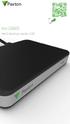 Paxton ins-20605 Net2 desktop reader USB 1 3 2 4 1 2 Desktop Reader The desktop reader is designed to sit next to the PC. It is used for adding tokens to a Net2 system and also for identifying lost cards.
Thank you for choosing the Mobile Broadband USB Stick. With your USB Stick, you can access a wireless network at high speed.
 Thank you for choosing the Mobile Broadband USB Stick. With your USB Stick, you can access a wireless network at high speed. Note: This manual describes the appearance of the USB Stick, as well as the
Contrôle d'accès Access control. Notice technique / Technical Manual
 p.1/18 Contrôle d'accès Access control INFX V2-AI Notice technique / Technical Manual p.2/18 Sommaire / Contents Remerciements... 3 Informations et recommandations... 4 Caractéristiques techniques... 5
GIGABIT PCI DESKTOP ADAPTER DGE-530T. Quick Installation Guide+ Guide d installation+
 GIGABIT PCI DESKTOP ADAPTER Quick Installation Guide+ Guide d installation+ Check Your Package Contents Quick Installation Guide Gigabit Ethernet PCI Adapter CD with Manual and Drivers DO NOT insert the
Package Contents. System Requirements. Before You Begin
 Package Contents DWA-125 Wireless 150 USB Adapter CD-ROM (contains software, drivers, and manual) Cradle If any of the above items are missing, please contact your reseller. System Requirements A computer
TABLE DES MATIERES A OBJET PROCEDURE DE CONNEXION
 1 12 rue Denis Papin 37300 JOUE LES TOURS Tel: 02.47.68.34.00 Fax: 02.47.68.35.48 www.herve consultants.net contacts@herve consultants.net TABLE DES MATIERES A Objet...1 B Les équipements et pré-requis...2
Betriebsanleitung Programmierkabel PRKAB 560 Mode d emploi Câble de programmation PRKAB 560 Operating Instructions Programming cable PRKAB 560
 Betriebsanleitung Programmierkabel Câble de programmation Operating Instructions Programming cable B d-f-e 146 599-02 03.06 Camille Bauer AG Aargauerstrasse 7 CH-5610 Wohlen/Switzerland Telefon +41 56
Instructions Mozilla Thunderbird Page 1
 Instructions Mozilla Thunderbird Page 1 Instructions Mozilla Thunderbird Ce manuel est écrit pour les utilisateurs qui font déjà configurer un compte de courrier électronique dans Mozilla Thunderbird et
Software and Hardware Datasheet / Fiche technique du logiciel et du matériel
 Software and Hardware Datasheet / Fiche technique du logiciel et du matériel 1 System requirements Windows Windows 98, ME, 2000, XP, Vista 32/64, Seven 1 Ghz CPU 512 MB RAM 150 MB free disk space 1 CD
1. Raison de la modification
 T Service Documentation Technicocommerciale Information Technique Rubrique F Les régulations Nouvelle version de programme de la carte SU : F1.4 P5253 JS F 67580 Mertzwiller N ITOE0117 26/09/2011 FR 1.
ASSEMBLY INSTRUCTIONS DIRECTIVES POUR L'ASSEMBLAGE ombre pendant lamp lampe suspendue à tons dégradés, chocolat
 ASSEMBLY INSTRUCTIONS DIRECTIVES POUR L'ASSEMBLAGE ombre pendant lamp lampe suspendue à tons dégradés, chocolat SKU 2728089 INSTRUCTIONAL MANUAL MANUEL D'INSTRUCTIONS 270/2707 COMPONENT LIST LISTE DES
ASSEMBLY INSTRUCTIONS DIRECTIVES POUR L'ASSEMBLAGE luster chandelier lamp chandelier à trois branches en verre lustré
 ASSEMBLY INSTRUCTIONS DIRECTIVES POUR L'ASSEMBLAGE luster chandelier lamp chandelier à trois branches en verre lustré SKU 2711592 INSTRUCTIONAL MANUAL MANUEL D'INSTRUCTIONS 270/2707 COMPONENT LIST LISTE
3615 SELFIE. http://graffitiresearchlab.fr HOW-TO / GUIDE D'UTILISATION
 3615 SELFIE http://graffitiresearchlab.fr HOW-TO / GUIDE D'UTILISATION Hardware : Minitel Computer DIN FM545 45 connector (http://www.gotronic.fr/art-fiche-din-fm545-4747.htm) Cable Arduino compatible
Once the installation is complete, you can delete the temporary Zip files..
 Sommaire Installation... 2 After the download... 2 From a CD... 2 Access codes... 2 DirectX Compatibility... 2 Using the program... 2 Structure... 4 Lier une structure à une autre... 4 Personnaliser une
Instructions pour mettre à jour un HFFv2 v1.x.yy v2.0.00
 Instructions pour mettre à jour un HFFv2 v1.x.yy v2.0.00 HFFv2 1. OBJET L accroissement de la taille de code sur la version 2.0.00 a nécessité une évolution du mapping de la flash. La conséquence de ce
Fabricant. 2 terminals
 Specifications Fabricant Nominal torque (Nm) 65 Minimal torque (Nm) 0,63 Coil resistance - 20 C (ohms) 20 Rated current DC (A) 1 Rotor inertia (kg.m 2 ) 2.10-3 Weight (kg) 7,20 Heat dissipation continuous
Boîtier disque dur SATA 3,5 pouces Fonction économie d énergie
 Boîtier disque dur SATA 3,5 pouces Fonction économie d énergie PX-1106 Chère cliente, Cher client, Nous vous remercions pour l achat de ce boîtier de disque dur. Faites de votre disque dur une mémoire
Micro-ordinateurs, informations, idées, trucs et astuces utiliser le Bureau à distance
 Micro-ordinateurs, informations, idées, trucs et astuces utiliser le Bureau à distance Auteur : François CHAUSSON Date : 8 février 2008 Référence : utiliser le Bureau a distance.doc Préambule Voici quelques
Logitech Tablet Keyboard for Windows 8, Windows RT and Android 3.0+ Setup Guide Guide d installation
 Logitech Tablet Keyboard for Windows 8, Windows RT and Android 3.0+ Setup Guide Guide d installation English.......................................... 3 Français.........................................
PRESENTATION REMOTE TÉLÉCOMMANDE DE PRÉSENTATION. User Guide Manuel de l utilisateur
 PRESENTATION REMOTE TÉLÉCOMMANDE DE PRÉSENTATION User Guide Manuel de l utilisateur Targus Presentation Remote Introduction Thank you for your purchase of the Targus Presentation Remote. This cordless
How to Login to Career Page
 How to Login to Career Page BASF Canada July 2013 To view this instruction manual in French, please scroll down to page 16 1 Job Postings How to Login/Create your Profile/Sign Up for Job Posting Notifications
Garage Door Monitor Model 829LM
 Garage Door Monitor Model 829LM To prevent possible SERIOUS INJURY or DEATH from a closing garage door: NEVER permit children to operate or play with door control push buttons or remote control transmitters.
WEB page builder and server for SCADA applications usable from a WEB navigator
 Générateur de pages WEB et serveur pour supervision accessible à partir d un navigateur WEB WEB page builder and server for SCADA applications usable from a WEB navigator opyright 2007 IRAI Manual Manuel
03/2013. Mod: WOKI-60IP/TR. Production code: DTWIC 6000
 03/2013 Mod: WOKI-60IP/TR Production code: DTWIC 6000 ENCASTRABLE INDUCTION DROP IN INDUCTION 11/2011 TECHNICAL FEATURES DOCUMENTATION S.A.V. Notice d utilisation : FX00326-A Guide d intervention : ---
Logitech Speaker System Z553 Setup Guide Guide d installation
 Logitech Speaker System Z553 Setup Guide Guide d installation Logitech Speaker System Z553 English................. 3 Français................ 10 www.logitech.com/support...19 2 Package contents Logitech
Utiliser une WebCam. Micro-ordinateurs, informations, idées, trucs et astuces
 Micro-ordinateurs, informations, idées, trucs et astuces Utiliser une WebCam Auteur : François CHAUSSON Date : 8 février 2008 Référence : utiliser une WebCam.doc Préambule Voici quelques informations utiles
Produktinformation. Monitor MOM 711-0 und MOM 711-1. Monitor MOM 711-0 and MOM 711-1. Moniteur MOM 711-0
 MOM711_0_01_021843 20.09.2002 8:00 Uhr Seite 1 Produktinformation Monitor MOM 711-0 und MOM 711-1 Monitor MOM 711-0 and MOM 711-1 Moniteur MOM 711-0 MOM711_0_01_021843 20.09.2002 8:00 Uhr Seite 4 English
Duplicateur et Station d Accueil pour Disque Dur USB 3.0 vers SATA
 Duplicateur et Station d Accueil pour Disque Dur USB 3.0 vers SATA SATDOCK22RU3 / SATDOC2RU3GB / SATDOC2RU3EU *Le produit actuel peut varier des photos DE: Bedienungsanleitung - de.startech.com FR: Guide
ASSEMBLYcomponents H 10. Grundplatte. Base plate. Plaque de base BEM 3 BEW 3. FP 3 Base plate 30001121 1,1kg BEM 6 BEM 6D BEW 6
 S ASSEMBLYcomponents Base plate FP H 10 Die Grundplatten sind aus Stahl 700 N/mm 2 hergestellt. Sie sind brüniert und beidseitig geschliffen. Die Passfedern werden mitgeliefert. Die SUHNER-Bearbeitungseinheiten
Principe de TrueCrypt. Créer un volume pour TrueCrypt
 Sommaire : Principe de TrueCrypt...1 Créer un volume pour TrueCrypt...1 Premier montage...6 Réglages...8 Save Currently Mounted Volumes as Favorite...8 Settings > Preferences...9 TrueCrypt Traveller pour
SERVEUR DÉDIÉ DOCUMENTATION
 SERVEUR DÉDIÉ DOCUMENTATION Release 5.0.6.0 19 Juillet 2013 Copyright 2013 GIANTS Software GmbH, All Rights Reserved. 1/9 CHANGE LOG Correction de bug divers (5.0.6.0) Ajout d une option de relance automatique
Application Form/ Formulaire de demande
 Application Form/ Formulaire de demande Ecosystem Approaches to Health: Summer Workshop and Field school Approches écosystémiques de la santé: Atelier intensif et stage d été Please submit your application
Summary / Sommaire. 1 Install DRIVER SR2 USB01 Windows seven 64 bits / Installation du DRIVER SR2 USB01 Windows seven 64 bits 2
 Summary / Sommaire 1 Install DRIVER SR2 USB01 Windows seven 64 bits / Installation du DRIVER SR2 USB01 Windows seven 64 bits 2 1.1 Driver Installation SR2 USB01 Windows Seven 64 bits (english) 2 1.1.1
INSTALLING THE DRIVER (WINDOWS 7)
 INSTALLING THE DRIVER (WINDOWS 7) Download the CubeAnimator 1.0 for Windows packet here: http://www.velleman.eu/support/downloads/?code=mk193 Unpack the download and install the software. The driver for
INSTALLING THE DRIVER (WINDOWS 7)
 INSTALLING THE DRIVER (WINDOWS 7) Download the K8101_setup file here: http://www.velleman.eu/downloads/files/downloads/k8101_setup.zip Unpack the download and install the software. The driver for the K8101
WiFi Security Camera Quick Start Guide. Guide de départ rapide Caméra de surveillance Wi-Fi (P5)
 #45 #46 WiFi Security Camera Quick Start Guide Guide de départ rapide Caméra de surveillance Wi-Fi (P5) #47 Start Here 1 Is this you? TECH SUPPORT CTRL ALT DEL 2 If yes, turn to page three 1 3 If not,
Réserve Personnelle. Persönliche Reserve. Emprunter et épargner en fonction de vos besoins. Leihen und sparen je nach Bedarf
 crédit épargne Réserve Personnelle Emprunter et épargner en fonction de vos besoins Persönliche Reserve Leihen und sparen je nach Bedarf Réserve Personnelle Vous voulez disposer à tout moment des moyens
SIMATIC. SIMATIC STEP 7 PID Professional V12. Welcome Tour. Totally Integrated Automation www.siemens.com/tia-portal-welcometour PORTAL
 SIMATIC STEP 7 PID Professional V12 Welcome Tour Totally Integrated Automation www.siemens.com/tia-portal-welcometour Totally Integrated Automation PORTAL www.siemens.com/tia-portal SIMATIC Siemens Aktiengesellschaft
Le No.1 de l économie d énergie pour patinoires.
 Le No.1 de l économie d énergie pour patinoires. Partner of REALice system Economie d énergie et une meilleure qualité de glace La 2ème génération améliorée du système REALice bien connu, est livré en
Contrôle d accès Access control MOD-TCPIP-AI. Notice technique / Technical Manual
 Contrôle d accès Access control MOD-TCPIP-AI Notice technique / Technical Manual Notice technique Mod-TCPIP-AI 9 septembre 2008 v.1.0 p.2/16 Sommaire / Contents Sommaire / Contents...2 Remerciements...3
Monitor LRD. Table des matières
 Folio :1/6 Table des matières 1.Installation du logiciel... 3 2.Utilisation du logiciel... 3 2.1.Description de la fenêtre de commande... 3 2.1.1.Réglage des paramètres de communication... 4 2.1.2.Boutons
ARP-090G / ARP-090K NOTICE D'EMPLOI INSTRUCTION MANUAL
 2 7 NOTICE D'EMPLOI INSTRUCTION MANUAL ARP-090G / ARP-090K Lire attentivement la notice avant d utiliser l appareil Before operating this product, please read user manual completely FRANCAIS EMPLACEMENT
Quick Start Guide This guide is intended to get you started with Rational ClearCase or Rational ClearCase MultiSite.
 Rational ClearCase or ClearCase MultiSite Version 7.0.1 Quick Start Guide This guide is intended to get you started with Rational ClearCase or Rational ClearCase MultiSite. Product Overview IBM Rational
Manuel d installation et de maintenance (serrures LR128 E)
 Manuel d installation et de maintenance (serrures LR128 E) Manuel comprenant : Installation de la gâche GV et GVR :............................................ page 2 Position et réglage du shunt - Cales
DOCUMENTATION - FRANCAIS... 2
 DOCUMENTATION MODULE SHOPDECORATION MODULE PRESTASHOP CREE PAR PRESTACREA INDEX : DOCUMENTATION - FRANCAIS... 2 INSTALLATION... 2 Installation automatique... 2 Installation manuelle... 2 Résolution des
calls.paris-neuroscience.fr Tutoriel pour Candidatures en ligne *** Online Applications Tutorial
 calls.paris-neuroscience.fr Tutoriel pour Candidatures en ligne Online Applications Tutorial 1/4 Pour postuler aux Appels d Offres de l ENP, vous devez aller sur la plateforme : calls.parisneuroscience.fr.
Lavatory Faucet. Instruction Manual. Questions? 1-866-661-9606 [email protected]
 Lavatory Faucet Instruction Manual rev. 19-01-2015 Installation Manual You will need Adjustable Wrench Adjustable Pliers Plumber s Tape Hardware list (included) Allen Key Socket wrench tool Important Follow
Typ 511. Serrure de vitrine 6005 pour portes coulissantes en verre, zamak, nickelé au mat.
 Knopfzylinder 6005 für Glas-Schiebetüren,Vitrinen etc., Zamak, matt vernickelt. Cylinder knob 6005 for glass sliding doors, die-cast, dull nickel-plated. Serrure de vitrine 6005 pour portes coulissantes
16-700 / 16-701 / 16-702 / 16-703 Système de distribution audio A44/A88 Logiciel PC
 Système de distribution audio A44/A88 Logiciel PC 1. Configuration requise 2. Installation du logiciel 3. Liaison avec le PC 4. Utilisation du logiciel en mode standard 4.1. Connexion 4.2. Adapter les
Logitech Wireless Performance Combo MX800 Setup Guide Guide d installation
 Logitech Wireless Performance Combo MX800 Setup Guide Guide d installation Logitech Wireless Performance Combo MX800 Setup Guide Guide d installation Important information Safety, compliance, and warranty
APPENDIX 6 BONUS RING FORMAT
 #4 EN FRANÇAIS CI-DESSOUS Preamble and Justification This motion is being presented to the membership as an alternative format for clubs to use to encourage increased entries, both in areas where the exhibitor
MELTING POTES, LA SECTION INTERNATIONALE DU BELLASSO (Association étudiante de lʼensaparis-belleville) PRESENTE :
 MELTING POTES, LA SECTION INTERNATIONALE DU BELLASSO (Association étudiante de lʼensaparis-belleville) PRESENTE : Housing system est un service gratuit, qui vous propose de vous mettre en relation avec
Mesure chimique. Chemical measurement. Sonde de température Pt 1000 Inox Pt 1000 stainless steel. Ref : 703 262. Français p 1.
 Mesure chimique Chemical measurement Français p 1 English p 3 Sonde de température Pt 1000 Inox Pt 1000 stainless steel Version : 6010 Mesure chimique Sonde de température Pt 1000 Inox 1 Description La
Guide pour l Installation des Disques Durs SATA et Configuration RAID
 Guide pour l Installation des Disques Durs SATA et Configuration RAID 1. Guide pour l Installation des Disques Durs SATA.. 2 1.1 Installation de disques durs Série ATA (SATA).. 2 1.2 Créer une disquette
SA-32 / SA-62 INSTRUCTION MANUAL - MANUEL D INSTRUCTIONS
 SA-32 / SA-62 INSTRUCTION MANUAL - MANUEL D INSTRUCTIONS 4 5 6 7 4 5 6 7 1. Telephone Paging Volume Control 1. Contrôle de volume Paging Téléphone 2. Microphone Volume Control 2. Contrôle volume du microphone
DOCUMENTATION - FRANCAIS... 2
 DOCUMENTATION MODULE CATEGORIESTOPMENU MODULE CREE PAR PRESTACREA INDEX : DOCUMENTATION - FRANCAIS... 2 INSTALLATION... 2 CONFIGURATION... 2 LICENCE ET COPYRIGHT... 3 SUPPORT TECHNIQUE ET MISES A JOUR...
Guide de l'utilisateur. Linksys AE1000 Adaptateur USB sans fil - N hautes performances
 Guide de l'utilisateur Linksys AE1000 Adaptateur USB sans fil - N hautes performances Table des matières Table des matières Chapitre 1 : Présentation du produit 1 Voyant 1 Chapitre 2 : Installation 2 Installation
Guide d installation logicielle
 Guide d installation logicielle Drivers USB pour Windows XP/2000 X-Edit Editor/Librarian pour Windows XP/2000 Nous tenons à vous remercier d avoir choisi ce processeur DigiTech USB. Ce guide d installation
UP 588/13 5WG1 588-2AB13
 Informations Technique Description du produit et de ses fonctionnalités Dans le menu «Réglage» vous avez le choix entre 4 styles d affichage. Les accessoires suivants sont nécessaires: è è è 5WG1 588 8AB14
DOCUMENTATION MODULE BLOCKCATEGORIESCUSTOM Module crée par Prestacrea - Version : 2.0
 DOCUMENTATION MODULE BLOCKCATEGORIESCUSTOM Module crée par Prestacrea - Version : 2.0 INDEX : DOCUMENTATION - FRANCAIS... 2 1. INSTALLATION... 2 2. CONFIGURATION... 2 3. LICENCE ET COPYRIGHT... 3 4. MISES
Manuel d utilisation
 Manuel d utilisation Table des matières 1. Fonctionnalités 2. Caractéristiques 3. Pièces et accessoires 4. Vue rapide de l appareil 5. Installation d un disque dur SATA 6. Le logiciel de sauvegarde 6.1
Folio Case User s Guide
 Fujitsu America, Inc. Folio Case User s Guide I N S T R U C T I O N S This Folio Case is a stylish, lightweight case for protecting your Tablet PC. Elastic Strap Pen Holder Card Holders/ Easel Stops Figure
LOGICIEL D'ADMINISTRATION POUR E4000 & G4000 MANAGEMENT SOFTWARE FOR E4000 & G4000
 LOGICIEL D'ADMINISTRATION POUR E4000 & G4000 MANAGEMENT SOFTWARE FOR E4000 & G4000 TABLE DES MATIÈRES TITRE PAGE Présentation - - - - - - - - - - - - - - - - - - - - - - - - - - - - - - - - - - - -4 Le
USB 598. Quick Start Guide (Windows) Guide de démarrage rapide (Windows) USB Modem. Modem USB. www.sierrawireless.com
 USB 598 With Avec USB Modem Quick Start Guide (Windows) Modem USB Guide de démarrage rapide (Windows) www.sierrawireless.com This guide provides installation instructions for users of: Windows Vista Windows
Warning: Failure to follow these warnings could result in property damage, or personal injury.
 Western Steel & Tube 1 Storage Locker Extended Storage Locker Storage Cabinet Assembly And Use Instructions Warning: Failure to follow these warnings could result in property damage, or personal injury.
RAPID 3.34 - Prenez le contrôle sur vos données
 RAPID 3.34 - Prenez le contrôle sur vos données Parmi les fonctions les plus demandées par nos utilisateurs, la navigation au clavier et la possibilité de disposer de champs supplémentaires arrivent aux
Boîtier pour disque dur externe 3,5" (8,89cm) USB 2.0
 Boîtier pour disque dur externe 3,5" (8,89cm) USB 2.0 Guide d'utilisation DA-71051 Avant-propos Nous tenons à vous féliciter d'avoir choisi l'un de nos produits! Nous allons vous montrer un nouveau concept
Acce s aux applications informatiques Supply Chain Fournisseurs
 Acce s aux applications informatiques Supply Chain Fournisseurs Toujours plus de service pour vous ; rapide, pratique, sécurisé, écologique et gratuit! Vous vous connectez à notre site MESSIER BUGATTI
Tutoriel de formation SurveyMonkey
 Tutoriel de formation SurveyMonkey SurveyMonkey est un service de sondage en ligne. SurveyMonkey vous permet de créer vos sondages rapidement et facilement. SurveyMonkey est disponible à l adresse suivante
BILL 203 PROJET DE LOI 203
 Bill 203 Private Member's Bill Projet de loi 203 Projet de loi d'un député 4 th Session, 40 th Legislature, Manitoba, 63 Elizabeth II, 2014 4 e session, 40 e législature, Manitoba, 63 Elizabeth II, 2014
Règlement sur le télémarketing et les centres d'appel. Call Centres Telemarketing Sales Regulation
 THE CONSUMER PROTECTION ACT (C.C.S.M. c. C200) Call Centres Telemarketing Sales Regulation LOI SUR LA PROTECTION DU CONSOMMATEUR (c. C200 de la C.P.L.M.) Règlement sur le télémarketing et les centres d'appel
F1 Security Requirement Check List (SRCL)
 F1 Security Requirement Check List (SRCL) Liste de vérification des exigences relatives à la sécurité (LVERS) Cyber Protection Supply Arrangement (CPSA) Arrangement en matière d approvisionnement en cyberprotection
Table des matières ENGLISH VERSION NEAR BOTTOM OF PAGE. Transferts sécurisés de fichiers Système MFT (Managed File Transfer) Guide de l utilisateur
 ENGLISH VERSION NEAR BOTTOM OF PAGE Transferts sécurisés de fichiers Système MFT (Managed File Transfer) Guide de l utilisateur Table des matières Survol...2 Considérations en matière de conformité des
Quick Setup Guide Guide de configuration rapide. Tablet Device SGPT12 Series Tablette électronique Série SGPT12
 Quick Setup Guide Guide de configuration rapide Tablet Device SGPT12 Series Tablette électronique Série SGPT12 Welcome / Bienvenue Congratulations on your purchase of this Xperia Tablet S. This Quick Setup
VTP. LAN Switching and Wireless Chapitre 4
 VTP LAN Switching and Wireless Chapitre 4 ITE I Chapter 6 2006 Cisco Systems, Inc. All rights reserved. Cisco Public 1 Pourquoi VTP? Le défi de la gestion VLAN La complexité de gestion des VLANs et des
lundi 3 août 2009 Choose your language What is Document Connection for Mac? Communautés Numériques L informatique à la portée du Grand Public
 Communautés Numériques L informatique à la portée du Grand Public Initiation et perfectionnement à l utilisation de la micro-informatique Microsoft Document Connection pour Mac. Microsoft Document Connection
USB LANPORT 400. Manuel
 US LNPORT 400 Manuel Table des matières 1. Caractéristiques 2. Pièces et accessoires 3. Description du dispositif 4. Démarrage 4.1 Installation du matériel 4.2 Installation du logiciel (Windows par exemple)
Master4Light. Caractérisation Optique et Electrique des Sources Lumineuses. Equipement 2-en-1 : source de courant et spectrophotomètre
 DSF-M4L-Rev2.0-04/12 Master4Light Equipement 2-en-1 : source de courant et spectrophotomètre Interface graphique logicielle, connexion USB Configuration personnalisable : laboratoire et in-situ http://www.majantys.com
Cheque Holding Policy Disclosure (Banks) Regulations. Règlement sur la communication de la politique de retenue de chèques (banques) CONSOLIDATION
 CANADA CONSOLIDATION CODIFICATION Cheque Holding Policy Disclosure (Banks) Regulations Règlement sur la communication de la politique de retenue de chèques (banques) SOR/2002-39 DORS/2002-39 Current to
Practice Direction. Class Proceedings
 Effective Date: 2010/07/01 Number: PD - 5 Title: Practice Direction Class Proceedings Summary: This Practice Direction describes the procedure for requesting the assignment of a judge in a proceeding under
TABLE DES MATIERES. Remarque... 2
 TABLE DES MATIERES Remarque... 2 1.0 Introduction... 2 2.0 Aperçu du produit... 4 3.0 Comment commencer... 7 3.1 Accueil... 7 3.1.1 Accueil > Widgets (Rechercher, RSS, Temps)... 8 3.1.2 Accueil > Widgets,
Mediacast Setup. Mediacasting from UPnP compatible devices
 Models: dgimd13 Mediacast Setup Mediacasting from UPnP compatible devices Please read these instructions carefully prior to installation Important Note: This procedure was written in conjunction with an
PARIS ROISSY CHARLES DE GAULLE
 GPS 2 34 1 E 49 0 46 N GPS* 2 56 56 E 49 0 12 N Votre contact / Your contact: et / and: Accueil : Cabines téléphoniques publiques Reception: Public telephone kiosks Navette Shuttle AÉROPORT DE TT CAR TRANSIT
SpeechiTablet Notice d utilisation
 SpeechiTablet Notice d utilisation Copyright(C) 2003-2009 Speechi Web: www.speechi.net Tel: 03-20-34-74-25 Fax: 03-20-34-74-26 E-mail: [email protected] Version 1.0.0 1. Introduction... 3 1.1. Contenu de
INSTRUMENTS DE MESURE SOFTWARE. Management software for remote and/or local monitoring networks
 INSTRUMENTS DE MESURE SOFTWARE SOFTWARE Logiciel de supervision des réseaux locaux et/ou distants Management software for remote and/or local monitoring networks MIDAs EVO 4 niveaux de fonctionnalités
MODE D EMPLOI USER MANUAL
 notice_cd 853:notice 9/01/08 15:08 Page 1 CAFETIÈRE À DOSETTES Coffee pad machine CD 853 GIACOMO MODE D EMPLOI USER MANUAL notice_cd 853:notice 9/01/08 15:08 Page 2 FRANÇAIS WHITE & BROWN vous félicite
Quick Installation Guide TW100-BRV304
 Quick Installation Guide TW100-BRV304 Table of of Contents Contents Français... 1. Avant de commencer... 2. Installation du matériel... 3. Configuration du routeur... 1 1 2 3 Troubleshooting... 5 Version
AMARICAM JUNIOR 100M FRANCAIS ENGLISH DEUTSCH ITALIANO ESPANOL NEDERLANDS PORTUGUESES MANUEL UTILISATEUR USER S GUIDE BENUTZERHANDBUCH
 AMARICAM JUNIOR 100M MANUEL UTILISATEUR USER S GUIDE BENUTZERHANDBUCH GUIDA PER L UTENTE GUIA DEL USUARIO GEBRUIKERSGIDS MANUAL DO USUARIO FRANCAIS ENGLISH DEUTSCH ITALIANO ESPANOL NEDERLANDS PORTUGUESES
Quick Installation Guide TBW-106UB H/W: V1
 Quick Installation Guide TBW-106UB H/W: V1 Table of Contents... 1. Avant de commencer... 2. Procéder à l'installation... 3. Configuration de l'adaptateur Bluetooth... Troubleshooting... 1 1 2 5 7 Version
Comparaison des performances d'éclairages
 Comparaison des performances d'éclairages Présentation Support pour alimenter des ampoules de différentes classes d'efficacité énergétique: une ampoule LED, une ampoule fluorescente, une ampoule à incandescence
Vanilla : Virtual Box
 Vanilla : Virtual Box Installation Guide for Virtual Box appliance Guide d'installation de l'application VirtualBox Vanilla Charles Martin et Patrick Beaucamp BPM Conseil Contact : [email protected],
FRANÇAIS. Adaptateur POLAR IrDA USB 2.0 et logiciel Bridge Driver Manuel d Utilisation
 Adaptateur POLAR IrDA USB 2.0 et logiciel Bridge Driver Manuel d Utilisation TABLE DES MATIÈRES 1. GÉNÉRALITÉS... 3 2. INSTALLATION DU PILOTE... 4 3. INSTALLATION DU MATÉRIEL... 7 4. DÉTECTION... 10 5.
Data Exchange Software for Wöhler DC 410, DC 420 and DC 430 and for Wöhler DP 600
 Manual Wöhler DC 4xx - DP 600 Data Exchange Software Mode d'emploi Wöhler DC 4xx -DP 600 Gestion de données EN FR Data Exchange Software for Wöhler DC 410, DC 420 and DC 430 and for Wöhler DP 600 Logiciel
Clé USB Wi-Fi TP-Link TL-WN721N (150 Mbps) Manuel d installation
 Clé USB Wi-Fi TP-Link TL-WN721N (150 Mbps) Manuel d installation Pour Windows XP 1. Installation du pilote Insérez l adaptateur dans la fente USB de votre ordinateur portable. Vous allez voir apparaitre