
FANTEC TV-LHD USER MANUAL HANDBUCH MANUEL D UTILISATION. (Page 1-39) (Seite 40-77) (Page )
|
|
|
- Paul David
- il y a 10 ans
- Total affichages :
Transcription
1 USER MANUAL (Page 1-39) HANDBUCH (Seite 40-77) MANUEL D UTILISATION (Page )
2 CONTENTS 1. Product Feature Safety Precautions Product Specification Descriptions & Product Contents Description Product packing list Part Descriptions Network based data sharing with a PC LAN Cable connection between PLAYER and a PC Network-based Data Sharing with a PC Remote Control Connecting FANTEC TV-LHD Connection with A/V (Composite) TV output Connection with HDMI output Connection with 2 Channel of Cinch Audio Connection with Coaxial output Connection with Optical output SETUP Menu A/V (Audio / Video Setting) ETC Enhanced Technical Calibration Network Exit Main Menu Screen Movie Play Music Play Photo Play Firmware Upgrade FAQ - Troubleshooting Appendix
3 1. Product Feature HD USB host player with LAN port for network stream playback The Most Advanced Compression Technology H.264 The FANTEC TV-LHD features high compatibility with and which is the most advanced video compression technology, AVC (HD) and VC1. HD Playback (can support MKV) The FANTEC TV-LHD can playback high definition video (up to 1920x1080p) and images as wel. It can support various SD codec, such as MPEG1/2/4, Divx, and can also play some high definition format file, like TR, TP, TRP, asf, vob. The most important is that this device can support MKV files! Directly Network Playback (LAN 10/100mbps) The FANTEC TV-LHD supports streaming directly from Local area network, you can enjoy your favorite media files which are saved in your PC or LAN server and there is no need for copying files any more. HDMI With HDMI interface, you can enjoy unparalleled qualities of digital video and audio files and get out of trouble brought by all kinds of cables. Connecting to HD-TV becomes more easier by HDMI cable. USB Host Port With USB2.0 host port, you can enjoy media files from external USB device like a digital camera, USB flash drive, USB card reader or MP3 player as well as external hard drive NOTE: If you have to install hardware drivers for the devices under your operating system (OS), the compatibility between FANTEC TV-LHD and USB device can not be garantueed. DVD Juke Box You can create your own virtual DVD library by storing your private collection of DVDs in.iso or.ifo format and watch them exactly as if they were running on a common DVD player (all original features included: Menu, Chapter, Audio Stream, Subtitle, Fast Forward, Rewind, Slow, Pause, Step Forward, Repeat, Search, etc.). Playback jpeg Format It s possible to display High Definition and huge image files of a digital camera. F/W Upgradable You can easily upgrade the firmware. 3
4 2. Safety Precautions This player s design and manufacture has your safety in mind. In order to safely and effectively use this player, please read the following before usage. Usage cautions User should not modify this player. If commercial hard disk is being used, the environmental temperature should be within +5 C ~ +35 C. Power The player s power voltage: DC 5.5V. When using this player, please connect the supplied AC adapter or AC adapter cable to the player s power jack. When placing the adapter cable, make sure it can not get damaged or be subject to pressure. To reduce the risk of electric shock, unplug the adapter first before cleaning it. Never connect the adapter to the player in a humid or dusty area. Do not replace the adapter or cable s wire or connector. Radio interference/compatibility - If not properly shielded, almost all electronic devices will get radio interference. Under some conditions, your player might get interference. - The design of this player has followed the FCC/CE standard, and has followed the following rules: (1) This player may not cause harmful interference; (2) This player could accept some interference received including interference that may cause undesired operation. Repair If the player has a problem, you should take it to an appointed repair center and let the specialists do the repair, never repair the player yourself, you might damage the player or endanger yourself or your data. Disposing of the player When you dispose of the player, be sure to dispose it appropriately. Some countries may regulate disposal of electrical device, please consult with your local authority. 4
5 Others When using this player, please do not let the player come into contact with water or other liquids, if water is accidentally spilled on the player, please use a dry cloth to absorb the spillage. Electronic products are vulnerable, when using please avoid shaking or hitting the player, and do not press the buttons too hard. Do not let the player come into contact with water or other liquids. Do not disassemble the player, repair the player or change the design of the player, any damage done will not be included in the repair policy. Do not press the buttons of the player too hard. Avoid hitting the player with hard object, avoid shaking the player, and stay away from magnetic fields. During electrostatic discharge and the strong electromagnetic field, the product will malfunction, then unplug the power cable and the product will return to normal performance next time it is powered on. 5
6 3. Product Specification Specification MPEG 1,2,4(avi, wmv, mpg, iso, vob, ifo, mp4, asf, tp, trp, ts, Movie H.264(mkv, mov) Supported File Formats Music Photo Divx, Xvid (except GMC, Qpel optitions) MP3, WMA, AAC, PCM, M4A, AC3,FLAC, WAV, OGG (audio only) JPG, JPEG Connections Video output Audio output Subtitle File system Language Memory Power USB2.0 (Host) 1 Ports LAN (10/100Mbps) Digital: HDMI (up to 1080p) / Analog: Composite Digital : Optical, HDMI / Analog: Stereo RCA Text Subtitle : smi, ssa, srt, txt Image Subtitle : sub (with idx) / MKV internal FAT32, NTFS English, French, German, Spanish, Italian, Chinese, Korean SDRAM 128M Flash: 16M 5.5V/3A Video Codec MPEG1/2/4, DivX, XviD,WMV9 (max. 1920x1080) Audio Photo MP3, WMA, AAC, WAV, AC3 JPEG 6
7 4. Descriptions & Product Contents 4-1 Description 4-2 Product packing list TV-LHD Remote Controller Battery A/V Cable Power Adapter User Guide 7
8 4-3 Part Descriptions Product part Function Description Power Input Connect the provided power adapter to this interface (DC 5.5 V/3A) USB HOST Port An external hard disk drive, external optical disk drive, memory stick etc. can be connected to this port. HDMI Output The product can be connected to a digital TV with a HDMI cable. COAXIAL Digital Audio Output You can enjoy 5.1 Channel sound by connecting the product to a home theater amp or receiver using a coaxial cable. OPTICAL Digital Audio Output You can enjoy 5.1 Channel sound by connecting the product to a home theater amp or receiver using an optical cable. Composite Video Output You can use composite cable (A/V cable) is to connect this interface to a TV. Stereo Audio Output You can use composite cable (A/V cable) is to connect this interface to a TV. 8
9 5. Network based data sharing with a PC 5-1 LAN Cable connection between PLAYER and a PC 1. Connection to a PC You can use any RJ45 ethernet cable for the connection (either a direct or cross over cable can be used). 2. Connection using a Hub / Switch or Internet Router For the connection to a hub / switch or internet router, use a direct cable. Connect the LAN port of the PLAYER to a LAN port of the hub by the use of a LAN cable. 9
10 5-2 Network-based Data Sharing with a PC 1. Data Sharing setup for Window 98 / ME [1]. Select a folder you want to share and select Sharing menu using the mouse right button. [2]. Enable Sharing and type [Share Name]. For example my movie. WARNING 1. Share name should be less than 12 letters. 2. Set Access Type to Read-Only. 3. Do not give passwords 10
11 [3]. If the folder is shared, you will see a hand mark on the folder icon. My Movie [4]. Go to Control Panel-Network and,among the displayed items, select TCP/IP-LAN card name WARNING You can find the LAN card name under Device Manager Network Adapter [5]. After checking Specify an IP address enter your IP address and subnet mask. Then click OK. For example) IP Address : / Subnet Mask : WARNING If your PC already has Obtain IP address automatically enabled and the IP is automatically assigned from an internet router or DHCP server, you may not need this setup. If you want this IP setup, please obtain an available IP address and subnet mask from the router or network administrator. 11
12 [6]. Configure PLAYER s network environment. After pressing SETUP button, select IP SETUP among the NETWORK setup items and IP address and subnet mask. For example) IP Address : / Subnet Mask : After finishing the setup, save the setup value by pressing the Setup button once again WARNING If IP address of your PC is automatically assigned by an internet router or DHCP server, you may not need this setup. In this case, set IP SETUP to Auto. Then the IP will be automatically assigned. If you want a manual setup, please obtain an available IP address and subnet mask from the router or network. 2. Data sharing setup for windows2000 [1]. Select a folder your want to share and select Sharing menu using the mouse right button [2]. Check Sharing and type Share Name Ex) My Movie WARNING Share Name should be less than 12 letters. 12
13 [3]. In the above screen, click on Permissions and check, if an everyone account exists. If not, add one by clicking on Add button. WARNING Set permissions to Read- Allow. [4]. If the folder is shared, you will see a hand mark on the folder icon. MY Movie [5]. Go to Control Panel Administrative Tools Computer Management Local Users and Group and, among the displayed items, double click the Guest item. 13
14 [6]. After enabling User cannot change password and Password never expires, keep the other checkboxes unchecked. Then click on OK. [7]. Go to Control Panel Network and Dial up Connections. Select Local Area Connection and open its property window by using the mouse right button and selecting Properties. WARNING If there are more than two Local Area Connections, select the LAN card that is connected to the PLAYER. 14
15 [8]. Among the displayed items, double-click Internet Protocol(TCP/IP). [9]. After checking Specify an IP address, Enter your IP address and subnet mask. Then click on OK. Ex) IP address : / Subnet Mask: WARNING If your PC already has Obtain IP address automatically enabled and the IP is automatically assigned from an internet router or DHCP server, you may not need this setup. If you want a manual IP setup, please obtain an available IP address and subnet mask from the router or network administrator. 15
16 [10]. Configure PLAYER s network environment. After pressing Setup Button, select items and set this to manual setup. Then enter your IP address and subnet mask. For example) IP Address : / Subnet Mask: After finishing the setup, save the setup value by pressing the setup button once again. 3. Data sharing setup for Windows XP [1]. Select a folder your want to share and select Sharing and security menu using the mouse right button. [2]. Checking Sharing this folder on the network and type Share Name. MY Movie 16
17 WARNING Share Name should be less than 12 letters. [3]. If the folder is shared, you will see a hand mark on the folder icon MY Movie [4]. Go to Control Panel Administrative Tools Computer Management Local Users and Group and, among the displayed items, double click the Guest item. WARNING The permission setting is only required for Windows XP Pro users. If you are an XP home user, go to 6 directly. If you cannot see the Administrative Tools, click on Switch to Classic view on the left corner. 17
18 [5]. After checking User cannot change password and Password never expires, keep the other checkboxes unchecked. Then click on OK. [6]. Go to Control Panel Network Connections. Select Local Area Connections and open its property window by using the mouse right button and selecting Properties. WARNING If you cannot see the Network connections, click on Switch to Classic View on the upper left corner If there are more than two Local Area Connections, Select the LAN card that is connected to the PLAYER. 18
19 [7]. Among the displayed items, double-click Internet Protocol (TCP/IP) After checking Specify an IP address enter your IP address and subnet mask. Then click on OK. For example) IP address: / Subnet Mask: WARNING If your PC already has Obtain IP address automatically enabled and the IP is automatically assigned from an Internet router or DHCP server, you may not need this setup. If you want a manual IP setup, please obtain an available IP address and subnet mask from the router or network administrator. On the following screen, click on the Advanced tap. If the Internet Connection Firewall option is checked, cancel this option NOTE If you are using Service Pack 2, consult the figure below. In the Window Firewall Section, click on Settings. 19
20 After selecting off, click on OK. [8]. Configure PLAYER s network environment. After pressing Setup button, select IP SETUP among the NETWORK setup items and set this to manual Setup. Then enter your IP address and subnet mask. For example) IP address: / Subnet Mask:
21 6. Remote Control 21
22 Power Turn on or Turn off power Setup Press this button, to enter Setup menu, or finishing setting up. Lang Press this button, to selet the OSD language. Picture Adjusts the brightness, contrast, and color. It selects a picture property according to the following order. (Brightness -> Contrast -> Color) Change the value of each property by using the left and right arrow button. TV out You can change different TV output mode. HDMI or A/V out. Play Start Playback or pause. UP Move up and down between different options or items. DOWN Left Move back the main option or move left in setup mode. right Move right in setting up mode, to choose the right mode. Stop Stop the currently played file or go back to upper menu (Return) Ok Confirm your selection or setting. >> Skip forward to next track or media file. << Skip backward to previous track or media file. >> Forward or backward search of the current movie. << (Each click doubles up the search speed: 2, 4, 8, 16 and 32 fold). + Volume up. - Volume down. Mute Press this button to disable or enable audio output. Goto Jump to the desired position of movie during playback. 22
23 B. Mark Supports two types: stopped points and bookmarked points (up to 9 in order). Audio Selects a specific audio source when multiple audio sources exist in a movie file. INFO Displays the information of a played file. Repeat Click once, it would repeat one track, click twice, it would loop all files i SUB-T SUB-T n the same folder, click 3 times, repeat function is turned off. Selects a specific subtitle file in playback mode, if supported subtitles ar e available. 23
24 7. Connecting FANTEC TV-LHD 7-1 Connection with A/V (Composite) TV output Connect the Player and your TV using the yellow video (A/V) cable. Turn on the player and TV. Select appropriate video input mode on your TV until you can get the initial player screen Connection with HDMI output Connect the PLAYER and your TV with HDMI cable, Turn on the PLAYER and your TV, please confirm your TV is in HDMI mode, then set the PLAYER to HDMI mode by pressing TV out button on the remote controll until the picture appears. 24
25 7-3 Connection with 2 Channel of Cinch Audio Connect red and white audio (A/V) cable from FANTEC TV-LHD to the audio input jack of TV or audio device. 7-4 Connection with Coaxial output When you have a multi channel decoder/amplifier with coaxial input, you can enjoy 5.1CH high quality sound through coaxial cable. The illustration on the top shows how to connect with coaxial cable 25
26 7-5 Connection with Optical output When you have a multi channel Decoder /amplifier with optical input, you can enjoy 5.1CH high quality sound through optical cable. The illustration on the top shows how to connect with optical cable. 26
27 8. SETUP Menu The figure below is the PLAYER s SETUP screen For each menu item, possible options are described below. 27
28 8-1 A/V (Audio / Video Setting) 1. Audio Out Under this option you can set your Audio output by choosing Analog (Analog 2 channel audio output) or Digital (Digital audio signals through the optical or coaxial output). 2. Display You can choose among following options to find your desired TV display. 4:3 letterbox: This aspect ratio displays the content based on its horizontal length. Black horizontal bars are placed by the PLAYER at the top and bottom of the screen to be displayed in a wide mode. 4:3 Pan-scan: This aspect ratio displays the content based on its vertical length. It fills up the screen, but some parts of the left and right side of the image are lost. 16:9: Image output in the aspect ratio of 16:9. 3. TV Standard Your can choose PAL or NTSC TV output systems. 4. PAL Output You can choose proper TV output among following options: HDMI C/S Video = A/V out When you change TV output, there would be a window for confirmation comes out. Choose Yes to continue output changing, choose No to cancel output changing. NOTE: Once you choose TV output, change your TV setting accordingly. For example, if you choose HDMI as TV output, then you also need choose HDMI output accordingly. 5. HDMI output setting When you choose HDMI output, following 6 resolution are available. 576i 576p 720p 1080i 1080p 28
29 8-2 ETC Enhanced Technical Calibration 1. Language You can choose proper language with this option. There are English, Italiano, Espanol, Russky, Francais, Deutsch, Czech, Portugues, Korean, and Simple Chinese available at this moment. 2. Subtitle Size Select a subtitle size among small-subtitle, Big-subtitle, and No-subtitle. NOTE: DVD subtitles are not adjustable. 3. Subtitle Color You can set different subtitle color when use this function by choosing from W/K (White/Black), Y/K (Yellow/Black), C/K (Cyan /Black), W/B (White/Blue), Y/B (Yellow/Blue), C/B (Cyan/Blue) picture as following. NOTE: DVD subtitles are not adjustable. 4. Slide Show Timeout You can set picture slide show interval time by using this function. When you choose slide show, a time window comes out and you have o enter the time you want. Finally press down arrow to confirm or cancel the settings. You can set interval time between 03 and 99 seconds. To STOP the slideshow, please press OK button during picture playback. 5. Reset With this function, you can reset your player s system setting to factory setting or your latest setting. When you choose Factory or User, there would be a confirmation window comes out for confirmation and the player has to be powered off when reset is confirmed. 29
30 8-3 Network 1. Wired You can configure your local network by Auto or by Manual. When you choose Auto, the player would search the local network to get a IP assigned by DHCP server and connect it automatically. If you want set LAN manually, you need to give the player a fixed IP and NetMask address and the player would connect accordingly to this setting. 8-4 Exit Choose this option to go back to player s main page. 30
31 9. Main Menu Screen Icons and Screen Components 1. Network PC If you select this option, the player will search and display all available PCs, that have shared folder(s) in your local area network. See [Network- based Data Sharing] for more detail about data sharing setting. 2. USB Disk If you select the option of USB Disk Selection, the player will search and display USB devices that are connected via the backside USB HOST port. You can play media files from an eternal HDD, optical drives, pen drive, etc. NOTE: If you have to install hardware drivers for the devices under your operating system (OS), the compatibility between FANTEC TV-LHD and USB device can not be garantueed. 3. SETUP You can setup video output, proper language, subtitles, slide effect, LAN etc. decribed under point no. 8 Setup Menu. 31
32 10. Movie Play The Player can play the following files: AVI, DAT, ISO, MKV, MPG, MPEG, TP, TRP, VOB, WMV etc. Playback order and method are determined by the selected repeat mode. Buttons and Function for movie playback Remote Button Function Description AUDIO Multiple Audio Selects a specific audio source when multiple Selection audio sources exist in a movie file. INFO File Info Display Displays the information of a played file. B.MARK Continuous Play Support two types: stopped points and bookmarked points (up to 9 in order) VOL Volume Adjust Adjusts volume. MUTE Sound Mute Enables/ disables sound. Remote Button Function Description GOTO OK ARROW BUTTONS Instant Jump Playing a selected file Up/Down Left/Right Jumps to a desired time position during the playback. After entering a time a value using the arrow buttons or number buttons, press the (OK) button. Play a selected file. Changing the position of a subtitle Forward or backward search of the current movie. PLAY Start/Pause Start or pause the playback. STOP Stop Prev. Folder Stop the current playback. To move to upper-level folder on a file list. SKIP SEARCH << Next/Prev. File Jumps to a next or previous file during playback. >> Next/Prev. Page When used on a file list screen, it jumps forward/ backward to different pages >> Forward or backward search of the current movie << Quick Search (Each click doubles up the search speed -2, 4, 8, 16 and 32 fold). 32
33 11. Music Play During playing music files, the system is in the music playback mode. During playing music files, you can search folders and files. After selecting a new file and pressing the OK button, the selected file will be played. Buttons and Function for music playback Remote Button Function Description BOOKMARK Continuous Play Support two types: stopped points and bookmarked points(up to 9 in order). VOL Volume Adjust Adjusts volume. MUTE Sound mute Enables/ disables sound. OK Playing selected file Play a selected file. PLAY Start/Pause Start or pause the playback. STOP SKIP Stop Prev. Folder Next/Prev. File Next/Prev. Page Stop the current playback. To move to a upper-level folder on a file list. Stop the current playback. When used on a file list screen, it jumps forward/ backward to different pages. ARROW BUTTONS Up/Down Left/Right File navigation during playback. Jumping forward/ backward by 15 seconds. 33
34 12. Photo Play JPG files can be played. The Player also provides a slideshow function. The display duration or each picture can be set in the SETUP menu. Buttons and Function for photo playback Remote Button Function Description OK Playing a selected file Play a selected file. PLAY Start/Pause Starts or pause the playback. STOP Stop Stop the current playback. SKIP Prev. Folder Next/Prev. File Next/Prev. Page To move to a upper-lever folder on a file lst. Jumps to a next file during playback. When used on a file list screen, it jumps forward/ backward to different pages. 34
35 13. 1 Firmware Upgrade The firmware of the Player will is upgradedable in order to bug fix and to satisfy customers need. The current version of a firmware is shown on the right upper corner of the SETUP screen. 1. The latest firmware can be downloaded from 2. Copy the latest firmware to an external storage device. 3. Connect the external storage device to your FANTEC TV-LHD, select the firmware file using the remote control and press OK button to start the upgrade. 4. If a firmware warning screen appears, initiate the firmware upgrade by selecting OK 35
36 5. The firmware upgrade is in progress. 6. When the firmware upgrade is successfully completed, the system will be automatically rebooted. Warning During firmware upgrade process, do not turn off the power or disconnect the adapter. 36
37 14. FAQ - Troubleshooting When the power is on, nothing appears on the screen or the screen is flickering? When the video output mode is not properly set, nothing may appear on the screen, the screen may be in monochrome, or the screen may be flickering. Press TV OUT button of the remote control and change the output mode until the video output mode is properly set. The Player is PAL or NTSC mode, Please check the TV Output (NTSC/PAL). When the player is powered on, why will the TV have a short flashing, blue screen or screensaver? This is normal, when the system initializes, it will setup the corresponding parameters so it can output the correct video signal to the TV, during the initializing time, the TV will receive incorrect signals or the signals will not be stable and will cause the TV screen to flash, some TV s will treat this as no signal, and will display a blue screen or screensaver. While playing a movie file, its subtitle is not shown? The name of a movie file has to match to the name of a subtitle file or reverse. In the case of multiple subtitles, if there is no first subtitle, subtitle cannot be shown. In this case, using the [SUB-T] button, select the second subtitle file. While playing a movie, there is no audio output? In the SETUP menu, check if the audio output mode is properly set. Check the volume level. Check if the [MUTE] function is activated. USB device is not supported? If you have to install hardware drivers for the devices under your operating system (OS), the compatibility between FANTEC TV-LHD and USB device can not be garantueed. Can the player access to the USB host port when it s connected to PC? No, it can t. Why do some photo formats, cannot be shown in the photo function? In the JPEG format there are different modes. The player doesn t support all the modes. So you have to change your photo format first as follow: (1) Use Photoshop to open the photo. (2) Choose File then save as from the menu, as the picture on the left hand side shows, select the picture format as JPEG, input the file name and click the save icon. 37
38 (3) After click on the save icon, a new window will appear as the picture on the right hand side shows, select Baseline (standard) or Baseline optimized. (4) Click the OK icon. Why when I switch to 480P, 576P, 720P, 1080I or 1080P does the TV screen display an unwatchable picture? Please check if your TV supports 480P, 576P, 720P, 1080I or 1080P output, if your TV does not support, please use the A/V signal display instead, press the TV OUT button on the remote control, then switch the TV s video input to NTSC or PAL. I configured everything correctly, but still cannot get the network connected? Are you using a firewall such as Norton Internet Security, McAfee Personal Firewall, Zone Alarm, etc. or even the built-in firewall of Windows XP? (Don t forget that Service Pack 2 for Windows XP or Vista automatically upgrades your firewall and turn it on by default). If you have a firewall, it may need to be configured or have exceptions created to allow you to see and communicate with the player on the network. To test if your firewall is preventing network communication (including PING and access shared folders), try disabling it to see if you can connect. If you can connect with the firewall disabled, you may need to add the player to the Trusted list or configure the firewall for local intranet access. Worst-case, disable your firewall long enough to use the player, then enable it again when done. 38
39 15. Appendix Copyrights and Trademarks Copyrights All rights reserved. No part of this manual may be reproduced, stored in a retrieval system, or transmitted in any form or by any means, electronic, mechanical, photocopying, recording or otherwise, without the prior written permission from the copyright holder. According to copyright law, no recorded data may be used for purposes other than personal enjoyment without permission from the copyright holder. Trademarks Microsoft and Windows are registered trademarks of Microsoft Corporation. All other trademarks are property of their respective holders. Warranty What your warranty does not cover: - Acts of nature, such as fire, static discharge. - Damage from unauthorized repair, alteration or accident. - Damage from misuse or neglect. - A unit that has been modified or incorporated into other products or is used for institutional or other commercial purposes. - Loss of customer s software, firmware, information, or memory data. - Improper handling or installation. 39
40 INHALT 1. Ausstattungsmerkmale Sicherheitshinweise Spezifikationen Beschreibung und Lieferumfang Beschreibung Lieferumfang Anschlüsse Gemeinsame Nutzung von Netzwerkdaten mit PC LAN-Kabelanschluss zwischen Player und PC Netzwerkbasierte Daten gemeinsam mit PC nutzen Fernbedienung FANTEC TV-LHD anschließen Anschluss über A/V (Composite) TV-Ausgang Anschluss über HDMI-Ausgang Anschluss über 2-Kanal-Cinch (RCA) Audio Anschluss über Koaxialausgang Anschluss über optischen Ausgang Einstellungsmenü A/V (Audio / Video Einstellung) ETC Erweiterte technische Kalibrierung Netzwerk Exit Hauptmenü Filmwiedergabe Musikwiedergabe Fotowiedergabe Firmware Upgrade Häufig gestellte Fragen - FAQ Anhang
41 1. Ausstattungsmerkmale HD USB-Host Player mit LAN-Port für Netzwerk-Streaming Fortschrittlichste Kompressionstechnologie H.264 Der FANTEC TV-LHD ist hochkompatibel mit H.264 und der fortschrittlichsten Videokompressionstechnologie AVC (HD) und VC1. HD-Wiedergabe (unterstützt MKV) Der FANTEC TV-LHD kann hochauflösende Videos (bis zu 1920x1080p) und Bilder wiedergeben. Er unterstützt verschiedene SD Codecs, wie beispielsweise MPEG1/2/4, Divx und kann ebenfalls einige HD- Dateiformate wie TR, TP, TRP, ASF und VOB wiedergeben. Am wichtigsten ist jedoch, dass dieses Gerät MKV-Dateien unterstützt! Direkte Netzwerkwiedergabe (LAN 10/100mbps) Der FANTEC TV-LHD unterstützt Streaming direkt vom Local Area Netzwerk, Sie können Ihre Lieblings- Mediadateien, die Sie auf Ihrem PC oder LAN-Server gespeichert haben, betrachten und diese Dateien müssen nicht mehr kopiert werden. HDMI Mit der HDMI-Schnittstelle haben Sie eine unvergleichliche Qualität digitaler Video- und Audiodateien und Sie lassen den bisherigen Kabelsalat weit hinter sich. Der Anschluss über HDMI wird deutlich einfacher. USB-Host-Port Mit USB2.0 Host-Port können Sie Mediadateien von externen USB-Speichermedien, wie Digitalkamera, USB-Wechsellaufwerk, USB-Kartenleser oder MP3-Player sowie von externen Festplatten wiedergeben. BITTE BEACHTEN SIE: Falls Sie Hardware-Treiber für das Gerät unter Ihrem Betriebssystem installieren müssen, dann ist die Kompatibilität zwischen dem FANTEC TV-LHD und USB-Speichermedien nicht garantiert. DVD Jukebox Erstellen Sie Ihre eigene virtuelle DVD-Bibliothek, indem Sie Ihre private DVD-Kollektion in.isooder.ifo-format speichern und betrachten Sie diese, wie auf einem gewöhnlichen DVD-Player (einschließlich aller Original Eigenschaften: Menü, Kapitel, Audio-Stream, Untertitel, schneller Vorlauf und Rücklauf, Zeitlupe, Pause, Schritt, Wiederholung, Suchfunktion usw.). Wiedergabe jpeg-format Die Wiedergabe von High Definition und großen Bilddateien von Digitalkamera ist möglich. Firmware Upgrade Die Firmware kann einfach aktualisiert werden. 41
42 2. Sicherheitshinweise Beim Design und der Herstellung dieses Players wurde an Ihre Sicherheit gedacht. Um mit dem Player sicher und effizient arbeiten zu können, lesen Sie sich bitte die folgenden Hinweise sorgsam durch, bevor Sie ihn benutzen. Benutzungshinweis Sie sollten den Player nicht verändern. Wenn handelsübliche Festplatten eingesetzt werden, sollte die Umgebungstemperatur zwischen +5 C und + 35 C liegen. Stromversorgung Die Netzspannung des Players beträgt 5,5V. Wenn Sie den Player benutzen, schließen Sie bitte das mitgelieferte Netzteil und das Adapter Kabel an den dafür vorgesehenen Stromanschluss an. Wenn Sie das Adapter Kabel verlegen, stellen Sie bitte sicher, dass es nicht beschädigt oder eingeklemmt werden kann. Um einen elektrischen Schlag zu vermeiden, ziehen Sie das Netzteil aus der Steckdose bevor Sie es reinigen. Schließen Sie niemals das Netzteil an den Player an, wenn er sich in einer feuchten oder staubigen Umgebung befindet. Benutzen Sie immer das original mitgelieferte Netzteil, Kabel und Stecker. Funkstörungen - Wenn Sie nicht besonders abgeschirmt sind, können fast alle elektrischen Geräte durch Funkstörungen beeinträchtigt werden. Unter bestimmten Umständen, könnte ihr Player gestört werden. - Das Design dieses Players richtet sich nach dem FCC/CE Standard und unterliegt diesen Regularien: (1) Dieser Player erzeugt keine schädlichen Funkstrahlungen. (2) Der Player kann durch Funkstrahlung anderer Gerät in seiner Funktion beeinträchtigt werden. Reparatur Wenn es ein Problem mit dem Player gibt, sollten Sie es zu einer zertifizierten Reparaturwerkstatt bringen und Speziallisten die Reparatur durchführen lassen. Führen Sie die Reparatur niemals selbst durch. Sie könnten den Player beschädigen und Sie selbst und Ihre Daten gefährden. Entsorgung des Players Wenn Sie sich von ihrem Player trennen wollen, stellen Sie bitte sicher, das Gerät ordnungsgemäß zu entsorgen. In einigen Ländern gelten Verordnungen für die Entsorgung elektrischer Geräte. Bitte beachten Sie die lokale Gesetzgebung. 42
43 Weiteres Wenn Sie den Player benutzen, lassen Sie ihn nicht mit Wasser oder anderen Flüssigkeiten in Berührung kommen. Wenn aus Versehen doch einmal Wasser an den Player spritzen sollte, benutzen Sie bitte ein trockenes Tuch um die Spritzer aufzunehmen. Elektronische Geräte sind empfindlich. Vermeiden Sie Erschütterungen und Stöße, besonders wenn das Gerät in Betrieb ist und drücken Sie die Knöpfe nicht mit Gewalt. Lassen Sie den Player nicht mit Wasser oder anderen Flüssigkeiten in Kontakt kommen. Bauen Sie die Festplatte nicht aus dem Player aus, versuchen Sie nicht ihn zu reparieren oder verändern das Design des Players. Sollte der Player dabei beschädigt werden, verlieren Sie Ihren Garantieanspruch. Drücken Sie die Tasten des Players nicht mit Gewalt. Vermeiden Sie Erschütterungen und Stöße, besonders wenn das Gerät in Betrieb ist und halten Sie das Gerät von magnetischen Feldern fern. Während statischer Entladungen und in starken magnetischen Feldern wird das Gerät nicht ordnungsgemäß funktionieren. Trennen Sie dann das Gerät für einige Zeit vom Stromnetz und es wird wieder normal funktionieren, wenn Sie es das nächste Mal einschalten. 43
44 3. Spezifikationen Spezifikationen MPEG 1, 2, 4 (avi, wmv, mpg, iso, vob, ifo, mp4, asf, tp, trp, ts, Film H.264 (mkv, mov) Unterstützte Dateiformate Musik Foto Divx, Xvid (außer GMC, Qpel Optionen) MP3, WMA, AAC, PCM, M4A, AC3, FLAC, WAV, OGG (nur Audio) JPG, JPEG Anschlüsse Videoausgang Audioausgang Untertitel Dateisystem Sprache Speicher Spannungsversorgung USB2.0 (Host) 1 Port LAN (10/100Mbps) Digital: HDMI (bis 1080p) / Analog: Composite Digital: Optisch, HDMI / Analog: Stereo Cinch (RCA) Text Untertitel: smi, ssa, srt, txt Bild Untertitel: sub (mit idx) / MKV intern FAT32, NTFS Englisch, Französisch, Deutsch, Spanisch, Italienisch, Chinesisch, Koreanisch SDRAM 128M Flash: 16M 5,5V/3A Video Codec MPEG1/2/4, DivX, XviD, WMV9 (max. 1920x1080) Audio Foto MP3, WMA, AAC, WAV, AC3 JPEG 44
45 4. Beschreibung und Lieferumfang 4-1 Beschreibung 4-2 Lieferumfang TV-LHD Fernbedienung Batterien A/V-Kabel Netzteil Bedienungsanleitung 45
46 4-3 Anschlüsse Anschluss Netzteileingang USB HOST-Port Funktionsbeschreibung Schließen Sie hier das mitgelieferte Netzteil (DC 5,5V/3A) an. Schließen Sie hier eine externe Festplatte, ein optisches Disc- Laufwerk, Memorystick usw. an. HDMI-Ausgang Das Gerät kann über HDMI-Kabel an einem Digitalfernseher angeschlossen werden. KOAXIALER digitaler Audioausgang OPTISCHER digitaler Audioausgang Composite Videoausgang 5.1-Kanal Sound durch Anschluss des Geräts an einem Heimkino-Verstärker oder Receiver über Koaxialkabel. 5.1-Kanal Sound durch Anschluss des Geräts an einem Heimkino-Verstärker oder Receiver über optisches Kabel. Mit Compositekabel (A/V-Kabel) schließen Sie das Gerät am Fernseher an. Stereo Audioausgang Mit Compositekabel (A/V-Kabel) schließen Sie das Gerät am Fernseher an. 46
47 5. Gemeinsame Nutzung von Netzwerkdaten mit PC 5-1 LAN-Kabelanschluss zwischen Player und PC 1. Anschluss am PC Mit einem RJ45 Ethernetkabel können Sie den Anschluss vornehmen (entweder Direkt- oder Crossoverkabel). 2. Anschluss an Hub / Switch oder Internet-Router Für den Anschluss an Hub / Switch oder Internet-Router benutzen Sie ein Direktkabel. Schließen Sie den LAN-Port des Players am LAN-Port des Hubs mit LAN-Kabel an. 47
48 5-2 Netzwerkbasierte Daten gemeinsam mit PC nutzen 1. Einstellung Freigaben für Windows 98/ME [1]. Wählen Sie den gemeinsam zu nutzenden Ordner und wählen Sie das Freigabe Menü mit der rechten Maustaste. [2]. Aktivieren Sie Freigabe und geben Sie [Freigabe Namen], beispielsweise Meine Filme ein. WARNUNG 1. Der Freigabe Name sollte maximal 12 Schriftzeichen haben. 2. Stellen Sie die Art des Zugriffs auf schreibgeschützt ein. 3. Geben Sie kein Passwort ein. 48
49 [3]. Wird der Ordner gemeinsam genutzt, so sehen Sie das Handsymbol auf dem Ordnersymbol. Meine Filme [4]. Gehen Sie zu Systemsteuerung-Netzwerk und wählen Sie unter den angezeigten Punkten TCP/IP-LAN aus. WARNUNG Sie finden die LAN-Karte unter Geräte-Manager Netzwerkadapter. [5]. Nach dem Abhaken von Folgende IP-Adresse verwenden geben Sie Ihre IP-Adresse und Subnetzmaske ein. Danach klicken Sie OK. Beispiel) IP-Adresse: / Subnetzmaske:
50 WARNUNG Hat Ihr PC bereits IP-Adresse automatisch beziehen aktiviert und die IP wurde automatisch vom Internet-Router oder DHCP-Server zugeordnet, dann benötigen Sie diese Einstellung nicht. Wünschen Sie diese IP-Einstellung, so beziehen Sie bitte eine verfügbare IP- Adresse und Subnetzmaske vom Router oder Netzwerkadministrator. [6]. Konfigurieren Sie die Netzwerkumgebung des Players. Nach dem Klicken von SETUP wählen Sie IP SETUP unter den NETZWERK Einstellungen sowie die IP-Adresse und Subnetzmaske. Beispiel) IP-Adresse: / Subnetzmaske: Nach Beendigung der Einstellung speichern Sie die Werte. WARNUNG Wird die IP-Adresse Ihres PC automatisch vom Internet-Router oder DHCP- Server zugeordnet, dann benötigen Sie diese Einstellung nicht. In diesem Fall stellen Sie IP SETUP auf Auto ein. IP wird nun automatisch zugeordnet. Wünschen Sie eine manuelle IP-Einstellung, so beziehen Sie bitte eine verfügbare IP-Adresse und Subnetzmaske vom Router oder Netzwerkadministrator. 2. Einstellung Freigabe für Windows 2000 [1]. Wählen Sie den gemeinsam zu nutzenden Ordner und wählen Sie das Freigabe Menü mit der rechten Maustaste. [2]. Haken Sie Freigabe ab und geben Sie [Freigabe Namen], beispielsweise Meine Filme ein. 50
51 WARNUNG Der Freigabe Name sollte maximal 12 Schriftzeichen haben. [3]. Klicken Sie im obigen Bildschirm Berechtigung und überprüfen Sie, ob ein allgemeiner Benutzer besteht. Sollte das nicht der Fall sein, so fügen Sie einen mit der Schaltfläche Hinzufügen hinzu. WARNUNG Stellen Sie die Berechtigungen auf Lesen ein. [4]. Wird der Ordner gemeinsam genutzt, so sehen Sie das Handsymbol auf dem Ordnersymbol. Meine Filme [5]. Gehen Sie zu Systemsteuerung - Verwaltung Computerverwaltung - Lokale Nutzer und Gruppen und doppelklicken Sie das Symbol für Gäste. 51
52 [6]. Nach dem Setzen eines Häkchens bei Nutzer darf Passwort nicht ändern und Passwort läuft nie ab lassen Sie die anderen Kästen frei. Danach klicken Sie OK. [7]. Gehen Sie zu Systemsteuerung - Netzwerk und DFÜ-Verbindungen. Wählen Sie LAN- Verbindung und öffnen Sie das Eigenschaftsfenster mit Rechtsklick und Auswahl von Eigenschaften. 52
53 WARNUNG Gibt es mehr als zwei LAN-Verbindungen, dann wählen Sie die am Player angeschlossene LAN-Karte. [8]. Doppelklicken Sie Internet Protokoll (TCP/IP). [9]. Nach dem Abhaken von folgende IP-Adresse verwenden geben Sie Ihre IP-Adresse und Subnetzmaske ein. Danach klicken Sie OK. Beispiel) IP-Adresse: / Subnetzmaske:
54 WARNUNG Hat Ihr PC bereits IP-Adresse automatisch bekommen aktiviert und das IP wurde automatisch vom Internet-Router oder DHCP-Server zugeordnet, dann benötigen Sie diese Einstellung nicht. Wünschen Sie diese IP-Einstellung, so beziehen Sie bitte eine verfügbare IP- Adresse und Subnetzmaske vom Router oder Netzwerkadministrator. [10]. Konfigurieren Sie die Netzwerkumgebung des Players. Nach dem Klicken von SETUP wählen Sie die Elemente und stellen diese auf manuelle Einstellung ein. Geben Sie nun Ihre IP-Adresse und Subnetzmaske ein. Beispiel) IP-Adresse: / Subnetzmaske: Nach Beendigung der Einstellung speichern Sie die Werte. 3. Einstellung Freigabe für Windows XP [1]. Wählen Sie den gemeinsam zu nutzenden Ordner und wählen Sie das Sharing Menü mit der rechten Maustaste. 54
55 [2]. Haken Sie Freigabe ab und geben Sie [Freigabe Name], beispielsweise Meine Filme ein. Meine Filme WARNUNG Der Freigabe Name sollte maximal 12 Schriftzeichen haben. [3]. Wird der Ordner gemeinsam genutzt, so sehen Sie das Handsymbol auf dem Ordnersymbol. Meine Filme [4]. Gehen Sie zu Systemsteuerung - Verwaltung Computerverwaltung - Lokale Nutzer und Gruppen und doppelklicken Sie das Symbol für Gäste. 55
56 WARNUNG Die Erlaubniseinstellung wird nur für Windows XP Pro Nutzer benötigt. Benutzen Sie XP Home, so gehen Sie direkt zu Schritt 6. Wird die Verwaltung nicht angezeigt, dann klicken Sie bitte auf Klassische Ansicht oben links. [5]. Nach dem Setzen eines Häkchens bei Nutzer darf Passwort nicht ändern und Passwort läuft nie ab lassen Sie die anderen Kästen frei. Danach klicken Sie OK. [6]. Gehen Sie zu Systemsteuerung Netzwerkverbindung. Wählen Sie LAN-Verbindung und öffnen Sie das Eigenschaftsfenster mit Rechtsklick und Auswahl von Eigenschaften. WARNUNG Werden die Netzwerkverbindungen nicht angezeigt, dann klicken Sie bitte Auf klassische Ansicht umschalten oben links. Gibt es mehr als zwei LAN-Verbindungen, dann wählen Sie die am Player angeschlossene LAN-Karte. 56
57 [7]. Doppelklicken Sie Internet Protokoll (TCP/IP). Nach dem Abhaken von Folgende IP-Adresse verwenden geben Sie Ihre IP-Adresse und Subnetzmaske ein. Danach klicken Sie OK. Beispiel) IP-Adresse: / Subnetzmaske: Hat Ihr PC bereits IP-Adresse automatisch bekommen aktiviert und das IP wurde automatisch vom Internet-Router oder DHCP-Server zugeordnet, dann benötigen Sie diese Einstellung nicht. WARNUNG Wünschen Sie eine manuelle IP-Einstellung, so beziehen Sie bitte eine verfügbare IP-Adresse und Subnetzmaske vom Router oder Netzwerkadministrator. Klicken Sie im nachfolgenden Bildschirm das Register Erweitert. Ist die Option Internet Anschluss Firewall abgehakt, dann verwerfen Sie diese Option. HINWEIS Benutzen Sie Service Pack 2, so betrachten Sie bitte die nachstehende Abbildung. 57
58 Im Abschnitt Windows Firewall klicken Sie Einstellungen. Nach der Auswahl von Aus klicken Sie OK. [8]. Nach Beendigung der Einstellung speichern Sie die Werte. Konfigurieren Sie die Netzwerkumgebung des Players. Nach dem Klicken von SETUP wählen Sie IP SETUP in den NETZWERK Einstellungen und stellen auf manuelle Einstellung um. Geben Sie nun Ihre IP-Adresse und Subnetzmaske ein. Beispiel) IP-Adresse: / Subnetzmaske:
59 6. Fernbedienung 59
60 Ein/Aus Gerät ein- und ausschalten. Setup Einstellungsmenü aufrufen und verlassen. Sprache OSD-Sprache (Bildschirmsprache) wählen. Bild Helligkeit, Kontrast und Farbe einstellen. Durchlaufen der Bildeigenschaften in folgender Reihenfolge: Helligkeit -> Kontrast -> Farbe). Mit der linken oder rechten Pfeiltaste Wert umstellen. TV-Ausgang TV-Ausgangsmodus zwischen HDMI und A/V umschalten. Wiedergabe Wiedergabe oder Pause. Aufwärts Navigation in Optionen und Menüpunkten. Abwärts Links Rückkehr ins Hauptmenü oder im Einstellmodus nach links. Rechts Im Einstellmodus nach rechts. Stopp Aktuelle Datei unterbrechen oder ein Menü zurück. OK Auswahl oder Einstellung bestätigen. >> Vorwärts zum nächsten Track oder zur nächsten Mediendatei springen. << Rückwärts zum vorherigen Track oder zur vorherigen Mediendatei springen. >> Im aktuellen Film vorwärts oder rückwärts suchen << (mit jedem Tastendruck verdoppelt sich die Suchgeschwindigkeit: 2-, 4-, 8-, 16- und 32-fach). + Lautstärke erhöhen. - Lautstärke verringern. Stumm Stummschaltung oder Stummschaltung aufheben. GOTO Während der Wiedergabe zur gewünschten Position im Film springen. 60
61 Lesezeichen Unterstützt zwei Arten: Unterbrechungspunkte und Lesezeichen (bis zu 9). Audio Audioquelle wählen, wenn ein Film mit mehreren Tonspuren aufgezeichnet ist. Info Informationen zur aktuellen Datei anzeigen. Wiederholung Mit einfachem Tastendruck Wiederholung des aktuellen Tracks, Untertitel SUB-T mit zweifachem Tastendruck Wiederholung aller Dateien im Ordner, mit dreifachem Tastendruck Wiederholungsfunktion deaktivieren. Im Wiedergabemodus bestimmte Untertiteldatei wählen, sofern verfügbar. 61
62 7. FANTEC TV-LHD anschließen 7-1 Anschluss über A/V (Composite) TV-Ausgang Schließen Sie Player und Fernseher mit dem gelben Videokabel (A/V) an. Schalten Sie Player und Fernseher ein. Wählen Sie den korrekten Videoeingangsmodus auf dem Fernseher, der Begrüßungsbildschirm des Players wird angezeigt Anschluss über HDMI-Ausgang Schließen Sie Player und Fernseher mit HDMI-Kabel an. Schalten Sie Player und Fernseher ein und vergewissern Sie sich, dass sich der Fernseher im HDMI-Modus befindet. Stellen Sie nun den Player mit TV OUT auf der Fernbedienung auf HDMI-Modus ein, der Begrüßungsbildschirm des Players wird angezeigt. 62
63 7-3 Anschluss über 2-Kanal-Cinch (RCA) Audio Schließen sie das weiße und rote Audiokabel (A/V) am FANTEC TV-LHD und am Audioeingang des Fernsehers oder Audiogeräts an. 7-4 Anschluss über Koaxialausgang Haben Sie einen Mehrkanal-Decoder/Verstärker mit Koaxialeingang, so können Sie über Koaxialkabel hochwertigen 5.1CH-Sound hören. Die Abbildung oben zeigt den Koaxialanschluss. 63
64 7-5 Anschluss über optischen Ausgang Haben Sie einen Mehrkanal-Decoder/Verstärker mit optischem Eingang, so können Sie über optisches Kabel hochwertigen 5.1CH-Sound hören. Die Abbildung oben zeigt den optischen Anschluss. 64
65 8. Einstellungsmenü Die nachstehende Abbildung zeigt den Einstellungsbildschirm des Players. Für jeden Menüpunkt sind die möglichen Optionen nachstehend beschrieben. 65
66 8-1 A/V (Audio / Video Einstellung) 1. Audioausgang Unter dieser Option stellen Sie Ihren Audioausgang durch Auswahl von Analog (analoger 2-Kanal- Audioausgang) oder Digital (digitale Audiosignale über optischen oder Koaxialausgang). 2. Display Wählen Sie zwischen nachstehenden Optionen die gewünschte Bildschirmanzeige. 4:3 Letterbox: Dieses Bildseitenverhältnis zeigt die Inhalte basierend auf der horizontalen Länge an. Breitbilder werden mit einem schwarzen Balken oben und unten im Bild angezeigt. 4:3 Pan-Scan: Dieses Bildseitenverhältnis zeigt die Inhalte basierend auf der vertikalen Länge an. Das Breitbild erscheint als Vollbild, ist jedoch links und rechts beschnitten. 16:9: Bildausgang als Breitbild 16:9. 3. TV-Standard Wählen Sie zwischen PAL und NTSC Ausgang. 4. PAL-Ausgang Wählen Sie den korrekten TV-Ausgang zwischen nachstehenden Optionen: HDMI C/S Video = A/V-Ausgang Bei Änderung des TV-Ausgangs wird ein Bestätigungsfenster angezeigt. Mit Ja bestätigen Sie die Änderung, mit Nein verwerfen Sie die Änderung. BITTE BEACHTEN SIE: Nach Auswahl des TV-Ausgangs ändern Sie die TV-Einstellung entsprechend. Beispiel: Bei Auswahl von HDMI als TV-Ausgang müssen Sie HDMI WÄHLEN. 5. HDMI-Ausgang einstellen Bei Auswahl von HDMI-Ausgang stehen Ihnen 6 Auflösungen zur Verfügung. 576i 576p 720p 1080i 1080p 66
67 8-2 ETC Erweiterte technische Kalibrierung 1. Sprache Hier wählen Sie Ihre Sprache zwischen Englisch, Italienisch, Spanisch, Russisch, Französisch, Deutsch, Tschechisch, Portugiesisch, Koreanisch und vereinfachtem Chinesisch. 2. Größe Untertitel Wählen Sie die Größe der Untertitel zwischen klein, groß und keine. BITTE BEACHTEN SIE: DVD-Untertitel sind nicht einstellbar. 3. Farbe Untertitel Hier stellen Sie die Farbe der Untertitel als W/K (weiß/schwarz), Y/K (gelb/schwarz), C/K (blaugrün/schwarz), W/B (weiß/blau), Y/B (gelb/blau), C/B (blaugrün/blau) ein. BITTE BEACHTEN SIE: DVD-Untertitel sind nicht einstellbar. 4. Diashow-Intervall Hier stellen Sie das Intervall der Diashow ein. Bei Auswahl von Diashow wird ein Dialogfenster angezeigt, in welchem Sie die Zeitdauer eingeben müssen. Mit der Pfeiltaste abwärts bestätigen oder verwerfen Sie Ihre Einstellung. Das Intervall kann zwischen 03 und 99 Sekunden eingestellt werden. Zur Unterbrechung der Diashow drücken Sie während der Bildwiedergabe OK. 5. Zurücksetzen Hier stellen Sie das System des Players zu den Werkseinstellungen oder Ihren letzten Einstellungen zurück. Wählen Sie Benutzer (setz alle ETC Einstellungen zurück) oder Werk (setzt alle Einstellungen zurück). Ein Dialogfenster erfragt die Bestätigung und der Player muss zur Bestätigung der Umstellung ausgeschaltet werden. 67
68 8-3 Netzwerk 1. Kabelgebunden Sie können Ihr lokales Netzwerk Automatisch oder Manuell konfigurieren. Bei Auswahl von Auto sucht der Player das lokale Netzwerk zum Zuordnen eines IP durch DHCP-Server und verbindet automatisch. Wollen Sie das LAN manuell einstellen, dann müssen Sie eine feststehende IP und Netzmaske Adresse eingeben, damit der Player entsprechend dieser Einstellung verbindet. 8-4 Exit Mit dieser Option gelangen Sie in das Hauptmenü zurück. 68
69 9. Hauptmenü Symbole und Bildschirmkomponenten 1. Netzwerk PC Bei Auswahl dieser Option sucht der Player alle verfügbaren PCs, welche in Ihrem LAN gemeinsam genutzte Ordner haben und zeigt sie an. Siehe Netzwerkbasierte Daten gemeinsam nutzen für weitere Einzelheiten zu Freigaben. 2. USB Disk Bei Auswahl der Option USB Disk sucht der Player alle über den USB-Host auf der Geräterückseite angeschlossenen USB-Speichermedien und zeigt sie an. Sie können Mediadateien von externen Festplatten, optischen Laufwerken, USB-Sticks usw. wiedergeben. BITTE BEACHTEN SIE: Falls Sie Hardwaretreiber für das Gerät unter Ihrem Betriebssystem installieren müssen, dann ist die Kompatibilität zwischen dem FANTEC TV-LHD und USB-Speichermedien nicht garantiert. 3. SETUP Hier stellen Sie Videoausgang, Sprache, Untertitel, Diashow-Intervall, LAN usw. ein, wie im Abschnitt 8 Einstellungsmenü beschrieben. 69
70 10. Filmwiedergabe Der Player kann folgende Dateien wiedergeben: AVI, DAT, ISO, MKV, MPG, MPEG, TP, TRP, VOB, WMV. Die Reihenfolge der Wiedergabe bestimmt sich durch den gewählten Wiederholungsmodus. Tastenbelegung und Funktionen für Filmwiedergabe Fernbedienung Taste Funktion Beschreibung AUDIO Auswahl Auswahl der Tonspur, sofern ein Film Audiospur mehrsprachig aufgezeichnet ist. INFO Anzeige Datei-Info Anzeige von Informationen zur aktuellen Datei. B.MARK Lesezeichen Zwei Arten: Unterbrechungspunkt und gesetztes Lesezeichen (bis zu 9). VOL Lautstärke Lautstärkeregelung. MUTE Stummschaltung Stummschaltung und Aufhebung der Stummschaltung. Fernbedienung Taste Funktion Beschreibung GOTO OK PFEILTASTEN Direkter Sprung Wiedergabe der gewählten Datei Aufwärts/abwärts Links/rechts Sprung zu einem bestimmten Zeitpunkt im Film. Eingabe des Zeitpunkts mit den Pfeil- oder Zifferntasten drücken Sie OK. Wiedergabe einer gewählten Datei. Position von Untertiteln ändern. Vorwärts- und Rückwärtssuche im Film. WIEDERGABE Start/Pause Wiedergabe starten oder unterbrechen. STOPP Stopp Vorheriger Ordner Wiedergabe anhalten. Eine Ordnerebene in der Dateiliste aufwärts. SKIP << >> Vorherige Datei/Seite Nächste Datei/Seite Sprung zur vorherigen Datei (Wiedergabe) oder Seite (Dateiliste). Sprung zur nächsten Datei (Wiedergabe) oder Seite (Dateiliste). SUCHE >> << Schnellsuche Schneller Vorlauf oder Rücklauf im Film (jeder Tastendruck verdoppelt die Geschwindigkeit: 2-, 4-, 8-, 16- und 32-fach). 70
71 11. Musikwiedergabe Während der Wiedergabe von Musikdateien ist das System im Musikwiedergabemodus. Während der Musikwiedergabe können Sie Ordner und Dateien suchen. Nach Auswahl einer neuen Datei und Tastendruck auf OK wird die Datei wiedergegeben. Tastenbelegung und Funktionen für Musikwiedergabe Fernbedienung Taste Funktion Beschreibung B.MARK Lesezeichen Zwei Arten: Unterbrechungspunkt und gesetztes Lesezeichen (bis zu 9). VOL Lautstärke Lautstärkeregelung. MUTE Stummschaltung Stummschaltung und Aufhebung der Stummschaltung. OK Wiedergabe der gewählten Datei Wiedergabe einer gewählten Datei. WIEDERGABE Start/Pause Wiedergabe starten oder unterbrechen. STOPP SKIP Stopp Vorheriger Ordner Vorherige Datei/Seite Nächste Datei/Seite Wiedergabe anhalten. Eine Ordnerebene in der Dateiliste aufwärts. Sprung zur vorherigen Datei (Wiedergabe) oder Seite (Dateiliste). Sprung zur nächsten Datei (Wiedergabe) oder Seite (Dateiliste). PFEILTASTEN Aufwärts/abwärts Links/rechts Dateinavigation während der Wiedergabe. Vorwärts-/Rückwärtssprung um jeweils 15 Sekunden. 71
72 12. Fotowiedergabe Es können JPG-Dateien wiedergegeben werden. Der Player verfügt ebenfalls über die Diashowfunktion. Die Anzeigedauer jedes Bildes kann im Einstellungsmenü eingestellt werden. Tastenbelegung und Funktionen für Fotowiedergabe Fernbedienung Taste Funktion Beschreibung OK Wiedergabe der gewählten Datei Wiedergabe einer gewählten Datei. WIEDERGABE Start/Pause Wiedergabe starten oder unterbrechen. STOPP Stopp Wiedergabe anhalten. SKIP Vorheriger Ordner Vorherige Datei/Seite Nächste Datei/Seite Eine Ordnerebene in der Dateiliste aufwärts. Sprung zur vorherigen Datei (Wiedergabe) oder Seite (Dateiliste). Sprung zur nächsten Datei (Wiedergabe) oder Seite (Dateiliste). 72
73 13. 1 Firmware Upgrade Die Firmware des Players kann zur Aktualisierung aufgerüstet werden. Die aktuelle Version der Firmware wird rechts oben im Einstellungsmenü angezeigt. 1. Die neueste Firmware können Sie von herunterladen. 2. Kopieren Sie die neueste Firmware auf ein externes Speichermedium. 3. Schließen Sie das externe Speichermedium am FANTEC TV-LHD an, wählen Sie die Firmwaredatei mit der Fernbedienung und drücken Sie OK. 4. Wird ein Firmware-Dialog angezeigt, dann starten Sie die Aktualisierung der Firmware mit OK. 73
74 5. Der Firmware Upgrade läuft. 6. Nach erfolgreichem Abschluss der Aktualisierung der Firmware wird das System automatisch wieder hochgefahren. Warnung Ziehen Sie während der Aktualisierung der Firmware keinesfalls das Netzteil ab und schalten Sie das Gerät nicht aus. 74
75 14. Häufig gestellte Fragen - FAQ Bei eingeschaltetem Gerät bleibt der Bildschirm schwarz oder er flimmert. Ist der Videoausgangsmodus nicht korrekt eingestellt, dann passiert nichts auf dem Bildschirm, der Bildschirm ist schwarz/weiß oder flimmert. Drücken Sie TV OUT auf der Fernbedienung und schalten Sie den Videoausgangsmodus um. Der Player befindet sich im PAL- oder NTSC-Modus, bitte überprüfen Sie den TV-Ausgang (NTSC/PAL). Bei eingeschaltetem Gerät zeigt der Fernseher einen kurzen Lichtblitz, den blauen Bildschirm oder den Bildschirmschoner. Das ist völlig normal. Wenn das System initialisiert, dann werden die entsprechenden Parameter eingestellt, um das korrekte Videosignal zum Fernseher auszugeben. Während der Initialisierung empfängt der Fernseher falsche Signale und der Bildschirm blinkt. Einige Fernseher betrachten diese als kein Signal und zeigen daher den blauen Bildschirm oder den Bildschirmschoner an. Während eines Films werden die Untertitel nicht angezeigt. Der Name der Filmdatei muss der Untertiteldatei entsprechen. Bei mehreren Untertitelsprachen drücken Sie [SUB-T] auf der Fernbedienung zur Auswahl der Untertiteldatei. Während eines Films wird kein Ton ausgegeben. Überprüfen Sie im Einstellungsmenü den Audioausgangsmodus. Überprüfen Sie die Lautstärkeeinstellung. Vergewissern Sie sich, dass die [MUTE] Funktion (Stummschaltung) deaktiviert ist. USB-Speichermedium ist nicht unterstützt. Sie müssen die Hardwaretreiber für die Geräte unter Ihrem Betriebssystem installieren, die Kompatibilität zwischen FANTEC TV-LHD und dem USB-Speichermedium kann nicht garantiert werden. Hat der Player Zugriff während des Anschlusses am PC auf den USB-Host-Port? Nein, das ist nicht möglich. Warum können einige Fotoformate in der Fotofunktion nicht angezeigt werden? Es gibt unterschiedliche Modi im JPEG-Format. Der Player unterstützt nicht alle Modi. Daher müssen Sie zunächst das Fotoformat ändern: (1) Öffnen Sie das Foto mit Photoshop. (2) Wählen Sie Datei, dann Speichern als im Menü, wie in der Abbildung links dargestellt. Dann wählen Sie das Bildformat als JPEG, geben Sie den Dateinamen ein und klicken Sie Speichern. 75
76 (3) Nach dem Klicken von Speichern erscheint ein neues Fenster, wie in der Abbildung rechts dargestellt. Wählen Sie Baseline (Standard) oder Baseline optimiert. (4) Klicken Sie OK. Warum wird beim Umschalten auf 480P, 576P, 720P, 1080I oder 1080P auf dem Bildschirm ein verzerrtes Bild angezeigt? Bitte überzeugen Sie sich, dass Ihr Fernseher 480P, 576P, 720P, 1080I oder 1080P Ausgang unterstützt. Sollte das nicht der Fall sein, so benutzen Sie bitte das A/V-Signal. Drücken Sie TV OUT auf der Fernbedienung und schalten Sie den Videoeingang des Fernsehers auf NTSC oder PAL um. Ich habe alles korrekt konfiguriert, werde aber immer noch nicht mit dem Netzwerk verbunden. Benutzen Sie eine Firewall wie Norton Internet Security, McAfee Personal Firewall, Zone Alarm oder ähnlich oder die integrierte Windows XP Firewall? (Bitte denken Sie daran, dass Service Pack 2 für Windows XP oder Vista Ihre Firewall automatisch aktualisiert und standardgemäß aktiviert.) Haben Sie eine Firewall, so muss sie konfiguriert werden oder Ausnahmen müssen zugelassen werden, um mit dem Player im Netzwerk kommunizieren zu können. Zum Test, ob Ihre Firewall das Netzwerk an der Kommunikation hindert (einschließlich PING und Zugriff auf gemeinsam genutzte Ordner), deaktivieren Sie die Firewall und sehen Sie, ob Sie nun verbunden werden. Ist das mit deaktivierter Firewall möglich, dann müssen Sie den Player auf die Liste der vertrauenswürdigen Geräte setzten oder Ihre Firewall für lokalen Intranetzugriff konfigurieren. Im schlimmsten deaktivieren Sie die Firewall lange genug, um den Player nutzen zu können, danach aktivieren Sie sie wieder. 76
77 15. Anhang Copyrights and Trademarks Copyrights Alle Rechte vorbehalten. Kein Teil dieses Benutzerhandbuches darf ohne schriftliche Erlaubnis des Copyright Inhabers reproduziert, auf einem Datenspeicherungssystem gesichert oder auf eine elektronische, mechanische, fotokopierte, aufgenommene oder andere Weise verbreitet werden. Laut Copyright Gesetz dürfen die aufgenommen Daten nur für die persönliche Nutzung verwendet werden. Trademarks Microsoft und Windows sind eingetragene Warenzeichen der Microsoft Corporation. Alle anderen Warenzeichen sind rechtmäßiges Eigentum ihrer Urheber. Garantie Unsere Garantie deckt nicht ab: - Durch natürliche Einflüsse entstandener Schaden wie z.b. Feuer oder statische Entladung. - Schäden durch unsachgemäße Reparatur, Umbau oder einen Unfall. - Schäden durch unsachgemäßen Gebrauch, falsche Installation oder Nachlässigkeit. - Schäden an einem Gerät, die durch institutionellen oder kommerziellen Gebrauch entstanden sind. - Verlust der Software, der Firmware, des Handbuches sowie Datenverlust. 77
78 SOMMAIRE 1. Fonctionnalités du produit Précautions de sécurité Spécifications du produit Description et contenu de l emballage Description Contenu de l emballage Présentation des composants Partage de données via le réseau Raccordement du lecteur à un ordinateur via câble réseau Partage de données réseau via un PC Télécommande Raccordements du FANTEC TV-LHD Raccordement aux connecteurs de sortie A/V (Composite) TV Raccordement à un connecteur de sortie HDMI Raccordement à un connecteur de sortie audio Cinch 2 canaux Raccordement à un connecteur de sortie audio Coaxial Raccordement à un connecteur de sortie audio Optique Menu Configuration A/V (Audio/Vidéo) ETC technique calibrage élargie Réseau Exit Le menu principal Lecture de vidéos Lecture de musiques Lecture de photos Mise à niveau du Firmware Dépannage - FAQ Appendice
79 1. Fonctionnalités du produit Lecteur DD USB avec connecteur réseau et prise en charge de la lecture rése au La technologie de compression la plus avancée : H.264 Le FANTEC TV-LHD est entièrement compatible H.264 (BP@L3, [email protected] et [email protected]) qui représente la technologie de compression vidéo la plus avancée, AVC (HD) et VC1. Lecture DD (supporte le format MKV) Le FANTEC TV-LHD peut lire des fichiers vidéo (jusqu à 1920 x 1080p) et des images haute définition. Celui-ci prend en charge plusieurs codecs SD, tels que MPEG1/2/4, Divx, et peut également lire certains fichiers haute définition tels que TR, TP, TRP, asf, vob. Le plus important est que l unité prend en charge les fichiers au format MKV! Lecture réseau directe (LAN 10/100mbps) Le FANTEC TV-LHD prend en charge le streaming direct depuis le réseau local, vous pouvez apprécier vos fichiers média favoris enregistrés sur votre ordinateur ou serveur réseau, aucune copie de fichier n est requise. HDMI Avec l interface HDMI, vous pouvez apprécier une qualité de vidéo et de son numériques sans égal tout en vous abstenant des raccordements de câbles. Connectez seulement l unité à un HD-TV via le cordon HDMI. Port USB Avec le port USB2.0, vous pouvez apprécier des fichiers média depuis un périphérique USB externe tel qu une caméra numérique, lecteur Flash USB, lecteur de cartes mémoire USB ou lecteur MP3 ainsi qu un disque dur externe. REMARQUE : Les périphériques USB nécessitant une installation de pilotes sous votre système d exploitation peuvent ne pas être compatible avec le FANTEC TV-LHD. Jukebox DVD Vous pouvez créer votre propre librairie DVD en stockant votre collection privée de DVD au format.iso ou.ifo et les visionner comme si vous les visionniez depuis un lecteur DVD standard (les fonctions originales incluent : Menu, Chapitre, Stream audio, Sous-titres, Avance rapide, Rembobinage, Lecture au ralenti, Pause, Saut avant, Répétition, Recherche, etc.). 79
80 Lecture de fichiers au format jpeg Il est désormais possible d afficher des fichiers image haute définition et de grand volume provenant d'appareils photo numériques. Mise à niveau du firmware Vous pouvez aisément mettre à niveau le firmware. 80
81 2. Précautions de sécurité La conception et la fabrication de ce lecteur ont été étudiées pour assurer votre sécurité. Afin d assurer une utilisation sûre et efficace du lecteur, veuillez lire les informations suivantes avant toute utilisation. Précautions d utilisation L utilisateur ne doit pas modifier ce lecteur. En cas d utilisation d un disque dur commercial, la température ambiante doit être comprise entre +5 C ~ +35 C. Alimentation Tension de fonctionnement du lecteur: DC 5.5V. Lorsque vous utilisez ce lecteur, veuillez raccorder l adaptateur de courant CA fourni ou le cordon de l adaptateur de courant CA au connecteur d alimentation du lecteur. Lorsque vous raccordez le câble de l adaptateur, assurez-vous de ne pas m endommager ou de le soumettre à des pressions. Afin de réduire les risques liés aux électrocutions, débranchez d abord l adaptateur avant de le nettoyer. Ne raccordez jamais l adaptateur au lecteur dans un endroit humide ou poussiéreux. Ne procédez pas à un remplacement de l adaptateur, du câble ou d un connecteur. Interférences radio/conformité - Lorsqu incorrectement protégés, la plupart des équipements électroniques sont affectés par les interférences radio. Sous certaines conditions, votre lecteur peut obtenir des interférences. - Le design de ce lecteur est conforme à la norme FCC/CE, et aux lois suivantes: (1) Ce lecteur ne doit pas causer d interférences néfastes; (2) Ce lecteur doit accepter les interférences reçues en incluant les interférences pouvant entrainer des dysfonctionnements indésirables. Réparations En cas de dysfonctionnement, apportez le lecteur à un point de réparation agréé puis laissez les spécialistes effectuer la Réparation, ne tentez jamais de réparer le lecteur vous-même, vous pourriez endommager le lecteur ou mettre en danger votre vie ou vos données. Disposition du lecteur Lorsque vous dispose du lecteur, assurez-vous de le disposer de manière appropriée. La disposition des équipements électroniques peut être soumise à de lois dans certains pays, veuillez consulter votre municipalité. 81
82 Autres Lorsque vous utilisez ce lecteur, ne laissez pas le lecteur entrer en contact avec de l eau ou d autres liquides, si de l eau est accidentellement renversée sur le lecteur, utilisez un chiffon sec pour absorber l eau. Les produits électroniques sont vulnérables, lorsque vous les utilisez, veuillez ne pas les soumettre à des chocs et des vibrations, n appuyez pas sur les touches du lecteur avec excès. Ne laissez pas le lecteur entrer en contact avec de l eau ou d autres liquides. Ne tentez pas de désassembler le lecteur; de réparer le lecteur ou de modifier sa conception, tout dommage effectué ne sera pas couvert par la période de réparation. N appuyez pas sur les touches du lecteur avec excès. Evitez tout contact avec les objets solides, ne secouez pas le lecteur, ne l exposez pas à des champs magnétiques. En cours de décharge électrostatique et de puissants champs électromagnétiques, le produit dysfonctionnera, débranchez le cordon d alimentation afin de rétablir les performances initiales du produit lors de la prochaine mise en marche. 82
83 3. Spécifications du produit Spécifications MPEG 1,2,4 (avi, wmv, mpg, iso, vob, ifo, mp4, asf, tp, trp, ts, Vidéo H.264 (mkv, mov) Formats de fichiers supportés Musique Photo Divx, Xvid (à l exception de GMC, Qpel) MP3, WMA, AAC, PCM, M4A, AC3,FLAC, WAV, OGG (audio seulement) JPG, JPEG Connecteurs Sortie vidéo Sortie audio Sous-titres Système de fichiers Langue Mémoire Power 1 port USB 2.0 (Hôte) 1 port réseau (10/100Mbps) Numérique : HDMI (jusqu à 1080p) / Analogique : Composite Numérique : Optique, HDMI / Analogique : Stéréo RCA Sous-titres texte : smi, ssa, srt, txt Sous-titres image : sub (avec idx) / MKV interne FAT32, NTFS Anglais, Français, Allemand, Espagnol, Italien, Chinois, Coréen SDRAM 128M Flash: 16M 5.5 V/3A Vidéo Codec MPEG1/2/4, DivX, XviD, WMV9 (max. 1920x1080) Audio Photo MP3, WMA, AAC, WAV, AC3 JPEG 83
84 4. Description et contenu de l emballage 4-1 Description 4-2 Contenu de l emballage TV-LHD Télécommande Piles Cordon A/V Adaptateur de courant Manuel d utilisation 84
85 4-3 Présentation des composants Composant du produit Connecteur d alimentation Description Connectez l adaptateur de courant fourni à cette interface (CC 5.5 V/3A) Connecteur USB HOTE Vous pouvez raccorder un disque dur externe, disque optique externe, memory stick etc. à ce port. Connecteur de sortie HDMI Le produit peut être raccordé à un téléviseur numérique par l intermédiaire d un cordon HDMI. Connecteur de sortie audio numérique COAXIALE Vous pouvez apprécier un son 5.1 canaux en raccordant le produit à un amplificateur ou récepteur home cinéma par intermédiaire d un câble coaxial. Connecteur de sortie audio numérique OPTIQUE Vous pouvez apprécier un son 5.1 canaux en raccordant le produit à un amplificateur ou récepteur home cinéma par intermédiaire d un câble optique. Connecteur de sortie vidéo composite Connecteur de sortie audio Stéréo Vous pouvez utiliser un cordon vidéo composite (cordon A/V) pour raccorder cette interface à un téléviseur. Vous pouvez utiliser un cordon vidéo composite (cordon A/V) pour raccorder cette interface à un téléviseur. 85
86 5. Partage de données via le réseau 5-1 Raccordement du lecteur à un ordinateur via câble réseau 1. Raccordement à l ordinateur Pour cela, vous pouvez utiliser tout câble Ethernet RJ45 (câble droit ou direct). 2. Raccordement via un Hub / Switch ou routeur Internet Pour tout raccordement via un hub / switch ou routeur Internet, utilisez un câble droit. Connectez le port réseau du LECTEUR à un connecteur réseau du hub en utilisant un câble réseau. 86
87 5-2 Partage de données réseau via un PC 1. Configuration du partage de données sous Windows 98 / ME [1]. Sélectionnez un répertoire que vous souhaitez partager puis sélectionnez le menu Partage en utilisant le bouton droit de la souris. [2]. Activez Partage puis entrez [nom de partage]. Par exemple, my movie. AVERTISS EMENT 1. Nom de partage doit comporter moins de 12 lettres. 2. Set Type d accès sur Lecture seule. 3. Ne saisissez pas de mot de passe 87
88 [3]. Si le répertoire est partagé, vous verrez une main sur l icône du répertoire. My Movie [4]. Accédez à Panneau de configuration-réseau et,parmi les éléments affichés, sélectionnez le nom de la carte TCP/IP-LAN AVERTIS SEMENT Vous pouvez obtenir le nom de la carte LAN sous Gestionnaire de périphériques Cartes réseau [5]. Après avoir coché Spécifier une adresse IP saisissez votre adresse IP et masque de sousréseau. Cliquez ensuite sur OK. (par exemple) adresse IP : / masque de sous-réseau :
89 AVERTISSE MENT Si Obtenir automatiquement une adresse IP est activé sur votre ordinateur et l IP est automatiquement assignée depuis un routeur Internet ou Serveur DHCP, passez cette étape. Si vous souhaitez quand même effectuer cette configuration IP, veuillez obtenir une adresse IP et masque de sous-réseau disponibles depuis le routeur ou l administrateur réseau. [6]. Configuration de l environnement réseau du lecteur. Après avoir appuyé sur la touche SETUP, sélectionnez CONFIGURATION IP parmi les options de configuration RESEAU et adresse IP et masque de sous-réseau. (Par exemple) adresse IP : / masque de sous-réseau : Une fois la configuration terminée, sauvegardez les paramètres en appuyant sur la touche Setup à nouveau AVERTISSE MENT Si l adresse IP de votre ordinateur est automatiquement assigné par un routeur Internet ou Serveur DHCP, passez cette étape. Dans ce cas, définissez CONFIGURATION IP sur Auto. L adresse IP sera automatiquement assignée. Si vous souhaitez effectuer une configuration manuelle, veuillez obtenir une adresse IP et un masque de sous-réseau disponibles depuis le routeur ou réseau. 2. Configuration du partage de données sous Windows 2000 [1]. Sélectionnez un répertoire que vous souhaitez partager puis sélectionnez le menu Partage en utilisant le bouton droit de la souris [2]. Cochez Partage puis entrez nom de partage Ex. My Movie 89
90 AVERTISSE MENT Nom de partage doit comporter moins de 12 lettres. [3]. Dans l interface ci-dessus, cliquez sur Permissions et cochez, si un compte commun existe. Sinon, ajoutez-en un en cliquant sur le bouton Ajouter. AVERTISS EMENT Définissez permissions sur Autoriser la lecture. [4]. Si le répertoire est partagé, vous verrez une main sur l icône du répertoire. MY Movie [5]. Accédez à Panneau de configuration Outils d administration Gestion de l ordinateur Utilisateurs et groupes locaux et, parmi les éléments affichés, double cliquez sur l élément Invité. 90
91 [6]. Après avoir activé L utilisateur ne peut pas modifier le mot de passe et Le mot de passe n expire jamais, ne cochez pas les autres cases. Cliquez ensuite sur OK. [7]. Accédez à Panneau de configuration Connexions réseau et téléphoniques. Sélectionnez Connexion au réseau local puis ouvrez sa fenêtre propriétés en utilisant le bouton droit de la souris puis sélectionnez Propriétés. 91
92 AVERTISS EMENT Si il y a plus de deux Connexions au réseau local, sélectionnez la carte réseau connectée au LECTEUR. [8]. Parmi les éléments affichés, double-cliquez sur Protocole Internet (TCP/IP). [9]. Après avoir coché Spécifier une adresse IP, Saisissez votre adresse IP et masque de sousréseau. Cliquez ensuite sur OK. Ex : Adresse IP : / masque de sous-réseau:
93 AVERTISSE MENT Si Obtenir automatiquement une adresse IP est déjà activé sur votre ordinateur et l adresse IP est automatiquement assignée depuis un routeur Internet ou Serveur DHCP, passez cette étape. Si vous souhaitez manuellement configurer l adresse IP, veuillez obtenir une adresse IP et masque de sous-réseau disponibles depuis le routeur ou l administrateur réseau. [10]. Configuration de l environnement réseau de l ordinateur. Après avoir appuyé sur la touche Setup, sélectionnez des options puis définissez cette configuration sur configuration par défaut. Saisissez ensuite votre adresse IP et masque de sous-réseau. Par exemple : adresse IP : / masque de sous-réseau: Une fois la configuration terminée, sauvegardez les paramètres en appuyant une fois de plus sur la touche setup. 3. Configuration du partage de données sous Windows XP [1]. Sélectionnez un répertoire que vous souhaitez partager puis sélectionnez le menu Partage et sécurité en utilisant le bouton droit de la souris. 93
94 [2]. Cochez Partager ce répertoire sur le réseau puis entrez le nom de partage. MY Movie AVERTISS EMENT Nom de partage doit comporter moins de 12 lettres. [3]. Si le répertoire est partagé, vous verrez une main sur l icône du répertoire MY Movie [4]. Accédez à Panneau de configuration Outils d administration Gestion de l ordinateur Utilisateurs et groupes locaux et, parmi les éléments affichés, double cliquez sur Invité. 94
95 AVERTISS EMENT La configuration de l autorisation est seulement requise aux utilisateurs de Windows XP édition Professionnelle. Si vous êtes un utilisateur de Windows XP édition familiale, accédez directement à 6. Si vous ne voyez pas Outils d administration, cliquez sur Basculer à l affichage classique sur le coin gauche. [5]. Après avoir coché L utilisateur ne peut pas modifier le mot de passe et Le mot de passe n expire jamais, ne cochez pas les autres cases. Cliquez ensuite sur OK. [6]. Accédez à Panneau de configuration Connexions réseau. Sélectionnez Connexions au réseau local puis ouvrez sa fenêtre propriétés en utilisant le bouton droit de la souris puis sélectionnez Propriétés. 95
96 AVERTISS EMENT Si vous ne voyez pas Connexions réseau, cliquez sur Basculer à l affichage classique sur le côté gauche de l écran S il y a plus de deux Connexions au réseau local, sélectionnez la carte réseau connectée au LECTEUR. [7]. Parmi les éléments affichés, double-cliquez sur Protocole Internet (TCP/IP) Après avoir coché Spécifier une adresse IP saisissez votre adresse IP et masque de sous-réseau. Cliquez ensuite sur OK. Par exemple : adresse IP: /masque de sous-réseau: AVERTISSE MENT Si Obtenir automatiquement une adresse IP est déjà activé sur votre ordinateur et l adresse IP est automatiquement assignée depuis un routeur Internet ou Serveur DHCP, passez cette étape. Si vous souhaitez effectuer une configuration manuelle de l adresse IP, veuillez obtenir une adresse IP et masque de sous-réseau disponibles depuis le routeur ou l administrateur réseau. Dans l interface suivante, cliquez sur l onglet Avancé. Si l option Pare-feu de connexion Internet est cochée, annulez cette option REMARQUE Si vous utilisez le Service Pack 2, référez-vous à l image ci-dessous. Dans la section Pare-feu Windows, cliquez sur Paramètres. 96
97 Après avoir sélectionné Désactivé, cliquez sur OK. [8]. Configuration de l environnement réseau de l ordinateur. Après avoir appuyé sur la touche Setup, sélectionnez CONFIGURATION IP parmi les options de configuration RESEAU puis définissez cette configuration sur configuration par défaut. Saisissez ensuite votre adresse IP et masque de sous-réseau. Par exemple : adresse IP: / masque de sous-réseau:
98 6. Télécommande 98
99 Power Permet de mettre en marche/éteindre l unité Setup Appuyez sur cette touche pour accéder au Menu Configuration ou termin er votre configuration. Lang Appuyez sur cette touche pour sélectionner une langue OSD. Picture Permet de régler la luminosité, le contraste et les couleurs. Permet également d accéder aux propriétés de l image dans cet ordre. (Luminosité-> Contraste -> Couleurs) Modifiez la valeur de chaque option en utilisant les flèches gauche et droite. TV out Vous pouvez modifier les différents Modes de sortie TV. HDMI ou A/V. Play Permet de lancer/mettre en pause la lecture. Haut Permet de se déplacer vers le haut/bas entre les différentes options. Bas Gauche Pour revenir à l interface principale d'une fonction, se déplacer vers la ga uche dans une interface de configuration. Droite Pour se déplacer vers la droite en mode Configuration, sélectionner le m ode de droite. Stop Pour arrêter le fichier en cours de lecture ou revenir au menu précédent (Retour) Ok Pour confirmer votre sélection ou configuration. >> Pour sélectionner la piste/fichier média suivant. << Pour sélectionner la piste/fichier média précédent. >> Pour effectuer une avance rapide/rembobinage sur la vidéo en cours de << lecture. (Chaque pression de la touche permet de doubler la vitesse de lecture: 2, 4, 8, 16 et 32 fois). + Permet d augmenter le volume. - Permet de diminuer le volume. 99
100 Mute Appuyez sur cette touche pour activer/désactiver le son. Goto Permet d accéder directement à une durée de lecture. B. Mark Deux types sont supportés : points d arrêt et signets (9 sont disponibles). Audio Pour sélectionner une source audio lorsque plusieurs sources audio sont disponibles sur un fichier vidéo. INFO Pour afficher les informations du fichier en cours de lecture. Repeat Appuyez sur cette touche pour répéter une piste, appuyez deux fois pou SUB-T SUB-T r répéter toutes les pistes du répertoire, appuyez trois fois pour désactiv er la répétition. Pour sélectionner un fichier de sous-titres en mode Lecture, si la langue de sous-titres sélectionnée est disponible. 100
101 7. Raccordements du FANTEC TV-LHD 7-1 Raccordement aux connecteurs de sortie A/V (Composite) TV Connectez le lecteur à votre téléviseur en utilisant le cordon vidéo (A/V). Mettez en marche le lecteur et le téléviseur. Sélectionnez un autre mode d entrée sur votre téléviseur jusqu à ce que l interface du lecteur s affiche Raccordement à un connecteur de sortie HDMI Connectez le LECTEUR à votre téléviseur via un cordon HDMI, mettez en marche le LECTEUR et votre téléviseur, assurez-vous que votre téléviseur est en mode HDMI, définissez ensuite le LECTEUR en mode HDMI en appuyant sur la touche TV out de la télécommande jusqu à ce que l image s affiche. 101
102 7-3 Raccordement à un connecteur de sortie audio Cinch 2 canaux Connectez le câble audio rouge et blanc (A/V) du lecteur FANTEC TV-LHD aux connecteurs d entrée audio de votre téléviseur ou équipement audio. 7-4 Raccordement à un connecteur de sortie audio Coaxial Lorsque vous possédez un décodeur audio/amplificateur disposant d un connecteur d entrée audio coaxial, vous pouvez apprécier un son 5.1CH de haute qualité via un cordon coaxial. L illustration ci-dessus montre comment raccorder le câble coaxial 102
103 7-5 Raccordement à un connecteur de sortie audio Optique Lorsque vous possédez un décodeur audio/amplificateur disposant d un connecteur d entrée audio Optique, vous pouvez apprécier un son 5.1CH de haute qualité via un cordon coaxial. L illustration ci-dessus montre comment raccorder le câble Optique. 103
104 8. Menu Configuration L image ci-dessous représente l interface de configuration du lecteur Pour chaque option du menu, plusieurs sous-options sont décrites ci-dessous. 104
105 8-1 A/V (Audio/Vidéo) 1. Sortie audio Sous cette option, vous pouvez définir votre Sortie audio en sélectionnant Analogique (Sortie Analogique 2 canaux) ou Numérique (Signaux audio numériques via la sortie audio optique ou numérique). 2. Type de TV Vous pouvez sélectionner parmi les options suivantes pour trouver l affichage TV de votre choix. 4:3 boîte aux lettres : ce format d affichage affiche l image sur toute sa largeur. Une barre horizontale noire s affiche donc sr la partie inférieure et supérieure de l écran. 4:3 Pan-scan : ce format d affichage affiche l image sur toute sa hauteur. L image est adaptée à l écran, mais la partie de gauche et de droite ne s affichent pas. 16:9: l image s affiche au format panoramique : 16:9. 3. Norme TV Vous pouvez sélectionner le format de signal PAL ou NTSC. 4. Sortie PAL Vous pouvez sélectionner la Sortie TV de votre choix parmi les options suivantes: HDMI C/S Vidéo = sortie A/V Lorsque vous change Sortie TV, une fenêtre de confirmation s affiche. Sélectionnez Oui pour continuer la modification de la sortie, sélectionnez Non pour annuler la modification de la sortie. REMARQUE: Une fois que vous avez sélectionné Sortie TV, modifiez vos paramètres du téléviseur. Par exemple, si vous sélectionnez HDMI comme Sortie TV, vous devez également sélectionner la sortie HDMI. 5. HDMI Lorsque vous sélectionnez Sortie HDMI, les 6 résolutions suivantes sont disponibles. 576i 576p 720p 1080i 1080p 105
106 8-2 ETC technique calibrage élargie 1. Langue Vous pouvez choisir une langue en utilisant cette option. Les langues suivantes sont disponibles ; Anglais, Italien, Espagnol, Russe, Français, Allemand, Tchèque, Portugais, Coréen et chinois simplifié. 2. Taille de sous-titres Sélectionnez une taille de sous-titres parmi : Petite, Grande et aucune. REMARQUE : Sous-titres DVD ne sont pas modifiables. 3. Couleurs de sous-titres Vous pouvez définir différentes couleurs de sous-titres lorsque vous utilisez cette fonction en sélectionnant parmi les options suivantes W/K (blanc/noir), Y/K (jaune/noir), C/K (Cyan /noir), W/B (blanc/bleu), Y/B (jaune/bleu), C/B (Cyan/Bleu). REMARQUE : les sous-titres DVD ne sont pas modifiables. 4. Interruption du diaporama Vous pouvez définir la durée de l intervalle de diaporama en utilisant cette fonction. Lorsque vous sélectionnez Diaporama, une fenêtre Durée s affiche et vous devez saisir la durée de votre choix. Enfin, appuyez sur la touche Bas pour confirmer ou annuler les Paramètres. Vous pouvez définir l intervalle de diaporama de 03 à 99 secondes. Pour arrêter le diaporama, appuyez sur la touche OK en cours de lecture d images. 5. Réinitialisation Avec cette fonction, vous pouvez restaurer la configuration d usine ou vos derniers paramètres. Lorsque vous sélectionnez Usine ou Utilisateur, une fenêtre de demande de confirmation s affiche et le lecteur doit être redémarré. 106
107 8-3 Réseau 1. Filaire Vous pouvez configure votre réseau local sur Auto ou Manuel. Lorsque vous sélectionnez Auto, le lecteur recherche le réseau local et obtient une adresse IP assignée par le Serveur DHCP et s y connecte automatiquement. Si vous souhaitez manuellement définir le réseau, vous devez attribuer une adresse IP au lecteur et un Masque de sous-réseau, le lecteur se connectera selon ces paramètres. 8-4 Exit Sélectionnez cette option pour revenir à l interface principale du lecteur. 107
108 9. Le menu principal Icônes et composants graphiques 1. Réseau PC Si vous sélectionnez cette option, le lecteur recherchera et affichera tous les ordinateurs disponibles possédant des répertoires partagés sur le réseau local. Voir [Partage de données sur le réseau] pour davantage de détails sur les paramètres de partage de données. 2. Clé USB Si vous sélectionnez l option de sélection de disques USB, le lecteur recherchera et affichera les équipements USB connectés au connecteur USB HOTE situé à l arrière de l unité. Vous pouvez lire les fichiers média depuis un disque dur externe, lecteur optique, clé USB, etc. REMARQUE : Les périphériques USB nécessitant une installation de pilotes sous votre système d exploitation peuvent ne pas être compatibles avec le FANTEC TV-LHD. 3. CONFIGURATION Vous pouvez configurer la sortie vidéo, la langue, la langue de sous-titres, l effet de transition du di aporama, le réseau etc. décrit sous le point 8 Menu Configuration. 108
109 10. Lecture de vidéos Le lecteur peut lire les formats de fichiers suivants : AVI, DAT, ISO, MKV, MPG, MPEG, TP, TRP, VOB, WMV etc. l ordre et la méthode de lecture sont déterminés par le mode de répétition sélectionné. Touches et fonctions de la lecture de vidéos Télécommande Touche Fonction Description AUDIO Sélection de plusieurs langues audio Pour sélectionne rune source audio lorsque plusieurs sources audio sont disponibles pour un fichier vidéo. INFO Informations sur Affiche les informations du fichier en cours de le fichier lecture. B.MARK Lecture deux types disponibles : points d arrêt et signets continue (jusqu à 9 dans l ordre) VOL Réglage du volume Pour régler le volume. MUTE Couper le son Pour activer/désactiver le son. Télécommande Touche Fonction Description En cours de lecture, pour directement accéder à GOTO Saut une durée de lecture. Utilisez les flèches ou les touches numériques pour entrer une durée, appuyez sur la touche (OK). Lecture du OK fichier sélectionné Pour lire le fichier sélectionné. FLECHES Haut/Bas Gauche/Droite Pour modifier la position du texte des sous-titres Pour effectuer une avance rapide/rembobinage sur la vidéo sélectionnée. PLAY Démarrage/Pau se Pour démarrer/mettre en pause la lecture. STOP Arrêt Répertoire précédent Pour arrêter la lecture en cours. Pour revenir au répertoire précédent. SKIP << >> Fichier précédent/suiva nt Page précédente/suiv ante Pour accéder au fichier suivant/précédent en cours de lecture. Lorsque vous utilisez cette touche sur une liste, il est possible de changer de page SEARCH >> << Recherche rapide Pour effectuer une avance rapide/rembobinage sur la vidéo en cours de lecture (chaque pression de la touche double la vitesse de lecture -2, 4, 8, 16 et 32 fois). 109
110 11. Lecture de musiques En cours de lecture de fichiers musique, le système est en mode Lecture de musiques. En cours de lecture de fichiers musique, vous pouvez rechercher des fichiers et répertoires. Après avoir sélectionné un nouveau fichier et appuyé sur la touche OK, le fichier sélectionné est lu. Touches et fonctions de la lecture de musiques Télécommande Touche Fonction Description BOOKMARK Lecture Deux types supportés : les points d arrêt et les continue signets (jusqu à 9). VOL Réglage du volume Pour régler le volume. MUTE Sound mute Pour activer/désactiver le son. OK PLAY STOP SKIP FLECHES Lecture du fichier sélectionné Démarrage/Pau se Arrêt Répertoire précédent Fichier suivant/précéde nt Page suivante/précéd ente Haut/bas Gauche/droite Pour lire le fichier sélectionné. Pour lancer/mettre en pause la lecture. Pour arrêter le fichier en cours de lecture. Pour revenir au répertoire précédent. Pour arrêter le fichier en cours de lecture. Lorsque vous utilisez sur une liste, vous pouvez changer de page. Pour sélectionner un autre fichier en cours de lecture. Pour avancer/reculer de 15 secondes. 110
111 12. Lecture de photos Les fichiers JPG peuvent être lus. Le lecteur offre également une fonction Diaporama. La durée d affichage de chaque image peut être définie dans le Menu Configuration. Touches et fonctionnement de la lecture de photos Télécommande Touche Fonction Description OK Lecture du fichier sélectionné Pour lire un fichier sélectionné. PLAY Démarrer/Pause Pour lancer ou mettre en pause la lecture. STOP Arrêt Pour arrêter la lecture en cours. SKIP Répertoire précédent Fichier précédent/suivant Page suivante/précéden te Pour revenir au répertoire précédent d'une liste de fichiers. En cours de lecture, pour accéder au fichier suivant. Lorsque vous utilisez sur une liste, vous pouvez changer de page. 111
112 13. 1 Mise à niveau du Firmware Il est possible de mettre à jour le firmware du lecteur pour corriger des bugs et répondre aux attentes du client. La version actuelle d un firmware est affichée sur le coin supérieur droit de l interface CONFIGURATION. 1. La dernière version du firmware peut être téléchargée depuis 2. Copiez le dernier firmware sur un périphérique de stockage externe. 3. Connectez le périphérique de stockage externe à votre FANTEC TV-LHD, sélectionnez le fichier du firmware en utilisant la télécommande et en appuyant sur la touche OK pour démarrer la mise à niveau. 4. Si un message de mise à niveau du firmware s affiche, lancez la mise à niveau du firmware en sélectionnant OK 112
113 5. La mise à niveau du firmware est en cours. 6. Une fois la mise à jour du firmware terminée, le système redémarre automatiquement. Avertisse ment Durant la mise à niveau du firmware, n éteignez pas l unité et ne déconnectez pas l adaptateur de courant. 113
114 14. Dépannage - FAQ Lorsque l unité est en marche, rien ne s affiche sur l écran ou l écran clignote? Lorsque le mode de sortie vidéo est mal configuré, li se peut que rien n apparaisse sur l écran, l écran peut devenir monochrome ou papilloter. Appuyez sur la touche TV OUT de la télécommande puis modifiez le mode de sortie jusqu à ce que le mode de sortie vidéo soit correctement configuré. Le lecteur emploie le format PAL et NTSC, veuillez cocher la Sortie TV (NTSC/PAL). Lorsque le lecteur est allumé, pourquoi le téléviseur émet un flash, active l écran bleu ou l écran de veille? Ceci est normal, lors de l initialisation du système, les paramètres correspondants sont configurés afin que le correct signal soit émis vers le téléviseur, durant la période d initialisation, le téléviseur recevra des signaux incorrects ou le signal ne sera pas stable et entrainera des scintillements sur le téléviseur, certains téléviseurs traiteront ceci comme une absence de signal et afficheront un écran bleu ou un écran de veille. Lorsque je visionne un fichier vidéo, les sous-titres ne s affichent pas? Le nom d un fichier vidéo doit être identique à celui du fichier de sous-titres. En cas de plusieurs langues de sous-titres, si aucune langue de sous-titres n est disponible, les sous-titres ne s afficheront pas. Dans ce cas, utilisez la touche [SUB-T], sélectionnez le second fichier de sous-titres. Lorsque je visionne un fichier vidéo, il n y a pas de son? Dans le Menu Configuration, vérifiez que vous avez bien sélectionné le mode de sortie audio. Vérifiez le niveau de volume. Vérifiez si l option Muet est activée [MUTE]. Le périphérique USB n est pas pris en charge? Si l installation de pilotes est nécessaire pour les équipements que vous utilisez sur votre système d'exploitation, la compatibilité avec le FANTEC TV-LHD n est alors pas garantie. Est-ce que le lecteur peut accéder au port USB hôte lorsque celui-ci est connecté à l ordinateur? Non, je ne peux pas. Pourquoi certains formats image ne peuvent être affichés en mode photo? Plusieurs types de formats JPEG existent. Le lecteur ne peut tous les supporter. Vous devez donc modifier votre format image de la manière suivante : 114
115 (1) Utilisez Photoshop pour ouvrir la photo. (2) Sélectionnez Fichier puis Sauvegarder sous depuis le menu, l image s affiche sur la partie de gauche de l écran, sélectionnez le format d image JPEG, saisissez le nom de fichier puis cliquez sur Sauvegarder. (3) Après avoir cliquez sur Sauvegarder, une nouvelle fenêtre s affiche sur la partie de droite de l image du diaporama, sélectionnez Normal (standard) ou Normal optimisé. (4) Cliquez sur OK. Pourquoi le téléviseur affiche une image illisible lorsque je sélectionne la résolution 480P, 576P, 720P, 1080I ou 1080P? Vérifiez si votre téléviseur supporte les sorties suivantes : 480P, 576P, 720P, 1080I ou 1080P, si votre téléviseur ne les supporte pas, utilisez le signal d affichage A/V, appuyez sur la touche OUT de la télécommande, sélectionnez ensuite l entrée vidéo NTSC ou PAL. J ai tout correctement configuré, mais il est impossible de se connecter au réseau? Utilisez-vous un pare-feu tel que Norton Internet Security, McAfee Personal Firewall, Zone Alarm, etc. ou le pare-feu intégré de Windows XP? (n oubliez pas que le Service Pack 2 de Windows XP et Vista activez automatiquement le pare-feu par défaut). Si vous possédez un pare-feu, celui-ci doit être configuré pour des exceptions doivent être définies pour vous permettre de visionner et de communiquer avec le lecteur sur le réseau. Pour voir si votre pare-feu empêche les communications réseau (incluant PING et l accès aux répertoires partagés), tentez de le désactiver pour voir si vous pouvez vous connecter. Si vous pouvez vous connecter en ayant désactivé le pare-feu, vous devrez peut être ajouter le lecteur à la liste De confiance ou configurer le pare-feu pour un accès intranet local. Dans le pire des cas, désactivez votre pare-feu suffisamment longtemps pour utiliser le lecteur, activez-le ensuite lorsque vous avez terminé. 115
116 15. Appendice Droits d'auteur et marques de commerce Copyrights Tous droits réservés. Aucune partie de ce manuel ne peut être reproduite, enregistrée dans un système de récupération, ou transmis de toute manière que se soit, électroniquement, mécaniquement, par photocopie, enregistrement ou, sans accord écrit préalable du détenteur du copyright. Selon la loi des copyrights, aucune donnée enregistrée ne peut être utilisée à des fins autres que l amusement personnel sans la permission du détenteur du copyright. Marques commerciales Microsoft et Windows sont des marques commerciales de Microsoft Corporation. Toutes les autres marques sont la propriété de leurs détenteurs respectifs. Garantie Ce que votre garantie ne couvre pas : - Les actes de nature, tels que les incendies, décharge statique. - Les dommages causés par une réparation non agréée, une modification du produit ou un accident. - Dommages causés par une utilisation inadaptée ou une négligence. - Une unité qui a été modifiée ou incorporée dans d autres produits ou utilisée à des fins institutionnelles ou commerciales. - Permet du logiciel, du firmware, d informations ou de mémoire de données. - maniement et installation inadaptée. 116
117 TECHNICAL INFORMATION License information for the software used in the unit. This product contains Free Software which is licensed under the GNU General Public License. After you purchase this product, you may procure, modify or distribute the source code of the GPL/LGPL so ftware that is used in this product. GNU GENERAL PUBLIC LICENSE Version 2, June 1991 Copyright (C) 1989, 1991 Free Software Foundation, Inc. 51 Franklin Street, Fifth Floor, Boston, MA , USA Everyone is permitted to copy and distribute verbatim copies of this license document, but changing it is not allowed. Preamble The licenses for most software are designed to take away your freedom to share and change it. By contrast, the GNU General Public License is intended to guarantee your freedom to share and change free software--to make sure the software is free for all its users. This General Public License applies to most of the Free Software Foundation's software and to any other program whose authors commit to using it. (Some other Free Software Foundation software is covered by the GNU Lesser General Public License instead.) You can apply it to your programs, too. When we speak of free software, we are referring to freedom, not price. Our General Public Licenses are designed to make sure that you have the freedom to distribute copies of free software (and charge for this service if you wish), that you receive source code or can get it if you want it, that you can change the software or use pieces of it in new free programs; and that you know you can do these things. To protect your rights, we need to make restrictions that forbid anyone to deny you these rights or to ask you to surrender the rights. These restrictions translate to certain responsibilities for you if you distribute copies of the software, or if you modify it. 117
118 For example, if you distribute copies of such a program, whether gratis or for a fee, you must give the recipients all the rights that you have. You must make sure that they, too, receive or can get the source code. And you must show them these terms so they know their rights. We protect your rights with two steps: (1) copyright the software, and (2) offer you this license which gives you legal permission to copy, distribute and/or modify the software. Also, for each author's protection and ours, we want to make certain that everyone understands that there is no warranty for this free software. If the software is modified by someone else and passed on, we want its recipients to know that what they have is not the original, so that any problems introduced by others will not reflect on the original authors' reputations. Finally, any free program is threatened constantly by software patents. We wish to avoid the danger that redistributors of a free program will individually obtain patent licenses, in effect making the program proprietary. To prevent this, we have made it clear that any patent must be licensed for everyone's free use or not licensed at all. The precise terms and conditions for copying, distribution and modification follow. TERMS AND CONDITIONS FOR COPYING, DISTRIBUTION AND MODIFICATION 0. This License applies to any program or other work which contains a notice placed by the copyright holder saying it may be distributed under the terms of this General Public License. The "Program", below, refers to any such program or work, and a "work based on the Program" means either the Program or any derivative work under copyright law: that is to say, a work containing the Program or a portion of it, either verbatim or with modifications and/or translated into another language. (Hereinafter, translation is included without limitation in the term "modification".) Each licensee is addressed as "you". Activities other than copying, distribution and modification are not covered by this License; they are outside its scope. The act of running the Program is not restricted, and the output from the Program is covered only if its contents constitute a work based on the Program (independent of having been made by running the Program). Whether that is true depends on what the Program does. 1. You may copy and distribute verbatim copies of the Program's source code as you receive it, in any medium, provided that you conspicuously and appropriately publish on each copy an appropriate copyright notice and disclaimer of warranty; keep intact all the notices that refer to this License and to the absence of any warranty; and give any other recipients of the Program a copy of this License along with the Program. 118
119 You may charge a fee for the physical act of transferring a copy, and you may at your option offer warranty protection in exchange for a fee. 2. You may modify your copy or copies of the Program or any portion of it, thus forming a work based on the Program, and copy and distribute such modifications or work under the terms of Section 1 above, provided that you also meet all of these conditions: a) You must cause the modified files to carry prominent notices stating that you changed the files and the date of any change. b) You must cause any work that you distribute or publish, that in whole or in part contains or is derived from the Program or any part thereof, to be licensed as a whole at no charge to all third parties under the terms of this License. c) If the modified program normally reads commands interactively when run, you must cause it, when started running for such interactive use in the most ordinary way, to print or display an announcement including an appropriate copyright notice and a notice that there is no warranty (or else, saying that you provide a warranty) and that users may redistribute the program under these conditions, and telling the user how to view a copy of this License. (Exception: if the Program itself is interactive but does not normally print such an announcement, your work based on the Program is not required to print an announcement.) These requirements apply to the modified work as a whole. If identifiable sections of that work are not derived from the Program, and can be reasonably considered independent and separate works in themselves, then this License, and its terms, do not apply to those sections when you distribute them as separate works. But when you distribute the same sections as part of a whole which is a work based on the Program, the distribution of the whole must be on the terms of this License, whose permissions for other licensees extend to the entire whole, and thus to each and every part regardless of who wrote it. Thus, it is not the intent of this section to claim rights or contest your rights to work written entirely by you; rather, the intent is to exercise the right to control the distribution of derivative or collective works based on the Program. In addition, mere aggregation of another work not based on the Program with the Program (or with a work based on the Program) on a volume of a storage or distribution medium does not bring the other work under the scope of this License. 119
120 3. You may copy and distribute the Program (or a work based on it, under Section 2) in object code or executable form under the terms of Sections 1 and 2 above provided that you also do one of the following: a) Accompany it with the complete corresponding machine-readable source code, which must be distributed under the terms of Sections 1 and 2 above on a medium customarily used for software interchange; or, b) Accompany it with a written offer, valid for at least three years, to give any third party, for a charge no more than your cost of physically performing source distribution, a complete machine-readable copy of the corresponding source code, to be distributed under the terms of Sections 1 and 2 above on a medium customarily used for software interchange; or, c) Accompany it with the information you received as to the offer to distribute corresponding source code. (This alternative is allowed only for noncommercial distribution and only if you received the program in object code or executable form with such an offer, in accord with Subsection b above.) The source code for a work means the preferred form of the work for making modifications to it. For an executable work, complete source code means all the source code for all modules it contains, plus any associated interface definition files, plus the scripts used to control compilation and installation of the executable. However, as a special exception, the source code distributed need not include anything that is normally distributed (in either source or binary form) with the major components (compiler, kernel, and so on) of the operating system on which the executable runs, unless that component itself accompanies the executable. If distribution of executable or object code is made by offering access to copy from a designated place, then offering equivalent access to copy the source code from the same place counts as distribution of the source code, even though third parties are not compelled to copy the source along with the object code. 4. You may not copy, modify, sublicense, or distribute the Program except as expressly provided under this License. Any attempt otherwise to copy, modify, sublicense or distribute the Program is void, and will automatically terminate your rights under this License. However, parties who have received copies, or rights, from you under this License will not have their licenses terminated so long as such parties remain in full compliance. 5. You are not required to accept this License, since you have not signed it. However, nothing else grants you permission to modify or distribute the Program or its derivative works. These actions are prohibited by law if you do not accept this License. Therefore, by modifying or distributing the Program (or any work based on the Program), you indicate your acceptance of this License to do so, and all its terms and 120
121 conditions for copying, distributing or modifying the Program or works based on it. 6. Each time you redistribute the Program (or any work based on the Program), the recipient automatically receives a license from the original licensor to copy, distribute or modify the Program subject to these terms and conditions. You may not impose any further restrictions on the recipients' exercise of the rights granted herein. You are not responsible for enforcing compliance by third parties to this License. 7. If, as a consequence of a court judgment or allegation of patent infringement or for any other reason (not limited to patent issues), conditions are imposed on you (whether by court order, agreement or otherwise) that contradict the conditions of this License, they do not excuse you from the conditions of this License. If you cannot distribute so as to satisfy simultaneously your obligations under this License and any other pertinent obligations, then as a consequence you may not distribute the Program at all. For example, if a patent license would not permit royalty-free redistribution of the Program by all those who receive copies directly or indirectly through you, then the only way you could satisfy both it and this License would be to refrain entirely from distribution of the Program. If any portion of this section is held invalid or unenforceable under any particular circumstance, the balance of the section is intended to apply and the section as a whole is intended to apply in other circumstances. It is not the purpose of this section to induce you to infringe any patents or other property right claims or to contest validity of any such claims; this section has the sole purpose of protecting the integrity of the free software distribution system, which is implemented by public license practices. Many people have made generous contributions to the wide range of software distributed through that system in reliance on consistent application of that system; it is up to the author/donor to decide if he or she is willing to distribute software through any other system and a licensee cannot impose that choice. This section is intended to make thoroughly clear what is believed to be a consequence of the rest of this License. 8. If the distribution and/or use of the Program is restricted in certain countries either by patents or by copyrighted interfaces, the original copyright holder who places the Program under this License may add an explicit geographical distribution limitation excluding those countries, so that distribution is permitted only in or among countries not thus excluded. In such case, this License incorporates the limitation as if written in the body of this License. 9. The Free Software Foundation may publish revised and/or new versions of the General Public License 121
122 from time to time. Such new versions will be similar in spirit to the present version, but may differ in detail to address new problems or concerns. Each version is given a distinguishing version number. If the Program specifies a version number of this License which applies to it and "any later version", you have the option of following the terms and conditions either of that version or of any later version published by the Free Software Foundation. If the Program does not specify a version number of this License, you may choose any version ever published by the Free Software Foundation. 10. If you wish to incorporate parts of the Program into other free programs whose distribution conditions are different, write to the author to ask for permission. For software which is copyrighted by the Free Software Foundation, write to the Free Software Foundation; we sometimes make exceptions for this. Our decision will be guided by the two goals of preserving the free status of all derivatives of our free software and of promoting the sharing and reuse of software generally. NO WARRANTY 11. BECAUSE THE PROGRAM IS LICENSED FREE OF CHARGE, THERE IS NO WARRANTY FOR THE PROGRAM, TO THE EXTENT PERMITTED BY APPLICABLE LAW. EXCEPT WHEN OTHERWISE STATED IN WRITING THE COPYRIGHT HOLDERS AND/OR OTHER PARTIES PROVIDE THE PROGRAM "AS IS" WITHOUT WARRANTY OF ANY KIND, EITHER EXPRESSED OR IMPLIED, INCLUDING, BUT NOT LIMITED TO, THE IMPLIED WARRANTIES OF MERCHANTABILITY AND FITNESS FOR A PARTICULAR PURPOSE. THE ENTIRE RISK AS TO THE QUALITY AND PERFORMANCE OF THE PROGRAM IS WITH YOU. SHOULD THE PROGRAM PROVE DEFECTIVE, YOU ASSUME THE COST OF ALL NECESSARY SERVICING, REPAIR OR CORRECTION. 12. IN NO EVENT UNLESS REQUIRED BY APPLICABLE LAW OR AGREED TO IN WRITING WILL ANY COPYRIGHT HOLDER, OR ANY OTHER PARTY WHO MAY MODIFY AND/OR REDISTRIBUTE THE PROGRAM AS PERMITTED ABOVE, BE LIABLE TO YOU FOR DAMAGES, INCLUDING ANY GENERAL, SPECIAL, INCIDENTAL OR CONSEQUENTIAL DAMAGES ARISING OUT OF THE USE OR INABILITY TO USE THE PROGRAM (INCLUDING BUT NOT LIMITED TO LOSS OF DATA OR DATA BEING RENDERED INACCURATE OR LOSSES SUSTAINED BY YOU OR THIRD PARTIES OR A FAILURE OF THE PROGRAM TO OPERATE WITH ANY OTHER PROGRAMS), EVEN IF SUCH HOLDER OR OTHER PARTY HAS BEEN ADVISED OF THE POSSIBILITY OF SUCH DAMAGES. 122
Guide d'installation rapide TFM-560X YO.13
 Guide d'installation rapide TFM-560X YO.13 Table of Contents Français 1 1. Avant de commencer 1 2. Procéder à l'installation 2 Troubleshooting 6 Version 06.08.2011 16. Select Install the software automatically
Instructions Mozilla Thunderbird Page 1
 Instructions Mozilla Thunderbird Page 1 Instructions Mozilla Thunderbird Ce manuel est écrit pour les utilisateurs qui font déjà configurer un compte de courrier électronique dans Mozilla Thunderbird et
GIGABIT PCI DESKTOP ADAPTER DGE-530T. Quick Installation Guide+ Guide d installation+
 GIGABIT PCI DESKTOP ADAPTER Quick Installation Guide+ Guide d installation+ Check Your Package Contents Quick Installation Guide Gigabit Ethernet PCI Adapter CD with Manual and Drivers DO NOT insert the
Contents Windows 8.1... 2
 Workaround: Installation of IRIS Devices on Windows 8 Contents Windows 8.1... 2 English Français Windows 8... 13 English Français Windows 8.1 1. English Before installing an I.R.I.S. Device, we need to
Your Pirelli VDSL router has been preconfigured with the following settings:
 Important Information & Installation Instructions VDSL (Analog) Dear Netstream customer Your Pirelli VDSL router has been preconfigured with the following settings: LAN IP Adress of the Pirelli router:
Thank you for choosing the Mobile Broadband USB Stick. With your USB Stick, you can access a wireless network at high speed.
 Thank you for choosing the Mobile Broadband USB Stick. With your USB Stick, you can access a wireless network at high speed. Note: This manual describes the appearance of the USB Stick, as well as the
How to Login to Career Page
 How to Login to Career Page BASF Canada July 2013 To view this instruction manual in French, please scroll down to page 16 1 Job Postings How to Login/Create your Profile/Sign Up for Job Posting Notifications
Thank you for choosing the Mobile Broadband USB Stick. With your USB Stick, you can access a wireless network at high speed.
 Thank you for choosing the Mobile Broadband USB Stick. With your USB Stick, you can access a wireless network at high speed. Note: This manual describes the appearance of the USB Stick, as well as the
Package Contents. System Requirements. Before You Begin
 Package Contents DWA-125 Wireless 150 USB Adapter CD-ROM (contains software, drivers, and manual) Cradle If any of the above items are missing, please contact your reseller. System Requirements A computer
WiFi Security Camera Quick Start Guide. Guide de départ rapide Caméra de surveillance Wi-Fi (P5)
 #45 #46 WiFi Security Camera Quick Start Guide Guide de départ rapide Caméra de surveillance Wi-Fi (P5) #47 Start Here 1 Is this you? TECH SUPPORT CTRL ALT DEL 2 If yes, turn to page three 1 3 If not,
Notice Technique / Technical Manual
 Contrôle d accès Access control Encodeur USB Mifare ENCOD-USB-AI Notice Technique / Technical Manual SOMMAIRE p.2/10 Sommaire Remerciements... 3 Informations et recommandations... 4 Caractéristiques techniques...
Instructions pour mettre à jour un HFFv2 v1.x.yy v2.0.00
 Instructions pour mettre à jour un HFFv2 v1.x.yy v2.0.00 HFFv2 1. OBJET L accroissement de la taille de code sur la version 2.0.00 a nécessité une évolution du mapping de la flash. La conséquence de ce
WEB page builder and server for SCADA applications usable from a WEB navigator
 Générateur de pages WEB et serveur pour supervision accessible à partir d un navigateur WEB WEB page builder and server for SCADA applications usable from a WEB navigator opyright 2007 IRAI Manual Manuel
Quick Setup Guide Guide de configuration rapide. Tablet Device SGPT12 Series Tablette électronique Série SGPT12
 Quick Setup Guide Guide de configuration rapide Tablet Device SGPT12 Series Tablette électronique Série SGPT12 Welcome / Bienvenue Congratulations on your purchase of this Xperia Tablet S. This Quick Setup
TABLE DES MATIERES A OBJET PROCEDURE DE CONNEXION
 1 12 rue Denis Papin 37300 JOUE LES TOURS Tel: 02.47.68.34.00 Fax: 02.47.68.35.48 www.herve consultants.net contacts@herve consultants.net TABLE DES MATIERES A Objet...1 B Les équipements et pré-requis...2
Bedienungsanleitung EH-35MPR. Digitaler Media Player/Recorder
 Bedienungsanleitung EH-35MPR Digitaler Media Player/Recorder Vielen Dank für den Kauf des EH-35MPR. Wir sind sicher, dass Sie mit dem Produkt viel Freude haben werden. Der Einfachheit halber nennen wir
Quick Installation Guide TEW-P21G
 Quick Installation Guide TEW-P21G Table of of Contents Contents... 1. Avant de commencer... 2. Comment effectuer les connexions... 3. Utilisation du serveur d'impression... 1 1 2 3 Troubleshooting... 7
Contrôle d accès Access control MOD-TCPIP-AI. Notice technique / Technical Manual
 Contrôle d accès Access control MOD-TCPIP-AI Notice technique / Technical Manual Notice technique Mod-TCPIP-AI 9 septembre 2008 v.1.0 p.2/16 Sommaire / Contents Sommaire / Contents...2 Remerciements...3
Logitech Speaker System Z553 Setup Guide Guide d installation
 Logitech Speaker System Z553 Setup Guide Guide d installation Logitech Speaker System Z553 English................. 3 Français................ 10 www.logitech.com/support...19 2 Package contents Logitech
LOGICIEL D'ADMINISTRATION POUR E4000 & G4000 MANAGEMENT SOFTWARE FOR E4000 & G4000
 LOGICIEL D'ADMINISTRATION POUR E4000 & G4000 MANAGEMENT SOFTWARE FOR E4000 & G4000 TABLE DES MATIÈRES TITRE PAGE Présentation - - - - - - - - - - - - - - - - - - - - - - - - - - - - - - - - - - - -4 Le
3615 SELFIE. http://graffitiresearchlab.fr HOW-TO / GUIDE D'UTILISATION
 3615 SELFIE http://graffitiresearchlab.fr HOW-TO / GUIDE D'UTILISATION Hardware : Minitel Computer DIN FM545 45 connector (http://www.gotronic.fr/art-fiche-din-fm545-4747.htm) Cable Arduino compatible
Logitech Tablet Keyboard for Windows 8, Windows RT and Android 3.0+ Setup Guide Guide d installation
 Logitech Tablet Keyboard for Windows 8, Windows RT and Android 3.0+ Setup Guide Guide d installation English.......................................... 3 Français.........................................
Paxton. ins-20605. Net2 desktop reader USB
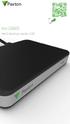 Paxton ins-20605 Net2 desktop reader USB 1 3 2 4 1 2 Desktop Reader The desktop reader is designed to sit next to the PC. It is used for adding tokens to a Net2 system and also for identifying lost cards.
Utiliser une WebCam. Micro-ordinateurs, informations, idées, trucs et astuces
 Micro-ordinateurs, informations, idées, trucs et astuces Utiliser une WebCam Auteur : François CHAUSSON Date : 8 février 2008 Référence : utiliser une WebCam.doc Préambule Voici quelques informations utiles
Quick Installation Guide TW100-BRV304
 Quick Installation Guide TW100-BRV304 Table of of Contents Contents Français... 1. Avant de commencer... 2. Installation du matériel... 3. Configuration du routeur... 1 1 2 3 Troubleshooting... 5 Version
Contrôle d'accès Access control. Notice technique / Technical Manual
 p.1/18 Contrôle d'accès Access control INFX V2-AI Notice technique / Technical Manual p.2/18 Sommaire / Contents Remerciements... 3 Informations et recommandations... 4 Caractéristiques techniques... 5
1. Raison de la modification
 T Service Documentation Technicocommerciale Information Technique Rubrique F Les régulations Nouvelle version de programme de la carte SU : F1.4 P5253 JS F 67580 Mertzwiller N ITOE0117 26/09/2011 FR 1.
4-441-095-22 (1) Network Camera
 4-441-095-22 (1) Network Camera Guide de l outil SNC easy IP setup Logiciel version 1.0 Avant d utiliser cet appareil, lisez attentivement ce manuel et conservez-le pour vous y reporter ultérieurement.
SERVEUR DÉDIÉ DOCUMENTATION
 SERVEUR DÉDIÉ DOCUMENTATION Release 5.0.6.0 19 Juillet 2013 Copyright 2013 GIANTS Software GmbH, All Rights Reserved. 1/9 CHANGE LOG Correction de bug divers (5.0.6.0) Ajout d une option de relance automatique
USB 598. Quick Start Guide (Windows) Guide de démarrage rapide (Windows) USB Modem. Modem USB. www.sierrawireless.com
 USB 598 With Avec USB Modem Quick Start Guide (Windows) Modem USB Guide de démarrage rapide (Windows) www.sierrawireless.com This guide provides installation instructions for users of: Windows Vista Windows
calls.paris-neuroscience.fr Tutoriel pour Candidatures en ligne *** Online Applications Tutorial
 calls.paris-neuroscience.fr Tutoriel pour Candidatures en ligne Online Applications Tutorial 1/4 Pour postuler aux Appels d Offres de l ENP, vous devez aller sur la plateforme : calls.parisneuroscience.fr.
Mediacast Setup. Mediacasting from UPnP compatible devices
 Models: dgimd13 Mediacast Setup Mediacasting from UPnP compatible devices Please read these instructions carefully prior to installation Important Note: This procedure was written in conjunction with an
Software and Hardware Datasheet / Fiche technique du logiciel et du matériel
 Software and Hardware Datasheet / Fiche technique du logiciel et du matériel 1 System requirements Windows Windows 98, ME, 2000, XP, Vista 32/64, Seven 1 Ghz CPU 512 MB RAM 150 MB free disk space 1 CD
Frequently Asked Questions
 Frequently Asked Questions GENERAL Q: Can I connect an external hard drive, USB stick or MP3 player to copy files to the device? A: Yes, you can. The device supports USB HOST function, which can read USB
Quick Start Guide This guide is intended to get you started with Rational ClearCase or Rational ClearCase MultiSite.
 Rational ClearCase or ClearCase MultiSite Version 7.0.1 Quick Start Guide This guide is intended to get you started with Rational ClearCase or Rational ClearCase MultiSite. Product Overview IBM Rational
Quick Installation Guide TV-IP400 TV-IP400W
 Quick Installation Guide TV-IP400 TV-IP400W Table of of Contents Contents Français... 1. Avant de commencer... 2. Installation du matériel... 3. Configuration de la Webcam... Troubleshooting... 1 1 2 3
Instruction Manual. HS-636-4GBBK MP3 Player
 Instruction Manual HS-636-4GBBK MP3 Player Thank you for your purchase of this Hip Street MP3 player and we hope you enjoy using it. Please visit our website at www.hipstreetonline.com. The display screen
Principe de TrueCrypt. Créer un volume pour TrueCrypt
 Sommaire : Principe de TrueCrypt...1 Créer un volume pour TrueCrypt...1 Premier montage...6 Réglages...8 Save Currently Mounted Volumes as Favorite...8 Settings > Preferences...9 TrueCrypt Traveller pour
Once the installation is complete, you can delete the temporary Zip files..
 Sommaire Installation... 2 After the download... 2 From a CD... 2 Access codes... 2 DirectX Compatibility... 2 Using the program... 2 Structure... 4 Lier une structure à une autre... 4 Personnaliser une
DOCUMENTATION - FRANCAIS... 2
 DOCUMENTATION MODULE SHOPDECORATION MODULE PRESTASHOP CREE PAR PRESTACREA INDEX : DOCUMENTATION - FRANCAIS... 2 INSTALLATION... 2 Installation automatique... 2 Installation manuelle... 2 Résolution des
Quick Installation Guide TBW-106UB H/W: V1
 Quick Installation Guide TBW-106UB H/W: V1 Table of Contents... 1. Avant de commencer... 2. Procéder à l'installation... 3. Configuration de l'adaptateur Bluetooth... Troubleshooting... 1 1 2 5 7 Version
Caractéristiques principales:
 Powered by AndoridTM4.1 Jelly Bean Archos introduit sa nouvelle tablette ChildPad: l ARCHOS 80 CHILDPAD. Equipée de la dernière version d Android Jelly Bean, cette tablette de 8 a spécialement été conçue
Folio Case User s Guide
 Fujitsu America, Inc. Folio Case User s Guide I N S T R U C T I O N S This Folio Case is a stylish, lightweight case for protecting your Tablet PC. Elastic Strap Pen Holder Card Holders/ Easel Stops Figure
Adeunis-RF Softwares. Stand-Alone configuration Manager V2. User guide version V1 FRANCAIS ENGLISH
 Adeunis-RF Softwares Stand-Alone configuration Manager V2 User guide version V1 FRANCAIS ENGLISH Adeunis RF 283 rue Louis Néel Parc Technologique Pré Roux 38920 Crolles - France Tel : +33 0)4 76 92 07
Réserve Personnelle. Persönliche Reserve. Emprunter et épargner en fonction de vos besoins. Leihen und sparen je nach Bedarf
 crédit épargne Réserve Personnelle Emprunter et épargner en fonction de vos besoins Persönliche Reserve Leihen und sparen je nach Bedarf Réserve Personnelle Vous voulez disposer à tout moment des moyens
15 Digital Photo Frame model ADMPF315F. Instructional Manual mnl M10054
 15 Digital Photo Frame model ADMPF315F Instructional Manual mnl M10054 Table of Contents Introduction... Features... Package Contents... Product Highlights... Remote Control Close-up... Application...
Quick Installation Guide TV-IP212/TV-IP212W TV-IP312/TV-IP312W H/W: A1.0R
 Quick Installation Guide TV-IP212/TV-IP212W TV-IP312/TV-IP312W H/W: A1.0R Table Table of Contents of Contents... 1. Avant de commencer... 2. Installation du matériel... 3. Installation du serveur de caméra
Wireless IP Camera 75790, 75790WH, 75791 Quick Start Guide Guide de départ rapide
 Wireless IP Camera 75790, 75790WH, 75791 Quick Start Guide Guide de départ rapide 1 Is this you? Start Here TECH SUPPORT CTRL ALT DEL 2 If yes, skip to advanced setup. 3 If not, write down the following:
lundi 3 août 2009 Choose your language What is Document Connection for Mac? Communautés Numériques L informatique à la portée du Grand Public
 Communautés Numériques L informatique à la portée du Grand Public Initiation et perfectionnement à l utilisation de la micro-informatique Microsoft Document Connection pour Mac. Microsoft Document Connection
GUIDE UTILISATEUR SYSTEMES CCTV
 GUIDE UTILISATEUR SYSTEMES CCTV 2SECURE 3 chemin des mules 13124 PEYPIN www.2secure.fr - 1 - SOMMAIRE : 1 ACCEDER / SORTIR D UN MENU :...3 2 VISUALISER UN ENREGISTREMENT SUR LE DVR :...3 3 SAUVEGARDER
Harmony Smart Keyboard Add-on. Setup Guide Guide d installation
 Harmony Smart Keyboard Add-on Setup Guide Guide d installation Contents / Sommaire English................. 3 Français................. 9 support.myharmony.com/smart-keyboard-add-on 2 E Ch Pg Package contents
DOCUMENTATION - FRANCAIS... 2
 DOCUMENTATION MODULE CATEGORIESTOPMENU MODULE CREE PAR PRESTACREA INDEX : DOCUMENTATION - FRANCAIS... 2 INSTALLATION... 2 CONFIGURATION... 2 LICENCE ET COPYRIGHT... 3 SUPPORT TECHNIQUE ET MISES A JOUR...
Garage Door Monitor Model 829LM
 Garage Door Monitor Model 829LM To prevent possible SERIOUS INJURY or DEATH from a closing garage door: NEVER permit children to operate or play with door control push buttons or remote control transmitters.
VTP. LAN Switching and Wireless Chapitre 4
 VTP LAN Switching and Wireless Chapitre 4 ITE I Chapter 6 2006 Cisco Systems, Inc. All rights reserved. Cisco Public 1 Pourquoi VTP? Le défi de la gestion VLAN La complexité de gestion des VLANs et des
DOCUMENTATION - FRANCAIS... 2
 DOCUMENTATION MODULE PRETTYSLIDER MODULE PRESTASHOP CREE PAR PRESTACREA INDEX : DOCUMENTATION - FRANCAIS... 2 INSTALLATION... 2 Installation automatique... 2 Installation manuelle... 2 Résolution des problèmes...
HAUTE DISPONIBILITÉ DE MACHINE VIRTUELLE AVEC HYPER-V 2012 R2 PARTIE CONFIGURATION OPENVPN SUR PFSENSE
 HAUTE DISPONIBILITÉ DE MACHINE VIRTUELLE AVEC HYPER-V 2012 R2 PARTIE CONFIGURATION OPENVPN SUR PFSENSE Projet de semestre ITI soir 4ème année Résumé configuration OpenVpn sur pfsense 2.1 Etudiant :Tarek
Lesson Plan Physical Descriptions. belle vieille grande petite grosse laide mignonne jolie. beau vieux grand petit gros laid mignon
 Lesson Plan Physical Descriptions Objective: Students will comprehend and describe the physical appearance of others. Vocabulary: Elle est Il est Elle/Il est Elle/Il a les cheveux belle vieille grande
DELL E6500 : Remplacement du disque dur d origine par un disque dur chiffrant
 DELL E6500 : Remplacement du disque dur d origine par un disque dur chiffrant Table des matières Objectif du document... 2 Contexte... 2 Réflexion sur l utilisation... 2 Ordre des actions... 2 Comment
APPENDIX 6 BONUS RING FORMAT
 #4 EN FRANÇAIS CI-DESSOUS Preamble and Justification This motion is being presented to the membership as an alternative format for clubs to use to encourage increased entries, both in areas where the exhibitor
GAME CONTENTS CONTENU DU JEU OBJECT OF THE GAME BUT DU JEU
 GAME CONTENTS 3 wooden animals: an elephant, a Polar bear and an African lion 1 Playing Board with two tree stumps, one red and one blue 1 Command Board double sided for two game levels (Green for normal
Quick Installation Guide TE100-P1P
 Quick Installation Guide TE100-P1P Table of of Contents Contents... 1 1. Avant de commencer... 1 2. Procéder à l'installation... 2 3. Configuration du serveur d'impression... 3 4. Ajout de l'imprimante
Application Form/ Formulaire de demande
 Application Form/ Formulaire de demande Ecosystem Approaches to Health: Summer Workshop and Field school Approches écosystémiques de la santé: Atelier intensif et stage d été Please submit your application
Quick Installation Guide TV-IP422 TV-IP422W H/W: A1.0R
 Quick Installation Guide TV-IP422 TV-IP422W H/W: A1.0R Table Table of Contents of Contents... 1. Avant de commencer... 2. Installation du matériel... 3. Configuration de la Webcam... Troubleshooting...
Creating a Backup of Bootable Disk and Recovery Image
 Appendix Appendix Image Backup and Recovery Procedures Thank you for purchasing a Fujitsu computer. Fujitsu is committed to bringing you the best computing experience with your new system. It is very important
SAP SNC Portal. User Guide for Suppliers. M1, M2b Modules - Edition 3. Direction des Achats/Ph.Longuet Date: 4/11/11
 SAP SNC Portal User Guide for Suppliers M1, M2b Modules - Edition 3 Direction des Achats/Ph.Longuet Date: 4/11/11 SAP SNC How to get started with Sagemcom SNC 1 - SNC Portal, what are features? SNC is
CRÉER UN DVD VIDEO avec DVD FLICK (avec ou sans menu)
 CRÉER UN DVD VIDEO avec DVD FLICK (avec ou sans menu) DVD Flick permet de convertir des vidéos de différents formats en DVD Vidéo (lisible sur un lecteur DVD de salon). Il supporte plus de 45 formats différents
RAPID 3.34 - Prenez le contrôle sur vos données
 RAPID 3.34 - Prenez le contrôle sur vos données Parmi les fonctions les plus demandées par nos utilisateurs, la navigation au clavier et la possibilité de disposer de champs supplémentaires arrivent aux
Vanilla : Virtual Box
 Vanilla : Virtual Box Installation Guide for Virtual Box appliance Guide d'installation de l'application VirtualBox Vanilla Charles Martin et Patrick Beaucamp BPM Conseil Contact : [email protected],
INSTRUMENTS DE MESURE SOFTWARE. Management software for remote and/or local monitoring networks
 INSTRUMENTS DE MESURE SOFTWARE SOFTWARE Logiciel de supervision des réseaux locaux et/ou distants Management software for remote and/or local monitoring networks MIDAs EVO 4 niveaux de fonctionnalités
tiq e Disque dur multimedia 2,5 SATA avec connecteur HDMI NOTICE D UTILISATION Réf : 725390 10 juillet 2010 - Version2
 ue ti q nectiqu on Connec tiq ue e Connec Disque dur multimedia 2,5 SATA avec connecteur HDMI C NOTICE D UTILISATION 10 juillet 2010 - Version2 Réf : 725390 Nous tenons tout d abord à vous remerciez d
INSTALLING THE DRIVER (WINDOWS 7)
 INSTALLING THE DRIVER (WINDOWS 7) Download the K8101_setup file here: http://www.velleman.eu/downloads/files/downloads/k8101_setup.zip Unpack the download and install the software. The driver for the K8101
Manuel de l utilisateur
 TENVIS Technology Co,.LTD Manuel de l utilisateur Pour Caméras MJPEG JPT3815W M319W IPROBOT2 IP391W IP60xW Version 1.0.1 Index Configuration de Base... 3 Installation Matériel... 3 Pour Windows... 3 Mode
Table of Contents. Product Overview. Troubleshooting. Setting Up Your EA-Series Router. Specifications. Linksys EA-Series.
 User Guide EA6350 Linksys EA-Series Table of Contents Table of Contents Product Overview EA6350.....................................1 Setting Up Your EA-Series Router Where to find more help.........................
Quick Installation Guide TV-IP410 TV-IP410W H/W: A1.0R
 Quick Installation Guide TV-IP410 TV-IP410W H/W: A1.0R Table Table of Contents of Contents... 1. Avant de commencer... 2. Installation du matériel... 3. Configuration de la Webcam... Troubleshooting...
Quick Installation Guide
 Quick Installation Guide PowerLine AV+ Wireless N Mini Extender Version 1.10(NA) February 18, 2013 Wi-Fi Configuration Note Package Contents PowerLine AV+ Wireless N Mini Extender ENGLISH CAT5 Ethernet
SIMATIC. SIMATIC STEP 7 PID Professional V12. Welcome Tour. Totally Integrated Automation www.siemens.com/tia-portal-welcometour PORTAL
 SIMATIC STEP 7 PID Professional V12 Welcome Tour Totally Integrated Automation www.siemens.com/tia-portal-welcometour Totally Integrated Automation PORTAL www.siemens.com/tia-portal SIMATIC Siemens Aktiengesellschaft
SAP SNC Portal. User Guide for Suppliers. M1, M2b Modules - Edition 1. Direction des Achats/Ph.Longuet Date: 5/08/10
 SAP SNC Portal User Guide for Suppliers M1, M2b Modules - Edition 1 Direction des Achats/Ph.Longuet Date: 5/08/10 SAP SNC How to get started with Sagemcom SNC 1 - SNC Portal, what are features? SNC is
DocOnline. Guide utilisateur
 Guide utilisateur For the English version click here DocOnline Accéder et s identifier à DocOnline Bienvenue sur DocOnline, système de facturation électronique en ligne de TOTAL, conçu pour vous donner
Quick Installation Guide TEW-AO12O
 Quick Installation Guide TEW-AO12O Table of of Contents Contents Français... 1 1. Avant de commencer... 1 2. Installation du matériel... 2 3. Montage... 4 Troubleshooting... 6 Version 10.04.2007 1. Avant
AEMC MODEL 6555 C.A 655X FIRMWARE UPGRADE UTILITY UTILITAIRE DE MISE A NIVEAU DU MICROLOGICIEL DIENSTPROGRAMM FÜR FIRMWARE-AKTUALISIERUNG
 AEMC MODEL 6555 C.A 655X FIRMWARE UPGRADE UTILITY UTILITAIRE DE MISE A NIVEAU DU MICROLOGICIEL DIENSTPROGRAMM FÜR FIRMWARE-AKTUALISIERUNG English... page 2 Français... page 17 Deutsch...Seite 32 Loader
Fabricant. 2 terminals
 Specifications Fabricant Nominal torque (Nm) 65 Minimal torque (Nm) 0,63 Coil resistance - 20 C (ohms) 20 Rated current DC (A) 1 Rotor inertia (kg.m 2 ) 2.10-3 Weight (kg) 7,20 Heat dissipation continuous
Quick Installation Guide TV-IP110 TV-IP110W H/W: A1.0R
 Quick Installation Guide TV-IP110 TV-IP110W H/W: A1.0R Table Table of Contents of Contents... 1. Avant de commencer... 2. Installation du matériel... 3. Configuration de la Webcam... Troubleshooting...
Compléter le formulaire «Demande de participation» et l envoyer aux bureaux de SGC* à l adresse suivante :
 FOIRE AUX QUESTIONS COMMENT ADHÉRER? Compléter le formulaire «Demande de participation» et l envoyer aux bureaux de SGC* à l adresse suivante : 275, boul des Braves Bureau 310 Terrebonne (Qc) J6W 3H6 La
Nouveautés printemps 2013
 » English Se désinscrire de la liste Nouveautés printemps 2013 19 mars 2013 Dans ce Flash Info, vous trouverez une description des nouveautés et mises à jour des produits La Capitale pour le printemps
Règlement sur le télémarketing et les centres d'appel. Call Centres Telemarketing Sales Regulation
 THE CONSUMER PROTECTION ACT (C.C.S.M. c. C200) Call Centres Telemarketing Sales Regulation LOI SUR LA PROTECTION DU CONSOMMATEUR (c. C200 de la C.P.L.M.) Règlement sur le télémarketing et les centres d'appel
Summary / Sommaire. 1 Install DRIVER SR2 USB01 Windows seven 64 bits / Installation du DRIVER SR2 USB01 Windows seven 64 bits 2
 Summary / Sommaire 1 Install DRIVER SR2 USB01 Windows seven 64 bits / Installation du DRIVER SR2 USB01 Windows seven 64 bits 2 1.1 Driver Installation SR2 USB01 Windows Seven 64 bits (english) 2 1.1.1
Disque Dur Multimédia
 Disque Dur Multimédia Manuel Utilisateur PC/MAC 1 SOMMAIRE 1. Avertissements 4 2. Précautions d emploi 4 3. Performances de l appareil 5 4. Accessoires 7 5. Utilisation de l appareil 9 6. Configuration
Products Solutions Services. W@M Enterprise Installationsanleitung Installation Guide Guide d installation
 Products Solutions Services W@M Enterprise Installationsanleitung Installation Guide Guide d installation 2 Endress+Hauser 1. Systemanforderungen 1.1. W@M Enterprise Server W@M Enterprise wird auf einem
INSTALLING THE DRIVER (WINDOWS 7)
 INSTALLING THE DRIVER (WINDOWS 7) Download the CubeAnimator 1.0 for Windows packet here: http://www.velleman.eu/support/downloads/?code=mk193 Unpack the download and install the software. The driver for
Tutoriel de formation SurveyMonkey
 Tutoriel de formation SurveyMonkey SurveyMonkey est un service de sondage en ligne. SurveyMonkey vous permet de créer vos sondages rapidement et facilement. SurveyMonkey est disponible à l adresse suivante
PARIS ROISSY CHARLES DE GAULLE
 GPS 2 34 1 E 49 0 46 N GPS* 2 56 56 E 49 0 12 N Votre contact / Your contact: et / and: Accueil : Cabines téléphoniques publiques Reception: Public telephone kiosks Navette Shuttle AÉROPORT DE TT CAR TRANSIT
Restaurant Application Quick Reference Guide
 Restaurant Application Quick Reference Guide Ingenico Telium Canada English Color key Required Merchant Input on Point of Sale Required Customer Input on Internal or External PIN-pad Optional Merchant
Table des matières ENGLISH VERSION NEAR BOTTOM OF PAGE. Transferts sécurisés de fichiers Système MFT (Managed File Transfer) Guide de l utilisateur
 ENGLISH VERSION NEAR BOTTOM OF PAGE Transferts sécurisés de fichiers Système MFT (Managed File Transfer) Guide de l utilisateur Table des matières Survol...2 Considérations en matière de conformité des
PRESENTATION REMOTE TÉLÉCOMMANDE DE PRÉSENTATION. User Guide Manuel de l utilisateur
 PRESENTATION REMOTE TÉLÉCOMMANDE DE PRÉSENTATION User Guide Manuel de l utilisateur Targus Presentation Remote Introduction Thank you for your purchase of the Targus Presentation Remote. This cordless
OUVRIR UN COMPTE CLIENT PRIVÉ
 OUVRIR UN COMPTE CLIENT PRIVÉ LISTE DE VERIFICATION Pour éviter tous retards dans le traitement de votre application pour l ouverture d un compte avec Oxford Markets ( OM, l Entreprise ) Veuillez suivre
user manual imagine the possibilities
 BD-F5100 Blu-ray Disc Player user manual imagine the possibilities Thank you for purchasing this Samsung product. To receive more complete service, please register your product at www.samsung.com/register
AND / ET USER GUIDE UK HARDWIRED CONTROL PANEL UK GUIDE UTILISATEUR CENTRALE D ALARME FILAIRE F 496572 1
 AND / ET UK USER GUIDE HARDWIRED CONTROL PANEL UK F GUIDE UTILISATEUR CENTRALE D ALARME FILAIRE 496572 1 English UK Operator Controls and Displays On both control panel and remote keypad the LEDs display
Gestion des prestations Volontaire
 Gestion des prestations Volontaire Qu estce que l Income Management (Gestion des prestations)? La gestion des prestations est un moyen de vous aider à gérer votre argent pour couvrir vos nécessités et
Scan System(C) Operation Guide <Set-up Edition>
 Scan System(C) Operation Guide ALWAYS read this Operation Guide thoroughly before use. After reading, maintain it in good condition and keep it together with the Operation Guide for your
Produktinformation. Monitor MOM 711-0 und MOM 711-1. Monitor MOM 711-0 and MOM 711-1. Moniteur MOM 711-0
 MOM711_0_01_021843 20.09.2002 8:00 Uhr Seite 1 Produktinformation Monitor MOM 711-0 und MOM 711-1 Monitor MOM 711-0 and MOM 711-1 Moniteur MOM 711-0 MOM711_0_01_021843 20.09.2002 8:00 Uhr Seite 4 English