
24LED3305TD 24LED3315TDW
|
|
|
- Gisèle Françoise Morel
- il y a 10 ans
- Total affichages :
Transcription
1 LED KLEUREN TV 24LED3305TD 24LED3315TDW GEBRUIKERSHANDLEIDING (NL) LEES DIT ZORGVULDIG DOOR VOOR GEBRUIK
2 BELANGRIJKE VEILIGHEIDSINSTRUCTIES Dit symbool geeft aan dat dit product gevaarlijke spanning gebruikt, wat een risico op elektrische schokken of letsel kan vormen. Dit symbool geeft aan dat belangrijke instructies met het product zijn meegeleverd. Lees deze handleiding vóór het gebruik zorgvuldig door. Voordat u het AC-netsnoer aansluit op de DC-adapter, controleer of de spanningspecificaties van de LED TV overeenkomen met de lokale elektrische toevoer. Als u hierover twijfelt, neem dan contact op met uw stroomleverancier. Steek nooit metalen voorwerpen in de openingen van de LED TV/monitor; dit brengt een risico op elektrische schokken met zich mee. Om elektrische schokken te vermijden, raak nooit de binnenkant van de LED TV/monitor en adapter aan. Enkel een gekwalificeerde technicus mag de LED TV/monitor/adapter openen. Gebruik uw LED TV/monitor/adapter nooit als het netsnoer beschadigd is. Plaats geen objecten op het netsnoer, en houd het snoer zo dat niemand erover kan struikelen. Houd de stekker, niet het snoer vast als u de adapter uit het stopcontact haalt. Te hoge geluidsdruk van oor- en hoofdtelefoons kan tot gehoorverlies leiden. Batterijen dienen nooit blootgesteld te worden aan overmatige hitte, zoals zonlicht, open vlammen e.d. Zorg voor een vrije ruimte van minimaal 5 cm rondom het apparaat voor voldoende ventilatie. Zorg ervoor dat de ventilatie nooit verhinderd wordt door de ventilatieopeningen te bedekken met bijv. kranten, tafellakens, gordijnen, enz. Plaats geen bronnen met een open vlam op het apparaat, zoals brandende kaarsen. Ga op milieubewuste wijze om met uitgeputte batterijen. Gebruik het apparaat alleen in gematigde klimaten (niet in tropische klimaten). De stekker moet gemakkelijk bereikbaar blijven.
3 BELANGRIJKE VEILIGHEIDSINSTRUCTIES Openingen in de LED TV/monitor/adapter zijn geplaatst voor de ventilatie. Om oververhitting te voorkomen, mogen deze openingen niet worden geblokkeerd of afgedekt. Vermijd ook het gebruik van de LED TV/monitor op een bed, sofa, tapijt of ander zacht oppervlak. Dit kan namelijk de ventilatieopeningen aan de onderkant blokkeren. Als u de LED TV/monitor in een boekenkast of een andere gesloten plek plaatst, zorg voor voldoende ventilatie. Stel de LED TV/monitor niet aan extreme temperaturen of aan extreme vochtigheid bloot. Het apparaat mag niet aan druip- of spatwater worden blootgesteld en er mogen geen voorwerpen gevuld met vloeistoffen, zoals vazen, op het product geplaatst worden. Plaats de LED TV/monitor niet op een instabiele kar, stand, driepoot, plankdrager, tafel of bodem waar het kan vallen. Indien het valt, gestoten of gekrast wordt, is het beschadigd. Maak de voorkant niet schoon met keton-type materialen (zoals aceton), ethyl alcohol, tolueen, ethylzuur, methyl of chloride, dit kan het paneel beschadigen. Plaats uw DC-adapter in de buurt van een gemakkelijk bereikbare wandcontactdoos. Als uw LED TV/monitor niet normaal functioneert, als er vreemde geluiden of geuren ontstaan, haal dan direct de stekker uit het stopcontact en neem contact op met een geautoriseerde verkoper of uw servicecentrum. Hoge temperaturen kunnen problemen veroorzaken. Gebruik uw LED TV/monitor niet in direct zonlicht, houd het weg van verwarmingen, ovens, open haarden en andere warmtebronnen. Haal de DC-adapter eruit als het apparaat voor een langere periode niet gebruikt gaat worden. Om het risico op brand of elektrische schokken, en stroomstoringen te verminderen, raden wij u aan enkel de aanbevolen accessoires te gebruiken. Probeer niet zelf de LED TV/monitor te repareren als deze kapot is. Neem contact op met gekwalificeerd onderhoudspersoneel. Haal de stekker van uw DC-adapter uit het stopcontact voordat u het laat repareren. Wees er zeker van de onderhoudsexpert goedgekeurde vervangende onderdelen, of gelijkwaardig, gebruikt. Niet goedgekeurde onderdelen kunnen brand, elektrische schokken en andere gevaren veroorzaken. Na iedere onderhoud of reparatie, controleer of de onderhoudsexpert veiligheidscontroles uitvoert om te bevestigen dat uw TFT-LED TV/monitor weer veilig gebruikt kan worden. Apparatuur met een KLASSE 1-constructie dient te worden aangesloten op een stopcontact met een beschermende aardverbinding.
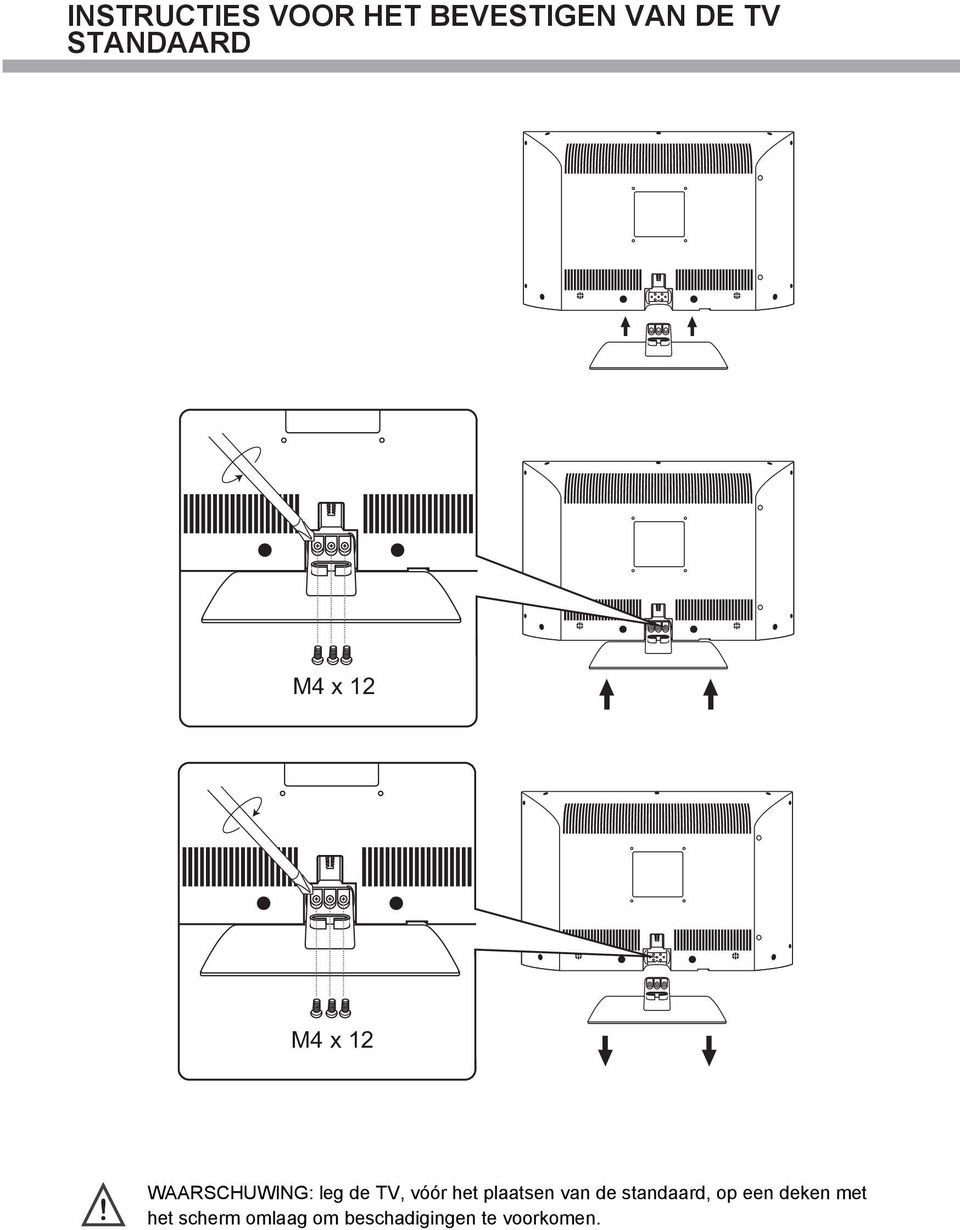
4 INSTRUCTIES VOOR HET BEVESTIGEN VAN DE TV STANDAARD M4 x 12 M4 x 12 WAARSCHUWING: leg de TV, vóór het plaatsen van de standaard, op een deken met het scherm omlaag om beschadigingen te voorkomen.
5 INHOUDSOPGAVE TOETSFUNCTIES BEDIENINGSPANEEL Voorpaneel...1 EXTERNE APPARATUUR Zijpaneel...2 Achterpaneel...2 Aansluitschema... 3 AFSTANDSBEDIENING Afstandbedieningstoetsen...4 Batterijen plaatsen AAN DE SLAG Inschakelen...7 Selecteer bron...7 TV-MENU INSTELLEN Beeld...8 Geluid Kanaal...11 Kenmerk Installatie DTV-MENU INSTELLEN Kanaal Kenmerk...24 TELETEKSTFUNCTIE...31 SCART/AV/COMPONENT-MENU INSTELLEN Video-instellingenmenu HDMI-MENU INSTELLEN Installatie PC-MENU INSTELLEN Installatie USB-BEDIENING Korte inleiding Weergaveformaat van usb-multimedia Photo Muziek Film PVR E-Book DVD-BEDIENING BASISBEDIENING...41 ONDERSTEUNING DVD-FORMAAT 41 BEDIENINGSVOORSCHRIFTEN DVD-FUNCTIES...42 Afspelen MP3/JPEG. 44 Functie-instellingen.. 45 Pagina algemene instellingen Pagina audio - instellingen Dolby digital - instellingen Voorkeurspagina PROBLEEMOPLOSSING Zorg en onderhoud Scherm problemen oplossen Geluid en TV problemen oplossen DVD problemen oplossen SPECIFICATIES
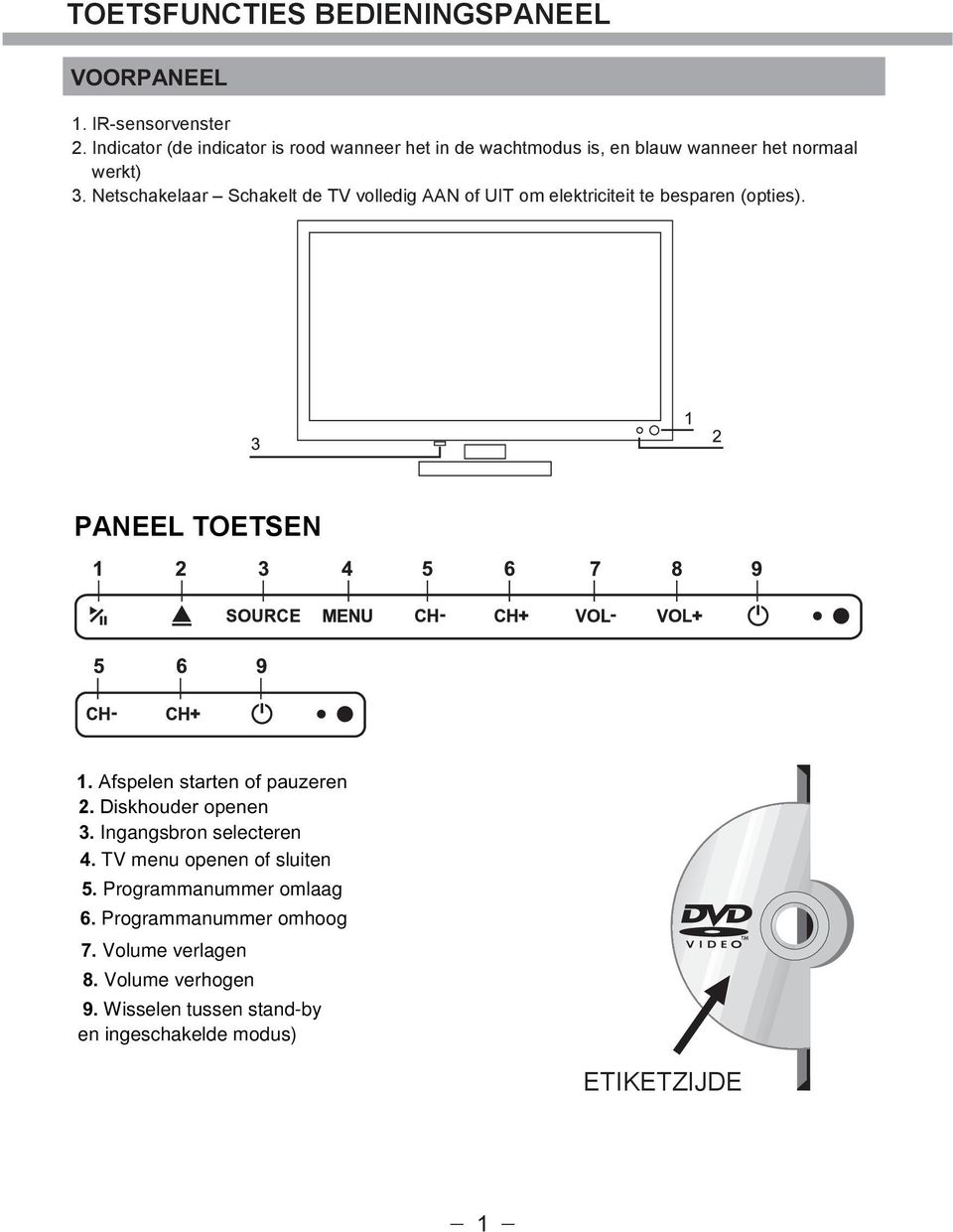
6 TOETSFUNCTIES BEDIENINGSPANEEL VOORPANEEL 1. IR-sensorvenster 2. Indicator (de indicator is rood wanneer het in de wachtmodus is, en blauw wanneer het normaal werkt) 3. Netschakelaar Schakelt de TV volledig AAN of UIT om elektriciteit te besparen (opties). PANEEL TOETSEN 1. Afspelen starten of pauzeren 2. Diskhouder openen 3. Ingangsbron selecteren 4. TV menu openen of sluiten 5. Programmanummer omlaag 6. Programmanummer omhoog 7. Volume verlagen 8. Volume verhogen 9. Wisselen tussen stand-by en ingeschakelde modus) ETIKETZIJDE
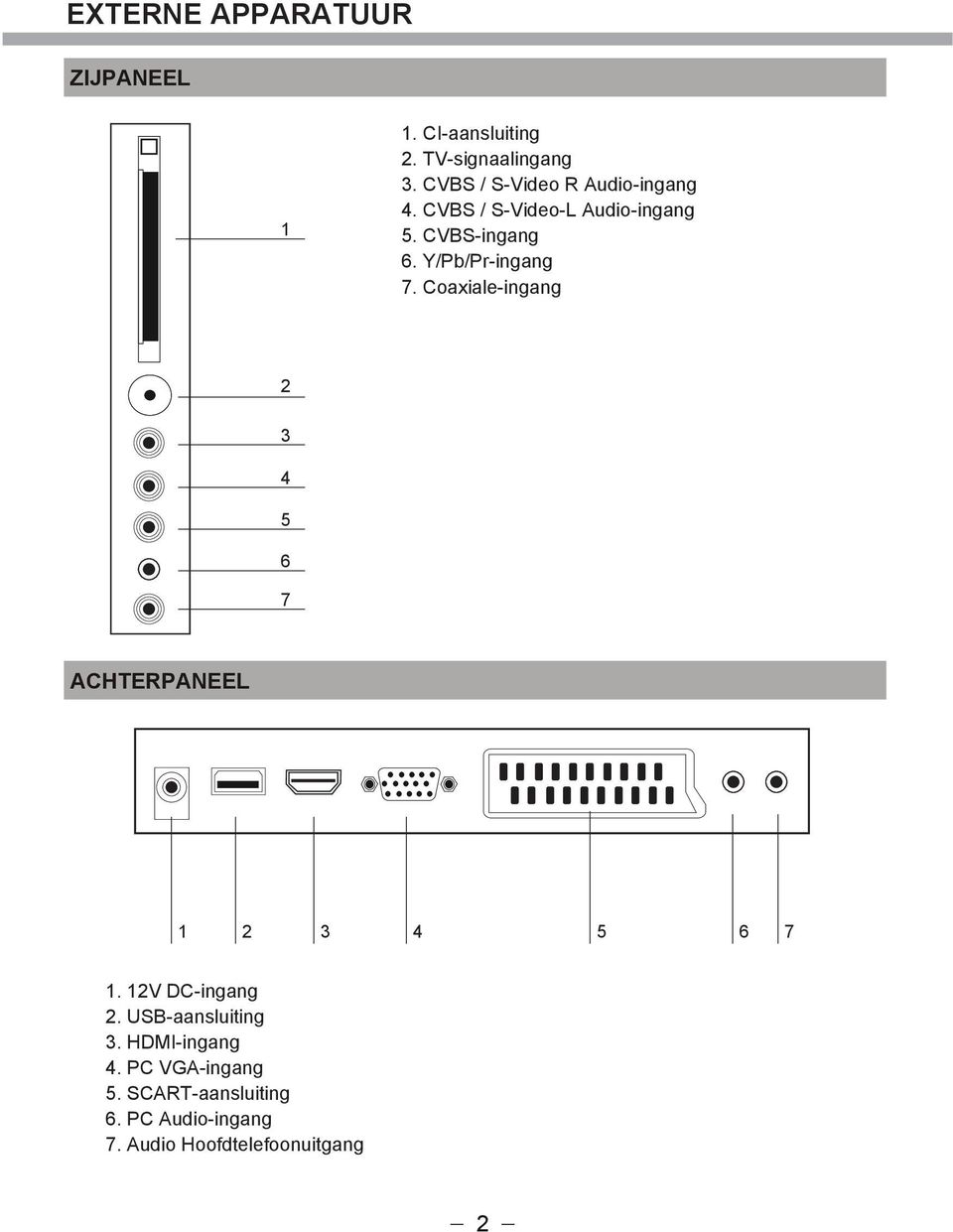
7 EXTERNE APPARATUUR ZIJPANEEL 1 1. CI-aansluiting 2. TV-signaalingang 3. CVBS / S-Video R Audio-ingang 4. CVBS / S-Video-L Audio-ingang 5. CVBS-ingang 6. Y/Pb/Pr-ingang 7. Coaxiale-ingang ACHTERPANEEL V DC-ingang 2. USB-aansluiting 3. HDMI-ingang 4. PC VGA-ingang 5. SCART-aansluiting 6. PC Audio-ingang 7. Audio Hoofdtelefoonuitgang 2
8 EXTERNE APPARATUUR AANSLUITSCHEMA OPMERKING U dient eerst alle vereiste kabels aan te sluiten VOORDAT u de stekker in het stopcontact steekt. 3

9 AFSTANDSBEDIENING AFSTANDBEDIENINGSTOETSEN POWER Zets de TV tussen aan en stand-by. 0-9 cijfertoetsen Druk om een programma te kiezen. (ATV / DTV) Kies een genummerd menupunt. (DVD*) DISPLAY Toont informatie over huidig programma, zoals actuele tijd en programmanaam. (ATV / DTV) Toont informatie over disc. (DVD*) EPG Toont EPG (Electronic Programme Guide). (DTV) Staats toe navigatie door OSD-menu en instelling van system aan uw voorkeur. SETUP Toont de OSD (On Screen Display) menu. CH.LIST Toont programmalijst. (ATV / DTV) S.MODE Kies geluidsmodus. CH + / Kies een programmanummer. PAGE + / Om naar een volgende/vorige pagina op teletekstscherm over te slaan. (ATV) Zoom in/uit op een beeld. (USB) RECORD LIST Opent recordlijst. RECORD Opnemen op USB-stick. (DTV) INDEX Kies een paginanummer van index van teletekst. (ATV) (Stop) Stoppen met afspelen of opnemen. (USB / DVD*) 13 REVEAL Openbaart verborgen informatie, zoals een antwoord op een quiz van teletekst. (ATV) I /II Afspelen of pauzeren. (USB/DVD*) Time Shift functie. (DTV) Gekleurde toetsen Geeft toegang tot TELETEXT of programma-editing als Digitale / Freeview TV-programma s worden gebruikt. (ATV / DTV) GOTO (ROOD) 16 Om naar een specfieke plaats op DVD / CD over te slaan. (DVD*) A B (GROEN) Herhaal een segment tussen A en B. (DVD*) 17 REPEAT (GEEL) Kies tussen verschillende herhaalmodi. (DVD*) ANGLE (BLAUW) 18 Kies verschillende hoeken voor de video. (DVD*) HOLD Houdt het passeren van meerdere pagina's op teletekstscherm tegen. (ATV) TITLE Toont DVD titelinhoud. (DVD*) S.PAGE Toont subpagina op teletekstscherm. (ATV) DVD-MENU Toont DVD-menu. (DVD*) SLEEP Zets TV-slaaptimer aan. EJECT Werpt een disc uit. (DVD*)

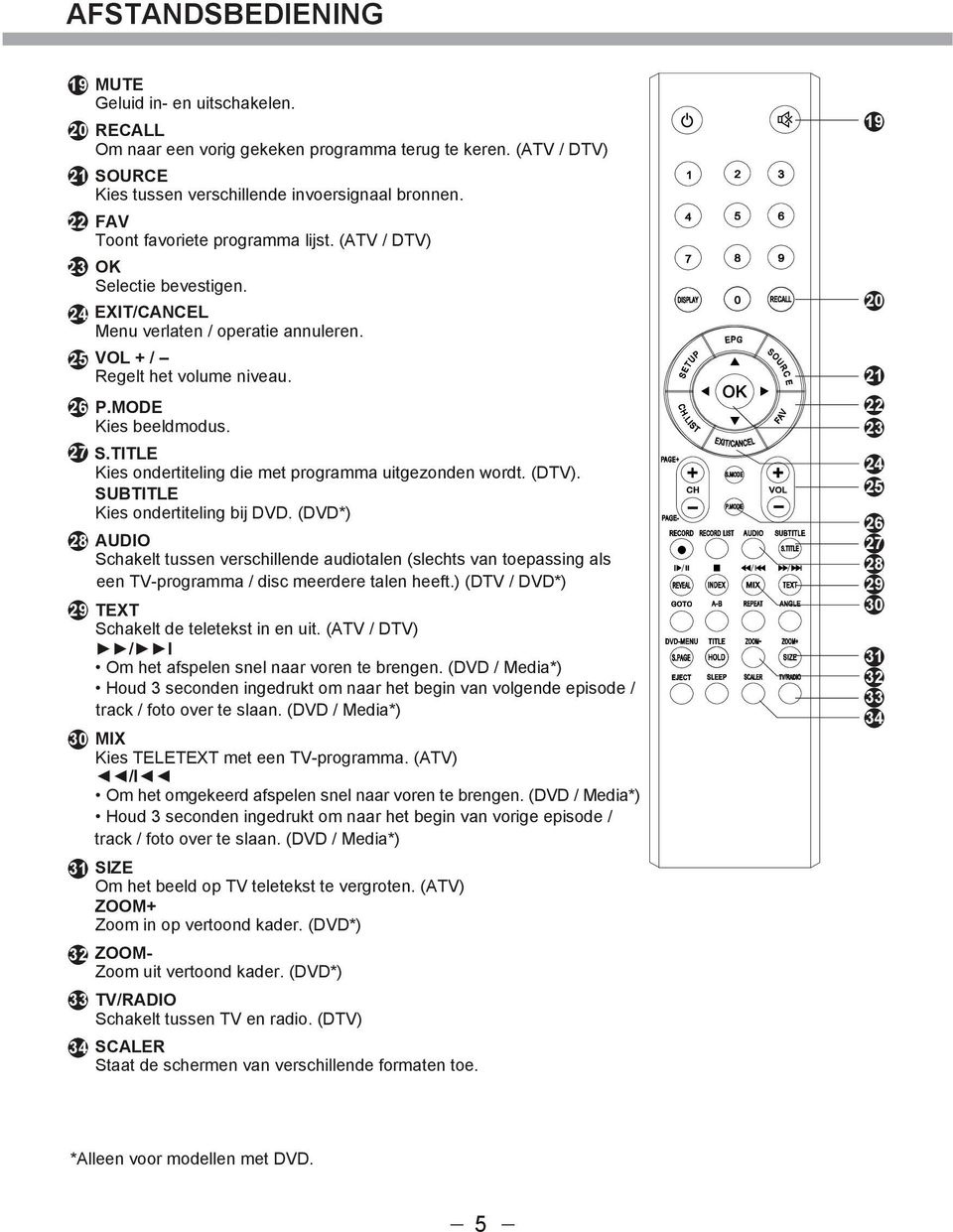
10 AFSTANDSBEDIENING 191 MUTE Geluid in- en uitschakelen OK Selectie bevestigen. 24 EXIT/CANCEL Menu verlaten / operatie annuleren. 25 RECALL Om naar een vorig gekeken programma terug te keren. (ATV / DTV) SOURCE Kies tussen verschillende invoersignaal bronnen. FAV Toont favoriete programma lijst. (ATV / DTV) VOL + / Regelt het volume niveau. 26 P.MODE Kies beeldmodus. 27 S.TITLE Kies ondertiteling die met programma uitgezonden wordt. (DTV). SUBTITLE Kies ondertiteling bij DVD. (DVD*) 28 AUDIO Schakelt tussen verschillende audiotalen (slechts van toepassing als een TV-programma / disc meerdere talen heeft.) (DTV / DVD*) 29 TEXT Schakelt de teletekst in en uit. (ATV / DTV) / I Om het afspelen snel naar voren te brengen. (DVD / Media*) Houd 3 seconden ingedrukt om naar het begin van volgende episode / track / foto over te slaan. (DVD / Media*) 30 MIX Kies TELETEXT met een TV-programma. (ATV) /I Om het omgekeerd afspelen snel naar voren te brengen. (DVD / Media*) Houd 3 seconden ingedrukt om naar het begin van vorige episode / track / foto over te slaan. (DVD / Media*) 31 SIZE Om het beeld op TV teletekst te vergroten. (ATV) ZOOM+ Zoom in op vertoond kader. (DVD*) 32 ZOOM- Zoom uit vertoond kader. (DVD*) 33 TV/RADIO Schakelt tussen TV en radio. (DTV) 34 SCALER Staat de schermen van verschillende formaten toe *Alleen voor modellen met DVD. 5
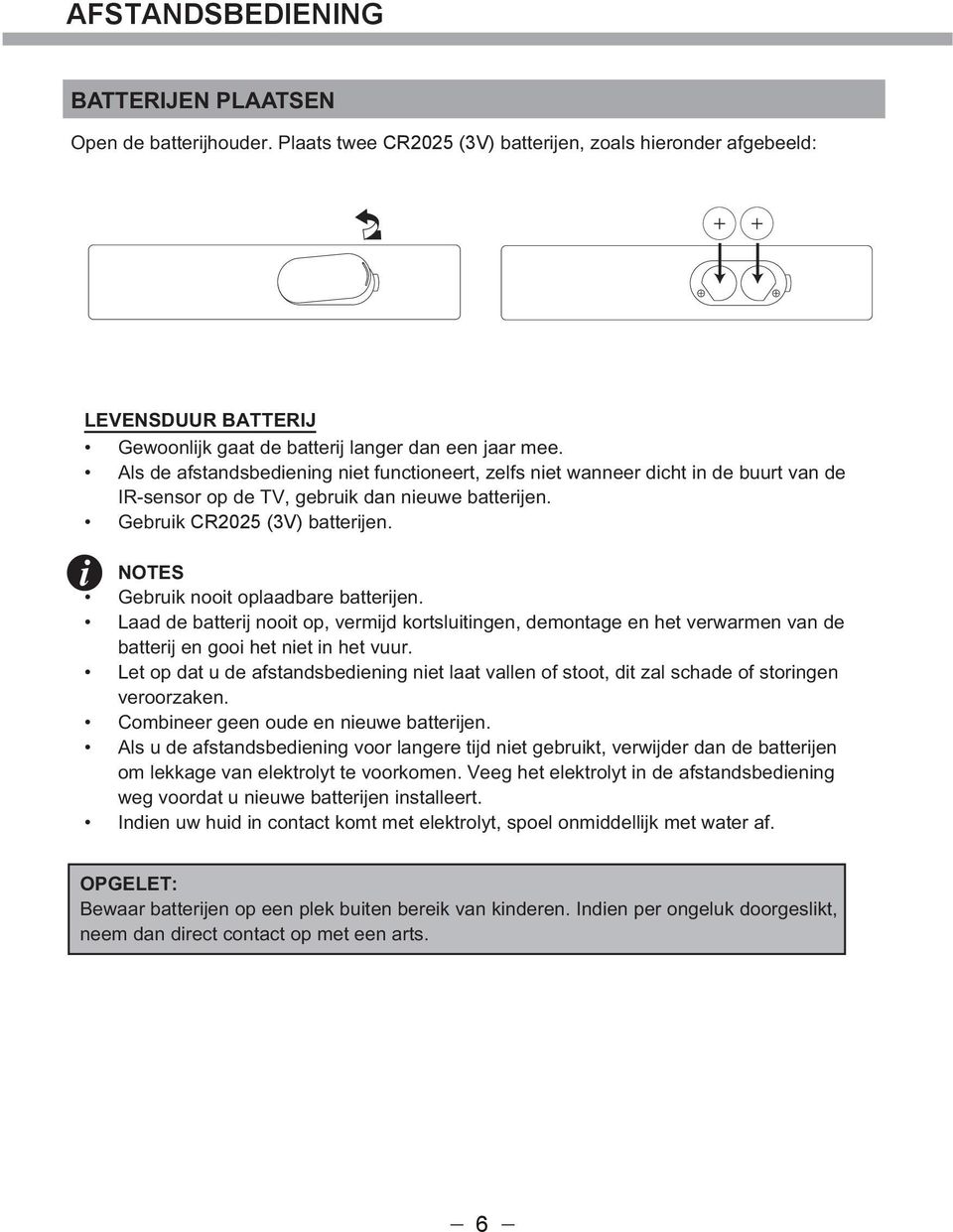
11 AFSTANDSBEDIENING BATTERIJEN PLAATSEN Open de batterijhouder. Plaats twee CR2025 (3V) batterijen, zoals hieronder afgebeeld: LEVENSDUUR BATTERIJ Gewoonlijk gaat de batterij langer dan een jaar mee. Als de afstandsbediening niet functioneert, zelfs niet wanneer dicht in de buurt van de IR-sensor op de TV, gebruik dan nieuwe batterijen. Gebruik CR2025 (3V) batterijen. NOTES Gebruik nooit oplaadbare batterijen. Laad de batterij nooit op, vermijd kortsluitingen, demontage en het verwarmen van de batterij en gooi het niet in het vuur. Let op dat u de afstandsbediening niet laat vallen of stoot, dit zal schade of storingen veroorzaken. Combineer geen oude en nieuwe batterijen. Als u de afstandsbediening voor langere tijd niet gebruikt, verwijder dan de batterijen om lekkage van elektrolyt te voorkomen. Veeg het elektrolyt in de afstandsbediening weg voordat u nieuwe batterijen installeert. Indien uw huid in contact komt met elektrolyt, spoel onmiddellijk met water af. OPGELET: Bewaar batterijen op een plek buiten bereik van kinderen. Indien per ongeluk doorgeslikt, neem dan direct contact op met een arts. 6
12 AAN DE SLAG INSCHAKELEN Ga als volgt te werk nadat het apparaat correct op een bureau of tegen de wand geplaatst is en alle vereiste kabels, waaronder de voedingskabel, zijn aangesloten. Druk op de -toets van de afstandsbediening om het apparaat in te schakelen - u zult zien dat de LED-indicator groen oplicht. Nu kunt u van de vele features van uw nieuwe TV genieten. SELECTEER BRON U kunt de ingangsbron kiezen met behulp van het Bron -menu. Druk op de SOURCE-toets van de afstandsbediening om het menu als volgt weer te geven: De huidige bron is gemarkeerd. Druk op de / -toets van de afstandsbediening om uw keuze te maken. Druk op de OK-toets om uw keuze te bevestigen. 7

13 TV-MENU INSTELLEN MERK OP, DAT ALS SOMMIGE ONDERDELEN NIET ACTIEF OF NIET BESCHIKBAAR ZIJN (GRIJS WEERGEGEVEN IN HET OSD-MENU), WORDEN ZIJ NIET IN DIT HOOFDSTUK BESPROKEN. DEZE ONDERDELEN WORDEN GEDETAILLEERD IN ANDERE HOOFDSTUKKEN BESCHREVEN. Druk in de DTV-modus op de SETUP-toets van de afstandsbediening. Door op de / -toets van de afstandsbediening te drukken, kunt u de LED -menusecties selecteren (de menusecties bestaan uit BEELD, GELUID, KANAAL, KENMERK en INSTALLATIE ). Druk op de / -toets van de afstandsbediening om het menuonderdeel in deze menusectie te selecteren, en druk vervolgens op de / -toets om de parameterwaarde aan te passen. Druk op de EXIT- of SETUP-toets om de menutabellen te verlaten. Druk op DISPLAY op de afstandsbediening om informatie over het programma op te roepen. 1. Huidig zendernummer. 2. Huidig kanaalnummer. 3. NICAM modus van de huidige zender. 4. Geluidsysteem van de huidige zender; kan aangepast worden in het menu Handmatig zoeken. BEELD Druk op SETUP om het hoofdmenu weer te geven. Gebruik / om Beeld te kiezen en druk op OK om in het menu te gaan. 1. Gebruik / om de optie te kiezen die u in het Beeld menu wil instellen en druk op OK om in het menu te gaan. 2. Gebruik / om de instelling te doen en gebruik / om te selecteren. 3. Na de instelling gedaan te hebben, druk op SETUP om terug te gaan naar het vorig menu of druk op EXIT om het menu volledig te verlaten. 8
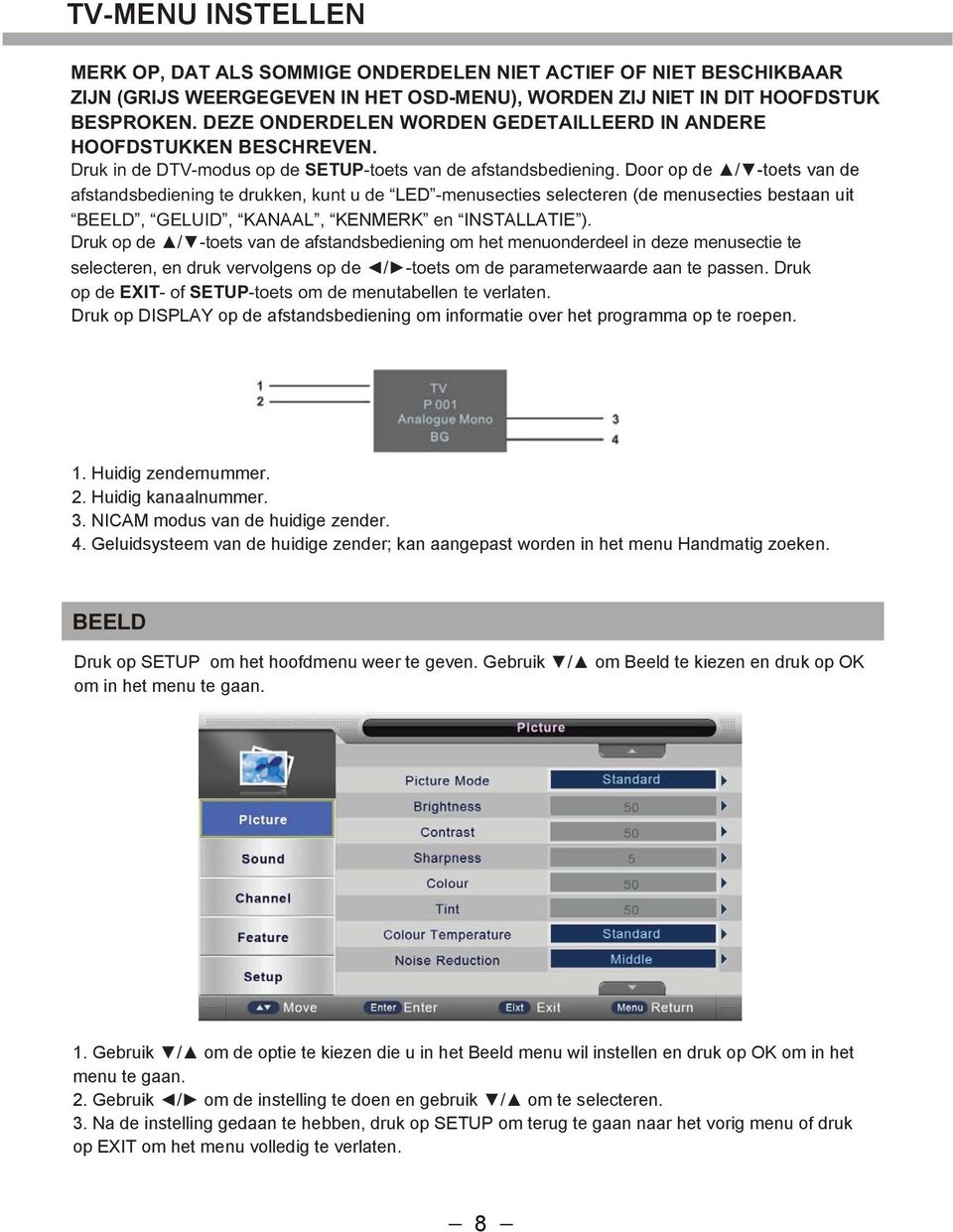
14 TV-MENU INSTELLEN Beeldmodus Gebruik / om Beeldmodus te kiezen en druk op OK om in het menu te gaan en druk op / om te kiezen. (Beschikbare modi: Standaard, Optimaal, Levendig, Zacht en Gebruiker). U kan de helderheid, het contrast, de scherpte de tint en de kleur instellen als u voor Gebruiker kiest. Als u de waarden van deze instelt, verandert de beeldmodus automatisch in persoonlijk. TIP: u kan op P.MODE op de afstandsbediening indrukken om direct naar de beeldmodus te gaan. Helderheid Gebruik / om helderheid te selecteren, druk op OK en gebruik / om de instelling te doen. Contrast Gebruik / om contrast te selecteren, druk op OK en gebruik / om de instelling te doen. Scherpte Gebruik / om scherpte te selecteren, druk op OK en gebruik / om de instelling te doen. Kleur Gebruik / om kleur te selecteren, druk op OK en gebruik / om de instelling te doen. Tint Gebruik / om Tint te selecteren, druk op OK en gebruik / om de instelling te doen. Kleurtemperatuur Gebruik / om kleurtemperatuur te selecteren, druk op OK en gebruik / om te kiezen tussen Standaard, Koel of Warm. Ruisonderdrukking Gebruik / om ruisonderdrukking te selecteren, druk op OK en gebruik / om te kiezen tussen Uit, Laag, Middeld, Hoog. Reset Gebruik / om reset te selecteren, druk op OK en gebruik / om de instelling te doen. 9

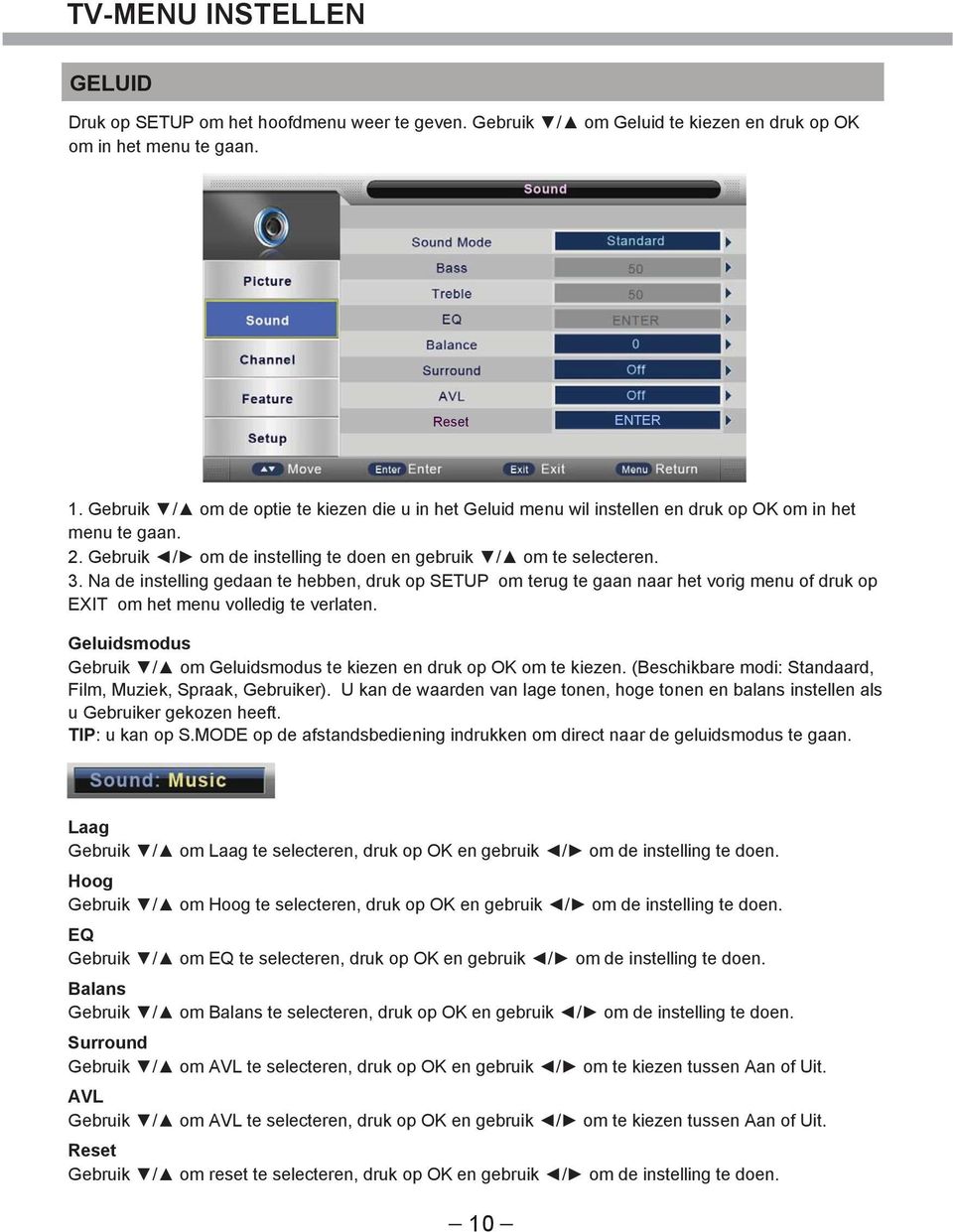
15 TV-MENU INSTELLEN GELUID Druk op SETUP om het hoofdmenu weer te geven. Gebruik / om Geluid te kiezen en druk op OK om in het menu te gaan. Reset ENTER 1. Gebruik / om de optie te kiezen die u in het Geluid menu wil instellen en druk op OK om in het menu te gaan. 2. Gebruik / om de instelling te doen en gebruik / om te selecteren. 3. Na de instelling gedaan te hebben, druk op SETUP om terug te gaan naar het vorig menu of druk op EXIT om het menu volledig te verlaten. Geluidsmodus Gebruik / om Geluidsmodus te kiezen en druk op OK om te kiezen. (Beschikbare modi: Standaard, Film, Muziek, Spraak, Gebruiker). U kan de waarden van lage tonen, hoge tonen en balans instellen als u Gebruiker gekozen heeft. TIP: u kan op S.MODE op de afstandsbediening indrukken om direct naar de geluidsmodus te gaan. Laag Gebruik / om Laag te selecteren, druk op OK en gebruik / om de instelling te doen. Hoog Gebruik / om Hoog te selecteren, druk op OK en gebruik / om de instelling te doen. EQ Gebruik / om EQ te selecteren, druk op OK en gebruik / om de instelling te doen. Balans Gebruik / om Balans te selecteren, druk op OK en gebruik / om de instelling te doen. Surround Gebruik / om AVL te selecteren, druk op OK en gebruik / om te kiezen tussen Aan of Uit. AVL Gebruik / om AVL te selecteren, druk op OK en gebruik / om te kiezen tussen Aan of Uit. Reset Gebruik / om reset te selecteren, druk op OK en gebruik / om de instelling te doen. 10
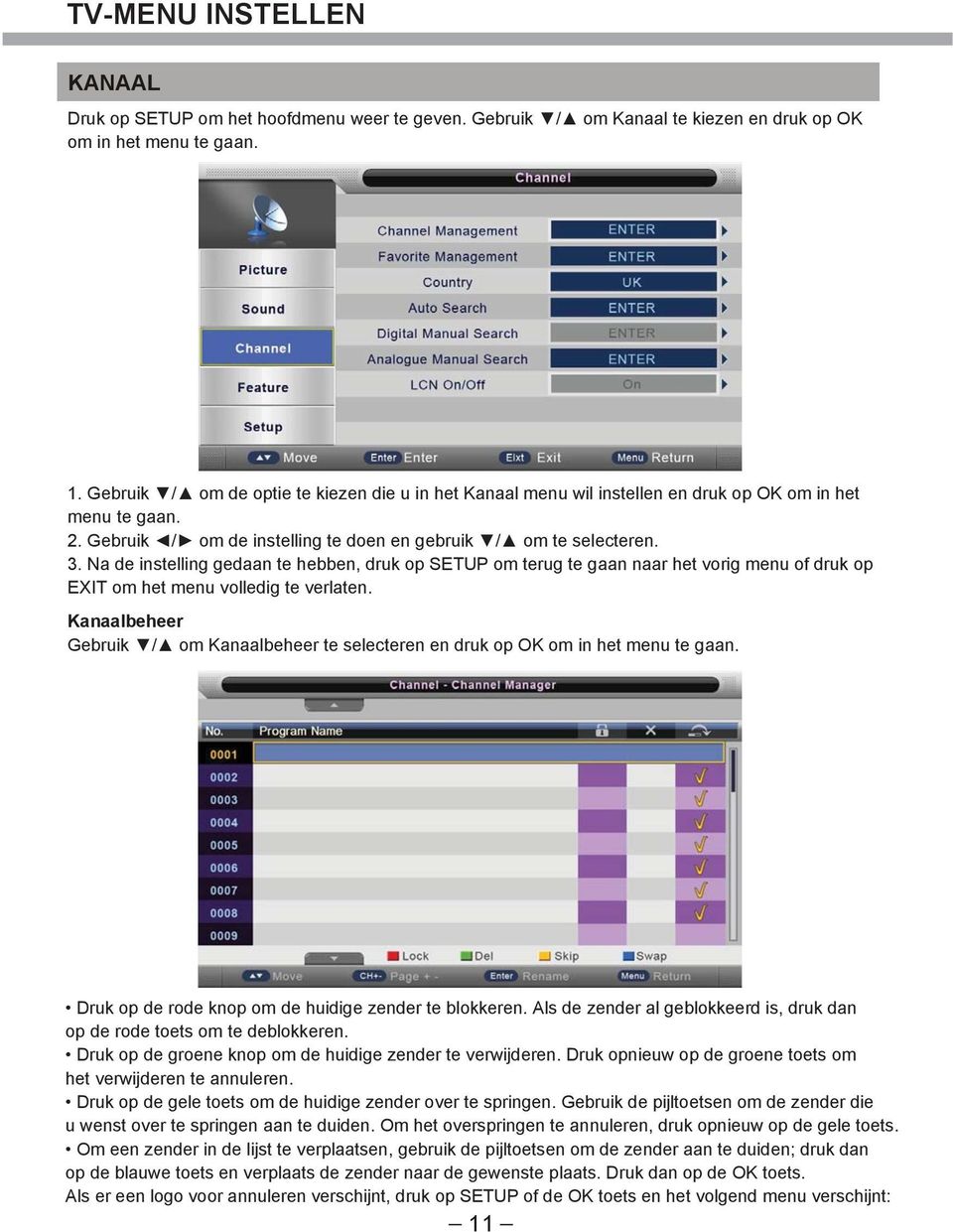
16 TV-MENU INSTELLEN KANAAL Druk op SETUP om het hoofdmenu weer te geven. Gebruik / om Kanaal te kiezen en druk op OK om in het menu te gaan. 1. Gebruik / om de optie te kiezen die u in het Kanaal menu wil instellen en druk op OK om in het menu te gaan. 2. Gebruik / om de instelling te doen en gebruik / om te selecteren. 3. Na de instelling gedaan te hebben, druk op SETUP om terug te gaan naar het vorig menu of druk op EXIT om het menu volledig te verlaten. Kanaalbeheer Gebruik / om Kanaalbeheer te selecteren en druk op OK om in het menu te gaan. Druk op de rode knop om de huidige zender te blokkeren. Als de zender al geblokkeerd is, druk dan op de rode toets om te deblokkeren. Druk op de groene knop om de huidige zender te verwijderen. Druk opnieuw op de groene toets om het verwijderen te annuleren. Druk op de gele toets om de huidige zender over te springen. Gebruik de pijltoetsen om de zender die u wenst over te springen aan te duiden. Om het overspringen te annuleren, druk opnieuw op de gele toets. Om een zender in de lijst te verplaatsen, gebruik de pijltoetsen om de zender aan te duiden; druk dan op de blauwe toets en verplaats de zender naar de gewenste plaats. Druk dan op de OK toets. Als er een logo voor annuleren verschijnt, druk op SETUP of de OK toets en het volgend menu verschijnt: 11
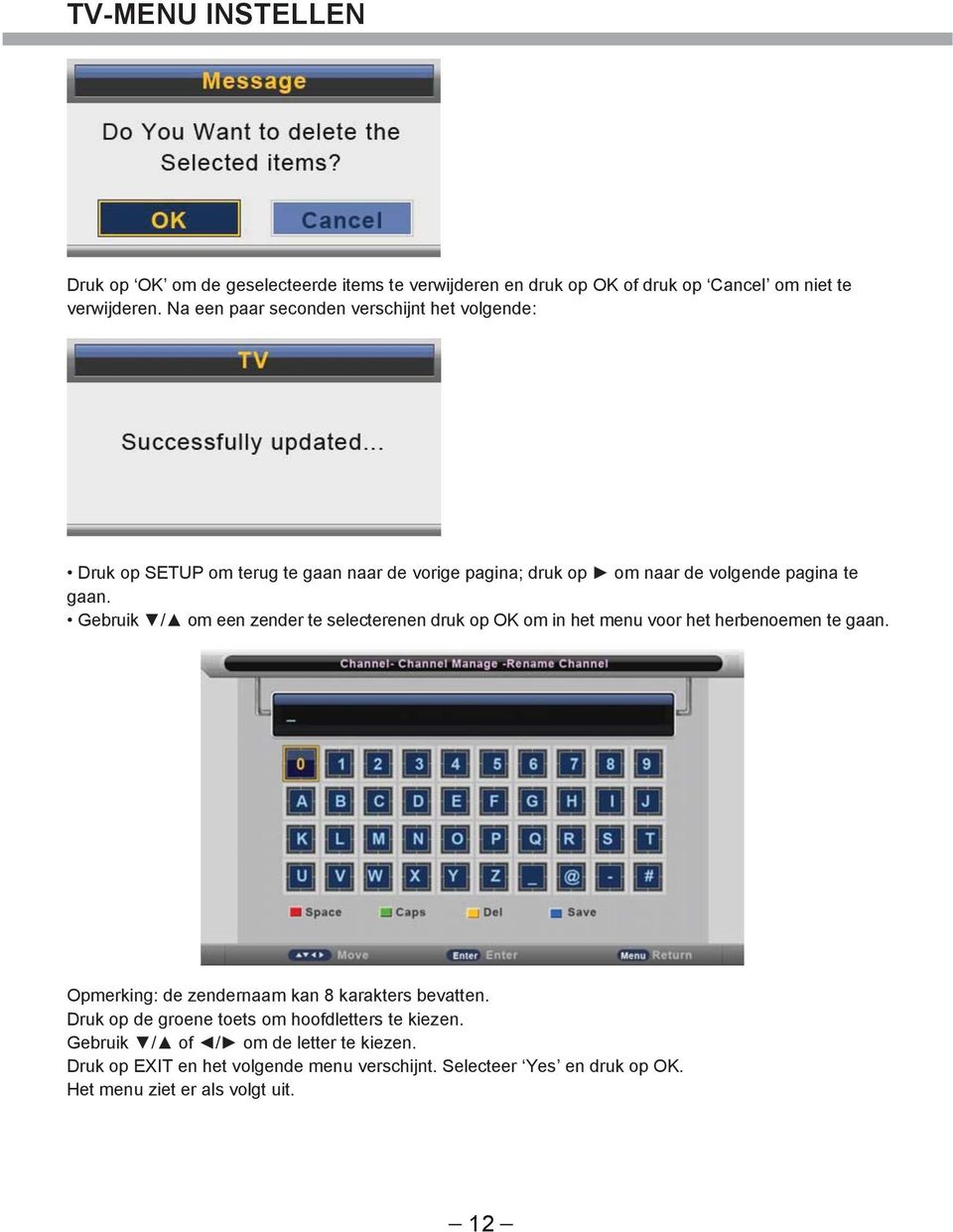
17 TV-MENU INSTELLEN Druk op OK om de geselecteerde items te verwijderen en druk op OK of druk op Cancel om niet te verwijderen. Na een paar seconden verschijnt het volgende: Druk op SETUP om terug te gaan naar de vorige pagina; druk op om naar de volgende pagina te gaan. Gebruik / om een zender te selecterenen druk op OK om in het menu voor het herbenoemen te gaan. Opmerking: de zendernaam kan 8 karakters bevatten. Druk op de groene toets om hoofdletters te kiezen. Gebruik / of / om de letter te kiezen. Druk op EXIT en het volgende menu verschijnt. Selecteer Yes en druk op OK. Het menu ziet er als volgt uit. 12
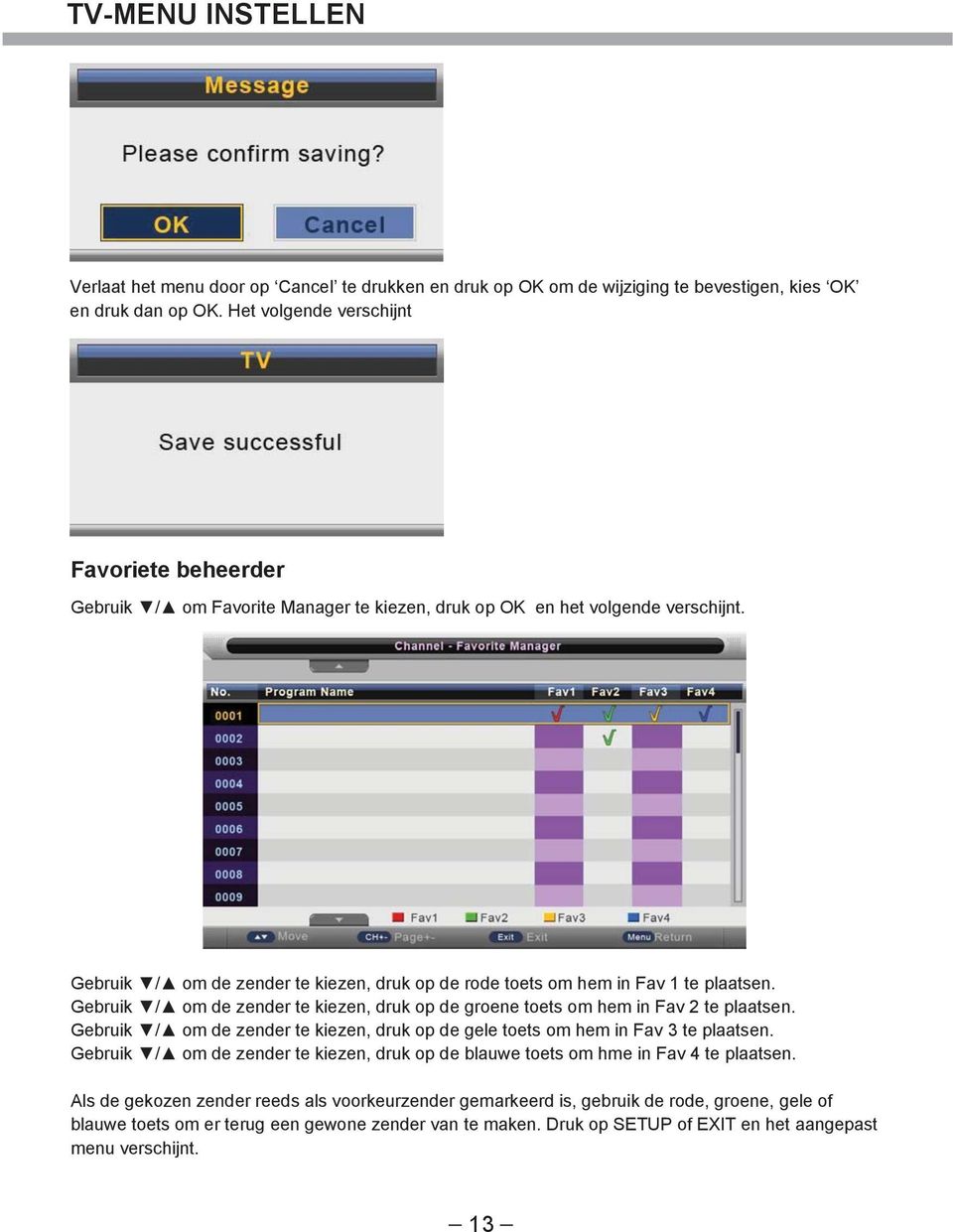
18 TV-MENU INSTELLEN Verlaat het menu door op Cancel te drukken en druk op OK om de wijziging te bevestigen, kies OK en druk dan op OK. Het volgende verschijnt Favoriete beheerder Gebruik / om Favorite Manager te kiezen, druk op OK en het volgende verschijnt. Gebruik / om de zender te kiezen, druk op de rode toets om hem in Fav 1 te plaatsen. Gebruik / om de zender te kiezen, druk op de groene toets om hem in Fav 2 te plaatsen. Gebruik / om de zender te kiezen, druk op de gele toets om hem in Fav 3 te plaatsen. Gebruik / om de zender te kiezen, druk op de blauwe toets om hme in Fav 4 te plaatsen. Als de gekozen zender reeds als voorkeurzender gemarkeerd is, gebruik de rode, groene, gele of blauwe toets om er terug een gewone zender van te maken. Druk op SETUP of EXIT en het aangepast menu verschijnt. 13
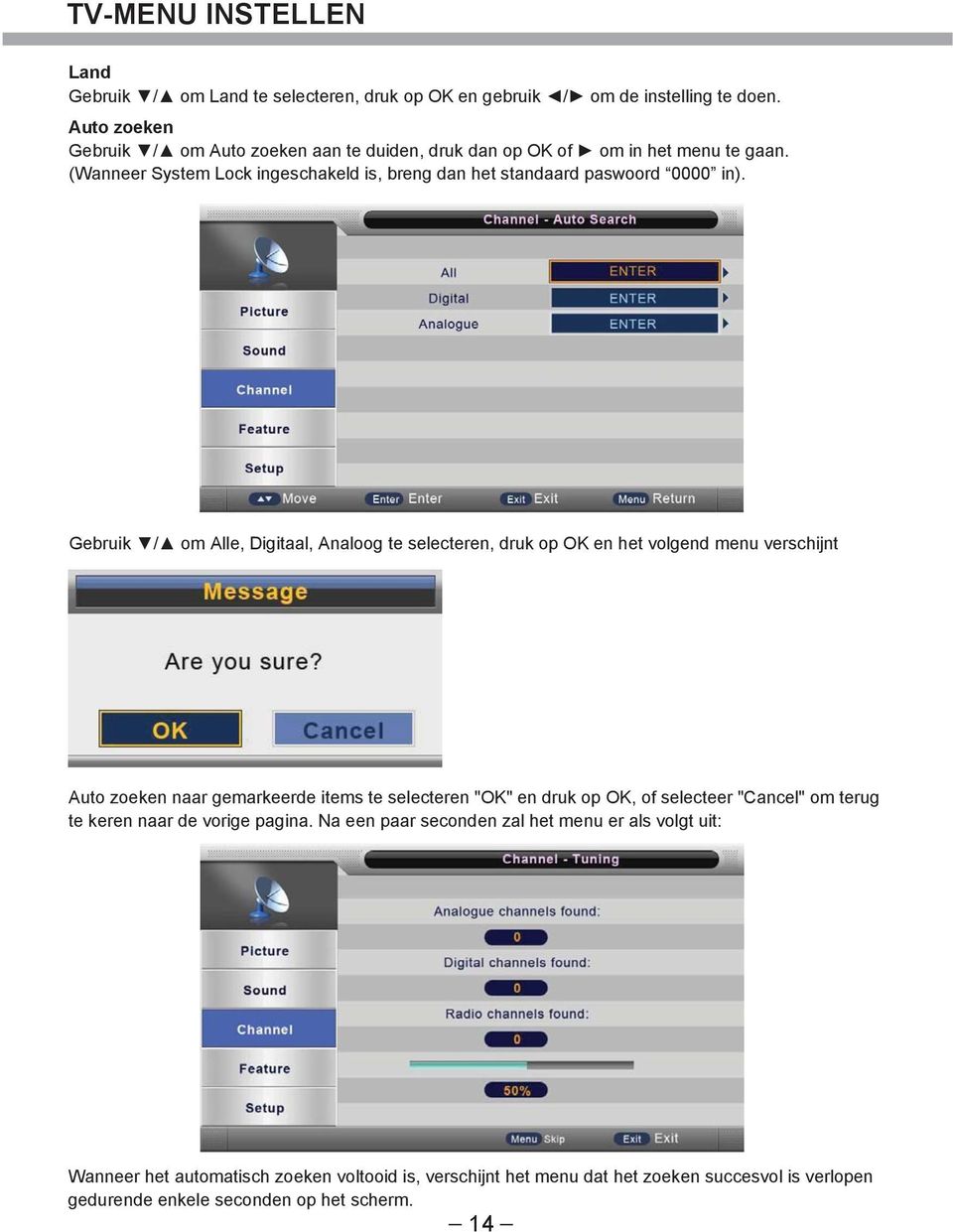
19 TV-MENU INSTELLEN Land Gebruik / om Land te selecteren, druk op OK en gebruik / om de instelling te doen. Auto zoeken Gebruik / om Auto zoeken aan te duiden, druk dan op OK of om in het menu te gaan. (Wanneer System Lock ingeschakeld is, breng dan het standaard paswoord 0000 in). Gebruik / om Alle, Digitaal, Analoog te selecteren, druk op OK en het volgend menu verschijnt Auto zoeken naar gemarkeerde items te selecteren "OK" en druk op OK, of selecteer "Cancel" om terug te keren naar de vorige pagina. Na een paar seconden zal het menu er als volgt uit: Wanneer het automatisch zoeken voltooid is, verschijnt het menu dat het zoeken succesvol is verlopen gedurende enkele seconden op het scherm. 14
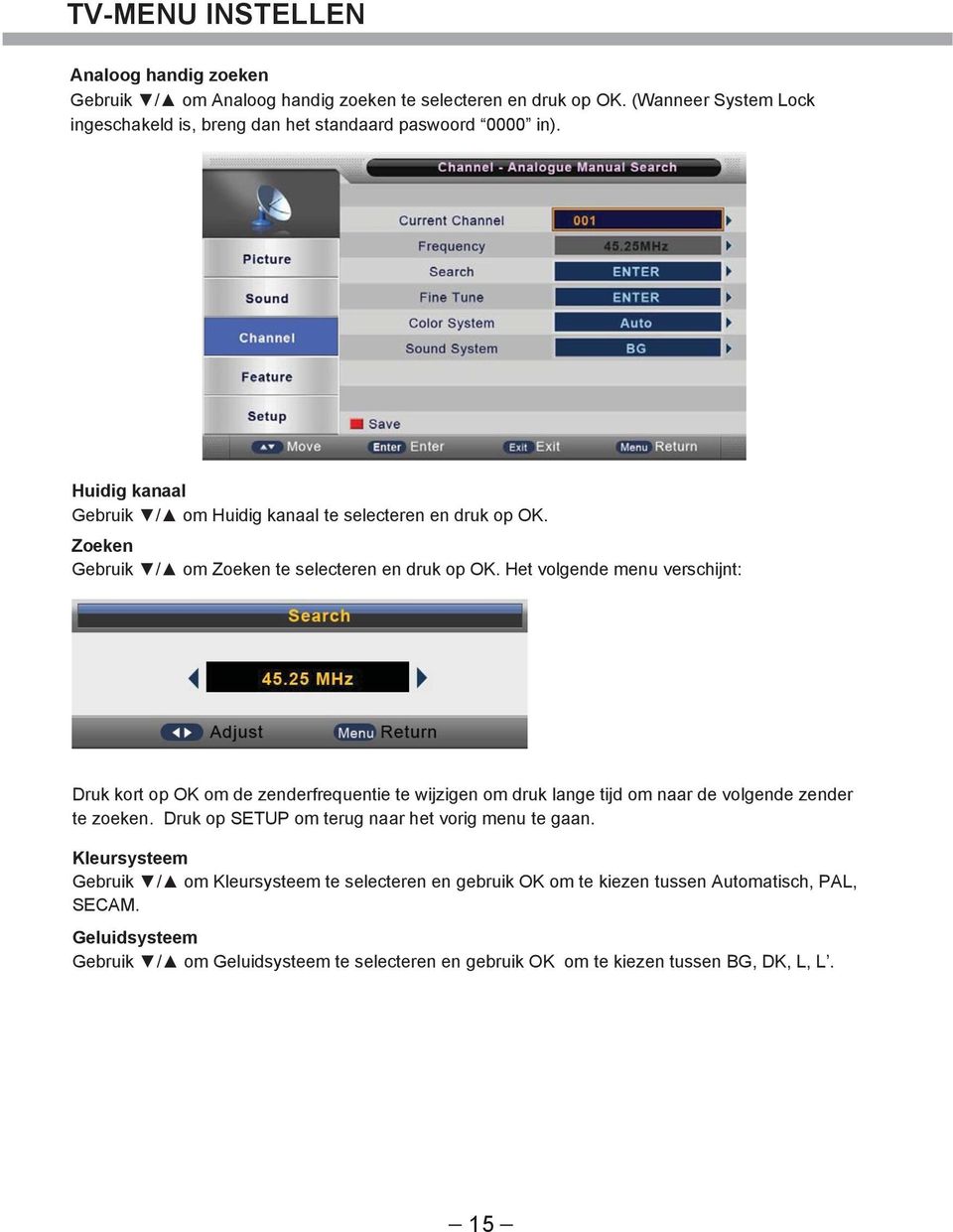
20 TV-MENU INSTELLEN Analoog handig zoeken Gebruik / om Analoog handig zoeken te selecteren en druk op OK. (Wanneer System Lock ingeschakeld is, breng dan het standaard paswoord 0000 in). Huidig kanaal Gebruik / om Huidig kanaal te selecteren en druk op OK. Zoeken Gebruik / om Zoeken te selecteren en druk op OK. Het volgende menu verschijnt: Druk kort op OK om de zenderfrequentie te wijzigen om druk lange tijd om naar de volgende zender te zoeken. Druk op SETUP om terug naar het vorig menu te gaan. Kleursysteem Gebruik / om Kleursysteem te selecteren en gebruik OK om te kiezen tussen Automatisch, PAL, SECAM. Geluidsysteem Gebruik / om Geluidsysteem te selecteren en gebruik OK om te kiezen tussen BG, DK, L, L. 15
21 TV-MENU INSTELLEN KENMERK Druk op SETUP om het hoofdmenu weer te geven. Gebruik / om Kenmerk te kiezen en druk op OK om in het menu te gaan. 1. Gebruik / om de optie te kiezen die u in het Kenmerk menu wil instellen en druk op OK om in het menu te gaan. 2. Gebruik / om in te stellen of / om te selecteren. 3. Na de instelling te hebben gedaan, druk op SETUP om terug naar het vorig menu te gaan of druk op EXIT om het menu volledig te verlaten. System vergrendelen Gebruik / om System vergrendelen te selecteren en druk op OK om te kiezen tussen Aan of Uit (als System vergrendelen ingeschakeld is, gebruik het standaard paswoord 0000 ). Keypad Lock Gebruik / om Keypad Lock te selecteren, druk op OK en gebruik / om te kiezen tussen Aan of Uit. Kinderslot Gebruik / om Kinderslot te selecteren en druk op OK om het niveau in te stellen (van 4-18 of UIT). Pincode wijzigen Gebruik / om Pincode wijzigen te selecteren en druk op OK om in het volgend menu te gaan. 16
22 TV-MENU INSTELLEN Breng bij Oud wachtwoord het oude paswoord in. Als het oude paswoord niet correct is, kan het niet gewijzigd worden. Breng bij Nieuw wachtwoord het nieuwe paswoord in. Breng het nieuwe paswoord nogmaals in bij Bevestig nieuw wachtwoord. Het aangepast menu verschijnt gedurende enkele seconden, zoniet verschijnt een scherm dat het niet gelukt is. Taal Gebruik / om Taal te selecteren en druk op OK om in het volgend menu te gaan. OSD-taal Gebruik / om OSD-taal te selecteren en druk op OK om te kiezen. Preferred Subtitle Gebruik / om Preferred Subtitle te selecteren en druk op OK om te kiezen. Preferred Audio Gebruik / om Preferred Audio te selecteren en druk op OK om te kiezen. Taal van digit teletekst Gebruik / om Taal van digit teletekst te selecteren en druk op OK om te kiezen. Analoge teleteksttaal Gebruik / om Analoge teleteksttaal te selecteren en druk op OK om te kiezen. 17
23 TV-MENU INSTELLEN Sleep Timer Gebruik / om Sleep Timer te selecteren en gebruik / om in te stellen (mogelijk: Uit, 15 Mins, 30 Mins, 45 Mins, 60 Mins, 75 Mins, 90 Mins, 105 Mins of 120 Mins). Automatisch uit Gebruik / om Automatisch uit te selecteren en gebruik / om in te stellen (mogelijk: Uit, 1 uur, 2 uur of 4 uur). INSTALLATIE Druk op SETUP om het hoofdmenu weer te geven. Druk op de / toets om Installatie in het menu te selecteren en druk op OK om in het menu te gaan. 1. Gebruik / om de optie te kiezen die u wil Installatie en druk op OK om in het menu te gaan. 2. Gebruik / om in te stellen of / om te selecteren. 3. Na de instelling, druk op SETUP om terug naar het vorig menu te gaan of druk op EXIT om het menu volledig te verlaten. OSD-tijd Gebruik / om OSD-tijd te selecteren en gebruik / om in te stellen (mogelijk: 5 sec, 10 sec, 15 sec, 20 sec, 25 sec, 30 sec of Nooit). Auto SCART Gebruik / om Auto SCART te kiezen en gebruik / om te kiezen tussen Aan of Uit. Blue Screen Gebruik / om Blue Screen te kiezen en gebruik / om te kiezen tussen Aan of Uit. Beeldverhouding Gebruik / om Beeldverhouding te selecteren en gebruik / om in te stellen (mogelijk: Automatisch, 4:3, 16:9, Vol, Zoom1, Zoom2 of Panorama). TIP: u kan op de Beeldverhouding toets van de afstandsbediening drukken om de instelling rechtstreeks te maken. Reset TV inst. Gebruik / om Reset TV inst. te kiezen en druk op OK en het paswoordmenu verschijnt (als System vergrendelen ingeschakeld is). 18
24 TV-MENU INSTELLEN Breng het standaard paswoord 0000 in en het volgend menu verschijnt. Druk op Cancel en OK om terug te gaan naar het vorig menu. Als u OK kiest verschijnt het aangepast menu gedurende enkele seconden en daarna verschijnt het menu voor Auto. Installatie. Setup 1 Gebruik / om de taal te kiezen. Druk op OK of op de groene toets om naar Setup 2 te gaan. Setup 2 Gebruik / om het land te kiezen. Druk op de RODE toets om naar Setup 1 te gaan. Druk op OK of de GROENE toets om naar Setup3 te gaan. Setup 3 Gebruik / om het Automatisch uit te kiezen. Druk op de RODE toets om naar Setup 2 te gaan. Druk op OK of de GROENE toets om naar Setup 4 te gaan. 19
25 TV-MENU INSTELLEN Setup 4 Gebruik / om het TV Connection uit te kiezen. Druk op de RODE toets om naar Setup 3 te gaan. Druk op OK of de GROENE toets om naar Setup 5 te gaan. Setup 5 Druk op de RODE toets om naar Setup 4 te gaan. Druk op OK of de GROENE toets om het automatisch zoeken (digital) te starten en het volgend menu verschijnt: Druk op de SETUP toets om de Auto-Tune (Digital) menu te verlaten en selecteer Instellingen 6 menu. Setup 6 Druk op de RODE toets om naar Setup 5 te gaan. Druk op OK om het automatisch zoeken (analoog), te starten en het volgend menu verschijnt: 20
26 TV-MENU INSTELLEN Druk op de toets SETUP om het instellingen Setup 6 terug te keren. Auto. Installatie Gebruik / om Auto. Installatie te selecteren en druk op OK om in het volgend menu te gaan. Software upgraden Gebruik / om Software upgraden aan te duiden, druk dan op OK of om in het menu te gaan. Versie Gebruik / om Versie aan te duiden, druk dan op OK of om in het menu te gaan. 21
27 DTV-MENU INSTELLEN Druk op DISPLAY op de afstandsbediening om informatie over de zender weer te geven Huidige zendernummer en zendernaam 2. Het huidig programma 3. De huidige tijd 4. TV symbool (als het om een radiozender gaat, verschijnt het RADIO logo) 5. Start- en stoptijd van het huidig programma 6. Taalsymbool 7. Tekst symbool 8. Ondertitels symbool Opmerkingen: 1. Beeldmenu en omschrijving identiek aan dat van TV bron. 2. Geluidmenu en omschrijving identiek aan dat van TV bron 3. Instelmenu en omschrijving identiek aan dat van TV bron. KANAAL Druk op SETUP om het hoofdmenu weer te geven. Gebruik / om Kanaal te kiezen en druk op OK om in het menu te gaan. 1. Gebruik / om de optie te kiezen die u in het Kanaal menu wil instellen en druk op OK om in het menu te gaan. 2. Gebruik / om de instelling te doen en gebruik / om te selecteren. 3. Na de instelling gedaan te hebben, druk op SETUP om terug te gaan naar het vorig menu of druk op EXIT om het menu volledig te verlaten. 22
28 DTV-MENU INSTELLEN Kanaalbeheer Gebruik / om Kanaalbeheer te selecteren en druk op OK om in het menu te gaan. Digitaal handig zoeken Gebruik / om Digitaal handig zoeken te selecteren en druk op OK om in het menu te gaan. (Als System Lock ingeschakeld is, breng dan het standaard paswoord 0000 in). Kanaal Gebruik / om Kanaal te selecteren en druk op OK om te kiezen. Start Gebruik / om Start te selecteren en druk op OK om te kiezen. Na een paar seconden zal het menu er als volgt uit: 23
29 DTV-MENU INSTELLEN KENMERK Druk op SETUP om het hoofdmenu weer te geven. Gebruik / om Kenmerk te kiezen en druk op OK om in het menu te gaan. 1. Gebruik / om de optie te kiezen die u in het Kenmerk menu wil instellen en druk op OK om in het menu te gaan. 2. Gebruik / om in te stellen of / om te selecteren. 3. Na de instelling te hebben gedaan, druk op SETUP om terug naar het vorig menu te gaan of druk op EXIT om het menu volledig te verlaten. PVR Gebruik / om PVR te selecteren en druk op OK om te kiezen. Record File Format Gebruik / om Record File Format te selecteren en druk op OK om te kiezen. Gebruik / om "TS" of "PS" te selecteren en druk op OK om te bevestigen. Partition Select Gebruik / om te selecteren en druk op OK om te kiezen. Het volgende menu verschijnt: 24
30 DTV-MENU INSTELLEN Timer Gebruik / om 7LPHU te selecteren en druk op OK om te kiezen. Het volgende menu verschijnt: Druk op / om Kanaalnummer te selecteren en druk op de RODE knop om het geselecteerde kanaal, wordt het menu als volgt verwijderen: Ga terug naar het vorige menu op bepaalde "Cancel" en druk op de OK-knop. Als u "OK" en druk op de OK-toets om het geselecteerde programma uit de timer lijst te verwijderen. Druk op de GROENE knop om te wissen alle timers menu verschijnt als volgt: +5
31 DTV-MENU INSTELLEN Ga terug naar het vorige menu op bepaalde "Cancel" en druk op de OK-knop. Als u "OK" en druk op de knop OK om alle timers te verwijderen. Druk op de GELE knop om toe te voegen het kanaal naar de Timer List menu verschijnt als volgt: Recorder (Wanneer het PVR formaat ondersteund wordt) Gebruik / om Recorder te selecteren en druk op OK om in het menu te gaan en gebruik / om Recorder te selecteren. Druk op de RODE toets om de instellingen vast te leggen. Druk op EXIT om het menu te verlaten. Gebruik / om de zender te kiezen. Druk op de blauwe toets en het timer menu verschijnt. Type Gebruik / om Type te selecteren en druk op OK om in het menu te gaan en gebruik / om te kiezen tussen DTV of Radio. Kanaal Gebruik / om Kanaal te selecteren en druk op OK om in het menu te gaan en gebruik / om de zender te kiezen die u aan de timerlijst wil toevoegen. Begintijd Gebruik / om Begintijd te selecteren en druk op OK om in het menu te gaan en gebruik de 0-9 toetsen om de tijd in te stellen. Datum Gebruik / om Datum te selecteren en druk op OK om in het menu te gaan en gebruik de 0-9 toetsen om de datum in te stellen. Modus Gebruik / om Modus te selecteren en druk op OK om in het menu te gaan en gebruik / om te kiezen tussen Eenmaal, Dagelijks, Wekelijks, Maandelijks. +6
32 DTV-MENU INSTELLEN Gehoorgestoord Gebruik / om Gehoorgestoord te selecteren en druk op OK om te kiezen.gebruik / om "Ann" of "Uit" te selecteren en druk op OK om te bevestigen. CI-info Gebruik / om CI-info te selecteren en druk op OK om in het menu te gaan. Druk op OK om in het menu te gaan. Opmerkingen: 1. Dit is een voorbeeld, verschillende CI modules hebben een verschillend CI menu. 2. Andere menu s en omschrijvingen zijn identiek aan dat van TV bron. 7
33 DTV-MENU INSTELLEN Kanalenlijst Druk op CH.LIST van de afstandsbediening om de Kanalenlijst op te roepen. Gebruik / om de zender te kiezen die u wil bekijken en druk op OK om te kijken. Favorietenlijst Tryck FAV-knappen på fjärrkontrollen för att visa Favorietenlijst menyn. Gebruik / om de zender te kiezen die u wil bekijken en druk op OK om te kijken. Gebruik / om te kiezen tussen Favorite 1, 2, 3 of 4. Ondertiteling Druk op SUBTITLE op de afstandsbediening en het volgend menu verschijnt: Gebruik / om OFF te kiezen en druk op OK om geen ondertitels weer te geven. Gebruik / om ENG te kiezen en druk op OK om de ondertitels in het Engels weer te geven. Druk op EXIT om het menu te verlaten. 8
34 DTV-MENU INSTELLEN EPG (ELECTRONIC PROGRAM GUIDE) Druk op EPG op de afstandsbediening om de dagelijkse EPG lijst weer te geven Huidige zendernummer en zendernaam. 2. Start- en stoptijd en naam van het huidig programma. 3. Huidige datum en tijd. Gebruik / om een zender te selecteren. Gebruik / om te kiezen tussen een kanaal en een zender. Druk op de RODE toets om te wisselen tussen EPG wekelijkse of EPG dagelijkse modus. Om programma s van gisteren te zien, druk op de GELE toets om de datum te verminderen. Om programma s van volgende dagen te zien, druk op de BLAUWE toets om de datum te verhogen. Voor meer informatie over een programma: druk op INFO. Druk op de GROENE toets om een zender aan de herinneringslijst toe te voegen ( ). Druk op GROENE om de herinnering vast te leggen. Er verschijnt een klein loge naast het programma. Druk op OK om het programma op te nemen ( ). Druk nogmaals op EPG om de operatie te annuleren. Betekent dat het om een gecodeerde zender gaat. Multiaudio Druk op AUDIO op de afstandsbediening om het Multiaudio menu op te roepen: Gebruik / om het audio formaat te kiezen (beschikbaar: Stereo, Links, Rechts). Gebruik / om de taal te kiezen. 29
35 DTV-MENU INSTELLEN PVR Druk op / om een andere taal te selecteren. U kunt op de -knop op de afstandsbediening voor de DTV-bron. Als je rijdt snelheid is niet genoeg, zal er een dialoogvenster als volgt: Je kunt maar beter veranderen een hoge snelheid apparaat, of selecteer "OK" om verder te gaan. Druk op op de afstandsbediening om het spel te starten, zal er een dialoogvenster als volgt: Selecteer "OK" om de opname te starten. U ziet het dialoogvenster: Tijdens de opname is er een kleine dialoog links in het scherm: REC Druk opnieuw op op de afstandsbediening om de opnametijd in te stellen. Rec Duration Time 00:00 Druk op op de afstandsbediening om de opname te stoppen. Druk op OK om de opname te stoppen, druk op Cancel om de opname verder te laten lopen. 30
36 TELETEKSTFUNCTIE De meeste TV-zenders bieden gratis teletekstinformatie, inclusief het laatste nieuws, weerberichten, TV-programma's en beursinformatie, etc. aan. U hoeft enkel de gewenste teletekstpagina in te voeren om de bijbehorende inhoud te kunnen lezen. TELETEKSTWEERGAVE Selecteer het kanaal met teletekstsignaal. Druk op de TEXT-toets. Selecteer de betreffende pagina op basis van de gekleurde toetsen op de afstandsbediening. Druk nogmaals twee keer op de TEXT-toets en alleen het TV-scherm wordt weergegeven. PAGINASELECTIE U kunt via de cijfertoetsen 3-cijferige nummers invoeren om de pagina op te roepen die u wilt bekijken. Als het ingevoerde nummer ongeldig is, moet u opnieuw de 3-cijferige nummers correct invoeren. U kunt ervoor kiezen om pagina's vooruit of achteruit te bladeren door op de PAGE+/--toets te drukken. MIXMODUS Met deze functie kunt u op hetzelfde moment van TV en teletekstinformatie genieten. Wanneer een bepaalde teletekstpagina wordt weergegeven, druk opnieuw op de 7(;7 WRHWV en TV en teletekstinformatie worden op hetzelfde moment op het VFKHUP ZHHUJHJHYHQ Druk nogmaals op de TEXT-toets en alleen het TV-scherm wordt weergegeven. VERGRENDELEN U kunt op de HOLD-toets drukken om de teletekstpagina vast te houden. Druk nogmaals op deze toets om het vergrendelen te annuleren. INDEX Druk op de INDEX-toets om de indexpagina op te roepen. Open een bepaalde teletekstpagina door met de cijfertoetsen het corresponderende QXPPHU LQ te voeren. TELETEKST INZOOMEN x Wanneer een teletekstpagina wordt weergegeven kunt u de weergave dubbel inzoomen; x Druk op de SIZE-toets om de bovenste helft van de teletekstpagina in te zoomen; x Druk nogmaals op de SIZE-toets om de onderste helft te openen; x Druk een derde keer op deze toets om de originele weergavemodus te herstellen. WEERGAVEMODUS Druk op de REVEAL-toets om de verborgen teletekstinformatie op te roepen. Druk nogmaals op deze toets om te annuleren. GEKLEURDE TOETSEN (ROOD, GROEN, GEEL, BLAUW) Selecteer de corresponderende teletekstpagina via de gekleurde toetsen. 31
37 SCART/AV/COMPONENT-MENU INSTELLEN VIDEO-INSTELLINGENMENU 1. Als het SCART bronmenu niet beschikbaar is, wordt het in grijs aangeduid. 2. Beeldmenu en omschrijving identiek aan dat van TV bron. 3. Geluidmenu en omschrijving identiek aan dat van TV bron 4. Eigenschappenmenu en omschrijving identiek aan dat van TV bron. 5. Instelmenu en omschrijving identiek aan dat van TV bron. OPMERKING Als er geen ingangssignaal is in TV, DTV, SCART / AV / COMPONENT, zal het scherm zoals hieronder worden weergegeven. No signal Dit toestel zal automatisch overschakelen naar de stand-by-modus als er langer dan 15 minuten geen ingangssignaal is. 32
38 HDMI-MENU INSTELLEN INSTALLATIE Druk op SETUP om het hoofdmenu weer te geven. Gebruik / om Installatie te kiezen en druk op OK om in het menu te gaan. 1. Gebruik / om de optie te kiezen die u wil Installatie en druk op OK om in het menu te gaan. 2. Gebruik / om in te stellen of / om te selecteren. 3. Na de instelling te hebben gedaan, druk op SETUP om terug naar het vorig menu te gaan of druk op EXIT om het menu volledig te verlaten. HDMI Setup Gebruik / om HDMI Setup te kiezen en druk op OK om in het menu te gaan. Opmerkingen: 1. Andere menu s en omschrijvingen identiek aan dat van TV bron 2. Als het HDMI bronmenu niet beschikbaar is, wordt het in grijs aangeduid. 3. Beeldmenu en omschrijving identiek aan dat van TV bron. 4. Geluidmenu en omschrijving identiek aan dat van TV bron 5. Eigenschappenmenu en omschrijving identiek aan dat van TV bron. 33
39 PC-MENU INSTELLEN INSTALLATIE Druk op SETUP om het hoofdmenu weer te geven. Gebruik / om Installatie te kiezen en druk op OK om in het menu te gaan. 1. Gebruik / om de optie te kiezen die u wil Installatie en druk op OK om in het menu te gaan. 2. Gebruik / om in te stellen of / om te selecteren. 3. Na de instelling te hebben gedaan, druk op SETUP om terug naar het vorig menu te gaan of druk op EXIT om het menu volledig te verlaten. PC Setup Gebruik / om PC Setup te kiezen en druk op OK om in het menu te gaan. Auto Adjust Gebruik / om Auto Adjust te kiezen en druk op OK, het volgende menu verschijnt gedurende enkele seconden. 34
40 PC-MENU INSTELLEN H Positie Gebruik / om H Positie te kiezen en druk op OK om in het menu te gaan, gebruik / om in te stellen. Dit regelt de horizontale positie. V Positie Gebruik / om V Positie te kiezen en druk op OK om in het menu te gaan, gebruik / om in te stellen. Dit regelt de horizontale positie. Fase Gebruik / om Fase te kiezen en druk op OK om in het menu te gaan, gebruik / om in te stellen. Dit regelt de fase om jitter te minimaliseren. Klok Gebruik / om Klok te kiezen en druk op OK om in het menu te gaan, gebruik / om in te stellen. Opmerkingen: 1. Als het PC bronmenu niet beschikbaar is, wordt het in grijs aangeduid. 2. Beeldmenu en omschrijving identiek aan dat van TV bron. 3. Geluidmenu en omschrijving identiek aan dat van TV bron 4. Eigenschappenmenu en omschrijving identiek aan dat van TV bron. 5. Instelmenu en omschrijving identiek aan dat van TV bron. 35
41 USB-BEDIENING KORTE INLEIDING Dit product heeft een USB 2.0-interface; U kunt muziek-, film- en fotobestanden afspelen vanaf USB-apparatuur. USB verwijst naar Universal Serial Bus. De meeste van USB-apparaten verkrijgbaar op de markt zijn USB1.1 of USB2.0. Er zijn een aantal soorten USB1.1-apparaten: Monitoren Communicatie-apparatuur, Audio, Menselijk Invoerapparaat (HID), Massa-opslag, meeste flashgeheugens, USB, HDD enz. die tot de Massa-opslagklasse behoren. De Massa-opslagklasse bestaat uit 2 transportmethoden: 1. USB1.1 Massa-opslagklasse Control/Bulk/Interrupt (CBI)-transport. 2. USB1.1 Massa-opslagklasse (Alleen Bulk)-transport. Dit apparaat ondersteunt USB1.1 Massa-opslagklasse (Alleen Bulk)-transport. We zijn niet zeker of andere USB-apparaten worden ondersteund! Stel uzelf vóór gebruik op de hoogte over de kenmerken van de USB-apparatuur. OPMERKINGEN 1. Dit product ondersteunt MP3-, MPEG1-, MPEG2-, AVI-, JPEG- en BMP-bestanden. 2. Het bestandssysteem ondersteunt FAT16, FAT32 en NTFS. 3. MTP (Media Transfer Protocol) wordt niet ondersteund. 4. Sluit direct op de USB-poort van uw TV aan. Als u een aparte kabelverbinding gebruikt, kan er een USB-compatibiliteitsprobleem bestaan. 5. Voordat u uw apparaat op de TV aansluit, maak een back-up van uw bestanden, om beschadiging of verlies van gegevens te voorkomen. De fabrikant is niet verantwoordelijk voor eventuele schade aan bestanden of verlies van gegevens. 6. Koppel het USB-apparaat niet los tijdens het laden. 7. Als u de afspeelmodus wilt wijzigen, dient als eerste de huidige afspeelmodus te verlaten door op de EXIT-toets te drukken. 8. Hoe hoger de resolutie van de afbeelding, hoe langer het duurt om op het beeld weer te geven. 9. Voor niet-ondersteunde of beschadigde bestanden, wordt het bericht Niet-ondersteunde indeling weergegeven. WEERGAVEFORMAAT VAN USB-MULTIMEDIA Media Film Muziek Foto Bestands ext. Code Video Audio.avi Xvid, MPEG-4.mpg MPEG-1,MPEG-2.dat MPEG-1 MP3,WMA,AAC.mov/.mkv H.264.mp3 -- MP3.wma -- WMA.m4a/.aac -- AAC.jpg/.jpeg Progressieve JPEG Primaire JPEG.bmp BMP.png Non-Interlaced Interlaced OPMERKING Alvorens het Media -menu te bedienen, plug het USB-apparaat in, druk vervolgens op de SOURCE- -toets om de ingangsbron op USB in te stellen. Druk op de / -toets om USB te selecteren in het Bron -menu, en druk vervolgens op de OK-toets om te openen. 36
42 USB-BEDIENING PHOTO Druk op de / -toets om PHOTO in het hoofdmenu te selecteren, en druk vervolgens op de OK-toets om te openen. Druk op de EXIT-toets om naar het vorige menu terug te keren. Photo Druk op / om de foto's te selecteren, drukt u op OK of I / II knop of om te bekijken. Druk op OK om de sub map te selecteren. Druk op OK of I /II om te spelen of te pauzeren. U kunt de informatie van de huidige afspelen van media in de eerste paar seconden of na het indrukken van DISPLAY-knop. Druk op / of / toets om het beeld te roteren. Druk op toets of de EXIT knop om het afspelen te stoppen. Druk op om terug te keren naar de vorige pagina. MUZIEK Druk op de / -toets om MUZIEK in het hoofdmenu te selecteren, en druk vervolgens op de OK-toets om te openen. Druk op de EXIT-toets om naar het vorige menu terug te keren. Music 37
43 USB-BEDIENING Druk op de / knop om de song die u wilt beluisteren te selecteren en druk vervolgens op OK of I /II of de knop om te spelen. Druk op de knop om terug te keren naar het vorige menu. U kunt de informatie van de huidige spelende nummer aan de linkerkant van het menu. FILM Druk op de / -toets om FILM in het hoofdmenu te selecteren, en druk vervolgens op de OK-toets om te openen. Druk op de EXIT-toets om naar het vorige menu terug te keren. Movie Druk op / om de video te selecteren, drukt u op OK of I/II knop of om te bekijken. 38
44 USB-BEDIENING Druk op de OK-knop of I /II knop om te spelen, Druk op toets of de EXIT knop om het afspelen te stoppen. Druk op de knop om terug te keren naar de vorige pagina. U kunt de informatie van de huidige afspelen van media in de eerste paar seconden of na het indrukken van DISPLAY -knop. PVR Druk op de / -toets om PVR in het hoofdmenu te selecteren, en druk vervolgens op de OK-toets om te openen. Druk op de EXIT-toets om naar het vorige menu terug te keren. PVR Druk op / om de video te selecteren, drukt u op OK of I/II knop of om te bekijken. U kunt de informatie van de huidige video te spelen op de eerste paar seconden of na het indrukken van DISPLAY-knop. Druk vervolgens op I /II knop om af te spelen, kunt u het speelveld staat in de juiste. Opmerkingen: Andere menu's en beschrijving zijn hetzelfde als die voor Movie-menu. 39
45 USB-BEDIENING E-BOOK Druk op de / -toets om E-BOOK in het hoofdmenu te selecteren, en druk vervolgens op de OK-toets om te openen. Druk op de EXIT-toets om naar het vorige menu terug te keren. e-book Druk op / om het bestand te selecteren, drukt u op OK of I/II knop of om te bekijken. 40
46 DVD-BEDIENING BASISBEDIENING 1. Aan- en uitschakelen van de DVD-funties. - Schakel de LED-TV aan en druk vervolgens herhaaldelijk op SOURCE om de DVD -modus te selecteren. 2. Plaats een disc in de DVD-speler. - Plaats de disc in de discsleuf (de spiegelende (opname) zijde van de disc moet naar voorzijde van het apparaat gekeerd zijn), en de speler zal de disc automatisch laden. Er zal op het scherm een "CLOSE"-indicator en vervolgens een "LOADING"-indicator getoond worden. Na het laden van de inhoud van de disc, zal het automatisch overschakelen naar de afspeelmodus. Als de disc er al in is geplaatst, zal de disc automatisch worden gelezen. OPMERKING: - Bij sommige discs, moet na het laden van de inhoud van de disc, op de I /II-toets worden gedrukt of vanuit het DISC -menu worden geselecteerd om te starten. - Zorg ervoor dat bij het plaatsen van de disc, de spiegelende (record) zijde van de disc naar u toe is gekeerd. Bij het onjuist plaatsen van de disc, kunt u schade aan het DVD-mechanisme veroorzaken. 3. Afspelen van de DVD - Het DISC -menu zal de inhoud, in overeenstemming met van de disc, voor u weergeven om te selecteren. Bij het afspelen van de disc, kunt u de I /II-toets gebruiken om te schakelen tussen afspeel- en pauzemodus. Dit product ondersteunt ook de weergave van het menu en de titel, en het sequentieel en geprogrammeerd afspelen. - STOPPEN Druk één keer op de -toets om te stoppen. Druk op de I /II-toets om door te gaan waar u gestopt bent. Druk tweemaal op de -toets om te stoppen. Druk op de I /II-toets om vanaf het begin te starten. Om de disc te beschermen, druk op de -toets en druk vervolgens op de EJECT-toets om de disc eruit te halen. Als de disc is uitgeworpen, houd de disc licht aan de rand vast en neem het uit de uitwerpinrichting om krassen te voorkomen. Wanneer de DVD-functie niet wordt gebruikt (in de stand-by-modus of bij gebruik van andere modi voor een lange tijd), neem de disc eruit om de DVD-lader en de disc te beschermen. 4. Titelweergave (alleen voor DVD-disc) - Druk op de TITLE-toets, en op het scherm zal de Titel Menu"-indicatie worden weergegeven. - Druk op de pijl- of cijfertoetsen om uw favoriete titel te selecteren. - Dan zal de gekozen titel vanaf het eerste hoofdstuk worden afgespeeld. ONDERSTEUNING DVD-FORMAAT Dit product kan de volgende DVD-discformaten afspelen. Disctype Disc grootte Opnametijd Opgenomen inhoud Opmerkingen (diameter) DVD 12 cm Enkelzijdig: 120 min. DVD-formaat: Ongeveer Gecomprimeerde digitale audio en Dubbelzijdig: 240 mins. video Ongeveer Super VCD 12 cm Ongeveer 45 min. MPEG2 Gecomprimeerde digitale audio en video Digitale audio VCD 12 cm Ongeveer 74 min. MPEG1 Gecomprimeerde digitale audio en video CD 12 cm Ongeveer 74 min. CD-DA: Digitale audio HD-CD 12 cm Ongeveer 74 min. HD-DA: Digitale audio MP3/JPEG 12 cm Ongeveer 600 min. Digitale audio OPMERKING: Ook ondersteuning voor het afspelen van DVD-R, CD-R, CD-RW. 41 Inclusief: VCD2.0/VCD1.1 VCD1.0/DVCD WAARSCHUWING! GEBRUIK OF SPEEL GEEN 8 CM DISC AF, ZE ZULLEN VAST KOMEN TE ZITTEN. Regiocode ALL Zoals gebruikelijk voor DVD-films die op verschillende tijdstippen in verschillende regio's van de wereld worden uitgebracht, hebben alle spelers regiocodes en discs kunnen een optionele regiocode hebben. Als u een disc van een andere regiocode in uw speler laadt, zult u de regiocodemededeling op het scherm te zien krijgen. De disc wordt niet afgespeeld en moet worden uitgenomen
47 DVD-BEDIENING BEDIENINGSVOORSCHRIFTEN DVD-FUNCTIES 1. Afspelen (voor DVD/Super VCD/VCD/CD/CD-G/HD-CD en MP3/JPEG discs) - Voor DVD-discs, druk op de I /II-toets voor het hoofd- of titelmenu; tijdens het afspelen van de DVD, kunt u direct uw favoriete titel met titelselectie afspelen door op de TITLE-toets te drukken. - Voor Super VCD & VCD-discs, terwijl de disc wordt af gespeeld, kunt u met de cijfertoetsen uw favoriete track afspelen. (OPMERKING: Bij gebruik van geprogrammeerd afspelen of wanneer de status PBC ON is, kunt u alleen de / I / /I -toetsen gebruiken om de track te wijzigen.) - Voor CD, CD-G & HD-CD-discs, terwijl de disc wordt af gespeeld, kunt u met de cijfertoetsen uw favoriete track afspelen. - Voor MP3/JPEG-discs, terwijl de disc wordt afgespeeld, kunt u met de cijfertoetsen uw favoriete track van het inhoudmenu afspelen. - als het ingevoerde tracknummer niet juist is, zal het niet werken. OPMERKING: Voor meer dan 10 tracks, gebruik direct de cijfertoetsen of druk eerst op de [- / --]-toets (bijv. track 15, druk op de [- / --]-toets en vul dan 15 in) 2. Vorige/Volgende (voor DVD/Super VCD/VCD/CD/CD-G/HD-CD en MP3/JPEG discs) - Tijdens het afspelen van de disc; Druk op de /I -toets om de laatste titel/hoofdstuk/track af te spelen. Druk op de / I-toets om de laatste titel/hoofdstuk/track af te spelen. - Voor Super VCD & VCD-discs, in de "PBC OFF -status; Als de huidige track de eerste is, zal het drukken op de /I -toets het afspelen stoppen. Als de huidige track de laatste is, zal het drukken op de / I-toets het afspelen stoppen. - Voor DVD-discs, kunnen de bovengenoemde functies variëren als gevolg van de structuur van de verschillende DVD's. 3. Vooruit/Achteruit (voor DVD/Super VCD/VCD/CD/CD-G/HD-CD en MP3/JPEG discs) - Tijdens het afspelen van de disc, kunt u gebruik maken van de vooruit- of achteruitfunctie. - Er zijn 5 snelheden voor vooruit of achteruit afspelen. Druk op de /I / / I-toetsen om te schakelen tussen de verschillende snelheden in de sequentie. (FFx2/FFx4/FFx8/FFx16/FFx32/Afspelen, of FRx2/FRx4/FRx8/FRx16/FRx32/Afspelen). Tijdens het vooruit of achteruit afspelen, kunt u op de I /II-toets drukken om de normale snelheid te hervatten. Voor CD, HD-CD, MP3 is bij het vooruit of achteruit afspelen ook geluid. Voor DVD-discs, indien achteruit naar de eerste titel/hoofdstuk wordt afgespeeld, zullen vanaf het begin starten. Voor Super VCD & VCD-discs, in de status PBC ON, als deze achteruit naar het eerste nummer worden afgespeeld, zullen vanaf het begin starten. OPMERKING: Tijdens het vooruit of achteruit afspelen, wordt het geluid uitgeschakeld. 4. Pauzeren (voor DVD/Super VCD/VCD/CD/CD-G/HD-CD en MP3/JPEG discs) - Voor CD, CD-G, HD-CD & MP3/JPEG-discs, druk op de I /II-toets om te pauzeren; Druk op de I /II-toets om verder te gaan. 5. Herhalen (voor DVD/Super VCD/VCD/CD/CD-G/HD-CD en MP3/JPEG discs) - Druk één keer op de REPEAT-toets om de huidige herhaalmodus weer te geven. Voor Super VCD, VCD, CD, CD-G, HD-CD-discs, tijdens het afspelen in sequentie, kunt u gebruik maken van het herhaald afspelen. Er zijn 2 herhaalmodi. Druk op de REPEAT-toets om tussen de verschillende modi in de sequentie te schakelen. (HERHALEN (UIT) / HERHAAL (1) / HERHAAL (ALLES)). Voor DVD-discs, kunt u de herhaalde afspeelmodus instellen. Er zijn 2 herhaalmodi. Druk op de REPEAT-toets om tussen de verschillende modi in de sequentie te schakelen. (HERH: (UIT) / HERH: (HOOFDSTUK) / HERH: (TITEL) / HERH: (ALLES)). Voor MP3/JPEG-discs, kunt u tijdens het afspelen van de disc gebruik maken van het herhaald afspelen. Er zijn 3 herhaalmodi. Druk op de REPEAT-toets om tussen de verschillende modi in de sequentie te schakelen (HERHALEN (UIT) / HERHAAL (1) / HERHAAL (DIR) / HERHAAL (ALLES)). 6. Weergave (voor DVD/Super VCD/VCD/CD/CD-G/HD-CD en MP3/JPEG discs) - Druk op de DISPLAY-toets om het scrolldown-menu op het scherm te activeren voor de huidige titel, het hoofdstuk, de tijd en andere informatie. 42
48 DVD-BEDIENING 7. Ga Naar (voor DVD/Super VCD/VCD/CD/CD-G/HD-CD en MP3/JPEG discs) - Met deze functie kunt u uw favoriete titel/hoofdstuk/track afspelen. Druk op de GOTO-toets om het scrolldown-menu op het scherm te activeren voor bewerken. Vul met de cijfertoetsen, in het gemarkeerde gebied, uw favoriete titel/hoofdstuk/tracknummer in, of voer de afspeeltijd in. Na het bewerken, druk op de OK-toets om te beginnen. Als de invoer onjuist is, zal het niet werken. OPMERKING: Tijdens het bewerken zal de GOTO-toets is niet functioneren. - Als de status PBC ON is, zal deze functie het op OFF schakelen. - Voor MP3/JPEG-discs, gebruik direct de cijfertoetsen om uw favoriete muziek of foto's te selecteren. 8. Audio (voor DVD/Super VCD/VCD/CD/CD-G/HD-CD en MP3/JPEG discs) - Druk één keer op de AUDIO-toets om de huidige audiomodus weer te geven. - Druk nog een keer om tussen de verschillende audiomodi in de sequentie te schakelen. Voor Super VCD & VCD, CD, CD-G, HD-CD, MP3-discs: (L/L, R/R, STEREO, MIX MONO) OPMERKING: Overschakelen naar Auto L/R audiokanaal kan verschillen door een verschillende inhoud van de discs. Bij tweetalige VCD-schijven kan gebruik worden gemaakt van de AUDIO-toets om te schakelen tussen de verschillende talen. 9. Taal (voor DVD- en Super VCD-discs) - Druk op de AUDIO-toets om de huidige audiomodus weer te geven. - Druk nog een keer om tussen de verschillende taalmodi in de sequentie te schakelen. OPMERKING: Voor multitalige DVD- & Super VCD-discs, druk op de AUDIO-toets om de gewenste taal te selecteren. 10. Ondertiteling (voor DVD- en Super VCD-discs) - Druk op de SUBTITLE-toets om de huidige ondertiteling weer te geven. - Druk nog een keer om tussen de verschillende ondertitelingsmodi in de sequentie te schakelen. OPMERKING: Voor multitalige DVD- & Super VCD-discs, druk op de SUBTITLE-toets om de gewenste ondertitelingstaal te selecteren. 11. Hoek (voor DVD disc) - Druk op de ANGLE-toets om de huidige beeldhoek weer te geven. - Druk nog een keer om tussen de verschillende beeldhoekmodi in de sequentie te schakelen. (bijv. Beeldhoek - / - (Huidige/Volledig) of UIT) OPMERKING: Alleen voor DVD met multi-beeldhoek, druk op ANGLE-toets om het afspelen van uw favoriete beeldhoek te selecteren. Selecteerbare beeldhoekweergave hangt af van de beschikbaarheid van de DVD-inhoud. 12. Mute (voor DVD/Super VCD/VCD/CD/CD-G/HD-CD en Mp3/JPEG-discs) - Druk op MUTE-toets om het geluid te dempen. Er zal op het scherm een "MUTE"-indicatie getoond worden. - Druk nogmaals om te annuleren, of druk op de VOL + -toets om te annuleren en om het volume te regelen. - In het geval dat er geen geluid te horen is, probeer het dempen te annuleren door op de MUTE-toets te drukken. 13. ZOOMEN (voor DVD/Super VCD/VCD/MP3 en JPEG-discs) - Druk op ZOOM+-toets om het beeld in te zoomen. - Er zijn 3 zoommodi. Druk op de ZOOM+-toets om tussen de verschillende zoommodi in de sequentie te schakelen. (Zoomen UIT, Zoomen x2, Zoomen x3, Zoomen x4) - In Zoomen x2, Zoomen x3 en Zoomen x4, kunt u gebruik maken van de navigatietoetsen om uw favoriete gedeelte in beeld te schuiven. 14. A-B (voor DVD/Super VCD/VCD/ CD/CD-G/HD-CD en MP3/JPEG-discs) - Tijdens het normaal afspelen, gebruik de /I / / I-toetsen, en druk nogmaals op de A-B-toets waar u het gedeelte van de herhaling wilt starten. Er zal op het scherm een REPEAT A -indicator getoond worden. - Tijdens het normaal afspelen, gebruik de /I / / I -toetsen, en druk nogmaals op de A-B-toets waar u het gedeelte van de herhaling wilt stoppen. Er zal op het scherm een REPEAT A B -indicator getoond worden. - De herhaalfunctie wordt gestart om automatisch het gedeelte van A naar B af te spelen. - Druk nogmaals op de A-B-toets om te annuleren. Er zal op het scherm een REPEAT OFF -indicator getoond worden. 43
49 DVD-BEDIENING Voor Super VCD, VCD & CD-discs, werkt het A-B -herhalen alleen binnen dezelfde track. Bij het afspelen van de andere types, zal het A-B -herhalen automatisch worden geannuleerd. Voor Super DVD-discs, werkt het A-B -herhalen alleen binnen dezelfde titel/hoofdstuk. Bij het afspelen van de andere types, zal het A-B -herhalen automatisch worden geannuleerd. 15. Volume (voor DVD/Super VCD/VCD/CD/CD-G/HD-CD en MP3/JPEG discs) - Druk op de VOL - / VOL + -toetsen om het volumeniveau aan te passen. OPMERKING: Afspelen van DVD-discs in de oorspronkelijke code, is niet instelbaar. 16. INTRO (voor Super VCD/VCD/ CD/ CD-G/HD-CD) - Intro/Scan/9-beeldjes weergave. Afspelen MP3/JPEG Na het laden van de MP3/JPEG-disc, zal het beginnen te zoeken naar de opgeslagen MP3/JPEG-mappen. Dan zal eerst automatisch de MP3-inhoud weergeven. Het scherm verschijnt als volgt: MP 3 MP 3 MP 3 MP 3 Gebruik de navigatietoetsen om uw favoriete map te selecteren en speel het eerste bestand af of verplaats deze naar uw favoriete bestand. OPMERKING: - Druk op de / -toetsen om het gemarkeerde naar mappen, documenten of selectiemodus te verplaatsen. - Druk op cijfertoetsen om direct de inhoud te selecteren. Voor meer dan 10 tracks, gebruik direct de cijfertoetsen of druk eerst op de [- / --]-toets (bijv. track 15, druk op de [- / --]-toets en vul dan 5 in). - Bij het afspelen van MP3-bestanden, is er geen beeldweergave, alleen geluid. - Bij het afspelen of pauzeren met afbeeldingweergave, kunt u gebruik maken van de navigatietoetsen om de afbeelding te spiegelen/draaien. -pijltoets om horizontaal te spiegelen. -pijltoets om vertikaal te spiegelen. -pijltoets om linksom 90 te roteren. -pijltoets om rechtsom 90 te roteren. - Bij het afspelen of pauzeren met afbeelding afspelen, druk op de /I / / I toetsen om de volgende/vorige pagina te selecteren, of druk op de cijfertoetsen om de bijbehorende afbeeldingen te bekijken. 44
50 DVD-BEDIENING Functie-instellingen Druk op [DVD MENU]-toets om het OSD-menu van de DVD-speler te activeren; De Instel Modus levert de menu s voor Pagina algemene instellingen, Pagina luidsprekerinstellingen, Dolby Schermbeveiliging Digital-instellingen en de Voorkeurspagina. Hervatfunctie Gebruik de [ / ] toetsen om tussen deze mogelijkheden te kiezen. Druk op [OK] of [ ] om naar het submenu te gaan. Druk op [ ] om terug naar het OSD menu te gaan en druk op [DVD-MENU] om het OSD menu te verlaten. OPMERKING: In de Setup-modus, zullen de volgende functies worden geannuleerd of gepauzeerd: TITEL, ONDERTITELING, WEERGAVE, AFSPELEN, INSTELLINGEN, STOP, LANGZAAM / STAP, AUDIO, SNEL VOORUIT, SNEL ACHTERUIT, VORIG, VOLGEND, GA NAAR, ZOOMEN, BEELDHOEK, PROGRAMMA, VOORBEELD, HERHAAL, A-B. - - Pagina algemene instellingen - TV - display OSD - taal Dolby Pagina algemene instellingen - - Pagina algemene instellingen - - Dolby TV - display OSD - taal 4:3/PS 4:3/LB Schermbeveiliging 16:9 Hervatfunctie TV - display DVD's worden geproduceerd in een verscheidenheid aan het beeldschermformaten. In dit menu kunt u één van de drie beeldverhoudingen kiezen: 4:3/ PS 4:3/ LB 16:9 Selecteer de meest geschikte aspectratio voor de DVD die wordt bekeken. 4:3 PS Pan en Scan wordt gebruikt voor de meeste, normale televisie-uitzendingen en het is de standaardinstelling. Het heeft een aspectratio van 4:3. Als u deze instelling kiest voor het bekijken van een DVD, zal žhet beeld het scherm vullen, maar u zult niet de linker- en rechterkant van het beeld zien. 4:3 LB Letter Box geeft de DVD in de oorspronkelijke beeldverhouding weer, dus afhankelijk van de grootte van uw TV-scherm, kunt u bovenaan en onderaan het beeld zwarte randen te zien krijgen. 16:9 Kies deze instelling als u een breedbeeld-televisie hebt. OPMERKING: - De schermgrootte bij afspelen kan variëren naar gelang de inhoud van de discs. - Voor discs met 4:3 inhoud, zal ongeacht de modus alleen een 4:3-scherm worden weergeven. - De keuze van de schermratio dient in overeenstemming te zijn met de aspectratio van de aangesloten TV/Display. - - Pagina algemene instellingen - TV - display OSD - taal Dolby Engels Frans Schermbeveiliging Duits Hervatfunctie Spaans Italiaans Portugees Nederlands OSD - taal Gebruik de navigatietoetsen om het OSD - taal setup-pictogram te selecteren, en druk op de [OK]-toets om te bevestigen. Er zijn een paar talen om uit te selecteren, druk op de [ / ]-pijltoetsen om tussen de verschillende talen te wisselen. Druk op de [OK]-toets om te bevestigen OPMERKING: Als de geselecteerde taal niet is opgenomen in de discinhoud van uw DVD, zal het automatisch de standaardtaal van de disc kiezen. De standaard taalinstelling is Engels. 45
51 DVD-BEDIENING - - Pagina algemene instellingen - TV - display OSD - taal Schermbeveiliging Dolby Hervatfunctie - - Pagina algemene instellingen - TV - display OSD - taal Hervatfunctie Om het Hervatfunctie in of uit te schakelen. Aan: als u de volgende keer de weergave start, begint deze bij het punt waar u gestopt bent en herneemt hij alle vorige instellingen. Uit: gaat automatisch terug naar de standaard instellingen. Aan Uit Schermbeveiliging Dolby Schermbeveiliging Om de Schermbeveiliging in of uit te schakelen. De schermbeveiliging verschijnt als de speler stopt of wanneer het beeld gedurende enkele minuten bevroren wordt. De schermbeveiliging dient om ervoor te zorgen dat het beeldscherm niet beschadigd raakt. Aan Uit Hervatfunctie Pagina audio - instellingen - - Pagina luidsprekerinstellingen - Downmix Downmix Gebruik de navigatietoetsen om de Surround of Stereo-optie te selecteren. Surround - surround modus Stereo: Selecteer deze optie indien u geen 5.1 kanaalversterker hebt. Surround Stereo Dolby Dolby Digital-instellingen Dynamisch - - Dolby Digital-instellingen - Dynamisch Volledig 3/4 Deze optie dient om de compressieverhouding in te stellen en aldus het geluidcontrast (volume) te controleren. 1/2 Dolby 1/4 Uit 46
52 DVD-BEDIENING Voorkeurspagina Voorkeurspagina optie is alleen geldig wanneer u tweemaal op de vervolgens het Setup-menu binnen gaat. TV - type - - Voorkeurspagina - - Dolby TV - type Audio PAL Multi Ondertitels NTSC Discmenu Ouderlijk Wachtwoord Standaard Dolby Engels Frans Ondertitels Duits Discmenu Spaans Ouderlijk Italiaans Wachtwoord Standaard Portugees Nederlands Dolby Engels Frans Ondertitels Duits Discmenu Spaans Ouderlijk Italiaans Wachtwoord Standaard Portugees Nederlands Uit Dolby Gebruik de navigatietoetsen om het Ondertitels setup-pictogram te selecteren, en druk op de [OK]-toets om te bevestigen. Er zijn een paar talen om uit te selecteren, druk op de [ / ]-pijltoetsen om tussen de verschillende talen te wisselen. Druk op de [OK]-toets om te bevestigen. OPMERKING: Als de geselecteerde taal niet is opgenomen in de discinhoud van uw DVD, zal het automatisch de standaardtaal van de disc kiezen. De standaard taalinstelling is Engels. Discmenu - - Voorkeurspagina - TV - type Audio Gebruik de navigatietoetsen om het Audio setup-pictogram te selecteren, en druk op de [OK]-toets om te bevestigen. Er zijn een paar talen om uit te selecteren, druk op de [ / ]-pijltoetsen om tussen de verschillende talen te wisselen. Druk op de [OK]-toets om te bevestigen. OPMERKING: Als de geselecteerde taal niet is opgenomen in de discinhoud van uw DVD, zal het automatisch de standaardtaal van de disc kiezen. De standaard taalinstelling is Engels. Ondertitels - - Voorkeurspagina - TV - type Audio In dit menu kunt u het beeldformaat voor uw TV/DVD instellen. PAL - Dit is het formaat dat in EUROPA wordt gebruikt en de standaardinstelling is. Multi - DVD-speler zal het TV-systeem volgens de disc. NTSC - Dit formaat wordt gebruikt door sommige andere landen, bijvoorbeeld de Verenigde Staten. Audio - - Voorkeurspagina - TV - type Audio (stop)-toets drukt om het af te spelen en Engels Frans Ondertitels Duits Discmenu Spaans Ouderlijk Italiaans Wachtwoord Standaard Portugees Nederlands Gebruik de navigatietoetsen om het Discmenu setup-pictogram te selecteren, en druk op de [OK]-toets om te bevestigen. Er zijn een paar talen om uit te selecteren, druk op de [ / ]-pijltoetsen om tussen de verschillende talen te wisselen. Druk op de [OK]-toets om te bevestigen. OPMERKING: Als de geselecteerde taal niet is opgenomen in de discinhoud van uw DVD, zal het automatisch de standaardtaal van de disc kiezen. De standaard taalinstelling is Engels. 47
53 DVD-BEDIENING Ouderlijk - - Voorkeurspagina - TV - type Audio Dolby 1 KINDVEILIG 2G Ondertitels 3 PG Discmenu 4 PG - 13 Ouderlijk 5 PG - R Wachtwoord Standaard 6R 7 NC VOLWASSENE Wachtwoord - - Voorkeurspagina - TV - type Audio Verander Ondertitels Dolby Discmenu Ouderlijk Wachtwoord Standaard Ondertitels Dolby De standaardinstelling is geblokkeerd. Geen Ouderlijk selectie of Wachtwoord wijziging kunnen worden gedaan. Om de ratinginstelling te bewerken, vul met de cijfertoetsen het standaardwachtwoord in, en druk vervolgens op de [OK]-toets om te bevestigen. Om het wachtwoord te wijzigen, voer een 6-cijferige nummer in wanneer de blokkering is opgeheven. Zodra de 6-cijferige nummer is ingevoerd, zal dat uw nieuwe wachtwoord zijn. Standaard - - Voorkeurspagina - TV - type Audio Bij het afspelen van sommige discs met Ouderlijk, kunt u de leeftijdinstelling selecteren op basis van uw voorkeur. De leeftijdbeperking is verdeeld in acht verschillende categorieën van kindveilig tot bestemd voor volwassenen. OPMERKING: Alleen bewerkbaar wanneer Wachtwoord is ontgrendeld. En kan alleen functioneren als het Wachtwoord is vergrendeld. Het zal echter niet, het Wachtwoord of de Ouderlijk resetten. Reset Druk op [OK] of [ ] om Standaard item te selecteren, druk vervolgens op de [OK] / [ ]-toets om de fabrieksinstellingen te herstellen. Discmenu Ouderlijk Wachtwoord Standaard 48
54 PROBLEEMOPLOSSING 49
55 PROBLEEMOPLOSSING Controleer a.u.b. de oorzaak van problemen volgens de onderstaande tabel voordat u contact opneemt met onderhoudspersoneel. SCHERM PROBLEMEN OPLOSSEN Symptoom Zwart scherm, aan/uit - indicatielampje is uit Weergave flikkert, onstabiel Oorzaken en Oplossing Controleer of de voedingskabel goed is aangesloten en het apparaat is ingeschakeld Controleer of het signaalsnoer van het ingangsapparaat goed is aangesloten Controleer of het ingangsapparaat is ingeschakeld Controleer of het signaal van het ingangsapparaat binnen de specificaties van dit apparaat valt Controleer de uitgangsmodus van de computer: controleer paneel-displayinstellingen Indien de instelling niet voldoet aan de specificaties van dit apparaat, dient u de displayinstellingen te wijzigen Horizontale scanfrequentie: 30 KHz ~ 75 KHz Verticale scanfrequentie: 50 Hz ~ 75 Hz GELUID EN TV PROBLEMEN OPLOSSEN Symptoom Inschakelen onmogelijk Geen geluid Te laag volume Sneeuw op het scherm Storing in afstandsbediening Oorzaken en Oplossing Controleer of de voedingskabel goed is aangesloten Controleer of de audiokabel goed is aangesloten Controleer het volume Zorg ervoor dat niets is aangesloten op de hoofdtelefooningang Controleer het volume Indien het volume nog steeds te laag is nadat de volumeregeling op maximaal is ingesteld, controleer dan of het ingangsapparaat goed is ingesteld Ingangsantenne beschadigd of niet goed aangesloten Controleer of de batterijen van de afstandsbediening uitgeput zijn Controleer of de batterijen correct geplaatst zijn Verwijder obstakels tussen de afstandsbediening en de IR-sensor van het apparaat Controleer of de IR-sensor wordt blootgesteld aan een sterke lichtbron 50
56 PROBLEEMOPLOSSING DVD PROBLEEMOPLOSSING Symptoom Oorzaken Oplossing Speelt niet af 1. Condensatie op laserkop 2. Disk verkeerd geladen 3. Disk niet compatibel met het apparaat 1. Inschakelen en 1 to 2 uur wachten 2. Zorg ervoor de disk met de bedrukte zijde omhoog te plaatsen 3. Controleer of dit apparaat compatibel is met de geladen disk Vervorms geluid Geen geluid Geen weergave 1. Te hoog volume van aangesloten apparaat 2. Audioveld modus ongeschikt voor disk 1. Disk verbogen of vuil 2. Apparaat is gedempt 1. TV niet ingesteld op het juiste systeem 1. Pas het volume aan 2. Selecteer een geschikt audioveld 1. Maak de disk schoon 2. Druk op de MUTE (Demp) toets om te annuleren 1. Stel de AV/TV modus van de TV terug Geen kleur 1. TV systeem incorrect 2. TV kleur niet goed afgesteld 1. Probeer het kleurensysteem aan te passen 2. Stel de TV kleuren terug Disk wordt niet ingelezen Tijdelijke functiestoring Geen ondertiteling Weergave rolt 1. Disk verbogen of vuil 2. Disk verkeerd geladen 3. Condensatie op laserkop 1. Fabricagefout in gebruikte disk 2. Verkeerde toetsen ingedrukt 3. Statische lekkage in het apparaat van buitenaf 1. Disk niet opgenomen met ondertiteling 2. Ondertiteling is uitgeschakeld 1. Systeeminstelling ongeschikt voor de disk 1. Maak de disk schoon 2. Laad de disk opnieuw met de bedrukte zijde omhoog 3. Inschakelen, disk verwijderen en ca. 1 uur wachten 1. Wacht 5 tot 10 minuten om automatisch de normale staat te herstellen 2. Nogmaals bedienen 3. Uitschakelen en na 1 tot 2 minuten weer inschakelen 1. Diskprobleem 2. Druk op de Subtitle (ondertiteling) toets om te selecteren 1. Pas de systeemmodus aan Indien de bovenstaande methoden de probleem niet verhelpen of het een uitzonderlijk probleem is, neem dan a.u.b. contact op met uw dichtstbijzijnde onderhoudscentrum. 51
57 SPECIFICATIES LED-scherm Frequentie Displaymodus Levensduur van Paneel Ingangssignaal TV/Video Voeding Omgevingsfactor Media afspelen (USB) Audioparameters DVD Digitale TV Afmeting Type Hor. scanfrequentie Ver. scanfrequentie Displaykleur Aanbevolen modus Max modus Uren Synchroon signaal Videosignaal Weergavesysteem Audiosysteem Videoformaat Vanaf wisselspanningsbron Vanaf gelijkspanningsbron (auto) Bedrijfstemperatuur Vochtigheid voor gebruik Opslagtemperatuur Vochtigheid voor opslag Bestandsformaat Audio-ingang Frequentieresponsie Disktype Ingangsconnector Frequentiebereik (VHF/UHF) Kanaalbereik (VHF/UHF) Digitale tuner 23,6": 60 cm TFT-kleur 30 khz - 80 khz 50 Hz - 75 Hz 16,7 M (kleur) 1920 x 1080 (Full HD) H/V-scheiding, TTL positief/negatief H/V-composite, TTL positief/negatief Groen synchroon, 0,3V p_p, negatief 0,7 V 75 ohm PAL/SECAM/NTSC(In videomodus) DK/I/BG/L CVBS, RGB, S-VIDEO, VGA ~ 100 V-240 V (50/60 Hz) 12 V/2,7A 5 C ~ 35 C 10%~80% -20 C ~ 45 C 5%~95% MP3, MPEG1, MPEG2, AVI, JPEG- en BMP ø3,5 jack(l, R),0,5 ±0,3 Vrms TV-signaal: 100 Hz~12 khz(-3 db) AV: 100 Hz~15 khz (-3 db) DVD VIDEO MPEG4 *; SVCD** VCD1.0, 1.1, 2.0 versie; CD-DA IEC-Type, IEC 169-2, Vrouwelijk 174 MHz ~ 858 MHz 7 & 8 Mhz DVB-T/C MPEG2, MPEG4 (H.264) Hint: de onderwerpen met een " "-symbool hebben betrekking op het LED-scherm. Specificaties en ontwerp kunnen zonder kennisgeving worden gewijzigd. * Sommige disks op de markt gemarkeerd met MPEG4 zijn in feite *.rm/*.ra/*.ram/*.rmm en andere incompatibele disks. Wees dus voorzichtig wanneer u disks aanschaft. ** Dit apparaat kan bepaalde SVCD-disk met VCD-formaat niet afspelen. Wegens de verschillen in diskkwaliteit en -formaat kunnen we niet garanderen dat alle disks soepel worden ingelezen. Bepaalde functies zijn ongeldig voor sommige disks, dit ligt dus niet aan een storing van de speler. 52
58 Verwijdering van gebruikte elektrische en elektronische apparatuur De betekenis van het symbool op het product, de accessoires of verpakking duidt aan dat dit product niet als huishoudelijk afval mag worden behandeld. Lever deze apparatuur in bij uw inzamelpunt voor de recycling van elektrische en elektronische afval. In de Europese Unie en andere Europese landen zijn er aparte inzamelsystemen voor gebruikte elektrische en elektronische producten. Door voor de juiste verwijdering van dit product te zorgen, helpt u potentiële gevaren voor het milieu en de gezondheid van de mens te voorkomen, die anders door ongeschikte afvalverwerking van dit product veroorzaakt zouden kunnen worden. De recycling van materialen draagt bij aan de instandhouding van natuurlijke hulpbronnen. Zet dus niet uw oude elektrische en elektronische apparatuur bij uw huishoudelijk afval. Voor meer gedetailleerde informatie over recycling van dit product, neem contact op met de gemeente, de dienst belast met de verwijdering van uw huishoudelijk afval of de winkel waar u het product heeft gekocht.
59 TELEVISEUR LED COULEUR 24LED3305TD 24LED3315TDW MANUEL DE L UTILISATEUR (FR) A LIRE ATTENTIVEMENT AVANT L UTILISATION
60 CONSIGNES IMPORTANTES DE SÉCURITÉ Ce symbole indique la présence dans le boîtier de l appareil de tensions dangereuses qui présentent des risques d électrocution et de blessures corporelles. Ce symbole indique que d importants conseils de fonctionnement sont fournis dans la documentation de ce produit. Veuillez lire attentivement ce manuel avant l utilisation de ce produit. Avant de brancher le cordon de l'adaptateur CC, assurez-vous que la tension électrique du secteur local correspond à celle indiquée sur la télé LED. Si vous n'êtes pas certain, demandez conseil auprès du distributeur d'électricité local. N'introduisez jamais d'objets métalliques dans les fentes de votre télé LED (écran à cristaux liquides) /Moniteur ; cela peut provoquer des risques de chocs électriques. Pour éviter les chocs électriques, ne toucher jamais l'intérieur de la télé LED/Moniteur ou l adaptateur. Seul un technicien qualifié est habilité à ouvrir le boîtier de la télé LED/moniteur/adaptateur. N'utilisez jamais votre télé LED /moniteur si le cordon d alimentation a été endommagé. Ne rien déposer sur le câble d'alimentation et mettez le loin des passages des gens afin que personne ne marche dessus. Débranchez le câble et le tenant par la prise et non en tirant sur le câble. Une pression acoustique excessive aux écouteurs ou au casque d'écoute peut causer la perte auditive. Les piles ne doivent pas être exposées à une chaleur excessive telle que les rayons du soleil, le feu et autres. Laissez un minimum d'espace libre de 5 cm autour de l'appareil pour garantir une bonne ventilation d'air. Pour ne pas gêner la ventilation, les fentes de ventilation, ne doivent pas être couvertes par des objets tels que des journaux, nappes de table, rideaux, etc. Ne pas poser au dessus l'appareil des sources de flamme nue telles que des chandelles allumées. Il faut tenir compte de la protection de l'environnement lors de l'élimination des piles. Utiliser l'appareil dans des climats modérés (non tropicaux). La fiche du cordon d alimentation doit rester facilement accessible.
61 CONSIGNES IMPORTANTES DE SÉCURITÉ Les fentes du boîtier de la télé LED/moniteur/adaptateur servent à la ventilation. Pour éviter toute surchauffe, ces fentes ne doivent pas être obstruées ou couvertes. Evitez d'utiliser la télé LED/moniteur sur un lit, un sofa, une couverture et toute autre surface moelleuse. Cela pourrait bloquer les fentes de ventilation du bas du boîtier. Si vous placez la télé LED/moniteur dans une bibliothèque ou tout autre espace fermé, assurez-vous de fournir une ventilation adéquate. N exposez pas la télé LED/moniteur à des températures ou des conditions d humidité extrêmes. Cet appareil ne doit pas être exposé au ruissellement ni à la projection d'eau ; évitez de poser des objets remplis de liquides, tels que des vases, au dessus de l'appareil. Ne pas placer la télé LED/moniteur sur un chariot, un support, un trépied, une table ou un sol instables d où elle risque de tomber. Si elle tombe elle sera endommagée, touchée ou rayée. Ne nettoyez pas le panneau frontal avec un produit de type acétone, de l'alcool éthylique, du toluène, de l'acide méthylique ou chlorhydrique car ils peuvent l'endommager. Placez votre adaptateur CC près d'une prise électrique facilement accessible. Si votre la télé LED/moniteur ne fonctionne pas normalement en particulier, en cas de sons anormaux ou odeurs émanant de l'intérieur, débranchez-la immédiatement et contacter un revendeur ou un centre de réparation autorisé. Les températures élevées peuvent engendrer des problèmes. N'exposez pas votre télé LED/moniteur directement aux rayons du soleil, évitez les chauffages, les fours, les cheminées et toute autre source de chaleur. Débranchez l adaptateur CC s'il ne va pas être utilisé pendant une longue période. Afin de limiter le risque d'incendie ou d'électrocution, et les interférences irritantes, n'utilisez que les accessoires recommandés. N'essayez pas de réparer la télé LED/moniteur par vous-même. Contactez un centre de service qualifié. Débranchez l'adaptateur CC du secteur avant toute réparation. Assurez-vous que le centre de réparation n utilise que des pièces de rechange agréées ou équivalentes. L utilisation de pièces non agréées pourrait causer un incendie, un choc électrique ou d'autres risques. A la suite de tout entretien ou réparation, assurez-vous que le centre de réparation a effectué les contrôles de sécurité nécessaires et certifie que la télé LED TFT/moniteur est utilisable en toute sécurité. L appareil étant de CLASSE I, il doit être branché sur une prise SECTEUR disposant d une mise à la terre.
62 INSTRUCTIONS POUR LE MONTAGE DU PIED TV M4 x 12 M4 x 12 ATTENTION: placer le téléviseur, avant fixer le standard, sur un blanchet avec l'écran vers le bas pour empêcher des dommages.
63 SOMMAIRE PANNEAUX DES TOUCHES DE FONCTIONS Panneau frontal...1 EQUIPEMENT EXTERNE Schema de branchement...2 Panneu latéral... 2 Panneau arriere... 3 TÉLÉCOMMANDE Télécommande... 4 Installation des piles...6 DEMARRAGE Mise en marche... 7 Selection de la source... 7 CONFIGURATION TV Image... 8 Son Canaux...11 Caractéristique Installation CONFIGURATION DTV Canaux...22 Caractéristique FONCTION TELETEXTE Fonction teletexte CONFIGURATION SCART / AV / COMPONENT Configuration Vidéo...32 CONFIGURATION HDMI Installation CONFIGURATION PC Installation MODE OPERATOIRE DE LA FONCTION USB Breve Introduction Formats de fichier compatibles Photo Musique...37 Film PVR...39 E-Book...40 UTILISATION DU DVD Utilisation de base Formats DVD pris en charge Guide sur les fonctions DVD Lecture MP3/JPEG...44 Configuration des fonctions Page configuration Générale...45 Page de configuration Audio...46 Configuration Dolby Digital...46 Page Préférences...47 DÉPANNAGE Soin et entretien Problemes d affichage Problemes audio et tele Dépannage DVD...51 SPÉCIFICATIONS Spécifications... 52
64 PANNEAUX DES TOUCHES DE FONCTIONS PANNEAU FRONTAL 1. Fenêtre du capteur infrarouge 2. Témoin (le témoin est bleu en mode veille et vert en mode de fonctionnement normal). 3. Interrupteur d alimentation met le téléviseur complètement hors tension ou sous tension pour économiser de l'électricité (choix). PANNEAUX DES TOUCHES 1. Pour lancer ou suspendre la lecture 2. Pour sortir le disque 3. TV/AV (Sélectionne la source d'entrée) 4. MENU (pour entrer ou quitter un menu) 5. CH- (N de programme précédent) 6. CH+ (N de programme suivant) 7. VOL- (pour diminuer le volume) 8. VOL+ (pour augmenter le volume) 9. POWER (Pour basculer entre le mode veille et le mode fonctionnement) FACE IMPRIMEE
65 EQUIPEMENT EXTERNE PANNEAU LATÉRAL 1 1. Connecteur USB 2. Connecteur d entrée Y/Pb/Pr 3. Connecteur d entrée AV 4. Fente CI 5. Connecteur d entrée pour antenne de télévision 6. Connecteur de sortie coaxiale PANNEAU ARRIERE Connecteur d alimentation CC 12 V 2. Connecteur d entrée HDMI 1 3. Connecteur d entrée HDMI 2 4. Connecteur d entrée HDMI 3 5. Connecteur d entrée Ordinateur/VGA 6. Connecteur SCART 7. Connecteur d entrée audio pour ordinateur 2
66 EQUIPEMENT EXTERNE SCHEMA DE BRANCHEMENT REMARQUE Vous devez brancher tous les câbles avant de mettre sous tension. 3
67 TÉLÉCOMMANDE POWER Met le téléviseur entre le mode branché et en veille. 0-9 Numéro bouton Appuyez sur afin de sélectionner un programme. (mode ATV / TNT) Sélectionnez les éléments numérotés sur le menu. (mode DVD*) DISPLAY Afficher l'information de la présente chaine comme l'heure et le nom de la chaine. (mode ATV / TNT) Afficher l information du présent disque (mode DVD*) EPG Affiche l EPG (Guide de programme électronique). (mode TNT) Permet de naviguer sur les menus OSD et ajuster le système. SETUP Affiche le menu OSD (Affichage sur l écran). CH.LIST Affiche une liste des chaines. (mode ATV / TNT) S.MODE Sélectionnez le mode du son. CH + / Sélectionnez la chaine. PAGE + / Afin de passer à la page prochaine/précédente sur l écran de télétexte. (mode ATV) Zoom avant/arrière sur l'image affichée. (mode USB) RECORD LIST Afin d ouvrir une liste d enregistrement. RECORD Enregistrement sur une clé USB. (mode TNT) INDEX Afin de sélectionner le numéro de page de l index ou du télétexte. (mode ATV) (Stop) Afin d arrêter la lecture ou l enregistrement. (mode USB / DVD*) 13 REVEAL Révèle les informations dissimulés comme la réponse à un quiz en mode de télétexte. (mode ATV) I /II Afin de lancer/pauser la lecture. (mode USB / DVD*) Fonction Time Shift. (mode TNT) 14 Boutons colorés Accès aux articles de TELETEXT ou modification des chaines lors de l utilisation des chaines de la télévision Digital / Freeview. (mode ATV / TNT) GOTO (RUGE) Afin de passer à un emplacement spécifique de DVD / CD. (mode DVD*) A B (VERT) Répéter le segment entre A et B. (mode DVD*) REPEAT (JAUNE) Sélectionnez entre les modes différents de révision. (mode DVD*) ANGLE (BLEU) Sélectionnez les angles différents pour la vidéo. (mode DVD*) HOLD Gèle un passage multipage à l écran en mode télétexte. (mode ATV) TITLE Affiche le contenu du titre de DVD. (mode DVD*) S.PAGE Affiche le sous-page à l écran de télétexte. (mode ATV) DVD-MENU Affiche le menu de DVD. (mode DVD*) SLEEP Met le téléviseur en veille. EJECT Éjecter un disque. (mode DVD*)
68 TÉLÉCOMMANDE 191 MUTE Coupe et restaure le son de votre téléviseur OK Confirme la sélection. 24 EXIT/CANCEL Quitter le menu / annuler l opération. 25 RECALL Retour sur la chaine précédente. (mode ATV / TNT) SOURCE Sélectionnez parmi les différentes sources de signal d entrée. FAV Affiche une liste des chaines préférées. (mode ATV / TNT) VOL + / Ajuste le volume. 26 P.MODE Sélectionnez le mode des images. 27 S.TITLE Sélectionne les sous-titres qui sont diffusés avec le programme. (mode DTV). SUBTITLE Sélectionne les sous-titres de DVD. (mode DVD*) 28 AUDIO Bascule entre les langues audio (ne s applique que lorsque le programme de téléviseur / disque é cette fonctionnalité.) (mode TNT / DVD)* 29 TEXT Allume et éteint la fonction du télétexte. (mode ATV / TNT) / I Afin de faire avancer la lecture rapide. (mode DVD / Média*) Tenez 3 secondes afin de passer au début du chapitre / piste / photo suivant. (mode DVD / Média*) 30 MIX Sélectionnez le TELETEXT avec le programme de télévision. (mode ATV) /I Afin d'inverser la lecture rapide. (mode DVD / Média*) Tenez 3 secondes afin de passer au début du chapitre / piste / photo suivant. (mode DVD / Média*) 31 SIZE Afin d agrandir l image sur le téléviseur en mode de télétexte. (mode ATV) ZOOM+ Agrandit l'image affiché. (mode DVD*) 32 ZOOM- Réduit l image affiché. (mode DVD*) 33 TV/RADIO Afin de basculer entre les modes de télévision et de radio. (mode TNT) 34 SCALER Permet de regarder les écrans dans divers formats *Seulement pour les modèles dotés d un lecteur DVD 5
69 TÉLÉCOMMANDE INSTALLATION DES PILES Retirez le couvercle des piles. Insérez deux piles CR2025 (3V) comme illustré : AUTONOMIE DES PILES Normalement les piles peuvent durer un an. Changer les piles si la télécommande n a plus d effet lorsqu elle est très proche du capteur de la télé. Utiliser des piles CR2025 (3V). REMARQUES N utilisez jamais des piles rechargeables. Ne tentez jamais de recharger, court-circuiter, démonter, chauffer ou jeter les piles dans du feu. Faites attention de ne pas faire tomber la télécommande ou lui donner des coups, ceci peut l endommager. N utilisez pas des piles anciennes avec des nouvelles. Si vous n allez pas utiliser la télécommande pendant une longue période, retirez les piles pour éviter toute fuite de liquide. Nettoyez éventuellement l électrolyte avant de remplacer les piles de la télécommande. Nettoyez immédiatement à l eau de l électrolyte qui rentre en contact avec la peau. AVERTISSEMENT : Gardez les piles hors de la portée des enfants. Contactez immédiatement un médecin si de l électrolyte est avalé par accident. 6
70 DEMARRAGE MISE EN MARCHE Une fois l appareil est placé sur une table / accroché au mur convenablement, et que tous les câbles, y compris l alimentation, ont été branchés, tout ce qui vous reste à faire est: D appuyer sur la touche de la télécommande pour mettre en marche la télé, le voyant devient vert. A présent vous allez profiter des différentes fonctionnalités de votre télé. SELECTION DE LA SOURCE Vous pouvez sélectionner la source d entrée à l aide du menu source. Appuyez sur la touche SOURCE située sur le côté droit de la télé LED pour afficher le menu suivant: Input Component DVD HDMI 1 HDMI 2 HDMI 3 PC Media La source d entrée actuellement sélectionnée est mise en surbrillance. Utilisez les touches / de la télécommande pour sélectionner l option de votre choix. Appuyez sur la touche OK pour confirmer votre choix. 7
71 CONFIGURATION TV A NOTER : LES OPTIONS INACTIVES/INDISPONIBLES (AFFICHEES GRISEES DANS LE MENU) NE SERONT PAS MENTIONEES DANS CE CHAPITRE. CES FONCTIONS SONT PRESENTEES DANS D AUTRES CHAPITRES. En mode TV, appuyez sur la touche SETUP de la télécommande. Utilisez les touches / de la télécommande pour sélectionner une option du menu (les options suivantes sont disponibles : «IMAGE», «SON», «CANAUX», «CARACTÉRISTIQUE» et «INSTALLATION»). Utilisez les touches / de la télécommande pour sélectionner une option puis utilisez les touches / pour configurer l option. Utilisez la touche EXIT ou SETUP pour quitter le menu. Poussez DISPLAY sur la télécommande pour afficher les informations du programme. 1. Nom de l émetteur actuel. 2. Numéro de l émetteur actuel. 3. Mode NICAM du programme actuel. 4. Système son de l émetteur actuel, peut être changé dans le menu Recherche Manuelle Analogique. IMAGE Poussez SETUP pour afficher le menu principal. Utilisez / pour sélectionner Image dans le menu principal et poussez OK pour entrer. 1. Utilisez / pour sélectionner l option que vous voulez ajuster dans le menu Image et poussez OK pour entrer. 2. Utilisez / pour faire le réglage et utilisez / pour sélectionner. 3. Après le réglage poussez SETUP pour mémoriser et pour retourner au menu précédent et poussez EXIT pour quitter complètement le menu. 8
72 CONFIGURATION TV Mode image Utilisez / pour sélectionner Mode Image et poussez OK pour entrer. Utilisez / pour sélectionner (possibilités : Standard, Optimal, Éclatant, Doux, Utilisateur). Vous pouvez changer les valeurs de la Luminosité, Contraste, Netteté, Couleur, quand vous avez choisi l option Utilisateur. Quand vous changez une de ces valeurs, l option personnelle est automatiquement choisie. CONSEIL: vous pouvez pouser P.MODE sur la télécommande pour changer immédiatement le mode image. Luminosité Utilisez / pour sélectionner Luminosité, poussez OK et utilisez / pour faire le réglage. Contraste Utilisez / pour sélectionner Contraste, poussez ENTER et utilisez / pour faire le réglage. Netteté Utilisez / pour sélectionner Netteté, poussez OK et utilisez / pour faire le réglage. Couleur Utilisez / pour sélectionner Couleur, poussez OK et utilisez / pour faire le réglage. Température Couleur Utilisez / pour sélectionner Température Couleur, poussez OK et utilisez / pour choisir entre Standard, Froid ou Chaud. Réduction du bruit Utilisez / pour sélectionner Réduction du bruit, poussez OK et utilisez / pour choisir entre hors Off, Basse, Médium, Haute. Mise A Zéro Utilisez / pour sélectionner Mise A Zéro, poussez OK et utilisez / pour faire le réglage. 9
73 CONFIGURATION TV SON Poussez SETUP pour afficher le menu principal. Utilisez / pour sélectionner Son dans le menu principal et poussez OK pour entrer. Reset ENTER 1. Utilisez / pour sélectionner l option que vous voulez ajuster dans le menu son 2. Poussez OK pour entrer. 3. Utilisez / pour faire le réglage et utilisez / pour sélectionner. A près le réglage poussez SETUP pour mémoriser et pour retourner au menu précédent et poussez EXIT pour quitter complètement le menu. Mode audio Utilisez / pour sélectionner Mode audio et poussez OK pour entrer. Utilisez / pour sélectionner (possibilités : Standard, Film, Musique, Paroles, Utilisateur). Vous pouvez changer les valeurs des Graves, Aigus et de la EQ quand vous avez choisi l option Utilisateur. CONSEIL: vous pouvez pouser S.MODE sur la télécommande pour changer immédiatement le mode image. Graves Utilisez / pour sélectionner Graves, poussez OK et utilisez / pour faire le réglage. Aigus Utilisez / pour sélectionner Aigus, poussez OK et utilisez / pour faire le réglage. EQ Utilisez / pour sélectionner EQ, poussez OK et utilisez / pour faire le réglage. Balance Utilisez / pour sélectionner Balance, poussez OK et utilisez / pour faire le réglage. Surround Utilisez / pour sélectionner Surround, poussez OK et utilisez / pour choisir entre en ou hors fonction. AVL Utilisez / pour sélectionner AVL, poussez OK et utilisez / pour choisir entre en ou hors fonction. Mise A Zéro Utilisez / pour sélectionner Mise A Zéro, poussez OK et utilisez / pour faire le réglage. 10
74 CONFIGURATION TV CANAUX Poussez SETUP pour afficher le menu principal. Utilisez / pour sélectionner Canaux dans le menu principal et poussez OK pour entrer. 1. Utilisez / pour sélectionner l option que vous voulez ajuster dans le menu Canaux et poussez OK pour entrer. 2. Utilisez / pour faire le réglage et utilisez / pour sélectionner. 3. Après le réglage poussez SETUP pour mémoriser et pour retourner au menu précédent et poussez EXIT pour quitter complètement le menu. Gestion des chaînes Utilisez / pour sélectionner Gestion des chaînes, poussez OK pour entrer. Poussez le bouton rouge pour bloquer l émetteur actuel ; quand l émetteur est déjà bloqué repoussez le bouton rouge pour débloquer l émetteur. Poussez le bouton vert pour annuler l émetteur actuel ; quand l émetteur est déjà annulé repoussez le bouton vert pour annuler l annulation. Poussez le bouton jaune pour sauter l émetteur actuel. Utilisez les boutons curseurs pour sélectionner l émetteur que vous voulez sauter. Repoussez le bouton jaune pour annuler la fonction sauter. Vous pouvez changer l endroit de l émetteur dans la liste. Utilisez les boutons curseurs pour sélectionner l émetteur que vous voulez déplacer, poussez le bouton bleu, déplacez l émetteur à l endroit voulu et poussez le bouton OK. Quand l image d annulation apparaît, poussez SETUP ou OK et le menu suivant apparaït : 11
75 CONFIGURATION TV Sélectionnez OK et poussez OK pour annuler les items sélectionés ou poussez Cancel si vous ne voulez pas annuler. Après quelques secondes le menu suivant apparaît : Poussez SETUP pour retourner vers la page précédente our poussez pour aller à la page suivante. Utilisez / pour sélectionner l émetteur, poussez OK pour entrer dans le menu pour changer le nom de l émetteur. Remarque : le nom peut se composer de 8 caractères. Poussez le bouton vert pour avoir des capitals. Utilisez / ou / pour sélectionner le caractère. Poussez EXIT et le menu apparaît comme suivant : pour mémoriser sélectionnez OK et poussez OK. Le menu suivant apparaît : 12
76 CONFIGURATION TV Pour quitter le menu sélectionnez Cancel et poussez OK. Pour confirmer sélectionnez OK et poussez OK. Le menu suivant apparaît : Gestion de Favori Utilisez / pour sélectionner Gestion de Favori et poussez OK pour entrer. Utilisez / pour sélectionner l émetteur et poussez le bouton rouge pour le mémoriser sous Fav1. Utilisez / pour sélectionner l émetteur et poussez le bouton vert pour le mémoriser sous Fav2. Utilisez / pour sélectionner l émetteur et poussez le bouton jaune pour le mémoriser sous Fav3. Utilisez / pour sélectionner l émetteur et poussez le bouton bleu pour le mémoriser sous Fav4. Quand l émetteur choisi est déjà en émetteur préféré, poussez le bouton rouge/vert/jaune/bleu pour en refaire une émetteur normal. Poussez SETUP ou le bouton EXIT et le menu ajusté apparaît. 13
77 CONFIGURATION TV Pays Utilisez / pour sélectionner Pays, poussez OK et utilisez / pour faire le réglage. Recherche auto Utilisez / pour sélectionner Recherche auto et poussez OK ou pour entrer. (Quand le Système de bloquage est en fonction, entrez le mot de passe standard 0000 ). Utilisez / pour sélectionner Tous, Numérique, Analogique option, appuyez sur OK et le menu suivant apparaît Pour quitter le menu sélectionnez Cancel et poussez OK. Pour confirmer sélectionnez OK et poussez OK. Le menu suivant apparaît : Quand la recherche des stations est terminée l écran confirme pendant quelques secondes. 14
78 CONFIGURATION TV Recherche Manuelle Analogique Utilisez / pour sélectionner Recherche Manuelle Analogique et poussez OK ou pour entrer. (Quand le Système de bloquage est en fonction, entrez le mot de passe standard 0000 ). Chaîne courante Utilisez / pour sélectionner Chaîne courante et poussez OK ou pour sélectionner. Rechercher Utilisez / pour sélectionner Rechercher et poussez OK ou pour entrer. Le menu suivant apparaît : Poussez brièvement OK pour changer la fréquence ; poussez plus longtemps pour chercher l émetteur suivant. Poussez SETUP pour aller vers le menu précédent. Color System Utilisez / pour sélectionner Color System et poussez OK pour choisir entre Auto, PAL, SECAM. Sysètme Son Utilisez / pour sélectionner Système Son et poussez OK pour choisir entre BG,DK, L, L 15
79 CONFIGURATION TV CARACTÉRISTIQUE Poussez SETUP pour afficher le menu principal. Utilisez / pour sélectionner Caractéristique dans le menu principal et poussez OK pour entrer. 1. Utilisez / pour sélectionner l option que vous voulez ajuster dans le menu réglages et poussez OK pour entrer. 2. Utilisez / pour faire le réglage et utilisez / pour sélectionner. 3. Après le réglage poussez SETUP pour mémoriser et pour retourner au menu précédent et poussez EXIT pour quitter complètement le menu. Verrou du système Utilisez / pour sélectionner Verrou du système et poussez OK pour entrer (quand le bloquage enfants est en fonction, entrez le mot de passe standard 0000 ). Keypad Lock Utilisez / pour sélectionner Keypad Lock, poussez OK et utilisez / pour choisir entre en ou hors fonction. Verr. parental Utilisez / pour sélectionner Verr. parental et poussez OK pour sélectionner le niveau (de 4 à 18, ou hors fonction). Changer le code Pin Utilisez / pour sélectionner Changer le code Pin et poussez OK pour entre dans le menu qui apparaît: 16
80 CONFIGURATION TV Entrez l ancien mot de passe. S il n est pas correct il n est pas possible de changer le mot de passe. Entrez le nouveau mot de passe. Confirmez le nouveau mot de passe. Quand le mot de passe est correctement entré le menu le confirme, sinon il affiche que le réglage n a pas réussi. Langue Utilisez / pour sélectionner Langue et poussez OK pour entrer dans le sousmenu. Langue OSD Utilisez / pour sélectionner Langue OSD et poussez OK pour sélectionner. Preferred Subtitle Utilisez / pour sélectionner Preferred Subtitle et poussez OK pour sélectionner. Preferred Audio Utilisez / pour sélectionner Preferred Audio et poussez OK pour sélectionner. Langue télétexte numériq. Utilisez / pour sélectionner Langue télétexte numériq. et poussez OK pour sélectionner. Langue télétexte analogue Gebruik / om Langue télétexte analogue te selecteren en druk op OK om te kiezen. 17
81 CONFIGURATION TV Minut. Extinc. Utilisez / pour sélectionner Minut. Extinc. et poussez / pour sélectionner le niveau (15 Mins, 30 Mins, 45 Mins, 60 Mins, 75 Mins, 90 Mins, 105 Mins of 120 Mins ou hors fonction). Extinction auto Utilisez / pour sélectionner Extinction auto et poussez / pour sélectionner le niveau (1 heure, 2 heures, 4 heures ou hors fonction). INSTALLATION Poussez SETUP pour afficher le menu principal. Poussez le bouton / pour sélectionner Installation et poussez OK pour enter. 1. Utilisez / pour sélectionner l option que vous voulez ajuster dans le menu réglages et poussez OK pour entrer. 2. Utilisez / pour faire le réglage et utilisez / pour sélectionner. 3. Après le réglage poussez SETUP pour mémoriser et pour retourner au menu précédent et poussez EXIT pour quitter complètement le menu. Heure OSD Utilisez / pour sélectionner Heure OSD et poussez OK pour sélectionner (temps disponibles : 5, 10, 15, 20, 25 ou 30 secondes). Auto SCART Utilisez / pour sélectionner Auto SCART, poussez OK et utilisez / pour choisir entre en ou hors fonction. Blue Screen Utilisez / pour sélectionner Blue Screen et poussez OK pour choisir entre en ou hors fonction. Ratio d'aspect Utilisez / pour sélectionner Ratio d'aspect et poussez OK pour sélectionner (disponible : Auto, Complet, 4 :3, 16 :9, 14 :9, Zoom1 et Zoom2). CONSEIL : vous pouvez utilisez le bouton Aspect de la télécommande pour changer rapidement le format d écran. M. A. Z. Rég. TV Utilisez / pour sélectionner M. A. Z. Rég. TV et poussez OK pour et le menu pour le mot de passe apparaît (quand le Bloquage enfants est en fonction). 18
82 CONFIGURATION TV Entrez le mot de passe. Le mot de passe standard est Le menu suivant apparaît : Poussez Cancel et le bouton OK pour revenir au menu précédent. Si vous choisissez OK et poussez OK le menu apparaît pendant quelques secondes et le menu de première installation apparaît. Réglage 1 Utilisez / pour sélectionner la langue. Poussez OK ou le bouton VERT pour aller vers le réglage 2. Réglage 2 Utilisez / pour sélectionner le pays. Poussez le bouton ROUGE pour aller vers le réglage 1. Poussez OK ou le bouton VERT pour aller vers le réglage 3. 3 Réglage 3 Utilisez / pour sélectionner Extinction auto. Poussez le bouton ROUGE pour aller vers le réglage 2. Poussez OK ou le bouton VERT pour aller vers le réglage 4. 19
83 CONFIGURATION TV 4 Réglage 4 Utilisez / pour sélectionner TV Connection. Poussez le bouton ROUGE pour aller vers le réglage 3. Poussez OK ou le bouton VERT pour aller vers le réglage 5. Réglage 5 Poussez le bouton ROUGE pour aller vers le réglage 4. Poussez OK ou le bouton VERT pour Auto-Tune (digital) pour démarrer et le menu suivant apparaît: Poussez le bouton SETUP pour entrer dans l'auto-tune (digital) pour quitter le menu et sélectionnez réglage 6. Réglage 6 Poussez le bouton ROUGE pour aller vers le réglage 5. Poussez OK pour Auto-Tune (digital) pour démarrer et le menu suivant apparaît: 20
84 CONFIGURATION TV Poussez le bouton SETUP pour valider le réglage 6 pour revenir. Auto Installation Utilisez / pour sélectionner Auto Installation et poussez OK pour choisir entre en ou hors fonction. Mise à niveau du logiciel Utilisez / pour sélectionner Mise à niveau du logiciel et poussez OK pour choisir entre en ou hors fonction. Version Utilisez / pour sélectionner Version et poussez OK pour choisir entre en ou hors fonction. 21
85 CONFIGURATION DTV Poussez DISPLAY sur la télécommande et l information du programma apparaît Le numéro et le nom de l émetteur actuel. 2. Le programme actuel. 3. Le temps actuel. 4. Le symbole TV. Quand l émetteur actuel est un émetteur radio, RADIO est affiché. 5. Le temps du débût et de la fin du programme actuel. 6. La langue. 7. Le symbole texte 8. Le symbole soustitres 9. Le symbole programme favori. Remarques 1. Le menu et la description image est identique à celui de source TV. 2. Le menu et la description son est identique à celui de source TV. 3. Le menu et la description réglages est identique à celui de source TV. CANAUX Poussez SETUP pour afficher le menu principal. Utilisez / pour sélectionner Canaux et poussez OK pour enter. 1. Utilisez / pour sélectionner l option que vous voulez ajuster dans le menu Canaux et poussez OK pour entrer. 2. Utilisez / pour faire le réglage et utilisez / pour sélectionner. 3. Après le réglage poussez SETUP pour mémoriser et pour retourner au menu précédent et poussez EXIT pour quitter complètement le menu. 22
86 CONFIGURATION DTV Gestion des chaînes Utilisez / pour sélectionner Gestion des chaînes et poussez OK pour entrer. Recherche Manuelle Numérique Utilisez / pour sélectionner Recherche Manuelle Numérique et poussez OK pour entrer. (quand le Bloquage enfants est en fonction, introduisez le mot de passe standard 0000 ). Canaux Utilisez / pour sélectionner Canaux et poussez OK. Début Utilisez / pour sélectionner Début et poussez OK. Le menu de recherche apparaît pendant quelques secondes. 23
87 CONFIGURATION DTV CARACTÉRISTIQUE Poussez SETUP pour afficher le menu principal. Utilisez / pour sélectionner Caractéristique dans le menu principal et poussez OK pour entrer. 1. Utilisez / pour sélectionner l option que vous voulez ajuster dans le menu caractéristique et poussez OK pour entrer. 2. Utilisez / pour faire le réglage et utilisez / pour sélectionner. 3. Après le réglage poussez SETUP pour mémoriser et pour retourner au menu précédent et poussez EXIT pour quitter complètement le menu. PVR Utilisez / pour sélectionner PVR et poussez OK pour entrer. Record File Format Utilisez / pour sélectionner Record File Format et poussez OK pour choisir entre TS, PS. Partition Select Utilisez / pour sélectionner Partition Select et poussez OK pour entrer. Le menu suivant apparaît : 24
88 CONFIGURATION DTV Minutiere Utilisez / pour sélectionner Minutiere et poussez OK pour entrer. Utilisez / pour sélectionner no Ch et poussez le bouton rouge pour annuler l émetteur sélectionné. Le menu suivant apparaît : Poussez Cancel et le bouton OK pour revenir au menu précédent. Si vous choisissez OK et poussez OK pour annuler l émetteur sélectionné dans la liste timer. Poussez le bouton VERT pour annuler tous les programmes dans le menu timer. Le menu suivant apparaît : +5
89 CONFIGURATION DTV Poussez Cancel et le bouton OK pour revenir au menu précédent. Si vous choisissez OK et poussez OK pour annuler tous les programmes. Poussez le bouton JAUNE pour ajouter un émetteur dans la liste timer et le menu suivant apparaît: Enregistreur (quand le format PVR est supporté) Utilisez / pour sélectionner Enregistreur, poussez OK pour entrer et utilisez / pour sélectionner Enregistreur. Utilisez le bouton ROUGE pour mémoriser, poussez EXIT pour quitter. Poussez le bouton BLEU et le menu timer apparaît. Type Utilisez / pour sélectionner Type, poussez OK pour entrer et utilisez / pour choisir entre DTV ou Radio. Canaux Utilisez / pour sélectionner Canaux, poussez OK pour entrer et utilisez / pour sélectionner l émetteur que vous voulez ajouter à la liste timer. Temp de démarrage Utilisez / pour sélectionner temps de démarrage, poussez OK pour entrer et utilisez les boutons 0-9 pour entrer le temps. Date Utilisez / pour sélectionner Date, poussez OK pour entrer et utilisez les boutons 0-9 pour entrer la date. Mode Utilisez / pour sélectionner Mode, poussez OK pour entrer et utilisez / pour choisir entre une fois, journalier, hebdomadaire ou tous les mois. +6
90 CONFIGURATION DTV Record List Poussez OK sur la télécommande pour afficher Record List. Info CI Utilisez / pour sélectionner Info CI, poussez OK pour entrer. Poussez OK pour entrer. Remarque : 1. Ceci n est qu un exemple, les différents modules CT ont un différent menu CI. 2. Les autres menus et descriptions sont identiques à ceux de source TV. 7
91 CONFIGURATION DTV Liste de Chaînes Poussez CH.LIST sur la télécommande pour afficher les liste des émetteurs. Utilisez / pour sélectionner l émetteur que vous voulez regarder et poussez OK pour regarder. Liste préférés Poussez FAV sur la télécommande pour afficher la liste des émetteurs préférés. Utilisez / pour sélectionner l émetteur que vous voulez regarder et poussez OK pour regarder. Utilisez / / / pour choisir entre favorite 1/2/3/4. Soustitres Poussez SUBTITLE sur la télécommande et le menu suivant apparaît. Utilisez / pour sélectionner OFF et poussez OK pour ne pas afficher les soustitres. Utilisez / pour sélectionner ENG et poussez OK pour afficher les soustitres en anglais. Poussez EXIT pour quitter. 8
92 CONFIGURATION DTV EPG (GUIDE DE PROGRAMMA ELECTRONIQUE) Poussez EPG sur la télécommande et le menu journalier EPG apparaît Le numéro et le nom de l émetteur actuel. 2. Le nom et le temps de débût et de fin du programme actuel. 3. Le temps et la date. Utilisez / pour sélectionner l émetteur ou le programme. Utilisez / / / pour choisir entre émetteur ou programme. Poussez le bouton ROUGE pour choisir entre EPG hebdomadaire ou EPG journalier. Pour voir les programmes de hier, poussez le bouton JAUNE pour diminuer la date. Pour voir les programmes de demain, poussez le bouton BLEU pour augmenter la date. Pour plus d informations d un programme, poussez INFO. Poussez le bouton VERT pour ajouter un émetteur sur la liste de mémorisation ( ). Repoussez le bouton VERT pour enregistrer le programme ( ). Repoussez OK pour annuler l opération. Veut dire qu il s agit d un émetteur encodé. Multi-audio Poussez le bouton AUDIO sur la télécommande et le menu multi-audio apparaît. Utilisez / / / pour choisir le format audio (disponible : droite, stéré, gauche). Utilisez / pour sélectionner la langue. 29
93 CONFIGURATION DTV PVR Utilisez / pour choisir PVRr et poussez OK. Vous pouvez poussez sur la télécommande sous source DTV. Si la vitesse de votre appareil n est pas suffisant le menu suivant apparaît : Il est recommandé de changer pour un appareil de haute vitesse ou de sélectionner OK pour continuer. Appuyez sur sur la télécommande pour démarrer le jeu, il y aura une boîte de dialogue comme suit: Sélectionnez OK pour démarrer l enregistrement. Le menu suivant apparaît : Pendant l enregistrement un dialoge apparaît à gauche dans l écran: REC Repoussez le bouton sur la télécommande pour régler le temps d enregistrement. Rec Duration Time 00:00 Poussez sur la télécommande pour arrêter l enregistrement. Pour arrêter l enregistrement, poussez OK, pour continuer l enregistrement poussez Cancel. 30
94 FONCTION TELETEXTE La plus part des stations de diffusion télévisé fournissent des informations télétexte gratuitement concernant la météo, les programmes télé, la bourse etc. Vous pouvez juste entrer le numéro de la page télétexte en fonction du contenu. MODES D AFFICHAGE DU TELETEXTE Sélectionnez une chaîne qui contient du télétexte ; Appuyez sur la touche TEXT. Sélectionnez la page de votre choix à l aide des touches de couleur de la télécommande. Appuyez deux fois sur la touche TEXT pour afficher à nouveau la chaîne de télévision. SELECTION DES PAGES Vous pouvez entrer 3 chiffres, à l aide des touches numériques, pour afficher la page souhaitée. Si le nombre entré est non valide, vous devez le corriger. Utilisez les touches PAGE+/- pour changer de page. MODE AFFICHAGE MIXTE Cette option vous permet d afficher simultanément une chaîne de télévision et l'interface télétexte. Lorsqu une page télétexte est affichée, appuyez à nouveau sur la touche TEXT, la chaîne de télévision et l interface Télétexte s affichent. Appuyez à nouveau sur la touche TEXT pour afficher à nouveau la chaîne de télévision. Verrouillage Appuyez sur la touche HOLD pour figer une page télétexte. Appuyez de nouveau sur cette touche pour libérer la page. INDEX Appuyez sur la touche INDEX pour afficher la page Sommaire. Vous pouvez accéder à une page donnée en entrant son numéro. ZOOM DANS LE TELETEXTE Vous pouvez agrandir la page affichée en faisant un zoom avant. Appuyez sur la touche SIZE pour faire un zoom avant sur la moitié supérieure de la page. Appuyez sur la touche SIZE pour faire un zoom avant sur la moitié inférieure de la page. Appuyez de nouveau sur cette touche pour retourner au mode d affichage original. MODE D AFFICHAGE Appuyez sur la touche REVEAL pour afficher le texte masqué. Appuyez de nouveau sur cette touche pour annuler. TOUCHES COLOREES (ROUGE, VERTE, JAUNE, BLEUE) Sélectionne la page de télétexte correspondante à la couleur des touches. 31
95 CONFIGURATION SCART / AV / COMPONENT CONFIGURATION VIDEO 1. Quand la source SCART n est pas disponible, le menu apparaît en gris. 2. Le menu et la description image est identique à celui de source TV. 3. Le menu et la description son est identique à celui de source TV. 4. Le menu et la description caractéristiques est identique à celui de source TV. 5. Le menu et la description réglages est identique à celui de source TV. REMARQUE En cas d absence de signal en mode TV, DTV, SCART / AV / COMPONENT, l interface ci-dessous s affiche. No signal Le mode Veille s active automatiquement au bout de 15 minutes d absence de signal. 32
96 CONFIGURATION HDMI INSTALLATION Poussez SETUP pour afficher le menu principal. Utilisez / pour sélectionner Installation dans le menu principal et poussez OK pour entrer. 1. Utilisez / pour sélectionner l option que vous voulez ajuster dans le menu Installation et poussez OK pour entrer. 2. Utilisez / pour faire le réglage et utilisez / pour sélectionner. 3. Après le réglage poussez SETUP pour mémoriser et pour retourner au menu précédent et poussez EXIT pour quitter complètement le menu. HDMI Setup Utilisez / pour sélectionner HDMI Setup et poussez OK pour entrer. Remarques : 1. Les autres menus et descriptions sont identiques à ceux de source TV. 2. Quand la source HDMI n est pas disponible, le menu apparaît en gris. 3. Le menu et la description image est identique à celui de source TV. 4. Le menu et la description son est identique à celui de source TV. 5. Le menu et la description caractéristiques est identique à celui de source TV. 33
97 CONFIGURATION PC INSTALLATION Poussez SETUP pour afficher le menu principal. Utilisez / pour sélectionner Installation dans le menu principal et poussez OK pour entrer. 1. Utilisez / pour sélectionner l option que vous voulez ajuster dans le menu Installation et poussez OK pour entrer. 2. Utilisez / pour faire le réglage et utilisez / pour sélectionner. 3. Après le réglage poussez SETUP pour mémoriser et pour retourner au menu précédent et poussez EXIT pour quitter complètement le menu. PC Setup Utilisez / pour sélectionner PC Setup et poussez OK pour entrer. Réglage automatique Utilisez / pour sélectionner Réglage automatique et poussez OK, le menu apparaît pendant quelques secondes. 34
98 CONFIGURATION PC Position horizontale Utilisez / pour sélectionner H Position, poussez OK, et utilisez / pour régler. Ceci règle la position horizontale. Position verticale Utilisez / pour sélectionner V Position, poussez OK, et utilisez / pour régler. Ceci règle la position verticale. Phase Utilisez / pour sélectionner Phase, poussez OK, et utilisez / pour régler. Ceci règle la phase pour diminuer le jitter. Horloge Utilisez / pour sélectionner Horloge, poussez OK, et utilisez / pour régler. Opmerkingen: 1. Quand la source PC n est pas disponible, le menu apparaît en gris. 2. Le menu et la description image est identique à celui de source TV. 3. Le menu et la description son est identique à celui de source TV. 4. Le menu et la description caractéristiques est identique à celui de source TV. 5. Le menu et la description réglages est identique à celui de source TV. 35
99 MODE OPERATOIRE DE LA FONCTION USB BREVE INTRODUCTION Ce produit est doté d une interface USB 2.0 ; vous pouvez donc lire les fichiers audio, image et vidéo contenus dans votre équipement USB. USB se réfère à Universal Serial Bus. La plupart des périphériques USB présents sur le marché sont compatibles avec les normes USB1.1 et USB2.0. Il existe plusieurs types de périphériques USB 1.1 : Les moniteurs, équipements audio, périphériques de saisie (HID), périphériques de stockage de masse, la plupart des clés USB, les disques durs USB, ect. Appartient à la catégorie des périphériques de stockage de masse. La catégorie des périphériques de stockage de masse comporte deux modes de transfert de données : 1. Le mode de transfert de données contrôle/masse/interruption (CBI) de la catégorie des périphériques de stockage de masse USB Le mode de transfert de données Masse de la catégorie des périphériques de stockage de masse USB 1.1. Cette unité supporte le mode de transfert de données Masse de la catégorie des périphériques de stockage de masse USB 1.1, la compatibilité des autres équipements USB n est pas garantie! Veuillez donc attentivement lire l emballage du périphérique USB avant de l utiliser. REMARQUES 1. Ce produit supporte les formats de fichiers suivants : MP3, MPEG1, MPEG2, AVI, JPEG et BMP. 2. Les systèmes de fichiers suivants sont supportés : FAT16, FAT32 et NTFS. 3. Le MTP (protocole de transfert de médias) n est pas supporté. 4. Connectez directement votre périphérique USB au connecteur USB du téléviseur. L utilisation d une rallonge USB peut causer des dysfonctionnements. 5. Avant tout raccordement d un périphérique au téléviseur, sauvegardez vos données afin de prévenir toute perte de données. Le fabricant décline toute responsabilité en cas de dommages de fichiers ou perte de données. 6. Ne déconnectez pas le périphérique USB lors de son initialisation. 7. Pour modifier le mode de lecture, quittez préalablement le mode de lecture actif via la touche EXIT. 8. Le chargement d images d une résolution élevée nécessite davantage de temps. 9. Le message «Unsuported format» s affiche lors de la lecture d un fichier corrompu ou non supporté. FORMATS DE FICHIER COMPATIBLES Média File Extension Codec Vidéo Audio.avi Xvid, MPEG-4 Vidéo.mpg MPEG-1,MPEG-2.dat MPEG-1 MP3,WMA,AAC.mov/.mkv H.264.mp3 -- MP3 Musique.wma -- WMA.m4a/.aac -- AAC.jpg/.jpeg JPEG Progressif JPEG standard Photo.bmp BMP.png Balayage progresif Entrelacé REMARQUE Avant toute utilisation du menu MEDIA, raccordez un équipement au connecteur USB, utilisez ensuite la touche SOURCE pour sélectionner la Source d entrée Media. Utilisez les touches [ / ] pour sélectionner l option Media du menu Source d entrée, appuyez ensuite sur la touche [OK] pour y accéder. 36
100 MODE OPERATOIRE DE LA FONCTION USB PHOTO Utilisez les touches / pour sélectionner l option PHOTO du menu principal, appuyez ensuite sur la touche OK pour y accéder. Appuyez sur la touche EXIT pour revenir au menu précédent. Photo Appuyez sur / pour sélectionner les photos, appuyez sur OK ou I / II ou pour voir. Appuyez sur OK pour entrer dans le sous-dossier. Appuyez sur OK ou I / II pour lire ou mettre en pause. Vous pouvez vérifier les informations du média courant, jouant dans les premières secondes ou après avoir appuyé sur la touche DISPLAY. Appuyez sur / ou / pour faire pivoter l'image. Appuyez sur ou sur la touche EXIT pour arrêter la lecture. Appuyez sur pour revenir à la page précédente. MUSIQUE Utilisez les touches / pour sélectionner l option MUSIQUE du menu principal, appuyez ensuite sur la touche OK pour y accéder. Appuyez sur la touche EXIT pour revenir au menu précédent. Music 37
101 MODE OPERATOIRE DE LA FONCTION USB Appuyez sur le bouton / pour sélectionner le morceau que vous voulez écouter et appuyez sur OK ou I / II ou sur le bouton pour jouer. Appuyez sur le bouton pour revenir au menu précédent. Vous pouvez vérifier les informations de la piste en cours de lecture à la gauche du menu. FILM Utilisez les touches / pour sélectionner l option FILM du menu principal, appuyez ensuite sur la touche OK pour y accéder. Appuyez sur la touche EXIT pour revenir au menu précédent. Movie Appuyez sur / pour sélectionner la vidéo, appuyez sur la touche OK ou I / II ou pour voir. 38
102 MODE OPERATOIRE DE LA FONCTION USB Appuyez sur le bouton OK ou I / II à jouer, appuyez sur ou sur la touche EXIT pour arrêter la lecture. Appuyez sur le bouton pour revenir à la page précédente. Vous pouvez vérifier les informations du média courant, jouant dans les premières secondes ou après avoir appuyé sur la touche DISPLAY. PVR Utilisez les touches / pour sélectionner l option PVR du menu principal, appuyez ensuite sur la touche OK pour y accéder. Appuyez sur la touche EXIT pour revenir au menu précédent. PVR Appuyez sur / pour sélectionner la vidéo, appuyez sur la touche OK ou I / II ou pour voir. Vous pouvez vérifier les informations de la vidéo en cours de jouer sur les premières secondes ou après avoir appuyé sur la touche DISPLAY. Puis appuyez sur I / II à jouer, vous pouvez surface de jeu dans la droite. Remarques: D'autres menus et la description sont les mêmes que ceux au menu Clip vidéo. 39
103 MODE OPERATOIRE DE LA FONCTION USB E-BOOK Utilisez les touches / pour sélectionner l option E-BOOK du menu principal, appuyez ensuite sur la touche OK pour y accéder. Appuyez sur la touche EXIT pour revenir au menu précédent. e-book Appuyez sur / pour sélectionner le fichier, appuyez sur la touche OK ou I / II ou pour voir. 40
104 UTILISATION DU DVD Utilisation de base 1. Allumer et éteindre le DVD - Mettez en marche lé téléviseur LED puis appuyez de manière répétée sur la touche SOURCE pour activer le mode DVD. 2. Insérez un disque dans le DVD - Insérez un disque dans la fente CD (la face d enregistrement du disque (brillante) doit être dirigée vers l écran du téléviseur), le disque est automatiquement chargé. Les messages «CLOSE» puis «LOADING» s affichent. Une fois le disque initialisé, le mode Lecture s active automatiquement. Lorsque le disque est déjà inséré dans le lecteur, la lecture démarre automatiquement. REMARQUE : -Pour certains disques, il est nécessaire d appuyer sur la touche I /II ou d accéder au menu de lecture pour initier la lecture. - Assurez-vous d insérer le disque en dirigeant la face d enregistrement vers vous. Insérer le disque à l envers peut endommager le mécanisme du lecteur DVD. 3. Lecture du DVD - En fonction du contenu du disque, un menu sera affiché. Lors de la lecture, vous pouvez utiliser la touche I /II pour basculer entre Lecture et Pause. Ce produit prend en charge les Menus Titres, la lecture Séquentielle et Programmée. - P Appuyer une fois sur pour arrêter. Appuyer sur I /II pour continuer à partir du point d'arrêt. - Appuyer deux fois sur pour arrêter. Appuyer sur I /II pour commencer à partir du début. - Pour éjecter le disque en toute sécurité, appuyer sur, ainsi vous protègerez le disque. - Lorsque le disque est éjecté, tenez le fermement par le bord et retirez le en ayant soin de ne pas le rayer. Pour protéger le chargeur et le disque, évitez de laisser un disque dans le plateau du lecteur DVD pour une longue période, surtout lorsque le lecteur n'est pas utilisé. 4. Lecture des Titres (pour les disques DVD seulement) - Appuyez sur la touche TITLE, «Title Menu» s affiche. - Utilisez les touches de navigation ou les touches numériques pour sélectionner votre titre favori. - La lecture commence au premier chapitre du titre sélectionné. Formats DVD pris en charge Ce produit prend en charge les formats de disque DVD suivants : Type de disque Taille de disque (Diamètre) Durée d'enregistrement Format des données Remarques DVD 12cm Simple face : environ 120 minutes. Double face : environ 240 minutes. Format DVD : vidéo et audio numérique compressés Super VCD 12cm environ 45 minutes MPEG2 vidéo et audio numérique compressés Inclus: SVCD VCD 12cm environ 74 minutes MPEG2 vidéo et audio numérique compressés Inclus: VCD2.0/ VCD1.1 VCD1.0/ DVCD CD 12cm environ 74 minutes CD-DA: audio numérique HD-CD 12cm environ 74 minutes HD-DA: audio numérique Code zonal MP3/JPEG 12cm environ 600 minutes audio numérique REMARQUE : Prend en charge également DVD-R, CD-R, CD-RW. ATTENTION! N INSEREZ AUCUN DISQUE D UN DIAMETRE DE 8 CM, CAR IL VOUS SERA ENSUITE IMPOSSIBLE DE RETIRER CELUI-CI DU LECTEUR. ALL Etant donné que la sortie des films DVD s effectue à plusieurs dates et dans différentes régions, les lecteurs et les disques DVD possèdent tous un code zonal. Lorsque vous essayez de lire un disque dont le code zonal est différent de celui du lecteur, le message d avertissement du code zonal s affiche à l écran. A ce moment, sortez le disque puis insérez un disque compatible
105 UTILISATION DU DVD Guide sur les fonctions DVD 1. Lecture (pour les disques DVD/ Super VCD/ VCD/ CD/ CD-G/HD-CD et MP3/ JPEG) - Pour les disques DVD, appuyez sur I /II à partir du menu principal ou du menu titre, en mode lecture, vous pouvez également lire directement un titre de votre choix en utilisant la touche TITLE. - Pour les disques Super VCD et VCD, vous pouvez lire les pistes de votre choix en utilisant les touches numériques. (REMARQUE : Pour changer de piste en mode lecture programmée ou lorsque PCB est sur ON, vous ne pouvez qu'utiliser les touches / I / /I ). - Pour les disques CD, CD-G et HD-CD, vous pouvez lire les pistes de votre choix en utilisant les touches numériques. - Pour les disques MP3/JPEG, vous pouvez lire les pistes de votre choix en utilisant les touches numériques et le menu des contenus. - Si le numéro de la piste n'est pas valide, rien ne se passe. REMARQUE : Utilisez les touches numériques pour les pistes de 1 à 10 ; au delà de 10 appuyez sur -/-- en premier. (Ex. Piste 15, appuyez sur -/-- puis sur 5) 2. Précédent/Suivant (pour les disques DVD/ Super VCD/ VCD/ CD/ CD-G/HD-CD et MP3/ JPEG) - Pendant la lecture; Appuyez sur /I pour lire le dernier Titre/Chapitre/piste. Appuyez sur / I pour lire le prochain Titre/Chapitre/piste. - Pour les disques VCD et VCD, en PBC à OFF; Si la piste courante est la première, appuyez sur /I pour arrêter la lecture. Si la piste courante est la dernière, appuyez sur / I pour arrêter la lecture. - Pour les disques DVD, les fonctions ci-dessus peuvent changer en fonction des différentes structures des disques DVD. 3. Avance rapide/rembobinage (compatible avec les disques DVD/Super VCD/ VCD/ CD/ CD-G/ HD-CD/ MP3 et IMAGE JPEG) - Il est possible d utiliser les fonctions Avance rapide et rembobinage en cours de lecture d un disque. - 5 vitesses d avance rapide et de rembobinage sont disponibles. Utilisez les touches /I / / I pour sélectionner une vitesse dans l ordre séquentiel suivant. (ARx2 /ARx4/ARx8/ARx16/ARx32/Lecture, ou RRx2 /RRx4/RRx8/RRx16/RRx32/Lecture). En cours d avance rapide ou de rembobinage, appuyez sur la touche I /II pour reprendre la lecture à vitesse normale. Lors de la lecture de disques CD, HD-CD et Mp3, le son est émis lors de l avance rapide/rembobinage. Lors du rembobinage de disques DVD, la lecture reprend au début du premier titre/chapitre lorsque la fin du disque est atteinte. Lors du rembobinage de disques VCD et Super VCD avec Menu PBC activé, la lecture reprend au début de la première piste lorsque la fin du disque est atteinte. REMARQUE : Le son est désactivé lors de l avance rapide et du rembobinage. 4. Pause (pour les disques DVD/ Super VCD/ VCD/ CD/ CD-G/HD-CD et MP3/ JPEG) - Pour les disques CD, CD-G, HD-CD et MP3/JPEG, appuyez sur I /II pour faire une pause; appuyez sur I /II pour reprendre. 5. Répéter (pour les disques DVD/ Super VCD/ VCD/ CD/ CD-G/HD-CD et MP3/ JPEG) - Appuyez sur REPEAT une fois pour afficher le mode actuel de répétition. pour les disques Super VCD, VCD, CD, CD-G, HD-CD, en mode lecture séquentielle, vous pouvez utilisez la fonction Répéter. Il y 2 modes de répétition, appuyez sur REPEAT pour basculer entre les différents modes. (REPETER (Désactivé)/ REPETER (1)/REPETER (TOUT)). Pour les disques DVD, vous pouvez régler le mode de répétition de la lecture. Il y 2 modes de répétition, appuyez sur REPEAT pour basculer entre les différents modes. (REPETER (Désactivé)/REPETER (CHAPITRE)/REPETER (TITRE)/REPETER (TOUT)). Pour les disques MP3/JPEG, en mode lecture, vous pouvez utilisez la fonction Répéter. Il y 3 modes de répétition, appuyez sur REPEAT pour basculer entre les différents modes. (REPETER (Désactivé)/ REPETER (1)/REPETER (DOS)/REPETER (TOUT)) 6. Afficher (pour les disques DVD/ Super VCD/ VCD/ CD/ CD-G/HD-CD et MP3/ JPEG) - Appuyez sur DISPLAY pour activer un menu déroulant relatif au Titre, Chapitre, heure courants et d'autres informations. 42
106 UTILISATION DU DVD 7. Aller à (pour les disques DVD/ Super VCD/ VCD/ CD/ CD-G/HD-CD et Mp3/ JPEG) - Cette fonction vous permet de lire votre Titre/Chapitre/Piste favorite. Appuyez sur Aller à pour ouvrir un menu déroulant d'édition. En fonction de l'élément en surbrillance, entrez votre Titre/Chapitre/Piste favorite au moyen des touches numériques ou l'heure de lecture. Appuyez sur OK pour commencer. Si l'entrée n'est pas valide, rien ne se passe. REMARQUE : Durant l'édition, la touche Aller à ne fonctionne pas. - Si PBC est ON, cette fonction la remet à OFF. 8. AUDIO (pour les disques DVD/ Super VCD/ VCD/ CD/ CD-G/HD-CD et MP3/ JPEG) - Appuyez sur AUDIO une fois pour afficher le mode audio actuel. - Appuyez de nouveau pour basculer entre les différents modes audio. Compatible avec les disques Super VCD & VCD, CD, CD-G, HD-CD, MP3 : (G/G, D/D, STEREO, MONO MIXTE). REMARQUE : La sélection du canal audio Automatique G/D varie selon le disque inséré. Vous pouvez utiliser la touche AUDIO pour modifier la langue d un disque VCD bilingue. 9. Langue (pour les disques DVD et Super VCD) - Appuyez sur AUDIO une fois pour afficher la langue actuelle. - Appuyez de nouveau pour basculer entre les différentes langues. REMARQUE : Pour les disques DVD et Super VCD Multi-langues, appuyez sur AUDIO pour choisir votre langue favorite. 10. Sous-titrage (pour les disques DVD et Super VCD) - Appuyez sur SUBTITLE une fois pour afficher le sous-titrage actuel. - Appuyez de nouveau pour basculer entre les différents modes de sous-titrage. REMARQUE : Pour les disques DVD et Super VCD Multi-langues, appuyez sur SUBTITLE pour choisir votre sous-titrage favori. 11. Angle (pour les disques DVD) - Appuyez sur ANGLE une fois pour afficher l'angle de lecture actuel. - Appuyez de nouveau pour basculer entre les différents angles. (Ex. Angle -/- (Courant/TOTAL) ou OFF) REMARQUE : Seulement pour les disques DVD, appuyez sur ANGLE pour choisir votre angle favori. Le choix de l'angle de lecture dépend de se présence sur les disques DVD. 12. Muet (pour les disques DVD/ Super VCD/ VCD/ CD/ CD-G/HD-CD et MP3/ JPEG) - Appuyez sur la touche MUET afin de couper le son. Il y aura un symbole sur l'écran indiquant l'état "MUTE". - Appuyez de nouveau pour annuler, ou appuyez sur VOL+ pour annuler et régler le volume. - S'il n'y a pas de sortie audio, essayez d'appuyer sur MUET pour annuler cet état. 13. ZOOM (Compatible avec les disques DVD/ Super VCD/ VCD/Mp3 et JPEG) - Appuyez sur la touche ZOOM+ pour effectuer un zoom avant sur l image. - 3 niveaux de ZOOM sont disponibles, utilisez la touche ZOOM pour sélectionner le niveau de zoom votre choix. (Zoom DESACTIVE, Zoom x2, Zoom x3, Zoom x4) - Lorsque l image est agrandie en mode Zoom x2, Zoom x3 ou Zoom x4, utilisez les touches de navigation pour vous déplacer sur l image. 14. Répéter A- B (pour les disques DVD/ Super VCD/ VCD/ CD/ CD-G/HD-CD et MP3/ JPEG) - En lecture normale, avance rapide ou retour rapide, appuyez sur A-B pour marquer le début de la portion à répéter. L'indication REPETER A sera affichée à l'écran. - En lecture normale, avance rapide ou retour rapide, appuyez de nouveau sur A-B pour marquer la fin de la portion à répéter. L'indication REPEAT OFF sera affichée à l'écran. - La fonction de répétition commencera automatiquement à lire la portion de A à B - Appuyer sur A-B de nouveau pour annuler. L'indication A B ANNULER sera affichée à l'écran. Pour les disques Super VCD, VCD et CD, la fonction répéter A-B opère uniquement sur la même piste. Lorsque vous lisez d'autres éléments, la fonction répéter A-B sera annulée automatiquement. Pour les disques Super DVD, la fonction répéter A-B opère uniquement sur la même Titre /Chapitre. Lorsque vous lisez d'autres éléments, la fonction répéter A-B sera annulée automatiquement. 15. Volume (pour les disques DVD/ Super VCD/ VCD/ CD/ CD-G/HD-CD et MP3/ JPEG) - Appuyez sur la touche VOL-/VOL+ pour régler le volume. REMARQUE : Le volume n'est pas réglable en lecture des disques DVD dans leur code original 16. INTRODUCTION (compatible avec les disques Super VCD/ VCD/ CD/ CD-G/ HD-CD) - Affichage d images en mode Introduction/Recherche/9 images. 43
107 UTILISATION DU DVD Lecture MP3/JPEG Une fois un disque MP3/JPEG est chargé, il sera parcouru pour la recherche de ses fichiers et dossiers MP3 et JPEG. Les fichiers MP3 seront affichés en premier et le premier fichier sera lu automatiquement (le fichier surligné) Comme sur cet écran : MP 3 MP 3 MP 3 MP 3 - Au moyen des touches de navigation vous pouvez parcourir le contenu pour rechercher votre fichier ou répertoire favori. REMARQUE : - Utilisez les touches / pour surligner des répertoires et des fichiers en vue de les sélectionner. - Utilisez les touches numériques pour sélectionner les éléments à lire directement. Pour les nombres au delà de 10 appuyez sur 0 en premier. (Ex. Fichier numéro 15, appuyez sur 0 puis sur 5) - Durant la lecture MP3, il n'y a pas de sortie vidéo. - Lors de la visualisation d'image, vous pouvez utiliser les touches de navigation pour faire pivoter l'image. Pour faire pivoter horizontalement Pour faire pivoter verticalement. Pour faire pivoter de 90 à gauche. Pour faire pivoter de 90 à droite. - En cours de lecture ou de pause d un CD IMAGE, utilisez les touches /I / / I pour sélectionner la page précédente/suivante ou utilisez les touches numériques pour afficher l image de votre choix. 44
108 UTILISATION DU DVD Configuration des fonctions - - Page configuration Générale - Affichage TV Langue d affichage Ecran de veille Dolby Dernière mémoire Appuyez sur la touche DVD MENU du DVD pour ouvrir le menu écran ; - Le Mode Réglages vous offre le choix entre Page configuration Générale, Page de configuration des haut-parleurs, Configuration Dolby Digital et Page Préférences. Utilisez les boutons [ / ] pour sélectionner le réglage voulu. Poussez [OK] ou [ ] pour entrer dans le sousmenu. Poussez [ ] pour retourner vers le menu OSD et poussez DVD-MENU pour quitter le menu OSD. REMARQUE : En mode configuration, les fonctions de lecture disp onibl es so nt ann uler o u pause: TITLE, SUBTITLE, DISPLAY, PLAY, SETUP, STOP, SLOW/STEP, AUDIO, F.FWD, F.REV, PREV, NEXT, GOTO, ZOOM, ANGLE, PROGRAM, PREVIEW, REPEAT, A-B. Page configuration Générale - - Page configuration Générale - Affichage TV 4:3/PS Langue d affichage 4:3/LB Ecran de veille Dolby 16:9 Dernière mémoire Affichage TV Les DVD sont produits dans plusieurs formats d'affichage TV. Ce menu va vous permettre de choisir un parmi trois formats: 4:3/ PS 4:3/ LB 16:9 Choisissez le format le plus approprié à votre DVD. 4:3 PS Pan Scan est employé pour la plupart des diffusions TV, ce format d affichage est sélectionné par défaut. Le format d affichage est 4:3. Lorsque vous sélectionnez ce format d affichage en cours de lecture d un disque DVD, l image est étirée selon les dimensions de votre écran, les parties de gauche et de droite de l image sont cependant coupées. 4:3 LB Le format d affichage Boîte aux lettres permet d afficher un film DVD sous son format original, un e barre noire s affiche sur la partie supérieure et inférieure de l écran. 16:9 Sélectionnez cette option si vous possédez un téléviseur panoramique. REMARQUE : - La taille d'écran peut dépendre du contenu du disque. - Pour les disques au contenu 4:3, l'affichage sera toujours au format 4:3. - Le choix du format d'image doit être en fonction du format du téléviseur connecté. - - Page configuration Générale - Affichage TV Anglais Langue d affichage Français Dolby Ecran de veille Allemand Dernière mémoire Espagnol Italien Portugais Nederlands Langue d affichage Utilisez les touches directionnelles pour sélectionner l icône Langue d affichage puis appuyez sur la touche [OK] pour confirmer. Quelques langues sont disponibles, utilisez les touches [ / ] pour sélectionner une langue. Appuyez sur la touche [OK] pour confirmer. REMARQUE : Si la langue choisie n'est pas sur le disque DVD, la langue par défaut sera utilisée automatiquement. L'Anglais est la langue par défaut. 45
109 UTILISATION DU DVD Ecran de veille - - Page configuration Générale - - Pour mettre le Ecran de veille activé ou désactivé. Le ecran de veille apparaît quand la lecture s arrête ou quand l arrêt sur image dure plusieurs minutes. Le Ecran de veille sert à protéger l écran. Affichage TV Activé Langue d affichage Désactivé Ecran de veille Dolby Hervatfunctie Dernière mémoire - - Page configuration Générale - Affichage TV OSD - taal Pour mettre la Dernière mémoire activé ou désactivé. Activé: la prochaine fois que vous démarrez la lecture, la lecture commence au point où vous avez arrêté et l appareil reprend les dernières réglages. Désactivé : l appareil retourne automatiquement vers les r églages standards. Activé Désactivé Ecran de veille Dolby Dernière mémoire Page de configuration Audio - - Page de configuration des haut-parleurs - Remixage Remixage Utilisez les boutons de navigation pour choisir l'option PSG/PSD ou Stéréo selecteren. PSG/PSD - surround mode Stéréo: Choisissez cette option si vous n'avez pas un amplificateur de 5.1 canaux. PSG/PSD Stéréo Dolby Configuration Dolby Digital Dynamique - - Configuration Dolby Digital - Dynamique Plein 3/4 Cette option sert à régler le rapport de compression et à contrôler ainsi le contraste sonore (volume). 1/2 Dolby 1/4 Désactivé 46
110 UTILISATION DU DVD Page Préférences Cette opération est seulement réalisable après avoir appuyé sur la touche Type de téléviseur - - Page Préférences - Type de téléviseur PAL Multi Audio Sous-titres Dolby NTSC Menu du disque Contrôle parental Mot de passe Défault Type de téléviseur Anglais Français Audio Sous-titres Allemand Menu du disque Espagnol Contrôle parental Italien Mot de passe Défault Portugais Hollandais Type de téléviseur Anglais Français Audio Sous-titres Allemand Menu du disque Espagnol Contrôle parental Italien Mot de passe Défault Portugais Hollandais Désactivé REMARQUE : Si la langue choisie n'est pas sur le disque DVD, la langue par défaut sera utilisée automatiquement. L'Anglais est la langue par défaut. Utilisez les touches directionnelles pour sélectionner l icône Sous-titres puis appuyez sur la touche [OK] pour confirmer. Quelques langues sont disponibles, utilisez les touches [ / ] pour sélectionner une langue. Appuyez sur la touche [OK] pour confirmer. REMARQUE : Si la langue choisie n'est pas sur le disque DVD, la langue par défaut sera utilisée automatiquement. L'Anglais est la langue par défaut. Menu du disque - - Page Préférences - Type de téléviseur Anglais Français Audio Dolby Utilisez les touches directionnelles pour sélectionner l icône Audio puis appuyez sur la touche [OK] pour confirmer. Quelques langues sont disponibles, utilisez les touches [ / ] pour sélectionner une langue. Appuyez sur la touche [OK] pour confirmer. Sous-titres - - Page Préférences - - Dolby Cette option vous permet de sélectionner le format d affichage du téléviseur/dvd. PAL - Ce format est utilisé au Europe, il s agit également de l option par défaut. Multi - DVD-joueur régler le système TV en fonction du disque. NTSC - Ce format est utilisé par certains pays, ex. Etats-Unis. Audio - - Page Préférences - - Dolby (Arrêt) et ouvert le menu Configuration. Sous-titres Allemand Menu du disque Espagnol Contrôle parental Italien Mot de passe Défault Portugais Hollandais Utilisez les touches directionnelles pour sélectionner l icône Menu du disque puis appuyez sur la touche [OK] pour confirmer. Quelques langues sont disponibles, utilisez les touches [ / ] pour sélectionner une langue. Appuyez sur la touche [OK] pour confirmer. REMARQUE : Si la langue choisie n'est pas sur le disque DVD, la langue par défaut sera utilisée automatiquement. L'Anglais est la langue par défaut. 47
111 UTILISATION DU DVD Contrôle parental - - Page Préférences - Type de téléviseur 1 Enfants 2G Audio Dolby Sous-titres 3 PG Menu du disque 4 PG - 13 Contrôle parental 5 PG - R Mot de passe Défault 6R 7 NC ADULTES - - Page Préférences - Type de téléviseur Modifier Audio Sous-titres Dolby Menu du disque Contrôle parental Mot de passe Défault - - Page Préférences - Type de téléviseur Réinitialisation Audio Sous-titres Dolby Il est possible de définir le niveau de limitation de lecture de votre choix. 8 niveaux de limitation de lecture sont disponibles, de ENFANTS à ADULTES. Pour accéder à cette option, appuyez deux fois sur la touche Arrêt puis ouvrez le menu Configuration. REMARQUE : Modifiable uniquement quand le code pin est déverrouillé. Et n'est opérationnel que lorsque le code pin est verrouillé. Mais n'altère ni le code pin ni la classification. Mot de passe Par défaut il est verrouillé. Aucune Contrôle parental ou modification de code pin n'est possible. Pour éditer la classification, entrez le code pin par défaut au moyen des touches numériques, puis appuyez sur [OK] pour confirmer. Pour modifier le code pin, entrez 6 chiffres lorsque le verrouillage est levé. Une fois les 6 chiffres entrés, ils deviennent votre nouveau code pin. Défault Dans la Page Préférences appuyez sur [OK] ou [ ] pour sélectionner Défault, puis appuyez sur le bouton [OK] ou [ ] pour rétablir les valeurs d'usine. Menu du disque Contrôle parental Mot de passe Défault 48
112 DÉPANNAGE 49
113 DÉPANNAGE Avant de contacter un service de réparation, consultez le tableau suivant pour essayer de résoudre le problème par vous-même. PROBLEMES D AFFICHAGE Symptôme Écran noir, voyant alimentation éteint Scintillement d image, image instable Causes et remède Vérifiez si la prise d alimentation est bien branchée et si l appareil est allumé Vérifiez si le câble de signal de l'appareil d'entrée est bien branché Vérifiez si l'appareil d'entrée est allumé Vérifiez si le signal de l'appareil d'entrée correspond aux caractéristiques de l appareil Vérifiez le mode de sortie de l ordinateur : Panneau de commande - affichage configuration Si la configuration ne correspond pas aux caractéristiques de l appareil, changez la configuration de l affichage Fréquence de balayage Hor : 30KHz ~ 75KHz Fréquence de balayage Ver : 50 Hz ~ 75Hz PROBLEMES AUDIO ET TELE Symptôme Causes et remède Impossible Assurez-vous que la prise d alimentation est bien branchée d allumer Pas de son Assurez-vous que les câbles audio sont bien connectés Vérifiez le volume Assurez-vous que rien n est branché dans la prise pour écouteurs Volume très Vérifiez le volume faible Si le volume est toujours très faible lorsque vous le mettez au maximum, vérifiez si l appareil d entrée est bien configuré Image L antenne d entrée est endommagée ou mal connectée neigeuse La Vérifiez si les piles de la télécommande sont épuisées télécommande Si les piles sont installées correctement ne marche pas S il y a des obstacles entre la télécommande et le capteur infrarouge de l appareil Vérifiez si le capteur infrarouge est exposé à une forte lumière 50
114 DÉPANNAGE DÉPANNAGE DVD Symptômes Causes Remède 1. Condensation sur la tête laser 2. Le disque est mal chargé 3. Le disque n est pas compatible avec l appareil Lecture impossible Distorsion du son Absence de son 1. Beaucoup d appareils branchés 2. Le mode champ audio n'est pas approprié pour le disque 1. Le disque est rayé ou sale 2. L appareil est en mode muet 1. Allumez l appareil et attendez pendant 1 à 2 heures 2. Assurez-vous que la face libellée du disque est orientée vers le haut 3. Vérifiez si le disque est compatible ou pas avec l appareil 1. Réglez le volume audio 2. Réglez le champ audio approprié 1. Nettoyez le disque 2. Appuyez sur la touche [MUTE] pour rétablir le son Pas d'image 1. Le système TV est mal réglé 1. Réinitialisez l état AV/TV Aucune couleur 1. Le système TV est mal réglé 2. La couleur est mal réglée 1. Changer le système de couleurs 2. Réinitialisez le système de couleurs Lecture de disque impossible Echec temporaire de fonctionnement Pas de sous-titrage Image tournante 1. Le disque est rayé ou sale 2. Le disque est mal placé 3. Condensation sur la tête laser 1. Mauvais disque (défaut de fabrication) 2. Mauvaise touche appuyée 3. Charge électrostatique affectant l appareil 1. Le disque ne contient pas de 2. La fonction de sous-titrage est désactivée 1. La configuration n est pas adaptée au disque 1. Nettoyez le disque 2. Mettez un disque avec la face libellée orientée vers le haut 3. Allumez l appareil, enlevez le disque et attendez pendant 1 heure 1. Attendez pendant 5 à 10 secondes pour rétablir automatiquement l état normal 2. Faites fonctionner à nouveau 3. Laissez l appareil éteint pendant 1 à 2 minutes avant de l allumer 1. Problème de disque 2. Activez la fonction de sous-titrage 1. Réglez le mode système Si les consignes ci-dessus n arrivent pas à résoudre vos problèmes, contactez le service à la clientèle. 51
115 SPÉCIFICATIONS Ecran LED Fréquence Résolution d'affichage Size Type Fréquence de balayage Horizontal Fréquence de balayage Vertical Couleurs d'affichage Résolution recommandée 23,6" - 60 cm TFT couleur 30 KHz - 80 KHz 50 Hz - 75 Hz 16,7 Millions decouleurs 1920 X 1080 (Full HD) Durée de vie du panneau Signal d'entrée TV/Vidéo Alimentation Environnement de fonctionnement Support de lecture (USB) Paramètres audio DVD TV numérique Heures Séparation H/V, TTL positive/négative Signal synchrone Composite H/V, TTL positive/négative Synchrone vert, 0,3Vp_p, négative Signal vidéo 0,7 Vp_p à 75 ohm Système d'image PAL/SECAM/NTSC (en mode vidéo) Système audio DK/I/BG/L Format vidéo CVBS RGB, COMPONENT, VGA Entrée d adaptateur ~ 100 V-240 V (50 /60 Hz) Sortie d adaptateur 12 V/2,7A Température de fonctionnement 5C o ~ 35C o Humidité de fonctionnement 10%~80% Température de stockage -20C o ~ 45C o Humidité de stockage 5%~95% Format fichier Entrée audio Réponse en fréquence Type de disque Connecteur d'entrée Gamme de fréquences (VHF/UHF) Gamme de canaux (VHF/UHF) Tuner numérique MP3, MPEG1, MPEG2,AVI, JPEG et BMP Prise 3,5 (L,R), 0,5±0,3 Vrms Signal TV : 100 Hz ~ 12 KHz(-3 db) AV : 100 Hz ~ 15 KHz (-3 db) DVD VIDEO MPEG4 * SVCD** VCD 1.0, 1.1, 2.0 version; CD-DA Type IEC-, IEC 169-2, Femelle 174MHz ~ 858MHz 7 et 8Mhz DVB-T/C MPEG2, MPEG4 (H.264) Conseil : Les éléments comportant le symbole " " sont relatifs à l'écran LED. La conception et les spécifications sont sujettes à modifications sans préavis. * Certains disques sur le marché libellés MPEG 4 d'extension *.rm/*.ram/*.rmm et d'autres ne sont pas compatibles. Gardez cela à l'esprit quand vous achetez des disques. * * Cet appareil ne peut pas lire des disques SVCD avec un format VCD. A cause des différences de qualité et de format qui peuvent exister, nous ne pouvons pas garantir la lecture de tous les disques ; certaines fonctions ne marchent pas sur certains disques, mais cela n'indique pas un mauvais fonctionnement de l'appareil. Pour le poids et les dimensions, vous pouvez considérer cet appareil comme standard. 52
116 Mise au rebut des Equipement électriques et électroniques usagés Ce symbole sur l'appareil, ses accessoires et son emballage indique que ce produit ne peut pas être considéré comme tout déchet ménager. Veuillez amener cet équipement à un point de collecte pour le recyclage des déchets d'équipements électriques et électroniques. Les pays de l'union Européenne et autres pays européens ont mis en place des systèmes de collecte séparée pour les produits électriques et électroniques usagés. Respecter les consignes de mise au rebut de cet appareil permet d'éviter les dangers éventuels sur l'environnement et la santé qu'un traitement inadéquat des déchets pourrait entrainer. Le recyclage des matériaux permet d'économiser les ressources naturelles. Par conséquent, veuillez ne pas jeter votre ancien équipement électrique et électronique avec le reste des déchets ménagers. Pour en savoir plus sur le recyclage de ce produit, veuillez contacter votre bureau municipal, votre service de mise au rebut des déchets ménagers ou le magasin où vous avez acheté le produit
117 LED COLOUR TV 24LED3305TD 24LED3315TDW
118 IMPORTANT SAFETY INSTRUCTIONS This symbol indicates dangerous voltage inside the product that presents a risk of electric shock or personal injury. This symbol indicates important instructions accompanying the product. Please read this manual carefully before using this product. Before connecting the AC power cord to the DC adapter outlet,make sure the voltage designation of the LED TV corresponds to the local electrical supply. If you are unsure of your power supply, ask your local power company. Never insert anything metallic into the cabinet openings of the liquid crystal display LED TV/monitor;otherwise it may create the danger of electric shock. To avoid electric shock, Never touch the inside of the LED TV/monitor and adapter. Only a qualified technician should open the case of the LED TV/monitor/adapter. Never use your LED TV/monitor/adapter if the power cord has been damaged. Do not allow anything to rest on the power cord, and keep the cord away from place where people can trip over it. Be sure to hold the plug, not the cord, when disconnecting the adapter from an electric socket. Excessive sound pressure from earphones and headphones can cause hearing loss. Batteries shall not be exposed to excessive heat such as sunshine, fire or the like. Ensure a minimum distance of 5 cm around the apparatus for sufficient ventilation. Ensure that the ventilation is not impeded by covering the ventilation openings with items such as newspapers, table-cloths, curtains, etc. Do not place naked flame sources, such as lighted candles on the apparatus. Take attention to the environmental aspects of battery disposal. Use the apparatus only in moderate climates (not in tropical climates). The mains plug shall remain readily operable.
119 IMPORTANT SAFETY INSTRUCTIONS Openings in the LED TV/monitor/adapter cabinet are provided for ventilation. To prevent overheating, these openings should not be blocked or covered. Also, avoid using the LED TV/monitor on a bed,sofa,rug, or other soft surface. Doing so may block the ventilation openings in the bottom of the cabinet. If you put the LED TV/monitor in a bookcase or some other enclosed space, be sure to provide adequate ventilation. Do not expose the LED TV/monitor to extreme temperature conditions or to extreme humidity conditions. The apparatus shall not be exposed to dripping or splashing and that no objects filled with liquids, such as vases, shall be placed on the apparatus. Do not place the LED TV/monitor on an unstable cart, stand, tripod, bracket, table, or floor where it can fall. It is damaged if dropped, hit or scratched. Do not clean the front with keton-type materials (e.g.acetone ),ethyl alcohol, toluene, ethy lacid, methyl, or chloride-these may damage the panel. Locate your DC adapter near an easily accessible AC outlet. If your LED TV/monitor does not operate normally in particular, if there are any unusual sounds or smells coming from it, unplug it immediately and contact an authorizeddealerorservicecenter. High temperature can cause problems. Don`t use your LED TV/monitor in direct sunlight, and keep it away from heaters, stoves, fireplaces, and other sources of heat. Unplug the DC adapter when it is going to be left unused for an extended period of time. To reduce the risk of fire or electric shock, and annoying interference, use the recommended accessories only. If the LED TV/monitor is broken, do not try to repair it yourself. Contact qualified service personnel. Unplug your DC adapter from the AC outlet before any service. Be sure the service technician uses authorized replacement parts or their equivalents. Unauthorized parts may cause fire, electrical shook, or other hazards. Following any service or repair, be sure the service technician performs safety checks to certify that your TFT-LED TV/monitor is in safe operating order. The apparatus with CLASS I construction shall be connected to a MAINS socket outlet with a protective earthing connection.
120 TV STAND MOUNTING M4 x 12 M4 x 12 CAUTION: Before mounting a TV stand, place TV on a blanket or quilt with the TV screen facing down, to avoid surface damage.
121 CONTENT PANEL BUTTON FUNCTIONS Front panel...1 EXTERNAL EQUIPMENT Side panel...2 Back panel...2 Connecting diagram...3 REMOTE CONTROL Remote buttons...4 Battery installation...6 LET'S START Switching On...7 Select source operation....7 TV MENU SETUP Picture...8 Sound...10 Channel...11 Feature...16 Setup DTV MENU SETUP Channel Feature...24 TELETEXT FUNCTION Teletext function...32 SCART/AV/COMPONENT MENU SETUP Setting menu HDMI MENU SETUP Setup PC MENU SETUP Setup USB OPERATION Brief introduction...37 USB Multimedia Playback Format Photo Music Movie PVR...40 E-Book General Setup Speaker Setup Page Digital Setup Preferences Page
122 PANEL BUTTON FUNCTIONS FRONT PANEL green 3. Mains Power Switch - Completely turns ON or OFF the power to the TV set to save on electricity (option). (OPTION) LABEL SIDE
123 EXTERNAL EQUIPMENT SIDE PANEL 1 1. Cl Slot 2. TV signal input 3. CVBS / S-Video R Audio input 4. CVBS / S-Video L Audio input 5. CVBS input 6. Component input 7. Coaxial output BACK PANEL V DC power input 2. USB connector 3. HDMI input 4. PC VGA input 5. SCART connector 6. PC Audio input 7. Audio Earphone output 2
124 EXTERNAL EQUIPMENT CONNECTING DIAGRAM 3
125 REMOTE CONTROL REMOTE BUTTONS POWER Switches the TV between on and standby mode. 0-9 Number Button Press to select a programme. (ATV / DTV mode) Select numbered items in a menu. (DVD mode*) DISPLAY Display the present channel information such as the current time and channel name. (ATV / DTV mode) Display the present disc information. (DVD mode*) EPG Displays the EPG (Electronic Programme Guide). (DTV mode) Allows you to navigate the OSD menus and adjust the system settings to your preference. SETUP Display the OSD (On Screen Display) menu. CH.LIST Display the channel list. (ATV / DTV mode) S.MODE Select sound mode. CH + / Select a channel. PAGE + / To skip to next/previous page on the teletext screen. (ATV mode) Zoom in/out on the displayed picture. (USB mode) RECORD LIST To open a record list. RECORD Recording to USB device. (DTV mode) INDEX To select the page number of the index from teletext. (ATV mode) (Stop) To stop the playback or recording. (USB / DVD mode*) REVEAL Reveals hidden information such as the answer to a quiz in teletext. (ATV mode) I /II To start/pause playback. (DVD / USB mode) Time Shift Function. (DTV mode) Coloured buttons Access the TELETEXT items or channel edit when using Digital / Freeview TV Channels. (ATV / DTV mode) GOTO (RED) To skip to a specific location on a DVD / CD. (DVD mode*) A B (GREEN) Repeat a segment between A and B. (DVD mode*) REPEAT (YELLOW) Select between different repeat modes. (DVD mode*) ANGLE (BLUE) Select different angles for the video. (DVD mode*) HOLD Freezes a multi-page passage on screen in teletext. (ATV mode) TITLE Displays the DVD title content. (DVD mode*) S.PAGE Displays the subpage on the teletext screen. (ATV mode) DVD-MENU Display the DVD menu. (DVD mode*) SLEEP Sets the TV sleep timer. EJECT Eject a disc. (DVD mode*)
126 REMOTE CONTROL 191 MUTE Mutes and restores your TV sound OK Confirm selection. 24 EXIT/CANCEL Exit menu / cancel operation. 25 RECALL Return to the previous viewing channel. (ATV / DTV mode) SOURCE Select among the different input signal sources. FAV Display the favourite channel list. (ATV / DTV mode) VOL + / Adjusts the volume. 26 P.MODE Select picture mode. 27 S.TITLE Selects subtitles which are broadcast with the programme. (DTV mode). SUBTITLE Selects subtitles on the DVD. (DVD mode*) 28 AUDIO Switches between the audio languages (only applicable when the TV programme / disc has this features.) (DTV / DVD mode*) 29 TEXT Turns on and off the teletext function. (ATV / DTV mode) / I To advance playback rapidly. (DVD / Media mode*) Hold 3 seconds to skip to the beginning of the next chapter / track / photo. (DVD / Media mode*) 30 MIX Select TELETEXT with a TV programme. (ATV mode) /I To reverse playback rapidly. (DVD / Media mode*) Hold 3 seconds to skip to the beginning of the previous chapter / track / photo. (DVD / Media mode*) 31 SIZE To enlarge the picture on the TV in teletext. (ATV mode) ZOOM+ Zoom in on the displayed frame. (DVD mode*) 32 ZOOM- Zoom out on the displayed frame. (DVD mode*) 33 TV/RADIO To switch between TV and radio modes. (DTV mode) 34 SCALER Allows you to watch the screens in various formats *Only for model with DVD. 5
127 REMOTE CONTROL BATTERY INSTALLATION Remove the battery cover. Insert two CR2025 (3V) batteries as shown in the picture: BATTERY LIFE Normally, battery can be used for one year. If the remote control is still not working, when very near to the TV's remote sensor window, please use new batteries. Please use CR2025 (3V) batteries. NOTES: Never use rechargeable battery. Never charge, short-circuit, disassemble and heat the battery,or throw it into fire. Pay attention not to fall or knock the remote controller, which will cause damage or function failure to it. Do not use new and old battery together. When not using the remote controller for a long time, please take out battery to avoid liquid leakage. Beforere placing new battery, please clean the electrolyte in the remote controller. If electrolyte splashes into body, please clean it with water. CAUTION: Please put battery in the place children can not touch. If swallow by accident, please contact with the local doctor immediately. 6
128 LET'S START SWITCHING ON After the unit has been suitably placed / fixed, on the desk or on the wall, and all necessary cables include power have connected, the next you should do is: Press the button on the remote control to make the unit switch to power-on mode - you will see the LED indicator turn green. Now you can enjoy the many features of your new TV. SELECT SOURCE OPERATION You can select input source by using source menu. Press SOURCE button on the remote control to show the menu as follows: The current source item is highlighted. Through press button on the remote control to select your desire. Press OK or button to confirm your choice. 7
129 TV MENU SETUP PLEASE NOTE, THAT IF SOME ITEMS ARE INACTIVE/UNAVAILABLE (GRAYED-OUT IN THE OSD MENU) THEY ARE NOT DISCUSSED IN THIS CHAPTER. THESE ITEMS ARE DETAILY DESCRIBED IN OTHER CHAPTERS. In TV mode, press SETUP button on the remote control. Through pressing / button on the remote c ontrol, you can select LED menu sections (menu sections consist of "PICTURE", "SOUND", CHANNEL, "FEATURE" and "SETUP"). Press OK button or button to enter the sub menu, and press button to return back to the previous menu. Press / button to select the option and then press OK button or button to enter the submenu, press / button to adjust the value or press / button to select in the sub menu. You can press SETUP button to save and return back to the previous menu, and press EXIT button to exit t he entire menu. Press DISPLAY button on the remote control to display program information. 1. Current Source. 2. Current program Number. 3. The NICAM mode of current program. 4. The sound system of current channel could be changed on Analog Manual Search Menu. PICTURE Press TV MENU button to display the main menu. Press / button to select Picture in the main menu, then press OK button or button to enter. 1. Press / button to select the option that you want to adjust in the Picture menu, and then press OK button or button to enter. 2. Press / button to adjust or press / button to select. And press OK button or button to select the sub menu. 3. After finishing your adjustment, press SETUP button to save and return back to the previous menu, and press EXIT button to exit the entire menu. 8
130 TV MENU SETUP Picture Mode Press / button to select Picture Mode, then press OK button or to enter and press / button to select. (Available Picture Mode: User, Standard, Vivid, Soft, Optimal) You only can change the value of brightness, contrast, sharpness, color, when the picture is in User mode. TIPS: You can press P.MODE button on the remoter control again and again to change the picture mode directly. Brightness Press / button to select Brightness, then press OK button or button to enter and press / button to adjust. Then press SETUP button to return back the previous menu directly. Contrast Press / button to select Contrast, then press OK button or button to enter and press / button to adjust. Then press SETUP button to return back the previous menu directly. Sharpness Press / button to select Sharpness, then press OK button or button to enter and press / button to adjust. Then press SETUP button to return back the previous menu directly. Colour Press / button to select Colour, then press OK button or button to enter and press / button to adjust. Then press SETUP button to return back the previous menu directly. Tint Press / button to select Tint, then press OK button or button to enter and press / button to adjust. Then press SETUP button to return back the previous menu directly. Colour Temperature Press / button to select Colour Temperature, then press OK button or button to enter and / button to select Standard, Cool, Warm. Noise Reduction Press / button to select Noise Reduction, then press OK button or button to enter and / button to select Off, Low, Middle, High. 9
131 TV MENU SETUP Reset Press / button to select Reset, then press OK button or button to enter the confirm menu, and then choose OK to reset the value. SOUND Press SETUP button to display the main menu. Press / button to select Sound in the main menu, then press OK button or button to enter. Reset ENTER 1. Press / button to select the option that you want to adjust in the Sound menu, then press OK button or button to enter. 2. press / button to adjust or press / to select, and press OK or button to select submenu. 3. After finishing your adjustment, Press SETUP button to save and return back to the previous menu, or press EXIT button to exit the entire menu. Sound Mode Press / button to select Sound Mode, and then press OK or button to enter. And then press / button to select. (Available Sound mode: User, Standard, Movie, Music, Speech). You can change the value of bass and treble, Balance and EQ, when the sound is in User mode. TIPS: You can press S.MODE button on the remote control to change the Sound Mode directly. Bass Press / button to select Bass, then press OK or button to enter and press / button to adjust. Then press SETUP button to return back the previous menu directly. Balance Press / button to select Balance, then press OK or button to enter and press / button to adjust. Then press SETUP button to return back the previous menu directly. Treble Press / button to select Treble, then press OK or button to enter and press / button to adjust. Then press SETUP button to return back the previous menu directly. 10
132 TV MENU SETUP EQ Press / button to select EQ, then press OK or button to enter and press / button to select. (Available EQ mode: EQ100HZ, EQ300HZ, EQ1KHZ, EQ3KHZ, EQ8KHZ) Then press OK or button to enter and press / button to adjust. Then press SETUP button to return back the previous menu directly. Surround Press / button to select Surround, then press OK or button to enter and press / button to select ON or OFF. AVL Press / button to select AVL, then press OK or button to enter and press / button to select ON or OFF. Reset Press / button to select Reset, then press OK button or button to enter the confirm menu, and then choose OK to reset the value. CHANNEL Press SETUP button to display the main menu. Press / button to select Channel in the main menu, then press OK button or button to enter. 1. Press / button to select the option that you want to adjust in the Channel menu, then press OK or button to enter. 2. Press / button to select and press OK or button to select the sub menu. 3. After finishing your adjustment, press SETUP button to save and return back to the previous menu, or press EXIT button to exit the entire menu. Channel Management Press / button to select Channel Management, then press OK or button to enter. 11
133 TV MENU SETUP Press RED button to set the current channel to lock, if the current channel already lock, press RED button again cancel lock. Press GREEN button to set the current channel to delete, if the current channel already delete, press GREEN button again will cancel delete. Press YELLOW button to skip the current channel, if the current channel already skip, press YELLOW button again will cancel skip. Press BLUE button to swap the channel position. If one of the channel has been incorrectly placed in the station listing, you may move it to the current position you want using the / select the channel to be moved, press BLUE button, move the channel to the new location and press OK button or BLUE button, this will move the station to the new location. If there is delete channel logo press SETUP button or OK button, the menu will appear as follows: Press button to choose OK, press button choose cancel, press OK to confirm. 12
134 TV MENU SETUP Press / button to select channel, then press OK to enter the rename channel menu. Press RED button to enter a space. Press GREEN button to change case, Press / or / button to select the character, and press OK to confirm. Press YELLOW button to delete the previous character. Press BLUE button to save the change and return to the previous page. Press EXIT button the menu will appear as follows: Exit the entire menu if select Cancel and there will nothing be change. Save successful if select OK the menu will appear as follows: and it means the changes has been saved. Favorite Manager Press / button to select Favorite Manager, then press OK or button to enter. 13
135 TV MENU SETUP Press / button to select Channel, press RED button to set to Fav1. Press / button to select Channel, press GREEN button to set to Fav2. Press / button to select Channel, press YELLOW button to set to Fav3. Press / button to select Channel, press BLUE button to set to Fav4. If the current channel already be one of your favorite channel, press the RED/ GREEN/ YELLOW/ BLUE button again will set it to a normal channel. Press SETUP button or EXIT button, the successfully updated menu will appear. Country Press OK button or button to enter, then Press / button to select appropriate country, and press OK or button to confirm. Auto Search Press / button to select Auto Search, then press OK or button to enter (When the System Lock is on, please input the default password 0000 ). Press / button to select All, Digital, Analogue, then press OK or button to enter. 14
136 TV MENU SETUP Auto Search selected items if select OK and press OK, other wise select CANCEL to return back to previous page. After a few second, the menu will appear as follows: When auto search finish, the save successful menu will appear a few second. Analogue Manual Search Press / button to select Analogue Manual Search, then press OK or button to enter (When the System Lock is on, please input the default password 0000 ). Current Channel Press OK or button to enter, then Press / button to select Current Channel. Press / button to select Current Channel, then press OK or button to select. Search Press / button to select Search, then press OK or button to enter, the menu will appear as follows and then press / to scan the channel. 15
137 TV MENU SETUP press / to button shortly to adjust program frequency, press SETUP button to return back to the previous menu. Note: press RED button to save the result of the adjustment. Color System Press / button to select Color System, then press OK or to enter the sub menu. Press / button to select Auto/PAL/SECAM, then press OK or button to confirm. Sound System Press / button to select Sound System, and press OK or to enter the sub menu, Press / button to select BG, DK, I, L, L. Then press OK or to confirm. FEATURE Press SETUP button to display the main menu. Press / button to select Feature in the main menu, then press OK or to enter. 1. Press / button to select the option that you want to adjust in the Feature menu, then press OK or button to enter. 2. Press / button to adjust or press / button to select. 3. After finishing your adjustment, press SETUP button to save and return back to the previous menu and press EXIT button to exit the entire menu. 16
138 TV MENU SETUP Child Lock Press / button to select Child Lock, then press OK or button to enter. (Please input the default password 0000 ) Keypad Lock Press / button to select Keypad Lock, then press OK or to enter the sub menu. Then press / button to select On or Off (Please input the default password 0000 ). Then press OK or to confirm. Parental Lock Press / button to select Parental Rating, then press OK or button to enter the sub menu. Then press / button to select Rate (From4-18, or OFF). Then press OK or button to confirm. Change Pin Code Press / button to select Change Pin Code, then press OK or button to enter and Change Pin Code menu will appear as follows: Input old password at Old Password, (if the old password is incorrect, the password will not be allowed to modify.) Input new password at New Password. 17
139 TV MENU SETUP Input new password again at Confirm New Password, if new password and confirm new password consistent, the successfully updated menu will appear a few second, otherwise, the menu will display the password mismatch. Language Press / button to select Language, then press OK or button to enter the sub menu. OSD Language Press / button to select OSD Language, then press OK or button to enter the sub menu, then press / button to select, then press OK or button to confirm. Preferred Subtitle Press / button to select Preferred Subtitle, then press OK or button to enter the sub menu, then Press / button to select, then press OK or button to confirm. Preferred Audio Press / button to select Preferred Audio, press OK or button to enter the sub menu, then press / button to select, then press OK or button to confirm. Digital Teletext Language Press / button to select Digital Teletext language, then press OK or button to enter the sub menu. Then Press / button to select, then press OK or button to confirm. Analog Teletext Language Press / button to select Analog Teletext language, then press OK or button to enter the sub menu, Then Press / button to select, then press OK or button to confirm. Sleep Timer Press / button to select Sleep Timer, then press OK or button to enter the sub menu, Then Press / button to select, then press OK or button to confirm. Auto Power Off Press / button to select Auto Power Off, then press OK or button to enter the sub menu, Then Press / button to select, then press OK or button to confirm. SETUP Press SETUP button to display the main menu. Press / button to select Setup in the main menu, then press OK or to enter. 18
140 TV MENU SETUP 1. Press / button to select the option that you want to adjust in the Setup menu, then press OK or button to enter. 2. Press / button to adjust or press / button to select. 3. After finishing your adjustment, press SETUP button to save and return back to the previous menu and press EXIT button to exit the entire menu. OSD Timer Press / button to select OSD Timer, then press OK or button to enter the sub menu, Then Press / button to select.(available OSD Timer:5 Second, 10 Second, 15 Second, 20 Second, 25 Second, 30 Second, never), then press OK or button to confirm. Auto SCART Press / button to select Auto SCART, then press OK or button to enter the sub menu, Then Press button to select ON or Off, then press OK or button to confirm. PC Setup Press / button to select PC Setup, then press OK or to enter the sub menu, Then Press to enter, then press OK or to confirm(when the PC signal is connected). HDMI Mode Press / button to select HDMI Mode, then press OK or to enter the sub menu, Then Press to select.(available: Auto, PC, Video), then press OK or to confirm(when the PC signal is connected). Blue Screen Press / button to select Blue Screen, then press OK or to enter the sub menu, Then Press / to select On or Off. Then press OK or to confirm. Reset TV Setting Press / button to select Reset TV Setting, and then press OK or to enter. The password menu will appear when the Child Lock is on. 19
141 TV MENU SETUP At the cursor input password to enter default password is 0000 The menu will appear as follows: Return back to the previous menu if select CANCEL and press OK button. If select OK and press OK button, the resetting menu will appear a few second. Then the first time installation menu will appear as follows: Press EXIT button to exit entire menu and ignore following set. Setup 1 Press / button to select language. Press ENTER button or GREEN button to enter setup 2 menu. Setup 2 Press / button to select country. Press RED button to enter setup 1 menu. Press ENTER button or GREEN button to enter setup 3 menu. Setup 3 Press / button to select country. Press RED button to enter setup 2 menu. Press OK button or GREEN button to enter setup 4 menu. 20
142 TV MENU SETUP Setup 4 Press / button to select country. Press RED button to enter setup 3 menu. Press OK button or GREEN button to enter setup 5 menu. Setup 5 Press RED button to enter setup 4 menu. Press OK button to enter Auto Tune (Digital), the menu will appear as follow: Press SETUP button to exit Auto Tune (Digital) menu, and enter setup 6 menu. Setup 6 Press RED button to enter setup 5 menu. Press OK button to enter Auto Tune (Analogue), the menu will appear as follow: 21
143 TV MENU SETUP Press SETUP button to return back the setup 6 menu. DTV MENU SETUP Press DISPLAY button on the remote control to display program information The current channel No. and channel name. 2. The current program event info. 3. The current time. 4. TV channel icon, if the current channel is RADIO channel, it will be a RADIO icon. 5. The current program s start-stop time. 6. Language icon. 7. Text icon. 8. Subtitle icon. 9. Favorite program icon. Notes: 1. Picture menu and description are the same as that for TV source. 2. Sound menu and description are the same as that for TV source. 3. Setup menu and description are the same as that for TV source. 22
144 DTV MENU SETUP CHANNEL Press SETUP button to display the main menu. Press / button to select Channel in the main menu, then press OK or to enter. 1. Press / button to select the option that you want to adjust in the Channel menu, then press OK or button to enter. 2. Press / button to adjust or press / button to select. 3. After finishing your adjustment, press SETUP button to save and return back to the previous menu and press EXIT button to exit the entire menu. Channel Management Press / button to select Channel Management, then press OK or button to enter. Digital Manual Search Press / button to select Digital Manual Search, then press OK or button to enter. (when the system Lock is On, please input the default password 0000 ). 23
145 DTV MENU SETUP Channel Press / button to select Channel, and then press OK or button to enter and press / to select channel, then press OK or to confirm. Start Press / button to select Start, and then press OK or button to start scan, the channel tuning menu will appear a few second. FEATURE Press SETUP button to display the main menu. Press / button to select Feature in the main menu, then press OK or to enter. 1. Press / button to select the option that you want to adjust in the Channel menu, then press OK or button to enter. 2. Press / button to adjust or press / button to select. 3. After finishing your adjustment, press SETUP button to save and return back to the previous menu and press EXIT button to exit the entire menu. PVR Press / button to select PVR, and then press OK or button to enter. 24
146 DTV MENU SETUP Record File Format Press / button to select Record File Format, press OK or button to enter the sub menu. Then press / to select the TS or PS, then press OK or to confirm. Partition Select Press / button to select Partition Select, press OK or button to enter. Then will appear as follows: Timer Press / button to select Timer, press OK or to enter. Then will appear as follows: +5
147 DTV MENU SETUP Press / button to select Ch No, then press RED button to delete selected channel, the menu will appear as follows: Return back to the previous menu if select CANCEL and press OK button. If select OK and press OK button to delete the selected program from the timer list. z Press GREEN button to delete all timers the menu will appear as follows: Return back to the previous menu if select CANCEL and press OK button. If select OK and press OK button to delete all timers. z Press YELLOW button to add channel to the timer list the menu will appear as follows: +6
148 DTV MENU SETUP Recorder [ When the PVR format support] Press / to select Recorder, and then press OK or to enter and press / to select Recorder or Reminder. Press SETUP to save the settings, press EXIT button to exit. Press / to select channel that you want to edit. Press BLUE to edit selected channel, the timer edit menu will appear. Type Press / to select Type, then press OK or to enter and press / to select DTV or Radio. Program Press / to select Channel, then press OK or to enter and press / to select channel which you want to add to the timer list. Start Time Press / to select Start Time, and then press OK or to enter and press 0-9 button to input duration. Duration Press / to select Duration, then press OK to enter and press 0-9 button to input duration. Date Press / to select Date, then press OK to enter and press 0-9 button to input date. Mode Press / to select Mode, then press OK or to enter and press / to select Once, Daily, Weekly, Monthly. Record List Press / to select Record List, then press OK or to enter. Then will appear as Follows: 7
149 DTV MENU SETUP Hearing Impaired Press / to select Hearing Impaired, press OK or to enter the sub menu. Then press OK or / to select On or Off, then press OK or to confirm. CI Info Press / to select CI Info, press OK or to enter, CI Info menu will appear as follows: Press OK or to enter. Notes: 1.This is just an example for reference, different CI module will have different CI menu. 2. Other menu and description are the same as that for TV source. Channel List Please LIST button on the remote control to display the channel list menu. Press / button to select channel that you want to view, then press OK to view. 28
150 DTV MENU SETUP FAV List Press FAV button on the remote control to display the FAV list menu. Press / button to select channel that you want to view, then press OK button to view. Press / button to switch favorite 1, favorite 2, favorite 3 and favorite 4. Subtitle Press subtitle button on the remote control, the subtitle menu will appear as follows: Press / button to OFF, then press OK button, will not display subtitle. Press / button to ENG, then press OK button, show the subtitle in English. Press EXIT to exit. EPG (ELECTRONIC PROGRAM GUIDE) Press EPG button on the remote control to display the EPG daily mode menu. 29
151 DTV MENU SETUP The current channel No. and channel name. 2. The current program s start-shop time and program name. 3. The current date and time. Press / button to select the channel or program. Press / button to choose between the channel and program. Press RED button to switch between EPG weekly mode and EPG daily mode. To see programmers for the yesterday or further, press the YELLOW button to decrease the date. To see programmers for the next day or further, press BLUE button to increment the date. For more information about a program, press INFO. Press GREEN button once to Reminder the program, there will be a small logo or beside the program ( ). Press GREEN button twice to add channel to the recorder list ( ). Press EPG once more or EXIT once to cancel the operation. Means the channel is encoded channel. Multi-Audio Press AUDIO button on the remote control to display the multi-audio menu. Press / button to select the audio format of the language, (available audio format: right, stereo, left). 30
152 DTV MENU SETUP Press / button to select different language. You can press on the remote control under the DTV Source. If you device speed is not enough, there will be a dialog as follows: You d better change a high speed device or select OK to continue. Press on the remote control again to start record; there will be a dialog as follow: Select Yes to start recording. You ll see the dialog: During Recording, there will be a small dialog on the left: Press REC on the remote control again to set the Recorder duration time. Rec Duration Time 00:00 Press on the remote control to stop recording. To stop recording by choose Yes, to continue recording by choose No. 31
153 TELETEXT FUNCTION Most TV stations provide cost-free teletext information, including the latest news, weather information, TV program list and stock information etc. You just input the needed teletext page according to the teletext content. TELETEXT DISPLAY Select the channel with teletext signal. Press TEXT button. Select the corresponding page according to the colourized buttons on the remote control. Press TEXT button twice again and only TV screen displays. PAGE SELECTION You can input 3 digit numbers to enter the page you want to watch trough number buttons. If the inputted number is invalid, you need to input correct 3 digit numbers again after you finished inputting this 3 digit numbers. You can select to turn pages forward or backward through PAGE+/PAGE-. MIX MODE This function may let you enjoy TV and teletext information at the same time. When a certain teletext page displays, press TEXT button again, TV and teletext information will display on screen at the same time. Press TEXT button again and only TV screen displays. LOCK You can press HOLD button to lock teletext page. Press this button again to cancel locking. INDEX Press INDEX button to display content page. Enter a certain teletext page through inputting number buttons. ZOOM IN TELETEXT When teletext page shows, you may double zoom into display this teletext page. Press SIZE button to zoom in the upper half part of teletext page. Press SIZE button again to enter under half part of teletext page. Press this button once more to return to original display mode. DISPLAY MODE Press REVEAL button to display the hidden teletext information. Press this button again to cancel. COLOURIZED BUTTONS (RED, GREEN, YELLOW, BLUE) Select the corresponding teletext page through colourized buttons. 32
154 SCART/AV/COMPONENT/ MENU SETUP SETTING MENU Picture menu and description are the same as that for TV source. Sound menu and description are the same as that for TV source. Channel menu is not available, and it will be shown in gray. Feature menu and description are the same as that for TV source. Setup menu and description are the same as that for TV source. NOTE If no signal input in TV, DTV, SCART/AV/COMPONENT/HDMI, the screen will show as below. No signal This unit will switch to standby mode automatically if no signal input more than 15 minutes. 33
155 HDMI MENU SETUP SETUP Press SETUP button to display the main menu. Press / button to select Setup in the main menu, and then press OK or to enter. 1. Press / button to select the option that you want to adjust in the Setup menu, then press OK or button to enter. 2. Press / button to adjust or press / button to select. 3. After finishing your adjustment, press SETUP button to save and return back to the previous menu and press EXIT button to exit the entire menu. HDMI Setup Press / button to select HDMI Setup, and then press OK or to enter. Notes: 1. Other menu and description are the same as that for TV source. 2. HDMI source s channel menu is not available, and it will be shown in gray. 3. Picture menu and description are the same as that for TV source. 4. Sound menu and description are the same as that for TV source. 5. Feature menu and description are the same as that for TV source. 34
156 PC MENU SETUP SETUP Press SETUP button to display the main menu. Press / button to select Setup in the main menu, then press OK or to enter. 1. Press / button to select the option that you want to adjust in the Setup menu, then press OK or button to enter. 2. Press / button to adjust or press / button to select. 3. After finishing your adjustment, press SETUP button to save and return back to the previous menu and press EXIT button to exit the entire menu. PC Setup Press / button to select PC Setup, and then press OK or to enter. Auto Adjust Press / button to select Auto Adjust, and then press OK or button, the menu will appear a few second. 35
157 PC MENU SETUP H Position Press / button to select H Position, and then press OK or to enter, press / to adjust the picture horizontally. V Position Press / button to select V Position, and then press OK or to enter, press / to adjust the picture vertically. Phase Press / button to select Phase, and then press OK or to enter, press / to adjust the picture phase. Clock Press / button to select Clock, and then press OK or to enter, press / to adjust the clock. Notes: 1. Other menu and description are the same as that for TV source. 2. PC source s channel menu is not available, and it will be shown in gray. 3. Picture menu and description are the same as that for TV source. 4. Sound menu and description are the same as that for TV source. 5. Feature menu and description are the same as that for TV source. 36
158 USB OPERATION BRIEF INTRODUCTION This product has a USB 2.0 interface; you can play music, movie and picture files from USB equipment. USB refers to Universal Serial Bus. Most of USB devices on the market are USB1.1 or USB2.0. There are some types USB1.1 devices: Monitors Communication devices, Audio, Human Input Device (HID), Mass Storage, Most flash memory, USB HDD ect. Belongs to Mass Storage Class. Mass Storage Class includes 2 transport maners: 1. USB1.1 Mass Storage Class Control/Bulk/Interrupt (CBI) Transport. 2. USB1.1 Mass Storage Class Bulk-Only Transport. This unit supports USB1.1 Mass Storage Class Bulk-Only Transport, we are not sure that other USB Devices can be supported! So please find out about the features of USB equipments before using it. NOTES 1. This product supports MP3, MPEG1, MPEG2, AVI, JPEG and BMP format files. 2. The file system supports FAT16, FAT32 and NTFS. 3. MTP (Media Transfer Protocol) is not supported. 4. Please connect directly to the USB port of your TV. If you are using a separate cable connection, there may be a USB compatibility problem. 5. Before connecting your device to the TV, please back up your files to prevent them from damage or loss of data. The manufacturer is not responsible for any data file damage or data loss. 6. Do not disconnect the USB device while it is loading. 7. If you want to change playing mode, firstly you have to exit current playing mode through pressing EXIT button. 8. The higher the resolution of the image, the longer it takes to display on the screen. 9. For unsupported or corrupted files, the Unsuported format message is displayed. USB MULTIMEDIA PLAYBACK FORMAT Media MOVIE MUSIC PHOTO File Extension Code Video Audio.avi Xvid, MPEG-4.mpg MPEG-1,MPEG-2.dat MPEG-1 MP3,WMA,AAC.mov/.mkv H.264.mp3 -- MP3.wma -- WMA.m4a/.aac -- AAC.jpg/.jpeg Progressive JPEG Baseline JPEG.bmp BMP.png Non-Interlaced Interlaced NOTE Before operating Media menu, plug in USB device, then press SOURCE button to set the Input Source to Media. Press button to select Media in the Source menu, then press OK or button to enter. 37
159 USB OPERATION PHOTO Press / button to select Photo in the main menu, and then press OK button to enter. Press EXIT button to return back to the previous menu. Photo Press / to select the photos, press OK or I /II button or button to view. Press OK button to select the sub folder. Press OK button or I /II button to play or pause. You can see the information of the current playing media at the first few seconds or after press DISPLAY button. Press / or / button to rotate the picture. Press button or EXIT button to stop playing. Press the button to return back to previous page. MUSIC Press / button to select Music in the main menu, and then press OK button to enter. Press EXIT button to return back to the previous menu. Music 38
160 USB OPERATION Press / button to select the song you want to listen, and then press OK or I /II or button to play. Press button to return back to the previous menu. You can see the information of the current playing song at the left of the menu. MOVIE Press / button to select Movie in the main menu, and then press OK button to enter. Press EXIT button to return back to the previous menu. Movie Press / to select the video, press OK or I /II button or button to view. 39
161 USB OPERATION Press OK button or I /II button to play, Press button or EXIT button to stop playing. Press the button to return back to previous page. You can see the information of the current playing media at the first few second or after press DISPLAY button. PVR Press / button to select PVR in the main menu, and then press OK button to enter. Press EXIT button to return back to the previous menu. PVR Press / to select the video, press OK or I /II button or button to view. You can see the information of the current video playing at the first few seconds or after press DISPLAY button. Then press I /II button to play, you can see the playing state in the right. Notes: Other menu and description are the same as that for Movie menu. 40
162 USB OPERATION 41
163 DVD OPERATION BASIC OPERATION 1. Insert Disc to DVD - Insert the Disc to the Disc slot (mirror (record) side of the disc has to face towards front of the unit), the player will load the disc automatically.there will have an on screen indication CLOSE then "LOADING". After loading the disc content, it will switch to play mode automatically. If the disc is already placed inside, the disc will be read automatically. NOTE: - For some discs, after loading the content of the disc, need to press I /II or select from the disc menu to start. - Please make sure when inserting the Disc, the mirror (record) side of the disc should be facing you. When inserting the Disc incorrectly, you may damage the DVD mechanism. 2. Play the DVD - According to the disc content, the disc menu will display for your selection. When playing the disc, you may use I /II button to toggle between Play and Pause mode. This product also supports Menu, Title, Sequential and Program playback. - Press button once to stop. Press I /II button to resume from where you stopped. - Press button Twice to stop. Press I /II button to start from beginning. - In order to protect the disc, press button then press EJECT button to take the disc out. When the disc is ejected, hold the disc edge slightly and take it from the eject direction to prevent scratches. - When not using the DVD function (in stand-by mode or using others modes for a long time), please take out the disc to protect the DVD loader and the disc. 3. Title playback (for DVD disc only) - Press TITLE button, there will have an on screen indication Title Menu. - Press the direction or numeric buttons to select your favorite title. - Then will play from the first chapter of the selected title. SUPPORTING DVD FORMAT This products can play the following format of DVD disc. Disc Type Disc Size (Diameter) Recorded Time Recorded Content Remarks DVD 12cm Single side:120mins. Approx Double side:240mins. Approx DVD format: Compressed digital audio and video Super VCD 12cm 45mins. Approx MPEG2 Compressed digital audio and video Include SVCD VCD 12cm 74mins. Approx MPEG1 Compressed digital audio and video Include: VCD2.0/ VCD1.1 VCD1.0/ DVCD CD 12cm 74mins. Approx CD-DA: Digital audio HD-CD 12cm 74mins. Approx HD-DA: Digital audio MP3/JPEG 12cm 600mins. Approx Digital audio NOTE: Also support DVD-R, CD-R, CD-RW playback. WARNING! DO NOT INSERT OR PLAY 8CM DISC, THEY WILL GET STUCK. Region Code ALL As it is usual for DVD movies to be released at different times in different regions of the world, all players have region codes and discs can have an optional region code. If you load a disc of a different region code into your player you will see the region code notice on the screen. The disc will not playback and should be unloaded
164 DVD OPERATION DVD FUNCTIONS OPERATING INSTRUCTIONS 1. Play (for DVD/ Super VCD/ VCD/ CD/ CD-G/HD-CD and Mp3/ JPEG discs) - For DVD disc, press I /II button from root or title menu; while playing the DVD, you may play your favorite title directly with title selection by pressing the TITLE button. - For Super VCD & VCD discs, while playing the disc, you may play your favorite tracks by numeric buttons. (NOTE: When using the Program playback or when it is PBC ON status, you can only use / I or /I buttons to change the track) - For CD, CD-G & HD-CD discs, while playing the disc, you may play your favorite tracks by numeric buttons. - For MP3 / JPEG disc, you may play your favorite tracks by numeric buttons from the content menu. - If input track number is not valid, it will not function. NOTE: From track 1-10, use numeric buttons directly; For tracks over 10, use numeric buttons directly or press - / -- button first(e.g. Track 15, press - / -- then 5) 2. Previous/Next (for DVD/ Super VCD/ VCD/ CD/ CD-G/HD-CD and Mp3/ JPEG discs) - While playing the disc; Press /I button to play to the last Title / Chapter / track. Press / I button to play to the next Title / Chapter / track - For super VCD & VCD discs, in PBC OFF status; If the current track is the first one, press /I button will stop the playback. If the current track is the last one, press / I button will stop the playback. - For DVD discs, the above functions may vary due to different DVD disc's structure. 3. Forward/ Backward (for DVD/ Super VCD/ VCD/ CD/ CD-G/HD-CD and Mp3/ JPEG discs) - While playing the disc, you may use forward or backward function. - There are 5 speeds for forward or backward. Press /I or / I button to toggle between different speeds in sequent. (FFx2 /FFx4 / FFx8 / FFx16 / FFx32 / Play, or FRx2 /FRx4 / FRx8 / FRx16 / FRx32 / Play). While in forward or backward, you may press I /II to resume normal speed. For CD, HD-CD, Mp3, forward or backward also has audio output. For DVD discs, if backward to first title / chapter, it will start from the beginning. For Super VCD & VCD discs, in PBC ON status, if backward to the first track, it will start from the beginning. NOTE: During Forward or Backward, the sound will be off. 4. Pause (for DVD/ Super VCD/ VCD/ CD/ CD-G/HD-CD and Mp3/ JPEG discs) - FOR DVD, Super VCD, VCD, CD, CD-G, HD-CD & MP3/JPEG discs, press I /II button to pause; press I /II button to resume. 5. Repeat (for DVD/ Super VCD/ VCD/ CD/ CD-G/HD-CD and Mp3/ JPEG discs) - Press REPEAT button once to display the current repeat mode. For Super VCD, VCD, CD, CD-G, HD-CD, discs, while playing in sequent, you may use the repeat playback.there are 2 repeat modes, press REPEAT to toggle between different modes in sequent. (REPEAT (OFF)/ REPEAT (1)/REPEAT (ALL)). For DVD discs, you may setup the repeat playback mode. There are 2 repeat modes, press REPEAT to toggle between different modes in sequent. (REP: (OFF) / REP: (CHAPTER) / REP: (TITLE) / REP: (ALL)).For MP3 / JPEG discs, while playing the disc, you may use the repeat playback. There are 3 repeat modes, press REPEAT to toggle between different modes in sequent. (REPEAT (OFF) / REPEAT (1) / REPEAT (DIR) / REPEAT (ALL)). 6. Display (for DVD/ Super VCD/ VCD/ CD/ CD-G/HD-CD and Mp3/ JPEG discs) - Press DISPLAY button to activate the on screen roll-down menu for the current Title, Chapter, time and other information. 43
165 DVD OPERATION 7. Goto (for DVD/ Super VCD/ VCD/ CD/ CD-G/HD-CD and Mp3/ JPEG discs) - This function allows you to play your favorite Title / Chapter / track. Press GOTO button to activate the on screen scroll-down menu for edit. According to the highlighted area, input your favorite Title / chapter / Track number by numeric buttons or input the playback time. After editing, press OK to start. If the input is invalid, it will not function. NOTE: While editing, the GOTO button is not function. - If it is in PBC ON status, this function will switch it to OFF. - For Mp3/JPEG discs, use numeric buttons directly to select your favorite songs or pictures. 8. AUDIO (for DVD/ Super VCD/ VCD/ CD/ CD-G/HD-CD and Mp3/ JPEG discs) - Press AUDIO button once to display current audio mode. - Press again to toggle between different audio modes in sequent. For Super VCD & VCD, CD, CD-G, HD-CD, MP3 discs: (L/L, R/R, STEREO, MIX MONO) NOTE: Switching to Auto L / R audio channel may be varied due to different discs contents. Bilingual VCD discs can use AUDIO button to switch between different languages. 9. Language (for DVD and Super VCD discs) - Press AUDIO button once to display current language. - Press again to toggle between different languages mode in sequent. NOTE: For Multi-languages DVD & Super VCD discs, press AUDIO button to select your favorite language. 10. Subtitle (for DVD and Super VCD discs) - Press SUBTITLE button once to display current sub-title. - Press again to toggle between different subtitle modes in sequent. NOTE: For Multi-languages subtitle DVD & Super VCD discs, press SUBTITLE button to select your favorite subtitle language. 11. Angle (for DVD disc) - Press ANGLE button once to display current playback angle. - Press again to toggle between different playback angle codes in sequent. (E.g. Angle -/- (Current/Full) or OFF) NOTE: Only for DVD with multi-angle, press ANGLE button to select your favorite playback angle. Selectable playback angle depends on the availability of the DVD contents. 12. Mute (for DVD/ Super VCD/ VCD/ CD/ CD-G/HD-CD and Mp3/ JPEG discs) - Press MUTE button to mute the audio output. There will have an on screen symbol indicate MUTE. - Press again to cancel, or Press VOL + to cancel and adjust the volume. - In case there is no audio output, try to press MUTE button to cancel mute. 13. ZOOM (for DVD/ Super VCD/ VCD / Mp3 and JPEG discs) - Press ZOOM+ button to zoom in the picture. - There are 3 zoom modes, press ZOOM+ button to toggle between different zoom modes in sequent. (Zoom OFF, Zoomx2, Zoomx3, Zoomx4). - In Zoomx2, Zoomx3 and Zoomx4, you may use the navigation buttons to pan the picture for your favorite portion. 14. A- B (for DVD/ Super VCD/ VCD/ CD/ CD-G/HD-CD and Mp3/ JPEG discs) - In normal Playback, fast forward or fast reverse, press A-B button at where you want to start the repeat portion. There will have an on screen indication REPEAT A. - In normal Playback, fast forward or fast reverse, press A-B button again at where you want to stop the repeat portion. There will have an on screen indication REPEAT A B. - The repeat function started to playback the portion from A to B automatically. - Press A-B button again to cancel. There will have an on screen indication REPEAT OFF. For Super VCD, VCD & CD discs, repeat A-B is only function within the same track. When playing the others, repeat A-B will cancel automatically. For Super DVD discs, repeat A-B is only function within the same Title /Chapter. When playing the others, repeat A-B will cancel automatically. 44
166 DVD OPERATION 15. Volume (for DVD/ Super VCD/ VCD/ CD/ CD-G/HD-CD and Mp3/ JPEG discs) - Press - VOL / VOL + buttons to adjust the output volume. NOTE: Playback DVD discs in original code, is not adjustable 16. INTRO (for Super VCD/ VCD/ CD/ CD-G/ HD-CD ) - Intro/Scan/ 9 picture displays. MP3/JPEG PLAYBACK After loading the MP3 / JPEG disc, it will start to scan for the stored MP3 /JPEG folders. Then will firstly display the MP3 contents automatically. Screen as follow: MP 3 MP 3 MP 3 MP 3 - Using the navigation buttons to check you favorite folder and playback the first file or move to the your favorite file. NOTE: - Press / buttons to move the highlight to folders, documents or mode selection. - Press numeric buttons to select the contents directly. For number over 10, use numeric buttons directly or press - / -- button first(e.g. Track 15, press - / -- then 5) - When playback MP3 files, there is no picture display, only audio output. - When play or pause with picture playback, you may use navigation butoons to flip / rotate the picture. button to flip horizontally. button to flip vertically. button to rotate left 90. button to rotate right When play or pause with picture playback, Press /I / / I button to select next / previous page or press numeric buttons to view the corresponding pictures. 45
167 DVD OPERATION FUNCTION SETTINGS Press [DVD-MENU] button to activate the DVD player OSD menu. Setup Mode provides the menu for the configuration of General Setup, Speaker Setup Page, Digital Setup and Preferences Page. Press [ / ] button to switch between these categories. Press [OK] or [ ] button to enter highlighted submenu. Press [ ] to back the OSD menu and [DVD-MENU] button to exit the OSD menu. NOTE: In Setup mode, the following functions will be cancel or pause: TITLE, SUBTITLE, DISPLAY, PLAY, SETUP, STOP, SLOW / STEP, AUDIO, F.FWD, F.REV, PREV, NEXT, GOTO, ZOOM, ANGLE, PROGRAM, PREVIEW, REPEAT, A-B. - - General Setup - TV display mode OSD Language Screen Saver Dolby Last Memory General setup TV DISPLAY MODE - - General Setup - - Dolby TV display mode OSD Language 4:3PS 4:3LB Screen Saver 16:9 Last Memory DVDs are produced in a variety of screen aspect ratios. This menu allows you to select one of the three aspect ratios: 4:3 PS 4:3 LB 16:9 - Select the most appropriate aspect ratio for the DVD being viewed. 4:3PS Pan and Scan is used for most normal television broadcasts and it is the default setting. It has an aspect ration of 4:3. If you select this setting when viewing a DVD the picture will fill the screen but, you will not see the left and right edges of the picture. 4:3LB Letter Box will show the DVD in its original aspect ratio so depending on the size of your television screen, you may see black borders above and below the picture. 16:9 Choose this setting if you have a widescreen television. NOTE: - Playback screen size may vary according to the discs contents. - For discs with 4:3 contents, using any mode would only display a 4:3 screen - Screen ratio selection should be according to the connected TV / Display aspect ratio. OSD LANGUAGE - - General Setup - - Dolby TV display mode OSD Language English Français Screen Saver Deutsch Last Memory Español Italiano Português Nederlands Use navigation buttons to select the OSD Language setup icon, press [OK] button to confirm. There are few languages for your selection, press [ / ] buttons to toggle between different languages. Press [OK] button to confirm. NOTE: If the selected language is not included in you DVD disc content, it will select the default language of the disc automatically. The default language setting is English. 46
168 DVD OPERATION SCREEN SAVER - - General Setup - TV display mode OSD Language On Off Enable or disable Screen Saver. It will appear when the player stops or the picture is frozen for a few minutes. Screen saver can prevent the screen from being damaged. On Off Enable or disable Last Memory. On - next time you start playback Last Memory resumes it from the last point and restores last used settings. Off - automatically switches back to the default settings. Screen Saver Dolby Last Memory LAST MEMORY - - General Setup - TV display mode OSD Language Screen Saver Dolby Last Memory Speaker Setup Page - - Speaker Setup Page - Downmix DOWNMIX Use navigation buttons to select Surround or Stereo option: Surround - Surround mode Stereo - Select this option if you don't have a 5.1 channels amplifier. Surround Stereo Dolby Digital Setup DYNAMIC - - Digital Setup - Dynamic Full 3/4 This option is used to set the compression ratio in order to control the sound (Volume) contrast. 1/2 Dolby 1/4 Off 47
169 DVD OPERATION Preferences Page Preferences Page only valid when you press TV TYPE - - Preferences Page - - Dolby TV Type Language PAL Multi Subtitles NTSC Disc Menu Lang. Parental Password Default Dolby English Français Subtitles Deutsch Disc Menu Lang. Español Parental Italiano Password Default Português Nederlands Dolby English Français Subtitles Deutsch Disc Menu Lang. Español Parental Italiano Password Default Português Nederlands Off Dolby NOTE: If the selected language is not included in you DVD disc content, it will select the default language of the disc automatically. The default language setting is English. Use navigation buttons to select the Subtitles setup icon, press [OK] button to confirm. There are few languages for your selection, press [ / ] buttons to toggle between different languages. Press [OK] button to confirm. NOTE: If the selected language is not included in you DVD disc content, it will select the default language of the disc automatically. The default language setting is English. DISC MENU LANGUAGE - - Preferences Page - TV Type Language Use navigation buttons to select the Language setup icon, press [OK] button to confirm. There are few languages for your selection, press [ / ] buttons to toggle between different languages. Press [OK] button to confirm. SUBTITLES - - Preferences Page - TV Type Language This menu enables you to set the picture format for your TV/DVD. PAL - This is the format used in the EUROPE and the default setting. Multi - The player will set the TV system according to the disc in the tray. NTSC - This format is used by some other countries, e.g. USA LANGUAGE - - Preferences Page - TV Type Language (Stop) button twice to playback and then enter setup menu. English Français Subtitles Deutsch Disc Menu Lang. Español Parental Italiano Password Default Português Nederlands Use navigation buttons to select the Disc Menu Language setup icon, press [OK] button to confirm. There are few languages for your selection, press [ / ] buttons to toggle between different languages. Press [OK] button to confirm. NOTE: If the selected language is not included in you DVD disc content, it will select the default language of the disc automatically. The default language setting is English. 48
170 DVD OPERATION PARENTAL - - Preferences Page - TV Type Language Dolby 1 KID 2G Subtitles 3 PG Disc Menu Lang. 4 PG - 13 Parental 5 PG - R Password Default 6R 7 NC ADULT Change Subtitles Dolby Disc Menu Lang. Parental Password Default Subtitles Dolby Disc Menu Lang. The default setting is locked. No Parental selection or Password change could be done. To edit the Parental setting, please enter default password by numeric buttons, then press [OK] button to confirm. To change password, input any 6 digit number when the lock is unlocked. Once the 6 digit number is entered, that will be your new password. DEFAULT - - Preferences Page - TV Type Language NOTE: Only editable when password is unlocked. And only can function when password is locked. It does not, however, reset either the Password or the Rating setting. PASSWORD - - Preferences Page - TV Type Language For some discs with rating, you can select the Parental setting, according to your preference. Rating restriction divided in eight different category from KID to ADULT. Reset Restores factory default settings. Press [OK]/[ ] to select Default setup icon, then press [OK]/[ ] button again to reset settings. Parental Password Default 49
171 TROUBLESHOOTING CARE AND MAINTENANCE Early malfunctions can be prevented. Careful and regular cleaning can extend the amount of time you will have your new TV. Be sure to turn the power off and unplug the power cord before you begin any cleaning. Cleaning the screen 1. Here s a great way to keep the dust off your screen for a while. Wet a soft cloth in a mixture of lukewarm water and a little fabric softener or dish washing detergent. Wring the cloth until it s almost dry, and then used it to wipe the screen. 2. Make sure the excess water is off the screen, and then let it air-dry before you turn on your TV. Cleaning the cabinet To remove dirt or dust, wipe the cabinet with a soft, dry, lint-free cloth. Please be sure not to use a wet cloth. Extended Absence If you expect Teletext to leave your TV dormant operation for a long time(such as a vacation), it s a good idea to unplug the power cord to protect against possible damage from lightning or power surges. Handing Discs 1. To remove a disc from its storage case, press on the centre of the case and take the disc out. 2. Hold the disc by the edges, to avoid touching the Recorded side of the disc. Cleaning discs 1. Fingerprints and dust should be carefully wiped from the disc's surface with a soft Cloth. Audio discs and DVD discs have no grooves to collect dust and microscopic debris so gently wiping with a soft cloth should remove most particles. Wipe in a straight line from the inside to the outside of the disc. Small dust particles and light stains should have no effect on reproduction quality. 2. Never use chemicals such as record sprays, antistatic sprays, Benzine, or thinners to clean the discs. These chemicals can irreparably damage the disc's surface. 3. Discs should be returned to their cases after use. This avoids serious scratches that could cause the laser pickup to skip. 4. Do not expose discs to direct sunlight, high humidity, or high temperature for extended periods. Exposure to high temperatures can warp the disc. 5. Do not stick paper or write anything with a ball point pen on the label side of the disc. 50
172 TROUBLESHOOTING Please check for causes of problems in accordance with the following chart before contacting any maintenance personnel. DISPLAY TROUBLESHOOTING Symptom Black screen, power indicator light off Causes and Correction Check whether power cord is well connected, and whether this unit is power on Check whether the signal cord of input device is well connected Check whether input device is power on Check whether the input device signal is in this unit's specification Image display flicker, unstable Check computer output mode: control panel-display-setup If the setup does not accord with this unit's specification, please change the display setup Hor scanning frequency: 30KHz ~ 75KHz Ver scanning frequency: 50 Hz ~ 75Hz SOUND AND TV TROUBLESHOOTING Symptom Cannot power on No sound Volume too low Snowy picture Remote control failure Please make sure the well connecting of power cord Please make sure the well connecting of audio cord Check volume Check volume Causes and Correction Make sure there is nothing plugged in the headphone jack If volume is still too low when adjusting volume to maximum, please check whether the input device is well set Input antenna damaged or not well connected Check whether remote control battery used up Whether battery installation is correct Whether obstacles exists between remote control and the unit's receiving window Check whether receiving window has strong light 51
173 TROUBLESHOOTING DVD TROUBLESHOOTING Symptom Causes Correction Not play 1. Condensation on laser head 2. Disc not properly loaded 3. Disc not compatible with the unit 1. Switch on power and wait for 1 to 2 hours 2. Make sure label side of the disc facing up 3. Confirm whether this unit compatible with the placed disc Sound distortion No sound 1. Too large volume of connected device 2. Sound field mode not suitable for disc 1. Disc warped or dirty 2. The unit in mute state 1. Adjust the device volume 2. Adjust appropriate sound field 1. Clean the disc 2. Press MUTE button to cancel it. No image 1. TV not set for proper system 1. Reset AV/TV state of TV No color 1. TV system not right 2. TV color not well adjusted 1. Try to change the color system 2. Reset the TV color No disc reading Temporary function failure No subtitle Image rolling 1. Disc warped or dirty 2. Disc not correctly placed 3. Condensation on laser head 1. Mal-fabricated disc used 2. Wrong buttons pressed 3. Static leakage into the unit from outside 1. No subtitle made in disc 2. The unit subtitle is turned off 1. System setup not suitable for disc 1. Clean the disc 2. Reload a disc with label side facing up 3. Witch on power, unload disc and leave it for about 1 hour 1. Wait for 5 to 10 seconds to restore to normality automatically 2. Operate again 3. Power off for 1 to 2 minutes to power on again 1. Disc problem 2. Press Subtitle button to select it 1. Adjust system mode If the above methods still cannot solve the problems or the troubles are special, please contact the local maintenance personnel. 52
174 SPECIFICATIONS LED screen Type TFT color Frequency Display mode Panel Life Input signal TV/Video Hor scanning frequency Ver scanning frequency Display color Recommended mode Max mode Hours Synchronous signal Video signal Image system Audio system Video form 23.6"- 60 cm 30 KHz~ 80 KHz 50 Hz~ 75 Hz 16.7M( color) 1920 X 1080 (Full HD) H/V separation, TTL positive/negative; H/V composite, TTL positive/negative Green synchronous, 0.3Vp- p,negative 0.7 Vp- p@75ohm PAL/SECAM/NTSC(In video mode) DK/I/BG/L CVBS RGB, YPbPr,VGA Power From Environmental factor AC From DC (car) ~ 100V-240V(50 /60) Hz 12V/ 23.6" - 2.7A Working temperature 5 C ~ 35 C Working humidity 10 % ~ 80% Storing temperature -20 C ~ 45 C Storing humidity 5 % ~ 95% Media play (USB) Audio parameter DVD Digital TV F ile format Audio input Frequency response Disc type Digital tuner Input connector Frequency range (VHF/UHF) Channel range(vhf/uhf) MP3, MPEG1, MPEG2, AVI, JPEG and BMP φ3.5 jack(l,r),0.5±0.3vrms TV signal: 100 Hz~ 12 KHz(-3dB) AV: 100 Hz~ 15 KHz (-3dB) DVD VIDEO MPEG4 * ; SVCD ** VCD1.0, 1.1, 2.0 version; CD-DA DVB-C/T MPEG2, MPEG4 (H.264) IEC-Type, IEC 169-2, Female 174MHz~ 858MHz 7&8Mhz Hint: the items with " " symbol are related to LED screen. Specifications and design are subject o change without notice. * Some discs labelled with MPEG 4 on the market actually are *.rm/*.ram/*.rmm and others which are not compatible. Please take care when buying discs. * * This unit cannot play some SVCD discs with VCD format. Because of disc quality and format difference, we cannot make sure smoothly read all discs; some functions cannot be fulfilled for the disc speciality, but not machine trouble. 53
175 Disposal of Used Electrical & Electronic Equipment The meaning of the symbol on the product, its accessory or packaging indicates that this product shall not be treated as household waste. Please, dispose of this equipment at your applicable collection point for the recycling of electrical & electronic equipments waste. In the European Union and Other European countries which there are separate collection systems for used electrical and electronic product. By ensuring the correct disposal of this product, you will help prevent potentially hazardous to the environment and to human health, which could otherwise be caused by unsuitable waste handling of this product. The recycling of materials will help conserve natural resources. Please do not therefore dispose of your old electrical and electronic equipment with your household waste. For more detailed information about recycling of this product, please contact your local city office, your household waste disposal service or the shop where you purchased the product.
176 This item incorporates copy protection technology that is protected by U.S. patents and other intellectual property rights of Rovi Corporation. Reverse engineering and disassembly are prohibited. 8 T / 3 2
Afspelen... 58 Opname... 70 Time Shift... 75 Timer-opname... 76 DivX VOD... 82 Kopiëren... 83 In geval van storingen... 84 Technische gegevens...
 INHOUDSOPGAVE Veiligheidsadviezen.......................................................4 Algemeen............................................................... 6 Voorbereiding..........................................................
AM/FM PLL Klokradio Model CR 612 GEBRUIKSAANWIJZING
 AM/FM PLL Klokradio Model CR 612 AM: 522-1620 khz FM: 87.5-108 MHz GEBRUIKSAANWIJZING Gelieve de gebruiksaanwijzing te lezen alvorens het toestel te gebruiken en bewaar hem voor later gebruik. 1 BEDIENINGSTOETSEN
INSTRUCTION GUIDE PC SOFTWARE GB NL FR
 INSTRUCTION GUIDE PC SOFTWARE GB NL FR D PC SOFTWARE ILLUSTRATIONS ILLUSTRATION I 1 2 7 3 4 5 6 7 8 ILLUSTRATION II 9 10 11 12 13 PARTS & FUNCTIONS ILLUSTRATION I ILLUSTRATION II 1. Outdoor IP camera
Home center. Interface Server / Serveur d interface
 Home center Interface Server / Serveur d interface 2 VMBHIS installation guide Package contents The VMBHIS server module, a power cable + optional power plug, network cable, short user guide and USB cable.
Dank u voor het aankopen van deze tablet
 Dank u voor het aankopen van deze tablet Deze gebruiksaanwijzing is speciaal gemaakt om u doorheen de functies en eigenschappen van uw toestel te leiden. ) Lees deze gebruiksaanwijzing aandachtig om het
LED LENSER * SEO 5 手 册
 Operating instructions Bedienungsanleitung Instrucciones de uso Mode d emploi Gebruiksaanwijzing Istruzioni per l uso Руководство по эксплуатации 取 扱 明 書 手 册 English... 02-05 Deutsch... 06-10 Español...
TV / DVD à écran rabattable pour cuisine VSKTV102 Mk II
 TV / DVD à écran rabattable pour cuisine VSKTV102 Mk II Manuel de l Utilisateur Accessoires Les accessoires suivant devraient être dans la boîte : TV Bloc d alimentation Télécommande Schéma de montage
Gebruikershandleiding Draadloos alarmsysteem 22301
 Gebruikershandleiding Draadloos alarmsysteem 22301 INHOUD Deel 1 Aan de slag 1.1 Inleiding tot het systeem 1.2 Onderdelen van het systeem 1.3 Inleiding tot het Smart Panel 1.4 Inleiding tot het waarschuwingssignaal
Mediacast Setup. Mediacasting from UPnP compatible devices
 Models: dgimd13 Mediacast Setup Mediacasting from UPnP compatible devices Please read these instructions carefully prior to installation Important Note: This procedure was written in conjunction with an
GEBRUIKERSHANDLEIDING - USER GUIDE - MANUEL UTILISATEUR. Centrales - Integrated Panels - Centrale Integrée
 GEBRUIKERSHANDLEIDING - USER GUIDE - MANUEL UTILISATEUR Centrales - Integrated Panels - Centrale Integrée KSI1000016.300 - KSI1100016.300 - KSI1000048.300 - KSI1100048.300 - KSI1100128.300 www.kseniasecurity.com
microwave 700005239000
 Het toestel-identificatieplaatje bevindt zich aan de binnenkant van het toestel. La plaque d identification de l appareil se trouve sur l intérieur de l appareil. Das Gerätetypenschild befindet sich an
GEBRUIKSAANWIJZING MODE D EMPLOI BEDIENUNGSANLEITUNG INSTRUCTIONS FOR USE
 Het toestel-identificatieplaatje bevindt zich aan de binnenkant van het toestel. La plaque d identification de l appareil se trouve sur l intérieur de l appareil. Das Gerätetypenschild befindet sich an
Klokthermostaat CELCIA 20. Montage- en Bedieningshandleiding. Assembly and Operating Guide 23 Montage und Bedienungsanleitung
 CELCIA 20 310 025 Klokthermostaat Montage- en bedieningshandleiding Montage- en Bedieningshandleiding 2 Assembly and Operating Guide 23 Montage und Bedienungsanleitung 44 Manuel d installation et d utilisation
Draadloze USB-hub Hub USB sans fil Kabelloser USB-Hub
 Draadloze USB-hub Hub USB sans fil Kabelloser USB-Hub MEDION E89030 (MD 86097) Gebruiksaanwijzing Mode d emploi Bedienungsanleitung Sommaire FR Sommaire... 1 Vue d'ensemble de l'appareil... 3 À propos
Wasmachine Gebruiker Handleiding Lave-linge Manuel d utilisation Waschmaschine Bedienungsanleitung Washing Machine User s Manual
 WMB 81443 PTHL Wasmachine Gebruiker Handleiding Lave-linge Manuel d utilisation Waschmaschine Bedienungsanleitung Washing Machine User s Manual Documentnummer 2820523327_FL / 06-02-13.(9:35) 1 Belangrijke
Guidelines Logos & Font
 Guidelines Logos & Font 08/10/2013 Tous les logos sont disponibles en plusieurs formats sur : Alle logo s zijn in verschillende formaten beschikbaar op: All logos are available in several formats on: https://dieteren.sharepoint.com/templateslogos
INHOUD. Registreer uw product voor een betere service: www.electrolux.com/productregistration
 ESL 6810RA...... NL AFWASAUTOMAAT GEBRUIKSAANWIJZING 2 EN DISHWASHER USER MANUAL 20 FR LAVE-VAISSELLE NOTICE D'UTILISATION 38 DE GESCHIRRSPÜLER BENUTZERINFORMATION 58 2 www.electrolux.com INHOUD 1. VEILIGHEIDSVOORSCHRIFTEN.............................................
CAMPING SITES ET PAYSAGES ETANG DE BAZANGE CAMPING SITES ET PAYSAGES ETANG DE BAZANGE CONDITIONS GENERALES DE VENTE :
 Version Fr CAMPING SITES ET PAYSAGES ETANG DE BAZANGE CONDITIONS GENERALES DE VENTE : EMPLACEMENTS Version NL CAMPING SITES ET PAYSAGES ETANG DE BAZANGE RESERVERINGSVOORWAARDEN PLAATSEN Le camping accepte
I-Peak 3000 WWW.YES-RC.COM REF. NR. Y-002. 4. Snellaad uitgang Ausgang zum schnelladen
 REF. NR. Y-002 I-Peak 3000 1. 5. 2. 3. 6. 7. 4. 1. RX charging output Sortie de charge récepteur Laaduitgang ontvanger Ladeausgang Empfanger 2. TX charging output Sortie de charge émetteur Laaduitgang
Ik zie, ik zie SPELREGELS. Inhoud: 50 Kaarten
 Ik zie, ik zie Inhoud: 50 Kaarten SPELREGELS Doel van het spel: Zoveel mogelijk kaarten verzamelen door als eerste de voorwerpen te zien of te raden die op de kaarten staan afgebeeld. Het spel voor onderweg:
How to use your Dymo LabelPoint 100
 LP100 W-EU.qxd 13-06-2001 11:36 Pagina 104 Esselte NV DYMO 2001 Esselte Industriepark-Noord 30 9100 Sint-Niklaas Electronic Labelmaker Instructions for Use Etiqueteuse Electronique Guide D Utilisation
Kookplaat Hob Table de cuisson Kochfeld
 NL Gebruiksaanwijzing 2 EN User manual 11 FR Notice d'utilisation 19 DE Benutzerinformation 28 Kookplaat Hob Table de cuisson Kochfeld ZEE6940 BE LU NL Inhoud Veiligheidsinformatie _ 2 Montage _ 3 Beschrijving
Afwasmachine Dishwasher Lave-vaisselle Geschirrspüler
 NL Gebruiksaanwijzing 2 GB User manual 16 FR Notice d'utilisation 30 DE Benutzerinformation 45 Afwasmachine Dishwasher Lave-vaisselle Geschirrspüler ZDF1000 Inhoud Veiligheidsinformatie _ 2 Bedieningspaneel
Extern toepassen van Social Media in de overheid
 Extern toepassen van Social Media in de overheid Bart Van Herreweghe (donderdag, 25 november 2010) Voorstelling Sociale media zijn "hot". Iedereen wil er gebruik van maken in de dagelijkse externe communicatie.
OPEN BUSINESS SEATS THE MOST ENHANCED VIP OUTSIDE EXPERIENCE CORPORATE CLUB
 OPEN BUSINESS SEATS THE MOST ENHANCED VIP OUTSIDE EXPERIENCE OPEN BUSINESS SEATS SEASONS 2015-2018 EEN ULTIEME ERVARING, MIDDEN IN DE BELEVING Luxueuze lederen buitenzetels gelegen in tribune 3 Verwarmingselementen
CORPORATE EVENT NOTICE: BROOKFIELD ASSET MANAGEMENT
 CORPORATE EVENT NOTICE: Avis BROOKFIELD ASSET MANAGEMENT PLACE: Brussels AVIS N : BRX_20130321_00253_EUR DATE: 21/03/2013 MARCHE: EURONEXT BRUSSELS Distribution (spin-off) de Brookfield Property Partners
La mise en place pratique UPB-AVB de My Carenet 6/03/2013. My Carenet: praktische implementatie
 La mise en place pratique UPB-AVB de My Carenet 6/03/2013 My Carenet: praktische implementatie by Définition MyCareNet est une plateforme centrale orientée service, au profit des prestataires individuels
Analysons le graphique des coûts de cette année!.. Let s analyse this year cost chart!.. Laten we het kostendiagram van dit jaar analyseren!..
 Business Analysons le graphique des coûts de cette année!.. Let s analyse this year cost chart!.. Laten we het kostendiagram van dit jaar analyseren!..... + Vocabulaire Organigramme Flowchart Organisatieschema
FR 1 NL 25 EN 45. Pro Trainer
 FR 1 NL 25 EN 45 3000 Beagle Master 4by4 Pro Trainer 3000 & Beagle Master 4by4 - User s guide FR PRO TRAINER 3000 et BEAGLE MASTER 4 BY 4 La technologie et le savoir-faire au service de la performance.
UK Quick Start Guide HS-M701-4GB
 UK Quick Start Guide HS-M701-4GB Thank you for purchasing a Hip Street ereader and we hope you enjoy using it Please visit our website at www.hipstreetonline.com. We have a Frequently Asked Questions FAQ
16-700 / 16-701 / 16-702 / 16-703 Système de distribution audio A44/A88 Logiciel PC
 Système de distribution audio A44/A88 Logiciel PC 1. Configuration requise 2. Installation du logiciel 3. Liaison avec le PC 4. Utilisation du logiciel en mode standard 4.1. Connexion 4.2. Adapter les
Instantie. Onderwerp. Datum
 Instantie Hof van Beroep te Luik Onderwerp Assurance. Garantie R.C. après livraison. Contrat. Mauvaise exécution du contrat. L'obligation de délivrance n'est pas couverte par la garantie souscrite auprès
Conférence Educaid Gender mainstreaming in Education Moving beyond theory, sharing practical insights 25 novembre 2014
 Conférence Educaid Gender mainstreaming in Education Moving beyond theory, sharing practical insights 25 novembre 2014 Openingstoespraak Alexander De Croo (ENG/FR/NDL) Madame la Coordinatrice de la Plateforme
INSTALLING THE DRIVER (WINDOWS 7)
 INSTALLING THE DRIVER (WINDOWS 7) Download the CubeAnimator 1.0 for Windows packet here: http://www.velleman.eu/support/downloads/?code=mk193 Unpack the download and install the software. The driver for
Dans ce document la procédure pour faire l entretien de la base des données est expliqué pas à pas.
 Wanneer het om Tijd gaat Varkensmarkt 1/3 B-2850 Boom Tel.: +32 3 844.35.23 Fax: +32 3 844.35.24 E-mail: [email protected] Website: www.dotsys.eu TIMEMANAGER Entretien de la base de données Dans ce document
OUTIL MULTIFONCTIONS PMFW 280 A1
 OUTIL MULTIFONCTIONS PMFW 280 A1 OUTIL MULTIFONCTIONS Instructions d utilisation et consignes de sécurité Traduction du mode d emploi d origine MULTIFUNCTIONEEL GEREEDSCHAP Bedienings- en veiligheidsinstructies
KOFFIEPADMACHINE - KAFFEEPADMASCHINE - MACHINE À CAFÉ DE DOSETTES - COFFEEPADMACHINE
 KOFFIEPADMACHINE - KAFFEEPADMASCHINE - MACHINE À CAFÉ DE DOSETTES - COFFEEPADMACHINE 2 NEDERLANDS Klein huishoudelijke apparaten horen niet in de vuilnisbak. Breng ze naar de betreffende afvalverwerkingsafdeling
RESULTATS DE L OFFRE PUBLIQUE D AQUISITION OBLIGATOIRE EN ESPECES - OFFRE DE REPRISE
 CORPORATE EVENT NOTICE: RESULTATS DE L OFFRE PUBLIQUE D AQUISITION OBLIGATOIRE EN ESPECES - OFFRE DE REPRISE MGT CONSULT.LIST BROKING SVCES PLACE: Brussels AVIS N : BRX_20140106_00008_FRM DATE: 06/01/2014
Gebruiksaanwijzing (NL/B) Installationsanleitung (D/A/CH) Manuel d utilisation (FR/B/CH) Installation guide (UK/INT) tiptel 112 USB handset
 Gebruiksaanwijzing (NL/B) Installationsanleitung (D/A/CH) Manuel d utilisation (FR/B/CH) Installation guide (UK/INT) tiptel 112 USB handset ...nl...4...d...6...f...8.eng...10 3 nl 1 2 Bedieningselementen
WIRELESS KIT 108Mbps USER GUIDE HANDLEIDING MANUEL D UTILISATEUR GEBRAUCHSANWEISUNG 1.1
 WIRELESS KIT 108Mbps USER GUIDE HANDLEIDING MANUEL D UTILISATEUR GEBRAUCHSANWEISUNG 1.1 UK NL FR DE The features described in this manual are published with reservation to modifications. De in deze handleiding
INSTALLING THE DRIVER (WINDOWS 7)
 INSTALLING THE DRIVER (WINDOWS 7) Download the K8101_setup file here: http://www.velleman.eu/downloads/files/downloads/k8101_setup.zip Unpack the download and install the software. The driver for the K8101
Declaration of Performance: 097-00005-00
 Declaration of Performance: 097-00005-00 1. Unique identification code: A13 A14 2. Type, batch or serial number(s) or any other element allowing identification of the construction product as required pursuant
NOTICE D UTILISATION BEDIENINGSVOORSCHRIFT BEDIENUNGSANLEITUNG
 BE NOTICE D UTILISATION BEDIENINGSVOORSCHRIFT BEDIENUNGSANLEITUNG Chaudière à gaz. Gasverwarmingsketel. Gas-Heizkessel VK BE Klassik 16 E VK BE Klassik 47 E Avant d utiliser votre chaudière, veuillez lire
LE MODELE EDIEL DANS LE SECTEUR LIBERALISE DE L'ENERGIE EN BELGIQUE EDIEL MODEL VOOR DE GELIBERALISEERDE ENERGIESECTOR IN BELGIE
 EDIEL ODEL VOOR DE GELIBERALISEERDE ENERGIESECTOR IN BELGIE LE ODELE EDIEL DANS LE SECTEUR LIBERALISE DE L'ENERGIE EN BELGIQUE UIG DEEL II E Settlement Fase: Stappenplannen & Segment Tabellen UIG PARTIE
EDIEL MODEL VOOR DE GELIBERALISEERDE ENERGIESECTOR IN BELGIE LE MODELE EDIEL DANS LE SECTEUR LIBERALISE DE L'ENERGIE EN BELGIQUE
 EDIEL ODEL VOOR DE GELIBERALISEERDE ENERGIESETOR IN BELGIE LE ODELE EDIEL DANS LE SETEUR LIBERALISE DE L'ENERGIE EN BELGIQUE UIG PART II A Structuring Fase: Stappenplannen & Segment Tabellen 8. Gecombineerde
tiq e Disque dur multimedia 2,5 SATA avec connecteur HDMI NOTICE D UTILISATION Réf : 725390 10 juillet 2010 - Version2
 ue ti q nectiqu on Connec tiq ue e Connec Disque dur multimedia 2,5 SATA avec connecteur HDMI C NOTICE D UTILISATION 10 juillet 2010 - Version2 Réf : 725390 Nous tenons tout d abord à vous remerciez d
NOTE DE SERVICE / DIENSTNOTA Date / Datum : 03/11/2008 n / nr. CD/LABO/256096
 Agence fédérale pour la Sécurité de la Chaîne alimentaire Administration des Laboratoires CA-Botanique Food Safety Center Boulevard du Jardin botanique 55 B-1000 Bruxelles Tél. 02 211 87 27 - Fax 02 211
speciale functies special functions spezielle Funktionen fonctions spécialement Remeha Celcia 20 Remeha Celcia 20
 speciale functies special functions spezielle Funktionen fonctions spécialement Remeha Celcia 20 Remeha Celcia 20 1 INHOUD 1 Voorwoord 5 2 Gebruik van de digitale ingang 6 2.1 Instellen van de digitale
Ressortissants européens 1 ère inscription en Belgique
 Ressortissants européens 1 ère inscription en Belgique Une première inscription dans les registres de la population s effectue sur rendez-vous. Lors de celui-ci vous devrez impérativement présenter : -
L assurance soins de santé en Belgique. Ce que vous voulez savoir... www.cm.be
 L assurance soins de santé en Belgique Ce que vous voulez savoir... www.cm.be Index Avant-propos...15 Votre affiliation à la CM Leuven...16 Les citoyens de l Espace Économique Européen (EEE) titulaires
WIFI À BORD WIFI aan BOORD WLan an BORD WIFI On BOaRD
 WIFI À BORD WiFi aan boord WLAN an Bord WIFI on Board Avec Thalys, surfez sans frontières FR Première étape de la métamorphose de Thalys, le WiFi à bord vous permet de rester connecté, selon vos besoins
QuickInstall Guide P2P
 QuickInstall Guide P2P Manuel d instructions Manual de instrucciones Gebruiksaanwijzing Quick Install Guide Français 2 Guide d installation rapide des caméras Bluestork p2p (PC) Installation sur PC : Note
KANDIDATEN NCK ALGEMENE VERGADERING 2013
 Inleiding KANDIDATEN NCK ALGEMENE VERGADERING 2013 (Français en page 3) p de algemene vergadering van 2013 worden er verkiezingen gehouden voor Voorzitter en ndervoorzitters. Er dient één voorzitter gekozen
OFP et les nouvelles tendances & Investissements et performances des IRP belges en 2011
 OFP et les nouvelles tendances & Investissements et performances des IRP belges en 2011 Les nouvelles tendances concernant la relation contractuelle entre OFP & Asset Manager - Jean-Marc Gollier Maître
Instruction Manual / Mode d emploi / Spelregels
 N4271/ N4272 Starter Set Manual_3L(English, French & Dutch) Mattel P/C N4270-0823 P/N 823A8570 Rev.A Size: (W)119mm X (H)119mm Date: Feb. 22, 2008 Instruction Manual / Mode d emploi / Spelregels TM TM
Instantie. Onderwerp. Datum
 Instantie Hof van Cassatie Onderwerp Landverzekering. Overeenkomst. Verschillende risico's. Verzwijging of onjuiste mededeling. Nietigheid. Datum 9 juni 2006 Copyright and disclaimer Gelieve er nota van
Une organisation de la commune d Etterbeek à l initiative du bourgmestre
 Carnaval Pâques Été Toussaint Noël Nouvel An 2015 Editeur responsable : «Le Collège des Bourgmestre et Echevins» - Avenue d Auderghem, 113-115 à 1040 Etterbeek STAGES SPORTIFS & CRÉATIFS Une organisation
LightBoy Timer MONTAGE D GB F NL. Digitale Zeitschaltuhr mit Zufalls- und Countdownfunktion. Art.-Nr.: 006232B
 MONTAGE D GB F NL D LightBoy Timer Digitale Zeitschaltuhr mit Zufalls- und Countdownfunktion Art.-Nr.: 006232B Gutkes GmbH Postfach 730 308 30552 Hannover Germany www.gev.de [email protected] WA 12/2006 Funktionen
CONDITIONS D IDT FINANCIAL SERVICES POUR LES CARTES PRÉPAYÉES PROGRAMME XXIMO MOBILITY CARD BELGIQUE
 CONDITIONS D IDT FINANCIAL SERVICES POUR LES CARTES PRÉPAYÉES PROGRAMME XXIMO MOBILITY CARD BELGIQUE Conditions relatives aux cartes Les présentes Conditions relatives aux cartes sont d application sur
AMARICAM JUNIOR 100M FRANCAIS ENGLISH DEUTSCH ITALIANO ESPANOL NEDERLANDS PORTUGUESES MANUEL UTILISATEUR USER S GUIDE BENUTZERHANDBUCH
 AMARICAM JUNIOR 100M MANUEL UTILISATEUR USER S GUIDE BENUTZERHANDBUCH GUIDA PER L UTENTE GUIA DEL USUARIO GEBRUIKERSGIDS MANUAL DO USUARIO FRANCAIS ENGLISH DEUTSCH ITALIANO ESPANOL NEDERLANDS PORTUGUESES
Ref. / Cod. 441275. Clé Miracast. Miracast sleutel. Adattore USB per Miracast. Dongle Miracast MET413
 Ref. / Cod. 441275 FR NL IT ES Clé Miracast Miracast sleutel Adattore USB per Miracast Dongle Miracast MET413 FR SOMMAIRE 1 Présentation 02 2 Description de la clé 03 3 Installation et utilisation 04 4
Instelling. Onderwerp. Datum
 Instelling Arbeidshof te Bergen Onderwerp Contrats de travail. Réglementation générale. Diminution des prestations de travail pour raisons médicales. Assiette de calcul de l'indemnité de rupture Datum
MODE D EMPLOI IVM-150
 MODE D EMPLOI IVM-150 1 DESCRIPTION DU PRODUIT Le Alecto IVM-150 est un système d observation/babyphone audio/vidéo sans fi l, conçu pour une utilisation à l intérieure. Une application souvent utilisée
User's Manual Gebruiksaanwijzing Manuel d'utilisation
 User's Manual Gebruiksaanwijzing Manuel d'utilisation GB NL FR 578 006 7100 05.01.2015 / 97-9673 www.hwam.com Table of contents, English Drawings...3-5 HWAM Autopilot IHS TM...7 Installation..........................................................
RISK ALLOCATION STRATEGY PLAN
 SKELLIG VITALITY MIX FUND RISK ALLOCATION STRATEGY PLAN Consumenteninformatie/Algemene Voorwaarden/ Interne Fondsvoorschriften 3 12 Informations consommateur/modalités/ Réglementation des fonds internes
MANUEL D UTILISATION AANWIJZING GEBRUIKS- Fitness Hartslagmeter. Polar F6. Polar F6. Cardiofréquencemètre Fitness BOUTONS KNOPPEN
 MANUEL D UTILISATION Polar F6 Cardiofréquencemètre Fitness BOUTONS Lumière Retour Appuyez sur OK pour entrer dans un menu. Appuyez sur les boutons / pour avancer dans les menus. Appuyez longuement sur
La dématérialisation Tout un programme! STIB - MIVB A-S Olbrechts IBGE - 25/11/2010
 La dématérialisation Tout un programme! STIB - MIVB A-S Olbrechts IBGE - 25/11/2010 AGENDA A la STIB, ça déménage! Work In Une Vision Le changement La dématérialisation et Le Document Management Une Vision
CHEE DE CHARLEROI/CHARLEROISESTEENWEG 146-150 BRUXELLES B-1060 BRUSSEL TEL +32 2 348 63 48 FAX +32 2 343 95 33 [email protected] www.ltime.
 CHEE DE CHARLEROI/CHARLEROISESTEENWEG 146-150 BRUXELLES B-1060 BRUSSEL TEL +32 2 348 63 48 FAX +32 2 343 95 33 [email protected] www.ltime.com Notre vocation Onze opdracht Notre vocation consiste à offrir
Federal Public Service Health, Food Chain Safety and Environment
 Federal Public Service Health, Food Chain Safety and Environment DG4 General Directorate Animals, Plants and Food Service Pesticides and Fertilizers INSTRUCTIONS FOLLOWING THE ANNEX I INCLUSION OF HEXYTHIAZOX
Bruxelles engage l Europe de la défense vers plus de solidarité
 Bruxelles engage l Europe de la défense vers plus de solidarité 13 Patrick de rousiers Président du Comité militaire de l Union européenne Pilote de chasse, ancien inspecteur général des armées, le général
Lesseuils en Belgique pour un revenu minimum adéquat et accessible. Elke Vandermeerschen & Jonathan Devillers (BAPN)
 Lesseuils en Belgique pour un revenu minimum adéquat et accessible. Elke Vandermeerschen & Jonathan Devillers (BAPN) Les seuils en Belgique pour un revenu minimum adéquat ét accessible 0: Revenu Minimum:
22FL532/10 22FL552/10 26FL532/10 26FL552/10 32FL532/10 32FL552/10
 22FL532/10 22FL552/10 26FL532/10 26FL552/10 32FL532/10 32FL552/10 Contenu INFORMATIONS SUR L'APPAREIL...1 Information sur la marque...1 Réparation...1 Nettoyage de l enceinte...1 Nettoyage de l écran...1
PK502. koffiepadmachine. gebruiksaanwijzing instruction manual gebrauchsanleitung mode d emploi
 COFFEEPADMACHINE KAFFEEPADMASCHINE MACHINE À CAFÉ DE DOSETTES koffiepadmachine PK502 gebruiksaanwijzing instruction manual gebrauchsanleitung mode d emploi 2 Nederlands 1. veiligheidsvoorschriften pagina
Produkteigenschaften:
 Bedienungsanleitung World Timer Chronograph Multi-Band, Solar Funkwerk W342M / W346M No. W342M / W346M 09/12 Produkteigenschaften: - Solar-Funk Uhrwerk Multi Band folgende Zeitsignale können Empfangen
DUOTECNO Catalogue. Januari 2010
 DUOTECNO Catalogue Januari 2010 VOORAF Gezien de constante ontwikkeling in domotica in het algemeen, en bij Duotecno in het bijzonder, is een catalogus van tijdelijke en voorbijgaande aard. Daarom zal
5 TENDANCES 1 RUPTURE
 5 TENDANCES 1 RUPTURE aux dma echo Awards Le logo des DMA ECHO Awards orne le trophée le plus prisé du marketing direct. Celui qui l emporte a conquis les faveurs d un jury international d une douzaine
PCRT1 - addendum DVR CONFIGURATION DVR-INSTELLINGEN PARAMÉTRAGE DE L ENREGISTREUR NUMÉRIQUE AJUSTES DE LA VIDEOGRABADORA DVR-EINSTELLUNGEN
 PCRT1 - addendum DVR CONFIGURATION DVR-INSTELLINGEN PARAMÉTRAGE DE L ENREGISTREUR NUMÉRIQUE AJUSTES DE LA VIDEOGRABADORA DVR-EINSTELLUNGEN Images are for illustrative purposes only. De afbeeldingen zijn
LE CONTRAT DE CREATION D UN SITE WEB
 http://www.droit-technologie.org présente : LE CONTRAT DE CREATION D UN SITE WEB Jean-Paul TRIAILLE Avocat au barreau de Bruxelles Maître de conférences F.U.N.D.P. [email protected] 8 mars 2001
Disque Dur Multimédia
 Disque Dur Multimédia Manuel Utilisateur PC/MAC 1 SOMMAIRE 1. Avertissements 4 2. Précautions d emploi 4 3. Performances de l appareil 5 4. Accessoires 7 5. Utilisation de l appareil 9 6. Configuration
récepteurs et accessoires
 récepteurs et accessoires Adaptateurs TNT Récepteur Numérique Terrestre zas Hbb QR-A00120 Récepteur hybride TNT (SD et HD) qui permet à l utilisateur de se raccorder à internet à l aide du standard HbbTV
CARACTÉRISTIQUES TECHNIQUES / TECHNICAL CHARACTERISTICS / TECHNISCHE KENMERKEN
 CARACTÉRISTIQUES TECHNIQUES / TECHNICAL CHARACTERISTICS / TECHNISCHE KENMERKEN Verticaux muraux A.C.I.+ et blindés / A.C.I.+ and immersion element Vertical wall mounted units / Verticale muurboilers A.C.I.+
Instantie. Onderwerp. Datum
 Instantie Hof van Cassatie Onderwerp Consumentenkrediet. Kredietovereenkomst Datum 7 januari 2008 Copyright and disclaimer Gelieve er nota van te nemen dat de inhoud van dit document onderworpen kan zijn
Récepteur TNT HD Multimédia SNT 750 HD NOTICE NS-100750-1211
 Récepteur TNT HD Multimédia SNT 750 HD NS-100750-1211 NOTICE d utilisation Sommaire Recommandations de sécurité...3 Introduction générale...4 Contenu de la boîte...5 Commandes et connecteurs...6 Branchements...7
Nederlandse versie. Version Française. English version
 Nederlandse versie Version Française English version Link Praktische info / Procedures Adres Sirius Travel Service Airport Brussels National 40P Box 4 1930 Zaventem (België) Openingsuren Onze kantoren
PC2TV WLAN TV-Adapter
 Schalten Sie zuerst die Netzspannung für die Netzsteckdose ab, an der das Steckernetzteil angeschlossen ist (zugehörigen Sicherungsautomat abschalten bzw. Sicherung herausdrehen, anschließend FI-Schutzschalter
BRUSH ACTIV Notice d emploi Gebruiksaanwijzing Gebrauchsweisung
 BRUSH ACTIV Notice d emploi Gebruiksaanwijzing Gebrauchsweisung 1800111962 CF9220/CO B C A D E F H K I J L 1. DESCRIPTION GENERALE A Corps de l appareil B Bouton marche/arrêt, vitesses flux d air C Sélecteur
CLUBMASTER. Manuel: Belgique FR. BRICON nv : Europark Oost 15C, 9100 Sint-Niklaas, Tel: +32 3 777 39 74 Fax: +32 3 778 07 35.
 CLUBMASTER Manuel: Belgique FR versie BE-12 BRICON nv : Europark Oost 15C, 9100 Sint-Niklaas, Tel: +32 3 777 39 74 Fax: +32 3 778 07 35 Website: www.bricon.be email: [email protected] L appareil est destinée
OVENS GEBRUIKSAANWIJZING N OTICE D EMPLOI B EDIENUNGSANLEITUNG O PERATING INSTRUCTIONS
 OVENS GEBRUIKSAANWIJZING N OTICE D EMPLOI B EDIENUNGSANLEITUNG O PERATING INSTRUCTIONS BPM-60 & BPMD-60 NL FR D EN Boretti B.V. OVENS-01 VOORWOORD Boretti feliciteert u met uw nieuwe aanwinst voor uw keuken.
THE SMART SOLUTION. Bluetooth-Headset»Duo-Stereo«
 THE SMART SOLUTION Bluetooth-Headset»Duo-Stereo«00104807 04807man_DE_EN_FR_ES_NL_Quickstart.indd 1 11.01.10 10:4 1 2 d LADEN Ladegerät Die Indikationslampe erlischt, wenn der Ladevorgang beendet ist. g
Piscine chauffée dès l ouverture en fonction des conditions méteo. Heated swimming pool from 16/04 (according weather conditions)
 Piscine chauffée dès l ouverture en fonction des conditions méteo. Heated swimming pool from 16/04 (according weather conditions) Ouvert du 16/04 au 11/09 125 emplacements 4 ha - 350 m d altitude Parc
Bushido T1980. Operating computer EN NL DE FR
 Bushido T1980 Operating computer Bushido Computer 4 Bushido Computer 14 Bushido Computer 24 Ordinateur Bushido 34 2 3 Key functions Starting up for the first time Operating menu & inputting text and numbers
USER'S MANUAL DIT901102
 MID-9108 Allwinner A13 方 案 ENGLISH MANUAL 4.1 标 准 说 明 书,70g 书 纸,135x102mm, 钉 装 USER'S MANUAL DIT901102 *ANY PROBLEM OR QUESTIONS, CALL SUPPORT DESK 0900-3437623 (NL) *VRAGEN OF PROBLEMEN, BEL ONZE SUPPORT
Routeerbare Topografische Kaart van de Benelux. Carte Topographique Routable du Benelux. Routable Topographical Map Benelux
 Routeerbare Topografische Kaart van de Benelux Carte Topographique Routable du Benelux Routable Topographical Map Benelux HANDLEIDING VOOR DE GEBRUIKER HANDLEIDING VOOR DE GEBRUIKER WAARSCHUWING Het is
Interdisciplinarité en première ligne de soins et place du coordinateur de soins
 Interdisciplinarité en première ligne de soins et place du coordinateur de soins Une étude exploratoire dans les maisons médicales et wijkgezondheidscentra Réalisée par Vereniging van wijkgezondheidscentra